
IMAC 21 INCH - Desktop computer APPLE - Free user manual and instructions
Find the device manual for free IMAC 21 INCH APPLE in PDF.




| Product type | All-in-one desktop computer |
| Brand | Apple |
| Model | iMac 21-inch (21.5-inch) |
| Dimensions (height x width x depth) | 45.0 cm x 52.8 cm x 17.5 cm |
| Weight | 5.68 kg |
| Power supply | 100-240 V AC, 50-60 Hz, 106 W |
| Display | Retina display 21.5-inch, resolution 4096x2304 |
| Processor | Intel Core i5 (6th generation or later) |
| Memory (RAM) | 8 GB (configurable up to 16 GB) |
| Storage | 256 GB SSD |
| Connectivity | Wi-Fi 802.11ac, Bluetooth 4.2, USB 3.0 ports, Thunderbolt 3, headphone jack |
| Operating system | macOS (pre-installed) |
| Maintenance and cleaning | Clean with a soft, dry cloth. Do not use liquid or abrasive products. |
| Safety | Do not expose to water, excessive humidity, or extreme temperatures. |
| Spare parts and repairability | Contact an Apple authorized service center for any repairs or replacement of parts. |
| General information | One-year limited warranty included. Free technical support available. |
Frequently Asked Questions - IMAC 21 INCH APPLE
User questions about IMAC 21 INCH APPLE
0 question about this device. Answer the ones you know or ask your own.
Ask a new question about this device
Download the instructions for your Desktop computer in PDF format for free! Find your manual IMAC 21 INCH - APPLE and take your electronic device back in hand. On this page are published all the documents necessary for the use of your device. IMAC 21 INCH by APPLE.
USER MANUAL IMAC 21 INCH APPLE
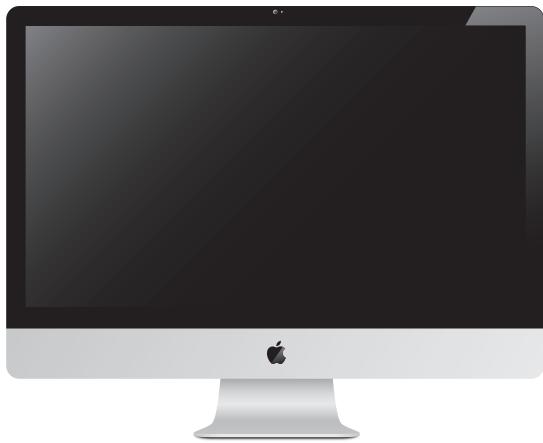
Congratulations, you and your iMac were made for each other.
Say hello to your iMac.
www.apple.com/imac

Built-in FaceTime HD camera
Make video calls to a Mac, iPhone 4, or new iPod touch with FaceTime for Mac.
Mac Help

camera

Finder
Browse your files like you browse your music with Cover Flow.
Mac Help

finder




Manage all your email accounts in one place.
Mac Help


iCal and Address Book
Keep your schedule and your contacts in sync.
Mac Help

Mac OS X Snow Leopard
www.apple.com/macosx

Time Machine
Automatically back up and restore your files.
Mac Help

time machine

Quick Look
Instantly preview your files.
Mac Help

quick look

Spotlight
Find anything on your Mac.
Mac Help

spotlight

Safari
Experience the web with the fastest browser in the world.
Mac Help

safari
iLife '11
www.apple.com.ilife

iPhoto
Turn your photos into something amazing.
iPhoto Help

photos

iMovie
Make a great-looking movie in minutes.
iMovie Help
Q movie

GarageBand
Create a great-sounding song with ease.
GarageBand Help
record
Contents
Chapter 1: Ready, Set Up, Go
9 What's in the Box 10 Setting Up Your iMac 15 Putting Your iMac to Sleep or Shutting It Down
Chapter 2: Life with Your iMac
18 Basic Features of Your iMac 20 Ports on Your iMac 22 Other Components of Your iMac 24 Features of the Apple Wireless Keyboard and Magic Mouse 26 Using the Apple Wireless Keyboard 28 Using the Apple Magic Mouse 30 Using the Apple Remote 32 Getting Answers
Chapter 3: Boost Your Memory
37 Installing Memory 42 Making Sure Your iMac Recognizes the New Memory
Chapter 4: Problem, Meet Solution
45 Problems That Prevent You from Using Your iMac 47 Replacing the Batteries 49 Using Apple Hardware Test 50 Problems with Your Internet Connection 52 Problems with AirPort Wireless Communication 53 Keeping Your Software Up to Date 54 Reinstalling the Software That Came with Your iMac 55 Using Disk Utility 56 Other Problems 57 Learning More, Service, and Support 60 Locating Your Product Serial Number
Chapter 5: Last, but Not Least
62 Important Safety Information 66 Important Handling Information 67 Cleaning Your iMac 68 Understanding Ergonomics 70 Apple and the Environment
Looking for Something?
76 Index
1
Ready, Set Up, Go
www.apple.com/imac
Mac Help
Migration Assistant
Your iMac is designed so that you can easily set it up and start using it right away. If you've never used an iMac or are new to Mac computers, read this chapter for instructions about getting started.
Important: Read all the setup instructions in this chapter and the safety information starting on page 62 before you plug your iMac into a power outlet.
If you are an experienced user, you may already know enough to get started. Make sure you look over the information in Chapter 2, "Life with Your iMac," to find out about the new features of your iMac.
Answers to many questions can be found on your iMac in Mac Help. For information about Mac Help, see "Getting Answers" on page 32.
Remove any protective film from the outside of your iMac before you set it up.
What's in the Box
Your iMac comes with an Apple Wireless Keyboard, a wireless Apple Magic Mouse, and an AC power cord. If you ordered an Apple Remote, it's also in the box.

Apple Magic Mouse
Apple Wireless Keyboard
AC power cord
Setting Up Your iMac
Follow these steps to set up your iMac. Wait until Step 4 to turn on your iMac.
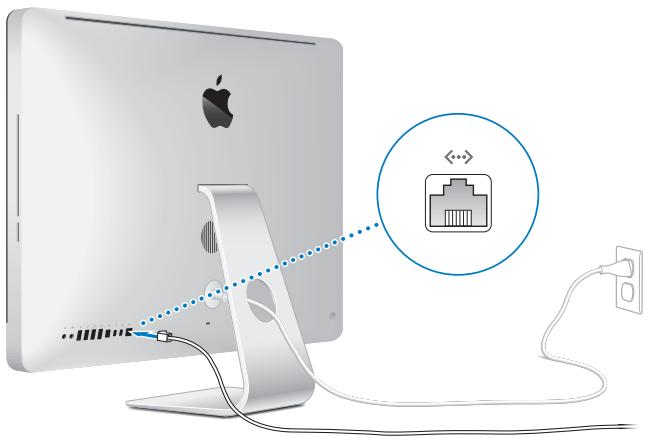
Step 1: Pass the power cord through the hole in the stand, plug it into the power port on the back of your iMac, and then plug the cord into a power outlet.

Step 2: To access the Internet or a network, connect one end of an Ethernet cable to the Ethernet port on your iMac. Connect the other end to a cable modem, a DSL modem, or a network.
Your iMac comes with AirPort (802.11n) technology for wireless networking.
For information about setting up a wireless connection, choose Help > Mac Help and search for "AirPort."
To use a dial-up connection, you need an external USB modem. Plug the modem into a USB port on your iMac, and then use a phone cord to connect the modem to a phone jack.
Step 3: Turn on your wireless keyboard and mouse.
Press the power button on the right side of your Apple Wireless Keyboard and slide the switch on the bottom of your Apple Magic Mouse to turn them on.
Your wireless keyboard and mouse come with AA batteries installed, and they're already paired with your iMac. Pairing allows them to communicate wirelessly with your iMac.
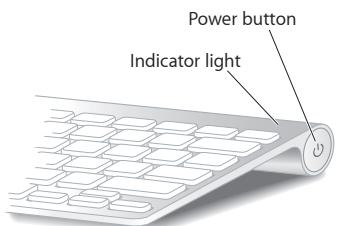
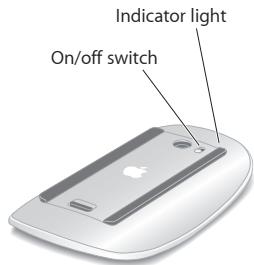
When you first turn on your keyboard or mouse, the indicator light glows steadily for 5 seconds, indicating the batteries are good. If your keyboard or mouse doesn't turn on, make sure batteries are installed properly (see page 47).
The indicator light blinks until you turn on your iMac and a connection is established.
Note: If you purchased a USB keyboard or a USB mouse, connect the cable to a USB (P) port on the back of your iMac.
Step 4: Press the power (U) button on the back to turn on your iMac.
You hear a tone when you turn on your iMac. Click your mouse to establish a connection with your iMac.
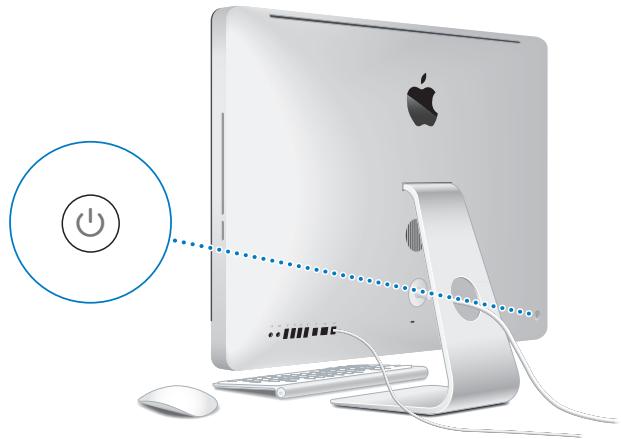
Important: If your keyboard and mouse aren't paired with your iMac, follow the onscreen instructions to pair them. You may have to click the mouse once to establish a connection. For more information about pairing, see "Pairing Your Apple Wireless Keyboard with Your iMac" on page 27.
Step 5: Use Setup Assistant to configure your iMac.
The first time you turn on your iMac, Setup Assistant starts. Setup Assistant helps you enter your Internet and email information and set up a user account on your iMac. If you already have a Mac, Setup Assistant can help you automatically transfer files, applications, and other information from your previous Mac to your new iMac.
If you don't intend to keep or use your other Mac, it's best to deauthorize it from playing music, videos, or audiobooks that you've purchased from the iTunes Store. Deauthorizing a computer prevents any songs, videos, or audiobooks you've purchased from being played by someone else and frees up another authorization for use. For information about deauthorizing, choose iTunes Help from the Help menu in iTunes.
If you don't use Setup Assistant to transfer information when you first start up, you can do it later using Migration Assistant. Go to the Applications folder, open Utilities, and double-click Migration Assistant.
After you're set up, check for updated software. Choose Apple (•) > Software Update from the menu bar and follow the onscreen instructions.
Step 6: Customize your desktop and set your preferences.
You can easily make your desktop look the way you want using System Preferences, your command center for most settings on your iMac. Choose Apple (•) > System Preferences from the menu bar, or click the System Preferences icon in the Dock. For more information, open Mac Help and search for "System Preferences" or for the specific preference you want to change.
Putting Your iMac to Sleep or Shutting It Down
When you finish working with your iMac, you can put it to sleep or shut it down.
Putting Your iMac to Sleep
If you'll be away from your iMac for less than a few days, put it to sleep. When your iMac is in sleep, its screen is dark. You can quickly wake your iMac and bypass the startup process.
To put your iMac to sleep, do one of the following:
- Choose Apple (●) > Sleep from the menu bar.
- Press the power (U) button on the back of your iMac.
- Choose Apple (●) > System Preferences, click Energy Saver, and set a sleep timer.
- Hold down the Play/Pause (▶) button on the optional Apple Remote for 3 seconds.
To wake your iMac from sleep, do one of the following:
- Press any key on the keyboard.
- Click the mouse.
- Press the power (U) button on the back of your iMac.
- Press any button on the optional Apple Remote.
When your iMac wakes from sleep, your applications, documents, and computer settings are exactly as you left them.
Shutting Down Your iMac
If you won't be using your iMac for more than a few days, shut it down. Choose Apple (●) > Shut Down. To turn your iMac on again, press the power (U) button.
NOTICE: Shut down your iMac before moving it. Moving your iMac while the hard disk is spinning can damage the hard disk, causing loss of data or an inability to start up from the hard disk.
Life with Your iMac
MacHelp Mac OS X
Basic Features of Your iMac
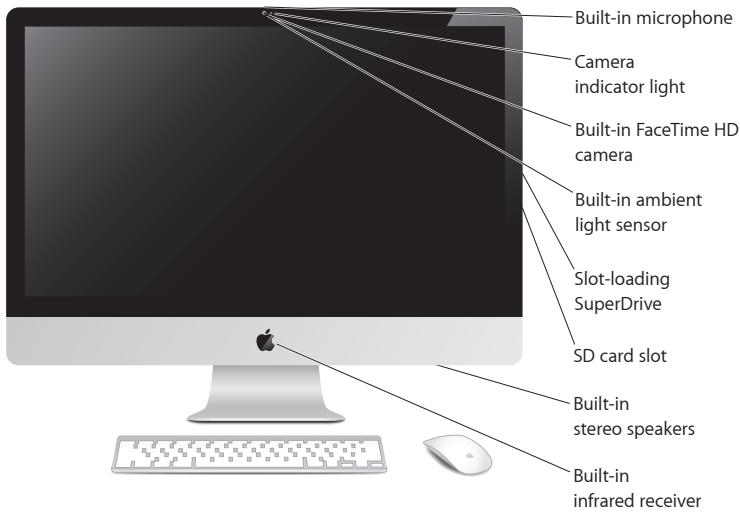
Built-in microphone
Capture sounds on your iMac, or talk with friends live over the Internet using the included iChat application.
Built-in FaceTime HD camera and camera indicator light
Use the FaceTime application to make video calls to other FaceTime users (on any iPhone 4, new iPod touch, or Mac with FaceTime), take pictures with Photo Booth, or capture video with iMovie. The indicator light glows when the FaceTime HD camera is operating.
Built-in ambient light sensor
Automatically adjusts the brightness of your display, based on ambient light.
Slot-loading SuperDrive
The slot-loading SuperDrive reads and writes standard-size CDs and DVDs.
SD card slot
Easily transfer photos, videos, and data to and from your iMac with an SD card.
Built-in stereo speakers
Listen to music, movies, games, and other multimedia files.
Built-in infrared (IR) receiver
Use an Apple Remote (available separately) with the IR receiver to control Front Row and Keynote on your iMac from up to 30 feet (9.1 meters) away.
Ports on Your iMac

Ethernet port (10/100/1000 Base-T)

Thunderbolt ports (1 or 2)

USB 2.0 ports (4)

Audio in/optical digital audio in port

Headphone out/ optical digital audio out port

FireWire 800 port


| <···> | Ethernet port (10/100/1000Base-T) Connect to a high-speed 10/100/1000Base-T Ethernet network, connect a DSL or cable modem, or connect to another computer and transfer files. The Ethernet port automatically detects other Ethernet devices. |
| / | One or two Thunderbolt ports (high-speed data, video, and audio) Connect Thunderbolt-compatible devices for high-speed data transfer, or connect an external display that uses Mini DisplayPort. You can purchase adapters to connect displays that use DVI, HDMI, or VGA. The 21.5-inch iMac has one Thunderbolt port and 27-inch iMacs have two. |
| / | Four high-speed USB (Universal Serial Bus) 2.0 ports Connect an iPod, iPhone, iPad, mouse, keyboard, printer, disk drive, digital camera, joystick, external USB modem, and more. You can also connect USB 1.1 devices. |
| / | Audio in/optical digital audio in port Connect an external powered microphone or digital audio equipment. This port is also a S/PDIF stereo 3.5 mini-phono jack. |
| / | Headphone out/optical digital audio out port Connect headphones, external powered speakers, or digital audio equipment. This port is also a S/PDIF stereo 3.5 mini-phono jack. |
| / | FireWire 800 port Connect external devices, such as digital video cameras and storage devices. The port provides up to 7 watts of power. |
Other Components of Your iMac
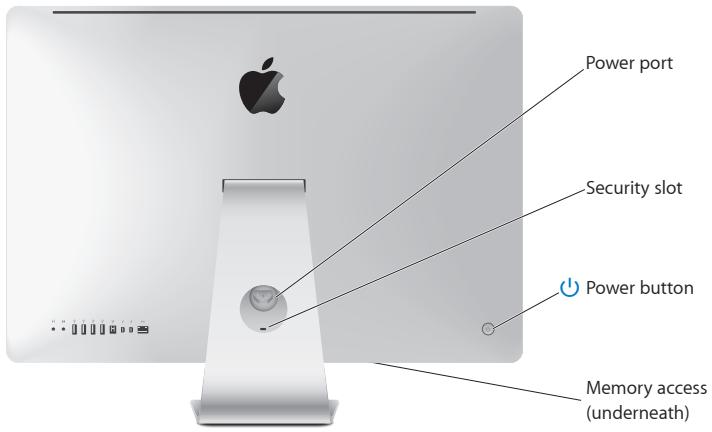
| Power port Connect the power cord to your iMac. | |
| Security slot Attach a lock and cable to discourage theft (available separately). | |
| Power button Press to turn on your iMac or put it to sleep. Hold down to restart your iMac during troubleshooting. | |
| Memory access Your iMac comes with at least 4 GB of memory installed as two 2 GB memory modules. | |
| 802.11n Wi-Fi (inside) Connect to a wireless network using built-in 802.11n Wi-Fi technology. | |
| Bluetooth® wireless technology (inside) Connect wireless devices, such as the Apple Wireless Keyboard and Apple Magic Mouse, Bluetooth mobile phones, PDAs, and printers. | |
Features of the Apple Wireless Keyboard and Magic Mouse
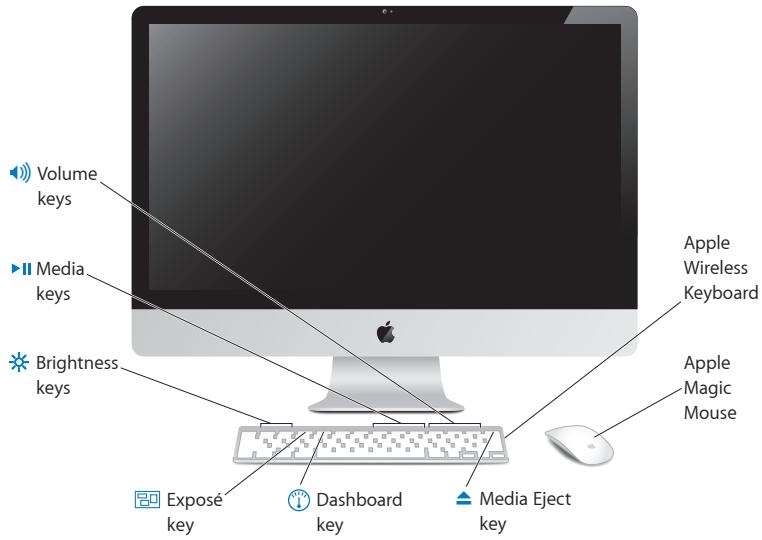
| Apple Magic Mouse Features a laser tracking engine, Bluetooth wireless technology, and a seamless top-shell that uses Multi-Touch technology to support multiple buttons, 360° scrolling, screen zoom, and swipe control of your iMac. Use Mouse preferences to adjust tracking, clicking, and scrolling speed, or to add secondary button support (see page 29). | |
| Apple Wireless Keyboard Combines wireless freedom with integrated function keys that work with your applications. | |
| ▲ | Media Eject key Hold down this key to eject a disc. You can also eject a disk by dragging its desktop icon to theTrash. |
| ↓ | Dashboard key (F4) Open Dashboard to access your widgets. |
| □ | Exposé key (F3) Open Exposé to see all of the open windows on your desktop at once. |
| ● | Brightness keys (F1, F2) Increase (●) or decrease (●) the brightness of the screen. |
| ■ | Media keys (F7, F8, F9) Rewind (▲), play or pause (▲), or fast-forward (▲) a song, movie, or slideshow. |
| ▲ | Volume keys (F10, F11, F12) Mute (▲), decrease (▲), or increase (▲) the volume of sound coming from the speakers or headphone port on your iPhone. |
Using the Apple Wireless Keyboard
Your Apple Wireless Keyboard, which comes with two AA batteries installed, is already paired with your iMac. Pairing means your keyboard and iMac are connected wirelessly and can communicate with each other.
About the Indicator Light
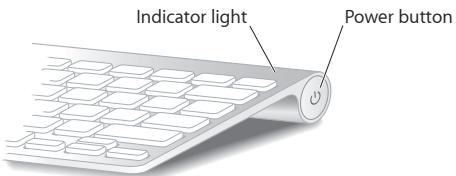
The LED on your Apple Wireless Keyboard functions as a battery indicator and a status light. When you first turn on your keyboard, the light glows steadily for 5 seconds, indicating the batteries are good, and then turns off. If you press the power (U) button on your wireless keyboard and the indicator light doesn't glow, you may need to replace the batteries. See "Replacing the Batteries" on page 47.
Pairing Your Apple Wireless Keyboard with Your iMac
If your Apple Wireless Keyboard isn't paired with your iMac, the indicator light begins to blink, indicating your keyboard is in discovery mode and ready to pair with your iMac.
To pair your wireless keyboard:
1. Press the power (U) button to turn on your wireless keyboard. 2. Choose Apple ( ) > System Preferences, and then click Keyboard. 3. Click "Set Up Bluetooth Keyboard..." in the lower-right corner. 4. Select your wireless keyboard, and then follow the onscreen instructions.
If you don't pair your keyboard with your iMac within 3 minutes, the indicator light and keyboard turn off to preserve battery life. Press the power (U) button to turn your keyboard on again, allowing you to pair it with your iMac. Once you successfully pair your keyboard with your iMac, the indicator light glows steadily for 3 seconds, and then turns off.
Using Your Apple Wireless Keyboard
Customize your Apple Wireless Keyboard using Keyboard preferences. You can change the modifier keys, assign keyboard shortcuts to menu commands in a Mac OS X application or in the Finder, and more.
To customize your keyboard:
1. Choose Apple ( ) > System Preferences. 2. Click Keyboard, and then click Keyboard or Keyboard Shortcuts.
Using the Apple Magic Mouse
Your Apple Magic Mouse, which comes with two AA batteries installed, is already paired with your iMac. Pairing means your Apple Magic Mouse and iMac are connected wirelessly and can communicate with each other.
About the Indicator Light
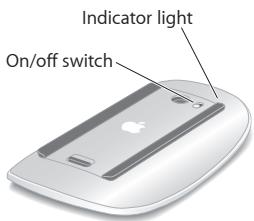
When you first turn on your Apple Magic Mouse, the light glows steadily for 5 seconds, indicating the batteries are good. If you turn your mouse on and the indicator light doesn't glow, you may need to replace the batteries. See "Replacing the Batteries" on page 47.
Pairing Your Apple Magic Mouse with Your iMac
If your Apple Magic Mouse isn't paired with your iMac, the indicator light begins to blink, indicating your mouse is in discovery mode and ready to pair with your iMac.
To pair your mouse:
1. Slide the on/off switch on the bottom of your mouse to turn it on. 2. Choose Apple () > System Preferences, and then click Mouse. 3. Click "Set Up Bluetooth Mouse..." in the lower-right corner. 4. Select your wireless mouse, and then follow the onscreen instructions.
If you don't pair your mouse with your iMac within 3 minutes, the indicator light and mouse turn off to preserve battery life. Slide the on/off switch to turn your mouse on again, allowing you to pair it with your iMac. Once you successfully pair your mouse with your iMac, the indicator light glows steadily.
Using Your Apple Magic Mouse
To learn about the Multi-Touch gestures you can use with your Apple Magic Mouse or to change the way it works, use Mouse preferences. Choose Apple () > System Preferences, and then click Mouse.
Using the Apple Remote
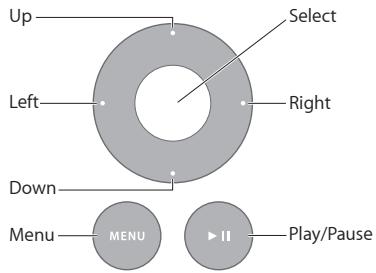
If your iMac came with an Apple Remote, you can use it with Apple products that have a built-in infrared (IR) receiver. Control and play a DVD movie or music from your iTunes library, watch photo slideshows and movie trailers, and more.
To use your remote:
1. Press Play/Pause to play or pause a song, slideshow, or movie. 2. Press Right or Left to skip to the next or previous song in your iTunes library, or the next or previous chapter on a DVD. 3. Hold down Right or Left to fast-forward or rewind a song or movie. 4. Press Up or Down to adjust the volume.
Pairing Your Apple Remote
Pair your Apple Remote with your iMac or another Apple product. After you pair the iMac or Apple product, it's controlled by only the paired remote.
To pair your remote:
1. Move within 3 to 4 inches (8 to 10 cm) of your iMac or Apple product. 2. Point the remote at the IR receiver on the front of your iMac or Apple product. 3. Hold down Right and Menu for 5 seconds.
When you've paired your remote, a chainlink symbol appears onscreen.
To unpair your remote on an iMac:
1 Choose Apple () > System Preferences from the menu bar. 2 Click Security, and then click Unpair.
For Apple TV or other Apple products, hold down Menu and Left to unpair.
Replacing the Battery
To replace the battery:
1 Use a coin to remove the battery cover.
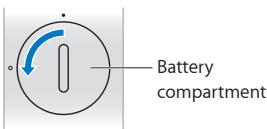
2 Insert a CR2032 battery, positive (+) side up. 3 Replace the cover and use a coin to tighten it.
Getting Answers
Much more information about using your iMac is available in Mac Help and on the Internet at www.apple.com/support/imac.
To open Mac Help:
1 Click the Finder icon in the Dock (the bar of icons along the edge of the screen). 2 Choose Help > Mac Help (click the Help menu in the menu bar and choose Mac Help). 3 Click in the search field, type a question, and press Return on your keyboard.
More Information
For more information about using your iMac, see the following:
| To learn about | See |
| Installing memory | "Boost Your Memory" on page 35. |
| Troubleshooting your iMac if you have a problem | "Problem, Meet Solution" on page 43. |
| Finding service and support for your iMac | "Learning More, Service, and Support" on page 57. Or see the Apple Support website at www.apple.com/support. |
| Using Mac OS X | The Mac OS X website at www.apple.com/macosx. Or search for "Mac OS X" in Mac Help. |
| Moving from a PC to a Mac | "Why you'll love a Mac" at www.apple.com/getamac/whymac. |
| Using iLife applications | The iLife website at www.apple.com/ilibrium. Or open an iLife application, open Help for the application, and then type a question in the search field. |
| Changing System Preferences | System Preferences by choosing Apple (●) > System Preferences. Or search for "system preferences" in Mac Help. |
| Using the FaceTime HD camera | Mac Help and search for "FaceTime." |
| Using your keyboard or mouse | System Preferences and choose Keyboard or Mouse. Or open Mac Help and search for "keyboard" or "mouse." |
| Using AirPort | The AirPort Support page at www.apple.com/support/airport. Or open Mac Help and search for "AirPort." |
| Using Bluetooth wireless technology | Open Mac Help and search for "Bluetooth." Or go to the Bluetooth Support page at www.apple.com/support/bluetooth. |
| Connecting a printer | Mac Help and search for "printing." |
| FireWire and USB connections | Mac Help and search for "FireWire" or "USB." |
| Connecting to the Internet | Mac Help and search for "Internet." |
| External display | Mac Help and search for "display port" or "target display mode." |
| Using a Thunderbolt port | Mac Help and search for "Thunderbolt." |
| Apple Remote | Mac Help and search for "remote." |
| Front Row | Mac Help and search for "Front Row." |
| Using the SuperDrive | Mac Help and search for "optical drive." |
| Specifications | The Specifications page at www.apple.com/support/specs for standard technical specifications. Or open System Profiler by choosing Apple (▲) > About This Mac from the menu bar and then clicking More Info. |
| Downloading Mac software updates | Software Updates by choosing Apple (▲) > Software Update. |
| Finding and downloading Mac apps | The Mac App Store (available in Mac OS X v10.6.6 or later, or at www.apple.com/mac/app-store) |
| Instructions, technical support, and Apple product manuals | The Apple Support website at www.apple.com/support. |
3
Boost Your Memory
www.apple.com/store
Your iMac comes with at least 4 gigabytes (GB) of Double Data Rate 3 (DDR3) Dynamic Random Access memory (DRAM) installed as two 2 GB memory modules. You can replace or install additional 2 GB or 4 GB memory modules for up to a maximum of 16 GB. Memory modules must meet the following specifications:
- Small Outline Dual Inline Memory Module (SO-DIMM) format
- 1333 MHz, PC3-10600, DDR3 compliant (also referred to as DDR3 1333)
- Unbuffered and unregistered
WARNING: Apple recommends that you have an Apple-certified technician install memory. See "AppleCare Service and Support" on page 58 for information about how to contact Apple for service. If you attempt to install memory and damage your equipment, that damage isn't covered by the limited warranty on your iMac.
Installing Memory
Your iMac has four memory slots. Two are filled with at least a 2 GB memory module. You can install additional memory in the free slots or replace the memory in the filled slots with 2 GB or 4 GB memory modules, for up to 16 GB of memory.
You can purchase additional Apple memory from an Apple Authorized Reseller, an Apple Retail Store, or the Apple Online Store at www.apple.com/store.
WARNING: Always shut down your iMac and remove the power cord before installing memory. Do not attempt to install memory while your iMac is plugged in.
To install memory:
1. Turn off your iMac by choosing Apple () > Shut Down. 2. Disconnect all cables and the power cord from your iMac. 3. Place a soft, clean towel or cloth on your work surface. Hold the sides of your iMac and lay it down so that the screen rests on the surface and the bottom faces you.
4. Raise the stand and use a Phillips #2 screwdriver to loosen the three captive screws on the memory access door. Turn them counterclockwise.
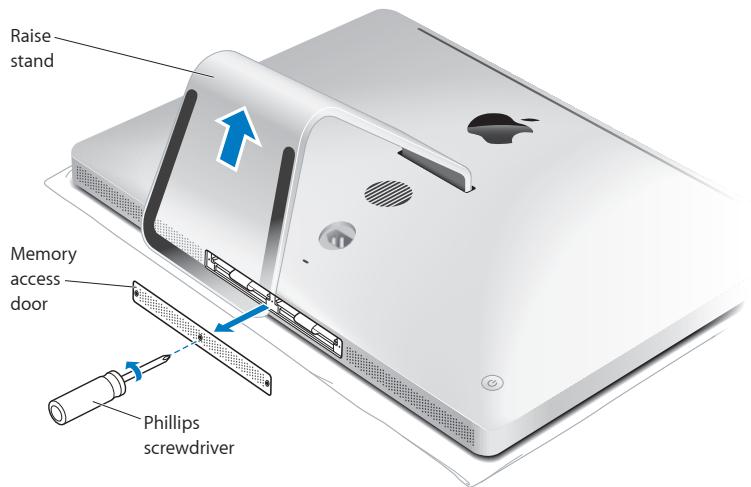
5. Remove the memory access door and set it aside.
6. Untuck the tabs in the memory compartment. 7. To replace memory modules, pull the tab to eject the installed memory module. Remove the memory modules you want to replace.
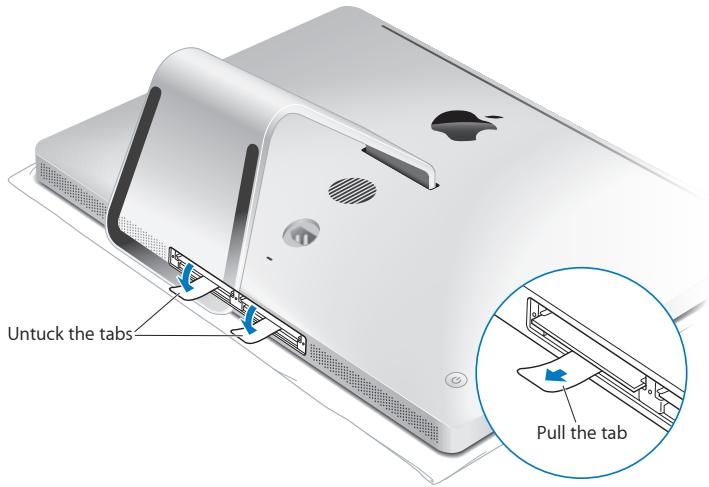
8 Insert the new memory modules in the slots with the notches facing right, as shown in the illustration.
- If you install additional memory modules, insert them in the open slots.
- If you replace the installed memory modules, insert a new memory module in each of the slots furthest from the display.
9 Press each memory module firmly and evenly into its slot. You'll hear a slight click when the memory module is seated correctly. 10 Tuck the tabs into the memory compartment.
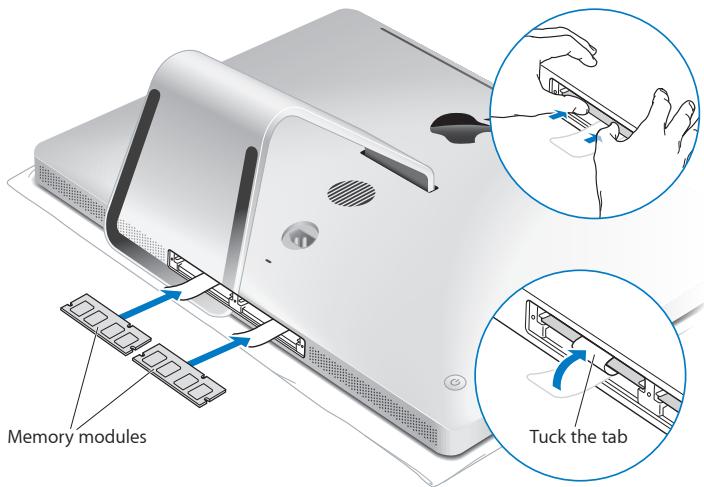
11 Replace the memory access door and tighten the three captive screws with a Phillips #2 screwdriver.
WARNING: Remember to replace the memory access door after you install memory. Your iMac won't function properly without the memory access door.
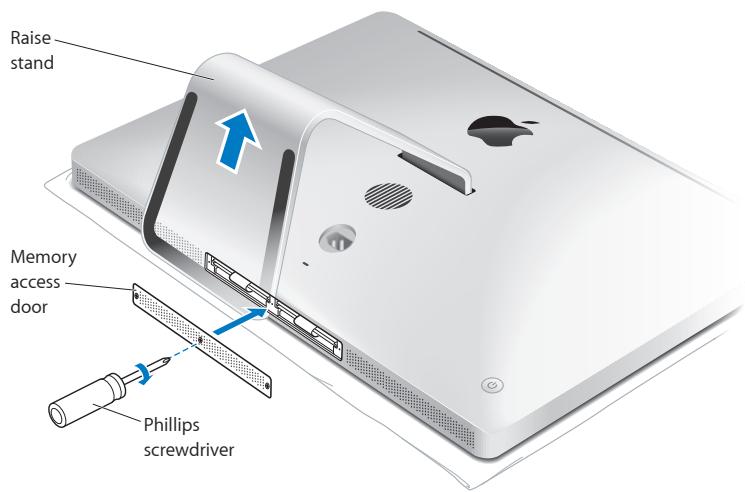
12 Hold your iMac by its sides and return it to a standing position. Then reconnect the cables and power cord. 13 Press the power (O) button on the back of your iMac to turn it on.
Making Sure Your iMac Recognizes the New Memory
After installing memory, make sure your iMac recognizes the new memory.
To check the memory installed in your iMac:
1 Start up your iMac. 2 When you see the Mac OS X desktop, choose Apple (•) > About This Mac.
You'll see the total amount of memory installed in your iMac. For a detailed view of the amount of memory installed, open System Profiler by clicking More Info.
If the memory you installed doesn't meet specifications (see page 36), your iMac will sound three tones every five seconds. If this happens, shut down your iMac and check the installation instructions again to make sure that the memory is compatible with your iMac and that it's installed correctly. If you still have problems, remove the memory and consult the support information that came with the memory or contact the vendor who provided the memory.
Problem, Meet Solution
Occasionally you may have problems while working with your iMac. Read on for troubleshooting tips to try when you have a problem. You can also find more troubleshooting information in Mac Help or on the iMac Service & Support website at www.apple.com/support/imac.
If you experience a problem working with your iMac, there's usually a simple and quick solution. If you encounter a problem, try to make a note of what you did before the problem occurred. This can help you narrow down the possible causes of the problem and then find the answers you need. Things to note:
- The applications you were using when the problem occurred. Problems that occur only with a specific application may indicate that the application isn't compatible with the version of Mac OS X installed on your iMac.
- Any software that you recently installed.
- Any new hardware (such as additional memory or a peripheral) that you connected or installed.
WARNING: Do not attempt to open your iMac, except to install memory. If your iMac needs service, see "Learning More, Service, and Support" on page 57 for information about how to contact Apple or an Apple Authorized Service Provider for service. Your iMac doesn't have any user-serviceable parts, except the memory.
Problems That Prevent You from Using Your iMac
If your iMac won't respond or the pointer won't move
- Make sure your Apple Wireless Keyboard or Apple Magic Mouse are turned on and the batteries are charged. (See "Replacing the Batteries" on page 47.) If you're using a USB keyboard or mouse, make sure they're connected. Unplug and then plug in the connectors and make sure they are secure.
- Try to force problem applications to quit. Hold down the Option and Command (⌘) keys and press the Esc key. If a dialog appears, select the application and click Force Quit. Then save your work in any open applications and restart your iMac to be sure the problem is entirely cleared up.
- If you're unable to force the application to quit, hold down the power button on the back of your iMac for five seconds to shut down the computer. Unplug the power cord from your iMac. Then plug the power cord back in and press the power button on your iMac to turn it on.
If the problem reoccurs when you use a particular application, check with the application's manufacturer to see if the application is compatible with your iMac.
For support and contact information about the software that came with your iMac, go to www.apple.com/guide or to the manufacturer's website.
If the problem occurs frequently, try reinstalling your system software (see "Reinstalling the Software That Came with Your iMac" on page 54).
If your iMac freezes during startup or you see a flashing question mark
- Wait a few seconds. If your iMac doesn't start up after a delay, shut down your iMac by pressing and holding the power (U) button for about 5 seconds, until it shuts down. Then hold down the Option key and press the power (U) button again to start up your iMac. Keep holding down the Option key until your iMac starts up, then click the arrow under the icon of the startup disk you want to use.
- After your iMac starts up, open System Preferences and click Startup Disk. Select a local Mac OS X System folder.
- If the problem occurs frequently, you may need to reinstall your system software (see "Reinstalling the Software That Came with Your iMac" on page 54).
If your iMac won't turn on or start up
- Make sure the power cord is plugged into your iMac and a functioning power outlet.
- Press the power (U) button and immediately hold down the Command (R), Option, P, and R keys until you hear the startup sound a second time. This resets the parameter RAM (PRAM).
- If you recently installed memory, and your iMac sounds tones every five seconds, make sure that the memory is correctly installed and that it is compatible with your iMac. Check whether removing the memory you installed allows your iMac to start up (see page 42).
- Unplug the power cord and wait at least 30 seconds. Plug the power cord in again and press the power (U) button to start up your iMac.
- If you still can't start up your iMac, see "Learning More, Service, and Support" on page 57 for information about contacting Apple for service.
Replacing the Batteries
Your Apple Wireless Keyboard and Apple Magic Mouse each come with two AA batteries installed. You can replace them with alkaline, lithium, or rechargeable AA batteries.
Keep the battery compartment cover and batteries out of the reach of small children.
WARNING: When you replace the batteries, replace them all at the same time. Don't mix old batteries with new batteries or mix battery types (for example, don't mix alkaline and lithium batteries). Don't open or puncture the batteries, install them backwards, or expose them to fire, high temperatures, or water. Keep batteries out of the reach of children.
To replace the batteries in the Apple Wireless Keyboard:
1 Press the power (U) button to turn off your keyboard. 2 Use a coin to remove the battery compartment cover.
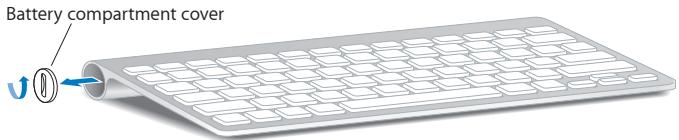
3 Slide two AA batteries into the battery compartment, as shown below.
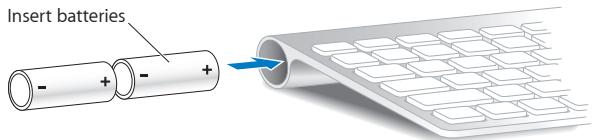
4 Replace the battery compartment cover.
To check the battery status, press the power (U) button. If the indicator light doesn't glow, you may need to change the batteries. You can check the battery level in Keyboard preferences. Choose Apple (•) > System Preferences and click Keyboard. The battery level is in the lower-left corner.
To replace the batteries in the Apple Magic Mouse:
1 Slide the on/off switch on the bottom of your mouse to turn it off. 2 Slide the latch down and remove the battery cover.
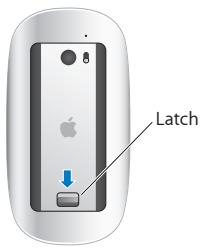
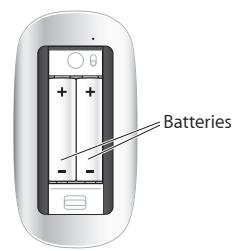
3 Insert the batteries with the positive (+) ends facing up, as shown above. 4 Replace the cover and turn on your mouse.
You may have to click your Apple Magic Mouse once to reconnect it to your iMac.
To check the battery status, slide the on/off switch to turn on the mouse. If the indicator light doesn't glow, you may need to change the batteries. You can check the battery level in Mouse Preferences. Choose Apple (•) > System Preferences and click Mouse. The battery level is shown in the lower-left corner.
Using Apple Hardware Test
If you suspect a problem with your iMac hardware, use the Apple Hardware Test application to help determine if there's a problem with one of the computer's components, such as the memory or processor.
To use Apple Hardware Test:
1 Disconnect all external devices from your iMac, except a USB keyboard and mouse, if you use them. If you have an Ethernet cable connected, disconnect it. 2 Restart your iMac while holding down the D key. 3 When the Apple Hardware Test language chooser screen appears, select the language you want to use. 4 Press the Return key or click the right arrow button. 5 When the Apple Hardware Test main screen appears (after about 45 seconds), follow the onscreen instructions.
6 If Apple Hardware Test detects a problem, it displays an error code. Make a note of the error code before pursuing support options. If Apple Hardware Test doesn't detect a hardware failure, the problem may be software-related.
If this procedure doesn't work, you can insert the Applications Install DVD that came with your iMac to use Apple Hardware Test. For more information, see the Apple Hardware Test Read Me file on the Applications Install DVD.
Problems with Your Internet Connection
Your iMac has the Network Setup Assistant application to help walk you through setting up an Internet connection. Open System Preferences and click Network. Click the "Assist me" button to open Network Setup Assistant.
If you have trouble with your Internet connection, you can try the steps in this section for your type of connection or you can use Network Diagnostics.
To use Network Diagnostics:
1 Choose Apple () > System Preferences. 2 Click Network and then click "Assist me." 3 Click Diagnostics to open Network Diagnostics. 4 Follow the onscreen instructions.
If Network Diagnostics can't resolve the problem, there may be a problem with the Internet service provider (ISP) you are trying to connect to, with an external device you are using to connect to your ISP, or with the server you are trying to access. You can try the steps in the following sections.
Cable Modem, DSL Modem, and LAN Internet Connections
Make sure all modem cables are firmly plugged in, including the modem power cord, the cable from the modem to your iMac, and the cable from the modem to the wall jack. Also check the cables and power supplies to any Ethernet hubs or routers.
Turn the modem off and on and reset the modem hardware
Turn off your DSL or cable modem for a few minutes, and then turn it back on. Some ISPs recommend that you unplug the modem's power cord. If your modem has a reset button, you can press it either before or after you turn the power off and on.
Important: Instructions that refer to modems do not apply to LAN users. LAN users might have hubs, switches, routers, or connection pods that cable and DSL modem users do not have. LAN users should contact their network administrator rather than an ISP.
PPPoE Connections
If you are unable to connect to your ISP using PPPoE (Point to Point Protocol over Ethernet), make sure you have entered the correct information in Network preferences.
To enter PPPoE settings:
1 Choose Apple () > System Preferences. 2 Click Network. 3 Click Add (+) at the bottom of the network connection services list, and choose PPPOE from the Interface pop-up menu. 4 Choose an interface for the PPPoE service from the Ethernet pop-up menu. Choose Ethernet if you are connecting to a wired network, or AirPort if you are connecting to a wireless network.
5 Enter the information you received from your service provider, such as the account name, password, and PPPoE service name (if your service provider requires it). 6 Click Apply to make the settings active.
Network Connections
Make sure the Ethernet cable is plugged into your iMac and into the network. Check the cables and power supplies to your Ethernet hubs and routers.
If you have two or more computers sharing an Internet connection, be sure that your network is set up properly. You need to know whether your ISP provides only one IP address or multiple IP addresses, one for each computer.
If only one IP address is provided, then you must have a router capable of sharing the connection, also known as network address translation (NAT) or "IP masquerading." For setup information, check the documentation provided with your router or ask the person who set up your network.
An AirPort base station can be used to share one IP address among multiple computers. For information about using an AirPort base station, check Mac Help or visit the AirPort website at www.apple.com/support/airport.
If you can't resolve the issue using these steps, contact your ISP or network administrator.
Problems with AirPort Wireless Communication
If you have trouble using AirPort wireless communication:
- Make sure the computer or network you are trying to connect to is running and has a wireless access point.
- Make sure you've properly configured the software according to the instructions that came with your base station or access point.
- Make sure your iMac is within antenna range of the other computer or the network's access point. Nearby electronic devices or metal structures can interfere with wireless communication and reduce this range. Repositioning or rotating your iMac might improve reception.
- Check the AirPort status menu in the menu bar. Up to four bars appear, indicating signal strength. If the signal strength is weak, try changing your location.
- See AirPort Help (choose Help > Mac Help, and search for "AirPort"). Also see the instructions that came with the wireless device for more information.
Keeping Your Software Up to Date
You can connect to the Internet and automatically download and install the latest free software versions, drivers, and other enhancements from Apple.
When you're connected to the Internet, Software Update checks to see if any updates are available for your computer. You can set your iMac to check for updates periodically, and then you can download and install updated software.
To check for updated software:
1 Choose Apple (●) > System Preferences. 2 Click the Software Update icon and follow the onscreen instructions.
- For more information, search for "Software Update" in Mac Help. For the latest information about Mac OS X, go to www.apple.com/macosx.
Reinstalling the Software That Came with Your iMac
Use the software installation discs that came with your iMac to reinstall Mac OS X and any applications that came with your computer.
Important: Apple recommends that you back up the data on your hard disk before restoring software. Apple is not responsible for any lost data.
Installing Mac OS X
To install Mac OS X:
1 Back up your important files. 2 Insert the Mac OS X Install DVD that came with your iMac. 3 Double-click Install Mac OS X. 4 Follow the onscreen instructions.
Note: To restore Mac OS X on your iMac to the original factory settings, you must first erase the volume you want to install on. You can do this during installation using Disk Utility. For instructions, see the Knowledge Base article at support.apple.com/kb/ht3910.
5 When the installation is complete, click Restart to restart your iMac. 6 Follow the prompts in Setup Assistant to set up your user account.
If you erase your hard disk during installation, you need to reinstall your applications; see the following section.
Reinstalling Applications
If you erased your hard disk as part of reinstalling Mac OS X, you must reinstall the applications that came with your iMac, such as the iLife applications.
To install the applications that came with your iMac:
1. Back up your important files. 2. Insert the Applications Install DVD that came with your iMac. 3. Double-click Install Bundled Software. 4. Follow the onscreen instructions. 5. When the installation is complete, click Close.
Using Disk Utility
You can use Disk Utility to repair, verify, or erase the iMac hard disk.
To Use Disk Utility:
1. Insert the Mac OS X Install DVD that came with your iMac. 2. Double-click Install Mac OS X. 3. After selecting your language, choose Utilities > Open Disk Utility and then follow the instructions in the First Aid pane to see if Disk Utility can repair the disk. 4. Quit Mac OS X Installer.
If using Disk Utility doesn't help, try reinstalling the iMac system software. See "Reinstalling the Software That Came with Your iMac" on page 54.
Other Problems
For a problem with software from a manufacturer other than Apple, contact the manufacturer. Software manufacturers often provide software updates on their websites.
You can check for and install the latest Apple software using the Software Update pane of System Preferences. Your iMac is set to check automatically once a week, but you can set it to check daily or monthly. You can also check for updates manually. For more information, choose Help > Mac Help and search for "software update."
If you have trouble inserting a disc
- Using a continuous motion, push the disc into the drive until your fingers touch the edge of your iMac.
- Use only a standard-size disc.
If you have trouble ejecting a disc
- Quit any applications that may be using the disc, and then press the Media Eject (A) key on your keyboard.
- Open a Finder window and click the eject icon next to the disc icon in the sidebar, or drag the disc icon from the desktop to the Trash.
- Log out from your user account by choosing Apple (•) > Log Out "User" (your account name appears in the menu), and then press the Media Eject (△) key on your keyboard.
- Restart your iMac while holding down the mouse button.
If you have trouble scrolling with your mouse
- If you have a mouse with a scroll ball and the scrolling feels rough or the scroll ball isn't scrolling up, down, or side-to-side, hold the mouse upside-down and roll the ball vigorously while cleaning.
- See "Cleaning Your Mouse" on page 68 for more information.
If you have a problem using your iMac or working with Mac OS X
- If the answer to your question isn't in this manual, look in Mac Help for instructions and troubleshooting information. In the Finder, choose Help > Mac Help.
- Check the Apple Support website at www.apple.com/support for the latest troubleshooting information and software updates.
If your date and time settings get lost repeatedly
- You may need to have the internal backup battery replaced. For information about contacting Apple for service, see "Learning More, Service, and Support" below.
Learning More, Service, and Support
Your iMac does not have any user-serviceable parts, except the keyboard, mouse, and memory. If you need service, contact Apple or take your iMac to an Apple Authorized Service Provider. You can find more information about your iMac through online resources, onscreen help, System Profiler, or Apple Hardware Test.
Online Resources
For online service and support information, go to www.apple.com/support. Choose your country from the pop-up menu. You can search the AppleCare Knowledge Base, check for software updates, or get help on Apple's discussion forums.
Onscreen Help
You can often find answers to your questions, as well as instructions and troubleshooting information, in Mac Help. Choose Help > Mac Help.
System Profiler
To get information about your iMac, use System Profiler. It shows you what hardware and software is installed, the serial number and operating system version, how much memory is installed, and more. To open System Profiler, choose Apple (•) > About This Mac from the menu bar and then click More Info.
AppleCare Service and Support
Your iMac comes with 90 days of technical support and one year of hardware repair warranty coverage at an Apple Retail Store or an Apple-authorized repair center, such as an Apple Authorized Service Provider. You can extend your coverage by purchasing the AppleCare Protection Plan. For information, visit www.apple.com/support/products or visit the website address for your country listed below.
If you need assistance, AppleCare telephone support representatives can help you with installing and opening applications, and basic troubleshooting. Call the support center number nearest you (the first 90 days are complimentary). Have the purchase date and your iMac serial number ready when you call.
Note: Your 90 days of complimentary telephone support begins on the date of purchase and telephone fees may apply.
| Country | Phone | Website |
| United States | 1-800-275-2273 | www.apple.com/support |
| Australia | (61) 1-300-321-456 | www.apple.com/au/support |
| Canada (English) (French) | 1-800-263-3394 | www.apple.com/ca/support www.apple.com/ca/fr/support |
| Ireland | (353) 1850 946 191 | www.apple.com/ie/support |
| New Zealand | 00800-7666-7666 | www.apple.com.nz/support |
| United Kingdom | (44) 0844 209 0611 | www.apple.com/uk/support |
Telephone numbers are subject to change, and local and national telephone rates may apply. A complete list is available on the web:
www.apple.com/support/contact/phone_contacts.html
Locating Your Product Serial Number
Use any of these methods to find the serial number of your iMac:
- Choose Apple (•) > About This Mac. Click the version number beneath the words "Mac OS X" to cycle through the Mac OS X version number, the build version, and the serial number.
- Click the Finder icon and open /Applications/Utilities/System Profiler. Click Hardware in the Contents pane.
- Look on the bottom of the iMac stand.
5
Last, but Not Least
For your safety and that of your equipment, follow these rules for handling and cleaning your iMac and for working more comfortably. Keep these instructions handy for reference by you and others.
NOTICE: Incorrect storage or use of your computer may void the manufacturer's warranty.
Important Safety Information
WARNING: Failure to follow these safety instructions could result in fire, electric shock, or other injury or damage.
Proper handling: Set up your iMac on a stable work surface. Never push objects into the ventilation openings.
Water and wet locations: Keep your iMac away from sources of liquid, such as drinks, washbasins, bathtubs, shower stalls, and so on. Protect your iMac from dampness or wet weather, such as rain, snow, and fog.
Power: The only way to disconnect power completely is to unplug the power cord. Make sure you pull the plug, not the cord. Always unplug the power cord before opening your iMac to install memory.
Unplug the power cord (by pulling the plug, not the cord) and disconnect the ethernet cable or phone cord if any of the following conditions exist:
- You want to add memory
- The power cord or plug becomes frayed or otherwise damaged
- You spill something into the case
- Your iMac is exposed to rain or excess moisture
- Your iMac has been dropped or the case has been damaged
- You suspect that your iMac needs service or repair
- You want to clean the case (use only the recommended procedure described later)
Important: The only way to turn off power completely is to unplug the power cord. Make sure at least one end of the power cord is within easy reach so that you can unplug your iMac when you need to.
WARNING: Your AC cord has a three-wire grounding plug (a plug that has a third, grounding pin). This plug fits only a grounded AC outlet. If you are unable to insert the plug into an outlet because the outlet isn't grounded, contact a licensed electrician to replace the outlet with a properly grounded outlet. Do not defeat the purpose of the grounding plug.
Power specifications:
Voltage: 100 to 240 V AC - Current: 4 A, maximum Frequency: 50 to 60 Hz
Hearing damage Permanent hearing loss may occur if earbuds or headphones are used at high volume. Set the volume to a safe level. You can adapt over time to a higher volume of sound that may sound normal but can be damaging to your hearing. If you experience ringing in your ears or muffled speech, stop listening and have your hearing checked. The louder the volume, the less time is required before your hearing could be affected. Hearing experts suggest that to protect your hearing:
- Limit the amount of time you use earbuds or headphones at high volume.
- Avoid turning up the volume to block out noisy surroundings.
- Turn the volume down if you can't hear people speaking near you.
High-risk activities This computer system is not intended for use in the operation of nuclear facilities, aircraft navigation or communications systems, air traffic control systems, or for any other uses where the failure of the computer system could lead to death, personal injury, or severe environmental damage.
Mouse Class 1 Laser Information
The Apple Magic Mouse is a Class 1 laser product in accordance with IEC60825-1 A1 A2 and 21 CFR 1040.10 and 1040.11 except for deviations pursuant to Laser Notice No. 50, dated July 26, 2001.
Caution: Modification of this device may result in hazardous radiation exposure. For your safety, have this equipment serviced only by an Apple Authorized Service Provider.
A Class 1 laser is safe under reasonably foreseeable conditions per the requirements in IEC 60825-1 and 21 CFR 1040. However, it is recommended that you do not direct the laser beam at anyone's eyes.
Laser Information for Optical Disc Drives
WARNING: Making adjustments or performing procedures other than those specified in your equipment's manual may result in hazardous radiation exposure.
The optical disc drive in your iMac contains a laser that is safe in normal use but that may be harmful to your eyes if disassembled. For your safety, have this equipment serviced only by an Apple Authorized Service Provider.
Important: Electrical equipment may be hazardous if misused. Operation of this product, or similar products, must always be supervised by an adult. Do not allow children access to the interior of any electrical product and do not permit them to handle any cables.
WARNING: Never push objects of any kind into this product through the ventilation openings in the case. Doing so may be dangerous and damage your computer.
Do Not Make Repairs Yourself
Your iMac has no user-serviceable parts, except the keyboard, mouse, and memory (see "Installing Memory" on page 37). Do not attempt to open your iMac. If your iMac needs service, contact an Apple Authorized Service Provider or Apple for service. See "Learning More, Service, and Support" on page 57.
If you open your iMac or install items other than memory, you risk damaging your equipment. Such damage isn't covered by the limited warranty on your iMac.
Important Handling Information
NOTICE: Failure to follow these handling instructions could result in damage to your iMac or other property.
Operating environment Operating your iMac outside these ranges may affect performance:
- Operating temperature: 50° to 95°F (10° to 35°C)
- Storage temperature: -4° to 116°F (-20° to 47°C)
- Relative humidity: 5% to 95% (noncondensing). Maximum operating altitude: 10,000 feet (3048 meters).
Do not operate your iMac in areas with significant amounts of airborne dust, or smoke from cigarettes, cigars, ashtrays, stoves, or fireplaces, or near an ultrasonic humidifier using unfiltered tap water. Tiny airborne particles produced by smoking, cooking, burning, or using an ultrasonic humidifier with unfiltered water may, in rare instances, enter the ventilation openings of your iMac and, under certain conditions, result in a slight haze on the inside surface of the glass panel that covers the iMac display.
Turning on your iMac: Never turn on your iMac unless all of its internal and external parts are in place. Operating the computer when parts are missing may be dangerous and may damage your computer.
Carrying your iMac: Before you lift or reposition your iMac, shut it down and disconnect all cables and cords connected to it. To lift or move your iMac, hold its sides.
Using connectors and ports: Never force a connector into a port. When connecting a device, make sure the port is free of debris, that the connector matches the port, and that you have positioned the connector correctly in relation to the port.
Using the optical drive: The SuperDrive in your iMac supports standard 12 cm (4.7 inch) discs. Irregularly shaped discs or discs smaller than 12 cm (4.7 inches) are not supported.
Storing your iMac: If you are going to store your iMac for an extended period of time, keep it in a cool location (ideally, 71°F or 22°C).
Cleaning Your iMac
Follow these guidelines when cleaning the outside of your iMac and its components:
- Shut down your iMac and disconnect all cables.
- Use a damp, soft, lint-free cloth to clean the exterior of your iMac. Avoid getting moisture in any openings. Do not spray liquid directly on your iMac.
- Don't use aerosol sprays, solvents, or abrasives.
Cleaning Your iMac Display
Use a clean, soft, lint-free cloth to clean the display.
To clean your iMac display, do the following:
- Shut down your iMac and disconnect all cables.
- Dampen a clean, soft, lint-free cloth with water only, and then wipe the screen. Do not spray liquid directly on the screen.
Cleaning Your Mouse
You may need to clean your mouse from time to time to remove dirt and dust that has accumulated. Use a lint-free cloth that's been lightly moistened with water. Don't get moisture in any openings or use aerosol sprays, solvents, or abrasives.
If you use a wired Apple Mouse with your iMac, hold the mouse upside-down and roll the scroll ball vigorously with a clean, soft, lint-free cloth, to help dislodge any particles that may interfere with proper scrolling.
Understanding Ergonomics
Here are some tips for setting up a healthy work environment.
Keyboard
When you use the keyboard, your shoulders should be relaxed. Your upper arm and forearm should form an approximate right angle, with your wrist and hand in roughly a straight line.
Change hand positions often to avoid fatigue. Some computer users might develop discomfort in their hands, wrists, or arms after intensive work without breaks. If you begin to develop chronic pain or discomfort in your hands, wrists, or arms, consult a qualified health specialist.
Mouse
Position the mouse at the same height as the keyboard and within a comfortable reach.
Display
Arrange the display so that the top of the screen is slightly below eye level when you're sitting at the keyboard. The best distance from your eyes to the screen is up to you, although most people seem to prefer 18 to 28 inches (45 to 70 cm).
Position the display to minimize glare and reflections on the screen from overhead lights and nearby windows. The stand lets you set the display at the best angle for viewing, helping to reduce or eliminate glare from lighting sources you can't move.
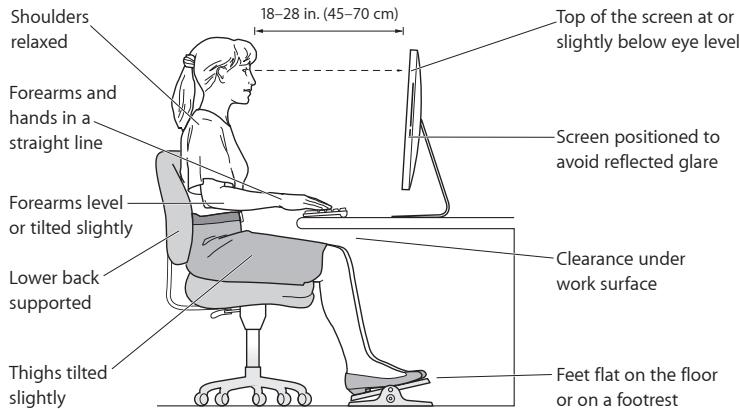
Chair
An adjustable chair that provides firm, comfortable support is best. Adjust the height of the chair so your thighs are horizontal and your feet are flat on the floor. The back of the chair should support your lower back (lumbar region). Follow the manufacturer's instructions for adjusting the backrest to fit your body properly.
You might have to raise your chair so that your forearms and hands are at the proper angle to the keyboard. If this makes it impossible to rest your feet flat on the floor, use a footrest with adjustable height and tilt to make up for any gap between the floor and your feet. Or you can lower the desktop to eliminate the need for a footrest. Another option is to use a desk with a keyboard tray that's lower than the regular work surface.
More information about ergonomics is available on the web:
www.apple.com/about/ergonomics
Apple and the Environment
Apple Inc. recognizes its responsibility to minimize the environmental impact of its operations and products.
More information is available on the web:
www.apple.com/environment
Regulatory Compliance Information
FCC Compliance Statement
This device complies with part 15 of the FCC rules. Operation is subject to the following two conditions: (1) This device may not cause harmful interference, and (2) this device must accept any interference received, including interference that may cause undesired operation. See instructions if interference to radio or television reception is suspected.
Radio and Television Interference
This computer equipment generates, uses, and can radiate radiofrequency energy. If it is not installed and used properly—that is, in strict accordance with Apple's instructions—it may cause interference with radio and television reception.
This equipment has been tested and found to comply with the limits for a Class B digital device in accordance with the specifications in Part 15 of FCC rules. These specifications are designed to provide reasonable protection against such interference in a residential installation. However, there is no guarantee that interference will not occur in a particular installation.
You can determine whether your computer system is causing interference by turning it off. If the interference stops, it was probably caused by the computer or one of the peripheral devices.
If your computer system does cause interference to radio or television reception, try to correct the interference by using one or more of the following measures:
- Turn the television or radio antenna until the interference stops.
- Move the computer to one side or the other of the television or radio.
- Move the computer farther away from the television or radio.
- Plug the computer into an outlet that is on a different circuit from the television or radio. (That is, make certain the computer and the television or radio are on circuits controlled by different circuit breakers or fuses.)
If necessary, consult an Apple Authorized Service Provider or Apple. See the service and support information that came with your Apple product. Or consult an experienced radio/television technician for additional suggestions.
Important: Changes or modifications to this product not authorized by Apple Inc. could void the EMC compliance and negate your authority to operate the product.
This product has demonstrated EMC compliance under conditions that included the use of compliant peripheral devices and shielded cables between system components. It is important that you use compliant peripheral devices and shielded cables (including Ethernet network cables) between system components to reduce the possibility of causing interference to radios, television sets, and other electronic devices.
Responsible party (contact for FCC matters only):
Apple Inc. Corporate Compliance
1 Infinite Loop, MS 26-A
Cupertino, CA 95014
Wireless Radio Use
This device is restricted to indoor use when operating in 5.15 to 5.25 GHz frequency band.
Exposure to Radio Frequency Energy
The radiated output power of this device is well below the FCC and EU radio frequency exposure limits. However, this device should be operated with a minimum distance of at least 20 cm between its antennas and a person's body, and the antennas used with this transmitter must not be collocated or operated in conjunction with any other antenna or transmitter subject to the conditions of the FCC Grant.
FCC Bluetooth Wireless Compliance
The antenna used with this transmitter must not be collocated or operated in conjunction with any other antenna or transmitter subject to the conditions of the FCC Grant.
Bluetooth Industry Canada Statement
This Class B device meets all requirements of the Canadian interference-causing equipment regulations.
Industry Canada Statement
Complies with the Canadian ICES-003 Class B specifications.
Bluetooth Europe—EU Declaration of Conformity
This wireless device complies with the R&TTE Directive.
Europe-EU Declaration of Conformity
See www.apple.com/euro/compliance.

Korea Warning Statements
The procedure for using this function is as follows:
Singapore Wireless Certification
Complies with
IDA Standards
DB00063
Taiwan Wireless Statements
Warning Statement for Wireless Equipment
Taiwan Class B Statement
Warning Statement for Class B Equipment
NIL
Warning
If the battery is replaced incorrectly, there is a risk of explosion.
Dispose of used batteries according to the manufacturer's instructions.
Japan VCCI Class B Statement
When connecting your iMac to the phone line using an external USB modem, refer to the telecommunications agency information in the documentation that came with your modem.
ENERGY STAR Compliance

ENERGY STAR
As an ENERGY STAR® partner, Apple has determined that standard configurations of this product meet the ENERGY STAR® guidelines for energy efficiency. The ENERGY STAR® program is a partnership with electronic equipment manufacturers to promote energy-efficient products. Reducing energy consumption of products saves money and helps conserve valuable resources.
This computer is shipped with power management enabled with the computer set to sleep after 10 minutes of user inactivity. To wake your computer, click the mouse or press any key on the keyboard.
For more information about ENERGY STAR, visit: www.energystar.gov
Disposal and Recycling Information

This symbol indicates that your product must be disposed of properly according to local laws and regulations. When your product reaches its end of life, contact Apple or your local authorities to learn about recycling options.
For information about Apple's recycling program, go to www.apple.com/environment/recycling.
European Union-Disposal Information:

The symbol above means that according to local laws and regulations your product should be disposed of separately from household waste. When this product reaches its end of life, take it to a collection point designated by local authorities. Some collection points accept products for free. The separate collection and recycling of your product at the time of disposal will help conserve natural resources and ensure that it is recycled in a manner that protects human health and the environment.
Türkiye
Battery Disposal Information
Dispose of batteries according to your local environmental laws and guidelines.
California: The coin cell battery in the optional Apple Remote contains perchlorates. Special handling and disposal may apply.
Refer to: www.dtsc.ca.gov/hazardouswaste/perchlorate
China
| 有毒或有害物质 | 零部件 | |||
| 电路板 | 显示屏 | 附件 | 键盘/鼠标 | |
| 铅(Pb) | X | X | X | X |
| 汞(Hg) | O | O | O | O |
| 镉(Cd) | O | O | O | O |
| 六价铬(Cr, VI) | O | O | O | O |
| 多溴联苯(PBB) | O | O | O | O |
| 多溴二苯醚(PBDE) | O | O | O | O |
Looking for Something?
Index
802.11n Wi-Fi. See AirPort
A
Airport
problems 52
using 33
ambient light sensor 19
AppleCare 58
Apple Hardware Test 49
Apple Magic Mouse 25, 28, 48
Apple Mouse 68
Apple Remote 15, 30, 33
Apple Wireless Keyboard 25, 26, 47
applications
Force Quit 45
Front Row 33
iLife 32
installing 55
transferring 14
assistant assistants
Migration Assistant 14
Network Setup Assistant 50
Setup Assistant 14
audio in/optical digital audio in port 21
B
batteries
Apple Remote 31
disposal 73
wireless keyboard 47
wireless mouse 48
Bluetooth technology
overview 23
brightness keys 25
built-in
FaceTime HD camera 19
microphone 19
speakers 19
button, power 15
C
cable modem 11
camera
FaceTime HD 19
carrying your computer 66
chair 70
changing
System Preferences 14
the desktop 14
cleaning
the display 67
the mouse 68
your iMac 67
computer. See iMac
computer disposal 73
connecting
an Ethernet cable 11
a USB keyboard 12
a USB mouse 12
cable modem 11
dial-up modem 11
DSL modem 11
FireWire devices 21
headphones 21
to a network 11
USB devices 21
controls
brightness 25
eject CD or DVD 25
media 25
volume 25
D
Dashboard key 25
data transfer
FireWire 21
Thunderbolt 21
USB2.0 21
date and time settings 57
deauthorize iTunes 14
desktop, customizing 14
dial-up connection 11
DIMMs. See memory
discs, supported types 67
display
cleaning 67
ergonomics 69
Dock 32
downloading software 53
DSL modem 11
E
ejecting a disc 56
environment 70
ergonomics 68
Ethernet 11
Ethernet port 21
Exposé 25
external USB modem 11, 21, 73
F
F1 to F12 function keys 25
FaceTime 19
factory settings 54
FireWire
connections 33
port 21
flashing question mark 46
Force Quit, an application 45
Front Row application 33
function keys 25
H
hand positions 68
headphone port 21
1
ilife applications 32, 55
iMac
back view 22
cleaning 67
features 18
front view 18
other components 22
ports 20
putting to sleep 15
setting up 10
shutting down 16
turning on 13
indicator light
keyboard 26
mouse 28
infrared receiver 19
installing
applications 56
Mac OS X 54
Internet
connecting 11
connection problems 50
IP
address sharing 52
masquerading 52
iTunes, deauthoring 14
iTunes Store 14
K
keyboard
about 25
ergonomics 68
features 24
function keys 25
indicator light 26
pairing 27
setup 12
using 27
wireless 12
keys
brightness 25
Dashboard 25
Exposé 25
media 25
Media Eject 25
volume 25
M
MacHelp 8, 14, 32, 44, 58
Mac OS X
installing 54
website 32
Magic Mouse 25, 28, 48
Media Eject Key 25
media keys 25
memory
access door 23, 38
how much is installed 42
installing 37
microphone 19
Migration Assistant 14 modem cable 21 DSL 21 external USB 11, 21, 73 mouse cleaning 68 features 25 indicator light 28 pairing 29 setting up 12 using 29 wireless 12
N
network address translation (NAT) 52 connecting to 11 connection problems 52 diagnostics 50 setup assistant 50 wireless 11 Network Setup Assistant 50
0
online resources 57 onscreen help 58 operating environment 60 optical digital audio 21 optical drive about 19 safety 65 supported disc sizes 67
P
pairing keyboard 27 mouse 29 remote 31 parameter RAM, resetting 46 ports audio in 21 audio out 21 Ethernet 21 FireWire 800 21 headphone 21 overview 20 power 10,23 Thunderbolt 21 USB 12,21 power button 12,23 power port 10,23 power specifications 64 PPPoE connections 51 problems. See troubleshooting Q question mark, flashing 46 R RAM. See memory reinstalling software 54 replacing batteries 47,48 resetting paramater RAM PRAM)46
S
Safety important information 62; optical drive 65; screen brightness, setting 25; SD card slot 19; SDRAM. See memory; security slot 23; serial number 60; service and support 57, 58; setting up your iMac 10; Setup Assistant 14; shutting down before installing memory 37; the computer 16; sleep 15; software installation discs 54; updating 53; Software Update 53; S/PDIF stereo 21; speakers 19, 21; specifications in System Profiler 33; operating environment 66; power 64; storing your iMac 67; SuperDrive about 19; supported disc sizes 67; support and service 57, 58
System Preferences
customizing the desktop 14
Energy Saver 15
Software Update 53, 56
Startup Disk 46
System Profiler 58
T
Thunderbolt 21
transferring information 14
troubleshooting
AppleCare 58
computer freezes during startup 46
computer won't respond 45
computer won't turn on 46
date and time settings 57
ejecting a disc 56
force an application to quit 45
Internet connection 50
PPPoE connections 51
reinstalling Mac OS X 54
resetting PRAM 46
service and support 57
using Mac Help 58
turning on your iMac 13
typing position 68
U
updating software 53
USB
connections 33
keyboard, connecting 12
modem, connecting 11, 21, 73
mouse, connecting 12
ports 21
user account
setting up 14
transferring information 14
V
Volume keys 25
W
wake from sleep 15
wireless
802.11n Wi-Fi 23
Bluetooth technology 23
keyboard 12, 27
mouse 12
networking 11
Apple Inc.
© 2011 Apple Inc. All rights reserved.
Under the copyright laws, this manual may not be copied, in whole or in part, without the written consent of Apple.
Every effort has been made to ensure that the information in this manual is accurate. Apple is not responsible for printing or clerical errors.
Apple
1 Infinite Loop
Cupertino, CA 95014
408-996-1010
www.apple.com
The Apple logo is a trademark of Apple Inc., registered in the U.S. and other countries. Use of the "keyboard" Apple logo (Option-Shift-K) for commercial purposes without the prior written consent of Apple may constitute trademark infringement and unfair competition in violation of federal and state laws.
Apple, the Apple logo, AirPort, Cover Flow, Exposé, FaceTime, Finder, FireWire, GarageBand, iCal, iChat, iLife, iMac, iMovie, iPhone, iPhoto, iPod, iPod touch, iTunes, Keynote, Mac, Mac OS, Photo Booth, QuickTime, Safari, Snow Leopard, Spotlight, SuperDrive, and Time Machine are trademarks of Apple Inc., registered in the U.S. and other countries.
The FireWire logo, iPad, and Multi-Touch are trademarks of Apple Inc.
AppleCare, Apple Store, and iTunes Store are service marks of Apple Inc., registered in the U.S. and other countries.
App Store is a service mark of Apple Inc.
ENERGY STAR* is a U.S. registered trademark.
The Bluetooth word mark and logos are registered trademarks owned by Bluetooth SIG, Inc. and any use of such marks by Apple is under license.
Other company and product names mentioned herein may be trademarks of their respective companies. Mention of third-party products is for informational purposes only and constitutes neither an endorsement nor a recommendation. Apple assumes no responsibility with regard to the performance or use of these products.
Manufactured under license from Dolby Laboratories. "Dolby," "Pro Logic," and the double-D symbol are trademarks of Dolby Laboratories. Confidential Unpublished Works, © 1992-1997 Dolby Laboratories, Inc. All rights reserved.
Simultaneously published in the United States and Canada.


- SAY HELLO TO YOUR IMAC
- BUILT-IN FACETIME HD CAMERA
- FINDER
- ICAL AND ADDRESS BOOK
- MAC OS X SNOW LEOPARD
- TIME MACHINE
- QUICK LOOK
- SPOTLIGHT
- SAFARI
- ILIFE
- IPHOTO
- IMOVIE
- GARAGEBAND
- CONTENTS
- CHAPTER 1: READY, SET UP, GO
- CHAPTER 2: LIFE WITH YOUR IMAC
- CHAPTER 3: BOOST YOUR MEMORY
- CHAPTER 4: PROBLEM, MEET SOLUTION
- CHAPTER 5: LAST, BUT NOT LEAST
- LOOKING FOR SOMETHING
- READY, SET UP, GO
- WHAT'S IN THE BOX
- SETTING UP YOUR IMAC
- STEP 3: TURN ON YOUR WIRELESS KEYBOARD AND MOUSE
- STEP 4: PRESS THE POWER (U) BUTTON ON THE BACK TO TURN ON YOUR IMAC
- STEP 5: USE SETUP ASSISTANT TO CONFIGURE YOUR IMAC
- STEP 6: CUSTOMIZE YOUR DESKTOP AND SET YOUR PREFERENCES
- PUTTING YOUR IMAC TO SLEEP OR SHUTTING IT DOWN
- PUTTING YOUR IMAC TO SLEEP
- SHUTTING DOWN YOUR IMAC
- LIFE WITH YOUR IMAC
- BASIC FEATURES OF YOUR IMAC
- BUILT-IN MICROPHONE
- BUILT-IN FACETIME HD CAMERA AND CAMERA INDICATOR LIGHT
- BUILT-IN AMBIENT LIGHT SENSOR
- SLOT-LOADING SUPERDRIVE
- SD CARD SLOT
- BUILT-IN STEREO SPEAKERS
- BUILT-IN INFRARED (IR) RECEIVER
- PORTS ON YOUR IMAC
- OTHER COMPONENTS OF YOUR IMAC
- FEATURES OF THE APPLE WIRELESS KEYBOARD AND MAGIC MOUSE
- USING THE APPLE WIRELESS KEYBOARD
- ABOUT THE INDICATOR LIGHT
- PAIRING YOUR APPLE WIRELESS KEYBOARD WITH YOUR IMAC
- TO PAIR YOUR WIRELESS KEYBOARD
- USING YOUR APPLE WIRELESS KEYBOARD
- TO CUSTOMIZE YOUR KEYBOARD
- USING THE APPLE MAGIC MOUSE
- PAIRING YOUR APPLE MAGIC MOUSE WITH YOUR IMAC
- TO PAIR YOUR MOUSE
- USING YOUR APPLE MAGIC MOUSE
- USING THE APPLE REMOTE
- TO USE YOUR REMOTE
- PAIRING YOUR APPLE REMOTE
- TO PAIR YOUR REMOTE
- TO UNPAIR YOUR REMOTE ON AN IMAC
- REPLACING THE BATTERY
- TO REPLACE THE BATTERY
- GETTING ANSWERS
- TO OPEN MAC HELP
- MORE INFORMATION
- BOOST YOUR MEMORY
- INSTALLING MEMORY
- TO INSTALL MEMORY
- MAKING SURE YOUR IMAC RECOGNIZES THE NEW MEMORY
- PROBLEM, MEET SOLUTION
- PROBLEMS THAT PREVENT YOU FROM USING YOUR IMAC
- IF YOUR IMAC FREEZES DURING STARTUP OR YOU SEE A FLASHING QUESTION MARK
- IF YOUR IMAC WON'T TURN ON OR START UP
- REPLACING THE BATTERIES
- TO REPLACE THE BATTERIES IN THE APPLE WIRELESS KEYBOARD
- TO REPLACE THE BATTERIES IN THE APPLE MAGIC MOUSE
- USING APPLE HARDWARE TEST
- TO USE APPLE HARDWARE TEST
- PROBLEMS WITH YOUR INTERNET CONNECTION
- TO USE NETWORK DIAGNOSTICS
- CABLE MODEM, DSL MODEM, AND LAN INTERNET CONNECTIONS
- TURN THE MODEM OFF AND ON AND RESET THE MODEM HARDWARE
- PPPOE CONNECTIONS
- TO ENTER PPPOE SETTINGS
- NETWORK CONNECTIONS
- PROBLEMS WITH AIRPORT WIRELESS COMMUNICATION
- KEEPING YOUR SOFTWARE UP TO DATE
- TO CHECK FOR UPDATED SOFTWARE
- REINSTALLING THE SOFTWARE THAT CAME WITH YOUR IMAC
- INSTALLING MAC OS X
- REINSTALLING APPLICATIONS
- USING DISK UTILITY
- TO USE DISK UTILITY
- OTHER PROBLEMS
- IF YOU HAVE TROUBLE INSERTING A DISC
- IF YOU HAVE TROUBLE EJECTING A DISC
- IF YOU HAVE TROUBLE SCROLLING WITH YOUR MOUSE
- IF YOU HAVE A PROBLEM USING YOUR IMAC OR WORKING WITH MAC OS X
- IF YOUR DATE AND TIME SETTINGS GET LOST REPEATEDLY
- LEARNING MORE, SERVICE, AND SUPPORT
- ONLINE RESOURCES
- ONSCREEN HELP
- SYSTEM PROFILER
- APPLECARE SERVICE AND SUPPORT
- LOCATING YOUR PRODUCT SERIAL NUMBER
- LAST, BUT NOT LEAST
- IMPORTANT SAFETY INFORMATION
- POWER SPECIFICATIONS
- MOUSE CLASS 1 LASER INFORMATION
- LASER INFORMATION FOR OPTICAL DISC DRIVES
- DO NOT MAKE REPAIRS YOURSELF
- IMPORTANT HANDLING INFORMATION
- CLEANING YOUR IMAC
- CLEANING YOUR IMAC DISPLAY
- CLEANING YOUR MOUSE
- UNDERSTANDING ERGONOMICS
- KEYBOARD
- MOUSE
- DISPLAY
- CHAIR
- APPLE AND THE ENVIRONMENT
- REGULATORY COMPLIANCE INFORMATION
- FCC COMPLIANCE STATEMENT
- RADIO AND TELEVISION INTERFERENCE
- WIRELESS RADIO USE
- EXPOSURE TO RADIO FREQUENCY ENERGY
- FCC BLUETOOTH WIRELESS COMPLIANCE
- BLUETOOTH INDUSTRY CANADA STATEMENT
- INDUSTRY CANADA STATEMENT
- BLUETOOTH EUROPE—EU DECLARATION OF CONFORMITY
- EUROPE-EU DECLARATION OF CONFORMITY
- KOREA WARNING STATEMENTS
- SINGAPORE WIRELESS CERTIFICATION
- TAIWAN WIRELESS STATEMENTS
- WARNING STATEMENT FOR WIRELESS EQUIPMENT
- TAIWAN CLASS B STATEMENT
- WARNING STATEMENT FOR CLASS B EQUIPMENT
- JAPAN VCCI CLASS B STATEMENT
- ENERGY STAR COMPLIANCE
- ENERGY STAR
- DISPOSAL AND RECYCLING INFORMATION
- EUROPEAN UNION-DISPOSAL INFORMATION
- TÜRKIYE
- BATTERY DISPOSAL INFORMATION
- CHINA
- INDEX
- A
- B
- C
- D
- E
- F
- H
- K
- M
- N
- P
- S
- T
- U
- V
- W
Brand : APPLE
Model : IMAC 21 INCH
Category : Desktop computer