EP 200 - Phone UNIDEN - Free user manual and instructions
Find the device manual for free EP 200 UNIDEN in PDF.


| Product Type | Cordless Phone |
| Brand | Uniden |
| Model | EP 200 |
| Dimensions (Handset) | Approx. 160 x 50 x 30 mm |
| Weight (Handset) | Approx. 130 g |
| Power Supply | 2 x AAA NiMH rechargeable batteries (2.4 V) |
| Battery Life | Up to 10 hours talk time / 100 hours standby |
| Range | Up to 50 m indoors, 300 m outdoors |
| Frequency Band | DECT (1880-1900 MHz) |
| Display | Backlit LCD with caller ID |
| Phonebook | Up to 50 contacts |
| Caller ID | Supports Caller ID (CID) and Call Waiting |
| Speakerphone | Full-duplex handsfree speakerphone |
| Intercom | Intercom between handsets |
| Conference Call | 3-way conference (with external call and intercom) |
| Redial | Last 5 numbers redial |
| Ringtones | 10 polyphonic ringtones |
| Wall Mountable | Yes, base unit can be wall mounted |
| Maintenance | Clean with a soft, dry cloth; do not use liquids |
| Safety | Remove batteries if not used for extended periods; keep away from water |
| Spare Parts | Battery pack (BT-3001) available |
Frequently Asked Questions - EP 200 UNIDEN
User questions about EP 200 UNIDEN
0 question about this device. Answer the ones you know or ask your own.
Ask a new question about this device
Download the instructions for your Phone in PDF format for free! Find your manual EP 200 - UNIDEN and take your electronic device back in hand. On this page are published all the documents necessary for the use of your device. EP 200 by UNIDEN.
USER MANUAL EP 200 UNIDEN
Before you read anything else, please observe the following:

Warning!
Uniden America Corporation DOES NOT represent this unit to be waterproof. To reduce the risk of fire, electrical shock, or damage to the unit, DO NOT expose this unit to rain or moisture.
Rechargeable Nickel-Cadmium Battery Warning
☐ The EP200 handset contains a rechargeable nickel-cadmium battery.
□ Cadmium is a chemical known to the State of California to cause cancer.
☐ The rechargeable nickel-cadmium battery contained in this equipment may explode if disposed of in a fire.
☐ Do not short-circuit the battery.
Do not charge the rechargeable nickel-cadmium battery used in this equipment in any charger other than the one designed to charge this battery as specified in the owner's manual. Using another charger may damage the battery or cause the battery to explode.
Rechargeable Nickel-Cadmium Batteries Must Be Recycled or Disposed of Properly

☐ Uniden voluntarily participates in an RBR® industry program to collect and recycle nickel-cadmium batteries at the end of their useful life, when taken out of service within the United States. The RBRC® program provides a convenient alternative to placing used nickel-cadmium batteries into the trash or municipal waste stream, which is illegal in some areas.
Through the RBR® program, Uniden makes it easy for you to drop off the used battery at local retailers of replacement nickel-cadmium batteries. You may also contact your local recycling center for information on where to return the used battery. Please call 1-800-8-BATTERY for information on Ni-Cd battery recycling in your area. Uniden's involvement in this program is part of its commitment to protecting our environment and conserving natural resources.
RBRE® is a registered trademark of the Rechargeable Battery Recycling Corporation.

The exclamation point within an equilateral triangle is intended to alert the user to the presence of important operating and maintenance (servicing) instructions in the literatureaccompanyingtheappliance.
Contents
Important Safety Instructions....3
EP200 Battery Safety Precautions 5
Introduction 6
Email phone Features 6
About the Internet 6
Getting Started....7
Unpack Your Phone 7
Check the Contents 7
Preparing the Phone for Use. 8
EP200 Final Touches ..... 9
EP100 Final Touches 11
Adjust the LCD Contrast 12
Initial Power Up 12
Setup 13
Email Phone Functional Areas 14
Setup Screen 15
Setting Up the Phone 16
Establishing Email phone Service 18
Automatic Sign-up. 19
Using Your Existing Internet Service Provider (ISP) . . 22
More Setup Screens 25
Home 28
The Home Screen. 28
Entering Notes 28
Temporary Notes 29
Viewing notes 30
Email phone 31
Email phone Screen. 31
Reading Messages....31
Receiving Messages....32
Sending Messages 32
Delete Messages....33
Reply to Messages 33
Forwarding Messages. 34
Address Book 35
Address Book Screen. 35
Entering New Addresses .....35
Viewing Addresses 36
Modifying Addresses 36
Deleting Addresses....37
Speed Dialing From the Address Book . . . . . . . . . 37
Caller ID 38
Caller ID Screen. 38
Viewing Caller Information . . . . . . . . . . . . . . . . . 39
Deleting Caller Information . . . . . . . . . . . . . . . . . 39
Adding Caller ID Information to the Address Book . . . 39
Dialing From the Caller ID Menu 39
Using Your Phone....40
Receiving Calls 40
Making Calls 40
Storing Memory Numbers. 41
Erasing a Stored Number 41
Dialing Memory Numbers ..... 41
Chain Dialing . . . . . . . . . . . . . . . . . . . . . . . . . . . . 41
Redialing the last Number Called . . . . . . . . . . . 42
Using Your Phone With Call Waiting ..... 42
Paging the Handset. 42
Changing Channels 42
Changing the Handset Ring Type and Ring Volume . . 43
Specifications 44
Controls and Indicators . . . . . . . . . . . inside back cover

natural_image
Illustration of three orange traffic cones with green laser beams on a blue surface (no text or symbols)Important Safety Instructions
This product has been designed to assure your personal safety. Improper use can result in potential electrical shock or fire hazards. Carefully observe and comply with all warnings, cautions, and instructions placed on the product, or described in this operating guide.

WARNING! — When using your telephone equipment, these basic safety precautions should always be followed to reduce the risk of fire, electrical shock, and injury to persons:

Instructions — Read, understand, and retain all instructions.

Warnings — Follow all warnings and instructions marked on the product.

Cleaning — Unplug this product from the wall outlet before cleaning, and use a dry cloth, without liquid or aerosol cleaners.

Water and Moisture — Do not use this product near water; for example, near a bath tub, wash bowl, kitchen sink or laundry tub, in a wet basement, or near a swimming pool.

Placement — Do not place this product on an unstable cart, stand, or table. The telephone may fall, causing serious damage to the unit.

Ventilation — Slots and openings in the cabinet and the back or bottom are provided for ventilation. To protect the product from overheating, these openings must not be blocked or covered. This product should never be placed near or over a radiator or heat register. This product should not be placed in a built-in installation unless proper ventilation is provided.
natural_image
Illustration of a wall-mounted electrical outlet with two 2-pin connectors and a black cable attached (no text or symbols)



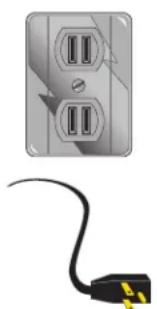
Power Sources — This product should be operated only from the type of power source indicated on the marking label. If you are not sure of the type of power supply to your home, consult your dealer or local power company.
Power-Cord Protection — Do not allow anything to rest on the power cord. Do not locate this product where the cord will be damaged by persons walking on it.
Overloading — Do not overload wall outlets and extension cords, as this can result in the risk of fire or electrical shock.
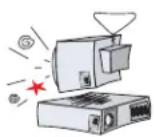
Obstructions — Never push objects of any kind into this product through cabinet slots, as they may touch dangerous voltage points or short out parts that could result in a risk of fire or electric shock. Never spill liquid of any kind on the product.
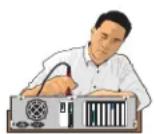
Servicing — To reduce the risk of electric shock, do not disassemble this product. Take it to qualified service personnel when service or repair work is required. Opening or removing covers may expose you to dangerous voltages or other risks. Incorrect reassembly can cause electric shock when the appliance is subsequently used.
Damage Requiring Service — Unplug this product from the wall outlet and refer servicing to qualified service personnel under the following conditions:
A. When the power supply cord is damaged or frayed.
B. If liquid has been spilled into the product.
C. If the product has been exposed to rain or water.
D. If the product does not operate normally when following the operating instructions. (Adjust only those controls that are covered by the operating instructions. Improper adjustment of other controls may result in damage and will often require extensive repair work by a qualified technician.)
E. If the product has been dropped or the cabinet has been damaged.
F. If the product exhibits a distinct change in performance.
Hazards — Do not use the telephone to report a gas leak in the vicinity of the leak.
Privacy — Cordless telephones are radio devices. Communications between the handset and base of your cordless telephone are accomplished by means of radio waves which are broadcast over the open airways. Because of the inherent physical properties of radio waves, your communications can be received by radio receiving devices other than your own telephone unit. Consequently, any communications using your cordless telephone may not be private.
SAVE THESE INSTRUCTIONS
natural_image
Illustration of a decorative bag with a flag design and ribbon (no text or symbols)EP200 Battery Safety Precautions
To reduce the risk of fire or injury to persons by the battery, read and follow these instructions:
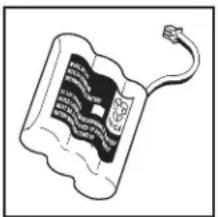
Recommended Battery — Use only the appropriate type and size Battery Pack specified in this Owner's Manual.

Battery Disposal — Do not dispose of the Battery Pack in a fire. The cell may explode. Check the Nickel-Cadmium Battery Disposal package insert for disposal instructions.

Damage to Battery Case — Do not open or mutilate the Battery Pack. Released electrolyte is corrosive and may cause damage to the eyes or skin. It may be toxic if swallowed.

Battery Handling — Exercise care in handling the battery in order not to short the battery with conducting materials such as rings, bracelets, and keys. The battery or conductor may overheat and cause burns.

Battery Charging — Charge the Battery Pack provided with or identified for use with this product only in accordance with the instructions and limitations specified in the instruction manual provided for this product.
Battery Polarity — Observe proper polarity orientation between the Battery Pack and battery charger.

natural_image
Illustration of two hands shaking, symbolizing agreement or partnership (no text or symbols present)Introduction
Congratulations on the purchase of your new Email Telephone Internet Appliance. The Email phone is the industry's first Internet integrated cordless speaker phone with Email and Caller ID. You can use your Email phone to send and receive Email messages, keep important notes, and store important names, addresses, and phone numbers. Caller ID provides you with caller information before you answer the phone. The Email phone also provides the hands-free operation of a speaker phone.
Email phone Features
□ Email phone
□ QWERTY Keyboard
□ Speaker Phone
☐ Flip-up LCD Monitor
□ Automatic Message Retrieval
□ Built-in Modem
☐ Calendar with Notepad
□ On-hook Dialing
Address Book
Dual Keypad
□ Easy to Use Menu
About the Internet
The Internet is basically a large group of computers tied together to share information. It started as a military project back in the 1950's, and has progressed to a stand-alone network of universities and independent sites. The Internet is a huge repository of information, provided by countless millions of people, and covering every subject imaginable.
Your new Email phone allows you to tap into one of the most useful aspects of the Internet. Electronic Mail, or Email for short, is a tool for sending letters and messages to people all over the world via the Internet.
There are two ways you can get on the Internet with your new Email phone. One is to use the automated sign-up feature to set up an account, see page 19. The other is to use an account you already have, called an Internet service provider, to access the Internet, see page 22. There are many different Internet service providers on the market, from small to large. You can find information on how to contact a service provider in most newspapers, computer magazines, and even television commercials.
Again, if you would rather not hassle with setting up an account on your own, just use the automated sign-up feature of your new phone. Whatever you choose to do, it will be an experience well worth the effort. Welcome to the information superhighway, and enjoy!
For assistance in setting up and answering questions about your new Email phone, contact Uniden at 1-888-777-2947 or visit our Web site at http://www.uniden.com.

natural_image
Illustration of a person in a wide stance, possibly climbing or stretching (no text or symbols)Getting Started
Unpack Your Phone
Remove all the components from the box.
Check the Contents
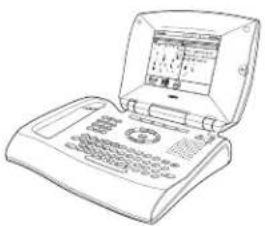
Your Email phone should contain the following items. If any of these items are missing, please contact your place of purchase.
natural_image
Line drawing of an open laptop computer with a small screen showing text (no readable symbols or labels)Base Unit

natural_image
Line drawing of a mobile phone with keypad and antenna (no text or symbols on body)
natural_image
Line drawing of a telephone handset with coiled cord and label EP100 (no text or symbols on device body)EP200 Cordless Handset
or
EP100 Handset and Coiled Cord
natural_image
Line drawing of a coiled cable with two connectors (no text or symbols)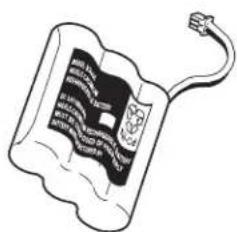
natural_image
Illustration of a battery with a flag design and a loop handle (no text or symbols)
natural_image
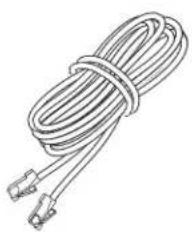
Line drawing of a handheld electronic device with coiled cable and connector (no text or symbols)Telephone Cord EP200 Handset Battery AC Adapter
□ This Owner's Manual
□ Other Printed Material

natural_image
Illustration of a baseball player in motion, wearing white uniform and cap (no text or symbols)
Use only the Uniden AC Adapter supplied with this phone.
Preparing the Phone for Use
Connect the Power
-
Plug one end of the AC Adapter into the DC 13V In jack on the back of your Email phone.
-
Wrap the power cord around the strain relief notch in the base.
-
Plug the other end of the AC Adapter into your wall outlet.

text_image
电源头
natural_image
Diagram of a device rear panel with two ports and a cable, showing no text or symbolsConnecting the Phone Line
-
Plug one end of the telephone cord into the Line Jack on the back of your Email phone.
-
Plug the other end of the telephone cord into your wall jack.

natural_image
Hand inserting a USB into an electronic device (no text or symbols visible)Installing Additional Equipment
You can install additional equipment, such as an answering machine or messaging system, by connecting it to the TEL Jack on the back of your Email phone.
- Plug one end of your telephone cord into the TEL Jack on the back of your Email phone.

natural_image
Hand inserting cables into a device with a black arrow indicating the cable's direction (no text or symbols present)- Plug the other end of the telephone cord into the additional device, such as an answering machine.
EP200 Final Touches
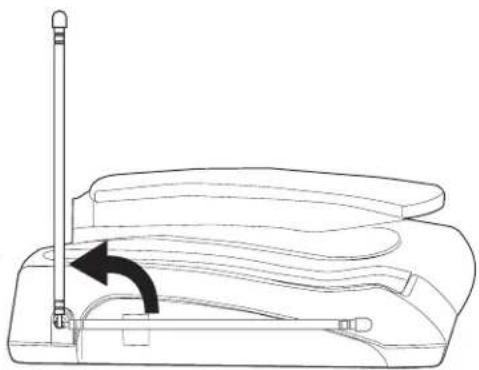
Raise the Antenna
Raise the antenna to the vertical position.
natural_image
Line drawing of a mechanical device with a vertical rod and arrow indicating motion (no text or symbols)Installing the Handset Battery Pack
-
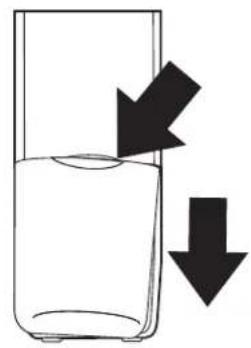
Press in on the Battery Cover Release and slide the battery compartment cover down.
-
Align the plastic connector of the Nickel-Cadmium battery pack with its socket and plug it in.
Note: The black lead will be on the right when the plug is properly aligned.
- Place the battery pack inside the battery compartment, and slide the battery cover back on.
Note: The built-in Memory Backup feature allows up to 3 minutes to disconnect the old battery pack and install a new one without losing any numbers stored in memory. For optimum battery performance, please charge the battery overnight before using the system.
natural_image
Simple line drawing of a beaker with liquid and two arrows indicating downward flow (no text or symbols)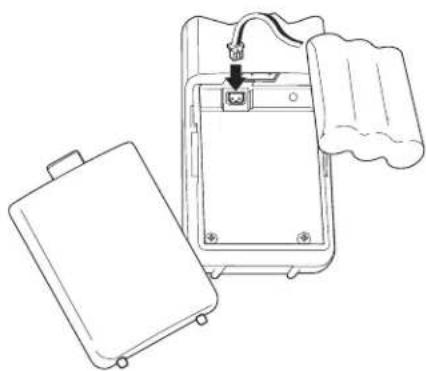
natural_image
Line drawing of a device with an open lid and cable, showing internal components and a handle (no text or symbols)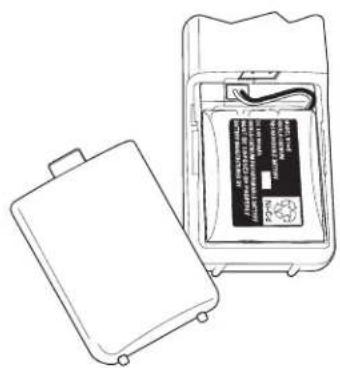
natural_image
Line drawing of an open battery pack with a closed lid, showing internal components and wiring (no text or symbols)
Charging the Cordless Handset
Place the handset on the base to charge. The Charge message appears on the LCD. See page 13 for details.
Note: The handset must be fully charged before the phone will operate properly. The battery included with your phone is not charged.
Allow 12 to 15 hours for the Handset to charge.
During this time you can use the speaker phone to make calls.

text_image
talk talk batt chan 2 abc 3 defLow Battery Indicator
When the Battery Pack in the Handset is low and needs to be charged, the talk/batt low LED flashes every 3 seconds.
If this occurs while you are on the phone, you hear an alert tone. Complete your call as quickly as possible, and return the Handset to the Base Unit for charging.
Allow 12 to 15 hours without any interruption for the Handset to fully recharge.
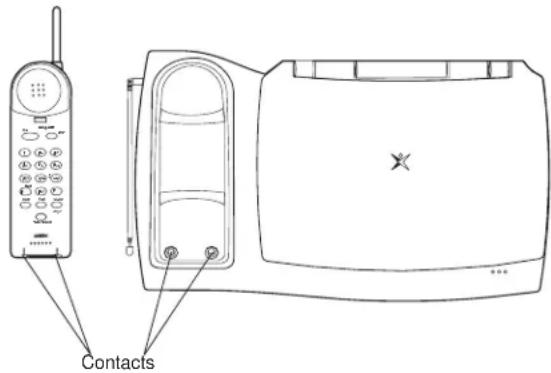
Cleaning the Battery Contacts
To maintain a good charge, it is important to clean all battery contacts on the Handset and Base Unit about once a month. Use a pencil eraser or other contact cleaner. Do not use any liquids or solvents.
text_image
ContactsEP100 Final Touches
Attach the Handset
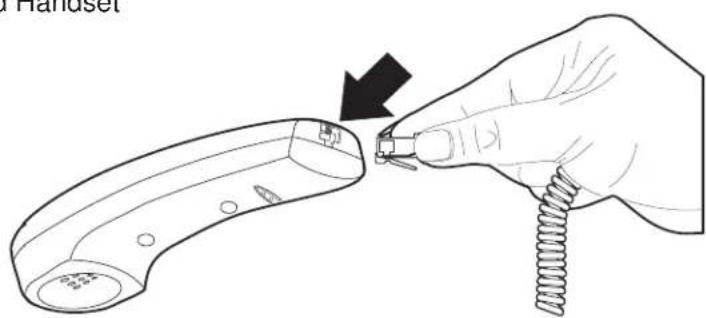
- Plug one end of the coiled Handset cord into the Handset.
natural_image
Illustration of a hand holding a handheld device with a spring, showing a black arrow pointing to the component (no text or symbols present)- Plug the other end of the coiled Handset cord into the Base.

natural_image
Line drawing of a hand inserting a spring into a device with a connector (no text or symbols)Adjust the LCD Contrast
-
Lift the LCD panel.
-
Move the contrast adjustment knob to change the LCD contrast.
-
The LCD is properly adjusted when you can comfortably read the screen.

natural_image
Line drawing of a mechanical device with an open lid and a side panel, showing a double-headed arrow indicating vertical displacement (no text or symbols)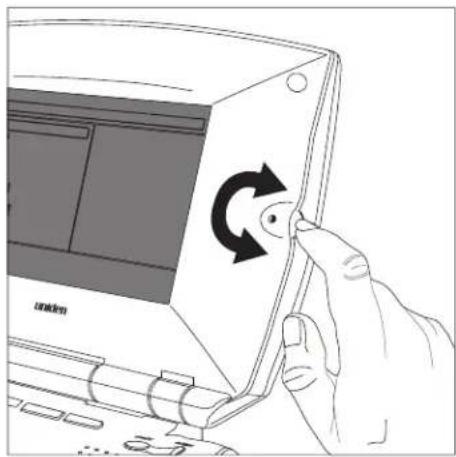
natural_image
Illustration of a hand inserting a device into a computer monitor with an arrow indicating rotation (no text or symbols present)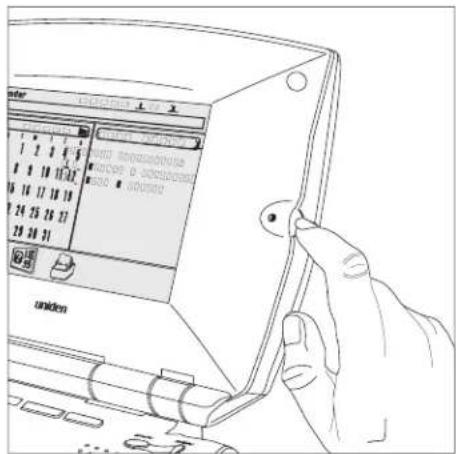
text_image
Technical diagram showing a hand operating a device with labeled ports and a control panel, likely for industrial or electronic testing.Initial Power Up
When you first turn on the Email phone, a diagnostic is performed. During the diagnostic which lasts around 15 seconds, the screen will be blank.

text_image
setupSetup
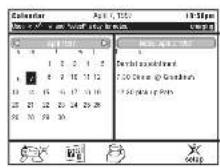
The LCD Screen
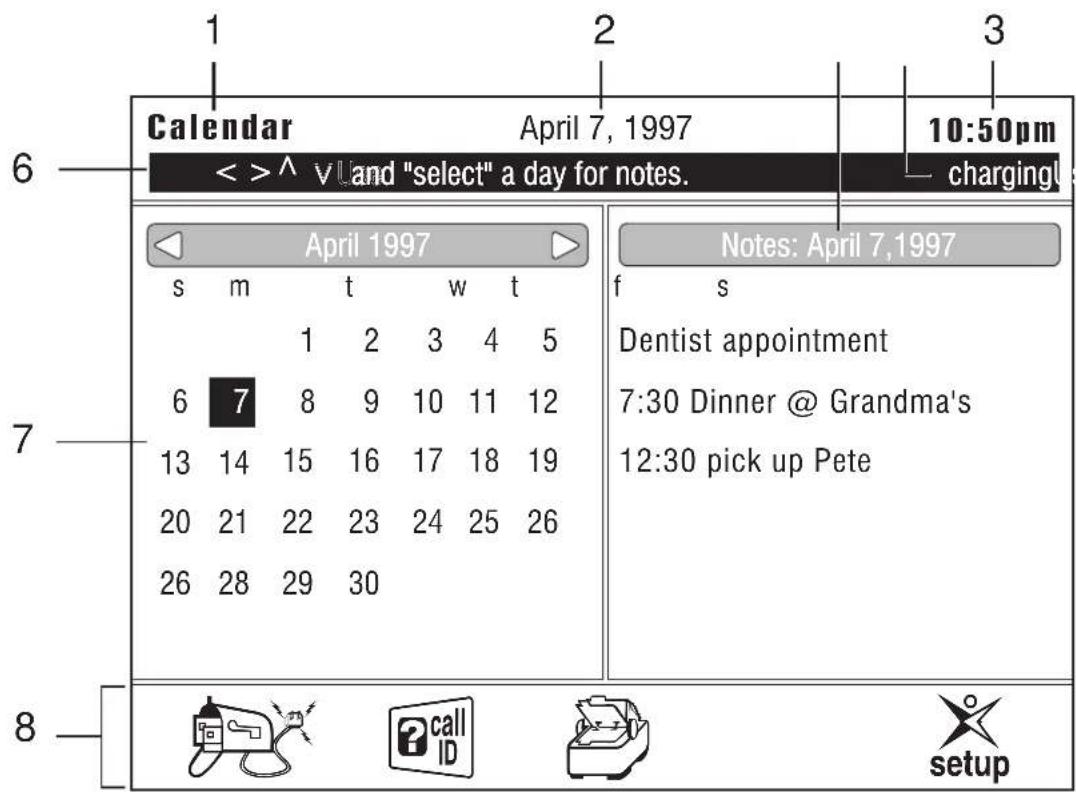
All of your information is displayed in the LCD screen. A typical Home screen is shown below and is broken down into several different sections.
The Home screen can be reached at any time by pressing
the function key under the icon.
Note: The LCD display could look different depending on the software in your Email phone.
text_image
Calendar 4014 7, 1997 10:50pm <<^ v Land "select" a day for notes. charging 6 April 1997 s m t w t 1 2 3 4 5 6 7 8 9 10 11 12 13 14 15 16 17 18 19 20 21 22 23 24 25 26 26 28 29 30 Notes: April 7,1997 f s Dentist appointment 7:30 Dinner @ Grandma's 12:30 pick up Pete 8 setup-
Screen Type Mode of operation.
-
Date Current date.
-
Notepad Notes for the current day.
-
Charge Indicator Phone is Charging
-
Time Current time.
-
Status Line Status and on-line instructions.
-
Calendar Current month.
-
Function Icons Icons for Function Keys.
text_image
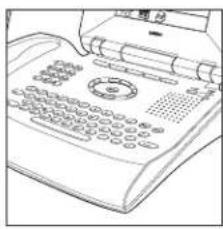
Line drawing of a classic telephone handset with keypad and front panel, showing text labels and symbolsEmail Phone Functional Areas
Your Email phone is divided into several functional areas.
☐ The Arrow and Select Keys
The Function Keys
☐ The Base Unit Keypad
The Keyboard
The LCD Screen
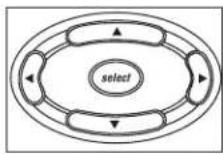
Arrow and Select Keys
These keys are used to move the cursor on the screen, or to select a message.

text_image
Diagram of a vintage telephone handset with keypad, buttons, and control panel labeled in English
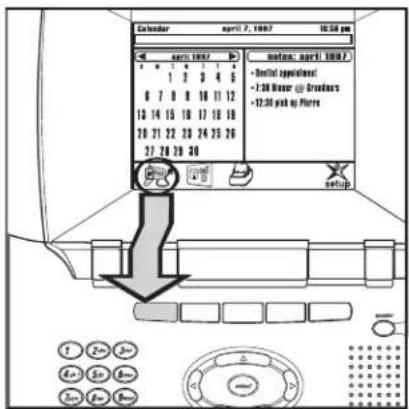
Function Keys
The function keys are associated with the icons on the LCD screen directly above them. To select an operation represented by an icon on the LCD screen, press the function key below the icon.
text_image
Calendar april 7, 1997 10:50 pm April 1997 1 2 3 4 5 6 7 8 9 10 11 12 13 14 15 16 17 18 19 20 21 22 23 24 25 26 32 33 34 35 36 37 38 39 40 setups: april 1997 - Initial appointment - X30 Linear @ Broadway - 12:30 put up Floor setup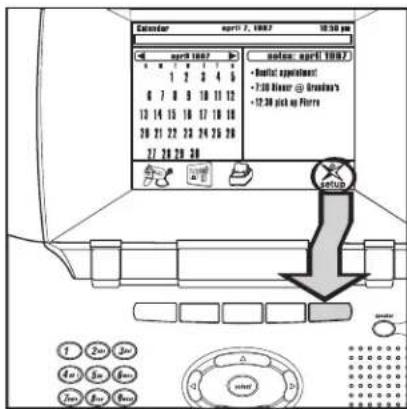
text_image
Calendar april 7, 100.7 10:30 pm April 1007 1 2 3 4 5 6 7 8 9 10 11 12 13 14 15 16 17 18 19 20 21 22 23 24 25 26 27 28 29 30 Note: april 1007 • Initial appointment • 7:30 Hour @ Broadway's • 12:30 pick up Floor Setup 1 2min 3min 4st 5th 6th 2min Box Box
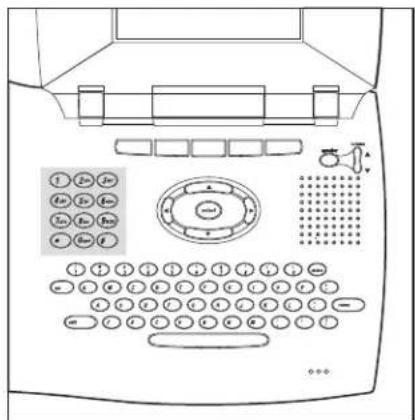
The Base Unit Keypad
The base unit keypad can be used to dial phone numbers when using the speaker option.
text_image
Diagram of a medical device with labeled buttons and display panel, showing various function keys and control buttons.
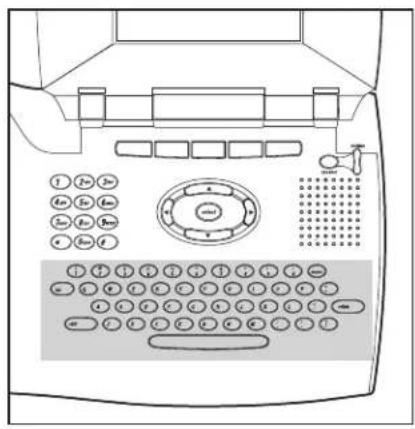
The Keyboard
Use the keyboard to type Email phone messages and notes.
text_image
Diagram of a telephone handset with keypad, buttons, and control panel labeled in English
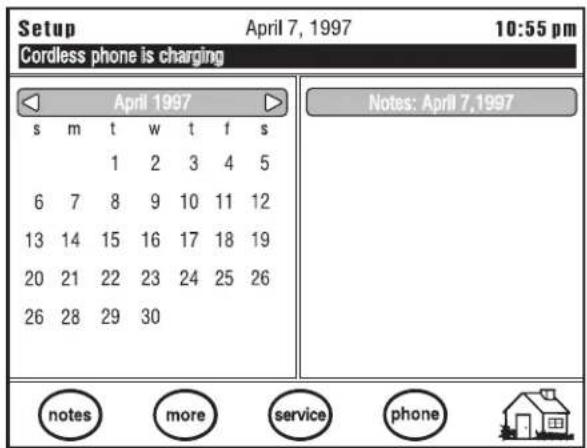
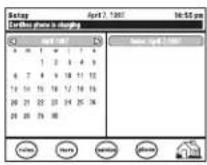
Setup Screen
- Press the function key under

- A typical setup screen displays.
Note: The LCD display could look different depending on the software in your Email phone.
text_image
Setup April 7, 1997 10:55 pm Cordless phone is charging April 1997 s m t w t f s 1 2 3 4 5 6 7 8 9 10 11 12 13 14 15 16 17 18 19 20 21 22 23 24 25 26 26 28 29 30 Notes: April 7,1997 notes more service phone
Setting Up the Phone
This section explains how to set up the phone features of your Email phone. The features include setting the speaker volume, entering your local area code and prefix, turning off the LCD screen, and paging the handset.
Setting the Speaker Volume
-
Press speaker on the base.
-
Use the volume key ⚡ to adjust the speaker volume to a comfortable level.
Entering the Local Area Code and Prefix
-
Press the function key under setup.
-
Press the function key under phone.
-
Enter a dial prefix, if necessary, and press return on the keyboard. For example, enter the number 9 if you are required to dial 9 for an outside line.
-
Press on the keyboard.
-
Enter your local area code, for example, 817.
-
Press the function key under done to save the information.
Press the function key under to cancel.
Setting the Ringer Level
-
From the Setup Phone Screen, press tab until the cursor is on Ringer Level.
-
Use the left or right arrow keys to toggle between off, low, and high.
-
Press tab on the keyboard.
-
Press the function key under done to save the information.
Modem Speaker
This option gives you the choice of turning the Modem Speaker on or off. When the Modem Speaker is on, the user can hear the phone connecting to the Internet when sending and receiving email messages.
-
From the Setup Phone Screen, press tab until the cursor is on Modem Speaker.
-
Use the left or right arrow keys to toggle between on and off.
-
Press the function key under done to save the information.
Key Feedback
This option gives you the choice of turning the sound on or off when pressing the keys on the base.
-
From the Setup Phone Screen, press until the cursor is on Key Feedback.
-
Use the left or right arrow keys to toggle between on and off.
-
Press the function key under done to save the information.
Turn the LCD Display Off
Use this feature to turn the LCD backlight off.
Note: The LCD backlight automatically turns off after ten minutes if you are not using the Email phone.
-
Press the function key under setup.
-
Press the function key under phone.
-
Press the function key under sleep.
Paging the Handset
If the Handset is off the base and you cannot locate it, use this feature to find it.
-
Press the function key under setup.
-
Press the function key under phone.
Exiting Phone Setup
To exit the Phone Setup Screen, press the function key under

Establishing Email phone Service
This section explains how to set up the Email phone features of your Email phone. You may choose between Automatic Sign-Up or using your existing Internet Service Provider.
Entering the Email phone Setup Screen
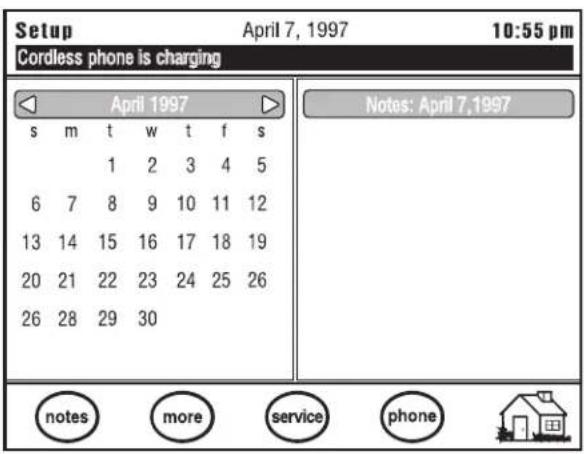
The Email phone setup screen is accessed from the Home screen.
If you are at a different screen, press the function key under

- Press the function key under

- A typical setup screen displays.
Note: The LCD display could look different depending on the software version in your Email phone.
text_image
Setup April 7, 1997 10:55 pm Cordless phone is charging April 1997 s m t w t f s 1 2 3 4 5 6 7 8 9 10 11 12 13 14 15 16 17 18 19 20 21 22 23 24 25 26 26 28 29 30 Notes: April 7,1997 notes more service phone- Press the function key under


Automatic Sign-up
(From the Home Screen press the Function Keys under setup, then service
Note: You must complete the Personal Data section before you can use the Automatic sign-up feature.
Enter Your Personal Data
Note: You must fill in the personal data section in order for your Email phone to operate properly when using the automatic sign-up feature.
-
Enter your First Name. For example, John.
-
Press tab on the keyboard.
-
Enter your Last Name. For example, Smith.
-
Press tab on the keyboard.
-
Enter your Street Address. For example, 333 Highland Way.
-
Press tab on the keyboard.
-
Enter your City. For example, Chicago.
-
Press tab on the keyboard.
-
Enter your two-letter State Code. For example, IL.
-
Press tab on the keyboard.
-
Enter your Zip Code. For example, 76155.
-
Press tab on the keyboard.
-
Enter your two-letter Country Code. For example, US.
-
Press tab on the keyboard.
-
Enter your Area Code and Telephone Number. For example, 8178583000.
-
Press the function key under signup .
An information screen displays listing the number to call for sign-up service.
To continue the sign-up process, press the function key under setup.

Setup Options
(From the Home Screen press the Function Keys under setup, then and ISP.)
Note: For more information on how to set up your Automatic Sign-Up, refer to the Quick Start Instructions.
- Enter your Email phone User name. For example, jsmith.
- Press tab on the keyboard.
- Enter your Email phone Password. For example, password.
- Press tab on the keyboard.
- Your SMTP (Simple Mail Transfer Protocol) Host Name should already be entered for you.
- Press tab on the keyboard.
- Your POP3 (Post Office Protocol) Host Name should already be entered for you.
- Press tab on the keyboard.
The last part of your email address has already been entered for you.
To enter the beginning of your address to personalize it, press the left arrow key until the cursor is on the @ symbol; then enter the beginning of your address, for example, jones08@abc.net. This is used as your return address.
- Press tab on the keyboard.
- The beginning of your server name is already displayed; enter the rest of your username.
- Press tab on the keyboard.
- Enter your Server Password. This is used to login to your service.
- Press tab on the keyboard.
- Enter the Server phone number. This is your local access number. For example, 877-7654.
- Press the function key under done.
- To cancel press the function key under
Note: After you complete the Automatic Sign-Up, you should write down all of the address information. You may need it later if you have to contact your service provider.

Dial-up Script
(From the Home Screen,
press the Function Keys under setup, then (service) ISP, and (script).
The Dial-up Script is a set of commands that tell the modem in your Email phone what to do.
From the Setup ISP Screen, press the function key under script.
The dial-up script is provided as the default with your Email phone:
dial
wait 10 CONNECT
- Press

- To cancel, press the function key under

Note: See Scripts for more information.

Entering Advanced Setup Information
(From the Home Screen, press the Function Keys under

then service ISP, and adv.)
Note: If you make any changes to this screen, your system will restart automatically.
- From the ISP Screen, press the function key under adv.
Note: Authenticate data is already filled in for the first line.
-
The beginning of your authorized server username should already be provided.
-
Enter the rest of your username, then press tab on the keyboard.
-
Press tab on the keyboard. Your primary DNS Address should already be entered for you; for example 999.999.99.9.
-
Press tab on the keyboard. Your secondary DNS Address should already be entered for you; for example 999.999.99.9.
-
Press tab on the keyboard.
-
Enter your server's domain name. For example, netcom.com.
-
Press done.

Using Your Existing Internet Service Provider (ISP)
(From the Home Screen press the Function Keys under setup, then some ISP.)
Note: For more information on how to set up specific service providers, see the Uniden Web Page at HTTP://WWW.UNIDEN.COM.
This information is normally provided by your Internet Service Provider. You will also need to know the way your ISP has you login on a text screen. The text screen login information will be used later when you enter your Dial-Up Script on page 29. The Dial-Up Script is a set of commands that will tell the modem in the Email phone how to dial and login to your service provider. Before you start this procedure, be sure to have the following information ready:
☐ Your Email phone user name
☐ Your Email phone password
□ Your SMTP Host Name
□ Your POP3 Host Name
□ Your Email phone address
☐ Your Server Name, if applicable
☐ Your Server Password, if applicable
□ Local Access Number
☐ PAP Server Name and Password, if applicable
☐ CHAP Server Name and Password, if applicable
☐ DNS Primary Address and Secondary Address
□ Server Domain Name
-
Enter your Email phone User name. For example, jsmith.
-
Press tab on the keyboard.
-
Enter your Email phone Password. For example, password.
-
Press tab on the keyboard.
-
Enter the SMTP (Simple Mail Transfer Protocol) Host Name. For example, pop.airmail.net.
-
Press tab on the keyboard.
-
Enter the POP3 (Post Office Protocol) Host Name. For example, mail.airmail.net.
-
Press tab on the keyboard.
-
Enter your Email phone address. For example, jsmith@airmail.net. This is used as your return address.
-
Press tab on the keyboard.
-
The beginning of your server name is already displayed; enter the rest of your username.
-
Press tab on the keyboard.
- Enter your Server Password. This is used to login to your service.
- Press tab on the keyboard.
- Enter the Server phone number. This is your local access number. For example, 877-7654.
- Press the function key under done.
- To cancel press the function key under

Entering a Dial-up Script
The Dial-up Script is a set of commands that tell the modem in your Email phone what to do. Below are examples of Dial-up Scripts that should work for most services.
Dial-up Script Commands
You will need to use the following commands when entering a dial-up script:
Dial — Dial the number provided in your server phone number setting in ISP.
Wait
For example, Wait 10 CONNECT would cause the Email phone to wait for ten seconds for the service to send the word CONNECT back before proceeding to the next command.
Send
For example, Send 1234567 would send the number 1234567 to the service provider.
- Press the function key under
- Press the function key under
- Press the function key under
- Press the function key under
- Enter the dial-up script. See


examples on the following page.
Default Dial-up Script:
The dial-up script is provided as the default with your Email phone:
dial
wait 20 CONNECT
send +
wait 20 ogin:
send \$ISPUSER
wait 20 word:
send \$ISPPASS
- Press

- To cancel, press the function key under

Entering Advanced Setup Information
(From the Home Screen, press the Function Keys under

then, service

Note: If you make any changes to this screen, the system will restart automatically.
- Press the function key under
- Press the function key under
- Press the function key under
- Press the function key under


-
If your service provider requires PAP or CHAP authentication, use ▼ or ▲ to select the proper type.
-
Enter your Authorized Server Username. For example, jsmith.
-
Enter your Authorized Server Password. For example, rserve.
-
Enter your Primary DNS Address. For example, 206.244.43.1.
-
Enter your Secondary DNS Address. For example, 206.244.43.21.
-
Enter your server's domain name. For example, netcom.com.
-
Press done.

More Setup Screens
Note: If you have Caller ID service from your local phone company, the time and date will be set automatically when you receive your first call.

Setting Up Email phone Retrieval Times
Use this feature to set up the times you want your Email phone to automatically dial the Internet and retrieve your Email phone.
Note: If your Email phone cannot connect to the Internet at the set time, it will redial every 10 minutes until it connects, or the next polling time is reached.
- Press the function key under setup.
- Press the function key under service.
- Press the function key under polling .
- Use ▼ or ▲ to select the hour.
— OR —
Type the number directly.
-
Use ▶ to move to minutes.
-
Use ▼ or ▲ to select minutes.
-
Press ▶ to move to am or p.m.
-
Use ▼ or ▲ to select am or p.m.
-
Press tab on the keyboard to move to Time 2.
Repeat for all times (up to four).
Note: If you set any polling time to 00:00:00, there will be no polling for that slot.
- Press the function key under done when finished.
Press the function key under clear to start over. This sets all times to 00:00:00.
- To cancel, press the function key under
Setting the Time
Note: If you have Caller ID service from your local phone company, the time and date will be set automatically when you receive your first call.
-
Press the function key under setup.
-
Press the function key under more.
-
Press the function key under time.
-
Use ▼ or ▲ to select the hour. — OR —
Type the hour in with the number keys on the keyboard.
-
Press ▶ to move to minutes.
-
Use ▼ or ▲ to select minute. — OR —
Type the hour in with the number keys on the keyboard.
-
Press ▶ to move to am/p.m.
-
Use ▼ or ▲ to select am or p.m. — OR —
Type a for am, or p for p.m. on the keyboard.
-
Press ▶ on the keyboard to advance to the date.
-
Use ▼ or ▲ ◀ or ▶ to select the month.
-
Press ▶ to move to the day.
-
Use ▼ or ▲ to select the day.
-
Press ▶ to move to the year.
-
Use ▼ or ▲ to select the year.
-
Press ▶ on the keyboard to advance to daylight saving.
-
Use ▼ or ▲ to select daylight savings time. Selecting yes will enable your Email phone to automatically sense the change to Daylight Savings Time.
-
Press the function key under done.
-
To cancel, press the function key under

Updating the Software
Use this option to automatically update the software inside your phone.
Warning! The update process may change the way certain screens and functions operate. Use this option only on the recommendation of a Uniden certified Service Technician.
- Press the function key under setup.
- Press the function key under more.
- Press the function key under update and follow the on-screen instructions.
Restarting the System
You can restart the Email phone anytime by pressing SHIFT + TAB + DEL at the same time.
natural_image
Simple line drawing of a house with a chimney, door, and bushes at the base (no text or symbols)Home
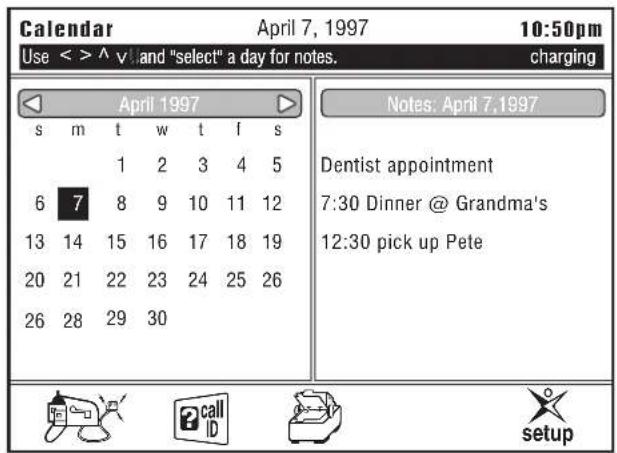
The Home Screen
A typical Calendar/Notepad screen is displayed below.
Note: The LCD display could look different depending on the software version in your Email phone.
text_image
Calendar Use < > ^ v: and "select" a day for notes. April 7, 1997 10:50pm charging April 1997 s m t w t f s 1 2 3 4 5 6 7 8 9 10 11 12 13 14 15 16 17 18 19 20 21 22 23 24 25 26 26 28 29 30 Notes: April 7,1997 Dentist appointment 7:30 Dinner @ Grandma's 12:30 pick up Pete setupEntering Notes
You can store up to eight lines of notes for each date on the calendar. Each line contains 23 characters. The calendar changes each day and the notes for that day are automatically displayed.
Setting up Temporary Notes
Note: Temporary notes are only active for 60 days after they are entered.
-
Press ▼, ▲, ◀, or ▶ to move to the desired date on the calendar.
-
Press select.
-
Type in the note.
-
If you need to modify your note, press ▼, ▲, ◀, or ▶ to move through your note and modify text.
-
Press del on the Base to backspace and erase text.
-
Press return on the Base.
-
Repeat for multiple notes.
-
Press the function key under done when finished.
Temporary Notes
-
Press ▼, ▲, ◀, or ▶ to move to the desired date on the calendar.
-
Press select.
-
Press ▼, ▲, ◀, or ▶ to move through your note and modify text.
-
Press the del key to backspace and erase text.
-
Press the return key.
-
Repeat for multiple notes
-
Press the function key under done when finished.
Setting Up Permanent Notes
-
Press the function key under setup.
-
Press the function key under notes.
-
Use ▼ or ▲ ◀ or ▶ to select the date.
-
Press select on the base.
-
Enter the note.
-
Press the function key under done. Permanent notes will be highlighted on the calendar.
Clearing Permanent Notes
Note: This clears all permanent notes on the day selected.
-
Press the function key under setup.
-
Press the function key under notes.
-
Use ▼ or ▲ ◀ or ▶ to select the date.
-
Press the function key under clear.
-
Repeat for other dates.
-
Press the function key under done.
Viewing notes
-
Press ▲ to highlight the month.
-
Press ◀ or ▶ to move back and forth one month at a time and highlight the desired month.
-
Press ▼, ▲, ◀, or ▶ to move to the desired date on the calendar.
natural_image
Simple line drawing of a mobile phone with cables and a plug (no text or symbols)Email phone

Email phone Screen
To enter this screen, press the function key under

If you have unread Email phone, the icon will flash.
A typical Email phone screen is displayed below.
Note: The LCD display could look different depending on the software in your phone.

text_image
E-Mail April 7, 1997 11:00pm Use and "select" an e-mail to read N otk< otk@unidenTest 4/7/97 11:31 pm N otk< otk@ unidenRe: mail 4/7/97 11:31 pmReading Messages
Note: The Email phone does not accept attachments to files. Only plain text will be retrieved and displayed.
- Press ▼ or ▲ to highlight a message to read.
- Press the function key under select.
- Press ▼ or ▲ to scroll through the message.
Receiving Messages
You can configure your phone to automatically receive messages at certain times during the day. See Setting Up Email Phone Retrieval Times on page 25 for details.
To manually receive your Email phone messages:
-
Press the function key under e-mail.
-
Press the function key under fetch.
Sending Messages
-
Press the function key under e-mail.
-
Press the function key under new.
-
Enter the Email phone Address.
— OR —
Press the function key under 📋. Use ▼ or ▲ to select recipient.
Note: If the recipient's alias and Email phone address is longer than 51 characters, the address will not be imported into the field.
Press select
The recipients will remain highlighted once you have selected them.
Repeat until all recipients have been chosen.
Press the function key under done.
-
Press tab on the keyboard.
-
Enter the Subject.
-
Press tab on the keyboard.
-
Enter your message.
You can use the ◀, ▶, ▲, and ▼ keys to move the cursor and edit your message before sending it.
- Press the function key under send.
Note: Do not touch the keyboard until the Email phone is finished sending the message. Wait until the screen displays "Messages Sent" before continuing with operations.
— OR —
Press the function key under (cancel) to exit.
The message will be deleted and no message will be sent.
Delete Messages
-
Press the function key under e-mail.
-
Use ▼ or ▲ to highlight the message you want to delete.
-
Press the function key under delete. Repeat for all messages you want to delete.
-
Press the function key under when finished.
Note: The messages will be deleted the next time your Email phone dials your Email phone server.
Reply to Messages
-
Press the function key under e-mail.
-
Use ▼ or ▲ to highlight the message you want to reply to.
-
Press the function key under select.
To exit Reply Mode, press the function key under back to return to the Email phone screen.
-
Press the function key under reply.
-
Press tab on the keyboard.
-
Type in the subject.
-
Press tab on the keyboard.
-
Type in your reply.
-
Press the function key under send to send reply. — OR —
Press the function key under (cancel) to quit without sending. The message will be deleted and no message will be sent.
Forwarding Messages
-
Press the function key under e-mail.
-
Use ▼ or ▲ to highlight the message you want to reply to.
-
Press the function key under select.
To exit, press the function key under back to return to the Email phone screen.
- Press the function key under forward. You will see a message on the status line telling you to wait while the original message is loaded into memory.
Note: Do not attempt to forward extremely long Email phone messages. Long messages can fill up the Email phone's memory and cause improper operation.
- Enter the Email phone Address.
— OR —
Press the function key under 📄.
Use ▼ or ▲ to select recipient.
Press select.
The recipients will remain highlighted once you have selected them.
Repeat until all recipients have been chosen.
Press the function key under done.
-
Press tab on the keyboard until you reach the message field right under the subject line.
-
Type in your message.
-
Press the function key under send to send reply.
— OR —
Press the function key under (cancel) to quit without sending.
The message will be deleted and no message will be sent.

natural_image
Simple line drawing of a printer with paper and spool (no text or symbols)Address Book

Address Book Screen
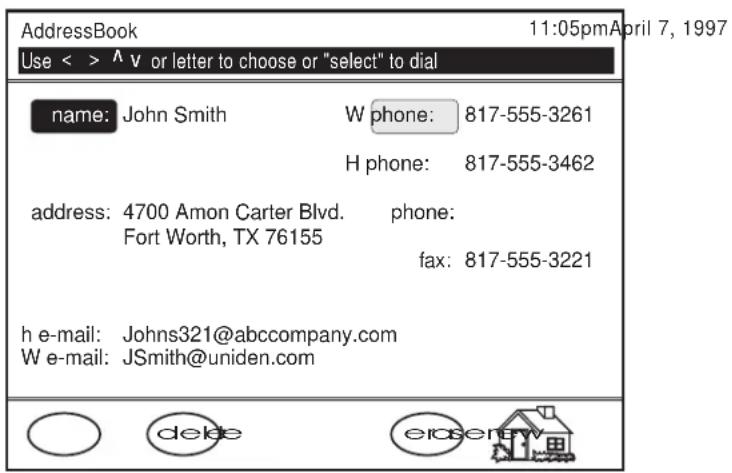
To enter the Address Book, press the function key under 📄.
You can enter a maximum of 150 addresses in the Address Book. Any addresses you try to save above that number will be lost.
A typical Address Book screen is displayed below.
Note: The LCD display could look different depending on the software version in your Email phone.
text_image
AddressBook Use < > ^ v or letter to choose or "select" to dial 11:05pm April 7, 1997 name: John Smith W phone: 817-555-3261 H phone: 817-555-3462 address: 4700 Amon Carter Blvd. phone: Fort Worth, TX 76155 fax: 817-555-3221 h e-mail: Johns321@abccompany.com W e-mail: JSmith@uniden.comEntering New Addresses
- Press the function key under 📄.
- Press the function key under new.
- Press tab on the keyboard or use ◀ and ▶ to move to the field you want to modify.
-
Type in the changes. Press del on the keyboard to backspace over a mistake.
-
Press the function key under done when finished.
-
Press the function key under to exit.
Viewing Addresses
- Press the function key under 📄.
Note: The address book will display the message "Please wait while loading address book" while the information is loaded in memory.
- Press ▼ or ▲ to highlight the desired name.
— OR —
Enter the first letter of the Name.
-
Press ◀, ▶, or tab to move to the next field.
-
Press the function key under when done.
Modifying Addresses
-
Press the function key under 📄.
-
Press ▼ or ▲ to highlight the desired call.
— OR —
Enter the first letter of the Name.
-
Press the function key under edit.
-
Press tab on the keyboard, or use ◀ and ▶ to move to the field you want to modify.
Note: The field in front of the phone number can be used as a reminder of what location the number belongs to. For example, you could use H for (H)ome or W for (W)ork. You can use any letter in this field.
- Type in the changes.
Press del on the keyboard to backspace over a mistake.
-
Press the function key under done when finished.
-
Press ▼ or ▲ to select another address.
— OR —
Press the function key under to exit.
Deleting Addresses
- Press the function key under 📄.
-
Press ▼ or ▲ to highlight the desired call.
— OR —
Enter the first letter of the Name. -
Press the function key under erase.
-
Press ▼ or ▲ to select another address.
— OR —
Press the function key under 1 to exit.

Speed Dialing From the Address Book
- Press the function key under 📄.
- Press ▼ or ▲ to highlight the desired entry.
- Press ▶ to highlight the phone number.
- Pick up handset and press the talk key.
— OR —
Press speaker on the base.
-
Press select on the base.
-
The selected number is dialed.

text_image
call IDCaller ID

Caller ID Screen
The Caller ID icon will blink when you have new calls.
Note: You must subscribe to Caller ID service from your local phone company to use this feature.
A typical Caller ID screen is displayed below.
Note: The LCD display could look different depending on the software version in your Email phone.

text_image
Call.D. April 7, 1997 11:10pm Use and/select to return call turn call JONES MARY 2145556321 4/7/97 11:31 pm 1 BROWN TIM 7135552331 4/7/97 11:31 pm 1 save delete 1 2 3 4- Caller's Name.
- Caller's Number.
- Date of last call.
- Time of last call.
- Number of times called.
Viewing Caller Information
- Press the function key under ?_ID^call .
- Press ▼ or ▲ to highlight the desired call.
- Press the function key under to exit.
Deleting Caller Information
- Press the function key under ?_ID^call .
- Press ▼ or ▲ to highlight the desired call.
- Press the function key under delete. Repeat for all calls you want to delete.
- Press the function key under to exit.
Adding Caller ID Information to the Address Book
- Press the function key under ?_ID^call .
- Press ▼ or ▲ to highlight the desired call.
- Press the function key under save.
- Press the function key under done .
Repeat for all calls you want to add to the Address Book. - Press the function key under when done.
Dialing From the Caller ID Menu
Note: If the area code is the same as yours, the phone will not dial the area code, only the last seven digits.
- Press the function key under ?_ID^call .
-
Press ▼ or ▲ to highlight the desired call.
-
Pick up handset and press the talk key.
— OR —
Press speaker on the base.
-
Press the function key under select.
-
The selected number is dialed.

natural_image
Line drawing of a classic mobile phone with no visible text or symbols on its bodyUsing Your Phone
Receiving Calls
- After the second ring Caller ID information is displayed.
To remove the window immediately, press the return key on the keyboard. The window closes automatically after two minutes.
- Pick up the Handset.
— OR —
Press speaker.
Note: All screen functions are still available during your conversation. For example, you can type a note while talking on the phone.
- To hang up, return the Handset to the Base or press speaker.
Making Calls
-
Pick up the Handset.
-
Press the talk key.
— OR —
Press the speaker key on the base unit.
Note: If your Email phone was in the process of sending or receiving Email phone, you may not get a dial tone for approximately five seconds while the line is cleared. Any Email phone send or receive in progress will be continued after you finish your conversation, either at the next scheduled polling time or manually by using the fetch function.
- Dial the Number.
Storing Memory Numbers
Up to 10 numbers can be stored in the Handset for speed dialing when you are away from the base. Numbers cannot be stored in the Base unit.
Note: These numbers will not be stored in the Address Book automatically. You need to enter Address Book numbers separately.
-
Pick up the Handset and press mem. You will hear a beep and the talk/batt low LED flashes.
-
Enter the number you want to store on the Handset keypad.
Note: You may enter a delay between numbers (for accessing a switchboard, or long distance service) by pressing the redial/pause button on the Handset at the point in the number sequence you wish to pause. The redial/pause button counts as one digit. Pressing redial/pause more than once will increase the length of the pause between numbers.
-
Press mem. You will hear another confirmation beep.
-
Enter a number (0-9) from the Handset keypad for the memory location.
Note: After pressing mem the second time, you have 20 seconds to enter the number you wish to store. Otherwise, an error tone will sound and the unit returns to Standby.
Erasing a Stored Number
-
On the Handset, press mem twice.
-
Enter the memory location number (0-9) you want to clear. You will hear a long beep confirming the number is erased.
Dialing Memory Numbers
-
Press the talk key on the Handset.
-
Press the mem key on the Handset.
-
Enter the Memory Location Number (0-9).
Chain Dialing
-
Press the talk key on the Handset.
-
Press the mem key on the Handset.
-
Enter the Memory Location Number (0-9)
-
While on call, enter the number from the Handset
— OR —
Enter the memory location number where the second number is stored.
Redialing the last Number Called
-
Press the redial/pause key on the Handset.
-
The last number you called is dialed.
Using Your Phone With Call Waiting
Note: You must subscribe to call waiting service from your local phone company to use this feature.
-
While talking, you hear the call waiting signal.
-
Press flash on the Handset to switch to that call.
-
To switch back to your original call, press flash on the Handset again.
Paging the Handset
-
Press the function key under setup.
-
Press the function key under phone.
-
Press the function key under page.
Changing Channels
Note: If you have more than one cordless phone in your house, they must be set to different channels. This function works only when the phone is in use.
The channel key on the Handset allows you to choose among 40 factory set channels. During the course of a conversation if you hear static or noise causing difficulty in hearing the other party, change channels by:
-
Pressing the channel key on the Handset.
-
The talk/batt low LED on the Handset will flash, indicating the Email phone is finding the best channel available.
Changing the Handset Ring Type and Ring Volume
There are two ring types and two ring volumes that can be selected while your Email phone is in the Standby mode. Be sure the talk/batt low LED is not lit on your phone Handset.
- Press the volume/ringer key on the Handset to change between the two different rings and volumes.
Changing the Handset Earpiece Volume
-
While on a phone call, press the volume/ringer key on the Handset.
-
You will hear a tone indicating a decrease in the earpiece volume.
-
Press the volume/ringer key again to increase the earpiece volume to the higher level.

natural_image
Illustration of a drafting compass (no text or symbols present)Specifications
General
LCD Display: VGA-compatible with contrast adjustment.
Keyboard: Full QWERTY keyboard.
Operating Temperature: 10^ to 40^ C
Storage Temperature: -40° to 100°C
Humidity: Up to 90% relative, without condensation
Power Requirements
Voltage: 90-130 volts AC, 55-65 Hz
Cordless Telephone Specifications
General
Frequency Control Phase Locked Loop
Modulation FM
Operating Temperature -10° - 50°C
Base Unit
Transmit Frequency: 926.000 \~ 927.950 MHZ (40 Channels)
Power Requirements: 13VDC 900mA (from AC Adapter)
Handset
Transmit Frequency: 902.050 \~ 904.000 MHZ (40 Channels)
Battery
Capacity: 600 mAH 3.6VDC
Talk Mode: 5 hours
Standby Mode: 14 days
Specifications shown are typical and subject to change without notice.
One-Year Limited Warranty
Important: Evidence of original purchase is required for warranty service.
WARRANTOR: UNIDEN AMERICA CORPORATION ("Uniden")
ELEMENTS OF WARRANTY: Uniden warrants, for one year, to the original retail owner, this Uniden Product to be free from defects in materials and craftsmanship with only the limitations or exclusions set out below.
WARRANTY DURATION: This warranty to the original user shall terminate and be of no further effect 12 months after the date of original retail sale. The warranty is invalid if the Product is (A) damaged or not maintained as reasonable or necessary, (B) modified, altered, or used as part of any conversion kits, subassemblies, or any configurations not sold by Uniden, (C) improperly installed, (D) serviced or repaired by someone other than an authorized Uniden service center for a defect or malfunction covered by this warranty, (E) used in any conjunction with equipment or parts or as part of any system not manufactured by Uniden, or (F) installed or programmed by anyone other than as detailed by the owner's manual for this product.
STATEMENT OF REMEDY: In the event that the product does not conform to this warranty at any time while this warranty is in effect, warrantor will either, at its option, repair or replace the defective unit and return it to you without charge for parts, service, or any other cost (except shipping and handling) incurred by warrantor or its representatives in connection with the performance of this warranty. Warrantor, at its option, may replace the unit with a new or refurbished unit. THE LIMITED WARRANTY SET FORTH ABOVE IS THE SOLE AND ENTIRE WARRANTY PERTAINING TO THE PRODUCT AND IS IN LIEU OF AND EXCLUDES ALL OTHER WARRANTIES OF ANY NATURE WHATSOEVER, WHETHER EXPRESS, IMPLIED OR ARISING BY OPERATION OF LAW, INCLUDING, BUT NOT LIMITED TO ANY IMPLIED WARRANTIES OF MERCHANTABILITY OR FITNESS FOR A PARTICULAR PURPOSE. THIS WARRANTY DOES NOT COVER OR PROVIDE FOR THE REIMBURSEMENT OR PAYMENT OF INCIDENTAL OR CONSEQUENTIAL DAMAGES. Some states do not allow this exclusion or limitation of incidental or consequential damages so the above limitation or exclusion may not apply to you.
LEGAL REMEDIES: This warranty gives you specific legal rights, and you may also have other rights which vary from state to state. This warranty is void outside the United States of America.
PROCEDURE FOR OBTAINING PERFORMANCE OF WARRANTY: If, after following the instructions in the owner's manual you are certain that the Product is defective, pack the Product carefully (preferably in its original packaging). The Product should include all parts and accessories originally packaged with the Product. Include evidence of original purchase and a note describing the defect that has caused you to return it. The Product should be shipped freight prepaid, by traceable means, or delivered, to warrantor at:
Uniden America Corporation
4700 Amon Carter Blvd
Fort Worth, TX 76155
Uniden offers 30 days of toll free support and you can call (800)297-1023, 8 a.m. to 5 p.m. Central, Monday through Friday. Beyond that period, you can obtain assistance by calling (900)224-4UAC.
Covered under one or more of the following U.S. patents:
4,511,761 4,523,058 4,595,795 4,597,916 4,803,491
5,157,686 5,253,268 5,381,460 5,434,905
uniden®
©1998 Uniden America Corporation
All Rights Reserved
Printed in the USA
Controls and Indicators

text_image
1 2 3 4 5 6 7 8 9 10 11 12 13 14 15 16 17 18 19 20 21- Talk Key talk
- Numeric Keypad
- Tone/*
- Memory Key mem
- Flash Key flash
- Talk/Battery Low LED
- Channel Key chan
- Pound Key
- Volume/Ringer Control volume/ringer
- Redial/Pause Key redial/pause
-
LCD Screen
-
Function Keys
- Numeric Keypad
- QWERTY Keyboard
- Charging Cradle
- LCD Contrast
- Speaker Button
- Speaker Volume Control
- Control Keys
- Speaker
- Microphone