XCAI 680 - Phone UNIDEN - Free user manual and instructions
Find the device manual for free XCAI 680 UNIDEN in PDF.


User questions about XCAI 680 UNIDEN
0 question about this device. Answer the ones you know or ask your own.
Ask a new question about this device
Download the instructions for your Phone in PDF format for free! Find your manual XCAI 680 - UNIDEN and take your electronic device back in hand. On this page are published all the documents necessary for the use of your device. XCAI 680 by UNIDEN.
USER MANUAL XCAI 680 UNIDEN
natural_image
Illustration of two vintage mobile phones, one with a dotted screen and the other with a phone displaying 'Uniden 3599-3571' (no text or symbols on devices)Operating Guide
PRECAUTIONS
Before you read anything else, please observe the following:
WARNING!
Uniden Corporation DOES NOT represent this unit to be waterproof.
To reduce the risk of fire, electrical shock, or damage to the unit, DO NOT expose this unit to rain or moisture.
RECHARGEABLE NICKEL-CADMIUM BATTERY WARNING
■ This equipment contains a Rechargeable Nickel-Cadmium Battery.
■ The Rechargeable Nickel-Cadmium Battery contained in this equipment may explode if disposed of in a fire.
■ Do not short circuit the battery.
- Do not charge the Rechargeable Nickel-Cadmium Battery used in this equipment in any charger other than the one designed to charge this battery as specified in this Guide. Using another charger may damage the battery, or cause the battery to explode.
RECHARGEABLE NICKEL-CADMIUM BATTERIES MUST BE DISPOSED OF PROPERLY

The exclamation point within an equilateral triangle is intended to alert the user to the presence of important operating and maintenance (servicing) instructions in the literature accompanying the appliance.
CONTENTS
Handset Controls and Keys 1.
Base Unit Controls and Keys 2
Important Safety Instructions ....3
Battery Safety Precautions 4
Important Notes 4
Introduction 5
Features 5
Included with the XCAI680 6
Important Electrical Considerations 7
Range 7
Telephone Line Problems ....7
Radio Interference 7
More Than One Cordless Telephone 7.
Installation ...... a
Selecting a Location ......a
Telephone Line Outlets....6.
Connecting the Telephone Cord 9.
Applying Power to the Base Unit 9.
Desk or Tabletop Installation 10
Direct Wall Mounting 12
Setting Up Your Phone 16
Extending the Base Unit Antenna 16
Installing the Handset Battery Pack ....16
Cleaning the Battery Contacts 18
Charging the Battery Pack ....19
Low Battery Indicator ....19
Setting the Pulse/Tone Switch 20
Handset Volume Controls 21.
Automatic Digital Code Security 22
Setting Caller ID on Call Waiting 25
Setting the AutoTalk Feature ....26
Setting the Caller ID Name Tagging Feature 26
Setting the Caller ID Number Grouping Feature 26
Using Your Phone 29
Making Calls 29
Receiving Calls 30
Using Call Waiting Feature ....31.
Redialing the Last Number Called 32
Using the Flash Key with Call Waiting 33
Using the Page/Find Feature 33
Automatic Channel Scan Feature 33
Channel Button 33
Speakerphone 33
Using Caller ID 34
The Caller ID Display 34
Viewing Calls in Memory 34
Calling the Displayed Number 35
Deleting Caller ID message 35
Programming Your Phone 36
Storing a Caller ID memory number in Dial Memory 36
Storing a Regular Number in Dial Memory 36
Calling a Number Stored in Memory 38
Editing and Deleting Numbers in Dial Memory 38
The Integrated Answering System 40
Features 40
Answering System Setup 41
Turning the Answering System On/Off 41
Setting the Clock and PIN Code 41
Reviewing Time and Day Stamp 42
Setting Your Outgoing Message (OGM) 42
Recording Your Personal OGM 43
Selecting a Preset OGM 43
Auto Disconnect 44
Setting the Toll Saver Switch 44
Using the Reset Button 45
Using Your Answering System 46
Playing New Messages 46
Playing a Stored Message 47
Repeating a Message 47
Skipping a Message 48
Deleting a Message 49
Deleting All Messages 50
Message Full Indication 51
Leaving a Memo Message 51
Screening Incoming Calls 52
Remote Operation 53
Using a Touch-Tone Phone 53
Troubleshooting 54
Telephone Troubleshooting Chart....54
Answering System Troubleshooting Chart....55
Caller ID Troubleshooting Chart 56
Specifications 57
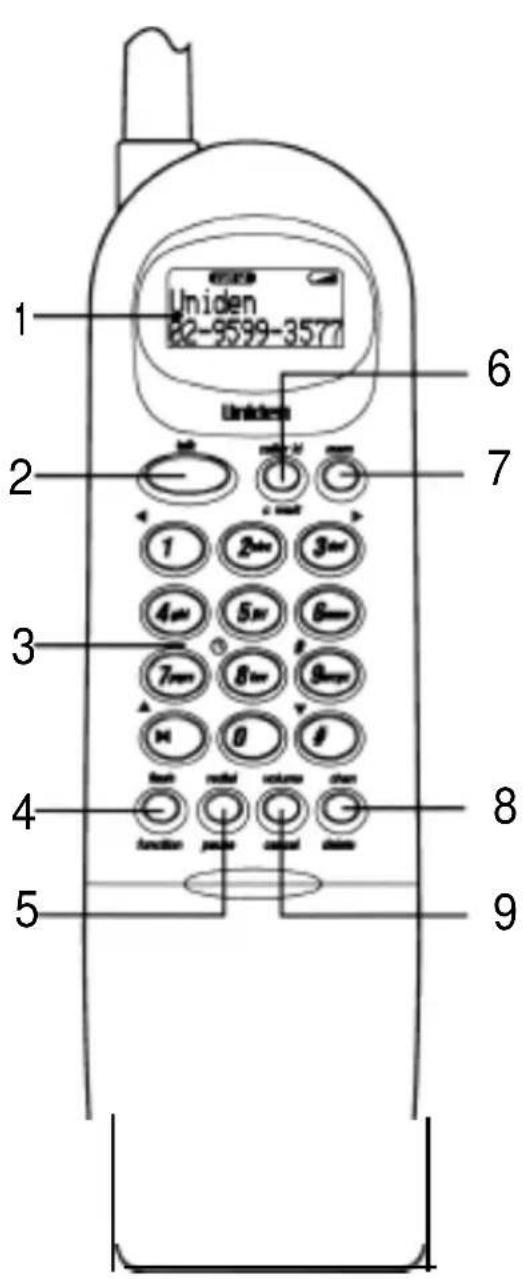
- LCD Display
- talk Key
- Numeric Keypad
- flash/function Key
- redial/pause Key
- caller id/c wait Key
- mem Key
- channel/delete Key
- volume/cancel Key
- Microphone
text_image
1 Uniden 22-9599-3577 6 7 2 1 2=3=4=5=6=7=8=9=10=11=12=13=14=15=16=17=18=19=20=21=22=23=24=25=26=27=28=29=30=31=32=33=34=35=36=37=38=39=40=41=42=43=44=45=46=47=48=49=50=51=52=53=54=55=56=57=58=59=60=61=62=63=64=65=66=67=68=69=70=71=72=73=74=75=76=77=78=79=80=81=82=83=84=85=86=87=88=89=90 3 4 5 8 9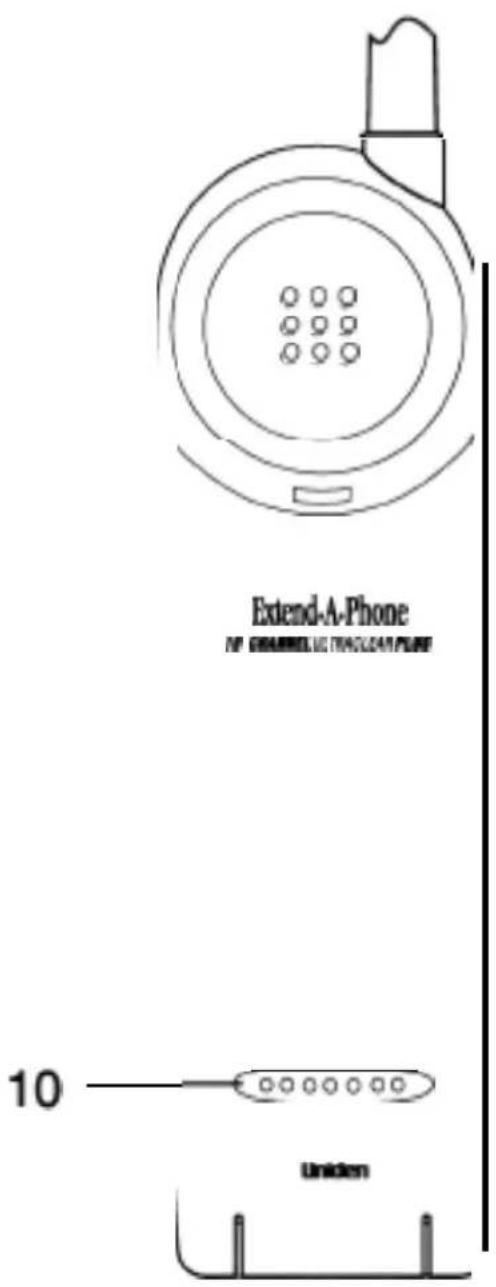
text_image
Extend-A-Phone NO CHANNEL ELECTRICAN/PUB 10 Uniden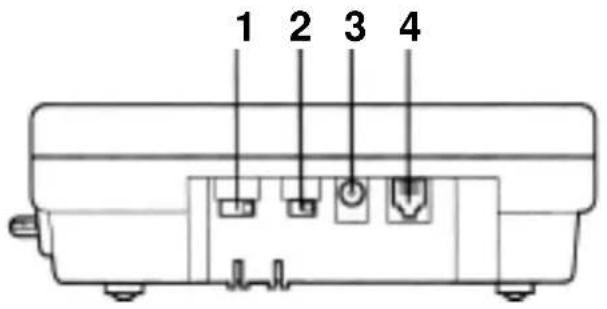
text_image
1 2 3 4
text_image
5 67 89 11 10 12 13 14 15 16 17 19 22 18 20 21 23- Base Ringer Volume Switch
- Pulse/Tone Switch
- DC Power Jack
- Telephone Line Jack
- Handset Retainer
- New Message Button
- Speakerphone Button and LED
- Speaker
- Message Counter LED
- Speaker Volume Control Button
- In Use LED
-
Ring Time 2-4-TS Switch
-
Record Time/Ann/4/1 Switch
- Message Repeat Button
- Message Skip Button
- Message Play Button
- Page/Find Button
- Microphone
- Message Delete Button
- Outgoing Message Button
- Memo Button
- Stop Button
- Answer On/Off Button
Important Safety Instructions
When using your telephone equipment, these basic safety precautions should always be followed to reduce the risk of fire, electrical shock, and injury to persons:
- Read and understand all instructions.
- Follow all warnings and instructions marked on the product.
- Unplug this product from the wall outlet before cleaning, and use a dry cloth, without liquid or aerosol cleaners.
- Do not use this product near water; for example, near a bath tub, wash bowl, kitchen sink or laundry tub, in a wet basement, or near a swimming pool.
- Do not place this product on an unstable cart, stand, or table. The telephone may fall, causing serious damage to the unit.
- Slots and openings in the cabinet and the back or bottom are provided for ventilation. To protect the product from overheating, these openings must not be blocked or covered. This product should never be placed near or over a radiator or heat register. This product should not be placed in a built-in installation unless proper ventilation is provided.
- This product should be operated only from the type of power source indicated on the marking label. If you are not sure of the type of power supply to your home, consult your dealer or local power company.
- Do not allow anything to rest on the power cord. Do not locate this product where the cord will be damaged by persons walking on it.
- Do not overload wall outlets and extension cords, as this can result in the risk of fire or electrical shock.
10 Never push objects of any kind into this product through cabinet slots, as they may touch dangerous voltage points or short out parts that could result in a risk of fire or electric shock. Never spill liquid of any kind on the product.
11 To reduce the risk of electric shock, do not disassemble this product. Take it to qualified service personnel when service or repair work is required. Opening or removing covers may expose you to dangerous voltages or other risks. Incorrect reassembly can cause electric shock when the appliance is subsequently used. - Unplug this product from the wall outlet and refer servicing to qualified service personnel under the following conditions:
A. When the power supply cord is damaged or frayed.
B. If liquid has been spilled into the product.
C. If the product has been exposed to rain or water.
D. If the product does not operate normally when following the operating instructions. (Adjust only those controls that are covered by the operating instructions. Improper adjustment of other controls may result in damage and will often require extensive repair work by a qualified technician.)
E. If the product has been dropped or the cabinet has been damaged.
F. If the product exhibits a distinct change in performance.
- Do not use the telephone to report a gas leak in the vicinity of the leak.
Battery Safety Precautions
Caution: To reduce the risk of fire or injury to persons by the battery read and follow these instructions:
- Use only the appropriate type and size Battery Pack specified in this Operating Guide.
- Do not dispose of the Battery Pack in a fire. The cell may explode.
- Do not open or mutilate the Battery Pack. Released electrolyte is corrosive and may cause damage to the eyes or skin. It may be toxic if swallowed.
- Exercise care in handling the battery in order not to short the battery with conducting materials such as rings, bracelets, and keys. The battery or conductor may overheat and cause burns.
- Charge the Battery Pack provided with or identified for use with this product only in accordance with the instructions and limitations specified in the instruction manual provided for this product.
- Observe proper polarity orientation between the Battery Pack and battery charger,
Privacy — Cordless telephones are radio devices. Communications between the handset and base of your cordless telephone are accomplished by means of radio waves which are broadcast over the open airways. Because of the inherent physical properties of radio waves, your communications can be received by radio receiving devices other than your own telephone unit. Consequently, any communications using your cordless telephone may not be private.
Important Notes
To make use of the Caller Display Features of this phone; you must subscribe to your telephone service provider's Caller Display Service.
This model has been specifically designed for the Australian market.
This XCAI680 can display both the name and number of the calling party.
However at this time, Telstra is not forwarding the name. This feature may be available in the future.
Each telephone device that you connect draws power from the phone line. We refer to the power drawn as the device's Ringer Equivalence Number or REN. The REN is shown on the bottom of your telephone. If you are using more than one phone or other device on the line, add up all the RENs. If the total is more than 3, your phones might not ring. In rural areas, a total REN of three might impair ringing operation.
PLEASE SAVE THESE INSTRUCTIONS
Introduction
Congratulations on your purchase of the Uniden XCAI680 Cordless Telephone with Digital Answering System and Caller Display. This phone is designed to exacting standards which provide reliability, long life, and outstanding performance.
Features
| 10 Channels | Random CodeTM Digital Security | 30 Number Caller ID Memory |
| AutoTalkTM | UltraClear Plus | Automatic Channel Scanning |
| AutoStandbyTM | AutoSecureTM | 20 Minutes Digital Record Time |
| Speakerphone | Page/Find Button | Call Waiting Compatible |
| Pulse/Tone Dialing | Base/Handset Volume Controls | Caller ID Name Tagging |
| ■ 20-Number Memory | 14 Day Battery Life |
AutoTalk™ allows you to answer a call by just removing the Handset from the Base so you don't have to waste time pushing buttons or flipping switches. AutoStandby™ allows you to hang up by simply returning the Handset to the Base.
The UltrClear Plus innovative technology, together with 10 different channels, virtually eliminates background noise and provides you with the best possible reception during all of your conversations.
To help protect you against misbilled calls which might result from your phone being activated by other equipment, Random Code ^™ digital security automatically selects one of over 65 thousand digital security codes for the Handset and Base Units. Also, the AutoSecure ^™ feature electronically locks your phone when the Handset is on the Base.
To get the most from your phone, please read this Operating Guide thoroughly.
Visit our we6 site for more information on the Uniden product range. http:www.uniden.com.au
Included with the XCAI680
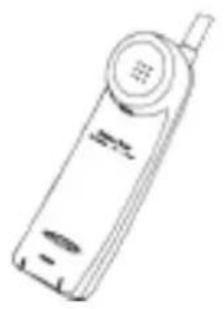
If any of these items are missing or damaged, contact the place of purchase.
natural_image
Line drawing of a mobile phone with a circular keypad and antenna (no text or symbols)Handset Two Mounting Screws
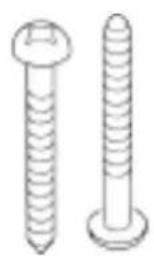
natural_image
Two types of screwdrivers shown side by side, no text or symbols present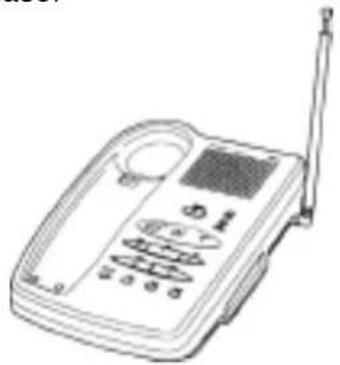
natural_image
Line drawing of a classic mobile phone with antenna and keypad (no text or symbols)Base Unit

natural_image
Simple line drawing of a battery with a coiled cable (no text or symbols)Rechargeable Battery Part # CTA885

natural_image
Coiled electrical cable with terminal connector (no text or symbols visible)Telephone Cord Remote Access for Australia Memo Cards
| Digital Answering System | Digital Answering System | ||
| Composition Options | South Time Command | Composition Options | South Time Command |
| Project | 1 × 1 | Project | 1 × 1 |
| Play | 1 × 1 | Play | 1 × 1 |
| Show | 1 × 1 | Show | 1 × 1 |
| Control Message | 1 × 1 | Control Message | 1 × 1 |
| Analog/Off | 1 × 1 | Analog/Off | 1 × 1 |
| Show | 1 × 1 | Show | 1 × 1 |
| Record COOL | 1 × 1 | Record COOL | 1 × 1 |
| Play time Message | 1 × 1 | Play time Message | 1 × 1 |
| Play time | 1 × 1 | Play time | 1 × 1 |
| Help Know | 1 × 1 | Help Know | 1 × 1 |
| Work | Work | ||

natural_image
Line drawing of a cord tied with a cable and a small plug (no text or symbols)AC Adapter (AAD-650U)

text_image
XCAI 680 www.xcai.comOperating Guide

text_image
NAME NAMEMemo Paper
text_image
London Australia Pty Ltd 400 Service Division 240 Prince Highway Ruckton (0541-2319) London New Zealand 2nd 400 Service Division 150 Harris Road East TorontoRegistration Card
flowchart
graph TD
    A["XCAMS6 QUICK START GUIDE"] --> B["INITIAL SETTINGS"]
    B --> C["ANSWERING MACHINE"]
    C --> D["OUTPUT SETTING"]
    D --> E["START SETTING"]
    E --> F["FINAL OUTPUT"]
    F --> G["OUTPUT SETTING"]
    G --> H["START SETTING"]
    H --> I["FINAL OUTPUT"]
    I --> J["OUTPUT SETTING"]
    J --> K["START SETTING"]
    K --> L["FINAL OUTPUT"]
    L --> M["OUTPUT SETTING"]
    M --> N["START SETTING"]
    N --> O["FINAL OUTPUT"]
    O --> P["OUTPUT SETTING"]
    P --> Q["START SETTING"]
    Q --> R["FINAL OUTPUT"]
    R --> S["OUTPUT SETTING"]
    S --> T["START SETTING"]
    T --> U["FINAL OUTPUT"]
    U --> V["OUTPUT SETTING"]
    V --> W["START SETTING"]
    W --> X["FINAL OUTPUT"]
    X --> Y["OUTPUT SETTING"]
    Y --> Z["START SETTING"]
    Z --> AA["FINAL OUTPUT"]
    AA --> AB["OUTPUT SETTING"]
    AB --> AC["START SETTING"]
    AC --> AD["FINAL OUTPUT"]
    AD --> AE["OUTPUT SETTING"]
    AE --> AF["START SETTING"]
    AF --> AG["FINAL OUTPUT"]
    AG --> AH["OUTPUT SETTING"]
    AH --> AI["START SETTING"]
    AI --> AJ["FINAL OUTPUT"]
    AJ --> AK["OUTPUT SETTING"]
    AK --> AL["START SETTING"]
    AL --> AM["FINAL OUTPUT"]
    AM --> AN["OUTPUT SETTING"]
    AN --> AO["START SETTING"]
    AO --> AP["FINAL OUTPUT"]
    AP --> AQ["OUTPUT SETTING"]
    AQ --> AR["START SETTING"]
    AR --> AS["FINAL OUTPUT"]
    AS --> AT["OUTPUT SETTING"]
    AT --> AU["START SETTING"]
    AU --> AV["FINAL OUTPUT"]
    AV --> AW["OUTPUT SETTING"]
    AW --> AX["START SETTING"]
    AX --> AY["FINAL OUTPUT"]
Quick Start Guide Important Notice.
Important Electrical Considerations
Unplug all electrical appliances when you know an electrical storm is approaching. Lightning can pass through your household wiring and damage any device connected to it. This phone is no exception.
Warning: Please do not attempt to unplug any appliance during an electrical storm.
Caution: Changes or modifications to this product not expressly approved by Uniden. or operation of this product in any way other than as detailed by this Operating Guide, could void your authority to operate this product.
Range
Your new phone is designed to achieve the maximum possible range by transmitting and receiving according to the highest specifications. We have rated this phone to operate at a maximum distance with the qualification that the range depends upon the environment in which the telephone is used. Many factors limit range, and it would be impossible to include all the variables in our rating. The Maximum Range rating of this phone is meant to be used as a means of comparison against other range claims.
Telephone Line Problems
If you are having trouble with your telephone service, you must first disconnect your phone to determine if it is the cause of your problem. If you determine that it is the cause, you must leave it disconnected until the trouble has been corrected.
Radio Interference
Radio interference may occasionally cause buzzing and humming in your cordless Handset, or clicking noises in the Base Unit. This interference is caused by external sources such as TV, refrigerator, vacuum cleaner, fluorescent lighting, or electrical storm. Your unit is NOT DEFECTIVE. If these noises continue and are too distracting, please check around your home to see what appliances may be causing the problem. In addition, we recommend that the Base not be plugged into a circuit that also powers a major appliance because of the potential for interference. Be certain that the antenna on the unit is fully extended.
In the unlikely event that you consistently hear other voices or distracting transmissions on your phone, you may be receiving radio signals from another cordless telephone or other source of interference. If you cannot eliminate this type of interference, press the channel key to select a channel that provides the clearest communication.
Finally, it should be noted that some cordless telephones operate at frequencies that may cause interference to nearby TVs and VCRs. To minimise or prevent such interference, the base of the cordless telephone should not be placed near or on top of a TV or VCR. If interference is experienced, moving the cordless telephone farther away from the TV or VCR will often reduce or eliminate the interference.
More Than One Cordless Telephone
If you want to use more than one cordless telephone in your home, they must operate on different channels. Press the channel key to select a channel that provides the clearest communication.
Selecting a Location
Before choosing a location for your new phone, there are some important guidelines you should consider:
The location should be close to both a phone jack and continuous power outlet.
Note: Make sure that the AC outlet is switched on for continuous power supply
- Keep the Base Unit and Handset away from sources of electrical noise such as motors or fluorescent lighting.
- Be sure there is sufficient space to fully extend the Base Unit antenna.
• The Base Unit can be placed on a desk or tabletop or wall mounted. - If you decide to mount your phone on the wall, make sure to change the Handset Retainer so that the tab which holds the Handset faces up. (See page 14 for more information.)
- You should charge your new phone for 15-20 hours before completing the installation or using the Handset.
Telephone Line Outlets
Modular Jack
Most phone equipment available now uses modular jacks. Phone cords are fitted with a molded plastic connector which plugs into this type of jack. If you do not have modular phone jacks, contact your local telephone company for information about their installation.
Connecting the Telephone Cord
Consider these safety guidelines before connecting the telephone cord:
CAUTION:
Never install telephone wiring during a lightning storm.
Never touch uninsulated telephone wires or terminals unless the telephone line has been disconnected.
Use caution when installing or modifying telephone lines.
Applying Power to the Base Unit
All the XCAI680 phones require an AC outlet and the included AC Adapter. To relieve strain on the DC plug when the phone is placed on a desk or table, connect the adapter as shown below.

text_image
Technical diagram of a device with labeled ports and wiring, showing connections and a directional arrow.Wrap the power cord around the convenient notch on the bottom.
important: Place the power cord so that it does not create a trip hazard, or where it could become chafed and create a fire or other electrical hazards.
Desk or Tabletop Installation
- Place the Base on a desk or tabletop.
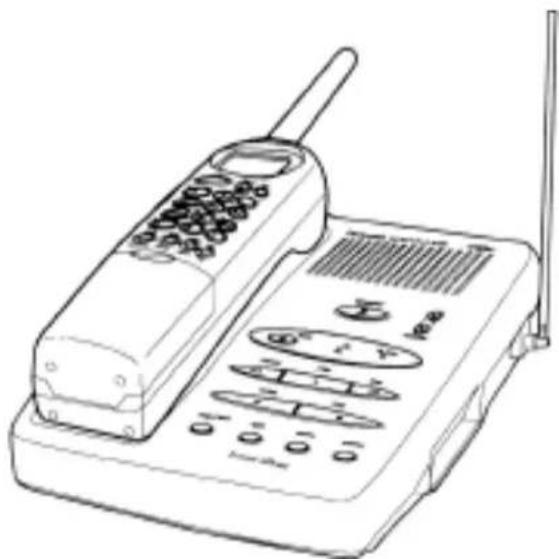
natural_image
Line drawing of a classic mobile phone with keypad and antenna (no text or symbols)- Plug one end of the telephone cord into the TEL LINE jack on the Base Unit.
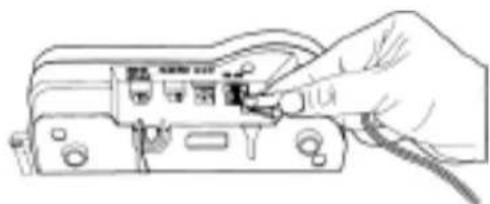
natural_image
Hand inserting a small electronic component into a device housing (no text or symbols visible)- Plug the AC Adapter cord into the 9V DC input jack on the Base Unit.
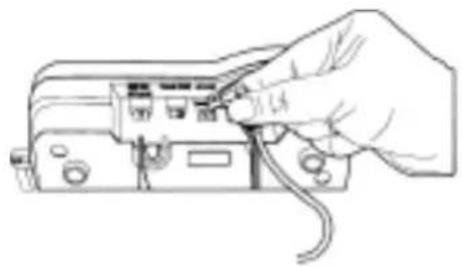
natural_image
Line drawing of a hand connecting an electronic device to a terminal block (no text or symbols)- Place the AC Adapter cord around the strain relief.
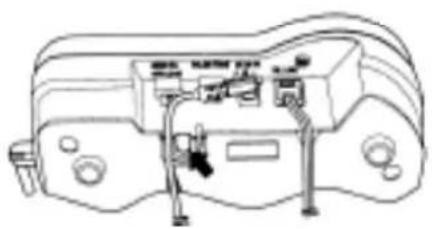
natural_image
Line drawing of a mechanical or electronic device with ports and wiring (no text or symbols)-
Plug the other end of the telephone cord into the telephone jack on the wall.
-
Plug the AC Adapter into a standard 230-240V AC wall outlet and make sure it is switched on.
! Use only the Uniden AC Adapter supplied with this phone.

natural_image
Line drawing of a hand holding a wall-mounted power socket next to a separate electrical outlet (no text or symbols)Direct Wall Mounting
You can mount your phone directly on a wall. Before mounting your phone, consider the following:
Select a location away from electrical cables, pipes, or other items behind the mounting location that could cause a hazard when inserting screws into the wall.
Make sure the wall material is capable of supporting the weight of the Base Unit and Handset.
Use #10 screws with anchoring devices suitable for the wall material where the Base Unit will be placed.
- Insert two mounting screws 100mm apart. Allow about 5mm between the wall and screw heads for mounting the phone.

text_image
5mm 100mm- Plug one end of the telephone cord into the TEL LINE jack on the Base Unit.
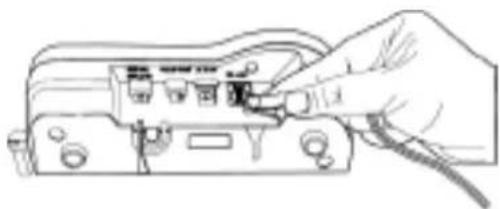
natural_image
Line drawing of a hand inserting a USB into an electronic device (no text or symbols visible)- Place the cord inside the molded channel on the bottom of the Base Unit.
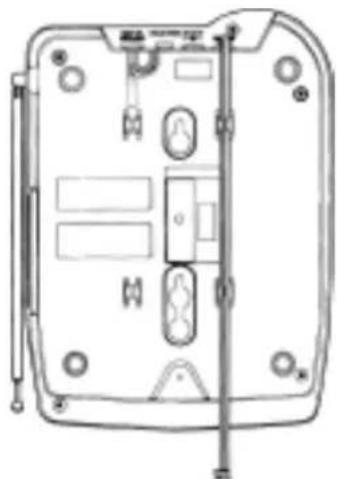
natural_image
Technical line drawing of a device rear panel with mounting holes and internal components (no text or symbols)- Plug the AC Adapter cord into the 9V DC input jack on the Base Unit.

natural_image
Line drawing of a hand inserting cable into an electronic device (no text or symbols visible)- Place the AC Adapter cord inside the molded channel.
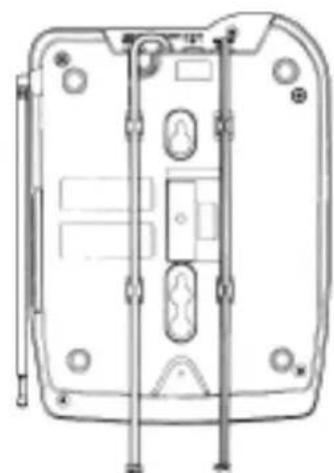
natural_image
Technical line drawing of a mechanical component with mounting holes and internal features (no text or symbols)- Place the Base Unit on the screws and push down until it's firmly seated.

natural_image
Hand holding a wall-mounted electrical socket with wires, showing wiring connection (no text or symbols)-
Plug the other end of the telephone line cord into the wall jack.
-
Plug the AC Adapter into a standard 230V-240V AC wail outlet and make sure it is switched on.
! Use only the Uniden AC Adapter supplied with this phone.
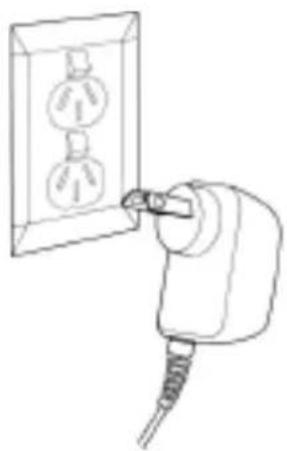
natural_image
Line drawing of a plug inserted into an electrical outlet (no text or symbols)Setting the Handset Retainer
The Handset Retainer holds the Handset in place if your phone is mounted on a wall. The steps below describe how to remove and replace the retainer so that the tab faces up.
- Push up on the Handset Retainer on the Base Unit, and slide the tab out.
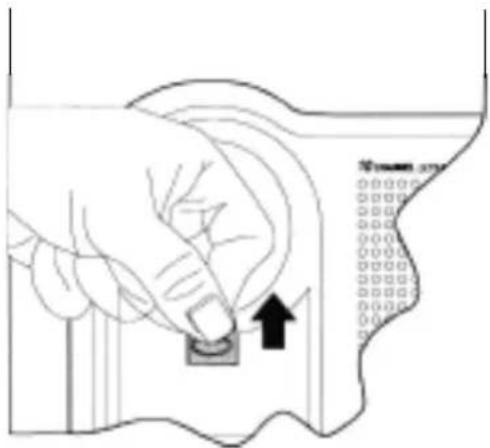
text_image
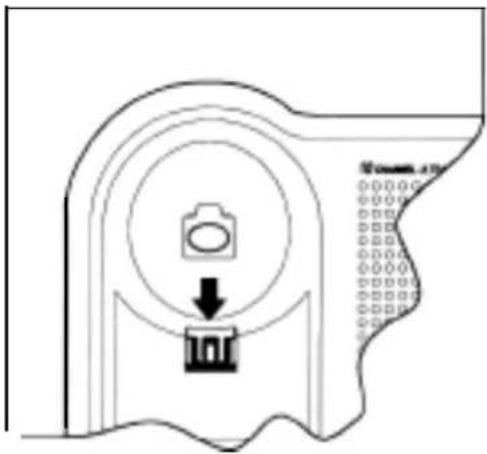
Diagram showing a hand pressing a button on a surface with an arrow indicating direction, alongside a grid of binary codes.- Flip the retainer over so the tab faces up.

text_image
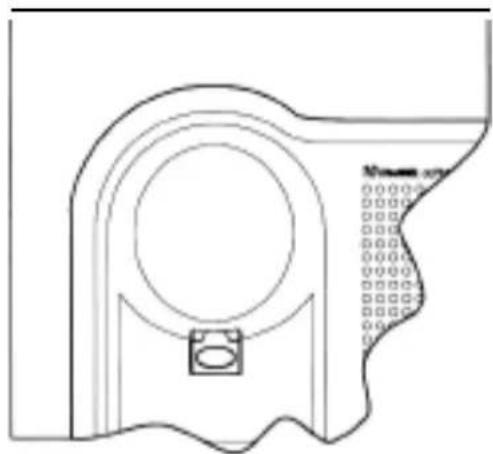
10 CHANNEL LEFT- Put the retainer back into its slot on the Base Unit.
natural_image
Pure technical diagram showing a gear and gear assembly without any text, numbers, or symbols- Push down on the Handset Retainer until it snaps into place.
natural_image
Technical line drawing of a mechanical component with circular and rectangular features (no text or symbols)Extending the Base Unit Antenna
Before using your phone, be sure to raise the antenna to the vertical position, and fully extend at all times.
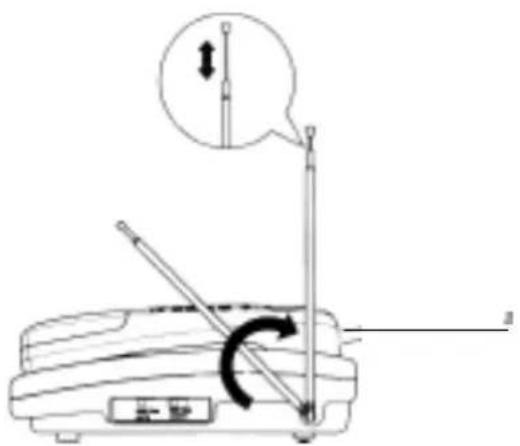
text_image
Diagram showing a mechanical device with a rotating lever and a magnified view of the lever mechanism.Installing the Handset Battery Pack
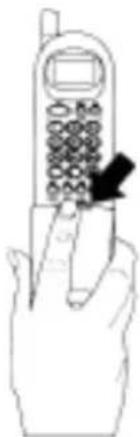
- Press in on the Battery Cover Release.
natural_image
Line drawing of a hand holding a vintage mobile phone with keypad and scroll (no text or symbols)- Slide the battery compartment cover down.

natural_image
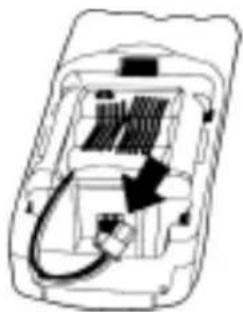
Line drawing of a classic mobile phone with keypad and buttons (no text or symbols)- Align the plastic connector of the Nickel-Cadmium battery pack with its socket and plug it in.
Note: The black lead will be on the left when the plug is properly aligned.
natural_image
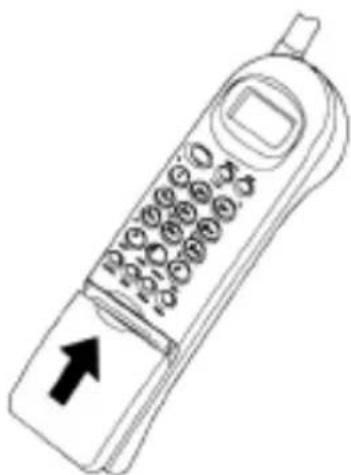
Diagram of a car interior showing internal components and a cable, with no visible text or symbols.- Place the battery pack inside the battery compartment, and slide the battery cover back on.
natural_image
Line drawing of a classic mobile phone with keypad and scroll (no text or symbols)Note: The built-in Memory Backup feature allows up to 3 minutes to disconnect the old battery pack and install a new one without losing any numbers stored in memory.
Cleaning the Battery Contacts
To maintain a good charge, it is important to clean all charging contacts on the Handset and Base Unit about once a month. Use a pencil eraser or other contact cleaner. Do not use any liquids or solvents.

text_image
Email+Phone ContactsCharging the Battery Pack
Initial Battery Charging
The rechargeable Nickel-Cadmium battery pack must be fully charged before using your phone for the first time. We recommend that the battery pack charge for approximately 15-20 hours, without interruption, before plugging the phone line into your new phone.
- Place the Handset on the Base Unit.
-OR-
Hang the Handset on the cradle when the phone is mounted on a wall.
Note: Make sure to change the Handset Retainer before hanging up the phone.
- Make sure the Battery icon lights. If the icon doesn't light, check to see that the AC adapter is plugged in, and that the Handset is making good contact with the Base Unit charging contacts.
Low Battery Indicator
When the Battery Pack in the Handset is very low and needs to be charged, the Battery icon flashes.

natural_image
Line drawing of a classic mobile phone with keypad, antenna, and control panel (no text or symbols)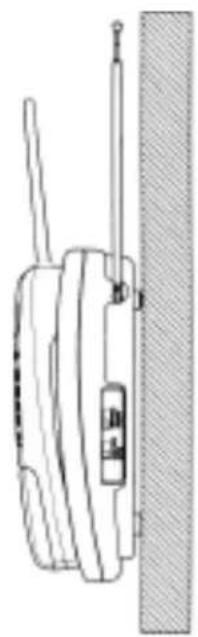
natural_image
Line drawing of a walkie-talkie with antenna and wall-mounted screen (no text or symbols)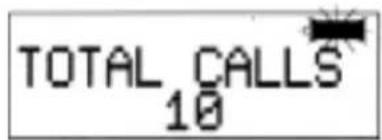
text_image
TOTAL CALLS 10
text_image
TOTAL CALLS 10If the Battery icon begins to flash, the phone is programmed to eliminate its functions to save power. The table below describes what to do to return your phone to normal operation.
| DURING A CALL IN STANDBY MODE | |
| Only the talk button operates. | None of the buttons will operate. |
| The Handset beeps and the battery icon flashes once every 3 seconds. | The Handset beeps and the battery icon flashes once every 3 seconds. |
| Complete your call as quickly as possible. | You will not be able to make a call. |
| Return the Handset to the Base Unit for charging. | Return the Handset to the Base Unit for charaina. |
Note: Allow 15 to 20 hours without any interruption for the Handset fo fully recharge.
Battery Memory Effect
Rechargeable batteries can develop a “memory” (reduced charge capacity) caused by repeated charge and discharge cycles. The battery life will seem to be shorter every time you use the unit.
To Avoid Memory Effect
At least once a month, operate the unit until the “Battery Low” indicator appears. Avoid “topping off” the charge after using the phone for a short time. Also, do not charge the Rechargeable Battery for extended periods of time.
Setting the Pulse/Tone Switch
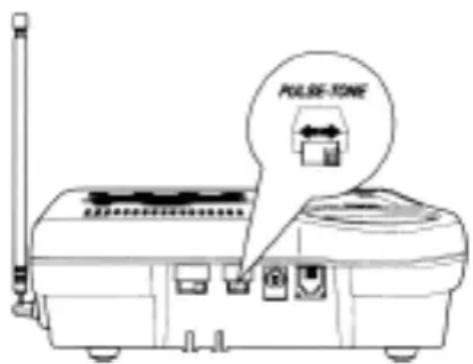
Be sure the Pulse/Tone switch is in the tone position.
Note: Most phone systems are tone dialing.
Check with your local phone company if you are not sure whether your system is tone or pulse dialing.
text_image
PULSE-TONEHandset Volume Controls
Please refer to the foldout in front of your operating guide for key positions.
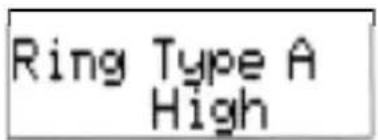
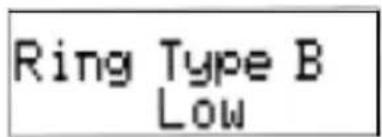
To adjust the ringer volume of your Handset, press volume/cancel until you hear the desired ringer tone and volume.
text_image
Ring Type A HighTwo-tone High Two-tone Low

text_image
Ring Type A Low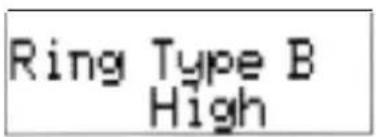
text_image
Ring Type B HighThree-tone High
text_image
Ring Type B LowThree-tone Low
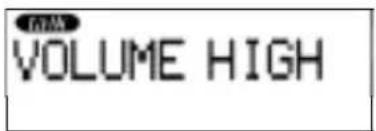
To adjust the receiver volume, press volume/cancel while you are on a call.
text_image
VOLUME HIGH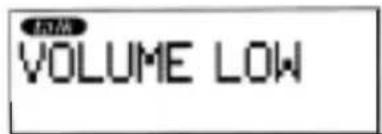
text_image
VOLUME LOWBaseVolumeControls
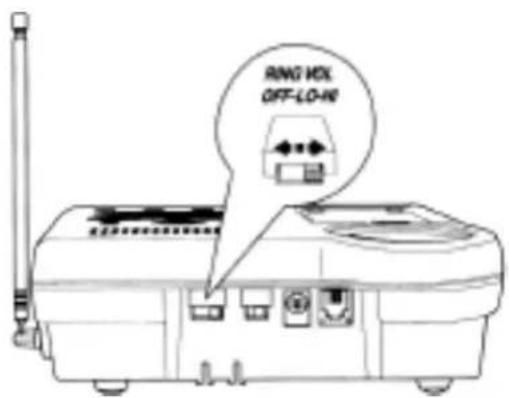
To adjust the Base Unit ringer volume, move the RING VOL-OFF LO HI switch to the desired setting.
text_image
RING BOX OFF-LO-HRTo adjust the Base speaker volume, press the volume control buttons to achieve the desired setting.
natural_image
Line drawing of a hand holding a vintage mobile phone with antenna and keypad (no text or symbols)Automatic Digital Code Security
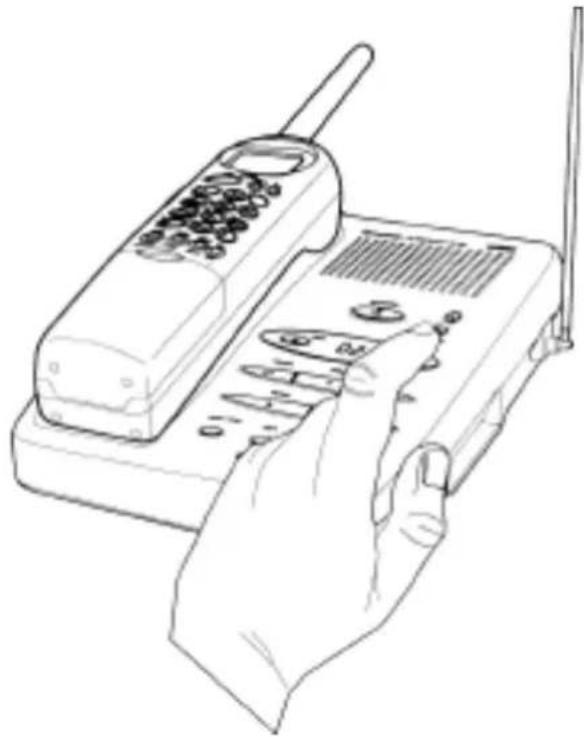
To help prevent unauthorized calls on your phone, a Digital Code feature has been included in all XCAI680 phones. This Digital Code is shared only between the Handset and Base Unit. The code is set automatically when you first use the phone.
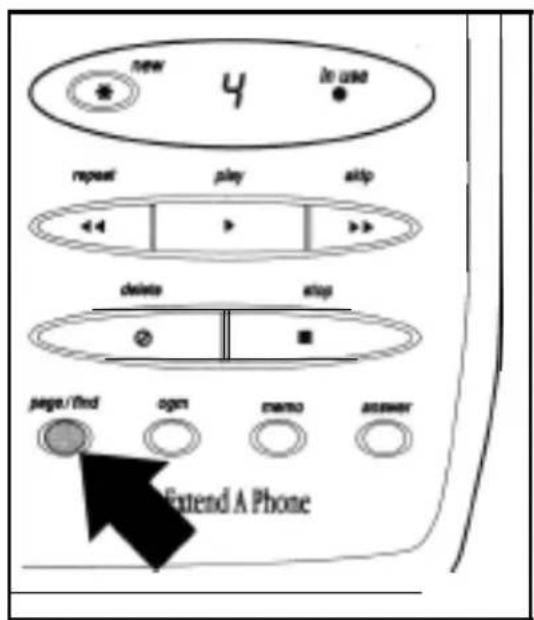
To change the Digital Code, be sure the Handset is on the Base, then:
- Press page/find on the Base Unit.
text_image
new 4 in use repeat play stop delete stop page/find ogn memo answer Extend A Phone-
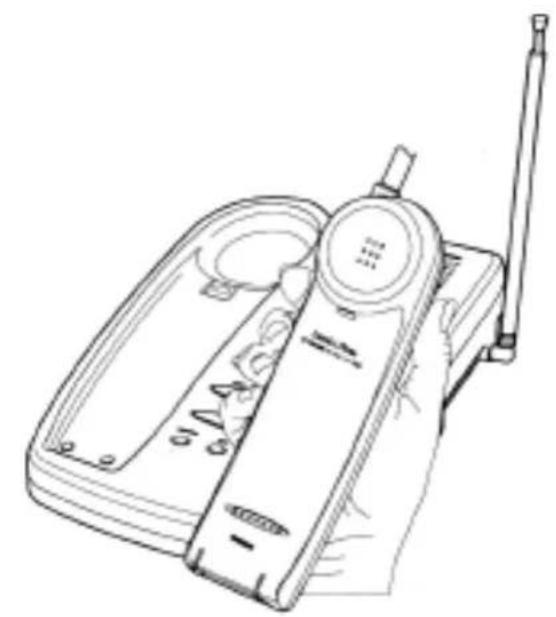
After the Handset stops beeping, remove it from the Base Unit.
-
Wait 5 seconds then place the Handset on the Base Unit.
-
The Battery icon will blink to indicate that the Digital Security Code is set to one of the more than 65,000 codes.
natural_image
Line drawing of a vintage mobile phone with a rotary dial and antenna (no text or symbols)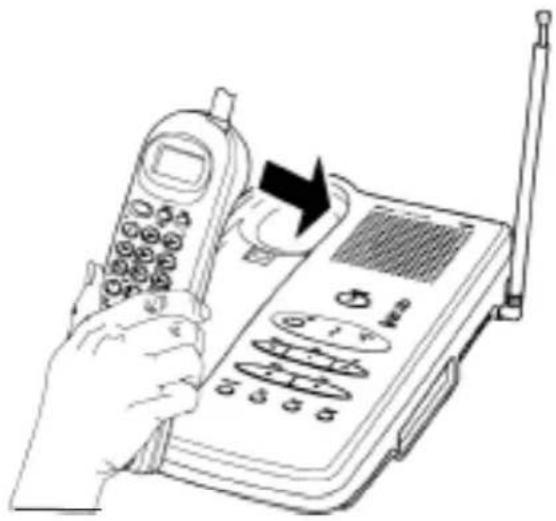
natural_image
Line drawing of a hand holding a vintage mobile phone with a radio, next to a telephone device with multiple buttons and a antenna (no text or symbols visible)
text_image
TOTAL CALLS 10If the Base Unit loses power while the Handset is off the Base, the Digital Code may be erased. When this happens, the Handset will not function. To re-establish communication between the Handset and Base Unit:
- Restore power to the Base Unit.
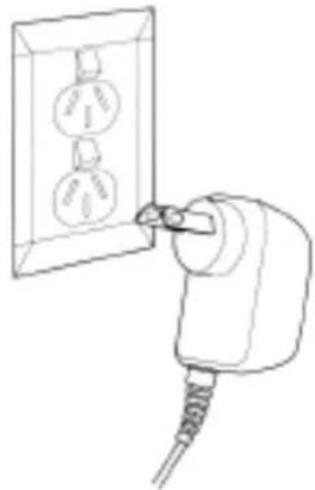
natural_image
Line drawing of a plug inserted into an electrical outlet wall (no text or symbols)- Place the Handset back on the Base Unit.
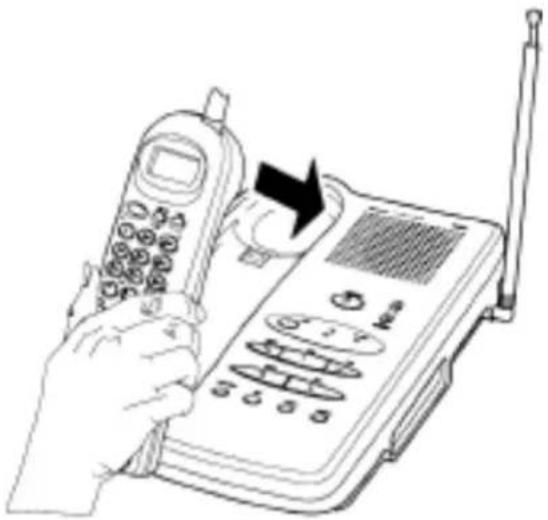
natural_image
Line drawing of a hand holding a vintage mobile phone with a radio, next to a telephone receiver and antenna (no text or symbols)- The Battery icon will blink to indicate that the Digital Security Code is set.
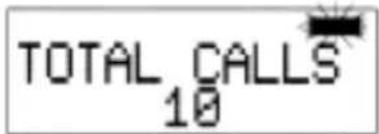
text_image
TOTAL CALLS 10Setting Caller ID on Call Waiting
Note: This feature is not currently available in Australia.
You can set your XCAI680 phone to display information about calls that generate a call waiting tone while you are on a call.
Note: With this feature set you will not be able to hear the person you are talking to for a brief period after you receive the call waiting tone.
To turn Caller ID on Call Waiting on:
- Remove the Handset from the Base Unit.
-
Press flash/function twice.
-
Press 1.
- Press mem. A confirmation tone sounds and the display remains on for two seconds.
- Replace the handset in its cradle on the base unit for the new setting to take effect.
To turn Caller ID on Call Waiting off:
- Remove the Handset from the Base Unit.
-
Press f/ash/function twice.
-
Press 0.
-
Press mem. A confirmation tone sounds and the display remains on for two seconds.
- Replace the handset in its cradle on the base unit for the new setting to take effect.
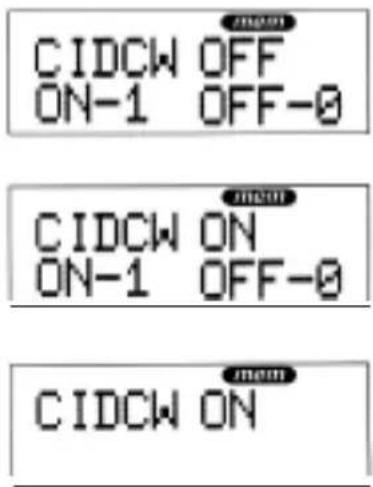
text_image
CIDCW OFF ON-1 OFF-0 CIDCW ON ON-1 OFF-0 CIDCW ON
text_image
CIDCW OFF ON-1 OFF-0 mem CIDCW ON ON-1 OFF-0 mem CIDCW OFFSetting the AutoTalk Feature
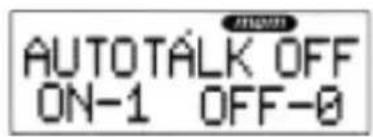
To turn AutoTalk on:
- Remove the Handset from the Base Unit.
-
Press flash/function three times.
-
Press 1.
-
Press mem. A confirmation tone sounds and the display remains on for two seconds.
To turn AutoTalk off:
- Remove the Handset from the Base Unit.
-
Press flash/function three times.
-
Press 0.
-
Press mem. A confirmation tone sounds and the display remains on for two seconds.
text_image
AUTOTALK OFF ON-1 OFF-0
text_image
AUTOTALK ON ON-1 OFF-0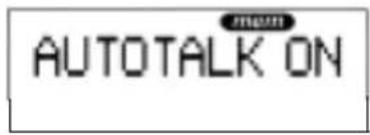
text_image
AUTOTALK ON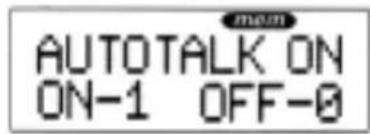
text_image
mm AUTOTALK ON ON-1 OFF-0
text_image
AUTOTALK OFF ON-1 OFF-0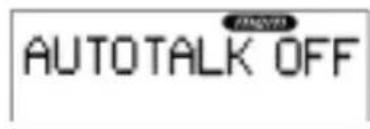
text_image
AUTOTALK OFFSetting the Caller ID Name Tagging Feature
Note: Please read page 34 to fully understand the caller ID feature.
Name Tagging is a special feature of XCAI680 that allows the cordless phone to display the name of the calling party if such name and number is stored. in the phone's dial memory (see page 35). If the calling party's detail is not programmed in the dial memory, only the number is displayed.
Note: Refer to your telephone service provider for the availability and subscription to the Caller ID service. Telstra however is not yet forwarding the name.
To turn Name Tag on.
- Remove the Handset from the Base Unit.
-
Press flash/function five times.
-
Press 1.
-
Press mem. A confirmation tone sounds and the display remains on for two seconds.
To turn Name Tag off.
- Remove the Handset from the Base Unit.
-
Press flash/function five times.
-
Press 0.
-
Press mem. A confirmation tone sounds and the display remains on for two seconds.
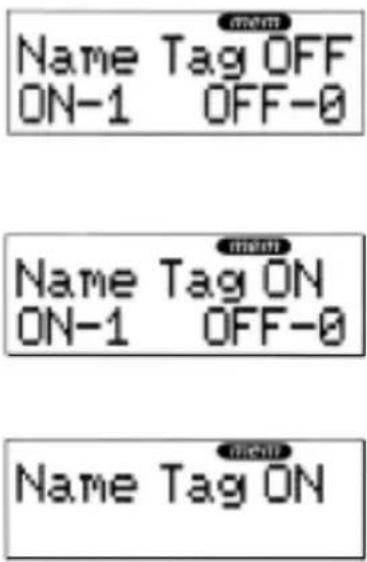
text_image
Name Tag OFF ON-1 OFF-0 Name Tag ON ON-1 OFF-0 Name Tag ON
text_image
Name Tag ON ON-1 OFF-0
text_image
mem Name Tag OFF ON-1 OFF-0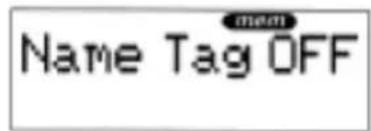
text_image
Name Tag OFFSetting the Caller ID Number Grouping Feature (using Hyphen)
For ease of reading Caller ID Number, Uniden added this extra feature.
To turn Hyphen on:
-
Remove the Handset from the Base Unit.
-
Press flash/function four times.
-
Press I.
-
Press mem.
A confirmation tone sounds and the display remains on for two seconds.
* With this feature ON, the CID information will be displayed as shown.
e.g. KATHLEEN ROL 02-9599-3577
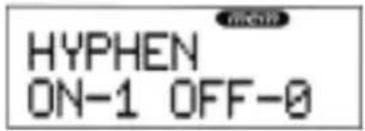
text_image
HYPHEN ON-1 OFF-0
text_image
HYPHEN ON ON-1 OFF-0
text_image
HYPHEN ON
text_image
KATHLEEN ROL 02-9599-3577To turn Hyphen off:
-
Remove the Handset from the Base Unit.
-
Press flash /function four times.
-
Press 0.
-
Press mem.
A confirmation tone sounds and the display remains on for two seconds.
* With this feature OFF the CID information will be displayed as shown.
e.g. KATHLEEN ROL 0295993577
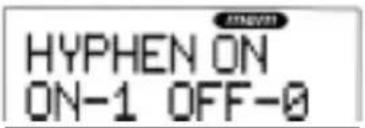
text_image
HYPHEN ON ON-1 OFF-0
text_image
HYPHEN OFF ON-1 OFF-0
text_image
HYPHEN OFF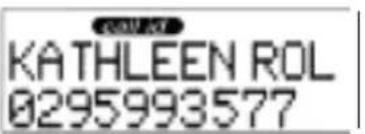
text_image
KATHLEEN ROL 0295993577Using Your Phone
Please refer to the foldout in front of your operating guide for key positions.
Making Calls
- Remove the Handset from the Base Unit,
- Dial the number you wish to call. For example, 1234-5678
12345678
- If you entered a wrong number, press chan/delete to backspace until the number is erased.
123456
Note: To cancel making the call, press volume/cancel.
natural_image
Pure grid pattern with no text, numbers, or symbols- Press talk.

text_image
CH-10Note: If the Handset fails to connect with the Base the Handset beeps and returns to standby mode.
- During your conversation the LCD displays the call timer.

text_image
00:00:04When you are finished with the conversation, press ta/k to hang up.
-OR-
Place the Handset back on the Base.
Receiving Calls
Note: You must subscribe to a Caller Display Service from your telephone service provider for the caller's number to be displayed.
When the phone rings, the LCD displays information about the person calling you.
-OR-
If Name Tagging is enabled and the caller's detail is programmed in the phone memory:
-OR-
If the Caller ID signal is not strong enough to display a complete ID, the LCD may display:
-OR-
If the Caller ID is coming from overseas, the LCD displays:
-OR-
If the Caller ID is coming from a Telstra GSM Cellular Phone Network, the LCD displays:
-OR-
If the Caller ID is coming from a Payphone, the LCD display:
-OR-
If the Caller ID signal is coming from:
an old type telephone network exchange
a silent number subscriber
a caller who chooses to block their number
an analogue cellular mobile call
a GSM network other than Telstra
-OR-
If no Caller ID signal is present the LCD displays:
Press ta/k to answer the call.

text_image
02-9599-3355
text_image
Uniden 02-9599-3355
text_image
LINE ERROR
text_image
Unavailable
text_image
041X-XXX-XXX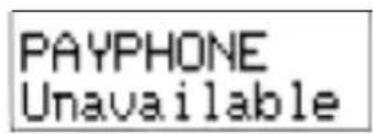
text_image
PAYPHONE Unavailable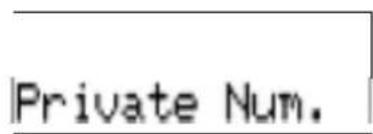
text_image
Private Num.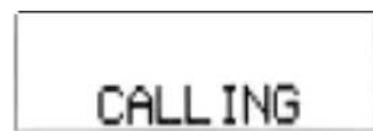
text_image
CALLINGAnswering a Call with AutoTalk Enabled
If you have enabled the AutoTalk feature, just remove the Handset from the Base to answer an incoming call. See "Setting the AutoTalk Feature" on page 26 for details on setting AutoTalk.
Answering a Call without AutoTalk Enabled
When the phone rings, pick up the Handset and press talk. The channel number is displayed for 2 seconds.
Then the LCD displays the call timer.

text_image
A178 CH-10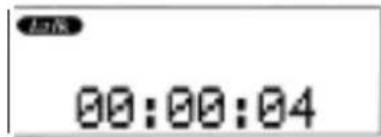
text_image
00:00:04When you are finished with the conversation, press talk to hang up.
-OR-
Place the Handset back on the Base.
Using Call Waiting Feature
Please call your local telephone service provider to check the availability of this service in your area.
- While talking you hear the Call Waiting signal.
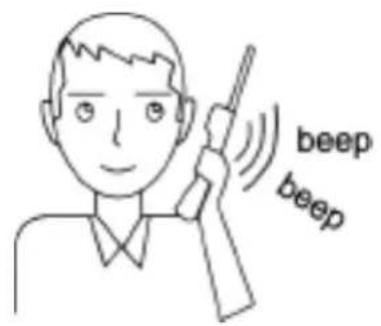
text_image
beep beep- Press caller id/c wait button.

text_image
Unlabeled 1 2m 4m 5m 6m 7m 8m 9m-
The existing call is placed on hold.
-
Talk to the second caller.
-
Press talk button to end the current call.

text_image
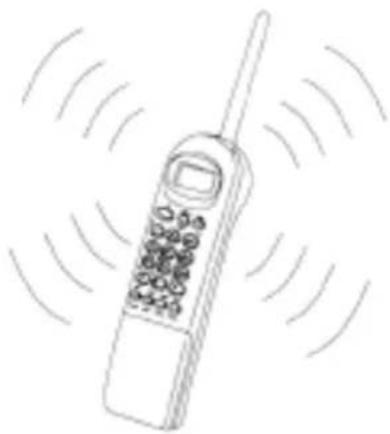
Control 100% 200% 300% 400% 500% 600% 700% 800%- The phone will ring back indicating that the first caller is still on hold.
natural_image
Line drawing of a vintage mobile phone with circular waves indicating signal or vibration (no text or symbols)-
Press talk button to answer this call.
-
Press talk button to end the call.
Note: Pressing the c wait button during the call will toggle between callers. Pulse mode network does not support the call waiting feature.
Redialing the Last Number Called
-
Remove the Handset from the Base Unit.
-
Press talk.
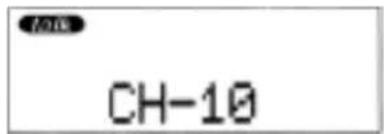
text_image
Auto CH-10Note: If the Handset fails to connect with the Base, the Handset beeps and returns to standby mode.
- Press redial/pause.
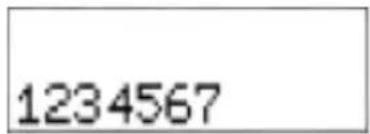
text_image
1234567Note: If the last number dialed is longer than 12 digits, the display will scroll to the left until the last number is shown in the display
- During your conversation the LCD displays the call timer.
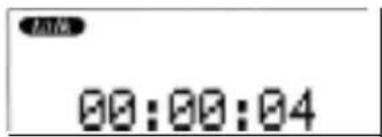
text_image
00:00:04- When you are finished with the conversation, press talk to hang up.
-OR-
Place the Handset back on the Base.
Using the Flash Key with Call Waiting
To access the Telstra's Call Waiting service, you can either use the c wait button or the flash key
- While talking you hear the call waiting signal.
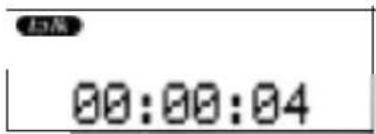
text_image
13AM 00:00:04-
Press f/ash/function then 2 to switch call and put the current call on hold.
-
To switch back to your original call, press flash/function then 1.
* The flash/function + 2 call waiting procedure toggles call between the incoming and original call. (vice versa). The f/ash/function + 1 procedure will drop the current call connection and pick up the incoming call on the call on hold.
Using the Page/Find Feature
The Page/Find feature sends a signal from the Base Unit to the Handset causing it to beep. This is useful for locating the Handset when it is away from the Base Unit. Press the page/find button on the Base Unit and listen for the tone from the Handset.
Note: The Page/Find feature does not work when the phone is in use.
Automatic Channel Scan Feature
When the Talk button is pressed, the XCAI680 will automatically choose the clearest channel for use.
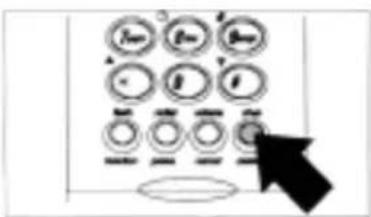
Channel Button
If interference is heard during a telephone conversation, simply press the channel button to select a new channel.
text_image
Diagram showing a control panel with labeled buttons and an arrow pointing to the bottom-right button.Speakerphone
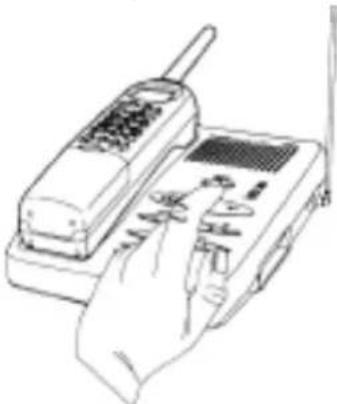
To answer an incoming call, simply press the speaker button for hands free speakerphone conversation.
natural_image
Line drawing of a hand holding a vintage telephone receiver with a handheld device (no text or symbols visible)Using Caller ID
The Caller ID Display
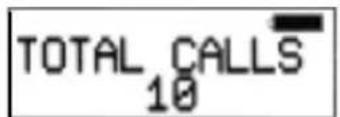
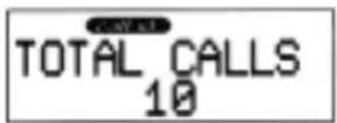
To make use of these features, you must first subscribe to your telephone service provider. The LCD displays information about the current call and previous calls received on your XCAI680 cordless phone, including the total calls received, and the number of new calls received.
The LCD display is always active while the Handset is on the Base. When the Handset is removed from the Base, the LCD display turns off immediately. To reactivate the LCD, you need to press the called id key. The backlight will turn on briefly and the LCD will display the call summary shown below.
LCD with Handset on Base
text_image
TOTAL CALLS 10NO NEW CALLS

text_image
NEW TOTAL 02 10WITH NEW CALLS
LCD with Handset off Base and caller id Pressed.
text_image
TOTAL CALLS 10NO NEW CALLS

text_image
NEW TOTAL 02 10WITH NEW CALLS
Note: The XCAI680 can store information on up to 30 different calls. Information on new calls received after 30 calls will be stored, and the oldest call in memory will be deleted.
Viewing Calls in Memory
-
Remove the Handset from the Base Unit.
-
Press caller id.
-
To view calls stored in memory, Press the ▼ or A keys.
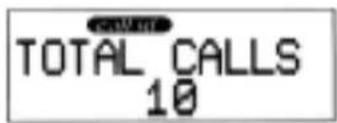
text_image
CALL TOTAL CALLS 10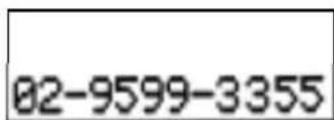
text_image
02-9599-3355-OR-
If the Name Tag feature is on and the Caller details is in the phone dial memory.
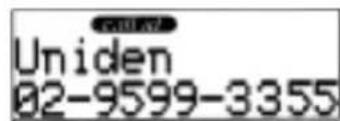
text_image
Uniden 02-9599-3355To dial the number currently displayed, press the talk key.
Note: If the number is longer than 12 digits, the display will scroll to the left until the last number is shown in the display.
- To see ail calls stored in memory, press the A key repeatedly until the LCD displays END.
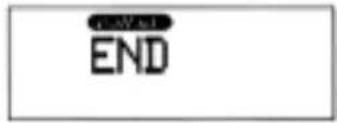
text_image
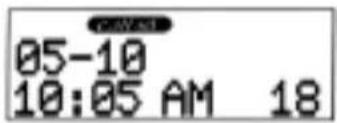
END- To see the time and day a call was received:
a. While the number is displayed press,
text_image
05-10 10:05 AM 18b. To return to the number display press again.
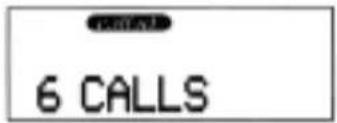
- To see how many times a caller has phoned:
a. While the number is displayed, press 9/#.
text_image
6 CALLSb. To return to the number display press 9/#.
Calling the Displayed Number
To dial the number currently displayed, press the talk key.
Deleting Caller ID messages
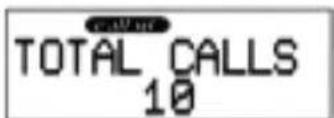
Only individual messages can be deleted on theXCAI680 To delete messages follow the steps below.
- Press caller i d.
text_image
CALLS TOTAL CALLS 10- Press A or ▼ to scroll to the call you want to delete.
text_image
02-9599-3355- Press and hold chan/delete for at least three seconds. A double beep tone sounds to confirm the message has been deleted.
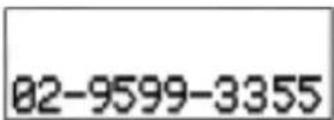
text_image
02-9599-3355The next number is displayed.
-
Repeat steps 2 and 3 to delete any other calls from the caller id memory.
-
Press caller id when finished.
-
To see ail calls stored in memory, press the A key repeatedly until the LCD displays END.
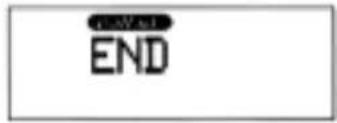
text_image
END- To see the time and day a call was received:
a. While the number is displayed press,
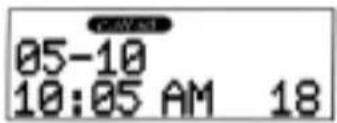
text_image
05-10 10:05 AM 18b. To return to the number display press again.
- To see how many times a caller has phoned:
a. While the number is displayed, press 9/#.
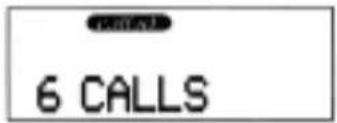
text_image
6 CALLSb. To return to the number display press 9/#.
Calling the Displayed Number
To dial the number currently displayed, press the talk key.
Deleting Caller ID messages
Only individual messages can be deleted on theXCAI680 To delete messages follow the steps below.
- Press caller i d.

text_image
CALLS TOTAL CALLS 10- Press A or ▼ to scroll to the call you want to delete.
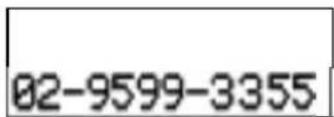
text_image
02-9599-3355- Press and hold chan/delete for at least three seconds. A double beep tone sounds to confirm the message has been deleted.

text_image
02-9599-3355The next number is displayed.
-
Repeat steps 2 and 3 to delete any other calls from the caller id memory.
-
Press caller id when finished.
Programming Your Phone
Storing a Caller ID memory number in Dial Memory
There are 20 dial memory locations in the XCAI680 cordless phone.
You can store any number in your Caller ID memory in Dial Memory so it can be used later with memory dialing. See Calling a Number Stored in Memory on page 38 for details on how to use the memory dial feature.
- Remove the Handset from the Base Unit.
- Press caller id.
- Press A or ▼ until the call you want to store is displayed.
- Press mem.
- Enter the two digit memory location number, for example, 05. You hear a confirmation beep and the LCD displays:
- Press caller id to return to Standby mode.
Storing a Regular Number in Dial Memory
There are 20 dial memory locations in the XCAI680 cordless phone.
You can manually enter any number up to 16 digits into dial memory so that it can be dialed later.
- Remove the Handset from the Base Unit.
- Press flash/function
- Press 1.
- Enter the phone number you want to store. For example, 7234-5678.
- Press mem.

text_image
CALLS TOTAL CALLS 10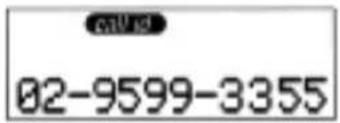
text_image
GALD 02-9599-3355
text_image
LOCATION?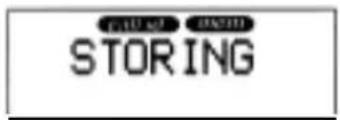
text_image
FULL RED STORING
text_image
DIAL MEMORY? MEM-1 EDIT-0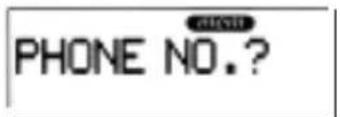
text_image
PHONE NO.?
text_image
PHONE NO.? 12345678
text_image
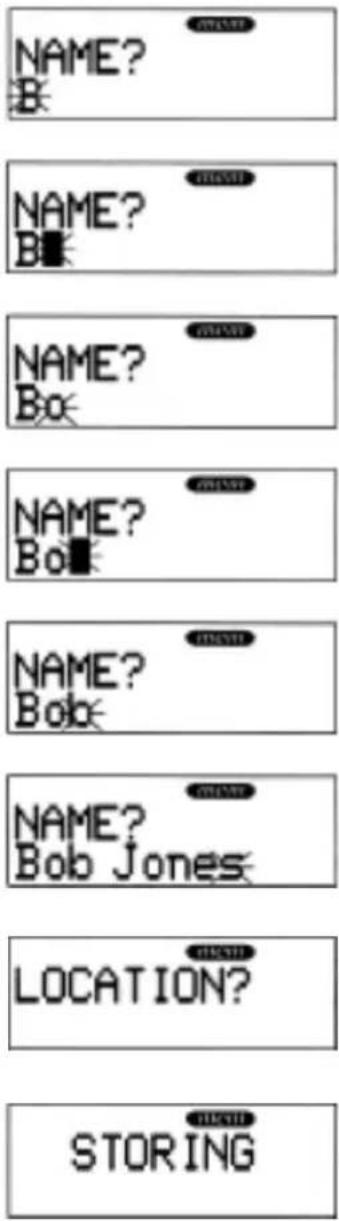
NAME?- Enter a name up to 13. characters long using the ▼ and A keys to select characters and the ◀ or ▶ button to move one character to the left or right.
For example, to enter the name Bob Jones:
Press ▼ until B is displayed in the LCD.
Press 3 (▶) to move one character to the right.
Press ▼ until o is displayed in the LCD.
Press 3 (▶) to move one character to the right.
Press ▼ until b is displayed in the LCD.
Continue until the name Bob Jones is displayed in the LCD.
-
Press mem.
-
Enter a two digit memory location for the number. For example, press 05 to assign location 05 to the number. You hear a confirmation beep and the LCD displays:
Calling a Number Stored in Memory
Use this feature to dial a number previously stored in memory. See Storing a Caller ID memory number in Dial Memory on page 36 or Storing a Regular Number in Dial Memory on page 36 for details.
-
Remove the Handset from the Base Unit.
-
Press mem.
-
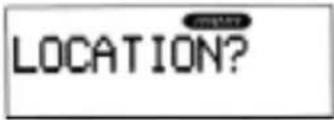
Enter the two digit memory location. For example, for memory location 05, press05.
text_image
LOCATION?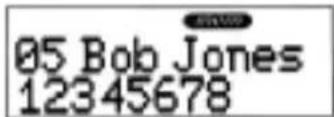
text_image
05 Bob Jones 12345678Note: If you want to dial a different number stored in dial memory, use the ▲ and▼ keys to scroll through the numbers stored in memory.
- Press ta/kto dial the number.
Editing and Deleting Numbers in Dial Memory
Use this feature to edit or delete numbers stored in dial memory.
-
Remove the Handset from the Base Unit.
-
Press flash/function
-
Press 0.
-
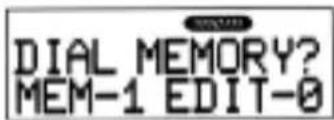
Enter the two digit memory location to edit or delete. For example, to edit or delete location 05, press 05.
text_image
DIAL MEMORY? MEM-1 EDIT-0
text_image
LOCATION?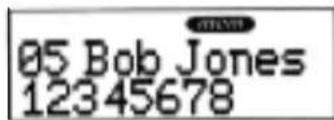
text_image
05 Bob Jones 12345678-OR-
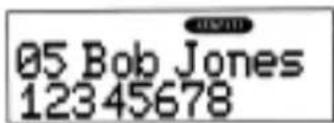
Use the A and ▼ keys to scroll to the memory location.
text_image
05 Bob Jones 12345678To edit the number entry in dial memory, for example, to change 5678 to 1234:
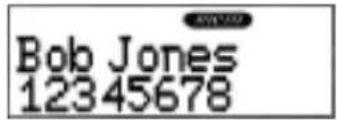
Press mem.
text_image
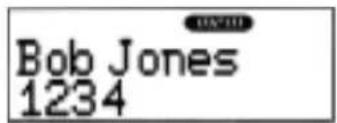
Bob Jones 12345678Press chan/delete four times.
text_image
Bob Jones 1234Enter 1234.

text_image
Bob Jones 12341234To edit the name entry in dial memory, for example to change Bob Jones to Tom Jones:
Press mem again.

text_image
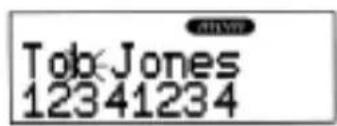
Bob Jones 12341234Press ▼ until T is displayed in the LCD.

text_image
Tob Jones 12341234Press 3 (▶) twice to move two characters to the right.
text_image
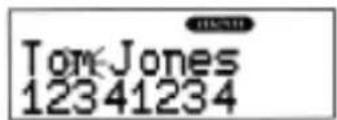
Job Jones 12341234Press ▼ until m is displayed in the LCD.
text_image
Tom Jones 12341234Press mem.

text_image
STORINGTo delete the entry in dial memory:
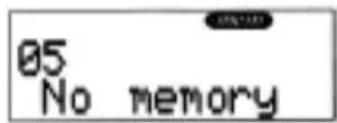
Repeat procedure 1-4 on the previous page to select the dial memory to be deleted. Press and hold chan/delete for two seconds. A confirmation tone sounds and the memory location is cleared.
text_image
05 No memoryThe Integrated Answering System
The XCAI680 has a built-in Answering System which answers incoming calls and records your messages. You can also use your new Answering System to leave a memo message for someone else who will use the phone, or to announce a special message when you'll be away from your phone.
Features
Digital Tapeless Recording Remote Operation
Selectable Outgoing Messages
Voice-Guided Help Menu (from remote location)
Time and Day Stamp
• 20 Minutes Record Time
. Call Screening
. Built in Flash Memory Backup
. Toll Saver
. Auto Disconnect
Digital Tapless Recording allows you to quickly review your messages, saving or deleting the messages you choose. You'll never have to worry about a tape wearing out or resetting properly.
Your XCAI680 is an advanced, integrated system which offers you maximum flexibility, but please &through the sections that explain all of the features before using your Answering System.
NOTE: THIS EQUIPMENT DOES NOT HOLD A BACK-UP BATTERY.
Answering System Setup
Turning the Answering System On/Off
- To turn the Answering System on, press answer.
A tone sounds, and the current outgoing message plays on the Base Unit speaker. A second tone sounds to indicate the unit is ready to answer calls, and the Message Counter LED turns on.
Note: When the Message Counter LED flashes, you have unread new messages.

text_image
1 Enter Page 1 Page 2 Page 3 Page 4 Page 5 Page 6 Page 7 Page 8 Page 9 Page 10 Page 11 Page 12 Page 13 Page 14 Page 15 Page 16 Page 17 Page 18 Page 19 Page 20 Page 21 Page 22 Page 23 Page 24 Page 25 Page 26 Page 27 Page 28 Page 29 Page 30 Page 31 Page 32 Page 33 Page 34 Page 35 Page 36 Page 37 Page 38 Page 39 Page 40 Page 41 Page 42 Page 43 Page 44 Page 45 Page 46 Page 47 Page 48 Page 49 Page 50 Page 51 Page 52 Page 53 Page 54 Page 55 Page 56 Page 57 Page 58 Page 59 Page 60 Page 61 Page 62 Page 63 Page 64 Page 65 Page 66 Page 67 Page 68 Page 69 Page 70 Page 71 Page 72 Page 73 Page 74 Page 75 Page 76 Page 77 Page 78 Page 79 Page 80 Page 81 Page 82 Page 83 Page 84 Page 85 Page 86 Page 87 Page 88 Page 89 Page 90 Page 91 Page 92 Page 93 Page 94 Page 95 Page 96 Page 97 Page 98 Page 99 Page 100- To turn the Answering System off, press answer again.
A tone sounds and the Message Counter LED turns Off.
Setting the Clock and PIN Code
The clock in your XCAI680 Answering System starts when power is applied to the Base Unit. You can also set a personal four-digit code (0000 to 9999) for your PIN code. You must use your PIN code to access your Answering System from a touch-tone telephone.
-
Press caller id on the Handset.
-
Press f/ash/function on the Handset.
-
Enter the number which corresponds to the day.

text_image
CALL TOTAL CALLS 10
text_image
TIME SET| Day of the Week | Press |
| Sunday | 1 |
| Monday | 2 |
| Tuesday | 3 |
| Wednesday | 4 |
| Thursday | 5 |
| Friday | 6 |
| Saturday | 7 |
-
Enter the two-digit number for the hour (01-12) and then the minute (00-59).
-
To set AM, press * on the Handset.
To set PM, press #on the Handset.
- Press the flash/function key again.
Vote: A beep indicates the new time is programmed, and the new Time and Day Stamp is announced from the Base speaker. You are then prompted for a PIN code.
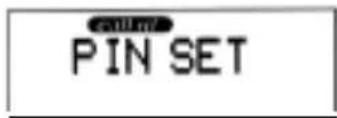
text_image
PIN SET-
Enter the four-digit number you want to use as a PIN code.
-
Press flash/function again.
A beep indicates the new PIN number is programmed.
- For example, to set the time to Tuesday at 3:20 PM, and a PIN code to 1234, press caller id, then press flash/function followed by these keys.
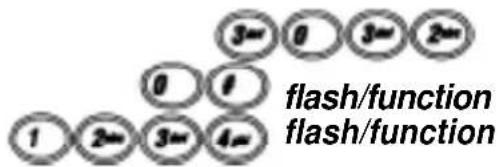
text_image
3=0 3=2 0 1 1 2=3=4 flash/function flash/functionReviewing Time and Day Stamp
- Press ■/stop.
The speaker beeps, and the Time and Day Stamp is announced.

text_image
2 44 3 10 Internal U PhoneSetting Your Outgoing Message (OGM)
When you receive a call, the Answering System answers and automatically plays either a preset message or your personal Outgoing Message.
Preset Messages
The XCAI680 has two messages programmed in its memory depending on where theRec Time switch is set.
If the switch is either in the "4" or "1" position, this preset message plays "Hello. No one is available to take your call. Please leave a message after the tone." Incoming messages are limited to four or one minute respectively.
If the switch is set to the left position "ANN" (announce only), this message plays twice. "Hello. No one is available to take your call." No incoming message will be recorded.
Note: If the REC TIME/ANN/4/1 switch is in the "Announce Only" position, the Message Counter LED displays an A when the system is in Standby.

text_image
REC TIME ANNETRecording Your Personal OGM
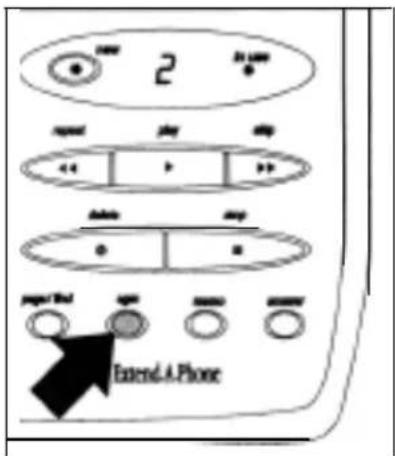
- To record an outgoing message, press and hold ogm.
Start recording your message after you hear the long tone and the Message Counter LED begins to count up.
text_image
2 Extend A Phone- Do not get closer than 30 cm to the microphone, and speak clearly while recording your message. When you are finished recording, release ogm.
You will hear a tone, and your message will play on the Base Unit speaker.
Note: You can leave up to a 60-second outgoing message.
Important: If REC Time Switch is set to ANN, make sure you use the preset ogm for announce only purpose.

natural_image
Line drawing of a hand holding a vintage mobile phone with keypad and control panel (no text or symbols)Selecting a Preset OGM
After you have recorded an outgoing message, you can set your Answering System to play either a preset message or your outgoing message.
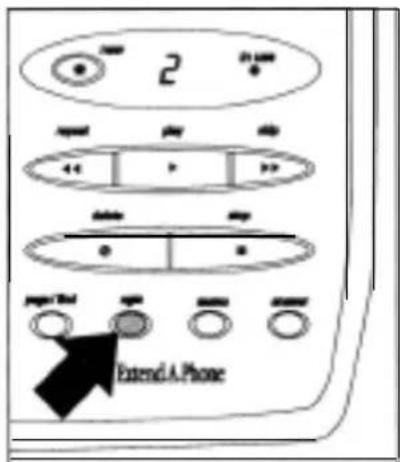
- Press ogm.
Your recorded outgoing message will begin to play.
text_image
2 Extend A Phone- While your recorded outgoing message is playing, press ogm again.
A tone will sound, and you will hear the preset message “Hello. No one is available to take your call, please leave your message after the tone” on the Base Unit speaker. A second tone sounds after the preset message plays, and the Answering System automatically returns to Standby.
- To select your recorded message again, press ogm.
The preset message will begin to play on the Base Unit speaker.

text_image
2 ExtendA Phone- While the preset message is playing, press ogm again.
A tone will sound, and your recorded message will play on the Base Unit speaker. A second tone sounds after your message plays, and the Answering System automatically returns to Standby.
Note: If the REC
switch is set to Announce Only (ANN), your recorded
message will play twice to an incoming call and no message will be recorded.
Please make sure that your OGM message is properly set for the selected function.
Auto Disconnect
The Auto Disconnect allows your Answering System to disconnect and reset if the caller hangs up before leaving a message. This prevents your Answering System from using recording time to record a hang up/dial tone message.
Setting the Toll Saver Switch
The Ring Time/Toll Saver switch allows you to set the number of rings the caller hears before your Answering System answers. You can set the switch to answer after 2 rings or after 4 rings. In the TS (Toll Saver) position, the Answering System answers after 2 rings if you have new messages recorded, and it answers after 4 rings if there are no new messages. So if you call long distance to check your messages, you can hang up after the third ring and not be billed.
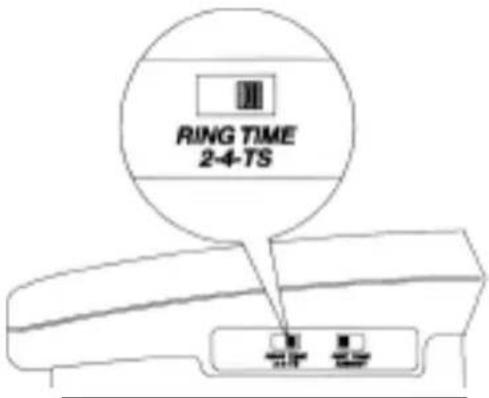
text_image
RING TIME 2-4-TSUsing the Reset Button
The RESET button is used to erase all recorded outgoing messages and any messages which are saved in memory. Pressing RESET does not erase your PIN (Personal Identification Number) code or the security code between the Handset and Base Unit.
- When RESET is pressed, the Message Counter begins to flash.
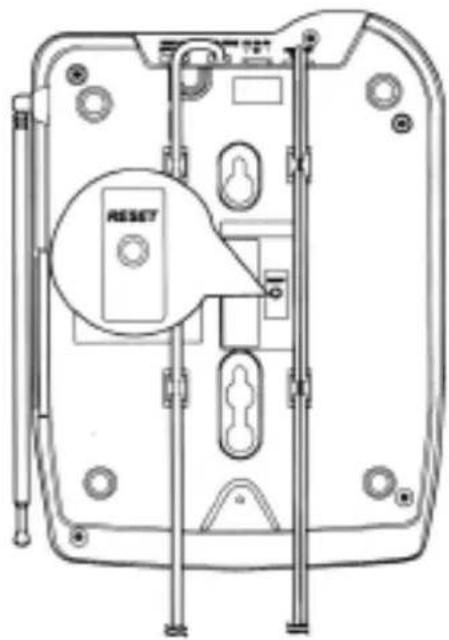
text_image
RESET- Press ■/stop to clear the flashing P from the display.
Note: The RESET button may also be used in the unlikely event that an AC power line disturbance causes the answering system to malfunction and become inoperative.
Using Your Answering System
Playing New Messages
When the message counter flashes, you have received new messages.
- Press */new.
The time and day each message was received is announced after the message is played, and the Message Counter LED displays the number of the message playing.
Note: If you want to stop reviewing your messages, press the 1/stop.
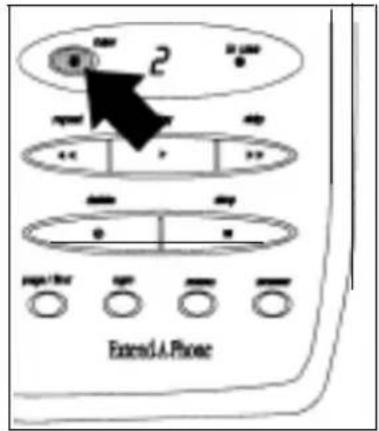
text_image
2 Extend A Phone- When all messages have played, a long tone sounds followed by the announcement "End of messages."
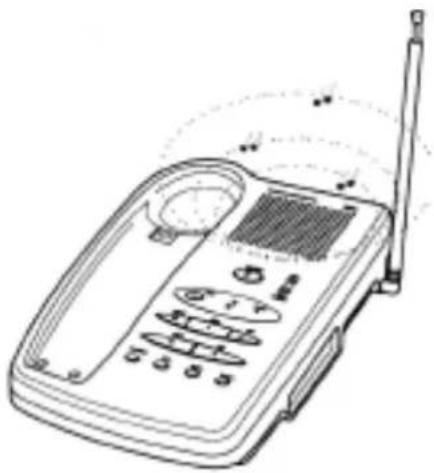
natural_image
Line drawing of a mobile phone with antenna, keypad, and control panel (no text or symbols)- The new message counter stops flashing, indicating that all of the new messages have been reviewed and stored.

natural_image
Line drawing of a classic office telephone with keypad and antenna (no text or symbols)Playing a Stored Message
- Press ▶/play.
The first message stored begins playing.
The time and day each message was received is announced after the message is played. The Message Counter LED displays the number of the message playing.
Note: If you want to stop reviewing your messages, press ■/stop
- When all messages have played, a long tone sounds followed by the announcement "End of messages".
The Message Counter LED shows the total number of messages.
Repeating a Message
- Press ▶/play to review your messages.

text_image
4 Extend A Phone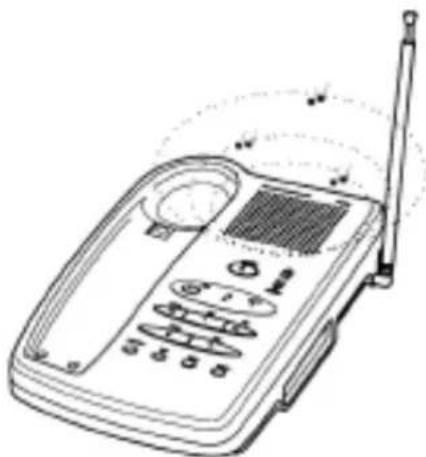
natural_image
Line drawing of a handheld electronic device with control panel and antenna (no text or symbols)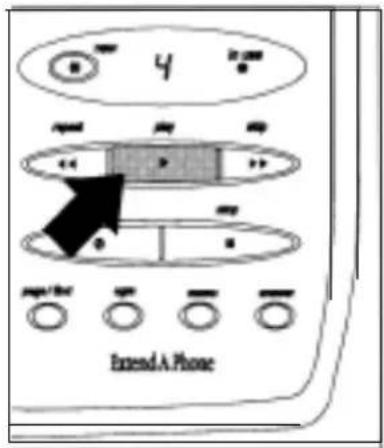
text_image
4 Extend A Phone- Press◄◄/repeat at anytime to replay a message.
Note: Pressing /repeat during a message returns the system to the beginning of that message. Pressing /repeat again before the message replays causes the system to scan back one message. if you have several messages, press /repeat until you return to the message you want to replay.
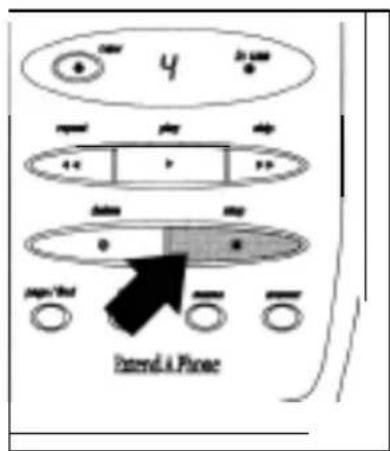
- Press ■ /stop at anytime to stop reviewing messages and return to Standby.
Note: The system will automatically return to Standby if all the messages have been played.
text_image
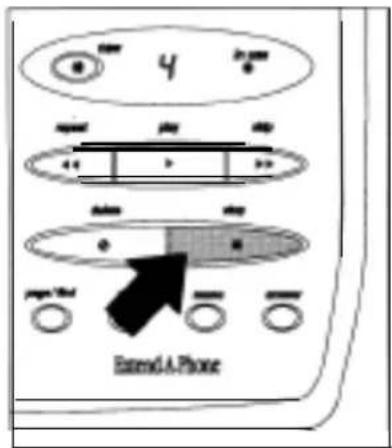
4 Stand & PhoneSkipping a Message
- Press ▶/play to review your messages.

text_image
4 Enter Page 1/3 Page 1/3 Page 1/3 Page 1/3 Extend A Phone- Press ▶/skip at anytime to skip to the next message.
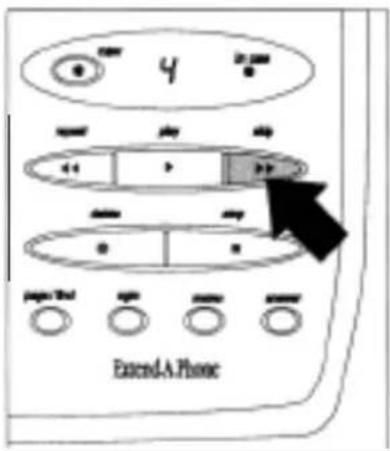
Note: Each time ▶/skip is pressed, the system scans forward one message. If you have several messages, press ▶/skip until you get to the message you want to play.
text_image
4 Extend A Phone- Press ■/stop at anytime to stop reviewing messages and return to Standby.
The Message Counter LED shows the total number of messages.
Note: The system automatically returns to Standby when all messages have been played.
text_image
Extend A PhoneDeleting a Message
- Press ▶/play to review your messages.
Note: You can press */new when you have received new messages.

text_image
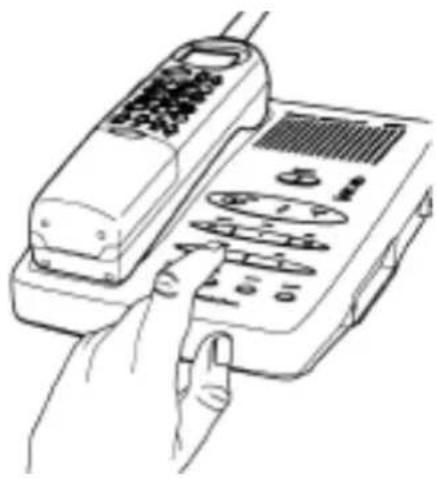
4 Extend A Phone- If you decide to delete a message, press and release ☑/delete anytime during the message.
The system beeps and immediately goes to the next message.
Note: When you press ☐/delete, you are deleting the message. Once the message is deleted, it cannot be replayed.
natural_image
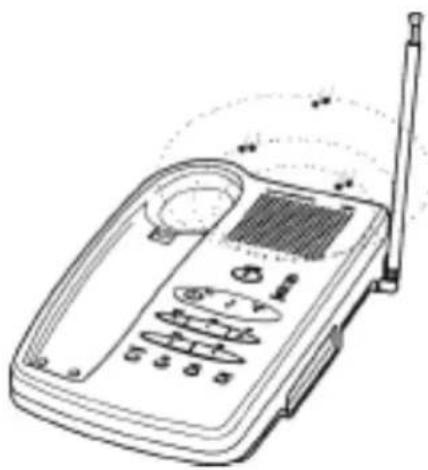
Line drawing of a hand holding a vintage mobile phone with keypad and control panel (no text or symbols)- When all messages have played, a long tone sounds followed by the announcement "End of messages".
natural_image
Line drawing of a mobile phone with antenna, control panel, and keypad (no text or symbols)Deleting All Messages
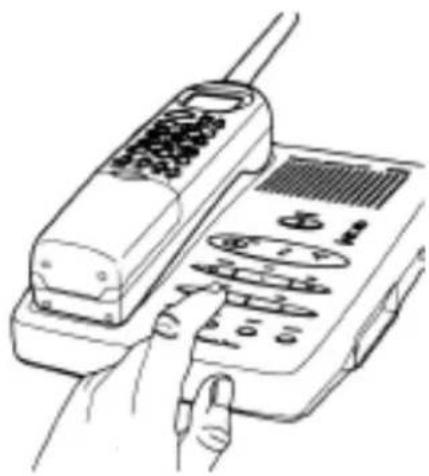
You can delete all your messages without deleting each separate message. To delete all the messages, you must use the delete button on the Base Unit.
Note: You must review all messages before using the "Delete All Messages" function.
- Press and hold ☐/delete.
natural_image
Line drawing of a hand inserting a keypad into a mobile phone (no text or symbols visible)- You will hear three short tones, followed by a longer tone.
Note: If you release the delete button before all three short tones sound, the messages are not erased.

natural_image
Line drawing of a hand holding a vintage mobile phone with keypad and control panel (no text or symbols)- A long tone sounds once the messages are erased then an announcement such as "Four messages deleted" plays.
Note: The deletion announcement above depends on how many messages are stored in memory.
This feature cannot be done if you have new message which has not been reviewed.

natural_image
Line drawing of a mobile phone with antenna, keypad, and control panel (no text or symbols)Message Full Indication
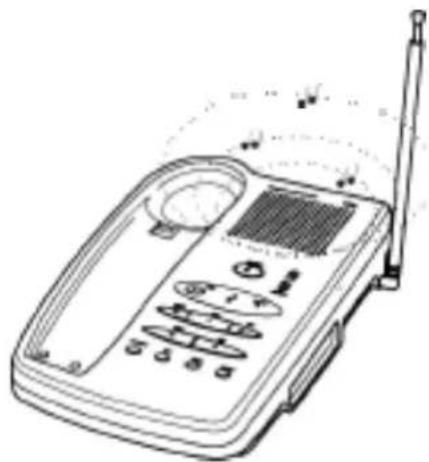
The XCA1680c has a maximum record time of approximately 20 minutes, or up to 40 incoming messages. When the memory is full, the Answering System will not record incoming calls. To return the system to normal operation, follow these steps.
- When the memory is full, the phone will ring 15 times before the announcement “No remaining time for incoming messages’ plays.
natural_image
Line drawing of a portable electronic device with control panel and antenna (no text or symbols)- You must review your messages and then delete some or all of the stored messages.
Leaving a Memo Message
You can use the XCAI680 to leave a Memo Message for someone else who uses your Answering System.
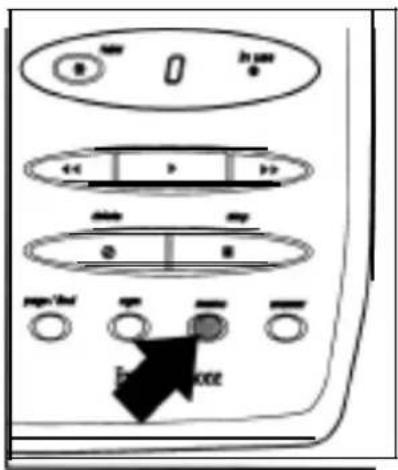
- To record your Memo Message, press and hold memo. You will hear a long tone and the Message Counter LED begins to count up.
Note: You can leave a memo message for a minimum record time of 2 seconds and up a maximum of 60 seconds.

natural_image
Line drawing of a hand inserting a keypad into a landline telephone device (no text or symbols visible)- Speak into the microphone. When you are finished recording, release the memo Button.
There is a tone, and the Message Counter begins to flash. The Message Counter LED shows the total number of messages stored in memory.
text_image
Diagram of a device control panel with labeled buttons and directional arrows indicating action or movement.- After you have recorded your message, the system returns to Standby.
Note: If you have new or unplayed messages, the Message Counter LED on the Base Unit will continue to flash. When all the messages have been reviewed, the Message Counter LED shows the number of stored messages but does not flash.

text_image
Extend A PhoneScreening Incoming Calls
If you receive a call while your answering system is on, you can listen to the incoming message on the Base Unit speaker.
If you wish to speak to the calling party, press the f&button on the Handset or the speaker button on the Base Unit.
Remote Operation
You can operate your XCAI680 while you're away from home by calling from any touch-tone phone. When using this feature, remember these important guidelines.
You should change your Personal Identification Number (PIN) before using your Handset. When you first apply power, the code is set to 0000.
You cannot change the Time and Day Stamp or your PIN code from a touch-tone phone.
Using a Touch-Tone Phone
You can operate your Answering System using any touch-tone telephone. Use this function to check for recorded messages, play or delete messages, or even record a new outgoing message.
- Call your telephone number.
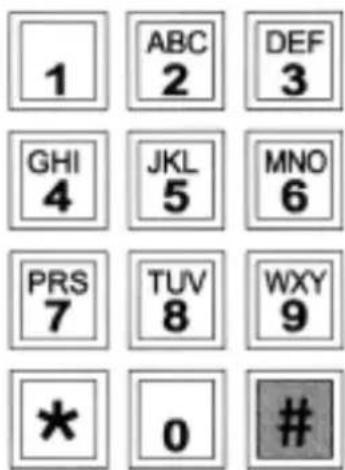
- During the outgoing message playback, press followed by your PIN number.
Note: If the answering machine is switched off, wait until after the fifteenth ring and your answering system will switch ON automatically. Now enter # followed by your 4 digit PIN number.
For example, use ① ① ②= ②= ④=
Note: This number will be the 4 digit PIN number you chose to replace the factory preset PIN number 0000. Refer to page 40 to change your PIN number.
text_image
1 ABC 2 DEF 3 GHI 4 JKL 5 MNO 6 PRS 7 TUV 8 WXY 9 * 0 #- The Answering System announces the Time and Day Stamp followed by the total number of new messages stored in memory.
- You then hear intermittent beeps indicating that the system is in the Command Waiting Mode.
Note: You must enter a command within 20 seconds or the Answering System hangs up and returns to Standby.
- Use this chart to select the function you want.
| Function | Press |
| Repeat | #1 |
| Play | #2 |
| Skip | #3 |
| Delete Message | #4 |
| Answer On/Off | #5 |
| Stop | #6 |
| Record OGM | #7 |
| Play New Message | #8 |
| Replay OGM | #9 |
| Help Menu | #0 |
- When you've finished, hang up to exit the system.
Your Answering System automatically returns to Standby.
Troubleshooting
If your XCAI680 Integrated Telephone Answering Device is not performing to your expectations, please try these simple steps. If you are still unable to resolve the problems, contact Uniden Customer Service for assistance.
Telephone Troubleshooting Chart
| Problem | Suggestion |
| Charge light won't come on when Handset is placed in Base Unit. | Make sure AC Adapter is plugged into the Base Unit and wall outlet.Make sure Handset is properly seated in Base Unit.Make sure that the charging contacts on the Handset and Base Unit are clean. Refer to page 16. |
| Audio sounds weak and/or scratchy. | Make sure that the Base Unit antenna is fully extended and vertical.Move the Handset and/or Base Unit to different locations and try again.Press chan to select another channel. |
| Can't make or receive calls. | Check both ends of the Base Unit telephone line cord.Make sure the AC Adapter is plugged into the Base Unit and wall outlet.Disconnect the AC Adapter for a few minutes, and then reconnect it. |
| Handset doesn't ring or receive a page. | Nickel-Cadmium battery pack may be weak. Charge the battery on the Base Unit for IS-20 hours.Extend the Base Unit antenna vertically.The Handset may be too far away from the Base Unit.Place the Base Unit away from noise sources.The Digital Security Code may be erased. Set the Digital Code. Refer to page 22. |
| Base Unit doesn't ring. | Set the Base Unit Ringer switch to LO or HI. |
| Hear only continuous static from Handset and phone will not turn off. | The power has been interrupted during a call.Restore power to the Base Unit.If a power failure has occurred and power will be out for some time, remove the battery from the Handset. This will prevent the battery from completely discharging. |
Answering System Troubleshooting Chart
| Problem | Suaaestion |
| Answering System does not work. | Make sure that the Base Unit is plugged in.Make sure the Answering System is turned on.Press the RESET button to reset the system after an AC line spike. |
| Answering System does not answer calls. | Set the REC TIME/ANN/4/1 switch in either the 4-minute or l-minute position.The memory may be full. Delete some or all of the saved messages. |
| Messages are incomplete. | The incoming messages may be too long. Remind callers to leave a brief message.The memory may be full. Delete some or all of the saved messages. |
| After a power failure, the outgoing message is deleted. | The answering machine has a flash memory with no battery. Record your personal outgoing message again. The default messages should still remain. |
| Message Counter LED flashes the letter P. | There has been a power failure. Press RESET to reset the Answering System. |
| No sound on the Base Unit speaker during call monitoring or message playback | Adjust the volume control on the Base Unit. |
| Cannot access remote call-in features from another touch-tone phone. | Make sure you're using the correct PIN number.Remember to press #before entering your 4 digit PIN number.Make sure that the touch-tone phone you're using can transmit the tone for at least two seconds. If it cannot, you may have to change to another phone. |
| Cannot record outgoing message (ogm). | The memory may be full.Delete some or all of the saved messages. |
| Clock looses time. | The power to the base unit has been interrupted. Reset the clock as detailed on page 40 of this owner's manual. |
| Answering system switches on after 10 rings, beeps for 20 secondsthendisconnects. | The unit is waiting for your PIN number so you can clear message from a remote location. Refer to page 52 for more details. |
Caller ID Troubleshooting Chart
| Problem | Suggestion |
| Caller ID Feature not working. | You must subscribe to a caller ID Display Service first.Please contact your Telephone company to subscribe to this service.This service may not be available in your area. |
| Calling party name is not displayed. | This service is not yet available in this country. |
| Caller ID On Call Waiting (CIDCW) is not working. | This sevice is not yet available in this country. |
| LCD shows private number. | The calling party has requested that caller ID information not be sent. Refer to page 30 for more details. |
| LCD shows unavailable. | The calling patty may be outside the caller ID coverage area orfromoverseas. |
| LCD shows line error. | The caller ID information can not be decoded correctly. If the problem persists. Contact your telephone service provider. |
Specifications
| General | |
| Frequency Control | Phase Locked Loop (PLL) Synthesizer |
| Modulation | FM |
| Operating Temperature | -10° to 50°C |
| Base Unit | |
| Receive Frequency | 39.775 - 40.000 MHz (10 Channels) |
| Transmit Frequency | 30.075 - 30.300 MHz (10 Channels) |
| Power Source | AAD-650 U AC adapterApproval Number N14700Output: 9V DC, 350 mAInput: 230 - 240 V AC 50 Hz. |
| Size | 213 (W) x 140 (D) x 46 (H) mm |
| Weight | Approx. 667 gm |
| Flash Time | 90 ms |
| Handset | |
| Receive Frequency | 30.075 - 30.300 MHz (10 Channels) |
| Transmit Frequency | 39.775 - 40.000 MHz (10 Channels) |
| Power Requirements | Rechargeable Ni-Cd Battery Pack |
| Size | 56(W)x66(D)x307(H)mm (w/antenna) |
| Weight | Approx. 353 gm (including battery) |
| Battery | CTA665 |
| Capacity 270 mAh, 3.6V | |
| Talk Mode 6 hours | |
| Standby Mode 14 days | |
| Answering System | |
| Memory Type | Digital Tapeless Recording |
| Memory Capacity | 20 min. (Nominal) (40 messages) |
| Message Length | 1 min. or 4 min. Incoming Message (max.) |
| 1 min. outgoing message (max.) | |
| Message backup | EEPROM (Permanent) |
Specifications, Features, and availability of Optional Accessories are all subject to change without prior notice.
Warrantv
UNIDEN XCAI680 1 YEAR WARRANTY
(Batteries and Accessories are covered for 90 Days ONLY)
Note: Please keep your sales docket as it provides evidence of warranty. Warranty is only valid in the country where the product has been purchased.
WARRANTOR: Uniden Australia Pty Limited ACN 001 865 498
ELEMENTS OF WARRANTY: Uniden warrants to the original retail owner for the duration of this warranty, its XCAI680 Cordless Telephone (hereinafter referred to as the Product), to be free from defects in materials and craftsmanship with only the limitations or exclusions set out below.
WARRANTY DURATION: This warranty to the original retail owner only, shall terminate and be of no further effect ONE (1) Year after the date of original retail sale. The warranty will be deemed invalid if the Product is: (A) Damaged or not maintained as reasonable and necessary, (B) Modified, altered, or used as part of any conversion kits, subassemblies, or any configurations not sold by Uniden, (C) Improperly installed, (D) Repaired by someone other than an authorized Uniden Repair Agent for a defect or malfunction covered by this warranty, (E) Used in conjunction with any equipment or parts or as a part of a system not manufactured by Uniden, (F). Serviced by anyone other than an authorized Uniden Repair Agent, (G) Where the Serial Number label of the product has been removed or damaged beyond recognition.
PARTS COVERED: This warranty covers for One year, the Base/Charging Unit and Handset only. All accessories (Antenna, Battery, AC Adapter, Cable, Modular Plug, etc.) are covered for 90 Days only.
STATEMENT OF REMEDY: In the event that the product does not conform to this warranty at any time while this warranty is in effect, the warrantor at its discretion, will repair the defect or replace the product and return it to you without charge for parts and service. THIS WARRANTY DOES NOT COVER OR PROVIDE FOR THE REIMBURSEMENT OR PAYMENT OF INCIDENTAL OR CONSEQUENTIAL DAMAGES. THIS GUARANTEE IS IN ADDITION TO AND DOES NOT IN ANYWAY AFFECT YOUR RIGHTS UNDER THE CONSUMER GUARANTEE ACT.
WARRANTY CARD: If a warranty cards has been included with this product then please fill it in and return to us within 14 days of purchase. Your name and the Serial number of the product will then be registered in our database and this will help us process your claim with greater speed and efficiency should you require warranty service.
PROCEDURE FOR OBTAINING PERFORMANCE OF WARRANTY: In the event that the product does not conform to this warranty, the Product should be shipped or delivered, freight pre-paid, with evidence of original purchase (e.g., a copy of the sales docket), to the warrantor at:
UNIDEN AUSTRALIA PTY LIMITED
SERVICE DIVISION
345 Princes Highway, Rockdale, NSW 2216
Ph (02) 9599-3577 FAX (02) 9599-3278
Free call 1800 632 789
Customers in other States should ship or deliver the Product
freight pre-paid to their nearest Uniden Authorized Repair Centre.
(Contact Uniden for the nearest Warranty Agent to you)
Uniden®
©1998 Uniden Australia Pty Limited.