
ISIGHT - Camera APPLE - Free user manual and instructions
Find the device manual for free ISIGHT APPLE in PDF.


| Product Type | External digital camera |
| Brand | Apple |
| Model | iSight |
| Sensor | 1/4-inch CMOS |
| Maximum video resolution | 640 x 480 pixels |
| Video frame rate | 30 frames per second |
| Microphone | Built-in, omnidirectional |
| Connection | FireWire 400 (6-pin) |
| Power supply | Via FireWire cable (bus power) |
| Dimensions (L x W x H) | 8.5 x 8.5 x 8.5 cm |
| Weight | 200 g |
| Mounting | Articulated stand for screen or tripod |
| Focus | Automatic |
| Compatible operating systems | Mac OS X 10.2 or later |
| Care and cleaning | Clean with a soft, dry cloth |
| Safety | Use in accordance with instructions |
| Spare parts and repairability | Not available, device not user-repairable |
| General information | Class B digital device, complies with Canadian standards |
Frequently Asked Questions - ISIGHT APPLE
User questions about ISIGHT APPLE
0 question about this device. Answer the ones you know or ask your own.
Ask a new question about this device
Download the instructions for your Camera in PDF format for free! Find your manual ISIGHT - APPLE and take your electronic device back in hand. On this page are published all the documents necessary for the use of your device. ISIGHT by APPLE.
USER MANUAL ISIGHT APPLE
22 Using iSight With Other Video Applications
23 Tips and Troubleshooting
26 Learning More, Service, and Support
26 iChat AV Onscreen Help
27 Online Resources
27 Obtaining Warranty Service
28 Safety and Cleaning
28 Important Safety Instructions
30 Cleaning
30 Handling
Getting Started
Congratulations on purchasing your iSight camera. In a few easy steps, you can get started video conferencing with friends, colleagues, and family in real-time, full-motion video and audio.
To use iSight, you must have the following:
- A Macintosh computer with a G3 processor at 600 MHz or greater or any G4 or G5 processor
Processor upgrades from other manufacturers are not supported.
• Mac OS X v10.2.5 or later and iChat AV
iChat AV is included free with Mac OS X v10.3 and later. Otherwise, to purchase iChat AV, go to www.apple.com/ichat.
- A .Mac, America Online (AOL), or AOL Instant Messenger (AIM) account (only required to use iChat AV outside your local network)
- A broadband Internet connection using a DSL or cable modem, or over a local area network (LAN)
- Someone to video chat with
You can video conference with other iChat AV users and Windows AIM users.
Note: You can use iSight with video applications other than iChat AV, such as iMovie and QuickTime Broadcaster. You must install iChat AV to enable iSight for use with other applications.
Setting Up iSight
iSight includes the following components:
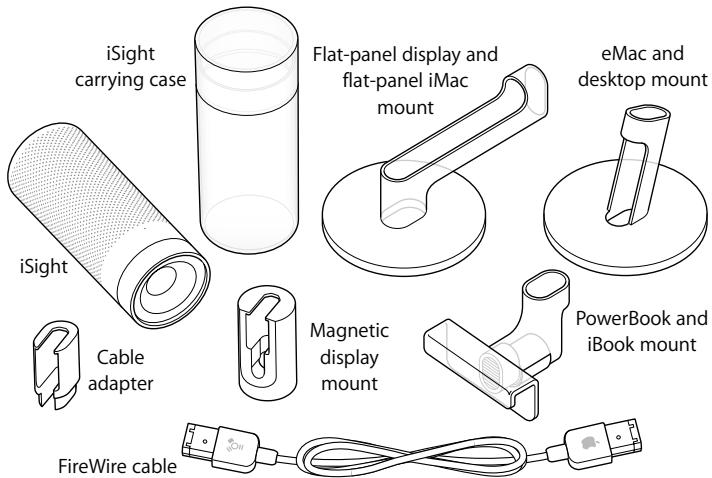
To set up iSight, you'll download and install iChat AV, the software used with iSight to video chat. Then you'll mount iSight on your computer or desktop, and check to see that iSight is working.
Step 1: Register Your iSight
Go to www.apple.com/register.
Step 2: If You Don't Already Have iChat AV, Purchase and Install It
iChat AV is included free with Mac OS X v10.3 or later. Otherwise, to purchase and install iChat AV, go to www.apple.com/ichat.
Step 3: Attach iSight to a Mount
1 Choose a mount, depending on where you want to place iSight.
If you have an anodized aluminum Apple display, use the magnetic display mount.
Simply push the end of the FireWire cable into the mount. Then skip to step 4 (page 11) to attach iSight to the mount.
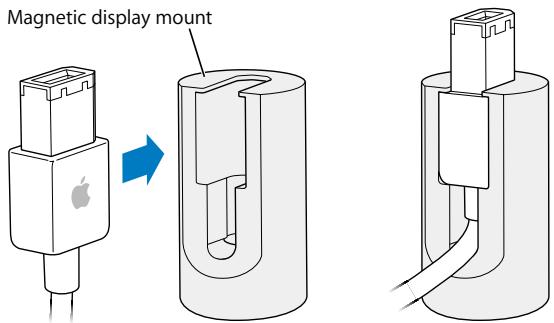
Warning Do not place the magnetic mount near a CRT display, an iPod, an external hard disk, or any other item that could be damaged by a magnet.
Otherwise, choose one of the other mounts (see page 6). Thread the FireWire cable through the top of the mount.

natural_image
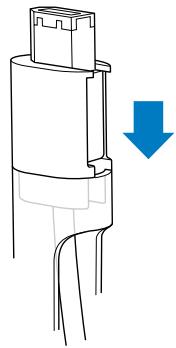
Line drawing of a plug inserted into a socket with a blue arrow indicating direction (no text or symbols)2 Push the end of the FireWire cable into the cable adapter, as shown.
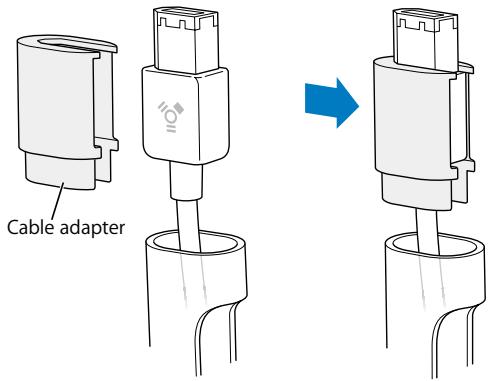
3 Push the cable adapter into the top of the mount until it is firmly seated.
natural_image
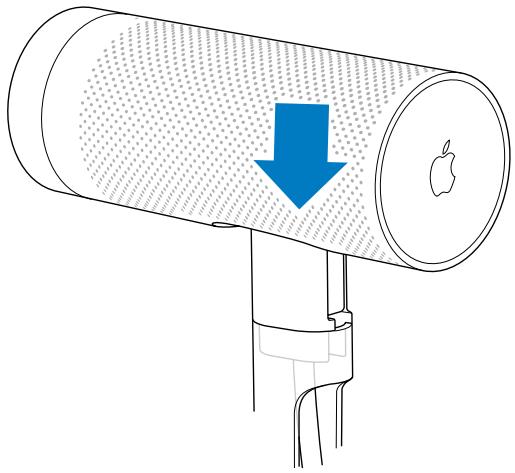
Diagram of a mechanical component with a blue arrow indicating downward motion (no text or symbols present)4 Push iSight onto the mount assembly.
natural_image
Diagram of a handheld device with a blue downward arrow indicating compression or disassembly (no text or symbols present)Note: If you're going to mount iSight on your computer or display, the lens should face the closed side of the mount (as in the above illustration); if you're going to place iSight on your desktop, the lens should face the open side of the mount, where the cable enters it. You may need to pull iSight and the cable from the mount, turn it around, and reinsert it to orient it correctly.
Step 4: Mount iSight
Before mounting iSight, be sure the FireWire cable can reach a FireWire port on your computer. To purchase a FireWire cable of a different length, go to www.apple.com/store. Be sure to purchase an Apple Thin FireWire cable.
Note: If you use a mount with adhesive backing, you can only remove the mount and replace it a few times before the adhesive quality is lost.
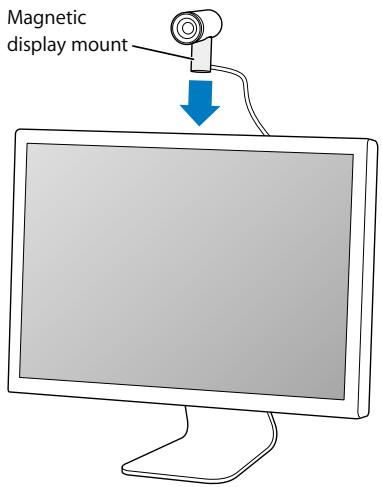
To mount iSight on an anodized aluminum Apple display:
■ Simply place the mount on top of the display, at or near the center.
To mount iSight on a flat-panel display or a flat-panel iMac:
■ Remove the paper covering and press the mount onto the back of the display.
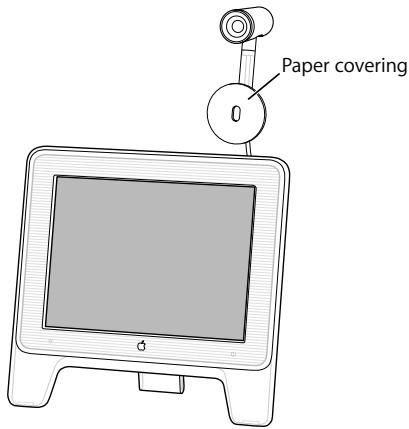
Important: If you have a flat-panel iMac, for best adhesiveness mount iSight to either side of the Apple logo on the back of the iMac display, and not directly on the logo.
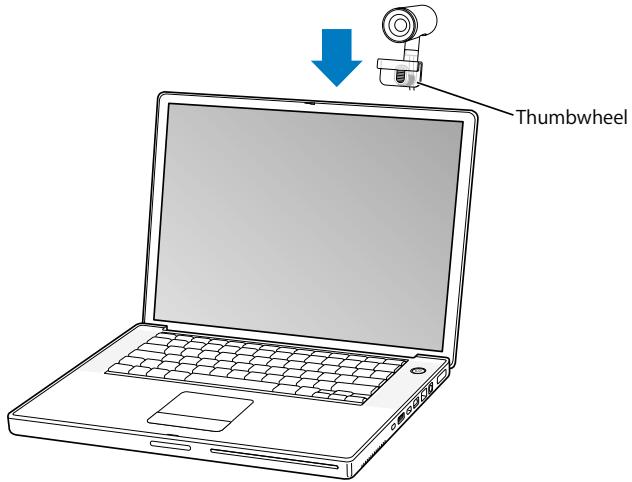
To mount iSight on a PowerBook or iBook:
- Clamp the mount onto the display. Use the thumbwheel to tighten it in place.
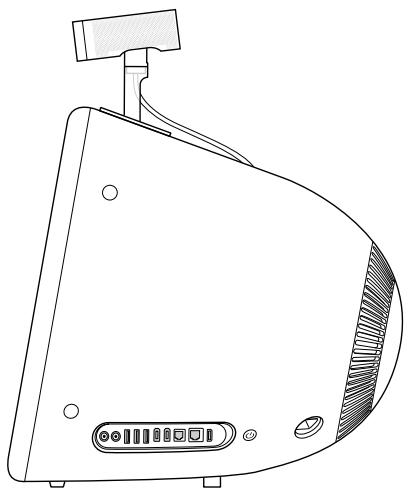
To mount iSight on an eMac or CRT display:
- Remove the paper covering from the bottom of the mount and press it onto the display.
Be sure to mount iSight toward the front of your eMac or display so it has an unobstructed line of sight.
natural_image
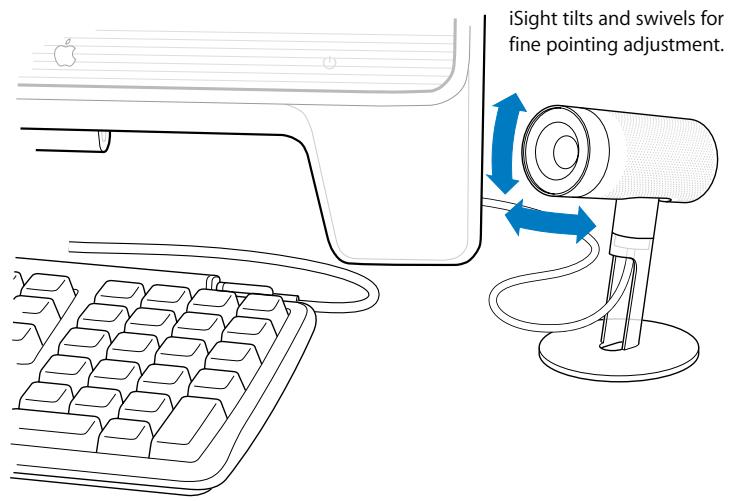
Line drawing of a device rear panel with buttons and a top handle (no text or symbols)To use iSight on your desktop:
■ Simply place iSight on your desktop in the desired position.
You may wish to leave the paper covering on the mount so you can easily reposition iSight.
Step 5: Check to See That iSight Is Working
1 Turn on your computer (if it isn't already on) and plug the FireWire cable extending from iSight into a FireWire port on your computer. iChat AV opens automatically.

Important: If you haven't used iChat before, a setup assistant helps you set it up. To use iChat AV, you need to be connected to a local area network (LAN), or you need a .Mac, America Online (AOL), or AOL Instant Messenger (AIM) account. To sign up for a .Mac account, go to www.mac.com. For more information on setting up and using iChat AV, open iChat AV and choose Help > iChat Help.
2 In iChat AV, choose Window > Buddy List, then click the camera icon next to your picture in the Buddy List window.

iSight focuses automatically and an image from iSight appears onscreen. This lets you know iSight is working properly.
When iSight is in use and capturing video, a green light appears on top of the unit.
If you don't see an image:
- Be sure iSight is plugged in firmly and the lens is open (see page 18).
Using iSight
With iSight, you can video chat with other iChat AV users in real-time, full-motion video. iSight has a built-in microphone, so you can talk, too. If a friend has a microphone but no camera, you can chat using voice only.
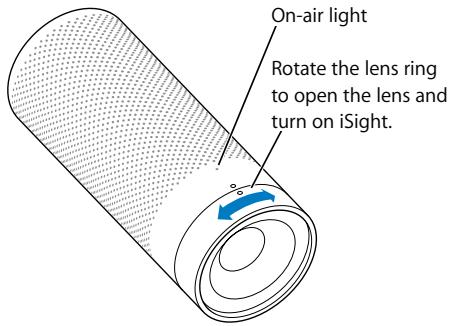
Opening the Lens
To open the iSight lens, rotate the lens ring so the two circles are aligned. When iSight is in use and capturing video, a green light appears on top of the unit.
Note: If you connect iSight to a PowerBook or iBook that isn't connected to power, you may wish to disconnect iSight when you aren't using it, to conserve battery power.
Using iChat AV
iChat AV is the software you use with iSight to video chat. You can also have voice chats, chat using text, send files, and have group text chats.
For more information about setting up and using iChat AV:
- Open iChat AV and choose Help > iChat Help.
Video Conferencing
To start a video chat:
1 Open iChat AV if it isn't already open.

2 Click the camera icon next to a buddy in your Buddy List.
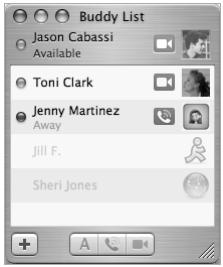

Camera icon indicates the user can video chat

Phone icon indicates the user can voice chat

Click the Add button to add a buddy to your list
A preview image appears so you can see how you look onscreen. iSight focuses automatically.
When your friend accepts your invitation, you see him or her onscreen. Your friend can see and hear you, and if he has a microphone, you can hear him, too.
Note: The person you're chatting with can get the best view of your face if you position the video chat window close to the camera, so you're looking in the direction of iSight when you look at the chat window.
Note: For information on adding people to your Buddy List, choose Help > iChat Help.
Sending Video One-Way
If a friend has iChat AV but doesn't have a camera, you can send video one-way.
Your friend can see and hear you, and if she has a microphone, you can hear her.
- Select a buddy in the iChat AV Buddy List. Then choose Buddies > Invite to One-Way Video Chat.
If you like, you can open a text chat with the person at the same time by double-clicking her name in the Buddy List.
Audio Conferencing
If a friend has a microphone, you can talk using iChat AV and the iSight camera's built-in microphone. iSight must be connected and turned on. If your computer has a built-in or external microphone, you can use that, too.
- In iChat AV, click the phone icon next to a buddy in your Buddy List and wait for a reply.

A visual gauge shows your sound level. Make some noise to see the gauge rise.
When the person accepts your invitation, you can use the volume slider to adjust speaker volume. Click the microphone button if you don't want the person to hear you.
During an audio chat, the other person isn't able to see you.
Setting Your Buddy Icon
You can take a picture of yourself using iSight and set it as your buddy icon. People who have placed you in their Buddy Lists see your new picture.
To set your buddy icon:
1 In iChat AV, choose Buddies > Change My Picture.
2 Click the camera button.
3 Say "cheese."
Using iSight With Other Video Applications
You can also use iSight with other applications that use cameras. For example, you can capture live video from iSight directly into iMovie (using iMovie 4 or later), then use iMovie to edit the footage. Or you can use QuickTime Broadcaster to broadcast video over the Internet. If you don't already have iChat AV, you must download and install it to enable iSight for use with other applications.
To get iChat AV:
- Go to www.apple.com/ichat.
To learn more about iMovie:
- Go to www.apple.com/imovie.
To learn more about QuickTime Broadcaster:
- Go to www.apple.com/quicktime/products/broadcaster.
Tips and Troubleshooting
Most problems with iSight can be solved quickly by following the advice in this chapter.
If You Have a Dial-Up Internet Connection
- To use iSight, you need a broadband Internet connection. To obtain broadband service, look under "Internet" in your phone directory.
If Your iSight Won't Turn On or Respond
- Make sure the FireWire cable is plugged firmly into iSight and into your computer. Be sure the connector on the cable is oriented correctly. It can only be inserted one way. - Make sure the lens is open. Rotate the lens ring to open it. When iSight is capturing video, a green light appears on top of the unit.
If You Don't See Your Image in iChat AV
- Make sure the FireWire cable is plugged firmly into iSight and into your computer. Be sure the connector on the cable is oriented correctly. It can only be inserted one way.
- Make sure the lens is open. Rotate the lens ring to open it. When iSight is capturing video, a green light appears on top of the unit.
- Quit and restart iChat AV.
- Make sure you're using the latest version of iChat AV. Go to www.apple.com/ichat to get the latest version.
If iSight Isn't Working With a Video Application
- You can use iSight with video applications other than iChat AV, such as iMovie and QuickTime Broadcaster. If you don't already have iChat AV, you must download and install it to enable iSight for use with other applications. Go to www.apple.com/ichat to get iChat AV.
If the Video Looks Choppy
- iChat AV detects your Internet connection speed and optimizes video for best performance. If the video looks choppy, you or the person you are chatting with may need to set the bandwidth limit to a lower level. In iChat AV, choose iChat > Preferences and click Video. Then choose a setting from the Bandwidth Limit menu.
If Others Can't Hear You
- iSight may not be set as your microphone. In iChat, choose iChat > Preferences and click Video. Then choose iSight Built-in from the Microphone pop-up menu.
If You Hear Echoes or Loud Sounds
- Your speakers may be too close to the microphone. Change the angle of the speakers or move them away from the microphone and turn down the computer's volume.
If iChat AV Isn't Working Correctly
- For information about using and troubleshooting iChat AV, open iChat AV and choose Help > iChat Help.
If Removing a Mount Left Residue on Your Computer or Display
- Use a damp, soft, lint-free cloth to remove any residue. Avoid getting moisture into any openings on the display or computer surface. - If any residue remains, you can use "Goo Gone," produced by Magic American Corporation, to remove it. Go to www.googone.com for more information.
Note: While the mounts with adhesive backing are designed to be repositioned, moving them more than a few times reduces their adhesive quality. For best results, avoid repositioning the mounts more than two or three times.
Getting the Latest Version of iChat AV
- You can use Software Update to check for and download a newer version of iChat AV. Open System Preferences and click Software Update. Then click Check Now to see if a newer version is available.
Learning More, Service, and Support
You can find more information about using iSight and iChat AV in onscreen help and on the web.
iChat AV Onscreen Help
To access iChat Help, open iChat AV and choose Help > iChat Help. In iChat Help, you can find information on such topics as:
- Setting up iChat AV
- Adjusting camera settings
- Sending files
- Instant messaging and chatting
Online Resources
For the latest information on iSight, go to www.apple.com/isight.
For iSight service and support information, a variety of forums with product-specific information and feedback, and the latest Apple software downloads, go to www.apple.com/support/isight.
For support outside of the United States, go to www.apple.com/support and choose your country from the Multi-Lingual Support pop-up menu.
Obtaining Warranty Service
If the product appears to be damaged or does not function properly, please follow the advice in this booklet, the onscreen help, and the online resources.
If the unit still does not function, go to www.apple.com/support for instructions on how to obtain warranty service.
Safety and Cleaning
Important Safety Instructions
When setting up and using iSight, remember the following:
- Read all the installation instructions carefully before you plug in iSight.
- Keep these instructions handy for reference.
- Follow all instructions and warnings.
Never cover or enclose iSight while it is connected to your computer, even if iSight is turned off. iSight needs adequate ventilation.
Warning: Electrical equipment may be hazardous if misused. Operation of this product, or similar products, must always be supervised by an adult. Do not allow children access to the interior of any electrical product and do not permit them to handle any cables.
Operating and Storage Temperatures
- Operate iSight in a place where the temperature is always between 0irc and 35ircC ( 32irc to 95ircF ).
- Use the included storage container to store iSight. Store iSight in a place where the temperature is always between -20irc and 45irc C ( -4irc to 113irc F).
Magnetic Display Mount
Do not place the magnetic mount near a CRT display, an iPod, an external hard disk, or any other item that could be damaged by a magnet.
Avoid Wet Locations
Warning: To reduce the chance of shock or injury, do not use iSight in or near water or wet locations.
- Keep iSight away from sources of liquids, such as drinks, washbasins, bathtubs, shower stalls, and so on.
- Protect iSight from direct sunlight and rain or other moisture.
- Take care not to spill any food or liquid on iSight. If you do, unplug iSight before cleaning up the spill.
- Depending on what you spilled and how much of it got into your equipment, you may have to send your equipment to Apple for service. See "Learning More, Service, and Support" on page 26.
Do Not Make Repairs Yourself
Warning: Do not attempt to open iSight or disassemble it. You run the risk of electric shock and voiding the limited warranty. No user-serviceable parts are inside.
For service, see "Learning More, Service, and Support" on page 26.
Cleaning
Follow these general rules when cleaning the outside of iSight and its components:
- Make sure iSight is unplugged.
- Use a damp, soft, lint-free cloth. Avoid getting moisture in openings.
- Don't use aerosol sprays, solvents, alcohol, or abrasives.
Handling
iSight may be damaged by improper storage or handling. Be careful not to drop iSight when using or transporting the device.
Communications Regulation Information
FCC Compliance Statement
This device complies with part 15 of the FCC rules. Operation is subject to the following two conditions: (1) This device may not cause harmful interference, and (2) this device must accept any interference received, including interference that may cause undesired operation. See instructions if interference to radio or television reception is suspected.
Radio and Television Interference
This computer equipment generates, uses, and can radiate radio-frequency energy. If it is not installed and used properly—that is, in strict accordance with Apple's instructions—it may cause interference with radio and television reception.
This equipment has been tested and found to comply with the limits for a Class B digital device in accordance with the specifications in Part 15 of FCC rules. These specifications are designed to provide reasonable protection against such interference in a residential installation. However, there is no guarantee that interference will not occur in a particular installation. You can determine whether your computer system is causing interference by turning it off. If the interference stops, it was probably caused by the computer or one of the peripheral devices.
If your computer system does cause interference to radio or television reception, try to correct the interference by using one or more of the following measures:
- Turn the television or radio antenna until the interference stops.
- Move the computer to one side or the other of the television or radio.
- Move the computer farther away from the television or radio.
- Plug the computer into an outlet that is on a different circuit from the television or radio. (That is, make certain the computer and the television or radio are on circuits controlled by different circuit breakers or fuses.)
If necessary, consult an Apple-authorized service provider or Apple. See the service and support information that came with your Apple product. Or, consult an experienced radio/television technician for additional suggestions.
Important: Changes or modifications to this product not authorized by Apple Computer, Inc. could void the EMC compliance and negate your authority to operate the product.
This product was tested for EMC compliance under conditions that included the use of Apple peripheral devices and Apple shielded cables and connectors between system components. It is important that you use Apple peripheral devices and shielded cables and connectors between system components to reduce the possibility of causing interference to radios, television sets, and other electronic devices. You can obtain Apple peripheral devices and the proper shielded cables and connectors through an Apple Authorized Reseller. For non-Apple peripheral devices, contact the manufacturer or dealer for assistance. Responsible party (contact for FCC matters only): Apple Computer, Inc. Product Compliance, 1 Infinite Loop M/S 26-A, Cupertino, CA 95014-2084, 408-974-2000.
Industry Canada Statement
This Class B device meets all requirements of the Canadian interference-causing equipment regulations.
VCCI Class B Statement
情報処理装置等電波障害自主規制について
Complies with European Directives 72/23/EEC and 89/336/EEC.
© 2004 Apple Computer, Inc. All rights reserved.
Apple, the Apple logo, Apple Store, FireWire, iBook, iMac, iMovie, iPod, Mac, Macintosh, Mac OS, PowerBook, and QuickTime are trademarks of Apple Computer, Inc., registered in the U.S. and other countries.
eMac, the FireWire logo, and iSight are trademarks of Apple Computer, Inc.
.Mac is a service mark of Apple Computer, Inc.

- Getting Started
- To use iSight, you must have the following:
- Setting Up iSight
- Step 1: Register Your iSight
- Step 2: If You Don't Already Have iChat AV, Purchase and Install It
- Step 3: Attach iSight to a Mount
- Step 4: Mount iSight
- To mount iSight on an anodized aluminum Apple display:
- To mount iSight on a PowerBook or iBook:
- To use iSight on your desktop:
- Step 5: Check to See That iSight Is Working
- Using iSight
- Opening the Lens
- Using iChat AV
- Video Conferencing
- Sending Video One-Way
- Audio Conferencing
- Setting Your Buddy Icon
- To set your buddy icon:
- Using iSight With Other Video Applications
- To get iChat AV:
- To learn more about iMovie:
- To learn more about QuickTime Broadcaster:
- Tips and Troubleshooting
- If You Have a Dial-Up Internet Connection
- If Your iSight Won't Turn On or Respond
- If You Don't See Your Image in iChat AV
- If iSight Isn't Working With a Video Application
- If the Video Looks Choppy
- If Others Can't Hear You
- If You Hear Echoes or Loud Sounds
- If iChat AV Isn't Working Correctly
- If Removing a Mount Left Residue on Your Computer or Display
- Getting the Latest Version of iChat AV
- Learning More, Service, and Support
- iChat AV Onscreen Help
- Online Resources
- Obtaining Warranty Service
- Safety and Cleaning
- Important Safety Instructions
- Operating and Storage Temperatures
- Magnetic Display Mount
- Avoid Wet Locations
- Do Not Make Repairs Yourself
- Cleaning
- Handling
- Communications Regulation Information
- FCC Compliance Statement
- Radio and Television Interference
- Industry Canada Statement
- VCCI Class B Statement
Brand : APPLE
Model : ISIGHT
Category : Camera