DWX555-GS - Video projector Christie - Free user manual and instructions
Find the device manual for free DWX555-GS Christie in PDF.


User questions about DWX555-GS Christie
0 question about this device. Answer the ones you know or ask your own.
Ask a new question about this device
Download the instructions for your Video projector in PDF format for free! Find your manual DWX555-GS - Christie and take your electronic device back in hand. On this page are published all the documents necessary for the use of your device. DWX555-GS by Christie.
USER MANUAL DWX555-GS Christie
The CD included with this printed manual contains an electronic copy in English. Please read all instructions before using or servicing this product.
All brand names and product names are trademarks, registered trademarks or trade names of their respective holders.
REGULATORY
The product has been tested and found to comply with the limits for a Class A digital device, pursuant to Part 15 of the FCC Rules. These limits are designed to provide reasonable protection against harmful interference when the product is operated in a commercial environment. The product generates, uses, and can radiate radio frequency energy and, if not installed and used in accordance with the instruction manual, may cause harmful interference to radio communications. Operation of the product in a residential area is likely to cause harmful interference in which case the user will be required to correct the interference at the user's own expense.
WARNING! Changes or modifications not expressly approved by Christie could void the user's authority to operate the product.
FOR COMMERCIAL USE ONLY - POUR USAGE COMMERCIAL UNIQUEMENT
THIS DEVICE COMPLIES WITH PART 15 OF THE FCC RULES. OPERATION IS SUBJECT TO THE FOLLOWING 2 CONDITIONS: (1) THIS DEVICE MAY NOT CAUSE HARMFUL INTERFERENCE (2) THIS DEVICE MUST ACCEPT ANY INTERFERENCE RECEIVED, INCLUDING ANY INTERFERENCE THAT MAY CAUSE UNDESIRED OPERATION.
THIS CLASS A DIGITAL APPARATUS MEETS ALL REQUIREMENTS OF THE CANADIAN INTERFERENCE-CAUSING EQUIPMENT REGULATIONS.
CET APPAREIL NUMÉRIQUE DE CLASSE A EST CONFORME AUX NORMES DÉFINIES DANS LES RÉGLEMENTATIONS CANADIENNES SUR LES APPAREILS CAUSANT DES INTERFÉRENCES RADIO (CANADIAN INTERFERENCE-CAUSING EQUIPMENT REGULATIONS, ICES-003, CLASS A).
Every effort has been made to ensure accuracy, however in some cases changes in the products or availability could occur which may not be reflected in this document. Christie reserves the right to make changes to specifications at any time without notice. Performance specifications are typical, but may vary depending on conditions beyond Christie's control such as maintenance of the product in proper working conditions. Performance specifications are based on information available at the time of printing. Christie makes no warranty of any kind with regard to this material, including, but not limited to, implied warranties of fitness for a particular purpose. Christie will not be liable for errors contained herein or for incidental or consequential damages in connection with the performance or use of this material.
The product is designed and manufactured with high-quality materials and components that can be recycled and reused. This symbol 📀 means that electrical and electronic equipment, at their end-of-life, should be disposed of separately from regular waste. Please dispose of the product appropriately and according to local regulations. In the European Union, there are separate collection systems for used electrical and electronic products. Please help us to conserve the environment we live in!
Canadian manufacturing facility is ISO 9001 and 14001 certified.
GENERAL WARRANTY STATEMENTS
For complete information about Christie's limited warranty, please contact your Christie dealer. In addition to the other limitations that may be specified in Christie's limited warranty, the warranty does not cover:
a. Damage occurring during shipment, in either direction.
b. Problems caused by combination of the product with non-Christie equipment, such as distribution systems, cameras, video tape recorders, etc., or use of the product with any non-Christie interface device.
c. Damage caused by misuse, improper power source, accident, fire, flood, lightening, earthquake or other natural disaster.
d. Damage caused by improper installation/alignment, or by product modification, if by other than a Christie authorized repair service provider.
e. For LCD projectors, the warranty period specified applies only where the LCD projector is in "normal use". "Normal use" means the LCD projector is not used more than 8 hours a day, 5 days a week. For any LCD projector where "normal use" is exceeded, warranty coverage under this warranty terminates after 6000 hours of operation.
f. Failure due to normal wear and tear.
PREVENTATIVE MAINTENANCE
Preventative maintenance is an important part of the continued and proper operation of your product. Please see the Maintenance section for specific maintenance items as they relate to your product. Failure to perform maintenance as required, and in accordance with the maintenance schedule specified by Christie, will void the warranty.
1. SAFETY
2. INTRODUCTION
2.1 Projector Components 2-1
2.2 Built-in Keypad 2-4
2.3 Input/Output (I/O) Panel 2-5
2.4 Remote Control.... 2-6
2.5 LED Status Indicators 2-8
3. INSTALLATION
3.1 Connect to Computer.... 3-1
3.2 Connect to Video Equipment 3-2
3.3 Turn the Projector On 3-3
3.4 Turn the Projector Off 3-3
3.5 Adjust the Projector Position.... 3-4
3.6 Calculate Lens Offset 3-7
3.7 Removing and Installing the Lens.... 3-13
3.8 Cable Cover Installation.... 3-14
3.9 Portrait Cover Installation 3-15
3.10 Ceiling Mount Installation.... 3-16
4. OPERATION
4.1 Size and Position Menu 4-2
4.2 Image Settings Menu 4-7
4.3 Configuration Menu 4-9
4.4 Light Source 4-14
4.5 Status Menu 4-15
4.6 Input Switching & PIP Menu 4-18
4.7 Language Menu 4-20
4.8 Test Pattern Menu 4-20
4.9 Web User Interface 4-21
4.9.1 Logging On 4-21
4.9.2 Main Tabbed Page - General 4-21
4.9.3 Main Tabbed Page - Status 4-22
4.9.4 Main Tabbed Page - Lens.... 4-23
4.9.5 Network 4-24
4.9.6 Tools 4-27
4.9.7 Administrator Page 4-27
4.9.8 About Page 4-28
4.10 Christie Presenter 4-29
4.10.1 Connect to the Projector 4-29
4.10.2 Install Christie Presenter software 4-30
4.10.3 Use Christie Presenter.... 4-31
4.11 Card Reader Operation 4-37
5. TROUBLESHOOTING
6. SPECIFICATIONS
6.1 Inputs 6-1
6.2 PIP/PBP Compatibility 6-6
6.3 Key Features 6-7
6.4 List of Components.... 6-8
6.5 Optional Accessories 6-8
6.6 REGULATORY 6-9
6.7 Federal Communications Commission (FCC) Warning 6-10
6.8 OSD Tree....6-11
6.9 Preset Mode tables 6-19
1. SAFETY
Read through this document in its entirety and understand all warnings and precautions before attempting to operate the projector.
WARNING
- Do not look into the projector lens when the laser is on. The bright light may result in permanent eye damage.
- To reduce the risk of fire or electric shock, do not expose this projector to rain or moisture.
- Do not open or disassemble the projector as this may cause electric shock.
- All installation and maintenance procedures must be performed by a Christie accredited service technician.
- Keep all combustible material away from the concentrated light beam of the projector.
- Position all cables where they cannot contact hot surfaces or be pulled or tripped over.
- Always power down the projector and disconnect all power sources before servicing or cleaning.
- Use a soft cloth moistened with a mild detergent to clean the display housing.
- Disconnect the power plug from the AC outlet if the product is not being used for an extended period of time.
- Operate the projector under the following conditions:
- Operating temperature range: 5°C to 35°C
- Storage temperature range: -10°C to 60°C
- Humidity range: 5% to 80 % RH (Max.), non condensing
- Operating altitude: 10,000 ft. maximum
- Use only the AC power cord supplied. Do not attempt operation if the AC supply and cord are not within the specified voltage and power range for your region.
- Remove the lens plug from the lens opening in the projector before installing the lens. Retain the lens plug to protect the optical components from dust and debris during transport.
- Do not block the ventilation slots and openings on the projector.
- Do not use abrasive cleaners, waxes or solvents to clean the projector.
- Do not allow anything to rest on the power cord.
Warning
This is a class A product. In a domestic environment this product may cause radio interference in which case the user may be required to take adequate measures.
Important Laser Notice
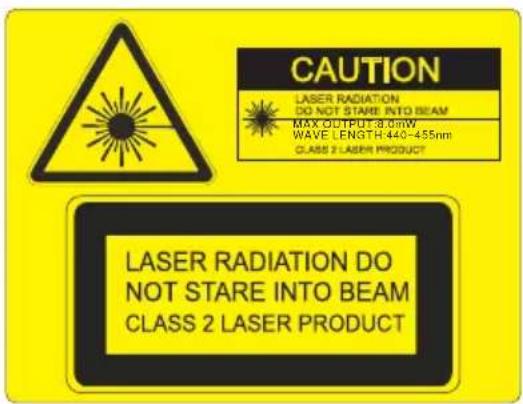
text_image
CAUTION LASER RADIATION DO NOT STARE INTO BEAM MAX OUTPUT: 8.0mW WAVE LENGTH: 440-455nm CLASS 2 LASER PRODUCT LASER RADIATION DO NOT STARE INTO BEAM CLASS 2 LASER PRODUCT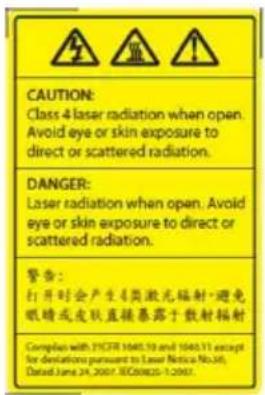
text_image
CAUTION: Class 4 laser radiation when open. Avoid eye or skin exposure to direct or scattered radiation. DANGER: Laser radiation when open. Avoid eye or skin exposure to direct or scattered radiation. 警告: 打开时会产生4类激光辐射“避免 眼睛或皮肤直接暴露于散射辐射 Compliance: 21CFR 1040.70 and 1040.71 except for indications pursuant to Laser Notice No.36, Date: June 24, 2007; EC00825-1:2907.Complies with 21 CFR 1040.10 and 1040.11 except for deviations pursuant to Laser Notice No. 50, dated June 24, 2007.
IEC 60825-1:2007
WARNING
- This projector is a Class 2 laser device that conforms with IEC 60825-1:2007 and CFR 1040.10 and 1040.11
• Class 2 laser product, Do Not Stare Into Beam - This projector has built-in Class 4 laser module. Disassembly or modification is very dangerous and should never be attempted.
- Any operation or adjustment not specifically instructed by the user's guide creates the risk of hazardous laser radiation exposure.
- Do not open or disassemble the projector as this may cause damage by the exposure of laser radiation.
- Do not stare into beam when the projector is on. The bright light may result in permanent eye damage.
- Without following the control, adjustment or operation procedure may cause damage by the exposure of laser radiation.
2. INTRODUCTION
The product specified in this document is a high brightness, high-resolution video/graphics 1-chip laser based projector. The projector is available in WXGA, HD and WUXGA resolutions. The projector utilizes Digital Light Processing (DLP®) technology from Texas Instruments. It is primarily designed for fixed installation markets.
2.1 Projector Components
Front View
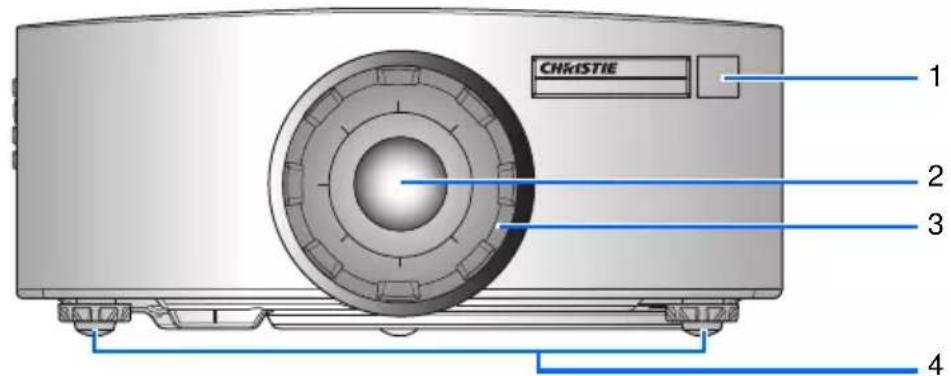
text_image
CHRISTIE 1 2 3 4| Ind. Part Name Description | ||
| 1 Front IR Sensor | Receives signals from the IR remote. Keep the signal path to the sensor unobstructed for uninterrupted communication with the projector. | |
| 2 Projection Lens | Allows automated lens control and adjustment: vertical and horizontal offsets, zoom and focus. | |
| 3 Lens Ring | Protects the lens motors and mechanism. Remove in order to insert or remove the lens. | |
| 4 Adjustable Feet Raise or lower the feet to level the projector. | ||
Rear View
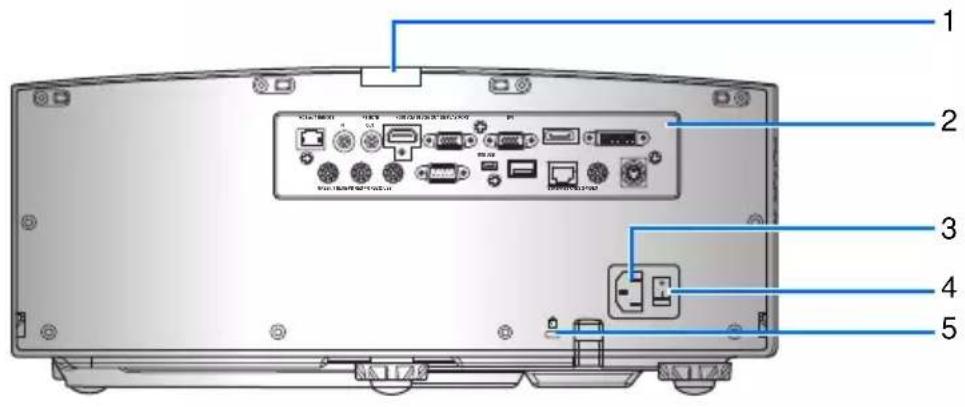
text_image
1 2 3 4 5| Ind. Part Name Description | ||
| 1 Rear IR Sensor | Receives signals from the IR remote. Keep the signal path unobstructed for uninterrupted communication with the projector. | |
| 2 Input/Output (I/O) Panel Connects the projector to external devices. | ||
| 3 AC Input Connect to the supplied power adapter. | ||
| 4 Power Button Switch the power button to turn on the power source. | ||
| 5 | Kensington Lock | Use to secure the projector to countertops, tables, etc. |
Left View
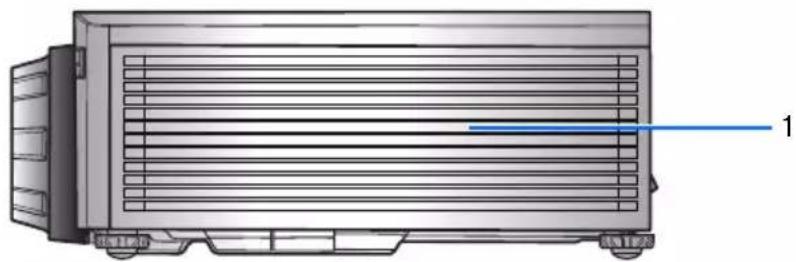
natural_image
Illustration of a rectangular industrial machine with ventilation grilles and a blue indicator line pointing to component 1 (no text or symbols on the device itself)Right View
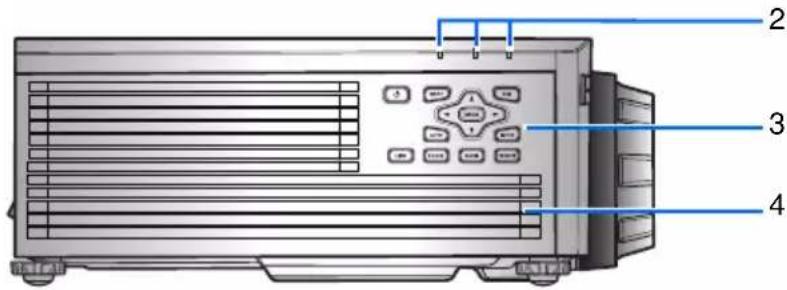
text_image
Diagram of a portable air conditioner unit with labeled ports and ventilation slots| Ind. Part Name Description | ||
| 1 | Cooling Air Vents (Intake) | Keep these vents unobstructed to prevent the projector from overheating. |
| 2 | LED Status Indicators | Displays the status of the projector. They are (from left to right): LIGHT, STATUS, and PIC MUTE. |
| 3 | Built-in Keypad Controls the projector. | |
| 4 | Cooling Air Vents (Exhaust) | Keep these vents unobstructed to prevent the projector from overheating. |
2.2 Built-in Keypad
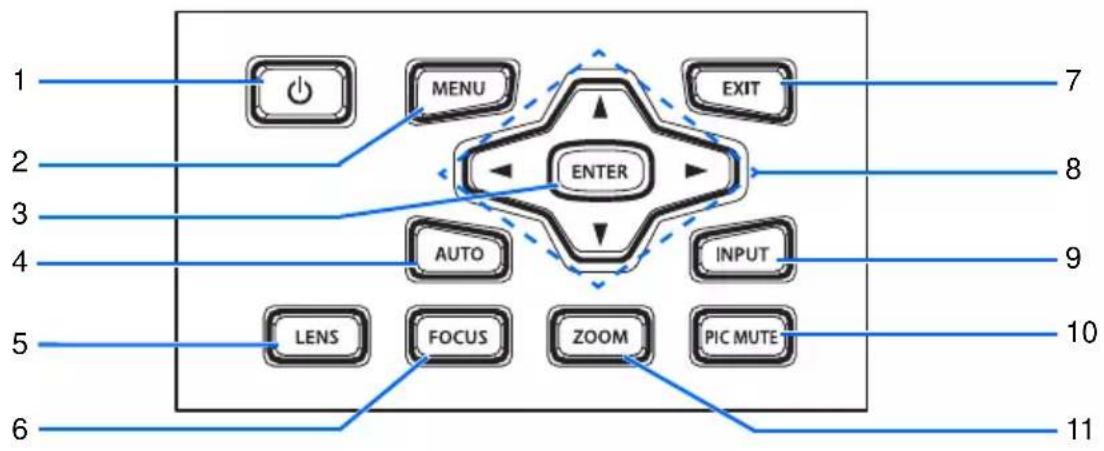
flowchart
graph TD
    A["Power"] --> B["MENU"]
    B --> C["ENTER"]
    C --> D["EXIT"]
    C --> E["AUTO"]
    C --> F["INPUT"]
    E --> G["LENS"]
    F --> H["FOCUS"]
    G --> I["ZOOM"]
    H --> J["PIC MUTE"]
    I --> K["7"]
    J --> L["8"]
    K --> M["10"]
    L --> N["11"]
| Ind. Part Name Description | ||
| 1 Power Turn the projector on or off | ||
| 2 Menu Display menus | ||
| 3 Enter Confirm a selection | ||
| 4 Auto Automatically optimize image | ||
| 5 Lens Adjust the lens vertical or horizontal offset setting | ||
| 6 Focus Adjust focus | ||
| 7 Exit Return to previous level or exit menus if at top level | ||
| 8 Arrow Keys • Adjust a setting UP or DOWN• Navigate within a menu | ||
| 9 Input Select an input for the main or PIP/PBP image | ||
| 10 Picture Mute Display or blank the video image. | ||
| 11 Zoom | Adjust zoom | |
2.3 Input/Output (I/O) Panel
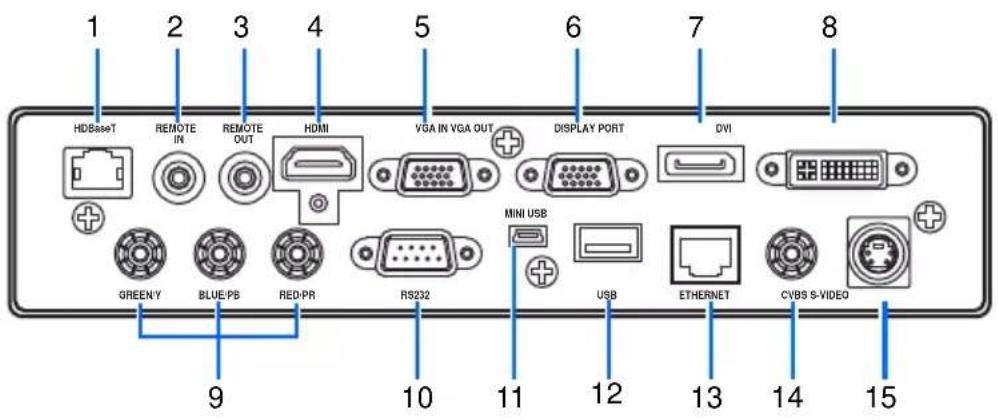
text_image
1 HDBaseT 2 REMOTE IN 3 REMOTE OUT 4 HDMI 5 VGA IN VGA OUT 6 DISPLAY PORT 7 DVI GREENY BLUE/PB RED-PR RS232 MINI USB USB ETHERNET CVBS S-VIDEO 9 10 11 12 13 14 15| Ind. Connector Name Ind. Connector Name | ||||||||||
| 1 HDBaseT 9 Component IN | ||||||||||
| 2 Remote IN 10 RS232 | ||||||||||
| 3 Remote OUT 11 Mini USB | ||||||||||
| 4 HDMI 12 USB Type A | ||||||||||
| 5 VGA-IN 13 Ethernet | ||||||||||
| 6 | V | G | A | O | U | T | 1 | 4 | C | V |
| 7 | Display Port | 15 | S-Video | |||||||
| 8 | DVI | |||||||||
2.4 Remote Control
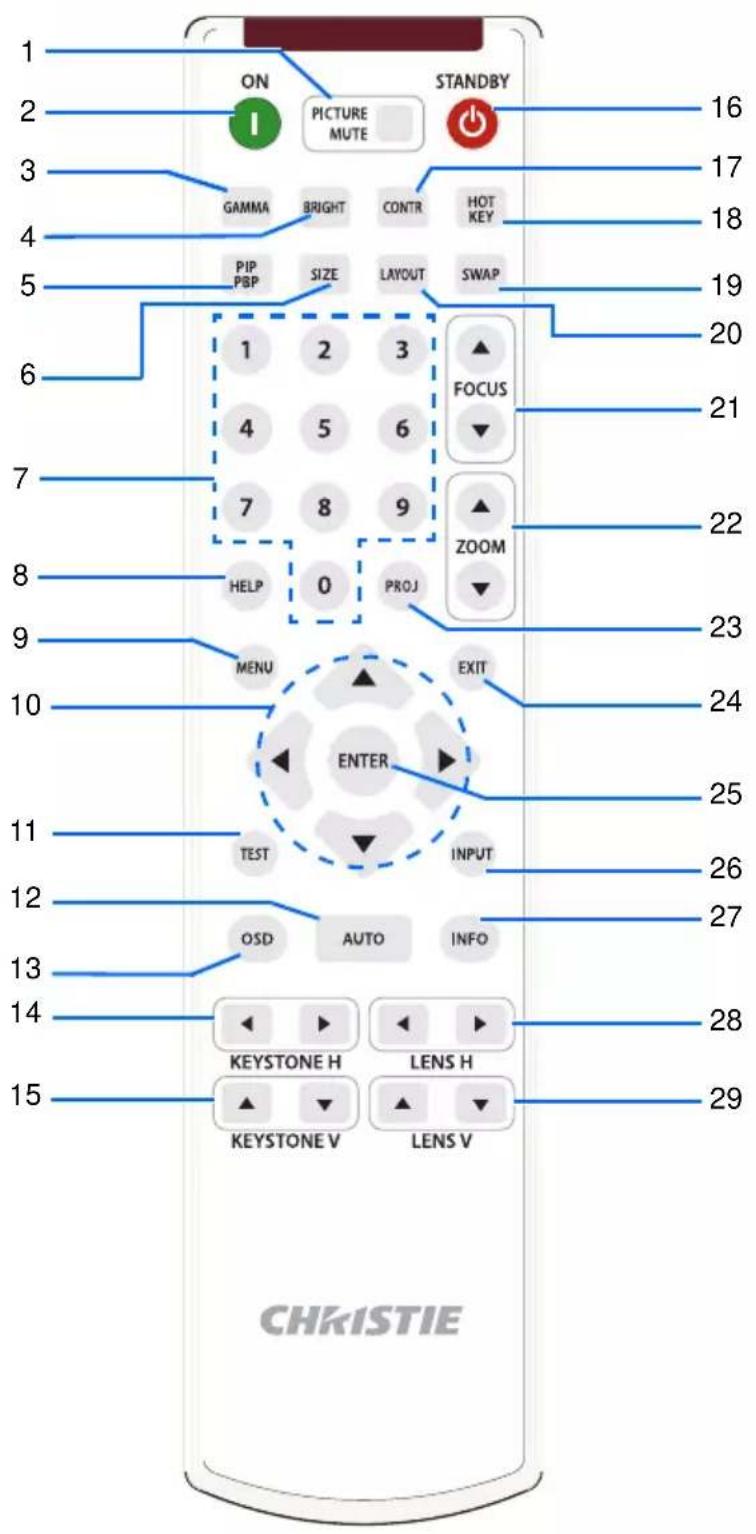
text_image
ON PICTURE MUTE STANDBY 16 2 3 GAMMA BRIGHT CONTR HOT KEY 4 5 PIP SIZE LAYOUT SWAP 6 1 2 3 ▲ 4 5 6 FOCUS 7 8 9 ▲ HELP 0 PROJ ZOOM 8 9 MENU EXIT 10 ENTER 25 TEST INPUT 11 OSD AUTO INFO 12 13 14 28 15 KEYSTONE H LENS H KEystone V LENS V 29 CHRISTIE| Ind. Part Name Description | ||
| 1 Picture Mute Display or blank the video image. | ||
| 2 Power on Turn projector ON. | ||
| 3 Gamma Adjust mid-range levels. | ||
| 4 Bright Adjust amount of light in the image. | ||
| 5 PIP/PBP Turn PIP/PBP ON/OFF. | ||
| 6 Size Adjust the PIP/PBP size | ||
| 7 Number Keys Enter a number, such as a channel, value, etc. | ||
| 8 Help Display context-sensitive help. | ||
| 9 Menu Display menus. | ||
| 10 | Arrow Keys | Adjust a setting UP or DOWN.Navigate within a menu. |
| 11 | Test | Display a test pattern. |
| 12 | Auto Automatically optimize image. | |
| 13 | OSD | Use to hide or show menus. |
| 14 | Keystone H | Adjust the horizontal keystone. |
| 15 | Keystone V | Adjust the vertical keystone. |
| 16 | Standby Turn projector OFF. | |
| 17 | Contrast | Adjust difference between dark and light. |
| 18 | Hot-key | Select your preset keys quickly. |
| 19 | Swap | Swap the main and PIP/PBP images. |
| 20 | Layout | Adjust the PIP/PBP layout. |
| 21 | Focus | Adjust focus to improve image clarity as desired. |
| 22 | Zoom | Adjust zoom to achieve a desired image size. |
| 23 | Proj Key | Change the remote ID. Press Proj Key then a number between 1 and 9 to assign an ID. Press PROJ then number 0 to return to the universal remote ID. |
| 24 | Exit | Return to previous level or exit menus if at top level. |
| 25 | Enter | Select a highlighted menu item.Change or accept a value. |
| 26 | Input | Select an input for the main or PIP/PBP image. |
| 27 | Info | Display source image information. |
| 28 | Lens H | Horizontal Lens Shift - Adjust the position of the image horizontally. |
| 29 | Lens V | Vertical Lens Shift - Adjust the position of the image vertically. |
2.5 LED Status Indicators
The LED status indicators are located on the right side of the projector. Each LED is defined below.
- LIGHT LED
| LED Status Projector State | |
| Red (flashing) When projector has lost over 60% initial luminance | |
| Orange (solid) Laser diode time has expired | |
| Green (solid) Laser diode is on and operating correctly | |
| Off Laser diode is off |
- STATUS LED
| LED Status Projector State | |
| Off AC power is off (without AC plug in) | |
| Off, but keypad LED is on | AC has been applied, projector is in standby mode |
| Green (solid) Projector is powered up and operating normally | |
| Green (flashing) Projector communications | |
| Orange (solid) | Non-portrait mode usedNOTE: Please refer to section 3.5. |
| Orange (flashing) Projector is in cool down mode or startup mode | |
| Green (flashing) / Red (flashing) | Projector is in flash (LAN) update state |
| Red (solid) Over-temperature | |
| Red (flashing) Fan failure | |
• PICTURE MUTE LED
| LED Status Projector State | |
| Green (solid) Light is on - image is displayed | |
| Orange (solid) Light is on - image is blank |
3. INSTALLATION
3.1 Connect to Computer
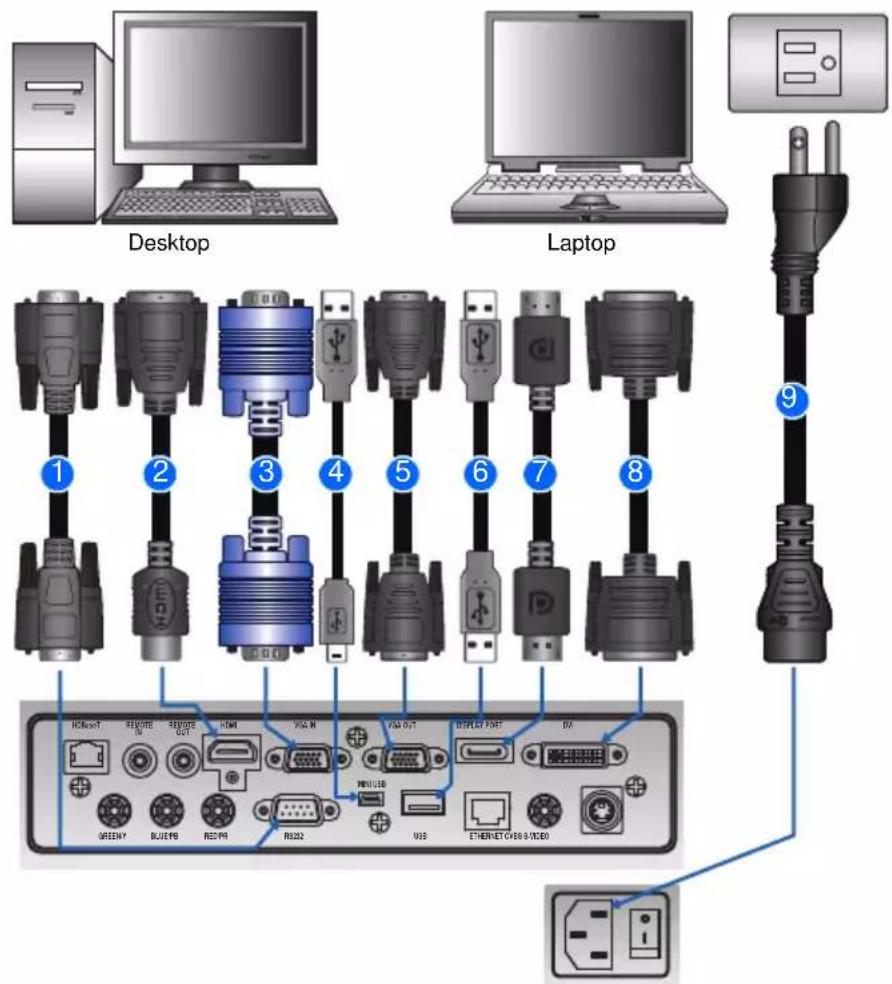
text_image
Desktop Laptop 1 2 3 4 5 6 7 8 9 HD/Host REVOKE OUT HDMI VASM VASM OUT DISPLAY PORT DIF GREENY BLUEPB RED PB R022 USB ETHERNET CHS 8/10/00| Ind. | Connector Name | Ind. | Connector Name | Ind. | Connector Name |
| 1 | RS232 Cable | 4 | USB Type B Mini Cable | 7 | DisplayPort Cable |
| 2 | HDMI Cable 5 VGA out Cable | 8 DVI Cable | |||
| 3 | VGA in Cable | 6 | USB Type A Cable | 9 | Power Cord |
NOTE:
The diagram shows the cables/connectors that may be used to connect to various devices.
Due to the difference in applications for each country, the accessories required in some regions may be different from those shown.
This diagram is for illustrative purposes only, and does NOT indicate that these accessories are supplied with the projector.
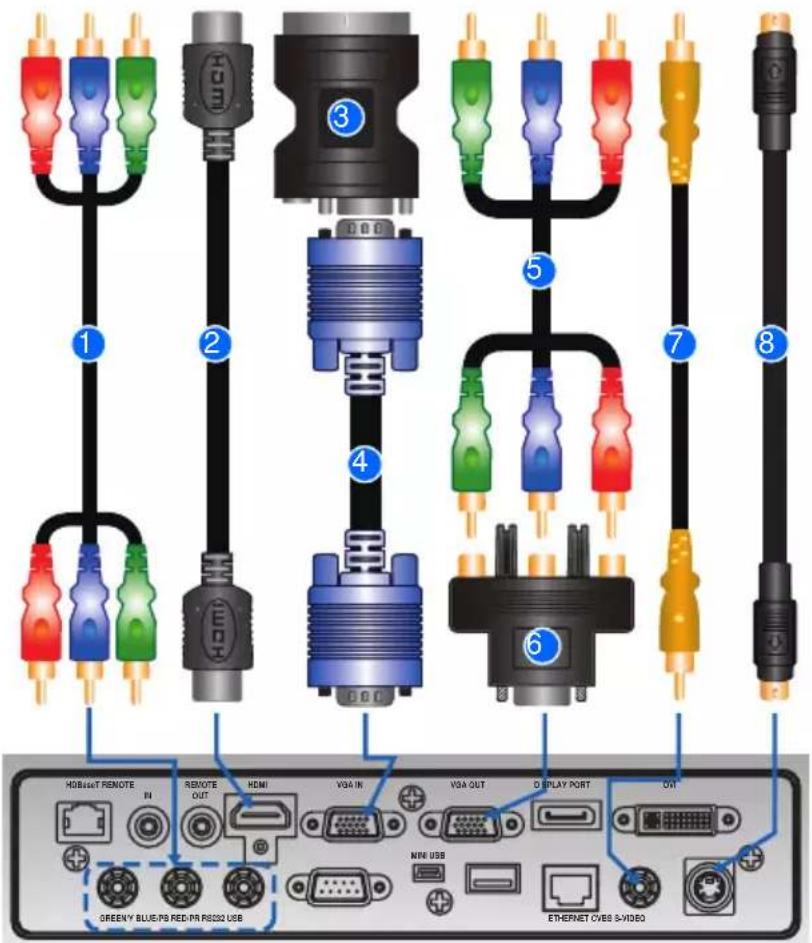
3.2 Connect to Video Equipment
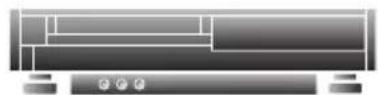
Component video output equipment
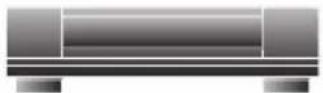
DVD player
Video cassette recorder
text_image
H08/45T REMOTE IN REMOTE OUT HDMI VGA IN VGA OUT O DISPLAY PORT OUT GREENY BLUE/PB RED/PA RS32 USB NMI USB ETHERNET OVERS 6/VIDEO| Ind. | Connector Name | Ind. | Connector Name | Ind. | Connector Name |
| 1 | Component (YPbPr) Cable | 4 VGA in Cable 7 CVBS Cable | |||
| 2 | HDMI Cable 5 | 3 RCA Component Cable | 8 S-Video Cable | ||
| 3 | VGA to RBG SCART | 6 | 15-pin to 3 RCA Component/HDTV Adapter | ||
NOTE:
The diagram shows the cables/connectors that may be used to connect to various devices.
Due to the difference in applications for each country, the accessories required in some regions may be different from those shown.
This diagram is for illustrative purposes only, and does NOT indicate that these accessories are supplied with the projector.
3.3 Turn the Projector On
-
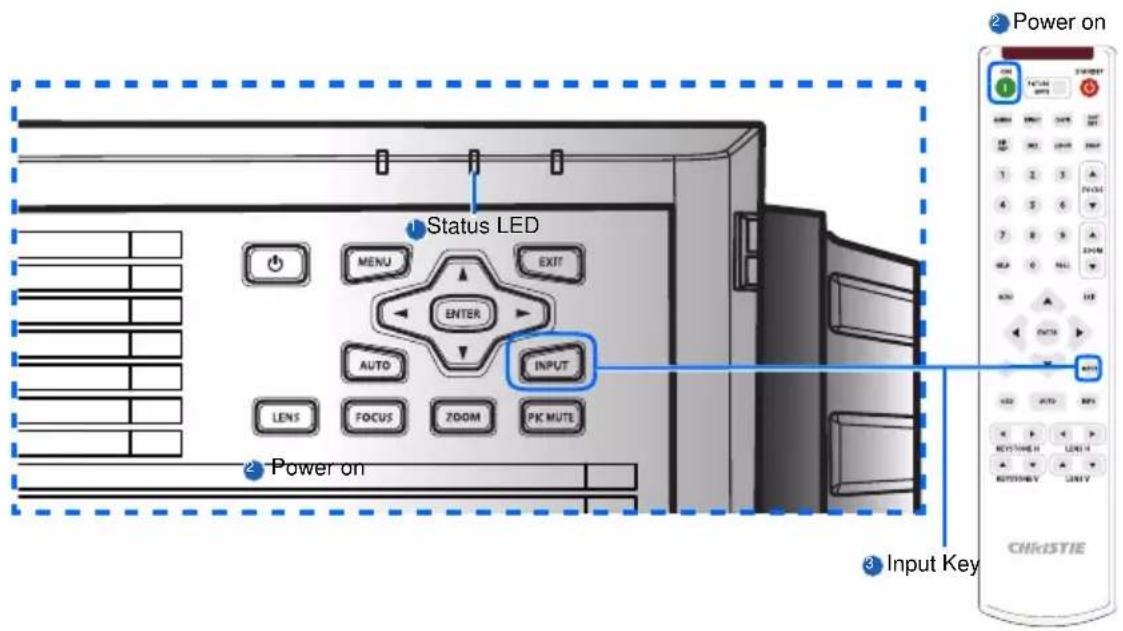
Ensure that the power cord and signal cable are securely connected. The Power button on the built in keypad is illuminated.
-
Turn on the projector by pressing " " on the remote control or press " " on the built-in keypad. The Status LED is Orange with a long blink.
-
Turn on the source. Select Input Key on the remote control to select an input source (VGA, BNC, HDMI, Component, S-Video or Composite Video).
-
The projector detects the source you selected and displays the image.
NOTE:
The first time the projector is used, the preferred language may be selected from the main menu after the startup screen is displayed.
text_image
Status LED MENU EXIT ENTER AUTO INPUT LENS FOCUS ZOOM PIC MUTE Power on Power on Input Key Christie3.4 Turn the Projector Off
-
Press " " on the built-in keypad or on the remote control to turn off the projector. A warning message will appear on the displayed image.
-
Press "⏻" again to confirm your selection. If you do not press "⏻" again, the warning message will disappear after 10 seconds.
3.5 Adjust the Projector Position
When you select a position for the projector, consider the size and shape of your screen, the location of your power outlets, and the distance between the projector and the rest of your equipment. Follow these general guidelines:
- Position the projector on a flat surface at a right angle to the screen. The projector (with the standard lens) must be at least 3 feet (0.9m) from the projection screen.
- Position the projector to the desired distance from the screen. The distance from the lens of the projector to the screen, the zoom setting, and the video format determine the size of the projected image.
- For the fixed short lens, the image exits at a default angle. However, the lens shift feature makes the image offset variable.
- Lens throw ratio:
- Lens 1.22\~1.53 (WU/HD)
- Lens 0.95\~1.22 (WU/HD)
- Lens 1.52\~2.92 (WU/HD)
- Lens 1.28-1.61 (WX)
- Lens 1.0-1.28 (WX)
- Lens 1.6-3.07 (WX)
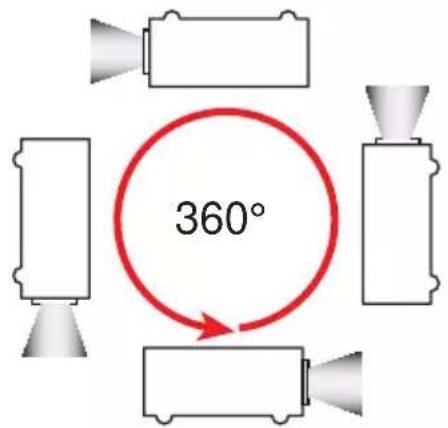
• 360 degree operation (alone the widest axis)
text_image
360°Table Top Mode
- The projector is in table top mode when the viewing angle is from 0^ to <60^ and from >300^ to 360^ as illustrated below.
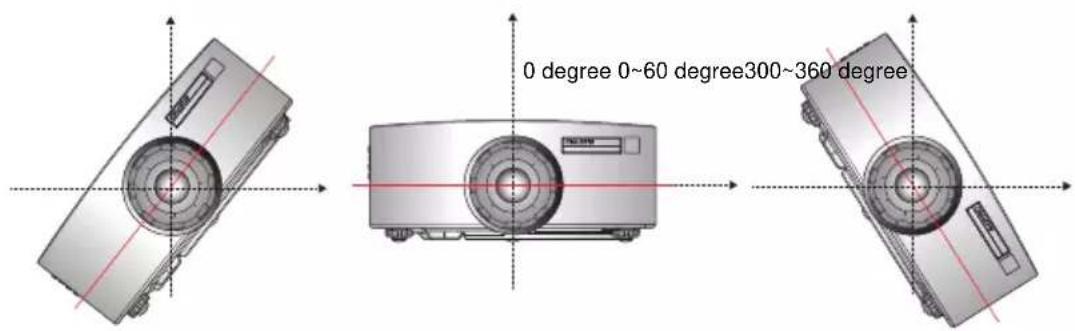
text_image
0 degree 0~60 degree300~360 degreePortrait Mode
- The projector is in portrait mode when the viewing angle is from 60^ to 120^ as illustrated below.
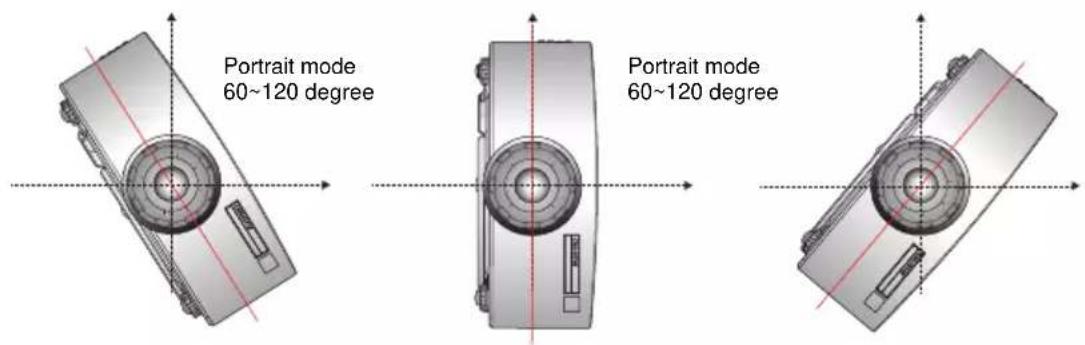
text_image
Portrait mode 60~120 degree Portrait mode 60~120 degreeWARNING
- In portrait orientation, the Portrait Side Cover must be installed on the side of the projector which is now the lower side. Refer to section 3.9.
Inverted Mode
- The projector is in Inverted/Ceiling Mount Mode when the viewing angle is from >120^ to <240^ as illustrated below.
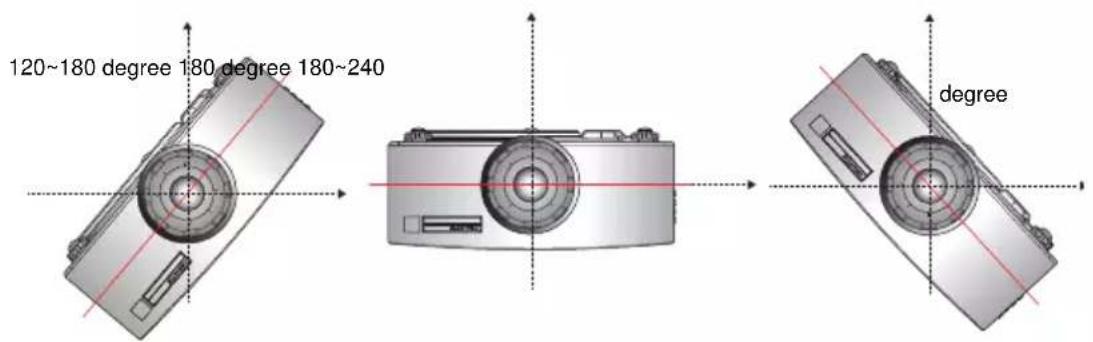
text_image
120~180 degree 180 degree 180~240 degreeNon-Supported Modes
- The projector is in non-portrait mode when the viewing angle is 240^ to 300^ as illustrated below.
- The "orange" status LED on projector lights on.
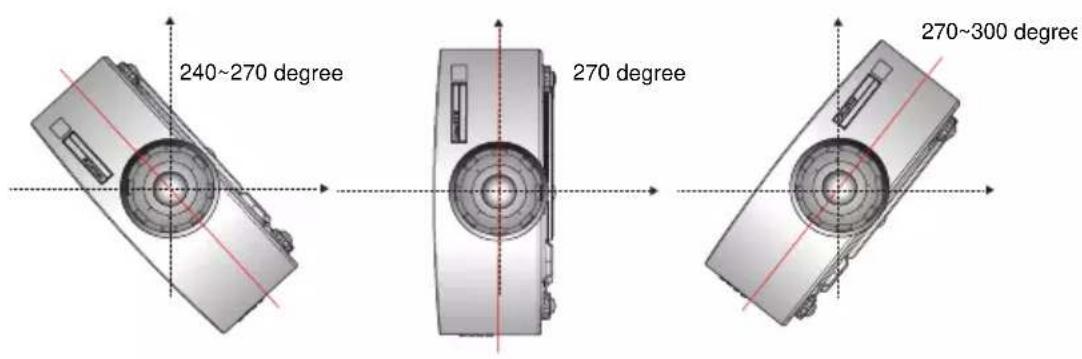
text_image
240~270 degree 270 degree 270~300 degreeWARNING
- The projector should not be operated in Non-Portrait Mode.
3.6 Calculate Lens Offset
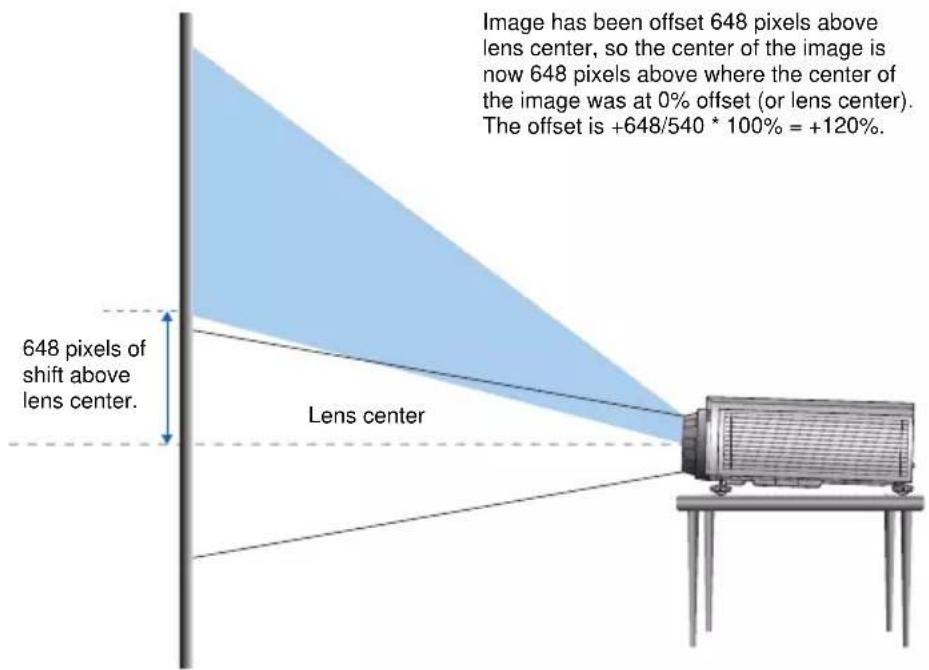
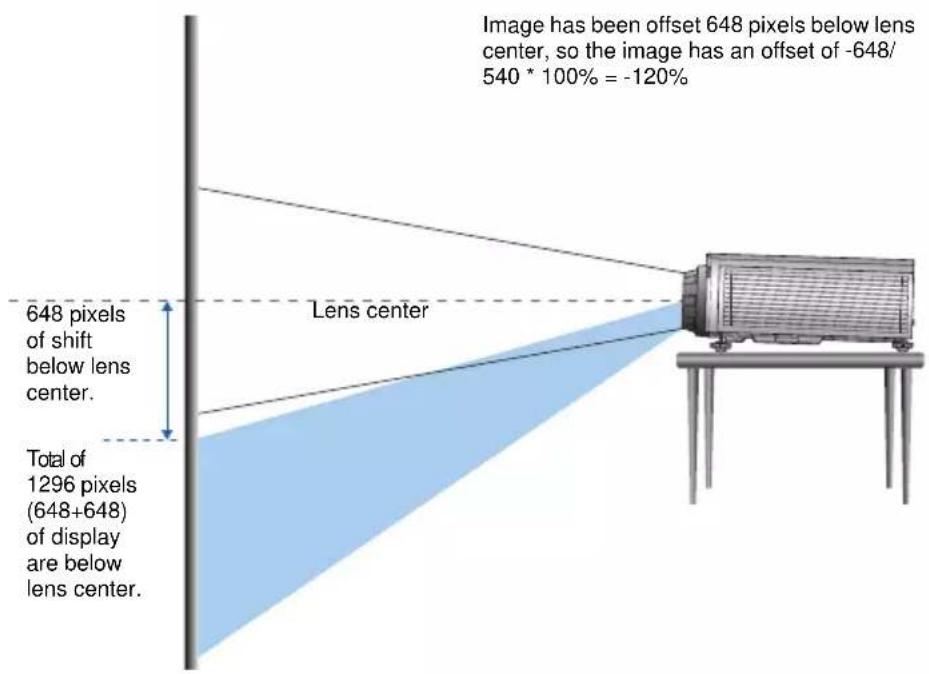
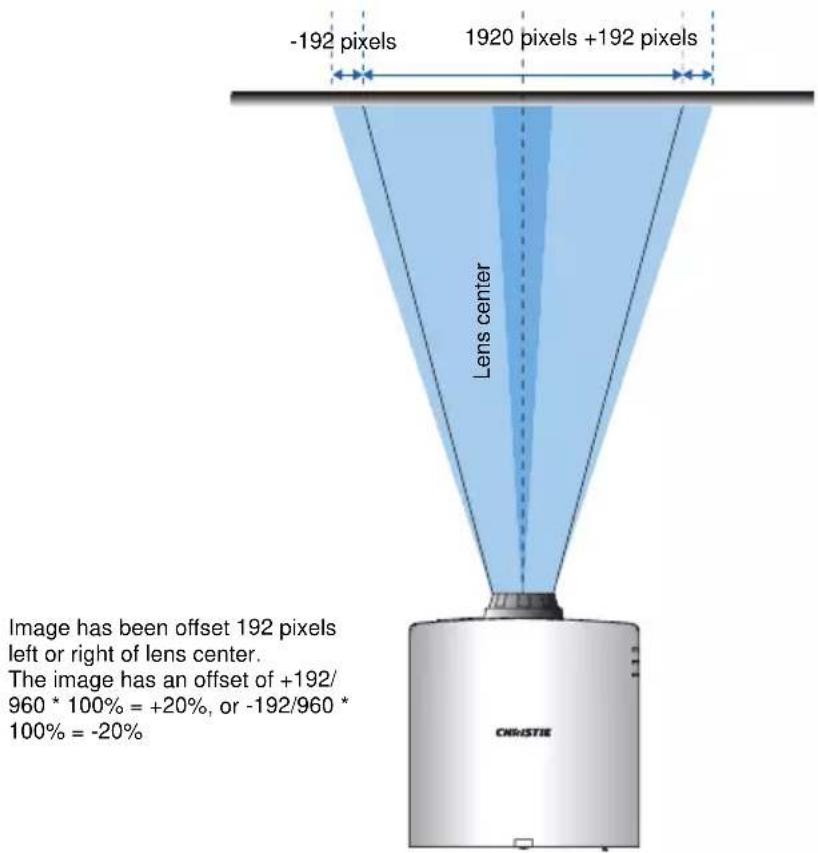
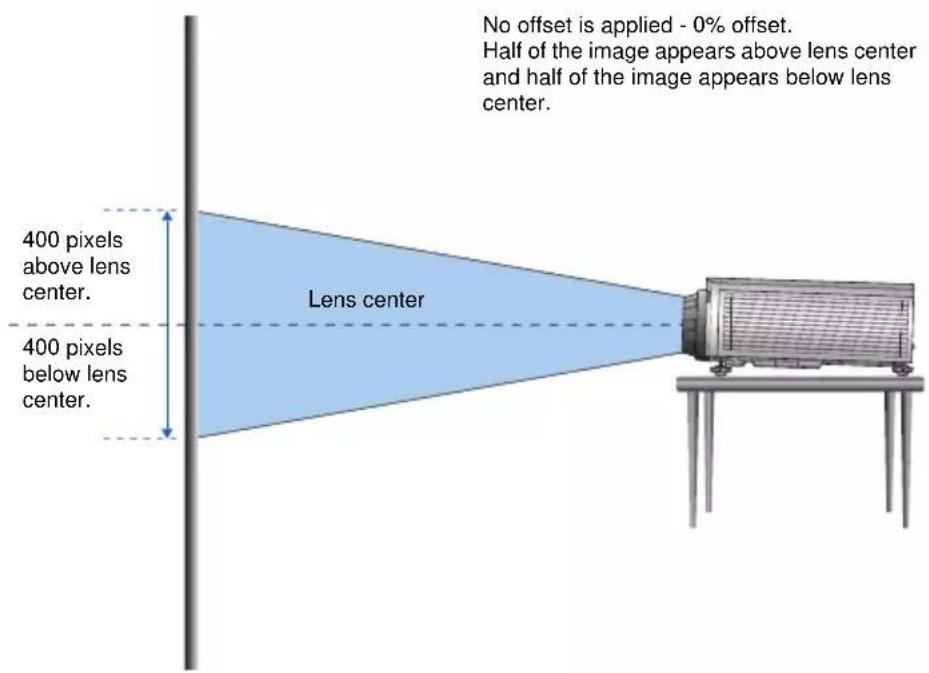
- The vertical image offset (shift) ranges for the projector are +/-100% (WXGA/WUXGA) and +/-120% (HD). The horizontal image offset (shift) range for the projector are +/-30% (WXGA/HD/WUXGA).
- The method for calculating lens offset complies with Industry standards. Example for Vertical lens offset:
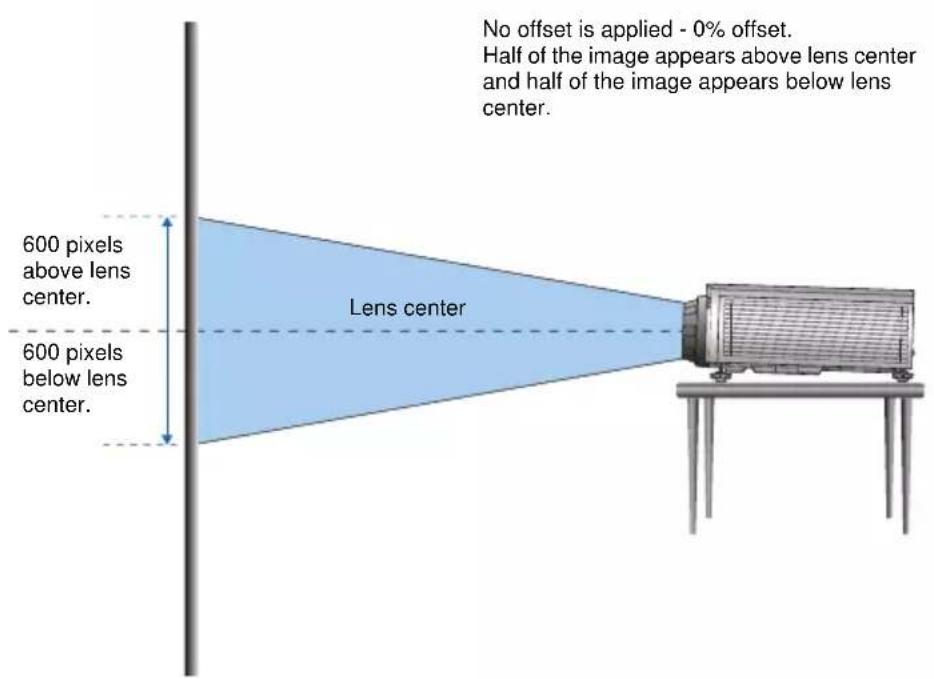
- At 0% offset (or on axis), the center of the image is on the lens center, so that half of the image appears above and half appears below the lens center.
- At +100% offset, all (or 100%) of the image will appear above the lens center.
- The % offset is calculated as the ratio of the number of pixels shifted up/ down to half the image size. Examples for WUXGA:
▶ Shifting up 600 pixels gives offset of 600/600 * 100% = 100%
▶ Shifting down 600 pixels gives offset of -600/600 * 100% = -100%
▶ Shifting up 720 pixels gives offset of 720/600 * 100% = 120%
▶ Shifting up 240 pixels gives offset of 240/600 * 100% = 40%
WUXGA Projectors:
Vertical Image Offset: 0% Offset (WUXGA)
text_image
No offset is applied - 0% offset. Half of the image appears above lens center and half of the image appears below lens center. 600 pixels above lens center. 600 pixels below lens center. Lens centerVertical Image Offset: 100% Offset (WUXGA)
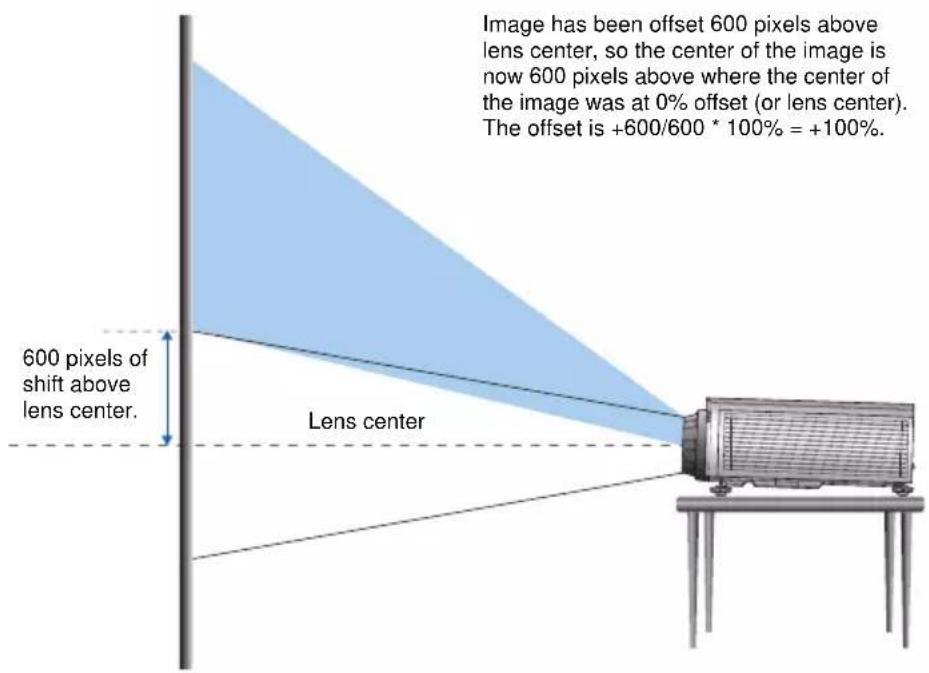
text_image
Image has been offset 600 pixels above lens center, so the center of the image is now 600 pixels above where the center of the image was at 0% offset (or lens center). The offset is +600/600 * 100% = +100%. 600 pixels of shift above lens center. Lens centerVertical Image Offset: -100% Offset (WUXGA)
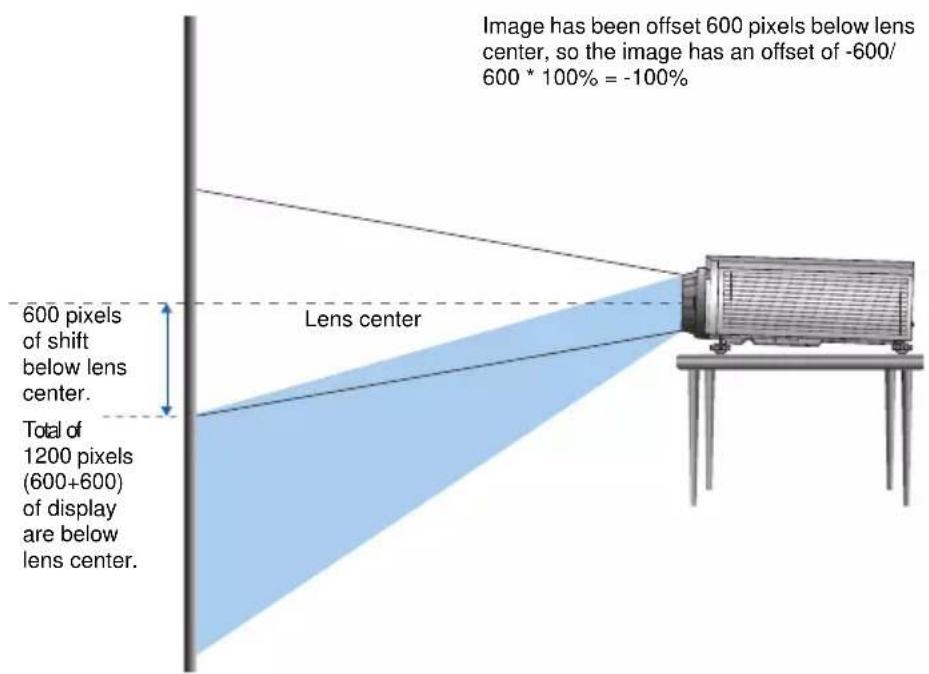
text_image
Image has been offset 600 pixels below lens center, so the image has an offset of -600/600 * 100% = -100% 600 pixels of shift below lens center. Lens center Total of 1200 pixels (600+600) of display are below lens center.HD Projectors:
Vertical Image Offset: 0% Offset (HD)
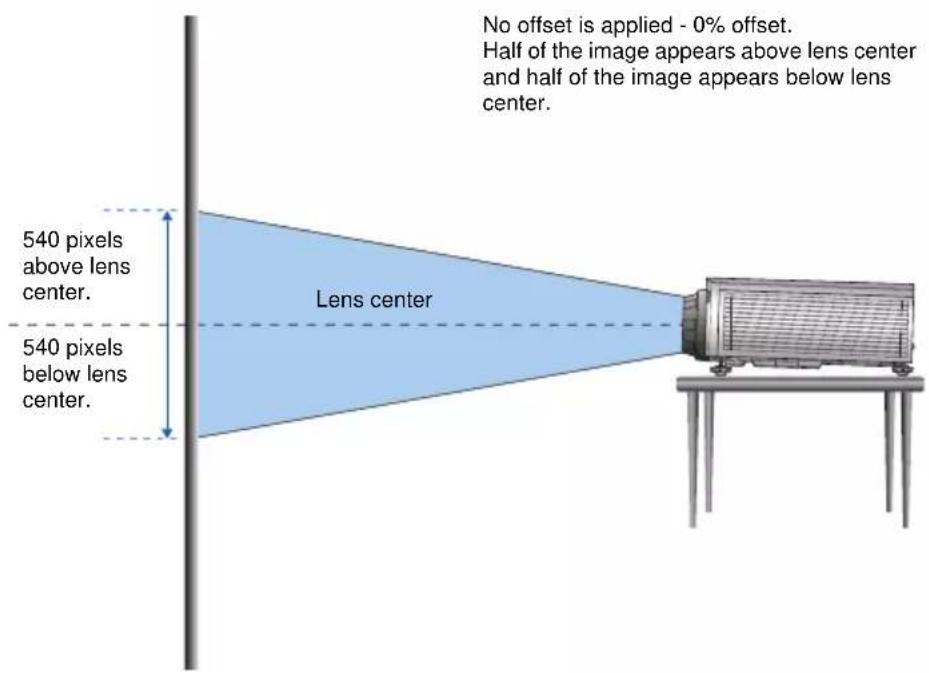
text_image
No offset is applied - 0% offset. Half of the image appears above lens center and half of the image appears below lens center. 540 pixels above lens center. 540 pixels below lens center. Lens centerVertical Image Offset: 120% Offset (HD)
text_image
Image has been offset 648 pixels above lens center, so the center of the image is now 648 pixels above where the center of the image was at 0% offset (or lens center). The offset is +648/540 * 100% = +120%. 648 pixels of shift above lens center. Lens centerVertical Image Offset: -120% Offset (HD)
text_image
Image has been offset 648 pixels below lens center, so the image has an offset of -648/540 * 100% = -120% 648 pixels of shift below lens center. Lens center Total of 1296 pixels (648+648) of display are below lens center.Horizontal Image Offset: +/-30% Offset
text_image
-192 pixels 1920 pixels +192 pixels Lens center Image has been offset 192 pixels left or right of lens center. The image has an offset of +192/960 * 100% = +20%, or -192/960 * 100% = -20% CHRISTIEWXGA Projectors:
Vertical Image Offset: 0% Offset (WXGA)
text_image
No offset is applied - 0% offset. Half of the image appears above lens center and half of the image appears below lens center. 400 pixels above lens center. 400 pixels below lens center. Lens centerVertical Image Offset: 100% Offset (WXGA)
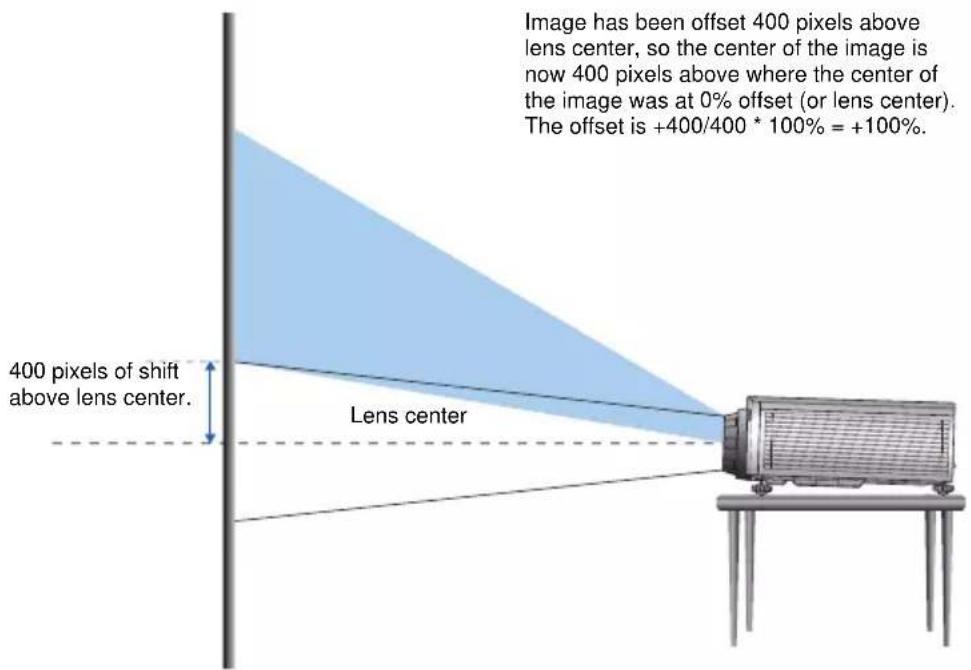
text_image
Image has been offset 400 pixels above lens center, so the center of the image is now 400 pixels above where the center of the image was at 0% offset (or lens center). The offset is +400/400 * 100% = +100%. 400 pixels of shift above lens center. Lens centerVertical Image Offset: -100% Offset (WXGA)
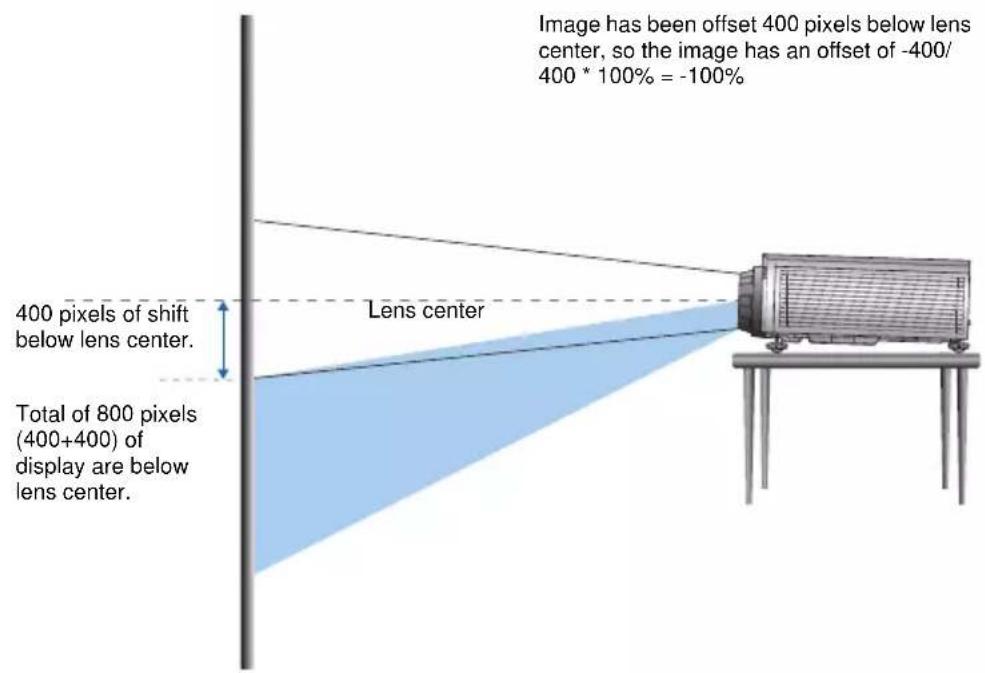
text_image
Image has been offset 400 pixels below lens center, so the image has an offset of -400/400 * 100% = -100% 400 pixels of shift below lens center. Lens center Total of 800 pixels (400+400) of display are below lens center.Horizontal Image Offset: +/-30% Offset
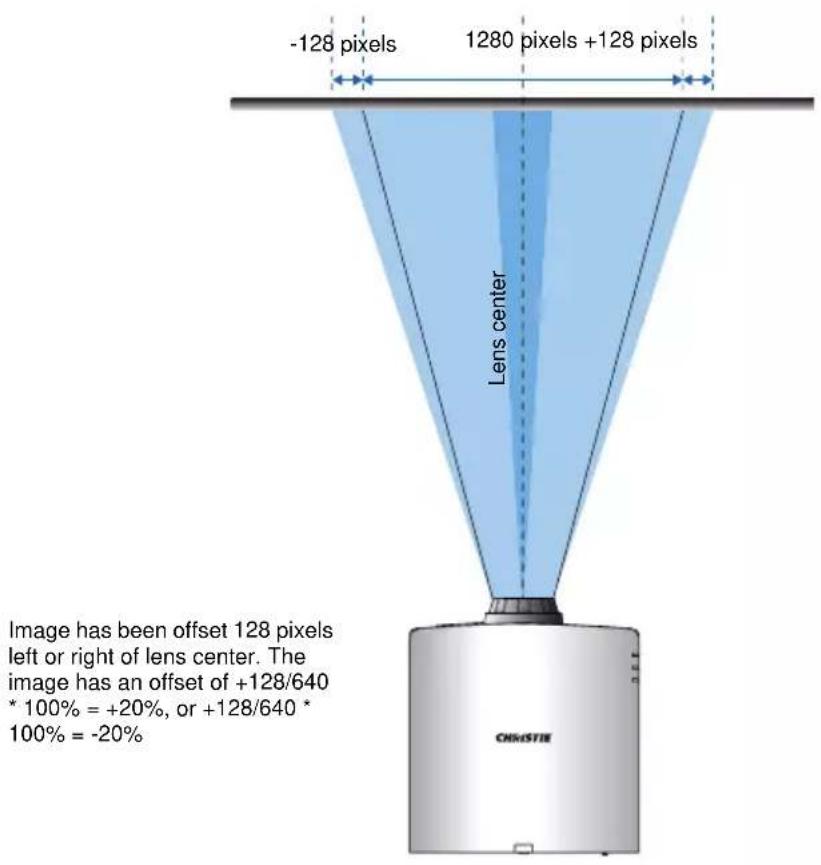
text_image
-128 pixels 1280 pixels +128 pixels Lens center Image has been offset 128 pixels left or right of lens center. The image has an offset of +128/640 * 100% = +20%, or +128/640 * 100% = -20% CHISTIE3.7 Removing and Installing the Lens
When handling the projector after lens installation, make sure the front lens cap is placed on the lens to protect the lens surface from potential damage. When carrying or moving the projector, do not handle by the lens. This may damage the lens, the chassis or other mechanical parts within the projector.
Installation Steps:
-
Center the lens: Ensure that the lens is at or near its center position. Attempting to remove the lens when at a large offset may cause damage to the lens assembly. Center the lens while the projector is switched on by pressing the lens horizontal or vertical button and then pressing Enter.
-
Turn Off the projector: Turn the projector OFF.
-
Wait for projector to cool down: Allow the projector to cool down into standby mode before replacing the lens. Remove power cord after the projector has cooled down and prior to replacing the lens.
-
Remove the lens: Remove the lens ring cover.
Rotate the lens counter-clockwise by a quarter to release the lock. Remove the lens through the front of the projector.
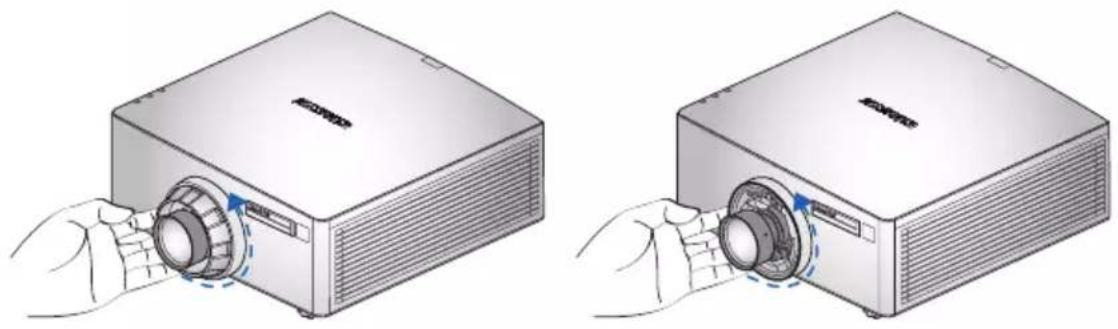
natural_image
Two illustrations of a projector with hands operating the lens (no text or symbols visible)- Install the new lens: Fully insert the lens assembly straight into the lens mount without turning. Rotate the lens cap clockwise to lock the lens in place.
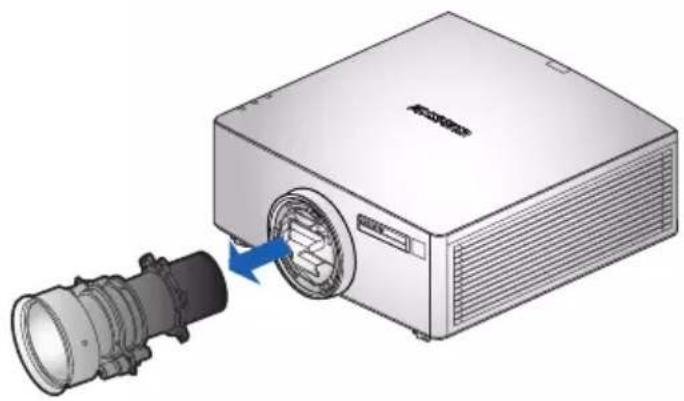
natural_image
Illustration of a projector unit with a cylindrical component inserted, showing no text or symbols.3.8 Cable Cover Installation
- Rotate the cable cover and insert the two guide pins into the guide holes.
- Press and hold both lower corners of the cable cover while inserting the sheet clips into the projector casing.
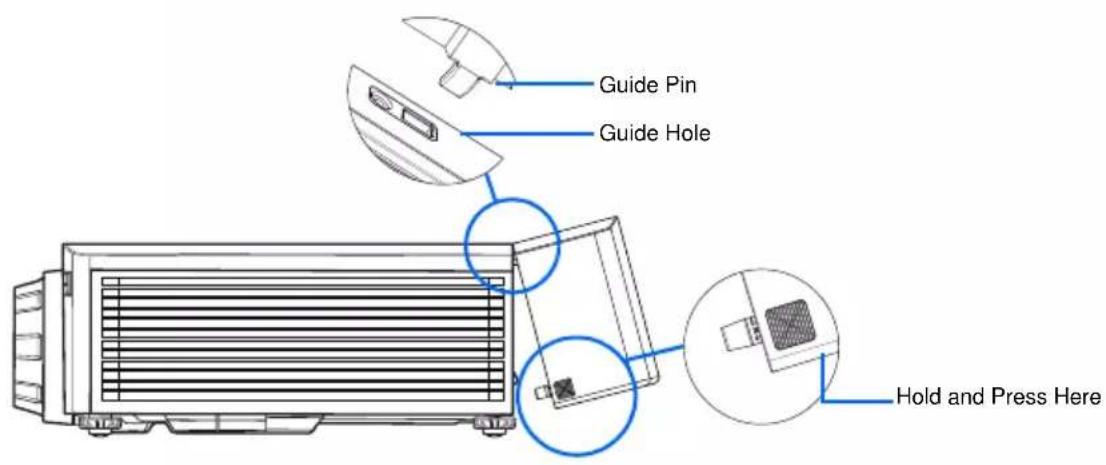
text_image
Guide Pin Guide Hole Hold and Press Here3.9 Portrait Cover Installation
- Attach the Portrait cover to the left side of the projector and secure with the 6 step screws.
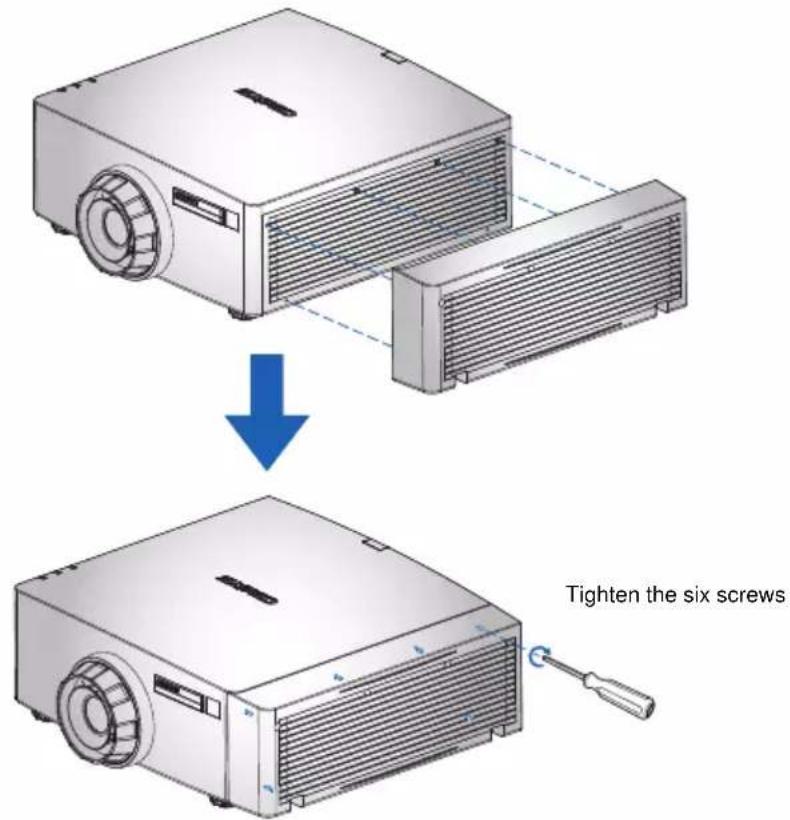
text_image
Tighten the six screws- Mount the projector in an appropriate mounting kit, using the 4 mounting points on the underside of the projector.
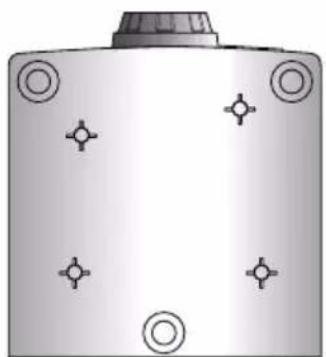
natural_image
Pure diagram of a cylindrical mechanical component with mounting holes and cross marks (no text or symbols)WARNING
- Mount with the portrait cover side facing downwards.
- The projector must not stand on a table top on the portrait cover
3.10 Ceiling Mount Installation
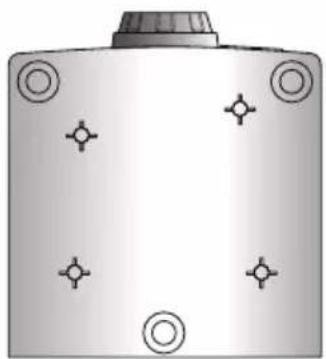
Mount the projector with an appropriate mounting kit, using the 4 mounting points on the underside of the projector.
natural_image
Pure mechanical component diagram without any text, numbers, or symbols- When not mounted properly, the projector may fall, causing hazards or injury. The warranty on this projector does not cover any damage caused by the use of any non-recommended ceiling mount kit or installation of the ceiling mount kit in an improper location.
- Refer to the installation instructions and safety guidelines provided in the kit.
4. OPERATION
The projector has multilingual On-Screen Display (OSD) menus that allow you to make image adjustments and change a variety of settings.
- Most of the projector controls are accessed from within the projector menu system. There are several groups of related functions, with each group selectable from the Main menu as shown below. Press the MENU button on the remote control or on the built-in keypad on the rear of the projector to display the main menu.
- Use the arrow keys to navigate within the menu and adjust a setting up or down.
- Press ENTER to select a highlighted menu item or use it to change or accept a value.
- Select the next item that you want to adjust in the menu and adjust it as described above.
- Press EXIT to return to the previous menu or exit menus if at top level.
| Main Menu | |
| 1. Size & Position | |
| 2. Image settings | |
| 3. Configuration | |
| 4. Light Source | |
| 5. Status | |
| 6. Input Switching & PIP | |
| 7. Language | English |
| 8. Test pattern | OFF |
4.1 Size and Position Menu
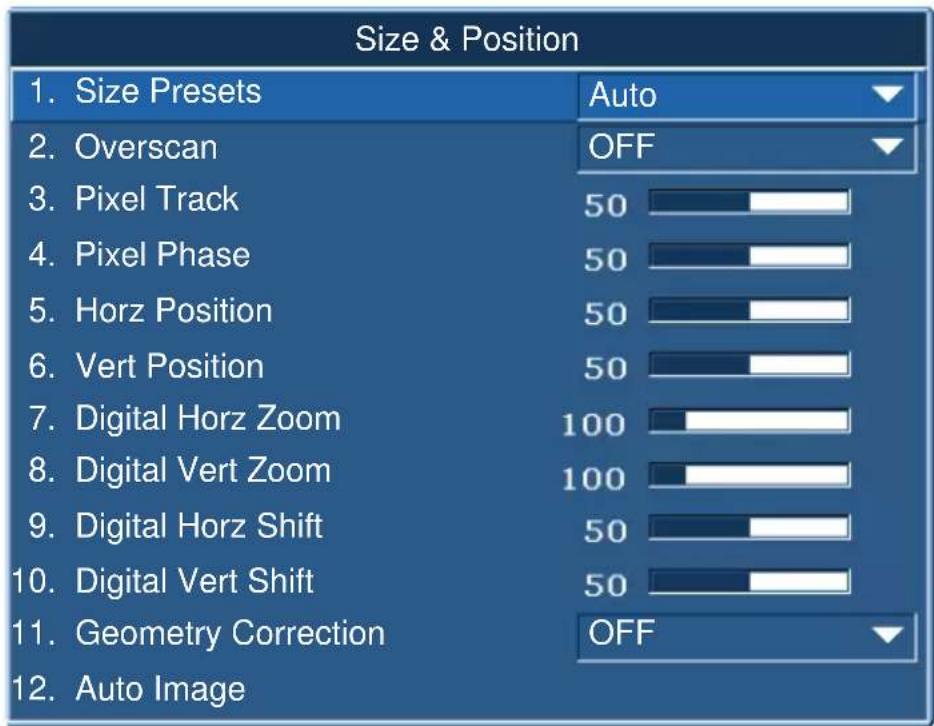
text_image
Size & Position 1. Size Presets Auto 2. Overscan OFF 3. Pixel Track 50 4. Pixel Phase 50 5. Horz Position 50 6. Vert Position 50 7. Digital Horz Zoom 100 8. Digital Vert Zoom 100 9. Digital Horz Shift 50 10. Digital Vert Shift 50 11. Geometry Correction OFF 12. Auto ImageSize Presets
Display an image with the detected size, or resize the image by maximizing either the height, width or both, or resize to the maximum size possible while keeping the original aspect ratio.
• Auto: Display with the detected size.
- Native: Display in its native resolution.
• 4:3: Retain 4:3 aspect ratio.
- Letterbox: Display with the black borders on the top and bottom.
• Full Size: Fill the screen (regardless of the source).
• Full Width: Fill display width and keep aspect ratio.
• Full Height: Fill display height and keep aspect ratio.
- Custom: Stretch the display horizontally or vertically without cutting the image display
Overscan
Remove noise around the image. Overscan Zoom enlarges image 6% from original size. Overscan Crop cuts 6% of active pixels in four edges of original image.
Pixel Track
Analog RGB signals only. Steady flickering or several soft vertical stripes or bands across the entire image indicates poor pixel tracking. Proper pixel tracking ensures that the image quality is consistent across the screen, the aspect ratio is maintained, and that the pixel phase can be optimized.
Pixel Phase
Analog RGB Signals only. Adjust pixel phase when the image still shows shimmer or noise after pixel tracking is optimized. Pixel phase can adjust the phase of the pixel-sampling clock relative to the incoming signal.
Horz Position
Move the image right or left within the area of available pixels.
Vert Position
Move the image up or down within the area of available pixels.
Digital Horz Zoom
Change the size of projector's display area horizontally. If the display area has been resized by this setting, it can be moved by changing the Digital Horz Shift and Digital Vert Shift settings.
Digital Vert Zoom
Change the size of projector's display area vertically. If the display area has been resized by this setting, it can be moved by changing the Digital Horz Shift and Digital Vert Shift settings.
Digital Horz Shift
Move the display area horizontally if its size has been changed by the Digital Zoom setting.
Digital Vert Shift
Move the display area vertically if its size has been changed by the Digital Zoom setting.
Geometry Correction
The "Geometry Correction" can be controlled with the options in the dropdown list:"OFF/Basic" when optional Dual Processor Warp Module is not installed, and "OFF/Basic/Curve/Rotate" when optional Dual Processor Warp Module is installed.
Geometry Correction Feature Compatibility
| Warp Function | 4-Corner | Curved Surface(2x2) | Keystone | Pincushion and Barrel | Rotation |
| 4-Corner -- √ | √ √ √ | ||||
| Curved Surface(2x2) | √ -- XXX | ||||
| Keystone | √ | X | -- | √ | X |
| Pincushion and Barrel | √ X √ | -- X | |||
| Rotation √ | XXX -- |
• OFF: No Geometric correction is applied to the image.
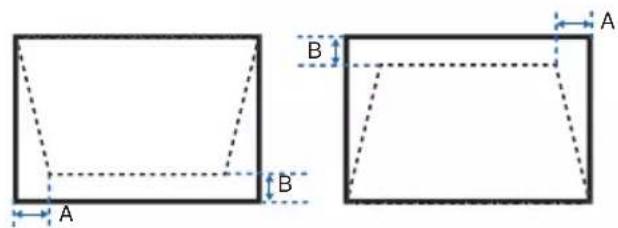
- Horz Keystone: Adjust the keystone horizontally and make a more square image. Horizontal keystone is used to correct a keystoned image shape in which the left and right borders of the image are unequal in length, and the top and bottom are slanted to one of the sides. This is intended for use with horizontally on-axis applications. For horizontally offset applications, you must use 4 Corner correction using the optional Dual Processor Warp Module.
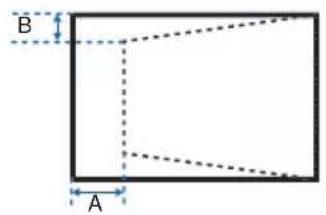
text_image
B A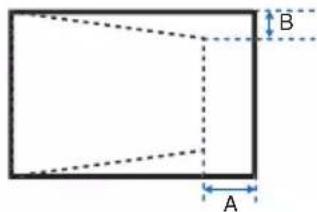
text_image
A B| Ind. WXGA 1080P WUXGA | ||
| A | 12.3% | 10.2% 7.1% |
| B | 7.7% | 6.4% 5.2% |
- Vert Keystone: Adjust the keystone vertically and make a more square image. Vertical keystone is used to correct a keystoned image shape in which the left and right borders of the image are unequal in length, and the top and bottom are slanted to one of the sides. This is intended when for use with horizontally on-axis applications. For horizontally offset images, you must use 4 Corner correction using the optional Dual Processor Warp Module.
text_image
A B A B| Ind. WXGA 1080P WUXGA | |
| A 5.4% 4.4% 3.3% | |
| B 10.4% 8.7% 5.4% |
- Horz Pincushion: Adjust the pincushion horizontally and make a more square image.
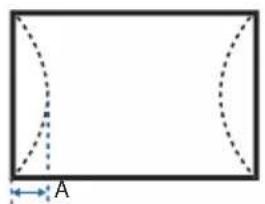
natural_image
Pure geometric diagram of a rectangle with dashed curved lines and an arrow labeled 'A' (no text or symbols beyond the label)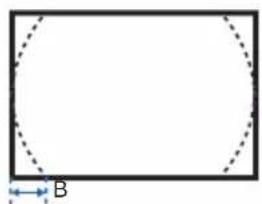
natural_image
Simple geometric diagram showing a rectangle with a dashed circular arc and labeled point B (no text or symbols beyond labels)| Ind. WXGA 1080P WUXGA | ||
| A 16.0% 13.3% | 8.0% | |
| B 16.0% 13.2% | 7.9% | |
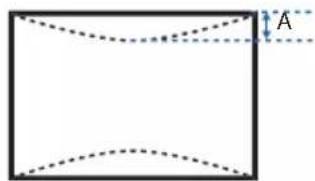
- Vert Pincushion: Adjust the pincushion vertically and make a more square image.
natural_image
Pure geometric diagram of a rectangle with dashed curved lines and a labeled point A (no text or symbols beyond the label)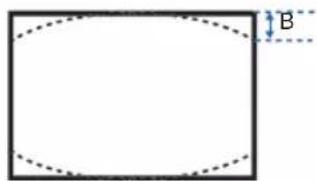
natural_image
Simple geometric diagram showing a rectangle with dashed inner lines and an outer oval, labeled with dimension 'B' (no text or symbols within the shape)| Ind. | WXGA | 1080P | WUXGA |
| A | 14.7% | 12.3% | 11.4% |
| B | 14.7% | 12.1% | 11.4% |
- Pincushion/Barrel: Allow for correction for slight curved distortion from the lens or projection surface
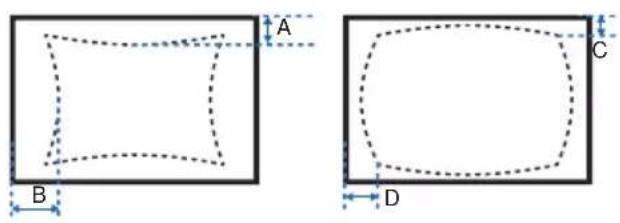
text_image
A B C D| Ind. WXGA 1080P WUXGA | ||
| A 8.38% 8.35% | 8.37% | |
| B 3.5% 3.98% | 4.59% | |
| C 6.4% 6.4% 6 | 5% | |
| D 6.4% 6.4% 6 | 5% | |
• 4-Corner: Allow the image to be squeezed to fit an area defined by moving each of the four corners' x and y position.
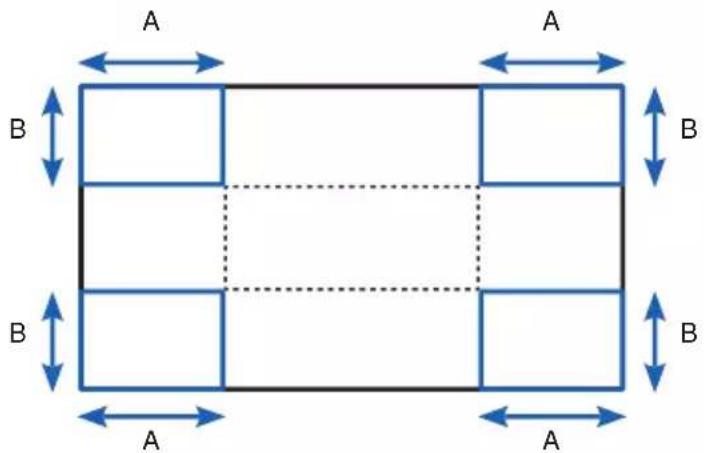
| Ind. WXGA 1080P WUXGA | ||
| A | 10.0% | 8.4% |
| B | 9.5% | 7.9% |
- Rotation: Allow an image to be rotated - most commonly to level the image. While the image is rotated, the software can crop any content that begins to fall off the panel. The function will not automatically scale the image down to prevent cropping. If scaling is required, the digital zoom function can be used, independently of the rotation function.
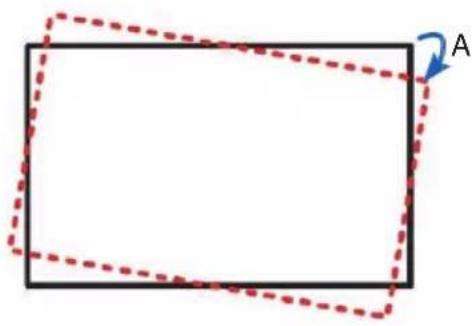
natural_image
Simple geometric diagram of a rectangle with dashed red lines and an arrow labeled 'A' (no text or symbols beyond the label)| Ind. WXGA 1080P WUXGA | ||
| A | 10.0% | 8.4% 8.3% |
Auto Image
Force the projector to reacquire and lock to the input signal. This is useful when signal quality is marginal. "Normal mode" can support all of the 4:3 input sources.
"Wide mode" can support all of the 16:9 input source & most of the 4:3 input source. For those 4:3 input sources not recognized by "Wide mode" (example 1400 x 1050), perform Auto Image using "normal mode".
4.2 Image Settings Menu
text_image
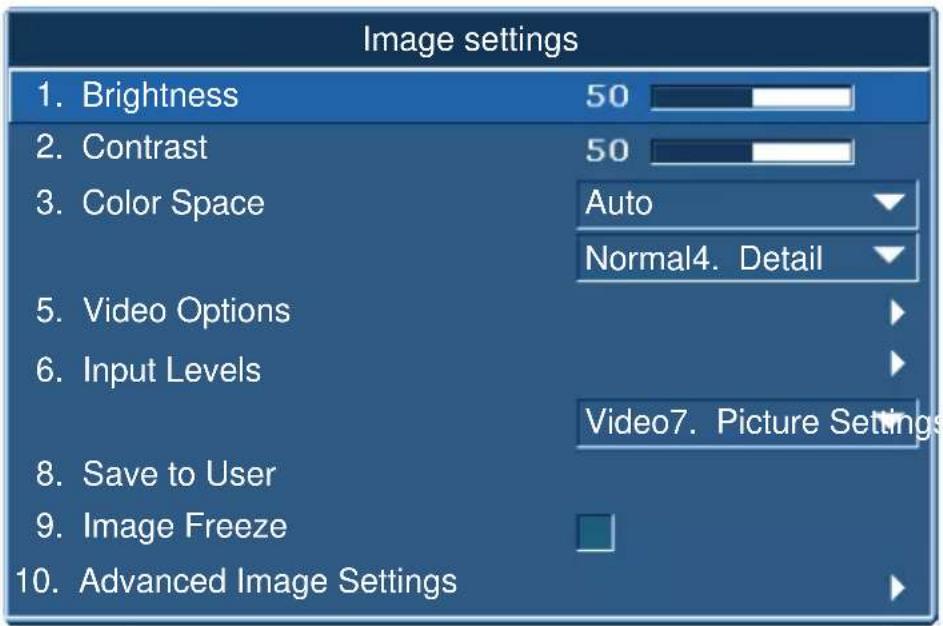
Image settings 1. Brightness 50 2. Contrast 50 3. Color Space Auto Normal4. Detail 5. Video Options 6. Input Levels Video7. Picture Settings 8. Save to User 9. Image Freeze 10. Advanced Image SettingsBrightness
Adjust the intensity of the image.
Contrast
Adjust the degree of difference between the lightest and darkest parts of the picture and change the amount of black and white in the image.
Color Space
Select a color space that has been specifically tuned for the input signal.
Useful only for analog signals and certain digital sources.
Detail
Select the edge clarity of the image.
Video Options
This function is used with video sources only.
• Color: Adjust a video image from black and white to fully saturated color. The color setting applies to video sources only.
- Tint: Adjust the red-green color balance in the image of NTSC video images. The tint setting applies to NTSC video sources only.
- Noise Reduction: Reduce temporal or spatial noise in the image.
- Flesh Tone Correction: Control the amount of flesh tone correction applied to the image.
- Video Black Level: Analyze the current input image and calculate an offset value which is then added to the analog to digital converter black level value. This ensures optimum black level for each analog source.
- Detect Film: Control film mode detection and determine whether the original source of the input video was film or video.
- Closed Captions: Control closed caption display while audio is not muted.
- If this setting is not off, audio is not muted, the source is NTSC and contains captions on the selected channel, then the projector must display caption text overlaid on the image.
Input Levels
VGA / Component signals only.
- Adjust the gain of the red, green, or blue channel of the image. It will affect the black and white.
- Adjust the offset of the red, green, or blue channel of the image. It will affect the black and white.
- Sync Threshold: (progressive signals only) If a hardware device, such as a DVD player, is not syncing properly with the projector, select this option to help it to sync when connected to the projector.
Picture Settings
Optimize the projector for displaying images under certain conditions, such as presentation, video, bright, real, dicom sim, and user-definable preset. It will affect Gamma, Sharpness, White Peaking, Overscan, Brightness, Contrast, Color, Tint, Red Gain, Green Gain, Blue Gain, Red Offset, Green Offset, Blue Offset.
Save to User
Adjust the image settings and select Save to User as a picture setting. You can recall these settings in the future by selecting the User in the Picture Settings menu. The setting of Brightness, Contrast, Color, Tint, Red Gain, Green Gain, Blue Gain, Red Offset, Green Offset, Blue Offset, Color Temperature, Gamma, Detail, White Peaking and Overscan will be saved.
Image Freeze
Pause the screen image.
Advanced Image Settings
- Gamma: Select the appropriate gamma from Video, Film, Bright, CRT, and DICOM.
- White Peaking: (video source only) Increase the brightness of whites that are near 100%.
- Color Temperature: Change the intensity of the colors. Select a listed relative warmth value.
- Edge Enhancement: Apply the edge enhancement process.
4.3 Configuration Menu
text_image
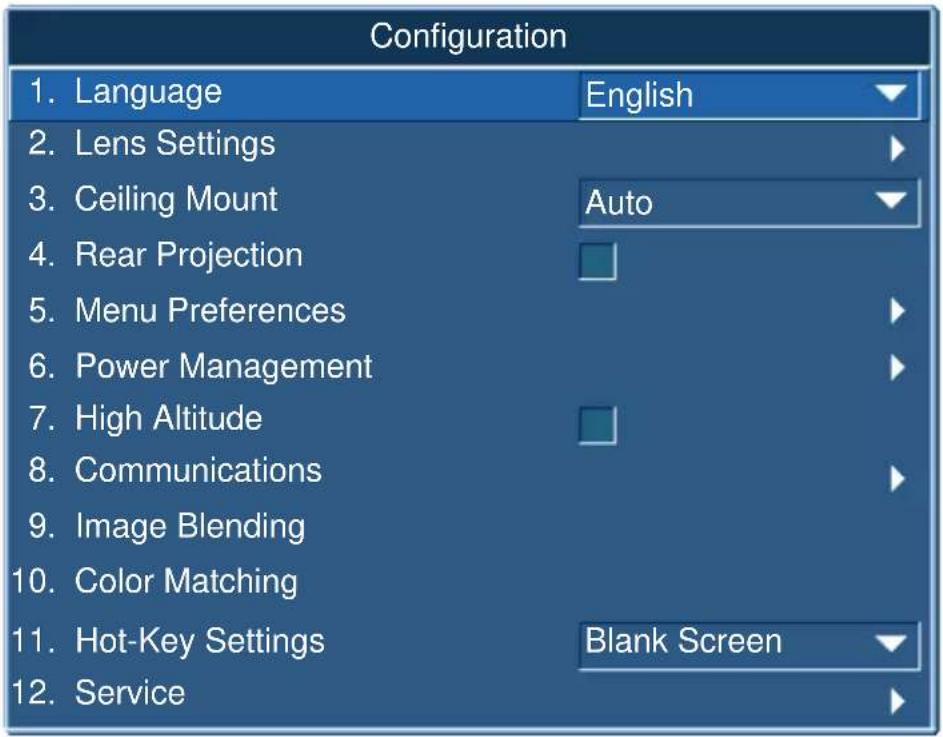
Configuration 1. Language English 2. Lens Settings 3. Ceiling Mount Auto 4. Rear Projection 5. Menu Preferences 6. Power Management 7. High Altitude 8. Communications 9. Image Blending 10. Color Matching 11. Hot-Key Settings Blank Screen 12. ServiceLanguage
Allows you to select an available language for the OSD display, from English, French, German, Italian, Spanish, Chinese(simplified), Japanese, Korean, and Russian.
Lens Settings
- Focus and Zoom: Adjust the focus and zoom the image in or out.
- Lens Shift: Shift the lens up and down or left and right.
- Lock all Lens Motors: Select this function to prevent all lens motors from moving. It will disable the Zoom, Focus, Horizontal and Vertical Position settings, effectively locking out any changes and overriding all other lens features. This is particularly useful to prevent accidental lens position changes in multi-projector installations.
- Lens Calibration: Calibrate the lens center
Ceiling Mount
Turn the image upside down for ceiling-mounted projection.
Rear Projection
Reverse the image so you can project from behind a translucent screen.
Menu Preferences
- Menu Horz Offset: Change the horizontal position of the OSD.
- Menu Vert Offset: Change the vertical position of the OSD.
• Show Messages: Display status messages on the screen.
- Menu Transparency: Change OSD menu background to be transparent. NOTE:
As the value increases, more of the image behind the menu is visible.
- Splash Screen Setup: Choose which splash screen is to be used.
- PIN Protect: The PIN (personal identification number) feature allows you to password protect your projector. Once you enable the PIN feature, you must enter the PIN before you can project an image.
- Change PIN: Allows you to change the PIN.
Power Management
- Standby Mode: The projector is in standby mode when connected to AC power. (<0.5W)
- AC Power On: The projector automatically turns on when electrical power is connected.
- Auto Shutdown: Automatically turns the projector off after no signals are detected for a preset number of minutes. If an active signal is received before the projector powers down, the image will be displayed.
- Sleep Timer: Allows the projector to automatically power off after it has been on for a specified amount of time.
High Altitude
Set high altitude mode ON/OFF. When ON, the fan will operate at high speed to ensure sufficient air flow for high altitudes.
Communications
• Network: Allow you to setup network settings.
- DHCP: Turn the DHCP ON/OFF.
- IP Address: Assign Network IP Address.
- Subnet Mask: Assign Network Subnet Mask.
- Default Gateway: Assign Network Default Gateway.
- Host Name: Display the host name.
- MAC Address: Displays network MAC Address value.
- Show Network Messages: Turn network messages ON/OFF.
- Restart Network: Restart the network.
- Network Factory Reset: Perform factory reset on the network settings. The Projector Name, LAN IP, WLAN IP, and SNMP settings will be reset.
- Serial Port Baud Rate: Select the serial port and baud rate.
- Serial Port Echo: Control whether the serial port echoes characters.
- Serial Port Path: Select the serial port path from either RS232 or HDBaseT.
- Projector Address: Set the projector address (0-9). The projector will respond to IR remotes set either at the same address as the projector or to IR remotes set to address 0.
Image Blending
Adjust blend widths and settings to left, right, top and/or bottom sides to create a seamless multi-projector stitched image. (Available only when optional Dual Processor Warp Module is installed.)
What is a Blend?
In simple terms, a blend appears as a gradient strip along an edge of a projected image. It is darkest along the extreme edge of the image, and lightens nearer to the rest of the image(see below).
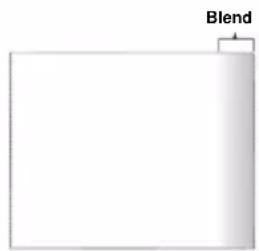
text_image
BlendHow are Blends used?
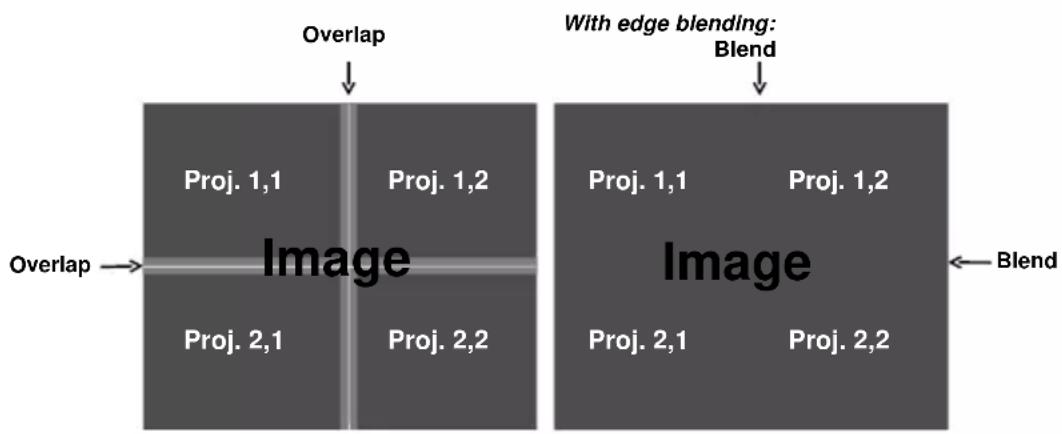
In multiple-projector wall, complementary blends between neighboring images can compensate for the extra "brightness" or intensity where these edges overlap. By controlling blend width and other properties, you can achieve uniformity across the group of images. "Visible overlaps will disappear, as shown below"
flowchart
graph TD
    A["Image"] --> B["Proj. 1,1"]
    A --> C["Proj. 1,2"]
    A --> D["Proj. 2,1"]
    A --> E["Proj. 2,2"]
    F["Image"] --> G["Proj. 1,1"]
    F --> H["Proj. 1,2"]
    F --> I["Proj. 2,1"]
    F --> J["Proj. 2,2"]
    K["Overlap"] --> L["Proj. 1,1"]
    K --> M["Proj. 1,2"]
    N["Overlap"] --> O["Proj. 2,1"]
    N --> P["Proj. 2,2"]
    Q["Overlap"] --> R["Proj. 1,1"]
    Q --> S["Proj. 1,2"]
    T["Overlap"] --> U["Proj. 2,1"]
    T --> V["Proj. 2,2"]
    W["Blend"] --> X["Image"]
    Y["Blend"] --> Z["Image"]
    style A fill:#f9f,stroke:#333
    style F fill:#f9f,stroke:#333
    style Q fill:#f9f,stroke:#333
Blending regions can be defined on all sides - left, right, top and bottom. The same gamma curve is used for all blending regions.
Color Matching
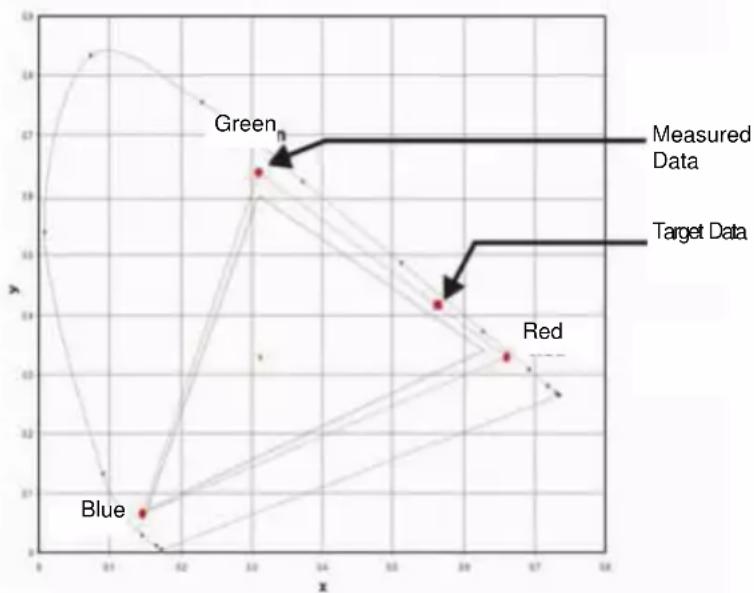
You may require a unique color gamut (range) for a single projector or application, or you may need to precisely match colors across multiple adjacent displays. Use Color Matching by Meter Adjustment or by Manual Adjustment to define the precise hue of each primary color component (red, green, blue and white).
The x/y coordinates for each color define its location on the standard CIE chromaticity graph. Changing either or both of these numbers will change the hue of the color, and modify the range of possible colors. For example, changing the x/y coordinates for red may move the color closer to orange or closer to violet, which will in turn affect all displayed colors having a red component. Adjust the slide bars or enter new specific coordinates as desired to define or change the color gamuts needed for your environment and applications.
Enable the selected method (Meter or Manual Adjustment)- this will automatically disable the other method. For both methods, if Auto Test Pattern is enabled, the solid colored test pattern will be displayed according to the menu item on which you are positioned.
- Meter Adjustment
1 Using a color meter, enter the current x and y co-ordinates of Red, Green, Blue and White for the projector image into the Measured Data menu. This is the reference point for the projector. The default values in the menu are based on the average for all projectors.
2 After measuring the values for all the projectors to be matched, calculate the target values.
3 Enter the target values for x, y and gain for each color into the Target Data menu.
line
| Point | x | y | |-------|------|------| | Blue | 0.1 | 0.7 | | Green | 3.2 | 10.5 | | Red | 2.8 | 10.2 |- Manual Adjustment
1 Adjust color slide bars and judge image color by eye or meter. A user-defined color "adjustment" can be applied.
2 Use this submenu if you do not have specific color coordinates in mind and will judge color performance by eye or meter. As for Meter Adjustment, each color control actually defines new x/y coordinates for that color and changes its hue. The main colors (red part of red, green part of green and blue part of blue) adjust the intensity of that color component, while the modifying colors (e.g. green part of red and blue part of red) modify the x and y value and change the hue of that color. At the same time the main colors also are used to control the color of the white point.
Hot-Key Settings
Assign a different function to the hot-key on the remote control by highlighting the function in the list and pressing ENTER. Choose a function that does not already have a dedicated button, and assign the hot-key to that function, allowing you to quickly and easily use the chosen function.
Service
- Projector Info: Display current projector settings (read-only).
- Factory Reset: Restore all settings to their default value. It will not reset network but it will reset RS232.
- Test Pattern: Choose the desired internal test pattern to display, or select OFF to turn off a test pattern.
- Phosphor Index: The Phosphor index synchronizes the phosphor wheel with the filter wheel and DMD. The index defines the delay between the wheel and the DMD. When the Phosphor index is adjusted, it will impact the smoothness and contouring of the R/G/B gray level.
- Filter Index: The Filter index synchronizes the filter wheel with the phosphor wheel and DMD. The index defines the delay between the wheel and the DMD. When the filter index is adjusted, it will impact the smoothness of the white color space without contouring, similar to the phosphor index behavior.
- Error log: Show the projector error log for debug.
- Mode Adjustment: Fine tune the H and V start position for a signal in the EDID timing table and record the values in the system to override the timing table. The settings must be "Saved to Record" before exiting the menu, or they will be lost. To revert to original timing table settings, each setting must be manually cleared. Factory Defaults will not clear these override settings.
- Laser Diode Info: Display current laser banks status and temperature information.
- High temperature warning: Show the warning message the when the ambient temperature is over 35°C.
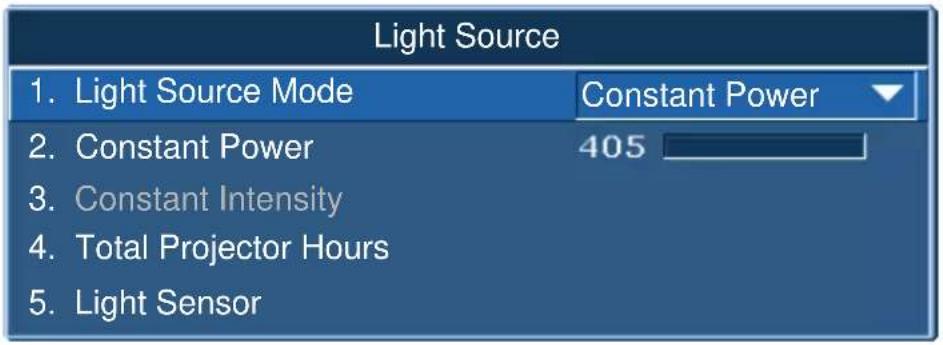
4.4 Light Source
text_image
Light Source 1. Light Source Mode Constant Power 2. Constant Power 405 3. Constant Intensity 4. Total Projector Hours 5. Light SensorLight Source Mode
Select Constant Power, Constant Intensity or ECO mode. When in ECO mode, the projector will adjust to the lowest fan speed and switch the laser diode power to the minimum setting.
Constant Power
Set the value of the laser diode power (in Watts).
Constant Intensity
Set the value for the Constant Intensity to maintain constant brightness.
The light sensor will monitor the light level and will apply more power as the laser brightness decays naturally over time. When the laser setting reaches maximum power of 405W, it will remain at this setting. Note that the light sensor needs to be calibrated for Constant Intensity mode to work properly.
Calibration should be performed again after every lamp change.
Total Projector Hours
Display current total hours the projector used.
Light Sensor
Calibrate light sensor.
4.5 Status Menu
The read-only Status menu lists a variety of details about the standard and optional components currently detected in the projector.
For DHD Models
| Status | |
| Model Name | DHD555-GS |
| Serial Number | G7YYWW000 |
| Native Resolution | 1920 x 1080 |
| Firmware | V03, A01, N01 |
| Main Input | VGA |
| Main Signal Format | 720p |
| Main Pixel Clock | 74.256MHz |
| Main Sync Type | Sync on Green |
| Main Horz Refresh | 45.10kHz |
| Main Vert Refresh | 60.0Hz |
| PIP/PBP Input | - |
| PIP/PBP Signal Format | - |
| PIP/PBP Pixel Clock | - |
| PIP/PBP Sync Type | - |
| PIP/PBP Horz Refresh | - |
| PIP/PBP Vert Refresh | - |
| Light Source Power | 405 W |
| Total Projector Hours | 70 |
| Standby Mode | 0.5 W Mode |
| Lens Lock Settings | Allow |
| IP Address | 192.168.0.100 |
| DHCP | No |
| System Temperature | 38°C |
For DWU Models
| Status | |
| Model Name | DWU555-GS |
| Serial Number | G8YYWW000 |
| Native Resolution | 1920 x 1200 |
| Firmware | V03, A01, N01 |
| Main Input | VGA |
| Main Signal Format | 720p |
| Main Pixel Clock | 74.256MHz |
| Main Sync Type | Sync on Green |
| Main Horz Refresh | 45.10kHz |
| Main Vert Refresh | 60.0Hz |
| PIP/PBP Input | - |
| PIP/PBP Signal Format | - |
| PIP/PBP Pixel Clock | - |
| PIP/PBP Sync Type | - |
| PIP/PBP Horz Refresh | - |
| PIP/PBP Vert Refresh | - |
| Light Source Power | 405 W |
| Total Projector Hours | 70 |
| Standby Mode | 0.5 W Mode |
| Lens Lock Settings | Allow |
| IP Address | 192.168.0.100 |
| DHCP | No |
| System Temperature | 38°C |
For DWX Models
| Status | |
| Model Name | DWX555-GS |
| Serial Number | G6YYWW000 |
| Native Resolution | 1280 x 800 |
| Firmware | V03, A01, N01 |
| Main Input | VGA |
| Main Signal Format | 720p |
| Main Pixel Clock | 74.256MHz |
| Main Sync Type | Sync on Green |
| Main Horz Refresh | 45.10kHz |
| Main Vert Refresh | 60.0Hz |
| PIP/PBP Input | - |
| PIP/PBP Signal Format | - |
| PIP/PBP Pixel Clock | - |
| PIP/PBP Sync Type | - |
| PIP/PBP Horz Refresh | - |
| PIP/PBP Vert Refresh | - |
| Light Source Power | 405 W |
| Total Projector Hours | 70 |
| Standby Mode | 0.5 W Mode |
| Lens Lock Settings | Allow |
| IP Address | 192.168.0.100 |
| DHCP | No |
| System Temperature | 38°C |
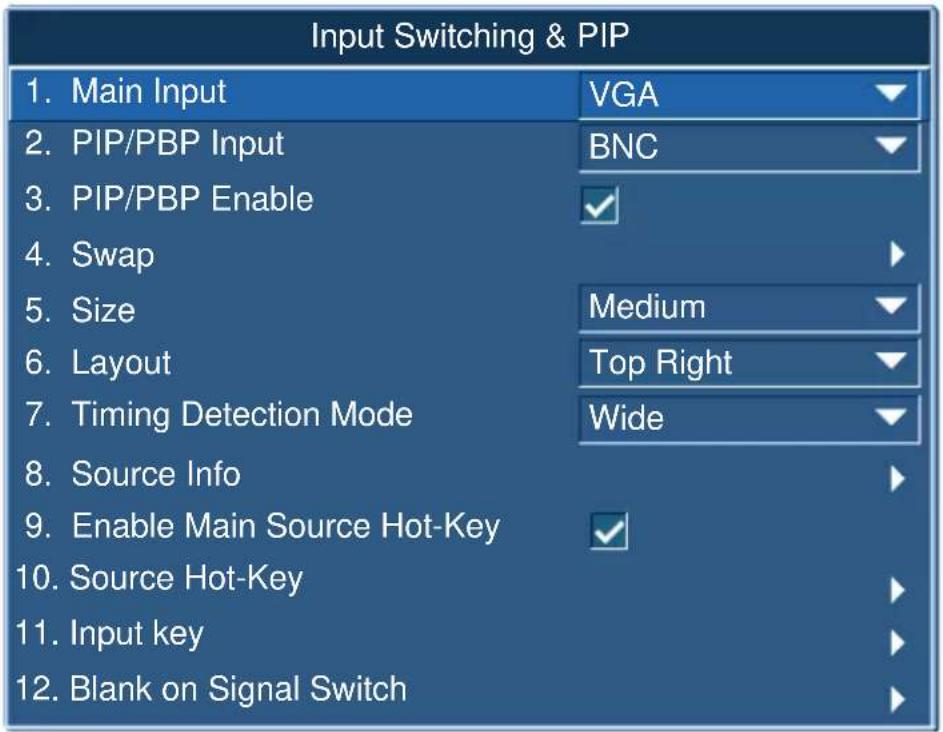
4.6 Input Switching & PIP Menu
text_image
Input Switching & PIP 1. Main Input VGA 2. PIP/PBP Input BNC 3. PIP/PBP Enable ✓ 4. Swap 5. Size Medium 6. Layout Top Right 7. Timing Detection Mode Wide 8. Source Info 9. Enable Main Source Hot-Key ✓ 10. Source Hot-Key 11. Input key 12. Blank on Signal SwitchMain Input
From the list of active inputs, select one to be used as the main image.
PIP/PBP Input
From the list of active inputs, select one to be used as the PIP/PBP.
PIP/PBP Enable
Toggle between displaying two sources at once (Main and PIP/PBP images) or one source only. The check box turns the PIP/PBP source ON and OFF. Refer to Section 6.2 for the Main and PIP/PBP compatibility table.
Swap
Change the main image to PIP/PBP, and the PIP/PBP to main image.
Swapping is available only when PIP/PBP is enabled.
Size
Select the PIP/PBP size to small, medium or large.
Layout
Set the location of the PIP/PBP image on the screen.
NOTE:
- PIP/PBP layout and size table as described below.
❖ P : indicates primary source region (lighter color).
* : Both source regions are the same size.
| PIP/PBP Layout | PIP/PBP Size | ||
| Small Medium Large | |||
| PBP, Bigger Left | 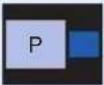 | 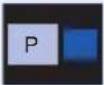 | 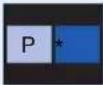 |
| Over-Under, Bigger Upper | 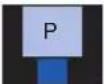 | 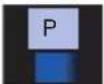 |  |
| PBP, Bigger Right | 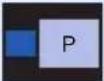 | 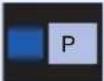 | 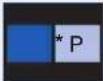 |
| Over-Under, Bigger Lower | 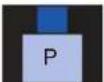 | 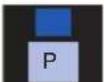 | 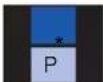 |
| PIP-Bottom Right | 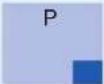 | 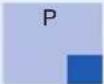 | 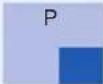 |
| PIP-Bottom Left | 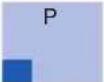 | 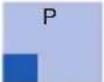 | 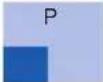 |
| PIP-Top Left | 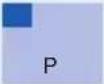 | 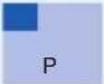 | 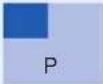 |
| PIP-Top Right | 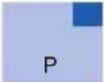 | 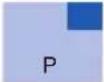 | 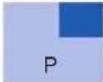 |
Timing Detection Mode
Select timing detection mode to wide or normal. It is used to support additional PC timings. When the projected picture is not completed, this function is used to adjust the picture. "Normal mode" can support all of the 4:3 input sources. "Wide mode" can support all of the 16:9 input source & most of the 4:3 input source. For those 4:3 input sources not recognized by "Wide mode" (example 1400 x 1050), perform Auto Image using "normal mode".
Source Info
Display current source settings (read-only).
Enable Main Source Hot-Key
Toggle the check box to enable or disable the main source hot-key.
Source Hot-Key
Allows you to assign a different source to the hot-key. Highlight an input and press ENTER to choose a different one.
Input key
Use it to list all of the sources or change the sources.
Blank on Signal Switch
When the function is enabled, the projector will blank the screen before timing is stable when change source.
4.7 Language Menu
Allows you to select an available language for the OSD display.
| Language |
| 1. English |
| 2. 简体中文 |
| 3. Français |
| 4. Deutsch |
| 5. Italiano |
| 6. 日本語 |
| 7. 한국어 |
| 8. Русский |
| 9. Español |
4.8 Test Pattern Menu
Choose the desired internal test pattern to display, or select OFF to turn off a test pattern.
• OFF
- Black
- White
- Checkerboard
- Grid
- Color Bars
| Test pattern |
| 1. OFF |
| 2. Grid |
| 3. White |
| 4. Black |
| 5. Checkerboard |
| 6. Color Bars |
4.9 Web User Interface
4.9.1 Logging On
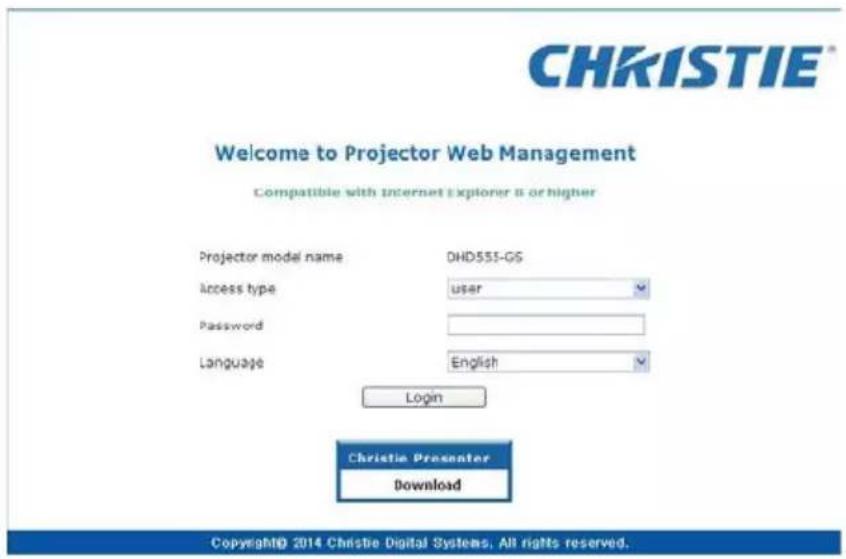
Open your web browser and type the IP address (in the address bar) assigned to your projector.
text_image
CHRISTIE® Welcome to Projector Web Management Compatible with Internet Explorer 8 or higher Projector model name DHD535-GS Access type=user Password Language English Login Christie Presenter Download Copyright© 2014 Christie Digital Systems. All rights reserved.1 Select the log in level from the Access type drop-down list
2 Enter the Password in the Password field
3 Select the appropriate language from the Language drop-down list.
4 Click the Press login button. The Main window appears.
4.9.2 Main Tabbed Page - General
text_image
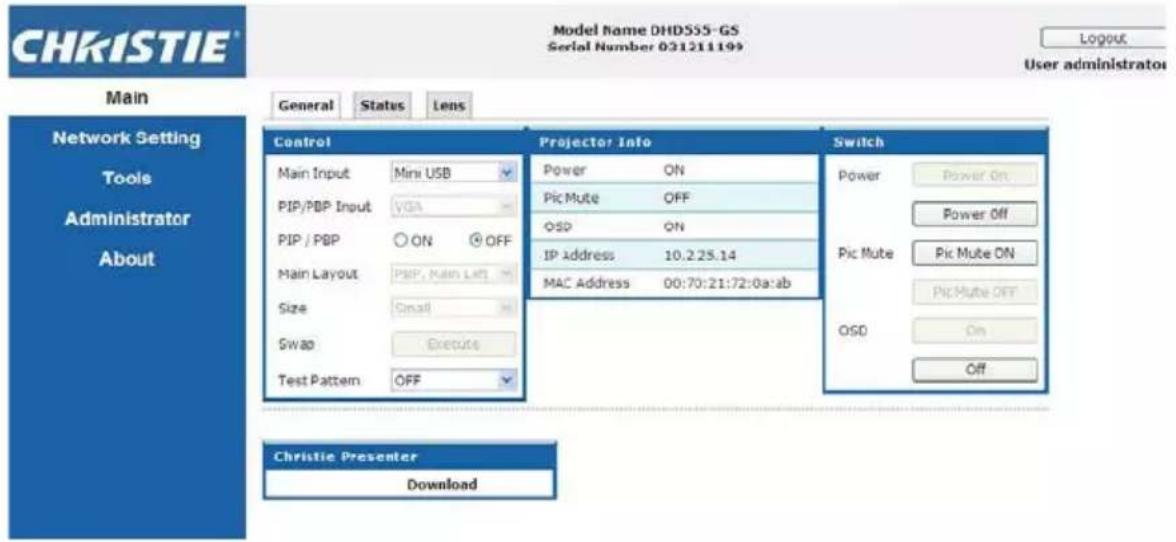
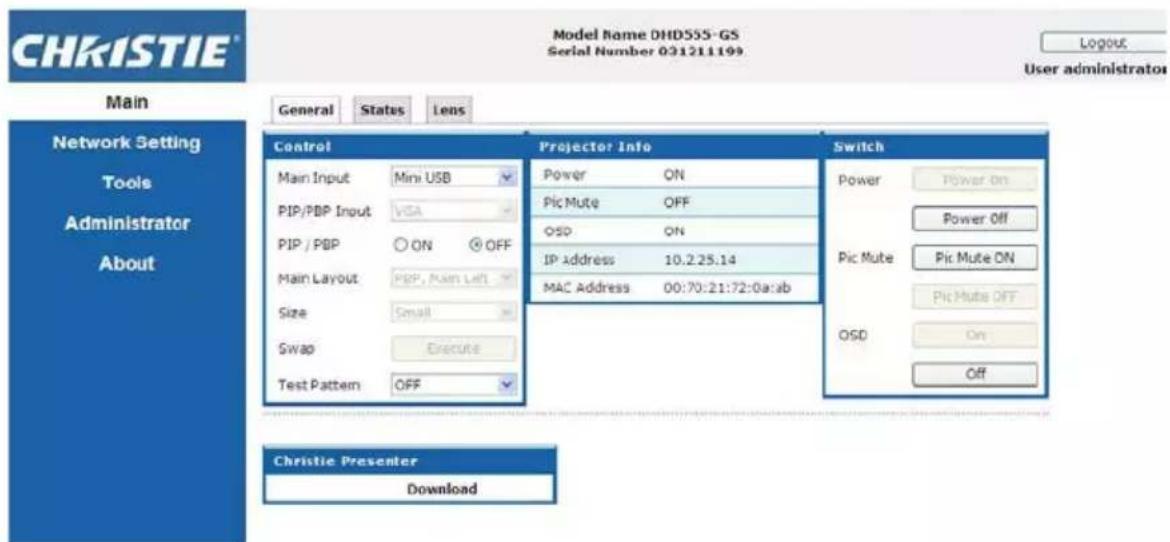
CHRISTIE® Model Name DHDS55-GS Serial Number 031211199 Login User administrator Main General States Lens Control Projector Info Switch Main Input Mini USB Power ON Power On PIP/PBP Input VGA Pic Mute OFF Power Off PIP / PBP ○ ON ○ OFF Pic Mute Main Layout PSP, Main Left IP Address 10.2.25.14 Pic Mute ON Size Cmall MAC Address 00:70:21:72:6a:ab Pic Mute OFF Swap Execute On Test Pattern OFF Off Christie Presenter Download- Control Panel Select main source / PIP source, enable/disable PIP/PBP, change the layout / PIP size, swap, and change the test pattern.
- Projector Information Panel Check the projector information for power status, Pic mute status, OSD status, IP address and Mac address.
- Switch Panel Switch the on/off status of power, Pic mute, and OSD.
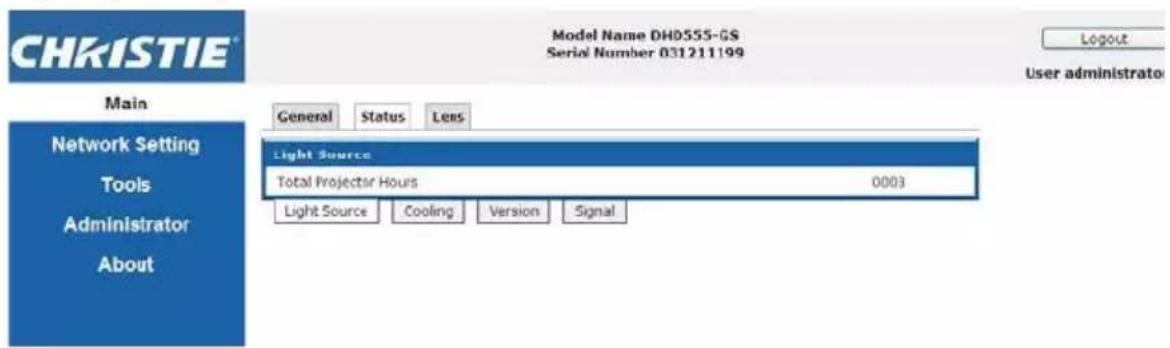
4.9.3 Main Tabbed Page - Status
Display the current status of light source, cooling (fans), version numbers and signal (source) information
text_image
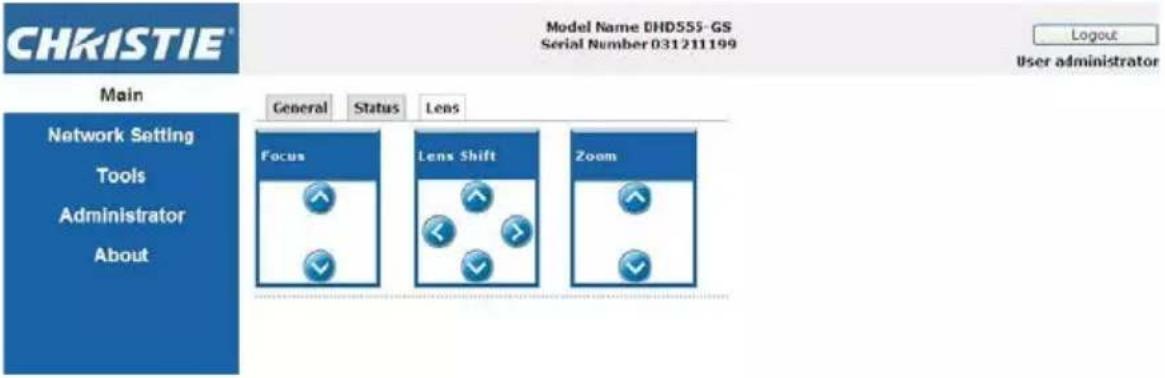
CHRISTIE® Model Name DH0555-GS Serial Number 031211199 Login User administrator Main Network Setting Tools Administrator About General Status Lees Light Source Total Projector Hours 0003 Light Source Cooling Version Signal4.9.4 Main Tabbed Page - Lens
Control the focus, lens shift and zoom adjustments for the lens.
text_image
CHRISTIE® Model Name DHD555-GS Serial Number 031211199 Login User administrator Main Network Setting Tools Administrator About General Status Lens Focus Lens Shift Zoom4.9.5 Network
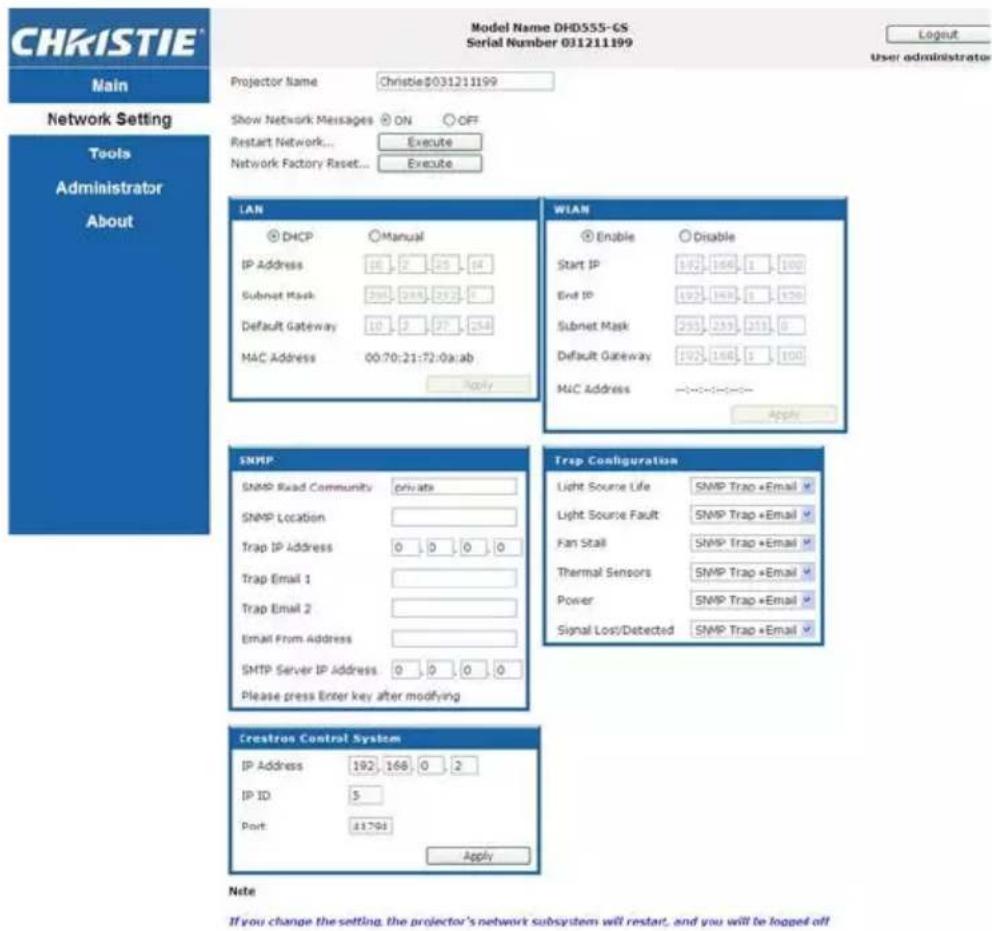
text_image
CHRISTIE® Main Network Setting Tools Administrator About Model Name DHDS555-CS Serial Number 031211199 Projector Name Christie2031211199 Show Network Messages ON OFF Restart Network... Execute Network Factory Reset... Execute LAN DHCP Manual IP Address 16 2 25 44 Subnet Mask 200 200 200 0 Default Gateway 10 3 27 154 MAC Address 00:70:21:72:0a:ab Apply WLAN Enable Disable Start IP 1/2 168 1 100 End IP 1/2 168 1 100 Subnet Mask 2/3 2/3 2/3 0 Default Gateway 1/2 168 1 100 MAC Address ———————— Apply SNMP SNMP Read Community Private SNMP Location Trap IP Address 0 0 0 0 Trap Email 1 Trap Email 2 Email From Address SMTP Server IP Address 0 0 0 0 Please press Enter key after modifying Trap Configuration Light Source Life SMP Trap +Email Light Source Fault SMP Trap +Email Fan Stall SMP Trap +Email Thermal Sensors SMP Trap +Email Power SMP Trap +Email Signal Lost/Detected SMP Trap +Email Crestros Control System IP Address 102 168 0 2 IP ID 5 Port 41794 Apply Note If you change the setting, the projector's network subsystem will restart, and you will be logged off- Restart Network
Execute a Network restart. This will not change any of the network settings.
• Network Factory Reset
Execute a network factory reset. Network settings will be reset to the following default values:
- Projector Name = Christie@ + Serial Number
- Show Network Messages = ON
-
LAN Settings:
-
Manual
- IP Address = 192.168.0.100
- Subnet Mask = 255.255.255.0
- Default Gateway = 192.168.0.100
- WLAN Settings:
- Enabled
- Start IP = 192.168.1.100
- End IP = 192.168.1.120
- Subnet Mask = 255.255.255.0
- Default Gateway = 192.168.1.100
- SNMP Settings:
- SNMP Read Communication = private
- Trap IP Address = 0.0.0.0
- SMTP IP Address = 0.0.0.0
- All other settings are cleared/blanked
- Trap Configuration:
- All items = SNMP Trap + Email
• LAN Setting Panel
- Select if the projector must obtain an automatically assigned IP address through DHCP or if the user will set the address manually.
- Enter the IP address, netmask, and default gateway address for the TCP/IP setting.
- WLAN Setting Panel
- Select if the wireless LAN of the projector is enabled or disabled.
- Enter the IP address range, netmask and default gateway for the wireless LAN.
- SNMP Panel
- The SNMP (Simple Network Management Protocol) interface provides network administrators with a common way to manage their network devices from a single remote location. SNMP allows an administrator to query a number of devices to see their current status/ configuration. It also allows operators to change configuration values and configure trap notifications to be sent when certain events occur. (eg. Loss of signal, power state change, etc)
-
Emails are sent to the mail server configured in the projector settings. Up to 2 user email accounts can be selected. Any important information regarding the event will be located in the body content of the email.
▶ SNMP Traps are notifications that are sent from the projector. They are only received by a trap receiver (MIB Browser) in the computer. -
SNMP Read Community (default setting: private) - this is a plain-text password. This must also be entered in the MIB browser. This password allows the various settings in the projector to be queried.
- SNMP Location (default setting: blank) - This field can be used as a description to where a projector is located in a building. SNMP emails sent will specify this location.
- Trap IP Address (default setting: 0.0.0.0) - This field must be filled in to receive Traps from the projector. The Trap IP Address should be filled in with the IP Address of the computer on which you would like to view received traps.
- Trap Email 1/2 (default setting: Blank) - The Trap Email 1 and 2 must be set to an email address that is configured under the mail server that you will enter in the "SMTP Server IP Address" field.
- Email from Address (default setting: blank) - the "Email from Address" that will appear as the source of the SNMP emails.
- SMTP Server IP Address (default setting: 0.0.0.0) - Enter your mail server's IP address.
- Trap Configuration Panel
Set the SNMP actions for the system events. The dropdown options are: SNMP Trap + Email, Email, SNMP Trap, and Disabled.
- Crestron Control System Panel
Enter the IP address, IP ID, and Port of Crestron device for connection.
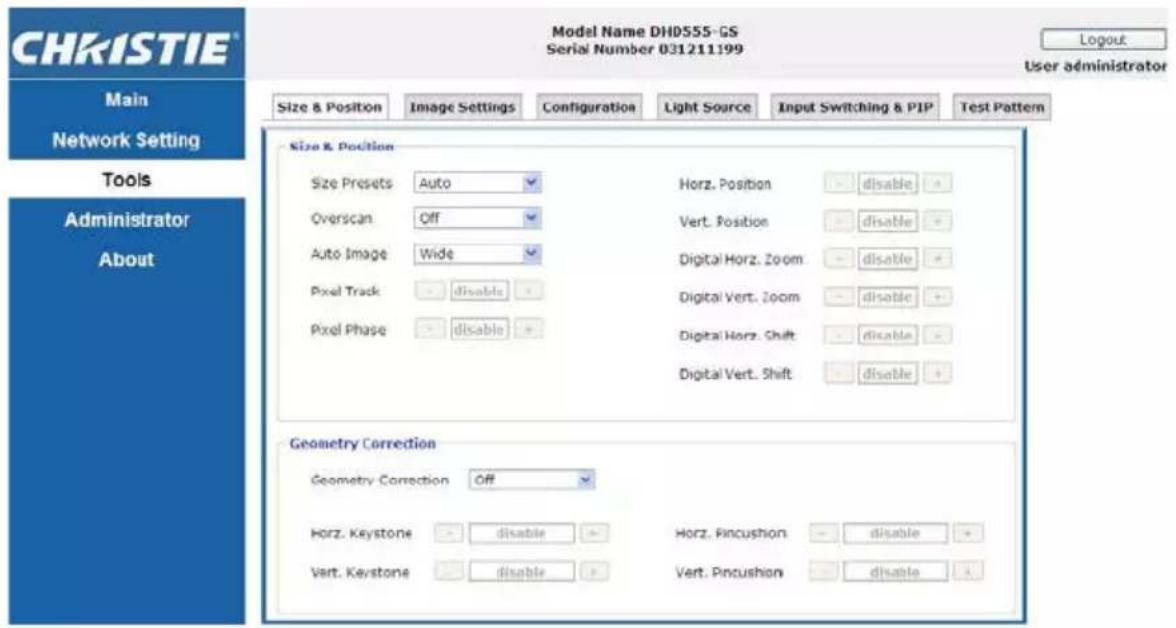
4.9.6 Tools
To Use the Tools tabbed pages to control "Size & Position", "Image Settings", "Configuration", "Light Source", "Input Switching & PIP" and "Test Pattern.
text_image
CHRISTIE Model Name DHD555-GS Serial Number 031211199 Login User administrator Size & Position Image Settings Configuration Light Source Input Switching & PIP Test Pattern Size & Position Size Presets Auto Overscan Off Auto Image Wide Pixel Track Disable Pixel Phase Disable Horz. Position disable Vert. Position disable Digital Horz. Zoom disable Digital Vert. Zoom disable Digital Horz. Shift disable Digital Vert. Shift disable Geometry Correction Geometry Correction Off Horz. Keystone Disable Horz. Pincushion Disable Vert. Keystone Disable Vert. Pincushion Disable4.9.7 Administrator Page
Add or delete a user or change password
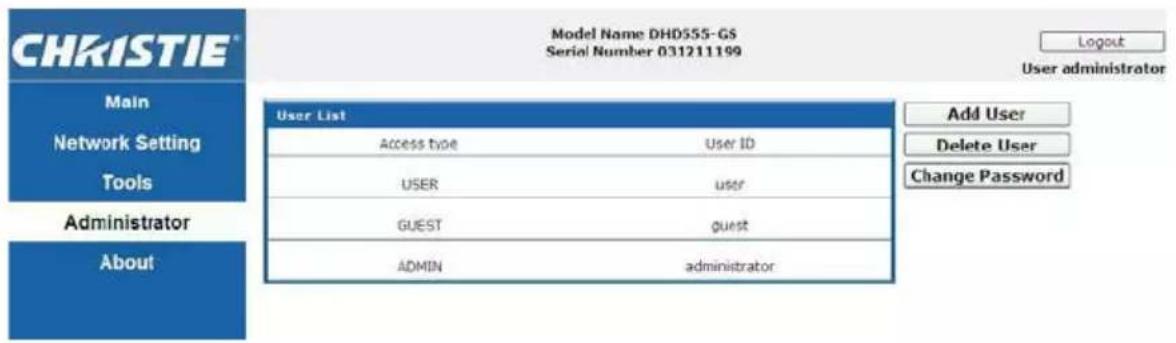
text_image
CHRISTIE® Model Name DHD555-GS Serial Number 031211199 Login User administrator Main Network Setting Tools Administrator About User List Access type User ID USER user GUEST guest ADMIN administrator Add User Delete User Change Password4.9.8 About Page
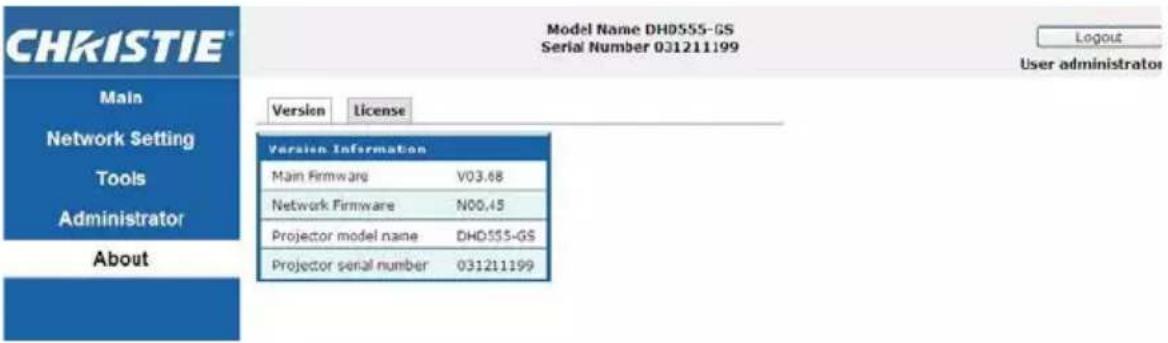
text_image
CHRISTIE® Model Name DHD555-GS Serial Number 031211199 Login User administrator Main Network Setting Tools Administrator About Version License Version Information Main Firmware V03.68 Network Firmware N00.45 Projector model name DHD555-GS Projector serial number 031211199- Version Tab
View the main firmware version, network firmware version, projector model name, and projector serial number. - License Tab
The license information of the computer program is displayed.
4.10 Christie Presenter
The Christie Presenter application allows a remote desktop from a host PC to be displayed on the network display through Ethernet, USB, or wireless transports. It can adapt to different network settings (DHCP, fixed IP, and direct link by USB/Ethernet cable).
Christie Presenter can be downloaded from the Christie website or from the web page of the projector.
4.10.1 Connect to the Projector
1. Connect to the projector using WiFi or Ethernet
- Ethernet connection:
▶ Determine the projector's IP address from the menu Main Menu > Configuration > Communications > LAN
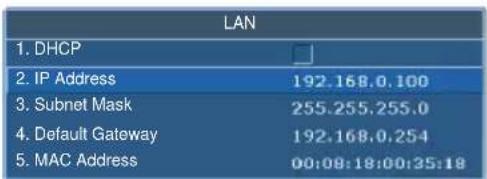
text_image
LAN 1. DHCP 2. IP Address 192.168.0.100 3. Subnet Mask 255.255.255.0 4. Default Gateway 192.168.0.254 5. MAC Address 00:08:18:00:35:18Configure your PC IP address to be on the same network as the projector.
The projector and computer must be connected directly or over the network via Ethernet.
- WiFi Wireless connection:
Insert the WiFi USB dongle (1DWUSB-BGN) into the USB port on the projector input panel.
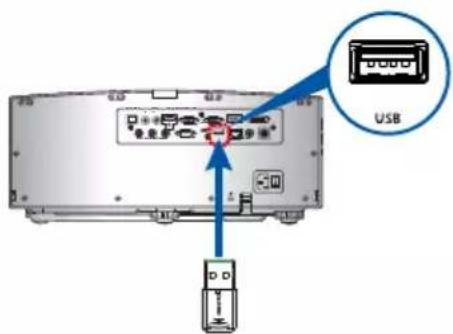
text_image
USBInsert the WiFi USB dongle
▶ Power on the Projector.
▶ Obtain the WiFi SSID from the OSD menu Main Menu > Configuration > Communications > WLAN
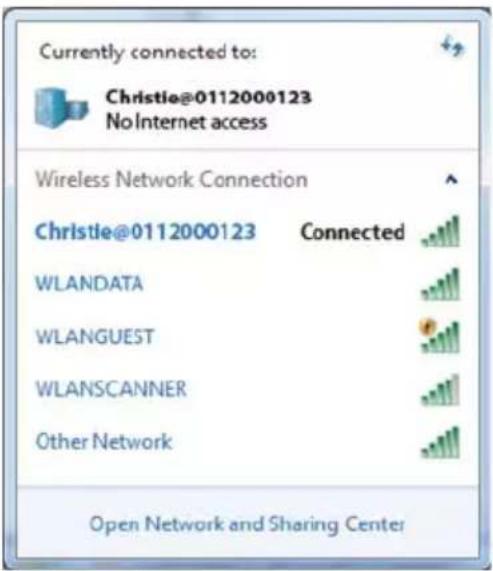
Connect your PC device to the wireless SSID for the selected projector. Example: "Christie@0111000123".
text_image
Currently connected to: Christie@0112000123 No Internet access Wireless Network Connection Christie@0112000123 Connected WLANDATA WLANGUEST WLANSCANNER Other Network Open Network and Sharing Center4.10.2 Install Christie Presenter software
- Use a web browser to connect to the projector's network address (Default address 192.168.1.100)
- Download and install the Christie Presenter Software
text_image
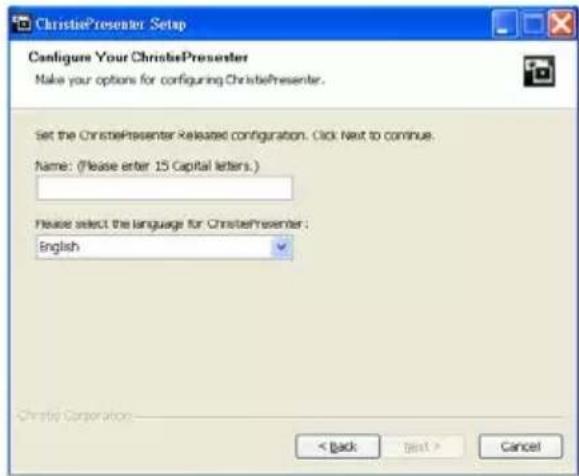
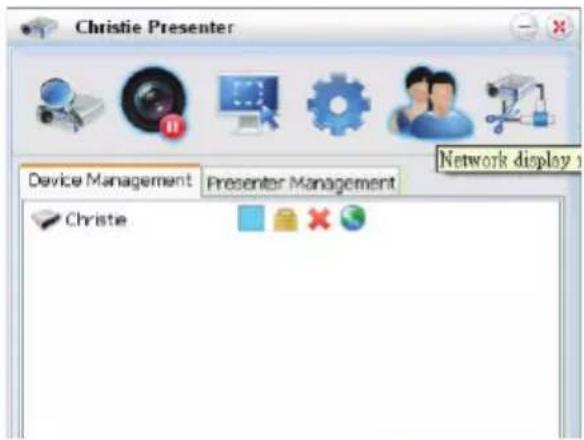
CHRISTIE Model Name OHDS55-GS Serial Number 031211199 Login User administrator Main Network Setting Tools Administrator About General Status Lens Control Projector Info Switch Main Input Mini USB Power ON Power On PIP/PBP Input VSA Pic Mute OFF Power Off PIP / PBP ○ ON ○ OFF OSD ON Main Layout PBP, Main Left IP Address 10.2.25.14 Pic Mute ON Size Small MAC Address 00:70:21:72:0a:ab Pic Mute OFF Swap Execute OSD On Test Pattern OFF Off Off Christie Presenter Download- Configure the Christie Presenter Software. The name entered is used to identify all computers connected to the projector via the Christie Presenter software via either wired or wireless connections. The Network Display Management -> Device Management tab will show all current connections.
text_image
ChristiePresenter Setup Configure Your ChristiePresenter Make your options for configuring ChristiePresenter. Set the ChristiePresenter Released configuration. Click Next to continue. Name: (Please enter 15 Capital letters.) Please select the language for ChristiePresenter: English < Back Next > Cancel4.10.3 Use Christie Presenter
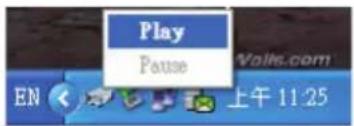
- Press the autorun icon in the system tray to pause or play the USB display.
text_image
Play Pause EN 上午 11:25- After starting the Christie Presenter application, the main window can be seen (shown below).
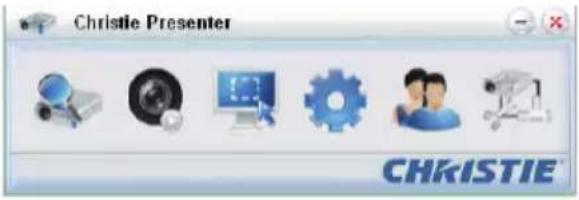
text_image
Christie Presenter CHRISTIE| Icon Description | |
 | Connect and search network display |
 | Stop/start displaying desktop contents to connected network display |
 | Select display region |
 | Configure Christie Presenter |
 | Manage all connected network displays |
 | Disconnect all connections |
Connect and search network display
1 Click the button to enter into the connection menu section.
2 If the IP address of the projector is known, enter the IP address and click the "Connect" button. If the IP address is not known, click the "Search" button to search for the projector on the network and select the projector to which you want to connect. Select the option "Directly" in order to proceed to the log in interface.
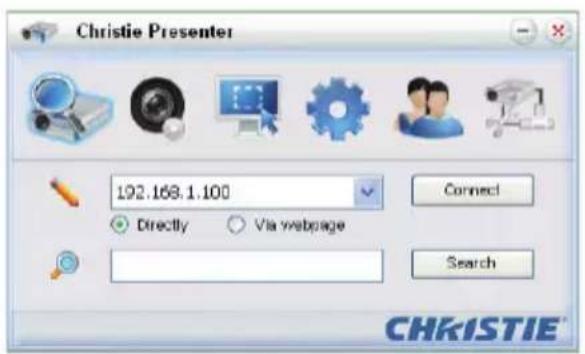
text_image
Christie Presenter 192.168.1.100 Directly Via webpage Connect Search CHKISTIE®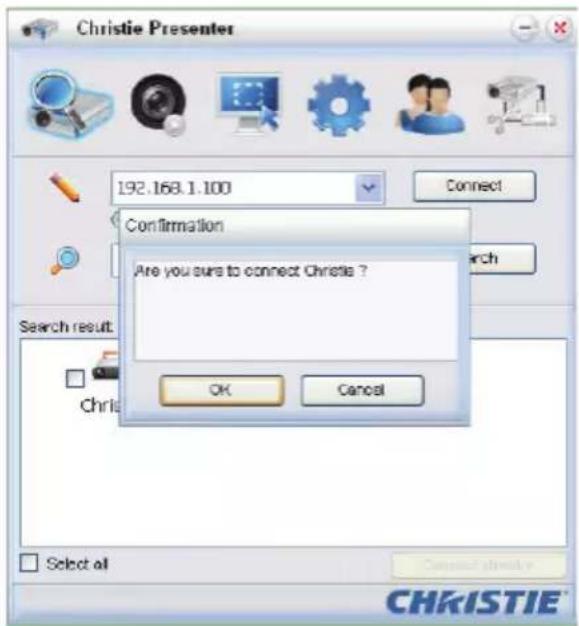
text_image
Christie Presenter 192.168.1.100 Confirmation Are you sure to connect Christie ? OK Cancel Search result: Christie Select all Christie®3 Input "User type" and "Password" in the log-in interface. Select the display port (the default is full screen). Obtain the "Normal" user's password from the OSD menu Main Menu > Configuration > Communications > WLAN.
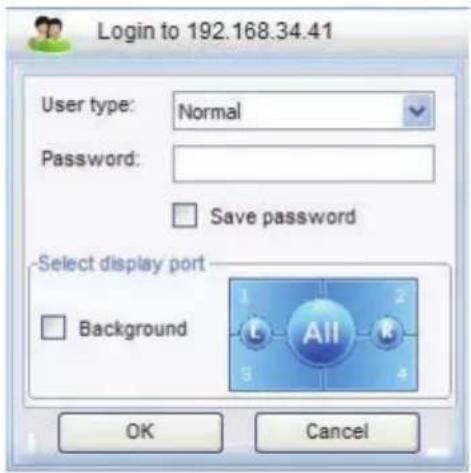
text_image
Login to 192.168.34.41 User type: Normal Password: Save password Select display port Background OK CancelSelect display region
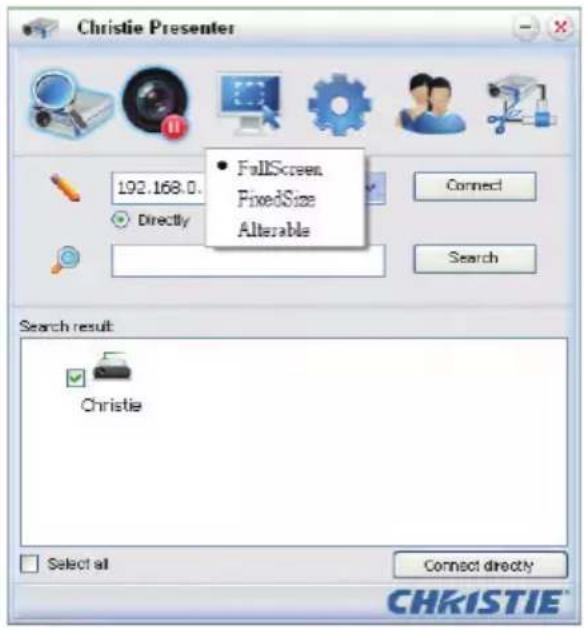
Once the connection is set up, click the button to select the size of the projection region: FullScreen, FixedSize, or Alterable.
text_image
Christie Presenter 192.168.0. Directly FullScreen FixedSize Alterable Connect Search Search result Christie Select all Connect directly CHRISTIE®- FullScreen: The default capture mode turns to Full screen when the program is launched. At that time, if screen capture starts, the image of the whole screen is transferred to a remote network display.
- FixedSize: FixedSize mode allows the users to place a frame on the desktop. Only the image enclosed inside the frame is transferred to remote network display.
- Alterable: In Alterable mode the only region captured is the one enclosed by the frame. The region can be enlarged or downsized by dragging the eight small black squares scattered on eight edges of the frame.
Configure Christie Presenter
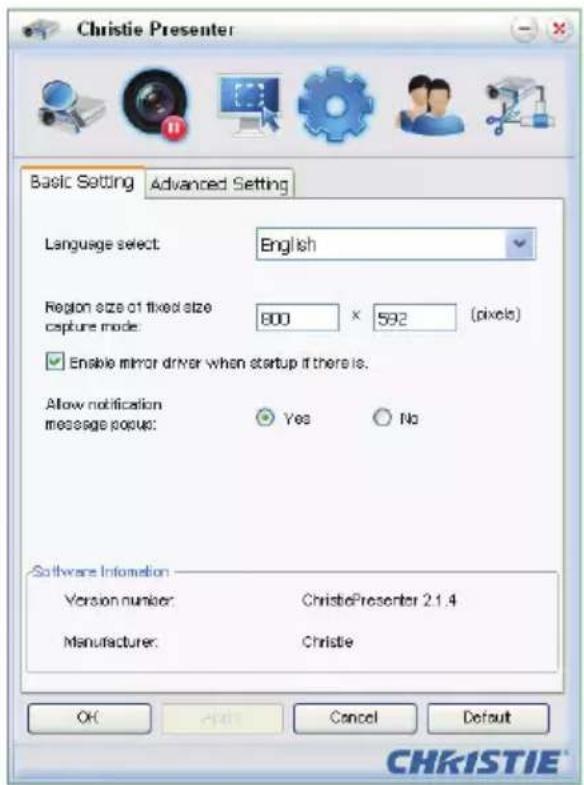
Click the button to configure Christie Presenter for Basic Setting and Advanced Setting.
text_image
Christie Presenter Basic Setting Advanced Setting Language select: English Region size of fixed size capture mode: 800 x 592 (pixels) Enable mirror driver when startup if there is. Allow notification message popup: Yes No Software Information Version number: ChristiePresenter 2.1.4 Manufacturer: Christie OK Cancel Default CHRISTIE®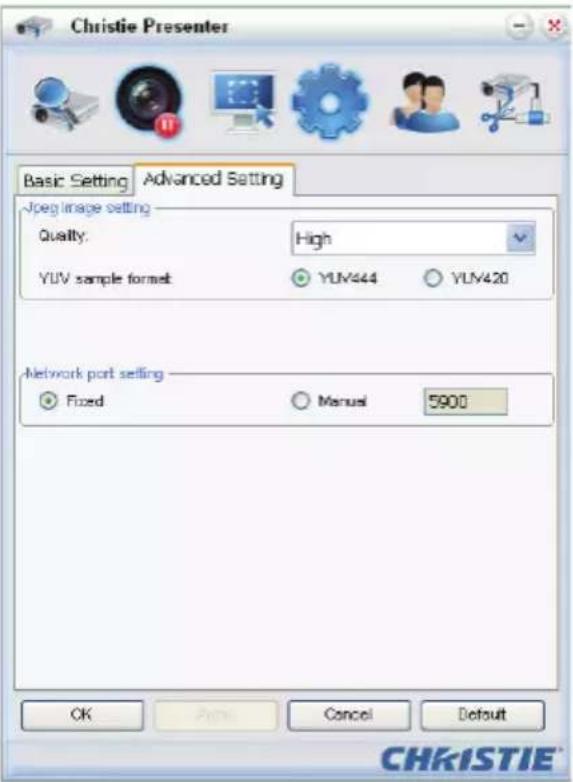
text_image
Christie Presenter Basic Setting Advanced Setting Jpeg image setting Quality: High YUV sample format YUV444 YUV420 Network port setting Fixed Manual 5900 OK Cancel Default CHRISTIE®- Basic Setting: Select language, change the region size of fixed size capture mode, and select if notification message popup is allowed.
- Advanced Setting: Select the quality of JPEG image, YUV sample format and network port setting. (The "Fixed" port is Port 5900)
Manage all connected network displays
Click the button to control all the users and all the projectors connector to the same projector.
text_image
Christie Presenter Device Management Presenter Management Network display Christie| Icon Description | |
 | Administrator log in. |
 | Normal user log in. |
 | Device is connected. |
 | Device is not connected. |
 | The icon shows the current status and display position of the local screen on the network display. Click on the icon to change the display position. A dialog box will appear. |
 | Click this unlock icon to change the password. (Password change to target network display. Only an Administrator user can change the password.) |
 | No response is expected when this icon is clicked. If user log in as "Admin", the key icon can be seen and the Presenter password can be changed. If user log in as "Normal", the lock icon can be seen and the Presenter password can't be changed. |
 | Disconnect from target network display. |
 | Link for connecting to a target network display via a webpage. |
4.11 Card Reader Operation
There are four operation modes in the Card Reader application:
- USB Flash Devices Detection Screen
- Thumbnail Display Mode
- Images Display Mode
- Images Slide Show Mode
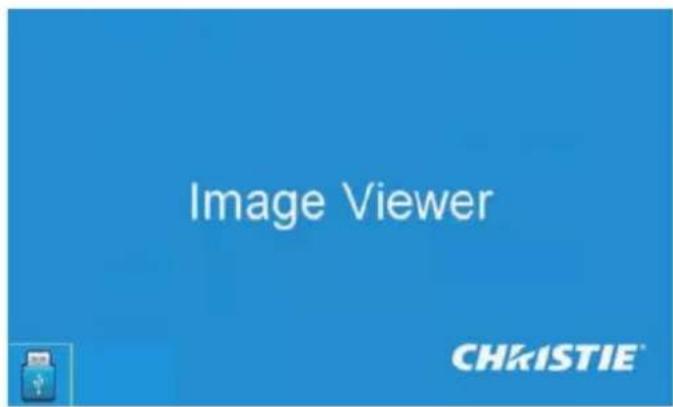
1. USB Flash Device Detection Screen:
In this mode, the Card Reader application detects any USB flash devices hot-plug events and displays the flash device icon. When the flash device is removed from USB, the icon disappears. It is suggested that USB flash devices should be removed only when the Card Reader is changed to the USB Flash Devices Detection Screen state.
text_image
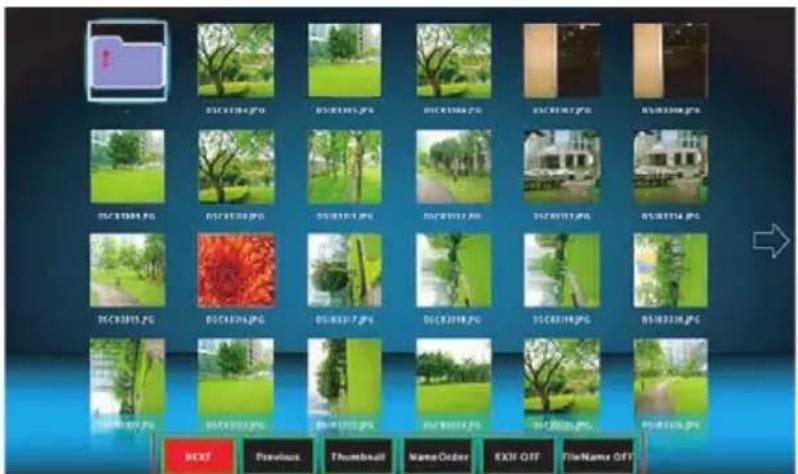
Image Viewer CHKISTIE™2. Thumbnail Display Mode:
Press the Enter key to enter the Thumbnail Display Mode. Different photos in different folders can be chosen. Press the Menu key to bring up the Card Reader operation UI.
text_image
NEXT Previous Thumbnail NameOrder EXIT OFF FileName OFFThe user interface is designed to operate the card reader application with a few keys (Enter/Left/Right/Up/Down).
The following buttons are supported in the user interface:
- Previous: Move the selected item left. (Go to previous page when this is the leftmost item)
- Next: Move the selected item right. (Go to next page when this is the rightmost item.)
- Display: Display the selected image or display the selected folder.
- Thumbnail: Enter the Thumbnail Display Mode.
- SlideShow: Enter the Slide Show Mode.
- NameOrder: Sort files/folders in name order.
- ExtendOrder: Sort files/folders in extended order.
- SizeOrder: Sort files/folders in size order.
• TimeOrder: Sort files/folders in time order.
- EXIF ON/OFF: Enable/Disable auto image rotate accordingly to EXIF information.
- FileName ON/OFF: Enable/Disable filename display in Thumbnail Display Mode.
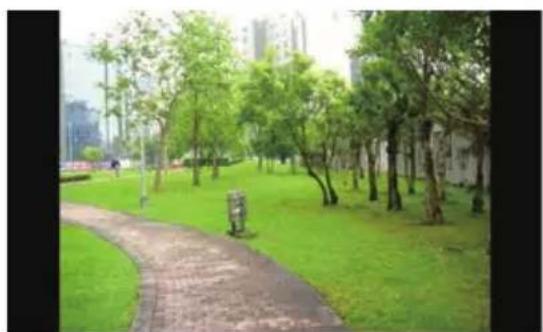
- Image Display Mode:
Press the ENTER key in the Thumbnail Display Mode to enter the Image Display Mode; press the SlideShow key to enter the Slide Show Mode. The Left/Right key is used to display the last/next image in the Image Display Mode. In the Image Display Mode, press the ENTER key to quit from the Image Display Mode and enter the Thumbnail Display Mode.
In the Slide Show Mode, press the ENTER key to enter the Image Display Mode.
natural_image
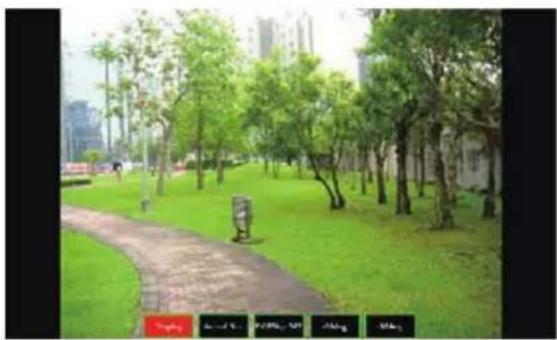
Park pathway lined with green grass and trees, no visible text or symbolsThe alternative way to display image in the Image Display Mode or Slide Show Mode is using the operation UI.
The following operations are supported in the operation UI.
• Display: Enter the Image Display Mode.
- Thumbnail: Enter the Thumbnail Display Mode.
- SlideShow: Enter the Slide Show Mode.
• Actual Size: Display in actual size of the image.
- Best Fit: Display the image in best fit to the screen.
- EXIFDisp OFF/On: Enable/Disable EXIF information display.
• +90deg: Rotate 90 degree.
- -90deg: Rotate -90 degree.
natural_image
Park pathway with trees and grass, no visible text or symbols- Image Slide Show Mode:
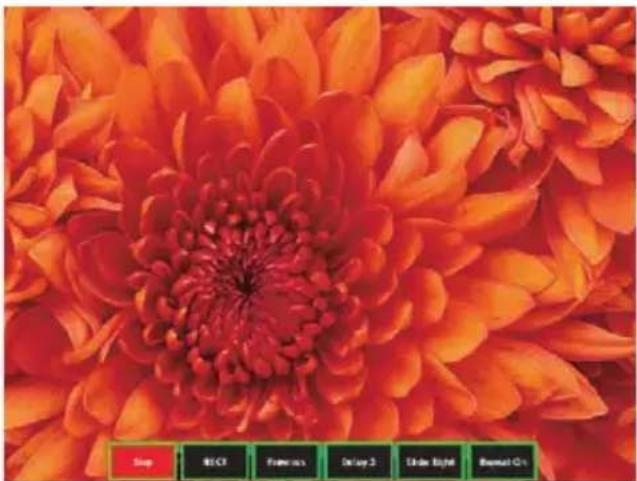
The following operations are supported in the Slide Show Mode operation UI.
- Stop: Stop Slide Show Mode.
- Next: Display next image.
• Previous: Display previous image. - Delay 3/4/5: Slide Show delay in seconds.
-
Slide Effect: Following modes are supported.
-
Slide Right
- B l o c k s
- RightDown
- XLines
- Slide Up
- Ylines
- Repeat ON/OFF: Enable/Disable Slide Show Repeat Mode.
natural_image
Close-up of a vibrant orange flower with dense petals and a central bud, displayed in a software interface (no text on the flower itself)When the image can NOT be displayed due to memory limitation or can NOT support image format, the specific image is displayed on the center of the screen.
natural_image
A small white square with a red and white symbol on a black background, no text or symbols present.5. TROUBLESHOOTING
If you are unable to resolve an issue using the information provided in this section, contact your reseller or service center.
| Problem Solution | |
| - No image appears on-screen | - Make sure all the cables and power connections are correctly and securely connected See "INSTALLATION".- Check if the Light Status LED is in Green.- Make sure you have removed the lens cap and the projector is switched ON. |
| • Partial, scrolling or incorrectly displayed image | - Press "AUTO" on control panel or on remote control.- If you are using a PC (for Windows 95, 98, 2000, XP, Windows 7):1. Click the "My Computer" > "Control Panel" and then double - click "Display".2. Select the "Settings" tab.3. Verify that your display resolution setting is lower than or equal to WUXGA (1920 × 1200).4. Click on the "Advanced Properties" button. If the projector is still not projecting the whole image, change the monitor display:4.1 Verify the resolution setting is lower than or equal to WUXGA (1920 × 1200).4.2 Select the "Change" button under the "Monitor" tab.4.3 Click on "Show all devices". Next, select "Standard monitor types" under the SP box; choose the resolution mode you need under the "Models" box.4.4 Verify that the resolution setting of the monitor display is lower than or equal to WUXGA (1920 × 1200). |
Problem Solution
- Partial, scrolling or incorrectly displayed image
- If you are using a Notebook:
- Adjust resolution of the computer.
- Press the keys listed below for your notebook manufacturer to send signal out from notebook to projector. Example: [Fn]+[F4]
Notebook Brand Function Keys
| Acer [Fn]+[F5] | |
| Asus [Fn]+[F8] | |
| Dell [Fn]+[F8] | |
| Gateway [Fn]+[F4] | |
| IBM/Lenovo [Fn]+[F7] | |
| HP/Compaq [Fn]+[F4] | |
| NEC [Fn]+[F3] | |
| Toshiba | [Fn]+[F5] |
| Mac Apple | System Preference ⇒ Display ⇒ Arrangement ⇒ Mirror display |
- If you experience difficulty changing resolutions or your monitor freezes, restart all equipment including the projector.
• The screen of the Notebook or PowerBook computer is not displaying your presentation
- If you are using a Notebook PC Some Notebook PCs may deactivate their own screens when a second display device is in use. Each of them has a different method of reactivation. Please refer to your computer manual for detailed information.
• Image is unstable or flickering
- Use "Pixel Track" and "Pixel Phase" to correct it.
- Change the monitor color setting on your computer.
• Image has vertical flickering bar
- Use "Auto Image" to make an adjustment.
- Check and reconfigure the display mode of your graphic card to make it compatible with the projector.
| Problem Solution | |
| • Image is out of focus | - Make sure both lens caps (front and back) are removed.- Adjust lens focus to fit.- Make sure the projection screen is between the required distance. |
| • The image is stretched when displaying 16:9 DVD title | - When you play anamorphic DVD or 16:9 DVD, the projector will show the best image when the projector display mode is set to 16:9 in the OSD.- If you play 4:3 format DVD titles, please change the format to 4:3 in the projector OSD.- If the image is still stretched, you will also need to adjust the aspect ratio by setting the display format as 16:9 (wide) aspect ratio type on your DVD player. |
| • Image is too small or too large | - Adjust lens zoom to fit.- If it does not fill the screen properly, verify that the correct lens is in use or change the position of the projector. |
6. SPECIFICATIONS
6.1 Inputs
NOTE: ✿ "RB" means "reduced blanking".
| Signal Type | Resolution | Frame Rate (Hz) | HDMI | VGA | DisplayPort | DVI | Component | S- video | CVBS |
| PC | 960x600 85 • | ||||||||
| 1024x768 60 • | • | • | • | ||||||
| 1024x768 75 • | • • • | ||||||||
| 1024x768 85 • | • | • | • | ||||||
| 1064x600 50 • | |||||||||
| 1064x600 60 • | |||||||||
| 1064x600 75 • | • | ||||||||
| 1064x600 85 • | • | ||||||||
| 1152x720 50 • | |||||||||
| 1152x720 60 • | |||||||||
| 1152x720 75 • | |||||||||
| 1152x720 85 • | • | ||||||||
| 1152x864 60 • | • | • | |||||||
| 1152x864 70 • | • | • | |||||||
| 1152x864 75 • | • | • | |||||||
| 1152x864 85 • | • | • | |||||||
| 1280x720 50 • | • | ||||||||
| 1280x720 60 • | • | • | • | ||||||
| 1280x720 75 • | • • • | ||||||||
| 1280x720 85 • | • | • | • | ||||||
| 1280x768 60 • | • | • | |||||||
| 1280x768 75 • | • | • | |||||||
| 1280x768 85 • | • | • | |||||||
| 1280x800 50 • | • | • | • | ||||||
| 1280x800 60 • | • • • | ||||||||
| 1280x800 75 • | • | • | |||||||
| 1280x800 85 • | • | • | |||||||
| PC | 1280x960 60 ● | ● | ● | ||||||
| 1280x960 75 ● | ● ● | ||||||||
| 1280x960 85 ● | ● | ● | |||||||
| 1280x1024 50 ● | ● | ||||||||
| 1280x1024 60 ● | ● | ● | ● | ||||||
| 1280x1024 75 ● | ● | ● | ● | ||||||
| 1280x1024 85 ● | ● | ● | ● | ||||||
| 1360x768 50 ● | |||||||||
| 1360x768 60 ● | |||||||||
| 1360x768 75 ● | |||||||||
| 1360x768 85 ● | |||||||||
| 1366x768 60 ● | ● | ● | ● | ||||||
| 1400x900 60 ● | ● | ● | ● | ||||||
| 1400x1050 50 ● | ● | ||||||||
| 1400x1050 60 ● | ● | ● | ● | ||||||
| 1400x1050 75 ● | ● ● | ||||||||
| 1440x900 60 ● | ● | ● | |||||||
| 1440x900 75 ● | |||||||||
| 1600x900 60 ● | |||||||||
| 1600x1200 50 ● | |||||||||
| 1600x1200 60 ● | ● | ● | ● | ||||||
| 1680x1050 50 ● | ● | ||||||||
| 1680x1050 60 ● | ● | ● | ● | ||||||
| 1680x1050 75 ● | |||||||||
| 1704x960 50 ● | |||||||||
| 1704x960 60 ● | |||||||||
| 1728x1080 50 ● | |||||||||
| 1728x1080 60 • | |||||||||
| 1864x1050 50 • | |||||||||
| 1864x1050 60 • | |||||||||
| PC | 1920X1080 50 • | • | |||||||
| 1920X1080 60 • | • • | ||||||||
| 1920X1200RB 60 • | • | • | • | ||||||
| 1920X1200RB | 50 | • | • | • | • | ||||
| NTSC NTSC (M, 4.43) | 60 | • | • | ||||||
| PAL | PAL (B,G,H,I) | 50 | • | • | |||||
| PAL (N) | 50 | • | • | ||||||
| PAL (M) | 60 | • | • | ||||||
| SECAM | SECAM (M) | 50 | • | • | |||||
| EDTV | 480i | 60 • • | • | • | |||||
| 576i | 50 • | • | • | • | |||||
| 480p | 60 • • | • | • | ||||||
| 576p | 50 • | • | • | • | |||||
| 1080i 25 • | • • • | ||||||||
| 1080i 29 • | • | • | • | ||||||
| 1080i 30 • | • • • | ||||||||
| 720p 50 • | • | • | • | ||||||
| 720p 59 • | • • • | ||||||||
| 720p 60 • | • | • | • | ||||||
| HDTV | 1080s 23 • | • | |||||||
| 1080s 24 • | • | ||||||||
| 1080p 23 • | • • • | ||||||||
| 1080p 24 • | • | • | • | ||||||
| 1080p 25 • | • • • | ||||||||
| 1080p 29 • | • | • | • | ||||||
| 1080p 30 • | • • • | ||||||||
| 1080p 50 • | • | • | • | ||||||
| 1080p 59 • | • • • | ||||||||
| 1080p 60 • | • | • | • | ||||||
6.2 PIP/PBP Compatibility
| MainPIP/PBP | HDMI | VGA | Component | CVBS | S-Video | HDBaseT | Display-Port | USB A | USB MINI-B | RJ45 DVI-D |
| HDMI----● | ●● | ● | ● | |||||||
| VGA | - | - | - | - | - | - | ● | ● | ● | ● |
| Component----● | ●● | ●● | ● | ● | ||||||
| CVBS----● | ● | ● | ● | ● | ● | |||||
| S-Video----●● | ●● | ●● | ● | |||||||
| HDBaseT | - | - | - | - | - | - | ● | ● | ● | ● |
| DisplayPort | ● | ● | ● | ● | ● | ● | - | - | - | - |
| USB A | ● | ● | ● | ● | ● | ● | - | - | - | - |
| USB MINI-B | ● | ● | ● | ● | ● | ● | - | - | - | - |
| RJ45 | ● | ● | ● | ● | ● | ● | - | - | - | - |
| DVI-D | ● | ● | ● | ● | ● | ● | - | - | - | - |
• : PIP/PBP combinations are enabled
- : PIP/PBP combinations are disabled
6.3 Key Features
- WXGA 0.65" 1280 x 800 or HD 0.65" 1920 x 1080 resolution or WUXGA 0.67" 1920 x 1200 resolution
• Projection lens compatibility:
- Horizontal offset ranges: +/-30%
- Vertical offset ranges: +/-100% (WUXGA/WXGA) and +/-120% (HD)
NOTE:
Measurements are based on industry standards where offset is calculated as a ratio of the number of pixels shifted up/down to half the image size.
- Dual Processing Warp Module for edge blending and geometric correction. (Optional)
- Wireless desktop display using wireless dongle (optional)
• SNMP traps and e-mail notifications
• 10-bit image processor electronics with modular design - All video formats can be resized to full screen either horizontally or vertically while maintaining aspect ratio
- The projector can be operated using any of the following:
- The built-in keypad, an infrared (IR) remote control, a wired remote control, a PC/device using serial communications (Ethernet or RS232)
- A Web page via Ethernet or from a PC/device via a wireless USB dongle. (Optional)
• Weight:
- Maximum product weight (with lens removed): 15kg (33lb.)
- Built-In keypad
6.4 List of Components
This projector comes with all the items shown below. Check to make sure your package is complete. Contact your dealer if anything is missing.
• IR remote control 003-004468-01
- Power cord x 4
- UK/Korea/Russia
- North America
- Europe
- J a p a n
- User manual (CD)
NOTE:
✿ Due to the difference in applications for each country, some regions may have different accessories.
6.5 Optional Accessories
- Lens 0.75-0.95 Zoom G (140-119102-01)
- Lens 0.95-1.22 Zoom G (140-101103-01)
- Lens 1.22-1.52 Zoom G (140-100102-01)
- Lens 1.52-2.89 Zoom G (140-102104-01)
- Lens 2.90-5.50 Zoom G (140-107109-01)
• Cable Cover GS White (140-106108-01)
• Cable Cover GS Black (140-106119-01)
• Portrait Side Cover White (140-108100-01)
• Portrait Side Cover Black (140-108111-01)
• 1DWUSB-BGN / Wireless dongle (optional accessory) (133-113106-01) - Dual Processor Warp Module (optional accessory) (133-111104-01)
6.6 REGULATORY
- Safety
- CSA C22.2 No. 60950-1
- UL 60950-1
- IEC 60950-1
- EN 60950-1
• Electro-Magnetic Compatibility
Emissions
- FCC CFR47, Part 15, Subpart B/ANSI C63.4, Class A - Unintentional Radiators
- CISPR 22/EN55022 Class A - Information Technology Equipment
- ICES/NMB003 (A) - Information Technology Equipment
- CISPR 24/EN55024 EMC Requirements - Information Technology Equipment
Immunity
- Environmental
• The product conforms to:
- EU Directive (2011/65/EU) on the restriction of the use of certain hazardous substances (RoHS) in electrical and electronic equipment and the applicable official amendment(s).
- EU Regulation (EC) No. 1907/2006 on the registration, evaluation, authorization and restriction of chemicals (REACH) and the applicable official amendment(s).
- EU Directive (2012/19/EU) on waste and electrical and electronic equipment (WEEE) and the applicable official amendment(s).
- China Ministry of Information Industry Order No.39 (02/2006) on the control of pollution caused by electronic information products, the hazardous substances concentration limits (SJ/T11363-2006), and the applicable product marking requirement (SJ/T11364-2006).
- Marking
- This product conforms to all relevant Canadian, US, and European directives, standards, safety, health and environmental concerns. International packaging recycling marks conform to:
▶ EU Directive (2012/19/EU) on waste and electrical and electronic equipment (WEEE).
▶ EU Directive (94/62/EC) on packaging and packaging waste
▶ China packaging recycling mark standard (GB18455-2001)
6.7 Federal Communications Commission (FCC) Warning
WARNING
- A shielded-type power cord is required in order to meet FCC emission limits and also to prevent interference to the nearby radio and television reception. It is essential that only the supplied power cord be used.
- Use only shielded signal cables to connect I/O devices to this equipment.
6.8 OSD Tree
| Level 1 | Level 2 | Level 3(Or List) | Level 4(Or List) | Level 5(Or List) | Level 6(Or List) | Default |
| Size & Position | Size Presets | Auto | Auto | |||
| Native | ||||||
| 4:3 | ||||||
| Letterbox | ||||||
| Full Size | ||||||
| Full Width | ||||||
| Full Height | ||||||
| Custom | ||||||
| Overscan | Off | By source setZoom | ||||
| Crop | ||||||
| Pixel Track 0 - 100 50 | ||||||
| Pixel Phase 0 - 100 50 | ||||||
| Horz Position 0 - 100 50 | ||||||
| Vert Position | 0 - 100 50 | |||||
| Digital Horz Zoom | 50%~400% | 100 | ||||
| Digital Vert Zoom 50%~400% | 100 | |||||
| Digital Horz Shift | 0 - 100 50 | |||||
| Digital Vert Shift 0 - 100 50 | ||||||
| Geometry Correction | Off | Off | ||||
| Basic | Horz Keystone | 0 - 100(0-20 for GEO model) | 50(10 for GEO model) | |||
| Vert Keystone | 0 - 100(0-20 for GEO model) | 50(10 for GEO model) | ||||
| Horz Pincushion | 0 - 100 | 50 | ||||
| Vert Pincushion | 0 - 100 | 50 | ||||
| Pincushion/Barrel | 0-20 | 10 | ||||
| 4-Corner | Top Left Horz adjust. | 0-140 | 0 | |||
| Top Left Vert adjust. | 0-80 | 0 | ||||
| Top Right Horz adjust. | 0-140 | 0 | ||||
| Top Right Vert adjust. | 0-80 | 0 | ||||
| Bottom Left Horz adjust. | 0-140 | 0 | ||||
| Bottom Left Vert adjust. | 0-80 | 0 | ||||
| Bottom Right Horz adjust. | 0-140 | 0 | ||||
| Bottom Right Vert adjust. | 0-80 | 0 | ||||
| Curve | Curve | Top Arc | 0-300 | 150 | ||
| Bottom Arc | 0-300 | 150 | ||||
| Left Arc | 0-300 | 150 | ||||
| Right Arc | 0-300 | 150 | ||||
| 4-Corner | Top Left Horz adjust. | 0-140 | 0 | |||
| Top Left Vert adjust. | 0-80 | 0 | ||||
| Top Right Horz adjust. | 0-140 | 0 | ||||
| Top Right Vert adjust. | 0-80 | 0 | ||||
| Size & Position | Geometry Correction | Curve 4-Corner | Bottom Left Horz adjust. | 0-140 0 | ||
| Bottom Left Vert adjust. | 0-80 0 | |||||
| Bottom Right Horz adjust. | 0-140 0 | |||||
| Bottom Right Vert adjust. | 0-80 0 | |||||
| Rotate | Rotation 0-16 8 | |||||
| 4-Corner | Top Left Horz adjust. | 0-140 0 | ||||
| Top Left Vert adjust. | 0-80 0 | |||||
| Top Right Horz adjust. | 0-140 0 | |||||
| Top Right Vert adjust. | 0-80 0 | |||||
| Bottom Left Horz adjust. | 0-140 0 | |||||
| Bottom Left Vert adjust. | 0-80 0 | |||||
| Bottom Right Horz adjust. | 0-140 0 | |||||
| Bottom Right Vert adjust. | 0-80 0 | |||||
| Auto Image | ||||||
| Image settings | Brightness 0 - 100 50 | |||||
| Contrast 0 - 100 By source set | ||||||
| Color Space | Auto Auto | |||||
| RGB | RGB | RGBRGB Video | ||||
| REC709 | ||||||
| YUV | REC709 | REC709 | ||||
| REC601 | ||||||
| Detail | Maximum | By source set | ||||
| High | ||||||
| Normal | ||||||
| Low | ||||||
| Minimum | ||||||
| Video Options | Color 0 - 100 50 | |||||
| Tint | 0 - 100 50 | |||||
| Noise Reduction | 0 - 100 | 0 | ||||
| Flesh Tone Cor-rection | 0 - 100 | 0 | ||||
| Video Black Level | ||||||
| Detect Film | Off/On Off | |||||
| Closed captions | Off | Off | ||||
| cc1 | ||||||
| cc2 | ||||||
| Input Levels | Red Gain | 0 - 100 50 | ||||
| Green Gain | 0 - 100 50 | |||||
| Blue Gain | 0 - 100 50 | |||||
| Red Offset | 0 - 100 50 | |||||
| Green Offset | 0 - 100 50 | |||||
| Blue Offset | 0 - 100 50 | |||||
| Sync Threshold | 0 - 100 50 | |||||
| Reset RGB Gain/Offset | ||||||
| Image settings | Picture Settings | Presentation | By source set | |||
| Video | ||||||
| Bright | ||||||
| Real | ||||||
| DICOM SIM | ||||||
| User | ||||||
| Save to User | ||||||
| Image Freeze Off / On Off | ||||||
| Advanced Image Settings | Gamma | Video | By source set | |||
| Film | ||||||
| Bright | ||||||
| CRT | ||||||
| DICOM | ||||||
| White Peaking 0 - 100 By source set | ||||||
| Color Temperature | Warmest | By source set | ||||
| Warm | ||||||
| Cool | ||||||
| Bright | ||||||
| Edge Enhancement | Off | OffNormal | ||||
| Maximum | ||||||
| Color Enhancement | Off | OffCE 1 | ||||
| CE 2 | ||||||
| Configuration | Language English | |||||
| Lens Settings | Focus command | |||||
| Zoom command | ||||||
| Lens Shift command | ||||||
| Lock all Lens Motors | Allow | Allow | ||||
| Locked | ||||||
| Lens center calibration | command | |||||
| Ceiling Mount Off/On/Auto Auto | ||||||
| Rear Projection Off/On | Off | |||||
| Menu Preferences | Menu Horz Offset | 0 - 100 | 0 | |||
| Menu Vert Offset | 0 - 100 | 0 | ||||
| Show Messages | Off/On | |||||
| Menu Transparency | 0 - 90 | 0 | ||||
| Splash Screen Setup | Factory Logo | Factory Logo | ||||
| Blue | ||||||
| Black | ||||||
| White | ||||||
| PIN Protect command | ||||||
| Change PIN | command | |||||
| Configuration | Power Manage-ment | Standby Mode | 0.5 W Mode | Communication mode | ||
| Communication mode | ||||||
| AC Power On Off/On Off | ||||||
| Auto Shutdown | Never | 20 Mins | ||||
| 5 Mins | ||||||
| 10 Mins | ||||||
| 15 Mins | ||||||
| 20 Mins | ||||||
| 25 Mins | ||||||
| 30 Mins | ||||||
| Sleep Timer | Off | Off | ||||
| 2 Hrs | ||||||
| 4 Hrs | ||||||
| 6 Hrs | ||||||
| High Altitude Off/On Off | ||||||
| Communications | LAN | DHCP | by set | |||
| IP Address | ||||||
| Subnet Mask | ||||||
| Default Gateway | ||||||
| MAC Address | ||||||
| WLAN | Enable | by set | ||||
| Start IP | ||||||
| End IP | ||||||
| Subnet Mask | ||||||
| Default Gateway | ||||||
| MAC Address | ||||||
| SSID | ||||||
| Password | ||||||
| Network | Projector Name | by set | ||||
| Show Network Messages | ||||||
| Restart Network... | ||||||
| Network Factory Reset... | ||||||
| Serial Port Baud Rate | 2400 | 115200 | ||||
| 4800 | ||||||
| 9600 | ||||||
| 14400 | ||||||
| 19200 | ||||||
| 38400 | ||||||
| 57600 | ||||||
| 115200 | ||||||
| 1200 | ||||||
| Serial Port Echo Off/On Off | ||||||
| Serial Port Path | RS232 | RS232 | ||||
| HDBaseT | ||||||
| Projector Address 0 - 9 0 | ||||||
| Image Blending | Blending On/Off Off | |||||
| Marker On/Off Off | ||||||
| Grid | Off/White/Red/Green/Blue | Off | ||||
| Solid Color | Off/White/Red/Green/Blue | Off | ||||
| Configuration | Image Blending | Overlap | TOP | 0... 1⁄2 Output Height (Pixel) | 0 | |
| Bottom | 0... 1⁄2 Output Height | 0 | ||||
| Left | 0... 1⁄2 Output Width | 0 | ||||
| Right | 0... 1⁄2 Output Width | 0 | ||||
| Bright Adj. | Blending Area off-set | 0-2000 1000 | ||||
| non-Blending Area Offset | 0-2000 1000 | |||||
| Drop Off Curve 70-300 100 | ||||||
| Image Gamma 1.8/2.0/2.2/2.4/2.6 2.2 | ||||||
| Color Matching | Meter Adjustment | Enable On/Off Off | ||||
| Auto Test Pattern On/Off On | ||||||
| Measured Data | Intensity of Red 100 - 10000 544 | |||||
| x of Red 0.300 - 0.700 0.590 | ||||||
| y of Red 0.300 - 0.500 0.383 | ||||||
| Intensity of Green 100 - 10000 | 2103 | |||||
| x of Green | 0.300 - 0.400 0.314 | |||||
| y of Green | 0.400 - 0.700 0.620 | |||||
| Intensity of Blue | 100 - 10000 124 | |||||
| x of Blue | 0.100 - 0.300 0.146 | |||||
| y of Blue | 0.030 - 0.400 0.030 | |||||
| Intensity of White | 100 - 10000 | 6772 | ||||
| x of White | 0.200 - 0.400 0.305 | |||||
| y of White | 0.200 - 0.400 0.333 | |||||
| Reset to Default | Yes/No | |||||
| Target Data | Gain of Red 0.200 - 1.000 1.000 | |||||
| x of Red 0.300 - 0.700 0.615 | ||||||
| y of Red 0.300 - 0.500 0.381 | ||||||
| Gain of Green | 0.200 - 1.000 1.000 | |||||
| x of Green | 0.300 - 0.400 0.308 | |||||
| y of Green | 0.400 - 0.700 0.633 | |||||
| Gain of Blue | 0.200 - 1.000 1.000 | |||||
| x of Blue | 0.100 - 0.300 0.142 | |||||
| y of Blue | 0.030 - 0.400 0.030 | |||||
| Gain of White 0.200 - 1.000 1.000 | ||||||
| x of White | 0.200 - 0.400 0.328 | |||||
| y of White | 0.200 - 0.400 0.380 | |||||
| Reset to Default | Yes/No | |||||
| Manual Adjustment | Enable On/Off Off | |||||
| Auto Test Pattern On/Off On | ||||||
| Red Part of Red | 0 - 1000 | 1000 | ||||
| Green Part of Red | 0 - 1000 0 | |||||
| Blue Part of Red 0 - 1000 | 0 | |||||
| Green Part of Green | 0 - 1000 | 1000 | ||||
| Red Part of Green | 0 - 1000 0 | |||||
| Blue Part of Green | 0 - 1000 0 | |||||
| Blue Part of Blue | 0 - 1000 | 1000 | ||||
| Red Part of Blue 0 - 1000 | 0 | |||||
| Green Part of Blue | 0 - 1000 | 0 | ||||
| Configuration | Color Matching | Manual Adjustment | Red Part of White 0 - 1000 1000 | |||
| Green Part of White | 0 - 1000 1000 | |||||
| Blue Part of White 0 - 1000 1000 | ||||||
| Reset to Default Yes/No | ||||||
| Hot-Key Settings | Blank Screen | |||||
| Aspect Ratio | ||||||
| Freeze Screen | ||||||
| Projector Info | ||||||
| Overscan | ||||||
| Closed Captions | ||||||
| Service | Projector Info | Model Name | ||||
| Serial Number | ||||||
| Native Resolution | ||||||
| Firmware | ||||||
| Configuration | ||||||
| Boot Code | ||||||
| Standby Mode | ||||||
| Lens Lock Set-tings | ||||||
| Wheel Index | ||||||
| Factory Reset... | ||||||
| Test Pattern | Off | |||||
| Grid | ||||||
| White | ||||||
| Black | ||||||
| Checkerboard | ||||||
| Color Bars | ||||||
| Red | ||||||
| Green | ||||||
| Blue | ||||||
| Yellow | ||||||
| Magenta | ||||||
| Cyan | ||||||
| Boresight | ||||||
| Phosphor Index | ||||||
| Filter Index | ||||||
| Error log | Show log | |||||
| Clear log | ||||||
| Mode Adjustment | ||||||
| Laser Diode Info | LD1 Voltage | |||||
| LD2 Voltage | ||||||
| LD3 Voltage | ||||||
| LD4 Voltage | ||||||
| LD5 Voltage | ||||||
| Bank1 tempera-ture | ||||||
| Bank2 tempera-ture | ||||||
| High temperature warning | On/Off On | |||||
| Light Source | Light Source Mode | Constant Power/ Constant Inten- sity/ECO mode | Constant Power | |||
| Constant Power 243 - 405 | 243, 259, 275, 292, 308, 324, 340, 356, 373, 389, 405 | |||||
| Constant Intensity 0 - 10 7 | ||||||
| Total Projector Hours | ||||||
| Light Sensor | Light Sensor Cali- bration | |||||
| Calibrated? (display Yes/No) | ||||||
| Status | Model Name | |||||
| Serial Number | ||||||
| Native Resolution | ||||||
| Firmware Vxx, Ayy, Bzz | ||||||
| Main Input | ||||||
| Main Signal Format | ||||||
| Main Pixel Clock | ||||||
| Main Sync Type | ||||||
| Main Horz Refresh | ||||||
| Main Vert Refresh | ||||||
| PIP/PBP Input | ||||||
| PIP/PBP Signal Format | ||||||
| PIP/PBP Pixel Clock | ||||||
| PIP/PBP Sync Type | ||||||
| PIP/PBP Horz Refresh | ||||||
| PIP/PBP Vert Refresh | ||||||
| Light Source Power | ||||||
| Total Projector Hours | ||||||
| Standby Mode | ||||||
| Lens Lock Settings | ||||||
| IP Address | ||||||
| DHCP | ||||||
| System Tempera- ture | ||||||
| Input Switching & PIP | Main Input SPEC define | |||||
| PIP/PBP Input SPEC define | ||||||
| PIP/PBP Enable | OFF | OFF | ||||
| ON | ||||||
| Swap | ||||||
| Size | (Small/Medium/Large) | |||||
| Layout | (PBP, Main Left / PBP, Main Top / PBP, Main Right / PBP, Main Bottom / PIP-Bottom Right / PIP-Bottom Left / PIP-Top Left / PIP-Top Right) | |||||
| Timing Detection Mode | Normal | Wide | ||||
| Wide | ||||||
| Source Info | Active Source | |||||
| Signal Format | ||||||
| Aspect Ratio | ||||||
| Resolution | ||||||
| Vert Refresh | ||||||
| Horz Refresh | ||||||
| Pixel Clock | ||||||
| Sync Type | ||||||
| Color Space | ||||||
| PIP/PBP | (When PIP/PBP active) | |||||
| (When PIP/PBP active) | ||||||
| Enable Main Source Hot-Key | ON | ON | ||||
| OFF | ||||||
| Source Hot-Key | VGA Key number 1 | |||||
| HDMI Key number 2 | ||||||
| DVI-D Key number 3 | ||||||
| Display Port Key number 4 | ||||||
| Component Key number 5 | ||||||
| S-Video Key number 6 | ||||||
| Composite Key number 7 | ||||||
| Christie Presenter Key number 8 | ||||||
| Card Reader Key number 9 | ||||||
| Mini USB Key number 0 | ||||||
| HDBaseT | ||||||
| Input key | Change Sources | Auto SourceList all Sources | ||||
| Auto Source | ||||||
| Blank on Signal Switch | OFF | OFF | ||||
| ON | ||||||
| Language | English | |||||
| Test Pattern | Off | |||||
| Grid | ||||||
| White | ||||||
| Black | ||||||
| Checkerboard | ||||||
| Color Bars | ||||||
6.9 Preset Mode tables
| Orion-Laser projector | |||||
| Description | Bright | Presentation | Video | Dicom | Real |
| PW 2X 2X 2X | 2X 2X | ||||
| CW 2X 2X 2X | 2X 2X | ||||
| Syt. mode number 0 | 6 6 6 6 | ||||
| color temperature | Warm | Bright Warm Warm | Warm | ||
| Bright | Please see below table for DWU/DHD & DWX | ||||
| Warm | |||||
| Warmest | |||||
| Cool | |||||
| Gamma Video | Video | Video Dicom | FILM | ||
| White peaking | 100 | 100 | 100 | 100 | 100 |
| Mode NO. | SQ | CT mode | OSD mode | CT |
| 0 | Bright 2X-Native | Bright Warm | ||
| 0 | Bright 2X-D55 | Bright Warmest | ||
| 0 | Bright 2X-D70 | Bright Bright | ||
| 0 | Bright 2X-D80 | Bright Cool | ||
| 1 | Presentation | 2X-Native | Presentation | Bright |
| 1 | Presentation | 2X-D65 | Presentation | Warm |
| 1 | Presentation | 2X-D55 | Presentation | Warmest |
| 1 | Presentation | 2X-D85 | Presentation | Cool |
| 2 | Video | 2X-Native Video Warm | ||
| 2 | Video 2X-D55 | Video Warmest | ||
| 2 | Video 2X-D75 | Video Bright | ||
| 2 | Video 2X-D85 | Video Cool | ||
| 3 Real | 2X-Native Real | Warm | ||
| 3 Real | 2X-D55 Real | Warmest | ||
| 3 Real | 2X-D75 Real | Bright | ||
| 3 Real | 2X-D85 Real | Cool | ||
| OSD | Gamma index |
| CRT | 6 |
| VIDEO | 5 |
| FILM | 0 |
| BRIGHT | 4 |
| DICOM | 13 |
| SIGNAL | Default Mode | IMAGE Mode | Brightness | Contrast | Default Mode | IMAGE Mode Brightness Contrast | |||
| Composite | Video Mode | PAL | Presentation Mode | 50 50 | NTSC | Presentation Mode | 50 50 | ||
| Video Mode 50 | 50 Video | Mode 50 | 50 Video | ||||||
| Bright Mode 50 | 50 Bright | Mode 50 | 50 Mode | ||||||
| Real Mode 50 | 50 Real | Mode 50 | 50 | ||||||
| Dicom Mode | 50 50 | Dicom Mode | 50 50 | ||||||
| S-video | Video Mode | PAL | Presentation Mode | 50 50 | NTSC | Presentation Mode | 50 50 | ||
| Video Mode 50 | 50 Video | Mode 50 | 50 Video | ||||||
| Bright Mode 50 | 50 Bright | Mode 50 | 50 Mode | ||||||
| Real Mode 50 | 50 Real | Mode | 50 | ||||||
| Dicom Mode | 50 50 | Dicom Mode | 50 50 | ||||||
| VGA/PC | Presentation Mode | PC Signal | Presentation Mode | 50 50 | Component/Video(720p,576p/l,1080p/i...) | Presentation Mode | 50 50 | ||
| Video Mode 50 | 50 Video | Mode 50 | 50 Video | ||||||
| Bright Mode 50 | 50 Bright | Mode 50 | 50 Mode | ||||||
| Real Mode 50 | 50 Real | Mode 50 | 50 | ||||||
| Dicom Mode | 50 50 | Dicom Mode | 50 50 | ||||||
| HDMI/DVI/HDBaseT | Presentation Mode | PC Signal | Presentation Mode | 50 50 | HDMI/DVI(SD/HD) | Presentation Mode | 50 50 | ||
| Video Mode 50 | 50 Video | Mode 50 | Presentation Mode | ||||||
| Bright Mode 50 | 50 Bright | Mode 50 | 50 Mode | ||||||
| Real Mode 50 | 50 Real | Mode 50 | 50 | ||||||
| Dicom Mode | 50 50 | Dicom Mode | 50 50 | ||||||
Corporate offices
USA-Cypress
ph:714-236-8610
Canada - Kitchener
ph:519-744-8005
Consultant offices
Italy
ph:+39(0)299021161
Worldwide offices
Australia
ph:+61(0)736244888
Brazil
ph:+55(11)25484753
China(Beijing)
ph:+86 10 6561 0240
China (Shanghai)
ph:+862162787708
Eastern Europe and
Russian Federation
ph:+36(0)14748100
France
ph:+33(0)141214404
Germany
ph:+492161664540
India
ph:+91(080)67089999
Japan
ph:81-3-3599-74£1
Korea (Seoul)
ph:+82 27021601
Republic of South Africa
ph:+27(0)115100094
Singapore
ph:+65 6877-8737
Spain
ph:+34916339990
United Arab Emirates
ph:+97143206688
United Kingdom
ph:+441189778000