7005 - Uncategorized Ansel - Free user manual and instructions
Find the device manual for free 7005 Ansel in PDF.


User questions about 7005 Ansel
0 question about this device. Answer the ones you know or ask your own.
Ask a new question about this device
Download the instructions for your Uncategorized in PDF format for free! Find your manual 7005 - Ansel and take your electronic device back in hand. On this page are published all the documents necessary for the use of your device. 7005 by Ansel.
USER MANUAL 7005 Ansel
natural_image
Black wireless router device with antenna and cable, no visible text or symbols on bodyVersion: 1.07 -
Table of Contents
TABLE OF CONTENTS 1
PREFACES 4
0.1 ABOUT THIS MANUAL 4
0.2 COPYRIGHT DECLARATIONS 4
0.3 TRADEMARKS 4
0.4 SAFETY INSTRUCTIONS 4
0.5 WARRANTY 5
INTRODUCE 6
1.1 OVERVIEW 6
1.2 ACRONYMS TABLE 6
1.3 INTRODUCTION 7
1.4 FRONT PANEL LED INDICATORS & REAR PANELS 7
1.4.1 OUTLOOK OF SC-100P 7
1.4.2 FRONT PANEL LED AND CONTAINER DESCRIPTIONS 8
1.4.3 REAR PANEL DESCRIPTIONS 9
1.5 FEATURES AND SPECIFICATIONS 10
INSTALLATION AND SETUP 12
2.1 PACKAGE CONTENT 12
2.2 INSTALLATION 13
2.3 SETUP 14
2.3.1 FACTORY DEFAULT SETTING 14
2.3.2 SETTING UP NETWORK 14
2.3.3 TELNET 17
2.3.4 WEB USER INTERFACE 20
GSM SETUP 20
3.1 GSM SETUP 21
3.1.1 GSM PARAMETER 22
3.1.2 PSTN DIALPLAN 23
3.1.3 GSM DIALPLAN 24
3.1.4 SMS SETTING 24
3.1.5 Terminate Black List 25
ADVANCED SETUP 26
4.1 NETWORK CONFIGURATION 27
4.1.1 WAN PORT TYPE SETUP 27
4.1.2 DYNAMIC DNS 29
4.1.3 NETWORK MANAGEMENT 30
4.2 VoIP SETUP 31
4.2.1 H.323 SETUP 31
4.2.2 SIP SETUP 35
4.2.3 DIRECT CALL (PEER TO PEER) SETUP 40
4.2.4 OTHER VOIP SETTING 42
4.3 SYSTEM ADMINISTRATOR 43
4.3.1 SAVE CONFIGURATION AND REBOOT 44
4.3.2 ACCESS CONTROL 44
4.3.3 SET TO DEFAULT CONFIGURATION 45
4.3.4 SYSTEM INFORMATION DISPLAY FUNCTION 45
4.3.5 SNTP SETTING FUNCTION 45
4.3.6 CAPTURE PACKETS FUNCTION 46
4.4 FIRMWARE UPGRADE GUIDE 47
APPENDIX 50
A FAQ LIST 50
B SIP SETTING VOIPBUSTER 51
C SIP SPEEDS CALL 53
D APPLICATIONS 55
PREFACES
0.1 About This Manual
This manual is designed to assist users in using GSM Gateway. Information in this document has been carefully checked for accuracy; however, no guarantee is given as to the correctness of the contents. The information contained in this document is subject to change without notice.
0.2 Copyright Declarations
Copyright 2007 Telephony Corporation. All rights reserved. This publication contains information that is protected by copyright. No part may be reproduced, transmitted, transcribed, stored in a retrieval system, or translated into any language without written permission from the copyright holders.
0.3 Trademarks
Products and Corporate names appearing in this manual may or not be registered trademarks or copyrights of their respective companies, and are used only for identification or explanation and to the owners' benefit, without to infringe.
0.4 Safety Instructions
The most careful attention has been devoted to quality standards in the manufacture of the Gateway. Safety is a major factor in the design of every set. But, safety is you responsibility too.
Use only the required power voltage. Power Input: AC 100-240V, 50-60Hz
To reduce the risk of electric shock, do not disassemble this product. Opening or removing covers may expose the Gateway to hazardous voltages. Incorrect reassembly can cause electric shock when this product is subsequently used.
✿ Never push objects of any kind into the equipment through housing slots since they may touch hazardous voltage points or short out parts those could result in a risk of electric shock. Never spill liquid of any kind on the product. If liquid is spilled, please refer to the proper service personnel.
Use only Unshielded Twisted Pair (UTP) Category 5 Ethernet cable to RJ-45 port of the Gateway.
0.5 Warranty
We warrant to the original end user (purchaser) that the GSM gateway will be free from any defects in workmanship or materials for a period of one (1) years from the date of purchase from the dealer. Please keep your purchase receipt in a safe place as it serves as proof of date of purchase. During the warranty period, and upon proof of purchase, should the product have indications of failure due to faulty workmanship and/or materials, we will, at our discretion, repair or replace the defective products or components, without charge for either parts or labor, to whatever extent we deem necessary to re-store the product to proper operating condition. Any replacement will consist of a new or re-manufactured functionally equivalent product of equal value, and will be offered solely at our discretion. This warranty will not apply if the product is modified, misused, tampered with, damaged by an act of God, or subjected to abnormal working conditions. The warranty does not cover the bundled or licensed software of other vendors. Defects which do not significantly affect the usability of the product will not be covered by the warranty. We reserve the right to revise the manual and online documentation and to make changes from time to time in the contents hereof without obligation to notify any person of such revision or changes.
Note
Repair or replacement, as provided under this warranty, is the exclusive remedy of the purchaser. This warranty is in lieu of all other warranties, express or implied, including any implied warranty of merchantability or fitness for a particular use or purpose. We shall in no event be held liable for indirect or consequential damages of any kind of character to the purchaser.
To obtain the services of this warranty, contact us for your Return Material Authorization number (RMA). Products must be returned Postage Prepaid. It is recommended that the unit be insured when shipped. Any returned products without proof of purchase or those with an out-dated warranty will be repaired or replaced and the customer will be billed for parts and labor. All repaired or replaced products will be shipped by us to the corresponding return address, Postage Paid. This warranty gives you specific legal rights, and you may also have other rights that vary from country to country.
Introduce
GSM Gateway is designed for lowering company telephone bill in calling mobile numbers. This document describes the usage of GSM Gateway.
1.1 Overview
SC-100P - GSM with VoIP
The SC-100P Quad-Band GSM over VoIP gateway has been designed for user to make calls and receive calls from a cellular phone via the internet using VoIP (SIP/H.323).
1.2 Acronyms Table
| Acronym: | Full Name: Acronym: | Full Name: | |
| ADC | Analog to Digital Converter | CODEC | Coder / Decoder |
| DAC | Digital to Analog Converter | DC | Direct Current |
| DDNS Dynamic Domain Name System | DHCP Dynamic Host Configuration Protocol | ||
| DMZ | Demilitarized Zone | DNS | Domain Name System |
| DTMF | Dual Tone Multi Frequency | FXS | Foreign Exchange Station |
| GMT | Greenwich Mean Time | GSM | Global System for Mobile Communications |
| IP | Internet Protocol | IPsec | Internet Protocol Security |
| L2TP | The Layer 2 Tunnel Protocol | LAN | Local Area Network |
| WAN | Wide Area Network | MAC | Media Access Control |
| MII | Media Independent Interface | NAT | Network Address Translation |
| NTP | Network Time Protocol | PPTP | Point-to-Point Tunneling Protocol |
| RTP | Real-Time Transport Protocol | RTCP | Real-Time Transport Control Protocol (also known as RTP control protocol) |
| SIP | Session Initiation Protocol | SLIC | Subscriber Line Interface Circuit |
| STUN | Simple Traversal of UDP through NATs | URI | Uniform Resource Identifier |
| TCP | Transmission Control Protocol | UDP | User Datagram Protocol |
| UPnP | Universal Plug and Play | VoIP | Voice Over Internet Protocol |
1.3 Compare Table
Model Compare Table
| Model | FXS Port | PSTN | WAN Port | VoIP | |
| SC-100P | 1 | 1 | 1 | v |
* manufacture by order (lead time : 60 days)
1.4 Front Panel LED Indicators & Rear Panels
1.4.1 Outlook of SC-100P
Front
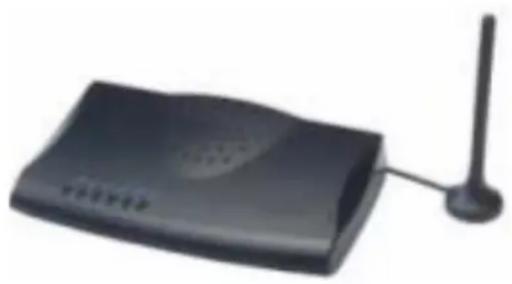
natural_image
Black wireless router device with antenna and ports (no visible text or symbols)Rear
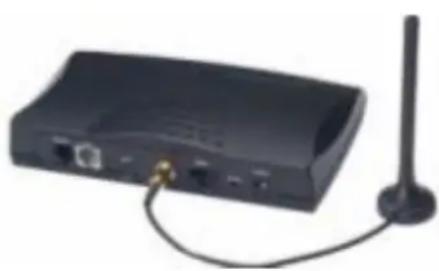
natural_image
Black wireless router with antenna and cable (no visible text or symbols)* The outlook of SC-100P are the same
1.4.2 Front Panel LED and Container Descriptions
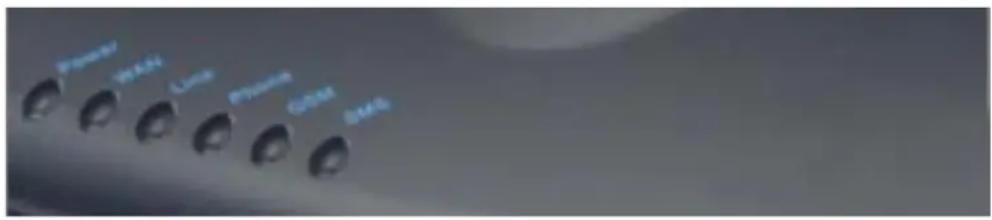
| LED | State | Description | ||
| Power ON GSM Gateway is Power On | ||||
| OFF GSM Gateway is Power Off | ||||
| WAN | ON | Network | connection | established |
| Flashing Data traffic on cable network | ||||
| OFF Waiting for network connection | ||||
| Line ON Line is busy | ||||
| Flashing | Ring | Indication | ||
| OFF Line is not enabled | ||||
| Phone ON Telephone Set is Off-Hook | ||||
| Flashing | Ring | Indication | ||
| OFF Telephone Set is On-Hook | ||||
| GSM On | GSM Network is found and working properly | |||
| Flashing | Searching GSM Network | |||
| SMS | ON Short message waiting Indicator | |||
| Flashing | Sending short message | |||
1.4.3 Rear Panel Descriptions
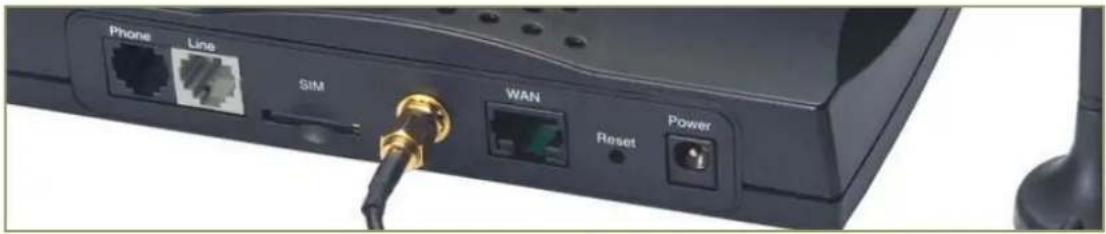
Port Description
Phone Phone port can be connected to analog telephone sets or Trunk Line of PBX
Line Can be Connected to PBX or CO line with RJ-11 analog line. PSTN not FXO port, can't connect PSTN to VoIP. When PSTN call comes, it will transfer to FXS port, let FXS can pick up call from VoIP or PSTN.
GSM The port which you can Insert SIM Card
Antenna Connect the antenna to the gateway. Connector
WAN Connect to the network with an Ethernet cable. This port allows your ATA to be connected to an Internet Access device, e.g. router, cable modem, ADSL modem, through a networking cable with RJ-45 connectors used on 10BaseT and 100BaseTX networks.
Reset Push this button until 3 seconds, and ATA will be set to factory default configuration.
Power A power supply cable is inserted
1.5 Features & General Specifications
SC-100P Common Features and Specifications
Features
- 2-wire, FXS interface (for analog phone or PBX CO line) and PSTN Line
- SMS Server for SMS sending & receiving
- Dialed number restriction, evaluation and modification
- Easy & comfortable maintenance, configuration and upgrade
General Specification
- Compatible with European, US, Brazil and Japan GSM networks (900/1800/1900 MHz)
• SIM: supports SIM card (3V)
• 1 WAN port, 1 FXS port, 1 PSTN port
• Radio interface: Quad-Band EGSM 900/1800/850/1900
• AC power: AC100V-240V, DC12V/1.5A, 50/60 Hz
• Temperature: 0°C \~ 40°C (Operation)
• Humidity: up to 90% non-condensing
• Emission: FCC Part 15 Class B, CE Mark
• Dimension: 170 x 100 x 35 mm - Weight: 200g
Configuration & Management
• Web-based Graphical User Interface
- Remote management over the IP Network
- FTP firmware upgrade
- Backup and Restore Configuration file
- Syslog client support
- Auto-Provision
SC-100P only (with VoIP gateway features)
Additional Features
- Calls from cellular over VoIP
- Calls from GSM network to the SC-100P unit provides a VoIP dial tone
- Follow me feature for calls from VoIP network.
- Calls that enters FXS port with no answer will be sent to GSM network.
IP Specifications
• H.323 v2/v3/v4 and SIP (RFC 3261), SDP (RFC 2327), Symmetric RTP, STUN (RFC3489), ENUM (RFC 2916), RTP Payload for DTMF Digits (RFC2833), Outbound Proxy Support.
• Voice Codec: G.711(A-law / μ-law), G.729 AB, G.723 (6.3 Kbps / 5.3Kbps)
- WAN: Support PPPoE client, DHCP client, Fix IP Address, DDNS client
- Support MWI (Message Waiting Indicator) by SIP Notify.
Call Features
• Voice channels status display
- Direct Dialing Mode : peer to peer call (support IP Address Call or Domain Name Call)
- Register Call Mode : register to SIP Proxy Server or H.323 Gatekeeper
- Adjustable volume : - 9 db \~ 9 db
• Silence Compression / VAD
- Auto Dial for speed
• Dynamic Jitter Buffer
• Hot-Line and Warm-Line Support
Installation and Setup
2.1 Package Content
Please check enclosed product and its accessories before installation. (Refer to the item number). These contents are from pre-released product. The contents for the final product might change a little bit.
Appurtenances:

natural_image
Close-up of a hand holding a white circular object over a grid of rectangular blocks (no visible text or symbols)CD ROM
CD Include in all product user manual and datasheet.
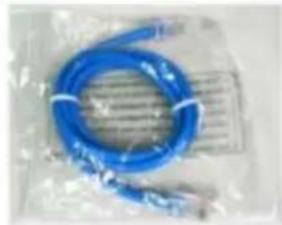
natural_image
Blue medical or laboratory fiber optic cable with attached metallic connector, wrapped in plastic wrap (no text or symbols visible)RJ-45 cable
Internet cable RJ-45 connect to NIC/Gateway/Router

Antenna
This Antenna frequency is 900MHz/1800,1900Mhz for automobile.
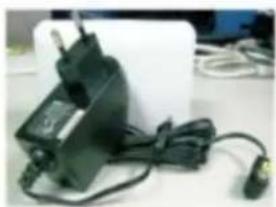
natural_image
Close-up of a black electronic device with attached cable and power plug (no visible text or symbols)Power supply
Power Supply, input: 100-240V output: +12V (Europe/UK/US)
2.2 Installation
1. Install Gateway
1 Connect the 12V DC IN to the power outlet with power adaptor.
2 Connect Line to PSTN Line.
3 Connect Phone port to a telephone jack with the RJ-11 analog cable (Phone / PBX Trunk Line.)
4 Connect the antenna to the Antenna Connector.
5 Insert SIM card to the gateway
6 Power On
Warning: to avoid the product damaged, please insert SIM card before power-on, and power-off first if it is necessary to take SIM card out of the product.
2. Setting up the network environment for configuration
- To be able to enter the configuration system via web or telnet.
- Connect the Ethernet cable (with RJ-45 connector) to WAN port.
GSM Gateway ---- RJ45 directly link ---- PC
- Change the IP address to 192.168.1.2(2\~254 is ok)
- Change the subnet mask to 255.255.255.0
- Change the gateway and the preferred DNS server to 192.168.1.1
IP configurations above please refer to page 15
3. After Network Configuration is done.
Connecting to an External Ethernet Hub or Switch:
1 Connect the Ethernet cable (with RJ-45 connector) to WAN port.
2 Connect the other end of the Ethernet cable to DSL/Cable modem or the external Ethernet hub or switch.
[Notice: If It's not able to access the GSM Gateway via Internet
Please follow step.2 to enter gateway, the values are special premade settings]
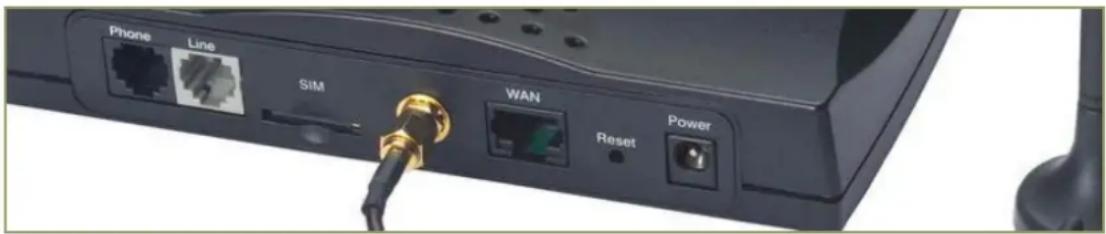
Port
Description
Phone FXS port can be connected to analog telephone sets or Trunk Line of PBX.
Line Line is used to connect to a PSTN line of carrier.
SIM After Inserting SIM card, the gateway is able to work as a mobile phone.
Antenna Connector Connect the antenna to the connector
| WAN | For Setting Connect directly to your PC with RJ 45 For WAN Connect to the network with an Ethernet cable. This port allows your GW to be connected to an Internet Access device, e.g. router, cable modem, ADSL modem, through a networking cable with RJ-45 connectors used on 10BaseT and 100BaseTX networks. |
RES Push this button until 3 seconds, and GW will be set to factory default configuration.
AC power(DC in 12V) A power supply cable is inserted
The hardware installation is now complete. The following sections will guide you through setting up your management PC and connecting to the Web User Interface.
2.3 Setup
There are 2 way to setting gateway - Web User Interface, Telnet
2.3.1 Factory Default setting
WAN Port IP address : 192.168.1.1
◆ Default login authentication username : admin, password : admin
SC-100P only (VoIP feature)
VoIP Number Port_1\~Port_2 number:100,200
✿ VoIP default setting was H.323 signal protocol, Direct Mode, Fast-Start and G.723 codec.
2.3.2 Setting Up Network
Checking the Network IP Configuration
The following explains how to setup the Transmission Control Protocol/Internet Protocol (TCP/IP) in Windows 2000/XP. For more detailed information on TCP/IP setup, refer to the Windows 2000/XP help files. For other operating systems refer to the user manuals.
- On the desktop, Please enter start -> control panel -> network setting." Click Properties. The Network screen will open.
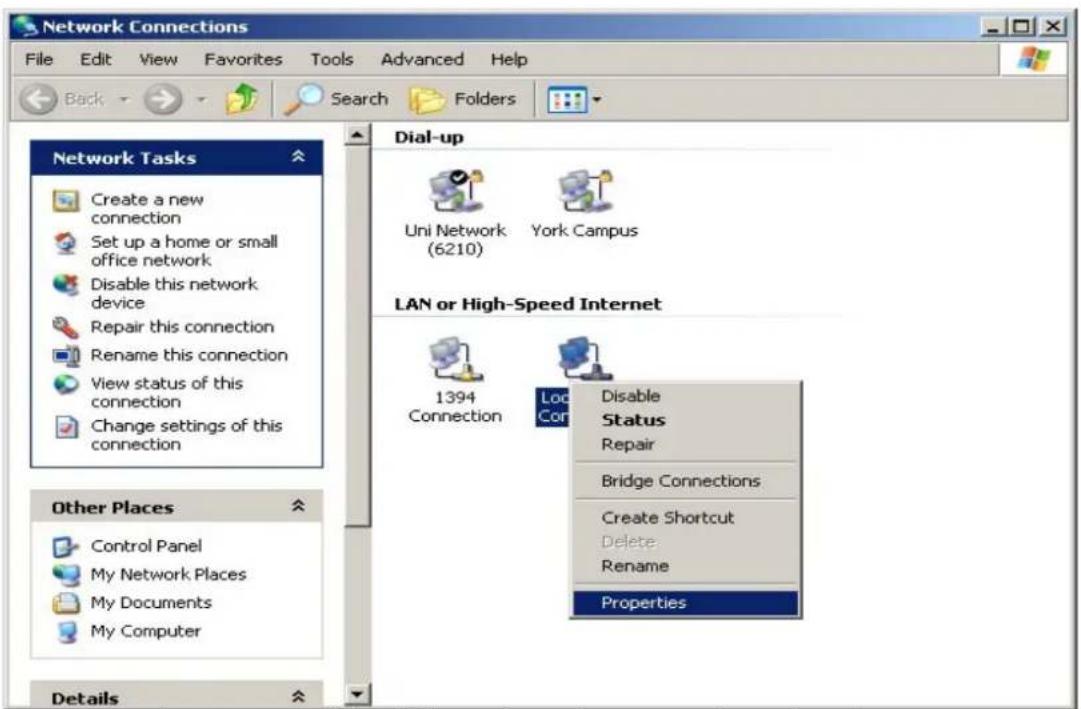
(Your particular system will be different from the screen shown here.)
Check that you have an Ethernet network card installed. If not, refer to the card manufacturer's documentation and install the card and drivers.
If your card is installed,
- Click the Add button. The Select Network Component Type dialog box will open. The box will show four options: Client, Adapter, Protocol, and Service.
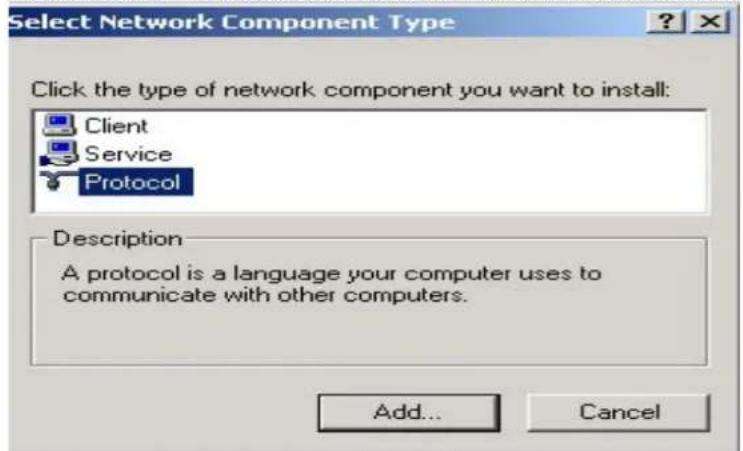
-
Select Protocol and click the Add button. The Select Network Protocol dialog box will open.
-
Select Microsoft in the left scrolling window then selects TCP/IP in the right, and click OK.". You will be returned to the Network dialog box.
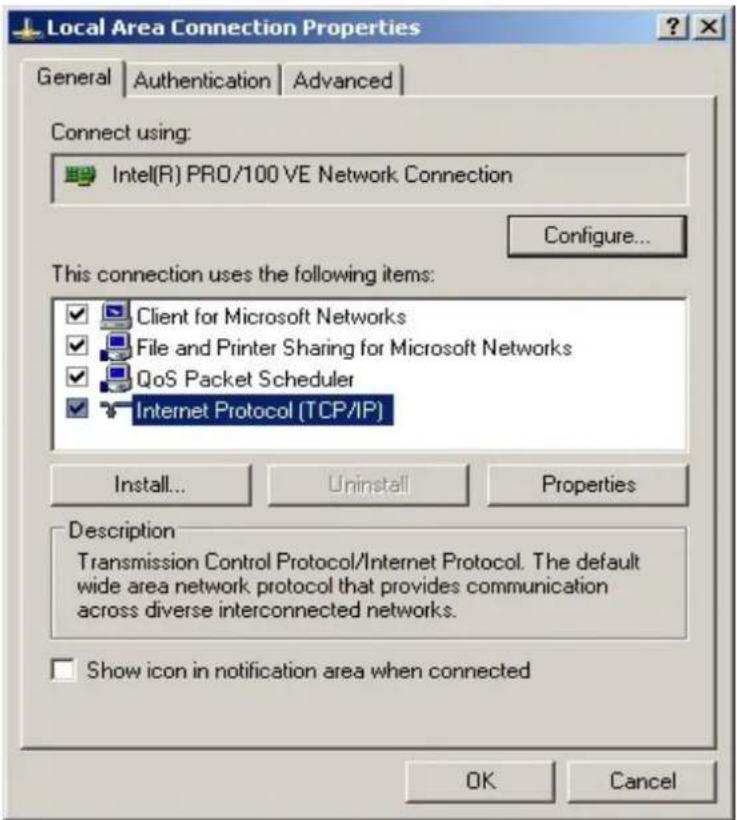
Configuring the TCP/IP Protocol
- On the Network dialog box Configuration card, select TCP/IP and then click Properties." The TCP/IP Properties dialog box will open.
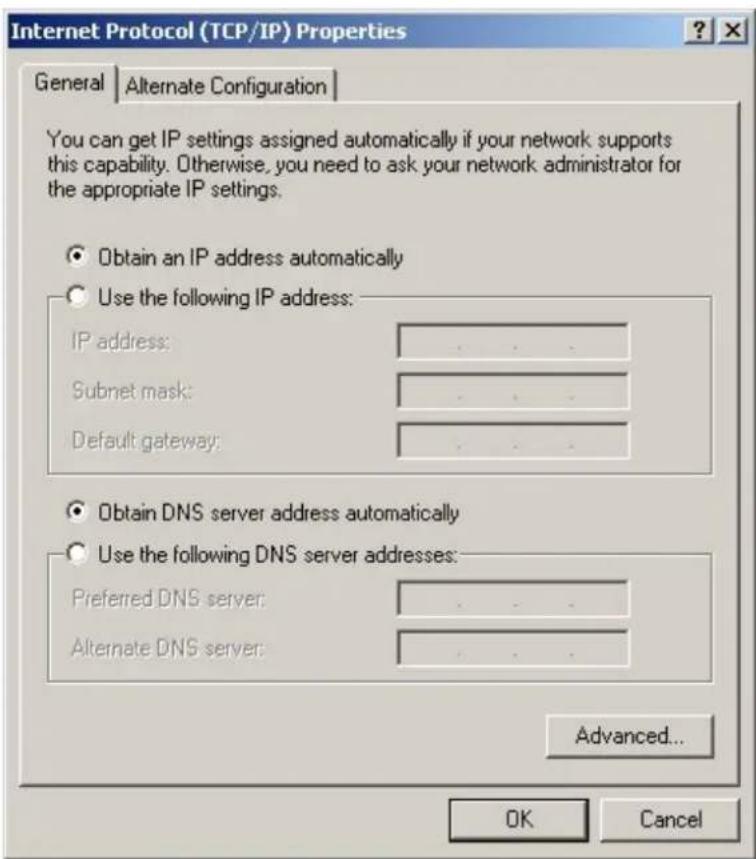
- On the IP Address tab, Change the IP address to 192.168.1.2(2\~254 is ok) the subnet mask to 255.255.255.0, the gateway and the preferred DNS server to 192.168.1.1
- click OK. A dialog box will pop up asking you to restart the PC. Click Yes".
Checking TCP/IP settings
-
After completing the previous steps, click Start -> Run -> and type ipconfig /all. The IP Configuration window will open. If the PC does not show an IP address in the 192.168.1.2 to 192.168.1.254 range, click the ipconfig /release button to release the current configuration. Wait a few seconds and click "ipconfig/renew" to get a new IP configuration from the router.
-
If the IP configuration is correct, you will be able to use the PING diagnostic utility built into Microsoft Windows to ping the router. Click Start -> Programs -> MS-DOS Prompt. A command mode window will open. Type "ping 192.168.1.1" (default IP of the router) to check the network connectivity. If both hardware and software are correct, your computer will receive a response from the router as shown on the next page. If not, verify that the Ethernet cable is connected to the router properly and the Ethernet port LED on the front panel is lit.
2.3.2 Telnet
Connect WAN port to Internet or PC and gateway at the same subnet. you can use telnet remote to configure your gateway.
- Connect Gateway online (Wan)
- Remote Gateway by Telnet. If telnet successful, you will see Login display.
(For Example: telnet 192.168.1.1) - Input Password (Gateway Access password, Default: admin), If login successful, you will enter the welcome display.
![Login : Welcome to U100 GSM Gateway (version ) ==================== Main Menu ==================== MAN Status:PPPoE Failed VoIP Status:Register Fail(SIP Proxy Mode) ==================== [1] Advanced Setup. [2] System Administration. [3] Save Current Configurations. [4] Upgrade Software. [5] Ping. [6] Logout. [7] GSM. [8] Restart. Please Select 1 - 8:](/content/2026/06/1166129/images/60c7887b878cf4681a4ddc554ce3bc7df94bc4b1c2b0e631decd8daa31b73d76.jpg)
- Gateway Telnet Setting Table, Use 1\~9 a\~z select setting, "ESC" is back setting.
| Item | Setting | Option |
| Main [1] Advanced Setup. | [2] System Administration.[3] Save Current Configurations.[4] Upgrade Software.[5] Ping.[6] Logout.[7] GSM[8] Restart. | |
| [1]Advanced Setup 1.WAN Setting | ||
| [1]Advanced Setup......1.WAN Setting | 1.Change WAN Type to DHCP2.Change WAN Type to Fixed IP3.Change PPPoE Username4.Change PPPoE Password | |
| [1]Advanced Setup......2.NS/Dynamic DNS Setting | 1.Change DDNS username2.Change DDNS password3.Change DDNS domain name4.Change DNS server IP5.Enable/Disable Get DNS Server IP | |
- Change DNS server IP
| [1]Advanced Setup...3Network Management | 1.Change web server port2.Change telnet server port |
| [1]Advanced Setup......4.VoIP Basic | 1.Change VoIP Protocol to H.3232.Change Port Number/Account/Password3.Enable/Disable Public account4.SIP hunting setting5.Change SIP Proxy Server IP Address/DNS6.Use net2phone7.Change Register Interval(seconds)8.Enable/Disable SIP authentication9.NAT Pass Methoda. STUN Server addressb. SIP realmc. Outbound Proxy Server addressd.Change SIP Local Port |
| [1]Advanced Setup......5.Dialing Plan | 1.Add Outbound Direct Call2.Delete Outbound Direct Call3.Add Inbound Direct Call4.Delete Inbound Direct Call |
| [1]Advanced Setup......6.VoIP Advance Setting | (1)Sip Advance1.Set DTMF Relay Mode2.Change FAX Mode3.Enable/Disable VoIP Encryption4.VoIP Encryption Port Setting(2)Telephone Advance1.VAD(Silence Compression)On/Off2.Change Codec3.Enable/Disable UK PSTN Tone Detection?4.Enable/Disable Dial Complete Tone5.Dial Termination Key Setting6.FXS Parameters Setting1.Change FXS Impedance2.Change Phone In Volume3.Change Phone Out Volume4.Flash Detection5.Ring Frequency6.FXS Battery reversal generation(3)Network Advance1.Disable Smart QOS2.Bandwidth Control3.G.723 Bandwidth4.G.729 Bandwidth5.Set IP TOS |
| [1]Advanced Setup......7.Hot Line Setting | 1.Change Port1 Hot Line Number2.Change Port2 Hot Line Number......(To your own port) |
| [2] System Administration. | 1.Save Configuration2.Access Control3.Set to Default4.System Information5.NTP Setting6.Syslog Setting |
2.3.4 Web User Interface
Connecting to the Web Configuration via a Web Browser
- Launch the Web browser (IE or Firefox). Enter http://192.168.1.1 into the browser Address window and press the Enter Key

-
An authentication dialog box will open.
-
If this is a first time setup of the router, type "admin" as the User Name and the Password field as "admin". Click OK.(Default username/Password is "admin")
- The Web Configuration Setup Main Menu will open. On the main page [GSM Setup], [Advanced Setup] and [System Information] were displayed.
System Configuration
GSM Setup
Advance Setup
System Administration
GSM Setup: Let you configure your GSM setting.
Advance Setup: Let you configure advance features.
System Administration: View system information and management system information.
GSM SETUP
3.1 GSM SETUP
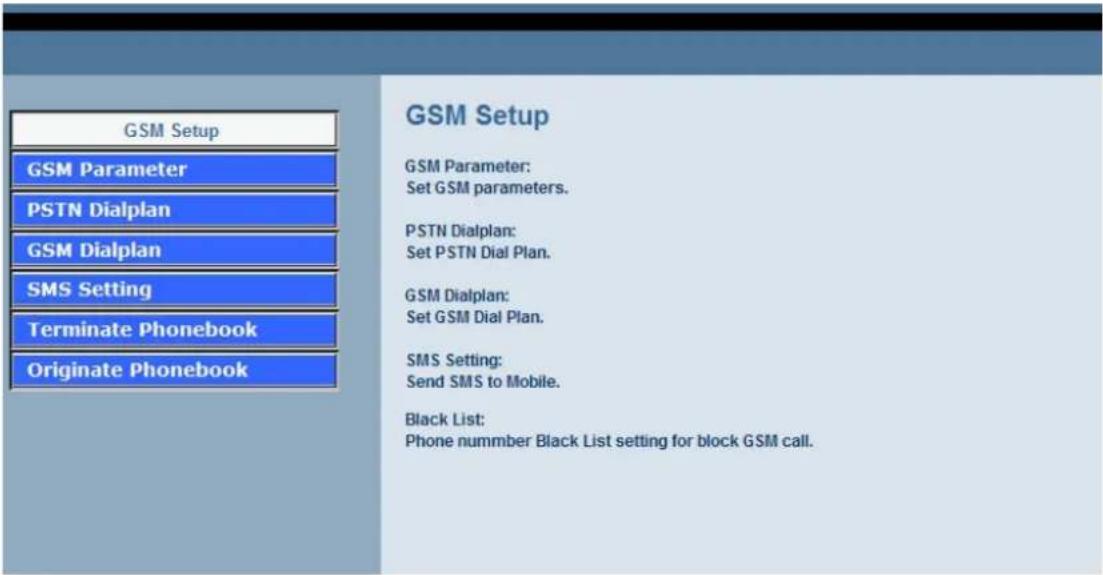
GSM Parameter GSM Parameter allows you to modify the option of GSM network.
PSTN Dailplan Users could apply any dial policy by setting Dial Plan to route the Calls to PSTN
GSM Dialplan Users could apply any dial policy by setting Dial Plan to route the Calls to GSM Network.
SMS setting The Option is used to send short message to mobile phones
Terminate phonebook The phonebook is used to allow and block the phone number can to call from VoIP to GSM Network
Originate phonebook The phonebook is used to allow and block the phone number can to call from GSM Network to VoIP
3.1.1 GSM Parameter
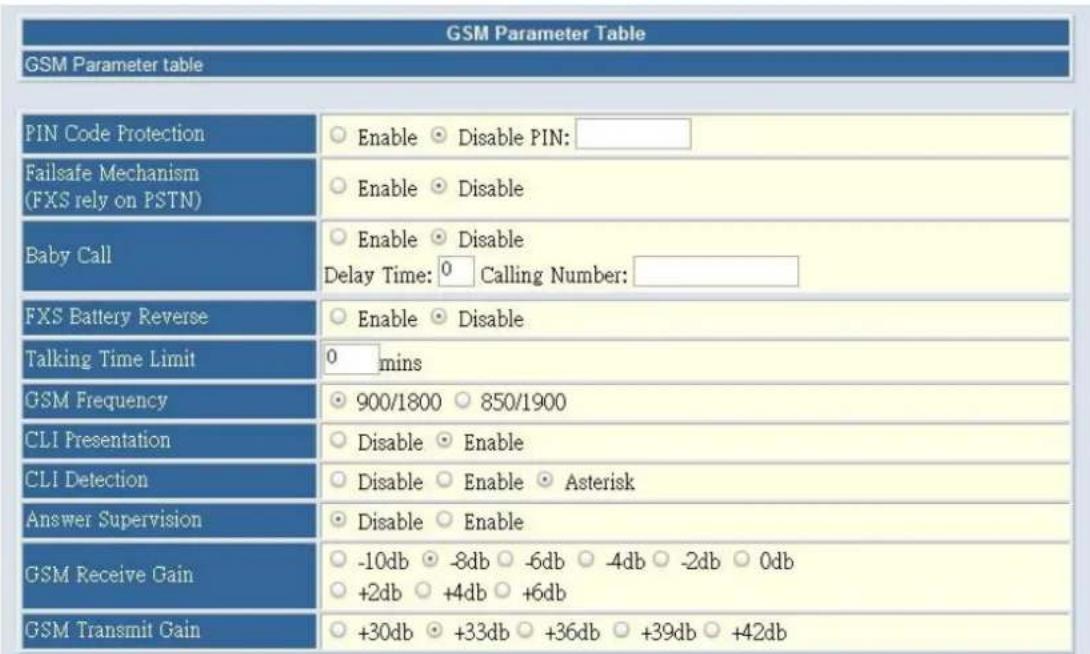
✿ PIN Code Protection: enable PIN Code protection.
✿ Failsafe Mechanism: If enable, when GSM Network is failed or GSM Gateway is out of the GSM service range. ALL the calls from FXS will route to PSTN port.
✿ Baby Call: When the calls come to FXS port, it will call hot line number to GSM automatically.
✿ FXS Battery Reverse: Enable battery reverse generator.
✿ Talking Time limit: The period of talking time, when the time ends, a beep sound will come out as a warning sound.
✿ GSM Frequency: select the GSM band
✿ CLI presentation: if disable this option, the phone number of sim card won't be shown in the callee side.
✿ CLI detection: if enable, the PSTN and GSM number will be carried over Internet In p2p mode. If the option Asterisk is selected, PSTN and GSM number will be carried through asterisk proxy server.
❖ Answer Supervision: Support Battery Reverse Detection.
✿ GSM Receive Gain: It's able to adjust the GSM Receive Gain, range from -10db to 6db.
✿ GSM Transmit Gain: It's able to adjust the GSM Transmit Gain, range from 30db to 42db.
3.1.2 PSTN Dialplan
Routing Configuration:
PSTN Routing Table
Call Service route by PSTN network : According to the prefix of dialed number on FXS interface you can Route the calls to PSTN Network
| Item | Phone Number | |
| 1 | lx | |
| 2 | ||
| 3 | ||
| 4 | ||
| 5 | ||
| 6 | ||
| 7 | ||
| 8 | ||
| 9 | ||
| 10 | ||
PSTN Route Numbers: The numbers which are filled in the form will go through the PSTN line unconditionally. You can use x as wild card.
For examples:
Emergent calls, like 911
Zone Numbers, like 02x (the phone numbers start with 02)
3.1.3 GSM Dialplan
Routing Configuration:
| GSM Routing Table |
| Call Service route by GSM network : According to the prefix of dialed number on FXS interface you can:Route the calls to GSM Network |
| Item | Phone Number | Length | |||
| 1 | 0 | ||||
| 2 | 0 | ||||
| 3 | 0 | ||||
| 4 | 0 | ||||
| 5 | 0 | ||||
| 6 | 0 | ||||
| 7 | 0 | ||||
| 8 | 0 | ||||
| 9 | 0 | ||||
| 10 | 0 | ||||
GSM Numbers: The numbers which are filled in the form will go through GSM Network unconditionally. You can use x as wild card.
For examples:
09x All telephone numbers start with 09
0919x All telephone numbers start with 0919
3.1.4 SMS Setting
SMS Sending Configuration:
| SMS Sending Table |
| SMS Sending Systemr : Help User Send Short Message to specific mobile number. |
| Sending Number | SMS Content |
✿ Sending Number: The telephone number which an short message is sent to.
✿ SMS Content: The SMS Content will be sent to the preset telephone number. If the SMS text is blank, an empty SMS is sent. The Maximum capacity is 40 characters.
3.1.5 Short Message Receive Backup
SMS Receive Backup:
SMS Receive Bacup
SMS Receive Backup : Help user backup SMS message to specific PC.
You have 0 messages
Read SMS Messages
Click Backup button to read SMS messages from GSM Gateway and save as a file
Backup
This function is used to save the short messages on SIM card. to a external file
3.1.6 Terminate Phonebook
Terminate Phonebook Setting:
Terminate Phonebook
Terminate Phone Book : The following phonebook can set to block or allow,when set to block, call from VoIP to GSM Network match the the phone book will be block,when set to allow,only the phone number match the phone book will be allow.
| Terminate Policy | Block Allow | |
| Item | Phone Number | |
| 1 | ||
| 2 | ||
| 3 | ||
| 4 | ||
| 5 | ||
| 6 | ||
| 7 | ||
| 8 | ||
| 9 | ||
| 10 | ||
Apply
Terminate Phone Book : The following phonebook can set to block or allow,when set to block, call from VoIP to GSM Network match the the phone book will be block,when set to allow,only the phone number match the phone book will be allow.
3.1.6 Originate Phonebook
Originate Phonebook Setting:
Originate Phonebook
| Originate Phonebook: The following phonebook can set to block or allow, when set to block, phone number match phonebook can not call from GSM Network to VoIP, when set to allow, only phone number match phonebook call allow to make call. |
| Originate Policy | Block Allow | ||
| Item | Phone Number | ||
| 1 | |||
| 2 | |||
| 3 | |||
| 4 | |||
| 5 | |||
| 6 | |||
| 7 | |||
| 8 | |||
| 9 | |||
| 10 | |||
Apply
Originate Phonebook : The following phonebook can set to block or allow, when set to block, phone number match phonebook can not call from GSM Network to VoIP, when set to allow, only phone number match phonebook call allow to make call.
Advanced Configuration
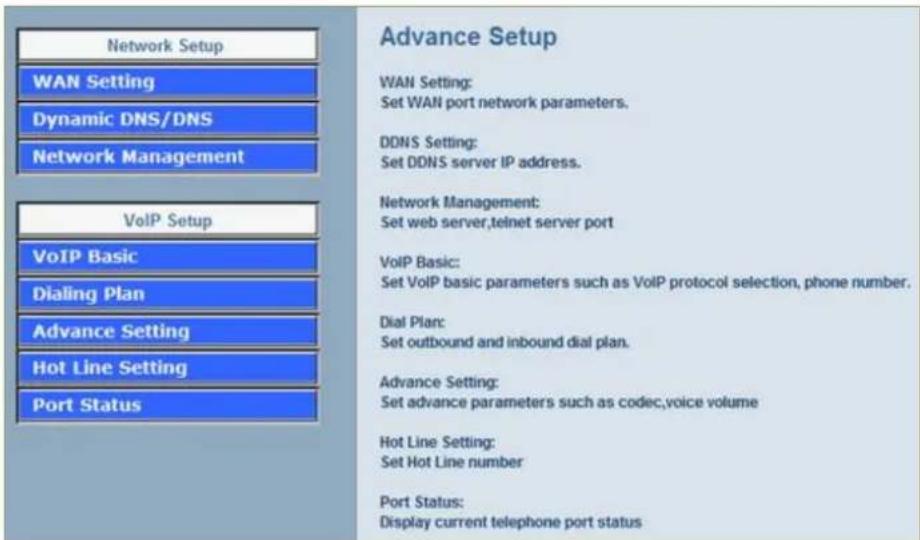
Network Setup
WAN Setting Sets/changes the WAN port Type like "Fixed IP", "DHCP Client" or "PPPoE".
| Dynamic DNS Dynamic DNS allows you to provide Internet users with a domain name to access your server. | |
| Network Parameters | Network Parameter allows you to modify the access port of gateway. For example :Setting HTTP port : 8080Setting TELNET port is : 8081(Default HTTP :80, TELNET: 23) |
VoIP Setup SC-100P only (with VoIP gateway features)
| VoIP Basic The S Series Gateway support 2 / 4 / 8 / 16 / 24 phone/line for SIP and H.323 VoIP call applications. You can configure these ports from this menu. | |
| Dialing Plan Users could apply any dial policy by setting Dial Plan including outgoing dial plan and incoming dial plan. | |
| Advanced Setting VoIP Gateway support for silence compression, DTMF Relay, Codec Selection, FAX mode Option, H323 Register Type and H.323 Fast-Start/Normal-Start function.Volume Adjustment, RRQ TTL, RFC2833 Payload, IP TOS,.etc | |
| Hot Line Setting Let user can set up “hotline” to dial the phone number automatically. |
Port Status Display the telephone interface status
System Administration:
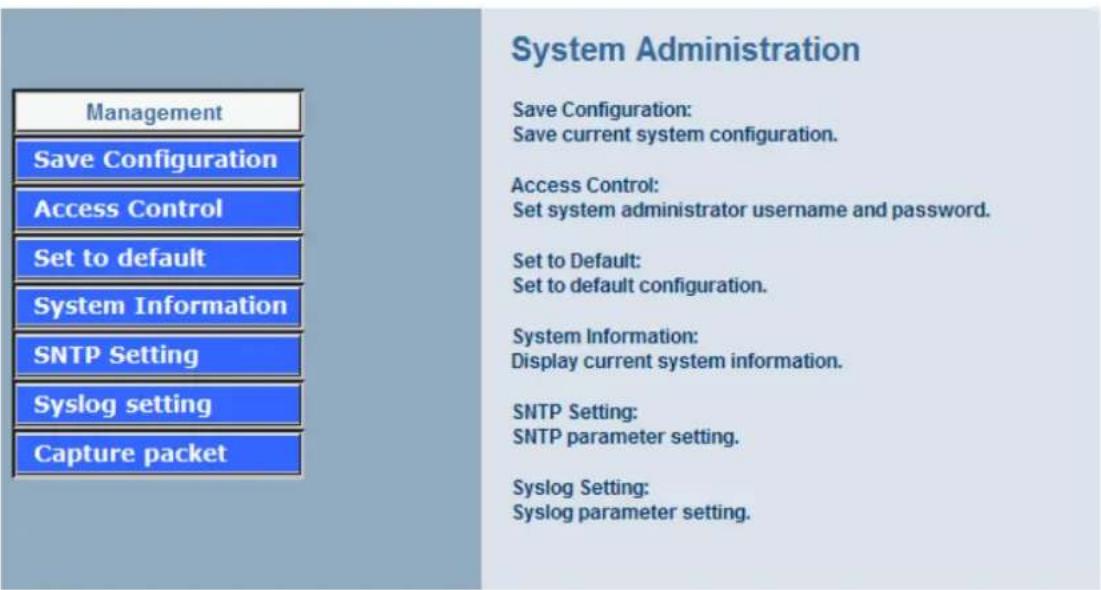
| Management |
| Save Configuration |
| Access Control |
| Set to default |
| System Information |
| SNTP Setting |
| Syslog setting |
| Capture packet |
Management Label
Save Configuration You can save configuration and restart the gateway with the default configuration or with the current running configuration.
Access Control Users can Sets/changes the administrator password..
Set to Default You can restart the gateway with the default configuration.
System Information Display Software version, WAN Type, VoIP Status, VoIP Codec, Phone Interface and System Tim.
| SNTP Setting SNTP (Simple Network Time Protocol) Configuration for synchronizing gateway clocks in the global Internet. |
| Syslog Setting Gateway can sends log information to Syslog Server by UDP ports 514. |
| Capture Packets The gateway supports packets capture and save the packets to your PC. User can use Network Protocol Analyzer “Ethereal” to analysis the packets.(Free download from http://www.ethereal.com/) |
4.1 Network Configuration
4.1.1 WAN Port Type Setup
For most users, Internet access is the primary application. The GSM Gateway support the WAN interface for Internet access and remote access. The following sections will explain more details of WAN Port Internet access and broadband access setup. When you click "WAN Setting", the following setup page will be show. Three methods are available for Internet Access.
Static IP
◆ PPPoE
DHCP
Static IP:
You are a leased line user with a fixed IP address; fill out the following items with the information provided by your ISP.
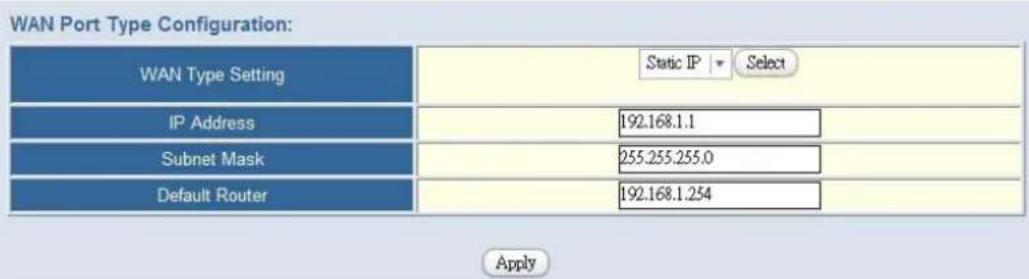
IP Address: check with your ISP provider
Subnet mask: check with your ISP provider
◆ Default Gateway: check with your ISP provider
PPPoE for ADSL
Some ISPs provide DSL-based service and use PPPoE to establish communication link with end-users. If you are connected to the Internet through a DSL line, check with your ISP to see if they use PPPoE. If they do, you need to select this item.
WAN Port Type Configuration:
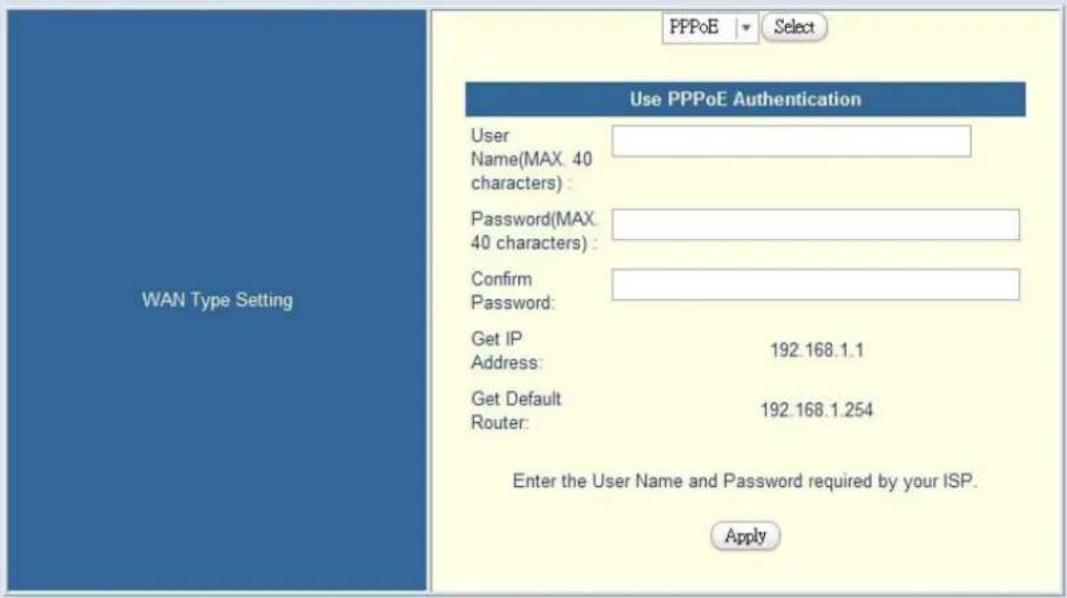
User Name: Enter User Name provided by your ISP
✿ Password: Enter Password provided by your ISP.
❖ Retype Password: Enter Password to confirm again.
DHCP Client (Dynamic IP): Get WAN IP Address automatically
WAN Port Type Configuration:
| WAN Type Setting | DHCP Select |
| IP Address | 192.168.1.1 |
| Subnet Mask | 255.255.255.0 |
| Default Router | 192.168.1.254 |
Apply
✿ IP Address: If you are connected to the Internet through a Cable modem line then a dynamic IP address will be assigned.
(Note : WAN port display the IP address, Subnet Mask and Default gateway IP address if DHCP client is successful)
4.1.2 Dynamic DNS
DDNS is a service that maps Internet domain names to IP addresses. DDNS serves a similar purpose to DNS: DDNS allows anyone hosting a Web or FTP server to advertise a public name to prospective users. Unlike DNS that only works with static IP addresses, DDNS works with dynamic IP addresses, such as those assigned by an ISP or other DHCP server. DDNS is popular with home network, who typically receive dynamic, frequently-changing IP addresses from their service provider. To use DDNS, one simply signs up with a provider and installs network software on their host to monitor its IP address.
How to use DDNS
First: you should register a new DDNS service account from this web site: http://www.dyndns.com/newacct
(Attention, if you use static IP address, you can't set DDNS in gateway. Use DDNS and Static IP at the same time, the dyndns will stop your DDNS service. Dyndns support DDNS service is Free, one account can create 5 different DDNS Domain Name )
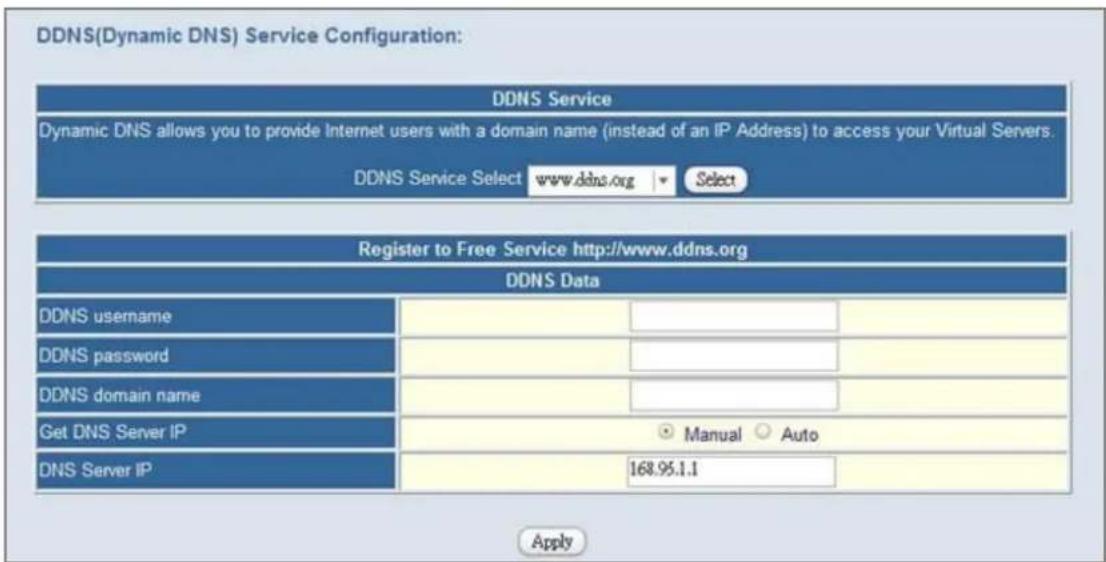
User Name: Input your DDNS User Name
✿ Password: Input your DDNS Password
Domain Name: Input you set from your DDNS.(ie.gateway.gotdns.com)
DNS Server IP: Input your DNS Server IP.
4.1.3 Network Management
Network Management,, access port configuration allows you to modify the HTTP port or TELNET port for accessing VoIP gateway (Default Parameter : HTTP Port is 80 ; TELNET Port is 23)
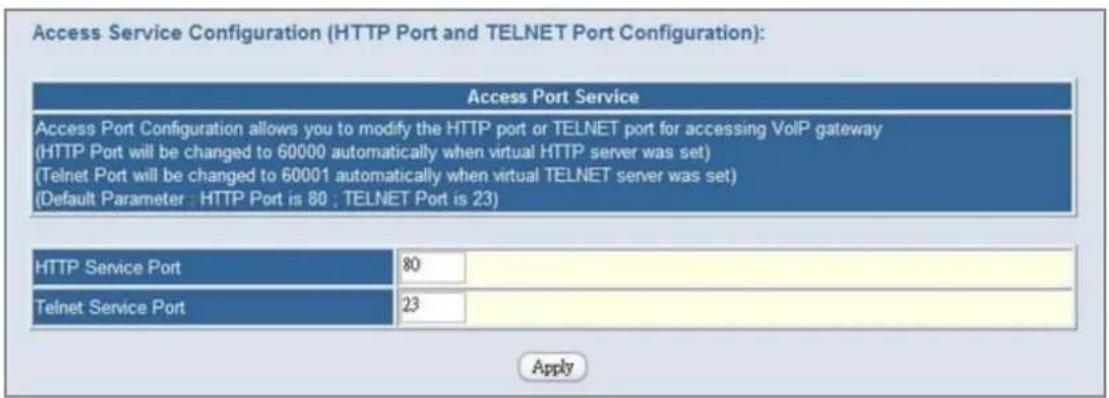
- Http Server Port: Input you want to change Web access port (Default is 80)
✿ Telnet Server Port: Input you want to change telnet access port (Default is 23)
4.2 VoIP Setup (SC-100P only)
GSM Gateway support 2 VoIP protocol - H.323 / SIP, you can register to H.323 Gatekeeper or SIP proxy server. Gateway is not a softswitch, it only can use 1 VoIP protocol (SIP/H.323) at the same time! If you don't register GK or Proxy server, you can make Peer to Peer call by IP address or domain name (Setting Dialing plan).
4.2.1 H.323 Setup
Gateway H.323 protocol support H.323 (v2/v3/v4), H.225, Q.931, H.245 and RTP/RTCP. Don't support H.235 security, can't use H.235 security Authentication Username / Password. H.323 protocol is not good at pass NAT/Firewall, the best way is installed gateway on Public IP Address when it use H.323. If you want to under NAT, gateway support NAT pass function when you use the same S Series Gateway. Other band gateway doesn't promise this function can work fine!
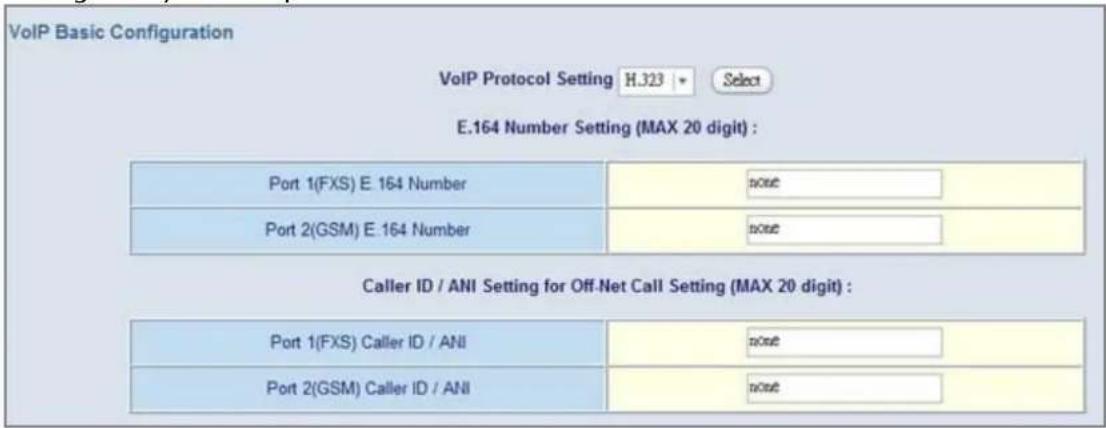
- Configure the numbering with FXS / GSM ports.
✿ FXS Number: The representation number is the phone number of the telephone that is connected to FXS port.
✿ GSM Number: The representation number is the phone number of SIM CARD
(Port number is in comparison with gateway port number. White Port socket is "GSM" port, Black Port socket is "FXS" port.)
- Configure the ANI (Answer Number Indication) / Caller ID of the FXS/GSM ports.
ITSP needs ANI for authorization when gateway calls Off-Net call to PSTN number or mobile phone number.
4. Register to H.323 Gatekeeper
(If user does not have Gatekeeper, Please go to Dialing Plan Policy)
H.323 Parameter Setting :
| H323 ID | |||||||
| Primary GateKeeper IP address | 0 | . | 0 | . | 0 | ||
| Secondary GateKeeper IP address | 0 | . | 0 | . | 0 | ||
| Primary H.323 GateKeeper Domain Name | |||||||
| Secondary H.323 GateKeeper Domain Name | |||||||
| H.323 Gatekeeper ID | |||||||
| Voice Caps Prefix | |||||||
| RAS Port Adjustment | 1719 | ||||||
| Q.931 Port Adjustment | 1720 | ||||||
H.323 Call Pass Through NAT Configuration :
| NAT Pass Method | DisableAuto PassManual(Need Key In Public IP)STUN |
| Public IP Address | 0.0.0.0 |
| H.323 Parameters Label | |
| H.323 ID | Sets the unique name of this Gateway, that is communicated as part of H.323 messaging.. |
| Primary Gatekeeper IP Address | There are two gatekeeper address fields, one is primary, the other secondary. If this gateway does not want to register to any gatekeeper, just set value 0 to the primary gatekeeper address. If the primary gatekeeper address is not 0, the gateway will register to the primary gatekeeper. If the second gatekeeper is not 0, the gateway will try to register to the second gatekeeper when failed to register to primary gatekeeper, i.e. if both the primary gatekeeper and second gatekeeper addresses are present, the gateway will try to register to these two gatekeepers respectively. The gateway can have the gatekeeper backup function by this way. |
| Secondary Gatekeeper IP Address | |
| Primary Gatekeeper Domain Name | Let user use Domain Name of H.323 Gatekeeper. |
| Secondary Gatekeeper Domain Name | |
| H.323 Gatekeeper ID | The Gatekeeper ID; usually do not need to set this field unless the gatekeeper must need this value. |
| Voice Cap Prefix Let user | set prefix number in RRQ nonstandard voice cap entry. |
| RAS Port Adjustment | In H.323 standard the RAS default port number is 1719. The VoIP gateway provides user to change RAS port number to meet the network environment.(Some area carrier blocks or forbidden the default port number) |
| Q.931 Port Adjustment | In H.323 standard the default Q.931 port number is 1720. The VoIP gateway provides user to change Q.931 port to meet the network environment. (Some area carrier blocks or forbidden the default port number) |
| H.323 Call Pass through NAT | |
| H.323 Pass Through NAT method | 1. Disable : The Gateway operates in public IP address2. Auto Detection: When the Gateway register to GNU Gatekeeper / H.323 Gatekeeper (SK Series), please select this option.3. Manual Setting: When the Gateway registers to H.323 Gatekeeper and operate under NAT (enable DMZ), please select this option and key in IP address. |
H.323 VoIP Advanced Configuration
There are many H.323, VoIP, Codec and other more detail Setting, you can set in "Advance Setting". For SIP and H.323, there are a little different in advance setting. There are 3 different parts to setting about VoIP, Telephone and network.
[Advance Setting]
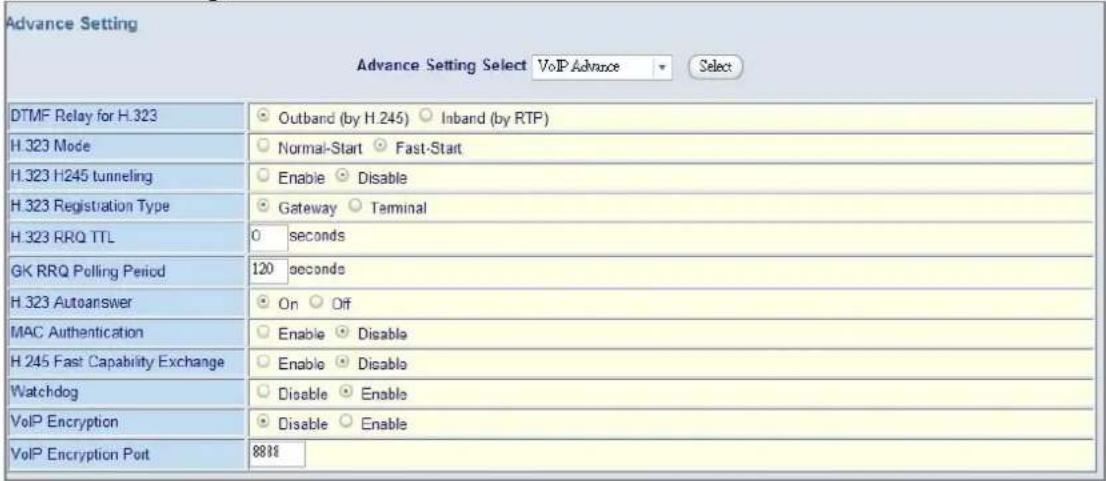
| Item Description | |
| DTMF Relay for H.323: | After the VoIP call is connected, when you dial a digit, this digit is sent to the other side by DTMF tone. There are two methods of sending the DTMF tone. The first is “in band”, that is, sending the DTMF tone in the voice packet. The other is “out band”, that is, sending the DTMF tone as a signal. Sending DTMF tone as a signal could tolerate more packet loss caused by the network. If this selection is enabled, the DTMF tone will be sent as a signal. |
| H.323 Mode: | This selection could force the Gateway to use normal start mode (default mode) or fast start mode when establishing a VoIP call. Many other gateways only support normal start mode, enable this selection when it is necessary. The default is disabled (using fast start mode). |
| H.323 H.245 Tunneling: | This selection could force the Gateway to use H.245 Tunneling when establishing a VoIP call The default is disabled (using fast start mode). |
| H.323 Registration type: | There are 2 choices for this setting. “Gateway” means it will act as the VoIP gateway. “Terminal” means it will act as the IP phone terminal. |
| H.323 RRQ TTL: | This command configures the number of seconds that the gateway should be considered active by the H.323 gatekeeper. The gateway transmits this value in the RRQ message to the gatekeeper. The default value is “0”. |
| H.323 Autoanswer: | When a VoIP call is incoming, the Gateway will ring a specific phone set. The H.323 call signaling part could be connected or alerting during this ringing period. If this selection is enabled, the H.323 signaling part is connected during the ringing period. The benefit of this situation is that the remote side could hear the status of the specific port. That is, the remote side will hear ring back tone if the Gateway is really ringing the phone set. If the phone set is busy, the remote side will hear busy tone. The disadvantage of this situation is that the H.323 connected time is not the real voice call connected time. So, if billing is recorded for this Gateway, this function should be disabled. |
| MAC Authentication: | Some Gatekeeper register need UA send MAC address to Authentication, you need enable this function.(Default is disable). |
| Watchdog: When your gateway shutdown, or something happen that made gateway can’t work fine. Watchdog will reboot your gateway automatically when it can’t work. | |
[Telephone Advance]
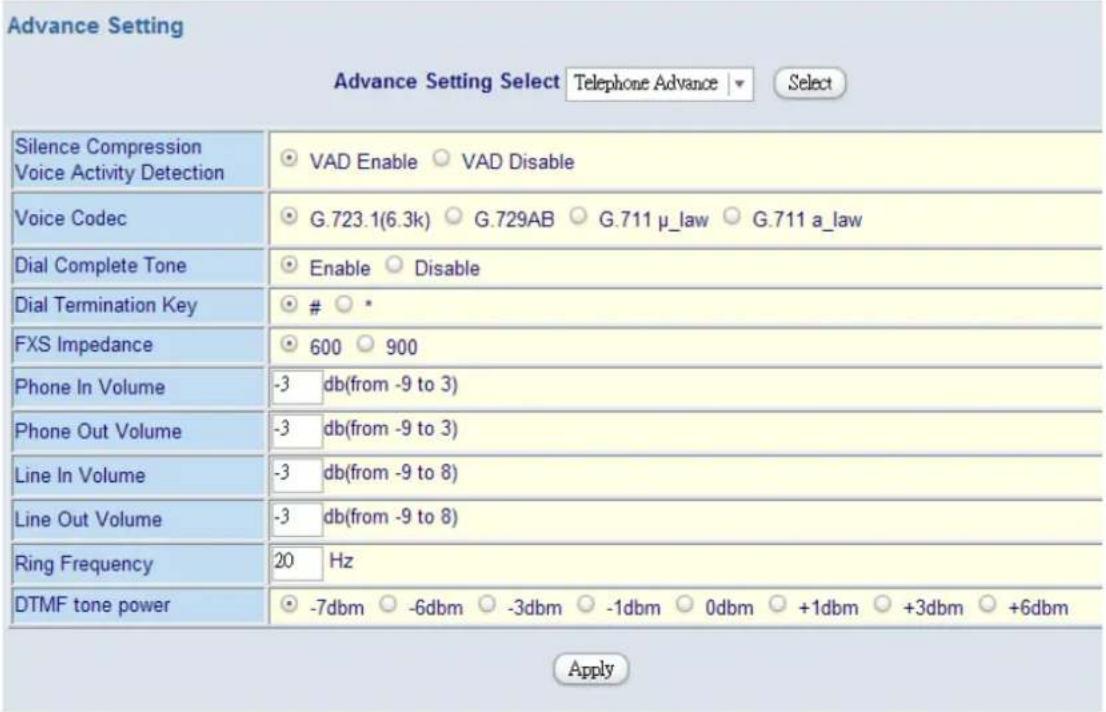
| Item Description | |
| Silence Compression: (VAD) | If this function is enabled, when silence is occurred for a period of time, no data will be sent across the network during this period in order to save bandwidth. (If you use Asterisk, please disable Silence Compression, it maybe make you call disconnect.) |
| Voice Codec option: | The Codec is used to compress the voice signal into data packets. Each Codec has different bandwidth requirement. There are four kinds of Codec, G.723, G.729AB, G.711_u and G.711_A. The default value is G.723. |
| Dial Complete Tone: | When you use the VoIP call, you will heard “DuDu” voice that is dial complete tone. If you don’t want to heard that tone, you can disable it.(default is enable). |
| Dial Termination key: | Setting Termination key to speed up VoIP dial. Select “*” or “#” to Termination key. |
| FXS Impedance: | The FXS provides 600/900 OHM impedances for selection. |
| Phone (Line) in/out volume: | You can adjust the Phone (Line) in/out volume, range from -9db to 9db (If you adjust too bigger, maybe generation some ECHO or noise) |
| Ring Frequency: | You can configure how long the Ring Frequency do you want to use. |
| DTMF tone power: Sometimes | Times you input DTMF, but no request. You can adjust this function, range from -6db to +6db. |
[Network Advance]
| Advance Setting | |
| Smart QOS | Enable Disable |
| Bandwidth Control | Downstream 512 KbpsUpstream 64 Kbps |
| G.723 Bandwidth | 18kbps 12kbps 10kbps 0kbps |
| G.729 Bandwidth | 40kbps 24kbps 19kbps 16kbps 15kbps 14kbps |
| IP TOS | Enable Disable |
| Item Description | |
| Smart-QoS: | If this function is enabled, when VoIP call is occurred, the other data will be automatically reduced traffic which across the internet in order to guarantee the voice bandwidth. |
| Bandwidth control: | You can configure your bandwidth what the Max byte of download and upload of ADSL modem rate. |
| G.723/G.729 Bandwidth: | Setting G.723 / G.729 voice compression size. Quality and Packet size can adjust by you want. |
| IP TOS: | Some Router support TOS(Type of Service), when you enable the TOS function, the router will process those packets firstly.(default is disable) |
4.2.2 SIP Setup
Gateway SIP support SIP(RFC3261), SDP(RFC2327), RFC2833, STUN(RFC3489), Symmetric RTP, outbound proxy, ENUM(RFC2916), and RTP/RTCP.SIP NAT pass through Function can support 80% NAT/Firewall that you don't setting DMZ/Virtual server in router or Firewall.
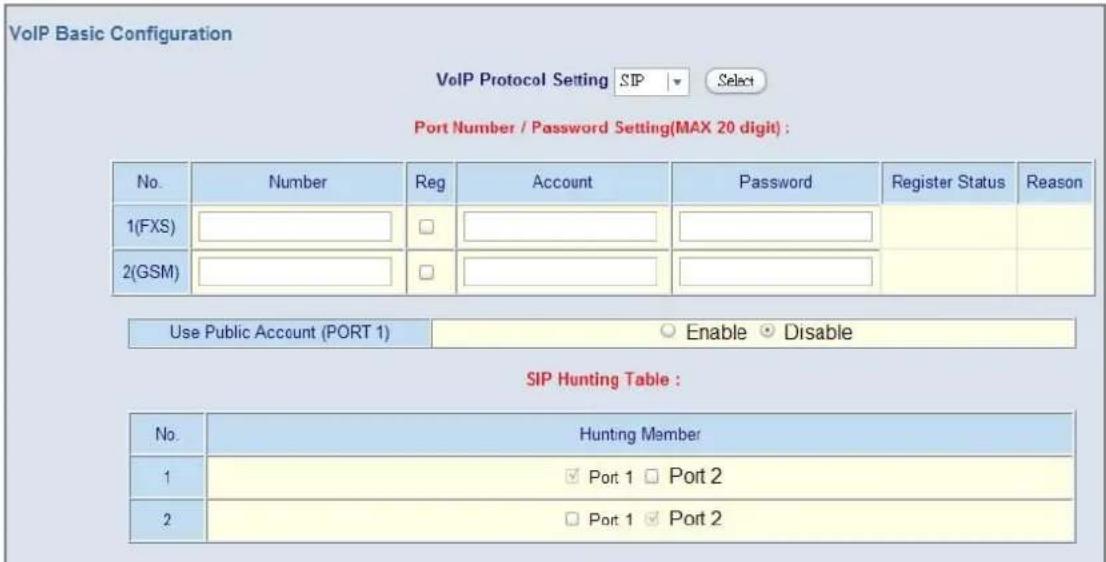
-
Select "SIP Protocol"
-
SIP number / account (username) and Password Setting: Please fill out the SIP account including username / password from ITSP.
(Note: support digits and character base SIP Account / username, some SIP Server use character username to login, and a number to call number( ie. VoIPBuster) , if your server don't support this, number/Account are the same, please input the same username )
✿ Number: Input SIP NumberUsername), if your server support account and number (different), input the number, else number/account are the same username.
Reg: let your sip account register SIP Server, click this option.
Account: Input SIP accountUsername), if your server support account and number (different), input the number, else number/account are the same username.
✿ Password: Input Password that ITSP support.
Use Public Account: This allows gateway can use single SIP account for multiple ports. User input the only one account in port one field for registering the ITSP.
- SIP Proxy Server setting, setting SIP proxy server register information.
(If user does not need register SIP Proxy Server, Please go to Dialing Plan Policy)
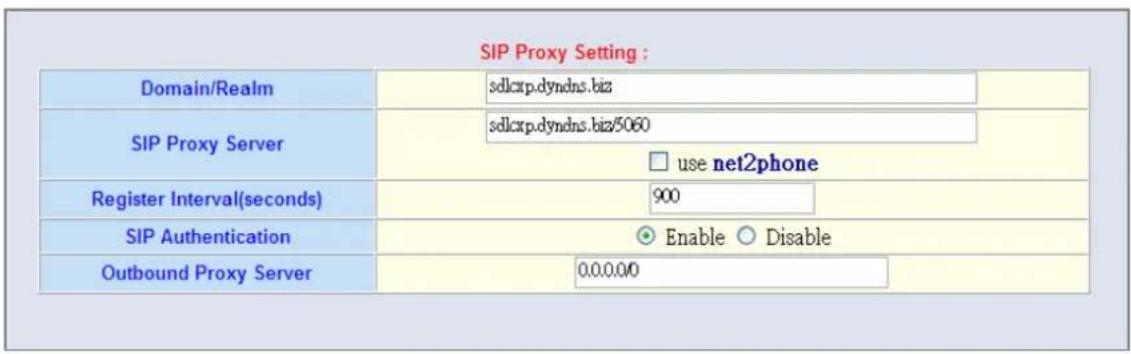
| SIP Proxy Server Label | |
| SIP Proxy Server Setting | 1. Enter the SIP service IP address or domain name in this field (the domain name that comes after the @ symbol i n a full SIP URI).2. Use Net2Phone Service Provider |
| SIP Domain 1. Enter the SIP realm in this field | |
| Register Interval Setting | This field sets how long an entry remains registered with the SIP register server. The register server can use a different time period. The Gateway sends another registration request after half of this configured time period has expired. |
| SIP Authentication Enable | or Disable MD5 Authentication with SIP Proxy Server |
- If your gateway under the NAT/Firewall, you should setting different NAT Pass function. if you setting STUN/Outbound Proxy, you should have a STUN/Outbound proxy server. If they can't pass NAT or one way talk happen, try to open "DMZ" and virtual server "5060" port in router.
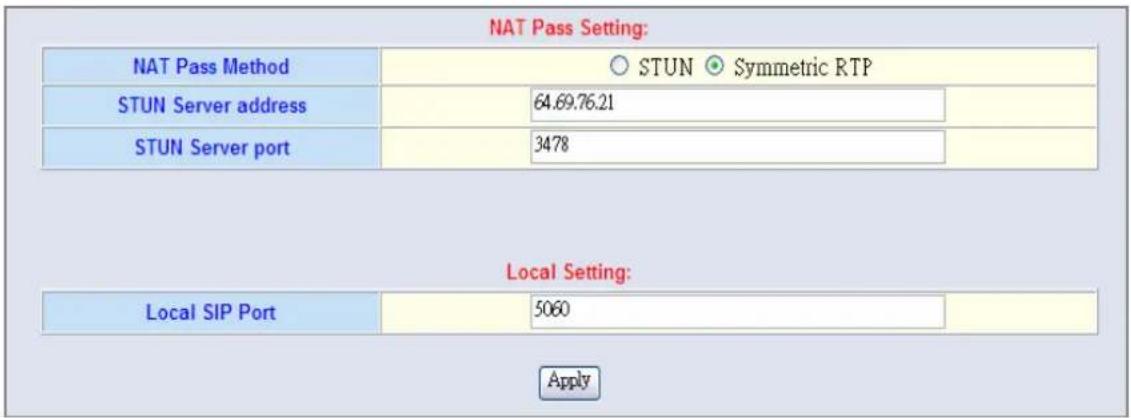
- Symmetric RTP: default use Nat pass function.
✿ STUN Client: setting your STUN server information, default STUN server is FWD STUN server. - Outbound Proxy Support: Setting your Outbound Proxy server information.
- Local SIP Port:: setting local use SIP port, default is 5060.
SIP VoIP Advanced Configuration
There are many SIP VoIP, Codec and other more detail Setting, you can set in "Advance Setting". For SIP and H.323, there are a little different in advance setting. There are 3 different parts to setting about VoIP, Telephone and network.
[VoIP Advance]
Advance Setting
Advance Setting Select VoIP Advance Select
| DTMF Relay for SIP | ○ Inband ● RFC2833 ○ SIP Info |
| RFC2833 Payload | 10( from 96 to 127) |
| FAX Mode | ● T 30 ○ T 38T38UDP Low Speed Redundancy Level 5▼T38UDP High Speed Redundancy Level 0▼ |
| Watchdog | ○ Disable ○ Enable |
Apply
| Item Description | |
| DTMF Relay for SIP: | After the VoIP call is connected, when you dial a digit, this digit is sent to the other side by DTMF tone. There are three methods of sending the DTMF tone. The first one is “in band”, that is, sending the DTMF tone in the voice packet. The second one is “RFC2833”, that is, sending the DTMF tone as a RTP payload signal. The third one is “SIP Info”, that is, sending the DTMF tone as a SIP signal. Sending DTMF tone as a signal could tolerate more packet loss caused by the network. If this selection is enabled, the DTMF tone will be sent as a signal. |
| RFC2833 Payload: | Adjust RFC2833 DTMF payload value, range from 96 to 127, default is 101. |
| FAX Mode Option: | T.30/T.38 real-time FAX compliant Voice/FAX auto-switch. The T.38 is a “Real Time Group 3 Fax Communication over IP network” format. That’s meaning it’s a protocol for Fax over IP. You have to enable this function(T.38 mode isn’t support all gateway, different band use T.38 have a little change, it maybe let T.38 FAX Error) |
| Watchdog: When your | gateway shutdown, or something happen that made gateway can’t work fine. Watchdog will reboot your gateway automatically when it can’t work. |
[Telephone Advance]
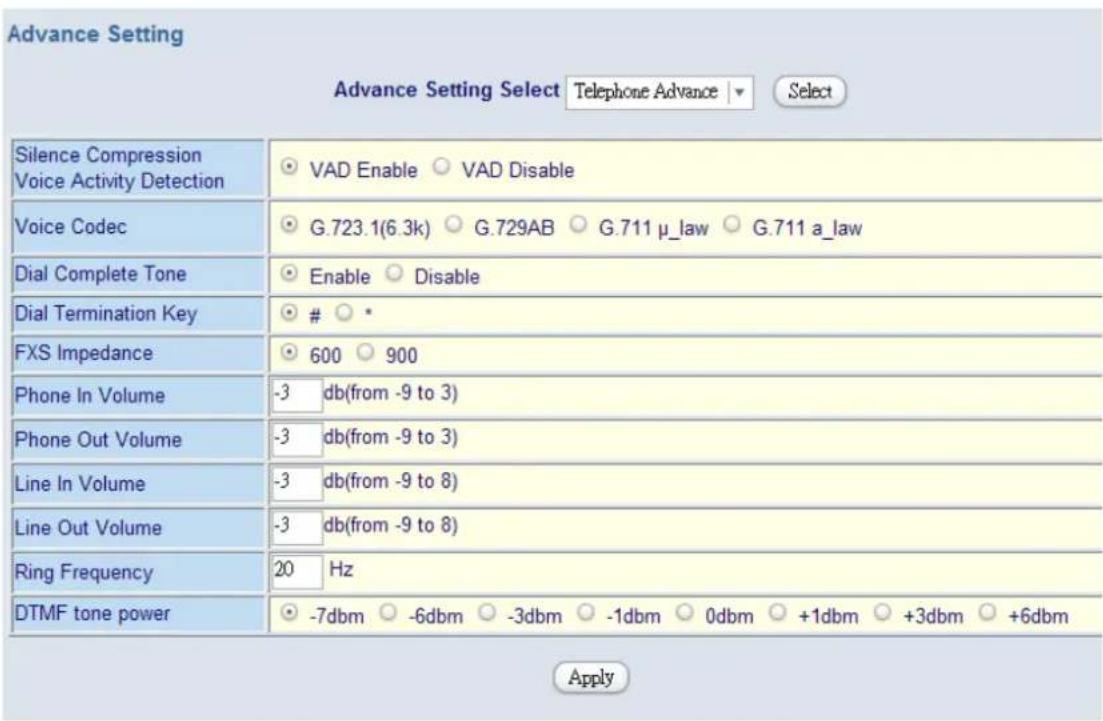
| Item Description | |
| Silence Compression: (VAD) | If this function is enabled, when silence is occurred for a period of time, no data will be sent across the network during this period in order to save bandwidth. (If you use Asterisk, please disable Silence Compression, it maybe make you call disconnect.) |
| Voice Codec option: | The Codec is used to compress the voice signal into data packets. Each Codec has different bandwidth requirement. There are four kinds of Codec, G.723, G.729AB, G.711_u and G.711_A. The default value is G.723. |
| Dial Complete Tone: | When you use the VoIP call, you will heard “DuDu” voice that is dial complete tone. If you don’t want to heard that tone , you can disable it.(default is enable). |
| Dial Termination key: | Setting Termination key to speed up VoIP dial. Select “*” or “#” to Termination key. |
| FXS Impedance: | The FXS provides 600/900 OHM impedances for selection. |
| Phone (Line) in/out volume: | You can adjust the Phone (Line) in/out volume, range from -9db to 9db.(If you adjust too bigger, maybe generation some ECHO or noise) |
| Ring Frequency: | You can configure how long the Ring Frequency do you want to use. |
| DTMF tone power: Sometimes | Times you input DTMF, but no request. You can adjust this function, range from -6db to +6db. |
[Network Advance]
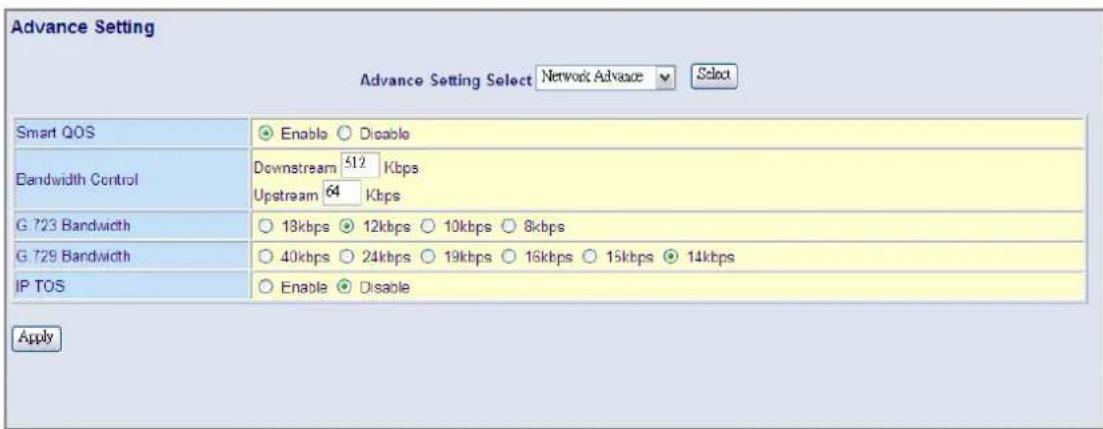
| Item Description | |
| Smart-QoS: | If this function is enabled, when VoIP call is occurred, the other data will be automatically reduced traffic which across the internet in order to guarantee the voice bandwidth. |
| Bandwidth control: | You can configure your bandwidth what the Max byte of download and upload of ADSL modem rate. |
| G.723/G.729 Bandwidth: | Setting G.723 / G.729 voice compression size. Quality and Packet size can adjust by you want. |
| IP TOS: | Some Router support TOS(Type of Service), when you enable the TOS function, the router will process those packets firstly.(default is disable) |
4.2.3 Direct call (Peer to Peer) setup
If you don't registered Gatekeeper or SIP proxy server, you can make call by Peer to Peer. For SIP or H.323, setting the dialing plan, and can make direct call.
Overview of the Dialing Plan
The “Dialing plan” need setting when the user use the method of Peer-to-Peer H.323 (SIP) VoIP call or registering H.323 Gatekeeper (SIP Proxy Server) Mode. The H.323(SIP) Dialing Plan has two kinds of directions: Outgoing (call out) and Incoming (call in).
1. Outgoing Dial Plan:
Peer-to-Peer Call Mode: Effective
Registering to H.323 Gatekeeper (SIP Proxy Server) Mode: Effective
2. Incoming Dial Plan:
Peer-to-Peer Call Mode: Effective
Registering to H.323 Gatekeeper (SIP Proxy Server) Mode:
The leading number would register to H.323 Gatekeeper (SIP Proxy Server)
When you use direct call, you must setting your VoIP protocol firstly. Use direct call, you should setting the same protocol both of UA. Both of UA must support dial plan function. Some ATA don't support Dialing plan, it maybe let direct call failed.
In the "Outgoing Dial Plan Configurations" settings: Maximum Entries : 50
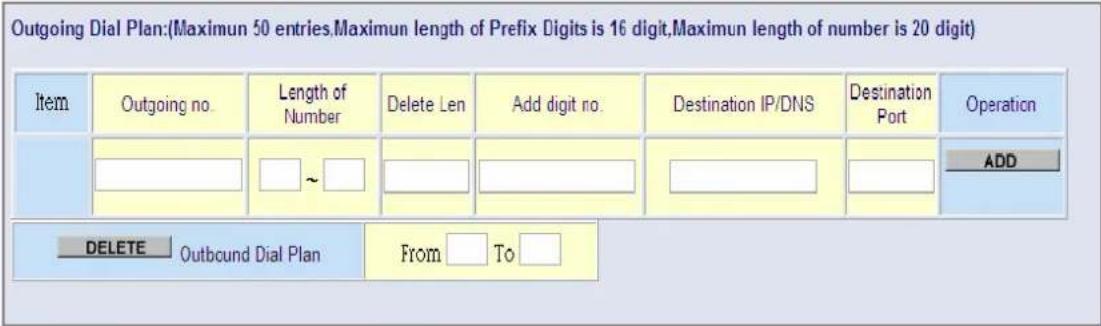
◆ “Outbound number” is the leading digits of the call out dialing number.
◆ "Length of Number" has two text fields need filled: "Min Length" and "Max Length" is the min/max allowed length you can dial.
✿ “Delete Length” is the number of digits that will be stripped from beginning of the dialed number.
- “Add Digit Number” is the digits that will be added to the beginning of the dialed number.
"Destination IP Address / Domain Name" is the IP address / Domain Name of the destination Gateway that owns this phone number.
◆ “Destination Port” is port of the destination gateway use.(Default is 5060)
Example1: Normally Dial
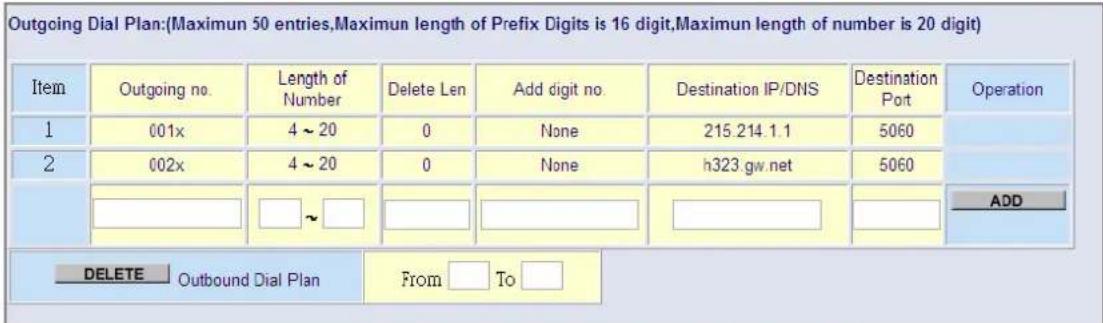
1.001x leading call out, call to Destination IP address: 211.22.3.14 2.002x leading call out, call to Destination Domain Name: h.323.gw.net
Example2: Speed Dial
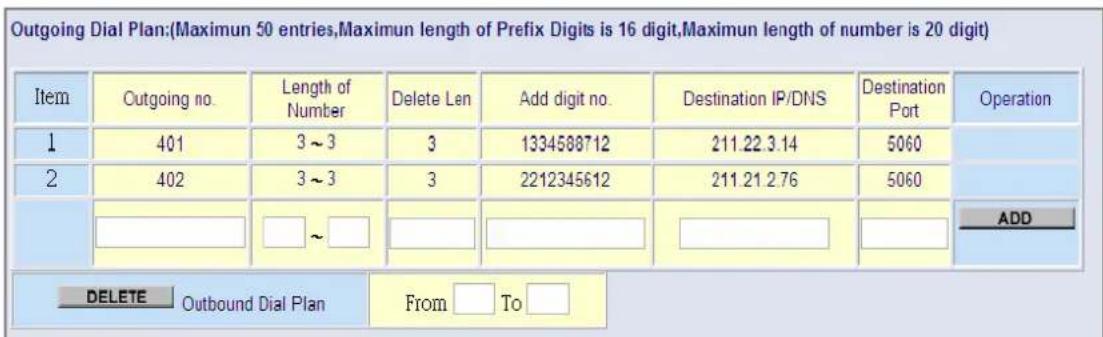
- If user dial "401", Gateway automatically dial "1334588712" to Destination IP address: 211.22.3.14
- If user dial "402", Gateway automatically dial "2212345612" to Destination IP address: 211.21.2.76
In the "Incoming Dial Plan Configurations" settings: Maximum Entries : 50
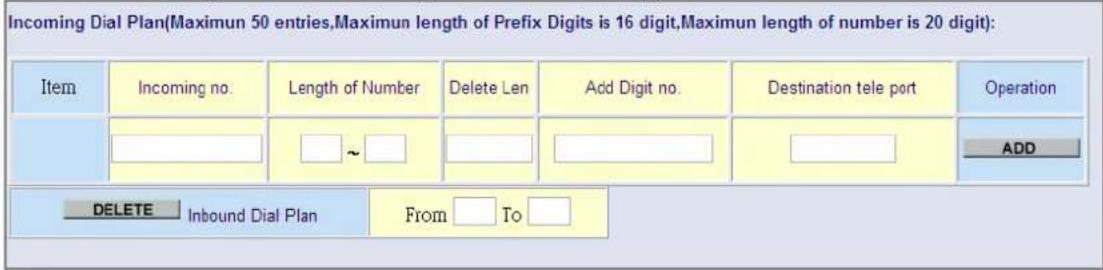
❖ “Inbound number” is the leading digits of the dialing number.
"Length of Number" has two text fields need filled: "Min Length" and "Max Length" is the min/max allowed length you can dial.
✿ "Delete Length" is the number of digits that will be stripped from beginning of the dialed number.
- “Add Digit Number” is the digits that will be added to the beginning of the dialed number.
◆ “Destination Tele port” is “Tel-port”; this is for local dial plan setting phone number.
4.2.4 Other VoIP Setting
Hot Line:
You can setting hot line. when the call incoming the hot line port, it will call hot line number automatically. The hot line call the number via VoIP, so you setting the hot line number must VoIP number. Usually, you want to incoming GSM calls transfer to FXS, you only setting the GSM hot line to FXS number.
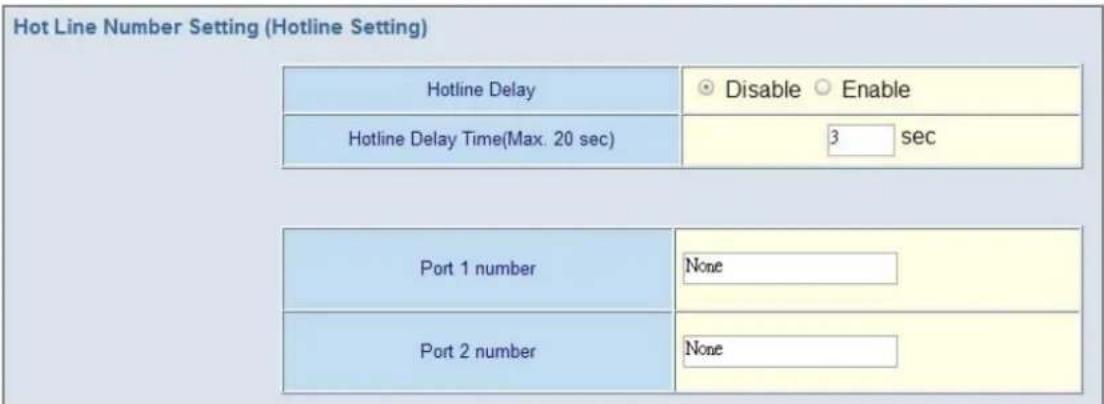
- Port number: Input FXS/GSM want to call hot line number. The call will via VoIP, so the number must be the VoIP number.
Port Status:
Each of port show status table. you can view all port status. Like on/off hook, caller/callee IP, duration, and packet loss.
| Port No. | Type | Status | Codec | Direction | Dial No | Caller No. | Dest/Source | IN | OUT | Duration |
| 1 | FXS | onhook | none | none | none | none | none | 0 | 0 | 0 |
| 2 | GSM | onhook | none | none | none | none | none | 0 | 0 | 0 |
- Port Status Display: This selection will display concurrent call status of this Gateway. The status information of each voice channel includes codec, dialing number and destination IP address. The status is refreshed every 3 seconds.
Call Priority:
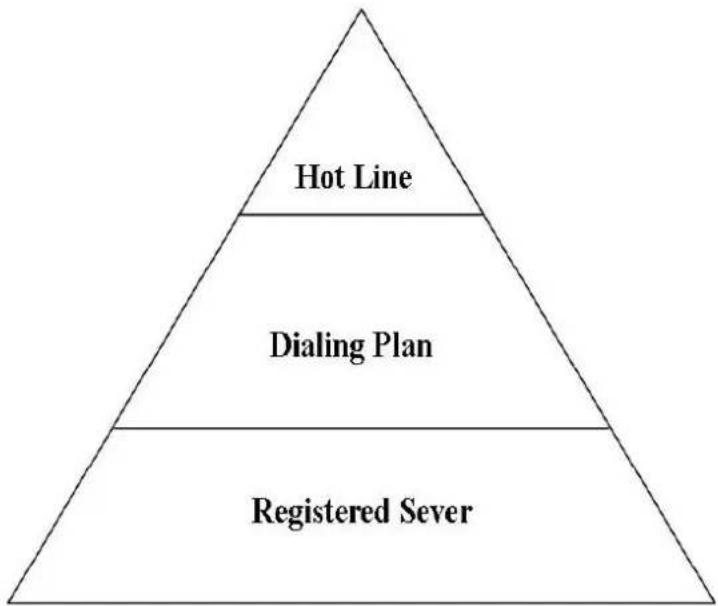
Gateway have a rule for call Priority, up to down is 1)Hot Line 2)Dialing plan 3)Registered server(SIP Proxy / H.323 Gatekeeper).When a VoIP call made, Gateway will process by Hot Line first, then it will check the dialing plan table, last fine Server(SIP/H.323).
For example, if I have a gateway, and It is registered a proxy server, I don't setting any others (Hot Line or dialing plan.). when I make a VoIP call, gateway will check Proxy server. Now,, I setting 1\~2 dialing plan, and registered proxy server. When I call, gateway will check the dialing plan first, then find the proxy server. And so on.....
flowchart
graph TD
    A["Registered Sever"] --> B["Dialing Plan"]
    B --> C["Hot Line"]
System Administrator
You can setting other gateway setting, like gateway time, Syslog that send CDR information to Syslog server, backup and restore configuration.
4.3.1 Save Configuration and Reboot
Save and Reboot The system begins to save and reboot, please wait a moment and relogin.
Apply
❖ Click “ Save Configuration and Reboot” to save configuration and begin to restart.
(When you set done, select "Reboot" option will auto save and reboot!)
4.3.2 Access Control
Access Control :
| Administrator Username and Password | |||
| Username | admin | ||
| Password | ***** | ||
| Confirm Password | ***** | ||
| Guest Username and Password | |||
| Username | guest | ||
| Password | ***** | ||
| Confirm Password | ***** | ||
Apply
❖ Changing the Administrator Password
For security reasons, we strongly recommend that you set an administrator.
password for the router. On first setup the router requires no password. If you don't set a password the router is open and can be logged into and settings changed by any user from the local network or the Internet.
❖ Click Access Control Setup, the following screen will open.
(Guest account, if you use guest account login, you only can view gateway setting, not change and configure any gateway setting, else you login by Admin account)
4.3.3 Set To Default Configuration
Save and Reboot
The system begins to save and reboot, please wait a moment and relogin.
Apply
If you want to reboot the router using factory default configuration, click "Apply" then reset the router's settings to default values.
4.3.4 System Information Display Function
| Software Version | 3.1.1L |
| WAN Type | Fixed IP |
| WAN MAC Address | 00-0f-fd-48-04-1c |
| VoIP Status | SIP Proxy Mode Register Successful |
| VoIP Codec | G711a |
| GSM Signal Level | -65 dBm |
| GSM Operator | Singapore Singapore Tel. GSM 900 |
| Model | GSM+VoIP Gateway |
| Current system time | 2008/5/21 18:06:10 |
- Click System Information Display to open the Online Status page. In the example, on the following page, both PPPoE connection is up on the WAN interface, H323 Status, MAC address, Register Status, etc....
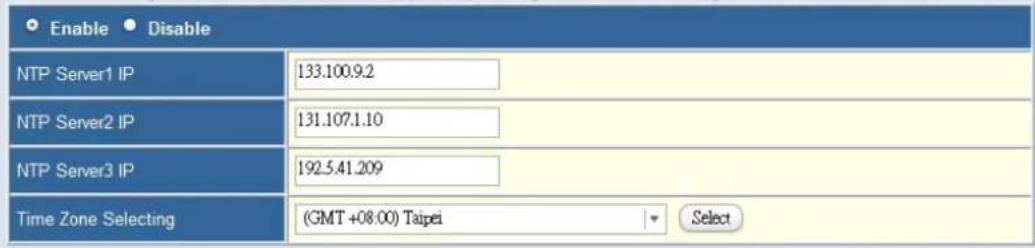
4.3.5 SNTP Setting Function
Click SNTP Setting to open the Online Status page. In the example, on the following page,
Simple Network Time Protocol (SNTP): To synchronize Gateway clocks in the Internet
Apply
Use SNTP Setting—When checked, Gateway uses a Simple Network Time Protocol (SNTP) to set the date and time. The Gateway synchronizes the Gateway's time after you select the time zone. Use SNTP Setting, Select the time zone which Gateway was at.
4.3.6 Syslog Setting Function
Syslog Server Configuration:
| Syslog Server Setting |
| Syslog is a method to collect messages from devices to a server running a syslog daemon. Logging to a central syslog server helps in aggregation of logs and alerts. VoIP Gateway devices can send their log messages to a SYSLOG service. The Syslog messages including CDR(Call Detail Record) and system parameters. (Note: Default Syslog port: 514) |
| Syslog Server Data | |
| Syslog Server IP address | 0.0.0.0 |
| Syslog Server Port | 514 |
Apply
Use Syslog server to record your Gateway log file. you can setting you syslog server IP address for this function. Syslog information include the CDR source!
4.3.7 Capture Packets Function
To troubleshoot what is going on on the network level, you can generate PCAP files on this page. These files can be read with Ethereal network tool. Press the start button to start recording, and press the stop button to stop. Please remember that the data is stored in a 15KB buffer and that the recording may have a negative impact on the phone's performance.
Start Stop
Click here to save the current pcap trace. (0 packets, 0 octets, duration 0 seconds)
Use "Capturer Packets" to record Gateway packets. You can start and stop the capture then save the file to PC Use the Ethereal Tool (www.ethereal.com) to analyze the packets.
(if gateway have interoperability problem, you can capture the packet, send to us . we can refer this packet to bebug.)
4.4 Update firmware
Gateway can upgrade Firmware via FTP, update firmware can add new function or fix some bug. If your gateway works fine, you don't need update any new firmware. The new firmware maybe let your gateway not stable. you can get the last version firmware on our web site or send support mail to us, we will mail firmware to you.
Firmware name is "SC-100P.300", the first name SC-100P is mean the gateway module. (Gateway update firmware only support use telnet via FTP, no other else upgrade function.)
FTP upgrade Requirement and Process
- Environment Requirement
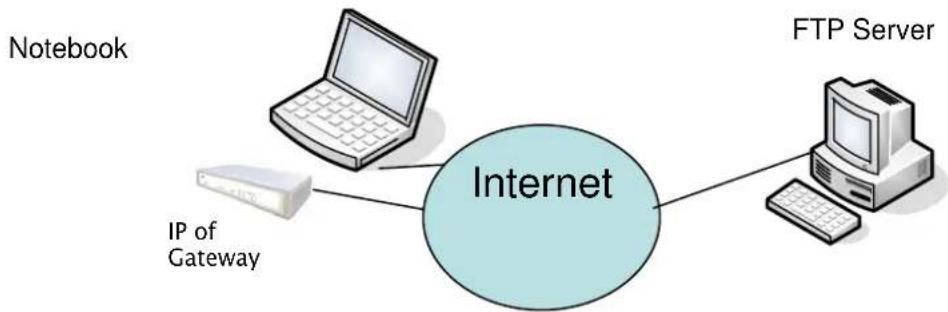
PC with FTP Server (Server-U software, 3CDaemon,...)
PC or Notebook witch connected to WAN port of Gateway.
Put the image (firmware) named "SC-100P.xxx" at the assigned folder in FTP Server. (for example: "SC-100P.270" is version 2.7.0)
Note: Our company FTP server, you can use it to upgrade
Free FTP server : 61.218.109.83
username: share, password: 19730809
Environment Architecture (Gateway and FTP server are in Internet):
flowchart
graph TD
    A["Internet"] --> B[" notebook "]
    A --> C[" IP of Gateway "]
    A --> D[" FTP Server "]
- Upgrading Process
Notebook Telnet VoIP GW
[Open DOS mode]
C:> telnet [the IP of gateway]
Please select [4] Upgrade Software
![Login : Welcome to U100 GSM Gateway (version ) ==================== Main Menu ==================== MAN Status:PPPoE Failed VoIP Status:Register Fail(SIP Proxy Mode) ==================== [1] Advanced Setup. [2] System Administration. [3] Save Current Configurations. [4] Upgrade Software. [5] Ping. [6] Logout. [7] GSM. [8] Restart. Please Select 1 - 8:](/content/2026/06/1166129/images/0a8bd15701a9d17e4f0c924463d56f88e1d73ff05a76f64139f62f77415f4e69.jpg)
Please input IP address of FTP server like as : 61.218.109.83
Username : share
Passswd : 19730809
Imagename: s400.271
Upgrade (y/n) : y , then will write the firmware to flash.
(In different module or firmware, maybe have different change)
Connected to 61.218.109.83 port 21
[3] from 218.168.180.216 port 60002
220 (vsFTPd 1.2.0)
[Command] USER share
331 Please specify the password.
[Command] PASS xxxxxx
230 Login successful.
receiving bvw.15
[Command] TYPE I
200 Switching to Binary mode.
[4] going to listen 218.168.180.216 port 60002
[Command] PORT 218,168,180,216,234,99
200 PORT command successful. Consider using PASV.
[4] listener 0.0.0.0 port 60003
[Command] RETR bvw.15
150 Opening BINARY mode data connection for bvw.15 (1173940 bytes).
[4] Socket closed.
[5] accept from 61.218.109.83 port 20
Starting the file transfer

1173940 bytes received in 39915 ms, (29.41Kbytes/sec), transfer succeeded
[5] Socket closed.
226 File send OK.
[3] Socket closed.
Upgrade(y/n) : y
After writing flash, Please reboot the Gateway.
If the new firmware (image) was most different with the previous version, please push the hardware reset bottom to set to default.
If the VoIP Gateway is in remote site, please use WEB configuration to set to default.
Set to Default
All configuration will be set to default setting!
Apply
Appendix
A FAQ List
- What is the default administrator password to login to the gateway?
A: By default, your default username is "admin", default password is "admin" to login to the router. For security, you should modify the password to protect your gateway against hacker attacks.
- I forgot the administrator password. What should I do?
A: Press the Reset button on the rear panel for over 5 seconds to reset all settings to default values. Default username / password is admin / admin.
- What is the default IP address?
A: The default WAN IP address is 192.168.1.1 with subnet mask 255.255.255.0.
- What is different [set to default] and [Factory set to default]?
A: Factory set to default, you must push RST button until 5 second, gateway will clear all your setting, and let gateway Wan port become the factory default (192.168.1.1). When you use setting to default by Web or telnet, it will clear all your setting, but the wan port setting will be saved. If you remote the gateway, after set to default, you can login gateway again. No reset the gateway wan port again.
- Why can I call out when the gateway under the NAT?
A: VoIP product almost have NAT Pass through problem. By SIP, there are many NAT Pass through Function can solve 80% NAT Problem. You can choose STUN/Outbound Proxy/ Symmetric RTP to Pass through NAT, you don't set any other setting (DMZ/Virtual Server) by router side. If you use STUN/Outbound Proxy, you must have a STUN/Outbound Proxy Server to support. If they can't pass NAT, please open the DMZ/Virtual Server by Router/NAT/Firewall.
- Why does the one way talk happen?
A: Generally, one way talk happen when use the different codec between VoIP device make call. Please check and setting the same codec, most one way talk will be solved.
- Why can I call out by Gateway?
A: Please chick your Gateway is registered SIP Proxy Server (ITSP), and chink your Internet works fine. Gateway can't make a call without Internet or SIP Account that from ITSP supply. You must have a SIP account or know the other Gateway IP/Domain Name, then you can make a VoIP call.
- Why I use asterisk by G.729 sometimes disconnect happen?
A: In asterisk setting VAD must disable, if you open Silence Compression (VAD), it will make call disconnect happen, please disable the option when you use the asterisk.
9 Why can i register and use after setting?
A: After setting, please save configuration and reboot, after reboot you can use new configuration.
B SIP Setting VoIPBuster
VoIPBuster Service Using VoIP Gateway
The GSM Gateway VolP Gateway can register to VolPBuster (http://www.voipbuster.com) VolP service by SIP protocol and also can call SIP calls by VolPbuster (http://www.voipbuster.com) service.
Gateway Setting
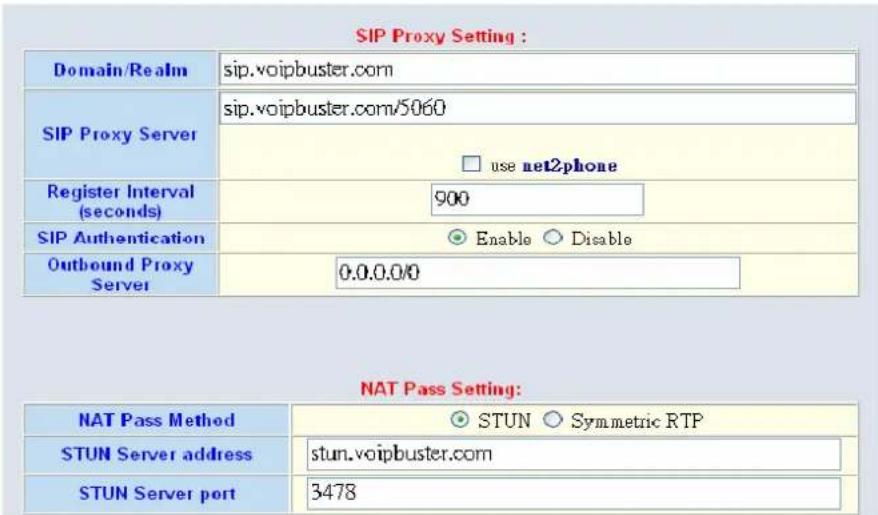
- VoIPBuster SIP Proxy Server : sip.voipbuster.com / 5060
- VoIPBuster STUN Server: stun.voipbuster.com / 5060
- VoIP Basic -> Setting SIP accounts and Set the Proxy Server and STUN server.
How to dial the call?
00 - country code - area code
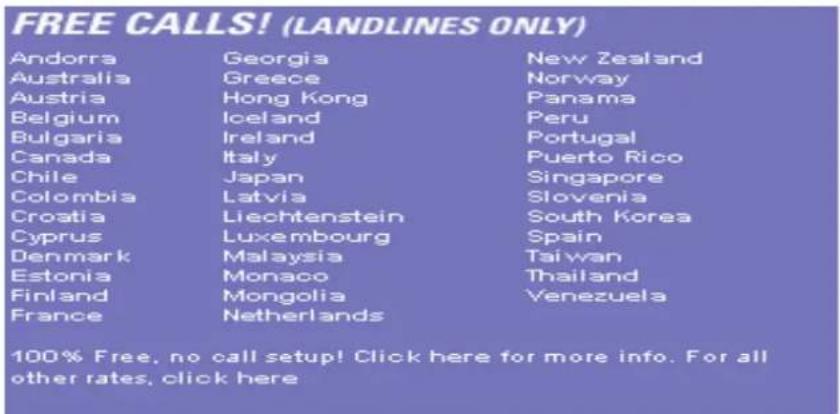
VoIPBuster Provides Free Land Line (Fixed Line) Calls
C Sip Speeds call
Speed Call Concept:
Cut your phone number down to fewer digit dialing!
Life is moving fast - you've got to dial fast. Now you can with Speed Dial. Dial the people you call most with just dialing fewer digits instead of dialing the full phone number.
- SIP Register Mode
Example: Gateway registers to sip proxy server: service.sip.com
What's even better is that you can customize and manage your speed dial phone numbers in Dial Plan Setting on your gateway! Dial Plan allows you to set up to speed dial numbers that can be called with the fewer numbers.
Example 1: you want to dial any number instead of 810-any number
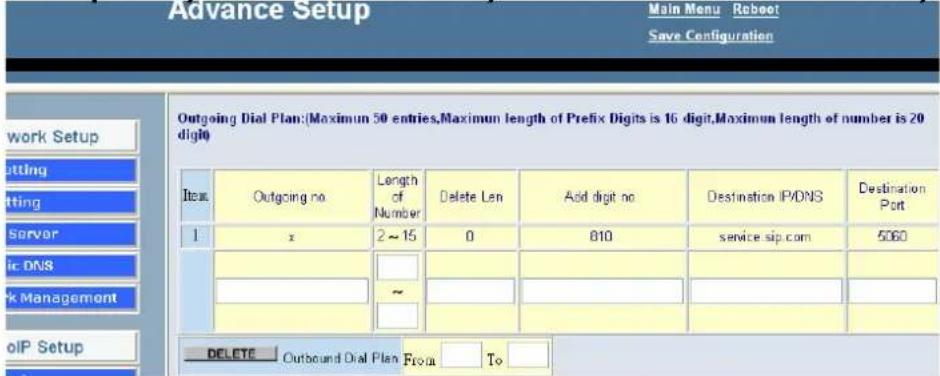
The destination IP address is the domain name of sip proxy server
Example 2: you want to dial 86-1111222333 instead of 810-86-1111222333
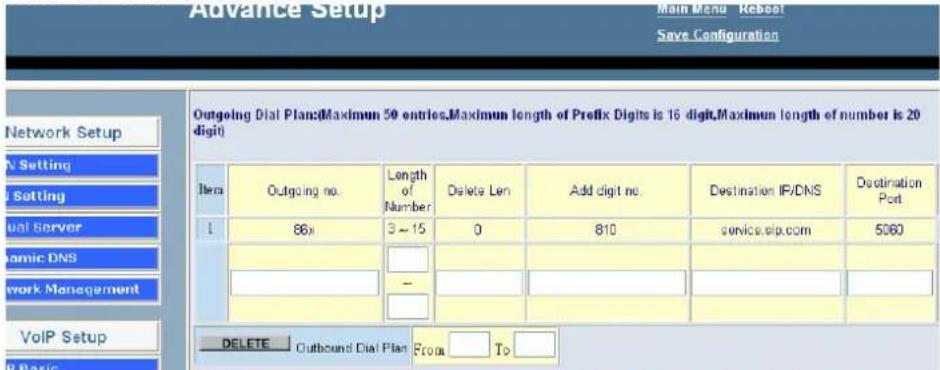
The destination IP address is the domain name of sip proxy server
Example 3: you want to dial 999 instead of 810-86111222333
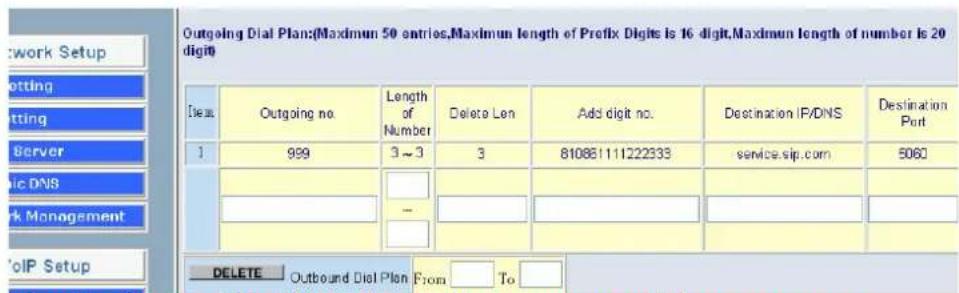
The destination IP address is the domain name of sip proxy serve
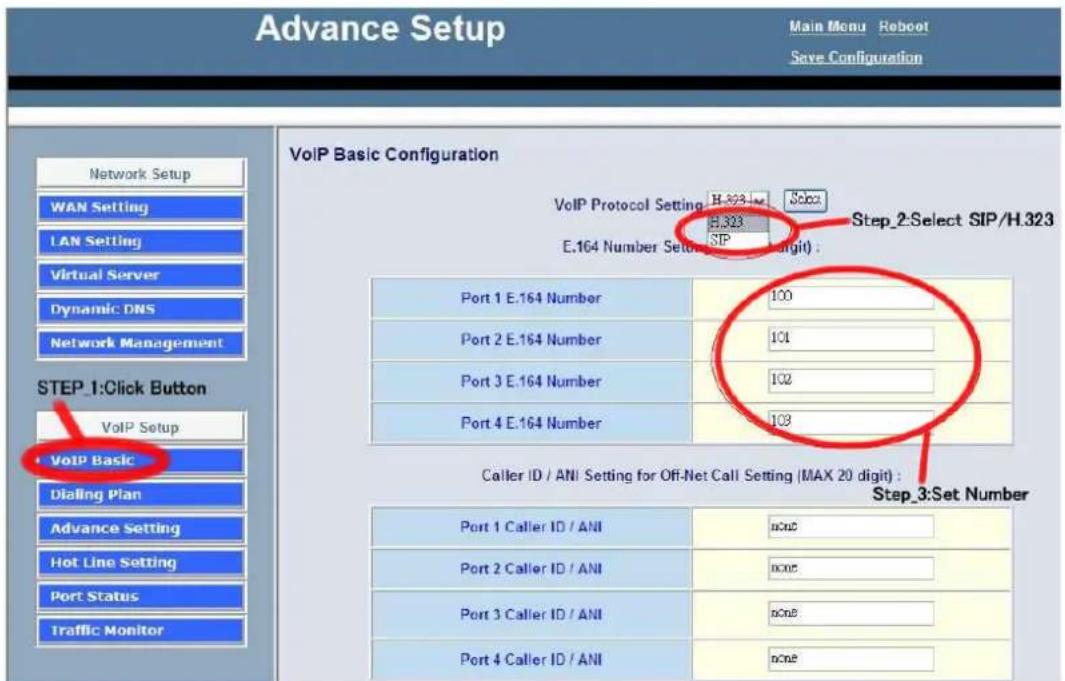
- Choose "VoIP Basic". Login in web interface, and in "Advance Setting".
- Select you want to use protocol (SIP/H.323).
- Input you want to use call number.
Setp_2:Setting Dialing plan
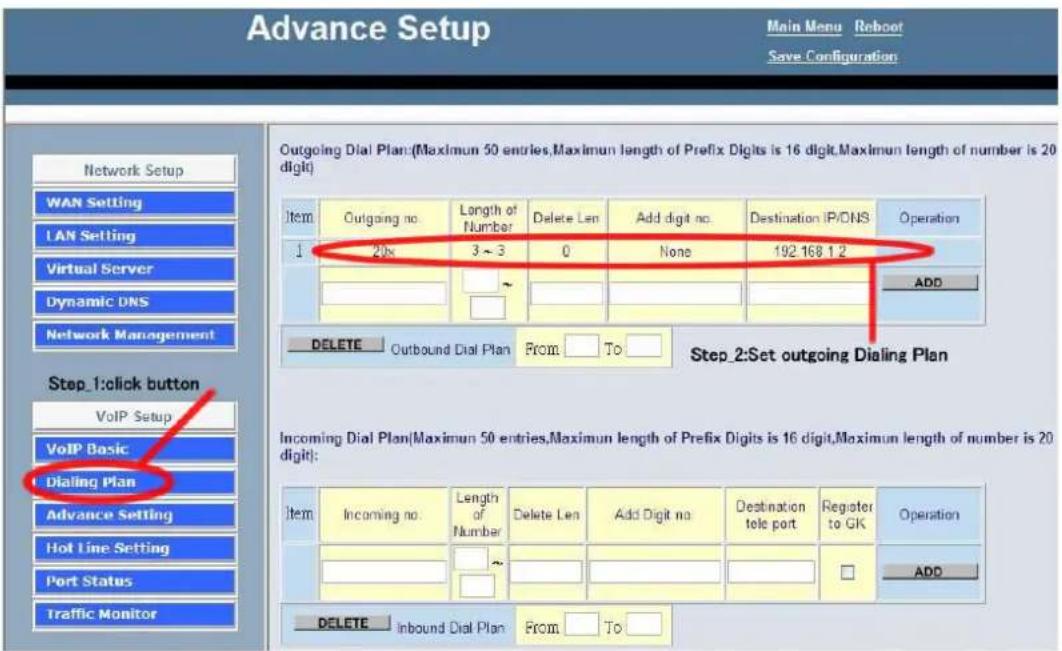
For Gateway_1 Setting
- Choose "Dialing plan" and Setting Outgoing Dial plan.
- Setting dial plan just like picture for demo."20x" the "x" mean wild card, it can be one of "0\~9" number. And length "3\~3", when you input 3 number and the call will be made. Destination is the Gateway_2 IP address.
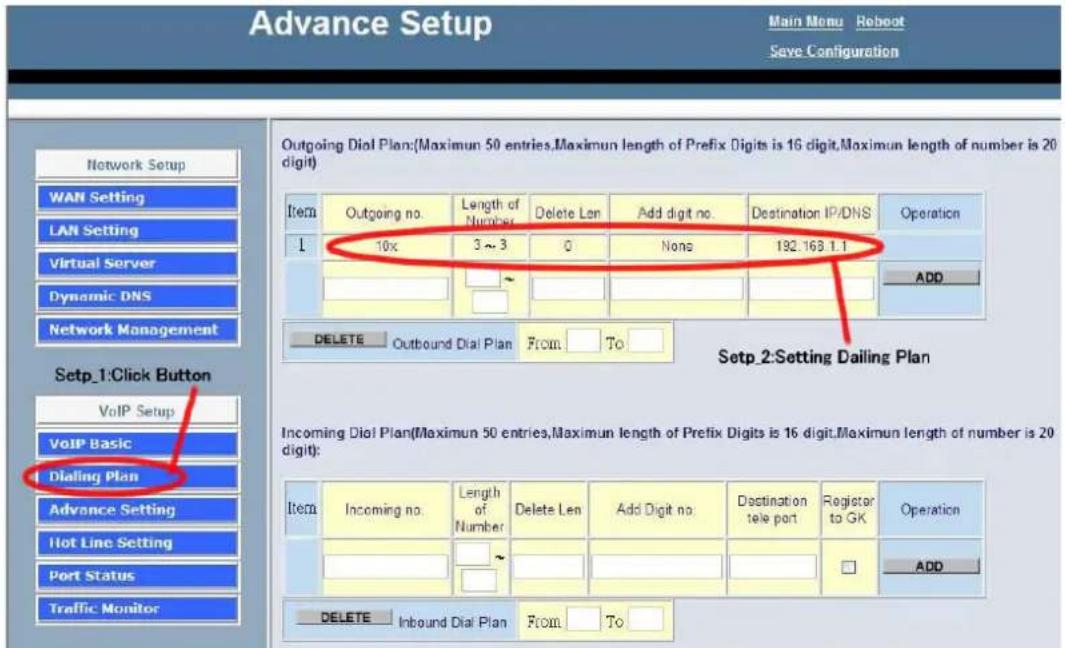
For Gateway_2 Setting
- choose "Dialing plan" and Setting Outgoing Dial plan.
- Setting dial plan just like picture for demo."10x" the "x" mean wild card, it can be one of "0\~9" number. And length "3\~3", when you input 3 number and the call will be made. Destination is the Gateway_1 IP address.
Step_3: make call each other
- When you setting 2 gateway done, you can make call by each other. On gateway_1, just call "200", and the gateway_2 Port_1 will ringing, then be made a call. And gateway_2 call "100", the gateway_1 will ringing, then be made a ca
D Application
SC-100P
GSM + VoIP Gateway Application
ITSP Scenario
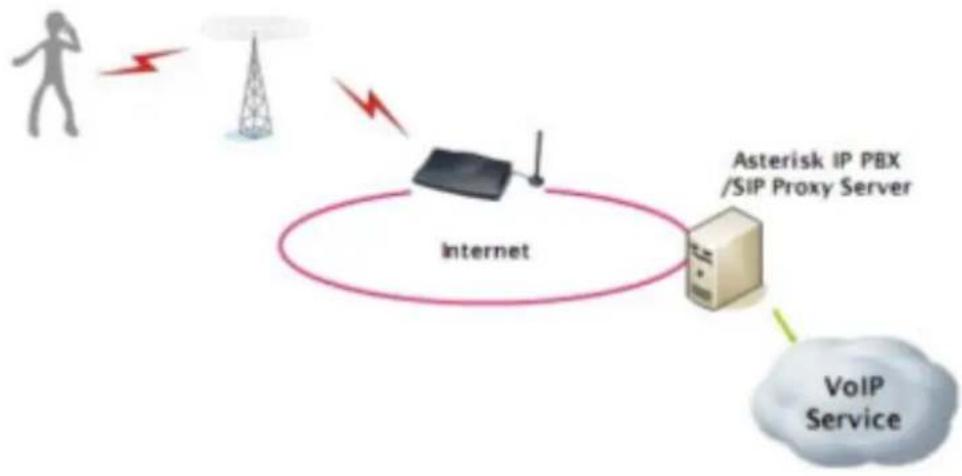
flowchart
graph TD
    A["User"] --> B["Wireless Signal"]
    B --> C["Internet"]
    C --> D["Asterisk IP PBX /SIP Proxy Server"]
    D --> E["VoIP Service"]
    C -->|Wireless Signal| B
GSM + VoIP Gateway Application
Enterprise Scenario
- Enterprise Peer-to-Peer CSM termination
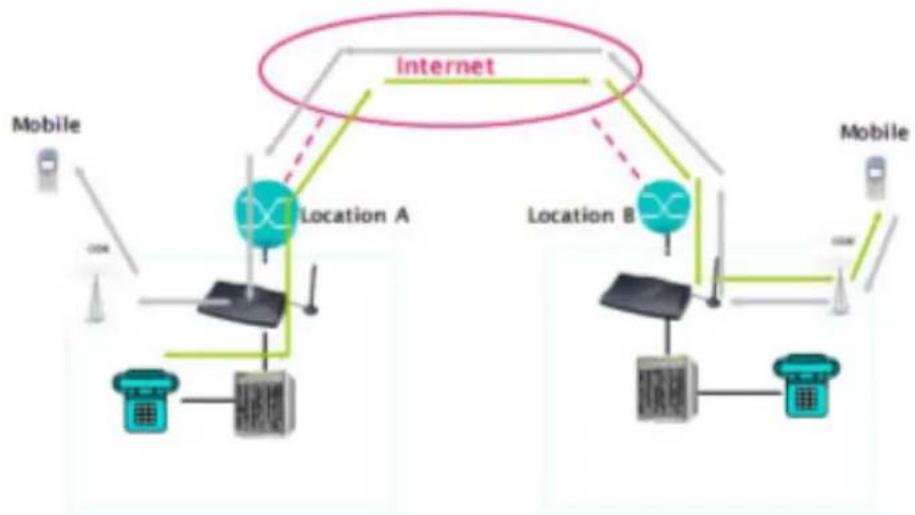
flowchart
graph TD
    A["Mobile"] -->|COM| B["Location A"]
    B --> C["Internet"]
    C --> D["Location B"]
    D --> E["Mobile"]
    B --> F["Mobile"]
    D --> G["Mobile"]
    style A fill:#f9f,stroke:#333
    style E fill:#bbf,stroke:#333
GSM + VoIP Gateway Application
Enterprise Scenario
- Enterprise SIP + GSM termination
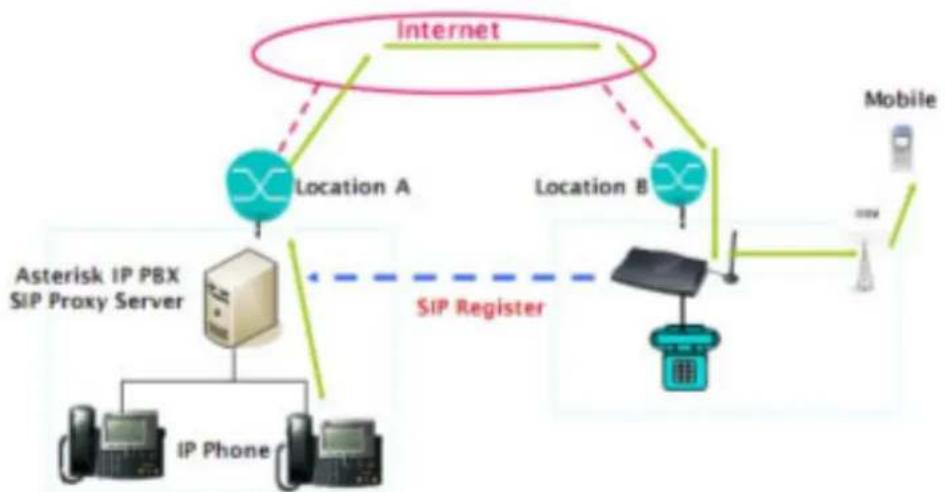
flowchart
graph TD
    A["Internet"] --> B["Location A"]
    A --> C["Location B"]
    B --> D["Asterisk IP PBX SIP Proxy Server"]
    B --> E["IP Phone"]
    C --> F["SIP Register"]
    F --> G["Mobile Device"]
    D --> H["Server with IP Phone"]
    E --> I["Server with Internet"]
    F --> J["Server with Internet"]
GSM + VoIP Gateway Application Enterprise Scenario
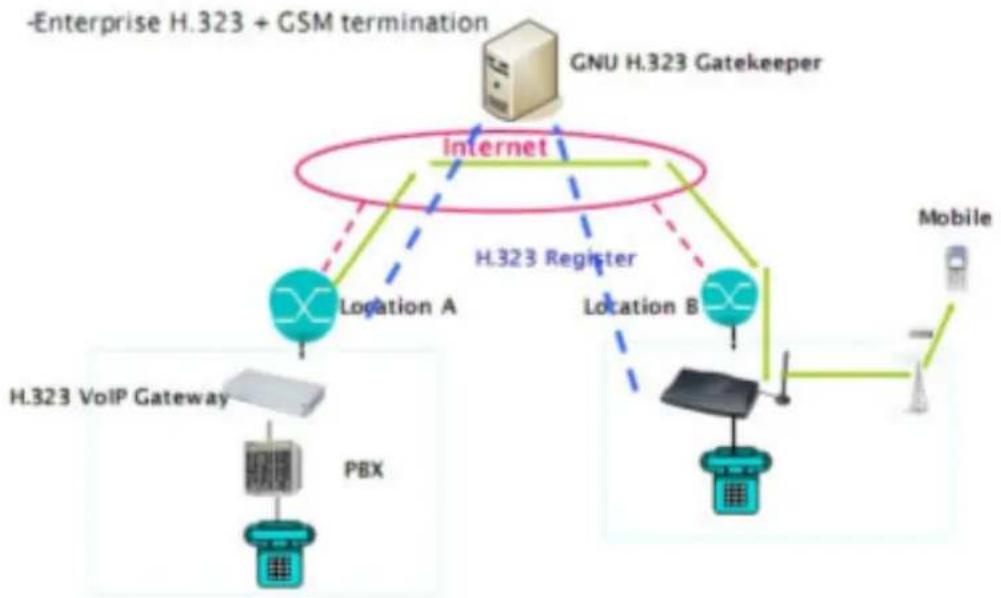
flowchart
graph TD
    A["-Enterprise H.323 + GSM termination"] --> B["Internet"]
    B --> C["GPU H.323 Gatekeeper"]
    B --> D["H.323 Register"]
    D --> E["Location A"]
    D --> F["Location B"]
    E --> G["H.323 VoIP Gateway"]
    F --> H["Mobile"]
    G --> I["PBX"]
    H --> J["Network"]
    I --> K["Network"]
    J --> L["Network"]
    K --> M["Network"]
    L --> N["Network"]
    M --> O["Network"]
    N --> P["Network"]
SunComm Technology Co., Ltd.
7F, No. 53, Jian Kang Rd. Chung Ho City, Taipei Hsien, Taiwan 23586
Tel: 886-2-32341496 Fax: 886-2-32341393