6007 - Security Camera Ansel - Free user manual and instructions
Find the device manual for free 6007 Ansel in PDF.


User questions about 6007 Ansel
0 question about this device. Answer the ones you know or ask your own.
Ask a new question about this device
Download the instructions for your Security Camera in PDF format for free! Find your manual 6007 - Ansel and take your electronic device back in hand. On this page are published all the documents necessary for the use of your device. 6007 by Ansel.
USER MANUAL 6007 Ansel
natural_image
Line drawing of a mounted digital camera with a wireless antenna and display panel (no text or symbols)User's Manual
Firmware Version 3.0.2
Network Camera User's Guide
Owner's Record
The model and serial numbers are located at the bottom of device. Record these numbers in the spaces provided below. Refer to these numbers whenever you call upon your dealer regarding this product.
Model No. ____
Serial No. ____
WARNING
To prevent fire or shock hazard, do not expose the unit to rain or moisture.
For AC Adaptor to avoid electrical shock, do not open the cabinet. Refer servicing to qualified personnel only.
Notice: The changes or modifications not expressly approved by the party responsible for compliance could void the user's authority to operate the equipment.
For customers in the U.S.A.
This equipment has been tested and found to comply with the limits for a digital device, pursuant to Part 15 of the FCC Rules. These limits are designed to provide reasonable protection against harmful interference in a residential installation. This equipment generates, uses, and can radiate radio frequency energy and, if not installed and used in accordance with the instructions, may cause harmful interference to radio communications. However, there is no guarantee that interference will not occur in a particular installation. If this equipment does cause harmful interference to radio or television reception, which can be determined by turning the equipment off and on, the user is encouraged to try to correct the interference by one or more of the following measures:
- Reorient or relocate the receiving antenna.
– Increase the separation between the equipment and receiver. - Connect the equipment into an outlet on a circuit different from that to which the receiver is connected.
- Consult the dealer or an experienced radio/TV technician for help.
You are cautioned that any changes or modifications not expressly approved in this manual could void your authority to operate this equipment.
The shielded interface cable recommended in this manual must be used with this equipment in order to comply with the limits for a digital device pursuant to Subpart B of Part 15 of FCC Rules.
Network Camera User's Guide
Declaration of Conformity
This device complies with part 15 of the FCC Rules. Operation is subject to the following two conditions:
(1) this device may not cause harmful interference, and
(2) this device must accept any interference received, including interference that may cause undesired operation.
IMPORTANT NOTE: To comply with the FCC RF exposure compliance requirements, no change to the antenna or the device is permitted. Any change to the antenna or the device could result in the device exceeding the RF exposure requirements and void user's authority to operate the device.
NOTICE TO USERS
© 2006\~8 All rights reserved. This manual or the software described herein, in whole or in part, may not be reproduced, translated or reduced to any machine readable form without prior written approval.
WE PROVIDES NO WARRANTY WITH REGARD TO THIS MANUAL, THE SOFTWARE OR OTHER INFORMATION CONTAINED HEREIN AND HEREBY EXPRESSLY DISCLAIMS ANY IMPLIED WARRANTIES OF MERCHANTABILITY OR FITNESS FOR ANY PARTICULAR PURPOSE WITH REGARD TO THIS MANUAL, THE SOFTWARE OR SUCH OTHER INFORMATION. IN NO EVENT SHALL WE BE LIABLE FOR ANY INCIDENTAL, CONSEQUENTIAL OR SPECIAL DAMAGES, WHETHER BASED ON TORT, CONTRACT, OR OTHERWISE, ARISING OUT OF OR IN CONNECTION WITH THIS MANUAL, THE SOFTWARE OR OTHER INFORMATION CONTAINED HEREIN OR THE USE THEREOF.
We reserve the right to make any modification to this manual or the information contained herein at any time without notice. The software described herein may also be governed by the terms of a separate user license agreement.
Table of Contents
Overview 6
Introduction....6
Features 6
Minimum System Requirements.... 7
Package Contents....8
Connections and Outlook....9
Hardware Installation.... 11
Preparation 13
Search and Set up by IPWizard.... 13
Search.... 13
Wizard....14
Using UPnP of Windows XP or Vista.... 17
Install the Device behind a NAT Router.... 18
Access the device from the Internet Explorer for the first time.... 19
Logging in as an User.... 20
Logging in as an Administrator.... 20
Operating the Network Camera....21
Monitor Image Section 21
Video Profile 21
Streaming Protocol.... 22
Language....22
2-Way Audio 22
ActiveX Control....22
Digital Zoom....23
Record....23
Snapshot.... 24
Voice 25
Statistics 26
About....26
Administrating the Device....28
System Setting 28
Network: Configure Network settings.... 28
Network....28
Wireless.... 30
DDNS service 32
PPPoE 33
Streaming.... 35
UPnP 35
IP Filter 37
IP Notification.... 37
Camera: Adjust Camera parameters.... 40
Picture....40
System: Configure and maintain system.... 42
System....42
Date & Time.... 43
Maintenance.... 45
Video: Configure profile.... 47
Common....47
MPEG4/VGA.... 47
MPEG4/QVGA.... 48
MPEG4/QQVGA.... 49
Video/JPEG....50
MEGA MPEG4....51
MEGA JPEG....52
Audio: Audio parameters 54
User: Manage user name, password and login privilege 55
E-Mail: Setup E-Mail configuration.... 56
Object detection: Setup Object detection.... 58
Event Server: Setup FTP/TCP/HTTP server configuration.... 59
FTP Server 59
TCP Server....60
HTTP Server 60
Event Schedule: Configure the event schedule.... 62
Appendix A: Restore Factory Default Settings 63
Appendix B: Troubleshooting & Frequently Asked Questions....64
Appendix C: PING IP Address....68
Appendix D: Bandwidth Estimation.... 69
Appendix E: Specifications 70
Appendix F: Configure Port Forwarding Manually.... 71
Appendix G: DDNS Application 74
Appendix H: Power Line Frequency....80
Appendix I: 3GPP 81
Appendix J: Enable UPnP of Windows XP 82
Overview
This user's guide explains how to operate the Mega-pixel Network Camera from a computer. User should read this manual completely and carefully before you operate the device.
Introduction
This camera is an inexpensive and fully scalable surveillance device. Because the Network Cameras can be plugged into your existing local area network (LAN), you will potentially save thousands of dollars from unnecessary cabling.
The device is accessible via the LAN or Internet connection. Connect your device directly to a local area network or xDSL modem, and with Microsoft® Internet Explorer you get instant, on demand video streams. Within minutes you can set up the device to capture a video sequence to a PC. The live video can be uploaded to a website for the world to see.
Features
● Easy installation with setup wizard
● Dynamic IP Service, DIPS®, to search your IP camera from Internet
● MPEG4 and JPEG video compression simultaneously
● Mega-pixel resolution up to 1280x1024
- Mega-pixel or Multi-profile mode selectable
- UDP / TCP / HTTP protocols selectable
- IEEE 802.11b/g wireless LAN (WLAN model)
● WEP/WPA/WPA2-PSK wireless security (WLAN model)
● 3GPP for 3G mobile remote application
● 30 fps for VGA/QVGA/QQVGA resolutions
● 15 fps for Mega/MPEG4 resolution
- 5 fps for Mega/JPEG resolution
● Built-in 6 IR LEDs for night mode or low Lux. environment
● Built-in microphone
- Digital zoom
- Two-way audio
● Intelligent motion detection
● Voice alerting while motion triggered
● Image transmission using an FTP or e-mail for event
- DDNS and PPPoE
● Support UPnP device discovery and NAT router transversal
● Multi-channel control software for surveillance application
● On-line firmware upgrade
Minimum System Requirements
● Microsoft Internet Explorer 6.0 or later
● VGA Monitor resolution 1024 x 768 or higher
● Pentium-4, 2.0 GHz or higher
● Memory Size: 512MB or more
● Windows 2000, XP, Vista
Package Contents
User can find the following items in the package:
| Item Descriptions | ||
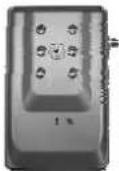 | 1. This Unit is the main element of the product. | |
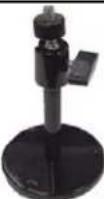 | 2. Camera Stand with screws | |
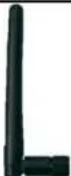 | 3. Detachable WLAN Antenna (for WLAN model only) | |
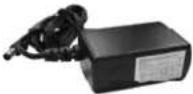 | 4. Power Adapter dedicates 5V DC electric power output to Network Camera. | |
 | 5. User's Manual CD provides important information and instructions for operating the Network Camera.. | |
 | 6. Quick Start Guide provides important information and instructions for installing this device. | |
If any of the above items are missing, please contact your dealer immediately.
Note: Using a power supply with a different voltage than the one included with the Network Camera will cause damage and void the warranty for this product.
Connections and Outlook
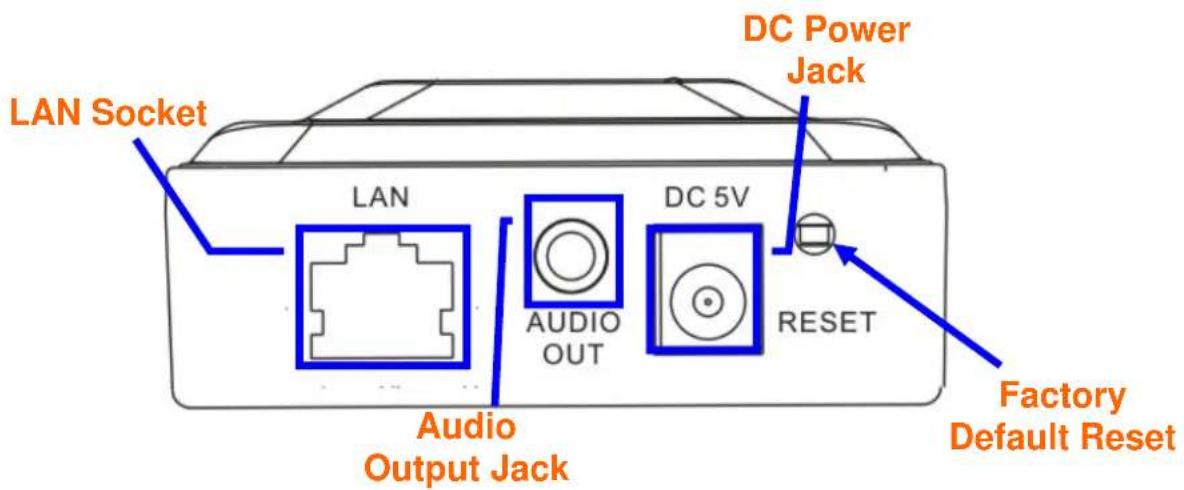
LAN Socket
The LAN socket is a RJ-45 connector for connections to 10Base-T Ethernet or 100Base-TX Fast Ethernet cabling. This Ethernet port built N-Way protocol can detect or negotiate the transmission speed of the network automatically. Please use Category 5 "straight through" cable to connect the Network Camera to a 100Mbps Fast Ethernet network switch or hub. Note that, in case you need to connect the device to PC or notebook directly, you should use "cross-over" cable instead.
Audio Output Jack
Audio-out Jack allows this device to output audio or alerting sound.
DC Power Jack
The DC Power Jack is located on the Network Camera's bottom. The input power is 5VDC. Note that supply the power to the Network Camera with the power adapter included in package. Otherwise, the improper power adapter may damage the unit and result in danger.
Factory Default Reset
This button is hidden in the pinhole beside the DC Power Jack. Please refer to the Appendix A in this manual for more information.
Network Camera User's Guide
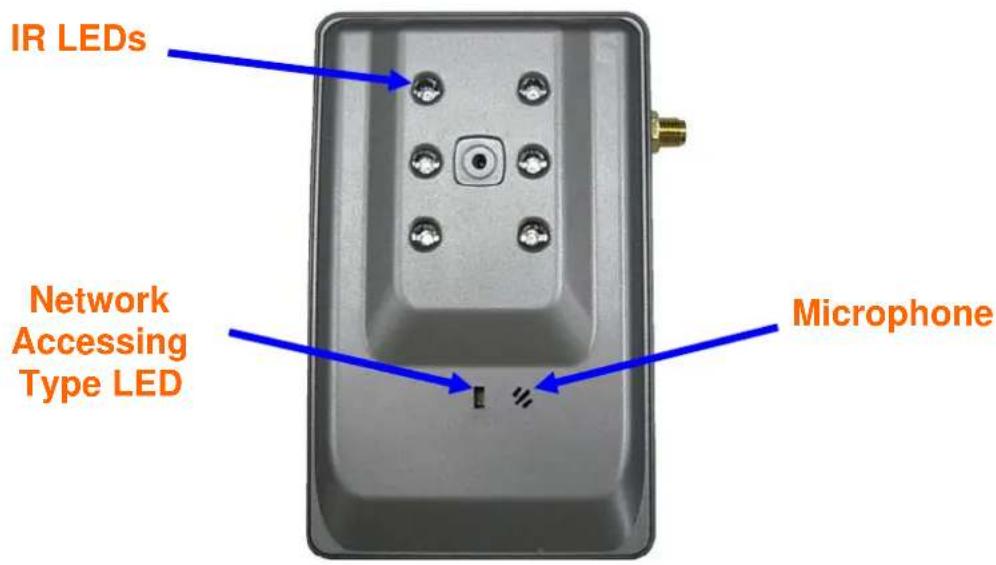
Microphone
The Network Camera has built-in an internal microphone. This microphone is hidden in the pinhole located on the front panel.
IR LEDs
These LEDs are Infra-Red type. It's very useful for low-lux environment to provide extra light source for image sensor.
Network Accessing Type LED
This LED is used to indicate the network type of Network Camera. The green LED means the Network Camera under wired Ethernet mode (LAN) and orange LED means Camera under wireless mode (WLAN).
Hardware Installation
-
Attach the Camera with the included stand
-
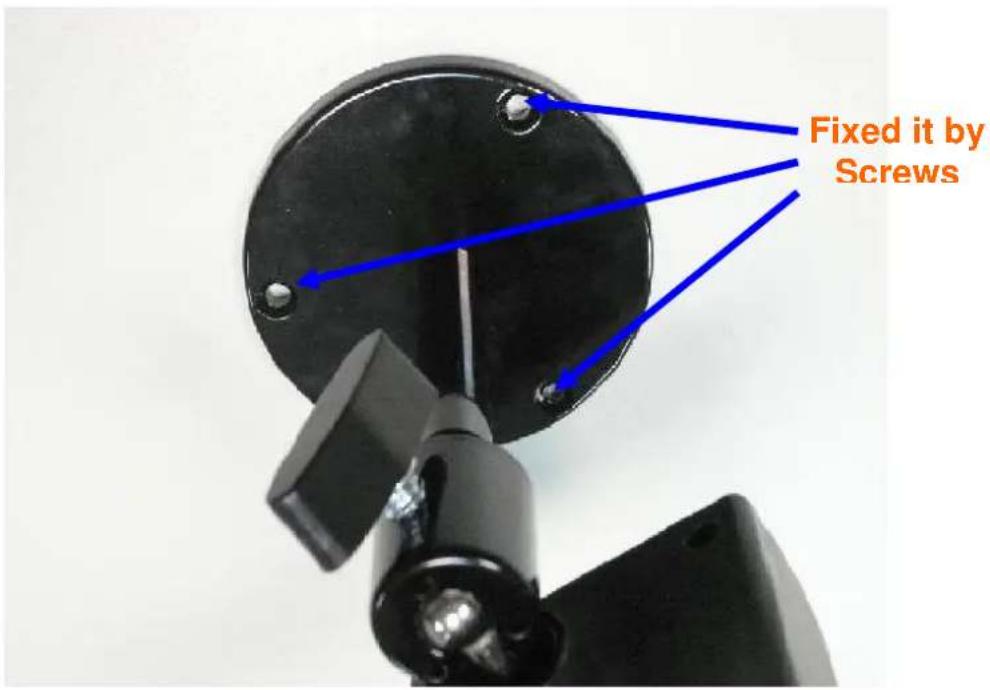
Place the Camera on the table or fix it onto ceiling or wall
Use three screws to fix the Network Camera onto the ceiling or wall. You could also put the Network Camera on the table directly.
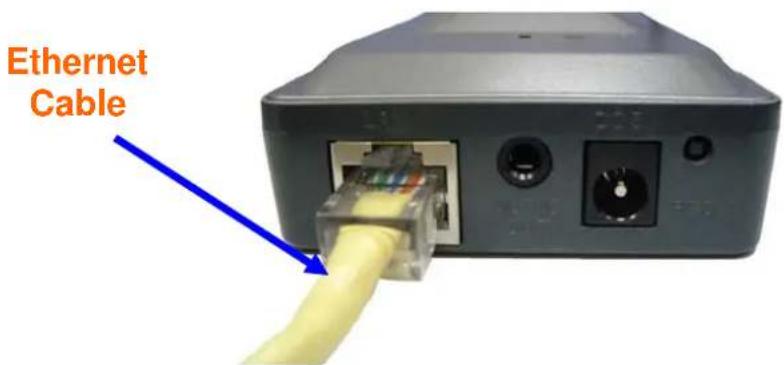
- Plug an Ethernet cable into the Camera
Connect an Ethernet cable to the LAN socket located on the Network Camera's bottom and attach it to the network.
Network Camera User's Guide
4. Connect the external power supply to Camera
Connect the attached power adapter to the DC power jack of the Network Camera. Note: Use the power adapter, 5VDC, included in the package and connect it to wall outlet for AC power.
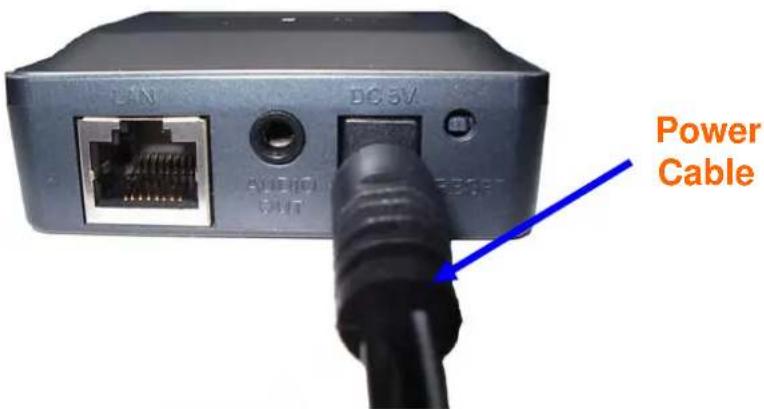
Once you have installed the Network Camera well and powered it on, the network accessing type LED will turn on. It means the system is booting up successfully. Furthermore, if you have a proper network connection, and access to the Network Camera, the LED will flash green under wired mode or orange under wireless mode.
Preparation
Search and Set up by IPWizard
When you installed the Camera on a LAN environment, you have two easy ways to search your Cameras by IPWizard or UPnP discovery. Here is the way to execute IPWizard to discover Camera's IP address and set up related parameter in a Camera.
Search
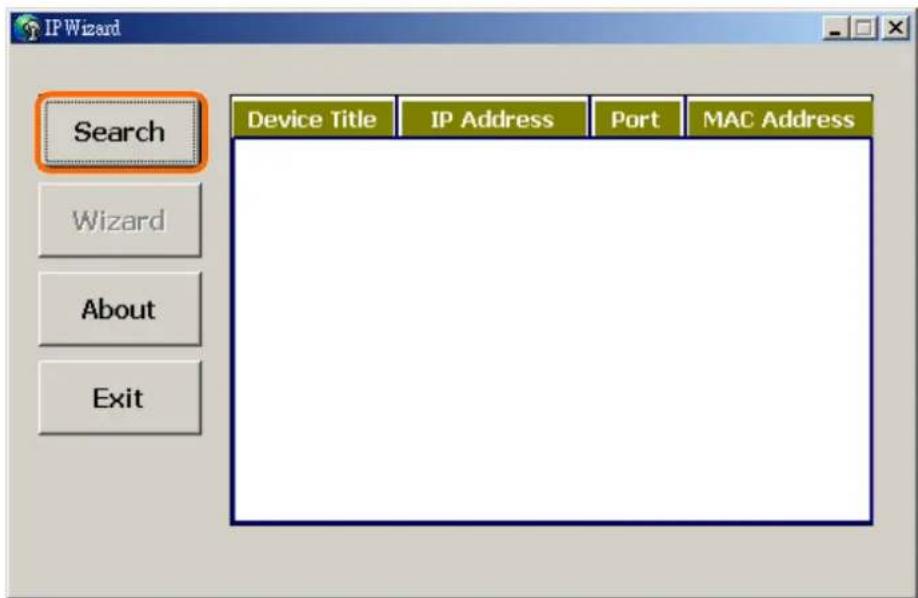
When click Search button, a searching window will pop up. IPWizard is starting to search Network Cameras on the LAN. The message "No Network Camera Is Found" will appear on this window if IPWizard can not find any device on the LAN. Otherwise, existed devices will be listed as below.
Network Camera User's Guide
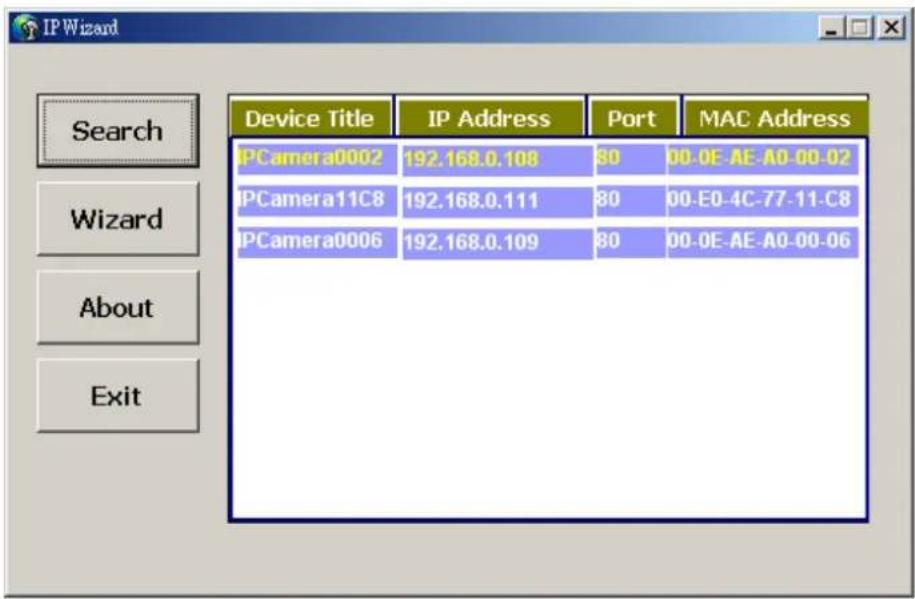
If IPWizard finds network devices, Wizard button will be available. Please select the device you want to set-up or connect and click the left button of the mouse on the Information Box. The words on the Information Box will turn from white to yellow which means this device is selected. Or you could double click the left button to connect to the network device. Relative settings will be carried out after you press Installation Wizard. Details of Installation Wizard will be specified as below.
Wizard
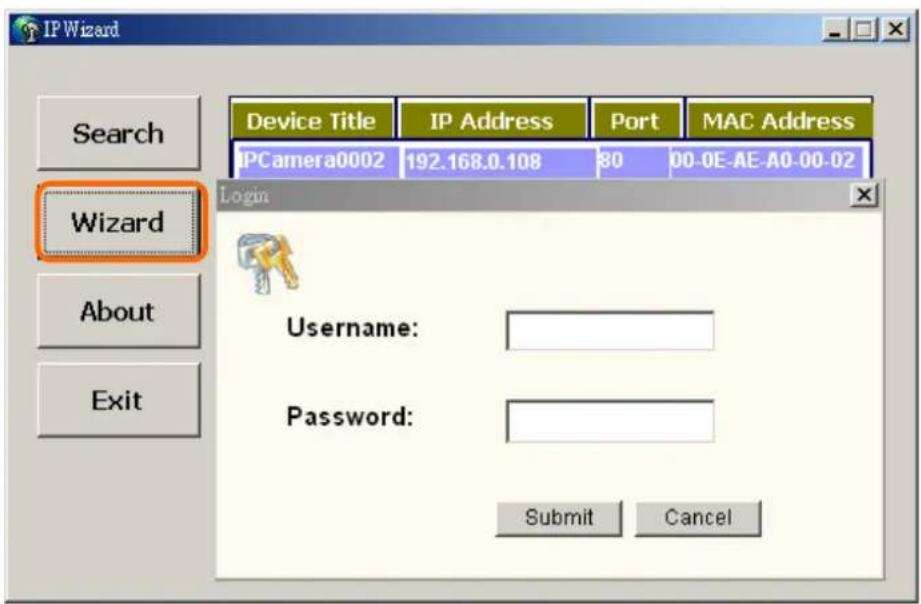
When Wizard button is available, you can proceed to set up relative settings on the
Network Camera User's Guide
selected device. Further procedures can be carried out when device is available on the LAN.
After pressing Installation Wizard, please key in authorized username of the device and password when login dialog box appears on the screen. You can login the setting page if authorized name and password is approved.
Wizard page 1: Username and Password
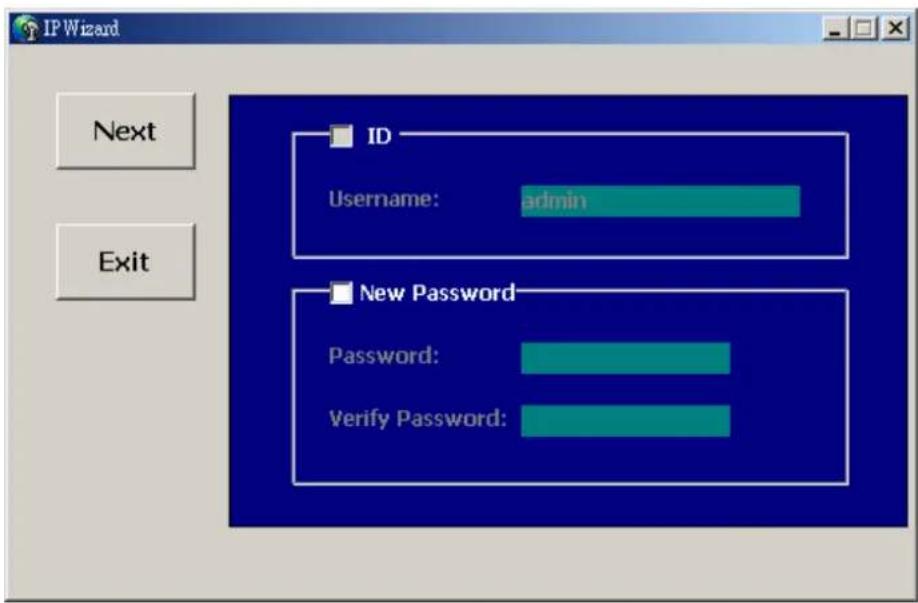
This page is about the change of the authorized name and password of the selected device. If you don't want to change them for the time being, please click on "Next" to move to the next page. Press "Exit" button if you don't want to set up right now. If you want to change authorized username or password, you have to click on the box. Authorized username should contain at least 5\~20 characters and password should contain at least 4\~8 characters.
Wizard page 2: LAN Setting
Network Camera User's Guide
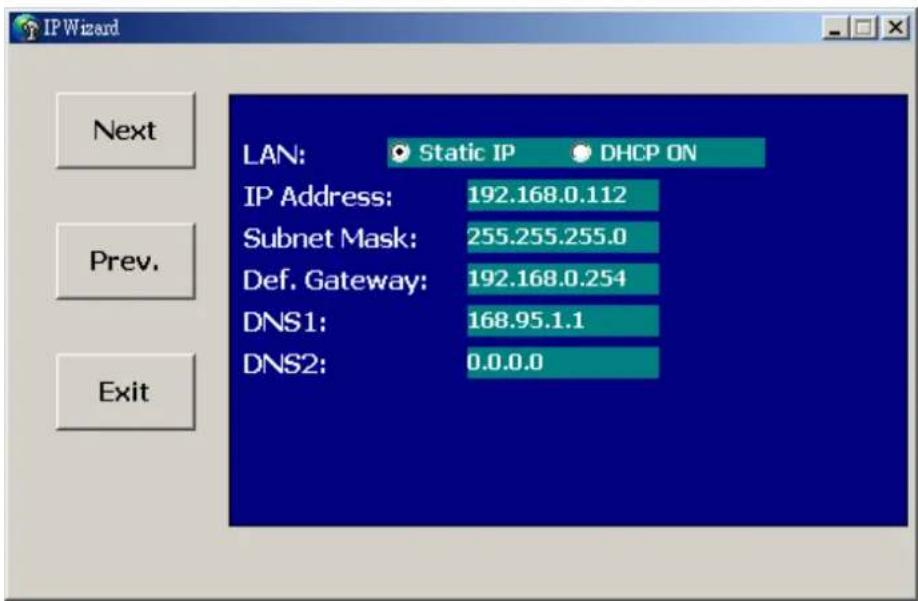
Wizard page 3: Confirmation
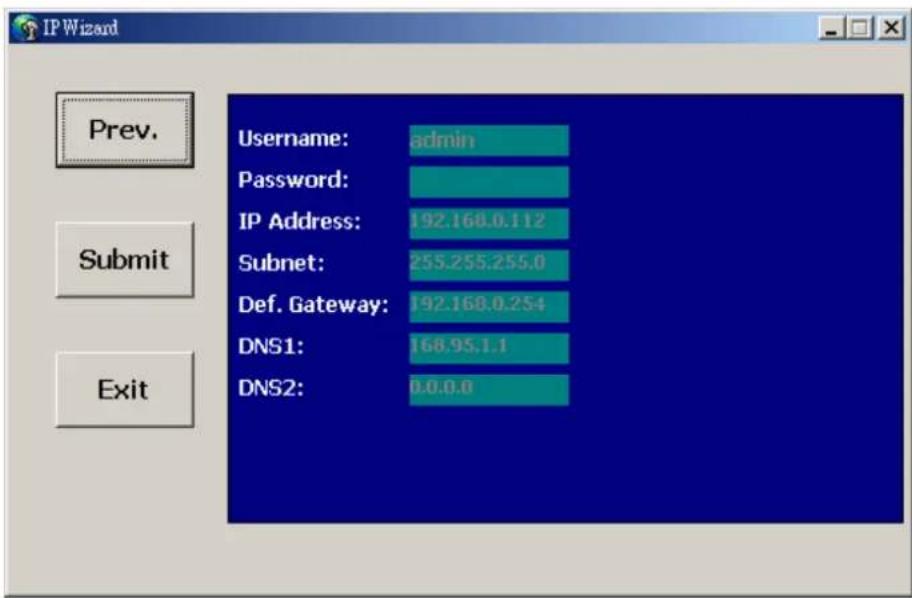
This page shows the information of the selected device to check if there is any mistake or not. If it is correct, please press "Submit" button and the setting information will be uploaded to the selected device. Click on "Exit" button if you don't want to set it up; Click on "Prev." button to go back to the previous page for the modification.
Network Camera User's Guide
Using UPnP of Windows® XP or Vista
UPnP™ is short for Universal Plug and Play, which is a networking architecture that provides compatibility among networking equipment, software, and peripherals. This device is an UPnP enabled device. If the operating system, Windows XP or Vista, of your PC is UPnP enabled, the Network Camera will be very easy to be found.
Please refer to Appendix J to enable UPnP settings only if your operating system of PC is running Windows XP.
Note: Windows 2000 does not support UPnP feature.
To discover your device, go to your Desktop and click My Network Places.
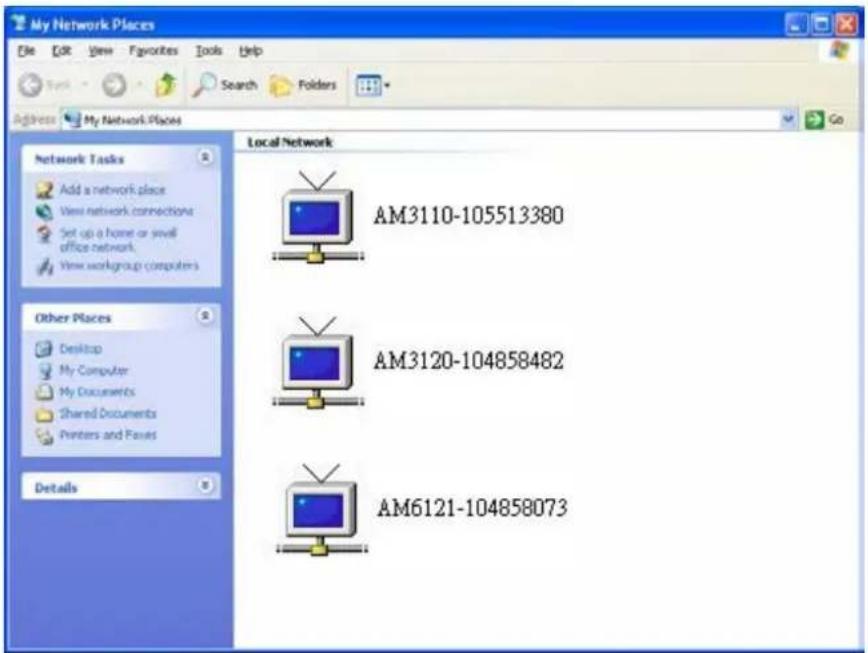
Click the targeted Device. Then Internet Explorer will connect to this Network Camera automatically.
Install the Device behind a NAT Router
Once installed, the device is accessible on your LAN. To access the device from the Internet you must configure your broadband router to allow incoming data traffic to the device. If the device is installed on the LAN with a router, then it may get a dynamic IP address from the DHCP server. However, if the device wants to be accessed from the WAN, its IP address needs to be setup as fixed IP, also the port forwarding or Virtual Server function of router needs to be setup.
However, if your NAT router supports UPnP feature, it can be very easy to achieve NAT traversal automatically. To do this, enable the NAT-traversal feature, which will attempt to automatically configure the router to allow access to the camera.
Installing the device with an UPnP router on your network is an easy 3-step procedure:
(1) Enable UPnP option of your NAT router
(2) Enable UPnP NAT traversal option of the Network Camera
(3) Access your Network Camera by DIPS
(1) Enable UPnP option of your NAT router
To use UPnP IGD function (NAT traversal), you need to make sure the UPnP function is enabled in your router. Most new home routers should support this function. Some of routers are default enable and others are not. Please check user's manual of your NAT router for detail.
(2) Enable UPnP NAT traversal option of the Network Camera
Refer to Setting → Network → UPnP page for detail NAT traversal setting.
(3) Access your Network Camera by DIPS
Refer to Setting → System → System page for detail DIPS information.
Access the device from the Internet Explorer for the first time
- Start the web browser on the computer and type the IP address of the Network Camera you want to monitor as below:

The Login Window of the Network Camera is prompted:
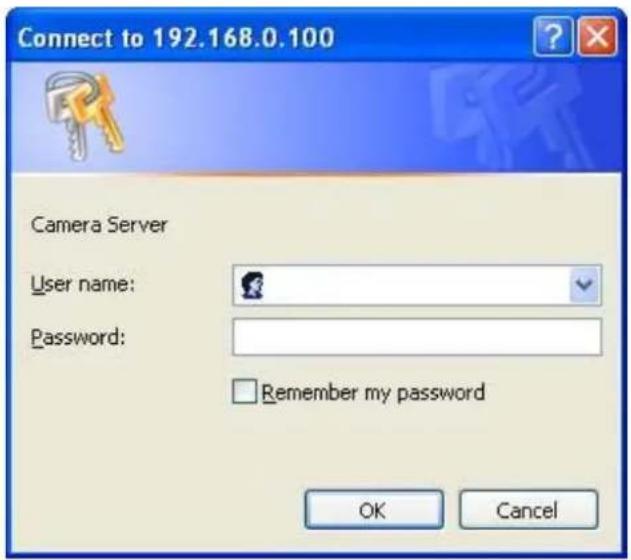
- Type in your login name and password under "USERNAME" and "PASSWORD" textbox.
For the first time use (default value), input the
User Name: admin
Password:
That's, type in "admin" on the "USERNAME" as a default name and leave PASSWORD textbox blank. Click "OK" button to start the main menu.
Network Camera User's Guide
- According to your browser's security setting, the IE Web Page may prompt the "Security Warning" window. If so, select "Yes" to install and run the ActiveX control into your PC. Otherwise, the system will load the ActiveX silently.
- After the ActiveX control was installed and ran, the first image will be displayed.
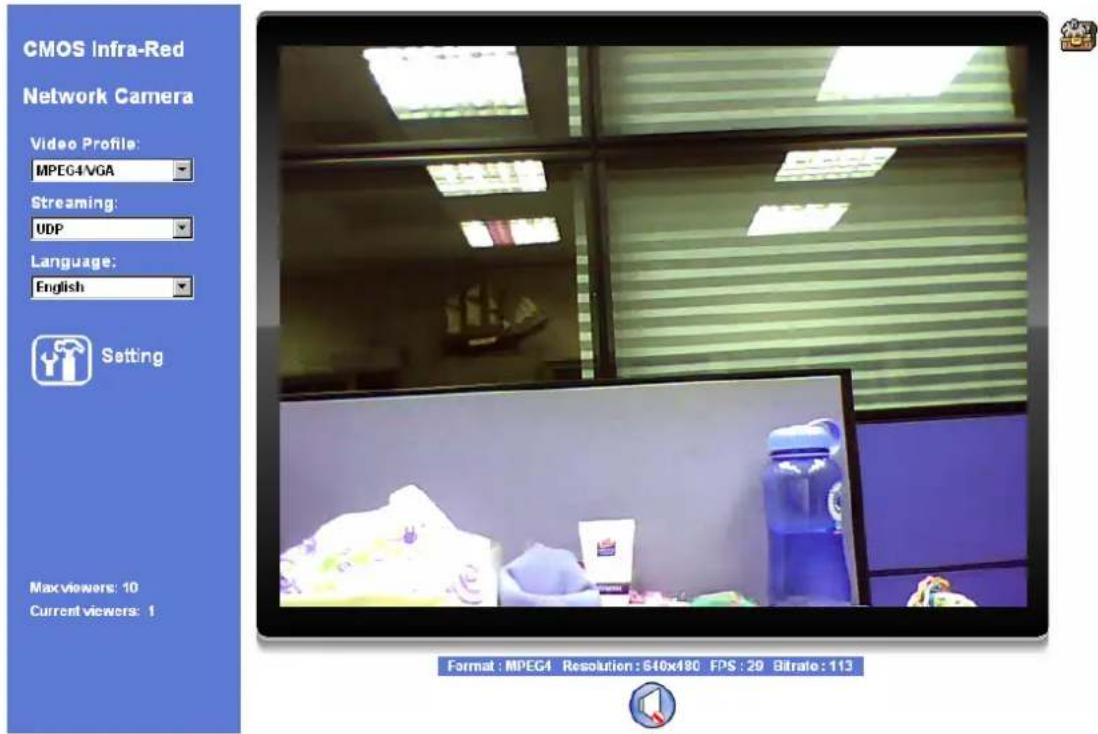
Logging in as an User
If you log in the Network Camera as an ordinary User, "Setting" function will be not accessible.
Logging in as an Administrator
If you log in the Network Camera as the Administrator, you can perform all the settings provided by the device.
Operating the Network Camera
Start-up screen will be as follow no matter an ordinary users or an administrator.
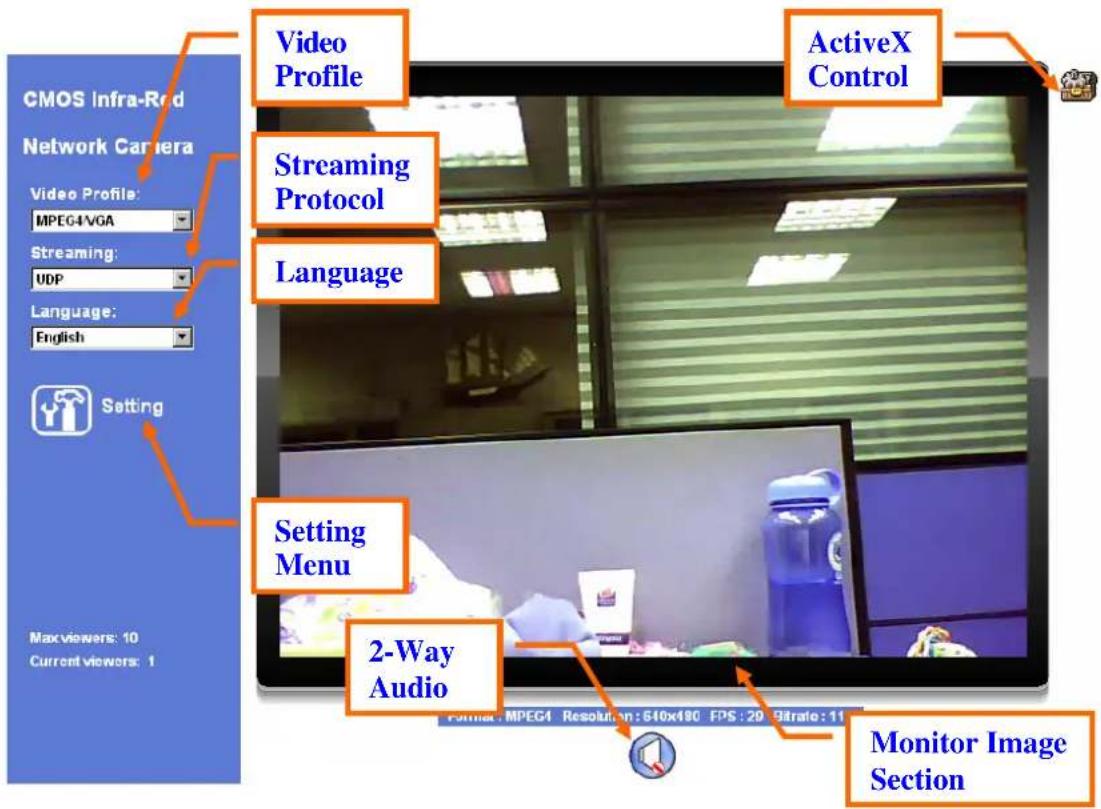
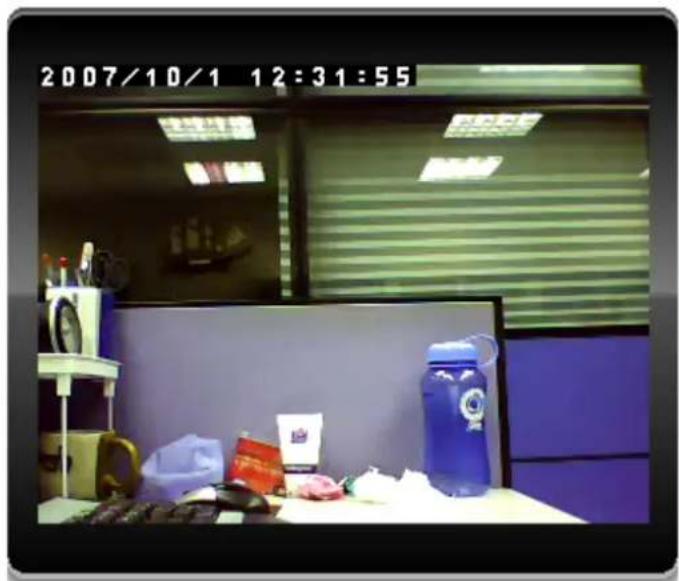
Monitor Image Section
The image shot by the device is shown here. The date and time are displayed at the top of the window.
Video Profile
The device supports either mega-pixel or multi-profile mode for both MEPG4 and JPEG simultaneously. User can chose the proper and/or preferred profile which is listed here.
Streaming Protocol
User can select proper streaming protocol according to networking environment.
Language
The device could provide multiple languages to meet customer's requirement.
2-Way Audio
The device supports 2-way audio function. User can chose to enable or disable this function by toggling the icon below.

: Disable audio uploading function.

: Enable audio uploading function.
ActiveX Control
The plug-in ActiveX control supports a lot of functions by clicking the left mouse button. Note that this feature only supports on the ActiveX control within Microsoft® Internet Explorer.
On the ActiveX control icon, click the LeftMouseButton, then a menu pop-up. This menu provides features that are unique to the ActiveX control. These features include:
- "Digital Zoom",
- "Record",
- "Snapshot",
• "Voice", - "Statistics",
- "About"
Network Camera User's Guide
natural_image
Office desk with blue water bottle, scattered items, and office equipment (no visible text or symbols)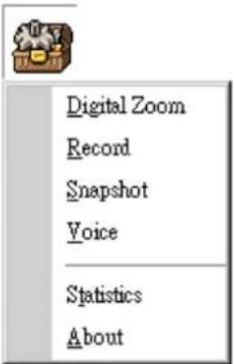
Digital Zoom
natural_image
Blue water bottle with a logo, displayed on a table with a white object nearby (no visible text or symbols)
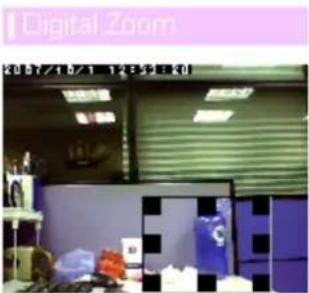
Click Digital Zoom to active this function as above. User can drag or scale the box over the video to adjust zoom ratio and position.
Record
Network Camera User's Guide
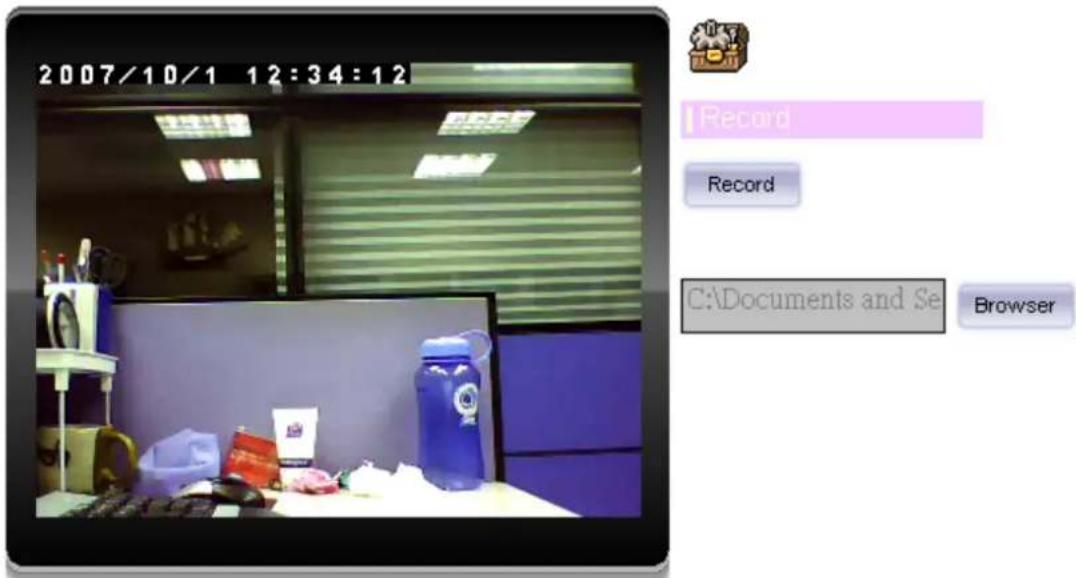
Click Record to activate this function. Press Record button to start recording. The video file is saved as ASF format into your local PC. While you want to stop it, press Stop to stop recording. Select Browser, the pop-up window to select the save path and file name prefix, select OK to continue.
After stop recording, list the files, this file is named as Video_yyyymmddhhmmss.asf
The ASF files can be displayed by the standard Windows Media Player, but it needs the DixectX 9.0 or later version to be installed.
Snapshot
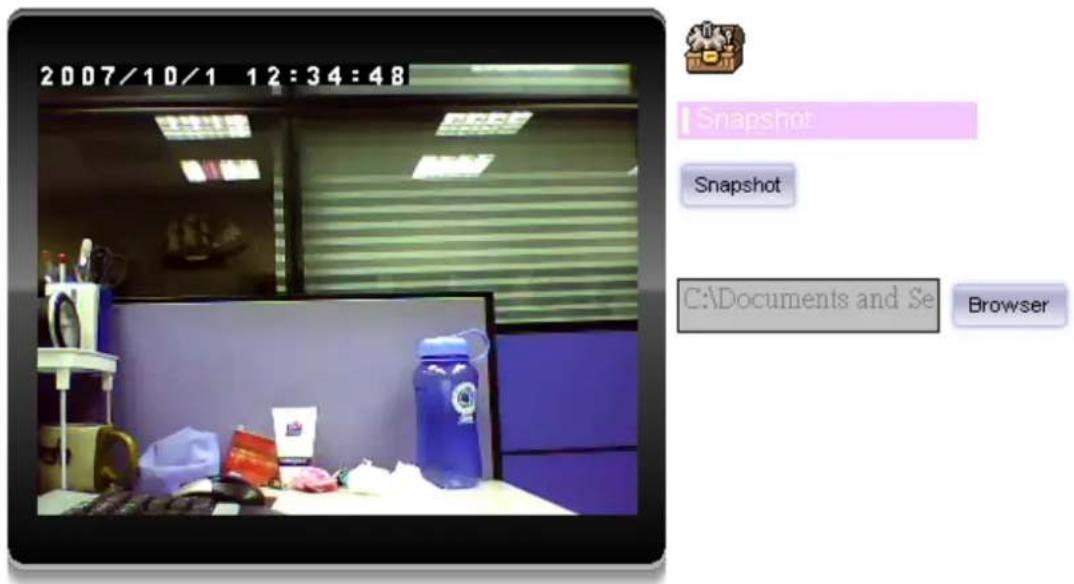
Click Snapshot to activate this function. Press Snapshot button to take a picture. The image file is saved as JPEG format into your local PC. Select Browser, the pop-up window to select the save path and file name prefix, select OK to continue.
If you like to retrieve the saved image, select the file to display the saved image by using any one of graph editing tools.
Network Camera User's Guide
Voice
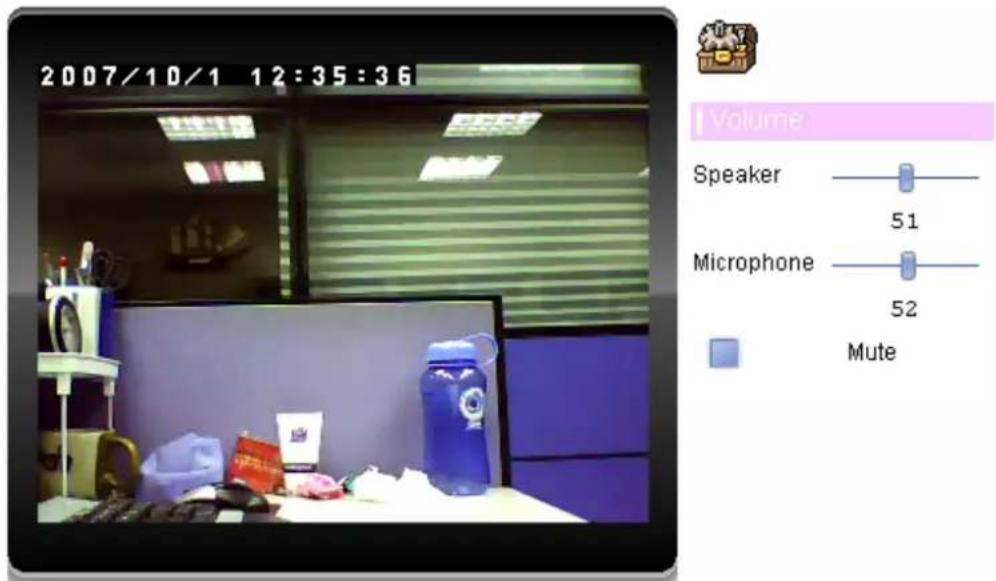
Click Volume to activate this function. There are two control bars for speaker and microphone volume respectively. Scroll these control bars to adjust the audio attribute. Check the volume mute will mute the speaker output.
Network Camera User's Guide
Statistics
Click Statistics to activate this function. A window will be popup to show the statistics information of the streaming status. Note that this information is the statistics between the device and your local PC.
natural_image
Office desk with blue water bottle, office chair, and wall-mounted storage units (no visible text or symbols)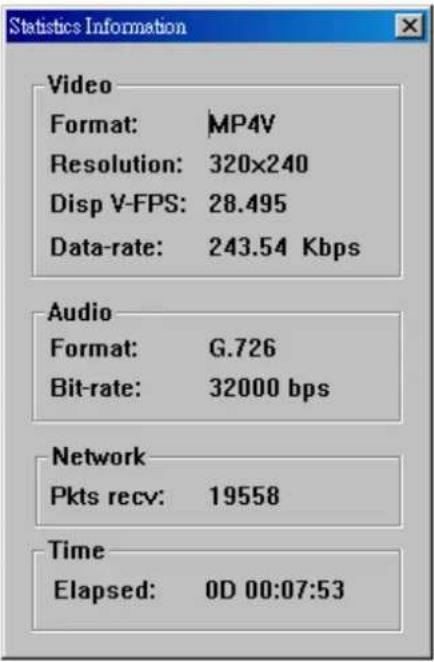
About
Network Camera User's Guide
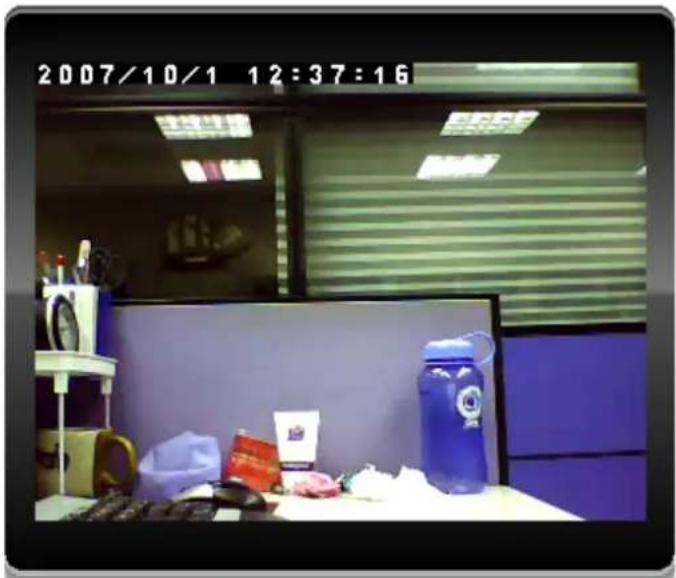
natural_image
Office desk with blue water bottle, office chair, and wall-mounted windows (no visible text or symbols)
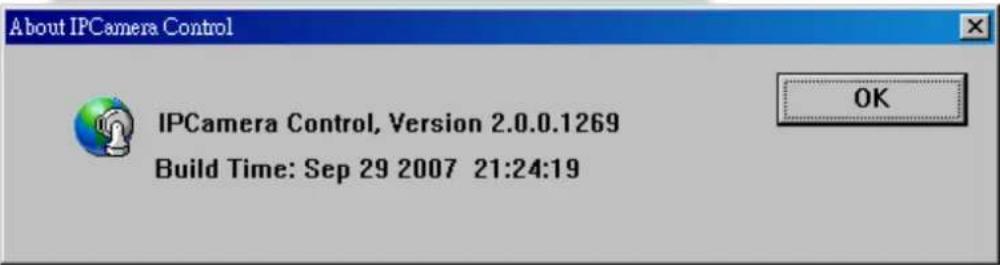
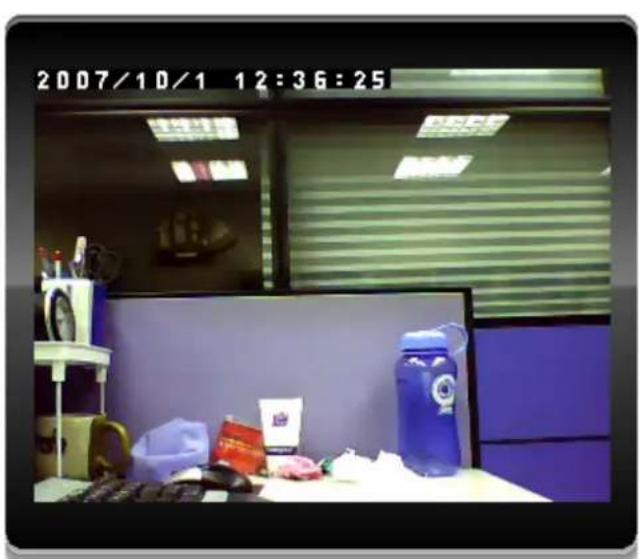
Click About to show this ActiveX information.
Administrating the Device
System Setting
This function is only available for user logged into Network Camera as administrator.
Click on each menu name to display its setting page.
| Item Action | |
| Network Configure | Network settings such as DHCP, DDNS, 3GPP, PPPoE and UPnP |
| Camera Adjust camera parameters, day & night | |
| System Configure | system information, date & time, maintenance, and view system log file. |
| Video Select Mega-pixel or Multi-profile mode and configure bit rate and frame rate of video profiles | |
| Audio Configure audio parameters | |
| User Setup user name, password and login privilege | |
| E-Mail Setup E-Mail configuration | |
| Object Detection Setup Object detection | |
| Event Server Setup FTP/TCP/HTTP server for event | |
| Event Schedule Configure the schedule while event triggered | |
Network: Configure Network settings
Use this menu to configure the network to connect the device and the clients.
Network
This section provides the menu for connecting the device through Ethernet cable.
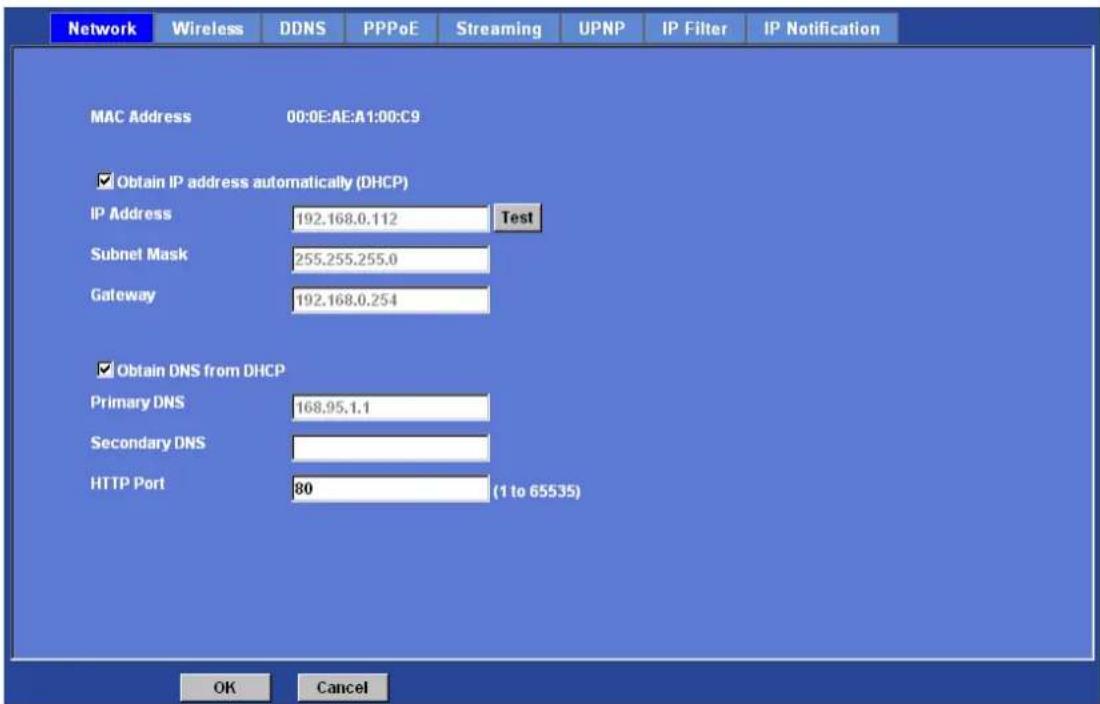
MAC address:
Displays the Ethernet MAC address of the device. Note that user can not change it.
Obtain IP address automatically (DHCP):
DHCP: Stands for Dynamic Host Configuration Protocol.
Enable this checked box when a DHCP server is installed on the network to issue IP address assignment. With this setting, the IP address is assigned automatically. If this device can not get an IP address within limited tries, the device will assign a default IP address, 192.168.0.100, by itself as the default IP address.
IP address, Subnet mask, and Gateway:
If you do not select Obtain an IP address automatically, then you need to enter these network parameters manually.
Obtain DNS from DHCP:
DNS: Stands for Domain Name System.
Enable this checked box when a DHCP server is installed on the network and provide DNS service.
Primary DNS and Secondary DNS:
If you do not select Obtain DNS from DHCP, then you need to enter these parameters manually.
HTTP Port:
The device supports two HTTP ports. The first one is default port 80 and this port is fixed. This port is very useful for Intranet usage. The second HTTP port is changeable. Users
Network Camera User's Guide
could assign the second port number of http protocol, and the WAN users should follow the port number to login. If the http port is not assigned as 80, users have to add the port number in back of IP address. For example: http://192.168.0.100:8080.
Therefore, the user can access the device by either
http://xx.xx.xx.xx/, or
http://xx.xx.xx.xx:xxxx/to access the device.
If multiple devices are installed on the LAN and also required to be accessed from the WAN, then the HTTP Port can be assigned as the virtual server port mapping to support multiple devices.
Click "OK" to save and enable the setting.
Wireless
If your device is a wireless model, you could assign the related parameters into wireless setting. Using a wired connection ensures greater secrecy while making these settings. These settings should always be made in the camera first and secondly in the wireless access point. This ensures that the device is always accessible when making changes.
Note that this function is only available for the model with WLAN capability.
MAC address:
Displays the Ethernet MAC address of the WLAN card. Note that user can not change it.
Site survey:
Click the “Refresh” button. It will refresh information window which list is the result of a network scan. Access points with a disabled SSID Broadcast will not appear unless the camera is associated with it. The following information is provided:
Interface Select:
"Wired (Ethernet) only" or "Auto – wired if cable connected, otherwise wireless":
Choose wired or wireless mode. However, note that wired is priority.
Type:
To select one of WLAN modes from Infrastructure or Ad-Hoc mode.
Security mode:
Shows which type of security the network uses. The device supports three security methods:
None
WEP
WPA_PSK/WPA2_PSK
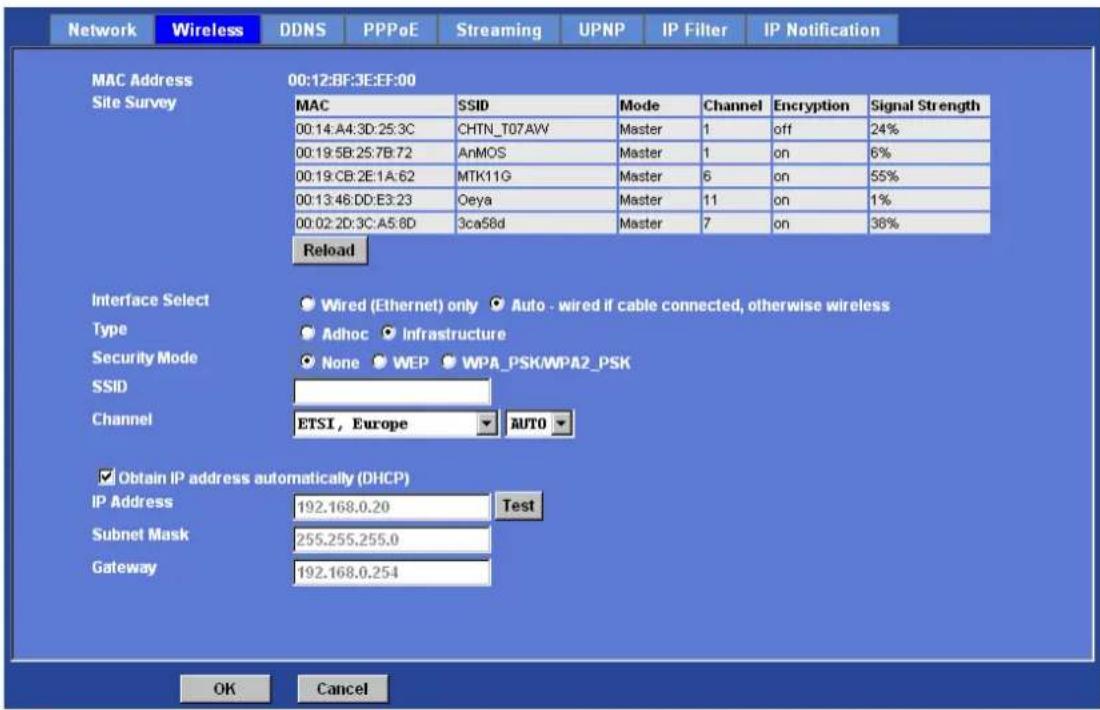
SSID:
This is the name of the wireless network the device is configured for. The field accepts up to 32 alphanumeric characters. The name must be exactly the same as that used in the wireless access point, or the connection will not be established.
Leaving this field blank means the device will attempt to access the nearest open network.
Channel:
Chooses the wireless channel in use currently.
WEP settings:
- Authentication:
Select Open or Shared Key System Authentication, depending on the method used by your access point. Not all access points have this option, in which case they probably use Open System, which is sometimes known as SSID Authentication.
- WEP Mode:
The key types available depend on the access point being used. The following options are available:
- ASCII - In this method the string must be exactly 5 characters for 64-bit WEP and 13 characters for 128-bit WEP.
- HEX - In this method the string must be exactly 10 hexadecimal (0-9, A-F) characters for 64-bit WEP and 26 hexadecimal characters for 128-bit WEP.
- Web Key 1\~4:
Network Camera User's Guide
Key value of WEP.
WPA settings:
- WPA Key:
Key value of WPA. The device uses a pre-shared key (PSK) for key management. The pre-shared key can be entered either as Manual hex, as 64 hexadecimal characters, or as a Passphrase, using 8 to 63 ASCII characters.
Obtain IP address automatically (DHCP):
Enable this checked box when a DHCP server is installed on the network to issue IP address assignment. With this setting, the IP address is assigned automatically.
IP address, Subnet mask, and Gateway:
If you do not select Obtain an IP address automatically, then you need to enter these network parameters manually.
Select "OK" to save and enable the setting.
Note: To enable WLAN function, user must set these related parameters correctly at first. Then power off the device and remove Ethernet cable from device. Power on the device again and WLAN mode will be available accordingly.
DDNS service
DDNS: Stands for Dynamic Domain Name Server
Your Internet Service Provider (ISP) provides you at least one IP address which you use to connect to the Internet. The address you get may be static, meaning it never changes, or dynamic, meaning it's likely to change periodically. Just how often it changes, depends on your ISP. A dynamic IP address complicates remote access since you may not know what your current WAN IP address is when you want to access your device over the Internet. One of the possible solutions to the dynamic IP address problem comes in the form of a dynamic DNS service.
A dynamic DNS service is unique because it provides a means of updating your IP address so that your listing will remain current when your IP address changes. There are several excellent DDNS services available on the Internet. One such service you can use is www.DynDNS.org. You'll need to register with the service and set up the domain name of your choice to begin using it. Please refer to the home page of the service for detailed instructions or refer to Appendix G for more information.
If your device is connected to xDSL directly, you might need this feature. However, if your device is behind a NAT router, you will not need to enable this feature because your NAT router should take care of this job. As to xDSL environment, most of the users will use dynamic IP addresses. If users want to set up a web or a FTP server, then the
Network Camera User's Guide
Dynamic Domain Name Server is necessary.
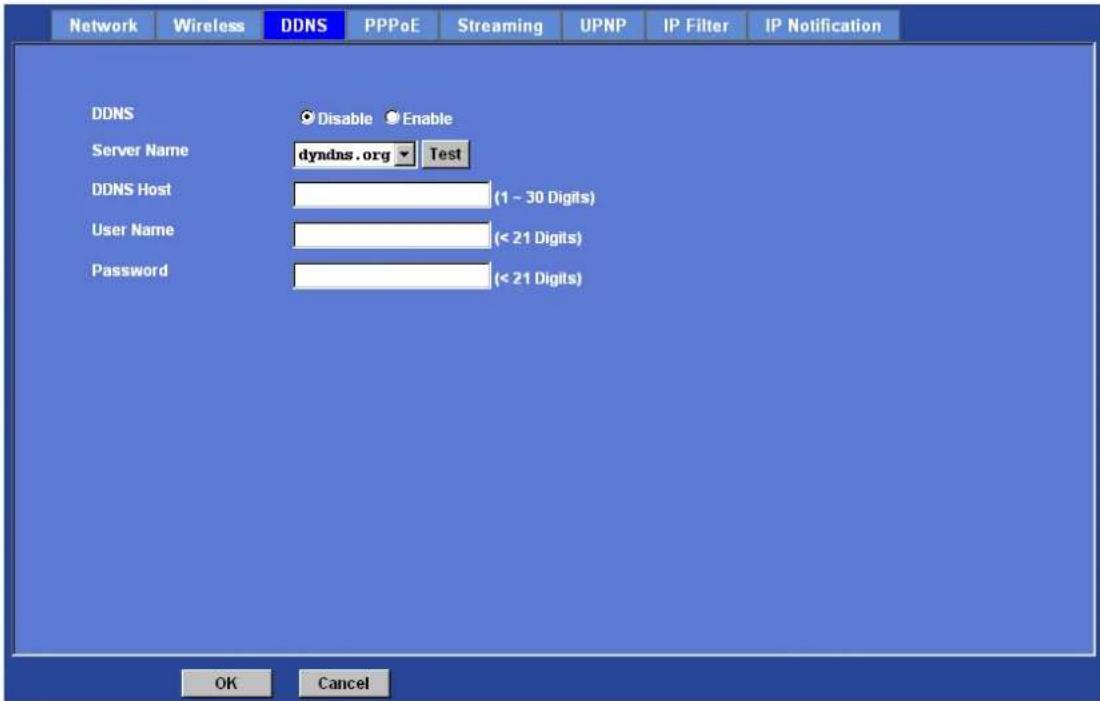
DDNS:
To enable or disable the DDNS service here.
Server name:
Choose the built-in DDNS server.
DDNSHost:
The domain name is applied of this device.
User name:
The user name is used to log into DDNS.
Password:
The password is used to log into DDNS.
PPPoE
PPPoE:
PPPoE: Stands for Point to Point Protocol over Ethernet
A standard builds on Ethernet and Point-to-Point network protocol. It allows your device with xDSL or cable connects with broadband network directly, then your device can dial
Network Camera User's Guide
up and get a dynamic IP address. For more PPPoE and Internet configuration, please consult your dealer or ISP.
The device can directly connect to the xDSL, however, it should be setup on a LAN environment to program the PPPoE information first, and then connect to the xDSL modem. Power on again, then the device will dial on to the ISP connect to the WAN through the xDSL modem.
The procedures are
- Connect to a LAN by DHCP or Fixed IP
- Access the device, enter Setting → Network → PPPoE as below
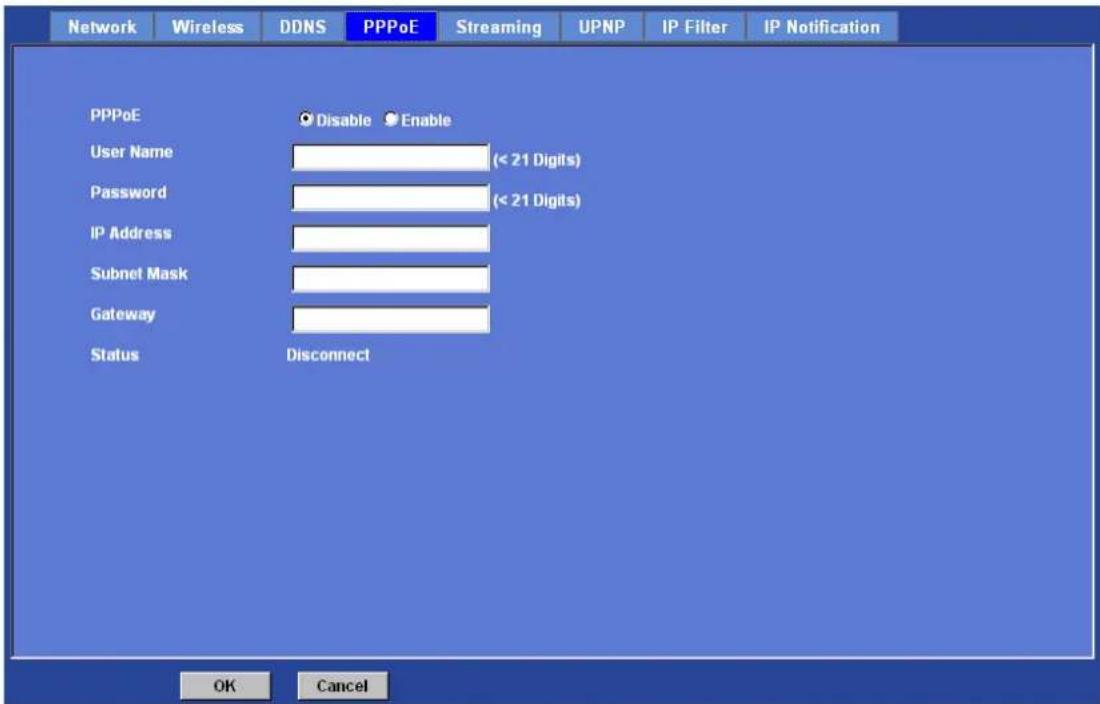
PPPoE:
To enable or disable the PPPoE service here.
User name:
Type the user name for the PPPoE service which is provided by the ISP.
Password:
Type the password for the PPPoE service which is provided by the ISP.
IP address, Subnet mask, and Gateway (read only):
Shows the IP information got from PPPoE server site.
Status:
Shows the Status of PPPoE connection.
Streaming
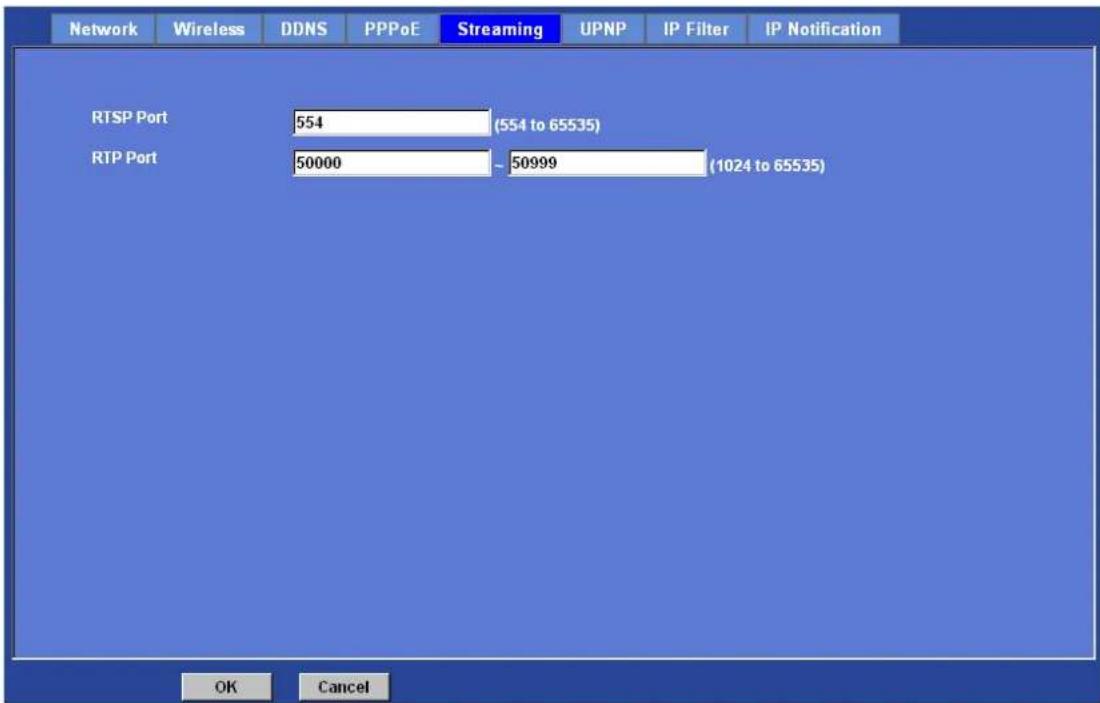
RTSP is a streaming control protocol, and a starting point for negotiating transports such as RTP, multicast and Unicast, and for negotiating codecs. RTSP can be considered a "remote control" for controlling the media stream delivered by a media server. RTSP servers typically use RTP as the protocol for the actual transport of audio/video data.
RTSP Port:
Choose the RTSP port. The RTSP protocol allows a connecting client to start a video stream. Enter the RTSP port number to use. The default value is 554.
RTP Port:
Specify the range of transmission port number of video stream. The default range is 50000 to 50999. User can specify a number between 1024 and 65535.
UPnP
Network Camera User's Guide
UPnP is short for Universal Plug and Play, which is a networking architecture that provides compatibility among networking equipment, software, and peripherals. This device is an UPnP enabled Network Camera. If your operating system is UPnP enabled, the device will automatically be detected and a new icon will be added to "My Network Places." If you do not want to use the UPnP functionality, it can be disabled.
In addition, this device also provides UPnP IGD function for NAT traversal easily. Use NAT traversal when your device is located on an intranet (LAN) and you wish to make it available from the other (WAN) side of a NAT router. With NAT traversal properly configured, all HTTP traffic to an external HTTP port in the NAT router will be forwarded to the device.
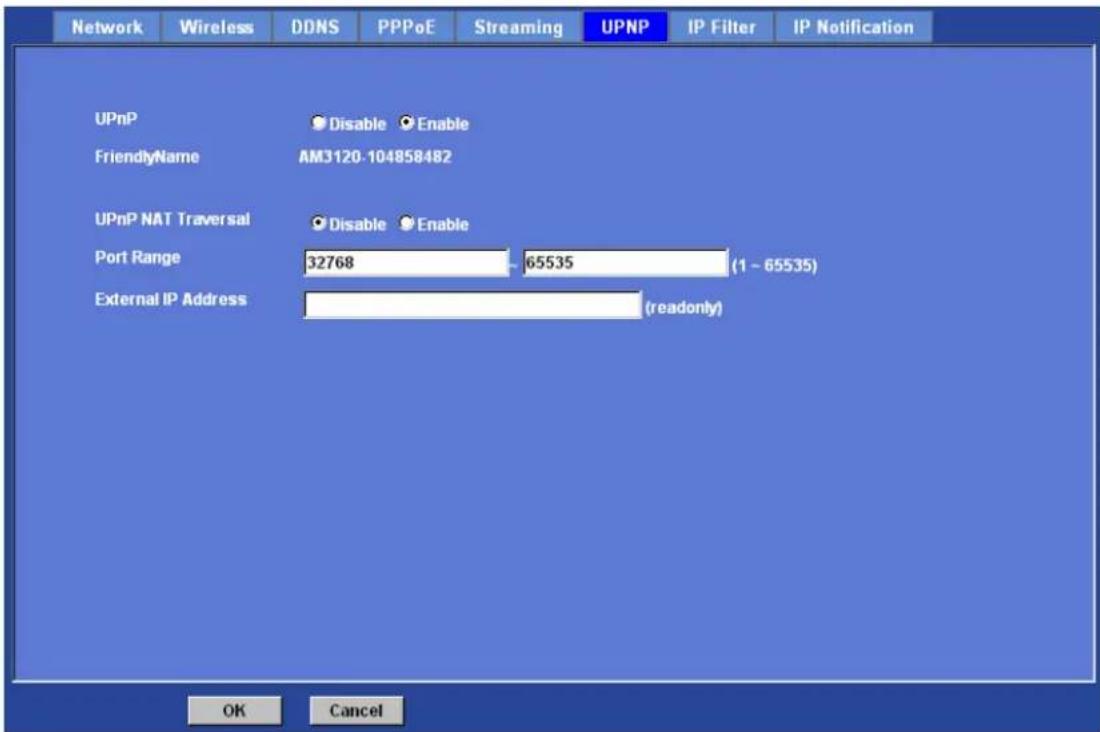
UPnP:
To enable or disable the UPnP service here.
Friendly Name:
Shows the friendly name of this device here.
UPnP NAT Traversal
When enabled, the device will attempt to configure port mapping in a NAT router on your network, using UPnP™. Note that UPnP™ must be enabled in the NAT router first.
Port Range:
The port range will open in NAT router.
External IP address:
Network Camera User's Guide
Show the IP address and port for WAN access through Internet. If NAT traversal is configured successfully, user can use this IP address and port to access this device.
IP Filter
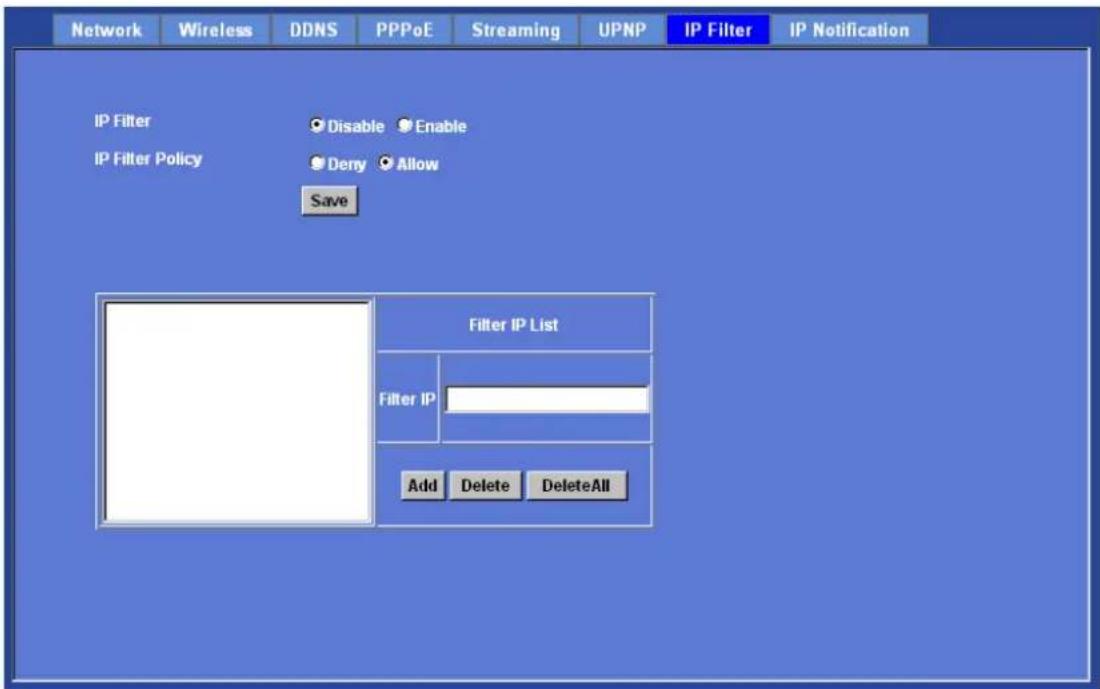
You can enter different user's IP address which are allowing enter or denying by the device.
IP Filter:
To enable or disable the IP filter function here.
IP Filter Policy:
Choose the filter policy where is denying or allowing.
IP Notification
In case the IP address is changed, system is able to send out an email to alert someone if the function is enabled.
SMTP Notification (e-mail):
If enable this function, then the "Send to" and "Subject" fields need to be filled.
Network Camera User's Guide
Send To:
Type the receiver's e-mail address. This address is used for reply mail.
Subject:
Type the subject/title of the E-mail.
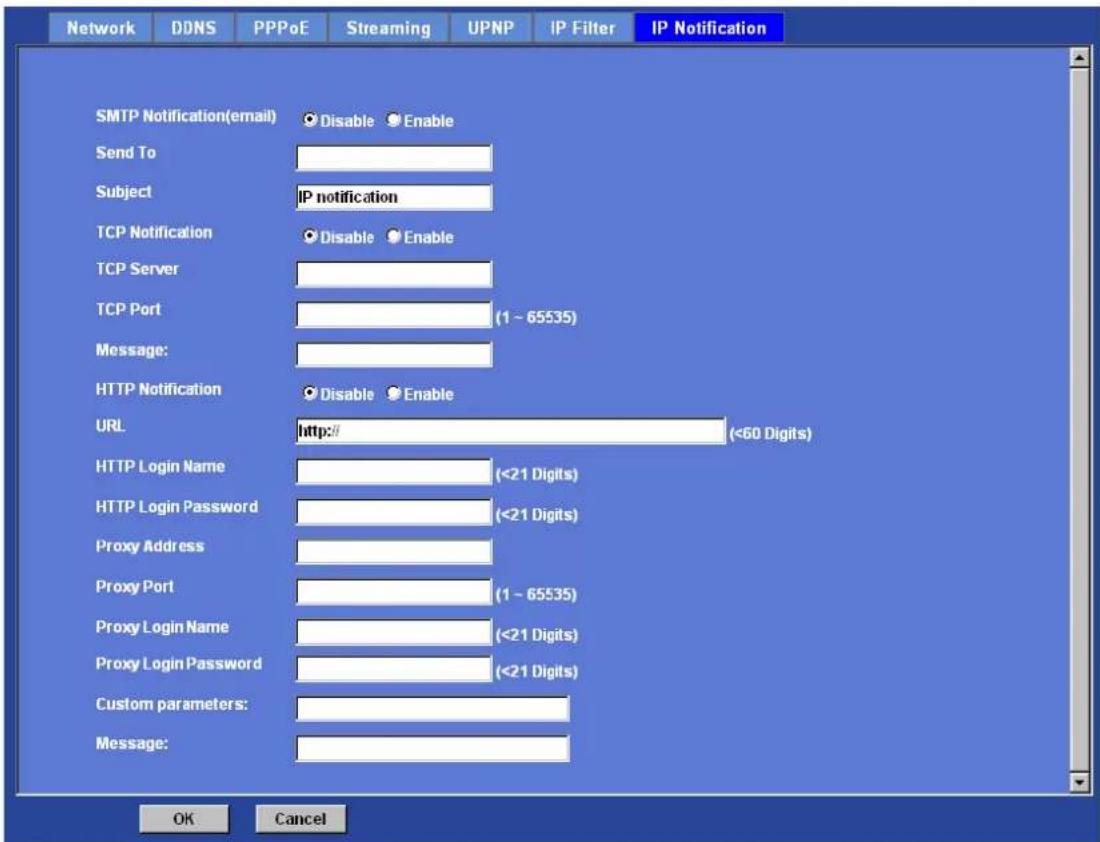
TCP Notification:
If enable this function, then the "TCP Server", "TCP Port", and "Message" fields need to be filled.
TCP Server:
Type the server name or the IP address of the TCP server.
TCP Port:
Set port number of TCP server.
Message:
The message will be sent to FTP server.
HTTP Notification:
Network Camera User's Guide
If enable this function, then the fields below need to be filled.
URL:
Type the server name or the IP address of the HTTP server.
HTTP Login name:
Type the user name for the HTTP server.
HTTP Login Password:
Type the password for the HTTP server.
Proxy Address:
Type the server name or the IP address of the HTTP Proxy.
Proxy Port:
Set port number of Proxy.
Proxy Login name:
Type the user name for the HTTP Proxy.
Proxy Login Password:
Type the password for the HTTP Proxy.
Custom parameter:
User can set specific parameters to HTTP server.
Message:
The message will be sent to HTTP server.
Camera: Adjust Camera parameters
Use this menu to set the functions of the camera parameters of the device.
Picture
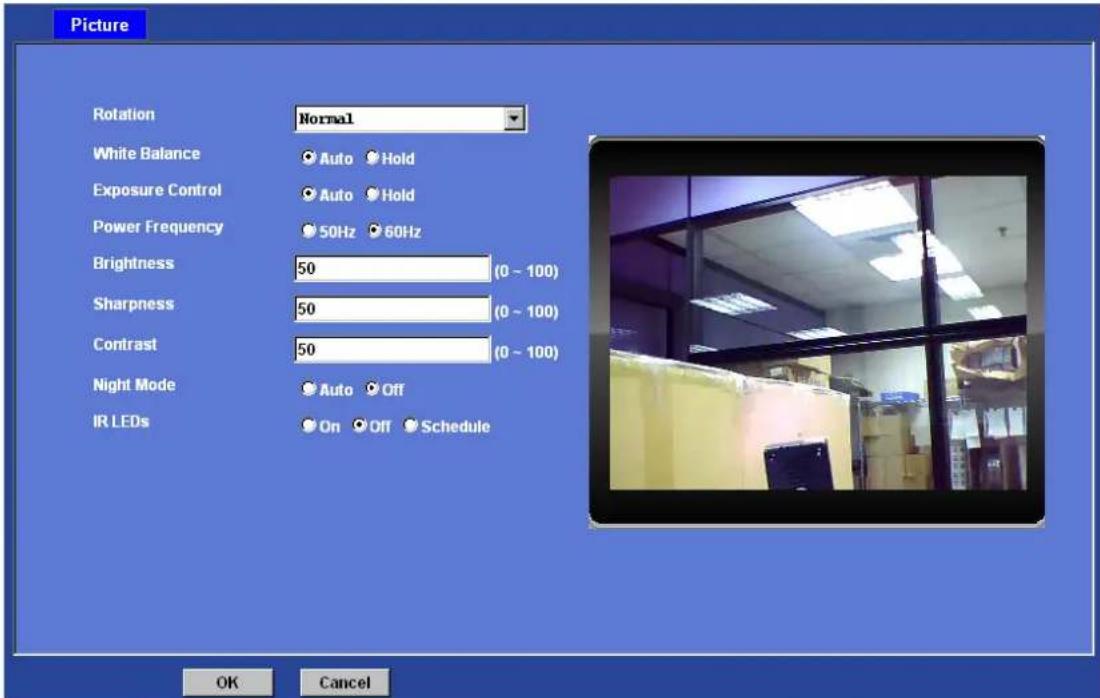
Rotation:
Turn the "Mirror" and "Vertical Flip" On or OFF. The image will be overturned as below.

Network Camera User's Guide
White Balance:
Auto: will adjust the white balance automatically.
Hold: will hold the white balance.
Exposure Control:
Auto: will adjust the internal gain automatically.
Hold: will hold the internal gain.
Power Frequency:
User should choose either 50 or 60 Hz to meet the power line frequency in your country.
Note: If you found the video image is flash, you may need to choose correct frequency. World wide frequency table is in Appendix H.
Brightness:
Large value will brighten camera.
Sharpness:
Large value will sharpen camera.
Contrast:
Large value will contrast camera heavily.
Night Mode:
User can turn Auto or Off of the night mode. This function is very useful under low illumination environment.
IR LEDs:
User can turn On, Off or Schedule of the built-in IR LEDs. This function is very useful under low illumination environment even 0 Lux. Note that CMOS sensor will turn to black and white mode once IR LEDs turned on.
Network Camera User's Guide
System: Configure and maintain system
Use this menu to perform the principal settings of the device.
System:
![System Date & Time Maintenance DIPS (Dynamic IP Service) Disable Enable Device ID (for DIPS) 105512982 Device Title AM3110-v3 (0 - 30 Digits) Software Version 3.0.0.0 Log Reload Jan 1 00:00:01 (none) syslog.info syslogd started: BusyBox v1.01 (2007.09.27-08:14+0000) Jan 1 00:00:03 (none) user.debug gpio: gpio daemon start up ... Jan 1 00:00:03 (none) user.debug gpio: setting : NA[0] active=0 Jan 1 00:00:03 (none) user.debug gpio: setting : NA[1] active=0 Jan 1 00:00:03 (none) user.debug gpio: setting : NA[2] active=0 Jan 1 00:00:03 (none) user.debug gpio: setting : NA[3] active=0 Jan 1 00:00:03 (none) user.debug gpio: setting : NA[4] active=0 Jan 1 00:00:03 (none) user.debug gpio: setting : NA[5] active=0 Jan 1 00:00:03 (none) user.debug gpio: setting : NA[6] active=0 Jan 1 00:00:03 (none) user.debug gpio: setting : NA[7] active=0 Jan 1 00:00:03 (none) user.debug gpio: setting : NA[8] active=0 Jan 1 00:00:03 (none) user.debug gpio: setting : NA[9] active=0 Jan 1 00:00:03 (none) user.debug gpio: setting : NA[10] active=0 Jan 1 00:00:03 (none) user.debug gpio: setting : NA[11] active=0 OK Cancel](/content/2026/06/1204442/images/cf056646c2068e7e28d10f2e0895311d37e53f63d561eb55f9d93d55ca8d0c0f.jpg)
DIPS (Dynamic IP Service):
To enable or disable the DIPS® (Dynamic IP Service) function.
Device ID (for DIPS):
It's a unique number of each device for identification and this ID is used for DIPS.
In the Appendix G, it describes how to locate your device from Internet by DDNS service. However, we provide another easier way to do the same job called Dynamic IP Service, DIPS®.
To use this service, just follow four steps below:
(1) Enable DIPS function of the device
(2) Check your Device ID from this page. This is a unique number for each device.
(3) If your device is behind a NAT router, please configure your device properly. You could refer to section "Install the Camera behind a NAT Router" above. You only need to do this job one time.
(4) Check the web site: http://www.a-mtk.com/
Network Camera User's Guide
You can find web page as below:
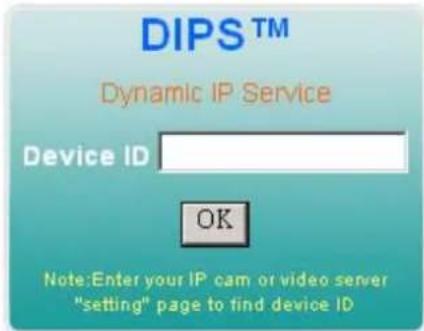
Enter your Device Number and press "OK" button.
Then, a new web page will pop up and link to your device accordingly.
You will see that DIPS is a much easier service than DDNS.
Device Title:
You can enter the name of this unit here. It's very useful to identify the specific device from multiple units. The information will be shown on IPWizard once the device is found.
Software Version:
This information shows the software version of the device.
Log:
User can check the system log information of the device, including the Main Info, Appended Info, Operator IP, and so on ...
Reload:
Click this button; user can refresh the log information of the device.
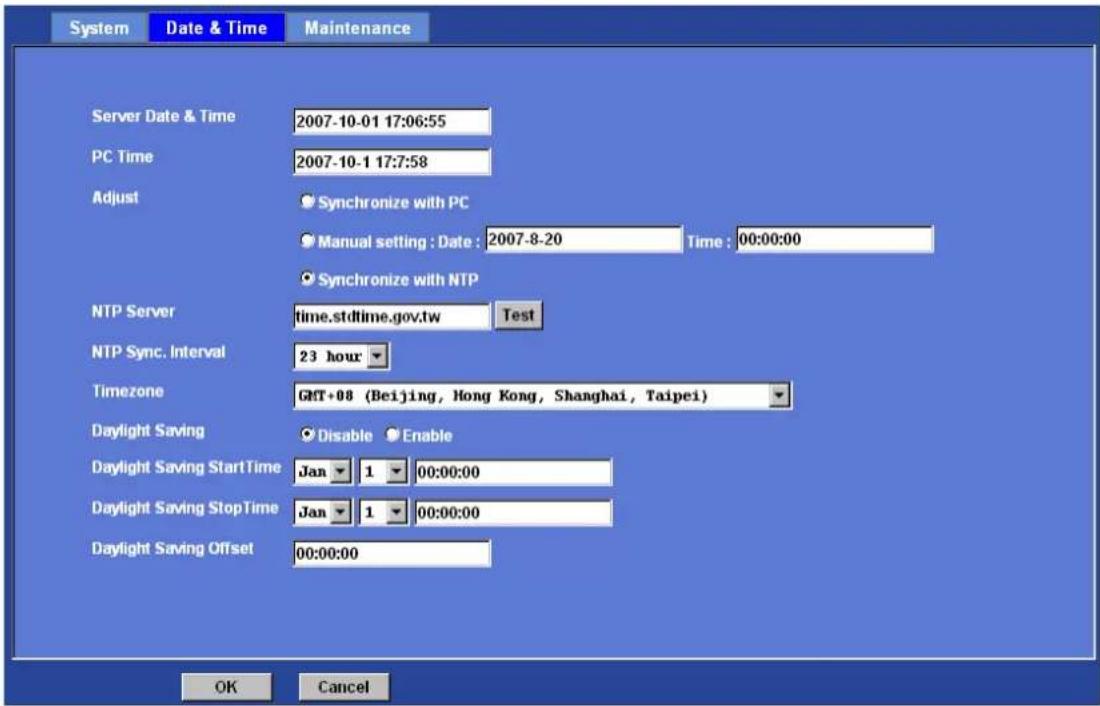
Date & Time
You can setup the device or make it synchronized with PC or remote NTP server. Also, you may select your time zone in order to synchronize time locally.
Server Date & Time:
Displays the date and time of the device.
PC Time:
Displays the date and time of the connected PC.
Adjust:
Network Camera User's Guide
- Synchronize with PC:
Click this option to enable time synchronization with PC time.
- Manual setting:
Click this option to set time and date manually.
- Synchronize with NTP:
Click this option if you want to synchronize the device's date and time with those of time server called NTP server (Network Time Protocol).
NTP Server: Type the host name or IP address or domain name of the NTP server.
NTP sync. Interval: Select an interval between 1 and 23 hours at which you want to adjust the device's time referring to NTP server
Time zone:
Set the time difference from Greenwich Mean Time in the area where the device is installed.
Daylight Saving:
Disable or enable the daylight saving adjustment.
Maintenance
Hard Factory Default (Include the network setting):
Recall the device hard factory default settings. Note that click this button will reset all device's parameters to the factory settings (including the IP address).
Factory Default (Except the network setting):
The unit is restarted and most current settings are reset to factory default values. This action will not reset the network setting.
Backup Setting:
To take a backup of all of the parameters, click this button. If necessary, it will then be possible to return to the previous settings, if settings are changed and there is unexpected behavior.
Restore Setting:
Click the "Browse" button to locate the saved backup file and then click the "Restore Setting" button. The settings will be restored to the previous configuration.
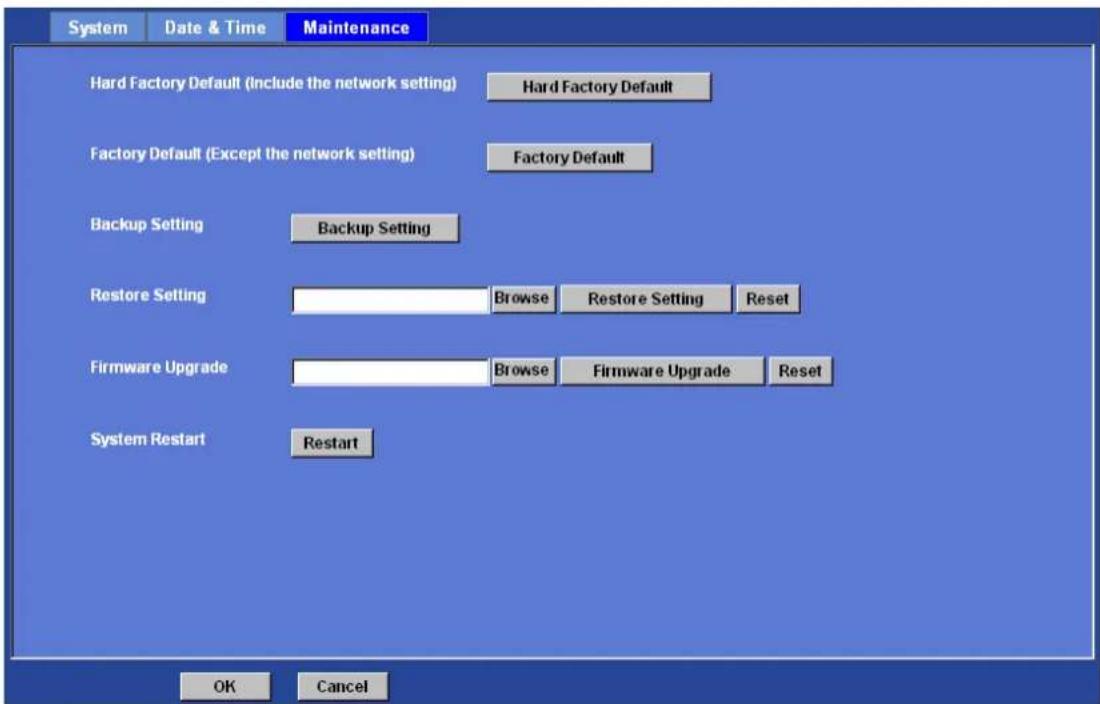
Firmware Upgrade:
The device supports new firmware upgrade (the software that controls the operation in the device). Please contact your dealer for the latest version if necessary.
Download the latest firmware file from our website or your dealer. Unzip this firmware file to binary file and store it into your PC. Then follow the steps as bellows carefully:
-
Close all other application programs which are not necessary for firmware update.
-
Make sure that only you access this device while firmware updating.
- Disable Motion Detection function.
- Click "Browse" button. Select the Firmware binary file. (Note that it must make sure that the Firmware only applies to this device, once update, it will be burned into FLASH ROM of system.)
- Once the firmware file was selected, click "Firmware Upgrade" button.
- The upgrade progress information will be displayed. Once the uploading process completed, the device will reboot the system automatically.
- Please wait for timer countdown, and then you can use IPWizard to search the device again.
Warning!!! The download firmware procedure can not be interrupted. If the power and/or network connection are broken during the download procedure, it might possibly cause serious damage to the device.
Strongly suggest that DO NOT upgrade firmware via Wireless LAN due to high error rate possibly and don't allow any other clients to access this unit during updating procedure.
Be aware that you should not turn off the power during updating the firmware and wait for finish message.
Furthermore, the firmware upgrade procedure always is risk and do not try to upgrade new firmware if it's not necessary.
System Restart:
The device is restarted without changing any of the network settings. It means the IP address of the device will not change after firmware upgrade.
Network Camera User's Guide
Video: Configure profile
This device provides 2 modes of video profile. The first one is Mega-pixel mode which supports "Mega MPEG4" and "Mega JPEG" streams simultaneously. The second one is Multi-profile mode which supports "MPEG4/VGA", "MPEG4/QVGA", "MPEG4/QQVGA", and "VIDEO/JPEG" streams simultaneously. User only can select either Mega-pixel or Multi-profile mode to serve streams to clients. Switching Mega-pixel and Multi-profile mode, the device will take time to reboot system.
Common
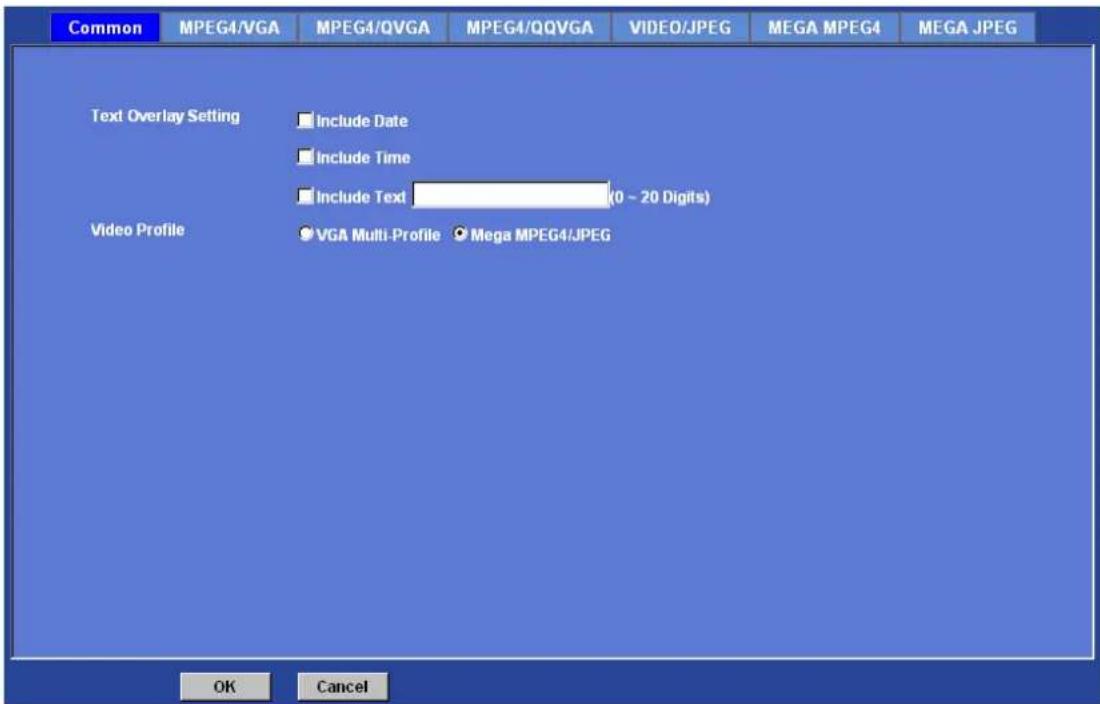
Text Overlay Setting:
There are some important information can be embedded into image, including date, time, and/or text.
Video Profile:
User can only choose either Multi-profile or Mega-pixel mode. Multi-profile mode can serve MPEG4/VGA, MPEG4/QVGA, MPEG4/QQVGA and one JPEG streams simultaneously. On the other hand, Mega-pixel mode can serve MPEG4/Mega and JPEG/Mega dual streams simultaneously.
MPEG4/VGA
Network Camera User's Guide
Video Type:
It's a MPEG4 mode in this profile.
Resolution:
It's VGA mode (640x480) in this profile.
Rate Control:
Defines the rate control method of this profile. There are two options: Constant Bit Rate (CBR) or Variable Bit Rate (VBR). For CBR, the video bit rate is between 384kbps and 4096kbps. User can set the desired bit rate to match the limitation of bandwidth. For VBR, user should choose the quality level to set the video quality rather than bit rate. The quality level is between 1 and 100. The higher value is the better quality.
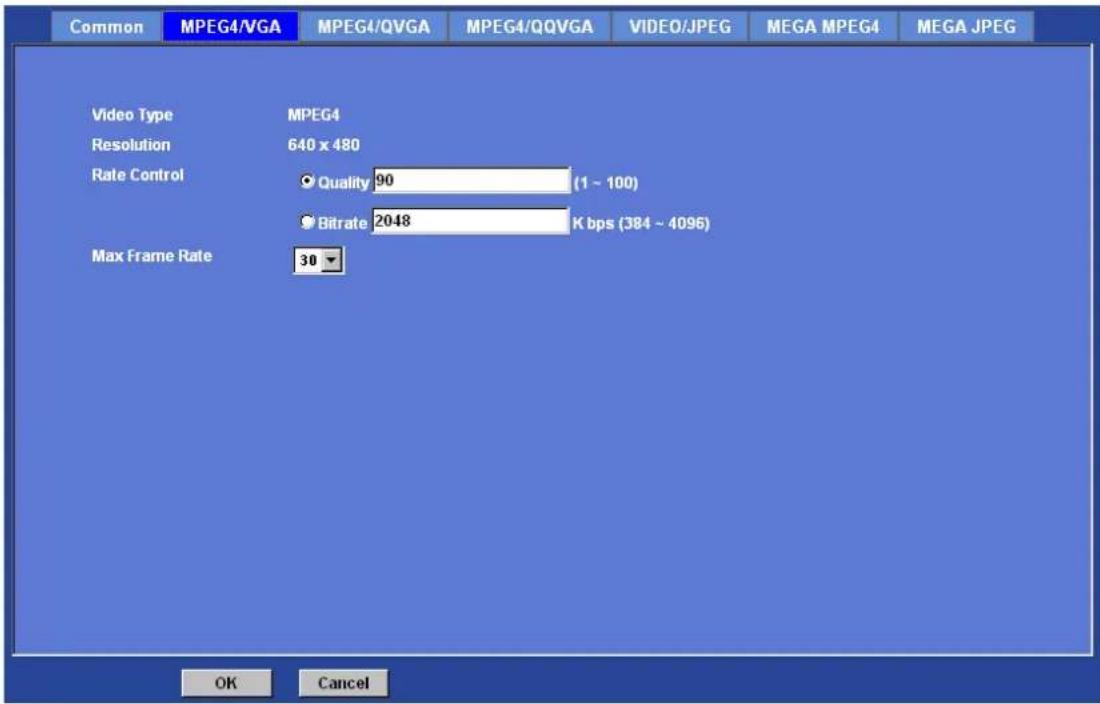
Max Frame Rate:
Defines the targeted frame rate of this profile. For example, set the frame rate to 15 fps, then the image will be updated for 15 frames per second as possible. User need to set reasonable max frame rate versus video quality under the limited bandwidth.
MPEG4/QVGA
Video Type:
It's a MPEG4 mode in this profile.
Resolution:
Network Camera User's Guide
It's QVGA mode (320x240) in this profile.
Rate Control:
Defines the rate control method of this profile. There are two options: Constant Bit Rate (CBR) or Variable Bit Rate (VBR). For CBR, the video bit rate is between 128kbps and 1024kbps. User can set the desired bit rate to match the limitation of bandwidth. For VBR, user should choose the quality level to set the video quality rather than bit rate. The quality level is between 1 and 100. The higher value is the better quality.
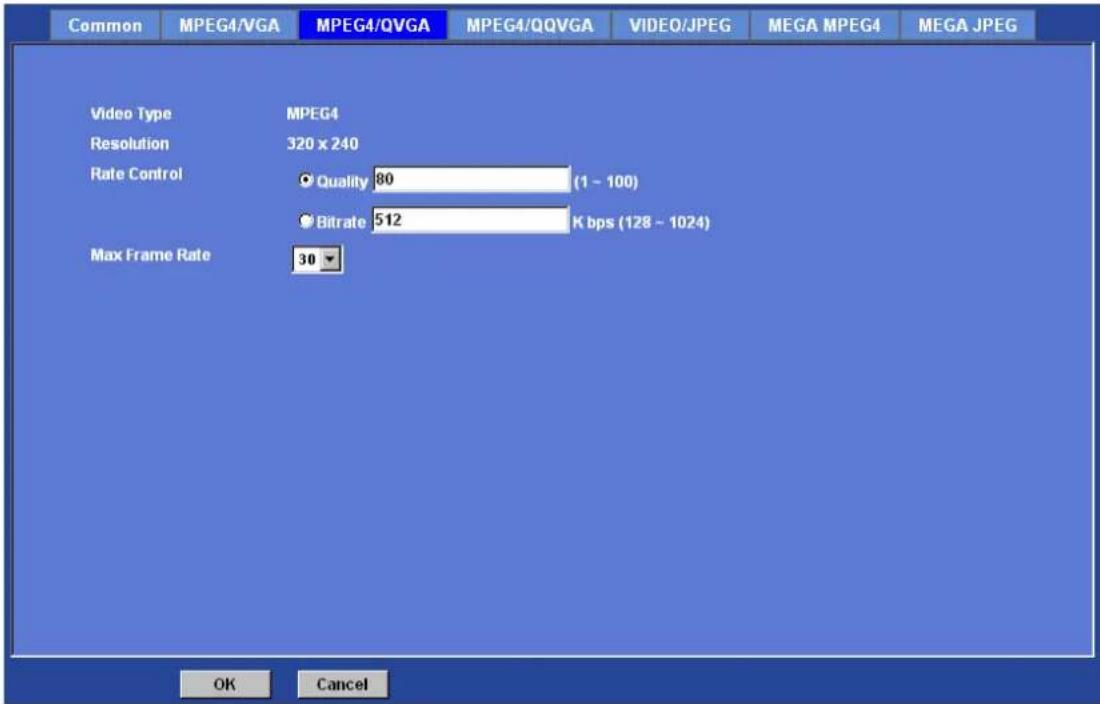
Max Frame Rate:
Defines the targeted frame rate of this profile. For example, set the frame rate to 15 fps, then the image will be updated for 15 frames per second as possible. User need to set reasonable max frame rate versus video quality under the limited bandwidth.
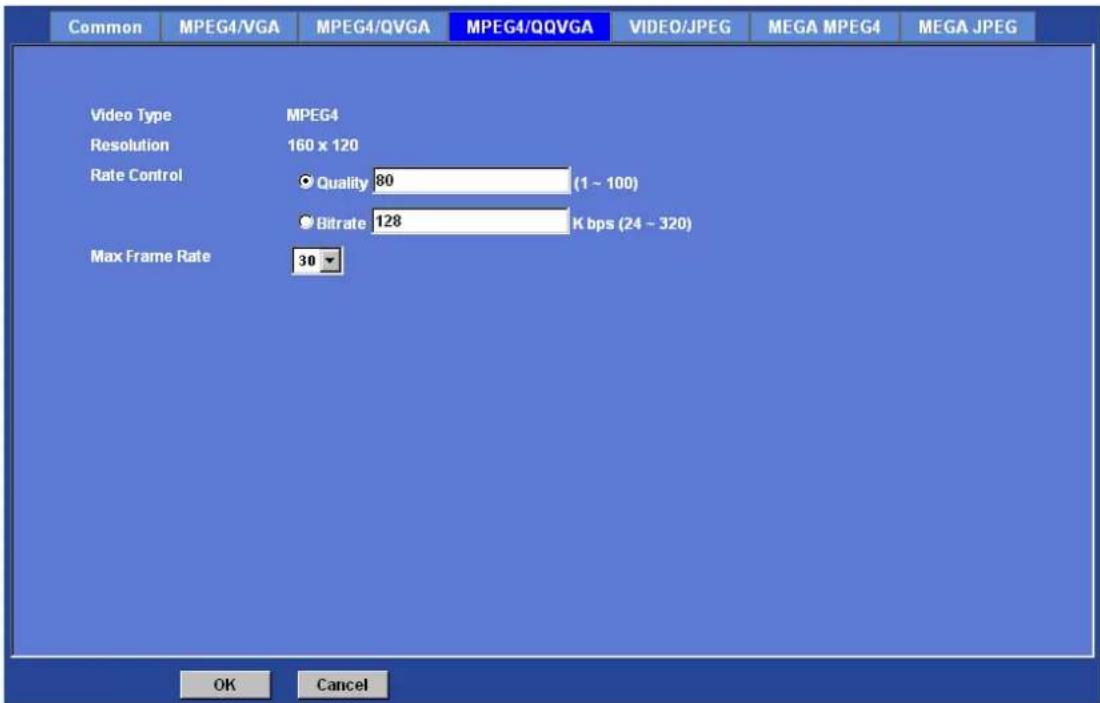
MPEG4/QQVGA
Video type:
It's a MPEG4 mode in this profile.
Resolution:
It's QQVGA mode (160x120) in this profile.
Rate Control:
Defines the rate control method of this profile. There are two options: Constant Bit Rate
Network Camera User's Guide
(CBR) or Variable Bit Rate (VBR). For CBR, the video bit rate is between 24kbps and 320kbps. User can set the desired bit rate to match the limitation of bandwidth. For VBR, user should choose the quality level to set the video quality rather than bit rate. The quality level is between 1 and 100. The higher value is the better quality.
Max Frame Rate:
Defines the targeted frame rate of this profile. For example, set the frame rate to 15 fps, then the image will be updated for 15 frames per second as possible. User need to set reasonable max frame rate versus video quality under the limited bandwidth.
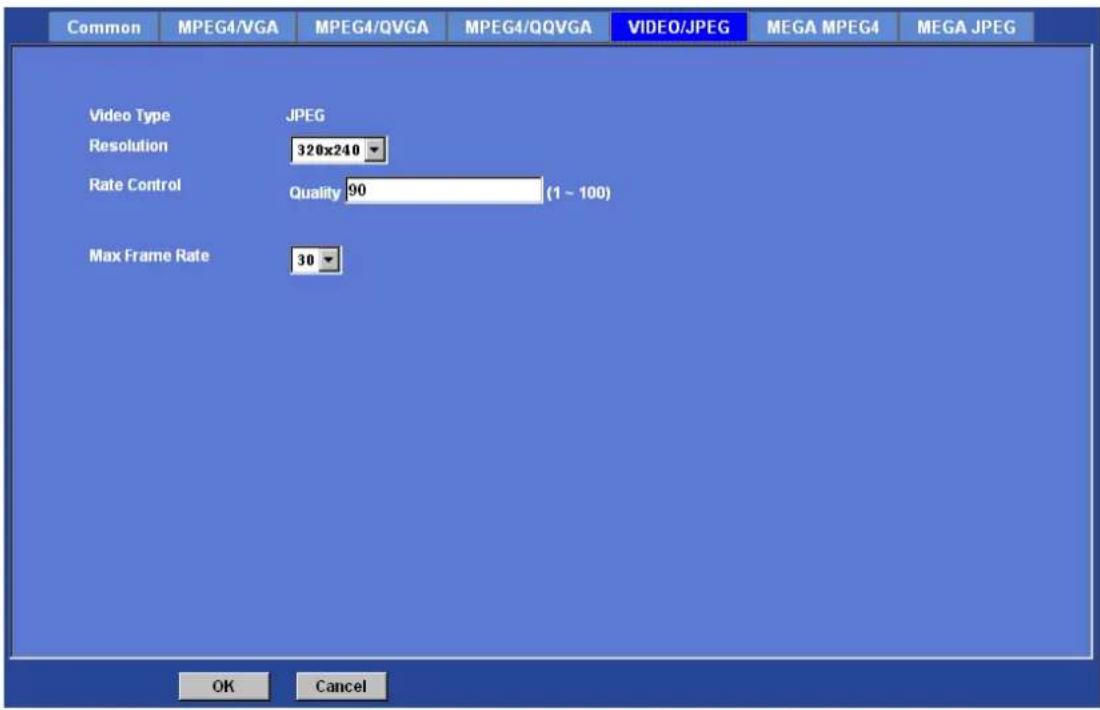
Video/JPEG
Video type:
It's JPEG mode in this profile.
Resolution:
User can select VGA, QVGA, or QQVGA mode as the resolution of this JPEG profile.
Rate Control:
The quality level is between 1 and 100. The higher value is the better quality.
Max Frame Rate:
Defines the targeted frame rate of this profile. For example, set the frame rate to 15 fps, then the image will be updated for 15 frames per second as possible. User need to set
Network Camera User's Guide
reasonable max frame rate versus video quality under the limited bandwidth.
MEGA MPEG4
Video Type:
It's a MPEG4 mode in this profile.
Resolution:
It's Mega mode (1024x768) in this profile.
Rate Control:
Defines the rate control method of this profile. There are two options: Constant Bit Rate (CBR) or Variable Bit Rate (VBR). For CBR, the video bit rate is between 384kbps and 4096kbps. User can set the desired bit rate to match the limitation of bandwidth. For VBR, user should choose the quality level to set the video quality rather than bit rate. The quality level is between 1 and 100. The higher value is the better quality.
Network Camera User's Guide
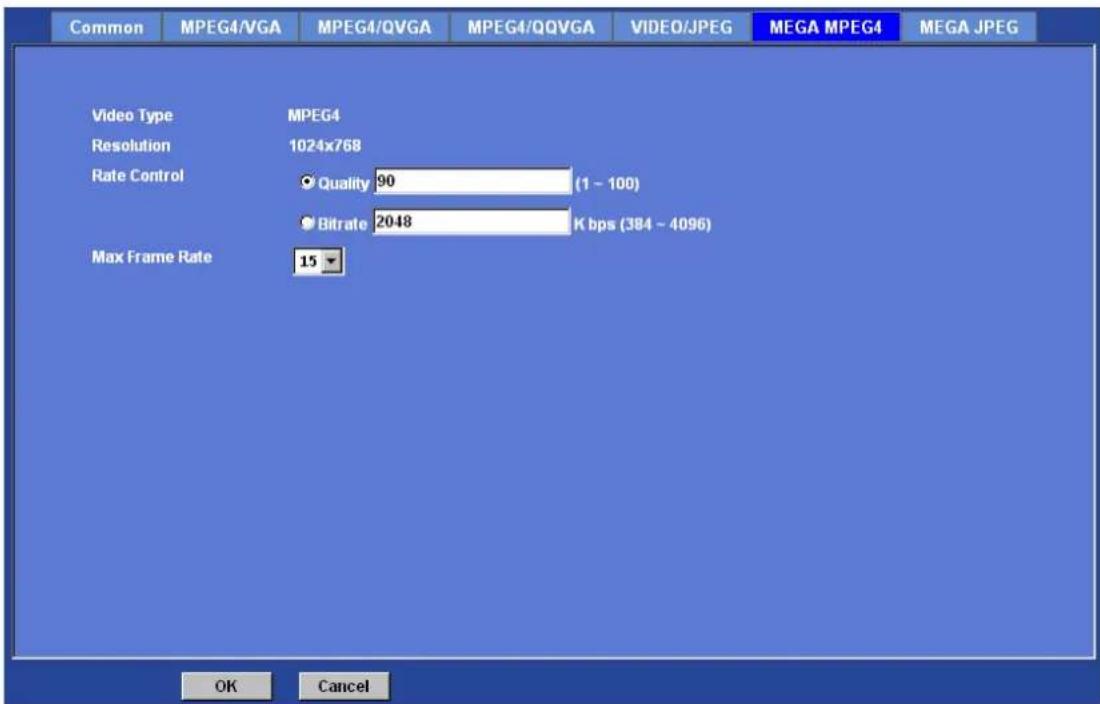
Max Frame Rate:
Defines the targeted frame rate of this profile. For example, set the frame rate to 15 fps, then the image will be updated for 15 frames per second as possible. User need to set reasonable max frame rate versus video quality under the limited bandwidth.
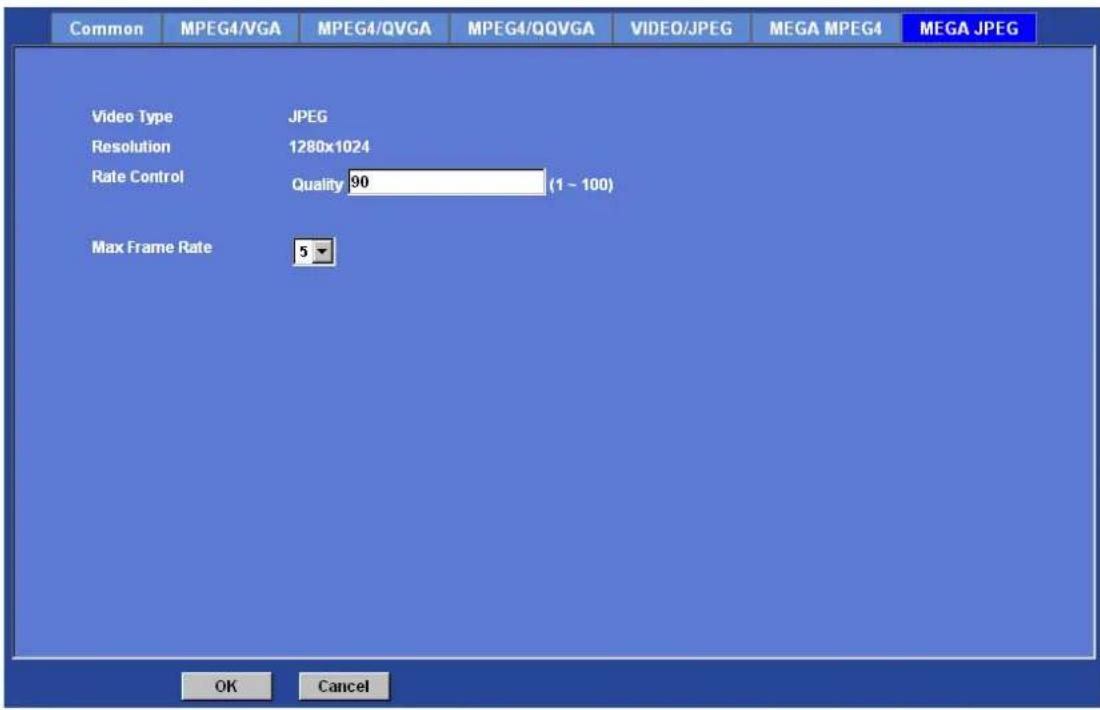
MEGA JPEG
Video type:
It's JPEG mode in this profile.
Resolution:
It's Mega mode (1280x1024) in this profile.
Rate Control:
The quality level is between 1 and 100. The higher value is the better quality.
Max Frame Rate:
Defines the targeted frame rate of this profile. For example, set the frame rate to 5 fps, then the image will be updated for 5 frames per second as possible. User need to set reasonable max frame rate versus video quality under the limited bandwidth.
Network Camera User's Guide
Network Camera User's Guide
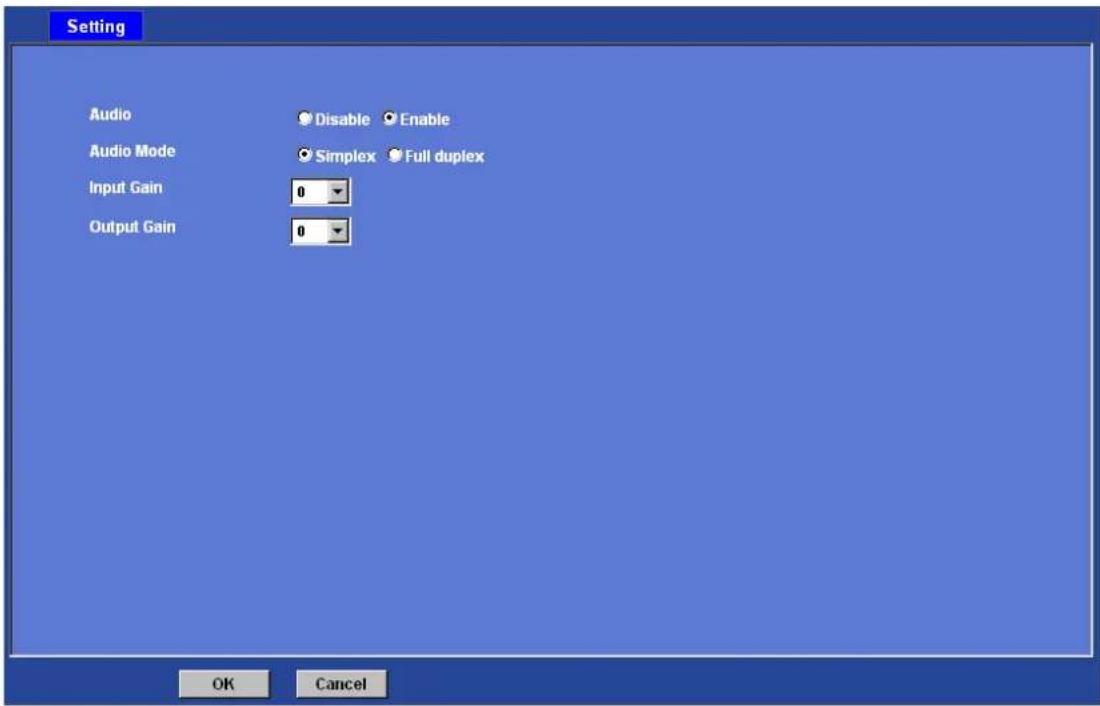
Audio: Audio parameters
Audio:
To enable or disable audio function
Audio Mode:
To select Simplex or Full duplex (2-way audio) mode
Input Gain:
To adjust gain of input audio
Output Gain:
To adjust gain of output audio
Network Camera User's Guide
User: Manage user name, password and login privilege
Use this menu to add, update, or remove the usernames and passwords of the Administrator and viewer.
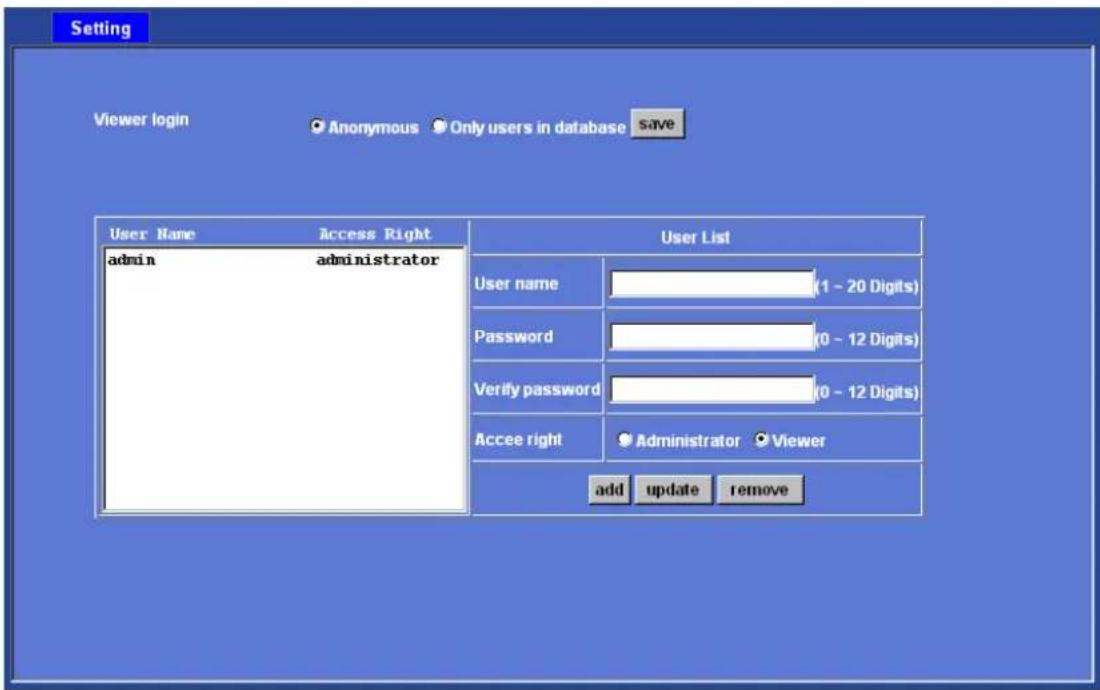
Viewer login:
Select "Anonymous" to allow any one viewing the video once connected. Otherwise, only users in database can view the video after login.
Access right:
Administrator can access every function in this device. However, Viewers only can view the video and access limited function.
Add, update, and remove of Users account:
Manage the user's account of viewer user.
Network Camera User's Guide
E-Mail: Setup E-Mail configuration
You may setup SMTP mail parameters for further operation of Event Schedule. That's, if users want to send the alarm message out, it will need to configure parameters here and also add at least one event schedule to enable event triggering.
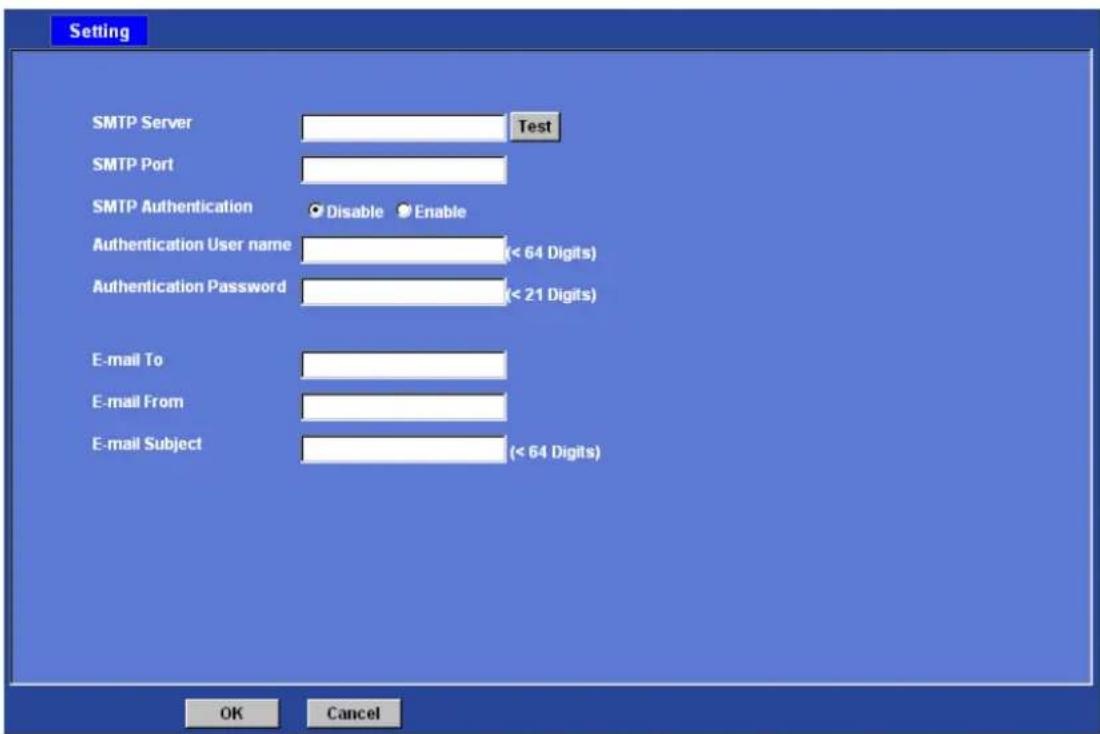
SMTP Server:
Type the SMTP server name or the IP address of the SMTP server.
Test:
Send a test mail to mail server to check this account is available or not.
SMTP Port:
Set port number of SMTP service.
SMTP Authentication:
Select the authentication required when you send an e-mail.
Disable: if no authentication is required when an e-mail is sent.
Enable: if authentication is required when an e-mail is sent.
Authentication User name:
Type the user name for the SMTP server if Authentication is Enable.
Authentication Password:
Type the password for the SMTP server if Authentication is Enable.
E-mail To:
Network Camera User's Guide
Type the receiver's e-mail address.
E-mail From:
Type the sender's E-mail address. This address is used for reply e-mails.
E-mail Subject:
Type the subject/title of the e-mail.
Object detection: Setup Object detection
Use this menu to specify motion detection window 1 to window 4 and set the conditions for detection while observing a captured image.
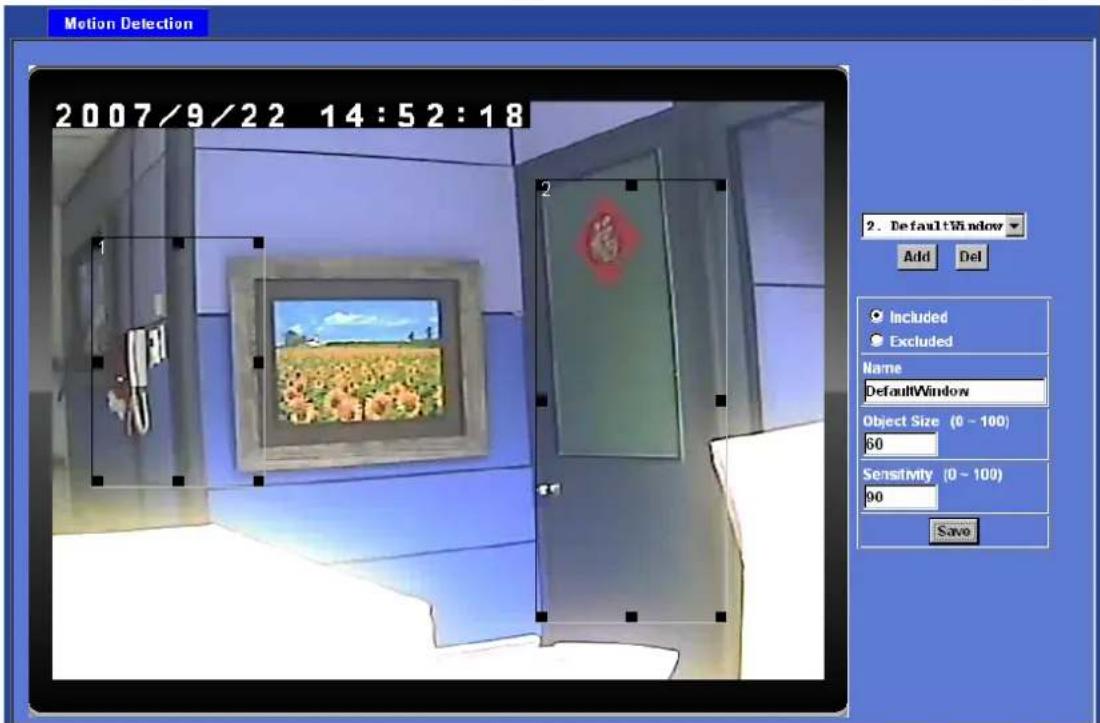
Add and Del:
To add or delete the motion windows. User can specify up to 4 Included and/or Excluded windows to monitor the video captured by this device. By dragging mouse on the image, you can change the position and size of the selected motion window accordingly.
Included or Excluded Window:
These windows can be specified as Included or Excluded type.
Included windows target specific areas within the whole video image
Excluded windows define areas within an Include window that should be ignored (areas outside Include windows are automatically ignored)
Name:
Name of the specified motion window.
Object Size:
Defines the object size of motion detection. The higher object size will only larger objects trigger motion detection. The lower object size will even small objects trigger motion detection too. Generally speaking, the smaller size will be easier to trigger event.
Sensitivity
Defines the sensitivity value of motion detection. The higher value will be more sensitivity.
Event Server: Setup FTP/TCP/HTTP server configuration
FTP Server
You may setup FTP parameters for further operation of Event Schedule. That's, if users want to send the alarm message to an FTP server, it will need to configure parameters here and also add at least one event schedule to enable event triggering as SMTP.
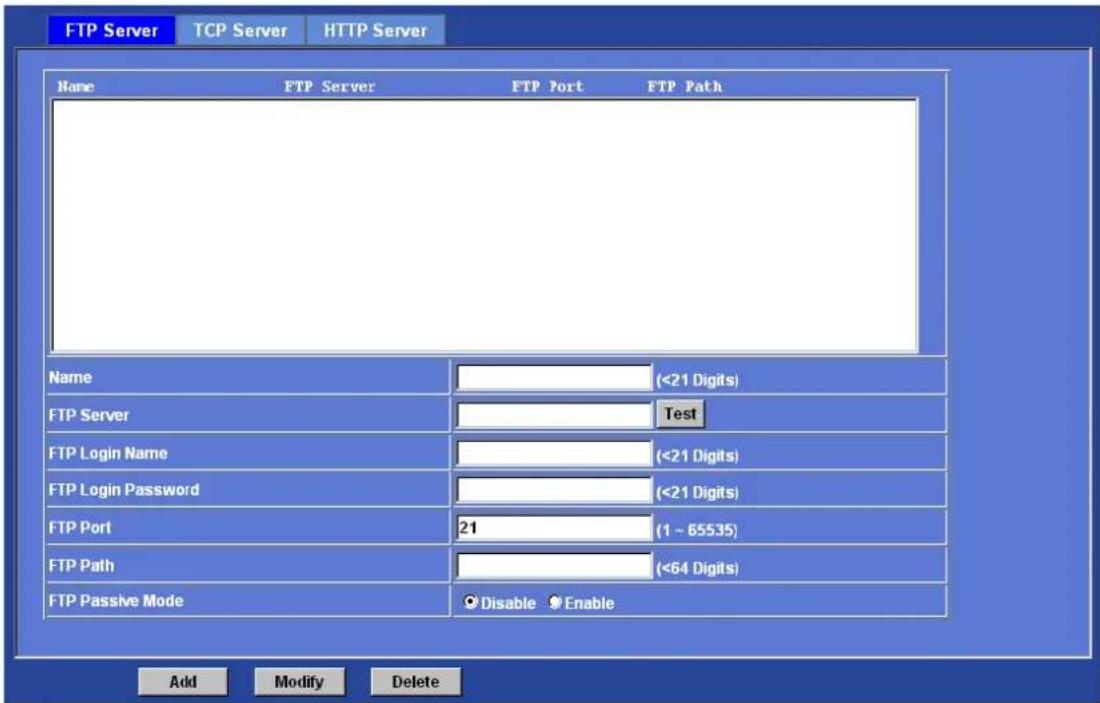
Name:
User can specify multiple FTP paths as wish. Therefore, user needs to specify a name for each FTP setting.
FTP Server:
Type the server name or the IP address of the FTP server.
Test:
Check the FTP server whether this account is available or not.
FTP Login name:
Type the user name for the FTP server.
FTP Login Password:
Type the password for the FTP server.
FTP Port:
Set port number of FTP service.
Network Camera User's Guide
FTP Path:
Set working directory path of FTP server.
FTP Passive Mode:
Select passive or active mode connecting to FTP server.
TCP Server
In addition to send video file to FTP server, the device also can send event message to specified TCP server.
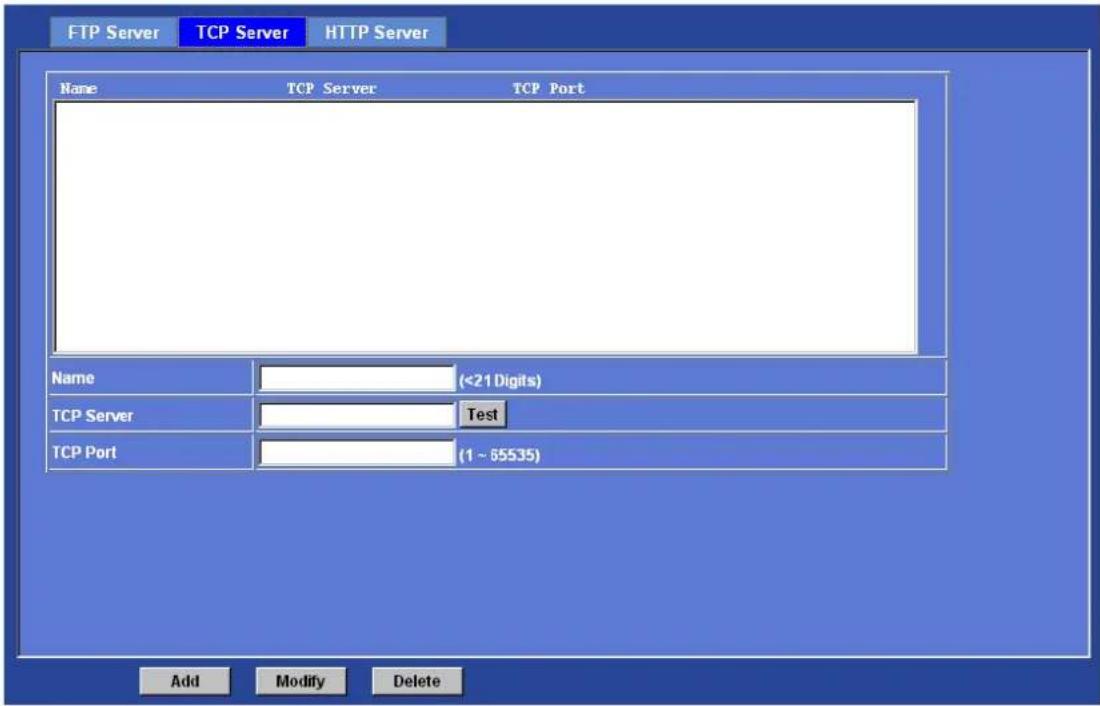
Name:
User can specify multiple TCP servers as wish. Therefore, user needs to specify a name for each TCP server setting.
TCP Server:
Type the server name or the IP address of the TCP server.
TCP Port:
Set port number of TCP server.
HTTP Server
The device also can send event message to specified HTTP server.
Network Camera User's Guide
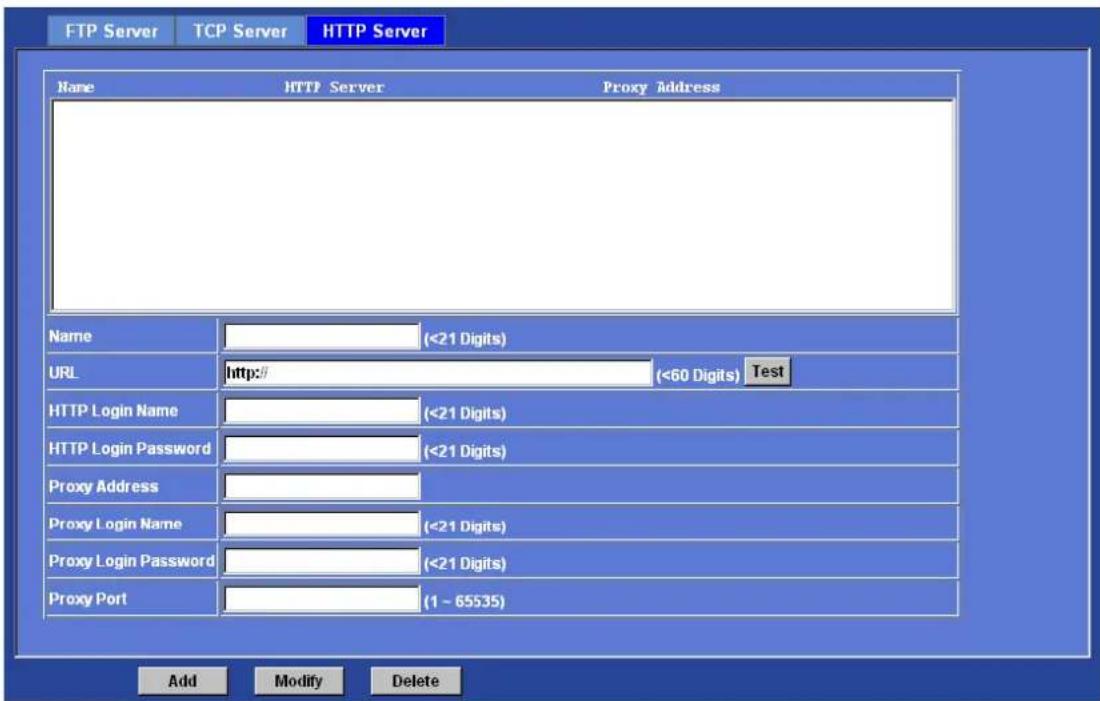
Name:
User can specify multiple HTTP servers as wish. Therefore, user needs to specify a name for each HTTP server setting.
URL:
Type the server name or the IP address of the HTTP server.
Test:
Check the HTTP server whether it is available or not.
HTTP Login name:
Type the user name for the HTTP server.
HTTP Login Password:
Type the password for the HTTP server.
Proxy Address:
Type the server name or the IP address of the HTTP Proxy.
Proxy Login name:
Type the user name for the HTTP Proxy.
Proxy Login Password:
Type the password for the HTTP Proxy.
Proxy Port:
Set port number of Proxy.
Network Camera User's Guide
Event Schedule: Configure the event schedule
This menu is used to specify the schedule of Events and activate the some actions provided by this device.
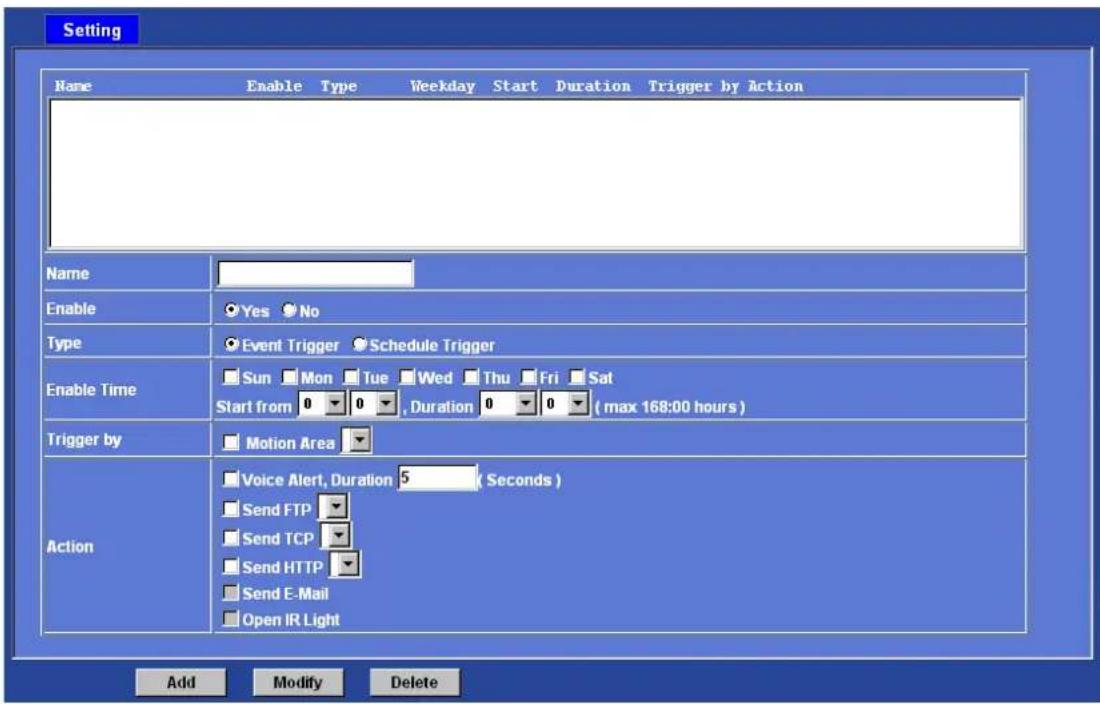
Name:
Name of the Event or Schedule.
Enable:
Enable or disable this Event or Schedule.
Type:
Event trigger or Schedule trigger.
Enable Time:
Define the feasible time slot.
Trigger by:
Select the triggered sources.
Action:
Define the actions once event triggered.
Appendix A: Restore Factory Default Settings
There is a button hidden in the pinhole near to the DC power connector. This button is used to restore the all factory default settings. Sometimes restarting the device will make the system back to a normal state. However, if the system still got problems after restart, user can restore the factory default settings and install it again.
Restore the device:
- Insert the paper clip or other suitable tool to press and hold the button down continuously.
- Hold it least 3 seconds and release the tool. Then the device has been restored to default settings and reboot again.
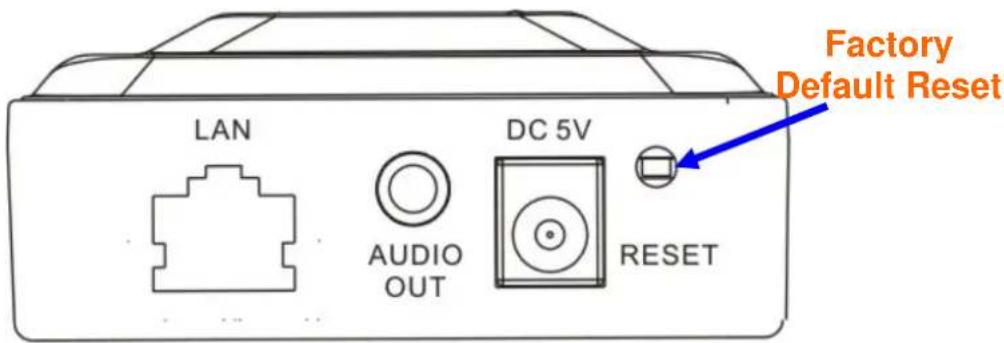
Note: Restoring the factory default setting will lose the all previous settings included IP address forever. User needs to run the IPWizard program to search the device and configure it to let the device work properly again.
Appendix B: Troubleshooting &
Frequently Asked Questions
| Question Answer or Resolution | |
| Features | |
| The video and audio codec is adopted in the device. | The device utilizes MPEG4 and JPEG dual compression to providing high quality images. Where MPEG4 is a standard for video compression and JPEG is a standard for image compression.The audio codec is defined as AMR for 3GPP and G.726 for RTSP streaming. |
| The maximum number of users access the device simultaneously. | The maximum number of users is limited to 10. However, it also depends on the total bandwidth accessed to this device from clients. The maximum data throughput of the device is around 20~30Mbps for UDP mode and 8~10Mbps for HTTP mode. Therefore, the actual number of connected clients is varying by streaming mode, settings of resolution, codec type, frame rate and bandwidth. Obviously, the performance of the each connected client will slow down when many users are logged on. |
| The device can be used outdoors or not. | The device is not weatherproof. It needs to be equipped with a weatherproof case for outdoors using. However, equipped with a weatherproof case might disable the audio function of the device. |
| Install this device | |
| Status LED does not light up. | • Check and confirm that the DC power adaptor, included in packaged, is used. Secure the power connector and re-power it on again.• If the problem is not solved, the device might be faulty. Contact your dealer for further help. |
| The network cabling is required for the device. | The device uses Category 5 UTP cable allowing 10 and/or 100 Base-T networking. |
| The device will be installed and work if a firewall exists on the network. | If a firewall exists on the network, port 80 is open for ordinary data communication. The HTTP port and RTSP port need to be opened on the firewall or NAT router. |
| The username and password for the first time or after factory default reset | Username = admin and leave password blank.Note that it's all case sensitivity. |
| Forgot the username and password | Follow the steps below.1. Restore the factory default setting by press pressing and |
| holding down more than 3 seconds on the device.2. Reconfigure the device. | |
| Forgot the IP address of the device. | Check IP address of device by using the IPWizard.exe program or by UPnP discovery. |
| IPWizard program cannot find the device. | • Re-power the device if cannot find the unit within 1 minutes.• Do not connect device over a router. IPWizard program cannot detect device over a router.• If IP address is not assigned to the PC which running IPWizard program, then IPWizard program cannot find device. Make sure that IP address is assigned to the PC properly.• Antivirus software on the PC might interfere with the setup program. Disable the firewall of the antivirus software during setting up this device.• Check the firewall setting of your PC or Notebook. |
| Internet Explorer does not seem to work well with the device | Make sure that your Internet Explorer is version 6.0 or later. If you are experiencing problems, try upgrading to the latest version of Microsoft's Internet Explorer from the Microsoft webpage. |
| IPWizard program fails to save the network parameters. | • Network may have trouble. Confirm the parameters and connections of the device. |
| Access this device | |
| Cannot access the login page and other web pages of the device from Internet Explorer | • Maybe the IP Address of the device is already being used by another device or computer. To confirm this possible problem, disconnect the device from the network first, and then run the PING utility to check it out.• Maybe due to the network cable. Try correcting your network cable and configuration. Test the network interface by connecting a local computer to the device via a crossover cable.• Make sure the Internet connection and setting is ok.• Make sure enter the IP address of Internet Explorer is correct. If the device has a dynamic address, it may have changed since you last checked it.• Network congestion may prevent the web page appearing quickly. Wait for a while.The IP address and Subnet Mask of the PC and the device must be in the same class of the private IP address on the LAN.• Make sure the http port used by the device, default=80, is forward to the device's private IP address.• The port number assigned in your device might not be available via Internet. Check your ISP for available port.• The proxy server may prevent you from connecting directly to the device, set up not to use the proxy server.• Confirm that Default Gateway address is correct.• The router needs Port Forwarding feature. Refer to your router's manual for details.• Packet Filtering of the router may prohibit access from anexternal network. Refer to your router's manual for details.• Access the device from the Internet with the global IP address of the router and port number of the device.• Some routers reject the global IP address to access the device on the same LAN. Access with the private IP address and correct port number of the device.• When you use DDNS, you need to set Default Gateway and DNS server address.• If it's not working after above procedure, reset this device to default setting and installed it again.• If the problem is not solved, the device might be faulty. Contact your dealer for further help. |
| Image or video does not appear in the main page. | • The first time the PC connects to the device, a pop-up Security Warning window might appear to download ActiveX Controls. When using Windows 2000, XP, or Vista, log on with an appropriate account that is authorized to install applications.• Network congestion may prevent the Image screen from appearing quickly. You may choose lower resolution to reduce the required bandwidth. |
| Check the device's ActiveX is installed on your computer | Go to C:\Windows\Downloaded Program Files and check to see if there is an entry for the file "IPCamera Control". The status column should show "Installed". If the file is not listed, make sure your Security Settings in Internet Explorer are configured properly and then try reloading the device's home page. Most likely, the ActiveX control did not download and install correctly. Check your Internet Explorer security settings and then close and restart Internet Explorer. Try to browse and log in again. |
| Internet Explorer displays the following message: "Your current security settings prohibit downloading ActiveX controls". | Setup the IE security settings or configure the individual settings to allow downloading and scripting of ActiveX controls. |
| The device work locally but not externally. | • Might be caused from the firewall protection. Check the Internet firewall with your system or network administrator. The firewall may need to have some settings changed in order for the device to be accessible outside your LAN.• Make sure that the device isn't conflicting with any other web server running on your LAN.• Check the configuration of the router settings allow the device to be accessed outside your local LAN.• Check the bandwidth of Internet connection. If the Internet bandwidth is lower than target bit rate, the video streaming will not work correctly. |
| The unreadable characters are displayed. | Use the operating system of the selected language. Set the Encoding or the Character Set of the selected language on the Internet Explorer. |
| Frame rate is slower • The traffic of the network and the object of the image affect | |
| than the setting. the frame rate. The network congestion causes frame rate slower than the setting.• Check the bandwidth of Internet connection. If the Internet bandwidth is lower than target bit rate, the video streaming will not work correctly.• Ethernet switching hub can smooth the frame rate. | |
| Blank screen or very slow video when audio is enabled. | • Your connection to the device does not have enough bandwidth to support a higher frame rate for the streamed image size. Try reducing the video streaming size to 160x120 or 320x240 and/or disabling audio.• Audio will consume 32 kbps. Disable audio to improve video. Your Internet connection may not have enough bandwidth to support streaming audio from the device. |
| Image Transfer on e-mail or FTP does not work. | • Default Gateway and DNS server address should be set up correctly.• If FTP does not work properly, ask your ISP or network administrator about the transferring mode of FTP server. |
| Video quality of the device | |
| The focus on the Camera is bad. | • The lens is dirty or dust is attached. Fingerprints, dust, stain, etc. on the lens can degrade the image quality. |
| The color of the image is poor or strange. | • Adjust White Balance.• To insure the images you are viewing are the best they can be, set the Display property setting (color quality) to 16bit at least and 24 bit or higher if possible within your computer.• The configuration on the device image display is incorrect. You need to adjust the image related parameters such as brightness, contrast, hue and sharpness properly. |
| Image flickers. • Wrong power line frequency makes images flicker. Make sure the 50 or 60Hz format of your device.• If the object is dark, the image will flicker. Make the condition around the Camera brighter. | |
| Noisy images occur. | The video images might be noisy if the device is located in a very low light environment. Make the condition around the camera brighter or turn the IR LED on. |
| Miscellaneous | |
| Can not play the recorded ASF file | Have installed Microsoft®’s DirectX 9.0 or later and use the Windows Media Player 9 or later to play the ASF filed recorded by the device. |
Appendix C: PING IP Address
The PING (stands for Packet Internet Groper) command is used to detect whether a specific IP address is accessible by sending a packet to the specific address and waiting for a reply. It's also a very useful tool to confirm the device installed or if the IP address conflicts with any other devices over the network.
If you want to make sure the IP address of the device, utilize the PING command as follows:
- Start a DOS window.
- Type ping x.x.x.x, where x.x.x.x is the IP address of the device.
The replies, as illustrated below, will provide an explanation to the problem.
![Microsoft Windows XP [Version 5.1.2600] Copyright 1985-2001 Microsoft Corp. D:\Documents and Settings\Administrator>PING 192.168.0.100 Pinging 192.168.0.100 with 32 bytes of data: Reply from 192.168.0.100: bytes=32 time=1ms TTL=64 Reply from 192.168.0.100: bytes=32 time<1ms TTL=64 Reply from 192.168.0.100: bytes=32 time<1ms TTL=64 Reply from 192.168.0.100: bytes=32 time<1ms TTL=64 Ping statistics for 192.168.0.100: Packets: Sent = 4, Received = 4, Lost = 0 (0% loss), Approximate round trip times in milli-seconds: Minimum = 0ms, Maximum = 1ms, Average = 0ms D:\Documents and Settings\Administrator>](/content/2026/06/1204442/images/22482ee41983f37dcb58a0a86a91a7dc02ef584de08879b63c5e961f02a5017c.jpg)
If you want to detect any other devices conflicts with the IP address of Network Camera, also can utilize the PING command but you must disconnect the device from the network first.
Appendix D: Bandwidth Estimation
The frame rate of video transmitted from the device depends on connection bandwidth between client and server, video resolution, codec type, and quality setting of server. Here is a guideline to help you roughly estimate the bandwidth requirements form your device.
The required bandwidth depends on content of video source. The slow motion video will produce smaller bit rate generally and fast motion will produce higher bit rate vice versa. Actual results generated by the device may be varying.
| Image Resolution Average range of Data Sizes for JPEG mode | Average bit rate for MPEG4 mode | |
| 160 x 120 (QQVGA) | 3 ~ 6k byte per frame | 64kbps~256kbps @ 30fps |
| 320 x 240 (QVGA) 8 ~ | 20k byte per frame 256kbps~768kbps @ 30fps | |
| 640 x 480 (VGA) | 20 ~ 50K byte per frame | 512kbps~2048kbps @ 30fps |
| 1280 x 1024 or 1024x768 | 100 ~ 220k byte per frame | 512kbps~4096kbps @ 15fps |
Note: Audio streaming also takes bandwidth around 32kbps. Some xDSL/Cable modem upload speeds could not even reach up to 128 kbps. Thus, you may not be able to receive good quality video while also streaming audio on a 128 kbps or lower connection. Even though the upload speed is more than 128kbps, for optimal video performance, disabling audio streaming will get better video performance.
Appendix E: Specifications
| Model CMOS IR Network Camera | |
| Video Encoder | MPEG4 and JPEG simultaneously and multi-profile |
| Video Resolution | Mega-pixel mode:Up to 15fps @ 1024x768 (MPEG4)Up to 5fps @ 1280x1024 (JPEG)Multi-profile mode:Up to 30fps @ 160x120Up to 30fps @ 320x240Up to 30fps @ 640x480 |
| Audio Encoder | RTSP: G.711, G.7263GPP: AMR |
| Camera module | CMOS sensorAWB/AESLow shutter mode available67.4 degree view angleEFL: 4.05mm, F2.8 |
| Networking Protocol | TCP/IP, HTTP, SMTP, FTP, NTP, DNS, DDNS, DHCP, UPnPTM, RTSP, PPPoE, 3GPP |
| Browser | Microsoft® Internet Explorer 6.0 or later |
| Operating System | Windows® 2000, XP, Vista |
| Security | 2 Levels, Administrator or Viewer / IP filter |
| Ethernet | 10/100M auto negotiation |
| WLAN | 802.11b/g (Wireless model only) |
| RAM | 32MB SDRAM (LAN model)64MB SDRAM (WLAN model) |
| Flash | 4MB NOR Flash Memory |
| Indication LED | Two-Color LED |
| IR LED | 6 Infra-Red LEDs |
| Microphone | Built-in |
| Power Supply | 5V DC external power adapter |
| Power Consumption | 5W max (with WLAN and IR LEDs on) or 3.5W max (IR LEDs on but without WLAN) |
| Dimension | 105X66X25mm (HXWXD) |
| Operating Temperature | 0°C to 40°C (32°F to 104°F) |
| Operating Humidity | 10% ~ 80% |
Appendix F: Configure Port Forwarding Manually
The device can be used with a router. If the device wants to be accessed from the WAN, its IP address needs to be setup as fixed IP address, also the port forwarding or Virtual Server function of router needs to be setup. This device supports UPnP traversal function. Therefore, user could use this feature to configure port forwarding of NAT router first. However, if user needs to configure port forwarding manually, please follow the steps as below:
Manually installing the device with a router on your network is an easy 3-step procedure as following:
(1) Assign a local/fixed IP address to your device
(2) Access the Router with Your Web browser
(3) Open/Configure Virtual Server Ports of Your Router
(1) Assign a local/fixed IP address to your device
The device must be assigned a local and fixed IP Address that allows it to be recognized by the router. Manually setup the device with a fixed IP address, for example, 192.168.0.100.
(2) Access the Router with Your Web browser
The following steps generally apply to any router that you have on your network. The D-Link DI-624 is used as an example to clarify the configuration process. Configure the initial settings of the router by following the steps outlined in the router's Quick Installation Guide.
If you have cable or DSL service, you will most likely have a dynamically assigned WAN IP Address. 'Dynamic' means that your router's WAN IP address can change from time to time depending on your ISP. A dynamic WAN IP Address identifies your router on the public network and allows it to access the Internet. To find out what your router's WAN IP Address is, go to the Status screen on your router and locate the WAN information for your router. As shown on the following page the WAN IP Address will be listed. This will be the address that you will need to type in your web browser to view your camera over the Internet. Be sure to uncheck the Reset IP address at next boot button at the top of the screen after modifying the IP address. Failure to do so will reset the IP address when you restart your computer.
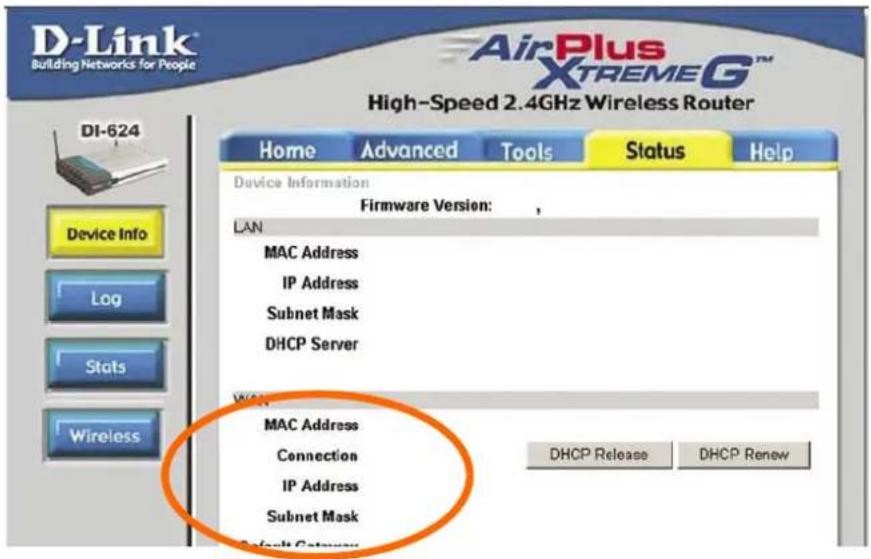
Your WAN IP Address will be listed here.
Note: Because a dynamic WAN IP can change from time to time depending on your ISP, you may want to obtain a Static IP address from your ISP. A Static IP address is a fixed IP address that will not change over time and will be more convenient for you to use to access your camera from a remote location. If you could not get a Static IP address from your ISP, the DIPSTM or DDNS is a solution alternatively. Please refer to Appendix G for more information.
(3) Open/set Virtual Server Ports to enable remote image viewing
The firewall security features built into the router and most routers prevent users from accessing the video from the device over the Internet. The router connects to the Internet over a series of numbered ports. The ports normally used by the device are blocked from access over the Internet. Therefore, these ports need to be made accessible over the Internet. This is accomplished using the Virtual Server function on the router. The Virtual Server ports used by the camera must be opened through the router for remote access to your camera. Virtual Server is accessed by clicking on the Advanced tab of the router screen.
Follow these steps to configure your router's Virtual Server settings
- Click Enabled.
- Enter a unique name for each entry.
- Select Both under Protocol Type (TCP and UDP)
- Enter your camera's local IP Address (e.g., 192.168.0.100, for example) in the Private IP field.
Network Camera User's Guide
- If you are using the default camera port settings, enter 80 into the Public and Private Port section, click Apply.
- Scheduling should be set to Always so that the camera images can be accessed at any time.
A check mark appearing before the entry name will indicate that the ports are enabled.
Important: Some ISPs block access to port 80. Be sure to check with your ISP so that you can open the appropriate ports accordingly. If your ISP does not pass traffic on port 80, you will need to change the port the camera uses from 80 to something else, such as 8080. Not all routers are the same, so refer to your user manual for specific instructions on how to open ports.
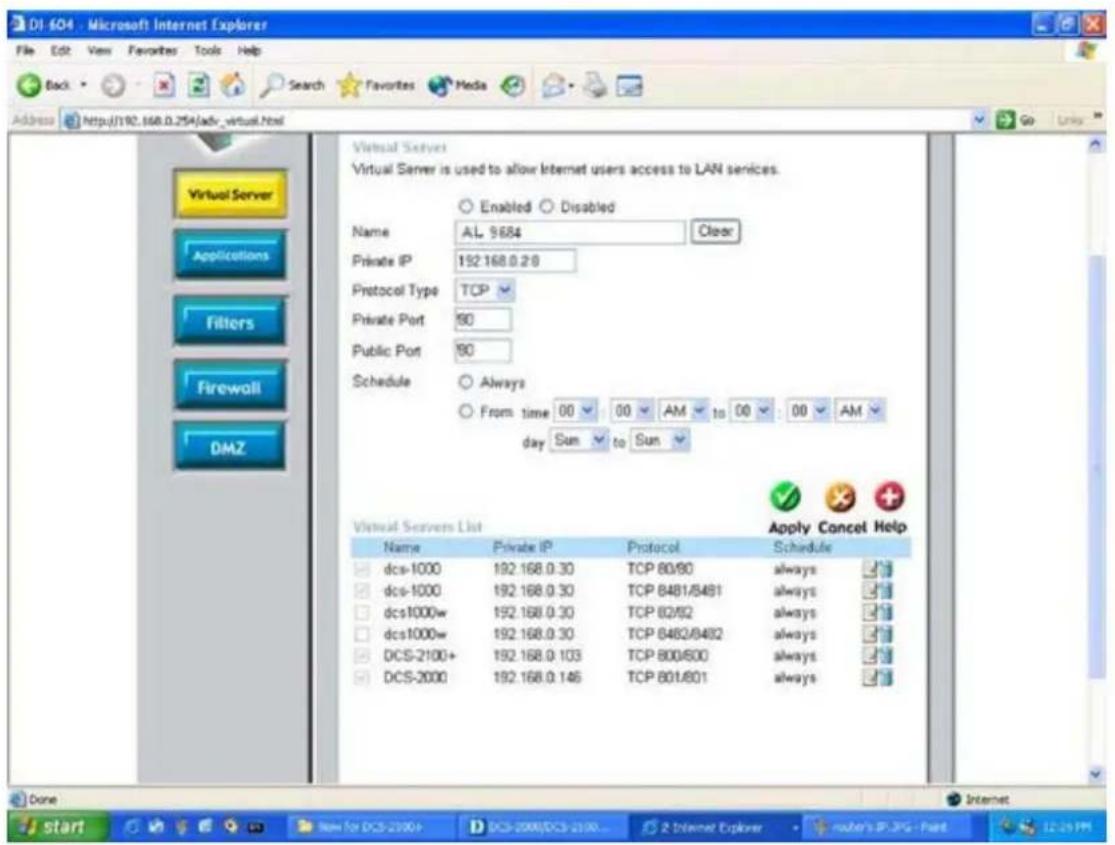
Enter valid ports in the Virtual Server section of your router. Please make sure to check the box on this line to enable settings. Then the device can be access from WAN by the router's WAN IP Address.
By now, you have finished your entire PC configuration for this device.
Appendix G: DDNS Application
1. Preface
If you have a Cable modem or xDSL, this is a great way to host your own Networked Device or other TCP/IP Service. Get your own domain like www.yourname.com, www.yourname.com.tw etc. (Note: This domain must be registered with Internic via registration authorities such as Network Solutions, DirectNIC, Register.com etc). Your domain name's dynamic IP address is automatically tracked by a DDNS server.
Host your own Networked Device and much more no matter what your computer's IP address may be and even if you have dialup, DSL or cable modem internet connection where your computer's IP address changes all the time!! DDNS service supports all top level domain names including but not limited to .com, .net, .org, .to, .uk etc.
2. Ethernet Network Environment
Normally, DDNS service is only necessary for the users that could only obtain dynamic IP addresses. As to the users that could obtain the static valid IP address, they do not usually have to apply the DDNS service. Before we decide if DDNS is necessary for the users, we have to check what kind of Ethernet network environment we have to install our Networked Device on.
(1) Environment of Fixed Valid IP Network
If users could obtain valid IP addresses, they could save the effort to apply DDNS service. Because the IP address in this environment is fixed, users could input the IP address or domain name of demo site directly in the IE browser.
(2) Environment of Dynamic IP Network
If users is under an environment of dynamic IP network (Dial-up xDSL), they have to apply a domain name in advance. Then apply DDNS service. Finally setup the necessary information of DDNS and PPPoE of the Networked Device in order to let the outside administrator be able to access through internet.
3. Application Steps—DDNS & Domain Name
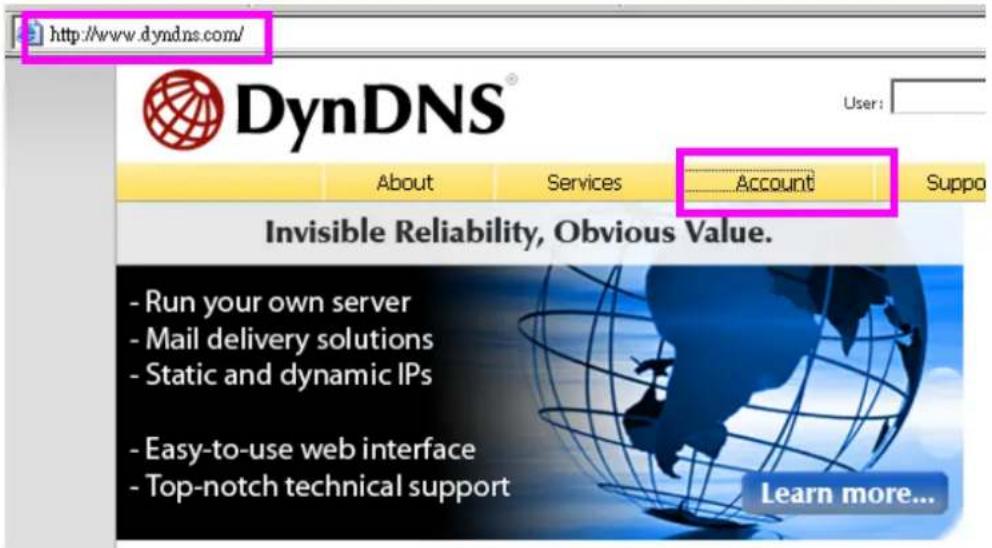
(1). Visit the following web site: http://www.dyndns.org/
(2). Click "Account"
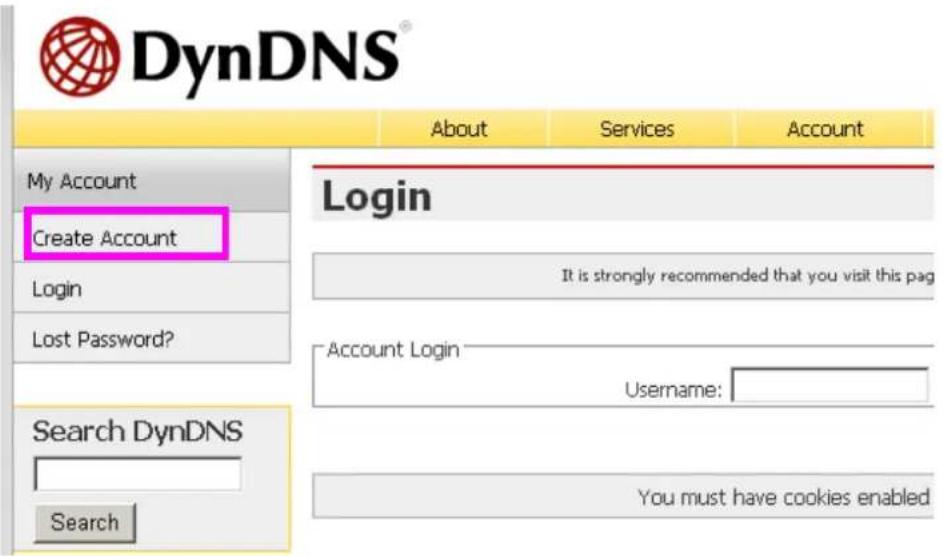
(3). After the columns show up at the left side, click "Create Account".
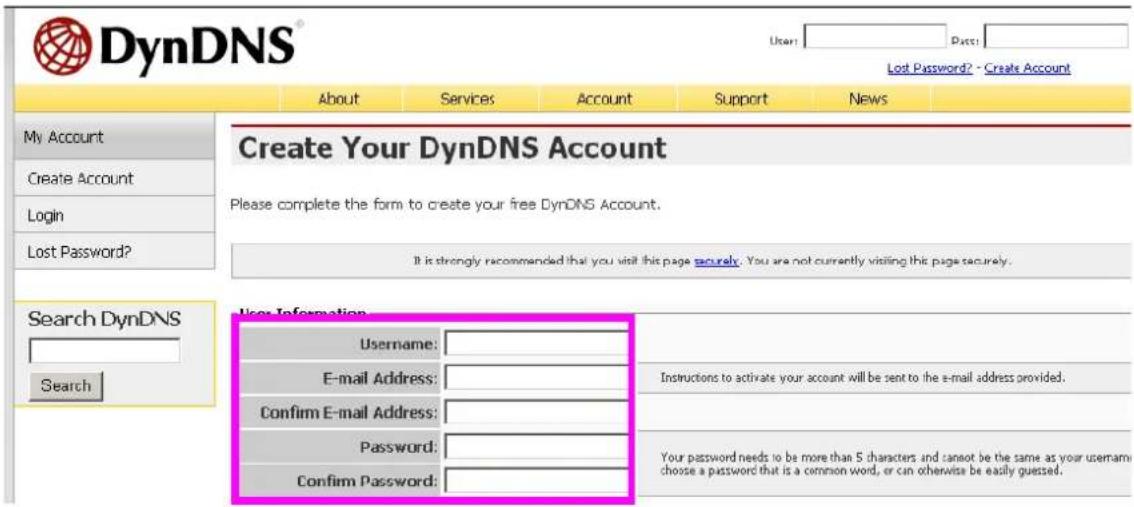
(4). Fill the application agreement and necessary information.
a. Username
b. E-mail address and confirmation
c. Password and confirmation
d. Submit all the input information and finish creating an account
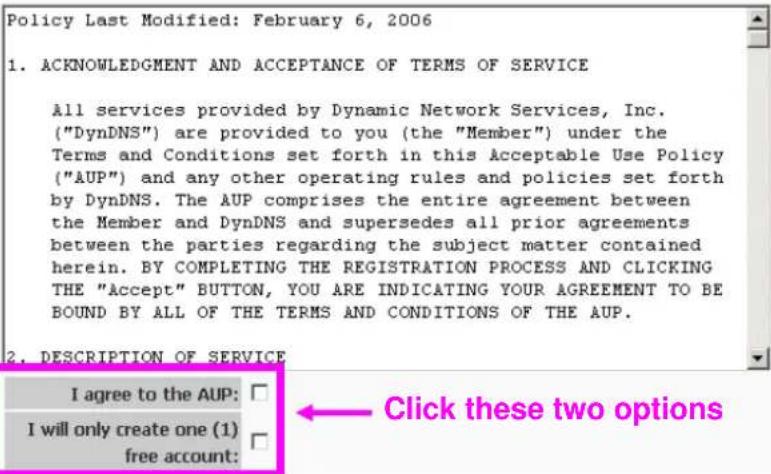
Terms of Service
Please read the acceptable use policy (AUP) and accept it prior to creating your account. Also acknowledge that you may only have one (1) free account, and that creation of multiple free accounts will result in the deletion of all of your accounts.
Next Step
After you click "Create Account", we will create your account and send you an e-mail to the address you provided. Please follow the instructions in that e-mail to confirm your account. You will need to confirm your account within 48 hours or we will automatically delete your account. (This helps prevent unwanted robots on our systems)
(5). Check your e-mail mailbox. There will be an e-mail with a title "Your DynDNS Account Information". Click the hyperlink address to confirm the DDNS service that you just applied. Then DDNS you applied activated.
Your DynDNS Account 'kkkkk' has been created. You need to visit the confirmation address below within 48 hours to complete the account creation process: Click to confirm
https://www.dyndns.com/account/confirm/oDDGDYN75qTJk_ICGba6vQ
Our basic service offerings are free, but they are supported by our paid services. See http://www.dyndns.com/services/ for a full listing of all of our available services.
If you did not sign up for this account, this will be the only communication you will receive. All non-confirmed accounts are automatically deleted after 48 hours, and no addresses are kept on file. We apologize for any inconvenience this correspondence may have caused, and we assure you that it was only sent at the request of someone visiting our site requesting an account.
Sincerely, The DynDNS Team
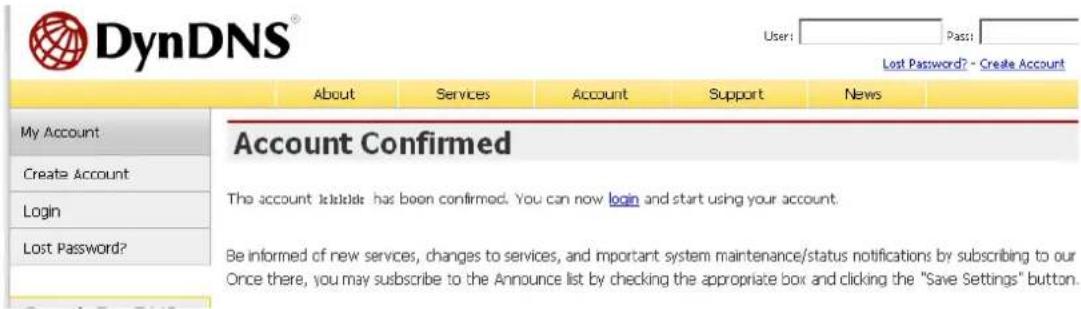
(6). Enter the web page http://www.dyndns.org/ again. Input your username and password that you just applied to login administration interface of DDNS server.
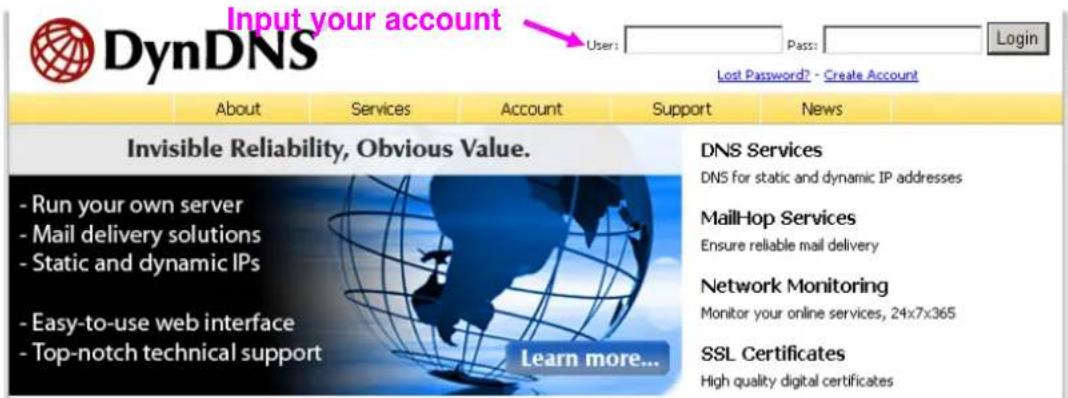
(7). If the correct username and password are input, you can see the following picture at the top-right of the login page.
(8). Click the "Services".
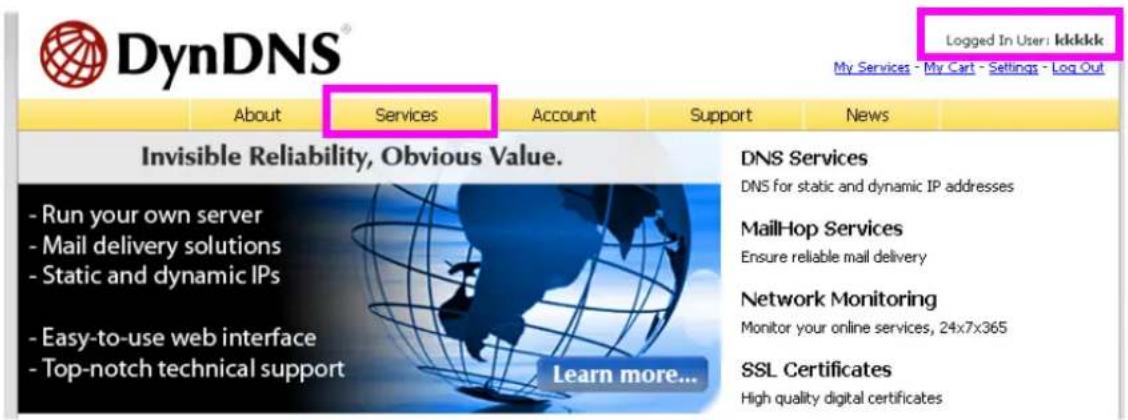
(9). Click the "Dynamic DNS".

DynDNS
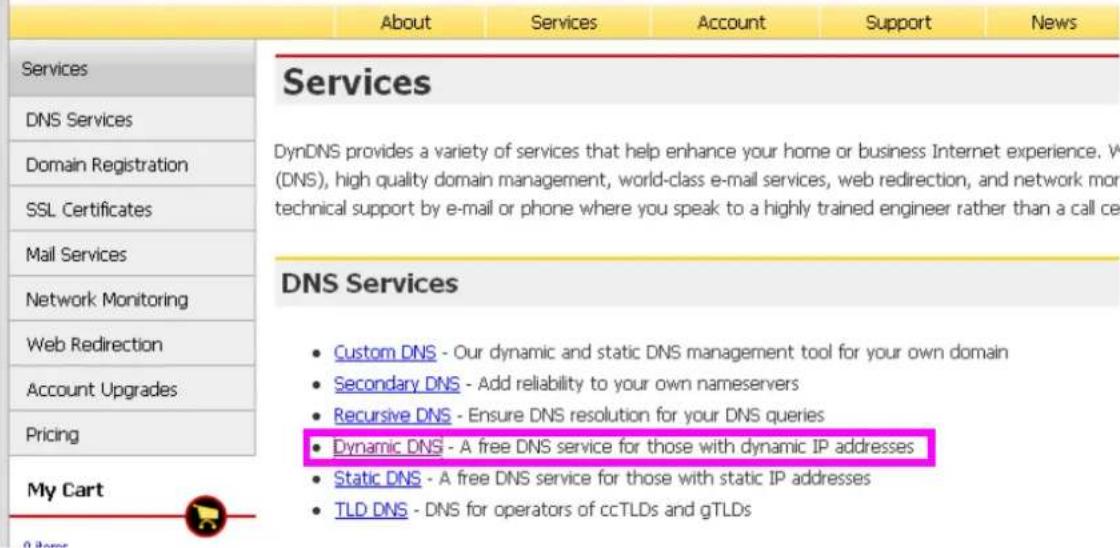
(10). Click the "Create Hosts".
Dynamic DNS ^SM
The free Dynamic DNS service allows you to alias a dynamic IP address to a static hostname in any of the many domains we offer, allowing your computer to be more easily accessed from various locations on the Internet. We provide this service, for up to five (5) hostnames, free to the Internet community.
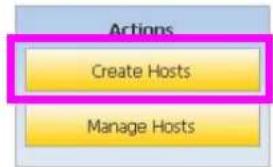
The Dynamic DNS service is ideal for a home website, file server, or just to keep a pointer back to your home PC so you can access those important documents while you're at work. Using one of the available
third-party update clients you can keep your hostname always pointing to your IP address, no matter how often your ISP changes it. No more fumbling to find that piece of paper where you wrote down your IP address, or e-mailing all your friends every time it changes. Just tell them to visit yourname.dyndns.org instead!
(11). We could create a domain name without any charge at this step. First, we input the host name. (Pink No.1) Then we pick a domain that is easy to remember. (Pink No.2) Finally, click the "Add Host" to submit the domain name information. (Pink No.3)
New Dynamic DNS ^SM Host
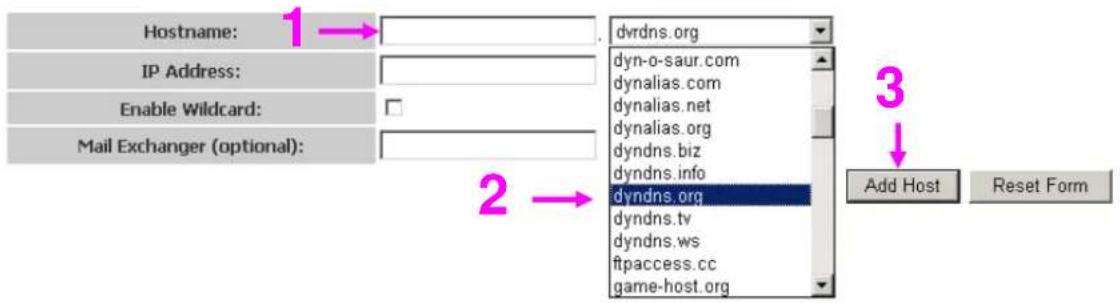
4. Setup the DDNS and PPPoE of Networked Device
At last, users have to enter the web page of Networked Device and setup the necessary information of DDNS and PPPoE after the application of DDNS service. Please check the user manual to access the DDNS and PPPoE pages. After saving the modification, restart the device. The external users could browse the Networked Device by the input of their domain name.
Appendix H: Power Line Frequency
| COUNTRY | VOLTAGE | FREQUENCY | COMMENTS |
| Argentina | 220V | 50 Hz | *Neutral and line wires are reversed from that used in Australia and elsewhere. |
| Australia | 230V* | 50 Hz | *Outlets typically controlled by adjacent switch. Though nominal voltage has been officially changed to 230V, 240V is within tolerances and commonly found. |
| Austria | 230V | 50 Hz | |
| Brazil | 110/220V* | 60 Hz | *127V found in states of Bahia, Paran?(including Curitiba), Rio de Janeiro, S 綾 Paulo and Minas Gerais (though 220V may be found in some hotels). Other areas are 220V only, with the exception of Fortaleza (240V). |
| Canada | 120V | 60 Hz | |
| China, People's Republic of | 220V | 50 Hz | |
| Finland | 230V | 50 Hz | |
| France | 230V | 50 Hz | |
| Germany | 230V | 50 Hz | |
| Hong Kong | 220V* | 50 Hz | |
| India | 230V | 50 Hz | |
| Italy | 230V | 50 Hz | |
| Japan | 100V | 50/60 Hz* | *Eastern Japan 50 Hz (Tokyo, Kawasaki, Sapporo, Yokohoma, and Sendai); Western Japan 60 Hz (Osaka, Kyoto, Nagoya, Hiroshima) |
| Malaysia | 240V | 50 Hz | |
| Netherlands | 230V | 50 Hz | |
| Portugal | 230V | 50 Hz | |
| Spain | 230V | 50 Hz | |
| Sweden | 230V | 50 Hz | |
| Switzerland | 230V | 50 Hz | |
| Taiwan | 110V | 60 Hz | |
| Thailand | 220V | 50 Hz | |
| United Kingdom | 230V* | 50 Hz | *Outlets typically controlled by adjacent switch. Though nominal voltage has been officially changed to 230V, 240V is within tolerances and commonly found. |
| United States of America | 120V | 60 Hz |
Appendix I: 3GPP
To use the 3GPP function, in addition to previous section, you might need more information or configuration to make this function work.
Note:
- The camera must be set as Multi-profile mode, not Mega-pixel mode. Otherwise this device can not serve 3GPP stream.
- To use the 3GPP function, it strongly recommends installing the Networked Device with a public and fixed IP address without any firewall protection.
RTSP Port:
Port 554 is the default for RTSP service. However, sometimes, some service providers change this port number for some reasons. If so, user needs to change this port accordingly.
Dialing procedure:
- Choose a verified player (PacketVideo or Realplayer currently)
- Use the following URL to access:
rtsp://host/mpeg4/media.3gp
Where host is the host name or IP address of the camera.
Compatible 3G mobile phone:
Please contact your dealer to get the approved list of compatible 3G phone.
Appendix J: Enable UPnP of
Windows XP
Use the following steps to enable UPnP settings only if your operating system of PC is running Windows XP.
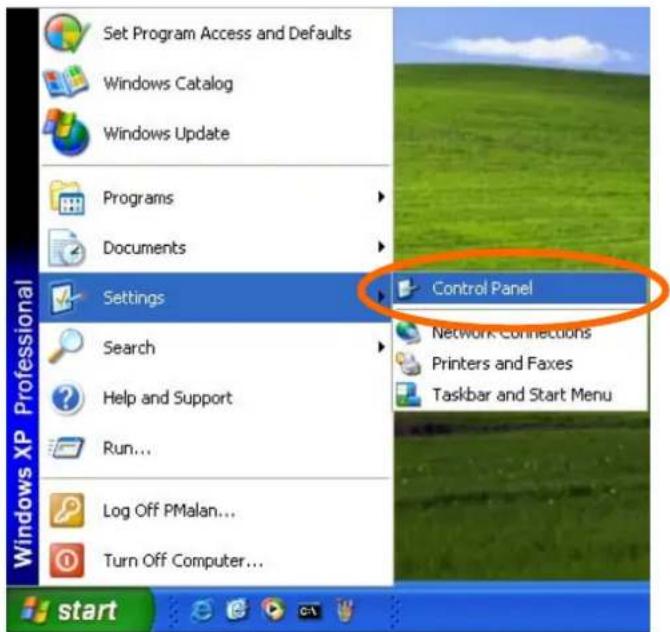
Go to Start > Settings.
Click Control Panel
Network Camera User's Guide
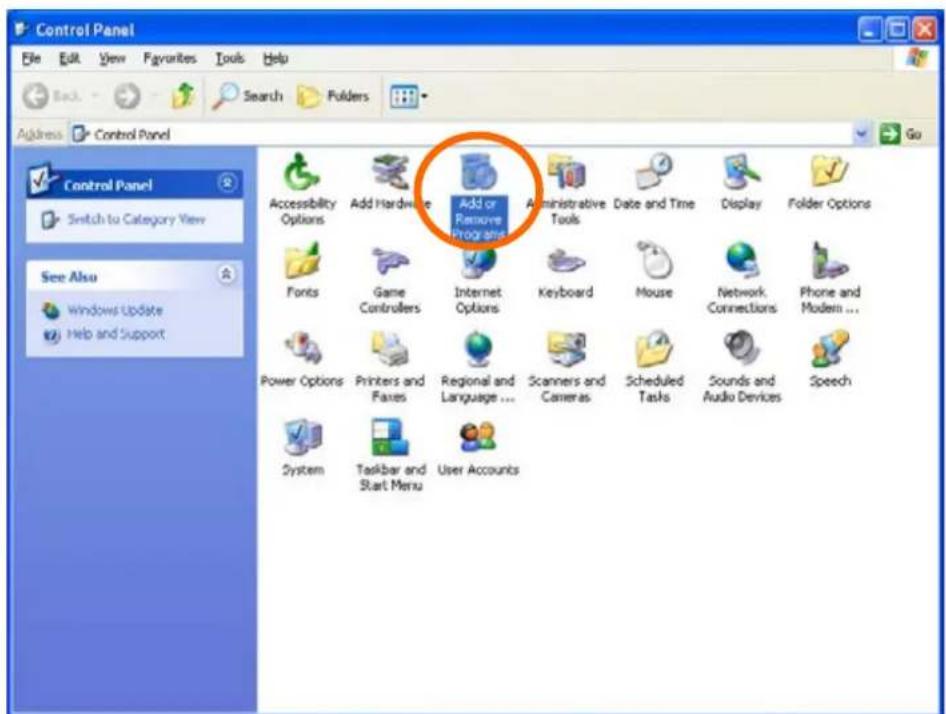
Click Add or Remove Programs
![Add or Remove Programs Currently installed programs: Sort by: Name DameWare NT Utilities Click here for support information. Size 15.72MB Used occasionally Last Used On: 11/18/2003 To change this program or remove it from your computer, click Change or Remove. Change Remove Internet Explorer Q828750 IP surveillance Size 3.30MB Outlook Express Update Q330994 Windows Media Player Hotfix [See wml828026 for more information] Size 0.13MB Windows XP Hotfix - KB821557 Windows XP Hotfix - KB823182 Windows XP Hotfix - KB823559 Windows XP Hotfix - KB824105 Windows XP Hotfix - KB824141 Windows XP Hotfix - KB824146 Windows XP Hotfix - KB825119 Windows XP Hotfix - KB826035 Windows XP Hotfix (SP2) [See Q329048 for more information] Windows XP Hotfix (SP2) [See Q329115 for more information] Windows XP Hotfix (SP2) [See Q329090 for more information]](/content/2026/06/1204442/images/7d0f6399d2b0ca7a32ebd203bcd386ef4bbaa5df98ac047e24fb6d3d108894ea.jpg)
Click Add/Remove Windows Components
The following screen will appear:
Network Camera User's Guide
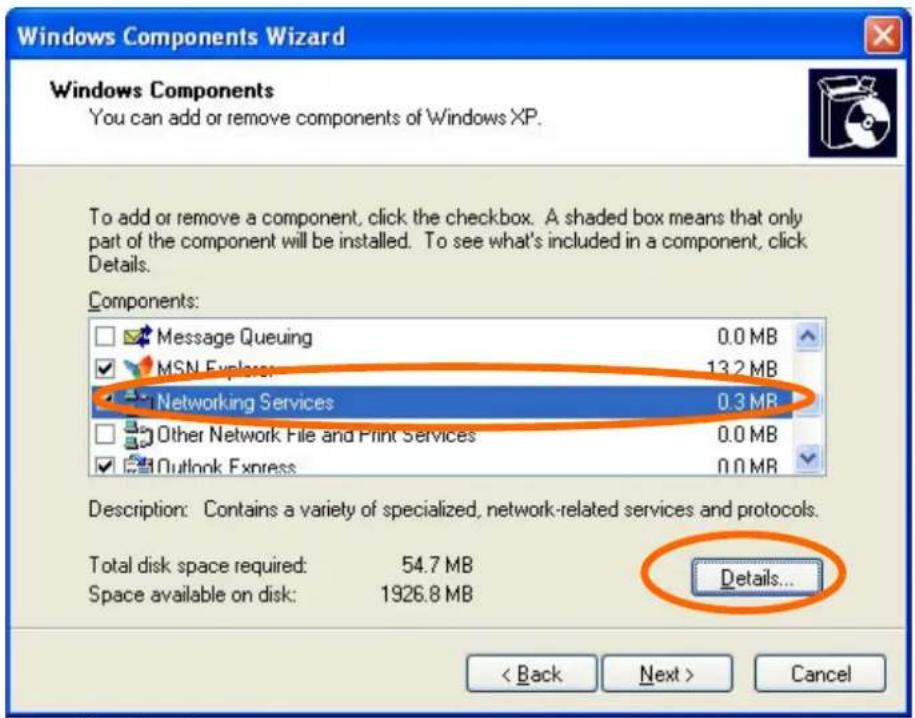
Select Networking Services
Click Details
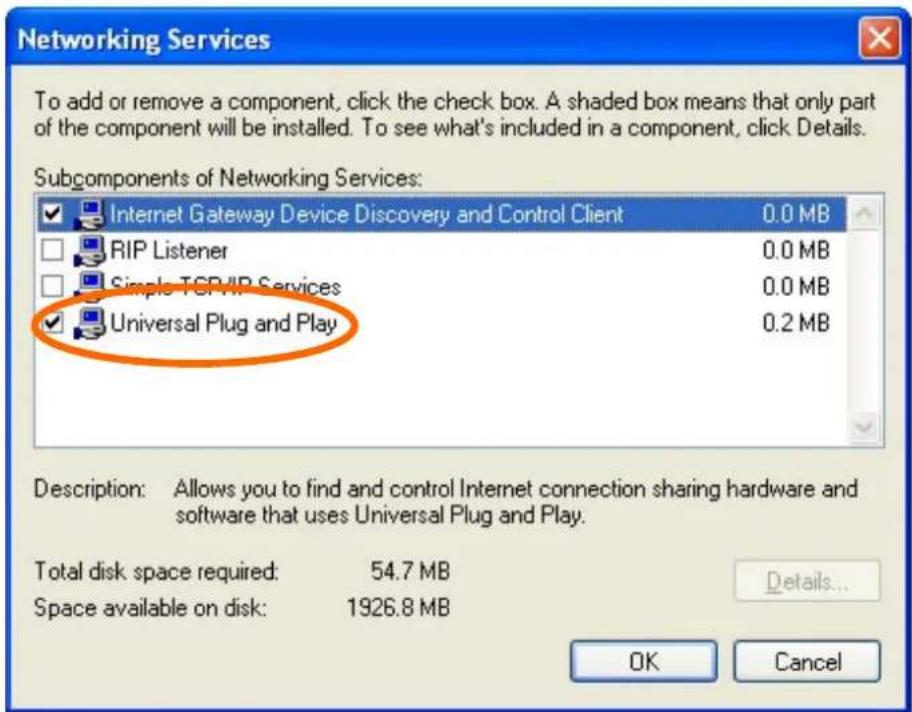
Select Universal Plug and Play
Click Ok
Network Camera User's Guide
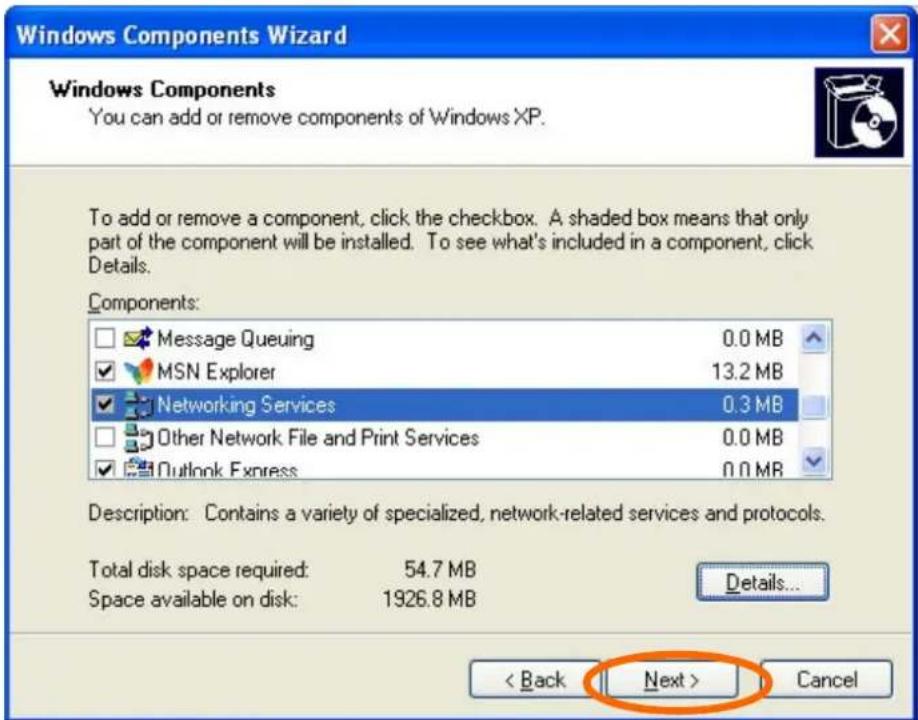
Click Next
Please wait while Setup configures the components.
Network Camera User's Guide
Click Finish