
AX-1200 - To scan NIKON - Free user manual and instructions
Find the device manual for free AX-1200 NIKON in PDF.


| Product Type | Scanner |
| Brand | Nikon |
| Model | AX-1200 |
| Interface | SCSI (50-pin SCSI-1 or SCSI-2, 25-pin Mac SCSI) |
| Power Supply | 100-240 V AC, 50/60 Hz (dual voltage) |
| SCSI ID | Adjustable, default 5 (rotary or push-button switch) |
| Included Software | Nikon Scan, Nikon Control |
| Operating Systems | Windows 3.1, Windows 95, Mac OS |
| Connection | Via SCSI cable (depending on configuration) |
| SCSI Termination | Required (terminator included) |
| Transport Screw | Must be unlocked before first power-on |
| Included Accessories | SCSI cable, SCSI adapter, terminator, power cable, manuals |
| LED Indicators | Power, Busy, Ready (depending on model) |
| Installation | Install the software first, then connect the scanner |
| Troubleshooting | Reinstallation of software and SCSI drivers |
Frequently Asked Questions - AX-1200 NIKON
User questions about AX-1200 NIKON
0 question about this device. Answer the ones you know or ask your own.
Ask a new question about this device
Download the instructions for your To scan in PDF format for free! Find your manual AX-1200 - NIKON and take your electronic device back in hand. On this page are published all the documents necessary for the use of your device. AX-1200 by NIKON.
USER MANUAL AX-1200 NIKON
Installing Your Nikon Scanner
-by Nikon Technical Support, European Technical Office
Contents
Checklist—Before you begin 3
Making the Perfect Installation 7
- Check that your scanner has arrived safely 7
- Installing a SCSI adaptor 9
3.Installing software 14 - Connecting your scanner 16
- Powering up for the first time 18
Troubleshooting 19
- De-installation and reinstallation of software 20
- SCSI drivers 24
- SCSI cabling 26
- Reinstalling system software 28
Checklist—Before you begin
Your Nikon Scanner may be supplied with a combination of manuals, software and accessories. The exact contents will vary from country to country and in accordance with the particular configuration offered by your supplier. However, you should make sure that you are in possession of the following items before you start (and before your local computer shop closes for the evening or weekend!)
1. An AC power cable
All Nikon scanners are fitted with an IEC AC inlet connector. The scanners are dual voltage and will accept supplies from 100 to 240V AC.
2. A SCSI cable
Nikon Scanners use the "SCSI" standard for connection to your computer. SCSI cables are available in a variety of configurations. For example, there are at least three common types of SCSI connector. You will need a cable that is correct for your particular equipment set-up. See the description of SCSI connectors on page 16.
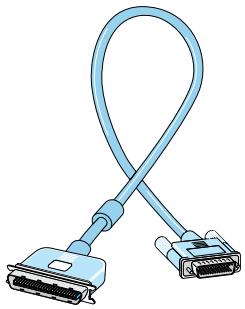
A SCSI cable with 50 pin and 25 pin SCSI connectors
3. A SCSI adaptor
If you have a Macintosh computer, SCSI is fitted as standard (it is the 25-pin D-type connector on the rear of the computer marked ).
Windows 3.x and 95 users will need to fit a SCSI adaptor card to their PC to allow connection to the Scanner. Nikon cannot guarantee the operation of the scanner with SCSI adaptor cards that have not been tested and approved (a list of tested cards is included in this envelope). There may be an approved SCSI adaptor card provided with your scanner.
4. A SCSI terminator
Up to seven devices can be connected in series using SCSI. However, the longer the chain, the more prone it is to interference and instability. It is essential to end the chain with a terminator: this is a connector with no lead that contains circuitry to deaden the end of the SCSI circuit, thus reducing interference and noise picked up by the cabling.
The terminator may be connected to the spare socket on the last device in the SCSI chain. If this connector is of the wrong type for your terminator, try rearranging the order of the devices in the chain, or fit the terminator between the last device and the cable. For this type of connection you will need a terminator that has a connector at both ends.
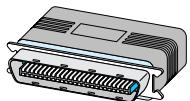
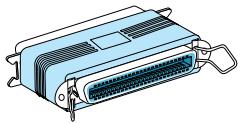
SCSI Terminators
5. Software
Nikon scanners are usually provided with software. This may be Nikon's own product, or be from a third party. In addition there may be other software that has been included to provide additional functionality such as OCR and image manipulation packages.
Nikon Software is supplied on a Diskette or CD labelled Nikon Scan. This software is comprised of two parts:
Nikon Control: A mini-application that can be used to start off a scanner session.

Nikon CONTROL Logo
Nikon Scan: A mini-application that is launched from within another program such as Nikon Control or a third-party imaging program to capture an image. In this respect Nikon Scan may be considered to be like a printer driver, except that it captures an image instead of producing a picture!
Nikon SCAN Window
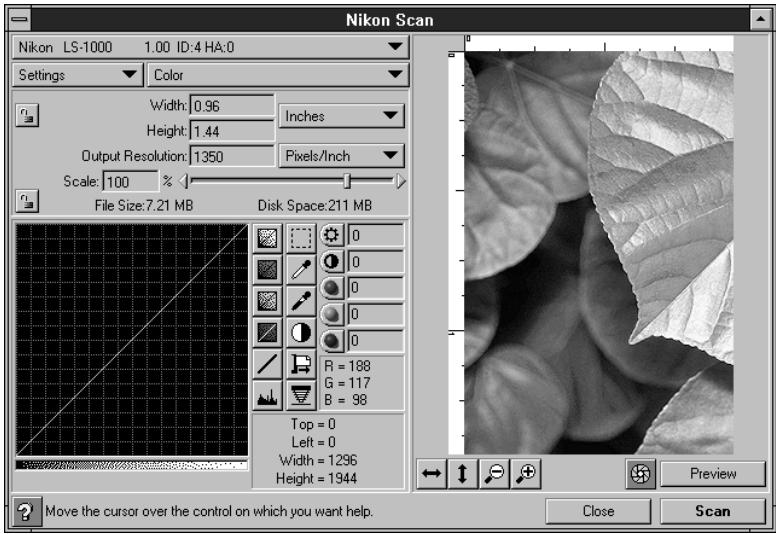
There may also be other software provided by Nikon, or your supplier. For example, some third party programs may include drivers for your Nikon Scanner. However, if Nikon Scan is not present, make sure that you have an alternative means to control your scanner.
6. Manuals
In addition to this Fast Track guide, you may find a user manual for the scanner, and operator manuals for Nikon Scan and Nikon Control. The aim of this guide is to provide you with all of the information that you need during your first installation and scanning session. Please take care to read the other documentation to gain the most from your new equipment.
Checklist summary
AC power cable
SCSI cable of correct type
SCSI adaptor (PCs)
SCSI terminator
□ Software
Manuals
Now that you have checked that you have all of the required items, please turn to the next page to find out how to test and prepare your scanner.
Making the Perfect Installation
1. Check that your scanner has arrived safely
1. Locking screw
Nikon scanners are robust, although on rare occasions, a unit will not survive the rigours of transportation from factory to end user.
To increase their chances of survival, the scanners with more sensitive mechanisms have locking screws to fix the mechanical parts during shipping. If you power on your scanner with the locking screw in place, an unpleasant noise will be heard and you could damage the mechanism. The side bar shows the locations of Nikon scanner locking screws.
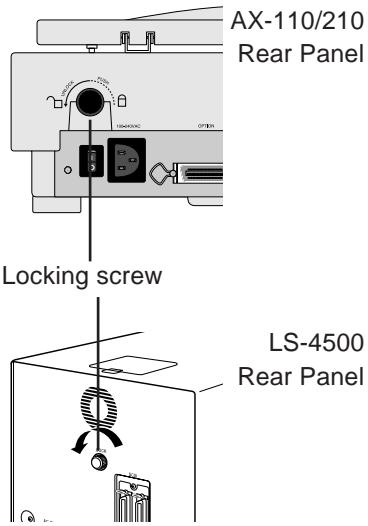
The LS-10, 20 and 1000 do not have a transit locking screw.
The AX-1200 locking screw is on the rear panel.
2. Front panel LEDs
Having released the locking screw, you can make a basic check before connecting your scanner to your computer by applying power and watching the LEDs on the front panel. The table below describes normal operation. If your scanner behaves abnormally, please contact your local sales or service agent.
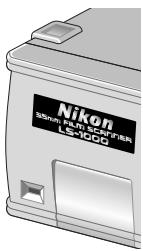
LS-1000/LS-20. Lamp flashes slowly for 10 seconds, then illuminates steadily. Slide stage repositions while lamp flashes.
AX-110/210. All lamps flash once, then Ready flashes rapidly while mechanism resets, then illuminates steadily. The Power lamp stays on throughout.
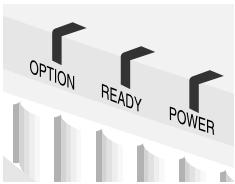
LS-4500. Power and Busy lamps illuminate, then Busy lamp flashes intermittently whilst scanner mechanism resets. Eventually the Busy light goes out.

Tip! Never leave a slide in a slide scanner during power up—this will result in mis-calibration.
2. Installing a SCSI adaptor
Introduction
Macintosh owners do not have to take this step as their machines are fitted with SCSI as standard. However, if you do own a Mac, whilst the PC owners are learning about SCSI, now would be a good time to check the condition of your system and SCSI cables. See Part 4: Connecting the Scanner.
PC owners are faced with the more daunting task of installing and configuring a SCSI adaptor in their PC.
If you are a Windows 3.1/3.11 user, you will have to manually install drivers for your particular card. If you are a Windows 95 user, then the operating system does this for you, providing that you have a SCSI adaptor that Windows 95 recognises. You will also need to ensure that your card does not interfere with any other devices that may be fitted to your PC such as sound cards, Video decoders etc.
Do not attempt to connect your scanner to your computer until you have successfully installed the SCSI adaptor card. If you attempt to connect your scanner before completing a correct SCSI card installation in the hope that it will somehow magically start to work, you will almost definitely fail.
The next pages will help you to complete your SCSI installation. Remember that it is impossible for Nikon, as a scanner manufacturer to be able to offer advice on all SCSI adaptors. However, the following page describes the principals that you should follow.
We would like to offer more help than just the usual "Refer to the manufacturer's information that came with your SCSI card."

Windows 3.1—SCSI Installation
SCSI adaptors cards are circuit boards that fit into the expansion slots inside your computer.
The card set-up will involve specifying certain parameters to allow the computer to communicate with the card. These parameters include, for example, interrupt (IRQ), port and memory address range. They are set on the card by some combination of jumpers, switches or through a software utility, and on the computer by adding lines to the config.sys file. The adding of lines to the config.sys file is usually done by an installation program that also copies the correct drivers to your hard disk.

Each card may have a different method of setting the values of the parameters. The most important thing to remember is that the value that you set must not conflict with other devices that are already installed on your computer. For instance if you set the SCSI card IRQ to 12, and your mouse happens also to use that number, then your card and mouse will probably stop working.
Check your computer thoroughly before starting by examining any fitted cards in expansion slots and confirming the allocation of resources in the config.sys file.
Summary
Step 1. Try to find out what resources are in use by your computer. This includes your mouse, network card, game port etc. Type "msd" at your system prompt to run the Microsoft Diagnostics program. Note the usage of port addresses, IRQs and memory addresses.
Step 2. Carefully check how to change the settings on your SCSI card. The popular AVA1505 has labelling that is very misleading (see right): other cards may be similarly difficult to set up.
Step 3. With the power off, install your card into your PC.
Step 4. If you have an installation disk supplied with your SCSI card that will copy drivers to your hard disk and alter your config.sys file to load them at start-up, turn on your computer start Windows and run the setup program from the disk.
The SCSI installation must be completed successfully before continuing with the scanner installation.
AVA1505—IRQ Settings (location: left-hand side of board)
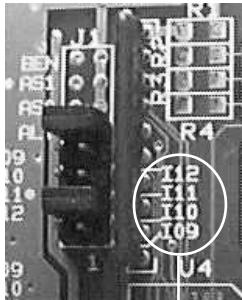
These numbers are the correct set
Windows 95—SCSI Installation
When you install your card and power on the computer for the first time, Windows 95 will run a Hardware Wizard. This system helper detects the new hardware and finds a driver for your SCSI adaptor.
Any conflicts between the way that you have set up the card and the existing installed hardware will be announced for you to resolve (see opposite). If no conflicts are found, you will be presented with a choice of using one of the available drivers from Windows, supplying one from a manufacturer's disk or quitting and running your own set up program from a manufacturer's install disk.
At least one of the three routes should be successful.

DO NOT connect your scanner until you have successfully completed SCSI installation as you will confuse yourself and the Windows 95 Hardware Wizard. Keep things simple and do one thing at a time.
When your SCSI card is installed correctly, your will see a SCSI symbol in the System Hardware profile windows. By checking though the Properties for the SCSI device, will be able to confirm that the it is working correctly.
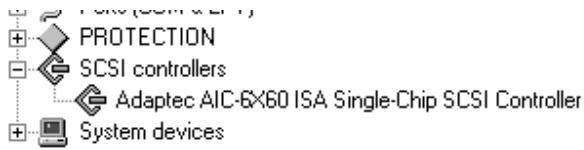
If the SCSI icon has a yellow “?” or “!” or a red “X” over it, a conflict is indicated, which you MUST resolve before connecting with the scanner. See the troubleshooting section for hints and tips.
Summary
Step 1. Determine a free set of resources using the System Device Manager window.
Step 2. Set your SCSI card to match these values.
Step 3. Power off, install the SCSI card and follow the advice of the Hardware Wizard.
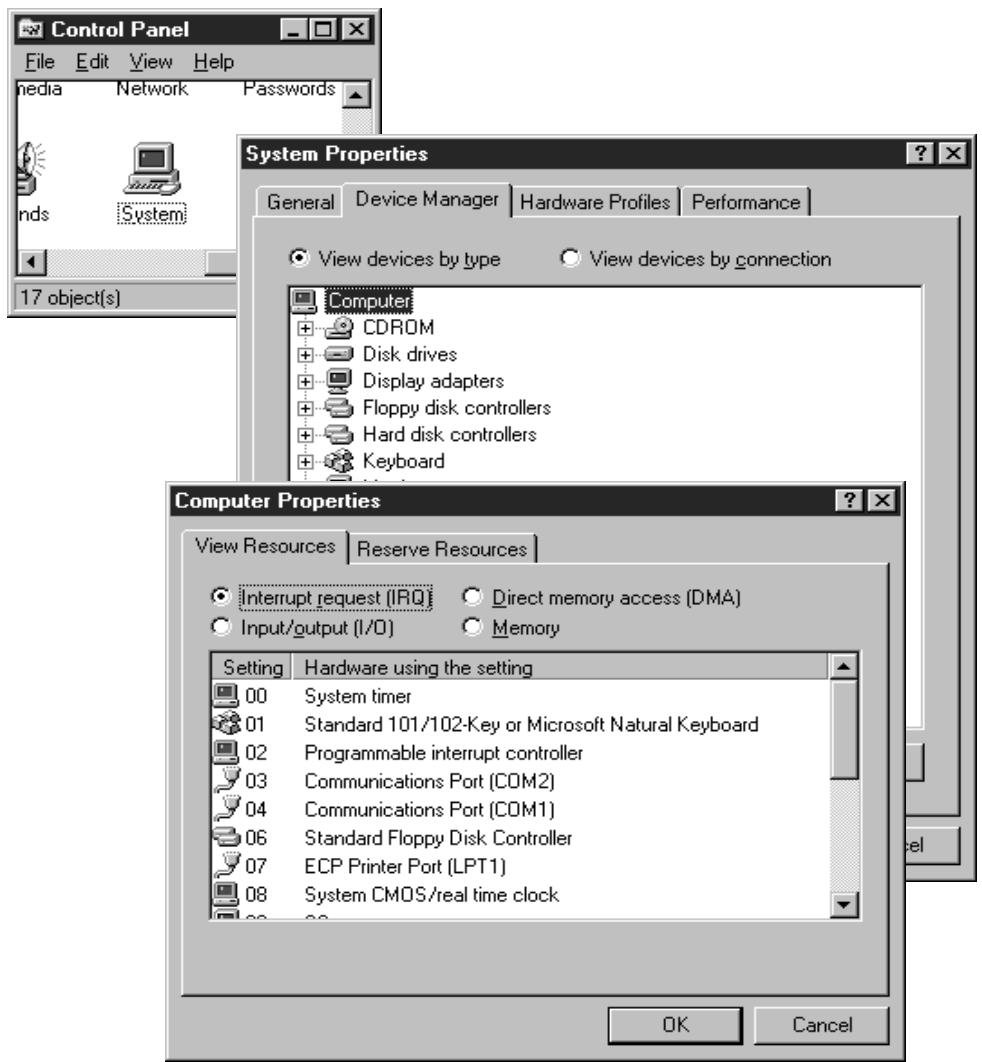
Windows 95 has a convenient method of displaying the resources used by the computer.
Double-click on the System icon in the control panel and follow the path Device Manager | Computer | Properties to reveal a list of all IRQs (shown) and other resources in use by each device.
You can also check the resources used by each individual device by clicking on an icon and selecting Properties.
3. Installing software
Windows 95 Nikon Scan
If you installed your SCSI adaptor successfully then you will be familiar with the Hardware Wizard. This useful helper will now try to prevent you from completing the next phase of the installation!

If you connect your Scanner to your SCSI card, the Hardware Wizard will try to install a driver for the scanner. However, scanners do not work in this manner, as they are temporary devices that only connect to the system when you call for a scan to be made. If you follow the Hardware Wizard your installation will almost certainly fail!
The secret is to install the software first. Disconnect the scanner from the computer if it is connected at this time.
If you have Nikon Scan or other software with "Setup" program on a disk, from the Start menu, select "Run" and the type A:\setup into the dialogue. This will ensure that you have a complete set of correct software fully installed.
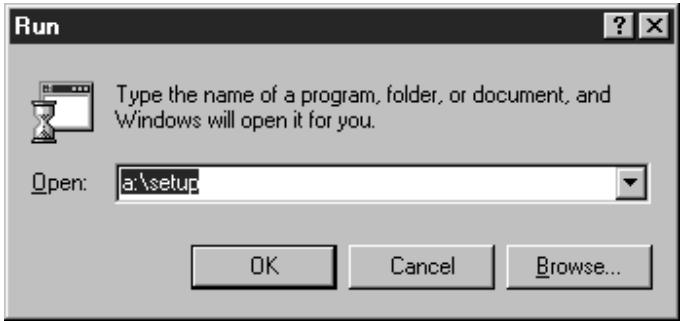
The Windows 95 "Run" command, found by clicking the "Start" button on the desktop.
Windows 3.1 Nikon Scan
Software installation in Windows 3.1 or Windows 3.11 is a simple matter of inserting the disk and from the File menu, selecting "Run" A:\Setup. However there are a number or reasons why, having installed the software and SCSI card, things might still not be working. The main reason is the overall lack of free resources and interdependence of drivers that is a feature of Windows 3.1 (something that Windows 95 has been designed to avoid). In particular, memory-resident drivers and programs for expansion boards such as sound cards, PCMCIA adaptors and network cards can cause memory problems that prevent the scanner from working. Lastly there may be shared files (one of the most common being winaspi.dll) that become replaced or updated by add-ons such as some parallel port-connected removable storage media. The new driver may not be compatible with the scanner.
The way to avoid such situations (as when connecting any new device to a PC running Windows 3.1) is to renew or update any suspect drivers that may have been overwritten by later additions, and to remove potentially conflicting devices and programs one at a time until the incompatibility is identified.
Macintosh Nikon Scan
The Macintosh Nikon Scan software installs as a Photoshop plug-in. The plug-in should be copied to the Photoshop Plugins folder (and into the Import/ Export sub folder if there is one). You will also find a Nikon Control icon in a folder called Nikon Scan. This is a mini app that can also launch the Nikon Scan plug-in if you do not have Photoshop. There will be a number of scanner drivers (called MAID modules) located in the System folder Preferences, under a folder called Nikon MAID. Each family of scanner requires its own MAID module. Modules that are not required may be removed from this folder, to speed up the load time of Nikon Scan.
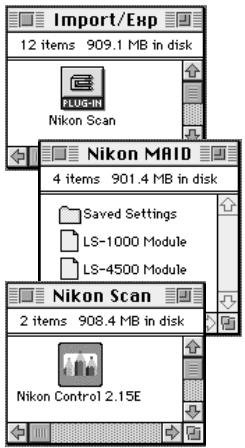
4. Connecting your scanner
To ensure a successful connection of the scanner to the computer, you should already have installed your SCSI adaptor card if required. Check the cable that came with your scanner and the connector on the back of the SCSI port on your computer.
SCSI has at least three types of connector of which the most common are:
SCSI 1: A 50-pin D-shaped type with a central "finger"
SCSI 2: A 50-pin D-shaped connector with two rows of pins
Mac SCSI: A 25 pin D-shaped connector with 13 pins and 12 pins in two rows
You should be able to find a combination that allows you to connect the SCSI cable between the computer and the scanner, and to fit a terminator at the scanner end. If there is no free socket on the scanner for the terminator, use a "through" type terminator (has a connector on each end) between the cable and scanner at the scanner end.
Your SCSI Set-up
As we cannot predict which SCSI card you will be using, and what other devices you have in your system, impossible to advise you on your specific set up. However we have included a number of possible configurations in the Troubleshooting section of this booklet.
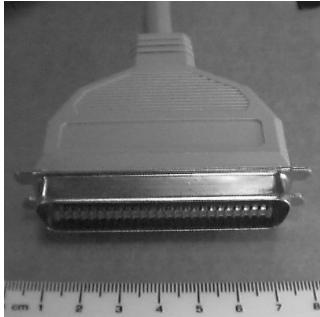
SCSI 1
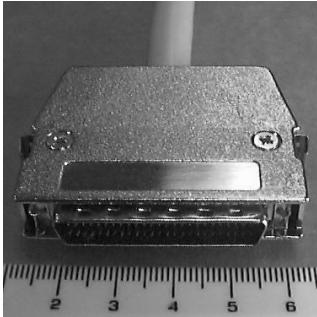
SCSI2
Mac SCSI
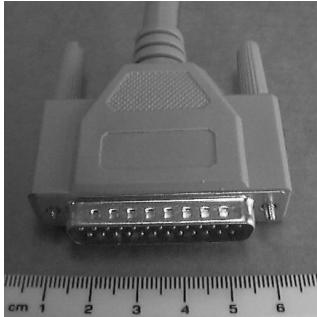
(also used on some PC SCSI adaptors)
The final task is to set the SCSI ID number of the scanner.
A single SCSI chain can support up to 7 devices, some of which may be internal (hard disks, CD ROM drives). Each device has a unique identification number to ensure that the SCSI controller can communicate without ambiguity.
Although there are no fixed rules for SCSI, the general practice is to put the controller at ID 7, any hard disks at 0 and 1, and a CD ROM drive at 3. This leaves 2, 4, 5 and 6 free for you to assign, unless you have additional devices installed. Nikon Scanners are usually set to ID 5 when shipped from the factory. The scanner ID is set by a switch on the rear of the unit. The switch may either be a rotary type or a push type.
Note that after changing the ID number, the unit must be switched off and on for the new setting to be registered.
Don't forget to remove the last-used slide from a slide scanner before powering on again.
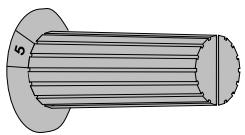
Scanner SCSI switches
Rotary type
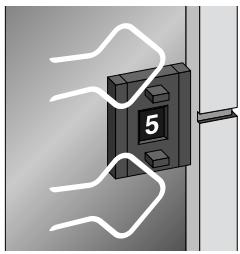
Push type

5. Powering up for the first time
Congratulations!
You have now
- Checked your scanner for shipping damage
- Installed your SCSI card (PC users only)
- Installed software
- Connected your scanner and terminated the SCSI chain
If you have a PC running Windows 95 and power on your system with the scanner connected for the first time, you may see a number of messages from the Windows. Please ignore these messages and click Cancel at the first opportunity.
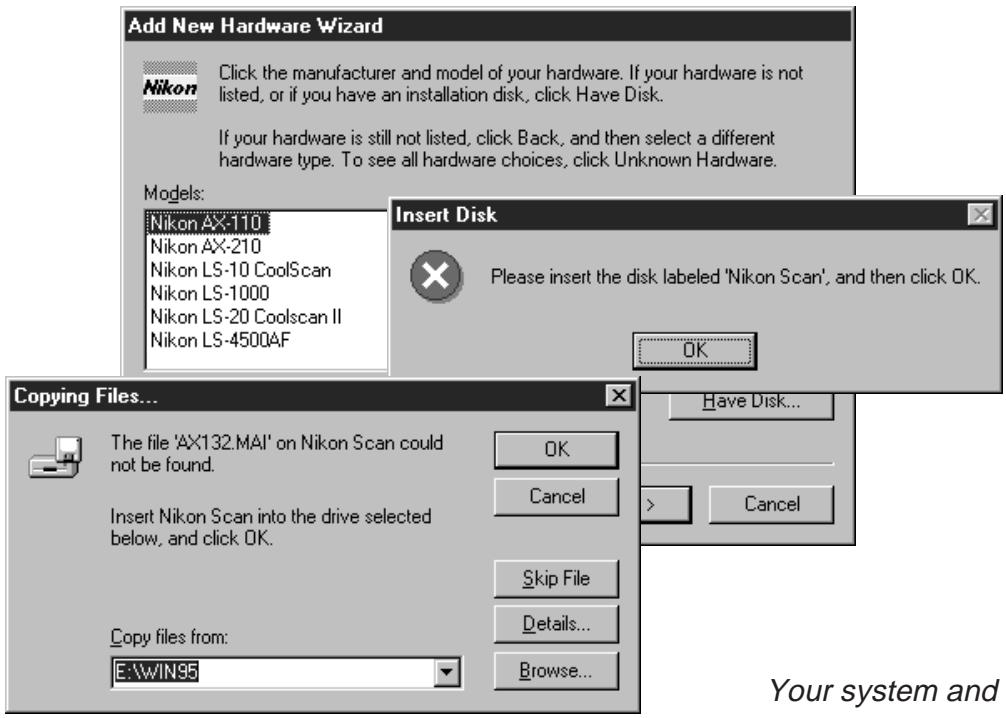
Windows 95 is trying to be helpful.
Click Cancel as soon as possible when confronted with dialogs like these.
Your system and scanner are ready to run.
Happy scanning!
Nikon Technical Support
Troubleshooting
When things go wrong...
We're very sorry that you have arrived at this page as it means that things have not gone completely to plan!
Please bear in mind that if you have installed your system according to the instructions in this booklet, if your scanner is working correctly and if your system is "clean"—meaning that it has no conflicting programs, devices or drivers loaded—then everything will work.
Please reread this manual and check through the steps of testing the scanner before it has been connected to the computer, verifying that your SCSI adaptor (if fitted) has been correctly installed and is of a type compatible with Nikon Scanners.
If you have completed the above suggested action, then our recommendation is to try the following:
- De-install all Nikon software (see the appropriate procedure for your platform in the troubleshooting section.
2.a (Windows 95 users) Remove the SCSI controller and Nikon Scanners from the Device Manager.
2.b (Windows 3.1 users) Recheck your config.sys file for conflicting drivers. Back up the file and try to remove possible conflicts one at a time.
2.c (Macintosh/MacOS users) Restart the computer with the shift key held down to prevent system extensions from loading. If this works, disable extensions using the Extensions Manager to isolate conflicts. - Check that your system has the latest or known good SCSI drivers.
- Check the SCSI cabling. A SCSI chain must be terminated at each end. Systems without internal devices (hard disk, CD ROM drive) should have termination set on the SCSI adaptor card. If your system has an internal device, this device should be terminated and the termination should be removed or disabled on the SCSI adaptor.
- Has your system software become corrupted? A reinstallation may be necessary.
- Follow this manual again, reinstalling SCSI drivers (PC users) and software.
1. De-installation and reinstallation of software
The following describes a complete reinstall of Nikon Scan software and SCSI card on a Windows 95 platform.
1: Remove the Hardware from the System.
Go to the My Computer icon on the desktop.
Double click on Control Panel.
Open System and you are presented with an index folder type window.
Select Device Manager from the tabs.
A list of devices is shown.
Double click on SCSI controllers and then single-click on the particular device you wish to remove so as to highlight it (example Adaptec AHA-150X.....).
Click on the Remove button at the bottom of the window and select OK. If prompted that Windows doesn't know whether it can remove the device safely select Test.
Follow the same method for removing your scanner from under the Nikon Scanner group.
If one or both of the devices was not present, check to see if there is any SCSI or scanner hardware listed under the category Other Devices. If so, remove it.
2: Remove the Nikon Software.
In the Nikonei folder, locate the Setup folder. Double click on the Uninst icon to uninstall the Nikon software.
If for any reason this does not complete successfully, then follow the procedure below:
In Windows Explorer delete the directory Nikonei.
Windows 95 drivers
Find the WINDOW\TWAIN_32 directory. If you have no other scanner or twain compliant devices this can be deleted. If you do have another scanner, remove only files from the TWAIN_32 directory starting with NK....
Delete the WINDOWS\MDMODS32 directory.
Windows 3.X drivers
Find the WINDOWS\TWAIN directory.
If you have no other scanners or TWAIN compliant devices this can be deleted. If you do have another TWAIN device, delete only the files starting NK.... Delete the WINDOWS\MAIDMODS directory.
3: Install the SCSI Card.
Ensure that your Nikon Scanner is disconnected from your SCSI card (internal units) or switched off (external units).
Restart your computer.
If your SCSI card is a "plug and play" device, then Windows should detect it on restarting. Follow the on-screen instructions.
If however it is not detected on restarting Windows 95 then open the My Computer icon on the desktop. Double-click on Control Panel then select Add New Hardware, click Next and let Windows 95 auto-detect your SCSI card.
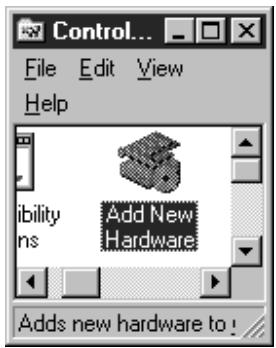
Check in the Device Manager to make sure that the SCSI card has installed by confirming that the grey diamond SCSI icon is present and no devices are showing as conflicting. If there are conflicting devices, your SCSI card settings need to be changed and the card reinstalled. Follow the instructions supplied by the SCSI card manufacturer.
4: Install the Nikon Software.
Insert the floppy disk labelled "Nikon Scan for Windows 95" and then from My Computer, Control Panel, select Add/Remove Programs.
Double-click on the Install button and follow the on-screen instructions.
5: Install the Scanner
Restart the computer with the scanner switched on and plugged in to your SCSI card.
Windows 95 should announce "new hardware detected". Follow the on-screen instructions, but quit when asked to supply a disk (see page 18).
The following describes a complete reinstall of Nikon Scan software and SCSI card on Windows 3.1 platform. Before commencing, make sure that you have your software installation disks.
1: Remove the Hardware from the System.
Open the System Editor (or type EDIT at the DOS prompt). Open or go to the Config.sys file.
Save a backup copy of this file as a precaution.
Locate the line which refers to your SCSI card. A typical example is:
DEVICE=ASP2DOS.SYS followed by parameters such as "/P:330" etc.
You may have to study the manufacturers manual to find the correct line.
Put the characters "rem" in front of this line.
Save the Config.sys file.
Look in the WINDOWS\SYSTEM directory for the files WINASPI.DLL and VASPID.386.
Rename them WINASPI.BAK and VASPID.BAK.
2: Remove the Nikon Software.
In File Manager delete the directory NIKONEI.
Find the WINDOWS\TWAIN directory.
If you have no other scanners or TWAIN compliant devices this can be deleted. If you do have another TWAIN device, delete only the files starting NK... and rename the file TWAIN.DLL to TWAIN.BAK.
Delete the WINDOWS\MAIDMODS directory.
Delete the file Nikonctl.ini from the WINDOWS directory.
3: Install the SCSI Card.
Insert the installation disk that was delivered with your SCSI card and run the install program. This is usually done by selecting Run from the File menu and browsing to the A: drive. The installation file is usually called "Setup.exe"
Check your config.sys file for any changes.
You should see a new line that is identical to the line that you added "rem" to in Step 1. If not, then you have altered the wrong line, and should remove the "rem" as this reference may be used by other hardware.
4: Install the Nikon Software.
Insert the floppy disk labelled "Nikon Scan for Windows" and then from the Program Manager, File menu, select Run and type "A:\setup".
5. Check the System
Click on the Nikon Control icon to start Nikon Control and in the File Preferences dialog select Nikon Scan as the Twain source.
Launch Nikon Scan and verify that the scanner is performing properly.
If operation is correct, quit and delete all of the files that you renamed with a .BAK extension.
The following describes a compete reinstallation of Nikon Software on a Macintosh Platform.
1: Remove the Nikon Scan Plug-in
Go to the Photoshop Plugins folder and find the sub folder Import/Export.
Find the Nikon Scan plug-in and drag it to the Wastebasket.
Open the Preferences folder in the System folder locate the folder Nikon MAID. Drag this folder to the Wastebasket.
Whilst still in the Preferences folder, locate the Photoshop Preferences file and drag it to the Wastebasket.
Finally, locate the Nikon Control file and drag this to the Wastebasket.
Empty the Wastebasket and restart the computer holding down the shift key to disable extensions. Reinstall your software from the floppy disk(s).
Ensure that the following files are in the locations described:
- Nikon Scan Photoshop Plugins:Import|Export
- LS-1000 module, LS-4500 module, AX1Module System folder:Preferences:Nikon MAID
- Nikon Control As desired.
2. SCSI drivers
Background: the need for updated SCSI drivers
As new SCSI peripherals appear on the market, SCSI adaptor card manufacturers release new drivers to ensure connectivity to these new arrivals.
However, some drivers then prove to be incompatible with existing devices and a further update is then devised and circulated. Likewise, the arrival of a new SCSI card type is often followed by a period of updating drivers as reports of overlooked devices are received from customers.
If you are experiencing problems with your Scanner, particularly if you have installed other SCSI devices on your system, then you may need to find and install updated drivers.
In order to simplify matters, Nikon Electronic Imaging supply and recommend Adaptec SCSI adaptors, information about which can be found though the internet at http://www.adaptec.com and on Compuserve by typing GO ADAPTEC.
The particular driver that you require will depend on your SCSI card, and unfortunately the card type and driver are not called by the same name. The section below should help you find and identify the SCSI driver used in your system. However, Nikon cannot hold an exhaustive list of all drivers for all SCSI adaptor cards.
Windows 3.1
Referenced in:
Config.sys file (Device =
Located in:
A folder determined by the installer (same as
Names Example card types (Adaptec)
ASPI2DOS.SYS AVA1505/1510/1515
ASPI4DOS.SYS AHA1540/1542/640
ASPI7DOS.SYS AVA2740
C::>type config.sys
device=c:\SCSI\APSI4DOS.SYS
device=c:\SCSI\APSICD.SYS
device=c:\DOS\SETVER.EXE
device=c:\WINDOWS\HIMEM.SYS
Windows 95
Referenced in:
My Computer | Control Panels | System | Device Manager | SCSI
Located in:
Windows\System\losubsys
Names Example card types (Adaptec)
Sparrow.mpd AVA1505/APA1460
Shown opposite are typical examples of some SCSI installations to help you identify the best configuration for your system. If you are unfamiliar with the appearance of the three types of SCSI connector, see the photographs on page 16.
These suggestions assume that you have no existing SCSI devices. (If you do, then you are likely to already be familiar with how to interconnect devices).
SCSI Tips
Nikon strongly recommend the use of high quality SCSI cables wherever possible. Generally speaking, the thicker the cable the better, as a thick cable is likely to have better shielding against interference than a thin one.
It is also recommended that the shortest possible cable length is used. Although when running at lowest speed (5Mbytes/sec), a total cable length of 8 metres is permissible, this figure drops to half as the SCSI speed is doubled.
Computer SCSI type
| Product | Connector on scanner | Usual cable in package | Mac SCSI | SCSI-1 | SCSI-2 |
| AX-110 | Mac SCSI and SCSI-1 | Mac SCSI to SCSI-1 | Connect the Mac SCSI cable end to the computer and the SCSI-1 end to the scanner. Put the through terminator between the scanner and cable. | Connect the SCSI-1 end to the computer and the Mac SCSI end to the scanner. Put a terminator on the other (SCSI-1) connector. | The cable supplied will not fit. Obtain a SCSI-1 to SCSI-2 cable and connect the SCSI-1 end to the scanner via the through terminator. |
| AX-210 | |||||
| LS-20 | 2× SCSI-1 | Mac SCSI to SCSI-1 | Connect the Mac SCSI cable end to the computer and the SCSI-1 end to the scanner. Put a terminator on the other connector. | The cable supplied will not fit. Obtain a SCSI-1 to SCSI-2 cable and connect the SCSI-1 end to the scanner via a through terminator. | The cable supplied will not fit. Obtain a SCSI-1 to SCSI-2 cable and connect the SCSI-1 end to the scanner via a through terminator. |
| LS-1000 | |||||
| LS-4500 | |||||
| AX-1200 | |||||
| LS-20 | Internal 50-way IDC header | None | Use the ribbon cable supplied with the SCSI adaptor to connect the scanner. Terminate the scanner (see scanner manual) and the SCSI adaptor card. Note that the SCSI adaptor terminator may be controlled by software, by an on-board switch, or by adding/removing resistors. | ||
4. Reinstalling system software
The Complex Nature of Computers
In all of Nikon Technical Support's combined years of experience, we have never encountered a customer who is glad to receive the advice "you could try a reinstall of your system software". However, it is a fact that as computers become more complex, and the number of applications and expansion opportunities increases, the need for periodic system installations becomes ever more a part of computer ownership. Often it is the arrival of a new peripheral or software package which provokes the need for this action.
Why should it be necessary to reinstall?
Computer manufacturers have realised that the more applications that get installed onto a system, the more possibility there is of a conflict arising. These conflicts often occur when an application loads a driver that it uses to gain access to a particular resource within the computer. Examples of these include direct video drivers, SCSI re Directors and cursor redraw plugins.
Such drivers are often hidden from the computer operator and may remain even when the original program or device has been removed.
Apple Computer, through the Extensions Manager and Microsoft with the Plug and Play bus enumerator have both attempted to make their operating systems "self healing" by allowing either manual or automatic removal of unused drivers and extensions. However, sometimes such measures are still not an adequate defence and after a while a hidden conflict develops, requiring the entire system to be torn down and rebuilt.
Another reason for a system reinstallation arises from System crashes. During normal everyday operation, the computer has loaded data, programs, drivers and preferences files into memory. If a system crash occurs, then these elements are often in an indeterminate state. They may be corrupted because they are in transition between volatile memory and the computer's hard disk.
All computers can recover from a system crash, in the most extreme case by simply turning off the power and restarting. However any damage done to the software is not always obvious and the seemingly clean recovery could be hiding a problem which only becomes visible at a later date.
Troubleshooting
Therefore, when you are offered the advice "you could try a reinstall of your system software", think carefully about the use that you have had from your computer, and try to consider it as a good opportunity to have a complete and effective clean-up of your workstation.
- Contents
- Checklist—Before you begin 3
- Making the Perfect Installation 7
- Troubleshooting 19
- Checklist—Before you begin
- An AC power cable
- A SCSI cable
- A SCSI adaptor
- A SCSI terminator
- Software
- Nikon SCAN Window
- Manuals
- Checklist summary
- Making the Perfect Installation
- Check that your scanner has arrived safely
- Locking screw
- Front panel LEDs
- Installing a SCSI adaptor
- Introduction
- Windows 3.1—SCSI Installation
- Summary
- Windows 95—SCSI Installation
- Installing software
- Windows 95 Nikon Scan
- Windows 3.1 Nikon Scan
- Macintosh Nikon Scan
- Connecting your scanner
- Your SCSI Set-up
- Powering up for the first time
- Troubleshooting
- When things go wrong...
- De-installation and reinstallation of software
- 1: Remove the Hardware from the System.
- 2: Remove the Nikon Software.
- 3: Install the SCSI Card.
- 4: Install the Nikon Software.
- 5: Install the Scanner
- Check the System
- 1: Remove the Nikon Scan Plug-in
- SCSI drivers
- Background: the need for updated SCSI drivers
- Windows 3.1
- Windows 95
- SCSI Tips
- Reinstalling system software
- The Complex Nature of Computers
Brand : NIKON
Model : AX-1200
Category : To scan