
SCAN 3 - Image scanning software NIKON - Free user manual and instructions
Find the device manual for free SCAN 3 NIKON in PDF.


| Product Type | Image scanning software |
| Brand | Nikon |
| Model | SCAN 3 |
| Available languages | English, French, German, Spanish (depending on version) |
| Compatible scanners | 4000 ED, COOLSCAN IV ED, SUPER COOLSCAN 2000 (LS-2000), COOLSCAN III |
| Main features | Digital ICE (dust/scratches removal), Digital ROC (color restoration), Digital GEM (grain reduction), multi-sample scanning, Nikon CMS color management |
| Operating modes | TWAIN source (Windows) / acquire plug-in (Mac); stand-alone application |
| Editing tools | Curves, color balance, LCH editor, sharpening (unsharp mask), cropping, rotation |
| Minimum configuration (Windows) | MMX Pentium 166 MHz, 32 MB RAM, 20 MB disk, 640×480 resolution, CD-ROM |
| Minimum configuration (Mac) | Power PC G3, 24 MB RAM, 20 MB disk, 640×480 resolution, CD-ROM |
| Manual format | PDF, 153 pages |
| Updates | Available online at www.nikon-euro.com |
| Supported adapters | SA-21, IA-20 (S), MA-20 (S), SF-200 (S), SA-30 |
Frequently Asked Questions - SCAN 3 NIKON
User questions about SCAN 3 NIKON
0 question about this device. Answer the ones you know or ask your own.
Ask a new question about this device
Download the instructions for your Image scanning software in PDF format for free! Find your manual SCAN 3 - NIKON and take your electronic device back in hand. On this page are published all the documents necessary for the use of your device. SCAN 3 by NIKON.
USER MANUAL SCAN 3 NIKON
Nikon Scan 3 Reference Manual
Overview (pp. 1-3)
Getting Started (pp. 4-17)
Tutorial (pp. 18-35)
Reference (pp. 36-137)
Appendices (pp. 138-152)
About This Manual
Welcome to Nikon Scan 3! At its most basic, Nikon Scan is a driver that acts as an interface between your scanner and your computer, making it possible to preview the image to be scanned, adjust scanner settings, and scan the image into another application. It also allows you to take advantage of the advanced features of your Nikon film scanner, such as multi-sample scanning and Digital ICE3 photo retouch options. Nikon Scan is more than just a scanner driver, however. Using its sophisticated color enhancement and sharpening tools, you can edit images before or after scanning.
Nikon Scan functions in two roles, first as TWAIN source (Windows) or acquire plug-in (Macintosh) that can be used to scan images directly into any application that supports the TWAIN standard (Windows) or Adobe Photoshop 5.0 acquire plug-ins (Macintosh). It also functions as an independent, or "stand-alone," application that, in addition to supporting the scanning and editing functions included in the TWAIN source or acquire plug-in, allows you to open saved images, edit them, and save them to disk.

Supported scanners
Nikon Scan 3 can be used with the following scanners:
4000 ED (SUPER COOLSCAN 4000 ED)
COOLSCAN IV ED
- SUPER COOLSCAN 2000 (LS-2000), firmware version 1.3 or later (see 57)
COOLSCAN III, firmware version 1.3 or later (see 57)

Pg. For more information on:

57 Firmware
This reference manual has been written to guide you through the process of using Nikon Scan to scan and edit images. The next chapter, "Getting Started," describes the type of system required to run Nikon Scan and takes you step-by-step through the installation process. The "Tutorial" section provides enough information to enable you to scan images and open them in another application or save them to disk.
More information on scanning and image editing options is provided in the "Reference" section, which also describes how to use Nikon Scan as a stand-alone application and includes a detailed description of the Nikon Color Management System (CMS) and other scan preferences. The manual ends with a series of appendices, including a visual index to the program's windows, menus, and dialogs, and instructions for reinstalling Nikon Scan.
To make it easier to find the information you need, the following symbols and conventions are used:
This icon marks cautions, information that you should read before use to prevent damage to your Nikon scanner.
This icon marks notes, information that you should read before using Nikon Scan.
This icon marks tips, additional information you may find helpful when using Nikon Scan.
This icon indicates that more information is available elsewhere in this manual or in other documentation.
This symbol indicates that the cross-reference marked with the icon is to the Nikon Scan 3 Reference Manual (this manual).
This symbol indicates that the cross-reference marked with the icon is to the hardware documentation provided with your scanner.
Blue text indicates a link to another part of this manual or to the World-Wide Web. Click the text to follow the link.

Printing This Manual
If desired, portions of this manual can be printed for ease of reference using the Print... command in the Adobe Acrobat Reader File menu.
Throughout this manual, "4000 ED" is used in reference to SUPER COOLSCAN 4000 ED film scanners and "LS-2000" in reference to SUPER COOLSCAN 2000 film scanners. "MA-20 (S)" is used in reference to both MA-20 and MA-20 (S) slide mount adapters, "IA-20 (S)" in reference to both IA-20 and IA-20 (S) adapters for APS (IX240) film (available separately), and "SF-200 (S)" in reference to both SF-200 and SF-200 (S) slide feeder adapters (available separately for 4000 ED and LS-2000 film scanners).

Illustrations
This manual is for use with both the Windows and Macintosh versions of Nikon Scan. While the majority of the illustrations are taken from the Windows version of the product, save where otherwise noted the operations described apply to both the Macintosh and Windows versions.
Background Knowledge
This manual assumes familiarity with operations common to the Macintosh and Windows operating systems. If you are in doubt about the meaning of any of the terms used here, refer to the documentation provided with your operating system.

Life-Long Learning
As part of Nikon's "Life-Long Learning" commitment to ongoing product support and education, continually-updated information is available on-line at www.nikon-euro.com. Visit this site to keep up-to-date with the latest product information, tips, answers to frequently-asked questions (FAQs), and general advice on digital imaging and photography.
Before You Begin (pp. 5-6)
Installation (pp. 7-17)

About This Chapter
This chapter takes you step-by-step through the process of installing Nikon Scan. Users who have already completed installation can proceed directly to the next chapter for a tutorial covering basic scan operations.

Pg. For more information on:

152 Custom install

148 Uninstall
Before installing Nikon Scan, make sure that your computer system satisfies the following requirements:
Windows
| CPU | MMX Pentium 166 MHz or better (Pentium II or better recommended) |
| OS | Windows 98 Second Edition (SE)*, Windows Me, Windows 2000 or later |
| RAM | 32 MB (64 MB or more recommended)† |
| Hard-Disk Space | 20 MB free for installation with additional 20 MB available while Nikon Scan is running (200 MB or more recommended, or 400 MB or more when using Digital ROC or Digital GEM) |
| Video Resolution | 640 × 480 pixels or greater with 16-bit RGB color (high color) or more |
| IEEE I394/Firewire (4000 ED) | Only boards compliant with Open Host-Controller Interface (OHCI) are supported**. If your computer has an empty PCI slot and is not equipped with a suitable board, you can install the board provided with the 4000 ED. |
| USB (COOLSCAN IV ED) | Only built-in USB ports are supported** |
| SCSI (LS-2000, COOLSCAN III) | Only boards compliant with the ASPI interface standard are supported |
| Miscellaneous | CD-ROM drive required for installation |
- The IEEE I394 driver update provided with Nikon Scan is required when using the 4000 ED with Windows 98 SE.
A minimum of 128 MB is recommended when using Digital GEM, Digital ROC, the optional IA-20 (S) APS (IX240) film adapter, or the optional SA-30 roll-film adapter for the 4000 ED. Additional memory is required to run the host application when Nikon Scan functions as a TWAIN source.
**The scanner may not function as expected when connected to an IEEE I394/Firewire or USB hub.
| CPU | Power PC G3 or later (Power PC G4 or later recommended) |
| OS | Mac OS 8.6 or later |
| RAM | 24 MB (64 MB or more recommended)* |
| Hard-Disk Space | 20 MB free for installation with additional 20 MB available while Nikon Scan is running (200 MB or more recommended, or 400 MB or more when using Digital ROC or Digital GEM) |
| Video Resolution | 640 × 480 pixels or greater with I6-bit RGB color (thousands of colors) or more |
| IEEE I394/Firewire (4000 ED) | Firewire Support 2.3.3 or later recommended†Built-in ports supported from Firewire Support 2.0. If you are using an old-model (beige) G3 desktop computer not equipped with a Firewire board, you can install the board provided with the 4000 ED. |
| USB (COOLSCAN IV ED) | Only built-in USB ports are supported† |
| SCSI (LS-2000, COOLSCAN III) | Only boards compliant with Macintosh SCSI Driver 4.3 are supported |
| Miscellaneous | CD-ROM drive required for installation |
- A minimum memory allocation of 128 MB is recommended when using Digital GEM, Digital ROC, the optional IA-20 (S) APS (IX240) film adapter, or the optional SA-30 roll-film adapter for the 4000 ED. Additional memory is required to run the host application when Nikon Scan functions as an acquire plug-in.
† The scanner may not function as expected when connected to an IEEE I394/Firewire or USB hub.
Windows
Macintosh
If you are connecting your scanner for the first time, do not connect the scanner until you have completed installation of Nikon Scan. Follow the steps below to complete installation.
Step I—Turn the computer on
Turn the computer on and wait for the operating system to start up.
Click here to proceed to the next step.

If an earlier version of Nikon Scan is already installed on your system, before upgrading to version 3 you will need to uninstall the existing version of Nikon Scan. To uninstall Nikon Scan, click the Start button and select the uninstaller from under Nikon Scan in the Programs sub-menu.
Nikon Scan 3 offers full support for the scanners supported under version 2.x. Users of Nikon Scan 2 can enjoy the improved functionality of Nikon Scan 3 while continuing to use their existing scanners.
Step I—Turn the computer on
Turn the computer on and wait for the operating system to start up.
Click here to proceed to the next step.

If an earlier version of Nikon Scan is already installed on your system, before upgrading to version 3 you will need to uninstall the existing version of Nikon Scan. To uninstall Nikon Scan, insert the Nikon Scan CD into the CD-ROM drive and start the installer. In the main install dialog, select Uninstall from the pop-up menu at the top left corner of the dialog, then click the Uninstall button to uninstall Nikon Scan.
Nikon Scan 3 offers full support for the scanners supported under version 2.x. Users of Nikon Scan 2 can enjoy the improved functionality of Nikon Scan 3 while continuing to use their existing scanners.
Step 2—Start the installer
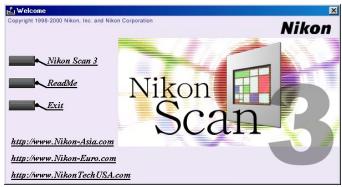
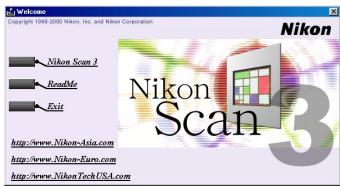
Before starting installation of Nikon Scan, quit any other programs that may be running, including any virus-checking software. Insert the Nikon Scan 3 CD into the CD-ROM drive. After a pause, the Welcome dialog shown at right will open automatically.
Click here to proceed to the next step.

If the Welcome dialog does not appear when the CD-ROM is inserted in the drive:
I. Double click the My Computer icon
2. In the My Computer window, click on the CD-ROM drive icon with the right mouse button
3. Select Autorun from the menu that appears
Step 2—Start the installer
Before starting installation of Nikon Scan, quit any other programs that may be running, including any virus-checking software. Insert the Nikon Scan 3 CD into the CD-ROM drive and double-click the installer icon. The window shown at right will be displayed; click Continue....
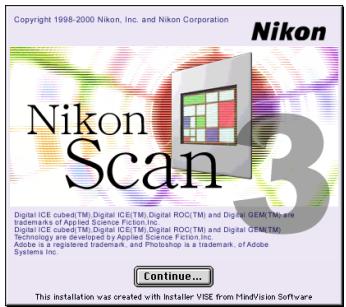
Nikon Scan Installer EN

Click here to proceed to the next step.

Depending on where you purchased your scanner, the Nikon Scan 3 CD will contain installers for from one to four language versions of Nikon Scan: English (EN), French (FR), German (DE), and Spanish (ES). Where installers for more than one language version are available, the installers may be found in separate folders; open the folder for the language of your choice and double-click the installer icon.
Step 3—Click Nikon Scan 3
Click Nikon Scan 3 to begin installation of Nikon Scan.
Click here to proceed to the next step.

The other links in the Welcome dialog are described below.
| Link | Description |
| Other software | Depending on where you purchased your scanner, one or more third-party software packages may be bundled with Nikon Scan. For information concerning installation and use, see the manuals provided. |
| ReadMe | Opens the ReadMe file, which may contain information that could not be included in the manual. Read this file before using Nikon Scan. |
| Exit | Exports the Welcome program. |
| URL(s) | Click to open your web browser to a Nikon Digital Imaging web-site (your computer must be set up for an Internet connection). |
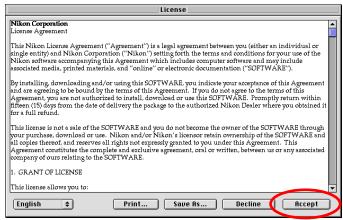
Step 3—Accept the license agreement
The software license agreement will be displayed. After reading the agreement, click Accept to continue with installation.
Click here to proceed to the next step.

To print the software license agreement (above) or the ReadMe file described in Step 4, click Print.... Copies of these files are stored on the Nikon Scan 3 CD in the same folder as the installer, where they can be accessed at any time.
Step 4—Choose a language for Nikon Scan
Depending on where you purchased your scanner, you may be prompted to select the language in which Nikon Scan's menus and dialogs will be displayed. Choose a language from the list provided.
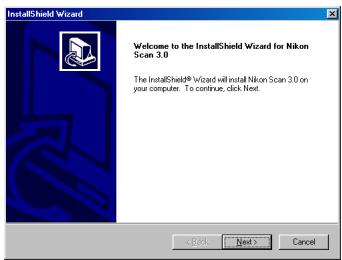
Step 5—Start the installation wizard
The dialog shown at right will be displayed; click Next to proceed to the next step.
Click here to proceed to the next step.
Step 4—Read the ReadMe file
After accepting the license agreement, take a few moments to view the ReadMe file, which may contain important information that could not be included in this manual. When you have finished, click Continue....
Step 5—Select the installation type
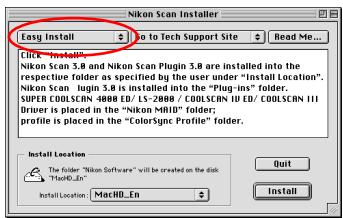
The installer dialog shown at right will be displayed. Select Easy Install from the pop-up menu at the top left corner of the dialog.
Click here to proceed to the next step.

The other options in the installer dialog are described below.
| Button | Description |
| Go to Nikon Home Page | Opens your web browser to the Nikon Digital Imaging web-site for your area (your Macintosh must be set up for an Internet connection). |
| Read Me… | Opens the ReadMe file described in Step 4. |
| Quit | Quits the installer. |
Step 6—Accept the license agreement
The software license agreement will be displayed. After reading the agreement, click Yes to continue with installation.

Step 7—Choose a location for Nikon Scan
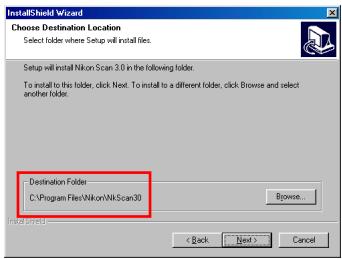
The default location for Nikon Scan is shown in the Destination Folder text box in the Choose Destination Location dialog. To install Nikon Scan to a different folder, click Browse and navigate to the desired location.
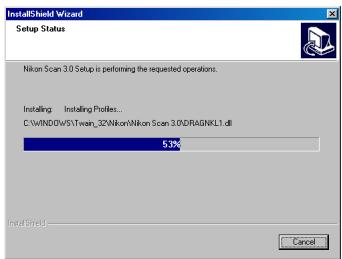
After selecting a destination folder, click Next to begin installation. The dialog shown at right will be displayed while installation is in progress.
Click here to proceed to the next step.
Step 6—Choose a location for Nikon Scan
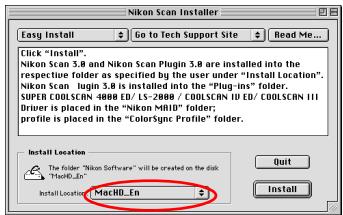
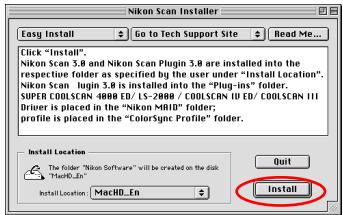
The disk and folder to which Nikon Scan will be installed (by default, the root directory on the system disk) are shown in the Install Location panel. Choose a new disk from the Install Location pop-up menu, or choose Select Folder... to navigate to the desired location.
Step 7—Click Install
Click Install in the installer dialog to begin installation. A progress indicator will be displayed while files are copied to your hard disk.
Click here to proceed to the next step.

Pg. For more information on:

152 Custom install

148 Uninstall
Step 8—Select an RGB profile
When images are scanned in RGB, Nikon Scan uses calibrated RGB profiles to ensure consistent color reproduction. As part of the installation process, you can choose which of these profiles will be used as the default for the calibrated RGB color space when you first start Nikon Scan. A new profile can be chosen at any time from the Nikon Scan Preferences dialog.
8-1 Once the Nikon Scan program files have been installed, a dialog similar to that shown at right will be displayed.
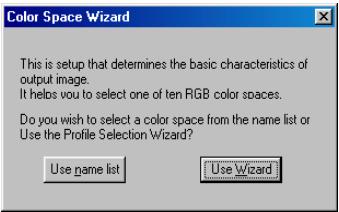
To choose a profile from a list, click Use name list and proceed to Step 8-4. To choose a profile with the help of a Wizard, click Use Wizard and proceed to Step 8-2. If you are unsure as to what color-space profile to choose, we recommend that you select Use Wizard and choose the profile suggested for your platform. A new profile can be chosen at any time after installation in the Nikon Scan Preferences dialog.

Pg. For more information on:

105 Preferences

115 Color-space profiles

107 Nikon Color Management System
8-2 The Color Space Wizard opens with the dialog shown at right.
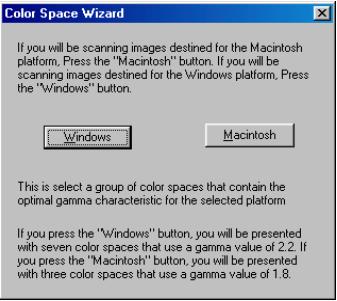
Choose Windows if the majority of the images that you scan will be edited on Windows platforms, or Macintosh if you do most of your editing on a Macintosh.
Click here to proceed to the next step.

"Profile"
To ensure accurate color reproduction, the Nikon Color Management System (Nikon CMS) must have information about the color characteristics of your scanner, monitor, and the color space used when editing or printing images. This information is contained in files called "profiles."
8-3 Depending on your choice, you will be presented with one of the dialogs shown below.
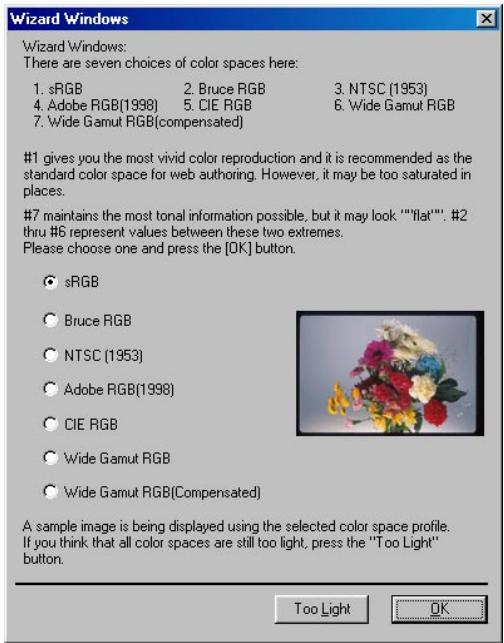
Windows profiles (gamma 2.2)
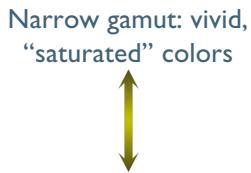
Wide gamut: low-contrast, "flat" colors
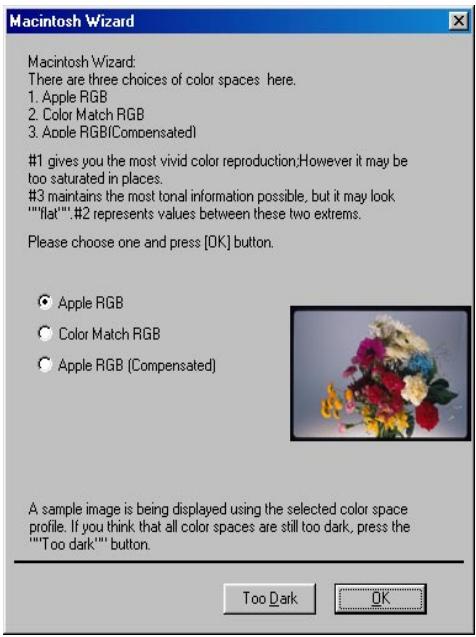
Macintosh profiles (gamma 1.8)
Choose a profile from the list (sRGB is recommended for images destined for Windows computers,Apple RGB for the Macintosh). The effects of the color range and gamma value for each profile can be previewed in the image to the right of the list. If the image seems too dark or too bright, click Too dark to choose from a list of Windows profiles, or Too light to choose from a list of Macintosh profiles. Click OK to choose the selected profile as the initial RGB color space.
Click here to proceed to the next step.

Pg. For more information on:

72 Gamma and color range (gamut)
8-4 A list of ten RGB color-space profiles will be displayed. Choose a profile for use as the initial calibrated RGB color space. The effects of the color range and gamma setting for each profile can be seen in the image to the right of the profile list. Select a profile and click OK. If you are not sure which profile is right for you, click Back to Wizard to open the Wizard dialog shown in Step 8-3.
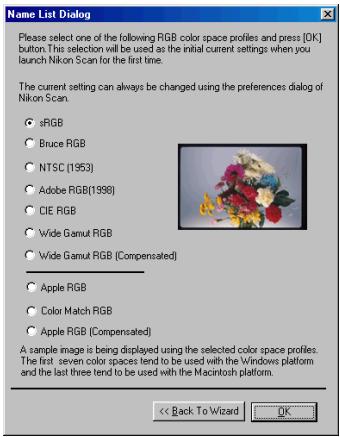
Click here to proceed to the next step.

Choosing the profile that is right for you
When choosing a profile for the RGB color space, you should bear two things in mind: the gamma value for your platform and the gamut (range) of colors required for the task at hand.
Gamma is a fundamental characteristic of imaging systems, used to adjust the brightness of scanned images so that they display correctly on your monitor. The first seven profiles in the profile list have a gamma value of 2.2, which is the de facto standard for Windows. The last three have a gamma value of 1.8, the default value for the Macintosh. Select a profile appropriate to the platform on which the image is to be displayed.
The other factor to bear in mind when selecting a profile is the gamut, or range of colors you will need for the task at hand. If you are not planning to make fine adjustments to color, a profile with a narrow range of colors is suitable. Note, however, that a narrow gamut may produce colors that are too "saturated," or vivid. If you intend to fine-tune color, contrast, and brightness using an editing tool such as the Curves palette, choose a profile that offers a wide range of colors. Without editing, however, such a profile may produce "flat," low-contrast images.
Profiles within each of the two groupings are ordered by the size of their gamut. Those with a narrow gamut are listed at the top, those with a wide gamut at the bottom.
Step 9—Read the ReadMe file
When installation is complete, the dialog shown at right will be displayed. Confirm that Please ReadMe first is checked and click Finish to display the ReadMe file. Take a few moments to view this file, which may contain information that could not be included in this manual.
Step 10—Quit the installer
Closing the ReadMe file returns you to the Welcome dialog. Click Exit to return to Windows.
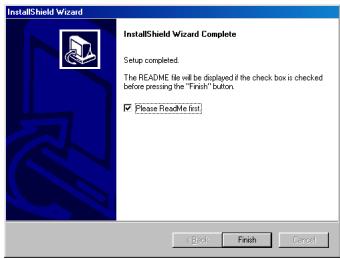
Click here to proceed to the next step.
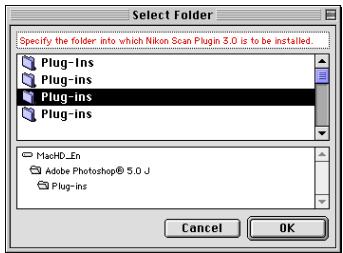
Step 9—Select a plug-ins folder
To scan images using a third-party application, you will need to install a copy of the Nikon Scan plug-in in the application's plug-in folder. The installer will automatically locate the plug-in folders on your computer and display them in the dialog shown at right. Select the plug-ins folders for the desired applications and click OK.
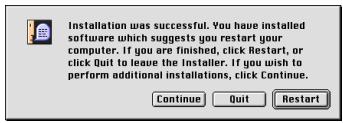
Step 10—Quit the installer
The dialog shown at right will be displayed when installation is complete. Click Restart to restart your computer.
Click here to proceed to the next step.
The installer saves a copy of the Nikon Scan plug-in in a plug-ins folder under the folder to which you installed Nikon Scan. To use the plug-in with another application, first make sure that the application is not running and then copy the plug-in to the application's plug-in folder.
Step I1—Check that the Nikon Scan CD is in place
If you will be connecting your scanner for the first time, before you will be able to use the device you will need to register it with the Windows Device Manager. Before proceeding to the next step, make sure the Nikon Scan 3 CD is inserted in the CD-ROM drive, and then click here to proceed to the next step.
If you have already registered your scanner with Windows, either because you are re-installing Nikon Scan or are a user of a LS-2000 or COOLSCAN III film scanner who is upgrading to Nikon Scan 3, installation is complete. Click here to view the next chapter.
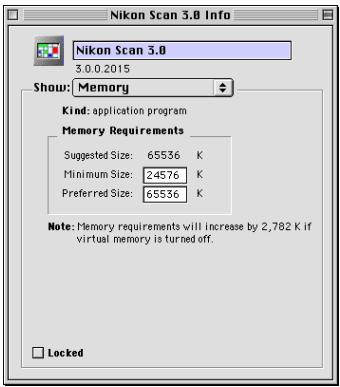
Step I I—Check the memory available to Nikon Scan
Locate the Nikon Scan 3.0 icon in the location you chose in Step 6. After clicking the icon once to select it, choose Get Info (I) from the Finder File menu. Select Memory from the Show pop-up menu in the information dialog to display memory requirements as shown at right. If possible, enter a value for "Preferred size" greater than or equal to the suggested size.
Click here to proceed to the next step.

Memory requirements for the Macintosh
Memory requirements vary with the adapter used. The following minimum allocations are recommended:
| Adapter | Preferred Size* | |
| MA-20 (S) | 65,536 K | (64 MB) |
| SA-21/SA-20 | 65,536 K | (64 MB) |
| IA-20 (S) | 131,072 K | (128 MB) |
| SA-30 | 131,072 K | (128 MB) |
- A minimum allocation of 128 MB is recommended when using Digital ROC or Digital GEM.
Step 12—Connect the scanner
Connect the device as described in the hardware documentation. If you are using the LS-2000 or COOLSCAN III, be sure to turn the computer off before connecting the device. If you are using a scanner with an IEEE I394/Firewire or USB interface, such as the 4000 ED or COOLSCAN IV ED, you can leave the computer on while connecting the scanner. Note, however, that if you are using the 4000 ED under Windows 98 Second Edition, you will need to install the IEEE I394 driver update provided with Nikon Scan before connecting the scanner.
Step 13—Turn the scanner on
Turn the scanner on. If you are using a scanner with a SCSI interface, such as the LS-2000 or COOLSCAN III, after turning the scanner on turn on the computer and start Windows.
Step 14—Register the scanner with Windows
The registration process differs depending on the scanner and operating system used. Click here for step-by-step instructions on registering your scanner.
Once you have registered your scanner, installation is complete.
Click here to view the next chapter.

Pg. For more information on:

A-I IEEE I394 driver update for Windows 98 SE
Step 12—Connect the scanner
Connect the device as described in the hardware documentation. If you are using the LS-2000 or COOLSCAN III, be sure to turn the computer off before connecting the device. If you are using a scanner with an IEEE I394/Firewire or USB interface, such as the 4000 ED or COOLSCAN IV ED, you can leave the computer on while connecting the scanner.
Step 13—Turn the scanner on
Turn the scanner on. If you are using a scanner with a SCSI interface, such as the LS-2000 or COOLSCAN III, after turning the scanner on turn on the computer and start Windows.
Installation is now complete. Click here to view the next chapter.

To check whether Mac OS recognizes the scanner, use the Apple
System Profiler in the Apple menu.
The Scan Window (pp. 19-25)
Making a Scan (pp. 26-35)

About This Chapter
This chapter:
- Introduces you to the scan window, the scanner control center
- Takes you step-by-step through the process of making a scan
This chapter provides enough information to enable you to scan images and open them in another application or save them to disk. More information on scanning, image processing, and preferences is included in the following chapters.
The Nikon Scan Plug-in or TWAIN Source
Nikon Scan consists of the following two modules:
The Scan Window
The scan window is the interface between your scanner and the imaging application that acts as a host for Nikon Scan. It is where you adjust scanner settings and perform image enhancement before scanning the image into the host application, which can be any application that supports TWAIN (Windows) or Adobe Photoshop 5.0 plug-ins (Macintosh).
The Nikon Scan Applet
The Nikon Scan applet, or mini-program, serves as a host for the scan window when no other compatible program is available, or when you don't have the resources needed to run a more sophisticated imaging program. When you are using the Nikon Scan applet, Nikon Scan is said to be functioning as a "stand-alone" application.
This section describes how to access the scan window and introduces you to scan window controls.
Installing Photoshop 5.0 LE
Windows:After inserting the Photoshop LE CD into the CD-ROM drive, double-click in turn on the My Computer and CD icons, open the Photosle folder in the folder for the language of your choice, and double-click Setup.exe. The serial number can be found on the user-registration card in the CD-ROM case.
Macintosh: After inserting the Photoshop LE CD into the CD-ROM drive, double-click the CD-ROM icon on the desktop, open the Photoshop 5.0 LE folder in the folder for the language of your choice, and double-click the installer icon. The serial number can be found on the user-registration card in the CD-ROM case.
Opening the Scan Window
Before opening the scan window, make sure that your Nikon scanner is connected and powered on.
- Opening the Scan Window from a Host Application
To open the scan window from a third-party application such as Adobe Photoshop, select Nikon Scan from the host's import or acquire menu (see the host application manual for details). If you are using a Macintosh, the Nikon Scan 3.0 plugin must first be copied to the application's Plug-ins folder. In the Windows version of Adobe Photoshop LE, the File menu contains a sub-menu of import commands which in-cludes an option for selecting the TWAIN source; select this option and choose "Nikon Scan 3.0" from the list of sources that appears. In the Macintosh version, the scan window can be opened by choosing "Nikon Scan 3.0" from the sub-menu of import/export plug-ins under the File menu.
Using Nikon Scan as a Stand-Alone Application
Double-click the Nikon Scan 3.0 icon in the folder to which you installed Nikon Scan. Windows users can also start Nikon Scan by clicking the Windows Start button and selecting Nikon Scan 3.0 from the Programs sub-menu.

Pg. For more information on:

90 Starting the Nikon Scan applet
Getting to Know the Scan Window
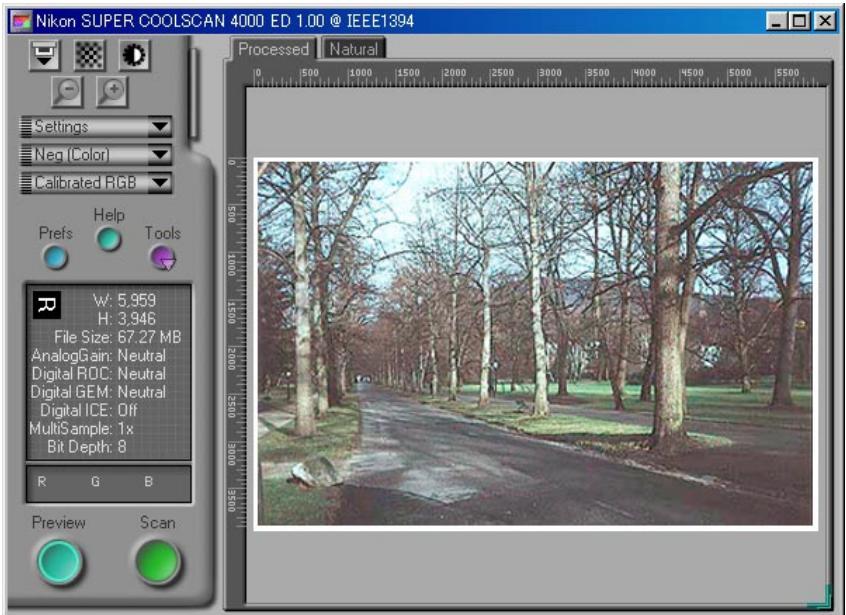
Take a few moments to familiarize yourself with scan window controls.
Eject Button
Ejects film from multi-frame adapters (this button is disabled when the MA-20 (S) slide-mount adapter is in place). Control-click (Windows) or option-click (Macintosh) to eject a slide from the optional SF-200 (S) slide feeder without feeding a new one.
Autofocus Button
Click to focus the scanner on the selected point of the image, or control-click (Windows) or option-click (Macintosh) to select a new focus point.

38
Autoexposure Button
Before scanning, the scanner needs to gather information about the image to adjust exposure for best results. Click this button to adjust exposure.

39
Zoom Buttons
Click the + button to zoom in on the current crop, enlarging it to fill the preview area. Click the button to zoom out.

33
Settings Menu
Using the options in this menu, you can reset the scanner to default settings, or save scanner settings suited to particular scanning conditions and recall them as desired.

88
Media Type Menu
Adjusts scanner settings to match the media in the scanner. Select positive when scanning film positives (slides, reversal film, or monochrome positives), negative (color or monochrome) when scanning negatives. A separate option is available for scanning Kodachrome positives.

27
Color Model Menu
Select a color model according to the capacities of your image editing software and whether the image is destined for output on a commercial four-color printing press or display on a monitor.

28
Window Buttons
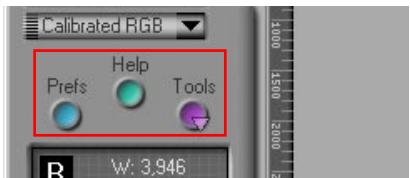
- Prefix: click to open the preferences dialog (see 105)
- Help: click to open the Nikon Scan help file
- Tools: open the Tool Chest (40) or Scan Progress windows (31).
Orientation

W:3,946
H:5.959
File Size: 67.27 MB
AnalogGain: Neutral
Digital ROC: Neutral
Digital GEM: Neutral
Digital ICE: Off
Shows the orientation of the preview image relative to the original, reflecting any flips or rotations that have been performed.


44
Dimensions/File Size
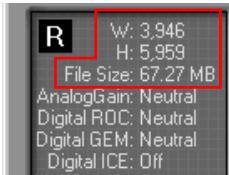

Gives the height and width of the current crop in pixels, and the size of the file that will result if the crop is scanned at current output size and resolution.

46
Image Enhancement
B W:3,946
H:5,958
File Size: 67.27 MB
AnalogGain: Neutral
Digital ROC: Neutral
Digital GEM: Neutral
Digital ICE: Off
MultiSample: 1x
Indicates whether Digital ICE and analog gain are in effect. Remember to use Digital ICE only when needed, as turning these features on can substantially increase scanning times.


51
Scanner Extras
File Size:67.27 MB
AnalogGain: Neutral
Digital ROC: Neutral
Digital GEM: Neutral
Digital ICE: Off
MultiSample: 1x
Bit Depth: 8


Indicates the current bit depth (which determines the maximum number of colors in the image) and whether multi-sample scanning (4000 ED and LS-2000 only) is in effect.


57
Color Values
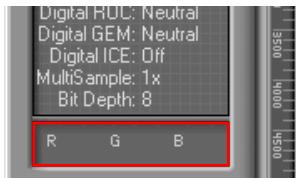
Gives the color values for the pixel under the cursor. After processing, two values appear, one reflecting the color in the Natural tab (top row), the other the color in the Processed tab (bottom row).


63
The Thumbnail Printer Tab
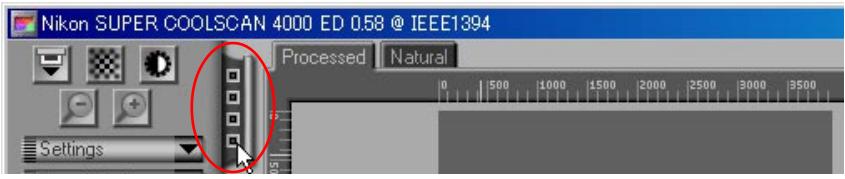
This tab is only displayed when a multi-frame adapter is inserted in the scanner. Clicking this tab opens the thumbnail drawer, where you can select the frame to be scanned by clicking the associated frame number. To view the frames as small previews (thumbnails), click the button. Multiple frames can be selected by clicking each frame in turn while holding down the control (Windows) or command (Macintosh) key, or by holding down the shift key while clicking two frames to select these frames and all the frames between them.


29
The Natural/Processed Tabs
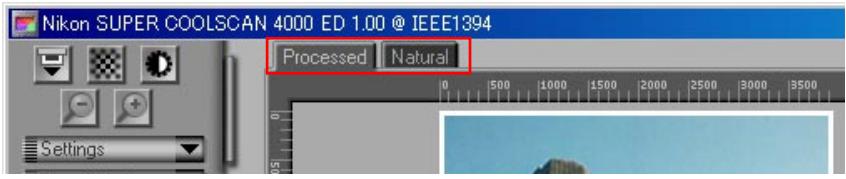
These tabs allow for a quick "before-and-after" comparison showing the effects of processing. The Natural tab shows how the image looked before processing, the Processed tab how the image will look when scanned at current settings. If you are using Nikon Scan as a stand-alone application, you can switch back and forth between the tabs using the Show Natural Pane/ Show Processed Pane commands in the View menu or the Ctrl-T (Windows) or -T (Macintosh) keyboard shortcuts.


31
The Preview Button
Clicking this button displays a preview of the image to be scanned (if multiple frames are selected in the thumbnail drawer, a preview will be performed for each frame). You will need to create a new preview after changing the media type or using the zoom buttons.


31
The Scan Button
Scans the image and opens it in the host application (if multiple frames are selected in the thumbnail drawer, each frame will be scanned and opened in a separate window).


The Scan Progress Window
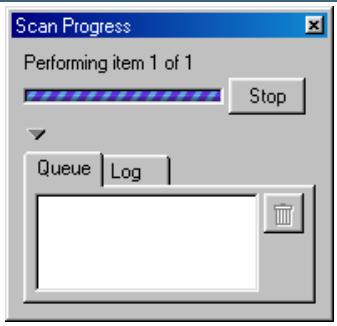
This window shows the progress of preview and scan operations. The current task can be cancelled by clicking the Stop button. Tasks that have yet to be performed are listed in the Queue tab and can be cancelled by selecting the task and clicking the icon. Completed tasks are listed in the Log tab.


31
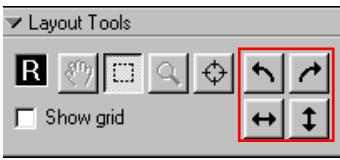
Layout Tools*
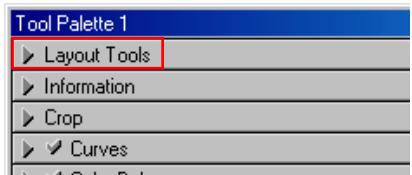
Use these tools to select the portion of the image to be scanned (the "crop") and to rotate and flip the image prior to scanning. You can also select a new focus area and scroll images that have been opened in Nikon Scan after scanning.


43
Color Balance*
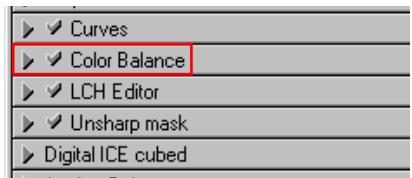
Use the color balance tools to make adjustments to brightness, contrast, and color balance that affect the entire image.

76
Information*
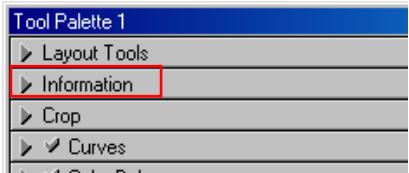
Gives height and width of the current crop and the coordinates of its top left corner. The color value display shows the color of the pixel under the cursor before and after processing.


45
LCH Editor*
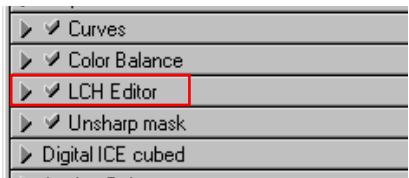
Like the Curves too, the LCH editor can be used to adjust brightness and contrast in shadows, mid-tones, and highlights. It also incorporates hue and chroma editors, which provide extremely flexible tools for adjusting color.


Crop†
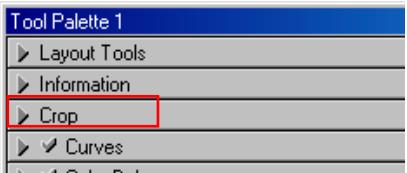
This is where you adjust the resolution and size of the image according to the output device (printer or monitor) on which the image will be displayed.


46
Unsharp Mask*
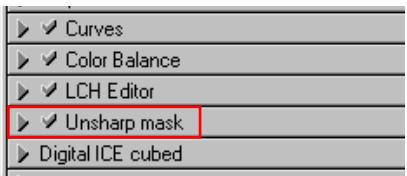
Unsharp mask increases the sharpness of the image by making edges more distinct, either over the entire image or in areas where specific colors are prominent.


85
Curves*
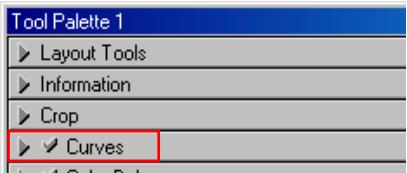
One of three color editing tools offered by Nikon Scan, the curves tool is useful when adjusting contrast and making changes to color balance that effect only a specific portion of the tone range (shadows, mid-tones, or highlights).


63

Tools marked with an asterisk (^) are available both in the scan window and (where Nikon Scan is used as a stand-alone application) when images are opened in the Nikon Scan applet after scanning. Those marked with a "†" are only available in the scan window.
The Tool Chest (Continued)
Digital ICE Cubed (Digital ICE ^3 )†
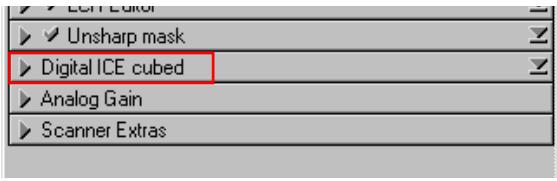
Depending on your scanner, up to three image enhancement tools are available:
- Digital ICE: reduces the effects of dust and scratches
- Digital ROC: restores colors lost through fading
- Digital GEM: reduces the effect of film grain

51
Analog Gain†
This tool allows exposure for the colored elements in the scanner's light source to be adjusted manually. Use when you want to change exposure from the values produced by the autoexposure operation.

56
Scanner Extras†
These tools offer you control over features specific to your scanner.

57
Tools marked with a “†” are only available in the scan window.
This section covers the basics of making a scan, from opening the scan window to scanning an image into the host application. A detailed description of Nikon Scan's color editing and image enhancement features may be found in the following chapter.

Open the scan window (

27)

Insert the medium in the scanner (27)

5Select the frames to be scanned (29)

Select the media type (27)

Select the color model (28)

Preview the frames to be scanned 31)
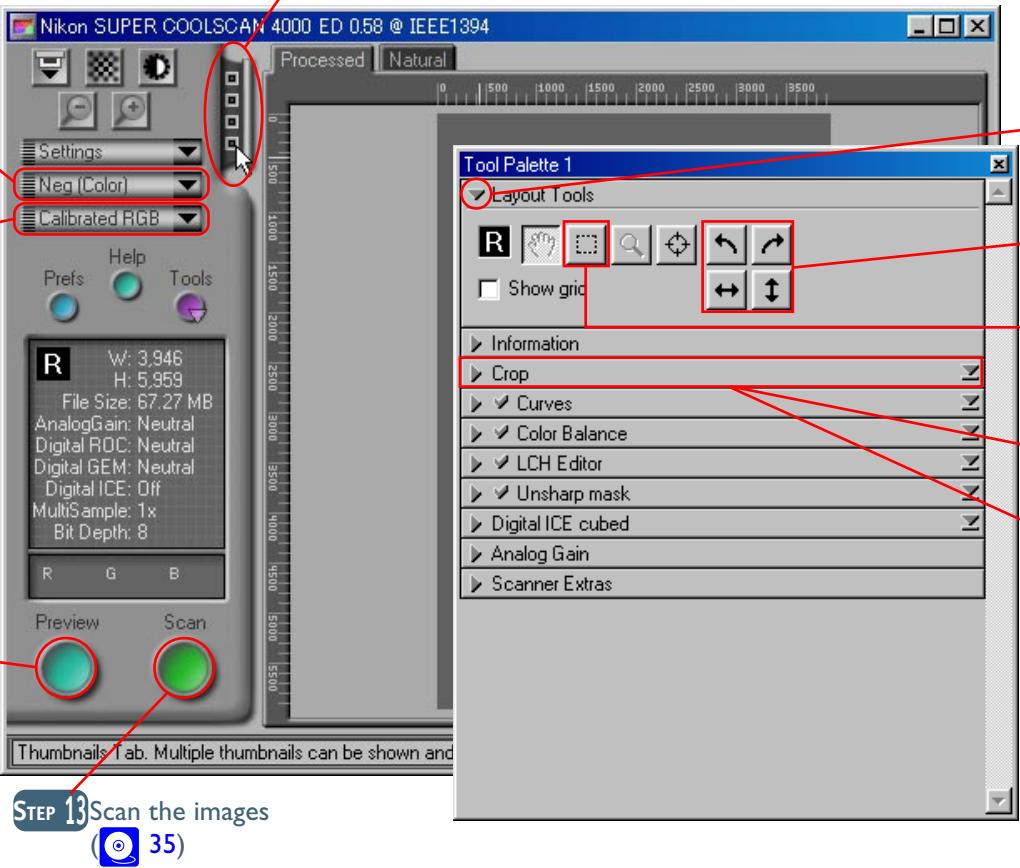

Open the Layout Tools palette 32

Adjust image orientation (32)

Select the area to be scanned (33)

Select an output resolution (34)

Adjust the output size (34)

Adjust settings for the remaining frames (35)

Save the scanned images (35)
Before making a scan, connect the scanner and turn it on as described in the scanner manual. You will also need to turn on your computer and wait for the operating system to start up.
Step I—Open the scan window
Open the scan window as described in the previous section under "Opening the Scan Window."
Step 2—Insert the medium in the scanner
Insert the medium to be scanned in the scanner as described in the hardware documentation.
Step 3—Select the media type
Select the media type from the pop-up menu in the control area. The options available depend on the selected scanner.
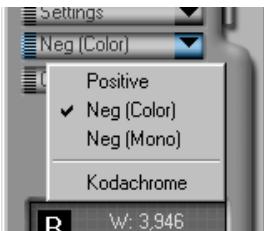
| Option | When to use it |
| Positive | Use when scanning most makes of positive slides or reversal film. |
| Neg (Color) (4000 ED/COOLSCAN IV ED only) | Use when scanning color film negatives. |
| Neg (Mono) (4000 ED/COOLSCAN IV ED only) | Use when scanning black-and-white negatives. |
| Negative (LS-2000/COOLSCAN III only) | Use when scanning film negatives. |
| Kodachrome (4000 ED/COOLSCAN IV ED only) | Use when scanning Kodachrome positives. |

Pg. For more information on:

19 Opening the scan window
Select Positive when scanning AGFA SCALA monochrome film, or when scanning prepared microscope slides using the FH-GI medical slide holder (available separately).
Step 4—Select the color model
Select a color model according to how you intend to use the image. The options available depend on whether the Nikon Color Management system (CMS) is on (the default setting) or off.
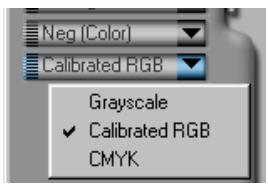
| Option | When to use it |
| Grayscale | Use for images that will be printed or displayed in monochrome |
| Calibrated RGB (CMS on) | Use for images that will be edited or displayed on a computer monitor |
| CMYK (CMS on) | Use for images destined for output on a four-color printer |
| RGB (CMS off) | Use to edit raw RGB data from the scanner |

Pg. For more information on:

107 Turning Nikon CMS on and off

Nikon Color Management
The Nikon Color Management system (CMS) ensures that the colors from your scanner are reproduced accurately on different output devices such as printers and monitors. Accuracy is ensured by means of ICC profiles that provide information about the color space used for scanning and the characteristics of the video system, printer, or monitor. Profiles are available for RGB (for use when editing images or displaying them on a monitor) and CMYK (for professionals who wish to create a file ready for printing on a commercial four-color printing press).

Pg. For more information on:

107 Nikon Color Management
Step 5—Select the frames to be scanned
If you are using a multi-frame adapter, you can select the frames to be scanned from the thumbnail drawer. Click the thumbnail drawer tab to open the drawer as shown below.
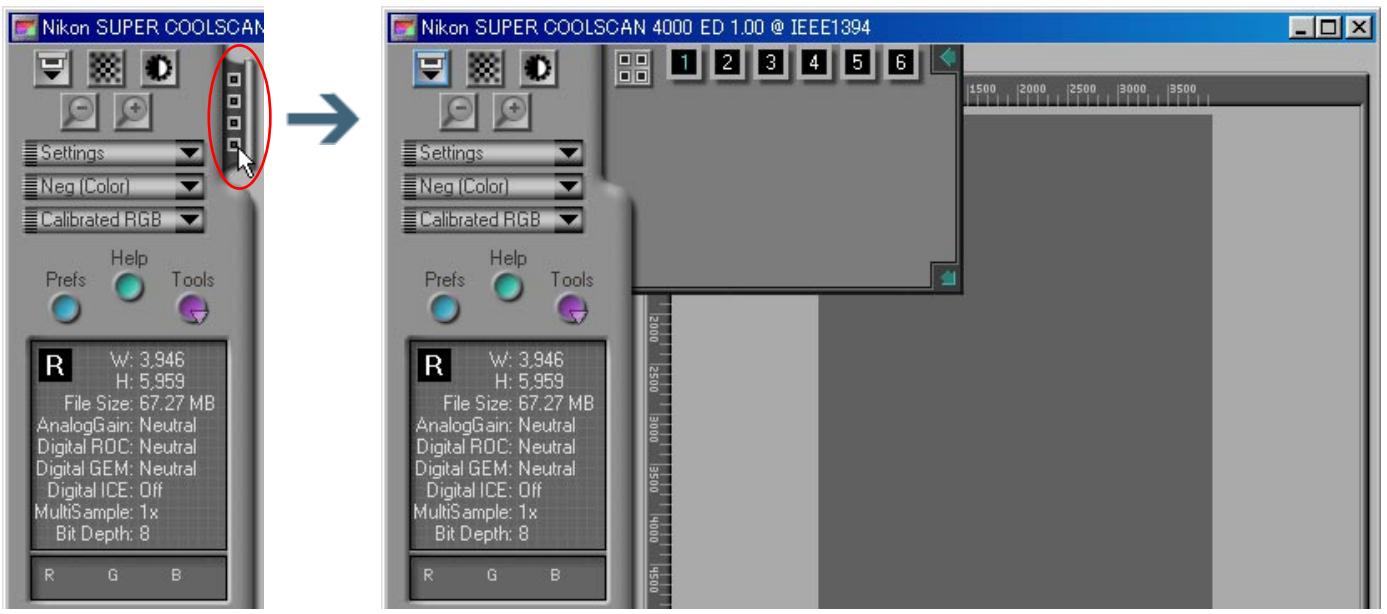

Multi-frame adapters
A multi-frame adapter is an adapter that allows you to scan more than one frame of a film roll or strip film without having to remove the media from the adapter between scans. The following multi-frame adapters are available for the Nikon scanners supported under Nikon Scan 3:
- the SA-21 (4000 ED/COOLSCAN IV ED) and SA-20 (LS-2000/COOLSCAN III) strip-film adapters
- the IA-20 (S) adapter for APS (IX-240) film (sold separately)
- the SA-31 film-roll adapter for the 4000 ED (sold separately)
- the SF-200 (S) slide feeder for the 4000 ED and LS-2000 (sold separately; note that because the SF-200 (S) can preview only one frame at a time, the thumbnail drawer is not available when this adapter is in use)
By default, frames are identified by number only. To view a small preview image (thumbnail) for each frame, click the button. The button icon will change to; click the button again to return to a frame number display.
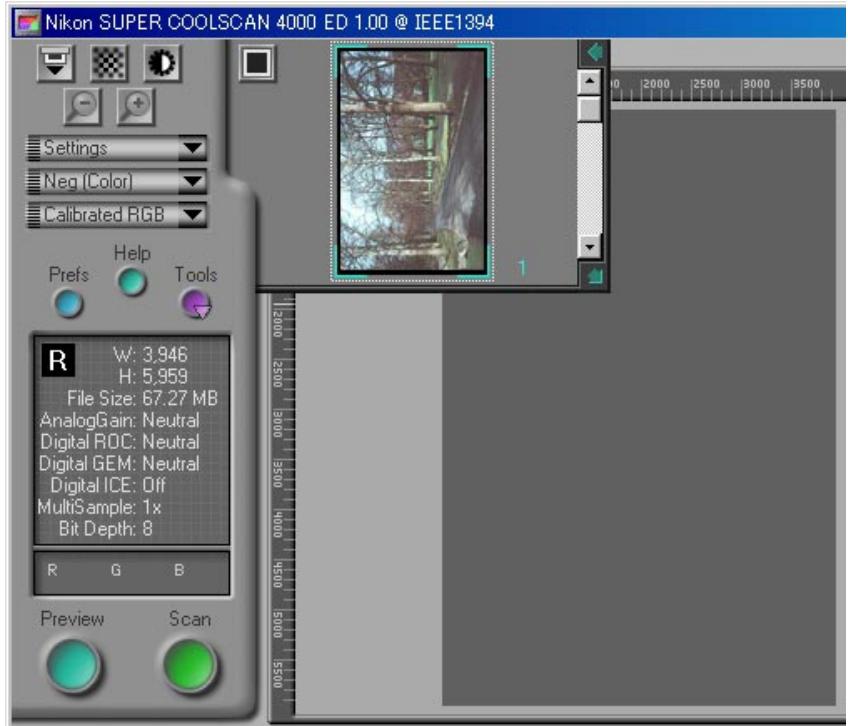
If the thumbnails don't fit in the frame, use the Strip Film Offset control in the Scanner Extras palette to adjust their position.
The frame to be scanned can be selected by clicking the associated frame number or thumbnail. To select multiple frames, click each frame in turn while holding down the control (Windows) or command (Macintosh) key, or hold down the shift key while clicking two images to select the images and all frames between them.

Thumbnail drawer controls
- To hide the thumbnail drawer: click the button at the top right corner.
- To adjust the size of the thumbnail drawer: drag the bottom right corner (the thumbnail drawer can not be made larger than the scan window).

When film is inserted in the SA-2 I strip-film adapter for 4000 ED/COOLSCAN IV ED film scanners, six frame numbers will be displayed in the thumbnail drawer regardless of the number of frames in the film. Similarly, when film is inserted in the optional SA-30 roll-film adapter for 4000 ED film scanners, forty frame numbers will be displayed regardless of the number of frames in the film. The correct number of frames will be displayed when the button is clicked to create thumbnail previews.
Step 6—Preview the frames to be scanned
Click the Preview button. A preview of the image to be scanned will appear in the Natural and Processed tabs to the right of the control area.
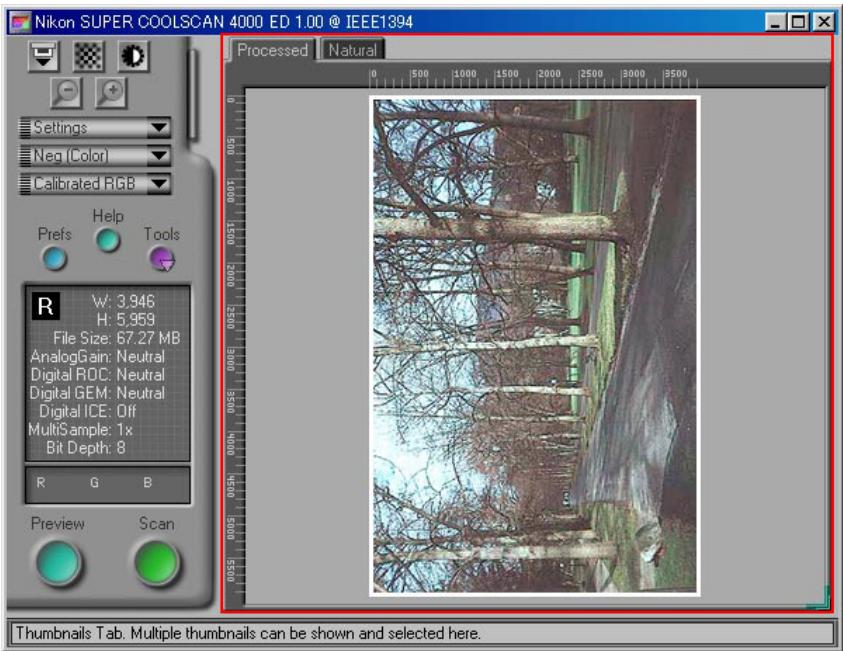
If you are using a multi-frame adapter, a preview of each of the selected frames will be created and stored in memory. You can switch between frames by opening the thumbnail drawer and clicking the frame you want to view. Note that the more previews stored, the greater the demands that will be made on your computer's memory.

The Scan Progress window
While scanning is in progress, the progress window will show the operation currently being performed. The current task can be cancelled by clicking the Stop button.
To view operations that have yet to be performed, first click the triangle under the progress meter, then click the Queue tab to display the Queue sheet listing unfinished tasks. Tasks can be cancelled by selecting the desired operation(s) and clicking the icon.
Completed tasks are listed in the Log sheet.
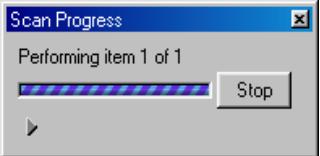
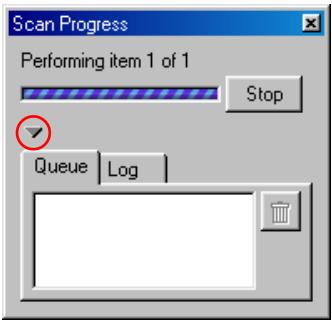
Step 7—Open the Layout Tools palette
Before scanning the image, you may need to use the Layout Tools in the Tool Chest to correct its orientation and select the area to be scanned. Click the triangle to the right of the palette to display the Layout Tools.
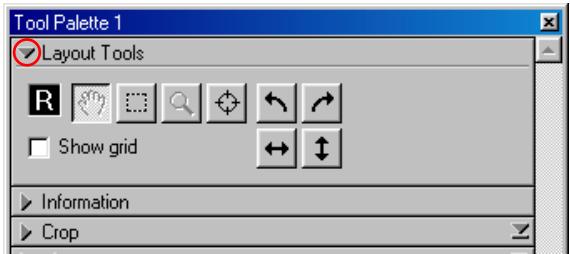
Step 8—Adjust image orientation
Depending on how the medium was inserted into the scanner, you may need to use the rotate and flip buttons in the Layout Tools palette to return the image to its original orientation.
Thumbsnails Tab. Multiple thumbnails can be shown and selected here.

Opening the Tool Chest
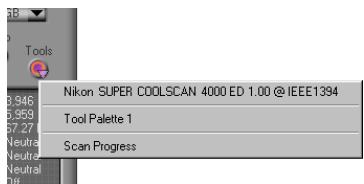
To display the Tool Chest, click the Tools button in the control area and select Tool Palette 1 from the menu that appears.

Pg. For more information on:

43 Layout Tools
Step 9—Select the area to be scanned
After confirming that the crop button in the Layout Tools palette is selected, drag the mouse over the image to select the area to be scanned, also known as the "crop."
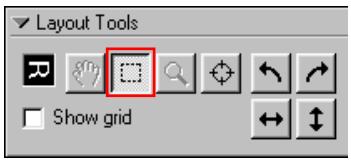
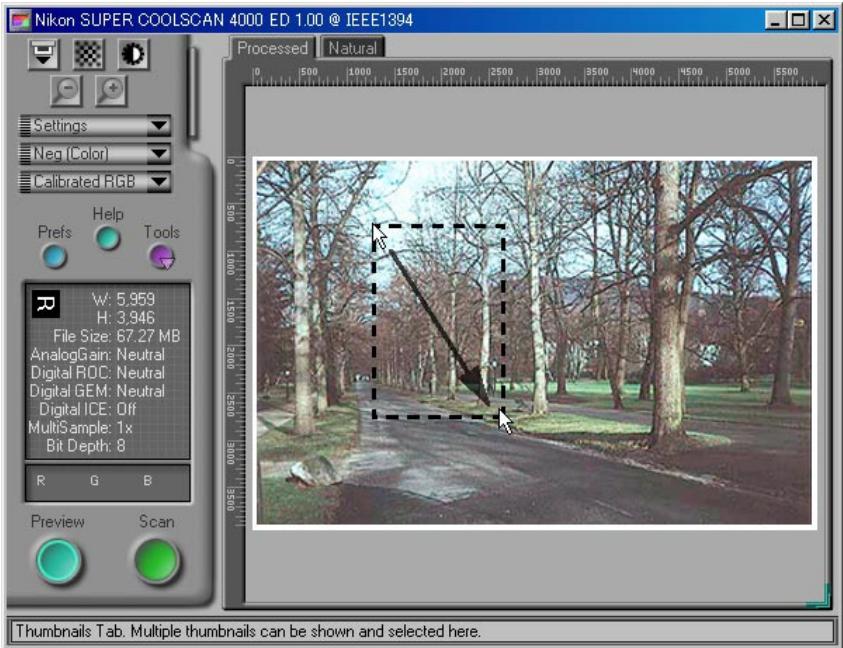

Owing to the way in which the preview image is displayed, the area of the image that appears in the final scan may differ slightly from the selected crop. When selecting a crop, allow a sufficient margin to ensure that no important element is cropped out.
You can change the size of the crop by dragging its borders, or move the entire crop to a new location by placing the cursor within the crop frame and dragging it to another position.
To enlarge the crop to fill the preview area, click the button. If desired, you can then select a smaller crop within the original crop and click the button again to enlarge the image still further. To zoom out to the previous view, click the button.

Changing the size of the preview area
To adjust the size of the preview area, drag its bottom right corner (note that the preview area can not be enlarged beyond the borders of the scan window).

To speed processing, Nikon Scan does not create a new preview when the image is zoomed in, but instead simply enlarges the existing preview. For an accurate assessment of the effects of processing and film grain at higher zoom ratios, click the Preview button to create a new preview.
Step 10—Select an output resolution
Click the triangle next to Crop in the Tool Chest to open the Crop palette. Enter a value for Resolution that matches the effective resolution of the printer or monitor on which the image will be displayed after scanning. Resolution can also be set by selecting an output device from the output resolution pop-up menu.
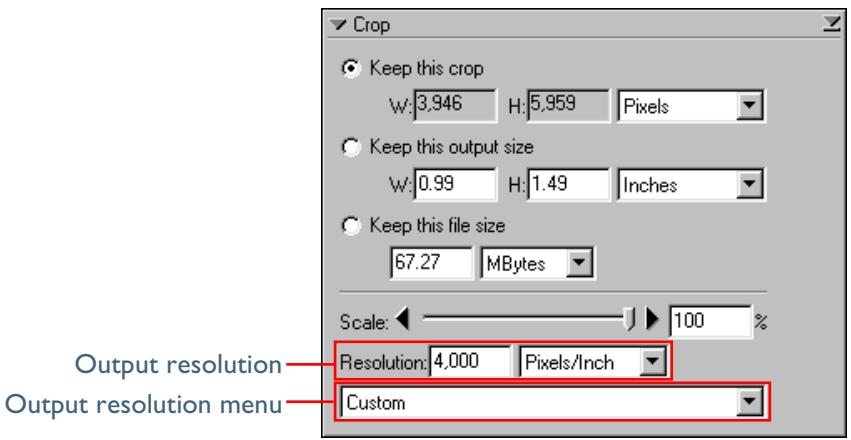

Picking an output resolution
When scanning images for output on a household inkjet printer, keep in mind that unit "pixels per inch" (used on monitors and in image editing software) is not equivalent to the "dots per inch" used on inkjet printers. An output resolution of around 240 ppi is usually adequate for printers rated for 360, 720 or 1,440 dpi. Computer monitors are usually considered to have resolutions of 96 ppi (Windows) or 72 ppi (Macintosh).
Step I I—Adjust the output size
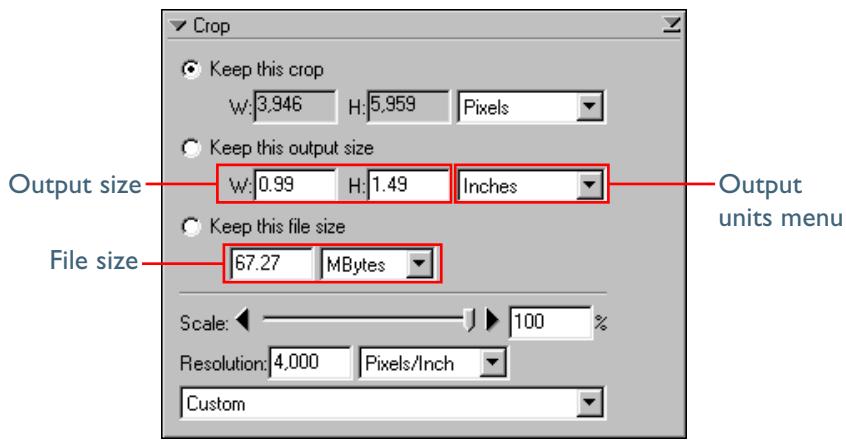
Before scanning, adjust the output size to determine the size of the image that will be produced, either in terms of the physical dimensions of the image when printed or displayed at the selected resolution, or in terms of the amount of space it will occupy when saved to disk. The Crop palette contains three options for determining output size: Keep this crop, Keep this output size, and Keep this file size.

Pg. For more information on:

46 The Crop palette
- Keep this crop
Choose this option when you want to select the precise area to be scanned using the mouse, then adjust the output resolution and size according to how the image will be used. Choose the units for output size from the output units menu and enter a value for either Width or Height in the output size text boxes. The other dimension will be adjusted automatically to maintain the crop selected in the preview area.
- Keep this output size
Choose this option when you want to select the general area to be scanned using the mouse, then specify the exact dimensions of the image to fit it into a pre-determined space, for example in a magazine or on a web page. Choose the units for output size from the output units menu and enter the desired Width and Height in the output size text boxes. The crop selected in the preview area will automatically be adjusted to maintain the crop at these proportions.
- Keep this file size
Choose this option when you want to select the general area to be scanned using the mouse and then specify the exact file size of the final image, for example to keep file sizes to a minimum for storage or electronic transfer, or because you have been asked for a file of a certain size. Enter a value for file size in the file size text box and select the units for file size from the menu to its right.
Step 12—Adjust settings for the remaining frames
If you selected multiple frames in the thumbnail drawer in Step 5, open the thumbnail drawer. The images selected in Step 5 will be shown with green frame numbers or a green border around the thumbnail; click the next of the images to display the associated preview. Repeat steps 8 through 11 to adjust settings for the selected image, and then display the preview for the next frame. Repeat until you have adjusted settings for all the selected frames.
Step 13—Scan the images
Click the Scan button to scan all the selected images and open them in separate windows in the host application. If Nikon Scan is being used as a stand-alone application, the images will be opened in windows within Nikon Scan.
Step 14—Save the scanned images
After editing, save the scanned images from the host application. If you are using Nikon Scan as a stand-alone application, choose Save As... from the File menu to save the images to disk.

Pg. For more information on:

90 Using Nikon Scan as a stand-alone application
Adjusting Focus and Exposure (pp. 37-39)
The Tool Chest (pp. 40-87)
Reusing Settings (pp. 88-89)
The Nikon Scan Applet (pp. 90-104)
Preferences (pp. 105-137)

About This Chapter
This chapter covers scan window settings not detailed in the previous chapter, including contrast, color balance, sharpening, and Digital ICE3 controls. It also describes the options available in the settings menu and Preferences dialog, and details the options available when Nikon Scan is used as a stand-alone application.
Adjusting Focus and Exposure
Resetting Autofocus and Exposure
Under normal circumstances, the scanner will automatically adjust focus and exposure before an image is displayed in the preview area. If the film is warped or uneven, however, part of the image may not be in focus, making it necessary to select a new focus point to achieve satisfactory results. Because the autofocus operation works best on high contrast areas of the image, you may also need to select a new focus point if the default focus point at the center of the image lacks contrast. This operation can be performed using the button in the scan window control area.
By default, the scanner adjusts exposure as necessary before previews or scans. Depending on the settings selected for the autoexposure options in the Preview Settings, Single Scan, or Batch Scan tabs of the Preferences dialog, you may however need to adjust exposure before scanning or preview using the button in the scan window control area.

Pg. For more information on:

135 Preferences—Preview Settings

126 Preferences—Single Scan

128 Preferences—Batch Scan
Selecting a New Focus Point
Manual Focus Point Selection
By default, clicking the button focuses the scanner on a point in the center of the preview image. Two methods are available for selecting an alternate focus point:
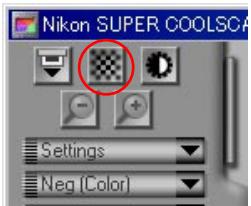
Use the focus tool in the Layout Tools palette
Click the focus tool ( l ) in the Layout Tools palette, then click on the image in the preview area to select a new focus point (we recommend that you choose a high contrast area of the image). Your selection will be used as the focus point the next time you click the button in the scan window control area.

If Perform auto focus when focus point is moved is selected in the Automatic Actions tab of the Preferences dialog, an autofocus operation will be performed each time you change the focus point using the focus tool.
If Auto focus is selected in the Preview Settings tab of the Preferences dialog, an autofocus operation will be performed as necessary when the Preview button is clicked. Separate autofocus options are also available for single and batch scans.
- Control option click the × button
To perform an autofocus operation when the new focus point is selected, hold down the Ctrl (Windows) or option (Macintosh) key while clicking the button. The cursor will take on the shape of a cross; move the cross-shaped cursor over the point in the preview image you want to use as the new focus point and click (we recommend that you choose a high contrast area of the image). An autofocus operation will be performed using the selected point as the focus point.

Pg. For more information on:

44 The focus tool

132 Preferences—Automatic Actions

135 Preferences—Preview Settings

126 Preferences—Single Scan

128 Preferences—Batch Scan

58 Manual focus adjustment
Autoexposure
Performing an Autoexposure Operation
By default, an autoexposure operation is performed as necessary when the Preview button is clicked. If Auto exposure for negative film or Auto exposure for positive film is turned off in the Preview Settings tab of the Preferences dialog, however, autoexposure must be performed manually before previewing media of the selected type. Similarly, if Auto exposure for negative film or Auto exposure for positive film is turned off in the Single Scan or Batch Scan tab of the Preference dialog, autoexposure must be performed manually before scanning media of the selected type.
To adjust autoexposure manually, click the button in the control area.
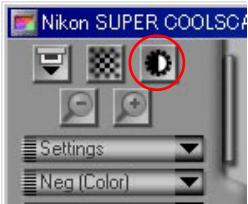

Pg. For more information on:

135 Preferences—Preview Settings

126 Preferences—Single Scan

128 Preferences—Batch Scan
The Tool Chest
Setting up Scans and Enhancing Images
The Tool Chest contains the tool palettes you will use prior to scanning to select the area to be scanned, adjust the output size and resolution, and enhance images to correct common problems caused by scratches, dust, film grain, and fading. It can also be used to edit images for contrast, color balance, and sharpness, whether prior to scanning or—when using Nikon Scan as a stand-alone application—after scanning, when the image is opened in an image window within Nikon Scan.
- Opening the Tool Chest
To display the Tool Chest, click the Tools button in the scan window control area and select Tool Palette 1 from the menu that appears.
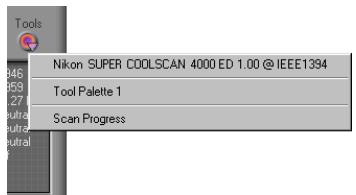
- Displaying the contents of a tool palette
To display or hide the contents of a tool palette, click the triangle to the left of the palette title.
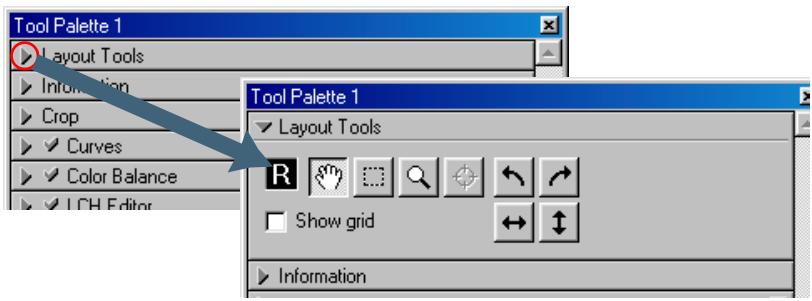
- Changing the order of palettes in the Tool Chest
To change the order of palettes in the Tool Chest, click a tool palette title bar and drag it into a new position.
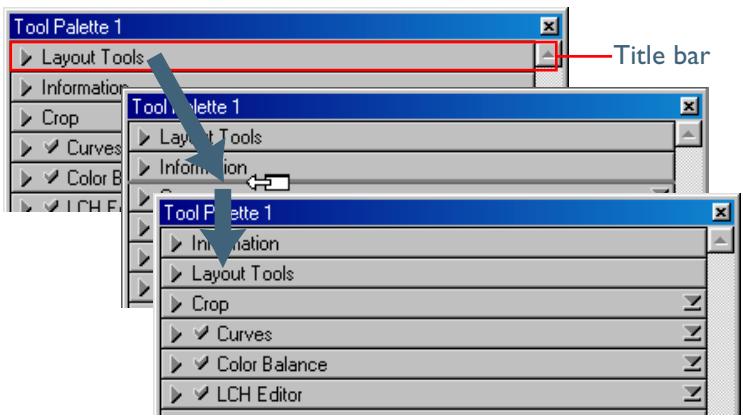
- Opening a tool palette in a separate window
Tool palettes can be opened in a separate window by clicking the palette title and dragging it outside the Tool Chest window to create a new Tool Chest window containing only the selected palette.
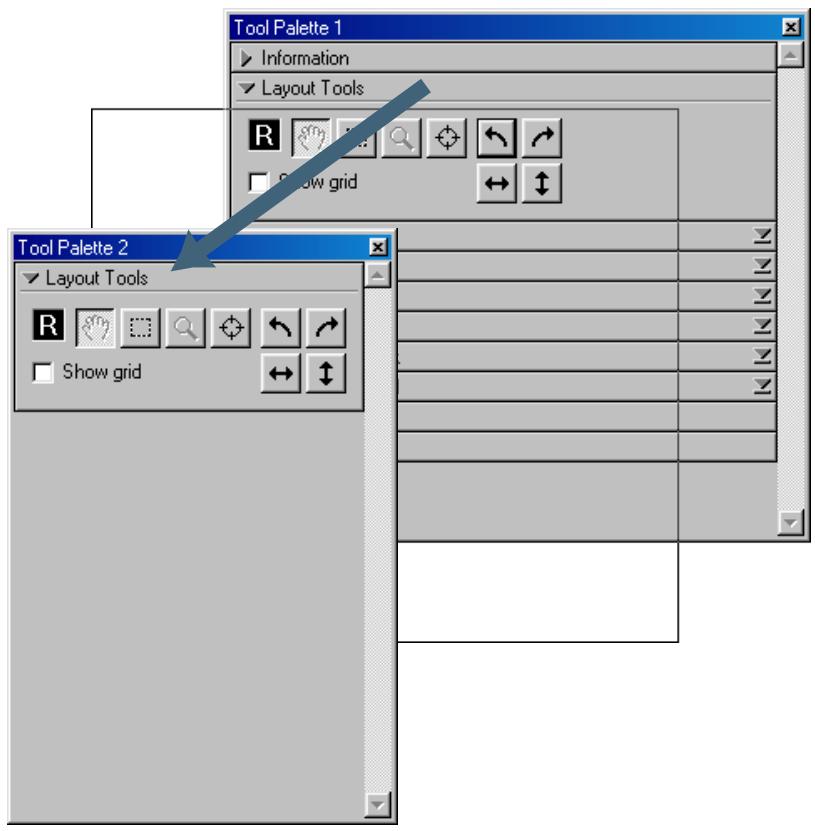
Tools can be added to the new Tool Chest by dragging additional palettes into the window. The new Tool Chest will be added to the tools menu in the scan window. If you close the new Tool Chest by clicking the window close box, you can open it again by selecting the desired Tool Chest from the tools menu.
Using the Tool Chest
Between previewing an image and saving it to disk in the host application, there are four distinct stages to scanning an image, each involving separate tools:
| Stage | |
| Stage 1: Select a crop Use the Layout Tools to correct the orientation of the preview image and select the area to be scanned. The Information palette can be used to determine the size and location of the crop. | 43 |
| Stage 2: Adjust resolution and size Use the tools in the Crop palette to adjust the out-put size and select a resolution suited to the device on which the image will be printed or displayed. | 46 |
| Stage 3: Digital ICE³ and scanner settings Use the tools in the Digital ICE Cubed (Digital ICE³) palette to reduce the effects of scratches, dust, film grain, and fading. Adjust scanner settings using the Scanner Extras palette. | 51 |
| Stage 4: Color enhancement and sharpening Use the tools in the Curves, Color Balance, LCH Editor, and Unsharp Mask palettes to adjust tone, colors, contrast, and sharpness. | 63 |

If you are using Nikon Scan as a stand-alone application, Stage 4 can be performed in the Nikon Scan applet after the image has been saved to disk. This allows you to make multiple copies of the same image, each edited for color and sharpness in a different way and saved in a separate file. Before scanning the image, you may want to increase the scan bit depth in the Scanner Extras drawer to preserve image quality. Once the image is opened in the Nikon Scan applet, save a copy in NEF format to store any changes to the image independently of the original image data. You can then edit the image in a number of different ways, saving the results in separate files.
Setting up a Scan
The Layout Tools, Information, and Crop Palettes
Layout Tools
The Layout Tools palette contains tools for use both in the scan window and in image windows opened in Nikon Scan applet when Nikon Scan is used as a stand-alone application. In the scan window, the layout tools are used to select the portion of the image to be scanned and to set the focus point for autofocus operations. In image windows, they are used to scroll the image, zoom it in and out, and select part of the image to be copied to the clipboard. The flip and rotate tools in the Layout Tools palette can be used to correct the orientation of images both in the scan window and in image windows.
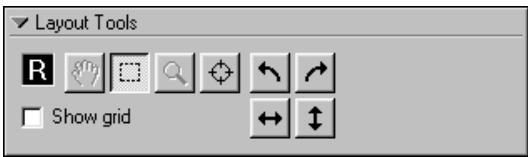
The Layout Tools palette contains the following controls:
| Control | Description |
| Image Orientation | The image orientation display takes the form of a capital letter “R.” Any flips or rotations performed on the image are reflected in the orientation of the letter; if the letter is shown in red, the image has been flipped from its original orientation. |
| Hand Tool | This tool is only available if Nikon Scan is being used as a stand-alone application and an image has been opened in the Nikon Scan applet, when it can be used to scroll images that are too big to fit in the image window. For details, see 95. When the scan window is active, the hand tool is disabled. |
| Crop Tool | When the crop tool is active, a selection can be made by dragging the cursor over an image. In the scan window, this tool is used to select a portion of the image to be scanned and opened in the host application (see 33). When Nikon Scan is used as a stand-alone application and an image window is active in the Nikon Scan applet, it duplicates the function of the Selection Cursor. For details, see 96. |
| Zoom Tool | This tool is only available if Nikon Scan is being used as a stand-alone application and an image has been opened in the Nikon Scan applet, when it duplicates the function of the Zoom Cursor. For details, see 95. When the scan window is active, the zoom tool is disabled. |
| Focus Tool | When this tool is active, you can select the point that will be used for subsequent autofocus operations. For details, see 38. The focus tool is only available when the scan window is active. |
| Rotate 90° counter-clockwise | Rotates the image in the active window ninety degrees to the left. |
| Rotate 90° clockwise | Rotates the image in the active window ninety degrees to the right. |
| Flip horizontal | Flips the image in the active window horizontally. |
| Flip vertical | Flips the image in the active window vertically. |
| Control | Description |
| Show grid | When this box is checked, a layout grid is displayed superimposed over the image in the active window. The grid spacing and color can be set in the Grid panel of the Preferences dialog (see 137). |
| If you are using Nikon Scan as a stand-alone application, you can select the hand, crop, zoom, and focus tools using the Hand Cursor, Selection Cursor, Zoom Cursor, and Focus Cursor commands in the View menu. | |
| Pg. For more information on: | |
| 90 Using Nikon Scan as a stand-alone application |
Information
This palette provides information about the size and location of the current crop, the position of the cursor within the active image, and the color of the pixel under the cursor.
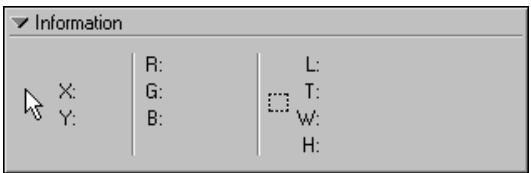

The Information palette display will be updated automatically to reflect changes to the crop in the Crop palette. All measurements are in the Information palette are in pixels.

Pg. For more information on:

46 The Crop palette

134 Preferences—Advanced Color
The Information palette contains the following items:
| Item | Description | ||
| X: Y: | The vertical (Y) and horizontal (X) distance of the cursor from the top left corner of the image. | ||
| L: | R: | C: | The color values for the pixel under the cursor. If the selected color model is grayscale, values for only one channel (L) will be displayed. If the selected color model is RGB, separate values will be displayed for each of the Red, Green, and Blue channels. If the selected color model is CMYK, separate values will be displayed for each of the Cyan, Magenta, Yellow, and blacK channels. If the image has been modified, two values will be shown for each channel: the value before the slash represents the color of the pixel before processing, the value after the slash the color after processing. The size of the area sampled to determine the color value can be changed using the Sample point size option in the Advanced Color tab of the Preferences dialog (see 135). |
| G: | M: | ||
| B: | Y: | ||
| K: | |||
| L: T: | The coordinates of the Top Left corner of the current crop. | ||
| W: H: | The Height and Width of the current crop. | ||
Crop
The Crop palette is where you specify the physical dimensions, or output size, of the image opened in the host application after scanning.
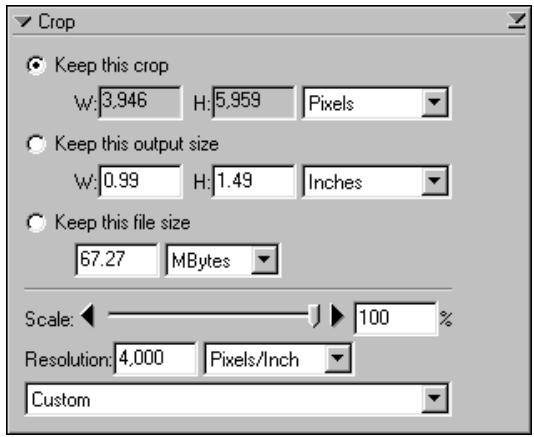
How you set the output size depends on how you intend to use the image.
- If the image will be printed or used in desktop publishing: After selecting a crop, choose a resolution suited to the device on which the image will be printed or displayed. Then set the output size in inches or metric either by direct entry or using the Scale slider (if you are using the image in a desktop publishing application, you may want to choose picas or points as the output units). Where the resolution of the printing press is not known, you may be requested to produce a file of a specific size. In this case, simply select Keep this file size and enter the file size directly.
- If the image will be displayed on a monitor or web page: After selecting a crop, set the output size in pixels using the Scale slider. Resolution in this case is not an issue. Where file sizes must be kept small to minimize transfer times, as when the image is to be sent by e-mail or used on a web page, you may want to select Keep this file size and enter the file size directly.
The Crop palette offers three methods for adjusting output size:
- Keep this crop
Choose this option when you want to select the precise area to be scanned using the mouse, then adjust the output resolution and size according to how the image will be used. When using this option, first select the area to be scanned using the mouse, then enter the desired output resolution in the Resolution text box. After choosing the units for output size from the menu to the right of the output size text boxes, you can either adjust output size using the Scale slider, or enter the output size directly in either the Width or Height text boxes (the other dimension will change automatically to maintain the same proportions as the crop selected in the preview area).

Selecting Keep this output size fixes the physical dimensions of the image when output on a printer or monitor. Consequently, when pixels is selected as the units for output size, adjusting resolution will cause the values shown in the output size text boxes to change. The physical dimensions of the image will however remain constant.
- Keep this output size
Choose this option when you want to select the general area to be scanned using the mouse, then specify the exact dimensions of the image to fit it into a pre-determined space, for example in a magazine or on a web page. When using this option, select a resolution and enter the desired output size in the Width and Height text boxes after choosing a unit other than pixels for output size. You can then select the area to be scanned using the mouse (the proportions of the crop will be adjusted to match the values entered for output size). This option is useful when the image has to print at a specified size.
- Keep this file size
Choose this option when you want to specify the exact file size of the final image, for example to keep file sizes to a minimum for storage or electronic transfer, or because you have been asked for a file of a certain size. When using this option, first enter the desired file size and then select the area to be scanned using the mouse. This option is most useful when scanning images for e-mail or the web.
The other items in the Crop palette are described below:
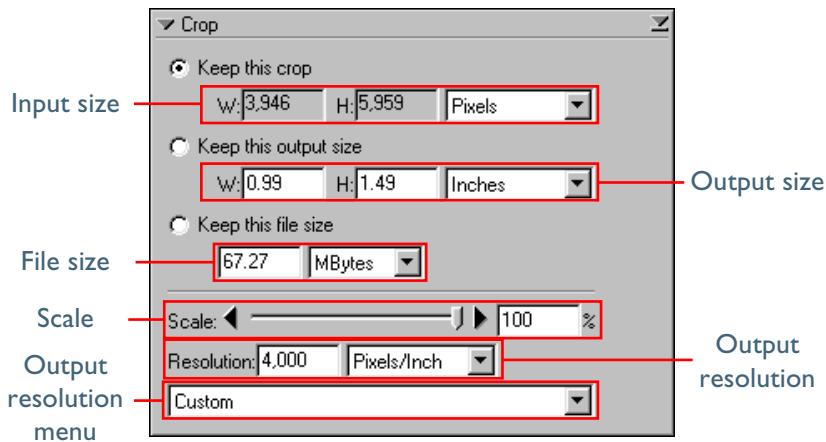
Item
Description
Input size
This display shows the dimensions of the current crop. The units for input size can be chosen from the menu to the right of the display; the units chosen are used for the rulers in the preview area.
Item
Description
Output size
The output size can be entered in these text boxes. The units for output size can be chosen from the menu to the right of the display. When Keep this crop is selected, changing the height or width will result in the other value being adjusted automatically to maintain the height-width aspect ratio at the proportions of the current crop. When Keep this file size is selected, changing one of dimension will result in the other being adjusted to maintain a constant file size, changing the proportions of the crop.
File size
The size of the file that will be produced when the input crop is scanned at current settings, before JPEG compression (if applicable) and not including file headers (which typically increase file size by about 10 KB). In addition to output size and resolution, file size is determined by the scan bit depth (see 57) and the selected color model.
| Item | Description |
| Scale | Scale (the output size relative to the size of the original) can be set by direct entry or using the Scale slider. |
| Output resolution | Output resolution can be entered in this text box or set to match a particular output device by selecting the device from the output resolution menu. The units for resolution can be chosen from the menu to the right of the text box. |

Adding resolution menu options (Macintosh only)
In the Macintosh version of Nikon Scan, options can be added to the resolution menu by selecting Add Resolution... from the output resolution menu and entering a name and resolution. Options can be deleted from the output resolution menu using the Delete Resolution... option.

Choosing a resolution
- Inkjet printer
Most inkjet printers require three or four dots of different colors to reproduce a single pixel (simulated halftone). The target resolution for an inkjet printer (in pixels per inch, or ppi), is therefore less than the printer's catalogue resolution (in dots per inch, or dpi). In general, resolutions of 180-240 ppi will produce acceptable results on printers with catalogue resolutions of 360, 720 or 1,440 dpi. (Note that although the terms used differ, both pixels and dots refer to the individual elements used to make up a picture—pixels in the case of monitors, dots in the case of printers.)
Dye-sublimation printer
Printers that use photographic or dye-sublimation processes reproduce each pixel with a single dot (continuous halftone). The target resolution for these devices is therefore the same as the printer resolution.
- Commercial printing
Commercial printing processes typically use from 150 to 300 lines per inch (lpi). As a rule of thumb, resolution for output on a commercial printer (in ppi) should be about twice the number of lines per inch.
Monitor
Computer monitors are usually considered to have resolutions of from 72 ppi (Macintosh) to 96 ppi (Windows).
The Crop Settings Menu
Clicking the triangle at the top right of the Crop palette displays the Crop settings menu, where you can save or export crop settings and recall them as desired. The information saved includes scale, output resolution and size, and the size and location of the current crop.

Save Crop Settings...
Delete Crop Settings...
Import Crop Settings...
Export Crop Settings...
Reset To Default Crop Settings
Reset To User Crop Settings
No Saved Settings:
The Crop settings menu contains the following options:
| Item | Description |
| Save Crop Settings... | Saves the current crop settings under a user-specified name. These settings will be added to the end of the Crop settings menu, where they can be recalled by selecting the desired settings by name. |
| Delete Crop Settings... | Displays a dialog where you can select for deletion settings saved using the Save Crop Settings... option. |
| Import Crop Settings... | Imports settings saved using the Export Crop Settings... option. |
| Export Crop Settings... | Exports the current crop settings to a separate file in the folder of your choice. |
Item
Description
Reset to
Default
Crop
Settings
Sets the crop to include the entire image and restores the default resolution and scale settings.
Reset to
User
Crop
Settings
Restores the user default settings created with the Set User Settings option in the scan window settings menu (see 88).
Retouching Photographs
Digital ICE, Digital ROC, and Digital GEM (Digital ICE³)
Nikon Scan is equipped with three photo retouch tools: Digital ICE, Digital ROC, and Digital GEM. These tools can be used to help repair defects caused by faults in the original image, including dust, scratches, fading, and film grain.
Digital ICE
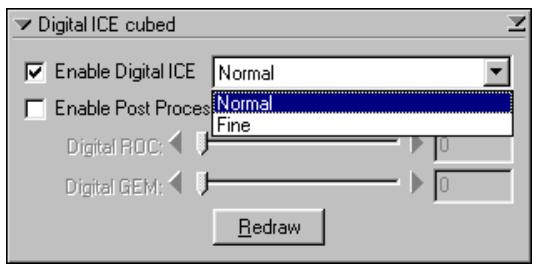
Digital ICE is built into 4000 ED, COOLSCAN IV ED, LS-2000, and COOLSCAN III film scanners, where it is used to remove the effects of dust and scratches from images during scanning. To use Digital ICE, check the Enable Digital ICE box and choose a mode from the menu shown below.
Item
Description
4000 ED/COOLSCAN IV ED
| Normal | The image is processed digitally to remove the effects of scratches and dust. The effects are reflected in the Natural tab in the pre-view area. |
| Fine | This setting is effective in removing the effects of very thin scratches or dust that is barely visible. It may, however, result in reduced sharpness. The effects are reflected in the Natural tab in the preview area. |
LS-2000/COOLSCAN III
| Normal | The image is processed digitally to remove the effects of scratches and dust. The effects are reflected in the Natural tab in the preview area. |
| Sharpen | The image is processed digitally to remove the effects of scratches and dust. Edges are sharpened while defects are corrected. The effects are reflected in the Natural tab in the preview area. |

When the Enable Digital ICE check-box is on, the information display in the scan window shows the option selected in the Digital ICE menu.
Turn Digital ICE3 off when using the FH-GI Medical Holder (available separately) to scan prepared microscope slides. Using Digital ICE3 to scan prepared slides may produce undesirable results.

Digital ICE is equivalent to the "Defect Correction" function in Nikon Scan 2.

Digital ICE does not perform equally well with all types of film. If you are using Kodachrome film, you may find that Digital ICE does not have the desired effect, or that there is an overall degradation in image quality when Digital ICE is in effect. We recommend you turn Digital ICE off when using black-and-white (color monochrome film excepted) or Kodachrome film.

Because of the complexity of the processing involved, scans performed using Digital ICE requires longer scanning times.
Digital ROC
Digital ROC, a tool for digitally restoring colors lost through fading of the original media, is built in to 4000 ED and COOLSCAN IV ED film scanners. To use Digital ROC, turn the Enable Post Processing check-box on and then select the amount of correction to be performed using the Digital ROC slider or by entering a value in the text box to its right. The default setting is “5”; move the slider to the right to increase the effect of Digital ROC, or to the left to decrease its effect. Choose “0” to turn Digital ROC off. To view the results in the Natural tab prior to scanning, click the Redraw button.
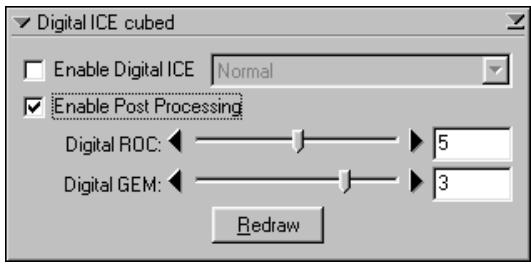

Post-processing using Digital ROC and Digital GEM is not available with the LS-2000 and COOLSCAN III.
Digital GEM
Digital GEM, a tool for digitally reducing the effects of film grain, is built in to 4000 ED and COOLSCAN IV ED film scanners. To use Digital GEM, turn the Enable Post Processing check-box on and then select the amount of correction to be performed using the Digital GEM slider or by entering a value in the text box to its right. The default setting is "3"; move the slider to the right to increase the effect of Digital GEM, or to the left to decrease its effect. Choose "0" to turn Digital GEM off. To view the results in the Natural tab prior to scanning, click the Redraw button.
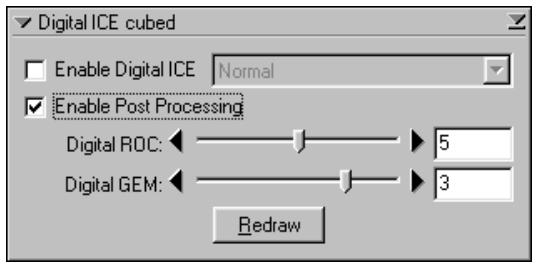

Digital ROC and Digital GEM
The current status of the Digital ROC and Digital GEM checkboxes is shown in the information display in the scan window. If changes are made to these settings without redrawing the preview image, a warning icon will appear in the information display.

Digital ROC and Digital GEM
Because of the complexity of the processing involved, Digital ROC and Digital GEM require a substantial amount of time to perform. To speed scanning, you can disable these features before making a scan by turning Enable Post Processing off. You can also save time by making a scan without first clicking Redraw to preview the effects of Digital ROC and Digital GEM.
Note that if the color model is not set to grayscale, using Digital ROC with monochrome film may introduce colors into the image.
We recommend that you increase the amount of memory available to Nikon Scan or the host application to at least 128 MB when using Digital ROC or Digital GEM on a Macintosh.
The Digital ICE3 Settings Menu
Clicking the triangle at the top right of the Digital ICE Cubed palette displays the Digital ICE settings menu, where you can save or export image Digital ICE settings and recall them as desired.
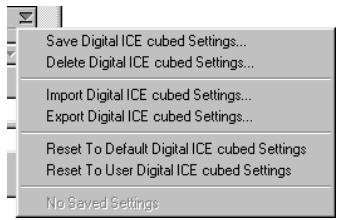
The Digital ICE3 settings menu contains the following options:
| Item | Description |
| Save Digital ICE Settings... | Saves the current settings under a user-speci-fied name. These settings will be added to the end of the Digital ICE3 settings menu, where they can be recalled by selecting the desired settings by name. |
| Delete Digital ICE Settings... | Displays a dialog where you can select set-tings saved using the Save Digital ICE Set-tings... option for deletion. |
| Import Digital ICE Settings... | Imports settings saved using the Export Digital ICE Settings... option. |
| Export Digital ICE Settings... | Exports the current settings to a separate file in the folder of your choice. |
| Item | Description |
| Reset to Default Digital ICE Settings | Turns all Digital ICE3 settings off. |
| Reset to User Digital ICE Settings | Restores the user default settings created with the Set User Settings option in the scan window settings menu (see 88). |
Getting the Most from Your Scanner
Scanner Extras and Analog Gain
The Analog Gain and Scanner Extras palettes give you direct control over the following elements of the scanner firmware:
4000 ED, COOLSCAN IV ED, LS-2000, COOLSCAN III
| Option | Description |
| Analog gain | Adjusts exposure for each of the colored elements in the scanner's light source. |
| Pixel data size | Controls the amount of color information, or bit depth, for each pixel in the image. Bit depth for the COOLSCAN III can not be adjusted. |
| Manual focus adjustment | Allows you to adjust scanner focus manually using a slider or by direct text entry. |
| Calibration | Re-calibrates the scanner after media have been left in the film slot for an extended period. |
| Crop choices (IA-20 (S) only) | Adjusts crop settings for a variety of APS (IX-240) aperture settings. |
| Strip film offset (SA-21/20, SA-30 only) | Adjusts the position of the film to match the scan position. |
4000 ED/COOLSCAN IV ED only
| Option | Description |
| Perform autofocus when film is inserted (MA-20 (S) only) | If this option is checked, an autofocus operation will be performed when a slide is inserted in the MA-20 (S) strip-film adapter. |
LS-2000/COOLSCAN III only
| Option | Description |
| Interpolation method | Controls how the scanner generates “extra” pixels not included in the information from the scanning element. |
| Negative prescan mode | Controls the autoexposure operation performed before scanning negatives, producing excellent results even with low-contrast originals. |
4000 ED/LS-2000 only
| Option | Description |
| Multi-sample scanning | Controls the number of passes the scanner makes over the image to increase accuracy. |
| Slide-feeder scan (SF-200 (S) only) | Sets the number of slides to be scanned each time the Scan button is clicked. |
Analog Gain
The controls in the Analog Gain palette are used to adjust colors by modifying exposure for each of the colored elements in the scanner's light source. Gain is measured in Exposure Values (EVs), the same unit used for exposure compensation on many cameras. The controls for analog gain consist of four sliders: a master slider that adjusts exposure for all elements in the scanner's light source, and separate red, green, and blue sliders for independent adjustments to the red, green, and blue LEDs.
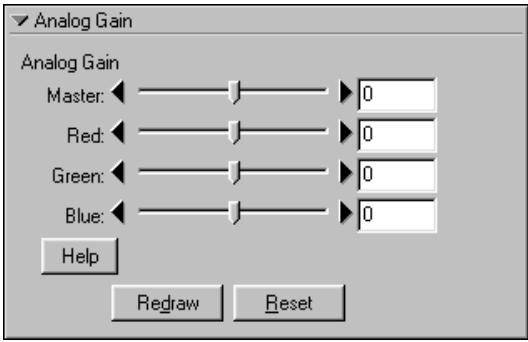

Exposure Value
Exposure Values are a measure of the quantity of light that falls on the scanning element (Charge-Coupled Device, or CCD). At +1 EV, the CCD is exposed to twice the normal amount of light, while at -1 EV, the amount of light is halved. EVs are sometimes referred to as "steps."
To view the effects of analog gain on the image in the preview area, click the Update button. To return the exposure value for all LEDs to ± 0 , click Reset.

The current status of analog gain is shown in the information display in the scan window. If changes are made to analog gain without redrawing the preview image, a warning icon will appear in the information display.

Choosing too high a value for exposure may produce "smear" or other defects in the scanned image.
Scanner Extras
The options available in the Scanner Extras palette depend on the device selected in the active scan window, the scanner firmware version, and the film adapter in use. This section lists the options available for the scanners and adapters supported under Nikon Scan 3.
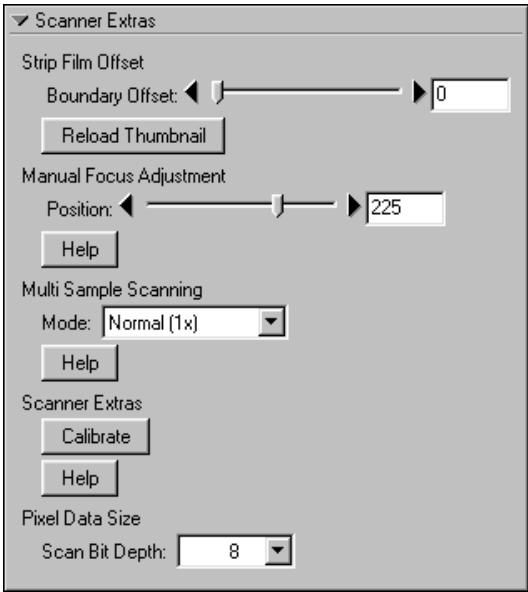
Pixel Data Size
The Scan Bit Depth menu controls the amount of color information in each pixel scanned.


Bit Depth, Color, and File Size
Scanning at a bit depth of eight bits yields 256 shades per pixel for each color in the image (if the image is three-color RGB, the result is 24-bit color, capable of expressing roughly 16.7 million colors). Scanning at a bit depth of twelve bits (COOLSCAN IV ED and LS-2000 only) yields 4,096 shades per color, while scanning at a bit depth of fourteen bits per pixel (4000 ED only) generates 16,348 shades per color. RGB and grayscale images scanned at twelve and fourteen bits are converted to sixteen bits before being opened in the host application, effectively doubling file size. CMYK images are converted to eight bits, but the extra channel produces images one third larger than RGB images scanned at a depth of eight bits.

Firmware
"Firmware" is software built into a hardware device. In the case of Nikon film scanners, firmware upgrades may be available on the web or from your nearest Nikon-authorized service center. For details, contact your Nikon representative or see the following URLs:
North and South America: http://www.nikontechusa.com
Europe: http://www.nikon-euro.com
The latest firmware for the LS-2000 and COOLSCAN III is also available on the Nikon Scan 3 CD.
Manual Focus Adjustment
Manual focus adjustment can be used when you are unable to obtain the desired results using autofocus. Adjust focus using the Position slider or enter a value in the text box to its right. Once set, this focus position will be used until the next time film is inserted in the scanner or Nikon Scan is restarted. To focus the scanner automatically, use the autofocus button in the control area of the scan window.

Multi-Sample Scanning (4000 ED/LS-2000 only)
In "multi-sample scanning," the scanner makes multiple passes over the image and averages the results to reduce the effects of electronic "noise," producing more accurate reproductions with smoother changes in tone.

To use multi-sample scanning, select the desired setting from the Mode menu. The menu contains the following items:
| Mode | Number of passes | Description |
| Normal (1x) | 1 | Multi-sample scanning off. |
| Good (2x) | 2 | Increases precision by the equivalent of one bit per channel. |
| Fine (4x) | 4 | Increases precision by the equivalent of two bits per channel. |
| More Fine (8x) | 8 | Increases precision by the equivalent of three bits per channel. |
| Super Fine (16x) | 16 | Increases precision by the equivalent of four bits per channel. |
Calibration
Under most circumstances, calibration is performed automatically at intervals when no media are inserted in the scanner. If film has been left in the scanner for a long period of time, you may need to remove the film and click the Calibrate button to recalibrate the scanner.

If you are using the MA-20 (S), remove the media from the adapter before clicking Calibrate. If you are using the SA-21/ SA-20 or SA-30, the film while automatically be ejected during calibration and feed back into the scanner when calibration is complete. In the case of the IA-20 (S), you will be prompted to rewind the film before calibration begins.
Interpolation Method (LS-2000/COOLSCAN III only)
Your scanner can scan at 2,700 ppi and at any resolution below this value that can be produced by dividing 2,700 by a whole number (1,350 ppi, 900 ppi, 675 dpi, etc.). At other resolutions, pixels must be calculated by computer algorithm to make up the specified number of pixels per inch. The interpolation method is the algorithm used in generating these extra pixels.
Interpolation Method
Bilinear

The following interpolation methods are available:
| Method | Description |
| Bilinear | Extra pixels are generated using a bilinear algorithm. |
| Neighbor | Extra pixels are generated using a “nearest neighbor” algorithm. |
| None | No interpolation is performed. Note that this may result in the output size for the scanned image being larger than that specified in the Crop palette. |
Prescan Mode (LS-2000/COOLSCAN III only)
With low-contrast images, autoexpo-sure may sometimes fail to produce the correct results. Three options are avail
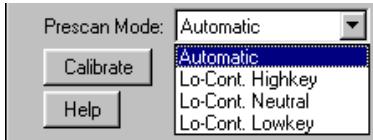
able that allow the autoexposure operation to be adjusted for different types of low contrast image, potentially producing better exposure. Selecting "negative" as the media type activates a menu of autoexposure op-tions in the Scanner Extras palette (see above). Four options are available:
Automatic
This is the recommended setting in most circumstances, suited to images that show a normal balance among shadows, midtones, and highlights. Use a different setting only if you experience problems scanning negatives using the automatic setting.
- Lo-Cont. Highkey
This setting is suited to low-contrast images with clearly-defined white areas, but no clear shadows, for example a photograph of white clouds in a blue sky.

- Lo-Cont. Neutral
This setting is suited to low-contrast images in which mid-tones predominate, with no clearly-defined areas of black or white, for example a photograph of red rose against a green background.

- Lo-Cont. Lowkey
This setting is suited to low-contrast images with clearly-defined black areas, but no clear highlights, for example a photograph of the night sky.
Perform autofocus when film is inserted
This check box is available only when the MA-20 (S) slide-mount adapter is inserted in a 4000 ED or COOLSCAN IV ED film scanner. When this option is checked, an autofocus operation will be automatically be performed when a slide is inserted in the adapter film slot.
Scanner Extras

Auto focus when film is inserted
Trip Film Offset
This option is available when a strip-film adapter (SA-21/SA-20 or SA-30) is inserted in the scanner, when it allows you to adjust the position of the film. To use this option, the thumbnail drawer must be open with thumbnails displayed. Select the desired thumbnail and adjust its position using the Boundary Offset slider or by entering a value in the text box to its right (inthe case of the 4000 ED and COOLSCAN IV ED, the maximum and minimum values are 0 and 144 respectively for the first frame and -144 and 144 for all subsequent frames, while in the case of the LS-2000 and COOLSCAN III, the offset ranges from -127 to 127 for all frames). If the bottom of the thumbnail is cut off, move the slider to the right to bring it into position; if the top is cut off, move the slider to the left (note that the direction of adjustment changes when the thumbnails are flipped or rotated). Click the Reload Thumbnails button to view the effects of any adjustments in the thumbnail drawer.
IX240 Crop Choices
IX240 crop choices for APS (IX240) film are available when the IA-20 (S) adapter (sold separately) is inserted in the 4000 ED, COOLSCAN IV ED, LS-2000, or COOLSCAN III.
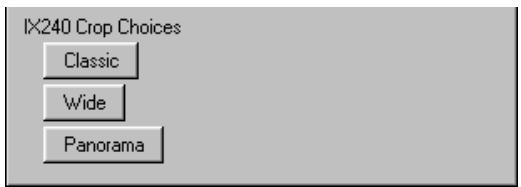
The following crop choices are available:
| Method | Description |
| Classic | The initial crop is adjusted to suit the “classic” setting for APS (IX240) cameras. |
| Wide | The initial crop is adjusted to suit the “wide” setting for APS (IX240) cameras. |
| Panorama | The initial crop is adjusted to suit the “pan-orama” setting for APS (IX240) cameras. |
Slide Feeder Scan (4000 ED/LS-2000 only)
This option is available when the SF-200 (S) slide feeder (sold separately) is inserted in the 4000 ED or LS-2000. To specify the number of slides scanned when the Scan button is clicked, enter the desired number in the Feed Images text box. To scan all slides in the feeder, enter a large value, for example "999."

Getting the Colors You Want:
The Curves, Color Balance, and LCH Editor Palettes
When scanning, you may come across images that are over- or under-exposed, obliterating details in highlights or shadows, or that show a general lack of contrast. You may also find that the colors are "flat" or unnaturally vivid, or that fluorescent lighting has given your photograph a greenish tinge. These flaws can be corrected using Nikon Scan's three color enhancement tools: Curves, Color Balance, and the LCH Editor.
Of the three, the Color Balance palette is most useful when you want to make changes to brightness, contrast, and color balance that affect the entire image. This kind of adjustment may, however, result in loss of detail in highlights or shadows. The Curves tool, in contrast, allows adjustments to be made to specific portions of the tone range in highlights, mid-tones, and shadows.
The LCH Editor is useful when adjusting the vividness, or saturation, of colors. It can also be used to map a specific range of colors in the original image to a different range of colors in the output.
Curves
The main editing tool in the Curves palette is the curve edit display, which contains a curve showing the relationship between input (the tone information in the image prior to editing) and output (how these tones will be represented after changes to curves are applied). Separate curves control the relationship between input and output for the image as a whole (the "master curve") and for each of the components, or "channels," in the current color model (red, green, and blue in the RGB model, or cyan, magenta, yellow, and black in the CMYK model; only one channel is available in the case of grayscale images). The default curve in each case is linear, meaning that tones will be output exactly as they are input.
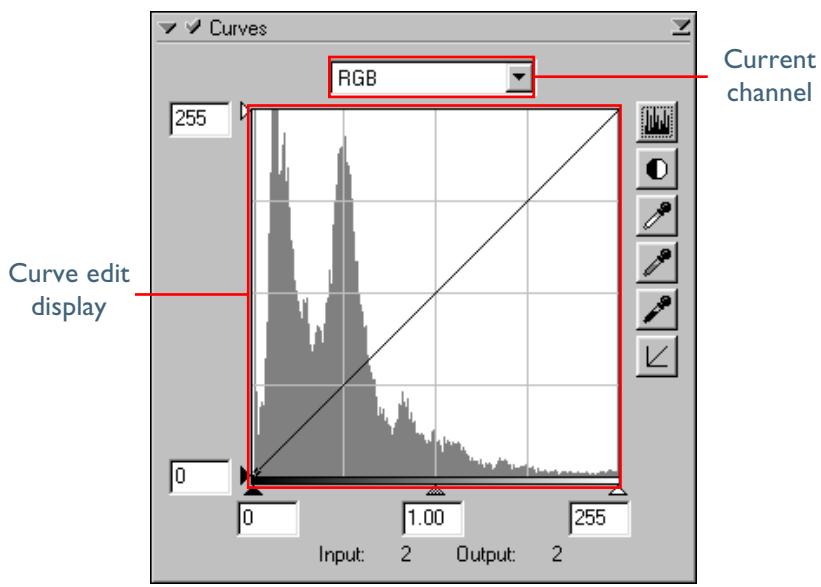
Input is plotted along the horizontal axis, with shadows (the dark areas of the image) to the left, highlights (the bright areas of the image) to the right, and mid-tones in between. The left end of the axis marks the minimum possible value for colors in the selected channel (zero, or no color), the right end the maximum value. In the case of the master curve, the minimum value represents areas of the input image that are a true black; the maximum value represents areas that are a true white. Output is plotted along the vertical axis, with the minimum possible output value (again, zero, or no color) at the bottom and the maximum output value at the top.
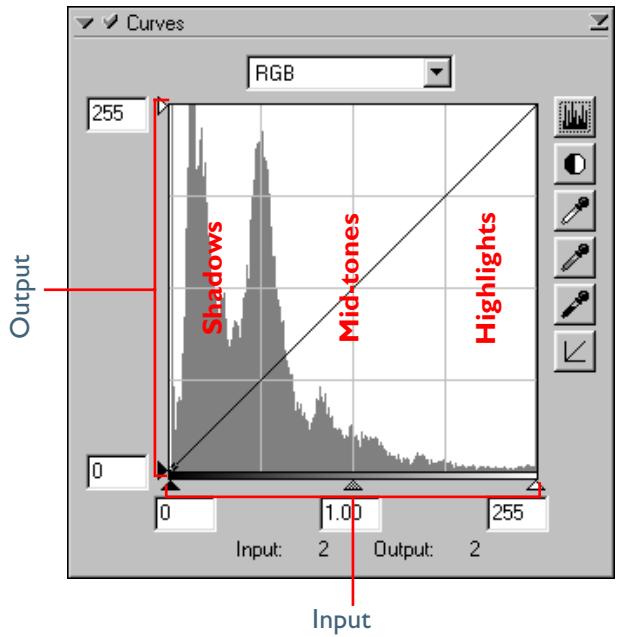
When the cursor is moved over the curve edit display, the input and output values for the point under the cursor are shown in the input/output display. The input value represents the level of the pixel in the original image, the output value the level of the pixel after any changes to the curve have been applied.
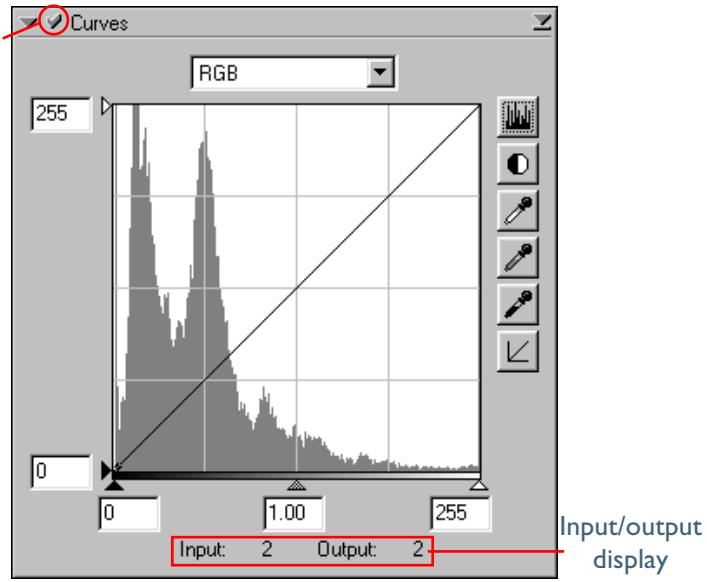
Apply check box

Changes to curves only apply when the check-box at the top left of the Curves palette is checked. When this box is checked, changes to curves will be visible in the image being edited. The box can be checked and unchecked for a quick "before-and-after" comparison, allowing you to see whether changes to curves are having the desired effect.
Step I—Viewing the Histogram
The first step in adjusting tone levels and color balance in the Curves palette is to view the histogram displayed in the background of the curve edit display. The histogram provides information on what tones are present in the image and in what amounts, information that you will use when editing curves to make the most of the tone range in the original image. By studying the histogram, you can determine the distribution of tones within the image.
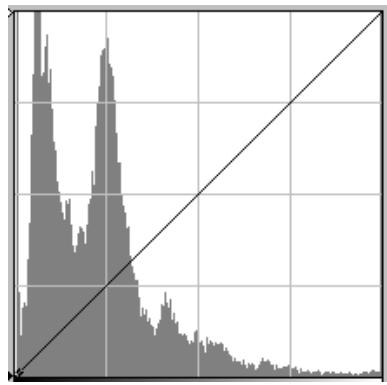

Although values for input and output in the Curves window range from zero to 255 (eight-bit precision, familiar to users of other image editing software), the results of any changes to curves are calculated at a precision of sixteen bits. This makes it possible to modify images scanned at bit depths of twelve and fourteen bits without lowering the quality of the output.
The histogram takes the form of a bar graph. The horizontal axis shows the tone level (pixel brightness) as a value from 0 to 255, with the minimum possible value for colors in the selected channel at the left end of the axis and the maximum value to the right (if the selected color model is RGB, calibrated RGB, or grayscale, shadows are to the left and highlights to the right, while when CMYK is selected highlights are to the left and shadows to the right). The vertical axis gives the number of pixels of each tone level found in the image, scaled to fit in the curve edit display. The histogram bears no relation to the position of the individual pixels within the image.
To view the distribution of tones in the final, output image after changes to curves, click the histogram button ( ). Click again to view the distribution of tones in the original image.
Step 2—Channel Selection
You can modify tones for all colors in the image using the master curve, or select any of the red, green, and blue or cyan, magenta, yellow, and black curves for editing using the channel menu (see right; when grayscale is selected, only the master curve [L] is displayed). The histogram shows tone levels for the selected channel only.
When the master curve is selected, the auto-contrast button and white-point and black-point eyedropper tools (see below) apply simultaneously to all of the component channels (the master curve is unaffected). When one of the component channels is selected, these controls can be used to edit the chosen curve only.
| RGB | |
| RGB | Ctrl+~ |
| Red | Ctrl+1 |
| Green | Ctrl+2 |
| Blue | Ctrl+3 |

The current channel can also be selected using the following shortcuts:
- Ctrl 1 (Windows)/8 1 (Macintosh)
Red channel (RGB)/Cyan channel (CMYK)
- Ctrl 2 (Windows)/82 2 (Macintosh)
Green channel (RGB)/Magenta channel (CMYK)
- Ctrl 3 (Windows)/3 3 (Macintosh)
Blue channel (RGB)/Yellow channel (CMYK)
- Ctrl 4 (Windows)/84 (Macintosh)
Black channel (CMYK)
Step 3—Setting the White Point and Black Point
The endpoints of the curve are referred to as the "white point" and the "black point." The black point for a given channel represents the darkest shade (minimum value) for that color, the white point, the brightest shade (maximum value). In the CMYK color model, the black point is at the right end of the curve and the white point at the left, while in all other color models the white point is at the right end of the curve and the black point at the left.
By default, the input and output values for the black point are zero. The darkest shade in the input image may however be greater than zero, with the result that a portion of the curve is dedicated to reproducing tones not actually present in the image. Increasing the input value for the black point until it matches the darkest shade in the image will steepen the curve, enhancing overall contrast without causing a corresponding loss of detail in shadows. Similarly, if the original image does not actually contain shades corresponding to the maximum value, the white point can be lowered to match the brightest shade in the image.
There are two steps to selecting a white point and black point for the final image: choosing the white-point and black-point input levels, and selecting output levels.
White-Point and Black-Point Input Levels
Input levels for the white point and black point can be set using any of the following three methods:
- automatic contrast adjustment
- white-point and black-point sliders
- direct sampling using the white-point and black-point eyedropper tools
Automatic Contrast Adjustment
In automatic contrast adjustment, Nikon Scan automatically selects white and black points that exclude a certain percentage of the brightest and darkest pixels in the image, steepening curves for enhanced contrast (the exact percentage of pixels excluded can be specified in the Preferences dialog). By default, 0.5% of the brightest and darkest pixels are excluded, producing a curve that makes optimal use of the output tone range while preserving details in shadows and highlights.
To perform an auto contrast operation, click the auto contrast button (O). The white and black points for each of the red, green, and blue channels will be modified simultaneously (the master curve is unaffected). Clicking the button with the Ctrl (Windows) or option (Macintosh) key held down adjusts contrast only for the channel currently selected in the channel menu. If both the brightness and color balance of the image seem to require adjustment, click the auto contrast button to adjust both brightness and color by creating new black and white points based on tone information for the current crop. If you are satisfied with color balance but feel that brightness and contrast require adjustment, select the master channel and click the auto contrast button while holding down the Ctrl (Windows) or option (Macintosh) key. This will adjust brightness without affecting the curves for the component colors.

Pg. For more information on:

134 Preferences—setting the “excluded” value for auto contrast operations
White-Point and Black-Point Sliders
The white-point and black-point sliders can be used to match the white and black points to the histogram displayed in the curve edit display.
To edit the white point or black point, click the corresponding slider once to activate it, then drag it to the right or left (a value can also be entered directly in the text box underneath the slider). Matching the black-point slider with the lowest input value displayed in the histogram will set the minimum output value for the selected channel to the darkest pixel actually present in the image, steepening the curve and enhancing contrast without sacrificing detail in shadows. Similarly, matching the white-point slider with the highest input value displayed in the histogram will set the maximum output value for the selected channel to the brightest pixel present in the image, enhancing contrast without loss of detail in highlights. Any changes are applied instantly to the active image.
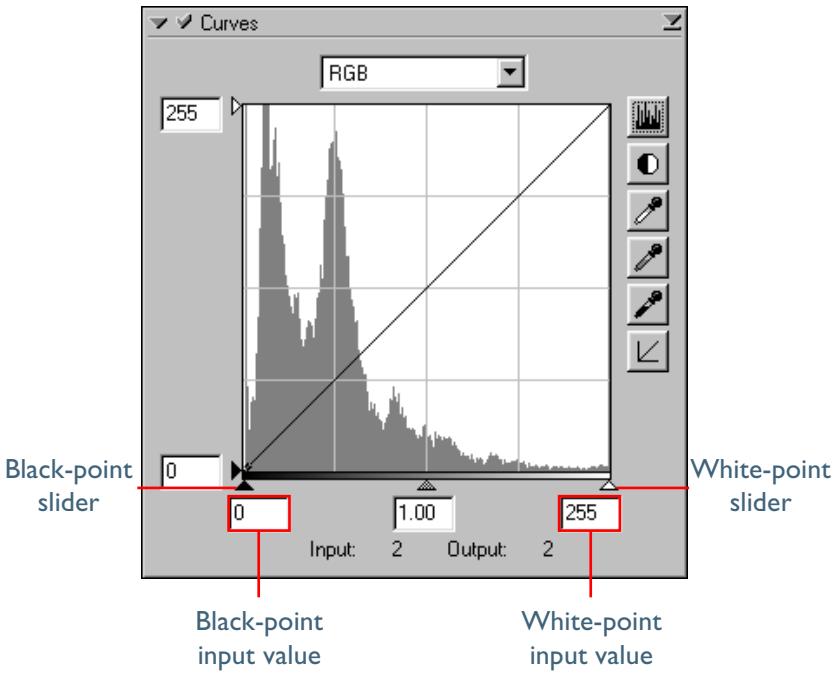
Sampling the Image for White Point or Black Point
The white point or black point can be set by directly sampling the image, allowing you to choose the pixels that will be used to set the maximum (white point) or minimum (black point) output value. This makes it possible to set the black point by matching it to a pixel in the darkest part of the image containing detail you want to preserve, eliminating details in darker areas that are not important to the final image. Similarly, you can match the white point to a pixel in the brightest area of the image containing details important to the final image. While direct sampling can be used with any channel, it is most effective when used with the master curve. When the master curve is selected, sampling will set the white or black point for red, green, and blue curves simultaneously; the master curve itself is unaffected.

Setting white/black points for the current channel
By default, sampling sets the white point or black point for all channels. To set the white point or black point for the current channel only, sample the image while holding down the Ctrl key (Windows) or option key (Macintosh) on the keyboard. To adjust brightness and contrast without affecting color, select the master channel and sample the image while holding down the Ctrl key (Windows) or option key (Macintosh) on the keyboard.
To sample the white point, click the button. When the cursor is moved over the active image, it will take the shape of an eyedropper. Move the cursor over the image to find the pixel that you want to use to set the white point, keeping an eye on the color value display in the Information palette to identify the pixel with the highest input value. With the cursor over the target pixel, click the mouse button. The input value for the selected pixel will be used as the input value for the white point. The cursor will return to its original shape, and the image will automatically be altered to reflect the new value for white point.
To sample the image for the black point, click the button and move the eyedropper cursor over the image until you find the point that you want to use to set the minimum input value, then click the mouse button to select the black point.

Pg. For more information on:

135 Setting the sample-point size
White Point and Black Point Output Levels
Once you have set the input level for the black point and white point, output levels can be altered to reflect the actual shade of the darkest and brightest pixels in the image. If the darkest shade in the image represents a true black, for example, the output level for the black point can be left at zero. If, however, darkest shade present in the image is a lighter color, the output level for the black point can be raised to achieve more natural coloration.
The output levels for the white point and black point are set using the white-point and black-point output sliders on the left side of the curve edit display.
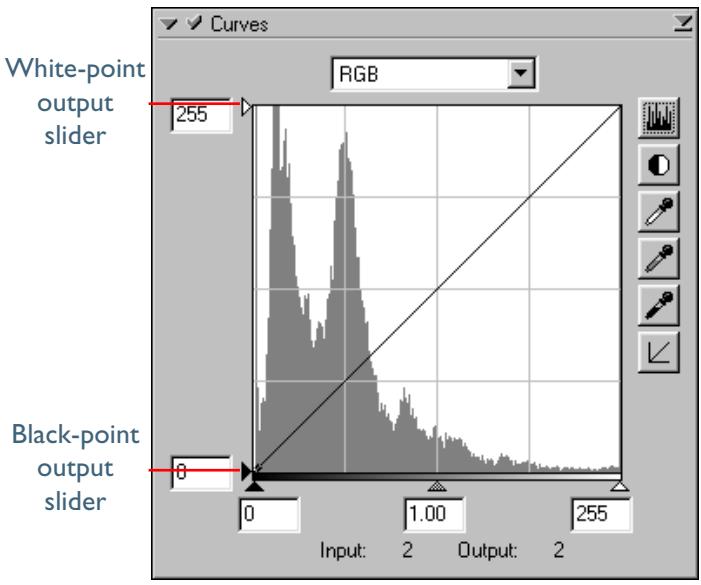
To set the output level, click the slider once to activate it, then drag it up or down until you have found the desired output level (the output level can also be set by entering a value directly in the text box to the left of the slider). The effects of the change will be reflected in the active image.

It is sometimes the case that the darkest and lightest points of the image should not be displayed or printed as a saturated black or white, even where the colors in the original image represent a true black or true white. The reasons for this are varied, but include:
- The need to reduce the amount of ink consumed by making blacks less saturated
- The need to prevent an undesirable line from appearing when a true white is printed using ink (for example, when printing whites on a colored background)
- The need to prevent distortion on monitor or television sets caused by very strong or very weak signals at the edges of the screen

Pg. For more information on:

134 Setting default output values for the eyedropper tools
Step 4—Setting the Gray Point
The point midway between the maximum and minimum input values is known as the "gray point" (or "midpoint"). This point represents a neutral shade corresponding to an output level of 128. The gray point is controlled by a gray-point slider at the bottom of the curve edit display. Moving the gray-point slider to the left increases the brightness of mid-tones without "washing out" details in highlights. Moving the slider to the right darkens mid-tones without obliterating detail in shadows.
The Gray-Point Slider
The gray-point slider is located at the bottom of the curve edit display.
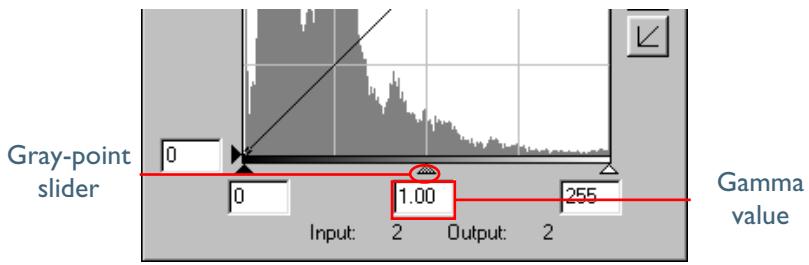
After clicking the slider once to activate it, move it to the left to increase the brightness of mid-tones in the selected channel, or move it to the right to decrease brightness. Alternatively, you can enter a value for gamma directly in the text box under the slider. The effects of changes to the gray point can be seen in the active image.

Gamma
Gamma (also written “ )” is a fundamental property of video systems, one that determines the intensity of the output signal relative to the input. When calculating gamma, the maximum possible input intensity is assigned a value of one, and the minimum possible intensity (no input) is assigned a value of zero. Output is calculated by raising input to a power that is the inverse of the gamma value ( output = input^(1/) ). In practical terms, raising the gamma value has the same effect as moving the gray-point slider to the left, raising mid-tone output values and brightening the image while leaving the maximum and minimum values untouched. Lowering the gamma value has the same effect as moving the gray-point slider to the right, lowering mid-tone output values and darkening the image. The default value for gamma is one, which produces a linear curve. Gamma can be set to any value between 0.45 and 3.00.
Sampling the Image for Gray Point
The gray point can also be set by direct sampling. Sampling the image leaves the selected pixel at its current brightness while adjusting color balance by altering the gray point for each of the component channels in the image.
To sample the gray point, click the button. When the cursor is moved over the active image, it will take the shape of an eyedropper. Move the cursor over the image to find the pixel that you want to use to set the gray point, keeping an eye on the color value display in the Information palette to identify pixels with a neutral input value (look for pixels that you think should be a neutral gray color in the final image). With the cursor over the target pixel, click the mouse button. The average of the input values for each of the channels in the selected pixel will be used as the reference value for the gray point. The cursor will return to its original shape, and the image will automatically be altered to reflect the new value for gray point (the weight assigned to each channel when determining the average value can be set using the "Gray point target" option in the Advanced Color tab of the Preferences dialog).

Pg. For more information on:

134 Preferences—Advanced Color
Step 5—Editing Curves Directly
Fine adjustments can be made to brightness and contrast in specific portions of the tone range by adding additional points to the curves for each channel. These points can be freely adjusted by dragging them into new positions, changing the shape of the curve. Steepening the slope in a given portion of the curve will enhance detail in that portion of the tone range. Changing the curve so that input levels in a given portion of the tone range are mapped to higher output levels will brighten tones in the affected tone range; similarly, changing the curve to map input levels to lower output levels will darken tones in the affected range.

The Tool Chest can be resized by dragging its borders (Windows) or by dragging the handle at its lower right corner (Macintosh). The curves edit display changes with the size of the window, allowing you to enlarge the display to a maximum of 256 × 256 pixels. At this size, each of the 256 points on the curve is represented by a separate pixel, granting maximum precision when editing curves.
Adding New Points to the Curve
Move the cursor over the curve edit display and click once to enter curve edit mode. Move the cursor to the position where you would like to add a new point, then click. A new point will be added at this position and the curve will automatically be adjusted to pass through this point. The position of the point can be adjusted by dragging it to a new location within the curve edit display. The image in the active window will automatically be adjusted to reflect changes to the curve.
Removing Points from the Curve
Points can be removed from the curve by dragging them out of the curve window.
Resetting Curves to Linear
The default linear curve for the current channel can be restored by clicking the button in the Curves palette. To return all curves to linear, hold down the Ctrl (Windows) or option (Macintosh) key on the keyboard while clicking the button.
The Curves Settings Menu
Clicking the triangle at the top right of the Curves palette displays the Curves settings menu, where you can save or export curve settings and recall them as desired.
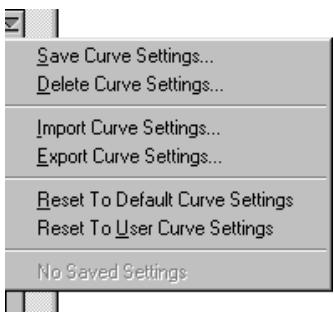
The Curves settings menu contains the following options:
| Item | Description |
| Save Curve Settings... | Saves the current curves under a user-speci-fied name. These settings will be added to the end of the Curves settings menu, where they can be recalled by selecting the desired set-tings by name. |
| Delete Curve Settings... | Displays a dialog where you can select set-tings saved using the Save Curve Set-tings... option for deletion. |
| Import Curve Settings... | Imports settings saved using the Export Curve Settings... option. |
| Export Curve Settings... | Exports the current curves to a separate file in the folder of your choice. |
| Item | Description |
| Reset to Default Curve Settings | Reset all curves to linear. |
| Reset to User Curve Settings | Restores the user default settings created with the Set User Settings option in the scan window settings menu (see 88). |
Color Balance
The Color Balance palette offers simple controls for adjusting overall brightness, contrast, and color balance for the entire image. Unlike the Curves palette, the Color Balance palette does not allow you to make changes that affect only a portion of the tone range.
The controls available in the Color Balance palette are detailed below. Note that when the selected color model is "grayscale," the Color Balance palette contains only brightness and contrast controls, while when "CMYK" is selected the palette contains a slider for each of the cyan, magenta, yellow, and black channels in addition to brightness and contrast controls.
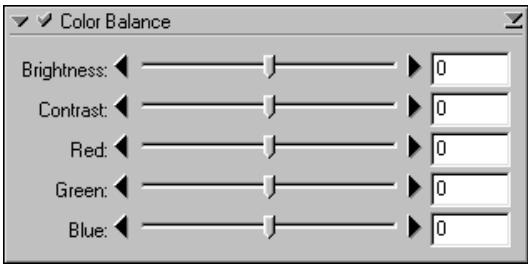
| Item | Description |
| Brightness | The brightness slider adjusts brightness for the entire image. Dragging the brightness slider in the + direction brightens all the colors in the image. Dragging the slider in the - direction darkens all the colors in the image. A value for brightness between -100 and +100 can be entered directly in the text box to the right of the slider. |
| Contrast | Dragging the contrast slider in the + direction heightens the difference between high-lights and shadows in the image, increasing contrast. Dragging the slider in the - direction decreases the difference between light and dark portions of the image, lowering contrast. A value for contrast between -100 and +100 can be entered in the text box to the right of the slider. |

Changes to color balance are only apply when the check-box at the top left of the Color Balance palette is checked. When this box is checked, changes will be visible in the image being edited. The box can be checked and unchecked for a quick "before-and-after" comparison, allowing you to see whether changes to color balance are having the desired effect.
| Item | Description |
| Color balance (not available when grayscale is selected) | While the brightness slider adjusts brightness for the image as a whole, the color-balance sliders (one for each channel in the current color model) allow the user to adjust brightness for each color individually. For example, when the RGB color model is selected, dragging the red slider in the + direction brightens the red portions of the image, making the image as a whole more red. Dragging it in the - direction dims the red elements in the image, bringing out the remaining colors. Color balance can also be set by entering values directly in the text boxes to the right of the sliders. |
The Color Balance Settings Menu
Clicking the triangle at the top right of the Color Balance palette displays the Color Balance settings menu, where you can save or export colorbalance settings and recall them as desired.
| Save Color Balance Settings... |
| Delete Color Balance Settings... |
| Import Color Balance Settings... |
| Export Color Balance Settings... |
| Reset To Default Color Balance Settings |
| Reset To User Color Balance Settings |
| No Saved Settings... |
The Color Balance settings menu contains the following options:
| Item | Description |
| Save Color Balance Settings... | Saves the current color-balance settings under a user-specified name. These settings will be added to the end of the Color Balance settings menu, where they can be recalled by selecting the desired settings by name. |
| Delete Color Balance Settings... | Displays a dialog where you can select settings saved using the Save Color Balance Settings... option for deletion. |
| Import Color Balance Settings... | Imports settings saved using the Export Color Balance Settings... option. |
| Export Color Balance Settings... | Exports the current settings to a separate file in the folder of your choice. |
| Reset to Default Color Balance Settings | Reset all brightness, contrast, and color-balance settings to zero. |
| Reset to User Color Balance Settings | Restores the user default settings created with the Set User Settings option in the scan window settings menu (see 88). |
The LCH Editor
The LCH Editor models color using three components, Luminosity (brightness), Chroma (color saturation, or vividness), and Hue, each with its own edit display. The luminosity and chroma displays take the same form as the curve edit display in the Curves palette. By steepening the curve in the luminosity display, you increase the difference between the bright and dark portions of the image, increasing contrast. Steepening the curve in the chroma window increases color saturation, making colors more vivid. Both editors feature a histogram display, auto contrast, and white point, black point, and gray point sliders, allowing you to match the maximum, minimum, and mid-range output levels for luminosity and chroma to the values actually present in the input, making the maximum use of the scanner's dynamic range. They also incorporate output level sliders, making it possible to edit the maximum and minimum values for output.

Changes made in the LCH Editor only apply when the checkbox at the top left of the palette is checked. When this box is checked, changes will be visible in the image being edited. The box can be checked and unchecked for a quick "before-and-after" comparison, allowing you to see whether changes are having the desired effect.
The hue editor features unique controls that grant unparalleled flexibility when editing colors. Using this tool, you can map a specific range of colors in the input to a different range of colors in the output, allowing you to make the reds in the image more orange, for example, or even green or blue.

The LCH Editor can only be used when the Nikon Color Management system (CMS) is on. If Nikon CMS is off, the tools in the editor will be disabled. To use the LCH Editor with a color space that has the same gamut as uncalibrated RGB data obtained directly from the scanner, turn CMS on and select Scanner RGB as the color-space profile for the RGB color model.

Pg. For more information on:

107 Nikon CMS
The desired editor can be chosen from the menu at the top the LCH Editor palette (see below).
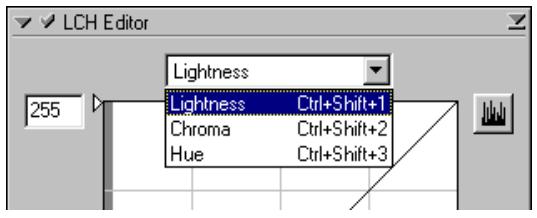

The editor can also be selected using the following shortcuts:
- Ctrl Shift 1 (Windows)/@ option 1 (Macintosh) Luminosity editor
- Ctrl Shift 2 (Windows)/@ option 2 (Macintosh) Chroma editor
- Ctrl Shift 3 (Windows)/@ option 3 (Macintosh) Hue editor
The Luminosity Editor
Although it affects brightness rather than color, editing luminosity has a similar effect to editing the master curve in the Curves palette. Steepening the curve by, for example, lowering the maximum value for input and raising the minimum value increases the difference between light and dark areas of the image, increasing contrast. Changing the gray point alters the brightness of mid-tones while preserving details in highlights and shadows. You can also edit specific portions of the curve for more precise control.

Pg. For more information on:

63 Using the curves editor
The luminosity editor is shown below.
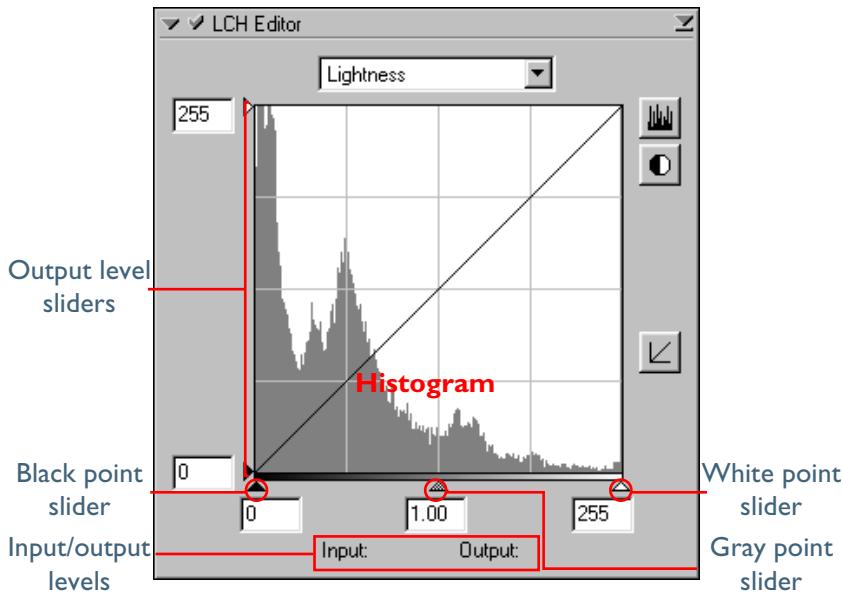
| Item | Description |
| Histogram | Shows the distribution of pixels of different luminosities in the input image. The horizontal axis shows luminosity (0–255), the vertical axis the number of pixels. |
| Output level sliders | Sets the maximum and minimum values for output. |
| Black point slider | Sets the minimum input level. |
| Item | Description |
| Gray point slider | Sets the gray point (gamma value) for luminosity |
| White point slider | Sets the maximum input level. |
| Input/output levels | Luminosity input and output levels for the point under the cursor in the edit display. |
| The distribution of pixels of different luminosities in the output image are displayed when this button is clicked. Click again to view the luminosity distribution for the input image. | |
| Restores the luminosity curve to linear. Control-click (Windows) or command-click (Macintosh) to restore the curves for luminosity, chroma, and hue to linear. | |
| Sets the maximum and minimum values for input to values that exclude 0.5% of the brightest and darkest pixels in the crop. The percentage of pixels excluded can be adjusted using the Advanced Color tab in the Preferences dialog. |

Pg. For more information on:

134 Preferences—Advanced Color
The Chroma Editor
The chroma editor is a useful tool for adjusting color saturation. Steepening the curve increases saturation in the affected range, making colors more vivid. Flattening the curve results in flatter, less vivid colors. Moving the gray point to the left makes the image as a whole more vivid, while moving it to the right "averages out" the differences between colors in the image, making the image grayer overall. In general, the most effective use can be made of the scanner's dynamic range by steepening the curve in the portions of the histogram that contain the greatest number of pixels while leaving colors corresponding to a neutral gray unaffected.
The chroma editor is shown below.
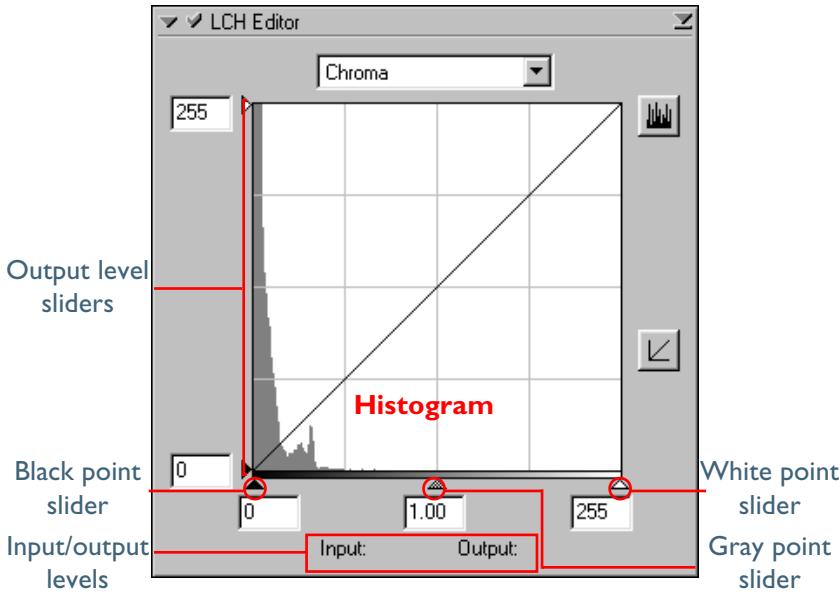
| Item | Description |
| Histogram | Shows the distribution of pixels of different chromas in the input image. The horizontal axis shows chroma, the vertical axis the number of pixels. |
| Output level sliders | Sets the maximum and minimum values for output. |
| Black point slider | Sets the minimum input level. |
| Gray point slider | Sets the gray point (gamma value) for chroma. |
| White point slider | Sets the maximum input level. |
| Input/output levels | Chroma input and output levels for the point under the cursor in the edit display. |
| The distribution of pixels of different chromas in the output image are displayed when this button is clicked. Click again to view the chroma distribution for the input image. | |
| Restores the chroma curve to linear. Control-click (Windows) or command-click (Macintosh) to restore the curves for luminosity, chroma, and hue to linear. |
The Hue Editor
When Hue is selected from the menu at the top of the LCH Editor palette, the editor takes on the appearance shown on the following page. The controls for editing hue are unique, consisting of a rainbow-colored background bisected by a straight line, representing the hues (colors) in the original image. Superimposed on this line is another representing the colors in the image after editing. Before editing, the output line is the same as the input line, so that, for example, reds in the input will be represented as red in the final image. By changing the shape of this line, you can change the relationship between input and output colors over a portion of the color range, with the result that colors that are red in the original might be output as orange, or even green or blue.
The hue editor is shown below.
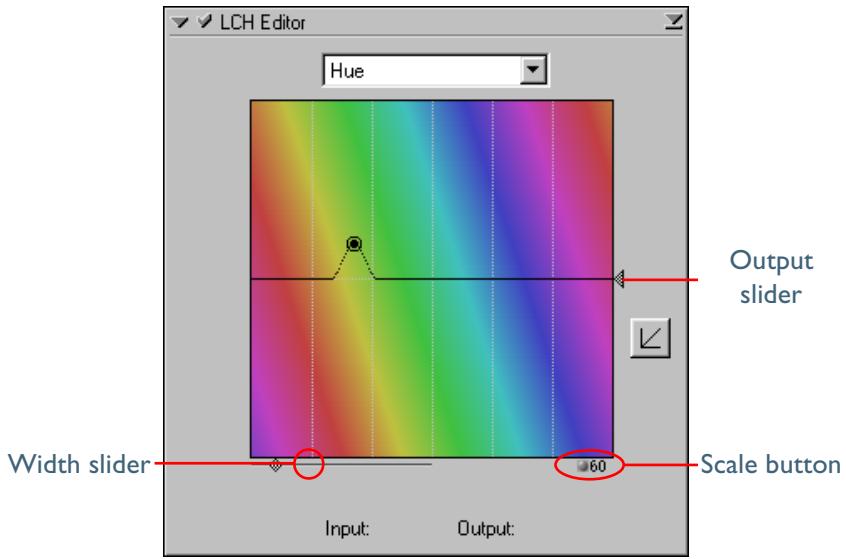
To edit the hue curve, click once in the edit window to activate the hue editor, then click the point on the curve where it intersects with the portion of the background showing the hue you want to edit. To determine the hue of a specific pixel in the input image, move the cursor over the pixel. The point corresponding to the hue of the selected pixel will be highlighted in the hue editor. You can then drag this point up or down until it in intersects with the background color that coincides with the hue you want to appear in the output.
The other controls in the hue editor are described below.
| Item | Description |
| Width slider | Adjusts the width of the curve that passes through the selected point, enabling you to determine what hues in the vicinity of the selected point are affected by the change. |
| Scale button | Changes the vertical scale from 60° through 120° to 180° and back again (the vertical scale indicates what portion of the hues in the full range of 360° range are displayed on the vertical axis). Increasing the scale gives you more hues from which to choose when editing hue, while lowering the scale increases precision. |
| Output slider | Maps all hues in the input to different output hues. |
| L | Restores the hue curve to linear. Control-click (Windows) or command-click (Macintosh) to restore the curves for luminosity, chroma, and hue to linear. |
The LCH Editor Settings Menu
Clicking the triangle at the top right of the LCH Editor displays the LCH Editor settings menu, where you can save or export LCH settings and recall them as desired.

Save LCH Curve Settings...
Delete LCH Curve Settings...
Import LCH Curve Settings...
Export LCH Curve Settings...
Reset To Default LCH Curve Settings
Reset To User LCH Curve Settings
No Saved Settings
The LCH Editor settings menu contains the following options:
| Item | Description |
| Save LCH Curve Settings... | Saves the current LCH settings under a user-specified name. These settings will be added to the end of the LCH Editor settings menu, where they can be recalled by selecting the desired settings by name. |
| Delete LCH Curve Settings... | Displays a dialog where you can select settings saved using the Save LCH Curve Settings... option for deletion. |
| Import LCH Curve Settings... | Imports settings saved using the Export LCH Curve Settings... option. |
| Export LCH Curve Settings... | Exports the current settings to a separate file in the folder of your choice. |
Item
Description
Reset to Default
LCH Curve Settings
Resets the luminosity, chroma, and hue curves to linear.
Reset to User LCH Curve Settings
Restores the user default settings created with the Set User Settings option in the scan window settings menu (see 88).
Making Edges More Distinct
Unsharp Mask
Unsharp Mask is used to increase the sharpness of images by making edges more distinct. Unsharp Mask works by increasing the contrast of the edges in the image while leaving other areas untouched. The degree of sharpness is determined by three factors: intensity, halo width, and threshold.
- Intensity...
...is the amount the contrast of edges will be increased.
- Halo width...
...controls the width of the edges in the image after editing. The greater the halo width, the wider the edges in the sharpened image will appear. Too large a value for halo width will produce a "halo" along edges in the image.
Threshold...
...defines the limit at which sharpening will be applied. If the threshold is zero, sharpening will apply to all edges in the image. Increasing the threshold increases the amount of contrast that must be present between pixels before Unsharp Mask will be applied, with the result that only more distinctly contrasting edges will be affected.
Unsharp Mask sharpens edges without affecting color balance by making adjustments only to luminosity (brightness). The effect is the same as performing Unsharp Mask with the Luminosity channel selected in the Adobe Photoshop Lab color model.
Unsharp Mask can be applied to all the colors in the image or selectively to areas of the image in which red, green, blue, cyan, magenta, or yellow are judged to predominate based on the color information for each pixel. The brightness (luminosity) of the affected pixels is adjusted to sharpen edges without altering color balance. Using the controls in the Unsharp Mask palette, you can create multiple masks, one for each color or all colors and each with different values for intensity, halo width, and threshold.

The amount of Unsharp Mask you will need depends on the size and resolution of the final image. The more pixels in the image, the greater the amount of Unsharp Mask you will need to achieve the same degree of apparent sharpness. Before applying an Unsharp Mask, scale the image to the desired size and resolution.

Unsharp Mask can only be used when the Nikon Color Management system (CMS) is on. If Nikon CMS is off, the tools in the Unsharp Mask palette will be disabled.

Pg. For more information on:

46 Resolution and size

107 Nikon CMS
Creating Unsharp Masks
Step I—Select a color
Select a color from the color pop-up menu. The mask you create will be applied only to edges where the selected color predominates. To create a mask that applies to all colors, select All.
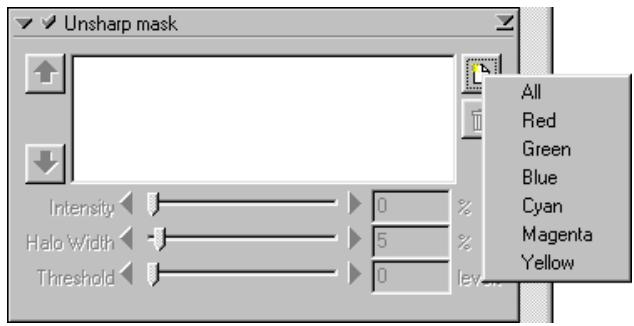
Step 2—Set intensity, halo width, and threshold
Select values for intensity, halo width, and threshold using the sliders, or enter values directly in the text boxes to their right.
Step 3—Check the results
To compare the effects of the Unsharp Mask with the unmodified image, click the check box at the top left of the Unsharp Mask palette to turn the effects of Unsharp Mask on or off.
Step 4—Create additional masks
Repeat steps 1-3 to create additional masks for different colors. As new masks are created, they will be added to the end of the Unsharp Mask list. Masks will apply in the order listed. To change the order in which the masks apply, select a mask in the Unsharp Mask list and click the up arrow to move it up in the list, or the down arrow to move it down. To delete an Unsharp Mask from the list, select it and click the button.

Changes made in the Unsharp Mask palette only apply when the check-box at the top left of the palette is checked.
The Unsharp Mask Settings Menu
Clicking the triangle at the top right of the Unsharp Mask palette displays the Unsharp Mask settings menu, where you can save or export masks and recall them as desired.
Save Unsharp Mask Settings...
Delete Unsharp Mask Settings...
Import Unsharp Mask Settings...
Export Unsharp Mask Settings...
Reset To Default Unsharp Mask Settings
Reset To User Unsharp Mask Settings
No Served Settings:
The Unsharp Mask settings menu contains the following options:
| Item | Description |
| Save Unsharp Mask Settings... | Saves the current masks under a user-specified name. These settings will be added to the end of the Unsharp Mask settings menu, where they can be recalled by selecting the desired settings by name. |
| Delete Unsharp Mask Settings... | Displays a dialog where you can select settings saved using the Save Unsharp Mask Settings... option for deletion. |
| Import Unsharp Mask Settings... | Imports settings saved using the Export Unsharp Mask... option. |
| Item | Description |
| Export Unsharp Mask Settings... | Exports the current masks to a separate file in the folder of your choice. |
| Reset to Default Unsharp Mask Settings | Deletes all masks currently displayed in the Unsharp Mask palette. |
| Reset to User Unsharp Mask Settings | Restores the user default settings created with the Set User Settings option in the scan window settings menu (see 88). |
Reusing Settings
The settings menu in the scan window control area allows you to save or export settings and recall them as desired. You can also create, restore, and delete default settings for multi-frame adapters.
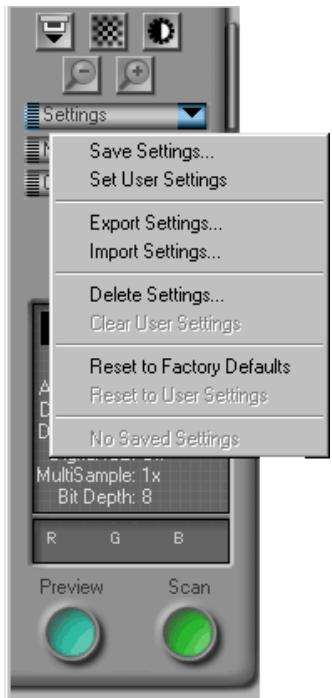
The Settings Menu

The settings for the Crop, Curves, Color Balance, LCH Editor, Unsharp Mask, Nikon Enhancement, and Image Enhancement palettes can be saved and recalled separately using the palette settings menu.
The following settings can be saved and recalled using the options in the settings menu:
- the current scanner, media type, color model, and the dimensions and location of the current crop
- all settings in effect in the Tool Chest, including image orientation and crop, curves, color balance, LCH, Unsharp Mask, and Digital ICE3 settings.
The options in the settings menu are described below.
| Option | Description |
| Save Settings... | Saves the current settings under a user-speci-fied name. These settings will be added to the end of the settings menu, where they can be recalled by selecting the desired settings by name. |
| Set User Settings | Saves the current settings as user default set-tings. These settings can be recalled by se-lecting the Reset to User Settings. Set-tings for a selected palette can be recalled by selecting the “reset to user options” from the palette settings menu. Settings created with the SA-21/SA-20, IA-20 (S), or SA-30 can be used whenever any of these adapters is in place. |
| Export Settings... | Exports current settings to a separate file in the folder of your choice. |
| Import Settings... | Imports settings saved using the Export Set-tings... option. |
| Delete Settings... | Displays a dialog box where you can select settings saved using the Save Settings... option for deletion. |
| Option | Description |
| Clear User Settings | Deletes user settings created with the Set User Settings option. |
| Reset to Factory Defaults | Restores the settings in effect at installation. |
| Reset to User Settings | Restores the user default settings created with the Set User Settings option. Settings created with the SA-21/SA-20, IA-20 (S), or SA-30 can be recalled whenever any of these adapters is in place. |
| Last Saved Settings | Restores the settings most recently saved using any of the Save Settings..., Set User Settings, or Export Settings... options. |

The maximum crop size and other settings differ depending on the adapter and scanner used. When settings for a different scanner or adapter are selected from the settings menu, only those options that apply to the current adapter are affected.
The Nikon Scan Applet
Using Nikon Scan as a Stand-Alone Application
When Nikon Scan is used as a TWAIN source or acquire plugin for another program such as Adobe Photoshop, its role is complete when the Scan button is clicked to scan the image into the host application. Any further operations performed on the scanned image, such as making additional adjustments to color or saving the image to disk, must be performed in the host application.
To make it possible to save or print images without the intervention of a third-party program, a mini-program, or "applet," is included with Nikon Scan. This applet, which starts automatically when you double-click the Nikon Scan 3.0 icon or select Nikon Scan 3.0 from the Windows Start menu, can be used to edit images after scanning, save images in a variety of formats, open previously saved images, and print images.
Starting the Nikon Scan Applet (Windows)
To start the Nikon Scan applet, click Start and select Nikon Scan 3.0 from Programs > Nikon Scan 3.0.
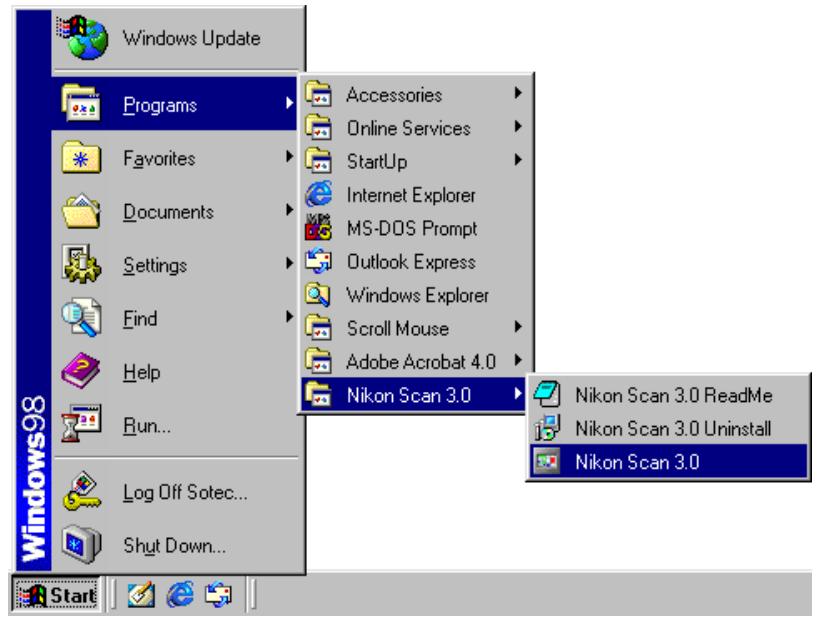
Starting the Nikon Scan Applet (Macintosh)
To start the Nikon Scan applet, double click the Nikon Scan 3.0 icon in the folder to which you installed Nikon Scan (the default location is System Disk : Nikon Software : Nikon Scan 3.0).

Nikon Scan 3.0
The Nikon Scan Window (Windows)
When you start the Nikon Scan applet in Windows, the Nikon Scan 3.0 window, containing a menu bar and toolbar, will open on the desktop. When you click the Scan button in the scan window, the resulting images will be opened separate image windows within the Nikon Scan 3.0 window.
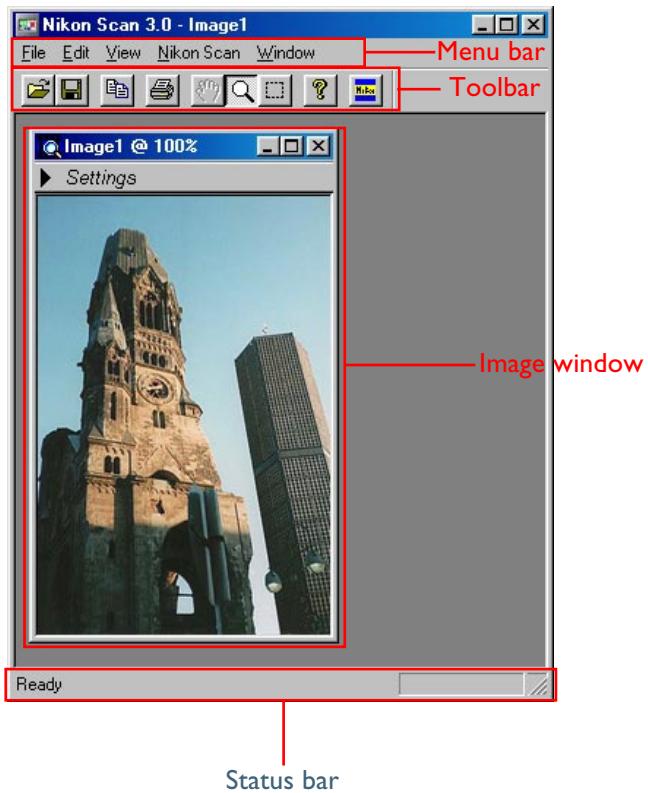
The Menu Bar (Macintosh)
When you start the Nikon Scan applet on your Macintosh, Nikon Scan's menus will appear in the menu bar. When you click the Scan button in the scan window, the resulting images will be opened in separate image windows on the desktop.
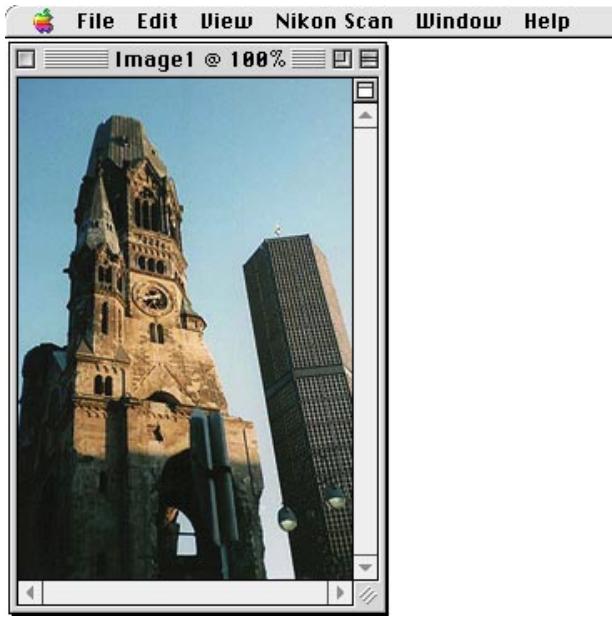
The Toolbar (Windows)
The Windows version of Nikon Scan includes a toolbar that allows access to many commonly used commands with a single click. The toolbar can be dragged out of the menu bar to a new position anywhere within the Nikon Scan window, where it will "float" in an independent window.

The toolbar contains the following buttons:
| Button | Description |
| Open | Duplicates the effects of the Open... command in the File menu. |
| Save | Duplicates the effects of the Save command in the File menu. |
| Copy | Duplicates the effects of the Copy command in the Edit menu. |
| Duplicates the effects of the Print... command in the File menu. | |
| Hand | Duplicates the effects of the Hand Cursor command in the View menu. |
| Button | Description |
| Zoom | Duplicates the effects of the Zoom Cursor command in the View menu. |
| Selection | Duplicates the effects of the Selection Cursor command in the View menu. |
| Help | Click to open the Nikon Scan help file in your web browser. |
| Open Source | Opens the scan window. |
To display or hide the toolbar, select Toolbar from the View menu.
The Status Bar (Windows)
When the cursor is moved over a button or menu, a brief description of its function will appear in the status bar at the bottom of the Nikon Scan 3.0 window. The status bar can be displayed or hidden by selecting Status Bar from the View menu.
Image Windows
Unless Save to Disk is selected in the Preferences dialog, images scanned when Nikon Scan is used as a stand-alone application will be opened in separate image windows within the Nikon Scan applet. An image window is shown below.
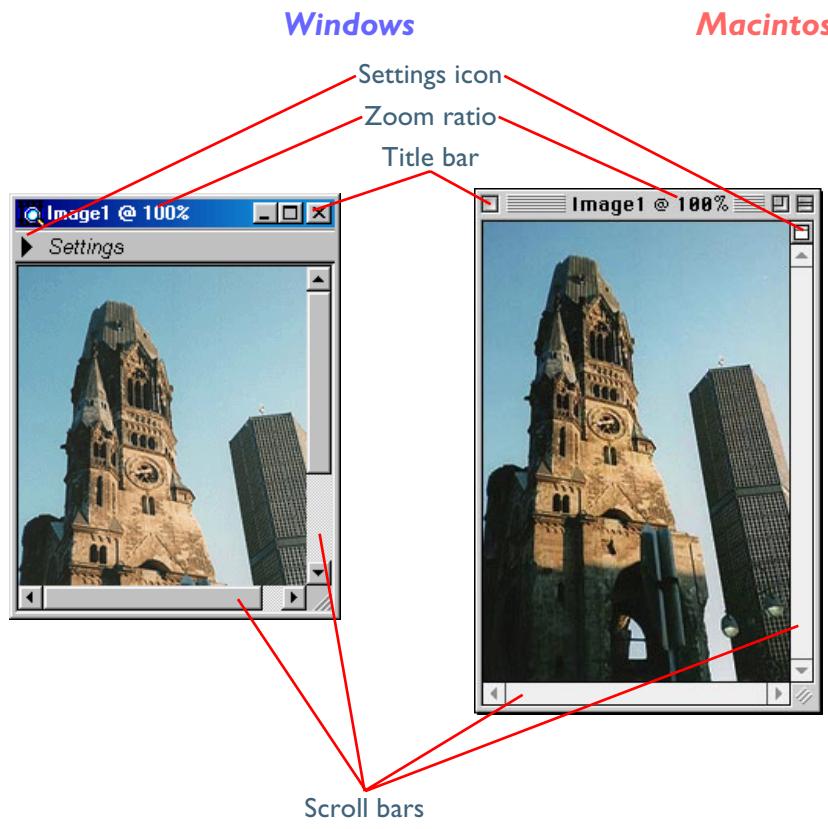

Selecting the active window
If you have multiple windows open in the Nikon Scan applet, you can activate a window and bring it to the front by clicking the window or by choosing it from the windows listed at the bottom of the Window menu.

Image windows
Many of the tools in the Tool Chest can be applied to images in image windows. If multiple images are opened in image windows in the Nikon Scan applet, settings can be adjusted and saved separately for each image. With the exception of images saved in NEF format, the settings in each tool palette will be reset to default values when an image is opened. When an image saved in NEF format is opened, the settings in each tool palette will be reset to the values in effect when the image was saved.

Pg. For more information on:

97 Editing images in the Nikon Scan applet

98 Nikon Electronic image Format (NEF)
Viewing Information about the Image
To view information about the image in an image window, click the settings icon, or select Settings Section from the View menu.
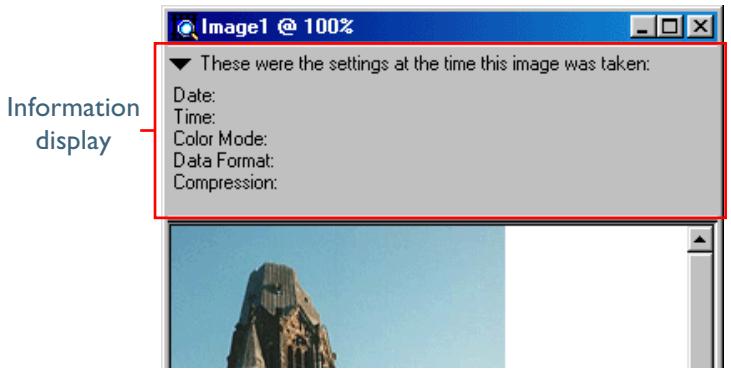
The information display shows the date and time the image was created, the color model, file type and compression, and image size and resolution. To hide the information display, click the settings icon a second time, or select Settings Section from the View menu.

Displaying the layout grid
A layout grid can be displayed on the active window by checking Show Grid in the Layout Tools palette, or by selecting Show Grid from the View menu.
Rotating and Flipping the Image
The image in the active image window can be rotated or flipped using the tools in the Layout Tools palette, or by selecting Rotate CW (rotate clockwise), Rotate CCW (rotate counter-clockwise), Flip Horizontal, or Flip Vertical from the Transform sub-menu in the View menu. To flip the image both horizontally and vertically, select Flip Both Axes from the Transform sub-menu.
Zooming the Image In or Out
You can zoom the image in the image window in or out using either of the methods described below.
The Zoom Tool
To select the zoom tool, either:
- click the button in the Layout Tools palette, or
- select Zoom Cursor from the View menu or using the button in the toolbar (Windows only)
You can then zoom the image in by clicking anywhere within the image window, or zoom the image out by clicking on the image while holding down the Ctrl (Windows) or option (Macintosh) key.

Pg. For more information on:

43 Flipping and rotating images
The View Menu
To zoom in on the image in the active image window, select Zoom In from the View menu. Select Zoom Out to zoom the image out.
If the image no longer fits in the image window, you can scroll it using the image window scroll bars. Alternatively, you can select the hand tool using the Hand Cursor command in the View menu or by clicking the button in the toolbar (Windows only) or Layout Tools palette, and then drag the image in the image window. To view the entire image at the maximum possible zoom ratio, select Fit to Screen from the Window menu. The image can be viewed at a zoom ratio of 1:1 by selecting Actual Size from the Window menu.

Undoing Changes (Macintosh Only)
To undo all changes made to the image since it was last saved, select Revert from the File menu. If the image has yet to be saved, it will be restored to the condition it was in immediately after scanning.
Changing the Bit Depth and Color Model
In the Windows version of Nikon Scan, you can change the color model and bit depth after scanning the image by selecting a new combination of color model and bit depth from the Document Color Space sub-menu in the Nikon Scan menu. The following options are available:
| Option | Description |
| 8-bit Grayscale | Converts the image to eight-bit grayscale capable of expressing 256 shades of gray. Note that color information lost in the conversion can not be restored by converting the image back to RGB or CMYK. |
| 16-bit Grayscale | Converts the image to sixteen-bit grayscale capable of expressing 65,536 shades of gray. Color information lost in the conversion can not be restored by converting the image back to RGB or CMYK. |
| 24-bit RGB | Converts the image to RGB at a bit-depth of eight bits per color (twenty-four bit RGB). |
| 48-bit RGB | Converts the image to RGB at a bit-depth of sixteen bits per color (forty-eight bit RGB). |
| 32-bit CMYK | Converts the image to CMYK at a bit-depth of eight bits per color (thirty-two bit CMYK). |
In the Macintosh version of Nikon Scan, you can change the bit depth of images in the active image window by selecting the desired setting from the Bit Depth sub-menu in the Nikon Scan menu. This can be used, for example, to scan images at a bit depth of more than eight bits, edit them in Nikon Scan, and then convert them to eight bit before saving them in JPEG format.
Copying a Selection to the Clipboard
To select an area of the image and copy it to the clipboard, first activate the selection cursor by clicking the button in the Layout Tools palette or choosing Selection Cursor from the View menu, then drag the cursor over the image to select a rectangular area. While the selection cursor is active, you can change the size of the selected area by dragging its borders, or move it by placing the cursor inside the selected area and dragging it to a new location. Once you have adjusted the selected area to your satisfaction, select Copy from the Edit menu to copy the selection to the clipboard.
Editing Images in the Nikon Scan Applet
Images opened in image windows within the Nikon Scan applet can be edited using many of the tools available in the scan window, including the following tool palettes:
- Layout Tools
Flip, rotate, and scroll images, zoom images in or out, select an area to be copied to the clipboard, and display and hide the layout grid
Information
View information about the color of the pixel under the cursor and the size and location of the current selection
Curves
Adjust contrast and color balance in specific portions of the tone range (shadows, mid-tones, and highlights).
Color Balance
Adjust contrast, brightness, and color balance for the entire image

The image opened in the host application after scanning is the image after any changes made in the scan window to curves, color balance, LCH settings, and Unsharp Mask have been applied. As a result, the controls in these palettes will be restored to their default values when the image is opened in an image window in the Nikon Scan applet.
LCH Editor
Make precise adjustments to brightness, color saturation, and hue
Unsharp Mask
Increase the sharpness of images by making edges more distinct, either over the entire image or where a selected color predominates

Pg. For more information on:

95 Flipping and rotating images

95 Zooming images in and out

96 Copying selections to the clipboard

45 The Information palette

63 Curves

76 Color Balance

78 The LCH Editor

85 Unsharp Mask
Saving and Opening Images
The image in the active image window can be saved under a new name by selecting Save As... from the File menu. The Save As dialog for your operating system will be displayed; after navigating to the desired drive and folder, enter a name for the image, and select a file type from the options available, then save the image. Files saved in a format supported by Nikon Scan can be opened in the Nikon Scan applet using the Open... option in the File menu.

Choosing a Compression Ratio
JPEG and PICT images can be compressed using JPEG compression, in which images are divided into blocks eight pixels on a side and detail within each block selectively reduced. Although raising the compression ratio decreases the file size, it also makes the block pattern more visible and may result in noticeable loss of detail (the actual effect depends on the output scale and the type of subject). It is recommended that you save files at the lowest compression ratio possible; if necessary, you can always save them again at a higher compression ratio.
The compression ratio can be chosen using the compression type menu in the Save As dialog. Five options are available, ranging from Excellent Quality, which offers the lowest compression and highest image quality, to High Compression, which offers the highest compression and lowest image quality.

Choosing a File Type
Nikon Scan supports the following file types:
| Format | Description |
| NEF | NEF, or Nikon Electronic image Format, allows information on curves, color balance, LCH settings, and Unsharp Mask to be saved separately from the image data. You can view the unmodified image data at any time by opening the image in Nikon Scan and hiding changes to settings by clicking the check mark at the top left corner of the appropriate tool palette. NEF can be used to scan images at bit depths of twelve or fourteen bits, with settings in the Digital ICE Cubed (Digital ICE3), Analog Gain, and Scanner Extras palettes adjusted before the image is scanned. You can then save the image in NEF format after adjusting brightness, contrast, color balance, and sharpness in the Nikon Scan applet. You can later open the image, undo the changes or make further adjustments as desired, and then save the results in a different format and in a separate file, repeating the process as often as necessary. NEF is supported only in Nikon Scan and Nikon Capture camera control software for Nikon DI digital cameras. |
| JPEG (EXIF) | JPEG is adequate for images that will be output at low resolution or distributed in electronic form. Images can be compressed, allowing more images to be saved in the same amount of disk space. Note, however, that JPEG compression results in loss of information that can not afterwards be restored. Save files at the lowest compression ratio possible; if necessary, you can always save them again at a higher compression ratio. This format is not available when saving CMYK images or images with a bit depth of sixteen bits per channel. JFIF is the standard JPEG format, widely used in imaging software and web browsers. EXIF is an extension of the JPEG format that allows thumbnail data and information about the image to be included in a JPEG file. This format can be read by most applications that support the JPEG format. |
| JPEG (JFIF) |
| Format | Description |
| TIFF | Use TIFF when saving images for high-quality output or publishing. Images scanned at a bit depth of twelve or fourteen bits or that have been converted to sixteen bits after scanning will be saved as sixteen-bit TIFF, eight-bit images as eight-bit TIFF. CMYK images will be saved as CMYK TIFF. Although the lack of compression will result in larger files, a high level of image quality will be maintained. This file type is supported by a wide variety of applications on a variety of computer platforms. |
| PICT (Macintosh only) | PICT, the generic format used on the Macintosh, supports JPEG compression. Most Macintosh users will be able to view files of this type. This format is not available in the Windows version of Nikon Scan, and does not support CMYK, sixteen-bit grayscale, or sixteen-bit RGB. |
| BMP (Windows only) | This is the generic format used on Windows systems. Most Windows users will be able to view files of this type. This format is not available in the Macintosh version of Nikon Scan, and does not support CMYK, sixteen-bit grayscale, or sixteen-bit RGB. |
Printing Images
The image in the active window can be printed using the printing commands in the File menu.
Windows
Step I—Set up your printer
Before printing, select Print Setup... from the File menu to display the dialog shown below.
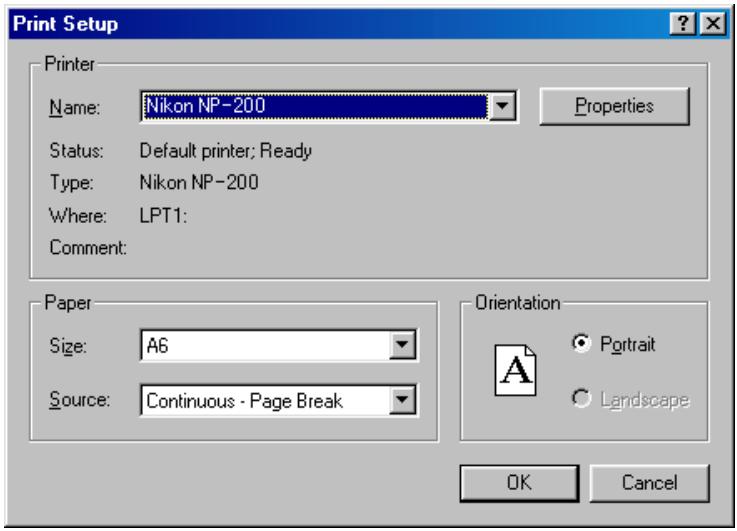
The Print Setup dialog contains the following options:
| Option | Description |
| Name | Select the destination printer from this drop-down list. |
| Properties | Change settings for the selected printer. |
| Size | Choose a paper size. |
| Source | Choose a paper tray. |
| Orientation | Choose from Portrait (tall) or Landscape (wide). |
Step 2—Preview how the image will print
Choose Print Preview... from the File menu for a preview of how the image will print at current settings.
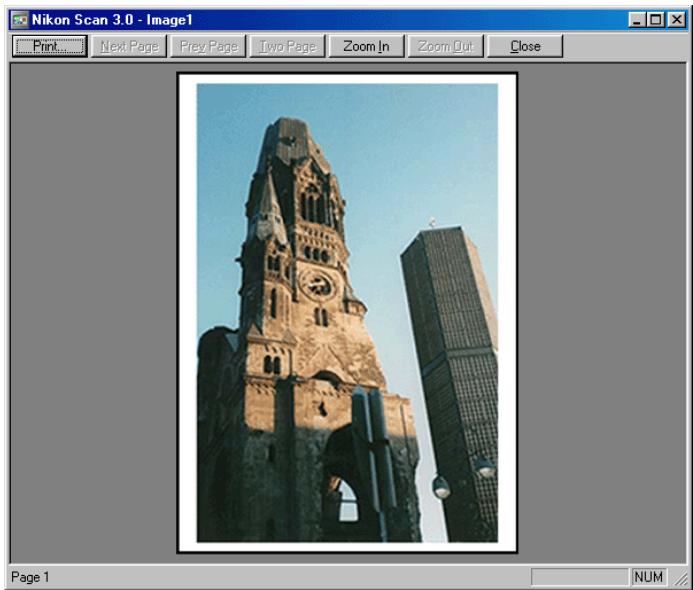
The Print Preview window contains the following buttons:
| Button | Description |
| Displays the Print dialog (see below). | |
| Next Page | Previews the next page of a multi-page document. |
| Prev Page | Previews the previous page of a multi-page document. |
| Two Page | Displays a multi-page document two pages at a time. |
| Zoom In | Zooms the preview image in. You can also zoom in by clicking on the preview image. |
| Zoom Out | Zooms the preview image out. |
| Close | Closes the Print Preview window. |
Step 3—Print the image
To print the image, click the Print button in the Print Preview window, or select Print... from the File menu (you can also print the image in the active window by clicking the button in the toolbar). The Print dialog will be displayed.
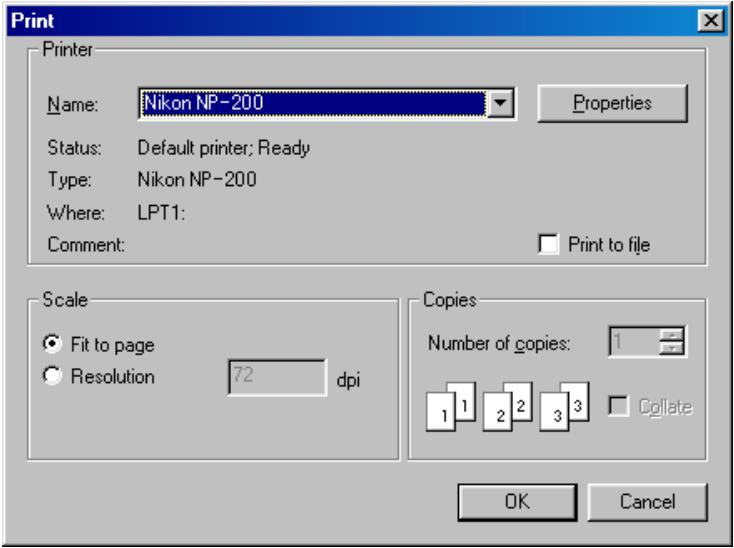
The Print dialog contains the following options:
| Option | Description |
| Name | Select the destination printer from this drop-down list. |
| Properties | Change settings for the selected printer. |
| Print to file | Check this box to print the image to disk. |
| Scale | If the image is larger than the current page size, Select Fit to Page to scale it to fit. Select Resolution to print at a specified resolution. |
| Copies | Enter the number of copies of the image to be printed. |
| OK | Click this button to print the image. |
- If you select the Resolution option for Scale, you can use the following formula to calculate the size of the image when printed:
height or width (in pixels) ÷ output resolution (in ppi)
= output dimensions (in inches; multiply this value by
2.54 to obtain output dimensions in centimeters)
After adjusting settings, click OK to print the image.
Step I—Set up your printer
Before printing, choose a printer, select a page size, and make adjustments to other settings for your printer using the Page Setup... option in the File menu. The options available in the Page Setup dialog depend on the printer currently selected in the Chooser; see your printer documentation for details.
Step 2-Print the image
To print the image, select Print from the File menu to display the Print dialog for the type of printer selected in the Chooser. After choosing a printer, specifying the number of copies to be printed, and adjusting the resolution to match resolution of the image, click Print to print the image.
Scan Window Operations
After editing an image in the Nikon Scan applet and saving it to disk, you may want to open the scan window and adjust settings for another scan.
Opening the scan window
Depending on your platform, one of the following two methods can be used to open the scan window:
- The Tools Sub-Menu
Selecting a scanner from the Tools sub-menu in the Nikon Scan menu opens the scan window for the device.
- Open Source (Windows only)
In the Windows version of Nikon Scan, you can open the scan windows for all connected scanners by selecting Open TWAIN Source from the File menu or by clicking the button in the toolbar.

Nikon Scan does not support simultaneous connection of more than one 4000 ED or of more than one COOLSCAN IV ED. If more than one scanner of the same type is connected, only one of the devices will appear in the Tools menu.
Adjusting scan window settings
When Nikon Scan is used as a stand-alone application, the Nikon Scan menu can be used to adjust a variety of scan window settings. The following options are available:
| Option | Description |
| Preferences... (Windows only) | Opens the Preferences dialog (see 105). |
| Tools | Like the Tools button in the scan window, this sub-menu can be used to open the Tool Chest, Scan Progress window, or the scan window for a selected device (see 40). |
| Settings... | When a scan window is active, this sub-menu offers the same commands as the scan window settings menu (see 88). |
| Color Space (Macintosh) | When a scan window is active, this sub-menu offers the same commands as the scan window color-model menu (see 28). |
| Scan Color Space (Windows) | |
| Document Color Space (Windows only) | Choose a new bit-depth and color model for the image in the active image window. For details, see 96. |
| Bit Depth (Macintosh only) | If the scan window is active, this command can be used to choose a new setting for the Scan Bit Depth option in the Scanner Extras palette (see 57). If an image window is active, you can change the bit depth of the image in the window. For details, see 96. |
| Film Type | When a scan window is active, this sub menu offers the same commands as the scan window media-type menu (see 27). |
| Eject | When a scan window is active, this item performs the same function as the button in the scan window (see 21). |
| Slide Feeder... | When a scan window is active and the SF-200 (S) slide feeder (available separately for the 4000 ED and LS-2000) is inserted in the scanner, this command opens a dialog that mirrors the functions of the slide feeder options in the Scanner Extras palette (see 62). |
Quitting Nikon Scan
To quit Nikon Scan, choose Exit (Windows) or Quit from the file menu. If changes to the image have yet to be saved, you will be prompted to save the image before the program terminates.

When the scan window is active, the View menu offers access to the following scan window controls:
- Show Natural Pane/Show Processed Pane: switches back and forth between the Natural and Processed panes in the preview area.
- Selection Cursor: has the same effect as clicking the button in the Layout Tools palette.
- Focus Cursor: has the same effect as clicking the button in the Layout Tools palette.

Other menu options
For more information on the menu options not covered in this chapter, see the “Nikon Scan Visual Index” in Appendix A.

Pg. For more information on:

43 The Layout Tools palette
Preferences
Fine Tuning Nikon Scan
The settings in the Preferences dialog are used to modify the behavior of the controls in the scan window.
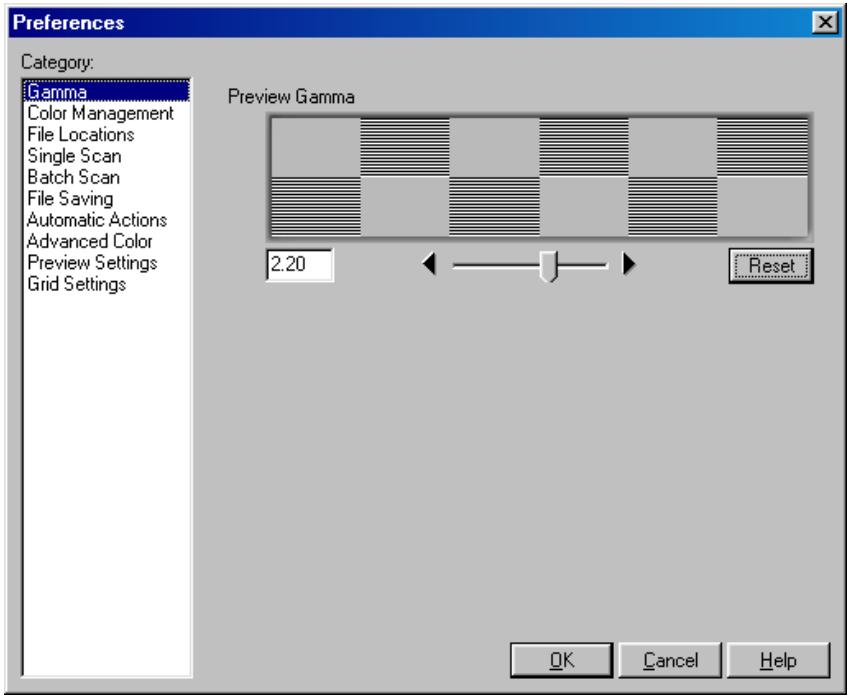
Viewing the Preferences Dialog
To display the Preferences dialog, click thePrefs (Preferences) button in the scan window.
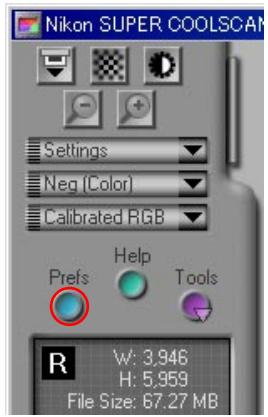
If you are using Nikon Scan as a stand-alone application, you can also open the Preferences dialog by selecting Preferences... from the Nikon Scan menu (Windows) or Edit menu (Macintosh).
The Preferences dialog contains separate tabs controlling:
- The compensation performed when displaying images on the monitor (Gamma)
- The profiles used to ensure consistent color reproduction across applications, as well as on your monitor and printer (Color Management)
- The disk used for temporary storage while Nikon Scan is in operation (File Locations/Scratch Disks)
- The operations performed automatically when scanning images one at a time (Single Scans)
- The operations performed automatically when scanning multiple selected images (Batch Scans)
The default format for saving images (File Saving) - The operations performed automatically when film is inserted in the scanner (Automatic Actions)
- White point, gray point, and black point selection (Advanced Color)
- The operations performed automatically during preview (Preview Settings)
- The color and spacing of the grid displayed when Show grid is checked in the Layout Tools palette (Grid Settings)
Sheets can be displayed by clicking the title of the tab in the list at the left side of the Preferences dialog. After completing changes to settings, click OK to put the changes into effect or Cancel to exit without saving changes.
Keeping Colors True
Nikon Color Management
The Nikon Color Management System, or Nikon CMS, ensures that the image data from your Nikon scanner are reproduced consistently and accurately on your system's monitor or printer. With this powerful tool, you can manipulate colors using either a CMYK or calibrated RGB color model before the data are passed to your imaging application. Profiles detailing the color characteristics of the chosen color model and the output device (monitor or printer) ensure that colors will be reproduced accurately in almost any operating environment.
Nikon CMS involves two preferences tabs, one (the Gamma sheet) for use when Nikon CMS is off and the other (Color Management) for use when Nikon CMS is on. The Gamma tab is where you specify how data from the scanner will be modified for display on your monitor. Because the monitor profile can not be used when Nikon CMS is off, this adjustment must be made manually. The Color Management tab is where you turn Nikon CMS on and off and select the profiles for use with your monitor and the CMYK and calibrated RGB color models.

When to use Nikon CMS
In general, you can expect much better results with Nikon CMS on. You may however want to turn color management off if:
- your computer has a slow CPU
On computers with a fast CPU, the processing required for Nikon CMS consumes less time than the scanner needs to scan an image. Consequently, turning Nikon CMS off will have no effect on overall scanning speed. On computers with a slow CPU, however, the scanner will have to stop and wait while Nikon CMS processes the image. If your computer has a slow CPU, you can try turning color management off to speed scanning.
- you want to edit data from the scanner directly
Advanced users may want to turn Nikon CMS off to edit uncalibrated RGB data from the scanner.
How Nikon CMS Works
When image data are passed from an input device, such as a scanner, to an output device, such as a monitor or printer, color management ensures that the image displayed on the output device "looks the same" as the original. To accomplish this task, the color management system must have information about the color characteristics of both the input and output devices, as well as the color space used for editing. The files containing this information are called "ICC profiles." Nikon Scan uses the following three types of profile:
- Input Profiles
Input profiles provide information on the input device, i.e., your Nikon scanner. Fixed profiles detailing the color characteristics of supported Nikon scanners are provided with Nikon Scan. An input profile is selected automatically based on the model of scanner used and the type of media (positive or negative) being scanned.
Color-Space Profiles
Separate profiles are available for the RGB and CMYK color models. Nikon Scan comes with a selection of profiles for the RGB color model, while CMYK profiles for color printers are usually provided by the manufacturer. Color-space profiles are used when editing images in the scan window and when making the final scan.
Monitor Profiles
Monitor profiles are usually provided by the manufacturer, although profiles for some common monitor types may be included with your operating system. Monitor profiles apply when images are displayed on a monitor, for example when an image is displayed in the preview area or an image window.

Creating a monitor profile
If desired, you can create a monitor profile suited to your operating environment in Adobe Photoshop and use it in Nikon Scan. For information on creating monitor profiles, see the documentation provided with Adobe Photoshop. This option is not available in Adobe Photoshop LE.
The Scanning Process
The illustration below shows the role Nikon CMS plays in the scanning process. CMS profiles are shown in blue, user operations in red.
When Nikon CMS is on, uncalibrated RGB image data from the scanner are converted to grayscale, CMYK, or calibrated RGB, depending on the color model selected in the scan window. CMYK data are processed according to a user-specified CMYK profile, while RGB data are processed according to the profile selected for the calibrated RGB color space. These data are stored in memory so that the color model can be changed without performing another preview scan. Any changes you make using the color enhancement and Unsharp Mask tools also apply to these data. When the image is displayed in the preview window, the monitor profile is used to ensure that the preview image is as true as possible to the data in memory.
When the Scan button is clicked to perform the final scan, the scan data are processed according to the selected color-space profile and any changes that were made using the color enhancement and Unsharp Mask tools in the scan window. The data are then transferred to the host application or opened in image windows in Nikon Scan. Where possible, the color-space profile is transferred to the host application together with the image data. The TWAIN interface used in Windows, however, does not allow profiles to be passed to another application, with the result that under Windows the profile is only transferred to the host when Nikon Scan is used as a stand-alone application. (note that profile information is lost when the image is saved in a format such as BMP that does not allow the profile to be recorded). When images are displayed in Nikon Scan image windows, the monitor profile is used to ensure that the image on the screen reflects the original as closely as possible.
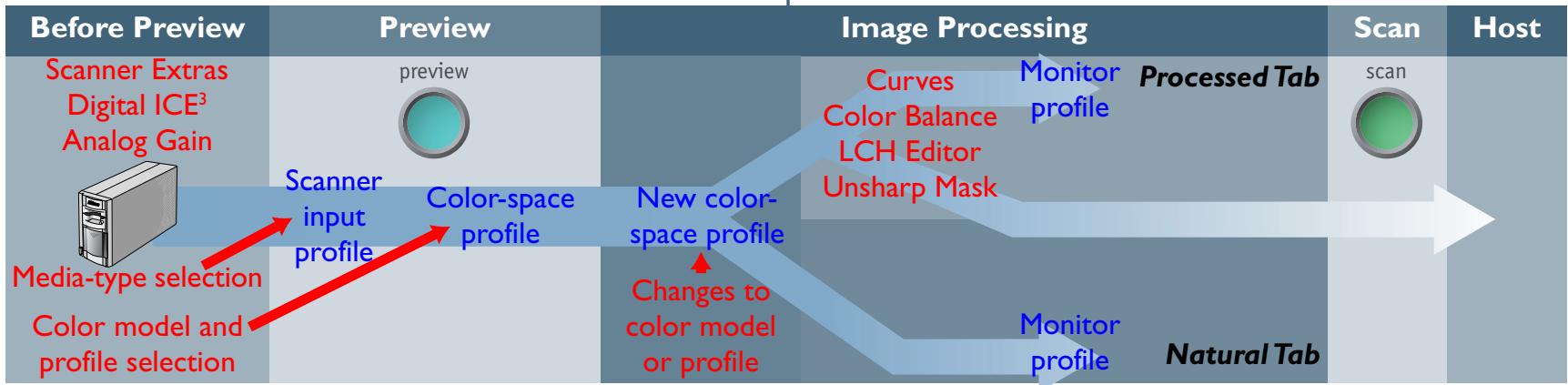
Color Management Preferences
The profiles used by the Nikon Color Management System are specified by means of the Color Management tab in the Preferences dialog, shown below.
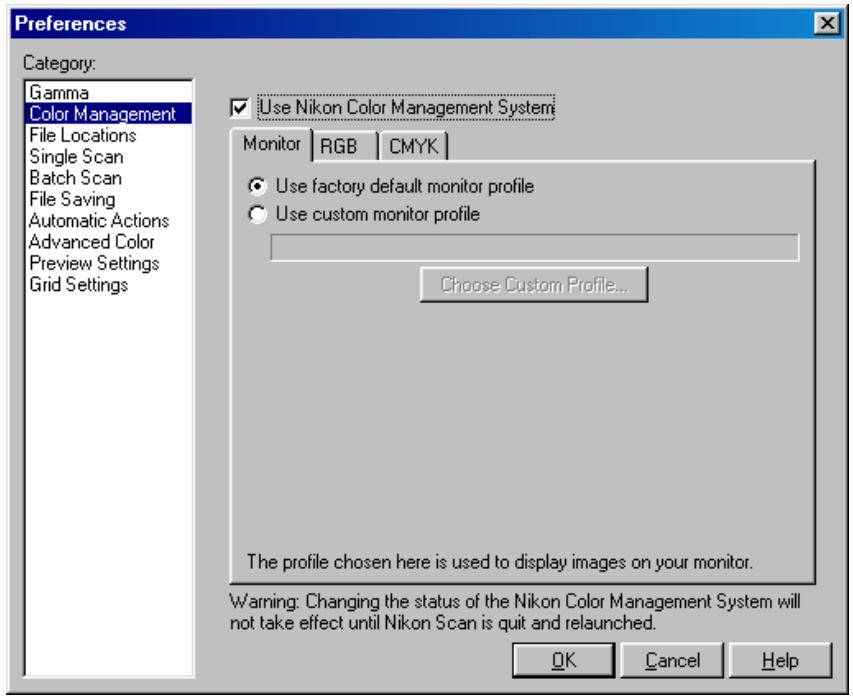
- Use Nikon Color Management System
This check-box turns the Nikon Color Management System on and off. Changes to this setting only take effect after you have quit and restarted Nikon Scan.
When the check-box is on...
...images are processed to ensure consistent color reproduction, as described above under the heading "How Nikon CMS Works." Because color management profiles typically contain their own settings for gamma, the controls in the Gamma tab are dimmed and inactive.
When the check-box is off...
...monitor and color-space profiles are not used, and the controls in the Color Management tab are dimmed and inactive. The only tool available for ensuring that colors from the scanner will be displayed accurately on the monitor is the Gamma tab (see below). The only adjustments made to the image before it is passed to the host application are the gamma adjustment and changes to curves and color balance made in the scan window.
The Monitor Sheet
The Monitor sheet is where you can select the profile that will be used when images are displayed on your monitor, either in the scan window preview area or a Nikon Scan image window. Monitor profiles contain information about the color and gamma characteristics of your monitor, allowing images to be adjusted for more accurate color reproduction.
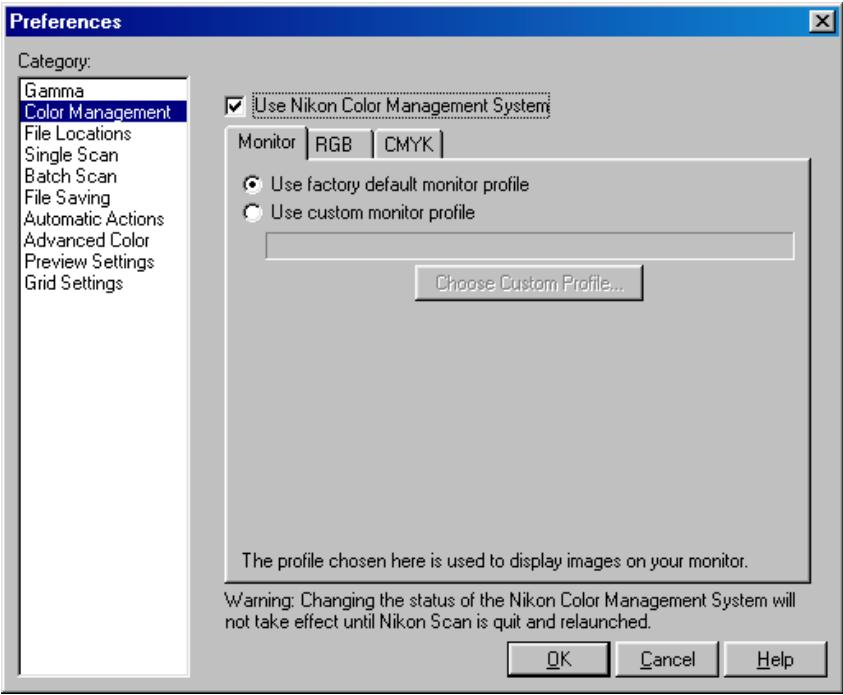
Use factory default monitor profile (default)
Nikon Scan is supplied with default monitor profiles for use when no other profile is available. The default for the Windows version of Nikon Scan is an sRGB profile, that for the Macintosh version a profile designed for Apple 17" monitors with D_50 white (see below for details). To use the default profile for your platform, select Use factory default monitor profile.
Use custom monitor profile
Use this option to select a profile supplied by the company that manufactured your monitor. When this option is selected, the Choose Custom Profile... button will be active. Clicking this button displays a standard "open file" dialog, where you can navigate to the disk and folder containing the manufacturer's profile. The path to the selected profile will appear in the text box below the Use custom monitor profile radio button.
The RGB Sheet
The RGB sheet is where you select the color-space profile used for the calibrated RGB color model. The profile used can be selected from the Color space menu.
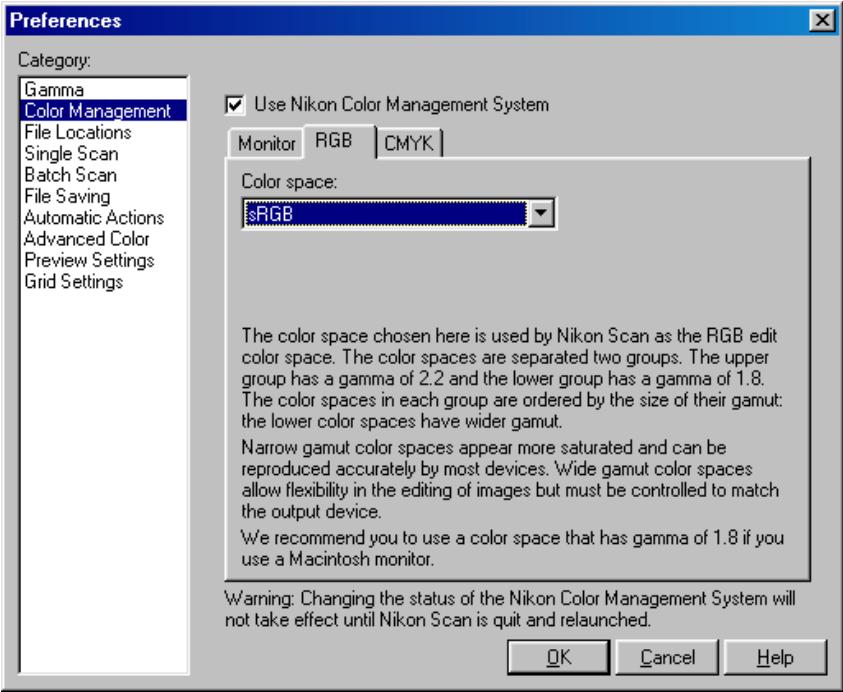
Each of the profiles listed may be classified according to its gamma value and gamut. Gamma is a fundamental characteristic of imaging systems which determines the intensity of the output signal relative to the input; in human terms, gamma controls the subjective brightness of images through alterations to the output level for mid-tones. Windows and Macintosh systems process video signals differently, and these differences are reflected in the difference in the standard gamma values for these platforms. The default system gamma for Macintosh computers is 1.8, the de facto standard for Windows systems, 2.2. Nikon CMS includes eight RGB profiles with a Windows gamma of 2.2 (sRGB, Bruce RGB, NTSC [1953], Adobe RGB [1988], CIE RGB, Wide Gamut RGB, compensated Wide Gamut RGB, and Scanner RGB), and three profiles with a gamma value of 1.8 (Apple RGB, ColorMatch RGB, and compensated Apple RGB), for use on the Macintosh. When scanning images, choose a profile with a gamma value suited to the system on which the image will be edited.
Profiles can be further classified according to their gamut, or the range of colors that can be expressed using the profile. Gamut is conventionally expressed by means of chromaticity, a measure of color developed by the Commission Internationale de l'Éclairage (CIE). The CIE system, which is modeled on human color perception, maps the physical wavelengths of light to three coordinates (known as CIE X,Y, and Z) that give unique numerical expression to the full range of color differences that can be perceived by humans. Chromaticity is a measure of color from which considerations of brightness have been factored out, giving a two-coordinate system.
In the chromaticity diagram at right, the complete gamut of colors visible to humans is in the area enclosed by the green line. The curved portion of the line gives the chromaticity of "pure," unmixed colors with wavelengths in the visible spectrum of 380-780 nm. The blue end of the spectrum (380 nm) is at the bottom left corner, the red end of the spectrum (780 nm) at the bottom right corner. The straight diagonal line connecting these two points represents the different shades of purple created by combining red and blue light. The colors inside the area enclosed by these lines are created by mixing light of different wavelengths.
No color profile is capable of expressing the full range of colors visible to the human eye. The diagram below compares the gamut of colors visible to the eye with the colors that can be expressed in each of the RGB profiles provided with Nikon CMS. The gamut for each profile is contained in the triangle defined by the three points that mark the extremes of red, green, and blue for that profile (red is at the bottom right corner, green at the top of the triangle, and blue at the bottom left corner). The white point for each profile is shown by the symbol in the center of the triangle.
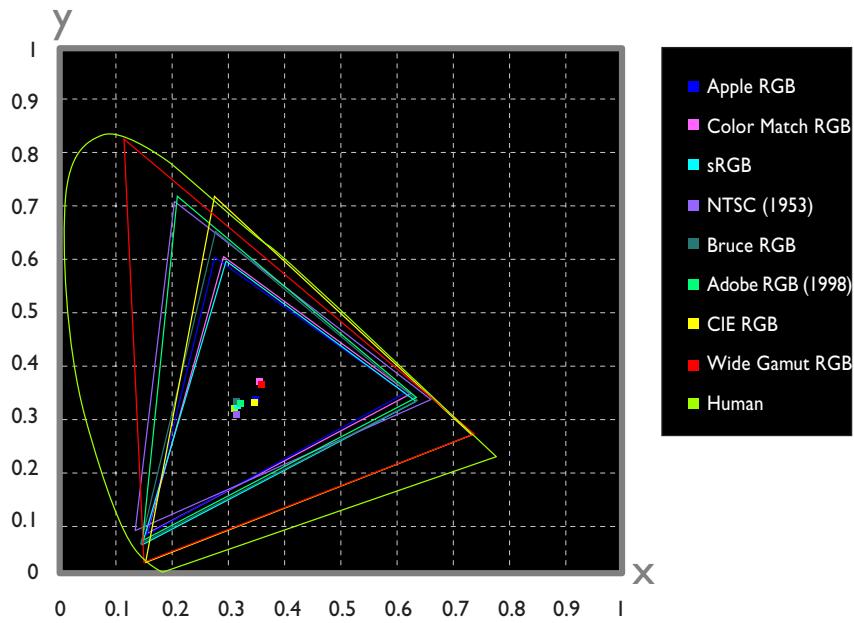
The following table shows the gamma values for the profiles included with Nikon CMS, together with the chromaticity values for the white point and for red, green, and blue.
| Profile | White Point | Gamma Value | Chromaticity (x,y) | ||||
| Name | Value | Name | R | G | B | ||
| Apple RGB | 6500K (D65) | × 0.3127159 | 1.8 | Trinitron | × 0.625 | × 0.28 | × 0.155 |
| y 0.3290015 | y 0.34 | y 0.595 | y 0.07 | ||||
| ColorMatch RGB | 5000K (D50) | × 0.3457029 | 1.8 | P22-EBU | × 0.63 | × 0.295 | × 0.155 |
| y 0.3585386 | y 0.34 | y 0.605 | y 0.077 | ||||
| Apple RGB (Compensated) | 6500K (D65) | × 0.3127159 | 1.8 | Custom | × 0.65 | × 0.265 | × 0.14 |
| y 0.3290015 | y 0.341 | y 0.717 | y 0.0454 | ||||
| sRGB | 6500K (D65) | × 0.3127159 | 2.2 | HDTV (CCIR 709) | × 0.64 | × 0.3 | × 0.15 |
| y 0.3290015 | y 0.33 | y 0.6 | y 0.06 | ||||
| NTSC (1953) | Std Illuminant C | × 0.3101 | 2.2 | NTSC (1953) | × 0.67 | × 0.21 | × 0.14 |
| y 0.3162 | y 0.33 | y 0.71 | y 0.08 | ||||
| Bruce RGB | 6500K (D65) | × 0.3127159 | 2.2 | Bruce RGB | × 0.64 | × 0.28 | × 0.15 |
| y 0.3290015 | y 0.33 | y 0.65 | y 0.06 | ||||
| Adobe RGB (1988) | 6500K (D65) | × 0.3127159 | 2.2 | Adobe RGB (1998) | × 0.64 | × 0.21 | × 0.15 |
| y 0.3290015 | y 0.33 | y 0.71 | y 0.06 | ||||
| CIE RGB | Std Illuminant E | × 0.3333333 | 2.2 | CIE RGB | × 0.735 | × 0.274 | × 0.167 |
| y 0.3333333 | y 0.265 | y 0.717 | y 0.009 | ||||
| Wide Gamut RGB | 5000K (D50) | × 0.3457029 | 2.2 | 700/525/450nm | × 0.7347 | × 0.1152 | × 0.1566 |
| y 0.3585386 | y 0.2653 | y 0.8264 | y 0.0177 | ||||
| Default Windows Monitor | 6500K (D65) | × 0.3127159 | 2.2 | HDTV (CCIR 709) | × 0.64 | × 0.3 | × 0.15 |
| y 0.3290015 | y 0.33 | y 0.6 | y 0.06 | ||||
| Default Macintosh Monitor | 5000K (D50) | × 0.34570291 | 1.8 | Trinitron | × 0.625 | × 0.28 | × 0.155 |
| y 0.3585386 | y 0.34 | y 0.595 | y 0.07 |
Notes on RGB Profiles Provided with Nikon Scan
Apple RGB (gamma 1.8)
This profile is used in desk-top publishing applications and in Adobe Photoshop versions 4.0 or earlier, and is the typical RGB profile for Macintosh monitors. The corresponding RGB setting in Photoshop 5.0 is "Apple RGB." This profile is suitable for working with images displayed on the Macintosh.
ColorMatch RGB (gamma 1.8)
The ColorMatch profile is native to Radius PressView monitors. It has a wider gamut than Apple RGB, with a particularly wide area devoted to the reproduction of blues. The corresponding RGB setting in Photoshop 5.0 is “Color Match RGB.”
Apple RGB (compensated) (gamma 1.8)
This profile defines tristimulus (red, green, and blue) chromaticity as the intersection of the curve that marks the limits of the visible gamut with lines drawn from the Apple RGB white point and passing through the points that define tristimulus chromaticity in the Apple RGB color-space profile. This profile is unique in that it preserves the characteristics of Apple RGB while allowing more saturated colors. It is not provided in the standard install of Photoshop 5.0, but can be selected as the RGB color-space profile for Photoshop by importing the profile "NKApple_CPS.icm".
sRGB (gamma 2.2)
This RGB profile is used in the majority of Windows monitors. It closely resembles the RGB commonly used in color television, and is also used in the digital television broadcasting system that is on its way to becoming the industry standard in the United States of America. Software and hardware manufacturers use it as a default color profile and guarantee operation when it used. It is also on its way to becoming the standard for images on the web. This profile is suited to users who plan to use their digital images "as is," without editing or printing them. It however suffers from the drawback of a narrow gamut with a limited area available for reproducing blues. The corresponding RGB setting in Photoshop 5.0 is "sRGB."
Bruce RGB (gamma 2.2)
This color profile attempts to expand on the ColorMatch RGB gamut by defining the chromaticity for G as lying between the values for G in the Adobe RGB and ColorMatch color-space profiles. It was proposed by Bruce Fraser, who claims that it includes most of the colors in the SWOP CMYK gamut. It is not provided in the standard install of Photoshop 5.0, but can be selected as the RGB color-space profile for Photoshop by importing the profile "NkBruce.icm".
NTSC (1953) (gamma 2.2)
This is the color space for video defined by the National Television Standards Committee (NTSC) in 1953 and used in early color televisions. This color space is also used in some Far-East newspaper and printing organizations. The corresponding RGB setting in Photoshop 5.0 is "NTSC (1953)."
Adobe RGB (1988) (gamma 2.2)
A color-space profile defined in Photoshop 5.0. It has a wider gamut than sRGB and includes the colors found in most CMYK gamuts, making it suitable for users involved in desktop publishing. The corresponding RGB setting in Photoshop 5.0 is "Adobe RGB (1988)."
CIE RGB (gamma 2.2)
A video color-space profile established by the CIE. While it boasts a fairly wide gamut, it suffers from the drawback that the area devoted to the reproduction of cyan is relatively small. The corresponding RGB setting in Photoshop 5.0 is "CIE RGB."
Wide Gamut RGB (gamma 2.2)
This color-space profile, designed by Adobe, incorporates most of the visible colors. This however has the consequence that most of the colors it can express can not be reproduced on standard monitors and printers. The corresponding RGB setting in Photoshop 5.0 is "Wide Gamut RGB."
Wide Gamut RGB (compensated) (gamma 2.2)
Nikon scanners can scan some colors that cannot be expressed using the Wide Gamut RGB color-space profile. The compensated Wide Gamut RGB profile redefines Wide Gamut RGB to include all the colors that can be output from the scanner. Because many of the colors that can not be expressed in Wide Gamut RGB occur in the blue portion of the gamut, the level of detail in the blue area has been greatly increased (because the gamut has been expanded in a nonlinear fashion to incorporate just those colors that could not otherwise be expressed, it can not be represented in chromaticity diagrams using a standard RGB triangle). As is the case with Wide Gamut RGB, most of the colors defined in this profile can not be reproduced on monitors and printers. It is output to the host application as Wide Gamut RGB. If you are scanning images into Photoshop 5.0 using this profile, you can set the Photoshop RGB profile to "Wide Gamut RGB."
Scanner RGB (gamma 2.2)
This profile replicates the color space achieved when scanning with Nikon CMS off. It is used when you want to use the LCH editor and Unsharp Mask tools, which are not available when Nikon CMS is off, to edit the colors produced by the scanner. In order to produce the effect achieved by turning Nikon CMS off, the monitor profile is not used, nor is an ICC profile included with the image when it is opened in the host application.
Default Windows Monitor Profile (gamma 2.2)
The default Windows monitor profile ("NkMonitor_Win.icm") is identical to the sRGB profile.
Default Macintosh Monitor Profile (gamma I.8)
The default Macintosh monitor profile ("NkMonitor_Mac.icm") is identical to the profile used for Apple 17" monitors with a D_50 white point (see table for details).
The CMYK Sheet
The CMYK sheet, shown below, is where you select a profile for use with the CMYK color model.
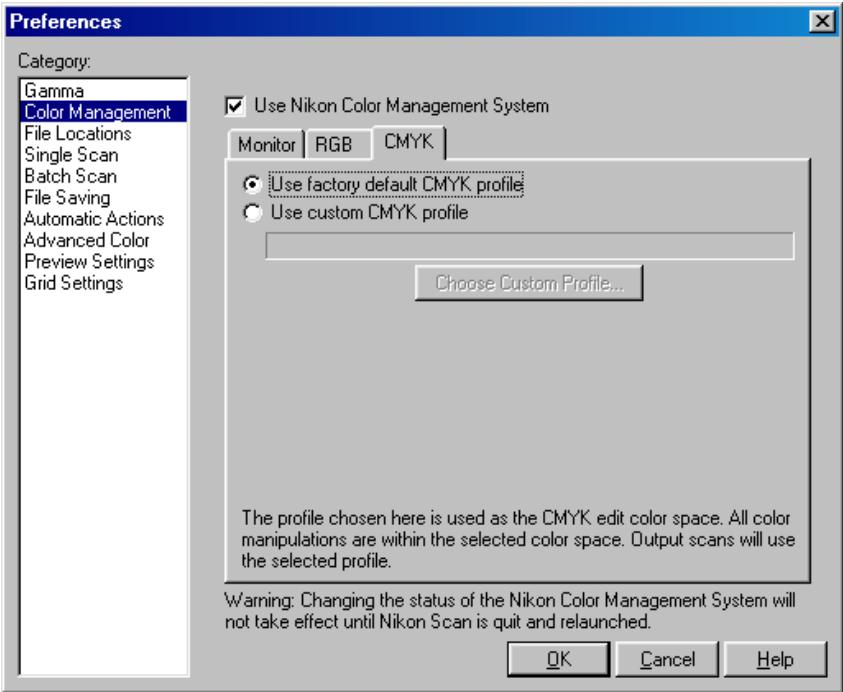
- Use default CMYK (default)
Nikon Scan is supplied with a default CMYK profile (the SWOP color library) for use when no other profile is available. This profile is used when Use default CMYK is selected.
Use custom profile
Use this option to select a profile supplied by the company that manufactured your printer. When this option is selected, the Choose Custom Profile... button will be active. Clicking this button displays a standard open-file dialog, where you can navigate to the disk and folder containing the manufacturer's profile. The path to the selected profile will appear in the text box below the Use custom profile radio button.
When an image is scanned in the Nikon Scan TWAIN source or acquire plug-in and opened in another application, or when an image saved using Nikon Scan is opened in another application, before being displayed on the monitor the image will be processed according to the color-space and monitor profiles selected in the application. If the profiles used in the application do not match those used in Nikon Scan, colors may not be the same as those in the original image.
- when using the RGB color model: Choose a monitor profile that matches that chosen in the monitor sheet and a color-space profile that matches that selected in the RGB sheet (the Photoshop profiles corresponding to those used in Nikon Scan are listed on the preceding pages). If no matching RGB profile exists, you can use the Nikon Scan profiles in the path Program Files\Common Files\Nikon\Profiles (Windows) or System Folder : Preferences : Nikon MAID : Profiles (Macintosh). The files containing the profiles listed in the RGB sheet are given below.
| Profile | File name |
| sRGB | NKsRGB.icm |
| Bruce RGB | NKBruce.icm |
| NTSC (1953) | NKNTSC.cim |
| Adobe RGB (1998) | NKAdobe.icm |
| CIE RGB | NKCIE.icm |
| Profile | File name |
| Wide Gamut RGB | NKWide.cim |
| Apple RGB | NKApple.icm |
| Color Match RGB | NKMatch.icm |
| Apple RGB (compensated) | NKApple_CPS.icm |
- Do not use the Scanner RGB profile when scanning images for use in a third-party application.
If you are using Nikon Scan as an acquire plug-in for the Macintosh version of Adobe Photoshop 5 or later (full version), the RGB profile will automatically be passed to Photoshop when the image is scanned. You need only ensure that the monitor profile matches that used in Photoshop by selecting the Photoshop monitor profile in the monitor sheet of the Nikon Scan color management tab.
- when using the CMYK color model: Choose a monitor profile that matches that chosen in the monitor sheet and a color-space profile that matches that selected in the CMYK sheet. If you are using Nikon Scan as an acquire plug-in for the Macintosh version of Adobe Photoshop 5 or later (full version), the CMYK profile will automatically be passed to Photoshop when the image is scanned. You need only ensure that the monitor profile matches that used in Photoshop by selecting the Photoshop monitor profile in the monitor sheet of the Nikon Scan color management tab.
Scanning with Nikon CMS Off
If the Use Nikon Color Management System check-box in the Color Management tab is off, profiles can not be used to ensure that the data from the scanner are reproduced accurately when passed to another application or displayed on the monitor. Because the color profiles required for a calibrated RGB or CMYK color space are not available when Nikon CMS is off, images can only be scanned as uncalibrated RGB or grayscale. Similarly, the absence of a monitor profile means that gamma adjustment must be used to correct the image for display on your monitor or for editing in another application. These adjustments to gamma are made in the Gamma tab of the Preferences dialog (see below).
The illustration below shows how scanning proceeds when Nikon CMS is off. The image shown in the preview window is adjusted for display on the monitor according to the value chosen for preview gamma in the Gamma tab. When the Scan button is clicked, the main scan gamma and any changes to curves and color balance are passed to the scanner, where they are applied to scan data before the image is transferred to the host application (if Nikon Scan is used as a "stand-alone" application, the value for preview gamma is passed to the scanner instead of main scan gamma). The LCH Editor and Unsharp Mask tools can not be used when Nikon CMS is off.
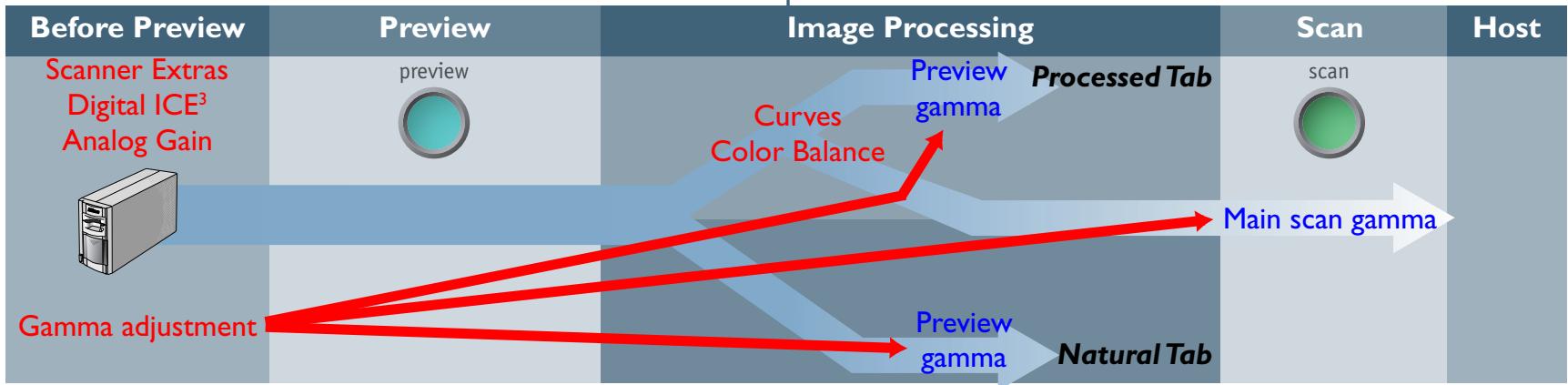
The Gamma Tab
The controls in the Gamma tab are only active if Nikon CMS is off, when they are used to adjust data from the scanner so that they display correctly when previewed on your monitor or opened in another application.
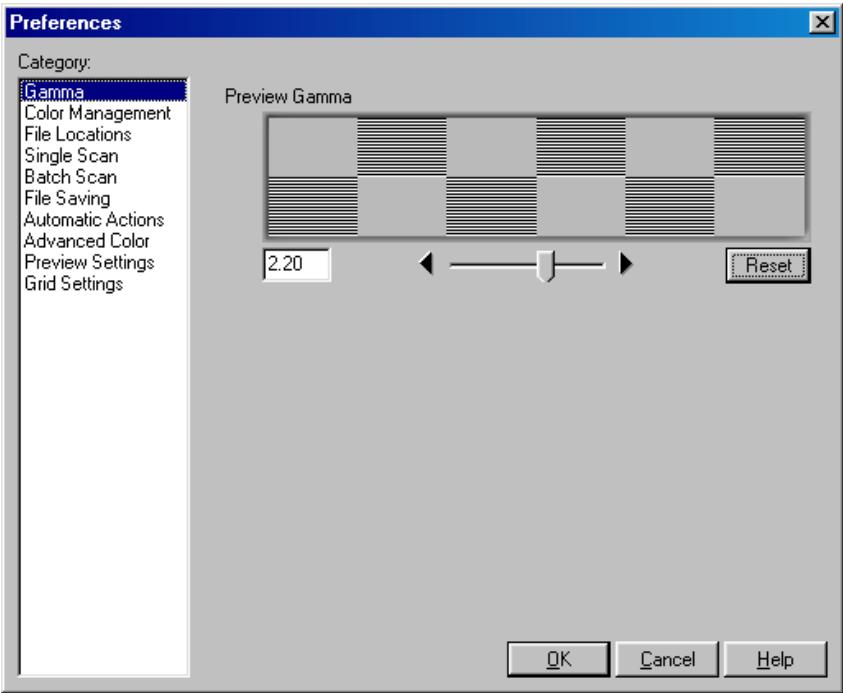
Preview gamma
Preview gamma applies to the image displayed in the preview area of the scan window. In general, preview gamma is solely for display in the preview area and does not apply to the image data that are passed to the host application when the Scan button is clicked. There are two exceptions to this rule, however. The first is when Nikon Scan is used as a stand-alone application, the second when Use preview gamma is selected as the main scan gamma option. In these cases preview gamma is applied to image data passed to the host application.
Preview gamma defaults to a value of 1.8 on the Macintosh, 2.2 on Windows computers. To choose a setting suited to your monitor, adjust the value so that the patterns of gray lines and dots above the slider match in density. Gamma can be set by entering a value directly into the text box or by moving the slider. When making this adjustment, set the resolution on your monitor to a low value such as 640 × 480 and sit as far away from the monitor as possible. To restore the default setting for your platform, click the Reset button.
- Main scan gamma
Main scan gamma options are only visible when Nikon Scan is being used as a TWAIN source or acquire plug-in for another program (when Nikon Scan is used as a stand-alone application, preview gamma automatically applies both to the preview image and to the final scan). Image data passed to the host application are modified according to the option chosen here. Three options are available:
Use preview gamma
The gamma value chosen for preview gamma is applied before the data are passed to the host application. Use this setting when the host application does not support independent gamma settings and you want the final image to be modified for display on your monitor.
Use application gamma
In some environments, a value for gamma can be chosen in the host application and passed to the Nikon Scan plug-in. When Use application gamma is selected, this value is applied to the main scan data before they are passed to the host application.
Two conditions must be fulfilled if this option is to be effective. First, the interface between the application and Nikon Scan must allow the gamma value to be passed to the Nikon Scan plug-in. The TWAIN interface used under Windows does not, however, allow the gamma value to be passed to the TWAIN source (i.e., to Nikon Scan). Consequently, in the Windows version of Nikon Scan a default value of 2.2 is used for main scan gamma whenever Use application gamma is selected. Second, the application must support gamma transfer. If Use application gamma is selected with a Macintosh application that does not support this feature, Macintosh system gamma (1.8) will be used.
Use custom gamma
When this option is selected, a value for main scan gamma can be entered in the text box.
System Settings
Choosing File Locations/Scratch Disks and File Types
The File Locations/Scratch Disk and File Saving tabs allow you to adjust settings to suit your particular operating environment. The File Locations (Windows) or Scratch Disk (Macintosh) tab is where you choose the folder or disk used for temporary storage while Nikon Scan is in operation. In the File Saving tab, you choose the default file type and, in the Macintosh version of the program, creator.
The File Locations/Scratch Disks Tab
The File Locations (Windows) or Scratch Disks (Macintosh) tab is where you choose the folder or volume (disk) that will be used for temporary storage, or "virtual memory," while Nikon Scan is in operation. While Nikon Scan requires a minimum of twenty MBs of free hard disk space for temporary storage while in operation, it is recommended that the amount of free disk space on the volumes you select total two hundred MBs or more. It is also recommended that you select only disks with a high data transfer rate, such as hard disks, for temporary storage.
The File Locations tab is shown below.
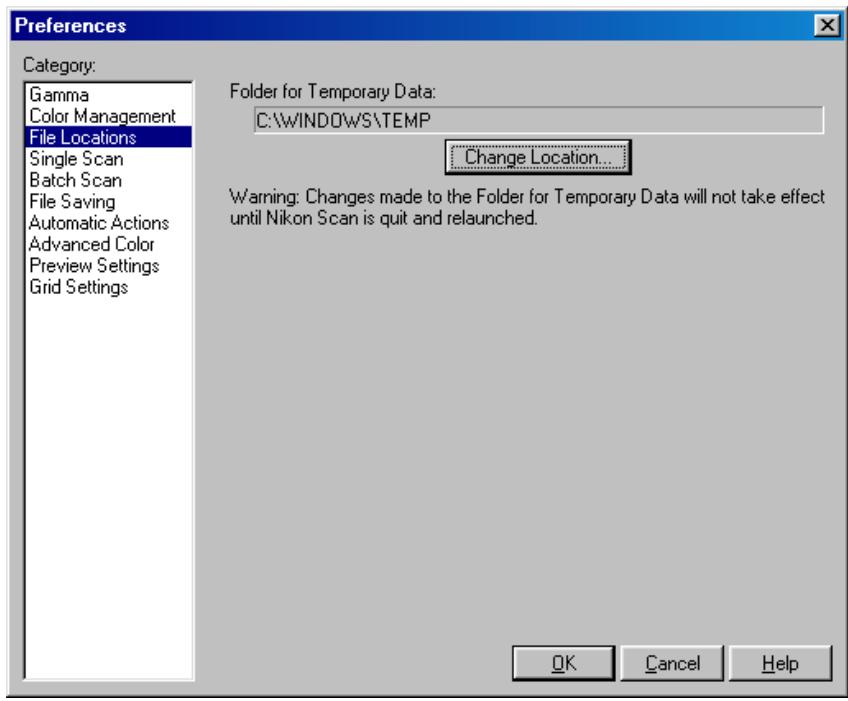
The folder currently selected for temporary storage is shown under Folder for Temporary Data. To choose a different location, click the button to the right of the text box and navigate to the desired drive and folder.

Changes to File Locations settings only take effect after you have quit and restarted Nikon Scan.
The Scratch Disks tab is shown below.
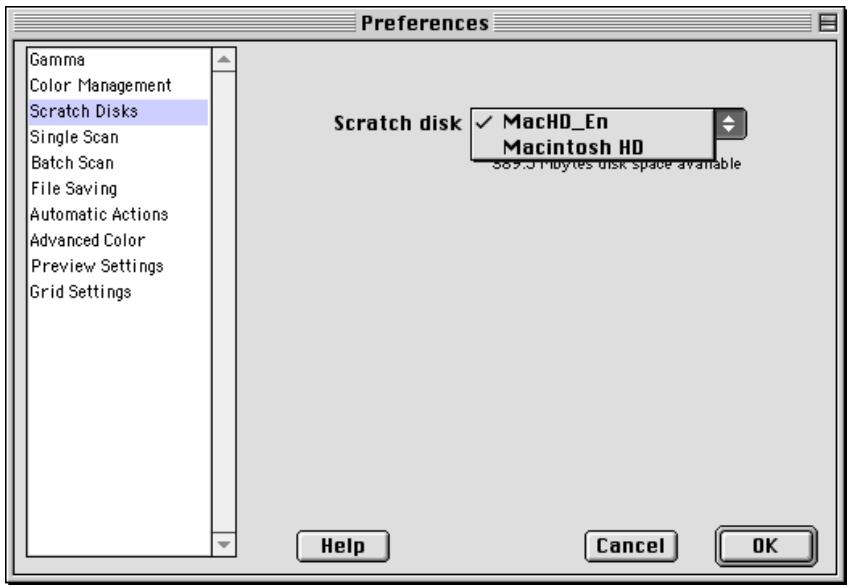
The volume used for temporary storage can be chosen from the Volume Name pop-up menu. The amount of space available on the selected disk is shown under the menu.

Changes to Scratch Disks settings only take effect after you have quit and restarted Nikon Scan.
The File Saving Tab
The File Saving tab allows you to choose the default file type for images saved when Nikon Scan is used as a stand-alone application. By altering the creator in the Macintosh version of the program, you can also choose the application that will start when files saved using Nikon Scan are double-clicked.
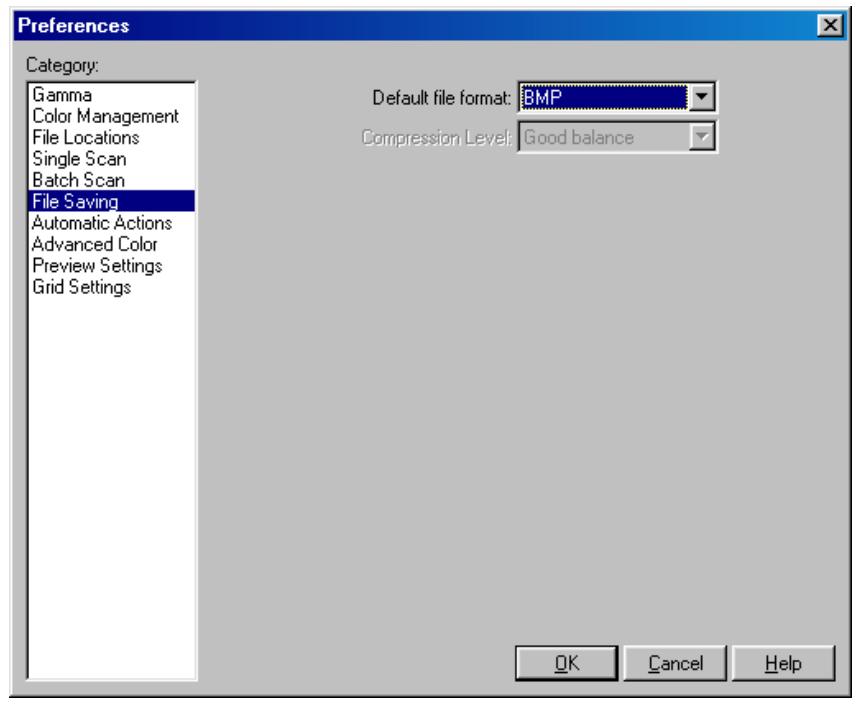
The File Saving tab contains the following items:
| Item | Description |
| Default file format | Select the default file format from NEF,TIFF,JPEG,PICT (Macintosh only), and BMP (Windows only). Select Last used to choose the format most recently used to save images when Nikon Scan was used as a stand-alone application. |
| Compression Level | If the selected file type supports compression, you can control the amount using this menu. |
| Use alternate creator code (Macintosh only) | If this box is checked, you can choose a new creator type by clicking the Choose... button, navigating to the folder containing the application you wish to use as the creator, and selecting the application. This option is not available in the Windows version of Nikon Scan. |

Pg. For more information on:

98 File types
Automating Tasks
Single Scans, Batch Scans, and Automatic Actions
Nikon Scan can be set to perform common tasks such as autofocus and exposure before making a preview, or to automatically preview images when film is inserted in the scanner. When Nikon Scan is used as a stand-alone application, you can also set it to perform a variety of actions after scanning, such as saving the scanned images directly to disk. Separate settings are available for scanning images one at a time and for batch scans.

"Batch scan"
"Batch scanning" refers to automated scanning of multiple images. Batch scanning can be performed when multiple frames are selected in the thumbnail drawer or when the optional SF-200 (S) slide feeder (4000 ED/LS-2000 only) is used for automated sequential scanning of multiple slides.
The Single Scan tab is used to specify the tasks performed automatically before and after single scans.

The Single Scan tab contains the following options:
Before scan
| Option | Description |
| Auto focus | If this item is checked (the default setting), an autofocus operation will be performed as necessary before making a scan. |
| Auto exposure for positive film | If this item is checked (the default setting), an autoexposure operation will be performed as necessary before scanning film positives. |
| Auto exposure for negative film | If this item is checked (the default setting), an autoexposure operation will be performed as necessary before scanning film negatives. |
- Once an autofocus or autoexposure operation has been performed for the current frame, the operation will not be repeated before a preview or scan. If desired, you can use the autofocus and autoexposure buttons in the scan window to ensure that these operations are performed before previewing or scanning images. If Perform auto focus when film is inserted is selected in the Scanner Extras palette, an autofocus operation will automatically be performed when a slide is inserted in a slide-mount adapter, with the result that an autofocus operation will not be performed automatically before the image is scanned.
After scan
| Option | Description |
| Save to disk | If this item is checked when Nikon Scan is used as a stand-alone application, the image created when the Scan button is clicked will be saved to disk instead of being opened in an image window in Nikon Scan. When the Scan button is clicked, a Save dialog will appear where you can specify a name, location, and file type for the image. This option has no effect when Nikon Scan is being used as a plug-in or TWAIN source for another application. The default option is off. |
| Close window and eject film | If this item is checked, the scan window will close automatically after scanning. Film will automatically be ejected from the SA-21/SA-20 and optional IA-20 (S), SA-30 (4000 ED only), and SF-200 (S) (4000 ED/LS-2000 only) adapters. |

Pg. For more information on:

37 The autofocus and autoexposure buttons

57 Scanner Extras

98 Saving images to disk
The Batch Scan Tab
The Batch Scan tab is used to specify the tasks performed automatically before, during, and after batch scans.
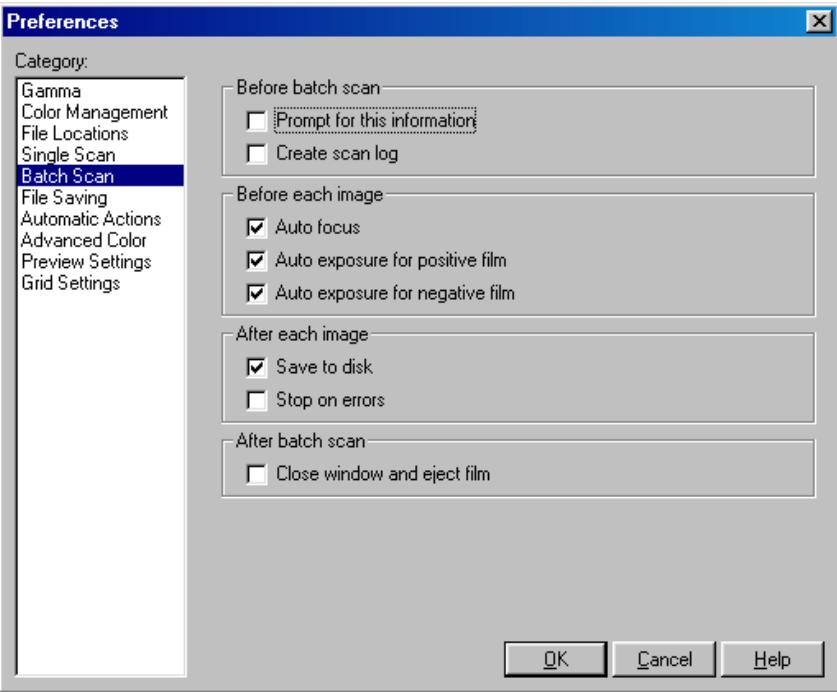
The Batch Scan tab contains the following options:
Before batch scan
| Option | Description |
| Prompt for this information | If this item is checked (the default setting), a dialog containing the same options as appear in the Batch Scan tab will be displayed when the Scan button is clicked to begin a batch scan, allowing you to select the tasks that will be performed automatically. |
| Create scan log | If this item is checked, a log showing the operations performed and errors that occurred during the batch scan will be displayed in the Log tab of the Progress window. If Save to disk is selected under “after each image” (below), the log will be saved to the same folder as the scanned images. |
Before each image
| Option | Description |
| Auto focus | If this item is checked (the default setting), an autofocus operation will be performed as necessary before each scan. |
| Auto exposure for positive film | If this item is checked (the default setting), an autoexposure operation will be performed as necessary before scanning film positives. |
| Auto exposure for negative film | If this item is checked (the default setting), an autoexposure operation will be performed as necessary before scanning film negatives. |
- Once an autofocus or autoexposure operation has been performed for the current frame, the operation will not be repeated before a preview or scan. If desired, you can use the autofocus and autoexposure buttons in the scan window to ensure that these operations are performed before previewing or scanning images. If Perform auto focus when film is inserted is selected in the Scanner Extras palette, an autofocus operation will automatically be performed when a slide is inserted in a slide-mount adapter, with the result that an autofocus operation will not be performed automatically before the image is scanned.

Pg. For more information on:

37 The autofocus and autoexposure buttons
57 Scanner Extras
After each image
| Option | Description |
| Save to disk | If this item is checked when Nikon Scan is used as a stand-alone application, the scanned images will be saved to disk instead of being opened in image windows in Nikon Scan. When the Scan button is clicked, a dialog will appear where you can specify a location and file type and choose how the files will be named. This option has no effect when Nikon Scan is being used as a plug-in or TWAIN source for another application. The default option is off. |
| Stop on errors | If this item is checked, scanning will stop when an error is encountered. If it is not checked, scanning will only stop when all the selected images have been scanned or the media jams in the adapter. |

Pg. For more information on:

98 Saving images to disk
After batch scan
| Option | Description |
| Close window and eject film | If this item is checked, the scan window will close automatically after scanning. Film will automatically be ejected from the SA-21/SA-20 and optional IA-20 (S), SA-30 (4000 ED only), and SF-200 (S) (4000 ED/LS-2000 only) adapters. |
The File Save Dialog (Batch Scans)
When Save to disk is selected in the Batch Scan tab and Nikon Scan is used as a stand-alone application, the following dialog will appear when the Scan button is clicked.
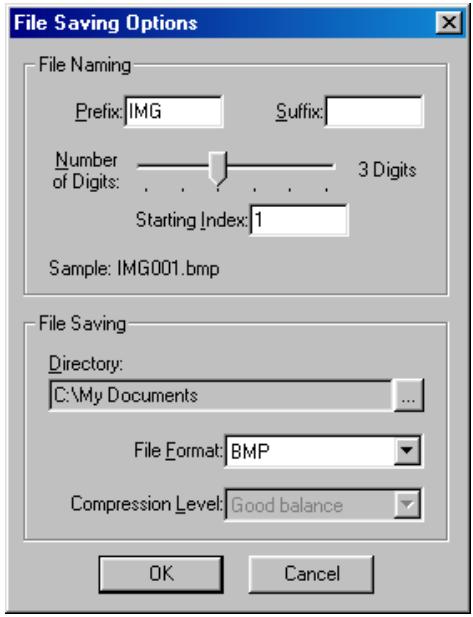
The File Saving Options dialog contains the following items:
File Naming
Files saved during a batch scan are assigned names consisting of a prefix, a file number of from one to six digits, assigned in ascending order from a user-specified starting point, and a suffix. The options in the File Naming area control the prefix, file number and suffix.
| Item | Description |
| Prefix | Enter the desired prefix (up to forty letters). |
| Suffix | Enter the desired suffix (up to forty letters). |
| Number of digits | Use this slider to select the number of digits for the file number (from one to six). |
| Starting Index | File numbers will be assigned in ascending order starting from this number. |
| Sample | Shows a sample of the file names that will be assigned using the selected options. |

Pg. For more information on:

98 Saving images to disk
File Saving
| Item | Description |
| Browse | To choose the folder to which the images will be saved, click this button and navigate to the desired folder. |
| File Format | Select the format from NEF,TIFF,JPEG,PICT (Macintosh only),BMP (Windows only),and PICT JPEG (Macintosh only). |
| Compression Level | If the selected file type supports compression, you can control the amount using this menu. |

File-naming conventions
Macintosh: The maximum length for Macintosh file names is thirty-one characters. Colons (":") are not allowed.
Windows: In environments that do not support long file names, the maximum length is eight characters; file names may not contain spaces, quotes, or any of the following characters:"\""/"":"","";“*”“<"">” and“|”.
Where long file names are supported, the maximum length is 255 characters. File names may not contain quotes or any of the following characters: “\"/\":";\";\":*\"<\"/>” and “|”.
The Automatic Actions Tab
The Automatic Actions tab sets the actions performed when media are inserted in the scanner or the focus point is adjusted using the focus tool in the Layout Tools palette.
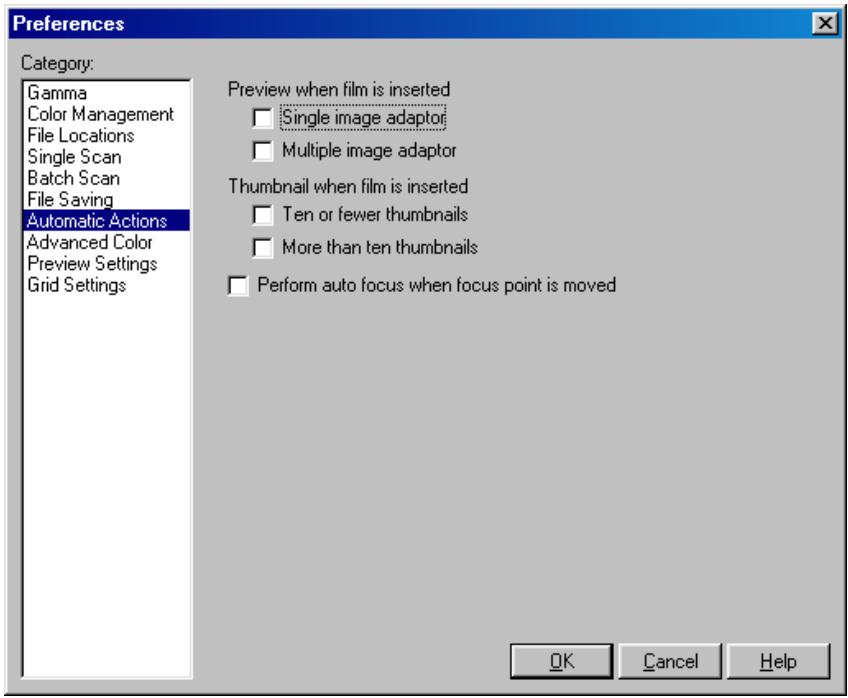
The Automatic Actions tab contains the following options:
| Option | Description |
| Preview when film is inserted | If Single image adaptor is checked, the scanner will automatically perform a preview when a slide is inserted in the MA-20 (S) slide-mount adapter or the optional SF-200 (S) slide feeder. If Multiple image adaptor is checked, the scanner will automatically perform a preview using user default settings when film is inserted in a multi-frame adapter (if no user defaults are defined, factory defaults will be used). |
| Thamburger when film is inserted | If Ten or fewer thumbnails is checked, the scanner will automatically generate thumbnails when APS or strip film with ten or fewer frames is inserted in a multi-frame adapter. If More than ten thumbnails is checked, the scanner will automatically generate thumbnails when film is inserted in an adapter that supports more than ten frames. |
| Option | Description |
| Perform autofocus when focus point is moved | If this item is checked, the scanner will automatically perform an autofocus operation when the focus point is changed using the focus tool in the Layout Tools palette. If it is not checked, autofocus will only be performed when the button is clicked in the scan window control area. The default option is off. |

Pg. For more information on:

43 Layout Tools
Setting the Defaults for White Point, Gray Point, Black Point, and Auto Contrast
The Advanced Color Tab
Using the Advanced Color tab, you can specify output colors for the black, white, and gray points and change the size of the area sampled when the eyedropper tools in the Curves palette are used. You can also adjust the portion of the tone range excluded in autocontrast operations.
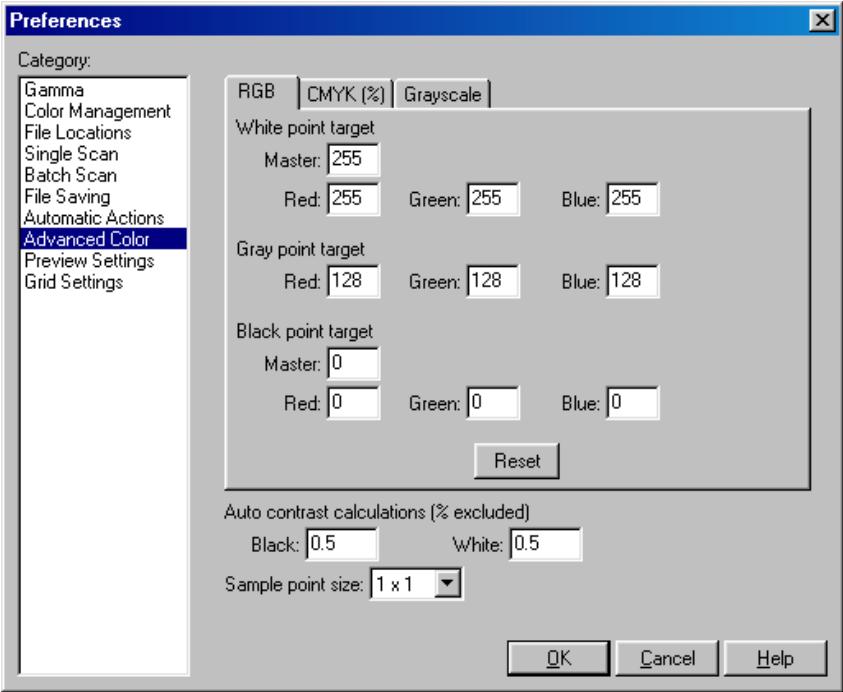
White-Point, Gray-Point, and Black-Point Calculations
Using the RGB, CMYK, and Grayscale sheets, you can specify default output values for white, gray, and black points in the Curves palette for each of the RGB, CMYK, and grayscale color spaces. The factory default settings for the white point in RGB and grayscale are 255 for each channel, which displays as white on most computer monitors. The factory defaults for the gray point are 128 for each channel, which displays as a neutral gray, while the defaults for the black point are zero for each channel, which displays as black. In the case of CMYK, the factory defaults for the white point are 0% for each channel, which means that true whites will be the same color as the paper when printed on a four-color printer. The gray point for CMYK defaults to 50% for each channel, the black point to 100% for each channel. To restore factory defaults for the color model in the selected sheet, click the Reset button.

Although values for RGB and grayscale range from zero to 255 (with larger values representing brighter shades), calculations are performed at a precision of sixteen bits. Values for CMYK range from 0% -100% , with smaller percentages representing brighter shades.
Sample Point Size
This setting determines the size of the area sampled when displaying the color value for the pixel under the cursor in the information window, or when the white-point, gray-point, and black-point tools are used in the Curves palette. You can select a sample sizes of 1 × 1 , 3 × 3 , and 5 × 5 pixels. When the sample size is set to 3 × 3 or 5 × 5 pixels, the average for the pixels sampled is used. Choosing a large sample size reduces precision, but also minimizes the effects of noise; choosing a small sample size has the opposite effect.
Auto Contrast Calculations
A further option in the Color sheet allows you to specify how auto contrast operations in the Curves and LCH Editor palettes calculate the input values for the white point and black point. By default, the white point is set to a value that excludes 0.5% of the brightest pixels in the current crop, the black point to a value that excludes 0.5% of the darkest pixels in the crop. This produces an optimal dynamic range, with minimum loss of detail in shadows and highlights. To preserve detail at the expense of dynamic range, lower the "excluded" value for auto contrast (a value of zero will set the black and white point respectively to the darkest and brightest pixel in the crop). To increase the dynamic range at the expense of detail, raise the "excluded" value.
Scan Window Settings
The Preview Tab
Using the Preview tab, you can select the settings that will automatically be applied to images when the Preview button is clicked.
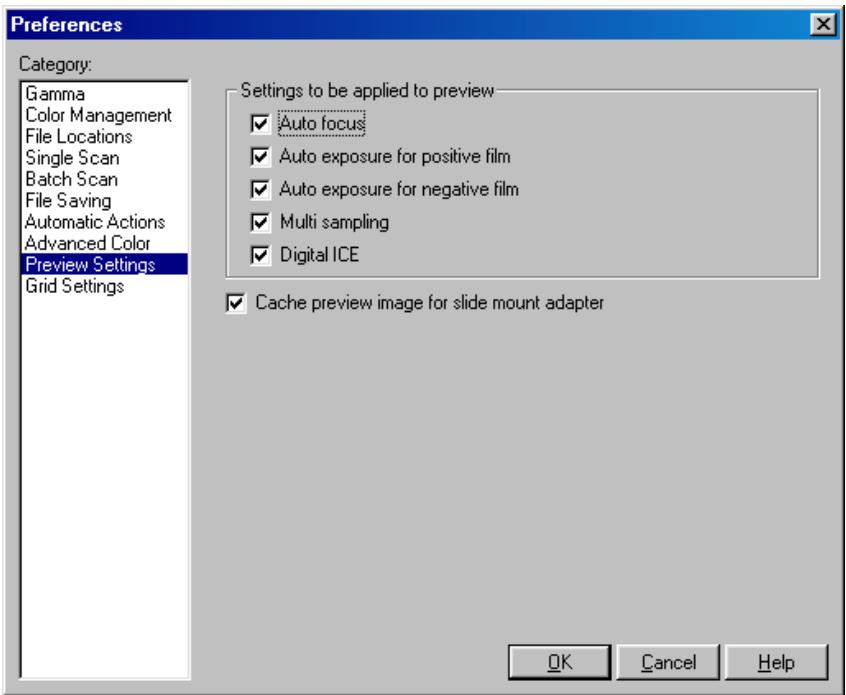
The following options are available:
| Option | Description |
| Auto focus | If this item is checked, an autofocus operation is performed as necessary when the Preview button is clicked. |
| Auto exposure for positive film | Check this item to perform an autoexposure operation as necessary when previewing film positives. |
| Auto exposure for negative film | Check this item to perform an autoexposure operation as necessary when previewing film negatives. |
| Multi sampling | Check this item to perform multi-sample scanning during the preview operation (4000/LS-2000 only). Multi-sample scanning will not be performed if Normal (1x) is selected for multi-sample scanning in the Scanner Extras palette. Note that selecting this option will increase the amount of time needed to make a preview, while the effects of multi-sample scanning may not be visible in the preview area at the normal zoom ratio. |
| Option | Description |
| Digital ICE | Check this item to remove the effects of dust and scratches during the preview operation. This operation will only be performed when Enable Digital ICE is checked in the Digital ICE Cubed palette. Note that selecting this option will increase the amount of time needed to make a preview. |
| Cache preview image for slide mount adapter | Check this item to store the last preview created with the MA-20 (S) slide mount adapter. This preview will be displayed the next time Nikon Scan is started or when the MA-20 (S) is next inserted in the scanner. |
- Once an autofocus or autoexposure operation has been performed for the current frame, the operation will not be repeated before a preview or scan. If desired, you can use the autofocus and autoexposure buttons in the scan window to ensure that these operations are performed before previewing or scanning images. If Perform autofocus when film is inserted is selected in the Scanner Extras palette, an autofocus operation will automatically be performed when a slide is inserted in a slide-mount adapter, with the result that an autofocus operation will not be performed automatically before the image is previewed.
Setting Up a Layout Grid
The Grid Tab
The Grid tab determines the color and spacing of the grid displayed on the image in the active window when Show Grid is selected in the Layout Tools palette.
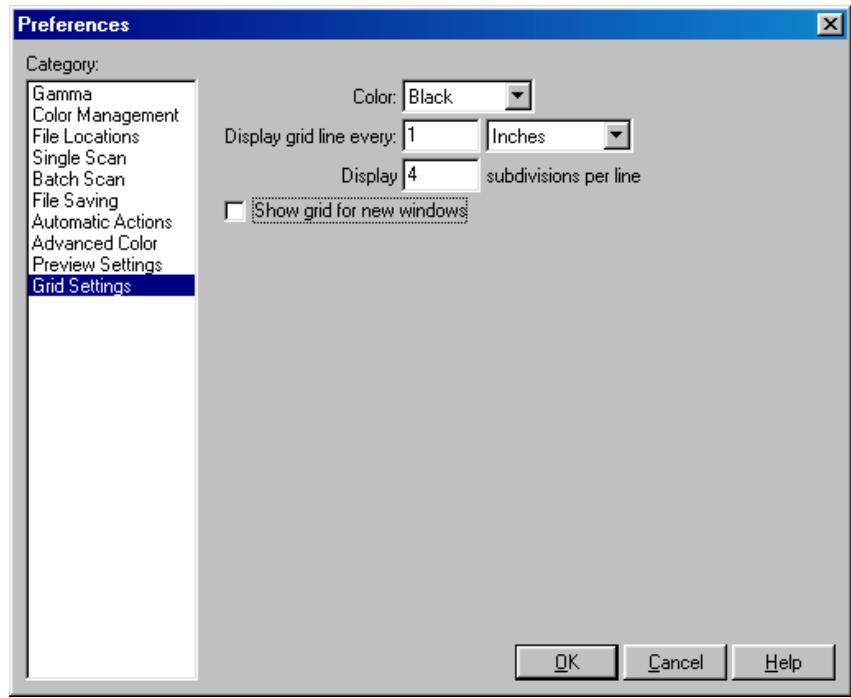
The following options are available:
| Option | Description |
| Color | The color of the grid is shown in the box next to this item. A new color can be se- lected by clicking this box (Macintosh) or by selecting a color from a pop-up menu (Windows). |
| Display grid line every | Enter the spacing for the layout grid. Units can be selected from the pop-up menu to the right of this text box. |
| Display n subdivisions per line | Enter the number of subdivisions into which each cell in the grid will be divided. The main grid is displayed as solid lines, the sub-grid as broken lines. |
| Show grid for new windows | If this item is checked, a layout grid will automatically be shown superimposed on the preview image and on images opened in the Nikon Scan applet. |
Appendices
Nikon Scan Visual Index (pp. 139-145)
Troubleshooting (pp. 146-147)
Reinstall/Custom Install (pp. 148-152)

About This Section
The appendices provide:
- A clickable index to Nikon Scan's windows, menus, and buttons
- A guide to what to do when Nikon Scan does not function as expected
- Instructions on reinstalling Nikon Scan
The following pages provide a visual index to Nikon Scan's windows, menus, and palettes. For more information, click a menu option or tool button to open the manual to the page that explains its function. Information on menu commands not detailed elsewhere may be found in the notes on these pages.
The Scan Window
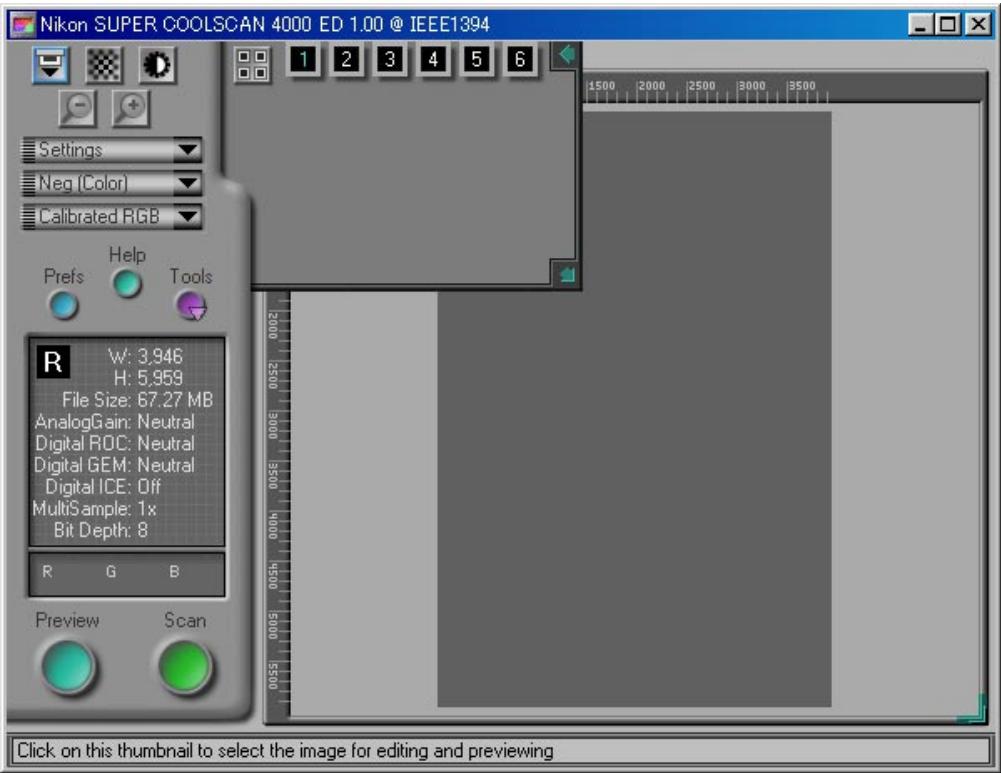
The Tool Chest
Layout Tools
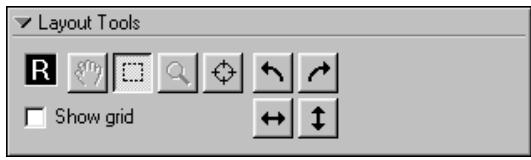
Information
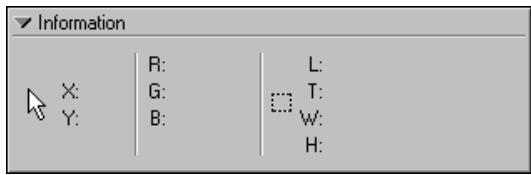
Crop
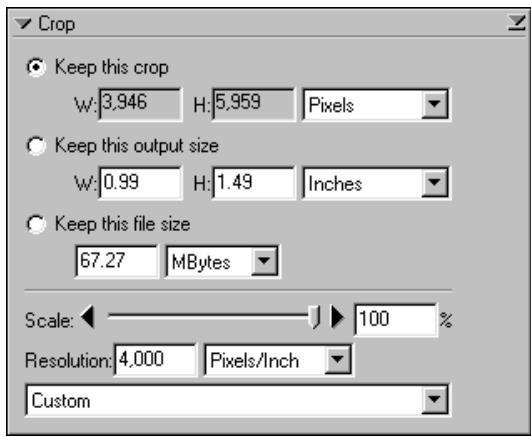
Curves
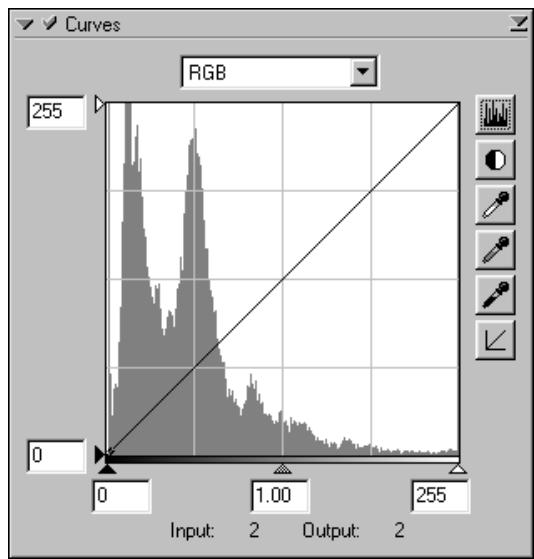
Color Balance
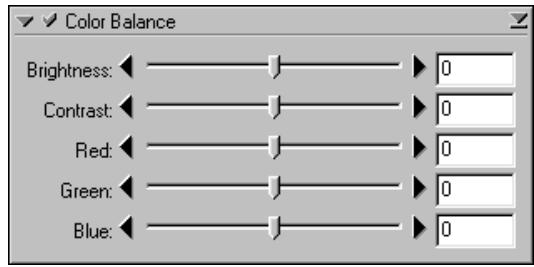
LCH Editor
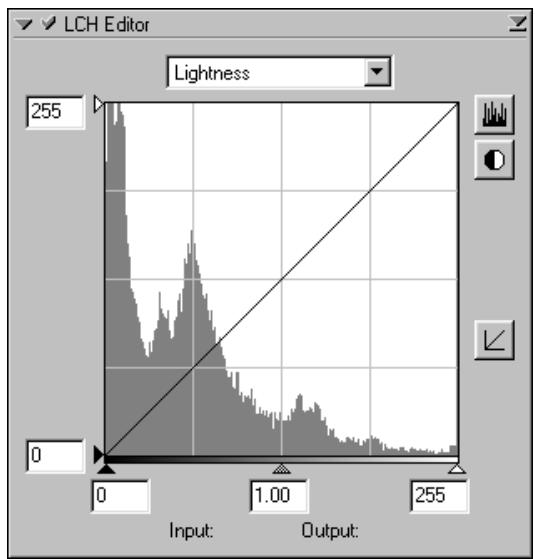
The Tool Chest (continued)
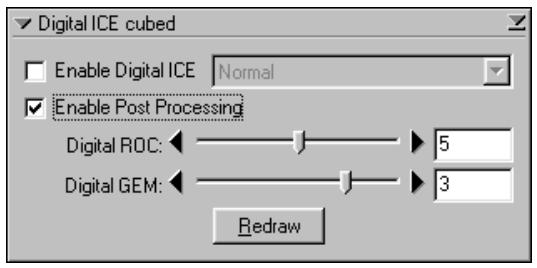
Digital ICE Cubed
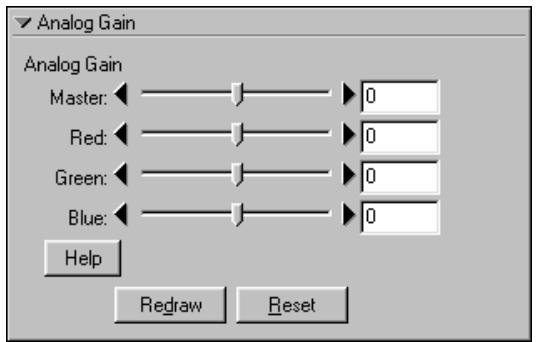
Analog Gain
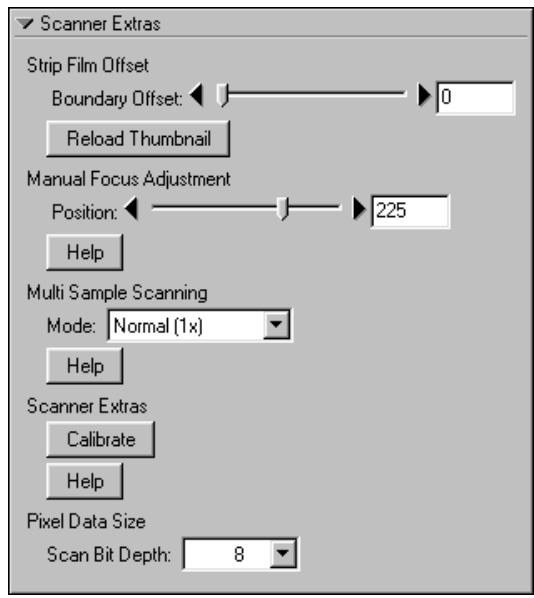
Scanner Extras
The Scan Progress Window
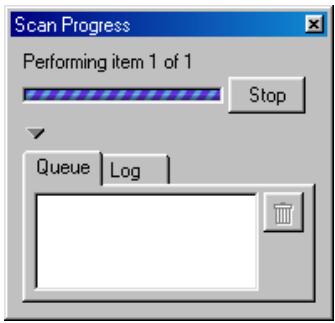
The Preferences Dialog
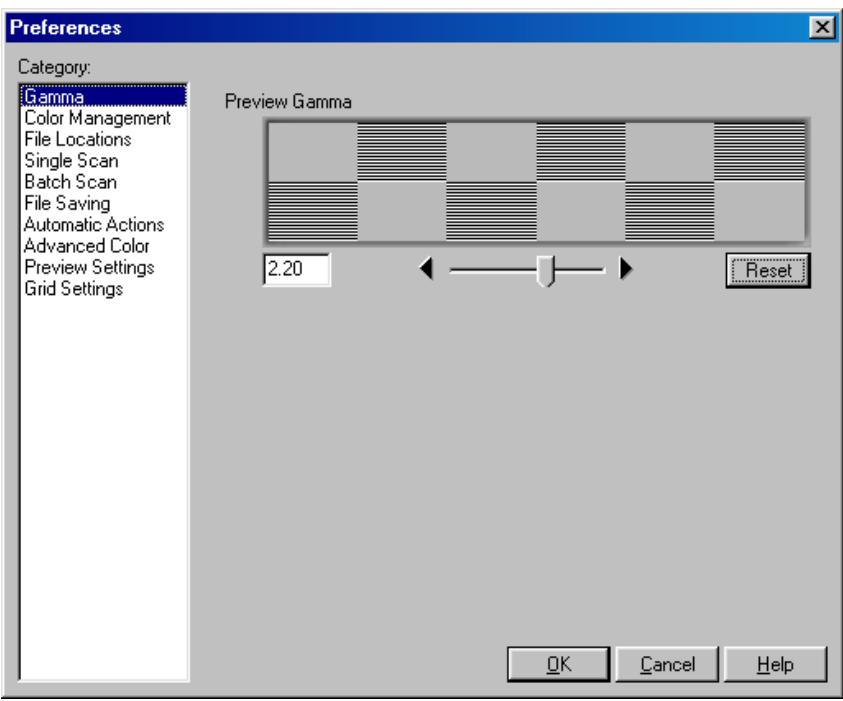
The Nikon Scan 3.0 Window (Windows)
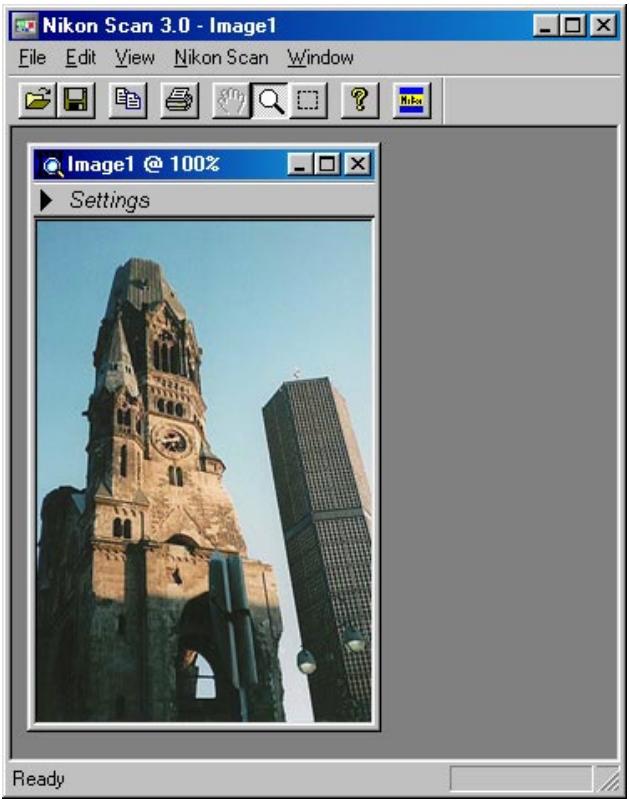
Image Window (Macintosh)
Nikon Scan Menus (Windows)
| File | |
| Open Twain Source | |
| Open... | Ctrl+O |
| Close | |
| Save | Ctrl+S |
| Save As... | |
| Print... | Ctrl+P |
| Print Preview | |
| Print Setup... | |
| About Nikon Scan ... | |
| 1 Image1 | |
| 2 C:\My Documents\0927012 | |
| Exit | |
Close
Closes the active image window
Save
Saves the image in the active window under its existing name
About Nikon Scan 3.0
Displays version information for Nikon Scan
| Edit | |
| Undo | Ctrl+Z |
| Cut | Ctrl+X |
| Copy | Ctrl+C |
| Paste | Ctrl+V |
Edit Menu Commands
The Undo (Ctrl Z), Cut (Ctrl X), and Paste (Ctrl V) commands are only active during text entry in dialogs such as the Save As dialog, when they allow you to use keyboard shortcuts to cut and paste text and undo copy, cut and paste commands. The Copy (Ctrl C) shortcut can be used to copy selected portions of an image as well as text.
| Zoom In |
| Zoom Out |
| Transform |
| Selection Cursor |
| Zoom Cursor |
| Hand Cursor |
| Show Grid |
| Settings Section |
| ✓ Toolbar |
| ✓ Status Bar |
| Show Natural Pane Ctrl+T |
| Nikon Scan | |
| Preferences... | |
| Tools | |
| Settings | |
| Document Color Space | |
| Scan Color Space | |
| Film Type | |
| Eject | |
| Slide Feeder... | |
| Window |
| Fit To Screen |
| Actual Size |
| Cascade |
| Tile |
| Arrange Icons |
| √ 1 Image1 @100% |
Cascade
Arranges image windows so that they overlap.
Tile
Arranges image windows so that they do not overlap.
Arrange Icons
Arranges any minimized image windows along the bottom of the Nikon Scan 3.0 window.
Nikon Scan Menus (Macintosh)
| About Nikon Scan... |
| Apple DOD Player |
About Nikon Scan
Displays version information for Nikon Scan
| New | N |
| Open... | 0 |
| Close | W |
| Save | S |
| Save As... | S |
| Revert | |
| Page Setup... | |
| Print... | P |
| Quit | $Q |
New
This command is always grayed out and unavailable.
Close
Closes the active image window
Save
Saves the image in the active window under its existing name
| Edit | |
| Can't Undo | %Z |
| Cut | %K |
| Copy | %C |
| Paste | %U |
| Clear | |
| Select All | %R |
| Preferences... | %K |
Edit Menu Commands The Undo (Z), Cut (X), Paste (V), Clear (Del), and Select All A) commands are only active logs such as the Save As w you to use keyboard and clear text, undo copy, mmands, and select all the box. The Copy C) copy selected portions of
View
| Zoom In | 96+ |
| Zoom Out | 96- |
| Transform | ▶ |
| Hand Cursor | |
| Selection Cursor | |
| Zoom Cursor | |
| Focus Cursor | |
| Show Grid | |
| Settings Section | |
| Show Processed Pane | 96T |
Nikon Scan
| Tools |
| Settings |
| Color Space |
| Bit Depth |
| Film Type |
| Eject |
| Slide Feeder... |
Window
| Fit To Screen Actual Size |
| Image1 |
Help
| Help Center |
| Show Balloons |
| Nikon Scan Help |
Nikon Scan Help Opens the Nikon Scan help file.
Troubleshooting
Should you encounter any problems using Nikon Scan, check the list below before contacting your retailer or Nikon representative.
| Problem | Possible Cause | |
| Nikon Scan displays the error, "Nikon Scan was unable to find any active devices." | ·If you are using a 4000 ED, COOLSCAN IV ED, LS-2000, or COOLSCAN III, the FH-2/FH-3 film holder may have been inserted in the scanner at start up. After removing the film holder, turn the scanner off and then on again. ·The scanner is turned off or not connected. Connect the scanner as described in the hardware manual. ·The interface extension board (SCSI or IEEE I 394) is not correctly installed, or the device drivers are missing or corrupted. See the manufacturer's manuals for details. ·The scanner device drivers are not correctly installed (Windows only). See the scanner hardware manual for details. ·Your computer does not meet the specifications given in the system requirements. ·Nikon Scan is not correctly installed. Reinstall Nikon Scan as described in Appendix C. | |
| The host application does not recognize the Nikon Scan plug-in (Macintosh). | ·The plug-in has not been copied to the application's plug-ins folder. ·The application does not support Adobe Photoshop 5.0 plug-ins. Use a different host application. | 15 |
| The film jams in the scanner. | ·See the scanner hardware manual for more information on resolving jams. | |
| The scanned image is out of focus. | ·You did not perform an autofocus operation before making a scan. ·The focus point requires adjustment. | 38 38 |
| Problem | Possible Cause |
| Colors do not match the original. | ·The monitor profile chosen in the Color Management tab of the Preferences dialog does not match your monitor. ·The CMYK profile chosen in the Color Management tab of the Preferences dialog does not match your printer. ·The RGB color-space profile chosen in the Color Management tab of the Preferences dialog has too narrow a gamut (colors too vivid) or too wide a gamut (image lacks contrast). ·Curves, color balance, or LCH settings are incorrectly adjusted. ·The resolution setting in the Crop palette does not suit the output device. ·You scanned negative media without performing an autoexposure operation. ·The Prescan Mode setting in the Scanner Extras palette (LS-2000/COOLSCAN III only) requires adjustment. ·Monitor settings require adjustment. |
| The scanned image is too dark. | ·The monitor profile chosen in the Color Management tab of the Preferences dialog does not match your monitor. ·The CMYK profile chosen in the Color Management tab of the Preferences dialog does not match your printer. ·The RGB color-space profile chosen in the Color Management tab of the Preferences dialog has the wrong gamma value for your platform. ·You need to adjust the gamma value chosen in the Gamma tab of the Preferences dialog for use when Nikon CMS is off. ·The brightness setting on your monitor requires adjustment. |
| The scanned image has a rough, jagged appearance. | ·The resolution setting in the Crop palette does not suit the output device. ·The halo width or intensity settings in the Unsharp Mask palette are too high. |
| The file size is too large. | ·The value for resolution in the Crop palette is too high. |
When Nikon Scan does not function as expected (see Appendix B, "Troubleshooting"), it may indicate that you need to reinstall the program. This appendix describes how to uninstall and reinstall Nikon Scan on both the Macintosh and Windows platforms. It also explains the Custom Install option available in the Macintosh version of the Nikon Scan installer.
Reinstalling Nikon Scan
Before reinstalling Nikon Scan, you will need to uninstall the program.
Windows
Macintosh
Step I—Export saved settings to a safe location
If you have saved settings using the Save Settings or Set User Settings options in the scan window or tool palette settings menus, load the settings by selecting the settings name from the end of the settings menu or, in the case of user settings, by selecting Reset to User Settings. Then, using the Export... option, save the settings to a new location outside the Nkscan30 folder. Repeat this process until all saved settings have been exported to a new location.
Click here to proceed to the next step.
Step I—Export saved settings to a safe location
If you have saved settings using the Save Settings or Set User Settings options in the scan window or tool palette settings menus, load the settings by selecting the settings name from the end of the settings menu or, in the case of user settings, by selecting Reset to User Settings. Then, using the Export... option, save the settings to a new location outside the Nikon Scan 3.0 folder. Repeat this process until all saved settings have been exported to a new location.
Click here to proceed to the next step.
Step 2—Uninstall Nikon Scan
From the Start menu, select Programs > Nikon Scan 3.0 > Nikon Scan 3.0 Uninstall.
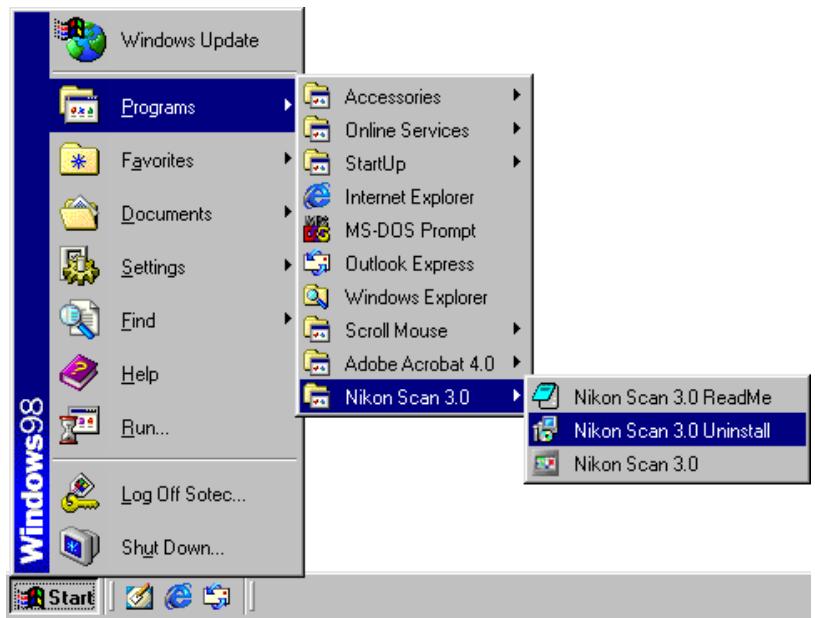
When the message, "Are you sure you want to completely remove Nikon Scan 3.0 and all of its components" appears, click Yes to begin deinstallation. If any of the components used by Nikon Scan are also used by another program, a confirmation dialog will be displayed. Follow the instructions in the dialog to remove the component or leave it untouched.
Click here to proceed to the next step.
Step 2—Start the installer
Before starting the Nikon Scan installer, quit any other programs that may be running, including any virus-checking software. Insert the Nikon Scan 3 CD into the CD-ROM drive and double-click the installer icon. The window shown at right will be displayed; click Continue....

Click here to proceed to the next step.

Depending on where you purchased your scanner, the Nikon Scan 3 CD will contain installers for from one to four language versions of Nikon Scan: English (EN), French (FR), German (DE), and Spanish (ES). Where installers for more than one language version are available, the installers may be found in separate folders; open the folder for the language of your choice and double-click the installer icon.
Step 3—Delete scanner settings
Delete all files in the following folders:
- Windows 98 Second Edition (SE)/Windows Me Windows\Application Data\Pikson\MaidMods\Settings Windows\Application Data\Pikson\Pikson Scan\3.0\Cache Windows\Application Data\Pikson\Pikson Scan\3.0\Settings
- Windows 2000
Documents and Settings\All UsersApplication Data\Nikon\MaidMods\Settings
Documents and Settings\All UsersApplication Data\Nikon\ Nikon Scan\3.0\Cache
Documents and Settings\All UsersApplication Data\Nikon\ Nikon Scan\3.0\Settings
Click here to proceed to the next step.
Step 3—Uninstall Nikon Scan
After you have accepted the license agreement and clicked Continue... to close the ReadMe file, the dialog shown at right will be displayed. To uninstall Nikon Scan, first select Uninstall from the pop-up menu in the top left corner of the installer dialog and then click the Uninstall button at the bottom right corner of the dialog.
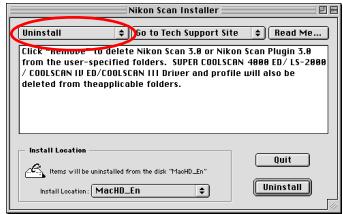
When deinstallation is complete, a message will be displayed. Click OK to end deinstallation.
Click here to proceed to the next step.
Step 4—Run RegSweeper
When Nikon Scan is installed, changes are made to the Windows registry, which records information about the system configuration. Any entries pertaining to Nikon Scan will remain after Nikon Scan is uninstalled, which may affect the operation of Nikon Scan after reinstallation. To prevent this problem, Nikon Scan comes with a special utility, called RegSweeper, which removes all registry entries created by Nikon Scan.
4-1 Read the RegSweeper manual, located on the Nikon Scan 3.0 CD in the folder NKScan\NikonScan3\Utilities\PDFfile. To view the manual using Adobe Acrobat Reader, double-click the RegSweeper.pdf icon.
4-2 Copy the files RegSweeper.exe, RemkeyList.txt, and ReadMe.txt to your hard drive from the directory NKScan\Utilities on the CD.
4-3 Read the ReadMe.txt file by double clicking on the ReadMe.txt icon to open the file in the Notepad. Close the Notepad after reading the file.
4-4 Double-click the RegSweeper.exe icon to run RegSweeper.
Step 5—Reinstall Nikon Scan
Reinstall Nikon Scan as described in "Getting Started: Installation."
Step 4—Delete scanner settings
Delete the file "MAIDDriverPrefs" from the Preferences folder in the System folder, and "Nikon Scan3Prefs" from the Nikon MAID folder in the Preferences folder.
Step 5—Delete copies of the Nikon Scan plug-in
Delete any copies of the Nikon Scan plug-in that may exist in the plug-ins folders of the programs you have been using as host applications for Nikon Scan.
Step 6—Reinstall Nikon Scan
Reinstall Nikon Scan as described in "Getting Started: Installation."
Custom Install (Macintosh Only)
The Macintosh version of the Nikon Scan installer comes with a custom install option that allows you to choose the components that will be installed. To perform a custom install:
Step I—Start the installer
Before starting the Nikon Scan installer, quit any other programs that may be running, including any virus-checking software. Insert the Nikon Scan 3 CD into the CD-ROM drive and double-click the installer icon for the language of your choice. The window shown at right will be displayed; click Continue....

Nikon Scan Installer EN
Step 2—Select Custom Install
After you have accepted the license agreement and clicked Continue... to close the ReadMe file, the installer dialog will be displayed. Select Custom Install from the pop-up menu in the top left corner of the dialog.
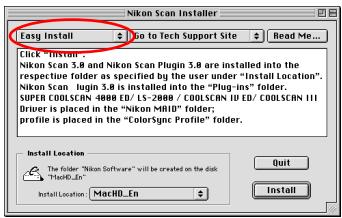
Step 3—Select components
The installer dialog will display the options shown below.
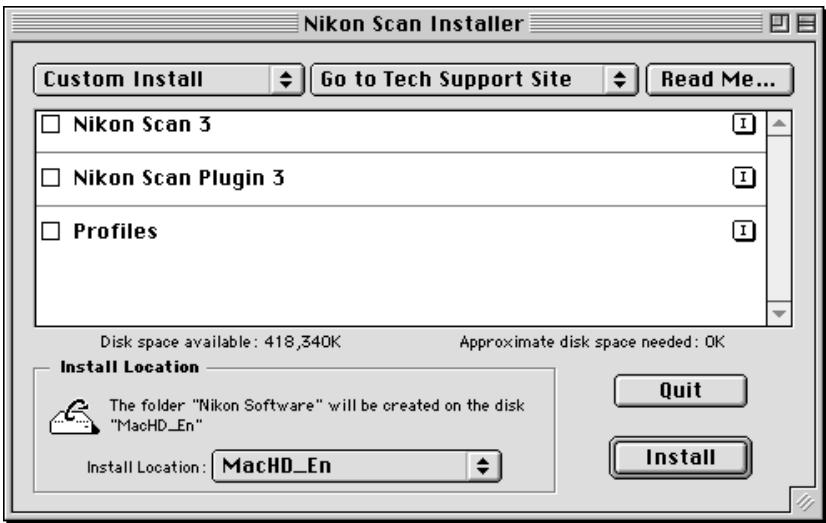
To select the components you want to install, check the box to the left of the item. If you intend to use Nikon Scan solely as a plug-in for another application, you can choose to install only the Nikon Scan plug-in. Note, however, that to use Nikon Scan as a stand-alone application you will need to install Nikon Scan, while the Profiles option is required to provide the ColorSync color management system with information about your scanner.