
CAMERA CONTROL PRO - Image Processing Software NIKON - Free user manual and instructions
Find the device manual for free CAMERA CONTROL PRO NIKON in PDF.


| Product type | Image processing software |
| Brand | Nikon |
| Model | Camera Control Pro |
| Version | 2.x (latest version available) |
| Compatible operating system | Windows 10/11, macOS 10.14 to 13 |
| Main features | Remote control of Nikon cameras, triggering, settings, automatic transfer and backup |
| Supported image formats | RAW (NEF/NRW), JPEG, TIFF |
| Installation file size | Approximately 200 MB |
| Power (hardware required) | Computer with USB port or Wi-Fi |
| Connection | USB, Wi-Fi (depending on device) |
| Maintenance and cleaning | Regular updates via Nikon website |
| Security | Secure connection (HTTPS) for network transfers |
| Spare parts and repairability | Not applicable (software); technical support via Nikon |
| General information | User manual available for free download |
| Weight (media) | Not applicable (digital file) |
| Available languages | French, English, German, etc. |
Frequently Asked Questions - CAMERA CONTROL PRO NIKON
User questions about CAMERA CONTROL PRO NIKON
0 question about this device. Answer the ones you know or ask your own.
Ask a new question about this device
Download the instructions for your Image Processing Software in PDF format for free! Find your manual CAMERA CONTROL PRO - NIKON and take your electronic device back in hand. On this page are published all the documents necessary for the use of your device. CAMERA CONTROL PRO by NIKON.
USER MANUAL CAMERA CONTROL PRO NIKON
Camera Control Pro Reference Manual
Overview
This section describes the structure of this manual, outlines Camera Control Pro's main functions, and gives the system requirements and installation instructions.
Using Camera Control Pro
This section describes how to use Camera Control Pro.
Appendices
This section lists preferences and describes how to uninstall the software.
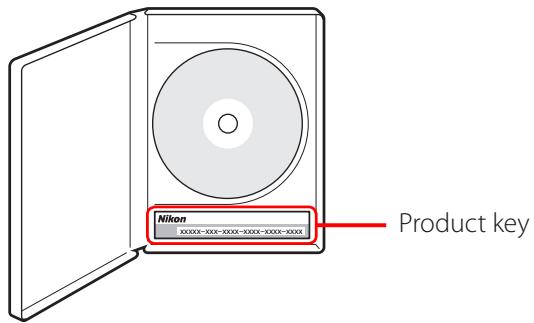
Important Information on the Product Key
The product key may be found on the CD-ROM case. Do not lose this key. It is required when installing or upgrading this software and can not be replaced if lost.
Overview
Introduction 3
About This Manual 6
System Requirements
Windows 7 Macintosh 8
Installing Camera Control Pro 9
Windows 10 Macintosh 15
Getting Started
Starting and Exiting Camera Control Pro 20
Getting Help 26
Software Updates 27
Click a page number to view.
Introduction
This manual has been written to help you take advantage of the many features included in Camera Control Pro. Be sure to read this manual thoroughly, and to keep it handy when using Camera Control Pro.
Conventions
This manual assumes basic knowledge of cameras and Windows or Finder operations. Refer to the documentation provided with your computer or camera for more information. Where the Windows and Macintosh versions of the program use differing commands, the Windows menu name is listed first, followed by the Macintosh menu name in square brackets. Where multiple menu items or folders are selected in sequence, the menu items are separated by a “>”.
Throughout this manual, Windows XP Professional and Windows XP Home Edition are referred to as "Windows XP." Windows 2000 Professional is referred to as "Windows 2000." D1, D1X, and D1H cameras are referred to as "D1-series cameras," D2Xs, D2X, D2Hs, and D2H cameras as "D2-series cameras."
Illustrations
This manual is for use with both Windows and Macintosh. While the majority of the illustrations come from Windows XP, save where otherwise noted the operations described are the same in other operating systems. Depending on the operating system used, the dialogs and menus may differ from slightly from those shown here. Some illustrations are composites.
Printing This Manual
To print this manual, select Print from the File menu in Adobe Reader. This manual is A5 size, allowing facing pages to be printed on a single sheet of A4 paper (to print facing pages, start printing from an even-numbered page).
Installing/Uninstalling Camera Control Pro
Use an account with administrator privileges to install or uninstall Camera Control Pro under Windows XP, Windows 2000, and Mac OS X.
Introduction
2/3
Camera Control Pro
Changes made to settings in the Camera Control Pro window only apply to photographs taken after the changes are made, not to photographs that have already been taken. Camera Control Pro can not be used to modify existing photographs.
The controls in the Camera Control Pro window vary with the type of camera connected. More information on camera settings may be found in the documentation provided with your camera.
Illustrations
Save where otherwise noted, the illustrations in this section show the dialogs displayed when the D2Xs is connected.
Camera Control Pro for D100 Cameras (Macintosh)
Before using Camera Control Pro with a D100 digital camera under Mac OS X, confirm that the camera firmware is version 2.00 or later. Users of earlier versions will need to upgrade the camera firmware before using Camera Control Pro. Contact a Nikon-authorized service representative for information on firmware upgrades.
Introduction
3/3
Customer Support
See Customer Support for information on customer support.
Notices
- No part of the manuals included with this product may be reproduced, transmitted, transcribed, stored in a retrieval system, or translated into any language in any form, by any means, without Nikon's prior written permission.
- Nikon reserves the right to change the specifications of the hardware and software described in these manuals at any time and without prior notice.
- Nikon will not be held liable for any damages resulting from the use of this product.
- While every effort has been made to ensure that the information in these manuals is accurate and complete, we would appreciate it were you to bring any errors or omissions to the attention of the Nikon representative in your area (address provided separately).
Note
The copying or reproduction of copyrighted creative works such as books, music, paintings, wood-cut prints, maps, drawings, movies, and photographs is governed by national and international copyright laws. Do not use the camera for the purposes of making illegal copies or to infringe copyright laws. Do not use in venues where photography or recording is prohibited.
Trademark Information
Microsoft® and Windows® are registered trademarks of Microsoft Corporation. Adobe Reader and Acrobat are registered trademarks of Adobe Systems, Inc. Pentium is a trademark of Intel Corporation. Macintosh®, Mac OS, and QuickTime are registered trademarks of Apple Computer, Inc. All other trade names mentioned in this manual or the other documentation provided with your Nikon product are trademarks or registered trademarks of their respective holders.
About This Manual
How to Use This Manual
The pages of this manual are structured as shown here:
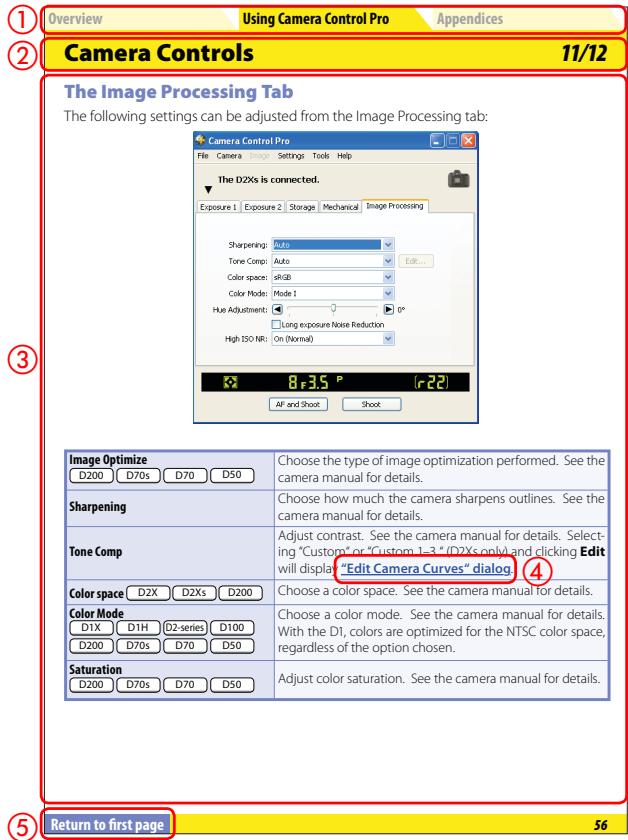
① Click here to go to the beginning of each of the three chapters. The chapter you are currently viewing is displayed in a darker color.
② Page title
③ Description
(4) Blue underlined text indicates a link to another part of this manual or the World Wide Web. Click the text to follow the link (note that a web browser and an Internet connection are required to link to the World Wide Web). To return to the previous topic, click the button in Adobe Reader.
(5) Click here to return to the first page.
System Requirements
Windows
Before installing Camera Control Pro, be sure that your system meets the following requirements:
| CPU | 300 MHz Pentium or better recommended |
| OS | Preinstalled versions of Windows XP Home Edition or Windows XP Professional, Windows 2000 Professional |
| Hard-disk space | 50 MB required for installation, with an additional 1 GB of free disk space available when Camera Control Pro is running |
| RAM | 256 MB (768 MB or more recommended) |
| Video resolution | 800×600 pixels or more with 16-bit color (High Color/thousands of colors). 24-bit color (True Color/millions of colors) recommended. |
| Interface* | USB: Only built-in USB ports supported IEEE 1394: OHCI-compliant IEEE 1394 interface board or card required† |
| Supported cameras | D1-series, D2-series, D100, D200, D70S, D70, D50 |
| Miscellaneous | • CD-ROM drive required for installation • Internet connection required for Nikon Message Center |
- Connect the camera directly to the computer. The camera may not function as expected when connected via a hub, extension cable, or keyboard.
† See the website below for the latest information on boards that have been tested and approved for use.
Check the support information at the website below for the latest on compatible cameras and operating systems.
Europe, Africa: www.europe-nikon.com/support
Asia, Oceania, Middle East: www.nikon-asia.com
U.S.A.: www.nikonusa.com
Additional information may be available from the Nikon representative in your area.
Visit http://nikonimaging.com/ for contact information.
System Requirements
Macintosh
Before installing Camera Control Pro, be sure that your system meets the following requirements:
| CPU | PowerPC G3/G4/G5* |
| OS | Mac OS X version 10.3.9 or later |
| Hard-disk space | 50 MB required for installation, with an additional 1 GB of free disk space available when Camera Control Pro is running |
| RAM | 256 MB (768 MB or more recommended) |
| Video resolution | 800×600 pixels or more with 16-bit color (High Color/thousands of colors). 24-bit color (True Color/millions of colors) recommended. |
| Interface† | USB: Only built-in USB ports supported FireWire: Only built-in FireWire ports supported |
| Supported cameras | D1-series, D2-series, D100, D200, D70S, D70, D50 |
| Miscellaneous | • CD-ROM drive required for installation • Internet connection required for Nikon Message Center |
- Operation not guaranteed on Intel-based Mac computers.
Connect the camera directly to the computer. The camera may not function as expected when connected via a hub, extension cable, or keyboard.
Check the support information at the website below for the latest on compatible cameras and operating systems.
Europe, Africa: www.europe-nikon.com/support
Asia, Oceania, Middle East: www.nikon-asia.com
U.S.A.: www.nikonusa.com
Additional information may be available from the Nikon representative in your area. Visit http://nikonimaging.com/ for contact information.
Installing Camera Control Pro
Before installing Camera Control Pro:
- Confirm that the computer satisfies the system requirements for Camera Control Pro.
- Exit any other applications that may be running, including anti-virus software.
Follow the links below to view installation instructions for your operating system:
Windows
Macintosh
Existing Versions of Camera Control Pro
If an existing copy of Camera Control Pro is detected during installation, a notification will be displayed. Follow the on-screen instructions.
Installing Camera Control Pro
Windows 1/5
Use an account with administrator privileges when installing Camera Control Pro.
The "Install Center" window
Start the computer and insert the Camera Control Pro CD in a CD-ROM drive. The "Select Region" dialog will be displayed; select a region and click Next. A language-selection dialog will be displayed; select a language and click Next to display the "Install Center" window.
Easy Install: Install the minimum software needed to run Camera Control Pro.
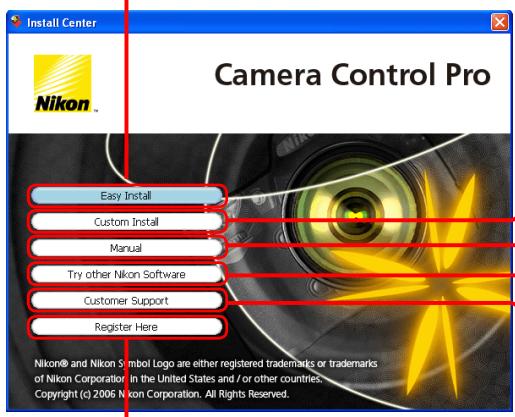
Register Here: Register your Nikon product on-line (Internet connection required). This button does not appear in some regions.
Custom Install: Install selected software.
Manual: Open the "Manuals" folder, which contains software instruction manuals. Double-click INDEX.pdf to view a region selection screen. This button is not displayed in the trial version.
Try other Nikon Software: Download trial versions of Nikon software (Internet connection required).
Customer Support: View the ReadMe file or visit Nikon technical support websites (Internet connection required).
To uninstall Camera Control Pro, see Uninstalling Camera Control Pro.
If the "Select Region" dialog Is Not Displayed
To display the "Select Region" dialog, select My Computer from the Start menu (Windows XP) or double-click the My Computer icon on the desktop (Windows 2000) and double-click the CD-ROM (Camera Control Pro) icon in the My Computer window.
Installing Camera Control Pro
Windows 2/5
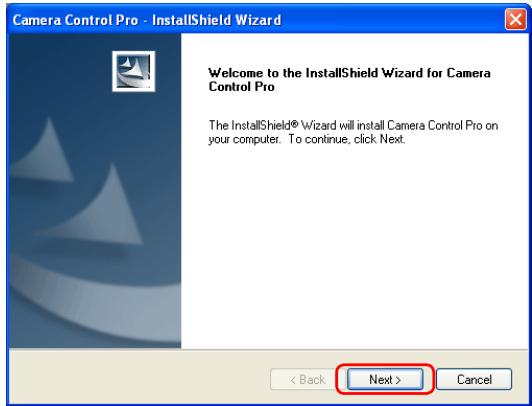
Follow the steps below to install Camera Control Pro:
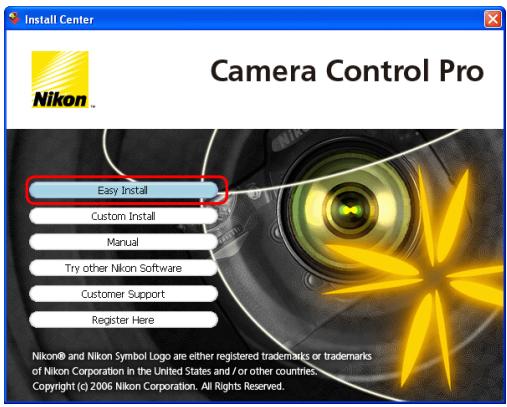
1 Click Easy Install.
2 Click Next.
Installing Camera Control Pro
Windows 3/5
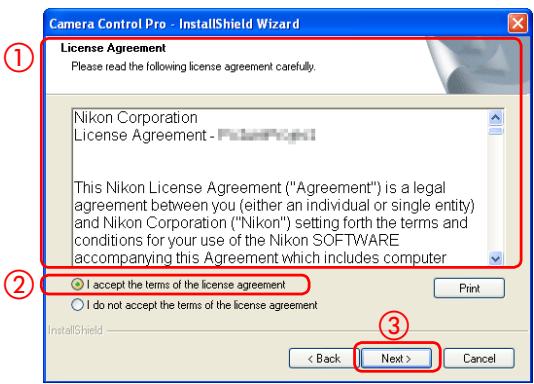
After reading the license agreement (①), select I accept the terms of the license agreement (②) and click Next (③) to proceed with installation.
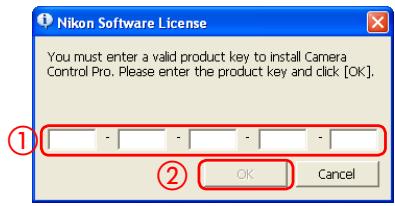
4 Enter the product key (①) found on the CD case and click OK (②). The trial version does not show this dialog.
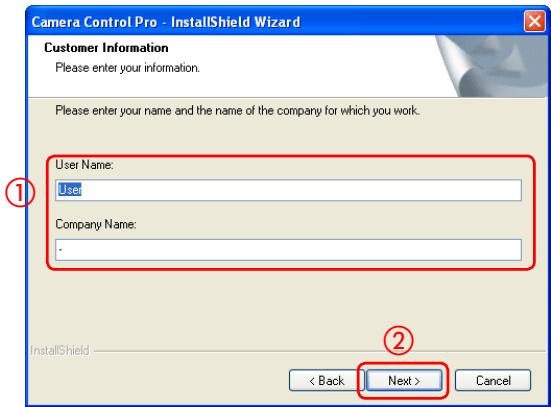
5 Personalize your copy of Camera Control Pro (①) and click Next (②).
Product Key
Do not lose this key. It is required when installing or upgrading this software and can not be replaced if lost.
Installing Camera Control Pro
Windows 4/5
The destination folder for Camera Control Pro will be displayed under "Install Camera Control Pro to." Click Next to install Camera Control Pro to this folder, or click Change... to select another destination.
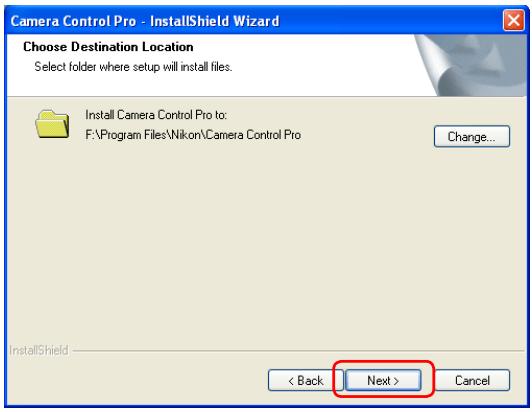
7 Click Install.
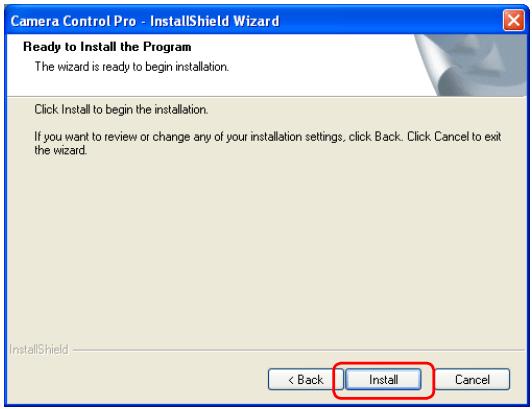
Installing Camera Control Pro
Windows 5/5
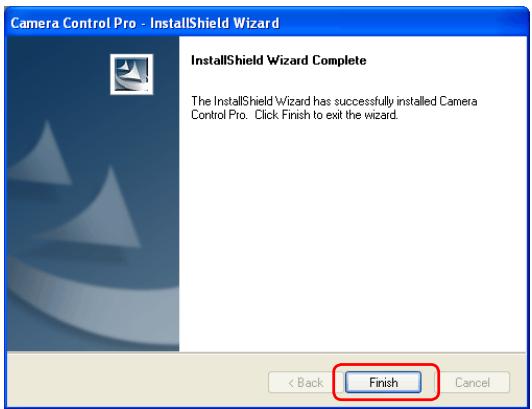
8 Click Finish.
9 Click Yes and remove the Camera Control Pro CD from the CD-ROM drive.
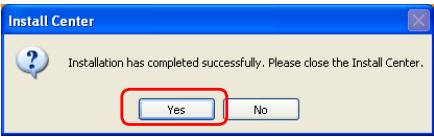
If a dialog is displayed directing you to restart the computer, follow the on-screen instructions.
This completes installation of Camera Control Pro.
Installing Camera Control Pro
Macintosh 1/5
Use an account with administrator privileges when installing Camera Control Pro.
The "Install Center" window
Start the computer and insert the Camera Control Pro CD in a CD-ROM drive. Double-click the Camera Control Pro CD-ROM icon ( ) on the desktop and then double click the Welcome ( ) icon. The "Select Region" dialog will be displayed; select a region and click Next. A language-selection dialog will be displayed; select a language and click Next to display the "Install Center" window.
Easy Install: Install the minimum software needed to run Camera Control Pro.
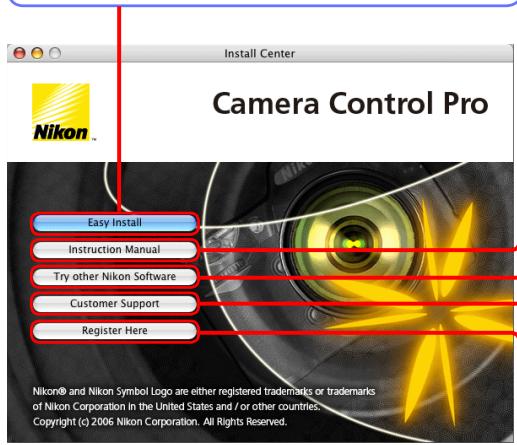
Instruction Manual: Open the "Manuals" folder, which contains software instruction manuals. Double-click INDEX.pdf to view a region selection screen. This button is not displayed in the trial version.
Try other Nikon Software: Download trial versions of Nikon software (Internet connection required).
Customer Support: View the ReadMe file or visit Nikon technical support websites (Internet connection required).
Register Here: Register your Nikon product on-line (Internet connection required). This button does not appear in some regions.
To uninstall Camera Control Pro, see Uninstalling Camera Control Pro.
Installing Camera Control Pro
Macintosh 2/5
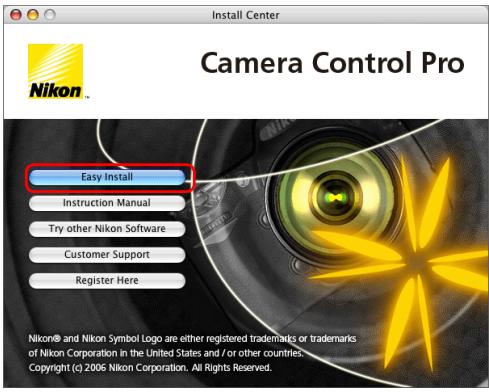
Follow the steps below to install Camera Control Pro:
1 Click Easy Install.
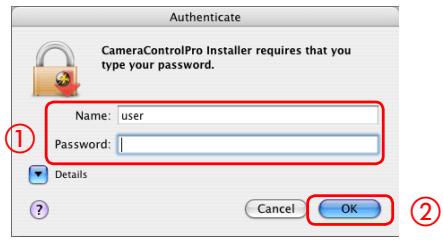
2 Enter the administrator name and password (①) and click OK (②).
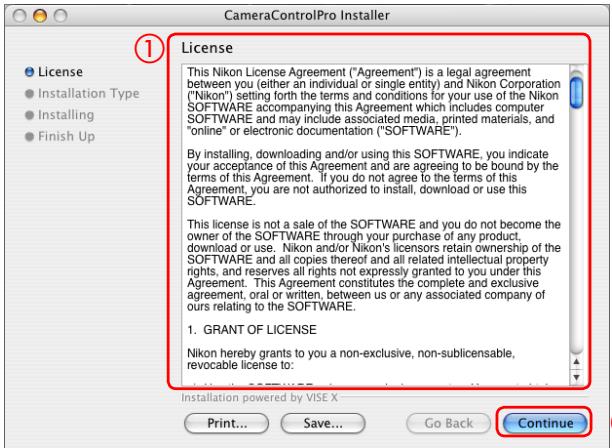
After reading the license agreement (①), click Continue (②).
Installing Camera Control Pro
Macintosh 3/5
Click Agree to accept the license agreement and proceed with installation.

To continue installing the software, you must agree to the terms of the software license agreement.
Click Agree to continue or click Disagree to cancel the installation.
Agree
Disagree
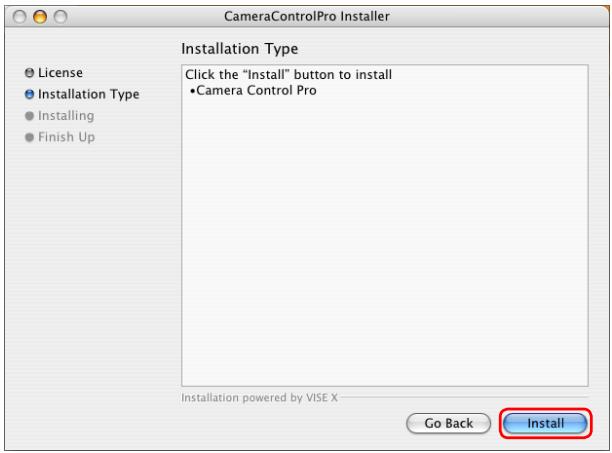
5 Click Install.
6 Enter the product key (①) found on the CD case and click OK (②). The trial version does not show this dialog.
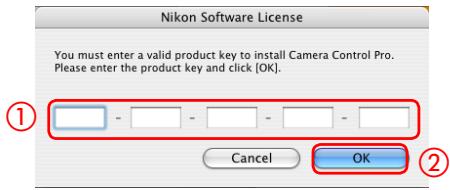
Product Key
Do not lose this key. It is required when installing or upgrading this software and can not be replaced if lost.
Installing Camera Control Pro
Macintosh 4/5
7 Personalize your copy of Camera Control Pro (①) and click OK (②).

Please type your name and company in the spaces provided.
Name:
Company :
OK

8 Click Yes.

You have provided the following registration information.
Name :user
Company :user
Is this registration information correct?
No
Yes
Installing Camera Control Pro
Macintosh 5/5
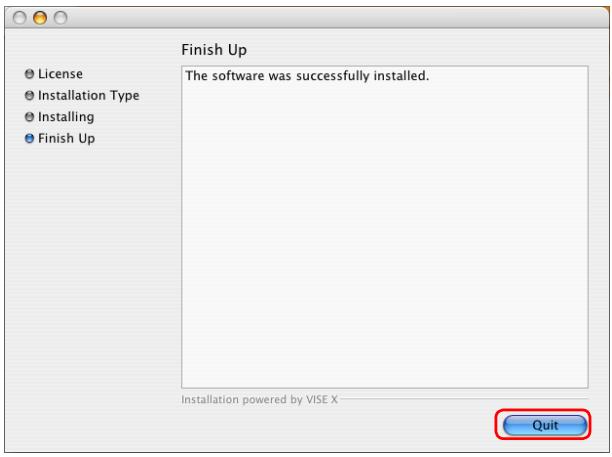
9 Click Quit.
10 Click OK and remove the Camera Control Pro CD from the CD-ROM drive.
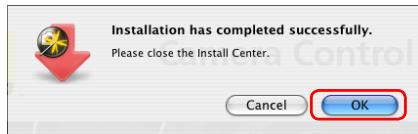
This completes installation of Camera Control Pro.
Starting and Exiting Camera Control Pro
1 Turn the camera off and use the interface cable to connect the camera to the computer as described in the camera manual. If you are using a D1-series camera, choose "PC" as the operating mode. If you are using a D100, choose P, S, A, or M mode. Users of D2-series cameras can select any mode other than M-up (mirror up). The D70S, D70, and D50 can be connected in any shooting mode.
2 Turn the camera on. If PictureProject Transfer or Nikon Transfer starts, click the close button.
USB D2-series D100 D200 D70S D70 D50
Users of the above cameras will need to ensure that the appropriate setting is chosen for USB option in the camera setup menu before connecting the camera to a computer running Camera Control Pro. Choose a USB setting according to your computer's operating system:
| Operating system | D100 | D2-series | D200 | D70S | D70 | D50 |
| Windows XP | Choose Mass Storage* or PTP. | Choose PTP. | ||||
| Windows 2000 | Choose Mass Storage.* | |||||
| Mac OS | Choose PTP. | |||||
- Log on to an administrator account when using Camera Control Pro.
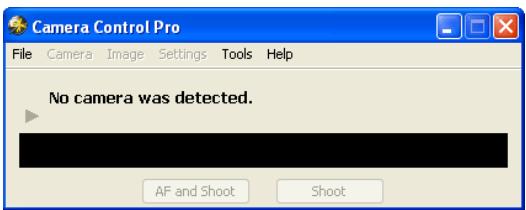
No Camera Connected
If no camera is connected when Camera Control Pro is launched, a warning will be displayed.

Click OK to close the warning and display the following window. Preferences can be adjusted using the options in the menu bar. For information on connecting the camera, see the camera manual.
Starting and Exiting Camera Control Pro
3 Start Camera Control Pro.
Windows
Method 1: Double-click the Camera Control Pro shortcut on the desktop.

Camera Control Pro
Method2: Click Start and select Camera Control Pro > Camera Control Pro from All Programs (WindowsXP) or Programs (Windows 2000).

Macintosh
Method 1: Click the Camera Control Pro icon in the Dock (if available).
Camera Control Pro

Method 2: Open the "Nikon Software/Camera Control Pro" folder in the "Applications" folder and double-click the Camera Control Pro icon.

Camera Control Pro
Product Key
If prompted to supply a product key, enter the key found on the product packaging and click OK. Users of the trial version will see a dialog listing the time remaining in the thirty-day trial period; click Trial to use the trial version or Buy (if available) to visit a website where you can purchase a product key. Be sure not to lose the key, as it may be required when re-installing or upgrading the product.
Starting and Exiting Camera Control Pro
4 The Camera Control Pro window will be displayed.
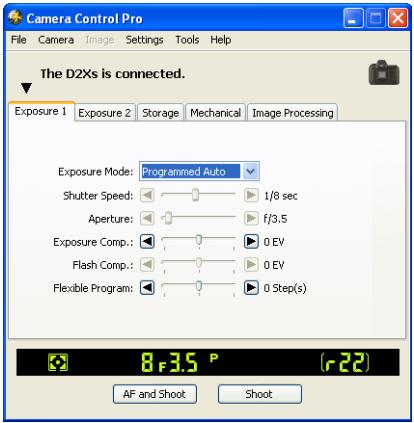
Windows
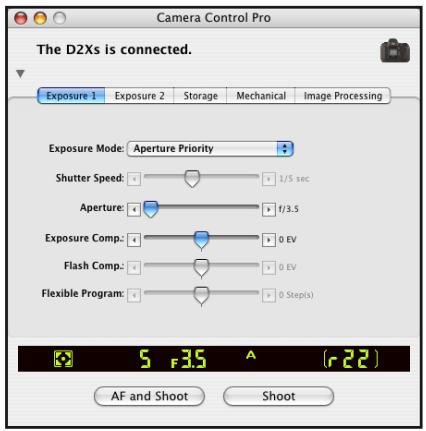
Macintosh
Starting and Exiting Camera Control Pro
USB Connection to a Windows XP Computer
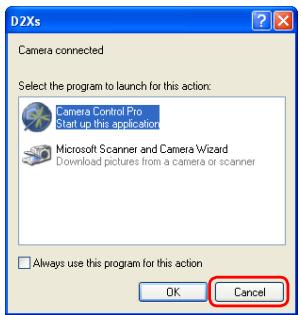
When a camera with USB interface is connected to a Windows XP computer, one of the following dialogs may be displayed.
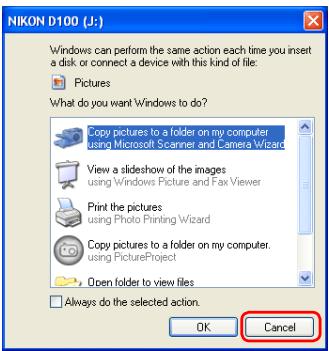
Mass Storage
PTP
Select Cancel to close the dialog.
Starting and Exiting Camera Control Pro
Exiting Camera Control Pro
Windows
Select Exit from the File menu.
File
Exit
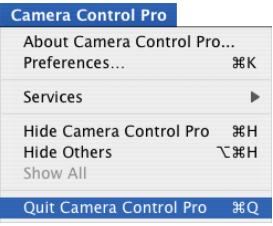
Macintosh
Select Quit Camera Control Pro from the application menu.
Starting and Exiting Camera Control Pro
Disconnecting the Camera
To disconnect the camera:
- USB (PTP)/IEEE 1394 (FireWire): Turn the camera off and disconnect the interface cable.
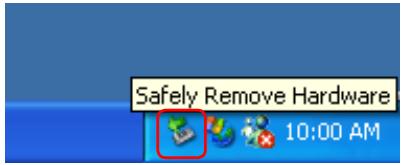
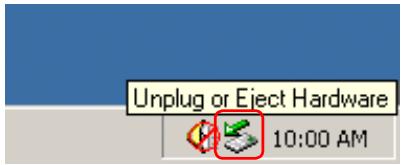
- USB (Mass Storage): Remove the camera from the system as described below, then turn the camera off and disconnect the USB cable.
Windows XP: Click the "Safely Remove Hardware" icon in the taskbar and select Safely Remove USB Mass Storage Device from the menu that appears.
Windows 2000: Click the "Unplug or Eject Hardware" icon in the taskbar and select Stop USB Mass Storage Device from the menu that appears.
Getting Help
To view help on Camera Control Pro, select Camera Control Pro Help from the Help menu.
Help
| Camera Control Pro Help F1 |
| Technical Support |
| Check for Software Updates... |
| About Camera Control Pro... |
Windows
Help
| Camera Control Pro Help 36? |
| Technical Support |
| Check for Software Updates... |
Macintosh
Software Updates
Camera Control Pro is equipped with an automatic update function known as Nikon Message Center. Nikon Message Center checks for updates to a variety of Nikon digital products, including Camera Control Pro. If the computer is connected to the Internet, Nikon Message Center will automatically check for updates when Camera Control Pro starts. You can also check for updates by selecting Check for Software Updates... from the Help menu. If an update is available, an update dialog will be displayed.
Downloading Updates
An Internet connection is required to download updates. The user bears all applicable fees charged by the phone company or Internet service provider.
Dial-up Connections
When using a dial-up connection, be aware that the connection is not automatically terminated when download is complete. Be sure to terminate the connection manually.
Privacy
Information provided by the user as part of this service will not be given to third parties without the user's permission.
Using Camera Control Pro
| Screen Layout | 29 |
| Capturing Photographs to Disk | 31 |
| Viewing Captured Photographs | 36 |
| Time Lapse Photography | 38 |
| The Camera Control Pro Window | 42 |
| Camera Controls | 46 |
| Saving and Loading Camera Control Settings | 58 |
| The Camera Menu | 59 |
| Custom Settings | 63 |
Screen Layout
Camera Control Pro screen layout is described below.
Windows
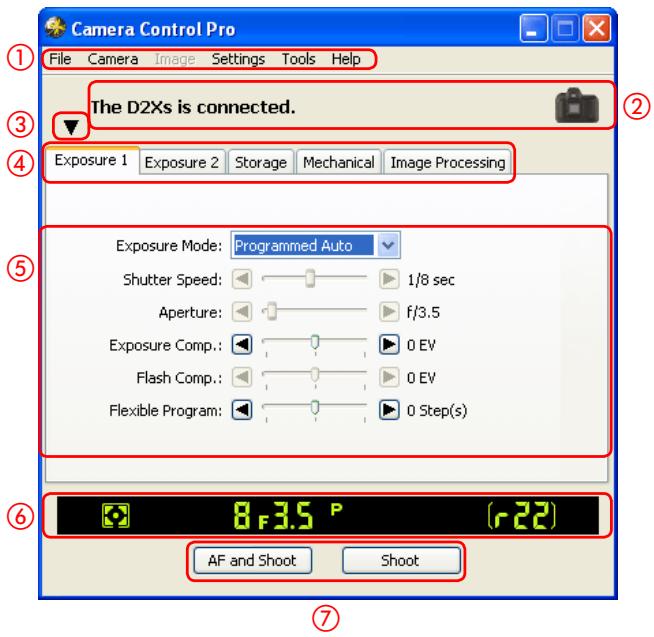
① Menu bar
② Connection status: Shows the status and name of any cameras connected.
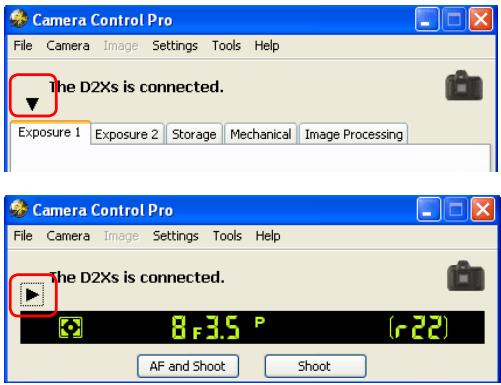
③▼/▶: View or hide camera controls. Camera controls can also be displayed or hidden by selecting Show/Hide Camera Control Panels in the Tools menu.
④ Camera control tabs: Click to view the associated camera controls.
⑤ Camera controls
Simulated LCD panel: Performs the same function as the information display in the camera viewfinder.
⑦ Shoot buttons: Click these buttons to take pictures.
Screen Layout
Macintosh
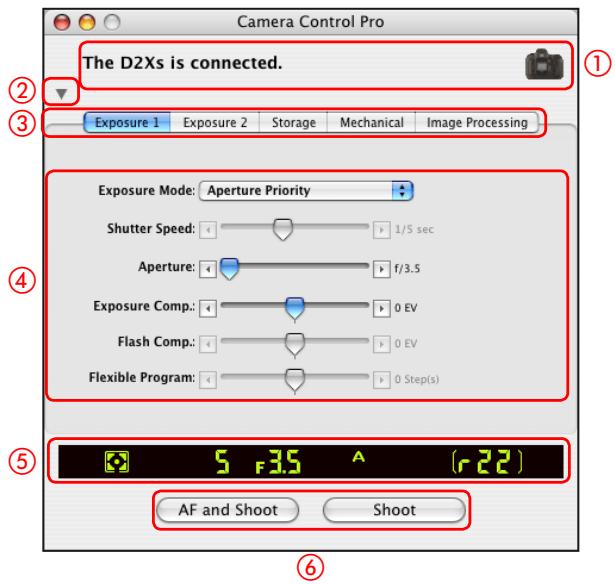
① Connection status: Shows the status and name of any cameras connected.
② / : View or hide camera controls. Camera controls can also be displayed or hidden by selecting Show/Hide Camera Control Panels in the Tools menu.
③ Camera control tabs: Click to view the associated camera controls.
④ Camera controls
⑤ Simulated LCD panel: Performs the same function as the information display in the camera viewfinder.
⑥ Shoot buttons: Click these buttons to take pictures.
Capturing Photographs to Disk
If Camera Control Pro is running when a D2-series, D200, D100, D70S, D70, or D50 camera is connected, or a D1-series camera is connected with the mode dial set to PC, pictures taken with the camera will be stored on your computer hard disk, not the camera memory card.
1 Start Camera Control Pro.
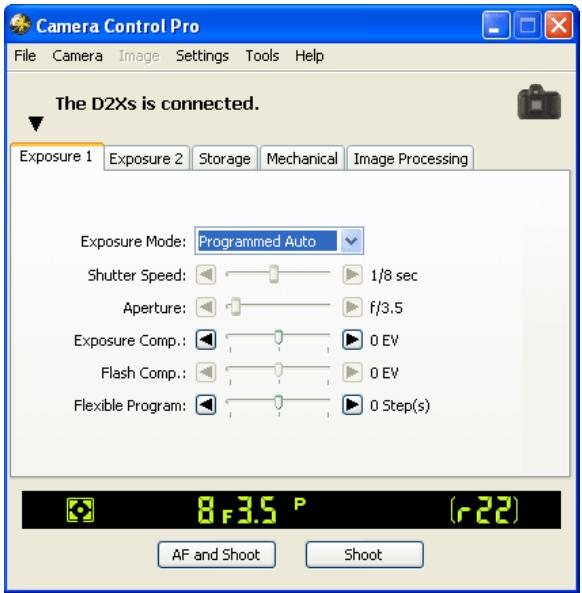
2 Select Download Options... in the Tools menu to display download options.

Capturing Photographs to Disk
3 Adjust capture options:
Folder for images downloaded from the camera
Select the folder to which photographs will be downloaded as they are taken.
Next file name to be used
Shows how images download to the computer will be named. To change how files are named, click Edit... The dialog shown at below will be displayed. Using the sample file name as a guide, enter a prefix and suffix and choose the starting number and number of digits for automatic file numbering. You can also use the shooting date and time in the file name.
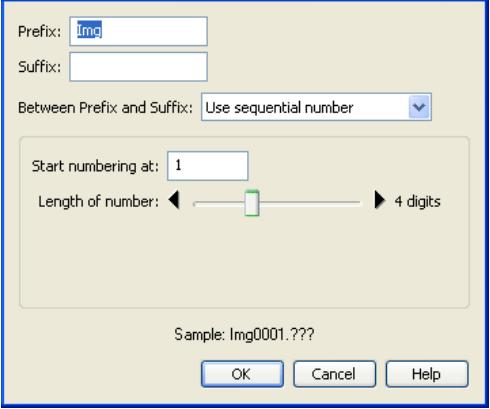
File Naming
Step 3 continues on the next page
File Naming Conventions
Windows: File names may not contain quotes or any of the following characters: "\"\/\":"***?"<\">" and "\"". Periods ("") may not appear at the beginning or the end of file names.
Macintosh: The maximum length for Macintosh file names is thirty-one characters. Colons (^,: ) are not allowed.
Capturing Photographs to Disk
When a new image is received from camera
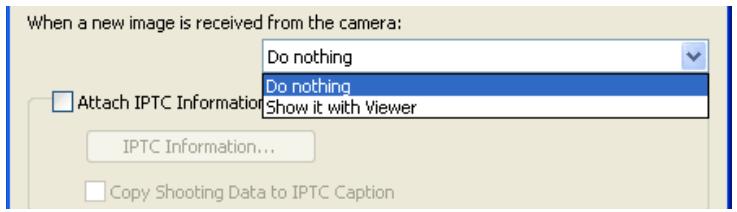
Choose the application that will be used to display captured photographs after they are saved to disk.
- Do nothing: Photographs are not displayed after being saved to the computer hard disk.
Show it with viewer: Photographs are displayed in the viewer window. - Send it to Capture NX watched folder (available only if Capture NX is installed): Photographs are saved in the "watched" folder selected in Capture NX (available separately; see the Capture NX manual for details). Capture NX will automatically process the pictures according to the batch settings in Capture NX, approximating the "Live Batch" option in Nikon Capture Camera Control.
- Import it into PictureProject (available only if PictureProject is installed): PictureProject starts automatically and displays the captured images. See the PictureProject manual for details.
Attach IPTC Information
Check this option to add IPTC information to captured images and enable the Copy Shooting Data to IPTC Caption option.
Step 3 continues on the next page
Image Authentication D2Xs
The Attach IPTC Information and Embed ICC Profile options do not apply to photographs taken with Image Authentication on. Image authentication information is not embedded in TIFF photographs when capturing images using the Camera Control Pro.
Capturing Photographs to Disk
IPTC Information...
Clicking this button displays a dialog where you can select the IPTC information, including keywords and captions, that will be added to images as they are captured.
Copy Shooting Data to IPTC Caption
Check this option to copy shooting data to the caption field of images as they are captured.
Embed ICC Profile
Select this option to embed an ICC profile according to the camera Color Space settings. The ICC profile is embedded in JPEG and TIFF images as they are captured.
After adjusting the above options, click OK to exit the dialog and apply settings to subsequent photographs.
Choose whether to embed information on picture orientation in captured images (note that these options are not available when On or Automatic is selected for the auto image rotation option in the camera setup menu). Select an option once to enable it, again to disable it.
Rotate all downloaded images by 90 degrees CCW
If this option is checked, pictures will be marked as being rotated 90^ counterclockwise as they are saved.
Rotate all downloaded images by 90 degrees CW
If this option is checked, pictures will be marked as being rotated 90^ clockwise as they are saved.
Auto Image Rotation D2-series D200 D70S D70 D50
If On or Automatic (the default setting) is selected for the auto image rotation option in the camera setup menu, D2-series, D200, D70S, D70, and D50 cameras will detect camera orientation and automatically embed this information in photographs (note that in continuous mode, the orientation for the first image in each burst applies to all images in the series, even if camera orientation is changed during shooting). If Off is selected, camera orientation will not be recorded. Information on picture orientation can be added during download as described in Step 4.
Image Authentication D2Xs
The "Rotate all downloaded images..." options do not apply to photographs taken with Image Authentication on. Image authentication information is not embedded in TIFF photographs when capturing images using the Camera Control Pro.
Capturing Photographs to Disk
Take pictures using the camera shutter-release button or the AF and Shoot or Shoot buttons in the Camera Control Pro window. The Status dialog shown below will be displayed.
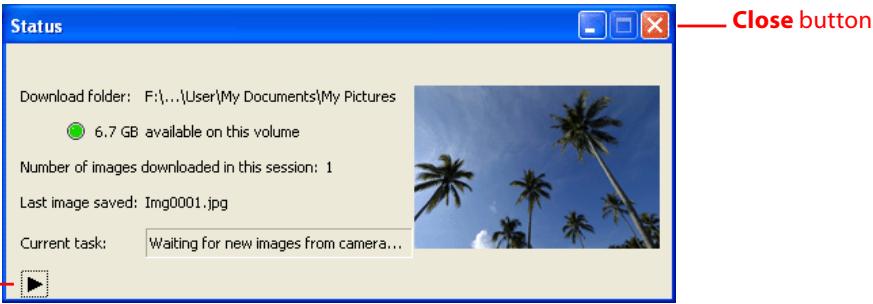
triangle
To display a histogram of the current image, click the triangle at the bottom of the Status dialog.
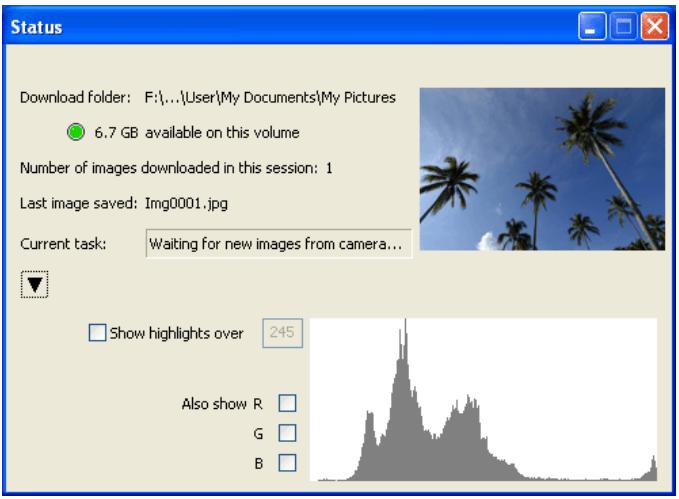
If the Show highlights over option is checked, any areas of the preview image with a brightness over the value entered in the neighboring text box will be indicated by a flashing border. To display histograms for the red (R), green (G), and blue (B) channels, put a check in the corresponding box.
6 Click Close to close the Status dialog.
Viewing Captured Photographs
If Show it with Viewer is selected for When a new image is received from camera in the "Download Options" dialog, pictures will automatically be displayed in the "Viewer" window after capture. The "Viewer" window can also be started by selecting Show Viewer from the Tools menu. The most recent image in the folder selected for Folder for images downloaded from the camera in the "Download Options" dialog will be displayed.
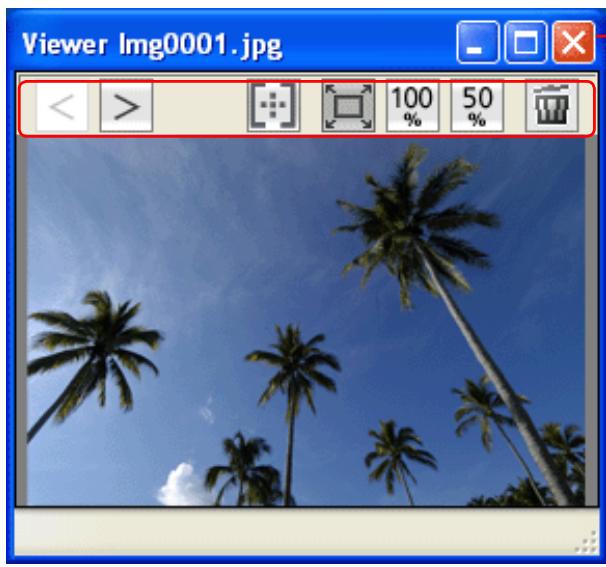
(1)
— Close button
To close the "Viewer" window, click Close.
Viewing Captured Photographs
The "Viewer" window contains the following buttons ①:
| Button | Name | Function |
| < | Previous image | Go back one image. |
| > | Next image | Display next image |
| Show focus area | Display focus area used when taking picture. Focus area is displayed in red. | |
| Fit to screen | Fit image to viewing area (maximum zoom ratio is 100%). | |
| 100% | 100% | View image at 100%. |
| 50% | 50% | View image at 50%. |
| Delete | Delete current image. | |
Show Focus Area
Focus area display is only available with photographs taken with Nikon digital SLR cameras. It will not be displayed in photographs taken with a non-CPU lens, manual focus, or when focus areas not displayed in the viewfinder.
Time Lapse Photography
Using Camera Control Pro, you can take a series of photographs automatically at a time interval you select.
1 Select Time Lapse Photography... from the Camera menu. The Time Lapse Photography dialog will be displayed.
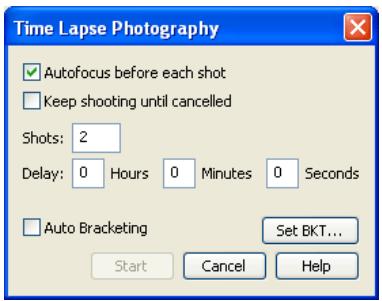
Time Lapse Photography
Before shooting starts, adjust the following settings:
If this option is checked, the camera will perform an autofocus operation before each shot. If the selected focus mode is AF-A (D50 only) or single-servo AF, an autofocus operation will be performed even when the check box is off.
Keep shooting until cancelled
If this option is checked, the camera will continue to take photographs until you click Stop Shooting in the Time Lapse Photography dialog.
Auto bracketing D2-series D200 D70S D70 D50
Select this option to perform exposure, flash, or white balance bracketing during shooting. To change bracketing options, click Set BKT... The dialog shown at right will be displayed.
| AE/WB/Flash Bracketing | Choose the type of bracketing performed. |
| Change Factor when Exposure Mode is set to Manual D2-series D200 | Choose how bracketing is performed in manual exposure mode. |
| Bracketing Type/ Bracketing Step/ Bracketing Order/ Exposure Mode | Choose the bracketing program, exposure or white balance increment, bracketing order, and exposure mode. Bracketing type and bracketing order are not available with the D50. |
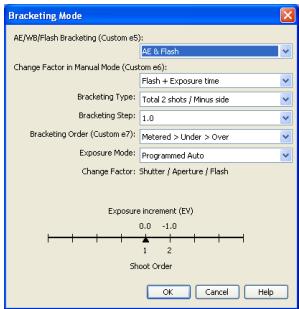
D2 series/D200
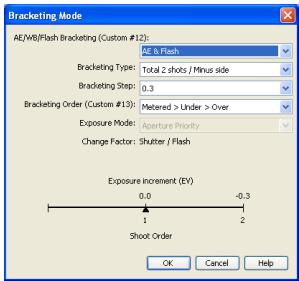
D70S/D70/D50
Time Lapse Photography
3 Use the Shots box to choose a number of shots from 2 to 9,999. This option is not available when Keep shooting until cancelled is selected.
4 The delay between shots can be set to any value between 00:00:01 (one second) and 99:59:59 (ninety-nine hours, fifty-nine minutes, and fifty-nine seconds).
5 Click Start. If Send it to Capture NX watched folder is selected for When a new image is received from camera in the "Download Options" dialog, photographs will be saved to the "watched" folder selected in Capture NX (available separately; see the Capture NX manual for details). Capture NX will automatically process the pictures according to the batch settings in Capture NX, approximating the "Live Batch" option in Nikon Capture Camera Control.
Time Interval Settings
If the delay is shorter than the time required to record each photograph, the actual interval between photographs will be longer than that specified in the Time Lapse Photography dialog.
Auto Off D1-series
When the camera is operated on battery power and for 15 minutes has been selected for "While Camera Control Pro is running, keep camera awake" in the General tab of the Preferences dialog, choose a delay of fifteen minutes or less. When taking photographs at longer intervals, use an AC adapter (available separately) to power the camera.
During Time-Lapse Photography
The camera can not be operated during time-lapse photography. No other operations can be performed until the Time Lapse Photography dialog is closed.
Time Lapse Photography
6 Follow the progress of time lapse photography in the progress dialog.
Click Stop Shooting to end time lapse photography at any time. If a number of shots was specified in the "Time Lapse Photography" dialog, shooting will end when the specified number of shots has been taken.
Time Lapse Photography


You cannot change settings on the camera when it is in Time Lapse Photography mode.
Download folder: F:\My Documents\My Pictures

6.7 GB available on this volume
Last image saved:Img0001.jpg
Images saved: 1
Interval between shots: 00:00:05
Shots attempted: 1 of 2
Download task:
Waiting for new images from camera...
Stop Shooting

7 Once the specified number of shots has been taken, the Stop Shooting button will change to Shooting Complete. Click Shooting Complete to exit the "Time Lapse Photography" dialog.
Error Logs
If an error occurs during shooting, an error log will be displayed; click OK to close the log and return to the Camera Control Pro window.
The Time Lapse Photography Dialog
If you make a mistake in entering settings in the Time Lapse Photography dialog, a warning will be displayed. Return to the Time Lapse Photography dialog and adjust settings as directed.
Hard Disk Full
A warning will appear when space is no longer available on the destination disk for photographs taken using time lapse photography. Use the information in the warning to reduce the number of photographs or change the destination drive.
The Camera Control Pro Window
The Camera Control Pro window shows current camera settings, which may be viewed by clicking the five page selection tabs. Camera settings can be altered using the controls in each tab as in "Camera Controls." The other settings in this window are described below.
Connection Status
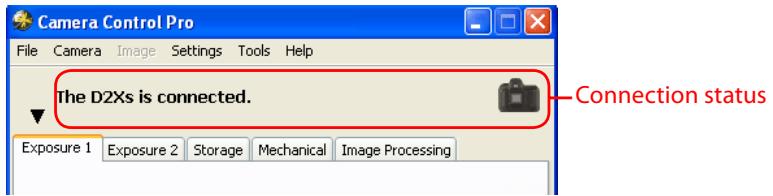
This area shows the following information about the camera currently connected:
Camera name
Camera orientation D2-series D200 D70S D70 D50
If On or Automatic (the default setting) is selected for the auto image rotation option in the camera setup menu, camera orientation will be indicated by an icon as shown below. No icon will be displayed if Off is selected.
Horizontal
Rotated 90^ clockwise
Rotated 90^ counterclockwise
The Camera Control Pro Window
The / Button
Click this button to view or hide camera controls.
Simulated LCD Panel
This panel shows the information displayed in the camera's viewfinder, with the exception of camera errors. Clicking on an indicator in the panel opens the Camera Control Pro window to the tab that controls the selected option, where adjustments can be made.
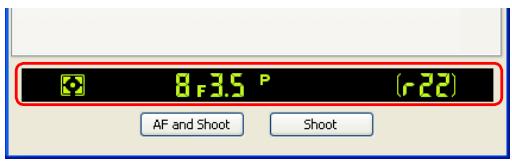
When a D2-series, D200, D70S, D70, or D50 camera is connected, the amount of memory remaining in the camera memory buffer is displayed at the right edge of the simulated LCD panel. This information is updated at regular intervals, but temporary discrepancies may exist between the display and the actual amount of memory remaining in the buffer.
The Camera Control Pro Window
Shoot Buttons
Click either of these buttons to take a photograph at current settings. If a D2-series, D200, D70S, D70, or D50 camera is connected, photos can be taken in continuous shooting mode; in this case, the AF and Shoot and Shoot buttons will instead be labeled AF and Start and Start. Continuous shooting with D1-series and D100 cameras can only be performed with shutter-release button on the camera body; the shooting buttons in the "Camera Control Pro" dialog can only be used to take pictures one at a time.
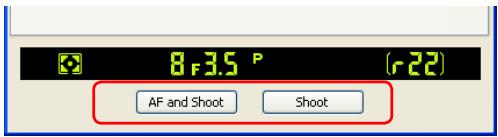
| AF and Shoot/ AF and Start | When this button is clicked, the camera will perform an autofocus operation and then release the shutter to take a photograph. |
| Shoot/Start | Click this button to take a photograph. If the selected focus mode is AF-A (D50 only) or single-servo AF, an autofocus operation will be performed before the shutter is released. |
The Function Dial D100
The D100 can only be used to take photographs when the function dial is set to P, S, A, or M. At other settings, the shoot buttons in the "Camera Control Pro" dialog will be disabled and the simulated LCD panel will not be displayed.
The Camera Control Pro Window
Camera Settings That Can Not Be Adjusted from Camera Control Pro
The following operations can only be performed using the controls on the camera body:
| Operation | Camera | |
| Stress exposure | Burst photography (continuous shooting mode) | D1-series D100 |
| Continuous servo autofocus | All supported models | |
| Pressing the shutter-release button halfway to check focus | All supported models | |
| Autofocus-only operation(use AF and Shoot to perform autofocus) | All supported models | |
| Manual aperture adjustment using the lens aperture ring | D1-series D2-series D200 | |
| Reactivating the camera after it has entered sleep mode | D1-series | |
| Depth-of-field preview | All supported models | |
| Auto bracketing | D1-series D100 | |
| Compression options for NEF (RAW) images | D100 | |
| Operation assigned to FUNC. buttonwith Custom Setting f4 | D2-series D200 | |
| Remote (D70S, D70, and D50 only)and self-timer mode selection | D2-series D200 D70S D70 D50 | |
| Stress exposure | Focus mode selection using camera focus-mode selector | All supported models |
| Metering | D1-series D100 | |
| Exposure mode (can be adjusted if Enable controls on camerabody is selected when D70S, D70, or D50 is connected) | D100 D70S D70 D50 | |
| Shooting mode | D100 | |
| Shutter-speed lock | D1-series D2-series | |
| Aperture lock | D1-series D2-series | |
| Autoexposure lock | All supported models | |
| Speedlight flash-level compensation | D1-series D2-series | |
| M-up (mirror up) mode selection | D2-series D200 | |
| Selection of second center focus area group (group dynamic-AF) | D2-series D200 | |
Camera Controls
Camera controls are described below using the D2Xs as an example:
The Exposure 1 Tab
The following settings can be adjusted from the Exposure 1 tab:
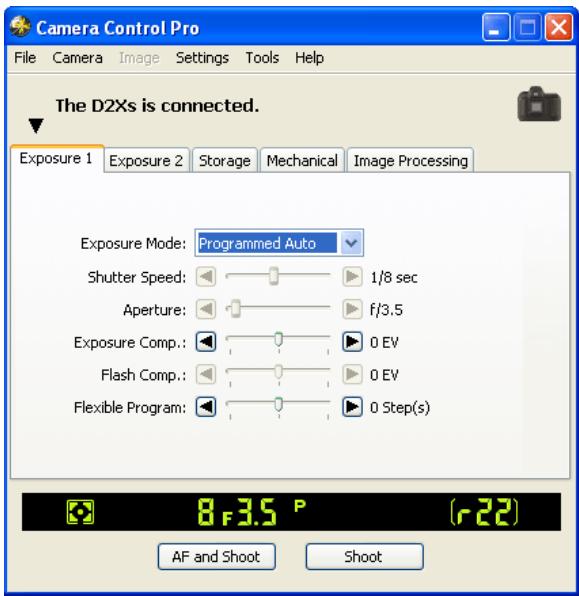
| Exposure Mode | This menu can be used to set the exposure mode for D2- and D1-series and D200 cameras. If a D100 is connected, or if Enable controls on the camera body is checked when a D70S, D70, or D50 is connected, it will show the current exposure mode but the mode itself must be selected using the camera function dial. See the camera manual for details. |
| Shutter Speed | Shutter speed can only be adjusted in Manual and Speed Priority modes, when it can be set to values between the maximum and minimum values supported by the camera. Use high shutter speeds to freeze motion, low shutter speeds to suggest motion by blurring moving objects. |
| Aperture | Aperture can only be adjusted in Manual and Aperture Priority modes, when it can be set to values between maximum and minimum aperture (small apertures have high f-numbers, wide apertures low f-numbers; the actual apertures available depend on the lens used). Aperture can not be controlled from Camera Control Pro when Custom Setting 22 has been set to allow aperture to be adjusted manually using the lens aperture ring (D1-series only). |
Camera Controls
| The Exposure 1 Tab | |
| Exposure Comp. | Exposure compensation is useful when shooting subjects containing sharp lighting contrasts, or on other occasions when you want to modify the exposure value determined by the camera. Exposure compensation is available in all exposure modes. |
| Flash Comp. D100 D200 D70S D70 D50 | This option is used to adjust the level of the camera's built-in Speed-light. |
| Flexible Program | Flexible program can only be used in Program Mode, when it allows you to choose from predetermined combinations of shutter speed and aperture appropriate to current lighting conditions. |
The Function Dial D100
The D100 can only be used to take photographs when the function dial is set to P, S, A, or M. At other settings, the controls in the Exposure 1 tab will be disabled.
Bulb
At a shutter speed of Bulb, the shutter remains open while the shutter release button is held down. Use the camera shutter-release button to take photos at this setting. Clicking either of the shoot buttons will display an error message.
Camera Controls
The Exposure 2 Tab
The following settings can be adjusted from the Exposure 2 tab.
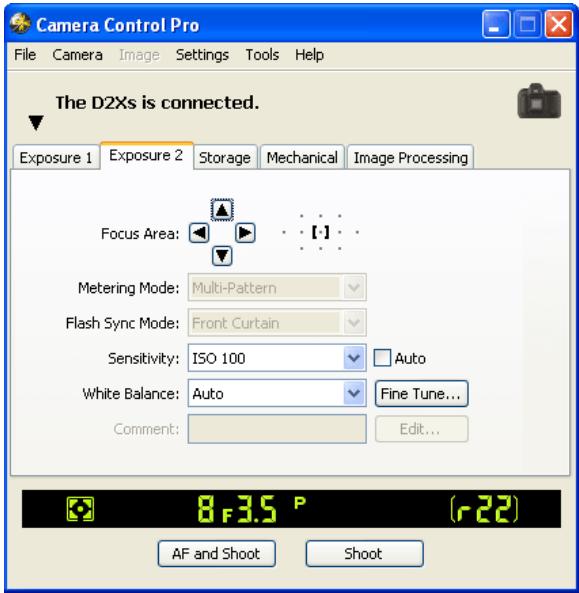
| Focus Area | The focus area can be selected using the arrow buttons; see the camera manual for details. For information on AF-area mode and focus mode, see “The Mechanical Tab.” |
| Metering Mode | The metering mode can be selected from this menu (D2 series, D200, D70S, D70, and D50 only). Metering mode defaults to the option selected with the camera. If a D1-series or D100 camera is connected, or if Enable controls on the camera body is checked when a D2-series or D200 camera is connected, the current metering mode will be shown, but changes can only be made using camera controls. See the camera manual for details. |
| Flash Sync Mode | This option controls the camera flash sync mode. See the camera manual for details. |
Camera Controls
| The Exposure 2 Tab | ||
| Sensitivity | Sensitivity (ISO equivalency) can be raised when taking photographs in low light conditions. See the user's manual provided with your camera for details. | |
| Auto D2-series D100 D200 D70S D70 D50 | When this option is checked, the camera will adjust sensitivity (ISO equivalency) automatically (ISO auto). | |
| White Balance | White balance is used to ensure that colors which appear white when viewed directly are white in the final photograph. It can also be used to produce an intentionally unbalanced rendering of a scene. See the camera manual for details. | |
| Fine Tune.../Set Temp... D1-series D2-series D100 D200 D70S D70 | Click Fine Tune... to make fine adjustments to white balance. If Choose color temp. is selected (D2 series and D200 only), this button will be labeled Set temp... Click this button to choose a color temperature. Fine tuning is not available with preset white balance. | |
| Comment D2-series D200 | This field lists the comments for all white balance presets. Clicking Edit... when Preset is selected for white balance displays the dialog shown at right, where the comments for each of the white balance presets can be edited. Click OK to copy the comments to the camera. Comments can be up to thirty-six characters long and contain letters, numbers, quotes, apostrophes, spaces, and any of the following characters: "","","!","?"#"#"\\( " %" "&" (" ")"["] {"}"+" + " "==""/" :","<\"=">"_" and "@". Edit White Balance Preset Comment | |
Camera Controls
The Storage Tab
The following settings can be adjusted from the Storage tab:
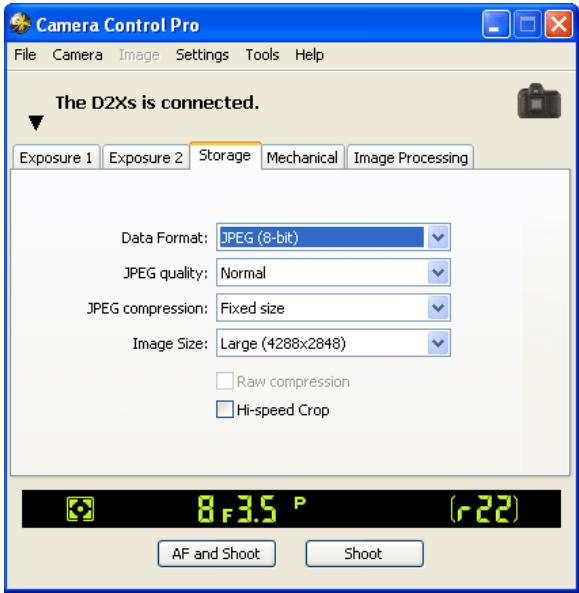
| Data Format | The following data formats are available: RAW (12-bit) + JPEG (8-bit) (D2 series/D200/D70S/D70/D50 only), RAW (12-bit), TIFF-RGB (8-bit) (D1 series/D2 series/D100 only), TIFF-YCbCr (8-bit) (D1 series only), and JPEG (8-bit). This setting determines pixel bit depth and file size. |
| JPEG Quality | When data format is set to JPEG (8-bit), you can choose image quality from Fine, Normal, and Basic. When RAW (12-bit) + JPEG (8-bit) is selected with the D2 series and D200, image quality can be selected from Fine, Normal, and Basic. When RAW (12-bit) + JPEG (8-bit) is selected with the D70S, D70, or D50, image quality is fixed at Basic. |
| JPEG Compression D2X D2Xs D2Hs D200 | Choose from Fixed size and Optimal quality. See the camera man-ual for details. |
Camera Controls
6/12
| The Storage Tab | |||
| Color D1-series | Choose from Color and Black & White. Black & White is not available when RAW is selected for Data Format. | ||
| Image Size | Choose image size. See the camera manual for details. | ||
| RAW Compression | Check this option to compress NEF (RAW) images taken at a data format setting of RAW (12-bit) + JPEG (8-bit) (D2 series and D200 only) or RAW (12-bit). | ||
| D2-series | D1X | D1H | D200 |
| High-speed crop | Select this option to enable high-speed crop. See the camera manual for details. | ||
| D2Xs | D2X | ||
Camera Controls
The Mechanical Tab
The following settings can be adjusted from the Mechanical tab:

| Shooting Mode | Sets the shooting mode for D1-series cameras connected in PC mode to Single or Continuous. Changes to this setting also apply to Custom Setting 30. The shooting mode for the D70S, D70, and D50 can be selected from Single and Continuous. Unless Enable controls on the camera body is checked in the connection status area, the shooting mode for D2-series and D200 cameras can be selected from Single, Continuous low speed, and Continuous high speed. If Continuous is selected for the D70S, D70, or D50 or if Continuous low speed or Continuous high speed is selected for a D2-series or D200 camera, the AF and Shoot and Shoot buttons will instead be labeled AF and Start and Start. If Enable controls on the camera body is checked or a D100 camera is connected, the current shooting mode will be shown, but changes can only be made using camera controls. See the camera manual for details. |
| Maximum Shots | Use the arrows to choose the maximum number of shots that can be taken in a single burst in continuous mode, or enter a value directly in the text box. The maximum permitted value varies with the current image-quality setting; the value chosen should not, however, exceed the capacity of the camera memory buffer as shown at the right edge of the LCD display. Values larger than the capacity of the camera memory buffer will be shown in red. This setting only applies when the camera is connected, and differs from the maximum selected in the Custom Settings menu. |
| D2-series D200 | |
| D70S D70 | |
| D50 |
Camera Controls
| The Mechanical Tab | ||
| Auto Bracketing D2-series D200 D70S D70 D50 | Select this option to perform exposure, flash, or white balance bracketing during shooting. To change bracketing options, click Set BKT. The dialog shown at right will be displayed. ·AE/WB/Flash Bracketing: Choose the type of bracketing performed. ·Change Factor when Exposure Mode is set to Manual (D2 series/D200 only): Choose how bracketing is performed in manual exposure mode. ·Bracketing Type/Bracketing Step/Bracketing Order/Exposure Mode: Choose the bracketing program, exposure or white balance increment, bracketing order, and exposure mode. Bracketing type and bracketing order are not available with the D50. | Bracketing Mode AE(WB)/Flash Bracketing (Custom #5): DRAM Flash Change Factor in Manual Mode (Custom #6): Bracketing Type: Total 2 shots / Minus side Bracketing Step: 1.0 Bracketing Order (Custom #7): Metered > Under > Over Programmed Auto Change Factor: Shut/ Aperture / Flash Exposure Increment (EV) 0.0 - 1.0 1 - 2 Shoot Order OK - Cancel - Help D2 series / D200 |
| D70S/D70/ D50 | ||
| AF-Area Mode | Choose the AF-area mode. If Enable controls on the camera body is checked (D2 series/D200 only), the current AF-area mode will be shown, but changes can only be made using camera controls. See the camera manual for details. | |
| Focus Mode | The current focus mode setting is displayed. See the camera manual for details. This setting can not be changed from Camera Control Pro. | |
Camera Controls
| The Mechanical Tab | |
| Lens | Displays the focal length and maximum aperture of the lens currently attached to the camera. Depending on the lens type, some information may not be displayed. If the lens focal length or maximum aperture have been specified manually, an asterisk will appear next to these values. |
| Edit... D2-series D200 | This button is only available when a non-CPU lens is mounted on the camera. Clicking Edit... displays the dialog shown at right, where the lens focal length and maximum aperture can be entered. Click OK to copy the values to the camera. |
| Main Battery Level | Displays the level of the main camera battery. Green indicates that the battery has enough charge for continued operation. Yellow indicates that battery level is low; ready a fully charged spare battery pack. Red indicates that the battery is exhausted, and that no further photographs can be taken until the battery pack has been replaced. You may not be able to control the camera from Camera Control Pro when the battery is exhausted. Replace with a fully charged spare battery pack or use an AC adapter (available separately). |
| Clock Battery Level D1-series | Displays the level of the camera clock battery. Should this display turn yellow or red, have the clock battery replaced by an authorized Nikon service representative (a fee is charged for this service). |
Self-Timer and Remote Modes
When a D2-series, D200, D70S, D70, D50, or D100 camera is set to self-timer mode, or when the D70S, D70 or D50 is set to delayed remote or quick-response remote mode, the Mechanical tab will show a shooting mode of Single, and any photographs taken with the Camera Control Pro shoot buttons will be taken in single-frame mode with no shutter-release delay. To take pictures in self-timer or remote mode, use the shutter-release button on the camera.
Camera Controls
Continuous Mode D2-series D200 D70S D70 D50
When a D2-series, D200, D70S, D70, or D50 camera is connected, the amount of memory remaining in the camera memory buffer is displayed at the right edge of the simulated LCD panel. This information is updated at regular intervals, but temporary discrepancies may exist between the display and the actual amount of memory remaining in the buffer.
Non-CPU Lenses
The following restrictions apply to Camera Control Pro when a non-CPU lens is mounted on the camera (the operations listed can still be performed using the controls on the camera body; see the camera manual for details):
| D2-series D200 | D1-series | D100 | D70S D70 D50 | ||
| With lens data | No lens data | ||||
| Exposure Mode | Can be selected from Aperture-priority auto and Manual. | Can not be ad-justed. Mode se-lected with camera displayed. Photos can only be taken in mode M. | Can only be adjusted if Enable controls on the camera body is not checked. Otherwise same as D100. | ||
| Shutter Speed | Can only be adjusted in manual exposure mode. | ||||
| Aperture | Shown with as-terisk. | Aperture shown as "f--". Can not be adjusted. | |||
| AF and Shoot | Can not be used. | ||||
| Shoot | Can be used.* | ||||
- If D100, D705, D70, or D50 is connected and set to an exposure mode other than manual, a warning will be displayed.
Camera Controls
The Image Processing Tab
The following settings can be adjusted from the Image Processing tab:
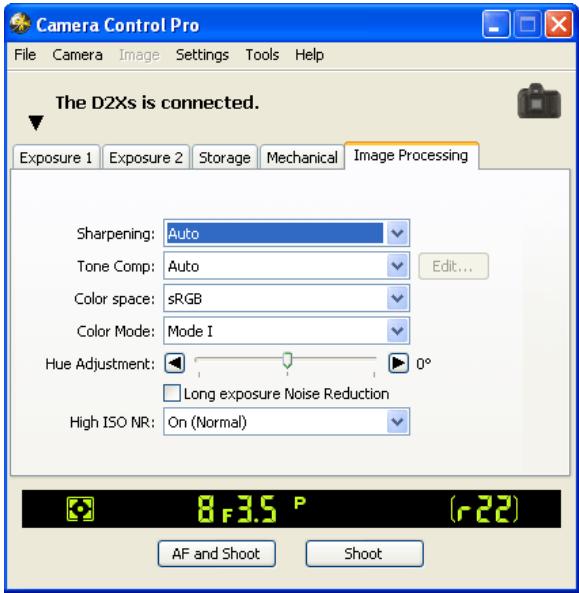
| Image Optimize D200 D70S D70 D50 | Choose the type of image optimization performed. See the camera manual for details. | |||
| Sharpening | Choose how much the camera sharpens outlines. See the camera manual for details. | |||
| Tone Comp | Adjust contrast. See the camera manual for details. Select- ing “Custom” or “Custom 1-3” (D2Xs only) and clicking Edit will display “Edit Camera Curves” dialog. | |||
| Color space | D2X | D2Xs | D200 | Choose a color space. See the camera manual for details. |
| Color Mode D1X | D1H | D2-series | D100 | Choose a color mode. See the camera manual for details. With the D1, colors are optimized for the NTSC color space, regardless of the option chosen. |
| D200 | D70S | D70 | D50 | |
| Saturation D200 | D70S | D70 | D50 | Adjust color saturation. See the camera manual for details. |
Camera Controls
| The Image Processing Tab | |||
| Hue Adjustment | Modify hue while leaving brightness and chroma unaffected. Adjustments can be made in the range -9° to 9°, with 0° representing the original hues as recorded by the camera (in D1-series cameras, -9° is equivalent to a camera hue setting of 0, 0° to a setting of 3, and 9° to a setting of 6). | ||
| D1X | D1H | D2-series | D100 |
| D200 | D70S | D70 | D50 |
| Long Exposure Noise Reduction | Select this option to reduce noise at slow shutter speeds. See the camera manual for details. | ||
| D2-series | D100 | D200 | D70S |
| D70 | D50 | ||
| High ISO Noise Reduction | Select On (Normal), On (Low)(D200 only) or On (High) to reduce noise at high sensitivities. See the camera manual for details. | ||
| D2X | D2Xs | D2Hs | D200 |
Saving and Loading Camera Control Settings
The Camera Control Pro option in the Settings menu is used to save Camera Control Pro settings and to load and apply previously saved settings.
Settings
Load Control Settings...
Save Control Settings...
| Load Control Settings... | Select this item to load camera settings previously saved using Save Control Settings... (see below). A dialog will be displayed where you can navigate to the drive (volume) and directory containing the desired settings file (only files with the extension“.ncc” will be displayed). The settings in the Camera Control Pro window will instantly revert to the saved settings. Bracketing settings are not affected. |
| Save Control Settings... | Select this item to save the settings in the Camera Control Pro window to a named file. These settings can later be recalled using Load Control Settings... Choosing Save Control Settings... displays a dialog where you can choose a destination and file name for current camera settings. Camera Control Pro settings are saved with the extension“.ncc”. Note that bracketing settings are not saved. |
The Camera Menu
The commands in the Camera menu are used to adjust the following camera settings:
Custom Settings...
Selecting this option opens the Custom Settings dialog, where camera Custom Settings can be adjusted.
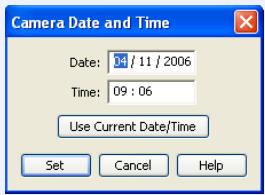
Set Date and Time...
Selecting this option opens the dialog shown at right, where you can set the camera's clock calendar to the current date and time. To view the current time and date settings, click Use Current Date/Time. Click Set to set the clock calendar to the time and date shown.
Edit Camera Curves...
This option is used to create a custom tone compensation curve and download it to the camera, where it applies when "Custom" is selected for the camera tone compensation option.
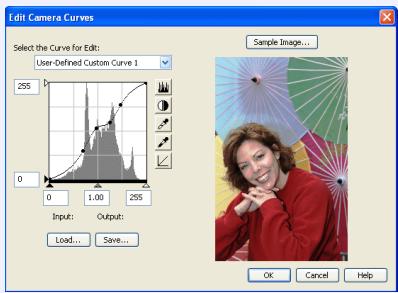
The controls in the Edit Camera Curves window are similar to those used to edit tone curves in Adobe Photoshop and other imaging software, except in the following respects: (1) only the master channel, not individual RGB channels, may be edited; (2) there is a limit of 20 spline points; (3) the midpoint may not be edited; (4) a user-defined sample image can be selected by clicking Sample Image... (the sample image must be a RAW image created with a D1-series, D2-series, D100, D200, D70S, D70, or D50 camera). Any changes to curves are reflected in the sample image. In the case of the D2Xs, up to three curves can be edited using the Select the Curve for Edit menu. To copy the edited curve to the camera, click OK.
The upper left section of the Edit Camera Curves window contains Load... and Save... buttons. By clicking the Load... button, previously stored curves, with less than 20 spline points, can be selected via the "Open" dialog (if the selected file has more than 20 spline points, a warning will be displayed, and no file will be loaded). The Curves settings files from Nikon Capture Editor can also be selected. Look for files with the .ntc or .ncv extension.
The Save... button opens the "Save As" dialog, where you can save the current curve.
The Camera Menu
Fine-Tune White Balance... D1-series D2-series D100 D200 D70S D70
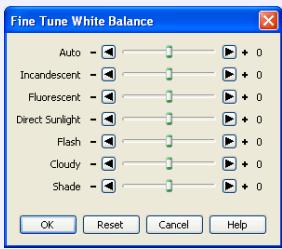
Selecting this option displays the dialog shown at right, where white balance can be fine-tuned between -3 and +3. The value selected for Auto will be added to the white balance setting the camera chooses for auto white balance. Clicking Reset returns all values to defaults. Click OK to apply the current settings to the camera, or click Cancel to discard any changes and return to the Camera Control Pro window.
Set Color Temperature... D2-series D200
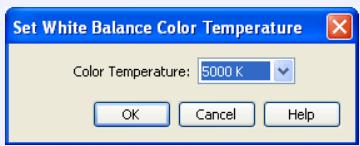
Selecting this option displays the dialog shown at right, where color temperature can be chosen from a menu. The value chosen takes effect whenever Choose color temp. is selected for white balance. Click OK to apply the current settings to the camera, or click Cancel to exit without saving changes.
Measure White Balance...
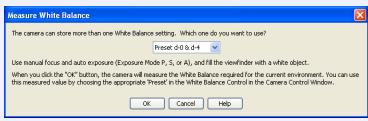
Use this option to measure preset white balance. If the camera currently connected supports multiple values for preset white balance, the setting that will be used to store the measured value can be chosen from the pop-up menu at the top of the dialog. Adjust camera settings as described in the section on preset white balance in the camera user's manual and click OK to measure a value for white balance.
D2Xs (dialogs for other cameras may differ)
Set Color Temperature... D2-series D200
The desired results may not be achieved with flash or fluorescent lighting.
Choosing a Mode D70S D70 D50
The Measure White Balance... option is only available in P, S, A, and M modes.
The Camera Menu
Dust Off Ref Photo
D2-series
D200
D70S
D70
D50
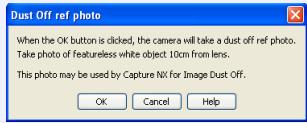
Choose this option to take a reference photo for the Image Dust Off option in Capture NX (available separately) and other Nikon software. The dialog shown at right will be displayed. With the camera lens ten centimeters (four inches) from a featureless white object, frame the object so that it fills the viewfinder and click OK to record an Image Dust Off reference photo. See the camera manual for details.
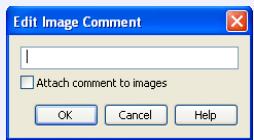
Edit Image Comment...
Selecting this option displays the dialog shown at right, where you can enter a comment or title for subsequent photographs. If the camera currently connected is in the D1-series, enter a title of thirty-eight characters or less and click OK. The title will be used for all subsequent photographs taken while the camera is connected. When a D2-series, D100, D200, D70S, D70, or D50 camera is connected, the title is stored in the camera as an image comment of thirty-six characters or less which is appended to photographs only when the Attach comment to images box is checked.
D2Xs (dialogs for other cameras may differ)
The Camera Menu
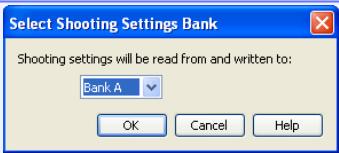
Select Shooting Settings Bank... D2-series D100 D200
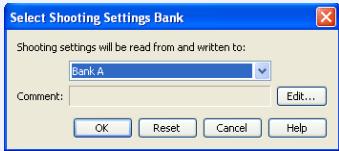
Selecting this option displays the dialog shown at right, where you can choose the shooting menu bank in which changes to settings will be stored while the camera is controlled from Camera Control Pro. See the camera manual for details.
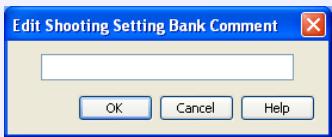
The D2 series and D200 allow a descriptive comment to be added to the name of each shooting menu bank. Clicking Edit... displays the dialog shown at right, where the comments for each bank can be edited. Click OK to copy the comments to the camera. Comments can be up to twenty characters long and contain letters, numbers, quotes, apostrophes, spaces, and any of the following characters: "","!","?"#"\(""&""([")""[""]""**"+" +" -"/"";";"<="=" >"_" and "@".
D100
D2 series/D200
Edit Comment dialog
Set Bracketing Mode D2-series D200 D70S D70 D50
Selecting this option displays the BKT Mode dialog. See Auto Bracketing in the Mechanical panel for details.
Time Lapse Photography...
Selecting this option opens the Time Lapse Photography dialog.
Enable controls on the camera body D2-series D200 D70S D70 D50
Check this option to enable camera controls, allowing settings to be adjusted and photographs taken directly from the camera. If this option is not checked, only the power switch and AF-area mode selector can be used.
Custom Settings
Most of the custom settings stored in camera memory can be viewed and adjusted from the Custom Settings window in Camera Control Pro. For more information on Custom Settings, see the documentation provided with your camera.
1 Select Custom Settings... from the Camera menu
The Custom Settings dialog for the current camera will be displayed.

Changes to Custom Settings
Changes made to settings in the Custom Settings dialog are stored in the camera, not on the computer hard disk. This means that changing settings in the Custom Settings dialog has the same effect as changing Custom Settings using camera controls.
Custom Settings
Choose a Custom Settings bank (D1 series/D2 series/D100/D200 only)
Choose a Custom Settings bank (Custom Settings set) from the pop-up menu at the top right corner or the Custom Settings dialog.
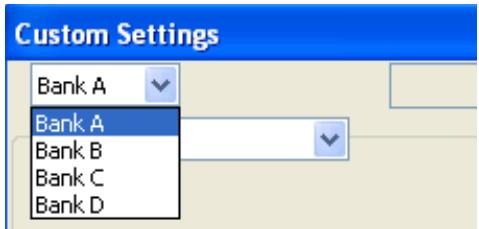
The banks available depend on the model of camera currently connected. When the D1 or D100 is connected, you have a choice of banks A or B; when a D2-series, D1X, D1H, or D200 camera is connected, banks A, B, C, or D can be selected.
3 Click OK After mcl
After making any changes to Custom Settings, click OK to save changes in the camera Custom Settings bank and exit the Custom Settings dialog.
Custom Settings
Custom Settings
Custom Settings can not be saved to a separate file. Clicking the Reset button resets all Custom Settings to their default values.
Settings That Can Not Be Adjusted from the Custom Settings Window
The Custom Settings listed below can not be adjusted in the Custom Settings window.
- Mirror lock-up for CCD cleaning (D1-series Custom Setting 8)/Cleaning mirror up (D100 setup menu): can only be adjusted from the camera
- RAW (NEF) image save (D1-series Custom Setting 28): if this option is set to "0" (off) when Camera Control Pro is started, a message will be displayed. Clicking OK in this dialog sets Custom Setting 28 to "1" (uncompressed RAW image save enabled). Custom Setting 28 can only be returned to "0" from the camera.
- ISO Auto (D100 Custom Setting 3)/ISO Boost (D1-series Custom Setting 31): can be adjusted from the Exposure 2 tab of the Camera Control Pro window.
- PC Shooting Mode (D1-series Custom Setting 30): this option is adjusted from the Mechanical tab of the Camera Control Pro window.
- Tone Compensation (D1-series Custom Setting 24)/Color Mode (D1X/D1H Custom Setting 32)/ Hue Adjustment (D1X/D1H Custom Setting 33)/Noise Reduction (D100 Custom Setting 4): can be adjusted from the Processing tab of the Camera Control Pro window.
Custom Settings
Custom Settings for D1-Series and D100 Cameras
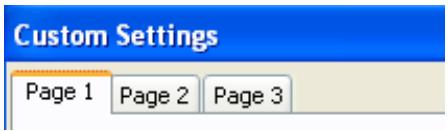
Custom Settings for D1-series and D100 cameras are divided among three tabs: Page 1, Page 2, and Page 3. See the camera manual for details.
Custom Settings for D70, D70S, and D50 Cameras
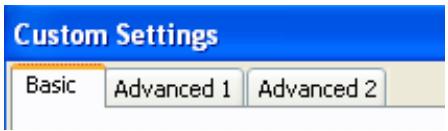
Custom Settings for the D70S, D70, and D50 are divided among three tabs: Basic, Advanced 1, and Advanced 2. See the camera manual for details.
Custom Settings
Custom Settings for D2-Series and D200 Cameras
Custom Settings in each bank are divided into six groups: autofocus, metering/exposure, timers/autoexposure and autofocus lock, shooting/display, bracketing/flash, and controls. The group can be chosen from the group menu or by clicking the Next and Prev. buttons.
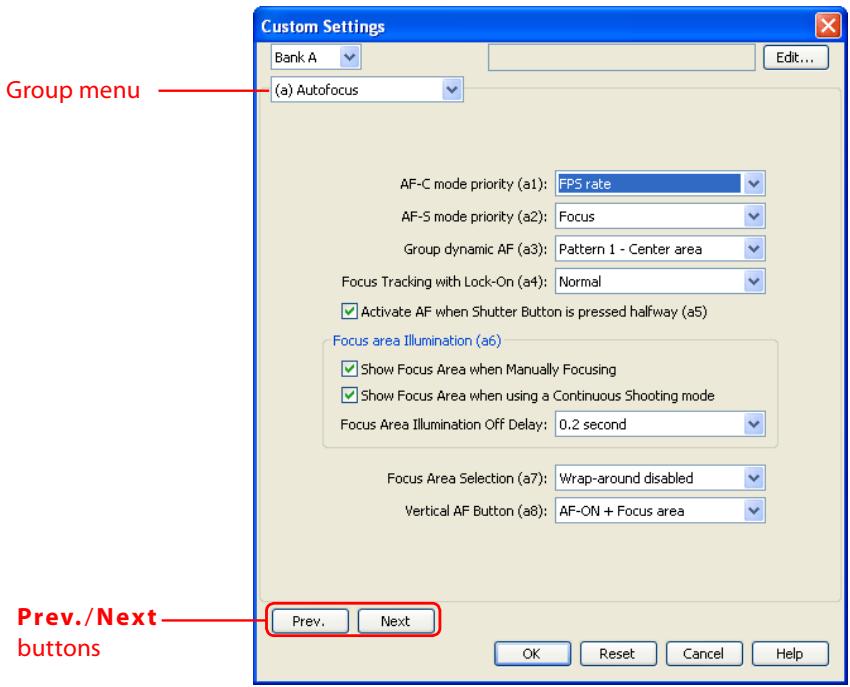
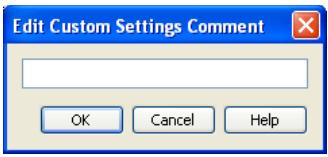
D2-series and D200 cameras allow a descriptive comment to be added to the name of each Custom Settings bank. Clicking Edit... displays the dialog shown at right, where the comments for each bank can be edited. Click OK to copy the comments to the camera. Comments can be up to twenty
characters long and contain letters, numbers, quotes, apostrophes, spaces, and any of the following characters: "","" !?"?"#" "$" "%" "&"(")""["]""{""}"*"+"-"/"";;""<="=">"_"and "@".
Appendices
| Camera Control Pro Preferences | 69 | |
| The General Tab | 70 | |
| The Color Management Tab | Windows | 71 |
| The Color Management Tab | Macintosh | 74 |
| Uninstalling Camera Control Pro | ||
| Windows | 76 | |
| Macintosh | 77 | |
| RGB Color Space Profiles | 78 | |
| Device Registration | 80 | |
| Windows XP | 81 | |
| Windows 2000 | 85 | |
| Customer Support | 93 | |
Camera Control Pro Preferences
To view the Preferences (Options) dialog for Camera Control Pro, select Options... from the Tools menu (Windows) or select Preferences... from the application menu (Macintosh).
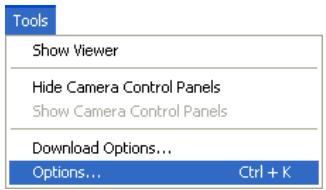
Windows
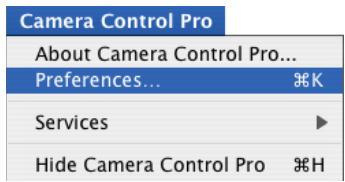
Macintosh
The Preferences dialog contains General and Color Management tabs.
Camera Control Pro Preferences
The General Tab
The General tab contains the following items:
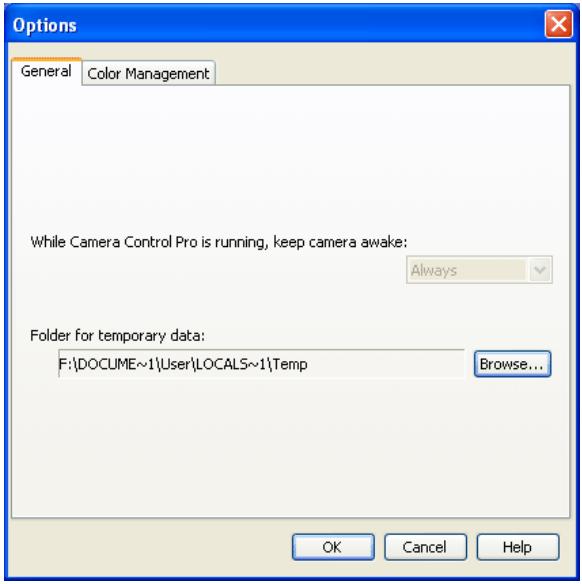
| While Camera Control Pro is running, keep camera awake | Choose how long the exposure meters remain on when the camera is operated on battery power. This setting only takes effect when the camera is connected and powered on with Camera Control Pro running, and takes precedence over the auto meter off option chosen using camera Custom Settings. Cameras powered by an AC adapter and D2-series, D100, D200, D70S, D70, and D50 cameras will stay awake indefinitely, regardless of the setting chosen here. |
| for 15 minutes (D1-series only): The exposure meters turn off automatically if no operations are performed for 15 minutes. | |
| Always: The exposure meters remain on indefinitely. Note that this will increase the drain on the battery. | |
| Folder for temporary data /Volume for tempo- rary data | Specify the folder or volume in which temporary data, such as image cache data, will be stored. The default folder for Windows is the “TEMP” folder in the Windows directory, while the default volume for the Macintosh is the start-up disk. To choose a different folder in the Windows version of the program, click the Browse... button and navigate to the desired location. In the Macintosh version, a new volume can be chosen from the pop-up menu. |
Camera Control Pro Preferences
The Color Management Tab (Windows)
The Color Management tab is where you specify the color management profiles used for displaying images on your monitor, editing and saving RGB images, and saving and printing CMYK images.
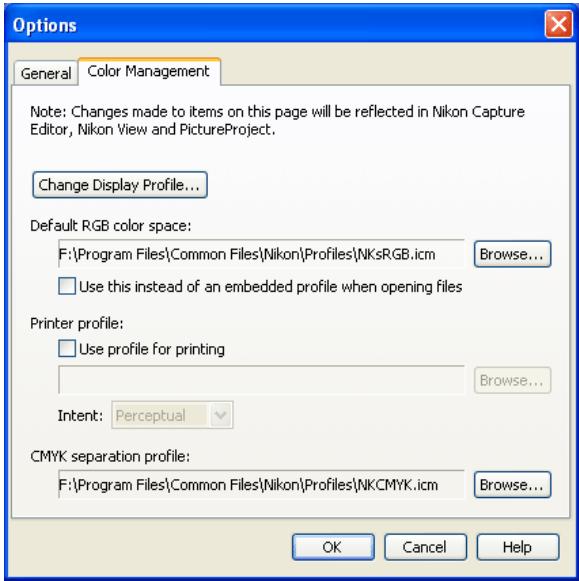
| Change Display Profile | To choose a display profile, click Change Display Profile... The Windows “Display Properties” dialog will be displayed; open the Settings tab and click Advanced... to open the display adapter properties dialog. To select a display profile, open the Color Management tab and click Add. |
| Default RGB color space | The output color-space profile used when working with RGB images is displayed here. Click Browse... to choose a new default RGB profile. If Use this instead of an embedded profile when opening files is checked, this RGB color space profile will be used for all images. If it is not checked, the profile embedded in each image will be used. |
Camera Control Pro Preferences
| The Color Management Tab (Windows) | |
| Printer profile | Specifies the printer profile to be used when printing images from PictureProject. |
| Use profile for printing: If this option is checked, you can choose a profile for print-ing by clicking the Browse... button. The selected profile will appear in the adjacent text box. If this option is not checked, the default RGB color space will be used. | |
| Intent: If you have chosen to use a printer profile, the type of matching to be performed can be selected from Relative and Perceptual. (Depending on the profile, changing the matching method may produce no change in output. This option is not supported with some profiles; consult the manufacturer for de-tails.)• Relative: Colors not in the gamut of the selected printer profile will be printed using the closest colors available. Other colors are not affected.• Perceptual: If the image contains colors not in the gamut of the selected printer profile, all colors in the image will be compressed to fit the gamut. | |
| CMYK separa-tion profile | Lists the profile used to convert RGB images to CMYK when saving images in CMYK-TIFF format using PictureProject. To choose a different profile, click the Browse… button. |
Camera Control Pro Preferences
Multiple Displays
In a multiple display environment, choose a single profile suited to all displays.
Default Display Profile
The default Windows display profile is "NKMonitor_win.icm." This profile is equivalent to sRGB.
Supported Color Profiles
Camera Control Pro supports only ICC (International Color Consortium) monitor and CMYK profiles. Particular care should be exercised when choosing a CMYK profile, as the profile supplied by the manufacturer of your output device may not be an ICC profile.
See "RGB Color-Space Profiles" for a list of the RGB color-space profiles supplied with Camera Control Pro. The "NKCMYK.icm" CMYK profile provided with Camera Control Pro is a general-purpose, almost neutral profile that is not based on a specific ink set, making it suited for use where output conditions are not known.
The Color Management Tab
Changes to settings in the Color Management tab also apply to PictureProject. They are not reflected in Capture NX (available separately).
Camera Control Pro Preferences
The Color Management Tab (Macintosh)
The Macintosh version displays the following options.
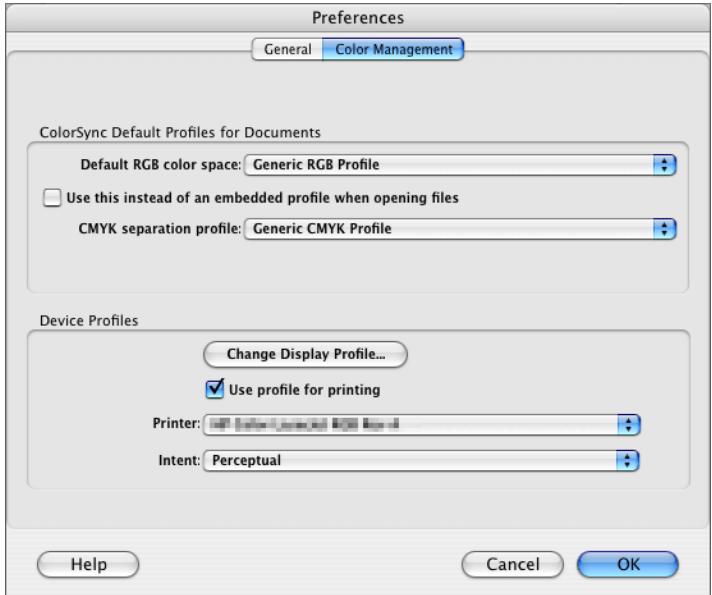
| ColorSync Default Profiles for Docu- ments | The default color-space profiles for editing and saving images are displayed in this area. |
| Default RGB color space: Choose the output color-space profile used when working with RGB images. If Use this instead of an embedded profile when opening files is checked, this RGB color space profile will be used for all images. If it is not checked, the profile embedded in each image will be used. | |
| CMYK separation profile: Lists the profile used to convert RGB images to CMYK when sav-ing images in CMYK-TIFF format. |
Camera Control Pro Preferences
| The Color Management Tab (Macintosh) | |
| Device Profiles | Lists the default color-space profiles for monitors and printers. |
| Change Display Profile....: If this button is displayed, you can click it to open the Displays section of the System Preferences dialog. Open the Color panel (Mac OS X) to choose a display profile. | |
| Use profile for printing: If this option is checked, the profile listed in the Printer text box will be used when printing images. Note that CMYK profiles can not be used in Camera Control Pro; if a CMYK profile is selected, the status of the Use profile for printing check-box can not be changed. If Use profile for printing is not selected, images will be printed using the default RGB profile. | |
| Intent: If you have chosen to use a printer profile, the type of matching to be performed can be selected from Relative and Perceptual. (Depending on the profile, changing the matching method may produce no change in output. This option is not supported with some profiles; consult the manufacturer for details.) • Relative: Colors not in the gamut of the selected printer profile will be printed using the closest colors available. Other colors are not affected. • Perceptual: If the image contains colors not in the gamut of the selected printer profile, all colors in the image will be compressed to fit the gamut. | |
Supported Color Profiles
Camera Control Pro supports only ICC (International Color Consortium) monitor and CMYK profiles. Particular care should be exercised when choosing a CMYK profile, as the profile supplied by the manufacturer of your output device may not be an ICC profile.
See "RGB Color-Space Profiles" for a list of the RGB color-space profiles supplied with Camera Control Pro. The "Nikon CMYK 4.0.3000" CMYK profile provided with Camera Control Pro is a general-purpose, almost neutral profile that is not based on a specific ink set, making it suited for use where output conditions are not known.
The Color Management Tab
Changes to the display profile apply system wide. Changes to other settings in the Color Management tab are not reflected in Capture NX (available separately) and PictureProject.
Multiple Displays
Camera Control Pro will identify and list the profiles for all monitors in an extended desktop display, allowing you to choose a separate profile for each monitor.
Uninstalling Camera Control Pro
Windows
Use an account with administrator privileges to perform the uninstall.
1 Click Start and select Camera Control Pro > Camera Control Pro Uninstall from the program list.

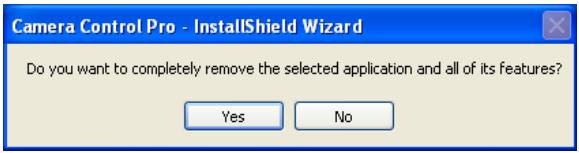
Click Yes to begin removing Camera Control Pro and all of its components.
3 If the installer encounters read-only files or components shared by another application, a confirmation dialog will be displayed. Read the information displayed carefully before deciding what to do with the affected components.
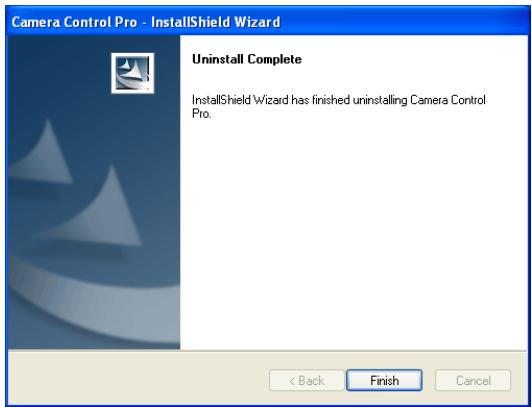
4 Click Finish. Restart the computer if so directed.
Uninstalling Camera Control Pro
Macintosh
Use an account with administrator privileges to perform the uninstall.
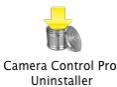
1 Open the "Applications:Nikon Software:Camera Control Pro" folder and double-click the Camera Control Pro Uninstaller icon.
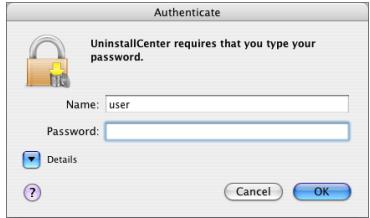
2 Enter the administrator name and password and click OK.
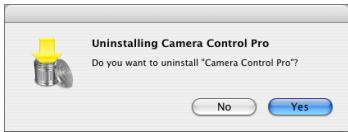
3 Click Yes.
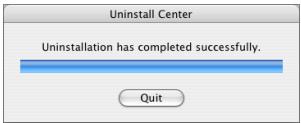
Click Quit to exit the uninstaller once Camera Control Pro has been removed.
RGB Color Space Profiles
Profiles with a Gamma Value of 1.8
| Color profile | Windows | Macintosh | Description |
| Apple RGB | NKApple.icm | Nikon Apple RGB 4.0.0.3000 | This profile is used in desk-top publishing applications and in Adobe Photoshop versions 4.0 or earlier, and is the typical RGB profile for Macintosh monitors. The corresponding RGB setting in Adobe Photoshop is “Apple RGB.” This profile is suitable for working with images displayed on the Macintosh. |
| Color-Match RGB | NKCMatch.icm | Nikon Color-Match RGB 4.0.0.3000 | The ColorMatch profile is native to Radius PressView monitors. It has a wider gamut than Apple RGB, with a particularly wide area devoted to the reproduction of blues. The corresponding RGB setting in Adobe Photoshop is “Color Match RGB.” |
Profiles with a Gamma Value of 2.2
| Color profile | Windows | Macintosh | Description |
| sRGB | NKsRGB.icm | Nikon sRGB 4.0.0.3001 | This RGB profile is used in the majority of Windows monitors. It closely resembles the RGB commonly used in color television, and is also used in the digital television broadcasting system that is on its way to becoming the industry standard in the United States of America. Software and hardware manufacturers use it as a default color profile and guarantee operation when it used. It is also on its way to becoming the standard for images on the web. This profile is suited to users who plan to use their digital images “as is,” without editing or printing them. It however suffers from the drawback of a narrow gamut with a limited area available for reproducing blues. The corresponding RGB setting in Adobe Photoshop 5.0 and 5.5 is “sRGB,” the corresponding setting in Adobe Photoshop 6.0 “sRGB IWC61966-2.1.” |
| Bruce RGB | NKBruce.icm | Nikon Bruce RGB 4.0.0.3000 | This color profile attempts to expand on the ColorMatch RGB gamut by defining the chromaticity for G as lying between the values for G in the Adobe RGB and ColorMatch color-space profiles. It was proposed by Bruce Fraser, who claims that it includes most of the colors in the SWOP CMYK gamut. The R and B used in the Bruce RGB and Adobe RGB color-space profiles match. |
RGB Color Space Profiles
| NTSC (1953) | NKNTSC.icm | NTSC (1953) 4.0.0.3000 | This is the color space for video defined by the National Tele- vision Standards Committee (NTSC) in 1953 and used in early color televisions. This color space is also used in some Far-East newspaper and printing organizations. The corresponding RGB setting in Adobe Photoshop is "NTSC (1953)." |
| Adobe RGB (1998) | NKAdobe. icm | Nikon Adobe RGB (1998) 4.0.0.3000 | A color-space profile defined in Adobe Photoshop 5.0. It has a wider gamut than sRGB and includes the colors found in most CMYK gamuts, making it suitable for users involved in desktop publishing. The corresponding RGB setting in Adobe Photo- shop 5.0 is "SMPTE-240M," the corresponding setting in Adobe Photoshop 5.5 or later "Adobe RGB (1998)." |
| CIE RGB | NKCIE.icm | Nikon CIE RGB 4.0.0.3000 | A video color-space profile established by the Commission Internationale de l'Éclairage (CIE). While it boasts a fairly wide gamut, it suffers from the drawback that the area devoted to the reproduction of cyan is relatively small. The corresponding RGB setting in Adobe Photoshop is "CIE RGB." |
| Adobe Wide RGB | NKWide.icm | Nikon Adobe- Wide RGB 4.0.0.3000 | This color-space profile, designed by Adobe, incorporates most of the visible colors. This however has the consequence that most of the colors it can express can not be reproduced on standard monitors and printers. The corresponding RGB set- ting in Adobe Photoshop 5.0 or later is "Adobe Wide RGB." |
Device Registration
If D1-series cameras are not recognized by the computer to which Camera Control Pro is installed, the camera or IEEE 1394 (FireWire) board may not be correctly registered with the Windows Device Manager. To check whether a device is registered with the Device Manager, click on the links below.
Windows XP Professional/Home Edition
Windows 2000 Professional
Opening the Device Manager
Devices are registered with the Windows Device Manager. To open the Device Manager:
Windows XP: Select Control Panel from the Start menu to open the "Control Panel" window, then click Performance and Maintenance icon to open the Performance and Maintenance control panel. Click the System icon to open the System Properties window. Open the "Hardware tab" and click Device Manager.
Windows 2000: Right-click the My Computer icon on the desktop and select Properties from the menu that appears. In the "System Properties" dialog, open the "Hardware" tab and click the Device Manager button.
Device Registration
Windows XP 1/4
Registering the IEEE 1394 Interface Board
Confirm that the OHCI-compliant IEEE 1394 interface board or card has been correctly registered with the system.
1 Open the Device Manager. If the camera has been correctly registered with the system, the controller for your camera should appear under "1394 Bus Controller."
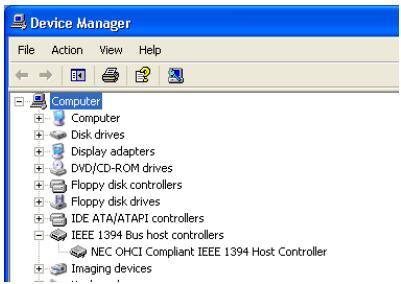
If "IEEE 1394 Bus host controllers" is not listed in the Device Manager, or if the IEEE 1394 interface board or card is listed as an unknown or miscellaneous device or is preceded by a red or yellow warning icon, follow the instructions in the manual provided with the board to ensure that the drivers are properly installed.
2 Install the driver for D1-series cameras from the Camera Control Pro CD, then connect the camera to the computer using an IEEE 1394 cable and turn the camera on. The camera will be registered automatically.
Logging On
Log on as the "Computer Administrator" when registering the camera.
Before Connecting the Camera
Be sure to install Camera Control Pro before connecting the camera to the computer.
Device Registration
Windows XP 2/4
Registering the Device Driver
Follow the instructions below to check that the camera has been correctly registered with the system.
1 Open the Device Manager and confirm that "Nikon 1394 Protocol Device" and the camera is listed.
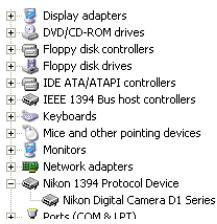
If the camera is listed under "Other devices," reinstall the device drivers. If "Nikon 1394 Protocol Device" is not listed in the Device Manager and the camera does not appear under "Other devices," disconnect the camera and restart the computer. Reconnect the camera after the computer has restarted.
2 Double-click the listing for the camera that appears under "Other devices." Click the "General" tab and confirm that "This device is working properly" appears under "Device status."
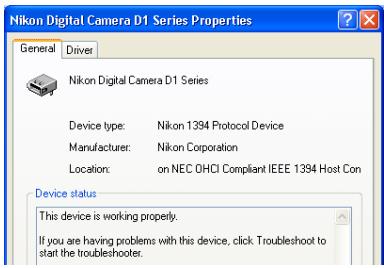
Troubleshooting
If "1394 Bus host Controller" is listed in the Device Manager but the entry for the Nikon D1 (D1X/D1H) does not appear, check the following:
Is the camera on?
- Is the battery fully charged? If you are using an AC adapter (available separately), is it properly connected?
Is the mode dial set to "PC"?
- Is the IEEE 1394 cable properly connected?
Device Registration
Windows XP 3/4
Reinstalling the Device Driver
If the camera is listed under "Other devices," reinstall the device drivers as instructed below.
1 Double-click the listing for the camera that appears under "Other devices."
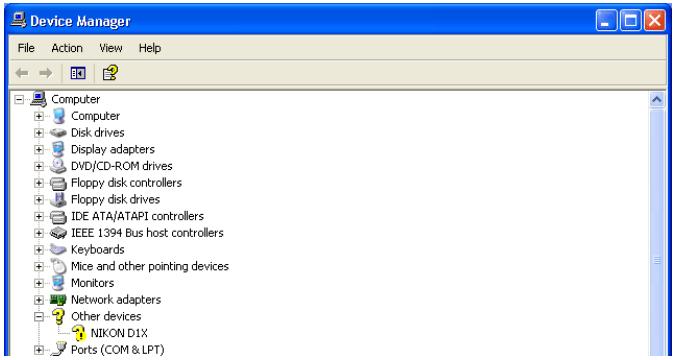
2 Open the "General" tab and click Reinstall Driver...
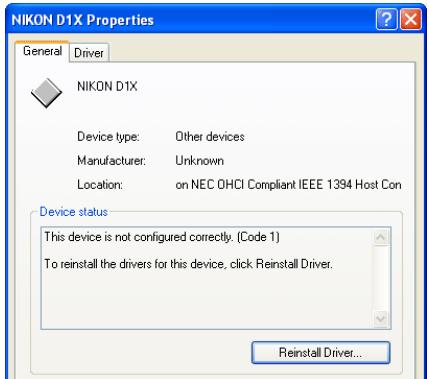
3 Select No, not this time and click Next.
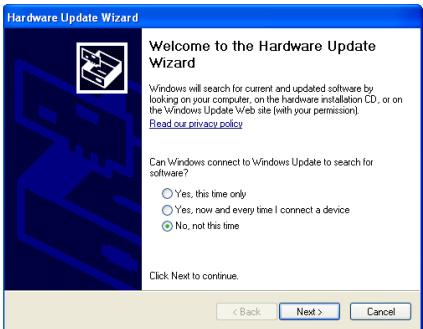
Device Registration
4 Pressing the shift key to prevent the "Select Region" dialog from opening automatically, insert the Camera Control Pro CD. Select Install the software automatically and click Next.
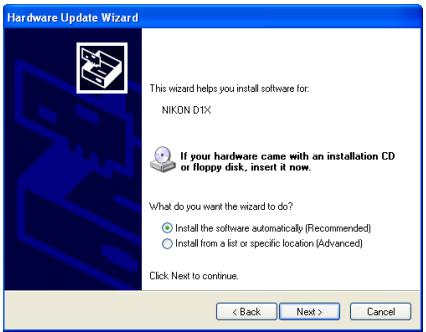
5 Click Finish.
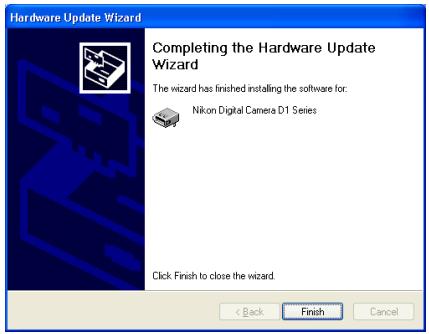
6 Confirm that "This device is working properly" appears under "Device status" in the "General" tab of the camera "Properties" dialog.
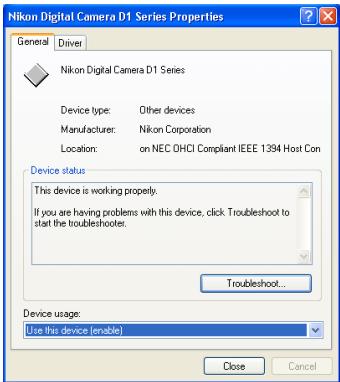
Device Registration
Windows 2000 1/8
Registering the IEEE 1394 Interface Board
Confirm that your OHCI-compliant IEEE 1394 interface board or card has been correctly registered with the system.
1 Open the Device Manager. If the camera has been correctly registered with the system, the controller for your camera should appear under "1394 Bus host Controller."
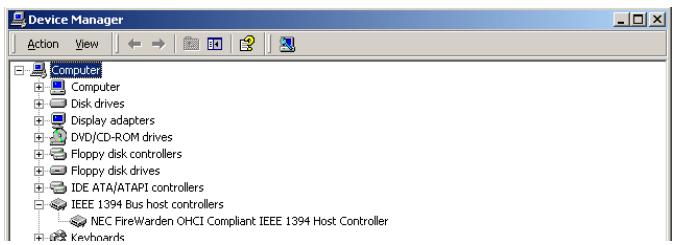
If "1394 Bus host Controller" is not listed in the Device Manager, or if the IEEE 1394 interface board or card is listed as an unknown or miscellaneous device or is preceded by a red or yellow warning icon, follow the instructions in the manual provided with the board to ensure that the drivers are properly installed.
2 Install the driver for D1-series cameras from the Camera Control Pro CD, then connect the camera to the computer using an IEEE 1394 cable and turn the camera on. The camera will be registered automatically.
Logging On
Log on as the "Administrator" when registering the camera.
Updating Drivers for the D1
If you are already using the D1 with Nikon View DX or Nikon Capture, you will need to update the camera drivers.
Before Connecting the Camera
Be sure to install Camera Control Pro before connecting the camera to the computer.
Device Registration
Windows 2000 2/8
Registering the Device Driver
Follow the instructions below to check that the camera has been correctly registered with the system.
1 Open the Device Manager and confirm that "Nikon 1394 Protocol Device" and the camera are listed.
If the camera is listed under "Other devices," reinstall the device drivers. If "Nikon 1394 Protocol Device" is not listed in the Device Manager and the camera does not appear under "Other devices," disconnect the camera and restart the computer. Reconnect the camera after the computer has restarted.
2 Double-click the listing for the camera that appears under "Other devices." Click the "General" tab and confirm that "This device is working properly" appears under "Device status."
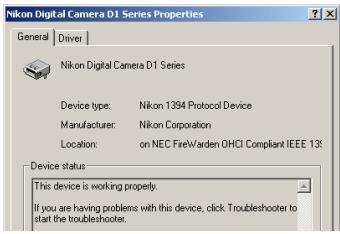
Troubleshooting
If "1394 Bus host Controller" is listed in the Device Manager but the entry for the Nikon D1 (D1X/D1H) does not appear, check the following:
Is the camera on?
- Is the battery fully charged? If you are using an AC adapter (available separately), is it properly connected?
Is the mode dial set to "PC"?
- Is the IEEE 1394 cable properly connected?
Device Registration
Windows 2000 3/8
Reinstalling the Device Driver
If the camera is listed under "Other devices," reinstall the device drivers as instructed below.
1 Double-click the listing for the camera that appears under "Other devices."
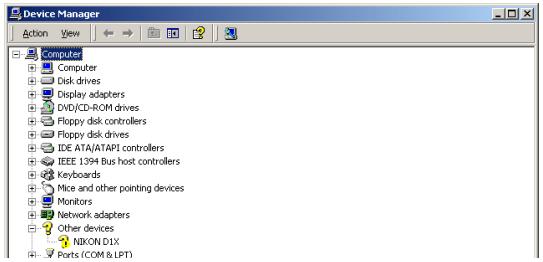
Open the "General" tab and click Reinstall Driver.
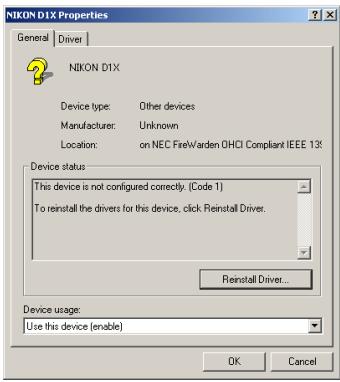
3 Click Next.
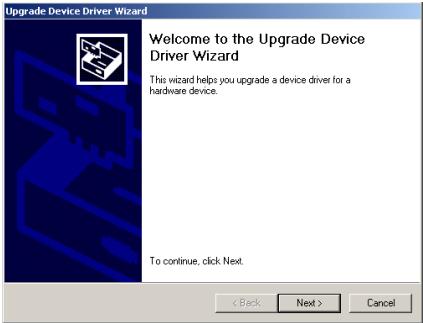
Device Registration
Windows 2000 4/8
4 Select the search option and click Next. Upgrade Device Driver Wizard
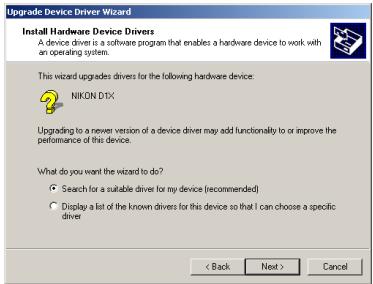
Pressing the shift key to prevent the "Select Region" dialog from opening, insert the Camera Control Pro CD (if the "Select Region" dialog appears, click Quit). Select CD-ROM drives and click Next.
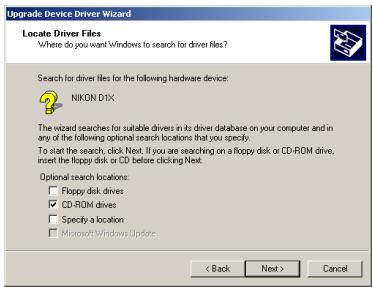
6 Click Next.
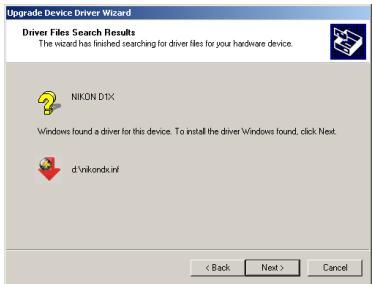
If the message "Windows was unable to find a suitable driver for this device" is displayed, the CD was not correctly inserted or the correct search location was not selected. Click Back to return to the dialog shown in Step 5 and confirm that the search location is correct.
Device Registration
Windows 2000 5/8
7 Click Finish.
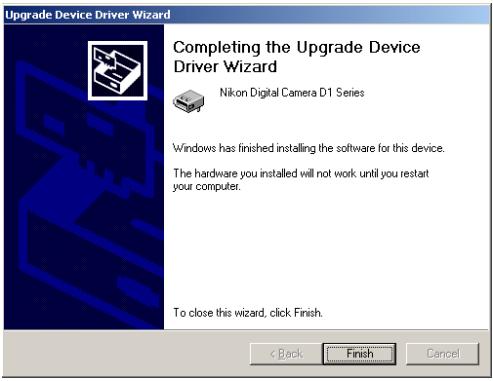
8 Confirm that "This device is working properly" appears under "Device status" in the "General" tab of the "Nikon Digital Camera D1 Series Properties" dialog.
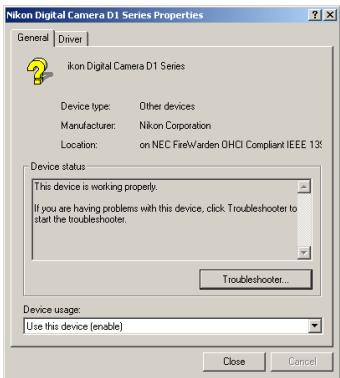
Device Registration
Windows 2000 6/8
Updating the Device Driver
If you are already using the D1 with Nikon View DX or Nikon Capture, you will need to update the camera drivers.
1 Open the Device Manager. Expand the "Nikon 1394 Device" entry and double-click Nikon Digital Camera D1.
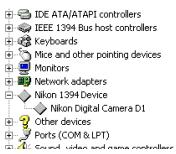
2 Open the "Driver" tab and click Update Driver...
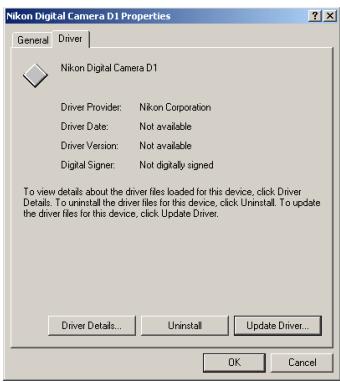
3 Click Next.
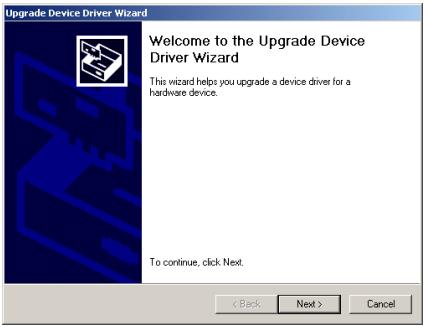
4 Select the search option and click Next. Upgrade Device Driver Wizard
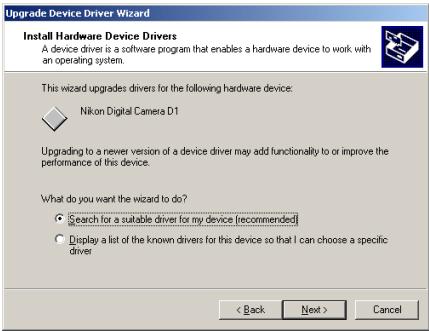
Pressing the shift key to prevent the "Select Region" dialog from opening, insert the Camera Control Pro CD (if the "Select Region" dialog appears, click Quit). Select CD-ROM drives and click Next.
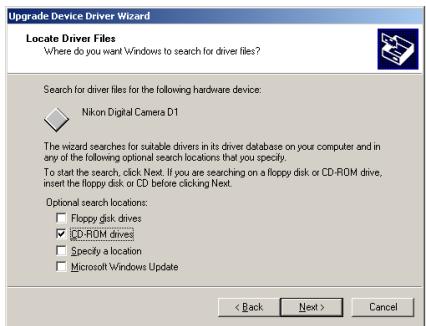
6 Select Install one of the other drivers and click Next. Upgrade Device Driver Wizard
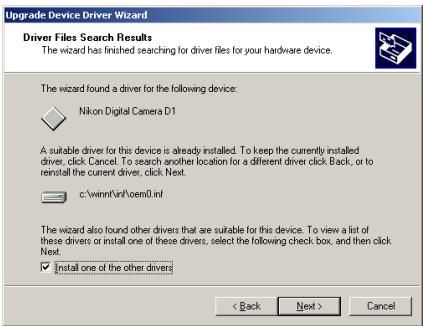
Device Registration
Windows 2000 8/8
7 Select Nikon Digital Camera D1 Series and click Next. Upgrade Device Driver Wizard
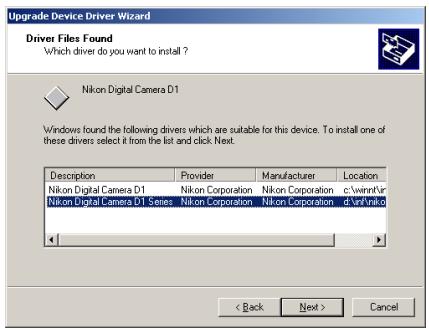
8 Click Finish.
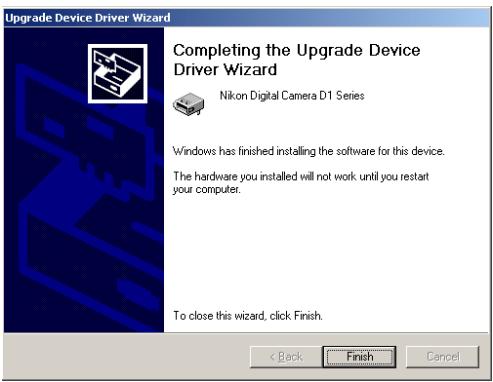
9 Confirm that "This device is working properly" appears under "Device status" in the "General" tab of the "Nikon Digital Camera D1 Series Properties" dialog.
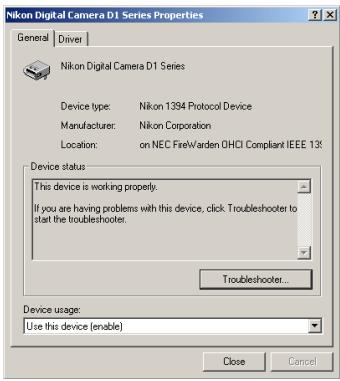
Customer Support
Nikon User Support Information
If you are in need of technical assistance with the installation or operation of your Nikon product(s), please do not hesitate to contact one of the following Nikon representatives. When calling support, you will be asked to supply the serial and/or version number(s) of your Nikon software. For efficient communication, it is highly recommended that you have your Nikon product in front of you.
Europe and Africa
Austria AT
Nikon GmbH
Modecenterstr. 14, A - 1030 Wien
Tel: +43-(0)900-150066
Phone line costs (# 0,45€/min)
Belgium BE
H. De Beukelaer & Co. N.V./S.A.
Phone line costs (# 0,24 €/min)
Greece GR
D. & J. Damkalidis S.A.
44 Zefyrou St. 17564
Tel: +30-210-9410888 Fax: +30-210-9427058
Hungary HU
Nikon Kft.
Budapest, Fóti út 56. 1047 Hungary
Tel: +36-1-232-13-71
Italy IT
Nital S.p.A.
Via Tabacchi 33, 10132 Torino
Tel: +39-199-12-41-72 Fax: +39-011-81-44-233
Netherlands

Inca Import B.V.
Rutherfordstraße 7, 2014 KA Haarlem
Tel: +31-(0)23-5101910 Fax: +31-(0)23-5243551
Norway
Nikon Nordic AB NUF
Martin Linges vei 17, 1367 Snarøya
Tel: +47-67-82-74-00
Poland F
Nikon Polska Sp. z o.o.
Rep. of South Africa ZA
Foto Distributors, Head Office
Nikon House, 516 Kyalami Boulevard,
Kyalami Business Park, Midrand 1685.
Tel: +27-(0)11-466-2500 Fax: +27-(0)11-466-3400
Russia RU
Nikon Europe BV, CIS Representative Office
Zubarev pereulok, d.15, k.1, office 541, 129164 Moscow
Tel: +7 (095) 733 91 70
Spain ES
Finicon S.A.
380 Richmond Road, Kingston, Surrey KT2 5PR
Tel: +44-(0)870-770-0231
Customer Support
Asia, Oceania, Middle-East and Canada
Australia AU
Maxwell Optical Industries Pty Ltd.
Unit F1, Lidcombe Business Park
3-29 Birnie Avenue, Lidcombe NSW 2141
Suite 1001, 10F, Cityplaza One, 1111 King's Road,
Taikoo Shing
Tel: +852-(0)2902-9000 Fax: +852-(0)2907-0378
India IN
Photo Vision
- Okhla Industrial Estate Phase III,
Near Modi Flour Mill, New Delhi - 110 020
Tel: +91-(0)11-2692-8913 Fax: +91-(0)11-2692-9856
Indonesia ID
Pt Alta Nikindo
Kompleks Mangga Dua Square
Block H 1&2 JI.Gunung Sahariraya, Jakarta Utara 10730
Tel: +62-(0)21-6231-2700 Fax: +62-(0)21-6231-2777
Israel
Hadar Photo Supply Agencies Ltd.
36 - 38 Achad Haam St., Tel-Aviv
P.O.Box 1686
Tel: +972-(0)3-5603947 Fax: +972-(0)3-5603905
Korea KR
Nikon Imaging Korea Co., Ltd.
12th Floor, Seoul Chamber Of Commerce &
Industry Building,
4-45, Namdaemoon-Ro, Jung-Ku, Seoul 100-743
Tel: +82-(0)2-6050-1800 Fax: +82-(0)2-6050-1801
Lebanon LB
Gulbenk Trading Co.
Hamra-Makdessi Street, Adhami Building,
5th Floor, Beirut
P.O.Box 113-6645
Tel: +961-(0)1-353742 Fax: +961-(0)1-347613
Malaysia MY
Nikon (Malaysia) Sdn. Bhd.
11th Floor, Block A Menara PKNS
No. 17, Jalan Yong Shook Lin 46050 Petaling Jaya
Selangor Darul Ehsan
Tel: +60-(0)3-7809 3688 Fax: +60-(0)3-7809 3600
New Zealand NZ
T.A. Macalister Ltd.
65-73, Parnell Rise, Auckland
Tel: +64-(0)9-303-4334 Fax: +64-(0)9-309-6502
Philippines PH
Columbia Global Photo Sales Corporation
129-135 Gregorio Roxas Street,
SFDM, Quezon city, 1117
Tel: +63-(0)2-363-8550 Fax: +63-(0)2-364-3334
Singapore SG
Nikon Singapore Pte. Ltd.
80 Anson Road #10-01/02 Fuji Xerox Towers
Singapore 079907
Tel: +65-6559-3618 Fax: +65-6559-3665
Taiwan TW
Lin Trading Co., Ltd.
8F, 272 Nangking Road, Sec. 3, Taipei 10566
Tel: +886-(0)2-2740-3366 Fax: +886-(0)2-2781-2525
Thailand TH
Niks (Thailand) Co., Ltd.
166 Silom Road 12, Bangkok 10500
Tel: +66-(0)2-235-2929-39 Fax: +66-(0)2-236-7240
Turkey TR
Teleoptik Ltd Sti
Ankara Caddesi Dedehan No.: 118-120,
Kat:1-2,Sirkeci 34112,Istanbul
Saleh Bin Lahej Building, Mezzanine Floor,
Please visit the web site appropriate for your area of purchase for downloads of updated software, replacement manuals and technical support information:
Europe and Africa
http://www.europe-nikon.com/support/
Korea
http://www.nikon.co.kr
Asia Pacific Area
http://www.nikon-asia.com
Nikon Imaging Global Site
http://nikonimaging.com/global/
- Camera Control Pro Reference Manual
- Overview
- Using Camera Control Pro
- Appendices
- Important Information on the Product Key
- Introduction
- Conventions
- Illustrations
- Printing This Manual
- Installing/Uninstalling Camera Control Pro
- Camera Control Pro
- Camera Control Pro for D100 Cameras (Macintosh)
- Customer Support
- Notices
- Note
- Trademark Information
- About This Manual
- How to Use This Manual
- System Requirements
- Windows
- Macintosh
- Installing Camera Control Pro
- Before installing Camera Control Pro:
- Existing Versions of Camera Control Pro
- Windows 1/5
- The "Install Center" window
- If the "Select Region" dialog Is Not Displayed
- Windows 2/5
- Click Easy Install.
- Click Next.
- Windows 3/5
- Product Key
- Windows 4/5
- Windows 5/5
- Click Finish.
- Click Yes and remove the Camera Control Pro CD from the CD-ROM drive.
- Macintosh 1/5
- Macintosh 2/5
- Enter the administrator name and password (①) and click OK (②).
- After reading the license agreement (①), click Continue (②).
- Macintosh 3/5
- Click Agree to accept the license agreement and proceed with installation.
- Click Install.
- Enter the product key (①) found on the CD case and click OK (②). The trial version does not show this dialog.
- Macintosh 4/5
- Personalize your copy of Camera Control Pro (①) and click OK (②).
- Click Yes.
- Macintosh 5/5
- Click Quit.
- Starting and Exiting Camera Control Pro
- No Camera Connected
- Start Camera Control Pro.
- The Camera Control Pro window will be displayed.
- USB Connection to a Windows XP Computer
- Exiting Camera Control Pro
- Disconnecting the Camera
- Getting Help
- Software Updates
- Downloading Updates
- Dial-up Connections
- Privacy
- Screen Layout
- Capturing Photographs to Disk
- Start Camera Control Pro.
- Select Download Options... in the Tools menu to display download options.
- Adjust capture options:
- Folder for images downloaded from the camera
- Next file name to be used
- File Naming Conventions
- When a new image is received from camera
- Attach IPTC Information
- Image Authentication D2Xs
- IPTC Information...
- Copy Shooting Data to IPTC Caption
- Embed ICC Profile
- Rotate all downloaded images by 90 degrees CCW
- Rotate all downloaded images by 90 degrees CW
- Auto Image Rotation D2-series D200 D70S D70 D50
- Viewing Captured Photographs
- Show Focus Area
- Time Lapse Photography
- Before shooting starts, adjust the following settings:
- Keep shooting until cancelled
- Auto bracketing D2-series D200 D70S D70 D50
- Time Interval Settings
- Auto Off D1-series
- During Time-Lapse Photography
- Follow the progress of time lapse photography in the progress dialog.
- Error Logs
- The Time Lapse Photography Dialog
- Hard Disk Full
- The Camera Control Pro Window
- Connection Status
- Camera name
- Camera orientation D2-series D200 D70S D70 D50
- The / Button
- Simulated LCD Panel
- Shoot Buttons
- The Function Dial D100
- Camera Settings That Can Not Be Adjusted from Camera Control Pro
- Camera Controls
- The Exposure 1 Tab
- Bulb
- The Exposure 2 Tab
- The Storage Tab
- The Mechanical Tab
- Self-Timer and Remote Modes
- Continuous Mode D2-series D200 D70S D70 D50
- Non-CPU Lenses
- The Image Processing Tab
- Saving and Loading Camera Control Settings
- Settings
- The Camera Menu
- Custom Settings...
- Set Date and Time...
- Edit Camera Curves...
- Fine-Tune White Balance... D1-series D2-series D100 D200 D70S D70
- Set Color Temperature... D2-series D200
- Measure White Balance...
- Choosing a Mode D70S D70 D50
- Dust Off Ref Photo
- Edit Image Comment...
- Select Shooting Settings Bank... D2-series D100 D200
- Set Bracketing Mode D2-series D200 D70S D70 D50
- Time Lapse Photography...
- Enable controls on the camera body D2-series D200 D70S D70 D50
- Custom Settings
- Select Custom Settings... from the Camera menu
- Changes to Custom Settings
- Choose a Custom Settings bank (D1 series/D2 series/D100/D200 only)
- Click OK After mcl
- Settings That Can Not Be Adjusted from the Custom Settings Window
- Custom Settings for D1-Series and D100 Cameras
- Custom Settings for D70, D70S, and D50 Cameras
- Custom Settings for D2-Series and D200 Cameras
- Camera Control Pro Preferences
- The General Tab
- The Color Management Tab (Windows)
- Multiple Displays
- Default Display Profile
- Supported Color Profiles
- The Color Management Tab
- The Color Management Tab (Macintosh)
- Uninstalling Camera Control Pro
- RGB Color Space Profiles
- Device Registration
- Opening the Device Manager
- Windows XP 1/4
- Registering the IEEE 1394 Interface Board
- Logging On
- Before Connecting the Camera
- Windows XP 2/4
- Registering the Device Driver
- Troubleshooting
- Windows XP 3/4
- Reinstalling the Device Driver
- Windows 2000 1/8
- Updating Drivers for the D1
- Windows 2000 2/8
- Windows 2000 3/8
- Windows 2000 4/8
- Select the search option and click Next. Upgrade Device Driver Wizard
- Click Next.
- Windows 2000 5/8
- Click Finish.
- Windows 2000 6/8
- Updating the Device Driver
- Open the Device Manager. Expand the "Nikon 1394 Device" entry and double-click Nikon Digital Camera D1.
- Open the "Driver" tab and click Update Driver...
- Click Next.
- Select Install one of the other drivers and click Next. Upgrade Device Driver Wizard
- Windows 2000 8/8
- Select Nikon Digital Camera D1 Series and click Next. Upgrade Device Driver Wizard
- Confirm that "This device is working properly" appears under "Device status" in the "General" tab of the "Nikon Digital Camera D1 Series Properties" dialog.
- Nikon User Support Information
- Europe and Africa
- Asia, Oceania, Middle-East and Canada
- Australia AU
- India IN
- Indonesia ID
- Israel
- Korea KR
- Lebanon LB
- Malaysia MY
- New Zealand NZ
- Philippines PH
- Singapore SG
- Taiwan TW
- Thailand TH
- Turkey TR
Brand : NIKON
Model : CAMERA CONTROL PRO
Category : Image Processing Software