
VIEW 3.1 - Image Processing Software NIKON - Free user manual and instructions
Find the device manual for free VIEW 3.1 NIKON in PDF.


| Product Type | Image processing software |
| Version | 3.1 |
| Brand | Nikon |
| Model | View 3.1 |
| Supported platforms | Windows and Macintosh |
| Supported cameras | COOLPIX 880, 990, 950, 800, 700, 900 |
| Connection | USB and serial |
| Main functions | Viewing, organizing and processing still images and videos |
| Video viewing | Built-in viewer or third-party application compatible with QuickTime |
| Video information | Display of general, shooting and advanced information |
| List reorganization | Sort by name, size, date or dimensions |
| Deletion of temporary files | Built-in tool to free up disk space |
| Encryption | Password protection of image files |
| Additional commands (Mac OS 9) | Add to favorites, encryption, contextual menus |
| Number of pages of the manual | 6 pages |
| Manual format | Free PDF |
Frequently Asked Questions - VIEW 3.1 NIKON
User questions about VIEW 3.1 NIKON
0 question about this device. Answer the ones you know or ask your own.
Ask a new question about this device
Download the instructions for your Image Processing Software in PDF format for free! Find your manual VIEW 3.1 - NIKON and take your electronic device back in hand. On this page are published all the documents necessary for the use of your device. VIEW 3.1 by NIKON.
USER MANUAL VIEW 3.1 NIKON
What's New with Version 3.1
Nikon View Ver.3 has been upgraded to Version 3.1. As several new functions have been added to Nikon View Ver.3, please read this What's New before using Version 3.1.
What's New for Macintosh
What's New for Windows
What's New for Macintosh
Support for the COOLPIX 880
In addition to earlier models of Nikon COOLPIX digital cameras (990/950/800/700/900 series), NikonViewVer.3 Version 3.1 supports the new COOLPIX 880 digital camera. Nikon View Version 3.1 can read all image files recorded with the COOLPIX 880, including movie files, and also supports USB connection. When you connect your COOLPIX 880 digital camera to a computer using the USB cable, the mounted camera drive will be displayed as a camera icon titled Nikon E880 (icon name varies with camera model and connection type).
Viewing Movie Files
With NikonView Version 3.1 you can view movie files in either the Nikon View built-in viewer, or in a third-party application. You may select any application that supports the QuickTime format. Follow the instructions below to assign the application used to view movie files.
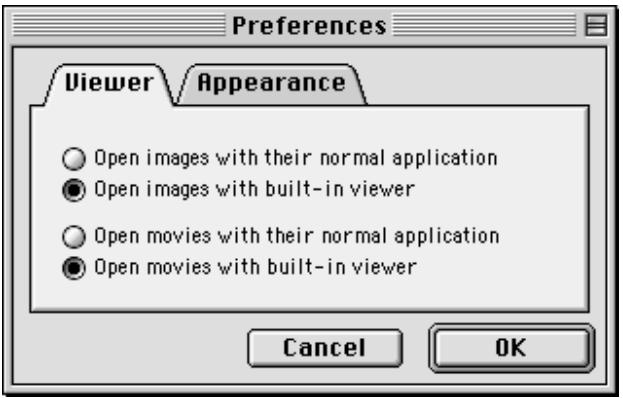
To view movie files from the Nikon View built-in viewer
I. With Nikon View Browser Version 3.1 active, select Preferences from the Edit menu.
2. Click the Viewer tab. Select the Open movies with built-in viewer radio button and click OK.
To view movie files from a third-party application
- Open Nikon View Control from the Apple menu > Control Panels.
- Click the Settings tab. Under "Preferred movie viewer," click the Change... button.
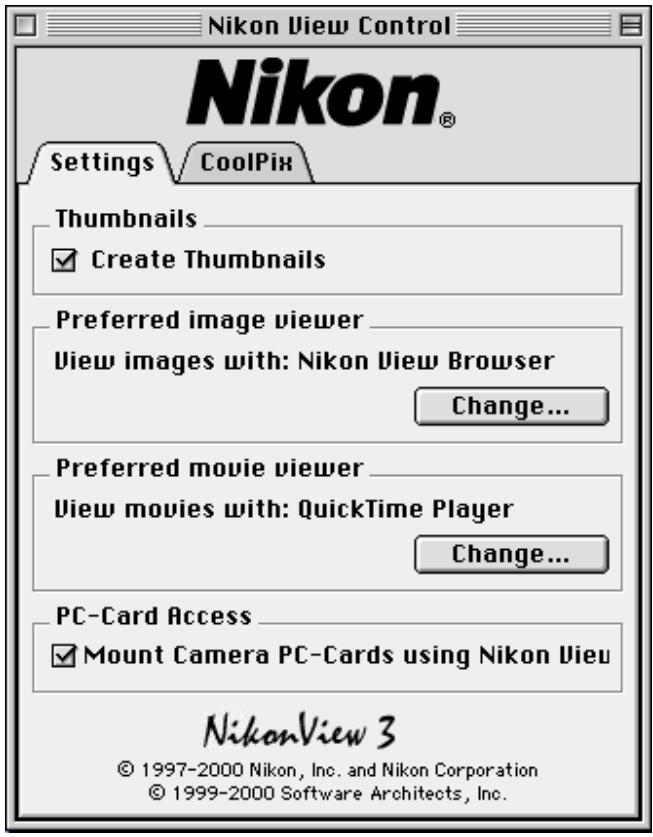
- The Open dialog box will be displayed. Click on the application of your choice. Only applications which support Apple's QuickTime format will be displayed.
- Once you have selected an application, click the Open button.
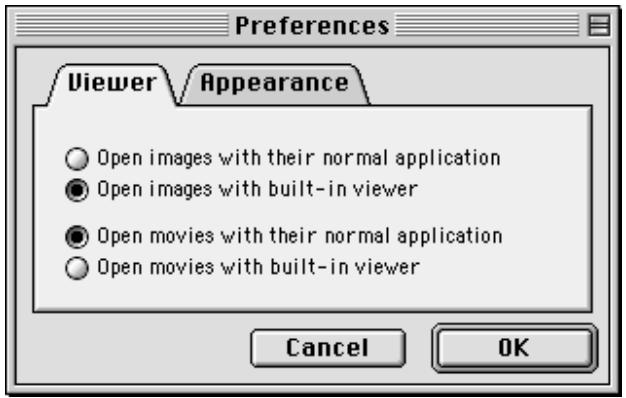
- With Nikon View Browser Version 3.1 active, select Preferences from the Edit menu.
- Click the Viewer tab. Select the Open movies with their normal application radio button and click OK.
Viewing Movie Information
With Nikon View Browser Version 3.1, you can now view information for movie files as well as for still image files. For movie files saved to a computer, the General Information, Photo Information and Extra Photo Information panels are available (the Photo Information and Extra Photo Information panels are not available for movie files opened directly from the camera's memory card via USB or serial connection).
The General Information panel displays basic file information such as file size, file location and capture date. The Photo Information panel displays camera settings at the time the file was recorded. The Extra Photo Information panel displays detailed camera control settings at the time the file was captured. n/a will be displayed next to settings which can not be applied to movie files.
Additional Commands for Mac OS 9
When using Nikon View Browser Version 3.1 under Mac OS 9, you will notice the following additional commands in the File menu.
Add to Favorites
If you click on the icon for an image file, and then select Add to Favorites from the File menu, an alias of the selected image will be added to the Add to Favorites folder. If the selected image is saved to your computer, you can open that image at any time by simply selecting it from the File menu > Add to Favorites. If, however, the file was located on the camera's memory card when the alias was created, an error message will be displayed when you try to open it from the Add to Favorites menu option.
Encrypt
You can assign a password to an image file, allowing the file to be opened only when the correct password is entered. Keep in mind, however, that as the camera's memory card acts as a "read-only" disk, this function can not be applied to images opened in the camera window.
NikonView BrowserVersion 3.1 also supports Mac OS contextual menus. Hold down the control key while clicking an image file to display a contextual menu. The contextual menus used in NikonView Browser are the same as those used in the Mac OS Finder.
What's New for Windows
Support for the COOLPIX 880
In addition to earlier models of Nikon COOLPIX digital cameras (990/950/800/700/900 series), NikonViewVer.3 Version 3.1 also supports the new COOLPIX 880 digital camera. Nikon View Version 3.1 can read all image files recorded with the COOLPIX 880, including movie files, and also supports USB connection.
Deleting Temporary Files
When you use NikonView, temporary files are created and saved to the Windows Temp folder when, for example, you copy image files to disk or open images in an application. With Nikon View Version 3.1, these files, which take up unnecessary disk space, can easily be deleted. To delete Nikon View temporary files:
- Click the Settings button in the Nikon View window, or select Settings from the View menu.
- The Digital Camera Settings dialog box will be displayed. Click Delete All... under "Temporary files."
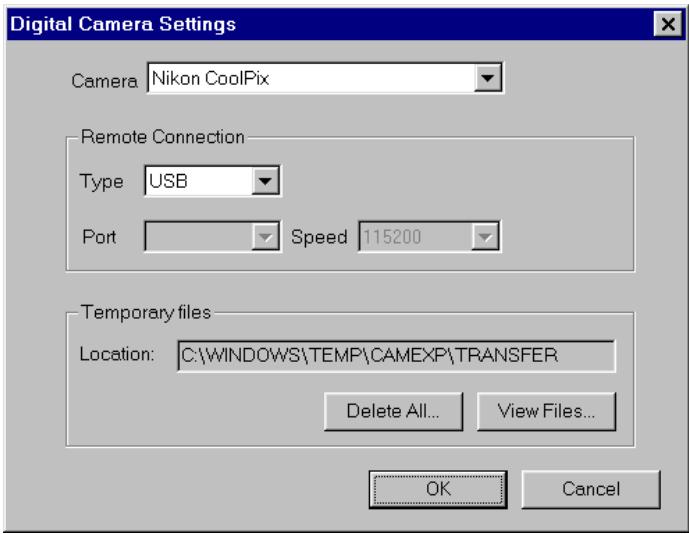
- A dialog box will be displayed verifying that you want to delete the temporary files. Click OK to delete all Nikon View temporary files.
To view a list of the files saved to the temporary folder, click View Files... under "Temporary files."
Reordering the ListView
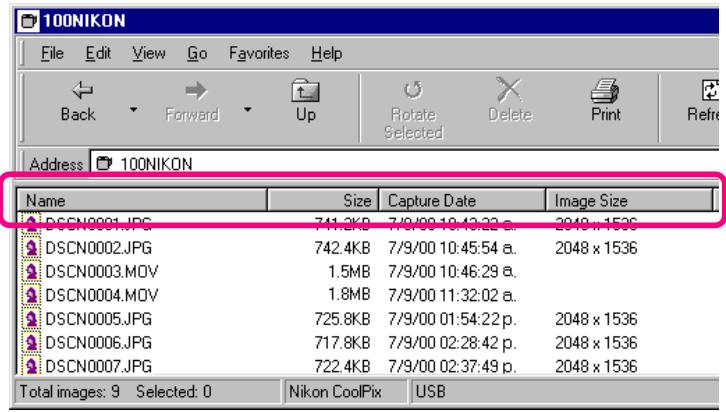
With Nikon View Version 3.1, it is now possible to change the order in which image files are displayed. Images can be displayed in order by name (alphabetically), by size, or by date. Simply by clicking on the Name, Size, Capture Date or Image Size headers just above the image list, you can reorder the file list.
- What's New for Macintosh
- Support for the COOLPIX 880
- Viewing Movie Files
- To view movie files from the Nikon View built-in viewer
- To view movie files from a third-party application
- Viewing Movie Information
- Additional Commands for Mac OS 9
- Add to Favorites
- Encrypt
- What's New for Windows
- Deleting Temporary Files
- Reordering the ListView
Brand : NIKON
Model : VIEW 3.1
Category : Image Processing Software