VEN-650V05-2S3F - Security Camera BOSCH - Free user manual and instructions
Find the device manual for free VEN-650V05-2S3F BOSCH in PDF.


| Product Type | IP Security Camera |
| Model | VEN-650V05-2S3F |
| Brand | Bosch |
| Resolution | 6 Megapixels (3072 x 2048) |
| Lens | Fixed 2.8mm, F1.4 |
| Field of View | Horizontal 105°, Vertical 75° |
| Night Vision | Up to 30m (IR LEDs) |
| Day/Night Mode | Auto with IR cut filter |
| Video Compression | H.265, H.264, MJPEG |
| Maximum Frame Rate | 30 fps at 6MP |
| Connectivity | Ethernet (RJ45), PoE (802.3af) |
| Audio | Built-in microphone, speaker (two-way audio) |
| Storage | MicroSD slot up to 256GB, NAS |
| Power Supply | PoE or 12V DC (optional adapter) |
| Power Consumption | Max 12W |
| Dimensions (Ø x H) | 130mm x 100mm |
| Weight | Approx. 600g |
| Ingress Protection | IP66 (weatherproof) |
| Operating Temperature | -20°C to 50°C |
| Mounting | Ceiling or wall mount included |
| Maintenance | Clean lens with soft cloth; check connections annually |
| Safety | Complies with CE, FCC, UL |
| Spare Parts & Repairability | Contact Bosch service; lens and IR board replaceable |
| General Information | Supports ONVIF Profile G, Bosch Video Analytics |
Frequently Asked Questions - VEN-650V05-2S3F BOSCH
User questions about VEN-650V05-2S3F BOSCH
0 question about this device. Answer the ones you know or ask your own.
Ask a new question about this device
Download the instructions for your Security Camera in PDF format for free! Find your manual VEN-650V05-2S3F - BOSCH and take your electronic device back in hand. On this page are published all the documents necessary for the use of your device. VEN-650V05-2S3F by BOSCH.
USER MANUAL VEN-650V05-2S3F BOSCH
natural_image
Exterior view of a metallic security camera with a circular lens and mounting base (no text or symbols visible)EX65 Explosion-protected Camera
VEN-650 Series

BOSCH
en Instruction Manual
Table of Contents
| 1 | S | a | f | e | t | y | 5 | |
| 1.1 Safety precautions 5 | ||||||||
| 1.2 Important safety instructions 5 | ||||||||
| 1.3 Important notices 7 | ||||||||
| 1.4 FCC & ICES compliance 9 | ||||||||
| 1.5 UL Certification 10 | ||||||||
| 1.6 Explosion Protected Certifications 10 | ||||||||
| 1.7 Joint Information 11 | ||||||||
| 1.8 Bosch notices | 11 | |||||||
| 1.9 Warranty / Limitation of Liability | 12 | |||||||
| 2 | Description | 13 | ||||||
| 2.1 Unpacking | 13 | |||||||
| 2.2 Parts List | 13 | |||||||
| 2.2.1 | Parts Included with the Product | 13 | ||||||
| 2.2.2 | User-supplied Parts | 13 | ||||||
| 3 | Planning | 14 | ||||||
| 3.1 Dimensional Drawings | 14 | |||||||
| 3.2 Initial Preparations | 15 | |||||||
| 4 | Installation | 16 | ||||||
| 5 | Connections | 17 | ||||||
| 5.1 Power Cable Requirements | 17 | |||||||
| 5.1.1 | Wire Distance Guide | 17 | ||||||
| 5.2 Coax Cable Requirements | 17 | |||||||
| 5.3 Alarm Cable Requirements | 18 | |||||||
| 5.4 Fiber Optic Cable Requirements | 18 | |||||||
| 5.5 Making the Connections | 18 | |||||||
| 6 | Configuration | 20 | ||||||
| 7 | M | o | u | n | t | i | n | g |
| 7.1 Mounting the EX65 | 22 | |||||||
| 7.2 Installing the Sunshield | 23 | |||||||
| 8 | O | p | e | r | a | t | i | o | n |
| 8.1 Menus 24 | |||||||||
| 8.1.1 Top level menus 24 | |||||||||
| 8.1.2 Menu navigation keys 25 | |||||||||
| 8.2 Pre-defined modes 25 | |||||||||
| 8.3 Camera control communication (Bilinx) 25 | |||||||||
| 8.4 Main menu structure | 26 | ||||||||
| 8.4.1 Mode submenu | 26 | ||||||||
| 8.4.2 ALC submenu | 26 | ||||||||
| 8.4.3 Shutter/AGC submenu | 27 | ||||||||
| 8.4.4 Day/Night submenu | 28 | ||||||||
| 8.4.5 Enhance / Dynamic Engine submenu | 29 | ||||||||
| 8.4.6 Color submenu | 30 | ||||||||
| 8.4.7 VMD submenu | 30 | ||||||||
| 8.5 Install menu structure | 31 | ||||||||
| 8.5.1 Language submenu | 32 | ||||||||
| 8.5.2 Lens Wizard submenu | 32 | ||||||||
| 8.5.3 Synchronization submenu | 33 | ||||||||
| 8.5.4 Alarm I/O submenu | 33 | ||||||||
| 8.5.5 Connections submenu | 33 | ||||||||
| 8.5.6 Test signal submenu | 34 | ||||||||
| 8.5.7 Camera ID submenu | 34 | ||||||||
| 8.5.8 Privacy masking submenu | 35 | ||||||||
| 8.5.9 Defaults submenu | 35 | ||||||||
| 9 | T | r | o | u | b | l | e | s | h | o |
| 9.1 Camera Operation | 36 | |||||||||
| 10 | Maintenance | 37 |
| 10.1 | Repairs | 37 |
| 10.2 | Transfer and Disposal 37 | |
| 10.3 | Removal of the Camera and Lens | 37 |
| 10.4 | Installation of the Camera and Lens | 38 |
| 10.5 | Back Focus Adjustment | 38 |
| 10.6 | Replacement of the Mounting Cradle | 39 |
| 11 | Technical Data | 40 |
| Glossary | 42 |
1 S a f e t
1.1 Safety precautions
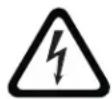
DANGER!
High risk: This symbol indicates an imminently hazardous situation such as “Dangerous Voltage” inside the product.
If not avoided, this will result in an electrical shock, serious bodily injury, or death.

WARNING!
Medium risk: Indicates a potentially hazardous situation.
If not avoided, this could result in minor or moderate bodily injury.

CAUTION!
Low risk: Indicates a potentially hazardous situation.
If not avoided, this could result in property damage or risk of damage to the unit.
1.2 Important safety instructions
Read, follow, and retain for future reference all of the following safety instructions. Heed all warnings on the unit and in the operating instructions before operating the unit.
-
Cleaning - Unplug the unit from the outlet before cleaning. Follow any instructions provided with the unit. Generally, using a dry cloth for cleaning is sufficient but a moist, fluff-free cloth or leather shammy may also be used. Do not use liquid cleaners or aerosol cleaners.
-
Heat Sources - Do not install the unit near any heat sources such as radiators, heaters, stoves, or other equipment (including amplifiers) that produce heat.
-
Ventilation - Any openings in the unit enclosure are provided for ventilation to prevent overheating and ensure reliable operation. Do not block or cover these openings. Do not place the unit in an enclosure unless proper ventilation is provided, or the manufacturer's instructions have been adhered to.
-
Water - Do not use this unit near water (for example, near a bathtub, washbowl, sink, laundry basket, in a damp or wet basement, near a swimming pool, in an outdoor installation, or in any area classified as a wet location), unless it is completely installed and sealed. To reduce the risk of fire or electrical shock, do not expose this unit to rain or moisture, unless it is completely installed and sealed.
-
Object and liquid entry - Never push objects of any kind into this unit through openings as they may touch dangerous voltage points or short-out parts that could result in a fire or electrical shock. Never spill liquid of any kind on the unit, unless it is completely installed and sealed. Do not place objects filled with liquids, such as vases or cups, on the unit, unless it is completely installed and sealed.
-
Lightning - For added protection during a lightning storm, or when leaving this unit unattended and unused for long periods, unplug the unit from the wall outlet and disconnect the cable system. This will prevent damage to the unit from lightning and power line surges.
-
Controls adjustment - Adjust only those controls specified in the operating instructions. Improper adjustment of other controls may cause damage to the unit. Use of controls or adjustments, or performance of procedures other than those specified, may result in hazardous radiation exposure.
-
Overloading - Do not overload outlets and extension cords. This can cause fire or electrical shock.
- Power supply cord and plug protection - Protect the power supply cord and plug from foot traffic, being pinched by items placed upon or against them at electrical outlets, and its exit from the unit. For units intended to operate with 230 VAC, 50 Hz, the power supply cord must comply with the latest versions of IEC 60227. For units intended to operate with 120 VAC, 60 Hz, the power supply cord must comply with the latest versions of UL 62 and CSA 22.2 No.49.
- Power disconnect - Units have power supplied to the unit whenever the power cord is inserted into the power source. The power cord plug is the main power disconnect device for switching off the voltage for all units.
-
Power sources - Operate the unit only from the type of power source indicated on the label. Before proceeding, be sure to disconnect the power from the cable to be installed into the unit.
-
For battery powered units, refer to the operating instructions.
- For external power supplied units, use only the recommended or approved power supplies.
- For limited power source units, this power source must comply with EN60950. Substitutions may damage the unit or cause fire or shock.
- For 24 VAC units, voltage applied to the unit's power input should not exceed ± 10% , or 28 VAC. User-supplied wiring must comply with local electrical codes (Class 2 power levels). Do not ground the supply at the terminals or at the unit's power supply terminals.
-
If unsure of the type of power supply to use, contact your dealer or local power company.
-
Servicing - Do not attempt to service this unit yourself. Opening or removing covers may expose you to dangerous voltage or other hazards. Refer all servicing to qualified service personnel.
-
Damage requiring service - Unplug the unit from the main AC power source and refer servicing to qualified service personnel when any damage to the equipment has occurred, such as:
-
the power supply cord or plug is damaged;
- exposure to moisture, water, and/or inclement weather (rain, snow, etc.);
– liquid has been spilled in or on the equipment; - an object has fallen into the unit;
- unit has been dropped or the unit cabinet is damaged;
- unit exhibits a distinct change in performance;
-
unit does not operate normally when the user correctly follows the operating instructions.
-
Replacement parts - Be sure the service technician uses replacement parts specified by the manufacturer, or that have the same characteristics as the original parts. Unauthorized substitutions may cause fire, electrical shock, or other hazards.
- Safety check - Safety checks should be performed upon completion of service or repairs to the unit to ensure proper operating condition.
-
Installation - Install in accordance with the manufacturer's instructions and in accordance with applicable local codes.
-
Attachments, changes or modifications · Only use attachments/accessories specified by the manufacturer. Any change or modification of the equipment, not expressly approved by Bosch, could void the warranty or, in the case of an authorization agreement, authority to operate the equipment.

EU Directives covered by this declaration: 72/9/EC Low Voltage Directives 89/336/EEC Electromagnetic Compatibility Directive
1.3 Important notices

Accessories - Do not place this unit on an unstable stand, tripod, bracket, or mount. The unit may fall, causing serious injury and/or serious damage to the unit. Use only with the cart, stand, tripod, bracket, or table specified by the manufacturer. When a cart is used, use caution and care when moving the cart/apparatus combination to avoid injury from tip-over. Quick stops, excessive force, or uneven surfaces may cause the cart/unit combination to overturn. Mount the unit per the manufacturer's instructions.
All-pole power switch - Incorporate an all-pole power switch, with a contact separation of at least 3 mm in each pole, into the electrical installation of the building. If it is needed to open the housing for servicing and/or other activities, use this all-pole switch as the main disconnect device for switching off the voltage to the unit.
Camera signal - Protect the cable with a primary protector if the camera signal is beyond 140 feet, in accordance with NEC800 (CEC Section 60).
Coax grounding:
- Ground the cable system if connecting an outside cable system to the unit.
- Connect outdoor equipment to the unit's inputs only after this unit has had its grounding plug connected to a grounded outlet or its ground terminal is properly connected to a ground source.
- Disconnect the unit's input connectors from outdoor equipment before disconnecting the grounding plug or grounding terminal.
- Follow proper safety precautions such as grounding for any outdoor device connected to this unit.
U.S.A. models only - Section 810 of the National Electrical Code, ANSI/NFPA No.70, provides information regarding proper grounding of the mount and supporting structure, grounding of the coax to a discharge unit, size of grounding conductors, location of discharge unit, connection to grounding electrodes, and requirements for the grounding electrode.
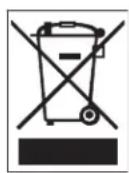
Disposal - Your Bosch product was developed and manufactured with high-quality material and components that can be recycled and reused. This symbol means that electronic and electrical appliances, which have reached the end of their working life, must be collected and disposed of separately from household waste material. Separate collecting systems are usually in place for disused electronic and electrical products. Please dispose of these units at an environmentally compatible recycling facility, per European Directive 2002/96/EC.
Electronic Surveillance • This device is intended for use in public areas only. U.S. federal law strictly prohibits surreptitious recording of oral communications.
Environmental statement - Bosch has a strong commitment towards the environment. This unit has been designed to respect the environment as much as possible.
Electrostatic-sensitive device - Use proper CMOS/MOS-FET handling precautions to avoid electrostatic discharge.
NOTE: Wear required grounded wrist straps and observe proper ESD safety precautions when handling the electrostatic-sensitive printed circuit boards.
Fuse rating · For protection of the device, the branch circuit protection must be secured with a maximum fuse rating of 16A. This must be in accordance with NEC800 (CEC Section 60).
Moving - Disconnect the power before moving the unit. Move the unit with care. Excessive force or shock may damage the unit and the hard disk drives.
Outdoor signals - The installation for outdoor signals, especially regarding clearance from power and lightning conductors and transient protection, must be in accordance with NEC725 and NEC800 (CEC Rule 16-224 and CEC Section 60).
Permanently connected equipment - Incorporate a readily accessible disconnect device external to the equipment.
Pluggable equipment - Install the socket outlet near the equipment so it is easily accessible.
Power resupply - If the unit is forced to power down due to exceeding the specified operating temperatures, disconnect the power cord, wait for at least 30 seconds, and then reconnect the power cord.
Power lines - Do not locate the unit near overhead power lines, power circuits, or electrical lights, nor where it may contact such power lines, circuits, or lights.
SELV - All the input/output ports are Safety Extra Low Voltage (SELV) circuits. SELV circuits should only be connected to other SELV circuits.
Because the ISDN circuits are treated like telephone-network voltage, avoid connecting the SELV circuit to the Telephone Network Voltage (TNV) circuits.
System ground/Safety ground
System (video) ground is indicated by the symbol

Safety (power) ground is indicated by the symbol

The system ground is only used to comply with safety standards or installation practices in certain countries. Bosch does not recommend connecting system ground to safety ground unless it is explicitly required. However, if the system ground and safety ground are connected and grounding loops are causing interference in the video signal, use an isolation transformer (available separately from Bosch).

CAUTION!
Connecting System ground to Safety ground may result in ground loops that can disrupt the CCTV system.
Unit grounding - For mounting the unit in potentially damp environments, ensure to ground the system using the ground connection of the power supply connector (see
Section 5.1 Power Cable Requirements, page 17).
Video loss - Video loss is inherent to digital video recording; therefore, Bosch Security Systems cannot be held liable for any damage that results from missing video information. To minimize the risk of lost digital information, Bosch Security Systems recommends multiple, redundant recording systems, and a procedure to back up all analog and digital information.
1.4 FCC & ICES compliance
FCC Information
(U.S.A. and Canadian Models Only)
This equipment has been tested and found to comply with the limits for a Class B digital device, pursuant to part 15 of the FCC Rules. These limits are designed to provide reasonable protection against harmful interference in a residential installation. This equipment generates, uses, and can radiate radio frequency energy and, if not installed and used in accordance with the instructions, may cause harmful interference to radio communications. However, there is no guarantee that interference will not occur in a particular installation. If this equipment does cause harmful interference to radio or television reception, which can be determined by turning the equipment off and on, the user is encouraged to try to correct the interference by one or more of the following measures:
- reorient or relocate the receiving antenna;
– increase the separation between the equipment and receiver; - connect the equipment into an outlet on a circuit different from that to which the receiver is connected;
- consult the dealer or an experienced radio/TV technician for help.
Intentional or unintentional modifications, not expressly approved by the party responsible for compliance, shall not be made. Any such modifications could void the user's authority to operate the equipment. If necessary, the user should consult the dealer or an experienced radio/television technician for corrective action.
The user may find the following booklet, prepared by the Federal Communications
Commission, helpful: How to Identify and Resolve Radio-TV Interference Problems. This booklet is available from the U.S. Government Printing Office, Washington, DC 20402, Stock No. 004-000-00345-4.
Underwriter Laboratories Inc. ("UL") has not tested the performance or reliability of the security or signaling aspects of this product. UL has only tested fire, shock and/or casualty hazards as outlined in UL's Standard(s) for Safety for Closed Circuit Television Equipment, UL 2044. UL Certification does not cover the performance or reliability of the security or signaling aspects of this product.
UL MAKES NO REPRESENTATIONS, WARRANTIES, OR CERTIFICATIONS WHATSOEVER REGARDING THE PERFORMANCE OR RELIABILITY OF ANY SECURITY OR SIGNALING-RELATED FUNCTIONS OF THIS PRODUCT.
Disclaimer
Underwriter Laboratories Inc. ("UL") has not tested the performance or reliability of the security or signaling aspects of this product. UL has only tested fire, shock and/or casualty hazards as outlined in UL's Standard(s) for Safety for Information Technology Equipment, UL 60950-1. UL Certification does not cover the performance or reliability of the security or signaling aspects of this product.
UL MAKES NO REPRESENTATIONS, WARRANTIES, OR CERTIFICATIONS WHATSOEVER REGARDING THE PERFORMANCE OR RELIABILITY OF ANY SECURITY OR SIGNALING-RELATED FUNCTIONS OF THIS PRODUCT.
1.6 Explosion Protected Certifications
Camera for Use in Hazardous Locations
Bosch Security Systems B.V.
NEN-65 Camera models
12-24 VDC, 12-24 VAC, Class 2, 20 watts (1.5A Maximum)

LISTED
Control number 3RR9
Class I, Groups C, and D; Class II, Groups E, F, and G; Class III
Class I, Zone 1, AEx d IIB T6; Ex d IIB T6 X
AEx tD 21 T85°C
DIP DIP A21 Ta85°C X
Type 4X, IP67
DEMKO 10 ATEX 0948139X
CE 0344 II 2 GD
Ex d IIB T6 Gb
Ex tb IIIC T85°C Db IP67
-50 °C < Ta < 60 °C
1.7 Joint Information
| Joint-Threaded (All Models) Designation Pitch | (mm) | Full Threads Engaged | Depth of Engagement (mm) | |
| Back Cover of Junction Box to Connection Plate of Junction Box | M 103 2 7 14.5 | |||
| Housing to Connection Plate of Junction Box | M 103 2 7 18.5 | |||
| Supply Opening Blanking Element to Connection Plate of Junction Box (four openings provided) | 3/4-14 NPT N/A 5 N/A | |||
| Housing and Front Cover/Fascia M 103 | 2 8 18.5 | |||
To obtain more information about the flameproof joints, please contact Bosch Security Systems.

WARNING!
To reduce the risk of ignition of hazardous atmospheres, conduit runs must have a sealing fitting connected to the wall of the enclosure.

WARNING!
DO NOT OPEN WHEN AN EXPLOSIVE ATMOSPHERE MAY BE PRESENT.
1.8 Bosch notices
Copyright
This manual is the intellectual property of Bosch Security Systems and is protected by copyright. All rights reserved.
Trademarks
All hardware and software product names used in this document are likely to be registered trademarks and must be treated accordingly.
NOTE:
This manual has been compiled with great care and the information it contains has been thoroughly verified. The text was complete and correct at the time of printing. The ongoing development of the products may mean that the content of the user guide can change without notice. Bosch Security Systems accepts no liability for damage resulting directly or indirectly from faults, incompleteness or discrepancies between the user guide and the product described.
More information
For more information, please contact the nearest Bosch Security Systems location or visit www.boschsecurity.com.
1.9 Warranty / Limitation of Liability
The EX65 has a 3 year warranty.
BOSCH Security Systems warrants that its products, at the time of shipment by BOSCH Security Systems, are free from defect in material or workmanship under normal use and service for the respective warranty periods specified in the applicable Price Schedule or as otherwise published.
To assure conformance with operating limitations, Buyer should refer to the applicable data sheet.
The warranty is void (i) if the Product is not operated in conformance with installation, environmental, mechanical or electrical requirements, or within thermal stress limits, or (ii) to the extent that any malfunction is the result of misuse, abuse, vandalism, neglect, improper installation or application, alteration, accident, or negligence in use, storage, transportation, or handling or if the original identification markings on the product have been removed, defaced or altered, lightning, electricity, water, fire, environment or other hazard, or act of God, or other impact outside of normal operating guidelines.
The foregoing warranty is subject to Buyer's (i) promptly written claim and (ii) timely provision to BOSCH Security Systems of an opportunity to inspect and test the Product claimed to be defective. Such inspection may be on Buyer's premises and/or BOSCH Security Systems may request the return of the Product at Buyer's expense. However, BOSCH Security Systems shall not be responsible for packing, inspection, or labor costs in connection with the return of Product. No Product shall be accepted for warranty service that is not accompanied by a Return Authorization issued by BOSCH.
The liability of BOSCH Security Systems hereunder or otherwise is solely and exclusively limited to replacement (new or refurbished Product), repair, or credit of the amortized purchase price, as BOSCH Security may elect, for any Product which is returned by Buyer during the applicable warranty period, or services for which timely notice of defect has been given by Buyer, and which are found by BOSCH Security to be subject to adjustment under this warranty.
BOSCH Security System's warranty shall not be enlarged, diminished, or affected by, and no obligation or liability shall arise or grow out of BOSCH Security's rendering or technical advice, facilities, or services in connection with Buyer's order to the products furnished hereunder.
For more information about the warranty on this product, see the Warranty Repair section on Bosch's Customer Care web page at www.boschsecurity.us/en-us/Service/CustomerCare.
2 Description
The EX65 Explosion Protected Camera is a high-performance, smart surveillance camera for explosive environments. Utilizing Dinion 2X imaging, the camera offers unrivaled image quality in the worst lighting conditions. Electropolished 316L stainless steel construction ensures the ultimate environmental protection available today. A single pre-assembled unit with an integrated junction box, the EX65 is designed to be easy to install. Through any of the four (4) 3/4 in. conduit entries (M20 adapter included with PAL versions), connections are made to the convenient terminal block; there is also space for any additional wiring. Also accessible through the junction box is the optional fiber optic module that provides versatility for longer cable runs where electromagnetic interference is a concern.
2.1 Unpacking
This electronic equipment should be unpacked and handled carefully. If an item appears to have been damaged in shipment, notify the shipper immediately.
Verify that all the parts listed in the Parts List below are included. If any items are missing, notify your Bosch Security Systems Sales or Customer Service Representative.
The original packing carton is the safest container in which to transport the unit and must be used if returning the unit for service. Save it for possible future use.
2.2 Parts List
2.2.1 Parts Included with the Product
| Quantity Item | |
| 1 EX65 Explosion Protected Camera | |
| 1 | S u n s |
| 4 M4 bolts with washers for sunshield | |
| 1 1.5 mm hex key | |
| 1 Multi-use tool | |
| 1 Instruction Manual | |
h i e
2.2.2 User-supplied Parts
| Quantity | Item |
| 3 M 6 x 1 | .0 x 16 m m bolts with lock washers |
| 1 Bottle of | Jet-Lube® NCS-30 grease (as needed) |
| 1 Tube of | Molykote® BG 20 grease (as needed) |
| 1 Tube of | LA-CO Slic-Tite® Paste with PTFE (as needed) |
3 Planning
Refer to the information below before installing the unit. This section provides dimensional information and guidelines to help plan your installation.
3.1 Dimensional Drawings
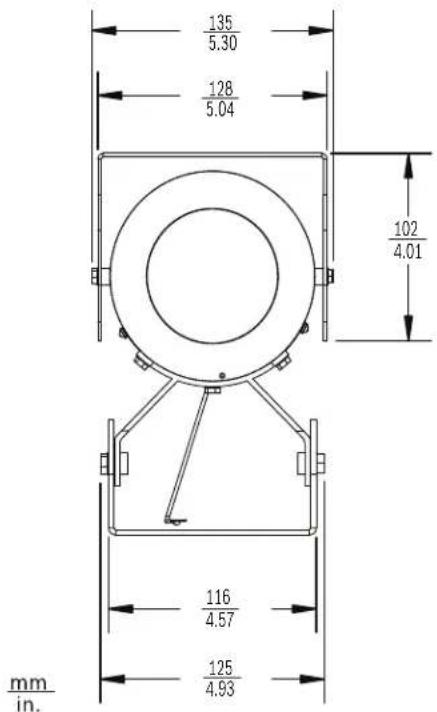
Figure 3.1 Front View
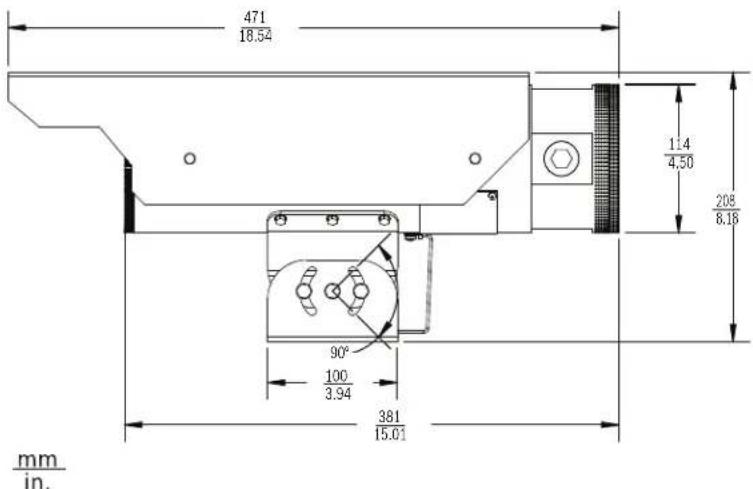
Figure 3.2 Side View
3/4-in. NPTX 4
| 6.6 | ||
| 0.26 | 71° | 60.0 |
| ∅ 2.36 |
Figure 3.3 Bottom View
3.2 Initial Preparations
- Determine the operating voltage at the installation site. The circuit board automatically configures for 12 VDC or 24 VAC operation. The unit can receive an input voltage range of 10.5 VDC to 40 VDC or 12 VAC to 28 VAC without damage, but it is recommend to stay within the voltage range specified in Section 1.6 Explosion Protected Certifications.
- All units have been tested prior to shipment. It is advisable to check the unit's operation before installation.
CAUTION!
It is recommended that the installer wear an ESD strap or discharge any static electricity to ground before handling any electronic components.
4 Installation
This chapter details the installation guidelines for the EX65. It is important that you consider these steps.

WARNING!
Do not apply power to the unit in an explosive environment unless the housing is fully installed, the front and back caps are tightened, and all openings are appropriately plugged and sealed. Disconnect power before servicing or disassembling the unit.
Based on the explosion protected requirements of the installation location, determine the appropriate installation method and follow all local guidelines and laws. It is important to keep the following in mind during installation:
- It is advisable to set up the camera lens prior to installation as lens adjustments require the unit to be opened, see Section 6 Configuration, page 20.
- The front and back end caps of the unit must be removed for access to the internal electronics or to adjust the lens. The set screws on the caps are tightened at the factory. It is easier to remove the front end cap with the sunshield removed.
- When tightening the end caps, ensure that the threads are clean and lubricated with Jet-Lube® NCS-30 grease or equivalent.
- Before tightening the end caps, ensure that the o-rings are clean and lubricated with Molykote® BG 20 grease (from Dow Corning) or equivalent.
- Ensure that all 3/4-in. NPT plugs are securely tightened in the 3/4-in. NPT conduit openings and sealed with LA-CO Slic-Tite® Paste with PTFE, apply per manufacturer's instructions on the label.
- Ensure that the unit is wired and sealed appropriately either with a conduit seal or a gland and cable rated for the intended environment. Use LA-CO Slic-Tite® Paste with PTFE thread sealant on all conduit or gland threads.
- Carefully follow all manufacturers' instructions for applying grease and paste products.
- If cable glands are used, they shall be certified for ATEX and IECEx certified for Ex d IIB Gb and Ex tb IIIB Db IP67 rated at least 85 °C.
- All unused conduit openings shall have a 3/4-14 in. NPT stopping plug certified for Class I, Groups C, and D; Class II, Groups E, F, and G; and Class III; Class I, Zone 1, AEx d IIB; AEx tD 21; Ex d IIB; DIP A21 hazardous locations, as supplied with the unit.
– Unused conduit openings shall be closed with the provided conduit plug. - The maximum surface temperature of the unit will never reach 85^ when used throughout the ambient operating range of -50^ to 60^ ( -58^ to 140^ ).
- If starting up the unit below -40 °C, there may be a delay between when power is applied to the camera and when video output is available.
- The joint between the junction box and housing is secured by a thread locker for permanent securement. This joint shall not be removed because there may be damage to the flamepath.
- The device was subjected to the resistance to impact test at 2 J. It shall be installed where it will not be subjected to impact.
- For ambient temperatures below -10^ , use field wiring suitable for the minimum ambient temperature.
5 Connections
All required connections are accessible by removing the end cap conveniently located in the rear of the EX65.
NOTICE!
Take care not to drop the end caps to prevent damage to the cap threads.
5.1 Power Cable Requirements
WARNING!
Before proceeding, disconnect the power from the power supply cable. Ensure that the voltage of the unit matches the voltage and type of the power supply being used.
Connect power from a 12 - 24 VAC or 12 - 24 VDC class 2 power supply. Use AWG 16 to 22 stranded wire or AWG 16 to 26 solid wire; cut back 5 mm (0.2 in.) of insulation.
Cable size Stranded wire: AWG 16 to 22
Solid wire: AWG 16 to 26
Cable shape Round
Conductors 2-conductor version
Environmental Outdoor rated
5.1.1 Wire Distance Guide
This table lists the maximum wire distances for 14, 16, and 18 AWG wires connected to a 24 VAC camera.
Watts 14 AWG (2.5 mm) 16 AWG (1.5 mm) 18 AWG (1.0 mm)
| All Models | 20 | 289 m(949 ft) | 182 m(597 ft) | 114 m(376 ft) |
5.2 Coax Cable Requirements
| Cable type | RG-59/U for runs < 300 m (1000 ft) |
| RG-11/U for runs < 600 m (2000 ft) | |
| Cable size | Outside diameter between 4.6 mm to 7.9 mm (0.181 in. to 0.312 in.) |
Cable shape Round
Shield > 93% braided copper shield
Center conductor Stranded copper center
DC resistance < 15 Ohm/1000 m (RG-59/U)
< 6 Ohm/1000 m (RG-11/U)
Cable impedance 75 Ohm
Agency rating UL
Environmental Outdoor rated
Temperature rating > 80 degrees C
Sources Belden 9259
5.3 Alarm Cable Requirements
The EX65 terminal block contains one Alarm Out connection.
| Max. wire diameter AWG | 22-28 for both stranded and solid |
| Alarm output relay switching capability | Max voltage 30 VAC or +40 VDC. Max 0.5 A continuous, 10 VA. |
5.4 Fiber Optic Cable Requirements
Certain EX65 models allow you to transmit video over an analog multimode fiber instead of using a coax cable.
| Multimode | |
| Fiber Type 50/125 μm, 62 | 2.5/125 μm, low loss multimode glass fiber |
| Maximum Distance 4 km | (2.5 miles) |
| Video Bandwidth 5 Hz to | 10 MHz |
| Wavelength 850 nm | |
| Requirement Bosch LTC | 4629 Fiber Receiver at controller end of system |
| Terminal Connector ST | |
5.5 Making the Connections
Refer to the following illustration when making connections:
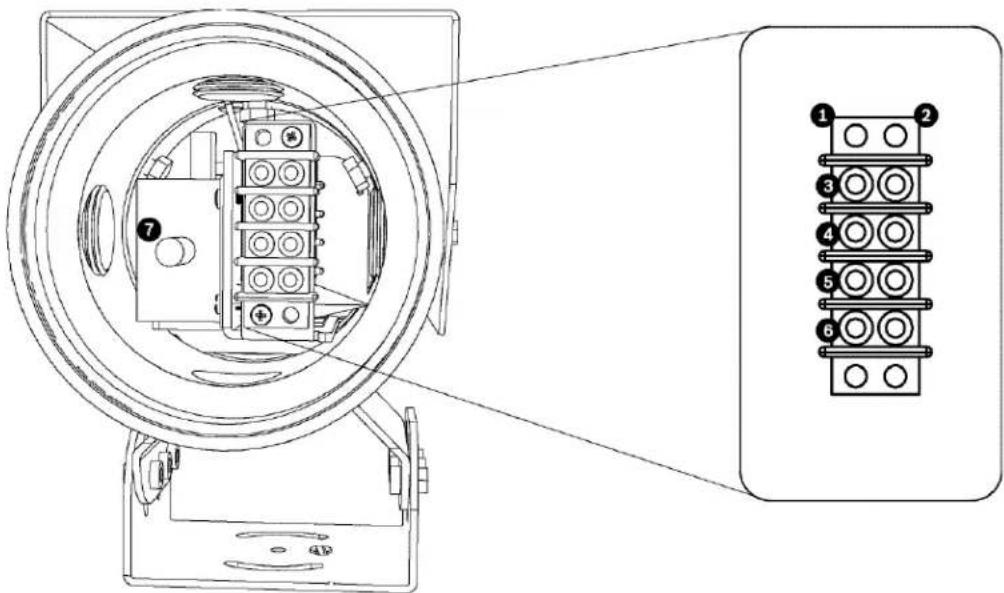
Figure 5.1 EX65 Cable Connection Terminators
| 1 | Terminals for incoming power and outgoing alarm cables |
| 2 | Internal camera use. DO NOT connect any cables to these terminals |
| 3 | Power In (12-24 VDC/12-24 VAC) |
| 4 | Power In (12-24 VDC/12-24 VAC) |
| 5 | Alarm Out |
| 6 | Alarm Out |
| 7 | BNC connector or Fiber Optic ST connector (dependent on model) |

CAUTION!
Connections to the terminal block must be made to the terminals on the left side. Do not make connections to the terminals on the right side of the block.
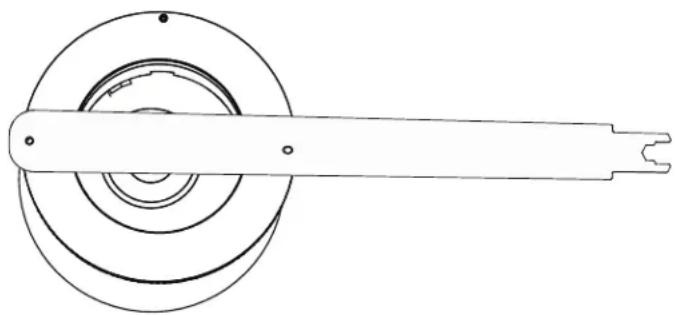
- Loosen the set screws on the rear end cap using the supplied hex key. Loosen the rear end cap using the supplied multi-use tool. To prevent damage to the o-ring, for every half turn counterclockwise turn back one quarter-turn clockwise. (see Figure 5.2 below).
Note: To prevent damage to the cap threads, take care not to drop the end caps.
natural_image
Technical line drawing of a mechanical component with concentric rings and a handle (no text or symbols)Figure 5.2 Removal of end cap with multi-use tool
- Unscrew the rear end cap by hand.
- Feed power, alarm (if used), and video cables through any one of the four 3/4-in. conduit entries.
- Connect one lead of the power cable to terminal 3 and the other lead to terminal 4. Note: The power in terminals are polarity insensitive.
- Connect the alarm out cables to terminal 5 and 6.
- For standard video models, connect the video coax cable with a male BNC connector to terminal 7.
Note: A UTP adapter (VDA-455UTP) is available as an optional accessory to allow a UTP video cable to be connected to the BNC connector.
-
For fiber optic video models, connect a terminated fiber optic cable to the female ST connector.
-
Make sure that the o-ring and threads are clean and greased before replacing the rear end cap. Use the supplied multi-use tool to tighten the rear end cap. Ensure that the o-ring is properly seated. After tightening, ensure that there is no gap between the cap and the body of the housing.
-
Tighten the set screws on the rear end cap using the supplied hex key.
6 Configuration
Making Adjustments to the Camera Lens
You must remove the front end cap to make lens adjustments. You may need to remove the inner bracket assembly for easier access to the lens controls.
Camera adjustments may be done remotely via the Bilinx "through the coax" interface or directly on the camera itself by removing the inner bracket assembly. When the Bilinx communications link is active, the buttons on the cameras are disabled. See
Section 8 Operation, page 24, for more information.
- Loosen the set screw on the front end cap using the supplied hex key.
Note: Take care not to drop the end caps to prevent damage to the cap threads.
-
Loosen the front end cap using the supplied multi-use tool. To prevent damage to the o-ring, for every half turn counterclockwise turn back one quarter turn clockwise.
-
Unscrew the front end cap by hand. You may need to remove the sunshield to remove the front end cap more easily.
-
To adjust the lens and to access the Dinion menu buttons:
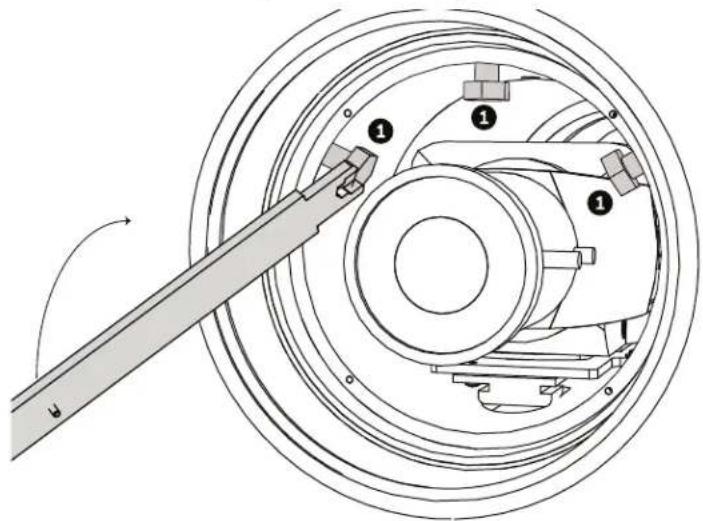
a. Using the supplied multi-use tool, loosen the three (3) bolts (Item 1, below) that hold the inner mounting bracket assembly.
natural_image
Technical line drawing of a mechanical assembly with a lever and bearing components (no text or symbols)b. Pull the assembly out of the housing.
natural_image
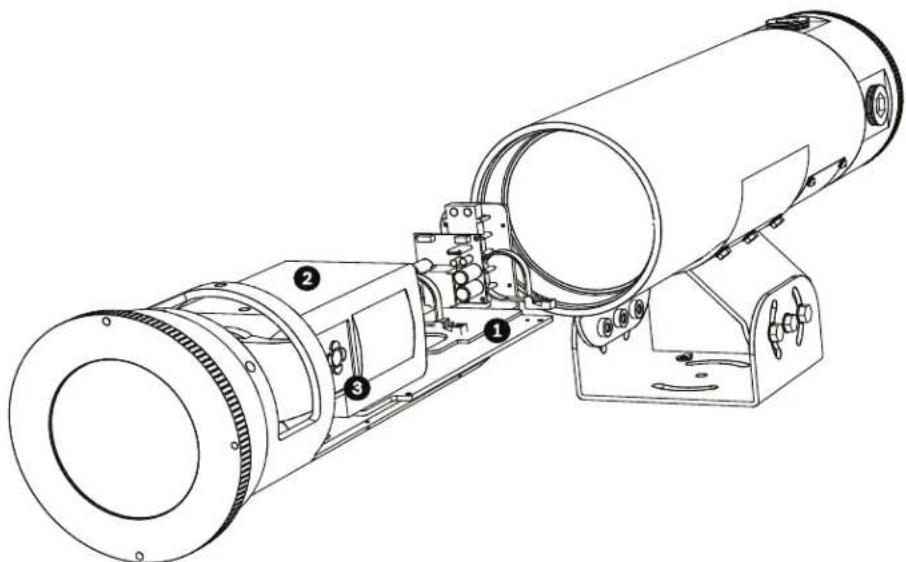
Technical line drawing of a cylindrical optical or mechanical device with numbered components (no text or symbols)Figure 6.1 Camera pulled from housing
| 1 Inner mounting bracket assembly |
| 2 Dinion 2X camera |
| 3 Dinion menu buttons |
-
Loosen the lens set screws for focus/zoom adjustments.
-
Use the set screw marked N ←→ ∞ to adjust image focus.
- Turn the set screw to the left to focus toward (N) (near) (zoom in). - Turn the set screw to the right to focus toward (F) (far) / infinite (∞) (zoom out).
- Use the set screw marked T ←→ W to adjust the telephoto or wide-angle settings.
- Turn the set screw to the left for a telephoto (tight) focal length - Turn the set screw to the right for a wider focal length.
-
Re-tighten the lens set screws after focus adjustments have been completed.
-
To make adjustments using the Dinion 2X Main menu for a more detailed setup, refer to Section 8 Operation, page 24.
-
Slide the inner mounting bracket assembly back into the camera housing and ensure that it locks into place at the back of the housing. The bracket should not rotate and the camera should be completely level.
-
Using a 10 mm wrench, tighten the three (3) bolts to secure the inner mounting bracket assembly.
-
Make sure that the o-ring and threads are clean and greased before replacing the front end cap. Use the supplied multi-use tool to tighten the rear end cap. Ensure that the O-ring is properly seated. After tightening, ensure that there is no gap between the cap and the body of the housing.
-
Tighten the set screw on the front end cap using the supplied hex key.
7 Mounting
7.1 Mounting the EX65
Follow all local codes with respect to the wiring and installation of explosion protected housings.

CAUTION!
Ensure the selected location is protected from falling objects, accidental contact with moving objects, and unintentional interference from personnel. Follow all applicable building codes.
The following installation guidelines must be followed:
- Locate the unit such that it cannot be easily interfered with, either intentionally or accidentally.
- Select mounting hardware and a mounting surface capable of supporting the combined weight of the equipment under all expected conditions of vibration and temperature.
- Secure all cabling.
The EX65 can be mounted to a compatible Bosch bracket with M6 bolts or any purpose-built bracket using M6 or 1/4 in.-20 bolts. Ensure that a fabricated bracket is capable of supporting at least three times the weight of the system. See Figure 7.1 below to match the mounting cradle holes.
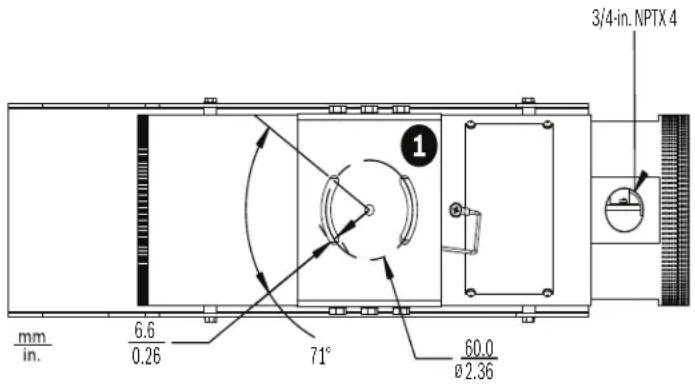
Figure 7.1 Bottom View with Mounting Cradle detail
- Choose a mounting surface and, if needed, prepare the surface by pre-drilling and tapping three M6 x 1.0 x 20 mm holes in a line that are 30 mm apart center to center and in line with the desired surveillance target (see Figure 7.1).
- Allocate three stainless steel M6 x 1.0 x 16 mm bolts with lock washers and ensure that the mounting surface and the threads of bolts are clean and free of debris.
- Optionally apply a few drops of a medium strength thread locking agent to the bolts per the manufacturer's instructions.
-
Secure the mounting cradle (see Figure 7.1, item 1) to the mounting surface with the M6 x 1.0 x 16 mm bolts and lock washers using a 10 mm wrench or the supplied multi-use tool. Do not tighten fully.
-
Slightly loosen the six M6 bolts on both sides of the mounting cradle, using a 10mm wrench or the supplied multi-use tool, and make directional adjustments to the EX65 so that it is pointing at the desired surveillance target (see the graphics below).
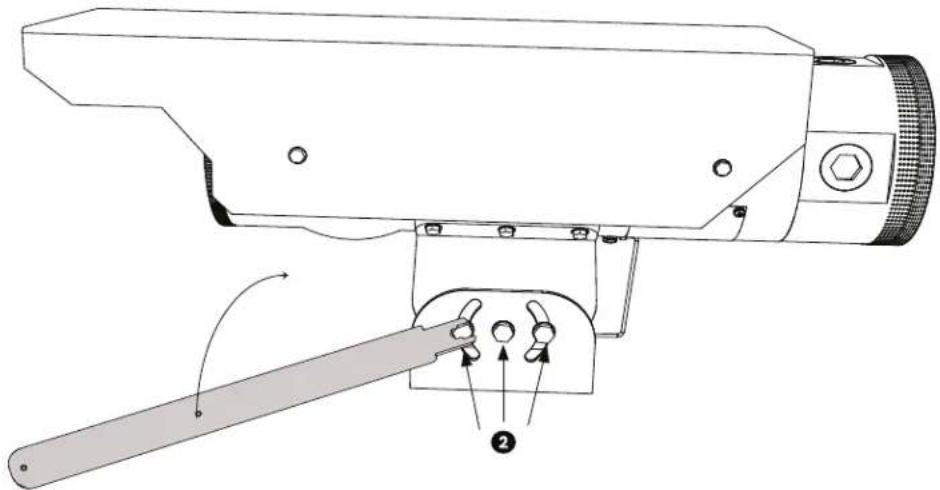
natural_image
Technical line drawing of a surveillance camera with lever and adjustment knob (no text or symbols)-
Tighten all mounting bolts to 3 to 5 ft-lb (4.1 to 6.8 N·m).
-
Connect wiring as explained in Section 5 Connections, page 17, and follow all local regulations and laws regarding explosion protected devices.
-
Connect the ground cable, located on the bottom of the housing, to a suitable grounded material (grounded conduit or a ground wire).
7.2 Installing the Sunshield
-
Line up the mounting holes of the sunshield with the tapped holes in the body of the EX65.
-
Install the supplied M4 bolts through the sunshield bolt holes into the body of the unit and tighten by hand.
-
Tighten the supplied bolts to 1.5 ft/lb (2.0 N/m) using a 7 mm wrench or the supplied multi-use tool.
8 Operation
The camera normally provides an optimal picture without the need for further adjustments. Advanced set-up options are available in a menu system for getting the best results under special circumstances. The camera implements your changes immediately so that before and after settings are easily compared.
8.1 Menus
8.1.1 Top level menus
There are two upper level menus: the Main menu and the Install menu. Both menus have functions that can be selected directly or submenus for more detailed set-up. The Main menu allows you to select and set up the picture enhancement functions. The Install menu allows you to set the installation settings. To access the menus, follow the steps below.
- Open the side door panel at the side of the camera.
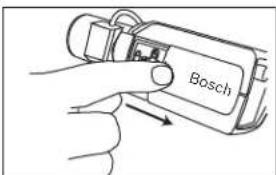
- Unlock the back focus locking button.
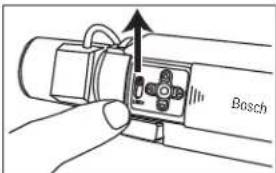
- Locate the five navigation keys behind the side door panel.
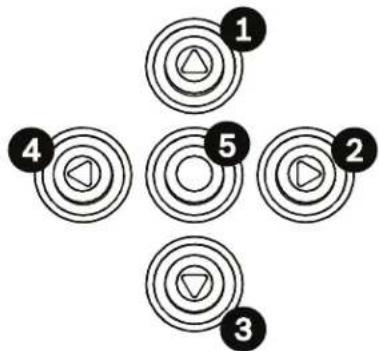
Figure 8.1 Advanced camera setup keypad
| Key Description | ||||||
| 1 | U | p | k | e | y | |
| 2 | R | i | g | h | t | k |
| 3 | D | o | w | n | k | e |
| 4 | L | e | f | t | k | e |
| 5 Menu/Select key (center) | ||||||
- Access the appropriate menu:
- To access the Main menu, press and hold the center key for less than 1 second. The Main menu appears on the monitor. If you are not happy with your changes, you can always recall the default values for the mode.
- To access the Install menu, press and hold the center key for mores than 2 seconds.
8.1.2 Menu navigation keys
Five keys are used for navigating through the menu system.
- Use the up or down keys to scroll through a menu.
- Use the left or right keys to move through options or to set parameters.
- When in a menu, quickly double-press the menu/select key to restore the selected item to its factory default.
- To close all menus at once, hold down the menu/select key until the menu display disappears or continually select the Exit item.
Some menus automatically close after about two minutes; other menus must be closed manually.
8.2 Pre-defined modes
There are six pre-defined modes with settings to make configuration easier. You can select one of the six modes in the Install/Mode submenu. The modes are defined as follows:
1. 24-hour
Default installation mode to provide stable pictures over a 24-hour period. These settings are optimized for out-of-the-box installation.
2. Traffic
Capture high-speed objects using default shutter in variable lighting conditions.
3. Low light
Provide extra enhancement, such as AGC and SensUp to make usable pictures in low-light conditions.
4. Smart BLC
Settings optimized to capture details in high contrast and extremely bright-dark conditions.
5. Low noise
Enhancements are set to reduce picture noise. Useful for conditional refresh DVR and IP storage systems because reducing noise reduces the amount of storage required.
6. Analog systems
Use this mode if the camera is connected to a purely analog system (for example, matrix switcher with VCR) or to a CRT monitor. Useful mode for evaluating/demonstrating the camera when it is directly connected to a CRT monitor.
8.3 Camera control communication (Bilinx)
This camera is equipped with a coaxial communications transceiver (also referred to as Bilinx). In combination with VP-CFGSFT, the camera setting can be changed from any point along the coaxial cable. All menus can be accessed remotely giving full control of the camera. With this method of communication it is also possible to disable the local keys on the camera. To avoid loss of communication on an installed camera, the Communication On/Off selection is not available while using remote control. This function can only be accessed with the camera buttons. Bilinx communications can only be disabled using the buttons on the camera.
Disabled camera buttons
When the Bilinx communications link is active, the buttons on the camera are disabled.
8.4 Main menu structure
| Item Selection Description | ||
| Mode Submenu Sets up operating modes 1 to 6 | ||
| ALC Submenu Video level control | ||
| Shutter/AGC Submenu Shutter and automatic gain control | ||
| Day/Night Submenu Day/Night for color/mono operation | ||
| Enhance / Dynamic Engine Submenu Picture enhancement and performance | ||
| Color Submenu White balance and color rendition | ||
| VMD Submenu Video motion detection | ||
8.4.1 Mode submenu
| Item Selection | Description | |
| Mode | 1 to 6 | Selects operating mode. |
| Mode ID | Alphanumeric | Mode name (11 characters maximum) |
| Copy active mode | Available mode numbers | Copies current mode settings to the mode number selected. |
| Default mode | Submenu | Restores camera to the factory default settings. |
| EXIT | Returns to main menu. |
8.4.2 ALC submenu
| Item Selection Description | ||
| ALC level | -15 to +15 | Selects the range within which the ALC will operate. A positive value is more useful for low-light conditions; a negative value is more useful for very bright conditions. Some ALC adjustment may improve scene content when Smart/BLC is enabled. |
| Peak/average | -15 to +15 | Adjusts the balance between peak and average video control. A negative value gives more priority to average light levels; a positive value gives more priority to peak light levels. Video iris lens: choose an average level for best results (peak settings may cause oscillations). |
| ALC speed | Slow, medium, fast | Adjusts the speed of the video level control loop. For most scenes it should remain at the default value. |
| DVR/IP Encoder | On, Off On - The | camera output is optimized for connection to a DVR or IP encoder to compensate for compression methods.Off - The camera output is optimized for connection to an analog system (matrix switcher or monitor). |
| EXIT Returns to main menu. | ||
8.4.3 Shutter/AGC submenu
| Item Selection Description | ||
| Shutter AES, FL, | Fixed AES (auto-shutter) | - the camera automatically sets the optimum shutter speed.FL - flickerless mode avoids interference from light sources (recommended for video-iris or DC-iris lenses only).FIXED - allows a user defined shutter speed. |
| Default (AES) shutter or Fixed shutter | 1/50 (PAL), 1/60 (NTSC) 1/100, 1/120, 1/250, 1/500, 1/1000, 1/2000, 1/5000, 1/10K | In AES mode, the camera tries to maintain the selected shutter speed as long as the light level of the scene is high enough.In Fixed mode, selects shutter speed. |
| Actual shutter Dis | plays the actual shutter | value from the camera to help compare lighting levels and optimum shutter speed during set-up. |
| Gain control | On, Fixed | On - the camera automatically sets the gain to the lowest possible value needed to maintain a good picture.Fixed - sets Fixed AGC value. |
| Maximum AGC or Fixed AGC | 0 to 30 dB | Selects the maximum value the gain can have during AGC operation.Selects the gain setting for Fixed gain operation (0 is no gain). |
| Actual AGC | Displays the actual AGC value from the camera to help compare gain level with lighting levels and picture performance. | |
| SensUp Dynamic | Off, 2x, 3x, ..., 10x Selects the factor by which the sensitivity of the camera is increased.When active, some noise or spots may appear in the picture. This is normal camera behavior. It may also cause motion blur on moving objects. | |
| EXIT Returns to main menu. | ||
8.4.4 Day/Night submenu
| Item Selection Description | ||
| Day/Night Auto, | Color,Monochrome | Auto - the camera switches the IR cut-off filter on and off depending on the scene illumination level.Monochrome - the IR cut-off filter is removed, giving full IR sensitivity.Color - the camera always produces a color signal regardless of light levels. |
| Switch level -15 | to +15 Sets the | video level in Auto mode at which the camera switches to monochrome operation.A low (negative) value means that the camera switches to monochrome at a lower light level. A high (positive) value means that the camera switches to monochrome at a higher light level. |
| Priority Motion, | Color In AUTO | mode:Color - the camera gives a color image as long as the light level permits.Motion - the camera avoids motion blur as long as the light level permits (it switches to monochrome earlier than it would with Color priority). |
| IR contrast | Enhanced,Normal | Enhanced - the camera optimizes contrast in applications with high IR illumination levels. Select this mode for IR (730 to 940 nm) light sources and for scenes with grass and green foliage.Normal - the camera optimizes contrast in mono applications with visible light illumination. |
| Color burst (mono) | On, Off | Off - the color burst in the video signal is switched Off in monochrome mode.On - the color burst remains active even in monochrome mode (required by some DVRs and IP encoders). |
| EXIT | Returns to main menu. | |
8.4.5 Enhance / Dynamic Engine submenu
| Item Selection Description | ||
| Dynamic Engine | Off, XF-DYN, 2X-DYN*, SmartBLC | Off: - turns off all automatic scene detail and enhancements (only recommended for testing).XF-DYN: - extra internal processing is enabled for low-light applications (traffic, etc.).2X-DYN: - 2X-Dynamic adds dual sensor exposure to the XF-DYN features. In harsh lighting conditions pixels from each exposure are mixed to give a more detailed image (use 2X-DYN when SmartBLC is not required).SmartBLC: - BLC window and weighting factor are automatically defined. Camera dynamically adjusts these for changing light conditions. Includes all the benefits of 2X-DYN. |
| Autoblack On, Off | Autoblack On | automatically increases the visibility of details even when scene contrast is less than full-range due to mist, fog, etc. |
| Black level -50 to | +50 Adjusts the | black offset level.A low (negative) value makes the level darker. A high (positive) value makes the level lighter and may bring out more detail in the darker areas. |
| Sharpness -15 to | +15 Adjusts the | sharpness of the picture. 0 corresponds to the default position.A low (negative) value makes the picture less sharp.Increasing sharpness brings out more detail.Extra sharpness can enhance the details of license plates, facial features and the edges of certain surfaces. |
| Dynamic noise reduction | Auto, Off | In AUTO mode, the camera automatically reduces the noise in the picture.This may cause some motion blur on exceptionally fast moving objects immediately in front of the camera. This can be corrected by widening the field of view or selecting Off. |
| Peak White Invert | On, Off Use Peak | Peak White Invert to reduce glare from the CRT/LCD display.Use in ANPR/LPR applications to reduce headlight glare. (Test on-site to ensure that it does benefit the application and is not distracting for operators of the security system.) |
| EXIT | Returns to main menu. | |
8.4.6 Color submenu
| Item Selection Description | ||
| White balance ATW, AWBhold, Manual | ATW - Auto tracking white balance allows the camera to constantly adjust for optimal color reproduction.AWBhold - Puts the ATW on hold and saves the color settings.Manual - the Red, Green, and Blue gain can be manually set to a desired position. | |
| Speed Fast, Medium, Slow | Adjusts the speed of the white balance control loop. | |
| Red gain -5 to +5 | -50 to +50 | ATW and AWBhold - adjusts the Red gain to optimize the white point.Manual - adjusts the Red gain. |
| Blue gain -5 to +5 | -50 to +50 | ATW and AWBhold - adjusts the B gain to optimize the white point.Manual - adjusts the Blue gain. |
| Green gain -50 to +50 | to +50 Manual - adjusts the Green gain. | |
| Saturation -15 to +5 | Adjusts the color saturation. -15 gives a monochrome image. | |
| EXIT | Returns to main menu. | |
8.4.7 VMD submenu
| Item Selection Description | ||
| VMD Off, Silent, | OSD | Off - Video Motion Detection (VMD) is off.Silent - video motion generates silent alarm.OSD - video motion generates on-screen text message alarm. |
| VMD area | Submenu | Select to enter the area set-up menu to define the detection area. |
| Motion indicator | Indicates the peak of measured motion in the selected area. Press either the right, left or center navigation button to reset. | |
| VMD sensitivity | Sets the sensitivity for motion to the desired level. The longer the white bar, the more motion is required to activate the VMD alarm. Motion above this level activates alarm. | |
| OSD alarm text | Alphanumeric | Text for on-screen display alarm (16 characters maximum). |
| EXIT Returns to main menu. | ||
Selecting an area for VMD masking
To set up an area for VMD masking, access the area menu by selecting the VMD Area option from the VMD menu. Upon entering the Area menu, the current area is displayed with the upper left corner flashing. You can move the flashing corner of the image with the Up, Down, Left, Right arrow keys. Press the Select key to move the flashing cursor to the opposite corner, which can now be moved. Press Select again to freeze the area and exit the area menu.
There is one programmable VMD area.
Note:
When VMD is enabled, normal light fluctuations or environmental factors can contribute to false-positive alarms. Because of this, it is recommended that you do not connect the VMD-triggered alarm output of the camera to a monitored alarm system as the false-positive alarms may be considered a nuisance.
8.5 Install menu structure
| Item Selection Description | ||
| Language Submenu Select on-screen display (OSD) language | ||
| Lens Wizard Submenu Select to optimize the camera-lens combination backfocus point. | ||
| Synchronization | Submenu Sets | synchronization parameters |
| Alarm I/O Submenu Program the alarm input and output functionality. | ||
| Connections | Submenu Connection parameters | |
| Test signals Submenu Test patterns and texts | ||
| Camera ID | Submenu Select to access ID submenu | |
| Privacy masking | Submenu Sets up a masking area | |
| Default ALL | Submenu | Returns all settings for all modes to factory defaults |
8.5.1 Language submenu
| Item Selection Description | ||
| Language English | SpanishFrenchGermanPortuguesePolishItalianDutchRussian | Displays the menus on the OSD in the chosen language. |
| EXIT Returns to | Install menu. | |
8.5.2 Lens Wizard submenu

NOTICE!
These options are set at the factory. There is no need for further modification.
| Item Selection Description | ||
| Lens type Auto, Manual, DC-iris, Video | Auto: - automatically selects the type of lens.Manual, DC-iris, Video modes: select the matching lens type to force the camera to the correct lens mode. | |
| Detected Shows the type of lens detected when auto lens detection is used. | ||
| Set Backfocus now | Select to fully | open the iris. Follow the instructions below for setting the backfocus for your particular lens type.After focusing, the object of interest remains in focus under bright and low light conditions. |
| Set LVL | Only for video-iris lenses.Adjust the level control on the lens to center the level detector indicator (see below). | |
| EXIT | Returns to Install menu. | |
8.5.3 Synchronization submenu
| Item Selection Description | ||
| Synchronization InternalLine lockHV lock,Genlock, | Internal - for free running camera operation.Line lock - to lock to the AC power supplyHV lock - locks the camera to the sync signal supplied to the SYNC connector.Genlock - locks the camera's subcarrier to the signal supplied to the SYNC connector. | |
| Horizontal phase -25 . . 0 . . +25 Adjusts the horizontal phase offset. | ||
| Subphase 0, 2 . . . | 358 Adjusts the subcarrier phase. | |
| EXIT Returns to Install menu. | ||
8.5.4 Alarm I/O submenu
| Item Selection Description | ||
| Alarm input None | , high, low | Select none to disable the alarm input. Select active-high or active-low for the alarm input connector. |
| Alarm action | None, Mode 1 to 6, Mono | Selects the operating mode of the camera when the alarm input is active. |
| Alarm output | VMD, External device, Night mode active, Filter toggle | VMD: - output relay closes on VMD alarms.External device: - make the output relay available to remote communication devices.Night mode active: - output relay closes when camera is in monochrome mode.Filter toggle: - output relay closes just before the IR filter starts moving and opens when video level has stabilized (2 to 3 seconds) |
| EXIT | Returns to Install menu. | |
8.5.5 Connections submenu
| Item | Selection Description | |
| Sync. input | High Z, 75 ohm | Select 75 ohm if the external sync input is not terminated elsewhere. |
| Notch filter | On, Off | Switches notch filter on or off. The notch filter can remove a Moiré pattern or color artifacts caused by closely spaced vertical lines or objects (e.g. vertical security bars over windows). |
| Item Selection Description | ||
| Bilinx Comms. On, Off If Off, Bilinx communications is disabled. | ||
| Camera buttons Enable, disable | Enable or disable the camera buttons from working. | |
| Cable compensation | Off, Default, RG59, RG6, Coax12 | Cable compensation is used to avoid the need for amplifiers in long distance coaxial connections up to 1000 m (3000 ft). For optimum results select the coaxial cable type used or, if unknown, select default. |
| Compensation level | 0,1,2 . . .+15 Sets the level of cable compensation | |
| EXIT Returns to Install menu. | ||
8.5.6 Test signal submenu
| Item Selection | Description | |
| Show camera ID | Off, On | Select On to overlay the camera ID on the video test signal. |
| Test pattern | Color bars 100%, Grayscale 11-step, Sawtooth 2H, Checker board, Cross hatch, UV plane | Select the desired test pattern to help installation and fault-finding. |
| EXIT | Returns to Install menu. |
8.5.7 Camera ID submenu
| Item Selection | Description | |
| Camera ID | Enter a 17-character camera name. Use Left/Right to change position in the string; use up/down to select character. Use Select to exit. | |
| Display ID pos. | Off, Top left, Top right, Bottom left, Bottom right | Select the screen position of the camera ID. |
| Camera ID border | On, Off | Displays a grey border behind the camera ID to make it easier to read. |
| MAC address | Shows MAC address (factory set, cannot be changed). | |
| Item Selection Description | ||
| Ticker bars On, Off The ticker bar moves continuously to show that the image is live and not frozen or played back. | ||
| Display mode ID | Off, Top left, Top right, Bottom left, Bottom right | Displays the camera mode in the selected position on the screen. |
| EXIT Returns to Install menu. | ||
8.5.8 Privacy masking submenu
| Item Selection Description | ||
| Pattern Black, Grey, White, Noise | Selects pattern for all masks. | |
| Mask 1, 2, 3, 4 Four different areas can be masked. | ||
| Active | On, Off | Turns each of the four masks on or off. |
| Window | Submenu | Select to open a window in which to define the mask area. |
Selecting an area for privacy masking
To set up an area for privacy masking, access the area menu by selecting the Area option from the privacy masking menu. Upon entering the Area menu, the current area is displayed with the upper left corner flashing. You can move the flashing corner of the image with the Up, Down, Left, Right arrow keys. Press the Select key to move the flashing cursor to the opposite corner, which can now be moved. Press Select again to freeze the area and exit the area menu.
There are four programmable privacy mask areas.
8.5.9 Defaults submenu
| Item Selection Description | ||
| Restore All | No, Yes | Restores all settings of the six modes to their default (factory) values. Select YES, then press the Menu/Select button to restore all values.When completed, the message RESTORED! appears. |
9 Troubleshooting
9.1 Camera Operation
The following table is intended to help you identify the causes of malfunctions and correct them when possible.
| Malfunction Possible | causes Solution | |
| No image transmission to remote location. | Defective camera. Connect | a local monitor to the camera and check the camera function. |
| Faulty cable connections. | Check all cables, plugs, contacts and connections. | |
| Incorrect cable connections. | Ensure that Video and Sync connections are not reversed.When using DC power ensure that polarity is correct. | |
| No connection established, no image transmission. | The unit's configuration. Check | check all configuration parameters. |
| Faulty installation. Check | all cables, plugs, contacts and connections. |
10 Maintenance
10.1 Repairs
DANGER!
Disconnect power before servicing or disassembling the housing or unit. Never remove the front or end caps unless power is disconnected from the EX65.

CAUTION!
Never open the casing of the Dinion 2X camera. The unit does not contain any user-serviceable parts. Ensure that all maintenance or repair work is performed only by qualified personnel (electrical engineering or network technology specialists). If in doubt, contact your dealer's technical service center.
The EX65 has some user replaceable parts, including the front and rear end caps, the Dinion 2X camera and lens, and the mounting cradle. These parts are available as spare parts, please contact your local service center for information in obtaining these parts.
10.2 Transfer and Disposal
The unit should only be passed on together with this installation guide. The unit contains environmentally hazardous materials that must be disposed of according to law. Defective or superfluous devices and parts should be disposed of professionally or taken to your local collection point for hazardous materials.
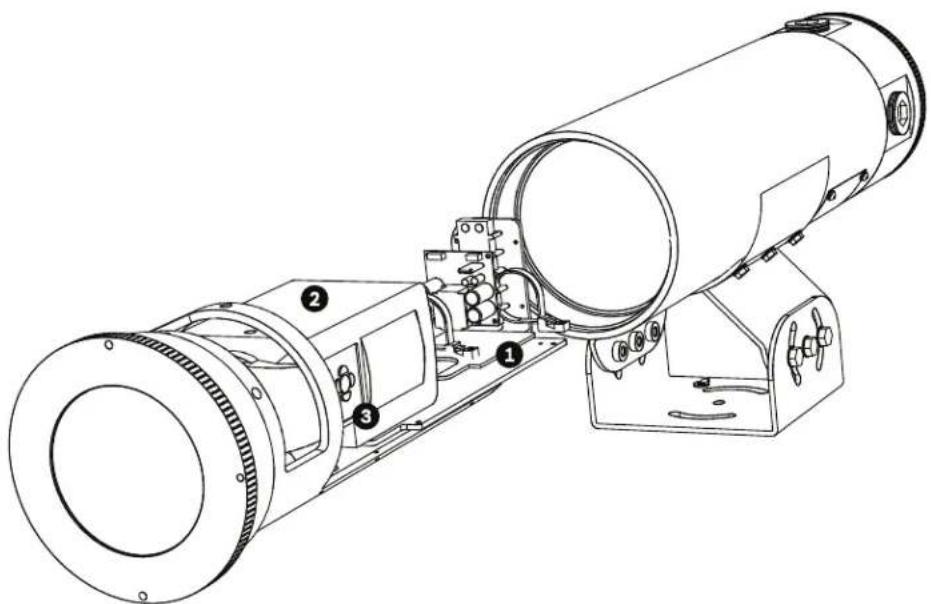
10.3 Removal of the Camera and Lens
- Remove the sliding camera tray as shown in steps 1-3 of Section 6 Configuration, page 20.
natural_image
Technical line drawing of a cylindrical optical or mechanical device with numbered components (no text or symbols)Figure 10.1 Camera pulled from housing
| Number | Description |
| 1 Inner mounting bracket assembly | |
| 2 Dinion | 2X camera |
| 3 Dinion | menu buttons |
- Remove all connections at the back of the camera.
- Locate the mounting bolt for the camera on the bottom of the sliding tray and remove the bolt with a #3 Phillips screwdriver.
- Remove the camera from the mounting tray.
- Remove the lens from the camera.
10.4 Installation of the Camera and Lens
- Install a new lens onto the camera.
- Ensure that the camera and the lens are directed to the front and are parallel to the sliding tray.
- Reinstall the mounting bolt with a #3 Phillips screwdriver. Tighten the camera mounting bolt to 3.3 ft-lb (4.5 N-m).
- Complete the back focus adjustments as described in section 10.5. Attach all of the connections at the back of the camera at the same connection points as when removed.
- Reinstall the sliding tray back into the housing as shown in steps 9 - 12 of Section 6 Configuration, page 20.
10.5 Back Focus Adjustment
To optimize picture sharpness in both bright and low-level lighting, adjust the back focus. Use the camera's unique Lens Wizard. This ensures that the object of interest always remains in focus, even when focusing at the maximum lens iris opening (for example, at night).- When back focusing varifocal lenses, adjust to obtain a sharp picture in both wide-angle and tele positions for both far and near focus.- When back focusing zoom lenses, ensure that the object of interest remains in focus throughout the entire zoom range of the lens. To adjust back focus:
- Open the side door panel at the side of the camera.
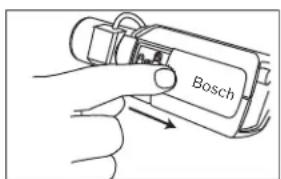
- Unlock the back focus locking button.
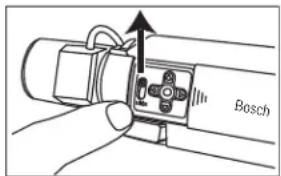
-
Press and hold the center key for more than two (2) seconds until the Install menu appears.
-
Select Lens Wizard and move the cursor to the Set Back Focus Now option.
-
Turn the back focus adjustment as necessary.
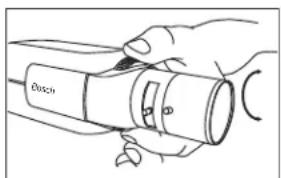
natural_image
Hand holding a device with a circular component, no visible text or symbols- Lock the back focus locking button.
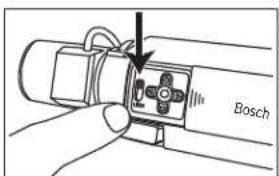
- Press and hold the center key for more than two (2) seconds until all menus disappear.
- Close the side door panel.
10.6 Replacement of the Mounting Cradle
- Disconnect power from the EX65 and, optionally, remove all connections.
- Using a 10 mm wrench or the supplied multi-use tool, remove the three (3) M6 bolts holding the mounting cradle to the mounting surface.
- Put the EX65 in a safe location.
- Using a 7 mm wrench or the supplied multi-use tool, remove the seven (7) M4 bolts holding the mounting cradle to the housing.
- Install a new mounting cradle in reverse of installation and tighten the seven (7) M4 bolts to 1.5 ft/lb (2.0 N/m).
- Finish installation as described in Section 7 Mounting, page 22.
11 Technical Data
Technical Data - EX65 Camera
Electrical
| Model No. Rated Voltage Rated Frequency | ||
| VEN-650V05-1A3 12 VDC/24 VAC ( ± 10% ) 50 | Hz | |
| VEN-650V05-2A3 12 VDC/24 VAC ( ± 10% ) 60 | Hz | |
| VEN-650V05-1A3F 12 VDC/24 VAC ( ± 10% ) 50 | Hz | |
| VEN-650V05-2A3F 12 VDC/24 VAC ( ± 10% ) 60 | Hz | |
| VEN-650V05-1S3 12 VDC/24 VAC ( ± 10% ) 50 | Hz | |
| VEN-650V05-2S3 12 VDC/24 VAC ( ± 10% ) 60 | Hz | |
| VEN-650V05-1S3F 12 VDC/24 VAC ( ± 10% ) 50 | Hz | |
| VEN-650V05-2S3F 12 VDC/24 VAC ( ± 10% ) 60 | Hz | |
| Power Consumption (Typical) | ||
| at 12 VDC 6 W - 10.2 W | ||
| at 24 VAC | 9.4 W - 15.7 W | |
| at 12 VDC with fiber optic option | 7.7 W - 11.3 W | |
| at 24 VAC with fiber optic option | 11.3 W - 17.6 W | |
| CCD Type 1/3 in. interline, WDR dual shutter | ||
Mechanical
| Dimensions (H x W x L) | |
| - Camera | 381 mm x 114 mm x 114 mm (11.01 in. x 4.5 in. x 4.5 in.) |
| Weight | |
| - Stainless Steel | 12.9 kg (28.5 lb) |
| - Aluminum | 6.4 kg (14 lb) |
| Construction | Electropolished 316L Stainless Steel or Anodized Aluminum |
| View Window | 9 mm (0.35 in.) thick borosilicate float glass |
| Bracket Pan/Tilt Range | Pan: ±36°Tilt: ±45° |
Video
| Active Pixels | |
| PAL Models | 752 x 582 |
| NTSC Models | 768 x 494 |
| Horizontal Resolution | 540 TVL |
| Signal-to-Noise Ration | >50 dB |
| Video Output | Composite Video 1 Vpp, 75 Ohm |
Environmental
| Operating Temperature | |
| - Standard 1 | - Aluminum models -50 °C to 60 °C (-58 °F to 140 °F)- Stainless steel models -50 °C to 55 °C (-58 °F to 131 °F) |
| - with Fiber Optic Option 1 | |
| Storage Temperature -55 °C to | 70 °C (-67 °F to 158 °F) |
| Operating Humidity 0% to 100 | % relative (condensing, after installed and sealed) |
| Storage Humidity 20% to 98% | relative (non-condensing) |
| 1. Warm-up period required for cold start at -50 °C (-58 °F). | |
Glossary
A
| AES | Automatic Electronic Shutter (see Electronic iris). |
| Aperture | The size of the opening in the lens iris that controls the amount of light reaching the CCD Sensor. The larger the F-number, the less light reaches the sensor. An increase of one F-stop, halves the amount of light reaching the sensor. |
| Auto Level Control (ALC) | The adjustment of the video level to give the desired brightness level. This can be done electronically or by means of an iris control. |
| Auto White Balance (AWB) | A feature that allows a color camera to automatically adjust its output color to give a natural color, independent of the lighting used. |
| AutoBlack | A technique of boosting the video signal level to produce a full amplitude video signal, even when the scene contrast is less than full range (glare, fog, mist, etc.). |
| Autolris | The lens iris opening is automatically adjusted to allow the correct illumination of the camera sensor. With a direct drive (DC) iris lens, the camera controls the aperture size. A video iris lens has the control circuit in the lens itself. |
| Automatic Gain Control (AGC) | The electronics that regulate the gain or amplification of the video signal. AGC is used in low-light conditions with the iris fully open. |
B
| Back Light Compensation (BLC) | |
| Selectively amplifies parts of the image to compensate for large contrast differences when only a portion of the image is brightly lit (e.g. a person in a sunlit doorway). See also Smart BLC. | |
| Backfocus | The distance between the image plane and the rear portion of the lens. Correct backfocus adjustment ensures that the camera remains in focus under various conditions. |
| Bilinx | A communications protocol that allows remote control, configuration, and updates to be performed over the video cable (Coax or Passive UTP). |
| Bilinx address | The address may be set locally using the Bilinx Configuration Tool for Imaging Devices (CTFID). |
C
CCD Format
Indicates the size of the camera sensor used. In general, the larger the sensor, the more sensitive the camera and the better the image quality. The format is quoted in inches, for example 1/3 or 1/2 inch.
Charged Coupled Device (CCD)
A CCD is a type of solid state image sensor used in CCTV cameras. The sensor converts light energy into electrical signals.
Color Temperature
A measure of the relative color of illumination. Generally used to specify the color balance correction of a camera to achieve a natural color image.
D
Day/Night (infrared sensitive)
A camera that has normal color operation in situations where there is sufficient illumination (day conditions), but where the sensitivity can be increased when there is little light available (night conditions). This is achieved by removing the infrared cut filter required for good color rendition. The sensitivity can be further enhanced by integrating a number of fields to improve the signal-to-noise ratio of the camera (this may introduce motion blur).
Default Shutter
A feature allowing the shutter speed to be set to a fast speed to eliminate motion blur and provide a detailed and clear image of fast-moving objects while there is sufficient light. When light levels fall and other adjustments have been exhausted, the shutter speed reverts to the standard setting to maintain sensitivity.
Depth of Field
The distance from the nearest to the furthermost point that appears in focus. The smaller the aperture, the greater the depth of field.
Dynamic Noise Reduction (DNR)
A digital video processing technique that measures the noise (image artifacts) in the picture and automatically reduces it.
E
Electronic iris
Electronic iris (or AES - Automatic Electronic Shutter) adjusts the camera shutter speed to compensate for lighting changes. In some cases this can eliminate the need for an autoiris lens.
F
F-Number
The standard measure of the lens aperture, which is the iris diameter, divided by the focal length of the lens. The lower the maximum aperture (F-Number or F-Stop), the more light that passes through the lens.
F-Stop See F-Number
| Field of View | The measure of the visible area within the camera's field of view. The larger the focal length, the smaller the field of view. The smaller the focal length, the wider the field of view. |
| Focal Length | The distance from the optical center of the lens to the image of an object located at an infinite distance from the lens. Long focal lengths give a small field of view (e.g. telephoto effect), while short focal lengths give a wide angle view. |
| Infrared Illumination | Electromagnetic radiation (light) with a longer wavelength than is visible to the human eye. IR illumination is prominent at dusk and dawn and in incandescent lamps. IR illuminators come in the form of lamps with the appropriate filters, LEDs, or lasers. CCD sensors are less sensitive to IR than visible light, but IR can significantly increase the total illumination level, leading to a much better image at low light levels. |
| IRE (Institute of Radio Engineers) | A measurement of video amplitude that divides the area from the bottom of sync to peak white level into 140 equal units - 140 IRE equals 1V peak-to-peak. The range of active video is 100 IRE. |
| Lens wizard | The lens wizard is used when setting the backfocus. It opens the iris fully while maintaining the correct video level using AES. |
| Lux | The international (SI) unit of measurement of the intensity of light. It is equal to the illumination of a surface one meter away from a single candle. |
| OSD | On-screen Display: Menus are shown on the display monitor. |
| Privacy Masking | The ability to mask out a specific area to prevent it from being viewed in order to comply with privacy laws and particular site requirements. |
| PWIE | Peak White Inverse Engine: White highlights are automatically turned black to reduce bright spots. Useful in traffic and car park applications. |
R
Region of Interest
A specific area within a field of view, used by the motion detection algorithm to identify motion.
Resolution
The measure of the fine detail that can be seen in an image. For analog systems this is typically measured in horizontal Television Lines or TVL. The higher the TVL rating, the higher the resolution.
S
Saturation
The amplitude of the chrominance signal affecting the vividness of the color.
Sensitivity
A measure of the amount of light required to provide a standard video signal. Sensitivity values are stated in lux (see Lux).
SensUp (sensitivity up)
Increases camera sensitivity by increasing the integration time on the CCD (lowering shutter time from 1/50 to 1/5 s). This is accomplished by integrating the signal from a number of consecutive video fields to reduce signal noise.
Signal-to-noise ratio
The ratio between a useful video signal and unwanted noise measured in dB.
Smart BLC (Back Light Compensation)
Smart back-light compensation allows the camera to automatically compensate for bright areas of a high contrast scene without having to define a window or area.
U
UTP (Unshielded Twisted Pair)
A variant of twisted pair cabling, UTP cable is not surrounded by any shielding. The wires in a twisted pair cable are twisted around each other to minimize interference from the other twisted pairs in the cable. UTP is the primary wire type for telephone usage and the most commonly used type of networking cable.
V
VMD
Video Motion Detection: An algorithm for motion detection in which the camera compares the current image with a reference image and counts the number of pixels that have changed between the two images. An alarm is generated when the number of pixel changes exceeds a user-configured threshold.
W
WDR (Wide Dynamic Range)
A camera's dynamic range is the difference between the minimum and maximum acceptable signal levels. A scene with both very low and very high illumination levels requires a camera with a wide dynamic range to handle it correctly and produce a useful image.
Bosch Security Systems, Inc.
850 Greenfield Road
Lancaster, PA 17601
U.S.A.
www.boschsecurity.com
© Bosch Security Systems, Inc., 2011