Zoom HRV - Smartwatch LifeTrak - Free user manual and instructions
Find the device manual for free Zoom HRV LifeTrak in PDF.


| Product Type | Smartwatch (Activity Tracker) |
| Brand | LifeTrak |
| Model | Zoom HRV |
| Battery Life | Up to 5 days typical use |
| Charging | Magnetic charging dock with Micro USB |
| Water Resistance | 50 meters (swim-proof) |
| Display | LED dot matrix with icons |
| Heart Rate Monitor | Optical heart rate sensor |
| Heart Rate Variability (HRV) | Automatic sleep HRV and on-demand VScan |
| Activity Tracking | Steps, distance, calories, sleep, light exposure |
| Workout Modes | General, Running/Walking, Swimming, Cycling |
| Workout Goals | Swim laps, cycling cadence |
| Alerts | Intelligent wake-up, inactivity, HR zone, light exposure |
| Connectivity | Bluetooth (pair with Zoom HRV app) |
| Compatibility | iOS and Android (via Zoom HRV app) |
| Cloud Sync | Optional cloud backup |
| Firmware Update | Over-the-air (OTA) via app |
| Wearing Options | Wristband, Flexwear armband/ankle band (sold separately) |
| Cleaning | Soft damp cloth; mild cleanser for band |
| Safety | Not a medical device; consult doctor before exercise |
Frequently Asked Questions - Zoom HRV LifeTrak
User questions about Zoom HRV LifeTrak
0 question about this device. Answer the ones you know or ask your own.
Ask a new question about this device
Download the instructions for your Smartwatch in PDF format for free! Find your manual Zoom HRV - LifeTrak and take your electronic device back in hand. On this page are published all the documents necessary for the use of your device. Zoom HRV by LifeTrak.
USER MANUAL Zoom HRV LifeTrak
natural_image
Blue camera aperture icon with six blades (no text or symbols)Zoom™
HRV
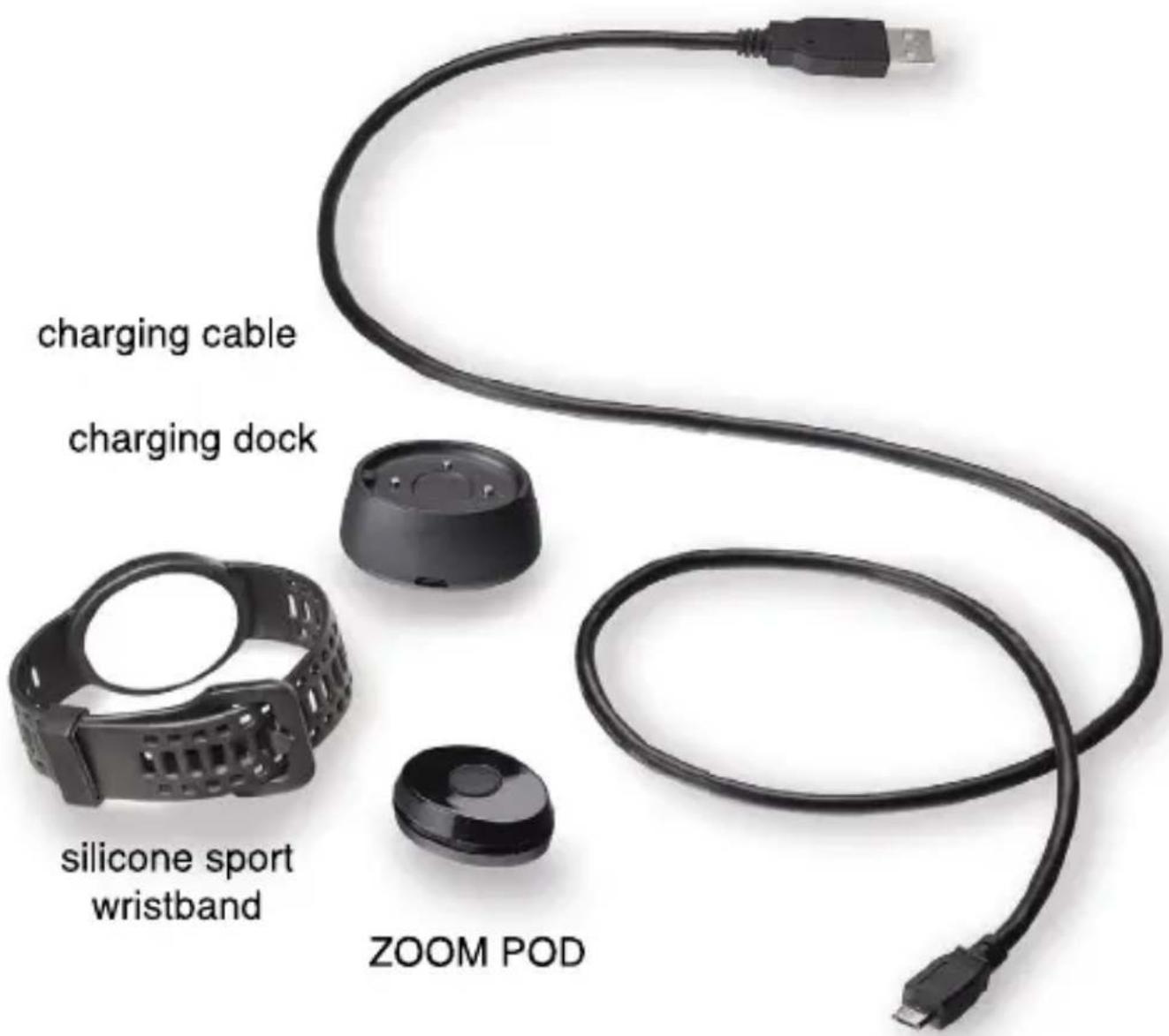
TABLE OF CONTENTS
Contact Information.... 1
Zoom Overview 2
Getting Started
Standby Mode & Activate your Zoom.... 3
Charging your Zoom 4
Check Battery Status.... 5
Wearing your Zoom 6
Using your Zoom : Press vs Tap.... 7
Pair your Zoom
Install the Zoom HRV App 8
Pair your Zoom to the App.... 9
Activity Overview....10
LED % Legend....11
Modes of Operation
Time of Day (Clock) 12
Daily Activity....13
Battery Life / Low Battery 14-15
Sync Data to App.... 16
App Dashboard
Dashboard: Snapshot....17
Dashboard: Detail 18
Your Personal Fitness Scores
What's Your Score....19
VScore 20
VScan 21
Record a VScan 22
View Previous VScan 23
Workout Mode
Setting up Workout Mode 24
Pool Length 25
Workout Memory: Storage Remaining 25
Workout Memory : Auto Reset 25
Workout Goals: Swim Laps 26
Workout Goals : Cycling Cadence 26
Heart Rate : Max Heart Rate 27
Heart Rate : HR Training Zones 28
Heart Rate: Customize HR Zones 29
Heart Rate : HR Zone Alerts 30
Heart Rate : HR Zone LED Indicators 31
Workout Mode (continued)
Activity Types.... 32
How to Record a Workout.... 33
Record a Workout on the App.... 34-35
Record a Workout on the Zoom 36-37
View Workout Records on App.... 38
Gestures 39
Zoom Settings
Daily Activity Goals 40
Overview of App Settings...... 41
Alert Settings : Intelligent Wake-Up Alert 42
Alert Settings : Inactivity Alert 43
Alert Settings : LightTrak™ 44
Alert Settings : Daylight and Nightlight Alerts 45
Sleep Setting 46
Calibration (Steps and Distance)...... 47
Units of Measure 48
Enable Cloud Sync 48
Firmware Update 49
Helpful Tips.... 50-51
Care Instructions.... 52
FCC / IC Statements.... 53
READ BEFORE STARTING
THIS IS NOT A MEDICAL DEVICE.
WARNING: Before starting any exercise program, please visit your doctor for a complete physical and to discuss your exercise plans.
PLEASE READ all of the information in this instruction manual before using the unit. Make sure you fully understand the functions and limitations of this product before using it.
NOTICE TO PEOPLE WEARING PACEMAKERS: While the heart rate monitor is a passive system and should have no direct effect on a pacemaker, we strongly recommend anyone fitted with such a device contact their physician or cardiologist before using this product or starting an exercise program.
HELLO FROM LIFETRAK!
We are happy to welcome you to the LifeTrak family. We want your Zoom experience to be fun and informative, so please make sure you read this user guide so you have the tools you need to use your Zoom to its full potential.
For more product & app tips, additional product and safety information and educational material, please visit: www.lifetrakusa.com/support/help-center/
Still have a question about your Zoom HRV?
Please contact our customer service team at support@LifeTrakUSA.com
NOTE: Actual model, screens and app images may vary slightly from images shown.
Throughout this quick start guide, when you see this symbol, it denotes when LEDs / icons will appear blinking in the display
natural_image
Circular black object with white symbolic icons including flames, running figures, hearts, and bicycles on a dark background (no text or symbols)
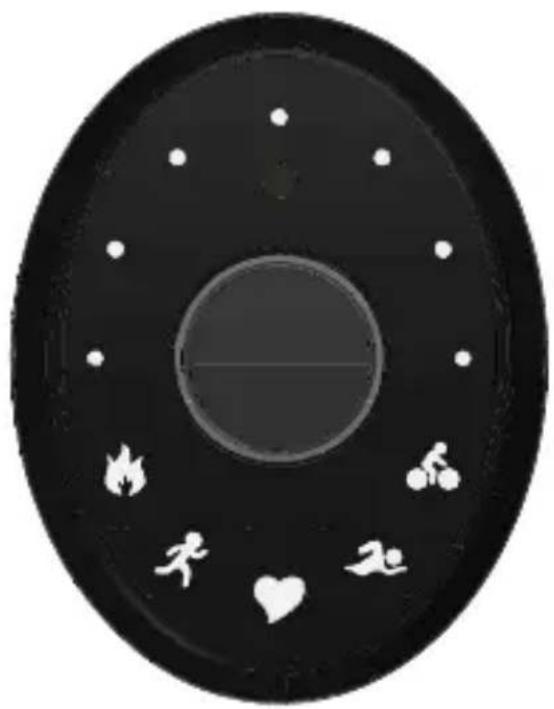
GENERAL WORKOUT
CALORIE GOAL
RUNNING WORKOUT
STEP GOAL
HRV (VScan) - Blue
% MAX HEART RATE - Green
SWIMMING WORKOUT
SWIM LAP GOAL
CYCLING WORKOUT
CADENCE GOAL
- Heart Rate Variability
- Auto & On-Demand HRV
- Optical Heart Rate
- Heart Rate for Swimming
-
Heart Rate Zone Training
-
HR-Linked Calorie Burn
- Exercise Recovery Monitor
- Real-Time Fitness Score
- Cadence for Cycling
-
Light Exposure Advisor
-
Activity & Sleep Tracking
+Swim Lap Counter - 5-Day Battery Life
- 50M Water Resistant
- Wear in Multiple Areas
WARNING: Before starting a new exercise routine, please consult your doctor or health care professional to help you determine your maximum heart rate, upper and lower limits, exercise frequency and duration appropriate for your age, condition and specific goals.
GETTING STARTED
- Remove the clear plastic film from the back of your ZOOM.
STANDBY MODE
- Your ZOOM is in Standby Mode & may need a recharge before initial use. You will NOT be able to PAIR your device to the app if your battery is too low (<30%), so please check your battery status before starting. See page 5 for details.
ACTIVATE YOUR ZOOM
- First, you will need to PAIR your Zoom to the FREE Zoom HRV app. This will unlock Standby Mode and your Zoom will be ready for use. See pages 8-9 for details.
CHARGING DOCK & CABLE
- Insert the Micro USB end of the Charging Cable into the Charging Dock.
- Plug the USB into your computer or alternate USB charging port.
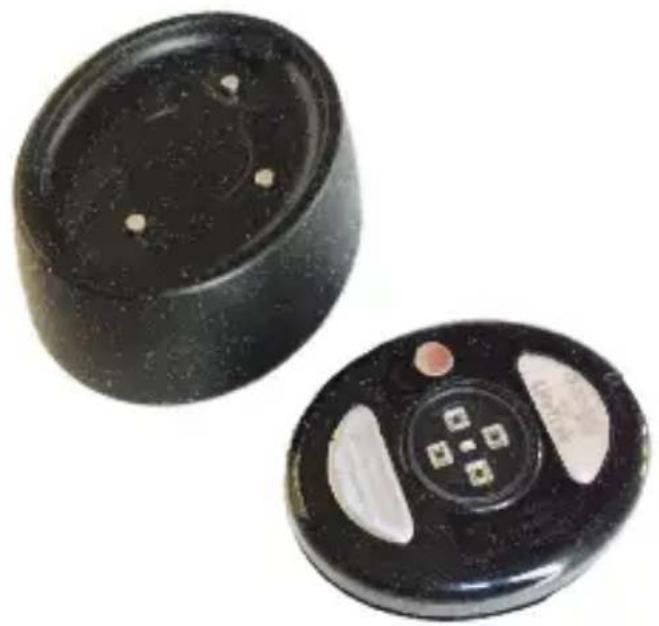
- There are 3 connector pins on the Charging Dock and 3 connector pads on the backside of your Zoom Pod.
- Align the connectors and place the Zoom Pod on the Charging Dock. The magnetic connection will hold it in place.
natural_image
Two black circular electronic components with small white dots and a central square button, shown from different angles (no text or symbols visible)CHECK THE BATTERY STATUS
- To confirm that your Zoom Pod is charging,
the RUNNING and SWIMMING
icons will flash in the display.
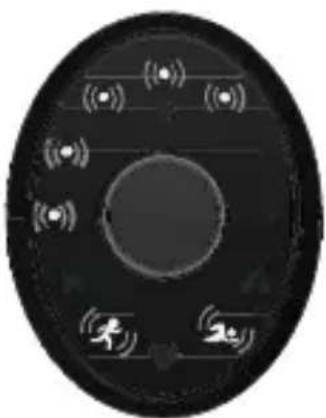
- Your battery life % will display via flashing LEDs as follows:
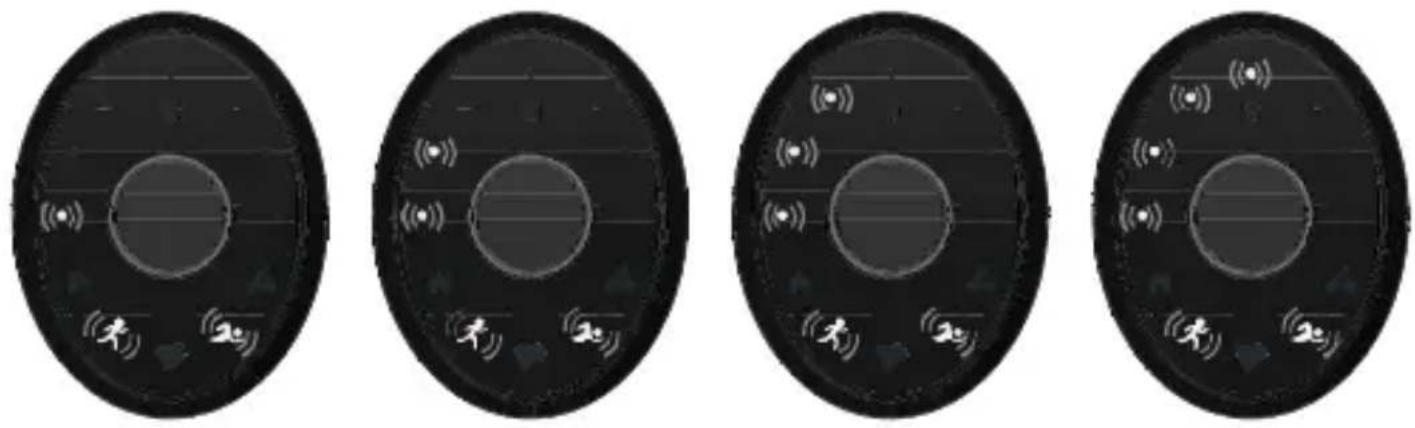
15%30%45%55%
natural_image
Circular device with sensor icons and a central circular hub, no visible text or symbols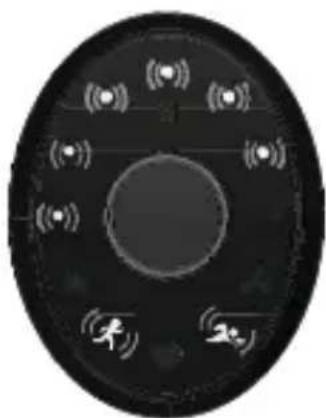
natural_image
Circular device with wireless signal icons and a central circular display (no text or symbols)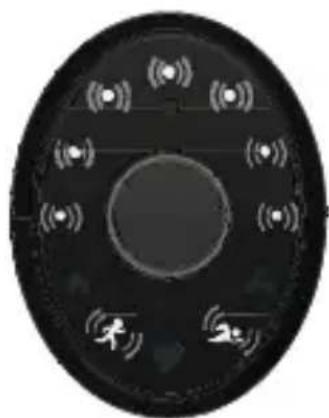
natural_image
Circular device with wireless signal icons and a central circular hub, no visible text or symbols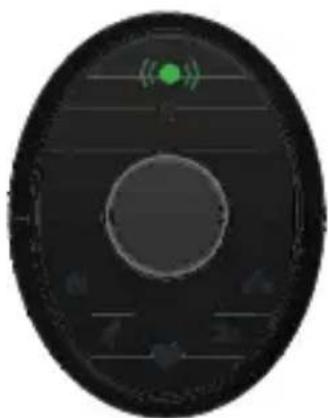
natural_image
Circular device with green sensor icon and control buttons (no text or symbols)70%85%99%100%
GREEN
natural_image
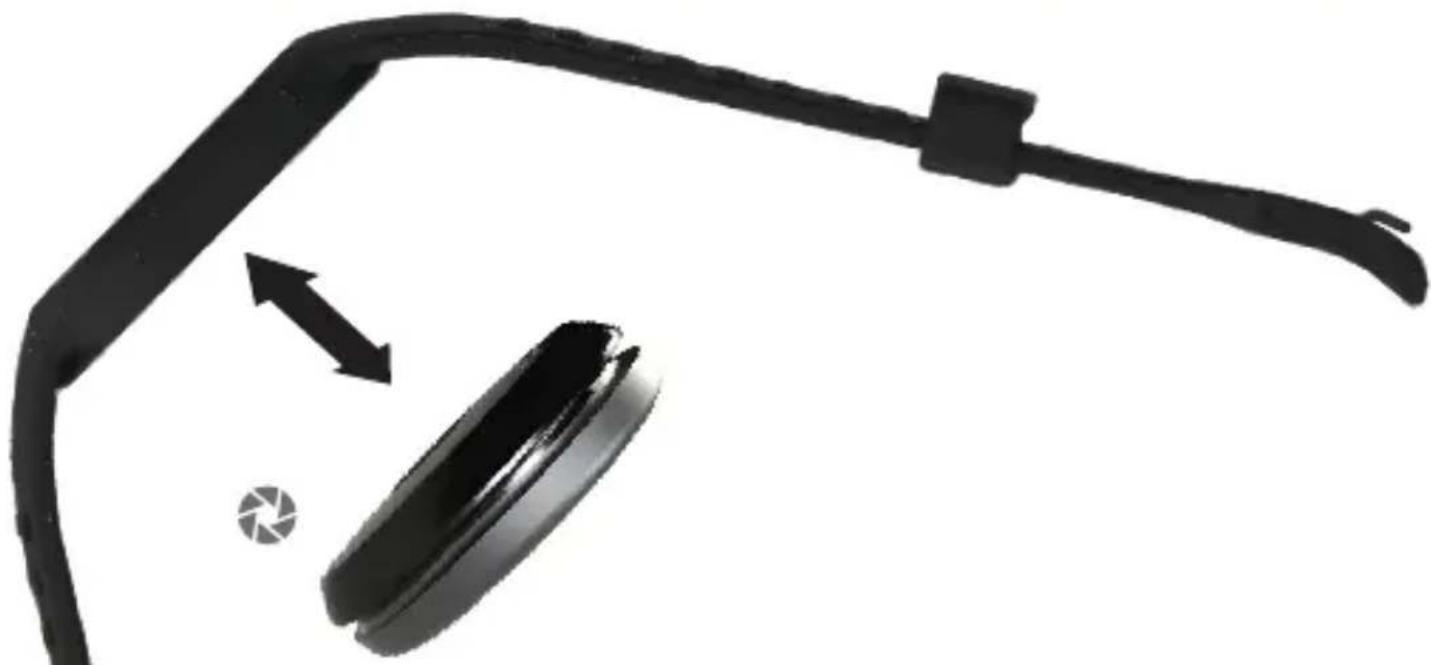
Black mechanical component with curved arm and rectangular body, showing motion arrows and a small circular symbol (no text or labels)- Always insert the Zoom Pod from the bottom of the sport wristband.
- Snap securely in place, making sure the Zoom Pod is snug in the opening before wearing.
- To help orient the Zoom Pod, please note that the Zoom logo is printed at the lower (six o'clock) position.

natural_image
Gray camera aperture icon with six blades (no text or symbols)PRESS VS TAP
Throughout this instruction manual, your will be asked to
- PRESS (the button)
- PRESS & HOLD (the button)
- TAP (the pod)
PRESS
When you see the word PRESS, you will quickly press the button (located in the middle of the pod).
If you are asked to press the button 2x or 3x in a row, you will quickly press the button that number of times.
PRESS & HOLD
When you see the words PRESS & HOLD, you will press and hold down the button for approximately 3-4 seconds, then release.
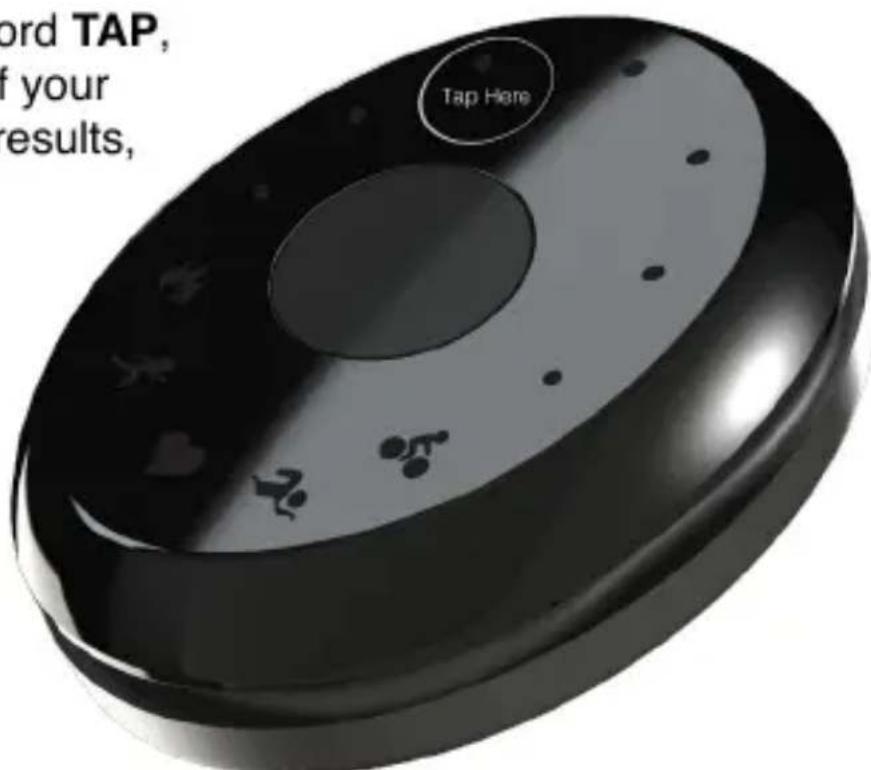
TAP
When you see the word TAP, you will tap the top of your Zoom pod. For best results, TAP the POD at the 11 o'clock position.
Tap gently, but with enough force to toggle to the next screen.
If you are asked to tap the pod 3x in a row, you will tap the pod quickly, without delay between taps.
STEP 1
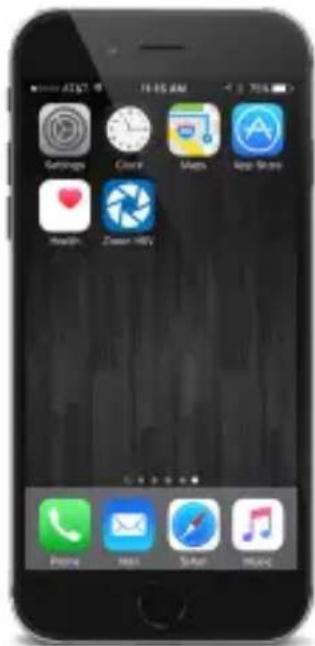
Install the Zoom HRV App
Please install the FREE Zoom HRV app (available for iOS and Android) on your compatible device.
Visit www.lifetrakusa.com to view compatible devices.
STEP 2
Fill out your profile & log in to the app
Open your Zoom HRV app and follow the prompts to enter your information. To provide you with the most accurate HRV, HR zones, Max HR, calorie burn and activity data, please make sure you fill out all of the information completely and correctly.
STEP 3
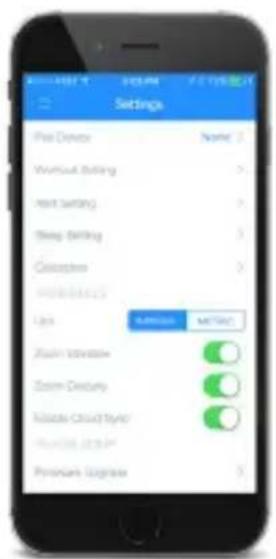
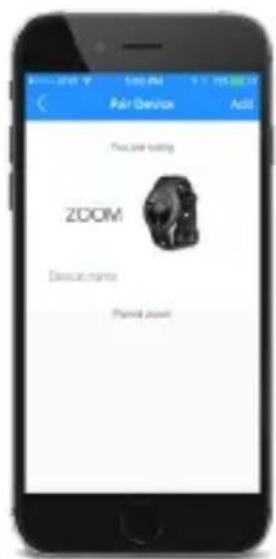
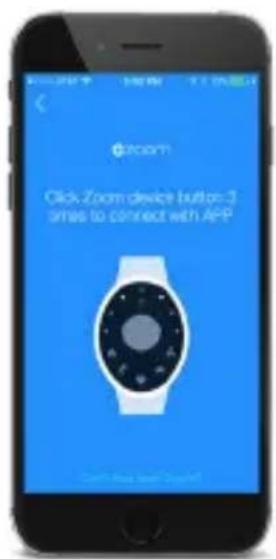
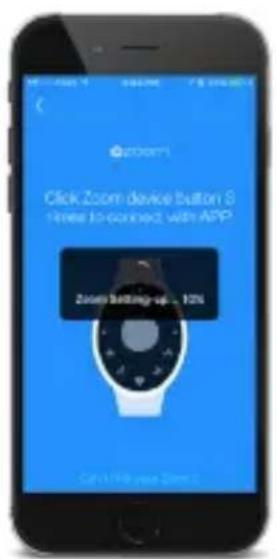
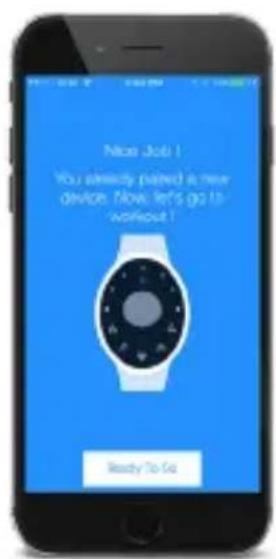
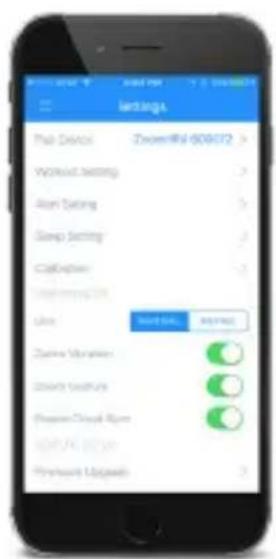
Pair your Zoom to the app
- Click on this icon
- Go to Settings
- Go to Pair Device
- Go to Add (upper, right corner)
- Follow the prompt & Quick Press the button on Zoom 3x in a row (rapidly)
- Zoom will begin the PAIRING process

ACTIVITY OVERVIEW
You can check the following directly from your wrist:
- Time of Day
- Calorie Goal
- Step Goal
• % Max Heart Rate - HRV Meter (VScan)
- Swim Lap Goal
• Cadence (Cycling) Goal - Battery Life
Time of Day automatically updates to match the time on your smart device once you pair and sync your Zoom to the app
Daily Activity Goals Calories Burned & Steps Taken are expressed as a % towards the daily goals you set via the Zoom HRV app under Goals. See page 40.
% Max HR is based on the Max Heart Rate number set via the Zoom HRV app under Settings > Workout Settings > Heart Rate Zone. See page 27.
HRV (VScan) is based on the last VScan you recorded. If you have never recorded a VScan, LED indicators will not appear in the display. See page 22.
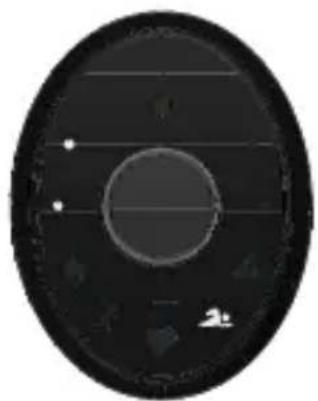
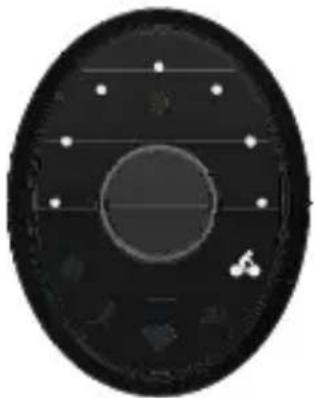
Daily Workout Goals Swim Laps and Cycling Cadence are expressed as a % towards the workout goals you set via the Zoom HRV app under Settings > Workout Settings > Workout Goals. See page 26.
Battery Life Your battery life % will display via LEDs
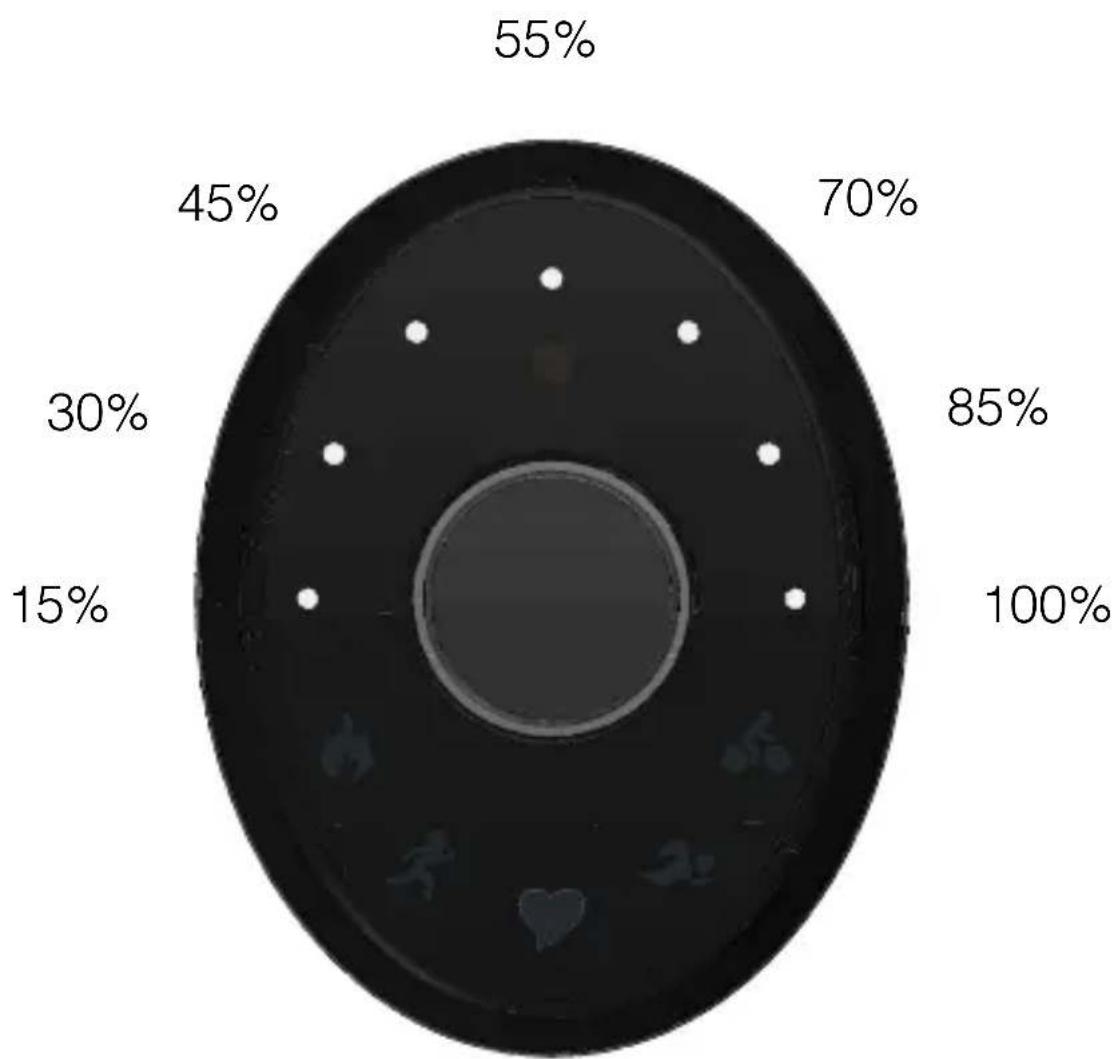
pie
| Category | Percentage (%) | | :--- | :--- | | 1 | 15 | | 2 | 30 | | 3 | 45 | | 4 | 55 | | 5 | 70 | | 6 | 85 | | 7 | 100 |% LEGEND
TIME OF DAY
- PRESS the button to view TIME OF DAY
The Time of Day will be displayed as a SOLID LED (HOUR) and a BLINKING LED (MINUTES).
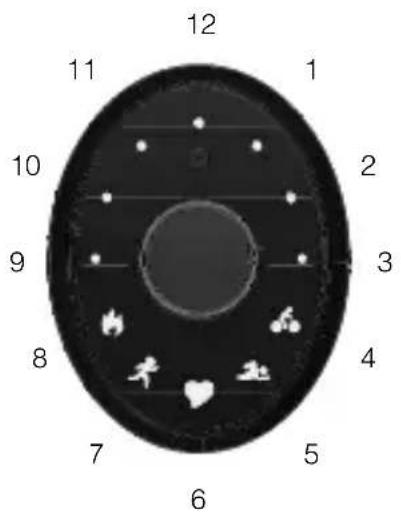
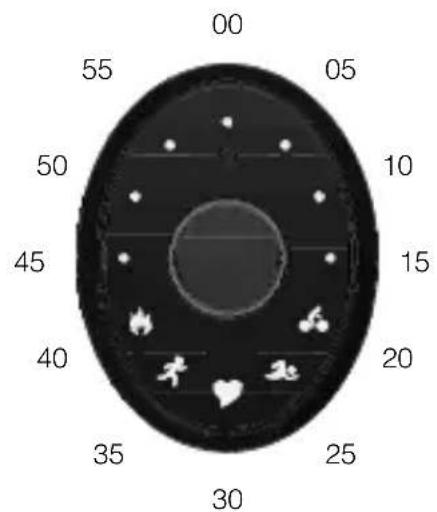
*MinutesHours
natural_image
Circular device with abstract icons and signal lines, no readable text or symbolsTime Shown 7:50
* Minutes are shown in 5 minute increments, so the time will be +/- 2 minutes
HINT: You can also activate the time by a gesture (arm movement). See page 39.
DAILY ACTIVITY & WORKOUT GOALS
Activity is expressed as a \% towards your daily activity / workout goals (which you set via the Zoom HRV app).
See % Legend on page 11 for details.
- PRESS the button to view TIME OF DAY
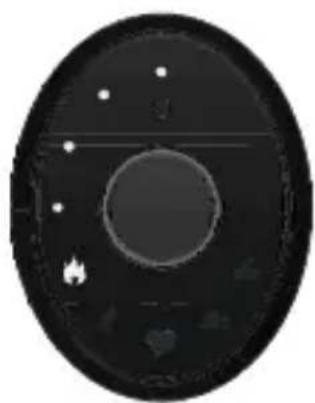
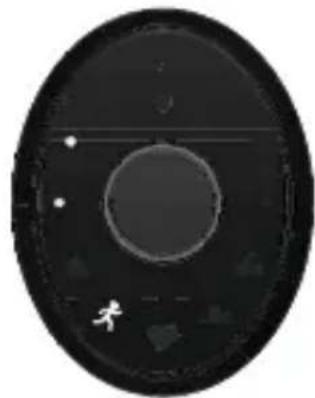
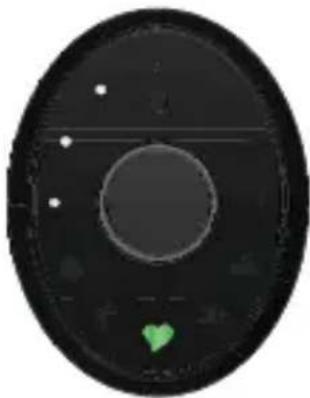
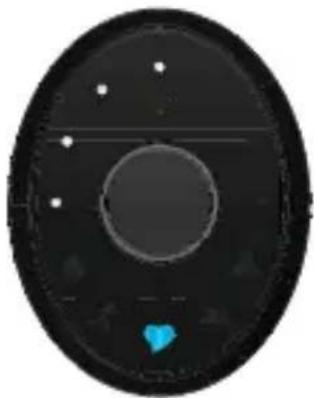
- While the TIME is visible, TAP the POD to toggle between the goals (below).
natural_image
Circular object with a central hole and surrounding stars and symbols, resembling a stylized moon or flame (no text or labels)Calorie Goal
natural_image
Circular object with a central circular hole and surrounding geometric shapes (no text or symbols)Step Goal
Green Heart
natural_image
Circular device with a green heart icon at the bottom, no visible text or symbols% Max HR
Blue Heart
natural_image
Circular object with a central dark ring and small white dots, resembling a stylized moon or camera lens (no text or symbols visible)HRV (VScan)
natural_image
Circular object with internal concentric rings and small symbols, resembling a solar panel or lens (no text or labels visible)Swim Lap Goal Cadence Goal
natural_image
Circular object with a central circular element and small white icons, resembling a stylized helmet or emblem (no text or symbols visible)The % Max HR value is based on the Max Heart Rate number provided under Settings > Workout Settings > Heart Rate Zone
HRV (VScan): This is based on the last VScan you recorded. If you have never recorded a VScan, LED indicators will not appear in the display.
BATTERY LIFE
The Zoom utilizes a rechargeable battery with a typical life of up to 5 days. The battery life will be +/- depending on the amount of workouts recorded, LED usage and Bluetooth connectivity.
VIEW BATTERY LIFE
- To view your battery life, PRESS the button to view TIME OF DAY, then FAST TAP the POD 3x in a row (rapidly).
- Your battery life % will display via LEDs
See % Legend on page 9 for details.
LOW BATTERY ALERT
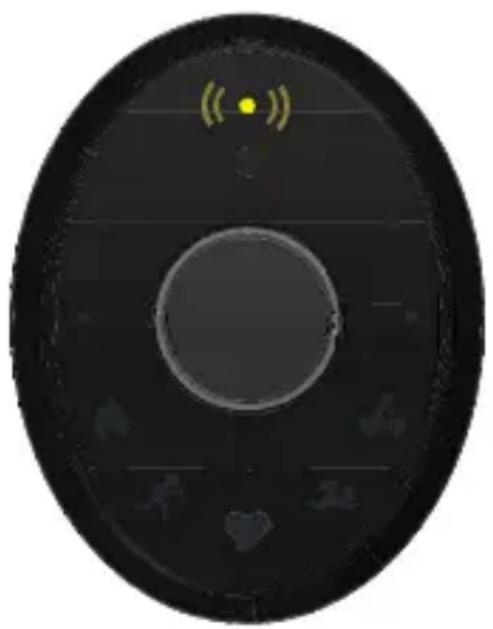
- You will receive a vibration alert and YELLOW LED indication when your battery life is low (between 20-30%).
The Yellow LED will blink in the display until you press the button to acknowledge the warning.
natural_image
Circular device with a central screen and sensor icons, no readable text or symbolsYou should charge immediately.
EXTREME LOW BATTERY ALERT
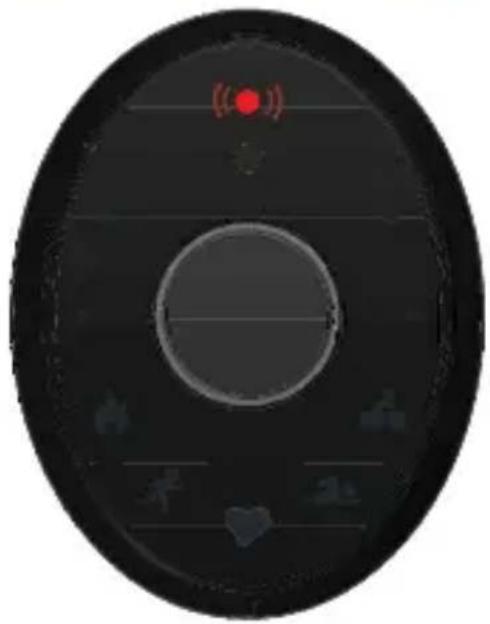
- You will receive a vibration alert and a RED LED indication when your battery life is extremely low (less than 6%).
The Red LED will blink in the display until you press the button to acknowledge the warning.
When your battery is extremely low, data will stop recording. You should charge immediately.
natural_image
Circular device with a red indicator light and control buttons, no readable text or symbols.NOTIFICATIONS VIA APP
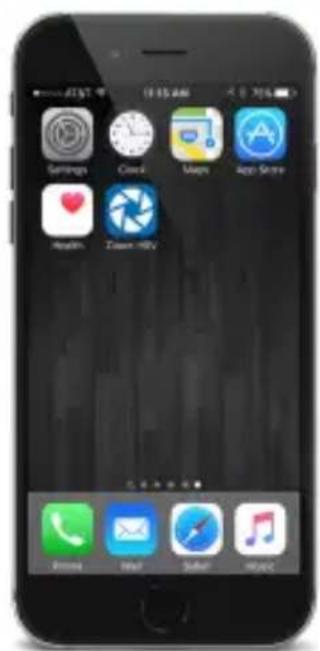
- You may also receive alerts or messages in the app when your battery life is low. If you receive a message, you should charge your Zoom immediately.
NOTE: You will not be able to record a workout or sync data to your Zoom with a low battery, so we highly suggest you keep your Zoom charged!
SYNC DATA
Now that your Zoom is PAIRED to your app, you can SYNC your data at any time.
We suggest you sync once daily.
To SYNC your Zoom,
- Open your Zoom HRV app
- QUICK PRESS the button (on your Zoom) 3x in a row (rapidly)
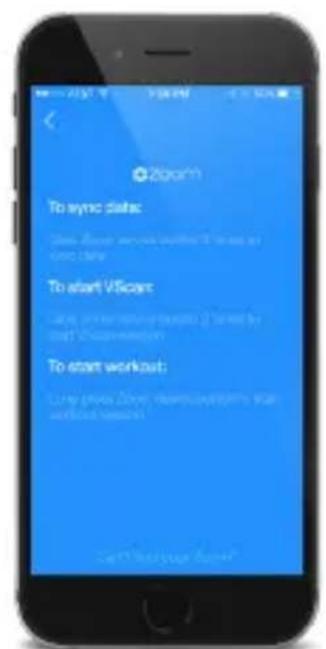
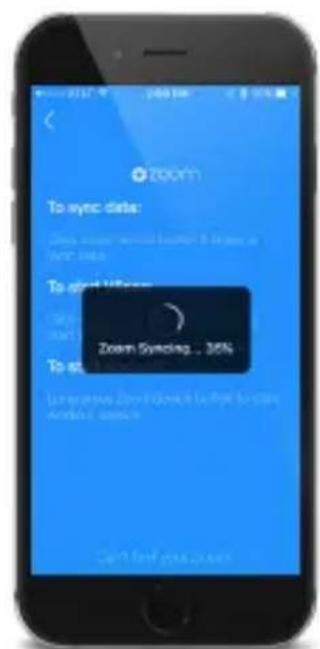
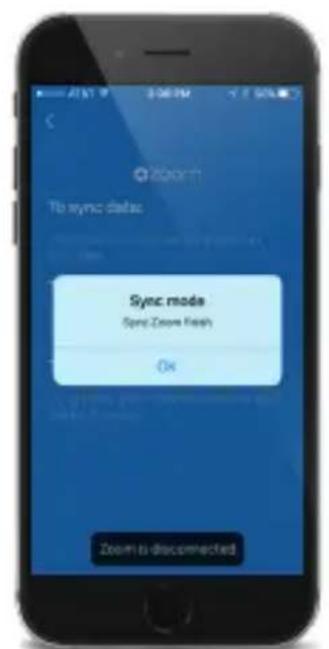
HINT: The small arrow-circle (top, right) in the app gives you quick how-to instructions for syncing data, recording a VScan and starting a workout.
DASHBOARD
Your DASHBOARD gives you a quick ‘snapshot’ of your day’s VScore and daily activity. Your daily VScan will also display in the dashboard if you recorded a VScan for the day.
HINT: Use the arrows (< >) to scroll to a previous day. You can review your snapshot and details for that day & track progress.
To quickly jump back to TODAY, click the HOME icon (top, right).
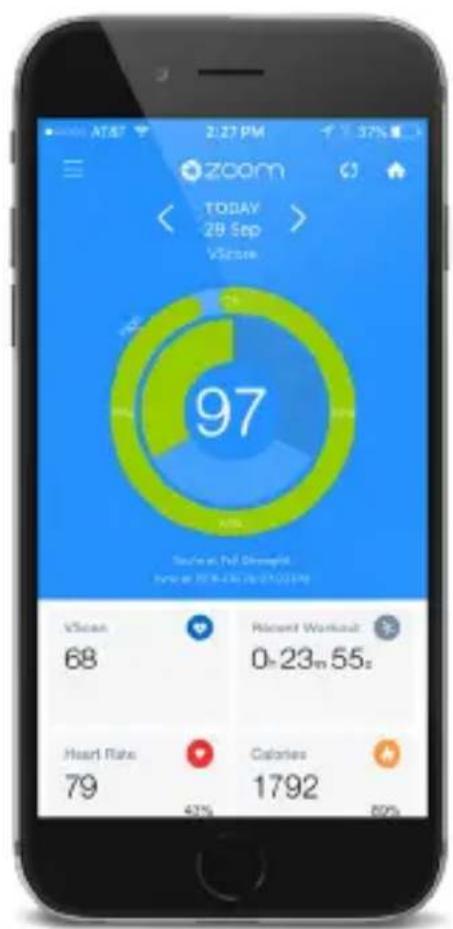
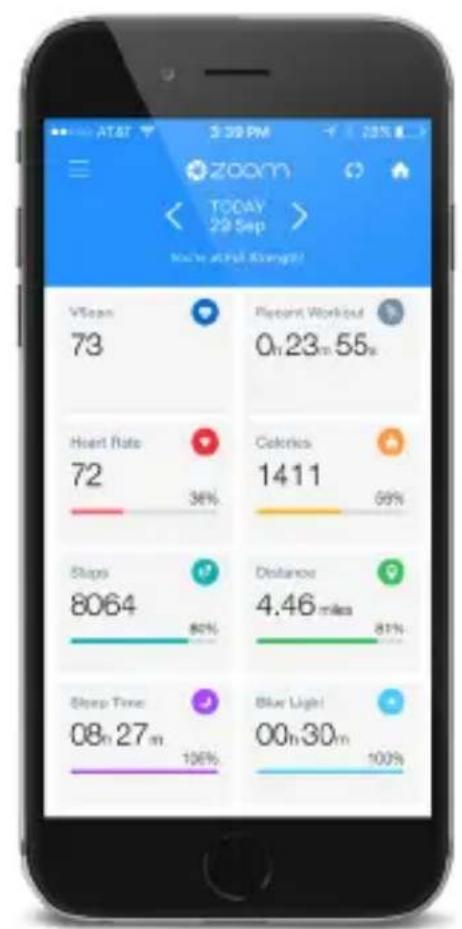
HINT: Each of your daily activity values shows your total amount as well as the percentage you have achieved against your set goals. See page 40.
DASHBOARD DETAILS
Sometimes the simple act of tracking data is all the motivation we need to push harder on our next workout or take a rest day to recuperate. The dashboard stores all your activity data and can help you gain deeper insight and view long term activity trends.
The Zoom HRV app is also compatible with Apple Health & Google Fit, so you can share your data with these platforms to track your comprehensive results!
VIEW DETAILED DASHBOARD ACTIVITY STATS
- Tap on an activity to open
- Tap the tabs to review Daily, Weekly, Monthly, Yearly information.
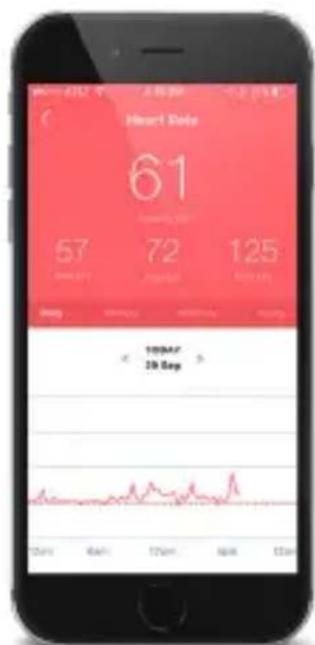
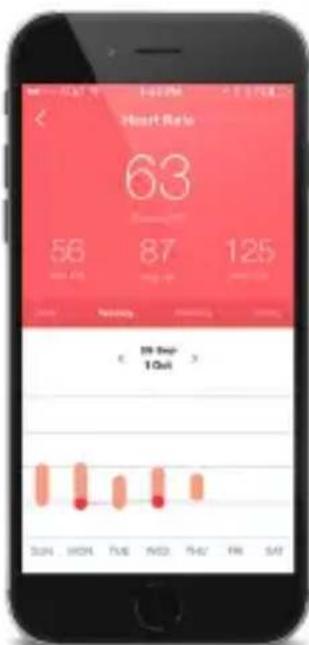
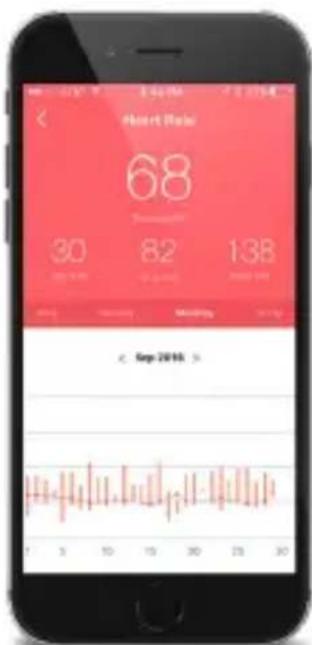
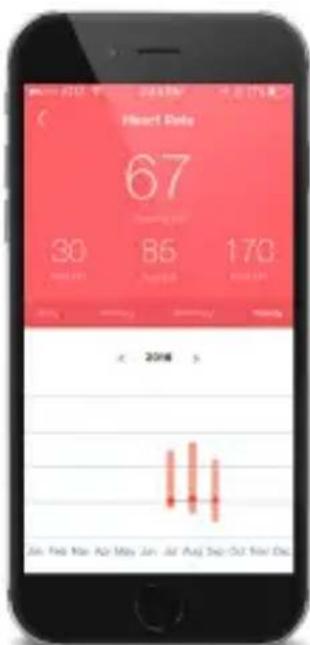
Heart Rate Detail Shown as Example
While many wearables boasting heart rate detection struggle to match the reliability of the most basic chest belts, ZOOM HRV delivers a next-generation suite of biometric heart rate insights that will transform how we train, how we recover and most importantly how we improve. ZOOM is the ultimate training device that measures workout intensity and recovery.
Until now measuring HRV required either sophisticated medical equipment, cumbersome chest belts or slow and inconsistent finger-touch readings.
By contrast, ZOOM automatically detects your HRV during periods of deep sleep to provide an ongoing, highly personal wellness assessment (fitness score). This data is combined with sleep analysis, streaming heart rate feedback and activity measurements to create a single, comprehensive fitness grade called VScore.
ZOOM can also measure HRV at any time to provide an immediate HRV assessment called VScan.
Both VScan and VScore are tracked over time to monitor increases and decreases in physical and emotional wellness making ZOOM a uniquely powerful device.
What's your SCORE?
Zoom automatically detects your Heart Rate Variability (HRV) while you sleep, so be sure to wear Zoom 24/7.
When you sync Zoom the next day, the Zoom HRV app will display your VScore, a baseline fitness score based on HRV recorded through the night. Your VScore can be used to track general health or to compare with a VScan for workout rest / recovery guidance.
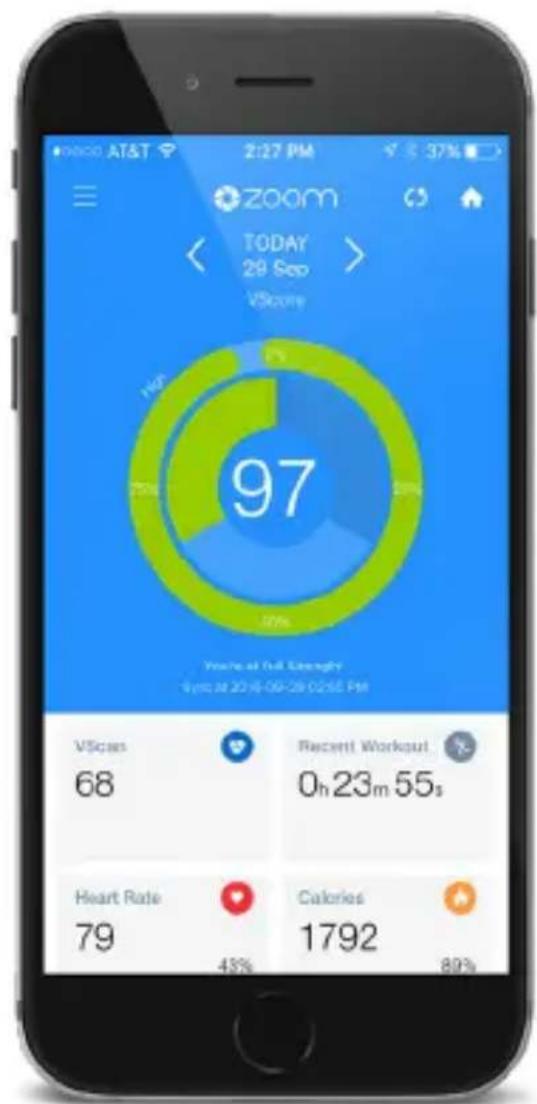
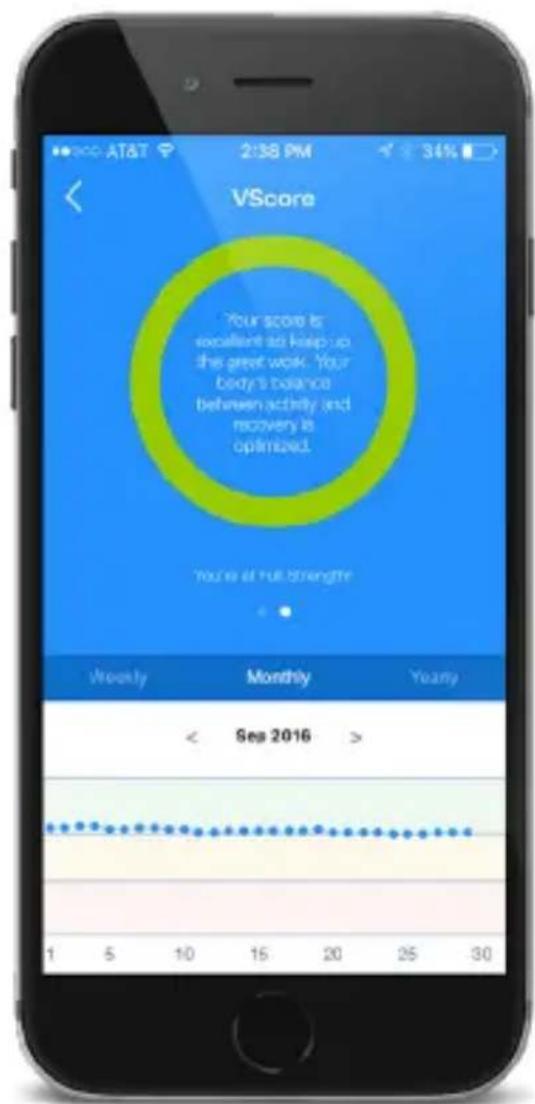
HINT: From the dashboard, tap on your daily VScore to view your Weekly, Monthly, Yearly information.
Slide your score to view workout / rest advice.
Want to know your HRV now?
Take an immediate VScan for real-time HRV measurement. At the press of a button, you can know in minutes how recovered you are and how hard to push yourself for the day.
To record your VScan,
- QUICK PRESS the button (on your Zoom) 2x in a row (rapidly)
PATIENCE: You need to be inactive and allow 3 minutes to record your VScan. You need to be completely still and avoid speaking while your VScan is being recorded.
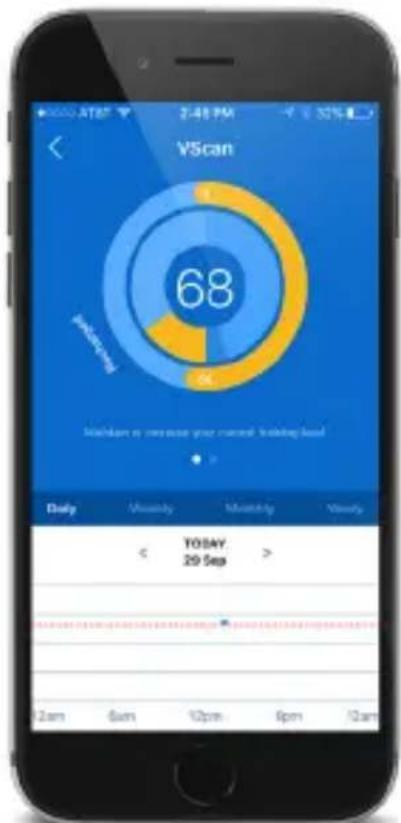
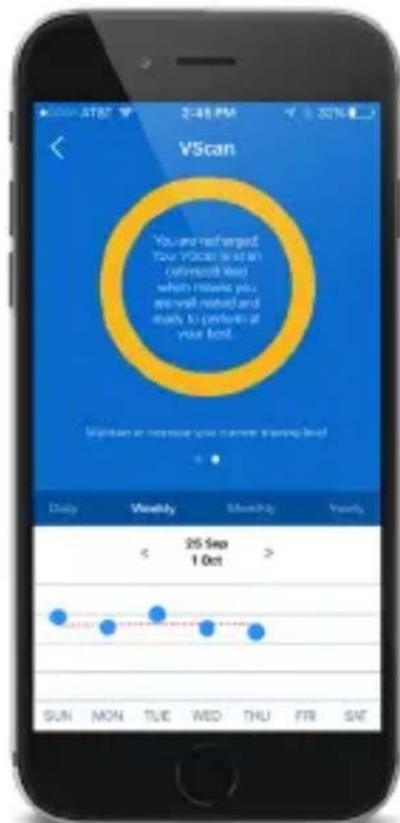
HINT: From the dashboard, tap on your VScore to view your Daily, Weekly, Monthly, Yearly information. Slide your score to view workout / rest advice.
RECORD VSCAN TO ZOOM POD
If you do not have access to your app, your VScan will record directly to your Zoom Pod. While your VScan is recording, the HEART ICON on your Zoom pod will glow BLUE and LEDs will illuminate. You can review your data when you sync to your app later.
RECORD VSCAN TO APP
If your app is open at the time of your VScan recording, you will see a live graph recording and a countdown timer in the app screen.
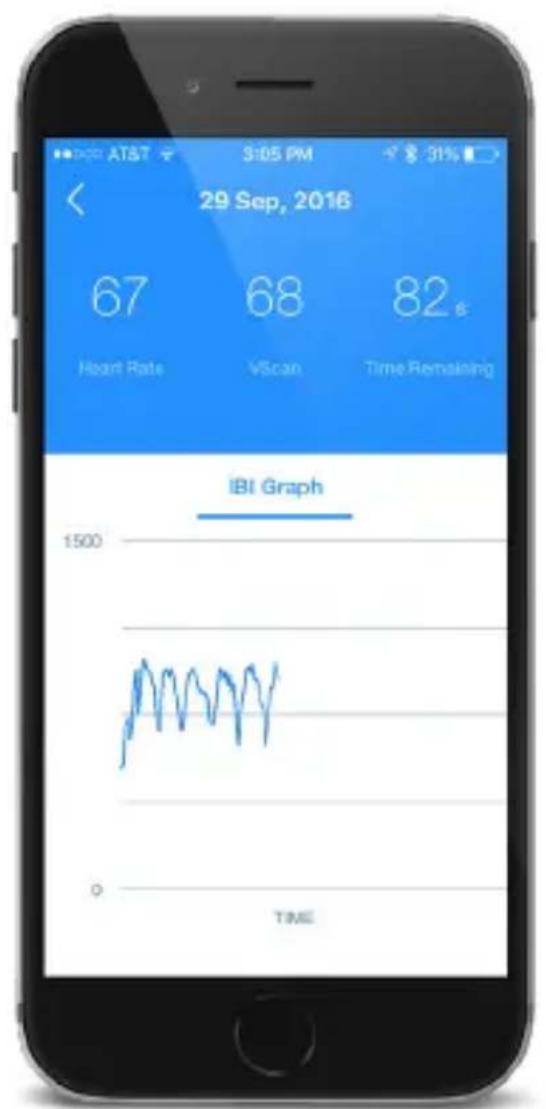
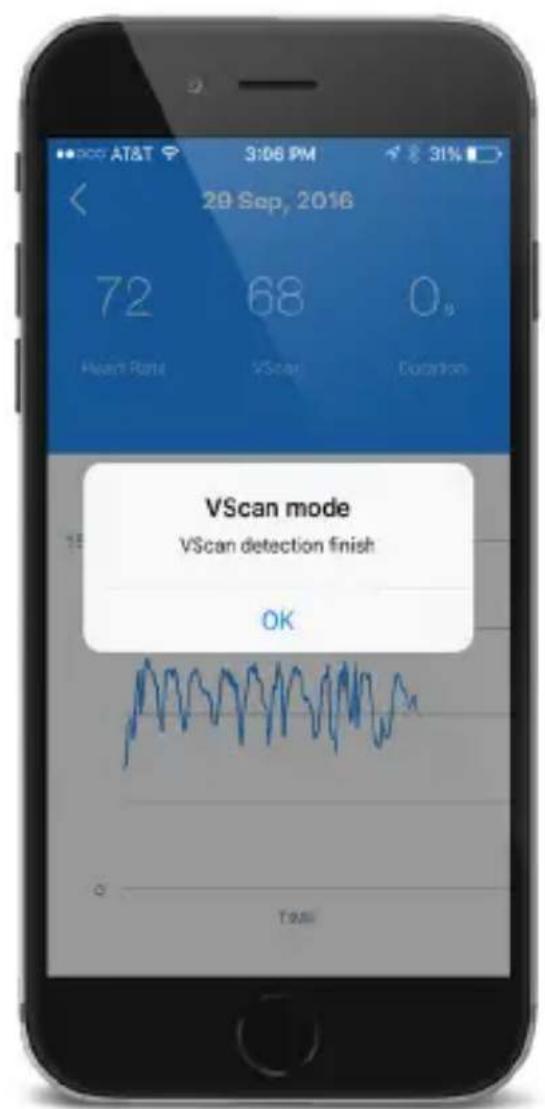
VIEW PREVIOUS VSCAN RECORDS
23
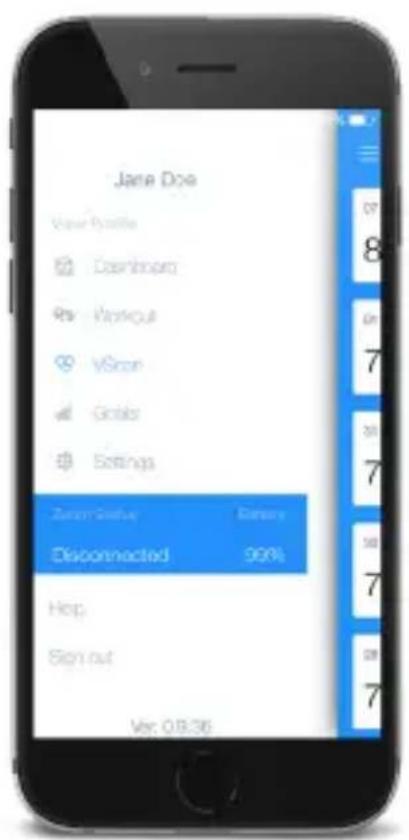
To view previous VScan recordings
- Click on this icon
- Go to VScan
- Click on a recording to review your Previous VScan details
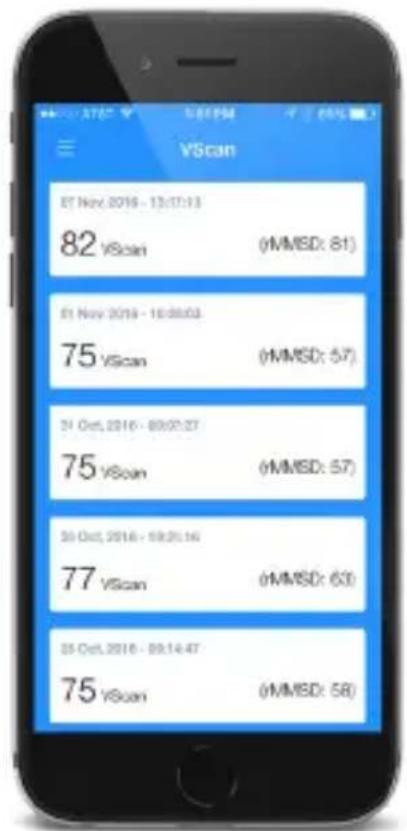
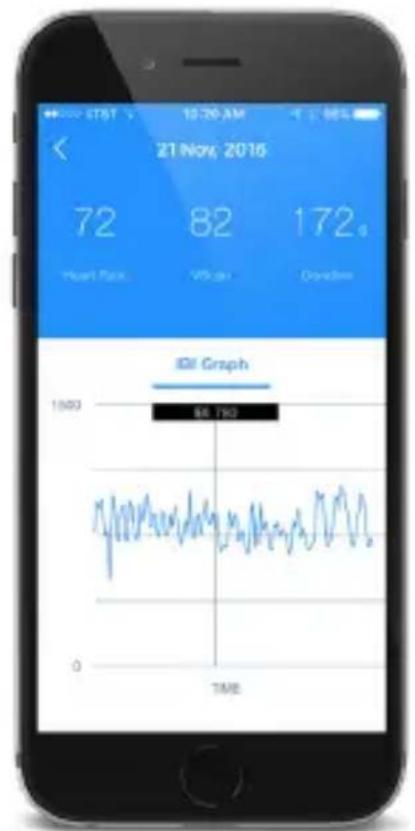
HINT: On your smart device, run your finger along the graph to see specific IBI data recorded during your VScan session.
SETTING UP WORKOUT MODE
Your Zoom is equipped with a sophisticated WORKOUT mode that allows you to track a myriad of details - based on your activity.
To get the most out of your workouts, you can customize the WORKOUT SETTINGS via the Zoom HRV App.
Customize Workout Settings
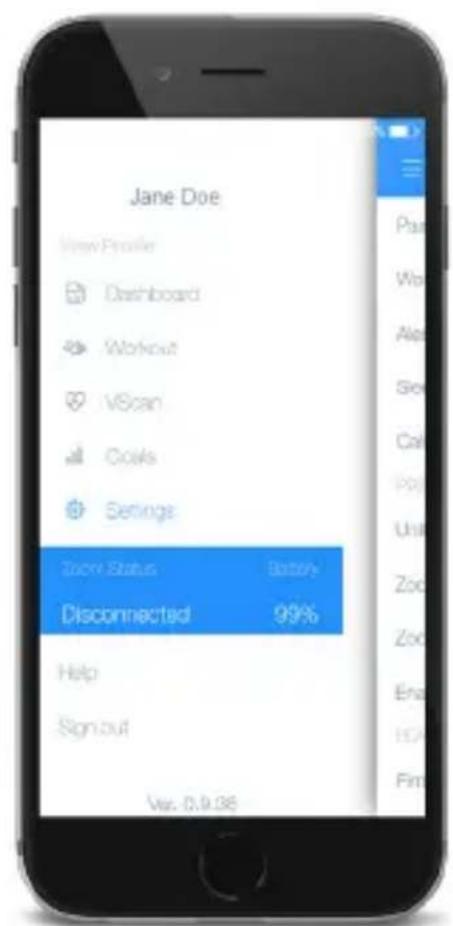
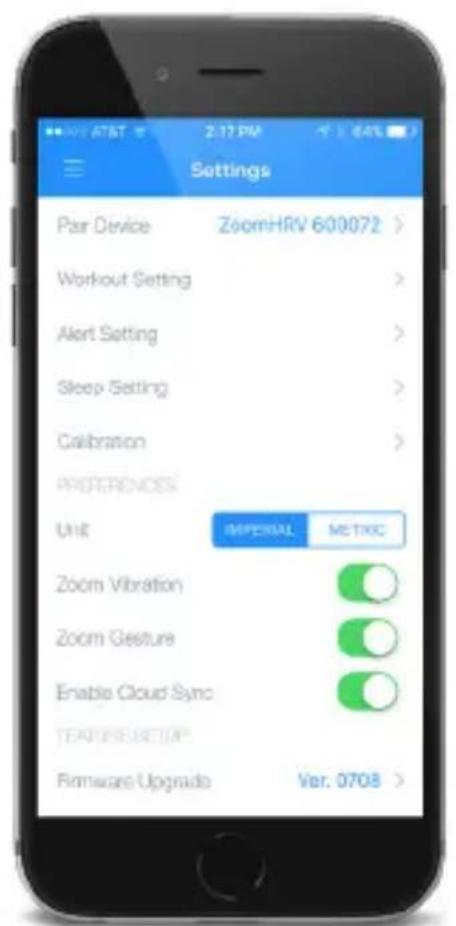
- Click on this icon ≡
- Go to Settings
- Go to Workout Setting
- POOL LENGTH
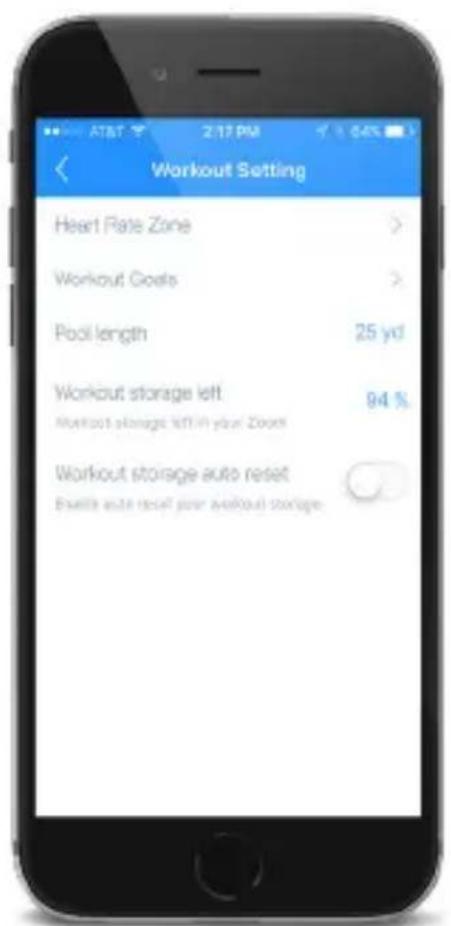
Your Zoom tracks your laps while swimming. To provide you with the most accurate lap count information, you can change the pool length with a simple scroll.
• WORKOUT (MEMORY) STORAGE
This will let you know if you need to sync old data before recording a new workout.
LOW STORAGE ALERTS
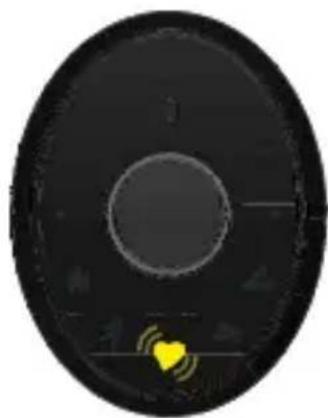
You will receive a vibration alert and YELLOW HEART indication when your storage is low (around 10% space).
The Yellow Heart will blink in the display until you press the button to acknowledge the warning.
If your workout storage becomes full during your workout, the heart icon will blink RED and your workout will automatically stop. You must sync your workouts to the app at this time.
Failure to do so could result in lost data.
natural_image
Circular black disc with a yellow heart and concentric rings, no text or symbols visible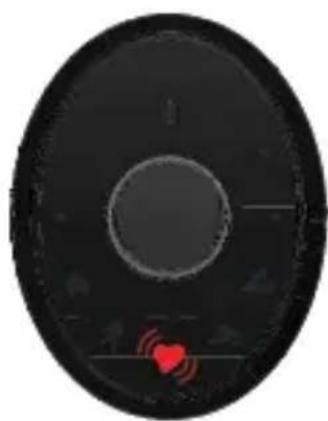
natural_image
Circular black disc with a red heart and abstract markings, no text or symbols present.- AUTO RESET
If the AUTO RESET button is turned on (suggested), your recorded workout data will automatically be deleted from your Zoom (but will be saved to your app) after you sync the data to the app. This ensures that your workout storage is reset to 100% after each sync.
• WORKOUT GOALS
Set your workout goals (for swimming and cycling) and track your progress on your Zoom.
• SWIMMING LAPS
Set your swim lap goal, tighten your Zoom on your wrist or wear your Zoom on your forearm in the *Flexwear Armband (sold separately) and start swimming.
You can check your \% toward goal at any time directly on your Zoom pod. See page 13.
• CYCLING CADENCE
Set your cycling cadence goal, attach your Zoom on your ankle using the *Flexwear Ankle Band (sold separately) and start riding.
You can check your \% toward goal at any time directly on your Zoom pod. See page 13.
* See Flexwear (on LifeTrak website) for more information and to order accessories.
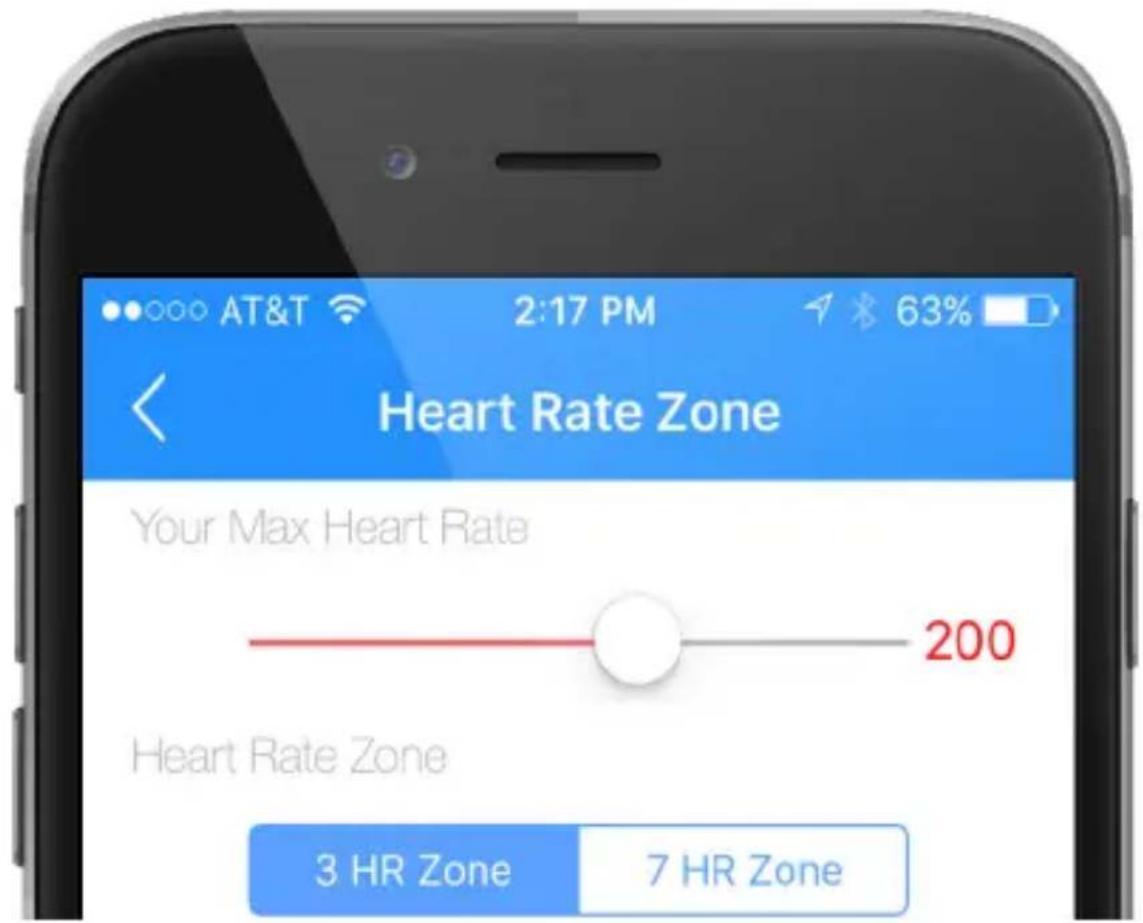
MAX HEART RATE
You can get your Maximum Heart Rate (MHR) from a MHR test (consult your doctor), or you can estimate it using the following formula:
Women Maximum Heart Rate = 226 - age Men Maximum Heart Rate = 220 - age
Good News: If you set your user profile (in the app) accurately, your estimated Max HR is already set up.
If you need to change your Max Heart Rate setting:
Customize Your Max Heart Rate
- Go to Heart Rate Zones
- Slide the bar to set your Max Heart Rate
To get the most out of your workouts, you can customize the Heart Rate Training Zones via the Zoom HRV App.
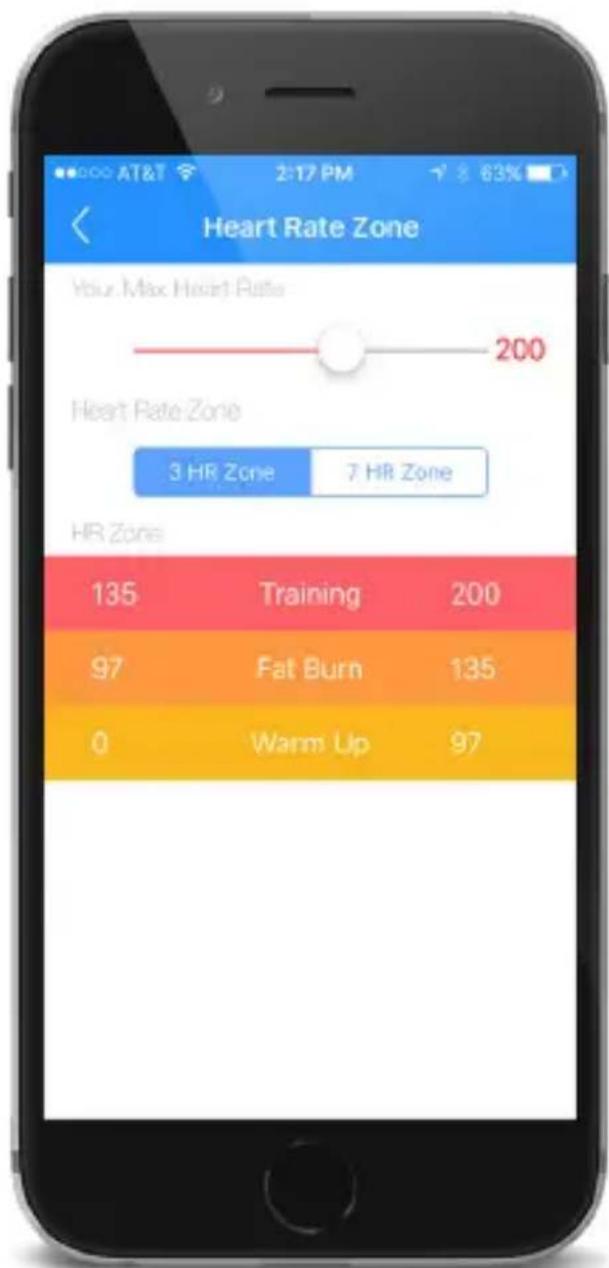
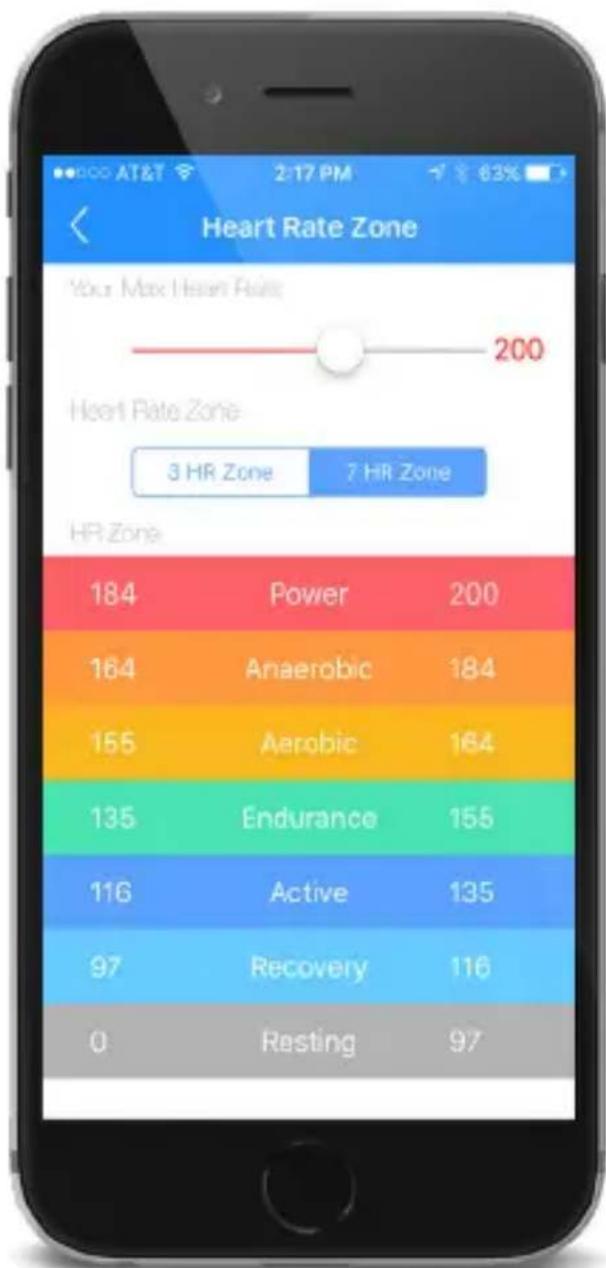
Good News: To get you started, your Heart Rate Zones will automatically be set (based on your Max HR) as follows:
Heart Rate Zone Training: 3-Zone
| Warm Up | 0% (Low) | 50% MHR (High) |
| Fat Burn | 50% (Low) | 70% MHR (High) |
| Training | 70% (Low) | 100% MHR (High) |
Heart Rate Zone Training: 7-Zone
| Resting | 0% (Low) | 50% MHR (High) |
| Recovery | 50% (Low) | 60% MHR (High) |
| Active | 60% (Low) | 70% MHR (High) |
| Endurance | 70% (Low) | 80% MHR (High) |
| Aerobic | 80% (Low) | 85% MHR (High) |
| Anaerobic | 85% (Low) | 95% MHR (High) |
| Power | 95% (Low) | 100% MHR (High) |
Remember: You can customize the LOW and HIGH HR Zone values (shown opposite page). The percentages above are simple suggestions based on the profile info your provided.
You can also customize your HR Zones to meet your specific workout needs.
Select either 3-Zone or 7-Zone (depending on the amount of alerts you want during your workout). To customize,
- Tap on the LOW value, revise and click DONE.
- Repeat this process for the HIGH value.
other
Heart Rate Zone | Heart Rate Zone | 3 HR Zone | 7 HR Zone | | :--- | :--- | :--- | | Power | 184 | 200 | | Anaerobic | 164 | 184 | | Aerobic | 155 | 164 | | Endurance | 135 | 155 | | Active | 116 | 135 | | Recovery | 97 | 116 | | Resting | 0 | 97 |HEART RATE ZONE ALERTS
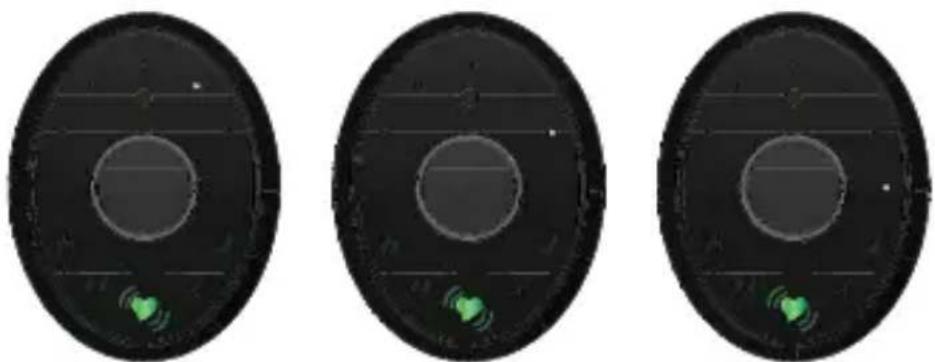
To help you stay in the zone, Zoom is equipped with both visual and vibration alerts. These indicators let you know when to push yourself a little harder during your workout.
• HEART RATE ZONE INDICATORS (LED)
HR Training Zones can be set as either 3-Zones or 7-Zones; this will determine how the LEDs display on your Zoom during your workout (see opposite page).
• HEART RATE ZONE ALERTS (VIBRATION)
As long as the Zoom Vibration is active in the app, you will feel vibration alerts to let you know when you’ve moved to a different heart rate zone.
MOVE UP
If you have moved up a zone, the alert will be
3 quick vibrations
MOVE DOWN
If you have moved down a zone, the alert will be
2 slow vibrations
Don't want vibration alerts?
No problem. You can activate / deactivate the vibrations in the app (Settings > Zoom Vibration)
3-ZONE TRAINING
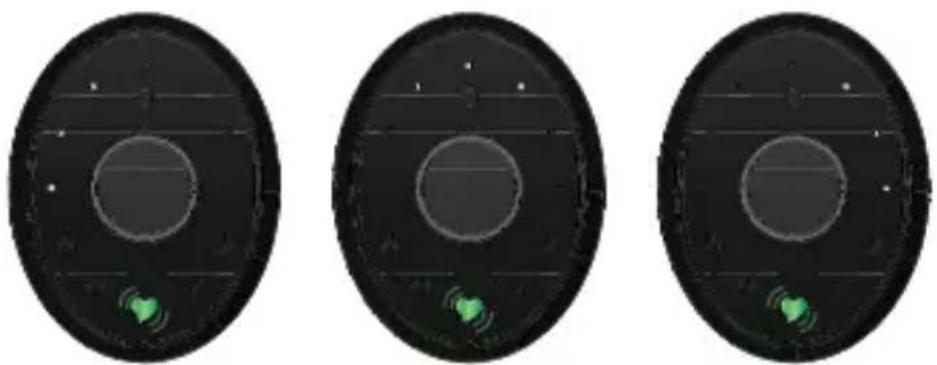
Zone 1 Zone 2 Zone 3
7-ZONE TRAINING
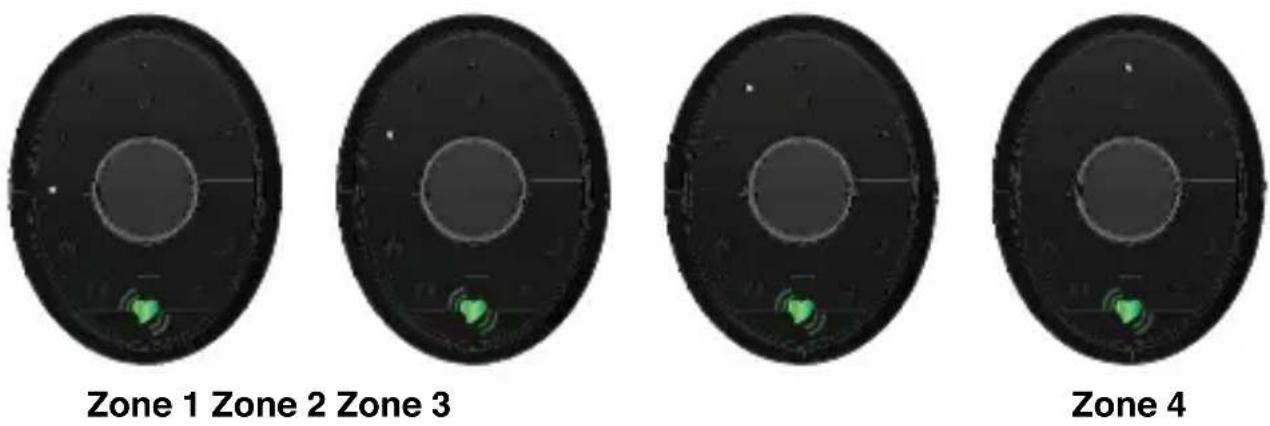
Zone 5 Zone 6 Zone 7
NOTE: Continuous heart rate recordings & heart rate training zones are only available when a workout is active.
TRACK YOUR WORKOUTS
Your Zoom HRV tracks four (4) different workout types:
General Exercise

Running / Walking
Swimming

Cycling
Each workout type provides you with insights specific to your activity, so be sure to select your workout types as soon as you start your workout.
RECORDING A WORKOUT
There are two ways to record a workout:
- On your Smart Device (smartphone / tablet)
- On your Zoom
OPTION 1
RECORD A WORKOUT ON YOUR SMART DEVICE
This option allows you to view your streaming workout data (in real-time) during your workout.
- Open the Zoom HRV app.
- Press & Hold the button on your Zoom for 3 seconds.
- To let you know that your workout has started and is recording, a ♥ GREEN HEART + ACTIVITY TYPE ICON* will flash in the display on your Zoom.
- Follow the prompts in your app to start / stop / record your workout.
VIA APP
PRESS & HOLD button on Zoom for 3 seconds to Start Recording a Workout:
Open the Zoom HRV App
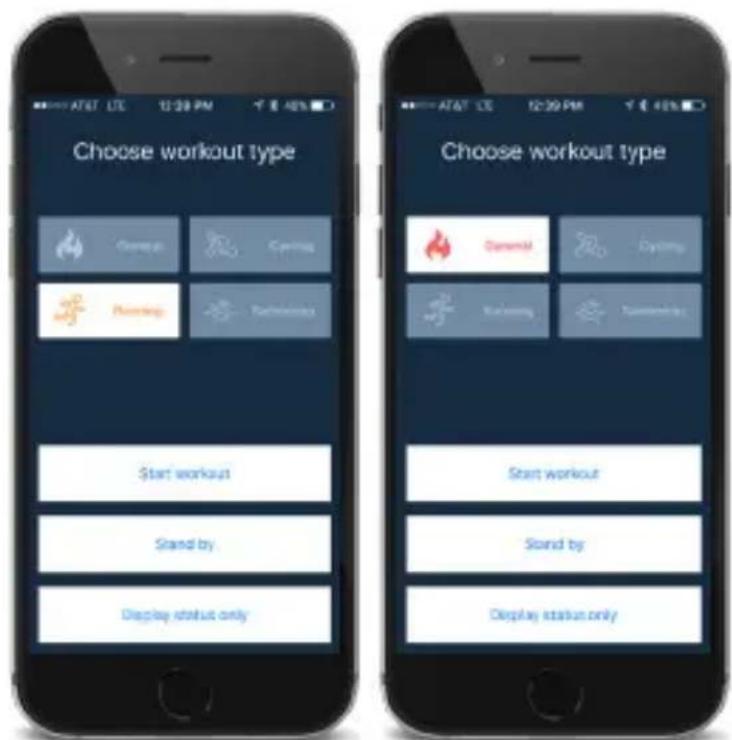
Once you open your app, it will automatically recognize that you have started a workout and will move to the CHOSE WORKOUT TYPE screen.
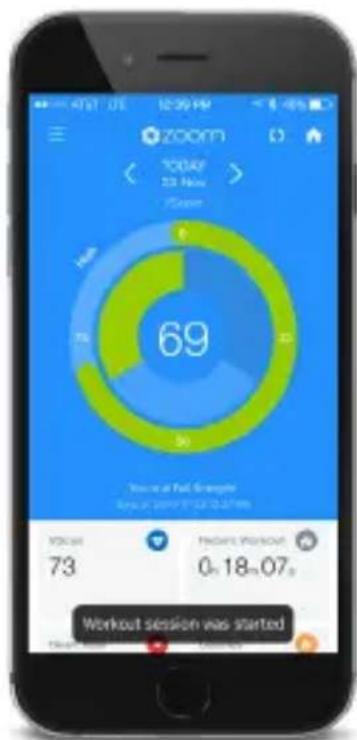
Select your Workout Type
Simply select your workout type and press START WORKOUT.
Not ready to hit the start button right now?
Press STAND BY and hit start when you are ready to go!
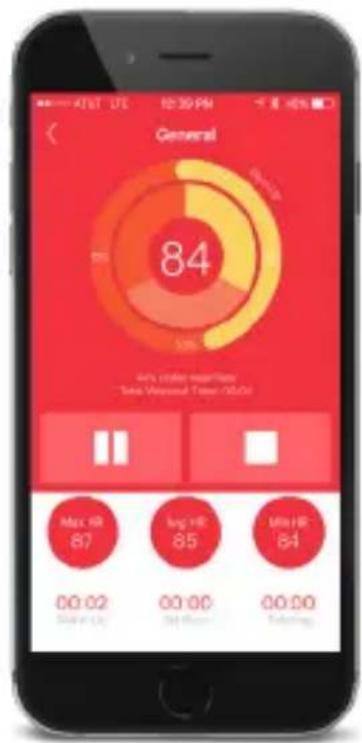
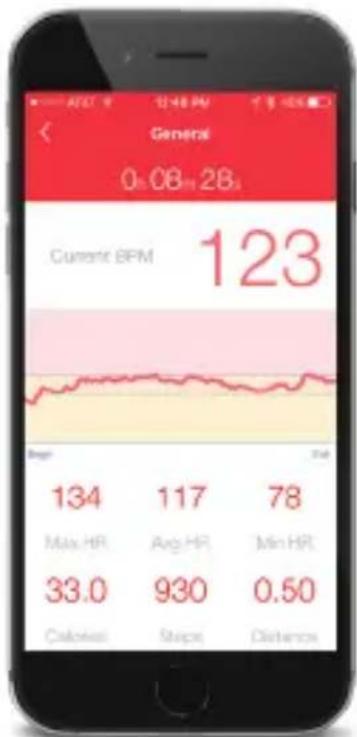
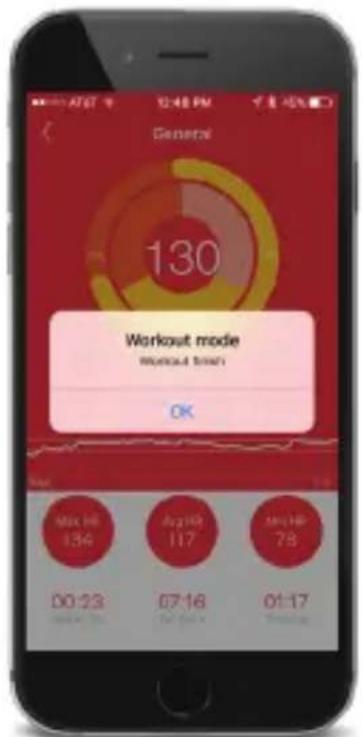
WORKOUT SNAPSHOT
View real-time heart rate stats and pause and/or stop your workout from the Main Workout Page.
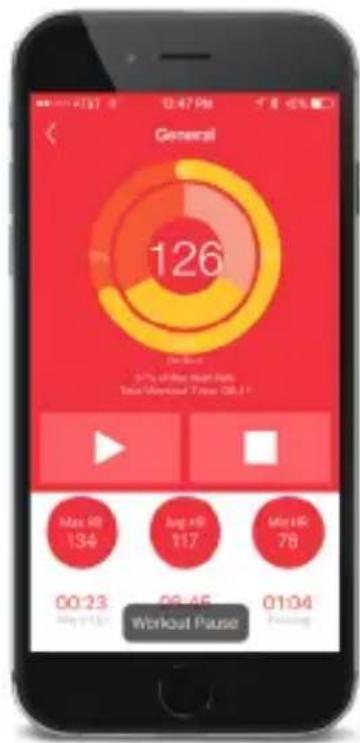
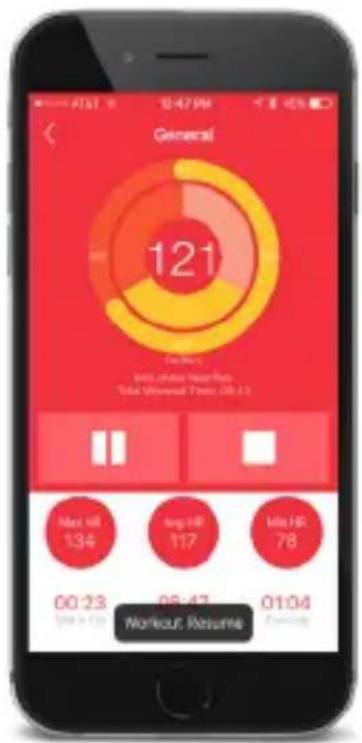
WORKOUT DETAIL
Tap on the HEART RATE circle (in the app) to view the DETAILED workout page.
Data will vary depending on the activity type selected.
OPTION 2
Don't want to carry your phone with you while your workout?
This option allows you to start & record your workout and set your workout type directly on your Zoom!
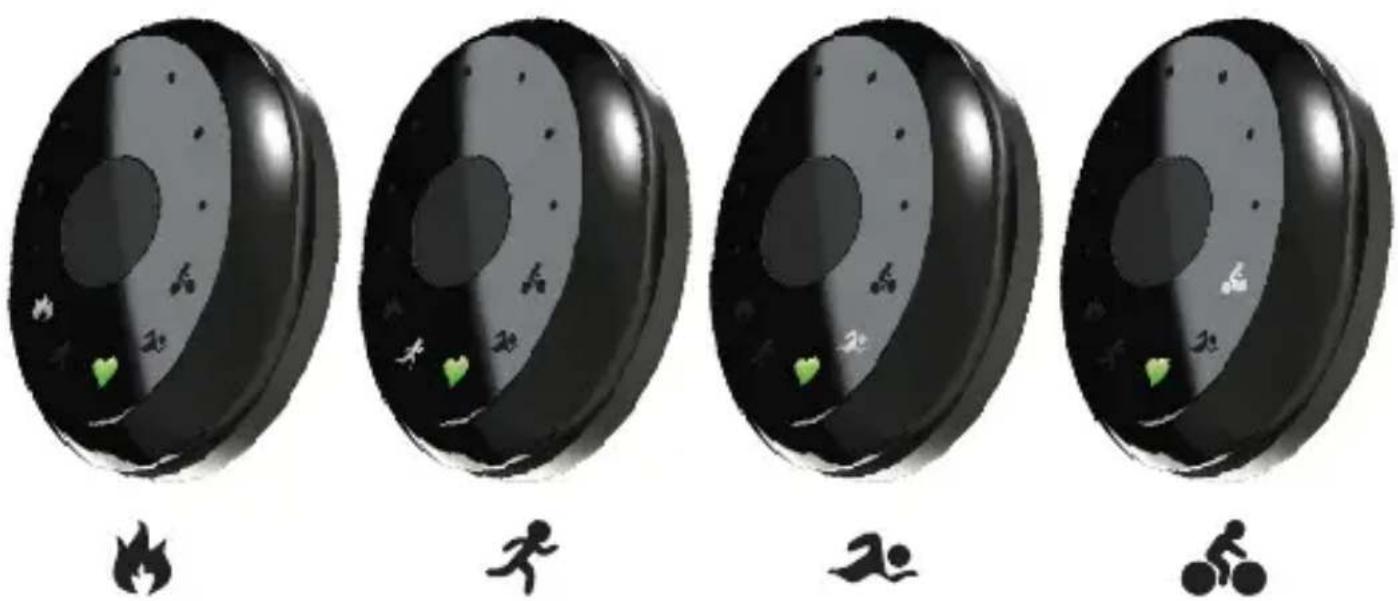
As soon as you Start Recording a Workout, Double Press the Button to toggle through the activity types until your workout type is selected.
NOTE: Once you have stopped & recorded your work-out, you will NOT be able to change the workout type setting in the app or on your Zoom. It must be selected prior to or during your workout.
The type of activity being recorded is indicated by the icon flashing in the Zoom display.
Double-Press the button to toggle:
START RECORDING A WORKOUT
- Press & Hold the button on your Zoom for 3 seconds.
- To let you know that your workout has started and is recording, a ♥ GREEN HEART + ACTIVITY TYPE ICON* will flash in the display on your Zoom.
SELECT YOUR WORKOUT TYPE
- Double-Press the button on your Zoom to toggle to your desired workout type (see opposite page).
HINT: If you decide that you want to view your workout stats on your phone at some point during your workout, simply open your app. You will get an automatic prompt that takes you directly into Workout Mode. Select DISPLAY STATUS ONLY to view your workout info.
STOP RECORDING A WORKOUT
- When you are finished working out, Press & Hold the button on your Zoom for 3 seconds to stop and record your workout.
- The GREEN HEART + ACTIVITY TYPE ICON* will disappear.
VIEW WORKOUT DETAILS
- At your convenience, you can sync your Zoom to the Zoom HRV App and review your Workout Details.
After you have SYNCED your Zoom to your App, your most recent workout will appear in the DASHBOARD.
All other previously recorded workouts can be reviewed under WORKOUT
- Click on this icon ≡
- Go to Workout
- Click on the desired Workout Track and review your detailed workout stats
GESTURES
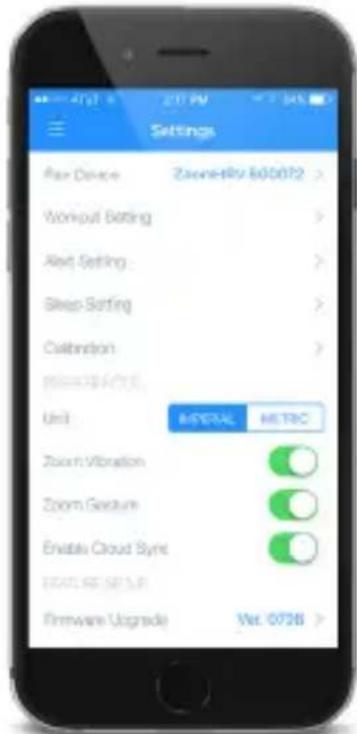
If gestures are active, you can view information by simply rotating your wrist up to look at your Zoom (just like you are looking at a watch)! Gestures can be turned on / off in the app.
Activate Gestures
- Click on this icon
- Go to Settings
- Go to Zoom Gesture
- Click the button to turn ON or OFF
*Hint: A green button indicates the gestures are ON.
Time of Day (Clock) Gesture
From free-living (normal) mode (not workout mode): If gestures are active, you can view the time of day by rotating your wrist up to look at your Zoom.
Heart Rate Zone Gesture
From workout mode only:
When a workout is active, you can view your current HR Zone at any time, by simply rotating your wrist up to look at your Zoom. See page 31 for more info about HR Zone Indicators (LEDs).
Open the Zoom HRV app, then
- Click on this icon
- Go to Goals
- Customize goals for
- Steps · Distance · Calories · Sleep Time
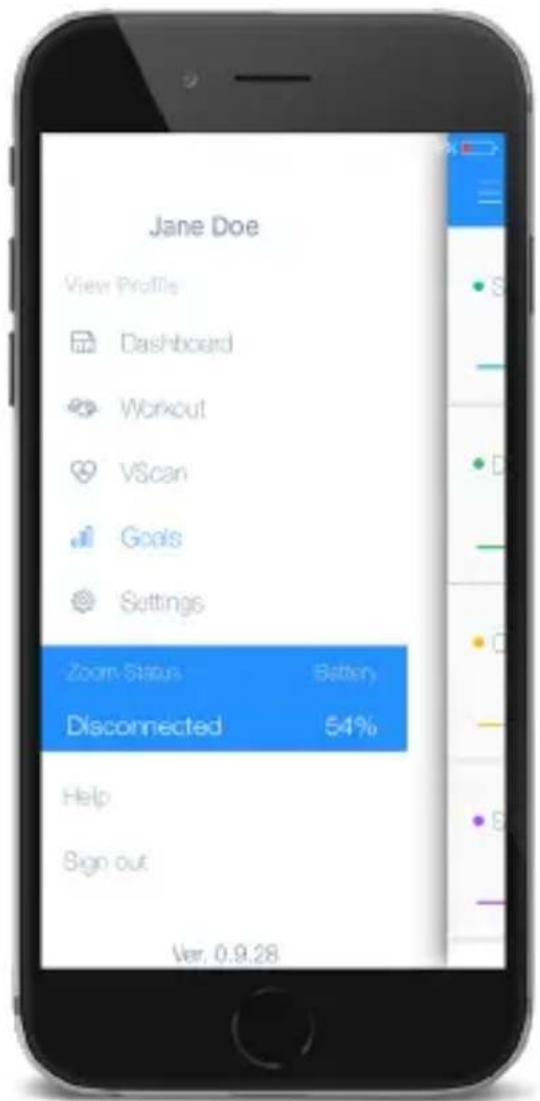
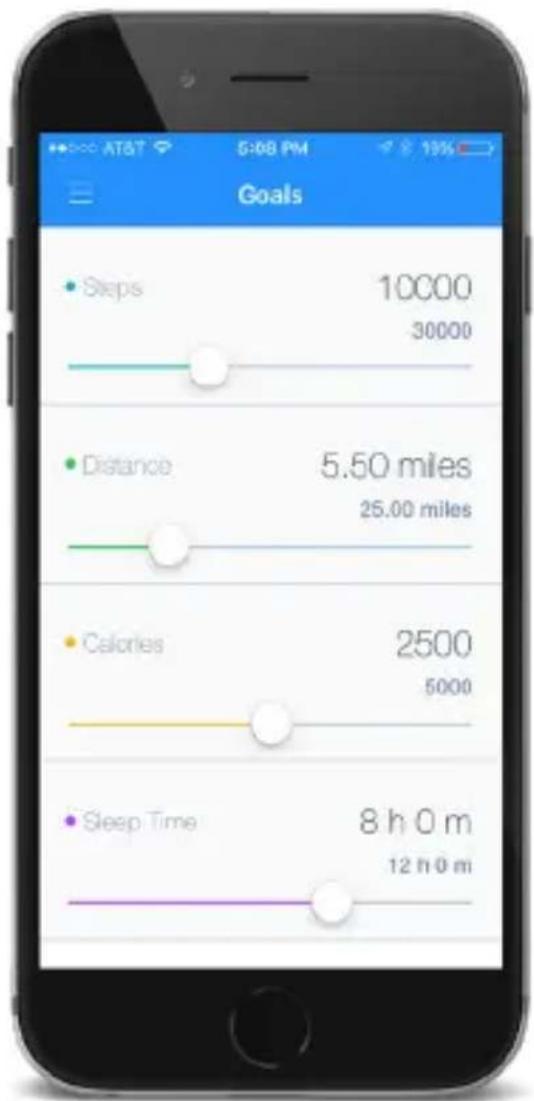
REMEMBER: On your dashboard, your daily activity is expressed as a number AND as a \% towards your daily activity / workout goals, so you can see how close you are to acheiving your daily goals.
CUSTOMIZE YOUR ZOOM : SETTINGS
41
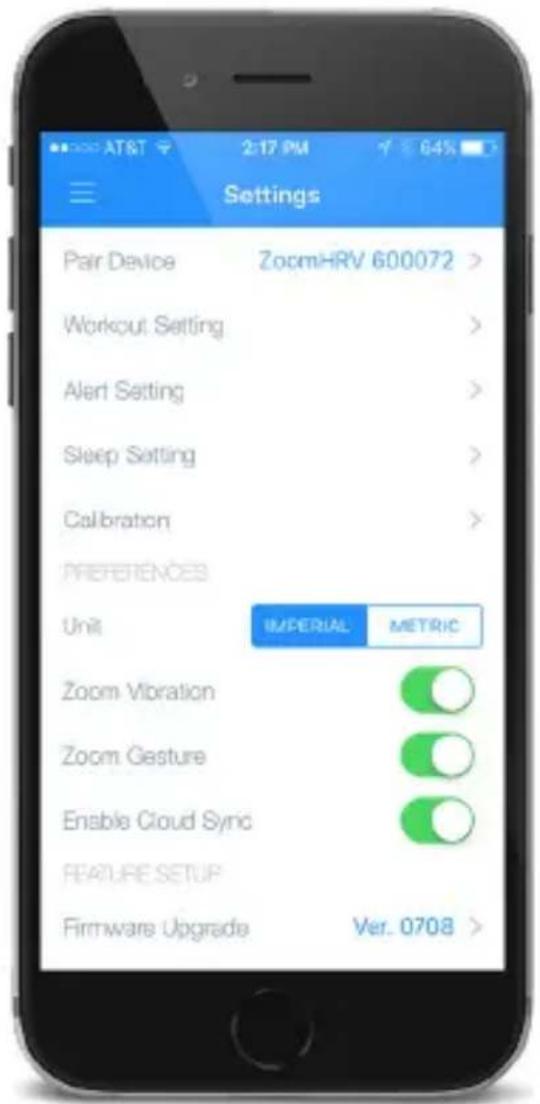
We’ve already walked through some of these settings (see page numbers below), but you will want to finish customizing the remaining settings now. The settings in BLUE have not been discussed, and information for each can be found on the next few pages.
CUSTOMIZE APP & ZOOM SETTINGS
Open the Zoom HRV app, then
- Click on this icon
- Go to Settings
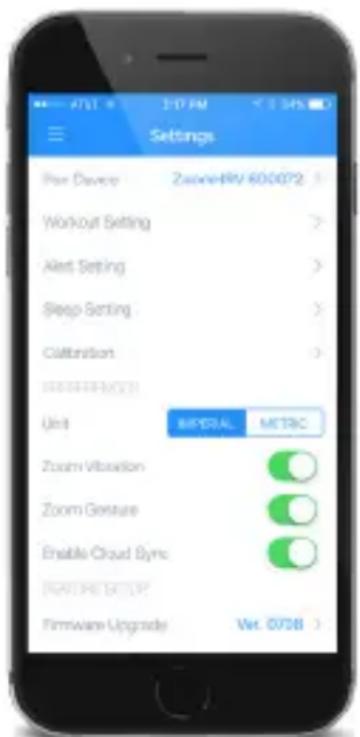
- Review and customize as needed:
• Pair Device (pages 8-9)
• Workout Setting (pages 24-31)
- Alert Setting
- Sleep Setting
- Calibration
- PREFERENCES
- Unit
- Zoom Vibration (page 30)
- Zoom Gesture (page 39)
- Enable Cloud Sync
- FEATURE SETUP
- Firmware Upgrades
NOTE: Once you adjust all of your settings and alerts, be sure to SYNC your Zoom to the app to 'lock in' all of your adjustments.
ALERT SETTING
Zoom is equipped with daily alerts. To receive daily vibration alerts, make sure the Zoom Vibration (see page 30) is active in the app and set the following alarms:
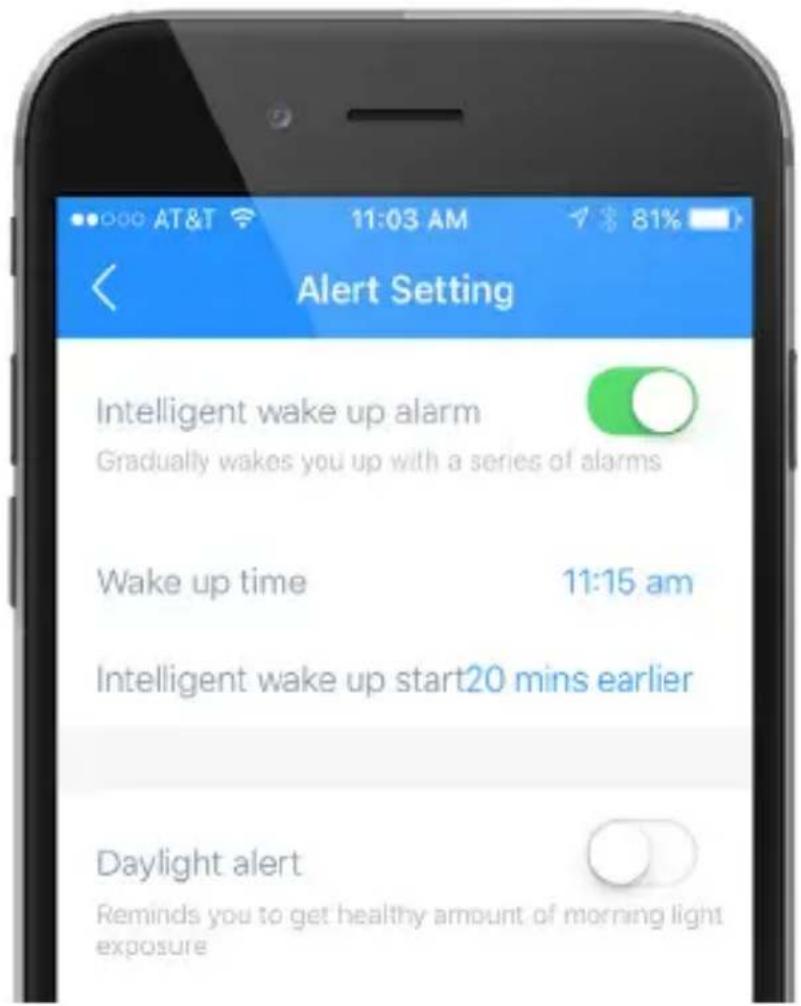
• INTELLIGENT WAKE UP ALARM
Your Zoom features Intelligent Wake-Up with Vibra-Alert. This alarm can be set to wake you at your optimal time.
Set your alarm time. After setting the alarm time, you have the option of setting an Intelligent Wake-Up window (0-59 mins) which will activate prior to the alarm time. During this window, the vibration alarm will activate only if you are no longer in a deep sleep stage.
If you are still in a deep sleep stage during the Intelligent Wake-Up window, the vibration alarm will activate at the set alarm time.
Zoom's daily alarm will give you wake you up with a series of gentle vibrations.
HINT: If you do not press the button when your alarm goes off, you will get another alert in 5 minutes.
CUSTOMIZE YOUR ZOOM : SETTINGS
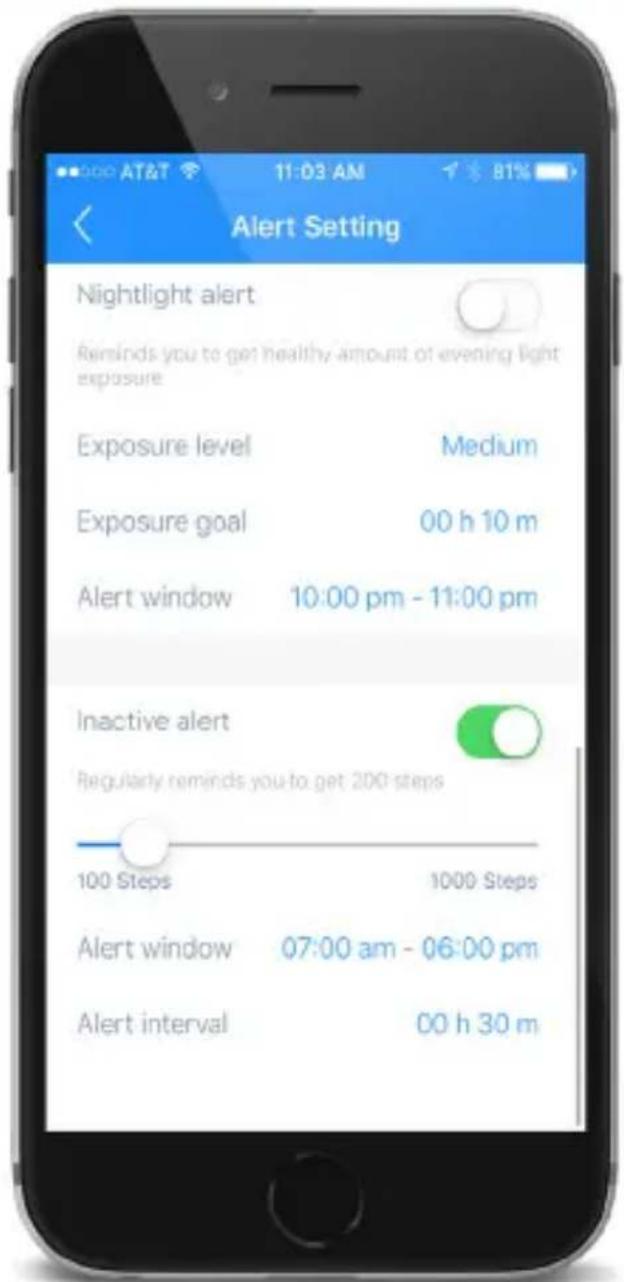
• INACTIVE ALERT
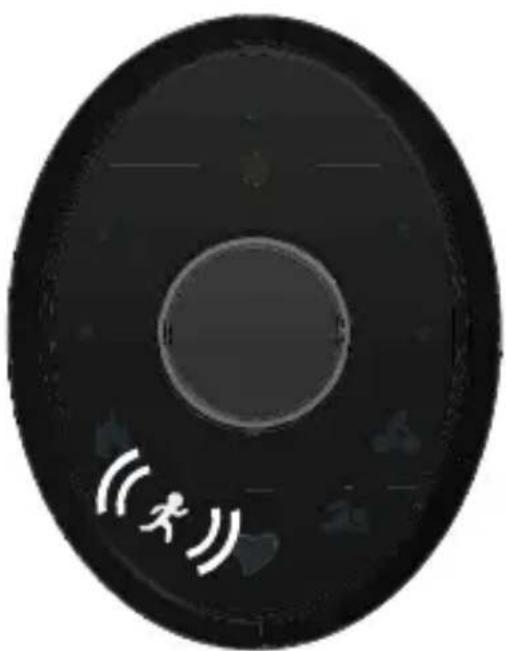
Zoom comes with an inactivity alert, which you can customize, to keep you moving and motivated. Set the step amount, alert window and alert interval. Your Zoom will vibrate to let you know when you have been inactive for too long during your alert window.
natural_image
Circular black disc with white sound waves and a human figure icon, no text or symbols presentZoom's inactivity alert will give you 2 quick vibrations and the runningicon will flash in your display.
CUSTOMIZE YOUR ZOOM : SETTINGS
44
LIGHT TRACKING
Zoom tracks your ambient and blue light exposure throughout your day. Light is essential to your internal clock, also known as circadian rhythm. Getting the correct amount of light at the right time of day can have a great impact on aspects of your health, including mood, energy and sleep.
Use the Zoom HRV app to view your light exposure data over time and compare to your activity and sleep.
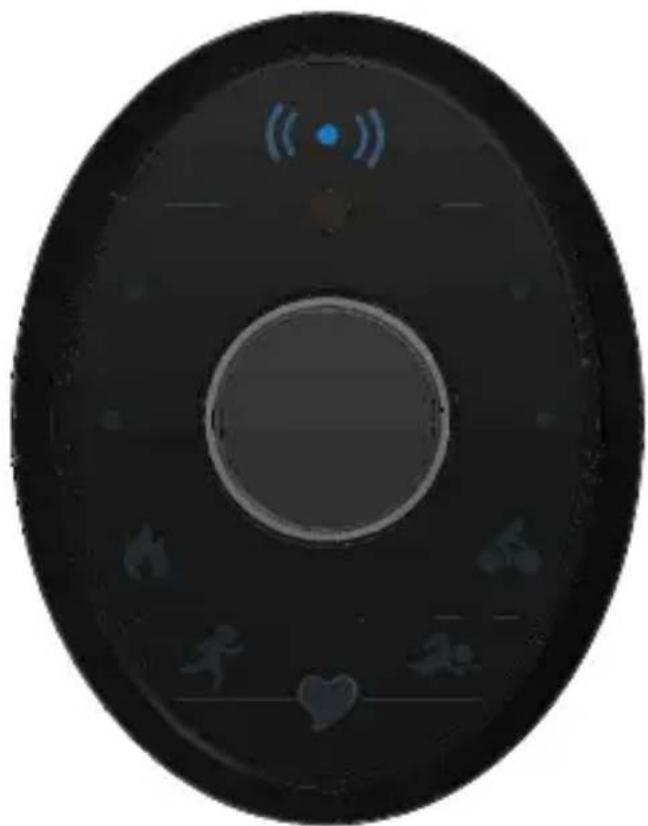
Zoom's LIGHT TRACKING alert will give you 2 quick vibrations and the 12H LED will flash BLUE in your Zoom display.
natural_image
Circular device with circular lens and control buttons, no visible text or symbolsCUSTOMIZE YOUR ZOOM : SETTINGS
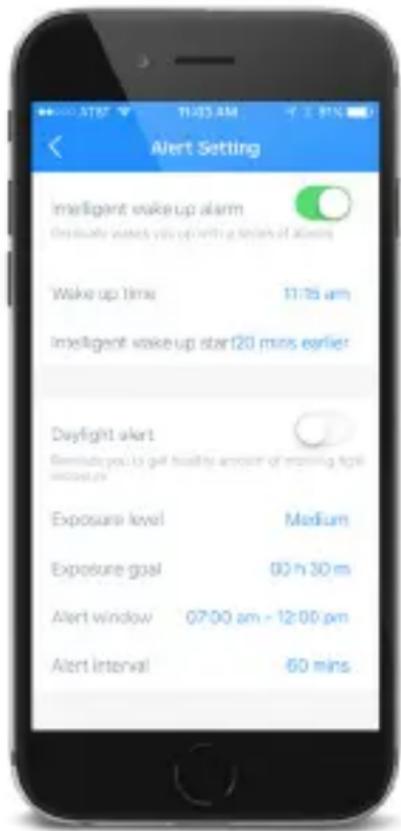
• DAYLIGHT ALERT
The daylight alert lets you know if you need to get more light in the morning (7 am - 12 pm). The suggested default is to get around 30 minutes of medium exposure in the morning.
You can change it to low or high exposure for a shorter or longer period of time based on your needs.
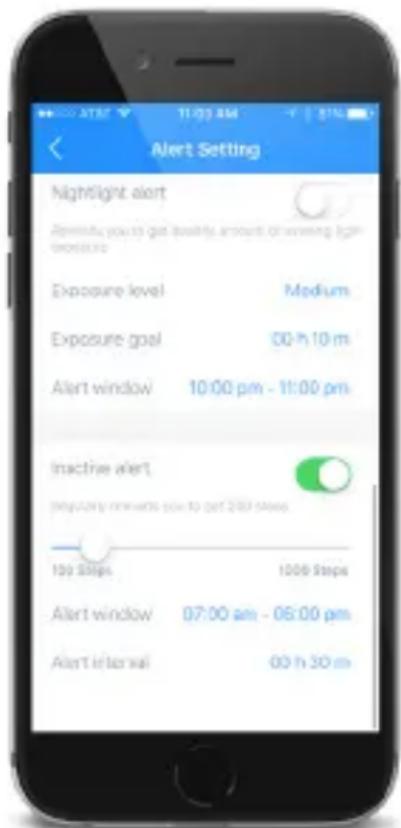
• NIGHTLIGHT ALERT
The nightlight alert lets you know if you need to get less light before bedtime (10pm - 11 pm is default). The suggested default is to get less than 30 minutes of medium exposure before bedtime.
You can change it to low or high exposure for a shorter or longer period of time based on your needs.
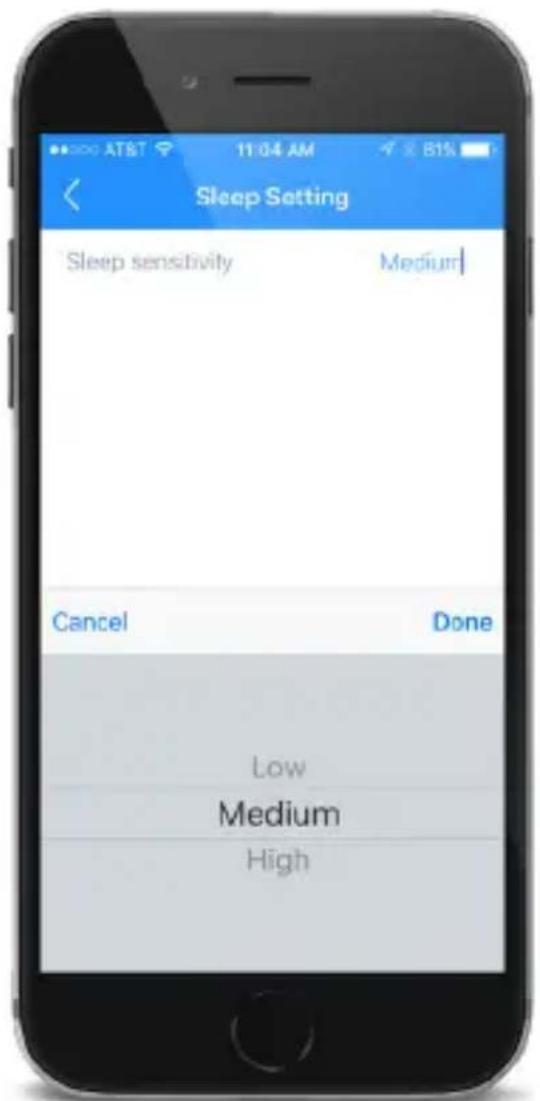
SLEEP SETTING
The Sleep Setting is already programmed with ideal settings for most people, but if your total sleep time is inaccurate, you can adjust the setting to meet your needs.
Medium:
Optimal setting for most people. This is the default setting.
Low:
If your total sleep time recordings are consistently low, select this option.
High:
If your total sleep time recordings are consistently high, select this option.
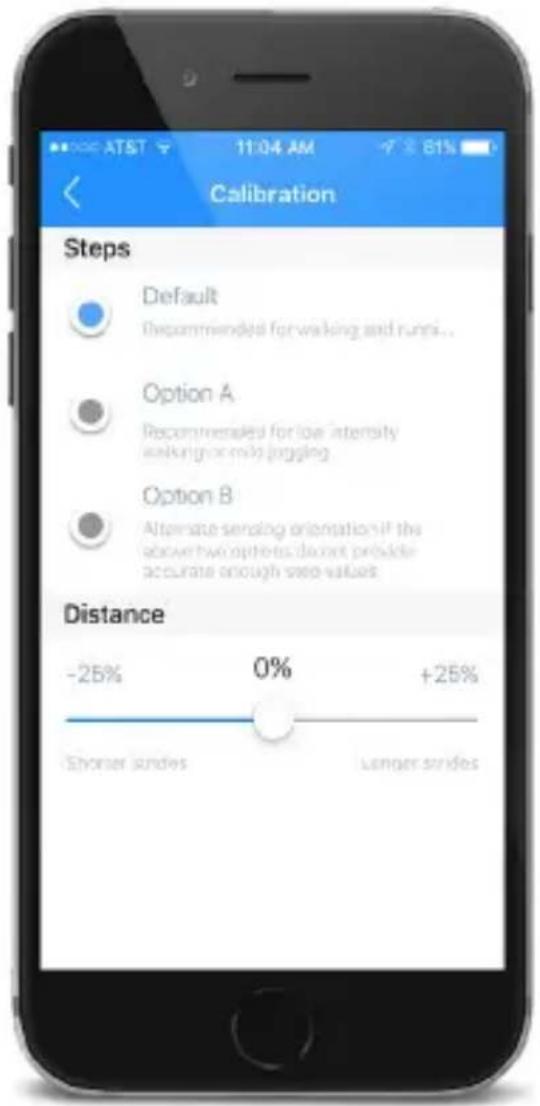
CALIBRATION
The calibrations are already programmed with ideal settings for most people, but if your step counts or your distance totals are inaccurate, you can adjust the calibrations to meet your needs.
• STEPS
Default:
Optimal setting for most people and conditions. This is the recommended setting.
Option A:
For those with low impact movements (person who treads lightly)
Option B:
For those with high impact movements (person who treads heavily)
• DISTANCE
The distance calibration range is from -25% to +25%. Adjust as needed.
UNIT
Tap Imperial or Metric to set your unit of measure.
ENABLE CLOUD SYNC
If cloud sync is enabled, your Zoom data will be saved to the cloud every time you sync your Zoom data to your smartphone.
If you turn off cloud sync, the data will ONLY be saved to the app on your smartphone and there will be no data backed up in the cloud.
This means that if you switch or lose your phone, we will not be able to help you retrieve lost data (as it will not be backed up in the cloud), so we highly suggest that you Enable Cloud Sync.
CUSTOMIZE YOUR ZOOM : SETTINGS
FIRMWARE UPGRADE
From time to time, we will release upgrades for your Zoom HRV. These are much like App Updates and can take anywhere from 5-15 minutes to install. Using Zoom's Over the Air (OTA) syncing process, you will be able to download firmware upgrades to access newly released features and performance enhancements.
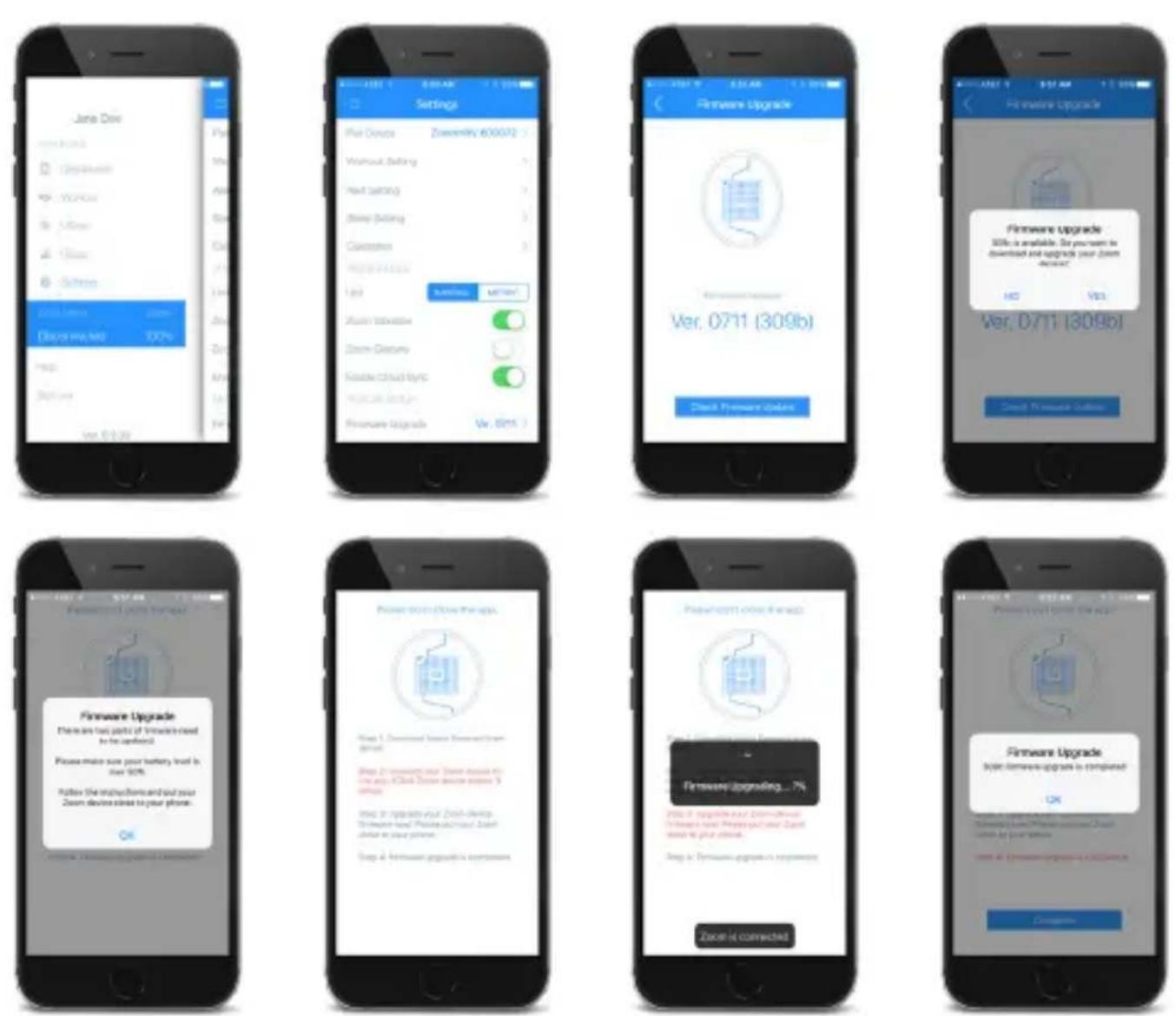
NOTICE: These are illustrations to show you what the app pages will look like. The actual firmware version may vary from what is shown above. This is for visual reference only.
RESET YOUR ZOOM
Before resetting your Zoom, you will need to sync your data to the app. Failure to do so will result in lost data.
Your Zoom data will be reset back to zero and all recorded data will be deleted, but your user info and settings will be saved.
This reset is done while the Zoom is charging.
- With the Zoom on the charging port, insert a small object (such as a paper clip or toothpick) into the RESET PIN HOLE located on the side of the charging port.
RESTORE YOUR ZOOM TO FACTORY SETTINGS
The purpose of this is to wipe all saved data, user info and settings from your Zoom pod.
This reset is done while the Zoom is charging.
- With the Zoom on the charging port, press the Zoom button 8x in a row (rapidly).
After restoring your Zoom to factory defaults, the Zoom will enter Standby Mode (see page 3) and all previously stored data will be deleted.
NEVER expose the device to harmful chemicals or household cleaning solvents. Exposure to insect repellent and sunscreen may also damage the unit.
CLEAN THE BACK OF YOUR ZOOM POD with a soft, damp cloth. Make sure you clean the connectors and the optical sensor thoroughly to ensure good contact for heart rate recordings as well as battery charging. Make sure you allow plenty of time for the pod to dry before wearing or charging the device.
CLEAN YOUR SILICONE BAND with warm water and gentle cleanser (such as Cetaphil), rinse well, and dry with a soft towel.
FCC STATMENT
§ 15.19 Labeling requirements
This device complies with part 15 of the FCC Rules.
Operation is subject to the following two conditions:
(1) This device may not cause harmful interference, and
(2) this device must accept any interference received, including interference that may cause undesired operation.
§ 15.21 Changes or modification warning
Any Changes or modifications not expressly approved by the party responsible for compliance could void the user's authority to operate the equipment.
*RF warning for Portable device:
The device has been evaluated to meet general RF exposure requirement.
The device can be used in portable exposure condition without restriction.
IC STATEMENT
This device complies with Industry Canada licence-exempt RSS standard(s).
Operation is subject to the following two conditions:
(1) This device may not cause interference, and
(2) This device must accept any interference, including interference that may cause undesired operation of the device.
This Class [B] digital apparatus complies with Canadian ICES-003.
- Zoom™
- HRV
- TABLE OF CONTENTS
- Contact Information.... 1
- Zoom Overview 2
- Getting Started
- Charging your Zoom 4
- Wearing your Zoom 6
- Using your Zoom : Press vs Tap.... 7
- Pair your Zoom
- Activity Overview....10
- LED % Legend....11
- Modes of Operation
- Sync Data to App.... 16
- App Dashboard
- Your Personal Fitness Scores
- Workout Mode
- Workout Mode (continued)
- Zoom Settings
- READ BEFORE STARTING
- THIS IS NOT A MEDICAL DEVICE.
- HELLO FROM LIFETRAK!
- Throughout this quick start guide, when you see this symbol, it denotes when LEDs / icons will appear blinking in the display
- STANDBY MODE
- ACTIVATE YOUR ZOOM
- CHARGING DOCK & CABLE
- CHECK THE BATTERY STATUS
- PRESS VS TAP
- PRESS
- PRESS & HOLD
- TAP
- STEP 1
- Install the Zoom HRV App
- STEP 2
- Fill out your profile & log in to the app
- STEP 3
- Pair your Zoom to the app
- ACTIVITY OVERVIEW
- TIME OF DAY
- DAILY ACTIVITY & WORKOUT GOALS
- BATTERY LIFE
- VIEW BATTERY LIFE
- LOW BATTERY ALERT
- EXTREME LOW BATTERY ALERT
- NOTIFICATIONS VIA APP
- SYNC DATA
- DASHBOARD
- DASHBOARD DETAILS
- VIEW DETAILED DASHBOARD ACTIVITY STATS
- What's your SCORE?
- Want to know your HRV now?
- RECORD VSCAN TO ZOOM POD
- RECORD VSCAN TO APP
- VIEW PREVIOUS VSCAN RECORDS
- 23
- To view previous VScan recordings
- SETTING UP WORKOUT MODE
- Customize Workout Settings
- - POOL LENGTH
- • WORKOUT (MEMORY) STORAGE
- LOW STORAGE ALERTS
- - AUTO RESET
- • WORKOUT GOALS
- • SWIMMING LAPS
- • CYCLING CADENCE
- MAX HEART RATE
- Customize Your Max Heart Rate
- HEART RATE ZONE ALERTS
- • HEART RATE ZONE INDICATORS (LED)
- • HEART RATE ZONE ALERTS (VIBRATION)
- MOVE UP
- quick vibrations
- MOVE DOWN
- slow vibrations
- Don't want vibration alerts?
- TRACK YOUR WORKOUTS
- RECORDING A WORKOUT
- OPTION 1
- RECORD A WORKOUT ON YOUR SMART DEVICE
- VIA APP
- Open the Zoom HRV App
- Select your Workout Type
- WORKOUT SNAPSHOT
- WORKOUT DETAIL
- OPTION 2
- Double-Press the button to toggle:
- START RECORDING A WORKOUT
- STOP RECORDING A WORKOUT
- VIEW WORKOUT DETAILS
- GESTURES
- Activate Gestures
- Time of Day (Clock) Gesture
- Heart Rate Zone Gesture
- From workout mode only:
- CUSTOMIZE YOUR ZOOM : SETTINGS
- 41
- CUSTOMIZE APP & ZOOM SETTINGS
- ALERT SETTING
- • INTELLIGENT WAKE UP ALARM
- • INACTIVE ALERT
- 44
- LIGHT TRACKING
- • DAYLIGHT ALERT
- • NIGHTLIGHT ALERT
- SLEEP SETTING
- Medium:
- Low:
- High:
- CALIBRATION
- • STEPS
- Default:
- Option A:
- Option B:
- • DISTANCE
- UNIT
- ENABLE CLOUD SYNC
- FIRMWARE UPGRADE
- RESET YOUR ZOOM
- RESTORE YOUR ZOOM TO FACTORY SETTINGS
- FCC STATMENT
- § 15.19 Labeling requirements
- § 15.21 Changes or modification warning
- IC STATEMENT
Brand : LifeTrak
Model : Zoom HRV
Category : Smartwatch