Zone R420 - Smartwatch LifeTrak - Free user manual and instructions
Find the device manual for free Zone R420 LifeTrak in PDF.


| Brand | LifeTrak |
| Model | Zone R420 |
| Product Type | Smartwatch / Fitness Tracker |
| Display | Digital LCD with backlight |
| Water Resistance | 30 meters (not waterproof; do not press buttons underwater) |
| Buttons | MODE, VIEW, START/STOP |
| Heart Rate Measurement | Finger touch (ECG) and BLE chest belt (sold separately) |
| Activity Tracking | Steps, distance, calories, sleep |
| Workout Recording | Up to 10 sessions stored |
| Sleep Tracking | Automatic or manual (minimum 45 minutes) |
| Battery | Rechargeable (type not specified) |
| Connectivity | Bluetooth for sync with LifeTrak app |
| Compatibility | iOS and Android smartphones/tablets |
| App | LifeTrak (free) |
| Memory | Stores up to 10 workout sessions |
| Goals Settings | Steps, distance, calories, sleep |
| Time Format | 12/24 hour selectable |
| Unit Format | Metric/Imperial selectable |
| Backlight | Activated by double-clicking VIEW |
| Step Calibration | Default, Option A (low impact), Option B (high impact) |
| Distance Calibration | Adjustable from -25% to +25% |
| Customer Support | Email: support@LifeTrakUSA.com; Website: www.lifetrakusa.com |
| Certifications | FCC Part 15, Industry Canada |
| Safety | Not a medical device; consult physician before exercise; pacemaker caution |
| Cleaning | Mild soap and water; avoid chemicals and insect repellent |
Frequently Asked Questions - Zone R420 LifeTrak
User questions about Zone R420 LifeTrak
0 question about this device. Answer the ones you know or ask your own.
Ask a new question about this device
Download the instructions for your Smartwatch in PDF format for free! Find your manual Zone R420 - LifeTrak and take your electronic device back in hand. On this page are published all the documents necessary for the use of your device. Zone R420 by LifeTrak.
USER MANUAL Zone R420 LifeTrak
LifeTrak®
Quick Start Guide
Zone R420
Activity Type

sleep
distance
calories

steps
Welcome to LifeTrak. Let's take a quick tour of the basic features.
- To turn on your fitness tracker, press and hold any button.
Learn more
- For support, tips, product information and full instructions, please visit: www.lifetrakusa.com/support/help-center/
NOTE: Actual model / screen images may vary from images shown.
NOTE: This is NOT a medical device. Please visit our website to view cautions and warranty information in the full instruction manual.
CUSTOMER SERVICE
If you have questions about your LifeTrak activity tracker, please contact our customer service team support@LifeTrakUSA.com
Website: www.LifeTrakUSA.com
Facebook: www.facebook.com/lifetrak
Twitter & Instagram: mylifetrak
Pinterest: pinterest.com/lifetrak
YouTube: www.youtube.com/lifetrakusa
Copyright © 2015 LifeTrak, Inc. All rights reserved. Duplication or copying of all or part of this manual without the express written consent of LifeTrak, Inc. is prohibited.
TABLE OF CONTENTS
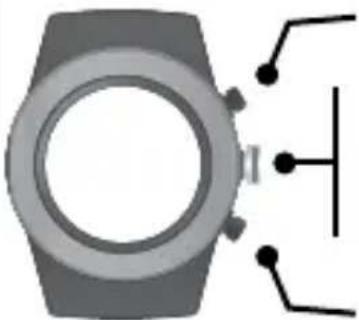
Button Layout....1
Setting Goals.... 2
Setting Time.... 3
Setting User Info.... 4
Sleep Tracker.... 5-6
Modes of Operation : Workout.... 7
Heart Rate Monitor (Two Ways) : Finger Touch vs BLE Chest Belt 8-10
Pair Your Chest Belt.... 11
Set HR Log Rate.... 12
Sessions 13
View Recorded Data.... 14
Storage Remaining 15
Delete Recorded Data.... 16
Modes of Operation : Hourly Display....17-18
Modes of Operation : Weekly Display.... 19
Advanced Settings.... 20-22
Sync Fitness Data / LifeTrak App.... 23-24
Helpful Hints & FCC / IC Cautions 25-28
Warnings & Cautions...... Back Cover
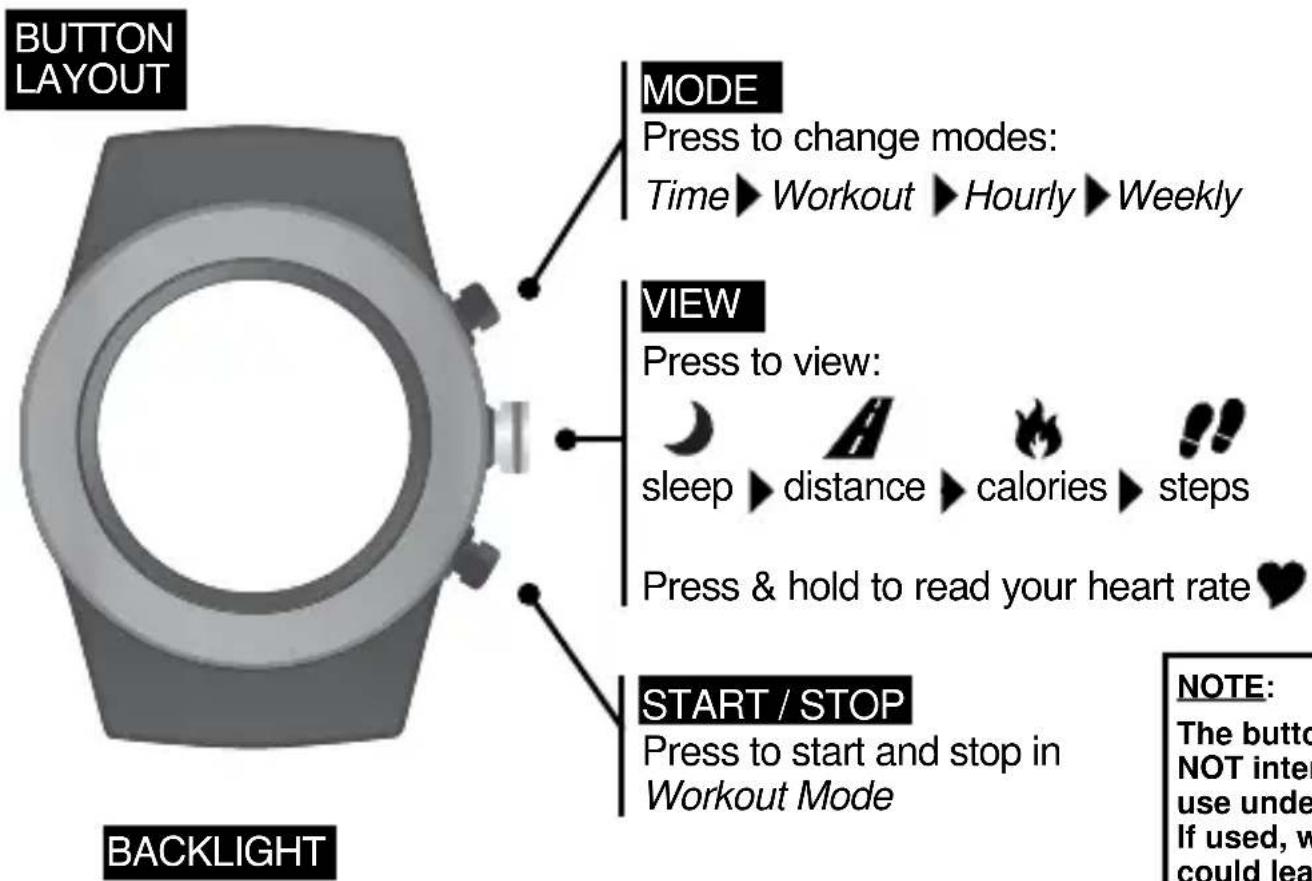
flowchart
graph TD
    A["BUTTON LAYOUT"] --> B["MODE"]
    B --> C["Press to change modes: Time→Workout→Hourly→Weekly"]
    A --> D["VIEW"]
    D --> E["Press to view: sleep→distance→calories→steps"]
    A --> F["START / STOP"]
    F --> G["Press to start and stop in Workout Mode"]
    style A fill:#f9f,stroke:#333
    style B fill:#ccf,stroke:#333
    style D fill:#cfc,stroke:#333
    style F fill:#fcc,stroke:#333
    note right of A
        NOTE:
        The button is NOT inter-use under If used, would lead.
    end
1
To activate the backlight, double-click VIEW
NOTE:
The buttons are NOT intended for use under water. If used, water could leak in and cause damage.
SETTING GOALS
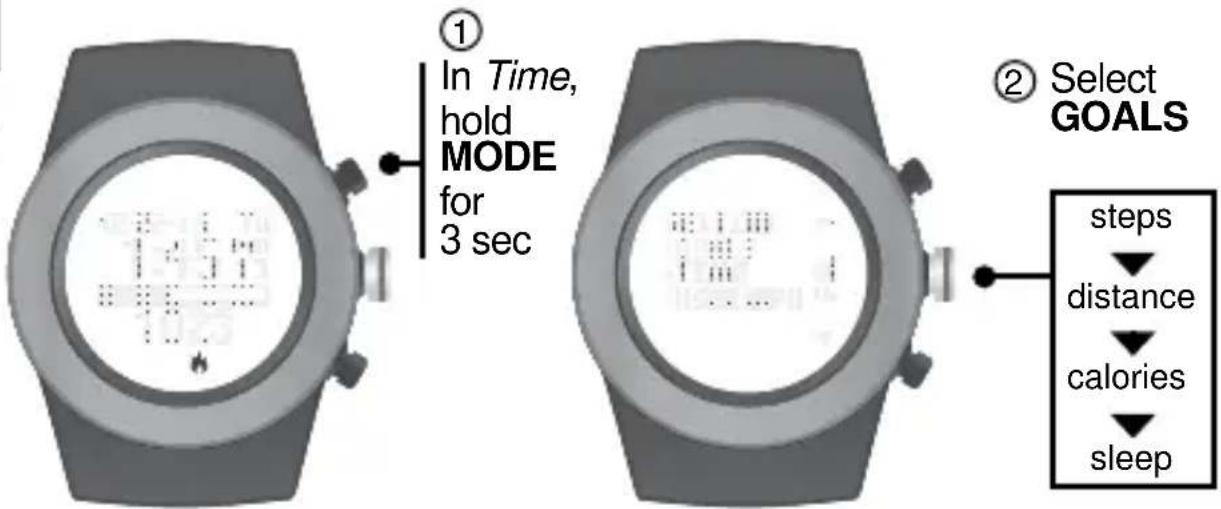
Goals can be adjusted on your fitness tracker or the LifeTrak App (via Settings)
flowchart
graph LR
    A["① In Time, hold MODE for 3 sec"] --> B["② Select GOALS"]
    B --> C["steps"]
    C --> D["distance"]
    C --> E["calories"]
    C --> F["sleep"]
INSIDE SETTING MODE
SETTING TIME
Time Setup can be adjusted on your fitness tracker or the LifeTrak App (via Settings)
natural_image
Close-up of a wristwatch with a digital display showing two people (no visible text or symbols)①
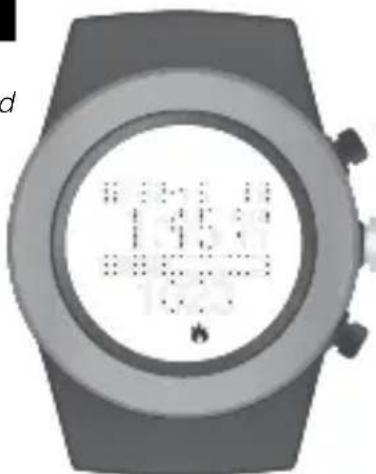
In Time, hold MODE for 3 sec
natural_image
Illustration of a wristwatch with digital display showing musical notes (no text or symbols)②
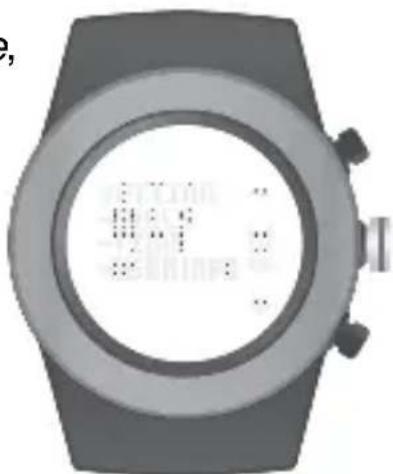
Select TIME
flowchart
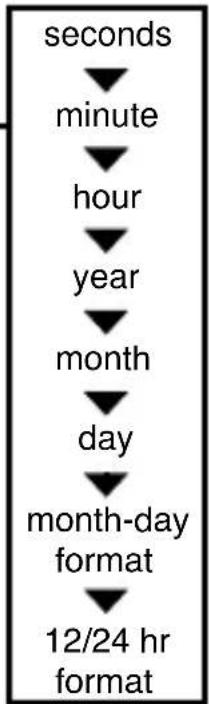
graph TD
    A["seconds"] --> B["minute"]
    B --> C["hour"]
    C --> D["year"]
    D --> E["month"]
    E --> F["day"]
    F --> G["month-day format"]
    G --> H["12/24 hr format"]
INSIDE SETTING MODE
natural_image
Illustration of a smartwatch with a circuit symbol and connector (no text or labels)Increase value
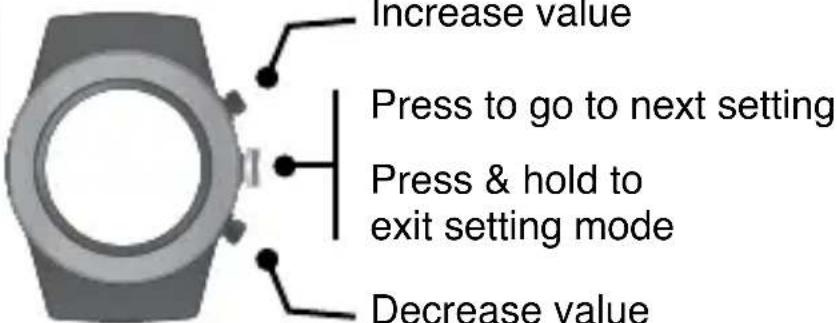
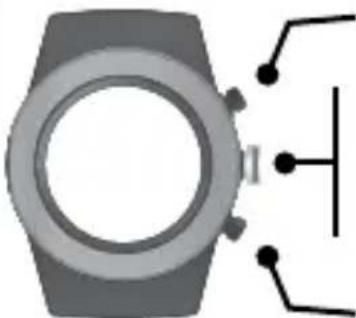
Press to go to next setting
Press & hold to exit setting mode
Decrease value
SETTING USER INFO
User Info can be adjusted on your fitness tracker or the LifeTrak App (via Settings)
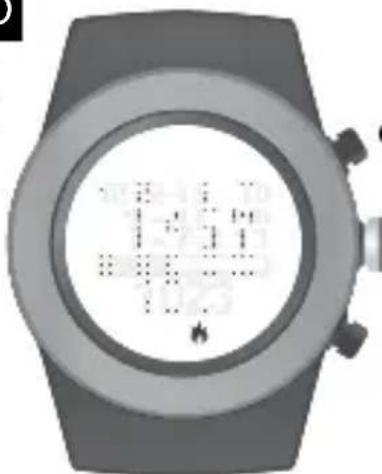
natural_image
Close-up of a modern wristwatch with a digital display showing no readable text or symbols.① In Time, hold MODE for 3 sec
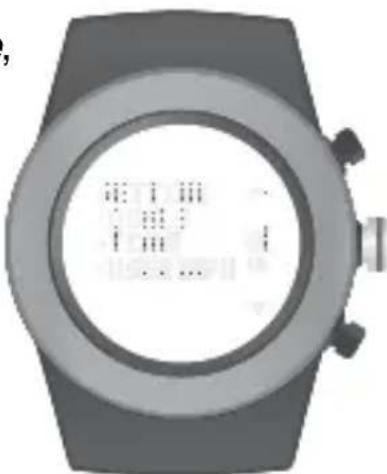
natural_image
Top-down view of a smartwatch with a circular display showing internal data (no readable text or symbols)② Select USER INFO
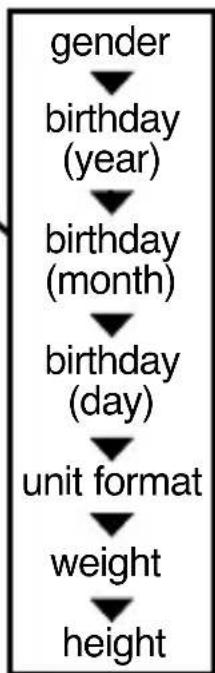
flowchart
graph TD
    A["gender"] --> B["birthday (year)"]
    B --> C["birthday (month)"]
    C --> D["birthday (day)"]
    D --> E["unit format"]
    E --> F["weight"]
    F --> G,height
INSIDE SETTING MODE
natural_image
Illustration of a smartwatch with a close-up of its screen and a schematic symbol on the right (no text or labels)Increase value
Press to go to next setting
Press & hold to exit setting mode
Decrease value
SLEEP TRACKER
The sleep tracker monitors the duration and quality of sleep. It automatically detects the beginning and end of your sleep session.
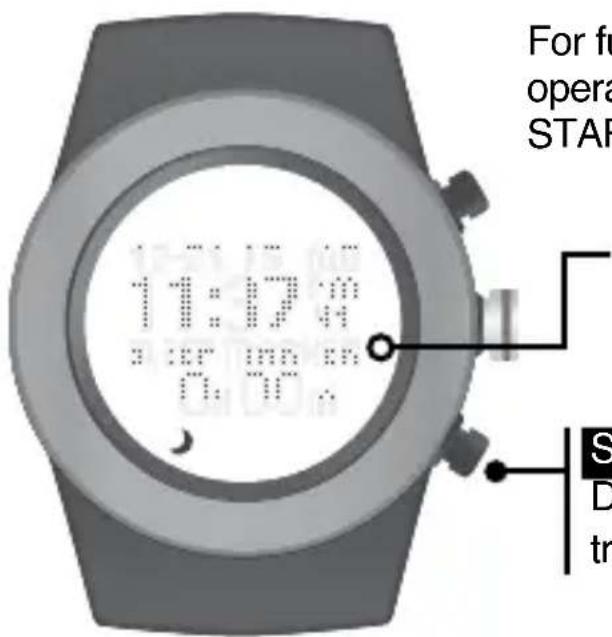
For full control, you can also manually operate the feature by double-clicking START/ STOP while in Time Mode.
Sleep tracker indicator (only in manual sleep mode)
START / STOP
Double-click to manually start / stop the sleep tracker (must be in Time mode)
SLEEP TRACKER
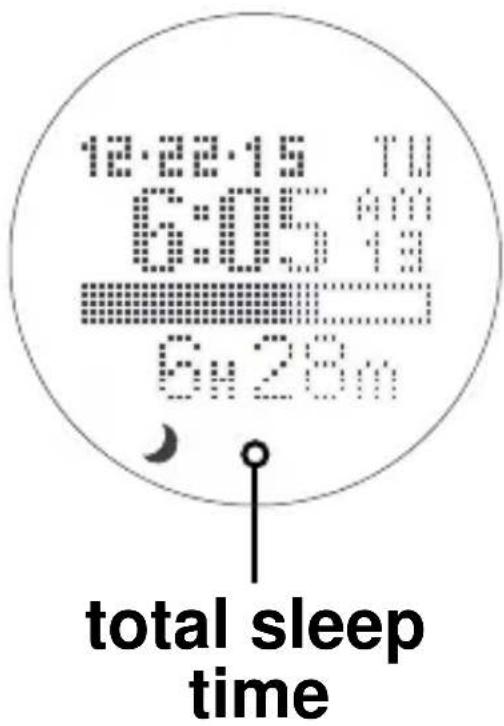
Total sleep time is accumulated during all sleep sessions that end on a particular day. For example, if you fell asleep last night and woke up this morning, your sleep duration will be added to today's total sleep time.
However, if you fell asleep last night at 10:00 p.m. and woke up at 11:00 p.m., that hour of sleep would be added to yesterday's total sleep time.
NOTE: Once you wake up, the total sleep time will update after a brief period.
NOTE: The minimum sleep time for recorded data is 45 minutes.
MODES OF OPERATION : WORKOUT
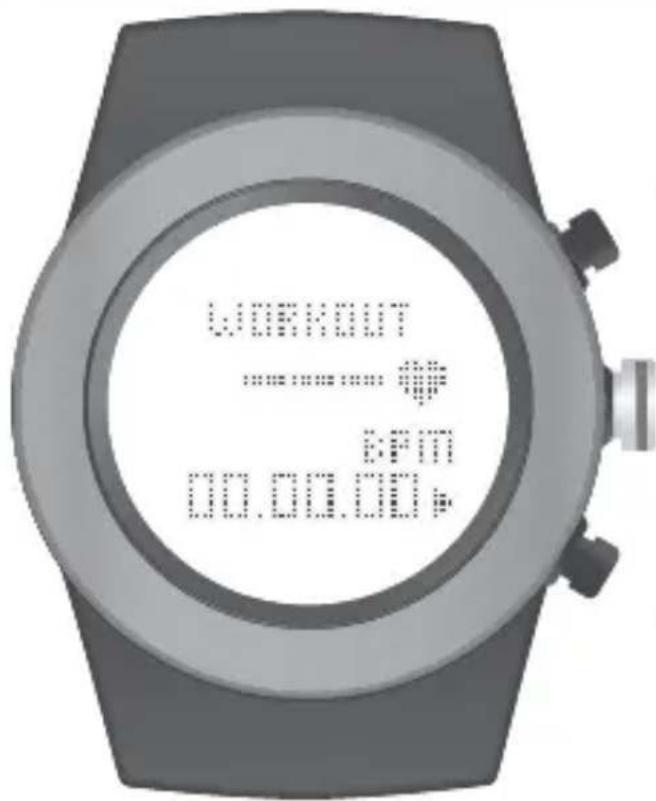
From Time Mode,
press MODE
until you reach
Workout Mode
VIEW
Press to view:
continuous heart rate (via chest belt),
distance, calories, steps
START / STOP
Press to start / stop recording
your workout
Hold to reset and record data
(Workout mode must be stopped)
HEART RATE MONITOR
Your heart is at the center of everything you do – fueling your life and driving your passions. Monitoring your heart rate and using it in activity tracking is the most accurate way to set your fitness goals and help you reach them.
Why measure heart rate?
- Taking your heart rate will help you stay in your workout zones and help calculate your calorie burn more accurately.
MEASURE YOUR HEART RATE TWO WAYS
1. VIA CHEST BELT
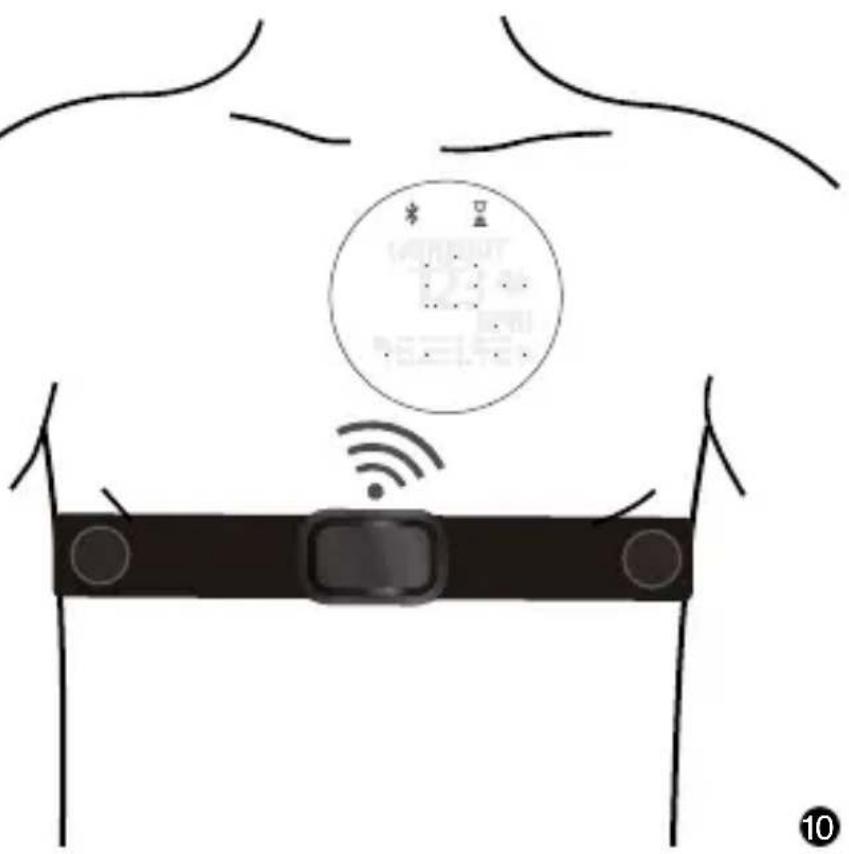
The Zone R420 is BLE chest belt compatible (sold separately). This additional feature lets you record continuous heart rate readings to your watch, so you can capture complete heart rate and calorie burn data during your workout. To help you track your results, you can also sync your cardio data to the LifeTrak app after your workout - so you know if you need to push harder next time.
2. VIA FINGER TOUCH
Don't want to wear a chest belt, but you want a heart rate reading? Get your ECG heart rate reading at the press of a button - no chest strap needed!
- Wear snugly around your wrist.
- Gently press and hold VIEW for 3 to 8 seconds until your heart rate appears.
Heart Rate (beats per minute)
% of Maximum Heart Rate
VIEW
Press & hold to read your heart rate
Pulse Indicator
This feature will NOT be available when you are using your compatible BLE chest belt in Workout Mode.
CONTINUOUS HEART RATE (BLE CHEST BELT)
Place your compatible* Bluetooth® chest belt (chest belt not included) around your rib cage, just below your pectoral muscles.
Adjust the elastic strap so it is tight enough not to move during your workout, but not so tight that it restricts breathing.
For optimal results, let the chest belt 'warm up' for a few minutes before starting your workout.
*Please visit the LifeTrak website www.lifetrakusa.com for a list of compatible BLE heart rate chest belts / transmitters.
PAIR YOUR CHEST BELT
You must be wearing your BLE chest belt to PAIR to your Zone R420
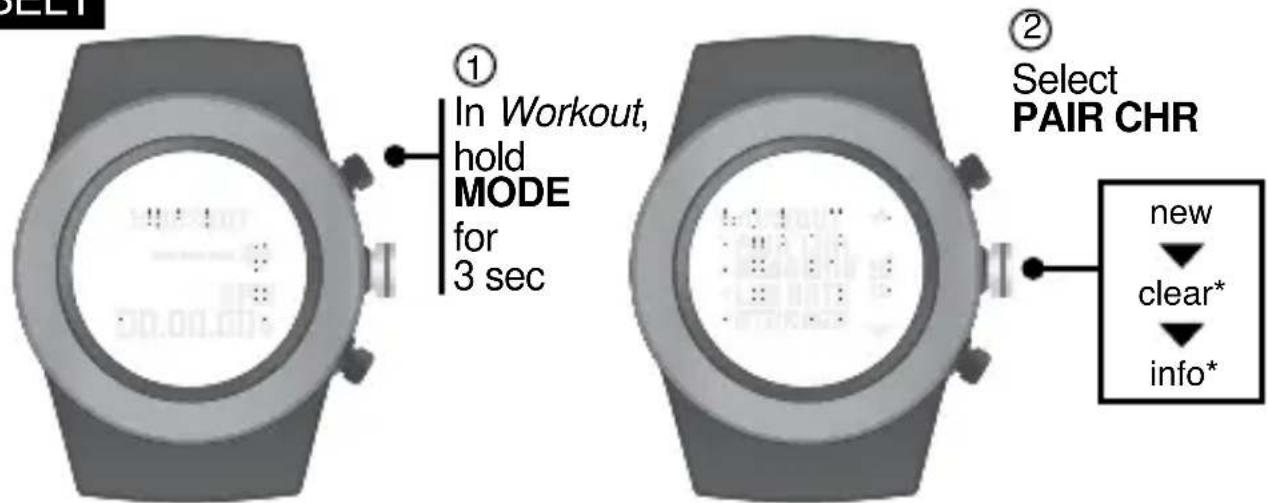
INSIDE SETTING MODE
natural_image
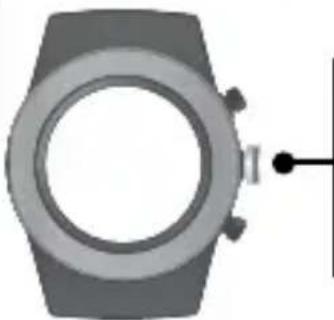
Illustration of a wristwatch with a circular dial and handle (no text or symbols)Press to start the pairing process Press & hold to exit setting mode
* Clear and Info will not appear the first time you PAIR your BLE chest belt. After your BLE chest belt successfully pairs, you can then unpair (clear) or view chest belt (info).
SET HR LOG RATE
This is how often your heart rate readings will be logged. Select 1-5 seconds.
natural_image
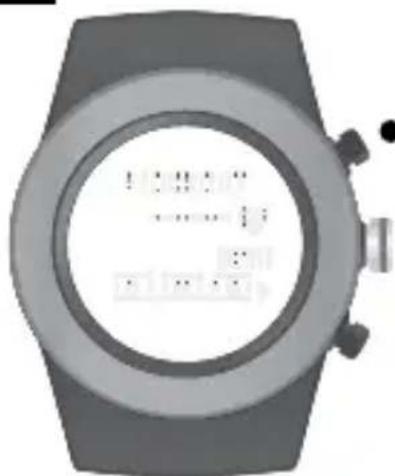
Top-down view of a wristwatch with display screen showing binary code (no readable text or symbols)① In Workout, hold MODE for 3 sec
natural_image
Top-down view of a smartwatch with a circular dial and control buttons (no visible text or symbols)② Select LOG RATE
INSIDE SETTING MODE
natural_image
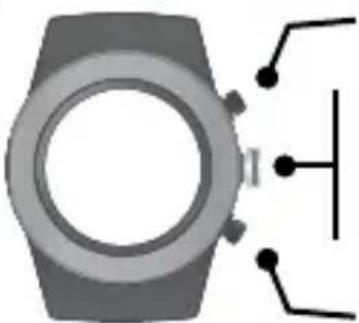
Illustration of a smartwatch with a close-up of its wrist and a schematic symbol on the right (no text or labels)Increase value
Press to go to next setting
Press & hold to exit setting mode
Decrease value
WORKOUT : SESSIONS
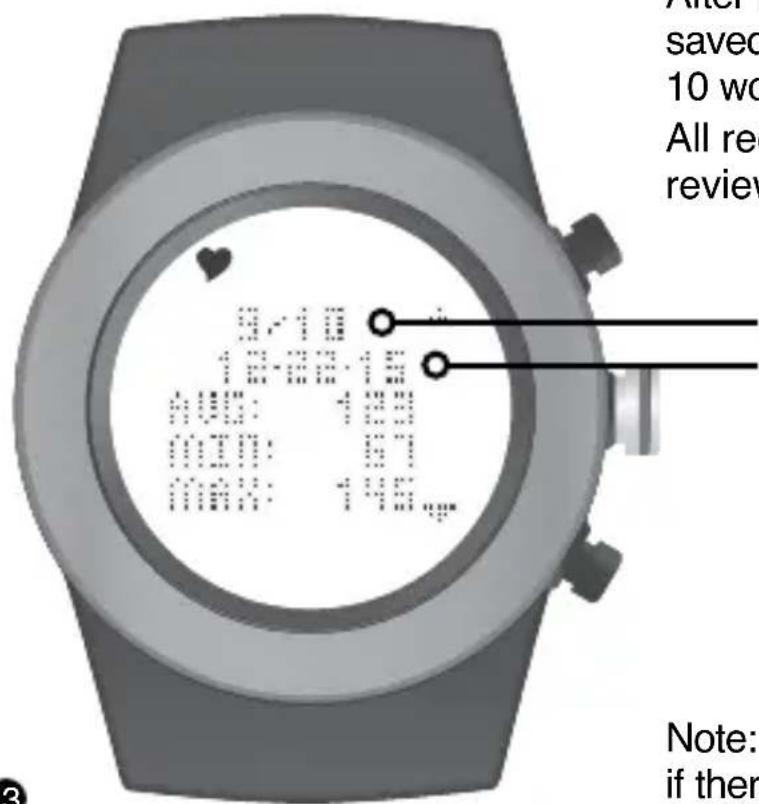
After resetting your workout data, it will be saved automatically. You can view the last 10 workout sessions on your Zone R420.
All recorded sessions will be available for review once uploaded to the app.
Record Number Date Recorded
Note: Workout is automatically stopped if there is no movement for 30 minutes.
WORKOUT : VIEW RECORDED DATA
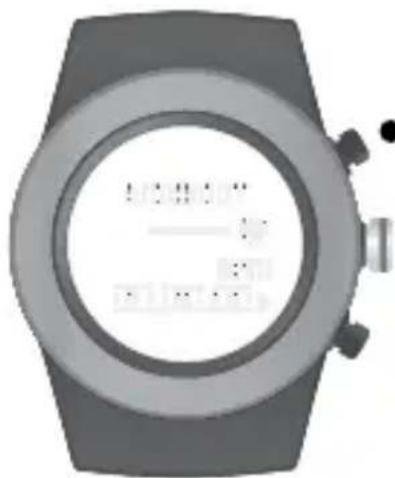
①
In Workout, hold MODE for 3 sec
natural_image
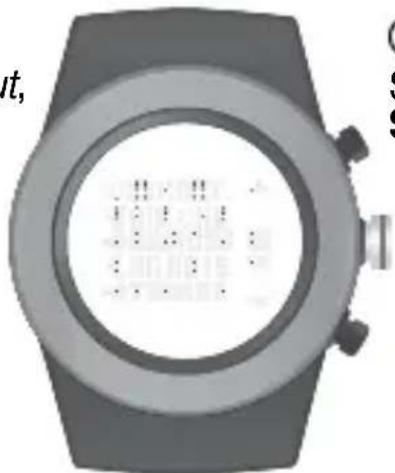
Top-down view of a smartwatch with a circular dial and display screen (no visible text or symbols)②
Select SESSIONS
INSIDE
SETTING
MODE
natural_image
Illustration of a smartwatch with a close-up of its screen and a vertical line, no text or symbols present.Toggle through sessions (1-10)
Press to review workout data: Heart Rate, Exercise Time, Steps, Distance, Calories
Press & hold to exit setting mode Toggle through sessions (1-10)
WORKOUT : STORAGE REMAINING
The R420 can store up to 10 recorded workouts. You can review your remaining workout storage to determine if you need to sync your workouts to the LifeTrak app & delete data from your watch before your next workout.
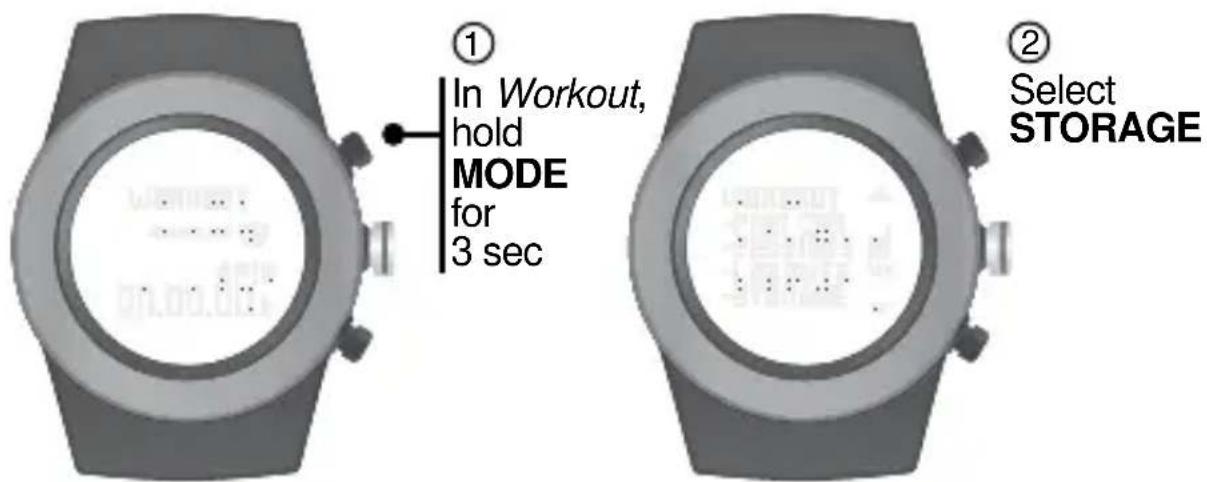
- Your workout will automatically stop if the memory becomes full (during your workout) - If the memory is already full (pre-workout), the workout will not start
WORKOUT : DELETE DATA
①
In Workout, hold MODE for 3 sec
natural_image
Close-up of a modern wristwatch with a circular dial and control buttons (no visible text or symbols)②
Select RESET DB
INSIDE
SETTING
MODE
natural_image
Illustration of a wristwatch with a circular dial and a vertical line extending from it (no text or symbols)Press to delete all recorded workout data.
Only your recorded workout sessions will be deleted from your watch. Your daily and weekly information will NOT be deleted.
MODES OF OPERATION : HOURLY DISPLAY
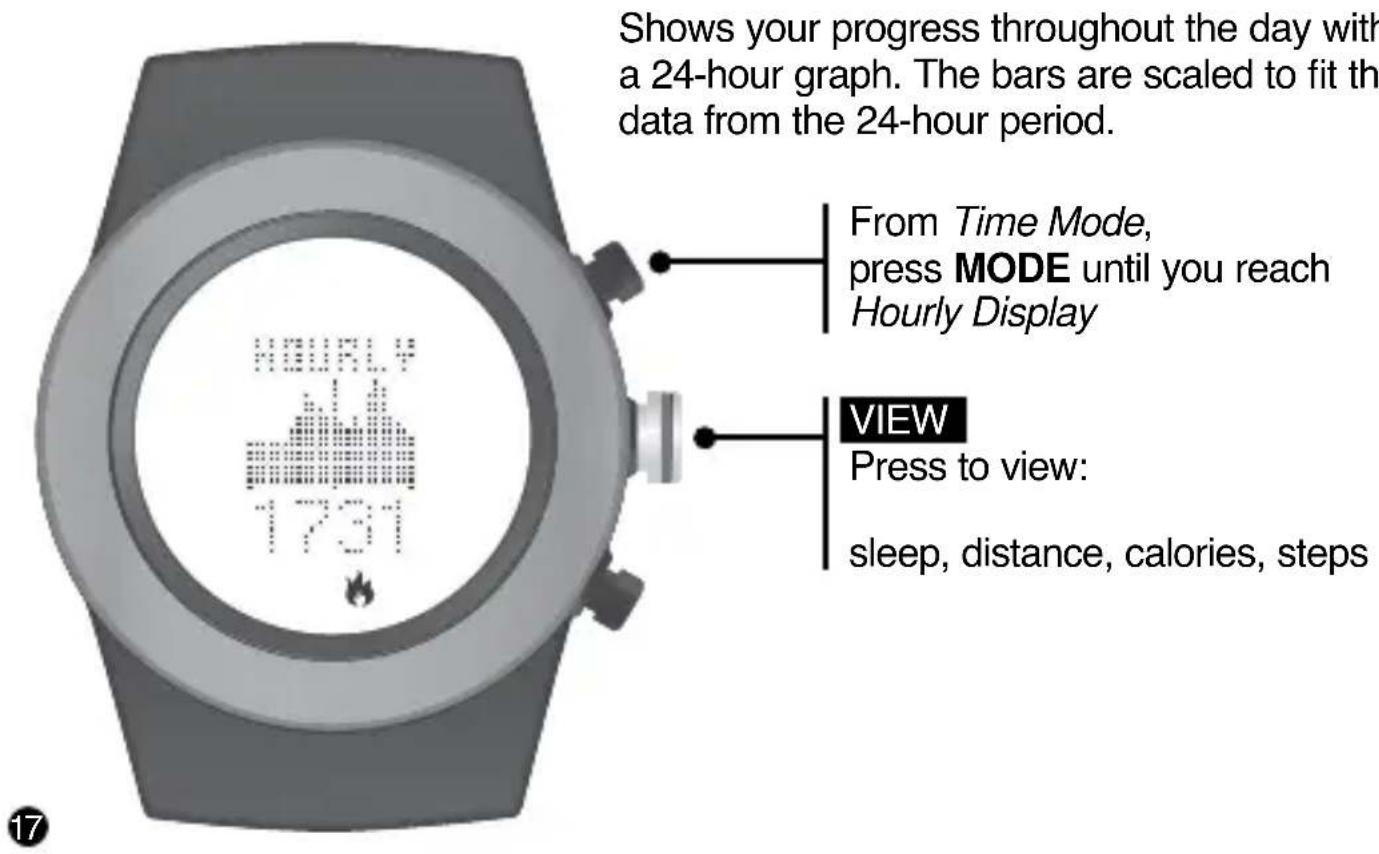
Shows your progress throughout the day with a 24-hour graph. The bars are scaled to fit the data from the 24-hour period.
HOURLY DISPLAY : ACTIGRAPHY
The hourly actigraphy view provides a summary of your sleep and activity levels.
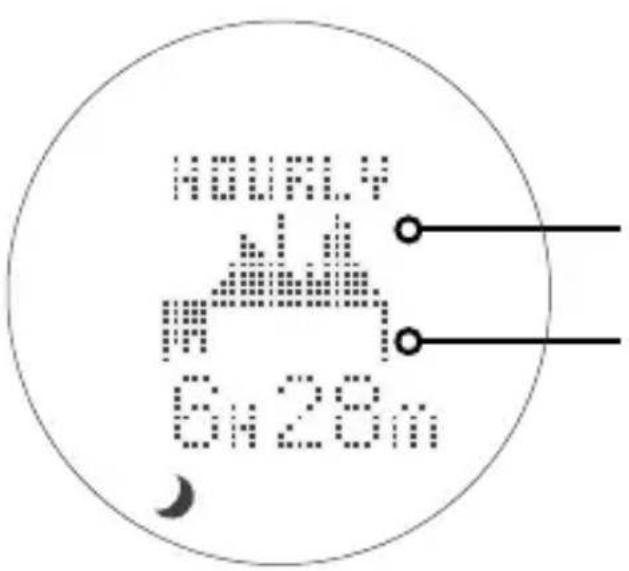
Active: Displays your activity levels while awake. Bars represent three categories: Normal, Active and Very Active.
Active graph
Sleep graph
Sleep: Displays your sleep levels. Bars represent three categories: Light, Medium and Deep Sleep.
MODES OF OPERATION : WEEKLY DISPLAY
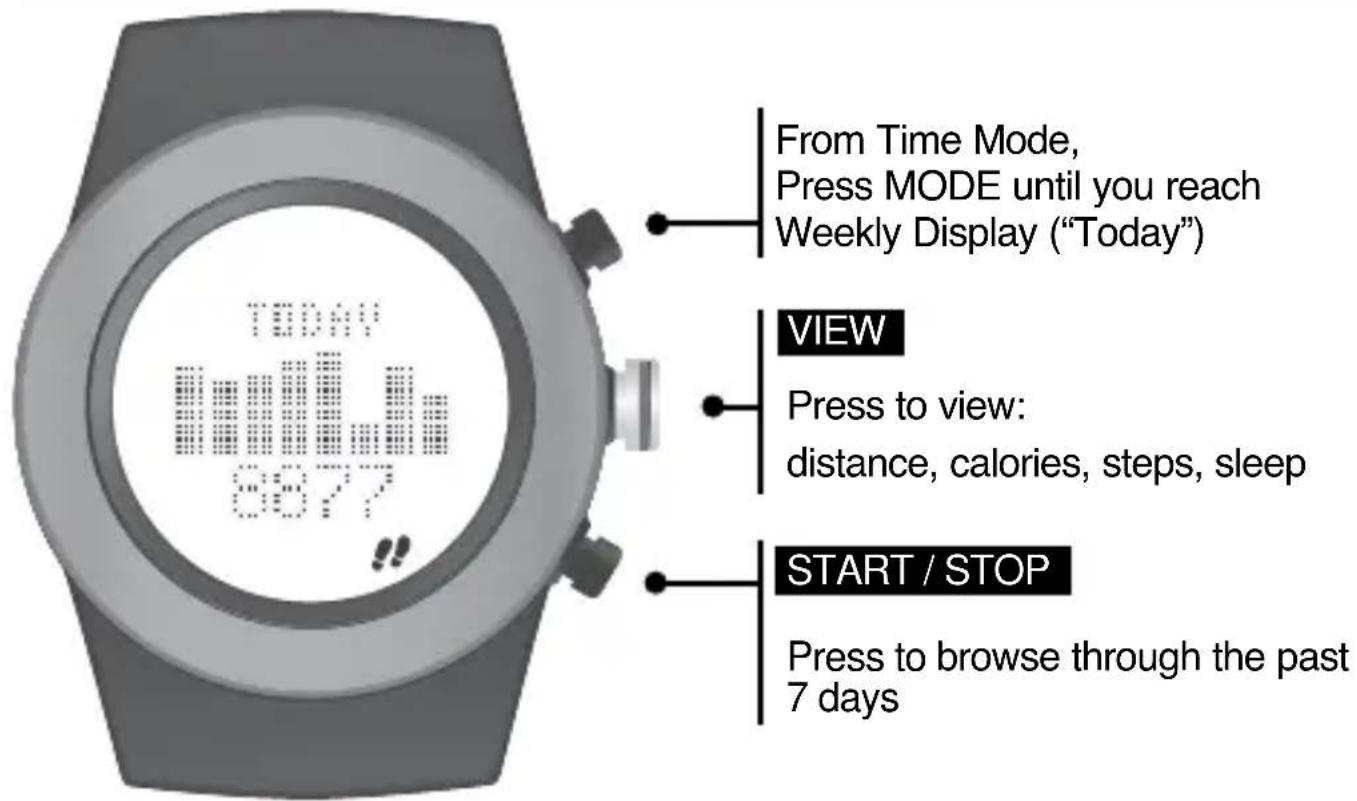
19 NOTE: Use the LifeTrak app to see trends and insights over weeks, months and years.
ADVANCED SETTINGS
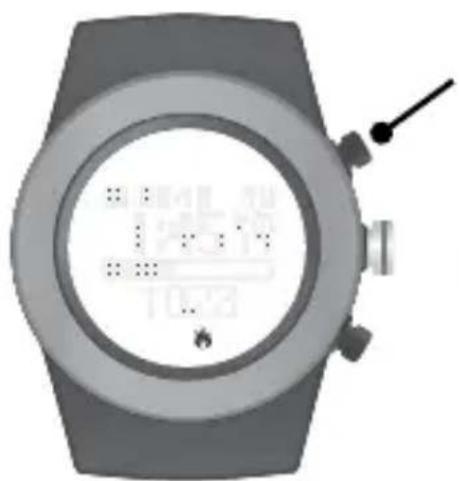
The calibrations are already programmed with ideal settings. But if you must adjust it, there is a setting option you can access.
① In Time Mode, hold MODE for 3 sec
② Press & hold START / STOP for 3 sec. "CALIB" will appear in the display.
③ Scroll down & Select CALIB
natural_image
Close-up of a wristwatch with a circular dial and control buttons, showing no visible text or symbols.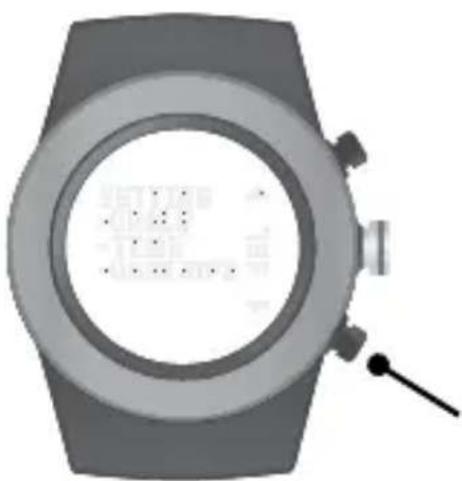
natural_image
Illustration of a smartwatch with a circular dial and control knob (no text or symbols visible)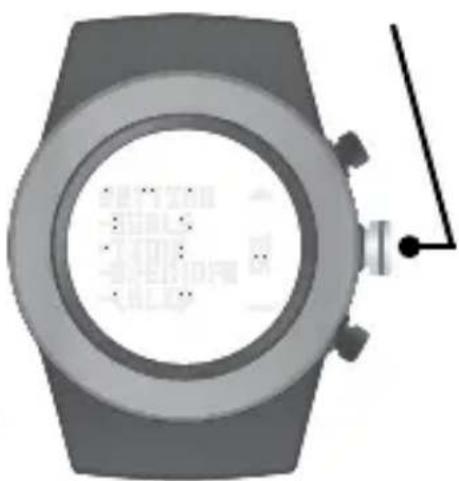
natural_image
Top-down view of a smartwatch with a circular dial and attached cable (no visible text or symbols)ADVANCED : STEP CALIBRATION
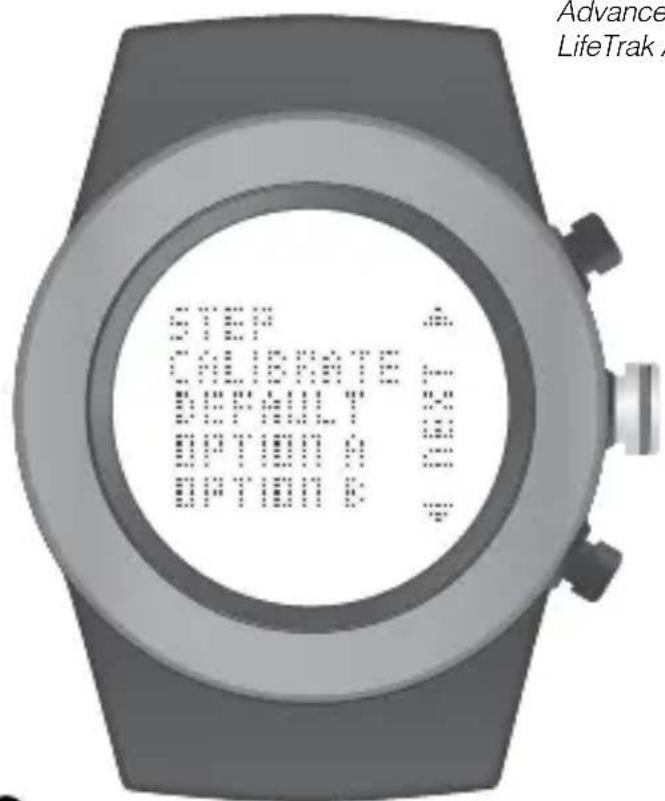
Advanced Settings can be adjusted on your fitness tracker or the LifeTrak App (via Settings)
Default: Optimal setting for most people and conditions. This is the recommended setting.
Option A: For those with low impact movements (e.g., person who treads lightly on their feet).
Option B: For those with high impact movements (e.g., person who treads heavily on their feet).
Advanced Settings can be adjusted on your fitness tracker or the LifeTrak App (via Settings)
After selecting one of the three STEP CALIBRATION options (Default, Option A or Option B), you will also be able to adjust the distance calibration, if desired.
The DISTANCE CALIBRATION range is from -25% to +25%.
Adjust as needed and once complete, press DONE.
SYNC FITNESS DATA
- Make sure Bluetooth is active on your smartphone / tablet.
- Install the LifeTrak App on your compatible smartphone / tablet, then open the app.
- Follow prompts in the LifeTrak App to connect your device
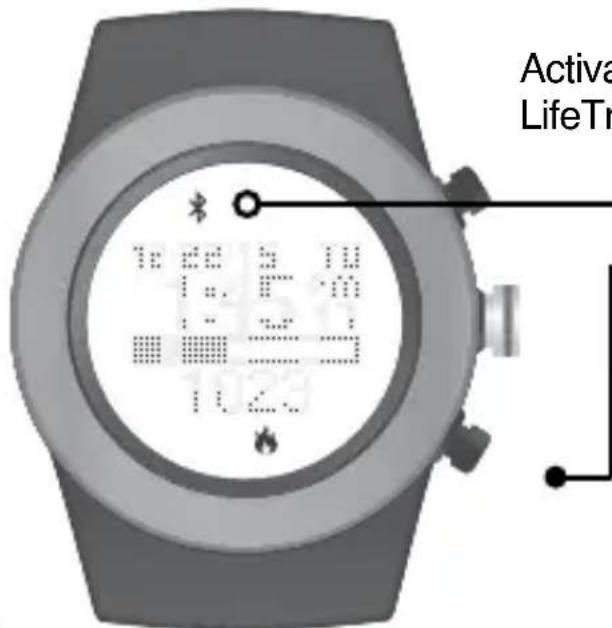
Activate the Bluetooth on your LifeTrak Zone R420:
Bluetooth Indicator
START / STOP
From TIME MODE, PRESS & HOLD to begin pairing. Button can be released once the Bluetooth icon appears in the display.
NOTE: For best results, keep your devices within 7 feet / 2 meters of each other when pairing.
SYNC FITNESS DATA

Indicator Status (activity tracker)
Solid: Bluetooth is on and linking to a device
No icon: Bluetooth is off / not working
You will need to sync your fitness data manually with a simple two-step process each time you wish to transfer the data.
To transfer your fitness data, simply
- Open your app and click on the reload button in the top-right corner.
- Press & Hold START / STOP on your Zone R420 to activate Bluetooth and start the sync process.
Remember: Bluetooth must be active on your LifeTrak Zone R420 and your smartphone / tablet to complete the data transfer (sync).
HELPFUL HINTS ABOUT TOUCH HEART RATE
If you are having difficulty acquiring your heart rate, try the following:
- Make sure your LifeTrak fitness tracker is snugly strapped to your wrist. A loose fit makes it more difficult to properly measure your heart rate.
- Upon putting on for the first time, allow a one-minute "warm up" before trying to acquire your heart rate.
- When touching the heart sensor button (VIEW), make sure you are using the soft, flat pads of your fingers, not the tips of your fingers.
- Touch gently with enough pressure to activate the heart sensor button (VIEW). Pressing too hard can make it difficult to measure your heart rate.
- Make sure the back metal plate is lying flat on your skin.
- Make sure your wrist and fingers are clean and free from dirt, oils, or lotions.
- Clean the heart sensor button (VIEW) and back metal plate with a mild soap and water, or similar cleaning solution.
- Moisten with water the pads of the fingers you are using to contact the heart sensor button (VIEW).
- Moisten the surface between the back metal plate and the skin on your wrist with water.
HELPFUL HINTS ABOUT ALL-DAY CALORIE TRACKING
- Your body is always burning calories, even when sleeping or not in motion. Our All-Day Calorie Tracker accounts for these calories burned.
- You will see calories burned even when you're not wearing your LifeTrak. This is normal as it is estimating the calories your body typically burns throughout the day.
- You get more accurate calorie burn information by calculating in your heart rate readings, so remember to take your heart rate throughout the day and more frequently during your exercise.
FCC CAUTION
§ 15.19 Labelling requirements
This device complies with part 15 of the FCC Rules.
Operation is subject to the following two conditions:
(1) This device may not cause harmful interference, and
(2) this device must accept any interference received, including interference that may cause undesired operation.
§ 15.21 Changes or modification warning
Any Changes or modifications not expressly approved by the party responsible for compliance could void the user's authority to operate the equipment.
*RF warning for Portable device:
The device has been evaluated to meet general RF exposure requirement. The device can be used in portable exposure condition without restriction.
IC CAUTION
This device complies with Industry Canada licence-exempt RSS standard(s). Operation is subject to the following two conditions:
(1) This device may not cause interference, and
(2) This device must accept any interference, including interference that may cause undesired operation of the device.
This Class [B] digital apparatus complies with Canadian ICES-003.
THIS IS NOT A MEDICAL DEVICE.
WARNING: Before starting any exercise program, please visit your doctor for a complete physical and to discuss your exercise plans.
PLEASE READ all of the information in this instruction manual before using the unit. Make sure you fully understand the functions and limitations of this product before using it.
NOTICE TO PEOPLE WEARING PACEMAKERS: While the heart rate monitor is a passive system and should have no direct effect on a pacemaker, we strongly recommend anyone fitted with such a device contact their physician or cardiologist before using this product or starting an exercise program.
NEVER expose the heart rate monitor to chemicals or cleaning solvents. Exposure to insect repellent and sunscreen may also damage the unit.
NOTICE: While the heart rate monitor (watch) is 30M water resistant, IT IS NOT WATERPROOF. Do NOT press buttons under water - this will cause damage.
Visit our website for more helpful tips: www.lifetrakusa.com
LifeTrak · 39962 Cedar Blvd · Ste 285 · Newark, CA 94560 · 1-855-903-9030
- LifeTrak®
- Learn more
- CUSTOMER SERVICE
- TABLE OF CONTENTS
- NOTE:
- SETTING GOALS
- INSIDE SETTING MODE
- SETTING TIME
- Select TIME
- SETTING USER INFO
- SLEEP TRACKER
- START / STOP
- MODES OF OPERATION : WORKOUT
- VIEW
- HEART RATE MONITOR
- Why measure heart rate?
- MEASURE YOUR HEART RATE TWO WAYS
- VIA CHEST BELT
- VIA FINGER TOUCH
- CONTINUOUS HEART RATE (BLE CHEST BELT)
- PAIR YOUR CHEST BELT
- You must be wearing your BLE chest belt to PAIR to your Zone R420
- SET HR LOG RATE
- WORKOUT : SESSIONS
- WORKOUT : VIEW RECORDED DATA
- WORKOUT : STORAGE REMAINING
- WORKOUT : DELETE DATA
- MODES OF OPERATION : HOURLY DISPLAY
- HOURLY DISPLAY : ACTIGRAPHY
- MODES OF OPERATION : WEEKLY DISPLAY
- ADVANCED SETTINGS
- ADVANCED : STEP CALIBRATION
- SYNC FITNESS DATA
- Bluetooth Indicator
- HELPFUL HINTS ABOUT TOUCH HEART RATE
- HELPFUL HINTS ABOUT ALL-DAY CALORIE TRACKING
- FCC CAUTION
- § 15.19 Labelling requirements
- § 15.21 Changes or modification warning
- IC CAUTION
- THIS IS NOT A MEDICAL DEVICE.
Brand : LifeTrak
Model : Zone R420
Category : Smartwatch