Core C210 - Smartwatch LifeTrak - Free user manual and instructions
Find the device manual for free Core C210 LifeTrak in PDF.


| Product Type | Smartwatch / Activity Tracker |
| Brand | LifeTrak |
| Model | Core C210 |
| Category | Wearable Fitness Tracker |
| Display | Digital LCD |
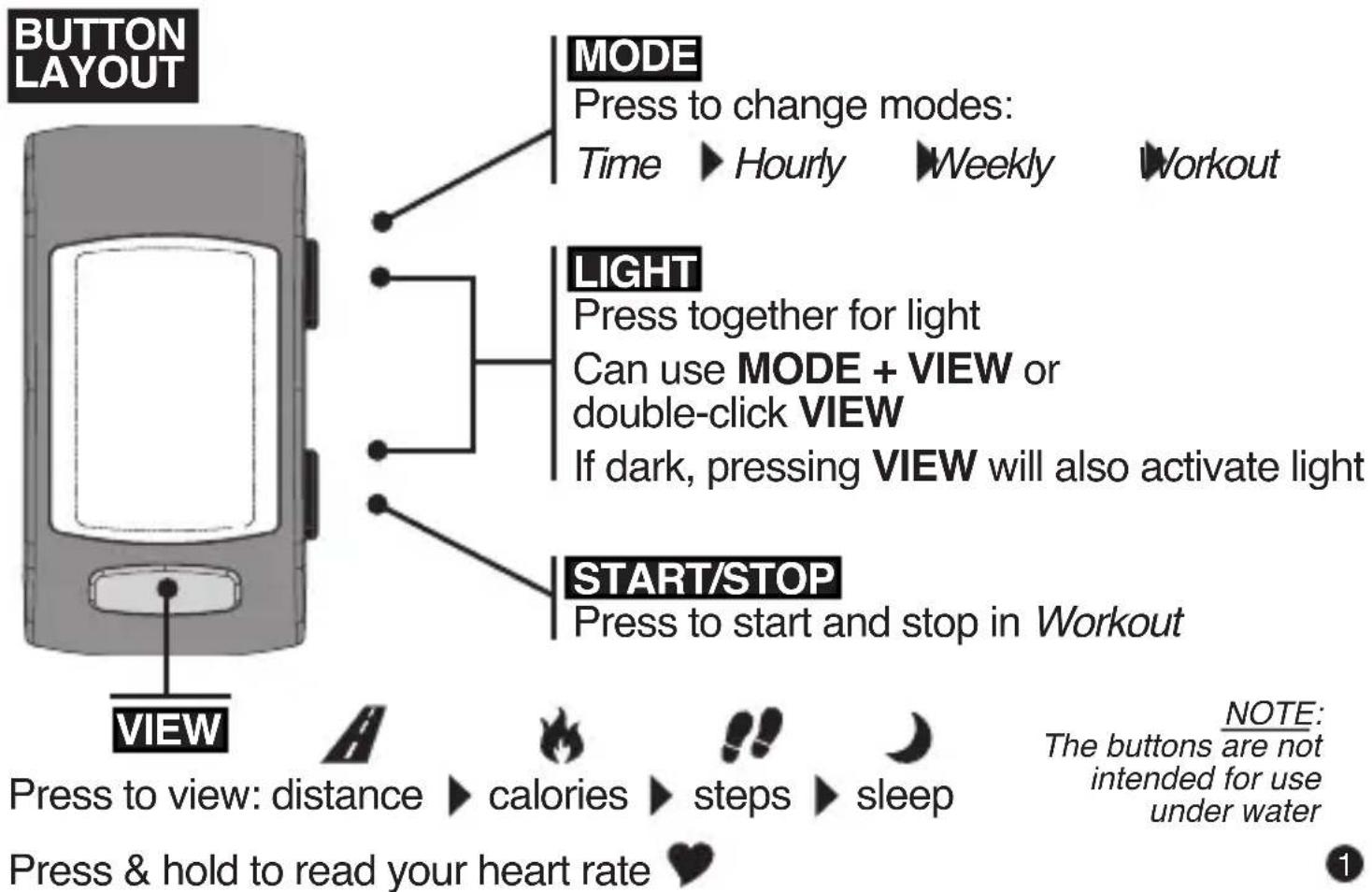
| Buttons | 4 (MODE, LIGHT, START/STOP, VIEW) |
| Modes | Time, Hourly, Weekly, Workout |
| Sensors | Heart rate monitor, Accelerometer |
| Connectivity | Bluetooth |
| Compatibility | iOS, Android (via LifeTrak app) |
| Battery | Rechargeable (type not specified) |
| Battery Life | Up to 5-7 days typical |
| Water Resistance | Splash resistant (not for underwater use) |
| Sleep Tracking | Auto or Manual mode, based on motion and arm posture |
| Heart Rate | On-demand measurement via sensor |
| Activity Tracking | Steps, distance, calories |
| Workout Mode | Records individual workout data |
| Goal Setting | Steps, distance, calories, sleep |
| Time Format | 12/24 hour, date |
| Light | Built-in LED activated by button press |
| Care | Clean with soft, damp cloth |
| Safety | Do not use buttons underwater |
| Spare Parts | Not available |
| Repairability | Not user serviceable |
| General | Visit www.lifetrakusa.com for full user guide |
Frequently Asked Questions - Core C210 LifeTrak
User questions about Core C210 LifeTrak
0 question about this device. Answer the ones you know or ask your own.
Ask a new question about this device
Download the instructions for your Smartwatch in PDF format for free! Find your manual Core C210 - LifeTrak and take your electronic device back in hand. On this page are published all the documents necessary for the use of your device. Core C210 by LifeTrak.
USER MANUAL Core C210 LifeTrak
LifeTrak
Goal Status Bar
Time/Date
Activity type
Activity value
Quick Start Guide
Model: Core C210
Welcome to LifeTrak. Let's take a quick tour of the basic features.
To turn on your activity tracker, press and hold any button.
Learn more
For full instructions, helpful tips and product information, see the LifeTrak User Guide at www.lifetrakusa.com/user-guides.
Email: support@LifeTrakUSA.com
Phone: 1-855-903-9030
Website: www.LifeTrakUSA.com
Mail: LifeTrak 39962 Cedar Blvd, Ste 285 Newark, CA 94560
iTunes® is a registered trademark of Apple Inc. The Bluetooth® word mark and logos are registered trademarks owned by Bluetooth SIG, Inc. and any use of such marks by LifeTrak is under license. Other trademarks and trade names are those of their respective owners.
Copyright © 2014 Salutron, Inc. All rights reserved. Duplication or copying of all or part of this manual without the express written consent of Salutron, Inc. is prohibited.
GOAL
SETUP
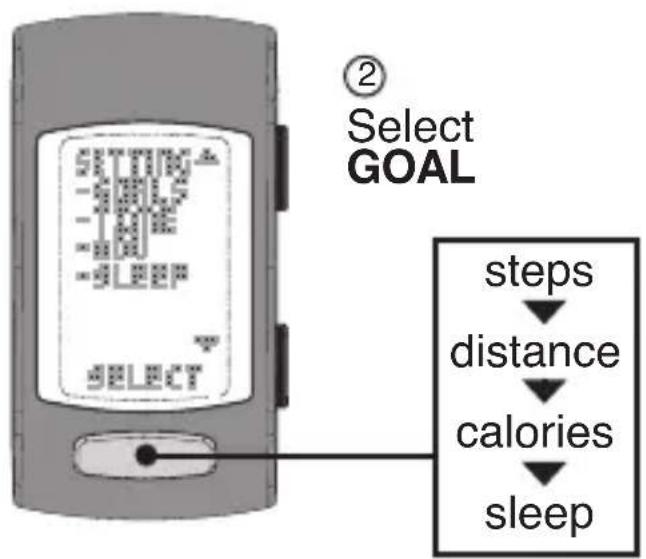
flowchart
graph TD
    A["② Select GOAL"] --> B["steps"]
    B --> C["distance"]
    C --> D["calories"]
    D --> E["sleep"]
INSIDE
SETTING
MODE
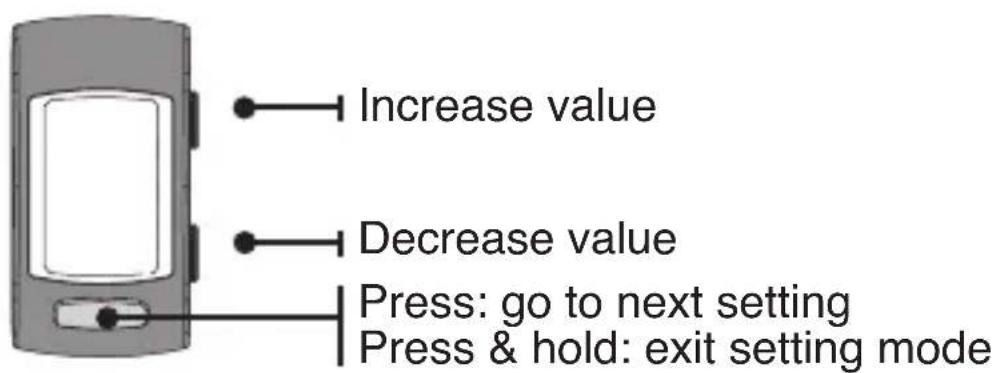
2
TIME
SETUP
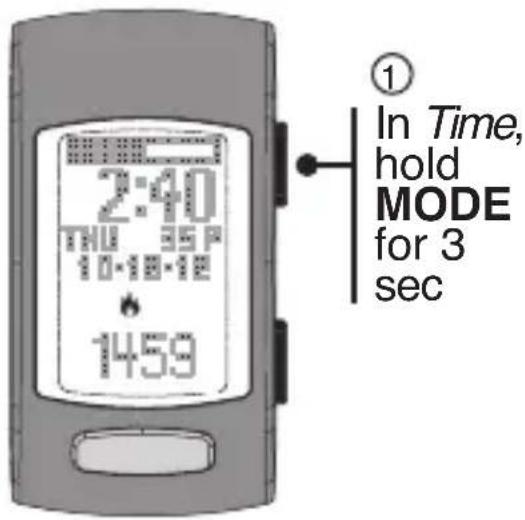
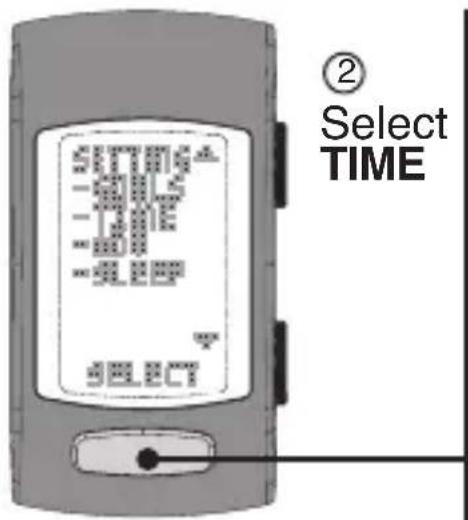
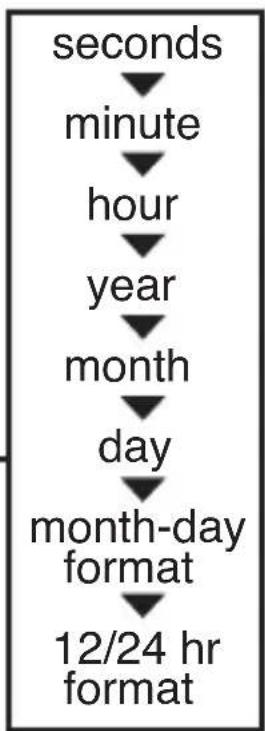
flowchart
graph TD
    A["seconds"] --> B["minute"]
    B --> C["hour"]
    C --> D["year"]
    D --> E["month"]
    E --> F["day"]
    F --> G["month-day format"]
    G --> H["12/24 hr format"]
INSIDE
SETTING
MODE
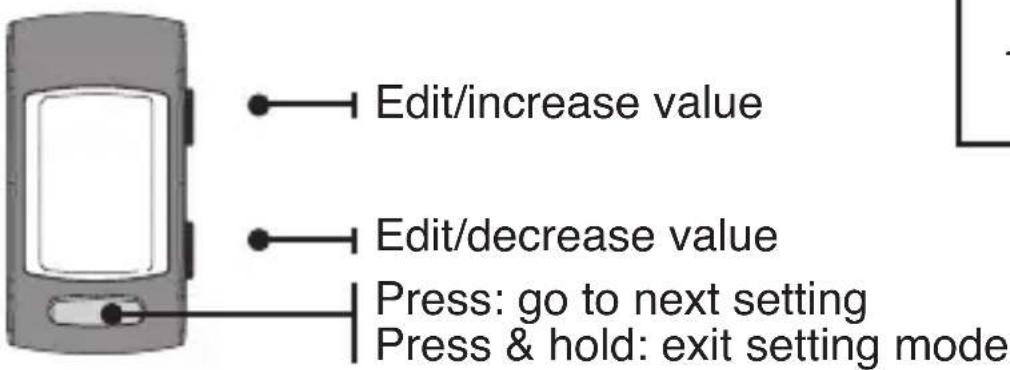
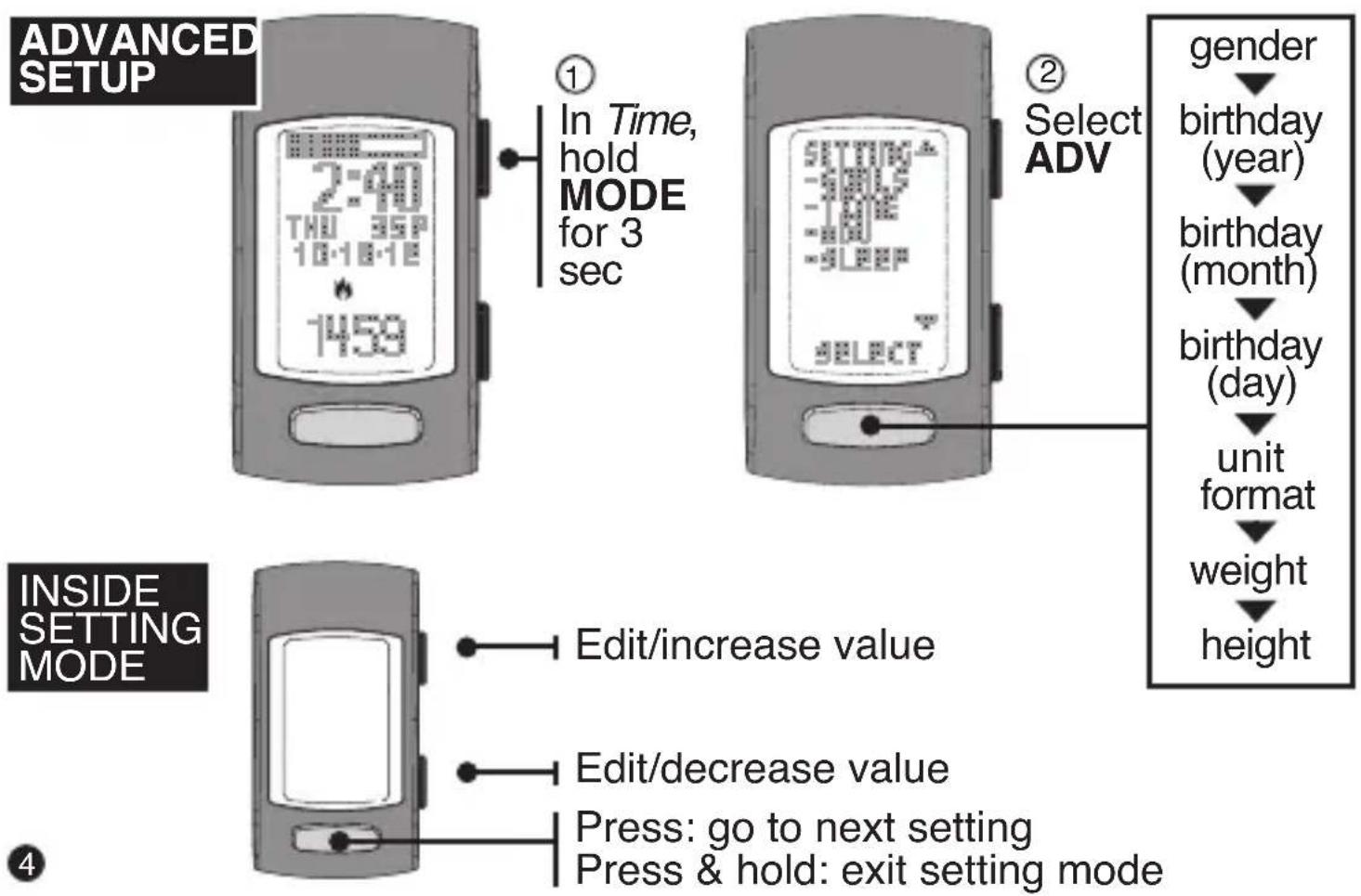
1
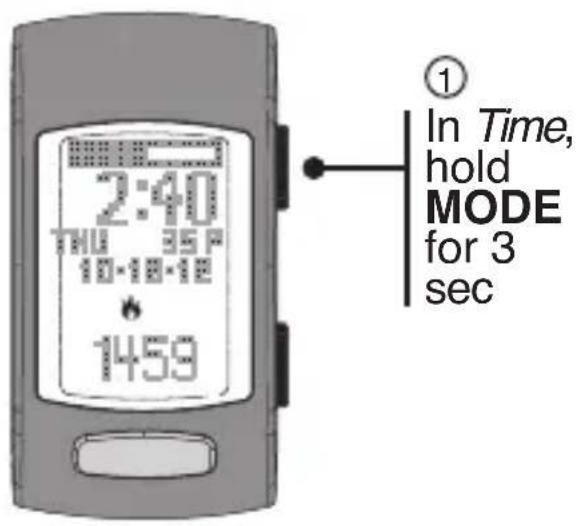
In Time, hold
MODE
for 3
sec
②
Select ADV
gender
▲ birthday (year)
birthday (month)
birthday (day)
unit
format
weight
height
SLEEP TRACKER
Monitors the duration and quality of sleep based on motion and arm posture.
The sleep tracker has two operating settings: Auto and Manual.
Auto (default): Sleep tracking is always enabled.
Manual: Sleep tracking is enabled by double-clicking START/STOP while in Time.
NOTE: If you intend to remove your activity tracker when you wake up, we recommend you manually stop the sleep tracker by double-clicking START/STOP while in Time.
SLEEP TRACKER
When sleep tracking is enabled, the device will automatically detect the beginning and end of your sleep session.
Double-clicking START/STOP while in Time marks the time you go to bed. It also activates the sleep tracker if in Manual sleep tracking mode.
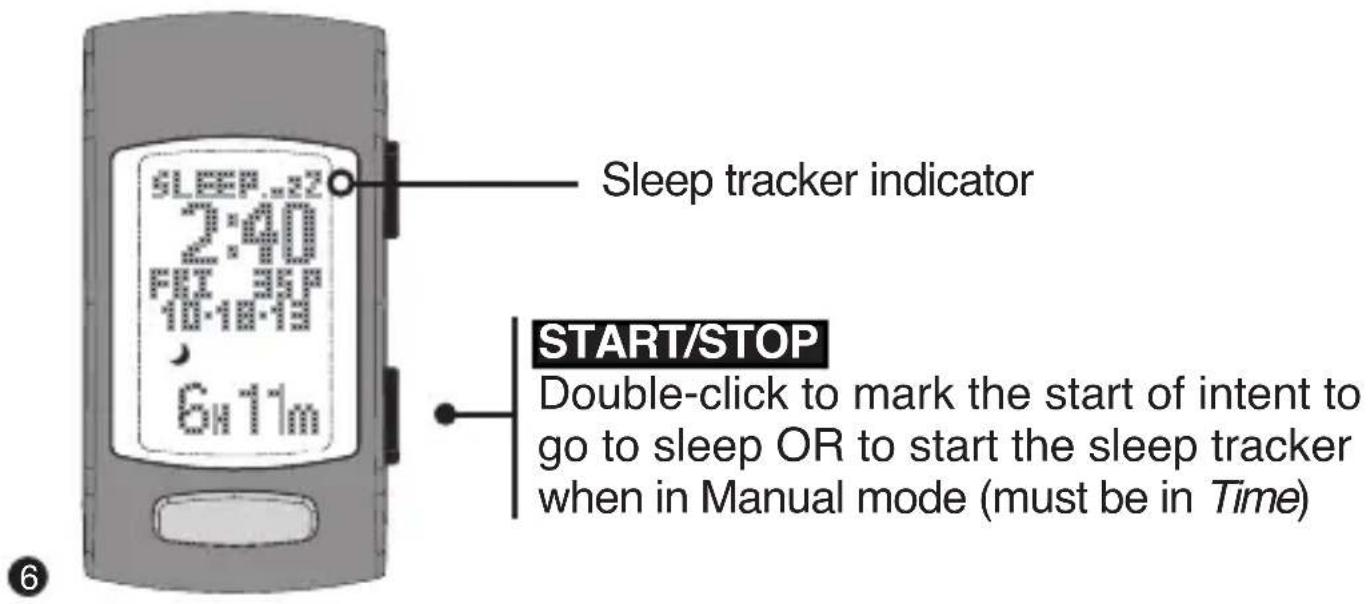
SLEEP TRACKER
Setting the sleep tracker operation to Auto or Manual.
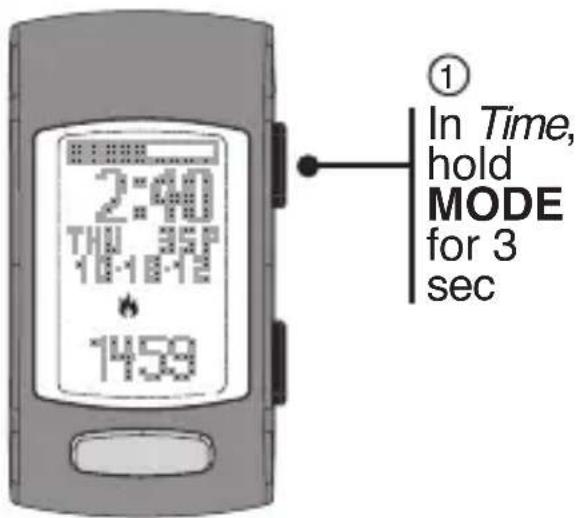
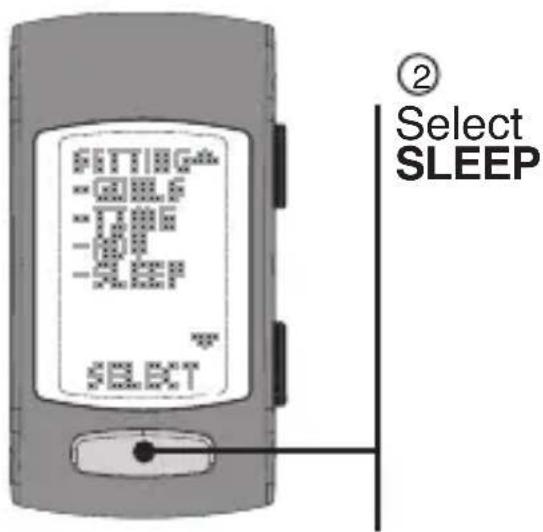
INSIDE SETTING MODE
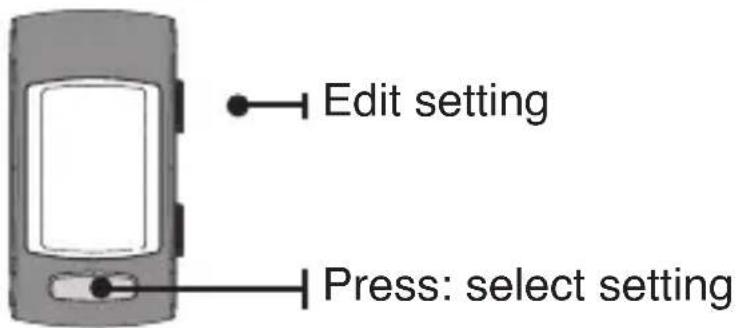
SLEEP TRACKER
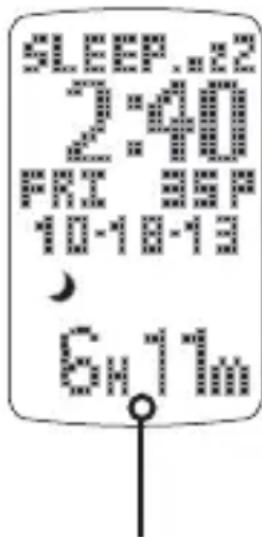
Total sleep time
Sleep data collection
Our advanced sleep tracker is smart enough to distinguish if the device is on or off your wrist. Sleep tracking is disabled when the device is not on your wrist.
Total sleep time is accumulated during all sleep sessions that end on a particular day. For example, if you fell asleep last night and woke up this morning, your sleep duration will be added to today's total sleep time.
However, if you fell asleep last night at 10:00 p.m. and woke up at 11:00 p.m., that hour of sleep would be added to yesterday's total sleep time.
NOTE: The total sleep time will update after a brief period once you wake up.
NOTE: Minimum sleep time for recorded data is 45 minutes.
SLEEP TRACKER
Sleep tracking sequence
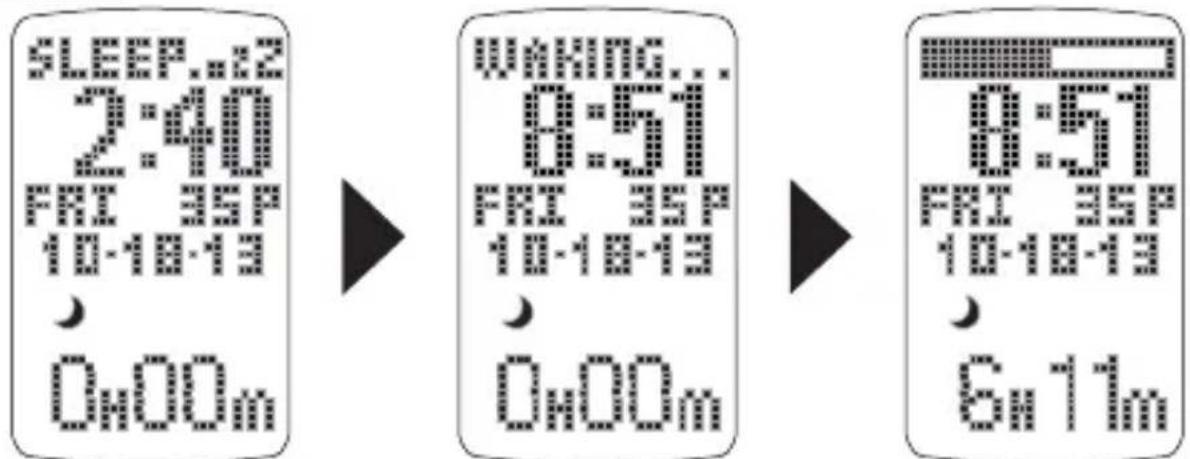
Sleep tracker is on. Waking screen appears when movement is sensed and the tracker is determining if you are awake.
Sleep tracker is off. You are now awake and total sleep time is updated.
NOTE: While in the Waking screen, if you fall back asleep the sleep tracker will continue and the "Sleep ..zZ" message will reappear at the top. Total sleep time will not update.
HEART RATE
Taking your heart rate will help you stay in your workout zones and help calculate your calories more accurately.
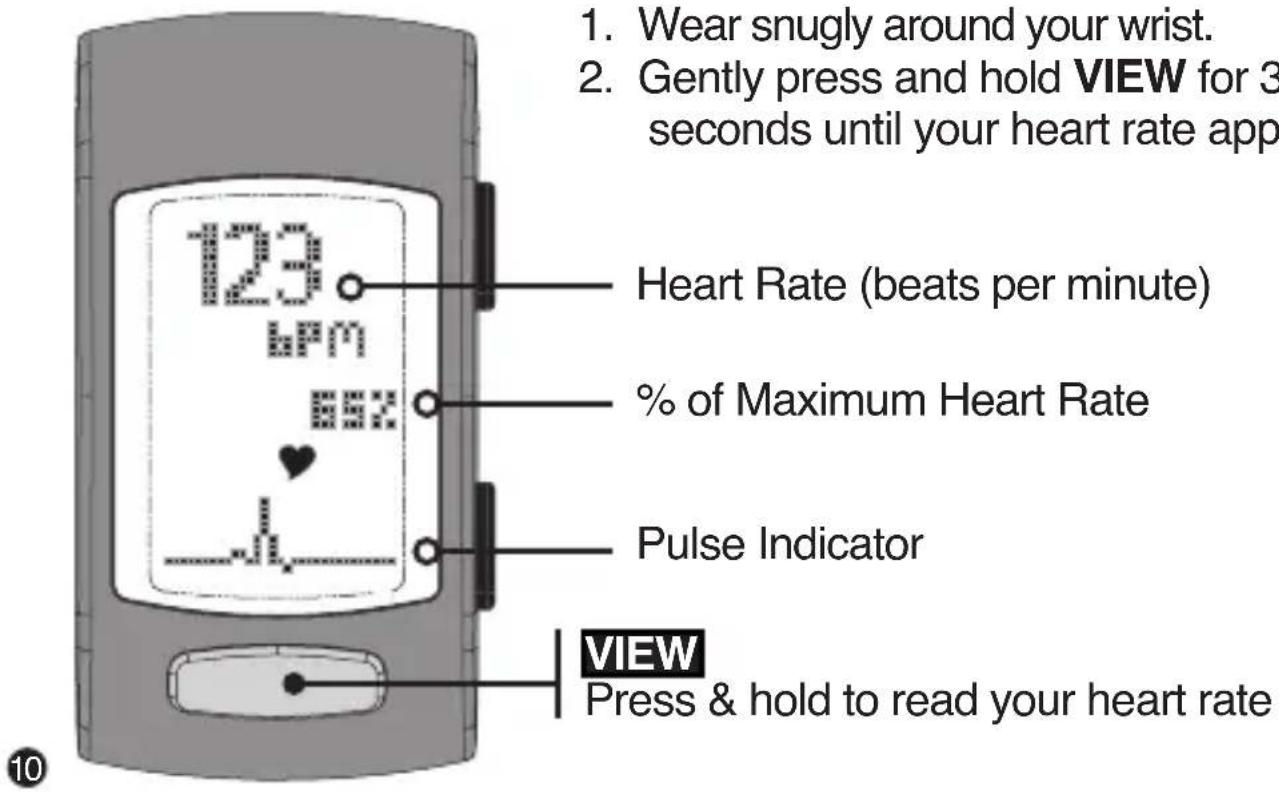
- Wear snugly around your wrist.
- Gently press and hold VIEW for 3 to 8 seconds until your heart rate appears.
Heart Rate (beats per minute)
% of Maximum Heart Rate
Pulse Indicator
VIEW
Press & hold to read your heart rate
HOURLY DISPLAY
Shows your progress throughout the day with a 24-hour graph. The bars are scaled to fit the data from the 24-hour period.
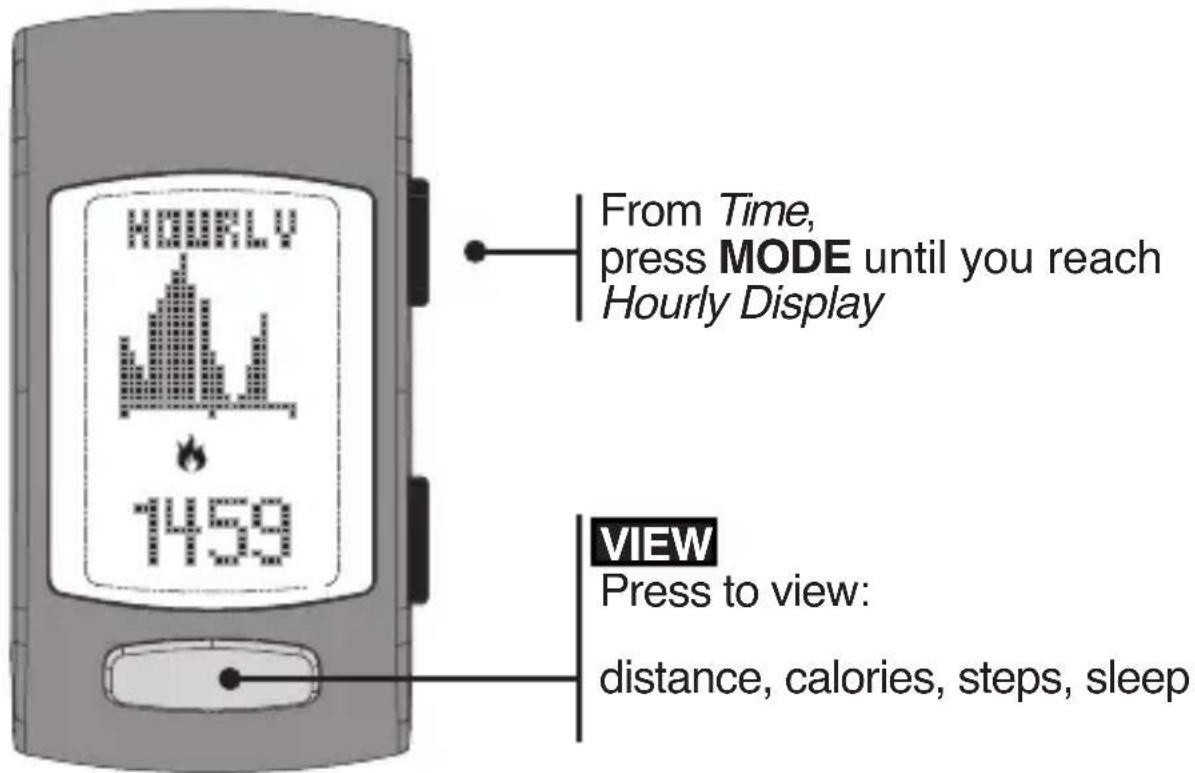
HOURLY DISPLAY
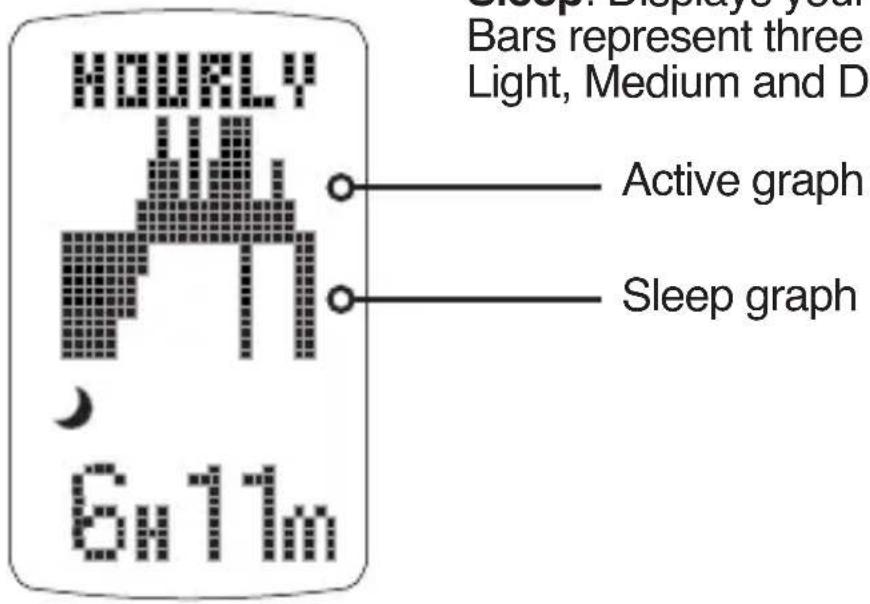
The hourly actigraphy view provides a summary of your sleep and activity levels.
Active: Displays your activity levels while awake. Bars represent three categories: Normal, Active and Very Active
Sleep: Displays your sleep levels. Bars represent three categories: Light, Medium and Deep Sleep.
WEEKLY DISPLAY
Shows your results for the past 7 days. The bars are scaled to fit the data from the past week.
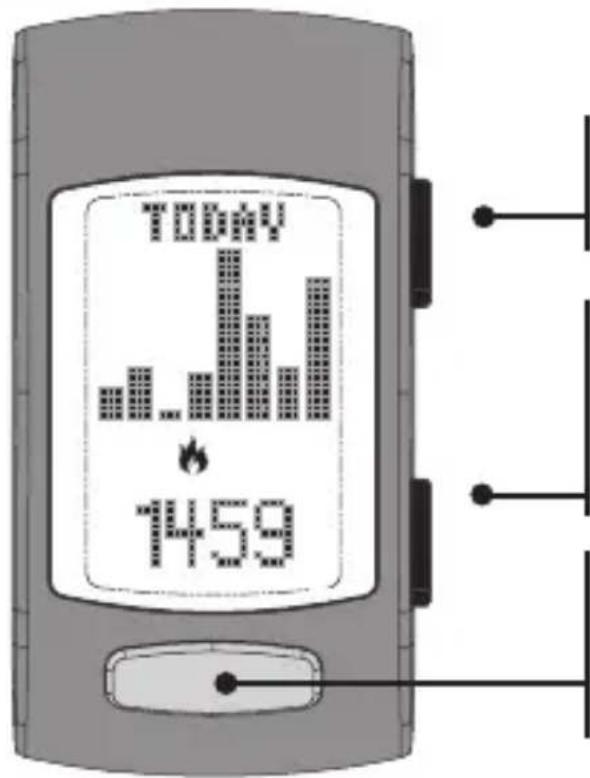
From Time,
press MODE until you reach Weekly
Display ("Today" will be shown)
START/STOP
Press to browse through the past 7 days
VIEW
Press to view:
distance, calories, steps, sleep
WORKOUT MODE
Records data from an individual workout.
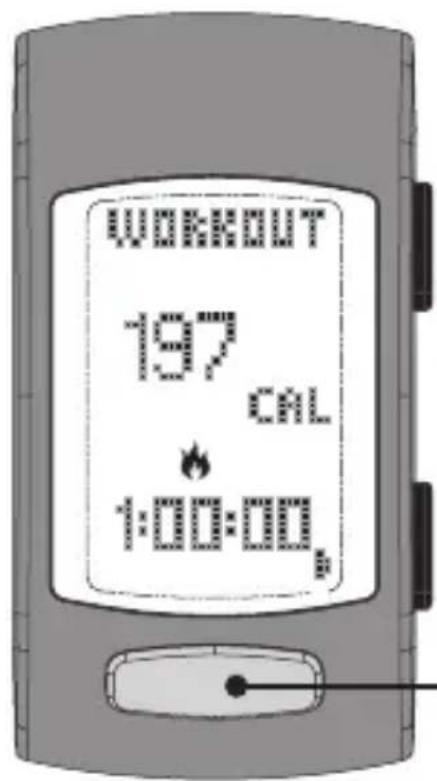
From Time,
press MODE until you reach Workout
START/STOP
Press to start/stop recording your workout
Hold to reset data (Workout mode must be stopped)
VIEW
Press to view:
distance, calories, steps
Brand : LifeTrak
Model : Core C210
Category : Smartwatch