P1a42 Vibe - Smartphone LENOVO - Free user manual and instructions
Find the device manual for free P1a42 Vibe LENOVO in PDF.


User questions about P1a42 Vibe LENOVO
0 question about this device. Answer the ones you know or ask your own.
Ask a new question about this device
Download the instructions for your Smartphone in PDF format for free! Find your manual P1a42 Vibe - LENOVO and take your electronic device back in hand. On this page are published all the documents necessary for the use of your device. P1a42 Vibe by LENOVO.
USER MANUAL P1a42 Vibe LENOVO
Before using this information and the product it supports, be sure to read the following:
- Quick Start Guide
• Regulatory Notice - Appendix
The Quick Start Guide and the Regulatory Notice have been uploaded to the website at http://support.lenovo.com.
Technical specifications
This section lists the technical specifications about wireless communication only. To view a full list of technical specifications about your phone, go to http://support.lenovo.com.
| Data | LTE\WCDMA\GSMNote: In some countries, LTE is not supported. To know if your smartphone works with LTE networks in your country, contact your carrier. |
| WLAN WLAN | AN 802.11 a/b/g/n/ac |
| Bluetooth | Bluetooth 4.0 |
| GPS Supported | |
| GLONASS | Supported |
| NFC Supported | |
Home screen
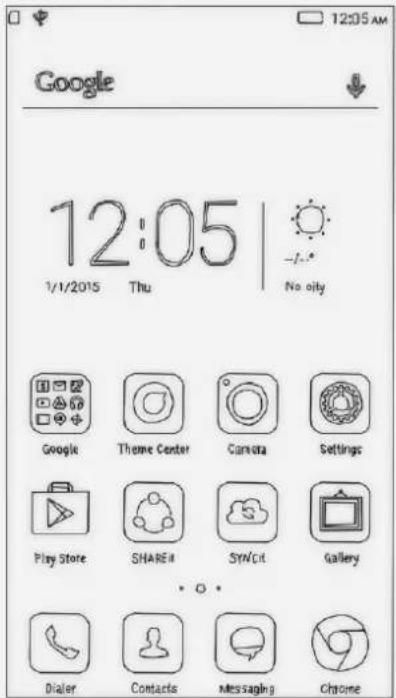
The home screen is the starting point for using your phone. For your convenience, the home screen is already set up with some useful apps and widgets.
text_image
12:05 AM Google 1/1/2015 Thu No oily Google Theme Center Camera Settings Play Store SHARE SYNCIT Gallery Dialer Contacts Messaging ChromeNote: Your phone's features and the home screen may be different depending on your location, language, carrier, and model.
Managing home screens
You can add, move, or delete a home screen with Screen Manager.
- Press and hold the Multitask button, and then tap Screen Manager.
Or pinch your fingers together on any home screen to open Screen Manager.
Tip: The screen manager displays home screen thumbnails. The default home screen has in its thumbnail while the other home screens have in their thumbnails.

- Do any of the following:
• To add a home screen, tap +
- To move a home screen, press and hold a screen thumbnail until it enlarges slightly, drag it to the new location, and then release it.
• To delete an empty home screen, tap ✗ on the screen.
• To set a home screen as the default, tap in the screen thumbnail.
Using the edit mode
In the edit mode, you can add and move a widget or an app, create app folders, and uninstall an app.
- Press and hold the Multitask button, and then tap Edit.
Or press and hold anywhere on the home screen to quickly enter the edit mode.
- Do any of the following:
- To add a widget to the home screen, slide the widgets left or right, press and hold a widget until it pops out, drag it to where you want to place it, and then release it.
- To move a widget or an app, press and hold the widget or app until its icon enlarges slightly, drag it to where you want to place it, and then release it.
- To create an app folder, press and hold an app until its icon enlarges slightly, and then drag it onto another app.
- To uninstall an app, press and hold the app, slide your finger toward the top of the screen, and then drop the app over 📄.
Note: System apps cannot be uninstalled. When you are trying to uninstall a system app, 📄 appears at the top of the screen.
Changing the wallpaper
-
Press and hold the Multitask button, and then tap Wallpaper.
-
Do any of the following:
- To set a photo as the wallpaper, tap Enter Gallery, select and crop a photo, and then tap Apply.
• To use a wallpaper, tap the wallpaper thumbnail, and then tap Apply.
Screen buttons
There are three buttons on your phone.
- Multitask button: Press and hold □ to display menu options. Tap the Multitask button to see the apps that are running. Then you can do the following:
- Tap an app to open it.
- Tap ☐ to lock the app or tap to unlock it.
- Tap ✗ to stop running the app.
- Tap to stop running all the apps except the locked ones.
• Home button: Press to return to the default home screen.
- Back button: Tap ◀ to return to the previous page or exit the current app.
Screen lock
When your phone is on, press the power button to lock the screen manually. Press the power button again to display the lock screen, and then swipe up from the bottom of the screen to unlock.
Note: Swipe is the default screen locking method. To change your screen lock, see "Setting a screen lock" in Settings.
Notifications and Quick Settings
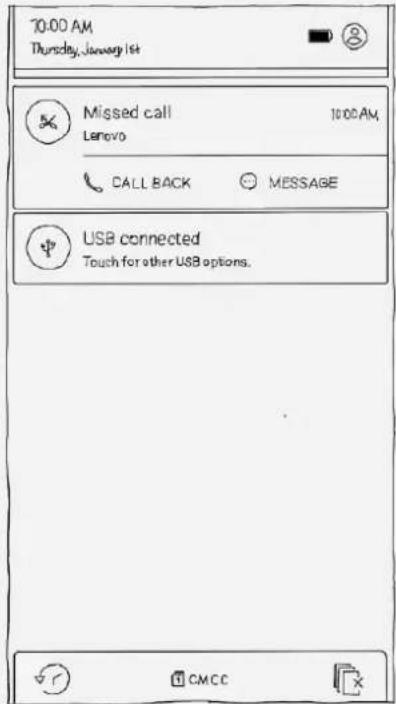
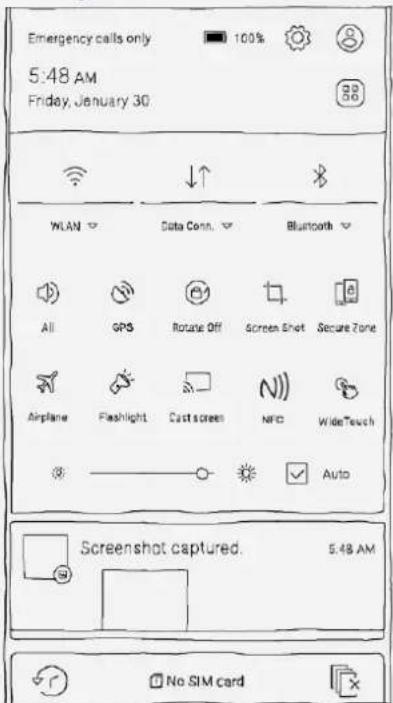
The Notification panel (see Figure 1: Notification) informs you of missed calls, new messages, and activities in progress such as file downloading. The Quick Settings panel (see Figure 2: Quick Settings) allows you to access frequently-used settings such as the WLAN switch.
text_image
70:00 AM Thursday, January 1st Missed call Lenovo CALL BACK ○ MESSAGE USB connected Touch for other USB options. CMCCFigure 1: Notification
text_image
Emergency calls only 5:48 AM Friday, January 30 WLAN Data Conn. Bluetooth All GPS Rotate Off Screen Shot Secure Zone Airplane Flashlight Cast screen NFC WideTouch Auto Screenshot captured. 5:48 AM No SIM cardFigure 2: Quick Settings
You can do any of the following:
• To see notifications, swipe down from the top of the screen with one finger.
• To close the Notification panel, swipe up from the bottom of the screen with one finger.
- To dismiss a notification, swipe left or right across the notification.
- To dismiss all notifications, tap at the bottom of the Notification panel.
- To open Quick Settings, swipe down from the top of the screen twice with one finger or once with two fingers.
- To close Quick Settings, swipe up from the bottom of the screen twice with one finger or once with two fingers.
USB connection
When you connect your phone to a computer using a USB cable, the Notification panel displays a notification such as "Connected as a media device". You can tap the notification, and then select one of the following options:
- Media device (MTP): Select this mode if you want to transfer media files such as photos, videos, and ringtones between your phone and the computer.
- Camera (PTP): Select this mode if you want to transfer only photos and videos between your phone and the computer.
- USB debugging mode (ADB): Select this mode to enable debugging. You can then use tools such as Idea Tool on the computer to manage your phone's data.

Calls
Making a call
Dialing a number manually
- Open the Dialer app.
- In the Dialer panel, tap Dialer to display the keypad if necessary.
- Enter the phone number that you want to dial, and then tap
Calling from the call log
- Open the Dialer app.
- Tap the Call Log tab.
- View the missed, outgoing, and received calls, and then tap the entry that you want to call.
Calling a contact
- Open the Dialer app.
- Tap the Contacts tab.
- Locate the contact that you want to call, and tap the contact name to display the contact details.
- Tap the phone number that you want to dial.
Receiving calls
Answering or rejecting a call
When you receive a phone call, the incoming call screen appears. You can do one of the following:
- Drag the contact image to 📋 answer the call.
- Drag the contact image to ☑ to reject the call.
Silencing a call
You have the following ways to silence a call:
- Press the volume up button or the volume down button.
- Press the power button.
- Place the phone face down.
Options during a call
When you are on a call, the following options are available on the screen:
- Add call: displays the dialer so you can call another person.
- Hold/Unhold: puts the current call on hold or resumes the call.
- Mute: turns the microphone on or off.
- Record: starts or stops recording the call.
- Dialpad/Hide: displays or hides the keypad.
- Speaker: turns the speaker on or off.
• : ends the call.
You can also press the volume button to turn the volume up or down.
Using the call log
The call log contains missed, outgoing, and received call entries. You can press and hold a call log entry until the options menu appears, and then tap an option. For example, you can tap the New
contact option to add the entry to the Contacts list.

Contacts
Creating a contact
- Open the Contacts app.
- Tap +.
- Enter the contact information.
- Tap Save.
Searching for a contact
- Open the Contacts app.
- Do one of the following:
- Scroll the Contacts list up or down to locate the desired contact.
Tip: The Contacts list has an index along the side to help you navigate quickly. Tap a letter to jump to a section.
- Tap the search box, and then enter the first few letters of the contact name.
Editing a contact
- Open the Contacts app.
- Find and tap the contact that you want to edit.
- Tap ∠, and then edit the contact information.
- Tap Save.
Deleting a contact
- Open the Contacts app.
- Press and hold a contact, and then tap Delete contact.
Importing contacts
- Open the Contacts app.
- Tap ..., and then tap Import/Export contacts.
- Tap Import from storage, select one or more files, and then tap Import.
Exporting contacts
- Open the Contacts app.
- Tap ..., and then tap Import/Export contacts.
- Tap Export to storage, and then tap OK.

Messaging
Sending a message
You can use the Messaging app to send text messages and multimedia messages.
-
Open the Messaging app.
-
Tap +.
-
Tap the recipient text box, and then enter a contact name or phone number. Matching contacts are displayed as you type. Select a contact.
Or tap 📁 to add more recipients.
- Tap the message text box, and then enter a message.
Tip: If you want to send a multimedia message, tap ⊕ to select a media object type such as pictures or video clips, and then attach a desired media object to the message.
- Tap
Searching for a message
-
Open the Messaging app.
-
Tap Q, and then enter all or part of the contact's name or phone number into the search text box.
Deleting messages
-
Open the Messaging app.
-
In the list of message threads, tap a contact name or phone number to view the conversation thread.
-
Press and hold a message until it is selected, and then tap Delete.
Or tap 📄, select multiple messages that you want to delete, and then tap .
Camera basics
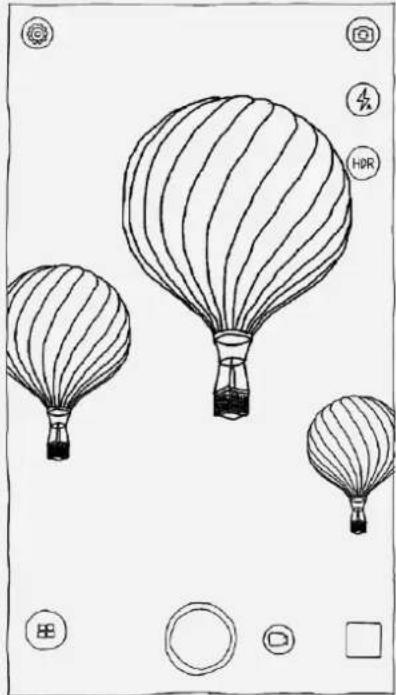
You can use the Camera app to take photos and record videos.
natural_image
Line drawing of three hot air balloons with ribbons, no text or symbols present- Tap 📄 to choose a camera mode.
- Tap to take a photo.
- Tap to record a video.
- Tap the photo or video thumbnail to view the photo or video in the Gallery app. For more information, see Gallery.
- Tap 4 to choose a flash mode.
- Tap use HDR (High Dynamic Range).
- Tap to switch between the front-facing camera and the rear-facing camera.
- Tap 📋 to configure the other camera settings.
Taking a screenshot
Press and hold the power button and the volume down button at the same time to take a screenshot. By default, the screenshots are stored in your phone's internal storage. To view the screenshots, do one of the following:
- Open the Gallery app and find the Screenshot album.
- Open the File Browser app and go to the Internal Storage > Pictures > Screenshots folder.

Gallery
Viewing photos and videos
-
Open the Gallery app.
-
Tap an album.
By default, photos and videos are grouped together by album. If you want to group photos or videos by time, tap √, and then select Time. If you want to group photos or videos by location, tap √, and then select Location.
-
Tap a photo or video to view it in full screen mode.
-
Do any of the following:
• To see the next or previous photo or video, swipe left or right.
- To zoom in or out of a photo, stretch or pinch the photo. When you zoom in, you can drag to see other parts of the photo.
• To view a video, tap
Sharing photos and videos
When you are viewing a photo or video, tap *** > share and select a sharing channel such as Messaging or Bluetooth to share the photo or video with others.
If you want to share multiple photos and videos at the same time, do all of the following:
-
Open the Gallery app.
-
When viewing a group of photos or videos, press and hold the photo or video that you want to share until it is selected.
-
Tap more items.
-
Tap ↗ and then select a sharing channel.
Deleting photos and videos
When you are viewing a photo or video, tap to delete the photo or video.
If you want to delete multiple photos and videos at the same time, do all of the following:
-
Open the Gallery app.
-
When viewing a group of photos or videos, press and hold the photo or video that you want to delete until it is selected.
-
Tap more items.
-
Tap

Network
WLAN connection
- Go to Settings > WLAN.
- Tap the WLAN switch to turn it on.
- If necessary, tap ·s > Refresh to scan for available WLAN hotspots.
Note: You need to have some valid WLAN hotspots to connect to.
- Tap a WLAN hotspot in the list to connect to the Internet.
Note: When you access a secure link, you need to enter your login name and password.
Data connection
- Go to Settings > Data usage.
- Tap the Mobile data switch to turn it on.
Note: You need a valid SIM card with a data service. If you do not have a SIM card, contact your carrier.
Setting up a hotspot
You can use a WLAN Hotspot to share an Internet connection with another phone or other devices.
- Go to Settings > More > Hotspot.
- Tap the WLAN hotspot switch to turn it on.
Note: You can also share a network via Bluetooth or USB.
- If this is your first time to turn on the WLAN hotspot, tap WLAN configuration information to view or change WLAN configuration information.
Note: Tell your friends the Network SSID and password and they can connect to your network.

Chrome
If your phone has been connected to a WLAN or a mobile network, you can use the Chrome app to surf the Internet. For more information about connecting to a WLAN or a mobile network, see Network.
Visiting websites
- Open the Chrome app.
- Tap the address box, enter a website address or your search keywords, and then tap →.
Tip: You do not need to enter a full website address with "http://" to access the website. For example, to visit http://www.lenovo.com, enter "www.lenovo.com" in the address box and tap Go.
-
When viewing a web page, do any of the following:
-
Press and hold the Multitask button, and then tap C to refresh the current page.
- Press the Back button to return to the previous web page.
- Press and hold the Multitask button, and then tap → go forward to a recent web page.
- Press and hold an image on the web page, and then tap Save image to save the image into your phone's internal storage.
Adding a bookmark
When viewing a web page that you want to bookmark, press and hold the Multitask button, tap , edit the bookmark details, and then tap Save. The next time you open the Chrome app, tap , and then tap the bookmark to quickly access the web page.
Clearing browser history
- Open the Chrome app.
- Press and hold the Multitask button, and then tap History.
- Tap CLEAR BROWSING DATA.
Ian

New features
Fingerprint
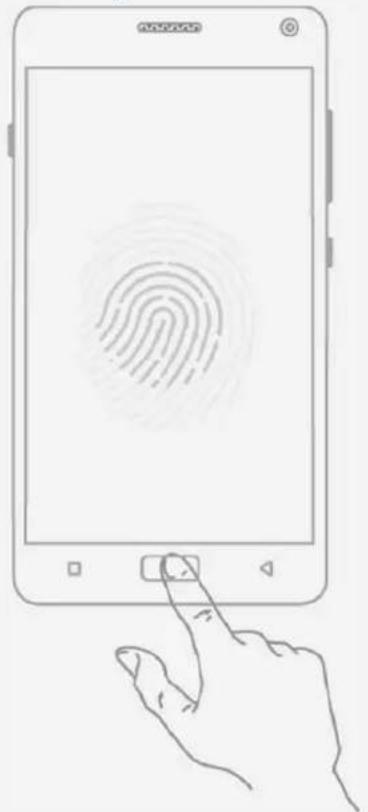
You can put your finger on the fingerprint sensor to unlock your phone quickly.
Adding a fingerprint
You can add more than one fingerprint.
- Go to Settings > Fingerprint > Add fingerprint.
- Follow the instructions on the screen.
Note: A lock screen pattern, PIN, or password is required to use fingerprint-related functions. To set screen lock, go to Settings > Lock screen > Screen lock.
natural_image
Line drawing of a hand interacting with a smartphone displaying a fingerprint (no text or symbols)Using the fingerprint sensor to unlock your phone
- Go to Settings > Fingerprint.
- Tap the Unlock screen switch to turn it on.
Deleting a fingerprint
- Go to Settings > Fingerprint.
- Confirm your screen lock pattern or input your PIN or password.
- Tap ·s > Delete.
NFC (Near Field communications)
You can share content (like pictures, contacts, and webpages), information, and more between two NFC-enabled phones.
- Go to Settings > More, then tap the NFC switch to turn it on.
-
Tap the Android Beam switch to turn it on.
-
Find the content that you want to share, then touch the back of your phone with the back of the other device.
When the devices connect, you'll hear a voice prompt.
- Tap your screen to share the content.
Rocket Charge
Getting your phone to charge faster
You can use the charger that comes with your phone to charge your phone faster.
-
Enable Rocket Charge mode by doing one of the following:
-
Turning off the phone.
- Turning off the screen.
-
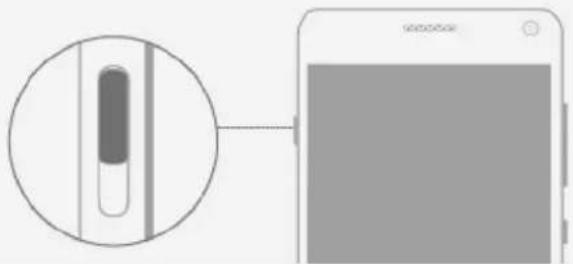
Sliding the side button to enter power saving mode.
-
Charge the phone.
When the phone is in Rocket charge mode, you'll see a battery icon with two lightning bolts.

Pump Express™
by MediaTek
Enabling power saving mode
Slide the side switch upward to enable power saving mode.
natural_image
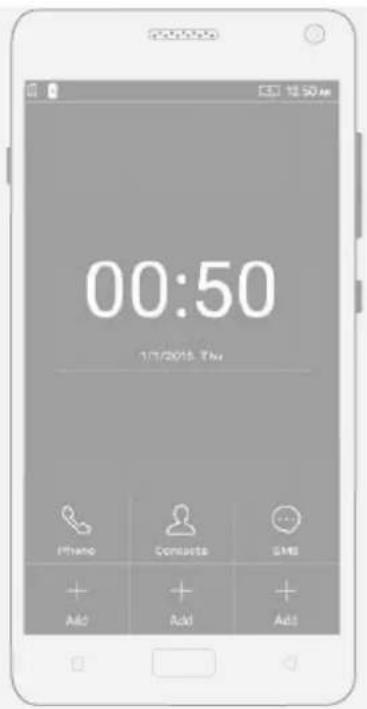
Diagram showing a test tube inserted into a device via a magnified inset (no text or symbols)In power saving mode, excluding the apps on the screen, the other apps are stopped to save battery life. You can add or remove an app:
• To add an app, tap on the screen, then tap the app that you want to add.
- To remove an app, press and hold the app that you want to remove until ✗ shown on the upper-right corner of the app, then tap ✘ to remove the app.
text_image
00:50 17/2018 ThuRapid OTG (On-The-Go)
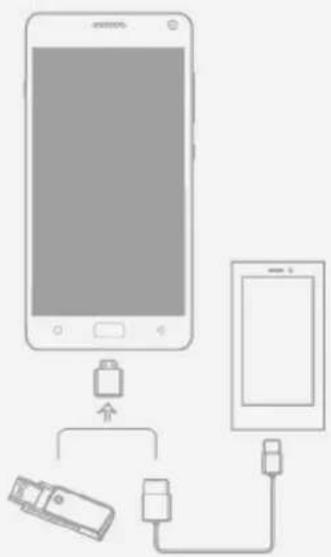
Rocket Charge supports Rapid OTG. Using an OTG adapter and a USB cable, you can do any of the following
- Connect your phone to another digital device to charge it.
- Connect your phone to a storage device to transfer data.
text_image
Diagram showing smartphone connected to a battery and two connected devices via cable
Settings
Setting the date and time
-
Go to Settings > Date & time.
-
Do any of the following:
• To use the network date and time, select the Automatic date & time check box.
- To set the date and time manually, clear the Automatic date & time check box, and then tap Set date and Set time respectively.
• To use the network time zone, select the Automatic time zone check box.
- To set the time zone manually, clear the Automatic time zone check box, tap Select time zone, and then choose a time zone.
- To switch between the 24-hour and 12-hour formats, select or clear the Use 24-hour format check box.
• To choose the display format of the date, tap Choose date format.
Setting the language
- Go to Settings > Language & input > Language.
- Select the display language that you want to use.
Setting the input method
- Go to Settings > Language & input > Default.
- Select the input method that you want to use as the default.
Setting a screen lock
Go to Settings > Lock screen to select a screen lock option and set up the screen lock.
Enabling app installation
Before you install apps that you downloaded from unknown sources, do all of the following:
- Go to Settings > Security.
- Select the Unknown sources check box.
Setting the ringtone
You can define the default ringtone for incoming calls, messages, and notifications. You can also adjust the volume for each sound type.
Go to Settings > Ringtones and volumes.
Performing a factory reset
- Go to Settings > Backup & reset > Factory data reset.
- Tap Reset phone.
Appendix
To avoid personal injury, property damage, or accidental damage to the product, read all of the information in this section before using the product.
Important safety info
Handling
Handle the Lenovo Phone with care
Do not drop, bend, or puncture the Lenovo Phone; do not insert foreign objects into or place heavy objects on the Lenovo Phone. Sensitive components inside might become damaged.
Prevent the Lenovo Phone and the adapter from getting wet
Do not immerse the Lenovo Phone in water or leave the Lenovo Phone in a location where it can get saturated with water or other liquids.
Repairing
Do not disassemble or modify the Lenovo Phone. The Lenovo Phone is a sealed unit. There are no end-user serviceable parts inside. All internal repairs must be done by a Lenovo-authorized repair facility or a Lenovo-authorized technician. Attempting to open or modify the Lenovo Phone will void the warranty.
The Lenovo Phone screen is made of glass. The glass might break if the Lenovo Phone is dropped on a hard surface, is the subject of a high impact, or is crushed by a heavy object. If the glass chips or cracks, do not touch the broken glass or attempt to remove it from the Lenovo Phone. Stop using the Lenovo Phone immediately and contact Lenovo technical support for repair, replacement, or disposal information.
Charging
You can use any of the following charging methods to safely recharge the internal battery of the Lenovo Phone.
| Charging method Display on Display off | ||
| ac adapter Supported, but the battery will | charge slowly. | Supported |
| USB connection between the dc-in connector on the Lenovo Phone and a USB connector on a personal computer or other devices that comply with the USB 2.0 standards. | Supported, but will compensate power consumption and the battery will charge more slowly than usual. | Supported, but the battery will charge slowly. |
| Notes:Display on: Device onDisplay off: Device off or in screen lock mode | ||
Charging devices might become warm during normal use. Ensure that you have adequate ventilation around the charging device. Unplug the charging device if any of the following occurs:
• The charging device has been exposed to rain, liquid, or excessive moisture.
• The charging device shows signs of physical damage.
• You want to clean the charging device.
Lenovo is not responsible for the performance or safety of products not manufactured or approved by Lenovo. Use only approved Lenovo ac adapters and batteries.
NOTE: Adapter shall be installed near the equipment and shall be easily accessible. Users have to use the connection to USB interfaces with USB 2.0 version or higher.
Distraction
Take care when using the Lenovo Phone in a motor vehicle or on a bicycle. Always prioritize your safety and the safety of others. Follow the law. Local laws and regulations might govern how you can use mobile electronic devices, such as the Lenovo Phone, while you drive a motor vehicle or ride a bicycle.
Choking hazard
Keep the Lenovo Phone and accessories away from small children. The Lenovo Phone contains small parts that can be a choking hazard to small children. Additionally, the glass screen can break or crack if dropped on or thrown against a hard surface.
Explosive atmospheres
Do not charge or use the Lenovo Phone in any area with a potentially explosive atmosphere, such as at a fueling area, or in areas where the air contains chemicals or particles (such as grain, dust, or metal powders). Obey all signs and instructions.
Radio frequency interference
Observe signs and notices that prohibit or restrict the use of mobile phones (for example, in healthcare facilities or blasting areas). Although the Lenovo Phone is designed, tested, and manufactured to comply with regulations governing radio frequency emissions, such emissions from the Lenovo Phone can negatively affect the operation of other electronic equipment, causing them to malfunction. Turn off the Lenovo Phone or use Airplane Mode to turn off the Lenovo Phone wireless transmitters when use is prohibited, such as while traveling in aircraft, or when asked to do so by authorities.
Medical devices
The Lenovo Phone contains radios that emit electromagnetic fields. These electromagnetic fields may interfere with pacemakers or other medical devices. If you wear a pacemaker, maintain at least 15 cm (6 inches) of separation between your pacemaker and the Lenovo Phone. If you suspect the Lenovo Phone is interfering with your pacemaker or any other medical device, stop using the Lenovo Phone and consult your physician for information specific to your medical device.
Important handling info
Cleaning
Clean the Lenovo Phone immediately if it comes in contact with anything that may cause stains, such as dirt, ink, makeup, or lotions. To clean:
- Disconnect all cables and turn off the Lenovo Phone (press and hold the Sleep/Wake button, then slide the on-screen slider).
- Use a soft, lint-free cloth.
- Avoid getting moisture in openings.
- Do not use cleaning products or compressed air.
Operating temperature
Be aware of heat generated by the Lenovo Phone. When using the Lenovo Phone, keep it away from hot or high-voltage environments, such as electric appliances, electric heating equipment, or electric cooking equipment. Use the Lenovo Phone only in the temperature range of -10^ ( 14^ )— 35^ (95
°F) to avoid damage.
When the Lenovo Phone is turned on or the battery is charging, some parts might become hot. The temperature that they reach depends on the amount of system activity and the battery charge level. Extended contact with your body, even through clothing, could cause discomfort or even a skin burn. Avoid keeping your hands, your lap, or any other part of your body in contact with a hot section of the Lenovo Phone for any extended time.
Protecting your data and software
Do not delete unknown files or change the name of files or directories that were not created by you; otherwise, the Lenovo Phone software might fail to work.
Be aware that accessing network resources can leave the Lenovo Phone vulnerable to computer viruses, hackers, spyware, and other malicious activities that might damage the Lenovo Phone, software, or data. It is your responsibility to ensure that you have adequate protection in the form of firewalls, antivirus software, and anti-spyware software and keep such software up to date.
Keep electrical appliances away from the Lenovo Phone, such as an electric fan, a radio, high-powered speakers, an air conditioner, and a microwave oven. The strong magnetic fields generated by electrical appliances can damage the screen and the data on the Lenovo Phone.