
KX-HNC210 - Home Automation PANASONIC - Free user manual and instructions
Find the device manual for free KX-HNC210 PANASONIC in PDF.
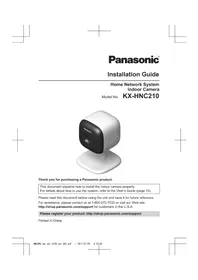


| Type de produit | Capteur de porte/fenêtre (contact magnétique) |
| Marque | Panasonic |
| Modèle | KX-HNC210 |
| Catégorie | Domotique |
| Dimensions (capteur) | 70 x 22 x 22 mm |
| Dimensions (aimant) | 40 x 12 x 12 mm |
| Poids (capteur) | 25 g |
| Poids (aimant) | 15 g |
| Alimentation | Pile bouton CR2032 |
| Autonomie de la pile | Environ 1 an |
| Communication | Zigbee (propriétaire) |
| Portée de communication | Jusqu'à 30 m en intérieur |
| Fonction principale | Détection d'ouverture/fermeture |
| Fonction secondaire | Notification sur smartphone via hub |
| Compatibilité | Hub Panasonic KX-HNB600 |
| Installation | Adhésif double face ou vis |
| Entretien et nettoyage | Chiffon sec et doux |
| Sécurité | Conforme aux normes CE |
| Pièces détachées | Pile CR2032, adhésif de rechange |
| Réparabilité | Non réparable, remplacer l'unité |
| Température de fonctionnement | -10 °C à 50 °C |
| Humidité de fonctionnement | 20 % à 80 % HR |
Frequently Asked Questions - KX-HNC210 PANASONIC
User questions about KX-HNC210 PANASONIC
0 question about this device. Answer the ones you know or ask your own.
Ask a new question about this device
Download the instructions for your Home Automation in PDF format for free! Find your manual KX-HNC210 - PANASONIC and take your electronic device back in hand. On this page are published all the documents necessary for the use of your device. KX-HNC210 by PANASONIC.
USER MANUAL KX-HNC210 PANASONIC
Thank you for purchasing a Panasonic product.
This document explains how to install the indoor camera properly.
For details about how to use the system, refer to the User's Guide (page 13).
Please read this document before using the unit and save it for future reference.
For assistance, please contact us at 1-800-272-7033 or visit our Web site:
http://shop.panasonic.com/support for customers in the U.S.A.
Please register your product: http://shop.panasonic.com/support
Printed in China
Table of Contents
Introduction
Accessory information ....3
Important Information
About this system ....4
For your safety 4
Important safety instructions ....5
For best performance 5
Other information 6
Setup
Part names and functions ......7
LED indicator 7
Setup overview 7
Registering the camera 7
Information about sensor features ....8
Information about night vision mode .....9
Confirming the usage area 9
Connections 10
Wall mounting 11
Appendix
Testing the motion detection range .....12
Features available when using the [Home
Network] app 12
Accessing the User's Guide 13
Specifications 13
FCC and other information ....14
Customer services 15
Limited Warranty (ONLY FOR U.S.A.) .....16
Accessory information
Supplied accessories
| No. | Accessory item/Part number Quantity | |
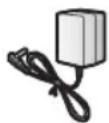
| 1 | AC adaptor/PNLV236-0Y 1 |
①
Additional accessories
Please contact your nearest Panasonic dealer for sales information.
| Accessory item Order number | |
| DC extension cord PNJA1159Z |

Other information
- Design and specifications are subject to change without notice.
- The illustrations in these instructions may vary slightly from the actual product.
Trademarks
- microSDHC is a trademark of SD-3C, LLC.
- iPhone and iPad are registered trademarks of Apple Inc.
- Android is a trademark of Google Inc.
- Microsoft, Windows, and Internet Explorer are either registered trademarks or trademarks of Microsoft Corporation in the United States and/or other countries.
- All other trademarks identified herein are the property of their respective owners.
Notice
- The hub supports microSD and microSDHC memory cards. In this document, the term "microSD card" is used as a generic term for any of the supported cards.
Important Information
About this system
- This system is an auxiliary system; it is not designed to provide complete protection from property loss. Panasonic will not be held responsible in the event that property loss occurs while this system is in operation.
- This product should not be used as substitute for a medical or caregiver's supervision. It is the caregiver's responsibility to stay close enough to handle any eventuality.
- The system's wireless features are subject to interference, therefore functionality in all situations cannot be guaranteed. Panasonic will not be held responsible for injury or damage to property that occurs in the event of wireless communication error or failure.
For your safety
To prevent severe injury and loss of life/property, read this section carefully before using the product to ensure proper and safe operation of your product.
WARNING
Power connection
- Use only the power source marked on the product.
- Do not overload power outlets and extension cords. This can result in the risk of fire or electric shock.
- Completely insert the AC adaptor/power plug into the power outlet. Failure to do so may cause electric shock and/or excessive heat resulting in a fire.
- Regularly remove any dust, etc. from the AC adaptor/power plug by pulling it from the power outlet, then wiping with a dry cloth. Accumulated dust may cause an insulation defect from moisture, etc. resulting in a fire.
- Unplug the product from power outlets if it emits smoke, an abnormal smell, or makes an unusual noise. These conditions can
cause fire or electric shock. Confirm that smoke has stopped emitting and contact us at http://shop.panasonic.com/support
- Unplug from power outlets and never touch the inside of the product if its casing has been broken open. Danger of electric shock exists.
- Never touch the plug with wet hands. Danger of electric shock exists.
- Do not connect non-specified devices.
Installation
- To prevent the risk of fire or electrical shock, do not expose the product to rain or any type of moisture.
- Do not place or use this product near automatically controlled devices such as automatic doors and fire alarms. Radio waves emitted from this product may cause such devices to malfunction resulting in an accident.
- Do not allow the AC adaptor to be excessively pulled, bent or placed under heavy objects.
- Keep small parts, such as microSD cards and screws, out of the reach of children. There is a risk of swallowing. In the event they are swallowed, seek medical advice immediately.
Operating safeguards
- Unplug the product from power outlets before cleaning. Do not use liquid or aerosol cleaners.
- Do not disassemble the product.
- Never put metal objects inside the product. If metal objects enter the product, turn off the circuit breaker and contact an authorized service center.
Medical
- Consult the manufacturer of any personal medical devices, such as pacemakers or hearing aids, to determine if they are adequately shielded from external RF (radio frequency) energy. DECT features operate between 1.92 GHz and 1.93 GHz with a peak transmission power of 115 mW.
- Do not use the product in health care facilities if any regulations posted in the
area instruct you not to do so. Hospitals or health care facilities may be using equipment that could be sensitive to external RF energy.
CAUTION
Installation and location
- Never install wiring during a lightning storm.
- The AC adaptor is used as the main disconnect device. Ensure that the AC outlet is installed near the product and is easily accessible.
- To avoid the risk of strangulation, keep the product and the AC adaptor cord at least 1 m (3 feet) from a child's crib and out of the reach of small children.
- Mount the product on the stable location where the camera can be adequately supported when installing.
- Do not mount the product on soft material. It may fall down, break or cause injury.
- Do not mount the product on the following materials: gypsum board, ALC (autoclaved lightweight cellular concrete), concrete block, plywood less than 25 mm (1 inch) thick, and etc.
Preventing accidents and injuries
- Do not put your ear(s) near the speaker, as loud sounds emitted from the speaker may cause hearing impairment.
Important safety instructions
When using your product, basic safety precautions should always be followed to reduce the risk of fire, electric shock, and injury to persons, including the following:
- Do not use this product near water for example, near a bathtub, washbowl, kitchen sink, or laundry tub, in a wet basement or near a swimming pool.
- Use only the power cord indicated in this document.
SAVE THESE INSTRUCTIONS
For best performance
Hub location/avoiding noise
The hub and other compatible Panasonic devices use radio waves to communicate with each other.
- For maximum coverage and noise-free communications, place your hub:
- at a convenient, high, and central location with no obstructions between the product and hub in an indoor environment. – away from electronic appliances such as TVs, radios, personal computers, wireless devices, or other phones. – facing away from radio frequency transmitters, such as external antennas of mobile phone cell stations. (Avoid putting the hub on a bay window or near a window.)
- If the reception for a hub location is not satisfactory, move the hub to another location for better reception.
Environment
- Keep the product away from electrical noise generating devices, such as fluorescent lamps and motors.
- The product should be kept free from excessive smoke, dust, high temperature, and vibration.
- Do not expose this product to direct sunlight or other forms of powerful light such as halogen lights for long periods of time. (This may damage the image sensor.)
- Do not place heavy objects on top of the product.
- When you leave the product unused for a long period of time, unplug the product from the power outlet.
- The product should be kept away from heat sources such as heaters, kitchen stoves, etc. It should not be placed in rooms where the temperature is less than 0 °C (32 °F) or greater than 40 °C (104 °F). Damp basements should also be avoided.
- Operating the product near electrical appliances may cause interference. Move away from the electrical appliances.
Important Information
Other information
Routine care
- Wipe the outer surface of the product with a soft moist cloth.
- Do not use benzine, thinner, or any abrasive powder.
Camera image quality
- Camera images may have the following characteristics.
- Colors in images may differ from the actual colors.
- When there is light behind the subject (i.e., backlighting), faces may appear dark. – Image quality may be reduced in dark locations. – Images may appear hazy when there are outdoor lights in use.
When the subject is lit by sunlight or halogen lights, black areas of the image may appear purplish. This is not a malfunction.
Protecting your recordings
- Do not remove the microSD card or disconnect the hub's AC adaptor while reading or writing data to the microSD card. Data on the card could become corrupted.
- If a microSD card malfunctions or is exposed to electromagnetic waves or static electricity, data on the card could become corrupted or erased. Therefore we recommend backing up important data to a computer or other device.
Notice:
- This product is designed for use in the United States of America. Sale or use of this product in other countries may violate local laws.
- This device is designed for use in the United States of America. Sale or use of this device in certain other countries may constitute a violation of local legislation.
- This product is designed for use in the United States of America. Sale or use of this product in certain countries may constitute a violation of local legislation.
- This product is designed for use in the United States. If sold or used in other countries, it may violate local laws.
- This product is designed for use outside of Japan, and its use within Japan is a violation of the law. Therefore, we generally cannot provide services such as repairs within Japan.
Setup
Part names and functions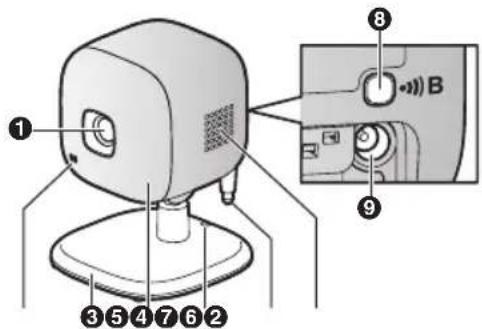
① Lens unit ② Microphone 3 Stand 4 LED indicator 5 Hole
You can prevent the camera from falling by passing a string through the hole in the stand.
Used when registering the camera to the hub.
9 DC jack
LED indicator
You can use the LED indicator to confirm the camera's status.
| Indicator Status | |
| Off No power, or LED | indicator is turned off*1 |
| Green, lit | Normal operation*1 |
| Green, blinking slowly | Registration mode |
| Red Motion detected | |
| Red, blinking slowly Live images are being viewed or recorded | |
| Indicator Status | |
| Red, blinking Camera | is out of range of the hub, or device malfunction |
| Amber, blinking slowly | Camera is not registered to a hub |
*1 You can configure the camera so that its LED indicator does not light during normal operation. For more information, refer to the User's Guide (page 13).
Setup overview
1 Initial setup
Make sure you can access the system using your mobile device. For details, refer to the System Setup Guide included with your hub.
2 Registration
Required only if the camera was purchased separately (i.e., not as part of a bundle).
3 Confirm the usage area
Read the information in this document to confirm that the desired usage area is suitable to proper operation.
4 Connection
Place the camera in the desired location and connect it to the power outlet.
Registering the camera
This procedure is not required for devices that were included as part of a bundle.
Before you can use the camera, it must be registered to the hub.
If the camera is not registered to a hub, the camera's LED indicator blinks slowly in amber. You can register each device by using the registration buttons or the [Home Network] app.
Setup
Note:
- Before registering the camera, make sure the AC adaptors of the hub and camera are connected and each device is powered.
Using registration buttons
1 Hub:
Press and hold [●●●]B CAMERA] until the LED indicator blinks slowly in green.
2 Camera:
Press and hold [●●●] until the LED indicator blinks slowly in green (page 7).
- When registration is complete, the hub sounds one long beep.
Note:
- To cancel without registering the camera, press [●●●] on the hub and on the camera again.
- If registration fails, the hub sounds several short beeps.
Using the app
When you register the camera by using the [Home Network] app, you can assign a name to your devices and group them by location. For more information, refer to the User's Guide (page 13).
Information about sensor features
The camera has 3 sensor features: a visual sensor used for motion detection, a temperature sensor, and a sound sensor. Please read the following information about each sensor before deciding where to install the camera.
Note:
- The camera's sensor features are not designed to be used in situations that require high reliability. We do not recommend use of the sensor features in these situations.
- Panasonic takes no responsibility for any injury or damage caused by the use of the camera's sensor features.
Using visible light to detect motion
The camera can detect motion by recognizing changes in the brightness of areas that are visible to the camera.
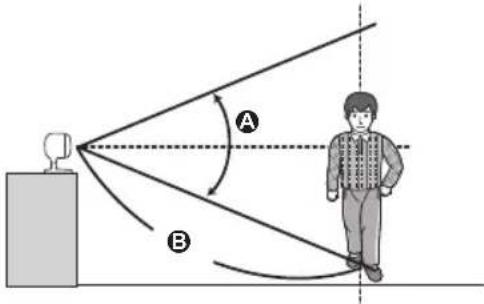
A Vertical detection range: approx. 50° B Distance of detectable motion: up to 5 m (16.4 feet) when motion sensitivity is set to the highest setting using the [Home Network] app.
Note:
- Movement may be incorrectly detected when the moving object and the background have similar colors.
- Movement may be incorrectly detected when there are sudden changes to the overall brightness level, such as when lights are turned on.
- Detection becomes difficult when the image is dark.
- You can adjust the sensitivity of the camera's motion detection feature, and select which areas of the camera image are monitored for motion detection. For more information, refer to the User's Guide (page 13).
Direction of motion
It is easier to detect objects that move sideways in front of the camera, and more difficult to detect objects that move directly toward the front of the camera.
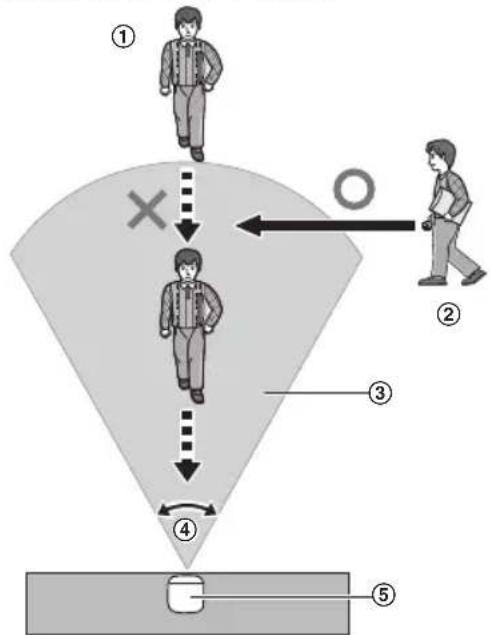
① It is difficult to detect movement directly towards the front of the camera. ② It is easy to detect movement sideways in front of the camera. ③ Detection range ④ Horizontal detection range: approx. 70° ⑤ Camera
Temperature sensor
The sensor is triggered when the set temperature range is exceeded.
Note:
- The temperature sensor may not detect temperature accurately if the camera is exposed to warm or cool breezes from heating/cooling systems.
- You can adjust the temperature setting of the temperature sensor. For more information, refer to the User's Guide (page 13).
Sound sensor
The sensor is triggered when the set sound level is exceeded.
Note:
- The sound sensor does not function while the camera's lullaby feature is playing a lullaby.
- The sound sensor may not function as desired when the camera is placed in noisy environments.
- You can adjust the sound level setting of the sound sensor. For more information, refer to the User's Guide (page 13).
Information about night vision mode
The camera features an array of infrared LEDs that light automatically in low-light conditions, allowing camera images to be viewable even when the surrounding area is dark.
Note:
- When night vision mode is active, the colors in camera images may appear different from normal.
- When night vision mode is active, the array of infrared LEDs that surround the camera's lens light up in a faint red color that can be seen in the dark.
- If the camera is installed in front of a window and points directly at the window, images may be poor when night vision mode is active.
Confirming the usage area
Wireless communication range
The wireless communication range of each device in the system from the hub is approximately 50 m (160 feet) indoors and approximately 300 m (1,000 feet) outdoors. Wireless communication may be unreliable when the following obstacles are located between the hub and other devices.
For assistance, please visit http://shop.panasonic.com/support
Setup
• Metal doors or screens - Walls containing aluminum-sheet insulation - Walls made of concrete or corrugated iron • Double-pane glass windows - Multiple walls - When using each device on separate floors or in different buildings
Note:
- The camera's LED indicator blinks in red if it is out of range of the hub. In this case, confirm all connections, including those of the hub.
Usage area cautions
Using the camera in the following areas may cause deformation, malfunction, or operational failure.
• In direct sunlight - Areas exposed to grease or steam, such as kitchens - Near fire or heating devices - Near magnetic fields (such as near microwaves and magnets) - Areas subject to extreme temperature changes, such as next to air conditioners - Areas with reflective objects, such as glass, that can interfere with detection of temperature variation - Areas where the temperature is affected by strong illuminating objects (such as fluorescent lights) - Near devices that emit strong radio waves, such as mobile phones
Connections
① Insert the AC adaptor plug firmly into the DC jack. ② Connect the AC adaptor to the power outlet.
Note:
- Use only the supplied Panasonic AC adaptor PNLV236.
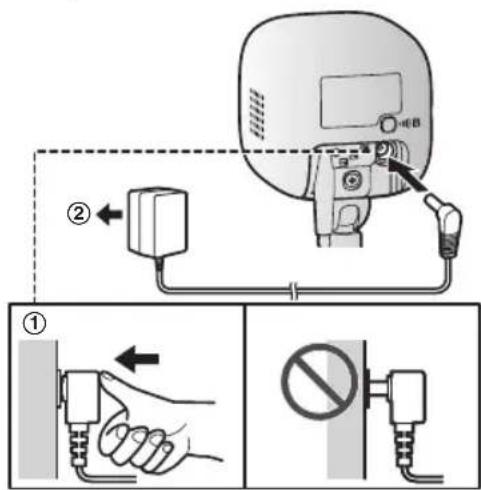
Note about power connections
AC adaptor connection
- The AC adaptor must remain connected at all times. (It is normal for the adaptor to feel warm during use.)
- The AC adaptor should be connected to a vertically oriented or floor-mounted AC outlet. Do not connect the AC adaptor to a ceiling-mounted AC outlet, as the weight of the adaptor may cause it to become disconnected.
Power failure
- The camera will not work during a power failure.
Placing the camera on a flat area
When you place the camera on a flat area, you can prevent the camera from falling by passing a string through the hole (page 7) in the stand.
1 Pass a string (not supplied) through the hole in the stand. 2 Tie the string and hook it to the bracket.
Wall mounting
- Mount the camera on a stable location where the unit can be adequately supported when installing.
- The AC adaptor should be connected to a vertically oriented or floor-mounted AC outlet. Do not connect the AC adaptor to a ceiling-mounted AC outlet, as the weight of the adaptor may cause it to become disconnected.
- Do not mount the camera on a soft material. It may fall down, break or cause injury.
- Do not mount the camera on the following places: plaster board, ALC (autoclaved lightweight cellular concrete), concrete block, plywood less than 25 mm (1 inch) thick, and etc.
1 Drive the screws (not supplied) into the wall.
A Longer than 20 mm (25/32 inches) B Space 1.3 mm (1/32 inches)
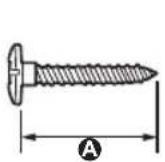
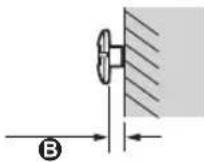
Note:
- Use the following template when determining the location of the screw holes.
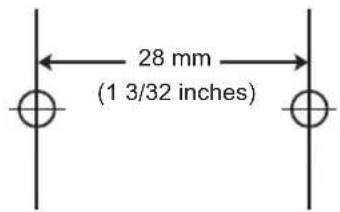
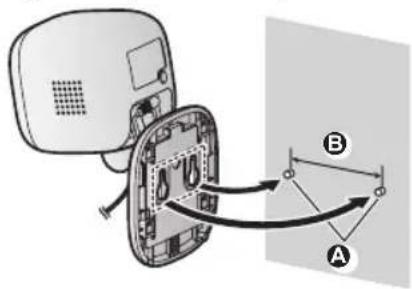
2 Mount the camera to the wall.
A Screws B 28 mm (1 3/32 inches)
3 Adjust the angle of the camera.
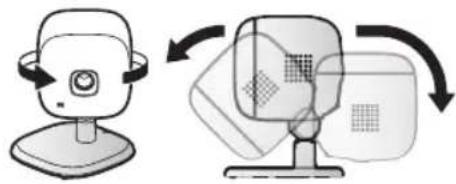
Appendix
Testing the motion detection range
After you have installed the [Home Network] app on your mobile device, you can use your mobile device to test the performance of the camera's motion detection feature. For more information, refer to the User's Guide (page 13).
1 Start the [Home Network] app and display live images from the camera. 2 Move to an area within the camera's viewable area. 3 While moving near the camera, use your mobile device to observe where you are in the viewable area when the camera's motion detection feature is triggered.
- When the motion detection feature is triggered, the camera's LED indicator lights in red for about 3 seconds.
4 Note the areas of the viewable area where movement is detected, and make adjustments as necessary.
Note:
- You can adjust the area detectable by the visual sensor. For more information, refer to the User's Guide (page 13).
Testing the microphone
To test the microphone, speak loudly and clearly into the microphone while a mobile device user is viewing live images from the camera.
Features available when using the [Home Network] app
Some of the features that are available when using the [Home Network] app are listed below. For more information, refer to the User's Guide (page 13).
- Alarm system
You can use the app to arm and disarm the alarm system, confirm the current status of the sensor, and view a log of previous events.
– Live camera monitoring
You can view live images from the camera, even while away from home.
- Listen and talk
You can use your mobile device to talk and listen to anyone within range of the camera's microphone and speaker.
- Sensor adjustment
You can adjust the detection range of the visual sensor and the setting levels of the sound sensor and temperature sensor.
- Sensor integration
You can configure the camera's sensor features to trigger other system events, such as camera recording 1 , turning on an electric device (such as a lamp), etc. (Appropriate device required.)
*1 A commercially-available microSD card must be inserted into the hub in order to record images.
- Notification
You can configure the camera to send a notification to the [Home Network] app when the camera's sensor features are triggered, for example, when motion is detected, if a baby is crying (sound sensor) or if the room becomes too warm or too cold (temperature sensor).
Accessing the User's Guide
The User's Guide is a collection of online documentation that helps you get the most out of the [Home Network] app.
1 iPhone ® /iPad ®
Tap :≡ in the app's home screen.
Android™ devices
Tap : or press your mobile device's menu button in the app's home screen.
2 Tap [User's Guide].
Note:
- Microsoft® Windows® Internet Explorer® 8 and earlier versions are not supported.
- Android 4.1 or later versions are recommended.
- You can also access the User's Guide at the web page listed below.
www.panasonic.net/pcc/support/tel/homenetwork/manual/
Specifications
• Standards DECT (Digital Enhanced Cordless Telecommunications) - Frequency range DECT: 1.92 GHz – 1.93 GHz - RF transmission power DECT: 115 mW (max.) • Power source 120 V AC, 60 Hz - Power consumption Standby: 2.2 W During operation: 3.0 W (when the LED lights are not lit) 4.0 W (when the LED lights are lit)
- Operating conditions 0 °C – 40 °C (32 °F – 104 °F) up to 90 % relative humidity (non-condensing)
• Transmitting range Approx. 50 m (160 feet) indoors Approx. 300 m (1,000 feet) outdoors
• Image sensor 0.3 megapixel CMOS
- Minimum illuminance required 0 lx*1
- Focal length Fixed (0.4 m (1.3 feet) – infinity)
- Angular field of view (camera angle) Horizontal: approx. 70° Vertical: approx. 50°
- Motion detection method Visual sensor
- Motion detection range Horizontal: approx. 70° Vertical: approx. 50°
- Adjustable mounting angles Horizontal: ±90° Vertical: facing forward - facing down approx. 60° (adjustable when mounting)
- Dimensions (height × width × depth) Approx. 102 mm × 75 mm × 75 mm (4 inches × 2 15/16 inches × 2 15/16 inches)
• Mass (weight) Approx. 160 g (0.35 lb)
*1 The infrared LEDs that surround the camera lens will illuminate in low-light conditions.
Appendix
FCC and other information
This device complies with Part 15 of the FCC Rules. Operation is subject to the following two conditions:
(1) This device may not cause harmful interference, and (2) this device must accept any interference received, including interference that may cause undesired operation. Privacy of communications may not be ensured when using this device.
CAUTION:
Any changes or modifications not expressly approved by the party responsible for compliance could void the user's authority to operate this device.
NOTE:
This equipment has been tested and found to comply with the limits for a Class B digital device, pursuant to Part 15 of the FCC Rules. These limits are designed to provide reasonable protection against harmful interference in a residential installation. This equipment generates, uses, and can radiate radio frequency energy and, if not installed and used in accordance with the instructions, may cause harmful interference to radio communications. However, there is no guarantee that interference will not occur in a particular installation. If this equipment does cause harmful interference to radio or television reception, which can be determined by turning the equipment off and on, the user is encouraged to try to correct the interference by one or more of the following measures:
- Reorient or relocate the receiving antenna. – Increase the separation between the equipment and receiver.
- Connect the equipment into an outlet on a circuit different from that to which the receiver is connected.
- Consult the dealer or an experienced radio/TV technician for help.
Some devices operate at frequencies that may cause interference to nearby TVs and VCRs. To minimize or prevent such interference, this device should not be placed near or on top of
a TV or VCR. If interference is experienced, move this device further away from the TV or VCR. This will often reduce or eliminate interference.
FCC RF Exposure Warning:
- This product complies with FCC radiation exposure limits set forth for an uncontrolled environment.
- To comply with FCC RF exposure requirements, the device must be installed and operated with at least 20 cm (8 inches) between the product and all persons' bodies.
- This product may not be collocated or operated in conjunction with any other antenna or transmitter.
- For body-worn operation, the device must be used only with a non-metallic accessory. Use of other accessories may not ensure compliance with FCC RF exposure requirements.
Notice:
- FCC ID can be found on the rear of the unit.
Customer Services
Shop Accessories!
for all your Panasonic gear
Go to
http://shop.panasonic.com/support
Get everything you need to get the most out of your Panasonic products: Accessories & Parts for your Camera, Phone, A/V products, TV, Computers & Networking, Personal Care, Home Appliances, Headphones, Batteries, Backup Chargers & more...
Customer Services Directory
For Product Information, Operating Assistance, Parts, Owner's Manuals, Dealer and Service info go to http://shop.panasonic.com/support
You may also contact us directly at: 1-800-272-7033,
Monday - Friday 9 am to 9 pm;
Saturday - Sunday 10 am to 7 pm, EST.
For the hearing or speech impaired TTY: 1-877-833-8855
As of June 2015
Limited Warranty (ONLY FOR U.S.A.)
Panasonic Products Limited Warranty
Limited Warranty Coverage (For USA Only)
If your product does not work properly because of a defect in materials or workmanship, Panasonic Corporation of North America (referred to as “the warrantor”) will, for the length of the period indicated on the chart below, which starts with the date of original purchase (“warranty period”), at its option either (a) repair your product with new or refurbished parts, (b) replace it with a new or a refurbished equivalent value product, or (c) refund your purchase price. The decision to repair, replace or refund will be made by the warrantor.
| Product or Part Name | Parts | Labor |
| Home Network System Products | One (1) Year | One (1) Year |
| microSD card (Included model only) 90 days N/A | ||
During the "Labor" warranty period there will be no charge for labor. During the "Parts" warranty period, there will be no charge for parts. This Limited Warranty excludes both parts and labor for non-rechargeable batteries, antennas, and cosmetic parts (cabinet). This warranty only applies to products purchased and serviced in the United States. This warranty is extended only to the original purchaser of a new product which was not sold "as is".
Mail-In Service--Online Repair Request
Online Repair Request
To submit a new repair request and for quick repair status visit our Web Site at http://shop.panasonic.com/support
When shipping the unit, carefully pack, include all supplied accessories listed in the Owner's Manual, and send it prepaid, adequately insured and packed well in a carton box. When shipping Lithium Ion batteries please visit our Web Site at http://shop.panasonic.com/support as Panasonic is committed to providing the most up to date information. Include a letter detailing the complaint, a return address and provide a daytime phone number where you can be reached. A valid registered receipt is required under the Limited Warranty.
IF REPAIR IS NEEDED DURING THE WARRANTY PERIOD, THE PURCHASER WILL BE REQUIRED TO FURNISH A SALES RECEIPT/PROOF OF PURCHASE INDICATING DATE OF PURCHASE, AMOUNT PAID AND PLACE OF PURCHASE. CUSTOMER WILL BE CHARGED FOR THE REPAIR OF ANY UNIT RECEIVED WITHOUT SUCH PROOF OF PURCHASE.
Limited Warranty Limits and Exclusions
This warranty ONLY COVERS failures due to defects in materials or workmanship, and DOES NOT COVER normal wear and tear or cosmetic damage. The warranty ALSO DOES NOT COVER damages which occurred in shipment, or failures which are caused by products not supplied by the warrantor, or failures which result from accidents, misuse, abuse, neglect, mishandling, misapplication, alteration, faulty installation, set-up adjustments, misadjustment of consumer controls, improper maintenance, power line surge, lightning damage, modification, introduction of sand, humidity or liquids, commercial use such as hotel, office, restaurant, or other business or rental use of the product, or service by anyone other than a Factory Service Center or other Authorized Servicer, or damage that is attributable to acts of God.
THERE ARE NO EXPRESS WARRANTIES EXCEPT AS LISTED UNDER "LIMITED WARRANTY COVERAGE".
THE WARRANTOR IS NOT LIABLE FOR INCIDENTAL OR CONSEQUENTIAL DAMAGES RESULTING FROM THE USE OF THIS PRODUCT, OR ARISING OUT OF ANY BREACH OF THIS WARRANTY.
(As examples, this excludes damages for lost time, travel to and from the servicer, loss of or damage to media or images, data or other memory or recorded content. The items listed are not exclusive, but for illustration only.)
ALL EXPRESS AND IMPLIED WARRANTIES, INCLUDING THE WARRANTY OF MERCHANTABILITY, ARE LIMITED TO THE PERIOD OF THE LIMITED WARRANTY.
Some states do not allow the exclusion or limitation of incidental or consequential damages, or limitations on how long an implied warranty lasts, so the exclusions may not apply to you.
This warranty gives you specific legal rights and you may also have other rights which vary from state to state. If a problem with this product develops during or after the warranty period, you may contact your dealer or Service Center. If the problem is not handled to your satisfaction, then write to:
Consumer Affairs Department
Panasonic Corporation of North America
661 Independence Pkwy
Chesapeake, VA 23320
PARTS AND SERVICE, WHICH ARE NOT COVERED BY THIS LIMITED WARRANTY, ARE YOUR RESPONSIBILITY.
As of June 2015
Notes
Notes
IMPORTANT!
If your product is not working properly...
① Reconnect the AC adaptor to the camera. ② Use the Home Network app to access the User's Guide and refer to the Troubleshooting section.

Visit our Web site: http://shop.panasonic.com/support
- FAQ and troubleshooting hints are available.
For your future reference
We recommend keeping a record of the following information to assist with any repair under warranty.
Serial No. Date of purchase
(found on the bottom of the stand)
Name and address of dealer
Attach your purchase receipt here.
Panasonic Corporation of North America
Two Riverfront Plaza, Newark, NJ 07102-5490
© Panasonic Corporation 2014
Panasonic®
Installation Guide
- TABLE OF CONTENTS
- INTRODUCTION
- IMPORTANT INFORMATION
- SETUP
- APPENDIX
- ACCESSORY INFORMATION
- SUPPLIED ACCESSORIES
- ADDITIONAL ACCESSORIES
- OTHER INFORMATION
- TRADEMARKS
- NOTICE
- ABOUT THIS SYSTEM
- FOR YOUR SAFETY
- WARNING
- POWER CONNECTION
- INSTALLATION
- OPERATING SAFEGUARDS
- MEDICAL
- CAUTION
- INSTALLATION AND LOCATION
- PREVENTING ACCIDENTS AND INJURIES
- IMPORTANT SAFETY INSTRUCTIONS
- SAVE THESE INSTRUCTIONS
- FOR BEST PERFORMANCE
- HUB LOCATION/AVOIDING NOISE
- ENVIRONMENT
- ROUTINE CARE
- CAMERA IMAGE QUALITY
- PROTECTING YOUR RECORDINGS
- LED INDICATOR
- SETUP OVERVIEW
- INITIAL SETUP
- REGISTRATION
- CONFIRM THE USAGE AREA
- CONNECTION
- REGISTERING THE CAMERA
- NOTE
- USING REGISTRATION BUTTONS
- HUB
- CAMERA
- USING THE APP
- INFORMATION ABOUT SENSOR FEATURES
- USING VISIBLE LIGHT TO DETECT MOTION
- DIRECTION OF MOTION
- TEMPERATURE SENSOR
- SOUND SENSOR
- INFORMATION ABOUT NIGHT VISION MODE
- CONFIRMING THE USAGE AREA
- WIRELESS COMMUNICATION RANGE
- USAGE AREA CAUTIONS
- CONNECTIONS
- NOTE ABOUT POWER CONNECTIONS
- AC ADAPTOR CONNECTION
- POWER FAILURE
- PLACING THE CAMERA ON A FLAT AREA
- WALL MOUNTING
- TESTING THE MOTION DETECTION RANGE
- TESTING THE MICROPHONE
- FEATURES AVAILABLE WHEN USING THE [HOME NETWORK] APP
- ALARM SYSTEM
- LIVE CAMERA MONITORING
- LISTEN AND TALK
- SENSOR ADJUSTMENT
- SENSOR INTEGRATION
- NOTIFICATION
- ACCESSING THE USER'S GUIDE
- TAP [USER'S GUIDE]
- SPECIFICATIONS
- FCC AND OTHER INFORMATION
- FCC RF EXPOSURE WARNING
- CUSTOMER SERVICES
- SHOP ACCESSORIES
- CUSTOMER SERVICES DIRECTORY
- LIMITED WARRANTY (ONLY FOR U.S.A.)
- PANASONIC PRODUCTS LIMITED WARRANTY
- LIMITED WARRANTY COVERAGE (FOR USA ONLY)
- ONLINE REPAIR REQUEST
- LIMITED WARRANTY LIMITS AND EXCLUSIONS
- THERE ARE NO EXPRESS WARRANTIES EXCEPT AS LISTED UNDER "LIMITED WARRANTY COVERAGE
- THE WARRANTOR IS NOT LIABLE FOR INCIDENTAL OR CONSEQUENTIAL DAMAGES RESULTING FROM THE USE OF THIS PRODUCT, OR ARISING OUT OF ANY BREACH OF THIS WARRANTY
- ALL EXPRESS AND IMPLIED WARRANTIES, INCLUDING THE WARRANTY OF MERCHANTABILITY, ARE LIMITED TO THE PERIOD OF THE LIMITED WARRANTY
- IMPORTANT
- FOR YOUR FUTURE REFERENCE
- PANASONIC®
- INSTALLATION GUIDE
Brand : PANASONIC
Model : KX-HNC210
Category : Home Automation