CVP-109-107-105-700 - Digital piano YAMAHA - Free user manual and instructions
Find the device manual for free CVP-109-107-105-700 YAMAHA in PDF.


| Product Type | Digital Piano |
| Brand | YAMAHA |
| Model | CVP-109 / 107 / 105 / 700 |
| Dimensions (W x D x H) | Approximately 142 cm x 60 cm x 90 cm (depending on model) |
| Weight | Approximately 65 kg (depending on model) |
| Power Supply | AC adapter (included) or batteries (optional) |
| Power Consumption | 50 W (max) |
| Keyboard | 88 weighted keys with piano touch |
| Maximum Polyphony | 128 voices |
| Number of Voices | Over 500 (including piano, organ, strings, etc.) |
| Accompaniment Styles | Over 300 rhythm styles |
| Recording Functions | Multi-track sequencer, WAV audio recording |
| Speakers | Built-in stereo system (2 x 25 W) |
| Connectivity | USB to Host, USB to Device, MIDI In/Out, audio output, headphone jack |
| Display | Color touchscreen LCD (size varies by model) |
| Maintenance and Cleaning | Wipe with a soft, dry cloth. Avoid chemical products. |
| Safety | Unplug before cleaning. Do not expose to moisture. |
| Spare parts and repairability | Contact a Yamaha authorized service center. Batteries and adapter available. |
Frequently Asked Questions - CVP-109-107-105-700 YAMAHA
User questions about CVP-109-107-105-700 YAMAHA
0 question about this device. Answer the ones you know or ask your own.
Ask a new question about this device
Download the instructions for your Digital piano in PDF format for free! Find your manual CVP-109-107-105-700 - YAMAHA and take your electronic device back in hand. On this page are published all the documents necessary for the use of your device. CVP-109-107-105-700 by YAMAHA.
USER MANUAL CVP-109-107-105-700 YAMAHA
Check Your Power Supply
Make sure that your local AC mains voltage matches the voltage specified on the name plate on the bottom panel. In some areas a voltage selector may be provided on the bottom panel of the main keyboard unit near the power cord. Make sure that the voltage selector is set for the voltage in your area. The voltage selector is set at 240V when the unit is initially shipped. To change the setting use a "minus" screwdriver to rotate the selector dial so that the correct voltage appears next to the pointer on the panel.
SPECIALMESSAGESECTION
PRODUCT SAFETY MARKINGS: Yamaha electronic products may have either labels similar to the graphics shown below or molded/stamped facsimiles of these graphics on the enclosure. The explanation of these graphics appears on this page. Please observe all cautions indicated on this page and those indicated in the safety instruction section.
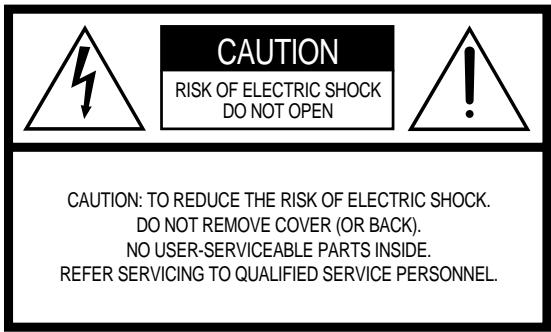
See bottom of Keyboard enclosure for graphic symbol markings.

The exclamation point within the equilateral triangle is intended to alert the user to the presence of important operating and maintenance (servicing) instructions in the literature accompanying the product.
The lightning flash with arrowhead symbol, within the equilateral triangle, is intended to alert the user to the presence of uninsulated "dangerous voltage" within the product's enclosure that may be of sufficient magnitude to constitute a risk of electrical shock.
IMPORTANT NOTICE: All Yamaha electronic products are tested and approved by an independent safety testing laboratory in order that you may be sure that when it is properly installed and used in its normal and customary manner, all foreseeable risks have been eliminated. DO NOT modify this unit or commission others to do so unless specifically authorized by Yamaha. Product performance and/or safety standards may be diminished. Claims filed under the expressed warranty may be denied if the unit is/has been modified. Implied warranties may also be affected.
SPECIFICATIONS SUBJECT TO CHANGE: The information contained in this manual is believed to be correct at the time of printing. However, Yamaha reserves the right to change or modify any of the specifications without notice or obligation to update existing units.
ENVIRONMENTAL ISSUES: Yamaha strives to produce products that are both user safe and environmentally friendly. We sincerely believe that our products and the production methods used to produce them, meet these goals. In keeping with both the letter and the spirit of the law, we want you to be aware of the following:
Battery Notice: This product MAY contain a small nonrechargeable battery which (if applicable) is soldered in place. The average life span of this type of battery is approximately five years. When replacement becomes necessary, contact a qualified service representative to perform the replacement.
Warning: Do not attempt to recharge, disassemble, or incinerate this type of battery. Keep all batteries away from children. Dispose of used batteries promptly and as regulated by applicable laws. Note: In some areas, the servicer is required by law to return the defective parts. However, you do have the option of having the servicer dispose of these parts for you.
Disposal Notice: Should this product become damaged beyond repair, or for some reason its useful life is considered to be at an end, please observe all local, state, and federal regulations that relate to the disposal of products that contain lead, batteries, plastics, etc.
NOTICE: Service charges incurred due to lack of knowledge relating to how a function or effect works (when the unit is operating as designed) are not covered by the manufacturer's warranty, and are therefore the owners responsibility. Please study this manual carefully and consult your dealer before requesting service.
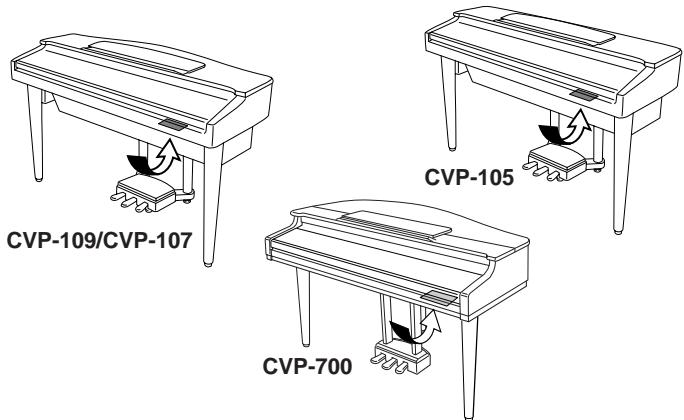
NAME PLATE LOCATION: The graphic below indicates the location of the name plate. The model number, serial number, power requirements, etc., are located on this plate. You should record the model number, serial number, and the date of purchase in the spaces provided below and retain this manual as a permanent record of your purchase.
Model
Serial No.
Purchase Date
PRECAUTIONS
PLEASE READ CAREFULLY BEFORE PROCEEDING
- Please keep these precautions in a safe place for future reference.

WARNING
Always follow the basic precautions listed below to avoid the possibility of serious injury or even death from electrical shock, short-circuiting, damages, fire or other hazards. These precautions include, but are not limited to, the following:
- Do not open the instrument or attempt to disassemble the internal parts or modify them in any way. The instrument contains no user-serviceable parts. If it should appear to be malfunctioning, discontinue use immediately and have it inspected by qualified Yamaha service personnel.
- Do not expose the instrument to rain, use it near water or in damp or wet conditions, or place containers on it containing liquids which might spill into any openings.
- If the power cord or plug becomes frayed or damaged, or if there is a sudden loss of sound during use of the instrument, or if any unusual smells or
smoke should appear to be caused by it, immediately turn off the power switch, disconnect the electric plug from the outlet, and have the instrument inspected by qualified Yamaha service personnel.
- Only use the voltage specified as correct for the instrument. The required voltage is printed on the name plate of the instrument.
- Before cleaning the instrument, always remove the electric plug from the outlet. Never insert or remove an electric plug with wet hands.
- Check the electric plug periodically and remove any dirt or dust which may have accumulated on it.

CAUTION
Always follow the basic precautions listed below to avoid the possibility of physical injury to you or others, or damage to the instrument or other property. These precautions include, but are not limited to, the following:
- Do not place the power cord near heat sources such as heaters or radiators, and do not excessively bend or otherwise damage the cord, place heavy objects on it, or place it in a position where anyone could walk on, trip over, or roll anything over it.
- When removing the electric plug from the instrument or an outlet, always hold the plug itself and not the cord. Pulling by the cord can damage it.
- Do not connect the instrument to an electrical outlet using a multiple-connector. Doing so can result in lower sound quality, or possibly cause overheating in the outlet.
- Remove the electric plug from the outlet when the instrument is not to be used for extended periods of time, or during electrical storms.
- Before connecting the instrument to other electronic components, turn off the power for all components. Before turning the power on or off for all components, set all volume levels to minimum. Also, be sure to set the volumes of all components at their minimum levels and gradually raise the volume controls while playing the instrument to set the desired listening level.
- Do not expose the instrument to excessive dust or vibrations, or extreme cold or heat (such as in direct sunlight, near a heater, or in a car during the day) to prevent the possibility of panel disfiguration or damage to the internal components.
- Do not use the instrument near other electrical products such as televisions, radios, or speakers, since this might cause interference which can affect proper operation of the other products.
- Do not place the instrument in an unstable position where it might accidentally fall over.
- Before moving the instrument, remove all connected cables.
- When cleaning the instrument, use a soft, dry cloth. Do not use paint thinkers, solvents, cleaning fluids, or chemical-impregnated wiping cloths. Also, do not place vinyl, plastic or rubber objects on the instrument, since this might discolor the panel or keyboard.
-
On the CVP-109/700, gently remove dust and dirt with a soft cloth. Do not wipe too hard since small particles of dirt can scratch the instrument's finish.
-
On the CVP-109/700, bumping the surface of the instrument with metal, porcelain, or other hard objects can cause the finish to crack or peel. Use caution.
- Do not rest your weight on, or place heavy objects on the instrument, and do not use excessive force on the buttons, switches or connectors.
- Take care that the key cover does not pinch your fingers, and do not insert a finger or hand in the key cover gap.
- Never insert or drop paper or metallic or other objects between the slits of the key cover and the keyboard. If this happens, immediately turn off the power and remove the electric plug from the outlet and have the instrument inspected by qualified Yamaha service personnel.
- Do not place the instrument against a wall (allow at least 3 cm/one-inch from the wall), since this can cause inadequate air circulation, and possibly result in the instrument overheating.
- Read carefully the attached documentation explaining the assembly process. Failure to assemble the instrument in the proper sequence might result in damage to the instrument or even injury.
- Do not operate the instrument for a long period of time at a high or uncomfortable volume level, since this can cause permanent hearing loss. If you experience any hearing loss or ringing in the ears, consult a physician.
USING THE BENCH (if included)
- Do not play carelessly with or stand on the bench. Using it as a tool or step-ladder or for any other purpose might result in accident or injury.
- Only one person should sit on the bench at a time, in order to prevent the possibility of accident or injury.
- If the bench screws become loose due to extensive long-term use, tighten them periodically using the included tool.
SAVING USER DATA
- Always save data to a floppy disk frequently, in order to help prevent the loss of important data due to a malfunction or user operating error.
Yamaha cannot be held responsible for damage caused by improper use or modifications to the instrument, or data that is lost or destroyed.
Thank you for purchasing the Yamaha Clavinova! We recommend that you read this manual carefully so that you can fully take advantage of the advanced and convenient functions of the Clavinova. We also recommend that you keep this manual in a safe and handy place for future reference.
Accessories
Music Software Collection Disk (and Music Book)
This disk features sample songs that you can play back on your Clavinova, as well as MIDI driver software for computers.
- Floppy Disk
Use this blank disk to record your performances.
Owner's Manual
This manual contains complete instructions for operating your Clavinova.
Reference Booklet
This manual contains lists of voices, styles, and parameters, etc., as well as specifications and assembly instructions for your Clavinova.
- Bench
A bench may be included or optional, depending on your locale.
- The illustrations and LCD screens as shown in this owner's manual are for instructional purposes only, and may appear somewhat different from those on your instrument.
- Unauthorized copying of copyrighted software for purposes other than the purchaser's personal use is prohibited.
- This product is manufactured under license of U.S. Patents No.5231671, No.5301259, No.5428708, and No.5567901 from IVL Technologies Ltd.
Trademarks:
- Apple and Macintosh are trademarks of Apple Computer, Inc.
- IBM-PC/AT is a trademark of International Business Machines Corporation.
- Windows is the registered trademark of Microsoft® Corporation.
- All other trademarks are the property of their respective holders.
The Panel Logos
The logos printed on the Clavinova panel indicate standards/formats it supports and special features it includes.

GM System Level 1
"GM System Level 1" is an addition to the MIDI standard which guarantees that any data conforming to the standard will play accurately on any GM-compatible tone generator or synthesizer from any manufacturer.

XG Format
XG is a new Yamaha MIDI specification which significantly expands and improves on the "GM System Level 1" standard with greater voice handling capacity, expressive control, and effect capability while retaining full compatibility with GM. By using the Clavinova's XG voices, it is possible to record XG-compatible song files.

XF Format
The Yamaha XF format enhances the SMF (Standard MIDI File) standard with greater functionality and open-ended expandability for the future. The Clavinova is capable of displaying lyrics when an XF file containing lyric data is played. (SMF is the most common format used for MIDI sequence files. The Clavinova is compatible with SMF Formats 0 and 1, and records "song" data using SMF Format 0.)

Vocal Harmony (CVP-109/107/700)
Vocal Harmony employs state-of-the-art digital signal processing technology to automatically add appropriate vocal harmony to a lead vocal line sung by the user. Vocal Harmony can even change the character and gender of the lead voice as well as the added voices to produce a wide range of vocal harmony effects.

Disk Orchestra Collection
The DOC voice allocation format provides data playback compatibility with a wide range of Yamaha instruments and MIDI devices.

Style File Format
The Style File Format (SFF) is Yamaha's original style file format, which uses a unique conversion system to provide high-quality automatic accompaniment based on a wide range of chord types. The Clavinova uses the SFF internally, reads optional SFF style disks, and creates SFF styles using the Custom Style feature.
Features of the Clavinova
Large, Easy-to-use LCD Display
The large LCD (together with the various panel buttons) provides comprehensive and easy-to-understand control of the Clavinova's operations (page 16).
- Wealth of Rich, Realistic Voices
The Clavinova has a wide variety of authentic and dynamic voices, including 224 original voices (195 voices on the CVP-105), 6 Organ Flute voices (CVP-109/107/700), 480 XG voices, and 13 drum/SFX kits (12 kits on the CVP-105). These include exceptionally natural-sounding piano, strings and brass voices, and the particularly expressive "sweet" wind voices (the CVP-105 has one sweet voice, "SweetTrumpet"). Moreover, you can play realistic drum and percussion sounds directly from the keyboard (page 36).
-Playback of Song Disks
The Clavinova can play back various commercially available song disks. With the appropriate disk software, you can play the piano part of the song yourself along with a full orchestra or backing band (page 113). If the software contains lyrics, you can display them on the Clavinova's LCD — on the CVP-107, CVP-109 and CVP-700, you can even output them to a television screen via the VIDEO OUT jack (page 215).
- Special Guide Functions for Easy Learning
With the appropriate disk software, the LCD display and guide lamps help you learn songs by showing you when and where to play the proper notes. The three-step system helps you to master each song quickly and easily (page 125).
- Fun, Dynamic Automatic Accompaniment
The Auto Accompaniment of the Clavinova gives you full, exciting instrumental backing in your favorite music styles, according to the chords you play (page 69). There's even a wide selection of "Pianist" styles that allow you to enjoy solo piano accompaniment (page 70). Choose from no less than 170 accompaniment styles (the exact number of styles depends on the model), or create your own custom styles (page 91).
- Easy Access to a Variety of Musical Enjoyment
The Clavinova offers several ways to change panel settings without a lot of fuss. You can use the One Touch Setting feature to select from four sets of voice, effect, and other settings appropriate to each accompaniment style (page 90). Or access the Music Database to choose from more than 400 sets of style and voice settings, selectable by title or style (page 79). You can even save your current setup for instant recall later using the handy Registration function (page 108).
- Easy-to-use Recording Features
You can record songs using a variety of methods, depending on your keyboard expertise and preference. Choose from the Quick Recording, Track Recording, Chord Sequence Recording, and Step Edit functions (page 130).
Automatic Vocal Harmony Function (CVP-109/107/700)
The Clavinova's unique Vocal Harmony feature employs advanced voice-processing technology to automatically produce vocal harmony based on a lead vocal, allowing a single singer to sound like a vocal group (page 175).
- Convenient TO HOST Terminals for Direct Connection to Computers
The Clavinova can be used as a high-quality sound source to play back music software for computers. It can also be used as a master keyboard, to enter performance data and create music with a computer (page 216).
CHAPTER 1:
Getting Ready
About This Manual 8
Handling the Floppy Disk Drive (FDD) and Floppy Disks 9
Setting Up the Clavinova 10
Music Stand 10
Key Cover 10
Lid (CVP-700 only) 11
Turning the Power On and Off 11
Panel Controls and Terminals 12
Playing the Demo Songs 14
CHAPTER 2:
Basic Operation
Using the LCD Display Controls 16
Selecting a Function 16
Changing a Setting 17
Changing a Setting in a Menu Display 18
Resetting a Function's Value 19
Displaying a Different Page 20
Using Functions in Non-rounded Rectangles 21
Exiting to the Main Display 21
Using the Direct Access Function 22
Adjusting the Volume 23
Adjusting the Overall Volume 23
Adjusting the Accompaniment or Song Volume 23
Setting the Keyboard Volume 23
Adjusting Accompaniment or Song Part Levels 24
Using an Expression Pedal (CVP-109/107/700) 24
Adjusting the Timbre (CVP-108/107/700) 25
Changing the Master Equalizer Settings 25
Using the Equalizer Lock Function 26
Using the Metronome 27
Using the Metronome 27
Changing the Metronome Settings 28
Using the Help Mode 29
CHAPTER 3:
Voices
Selecting Voices 31
Selecting a Voice from the VOICE SELECT Display 31
Selecting Voices from the Main Display 32
Organ Flutes (CVP-109/107/700) 33
Keyboard Percussion 36
Changing the Keyboard Settings for the Main Voice 36
Playing Two Voices Simultaneously — Dual Mode 38
Selecting the Second Voice 38
Changing the Main Voice in Dual Mode 38
Changing the Keyboard Settings for the Second Voice 39
Exiting the Dual Mode 40
Playing Two Voices on Different Sides of the Keyboard — Split Mode 41
Selecting the Left Voice 41
Changing the Main Voice in Split Mode 42
Changing the Keyboard Settings for the Left Voice 42
Using the Dual and Split Functions Simultaneously 44
Exiting the Split Mode 44
Using the Pedals 45
Damper Pedal (Right) 45
Sostenuto Pedal (Center) 45
Soft Pedal (Left) 45
CHAPTER 4:
Reverb and Other Effects
Reverb 46
Turning the Reverb On or Off 46
Changing the Reverb Settings 47
Chorus 51
Turning the Chorus On or Off 51
Changing the Chorus Settings 52
Voice Effects (CVP-109/107/700) 54
Turning the Effects On or Off 54
Changing the Effect Settings 55
Voice Effects (CVP-105) 58
Turning the Effects On 58
Changing the Effect Settings 58
CHAPTER 5:
Accompaniment Styles
(Rhythm and Auto Accompaniment)
Selecting Accompaniment Styles 61
Selecting a Style 61
Playing the Accompaniment Styles 63
Varying the Style 63
Starting the Accompaniment Style 64
Stopping the Accompaniment Style 67
Playing with the Auto Accompaniment 69
Using the Auto Accompaniment 69
Starting the Auto Accompaniment 70
Stopping the Auto Accompaniment 70
Changing the Auto Accompaniment Settings 71
Adjusting Individual Part Levels 77
Other Auto Accompaniment Functions 79
Music Database 79
Accompaniment Assistance 81
Harmony 87
One Touch Setting 90
Creating Your Own Styles 91
Recording a Custom Style 91
Other Custom Style Functions 99
Playing Back Your Custom Styles 103
Messages in Custom Style Mode 103
Using Style Files 105
About the Yamaha Style File Format 105
Loading Styles from a Disk 105
Playing Loaded Style Files 107
CHAPTER 6:
Registrations
Using Registrations (Registering and Recalling Panel Setups) 108
Storing a Panel Setup 108
Recalling the Registered Panel Settings 109
Protecting Panel Settings 110
Naming the Registration 111
CHAPTER 7:
Song Control
SongPlayback 113
SongPlayback 113
Part Cancel 117
Assignment of Tracks to 1/RIGHT and 2/LEFT, and Voice Assignment.... 118
Overall Song Playback Volume Control 119
Adjustment of Track Settings 120
Changing Settings in the MIXER Display 121
Repeat Functions 122
OtherPlaybackControls 124
Playing Other Types of Music Data 124
Guide Control 125
Guide Methods and Piano Roll 125
Using the Guide Function 126
Other Guide-related Functions 128
Song Recording 130
Recording Setup: Disk Format 131
Quick Recording 132
Track Recording (Multi-track Recording) 135
Adding New Tracks 138
Punch-in/out Recording 138
Chord Sequence 141
Other Chord Sequence Functions 144
Step Edit 146
Editing Song Events 146
Common Parameters 150
Event-specific Parameters 151
Editing the Event Lists 158
Filtering the Event List 161
Recording Music in Step Edit Mode 162
Saving Your Changes 165
Other Record Edit Functions 166
Song Name 166
Track Edit 167
Initial Edit (Changing the Initial Data) 170
Making Settings in the INITIAL EDIT Display 171
Setup Memory 172
Vocal Harmony Memory (CVP 109/107/700) 173
Recording Without a Disk 174
About the CVP MEMORY Song 174
CHAPTER 8:
Vocal Harmony
Singing with Vocal Harmony (CVP-109/107/700) 175
Using Vocal Harmony 175
Changing the Vocal Harmony Settings 176
Using Vocal Harmony Data 184
CHAPTER 9:
The Utility Functions
Keyboard 188
FUNCTION [KEYBOARD 1] Display — page 1 188
FUNCTION [KEYBOARD 2] Display — page 2 189
Pedal 190
FUNCTION [PEDAL] Display - page 3 190
Disk 192
FUNCTION [DISK 1] Display — page 4 192
FUNCTION [DISK 2] Display — page 5 196
FUNCTION [DISK 3] Display - page 6 198
FUNCTION [DISK 4] Display — page 7 199
FUNCTION [DISK 5] Display — page 8 200
MIDI 201
FUNCTION [MIDI 1] Display - page 9 201
FUNCTION [MIDI 2] Display - page 10 202
FUNCTION [MIDI 3] Display - page 11 203
FUNCTION [MIDI 4] Display - page 12 204
Backup 206
FUNCTION [BACKUP 1] Display — page 13 206
FUNCTION [BACKUP 2] Display — page 14 207
Utility 208
FUNCTION [MICRO TUNING] Display - page 15 208
FUNCTION [SCALE TUNING] Display — page 16 209
FUNCTION [VIDEO OUT] Display — page 17 (CVP-109/107/700) .. 212
CHAPTER 10:
Connections
Audio and Video Connections 213
Headphones 213
Microphone (CVP-109/107/700) 213
Audio Input and Output 214
Expression Pedal (CVP-109/107/700) 215
Video Monitor (CVP-109/107/700) 215
Data Connections 216
Connecting MIDI Equipment 216
Connecting to a Host Computer 216
APPENDICES
Effect Type Lists 218
Messages 221
Troubleshooting 227
MIDI and Data Compatibility 229
Index 230
CHAPTER 1: Getting Ready
About This Manual
This section explains the notation conventions that are used throughout this manual.
Square brackets [ ]
Square brackets enclose the names of panel buttons, sliders, and connectors as they appear on your Clavinova. For example, the DEMO button is expressed as [DEMO] in this manual.
![YAMAHA CVP-109-107-105-700 - Square brackets [ ] - 1](/content/2025/01/114672/images/81aaf343a9a833853a2a6e1bb30bda941ebf1441ca789e4d0f816bc9806cbc34.jpg)
Bold characters
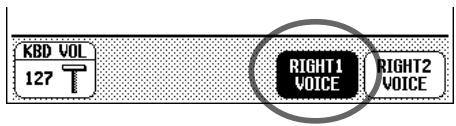
Bold type represents items shown in the LCD display, as well as the corresponding LCD buttons (i.e., the buttons directly below, or to the left or right of, these items). For example, the phrase "Select RIGHT1 VOICE" means that you should press the button directly below the "RIGHT1 VOICE" label at the bottom of the display.
Arrows in Operation Explanations
Different types of arrows are used to distinguish the steps of an operation from its results.
Operation steps
♥≥♣ ...indicates that you should do♥, then do♣.
Operation results
♥→♠ ...indicates that doing♥results in♠.
Handling the Floppy Disk Drive (FDD) and Floppy Disks
Precautions
Be sure to handle floppy disks and treat the disk drive with care. Follow the important precautions below.
- Compatible Disk Type
3.5" 2DD and 2HD type floppy disks can be used.
Inserting/Ejecting Floppy Disks
To insert a floppy disk into the disk drive:
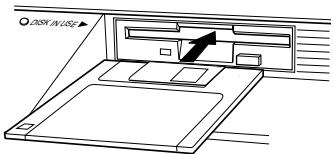
Hold the disk so that the label of the disk is facing upward and the sliding shutter is facing forward, towards the disk slot. Carefully insert the disk into the slot, slowly pushing it all the way in until it clicks into place and the eject button pops out.
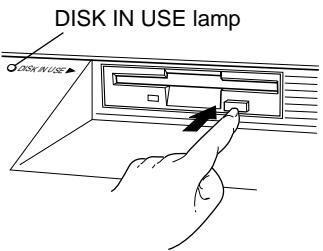
Before ejecting the disk, be sure to confirm that the FDD is stopped (check if the [DISK IN USE] lamp is off). Press the eject button slowly as far as it will go; the disk will automatically pop out. When the disk is fully ejected, carefully remove it by hand.
Never attempt to remove the disk or turn the power off during recording, reading and playing back. Doing so can damage the disk and possibly the disk drive.
If the eject button is pressed too quickly, or if it is not pressed in as far as it will go, the disk may not eject properly. The eject button may become stuck in a half-pressed position with the disk extending from the drive slot by only a few millimeters. If this happens, do not attempt to pull out the partially ejected disk, since using force in this situation can damage the disk drive mechanism or the floppy disk. To remove a partially ejected disk, try pressing the eject button once again, or push the disk back into the slot and then repeat the eject procedure.
Be sure to remove the floppy disk from the disk drive before turning off the power. A floppy disk left in the drive for extended periods can easily pick up dust and dirt that can cause data read and write errors.
■ Cleaning the Disk Drive Read/Write Head
- Clean the read/write head regularly. This instrument employs a precision magnetic read/write head which, after an extended period of use, will pick up a layer of magnetic particles from the disks used that will eventually cause read and write errors.
- To maintain the disk drive in optimum working order
Yamaha recommends that you use a commercially-available dry-type head cleaning disk to clean the head about once a month. Ask your Yamaha dealer about the availability of proper head-cleaning disks. - Never open or close the key cover while a disk is extending from the drive (i.e. in the ejected position). The key cover may contact the disk, possibly damaging the disk or even the disk drive.
- Never insert anything but floppy disks into the disk drive. Other objects may cause damage to the disk drive or floppy disks.
■ About the Floppy Disks
To handle floppy disks with care:
- Do not place heavy objects on a disk or bend or apply pressure to the disk in any way. Always keep floppy disks in their protective cases when they are not in use.
- Do not expose the disk to direct sunlight, extremely high or low temperatures, or excessive humidity, dust or liquids.
- Do not open the sliding shutter and touch the exposed surface of the floppy disk inside.
- Do not expose the disk to magnetic fields, such as those produced by televisions, speakers, motors, etc., since magnetic fields can partially or completely erase data on the disk, rendering it unreadable.
- Never use a floppy disk with a deformed shutter or housing.
- Do not attach anything other than the provided labels to a floppy disk. Also make sure that labels are attached in the proper location.
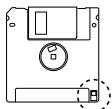
To protect your data (Write-protect Tab):
To prevent accidental erasure of important data, slide the disk's write-protect tab to the "protect" position (tab open).
Data backup
For maximum data security Yamaha recommends that you keep two copies of important data on separate floppy disks. This gives you a backup if one disk is lost or damaged. To make a backup disk use the Disk Copy function on page 196.

Music Stand
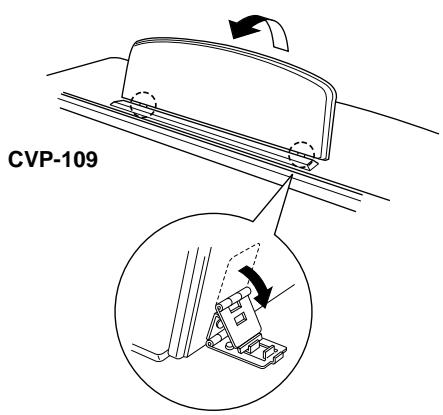
To raise the music stand:
Pull the stand up and toward yourself as far as it will go.
2 Flip down the two metal supports at the left and the right on the rear of the music stand.
3 Lower the music stand so that it rests on the metal supports.
On the CVP-109/107/105, the illustration shows that the angle of the music stand can be set in one of three positions, according to the position of the metal supports. Set the left and right metal supports to the same position.
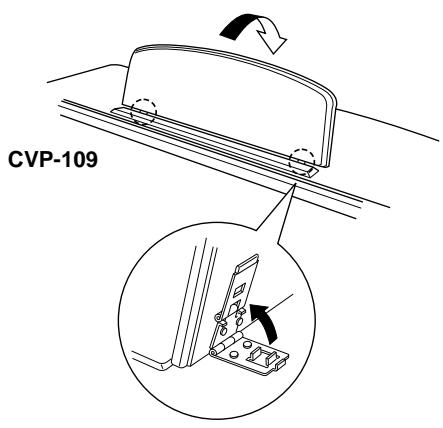
■ To lower the music stand:
Pull the music stand toward yourself as far as it will go.
2 Raise the two metal supports until they are flat against the rear surface of the stand.
Gently lower the music stand backward until it is all the way down.
CAUTION
- Do not try to use the music stand in a half-raised position. Also, when lowering the stand, let the stand all the way down before releasing it.
Key Cover
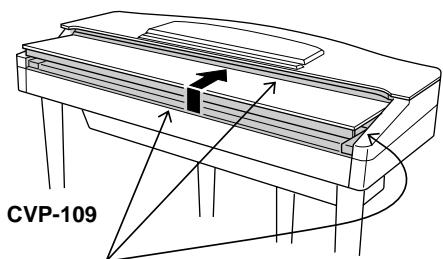
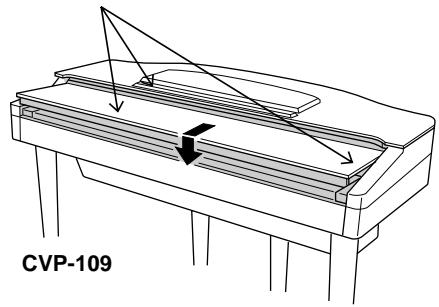
Be careful to avoid catching your fingers when opening or closing the cover.
To open the key cover:
1 Lift the cover slightly (not too much).
2 Slide the cover open.
To close the key cover:
1 Slide the cover toward you.
Gently lower the cover over the keys.
CAUTION
- Hold the cover with both hands when moving it, and do not release it until it is fully opened or closed. Be careful to avoid catching fingers (yours or others) between the cover and main unit.
- Do not place objects on top of the key cover. Small objects placed on the key cover may fall inside the instrument when the cover is opened, and may be impossible to remove. This could cause electric shock, short circuit, fire or other serious damage to the instrument.
Lid (CVP-700 only)
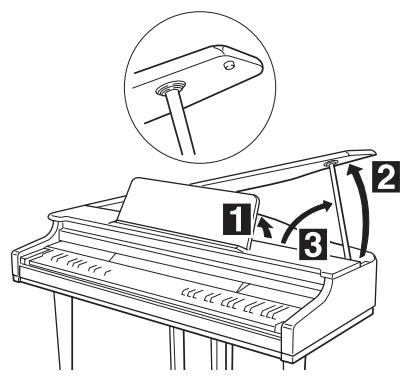
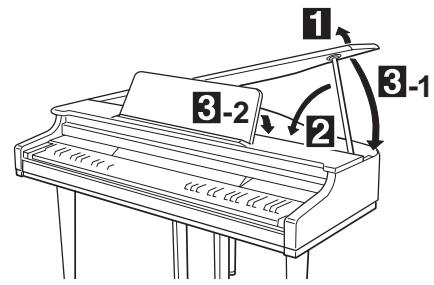
To open the lid:
1 Raise the music stand as described in "Music Stand" on page 10.
2 Raise and hold the right side of the lid (viewed from the keyboard end of the instrument).
3 Raise the lid stay and carefully lower the lid so that the end of the stay fits into the recess in the lid.
To close the lid:
1 Hold the lid stay and carefully raise the lid.
2 Hold the lid in its raised position and lower the lid stay.
3 Carefully lower the lid, then lower the music stand as described in "Music Stand" on page 10.
CAUTION
- Make sure that the end of the stay fits securely in the lid recess. If the stay is not properly seated in the recess the lid may fall causing damage or injury.
- Be careful that you or others do not bump the stay while the lid is raised. The stay may be bumped out of the lid recess causing the lid to fall.
- Be careful not to catch your fingers when raising or lowering the lid.
Turning the Power On and Off
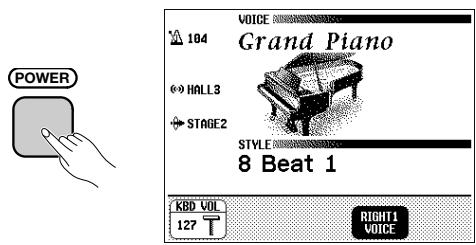

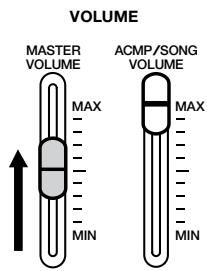
1 Connect the power cord.
Insert the plugs at the ends of the cord, one into the AC INLET on the bottom panel of the Clavinova, and the other into a standard AC outlet. In some areas, a plug adapter may be provided to match the pin configuration of the AC wall outlets in your area.
Press the [POWER] switch.
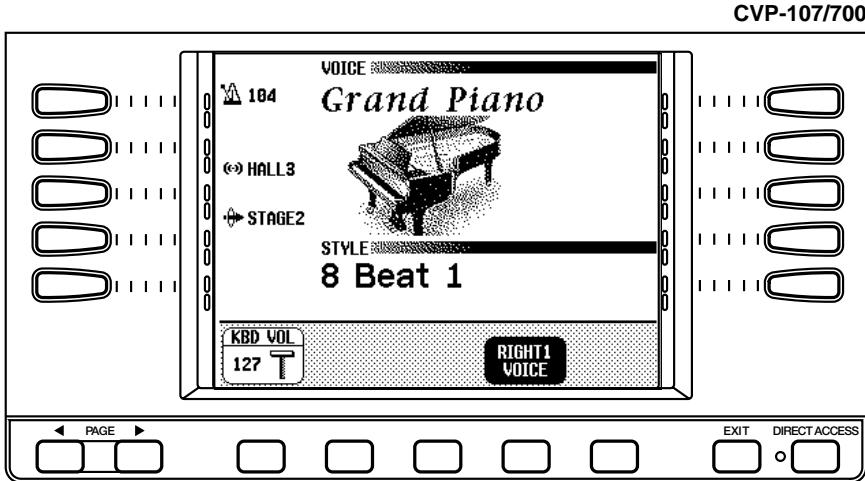
The main display appears in the LCD display. (Initially, the voice Grand Piano and the accompaniment style 8 Beat 1 are selected.) The power lamp below the lower left end of the keyboard also lights.
3 Adjust the LCD.
If the LCD is difficult to read, adjust the contrast with the [CONTRAST] knob at the left of the LCD.
4 Adjust the volume.
Use the [MASTER VOLUME] slider to adjust the volume to an appropriate level.
- When you're ready to turn off the power, press the [POWER] switch again. Both the LCD display and the power lamp below the left end of the keyboard will turn off.
Panel Controls and Terminals
CVP-109
CVP-107
CVP-700
CVP-105
CVP-109
CVP-109
CVP-107
CVP-700
CVP-105
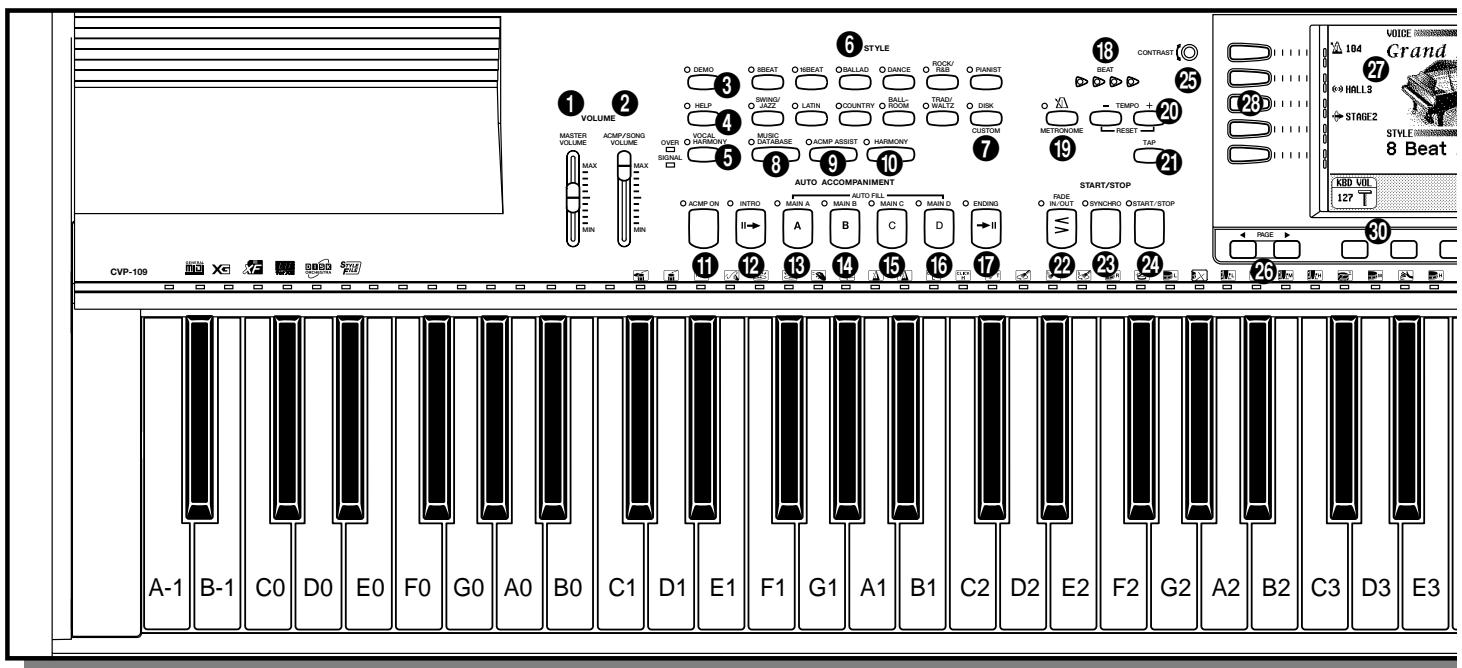
Volume Section
1 [MASTER VOLUME] page 23
[ACMP/SONG VOLUME] page 23
Special Mode Control Section
[DEMO] page 14
4 [HELP] page 28
[VOCAL HARMONY] (CVP-109/107/700).. page 175
Accompaniment Style Section
STYLE buttons page 61
[DISK/CUSTOM] page 91
[ MUSIC DATABASE] page 79
[ACMP ASSIST] page 81
[HARMONY] page 87
Auto Accompaniment Section
[ACMP ON] page 69
INTRO] page 66
[MAIN A] page 63
14 [MAIN B] page 63
[MAIN C] page 63
[MAIN D] page 63
17 [ENDING] page 67
Metronome Section
[BEAT] page 64
[METRONOME] page 27
20 TEMPO [-], [+] page 27
[21] [TAP] page 65
Start/Stop Section
[FADE IN/OUT] pages 67, 68
[SYNCHRO] page 65
24 [START/STOP] pages 64, 67
Display Control Section
25 [CONTRAST] page 10
26 PAGE [↓], [▶] page 20
LCD display . page 16
28 Left LCD buttons . page 18
29 Right LCD buttons.. page 18
LCD buttons.. page 17
[EXIT] page 21
[DIRECT ACCESS] page 22
Data dial page 17
[[-], [+] page 17
Main Mode Control Section
[SONG] page 114
[ MIXER] page 24
[MASTER EQUALIZER] (CVP-109/107/700)..page 25
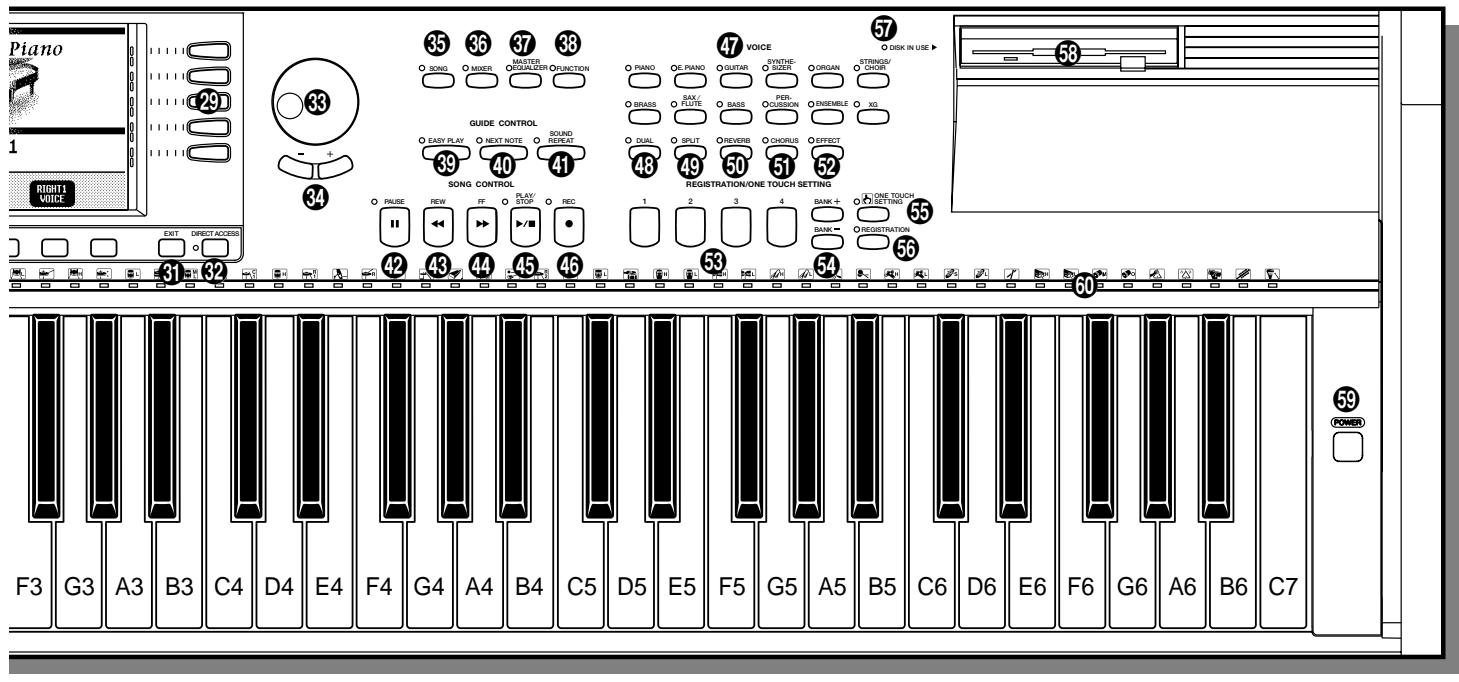
[FUNCTION] page 188
Guide Control Section
[EASY PLAY] page 125
40 [NEXT NOTE] page 125
43 [SOUND REPEAT] page 126
Song Control Section
[PAUSE] page 124
43 [REW] page 124
44 [FF] page 124
45 [PLAY/STOP] page 115
46 [REC] page 133
Voice Section
VOICE buttons page 31
48 [DUAL] page 38
49 [SPLIT] page 41
[REVERB] page 46
[CHORUS] page 51
[EFECT] pages 54, 58
Registration/One Touch Setting Section
[1] through [4] pages 90, 109
BANK[-] [+] page 108
[ONE TOUCH SETTING] page 90
[REGISTRATION] page 109
[DISK IN USE] lamp . page 9
Floppy disk drive (3.5") page 9
59 [POWER] page 11
60 Keyboard guide lamps . page 129
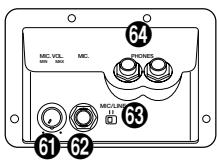
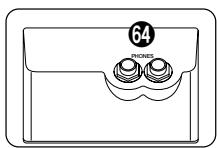
Microphone and Headphone Connectors
[MIC.VOL.] (CVP-109/107/700) page 213
[MIC.] (CVP-109/107/700) page 213
[MIC/LINE] (CVP-109/107/700) page 213
[PHONES] page 213
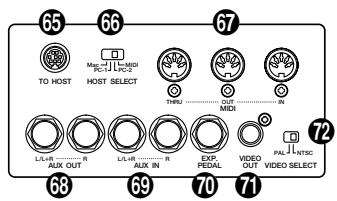
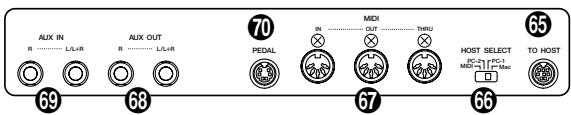
Connectors
[TO HOST] page 216
[HOST SELECT] page 216
67 MIDI [IN], [OUT], [THRU] page 216
68 AUX OUT [L/L+R], [R] page 215
69 AUX IN [L/L+R], [R] page 214
70 [EXP. PEDAL] (CVP-109/107/700) page 215
[VIDEO OUT] (CVP-109/107/700) page 215
[VIDEO SELECT] (CVP-109/107/700) ..... page 215
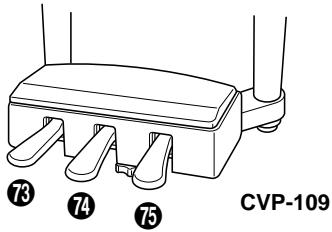
Pedals
73 Soft pedal . page 45
Sostenuto pedal page 45
75 Damper pedal. page 45
Playing the Demo Songs
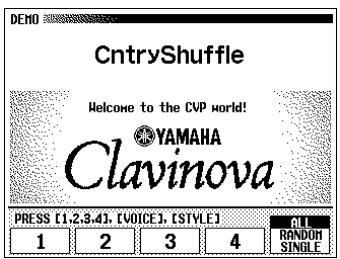
The Clavinova features a total of 50 demo songs: 4 feature songs, 24 special pieces showcasing the voices, and 22 pieces showcasing the styles. Listen to them all and hear what the Clavinova can do.
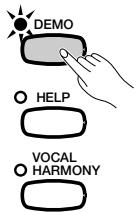
1 Call up the Demo Play mode.
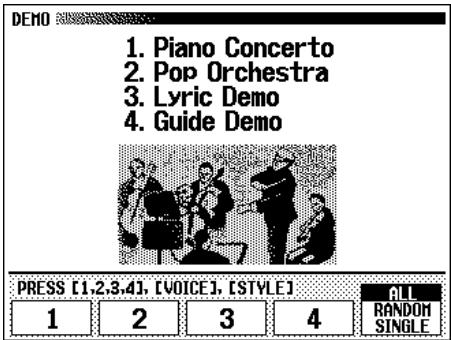
Press [DEMO]. The lamps of the STYLE button and VOICE button flash continuously, and the DEMO display appears.
2 Select the desired play mode.
Select the desired play mode by pressing the rightmost LCD button. The following three modes are available:
| ALL | All the songs play back continuously in order, starting from the selected song. Playback continues repeatedly until stopped. |
| RANDOM | All the songs play back randomly, starting from the selected song. Playback continues repeatedly until stopped. |
| SINGLE | Only the selected song plays back. When the song is finished, playback stops automatically. |
Select the song and start playback.
When you select a song, the demo automatically starts playing in the selected play mode. There are three ways to select a demo song, as described below:
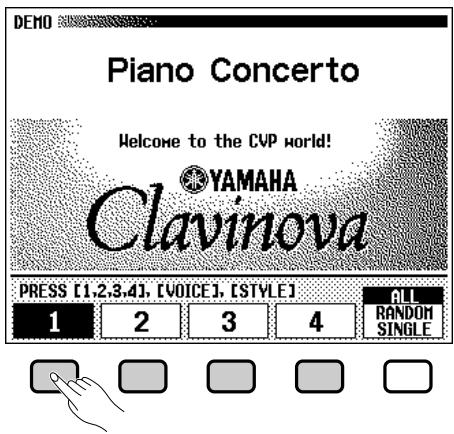
(A) To listen to one of the featured demo songs, press one of the buttons under the numbers 1 through 4 in the display.
The current song number is highlighted during playback.

NOTE
- You can also start the demo playback, beginning with the first feature song, by pressing [START/STOP] or [PLAY/STOP].
- For a complete list of the Clavinova's demo songs, refer to page 9 of the Reference Booklet.
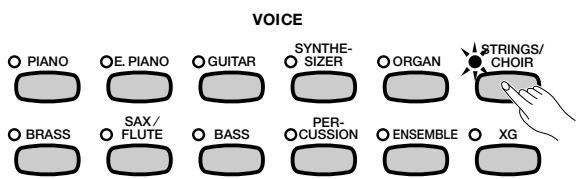
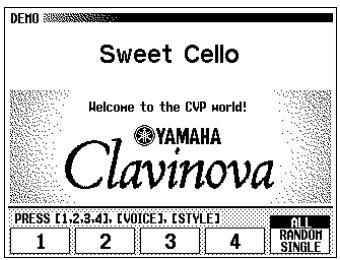
(B) To listen to a voice demo, press the VOICE button corresponding to the desired voice category.
- Playback starts from the first demo song for the selected category. The lamp of the corresponding VOICE button flashes.
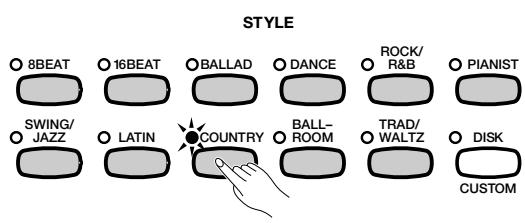
(C) To listen to a style demo, press the STYLE button corresponding to the desired style category.
Playback starts from the first demo song for the selected category. The lamp of the corresponding STYLE button flashes.
4 Adjust the volume.
Use the [MASTER VOLUME] slider to adjust the volume.
Stop the demo playback.
To stop playback, press either [START/STOP] or [PLAY/STOP], or the LCD button corresponding to the song that's currently playing.
6 Exit the Demo mode.
To exit the Demo mode, press [DEMO] again (or press [EXIT]).

There are two demo songs for each voice category. To skip to the second song, press the flashing button a second time.

There are two demo songs for each style category. To skip to the second song, press the flashing button a second time.

The [ACMP/SONG VOLUME] control cannot be used.

To change songs during playback: Press the LCD button, VOICE button, or STYLE button of another song; the song then changes. When ALL or RANDOM is selected as the play mode, the Clavinova will play other songs when the selected song is finished.
- Playing Along with the Demo Songs
You can play the keyboard while a demo song is playing back. You can also change the tempo (page 27) and use the [REW], [FF] and [PAUSE] buttons. When you play 3. Lyric Demo, the Clavinova will display the lyrics so you can sing (as well as play) along; if you sing into a microphone connected to the CVP-109/107/700, you can use the Vocal Harmony function to add harmony to your vocals. Also, you can use the Guide function (page 125) while the Clavinova is playing 4. GUIDE Demo. You cannot change the voice selection while the demo is playing, however.

Demo song data is not output through the [MIDI OUT] terminal; however, your keyboard performance data is output.
CHAPTER 2: Basic Operation
Using the LCD Display Controls
You will refer to the LCD display frequently as you operate your Clavinova. This section consists of a short tutorial that will help you learn how to read the LCD display and use the related controls.
Selecting a Function
Many of the Clavinova's functions are displayed at the bottom of the LCD. The main display shown below contains two functions: KBD UOL and RIGHT1 VOICE. These items are displayed in rounded rectangles, which means they represent settings that can be changed.
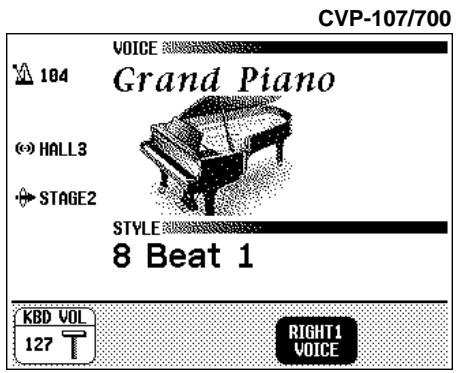
Before you can change a function's setting, however, you have to select it first. In the main display, the RIGHT1 VOICE function is highlighted, indicating that this function is currently selected.
To select a function, press and quickly release the LCD button directly below that function. For example, you can select KBD UOL by pressing the leftmost LCD button.
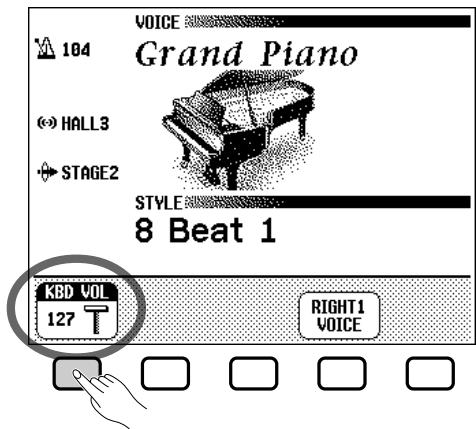
Press to select.

Main display
Remember, the main display is the display that appears first when you turn the power on.

Highlighted items
Selected items are highlighted (i.e., white letters on a dark background).

LCD buttons
The five LCD buttons under the LCD display represent different functions, depending on the contents of the display.
Changing a Setting
There are several ways to change a function's value. Here are two of the main ways:
Using the data dial or [-] and [+] buttons
Once you have selected a function, you can change its setting with the data dial or the [-] and [+] buttons. Since you have just selected KBD U0L, try turning the dial or pressing the [-] button until it reads 0.
The KBD UOL function sets the keyboard volume. When you set it to 0, you will find that the keyboard won't produce any sound, no matter how high you set the [MASTER VOLUME] slider!
![YAMAHA CVP-109-107-105-700 - Using the data dial or [-] and [+] buttons - 1](/content/2025/01/114672/images/d8ece0de84ee36915118443de7b89bdaa7a237c4f680b18c6c2fc0f8df3cae31.jpg)
![YAMAHA CVP-109-107-105-700 - Using the data dial or [-] and [+] buttons - 2](/content/2025/01/114672/images/eb8f35ce30f4904ddf938e995a19cff297c0816140114191b516ffe2262e4b28.jpg)
Using the LCD buttons.
You can also increase a setting by simply pressing and holding the corresponding LCD button. For now, since you'll want to hear your keyboard later on, press and hold the leftmost LCD button until the value for KBD J0L is back up to 127.
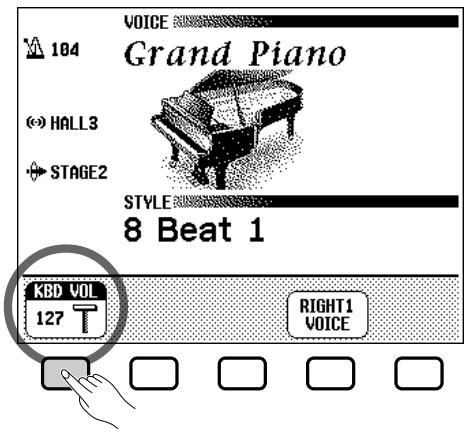
Hold down to increase.
Once you've got the keyboard volume back where it belongs, you can learn about a couple of other ways to change settings.
NOTE
You can press the [-] and [+] buttons repeatedly to change the value a little, or hold them down to change it quickly.
NOTE
Refer to page 23 for details on the KBD VOL function.
NOTE
This is why you should release the LCD button quickly when you select a function: you could end up raising its value when you want to lower it!
Changing a Setting in a Menu Display
You can use either of the methods described previously to change the current voice selection. Just press RIGHT1 VOICE and hold the button down, or use the data dial or the [+] button to scan through the options. Try listening to a few of the voices while you're at it...
The problem with this method is that it can be hard to find the voice you're looking for — after all, the Clavinova has more than 600 voices! So you'll probably want to use a menu display to see what your choices are. Try pressing the [PIANO] button now.
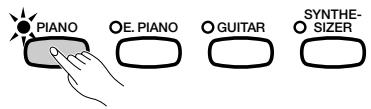
When you press one of the VOICE buttons, the LCD displays a two-column menu listing the voices of that type. You should now be looking at a menu of piano voices.
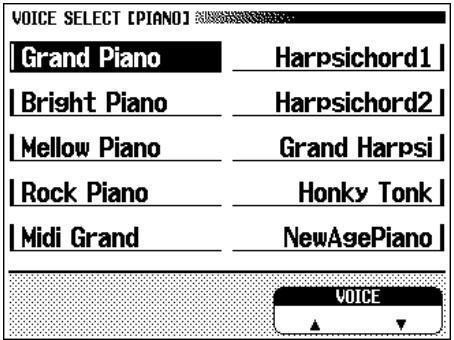
Using the and LCD buttons
This display has one function, VOICE, that corresponds to two LCD buttons labeled and . You can use these buttons to select a different piano voice, much as you would use the [-] and [+] buttons.
Using the left and right LCD buttons
You may have noticed that each item in the menu corresponds to one of the buttons to the left and right of the LCD. You can press one of these buttons to select the corresponding menu item directly — which is much quicker than using the and buttons.

NOTE
Voice
A voice is one of the sounds the Clavinova uses to make music.

NOTE
Refer to page 31 for more details about selecting voices.

NOTE
Left and right LCD buttons The buttons to the left and right of the LCD are referred to as the left and right LCD buttons.
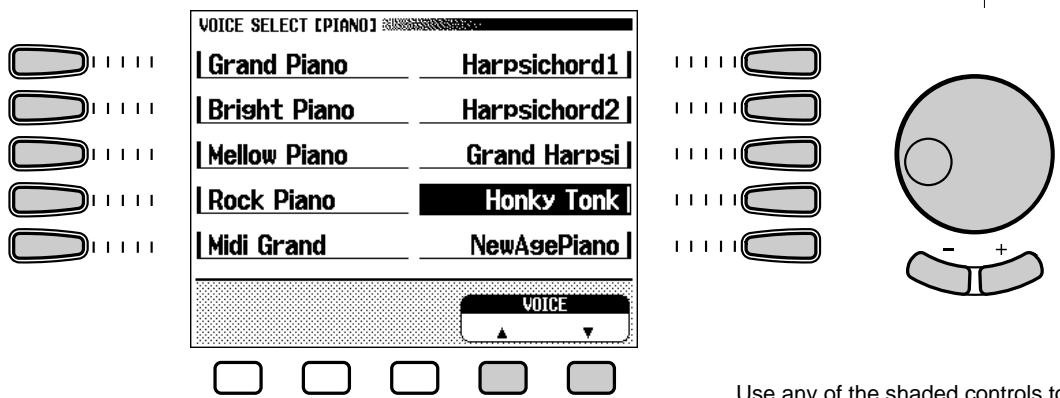
Use any of the shaded controls to select a voice.
As you can see, the menu display lets you select voices using any of a number of controls: the two rightmost LCD buttons, any of the left and right LCD buttons, the data dial, or the [-] and [+] buttons. Try selecting different piano voices in this display before you move on.
Resetting a Function's Value
After you have changed a function's value, you may find you want to restore its basic setting. To demonstrate this, we'll have to look at another of the Clavinova's displays. Press the [FUNCTION] button.
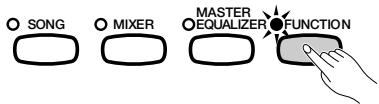
This button calls up one of the Clavinova's FUNCTION displays. You can use this display to tune and transpose the keyboard.
The TUNE function in this display has and LCD buttons like the ones you used in the VOICE SELECT display. You can use these buttons to tune the keyboard up or down. Press and hold the button (or use the data dial or the [-] button) to tune the keyboard down as far as it will go.
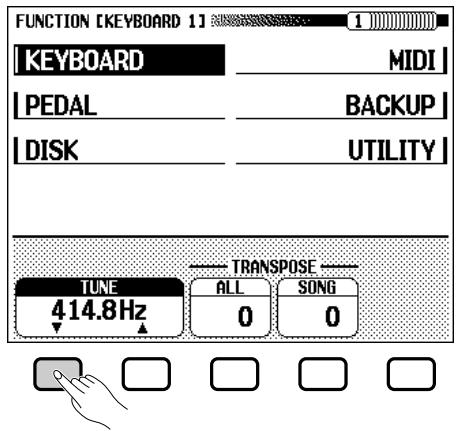
If you play a few notes, you'll notice that your Clavinova is flat by quite a bit. Now, let's assume that you want to reset the keyboard to the standard 440.0Hz . You could use the button (or the data dial, or the [+] button) to return the value to its basic setting — but there's an easier way:
When a function has a basic setting, you can reset it to that value by pressing both the and buttons (or both the [-] and [+] buttons) simultaneously. Try doing this now.
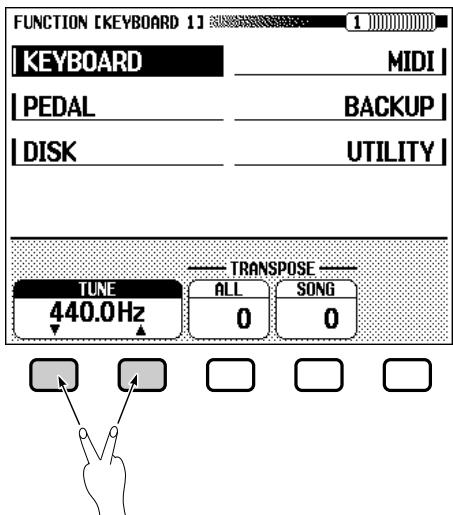
When you've got the keyboard back in tune, you're ready to go on to the next operation.

Basic settings
- The functions of the Clavinova are set to certain standard values or standard conditions when the instrument is shipped. These settings and conditions are called the basic settings.
- A function's basic settings are generally noted in the sidebar together with the possible settings for that function.
- You can also use the Recall function (page 207) to restore basic settings at any time.

Refer to page 188 for details on the TUNE and TRANSPOSE functions.

There are some functions whose settings cannot be returned to the basic value by pressing the and buttons (or [-] and [+] buttons) simultaneously.
Displaying a Different Page
Whereas the and buttons of the VOICE function you used in the VOICE SELECT display change the menu selection, those of the TUNE function do not. The menu items in the FUNCTION display are not related to the TUNE function; instead, they represent different FUNCTION display pages. If you look again at the top of the display, you'll see that you're looking at a display named FUNCTION [KEYBOARD 1], and it's apparently the first of many function displays.
Remember that you can always select menu items using the left and right LCD buttons. Press the left LCD button that corresponds to PEDAL in the menu.
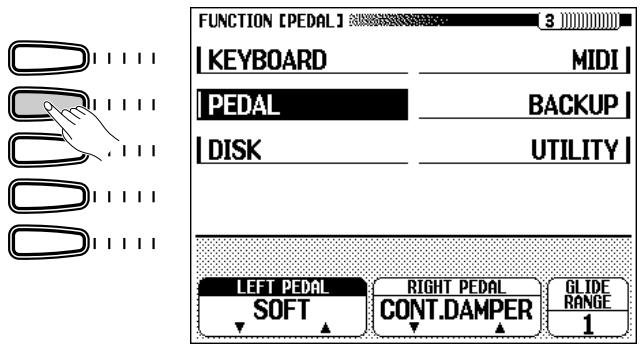
This button displays the FUNCTION [PEDAL] page, which you can use to adjust the operation of your Clavinova's pedals. But wait — the box in the upper right corner says this is page 3! We seem to have skipped right past page 2...
When a display is divided into pages, you can use PAGE buttons to change pages. Try pressing the [▲] button now to see page 2.
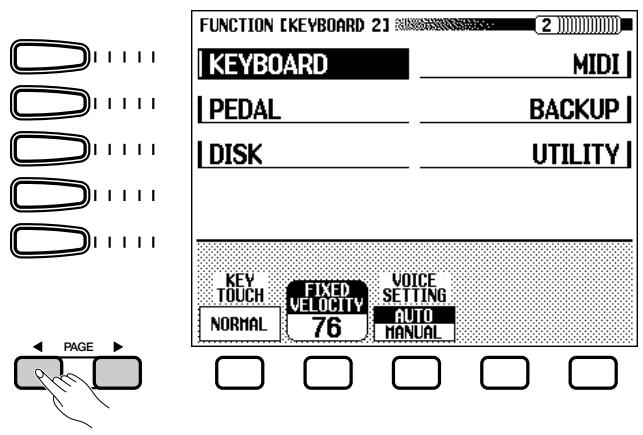
Page 2 is FUNCTION [KEYBOARD 2], another page of keyboard settings. You can use the page buttons to select different pages of multi-page displays, not only in FUNCTION mode, but also in certain VOICE SELECT and STYLE SELECT displays. But don't change the page yet: we're going to use page 2 to discuss the next operation.

NOTE
Display pages
Some displays are divided into two or more pages, indicated by a series of overlapping boxes in the upper right corner of the display. The number in the topmost box is the number of the current display page.

NOTE
Refer to page 190 for details about the functions on the FUNCTION [PEDAL] display page.
Using Functions in Non-rounded Rectangles
In addition to the FIXED DELOCITY function, which is selected in this display, the FUNCTION [KEYBOARD 2] page has two functions in normal rectangles: KEY TOUCH and VOICE SETTING. Such functions cannot be selected; instead, pressing the corresponding LCD button changes the setting directly without selecting the function.
By pressing the LCD button under KEY TOUCH, for example, you can set the Clavinova's response to how hard you play. The value displayed in the rectangle switches from NORMAL to SOFT, then FIXED, then HARD — but the FIXED VELOCITY function remains selected.
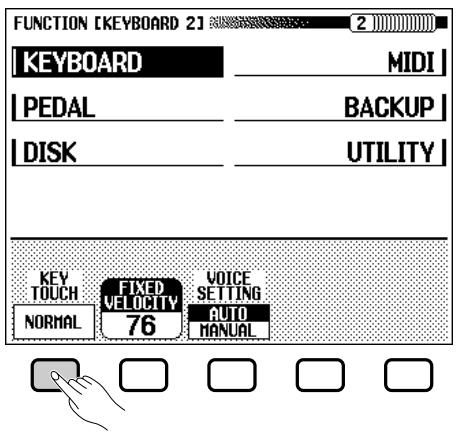
The VOICE SETTING function determines whether reverb, chorus, effect, and other settings are automatically selected when a voice is selected. It works a little differently: when you press the LCD button, the highlighted setting switches between AUTO and MANUAL. Still, FIXED DELOCITY remains selected.
There are other sorts of functions that are displayed in non-rounded rectangles, like the ones you used to select a demo song in Demo mode (see page 14). The important thing to remember about these functions is that you don't select them, you execute them.
Now we're ready to return to the main display. First, however, set the KEY TOUCH and VOICE SETTING functions back to NORMAL and AUTO, respectively.

The FIXED VECOCITY function is described on page 189.

For more details on the KEY TOUCH function, refer to page 189.

For more details on the VOICE SETTING function, refer to page 189.
Exiting to the Main Display
To exit the current display, press the [EXIT] button.
The main display should show the name of the last piano voice that you selected in the VOICE SELECT [PIANO] display.

You can usually use [EXIT] to get back to the main display. In some cases, however, this button will return you to a previous setting display instead. When this happens, pressing [EXIT] again will get you back to the main display.
Using the Direct Access Function
The last function we need to discuss is Direct Access. The [DIRECT ACCESS] button lets you jump directly to pages with particularly useful settings. When you press [DIRECT ACCESS], the “Press a button to display corresponding settings” message will appear in the LCD display.
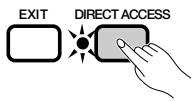

Press a button to display corresponding settings.
This message will remain onscreen for about three seconds. Press the button corresponding to the settings you want to display before the message disappears.
Here is a list of pages you can access with Direct Access:
| [DIRECT ACCESS] plus: | Displays: | See page: |
| [VOCAL HARMONY] | VOCAL HARMONY (CVP-109/107/700) | 176 |
| [ACMP ASSIST] | ACMP ASSIST | 81 |
| [HARMONY] | HARMONY | 87 |
| [ACMP ON] | ACCOMPANIMENT MODE | 71 |
| [METRONOME] | METRONOME | 28 |
| Any VOICE button | KEYBOARD [RIGHT1] (1) | 36 |
| KEYBOARD [RIGHT2] (2) | 36 | |
| KEYBOARD [LEFT] (3) | 36 | |
| [DUAL] | KEYBOARD [RIGHT2] | 39 |
| [SPLIT] | KEYBOARD [LEFT] | 42 |
| [REVERB](4) | NATURAL REVERB (CVP-109) | 47 |
| REVERB | 47 | |
| REVERB DEPTH | 50 | |
| [CHORUS] | CHORUS | 52 |
| [EFFECT](4) | EFFECT 1 (CVP-109/107/700) | 55 |
| EFFECT 2 (CVP-109/107/700) | 55 | |
| EFFECT (CVP-105) | 58 | |
| [1], [2], [3], or [4] | REGISTRATION [NAME] | 111 |
| [REGISTRATION] | REGISTRATION [FREEZE] | 110 |

NOTE
You can also press an appropriate button while holding down the [DIRECT ACCESS] button.

NOTE
(1) When RIGHT1 VOICE is selected in the main display.
(2) When RIGHT2 VOICE is selected in the main display.
(3) When LEFT VOICE is selected in the main display.
(4) Selects whichever page was most recently displayed.
A Word about Messages
For ease of operation, the Clavinova displays various messages (like the message displayed by the Direct Access function as described above) that either prompt you to the next operation, ask for confirmation, or inform you that the last operation is not effective, valid, or appropriate. When such messages appear, follow the instructions as shown. For details about each message, please refer to the "Messages" section on page 221.
- Saving Your Changes
Now that you've started learning how to change the Clavinova's settings, you may be wondering whether it will remember the changes you've made even after you've turned the power off. The answer is yes — but you need to tell it which settings you want it to remember.
By default, the Clavinova will not remember most of your setting changes. You have two ways to tell it which settings you want to remember:
- You can register your settings with the Registration function (page 108). Once you have registered your settings, you can restore them at any time by pressing a couple of buttons.
- You can instruct the Clavinova to remember certain settings when the power is off, and recall these settings when you turn the power back on. To do this, you need to change the settings of the Backup function (page 206).
The Clavinova has two sliders that let you adjust the overall volume and the accompaniment or song playback volume. There are also settings that you can use to adjust the keyboard volume and the volume of each part of the automatic accompaniment or song.
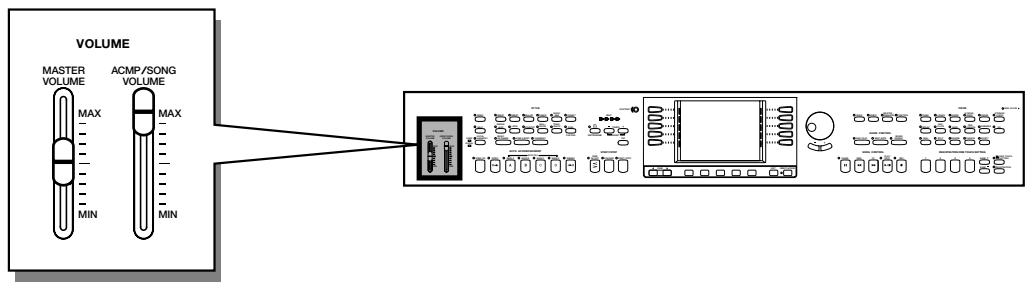
Adjusting the Overall Volume
Use the [MASTER VOLUME] slider to set the overall volume of the Clavinova.
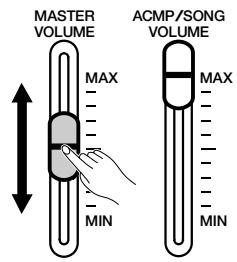
VOLUME

NOTE
- The [MASTER VOLUME] slider also determines the output level of the signal at the [PHONES] jack.
- Signals input to the AUX IN jacks are also affected by the [MASTER VOL-UME] setting; however, signals output via the AUX OUT jacks are not.
Adjusting the Accompaniment or Song Volume
Use the [ACMP/SONG VOL-UME] slider to set the playback volume of the automatic accompaniment and songs.
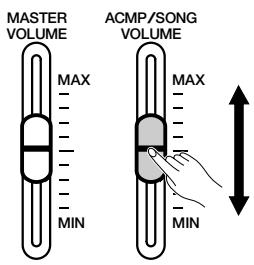
VOLUME

NOTE
This control has no effect on the volume of your keyboard performance.
Setting the Keyboard Volume
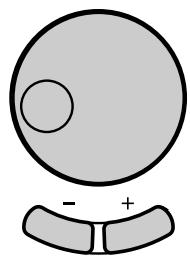
Select KBD UOL in the main display, then use the data dial or the [-] and [+] buttons to change the keyboard volume.
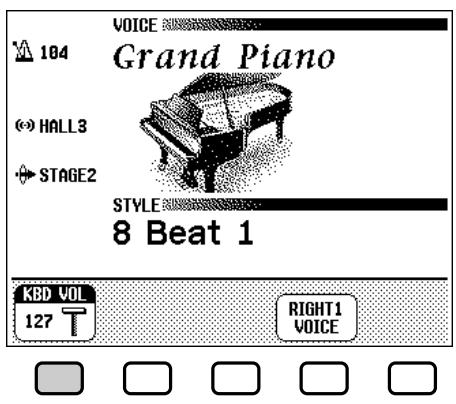
Adjusting Accompaniment or Song Part Levels
Call up the MIXER display by pressing [MIXER]. In the Mixer display, the volume of Automatic Accompaniment and individual parts of a song can be adjusted. Press [MIXER] again (or [EXIT]) to return to the previous display.
There are two types of mixer display, as shown below.
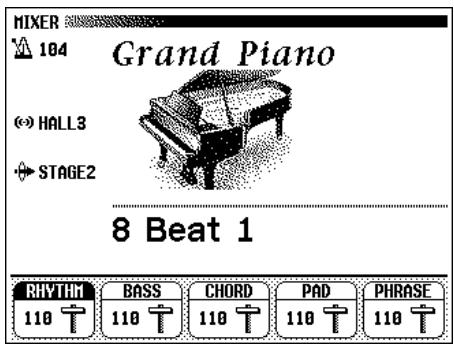
Automatic Accompaniment Mixer
This MIXER display appears when you're not using the Song mode. See "Adjusting Individual Part Levels" (page 77) for details.
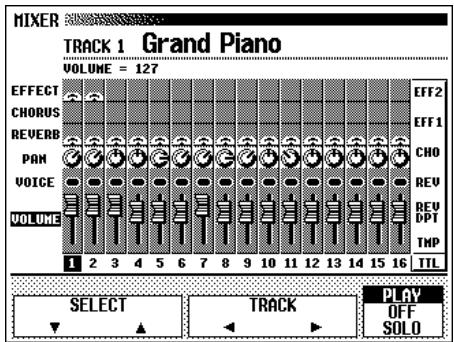
Song Mixer
This MIXER display appears in the Song mode. See "Adjusting Individual Track Levels" (page 120) for details.
CVP-109/107/700
Using an Expression Pedal (CVP-109/107/700)
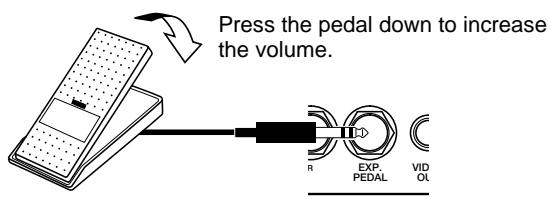
You can control the volume of your keyboard performance with your foot, by connecting the optional Yamaha FC7 foot controller to the [EXP.PEDAL] jack of the Clavinova.
You can adjust the sound timbre of the CVP-109/107/700 using the Master Equalizer function.
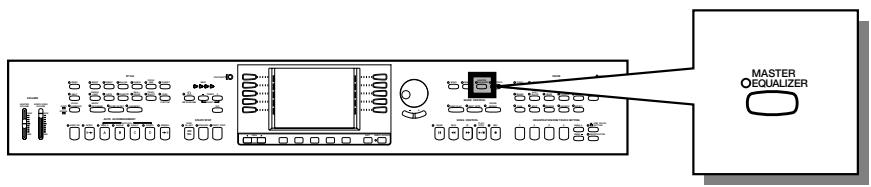
Changing the Master Equalizer Settings
1 Call up the MASTER EQUALIZER display.
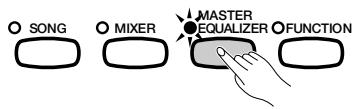
Press the [MASTER EQUALIZER] button. The button's lamp lights, and the MASTER EQUALIZER display appears. You can use the five-band equalizer in this display to fine-adjust the timbre of the sound.
2 Select the type of equalization.
Use the left and right LCD buttons to select the equalizer setup that you will use as the basis for your settings. Six different setups are available: FLAT, JAZZ, POPS, ROCK, CLASSIC, and STANDARD.
The lowest band for the selected setup is selected, and the gain for that band is displayed by the GAIN function.
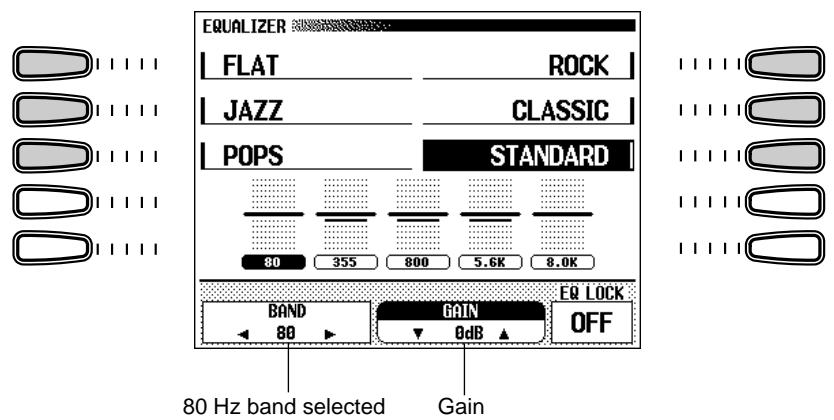

Equalizer setup
Basic setting: STANDARD

The gain becomes 0 for all frequencies when FLAT is selected.
3 Select the band to be adjusted.
Select the band you wish to adjust by pressing the BAND or buttons.
The central frequency of the selected band (expressed in Hz) is displayed by the BAND function.
4 Change the gain value.
Change the value of the gain either by pressing the GAIN▼ and ▲ buttons, or by using the data dial or [-] and [+] buttons.
The new value is shown in the GAIN section of the display.
Since the value can be changed during playback, you can adjust the settings while listening to the changes in the sound.
When you change a gain value, an asterisk (*) will appear near the name of the selected equalizer setup to indicate that the settings have been changed. By default, these settings will not be retained when the power is turned off. If you want the Clavinova to retain your settings while the power is off, you can turn on the BACKUP function for the VOICE SETTING parameter group (page 206).

Gain
- Settings: -12 — 0 — +12 (dB)
- Basic setting: varies depending on equalizer setup and band.
- Backup of last settings: OFF
- Distortion could result if the gain is set to higher levels. If this happens, reduce the overall volume with the [MAS-TER VOLUME] control.
Using the Equalizer Lock Function
When equalizer setting values are contained in the song data, or when the equalizer setting data is received via MIDI, the current settings in the MASTER EQUALIZER display will be overridden by the settings of the song data or MIDI data. Set EQ LOCK to ON to prevent reception of this data, or OFF to enable reception.
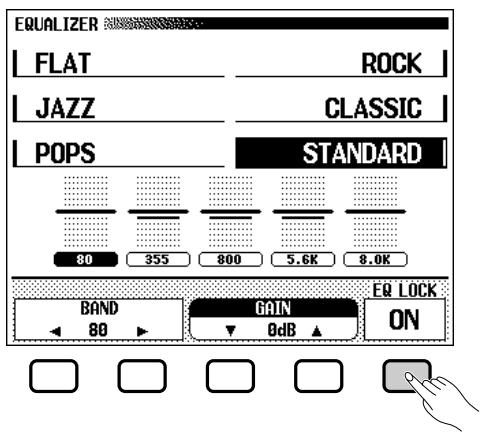

EQ LOCK
- Settings: ON, OFF
Basic setting: OFF
The Clavinova features a convenient metronome that is ideal for practicing. The procedure for setting the metronome tempo can also be used to set the playback tempo for the Auto Accompaniment (page 63) and Song (page 113) modes.
Using the Metronome
You can start the metronome and set the tempo from any display, including the main display.
Starting and Stopping the Metronome
To start the metronome, simply press the [METRONOME] button.
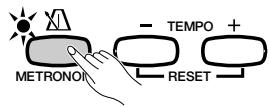
The [METRONOME] lamp lights, and the metronome starts keeping time (indicated by the flashing of the BEAT lamps).
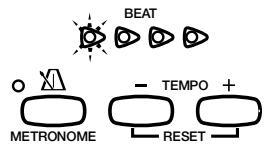
Press the [METRONOME] button again to stop the metronome.
Adjusting the Tempo
The current tempo, indicated in the upper left corner of the display, depends on the selected style (see page 62). To change the tempo, press the TEMPO [-] and [+] buttons.
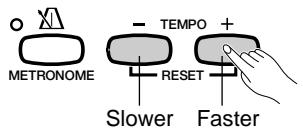
The tempo indication in the main display is highlighted, and the tempo changes.
You can either press TEMPO [-] or [+] buttons briefly to change the tempo value by one, or hold down the button to change it continuously.
When the tempo is highlighted in the display, you can also use the data dial or [-] and [+] buttons to set the tempo.
NOTE
- The metronome can also be used during playback in Auto Accompaniment (page 63) or Song mode (page 113).
- The metronome cannot be used when playing disk software that was recorded in free-tempo (see page 116).
NOTE
Tempo
Range: 32-280
- Basic setting: Depends on style.
NOTE
Restoring the Basic Tempo
You can restore the preset tempo for the currently selected style by simultaneously pressing both TEMPO [-] and [+] buttons.
NOTE
During Style or Song Playback...
- If a style or song is started while the metronome is playing, the metronome will continue to sound along with the style or song.
- The metronome uses the time signature of the style or song instead of the BEAT setting during style or song playback.
- The metronome stops when the style or song stops.
Changing the Metronome Settings
You can change the metronome's time signature and volume using the settings in the METRONOME page.
Displaying the Metronome Settings
To display the METRONOME page, press [DIRECT ACCESS], then [METRONOME].

The METRONOME display appears.
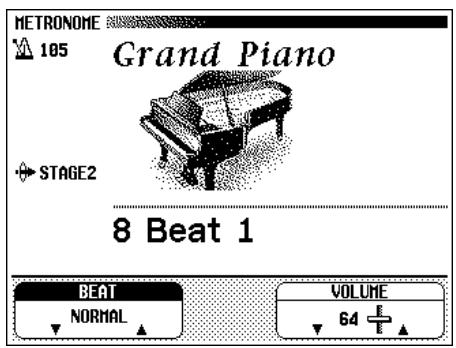
Setting the Beat (Time Signature)
Use the BEAT▼ and ▲ buttons to change the time signature. (If the BEAT function is highlighted, you can also change its settings with the data dial or the [-] and [+] buttons.)
When NORMAL is selected, the metronome ticks steadily at the current tempo with no accented beats.
When BEAT is set to 2, 3, 4, or 5, the metronome ticks off measures with the selected number of beats, playing a bell sound on the first beat of each measure.
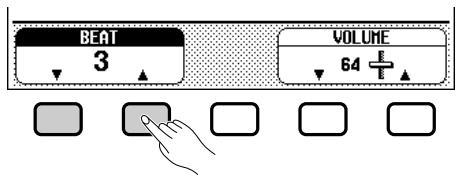
Setting the Metronome Volume
Use the VOLUME▼ and ▲ buttons to change the metronome volume. (If the VOLUME function is highlighted, you can also change its settings with the data dial or the [-] and [+] buttons.)
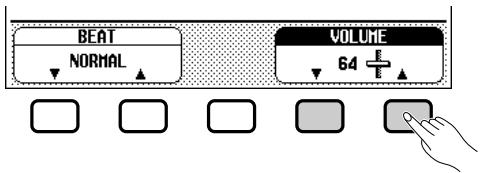
The volume of the metronome is determined by both the VOLUME function and the [ACMP/SONG VOLUME] slider (except in Song mode, in which case the volume of the metronome is not affected by the slider). If you use the slider, the playback volume for the Automatic Accompaniment (page 62) will also be affected.

NOTE
BEAT
- Settings: NORMAL, 2 - 5
Basic setting: NORMAL

NOTE
VOLUME
Range: 0-127
Basic setting: 64
The Help mode provides convenient explanations of the main functions of the Clavinova. You can select help topics from a menu displayed on the LCD, or press a button on the panel to get help information related to that control.
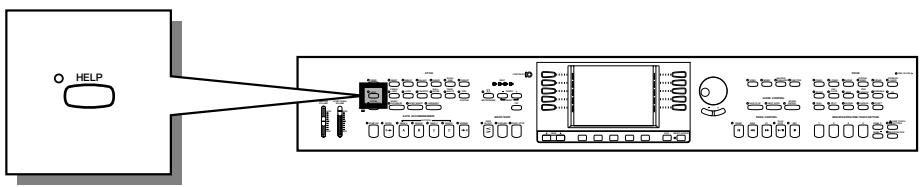
1 Call up the Help mode.
Press the [HELP] button.
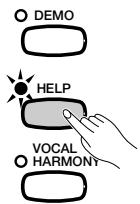
The Help menu display appears.
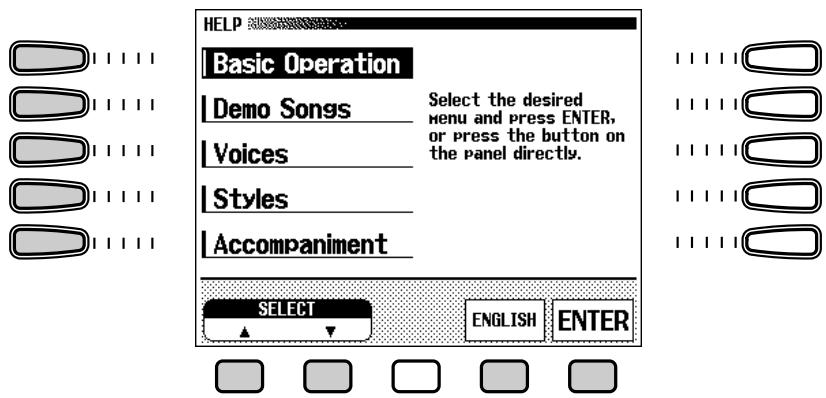
2 Select the language if necessary.
Select the desired language for help (ENGLISH, JAPANESE, GER-MAN, FRENCH, or SPANISH) by pressing the fourth LCD button.

NOTE
While the Help mode is active, no other operations can be performed.

NOTE
The selected language is always backed up even after the power is turned off.
Select a help topic.
Use the left LCD buttons or the and LCD buttons to select one of the following eight menu items.
Help Topics
Basic Operations
-
Accompaniment
-
Demo Songs
SongPlayback
- Voices
Song Recording
-
Styles
-
Functions
The selected menu is highlighted.
Press the LCD button under ENTER to enter your selection.
The first page of the selected help information is displayed.
4 Turn the pages and read the help information.
Use the fourth LCD button to advance the page. You can also press the third LCD button if you want to go back and read the previous page.
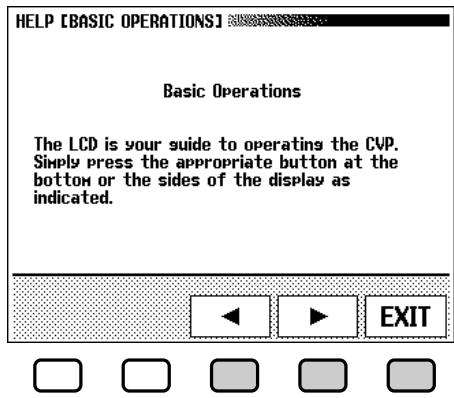
Exit the Help topic.
Press the LCD button under EXIT to return to the Help menu. You can select another menu item or panel button and read through other help topics.
Exit the Help mode.
To exit the Help mode and to go back to the main display at any time, simply press [HELP].
Selecting Voices
The Clavinova features a wealth of rich, authentic voices, including piano, strings and brass instruments. It also features a Keyboard Percussion function that lets you play the realistic drum and percussion sounds directly from the keyboard.

Voice Types
- Clavinova Voices : 224 (CVP-109/107/700)
195 (CVP-105)
XG Voices: 480
Organ Flutes Voices: 6 (CVP-109/107/700) -
Drum/SFX Kits: 13 (CVP-109/107/700)
12 (CVP-105) -
For a list of the voices, see page 3 in the Reference Booklet.
- The Clavinova's voices are divided into twelve groups, corresponding to the twelve VOICE buttons on the panel.
Selecting a Voice from the VOICE SELECT Display
1 Select the voice group.
Select the desired voice group by pressing the appropriate VOICE button.
The VOICE SELECT display appears.
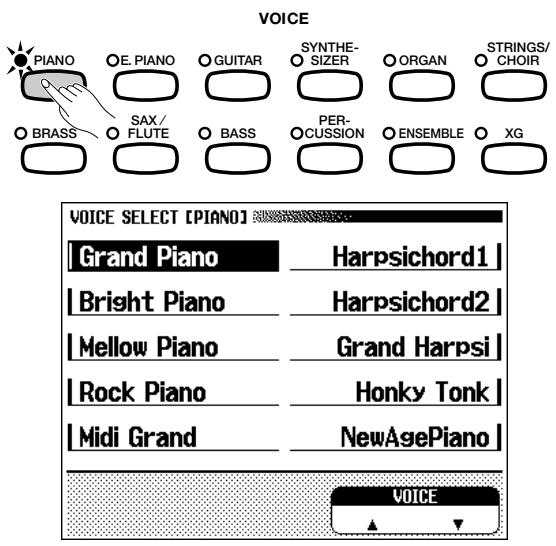

Exiting the Display
To return to the main display, press [EXIT].

Backing Up the Selected Voice
- When the power is turned ON, the Grand Piano voice is selected automatically. However, if the Backup function (page 206) is set to ON, the last selected voice will automatically be selected.
- The last selected voice in each group can be retained in memory, even after turning off the power, when the Backup function (page 206) is set to ON.
2 Select the voice.
Select the desired voice by pressing the appropriate left or right LCD button. The data dial and [-] and [+] buttons can be also used.
You can also select the voice by pressing the VOICE ▲ and ▼ buttons.
Some of the VOICE SELECT displays have several successive pages. Use the PAGE [▲] and [▶] buttons to call up the various pages.
3 Play the selected voice.
Adjust the volume by using the [MASTER VOLUME] slider.
Selecting Voices from the Main Display
You can also select a voice using the RIGHT1 VOICE function in the main display.
1 Select the RIGHT1 VOICE function.
If the RIGHT1 VOICE function is not already highlighted, press the fourth LCD button to highlight it.
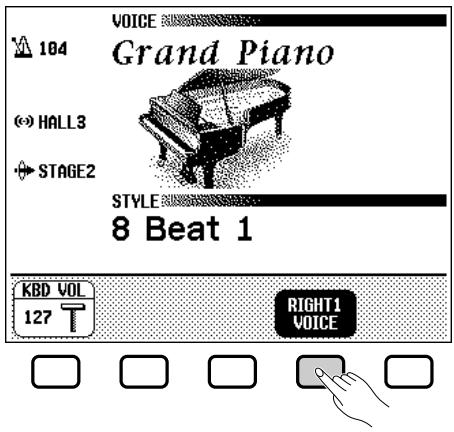
2 Select the voice.
Select the voice using the data dial or [-] and [+] buttons. You can also hold down RIGHT1 VOICE to advance the voice selection continuously. (When selecting a voice in this way, the voice can be selected not only from a certain voice group but from all voices.)
3 Play the voice.
Adjust the volume by using the [MASTER VOLUME] slider.

Automatic Voice-related Settings Selecting a voice automatically selects the best-suited reverb, chorus, effect, and other settings for that particular voice. You can disable this so that settings are not automatically selected by using the VOICE SETTING function (page 189).

About Ensemble Voices
The Clavinova's ensemble voices are rich, dual-like voices that you can play without entering the Dual mode (page 38.) Press the [Ensemble] button to display a menu of ensemble voices.

About XG Voices
Yamaha's XG format is a major new enhancement to the GM (General MIDI) System Level 1 format. It provides for more instrument sounds and variations, as well as greater expressive control over voices and effects. XG also ensures compatibility with future instruments and software.
- Press the [XG] button to display a menu of XG voices.
- Press another VOICE button while holding down the [XG] button to display a list of XG voices in the corresponding category.
Organ Flutes (CVP-109/107/700)
To call up the ORGAN FLUTES display, press the [ORGAN] button and select Organ Flutes in the VOICE SELECT [ORGAN] display. With the Organ Flutes function in this display, you can select from six different kinds of organ sounds, and even create your own organ sounds by editing these voices.
Selecting Organ Flutes Voices.
Select the desired voice by pressing the left/right LCD buttons in the ORGAN FLUTES display.
The settings of the selected voice are shown in the display.
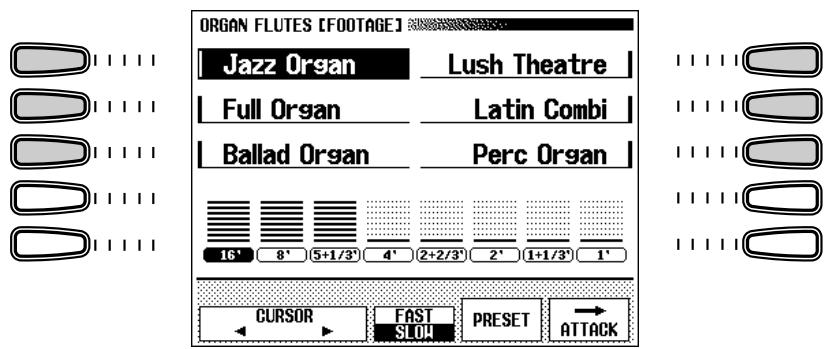
■ Editing Organ Flutes Voices
The editing features in this function let you recreate organ voices by adjusting several footage settings, just as on conventional organs. Various organ voices can be created using the settings shown below.
FOOTAGE display
- Footage volume settings (eight continuous voices corresponding to conventional organ footages)
- Rotary speaker effect speed setting (FAST or SLOW)
- ATTACK display
Attack footage volume settings (three decay voices used as percussive attack sounds)
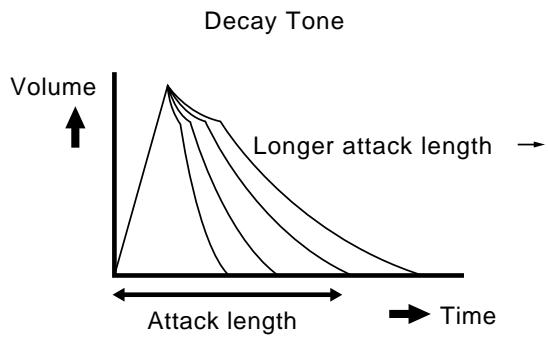
- LENGTH setting (length of attack sound for decaying voices)
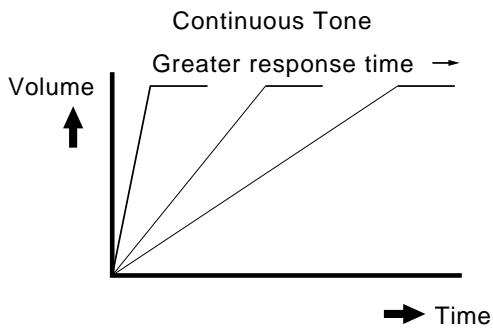
- RESPONSE setting (speed of sound starting for continuous voices)
Attack mode setting (EACH or FIRST)
To create a percussive organ sound, adjust the volume of the decay sound and the attack length of attack sound to appropriate settings, then add them to the continuous voice. To recreate the sound of a pipe organ with a slow attack, set the RESPONSE to a large value.
NOTE
The edited voices can be backed up in sets of six by setting VOICE SETTING to ON (in the Function section's Backup parameter, page 206).
NOTE
An asterisk (*) appears next to the voice name when the selected voice has been already edited.
NOTE
Rotary speed effect
A rich, swirling chorus effect, created by actual rotation of a speaker.
NOTE
Attack sound
A sharp, percussive sound at the beginning of a note.
Attack mode
The manner in which the attack sound is output.
■ Editing the Voice
Select the desired voice for editing, then set each parameter.
The ORGAN FLUTES display has two pages: [FOOTAGE] and [ATTACK]. Press the rightmost LCD button to change between the displays. Press the PRESET button in each display to instantly return to the pre-edited voice.
- Making settings in the ORGAN FLUTES [FOOTAGE] display
Footage volume settings
Select the footage "bar" to be adjusted by using the CURSOR buttons, then set the volume by using the data dial or [-] and [+] buttons.
Setting the speed of the rotary speaker effect
Press the middle LCD button to change between FAST and SLOW.
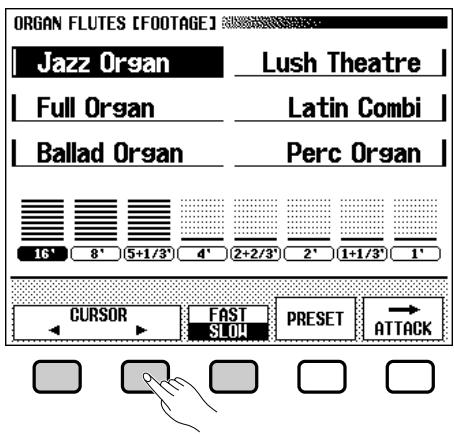

NOTE
To call up the [ATTACK] display, either press ATTACK or press the CURSOR button when the cursor is at "1."

NOTE
- The FAST/SLOW function is only displayed when an effect (page 54) is being applied to the keyboard part playing the Organ Flutes voice.
- If an effect type other than rotary speaker is applied to a part playing the Organ Flutes voice, the FAST/SLOW function switches the effect variation on or off (see page 56) instead of adjusting the speaker modulation speed.
Voice Type and Volume Image (About Organ Footages)
The standard pitch is 8 feet. A setting of 4 feet is one octave higher than 8 feet, 2 feet is two octaves higher, and 1 foot is three octaves higher; 16 feet is one octave lower.
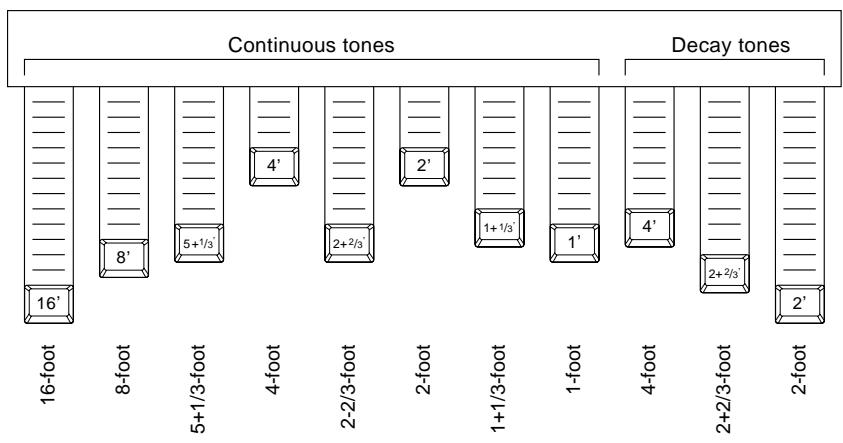
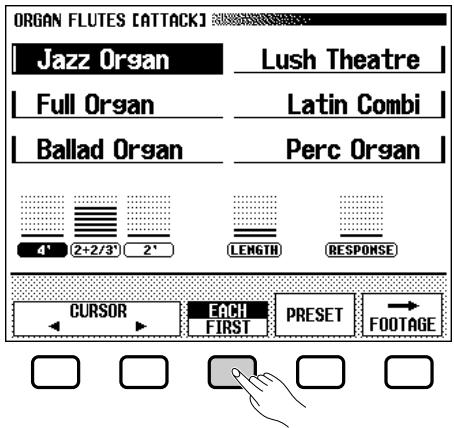
- Making Settings in the ORGAN FLUTES [ATTACK] Display
Attack footage volume and LENGTH and RESPONSE settings Select the appropriate bar in the display by pressing the CURSOR buttons, then set the volume, LENGTH, or RESPONSE by using the data dial or [-] and [+] buttons.
Setting the Attack Mode
Press the middle LCD button to change between the EACH and FIRST settings. When set to EACH, the attack sound is applied to all played notes.
When set to FIRST, the attack sound is applied only to the first played note in a legato sequence, and is not applied to subsequent notes played in legato.

To call up the [FOOTAGE] display, either press FOOTAGE or press the CURSOR
▶ button when the cursor is at "4."
- Image of Attack Length and Response
Keyboard Percussion
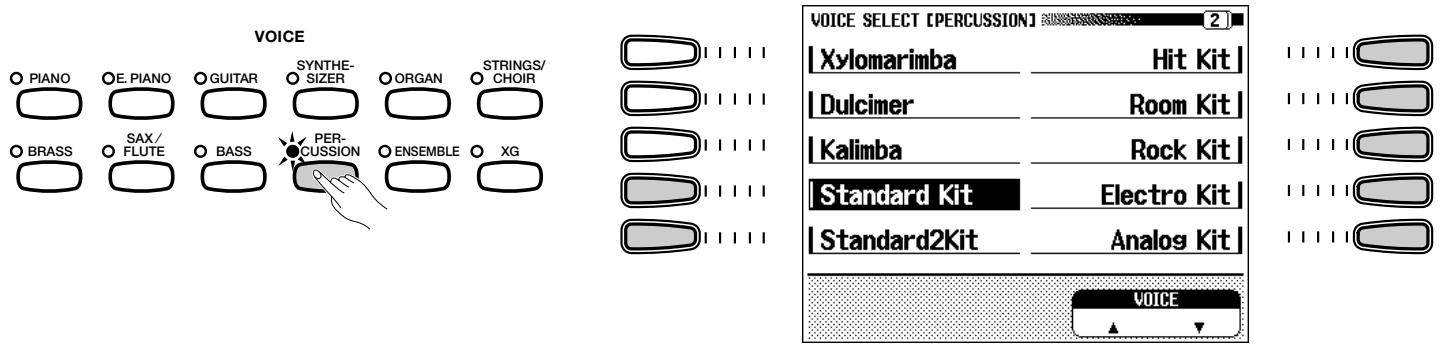
The Clavinova has eleven drum kits (ten on the CVP-105) and two SFX kits, found on display pages 2 and 3 of the [PERCUSSION] voice group. When one of the drum or SFX kits is selected, various drum, percussion, and special effect sounds are assigned to individual keys, letting you play the sounds from the keyboard.
The various drums and percussion instruments of the Standard Kit are indicated by symbols above the assigned keys.
See the drum/SFX kit list on page 10 in the Reference Booklet for a listing of the sounds in each drum/SFX kit.

NOTE
- When a drum kit is selected, only the keys with drum or percussion symbols printed above them will sound.
- When an SFX kit is selected, keys other than those which have been assigned a special effect sound will not produce any sound.
- The Transpose (page 188), Tune (page 188) and Octave (pages 37, 39 and 43) functions do not affect the drum/SFX kits.
Changing the Keyboard Settings for the Main Voice
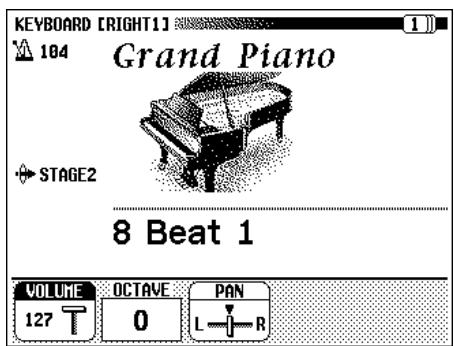
You can use the settings in the KEYBOARD [RIGHT1] display page to change the volume, octave, and pan of the voice selected using the RIGHT1 VOICE function.
■ Displaying the Main Voice Keyboard Settings
If you are playing in Dual mode or Split mode, make sure RIGHT1 VOICE is selected in the main display.
Press [DIRECT ACCESS] followed by any of the VOICE buttons.
The KEYBOARD [RIGHT1] display appears.

NOTE
The settings you make in this page affect any voices you select using the RIGHT1 VOICE function. Different settings cannot be made for each voice.

NOTE
You can switch between the KEYBOARD [RIGHT1] page and the [RIGHT2] (page 39) or [LEFT] (page 42) displays using the PAGE [▲] and [▶] buttons.

Setting the Volume of the Main Voice
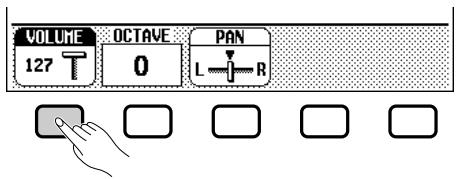
You can use the VOLUME function in the KEYBOARD [RIGHT1] page to change the volume of the main voice.
Press the VOLUME button.
The DOLUME function is highlighted.
2 Adjust the volume of the main voice.
Use the data dial or [-] and [+] buttons to change the volume, or hold down the VOLUME button to increase the volume.
Press the [-] and [+] buttons simultaneously to restore the basic setting.
Setting the Octave of the Main Voice
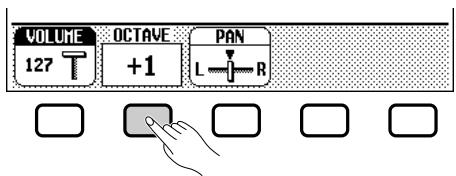
The OCTAue function in the KEYBOARD [RIGHT1] display lets you adjust the pitch of the main voice up or down by one or two octaves. Press the OCTAue button.
The value changes each time you press the button.
Setting the Stereo Position of the Main Voice
The PAn function in the KEYBOARD [RIGHT1] display lets you adjust the stereo position of the main voice.
Press the PAN button.
The PAn function is highlighted.
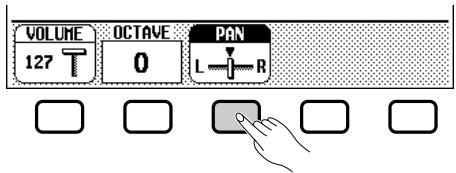
2 Adjust the stereo position.
Use the data dial or [-] and [+] buttons to change the stereo position, or hold down the PAN button to move the position to the right.
Press the [-] and [+] buttons simultaneously to restore the basic setting.

NOTE
To adjust the overall keyboard volume, use the KBD VOL function in the main display (page 23) instead.

NOTE
VOLUME
Range: 0-127
Basic setting: 127

NOTE
OCTAVE
- Settings: -2 (2 octaves lower)
-1 (1 octave lower)
+1 (1 octave higher)
+2 (2 octaves higher)
Basic setting: 0

NOTE
Some voices have octave settings that are selected automatically when the voice is selected. (Such settings are not displayed by the OCTAVE function.) You can prevent the octave setting from changing when a voice is selected by setting the VOICE SETTING function (page 189) to MANUAL.

NOTE
PAN
- Settings: L —▼—R
Basic setting: (center)
The Dual mode of the Clavinova allows you to select and play two different voices simultaneously in a layer. This makes it easy to create exceptionally rich and thick tonal textures. You can also set the volume, octave, and stereo position for the second voice, and detune the second voice from the main voice to create a thicker sound.
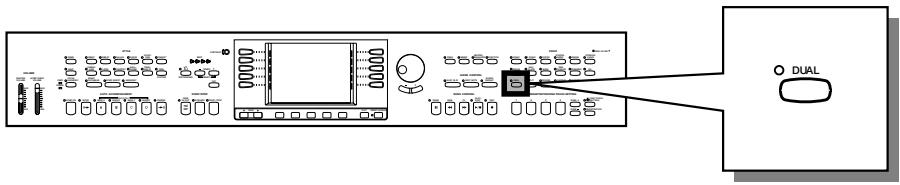
Selecting the Second Voice
1 Select the main voice.
Select a voice in the normal way (page 31), then press [EXIT] to return to the main display.
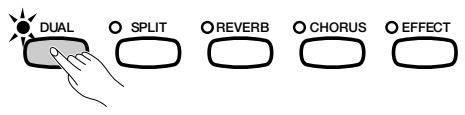
2 Call up the Dual mode.
To call up the Dual mode, press the [DUAL] button.
The RIGHT2 VOICE function appears in the lower right corner of the LCD display, and the current second voice is displayed below and to the right of the main voice (after the plus sign).
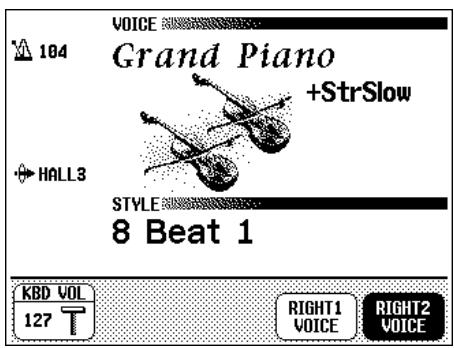
3 Select the second voice.
Select the second voice in the same manner as described for the main voice (page 31). To select the second voice, the RIGHT2 VOICE function must be highlighted.
Changing the Main Voice in Dual Mode
To change the main voice while playing in Dual mode, select the RIGHT1 VOICE function then select the main voice in the normal manner.

Second Voice
Range: All voices
- Basic setting: StringsSlow

If you use the VOICE buttons to select a voice while either the tempo or the KBD VOL function is highlighted, the voice you select will be used as the main voice.
Changing the Keyboard Settings for the Second Voice
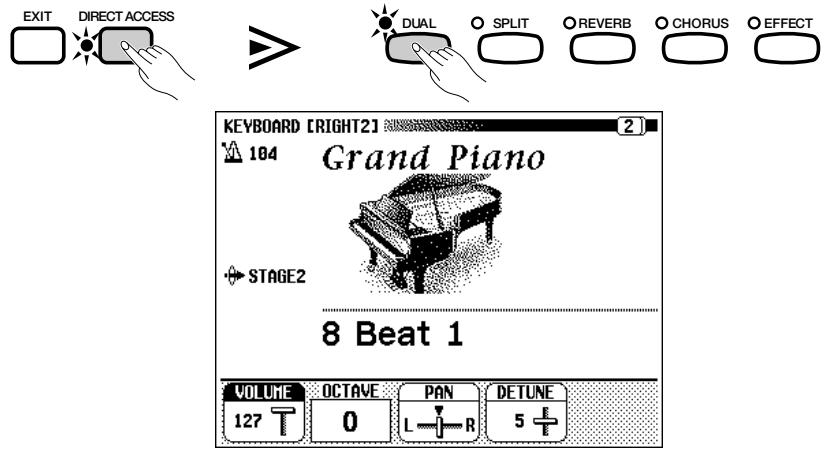
You can use the settings in the KEYBOARD [RIGHT2] display page to change the volume, octave, pan, and detune of the voice selected using the RIGHT2 VOICE function.
Displaying the Second Voice Keyboard Settings
Press [DIRECT ACCESS], then [DUAL].
The KEYBOARD [RIGHT2] display appears.
Setting the Volume of the Second Voice
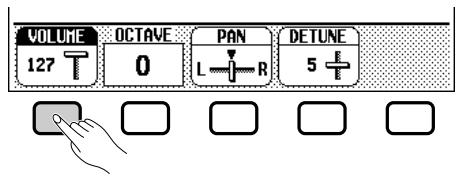
You can use the VOLUME function in the KEYBOARD [RIGHT2] page to change the volume of the second voice.
Press the VOLUME button.
The DOLUME function is highlighted.
2 Adjust the volume of the second voice.
Use the data dial or [-] and [+] buttons to change the volume, or hold down the VOLUME button to increase the volume.
Press the [-] and [+] buttons simultaneously to restore the basic setting.
Setting the Octave of the Second Voice
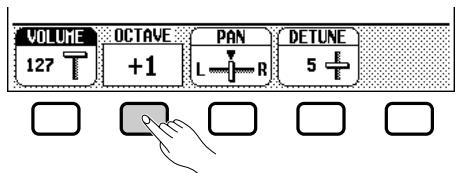
The OCTAue function in the KEYBOARD [RIGHT2] display lets you adjust the pitch of the second voice up or down by one or two octaves. Press the OCTAue button.
The value changes each time you press the button.
NOTE
The settings you make in this page affect any voices you select using the RIGHT2 VOICE function. Different settings cannot be made for each voice.
NOTE
If the RIGHT2 VOICE function is selected in the main display, you can also display the KEYBOARD [RIGHT2] page by pressing [DIRECT ACCESS] followed by any one of the VOICE buttons.
NOTE
You can switch between the KEYBOARD [RIGHT2] page and the [RIGHT1] (page 36) or [LEFT] (page 42) displays using the PAGE [▲] and [▶] buttons.
NOTE
To adjust the overall keyboard volume, use the KBD VOL function in the main display (page 23) instead.
NOTE
VOLUME
Range: 0-127
Basic setting: 127
NOTE
OCTAVE
- Settings: -2 (2 octaves lower)
-1 (1 octave lower)
0 (no octave shift)
+1 (1 octave higher)
+2 (2 octaves higher)
Basic setting: 0
NOTE
Some voices have octave settings that are selected automatically when the voice is selected. (Such settings are not displayed by the OCTAVE function.) You can prevent the octave setting from changing when a voice is selected by setting the VOICE SETTING function (page 189) to MANUAL.
Setting the Stereo Position of the Second Voice
The PAn function in the KEYBOARD [RIGHT2] display lets you adjust the stereo position of the second voice.
Press the PAN button.
The PAn function is highlighted.
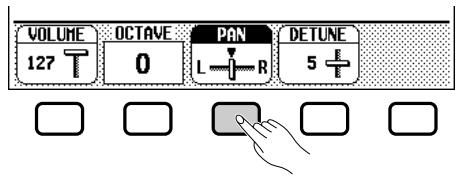
Adjust the stereo position.
Use the data dial or [-] and [+] buttons to change the stereo position, or hold down the PAN button to move the position to the right. Press the [-] and [+] buttons simultaneously to restore the basic setting.
Detuning the Second Voice
The DETUNE function in the KEYBOARD [RIGHT2] display page lets you detune the pitch of the second voice slightly from that of the main voice, to produce an even richer sound.
Press the DETUNE button.
The DETUNE function is highlighted.
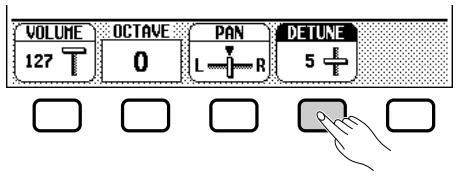
2 Adjust the detune depth.
Use the data dial or [-] and [+] buttons to change the detune depth, or hold down the DETUNE button to increase the detune depth.
Press the [-] and [+] buttons simultaneously to restore the basic setting.
Exiting the Dual Mode
Press the [DUAL] button to exit Dual mode.
The [DUAL] button lamp turns off, and the keyboard no longer plays in Dual mode.
NOTE
PAN
- Settings: L —▼—R
Basic setting: (center)
NOTE
DETUNE
Range: 0-10
Basic setting: 5
Playing Two Voices on Different
Sides of the Keyboard — Split Mode
The Split mode of the Clavinova allows you to select and play two different voices with each hand. For example, you can play the bass with your left hand and the piano with your right hand.
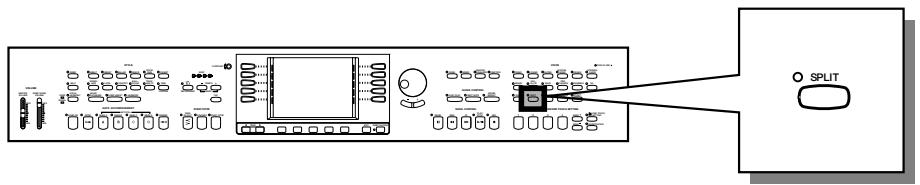
Selecting the Left Voice
1 Select the main voice.
Select a voice in the normal way (page 31), then press [EXIT] to return to the main display. The voice you select will be played by the right range of the keyboard.
2 Call up the Split mode.
To call up the Split mode, press the [SPLIT] button.
The LEFT VOICE function appears in the bottom center of the LCD display, and the current left voice is displayed below and to the right of the main voice (after the slash). Also, the keyboard guide lamp corresponding to the split point lights.
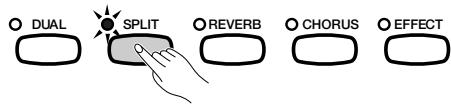
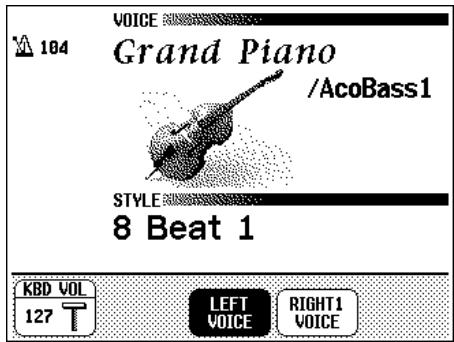
3 Select the left voice.
Select the left voice in the same manner as described for the main voice (page 31). To select the left voice, the LEFT VOICE function must be highlighted.

Split point
The split point is the key that divides the right and left sides of the keyboard. You can change the split point using the SPLIT POINT function in the KEYBOARD [LEFT] display page (page 43).

You can use the Single Finger, Multi Finger, Fingered1, or Fingered2 modes (page 72) of the Automatic Accompaniment function while playing in Split mode. In this case, pressing the keys in the left range will play the Automatic Accompaniment voices as well as the left voice.

Left Voice
Range: All voices
Basic setting: Acous.Bass 1
Changing the Main Voice in Split Mode
To change the main voice while playing in Split mode, select the RIGHT1 VOICE function then select the main voice in the normal manner.
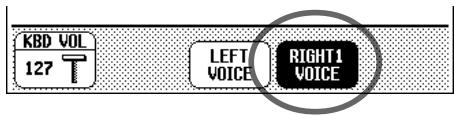
Changing the Keyboard Settings for the Left Voice
You can use the settings in the KEYBOARD [LEFT] display page to change the volume, octave, and pan of the voice selected using the LEFT VOICE function. You can also select the keyboard range that is affected by the pedals, as well as the split point that separates the right and left ranges, using the functions in this page.
Displaying the Left Voice Keyboard Settings
Press [DIRECT ACCESS], then [SPLIT].
The KEYBOARD [LEFT] display appears.

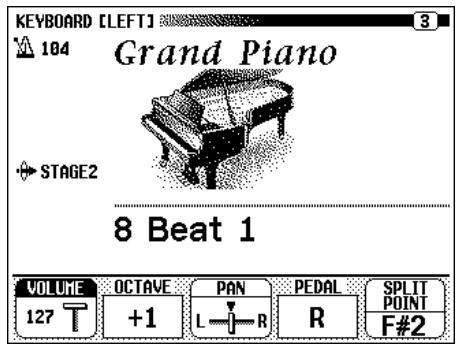
Setting the Volume of the Left Voice
You can use the VOLUME function in the KEYBOARD [LEFT] page to change the volume of the left voice.
Press the VOLUME button.
The DOLUME function is highlighted.
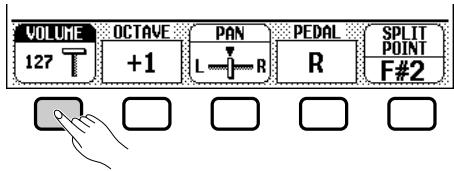
2 Adjust the volume of the left voice.
Use the data dial or [-] and [+] buttons to change the volume, or hold down the VOLUME button to increase the volume.
Press the [-] and [+] buttons simultaneously to restore the basic setting.

If you use the VOICE buttons to select a voice while either the tempo or the KBD VOL function is highlighted, the voice you select will be used as the main voice.

The settings you make in this page affect any voices you select using the LEFT VOICE function. Different settings cannot be made for each voice.

If the LEFT VOICE function is selected in the main display, you can also display the KEYBOARD [LEFT] page by pressing [DIRECT ACCESS] followed by any one of the VOICE buttons.

You can switch between the KEYBOARD [LEFT] page and the [RIGHT1] (page 36) or [RIGHT2] (page 39) displays using the PAGE [▲] and [▶]buttons.

To adjust the overall keyboard volume, use the KBD VOL function in the main display (page 23) instead.
VOLUME
Range: 0-127
Basic setting: 127
Setting the Octave of the Left Voice
The OCTAue function in the KEYBOARD [LEFT] display lets you adjust the pitch of the left voice up or down by one or two octaves. Press the OCTAue button.
The value changes each time you press the button.
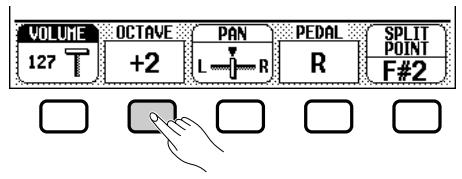
Setting the Stereo Position of the Left Voice
The PAn function in the KEYBOARD [LEFT] display lets you adjust the stereo position of the left voice.
Press the PAN button.
The PAn function is highlighted.
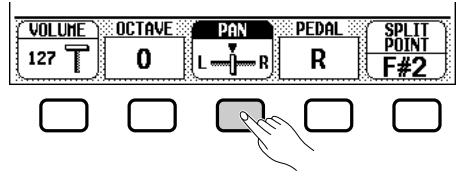
Adjust the stereo position.
Use the data dial or [-] and [+] buttons to change the stereo position, or hold down the PAn button to move the position to the right. Press the [-] and [+] buttons simultaneously to restore the basic setting.
Setting the Range Affected by the Right and Left Pedals
The PEDAL function in the KEYBOARD [LEFT] display lets you specify which ranges of the keyboard will be affected by the damper, glide, and pitch bend functions (CVP-109/107/700) controlled by the left and right pedals when playing in Split mode. Press the PEDAL button.
The value changes each time you press the button.
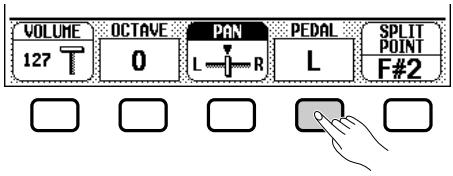
Changing the Split Point
You can use the SPLIT POINT function in the KEYBOARD [LEFT] display to set the split point at any desired key position. In Split mode, the left voice is played by all keys to the left of (and including) the split point.
The basic setting of the Split Point is F#2.


OCTAVE
- Settings: -2 (2 octaves lower)
-1 (1 octave lower)
+1 (1 octave higher)
+2 (2 octaves higher)
Basic setting: +1

Some voices have octave settings that are selected automatically when the voice is selected. (Such settings are not displayed by the OCTAVE function.) You can prevent the octave setting from changing when a voice is selected by setting the VOICE SETTING function (page 189) to MANUAL.

PAN
- Settings: L —▼—R
Basic setting: (center)

PEDAL
- Settings: R (right only)
L (left only)
L + R (both)
Basic setting: R

See pages 190 and 191 for a list of the functions that can be controlled by the left and right pedals.

SPLIT POINT
- Settings: Any key of the keyboard
Basic setting: F#2
Press the SPLIT POINT button.
The SPLIT function is highlighted.
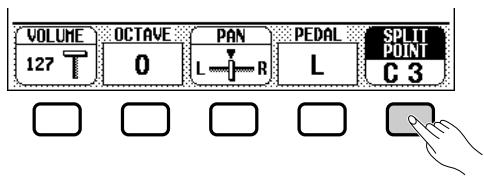
2 Change the split point.
Use the data dial or [-] and [+] buttons to change the split point, or hold down the SPLIT POINT button to move the split point to the right. Press the [-] and [+] buttons simultaneously to restore the basic setting.
The keyboard guide lamp corresponding to the selected Split Point lights, and the key name is displayed by the SPLIT POINT function.
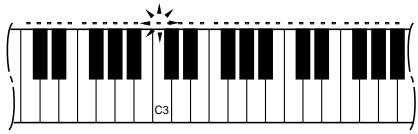
Using the Dual and Split Functions Simultaneously
The [DUAL] and [SPLIT] buttons can be turned on simultaneously. When you do so, the right range of the keyboard will play both the main voice and the second voice.
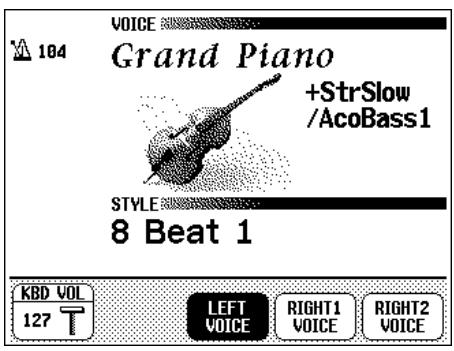
Exiting the Split Mode
Press the [SPLIT] button to exit Split mode.
The [SPLIT] button lamp turns off, and the keyboard no longer plays in Split mode.
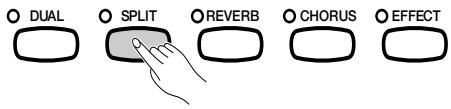
The Clavinova has three pedals.
Damper Pedal (Right)
The damper pedal performs the same function as the damper pedal on an actual acoustic piano, letting you sustain the sound of the voices even after releasing the keys. On the CVP-109/107/700, you can also set the damper pedal to bend the pitch of notes up or down using the RIGHT PEDAL function (page 191).
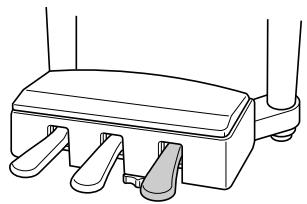
Sostenuto Pedal (Center)
If you play a note or chord on the keyboard and press the sostenuto pedal while the note(s) are held, those notes will be sustained as long as the pedal is held, but all subsequently played notes will not be sustained. This makes it possible to sustain a chord, for example, while other notes are played staccato.
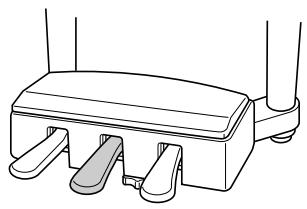
Soft Pedal (Left)
Pressing this pedal reduces the volume and slightly changes the timbre of the notes you play.
You can also assign one of many other functions to this pedal; for example, you can use it to start/stop the Automatic Accompaniment, or use it to play Fill Ins. See page 190 for details.
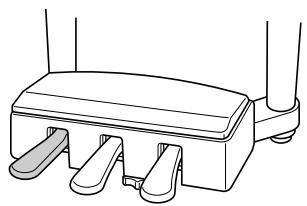

Certain voices in the [PERCUSSION] and [XG] groups may not be affected by use of the damper pedal.
- Some voices may sound continuously or have a long decay after the notes have been released while the damper pedal is held.

Certain voices in the [PERCUSSION] and [XG] groups may not be affected by use of the sostenuto pedal.
- Certain voices, such as [STRINGS] or [BRASS], sustain continuously when the sostenuto pedal is pressed.

The effect of the soft pedal may differ slightly depending on the selected voice.
CHAPTER 4: Reverb and Other
Reverb
Reverb is an effect that recreates the acoustic ambiance of a performance space — anything from a room in a jazz club to a concert hall. The Clavinova lets you choose from a variety of reverb effects; the CVP-109 gives you the additional option of using the high-quality Natural Reverb — effects of a caliber normally employed in professional recording studios. Of course, you can set the depth of any reverb effect to your preference. With the CVP-109/107/700, you can also apply reverb effects to the signal from the microphone using the Vocal Harmony settings (see page 177).
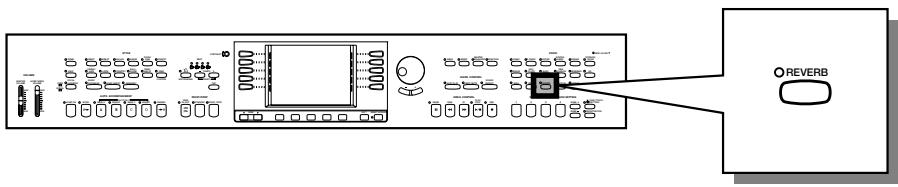
Turning the Reverb On or Off
To apply reverb to the keyboard part(s), press the [REVERB] button.
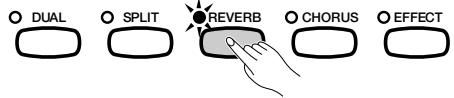
The lamp lights, and the reverb icon "..." appears in the main display, followed by the name of the currently selected reverb type.
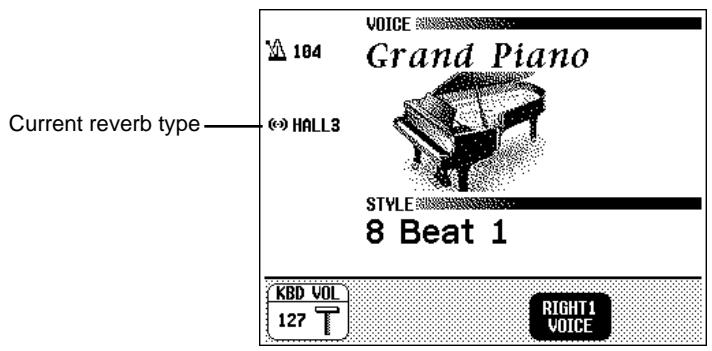
To turn the reverb off, press [REVERB] again.
The lamp turns off, and the reverb icon and reverb type are no longer displayed.
Because the basic setting of the [REVERB] button depends on the voice, the reverb may turn on or off automatically when you select a different voice.
Reverb ON/OFF
Basic setting: Depends on voice.

The setting of the [REVERB] button has no effect on song mode or Auto Accompaniment playback, or on audio signals input via a microphone (CVP-109/107/ 700).
Changing the Reverb Settings
You can change the reverb type and depth using the REVERB and REVERB Depth display pages. With the CVP-109, you can also select a Natural Reverb effect from the NATURAL REVERB page.
Displaying the Reverb Settings
Press [DIRECT ACCESS], then [REVERB].

The LCD displays either the REVERB page or the REVERB DEPTH page (whichever was selected most recently).
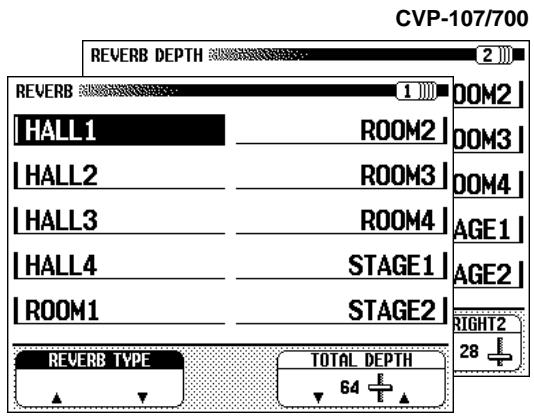
If you are using the CVP-109, the LCD will display the NATURAL REVERB page, the REVERB page, or the REVERB深度 page.
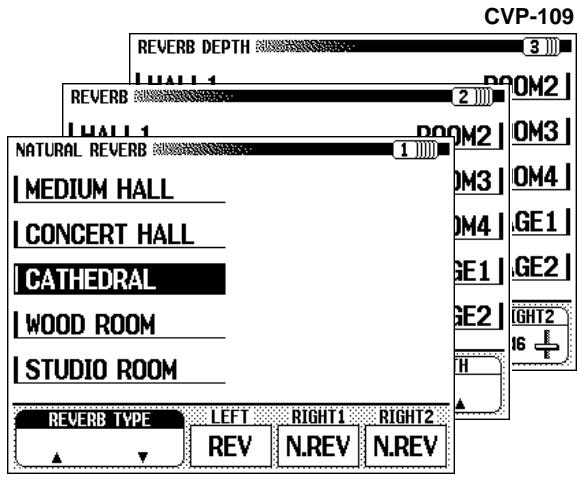
Use the PAGE [<] and [>] buttons to switch between the NATURAL REVERB page (CVP-109), the REVERB page, and the REVERB DEPTH page.
NOTE
On the CVP-109, the NATURAL REVERB display is page 1; the REVERB and REVERB DEPTH pages are numbered 2 and 3, respectively.
NOTE
If you press the [▶] button while the REVERB DEPTH page is showing, the CHORUS page will be displayed. Refer to the other sections of this chapter for details on chorus and other effect settings.
Changing the Natural Reverb Type (CVP-109)
You can change the Natural Reverb type selection in the NATURAL REVERB display (page 47).
Use the left LCD buttons to select the desired Natural Reverb type.
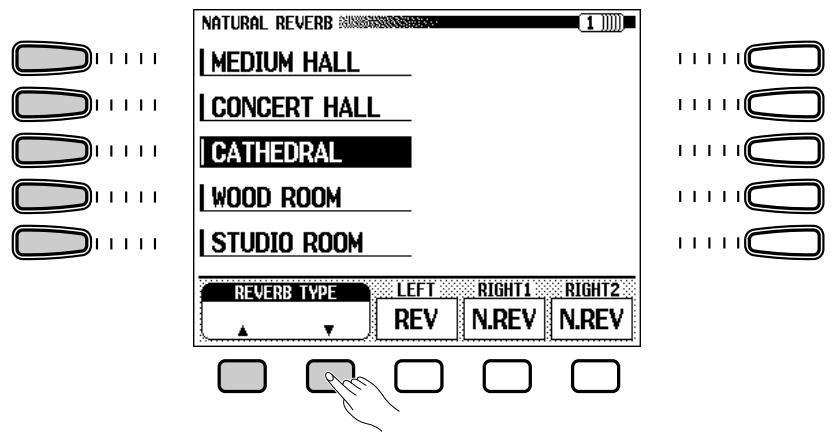
You can also select a Natural Reverb type with the REUERB TYPE ▲ and ▼ buttons, the data dial, or the [−] and [+] buttons.
The selected Natural Reverb type is highlighted.
Because the basic setting of the Natural Reverb type depends on the current RIGHT1 VOICE setting, the Natural Reverb type may change automatically when you select a different main voice (see page 31).
Changing the Reverb System (CVP-109)
You can assign each keyboard part to use either the Natural Reverb system or normal reverb using the functions in the NATURAL REVERB display (page 47).
Press the LCD button corresponding to the keyboard part whose reverb system you want to change. Select LEFT to change the reverb system for the left part, RIGHT1 for the main part, or RIGHT2 for the second part.
The selected function switches between REU and N.REU.
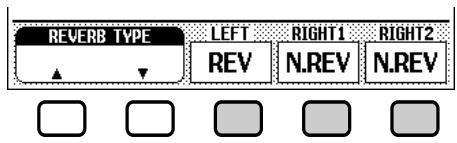
Because the basic settings of the reverb system functions depend on the current voice selection, these settings may change automatically when you select a different voice.

NOTE
Natural Reverb Type
- Settings: See table on page 218.
- Basic setting: Depends on voice.

NOTE
- The Natural Reverb type selection affects all keyboard parts that use Natural Reverb. Different settings cannot be made for each part.
- The depth of the Natural Reverb effect can be set separately for each part that uses the effect (page 50).
Depending on the selected voice, the depth of the effect may sound stronger or weaker, even though the same reverb type is selected.

NOTE
Reverb System
Settings: N.REV (Natural Reverb), REV (normal reverb)
Basic setting: Depends on voice.

NOTE
- If you switch a part to N.REV, it will use the Natural Reverb type selected in the NATURAL REVERB display.
- If you switch a part to REV, it will use the reverb type selected in the REVERB display.
Changing the Reverb Type
You can change the reverb type using the REVERB display (page 47).
Use the REUERB TYPE and buttons to change the reverb type, or select the REUERB TYPE function and use the data dial or the [-] and [+] buttons. (You can also use the left and right LCD buttons to select one of the reverb types listed in the display.)
The selected reverb type is highlighted.
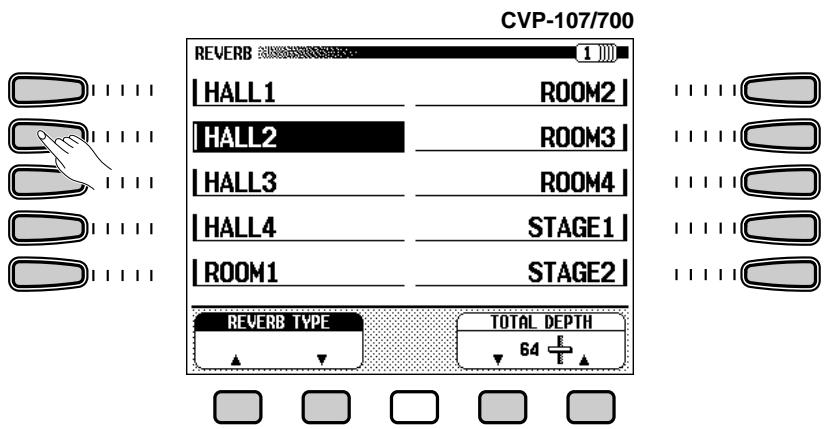
Because the basic setting of the reverb type depends on the accompaniment style, the reverb type may change automatically when you select a different style.
Setting the Total Depth
The overall depth of the selected reverb effect(s) can be set using the TOTAL DEPTH function in the REVERB display (page 47).
1 Select the TOTAL DEPTH function.
The TOTAL DEPTH function is highlighted.
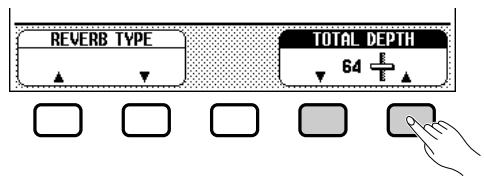
2 Set the total depth of the reverb effect(s).
You can change the setting using the TOTAL DEPTH and buttons, the data dial, or the [-] and [+] buttons.
To reset the value to the basic setting of 64, simultaneously press either the TOTAL DEPTH and buttons or the [-] and [+] buttons.

Reverb Type
- Settings: See table on page 218.
- Basic setting: Depends on style.

- The reverb type selection affects all voices played by the keyboard or Auto Accompaniment. Different settings cannot be made for each part.
Depending on the selected voice, the depth of the effect may sound stronger or weaker, even though the same reverb type is selected. - The reverber effect cannot be applied to the sounds input through the AUX IN [R] and [L / L + R] jacks.
- It is also possible to apply reverb effects to the keyboard voices using the [EFFECT] button. See the Effect Type List on page 219 for details.
- If both the [REVERB] button and the [CHORUS] and/or [EFFECT] buttons are turned on, all effects will be applied.

On the CVP-109, the TOTAL DEPTH setting determines the depth of both the Natural Reverb and normal reverb effects.

TOTAL DEPTH
- Range: 0 (no effect) — 127 (max.)
Basic setting: 64

- The TOTAL DEPTH setting globally affects all voices. Different settings cannot be made for each voice.
- You can also set the reverb depth separately for the rhythm and accompaniment parts, and for each keyboard part. (See the next operation.)
Setting the Reverb Depth for Each Part
The settings in the REVERB DEPTH display (page 47) let you set the reverb depth separately for the rhythm and accompaniment parts, as well as the parts you play from the keyboard.
1 Select a part.
Press the LCD button corresponding to RHYTHM to set the reverb depth for the drum part, or ACMP to set it for all other accompaniment parts. Select LEFT, RIGHT1, or RIGHT2 to set the reverb depth for the corresponding keyboard part.
The selected function is highlighted.
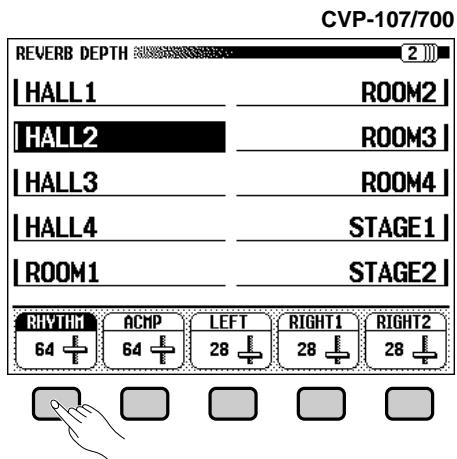
2 Set the reverb depth.
Set the reverb depth for the highlighted part by using the data dial or [-] and [+] buttons.
You can also advance a value by pressing the corresponding LCD button. To reset a value to its basic setting, simultaneously press the [-] and [+] buttons.
Because the basic settings of the LEFT, RIGHT1, and RIGHT2 functions depend on the voices selected, a reverb depth setting may change automatically when you select a different part.

- You can also select several parts at once and adjust their settings simultaneously.
- On the CVP-109, the LEFT, RIGHT1, and RIGHT2 settings also set the depth of the Natural Reverb effects.

RHYTHM and ACMP
Range: 0 (no effect) — 127 (max.)
Basic setting: 64
LEFT, RIGHT1, and RIGHT2
Range: 0 (no effect) — 127 (max.)
- Basic setting: Depends on voice.

The amount of reverb that is applied to a part depends on both the part depth and TOTAL DEPTH settings. If one of the settings is 0, no reverb will be applied to that part even if the other setting is 127.
The Clavinova's chorus effects let you modify the voices you play from the keyboard, adding warmth for an even richer sound. Flanger effects add pronounced modulation, for a spacy futuristic quality. You can choose from a variety of chorus and flanger effects, and set the depth of the effect added to each keyboard voice. With the CVP-109/107/700, you can also apply the selected chorus effect to the signal from the microphone using the Vocal Harmony settings (see page 178).
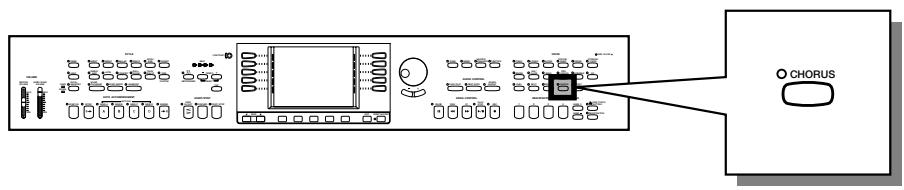
Turning the Chorus On or Off
To apply chorus to the keyboard part(s), press the [CHORUS] button.
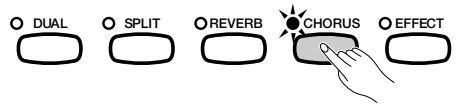
The lamp lights, and the chorus icon "..." appears in the main display, followed by the name of the currently selected chorus type.
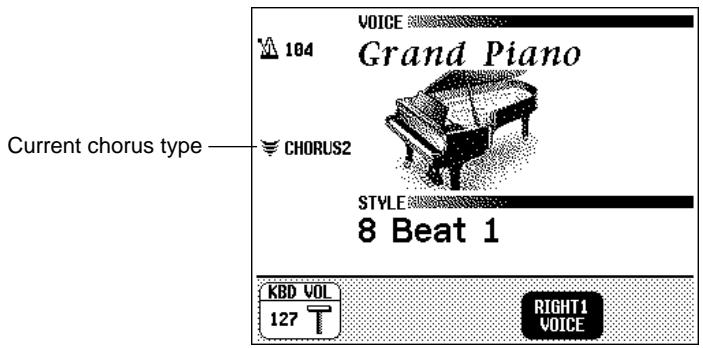
To turn the chorus off, press [CHORUS] again.
The lamp turns off, and the chorus icon and chorus type are no longer displayed.
Because the basic setting of the [CHORUS] button depends on the voice, the chorus may turn on or off automatically when you select a different voice.
You can change the current chorus type and depth using the CHO-RUS display page.

Chorus ON/OFF
Basic setting: Depends on voice.

The setting of the [CHORUS] button has no effect on song mode or Auto Accompaniment playback, or on audio signals input via a microphone (CVP-109/107/700).
Changing the Chorus Settings
Displaying the Chorus Settings
Press [DIRECT ACCESS], then [CHORUS] to display the CHORUS display page.


The LCD displays the CHORUS page.
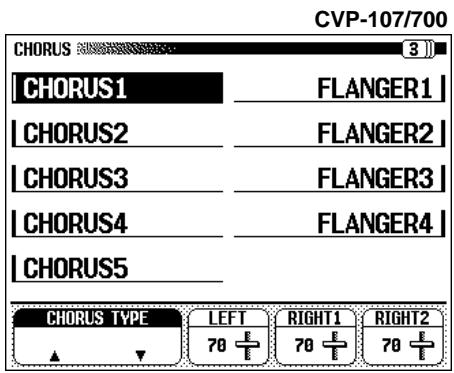
Changing the Chorus Type
You can change the chorus type selection in the CHORUS page. Select the chorus type using the left and right LCD buttons.
You can also change the chorus type using the CHORUS TYPE ▲ and▼ buttons, or by selecting the CHORUS TYPE function and using the data dial or the [-] and [+] buttons.
The selected chorus type is highlighted.
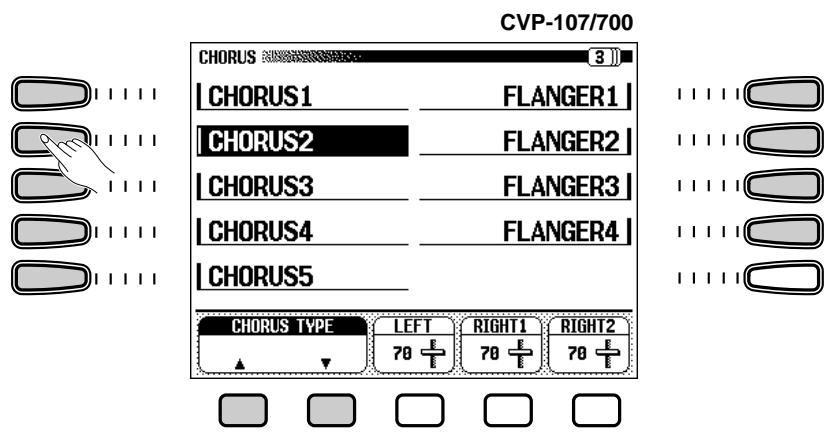
Because the basic setting of the chorus type depends on the accompaniment style, the chorus type may change automatically when you select a different style.

NOTE
If you press the [<] button or the [▶] button while the CHORUS page is showing, the REVERB DEPTH page or the EFFECT 1 page (the EFFECT page on the CVP-105) will be displayed. Refer to the other sections of this chapter for details on reverb and other effect settings.

NOTE
Chorus Type
- Settings: See table on page 219.
- Basic setting: Depends on style.

NOTE
- The chorus type selection affects all keyboard parts. Different settings cannot be made for each part.
Depending on the selected voice, the depth of the effect may sound stronger or weaker, even though the same chorus type is selected. - It is also possible to apply chorus effects to the keyboard voices using the [EFFECT] button. See the Effect Type List on page 219 for details.
- If both the [CHORUS] button and the [REVERB] and/or [EFFECT] buttons are turned on, all effects will be applied.
Setting the Chorus Depth for Each Part
The other settings in the CHORUS page let you set the chorus depth separately for each part you play from the keyboard.
1 Select a part.
Press LEFT, RIGHT1, or RIGHT2 to set the chorus depth for the corresponding keyboard part.
The selected function is highlighted.
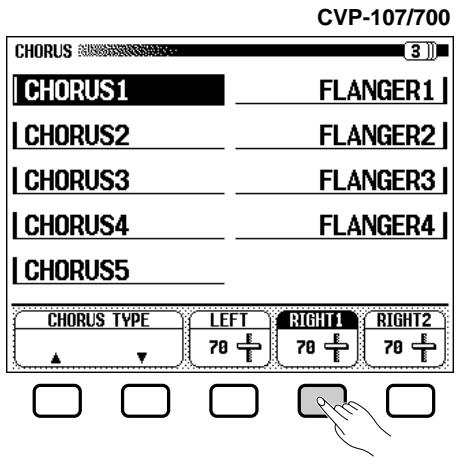
2 Set the chorus depth.
Set the chorus depth for the highlighted part by using the data dial or [-] and [+] buttons.
You can also advance a value by pressing the corresponding LCD button. To reset a value to its basic setting, simultaneously press the [-] and [+] buttons.
Because the basic settings of the chorus depth functions depend on the voices selected, a chorus depth setting may change automatically when you select a different voice.

You can also select several parts at once and adjust their settings simultaneously.

Chorus Depth functions
- Range: 0 (no effect) — 127 (max.)
- Basic setting: Depends on voice.
Voice Effects (CVP-109/107/700)
The Clavinova has a variety of effects besides reverb and chorus that you can use to enhance the sound of the voices or create wild, special effects. The CVP-109/107/700 features two complete effect systems, which you can apply individually to any of the voices you play from the keyboard. You can adjust the depth of the effects as desired. The CVP-109/107/700 also applies an independent effect to the signal from the microphone; settings for this effect system can be made in the VOCAL HARMONY display (page 179).
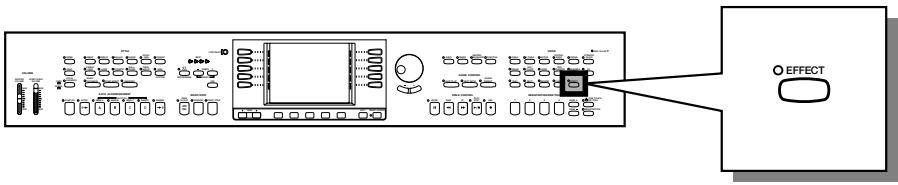
Turning the Effects On or Off
You can use the [EFFECT] button to turn effects on or off for the keyboard parts.
1 Select a part in the main display.
If you are playing in Dual mode or Split mode, press the LCD button corresponding to the keyboard part whose effect you want to turn on.
The selected function is highlighted.
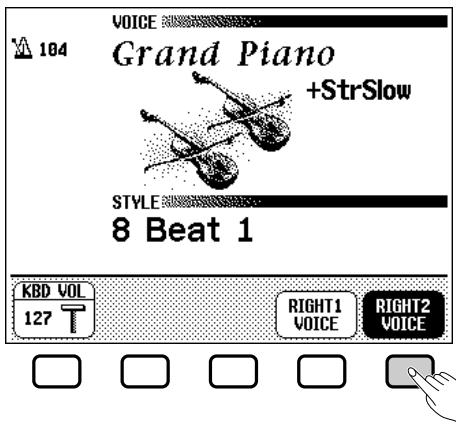
Press the [EFFECT] button.
![YAMAHA CVP-109-107-105-700 - Press the [EFFECT] button. - 1](/content/2025/01/114672/images/581c8467c882d2895f9db34487780e291d1e40e2d531506eefbd96b608902940.jpg)
![YAMAHA CVP-109-107-105-700 - Press the [EFFECT] button. - 2](/content/2025/01/114672/images/57bfc9c349b4af4035263e357cf37e3008e89c73ae8ef89070003dd694ab92ad.jpg)
![YAMAHA CVP-109-107-105-700 - Press the [EFFECT] button. - 3](/content/2025/01/114672/images/a8611448e66a677d7c25f518608310f44198eb659fa5bebb1c88dbcd7e14fd64.jpg)
![YAMAHA CVP-109-107-105-700 - Press the [EFFECT] button. - 4](/content/2025/01/114672/images/7fd5c291f6e7dbb05a569829a52779808adcd03afe69ec4a234226b0dd9cdd2c.jpg)
![YAMAHA CVP-109-107-105-700 - Press the [EFFECT] button. - 5](/content/2025/01/114672/images/239da049aba819cf02012702b051aa87626a648ef8df74355689e90eb9bb6b3d.jpg)
The lamp lights, and the effect icon "..." appears in the main display, followed by the name of the currently selected effect type.
![YAMAHA CVP-109-107-105-700 - Press the [EFFECT] button. - 6](/content/2025/01/114672/images/13e303fdbc02291ba5c601a9eec5c1c35ab774814c1ad4f15c2720cbcaed0ec0.jpg)
![YAMAHA CVP-109-107-105-700 - Press the [EFFECT] button. - 7](/content/2025/01/114672/images/616e1e6b37cba9e90c5d36a4566bf5086cb7d0231aa5aa3367e9823486178ebb.jpg)
NOTE
- Only the effect system assigned to the currently selected keyboard part is affected when you press the [EFFECT] button.
To turn both effect systems (page 55) on or off, you must perform this operation twice, selecting each of the affected parts in turn.

NOTE
Effect ON/OFF
Basic setting: Depends on voice.

NOTE
If both of the effect systems (page 55) are assigned to the same part, only the effect type selected in the EFFECT 1 page will be displayed.
If the lamp does not light, neither effect system has been assigned to the part in question. Check the PART function settings (page 57).
If the lamp lights but the sound of the voice does not change, the effect depth may have been set to 0. Check the effect depth settings (page 57).
To turn an effect off, select the part that uses that effect in the main display and press [EFFECT] again.
The lamp turns off, and the effect icon and effect type are no longer displayed.
Because the basic setting of the [EFFECT] button depends on the voice, the effect(s) may turn on or off automatically when you select a different voice.
NOTE
- The setting of the [EFFECT] button has no effect on song mode or Auto Accompaniment playback, or on audio signals input via a microphone (CVP-109/107/700).
- When an effect system is used by a song, it is automatically turned off for the keyboard part(s) when that song is selected for playback. If you press [EFFECT] to apply an effect to the keyboard part(s) after selecting the song, the effect will not be applied to the song.
Changing the Effect Settings
You can change the effect type, depth and affected part using the settings on the EFFECT pages.
Displaying the Effect Settings
Press [DIRECT ACCESS], then [EFFECT] to display the EFFECT display pages.

The LCD displays either the EFFECT 1 page or the EFFECT 2 page (whichever was selected most recently).
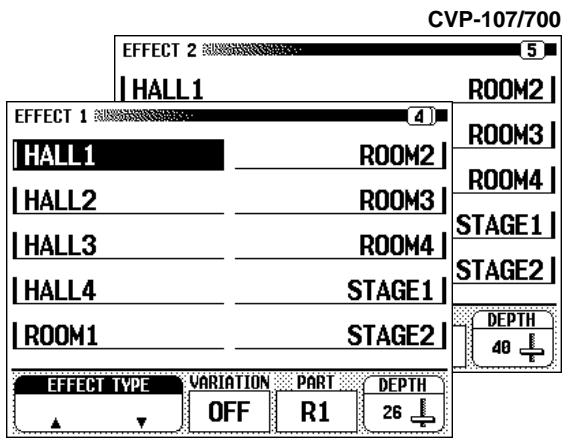
Use the PAGE [<] and [▶] buttons to switch between the EFFECT 1 page and the EFFECT 2 page.
NOTE
If you press the [ ] button while the EFFECT 1 page is showing, the CHO-RUS page will be displayed. Refer to the first two sections of this chapter for details on reverb and chorus settings.
Changing the Effect Type
You can change the effect type selection for one of the effect systems in the appropriate EFFECT display (page 55). Select an effect type using the EFFECT TYPE and buttons, or highlight the EFFECT TYPE function and use the data dial or the [-] and [+] buttons.
You can also use the left and right LCD buttons to select one of the effect types listed in the display screen.
To reset the effect type to its basic setting, simultaneously press the EFFECT TYPE and buttons or the [-] and [+] buttons.
The selected effect type is highlighted.
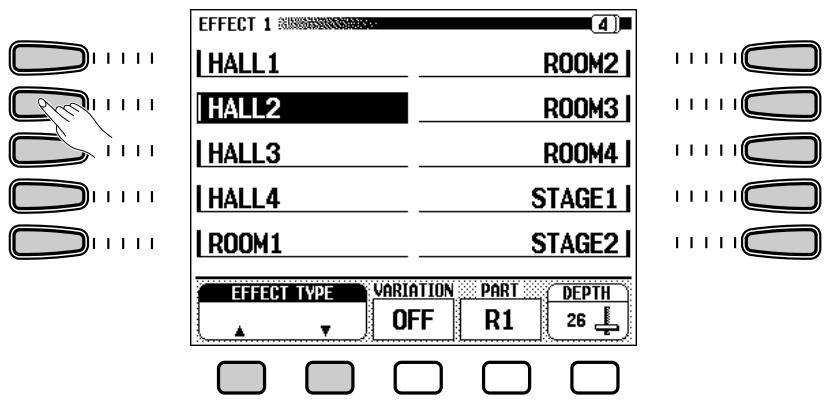
Because the basic setting of the effect type depends on the voice, the effect type may change automatically when you select a different voice.
Varying the Effect
Each of the Clavinova's effect types has a variation that can be selected using the VARIATION functions in the EFFECT 1 and EFFECT 2 displays (page 55). To vary the effect produced by the effect type selected for an effect system, display the EFFECT page for that system, then press the LCD button under VARIATION.
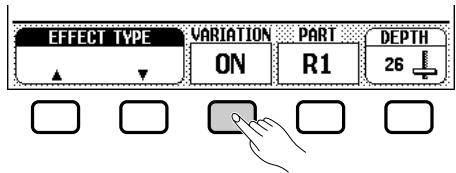
The value displayed by the VARIATION function switches between OFF and ON, and the effect changes.
The way in which the effect changes depends on the effect type (see the table on page 219). Also, because the basic setting of the VARIATION function depends on the voice, the setting of this function may change automatically when you select a different voice.

Effect Type
- Settings: See table on page 219.
- Basic setting: Depends on voice.

If both the [EFFECT] button and the [REVERB] and/or [CHORUS] buttons are turned on, all effects will be applied.

VARIATION
- Settings: OFF, ON
- Basic setting: Depends on voice.
Setting the Affected Part
You can use the PART function in each EFFECT display to select the keyboard part that is to be affected by the corresponding effect system. To change the part affected by one of the effect systems, display the EFFECT page for that system, then press the LCD button under PART.
The value of the PART function changes, displaying each of the settings (R1, R2, LEFT, and OFF) in turn.
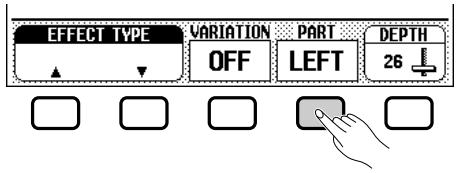
Since the changing the value of the PART function means the effect will probably be applied to a different voice, the effect type (page 56) and effect depth (see below) may also change automatically to match the voice that is currently selected for the chosen part.
Setting the Effect Depth
The DEPTH function in each of the EFFECT pages lets you adjust the depth of the currently selected effect type. To set the depth of the effect produced by an effect system, select DEPTH in the appropriate EFFECT page, then and use the data dial or [-] and [+] buttons to change the value.
The DEPTH value changes.
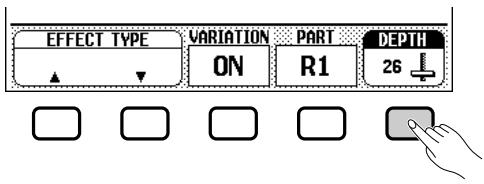
You can also advance the value by holding down the DEPTH button. To reset the value to its basic setting, simultaneously press the [-] and [+] buttons.
Since the basic setting of the DEPTH function depends on the voice selected for the part affected by the effect system in question, the effect depth may change automatically when you select a different voice.

PART
Settings: R1 (main)
R2 (second)
LEFT
OFF (no effect)
Basic settings: R1 (EFFECT 1)
R2 (EFFECT 2)

When neither effect system has been assigned to the keyboard part that is currently selected in the main display, the [EFFECT] button cannot be used to turn an effect on.

DEPTH
Range: 0 (no effect) - 127 (max.)
- Basic setting: Depends on voice.

The effect depth cannot be changed for certain effect types. In such cases a row of dashes (· -·) is displayed as the DEPTH setting, and the DEPTH function cannot be selected.
The Clavinova has a variety of effects besides reverb and chorus that you can use to enhance the sound of the voices or create wild, special effects. You can adjust the depth of the effect as desired.
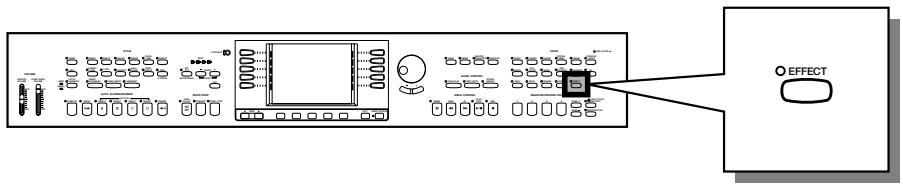
Turning the Effects On
To apply the effect to the keyboard parts, press the [EFFECT] button.


The lamp lights, and the effect icon "..." appears in the main display, followed by the name of the currently selected effect type.
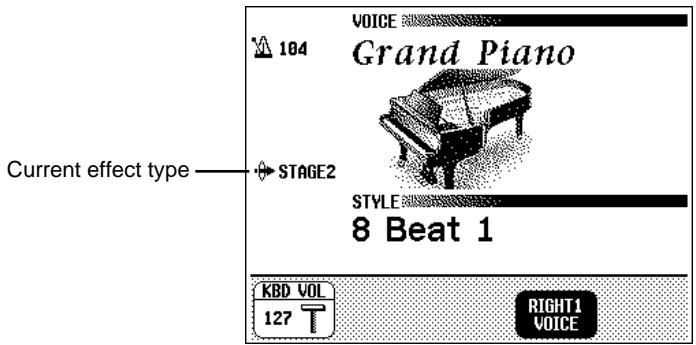
To turn the effect off, press [EFFECT] again.
The lamp turns off, and the effect icon and effect type are no longer displayed.
Because the basic setting of the [EFFECT] button depends on the voice, the effect may turn on or off automatically when you select a different voice.
Changing the Effect Settings
You can change the current effect type and depth using the EFFECT display pages.
Displaying the Effect Settings
Press [DIRECT ACCESS], then [EFFECT].




Effect ON/OFF
Basic setting: Depends on voice.

The [EFFECT] lamp will not light if the effect depth (page 60) is set to 0.

When the effect system is also used by an accompaniment style or song, the effect being applied to the keyboard part(s) may automatically be turned off when you start the Auto Accompaniment or select the song for playback, depending on the effect type selected by the style or song. If this happens, you may be able to apply the effect to the keyboard part(s) by pressing the [EFFECT] button - again, this depends on the selected effect type. If you do so, the effect will not be applied to voices played by the Auto Accompaniment or song.
The LCD displays the EFFECT page that was used most recently.
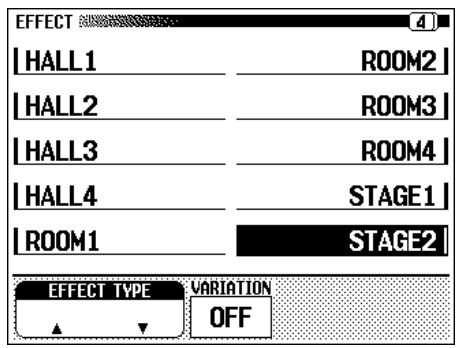
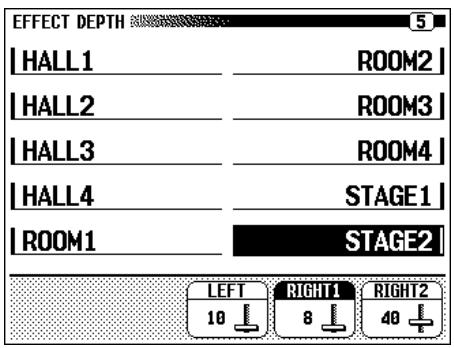
2 Use the PAGE [▲] and [▶] buttons to switch between the EF-FECT pages.
Changing the Effect Type
You can change the effect type selection in the first EFFECT page (page 4 of the display). Select an effect type using the EFFECT TYPE ▲ and ▼ buttons, or highlight the EFFECT TYPE function and use the data dial or the [−] and [+] buttons.
You can also use the left and right LCD buttons to select one of the effect types listed in the display screen.
To reset the effect type to its basic setting, simultaneously press the EFFECT TYPE and buttons or the [-] and [+] buttons.
The selected effect type is highlighted.
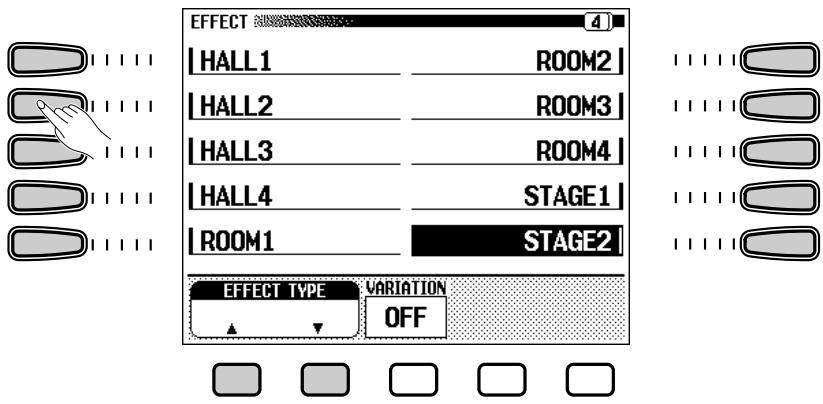
Because the basic setting of the effect type depends on the voice, the effect type may change automatically when you select a different voice.

Effect Type
- Settings: See table on page 219.
- Basic setting: Depends on voice.

- The effect type selection affects all keyboard parts. Different settings cannot be made for each part.
- When the basic setting of the [EF-FECT] button is ON for two or three voices selected in Dual and/or Split mode, the Clavinova will automatically select the most appropriate effect type and set the effect depth (page 60) for each part to an appropriate level.
Depending on the selected voice, the depth of the effect may sound stronger or weaker, even though the same effect type is selected. - If both the [EFFECT] button and the [REVERB] and/or [CHORUS] buttons are turned on, all effects will be applied.
Varying the Effect
Each of the Clavinova's effect types has a variation that can be selected using the VARIATION function in the first EFFECT page (page 4 of the display). To vary the effect produced by the selected effect type, press the LCD button under VARIATION.
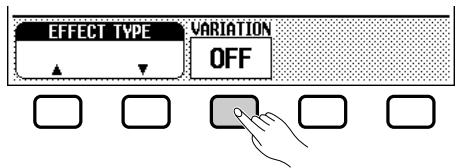
The value displayed by the VARIATION function switches between OFF and ON, and the effect changes.
The way in which the effect changes depends on the effect type (see the table on page 219). Also, because the basic setting of the VARIA-TION function depends on the voice, the setting of this function may change automatically when you select a different voice.
Setting the Effect Depth for Each Part
The settings in the second EFFECT page (page 5 of the display) let you set the effect depth separately for each part you play from the keyboard.
1 Select a part.
Press LEFT, RIGHT1, or RIGHT2 to set the effect depth for the corresponding keyboard part.
The selected function is highlighted.
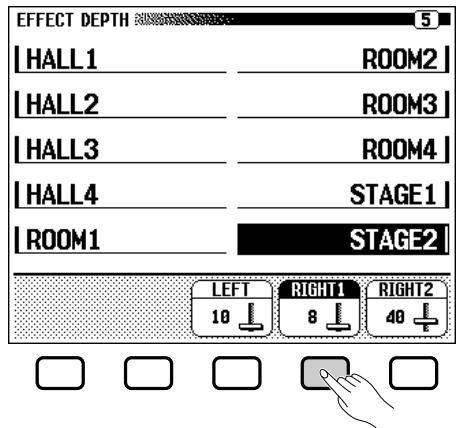
2 Set the effect depth.
Set the effect depth for the highlighted part by using the data dial or [-] and [+] buttons.
You can also advance a value by pressing the corresponding LCD button. To reset a value to its basic setting, simultaneously press the [-] and [+] buttons.
Because the basic settings of the effect depth functions depend on the voices selected, an effect depth setting may change automatically when you select a different voice.

VARIATION function
- Settings: OFF, ON
- Basic setting: Depends on voice.

Effect Depth functions
- Range: 0 (no effect) — 127 (max.)
- Basic setting: Depends on voice.
Selecting Accompaniment Styles
The Clavinova has a wide variety of musical "styles" that you can use for simple percussion accompaniment, or as the basis of a fully orchestrated accompaniment — including bass and rhythm parts — using the Auto Accompaniment feature (page 69). There is also a selection of "Pianist" styles that let you play with piano accompaniment when you activate the Auto Accompaniment.

- Style Types
Rhythm styles: 157 (CVP-109)
147 (CVP-107/700)
135 (CVP-105)
Pianist styles: 35
- Custom styles: 12
- For information on the styles, see the Style List on page 12 in the Reference Booklet.
- The Clavinova's styles are divided into eleven groups, corresponding to the eleven STYLE buttons on the panel.
- The PIANIST styles and Guitar Waltz in the TRAD/WALTZ style group do not include drum sounds. Use the Auto Accompaniment (page 70) to play these styles.
Selecting a Style
1 Select an accompaniment style group.
Select the desired style group by pressing the appropriate STYLE button.
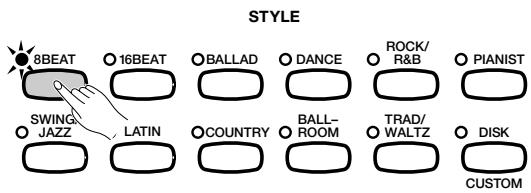
The corresponding STYLE SELECT display appears.
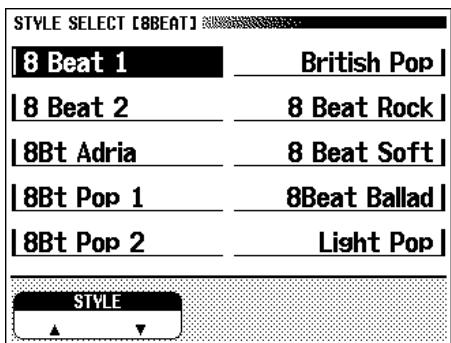

Disk and Custom Styles
The [DISK/CUSTOM] button lets you use styles on optional Style File Disks (page 105) or your original styles (page 91).

- The last selected style in each group can be retained in memory, even after turning off the power, when the Backup function (page 206) is set to ON.
- When the power is turned on, the 8 Beat 1 style is automatically selected. However, if the Backup function (page 206) is set to ON, the last selected style will be selected instead.
- Accompaniment styles cannot be selected in the Song Play mode (page 113).
2 Select a style.
Select the desired style by pressing the appropriate left or right LCD button.
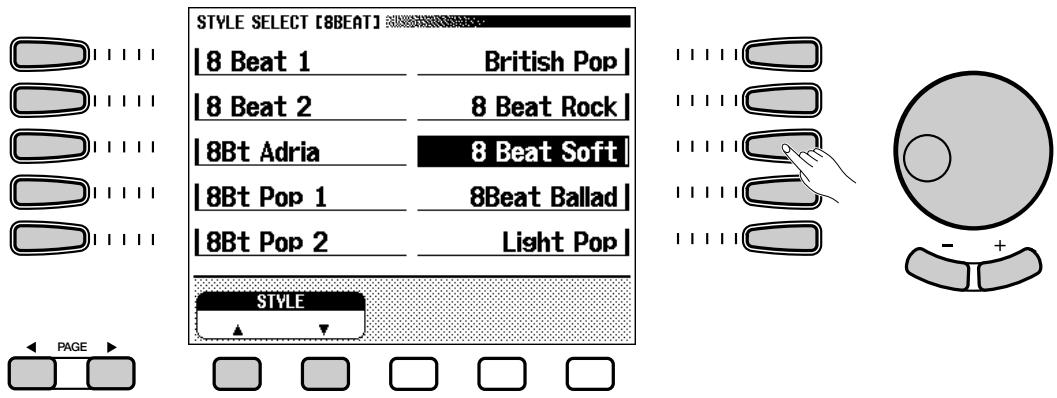
You can also select a style using the data dial, the [-] and [+] buttons, or the STYLE and buttons.
Some STYLE SELECT displays consist of more than one page. Use the PAGE [▲] and [▶] buttons to switch between pages.
3 Return to the main display
Press [EXIT] to return to the main display.
NOTE
Accompaniment Tempo
- Whenever you select a style, the preset tempo for that style is also selected (unless you change the style during playback, in which case the current tempo is maintained).
- Adjust the tempo as described on page 27.
NOTE
Accompaniment Volume
Use the [ACMP/SONG VOL- UME] slider to adjust the playback volume, as described on page 23.
You will use the AUTO ACCOMPANIMENT buttons and the START/ STOP buttons to select style variations and control style playback.
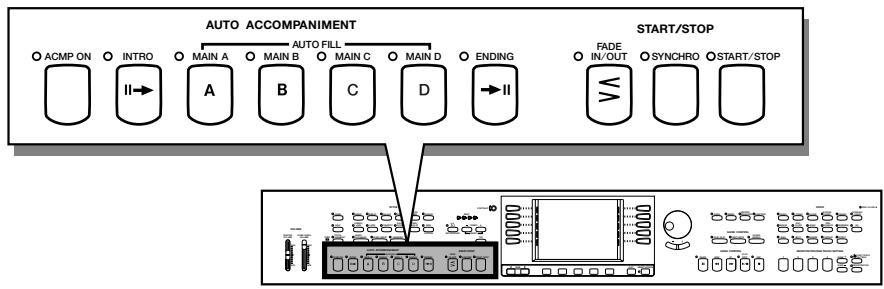
Varying the Style
Each of the Clavinova's styles has four variations, corresponding to the AUTO ACCOMPANIMENT buttons labeled as [MAIN A], [MAIN B], [MAIN C], and [MAIN D].
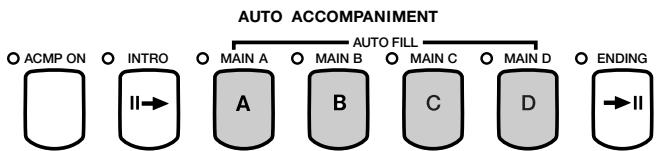
Use these buttons to select style variations.
Main A is generally the most rudimentary form of the style; the other variations are more or less lavish embellishments on the same basic theme. By judiciously switching between variations as you play, you can add variety and make the performance more interesting.
Selecting a Variation
You can select a style variation before you start playing the style. To select a variation, simply press the corresponding button.
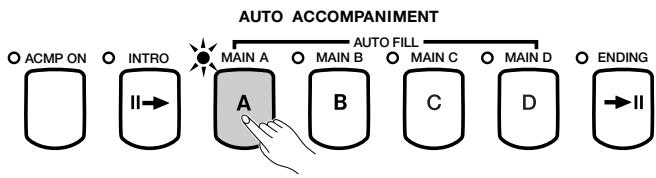
The button's lamp lights.
The Clavinova will begin playing the selected style variation when you start the style using one of the methods described in the next section.
■ Playing Fill-in Patterns
If you select a different style variation while the style is playing, the Clavinova will play an automatic fill-in pattern as it switches to the new variation. The fill-in pattern, like the main pattern, is different for each variation.

Fill-in patterns
A "fill-in pattern" is a embellishment of the basic rhythm, usually played at the end of a musical phrase as an exciting transition into the next segment.
To change the variation while the style is playing, press the button corresponding to the new variation.
The button's lamp flashes as the Clavinova plays the fill-in pattern.
Generally speaking, the Clavinova will start the fill-in pattern soon after you press the button. If you select a variation after the last eighth note of a measure, however, it will begin the fill-in pattern from the start of the next measure.
When the fill-in pattern is finished, the button's lamp lights steadily as the Clavinova plays the main pattern.
The auto fill-in feature provides an exciting transition as you switch from one variation to another. If Main A is playing and you press [MAIN B], for example, the Clavinova will play Fill-in B, then start playing Main B.
■ More Fun With Fill-ins
- Changing the Fill-in
It is possible to switch variations while a fill-in pattern is playing. The Clavinova will switch to the fill-in pattern for the new variation, then continue with the new main pattern as usual.
- Repeating the Fill-in
If you hold down the flashing button, or press it after the last eighth note of the measure while the fill-in pattern is playing, the fill-in pattern will be repeated.
- Canceling the Fill-in
If you press the flashing button earlier than the last eighth note of the measure while the fill-in pattern is playing, the Clavinova will stop playing the fill-in pattern and continue with the main pattern.
Starting the Accompaniment Style
There are several ways to start the accompaniment style, as described below:
Standard Start
This is the simplest way to start a style. If necessary, select a variation as described on page 63, then press the [START/STOP] button.
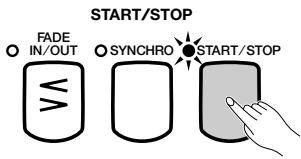
The lamp lights and the style starts.

Using the Pedals
You can also use the left pedal to pause the style or play a special fill-in pattern by setting the LEFT PEDAL function (page 190) to BREAK or BREAK FIL.

You can also play fill-in patterns without selecting a different variation. Just press the button for the variation that is playing. The Clavinova will play the fill-in for that variation, then return to the main pattern.

Using the Pedals
You can also use the left pedal to start and stop the style by setting the LEFT PEDAL function (page 190) to START/ STOP.

Beat Indicator
During style playback, the leftmost beat lamp (red) flashes on the first beat of each measure, and the other lamps (green) flash for each successive beat. The current tempo and measure number are shown in the upper left corner of the main display.
■ Synchronized Start.
This method lets you start the style by simply playing a note or chord on the keyboard.
1 Set the Synchronized Start function.
If necessary, select a variation as described on page 63, then press the [SYNCHRO] button.
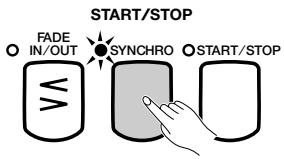
The lamp lights, and the red [BEAT] lamp flashes in time with the current tempo.
2 Start playing.
When you are ready, play a note on the keyboard. The style starts playing when you play the first note.
The [SYNCHRO] lamp turns off, the [START/STOP] lamp lights, and the style starts.
Tap Start
This function lets you set the tempo and start the style in one operation.
If necessary, select a variation as described on page 63, then tap the [TAP] button at the desired tempo. Tap four times for 2- and 4-beat styles, three times for 3-beat styles, and five times for 5-beat styles.
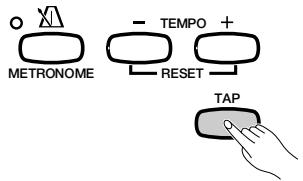
When playing a 4-beat style... ≥ Tap 4 times.
The [TAP] button can also be used to change the tempo during style playback (by tapping the button twice). In this case the tap "click" will not sound.
NOTE
- If the [SYNCHRO] button is pressed while a style is playing, style playback stops and Synchronized Start is automatically set to stand-by.
- When you play the keyboard in Split mode (page 41) or use the Auto Accompaniment in a mode other than FULL KEYBOARD (page 73), only the left-hand section of the keyboard will trigger a synchronized start.
NOTE
To cancel the Synchronized Start function before you start the style, press the [SYNCHRO] button again.
NOTE
If you do not tap the [TAP] button the required number of times (i.e., 3 times for a 3-beat style), the Tap Start function will be canceled after a few seconds.
Adding an Introduction
This function lets you embellish the start of a tune by adding an introduction.
1 Set the introduction pattern.
Select the variation to play the intro pattern as described on page 63, then press the [INTRO] button. There are three introduction patterns, as shown below:
Intro Patterns
| Pattern | Played by: |
| Intro A | [MAIN A] |
| Intro B | [MAIN B] |
| Intro C/D | [MAIN C] or [MAIN D] |
The [INTRO] lamp lights, and the lamp for the selected variation flashes.
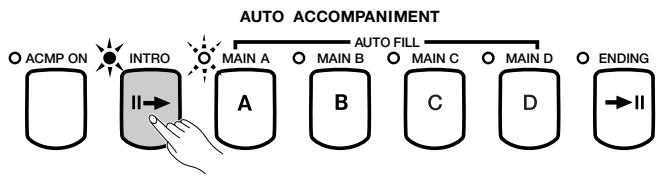
2 Select the main pattern.
Select the variation to play the main pattern when the intro is finished. (If you want the style to continue playing with the same variation as the introduction, you can skip this step.)
The lamp for the previously selected button lights, and the lamp of the selected button flashes.
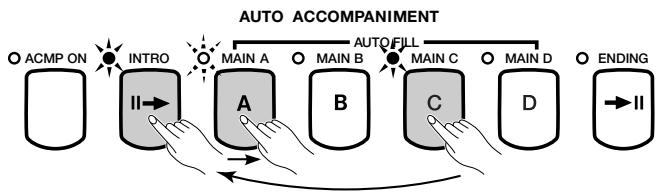
3 Start the style.
Use one of the three methods described on the preceding pages to start playing the style.

NOTE
The flashing light indicates the variation that will play after the intro. In the illustration at left, the Clavinova will play Intro A, followed by Main A.

NOTE
Since the flashing light indicates the variation that will play after the intro, the illustration at left indicates that the Clavinova will play Intro C/D, followed by Main A.

NOTE
To cancel the introduction before starting the style, press the [INTRO] button again.
Fading In
This function lets you gradually fade in the volume of the style. You can set the Fade In function at any time before you start the style, and use it in combination with any start method (including the Introduction function).
Press the [FADE IN/OUT] button.
![YAMAHA CVP-109-107-105-700 - Press the [FADE IN/OUT] button. - 1](/content/2025/01/114672/images/5f0b0f22f24d3d25521ca76cc22181325d23861d05492def1e98cb88d1e631a1.jpg)
The lamp lights, and the Synchronized Start function (page 65) turns on automatically.
2 Start the style.
Use one of the three methods described on the preceding page to start playing the style.
The [FADE IN/OUT] lamp flashes during the fade-in, then turns off when the fade-in is completed.
Stopping the Accompaniment Style
There are also several ways to stop accompaniment style playback, as described below:
Standard Stop
To stop style playback, press the [START/STOP] button.
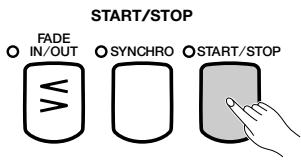
The lamp turns off and the style stops instantly.
Adding an Ending
To play an ending pattern before the style playback stops, press the [ENDING] button.
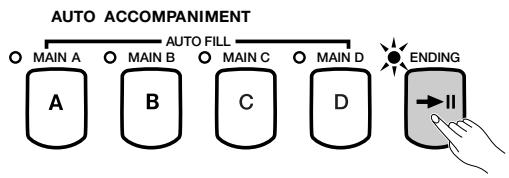
The ENDING lamp lights, and the Clavinova stops style playback after playing an ending pattern.

Using the Pedals
You can also use the left pedal to trigger a fade-in or fade-out by setting the LEFT PEDAL function (page 190) to FADE IN/OUT.

To cancel the fade-in before starting the style, press the [FADE IN/OUT] button again.

Using the Pedals
You can also use the left pedal to start and stop the style by setting the LEFT PEDAL function (page 190) to START/ STOP.

If you press the [ENDING] button on or after the second beat of a measure, the ending pattern will start at the top of the next measure.
Playing the Accompaniment Styles
The Clavinova will play one of three ending patterns, depending on the main pattern that is currently playing, as shown below.
Ending Patterns
| Pattern | Played by: |
| Ending A | [MAIN A] |
| Ending B | [MAIN B] |
| Ending C/D | [MAIN C] or [MAIN D] |
Press [ENDING] a second time while the ending pattern is playing to produce a ridardando (gradually slowing) effect.
Fading Out
You can have the style fade out and automatically stop by pressing the [FADE IN/OUT] button.
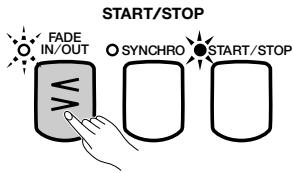
The lamp flashes as the style fades out.
You can use the Fade Out function in combination with any pattern (including the Introduction and Ending functions).
Using the Pedals
You can also use the left pedal to trigger the ending pattern and ritardando by setting the LEFT PEDAL function (page 190) to ENDING/RIT.

Using the Pedals
You can also use the left pedal to trigger a fade-in or fade-out by setting the LEFT PEDAL function (page 190) to FADE IN/OUT.
The Clavinova includes a sophisticated Auto Accompaniment system that can provide automated rhythm, bass and chord backing for your performance in 157 different styles (147 styles on the CVP-107/700; 135 on the CVP-105), as well as 35 different types of piano-only accompaniment.

NOTE
The Auto Accompaniment playback data is normally not output by the MIDI [OUT] terminal. To send the Auto Accompaniment data to another MIDI instrument, use the ACPI&RHY and HARMONY functions in the FUNCTION [MIDI 4] display described on page 205.
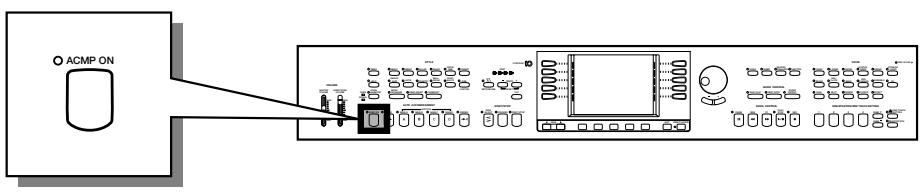
Using the Auto Accompaniment
You can use one of several methods to indicate the chords that are to be played by the Auto Accompaniment. Choose the accompaniment mode that best suits your playing style.
Single Finger
The Single Finger method makes it easy to obtain accompaniment in major, seventh, minor, and minor-seventh chords by pressing certain keys (according to simple rules) to the left of the split point indicated by the keyboard guide lamp. (See page 72.)
- Multi Finger
When you select the Multi Finger mode, you can use either the Single Finger method or the Fingered 1 method to indicate chords for the accompaniment. (See page 72.)
Fingered 1
The Fingered 1 method lets you control the Auto Accompaniment by playing full chords to the left of the split point. (See page 72.)
Fingered 2
This mode accepts the same fingerings as the Fingered 1 mode, with the exception that the lowest note played to the left of the split point is used as the bass root (in Fingered 1 mode, the root of the chord is always used as the bass root). Hence, you can select this mode to play "on bass" or "fraction" chords. (See page 73.)
Full Keyboard
The Full Keyboard mode automatically produces appropriate automatic accompaniment for virtually anything you play, anywhere on the keyboard. (See page 73.)

NOTE
Detailed explanations of each accompani-nment mode are given on pages 72 and 73.
Starting the Auto Accompaniment
You may want to select an accompaniment mode (page 71) before you start playing. If the accompaniment mode is set to your liking, you can start the Auto Accompaniment as follows:
1 Select a style.
Select the desired style. (See page 61.)
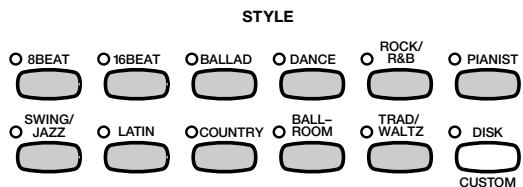
2 Set the tempo and accompaniment volume.
Use the TEMPO buttons to adjust the tempo (page 27), and the [ACMP/SONG VOLUME] slider to adjust the volume of the accompaniment parts (page 23).
3 Turn on the Auto Accompaniment.
Press the [ACMP ON] button.
The [ACMP ON] lamp lights, and the current accompaniment mode is indicated at the left edge of the main display.
The [SYNCHRO] lamp also lights, indicating that you can start the Auto Accompaniment with the Synchronized Start function (page 65). Also, a keyboard lamp shows the current split point.
4 Start the Auto Accompaniment.
Begin playing to start the Auto Accompaniment with the Synchronized Start function, or start the style using one (or more) of the other methods described on pages 64 and 67.
The methods used to indicate Auto Accompaniment chords are described in the following pages.
Stopping the Auto Accompaniment
Use one of the methods described on page 67 to stop playback of the style, including the Auto Accompaniment.
To turn Auto Accompaniment off, press the [ACMP ON] button so that the lamp goes out.

Pianist styles
You can play the PIANIST styles and Guitar Waltz in the TRAD/WALTZ style group with the Auto Accompaniment (page 61). Since these styles do not contain drum parts, you'll have to indicate a chord as you start the style to hear the accompaniment.

- The Auto Accompaniment will automatically turn on when you select a style in the Pianist style group.
- The Auto Accompaniment can also be turned on during playback of song data recorded on the CVP-109/107/105/700/103.
- If you turn the Auto Accompaniment on while playing back songs recorded using the Auto Accompaniment, the recorded accompaniment track will be dropped in favor of the accompaniment you play on the keyboard.

- You can also select style variations and play fill-in patterns as described on page 63 while playing along with the Auto Accompaniment.
- Press the [ACMP ON] button again to turn the Auto Accompaniment off before you start playing.
Changing the Auto Accompaniment Settings
You can change the accompaniment mode (which selects the chord indication method), the split point, and other Auto Accompaniment settings in the ACCOMPANIMENT MODE display page.
■ Displaying the Auto Accompaniment Settings
Press [DIRECT ACCESS], then [ACMP ON].
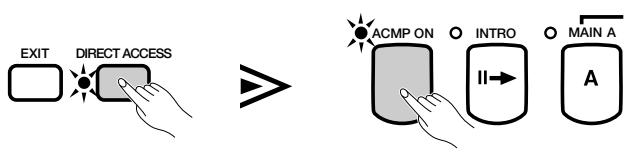
The ACCOMPANIMENT MODE display appears.
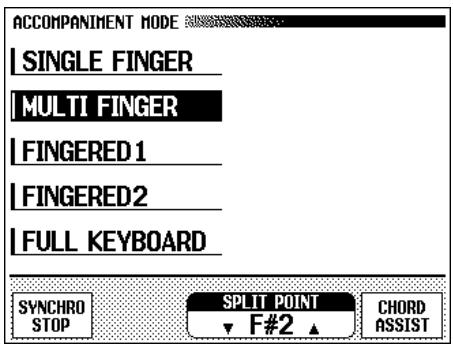
■ Selecting an Accompaniment Mode
To select an accompaniment mode, press one of the left LCD buttons.
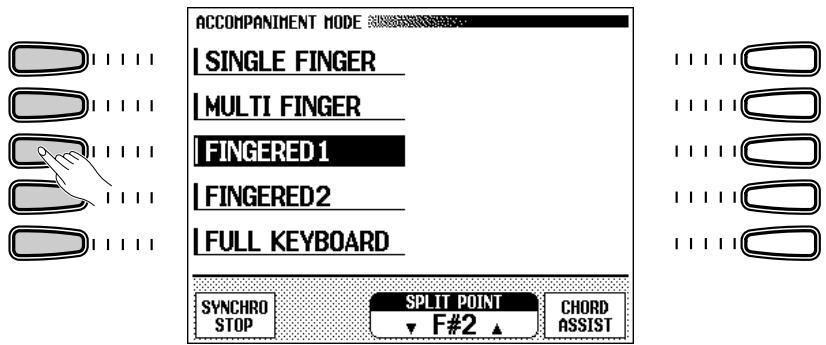
The selected accompaniment mode is highlighted.
The method for indicating chords in each accompaniment mode are described in detail below.

Accompaniment Mode
- Settings: See insert below.
- Basic setting: MULTI FINGER
Accompaniment Modes
- Single Finger
To control the Auto Accompaniment, press one, two, or three keys in the left range of the keyboard (below and including the split point), following the rules described below. Play the melody in the right range along with the Auto Accompaniment.
Single Finger Chords
The following four chord types can be played in Single Finger mode:
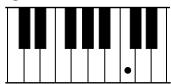
C
Major
Press the root note of the chord.
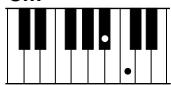
Cm
Minor [m]
Simultaneously press the root note of the chord and any black key to the left of it.
![YAMAHA CVP-109-107-105-700 - Minor [m] - 1](/content/2025/01/114672/images/652418e3b8a764e2b621d8e7ee28cb22996b12f1f7871423222ab5f97e0ae2c4.jpg)
C7
- Seventh [7]
Simultaneously press the root note of the chord and any white key to the left of it.
![YAMAHA CVP-109-107-105-700 - - Seventh [7] - 1](/content/2025/01/114672/images/9a230e27539ea7ea7ef84c37a5c7e0ea2e9e0dc76de06b09d050e66b84d9708c.jpg)
Cm7
Minor Seventh [m7]
Simultaneously press the root note of the chord and any white and black keys to the left of it (three keys at once).
- Multi Finger
This method allows you to control the Auto Accompaniment using either the Single Finger method (described above) or the Fingered 1 method (described below). However, when indicating minor, seventh or minor seventh chords, it is necessary to play the white key and/or black key nearest the root note of the chord.
Fingered 1
To control the Auto Accompaniment, play any chord in the left range of the keyboard (below and including the split point). Play the melody in the right range along with the Auto Accompaniment.

NOTE
- The Clavinova displays the names of the chords you play at the left edge of the main display, below the measure number.
- The same accompaniment continues (even after you release the chord in the left range) until you play the next chord.

NOTE
The illustration below shows the key corresponding to each root note.
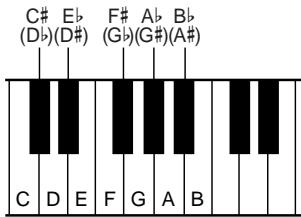

NOTE
- The automatic accompaniment will sometimes not change when related chords are played in sequence (e.g. some minor chords followed by the minor seventh).
- If the Clavinova cannot recognize a chord you play, an asterisk " * " will appear instead of the chord name in the display.
- Drums-only accompaniment can be produced by pressing any three consecutive keys (e.g., C, C#, D) simultaneously. This lets you create dynamic "drum breaks" in the accompaniment. A series of dashes "- - -" will appear instead of a chord name in the display.

NOTE
Two-note fingerings will produce a chord based on the previously played chord.
Chords in Fingered 1 mode
The chord types below can be played in Fingered 1 mode. For a fingering chart showing all chords in the example key of C, see page 15 of the Reference Booklet.
Major
- Sixth [6]
Major seventh [M7]
Major seventh flatted fifth [M7 (b5)]
Major seventh sharp eleventh [M7 (#11)]
- Added ninth [add 9]
Major seventh ninth [M7 (9)]
Six ninth [6 (9)]
- Flatted fifth [(15)]
- Augmented [aug]
- Seventh augmented [7 (#5)]
Major seventh augmented [M7 (#5)]
Minor [m]
Minor sixth [m6]
Minor seventh [m7]
Minor seventh flatted fifth [m7 (b5)]
Minor added ninth [m add 9]
Minor seventh ninth [m7 (9)]
Minor seventh eleventh [m7 (11)]
Minor major seventh flatted fifth [mM7 (b5)]
Minor major seventh [mM7]
Minor major seventh ninth [mM7 (9)]
Minor flatted fifth [m (b5)]
- Diminished seventh [dim7]
- Seventh [7]
- Seventh suspended fourth [7sus4]
- Seventh ninth [7 (9)]
- Seventh sharp eleventh [7 (#11)]
- Seventh added thirteenth [7 (13)]
- Seventh flatted fifth [7 (b5)]
- Seventh flatted ninth [7 (b9)]
- Seventh added flatted thirteenth [7 (b13)]
- Seventh sharp ninth [7 (#9)]
- Suspended fourth [sus4]
Fingered 2
To control the Auto Accompaniment, play chords in the left range of the keyboard as for Fingered 1. In this mode, however, the lowest note you play in the will be used as the bass root, as shown at right.
Chords in Fingered 2 mode
The Clavinova will recognize the same chord types as listed above for Fingered 1 mode.
Full Keyboard
When the Full Keyboard mode is selected, the Clavinova will automatically create appropriate accompaniment while you play just about anything using both hands, anywhere on the keyboard. You don't have to worry about specifying the accompaniment chords. The name of the detected chord will appear in the display.

On-bass Chords
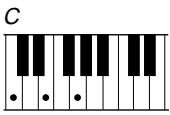
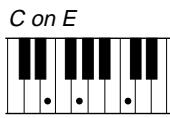
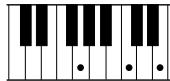
C on G
NOTE
- Although Full Keyboard mode is designed to work with many types of music, some arrangements may not be suitable for use with this feature.
- Chord detection occurs at approximately 8th-note intervals. Extremely short chords — less than an 8th note in length — may not be detected.

Keep in mind...
You can use the Dual and Split modes together with the Auto Accompaniment.
Using the Synchronized Stop Function
The SYNCHRO STOP function in the ACCOMPANIMENT MODE display automatically stops the Auto Accompaniment when you're not holding down any keys to the left of the split point.
Press the SYNCHRO STOP button to turn the function on.
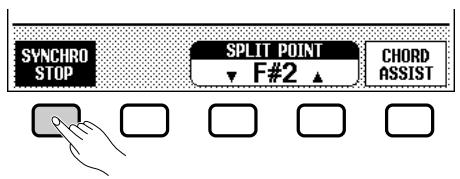
The SYNCHRO STOP function is highlighted, and the [SYNCHRO] lamp lights.
The Auto Accompaniment automatically starts when you play in the left range of the keyboard, and stops when you release it.
To turn the function off, press SYNCHRO STOP again.
Changing the Split Point
You can use the SPLIT POINT function in the ACCOMPANIMENT MODE display to set the split point at any desired key position. The keys to the left of (and including) the split point control the chords played by the Auto Accompaniment in every accompaniment mode except Full Keyboard.

Use the SPLIT POINT and buttons, the data dial, or the [-] and [+] buttons to change the split point.
Press either the and buttons or the [-] and [+] buttons simultaneously to restore the basic setting.
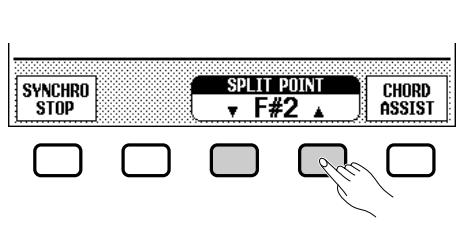
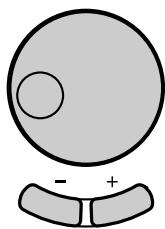
The selected key name is displayed by the SPLIT POINT function.
If the Auto Accompaniment or the Split mode (page 41) is on, the keyboard guide lamp corresponding to the selected split point lights.

This function can only be turned on if the Auto Accompaniment is on and Full Keyboard mode is not selected.

This is useful for beginning players who have difficulty playing in precise time. It is also effective for creating accompaniment "breaks" during the performance.

SPLIT POINT function
- Settings: Any key of the keyboard
Basic setting: F#2

- The split point cannot be set when Full Keyboard mode is selected.
- Changing the split point here also changes it for the Split mode (see page 43).
Getting Help With Chords
The CHORD ASSIST function in the ACCOMPANIMENT MODE display uses the keyboard guide lamps to show you appropriate fingerings for chords.
1 Turn the Chord Assistance function on.
Press the CHORD ASSIST button.
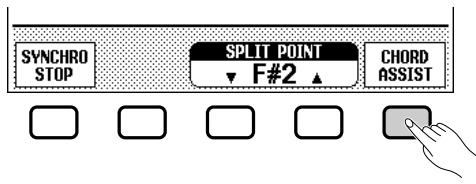
The CHORD ASSIST display appears, and the accompaniment mode automatically changes to Fingered 1.
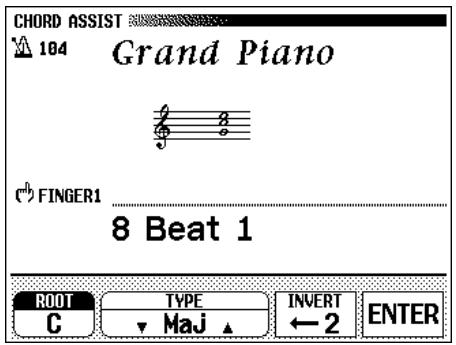
2 Start the Auto Accompaniment.
Press [START/STOP] or use the Synchronized Start function (page 65) to start the Auto Accompaniment.
3 Enter the chord root.
Use the ROOT button to select a root.
The ROOT function is highlighted, and the root changes.
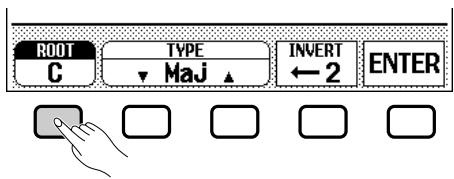
When the ROOT function is highlighted, you can also use the data dial or the [-] and [+] buttons to select a root.

Chord Assistance
The Chord Assistance feature is essentially an electronic "chord book" that shows you appropriate fingerings for chords; it is useful when you want to quickly learn how to play certain chords. Simply specify the desired chord via the display, and the fingerings for the Fingered 1 method are indicated by the keyboard guide lamps.

- If the [ACMP ON] button is off, it will turn on.
- If the split point is set below F#2 , it will automatically be reset to F#2 .
- The keyboard guide lamps do not indicate the split point when Chord Assistance is on, since they are used to indicate chord fingerings instead.

ROOT function
Settings: See sidebar on page 72.

If you hold the ROOT button down, the INVERT setting may also change.
4 Enter the chord type.
Use the TYPE and buttons to select a chord type.
The TYPE function is highlighted, and the type changes.
When the TYPE function is highlighted, you can also use the data dial or the [-] and [+] buttons to select a chord type.
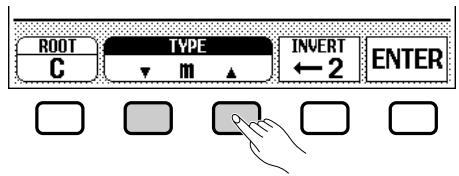
The following chord types can be specified in the display:
Major [Maj]
Augmented [aug]
Minor [m]
Minor flatted fifth [m (5)]
Seventh [7]
Seventh suspended fourth [7sus4]
Minor seventh [m7]
Seventh augmented [7 (#5)]
Minor seventh flatted fifth [m7 (b5)]
Diminished seventh [dim7]
Sixth [6]
Flatted fifth [(b5)]
Minor sixth [m6]
Seventh flatted fifth [7 (b5)]
Major seventh [M7]
Minor major seventh [mM7]
Suspended fourth [sus4]
5 Rotate the fingering as desired.
Press INUERT to shift the fingering down the keyboard. Each time the INUERT button is pressed, the next viable fingering for the chord appears. The INUERT function displays the inversion number.
6 Enter the chord.
The keyboard guide lamps indicate the fingering for the selected chord, and the musical notation for the chord is displayed in the center of the LCD display. At this point you can either play the chord on the keyboard or press the ENTER button to hear the accompaniment play it.
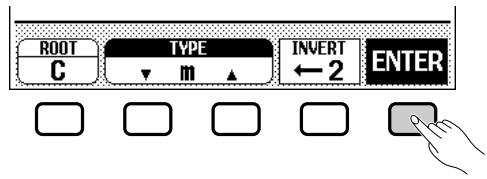
7 Stop the Auto Accompaniment.
When you're done with Chord Assistance, press [START/STOP] or [ENDING] to stop the accompaniment.
8 Turn Chord Assistance off.
To turn Chord Assistance off, press [EXIT] or [ACMP ON].
The main display appears. If you press [ACMP ON], the Auto Accompaniment is turned off at the same time.

TYPE function
Settings: See list at left.
-
Any chords recognized in Fingered 1 mode can be entered from the keyboard.
-
The Clavinova displays the name of the chord recognized from the keyboard at the left edge of the LCD display, under the measure number. You can compare this chord root and type displayed by the ROOT and TYPE functions to make sure you're fingering the chord correctly. When the root of the chord being played corresponds to one of the black keys on the keyboard, the root may be displayed as either flat or sharp; for example, B^ may also be displayed as A# (see the sidebar on page 72 for details).
-
A flashing keyboard guide lamp indicates a note which may be omitted.
Adjusting Individual Part Levels
The Clavinova has five accompaniment parts: Rhythm, Bass, Chord, Pad, and Phrase.
| RHYTHM | This part forms the basis of the accompaniment. The Rhythm part usually plays one of the drum kits. |
| BASS | The Bass part uses voices appropriate to each style, including acoustic bass and synth bass. |
| CHORD | The Chord part provides appropriate rhythmic chordal accompaniment for each style. You'll find guitar, piano, and other chordal instruments here. |
| PAD | The Pad part plays long chords where necessary, using sustained instruments such as strings, organ, and choir. |
| PHRASE | The Phrase part is used for embellishments such as punchy brass stabs, arpeggiated chords, and other extras that make the accompaniment more interesting. |
The volume settings for the five accompaniment parts can be adjusted individually in the MIXER display page.
Press the [MIXER] button.
![YAMAHA CVP-109-107-105-700 - Press the [MIXER] button. - 1](/content/2025/01/114672/images/a5178faa23ab7087c893070c87bfabf52632a6140e3e666e383d5d8e8376f0c8.jpg)
The lamp lights, and the MIXER page appears.
![YAMAHA CVP-109-107-105-700 - Press the [MIXER] button. - 2](/content/2025/01/114672/images/03f693676801ecff88f8c91e9d3a73430d8ea620c21c3bedbc0c5398f4320b73.jpg)
2 Select a part.
Press the LCD button for the part whose level you want to set.
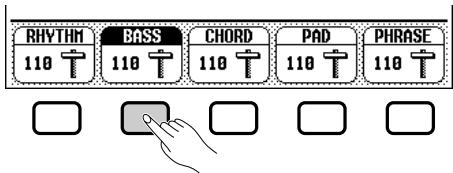
The selected function is highlighted.
NOTE
- The overall accompaniment playback volume can be adjusted using the [ACMP/SONG VOLUME] slider.
- By adjusting the volume balance of the various parts, or setting the volume of some parts to 0, you can create variations on the basic style accompaniment.
- Some styles may not use all five accompaniment parts.
- You can also adjust the level of reverb that is applied to the Auto Accompaniment parts. See page 50 for details.
NOTE
Part volume relationships
- The volume level of each Auto Accompaniment part is relative to the [ACMP/SONG VOLUME] setting.
- The [ACMP/SONG VOLUME] setting is relative to the [MASTER VOLUME] setting.
3 Set the volume level.
Use the data dial or [-] and [+] buttons to adjust the volume level. You can also increase the level by holding down the button you used to select the part.
You can set the volume of the highlighted part to 0 by pressing and quickly releasing its button. Press and release the button a second time to restore the previous value.
To reset the highlighted part's volume to the basic setting of 110, simultaneously press the [-] and [+] buttons.
4 Repeat steps 2 and 3
Repeat the preceding steps to set the level for other parts. (You can also select several parts and adjust their volume settings simultaneously.)
Exit the MIXER display.
To exit the function, press the [MIXER] button again, or press [EXIT].
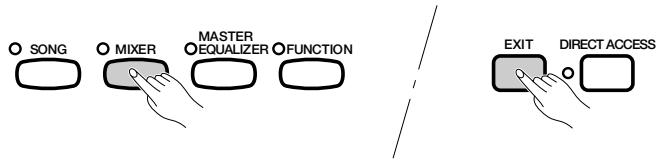
The lamp turns off, and the main display appears.

NOTE
Part volume levels
Range: 0 (min.) — 127 (max.)
Basic setting: 110
The Clavinova has many other features and functions that make the use of the Auto Accompaniment even more convenient and enjoyable. With these functions you can easily select panel settings to suit a certain type of music, have the Clavinova play harmony to your melody line, or program Auto Accompaniment changes in advance so you can concentrate on playing the keyboard.
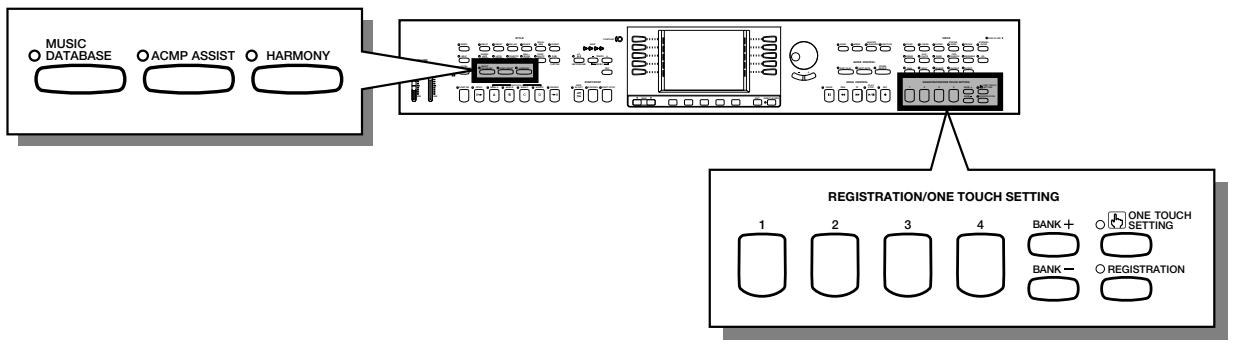
Music Database
The Clavinova's built-in Music Database gives you a convenient way to select the style, voice, and effect settings that will suit a particular type of music. Just select one of the more than 400 panel setups in the Music Database; the Clavinova does the rest!
For a list of Music Database setup parameters, refer to page 13 of the Reference Booklet.
1 Display the Music Database.
Press the [MUSIC DATABASE] button.
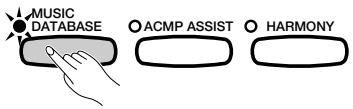
The lamp lights, and the MUSIC DATABASE menu appears.
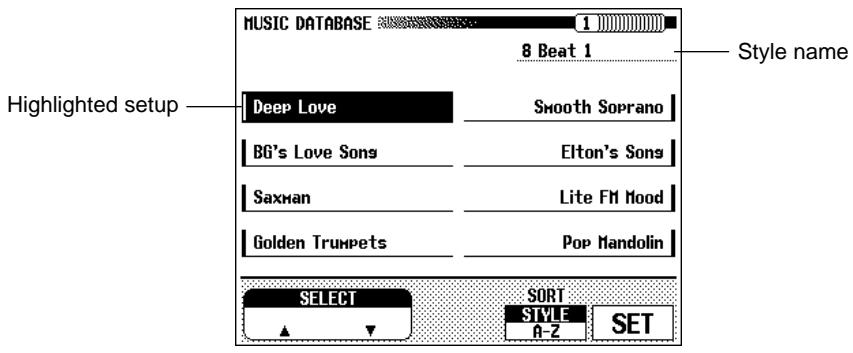
The MUSIC DATABASE menu display contains a listing of panel setups that can be sorted either by style or alphabetically. The name of the style that is used by the currently highlighted setup is shown at the upper right edge of the display.

Panel Setups
CVP-109:564
CVP-107/700:534
CVP-105:498

- When you display the Music Database, the Clavinova automatically recalls a panel setup that uses the current style. (The name of this setup is highlighted in the Music Database menu.) If you want to use the selected setup, you can simply skip to step 4 of this procedure.
- The Automatic Accompaniment also turns on when you display the Music Database. If you access the Music Database before starting the style, the Synchronized Start function (page 65) is also turned on.
2 Sort the list, if necessary.
Press the SORT button to switch the highlighted setting between STYLE and A-Z.
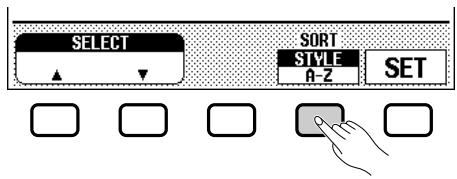
When STYLE is highlighted, the menu list is sorted by style, and a panel setup that uses the currently selected style is highlighted.
When R - Z is highlighted, the menu is sorted alphabetically.
Select and recall a panel setup.
Press one of the left or right LCD buttons to highlight the desired panel setup in the Music Database list.
The panel setup is highlighted.
You can also use the data dial or the [-] and [+] buttons to change the highlighted panel setup. Use the PAGE [] and [] buttons to display a different page of the Music Database.
Press the SET button to recall the highlighted setup.
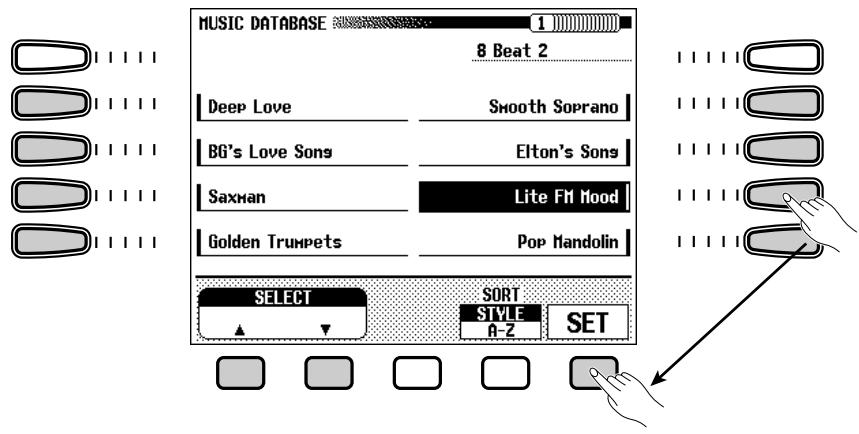
The style, voice, and effect settings change automatically.
Once you have selected a panel setup from the Music Database, you can change the style, voice and effect settings to suit your preferences. You can also use the Registration function (page 108) to save the panel setup in the Clavinova's memory.
4 Return to the main display.
Press [EXIT] to exit the Music Database menu display.
The previous display appears. (The selected Music Database setup is indicated below the style name in the main display.)

To display the panel setups for a specific style group, simply press the corresponding STYLE button. The menu is automatically sorted by style, and a panel setup that uses the currently selected style in the chosen group is highlighted.

The Harmony function will not be turned on if the Full Keyboard mode is selected, even if the selected Music Database setup includes "Harmony On."
Turn off the Music Database.
When you're done using the Music Database setup, press the [MU-SIC DATABASE] button again.
The [MUSIC DATABASE] lamp turns off, and the panel settings you were using before you accessed the Music Database are restored.
Accompaniment Assistance
At times you may find it difficult to control the Auto Accompaniment while playing a complicated piece of music that requires your full attention on the keyboard. The Accompaniment Assistance function lets you program chord and pattern changes in advance, so that the Auto Accompaniment will play itself, letting you concentrate on playing the keyboard parts.
Setting Up the Accompaniment Assistance
Use the following procedure to create Accompaniment Assistance data before you begin your performance:
1 Open the ACPI ASSIST display.
Press [DIRECT ACCESS], then [ACMP ASSIST].

The [ACMP ASSIST] and [ACMP ON] lamps light, and the page 1 of the ACMP ASSIST display appears.
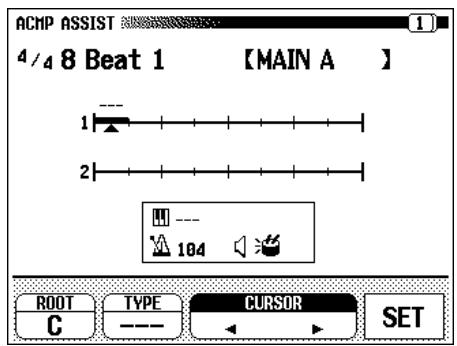
NOTE
- If the Clavinova's memory contains Accompaniment Assistance data, it will be displayed in the ACPI ASSIST display.
- The [ACMP ON] lamp will not light when you load Accompaniment Assistance data that includes an "accompaniment off" event (page 84). If you wish to add chords to the loaded data, you must first change this to an "accompaniment on" event. To do so, move the cursor to the top of the first measure as described in step 2 (page 82), press [ACMP ON] to light the lamp, then press SET. (See the sidebar on page 86 for details regarding the use of "accompaniment off" events in Accompaniment Assistance playback.)
2 Move the cursor to the entry point.
The display shows each measure as a horizontal line with 8th-note divisions. The number of each measure is shown to the left of the line. Previously entered data is indicated by a thick line segment.
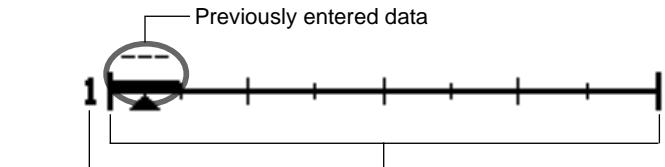
Measure number
Eighth note divisions
Use the CURSOR and buttons, the data dial, or the [-] and [+] buttons to move the triangular cursor to the point at which you want to enter a chord or style change.
3 Enter a chord, if desired.
To enter a chord, play the chord with appropriate fingering in the left range of the keyboard (lower than the split point).
The name of the chord you play appears in the box below the measure bars, as well as in the ROOT and TYPE functions.
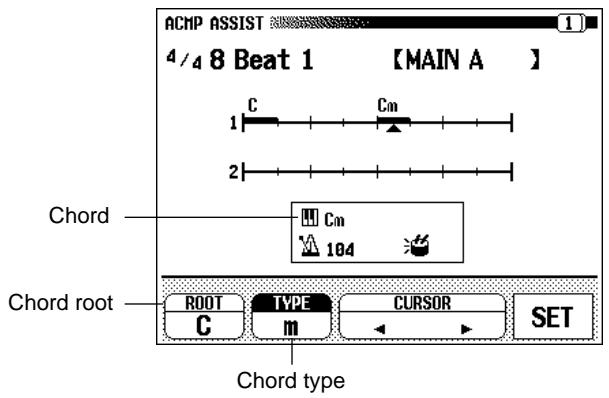
You can also select the ROOT and TYPE buttons, then use the data dial or [-] and [+] buttons to manually set the chord root and type.
4 Enter a style change, if desired.
To add a fill-in pattern at any point in a measure, press the button corresponding to the desired fill-in pattern as usual (see page 63).
To change the style variation at the start of a measure without playing a fill-in pattern, press the button twice.
To change the style at the start of a measure, simply select a new style in the usual manner (see page 61).

NOTE
- When you first open the ACPI ASSIST display, the current AUTO ACCOMPANIMENT panel settings are entered at the top of the first measure. This data is represented as a thick line segment with no chord (i.e., a series of dashes).
- You may want to change the data in the initial segment, setting a chord and perhaps adding an intro pattern or fade-in (page 66), before you move the cursor to another entry point.

NOTE
- If Full Keyboard was last selected as the accompaniment mode (page 73), Fingered 1 is automatically selected when you open the ACPI ASSIST display. To indicate chords by a different method, move the cursor to the top of the first measure, then open the ACPICOMPANIMENT MODE display and select an accompaniment mode (other than Full Keyboard) as described on page 71. (You can also set a different split point in this display.) The Clavinova will return to the ACPI ASSIST display when you press the [EXIT] button.
- The chord input resolution will be automatically selected according to the current style. For styles with 2/4, 3/4, 4/4, and 5/4 time signatures, one chord can be entered on every 8th note or 8th-note triplet. For other time signatures, one chord can be entered for each measure.

NOTE
- Intro patterns can only be entered at the beginning of a song.
- Style changes, variation changes, and ending patterns can only be entered at the beginning of a measure.
- Fill-in patterns can be entered anywhere in the measure. (The "break fill" pattern triggered by the left pedal (page 190) cannot be entered using the Accompaniment Assistance function, however.)
- A fade-out cannot be entered during a fade-in.
- You can also use an original style created using the Custom Style function (page 91). Only one custom style can be included in a given set of Accompaniment Assistance data.
The names of the selected style and variation (or fill-in pattern) are shown at the top the display.
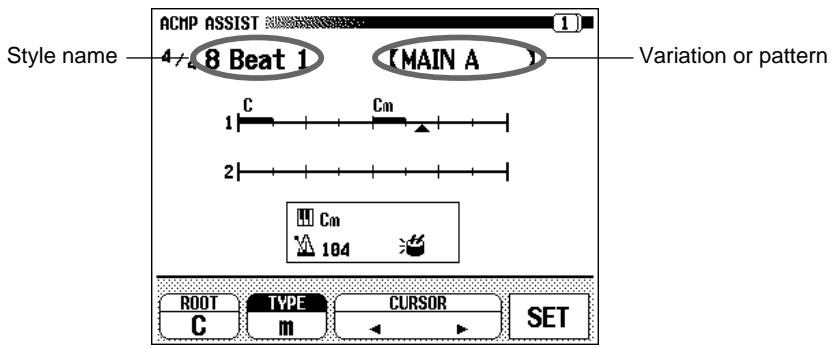
Set the entered data.
When you have entered chord and style control data, press the SET button.
A thick line segment appears at the cursor position to indicate that the data has been recorded, and the cursor automatically moves to the next position.
6 Repeat until the data is complete.
Repeat steps 2 through 5 until your Accompaniment Assistance data is complete. You can press the [PLAY/STOP] button at any time to play back the data and check your settings.
7 Set the end mark
When you have completed your Accompaniment Assistance data, press the PAGE [▶] button to select page 2 of the ACPI ASSIST display, then press the END MARK button to enter an “end mark” that identifies the end of the data.
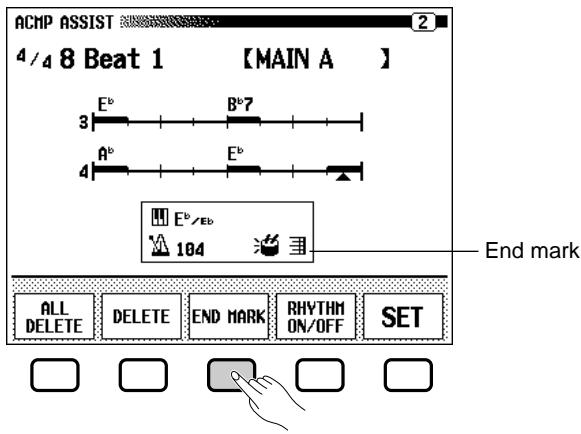
The end mark symbol is displayed in the box in the middle of the display.
Press the SET button to set the end mark.
8 Exit the ACPI ASSIST display.
Press [ACMP ASSIST] or [EXIT] to return to the main display.
The [ACMP ASSIST] lamp turns off, and the main display appears.
NOTE
- If you have programmed a chord change, the chord name may also be displayed above the segment in question.
- The chord name is indicated only at the first beat of the measure line, except when a style uses the 4/4 time signature, in which case the chord name is indicated at the first and third beats.
- A chord change event will not be entered if the chord is the same as that which was last entered.
NOTE
You can program up to 999 measures of data using the Accompaniment Assistance function.
NOTE
- An end mark is unnecessary when an ending pattern or fade-out event has been programmed.
See page 85 for more information about the end mark.
NOTE
You can always modify the Accompani-ment Assistance data later by reopening the ACMP ASSIST display and making the desired changes.
■ Advanced Accompaniment Assistance
Here are some other things you can do with Accompaniment Assistance data.
- Changing Part Volumes
You can program volume changes for the Auto Accompaniment parts. Used judiciously, these can help you create professional-sounding dynamic changes in your performance. To do this, press the [MIXER] button and change the part volume settings as desired, then press [EXIT] to return to the ACPI ASSIST display. The volume event symbol (which looks like a speaker) should now appear in the box in the middle of the display. Press the SET button to set the volume change as entered.
- Changing the Tempo
You can also program tempo changes in the middle of a performance. Simply position the cursor at the point where you want the tempo to change, then use the TEMPO [-] and [+] buttons to select the new tempo. The new tempo is displayed in the box in the middle of the ACPI ASSIST display. Press the SET button to set the tempo change as entered.
- Entering a Rhythm Break
You can have Accompaniment Assistance play the rhythm part alone (without other accompaniment) as a transitional "rhythm break." To do this, you must record a "no chord" event at the beginning of the break. Press any three adjacent keys (two white keys and a black key, or vice versa) in the left range of the keyboard when using the Fingered 1 or Fingered 2 mode, or select TYPE and use the data dial or [-] and [+] buttons to display a series of dashes (- - -) as the setting for that function. Then press the SET button to register the break.
- Entering an Accompaniment Break
A complete break can be useful if you want to play the keyboard part solo. To create an accompaniment break, set a "no chord" event as described above, and turn the rhythm off as described on the next page.
- Entering an "Accompaniment Off" Event
When you first open the ACPI ASSIST display to create new Accompaniment Assistance data, an "accompaniment on" event is registered at the top of the first measure. You can enter an "accompaniment off" event by moving the cursor to the top of the first measure, pressing the [ACMP ON] button so the lamp turns off, and pressing the SET button. See the sidebar on page 86 for details regarding the use of "accompaniment off" events in Accompaniment Assistance playback.

NOTE
An initial volume event is automatically entered at the top of the first measure, based on the current part volume settings when the ACPI ASSIST display is first opened.

NOTE
An initial tempo event is automatically entered at the top of the first measure, based on the current tempo settings when the ACPI ASSIST display is first opened.
■ Other Accompaniment Assistance Functions
Page 2 of the ACPI ASSIST display contains some useful functions that help you to enter Accompaniment Assistance data more efficiently.
ALL DELETE function
To delete all of the Accompaniment Assistance data and start from scratch, press the ALL DELETE button. An “Are you sure?” message is displayed. Press YES to delete the data, or NO to cancel.
- DELETE function
To delete the Accompaniment Assistance data at the current cursor location, press the DELETE button. An "Are you sure?" message is displayed. Press YES to execute the operation, or NO to cancel.
ENDMARK function
This function is used to enter an "end mark" that identifies the end of the Accompaniment Assistance data (see page 83). An end mark should generally be entered to properly end the data. The cursor cannot be moved past an end mark. You can delete an end mark with the DELETE function, just as with other data.
RHYTHM ON/OFF function
To turn the rhythm part on or off, press the RHYTHM ON/OFF button followed by the SET button.
No rhythm sounds are produced following the location at which a "rhythm off" event has been entered; the rhythm starts sounding again from the location to which a "rhythm on" event is entered.
The status of the rhythm part is indicated by the drum symbol in the box in the middle of the display.
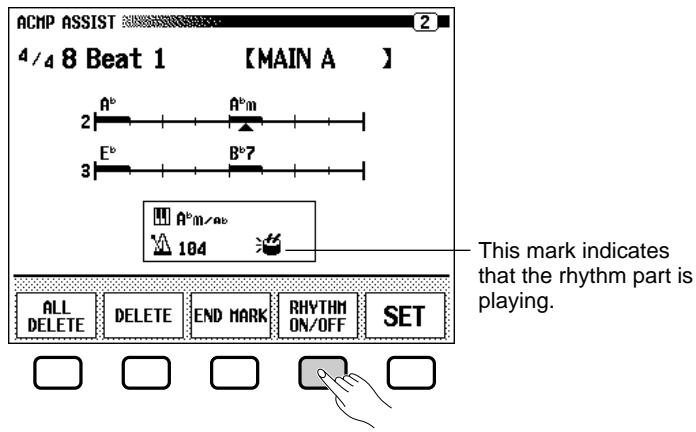
■ Playing with Accompaniment Assistance
Use the following procedure to play back your Accompaniment Assistance data:
1 Turn on Accompaniment Assistance.
Press the [ACMP ASSIST] button.
The [ACMP ASSIST] lamp lights.
2 Turn on the Auto Accompaniment.
Press the [ACMP ON] button.
The [ACMP ON] lamp lights, and the current accompaniment mode is indicated at the left edge of the main display.
The [SYNCHRO] lamp also lights, indicating that you can start the Auto Accompaniment with the Synchronized Start function (page 65). Also, a keyboard lamp shows the current split point.
3 Start playing.
Press the [START/STOP] button, or start playing the keyboard.
The Auto Accompaniment starts playing automatically, including any section changes and chord changes indicated by the previously recorded Accompaniment Assistance data.
Play the keyboard part in the right-hand range of the keyboard, along with the Auto Accompaniment. (The left-hand range can be used to indicate chords, as described below in "Playing the Chords Yourself.")
■ Other Ways to Use Accompaniment Assistance
- Playing the Chords Yourself
Since the Clavinova will respond to the chords you indicate in the left range of the keyboard when the [ACMP ON] lamp is lit, you can manually change chords even if the Accompaniment Assistance data already includes chord changes. The Auto Accompaniment will always play the most recently detected chord, regardless of whether that chord was indicated by the Accompaniment Assistance data or the keyboard.
If you want to play all the chord changes (while the Accompaniment Assistance function controls the style changes for you), simply don't include any chord changes in the Accompaniment Assistance data.
Using the Entire Keyboard
To play a keyboard part using the entire range of the keyboard, just omit step 2 of the procedure above. (You will also have to press [SYNCHRO] before you start playing if you want to use the Synchronized Start function.) You won't be able to indicate chords manually, but the Auto Accompaniment will still play according to the Accompaniment Assistance data.
- Playing the Style Without Auto Accompaniment
By combining the two techniques described above, you can have the Accompaniment Assistance control only the style changes played by the rhythm section without using the other accompaniment parts, to provide an automatic percussion-only accompaniment. Just don't include any chord changes in the Accompaniment Assistance data, and leave the [ACMP ON] button off when you start playing. You will be able to play along to a simple percussion accompaniment, using the entire range of the keyboard.
Saving and Loading Your Data
Since the Clavinova's memory can only hold one set (up to 999 measures) of Accompaniment Assistance data at a time, you may want to save your data on a disk so that you can load it again after programming other sets.
You can save and load Accompaniment Assistance data using the functions in the FUNCTION [DISK 1] display (see page 192).

NOTE
You can play back song data and Accompaniment Assistance data at the same time. However, you will not be able to use the [REW] or [FF] buttons, or any of the Repeat (page 122) and Guide Control (page 125) functions that are normally available during song playback. Moreover, the style changes and time signature information in the Accompaniment Assistance data will take priority over those in the song; any rhythm, bass, and chord parts recorded in the song will therefore not play back. The playback tempo will be determined by tempo data in the song, however.

NOTE
If you have already included chords in your Accompaniment Assistance data, but later decide that you want to play the chords yourself, you don't have to go to the trouble of erasing them. You can achieve the same result by adding an "accompaniment off" event at the top of the first measure (see page 84), then starting the Auto Accompaniment as described in "Playing with Accompaniment Assistance," above.

NOTE
As was mentioned above, if you have already programmed chords in your Accompaniment Assistance data, you can achieve the same result by adding an "accompaniment off" event at the top of the first measure (see page 84).

NOTE
You can also record the Accompaniment Assistance data to a floppy disk using the Song Record function.
Harmony
This feature adds harmony or embellishment notes to the melody you play using the main voice in the right range of the keyboard. The harmony notes are produced automatically to match chords played with Auto Accompaniment.
Adding Harmony
Since the Harmony function can be turned on and off while playing, you can add "spice" and professional polish to your performance by applying harmony to selected phrases as you play.
1 Turn the Harmony function on.
Press the [HARMONY] button.
The lamp lights.
2 Play the keyboard.
Play the keyboard along with the Auto Accompaniment.
3 Turn the Harmony function off.
Press the [HARMONY] button again.
The lamp turns off.
Displaying the Harmony Settings
You can change the harmony type, the volume of the harmony voice, and other harmony settings in the HARMONY display page.
To display the HARMONY page, press [DIRECT ACCESS], then [HARMONY].

The HARMONY display appears.
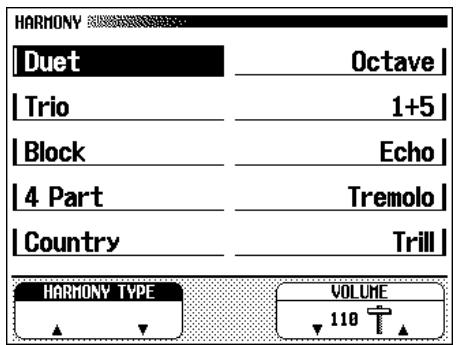
Selecting a Harmony Type
You can change the type of harmony that is played using the HARMONY TYPE function in the HARMONY display.
1 Select the HARMONY TYPE function.
If necessary, press one of the LCD buttons under the HARMONY TYPE function.
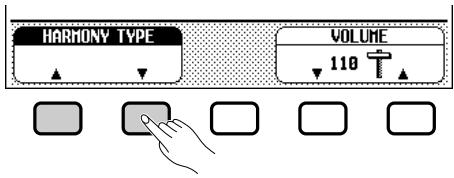
The HARMONY TYPE function is highlighted.
2 Select a harmony type.
Use the left and right LCD buttons to select a harmony type. If necessary, use the PAGE [▲] or [▶] buttons to display additional harmony types.
The selected harmony type is highlighted.
You can also change the harmony type with the HARMONY TYPE ▲ and ▼ buttons, the data dial, or the [−] and [+] buttons. To restore the basic setting for the currently selected main voice, press the HARMONY TYPE ▲ and ▼ buttons or the [−] and [+] buttons simultaneously.
Since the basic setting of the HARMONY TYPE function depends on the currently selected main voice, a different harmony type may be selected automatically if you change the main voice selection.
Harmony Types
| Type | Effect | Speed |
| Duet | ○ | - |
| Trio | ○ | - |
| Block | ○ | - |
| 4 Part | ○ | - |
| Country | ○ | - |
| Octave | ○ | - |
| 1+5 | ○ | - |
| Echo | - | ○ |
| Tremolo | - | ○ |
| Trill | - | ○ |
| Strumming | - | - |
| Add Jazz Gtr | - | - |
| Add Brass | - | - |
| Add Strings | - | - |
| In The Forest | - | - |

NOTE
HARMONY TYPE function
- Settings: See table on this page.
- Basic setting: Depends on main voice.

NOTE
- On the CVP-109/107/700, effects applied to the main voice will also be applied to the harmony part when certain harmony types (indicated by a "O" in the Effect column of the table at left) are selected.
Some harmony types (indicated by a "O" in the Speed column of the table at left) have a speed setting that can be adjusted. See the next topic for details.
Changing the Harmony Speed
You can change the speed of the harmony notes played by the Echo, Tremolo, and Trill harmony types using the SPEED function in the HARMONY display.
1 Select the SPEED function.
Press the LCD button under the SPEED function.
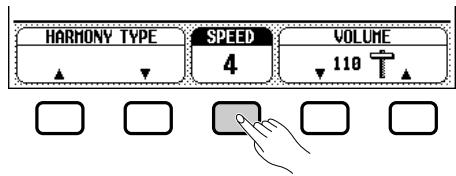
The SPEED function is highlighted.
2 Change the SPEED setting.
Use the SPEED button, the data dial, or the [-] and [+] buttons to change the value of the SPEED function.
Changing the Harmony Volume
You can change the volume of the harmony notes using the U0L-UME function in the HARMONY display.
1 Select the VOLUME function.
Press the one of the LCD buttons under the VOLUME function.
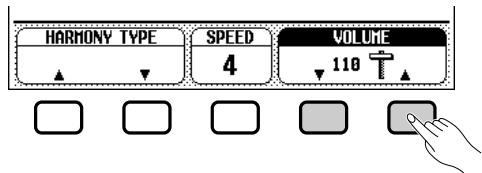
The DOLUME function is highlighted.
2 Change the VOLUME setting.
Use the VOLUME and buttons, the data dial, or the [-] and [+] buttons to change the value of the VOLUME function.
To restore the VOLUME function to its basic setting for the currently selected main voice, press the VOLUME and buttons or the [-] and [+] buttons simultaneously.

SPEED function
- Settings: 4, 6, 8, 12 (Echo)
8, 12, 16, 32 (Tremolo)
12, 16, 24, 32 (Trill) - Basic setting: Depends on main voice.

VOLUME function
- Settings: 0 (min.) — 127 (max.)
- Basic setting: Depends on main voice.
One Touch Setting
The Clavinova's convenient One Touch Setting function makes it easy for you to select voices and effects that are appropriate to the style you're playing. Each style has four preprogrammed panel setups that you can select by pressing a single button.
For a list of the One Touch Setting parameters, refer to page 13 of the Reference Booklet.
1 Select a style.
Select the desired style in the normal way (see page 61).
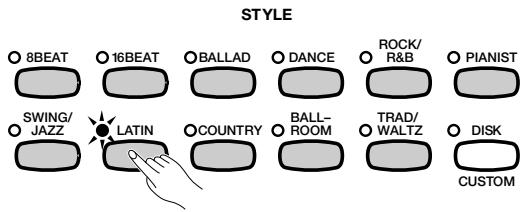
2 Make sure the ONE TOUCH SETTING function is on.
If necessary, press the [ONE TOUCH SETTING] button.
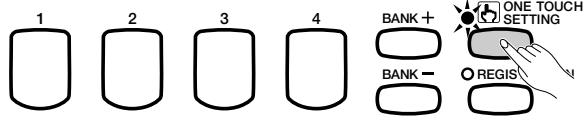
REGISTRATION/ONE TOUCH SETTING
→ The [ONE TOUCH SETTING] button lamp lights.
3 Select a panel setup.
Press one of the four numbered buttons under REGISTRATION/ONE TOUCH SETTING.
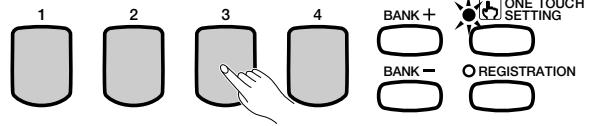
REGISTRATION/ONE TOUCH SETTING
The voice and effect settings change automatically, and the selected OTS setup is indicated in the main display, below and to the right of the style name.
Once you have selected a panel setup using the One Touch Setting function, you can change the voice and effect settings to suit your preferences. You can also use the Registration function (page 108) to save the panel setup in the Clavinova's memory.

The One Touch Setting function cannot be used with styles in the [DISK/CUSTOM] group.

-
When you select a panel setup, the Auto Accompaniment turns on automatically. If you select a panel setup before starting the style, the Synchronized Start function (page 65) will also turn on.
-
The Harmony function will not be turned on if the Full Keyboard mode is selected, even if the selected One Touch Setting setup includes "Harmony On."
Creating Your Own Styles
The Clavinova lets you create custom accompaniment styles that you can recall and play back at any time, just like the presets. Up to 12 custom styles can be maintained in the Clavinova's memory at the same time, and any number can be saved to disk for later reloading and use.
Recording a Custom Style
Use the following procedure to record your own custom styles.
1 Select the DISK/CUSTOM style group.
Press the [DISK/CUSTOM] button.
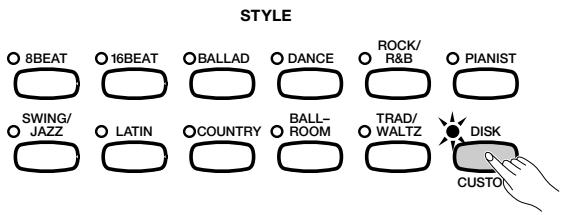
The lamp lights, and the DISK/CUSTOM STYLE display appears.
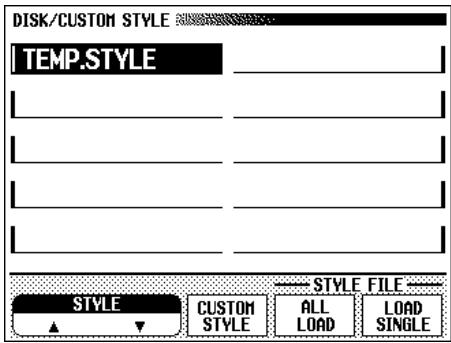
2 Select the CUSTOM STYLE function.
Press the CUSTOM STYLE button.
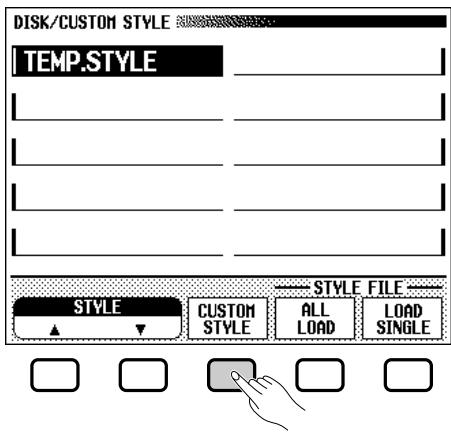
- One temporary style (named TEMP.STYLE) is automatically loaded into the DISK/CUSTOM style memory when the power is turned on.
- If you have loaded other style data (see page 106), you can select any of the styles from the DISK/CUSTOM STYLE menu to serve as the basis for your new custom style.
The "Select a source style" message is displayed for a few seconds, then replaced by page 1 of the CUSTOM STYLE display. The style that was selected in the DISK/CUSTOM STYLE display begins playing.
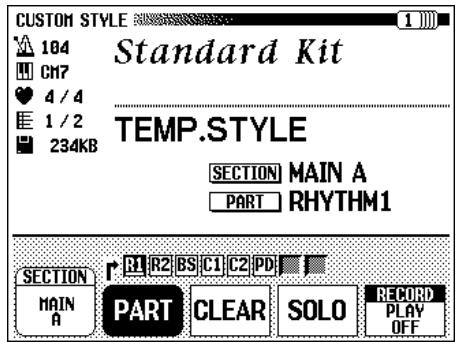
3 Select a source style.
Select a preset style that is close to the style you want to create. Preset style selection is carried out in the normal way (page 61).
You can also use the style already selected in the DISK/CUSTOM STYLE display as the basis for your new style, or select a different DISK/CUSTOM style just as you would a preset style.
4 Select the section you want to record.
In page 1 of the CUSTOM STYLE display, press the SECTION button as many times as necessary to display the section you want to record: MAIN A, MAIN B, MAIN C, MAIN D, INTRO, FILL IN, or ENDING.
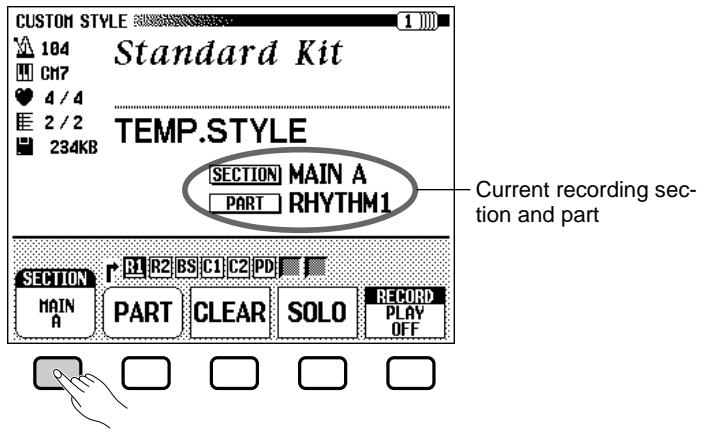
The SECTION function is highlighted, and each section is displayed in turn. The Clavinova plays the currently displayed section repeatedly.
NOTE
- In the CUSTOM STYLE display, the variations and patterns that make up a style are referred to as "sections."
- A custom style includes only one intro section, one fill-in section, and one ending section.
- The custom style's intro, fill-in, and ending sections are based on the corresponding patterns for the style variation (MAIN A, MAIN B, MAIN C, or MAIN D) that was selected when the CUSTOM STYLE button was pressed (page 91).
Change the beat and section length.
If you want to create a style with a different time signature than the selected style, or change the number of measures in the selected section, press the PAGE [▶] button.
Page 2 of the CUSTOM STYLE display appears.
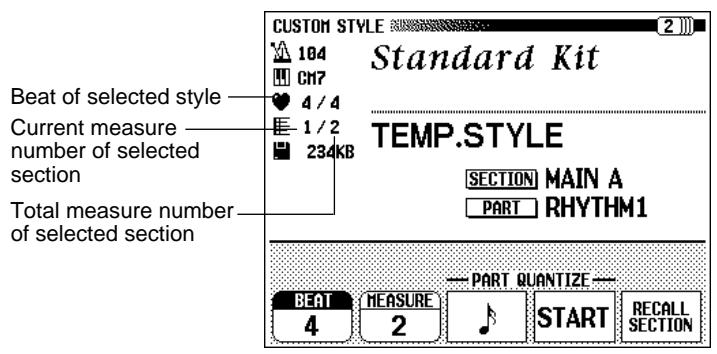
- Changing the beat:
Press the BEAT button to select a different time signature.
→ The "Clear style?" message is displayed.
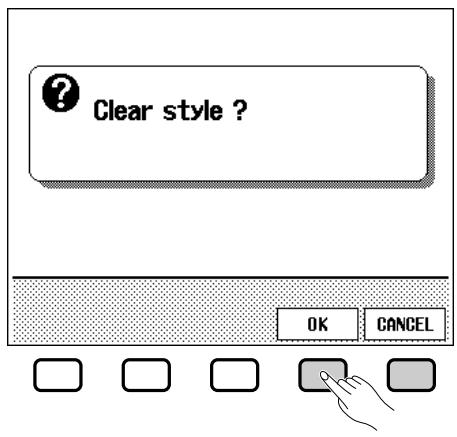
Press OK to clear the style, or CANCEL to abort. Once the style has been cleared, you can use the BEAT button, the data dial, or the [-] and [+] buttons to select a new time signature.

BEAT function
- Settings: 2, 3, 4, 5
- Basic setting: Depends on style.

Clear style?
Since the patterns of the selected style will not match the new beat, you will have to completely clear the style and start recording from scratch if you change the time signature.
- Changing the section length:
Press the MEASURE button to change the number of measures in the current section.
→ The "Clear section?" message is displayed.
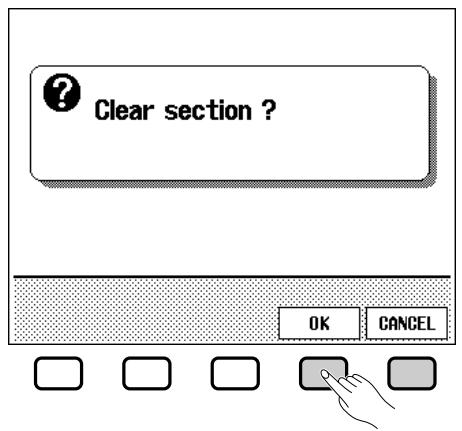
Press OK to clear the section, or CANCEL to abort. Once the style has been cleared, you can use the MEASURE button, the data dial, or the [-] and [+] buttons to set the section length.
- When you're done here:
Once the BEAT and/or MEASURE parameters have been set as required, press the PAGE [<] button to return to page 1 of the CUSTOM STYLE display.
Select the part you want to record.
Use the PART LCD button, the data dial, or [-] and [+] buttons to select the part you want to record.
| R1 | Rhythm 1 |
| R2 | Rhythm 2 |
| Bs | Bass |
| C1 | Chord 1 |
| C2 | Chord 2 |
| Pd | Pad |
| P1 | Phrase 1 |
| P2 | Phrase 2 |
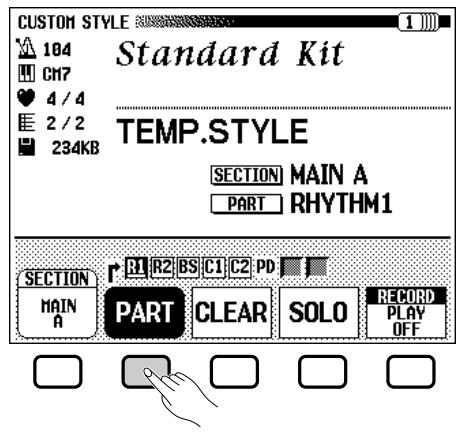
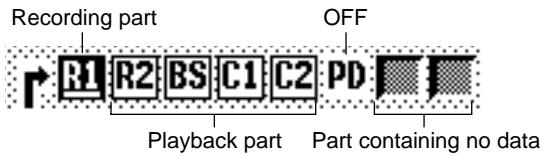
Any part you select can be set to record by using the rightmost LCD button to select RECORD after selecting the part.

NOTE
MEASURE function
- Settings: 1—8
- Basic setting: Depends on style.

NOTE
Clear section?
- You will have to clear all parts of the currently selected section and start recording from scratch if you change the number of measures.
- The "Clear section?" message will not be displayed if you have already cleared the section by changing the beat, as described above.

NOTE
The length of the FILL IN section can only be set to one measure.

NOTE
The R1 part is initially selected and set to record.

NOTE
- Only one part can be set to record.
- All other parts will be set to PLAY (the part number is surrounded by a box) or OFF (only the part number is displayed).
The part number is highlighted. If you have selected a part other than R1 or R2, the "Clear part?" message will be displayed.
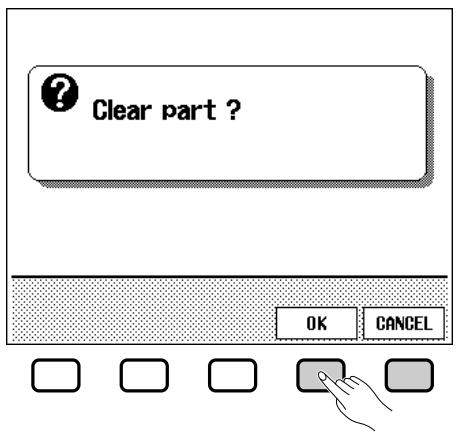
Press OK to clear the part and continue, or CANCEL to abort.
7 Select the voice for the part.
At this point you can also select the voice you want to record the part with. Select the voice as you would the main keyboard voice (see page 31).
| Part | Voices that can be used |
| R1 | Any drum or SFX kit in PERCUSSION group |
| R2 | Any except Organ Flute (CVP-109/107/700) |
| Others | Any except a drum kit, SFX kit, or Organ Flute (CVP-109/107/700) |
Record the selected part.
You can now record new notes in the selected part by playing the keyboard at the appropriate timing. Record non-percussion parts in C major seventh (CM7), since the custom style is recorded as a C major seventh pattern.
If you want to create a totally new part from scratch, press the CLEAR LCD button to clear the selected part before beginning to record. If both the R1 and R2 parts are cleared, the metronome will sound to provide a timing guide. (The metronome sound is not recorded, and will stop as soon as the custom style is stored.)
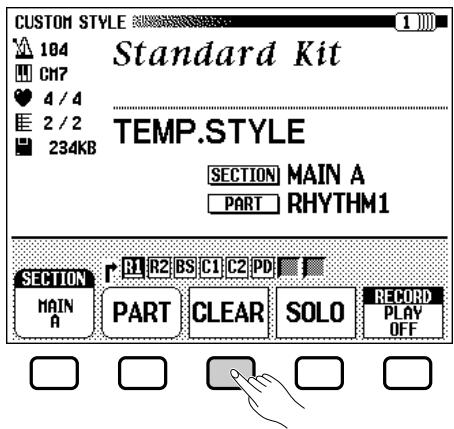

Clear part?
- If the source style is a preset style or a style loaded from an optional Style File disk, parts other than R1 and R2 must be cleared before they can be recorded.
- The "Clear part?" message will not be displayed if the selected part does not contain any data.

The preset voice for the part being recorded is initially selected.

- Playback of the custom style can be started and stopped by pressing the [START/STOP] button. (Data cannot be recorded while playback is stopped.)
- All notes are automatically stopped at the end of the style (i.e., at the point between repeats when recording). It is therefore not advisable to record over this point.
When recording a drum kit voice in part R1 or R2, you can clear a single drum instrument from the part by pressing the key corresponding to the instrument to be cleared while holding down the C1 key on the keyboard. (The C1 key is labeled "CANCEL.") The metronome timing guide can also be cleared in this way.
Another useful recording aid is the SOLO LCD button: when this button is pressed and highlighted, only the selected part will sound. Press the SOLO button again to turn the solo function off and hear all parts in the selected section.
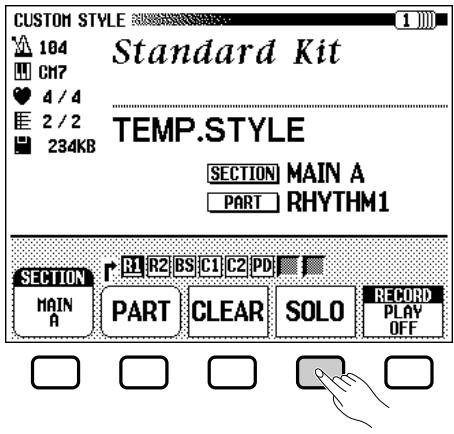
Quantize the recorded part, if necessary.
You can "tighten up" the timing of a recorded part by using the PART QUANTIZE functions in page 2 of the CUSTOM STYLE display to align all the notes to a specified beat. Press the PAGE [▶] button to display the function, then press the middle LCD button to select the quantize size:
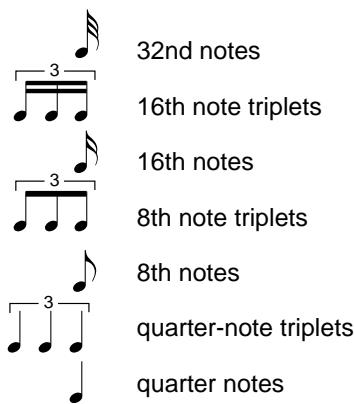
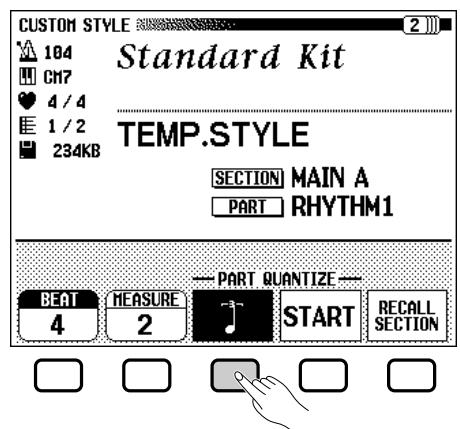
Once the required quantize size has been selected, press the START LCD button to quantize the current part. The part will begin to play using the new timing, and the START button will change to UNDO, allowing you to undo the quantize operation and return to the pre-quantized data if the results are not as you expected. You will not be able to UNDO once another button has been pressed.
Repeat until the custom style is complete.
Repeat steps 4 through 9 to record other parts for the currently selected section.
Repeat steps 4 through 10 to record other sections, until all sections have been recorded.
Name the custom style.
When your custom style is complete, use the PAGE buttons to select page 3 of the CUSTOM STYLE display, then press the STYLE NAME LCD button to display the NAME page.
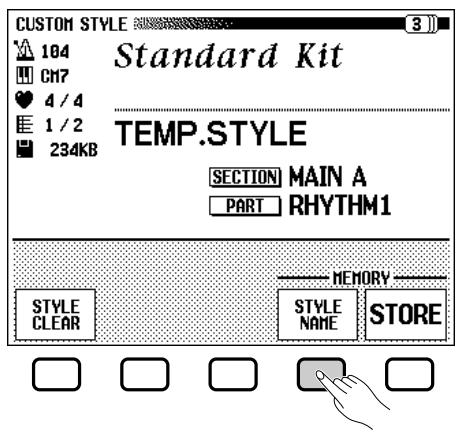
Use the CHAR LCD button to position the underline cursor at the character you want to change (style names can be up to 12 characters in length). Use the data dial and/or the [-] and [+] buttons to select the character you want to enter from the list in the center of the display, then press the CHAR SET LCD button to enter the character at the current cursor position. Repeat this procedure until your name is complete. The BACK SPACE LCD button can be used to back up one space and delete the preceding character.
When the name is complete, press OK to register the name for the current custom style, or CANCEL to abort.
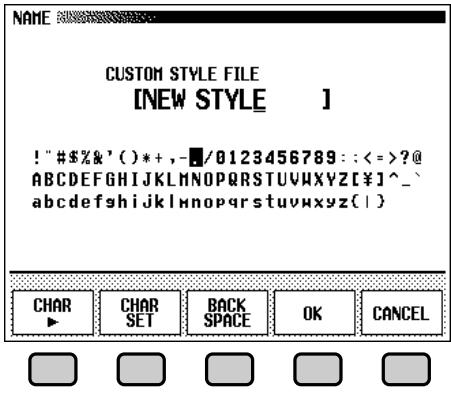
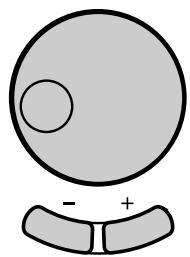

During custom style recording, no MIXER display is available.
Store the custom style.
Press the STORE LCD button in page 3 of the CUSTOM STYLE display to store the current custom style in the Clavinova's memory.
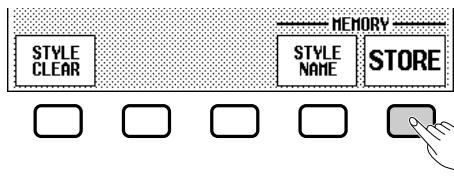
The Clavinova displays a message asking you to confirm your decision to store the style.
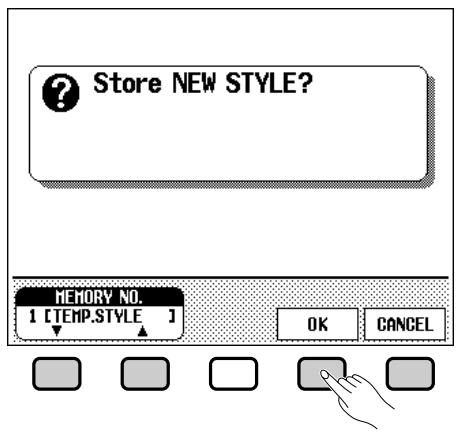
Use the MEMORY NO. and buttons, the data dial, or the [-] and [+] buttons to select the memory number (1 through 12) where you want to store the custom style, then press OK to store or CANCEL to abort.
- Be Sure to Save Your Data!
Custom style data is not retained in memory when the power is turned off, so be sure to save your custom style before turning the power off (see page 101).
18 Exit when done.
Press the [EXIT] button to exit the CUSTOM STYLE display and return to the main display.

The current tempo setting at the time the custom style is stored becomes the preset tempo for that style.

If the selected memory number already contains a style, the style name will appear next to the memory number. The existing style will be overwritten when a new style is stored.
Other Custom Style Functions
In addition to the various functions described in the basic custom style recording procedure, above, the CUSTOM STYLE display pages include several other functions that you may find useful when creating custom styles.
■ RECALL SECTION function
This function makes it possible to recall the last-stored version of the currently selected section (all parts of the section are recalled). Simply press the RECALL SECTION LCD button in page 2 of the CUSTOM STYLE display. If the Clavinova cannot recall the preceding operation (i.e., after time signature has been changed), the "Can't recall!" message will be displayed. If this happens, press OK to return to the previous display.
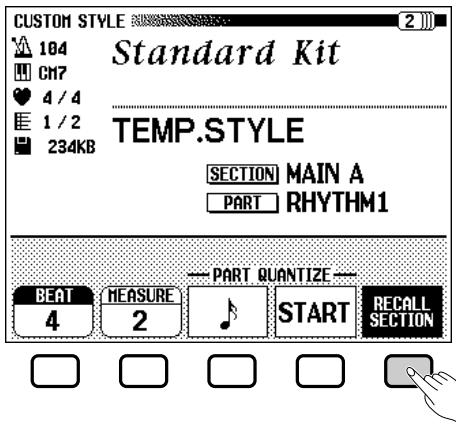
STYLE CLEAR function
Press the STYLE CLEAR LCD button in page 3 of the CUSTOM STYLE display to completely clear the current custom style. The “Are you sure?” message will be displayed. Press YES to clear the style, or NO to cancel the change.
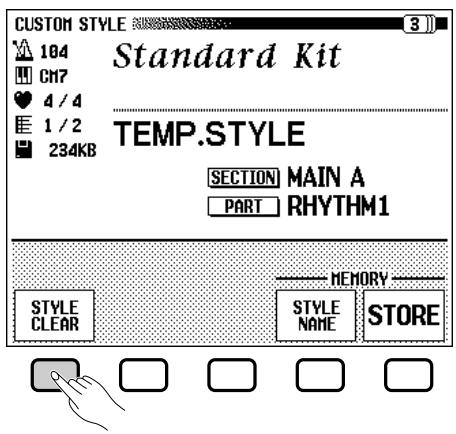
Volume and Effects
Page 4 of the CUSTOM STYLE display includes several functions that let you set the volume, reverb, chorus type and depth, effect (CVP-109/107/700), and pan for each part of each custom style section.
1 Select the section and part.
Use the SECTION function to select a section (or select ALL for all sections), and the PART function to select a part (or select ALL for all parts).
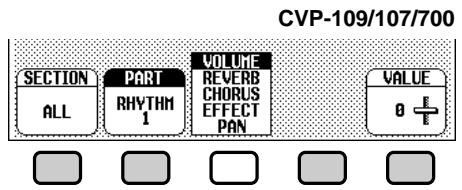
2 Select the parameter you want to set.
The third LCD button selects the parameter to be set for the current section and part. Choose from VOLUME, REVERB, CHORUS, EF-FECT (CVP-109/107/700) or PAN.
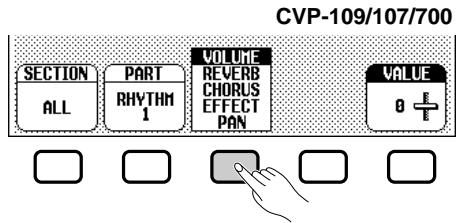
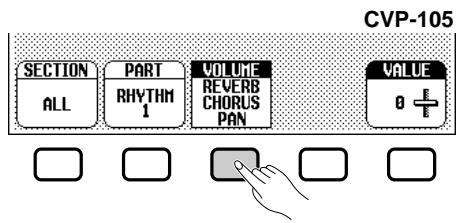
3 Select the chorus type.
If you selected CHORUS in step 2, the TYPE function is displayed above the fourth LCD button. Use this function to select the chorus type you want to apply to the current section and part.
Chorus Type List
- CHORUS 1
CELESTE1
FLANGER1
- CHORUS 2
CELESTE2
FLANGER2
- CHORUS 3
CELESTE3
OFF
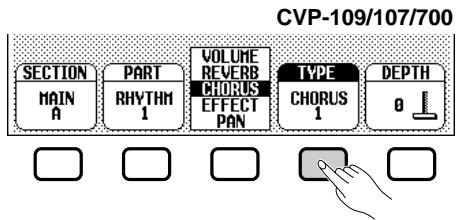

NOTE
The word "OTHERS" may appear as the chorus type if the preset style uses a chorus type other than those in the list. The OTHERS setting cannot be re-selected once you select a different chorus type.
4 Set the value or depth of the selected parameter.
The VALUE (or DEPTH) function displayed above the rightmost LCD button sets the amount or depth for the parameter selected in step 2.
When VOLUME is selected, the SECTION setting is fixed at ALL and the VALUE range is from -50 to +50 (this value is relative to the preset volume of the source style). When the REVERB, CHORUS, or EFFECT (CVP-109/107/700) parameter is selected, the DEPTH can be set in a range from 0 to 127. When PAN is selected, the VALUE function can be set in a range from L10 (full left) to C (center) to R10 (full right).
Repeat as necessary.
Repeat the preceding steps to set other parameters for each part and section in the custom style.
Saving Styles to Disk
Page 5 of the CUSTOM STYLE display lets you save custom styles on a disk. You can save custom styles individually, or in a complete set of up to 12 styles.
After inserting a properly formatted disk (page 131) in the Clavinova's disk drive, use the MEMORY NO. and buttons to select the custom style you want to save to disk, or select ALL to save a complete set of up to 12 custom styles. When this is done, press the SAVE LCD button to start saving the data to disk. At this point the SAVE display appears.
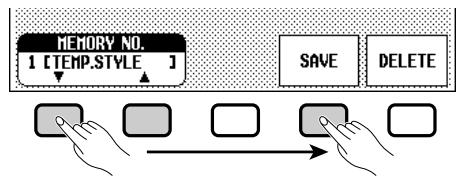
Enter a name for the style file. The procedure for entering the filename is the same as that used to enter a name for a custom style (page 112). Press SAVE when the name has been entered. If a file with the same name already exists, the "Same name! Overwrite?" message will be displayed. Press OK to overwrite the existing file, or CANCEL to abort the save operation.
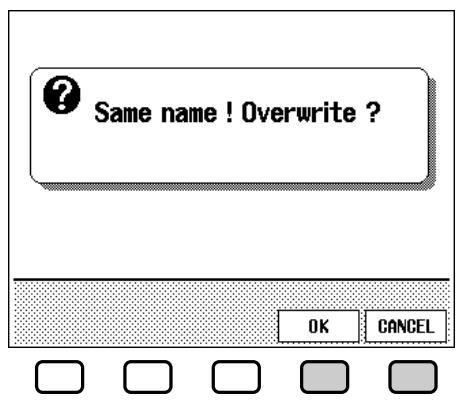
NOTE
- The reverb and effect types used for the custom style are determined by the style that was selected as the basis for custom style creation.
- Normally the VALUE and chorus TYPE settings from the preset style are initially selected. If the PART function is set to ALL, the preset values for part R1 are displayed. If the SECTION function is set to ALL, the preset values for MAIN A are displayed.
Custom styles must be stored in the Clavinova's memory before they can be saved to a disk. If a custom style has not been stored and you attempt to save it to disk, the "Store in memory before saving to disk" message will be displayed. If this happens, press OK to return to page 5 of the CUSTOM STYLE display. Store the custom style (see step 12 on page 98), then try saving again.
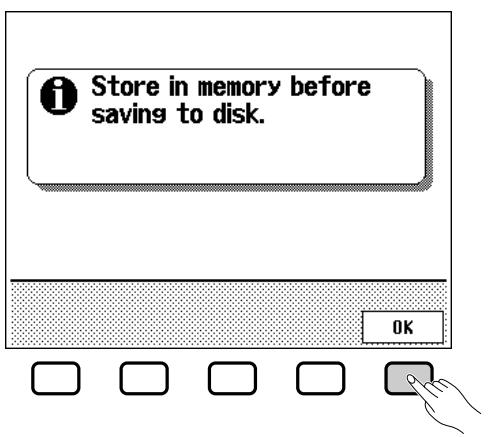
■ Deleting Style Files
Style files can also be deleted from a disk using the DELETE function on page 5 of the CUSTOM STYLE display.
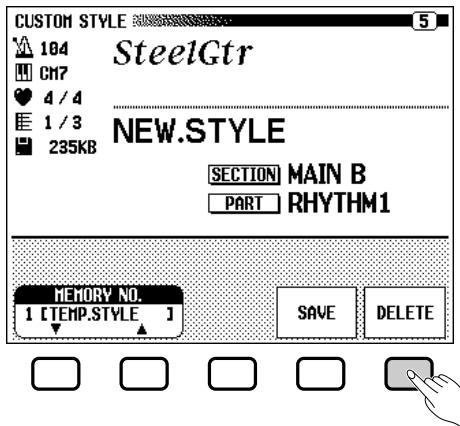
After inserting a disk that contains style files in the Clavinova disk drive, press the DELETE LCD button. Use the FILE and buttons to select the style file you want to delete from the disk. The "Are you sure?" message will be displayed. Press YES to delete the style file, or NO to cancel.
■ Exiting Custom Style Mode
Press the [EXIT] button to exit the Custom Style mode and return to the main display.

Style files can be loaded from disk using the ALL LOAD and SINGLE LOAD functions, as described in the "Loading Style Files" section (page 105).
Playing Back Your Custom Styles
Once created, your original custom styles can be selected for playback by pressing the [DISK/CUSTOM] button, then using the STYLE
and LCD buttons, the data dial, or the [-] and [+] buttons to select the custom style you want to play. The selected style can then be played in exactly the same way as the preset styles (page 61).

Since only one intro pattern, one fill-in pattern, and one ending pattern can be recorded for each custom style, no intro, fill-in, or ending variations are produced during playback.
Messages in Custom Style Mode
The following messages may appear when creating and storing a style in Custom Style mode.
Memory Full During Recording
This message will be displayed if the memory becomes full during recording or editing.
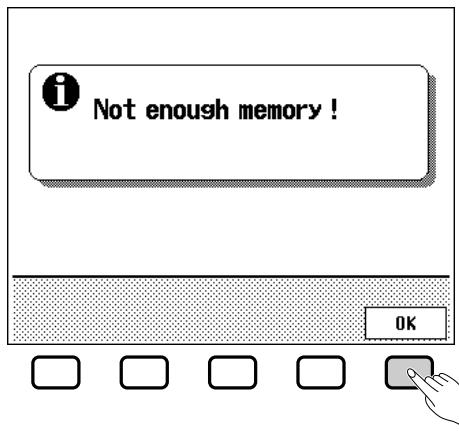
Press OK to return to the CUSTOM STYLE display, then simplify the style by clearing a part, etc.
■ Insufficient Memory To Store
This message will be displayed if there is not enough memory to perform a store operation.
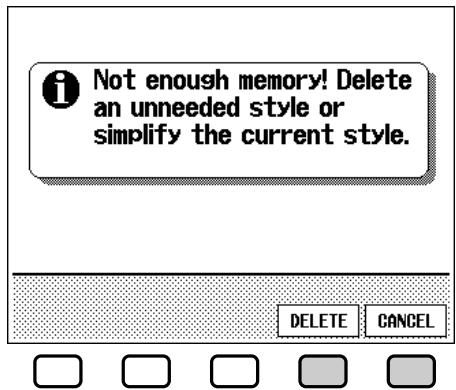
In this case it will be necessary to either delete a style you don't need, or simplify the style you are currently recording. Press CANCEL to return to the CUSTOM STYLE display and simplify the current style (by clearing a part, etc.), or DELETE to delete one or more styles.
If you select the DELETE function, the “Select style to delete” message will be displayed:
Use the MEMORY NO. and buttons to select the style you want to delete, then press OK to delete the style, or CANCEL to cancel the operation.
If the Clavinova displays the "Can't delete this style!" message when you try to delete a style, it is because you have tried to delete the style that your custom style was based on. If this happens, press OK to return to the "Select style to delete" display, then select a different style to delete.
Exit Before Store
If you press [EXIT] button to exit the Custom Style mode before storing the style, the Clavinova will display a message like the one shown below:
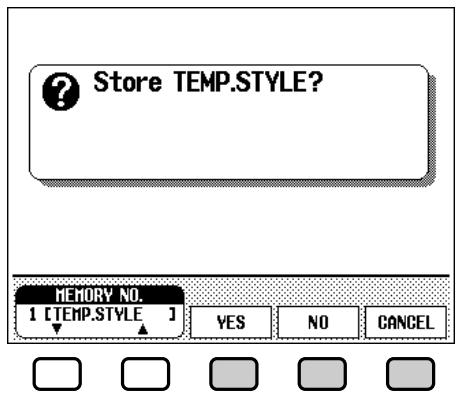
Select a memory number and press YES to store the style and exit, press NO to exit without storing the style, or press CANCEL to return to the Custom Style mode.
Style Change Before Store
If you attempt to select a different source style before storing the style you've just edited, the following display will appear:
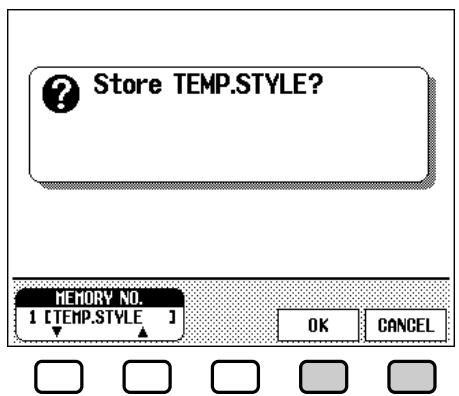
Select a memory number and press OK to store the style and select a new source style, or press CANCEL to return to the Custom Style mode.

The amount of memory being used by each style is displayed next to the style name (in approximate kilobytes). You can refer to this amount to judge how much memory (out of the total 300 KB) will become available when a particular style is deleted.

If you want to select a different source style without storing the current style, exit the Custom Style mode without storing the style (see "Exit Before Store" above), then re-enter the Custom Style mode.
You can load and play style files created in the Style File Format either from optional Yamaha "Style File" disks, or from disks containing custom style files you've created yourself.
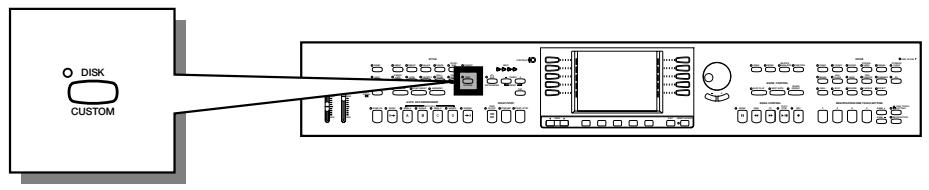
About the Yamaha Style File Format
The Style File Format is Yamaha's original auto-accompanyment format, which has evolved through years of development and refinement. The Style File Format features a unique conversion system that allows you to play exceptionally high-quality accompaniments with a variety of chord types. In addition to the internal styles, the Style File Format lets you use other sophisticated styles from optional Style File disks, as well as styles that were created and saved to disk in the Custom Style mode.

Style files created for Clavinova models prior to the CVP-109/107/105/700 may have slightly different formats. If you try loading such files, the data may not play back as expected. (This also applies to the use of CVP-109/107/105/700 style data by earlier-model Clavinovas.)
Loading Styles from a Disk
1 Insert a disk.
Insert a disk containing style files into the disk drive. The [DISK IN USE] lamp will light briefly while the Clavinova reads and identifies the disk. When a Style File disk is inserted, the STYLE FILE LOAD display (see step 2 below) will appear automatically.
If the disk is already inserted and the STYLE FILE LOAD display is not showing, press the [DISK/CUSTOM] button to open the DISK/CUSTOM STYLE display, then press the LOAD SINGLE button.
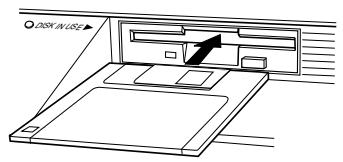
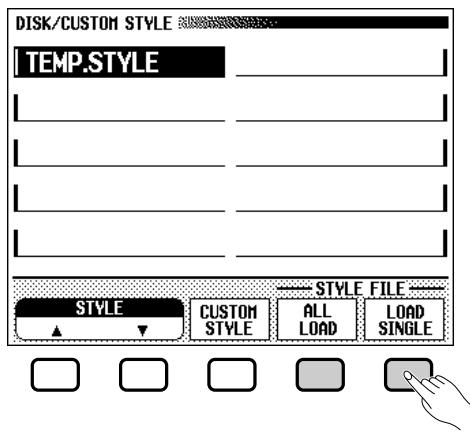

If a disk containing both song data and style files is inserted, the SONG PLAY display will automatically appear. If this happens, press the [SONG] button or the [EXIT] button to return to the main display, then press the [DISK/CUSTOM] button.
To load a set of 12 style files that was created by selecting ALL as the memory number when the files were saved in Custom Style mode (see page 101), press the ALL LOAD LCD button rather than the LOAD SINGLE button.
2 Select a style file.
Select the desired style using the left and right LCD buttons, the STYLE and buttons, the data dial, or the [-] and [+] buttons.
You can preview the selected style by pressing the LISTEN LCD button. (The LISTEN function is not available in the ALL LOAD display.) To stop listening, press the LISTEN LCD button again, or press the [START/STOP] button.
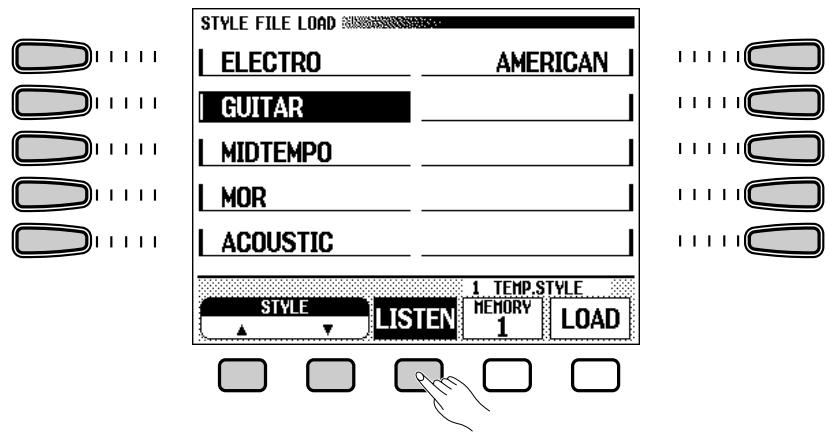
3 Select a memory number and load the style.
Use the MEMORY LCD button to select the memory number to which the selected style file is to be loaded (1 through 12), then press the LOAD LCD button to load the style file.
Repeat steps 2 and 3 to select and load other style files.
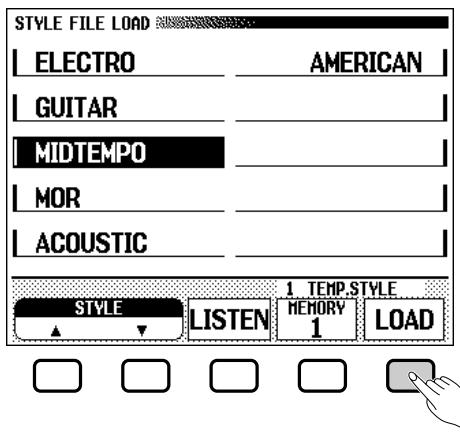

NOTE
- If a tempo is set prior to loading the style, that tempo becomes the default for the loaded style.
- Some styles are too large to preview with the LISTEN function. In this case the "Too much data for LISTEN function! Please load data." message will be displayed. If this happens, load the style directly as in step 4.
- The Auto Accompaniment is automatically turned on when the LOAD SINGLE button is pressed, and the style is played back automatically with the Auto Accompaniment in C Major when the LISTEN LCD button is pressed. You can change the chord or try playing on the keyboard while previewing a style.

NOTE
- If the selected memory number already contains a style, the name of that style will appear above the MEMORY and LOAD functions in the display. The existing style will be overwritten when a new style is loaded. (One pre-programmed temporary style is automatically loaded into the [DISK/CUSTOM] memory whenever the power is turned on.)
It is not necessary to select a memory number when ALL LOAD is selected in step 1. Simply press OK to load or CANCEL to abort.
If there is not enough memory to load the specified style file, the "Not enough memory! Delete an unneeded style?" message will be displayed. In this case it will be necessary to delete a style you don't need before loading the new style. Use the MEMORY NO.▼ and ▲ buttons to select the number of the style you want to delete, then press DELETE to delete the style, or CANCEL to abort.
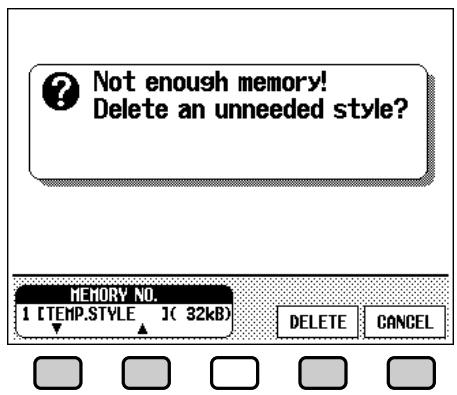
Eject the disk when you're done.
When you've finished with the Style File disk, press the disk drive EJECT button to remove it and return to the normal play mode display. You can return to the normal play mode without removing the disk by pressing the [EXIT] button.
Playing Loaded Style Files
Once loaded, style files can be selected for playback by pressing the [DISK/CUSTOM] button, then using the right and left LCD buttons, the STYLE and LCD buttons, the data dial, or the [-] and [+] buttons to select the style you want to play. The selected style can then be played in exactly the same way as the preset styles (page 61).

- The ALL LOAD display is as follows:
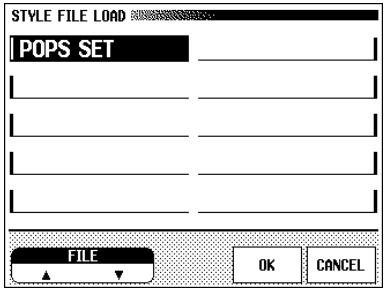
When ALL LOAD is executed, all data in the 12 memories will be replaced by new data.
- The amount of memory being used by each style is displayed next to the style name (in approximate kilobytes). You can refer to this amount to judge how much memory (out of the total 300 KB) will become available when a particular style is deleted.
CAUTION
The [DISK IN USE] lamp will light while the style is being loaded. NEVER attempt to remove a disk while the [DISK IN USE] lamp is lit.

The LISTEN, LOAD,[EXIT],and STYLE buttons will not function while the style data is being loaded (i.e.,while the [DISK IN USE] lamp is lit).
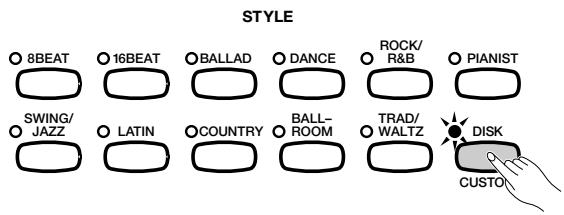
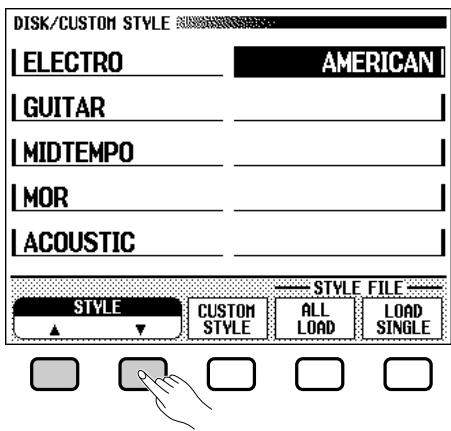

Loaded disk styles will be retained in memory only until the power is turned off.
CHAPTER 6: Registrations
Using Registrations
(Registering and Recalling Panel Setups)
The Registration feature lets you store complete panel setups that you can recall whenever needed. A total of 20 setups (5 banks containing 4 memories each) can be registered in the Clavinova's memory.

Storing a Panel Setup
Use the following procedure to store a panel setup as a registration in the Clavinova's memory.
1 Set up the controls as needed.
For a list of the settings that are memorized by the Registration function, refer to page 13 of the Reference Booklet.
2 Select a registration bank.
Use the BANK [+] and [-] buttons to select the desired bank.
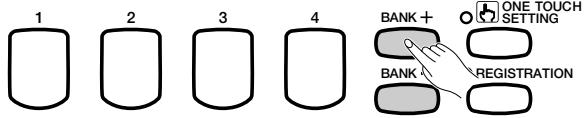
REGISTRATION/ONE TOUCH SETTING
The selected bank is displayed below and to the right of the style name in the main display.
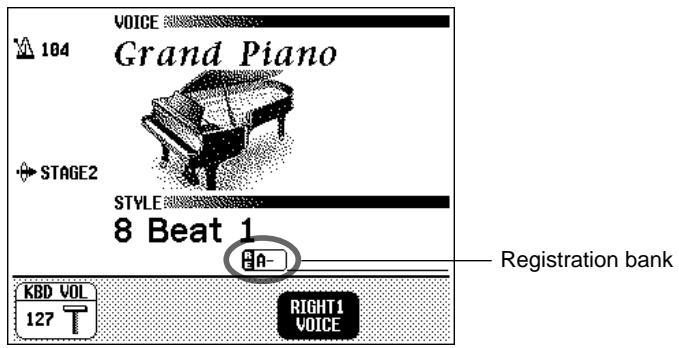

Registration bank
Range: A — E
Basic setting: A
Using Registrations
3 Register the panel setup.
While holding down the [REGISTRATION] button, press one of the buttons labeled [1] through [4] under REGISTRATION/ONE TOUCH SETTING corresponding to the registration memory where you want to save the setup.
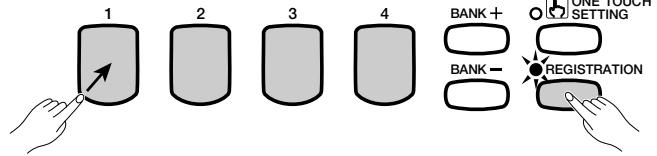
REGISTRATION/ONE TOUCH SETTING
The number and name of the selected registration memory appear below and to the right of the style name in the main display. The panel settings that were previously stored in the selected registration are cleared and replaced by the new settings.

Recalling the Registered Panel Settings
Press the [REGISTRATION] button.
![YAMAHA CVP-109-107-105-700 - Press the [REGISTRATION] button. - 1](/content/2025/01/114672/images/a4049bc39bb048da63b2b6d8f49f63b35e63c5a7bc77c4207dbf391c825177b4.jpg)
REGISTRATION/ONE TOUCH SETTING
The [REGISTRATION] lamp lights.
2 Select a bank.
Use the BANK [+] and [-] buttons to select the bank that contains the desired registration.

REGISTRATION/ONE TOUCH SETTING
The selected bank is displayed below and to the right of the style name in the main display.
3 Select a registration.
Press one of the buttons labeled [1] through [4] under REGISTRATION/ONE TOUCH SETTING corresponding to the registration memory you want to recall.

Registration Memory
- Range: 1—4 (each bank)
Basic setting: None
- Pre-programmed settings are initially stored in all registration memories when the Clavinova's power is first turned on.
- By default, the registration settings are preserved even when the Clavinova's power is turned off (see page 206). You can also save individual registrations (or complete sets of 20 registrations) to floppy disk for future recall (see page 192).
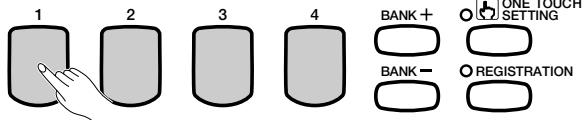
REGISTRATION/ONE TOUCH SETTING
The number and name of the recalled registration appear below and to the right of the style name in the main display.
A pencil icon will appear to the right of the registration name in the display as soon as any change is made to the panel buttons or settings. The pencil icon is displayed to remind you that the current panel settings are different from those stored by the Registration function.
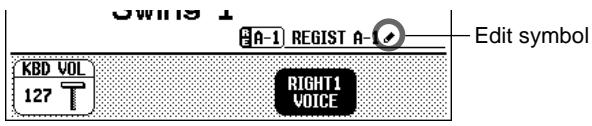

NOTE
- Registered panel settings are not recalled when a bank is selected. The settings are recalled only when one of the numbered buttons ([1] through [4]) is pressed.
- When the LEFT PEDAL function is set to REGISTRATION (see page 190), the left pedal can be used to select the registration memories in sequential order (A1 through E4), letting you recall a different registration each time the pedal is pressed. However, other left pedal settings saved by the Registration function cannot be recalled in this case.
Protecting Panel Settings
You can use the Registration Freeze function to prevent certain panel settings from being changed when a Registration is recalled. This allows you to recall various registrations while using the Auto Accompaniment without suddenly changing the style or volume settings.
1 Open the REGISTRATION [FREEZE] display.
Press [DIRECT ACCESS], then [REGISTRATION].
![YAMAHA CVP-109-107-105-700 - Open the REGISTRATION [FREEZE] display. - 1](/content/2025/01/114672/images/3cf0a2727dae1fab84ee7e8e00be383a7faad6e5c1d5a084b72f753922c68be7.jpg)
The REGISTRATION [FREEZE] display appears.
![YAMAHA CVP-109-107-105-700 - Open the REGISTRATION [FREEZE] display. - 2](/content/2025/01/114672/images/b5a9a83803ccb3e61bbd7f0421938a06593fa736f18da66cca8663973b8fdb65.jpg)
Categories to be frozen are marked by an asterisk (*) in the menu listing. Also, the ON setting (in the ON/OFF function over the middle LCD button) is highlighted when a category to be frozen is selected.
![YAMAHA CVP-109-107-105-700 - Open the REGISTRATION [FREEZE] display. - 3](/content/2025/01/114672/images/af8bf703e53add3df1fc68cf5f2a689a034a8d984bf3eb2618c11072bbf8bce4.jpg)
NOTE
- You can also display this page by pressing the PAGE [▲] button when the REGISTRATION [NAME] display is showing.
- For a list of the settings in each freeze category, see page 13 in the Reference Booklet.
2 Indicate the categories to be frozen.
Use the left and right LCD buttons (just the left LCD buttons on the CVP-105) to select a category, then press the ON/OFF button to mark or unmark the selected category.
You can also select a category using the CATEGORY and buttons, the data dial, or the [-] and [+] buttons.
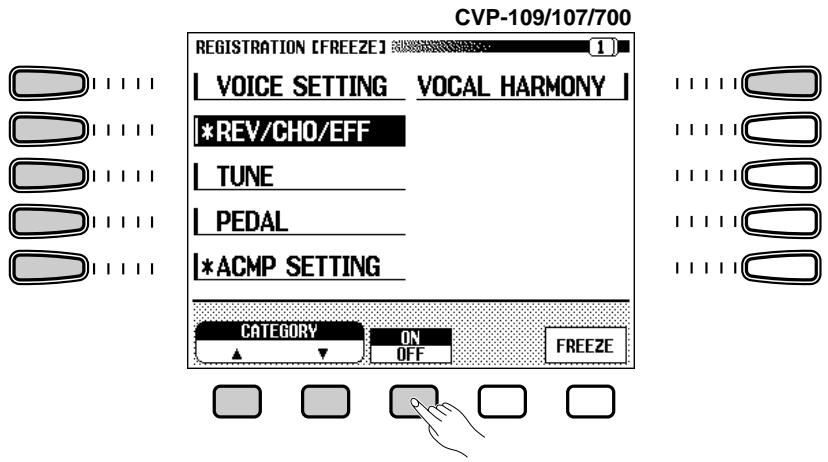
Repeat this step to mark or unmark other categories, as needed.
3 Turn the Freeze function on or off.
Press the FREEZE LCD button to freeze or unfreeze the categories you marked in step 2.
The FREEZE function is highlighted when the marked categories are frozen. When the Freeze function is off, the settings in all categories are not protected.
4 Exit the display.
To exit the REGISTRATION [FREEZE] display and return to the main display, press [EXIT].
Naming the Registration
A temporary name is given to each registration when you register the panel settings; however, you can change this name freely with this function.
1 Open the REGISTRATION [NAME] display.
Press [DIRECT ACCESS] followed by one of the numbered buttons ([1] through [4]) under REGISTRATION/ONE TOUCH SETTING.
![YAMAHA CVP-109-107-105-700 - Open the REGISTRATION [NAME] display. - 1](/content/2025/01/114672/images/71cc7a26eec0a1b71e2ddcf6e0f384e56246824a24730c839ef50aadd89d380e.jpg)
REGISTRATION/ONE TOUCH SETTING
![YAMAHA CVP-109-107-105-700 - Open the REGISTRATION [NAME] display. - 2](/content/2025/01/114672/images/07723ee5ba3ee3c04a79de19461580df5ce6d5c93b0c6831194f6b698b49e825.jpg)
Freeze Categories
- Settings: ON, OFF
- Basic setting: ON (ACMP SETTING) OFF (others)
- Backup of last settings: ON

The VOCAL HARMONY category is only available on the CVP-109/107/700.
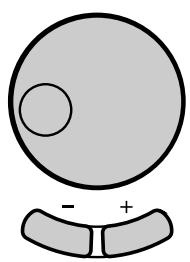

FREEZE
- Settings: ON (highlighted), OFF (unhighlighted)
Basic setting: OFF - Backup of last setting: ON

You can also display this page by pressing the PAGE [▶] button when the REGISTRATION [FREEZE] display is showing.
The REGISTRATION [NAME] page is displayed. The currently selected bank is highlighted, as is the name of the registration corresponding to the numbered button you pressed in step 1.
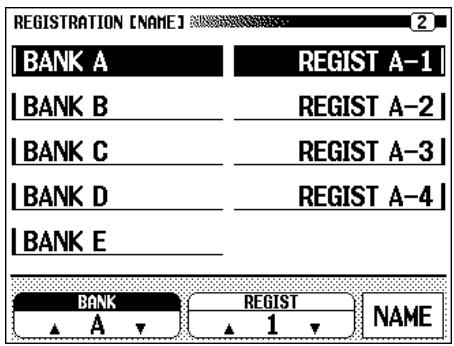
2 Select a registration to name.
Use the left and right LCD buttons to select the bank and name of the registration whose name you wish to change.
You can also select a registration bank and number using the BANK and or REGIST and buttons, respectively.
Edit the registration name.
Press the NAME button to open the NAME display.
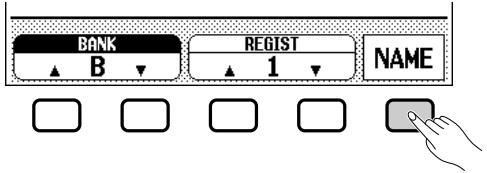
Use the CHAR LCD button to position the underline cursor at the character you want to change (registration names can be up to 12 characters in length). Use the data dial and/or the [-] and [+] buttons to select the character you want to enter from the list in the center of the display, then press the CHAR SET LCD button to enter the character at the current cursor position. Repeat this procedure until the registration name is complete. The BACK SPACE LCD button can be used to back up one space and delete the preceding character.
When the name is complete, press OK to register the name for the selected registration, or CANCEL to abort.
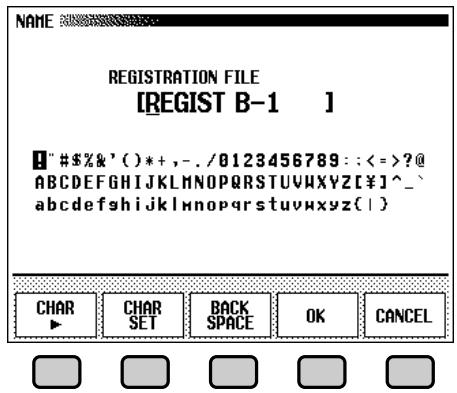
The display returns to the main display.
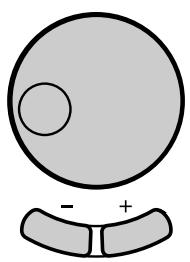
CHAPTER 7: Song Control
SongPlayback
The Clavinova can play back songs recorded using the Song Record function (page 130), as well as song data included on various commercially available software disks. You can also play along on the keyboard as the songs play back. Moreover, when song data software includes lyrics, you can view the lyrics in the display during playback.

- See "Handling the Floppy Disk Drive (FDD) and Floppy Disks" (page 9) for information on using floppy disks.

- The Clavinova can play back up to 99 songs recorded on a single disk. Any songs exceeding this number will not be available for playback.

- Playback data is normally not output via MIDI. However, you can set the Clavinova to output song data using the Song Transmission function in the FUNCTION [MIDI 4] display (page 204).

- In addition to songs you've recorded yourself, the CVP-109/107/105/ 700 can play back commercially available disks of Yamaha DOC software, XG software, and Disklavier PianoSoft as well as GM software. See "Playing Other Types of Music Data" on page 124.
- Consult your Yamaha dealer for information on song data that is compatible with the Lyric Display function of the Clavinova.

SongPlayback
1 Enter the Song Play mode.
Gently insert the included "Music Software Collection" disk or a disk containing songs you've recorded yourself into the disk drive. Make sure to insert the disk face up in correct direction, as shown in the illustration, until it clicks into place. The Song Play mode is automatically called up when a song disk is inserted in the disk drive.
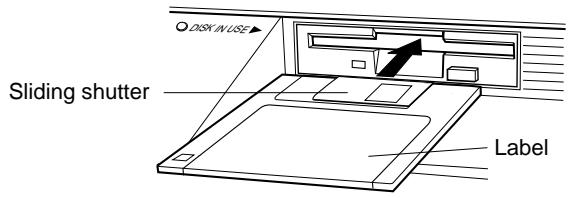
NOTE
The Song Play mode is not automatically engaged if the disk is inserted when one of the disk-related FUNCTION displays (page 192) or the CUSTOM STYLE display (page 92) is showing.
The DISK IN USE lamp lights while the Clavinova reads and identifies the disk. Once the disk has been identified, the SONG PLAY [MAIN] display (display page 1) appears and the [SONG] lamp lights.
If a song disk has been inserted but the Song Play mode is not engaged, press the [SONG] button.
The [SONG] lamp lights. Press the PAGE [▲] and [▶] buttons to select the first page, if the SONG PLAY [MAIN] display is not shown.
2 Select a song number.
Select the desired song number for playback by using the SONG button, data dial or [-] and [+] buttons.
The selected song number, name, current tempo and the file icon which indicates the type of the file are displayed.
Select "ALL" if you want all songs on the disk to be played in order. Select "RANDOM" if you want all songs on the disk to be played at random. For either selection "ALL" or "RANDOM" the songs will be repeated until playback is stopped.
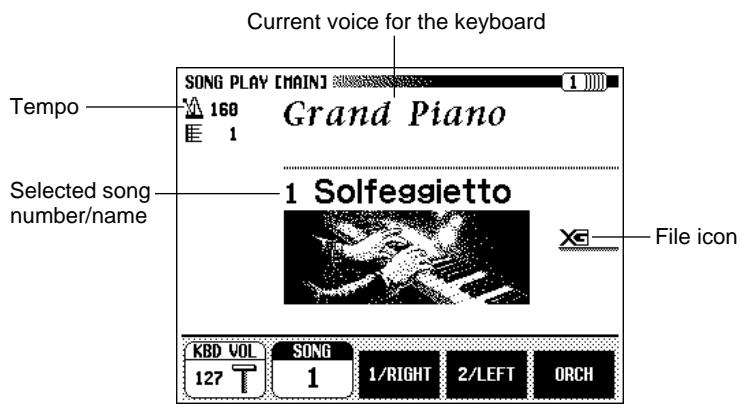
NOTE
Song numbers 1 through 99 are displayed, including song numbers that contain no song data. However, no song names are displayed for song numbers that contain no data.
- File Icons
There are four icons (shown below) that indicate the type of the file.
| Icons | File Type |
| XG | XG/SMF format file |
| DMEK ORCHESTRA | DOC/ESEQ format file |
| PianoSoft | Yamaha Disklavier PianoSoft or XG/ESEQ file |
| CVP | Song data recorded with the CVP-109/107/105/700 |
NOTE
Refer to "MIDI and Data Compatibility" (page 229) for information on file formats.
- Icons are not shown for GM song files or song data files recorded with CVP models other than the CVP-109/107/105/700/103, the CVP-98/96/600, or the CVP-94/92.
Use the PAGE [▲] and [▶] buttons to call up the SONG PLAY [LIST] display (display page 3), to view the entire list of the song names in the disk. The desired song can be selected easily by using the left/right LCD buttons, data dial, or [-] and [+] buttons. You can also select the song by pressing the SONG ▲ and ▼ buttons. Up to ten song titles are shown in the display at a time. If more songs are on the disk, the next ten titles will appear when you scroll past the last title shown in the display.
You can press the SONG button when song 1 is displayed to select the ALL setting, so the Clavinova will play back all songs on the disk in order. Pressing the SONG button a second time selects the RANDOM setting, which causes the Clavinova to play back all the songs in random order.
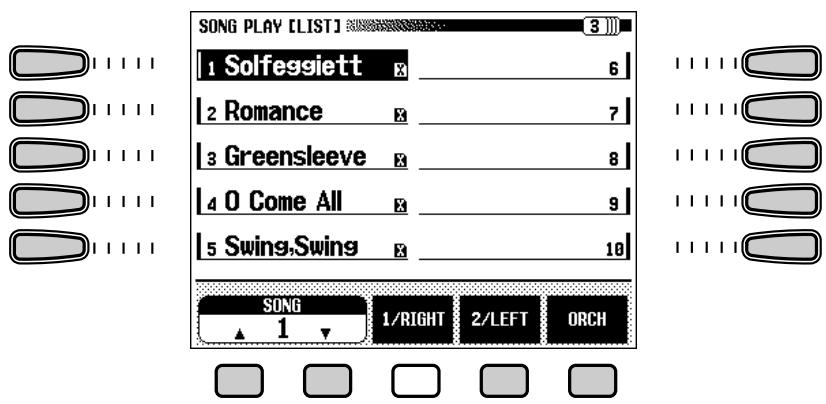
3 Start and stop playback.
Start playback of the selected song by pressing the [PLAY/STOP] button.
Playback of the selected song starts. Unless ALL or RANDOM has been selected, the selected song will play through to the end, then playback will stop automatically. The current measure number and tempo will be shown in the display during playback.
You can also start playback of the selected song by pressing the [START/STOP] button.
Press the panel [PLAY/STOP] button to stop playback.
Song playback stops.
You can also stop playback by pressing the [START/STOP] button.
To exit the Song Play mode, press [SONG] or [EXIT]. The lamp turns off and the previous display appears.

When nothing appears in the song name location...
This indicates that there is no song data for this song number.

Repeat Playback from a Specific Song If you first select ALL, and then select a song in the SONG PLAY [LIST] display (display page 3) by using the left/right LCD buttons, all songs will be repeatedly played back starting from the selected song.

Repeat Playback of a Single Song If you select a song in the SONG PLAY [MAIN] display or in the SONG PLAY [LIST] display (display page 3), and then select 1 SONG in the SONG PLAY [REPEAT] display (display page 4), only the selected song will be played back repeatedly until stopped.

Voice Selection During Playback
The voice you play from the keyboard can be changed during song playback by selecting a voice in the normal way (page 31). The voices of the 1/RIGHT and 2/LEFT parts being played back can be changed in the SONG PLAY [L&R VOICE] display (page 118).

Please note that the song may not start immediately after you press [PLAY/ STOP].

Turning off the Keyboard Guide Lamp The keyboard guide lamps corresponding to the notes being played by the 1/RIGHT and 2/LEFT parts will light in real time. These guide lamps can be turned off in the SONG PLAY [GUIDE MODE] display (display page 5). (See page 128.)

Turning Off the Lyric Display
Lyrics are shown in the display when playing back software which contains lyric data. If you want to stop the lyrics from appearing, you can disable this function in page 5 of the SONG PLAY [GUIDE MODE] display.

Using the Pedal to Start/Stop Playback
When you set the Left Pedal Function to START/STOP in the FUNCTION [PEDAL] display (display page 3), the left pedal will function like the [START/ STOP] button. (See page 190.)
Adjusting the Tempo
The playback tempo of the song can be changed as desired. (See page 27.) The preset tempo for the selected song can be restored at any time by simultaneously pressing the TEMPO [-] and [+] buttons.
Usually the tempo is indicated by numbers. However in case of the free tempo software, “- - -” will appear in place of the tempo in the display, and the measure numbers shown in the display will not correspond to the actual measure; this only serves as a reference as to how much of the song has been played back. The increase or decrease of the tempo based on the basic tempo is indicated by a percentage figure in the display when the tempo is changed (from -99 to +99 at maximum; the range differs depending on the software).
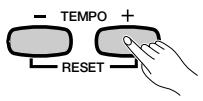
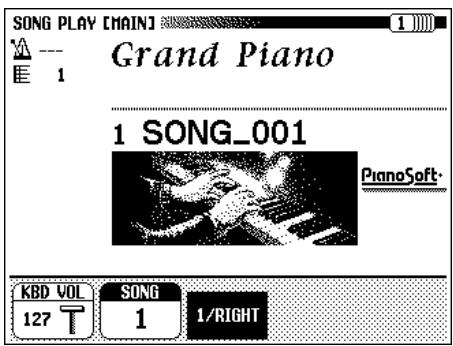

NOTE
The BEAT lamps (page 64) may not flash during playback of free-tempo software.

NOTE
With some songs, the displayed measure numbers may not match those marked on the score.
Eject the disk.
When you've finished with the currently loaded disk, simply press the disk drive's EJECT button to remove it.
The LCD display returns to the main display.
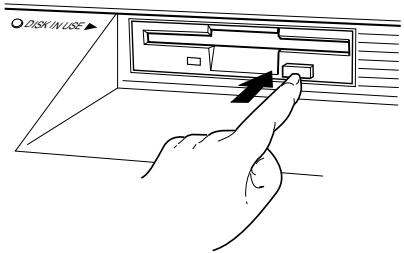
CAUTION
Never take out the disk while the DISK IN USE lamp is lit or while a song is being played back.

NOTE
Volume Adjustment for Each Part
The volume of each part can be adjusted in the MIXER display.

NOTE
Adjusting the Level Balance of Song Playback and the Keyboard Voices Use the [ACMP/SONG VOLUME] control (page 23) to adjust the volume.

NOTE
When playing back a song recorded on the CVP-109/107/105/700/103, the Auto Accompaniment can be turned on by pressing the [ACMP ON] button.
Part Cancel
The 1/RIGHT (right hand), 2/LEFT (left hand) and ORCH (accompaniment) buttons in the SONG PLAY [MAIN] display can be used to turn playback of the corresponding parts on or off. The buttons are highlighted when the parts are turned on. For example, you can turn off the right- and/or left-hand parts so you can practice them on the keyboard.
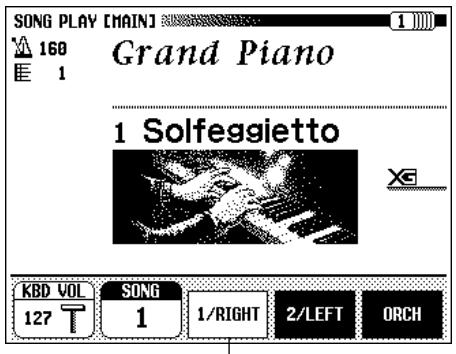
In this example, 1/RIGHT is canceled.
The track assignment for each button can be changed in display page 6 of the SONG PLAY [L&R VOICE] display (page 118).
■ Turning Individual Accompaniment Parts On or Off
Normally, pressing the ORCH (accompaniment) LCD button turns all orchestra parts (tracks 3 through 16) — or all parts other than 1/RIGHT and 2/LEFT — on or off at once. You can, however, turn these parts on or off individually in the SONG PLAY [TRACK PLAY] display (display page 2).
1 Select the SONG PLAY [TRACK PLAY] page.
Use the PAGE [▲] and [▶] buttons to select the SONG PLAY [TRACK PLAY] display (display page 2).
- Tracks which contain data are indicated above the TRACK and buttons. Tracks enabled for playback are indicated by a box surrounding the track number. Tracks which do not contain data are not displayed.
![YAMAHA CVP-109-107-105-700 - Select the SONG PLAY [TRACK PLAY] page. - 1](/content/2025/01/114672/images/747f12d20de2a66fffbf012508eff45473886b6cc050d78e5d84d878499f058f.jpg)
NOTE
- Parts can be switched on and off during playback.
- Parts not having any data cannot be turned on. This applies when there is actually no data in the assigned track (page 118), or when the track assigned to the 2/LEFT part is set to "TRK -- (OFF)."
NOTE
In the case of Yamaha Disklavier PianoSoft files, DOC files and XG/ESEQ files, the part indication does not appear for the parts without data.
NOTE
All track numbers appear whether, the tracks contain data or not, when a Standard MIDI file song is selected (except songs recorded on the CVP-109/107/ 105/700/103, the CVP-98/96/600, and the CVP-94/92).
2 Select the desired track for playback (PLAY/OFF, SOLO).
Select the track by using the TRACK and buttons, the data dial, or the [-] and [+] buttons.
The selected track is indicated by an underline mark.
Turn playback on or off for the selected track by pressing the rightmost LCD button to select PLAY (playback) or OFF.
When a track is muted, the track number is “ghosted” and the surrounding box disappears. The voice used by the currently selected track is shown above PLAY/OFF.
Select a track, then press and highlight the SOLO LCD button to hear only the selected track. Press the SOLO LCD button again to cancel the Solo function.
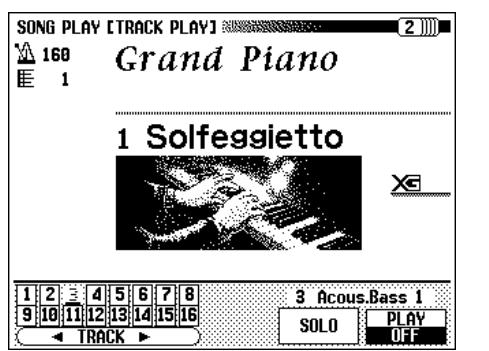


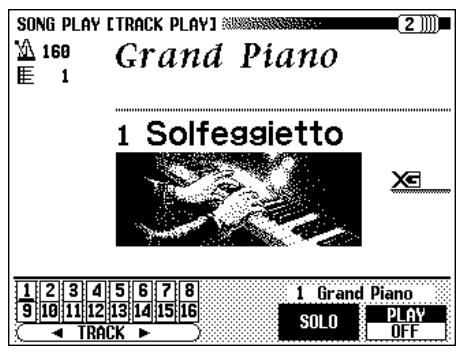


Assignment of Tracks to 1/RIGHT and 2/LEFT, and Voice Assignment
■Assigning Tracks to 1/RIGHT and 2/LEFT
Specific tracks can be assigned to the 1/RIGHT and 2/LEFT functions in the SONG PLAY [MAIN] display, allowing you to selectively turn playback of assigned tracks on or off. TRK -- (OFF) can be assigned to 2/LEFT. The same track cannot be assigned to both parts.
Select the SONG PLAY [L&R VOICE] display (display page 6) by using the PAGE [▲] and [▶] buttons.
Press the 1/RIGHT button or the 2/LEFT button to highlight the corresponding function in the display, then use the data dial or [-] and [+] buttons to assign the desired track.
You can also select the track by pressing the 1 / RIGHT or 2 / LEFT button.

NOTE
1/RIGHT
- Settings: 1—16
- Basic setting: Depends on file type. 2/LEFT
- Settings: 1 — 16, -- (off)
- Basic setting: Depends on file type.

NOTE
The track assignments of DOC files and Yamaha Disklavier PianoSoft files are fixed, and therefore cannot be changed.

NOTE
Tracks can only be assigned when playback is stopped at the top of the song.
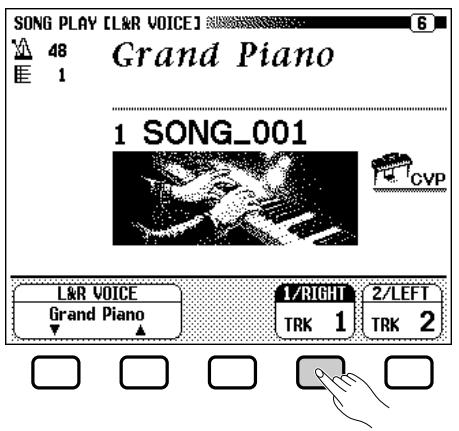
■ Selecting Voices for 1/RIGHT and 2/LEFT Parts
The playback voices for the 1/RIGHT and 2/LEFT parts can be selected in the SONG PLAY [L&R VOICE] display.
Press L&R VOICE or to highlight the corresponding function in the display, then select the playback voice for 1/RIGHT and 2/LEFT parts by using the data dial or [-] and [+] buttons.
You can also select a voice by using the L&R VOICE or .
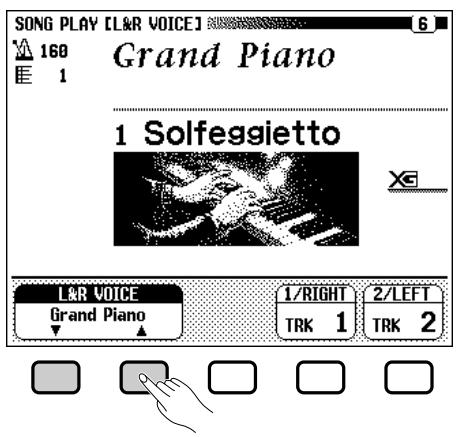
Overall Song Playback Volume Control
The [ACMP/SONG VOLUME] slider can be used to control the overall volume of song playback.
When you enter the Song Play mode, the song volume level is automatically set to the volume level that was last set in the Song Play mode, regardless of the slider's position. After that, moving the slider will set the volume to the corresponding level.
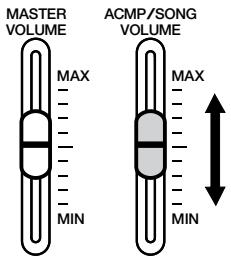
VOLUME
NOTE
The playback voice can only be changed when playback is stopped at the top of the song.
NOTE
If the Auto Accompaniment is turned on during playback of an original song that was recorded on the CVP-109/107/105/ 700/103, the [ACMP/SONG VOLUME] control will affect the level of the Auto Accompaniment rather than that of song playback.
Adjustment of Track Settings
To adjust the playback volume, voice, and pan settings, as well as the reverb, chorus, and effect depth for individual tracks, press the [MIXER] button while in the Song Play mode to call up the MIXER display.
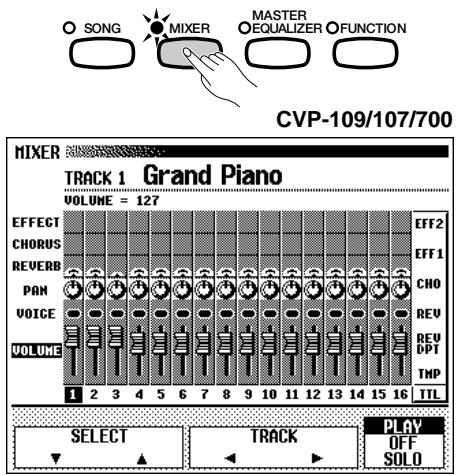
You can use the MIXER display to set the parameters listed below. See the indicated reference pages for descriptions of each parameter.
Parameters available in the MIXER display
- When track 1 — 16 is selected:
VOLUME (See page 37.)
- VOICE (See page 31.)
- PAN (See page 37.)
- REVERB DEPTH (See page 50.)
- CHORUS DEPTH (See page 53.)
- EFFECT DEPTH (See page 57 or 60.)
- When TTL (Total) is selected:
TEMPO (See page 27.)
- Overall REVERB DEPTH (See page 49.)
- REVERB TYPE (See page 49.)
- CHORUS TYPE (See page 52.)
- EFFECT TYPE (CVP-105) (See page 59.)
- EFFECT1 TYPE (CVP-109/107/700) (See page 56.)
- EFFECT2 TYPE (CVP-109/107/700) (See page 56.)
NOTE
The Program Change Number (PRG#), Bank LSB (BNK LSB), and Bank MSB (BNK MSB) parameters, which are used to select voices via MIDI, are displayed when VOICE is selected.
NOTE
Depending on the file type, some parameters cannot be changed. For such parameters, a "Fixed" indication is shown.
NOTE
If you select the REVERB DEPTH parameter while editing a track that was recorded using Natural Reverb (CVP-109), the parameter name will appear as "NATURAL REVERB DEPTH" in the display.
NOTE
On the CVP-109, the REVERB TYPE setting can be used to select a normal reverb type, but not a Natural Reverb type.
NOTE
On the CVP-109/107/700, each of the two effect systems can be applied to a single track only. When you select EFFECT1 TYPE or EFFECT2 TYPE, the number of the affected track is displayed along with the effect type. When you select EFFECT深度, the number of the effect system applied to the selected track is displayed along with the effect depth value. (The EFFECT深度 setting is only available for the two tracks to which an effect system has been applied.)
Changing Settings in the MIXER Display
1 Select the track to be changed.
Select the desired track by pressing TRACK or . Selecting TTL (Total) will change the overall settings of the song rather than the settings of individual tracks.
Press the rightmost LCD button to select PLAY (playback), OFF, or SOLO for the selected track. Select SOLO if you want to play only the selected track.
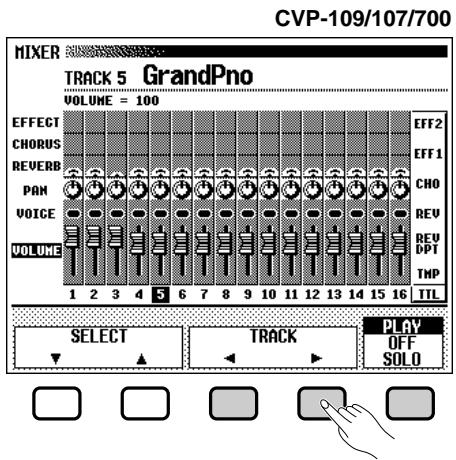
2 Select the parameter to be edited.
Press SELECT or to select the desired parameter.
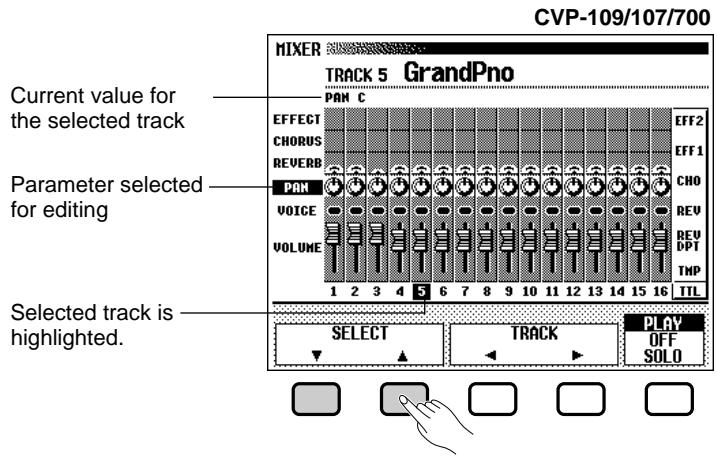
Edit the value or setting.
Use the data dial or [-] and [+] buttons to change the value or setting. You can make changes to the parameters while the song is playing back, letting you immediately hear the results of your edits.

Depending on the file type, voice changes may only be possible for tracks 1 and 2.

- Selecting TTL and changing the REVERB DEPTH value will also affect the sound of your keyboard performance.
- The voices of tracks to which Auto Accompaniment, rhythm, and harmony data have been recorded can also be changed.
Volume range: 0-127 - If another song is selected, all settings will return to the basic settings for the song (or the settings used to record the song).
- If the Auto Accompaniment is turned on during playback of an original song that was recorded on the CVP-109/107/105/700/103, the MIXER display will function as Auto Accompaniment Part Volume Control (page 77) instead of Song Track Volume Control.
Repeat Functions
The Clavinova has convenient repeat functions that let you repeatedly play back the same song or sections within the song. This function is useful when you want to practice a difficult phrase.
Select the desired mode from the available four Repeat modes from the SONG PLAY [REPEAT] display (display page 4).
Four Repeat modes
- OFF (Repeat function is turned off)
PHRASE (Phrase Repeat) - 1 SONG (1 Song Repeat)
- AB mode (AB Repeat)
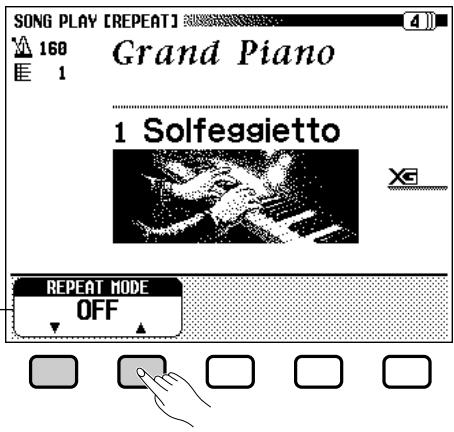
■ Phrase Repeat.
When playing back Yamaha software that includes special phrase marks, such as DOC files, you can select specific phrase numbers (as indicated on the accompanying sheet music) and repeatedly practice only the selected phrase. (Phrase Repeat can be used for the four songs for which notation is provided in the included Music Book.)
If you select PHRASE by using the REPEAT MODE or buttons, the PHRASE display for selection of the phrase number will appear at the right of the button. Press PHRASE or to highlight the corresponding function in the display, then select the phrase number by using the data dial or [-] and [+] buttons.
You can also select the phrase number by pressing PHRASE or .
Once song playback is started, the selected phrase will be played back repeatedly until playback is stopped.
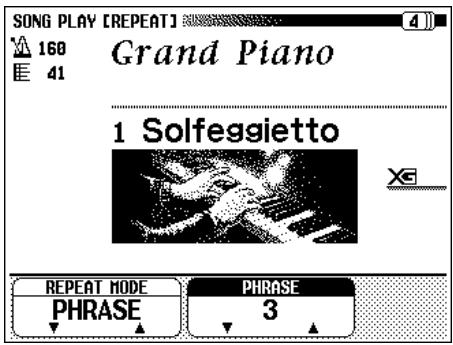
NOTE
- The ALL or RANDOM playback mode (in the SONG PLAY [MAIN] display) will be disengaged when any of the Repeat modes are selected.
- Any previously set Repeat mode will be reset to OFF when a different song is selected.
NOTE
- Parts can be turned on/off even during the performance.
- The Guide function can also be used simultaneously with Phrase Repeat.
- When Phrase Repeat is started, a lead-in count automatically plays before the phrase. However, for free-tempo songs, a lead-in count is not available.
1 Song Repeat
When 1 SONG is selected by pressing the REPEAT MODE or button, any song selected and played as described above will play repeatedly until stopped.
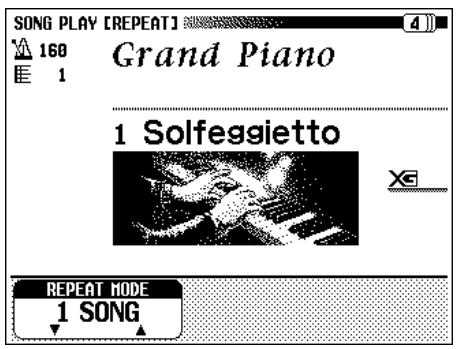
■ AB Repeat
This function allows you to specify any section (between point A and point B) of a song, letting you repeatedly play back the selected section for practice.
When AB mode is selected by the REPEAT MODE or buttons, A and B will appear at the right of the buttons in the display to specify points A and B.
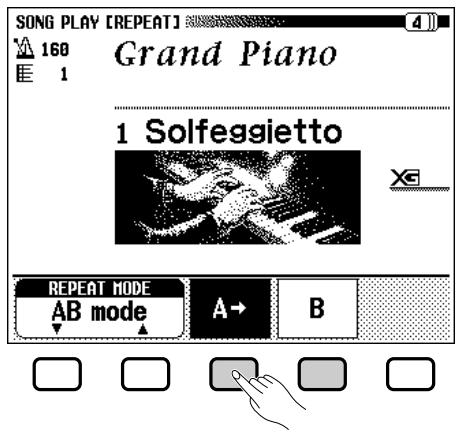
While the song is playing back, press the R button once at the beginning of the section to be repeated.
Then, press the B button at the end of the section to be repeated. Repeat playback of the specified section (from point A to point B) will begin automatically.
The programmed A and B points are retained until a different song or a different Repeat mode is selected. The same section can be played back repeatedly as many times as you desire by using the [PLAY/STOP] button.
When both the A and B points have been specified, you can clear the A and B points by pressing the A button, or just the B point by pressing the B button. You can then specify other A and B points within the song.
NOTE
Lead-in count is not played.
NOTE
- The specified A and B points will be erased when a new song number or another Repeat mode is selected.
- A lead-in count automatically plays before the specified section A-B Repeat playback is started. However, for free-tempo songs, a lead-in count is not available.
To specify the A point as the beginning of the song, press A before playback starts. In this case a lead-in count is not available. - Specifying only the A point results in repeat playback between the A point and the end of the song.
- The B point cannot be selected unless an A point is selected.
OtherPlayback Controls
SONG CONTROL
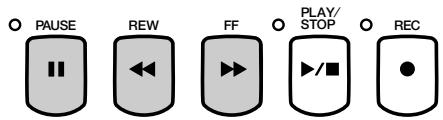
Pause
Press the [PAUSE] button during song playback to temporarily stop song playback. Press [PAUSE] again or the [PLAY/STOP] button to resume playback from the same point.
Rewind and Fast Forward
Use the [REW] and [FF] buttons to rewind or fast forward to the playback point of the song.
- While playback is stopped or paused, the [REW] and [FF] buttons can be used to step backward or forward through the song a measure at a time. Holding down either button continuously moves through the song in the corresponding direction.
- During playback, the [REW] and [FF] buttons allow you to move the playback point of the song rapidly as long as the button is held. No sound is produced during [REW] operation.
Playing Other Types of Music Data
About Compatible Software
The CVP-109/107/105/700 can play back the following types of software.
- Sequence formats: SMF (format 0 and 1), ESEQ
- Voice allocation formats: GM System Level 1, XG, DOC
Refer to "MIDI and Data Compatibility" (page 229) for information on the voice allocation formats and sequence formats.
The internal tone generator of the CVP-109/107/105/700 automatically resets for compatibility with either the Yamaha XG format (including GM System Level 1) or the Yamaha DOC voice allocation (page 229), depending on the playback data. (However, the selected voice allocation on the panel will not change.)
■ Song Data Recorded on Other Instruments
Song data recorded on other Clavinovas (CVP-50/70/55/65/75/83S/85A/87A/59S/69A/69/79A/89/92/94/96/98/600/103) will normally be played back with the correct voices even though the volume balance may be slightly different. However, data recorded using the Auto Accompaniment function of the CVP-50/70 cannot be played back properly.
Song data recorded on the Yamaha Disklavier can also be played back.

Using the [REW] button may cause the voice, tempo, and/or volume to change.

The Lyric Display function (page 129) cannot be used with song data recorded in SMF format 1.

Regardless of the type of software, only the following disk formats can be used: 3.5" 2DD 720 kilobyte format and 3.5" 2HD 1.44 megabyte format.
The Clavinova has a special Guide function which allows you to practice by using the appropriate disk software. The "piano roll" display and the keyboard guide lamp indicate which keys you should play, and when you should play them. You can even practice at your own pace since the Clavinova pauses playback of the accompaniment until you play the correct keys. (You can try out the Guide function by pressing one of the GUIDE CONTROL buttons during playback of the "4. GUIDE Demo" song in the Demo mode.)
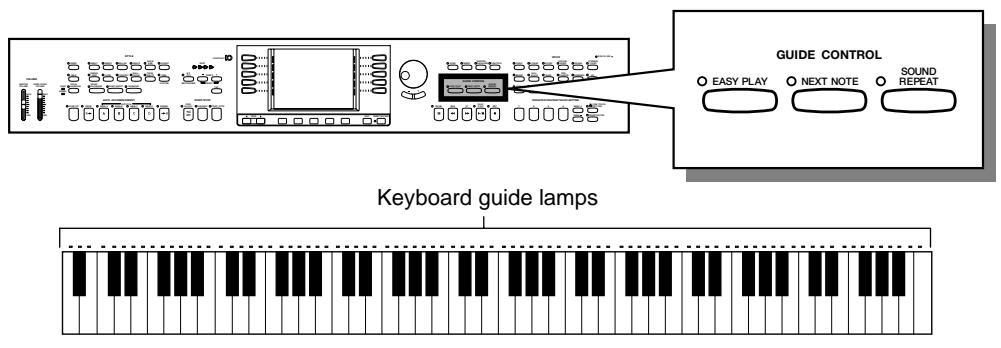
Guide Methods and Piano Roll
The Clavinova has three different Guide methods that can be selected depending on your playing experience or preferences. Beginning players should practice first with Easy Play, then go on to Next Note, then Sound Repeat.
Practicing the Timing: Easy Play
Since the Easy Play method lets you practice only the timing of the notes, you can play anywhere on the keyboard. The melody will play back smoothly when you play with the correct timing. (The accompaniment plays back normally in tempo.)
■ Practicing the Notes: Next Note
The Next Note method lets you check which notes to play by looking at the piano roll display and the keyboard guide lamps. Since the Clavinova waits to play the accompaniment until you play the correct note, you can practice at your own pace.
The keyboard guide lamps indicate the timing in which to play, by changing from lit-up to flashing.

"Follow Lights" and "Cue TIME" software should be used with the Next Note method, as the Easy Play and Sound Repeat methods may not function properly with such software.

If the guide lamps do not flash...
The guide lamps may not flash in the case of a few songs because of a special guide system. In case of such songs, however, you can switch to the Next Note method so that the lamps flash, if you like. See the "Other Guide-related Functions" on page 128.
If the guide lamps and piano roll are transposed up or down...
The guide lamps and piano roll may be transposed up or down by one or two octaves for certain songs. The guide lamps and piano roll will not indicate notes exceeding the 88-key range of the keyboard.
■ Practicing Phrase-by-Phrase with the Playback: Sound Repeat
In the Sound Repeat method, the Clavinova plays back a short phrase. Listen to the phrase and practice.
As soon as you play the phrase correctly, the Clavinova will automatically play the next phrase.

NOTE
Number of Repeats
You can set the number of times the phrase will be repeated in the SONG PLAY [GUIDE MODE] display (display page 5). (See page 129.)

NOTE
The keyboard guide lamps can be turned on or off as desired in the SONG PLAY [GUIDE MODE] display (display page 5). (See page 129.)
Piano Roll
To show the piano roll in the display, press any GUIDE CONTROL button, then press the [PLAY/STOP] button to start playback. A bar of the same length as the note to be played scrolls down from the top of the display toward the bottom. You should play the note at the time the bar reaches the bottom of the display. In order to play the note with the correct duration, hold the note for as long as the bar remains in the display.
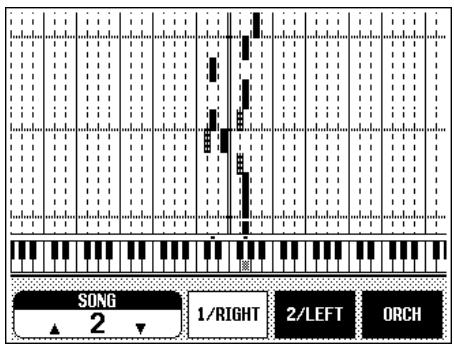

NOTE
Piano Roll ON/OFF
The piano roll display can be turned on or off from the SONG PLAY [GUIDE MODE] display (display page 5). (See page 129.)
Using the Guide Function
1 Set up the desired song for practicing.
Check that the disk is properly inserted in the disk drive before calling up the Guide function.
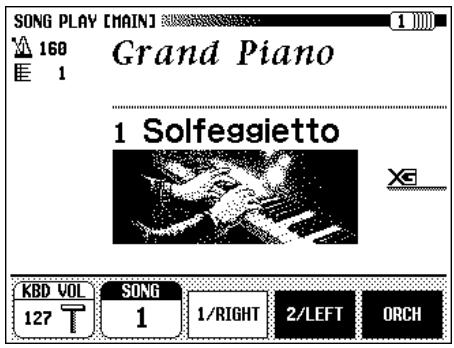
Select the song and cancel the part that you wish to practice yourself from the SONG PLAY [MAIN] display (display page 1).

NOTE
Before Practicing
Before starting to practice, play back the entire song without canceling the part to be practiced and listen to it carefully. This will give you a clear idea of how the song should be played, and will make your practice sessions progress more smoothly.

NOTE
Auto Part Cancel
If you turn on the Guide function without canceling playback of the part to be practiced, 1/RIGHT part is guided (or the 2/LEFT part is guided when the 1/RIGHT part contains no data). However, when you cancel the part before turning on Guide, the setting will be kept until the song is changed.
2 Select the Guide method.
Press one of the GUIDE CONTROL buttons: [EASY PLAY], [NEXT NOTE] or [SOUND REPEAT].
The lamp of the corresponding button lights.
3 Practice the part.
Press the [PLAY/STOP] button to start playback.
The piano roll will appear. Practice along with the accompaniment.
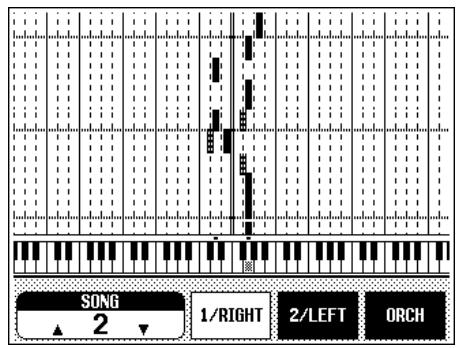
4 Stop your practice session.
The Guide function stops automatically when playback reaches the end of the song. You can also stop song playback by pressing the [PLAY/STOP] button.
To turn off the Guide function, press the appropriate button - [EASY PLAY], [NEXT NOTE] or [SOUND REPEAT] - so that the lamp turns off.

Turning Off the Keyboard Guide Lamps
The keyboard guide lamp can be turned on and off in the SONG PLAY [GUIDE MODE] display. (See page 128.)

When the GUIDE CONTROL buttons cannot be turned on...
The GUIDE CONTROL buttons can be used only in the Song Play mode or when the "4. GUIDE Demo" song is selected in the Demo mode. Only one Guide mode can be selected at a time.

Piano Roll On/Off
The piano roll display can be turned on or off from the SONG PLAY [GUIDE MODE] display (display page 5). (See page 128.)

The correct melody plays back no matter which note you play in the EASY PLAY mode.

The Guide method can be changed during playback. However, the Guide method cannot be changed for songs in which SPECIAL is indicated in the GUIDE MODE location in SONG PLAY [GUIDE MODE] (display page 5).

The [PAUSE] button cannot be used in the Next Note or Sound Repeat methods.

-
The keyboard guide lamps light corresponding to the notes played by the 1/ RIGHT and 2/LEFT parts during song playback, even when Guide is set to off - unless the LAMP button is turned off in the SONG PLAY [GUIDE MODE] display. The guide lamps indicate the notes to be played by both the 1/ RIGHT and 2/LEFT parts when both are turned on or off; when only one of the parts is turned off, the lamps indicate the notes to be played by the part that is turned off.
-
The guide part can be selected, the piano roll and guide lamps can be turned on and off, and the Guide function itself can be turned on or off during playback.
Other Guide-related Functions
Various settings related to the Guide functions can be made in the SONG PLAY [GUIDE MODE] display (display page 5).
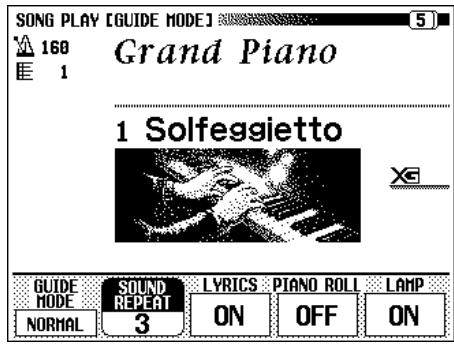
GUIDEMODE
NORMAL is usually displayed as the setting of the GUIDE MODE function in the SONG PLAY [GUIDE MODE] display. Change the setting to ENSEMBLE by pressing the GUIDE MODE button; the part which was set to Part Cancel in the SONG PLAY [MAIN] display (display page 1) can then be played with the regular Part Cancel function and the other part (not set to Part Cancel) can be played with the Easy Play function.
When Next Note is selected and SPECIAL is indicated in the GUIDE MODE display, a special Guide method is engaged for the selected song. To return the normal Next Note mode, press the GUIDE MODE button so that the indication changes to NORMAL.

NOTE
- Playback tempo can be set to any desired value after a song has been selected by using the TEMPO [-] and [+] buttons.
- The Guide function may not work properly with software which was not produced for independent left- and right-hand playback.
- Since the Guide phrases used in the Sound Repeat method are automatically determined by the Clavinova, they may not precisely match the actual musical phrases. Also, the phrases may become shorter when the Guide function is used for both the left- and right-hand parts.

NOTE
The settings made in this display will also be effective in the Guide function during playback of the "4. GUIDE Demo" song in the Demo mode.

NOTE
- The ENSEMBLE mode is effective only for songs which have data in both the [1/RIGHT] and [2/LEFT] parts.
- The ENSEMBLE mode cannot be used when Next Note or Sound Repeat is selected.
- The GUIDE MODE setting can only be changed when playback is stopped at the beginning of a song.

NOTE
- The SPECIAL indication appears automatically depending on the song being played back. The SPECIAL indication will not appear, even when pressing the GUIDE MODE button, when playing back songs that do not feature the special method.
- When using the Easy Play or Sound Repeat method, the respective method is still active, even if the SPECIAL indication is shown.

NOTE
GUIDE MODE
- Settings: NORMAL, ENSEMBLE, (SPECIAL)
- Basic setting: NORMAL or SPECIAL (depends on song)
Setting the Sound Repeat Number
To set the number of times the phrase is repeated in the Sound Repeat mode, press the SOUND REPEAT button. When AUTO is selected, only the notes which have not been played correctly are repeated; the Guide function will automatically go on to the next phrase once the previous one has been played properly.
■ Lyric Display ON/OFF
To turn lyric display off, press the LYRICS button to set the function to OFF.
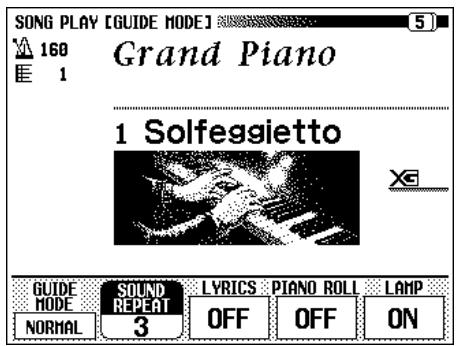
Piano Roll ON/OFF
The piano roll display can be turned on or off by pressing the PIANO ROLL button. When AUTO is selected, the piano roll will appear by turning on one of the GUIDE CONTROL buttons. When this function is set to ON, the piano roll is always shown during playback; when it is set to OFF, the piano roll is not displayed.
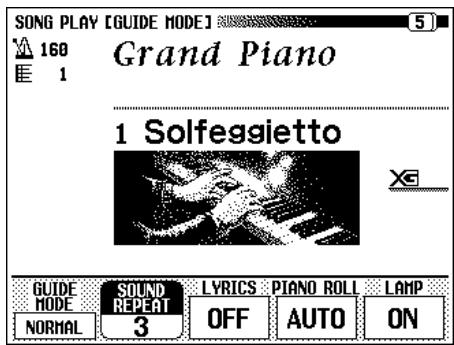
Keyboard Guide Lamp ON/OFF
To turn off the keyboard guide lamps, press the LAMP button to set the function to OFF.

NOTE
SOUND REPEAT
-
Settings: AUTO, 2 - 10
-
Basic setting: AUTO

NOTE
The SOUND REPEAT setting can only be changed when playback is stopped at the beginning of a song.

NOTE
LYRICS
Setting: ON, OFF
Basic setting: ON

NOTE
- The Lyric Display function cannot be used with song data recorded in SMF format 1.
- If a song does not contain lyric data, the LYRICS function will display a row of dashes (- - -). The LYRICS function cannot be selected when playing back such songs.
- If an XF song that includes chord data is selected, the chords will be displayed in the lyrics display.

NOTE
PIANO ROLL
- Settings: AUTO, ON, OFF
- Basic setting: AUTO

NOTE
When a song contains lyrics, the Lyric Display function has priority over the Piano Roll function. The Piano Roll will be displayed if you turn the Lyric Display function off as described above.
The Clavinova features comprehensive song recording functions that allow you to record your own performances to floppy disks. Four recording methods are available: Quick Recording (page 132), which lets you record quickly and easily; Track Recording (page 135), with which you can record multiple instrumental parts; Chord Sequence (page 141), which lets you step-record Auto Accompaniment chords; and Step Edit, which you can use to edit or record song data one note at a time.

NOTE
- Up to 60 songs can be recorded on a single disk, depending on the amount of data contained in each song.
- Before you can record songs on a new disk, the disk must be formatted for use by the Clavinova (see page 131).

Structure of a Song
A song can be made up of several instrumental parts, each assigned to a different track, as shown in the example below.
Sample song track chart
| Track | Part |
| 1 | Piano (right-hand) |
| 2 | Piano (left-hand) |
| 3 | Bass |
| 4 | Strings |
| : | : |
| 9 | Rhythm |
| 10 | Rhythm |
| : | : |
| 16 | Organ |
(Up to a maximum of 16 tracks.)
Various confirmation, alert, and error messages may appear in the display during operation. Refer to "Messages" (page 221) for information on the messages.

NOTE
Refer to "Handling the Floppy Disk Drive (FDD) and Floppy Disks" (page 9) for information on using floppy disks.
Songs recorded by the CVP-109/ 107/105/700 are saved as SMF (format 0) files. Songs recorded using the [XG] category voices are XG-compatible. See page 229 for information on the XG/SMF (format 0) format.
Recording Setup: Disk Format
Before you can record to the included blank disk, you will have to format it. Commercially available blank disks must also be formatted for use. You can use the Format function in the FUNCTION [DISK 5] display (page 200) to re-format floppy disks that have already been used for recording.
Insert a disk.
Gently insert the included blank disk for recording into the disk drive face-up and shutter end first, until it clicks into place.
A few seconds after inserting the disk into the disk drive, a "Start disk format?" message appears in the display. To start formatting, press the OK button. To cancel the format operation, press CANCEL.
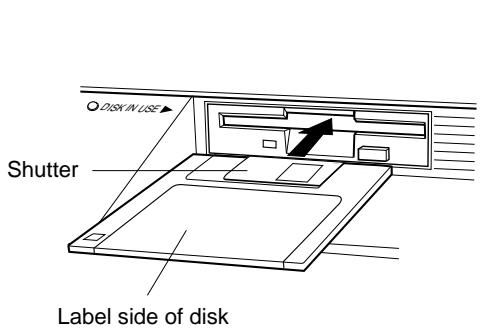
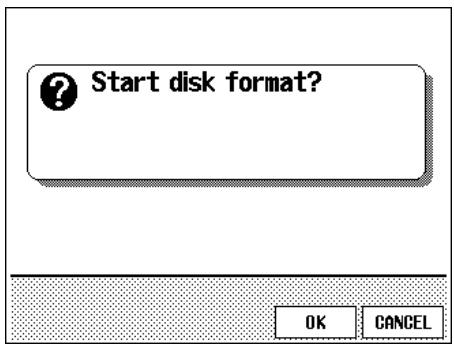
2 Execute the format operation.
An “Are you sure?” message appears in the LCD display; press YES to execute the operation, or NO button to cancel it.
A bar graph appears in the LCD display during formatting to indicate progress of the operation. The display automatically returns to the previous display when formatting is completed.
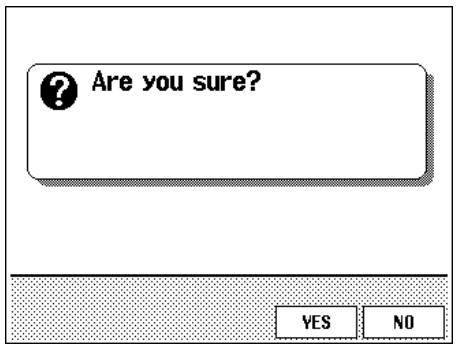
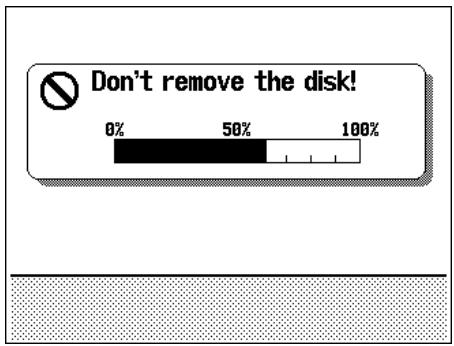

NOTE
The same display appears when inserting blank unformatted disks, or disks of different formats.

NOTE
Format Types
2DD disks are formatted to 720 KB, while 2HD disks are formatted to 1.44 MB.
Quick Recording
1 Insert a formatted disk.
Make sure that the disk's write protect tab is set to the "write" position, then insert the disk face up with the shutter forward until it clicks into place.
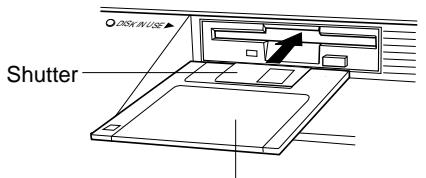
Label side of disk
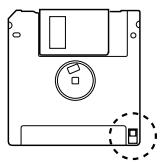
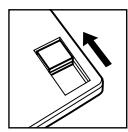
Write protect tab closed (unlocked — write enabled)
The DISK IN USE lamp stays lit until the Clavinova reads and recognizes the disk.
If the Song Play mode is not automatically called up, press the [SONG] button.
The lamp lights and the SONG PLAY [MAIN] display appears. If the SONG PLAY [MAIN] display is not shown, use the PAGE [▲] and [▶] buttons to select display page 1.
2 Select the song number to be recorded.
Select the SONG function, then use the SONG button, the data dial, or the [-] and [+] buttons to select the desired song number for recording.
Select a song number between 1 and 60.
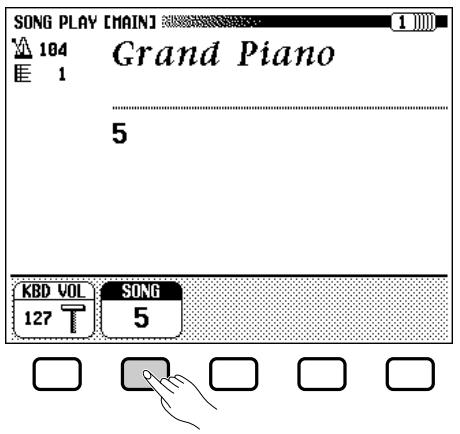
The selected number is the location where the song will be recorded. If a song name appears beside the song number, the selected song already contains data. Make sure that it doesn't contain data you want to keep before moving on to the next step! If you record to a song that contains data, the existing data will be replaced by the new data.

The Song Play mode is not automatically engaged if the disk is inserted when one of the disk-related FUNCTION displays (page 192) or the CUSTOM STYLE display (page 92) is showing.
Using Style File Disks
When using Style File disks, first load the desired data from the Style File disk (page 105), then insert the recording disk.

If you select a song number between 61 and 99, you will not be able to select the Song Record mode in step 3. The Clavinova can play back up to 99 songs on a single disk, but it can only record songs in song numbers up to 60.
3 Select the Song Record mode.
Press the [REC] button.
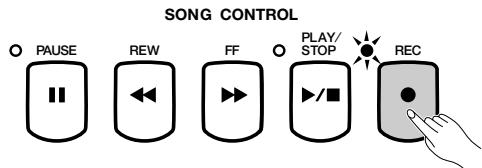
The [REC] lamp lights and the QUICK RECORD display (Record mode page 1) appears.
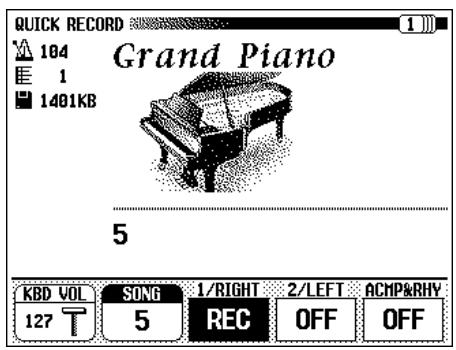
Call up page 1 by using the PAGE [▲] and [▶] buttons if the lamp is lit but the QUICK RECORD display is not shown.
Once you have entered the Record Mode, you can press [REC] or [EXIT] at any time before step 6 to cancel recording without saving any data.
4 Select the part to be recorded.
In Quick Recording, three parts can be recorded: the right hand part (1/RIGHT), the left hand part (2/LEFT) and the Auto Accompaniment & rhythm part (ACMP&RHY). Press the appropriate button — 1/RIGHT, 2/LEFT or ACMP&RHY — to set the corresponding part to REC (recording enabled) or OFF (recording/playback disabled). The PLAY (playback) setting can be selected only for parts which already contain data.
The ACMP&RHY part can be set to REC automatically by pressing the panel [ACMP ON] button. To record only the rhythm, leave ACMP&RHY set to REC, then press the [ACMP ON] button so that the lamp goes out.
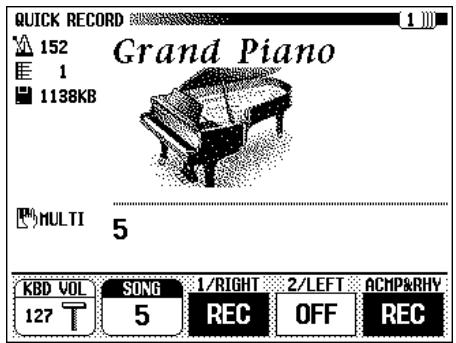
When a part is set to REC (recording enabled), the Synchronized Start function is set to stand-by, and recording automatically starts when you play the keyboard.

- The song number for recording can be changed in the QUICK RECORD display.
- If the Auto Accompaniment is turned on when you enter the Record mode, the ACPI&RHY track will automatically be set to REC.

Songs Recorded on Other Instruments
- The Clavinova may display the "Convert to CVP song?" message (page 223) If you attempt to record data to a song created on another instrument. Press YES to convert the song before recording.
- When a song is converted as described here, it may not be possible to record data in tracks other than tracks 1 or 2.

Both 1/RIGHT and 2/LEFT cannot be set to REC at the same time.

Recording the Harmony Parts
The Clavinova will record harmony notes when you record with the Harmony function (page 87) turned on. If the harmony type is set to Duet, Trio, Block, 4 Part, Country, Octave, or 1 + 5 , the harmony notes will be recorded in the selected track. When any other harmony type is selected, the harmony notes will be recorded in tracks 6 through 8.

Recording in Dual/Split Mode
- If you record the 1/RIGHT part in the Dual mode, data is recorded to tracks 1 and 3.
- If you record the 1/RIGHT part in the Split mode, data is recorded to tracks 1 and 5.
- If you record the 2/LEFT part in the Dual mode, data is recorded to tracks 2 and 4.
- If you record the 2/LEFT part in the Split mode, data is recorded to tracks 2 and 5.
- When the recording part is changed, [HARMONY] and [SPLIT] are automatically turned off.

Recording the Auto Accompaniment
- When recording Auto Accompaniment, the rhythm is recorded to tracks 9 through 10, bass to track 11, and chordal backing to tracks 12 through 16.
- The Chord Sequence function (page 141) lets you record the Auto Accompaniment without having to play chord parts in tempo.

- When any part is set to REC, the remaining capacity of the disk (in kilobytes) is shown below the measure indicator in the display. Empty 2DD and 2HD disks should have about 690 KB (about 69,000 notes) and 1400 KB (about 140,000 notes), respectively.
- When the ACPI&RHY part is set to REC, the metronome will sound to provide a timing guide before recording is started.
Select the desired voices and style, etc.
Select the voices and accompaniment style and set the tempo in the normal way, and other settings needed. (If you want to try out the selected voices, style, tempo, or other settings, be sure to do so before entering the Song Record mode in step 3, since the recording will start as soon as you play the keyboard or press the [START/STOP] button.)
6 Start recording.
Start playing the keyboard or press the [PLAY/STOP] button. To record the Auto Accompaniment parts, start the Auto Accompaniment in the usual way (page 70), and finger chords in a manner appropriate to the current accompaniment mode (pages 72 and 73).

NOTE
When Using Style File Disks
When using Style File disks, make sure to load the data from the Style File disk (page 105) before inserting the disk for recording.

NOTE
The Auto Accompaniment sections — INTRO, AUTO FILL, ENDING, and FADE IN/OUT — can be also recorded. Press the INTRO button before starting to record, the AUTO FILL buttons while recording, the ENDING button at the end of recording, and the FADE IN/OUT button at the beginning or ending of the recording. When the ENDING button or the FADE IN/OUT button is pressed at the ending, recording stops automatically after the ending pattern or fade out.

NOTE
Recording Along with the Metronome
- After selecting the voice, press the [METRONOME] button, and set the Beat parameter in the METRONOME display. The metronome will start sounding.
- The recording starts as soon as you play the keyboard. The metronome sound is not recorded.
When a disk is not inserted...
- A song can be recorded to internal memory if it is short enough. A maximum of approximately 2500 notes (26 KB) can be recorded; however, the amount may be less if other functions are used. The internally recorded song will be deleted when the power is turned off or when another song is loaded. See "Recording Without a Disk" (page 174) for more information.

NOTE
Adjusting the Volume While Recording You can use the [ACMP/SONG VOL- UME] slider and the MIXER display to adjust the volume of the Auto Accompaniment part while recording. Adjust the keyboard part volume using the KBD VOL function in the display.

NOTE
If You Turn the Harmony Function or Split Mode On While Recording...
- You can record harmony notes or left range keyboard part while recording the 1/RIGHT part.
- When the 2/LEFT part is being recorded, the Clavinova will not record the harmony notes for harmony types that are recorded to tracks 6 through 8 (see the sidebar on page 133) or the left range keyboard part.

NOTE
The keyboard guide lamps do not light up during recording.
7 Stop recording.
Press the [PLAY/STOP] button.
Recording stops. When the recorded data has been written to disk, the [REC] lamp goes out and the SONG PLAY display appears.
If you press the [START/STOP] button, only the recording of the Auto Accompaniment or rhythm will stop. You can continue recording your keyboard performance, without the Auto Accompaniment and rhythm. Press the [PLAY/STOP] button in order to actually stop recording.
If you stop the style by pressing the [ENDING] button or the [FADE IN/OUT] button, the Clavinova will stop recording the keyboard as well.
Play back the recording.
Press the [PLAY/STOP] button.
The recorded data will be played back.
During playback you can use the [REW], [FF] and [PAUSE] buttons to control the playback, and use the TEMPO [-] and [+] buttons to change the tempo. You can also play along on the keyboard.
Playback will stop automatically when the end of the recording is reached, or you can press the [PLAY/STOP] button again to stop it at any time.
CAUTION
The Clavinova may continue to write data to the disk for a short time after you stop recording. DO NOT eject the disk while the DISK IN USE lamp of the disk drive is lit.
NOTE
- When a song has been recorded, the temporary name SONG *** (*** is the number) will automatically be given to the song. You can change the name as desired. (See page 166.)
- The [ACMP ON] lamp automatically goes out when recording of these parts has finished.
- When recording is finished, the song volume is automatically reset to the maximum setting, regardless of the current [ACMP/SONG VOLUME] slider position.
NOTE
- When style changes have been recorded in a song, playback may become slightly sluggish at points where the style changes, depending on the styles that were used.
- Playback of songs recorded using both the Dual mode (page 38) and the Full Keyboard accompaniment mode (page 69) may also sound somewhat sluggish.
Track Recording (Multi-track Recording)
1 Set up the instrument for recording.
The first three steps in the Track Recording process are exactly the same as those for Quick Recording. (See page 132.)
2 Select the TRACK RECORD page
Use the PAGE [▲] and [▶] buttons to select the TRACK RECORD page (Record mode display page 2).
The 16 tracks appear above the TRACK and buttons. Tracks which are enabled for playback are indicated by a box surrounding the track number, and tracks which are record-enabled are indicated by a highlighted number. The numbers of tracks that do not contain data are not displayed.
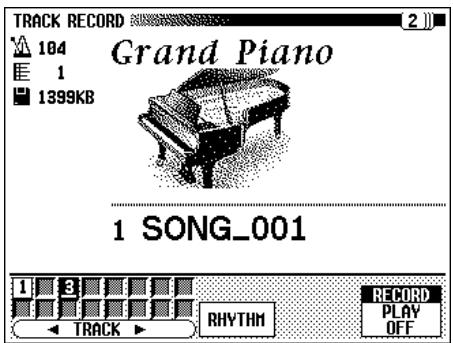
3 Select the desired track for recording.
Press the TRACK and buttons or use the data dial or [-] and [+] buttons to select the track.
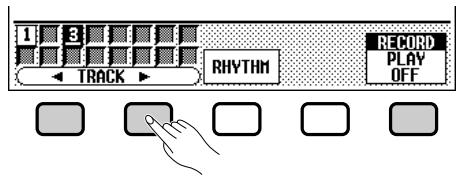
The selected track is indicated by an underline mark.
Use the rightmost LCD button to set the selected tracks to RECORD (recording enabled) or OFF (recording/playback disabled). When a track is set to RECORD, the Synchronized Start mode is turned on. The Clavinova will start recording when you begin to play on the keyboard.
PLAY can only be selected for tracks which contain data. When a track is muted, the track number is "ghosted" (shown in lighter indication) in the display.
Three separate tracks can be set to record simultaneously when recording keyboard parts.
If you intend to record using the Dual or Split functions, two tracks must be record-enabled.
If you intend to use both the Dual and Split functions simultaneously, three tracks must be selected.
If the Auto Accompaniment and/or Harmony are turned on, the recording track numbers are automatically fixed, as described below.
- If the Auto Accompaniment is turned on, tracks 9 through 16 are automatically set to record the Auto Accompaniment data. If the Harmony function is turned on and a harmony type (page 88) other than Duet, Trio, Block, 4 Part, Country, Octave, or 1 + 5 is selected, tracks 6 through 8 are automatically set to record the Harmony data.
When the RHYTHM button is pressed, tracks 9 and 10 are automatically selected for the rhythm data. Set tracks 9 and 10 to RECORD, PLAY, or OFF using the rightmost LCD button.
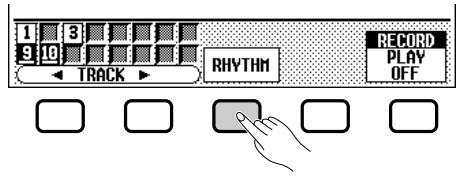
NOTE
- Track 10 (and 9, in some cases) can only be used to record the rhythm sound of the accompaniment style and cannot be used to record keyboard part. Also, the keyboard part should be recorded on a track other than those used for Harmony or Auto Accompani-ment.
- When the RHYTHM tracks (9 and 10) or the Auto Accompaniment tracks (9 through 16) are set to RECORD, the metronome will sound to provide a timing guide.
- If the Auto Accompaniment and/or Harmony are already on when the Track Recording page is selected, the corresponding tracks are automatically record-enabled.
4 Set all performance features as required.
After setting the tracks to be recorded, set up all necessary performance features as required: voice, accompaniment style, tempo, reverb, etc.
5 Start recording.
Start playing the keyboard or press the [PLAY/STOP] button. To record the Auto Accompaniment parts, start the Auto Accompaniment in the usual way (page 70), and finger chords in a manner appropriate to the current accompaniment mode (pages 72 and 73).
The current measure number is shown in the display as you record. The parameters listed below will be recorded in addition to notes you play. (Recorded parameters differ depending on the play styles and settings.)

NOTE
If you want to re-record part of the song (for example, if you've made a mistake in the recording), you can easily do so with the Punch-in/out Recording function (page 138).

NOTE
Backing Up Your Data
Any time you have recorded some amount of data, you should copy the data to another song number for backup purposes (see page 196 for information on the Copy operation). Doing this prevents accidental loss of important data, should you inadvertently delete the data while recording.
Parameters Recorded for Each Track
Notes
Voice
- Keyboard volume
Pan
Right pedal (page 191)
- Left pedal (page 190)
Center (sostenuto) pedal
- Reverb depth
- Chorus depth
- Effect depth
- Keyboard part volume (main, second, left)
- Fade-in/out (converted into volume data)
- Scale tuning data (page 209)
Parameters Recorded for the Entire Song
- Tempo
- Reverb type
- Overall reverb depth
- Chorus type
Effect type*
Equalizer settings (CVP-109/107/700) - Accompaniment style
-
Section (Intro, Main A through D, Fill-In, Ending)
-
On the CVP-105, the last recorded track effect takes priority.
Other Recorded Parameters
Accompaniment style data which is recorded but not listed above includes:
- Accompaniment part volume (volume settings included in style data, plus mixer levels set when recording)
Stop recording.
Press the [PLAY/STOP] button.
Recording stops. The [REC] lamp goes out when the data has been written to the disk, and the SONG PLAY display appears.
If you press the [START/STOP] button, only the recording of the Auto Accompaniment or rhythm will stop. You can continue recording your keyboard performance without the Auto Accompaniment or rhythm. Press the [PLAY/STOP] button in order to actually stop recording.
If you stop the style by pressing the [ENDING] button or the [FADE IN/OUT] button, the Clavinova will stop recording the keyboard as well.

When recording is finished, the [ACMP/SONG VOLUME] level is automatically set to the maximum value, regardless of the current slider position.
Adding New Tracks
You can add a new track to your song by selecting a new record track(s) and voice(s) for recording as described above. You can also play back and monitor the previously recorded tracks while you record. By repeating this process, you can assemble a complete song.
Punch-in/out Recording
With the Punch-in/out Recording function, you can selectively re-record specified sections of the song. Punch-in/out recording allows you to start recording from any "punch-in" point within a previously recorded track and stop recording at any "punch-out" point, leaving intact all recorded material up to the punch-in point and following the punch-out point.
Play back the song.
Play back the song in order to locate the point where you want to punch in (i.e., start re-recording).

If you record on a track that has already been recorded, the previous material will be erased and the new material will be recorded in its place.

Punch-in/out recording cannot be performed on tracks which have been used to record the Auto Accompaniment or rhythm parts, or on tracks 6 through 8 when these tracks have been used to record harmony parts (see sidebar on page 133).
Pause before the punch-in point.
Press the [PAUSE] button to pause play back a bit before the point at which you want to start recording. Leave a measure or more before the punch-in point so you'll be able to grasp the timing before you punch in.
3 Turn on the Punch-in/out function.
Press the [REC] button.
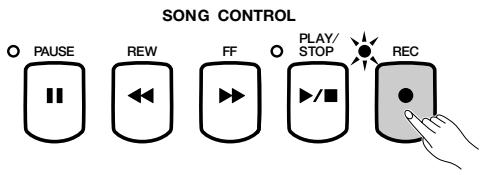
The PUNCH IN/OUT display appears.
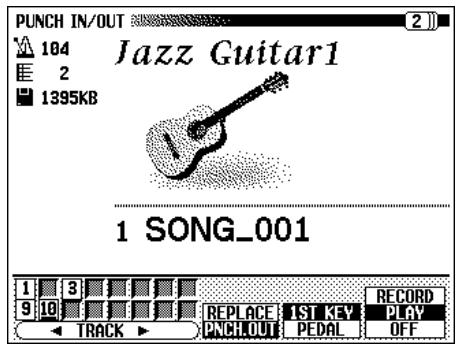
4 Select a track.
Press the TRACK or buttons or use the data dial or [-] and [+] buttons to select the track.
The selected track is indicated by an underline mark.
Use the rightmost LCD button to set the selected track to RECORD (recording enabled) or OFF (recording/playback disabled). PLAY can only be selected for tracks which contain data. When a track is muted, the track number is “ghosted” (shown in lighter indication) in the display.

Auto Setting of Punch-in/out If no other track is selected, the last recorded track is automatically selected for Punch-in/out.

If you select a track that was used to record an Auto Accompaniment or rhythm part, or a track (6, 7, or 8) that contains a harmony part (see sidebar on page 133), you will not be able to set the track to RECORD.
Select the punch-in mode.
Select the desired punch-in mode with the fourth LCD button. Two modes are available, as described below.
| 1ST KEY | Recording begins as soon as the first key is played, after Punch-in playback is started in step 7 (below). |
| PEDAL | Recording begins as soon as the left pedal is pressed, after Punch-in playback is started in step 7 (below). |
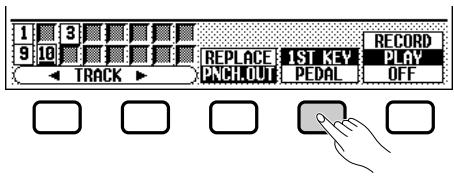
Select the punch-out mode.
Select the desired punch-out mode with the center LCD button. Two modes are available, as described below.
| REPLACE | When recording is stopped, all data following the punch-out point will be erased. |
| PNCH.OUT | When recording is stopped, all data following the punch-out point will remain intact. |
7 Start playback and recording.
Press the [PLAY/STOP] or [PAUSE] button to start playback from the current paused location.
To punch in (i.e., start recording) when the 1STKEY mode is selected, simply begin playing at the point from which you want to record.
To punch in (i.e., start recording) when the PEDAL mode is selected, press the left pedal at the point from which you want to record.
8 Stop recording.
Press the [PLAY/STOP] button.
Recording stops. When the data has been written to disk, the [REC] lamp goes out and the SONG PLAY display reappears.

NOTE
When the PEDAL punch-in mode is selected, the left pedal is automatically assigned for this function only (the normal pedal function is canceled).

NOTE
When the PEDAL Punch-in mode is selected, recording can be started directly by pressing the left pedal, without first pressing the [PLAY/STOP] or [PAUSE] button to start playback.

NOTE
When the PEDAL mode is selected, recording can also be stopped by pressing the left pedal.
The Chord Sequence function lets you enter Auto Accompani-ment data step-by-step according to chord names. You can use this function to record the accompaniment part without having to play the song in time with the rhythm or at a certain tempo.
1 Set up the instrument for recording.
Just as you did in steps 1 through 3 of Quick Recording, insert a formatted disk, select a song number, then press the [REC] button to enter the Record mode.
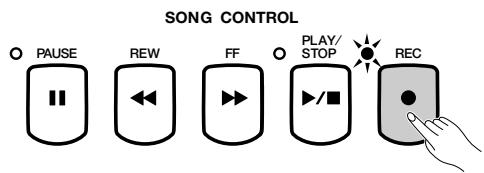
Select the RECORD EDIT 1 display (page 3 of the Record mode display) by using the PAGE [▲] and [▶] buttons.
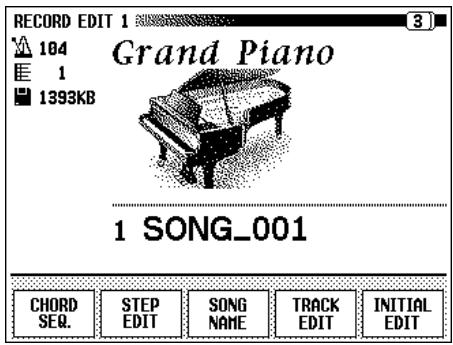
2 Turn on the Chord Sequence function.
Press the CHORD SEQ. button in the RECORD EDIT 1 display.
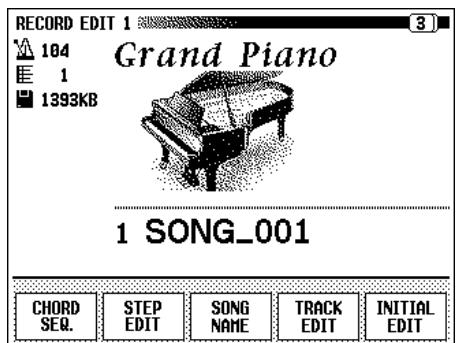


You cannot use the Music Database (page 79) or the Registration function (page 108) while recording data with the Chord Sequence function.

When Chord Sequence cannot be turned on...
The chord sequence function cannot be used when no disk has been inserted in the disk drive.
The CHORD SEQUENCE display appears, the Auto Accompani-ment is turned on, and the Fingered 1 accompaniment mode is selected.
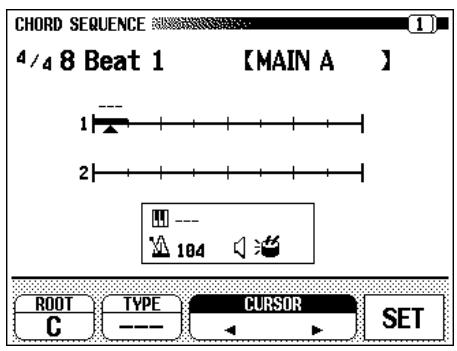
3 Move the cursor to the entry point.
The display shows measures as a horizontal line with 8th-note divisions.
To move the triangular cursor along the measure indication to the point at which you want to enter a chord or style change, press one of the CURSOR or buttons to highlight the function, then use the data dial or [-] and [+] buttons.
You can also move the triangular cursor by pressing the CURSOR and buttons.
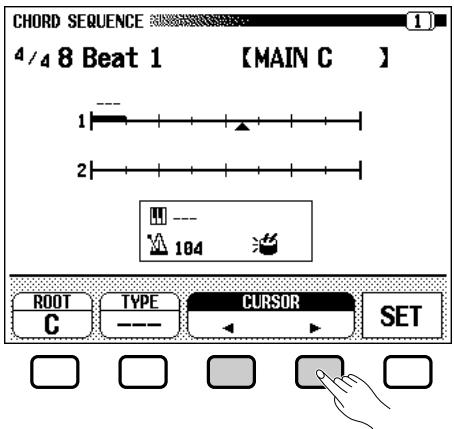

Changing the Auto Accompaniment Mode
Auto Accompaniment cannot be turned off while the Chord Sequence function is active. However, you can select an accompaniment mode (other than Full Keyboard) in the ACCOMPANIMENT MODE display by pressing [DIRECT ACCESS] followed by the [ACMP ON] button. The split point can also be changed in this display.

- The Chord Sequence data will automatically replace any previous data in the Auto Accompaniment and rhythm tracks that was recorded in the Quick Record or Track Record modes.
- Up to 999 measures can be recorded using the Chord Sequence function.
- The chord input resolution will be automatically selected according to the current style. For styles with 2/4, 3/4, 4/4, and 5/4 time signatures, one chord can be entered on every 8th note or 8th-note triplet. For other time signatures, one chord can be entered for each measure.

Entering Accompaniment Style and Section Changes
One style change or section change (page 143) can be made at the beginning of each measure (The Intro pattern can only be entered at the beginning of a song.). However, Auto Fill data can be entered anywhere you desire.

Adjusting the Volume of Auto Accompaniment
You can also enter volume changes for the Auto Accompaniment. Used judiciously, these can help you create professional-sounding dynamic changes in the Auto Accompaniment of your song. To do this, first enter the Auto Accompaniment part volume data from the MIXER display; the volume event symbol ( ) will appear in the box in the middle of the display. To actually record the volume data at the current position, press the SET button in the CHORD SEQUENCE display. (An initial volume event is automatically entered at the beginning of a song.)
4 Enter and set the chords and/or style changes.
To enter a chord, either play the chord with appropriate fingering in the left range of the keyboard (lower than the split point), or highlight ROOT or TYPE in the LCD display and use the data dial or [-] and [+] buttons.
You can also select the chord by pressing the ROOT and/or TYPE buttons.
The name of the chord is displayed next to the keyboard icon in the box at the middle of the display.
To enter a style change (style, section and tempo) simply make the appropriate selections in the normal way.
Once the chord and/or style has been selected, press the SET button.
A black box and the recorded chord name appear above the line at the current position in the measure indicator, indicating that the data has been recorded at that position. The cursor automatically moves to the next position.
The recorded data is also shown in the display: the time signature, style name, and section appear at the top, and the chord name and tempo in the box at the middle of the display.
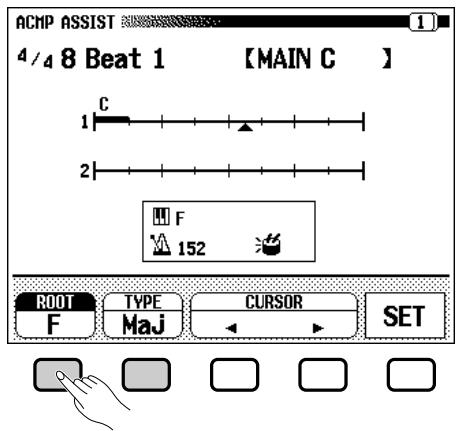
Continue moving the cursor to other positions and enter chords and style changes in this manner. You can always check the entered data during the operation by playing back the sequence using the [PLAY/STOP] button.
The data recorded by the Chord Sequence function is listed below.
Data Recorded by the Chord Sequence Function
- Accompaniment style
- Section (MAIN A/B/C/D, Intro, Ending, Auto-fill, Fade-in/out, Break)
- Chord name
- Tempo
- Auto accompaniment part volume (MIXER settings)
Rhythm on/off - ACMP/SONG volume (as an initial setting only)

The names of chords entered using the keyboard are also displayed by the ROOT and TYPE functions.

The chord name is indicated only at the first beat of the measure line, except when a style uses the 4/4 time signature, in which case the chord name is indicated at the first and third beats.

A fade-out cannot be entered during a fade-in.

Entering Rhythm-only Sections
You can also record the rhythm alone (without accompaniment) to your song. To do this, record a blank chord in the desired measure by leaving the TYPE function set to "----."

Entering a Break
- A complete break can be created by setting the chord type to "---" and setting the rhythm sound to "OFF" (see "RHYTHM ON/OFF" below).
- The "break fill" pattern triggered by the left pedal (page 190) cannot be entered using the Chord Sequence function.
- The Clavinova will normally play a fill-in pattern as it switches between variations (MAIN A through MAIN D). To have the Clavinova change the style variation at the start of a measure without playing a fill-in pattern, press the button for that variation twice before pressing SET.

- The measure number is shown to the left of the measure indicator.
- For information on other useful editing features, see "Other Chord Sequence Functions." below.
- The same chord cannot be entered twice in a row. If the chord displayed by the ROOT and TYPE functions is the same as the last chord that was recorded, the Clavinova will not record a chord change when the SET button is pressed.
Stop recording.
When all recording has been finished, select page 2 of the CHORD SEQUENCE display, then press the END MARK and SET buttons and input an “end mark” which determines the location of the ending. The end mark will be displayed in the box at the middle of the display.
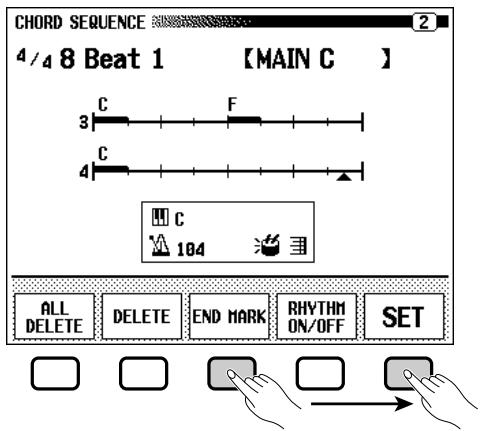
Finally, press the [REC] button; the "Save recorded data?" message will appear. Press YES to store the recorded data and automatically leave the Chord Sequence function; the display returns to the SONG PLAY display. To leave without saving the data, press NO. To continue editing the sequence without saving the data, press CANCEL.

NOTE
- The chord sequence data now resides in tracks 9 through 16, and can be played back in the normal way. Add other tracks as desired by using the standard track selection and recording procedure. You can also record over the Auto Accompaniment parts and replace them with original material if you like by using the standard track selection and record procedure.
- The song recorded via the Chord Sequence function can be modified later by re-entering the Chord Sequence mode and making the desired changes. However, keep in mind that any data recorded over the Auto Accompaniment parts (with normal track recording) will be replaced by the preset accompaniment style data. (For example, even if you've recorded your own bass part, it will be erased and replaced by the original bass pattern if you correct the data in the Chord Sequence display.)
Other Chord Sequence Functions
Page 2 of the CHORD SEQUENCE display contains a number of versatile functions that help you enter chord sequence data more efficiently.
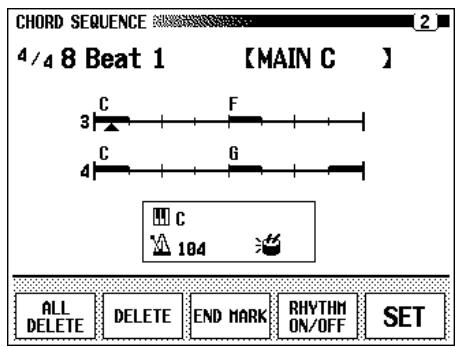
ALL DELETE
To delete all sequence data, press the ALL DELETE button. An "Are you sure?" message is displayed. Press YES to execute the operation, or NO to cancel.
DELETE
To delete the data at the current cursor location, press the DELETE button. An "Are you sure?" message is displayed. Press YES to execute the operation, or NO to cancel.
ENDMARK
To enter an "end mark" at the current cursor location, press the END MARK button followed by the SET button. An end mark signifies the end of the song, and should always be entered to properly end each song. (An end mark is unnecessary when ending with an Ending pattern or Fade-out.) The cursor cannot be moved past an end mark. You can delete an end mark by using the DELETE button, just as with other normal data.
RHYTHM ON/OFF
To turn the rhythm sound on or off, press the RHYTHM ON/OFF button followed by the SET button. No rhythm sound is produced following the location to which a “rhythm off” event is entered; the rhythm starts sounding again from the location to which a “rhythm on” event is entered.

NOTE
End Mark
Unless an end mark is entered, the song will end one measure after the last entered data. If an Ending pattern or Fade-out is input, the song will end at the last measure of the Ending or Fade-out.

NOTE
The rhythm on/off status is displayed in the box at the middle of the display.
The Step Edit function gives you a convenient way to modify the individual notes and control changes that make up a song you've recorded. This function not only lets you change notes, it also allows you to adjust the timing, length, and velocity with which the notes are played. You can also modify other events, add or delete events, or even record entire songs one note at a time.
Editable Events
SYSTEM Track:
| Event Type | Description | Page | |
| Tempo | Sets the tempo. | 151 | |
| Time Signature | Sets the time signature. | 152 | |
| Meta | Sets data not directly related to musical performance (such as lyrics, etc.) | 157 |
Tracks 1 through 16:
| Event Type | Description | Page | |
| H | Note | Plays a note. | 152 |
| \ | Control Change | Changes controller settings (such as volume, etc.) | 153 |
| 品 | Program Change | Changes the voice selection. | 155 |
| Pitch Bend | Bends the pitch of notes up or down. | 155 | |
| Channel Aftertouch | Applies aftertouch to all notes. | 156 | |
| Polyphonic Aftertouch | Applies aftertouch to a single note (see note, below). | 156 | |
| Ex | System Exclusive | Sets instrument-specific data. | 157 |

NOTE
The internal tone generator of the CVP-109/107/105/700 does not support polyphonic aftertouch. Although the Step Edit function lets you add polyphonic aftertouch data to a song (e.g., for use by other MIDI instruments), this data will not affect playback by the CVP-109/107/105/700.
Editing Song Events
Use the following basic procedure to edit song data you have recorded on a floppy disk. (See the "Song Recording" section in this chapter for descriptions of the various song recording methods.)
1 Insert the song data disk.
Insert a disk containing the song data you want to edit, just as you would to record a new song (page 132).
The SONG PLAY [MAIN] display appears.
NOTE
- To edit a song that you have recorded in the Clavinova's internal memory, you must first use the Song Copy function (page 196) to copy the song onto a floppy disk.
- The Step Edit function cannot be used to edit copied DOC files.
2 Enter the Record mode.
Use the SONG function to select the song you want to edit (see page 132), then press the [REC] button.
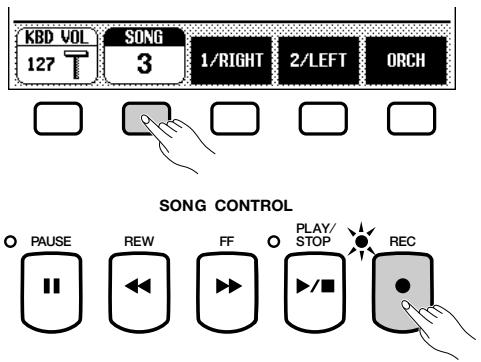
The Record mode display appears.
3 Select the Step Edit function.
Use the PAGE [▲] and [▶] buttons to select the RECORD EDIT 1 display page (page 3 of the Record mode display), then press the STEP EDIT LCD button.
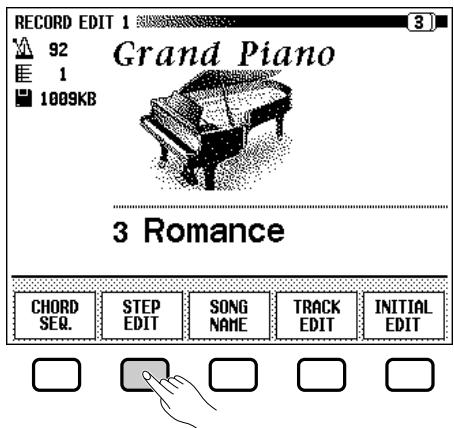
The Clavinova displays the "Don't remove the disk!" message and a bar graph as it reads the song data. After a few moments, the STEP EDIT display appears.
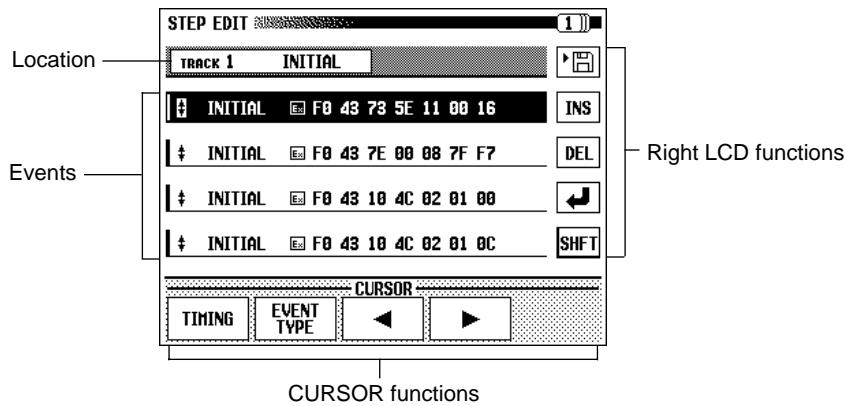

NOTE
The Clavinova may not be able to enter Step Edit mode while editing a particularly large song. If this happens, the "Not enough memory!" message will be displayed when you select the STEP EDIT function.

NOTE
Events
An event is one of the many pieces of data (such as notes, control changes, program changes, etc.) that make up a song.
4 Select a track to edit.
Press the uppermost left LCD button once to highlight the track selector, then use the data dial or the [-] and [+] buttons to select the track you want to edit.
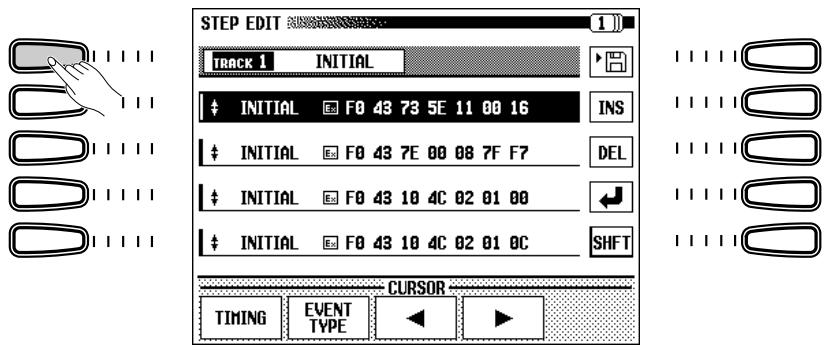
The track selector is highlighted, and the event data for the selected track is displayed.
5 Select a location.
Press uppermost left LCD button again to highlight the right side of the location indicator, then use the data dial or the [-] and [+] buttons to select the measure you want to edit.
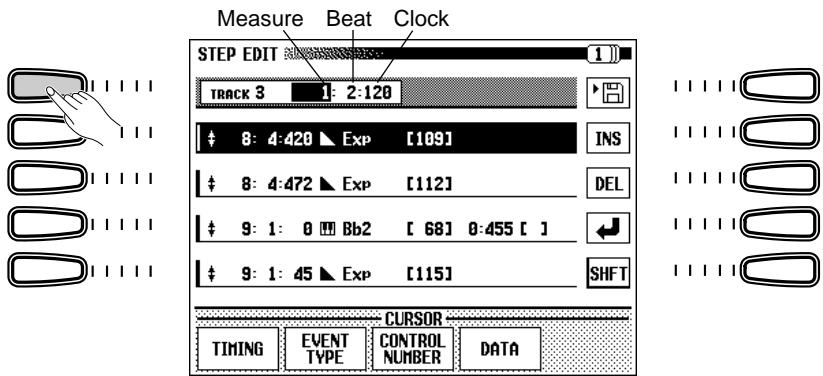
The selected measure is highlighted, and the beat and clock values are displayed.
Repeat this step to set the beat and clock values. The track selector, measure selector, beat, and clock values are highlighted in turn with each press of the uppermost left LCD button.
The first four events that occur at or after the specified location are displayed. The first of these events is highlighted.
Select an event to edit.
Use one of the bottom four buttons to the left of the LCD to select the corresponding event in the display.
The selected event is highlighted, and the timing of that event is shown as the location in the first line of the display.

Track selector
Settings:SYSTEM,TRACK1-16

-
System Exclusive events (see page 146) are loaded into Track 1.
-
Meta events (see page 146) are loaded into the SYSTEM track.

Measure selector
- The measure selector can be set to INITIAL (in which case the beat and clock values are not displayed), or to any value between 1 and 9999.
- The INITIAL setting is used to set events (such as the voice selection or volume events) that occur before the song begins. (Actual song playback begins with the first beat of measure 1.)

Beat and clock
- The beat value can be set to any value between 1 and n , where n is the number of beats in the selected measure.
Each quarter note is divided into 480 smaller units (numbered 0 to 479), which can be used to set the timing of events that don't occur precisely on the beat. If each beat is a quarter note, for example, the location clock values of two eighth notes might be set to 0 and 240, whereas those of four sixteenth notes would be set to 0, 120, 240, and 360.

Scrolling the Event List
- To display other events before or after the selected timing, hold down one of those four buttons, then use the data dial or the [-] and [+] buttons to scroll the event list up or down.
- You can also press the TIMING LCD button to select the double-pointed arrow ( + ) symbol in the leftmost column of event data, then use the data dial or the [-] and [+] buttons to scroll the event list.
7 Select and edit a parameter.
Press the LCD button corresponding to one of the CURSOR functions to select an event parameter. (See the next two subsections for descriptions of the event parameters.)
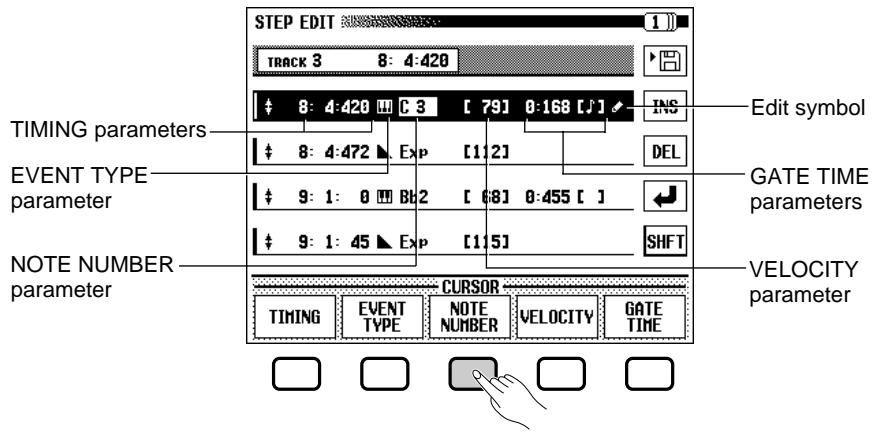
The selected parameter is reverse-highlighted (i.e., it is displayed in normal rather than reverse video).
Use the data dial or the [-] and [+] buttons to change the value of the selected parameter.
A pencil symbol is displayed to the right of the edit data to remind you that you've changed one or more parameters.
Record your changes.
Repeat step 7 as needed to change other parameters in the selected event. Then, when you've finished editing the event, press the button (the fourth right LCD button) to record your changes.
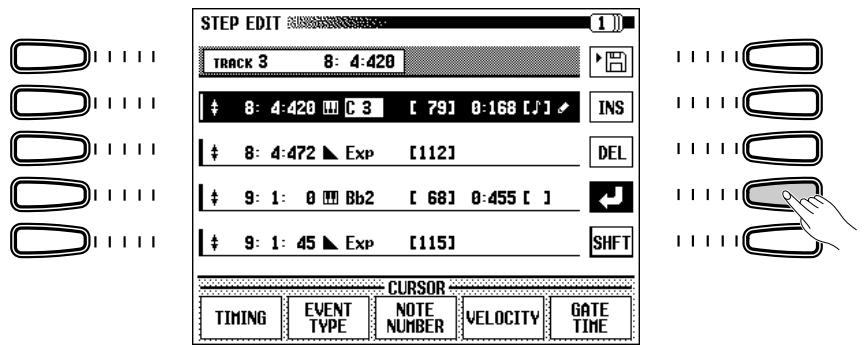
The pencil symbol is removed from the edited event.
Save the edited song data.
Repeat steps 5 through 8 to edit other events in the selected track, or steps 4 through 8 to edit other tracks. When you've finished editing the song, save the song data to disk as described on page 165.

NOTE
CURSOR functions
Each of the CURSOR functions at the bottom of the STEP EDIT display corresponds to one or more parameters in the event list.
- The number and type of CURSOR functions displayed depends on the type of event selected. (See the list on page 151 for details.)
- When a CURSOR function corresponds to two or more parameters, press the LCD button one or more times until the desired parameter is selected.

NOTE
- If you select a different event without first recording your changes, the event you just edited will revert to its previous settings and any changes you made will be lost.
- If you don't see the function at the right edge of the display, press the SHFT button (the bottom right LCD button) to display it.

NOTE
Checking your Changes
- You can press the [PLAY/STOP] button at any time while you're editing song data to check the changes you've made. Playback begins from the top of the measure that includes the currently highlighted event.
- You can control playback using the [PAUSE], [REW], and [FF] buttons. (The [REW] and [FF] buttons can even be used while playback is paused.)
- When you pause the playback or press [PLAY/STOP] to stop it, the most recent event is highlighted in the display.
Common Parameters
Every event contains three types of data: the timing, the event type, and at least one event-specific parameter. Use the procedures below to change an event's timing or type.
Changing the Timing of an Event
You can use the TIMING function to change the timing of an event. Select the event whose timing you want to change as described in the preceding subsection, then press the TIMING LCD button.
The first thing the TIMING function selects is the double-pointed arrow symbol in the leftmost column of event data. You can use this symbol to scroll the event list and display other events (see the sidebar on page 148).
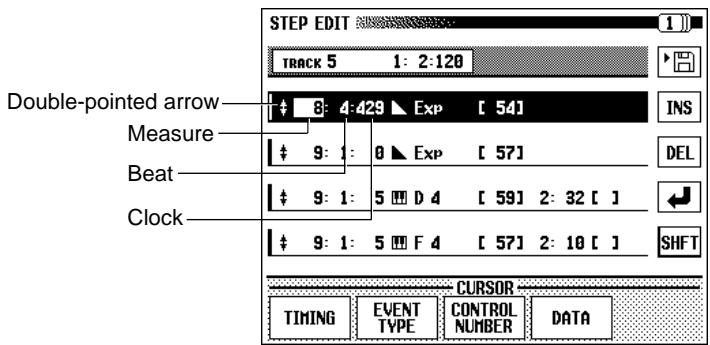
The TIMING function also selects three parameters — the measure, beat, and clock values — that determine the timing of the event. You can change these parameters much as described for the location setting (page 148), save that you use the TIMING function rather than the topmost left LCD button to select between the parameters.
Changing the Event Type
To change an event's type, select the event you want to change as described in the preceding subsection, then press EUMENT TYPE LCD button.
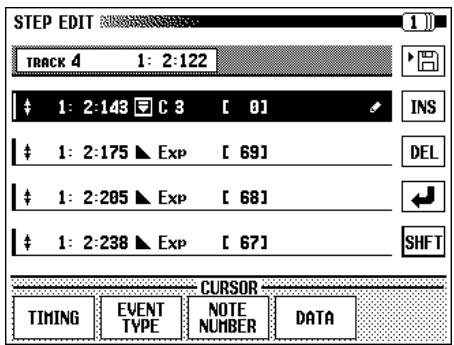
The event type icon is reversehighlighted.
Use the data dial or the [-] and [+] buttons to select a different event type.
NOTE INITIALTIM
You cannot change the timing of an event that is set to INITIAL timing. When you select such an event, the TIMING button will only select the double-pointed arrow symbol.
NOTE
Although the measure value selected by the TIMING function has a range of 1 to 9999, the thousands digit is not shown; hence, an actual value of 1000 will appear in the display as 000.
NOTE
- The number of event-specific parameters that are displayed for a given event depends on the event's type. See the next subsection for a discussion of the various event-specific parameters, as well as the CURSOR functions that are used to select these parameters.
- If you change an event to an event type which is not being displayed in the event list (see page 161), the event will "disappear" after you record the change (see step 8 on page 149).
NOTE
- See the "Editable Events" table on the next page for a list of event types that can be selected.
- The Tempo, Time Signature, and Note events cannot be selected at the INITIAL timing.
Event-specific Parameters
Although every event has at least one event-specific parameter, some event types require that several parameters be set. The tables below list the CURSOR functions that are used to select event-specific parameters, and the number of parameters selected by each.
Editable Events
SYSTEM Track:
| Event Type | Functions | Parameters | |
| A | Tempo | TEMPO | 1 |
| B | Time Signature | TIME | 2 |
| M | Meta | < and > | up to 35 |
Tracks 1 through 16:
| Event Type | Functions | Parameters | |
| M | Note | NOTE NUMBER | 1 |
| VELOCITY | 1 | ||
| GATE TIME | 3 | ||
| Control Change | CONTROL NUMBER | 1 | |
| DATA | 1 | ||
| Program Change | PROG. NUMBER | 1 | |
| Pitch Bend | DATA | 1 | |
| Channel Aftertouch | DATA | 1 | |
| Polyphonic Aftertouch | NOTE NUMBER | 1 | |
| DATA | 1 | ||
| Ex | System Exclusive | < and > | up to 35 |
Use the procedures in this subsection to change the event-specific parameters for each event type.
Changing the Tempo
Select the Tempo event you want to edit in the event list for the SYSTEM track.
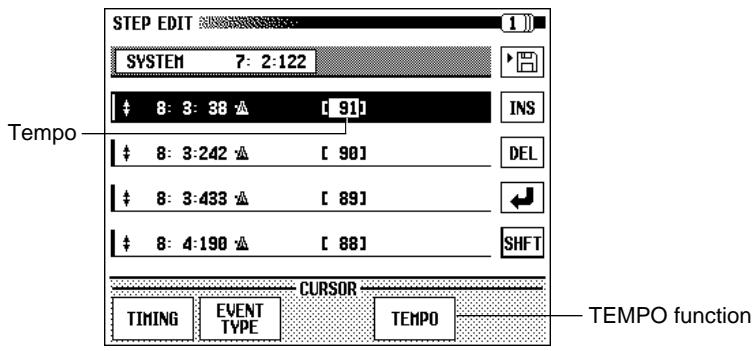
→ The TEMPO function is displayed above the fourth LCD button.
Press the TEMPO LCD button, then use the data dial or the [-] and [+] buttons to change the tempo value.

Tempo
Range: 32-280
Changing the Time Signature
Select the Time Signature event you want to edit in the event list for the SYSTEM track.
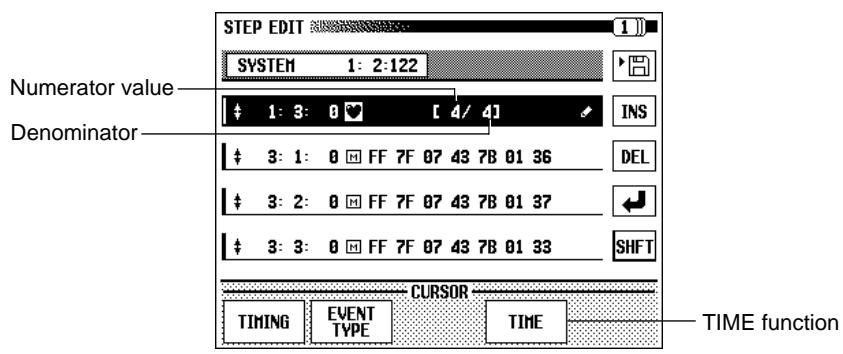
The TIME function is displayed above the fourth LCD button.
Use the TIME button to select the numerator or the denominator of the time signature, then use the data dial or the [-] and [+] buttons to change the selected value.
■ Editing a Note
Select the Note event you want to edit in the event list for the appropriate track (1 through 16).
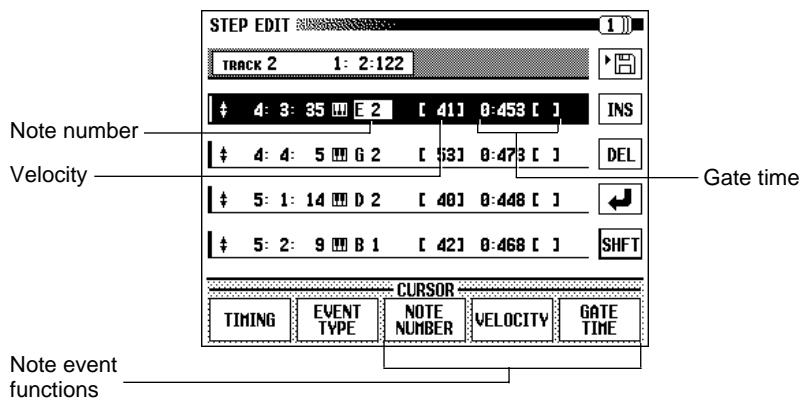
The NOTE NUMBER, VELOCITY, and GATE TIME functions are displayed above the third, fourth, and fifth LCD buttons.
Each note is defined by three pieces of data (in addition to the timing, which is described on page 150).
Note Number
The note number determines which note on the keyboard is played. Use the NOTE NUMBER button to select this parameter, then use the data dial or the [-] and [+] buttons to change the note number.
Velocity
The velocity setting determines how hard the note is played. Use the VELOCITY button to select this parameter, then use the data dial or the [-] and [+] buttons to change the velocity.

NOTE
Time Signature
Settings: 1 / 2 - 4 / 2
1/4-8/4,
1/8 — 16/8
1/16 — 16/16

Note Number
Range: C-2 - G8

Velocity
Range: 1 (min.) — 127 (max.)
Gate Time
The gate time setting determines the length of the note. You can set the gate time either by using the beat and clock parameters, just as you would to set the location of the note event (see page 152), or by selecting a note type from the third gate time parameter (displayed in brackets).
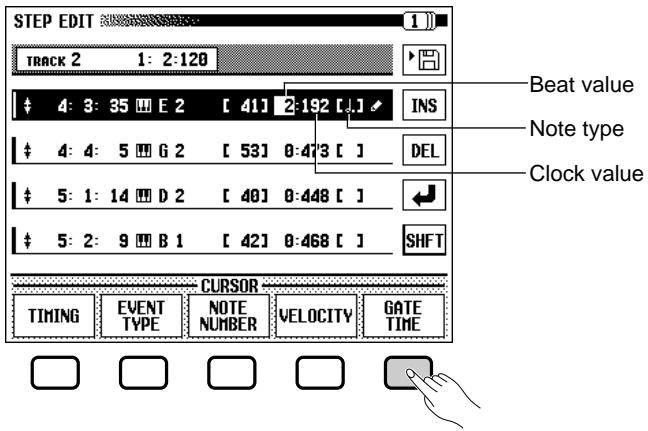
Use the GATE TIME button to select the beat value, the clock value, or the note type parameter, then use the data dial or the [-] and [+] buttons to change the value of the selected parameter.
When setting the gate time, keep in mind that the gate time of a note is generally set shorter than the timing interval for an equivalent note. For example, although the timing of consecutive eighth notes would differ by a clock value of 240, the note type parameter automatically sets gate time clock value of each eighth note to 192. This prevents the notes from running together.
Changing a Controller Setting
Select the Control Change event you want to edit in the event list for the appropriate track (1 through 16).
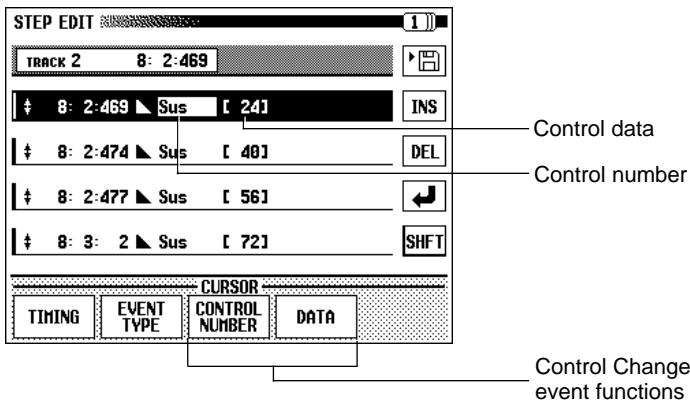
The CONTROL NUMBER and DATA functions are displayed above the third and fourth LCD buttons.
Each control change is defined by two pieces of data (in addition to the timing, which is described on page 150).

Beat value
Range: 0-99
Clock value
Range: 0 - 479

Varying note lengths
You can vary the playing style by changing the gate time of the notes in a song. Decrease the gate time to make a note more staccato; increase it to make the note more tenuto.
Control Number
The control number setting determines which controller's setting is changed by the event. Use the CONTROL NUMBER button to select this parameter, then use the data dial or the [-] and [+] buttons to change the control number.
Controllers
| Display | No. | MIDI Data |
| Bank-M | 000 | Bank Select (MSB) |
| Mod | 001 | Modulation |
| : | : | : |
| PortTm | 005 | Portamento Time |
| Data-M | 006 | Data Entry (MSB) |
| Vol | 007 | Main Volume |
| : | : | : |
| Pan | 010 | Pan |
| Exp | 011 | Expression |
| : | : | : |
| Bank-L | 032 | Bank Select (LSB) |
| : | : | : |
| Data-L | 038 | Data Entry (LSB) |
| : | : | : |
| Sus | 064 | Sustain |
| Port | 065 | Portamento |
| Sos | 066 | Sostenuto |
| Soft | 067 | Soft Pedal |
| : | : | : |
| Harmo | 071 | Harmonic Content |
| RlseTm | 072 | Release Time |
| AtckTm | 073 | Attack Time |
| Bright | 074 | Brightness |
| : | : | : |
| PortCn | 084 | Portamento Control |
| : | : | : |
| Rev | 091 | Reverb Send Level |
| : | : | : |
| Cho | 093 | Chorus Send Level |
| Var | 094 | Variation Send Level |
| : | : | : |
| DatInc | 096 | Data Increment |
| DatDec | 097 | Data Decrement |
| NRPN-L | 098 | NRPN (LSB) |
| NRPN-M | 099 | NRPN (MSB) |
| RPN-L | 100 | RPN (LSB) |
| RPN-M | 101 | RPN (MSB) |
| : | : | : |
| SundOf | 120 | All Sound Off |
| RstCnt | 121 | Reset All Controllers |
| Local | 122 | Local Control |
| NoteOf | 123 | All Notes Off |
| OmniOf | 124 | Omni Mode Off |
| OmniOn | 125 | Omni Mode On |
| Mono | 126 | Monophonic Mode |
| Poly | 127 | Polyphonic Mode |
Control Data
The control data indicates the new setting of the specified controller. Use the DATA button to select this parameter, then use the data dial or the [-] and [+] buttons to change the data value.

NOTE
Control Number
- Settings: See table at left.

NOTE
Control Data
Range: 0 — 127
Changing the Voice Selection
Select the Program Change event you want to edit in the event list for the appropriate track (1 through 16).
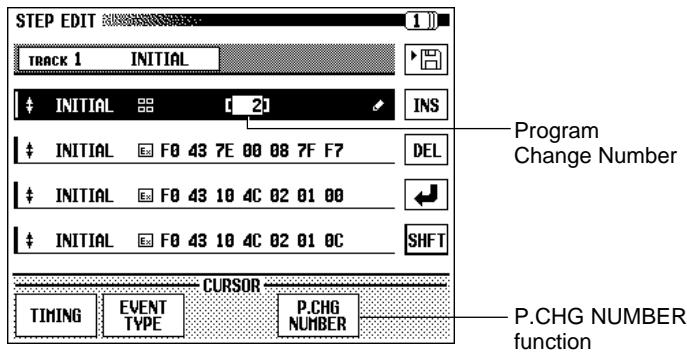
The P.CHG NUMBER function is displayed above the fourth LCD button.
Use the P.CHG NUMBER button to select the Program Change Number parameter, then use the data dial or the [-] and [+] buttons to change the Program Change Number.
Bending the Pitch
Select the Pitch Bend event you want to edit in the event list for the appropriate track (1 through 16).
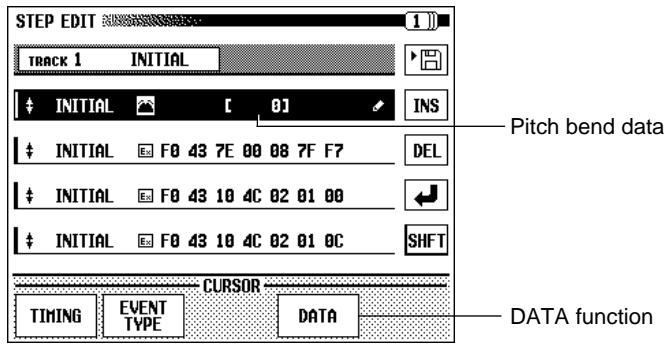
The DATA function is displayed above the fourth LCD button.
Use the DATA button to select the pitch bend data parameter, then use the data dial or the [-] and [+] buttons to change the value of this parameter.

- You can select a different voice in the same bank as the currently selected voice using a single Program Change event.
- To select a voice in a different bank, the Program Change event must be preceded by two Control Change events (see the preceding operation) setting the Bank-M and Bank-L controllers.
- See the voice list on page 3 of the Reference Booklet to determine the bank and program numbers for the desired voice.

Program Number
Range: 0 — 127

Pitch Bend Data
Range: -8192 — +8191

Pitch Bend Range
The actual amount by which the pitch is bent depends on the BEND RANGE value set in the FUNCTION [PEDAL] display (page 191) when song data is recorded.
■ Applying Aftertouch to All Notes
Select the Channel Aftertouch event you want to edit in the event list for the appropriate track (1 through 16).
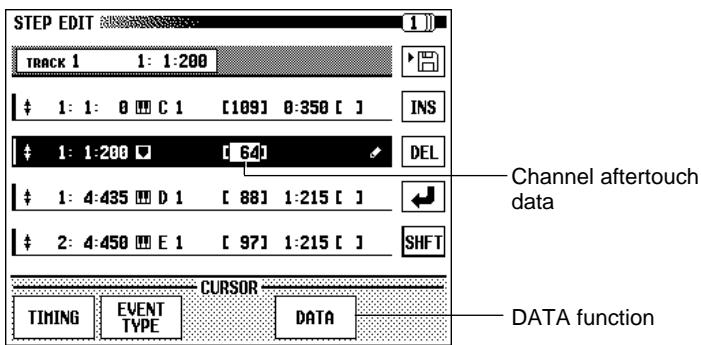
The DATA function is displayed above the fourth LCD button.
Use the DATA button to select the channel aftertouch data parameter, then use the data dial or the [-] and [+] buttons to change the value of this parameter.
■ Applying Aftertouch to Individual Notes
Select the Polyphonic Aftertouch event you want to edit in the event list for the appropriate track (1 through 16).
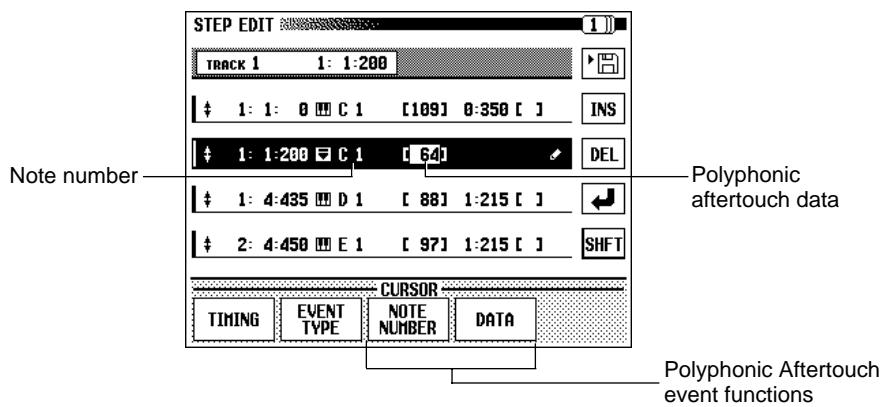
The NOTE NUMBER and DATA functions are displayed above the third and fourth LCD buttons.
Each Polyphonic Aftertouch event is defined by two pieces of data (in addition to the timing, which is described on page 150).
Note Number
The note number setting determines which note is affected by the aftertouch event. Use the NOTE NUMBER button to select this parameter, then use the data dial or the [-] and [+] buttons to change the note number.

NOTE
Aftertouch Data
Range: 0 - 127

NOTE
The internal tone generator of the CVP-109/107/105/700 does not support polyphonic aftertouch. Although the Step Edit function lets you add polyphonic aftertouch data to a song (e.g., for use by other MIDI instruments), this data will not affect playback by the CVP-109/107/105/700.

NOTE
Note Number
- Settings: C-2 - G8
- Polyphonic Aftertouch Data
The polyphonic aftertouch data setting determines the amount of aftertouch that is applied to the specified note. Use the DATA button to select the polyphonic aftertouch data parameter, then use the data dial or the [-] and [+] buttons to change the value of this parameter.
■ Editing System Exclusive and Meta Events
Select the System Exclusive or Meta event you want to edit in the event list for the appropriate track (1 or SYSTEM).
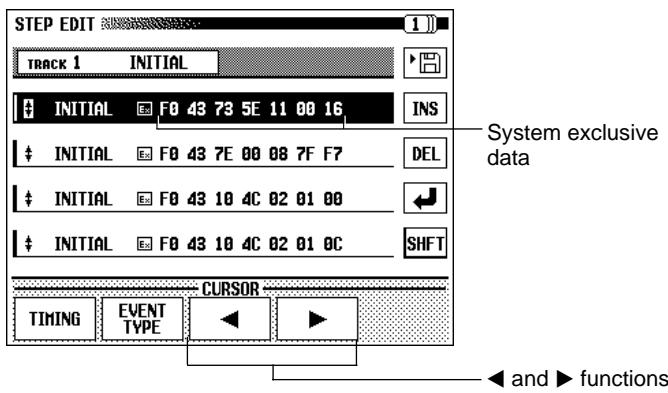
The and functions are displayed above the third and fourth LCD buttons.
Every System Exclusive or Meta event is displayed as a series of two-digit hexadecimal values, each of which represents a byte of data.
Use the and buttons to select a data byte, then use the data dial or the [-] and [+] buttons to change the value of the selected byte. Repeat to edit other bytes as needed.

NOTE
Aftertouch Data
Range: 0-127

NOTE
- Exclusive data (see page 146) is loaded into Track 1.
Meta events (see page 146) are loaded into the SYSTEM track.
Meta events that cannot be edited will not appear in the event list.

NOTE
System Exclusive Data
- First byte: F0
Data bytes: 00 - 7F
Last byte: F7

NOTE
Meta Event Data
- First byte: FF
Data bytes: 00—FF

NOTE
The Clavinova can only display the first 35 bytes in a System Exclusive or Meta event. Any bytes of data beyond this limit cannot be edited using the Step Edit function.
Editing the Event Lists
In the preceding subsections of this chapter you learned how to edit the various data parameters that make up an event. The Step Edit mode also lets you add, delete, copy, and move events.
Adding an Event
Use the following procedure to add a new event to a track event list:
1 Enter the location of the new event.
Enter the event location as described in step 5 of the basic editing procedure (page 148). If there is already an event at the desired location, you can select that event as described in step 6 of the editing procedure (page 148).
The first event that occurs at or after the specified location is highlighted.
2 Insert the new event.
Press the INS button (the second right LCD button).
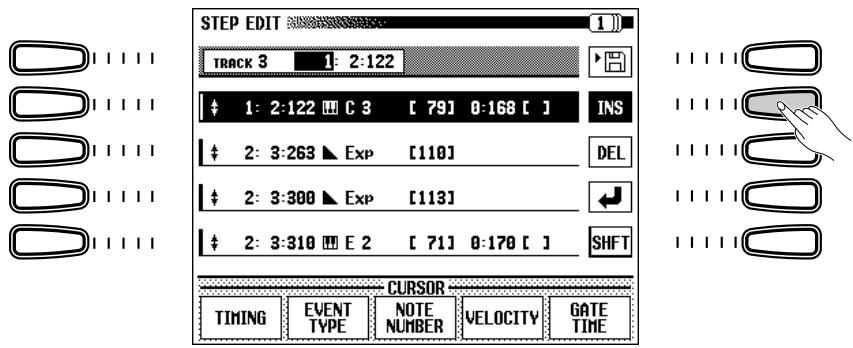
A new event is added to the event list. The new event is highlighted.
3 Edit the new event.
Use steps 7 and 8 of the basic editing procedure (page 149) to edit the newly inserted event.
■ Deleting an Event
Use the following procedure to delete an event from an event list:
1 Select the event to be deleted.
Select the event you want to delete as described in steps 5 and 6 of the basic editing procedure (page 148).
The selected event is highlighted.

NOTE
When an event is added...
- When you add an event to the SYS-TEM track, the new event appears as a Tempo event with a tempo value of 120. At the INITIAL timing, a Meta event (FF 01 00) is added instead.
- When you add an event to one of the other tracks (1 through 16), the new event appears as a Note event with a note number value of C3. At the INITIAL timing, a Control Change event (Bank-M, control data value 0) is added instead.
- If there is already one or more events at the specified location, a copy of the highlighted event is inserted below it.

NOTE
If you don't see the INS function at the right edge of the display, press the SHFT button (the bottom right LCD button) to display it.
2 Delete the selected event.
Press the DEL button (the middle right LCD button).
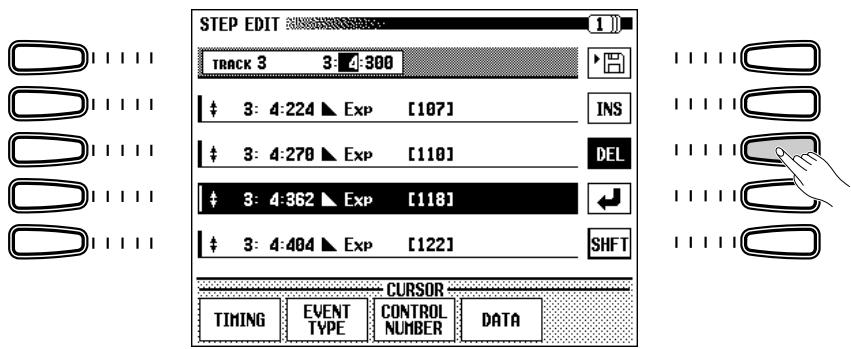
The selected event is removed the event list.
■ Moving or Copying an Event
Use the following procedure to move or copy one or more events to another location in the event list, or to the event list for a different track:
Shift the right LCD functions.
Press the SHFT button (the bottom right LCD button).
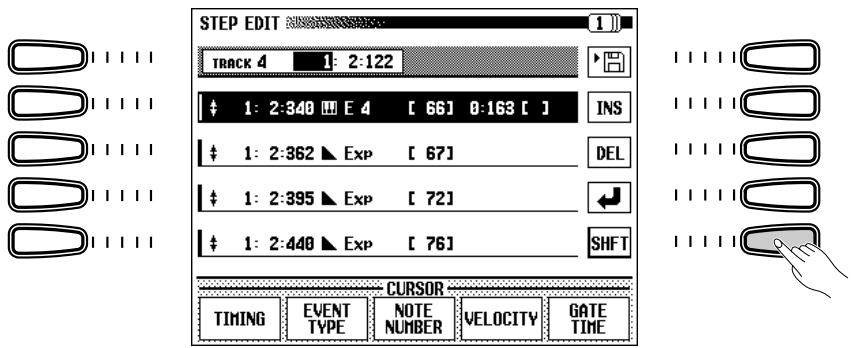
The SHFT function is highlighted, and set of different editing functions is displayed at the right edge of the display.
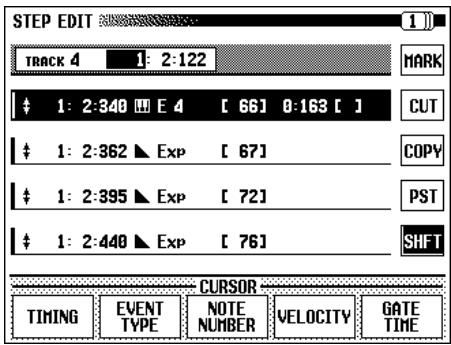

If you don't see the DEL function at the right edge of the display, press the SHFT button (the bottom right LCD button) to display it.

It is not possible to move or copy events when editing the SYSTEM track event list. (The MARK, CUT, COPY, or PST functions cannot be selected when editing this track.)
2 Select the event to be moved or copied.
Select the event you want to move or copy as described in steps 5 and 6 of the basic editing procedure (page 148).
The selected event is highlighted.
If you want to move or copy a series of two or more consecutive events, press the MARK button (the top right LCD button), then select the last event in the series as described in steps 5 and 6 of the basic editing procedure (page 148).
All of the selected events are highlighted.
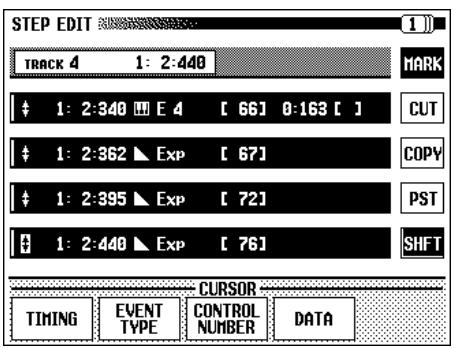
3 Cut or copy the selected events.
Press CUT (the second right LCD button) if you intend to move the selected events to another location, or COPY (the middle right LCD button) if you want to copy them.
If you press CUT, any highlighted events are removed from the event list. If you press COPY and multiple events were selected in step 2, they are no longer highlighted.
4 Select the destination location.
Enter the track and location where you want to move or copy the selected data as described in steps 4 and 5 of the basic editing procedure (page 148). If there is already an event at the desired location, you can select that event as described in step 6 of that procedure (page 148).
The first event that occurs at or after the specified location is highlighted.
5 Paste the data in the new location.
Press the PST button (the fourth right LCD button).
Any events that were cut or copied in step 3 are pasted into the specified location.

Copying multiple events
- If you decide not to copy a series of events, simply press the MARK button so that the MARK function is no longer highlighted.
- Events that aren't displayed in the event list (see page 161) will not be copied or moved, even if they are within the selected range.
Pasting multiple copies
- You can repeat steps 4 and 5 to paste multiple copies of the same data, just as long as you haven't cut or copied other data in the meantime.
- Events that aren't displayed in the event list (see page 161) will not be pasted, even if they were within the range of events selected for cutting or copying.
Filtering the Event List
As you're editing song data in Step Edit mode, you may at times find that the sheer number of events makes it difficult to locate the data you're looking for. The Clavinova lets you simplify the process by limiting the types of events that are displayed in the event lists.
1 Open the STEP EDIT [EVENT DISPLAY] page.
Press the PAGE [▶] button once or twice to display page 3 of the STEP EDIT display.
![YAMAHA CVP-109-107-105-700 - Open the STEP EDIT [EVENT DISPLAY] page. - 1](/content/2025/01/114672/images/f6b3fd577bf0774cb6f64482bcfbc6987a7c261a0f4789d0696920192900fda1.jpg)
2 Select an event type.
Use the and functions (the second and third left LCD buttons) to move the selection bar up or down to the name of an event type that you want to hide (or reveal) in the event lists.
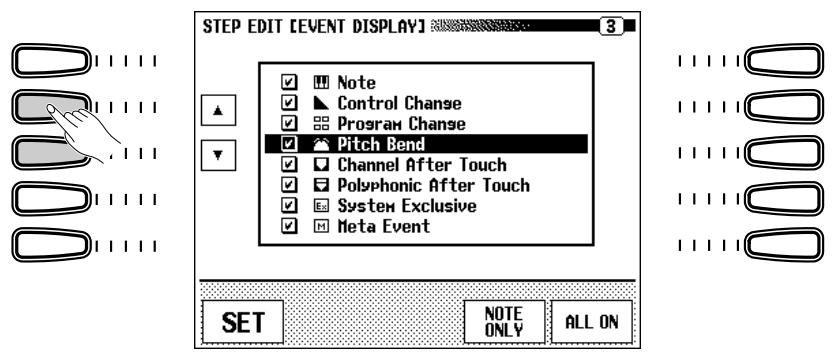
The selected event type is highlighted.
3 Uncheck the event types that you want to hide.
Press the SET button to remove (or display) the check mark next to the selected event type. Event types without check marks will be not be displayed in the event lists.
4 Return to the event list display.
Repeat steps 2 and 3 as needed to hide (or reveal) other event types, then use the PAGE [▲] button to return to the event list you were previously editing.
Only the selected event types are now displayed in the event list.

Shortcuts
- To display only note data, just press the NOTE ONLY button.
To display all data in the event lists, press the ALL ON button.

Time signature and tempo data is always displayed.

Note data will be displayed in the STEP EDIT [NOTE RECORD] display page (page 2 of the STEP EDIT display) even when there is no check mark by the Note event type in the STEP EDIT [EVENT DISPLAY] page.
Recording Music in Step Edit Mode
Page 2 of the STEP EDIT display contains functions that let you record music one note at a time. Use the following procedure to add new note data to a song that you're editing in Step Edit mode.
1 Open the STEP EDIT [NOTE RECORD] page.
Use the PAGE [▲] and [▶] buttons to display page 2 of the STEP EDIT display.
![YAMAHA CVP-109-107-105-700 - Open the STEP EDIT [NOTE RECORD] page. - 1](/content/2025/01/114672/images/3043da04a6ab891c6e1445d42f74bb3a1c0a4606a4b78cea5be3b82d3a72f11e.jpg)
2 Select the location for the new note.
Enter the track and location where you want to record the new note as described in steps 4 and 5 of the basic editing procedure (page 148). If there is already an event at the desired location, you can select that event as described in step 6 of the editing procedure (page 148).
The first event that occurs at or after the specified location is highlighted.
3 Select a dynamic.
Press the first right LCD button to display the dynamic for the note you are going to record. The dynamic you select determines the velocity of the note. You can select one of eight dynamic symbols — from fff to ppp — or KBD. If you select KBD, the Clavinova will record the actual velocity that you play on the keyboard.
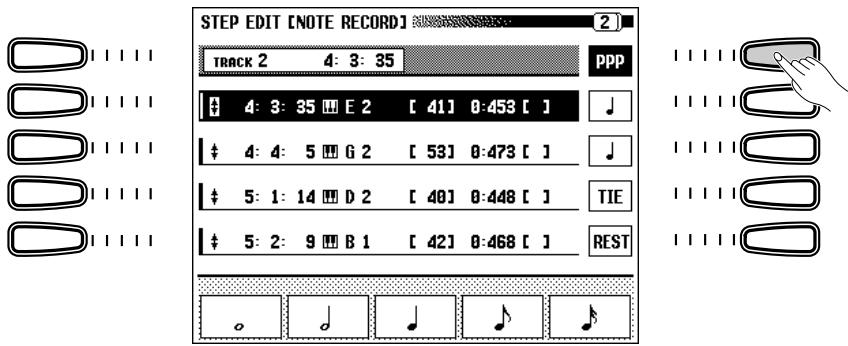
The dynamic changes each time you press the button.

NOTE
Recording from Scratch
- You can record an entire song in Step Edit mode, if you like. Just insert a floppy disk, select an unused song number, and press the [REC] button to start recording, then follow the procedure described here to begin entering note data.
- When recording notes in Step Edit mode, make sure the current voice selection matches that of the track you're recording to. If a different voice is used, the notes may be recorded at the wrong pitch.
- When certain voices are used, the LCD may display pitches one or two octaves higher or lower than the notes that were played. This is normal; during playback, the notes will be played back as recorded.

NOTE
- It is not possible to record note data in the SYSTEM track, or at the INITIAL timing in tracks 1 through 16.
- If you try to enter note data at the INITIAL timing in tracks 1 through 16, the note data will be recorded at the top of the first measure (timing 1:1:0) instead.

NOTE
Dynamic
- Setting: KBD, fff — ppp
Basic setting: KBD
4 Select a note style.
Press the second right LCD button to display the playing style for the note you are going to record. The style you select affects the gate time of the note. You can select one of three styles: normal, staccato, or tenuto.
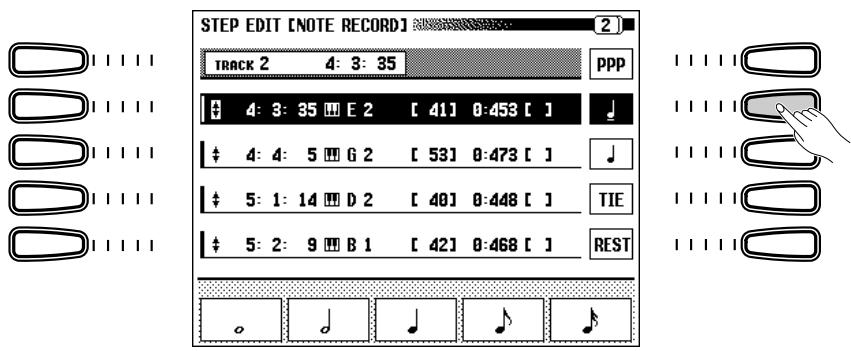
The note style changes each time you press the button.
Select a note type.
Press the third right LCD button to display the type of note you want to record. You can select one of three note types: normal, dotted, or triplet.
The note type that you choose here will be used to modify the note or rest length you specify in step 6, below. To enter a dotted quarter note, for example, you would select . (dotted) here, then press the (quarter note) button in step 6.
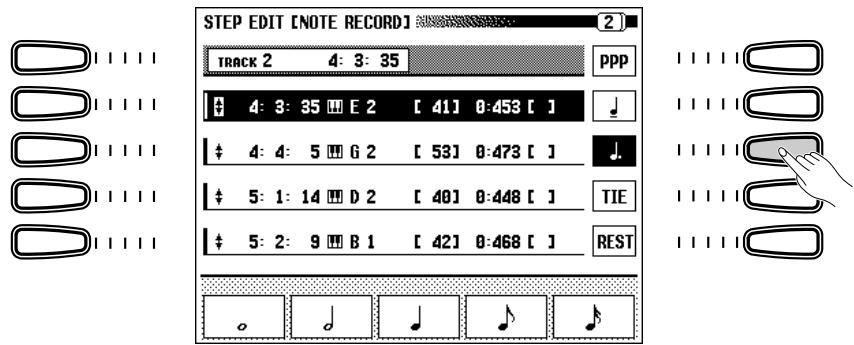
The note type changes each time you press the button.
6 Enter a note or a rest.
- To record a note (or chord):
Hold down one or more keys on the keyboard, then press the LCD button that corresponds to the desired note length (from whole note to sixteenth note).
The specified note data is added to the event list, and the timing is advanced according to the selected note length. (If more than one key was held down, note data for each key is recorded at the specified timing.)

Note Style
- If you press an LCD button without holding down a key on the keyboard, the previously specified note data (i.e., dynamic, note style, and note type) will be recorded.
- If there is already a note of the same pitch at the specified location, the new note will not be entered.
To record a rest:
Press the bottom right LCD button.
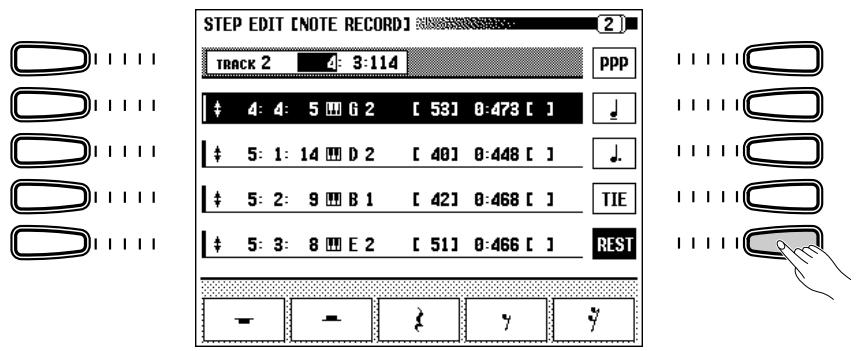
The REST function is highlighted, and the note functions at the bottom of the display are replaced by rest functions.
Press the LCD button for the desired rest length (from whole rest to sixteenth rest).
The location is advanced according to the selected rest length.
Press the bottom right LCD button a second time to redisplay the note functions.
7 Record a tie, if necessary.
If you have recorded a note or chord in the last step, you can double its length using the TIE function. Press the fourth right LCD button.
The gate time of the preceding note or chord is doubled, and the timing is advanced to match the increased note length.
You can press the TIE button twice to triple the length of a note or chord, three times to quadruple it, and so on.
Record other notes.
Since the timing value is automatically advanced when you record notes or rests, you don't have to set the timing for the next note. Repeat steps 3 through 7 as needed to record other notes and rests.
Save the edited song data.
When you've finished recording note data, save the song data to disk as described in the following subsection.

Checking your Changes
- You can press the [PLAY/STOP] button at any time while you're recording note data to check the changes you've made. Playback begins from the top of the measure that includes the currently highlighted event.
- You can control playback using the [PAUSE], [REW], and [FF] buttons. (The [REW] and [FF] buttons can even be used while playback is paused.)
- When you pause the playback or press [PLAY/STOP] to stop it, the most recent event is highlighted in the display.
Saving Your Changes
Use the following procedure to save the data you have edited or recorded in Step Edit mode:
1 Open the STEP EDIT page, if necessary.
If you are currently using page 2 or 3 of the STEP EDIT display, press the PAGE [<] button once or twice to display page 1.
2 Select the save function.
Press the top right LCD button to select the 图 function.
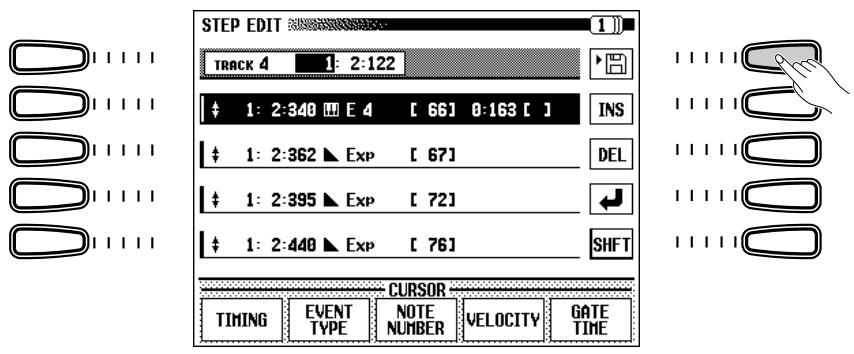
→ The "Are you sure?" message is displayed.
Select a song number, if necessary.
Use the SONG and buttons to select a different song number. (If you do not change the song number, the original version of the song will be replaced by the edited data.)
The selected song number is displayed by the SONG function. If a song name is also displayed, the selected song number contains song data that will be replaced by the edited data.
Save the data.
Press OK to save, or CANCEL to return to Step Edit mode.
If you press OK, the Clavinova will display the "Don't remove the disk!" message and bar graph as it saves the data to the disk, then redistributes the STEP EDIT page.
Exit the Step Edit mode.
Press either [REC] or [EXIT] once to exit the Step Edit mode, or twice to exit the Song Record mode altogether.

NOTE
If you don't see the function at the right edge of the display, press the SHFT button (the bottom right LCD button) to display it.
CAUTION
You cannot save the edited song data to a different disk. If you remove the disk from the disk drive before saving the song (that is, before completing step 4 of this procedure), any changes you have made in the Step Edit mode will be lost.

NOTE
Exit Without Saving
If you try to exit the Step Edit mode without first saving the data that you have edited or recorded, the Clavinova will display a "Write edited data?" message. Press YES if you want to save the data, NO to exit the Step Edit mode without saving, or CANCEL to return to Step Edit mode. If you select YES, the "Are you sure?" message will be displayed. Follow steps 3 and 4 of the procedure at left to save and exit.
Other Record Edit Functions
The Record mode has a number of other convenient editing functions that provide even greater control over the song data. The Record Edit functions include: Song Name, which lets you name a recorded song file; Track Edit, which gives you a variety of track-related editing controls, such as Track Mix and Track Delete; Initial Edit, which lets you change the data at the beginning of a song, such as voice, reverb, and effect settings; and Setup Memory, which lets you save the Clavinova's current panel settings as part of the currently selected song. On the CVP-109/107/700 there is also a Vocal Harmony Memory function, which you can use when you want to save the current Vocal Harmony settings as part of the currently selected song.
You can select the Record Edit functions from the RECORD EDIT 1 and RECORD EDIT 2 displays (Record mode display pages 3 and 4) after selecting the song you wish to edit.
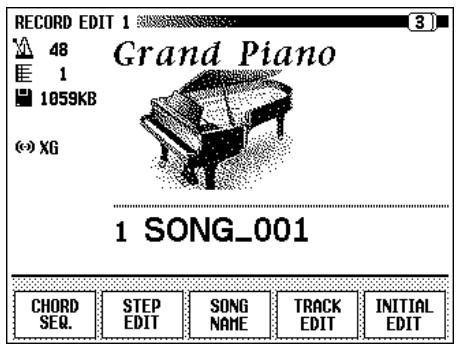
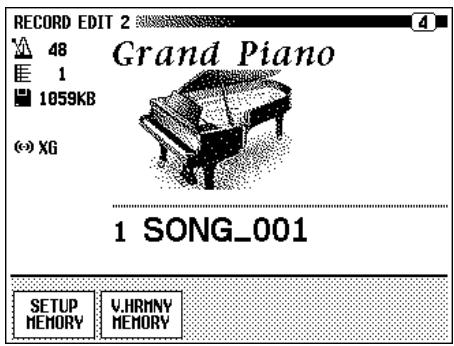
CVP-109/107/700
Song Name
This function is used to name song files recorded with the Clavinova or to change existing names. To call up the Song Name function, press the SONG NAME button in the RECORD EDIT 1 display.
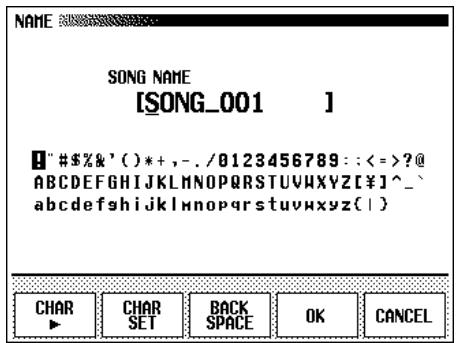

NOTE
The Song Name function cannot be used when a disk has not been inserted in the disk drive.
1 Enter the desired name.
Use the CHAR button to move the underline cursor to the desired character position in the file name display. (File names can be up to 12 characters in length).
Use the data dial or [-] and [+] buttons to select and highlight the character or mark you wish to enter.
Press the CHAR SET button to enter the selected character to the current cursor position and move to the next position. Continue entering other characters or marks in this way.
To delete the character at the previous position, press the BACK SPACE button. The character before the underline cursor is deleted and the cursor moves back to the deleted position.
To abort the Song Name operation and return to the RECORD EDIT 1 display, press the CANCEL button.
2 Register the name.
When the song file name is complete, press the OK button to register it. The new name is registered as the current song file name. To cancel the operation, press the CANCEL button.
Track Edit
Press the TRACK EDIT button in the RECORD EDIT 1 display to call up the TRACK EDIT display. There are three pages in the TRACK EDIT display: TRACK EDIT [MIX], TRACK EDIT [DELETE], and TRACK EDIT [QUANTIZE].
■ Track Mix (TRACK EDIT page 1)
The Track Mix function combines the data from two specified tracks and copies the result to a third specified track.
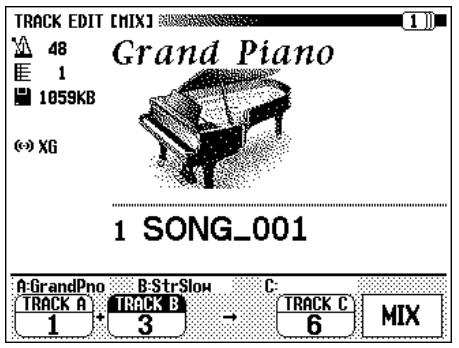

Track Copy
Only tracks containing data can be selected by the TRACK A and TRACK B functions. In addition, "---" (no track) can also be selected for TRACK B. In this case, the data in track A will simply be copied to track C.
For the Track Mix function, the selected track voice and volume data, etc. (i.e., all data except note data) in track A will be effective for the destination track after the mix operation.
1 Specify the two tracks to be mixed.
Press the TRACK A and TRACK B buttons to highlight the corresponding functions, and use the data dial or [-] and [+] buttons to select the numbers of the two tracks to be mixed. The voices which are used for the selected tracks are indicated above these functions in the LCD display.
2 Specify the destination track.
Use the TRACK C function to specify the track to which you want to record the mixed data. You can also specify the track for the mixed data by pressing the TRACK C button to highlight the corresponding function, then using the data dial or [-] and [+] buttons.
Any previous data in the destination track will be erased.
3 Execute the Track Mix operation.
Press the MIX button to begin execution of the Track Mix operation. An "Are you sure?" message is displayed. Press YES to execute the Track Mix operation or press NO to cancel.
When the operation is completed, the MIX function will be replaced by the UNDO function, allowing you to undo the Track Mix operation and restore the previous data.
Press the [REC] button (the lamp goes out) to exit the Track Mix function.
You can also exit the Track Mix function by pressing the [EXIT] button.
■ Track Delete (TRACK EDIT page 2)
The Track Delete function can be used to delete the data from any specified track.
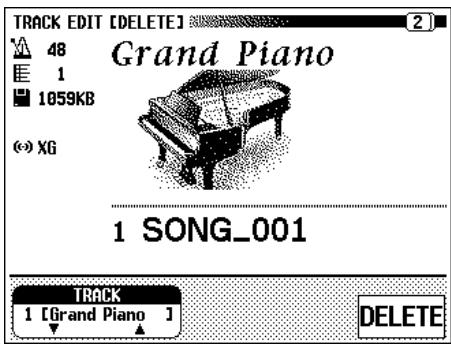
1 Specify the track to be deleted.
Press the TRACK or button to highlight the function, then use the data dial or [-] and [+] buttons to select the track to be deleted.

NOTE
- The original data will remain in tracks A and B after the Track Mix function is executed. If the old data is not needed, you should delete it. (See "Track Delete," below.)
- A bar graph indicating the progress of the Track Mix operation will appear while the data is being processed.
- You can check whether the results are what you expected by starting and stopping playback with the [PLAY/ STOP] button. (You should try this before you do something that would make it impossible to select the UNDO function.)
- The Undo function cannot be used once you've selected another track or exited from this mode.
- The Undo feature cannot be used for data recorded to internal memory (see page 174).

NOTE
Only tracks containing data can be selected.
2 Execute the Delete operation.
Press the DELETE button. When the “Are You Sure?” message is displayed, press YES to execute the Delete operation or NO to cancel.
The DELETE function will be replaced by the UNDO function after the Delete operation is executed. If the result is not what you expected, press the UNDO button to restore the data of the deleted track.
To exit the Track Delete function, press the [REC] button (the lamp goes out).
You can also press the [EXIT] button to exit the Track Delete function.
■ Track Quantize (TRACK EDIT page 3)
You can "tighten up" the timing of a recorded part by aligning all notes to specified beats with the Track Quantize function. For example, you can accurately align the recorded notes to 8th- or 16th-note resolution.
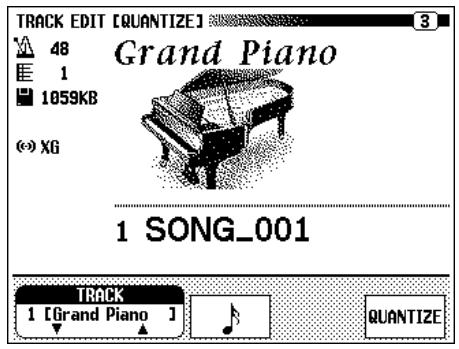
1 Specify the track to be quantized.
Use the TRACK or button to highlight the function, then use the data dial or [-] and [+] buttons to select the track to be quantized.
2 Specify the quantize "size."
Press the LCD button below the note symbol to select the desired quantize "size" as shown below.
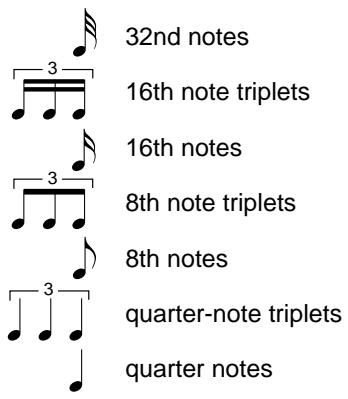
NOTE
- A bar graph indicating the progress of the Track Delete operation will appear while the data is being processed.
- You can check whether the results are what you expected by starting and stopping playback with the [PLAY/STOP] button. (You should try this before you do something that would make it impossible to select the UNDO function.)
- The Undo function cannot be used once you've selected another track or exited from this mode.
- The Undo feature cannot be used for data recorded to internal memory (see page 174).
NOTE
Only tracks containing data can be selected.
3 Execute the Quantize operation.
Press the QUANTIZE button. When the "Are you sure?" message is displayed, press the YES button to execute the Quantize operation or NO button to cancel.
The QUANTIZE function will be replaced by the UNDO function after the Quantize operation is executed. If the result is not what you expected, press the UNDO button to restore the data of the quantized track to what it was before performing the Quantize operation.
To exit the Track Quantize function, press the [REC] button (the lamp goes out).
You can also press the [EXIT] button to exit the Track Quantize function.

NOTE
- Only the note data and voice data are quantized.
- A bar graph indicating the progress of the Quantize operation will appear while the data is being processed.
- You can check whether the results are what you expected by starting and stopping playback with the [PLAY/ STOP] button. (You should try this before you do something that would make it impossible to select the UNDO function.)
- The Undo function cannot be used once you've selected another track or quantize size, or exited from this mode.
- The Undo feature cannot be used for data recorded to internal memory (see page 174).
Initial Edit (Changing the Initial Data)
The Initial Edit function allows you to change the volume level of each track or the initial data set for the entire song after you've finished recording. The INITIAL EDIT display appears when you press the INITIAL EDIT button in the RECORD EDIT 1 display. All sixteen tracks are displayed simultaneously in this display and the settings such as volume, voices and reverb depth can be changed.
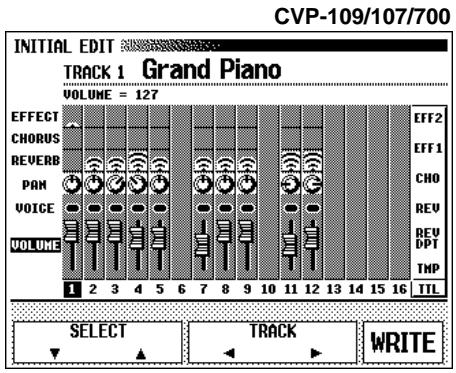
The following parameters can be changed in the INITIAL EDIT display. Refer to the indicated page for details on each parameter.
Parameters which can be changed with Initial Edit:
- When track 1 — 16 is selected:
VOLUME (See page 37.)
- VOICE (See page 31.)
PAN (See page 37.)
- REVERB DEPTH (See page 50.)
- CHORUS DEPTH (See page 53.)
- EFFECT DEPTH (See page 57 or 60.)
- When TTL (Total) is selected:
TEMPO (See page 27.)
- Overall REVERB DEPTH (See page 49.)
- REVERB TYPE (See page 49.)
- CHORUS TYPE (See page 52.)
- EFFECT TYPE (CVP-105) (See page 59.)
- EFFECT1 TYPE (CVP-109/107/700) (See page 56.)
- EFFECT2 TYPE (CVP-109/107/700) (See page 56.)

NOTE
- Any voice changes entered in the middle of the original song will be erased when the voice parameter is changed in the Initial Edit mode.
- When editing some types of data, it will not be possible to change certain parameters (indicated as "Fixed") or change the voices for tracks other than tracks 1 and 2.

NOTE
- The Program Change Number (PRG#), Bank LSB (BNK LSB), and Bank MSB (BNK MSB) parameters, which are used to select voices via MIDI, are displayed when VOICE is selected.
- On the CVP-109, the REVERB TYPE setting can be used to select a normal reverb type, but not a Natural Reverb type.
- On the CVP-109/107/700, each of the two effect systems can be applied to a single track only. When you select the EFFECT1 TYPE setting or the EFFECT2 TYPE setting, the number of the affected track is displayed along with the effect type. When you select the EFFECT DEPTH setting, the number of the effect system applied to the selected track is displayed along with the effect depth value. (The EFFECT DEPTH setting is only available for the two tracks to which an effect system has been applied.)
Making Settings in the INITIAL EDIT Display
1 Select the track to be edited.
Select the track whose parameters you wish to change by pressing the TRACK or button. If TTL (Total) is selected, any changes will affect the entire song rather than an individual track.
2 Select the parameters to be changed.
Select the parameters to be changed by pressing the SELECT or button.
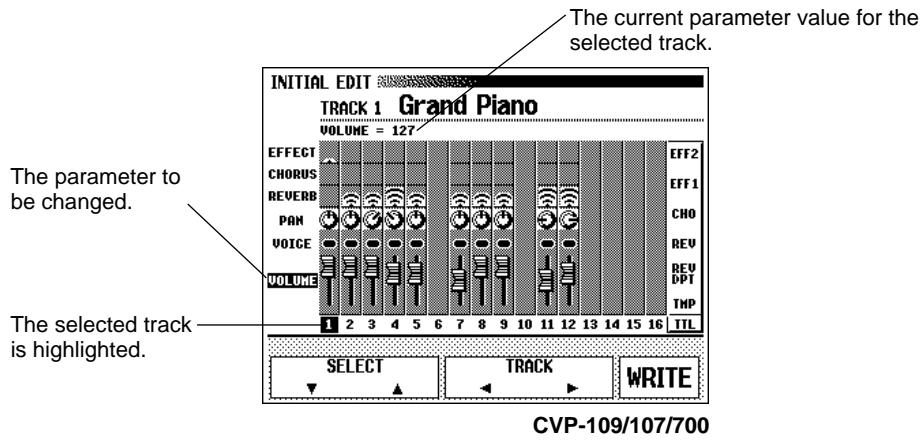
Change the settings.
Use the data dial or [-] and [+] buttons to change the settings. You can instantly check the effect of the changes, since the settings can be changed during playback.
4 Write the changes.
When all the Initial Data changes have been made as desired, press the WRITE button. When the “Are you sure?” message is displayed, press the YES button to actually make the specified changes, or NO to cancel.
When this is completed, the WRITE button will change to UNDO, allowing you to undo the Write operation and restore the data of the edited track to what it was before you made any edits.
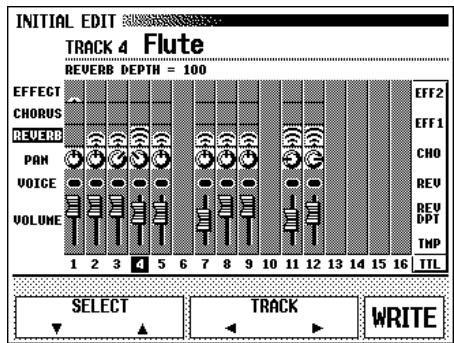
CVP-109/107/700

- If [TTL] is selected and the value of the reverb depth is changed, the new setting will also affect the keyboard sound.
- The voices of the tracks to which Auto Accompaniment, rhythm and/or Harmony data have been recorded, can also be changed.
- The data may not be played back accurately if you use the [REW] button while editing the data.

- All edited data for any number of tracks within a single song can be written in a one-time Write operation, by pressing the WRITE button.
- You can check whether the results of the Initial Edit operation are what you expected by starting and stopping playback with the [PLAY/STOP] button. (You should try this before you do something that would make it impossible to select the UNDO function.)
- The Undo function cannot be used once you've changed the setting, changed a different setting, or exited from the Initial Edit mode.
- The Undo feature cannot be used for data recorded to internal memory (see page 174).
Exit the Initial Edit function.
To do this, press the [REC] button.
The [REC] lamp goes out and the Initial Edit operation is completed.
You can also exit the Initial Edit function by pressing the [EXIT] button.
If you do this after making any edits that you have not yet written to disk, a "Write edited data?" message will be displayed. Press YES to write the edited data and exit from the Initial Edit mode, NO to exit without writing the data, or CANCEL to return to the Initial Edit mode and continue editing.
Setup Memory
The Setup Memory function lets you save the current panel settings to disk so that they will automatically be restored whenever you play back the song being edited.
1 Set up the Clavinova to play the song.
Change the Clavinova's functions to the settings you want it to use when playing back the song you're editing.
2 Select the Setup Memory function.
Use the PAGE [▶] button to select the RECORD EDIT 2 display (page 4 of the Song Record mode display) if necessary, then press the SETUP MEMORY button.
→ The "Save panel settings to disk?" message is displayed.
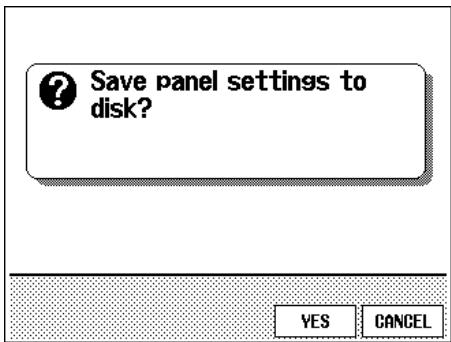
Press YES to save the current panel setup, or CANCEL to return to the RECORD EDIT 2 display.
The Clavinova displays the "Don't remove the disk!" message and bar graph as it saves the data to the disk, then displays a "Completed!" message before it returns to the RECORD EDIT 2 page.

- For details regarding which settings are saved by the Setup Memory function, see the Parameter Chart on page 13 of the Reference Booklet.
- The settings saved by the Setup Memory function will be deleted if you re-record the song data or use Initial Edit function (page 171) to edit the initial parameter settings.
Vocal Harmony Memory (CVP-109/107/700)
The Vocal Harmony Memory function lets you save the current Vocal Harmony function settings to disk so that they will automatically be restored whenever you play back the song being edited.
1 Set up the Vocal Harmony function.
Set the Vocal Harmony function to the settings you want to use when you play back the song you're editing. See Chapter 8 for details regarding the Vocal Harmony function.
2 Select the Vocal Harmony Memory function.
Use the PAGE [▶] button to select the RECORD EDIT 2 display (page 4 of the Song Record mode display) if necessary, then press the U.HRMNY MEMORY button.
→ The "Save Vocal Harmony settings to disk?" message is displayed.
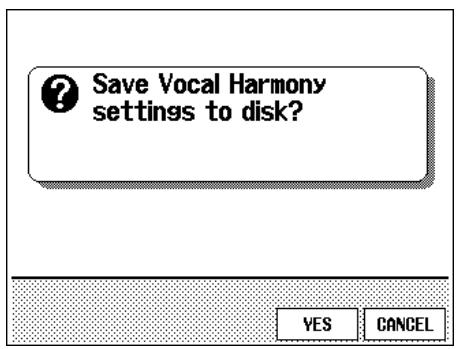
Press YES to save the Vocal Harmony settings, or CANCEL to return to the RECORD EDIT 2 display.
The Clavinova displays the "Don't remove the disk!" message and bar graph as it saves the data to the disk, then displays a "Completed!" message before it returns to the RECORD EDIT 2 page.

Enter the Song Record mode first! Since the Vocal Harmony function settings may change if you enter the Song Record mode after completing step 1, it is best to enter the Song Record mode before you begin this procedure.

- For a list of the Vocal Harmony parameters saved by this function, see page 14 in the Reference Booklet.
- To create Vocal Harmony data using the Vocoder mode (page 185), it is necessary to create a harmony track and set other parameters before selecting the Vocal Harmony Memory function. See "Adding Vocal Harmony Data to a Song" on page 184 for detailed instructions.
Recording Without a Disk
The Clavinova has about 26 KB of internal memory that you can use to record a limited amount of song data—approximately 2,500 notes, if no other data is recorded — without using a floppy disk.
About the CVP MEMORY Song
If you enter the Song Record mode without inserting a disk, the words CUP MEMORY will appear in the SONG display as shown below, and the Quick Recording, Track Recording and Punch-in/out Recording functions will become available.
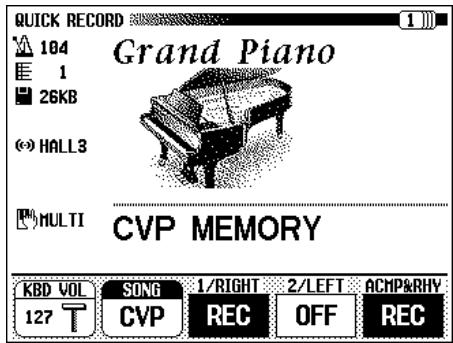
When you enter the Song Play mode after recording a song in the memory, the SONG function displays the letters CUP in place of a song number. You can play this song back as you would any other song that was recorded to disk (see page 113).
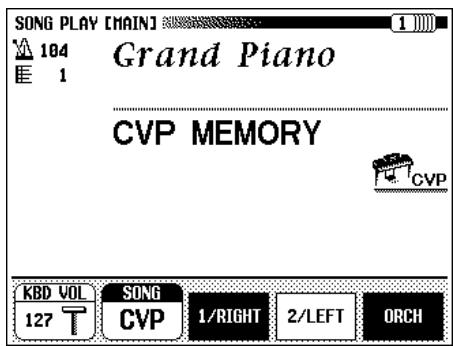
SONG PLAY [MAIN] display when playing back the CVP MEMORY song.
If you insert a song disk and select a song number when the internal memory contains song data, a “Delete CUP MEMORY?” message will be displayed. Press YES to delete the song data from the internal memory. The song data will also be erased from the internal memory by turning the power off. If you wish to keep the recorded data, use the Song Copy function (page 196) to copy the recorded data to disk.

- Chord Sequence data (page 141) cannot be recorded to internal memory.
- The Step Edit (page 146), Song Name (page 166), Setup Memory (page 172), and Vocal Harmony Memory (page 173) functions cannot be used when editing a song recorded to the internal memory.
- You can use the Track Edit (page 167) and Initial Edit (page 170) functions to edit a song in the internal memory.

Song data recorded to internal memory will be deleted when you load a style file. In this case, no message is displayed.
CHAPTER 8: Vocal Harmony
Singing with Vocal Harmony (CVP-109/107/700)
The Vocal Harmony function of the CVP-109/107/700 can automatically produce up to two harmony vocals based on a single lead vocal. There are 42 different vocal harmony types, providing a variety of different harmonization effects. Vocal Harmony can also alter the pitch and timbre of the singer's voice, effectively changing his or her apparent gender — so that a male vocalist can sing along with a two-part female vocal backup, for example.

Using Vocal Harmony
1 Connect the microphone.
In order to use the Vocal Harmony function, you must connect a microphone to the [MIC.] jack on the CVP-109/107/700. See page 213 for detailed instructions regarding the use of a microphone.
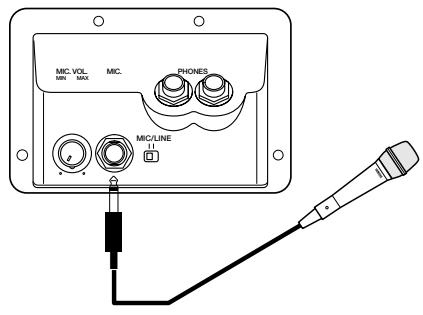
2 Turn on the Vocal Harmony function.
Press the [VOCAL HARMONY] button.


The lamp lights.
Sing along with the Clavinova.
Start playing the keyboard, or play back a song in Song mode (see page 113), and sing along with the Clavinova. The vocal harmony effect will be added to your voice.
Depending on the selected vocal harmony type, you may also have to turn on the Auto Accompaniment as you play — or play the keyboard along with the song data — to produce an appropriate harmony. (See "The Vocal Harmony Modes" on page 185 for details.)
4 Turn off the Vocal Harmony function.
Press the [VOCAL HARMONY] button again when you're done using the Vocal Harmony function.
The lamp goes out.
Changing the Vocal Harmony Settings

Vocal Harmony Samples
You can try out the Vocal Harmony feature as you play back "3. Lyric Demo (Beautiful Dreamer)" in the Demo mode (page 14) and "O Come All Ye Faithful" on the Music Data Collection Disk that came with your Clavinova.

To Get Good Results...
The Vocal Harmony function may have difficulty providing clean harmonies if the microphone is picking up sounds other than the voice of a single lead vocalist. Here are some tips that will help you get the best results:
- Use a unidirectional microphone, if possible.
- Don't "double up" on the microphone.
- Position your mouth as close as you can to the microphone.
- If the microphone seems to be picking up the Clavinova, lower the [MASTER VOLUME] and [ACMP/SONG VOLUME] controls slightly.
- If the [OVER] lamp lights, adjust the microphone volume down slightly (see page 214).
You can change the vocal harmony type being used, as well as several other parameters related to the Vocal Harmony function, using the VO-CAL HARMONY display pages.
Displaying the Vocal Harmony Settings
To display the Vocal Harmony settings, press [DIRECT ACCESS] followed by [VOCAL HARMONY].
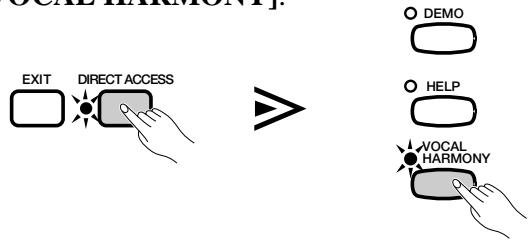
The most recently used VOCAL HARMONY page is displayed.
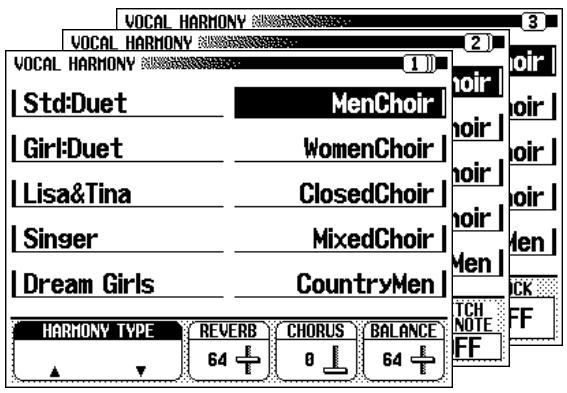
The VOCAL HARMONY display consists of three pages, numbered 1 through 3. Use the PAGE [▲] and [▶] buttons to switch between pages.
Changing the Vocal Harmony Type
You can change the vocal harmony type selection in page 1 of the VOCAL HARMONY display. Use the HARMONY TYPE ▲ and▼ buttons to select a vocal harmony type, or highlight the HARMONY TYPE function and use the data dial or the [-] and [+] buttons.
The selected vocal harmony type is highlighted.
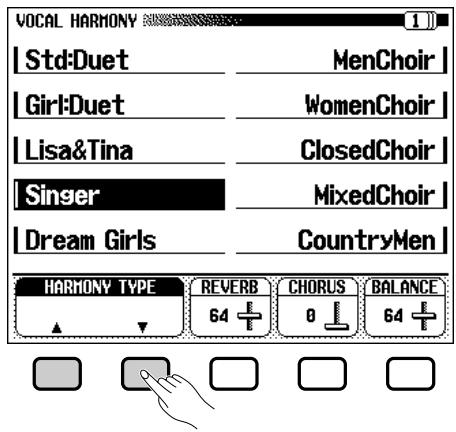
You can also use the left and right LCD buttons while any of the VO-CAL HARMONY pages are showing to select one of the vocal harmony types listed in the display.
To return the vocal harmony type to its basic setting (MenChoir), press either the HARMONY TYPE and buttons or the [-] and [+] buttons simultaneously.
Setting the Vocal Harmony Reverb Depth
When the Vocal Harmony function is on, the Clavinova applies a reverb effect — selected by the REVERB TYPE setting in the REVERB display (page 49) — to the lead and harmony vocals. You can change the amount of reverb that is applied to the vocal parts using the REVERB function in page 1 of the VOCAL HARMONY display.
To set the depth of the reverb effect, select the REUERB function, then use the data dial or the [-] and [+] keys to change the value.
The REUERB value changes.
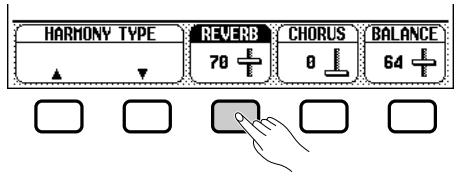
You can also advance the value by holding down the REUERB button. To reset the value to its basic setting of 64, simultaneously press the [-] and [+] buttons.

NOTE
Vocal Harmony Type
- Settings: See table on page 13 in the Reference Booklet.
Basic setting: MenChoir

NOTE
Although the vocal harmony type is set automatically when you select a song that contains Vocal Harmony data for playback, it is possible to change the vocal harmony type as explained here. If you do so, the Vocal Harmony data in the song will be ignored. (Once you have changed the vocal harmony type, you can recall the original Vocal Harmony data by simply selecting the same song again.)

NOTE
REVERB
- Range: 0 (no effect) — 127 (max.)
Basic setting: 64

NOTE
When Vocal Harmony Is Off...
Reverb is also applied to the microphone signal when the Vocal Harmony function is turned off.

NOTE
The [REVERB] button setting does not affect the reverb that is applied to vocals. To turn this reverb off, set the reverb depth to 0.
Setting the Vocal Harmony Chorus Depth
When the Vocal Harmony function is on, the Clavinova applies a chorus effect — selected by the CHORUS TYPE setting in the CHORUS display (page 52) — to the lead and harmony vocals. You can change the amount of chorus that is applied to the vocal parts using the CHORUS function in page 1 of the VOCAL HARMONY display.
To set the depth of the chorus effect, select the CHORUS function, then use the data dial or the [-] and [+] keys to change the value.
The CHORUS value changes.
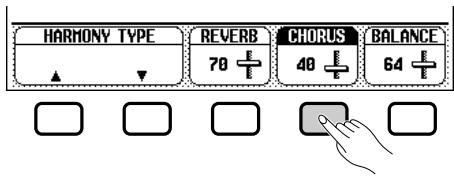
You can also advance the value by holding down the CHORUS button. To reset the value to its basic setting of ±b0 , simultaneously press the [-] and [+] buttons.
Setting the Vocal Harmony Balance
You can set the balance between the lead and harmony vocal parts using the BALANCE function on page 1 of the VOCAL HARMONY display. Raising this value increases the volume of the vocal harmony and decreases that of the lead vocal. If it is set to the maximum value of 127, you will hear only the vocal harmony from the Clavinova's speakers; if it is set to 0, only the lead vocal will be heard.
Select the BALANCE function, then use the data dial or the [-] and [+] keys to change the value.
The BALANCE value changes.
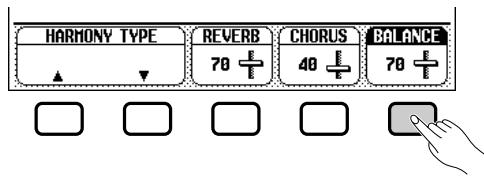
You can also advance the value by holding down the CHORUS button. To reset the value to its basic setting, simultaneously press the [-] and [+] buttons.
Because the basic setting of the BALANCE function depends on the currently selected vocal harmony type, the value of this function may change automatically when you change the HARMONY TYPE setting (page 177).

CHORUS
Range: 0 (no effect) — 127 (max.)
Basic setting: 0

When Vocal Harmony Is Off...
Chorus is also applied to the microphone signal when the Vocal Harmony function is turned off.

The [CHORUS] button setting does not affect the chorus effect that is applied to vocals. To turn this chorus off, set the chorus depth to 0.

BALANCE
Range: 0-127
- Basic setting: Depends on vocal harmony type.
Changing the Vocal Harmony Effect Type
When the Vocal Harmony function is on, the Clavinova applies an effect to the lead and harmony vocal parts. This effect is separate from the effects selected in the EFFECT 1 and EFFECT 2 displays (page 55). You can select the type of effect that is applied using the EFFECT TYPE function in page 2 of the VOCAL HARMONY display.
Use the EFFECT TYPE and buttons to select a different effect type, or highlight the EFFECT TYPE function and use the data dial or the [-] and [+] buttons.
The selected effect type is displayed.
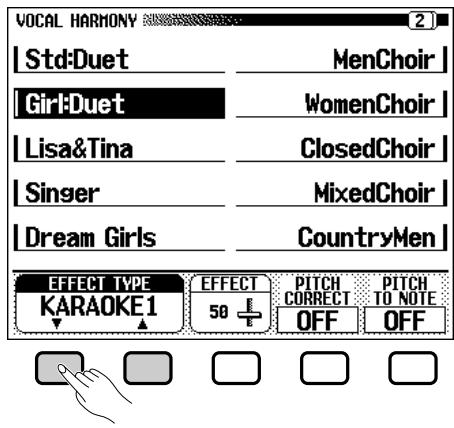
To return the effect type to its basic setting (KARAOKE1), press either the EFFECT TYPE and buttons or the [-] and [+] buttons simultaneously.
Setting the Vocal Harmony Effect Depth
The EFFECT function in page 2 of the VOCAL HARMONY display lets you set the depth of the effect selected by the EFFECT TYPE function in the same display page. To adjust the effect depth, select the EF-FECT function, then use the data dial or the [-] and [+] keys to change the value.
The EFFECT value changes.
You can also advance the value by holding down the EFFECT button. To reset the value to its basic setting of 50, simultaneously press the [-] and [+] buttons.
NOTE
EFFECT TYPE
- Range: See table on page 219.
Basic setting: KARAOKE1
NOTE
When Vocal Harmony Is Off...
The selected effect is also applied to the microphone signal when the Vocal Harmony function is turned off.
NOTE
The [EFFECT] button setting does not affect the effect that is applied to vocals. To turn this effect off, set the effect depth to 0.
NOTE
EFFECT
- Range: 0 (no effect) — 127 (max.)
Basic setting: 50
Correcting the Pitch of the Lead Vocal
When the GENDER TYPE function (page 181) is set to a value other than OFF, the Vocal Harmony function can correct slight inaccuracies in the pitch of the lead vocal. The pitch correction feature is enabled using the PITCH CORRECT function in page 2 of the VOCAL HARMONY display.
To turn pitch correction on or off, press the PITCH CORRECT button.
The setting switches between ON and OFF each time you press the button.
Because the basic setting of the PITCH CORRECT function depends on the currently selected vocal harmony type, the value of this function may change automatically when you change the HARMONY TYPE setting (page 177).
■ Playing a Clavinova Voice with Your Voice
The Vocal Harmony function can also cause the Clavinova to play one of the keyboard voices when you sing into the microphone. The Clavinova automatically plays notes at the pitch you sing, using the voice selected for the keyboard part you specify using the PITCH TO NOTE function on page 2 of the VOCAL HARMONY display.
Press the PITCH TO NOTE button to select a keyboard part.
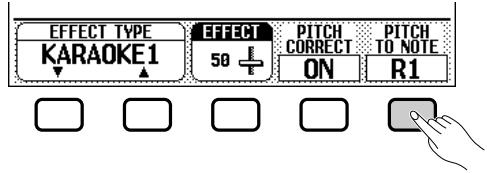
The setting changes each time you press the button.
Because the basic setting of the PITCH TO NOTE function depends on the currently selected vocal harmony type, the value of this function may change automatically when you change the HARMONY TYPE setting (page 177).
Changing the Singer's Apparent Gender
Although many of the vocal harmony types change the pitch and timbre of the singer's voice to produce harmonizing vocals with a different apparent gender, the Vocal Harmony function can also change the apparent gender of the lead vocalist. This is accomplished by the GENDER TYPE function on page 3 of the VOCAL HARMONY display.

NOTE
PITCH CORRECT
- Settings: OFF, ON
- Basic setting: Depends on vocal harmony type.

No pitch correction is performed when the GENDER TYPE function is set to OFF, regardless of the PITCH CORRECT setting.

NOTE
PITCH TO NOTE
- Settings: OFF (vocals only), R1 (main voice), R2 (second voice), LEFT (left voice)
- Basic setting: Depends on vocal harmony type.

NOTE
GENDER TYPE
- Settings: OFF, UNISON, MALE, FEMALE
- Basic setting: Depends on vocal harmony type.
Use the GENDER TYPE and buttons to select a gender type, or highlight the GENDER TYPE function and use the data dial or the [-] and [+] buttons.
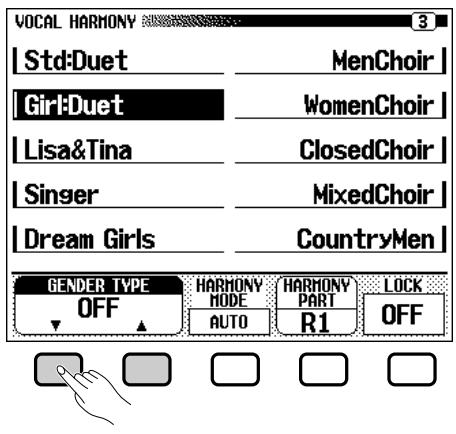
The selected gender type is displayed.
| Gender Type | Description |
| UNISON | Produces an effect between those produced by the MALE and FEMALE settings. |
| MALE | Adjusts the pitch and timbre of the singer's voice to sound more masculine. |
| FEMALE | Adjusts the pitch and timbre of the singer's voice to sound more feminine. |
Because the basic setting of the GENDER TYPE function depends on the currently selected vocal harmony type, the value of this function may change automatically when you change the HARMONY TYPE setting (page 177).
Changing the Harmony Mode
The majority of the Clavinova's vocal harmony types can produce harmony notes using one of two vocal harmony modes: Chordal or Vocoder. These modes differ mainly in the way performance data is used to produce harmonies (see "The Vocal Harmony Modes" on page 185 for details). You can use the HARMONY MODE function on page 3 of the VOCAL HARMONY display to select one of these modes, or instruct the Clavinova to select a mode automatically based on the current panel settings.
Press the HARMONY MODE button to select AUTO, CHORDAL, or UOCODER as the harmony mode.
The setting changes each time you press the button.
NOTE
When GENDER TYPE is set to any value other than OFF, the Vocal Harmony function will produce only one harmony note.
NOTE
HARMONY MODE
- Settings: AUTO, CHORDAL, VOCODER
- Basic setting: AUTO
NOTE
- The HARMONY MODE value may change automatically to either CHORDAL or VOCODER, depending on the current performance method, if the HARMONY PART function (page 182) is set to a value other than the basic value.
- The HARMONY MODE function is not available when the current vocal harmony type uses either Chromatic mode or Detune mode as the vocal harmony mode (page 185). In such cases, a row of dashes (- - - ) is displayed in place of the HARMONY MODE value.
If AUTO is selected as the harmony mode, the Clavinova will produce harmony notes in either Vocoder or Chordal mode, based on the most appropriate harmony part. The harmony part is selected automatically according to the current performance method, as shown below:
| Performance Method | Harmony Mode (See page 181.) | Harmony Part (See below.) |
| Playing keyboard in Single mode (page 31) or Dual mode (page 38) | Vocoder | R1 |
| Playing keyboard in Split mode (page 41) | Chordal | LEFT |
| Playing Auto Accompaniment (page 69) | Chordal | ACMP |
| Playing back Acmp Assist data (page 81) or song with Auto Accompaniment data (page 133) | Chordal | XF |
| Playing back song with Vocal Harmony data | As per Vocal Harmony data | As per Vocal Harmony data |
If you select CHORDAL or VOCODER, the Clavinova will produce harmony notes in the selected mode, based on the harmony part specified by the HARMONY PART function.
Changing the Harmony Part
Harmonies produced using the Chordal or Vocoder vocal harmony modes (page 181) can be based on different musical parts played — or played back — on the Clavinova. When AUTO is selected as the harmony mode, the part used as the basis for the harmony is selected automatically according to the current performance method (see table above). You can instruct the Clavinova to base the harmony on a specific part by changing the HARMONY PART function on page 3 of the VOCAL HARMONY display.
Press the HARMONY PART button to select the function, then use the data dial or the [-] and [+] buttons to change the value.
The selected value is displayed.
You can also cycle through the values by holding down the HAR-MONY PART button.
| Part | Harmony is based on: | |
| (Chordal mode) | (Vocoder Mode) | |
| R1 | No harmony | Main keyboard part |
| LEFT | Left keyboard part in Split mode | |
| ACMP | Auto Accompaniment chords | No harmony |
| 1—16 | Specified song track | |
| XF | Vocal Harmony data in XF/XG file | No harmony |
■ Locking the Vocal Harmony Settings
The current Vocal Harmony settings may be altered if you play back a song that contains Vocal Harmony data, if you select a registered panel setup (page 109), or if the Clavinova receives MIDI messages that specify different Vocal Harmony settings. If you wish, you can use the LOCK function on page 3 of the VOCAL HARMONY display to prevent the Vocal Harmony settings from changing in such circumstances.
Press the LOCK button to lock or unlock the current Vocal Harmony settings.
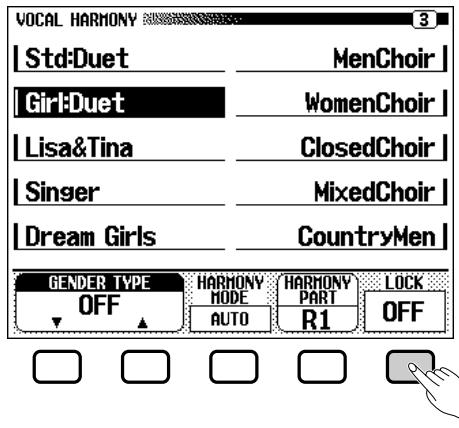
The setting switches between ON and OFF each time you press the button.
Select ON if you want to protect the current the Vocal Harmony settings.
NOTE
- The HARMONY PART value may change automatically if the HARMONY MODE function is set to AUTO and the performance method is changed (see page 181).
- The HARMONY PART function is not available when the current vocal harmony type uses either Chromatic mode or Detune mode as the vocal harmony mode (page 185). In such cases, a row of dashes (- - - ) is displayed in place of the HARMONY PART value.
NOTE
LOCK
- Settings: OFF, ON
Basic setting: OFF
NOTE
You can also use the Registration Freeze function to prevent the Vocal Harmony settings from being changed when a registration is selected.
Using Vocal Harmony Data
Once you have set up the Vocal Harmony function according to your preferences, you may want to save those settings for future use, or include them as part of a song that you will want to sing along with later.
■ Registering Vocal Harmony Data
You can use the Registration function (page 108) to save your Vocal Harmony settings as part of a registered keyboard setup.
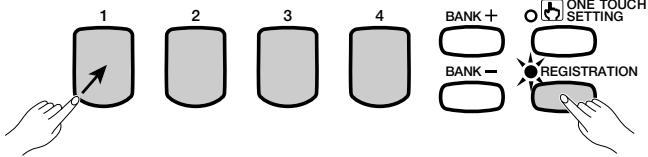
REGISTRATION/ONE TOUCH SETTING
Saving Vocal Harmony Data
You can use the SAVE operation in the FUNCTION [DISK 1] display to save a registration file containing Vocal Harmony settings that were registered as described above, or to save your Vocal Harmony settings to disk (along with all your other current panel settings) as part of an All Setup file (see page 192).
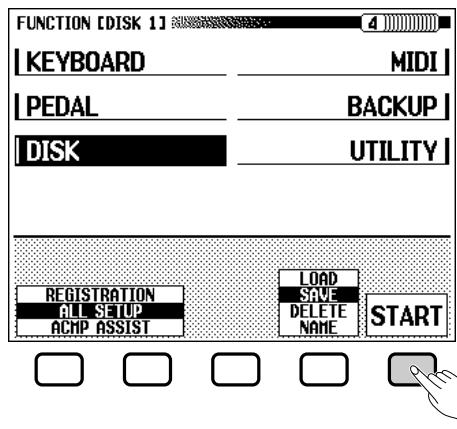
■ Adding Vocal Harmony Data to a Song
You can use the U.HRMNY MEMORY function in the RECORD EDIT 2 display (page 173) to record your vocal harmony settings to disk as part of a song that you're editing in the Song Record mode.
If you want a song to include automatic Vocoder mode harmonies, set up the song as follows:
- Record the harmony notes in one of the song's tracks.
- Select UOCODER as the harmony mode (page 181).
- Set the track number from step 1 as the harmony part (page 182).
Once you've completed these steps, you can use the U.HRMNY MEMORY function to save the Vocal Harmony data.

The Registration file or All Setup file can be loaded later using the LOAD operation in the same display page.

The LOCK setting in page 3 of the VO-CAL HARMONY display is not saved by this function.

If you don't want Clavinova to play the notes from the harmony track during song playback, set the track volume to 0 using the Initial Edit function (page 171).
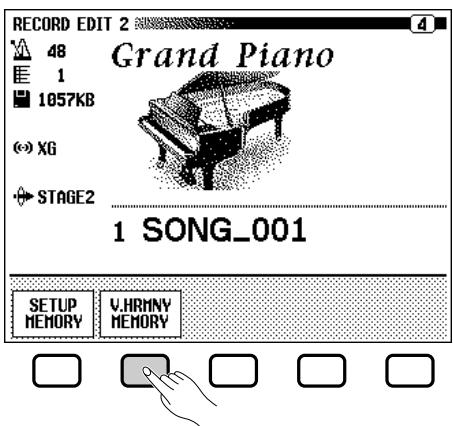
The vocal harmony settings that you save as part of a song will be recalled automatically when you select that song for playback. (You can override the Vocal Harmony data in the song by changing the settings in the VOCAL HARMONY display before you begin playback, however.)
The Vocal Harmony Modes
The vocal harmony mode determines how the Vocal Harmony function applies harmony notes to the lead vocal. Refer to the list of vocal harmony types on page 13 of the Reference Booklet to determine which vocal harmony mode is used by a given vocal harmony type.
- Chordal Mode
When a vocal harmony type uses the Chordal mode, the pitch of the harmony notes is automatically determined by the Auto Accompaniment chords or the chord data in an XF song.
Vocoder Mode
When a vocal harmony type uses the Vocoder mode, the pitch of the harmony notes is directly controlled by notes played on the keyboard or included in a specified song track.
Chromatic Mode
A vocal harmony type that uses the Chromatic mode always produces notes at a fixed interval from the lead vocal.
- Detune Mode
A vocal harmony type that uses the Detune mode adds notes that are detuned by a specific amount, thus adding a chorus effect to the lead voice.
CHAPTER 9: The Utility Functions
The Function mode provides various advanced functions that, for example, let you make various MIDI settings, or give you greater, more convenient control over disk-related operations. These sophisticated functions let you customize the Clavinova to your own musical needs and preferences.
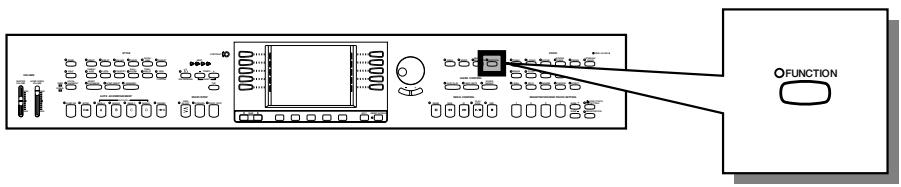
The following functions are available:
| Group | Display | Function | Page |
| KEYBOARD | 1 | Tune | 188 |
| Transpose | 188 | ||
| 2 | Key Touch & Fixed Velocity | 189 | |
| Voice Setting | 189 | ||
| PEDAL | 3 | Left Pedal & Glide Range | 190 |
| Right Pedal & Bend Range (CVP-109/107/700) | 191 | ||
| DISK | 4 | Registration, Setup & Acmp Assist Files | 192 |
| 5 | Song Copy & Disk Copy | 196 | |
| 6 | Song Delete | 198 | |
| 7 | Song Data Transform | 199 | |
| 8 | Disk Format | 200 | |
| MIDI | 9 | Send Channel (Keyboard) | 201 |
| Local Control | 201 | ||
| Synchronization | 202 | ||
| 10 | MIDI Filter | 202 | |
| 11 | Receive Filter | 203 | |
| 12 | MIDI Transpose | 204 | |
| Send Channel (Accompaniment/Harmony) | 205 | ||
| Song Transmission | 205 | ||
| Remote Keyboard | 205 | ||
| BACKUP | 13 | Backup | 206 |
| 14 | Recall | 207 | |
| UTILITY | 15 | Micro Tuning | 208 |
| 16 | Scale Tuning | 209 | |
| 17 | Video Out (CVP-109/107/700) | 212 |
Various confirmation, alert, and error messages may appear in the display during operation. Refer to the "Messages" section (page 221) for information on the messages.
Using the Utility Functions
As the table on the preceding page shows, the utility functions are divided among 17 display pages (16 pages on the CVP-105). Use the following procedure to display the page containing a desired function.
Press the [FUNCTION] button.
![YAMAHA CVP-109-107-105-700 - Press the [FUNCTION] button. - 1](/content/2025/01/114672/images/33e2a1c5e07d7aa48f171b35b29b9163f3d8450e9a6f54d1d80c64fa1444db99.jpg)
The lamp lights and the most recently used page of the Function mode display appears.
![YAMAHA CVP-109-107-105-700 - Press the [FUNCTION] button. - 2](/content/2025/01/114672/images/2bac417731691ca42669997ec4f7225da28cfcd7d45d3f7e61ae023cfa2709fe.jpg)
2 Display the desired group.
The upper half of the Function mode display contains a list of the function groups. As a shortcut, you can use the left and right LCD buttons to display the function group containing the function you want to set.
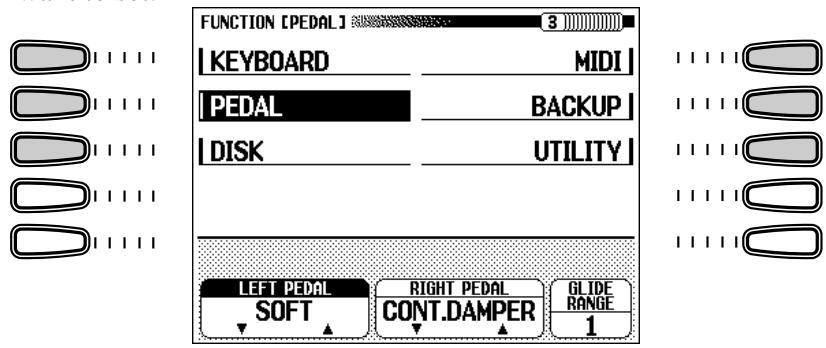
The most recently used display page within the selected group is displayed.
3 Display the desired page.
Use the PAGE [▲] and [▶] buttons to display the page that contains the function you want to set.
4 Perform the desired operation.
Refer to Chapter 2 "Basic Operation" for instructions regarding the selection and use of the various types of functions.
Press the [FUNCTION] button when finished.
The [FUNCTION] lamp goes out.
NOTE
If you prefer, you can skip to step 3 and select a page directly using the PAGE [<] and [▶] buttons.
NOTE
You can also exit the Function mode by pressing the [EXIT] button.
FUNCTION [KEYBOARD 1] Display — page 1
Tune
The Tune function lets you make fine adjustments to the pitch, allowing you to accurately match the tuning with that of other instruments. The frequency (in Hz) of A3 is displayed by the TUNE function. The tuning can be adjusted up or down a maximum of approximately 26 Hz (slightly over 100 cents) in 0.2-Hz steps.
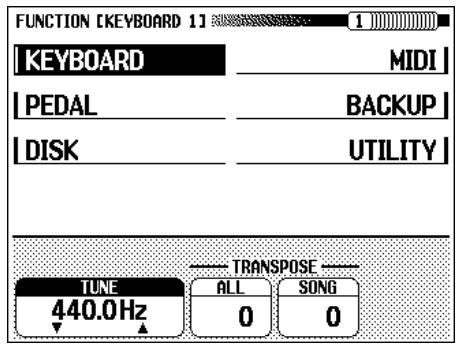
Transpose
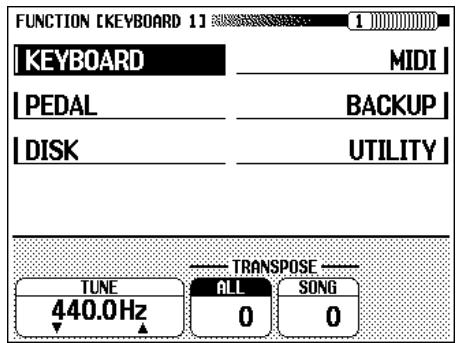
The Transpose functions make it possible to shift the pitch of the keyboard or song data in semitone units, allowing you to match the pitch of the Clavinova to the range of other instruments or singers.
The Clavinova has two transpose functions: ALL and SONG. The former transposes all notes played by the Clavinova, whereas the latter transposes song data only. When you change the setting of the ALL function, the SONG setting is also adjusted by the same amount.

NOTE
TUNE
Range: 414.8 Hz — 466.6 Hz (-102.1 — +101.62 cents)
Basic setting: 440Hz

NOTE
Hz and Cents
- Pitch is measured in units of Hertz (abbreviated Hz), which represents the number of times the sound wave vibrates in a second.
- A cent is a unit of pitch equal to 1/100 of a semitone (100 cents = 1 semitone).

NOTE
- Tune has no effect on the Drum Kit voices.
- The XG Master Tune setting is effective when playing back songs containing XG Master Tune data.

NOTE
TRANSPOSE functions
Range: -24 +24 semitones (-2 - +2 octaves)
Basic setting: 0

NOTE
- The Transpose function does not affect the Drum Kit voices.
- When playing back songs containing XG Transpose data, the XG Transposedata is effective only for the data playback sound. The value set on the panel affects the keyboard sound.
- The values set here affect playback data transmitted via MIDI.
- When a Transpose function is set to a high value, notes played in the corresponding range at the upper end of the keyboard (e.g., C5 through C7 for a value of +24) may not sound as expected. The same is true of notes at the lower end of the keyboard when a low Transpose value is set.
FUNCTION [KEYBOARD 2] Display — page 2
Key Touch & Fixed Velocity
The Key Touch function determines how velocity affects the volume of the voices played by the Clavinova's keyboard. Select from four Key Touch settings to tailor the keyboard response to the selected voice, type of song, or your personal playing style. Press the KEY TOUCH button to change the setting. The data dial and [-] and [+] buttons cannot be used.
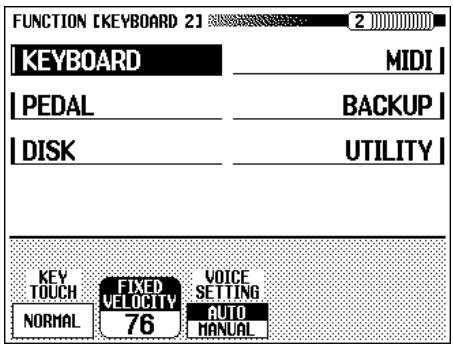
Key Touch Settings
| NORMAL | This is the standard keyboard response and is used as the basic setting. |
| SOFT | This setting lets you produce a relatively loud sound even when playing the keys softly. |
| FIXED | This setting produces a uniform degree of loudness, no matter how forcefully or softly you play the keys. Use the FIXED VOLOCITY function to set the loudness of notes produced by the keyboard. |
| HARD | This setting requires you to play the keys quite strongly to produce maximum loudness |
Voice Setting
This function determines whether the basic reverb, chorus, effect, and other settings for each voice are automatically selected when a voice is selected. Press the VOICE SETTING button to change the setting. When it is set to AUTO, the basic settings for each voice are automatically selected when the voice is selected; when it is set to MANUAL, the settings do not change when voices are selected.

Velocity
- The amount of force applied to a key is frequently referred to in this manual as velocity. This is because the Clavinova determines the amount of force that was applied to a key by measuring the speed with which the key was depressed.
- This function does not affect the actual weight of the keys.

KEY TOUCH
- Settings: See table at left.
Basic setting: NORMAL

FIXED VELOCITY
Range:1-127
Basic setting: 76

VOICE SETTING
- Settings: AUTO, MANUAL
Basic Setting: AUTO

The following settings are automatically selected when VOICE SETTING is set to AUTO:
| Function | Page |
| Reverb ON/OFF | 46 |
| Natural Reverb type (CVP-109) | 48 |
| Reverb system (CVP-109) | 48 |
| Reverb depth settings | 49 |
| Chorus ON/OFF | 51 |
| Chorus depth settings | 53 |
| Effect ON/OFF | 54 or 58 |
| EFFECT TYPE | 56 or 59 |
| Effect DEPTH | 57 or 60 |
| Effect VARIATION | 56 or 60 |
| HARMONY TYPE | 88 |
| Harmony SPEED | 89 |
| Harmony VOLUME | 89 |
| OCTAVE settings | 37, 39, 43 |
| RIGHT PEDAL function (CVP-109/107/700) | 191 |
| BEND RANGE setting (CVP-109/107/700) | 191 |
FUNCTION [PEDAL] Display — page 3
Left Pedal & Glide Range
This function conveniently lets you set the left pedal to control one of various functions.
LEFT PEDAL Settings
| Setting | Description |
| SOFT | The left pedal functions as the soft pedal (basic setting). (See page 45.) |
| DAMPER(CVP-109/107/700) | The left pedal functions as a switched damper pedal (see the description of the SW.DAMPER setting of the RIGHT PEDAL function on page 191). This setting is useful when you set the right pedal to control pitch bends. |
| START/STOP | The left pedal functions as the [START/STOP] button. (See page 64.) |
| HARMONY | When the Harmony function is set to on, Harmony is applied only while the left pedal is held down. (See page 87.) |
| REGISTRATION | The panel settings registered to the next Registration number are recalled each time the left pedal is pressed. (See page 109.) |
| REG.FREEZE | The left pedal switches the Registration Freeze function on and off; that is, it performs the same function as the FREEZE button in the REGISTRATION [FREEZE] display (page 111). |
| ENDING/RIT | The left pedal functions as the [ENDING] button. You can have the song end ritardando (slow down gradually) by pressing the left pedal twice in succession. (See page 67.) |
| BREAK | Pressing the left pedal during style playback produces a break in the accompaniment and rhythm for as long as the pedal is held. When the pedal is released, normal playback resumes from the next measure. If you press the left pedal a second time within one measure, normal playback resumes immediately. |
| BREAK FIL | Pressing the left pedal during style playback causes the Clavinova to play a special "break fill-in" pattern. This pattern is different from the fill-in patterns produced by the Auto Fill function. (See page 63.) |
| BASS HOLD | While the left pedal is pressed, the bass note played by the Auto Accompaniment will be held even if the chord is changed. This function does not work when FULL KEY-BOARD is selected as the accompaniment mode (page 73). |
| FADE IN/OUT | The left pedal performs the function same as the [FADE IN/OUT] button. (See pages 67 and 68.) |
| EFF1 VARI(CVP-109/107/700) | This function switches the effect variation on or off for effect system 1; that is, it performs the same effect as the VARIA-TION button in the EFFECT 1 display (page 56). |
| EFF2 VARI(CVP-109/107/700) | This function switches the effect variation on or off for effect system 2; that is, it performs the same effect as the VARIA-TION button in the EFFECT 2 display (page 56). |
| EFFECT VARI(CVP-105) | This function switches the effect variation on or off; that is, it performs the same effect as the VARIATION button in the EFFECT display (page 60). |
LEFT PEDAL
- Settings: See table at left.
- Basic setting: SOFT

If the left pedal is set to REGISTRATION, the setting of the left pedal function in Registration memory is not recalled.
LEFT PEDAL Settings (continued)
| Setting | Description |
| GLIDE UP S | Pressing the left pedal causes the pitch to rise an amount specified by the GLIDE RANGE function. When the pedal is released, the pitch glides smoothly back to normal at one of three speeds (slow, medium or fast, depending on the selected setting). |
| GLIDE UP M | |
| GLIDE UP F | |
| GLIDE DOWN S | Pressing the left pedal causes the pitch to drop an amount specified by the GLIDE RANGE function. When the pedal is released, the pitch glides smoothly back to normal at one of three speeds (slow, medium or fast, depending on the selected setting). |
| GLIDE DOWN M | |
| GLIDE DOWN F |
■ Right Pedal & Bend Range (CVP-109/107/700)
This function lets you set the right pedal of the CVP-109/107/700 to one of two damper modes, or to control upward and downward pitch bends.
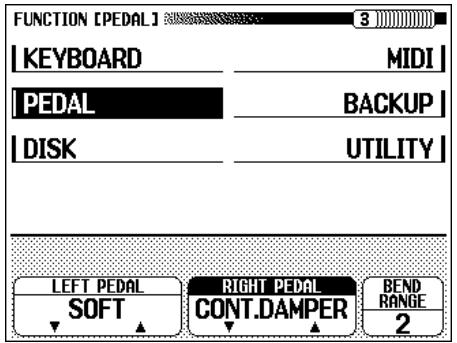
CVP-109/107/700
RIGHT PEDAL Settings
| Setting | Description |
| CONT.DAMPER | The right pedal functions like a standard damper pedal. The sustain length is increased by degrees depending on how far the pedal is pressed. |
| SW.DAMPER | The right pedal functions as a damper on/off switch. The sustain length increases when the pedal is pressed, and returns to normal when it is let up. |
| BEND UP | Pressing the right pedal bends the pitch upward to the maximum amount specified by the BEND RANGE function. |
| BEND DOWN | Pressing the right pedal bends the pitch downward to the maximum amount specified by the BEND RANGE function. |
Because the basic settings of the Right Pedal and Bend Range functions depend on the current voice selection, the settings of these functions may change automatically when a different voice is selected. (The Bend Range value will change automatically only if BEND UP or BEND DOWN is specified as the Right Pedal basic setting for the selected voice.)

NOTE
GLIDE RANGE
- Settings: 1 — 12 (semitones)
Basic setting: 1 - On the CVP-109/107/700, the BEND RANGE function may be displayed in place of the GLIDE RANGE function when the RIGHT PEDAL function is set to BEND UP or BEND DOWN. To display the GLIDE RANGE function, press the LEFT PEDAL button and select one of the GLIDE settings, if necessary.

NOTE
RIGHT PEDAL
- Settings: See table at left.
- Basic setting: Depends on main voice.

NOTE
CVP-105 Damper
The right pedal on the CVP-105 functions as a damper on/off switch (see the description of the SW.DAMPER setting in the table at left).

NOTE
BEND RANGE
- Settings: 1 — 12 (semitones)
- Basic setting: Depends on main voice.
- The GLIDE RANGE function may be displayed in place of the BEND RANGE function when the LEFT PEDAL function is set to one of the GLIDE settings. To display the BEND RANGE function, press the RIGHT PEDAL button and select BEND UP or BEND DOWN, if necessary.
FUNCTION [DISK 1] Display — page 4
■ Registration, Setup & Acmp Assist Files
You can use the functions on this page to load, save, delete, and rename data files containing registration data (page 108), panel setup data, or Accompaniment Assistance data (page 81).
Before executing one of these functions, make sure that the disk you want to use for this operation is inserted in the disk drive.
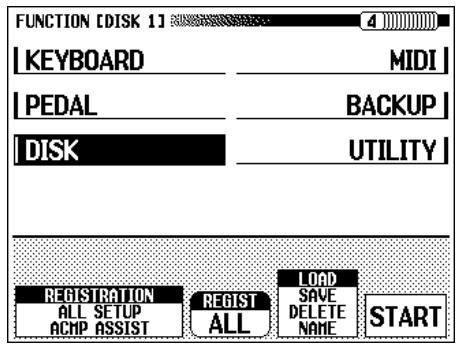
1 Select the file type.
Press either of the two leftmost LCD buttons to select the file type to be loaded, saved, deleted or named.
| REGISTRATION | A Registration file may contain the data for just one registration, or a full set of twenty. Refer to page 13 in the Reference Booklet for a list of settings registered by the Registration function. |
| ALL SETUP | An All Setup file contains all panel setting data in the list on page 13 in the Reference Booklet. |
| ACMP ASSIST | An Acmp Assist file contains a set of Accompaniment Assistance data (see page 81). |
If you select REGISTRATION as the file type, you can also use the REGIST function to specify whether the operation will affect one memory location or a full set of twenty.
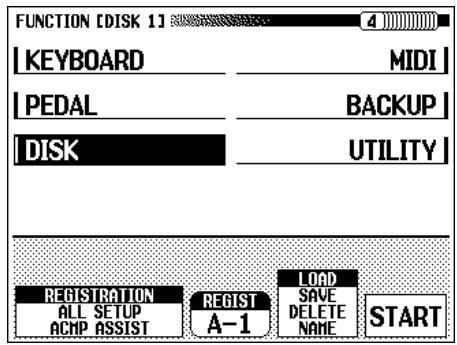
When saving registration data, the REGIST setting specifies which memory location(s) will be saved to disk. When loading data, the REGIST setting specifies how the registration data will be loaded, as shown below:
| REGIST setting: | ||
| File contains: | ALL | A1 — E4 |
| All registrations | All registrations are loaded. | Only registration saved from specified location is re-loaded (to original location). |
| One registration | Selected registration file is loaded into original location. | Selected registration file is loaded into specified location. |
2 Select the file operation.
Use the second LCD button from the right to select the desired file operation: LOAD,SAUE,DELETE or NAME.
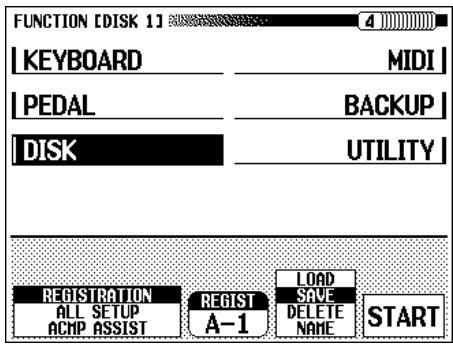
Press the START button.
The file operation begins.
The subsequent steps for each file operation depend on the operation you've selected. Refer to the corresponding instructions for each operation below.
LOAD
When you select LOAD, the Load function display will appear. The original internal data will be replaced when you execute the Load operation. Be sure to save all important data to disk (see page 194) before using the Load operation.
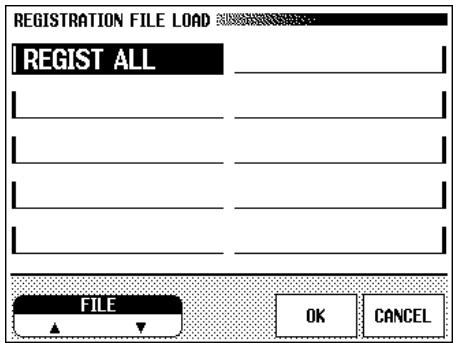

You can delete or rename any registration file on the disk, regardless of the REGIST setting.

File operations cannot be performed while the [SONG] lamp is lit. Exit the Song mode before attempting to perform a file function.
First, select the desired file to be loaded. Press either of the two leftmost LCD buttons to select the file, then press the OK button.
An "Are you sure?" message is displayed. Press the YES button to load the selected file, or the NO button to abort the Load operation.
SAVE
When you select SAUE, the name entry function display for the file to be saved will appear.
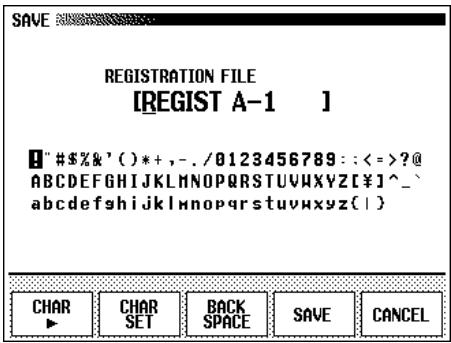
Press the CHAR button to move the underline cursor, and select the character position of the file name. (File names can contain up to twelve characters.)
Use the data dial or [-] and [+] buttons to highlight the characters to be input.
Press the CHAR SET button to input the selected characters at the current underline position of the file name. Continue moving the cursor to other characters or marks and entering them in this way.
To delete the character at the previous position, press the BACK SPACE button. The character before the underline cursor is deleted and the cursor moves back to the deleted position.
To abort the name entry operation and return to the FUNCTION [DISK 1] display, press the CANCEL button.
When the file name has been completely entered, press the SAUE button to execute the Save operation.
If you enter a name that already exists on the disk, a "Same name! Overwrite?" message will appear. Press the OK button to overwrite the original file with the new file, or CANCEL to cancel the Save operation.
DELETE
When you select DELETE, the Delete function display will appear.
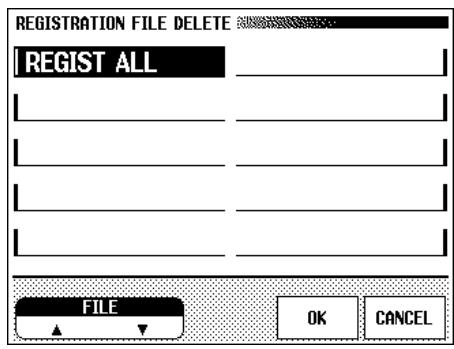
First, select the desired file to be deleted. Press either of the two leftmost LCD buttons to select the file, then press the OK button.
An "Are you sure?" message is displayed. Press the YES button to delete the selected file, or the NO button to abort the Delete operation.
NAME
When you select NAME, the Name function display will appear.
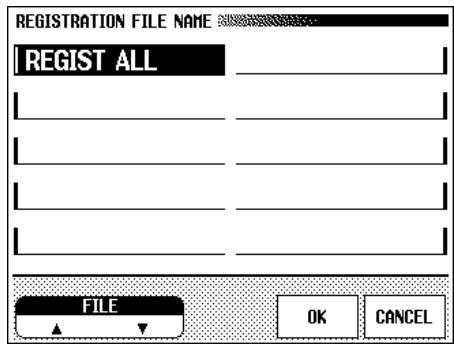
First, select the desired file to be named. Press either of the two leftmost LCD buttons to select the file, then press the OK button.
The name entry display will appear. Enter a new file name in the same way as described above for the Save function.
Pressing the OK button changes the current name to the newly entered name. Press the CANCEL button to abort. If you enter a name that already exists on the disk, a "Same name!"
"Overwrite?" message will appear. In this case, press the OK button to overwrite the original file with the renamed file, or CAN-CEL to abort the Name operation.
FUNCTION [DISK 2] Display — page 5
■ Song Copy & Disk Copy
The functions on this page allow you to copy song data recorded by the Clavinova to a different song number on the same disk, or to a different disk. You can also use the Disk Copy function to copy an entire disk.
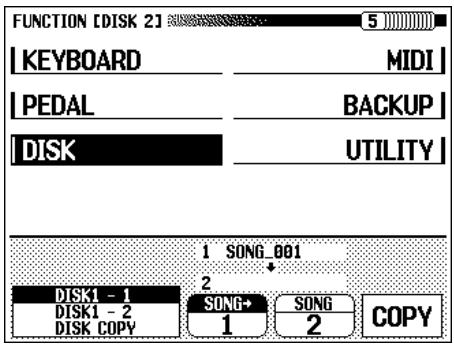
1 Select a copy function.
First insert the disk containing the source song, or the disk to be copied.
Press either of the leftmost two LCD buttons to select the copy type. Three copy types are available.
| DISK1 – 1 | This function allows you to copy a song to a different song number on the same disk. |
| DISK1 – 2 | This function allows you to copy a song to a different disk. |
| DISK COPY | This function copies all the data from one disk to another disk. (All data on the destination disk is erased by this process.) |
2 Select the source song.
If you selected DISK1 - 1 or DISK1 - 2 in step 1, press the SONG button, then use the data dial or [-] and [+] buttons to select a song number from 1 to 99.
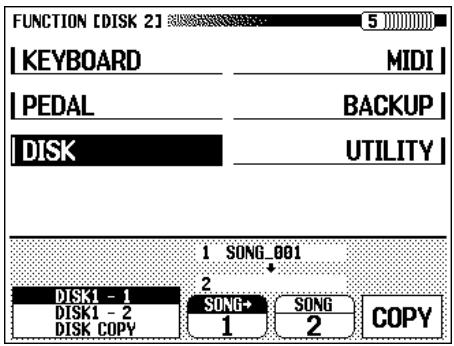
The number and name of the selected song are displayed above the third and fourth LCD buttons.

The Song Copy and Disk Copy functions cannot be executed while the [RECORD] lamp is lit. Exit the Song Record mode before attempting to copy a song or disk.

-
You will not be able to select DISK1 - 1 as the copy function if the disk you inserted is write protected (page 9).
-
If the Clavinova's memory contains song data recorded without a disk (page 174), CVP - DISK will automatically be selected as the copy function. If you want to keep the CVP MEMORY song data, you can use this function to copy it to a disk. (Insert the disk, specify a destination song number as described in step 3, then execute the copy function as usual.) You can then use the Song Delete function (page 198) to delete the CVP MEMORY song. Once the song has been deleted, you will be able to use the other copy functions.
3 Select the destination song number.
If you selected DISK1 - 1 as in step 1, press the SONG button, then use the data dial or [-] and [+] buttons to select a destination song number between 1 and 60. (Song numbers above 60 cannot be selected.)
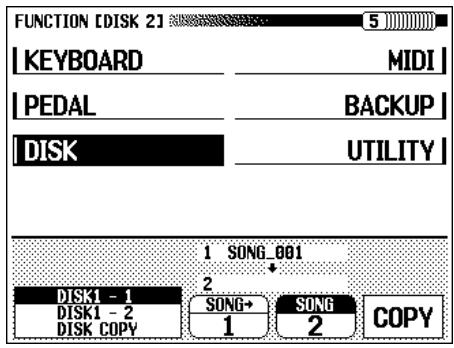
If the destination song number already contains data, the name of the song file will appear in the middle section of the display. In this case, the original data of the destination song number will be replaced by the source song data when you execute the copy operation.
4 Execute the copy operation.
Press the COPY button.
The copy operation begins. If you are copying to the same disk, an "Are you sure?" message is displayed. Press the YES button to continue or the NO button to cancel.
If you are copying the data to a different disk (or copying an entire disk), a “Number of disk exchanges ( ) ” message appears to indicate the number of times the disk will have to be changed. Press the OK button to continue, or the CANCEL button to abort the operation.
When copying data between disks, follow the instructions in the display, inserting the source and destination disks as required.
If you are using the DISK1 - 2 function to copy a song to another disk, the "Select destination song number" message will appear the first time you insert the destination disk. Use the data dial or [-] and [+] buttons to select a destination song number between 1 and 60. (Song numbers above 60 cannot be selected.)
If the destination song number already contains data, the song name will appear in the display. In this case, the original data of the destination song number will be replaced by the source song data. Press the OK button to continue, or CANCEL to abort.

The copy operation cannot be executed if the same song number is selected as both the source song and the destination song for the DISK1 - 1 function. In this case, a "Select a different number!" message will appear.

Copying Commercial Software
- Copying of commercially available software is strictly prohibited, except for your personal use.
- Some commercially available software is purposely copy-protected, and cannot be copied using these functions.

Data files (other than those made with the CVP-109/107/105/700/103) that have been copied once cannot be copied a second time to another disk. Also, additional data can be recorded only to the right-hand/left-hand parts of the copied DOC files.
FUNCTION [DISK 3] Display — page 6
■ Song Delete
You can delete unneeded song data from the disk in this display. Be careful not to delete any important data on the disk; once the delete operation is performed, it cannot be undone.
1 Insert the disk.
Insert the disk containing the song data to be deleted into the disk drive.
2 Select the song to be deleted.
Use the SONG and buttons, the data dial, or the [-] and [+] buttons to select the song to be deleted. The song data in the Clavinova's memory can be also deleted with this operation. To do this, select CUP MEMORY instead of a song number (CUP MEMORY appears only when the memory contains song data).
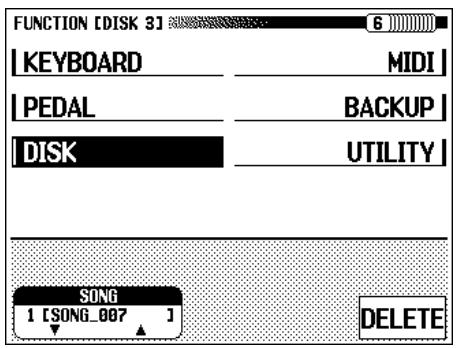
3 Execute the delete operation.
Press the DELETE button.
An "Are you sure?" message will be displayed. Press the YES button to delete the selected song, or press the NO button to cancel the operation.

The Song Delete function cannot be executed while the [RECORD] lamp is lit. Exit the Song Record mode before attempting to delete a song.
FUNCTION [DISK 4] Display — page 7
■ Song Data Transform
This function allows you to convert song data recorded on the CVP-109/107/105/700 for playback on other Clavinova models or a Disklavier.
1 Insert the disk.
Insert a 2DD disk containing the data to be converted in the disk drive.
2 Select a data format.
Use either of the two leftmost LCD buttons to select the target format of the file (the type of instrument that will use the converted data). The following three types are available:
| CVP PERFORMANCE | This function converts data for playback on the CVP-50/70/55/65/75/83S/85A/87A/89, the DOM-30, and the DOU-10. |
| PIANO FORMAT 1 | This function converts data for playback on all Disklavier models except the MX100A and the MX100B. |
| PIANO FORMAT 2 | This type converts the data for playback on the Disklavier MX100A or MX100B. |
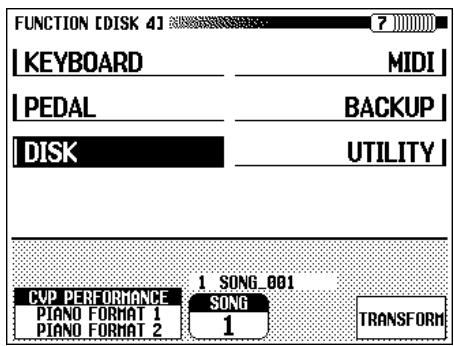
3 Select the song to be converted.
Use the data dial or [-] and [+] buttons to select the song number of the song to be converted.
The number and name of the selected song are displayed above the SONG function.
4 Press the TRANSFORM button.
An "Are you sure?" message is displayed. Press the YES button to convert the selected song, or NO to cancel the operation. When the conversion process is finished, a "Completed! SONG No." message indicates the song number to which the data was saved.
If CUP PERFORMANCE was selected in Step 2, the characters “C”) are appended to the beginning of the original name. If one of the other formats was selected, the characters “P”) are appended.

The Song Data Transform function cannot be used while the [SONG] lamp is lit. Exit the Song mode before attempting to transform song data.

2DD Disks Only!
Only data saved on 2DD disks can be converted. To transform song data that has been saved on a 2HD disk or recorded in the Clavinova's memory, use the Song Copy function (page 196) to copy the song to a 2DD disk before you attempt to convert it.

Data Format Compatibility
CVP-series Clavinovas other than the models listed in the table at left can play back song data recorded on the CVP-109/107/105/700 without conversion. If you are planning to use your song data on other instruments and want to ensure that they will closely reproduce the sound you achieved on the CVP-109/107/105/700, however, we recommend using XG voices (see page 32) for all tracks other than those that play piano voices.

- The converted data is saved to a song number between 1 and 60. (Song numbers above 60 are not used.)
- The original data remains intact at the original song number even after the conversion has been executed.
- Recording or editing cannot be performed on the converted songs.
FUNCTION [DISK 5] Display — page 8
Disk Format
Floppy disks must be correctly formatted before the Clavinova can use them for data storage. If you insert a new, unformatted disk (or a disk that has already been initialized in a different format) in the disk drive, the Clavinova will automatically ask you whether it should format the disk. (See page 131 for details.)
The Clavinova also has a Disk Format function that can be used to reformat disks that have already been formatted for use by the Clavinova. The reformatting operation deletes any data that may have been saved on the disk.
Insert the disk to be formatted.
Make sure that the disk's write protect tab is set to the "write" position, and insert the disk into the disk drive face up with the shutter forward until it clicks into place.
2 Execute the format operation.
Press the START button.
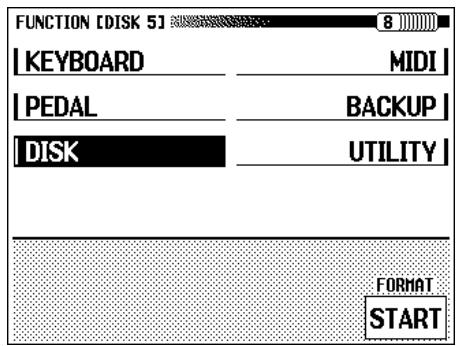
An "Are you sure?" message is displayed. Press YES to execute the format, or NO to cancel.
A bar graph indicates the progress of the formatting process. Once the disk has been formatted, the Clavinova can use it to store songs and other data.

The Disk Format function cannot be used while the [SONG] lamp is lit. Exit the Song mode before attempting to format a disk.
CAUTION
Formatting a disk erases all the data on the disk. Before you format a disk, make sure it doesn't contain any data that you want to keep.

Format Types
2DD disks are formatted to hold 720 KB of data; 2HD disks are formatted to hold 1.44 MB of data.
FUNCTION [MIDI 1] Display — page 9
■ Send Channel (Keyboard)
In any MIDI control setup, the MIDI channels (1 through 16) of the transmitting and receiving equipment must be matched for proper data transfer. The SEND CH function lets you set the MIDI transmit channels for the keyboard parts.
| Part | Explanation | Basic Setting |
| LEFT | Left voice in Split mode (see page 41) | 3 |
| RIGHT1 | Main voice | 1 |
| RIGHT2 | Second voice in Dual mode (see page 38) | 2 |
You can set each keyboard part to transmit on a separate channel. If you set a part to OFF, the MIDI data for that part will not be transmitted.
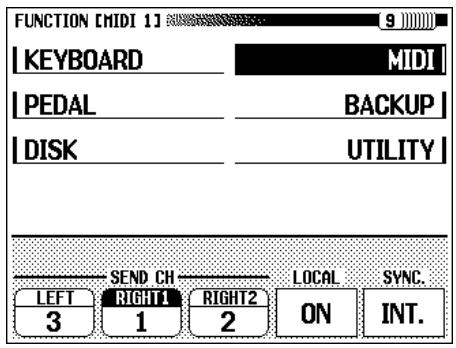
MIDI Reception
The Clavinova always receives MIDI data in the "Multi Timbre" mode. This is a mode in which the Clavinova voices can be independently controlled on different MIDI channel numbers (1 through 16) by an external MIDI device. This means that you can produce the sound of a full band or ensemble on the Clavinova by using a computer or MIDI sequencer.
Local Control
The term "local control" refers to the control of the internal tone generator by the keyboard. You will normally play the Clavinova with the Local Control function set to ON.
Turning off the local control separates the keyboard from the tone generator, so that the Clavinova will not output any sound when you play the keyboard. Since keyboard performance data is still output via the MIDI jacks, however, you can use this setting when you want to play an external MIDI tone generator from the Clavinova's keyboard without sounding the internal voices.
To turn the local control on or off, press the LOCAL button. The data dial and [-] and [+] buttons cannot be used.
- Settings: OFF, 1 — 16
- Basic setting: See table at left.
■ Synchronization
The playback tempo of a song or style is normally controlled by the Clavinova's internal clock. When you want the Clavinova's playback tempo to be controlled by an external sequencer or rhythm machine, you should set the synchronization function to use an external clock. You might use this function, for example, to play the Auto Accompaniment of the Clavinova in perfect synchronization with an external sequencer.
To switch the synchronization from an internal clock to an external clock (or vice versa), press the SYNC. button. The data dial and the [-] and [+] buttons cannot be used.

NOTE
SYNC.
- Settings: INT. (internal clock), EXT. (external clock)
- Basic setting: INT.
FUNCTION [MIDI 2] Display — page 10
■ MIDI Filter
The FUNCTION [MIDI 2] display contains MIDI filter settings that can be used to enable or prevent the transmission and reception of certain types of MIDI data.
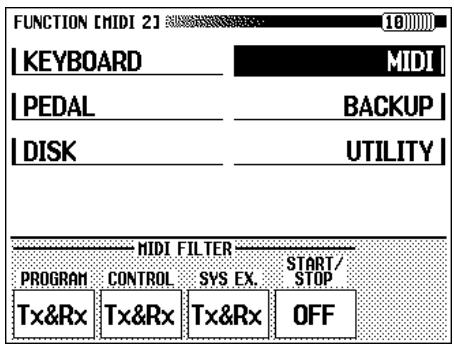
- Program Change Messages
Normally the Clavinova will respond to MIDI program change numbers received from an external keyboard or another MIDI device. For example, the Clavinova can change voices in response to MIDI program change messages received from a connected MIDI sequencer. (These messages do not affect the keyboard-played voices.) The voices of connected external MIDI devices can also be changed by program change messages transmitted from the Clavinova. (Program change messages are transmitted when changing voices on the panel of the Clavinova.)
Depending on your particular MIDI setup, you may find that this feature is convenient in some cases and not in others. Set the PROGRAM function to OFF to disable the transmission and reception of program change messages.

NOTE
PROGRAM
- Settings: Tx&Rx (transmitted/received), OFF
- Basic setting: Tx&Rx

NOTE
Bank MSB and LSB messages can be transmitted and received even when PROGRAM is set to OFF.
Control Change Messages
Control change messages are used for various non-keyboard performance controls, such as the damper pedal, or for expressive control of the sound of a connected MIDI device, such as effects and volume. For example, the Clavinova can respond to control change messages transmitted from an external MIDI sequencer. (These messages do not affect the keyboard-played voices.) Similarly, an external MIDI device can be controlled by sending control change messages from the Clavinova to that device. (Control change messages are transmitted when operating the damper pedal, etc., on the Clavinova.)
Set CONTROL to OFF to disable the transmission and reception of control change messages.
The control change data recognized by the Clavinova is listed in detail on page 17 in the Reference Booklet.
- System Exclusive Messages
System exclusive messages are used for more advanced or detailed MIDI control, or for controls related to specific manufacturer's devices.
Set SYS EX. to OFF to disable the transmission and reception of system exclusive messages.
The system exclusive data recognized by the Clavinova is listed in detail on page 19 in the Reference Booklet.
- Start/Stop Commands
A device that transmits the Start/Stop command can start and stop the rhythm or sequence data performance of a receiving device via MIDI. For example, you can transmit the Start/Stop command from an external MIDI sequencer to start and stop the Auto Accompaniment or song playback on the Clavinova. Also, an external MIDI sequencer or rhythm machine can be started and stopped by starting and stopping the Auto Accompaniment on the Clavinova.
Set START/STOP to ON to enable the transmission and reception of Start/Stop commands.

CONTROL
- Settings: Tx&Rx (transmitted/received), OFF
- Basic setting: Tx&Rx

SYS EX.
- Settings: Tx&Rx (transmitted/received), OFF
- Basic setting: Tx&Rx

START/STOP
- Settings: Tx&Rx (transmitted/received), OFF
Basic setting: OFF
FUNCTION [MIDI 3] Display — page 11
Receive Filter
The Receive Filter function lets you prevent the Clavinova from receiving channel-specific MIDI messages — such as note data and control changes — on certain MIDI channels.
This function is useful, for example, when you want to control some of the Clavinova's voices exclusively from an external sequencer, and others using only the Clavinova's keyboard or its built-in Auto Accompaniment and Song mode functions. (You can also have the Clavinova ignore channels carrying messages that are intended for another instrument connected to the Clavinova's MIDI [THRU] terminal.)
By default, the Clavinova will receive messages on all 16 channels. Use the following procedure to enable or disable the reception of a channel:

RECEIVE FILTER
- Settings: ON, OFF (x 16)
Basic setting: ON (x 16)
1 Select the channel.
Use the CHANNEL and LCD buttons to select the number of the channel you want to enable or disable.
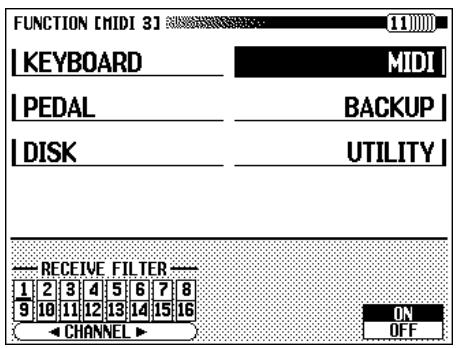
An underline cursor is displayed below the selected channel number.
Press the rightmost LCD button.
When the selected channel is enabled, ON is highlighted and the channel number is enclosed in a solid box. When it is disabled, OFF is highlighted, and the channel number is "ghosted."
FUNCTION [MIDI 4] Display — page 12
MIDI Transpose
The MIDI Transpose function determines whether the Transpose setting in the FUNCTION [KEYBOARD 1] display (page 188) will affect the MIDI data received by the Clavinova.
The Clavinova will normally transpose the data it receives. Press the MIDI TRANSPOSE button to switch this function on or off.
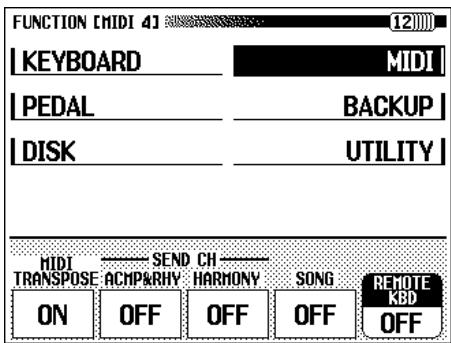

MIDI TRANSPOSE
- Settings: ON (enabled), OFF (disabled)
Basic setting: ON
■ Send Channel (Accompaniment/Harmony)
When the ACMP&RHY function is set to 9-16, the performance data for the rhythm and accompaniment parts is transmitted via the MIDI [OUT] terminal over MIDI channels 9 through 16.
If the HARMONY function is set to 6-8, the notes added by the harmony types listed below are transmitted via the MIDI [OUT] terminal over MIDI channels 6 through 8.
Harmony types transmitted on channels 6 through 8:
- Echo
Tremolo
Trill
-
Strumming
-
Add Jazz Gtr
-
Add Brass
-
Add Strings
In The Forest
- See page 87 for details on the Harmony function.
Notes added by other harmony types are always transmitted on the RIGHT1 channel (page 201), regardless of this setting.
The rhythm, accompaniment, and harmony parts can be recorded by a computer or external sequencer when these functions are turned on.
■ Song Transmission
When the SONG function is set to ON, the Clavinova will transmit song data via the MIDI [OUT] terminal. Select this setting when you want an external tone generator to sound in response to song data played back by the Clavinova.
The transmission of song data is turned off by default.
Remote Keyboard
MIDI data received over the channel set with the REMOTE KBD function will affect your keyboard performance. The received data also can be recorded. Select OFF to prevent external MIDI data from affecting your keyboard performance. The following data types can be received:
Key ON/OFF
- Control Change (performance data; only those listed below)
1
Modulation
0
BANK Select MSB*
7 Volume
32
BANK Select LSB*
11 Expression
6
Data Entry MSB
64 Sustain Pedal
(for RPN Pitch Bend Range)
66 Sostenuto Pedal
Data Increment
67 Soft Pedal
(for RPN Pitch Bend Range)
123 All notes off
97
Data Decrement
(for RPN Pitch Bend Range)
100
RPN LSB
(Pitch Bend Range only)
101
RPN MSB
(Pitch Bend Range only)
- Program Change (voice change data)*
- Pitch Bend
Note: Items marked with an asterisk are used to change the main voice.

NOTE
SEND CH (ACMP&RHY)
- Settings: OFF (not transmitted), 9-16 (transmitted)
Basic setting: OFF
SEND CH (HARMONY)
- Settings: OFF (not transmitted), 6-8 (transmitted)
Basic setting: OFF

NOTE
- When transmitting rhythm, accompaniment, or harmony part data via MIDI, do not select the MIDI channels used by these parts as the send channels (page 201) used to transmit the data for your keyboard performance. Doing so may result in your keyboard performance data being mixed with the Auto Accompaniment or Harmony data.
- If ACMP&RHY or HARMONY is turned on, the data for the corresponding part(s) will be transmitted via MIDI, even if the RIGHT1 send channel (page 201) has been turned off.

NOTE
SONG
- Settings: OFF (not transmitted), ON (transmitted)
Basic setting: OFF

NOTE
REMOTE KBD
- Settings: OFF (not received), 1—16 (receive cha
Basic setting: OFF

NOTE
MIDI data received by the remote keyboard function cannot be output via the MIDI [OUT] terminal.
FUNCTION [BACKUP 1] Display — page 13
■ Backup
This function allows you to set the backup of various parameter groups on or off. When set to on, the corresponding settings will not be reset to the basic settings (default settings) when power is turned off.
Press the or button or use the data dial or [-] and [+] buttons to select the desired group, then use the rightmost LCD button to set the selected group to backup on/off. The () mark at the beginning of the group name indicates that the backup setting of the group is turned on. The settings of groups whose backup settings are set to off will return to the basic settings (default settings) when the power is turned off.
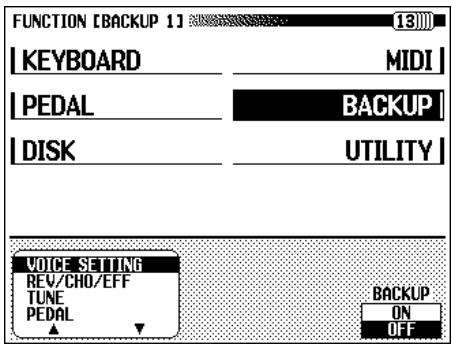
Backup is used for the following groups on the Clavinova.
| Group | Description |
| VOICE SETTING | Voice-related settings |
| REV/CHO/EFF | Reverb, chorus, and effect settings |
| TUNE | Master tuning, micro tuning, scale tuning |
| PEDAL | Pedal function settings |
| ACMP SETTING | Auto Accompaniment-related settings |
| SONG SETTING | Settings related to the Song mode |
| REGISTRATION | Registration data, Freeze function settings |
| MIDI SETTING | MIDI function settings |
| VOCAL HARMONY | Vocal Harmony settings (CVP-109/107/700) |
Refer to page 13 in the Reference Booklet for a list of the specific parameters in each group.
Parameters that are backed up will be retained in memory for about a week if the Clavinova is not turned on during this time. All parameters will be reset to their default values if the power remains off for longer than about a week. To ensure that your backed-up settings are maintained, turn the power on for a few minutes at least once a week.

NOTE
Backup functions
- Settings: ON, OFF
- Basic settings: ON (REGISTRATION) OFF (all other groups)

NOTE
Permanent Settings
The following settings are always backed up:
Help language
Song volume
Video Out settings (CVP-109/107/700)
- Backup ON/OFF
FUNCTION [BACKUP 2] Display — page 14
Recall
This function can be used to recall the initial factory settings (basic settings) for a group of parameters, or for all parameters at once.
Press the or buttons or use the data dial or [-] and [+] buttons to select the group you want to recall, then press the START button.
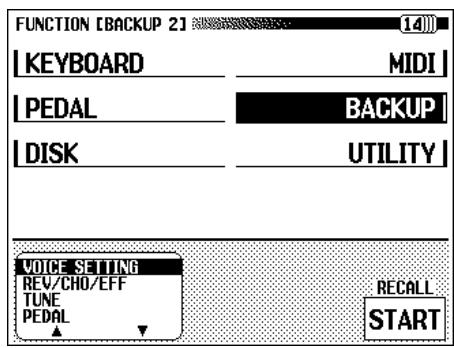
An "Are you sure?" message will be displayed. Press the YES button to recall, or NO to cancel.
The following parameter groups of the Clavinova can be recalled.
| Group | Description |
| VOICE SETTING | Voice-related settings |
| REV/CHO/EFF | Reverb, chorus, and effect settings |
| TUNE | Master tuning, micro tuning, scale tuning |
| PEDAL | Pedal function settings |
| ACMP SETTING | Auto Accompaniment-related settings |
| SONG SETTING | Settings related to the Song mode |
| REGISTRATION | Registration data, Freeze function settings |
| MIDI SETTING | MIDI function settings |
| VOCAL HARMONY | Vocal Harmony settings (CVP-109/107/700) |
| ALL | All of the above settings |
Refer to page 13 in the Reference Booklet for a list of the specific parameters in each group.

Permanent Settings
The factory settings of the following parameters are not recalled:
Help language
Song volume
Video Out settings (CVP-109/107/700)
- Backup ON/OFF
However, these and all other settings can be reset to the initial factory values by turning the power on while holding down the rightmost key on the keyboard (C7). When this is done, the "Back up data erased and replaced by factory data" message appears to indicate that all backed up data has been erased and the factory settings have been recalled. After this message is displayed for a few seconds, the main display will appear.
FUNCTION [MICRO TUNING] Display — page 15
The Micro Tuning Feature makes it possible to individually tune each key of the keyboard. The created tuning can be saved to a disk and loaded whenever necessary. The currently loaded custom tuning can be turned on or off at any time by using the leftmost LCD button in this display.
![YAMAHA CVP-109-107-105-700 - FUNCTION [MICRO TUNING] Display — page 15 - 1](/content/2025/01/114672/images/a48815f1565313c5e489ced0d1e03ff731de5b3d5ec48d207ab4780c7a4af312.jpg)
Micro Tuning Setup
1 Select a key.
Press the key to be tuned.
The note name and the current tuning value of the pressed key will appear in the display.
2 Set the tuning.
Press the TUNE or buttons or use the data dial or [-] and [+] to tune the pitch of the selected key. If you set the parameter at the leftmost LCD button to ON, you can play the key being tuned in order to check the sound during this operation. The normal tuning of ± 0 cents for the selected key can be instantly recalled by simultaneously pressing both the TUNE and buttons.
Repeat steps 1 and 2.
Repeat steps 1 and 2 until all the required keys have been tuned.
Micro Tuning Files
The custom tuning can be named and saved to disk as a tuning file. Tuning files can be loaded whenever necessary, or deleted when they are no longer needed.
1 Insert a disk in the disk drive.
Make sure that a properly formatted disk has been inserted in the disk drive before executing a file operation. If you want to load, delete, or rename a tuning file, the inserted disk should contain the file in question.

TUNE
- Range: -100 cent — +100 cent
- 1 — +1 semitone
- Basic Value: 0 cent (all keys)
2 Select the desired file operation.
Use the second LCD button from the right to select the desired file operation: LOAD, SAVE, DELETE or NAME.
Press the START button.
After the START button is pressed, the display corresponding to the selected file operation appears.
The subsequent steps are the same as those explained on pages 193 through 195. Refer to the pages below, depending on the selected file operation.
| LOAD | See page 193. |
| SAVE | See page 194. |
| DELETE | See page 195. |
| NAME | See page 195. |
FUNCTION [SCALE TUNING] Display — page 16
This feature allows you to select from various tuning (temperament) configurations, when selecting PRESET in this display. By selecting USER, you can create your own user scale, in which the tuning you set for a single octave takes effect for the entire keyboard. The created tuning can be saved to disk for future recall.
■ Preset Scale
This function lets you select from various pre-programmed tunings or temperaments.
Until equal temperament — the most commonly used tuning at present — was accepted, various tunings have been created over the years for use with the particular music and instruments of the era. This feature lets you play in historically authentic tunings, and get a better feeling for the music of the corresponding eras.
The Clavinova contains the following seven temperaments:
- EQUAL
PYTHAGOREAN
-
PURE(MAJOR)
-
WERCKMEISTER
-
PURE(MINOR)
KIRNBERGER
MEANTONE

NOTE
The Scale Tuning function does not affect the pitch of song data played back by the Clavinova.
1 Select PRESET with the leftmost LCD button.
The following display appears:
2 Select a scale.
Press the SCALE or to highlight the parameter, then use the data dial or [-] and [+] buttons to select the temperament type.
When selecting temperaments other than equal (EQUAL) temperament, the central key (reference pitch for the temperament) must be set. This allows you to produce the proper temperament in the desired key.
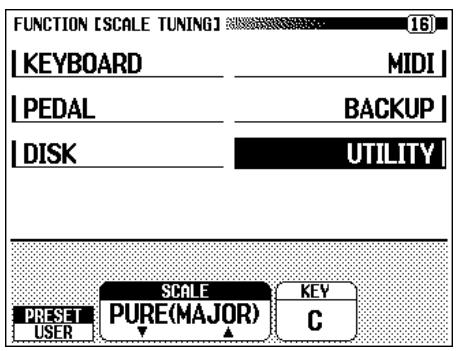
3 Select the central key.
Press the KEY button to highlight the parameter, then use the data dial or [-] and [+] buttons to select the central key.
■User Scale Setup
This function allows you to individually tune each key within an octave. The setting made for one key is automatically assigned to the same key in all other octaves.
1 Select USER with the leftmost LCD button.
The following display appears:
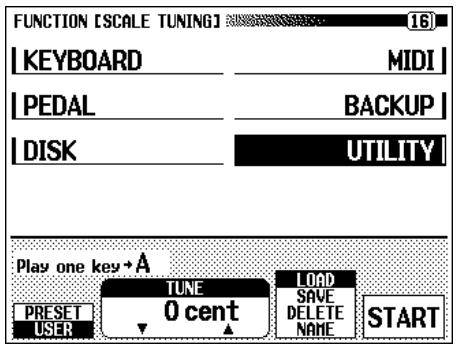
Press the key to be tuned.
The note name and the current tuning value of the pressed key appears.
KEY
- Settings: C, C#, D, E, E, F, F#, G, A, A, B, B
Basic setting: C
3 Set the tuning.
Set the pitch by pressing the TUNE or buttons, or by using the data dial or [-] and [+] buttons. You can play the key being tuned to check the sound during this operation. The default tuning of ± 0 cents can be instantly recalled for the selected key by simultaneously pressing the TUNE and buttons.
4 Repeat steps 2 and 3 until all the required keys have been tuned.
■ User Scale Files
The custom scale can be named and saved to disk as a user scale file. User scale files can be loaded whenever necessary, or deleted when they are no longer needed.
1 Insert a disk in the disk drive.
Make sure that a properly formatted disk has been inserted in the disk drive before executing a file operation. If you want to load, delete, or rename a user scale file, the inserted disk should contain the file in question.
2 Select the desired file operation.
Use the second LCD button from the right to select the desired file operation: LOAD, SAUE, DELETE or NAME.
Press the START button.
After the START button is pressed, the display corresponding to the selected file operation appears.
The subsequent steps are the same as those explained on pages 193 through 195. Refer to the pages below, depending on the selected file operation.
| LOAD | See page 193. |
| SAVE | See page 194. |
| DELETE | See page 195. |
| NAME | See page 195. |

NOTE
TUNE
Range: -64 cent — +63 cent
Basic Value: 0 (all keys)
FUNCTION [VIDEO OUT] Display — page 17 (CVP-109/107/700)
The functions on this page let you set the display characteristics for the lyrics and chords (page 129) that are output to a television or video monitor connected to the Clavinova's [VIDEO OUT] jack (page 215). You can set the size and color of the displayed characters, as well as the color of the display background.
![YAMAHA CVP-109-107-105-700 - FUNCTION [VIDEO OUT] Display — page 17 (CVP-109/107/700) - 1](/content/2025/01/114672/images/5ec4f4f0a37d3fc3a850bacbcaaf04e6c26dbad414ef5a184705cc4e1b9ae4ac.jpg)
Character Size
Press the leftmost LCD button to set the size of the characters displayed on the monitor screen.
The SIZE function setting switches between LARGE and SMALL each time you press the button.
Character Color
The characters displayed on the video screen can be set to any of a variety of colors. Press one of the CHARACTER or buttons to select that function, then use the data dial or the [-] and [+] buttons to change the setting.
Each value from 1 to 27 selects a different character color.
To return the character color to its basic setting of 19, press either the [-] and [+] buttons or the CHARACTER and buttons simultaneously.
■ Background Color
You can set the background to one of four colors: white, blue, black, or green. Press one of the BACKGROUND or buttons to select that function, then use the data dial or the [-] and [+] buttons to change the setting.
To return the background color to its basic setting of WHITE, press either the [-] and [+] buttons or the BACKGROUND and buttons simultaneously.

SIZE
- Settings: LARGE, SMALL
Basic setting: LARGE
- The large character display may not fit on some television screens. In such cases, use the SMALL setting.
- When the SMALL setting is used, the widths of horizontal lines may appear to vary on certain television screens.

CHARACTER
Range: 1 (black) — 27 (white)
- Basic setting: 19 (blue) Character colors may appear uneven or blurred on certain television screens.

BACKGROUND
- Settings: WHITE, BLUE, BLACK, GREEN
- Basic setting: WHITE
CHAPTER 10: Connections
Audio and Video Connections
The Clavinova is equipped with jacks that let you connect a variety of audio devices. You can connect headphones, a stereo system, or PA equipment for audio output, as well as input from a tone generator or other instrument. The CVP-109/107/700 also has microphone and video jacks that further expand the Clavinova's potential for musical fun.

Be sure to turn off the power when connecting or disconnecting audio equipment, as failing to do so can result in damage to speakers and other problems.
Headphones
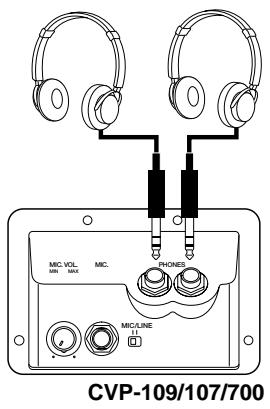
To use headphones, connect them to one of the [PHONES] jacks (standard 1/4" phone jacks) located below the left end of the keyboard. The Clavinova's built-in speaker system is automatically shut off when a pair of headphones are connected. Two people can enjoy listening to the Clavinova together by connecting two pairs of headphones to the two jacks.

Recommended Headphones:
Yamaha HPE-160 headphones
Microphone (CVP-109/107/700)
You can connect a microphone to the CVP-109/107/700 to enjoy singing along as you perform or play back song data. The Clavinova can even add automatic harmonies and other effects to your vocals when you use the Vocal Harmony function (page 175). The Clavinova will output your vocals through the built-in speakers or [PHONES] jacks, as well as the AUX OUT jacks.
1 Connect the microphone.
Connect your microphone to the [MIC.] jack (standard 1/4" phone jack) located below the left end of the keyboard.
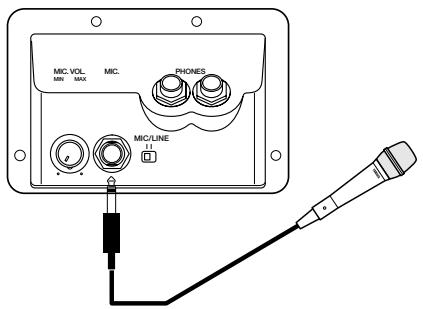

Use a unidirectional microphone for best results.
2 Set the input level.
Set the [MIC/LINE] switch (located next to the [MIC.] jack) to the MIC position.
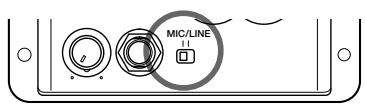
3 Adjust the microphone volume.
Use the [MIC. VOL.] knob (located next to the [MIC.] jack) to set the microphone volume, then trying singing into the microphone. The volume should be set high enough that the [SIGNAL] lamp on the front panel lights steadily when you sing, but not so high that the [OVER] lamp lights. (These two lamps can be found at the left end of the panel, next to the [VOCAL HARMONY] button.)
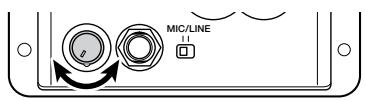
Audio Input and Output
You can connect the Clavinova to a wide range of audio equipment by using the AUX IN and AUX OUT jacks, which are located at the left end of the unit on the underside (CVP-109/107/700) or rear panel (CVP-105).
■ AUX IN Jacks
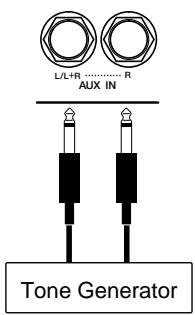
The sounds of other instruments or tone generator modules can be output through the speaker system of the Clavinova by connecting audio cables to the AUX IN jacks as shown here.
Use the AUX IN [L / L + R] jack for monophonic input. For stereo input, connect the left channel output to the AUX IN [L / L + R] jack, and the right channel output to the AUX IN [R] jack.

You should set the [MIC/LINE] switch to the LINE position when connecting an audio source with line-level output to the [MIC.] jack.

The Vocal Harmony function (page 175) may not work properly if the [OVER] lamp lights during microphone use.
CAUTION
Never connect the Clavinova's AUX OUT jacks to its AUX IN jacks, either directly or via external audio equipment. Such connections could result in a feedback loop that will make normal performance impossible, and may even damage the Clavinova.

The volume of the audio signal input at the AUX IN jacks is affected by the [MASTER VOLUME] slider.
AUX OUT Jacks
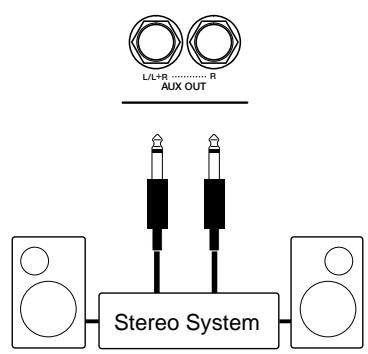
By connecting audio cables to the AUX OUT jacks as shown here, you can output the sound of the Clavinova to a stereo system, amplifier, mixing console, or recording equipment. Since the AUX OUT jacks provide output at a fixed level, you will need to use the controls on the connected equipment to adjust the overall volume of the sound from the Clavinova.
Use the AUX OUT [L / L + R] jack for monophonic output. For stereo output, connect the AUX OUT [L / L + R] jack to the left channel input, and the AUX OUT [R] jack to the right channel input.
Expression Pedal (CVP-109/107/700)
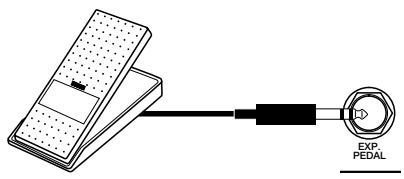
You can connect an optional Yamaha FC7 Foot Controller to the [EXP. PEDAL] jack, located at the left on the underside of the unit, to control the volume of your keyboard performance with your foot.
Video Monitor (CVP-109/107/700)
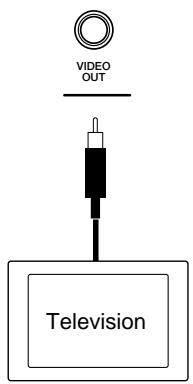
You can connect the Clavinova to a television or video monitor to display the lyrics and chords in your song data on a larger screen.
Connect one end of a video cable to the [VIDEO OUT] jack (standard pin jack), which is located at the left on the underside of the unit, and the other end to the video input jack on your television or video monitor. Make sure the [VIDEO SELECT] switch is set to the position (PAL or NTSC) that matches the standard used by your video equipment.
You can set the Clavinova's video display characteristics using the settings in the FUNCTION [VIDEO OUT] display (page 212).

Use an audio-video cable with good high-frequency characteristics and RCA-type pin jacks to connect the Clavinova to a television or video monitor.
You can use the MIDI terminals to connect your Clavinova to a wide range of MIDI devices, including personal computers, sequencers, tone generators, and so on. In addition, the Clavinova features a [TO HOST] connector that lets you connect it directly to an Apple Macintosh, IBM-PC/AT, or other compatible personal computer without the use of a special MIDI interface.
CAUTION
Be sure to turn off the power when connecting or disconnecting computers or MIDI equipment, as failing to do so can result in damage to equipment.
Connecting MIDI Equipment
Use MIDI cables to connect the MIDI terminals on the Clavinova to other MIDI devices. The Clavinova's MIDI terminals are located at the left of the unit on the underside (CVP-109/107/700) or rear panel (CVP-105).
Tone generators or other devices to be controlled by the Clavinova can be connected to the MIDI [OUT] terminal. Devices that will control the Clavinova should be connected to the MIDI [IN] terminal. If you have a personal computer or sequencer that will control the Clavinova, you may want to connect it to both the [IN] and [OUT] terminals to allow two-way communication. In this case, any other instruments to be controlled by the same device can be connected to the Clavinova's MIDI [THRU] terminal.
When you use the MIDI terminals, set the [HOST SELECT] switch to the MIDI position. The MIDI terminals will not transmit or receive data if this switch is set to any other position.
You can set the Clavinova's MIDI parameters using pages 9 through 12 of the FUNCTION display (see page 201 through 204).
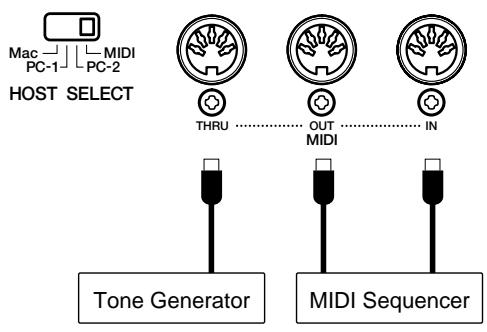
Connecting to a Host Computer
You can connect the Clavinova to an Apple Macintosh, IBM-PC/AT, or compatible personal computer using the [TO HOST] connector, which is located at the left of the unit on the underside (CVP-109/107/700) or rear panel (CVP-105). If you do, be sure to set the adjacent [HOST SELECT] switch to the appropriate setting for your computer model.

NOTE
[TO HOST] or MIDI?
- If you simply want to connect your Clavinova to a personal computer, it may be more convenient to use the [TO HOST] terminal, as your computer won't need a special MIDI interface to make that connection.
- The MIDI terminals are particularly convenient when you want the Clavinova to function as part of a more extensive MIDI setup.
![YAMAHA CVP-109-107-105-700 - [TO HOST] or MIDI? - 1](/content/2025/01/114672/images/3298f3fdb8798d3cc119354f4ff49a988b6de610dd13bdd623f2a83b420140e9.jpg)
NOTE
- Turn off both the Clavinova and the computer before connecting the cable.
- When the Clavinova is connected to a host computer, turn on the computer first, then the Clavinova.
- Disconnect the cable when not using the [TO HOST] terminal. If it is left connected, the Clavinova may not function properly.
- Connecting to an Apple Macintosh or Compatible Computer
Connect the [TO HOST] connector of the Clavinova to the modem or printer port on your Macintosh (whichever port your MIDI software is using for MIDI data communication) using a standard Macintosh 8-pin system peripheral cable. Set the [HOST SELECT] switch to the "Mac" position.
You may also have to make other MIDI interface settings on the computer side, depending on the type of software you use (refer to your software owner's manual). In any case, the clock speed should be set to 1 MHz.
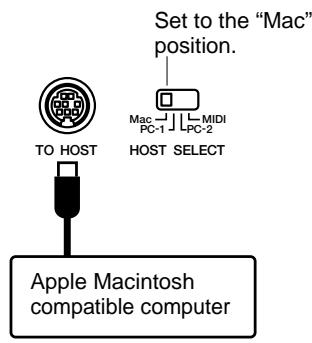
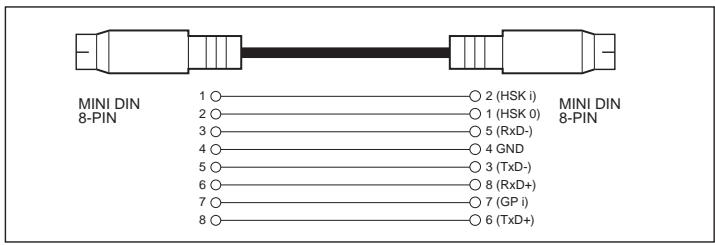
- "Mac" Cable Connections
- 8-pin system peripheral cable
Data transfer rate: 31,250 bps
■ Connecting to an IBM-PC/AT Series Computer
Connect the [TO HOST] connector of the Clavinova to the RS-232C port on your IBM computer, using a standard 8-pin MINI DIN 9-pin D-SUB cross cable. Set the [HOST SELECT] switch to the "PC-2" position.
Refer to your software owner's manual for information on any settings you might have to make on the computer side.
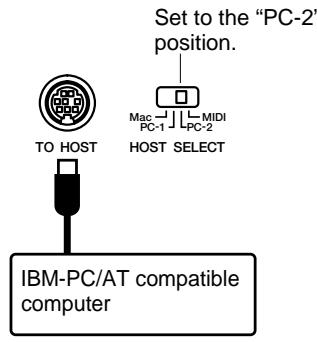
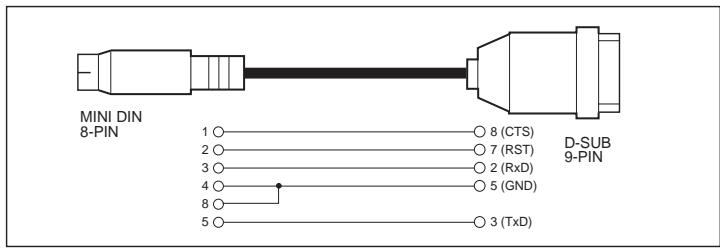
- "PC-2" Cable Connections
- 8-pin mini DIN 9-pin D-SUB cable
Data transfer rate: 38,400 bps
- Connector Pin Numbers
MINIDIN8-PIN

D-SUB 9-PIN
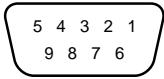
MIDI Driver
The Music Software Collection disk that came with your Clavinova contains special MIDI driver software intended for use with the Windows 95 and Windows 98 operating systems. This driver software may be necessary when using computer software with the Clavinova. Install the MIDI driver from the disk to your computer if necessary. Refer to the text files on the disks (listed below) for installation instructions.
A:\driver\readme_e.txt
A:\driver\licensee.txt
"A:" is the name of the floppy disk drive.
NOTE
If your system doesn't work properly with the connections and settings listed above, your software may require different settings. Check your software operation manual: if it requires a 31,250 bps data transfer rate, set the [HOST SELECT] switch to "PC-1."
Effect Type Lists
The tables in this appendix contain descriptions of the various reverb, chorus, and effect types that are available for use on the CVP-109/107/105/700.

NOTE
XG REVERB, XG CHORUS, and XG EFFECT (all abbreviated as XG in the main display) appear as the selected type when a style uses a special reverb, chorus, or effect setting that is not available as a regular selection. These settings cannot be selected from the corresponding menu displays; they disappear as soon as you select a different reverb, chorus, or effect type.
Natural Reverb Type List (CVP-109)
| Type | Description |
| MEDIUM HALL | High-quality hall reverb effects |
| CONCERT HALL | |
| CATHEDRAL | |
| WOOD ROOM | High-quality room reverb effects |
| STUDIO ROOM |
Reverb Type List
| Type | Description |
| HALL1 | Concert hall reverb effects |
| HALL2 | |
| HALL3 | |
| HALL4 | |
| ROOM1 | Small room reverb effects |
| ROOM2 | |
| ROOM3 | |
| ROOM4 | |
| STAGE1 | Reverb appropriate for a solo instrument |
| STAGE2 | |
| PLATE1 | Simulated steel plate reverb effects |
| PLATE2 | |
| XG REVERB | Special reverb setting. See note, above. |
Chorus Type List
| Type | Description |
| CHORUS1 | Standard chorus effects that add natural spaciousness to the sound |
| CHORUS2 | |
| CHORUS3 | |
| CHORUS4 | |
| CHORUS5 | |
| FLANGER1 | Modulation effects reminiscent of a jet airplane taking off and landing |
| FLANGER2 | |
| FLANGER3 | |
| FLANGER4 | |
| XG CHORUS | Special chorus setting. See note, above. |
Effect Type List
| Type | Description | 109/107/700 | 105 |
| HALL1 | Concert hall reverb effects | ✓ | ✓ |
| HALL2 | ✓ | ✓ | |
| HALL3 | ✓ | ✓ | |
| HALL4 | ✓ | ✓ | |
| ROOM1 | Small room reverb effects | ✓ | ✓ |
| ROOM2 | ✓ | ✓ | |
| ROOM3 | ✓ | ✓ | |
| ROOM4 | ✓ | ✓ | |
| STAGE1 | Reverb appropriate for a solo instrument | ✓ | ✓ |
| STAGE2 | ✓ | ✓ | |
| PLATE1 | Simulated steel plate reverb effects | ✓ | ✓ |
| PLATE2 | ✓ | ✓ | |
| EARLY REF1 | Early reflection components of the reverb effect | ✓ | |
| EARLY REF2 | ✓ | ||
| GATE REVERB | Simulation of a gated reverb | ✓ | |
| REVERSE GATE | Simulation of a gated reverb played back in reverse | ✓ | |
| KARAOKE1 | Echo effects suitable for vocals | ✓ | |
| KARAOKE2 | ✓ | ||
| KARAOKE3 | ✓ | ||
| CHORUS1 | Standard chorus effects that add natural spaciousness to the sound | ✓ | ✓ |
| CHORUS2 | ✓ | ✓ | |
| CHORUS3 | ✓ | ✓ | |
| CHORUS4 | ✓ | ✓ | |
| CHORUS5 | ✓ | ✓ |
Effect Type List
| Type | Description | 109/107/700 | 105 |
| FLANGER1 | Modulation effects reminiscent of a jet airplane taking off and landing | ✓ | ✓ |
| FLANGER2 | ✓ | ✓ | |
| FLANGER3 | ✓ | ✓ | |
| FLANGER4 | ✓ | ✓ | |
| SYMPHONIC | Multi-stage versions of the modulation provided by a celeste-type effect | ✓ | |
| SYMPHONIC1 | ✓ | ||
| SYMPHONIC2 | ✓ | ||
| PHASER | Modulation effect created by cyclical phase shifting | ✓ | ✓ |
| ROTARY SP1 | Modulation effects that simulate rotary speakers | ✓ | ✓ |
| ROTARY SP2 | ✓ | ✓ | |
| ROTARY SP3 | ✓ | ✓ | |
| ROTARY SP4 | ✓ | ✓ | |
| ROTARY SP5 | ✓ | ✓ | |
| TREMOLO1 | Cyclical volume modulation effects | ✓ | ✓ |
| TREMOLO2 | ✓ | ✓ | |
| GTR TREMOLO | Tremolo effect that is suitable for guitar sounds | ✓ | ✓ |
| AUTO PAN | Effects that cyclically move the sound from right to left and front to back | ✓ | |
| AUTO PAN1 | ✓ | ||
| AUTO PAN2 | ✓ | ||
| AUTO WAH | Cyclical wah effects; useful for electric guitar sounds, etc. | ✓ | |
| AUTO WAH1 | ✓ | ||
| AUTO WAH2 | ✓ | ||
| TCH WAH1 | Velocity-triggered wah effects; useful for electric guitar sounds, etc. | ✓ | |
| TCH WAH2 | ✓ | ||
| DELAY LCR | Three delay sounds: L (left), R (right), and C (center) | ✓ | ✓ |
| DELAY LR | L and R delays with two feedback delays | ✓ | ✓ |
| ECHO | L and R delays with independent feedback for L and R | ✓ | ✓ |
| CROSS DELAY | Two delays (L and R) with crossed feedback | ✓ | ✓ |
| AMP SIM | Effect that simulates a guitar amp | ✓ | |
| DIST HARD | Effects that add distortion with an edge to the sound; useful for electric guitar sounds, etc. | ✓ | ✓ |
| DIST SOFT | ✓ | ✓ | |
| EQ DISCO | Disco-oriented equalizer effect | ✓ | ✓ |
| EQ TEL | Equalizer effect that simulates sound heard over the phone | ✓ | ✓ |
| XG EFFECT | Special effect setting. See note, above. | NA | NA |
- General (Panel Operation)
| This button can't be used during recording or playback! | This message appears when you try to perform an operation (such as song data conversion) that cannot be performed during recording or playback. Stop song recording or playback, or exit the Song Record or Song Play mode, then perform the operation again. |
| This button can't be used during playback! | This message appears when you try to perform an operation (such as selection of a style or Music Database setup) that cannot be performed during playback. Stop song playback, or exit the Song Play mode, then perform the operation again. |
| This button can't be used while recordings! | This message appears when you try to perform an operation (such as copying or deletion of song data) that cannot be performed in the Song Record mode. Stop recording, or exit the Song Record mode, then perform the operation again. |
| This button can't be used when ACHP ASSIST is on! | This message appears when you try to perform an operation (such as the selection of a style, etc.) that cannot be performed during Accompaniment Assistance playback, or an operation (such as selection of a Guide Control function, etc.) that cannot be performed while editing Accompaniment Assistance data. Turn the Accompaniment Assistance function off, then perform the operation again. |
| Button not valid! | A button that does not have a function in the current mode has been pressed. |
- General (Direct Access)
| Press a button to display corresponding settings. | This prompt appears when you press the [DIRECT ACCESS] button (page 22). > Press the panel button that corresponds to the settings you want to display. (Be sure to press the second button while this message is showing.) |
| DIRECT ACCESS not available for this function! | This message appears if you press [DIRECT ACCESS] followed by a panel button that does not correspond to a Direct Access display. (See page 22.) > Press [DIRECT ACCESS] again, then press a panel button that corresponds to a Direct Access display. |
- General (Disk-related)
| No disk! | This prompt appears when there is no disk in the disk drive. ⃣ Put the proper disk in the drive and attempt the operation again. |
| No songs! | This prompt appears when you attempt to rename or convert a song that doesn't contain any data. ⃣ Select a song that contains data, or insert a disk with song data into the floppy disk drive. |
| No file! | This message appears when you attempt to load, rename, or delete a file, and no file of the specified type can be found on the disk in the disk drive. ⃣ Create a file or insert a disk with a proper file. |
| No data to save! | This message appears if you try to save Accompaniment Assistance data to disk (page 86) when no Accompaniment Assistance data has been recorded. It also appears if you try to save a custom style to disk (page 101), but have selected a memory number that doesn't contain any style data. ⃣ Create some Accompaniment Assistance data or a custom style, or select a memory number that contains custom style data. |
| Start disk format? OK CANCEL | This message appears when a new or improperly formatted disk has been inserted into the disk drive. (See page 131.) > Press OK if you want to format the disk. Press CANCEL if you want to abort the formatting process. |
| Protected disk! | This message appears when you attempt to record or perform other file operations using a disk whose write-protect tab is in the "protect" position. > Set the write-protect tab to the "write-enable" position (page 132), then try the operation again. If the operation still cannot be performed, the disk itself has internal write protection, making it impossible to perform recording or file operations on the disk. |
| Protected sons! | This message appears when you attempt to record over parts or perform other operations on song files that are incompatible or do not allow such operations. Depending on the song file type, operations such as additional recording, copying, deleting, etc. may not be possible using the CVP-109/107/105/700. |
| Disk read/write error! OK | An error occurred while writing to (as in recording or storing files) or reading from the disk. > Try the operation again after pressing the OK button. If the error occurs a second time, the disk or the disk drive unit may be faulty. If you suspect the drive to be at fault, refer the problem to your Yamaha dealer. |
| Completed! | This appears for a few seconds when a time-consuming operation such as Format, Song Copy, etc., is finished. |
| Don't remove the disk! | This message is displayed while data is being transferred between the Clavinova and the disk. > The message disappears automatically when the operation is finished. |
| Are you sure? YES NO | When operations such as Song Delete or Format are selected, this prompts you to confirm whether you want to go ahead with the operation or not. > Press YES to execute the operation. Press NO to return to the previous display. |
| Disk full! OK | The currently loaded disk is full and cannot hold any more data. > Press the OK button, then delete any unnecessary data in the disk (page 198), or use a disk that has more available space. If this message appears during song recording, recording will stop and any data recorded up to that point will be saved automatically. |
| Too many files! OK | This message appears when you try to create more files than the disk is capable of storing. You can record up to 60 song files on a 2DD or 2HD disk. A 2DD disk can hold about 107 files (of various types), and a 2HD disk can hold up to about 219 files. > Press the OK button, then delete any unnecessary files from the disk (page 198), or use a disk that has more available space. |
| Same name! Overwrite? OK CANCEL | A file with the same name already exists. > Press the OK button if you wish to overwrite the original file with new data, or press CANCEL toabort the operation. |
| Disk read/write operation in process! | This message appears when you try to execute other operations while reading data from the disk or saving data. > Wait until the data read/write operation is completed, then perform the operation again. |
| Convert to CVP sons? YES NO | This message appears when you attempt to record over or edit the data of commercially available software or data recorded on instruments other than the CVP-109/107/105/700/103 or the CVP-94/92/98/96/600. > Press YES to convert the data for recording or editing on the CVP-109/107/105/700. Press NO if you don't want to convert the data. It may not be possible to record to tracks other than tracks 1 and 2 of songs converted in this manner. |
- General (Memory-related)
| Not enough memory! OK | This message appears when the Clavinova's memory has become full while recording a song in the internal memory (page 174). If this happens, recording will stop and any data recorded up to that point will be saved automatically. This message is also displayed if the Clavinova's memory becomes full when recording data in a custom style (see page 103). |
| Memory write operation in process! | This message appears while the Clavinova is storing the data of a song recorded to the internal memory after it has been edited using the Track Edit or Initial Edit functions. > Complete the data write operation, then perform the other operation. |
| Delete CVP MEMORY? YES NO | This message appears when you execute an operation, such as playback of disk software, that will cause the Clavinova to delete data recorded to the internal memory. > Press YES to delete the data recorded to the internal memory, then perform the desired operation. Press the NO button if you want to keep the data. |
| This button can't be used for CVP MEMORY! | This message appears if you try to select one of the following functions while editing song data that has been recorded to the internal memory: Chord Sequence (page 141), Step Edit (page 146), Song Name (page 166), Setup Memory (page 172), or Vocal Harmony Memory (page 173). > Use the Song Copy function (page 196) to copy the song to a disk, delete the CUP MEMORY song (page 174), then perform the desired operation using the data on the disk. |
- Custom Style Mode
| CUSTOM STYLE Select a source style. | This message appears for a few seconds when the Custom Style mode is engaged. (See page 92.) | |
| Clear style? OK CANCEL | This confirmation prompt appears when you attempt to change the time signature of the custom style. (See page 93.) | |
| Clear section? OK CANCEL | This confirmation prompt appears when you attempt to change the number of measures in a section of the custom style. (See page 94.) | |
| Clear part? OK CANCEL | This confirmation prompt appears when you attempt to perform an operation that can only be performed after the part has been deleted. (See page 95.) | |
| Store Bossa NovaX? MEMORY No. ITEMPSTYLE | This confirmation prompt appears when you store a custom style (page 98). It also appears if you try to change styles before you've stored the custom style (page 104). > Select OK to store the custom style. Press CANCEL to return to the previous display without storing data. | |
| Store Bossa NovaX? MEMORY No. ITEMPSTYLE | This confirmation prompt appears when you attempt to exit the Custom Style mode before storing the custom style. (See page 104.) > Select YES to store the custom style. Press NO to exit without storing. Press CAN-CEL to return to the previous display. | |
| Can’t recall! OK | This message appears when the previous version of the custom style cannot be recalled because the time signature has been changed. (See page 99.) | |
| Store in memory before saving to disk. OK | If you attempt to save a custom style to disk before storing it in memory, this message prompts you to store the style before proceeding. (See page 102.) | |
| Not enough memory! Delete an unneeded style or simplify the current style. DELETE CANCEL | This message appears if there is not enough internal memory capacity available to store the custom style. (See page 103.) | |
| Select style to delete. MEMORY' No. 1&&&&&&&&&K 22KB) OK CANCEL | This message appears when DELETE is selected in the display shown above. > Select the style to be deleted and press the OK button. Press CANCEL if you do not want to delete the style. | |
| Can't delete this style! OK | This message appears if the style selected for deletion in the display shown above is the source style on which the style currently being edited was based. > Press OK to return to the preceding display, and select a different style for deletion. | |
Style File Load
| Not enough memory! Delete an unneeded style? MEMORY No. 11! K 17KB DELETE CANCEL | This message appears if you attempt to load a Style file when the memory capacity is not sufficient to hold the specified file. (See page 107.) |
| Too much data for LISTEN function! Load data. | Some Style files are too large to be handled by the LISTEN function. (See page 106.) > Load the Style file, then use the normal playback methods to hear the style in question. |
Step Edit
| Can't perform this operation on SYSTEM track! | This message appears if you try to record note data or perform a cut, copy, or paste operation on the SYSTEM track (page 146) while editing a song with the Step Edit function. > Select a different track (1 through 16) and try the operation again. |
| Invalid data! | This message appears if you try to record an event (page 146) that either contains invalid data (e.g., a System Exclusive event that is not terminated by an F7) or is located at an inappropriate timing (e.g., a Time Signature event in the middle of a measure). > Check the parameter settings in the event against the MIDI Data Format (page 19 in the Reference Booklet), then record the event again. |
Chord Sequence
| Save recorded data? YES NO CANCEL | This confirmation message appears if you attempt to exit the Chord Sequence function while recording. Press YES to store the recorded data. Press NO to exit without storing. Press CAN-CEL to return to the Chord Sequence function without storing. |
| Button not valid! Enter at top of measure. | This message appears when you attempt to enter an accompaniment style or section change at a position other than the beginning of a measure while recording data with the Chord Sequence or Accompaniment Assistance functions. Record the style or section change in question at the beginning of the measure. (See page 142.) |
Other Record Edit
| Write edited data? YES NO CANCEL | This confirmation message appears if you attempt to exit the Initial Edit function without writing the data to disk. Press YES to save the edited data. Press NO to exit without saving. Press CANCEL to return to the Initial Edit display without saving. |
| Save panel settings to disk? YES CANCEL | This confirmation prompt appears when you execute the Setup Memory function (page 172) to save the current panel settings with the song being edited in Song Record mode. Select YES to save the panel settings. Press CANCEL to return to the RECORD EDIT 2 display without saving. |
| Save Vocal Harmony settings to disk? YES CANCEL | This confirmation prompt appears when you execute the Vocal Harmony Memory function of the CVP-109/107/700 (page 173) to save the current Vocal Harmony settings with the song being edited in Song Record mode. Select YES to save the Vocal Harmony settings. Press CANCEL to return to the RECORD EDIT 2 display without saving. |
Song Copy & Disk Copy
| Number of disk exchanges: (1)OK CANCEL | This message appears before you start a Song Copy or Disk Copy operation to inform you of the number of times the disks must be exchanged. (See page 197.) |
| Insert Disk 2 (destination disk). (1/1)CANCEL | This message prompts you to insert the destination disk when copying data from one disk to another. (See page 197.) |
| Destination disk isn't same type (2DD/2HD) as source!OK | This message appears when you try to copy data from a 2DD disk to a 2HD disk — or vice versa — using the Disk Copy function (page 196). > Press OK to cancel the copy operation, then perform the operation again from the beginning. Make sure the destination disk you insert is the same type (2DD or 2HD) as the source disk being copied. |
| Can't copy to source disk!OK | This message appears if you insert the source disk when prompted to insert the destination disk while using the Disk Copy function (page 197) to copy data from one disk to another. > Press OK to cancel the copy operation, then execute the Disk Copy function again from the beginning. When exchanging disks during the copy operation, be careful not to confuse the source and destination disks. |
| Select destination songs number.SONGOK CANCEL | When you first insert the destination disk while copying a song from one disk to another disk, this message prompts you to specify the song number to which the song is to be copied. (See page 197.) |
| Insert Disk 1 (source disk). (2/9)CANCEL | This message prompts you to insert the source disk when copying data from one disk to another. (See page 197.) |
| Incorrect disk!OK | This message is displayed if you insert a disk other than the specified disk (source or destination) when prompted to exchange disks while using the Disk Copy function (page 197) to copy data from one disk to another. > Press OK to cancel the copy operation, then execute the Disk Copy function again from the beginning. When exchanging disks during the copy operation, be careful to insert the correct disk as specified. |
| Select a different song number! | This message indicates that you have selected the same song number as both the source and the destination when copying a song within a disk. (See sidebar, page 197.) > Change the destination song number. |
Song Data Conversion
| 2HD disk not valid! Copy to 2DD disk. OK | This message appears if you attempt to convert song data that has been saved on a 2HD disk. (See page 199.) ⩾ Press OK and copy the song data to be converted to a 2DD disk, then perform the data conversion using the 2DD disk. |
| Completed! Song No. 1 | Following conversion of the song data, this message displays the song number to which the data was saved. |
- Hardware-related
| Host is offline! | This message appears when the host computer is not turned on, the connecting cable is not properly connected, the HOST SELECT switch is not in the proper position, or the MIDI driver or MIDI application is not active. Turn off both the Clavinova and the host computer. Check the cable connection and the position of the HOST SELECT switch (page 216), then turn on the computer first, followed by the Clavinova. |
| Back up data erased and replaced by factory data. | The Clavinova will retain data protected by the Backup function (page 206) as long as it is used regularly. If the instrument is not turned on for a week or longer, however, the data may be lost. This message appears when the Clavinova is turned on after data has been lost. It also appears when you recall all factory data (page 207.) |
| Problem | Cause | Solution |
| The Clavinova does not turn on. | The Clavinova has not been plugged in properly. | Securely insert the female plug into the socket on the Clavinova, and the male plug into a proper AC outlet. |
| A click or pop is heard when the power is turned on or off. | Electrical current is being applied to the instrument. | This is normal, and is no cause for concern. |
| Noise is heard from the Clavinova's speakers. | The noise may be due to interference caused by the use of a mobile phone in close proximity to the Clavinova. | Turn off the mobile phone, or use it further away from the Clavinova. |
| The display is too bright or too dark to read. | The brightness may be affected by the surrounding temperature. | Adjust the contrast of the display using the [CONTRAST] control. (See page 11.) |
| The keyboard volume is low compared to that of the Auto Accompaniment or song playback. | Either the overall keyboard volume or the independent volume level of the keyboard part is set too low. | Increase the overall keyboard level in the main display (page 23), or use the VOLUME function in the appropriate KEYBOARD display (pages 37, 39, or 42) to raise the volume of the keyboard part in question. |
| The volume of the Auto Accompaniment or song playback is low compared to that of the keyboard. | The [ACMP/SONG VOLUME] is set too low. | Raise the [ACMP/SONG VOLUME] level. |
| The volume level of one or more accompaniment parts or song tracks is set too low. | Raise the part or track level(s) in the appropriate MIXER display (page 77 or 120). | |
| The overall volume is low, or no sound is heard. | The [MASTER VOLUME] is set too low. | Raise the [MASTER VOLUME] level. |
| Headphones are connected. | Unplug the headphones. | |
| The Local Control function is turned off. | Turn the Local Control function on. (See page 201.) | |
| The damper pedal has no effect, or the sound continuously sustains even when the damper pedal is not pressed. | The pedal cord plug is not connected. | Securely insert the pedal cord plug into the proper jack. (See pages 48, 54 and 62 in the Reference booklet for the CVP-105, CVP-700 and CVP-109/107, respectively.) |
| Style or song playback does not start. | The MIDI Sync function is set to EXT. | Set the MIDI Sync function to INT. (See page 202.) |
| When the keyboard is played, not all of the notes sound. | The Clavinova's total simultaneous polyphonic capacity (maximum number of notes) has been exceeded. | Since the configuration of the tone generation system is such that later notes have priority, previous notes may occasionally be cut off. (See "Specifications" on page 67 of the Reference Booklet for details about the simultaneous polyphonic capacit. it.) |
| The Auto Accompaniment does not play back. | The Auto Accompaniment is not turned on. | Press the [ACMP ON] button to turn on the Auto Accompaniment. |
| The desired chord is not recognized or output by the Auto Accompani-ment. | The keys are not being played cor-rectly. | Refer to the Fingering Chart (page 15 of the Reference Booklet). |
| The keys are not being played ac-cording to the selected accompani-ment mode. | Check the accompaniment mode, and play the keys according to the selected mode. (See page 72.) | |
| The maximum of 60 songs cannot be recorded. | The memory capacity is full because the playing time of one or more songs is long, or many functions were used. | Delete unnecessary songs (page 198) or record to a new disk. |
| Some tracks do not play back when playing back data. | Playback of the track(s) is turned off. | Turn on playback for the tracks that you want to hear. (See pages 117 and 120.) |
■MIDI
MIDI (Musical Instrument Digital Interface) is a worldwide standard communication interface that allows MIDI-compatible musical instruments and equipment to share musical information and control one another.
- Depending on the MIDI device, the transmittable/receivable data differs, and only data which is commonly recognized among the connected MIDI devices can be transmitted or received. You can check whether your instrument supports certain data types by referring to the MIDI Implementation Chart in the owner's manual for that instrument. The MIDI Implementation Chart for the CVP-109/107/105/700 is found on page 38 in the Reference Booklet.
MIDI Terminals
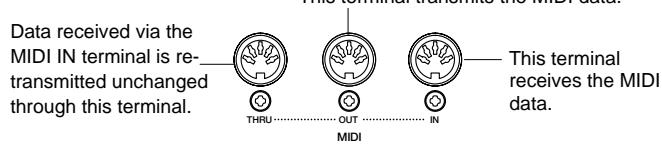
MIDI Cable
Connect MIDI devices with special MIDI cables.
- MIDI settings can be made in the MIDI pages of the Function mode display. (See pages 201 through 204.)
Further information on MIDI and its applications is available in various music books and magazines.
Data Compatibility
This section covers basic information on data compatibility: whether or not other MIDI devices can playback the data recorded by CVP-109/107/105/700, and whether or not the CVP-109/107/105/700 can playback commercially available song data or song data created for other instruments or on a computer.
Depending on the MIDI device or data characteristics, you may be able to play back the data without any problem, or you may have to perform some special operations before the data can be played back. If you run into problems playing back data, please refer to the information below.
Basic Check Points
The data and the MIDI device must match in regards to the items below.
- Disk Format
Sequence format
Voice allocation format
- Disk format
Floppy disks are the main storage medium for data used with various devices, including computers. Different devices have different systems of storing data, therefore it is necessary to first configure the floppy disk to the system of the device being used. This operation is called "formatting."
- There are two types of floppy disks: MF2DD (double sided, double density) and MF2HD (double sided, high density), and each type has different formatting systems.
- CVP-109/107/105/700 can record and playback with both types of floppy disks.
- When formatted by the CVP-109/107/105/700, a 2DD disk stores up to 720 KB (kilobytes) and a 2HD disk stores up to 1.44 MB (megabytes). (The figures “720 KB” and “1.44 MB” indicate the data memory capacity. They are also used to indicate the format type of disk.)
- Playback is only possible when the MIDI device to be used is compatible with the format of the disk.
Sequence Format
The system which records song data is called "sequence format."
- Playback is only possible when the sequence format of the disk matches that of the MIDI device.
[Common Sequence Formats] SMF (Standard MIDI File)
This is the most common sequence format.
- Standard MIDI Files are generally available as one of two types: Format 0 or Format 1.
- Many MIDI devices are compatible with Format 0, and most commercially available software is recorded as Format 0.
- The CVP-109/107/105/700 is compatible with both Format 0 and Format 1 (for Format 1, up to a maximum of 17 chunks).
- Song data recorded on the CVP-109/107/105/700 is automatically recorded as SMF Format 0.
ESEQ
This sequence format is compatible with many of Yamaha's MIDI devices, including the Clavinova series instruments.
This is a common format used with various Yamaha software.
The CVP-109/107/105/700 is compatible with ESEQ.
Voice Allocation Format
With MIDI, voices are assigned to specific numbers, called "program numbers." The numbering standard (order of voice allocation) is referred to as the "voice allocation format."
- Voices may not play back as expected unless the voice allocation format of the song data matches that of the compatible MIDI device used for playback.
[Main Voice Allocation Formats] GM System Level 1
This is one of the most common voice allocation formats.
- Many MIDI devices are compatible with GM System Level 1, as is most commercially available software.
- The CVP-109/107/105/700 is compatible with GM System Level 1.
XG
XG is a major enhancement of the GM System Level 1 format, and was developed by Yamaha specifically to provide more voices and variations, as well as greater expressive control over voices and effects, and to ensure compatibility of data well into the future.
The CVP-109/107/105/700 is compatible with XG.
- Song data recorded on the CVP-109/107/105/700 using voices in the [XG] category is XG-compatible.
DOC
This voice allocation format is compatible with many of Yamaha's MIDI devices, including the Clavinova series instruments.
This is also a common format used with various Yamaha software.
The CVP-109/107/105/700 is compatible with DOC.
Even if the devices and data used satisfy all the conditions above, the data may still not be completely compatible, depending on the specifications of the devices and particular data recording methods.
A
Accompaniment Assistance 81-86
Accompaniment Mode 69, 71-73
Accompaniment Off Events 84
accompaniment styles . see "styles"
aftertouch events 156-157
All Setup files 192-195
audio connections 213-215
Auto Accompaniment 69-90
B
Backup 206
Balance,Vocal Harmony 178
basic settings 19
beat 28,93
Bend Range 191
break 84
C
Channel Aftertouch events. 156
channels,MIDI 201,205
Chord Assistance 75-76
chord indication 72-73
Chord Sequence 141-145
chorus 51-53
chorus, Custom Style 100-101
chorus, Song 120-121
chorus,vocals 178
Chorus Type List 219
computer 216-217
contrast 11
Control Change events 153-154
controls 12-13
convert, song data 199
Custom Style 91-107
CVP MEMORY (song) 174
D
damper pedal 45, 190-191
data dial 17
deleting, Accompaniment Assistance 85
deleting, Chord Sequence 144
deleting, data files 195
deleting,Style Files 102
deleting, tracks 168-169
Demo Play 14-15
detune 40
Direct Access 22
Disk Copy 196-197
disk drive 9
Disk Format. 131, 200
Disk functions 192-200
display pages 20
Dual. 38-40, 44
E
Easy Play 125, 127
Effect Type List 219-220
effects 54-60
effects, Custom Style 100-101
effects, Song 120-121
effects,vocals 179
endmark. 83,85,144,145
ending pattern 67-68
Equalizer Lock 26
event list, editing 158-160
event list, filtering 161
events, adding 158
expression pedal 24, 215
F
Fade In 67
Fade Out 68
fast forward 124
file icons 114
fill-in patterns 63-64
filter,MIDI Filter 202-204
fingering (chords) 72-73, 75-76
Fixed Velocity 189
floppy disks 9
formatting, Disk 131, 200
free tempo 116
Function 186-187
function, resetting 19
functions in normal rectangles 21
functions in rounded rectangles 16
G
Glide Range 190
Guide 15, 125-129
guide lamps 129
Guide Mode 128
H
Harmony 87-89
Harmony Mode 181-182, 185
Harmony Part 182
headphones 213
Help 29-30
host computer 216-217
highlighted items 16
1
Initial Edit 170-172
introduction pattern 66
K
key cover. 10
Key Touch 189
keyboard guide lamps 129
keyboard percussion 36
L
LCD, changing a value 17
LCD, selecting a function 16
left LCD buttons 18
Left Pedal 190
left voice 41-44
lid 11
loading, data files 193-194
loading,style files. 105-107
Local Control 201
lyrics 15, 129
M
main display 16
main voice 36-37, 38, 42
Master Equalizer 25-26
memory, recording to 174
menu display 18
messages 221-228
messages, Custom Style 103-104
Meta events 157
metronome 27-28
microphone 213-214
Micro Tuning 208-209
MIDI equipment 216
MIDI Filter 202-203
MIDI functions 201-205
MIDI terminals 216
MIDI Transpose 204
Mixer, Auto Accompaniment 77-78
Mixer, Song 120-121
multi-track recording 135-138
Music Database 79-81
music stand 10
N
naming, Custom Style 97
naming, data files 195
naming, Registration 111-112
naming, Song 166-167
NaturalReverb 48
NaturalReverbTypeList 218
Next Note 125, 127
Note events 152-153
Note Record 162-164
0
octave 37, 39, 43
One Touch Setting 90
Organ Flutes 33-35
P
pages, display 20
pan 37,40,43
pan, Custom Style 100-101
pan, Song 120-121
panel controls 12-13
part, recording 94-96
part, track assignment 118-119
Part Cancel 117-118
part levels 77-78, 84, 100-101
pause 124
Pedalfunctions 190-191
pedals 43, 45
Pianist styles 61, 70
Piano Roll 126, 127, 129
pitch bend 191
Pitch Bend events 155
playback, Auto Accompaniment.....70, 72-73
playback, Custom Style 103
Playback, demo songs 14-15
playback, Song 113-124
playback, styles 63-68
playback,style files 107
Polyphonic Aftertouch events 156-157
power 11
practicing 125-127
preset scale 209-210
Program Change events 155
Punch-in/out Recording 138-140
Q
quantizing 96,169-170
Quick Recording 132-135
R
Recall 207
Recall Section 99
recalling, registration 109-110
Receive Filter 203-204
Record Edit functions 166-173
recording, Accompaniment Assistance 81-86
recording, Chord Sequence 141-145
recording, Custom Style 91-98
recording, Song 130-140
recording, without a disk 174
recording, Step Edit 146-165
Registration 108-112
Registration file 192-195
Registration Freeze 110-111
Remote Keyboard 205
Repeat 122-123
Reverb 46-50
reverb, Custom Style 100-101
reverb, Song 120-121
Reverb Type List 218
reverb,vocals 177,183
rewind 124
Rhythm On/Off 85, 145
right LCD buttons 18
Right Pedal 191
S
saving, Custom Style 101-102
saving, data files 194
saving, Initial Edit 171
saving, Step Edit 165
saving,Vocal Harmony 184
Scale Tuning 209-211
second voice 38-40, 44
section 92-94, 99
Send Channel 201, 205
Setup files 192-195
Setup Memory 172
setup procedure 10
soft pedal 45, 190
software 124
song, Chord Sequence 141-145
song, Step Edit. 146-165
Song Copy 196-197
Song Data Transform 199
Song Delete 198
Song Name 166-167
Song Play 113-124
Song Record 130-140
Song Transmission 205
sostenuto pedal 45
Sound Repeat 126, 127, 129
Split 41-44
Split Point 41, 43-44, 74
Step Edit 146-165
stereo position. see "pan"
storing, Custom Style 98
storing, Registration 108-109
Style Clear 99
style file 105-107
styles, custom 91-107
styles, playback 63-68
styles, selecting 61-62
Synchronization (MIDI) 202
Synchronized Start 65
Synchronized Stop 74
System Exclusive events 157
T
Tap Start 65
tempo 27,84,116,120
Tempo events 151
terminals and jacks 12-13
timbre 25
time signature 28, 93
Time Signature events 152
Track Delete 168-169
Track Edit 167-170
Track Mix 167-168
Track Recording. 135-138
Track Quantize 169-170
tracks, adding 138
tracks, song structure 130
Transform 199
Transpose 188, 204
troubleshooting 229-230
Tune 188, 211
U
user scale 210-211
V
velocity 189
video monitor 215
Video Out 212
Vocal Harmony 175-183
Vocal Harmony data 184-185
Vocal Harmony Memory 173
voice, Organ Flutes 33-35
Voice Setting 189
voices,selecting. 31-32,95,119
volume 23-24
volume, metromome 28
volume, part 77-78, 84, 100-101
volume, song 119
volume, track 120-121
volume, voices 37, 39, 42
FCC INFORMATION (U.S.A.)
1. IMPORTANT NOTICE: DO NOT MODIFY THIS UNIT!
This product, when installed as indicated in the instructions contained in this manual, meets FCC requirements. Modifications not expressly approved by Yamaha may void your authority, granted by the FCC, to use the product.
2. IMPORTANT: When connecting this product to accessories and/ or another product use only high quality shielded cables. Cable/s supplied with this product MUST be used. Follow all installation instructions. Failure to follow instructions could void your FCC authorization to use this product in the USA.
3. NOTE: This product has been tested and found to comply with the requirements listed in FCC Regulations, Part 15 for Class "B" digital devices. Compliance with these requirements provides a reasonable level of assurance that your use of this product in a residential environment will not result in harmful interference with other electronic devices. This equipment generates/uses radio frequencies and, if not installed and used according to the instructions found in the users manual, may cause interference harmful to the operation of other electronic devices. Compliance with FCC
regulations does not guarantee that interference will not occur in all installations. If this product is found to be the source of interference, which can be determined by turning the unit "OFF" and "ON", please try to eliminate the problem by using one of the following measures:
Relocate either this product or the device that is being affected by the interference.
Utilize power outlets that are on different branch (circuit breaker or fuse) circuits or install AC line filter/s.
In the case of radio or TV interference, relocate/reorient the antenna. If the antenna lead-in is 300 ohm ribbon lead, change the lead-in to co-axial type cable.
If these corrective measures do not produce satisfactory results, please contact the local retailer authorized to distribute this type of product. If you can not locate the appropriate retailer, please contact Yamaha Corporation of America, Electronic Service Division, 6600 Orangethorpe Ave, Buena Park, CA90620
The above statements apply ONLY to those products distributed by Yamaha Corporation of America or its subsidiaries.
- This applies only to products distributed by YAMAHA CORPORATION OF AMERICA.
(class B)
IMPORTANT NOTICE FOR THE UNITED KINGDOM
Connecting the Plug and Cord
IMPORTANT. The wires in this mains lead are coloured in accordance with the following code:
BLUE : NEUTRAL
BROWN : LIVE
As the colours of the wires in the mains lead of this apparatus may not correspond with the coloured makings identifying the terminals in your plug proceed as follows:
The wire which is coloured BLUE must be connected to the terminal which is marked with the letter N or coloured BLACK.
The wire which is coloured BROWN must be connected to the terminal which is marked with the letter L or coloured RED.
Making sure that neither core is connected to the earth terminal of the three pin plug.
(2 wires)
- This applies only to products distributed by Yamaha-Kemble Music (U.K.) Ltd.
CAUTION: TO PREVENT ELECTRIC SHOCK, MATCH WIDE BLADE OF PLUG TO WIDE SLOT, FULLY INSERT.
ATTENTION: POUR ÉVITER LES CHOCS ÉLECTRIQUES, INTRODUIRE LA LAME LA PLUS LARGE DE LA FICHE DANS LA BORNE CORRESPONDANTE DE LA PRISE ET POUSSER JUSQU'AU FOND.
(polarity)
IMPORTANT SAFETY INSTRUCTIONS
INFORMATION RELATING TO PERSONAL INJURY, ELECTRICAL SHOCK, AND FIRE HAZARD POSSIBILITIES HAS BEEN INCLUDED IN THIS LIST.
WARNING- When using any electrical or electronic product, basic precautions should always be followed. These precautions include, but are not limited to, the following:
- Read all Safety Instructions, Installation Instructions, Special Message Section items, and any Assembly Instructions found in this manual BEFORE making any connections, including connection to the main supply.
- Main Power Supply Verification: Yamaha products are manufactured specifically for the supply voltage in the area where they are to be sold. If you should move, or if any doubt exists about the supply voltage in your area, please contact your dealer for supply voltage verification and (if applicable) instructions. The required supply voltage is printed on the name plate. For name plate location, please refer to the graphic found in the Special Message Section of this manual.
- This product may be equipped with a polarized plug (one blade wider than the other). If you are unable to insert the plug into the outlet, turn the plug over and try again. If the problem persists, contact an electrician to have the obsolete outlet replaced. Do NOT defeat the safety purpose of the plug.
- Some electronic products utilize external power supplies or adapters. Do NOT connect this type of product to any power supply or adapter other than one described in the owners manual, on the name plate, or specifically recommended by Yamaha.
- WARNING: Do not place this product or any other objects on the power cord or place it in a position where anyone could walk on, trip over, or roll anything over power or connecting cords of any kind. The use of an extension cord is not recommended! If you must use an extension cord, the minimum wire size for a 25^ cord (or less) is 18 AWG. NOTE: The smaller the AWG number, the larger the current handling capacity. For longer extension cords, consult a local electrician.
- Ventilation: Electronic products, unless specifically designed for enclosed installations, should be placed in locations that do not interfere with proper ventilation. If instructions for enclosed installations are not provided, it must be assumed that unobstructed ventilation is required.
-
Temperature considerations: Electronic products should be installed in locations that do not significantly contribute to their operating temperature. Placement of this product close to heat sources such as; radiators, heat registers and other devices that produce heat should be avoided.
-
This product was NOT designed for use in wet/damp locations and should not be used near water or exposed to rain. Examples of wet/damp locations are; near a swimming pool, spa, tub, sink, or wet basement.
- This product should be used only with the components supplied or; a cart, rack, or stand that is recommended by the manufacturer. If a cart, rack, or stand is used, please observe all safety markings and instructions that accompany the accessory product.
- The power supply cord (plug) should be disconnected from the outlet when electronic products are to be left unused for extended periods of time. Cords should also be disconnected when there is a high probability of lightening and/or electrical storm activity.
- Care should be taken that objects do not fall and liquids are not spilled into the enclosure through any openings that may exist.
- Electrical/electronic products should be serviced by a qualified service person when:
a. The power supply cord has been damaged; or
b. Objects have fallen, been inserted, or liquids have been spilled into the enclosure through openings; or
c. The product has been exposed to rain: or
d. The product dose not operate, exhibits a marked change in performance; or
e. The product has been dropped, or the enclosure of the product has been damaged.
-
Do not attempt to service this product beyond that described in the user-maintenance instructions. All other servicing should be referred to qualified service personnel.
-
This product, either alone or in combination with an amplifier and headphones or speaker/s, may be capable of producing sound levels that could cause permanent hearing loss. DO NOT operate for a long period of time at a high volume level or at a level that is uncomfortable. If you experience any hearing loss or ringing in the ears, you should consult an audiologist.
IMPORTANT: The louder the sound, the shorter the time period before damage occurs. - Some Yamaha products may have benches and/or accessory mounting fixtures that are either supplied as a part of the product or as optional accessories. Some of these items are designed to be dealer assembled or installed. Please make sure that benches are stable and any optional fixtures (where applicable) are well secured BEFORE using. Benches supplied by Yamaha are designed for seating only. No other uses are recommended.
PLEASE KEEP THIS MANUAL
For details of products, please contact your nearest Yamaha or the authorized distributor listed below.
Yamaha Canada Music Ltd.
135 Milner Avenue, Scarborough, Ontario,
M1S 3R1, Canada
Tel: 416-298-1311
U.S.A.
Yamaha Corporation of America,
Keyboard Division
6600 Orangethorpe Ave., Buena Park, Calif. 90620,
U.S.A.
Tel: 714-522-9011
CENTRAL & SOUTH AMERICA
MEXICO
Yamaha de Mexico S.A. De C.V.,
Javier Rojo Gomez No.1149, Col. Gpe Del
Moral, Deleg. Iztapalapa, 09300 Mexico, D.F.
Tel: 686-00-33
BRAZIL
Yamaha Musical do Brasil LTDA.
PANAMA AND OTHER LATIN
AMERICAN COUNTRIES/
CARIBBEAN COUNTRIES
Yamaha de Panama S.A.
Sherbourne Drive, Tilbrook, Milton Keynes,
MK7 8BL, England
Tel: 01908-366700
IRELAND
Danfay Ltd.
61D, Sallynoggin Road, Dun Laoghaire, Co. Dublin
Tel: 01-2859177
GERMANY/SWITZERLAND
Yamaha Europa GmbH.
Siemensstraße 22-34, 25462 Rellingen,
F.R. of Germany
Tel: 04101-3030
AUSTRIA
Yamaha Music Austria
Schleiergasse 20, A-1100 Wien Austria
Tel: 01-60203900
THE NETHERLANDS
Yamaha Music Belgium
Keiberg Imperiastraat 8, 1930 Zaventem, Belgium
Tel: 02-7258220
FRANCE
Home Keyboard Division
Viale Italia 88, 20020 Lainate (Milano), Italy
Tel: 02-935-771
SPAIN/PORTUGAL
Yamaha-Hazen Electronica Musical, S.A.
Jorge Juan 30, 28001, Madrid, Spain
Tel: 91-577-7270
GREECE
Philippe Nakas S.A.
Navarinou Street 13, P.Code 10680, Athens, Greece
Tel: 01-364-7111
SWEDEN
Yamaha Scandinavia AB
J. A. Wettergrens Gata 1
Box 30053
S-400 43 Göteborg, Sweden
Tel: 031 89 34 00
DENMARK
YS Copenhagen Liaison Office
Generatorvej 8B
DK-2730 Herlev, Denmark
Tel: 44 92 49 00
FINLAND
F-Musiikki Oy
Kluuvikatu 6, P.O. Box 260,
SF-00101 Helsinki, Finland
Tel: 09 618511
NORWAY
N-1345 Østerås, Norway
Tel: 67 16 77 70
ICELAND
Skifan HF
Skeifan 17 P.O. Box 8120
IS-128 Revkjavik, Iceland
Tel: 525 5000
OTHER EUROPEAN COUNTRIES
Yamaha Europa GmbH.
Siemensstraße 22-34, 25462 Rellingen, F.R. of
Germany
Tel: 04101-3030
AFRICA
Yamaha Corporation,
International Marketing Division
Nakazawa-cho 10-1, Hamamatsu, Japan 430-8650
Tel: 053-460-2312
MIDDLE EAST
TURKEY/CYPRUS
Yamaha Europa GmbH.
Siemensstraße 22-34, 25462 Rellingen,
F.R. of Germany
Tel: 04101-3030
OTHER COUNTRIES
Yamaha Music Gulf FZE
LB21-128 Jebel Ali Freezone
P.O.Box 17328, Dubai, U.A.E.
Tel: 971-4-81-5868
ASIA
HONG KONG
Tom Lee Music Co., Ltd.
11/F., Silvercord Tower 1, 30 Canton Road,
Tsimshatsui, Kowloon, Hong Kong
Tel: 2737-7688
INDONESIA
PT. Yamaha Music Indonesia (Distributor)
PT. Nusantik
Gedung Yamaha Music Center, Jalan Jend. Gatot
SubROTO Kav. 4, Jakarta 12930, Indonesia
Tel: 21-520-2577
KOREA
Cosmos Corporation
1461-9, Seocho Dong, Seocho Gu, Seoul, Korea
Tel: 02-3486-0011
MALAYSIA
Yamaha Music Malaysia, Sdn., Bhd.
Lot 8, Jalan Perbandaran, 47301 Kelana Jaya,
Petaling Jaya, Selangor, Malaysia
Tel: 3-703-0900
PHILIPPINES
Yupangco Music Corporation
339 Gil J. Puyat Avenue, P.O. Box 885 MCPO,
Makati, Metro Manila, Philippines
Tel: 819-7551
SINGAPORE
Yamaha Music Asia Pte., Ltd.
11 Ubi Road #06-00, Meiban Industrial Building,
Singapore
Tel: 65-747-4374
TAIWAN
Yamaha KHS Music Co., Ltd.
10F, 150, Tun-Hwa Northroad,
Taipei, Taiwan, R.O.C.
Tel: 02-2713-8999
THAILAND
Siam Music Yamaha Co., Ltd.
121/60-61 RS Tower 17th Floor,
Ratchadaphisek RD., Dindaeng,
Bangkok 10320, Thailand
Tel: 02-641-2951
THE PEOPLE'S REPUBLIC OF CHINA
AND OTHER ASIAN COUNTRIES
Yamaha Corporation,
International Marketing Division
Nakazawa-cho 10-1, Hamamatsu, Japan 430-8650
Tel: 053-460-2317
OCEANIA
AUSTRALIA
Yamaha Music Australia Pty. Ltd.
17-33 Market Street, South Melbourne, Vic. 3205,
Australia
Tel: 3-699-2388
NEW ZEALAND
Music Houses of N.Z. Ltd.
146/148 Captain Springs Road, Te Papapa,
Auckland, New Zealand
Tel: 9-634-0099
COUNTRIES AND TRUST
TERRITORIES IN PACIFIC OCEAN
Yamaha Corporation,
International Marketing Group
Nakazawa-cho 10-1, Hamamatsu, Japan 430-8650
Tel: 053-460-2312