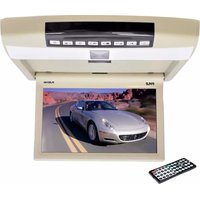
PLRD104 - Monitor Pyle - Free user manual and instructions
Find the device manual for free PLRD104 Pyle in PDF.


| Product Type | LED Monitor |
| Brand | Pyle |
| Model | PLRD104 |
| Screen Size | 24 inches |
| Display Resolution | 1920 x 1080 (Full HD) |
| Refresh Rate | 60 Hz |
| Response Time | 5 ms |
| Aspect Ratio | 16:9 |
| Contrast Ratio | 1000:1 |
| Brightness | 250 cd/m² |
| Viewing Angle | 178° / 178° |
| Connectivity | HDMI, VGA, Audio Out |
| Power Consumption | 25 W (typical) |
| Standby Power | <0.5 W |
| Input Voltage | 100-240 V AC, 50/60 Hz |
| Dimensions (With Stand) | 21.3 x 16.5 x 7.5 inches |
| Weight (With Stand) | 8.6 lbs |
| VESA Mount Compatible | Yes (100 x 100 mm) |
| Built-in Speakers | 2 x 2W |
| Color | Black |
| Included Accessories | HDMI cable, Power cord, User manual |
| Cleaning Instructions | Use a soft, dry cloth. Do not use liquid cleaners. |
| Safety Feature | Anti-glare screen, Kensington lock slot |
| Repairability | Contact Pyle support for service |
Frequently Asked Questions - PLRD104 Pyle
User questions about PLRD104 Pyle
0 question about this device. Answer the ones you know or ask your own.
Ask a new question about this device
Download the instructions for your Monitor in PDF format for free! Find your manual PLRD104 - Pyle and take your electronic device back in hand. On this page are published all the documents necessary for the use of your device. PLRD104 by Pyle.
USER MANUAL PLRD104 Pyle
10.4" Flip Roof Mount Monitor & DVD Player w/ Wireless FM Modulator/ IR Transmitter
Owner's Manual
operating menu
Contents
characteristics and effects....1
appearance and functions....2
installation....3
remote control panel....4
battery installation diagram for remote control .....4
operation of DVD system....5
system setup....5
functional description of USB/SD....7
menu function setup....7
introduction of door control line....10
Removal of simple faults....11
Cautions....12
characteristics and effects
DVD
super-thin design is combined perfectly and the crystal glass style for top panel
digital technique, sharp image and no interference
transmit frequency range of audio signal: FM87.7MHz/ FM88.1MHz/FM88.5MHz/ FM88.9MHz/FM106.7MHz/ FM107.1MHz/FM107.5MHz/FM107.9MHz.
▶ double period of infrared emission
audio/video input and output
▶ fully functional remote operation
USB/SD/games
built-in speakers
Specifications
Size of screen: 9.4 inch/10.4 inch
Pixel: 9.4 inch: 800×3 (RGB) ×480
10.4 inch: 1024×3 (RGB) ×600
Rated voltage: DC12V(voltage range:10V-14V)
Power: about 13W
-1-
Appearance and functions

①Power switch and mode switch
⑦analogue- and next song
②play and pause
⑧light switch
③down and in/out
⑨standby switch
④up and stop
⑩open key
⑤analogue+ and last song
⑪disc-in mouth
⑥menu
-2-
Installation

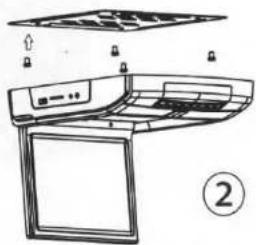
- remove four screws on the bottom and disassemble metallic
support, as picture 1
- screw down the top of metallic support, as picture2. Make room for wire (please be double careful to not damage the top of the machine)
natural_image
Line drawing of a kitchen appliance with control panel and door (no text or symbols)- install metallic support, link all parts and make room for wire (keep the wire orderly lest extrude DVD chips, install special screw to avoid becoming loose)

natural_image
Line drawing of a printer with a door and paper holder, showing internal components and a close-up of the door (no text or symbols)-3-
Remote control

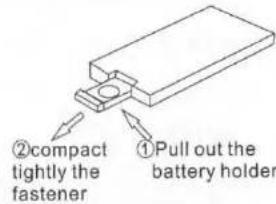
battery installation diagram for remote control
attention:
- do not directly touch infrared light
- do not press remote control when disassembling the battery cover of remote control
- take out battery when rarely using
- normally, battery life is about one year. replace battery when the remote control is not sensitive.
-4-
Operation of DVD system
Play DVD/DCD/CD
Put the DVD disc into the mouth with the label of disc upwards to
autoplay Press ■/▲ on panel or STOP on remote control to stop.
Press ▶|| on panel or ▶|| on remote control to pause.
Play MP3
Insert the file storage media into the machine to autoplay
Press ■/▲ on panel or STOP on remote control to stop.
Press ▶|| on panel or ▶|| on remote control to pause.
Press ▶ on panel or ▶ on remote control when pausing to replay
Replay
-
Press 📋 to repeat one or more songs
-
press numeric key to directly play the specified song
System setup
Press button of setup on remote control to enter system and set menu.
Press ↗ ↙ ↕ → on remote control to choose modification item
and press to enter, as below picture.
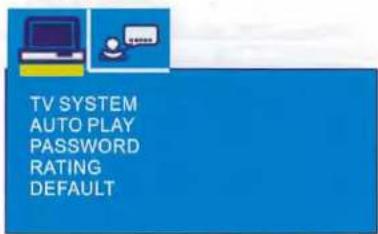
- Television system: set DVD output image format and three formats of NTSC/PAL/AUTO can be chosen.
- resume play: switch of resuming play after power off
- screen protection: switch of screen protection icon
- screen picture ratio: choose image output ratio as per request
- password: set new 4 a password and the initial password of system is [0000]
6.level set: set parents lock as per different levels - setup of default value: restore factory's initial settings

OSD LANGUAGE AUDIO LANG SUBTITLE LANG MENU LANG
- language showed on the screen: choose the language showed in the menu as per request
- audio language: set disc output language
- subtitle language: set disc subtitle language
- menu language: set menu language of disc
Remark: the disc must support audio language, subtitle language and menu language.
introduction of USB/SD function
-
enter: press under DVD mode and switch to the mode you need in DVD, USB and SD mode.
-
quit: press STOP or SD USB under USB/SD mode and then switch to DVD mode.
Menu function setup
Press 📄 on panel or 📋 on remote control to enter the main menu.
Then press ▲▼ < > on panel or ↑ ↓ ← → on remote control
to setup and adjust
Main menu includes below parts
Image
Volume
Function
System
Preset
Time
Detailed setup as below diagram
- image setup

- brightness
- contrast
- color
- reset: restore factory's
initial setting
-7-
- Volume setup

- volume adjust
- infrared switch
-
FM switch
-
Functional setup

- language setup
-
image display setup
-
system setup
Remark: this function applies to the machine type
with TV function.

- color mode adjustment
- accompanying sound adjustment
- channel swap
- copy
-8-
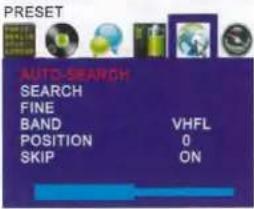
5.preset
Remark: this function applies to the machine type with TV function
-
time setup
-
automatic channel searching
- manual channel searching
3.channel fine-tuning - band segment display
5.program No. - Channel over the switch

- sleep timer function
- clock setup function
- timing of the shutdown function
- function of resuming by alarm
2.audio frequency
Press A/√ on panel or ↑↓ on remote control and the screen displays menu, then press </> on panel or ←→ on remote control to set accordingly.
a: volume
Audio control, (you can choose infrared/speaker/radio/speaker, speaker/radio, infrared/speaker/radio, radio, infrared, infrared/speaker, infrared/radio)
- Functions
Press ▲/▽ on panel or ⏻/↓ on remote control and the screen displays below menu pictures, then press </> on panel or ◀/→
on remote control to set accordingly
introduction of door control line

the red wire connects DC power +12V
the black wire connects door control-12V
the yellow wire connects door control+12V
Attention
Customer can choose door control type according to his own vehicle type.
Removal of simple fault
| Faults | possible reasons |
| No sound and image | power is disconnected; the machine is not turned on |
| No image | standby switch is pressed down; disc is scratched; signal wire is disconnected; TV signal is weak |
| No sound | volume too low or the volume setup is not workable |
| Weak signal | adjust the antennae; no appropriate frequency |
| Black screen | incorrect setup of image luminance and contrast; Undervoltage |
| Blurring and unstable image | TV signal is weak; disc is scratched |
| Image dithering | adjust the antennae; TV may not receive the signal; influence of buildings or mountains in this region |
| Snow pattern on the screen | no signal or weak signal for TV; TV is interfered by other signal; antennae is not installed properly |
| Color cast | function menu setup is incorrect; weak signal |
| No power | voltage is not accurate: check interconnect circuit; Fuse is disconnected: change fuse specification |
| No image after loading the disc | only audio frequency for the disc; disc is scratched; disc format is not supported |
| Instable sound caused by vibration | DVD is dirty or seriously damaged |
| Instable sound even with no vibration | disc is dirty or scratched; clean or replace the disc |
Attention
- Do not put the machine in the rain or damp environment lest outbreak of fire or any damage to machine.
- Do not repair the machine by yourself. Please turn off the machine and inform us if any problem found, the factory or the agent will arrange specialized personnel to disassemble and repair the machine for you.
- Please keep the machine away from dampness, dust, oil and straight sunlight.
- Do not use diluents or other chemical cleaner when cleaning the machine. Please clean the machine by soft cloth with special cleaner.
- Please keep the machine in a good environment. The storage temperature for this machine is from -20°C to 70°C and the operating temperature for this machine is from -10°C to 60°C.
6.Do not play without the support of disc, this machine supports DIVX / MPEG4 / DVD / DVD + R / SVCD / VCD / DVCD / CD / MP3 / WMA / CD - R / RW / HDCD + _R / JPEG or CD - ROM7. - Please prevent the machine from the influence of other equipment.
- For your safety, please do not turn on or operate this machine when driving as it may be illegal in some countries and regions.
- Safe power supply: DC12V(voltage range:10V-14V).
Attention
There may be some small and bright spots on the screen. This is a common technical matter and does not indicate any quality problem of this machine.
PYLE
VIEW

natural_image
Close-up of a pink sports car's front wheel and roof, no visible text or symbolsVisit us @ pyleaudio.com
IMPORTANT: Pack carefully in original package if possible. We are not responsible for damage incurred in returning items for repair. A letter stating your exact street address, daytime phone number, and the problem you are experiencing should be included. You must also enclose a copy of the original receipt a sproof of date of purchase
Brooklyn, NY 11204
1-800-444-5671
Monday Through Thursday 9AM to 5PM
Friday 9AM to 1PM Eastern.
- Owner's Manual
- operating menu
- Contents
- characteristics and effects
- Specifications
- Installation
- Remote control
- battery installation diagram for remote control
- Operation of DVD system
- Play DVD/DCD/CD
- Play MP3
- System setup
- introduction of USB/SD function
- Menu function setup
- Main menu includes below parts
- Detailed setup as below diagram
- 5.preset
- introduction of door control line
- Attention
- Visit us @ pyleaudio.com
Brand : Pyle
Model : PLRD104
Category : Monitor