RS4502 - Car radio Manta - Free user manual and instructions
Find the device manual for free RS4502 Manta in PDF.


| Product Type | Car Stereo / Radio Player |
| Brand | Manta |
| Model | RS4502 |
| Power Supply | DC 11-14V (negative ground) |
| Power Output | 35W x 4 (max) |
| Speaker Impedance | 4 ohms |
| FM Frequency Range | 87.5 – 108 MHz |
| FM Intermediate Frequency | 10.7 MHz |
| FM Sensitivity | Better than 15dB (S/N 30dB) |
| AM Intermediate Frequency | 450 KHz |
| AM Sensitivity | Better than 45dB |
| AM S/N Ratio | 40dB |
| Supported Media | MP3, USB, SD, MMC, AUX |
| Max USB/SD Capacity | 8GB |
| Max Number of Tracks | 999 |
| File System Support | FAT12, FAT16, FAT32 |
| USB Version | 1.1 and 2.0 (transfer speed as version 1.1) |
| Display Type | LCD |
| Detachable Control Panel | Yes |
| RDS Features | TA (Traffic Announcement), PTY, AF |
| Equalizer Modes | OFF, Classic, Pop, Rock |
| Audio Controls | Volume, Bass, Treble, Balance, Fader |
| Installation Methods | DIN Front-mount and DIN Rear-mount |
| Reset Button | Yes, on front panel |
| Cleaning | Soft dry cloth for panel; isopropyl alcohol for socket |
Frequently Asked Questions - RS4502 Manta
User questions about RS4502 Manta
0 question about this device. Answer the ones you know or ask your own.
Ask a new question about this device
Download the instructions for your Car radio in PDF format for free! Find your manual RS4502 - Manta and take your electronic device back in hand. On this page are published all the documents necessary for the use of your device. RS4502 by Manta.
USER MANUAL RS4502 Manta
natural_image
Abstract black-and-white circular logo design with interlocking curved shapes (no text or symbols)MANTA
RS4502
Car Radio Player
Instrukcja obsługi
User's Manual
RS4502 CAR RADIO PLAYER
Instrukcja obsługi
Panel Przedni ....3
Instalacja 4
DIN Front/Rear-Mount 12
DIN Front-Mount 12
Removing the unit 12
DIN Rear-Mount....12
Detachable Control Panel (DCP)....13
Electrical Connection....13
General Operation....13
RDS Operations 15
MP3/SD/USB Operation 15
MMC/SD CARD & USB Device Operation....15
Compatibility....16
Start the SD/MMC MODE 16
To stop SD/MMC CARD PLAYBACK....16
MP3 operation (MP3/SD/MMC/USB FILES) 17
Specification....17
Instrukcja obsługi
Panel Przedni
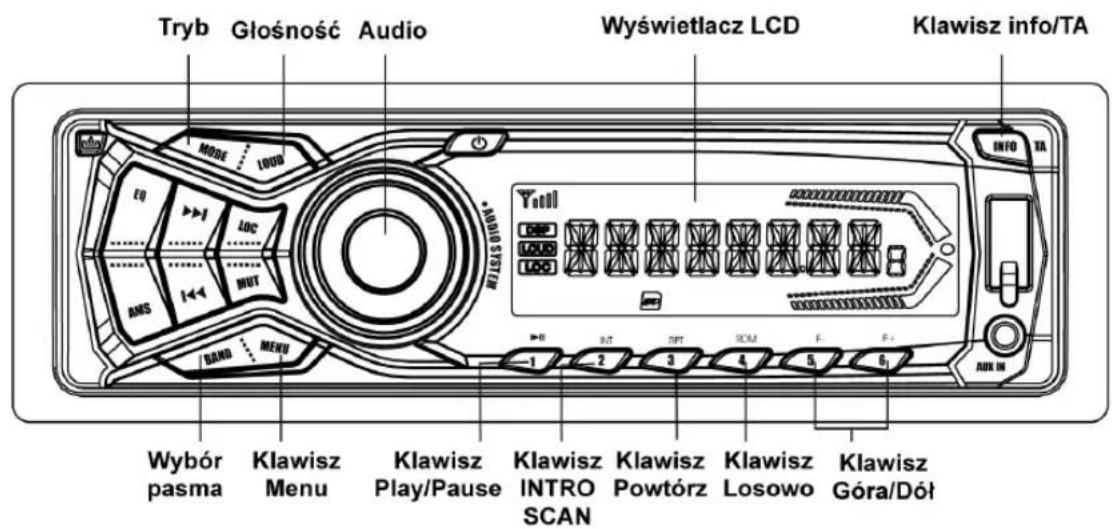
INSTRUKCJA OBSŁUGI
BALANS (BAL)->PROPORCJA DŻWIĘKU (FAD)
- BEEP MODE (BEEP ON / OFF)
natural_image
Back panel diagram showing internal components including ports, connectors, and a connector (no text or labels)KLAWISZ PLAY/PAUSE I FIRST TRACK
WSPARCIE DLA MAKS. 999 UTWORÓW –
WSPARCIE DLA URZĄDZEŃ USB 1.1. –
WSPARCIE DLA URZADZEŃ USB 2.0 (PRĘDKOŚĆ TRANSFERU
TAKA JAK DLA WERSJI 1.1)
PLIKI: FAT12/FAT16/FAT32 -
ZASILANIE: MAKS. 500mA. -
UWAGA!
natural_image
Diagram of a device rear panel with internal components and an arrow indicating a location (no text or symbols present)Obstuga MP3
(PIki MP3/SD/MMC/USB)
Before finally installing the unit, connect the wiring temporarily and make sure it is all connected up properly and the unit and system work properly.
Use only the parts included with the unit to ensure proper installation. The use of unauthorized parts can cause malfunctions.
-Consult with your nearest dealer if installation requires the drilling of holes or other modifications of the vehicle.
Install the unit where it does not get in the driver's way and cannot injure the passenger if there is a sudden stop, like an emergency stop.
-If installation angle exceeds 30 from horizontal, the unit might not give its optimum performance.
Avoid installing the unit where it would be subject to high - temperature, such as from direct sunlight, or from hot air, from heater, or where it would be subject to dust dirt or excessive vibration.
-Be sure to remove the front panel before installing the unit.
DIN Front/Rear-Mount
This unit can be property installed either from Front (conventional DIN Front-mount) or Rear (DIN Rear-mount installation, utilizing threaded screw holes at the sides of the unit chassis).
For details, refer to the following illustrated installation methods A and B.
DIN Front-Mount
(Method A)
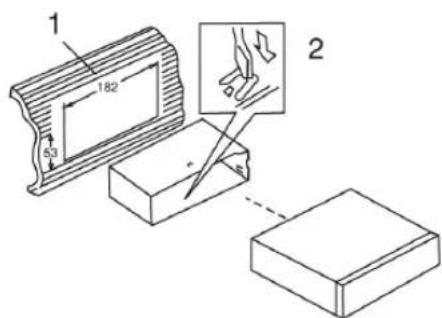
- Dashboard
- Holder
After inserting the half sleeve into the dashboard, select the appropriate tab according to the thickness of the dashboard material and bend them. inwards to secure the holder in place.
Removing the unit
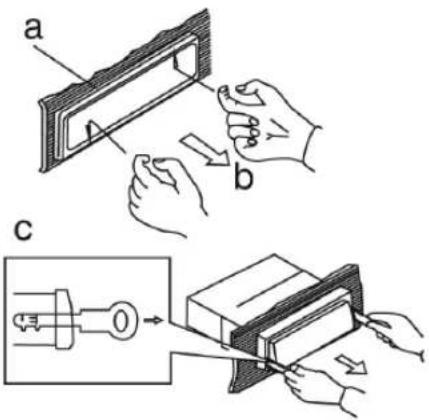
a. Frame
b. Insert fingers into the groove in the front of frame and pull out to remove the frame. (When re-attaching the frame, point the side with a groove down wards and attach it.)
c. Insert the levers supplied with the unit into the grooves at both sides of the unit as shown in figure until they click. Pulling the levers makes it possible to remove the unit from the dashboard.
DIN Rear-Mount
(Method B)
Installation using the screw holes on the sides of the unit. Fastening the unit to the factory radio mounting bracket.
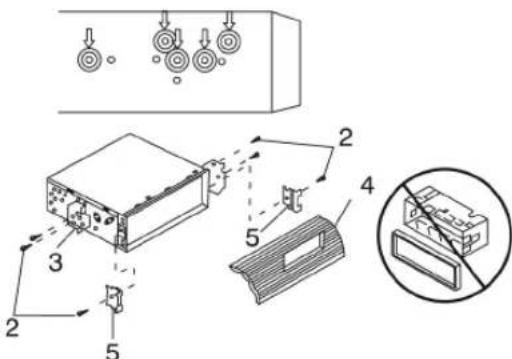
- Select a position where the screw holes of the bracket and the screw holes of the main unit become aligned (are fitted) and tighten the screws at 2 places on each side.
- Screw
- Factory radio mounting bracket.
USER'S MANUAL
- Dashboard or Console
- Hook (Remove this part)
Note: the mounting box, outer trim ring, and half-sleeve are not used for method B installation.
Detachable Control Panel (DCP)
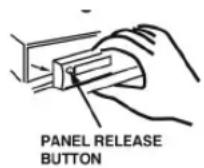
Removing The Detachable Control Panel (D.C.P.).
- Turn the power off
- Press the D.C.P. release button
- Remove the D.C.P.
Attaching the DCP
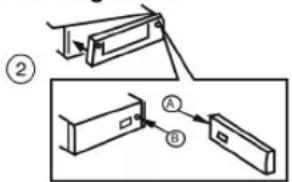
- Attach the panel at the right side first, with point B on the main unit touching point A on the D.C.P. (As shown on the diagram).
- Then press the left side of D.C.P. onto the main unit until a click sound is heard.
Coution!
DO NOT insert the D.C.P from the left side. Doing so may damage it.
The D.C.P can easily be damaged by shocks. After removing it, place it in a protective case and be careful not to drop it or subject it to strong shocks.
When the release button is pressed and the D.C.P is unlocked, the car's vibrations may cause it to fall. To prevent damage to the D.C.P, always store it in a protective case after detaching it.
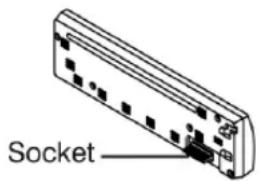
The rear connector that connects the main unit and the D.C.P is an extremely important part. Be careful not to damage it by pressing on it with fingernails, pens, screwdrivers, etc.
Note:
If the D.C.P is dirty, wipe off the dirt with soft, dry cloth only. And use a cotton swab soaked in isopropyl alcohol to clean the socket on the back of the D.C.P.
Electrical Connection
a. Make sure your car battery is a 12 volt (6 filler caps) negative ground system (if not, a converter will be necessary).
b. Before starting wiring connections, disconnect the power supply by removing the fuse from the fuse box.
c. Connect the power wire to one of the extra terminals of the fuse box.
d. Connect the black ground wire to a metal part of the car. It is important to make good contact.
e. Make other wiring connections as shown.
LOOK ON THE PANEL
f. If your car does not have ISO connector, you can procure it from any car accessory shop.
Notes:
INCORRECT WIRING OR OPERATION WILL AVOID THE WARRANTY OF THIS UNIT.
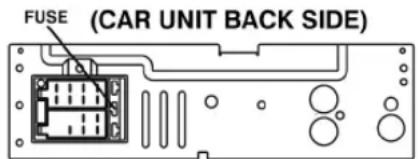
Fuse Replacement
To replace the fuse, pull out the blown fuse from the socket. Insert a new one with same rating
General Operation
POWER ON/OFF BUTTON (PWR)
Press POWER button or any other button on the front of the radio to turn the unit on. Long Press POWER button again to turn the unit off.
MUTE BUTTON
Press the mute button momentarily to mute the audio volume, and „Mute” will flash in the display. Press the mute button again to restore volume to the previous setting.
AUDIO BUTTON
You can operate the following function through Audio Button.
Press AUDIO button for less than 1 second to open the Audio menu.
Press AUDIO repeatedly to navigate through the following functions:
USER'S MANUAL
VOLUME (VOL)->BASS (BAS)-> TREBLE (TRE)-> BALANCE (BAL)-> FADER (FAD) Rotate Volume Control to adjust desired level within 5 seconds.
MENU BUTTON
Press MENU Button to navigate through the menu items, while the desired menu item is displayed, use Volume control to adjust the selected function:
DX MODE - Use this mode to change between Local and Distant (DX) tuning mode. Local mode improves reception in some areas where the signal is too strong.
AF ON/OFF - Use this mode to change between AF on or AF off.
CLOCK ADJUST - Rotate the volume knob in clockwise direction to adjust minute, other direction to adjust hour.
BEEP MODE (BEEP ON / OFF)
BEEP OFF: disable audible beep tone when any function is accessed.
BEEP ON: enable audible beep tone.
EQ BUTTON (PRESET EQUALIZER)
EQ OFF->CLASSIC->POP->ROCK
At DSP off mode preset equalizer will be controlled by Bass / Treble setting.
ENCODER VOLUME KNOB
When the Menu function is not activated, rotate this knob to change the volume level.
When Menu function is activated, rotate this knob to navigate through different menu items.
MODE BUTTON
Press this button to select different mode, sequence as follow:
A) Tuner mode (Radio)
C) USB (only if a USB drive is inserted)
D) SD / MMC (Only if a SD or MMC card is inserted)
E) AUX IN
MODE PRIORITY
Whenever a USB or SD/MMC is being inserted, unit will automatically switch to USB or SD/MMC mode, does not matter the unit is currently in what mode.
When in USB or SD / MMC mode, if the USB or SD / MMC is being removed, unit will automatically switch to radio mode.
FRONT AUX INPUT
Connect the external signal to the front 3.5mm earphone jack on front panel, then press Mode button to select Aux mode. Press Mode button again to cancel Aux Mode and return to previous mode.
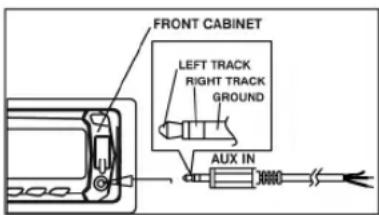
INFO BUTTON
At Radio mode Press this button to view frequency of the station in listening, clock time and program type (PTY).
At Radio mode Press this button to view frequency of the station in listening and clock time.
AUTO MEMORY STORE (AMS)
AUTO MEMORY STORE: press AMS button to enter auto store mode. The radio will automatically store 6 stations to the 6 preset memories of the current band. To stop auto store, press AMS button again.
Press this button to search for radio stations.
BAND BUTTON
Press this button to change between bands FM1, FM2, FM3, MW(AM).
RESET BUTTON
The RESET button is located on the front panel (as shown on the diagram). To press it vertically with a ballpoint pen or metal object will activate it. The reset button is to be activated for the following reasons:
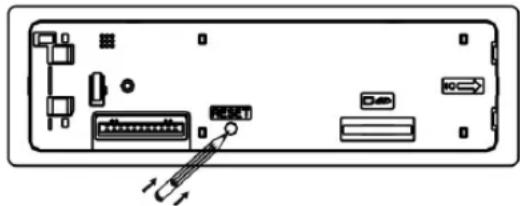
natural_image
Back view diagram of a computer drive bay with ports and connectors (no text or labels)Initial installation of the unit when all wiring is completed.
All the function buttons do not operate.
Error symbol on the display.
Note:
If the unit cannot function normally after resetting, please use a cotton swab soaked inisopropyl alcohol to clean the socket on the back of the control panel.
LIQUID CRYSTAL DISPLAY PANEL (LCD)
The LCD panel display the frequency, time and activated functions.
NOTE: It is a characteristic of LCD panel that if subjected to cold temperatures for an extended period of time, they will take longer
USER'S MANUAL
time to illuminate than under normal conditions, in addition, the visibility of the numbers on the LCD may slightly decrease. The LCD read-out will return to normal when temperatures increase to a normal range.
STATION PRESET BUTTONS (M1-M6)
You can store & recall six preset radio stations by pressing M1-M6 buttons
TO STORE A STATION: 1) select a band (if needed) select a station by tuning up / down button - hold a preset button which you want to store the station for at least 2 seconds. The preset number will appear on the display accompanied by a beeps sound.
TO RECALL A STATION: 1) select a band (if needed) 2) press a preset button briefly to recall the stored station.
RDS Operations
The RDS (Radio Data System) function operates only in areas with FM stations broadcasting RDS signals. If you tune to an RDS station, an RDS icon and information about the presenter, station or program is displayed.
This unit support below RDS features:
TA BUTTON (TRAFFIC ANNOUNCEMENT)
If you do not want to miss traffic announcement during enjoying music, you can turn on the TA (Traffic Announcement) function.
TA On: When there is traffic announcement, the unit switches to the tuner mode (regardless of the current mode) and begins to broadcast the announcement on traffic conditions. When the traffic announcement is over, it returns to the previous mode.
TA Off: Traffic announcement does not cut in.
Hold press the INFO / TA button to turn TA On / Off.
MP3/SD/USB Operation
PLAY/PAUSE AND FIRST TRACK BUTTON
Press this button briefly to pause MP3 play, press again to release pause.
INTRO SCAN BUTTON
Press this button to select Intro Scan function, the first 10 seconds of each track will be played sequentially until this button is pressed again, then normal play will resume at the current track.
REPEAT BUTTON
Pressing this button will activate Repeat Function in the following order:
Repeat On – Repeat Off
The RPT indicator will turn on.
RANDOM PLAY BUTTON
When random play mode is selected, the tracks will be played in random order, press this key one more time to cancel random play mode.
Under normal play mode, press the Track Up Button for less than 1 second to skip the playback to the next track, or press the Track Down Button for less than 0.5 seconds to return to the beginning of the current track, press this button one more time to skip to the previous track.
When any of these buttons is pressed for more than 1 second, the Mp3 player will enter Cue/Review mode, this is indicated by the flashing track number on the LCD. When the key is released, -normal play will resume.
MMC/SD CARD & USB Device Operation
START THE USB DEVICE MODE
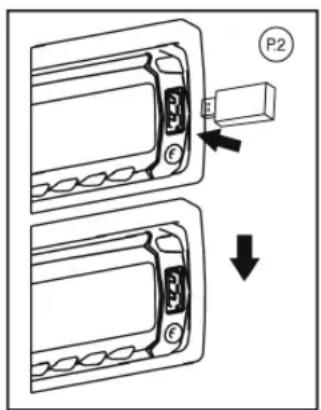
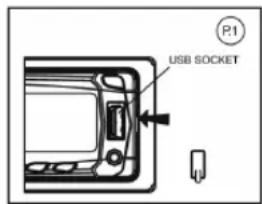
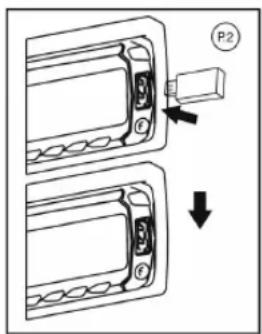
- The USB socket is accessible as indicated in picture
- Plug in the USB drive / device completely as indicated in picture 2(P.2) and display will show USB-DRIV to indicate that the USB drive / device is being plugged in correctly & the download has begun.
- Does not matter the unit is in what mode (TUNER, SD/MMC, etc), once a USB drive / device is being plugged into the unit, unit will automatically switch to USB mode.
- All the USB files playback function is same as normal MP3 files playback.
Warning: Excessive weight or size USB drive/device may cause permanent & serious damage to the unit and may cause access to the buttons on the front panel impossible. User must use an extension cable (provide by USB device manufacturer) to connect with USB socket to prevent any damage cause.
USER'S MANUAL
TO STOP USB PLAYBACK
- The USB drive / device is unplugged, the unit automatically switch to radio mode. Or user can use mode button to switch to other mode.
- User can use the mode button to choose USB mode (only if USB drive / device is inserted in the unit) or any other modes, when they are in any mode.
USB SPECIFICATION
SUPPORT MAX 8G USB FLASH MEMORY -
SUPPORT MAX 999 SONGS -
USB 1.1 DEVICE SUPPORT -
-USB 2.0 DEVICE SUPPORT (TRANSFER SPEED SAME AS VER 1.1)
FILE MANAGER: FAT12/FAT16/FAT32 –
CURRENT SUPPLY: MAX 500mA -
Coution!
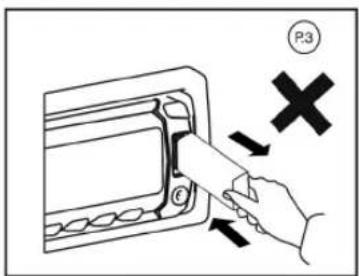
Always unplugged the USB gently from the unit, excessive force used will cause permanent & serious damage to the unit & the USB drive / device.
Compatibility
Due to the fast changing technology world, this unit may or may not be compatible to all the USB drive / device available with all the future technology, especially those USB drive / device which require to install a driver. Always choose a compatible USB drive / device which is compatible with this unit.
NOTE:
This unit is not compatible with portable Hard-Disc.
Start the SD/MMC MODE
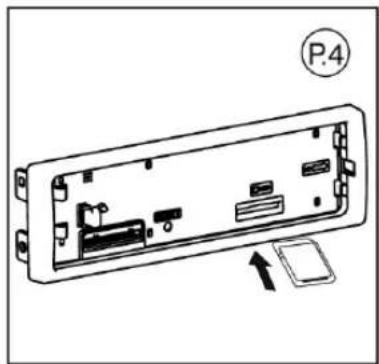
- The SD/MMC card slot is located on top of the front panel as indicated in (P.4).
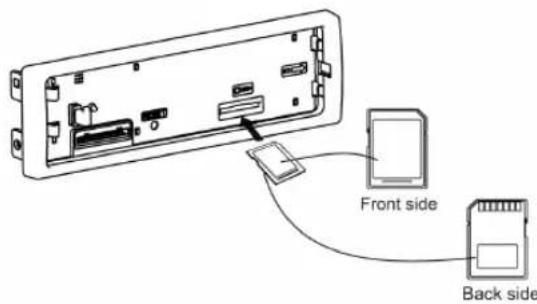
- Insert the SD/MMC card into the card slot in the correct direction until a CLICK sound is heard.
-
The display will show SD-CARD to indicate that the SD or MMC card is correctly inserted. Once the SD or MMC card is inserted, the MP3 file will automatically loaded & playback will also start.
-
Does not matter the unit is in what mode (Tuner, USB, etc), once a SD or MMC card is being inserted in the unit, unit will automatically switch to SD / MMC mode.
- All the SD / MMC files playback function is same as normal MP3 files playback.
To stop SD/MMC CARD PLAYBACK
- Push on the end of the SD or MMC card to eject the sd or MMC card. Once the SD or MMC card is taken out, the unit will automatically switch to previous mode.
2.User can use the mode button to choose SD / MMC mode (only if SD or MMC is inserted in the unit) or any other modes, when they are in any mode.
SD/MMC SPECIFICATION
SUPPORT MAX 8G SD/MMC CARD -
SUPPORT MAX 999 SONGS -
FILE MANAGER FAT12, FAT16, FAT32 SUPPORTED -
Coution!
Please make sure to insert the SD or MMC card in the correct direction/orientation as indicated in picture 6(P.5). Wrong insert will cause permanent & serious damage to the unit & the SD or MMC card.
USER'S MANUAL
MP3 operation
(MP3/SD/MMC/USB FILES)
Loading MP3 File (MMC/SD/USB Drive)
During MP3 play, Current Track Number & Time Elapse of current track will be shown on the LCD.
If the disc is ID3 compatible, press DISPLAY button to show the following messages:
Music Name SONG.
Album Name ALBUM.
Artist Name ARTIST.
Navigating Through Folders and Tracks
There are three ways to select your favourite folder/tracks.
By Track Up/Down Button
Press track up/down button to skip the current tracks.
10-Track Up/Down Button
Press Folder up (M6)/F+ or Folder down Button (M5)/F- for more than 2 seconds skip10 tracks.
Folder UP/Down
Press Folder up (M6)/F+ or Folder down Button (M5)/F- briefly to skip Folder.
Specification
RADIO SECTION FM
Frequency Range: 87,5 – 108 MHz
Intermediate Frequency: 10,7 MHz
Usable Sensitivity: Better than 15dB at S/N 30dB
Intermediate Frequency: 450 KHz
Usable Sensitivity: Better than 45dB
S/N Ratio: 40dB
OGÓLNE
Power Supply: DC 11-14V
Polarity: Negative Ground
Speaker impedance: 4 ohms
Power output: 35W x 4
Remark:
Specification subject to change without notice.
nOtE
nOtE

INFORMACJA O PRAWIDŁOWYM POSTĘPOWANIU W PRZYPADKU UTYLIZACJI URZĄDZEŃ ELEKTRONICZNYCH I ELEKTRYCZNYCH
- MANTA
- RS4502
- Car Radio Player
- RS4502 CAR RADIO PLAYER
- Instrukcja obsługi
- Panel Przedni ....3
- Instalacja 4
- General Operation....13
- KLAWISZ PLAY/PAUSE I FIRST TRACK
- UWAGA!
- Obstuga MP3
- (PIki MP3/SD/MMC/USB)
- DIN Front/Rear-Mount
- DIN Front-Mount
- Removing the unit
- DIN Rear-Mount
- USER'S MANUAL
- Detachable Control Panel (DCP)
- Removing The Detachable Control Panel (D.C.P.).
- Coution!
- Note:
- Electrical Connection
- LOOK ON THE PANEL
- Notes:
- Fuse Replacement
- General Operation
- POWER ON/OFF BUTTON (PWR)
- MUTE BUTTON
- AUDIO BUTTON
- MENU BUTTON
- EQ BUTTON (PRESET EQUALIZER)
- ENCODER VOLUME KNOB
- MODE BUTTON
- MODE PRIORITY
- FRONT AUX INPUT
- INFO BUTTON
- AUTO MEMORY STORE (AMS)
- BAND BUTTON
- RESET BUTTON
- LIQUID CRYSTAL DISPLAY PANEL (LCD)
- STATION PRESET BUTTONS (M1-M6)
- RDS Operations
- TA BUTTON (TRAFFIC ANNOUNCEMENT)
- MP3/SD/USB Operation
- PLAY/PAUSE AND FIRST TRACK BUTTON
- INTRO SCAN BUTTON
- REPEAT BUTTON
- RANDOM PLAY BUTTON
- MMC/SD CARD & USB Device Operation
- START THE USB DEVICE MODE
- TO STOP USB PLAYBACK
- USB SPECIFICATION
- Compatibility
- Start the SD/MMC MODE
- To stop SD/MMC CARD PLAYBACK
- SD/MMC SPECIFICATION
- MP3 operation
- (MP3/SD/MMC/USB FILES)
- Specification
- RADIO SECTION FM
- OGÓLNE
- Remark:
- INFORMACJA O PRAWIDŁOWYM POSTĘPOWANIU W PRZYPADKU UTYLIZACJI URZĄDZEŃ ELEKTRONICZNYCH I ELEKTRYCZNYCH
Brand : Manta
Model : RS4502
Category : Car radio