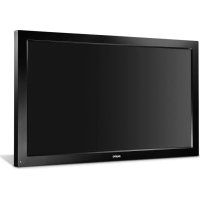
PID-47NE1 - Monitor SANYO - Free user manual and instructions
Find the device manual for free PID-47NE1 SANYO in PDF.


| Product Type | LCD Monitor |
| Screen Size | 47 inches |
| Resolution | 1920 x 1080 (Full HD) |
| Brightness | 450 cd/m² |
| Contrast Ratio | 4000:1 |
| Viewing Angle | 178° horizontal / 178° vertical |
| Response Time | 6.5 ms |
| Input Ports | HDMI x2, VGA, DisplayPort, USB |
| Built-in Speakers | Yes, 2 x 10W |
| VESA Mount | 400 x 400 mm |
| Dimensions (W x H x D with stand) | 1078 x 650 x 230 mm |
| Weight (with stand) | 28 kg |
| Power Consumption (typical) | 150 W |
| Power Supply | AC 100-240V, 50/60Hz |
| Energy Star Certified | Yes |
| Cleaning Instructions | Use a soft, dry cloth. Avoid chemical cleaners. |
| Safety Features | Overheat protection, Kensington lock slot |
| Spare Parts Availability | Power supply, remote control, stand available from Sanyo support |
| Repairability | Modular design; serviceable by qualified technician |
Frequently Asked Questions - PID-47NE1 SANYO
User questions about PID-47NE1 SANYO
0 question about this device. Answer the ones you know or ask your own.
Ask a new question about this device
Download the instructions for your Monitor in PDF format for free! Find your manual PID-47NE1 - SANYO and take your electronic device back in hand. On this page are published all the documents necessary for the use of your device. PID-47NE1 by SANYO.
USER MANUAL PID-47NE1 SANYO
Operating Instructions
PID-42NE1
PID-47NE1
FULL HD LCD Display
natural_image
Empty white rectangle with black border, no text or symbols presentHDMI
Table of Contents
Important Safety Notice .... 3
Safety Precautions 4
Accessories 7
Accessories Supply 7
Remote Control Batteries 7
Connections 8
AC cord connection and fixing, cable fixing 8
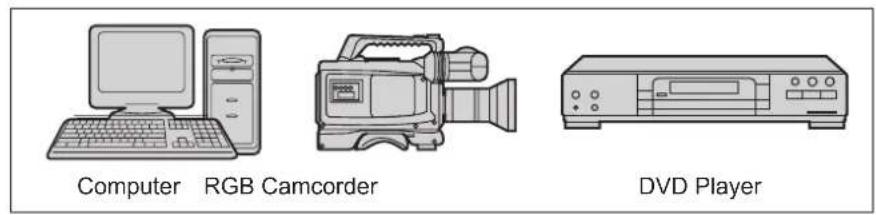
Video equipment connection 8
VIDEO and COMPONENT / RGB IN connection .... 9
HDMI connection 10
DVI-D IN connection 10
PC Input Terminals connection .....11
SERIAL Terminals connection 12
Power On / Off 13
Selecting the input signal 15
Basic Controls 16
ASPECT Controls 18
Digital Zoom 19
On-Screen Menu Displays 20
Adjusting Pos. /Size 22
Picture Adjustments 24
Advanced settings 25
Sound Adjustment 26
PRESENT TIME Setup / Set up TIMER 27
PRESENT TIME Setup 27
Set up TIMER 28
Screensaver (For preventing image retention) .... 29
Setup of Screensaver Time 30
Wobbling 30
Reduces power consumption 31
Customizing the Input labels 32
Selecting the On-Screen Menu Language .... 33
Customizing the On-Screen Menu Display .... 33
Setup for MULTI DISPLAY 34
How to Setup MULTI DISPLAY 34
Setup for Input Signals 36
Component / RGB-in select 36
Signal menu 37
3D Y/C Filter 37
Colour system 38
Cinema reality 38
XGA Mode 38
Noise reduction 39
Sync 39
Input signal display 40
Options Adjustments 41
Troubleshooting 43
Applicable Input Signals 44
Shipping condition 45
Specifications 46
Trademark Credits
• VGA is a trademark of International Business Machines Corporation.
• Macintosh is a registered trademark of Apple Inc., USA.
• SVGA, XGA, SXGA and UXGA are registered trademarks of the Video Electronics Standard Association.
Even if no special notation has been made of company or product trademarks, these trademarks have been fully respected.
- HDMI, the HDMI Logo, and High-Definition Multimedia Interface are trademarks or registered trademarks of HDMI Licensing LLC in the United States and other countries.
Note:
Image retention may occur. If you display a still picture for an extended period, the image might remain on the screen. However, it will disappear after a while.
Important Safety Notice
WARNING
1) To prevent damage which may result in fire or shock hazard, do not expose this appliance to dripping or splashing.
Do not place containers with water (flower vase, cups, cosmetics, etc.) above the set. (including on shelves above, etc.)
No naked flame sources, such as lighted candles, should be placed on / above the set.
2) To prevent electric shock, do not remove cover. No user serviceable parts inside. Refer servicing to qualified service personnel.
3) Do not remove the earthing pin on the power plug. This apparatus is equipped with a three pin earthing-type power plug. This plug will only fit an earthing-type power outlet. This is a safety feature. If you are unable to insert the plug into the outlet, contact an electrician.
Do not defeat the purpose of the earthing plug.
4) To prevent electric shock, ensure the earthing pin on the AC cord power plug is securely connected.
CAUTION
This appliance is intended for use in environments which are relatively free of electromagnetic fields. Using this appliance near sources of strong electromagnetic fields or where electrical noise may overlap with the input signals could cause the picture and sound to wobble or cause interference such as noise to appear. To avoid the possibility of harm to this appliance, keep it away from sources of strong electromagnetic fields.
IMPORTANT: THE MOULDED PLUG
FOR YOUR SAFETY, PLEASE READ THE FOLLOWING TEXT CAREFULLY.
This display is supplied with a moulded three pin mains plug for your safety and convenience. A 10 amp fuse is fitted in this plug. Shall the fuse need to be replaced, please ensure that the replacement fuse has a rating of 10 amps and that it is approved by ASTA or BSI to BS1362.
Check for the ASTA mark 📍 or the BSI mark 🍽 on the body of the fuse.
If the plug contains a removable fuse cover, you must ensure that it is refitted when the fuse is replaced.
If you lose the fuse cover the plug must not be used until a replacement cover is obtained.
A replacement fuse cover can be purchased from your local dealer.
Do not cut off the mains plug.
Do not use any other type of mains lead except the one supplied with this display.
The supplied mains lead and moulded plug are designed to be used with this display to avoid interference and for your safety.
If the socket outlet in your home is not suitable, get it changed by a qualified electrician.
If the plug or mains lead becomes damaged, purchase a replacement from an authorized dealer.
WARNING : — THIS DISPLAY MUST BE EARTHED.
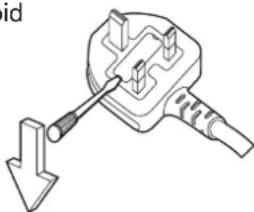
How to replace the fuse. Open the fuse compartment with a screwdriver and replace the fuse.
natural_image
Diagram of a plug with a hammer and arrow indicating a disassembly or insertion (no text or symbols present)Safety Precautions
WARNING
Setup
This LCD Display is for use only with the following optional accessories. Use with any other type of optional accessories may cause instability which could result in the possibility of injury.
- Pedestal KA-TD-47NE1
Always be sure to ask a qualified technician to carry out set-up.
Small parts can present choking hazard if accidentally swallowed. Keep small parts away from young children. Discard unneeded small parts and other objects, including packaging materials and plastic bags/sheets to prevent them from being played with by young children, creating the potential risk of suffocation.
Do not place the Display on sloped or unstable surfaces.
- The Display may fall off or tip over.
Do not place any objects on top of the Display.
- If water is spills onto the Display or foreign objects get inside it, a short-circuit may occur which could result in fire or electric shock. If any foreign objects get inside the Display, please consult your local dealer.
Transport only in upright position!
- Transporting the unit with its display panel facing upright or downward may cause damage to the internal circuitry.
Ventilation should not be impeded by covering the ventilation openings with items such as newspapers, table cloths and curtains.
For sufficient ventilation;
Leave a space of 10 cm or more at the top, left and right, and 5 cm or more at the rear, and also keep the space between the bottom of the display and the floor surface.
Cautions for Wall Installation
- Wall installation should be performed by an installation professional. Installing the Display incorrectly may lead to an accident that results in death or serious injury. Furthermore, when installing on a wall, a wall hanging bracket that conforms to VESA standards (VESA 400 × 400 ) must be used.
- When installing the Display vertically, be sure to install the power switch onto the bottom of the Display.
■ When using the LCD Display
The Display is designed to operate on 220 - 240 V AC, 50/60 Hz.
Do not cover the ventilation holes.
- Doing so may cause the Display to overheat, which can cause fire or damage to the Display.
Do not stick any foreign objects into the Display.
- Do not insert any metal or flammable objects into the ventilations holes or drop them onto the Display, as doing so can cause fire or electric shock.
Do not remove the cover or modify it in any way.
- High voltages which can cause severe electric shocks are present inside the Display. For any inspection, adjustment and repair work, please contact your local dealer.
Ensure that the mains plug is easily accessible.
An apparatus with CLASS I construction shall be connected to a mains socket outlet with a protective earthing connection.
Do not use any power supply cord other than that provided with this unit.
- Doing so may cause fire or electric shocks.
Securely insert the power supply plug as far as it will go.
- If the plug is not fully inserted, heat may be generated which could cause fire. If the plug is damaged or the wall socket is loose, they shall not be used.
Do not handle the power supply plug with wet hands.
- Doing so may cause electric shocks.
Do not do anything that may damage the power cable. When disconnecting the power cable, pull on the plug body, not the cable.
- Do not damage the cable, make any modifications to it, place heavy objects on top of it, heat it, place it near any hot objects, twist it, bend it excessively or pull it. To do so may cause fire and electric shock. If the power cable is damaged, have it repaired at your local dealer.
If the Display is not going to be used for any prolonged length of time, unplug the power supply plug from the wall outlet.
To prevent the spread of fire, keep candles or other open flames away from this product at all times.

■ If problems occur during use
If a problem occurs (such as no picture or no sound), or if smoke or an abnormal odour starts to come out from the Display, immediately unplug the power supply plug from the wall outlet.
- If you continue to use the Display in this condition, fire or electric shock could result. After checking that the smoke has stopped, contact your local dealer so that the necessary repairs can be made. Repairing the Display yourself is extremely dangerous, and shall never be done.
If water or foreign objects get inside the Display, if the Display is dropped, or if the cabinet becomes damages, disconnect the power supply plug immediately.
- A short circuit may occur, which could cause fire. Contact your local dealer for any repairs that need to be made.

CAUTION
■ When using the LCD Display
Do not bring your hands, face or objects close to the ventilation holes of the Display.
- Heated air comes out from the ventilation holes at the top of Display will be hot. Do not bring your hands or face, or objects which cannot withstand heat, close to this port, otherwise burns or deformation could result.
Be sure to disconnect all cables before moving the Display.
- If the Display is moved while some of the cables are still connected, the cables may become damaged, and fire or electric shock could result.
Disconnect the power supply plug from the wall socket as a safety precaution before carrying out any cleaning.
• Electric shocks can result if this is not done.
Clean the power cable regularly to prevent it becoming dusty.
- If dust built up on the power cord plug, the resultant humidity can damage the insulation, which could result in fire. Pull the power cord plug out from the wall outlet and wipe the mains lead with a dry cloth.
Do not burn or breakup batteries.
- Batteries must not be exposed to excessive heat such as sunshine, fire or the like.
Cleaning and maintenance
The front of the display panel has been specially treated. Wipe the panel surface gently using only a cleaning cloth or a soft, lint-free cloth.
- If the surface is particularly dirty, wipe with a soft, lint-free cloth which has been soaked in pure water or water in which neutral detergent has been diluted 100 times, and then wipe it evenly with a dry cloth of the same type until the surface is dry.
- Do not scratch or hit the surface of the panel with fingernails or other hard objects, otherwise the surface may become damaged. Furthermore, avoid contact with volatile substances such as insect sprays, solvents and thinner, otherwise the quality of the surface may be adversely affected.
If the cabinet becomes dirty, wipe it with a soft, dry cloth.
- If the cabinet is particularly dirty, soak the cloth in water to which a small amount of neutral detergent has been added and then wring the cloth dry. Use this cloth to wipe the cabinet, and then wipe it dry with a dry cloth.
- Do not allow any detergent to come into direct contact with the surface of the Display. If water droplets get inside the unit, operating problems may result.
- Avoid contact with volatile substances such as insect sprays, solvents and thinner, otherwise the quality of the cabinet surface may be adversely affected or the coating may peel off. Furthermore, do not leave it for long periods in contact with articles made from rubber or PVC.
Accessories
Accessories Supply
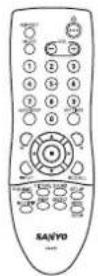
Check that you have the accessories and items shown


Operating Instruction book
(Operating instructions)

Remote Control Transmitter

Batteries for the Remote Control Transmitter (R6 (UM3) Size × 2)
natural_image
Simple line drawing of a document with two rectangular shapes (no text or symbols)

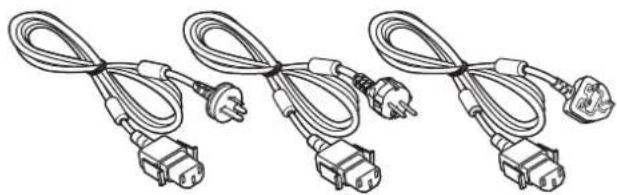
Power supply cord
natural_image
Three types of electrical plug wires with terminal connectors, no text or symbols visibleRemote Control Batteries
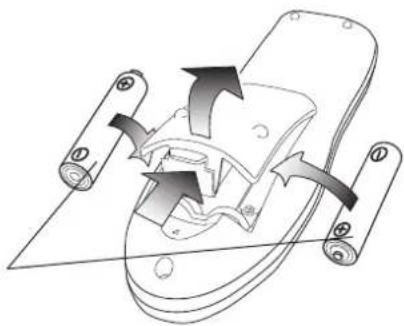
Requires two R6 batteries.
- Pull and hold the hook, then open the battery cover.
- Insert batteries - note correct polarity (+ and -).
- Replace the cover.
"R6 (UM3)" size
natural_image
Mechanical assembly diagram showing a component with arrows indicating motion or force direction (no text or symbols present)Helpful Hint:
For frequent remote control users, replace old batteries with Alkaline batteries for longer life.

Precaution on battery use
Incorrect installation can cause battery leakage and corrosion that will damage the remote control transmitter. Disposal of batteries should be in an environment-friendly manner.
Observe the following precaution:
- Batteries shall always be replaced as a pair. Always use new batteries when replacing the old set.
- Do not combine a used battery with a new one.
- Do not mix battery types (example: "Zinc Carbon" with "Alkaline").
- Do not attempt to charge, short-circuit, disassemble, heat or burn used batteries.
- Battery replacement is necessary when remote control acts sporadically or stops operating the Display set.
- Do not burn or breakup batteries.
Batteries must not be exposed to excessive heat such as sunshine, fire or the like.
Connections
AC cord connection and fixing, cable fixing
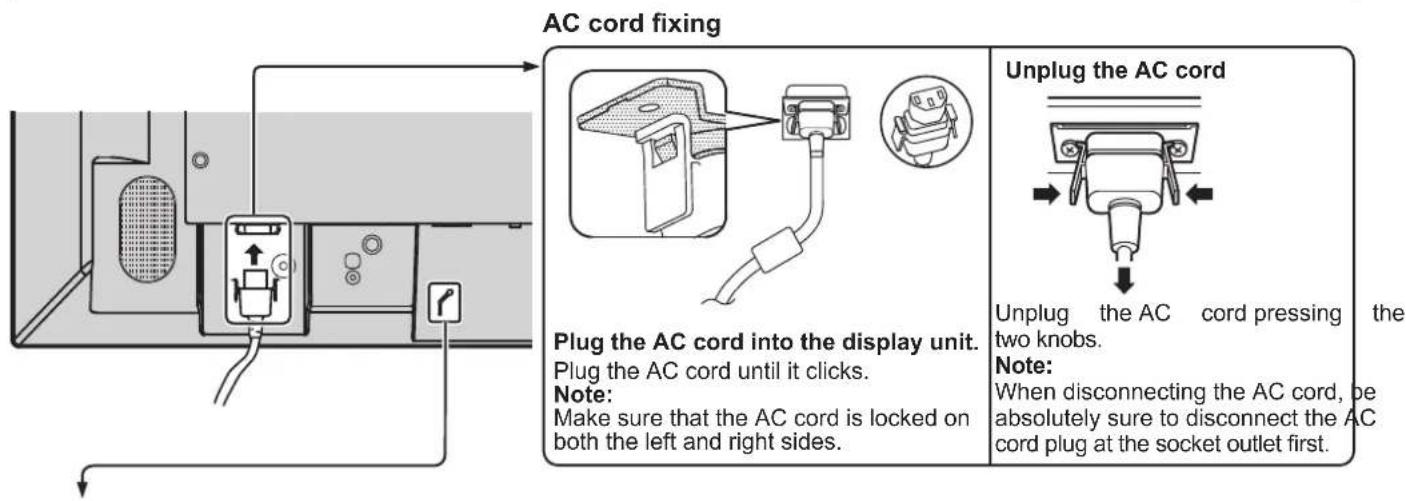
Cable fixing
Fix the cable in place using the bead band attached to the display.
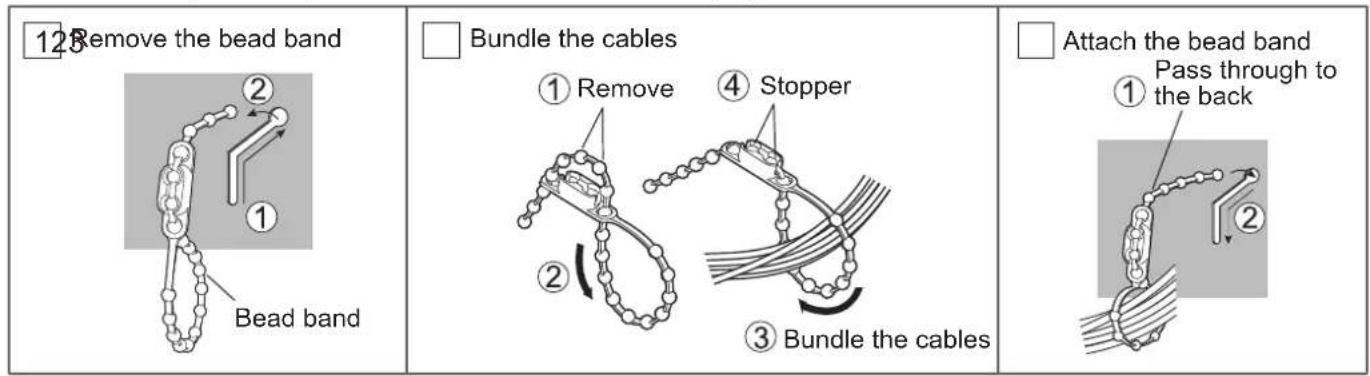
flowchart
graph TD
    A["12 Remove the bead band"] --> B["① Bead band"]
    B --> C["② Bundle the cables"]
    C --> D["③ Bundle the cables"]
    D --> E["④ Stopper"]
    E --> F["① Attach the bead band Pass through to the back"]
Video equipment connection
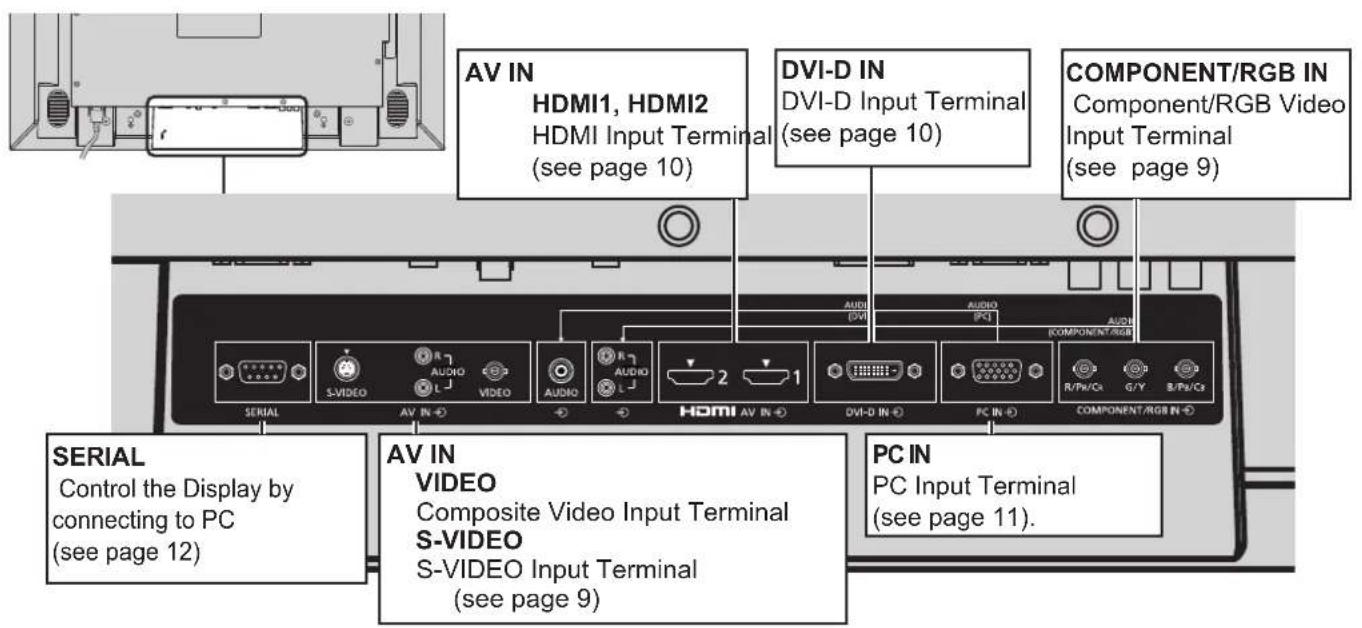
VIDEO and COMPONENT / RGB IN connection
Note:
Additional equipment, cables and adapter plugs shown are not supplied with this set.
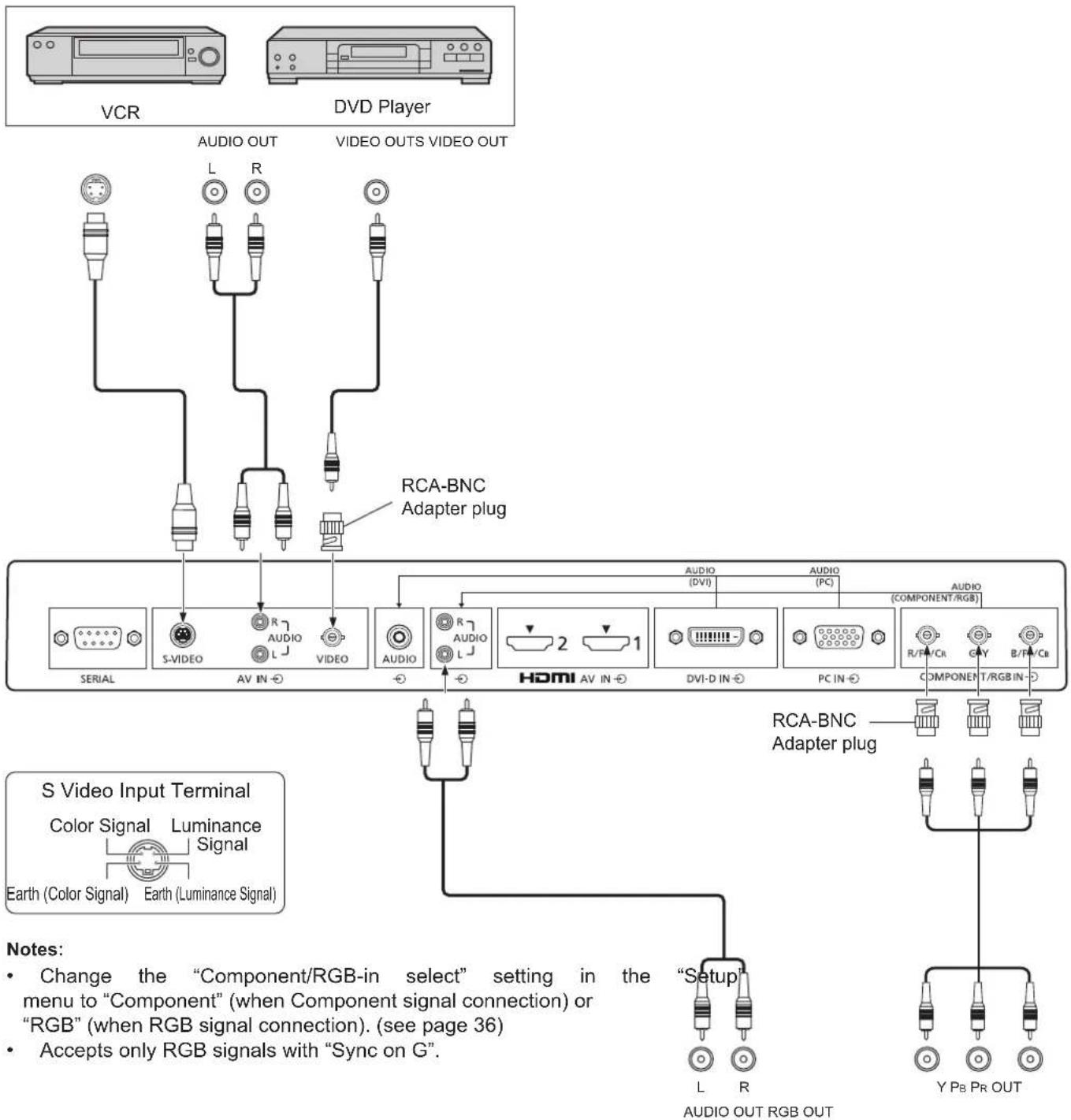
flowchart
graph TD
A["VCR"] --> B["VIDEO OUT"]
C["DVD Player"] --> D["VIDEO OUTS VIDEO OUT"]
B --> E["RCA-BNC Adapter plug"]
D --> E
E --> F["SERIAL"]
E --> G["S-VIDEO"]
E --> H["AV IN"]
E --> I["VIDEO"]
E --> J["AUDIO"]
E --> K["HDMI AV IN"]
E --> L["DVI-D IN"]
E --> M["PC IN"]
E --> N["COMPONENT T/RGB IN"]
E --> O["RCA-BNC Adapter plug"]
P["S Video Input Terminal"] --> Q["Color Signal Luminance Signal"]
P --> R["Earth (Color Signal) Earth (Luminance Signal)"]
Q --> S["Note: Change the "Component/RGB-in select" setting in the menu to "Component" (when Component signal connection) or "RGB" (when RGB signal connection). (see page 36)<br>Accepts only RGB signals with "Sync on G"."]
Q --> T["Note: Change the "Component/RGB-in select" setting in the menu to "Component" (when Component signal connection) or "RGB" (when RGB signal connection). (see page 36)<br>Accepts only RGB signals with "Sync on G"."]
HDMI connection
[Pin assignments and signal names]
| Pin No. | Signal Name | Pin No. | Signal Name |
| 1 | T.M.D.S Data2+ | 11 | T.M.D.S Clock Shield |
| 2 | T.M.D.S Data2 Shield | 12 | T.M.D.S Clock- |
| 3 | T.M.D.S Data2- | 13 | CEC |
| 4 | T.M.D.S Data1+ | 14 | Reserved(N.C. on device) |
| 5 | T.M.D.S Data1 Shield | ||
| 6 | T.M.D.S Data1- | 15 | SCL |
| 7 | T.M.D.S Data0+ | 16 | SDA |
| 8 | T.M.D.S Data0 Shield | 17 | DDC/CEC Ground |
| 9 | T.M.D.S Data0- | 18 | +5V Power |
| 10 | T.M.D.S Clock+ | 19 | Hot Plug Detect |
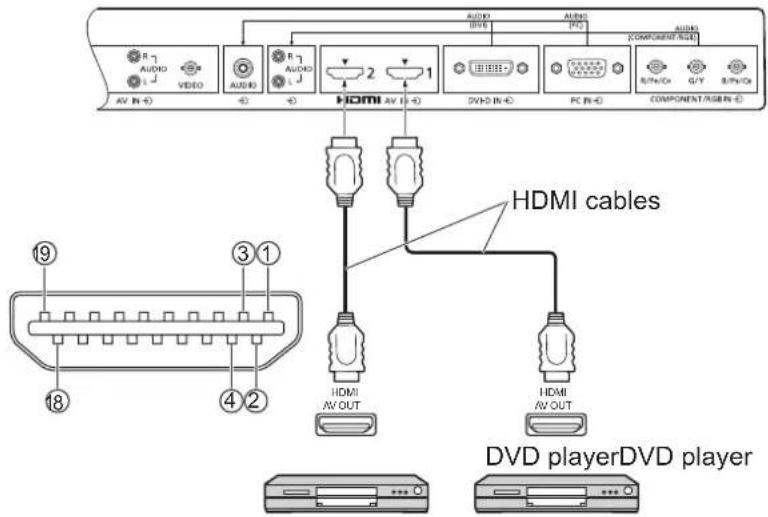
Note:
Additional equipment and HDMI cable shown are not supplied with this set.
DVI-D IN connection
PC with DVI-D video out
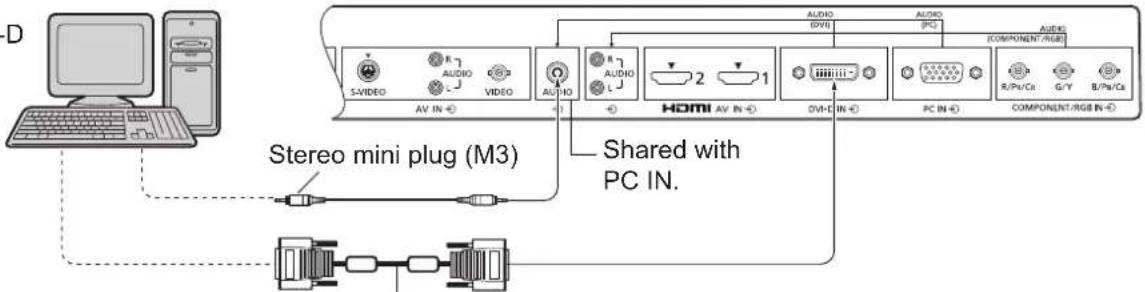
flowchart
graph TD
    A["Computer"] --> B["Audio/Video"]
    B --> C["AV IN"]
    C --> D["+1"]
    D --> E["+2"]
    E --> F["+1"]
    F --> G["+1"]
    G --> H["+1"]
    H --> I["+1"]
    I --> J["+1"]
    J --> K["+1"]
    K --> L["+1"]
    L --> M["+1"]
    M --> N["+1"]
    N --> O["+1"]
    O --> P["+1"]
    P --> Q["+1"]
    Q --> R["+1"]
    R --> S["+1"]
    S --> T["+1"]
    T --> U["+1"]
    U --> V["+1"]
    V --> W["+1"]
    W --> X["+1"]
    X --> Y["+1"]
    Y --> Z["+1"]
    Z --> AA["+1"]
    AA --> AB["+1"]
    AB --> AC["+1"]
    AC --> AD["+1"]
    AD --> AE["+1"]
    AE --> AF["+1"]
    AF --> AG["+1"]
    AG --> AH["+1"]
    AH --> AI["+1"]
    AI --> AJ["+1"]
    AJ --> AK["+1"]
    AK --> AL["+1"]
    AL --> AM["+1"]
    AM --> AN["+1"]
    AN --> AO["+1"]
    AO --> AP["+1"]
    AP --> AQ["+1"]
    AQ --> AR["+1"]
    AR --> AS["+1"]
    AS --> AT["+1"]
    AT --> AU["+1"]
    AU --> AV["+1"]
    AV --> AW["+1"]
    AW --> AX["+1"]
    AX --> AY["+1"]
    AY --> AZ["+1"]
    AZ --> BA["+1"]
    BA --> BB["+1"]
    BB --> BC["+1"]
    BC --> BD["+1"]
    BD --> BE["+1"]
    BE --> BF["+1"]
    BF --> BG["+1"]
    BG --> BH["+1"]
    BH --> BI["+1"]
    BI --> BJ["+1"]
    BJ --> BK["+1"]
    BK --> BL["+1"]
    BL --> BM["+1"]
    BM --> BN["+1"]
    BN --> BO["+1"]
    BO --> BP["+1"]
    BP --> BQ["+1"]
    BQ --> BR["+1"]
    BR --> BS["+1"]
    BS --> BT["+1"]
    BT --> BU["+1"]
    BU --> BV["+1"]
    BV --> BW["+1"]
    BW --> BX["+1"]
    BX --> BY["+1"]
    BY --> BZ["+1"]
DVI-video cable with Ferrite core (Within 5 m)
DVI-D Input Connector Pin Layouts
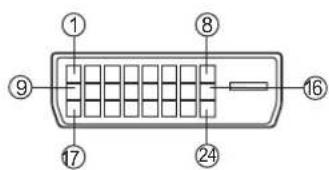
Connection port view
| Pin No. | Signal Name | Pin No. | Signal Name |
| 1 | T.M.D.S. data 2- | 13 | —— |
| 2 | T.M.D.S. data 2+ | 14 | +5 V DC |
| 3 | T.M.D.S. data 2 shield | 15 | Ground |
| 4 | —— | 16 | Hot plug detect |
| 5 | —— | 17 | T.M.D.S. data 0- |
| 6 | DDC clock | 18 | T.M.D.S. data 0+ |
| 7 | DDC data | 19 | T.M.D.S. data 0 shield |
| 8 | —— | 20 | —— |
| 9 | T.M.D.S. data 1- | 21 | —— |
| 10 | T.M.D.S. data 1+ | 22 | T.M.D.S. clock shield |
| 11 | T.M.D.S. data 1 shield | 23 | T.M.D.S. clock+ |
| 1224 | —— | ○ | T.M.D.S. clock- |
Notes:
• Additional equipment and cables shown are not supplied with this set.
- Use the DVI-D cable with Ferrite core complying with the DVI standard. Image deterioration may occur depending on the length or the quality of the cable.
PC Input Terminals connection
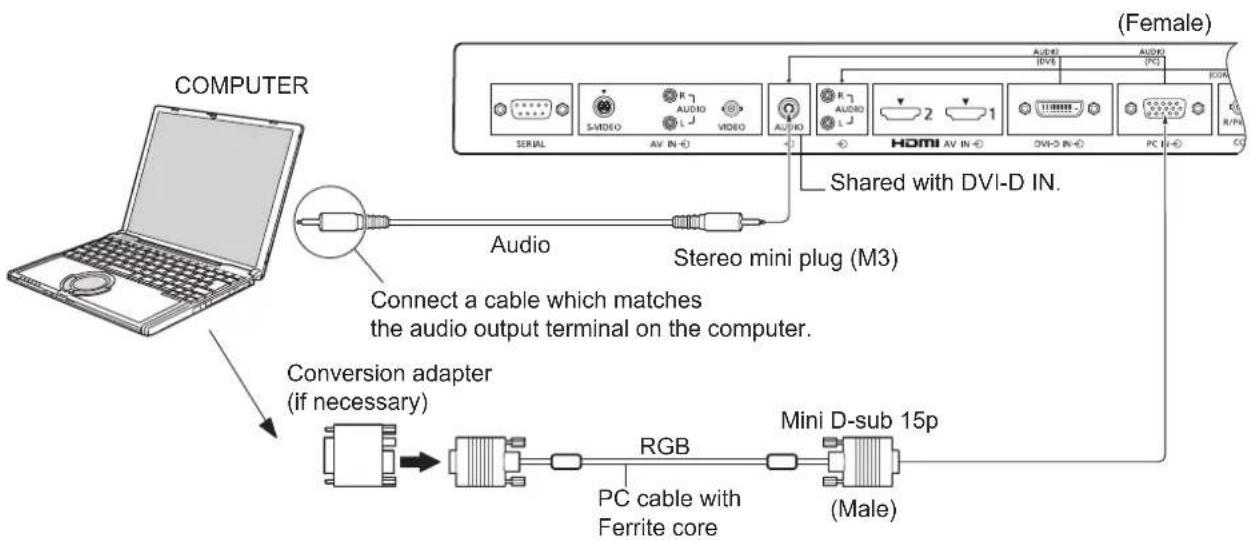
flowchart
graph TD
    A["COMPUTER"] -->|Audio| B["S-Micro"]
    A -->|Audio| C["AV IN-"]
    A -->|Audio| D["AV IN-"]
    A -->|Audio| E["AV IN-"]
    A -->|Audio| F["AV IN-"]
    A -->|Audio| G["AV IN-"]
    A -->|Audio| H["AV IN-"]
    A -->|Audio| I["AV IN-"]
    A -->|Audio| J["AV IN-"]
    A -->|Audio| K["AV IN-"]
    A -->|Audio| L["AV IN-"]
    A -->|Audio| M["AV IN-"]
    A -->|Audio| N["AV IN-"]
    A -->|Audio| O["AV IN-"]
    A -->|Audio| P["AV IN-"]
    A -->|Audio| Q["AV IN-"]
    A -->|Audio| R["AV IN-"]
    A -->|Audio| S["AV IN-"]
    A -->|Audio| T["AV IN-"]
    A -->|Audio| U["AV IN-"]
    A -->|Audio| V["AV IN-"]
    A -->|Audio| W["AV IN-"]
    A -->|Audio| X["AV IN-"]
    A -->|Audio| Y["AV IN-"]
    A -->|Audio| Z["AV IN-"]
    A -->|Audio| AA["AV IN-"]
    A -->|Audio| AB["AV IN-"]
    A -->|Audio| AC["AV IN-"]
    A -->|Audio| AD["AV IN-"]
    A -->|Audio| AE["AV IN-"]
    A -->|Audio| AF["AV IN-"]
    A -->|Audio| AG["AV IN-"]
    A -->|Audio| AH["AV IN-"]
    A -->|Audio| AI["AV IN-"]
    A -->|Audio| AJ["AV IN-"]
    A -->|Audio| AK["AV IN-"]
    A -->|Audio| AL["AV IN-"]
    A -->|Audio| AM["AV IN-"]
    A -->|Audio| AN["AV IN-"]
    A -->|Audio| AO["AV IN-"]
    A -->|Audio| AP["AV IN-"]
    A -->|Audio| AQ["AV IN-"]
    A -->|Audio| AR["AV IN-"]
    A -->|Audio| AS["AV IN-"]
    A -->|Audio| AT["AV IN-"]
    A -->|Audio| AU["AV IN-"]
    A -->|Audio| AV["AV IN-"]
    A -->|Audio| AW["AV IN-"]
    A -->|Audio| AX["AV IN-"]
    A -->|Audio| AY["AV IN-"]
    A -->|Audio| AZ["AV IN-"]
    A -->|Audio| BA["AV IN-"]
    A -->|Audio| BB["AV IN-"]
    A -->|Audio| BC["AV IN-"]
    A -->|Audio| BD["AV IN-"]
    A -->|Audio| BE["AV IN-"]
    A -->|Audio| BF["AV IN-"]
    A -->|Audio| BG["AV IN-"]
    A -->|Audio| BH["AV IN-"]
    A -->|Audio| BI["AV IN-"]
    A -->|Audio| BJ["AV IN-"]
    A -->|Audio| BK["AV IN-"]
    A -->|Audio| BL["AV IN-"]
    A -->|Audio| BM["AV IN-"]
    A -->|Audio| BN["AV IN-"]
    A -->|Audio| BO["AV IN-"]
    A -->|Audio| BP["AV IN-"]
    A -->|Audio| BQ["AV IN-"]
    A -->|Audio| BR["AV IN-"]
    A -->|Audio| BS["AV IN-"]
    A -->|Audio| BT["AV IN-"]
    A -->|Audio| BU["AV IN-"]
    A -->|Audio| BV["AV IN-"]
    A -->|Audio| BW["AV IN-"]
    A -->|Audio| BX["AV IN-"]
    A -->|Audio| BY["AV IN-"]
    A -->|Audio| BZ["AV IN-"]
    A -->|Audio| CA["AV IN-"]
    A -->|Audio| CB["AV IN-"]
    A -->|Audio| CC["AV IN-"]
    A -->|Audio| CD["AV IN-"]
    A -->|Audio| CE["AV IN-"]
    A -->|Audio| CF["AV IN-"]
    A -->|Audio| CG["AV IN-"]
    A -->|Audio| DH["AV IN-"]
    A -->|Audio| DI["AV IN-"]
    A -->|Audio| DJ["AV IN-"]
    A -->|Audio| DK["AV IN-"]
    A -->|Audio| DL["AV IN-"]
    A -->|Audio| DM["AV IN-"]
    A -->|Audio| EQ["AV IN-"]
    A -->|Audio| BRD["AVIN 15p"]
    B --> DC["Bus/Resistor (M3)"]
    DC --> DC2["Bus/Resistor (M3)"]
    DC2 --> DC3["Bus/Resistor (M3)"]
    DC3 --> DC4["Bus/Resistor (M3)"]
    DC4 --> DC5["Bus/Resistor (M3)"]
    DC5 --> DC6["Bus/Resistor (M3)"]
    DC6 --> DC7["Bus/Resistor (M3)"]
    DC7 --> DC8["Bus/Resistor (M3)"]
    DC8 --> DC9["Bus/Resistor (M3)"]
    DC9 --> DC10["Bus/Resistor (M3)"]
    DC10 --> DC11["Bus/Resistor (M3)"]
    DC11 --> DC12["Bus/Resistor (M3)"]
    DC12 --> DC13["Bus/Resistor (M3)"]
    DC13 --> DC14["Bus/Resistor (M3)"]
    DC14 --> DC15["Bus/Resistor (M3)"]
    DC15 --> DC16["Bus/Resistor (M3)"]
    DC16 --> DC17["Bus/Resistor (M3)"]
    DC17 --> DC18["Bus/Resistor (M3)"]
    DC18 --> DC19["Bus/Resistor (M3)"]
    DC19 --> DC20["Bus/Resistor (M3)"]
    DC20 --> DC21["Bus/Resistor (M3)"]
    DC21 --> DC22["Bus/Resistor (M3)"]
    DC22 --> DC23["Bus/Resistor (M3)"]
    DC23 --> DC24["Bus/Resistor (M3)"]
    DC24 --> DC25["Bus/Resistor (M3)"]
    DC25 --> DC26["Bus/Resistor (M3)"]
    DC26 --> DC27["Bus/Resistor (M3)"]
    DC27 --> DC28["Bus/Resistor (M3)"]
    DC28 --> DC29["Bus/Resistor (M3)"]
    DC29 --> DC30["Bus/Resistor (M3)"]
Notes:
- Computer signals which can be input are those with a horizontal scanning frequency of 30 to 110kHz and vertical scanning frequency of 48 to 120Hz . (However, the image will not be displayed properly if the signals exceed 1,200 lines.)
- The display resolution is a maximum of 1,440 × 1,080 dots when the aspect mode is set to "4:3", and 1,920 × 1,080 dots when the aspect mode is set to "16:9". If the display resolution exceeds these maximums, it may not be possible to show fine detail with sufficient clarity.
- The PC input terminals are DDC2B-compatible. If the computer being connected is not DDC2B-compatible, you will need to make setting changes to the computer at the time of connection.
- Some PC models cannot be connected to the set.
- There is no need to use an adapter for computers with DOS/V compatible Mini D-sub 15P terminal.
- The computer shown in the illustration is for example purposes only.
- Additional equipment and cables shown are not supplied with this set.
- Sanyo recommends using a PC cable that includes a Ferrite core.
- Do not set the horizontal and vertical scanning frequencies for PC signals which are above or below the specified frequency range.
- Component Input is possible with the pin 1, 2, 3 of the Mini D-sub 15P Connector.
- To use sync input VBS signals, use the connector which incorporates a 75-ohm termination resistance and which is available on the market, for the connection of the HD connector where the VBS signals are to be input.
Signal Names for Mini D-sub 15P Connector
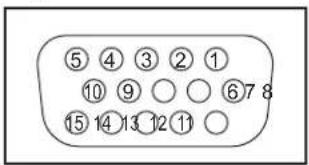
Pin Layout for PC Input Terminal
| Pin No. | Signal Name Pin | No. | Signal Name Pin No. | Signal Name |
| 1 | R | 6 | GND (Ground) | 11 NC (not connected) |
| 2 | G | 7 | GND (Ground) | 12 SDA |
| 3 | B | 8 | GND (Ground) | 13 HD/SYNC |
| 4 | NC (not connected) | 9 | +5 V DC | 14 VD |
| 5 | GND (Ground) | 10 | GND (Ground) | 15 SCL |
SERIAL Terminals connection
The SERIAL terminal is used when the Display is controlled by a computer.
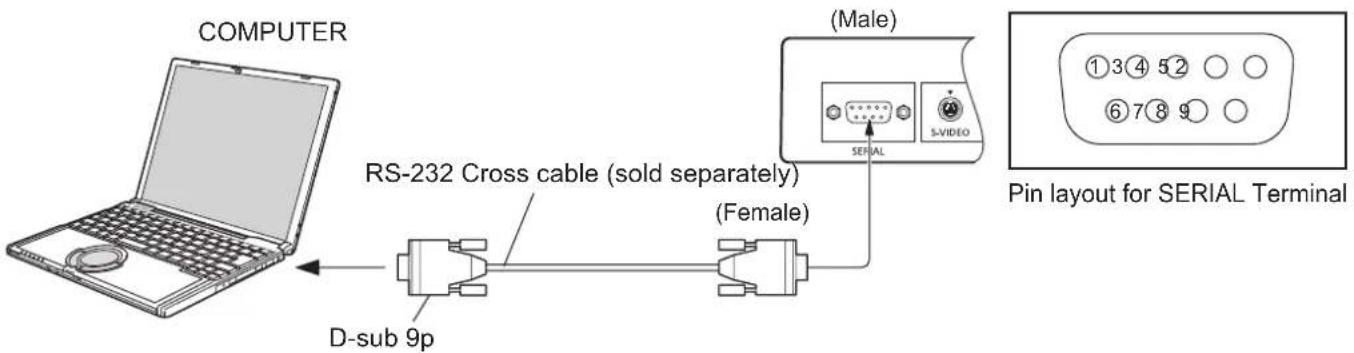
Notes:
- Set up the computer to be connected and the communication RS-232 cross cable that connects the SERIAL terminal with the computer.
• The computer shown is for example purposes only.
• Additional equipment and cables shown are not supplied with this set.
The SERIAL terminal conforms to the RS-232C interface specification, so that the Display can be of computer which is connected to this terminal.
The computer will require software which allows sending and receiving of control data which is the conditions given below. Use a computer such as programming language software. Refer documentation for the computer application for details.
Communication parameters
| Signal level RS-23 | 2C compliant |
| Synchronization method | Asynchronous |
| Baud rate 9600 bps | |
| Parity | None |
| Character length | 8 bits |
| Stop bit | 1 bit |
| Flow control | - |
Basic format for control data
Add parameters as necessary depending on the content.
Commands shall be 1 command / 1 line that start with "C" and end with the carriage return (0x0D).
A space is entered between the command "CF" and the control instruction.
A space is entered between the command and parameter.
Ex) CF_POWER_ON[CR]
_: space
Notes:
- If a correct command is sent, this unit will send a "000" command to the computer.
- If an incorrect command is sent by mistake, this unit will send a different command apart from "000" to the computer.
- While the power is in "stand-by" mode (power turned off with remote control), all operations except "CF POWER ON" will not respond.
Signal names for D-sub 9P connector
| rolled by Pin No. | Details |
| 2 | R X D |
| s the 3 | T X D |
| satisfies 5 | GND |
| application 4·6 to the 78 | Non use |
| (Shorted in this set) | |
| 1·9 | NC |
These signal names are those of computer specifications.
Command
| Command | Parameter | Control details |
| CF POWER | ON | Power ON |
| OFF | Power OFF | |
| CF VOLUME | ** | 000 - 100 *3 digitsDirectly assigns volume level |
| UP | Current volume level +1 | |
| DN | Current volume level -1 | |
| CF MUTE control | UP | Toggle to select |
| ON | Audio MUTE ON | |
| OFF | Audio MUTE OFF | |
| CF INPUT | UP | Toggle to select between:AV1 --> AV2 --> PC --> DVI -->HDMI1 --> HDMI2 --> AV1 -->... |
| AV1 | VIDEO input | |
| AV2 | Component/RGB input | |
| AV2YPBPR | Component input | |
| AV2RGB | RGB input | |
| PC | PC input | |
| DVI | DVI input | |
| HDMI1 | HDMI1 input | |
| HDMI2 | HDMI2 input | |
| CF SCREEN | UP | Toggle to select between:FULL --> NORMAL --> ZOOM1 -->ZOOM2 --> FULL -->... |
| FULL | Full screen | |
| NORMAL | Normal screen | |
| ZOOM | Zoom 1 | |
| ZOOM2 | Zoom 2 |
With the power off, this display responds to PON command only.
Power On / Off
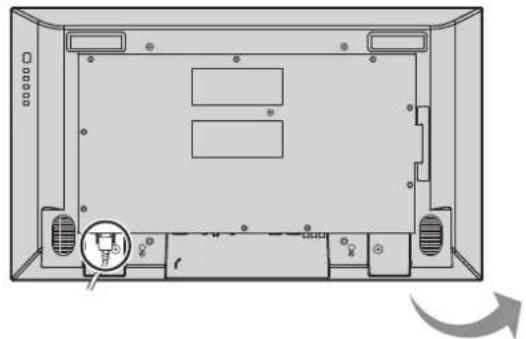
Connecting the AC cord plug to the Display.
natural_image
Top-down schematic of a computer monitor case with ventilation slots and a circular component (no text or labels)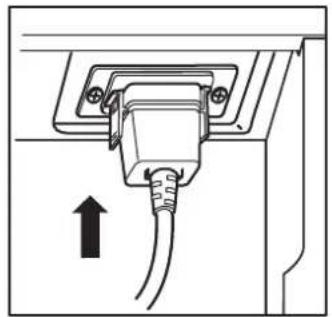
natural_image
Diagram of an electrical outlet with a cable and arrow indicating direction (no text or symbols)Connecting the plug to the Wall Outlet
Notes:
- Main plug types vary between countries. The power plug shown at right may, therefore, not be the type fitted to your set.
- When disconnecting the AC cord, be absolutely sure to disconnect the AC cord plug at the socket outlet first.
Press the Power switch on the Display to turn the set on: Power-On.
Power Indicator: Green
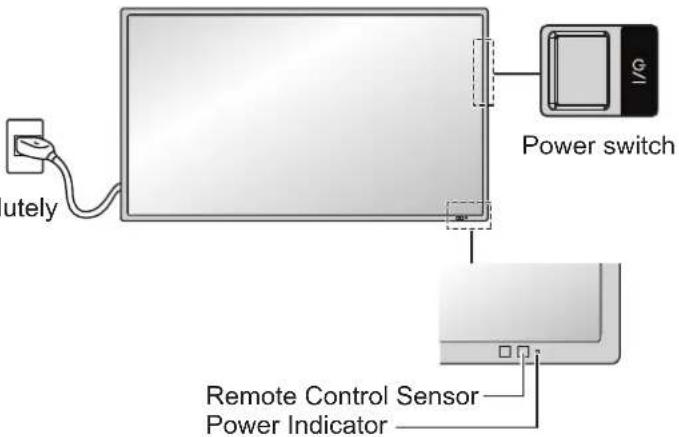
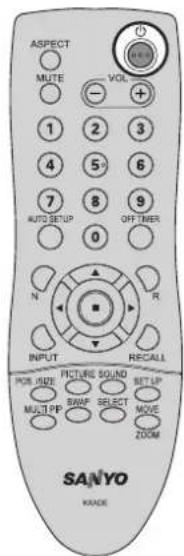
Press the button on the remote control to turn the Display off.
Power Indicator: Red (standby)
Press the button on the remote control to turn the Display on.
Power Indicator: Green
Turn the power to the Display off by pressing the ⏻/switch on the unit, when the Display is on or in standby mode.
Note:
During operation of the power management function, the power indicator turns orange in the power off state.
When first switching on the unit
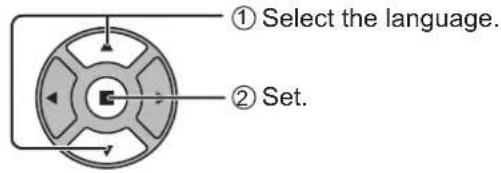
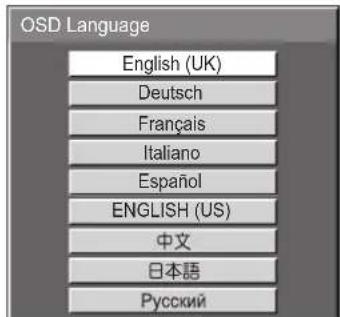
Following screen will be displayed when the unit is turned on for the first time. Select the items with the remote control. Unit buttons are invalid.
OSD Language
PRESENT TIME Setup
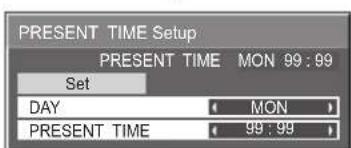
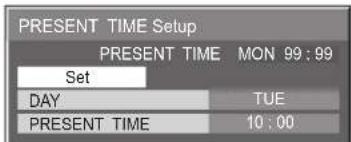
Notes:
- Once the items are set, the screens won't be displayed when switching on the unit next time.
• After the setting, the items can be changed in the following menus.
OSD Language (see page 33)
PRESENT TIME Setup (see page 27)
From the second time on, the below screen is displayed for a while (setting condition is an example).
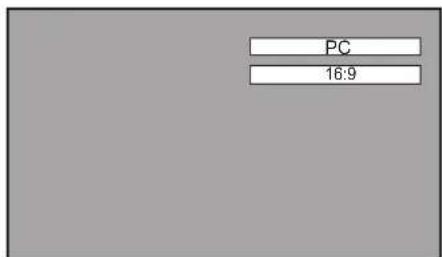
Selecting the input signal
Press to select the input signal to be played back from the equipment which has been connected to the Display.
Input signals will change as follows:

flowchart
graph LR
    A["PC"] --> B["HDMI1"]
    B --> C["HDMI2"]
    C --> D["Component*"]
    D --> E["VIDEOV#"]
PC: PC input terminal in PC IN.
DVI: DVI input terminal in DVI-D IN.
HDMI1: HDMI input terminal in AV IN (HDMI1).
HDMI2: HDMI input terminal in AV IN (HDMI2).
VIDEO: Video input terminal in AV IN (VIDEO/S-VIDEO).
Component*: Component or RGB input terminal in COMPONENT/RGB IN.
* "Component" may be displayed as "RGB" depending on the setting of
"Component/RGB-in select". (see page 36)
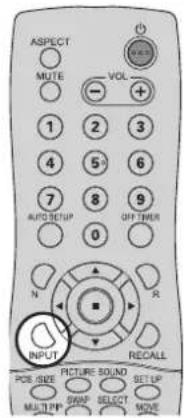
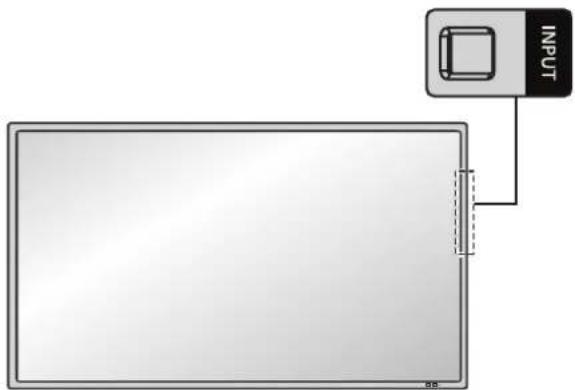
Notes:
- Selecting is also possible by pressing the INPUT button on the unit.
- Select to match the signals from the source connected to the component/RGB input terminals. (see page 36)
natural_image
Diagram showing a device connected to a rectangular panel with a labeled input block (no text or symbols on the device itself)Basic Controls
Main Unit
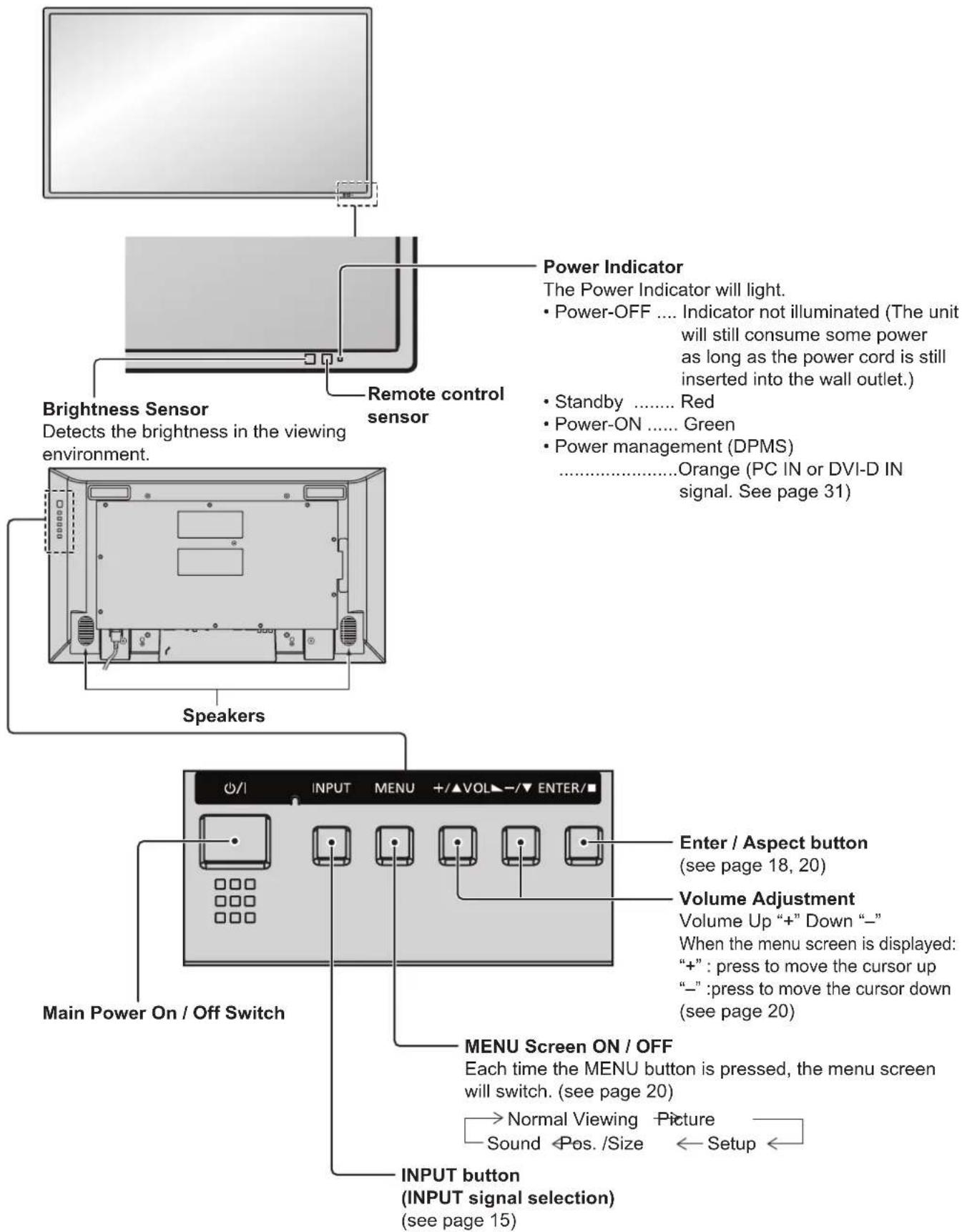
Remote Control Transmitter
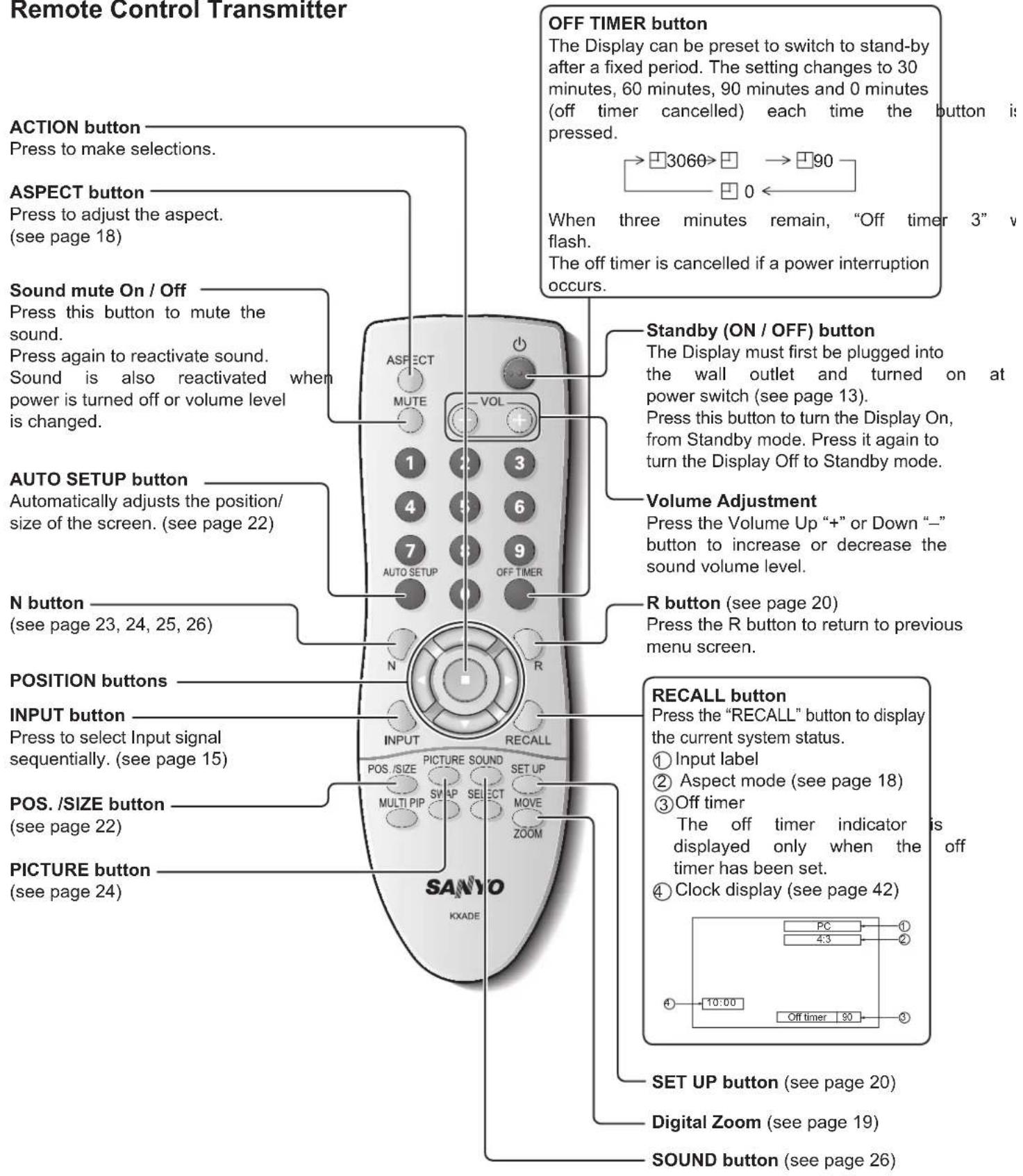
ASPECT Controls
The Display will allow you to enjoy viewing the picture at its maximum size, including wide screen cinema format picture.
Note:
Be aware that if you put the display in a public place for commercial purposes or a public showing and then use the aspect mode select function to shrink or expand the picture, you may be violating the copyright under copyright law. It is prohibited to show or alter the copyrighted materials of other people for commercial purposes without the prior permission of the copyright holder.

Press repeatedly to move through the aspect options:

[from the unit]
![SANYO PID-47NE1 - [from the unit] - 1](/content/2026/06/1145942/images/bb68fd6205ddf7f28addad1baf063c0f2265b9f8c571cf367c761971159476f8.jpg)
The aspect mode changes each time the ENTER button is pressed.
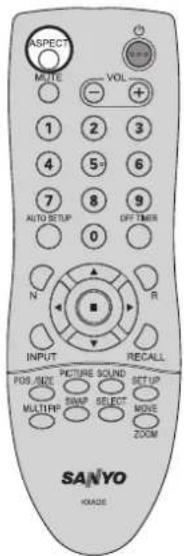
Note:
The aspect mode is memorized separately for each input terminal.
| Aspect mode | Picture → Enlarged screen | Description | ||
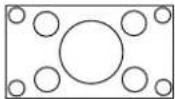
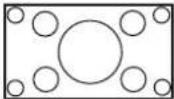
| 16:9 | 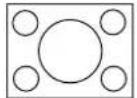 | → | 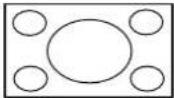 | The display of the pictures fills the screen.In the case of SD signals, pictures with a 4:3 aspect ratio are enlarged horizontally, and displayed. This mode is suited to displaying anamorphic pictures with a 16:9 aspect ratio. |
 | → |  | ||
| 4:3 | 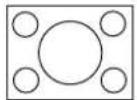 | → | 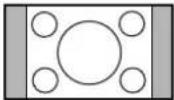 | Pictures with a 4:3 aspect ratio are displayed with their original aspect ratio. Side panels are displayed at the left and right edges of the screen. |
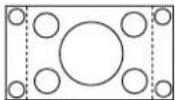 | → | 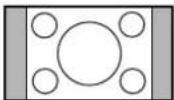 | The pictures with a 4:3 aspect ratio among the 16:9 aspect ratio signals are displayed with their original aspect ratio.The left and right edges of the pictures are masked with side panels. | |
| Zoom1 | 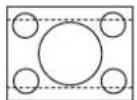 | → | 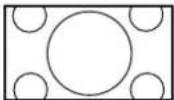 | Letterbox pictures with a 16:9 aspect ratio are enlarged vertically and horizontally so that their display fills the screen.The top and bottom edges of the pictures are cut off. |
| Zoom2 | 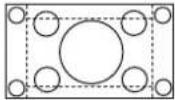 | → | 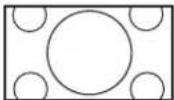 | Letterbox pictures with a 16:9 aspect ratio are enlarged vertically and horizontally so that their display fills the screen.The top and bottom edges as well as the left and right edges of the pictures are cut off. |
Digital Zoom
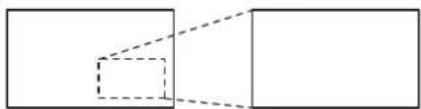
This displays an enlargement of the designated part of the displayed image.
1 Display the operation guide.
Press to access Digital Zoom. The operation guide will be displayed.
natural_image
Pure geometric diagram showing two rectangles with dashed internal lines, no text or symbols present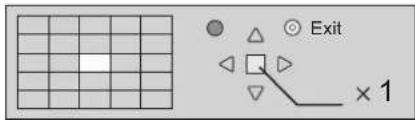
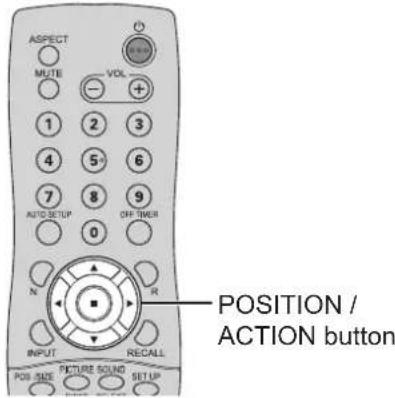
During Digital Zoom, only the following buttons can be operated.
[Remote control]
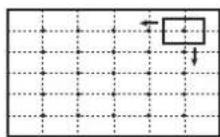
2 Select the area of the image to be enlarged.
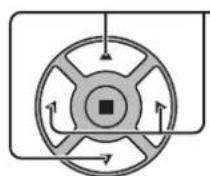
Press on the enlargement location to select.
The cursor will move.
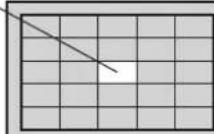
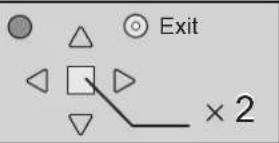
3 Select the magnification required for the enlarged display.
Each time this is pressed, the magnification factor changes.
This is shown in the image being displayed.

flowchart
graph LR
    A["× 1× 2× 3× 4"] --> B[" "]
    B --> C[" "]
    C --> D[" "]
    D --> E[" "]
4 Return to normal display (quit Digital Zoom).
Press to exit from the Digital Zoom.
Notes:
- When power goes OFF (including "Off Timer" operation), Digital Zoom terminates.
• The Digital Zoom function cannot be selected while in the following operation state:
When MULTI DISPLAY Setup is On (see page 34).
When Screensaver is running (see page 29)
- While Digital Zoom is in operation, "Adjusting Pos. / Size" cannot be used.
On-Screen Menu Displays
Remote Control Unit
1 Display the menu screen.
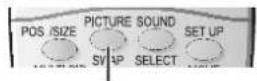
Press to select.
(Example: Picture menu)
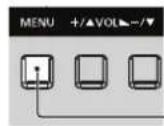
Each time the MENU button is pressed, menu screen will switch.

2 Select the item.
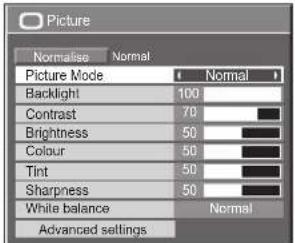
(Example: Picture menu)
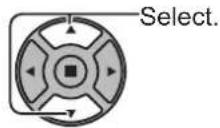
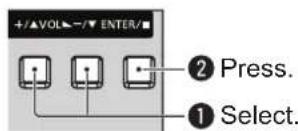
3 Set.
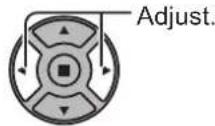
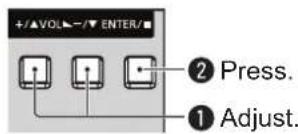
4 Exit the menu.
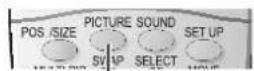
Press.
Press ☐ to return to the previous menu.
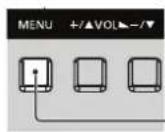
Press several times.
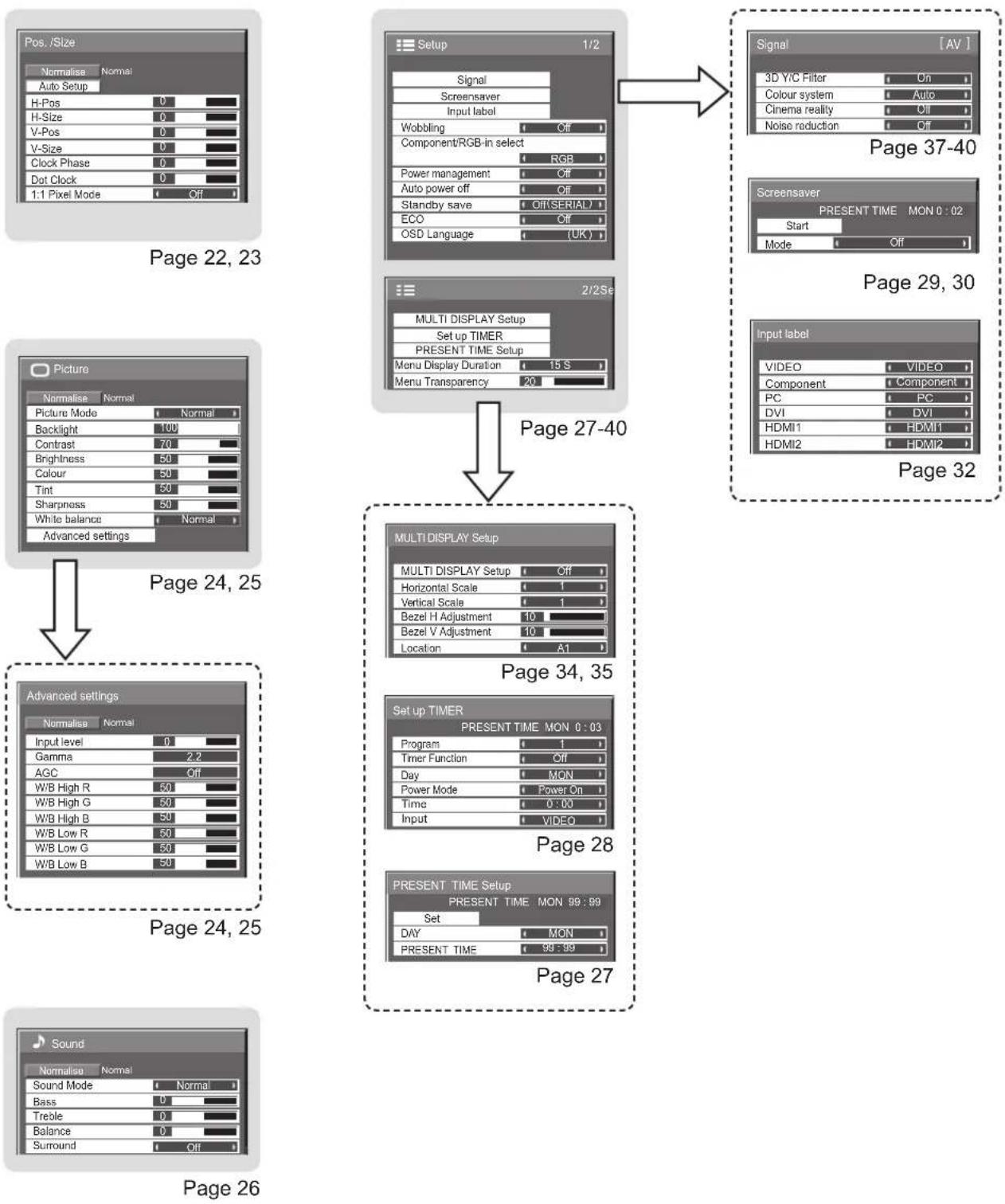
Overview
Note: Menu that cannot be adjusted is grayout. Adjustable menu changes depending on signal, input and menu setting.
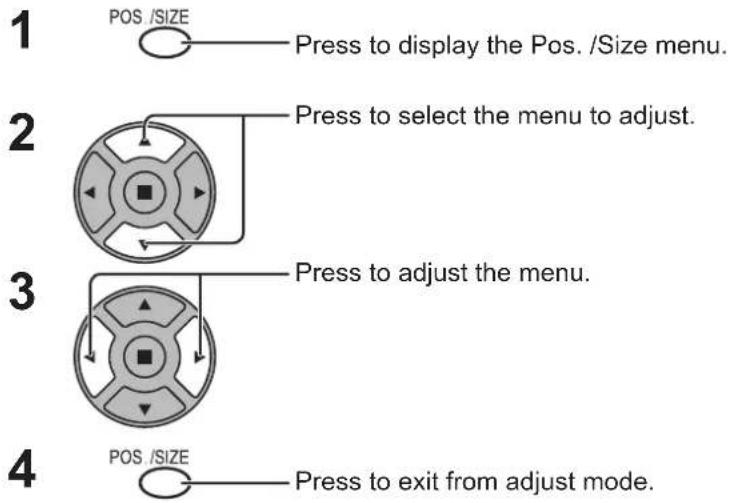
Adjusting Pos. /Size
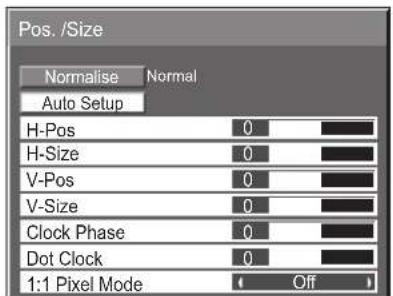
Notes:
Unadjustable items are grayed out.
Adjustable items differ depending on the input signal and the display mode.
Note:
If a "Cue" or "Rew" signal from a VCR or DVD player is received, the picture position will shift up or down. This picture position movement cannot be controlled by the Picture Pos./Size function.
Auto Setup H-Pos/V-Pos, H-Size/V-Size, Dot Clock and Clock Phase are automatically adjusted when the RGB or PC signal is received.
This setting only operates when a PC signal or RGB signal is input, and the aspect is "16:9".
Using Remote Control
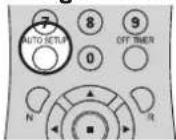
When ON the remote control is pressed, "Auto Setup" will be executed. When Auto Setup does not work, "Invalid" is displayed.
Notes:
- When digital RGB signal input, Dot Clock and Clock Phase cannot be made.
- Auto Setup may not work when a cropped or dark image is input. In such case, switch to a bright image with borders and other objects are clearly shown, and then try auto setup again.
- Depending on the signal, out of alignment may occur after Auto Setup. Carry out fine tuning for the position/size as required.
- If Auto Setup cannot set properly for vertical frequency 60Hz XGA signal (1024×768@60Hz and 1366×768@60Hz), pre-selecting the individual signal in "XGA Mode" (see page 38) may results in correct Auto Setup.
- Auto Setup does not work well when a signal such as additional information is superimposed out of valid image period or intervals between synchronizing and image signals are short.
- If Auto Setup cannot adjust correctly, select "Normalise" once and press ACTION☑, then adjust Pos. /Size manually.
- If the picture goes off screen in the horizontal direction as a result of performing Auto Setup, perform Dot Clock adjustment.
H-Pos
Adjust the horizontal position.
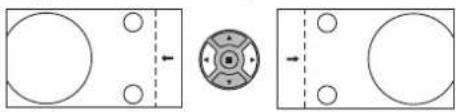
natural_image
Three schematic diagrams showing circular shapes with internal circles and dashed lines, no text or symbols present.V-Pos
Adjust the vertical position.
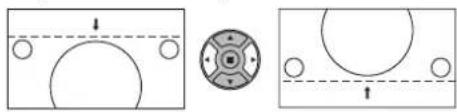
natural_image
Three diagrams showing basketball court layouts with arrows and circles, no text or symbols present.H-Size Adjust the horizontal size.
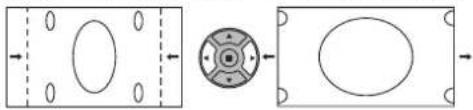
natural_image
Three abstract geometric shapes with internal ovals and arrows, no text or symbols present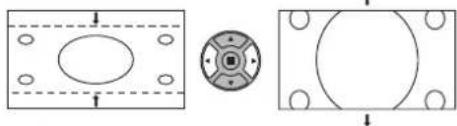
natural_image
Three technical diagrams showing a rectangular panel with an oval cutout, a circular cross-section with a central hub, and a rectangular frame with a circle and circular holes (no text or symbols)Clock
(During Component, RGB and PC input signal)
Phase
Eliminate the flickering and distortion.
Dot Clock (During Component, RGB and PC input signal)
Periodic striped pattern interference (noise) may occur when a striped pattern is displayed. If this happens, adjust so that any such noise is minimized.
Over scan Turn image over scan On/Off.
Configurable signals are as follows:
525i, 525p, 625i, 625p, 750/60p, 750/50p (Component Video, DVI, HDMI)
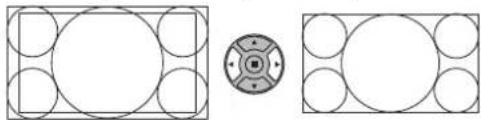
natural_image
Three geometric diagrams showing a square with circles, a central circular element, and a rectangular frame (no text or symbols)On
Off
Notes:
• "Off" is effective during only "16:9" aspect mode.
- When "Off" is set, "H-Size" and "V-Size" cannot be adjusted.
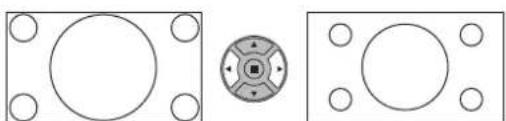
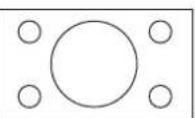
1:1 Pixel
Mode
Notes:
- "On" is effective during only "16:9" aspect mode.
- Select On when you would like to replay 1920 × 1080 input signal.
• Applicable input signal; 1125 (1080) / 50i · 60i · 24sF · 24p · 25p · 30p · 50p · 60p - Select Off when flickering is shown around the image.
• H-Size and V-Size cannot be adjusted when On is selected.
natural_image
Three technical diagrams showing circular components with holes, one with a central square feature, and two empty rectangular panels (no text or symbols)Off
On
| Helpful Hint ( [IMAGE] / Normalise Normalisation) |
| While the Pos. / Size display is active, if either the N button on the remote control is pressed at any time or the ACTION ( ■ button ispressed during “Normalise”, then all adjustment values (except “Clock Phase” and “Dot Clock”) are returned to the factory settings. |
Picture Adjustments
1

Press to display the Picture menu.
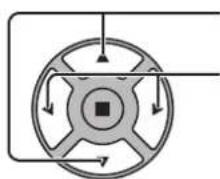
2
Select to adjust each item.
natural_image
Circular diagram with directional arrows and a central square, no text or symbols presentPress to select the menu to adjust.
Select the desired level by looking at the picture behind the menu.
Note:
Menu that cannot be adjusted is grayout. Adjustable menu changes depending on signal, input and menu setting.
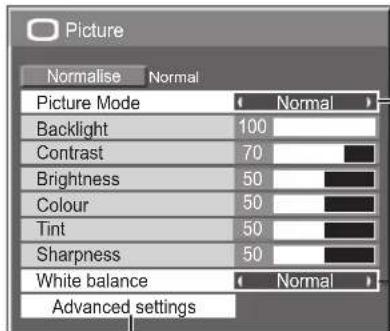
Press to enter Advanced settings.
Advanced settings
Enables fine picture adjustment at a professional level (see next page).
Press “◀” or “” button to switch between modes.

Normal
For viewing in standard (evening lighting) environments.
This menu selects the normal levels of Brightness and Contrast.
Dynamic
For viewing in brighter environments.
This menu selects higher than normal levels of Brightness and Contrast.
Cinema
Ideal for movies.
Note:
If you would like to change the picture and colour of the selected Picture menu to something else, adjust using the items in the Picture menu. (see next page)
Press “◀” or “” button to switch between modes.

Helpful Hint

Normalise
Normalisation)
While the "Picture" menu is displayed, if either the N button on the remote control is pressed at any time or the ACTION (■) button is pressed during "Normalise", then all adjustment values are returned to the factory settings.
| Item Effect Adjustments | ||
| Backlight | D  er er | Adjusts luminance of the back light. |
| Contrast |  | Selects the proper brightn and density for the room. |
| Brightness | D  | Adjusts for easier viewing dark pictures such as n scenes and black hair. |
| Colour |  | Adjusts colour saturation. |
| Tint | R  | Adjusts for nice skin colour. |
| Sharpness |  | Adjusts picture sharpness. |
Notes:
- “Colour” setting can be adjusted for Video input signal.
• You can change the level of each function (Backlight, Contrast, Brightness, Colour, Tint, Sharpness) for each Picture Mode.
• The setting details for normal, dynamic of and cinema respectively are memorized light separately for each input terminal.
- The “Tint” setting can be adjusted for NTSC signal only during Video (S Video) input signal.
- In Contrast, there is not a noticeable change even when contrast is increased with a bright picture or reduced with a dark picture.
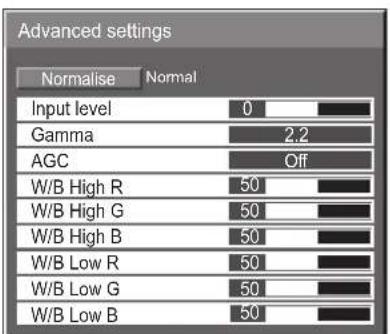
Advanced settings
| Item Effect | Details | |
| Input level |  | Adjustment of parts which are extremely bright and hard to see. |
| Gamma |  | S Curve 2.0 2.2 2.6 |
| AGC |  | Increases the brightness of dark signal automatically. |
| W/B High R |  | Adjusts the white balance for light red areas. |
| W/B High G |  | Adjusts the white balance for light green areas. |
| W/B High B |  | Adjusts the white balance for light blue areas. |
| W/B Low R |  | Adjusts the white balance for dark red areas. |
| W/B Low G |  | Adjusts the white balance for dark green areas. |
| W/B Low B |  | Adjusts the white balance for dark blue areas. |
Notes:
- Carry out "W/B" adjustment as follows.
- Adjust the white balance of the bright sections using the "W/B High R", "W/B High G" and "W/B High B" settings.
- Adjust the white balance of the dark sections using the "W/B Low R", "W/B Low G" and "W/B Low B" settings.
- Repeat steps 1 and 2 to adjust.
Steps 1 and 2 affect each other's settings, so repeat each step in turn to make the adjustment.
• The adjustment values are memorized separately for each input terminal.
- The adjustment range values should be used as an adjustment reference.
| Helpful Hint ( [IMAGE] Normalise Normalisation) |
On the remote control unit, while the "Advanced settings" menu is displayed, if either the N button is pressed at any time or the ACTION (■) button is pressed during "Normalise", then all adjustment values are returned to the factory settings.
Sound Adjustment
1

Press to display the Sound menu.
2
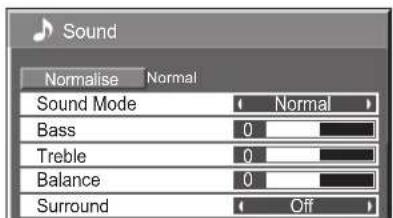
Select to adjust each item.
natural_image
Circular diagram with directional arrows and a central square, no text or symbols presentPress to select the menu to adjust.
Select the desired level by listening to the sound.
3

Press to exit from adjust mode.
| Item Details | |
| Sound Mode | Normal: Emits the original sound.Dynamic: Accentuates sharp sound.Clear: Attenuates human voice. |
| Bass | Adjusts low pitch sounds. |
| Treble | Adjusts high pitch sounds. |
| Balance | Adjusts left and right volumes. |
| Surround | Select On or Off. |
Note: Bass, Treble and Surround settings are memorized separately for each Sound Mode.
| Helpful Hint ( [IMAGE] Normalise Normalisation) |
| While the “Sound” menu is displayed, if either the N button on the remote control is pressed at any time or the ACTION (■) button is pressed during “Normalise”, then all adjustment values are returned to the factory settings. |
PRESENT TIME Setup / Set up TIMER
The timer can switch the Display On or Off.
Before attempting Timer Set, confirm the PRESENT TIME and adjust if necessary.
Then set POWER ON Time / POWER OFF Time.
1

Press to display the Setup menu.
2
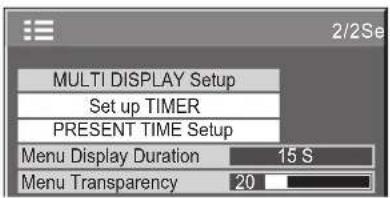
Press to select Set up TIMER or PRESENT TIME Setup.
Press to display the Set up TIMER screen or PRESENT TIME Setup screen.
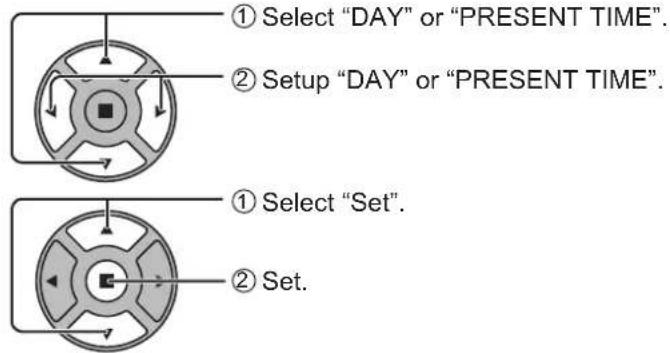
PRESENT TIME Setup
1
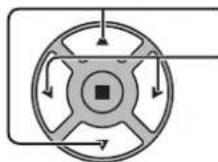
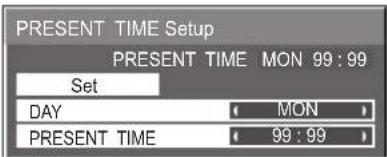
Press to select DAY or PRESENT TIME.
Press to setup DAY or PRESENT TIME.
▶ button: Forward
button: Back
Notes:
- Pressing "or" button once changes PRESENT TIME 1 minute.
- Pressing "or" button continuously changes PRESENT TIME by 15 minutes.
2
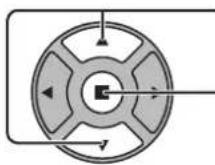
Press to select Set.
Press to store PRESENT TIME Setup.
Notes:
- Set cannot be selected unless PRESENT TIME is set.
- Unless setting the present time other than "99:99", "DAY" and "PRESENT TIME" can not be set.
- The settings of "DAY" and "PRESENT TIME" are reset when leaving the display turned off for about 7 days for the following reasons:
Pressing ⏻/I switch of the unit to turn off the display.
Disconnecting the AC cord. Interruption of power supply
Set up TIMER
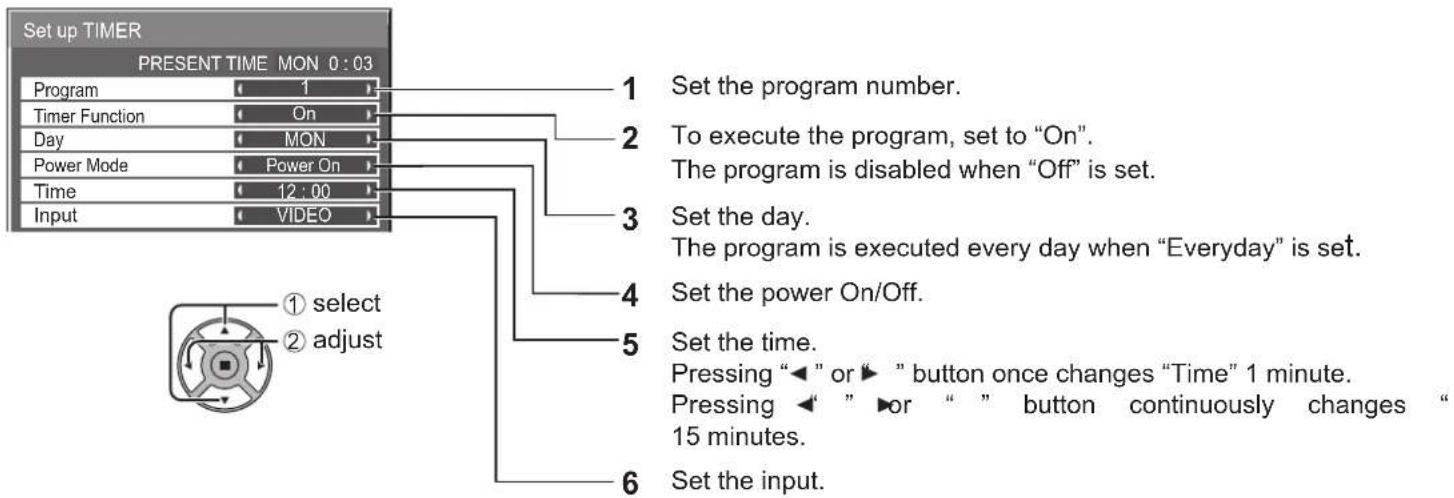
Set the program for turning the power On/Off and select the input signal at the specified time. Up to 20 programs can be set.
[Setting Example]
Program 1, Every Monday, 12:00, Power On, Input: VIDEO
Notes:
- This function cannot be set unless "PRESENT TIME Setup" is set.
- If more than one programs are set for the same time, only the program with the smallest program number is enabled.
Screensaver (For preventing image retention)
Do not display a still picture, especially in 4:3 mode, for any length of time.
If the display must remain on, a Screensaver should be used.
When the screen saver is operating, the following 5 patterns are displayed full screen for 5 seconds each.
Black→Dark Gray→Gray→Light Gray→White
1

Press to display the Setup menu.
2
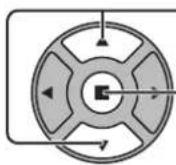
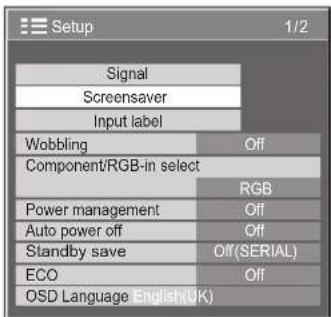
Press to select Screensaver.
Press to display Screensaver screen.
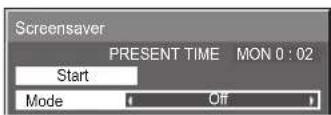
3
Mode selection

Press to select Mode.
Press to select each mode items.
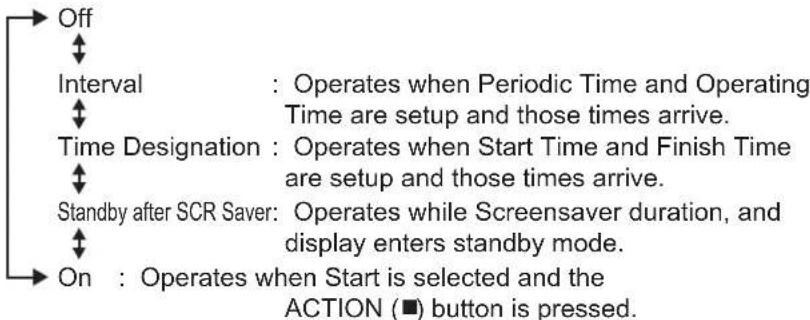
flowchart
graph TD
    A["Off"] --> B["Interval"]
    B --> C["Time Designation"]
    C --> D["Standby after SCR Saver"]
    D --> E["On"]
    style A fill:#f9f,stroke:#333
    style B fill:#ccf,stroke:#333
    style C fill:#cfc,stroke:#333
    style D fill:#fcc,stroke:#333
    style E fill:#cff,stroke:#333
4
Start setting
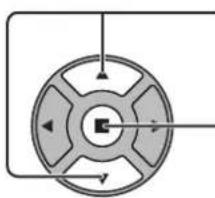
natural_image
Circular mechanical component with radial arrows and central square, no visible text or symbolsWhen the Mode is set to On, press to select Start.
Press to start Screensaver.
The menu screen will disappear and the Screensaver will be activated. To stop the Screensaver under On, press the R button or any buttons on the main unit.
Note: When the display is turned off, the Scrensaver will be deactivated.
Setup of Screensaver Time
After selecting Time Designation, Interval or Standby after SCR Saver, the relevant Time Setup will become available for selection and the Operating Time may be set. (Time cannot be set when "Mode" is "On" or "Off".)
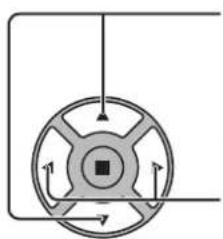
natural_image
Circular mechanical component with directional arrows indicating rotation or force (no text or symbols)Press to select Start Time / Finish Time (When Time Designation is selected). Press to select Periodic Time / Operating Time (When Interval is selected). Press to select Screensaver duration (When Standby after SCR Saver is selected).
Press to setup.
▶ button: Forward
button: Back
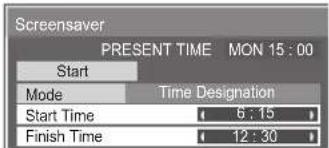
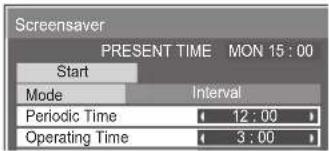
Notes:
- Pressing" or "►" button once changes the Time 1 minute.
[However, switching occurs every 15 minutes when Periodic Time is selected.] - Pressing " or " button continuously changes the Time by 15 minutes.
- “Screensaver duration” of the “Standby after SCR Saver” can be set from 0:00 to 23:59. When this is set to “0:00”, “Standby after SCR Saver” will not be activated.
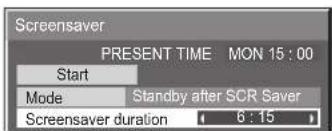
Note: Timer function will not work unless "PRESENT TIME" is set.
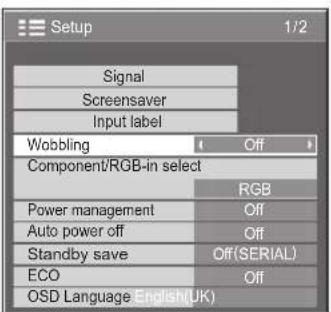
Wobbling
Automatically shifts the display image (therefore unnoticeable to the eye) to prevent image retention of sharper contour of image.
1

Press to display the Setup menu.
2
Press to select "Wobbling".
Press to select "On" or "Off".
On: Shifts the position of the display image on a fixedtime interval.
3

Press to exit from adjust mode.
Notes:
- If "MULTI DISPLAY Setup" is set to "On", this function does not operate.
- When this function is operating, part of the screen may appear to be missing.
Reduces power consumption
- Power management: When this function is set to On, it operates under the following conditions to turn the power on or off automatically. When no pictures are detected for 30 or so seconds during input from PC IN or DVI-D IN terminal:
→ Power is turned off (standby); the power indicator lights up orange.
When pictures are subsequently detected:
→ Power is turned on; the power indicator lights up green.
Notes:
- This function operates only during input from PC IN or DVI-D IN terminal.
- This function is effective when “Sync” is set to “Auto” and during normal viewing (one picture screen).
- Auto power off: Equipment power supply is turned Off when there is no signal.
When this is set to On, the power supply of the unit goes Off 10 minutes after the input signals stop.
Note:
This function is effective during normal viewing (one picture screen).
- Standby save: When this function is set to "On", serial communication is disabled during standby mode, reducing the power consumption during standby.
To perform serial communication while in standby, set this function to "Off(SERIAL)".
However, the standby power consumption is greater than when it is set to "On".
• ECO: This function adjusts the brightness of the backlight to reduce power consumption.
Off: This function does not operate.
On: Backlight brightness is reduced.
Sensor: The backlight brightness is automatically adjusted according to the viewing environment.
Note:
When this function is set to "On" or "Sensor", the "Backlight" setting in the Picture menu is disabled.
1 Press to select the menu to adjust.
natural_image
Circular diagram with directional arrows and a central square, no text or symbols present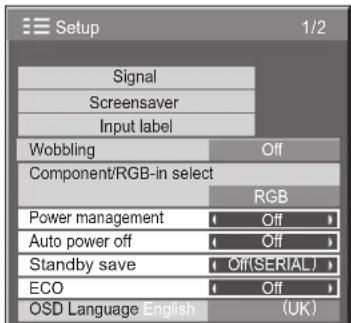
2 Press to select "On" or "Off".
On ← Off →
3 SET UP Press to exit from Setup.
Customizing the Input labels
This function can change the label of the Input signal to be displayed. (see page 15)
1 SET UP Press to display the Setup menu.
2 Press to select Input label. Press to display the Input label screen.
3 Press to select image input. Press to change input label.
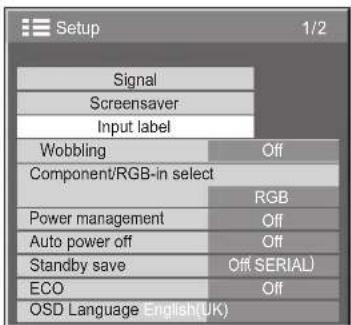
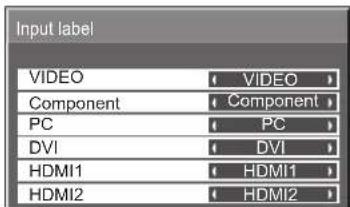
Image input Input label
[VIDEO] VIDEO / DVD1 / DVD2 / DVD3 / Blu-ray1 / Blu-ray2 / Blu-ray3 / CATV / VCR / STB / (Skip)
[Component]* Component / DVD1 / DVD2 / DVD3 / Blu-ray1 / Blu-ray2 / Blu-ray3 / CATV / VCR / STB / (Skip)
[PC] PC / DVD1 / DVD2 / DVD3 / Blu-ray1 / Blu-ray2 / Blu-ray3 / CATV / VCR / STB / (Skip)
[DVI] DVI / DVD1 / DVD2 / DVD3 / Blu-ray1 / Blu-ray2 / Blu-ray3 / CATV / VCR / STB / (Skip)
[HDMI1] HDMI1 / DVD1 / DVD2 / DVD3 / Blu-ray1 / Blu-ray2 / Blu-ray3 / CATV / VCR / STB / (Skip)
[HDMI2] HDMI2 / DVD1 / DVD2 / DVD3 / Blu-ray1 / Blu-ray2 / Blu-ray3 / CATV / VCR / STB / (Skip)
(Skip): The INPUT button press will skip its input.
* "Component" may be displayed as "RGB" depending on the setting of "Component/RGB-in select". (see page 36)
Selecting the On-Screen Menu Language
1
SET UP
Press to display the Setup menu.
2
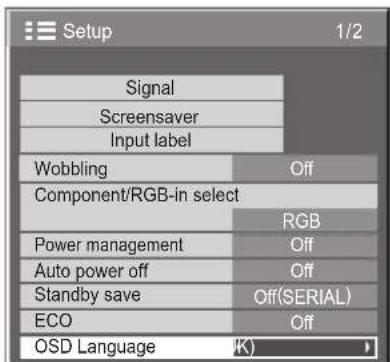
Press to select the OSD Language.
Press to select your preferred language.
■ Selectable languages
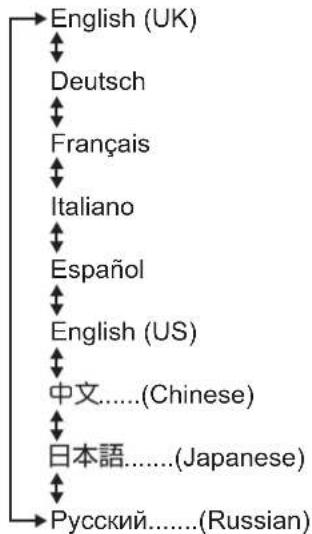
flowchart
graph TD
    A["English (UK)"] --> B["Deutsch"]
    B --> C["Français"]
    C --> D["Italiano"]
    D --> E["Espanol"]
    E --> F["English (US)"]
    F --> G["中文......(Chinese)"]
    G --> H["日本語......(Japanese)"]
    H --> I["Pусский......(Russian)"]
Customizing the On-Screen Menu Display
Set the display time and background transparency of the on-screen menu display.
1 SET UP Press to display the Setup menu.
2 Press to select "Menu Display Duration".
Press to adjust the display duration.
— Press to select "Menu Display Duration".
— Press to adjust the display duration.
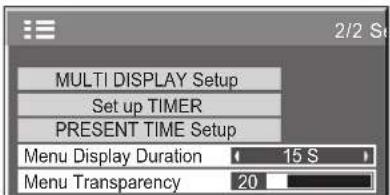
3 Press to select "Menu Transparency".
Press to adjust the transparency.
— Press to select "Menu Transparency".
— Press to adjust the transparency.

natural_image
Completely blank white image with no visible content, text, or symbols.4 SET UP Press to exit from adjust mode.
Setup for MULTI DISPLAY
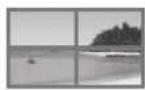
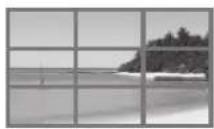
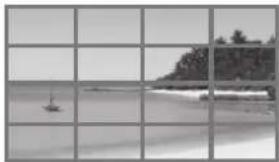
By lining up the Displays in groups, for example, as illustrated below, an enlarged picture may be displayed across all screens.
For this mode of operation, each display has to be set up with a Display number to determine its location.
(Example)
group of 16 (4 × 4) group of 4 (2 × 2) group of 9 (3 × 3) group of 25 (5 × 5)
natural_image
Black-and-white photo of a beach scene with a sailboat on the water and a shoreline in the background (no text or symbols)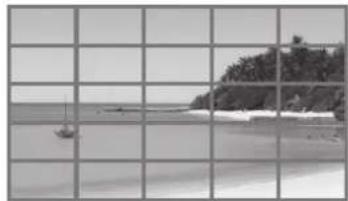
natural_image
Black-and-white beach scene with a sailboat on the water and a shoreline in the background (no text or symbols visible)How to Setup MULTI DISPLAY
1

Press to display the Setup menu.
2
Press to select the MULTI DISPLAY Setup.
Press to display the "MULTI DISPLAY Setup" menu.
3
natural_image
Circular diagram with directional arrows and a central square, no text or symbols presentPress to select the MULTI DISPLAY Setup.
Press to select "On" or "Off".
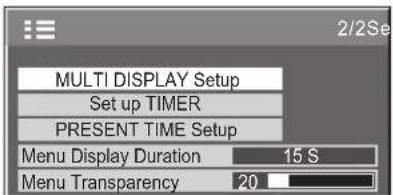
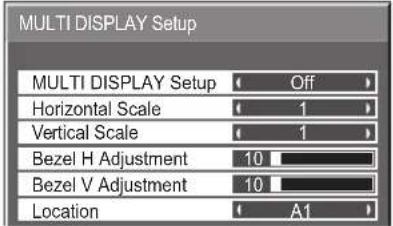
| Item Details | ||
| MULTI DISPLAY Setup Select “On” or “Off”. | ||
| Horizontal Scale Select “1”, “2”, “3”, “4”, “5”. | ||
| Vertical Scale Select “1”, “2”, “3”, “4”, “5”. | ||
| Bezel H AdjustmentBezel V Adjustment | Areas of the image that are hidden by the joint sections are adjusted both horizontally and vertically (0~100).To show joints between displays. 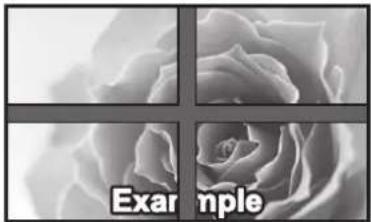 Suitable for still image display.Setting value: 0 Suitable for still image display.Setting value: 0 | To hide joints between displays. 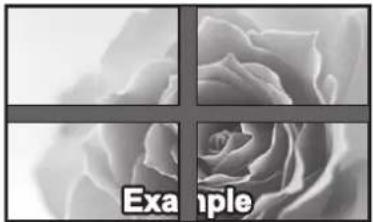 Suitable for moving image display.Setting value: 100 Suitable for moving image display.Setting value: 100 |
| Item Details | |||||
| Location | Select the required arrangement number. (A1-E5 : Refer to the following)Display Number locations for each arrangement.(Examples)(2 × 1) (2 × 3) (4 × 4) (4 × 2) (5 × 5)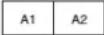 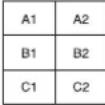 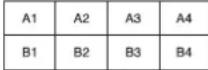 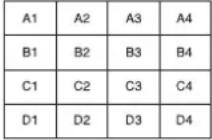 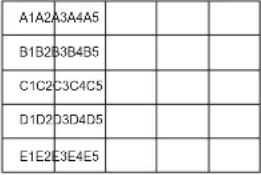 | ||||
4

Press to exit from Setup.
Setup for Input Signals
Component / RGB-in select
Select to match the signals from the source connected to the COMPONENT/RGB IN terminal.
Y, P_B , P_R signals “Component”
RGB signals "RGB"
1

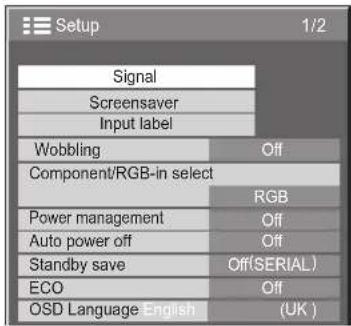
Press to display the Setup menu.
2
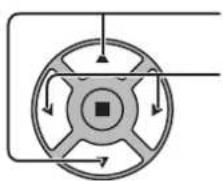
natural_image
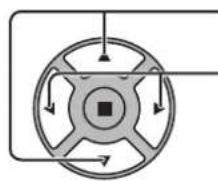
Circular diagram with directional arrows and a central square, no text or symbols presentPress to select the "Component / RGB-in select".
Press to select the desired input signal.
Component RGB
3

Press to exit from adjust mode.
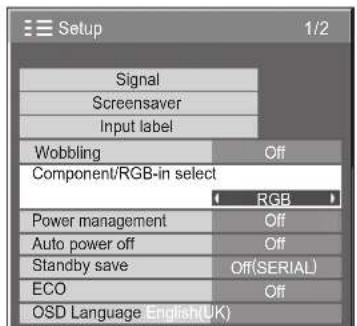
Note:
Make setting of the selected input terminal (COMPONENT/RGB IN).
Signal menu
Note:
"Signal" setup menu displays a different setting condition for each input signal.
1

Press to display the Setup menu.
2
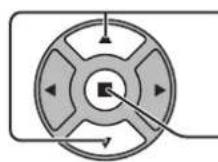
Press to select the "Signal".
Press to display the Signal menu.
3
natural_image
Circular diagram with directional arrows and a central square, no text or symbols presentPress to select the menu to adjust.
Press to adjust the menu.
4

Press to exit from adjust mode.

Press ACTION (■) button
For Video (S VIDEO) For RGB
![Signal [AV] 3D Y/C Filter On Colour system Auto Cinema reality Off Noise reduction Off](/content/2026/06/1145942/images/8ae58cf773773bb306335d8619179106c6090a7986ae024c13e09871dd0450f7.jpg)
![Signal [RGB] Sync Auto Cinema reality Off XGA Mode 1024 ×768 Noise reduction Off H-Freq. 63.98 kHz V-Freq. 60.02 Hz Signal Format 1280×1024/60](/content/2026/06/1145942/images/44b5e751ffb1b83a617757ce3fdce54304ea109e4a858238a36e53679ecb40f7.jpg)
For Component For Digital
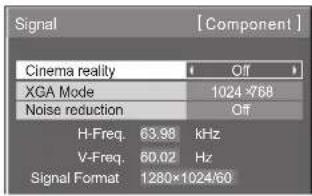
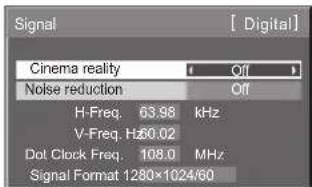
3D Y/C Filter
Select "Signal" from the "Setup" menu during Video (S Video) input signal. ("Signal [AV]" menu is displayed.)
Press to select the "3D Y/C Filter"
Press to set On / Off.

Colour system
Select Signal from the "Setup" menu during Video (S Video) input signal. ("Signal [AV]" menu is displayed.)
natural_image
Circular diagram with radial arrows and a central square, no text or symbols presentPress to select the "Colour system".
Press to select each functions.
![Signal [AV] 3D Y/C Filter On Colour system Auto Cinema reality Off Noise reduction Off](/content/2026/06/1145942/images/6117cc713090e0551d5101bd7d7185609493253e70ded3e35b59247b84e9ffe0.jpg)
If the picture image becomes unstable:
With the system set on Auto, under conditions of low level or noisy input signals the image may in rare cases become unstable. Should this occur, set the system to match the format of the input signal.
Colour system: Set the colour system to match the input signal. When "Auto" is set, Colour system will be automatically selected from NTSC/PAL/SECAM/NTSC 4.43/PAL M/PAL N. To display PAL60 signal, select "Auto".

Cinema reality
Cinema reality:
When on, the display attempts to reproduce a more natural interpretation of sources such as movie pictures, which are recorded at 24 frames per second. If the picture is not stable, turn the setting to off.
Note:
When On, this setting only affects the following signal input:
• NTSC / PAL signal input during Video (S Video) input signal.
• 525i (480i), 625i (575i), 1125 (1080) / 60i signal input during Component input signal.
Press to select Cinema reality.
Press to set On / Off.

XGA Mode
This menu is displayed when the input signal is analog (Component/PC). This menu sets two types of XGA signals with 60Hz vertical frequency having different aspect ratios and sampling rates (1,024 × 768 @ 60Hz and 1,366 × 768 @ 60Hz).
When a 1,280 x 768 @ 60Hz input signal is automatically detected, the image is processed as a 1,280 x 768 @ 60Hz XGA input signal irrespective of this setting.
Press to select "XGA Mode".
Press to select "1024×768", "1366×768".

Note:
After making this setting, be sure to make each adjustment (such as "Auto Setup") on the "Pos. /Size" menu as necessary. (see page 22)
Noise reduction
Press to select "Noise reduction".

Press to select "Off", "Auto", "Min", "Mid", "Max".
Auto: Noise reduction will be automatically selected from "Min", "Mid" or "Max".
Note:
Noise reduction can be adjusted while a Video or Component signal is being applied.
Sync
This function operates only during input from PC IN terminal.
Select Signal from the "Setup" menu during Component input signal.
Press to select the "Sync".
Press to adjust.
![Signal [ RGB ] Sync Auto Cinema reality Off XGA Mode 1024×768](/content/2026/06/1145942/images/14a2274bdac084bfc637c27a23dc144c1b4681cf4a4d7cbc37d66bd1a89c3325.jpg)
Confirm that the input is set to RGB input (this setting is valid only for RGB input signal).
Auto: The H and V sync or synchronized signal is automatically selected. If both input, it is selected the H and V sync. However, the synchronized signal that is input first is selected.

on G: Uses a synchronized signal on the Video G signal, which is input from the G connector.
Note:
Accepts only RGB signals from COMPONENT/RGB IN terminal with "Sync on G"
Input signal display
Displays the frequency and the type of the current input signal.
This display is valid only for Component / RGB / PC and Digital input signal.
Display range:
Horizontal 30 - 110 kHz
Vertical 48 - 120 Hz
The dot clock frequency is displayed during digital signal input.
Note:
The automatically detected signal format may be displayed differently. Signal Forint 1280×1024/60 actual input signal.
| H-Freq. | 63.98 | kHz |
| V-Freq. | 60.02 | Hz |
| Signal Format | 1280×1024/60 | |
| H-Freq. | 63.98 | kHz |
| V-Freq. | $60.02 | |
| Dot Clock Freq. | 108.0 | MHz |
Options Adjustments
1

Press to display the Setup menu.
2
Press to select "OSD Language".
Press for more than 3 seconds.
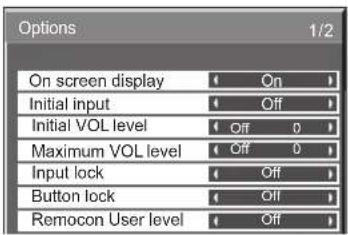
3
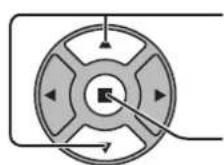
Press to select "Options".
Press to display the Options menu.
4
natural_image
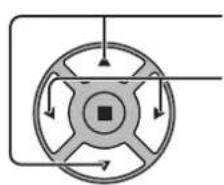
Circular diagram with directional arrows and a central square, no text or symbols presentPress to select your preferred menu.
Press to adjust the menu.
5

Press to exit from Options menu.
| Item Adjustments | |
| On screen display | On: Displays all the following on screen.Power on displayInput signal switch displayNo signal displayMute and the remaining time of off-timer afterwas pressed.Off:Hides all the items above from view. |
| Initial input | Adjusts the input signal when the unit is turned on.Off↔VIDEOComponent/RGB PC>DVI↔Notes:Only the adjusted signal is displayed. (see page 15)This menu is available only when “Input lock” is “Off”. |
| Initial VOL level | PressVOLbutton to adjust the volume when the unit is turned on.Off←→OnOff: Sets normal volume.On: Sets your preferred volume.Notes:When “Maximum VOL level” is “On”, the volume can only be adjusted between 0 and your maximum range.You can hear the changed volume regardless of your volume setting before opening the options menu if you adjust the volume when “Initial VOL level” is “On” and cursor is on the menu. |
| Maximum VOL level | PressVOLbutton to adjust the maximum volume.Off←→OnOff: Sets auto maximum volume.On: Sets your preferred maximum volume.Notes:If the “Maximum VOL level” is set lower than the “Initial VOL level”, the “Initial VOL level” automatically becomes the same as the “Maximum VOL level”.The volume display can go up to 100 regardless of the settings.You can hear the changed volume regardless of your volume setting before opening the options menu if you adjust the volume when “Maximum VOL level” is “On” and cursor is on the menu. |
| Input lock | Locks the input switch operation.Off↔VIDEOComponent/RGB PC>DVIDHDMI1HDMI2 OffNotes:Only the adjusted signal is displayed (see page 15).Input switch can be used when this is set to “Off”. |
| Button lock | Off←→OnMENU&ENTEROff: All the buttons on main unit can be used.MENU&ENTER: Locks and buttons on main unit.On: Locks all the button on main unit.Sets Button lock with the unit buttons in the following procedure.Off: Press four times→Press four times→Press four times→Press □ □ □ □ □ □ □ □ □ □ □ □ □ □ □ □ □ □ □ □ □ □ □ □ □ □ □ □ □ □ □ □ □ □ □ □ □ □ □ □ □ □ □ □ □ □ □ □ □ □ ▢ |
| Remocon User level | Off←→User1User2: You can only use ○, ○, ○ □ □ □ □ □ □ □ □ □ □ □ □ □ □ □ □ □ □ □ □ □ □ □ □ □ □ □ □ □ □ □ □ □ □ □ □ □ □ □ □ □ □ □ □ □ □ □ □ □ △ |
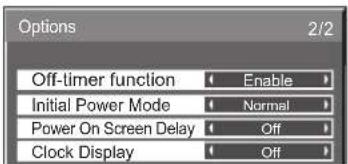
| Off-timer function | Enable: Enables the “Off-timer function”.Disable: Disables the “Off-timer function”.Note: When “Disable” is set, the Off-timer is cancelled. |
| Initial Power Mode | Normal←→OnStandbySets the power mode of the unit for when the power recovers from failure or after plugging off and in again.Normal: Power returns in as the same state as before the power interruption.Standby: Power returns in standby mode. (Power Indicator : red/orange)On: Power returns in power On. (Power Indicator : green)Note: When using multiple displays, “Standby” is preferred to be set in order to reduce a power load. |
| Power On Screen Delay | Off←→1←→2←→3...←→30You can set the power-on delay time of the displays to reduce the power load, when you press ⏻/1 to turn on the multiple displays that are set together, for example, on MULTI DISPLAY system.Set each display’s setting individually.Off: The display will be turned on at the same time /as pressed.1 to 30 (sec.): Set the power-on delay time (second).After pressing ⏻/1, the display will be powered on with time delay depending on this setting.Notes:During this function is working, the power indicator is blinking green.This function also works when the power recovers from failure or after plugging off and in again the power cord. |
| Clock Display | Off: Not display the clock.On: Display the clock.The clock is displayed at the lower left of the screen when □ □ □ □ □ □ □ □ □ □ □ □ □ □ □ □ □ □ □ □ □ □ □ □ □ □ □ □ □ □ □ □ □ □ □ □ □ □ □ □ □ □ □ □ □ □ □ □ □ ▲Note: When “PRESENT TIME Setup” is not set, the clock is not displayed even if “Clock Display” is “On”. (see page 27)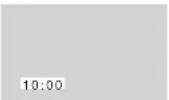 |
Normalization
When both main unit buttons and remote control are disabled due to the "Button lock" or "Remocon User level" adjustments, set all the values "Off" so that all the buttons are enabled again.
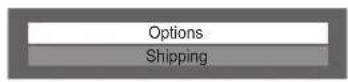
Press the □ button on main unit together with 🔧 button on the remote control and hold for more than 5 seconds. The "Shipping" menu is displayed and the lock is released when it disappears.
Troubleshooting
Before you call for service, determine the symptoms and make a few simple checks as shown below.
| Symptoms | Checks | |||
| Picture Sound | ||||
 | Interference No |  | Electrical AppliancesCars / MotorcyclesFluorescent light | |
 | Normal Picture |  | Volume(Check whether the mute function has been activated on the remote control.) | |
 | No Picture No |  | Not plugged into AC outletNot switched onPicture and Brightness/Volume setting(Check by pressing the power switch or stand-by button on the remote control.) | |
 | No Picture No |  | If a signal with a non-applicable colour system format, or frequency is input, only the input terminal indication is displayed. | |
 | No Colour No |  | Colour controls set at minimum level(see page 24, 25)Colour system (see page 38) | |
| No remote control operations can be performed. | Check whether the batteries have discharged completely and, if they have not, whether they were inserted properly.Check whether the remote control sensor is exposed to an outdoor light or a strong fluorescent light.Check whether the remote control designed specifically for use with the unit is being used. (The unit cannot be operated by any other remote control.) | |||
| A cracking sound is sometimes heard from the unit. | If there is nothing wrong with the picture or sound, this is the sound of the cabinet undergoing very slight contractions in response to changes in the room temperature. There are no adverse effects on the performance or other aspects. | |||
| The top or bottom of the picture on the screen is cut off when I use the zoom function. | Adjust the position of the picture on the screen. | |||
| Areas at the top and bottom of the screen is missing appear when I use the zoom function. | When using a video software program (such as a cinema size program) with a zoom wider than one in the 16:9 mode, blank areas separate from the images are formed at the top and bottom of the screen. | |||
| I can hear sounds coming from inside the unit. | When the power is turned on, a sound of the display panel being driven may be heard: This is normal and not indicative of malfunctioning. | |||
| Parts of the unit become hot. | Even when the temperature of parts of the front, top and rear panels has risen, these temperature rises will not pose any problems in terms of performance or quality. | |||
| Power automatically turns off unexpectedly. | Check the settings of “Power management” and “Auto power off” in the Setup menu. Any of them may be set to “On”. (see page 31) | |||
| This LCD Display uses special image processing. Hence a slight time lag may occur between image and audio, depending on the type of input signal. However, this is not a malfunction. | ||||
LCD Display panel
| Symptoms Check | |
| The screen darkens slightly when bright pictures with minimal movements are shown. | The screen will darken slightly when photos, still images of a computer or other pictures with minimal movements are shown for an extended period. This is done to reduce image retention on the screen and the shortening of the screen's service life: It is normal and not indicative of malfunctioning. |
| It takes a while for the picture to appear. | The unit digitally processes the various signals in order to reproduce esthetically pleasing images. As such, it sometimes takes a few moments for the picture to appear when the power has been turned on, when the input has been switched. |
| The edges of the images flicker. | Due to the characteristics of the system used to drive the panel, the edges may appear to flicker in the fast-moving parts of the images: This is normal and not indicative of malfunctioning. |
| There may be red spots, blue spots, green spots and black spots on the screen. | This is a characteristic of liquid crystal panels and is not a problem. The liquid crystal panel is built with very high precision technology giving you fine picture details. Occasionally, a few non-active pixels may appear on the screen as fixed points of red, blue, green, or black. Please note this does not affect the performance of your LCD. |
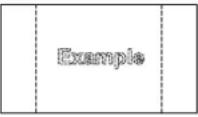 Image retention appears Image retention appears | Image retention may occur. If you display a still picture for an extended period, the image might remain on the screen. However, it will disappear after a while. This is not considered as malfunction. |
Applicable Input Signals
PC signals
*Mark: Applicable input signal
| Signal name | Horizontal frequency (kHz) | Vertical frequency (Hz) | RGB IN(Dot clock (MHz)) | PC IN(Dot clock (MHz)) | DVI-D IN(Dot clock (MHz)) | HDMI1HDMI2 | |
| 1640x400@70Hz | 31.46 70.07 * (25.17) * | (25.17) * (25.17) | |||||
| 2640x400@85Hz | 37.86 85.08 * (31.5) * | (31.5) * (31.5) | |||||
| 3640x480@60Hz | 31.43 59.88 * (25.15) * | (25.15) * (25.15) | |||||
| 4640x480@60Hz | 31.47 59.94 * (25.18) * | (25.18) * (25.18) * | |||||
| 5640x480@67Hz | 35.00 66.67 * (30.24) * | (30.24) * (30.24) | |||||
| 6640x480@72Hz | 37.86 72.81 * (31.5) * | (31.5) * (31.5) | |||||
| 7640x480@75Hz | 37.50 75.00 * (31.5) * | (31.5) * (31.5) | |||||
| 8640x480@85Hz | 43.27 85.01 * (36.0) * | (36.0) * (36.0) | |||||
| 9720x400@70Hz | 31.47 70.08 * (28.32) * | (28.32) * (28.32) | |||||
| 10800x600@55Hz | 34.50 55.38 * (35.33) * | (35.33) * (35.33) | |||||
| 11800x600@56Hz | 35.16 56.25 * (36.0) * | (36.0) * (36.0) | |||||
| 12800x600@60Hz | 37.88 60.32 * (40.0) * | (40.0) * (40.0) * | |||||
| 13800x600@60Hz | 38.00 60.51 * (40.13) * | (40.13) * (40.13) | |||||
| 14800x600@72Hz | 48.08 72.19 * (50.0) * | (50.0) * (50.0) | |||||
| 15800x600@75Hz | 46.88 75.00 * (49.5) * | (49.5) * (49.5) | |||||
| 16800x600@85Hz | 53.67 85.06 * (56.25) * | (56.25) * (56.25) | |||||
| 17852x480@60Hz | 31.47 59.94 * (33.54) * | (33.54) * (34.24) | |||||
| 181,024x768@50Hz | 39.55 50.00 * (51.89) * | (51.89) * (51.89) | |||||
| 191,024x768@60Hz | 48.36 60.00 * (65.0) * | (65.0) * (65.0) * | |||||
| 201,024x768@60Hz | 48.50 60.02 * (64.99) * | (64.99) * (65.18) | |||||
| 211,024x768@70Hz | 56.48 70.07 * (75.0) * | (75.0) * (75.0) | |||||
| 221,024x768@75Hz | 60.24 74.93 * (80.0) * | (80.0) * (80.0) | |||||
| 231,024x768@75Hz | 60.02 75.03 * (78.75) * | (78.75) * (78.75) | |||||
| 241,024x768@75Hz | 61.01 75.70 * (80.05) * | (80.05) * (81.0) | |||||
| 251,024x768@85Hz | 68.68 85.00 * (94.5) * | (94.5) * (94.5) | |||||
| 261,024x768@120Hz | 97.55 | 119.99 | * (115.5) | * (115.5) | |||
| 271,066x600@60Hz | 37.64 59.94 * (53.0) * | (53.0) * (53.0) | |||||
| 281,152x864@60Hz | 53.70 60.00 * (81.62) * | (81.62) * (81.62) | |||||
| 291,152x864@75Hz | 67.50 75.00 * (108.0) * | (108.0) * (108.0) | |||||
| 301,152x900@65Hz | 61.20 65.20 * (92.0) * | (92.0) * (92.0) | |||||
| 311,152x900@66Hz | 61.85 66.00 * (94.5) * | (94.5) * (94.5) | |||||
| 321,152x900@75Hz | 71.40 75.60 * (105.1) * | (105.1) * (105.1) | |||||
| 331,280x768@60Hz | 47.78 59.87 * (79.50) * | (79.50) * (79.50) | |||||
| 341,280x800@50Hz | 41.20 50.00 * (68.55) * | (68.55) * (68.55) | |||||
| 351,280x960@60Hz | 60.00 60.00 * (108.0) * | (108.0) * (108.0) | |||||
| 361,280x960@85Hz | 85.94 85.00 * (148.5) * | (148.5) * (148.5) | |||||
| 371,280x1,024@50Hz | 52.70 | 50.00 | * (89.38) | * (89.38) | * (89.38) | ||
| 381,280x1,024@60Hz | 63.34 | 59.98 | * (108.18) | * (108.18) | * (108.18) | ||
| 391,280x1,024@60Hz | 63.90 | 60.00 | * (107.35) | * (107.35) | * (107.35) | ||
| 401,280x1,024@60Hz | 63.37 | 60.01 | * (107.5) | * (107.5) | * (107.5) | ||
| 411,280x1,024@60Hz | 63.74 | 60.02 | * (108.1) | * (108.1) | * (108.1) | ||
| 421,280x1,024@60Hz | 63.98 | 60.02 | * (108.0) | * (108.0) | * (108.0) | * | |
| 431,280x1,024@60Hz | 63.79 | 60.18 | * (108.19) | * (108.19) | * (108.19) | ||
| 441,280x1,024@66Hz | 70.66 | 66.47 | * (119.84) | * (119.84) | * (119.84) | ||
| 451,280x1,024@75Hz | 79.98 | 75.02 | * (135.0) | * (135.0) | * (135.0) | ||
| 461,280x1,024@76Hz | 81.13 | 76.11 | * (135.0) | * (135.0) | * (135.0) | ||
| 471,280x1,024@85Hz | 91.15 | 85.02 | * (157.5) | * (157.5) | |||
| 481,360x768@60Hz | 47.71 60.02 * (85.5) * (85.5) * (85.5) | ||||||
| 491,366x768@50Hz | 39.55 50.00 * (69.92) * (69.92) | ||||||
| 501,366x768@60Hz | 48.36 60.00 * (86.71) * (86.71) * (87.44) | ||||||
| 511,400x1,050@60Hz | 65.12 | 59.91 | * (121.38) | * (121.38) | * (122.43) | ||
| 521,400x1,050@60Hz | 65.32 | 59.98 | * (121.75) | * (121.75) | * (121.75) | ||
| 531,400x1,050@60Hz | 65.35 | 60.12 | * (121.81) | * (121.81) | * (121.85) | ||
| 541,400x1,050@75Hz | 82.28 | 74.87 | * (156.0) | * (156.0) | * (156.0) | ||
| 551,600x1,200@60Hz | 75.00 60.00 | * (162.0) * (162.0) * (162.0) | |||||
| 561,920x1,080@60Hz | 67.50 | 60.00 | * (148.5) | * (148.5) | * (148.5) | ||
| 571,920x1,200@60Hz | 74.04 | 59.95 | * (154.0) | * (154.0) | |||
| 58Macintosh13" (640x480) | 35.00 | 66.67 | * (30.24) | * (30.24) | * (30.24) | ||
| 59MacintoshLC13" (640x480) | 34.97 | 66.60 | * (31.33) | * (31.33) | * (31.33) | ||
| 60Macintosh16" (832x624) | 49.72 | 74.55 | * (57.28) | * (57.28) | * (57.28) | ||
| 61Macintosh19" (1,024x768) | 60.24 | 75.08 | * (80.0) | * (80.0) | * (80.0) | ||
| 62Macintosh21" (1,152x870) | 68.68 | 75.06 | * (100.0) | * (100.0) | * (100.0) | ||
| 63Macintosh II (1,280x1,024) | 80.00 | 75.00 | * (134.4) | * (134.4) | * (135.2) |
Component signals
*Mark: Applicable input signal
| Signal name | Horizontal frequency (kHz) | Vertical frequency (Hz) | COMPONENT IN (Dot clock (MHz)) | DVI-D IN (Dot clock (MHz)) | HDMI1 HDMI2 | |
| 1 | 525(480)/60i | 15.73 | 59.94 | *(13.5) | *(27.0) | * |
| 2 | 525(480)/60p | 31.47 | 59.94 | *(27.0) | *(27.0) | * |
| 3 | 625(575)/50i | 15.63 | 50.00 | *(13.5) | ||
| 4 | 625(576)/50i | 15.63 | 50.00 | *(27.0) | * | |
| 5 | 625(575)/50p | 31.25 | 50.00 | *(27.0) | * | |
| 6 | 625(576)/50p | 31.25 | 50.00 | *(27.0) | * | |
| 7 | 750(720)/60p | 45.00 | 60.00 | *(74.25) | *(74.25) | * |
| 8 | 750(720)/50p | 37.50 | 50.00 | *(74.25) | *(74.25) | * |
| 9 | 1,125(1,080)/60p | 67.50 | 60.00 | *(148.5)*1 | *(148.5) | * |
| 10 | 1,125(1,080)/60i | 33.75 | 60.00 | *(74.25)*1 | *(74.25) | * |
| 11 | 1,125(1,080)/50p | 56.25 | 50.00 | *(148.5)*1 | *(148.5) | * |
| 12 | 1,125(1,080)/50i | 28.13 | 50.00 | *(74.25)*1 | *(74.25) | * |
| 13 | 1,125(1,080)/24sF | 27.00 | 48.00 | *(74.25)*2 | ||
| 14 | 1,125(1,080)/30p | 33.75 | 30.00 | *(74.25)*1 | *(74.25) | * |
| 15 | 1,125(1,080)/25p | 28.13 | 25.00 | *(74.25)*1 | *(74.25) | * |
| 16 | 1,125(1,080)/24p | 27.00 | 24.00 | *(74.25)*1 | *(74.25) | * |
*1: Based on SMPTE 274M standard. *2: Based on SMPTE RP211 standard.
Video signals (VIDEO, S-VIDEO)
| Signal name | Horizontal Vertical frequency(kHz) frequency(Hz) | ||
| 1 NTSC 15.73 59.94 | |||
| 2 PAL 15.63 50.00 | |||
| 3 PAL60 15.73 59.94 | |||
| 4 SECAM 15.63 50.00 | |||
| 5 | NTSC 4.43 | 15.73 59.94 | |
| 6 | PAL N 15.63 50.00 | ||
| 7 | PAL M | 15.73 | 59.94 |
Shipping condition
This function allows you to reset the unit to the factory setting.
1

Press to display the Setup menu.
2
Press to select "OSD Language".
Press for more than 3 seconds.
3
Press to select "Shipping".
Press to display the Shipping menu.
4
Press to select "YES".
Press to confirm.
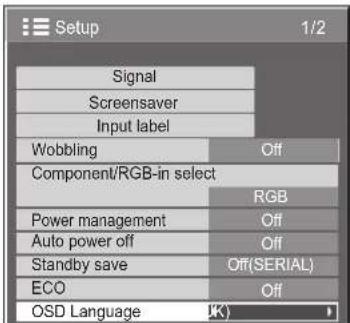
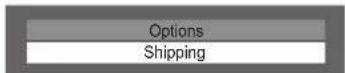
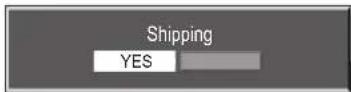
[from the unit]
1 Press the MENU button till the Setup menu is displayed.
2 Press the Volume Up“+” or Down“-” button to select “OSD Language”.
3 Press and hold the ENTER button till the Shipping menu is displayed.
4 Press the Volume Up“+” or Down“-” button to select “YES”.
5 Press the ENTER button and wait for 10 sec.
Specifications
| PID-42NE1 PID-47NE1 | |||
| Power Source 220 - 240 V AC, 50/60Hz | |||
| Power Consumption | |||
| Power on 240 W | 290 W | ||
| Stand-by condition 0.2 W 0.2 W | |||
| Power off condition 0 | 2 W 0.2 W | ||
| LCD Display panel 42-inch IPS panel, 16:9 aspect ratio 47-inch IPS panel, 16:9 aspect ratio | |||
| Screen size 930 mm (W) × 523 mm (H) × 1,067 mm (diagonal) | 1,040 mm (W) × 585 mm (H) × 1,193 mm (diagonal) | ||
| (No.of pixels) 2,073,600 (1,920 (W) × 1,080 (H))[5,760 × 1,080 dots] | 2,073,600 (1,920 (W) × 1,080 (H))[5,760 × 1,080 dots] | ||
| Operating condition | |||
| Temperature 0 °C | -40 °C | ||
| Humidity | 20% - 80% | ||
| Applicable signals | |||
| Colour System | NTSC, PAL, PAL60, SECAM, NTSC 4.43, PAL M, PAL N | ||
| Scanning format | 525 (480) / 60i · 60p, 625 (575) / 50i · 50p, 750 (720) / 60p · 50p, 1125 (1080) / 60i · 60p · 50i · 50p · 24p · 25p · 30p · 24sF, 1250 (1080) / 50i | ||
| PC signals | VGA, SVGA, XGA, SXGAUXGA .... (compressed)Horizontal scanning frequency 30 - 110 kHzVertical scanning frequency 48 - 120 Hz | ||
| Connection terminals | |||
| AV IN | VIDEO S-VIDEO AUDIO L-R | BNC Mini DIN 4PIN RCA Pin jack × 2 TYPE A Connector | |
| HDMI 1/2 | |||
| COMPONENT/RGB IN | |||
| G/Y B/PB/CB R/PR/CR AUDIO L-R | BNC BNC BNC RCA Pin jack × 2 with sync 1.0 Vp-p (75 Ω) 0.7 Vp-p (75 Ω) 0.7 Vp-p (75 Ω) 0.5 Vrms | ||
| DVI-D IN | AUDIO | DVI-D 24 Pin Content Protection Stereo mini jack (M3) × 1 Compliance with DVI Revision 1.0 Compatible with HDCP 1.1 0.5 Vrms, Shared with PC IN | |
| PC IN | High-Density Mini D-sub 15 Pin G with sync 1.0 Vp-p (75 Ω) G without sync 0.7 Vp-p (75 Ω) B: 0.7 Vp-p (75 Ω) R: 0.7 Vp-p (75 Ω) HD/VD: 1.0 - 5.0 Vp-p (high impedance) with picture 1.0 Vp-p (high impedance) without picture 0.3 Vp-p (high impedance) 0.5 Vrms, Shared with DVI-D IN | ||
| AUDIO | VBS (use HD port) Stereo mini jack (M3) × 1 | ||
| SERIAL | External Control Terminal D-sub 9 Pin RS-232C compatible | ||
| Sound | |||
| Speakers | 50 mm × 90 mm × 2 pcs | ||
| Audio Output | 10 W [5 W + 5 W] (10 % THD) | ||
| Dimensions (W × H × D) | 968 mm × 561 mm × 101 mm | 1,079 mm × 624 mm × 101 mm | |
| Mass (weight) | approx. 18.0 kg | approx. 23.0 kg | |
Notes:
- Design and specifications are subject to change without notice. Mass and dimensions shown are approximate.
• This equipment complies with the EMC standards listed below.
EN55022, EN55024, EN61000-3-2, EN61000-3-3.
Information for Users on Collection and Disposal of Old Equipment and used Batteries
These symbols on the products, packaging, and/or accompanying documents mean that used electrical and electronic products and batteries should not be mixed with general household waste. For proper treatment, recovery and recycling of old products and used batteries, please take them to applicable collection points, in accordance with your national legislation and the Directives 2002/96/EC and 2006/66/EC.
By disposing of these products and batteries correctly, you will help to save valuable resources and prevent any potential negative effects on human health and the environment which could otherwise arise from inappropriate waste handling.
For more information about collection and recycling of old products and batteries, please contact your local municipality, your waste disposal service or the point of sale where you purchased the items. Penalties may be applicable for incorrect disposal of this waste, in accordance with national legislation.
For business users in the European Union
If you wish to discard electrical and electronic equipment, please contact your dealer or supplier for further information.

[Information on Disposal in other Countries outside the European Union]
These symbols are only valid in the European Union. If you wish to discard these items, please contact your local authorities or dealer and ask for the correct method of disposal.
Note for the battery symbol (bottom two symbol examples):
This symbol might be used in combination with a chemical symbol. In this case it complies with the requirement set by the Directive for the chemical involved.
Customer's Record
The model number and serial number of this product can be found on its rear panel. You should note this serial number in the space provided below and retain this book, plus your purchase receipt, as a permanent record of your purchase to aid in identification in the event of theft or loss, and for Warranty Service purposes.
Model Number
Serial Number