DS-PAN-411 - Computer accessory Havis - Free user manual and instructions
Find the device manual for free DS-PAN-411 Havis in PDF.


| Product Type | Rugged Mobile Docking Station |
| Compatible Laptop | Panasonic CF-53 Toughbook (not backward compatible with CF-52) |
| Dimensions (W x D x H) | 12.83” x 13.54” x 3.44” (32.54 cm x 34.39 cm x 8.73 cm) |
| Weight | 6.7 lbs (3.04 kg) |
| Power Supply Input | 15.6V DC-In (use only specified power supply LPS-103) |
| Operating Temperature | -20°C to 60°C (-4°F to 140°F) |
| Storage Temperature | -40°C to 85°C (-40°F to 185°F) |
| Ports | 1 x USB 3.0 (SS), 3 x USB 2.0, Ethernet, power input |
| Locking Mechanism | Barrel lock with two keys included for theft deterrence |
| Mounting Bracket | Included, compatible with Havis and most competitor motion devices |
| Hardware Kit | Includes 8 button head screws (1/4”-20 x 5/8”), 5 zip ties, 2 keys |
| Tools Required for Installation | 5/32" hex drive |
| Certifications | CE compliant with EN 55022, EN 55024, EN 50498 |
| Accessories (Optional) | LPS-112 120W power supply, DS-DA-410 screen stiffener, DS-DA-102 keyboard light, DS-DA-207 card reader bracket, DS-DA-502 replacement keys |
| Care and Cleaning | Wipe with dry cloth; avoid water, moisture, dust, and steam. Do not place metal objects or liquids on top. |
| Safety Warning | Never mount in airbag deployment zone. Do not use computer while driving. |
Frequently Asked Questions - DS-PAN-411 Havis
User questions about DS-PAN-411 Havis
0 question about this device. Answer the ones you know or ask your own.
Ask a new question about this device
Download the instructions for your Computer accessory in PDF format for free! Find your manual DS-PAN-411 - Havis and take your electronic device back in hand. On this page are published all the documents necessary for the use of your device. DS-PAN-411 by Havis.
USER MANUAL DS-PAN-411 Havis
Owner's Manual Havis Rugged Mobile Docking Station For Panasonic CF-53 Toughbook

natural_image
Abstract geometric composition with orange and blue diagonal bars (no text or symbols)DS-PAN-410 Series
DS-PAN-411
DS-PAN-411-2
DS-PAN-412
DS-PAN-412-2
DS-PAN-413PKG-DS-PAN-412
PKG-DS-PAN-412-2
natural_image
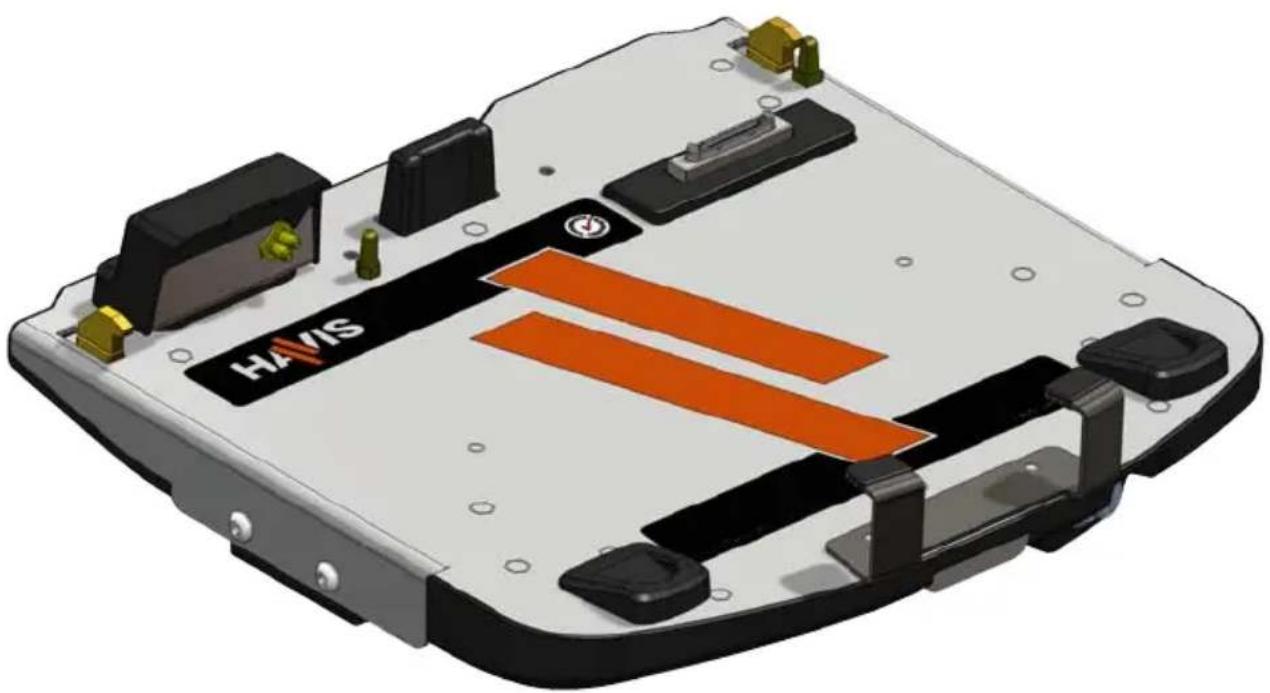
3D rendering of a Huawei HAVIS battery pack with orange and black components (no text or symbols)Havis is pleased to provide this Owner's Manual to aid in the proper installation and use of the DS-PAN-410 Series Docking Station for the Panasonic CF-53 laptop computer.
For questions regarding the set-up of your DS-PAN-410 Series Docking Station, please contact Havis at 1-800-524-9900 or visit www.havis.com for additional product support and information.
This Owner's Manual applies to the following Part Numbers:
DS-PAN-411
DS-PAN-412
DS-PAN-413PKG-DS-PAN-412
DS-PAN-411-2
DS-PAN-412-2
PKG-DS-PAN-412-2
WARNING
- NEVER STOW OR MOUNT THE DOCKING STATION DIRECTLY IN A VEHICLE AIRBAG DEPLOYMENT ZONE.
• DO NOT USE COMPUTER WHILE DRIVING.
CAUTION
- READ ALL INSTRUCTIONS THOROUGHLY BEFORE BEGINNING INSTALLATION.
- DO NOT CONNECT PERIPHERALS (USB, ETHERNET, POWER IN) SIMULTANEOUSLY TO COMPUTER AND DOCKING STATION WHEN COMPUTER IS DOCKED OR DAMAGE MAY OCCUR.
- ONLY COMPUTERS WITH RF PASS-THRU WILL LATCH INTO DOCKING STATIONS EQUIPPED WITH AN ANTENNA MODULE (DS-PAN-411-2, DS-PAN-412-2, PKG-DS-PAN-412-2). ATTEMPTING TO LATCH A COMPUTER WITH NON-RF PASS-THRU MAY RESULT IN DAMAGE TO THE COMPUTER AND/OR DOCKING STATION.
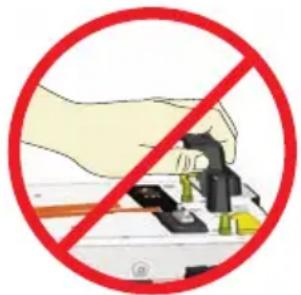
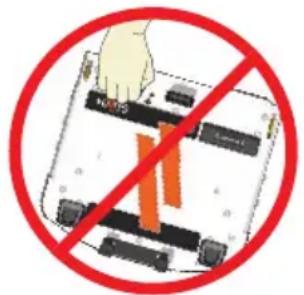
- THE ANTENNA MODULE IS NOT A HANDLE. DO NOT USE IT TO CONNECT OR ENGAGE THE COMPUTER TO DOCKING STATION. DO NOT USE IT TO CARRY THE DOCKING STATION.
NOTICE
- THE DS-PAN-410 SERIES DOCKING STATIONS ARE DESIGNED EXCLUSIVELY FOR USE WITH PANASONIC CF-53 TOUGHBOOK COMPUTERS ONLY AND ARE NOT BACKWARD COMPATIBLE WITH THE PANASONIC CF-52 COMPUTER
- FOR DOCKING STATION MODELS EQUIPPED WITH AN INTEGRATED POWER SUPPLY (DS-PAN-412, DS-PAN-412-2, PKG-DS-PAN-412, PKG-DS-PAN-412-2), REFER TO THE SUPPLIED LIND POWER SUPPLY REFERENCE GUIDE.
Table of Contents
Specifications 3
Parts Included 4
Port Replication Capability .... 5
Installation 6
Cable Management 7
Operation - Docking 9
Operation - Undocking .... 10
Precautions
- Do not place metal objects or containers of liquid on top of the Docking Station
- If a malfunction occurs, immediately unplug the Power Supply and remove the laptop
- Use only the specified Power Supply (Part # LPS-103) with this Docking Station
- Do not store the Docking Station where water, moisture, steam, dust, etc. are present
- Do not connect cables into ports other than what they are specified for
- Do not leave the Docking Station in a high temperature environment (greater than 85^ C, 185^ F ) for a long period of time
Specifications
| Power Supply Input 15.6V DC-In |
| Dimensions 12.83” (32.54 cm) W x 13.54” (34.39 cm) D x 3.44” (8.73 cm) H |
| Weight 6.7 lbs (3.04 kg) |
| Operating Environment -20°C to 60°C (-4°F to 140°F) |
| Storage Environment -40°C to 85°C (-40°F to 185°F) |
DECLARATION OF CONFORMITY FOR CE MARKING
Havis, Inc. declares that their DS-PAN-410 SERIES DOCKING STATIONS:
Are classified within the following EU Directives:
EU Electromagnetic Compatibility Directive 2004/108/EC
And further conform with the following EU Harmonized Standards:
EN 55022 (2006) + A1 2007, EN 55024: 1998 + A1: 2001 + A2: 2003
EN 50498: 2010
Clause 7.1 Broadband Radiated Disturbances - Quasi-Peak
Clause 7.2 Narrowband Radiated Disturbances - Average
Clause 7.3 Conducted Radiated Disturbances - Severity Level 2
Dated: August 4, 2011
Position of signatory: Chief Information Officer / Chief Financial Officer
Name of signatory: Steve Ferraro
Signed:
Docking Station
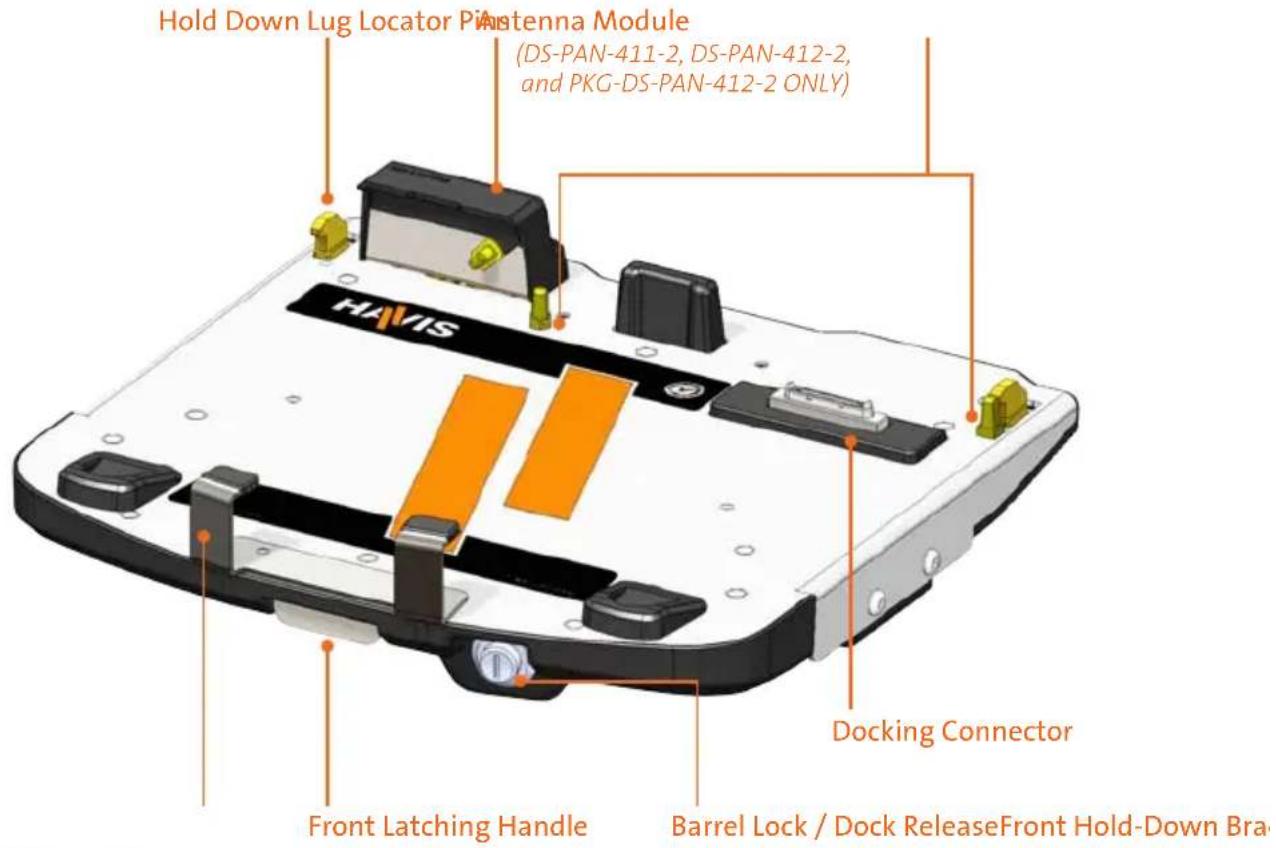
(Vinyl Cap Replacement Part #: GSM41123)
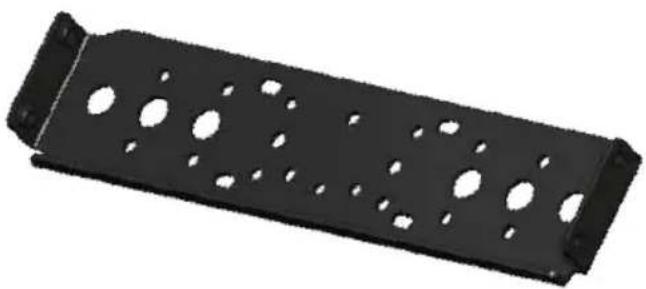
Mounting Bracket (D5-0046-SM)
Numerous hole patterns present in Mounting Bracket will accommodate Havis Motion Devices as well as most competitors'
Hardware Kit (HWK-0005)
This Hardware Kit includes:
- Zip Ties (5)
- Keys (2)
- 1/4"-20 x 5/8" long Button Head Screws (8)
Tools required for installation:
- 5/32" Hex Drive
(For attaching Mounting Bracket to Motion Device and Docking Station to Mounting Bracket with Button Head 1/4"-20 Screws)
natural_image
Black metal bracket with multiple circular holes and mounting flanges (no text or symbols)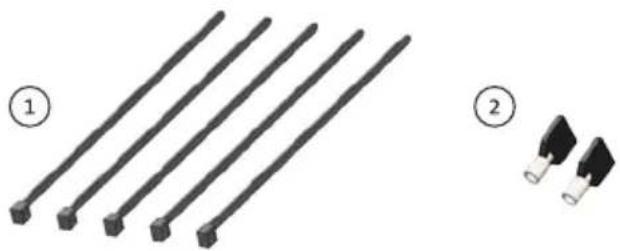
natural_image
Two types of electrical connectors: two with black plastic clips and one with a white terminal block, shown without any text or symbols.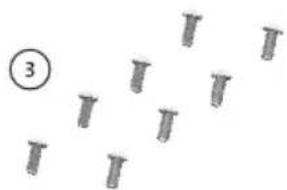
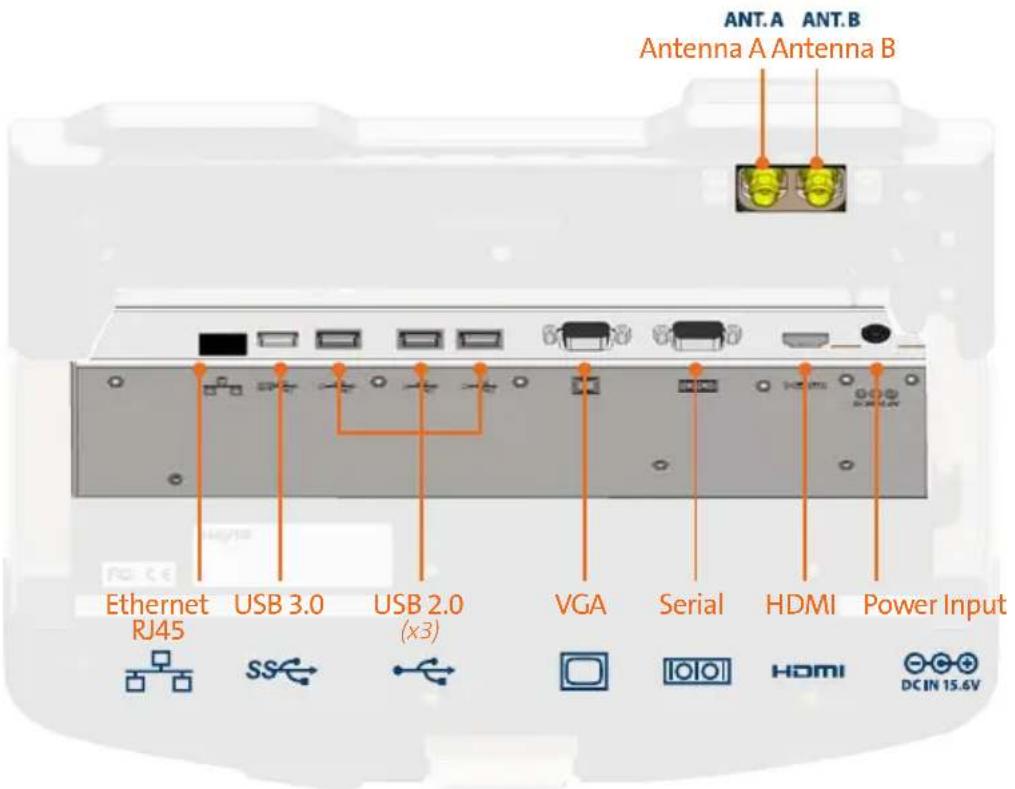
NOTE: Antennas only available on select Docking Station models (DS-PAN-411-2, DS-PAN-412-2, PKG-DS-PAN-412-2)
NOTICE
- THIS DOCKING STATION IS EQUIPPED WITH ONE USB 3.0 PORT, INDICATED BY THE FOLLOWING SYMBOL (SS). USB 2.0 PERIPHERALS WILL OPERATE IN THIS PORT HOWEVER, USB 3.0 PERIPHERALS WILL NOT OPERATE IN ANY OF THE THREE (3) USB 2.0 PORTS
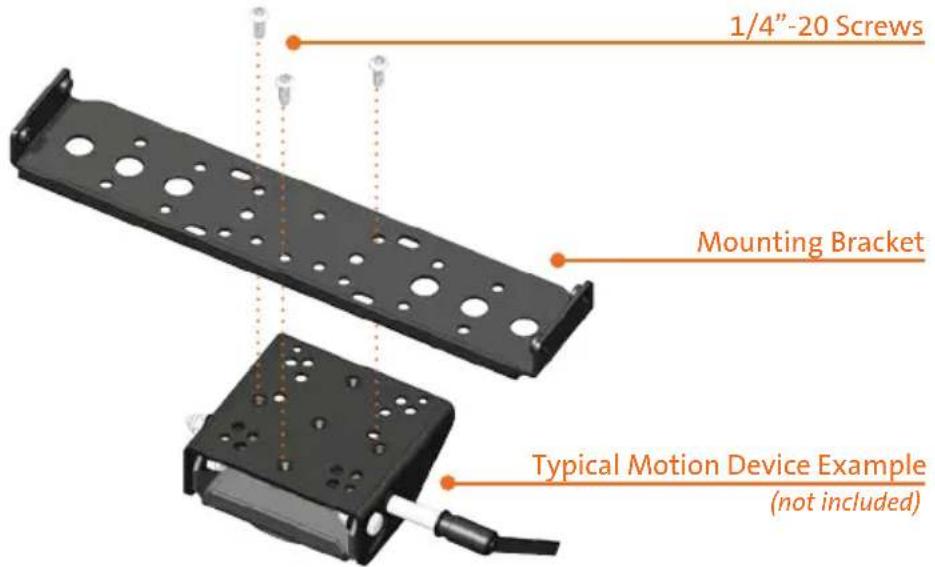
1) Remove the Mounting Bracket from the packaging. Install the Mounting Bracket to the Motion Device using (3) 1/4"-20 x 5/8" long screws (Hardware Kit Item 3). Torque screws to 80 in-lbs (9.0Nm) ± 10%.
NOTE: Numerous hole patterns present in Mounting Bracket will accommodate Havis Motion Devices as well as most competitors'
NOTE: We recommend applying a drop of medium strength (blue) thread locking adhesive to the threads of all fasteners.
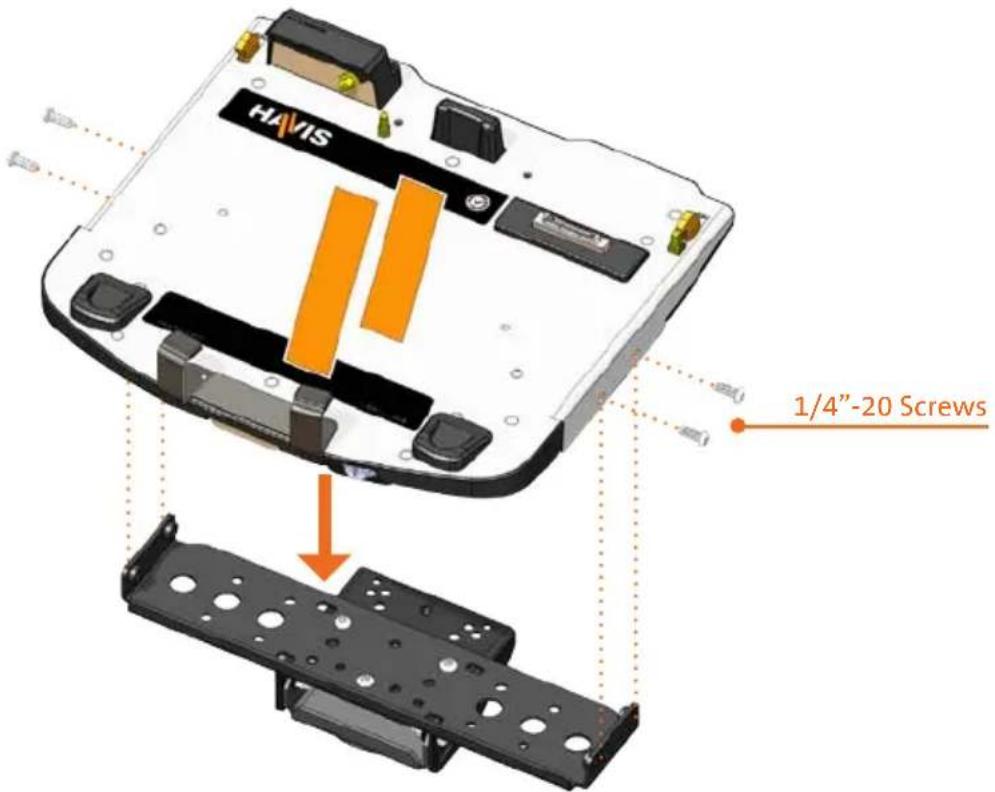
2) Lower the Docking Station to the Mounting Bracket as shown and secure with (4) 1/4"-20 x 5/8" long screws (Hardware Kit Item 3). Torque screws to 80 in-lbs (9.0 Nm) ± 10%.
CAUTION
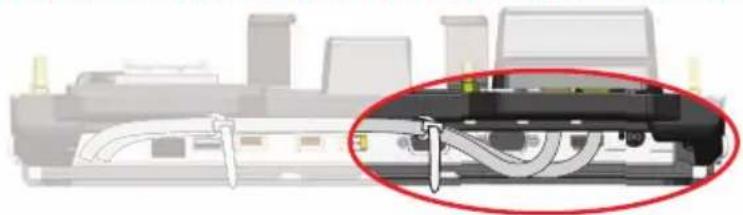
IF SECURING EXTERNAL ANTENNAS TO DOCKING STATION (DS-PAN-411-2, DS-PAN-412-2, PKG-DS-PAN-412-2) LEAVE AN ADEQUATE SERVICE LOOP BETWEEN THE ANTENNA CONNECTOR AND THE FIRST ZIP TIE ON THE DOCKING STATION TO ENSURE LATCHING AND UNLATCHING MOTION IS NOT RESTRICTED.
natural_image
Diagram of a device with internal tubing and a highlighted component (no text or symbols visible)1) Tip the Docking Station to a position that is comfortable to work with.
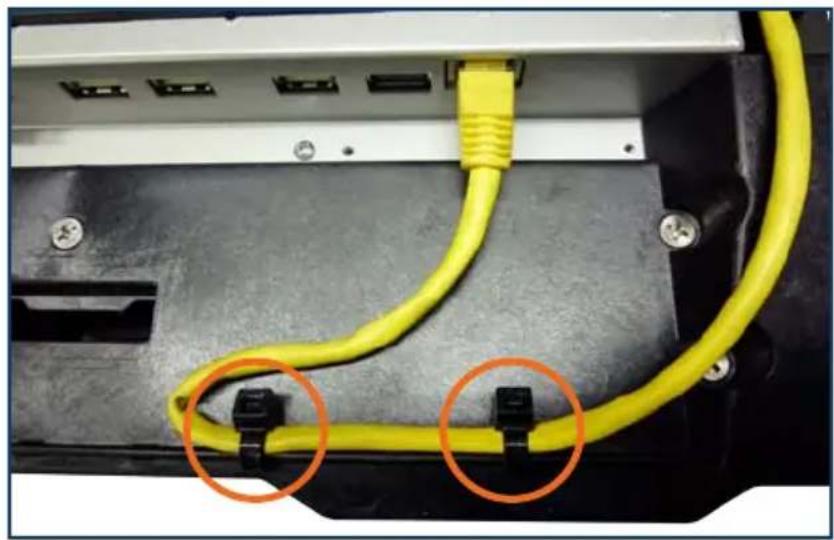
2) Install all cables that are necessary for computing needs. If using an Ethernet Cable, connect and strain relieve that cable first. Use Zip Ties (Hardware Kit Item 1) to strain relieve cables at rear of Docking Station.
natural_image
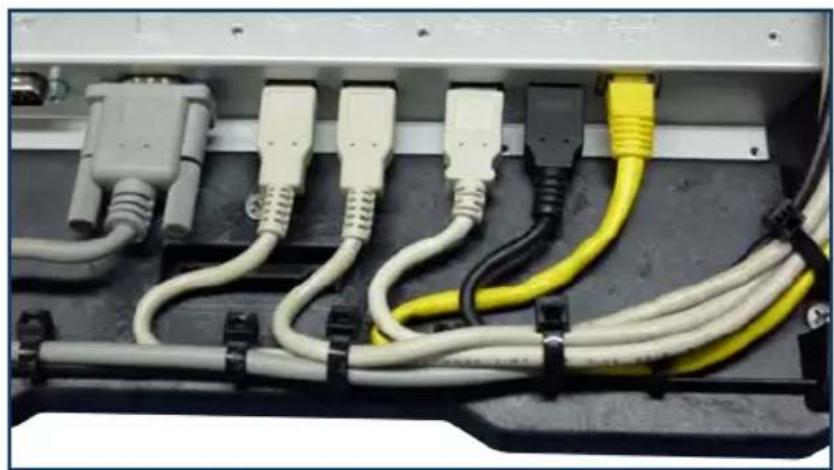
Close-up of a computer interface showing a yellow cable with two orange circular annotations pointing to black connectors (no text or symbols visible)3) Install and strain relieve the remainder of necessary cables. Again, use Zip Ties (Hardware Kit Item 1) to strain relieve cables along the rear of Docking Station.
natural_image
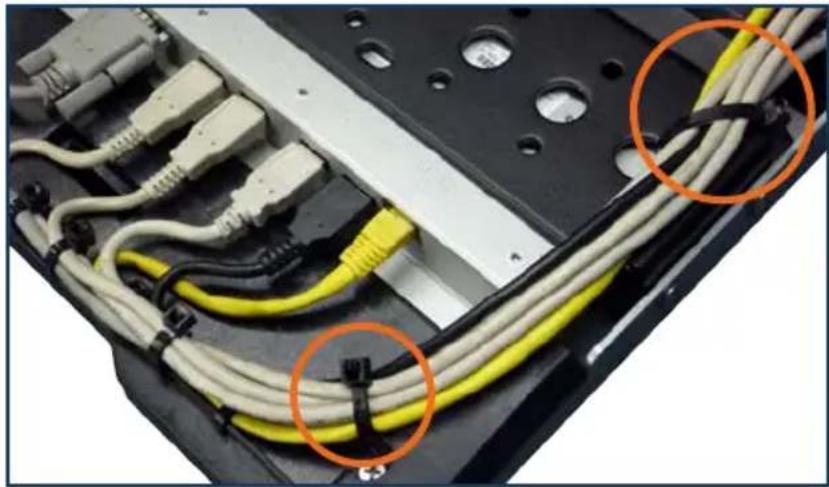
Close-up of electrical wiring harnesses with white, gray, and yellow connectors (no text or symbols visible)4) Route all cables along one side to ensure proper cable management and avoid pinching any cables. Strain relieve the entire cable bundle to the Mounting Bracket to prevent tension on the connectors.
natural_image
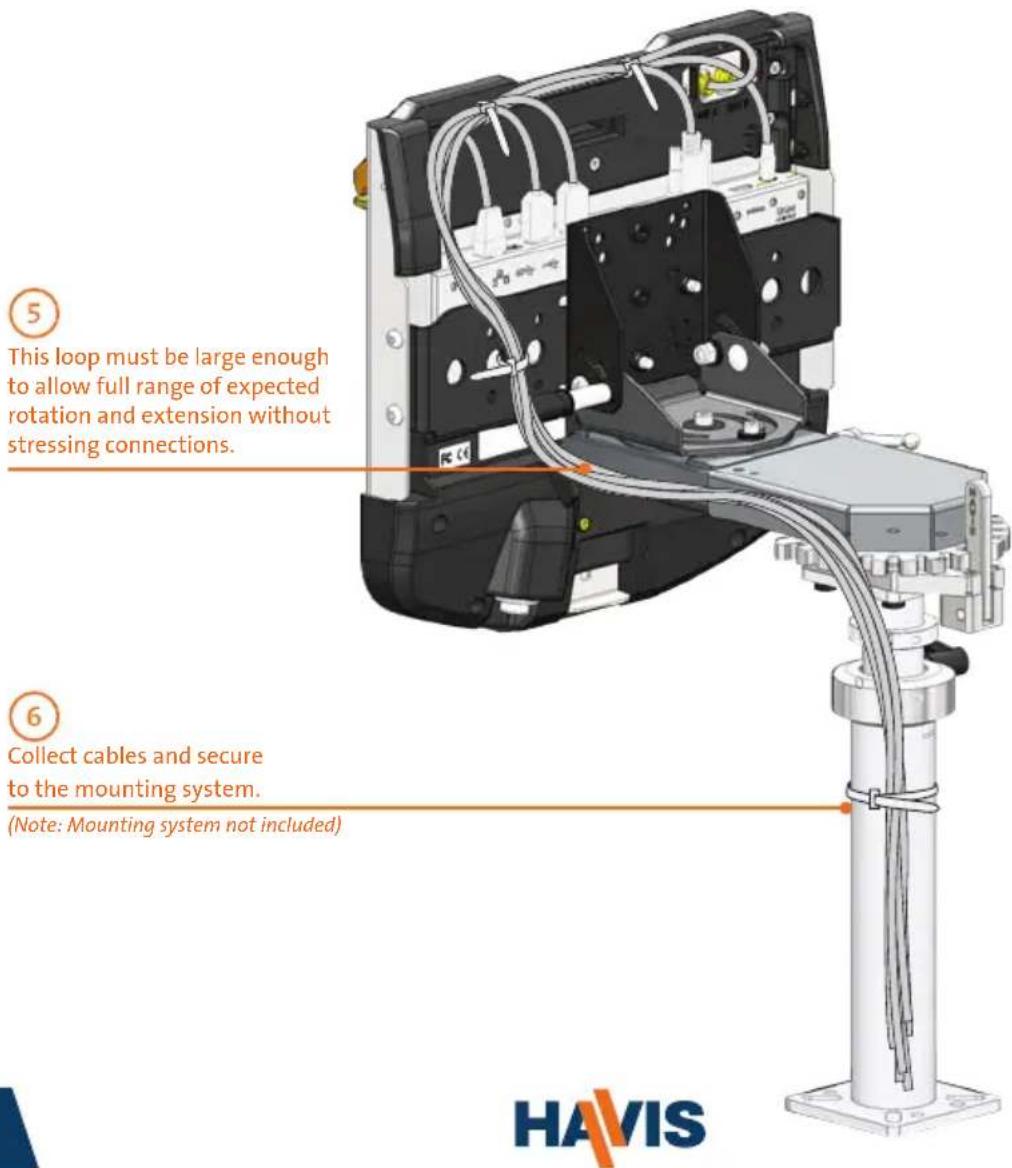
Close-up of electrical wiring and connectors on a black electronic panel (no text or symbols visible)5) Create a service loop with cables to ensure that no tension is on the connectors and to enable intended motion.
6) Tie off cables onto a stationary part of the mounting system.
CAUTION
DO NOT FORCE LAPTOP ONTO DOCKING STATION. IF THERE IS RESISTANCE, CHECK ALIGNMENT OF COMPUTER ON DOCKING STATION.
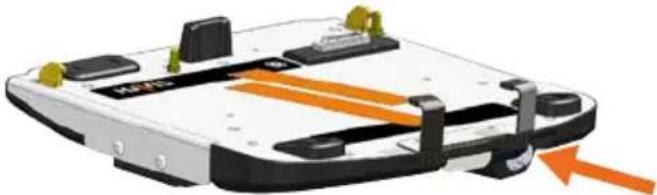
1) Ensure Docking Station is unlatched by depressing button in Barrel Lock.
natural_image
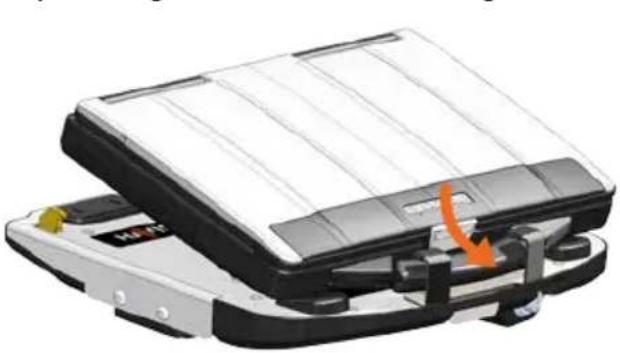
3D diagram of a device with orange arrows indicating movement or force, no visible text or symbols2) With rear of computer elevated, load front of computer into Docking Station ensuring the computer's handle extends under the Front Hold-Down Bracket. Take care to center computer in Docking Station when lowering and ensure alignment of the front feet of computer with the plastic guides on the Docking Station.
natural_image
Illustration of a mechanical device with a highlighted orange arrow indicating a specific component (no text or symbols present)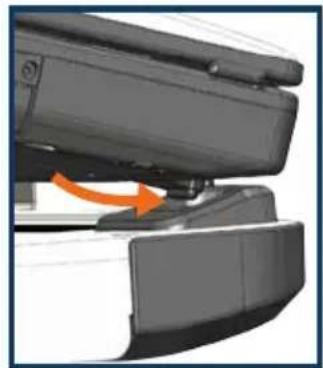
natural_image
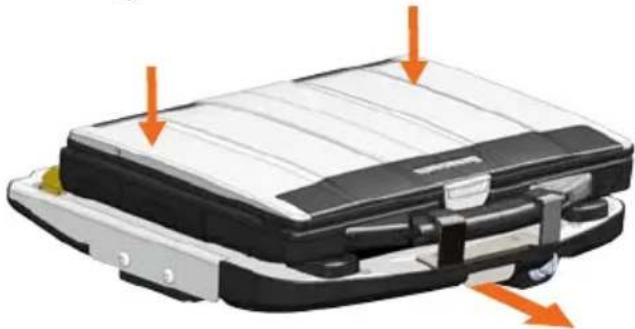
Close-up of a mechanical component with an orange arrow indicating rotation (no visible text or symbols)3) Lower back of computer onto Docking Station, ensuring computer properly aligns with both Locator Pins in Docking Station. With computer seated on Docking Station, apply light downward pressure to the rear of computer and pull the Front Latching Handle forward until latched.
natural_image
Close-up of a black and white electronic device with orange arrows indicating directional movement or force points (no text or symbols visible)4) For theft deterrence, secure computer by locking Docking Station with supplied key (Hardware Kit Item 2).
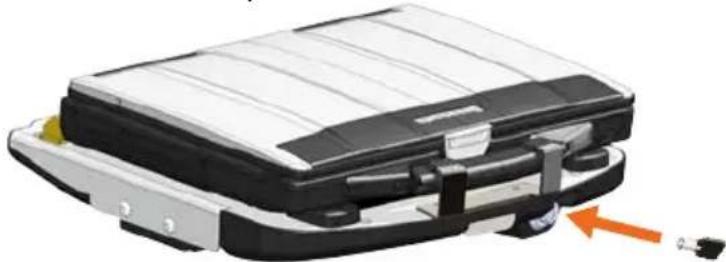
natural_image
Illustration of a briefcase with black and white panels, showing internal components and a small orange arrow pointing to a component (no text or symbols)1) If previously locked, unlock Docking Station using supplied key.
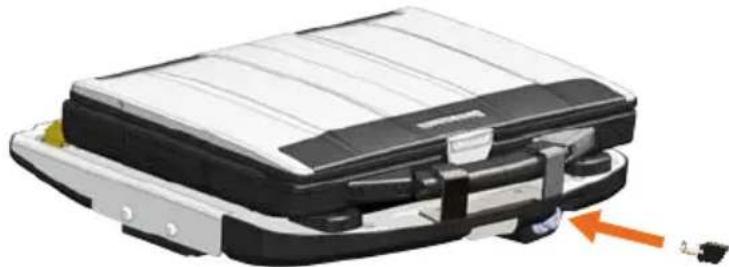
natural_image
Close-up of a black and white electronic device with a small orange arrow pointing to it (no visible text or symbols)2) Depress Barrel Lock to unlatch Docking Station from computer.
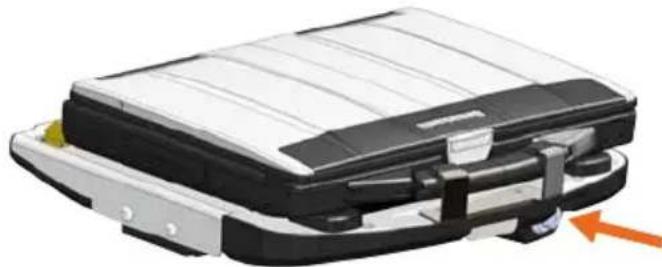
natural_image
Close-up of a black and white electronic device with a scroll wheel, showing internal components and a yellow arrow indicating rotation (no text or symbols visible)3) Once unlatched grab both sides of computer and carefully lift out of Docking Station, rear end first.
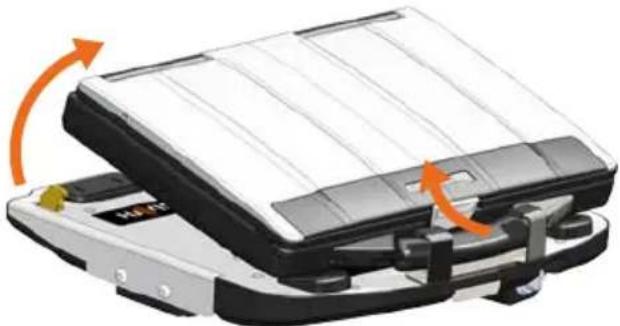
natural_image
Illustration of a mechanical device with orange arrows indicating rotation or movement (no text or symbols)Havis offers a wide variety of accessory products specifically for use with the DS-PAN-410 Series Docking Station. For more information or to order, please visit www.havis.com.
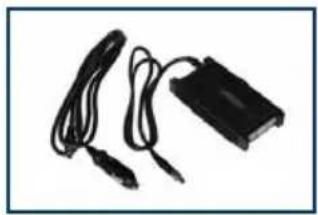
natural_image
Black electronic device with two cables, no visible text or symbolsLPS-112
120W Power Supply
External power supply and cable for Panasonic CF-53 Toughbooks with cigarette lighter adaptor.
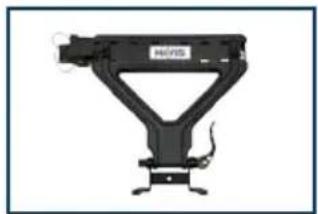
natural_image
Mechanical device with triangular frame and mounting base (no visible text or symbols)DS-DA-410
Screen Stiffener
Secure your laptop screen to prevent excess wear and reduce vibration while in use.
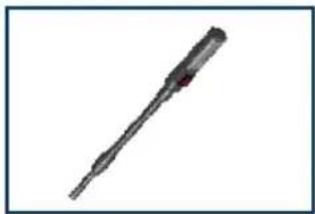
natural_image
Close-up of a metallic tool or drill bit with a pointed tip and central shaft (no visible text or symbols)DS-DA-102
USB Powered Keyboard Light
Soft red LED light illuminates the laptop keyboard for night viewing.
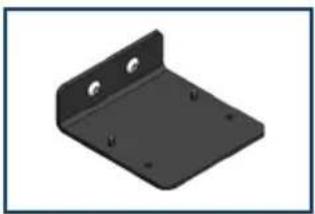
natural_image
3D rendering of a black metal bracket with mounting holes (no text or symbols)DS-DA-207
Card Reader Mounting Bracket
Mount an E-Seek Model 250 card reader to the side of the Docking Station. (Bracket can be customized for other Card Reader Models)
natural_image
Close-up of a handgun with metal handle and strap (no visible text or symbols)DS-DA-502
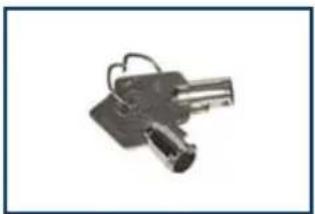
Replacement Keys
Set of two (2) replacement keys for the DS-PAN-410 Series Docking Stations.
Havis, Inc.
75 Jacksonville Road, PO Box 2099
Warminster, PA 18974
47801 Anchor Court
Plymouth, MI 48170
www.havis.com 1-800-524-9900
- Owner's Manual Havis Rugged Mobile Docking Station For Panasonic CF-53 Toughbook
- DS-PAN-410 Series
- WARNING
- CAUTION
- NOTICE
- Table of Contents
- Precautions
- Specifications
- DECLARATION OF CONFORMITY FOR CE MARKING
- Docking Station
- Mounting Bracket (D5-0046-SM)
- Hardware Kit (HWK-0005)
- This Hardware Kit includes:
- Tools required for installation:
- LPS-112
- 120W Power Supply
- DS-DA-410
- Screen Stiffener
- DS-DA-102
- USB Powered Keyboard Light
- DS-DA-207
- Card Reader Mounting Bracket
- DS-DA-502
- Replacement Keys
Brand : Havis
Model : DS-PAN-411
Category : Computer accessory