WeMove Quasar - Cellphone NGM - Free user manual and instructions
Find the device manual for free WeMove Quasar NGM in PDF.


User questions about WeMove Quasar NGM
0 question about this device. Answer the ones you know or ask your own.
Ask a new question about this device
Download the instructions for your Cellphone in PDF format for free! Find your manual WeMove Quasar - NGM and take your electronic device back in hand. On this page are published all the documents necessary for the use of your device. WeMove Quasar by NGM.
USER MANUAL WeMove Quasar NGM
Installing the USIM cards
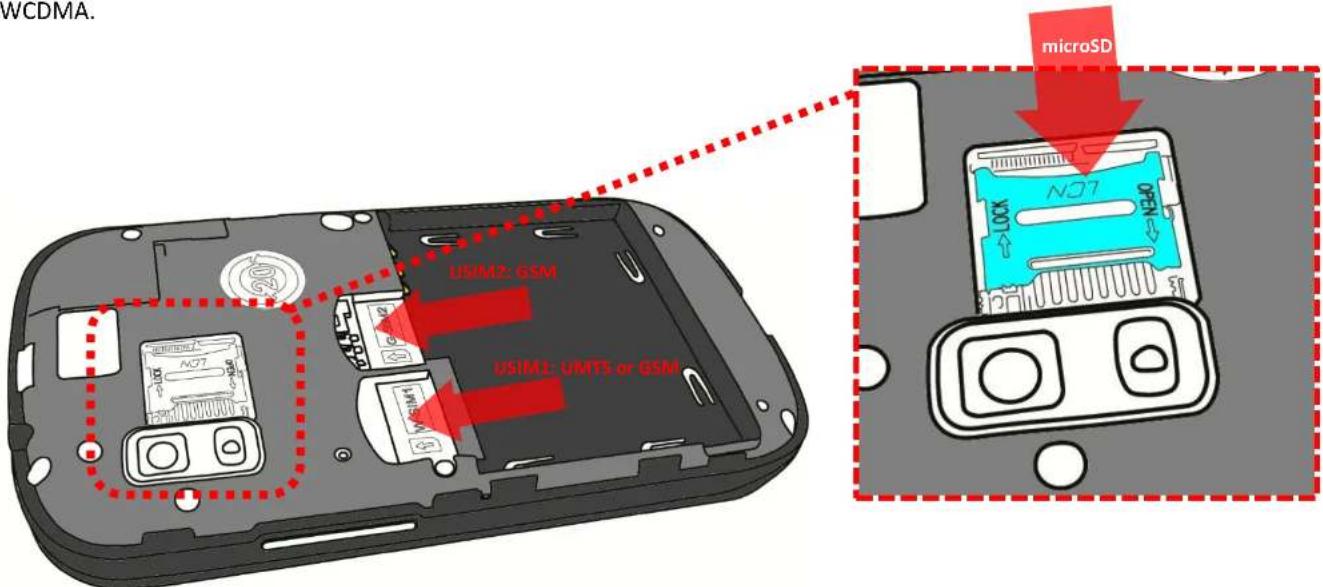
The USIM card stores informaon as your personal phone number, PIN code, carrier services numbers, contacts and other important details. To access the USIM slots, turn o the phone, take o the back cover by liing it up from its lower part and extract the baery. The slots for the USIM cards are placed over the baery tray. Insert your USIM cards by sliding them in with their golden contacts facing downwards. USIM1 supports WCDMA.
Installing the memory card
In order to use all funcons of NGM WEMOVE QUASAR, it is advisable to install a micro-SD card: it must be inserted in the back side of the phone, aer powering it o and removing the back cover. A dedicated slot fort the memory card is placed right next to the hind camera; Unlock the micro-SD grid by pushing it into the "Open" direcon. Slide in the memory card so that the gold contacts are turned downwards. Close the grid and push it into the "Lock" posion.
Inserng the baery
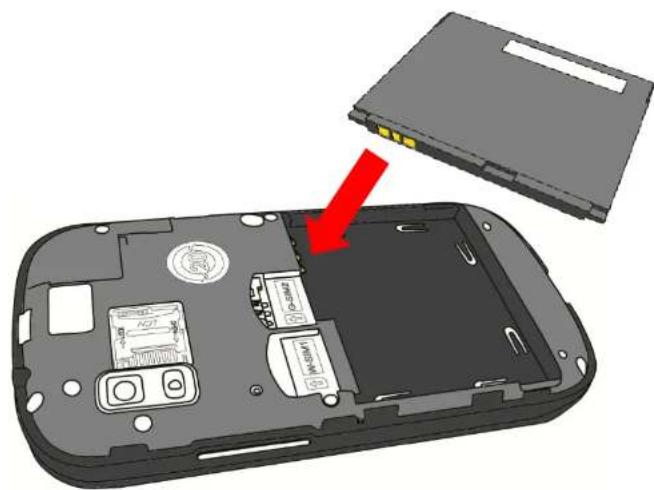
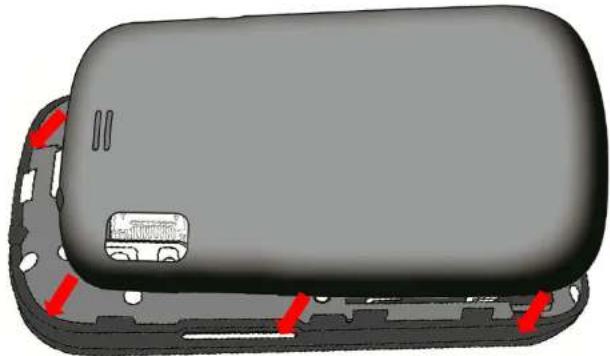
Your device is provided with a lithium-ion baery and is designed to be used exclusively with original NGM baeries and chargers. The baery must be inserted into the backside of the phone (see illustraon below) with the baery contacts facing the contacts in the baery tray. When done, put the hind cover back into posion as shown in the following illustraons.
natural_image
3D diagram of a device showing internal components with a red arrow pointing to a lid (no text or symbols present)Charging the baery
Please charge the baery completely before starng to use the device. Use the provided USB cable, connecng one end to the provided wall socket adaptor (placed into a socket) and the other end to the USB connector placed on the le side of the phone. The phone can also be charged by connecng it to a PC USB port but in that case it will charge more slowly. While the baery is charging, an animaon on screen will show the charging progress if the phone is on. Once charge is completed, the icon will be lled and the phone can be disconnected from the grid.
Warning: Do not connect the phone to a boong-up or running down PC to avoid voltage jumps. In order to preserve the correct functioning of the device and in order not to compromise warranty, the sole use of original NGM baery chargers and accessories are recommended. Please charge the baery indoors, in a dry and favorable environment. It's normal for the baery to get slightly warm during the charging process. The baery will reach the full capacity when cycled several mes.
natural_image
3D diagram of a device casing with red arrows indicating internal components (no text or symbols)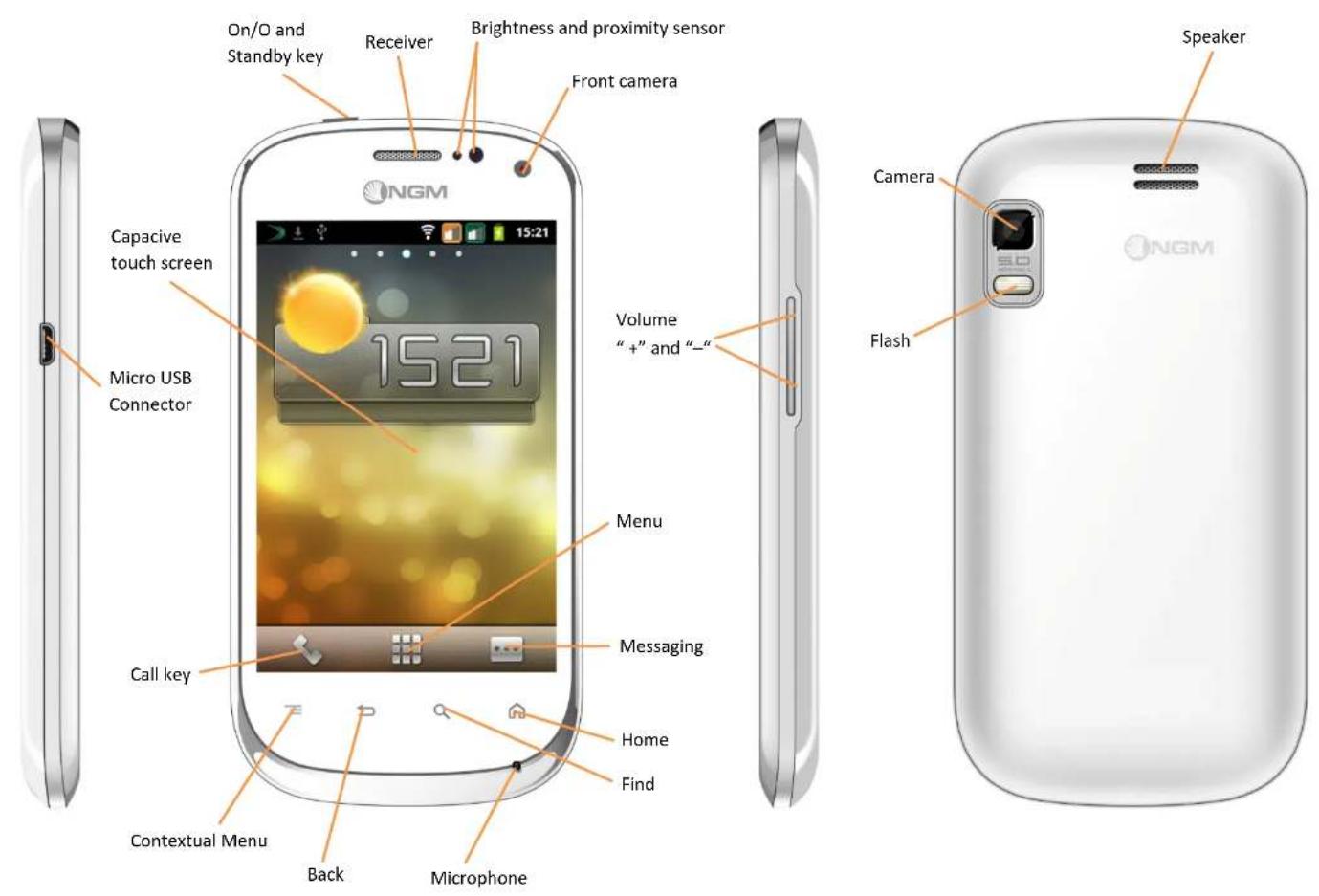
Turn on, turn o and standby
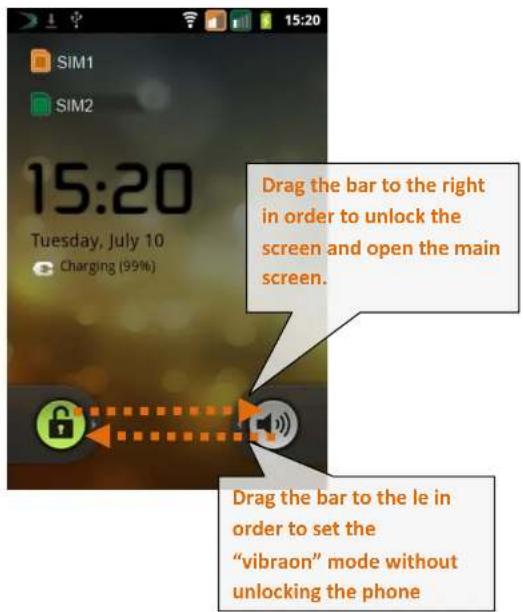
Press and hold the Power key to turn the phone on. Press and hold the same key and conrm your intenon to turn o the phone. A quick pressure of the on/o key sets the phone on standby-mode (screen o) or to go back to the standby screen (see below).
The main screen
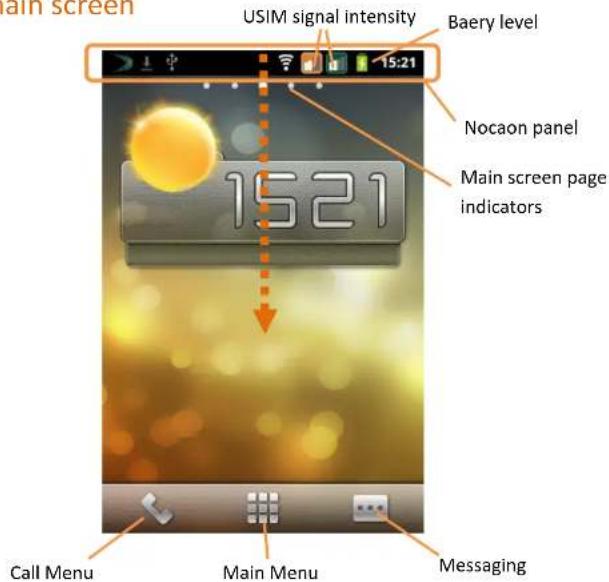
The main screen is the starng point for the use of all applicaons of the phone. Other main screen pages are available (as indicated by the white bar), just swipe the screen le or right. These pages can be freely personalized with one's favorite applicaons, shortcuts and widgets. Just keep pressed the icon of the wished funcon in the applicaon menu and then place the icon on the preferred main screen. To remove the icons, keep them pressed and drag them to the trash bin that appears in the lower part of the screen.
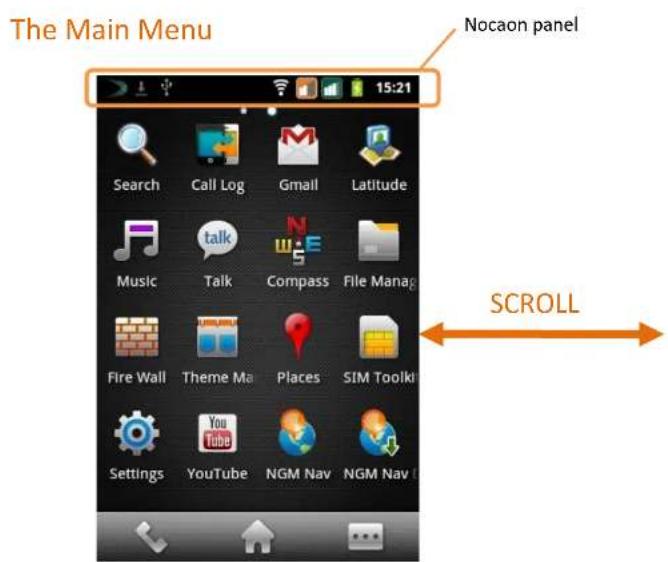
Use the touch screen by touching, pressing, sliding your nger over it. Select an applicaon from the main menu or scroll the main menu pages right and le to nd the desired one. Press the back key to get back to the previous screen or press Home to get back into the main screen.
Managing the two USIM cards
From the main menu, select Sengs > SIM Management (in the Comunicaon tab). Select the "USIM1" and/or "USIM2" operator checkboxes to acvate/deacvate the USIM cards selectively in any moment. In this menu you can moreover assign custom colors to each USIM card and dene the card (or "always ask") for your voice calls, vido calls or data connecns.
Managing calls
Voice calls
From the main screen, touch the Call Menu icon in order to open the calling screen. Use the virtual keypad to digit the desired phone number.
Select either calling icon 1 or 2 (by color) to choose the USIM card that you want to call with. To end the call, press the End key.
To answer a call, drag the phone icon downwards; to reject a call, drag the phone icon upwards. To silence an incoming call, brief press the Volume "+" or "-" keys on the right side of the device.
Call a number from the call history
From the main screen, select Call Menu and the Call log tab to access rapidly all last sent, missed and received calls.
Click onto the green icon to the right of the number to call it back.
Managing contacts
Add a new contact
From the main screen/menu, select the Contacts icon.
Select the icon with the "+" on it.
Select the storage (Phone, USIM1 or USIM2).
Insert Name, Number and eventual other details (if saving on the phone memory).
Conrm by selecng Save.
Add a new contact from the call history
From the main screen, select Call Menu and the Call log Tab.
Keep the desired number pressed (among the incoming, outgoing and missed calls) unl a popup with various opons appears.
Select Add to Contacts and choose if you want to create a new one, add the number to an existing contact or if you want to add it to the Blacklist.
Enter the name and eventual other informaon and conrm by selecng Done.
Set ringtones
Select a ringtone
From the main menu, select Sengs > System Tab > Audio Proles > General.
In Voice call ringtone, select the desired ringtone.
If you wish to set a personalized ringtone, from Music you can select a song and by pressing the contextual menu, choose Set as ringtone. Aer, the song will be available in the list of selectable ringtones.
Note: you can use *mid, *wav or *mp3 les as ringtones.
Screen lock and shortcuts
From the main menu, select Sengs > Applicaon Tab > Security > Set up screen lock. Select the desired unlocking mode (None, Paern, PIN or Password) and conrm. In order
to quickly lock the screen, brief press on the power on/o key of the phone. To unlock it, follow the instrucons on the screen.
Rapid acvaon of vibraon mode
Rapidly disable ringtones and message alerts by pressing Volume “-” from the main screen until it gets to minimum and then switches to Vibraon mode.
Send and receive messages
Send SMS and MMS
From the main screen or menu, select Messaging > Compose new message to access the text input screen.
Write the rst few leers of a contact name into the recipients bar and select the desired contact from the popup contact list that will appear, or directly insert the recipient's number.
Write the text into the dedicated space with the virtual keypad.
Open the Aach-icon to insert mulmedia les (the message will automatically be converted into MMS).
Press either colored Send key, depending on the USIM that you want to use (1 or 2).
Connecvity
The operaon system requires an acve data conncon. If data trac is not included in your phone contract, it could imply extra costs. In that case it is advisable to conjure the internet access through WiFi. The acvaon/deacvaon of the data trac on the USIM is in Sengs (Communicaon tab) > SIM Management > Data Connecon.
Connect to the Internet using WLAN
Connect to the wireless net using the Wi-Fi funcon. In order to acvate it, from the main menu choose Sengs
(Communicaton tab) > Wireless and Networks > WLAN.
Congure Wi-Fi and manage the access points with the WLAN Sengs. Rapid acvaon/deacvaon is possible on the nocaon panel with the dedicated key. Please follow all warnings and indications concerning the use of wireless devices in areas where the use of such funcons is restricted (airplanes, hospitals, etc.). Switch to Airplane mode when you have to use only the funcons that do not need Network access.
Connecng to a Bluetooth device
Switch on the other Bluetooth™ device. Refer to the documentaon of the device.
From the main menu, select Sengs (Communicaton tab) > Wireless and Networks > Bluetooth to acvate Bluetooth. For a rapid acvaon/deacvaon use the dedicated key on the nocaon panel.
Select Bluetooth Sengs > Scan for devices to nd other Bluetooth devices.
Among the found devices, select the name of the device that you want to pair. The phone will try to pair the device, eventually asking for a pairing code.
Web navigaon
Connect to the Internet
From the main screen or the main menu, select Browser. Write the URL into the address bar to start navigaon. If you choose to navigate with the phone network data conncon, please make sure to be informed about the costs or choose a "at" data tari with your operator. Alternatively, you can use the Wi-Fi conncon (see paragraph "Connecvity").
Congure an account in the Email applicaon of the Main Menu, following the indications.
GPS geolocalizaon
The Global Poisoning System (GPS) is a system based on the satellite-related posion determinaon, with global and connuous covering. The funcon is in Sengs > Applicaon Tab > Locaon > use GPS satellites. Inside the same menu you can also acvate Use Wireless Networks that contributes in the posion nding using the available Wireless Networks. When the GPS funcon is acve, the phone begins to collect data from the available satellites and determines the current posion. Limit the use of baery and memory by switching o this funcon when you don't need it.
The phone integrates the NGM NAVIGATION SYSTEM©, that is accessible through the main menu. For more details please visit www.ngm.eu.
Rapid access
Nocaon panel
Open the nocaon panel by touching the upper area containing the baery and signal-intensity icons and drag it downwards. To hide the panel, push it up again starng from the boom. From the panel you have rapid access to a list of nocaons from the USIM or the System and to the control panel with 12 management and sengs- widgets.
Rapid access to recent applicaons
When you are inside any applicaon, press and hold the Home key: a list of the most recent applicaons that have been opened will be shown and can be directly selected. By pressing the Home key in the Home Menu, you can add or modify the elements on the Home page.
Contextual menu
Inside every applicaon, press the menu key to visualize a contextual menu that refers to the applicaon with related funcons.
SwiKey text input

The default text input method is the SwiKey keyboard. SwiKey is an advanced predictive text input system; when wring SMS, MMS or E-mails, this mode predicts the word while you are wring it, changing it at every key pressure. During the rst use, the program will suggest with popups the innovaons and peculiaries of this wring system. SwiKey has an “intelligent” Diconary that retrieves words also from other applicaons in the phone, such as the phonebook or the social networks etc. For the correct use of this funcon, the micro-SD contained in the selling package has to be installed into the phone.
To change the text input parameters, select Sengs > System Tab > Language and Keyboard > SwiKey for NGM-Mobile
Firewall
Main menu > Fire Wall: The Fire Wall applicaon allows you to block incoming calls and/or SMS from anonymous or unknown (not in phonebook) phone numbers. You can moreover edit a list of phone numbers for which you always want to be unavailable (Blacklist) or on the contrary a list of numbers for which you exclusively wish to be available (Whitelist). The Intelligent Shield opon allows you to set keywords that you want the incoming SMS to be Itered with; messages containing one or more of such keywords will be blocked. The Firewall funcon can be automatically scheduled daily or be turned on/o directly by the user.
Warning: NGM Italia will not bear responsibility for any incompliance with the above guidelines or improper use of the mobile phone. The company reserves the right to modify any of the content in this user guide without previous public announcement. The content of this manual may vary from the actual content displayed in the mobile phone. In such case, the laer shall govern.
Cercaons
Declaraon of conformity (R&TTE)
We, NGM Italia
Declare under our sole responsibility that the product idened as GSM/WCDMA/Wi-Fi Mobile Phone: NGM WEMOVE QUASAR Conforms to the following standards and speciaons:
Health EN 50360, EN 62209-1
Safety EN 60950-1+A11
EMC EN 301 489-1/-7/-17
Radio EN 301 511
EN 300 328
We declare that all the series of fundamental radio test have been conducted and that the aforesaid product meets all the essenal requirements of the Direcve 1999/5/EC.
The conformity assessment procedure referred to in Arcle 10 and detailed in Annex IV of Direcve 1999/5/EC has been followed with the involvement of the following need bodies:
PHOENIX TESTLAB GmbH
Königswinkel 10,
D-32825 Blomberg,
Germany
C€ 0700 ⚠
All technical documents conserved at NGM Italia S.r.l.
Available on request.
(UE Authorized Representave)
NGM Italia S.r.l.
Via L. Da Vinci, 7 – Poncelli
56020 Santa Maria a Monte (Pi)
S.A.R. (Specific Absorpon Rate)
Informaon on SAR cercaons
Cell phones are radio transceivers. They have been projected not to exceed the radio wave exposure limits recommended by internaonal guidelines. These guidelines have been determined by the internaonal independent scienc organizaons ICNRP and IEEE and include security limits to ensure protecon to all persons, independently from their age and health conditions.
This phone meets European Union (EU) requirements concerning exposure to radio waves coming from telecommunicaon and radio devices. The exposure standard for mobile phones employs a unit of measurement known as SAR (Specific Absorpon Rate). The SAR limit recommended by the EU Council is 2.0 W/kg averaged over ten grams of body issue.
The highest SAR value for this model phone when tested for use at the ear was 1,1 wa/kg [1,2]. Although the SAR is determined at the highest cered power level, the actual SAR of the phone while operang can be well below the maximum value. This is because the phone is designed to operate at mulple power levels so as to use only the power required to reach the network. In general, the closer you are to a base staon, the lower the power output of the phone. The lediglich Declaraon of Conformity here above proves that the
designated product is in compliance with the essenal requirements and other relevant provisions of the R&TTE - Direcve (European Radio & Terminal Telecommunicaons Equipment)1999/5/EC
[1] These controls have been made according to internaonal guidelines on controls.
[2] For the use next to the body, this telephone model has been controlled and is conform to the direcves for the exposion to electromagnec radiaon, when used with accessories provided by or approved by NGM and not containing metallic parts and that posion the mobile phone at least at 1.5 cm distance from the body.
Warnings
WHO (World Health Organizaon) conrms that the actual scienc informaon does not indicate the necessity to adapt parcular precauons for the use of cell phones.
Nevertheless, for all those users not comforted by these data, NGM advises to limit their own and their children's exposure, for instance by reducing the calling me, or by using earpieces or hands-free devices to keep the mobile phone distant from the body and the head.
For more informaon on the argument, NGM invites to consult the WHO document (Fact sheet N°193, June 2011) entled Electromagnec elds and public health: mobile phones at the following web address:
hp://www.who.int/mediacentre/factsheets/fs193/en/index.html
NGM advises to use mobile devices of any brand or model with moderaon and to keep them at a minimum distance of 1,5cm from the body or to use earpieces or other hands-free devices.
Copyright © 2012 NGM Italia
No part of this manual may be reproduced, distributed, translated, or transmied in any form or by any means, electronic or mechanical, including photocopying, recording, or storing in any informaon storage and retrieval system, without the prior written permission of NGM Italia.
Bluetooth® is a registered trademark of the Bluetooth SIG, Inc. worldwide.
Wi-Fi® and the Wi-Fi logo are registered trademarks of the Wi-Fi Alliance.