Play - Cellphone NGM - Free user manual and instructions
Find the device manual for free Play NGM in PDF.


| Device Type | Smartphone |
| Brand | NGM |
| Model | Play |
| Dimensions | Approx. 145 x 72 x 9 mm |
| Weight | Approx. 160 g |
| Battery Capacity | 2000 mAh (removable) |
| Display Size | 5.0 inches |
| Operating System | Android 4.4 KitKat |
| Processor | Quad-core 1.3 GHz |
| RAM | 1 GB |
| Internal Storage | 8 GB (expandable via microSD) |
| Camera (Rear) | 8 MP with autofocus and LED flash |
| Camera (Front) | 2 MP |
| Connectivity | Wi-Fi 802.11 b/g/n, Bluetooth 4.0, GPS, Micro-USB 2.0 |
| Network Bands | GSM 850/900/1800/1900, UMTS 900/2100 |
| Audio Jack | 3.5 mm |
| Sensors | Accelerometer, Proximity, Light |
| Special Features | Dual SIM (dual standby), FM radio, Torch |
| Charging Time | About 2-3 hours |
| Standby Time | Up to 300 hours |
| Talk Time | Up to 8 hours |
| Care & Cleaning | Wipe with dry cloth; avoid liquids and abrasives |
| Safety | Remove battery before cleaning; use only approved chargers |
| Spare Parts & Repairability | Battery and SIM/SD accessible; other repairs by authorized service |
Frequently Asked Questions - Play NGM
User questions about Play NGM
0 question about this device. Answer the ones you know or ask your own.
Ask a new question about this device
Download the instructions for your Cellphone in PDF format for free! Find your manual Play - NGM and take your electronic device back in hand. On this page are published all the documents necessary for the use of your device. Play by NGM.
USER MANUAL Play NGM
- For your Safety .... 5
- Mobile Phone Prole 8
- Preparaon before use .....10
Installing the SIM Cards ....10
Installing the Memory card......12
Installing the Baery....13
Charging the Baery....14
PIN codes ....16
- General instrucons......18
Dial keys (Send SIM1 and SIM2)...... 18
End key (Switch on/o) 18
Standard keypad....18
Radio FM keys....19
Keypad lock....20
Icons in standby state ....20
Language and Input mode ....23
Services 23
Callers' groups 24
5. Basic operaons......24
Switch On....24
Switch O....25
How to dial a call 26
Answer a call....27
Sending DTMF tones 27
Place a Call on hold 28
Fast SMS Reading....28
Missed calls....29
Answering machine......29
6. Use of Menu funcons......30
Phonebook 30
Call center....33
Mulmedia 38
NGM special funcons ....43
FM Radio....47
Sengs 49
Organizer 56
Messaging....64
Services 76
- Coer funcon ..... 79
- Text input......85
- USB conncon 86
- Maintenance & Safety......86
Post-sale service....87
Baery informaon and care......87
General noce....88
Troubleshoong 89
- Abbreviaons......92
- Cercaons....93
1. For your Safety
For your safety and proper use of the mobile phone, please read the following guidelines carefully: Do not switch the mobile phone on when close to chemical factory, gas staon or other explosive objects.
■ During driving, please use headset for safety purpose; unless otherwise in emergency, always stop the car on roadside to have a call conversaon.
Because the use of the mobile phone can cause interference in the aircra, never use the mobile phone in aircra. The use of the mobile phone is dangerous and illegal; do switch o the mobile phone before boarding.
■ Pay special aenon to the use of the mobile phone near heart pacemaker, deaf-aid and some other medical equipment, because the mobile phone can cause interference with them.
- Non-original factory’s accessories and parts will lose guarantee.
■ Do not dismantle the mobile phone without permission. In case of failure, please contract the supplier as soon as possible.
■ Do not plug the charger into the mobile phone and charge without baery. Always power o the mobile phone when taking out the baery; otherwise the memory of the phone may be damaged.
■ When charging the mobile phone, always keep it in the place with good venlaon, heat sink and away from ammable and explosive objects.
In order to avoid demagnezaon, always keep the mobile phone away from magnec objects such as CD, credit card etc.
■ Ensure the mobile phone not to contact any liquid; once such case occurs, remove the baery and contact the supplier immediately.
■ Do not use the mobile phone in the environment at too high or too low temperature, never expose the mobile phone under strong sunshine or too wet environment. The suitable temperature for
the phone and accessories is 0^ C- 40^ C. The height to use the phone shall be less than 2,000m.
■ Do not use liquid or wet cloth with strong cleanser to clean the mobile phone.
■ This mobile phone has shoong, videoing and audio recording functions, which shall be used as per the related laws and regulaons.
■ Always keep the mobile phone out of children’s reach. Do not throw or vibrate the mobile phone because violent treatment to the mobile phone may damage the inner circuits and precise structures.
■ Please do not discard the waste baery into general household garbage. Please deal with the waste baery according to provisions where they are denitely made.
Tip: This user manual is based on simplified Chinese operaon mode; so it may vary in English operaon mode.
Warning: We will not be bear any responsibility for any incompliance with the above guidelines or improper use of the mobile phone. Our company keeps the right to make modicaons to any of the content here in this user guide without public announcement in advance. The content of this
manual may vary from the actual content displayed in the mobile phone. In such case, the laer shall govern.
2. Mobile Phone Prole
The mobile phone include a standard keyboard, an LCD screen, one vibraon motor, one charger/ data common transmission port. (Below are the front and the back of the mobile phone).
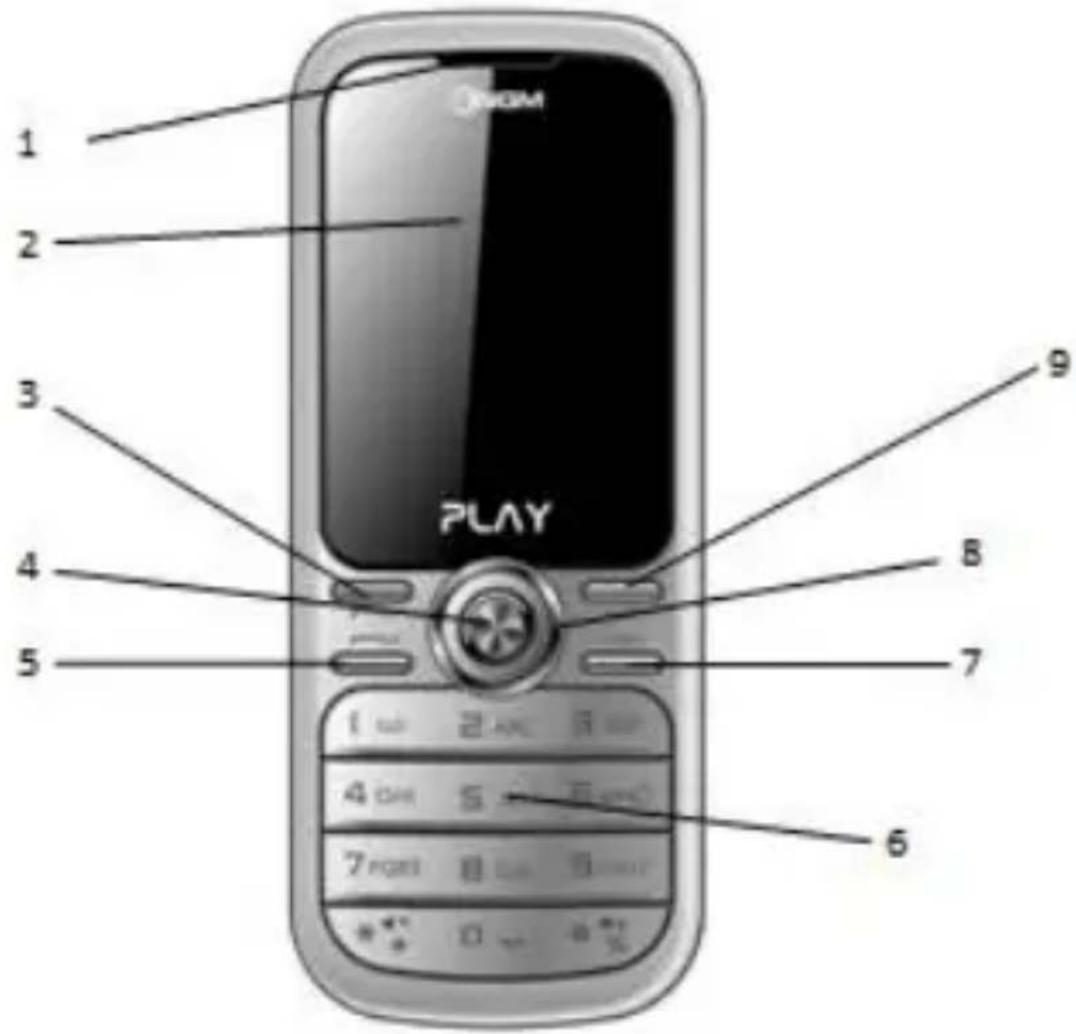
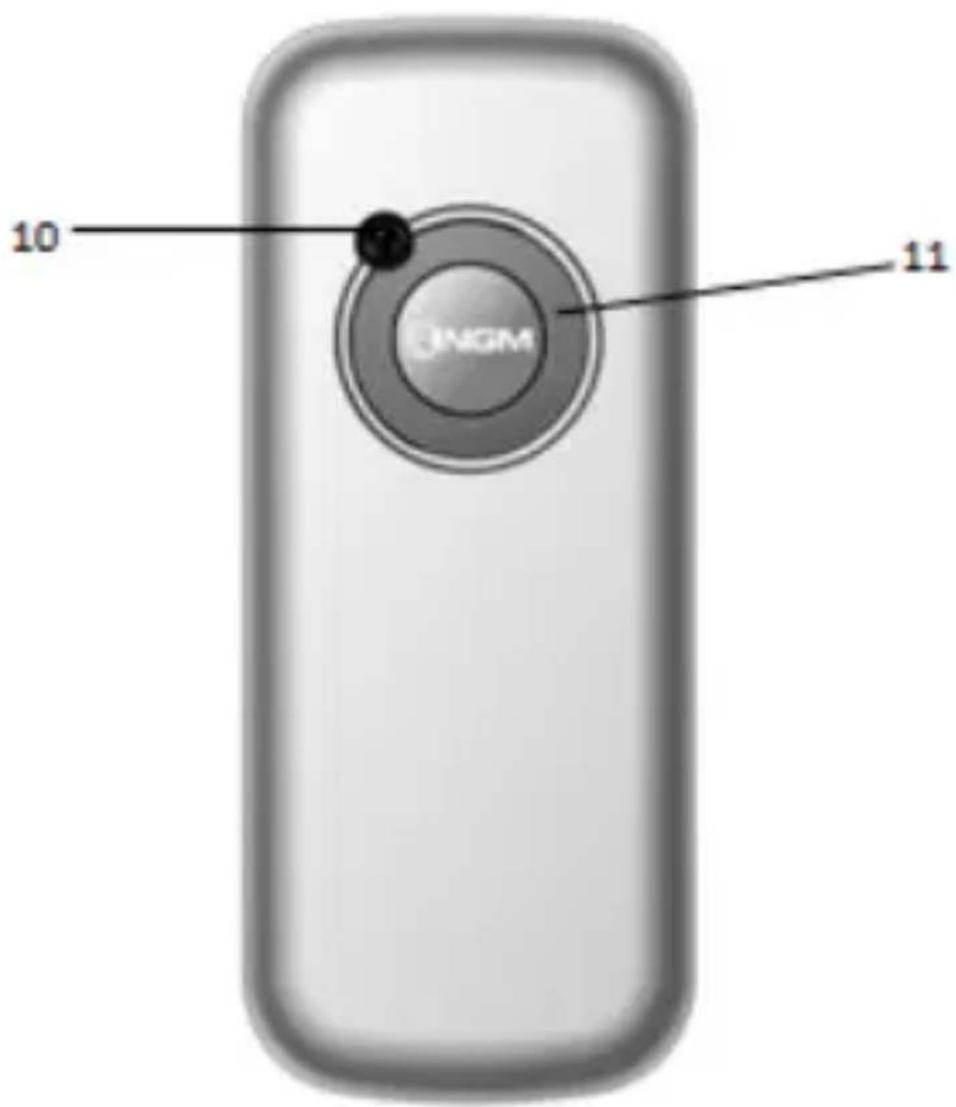
-
Earpiece
-
Back key
-
LCD
-
Navigaon key
-
SIM1 Send key
-
End key
-
OK /Main menu key
-
Camera
-
SIM2 Send key
-
Speaker
-
Standard keyboard
3. Preparaon before use
Installing the SIM Cards
When registering mobile phone number, you can apply for two dierent phone numbers, two dierent mobile phone network service providers and thus obtain two SIM (Subscriber Idencaon Module) cards.
With these two SIM cards, you can use all funcons of your mobile phone. The SIM cards save the parameters needed for communicaons and personal data, including PIN (Personal Idencaon Number) code, phonebook, short message and other extra system services.
Warning: do not distort or scratch the SIM card nor let it contact stac, dust or moisture. If it is lost, please contact immediately your network operator for help.
Before SIM card installaon, please switch o the mobile phone. The SIM cards are installed in the back of the mobile phone.
Follow the following diagram to install the SIM card. Please insert the host SIM card into the SIM1 slot and the slave SIM card into the SIM2 slot.
Note: if a SIM card is inserted only into the SIM1 slot, then only the host works; likely, If SIM card is inserted only into the SIM2 slot, then only the slave works. When two SIM cards are inserted into the SIM1 slot and SIM2 slot respectively, you can choose work mode freely as you wish.
Note: the SIM card is small object, keep it out of children's touch or prevent children gulping it!
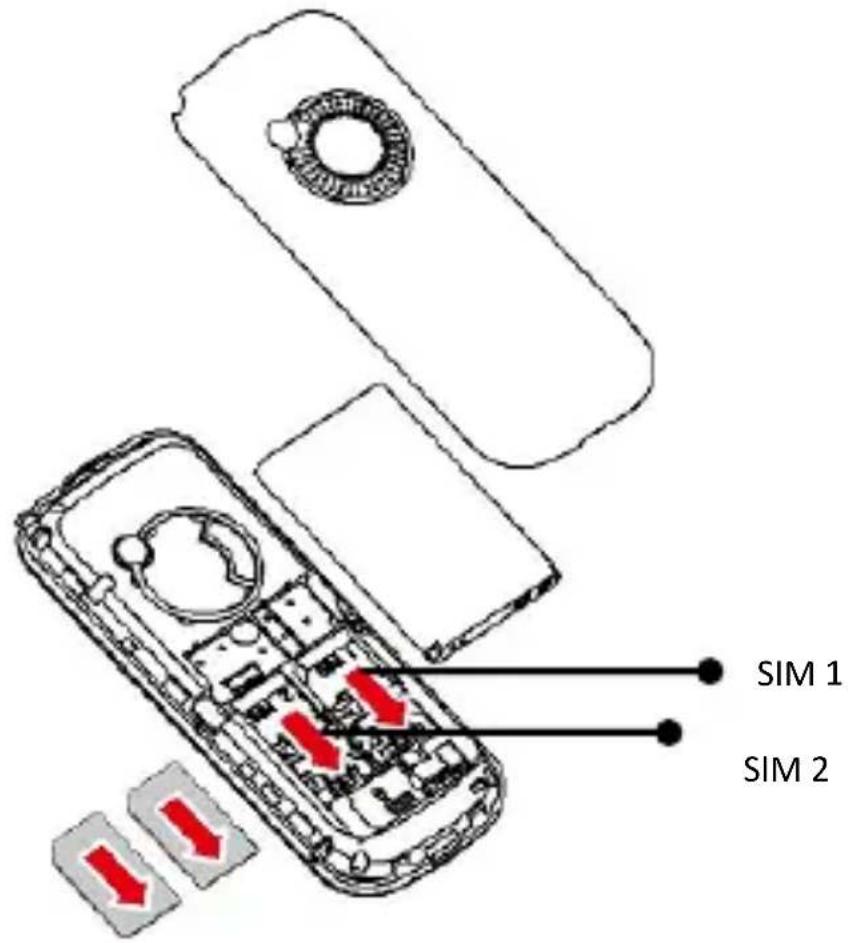
Installing the Memory card
As the mobile phone does not have enough storage space, to use some funcons, you need to install a memory card (This mobile phone use T-FLASH card.)
Install T-FLASH card: Open the back cover to take out the baery, release the T-Flash card lock, insert the T-Flash card into its slot, and restore the lock and the baery before restarng the mobile phone.
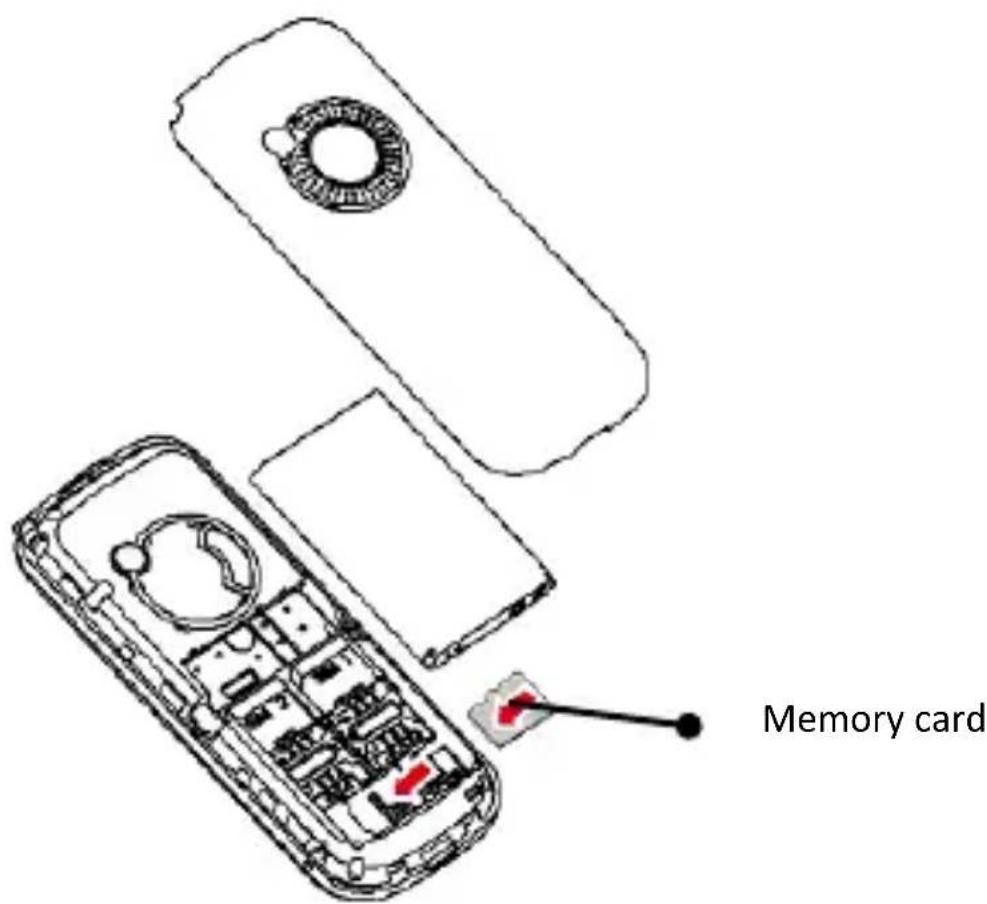
Note: as the T-FLASH card is small object, keep it out of children's touch or prevent children gulping it!
Installing the Baery
The mobile phone is suitable for original baery and accessories. When the baery is idle, it is recommended to put it into the protecon box. Please refer to the following diagram to install the baery.
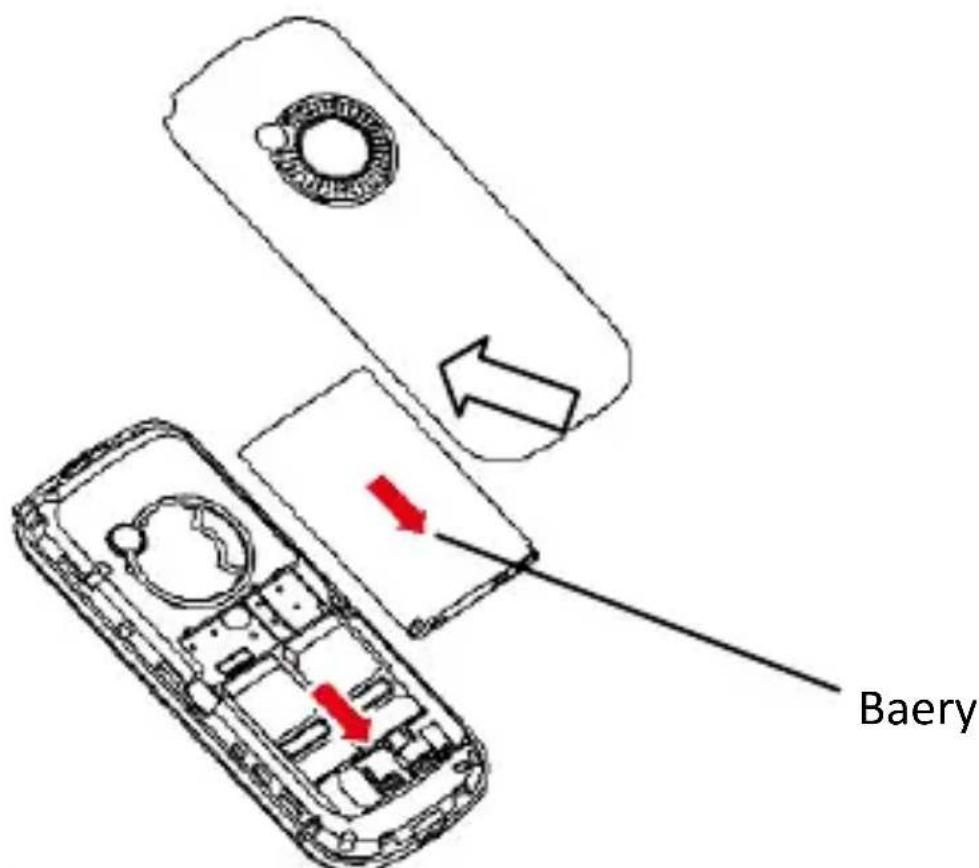
Note: do install the baery as per the diagram so as prevent the baery contact patch being
damaged.
Charging the Baery
The new baery cannot reach the opmal eciency unless it has undergone several connuous complete charges and discharges.
When the battery is used up, charge it in me. Over-discharge can damage the baery.
Aer the baery is charged full, cut o the conncon of charger with the AC power supply and the conncon with the mobile phone.
Follow the following diagram to connect the charger.
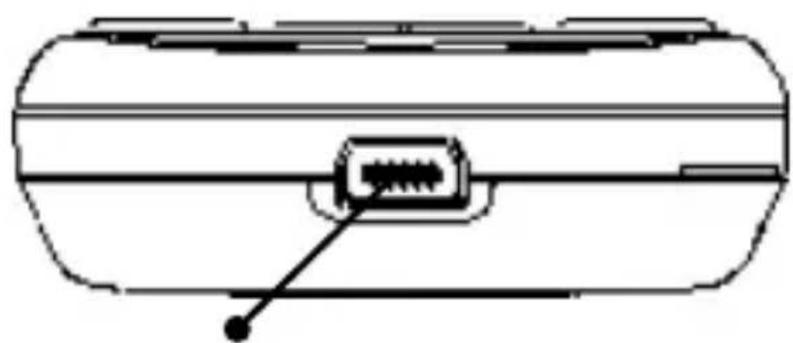
natural_image
Diagram of a cylindrical device with an internal connector and a pointer arrow pointing to it (no text or symbols present)Charger/USB conncon
During charging, the battery capacity icon on the screen ickers from the right to the le. Aer the baery is charged full, the icon is full of bars. Slight heat during charging is normal.
Warning: When a travel charger and its
accessories are used to charge the baery, please rstly check if they are original or recognized by the original manufacturer. The use of other accessories may damage your mobile phone and cause risks! Always use them indoor and dry places.
Noces on using the baery
The performance of the baery is aected by many factors, including radio barrier network sengs, signal strength, signal strength, work temperature, chosen and used funcons or sengs as well as phone accessories, tone, data or other applicaons.
For opmal performances, please follow the rules below:
■ New baery or the baery having been idle for long need charging for long. The standard voltage scope for the baery is 3.7V-4.2V.
■ During charging, keep the battery at room temperature or similar temperature.
■ With me passing by, the baery will gradually be worn and thus need longer me to charge. This is normal. However, aer normal charging, if call duration decreases but charging me increases, you need to buy another baery from the original manufacturer or authorized by the original
manufacturer. The baery of interior quality can damage your mobile phone and cause danger!
■ If the phone is overused at low baery when charging, there might need a longer me for the charge indicator to be shown on the screen.
Note: please dispose the baery according to the local regulaons. Try to recycle the baery as possible. Do not treat the waste baery as common waste.
Warning: do not throw the baery into re so as to prevent re. The broken baery may cause explosion.
Warning
Charging the mobile phone by improper means can cause to explosion. Always refer to the related regulaons for the disposal of the baery.
PIN codes
PIN1 code: it is the personal idencaon number used to enter SIM and able to prevent others using SIM1 without permission. If the mobile phone has acvated the PIN1 code protecon, when the mobile phone is switched
on, the screen will display “Input PIN”. In the process of inpung PIN1 code, the screen will use “*” to represent the input content. While obtaining SIM, you can obtain its PIN1 code.
Codice PIN2: it is the personal idencaon number used for some special funcons such as paid call, etc.
PUK code and PUK2 code (8-digits): To change the locked PIN code, you need to use PUK (Personal Unblocking Key) code. To change the locked PIN2 code, you need to use PUK2 code. If these two codes are not provided together with the SIM cards, ask the local service provider for them.
Warning: if the PIN code is input wrongly for three mes successively, the SIM card will be locked. Please contact the network operator immediately for help. Aempt to unlock the code may make the SIM card ineece forever!
4. General instrucons
Dial keys (Send SIM1 and SIM2)
These are the keys used to dial a call (with phone number entered or in phonebook state) or receive an incoming call. In standby state, press these keys to display the latest call register (SIM1 and SIM2 support respectively 20 call entries, including received calls, missed calls and dialed calls).
End key (Switch on/o)
In call state, it is used to interrupt a call; in call conversaon state, it is used to end a call or exit from the current menu and back to the standby state. Hold this key for 4\~5 seconds to switch on/o the mobile phone.
Standard keypad
On the keypad, you can see A-Z (0-9 number keys) number keys, * key and # key, totally 35 keys. Press these keys to input phone number, password, English leers, and symbols
or choose menus.
In dierent modes or dierent menus, “+” and “-” keys have dierent funcons.
■ When playing music, “+” and “-” keys act as volume control.
Radio FM keys
■ OK key: in FM radio mode, press this key to turn on/o the FM radio.
■ Le/Right (navigaon keys): to start a manual search for radio staons, scrolling the frequency up and down slowly. You can ne tune the radio frequency by +0.1 MHz. or by -0.1 MHz using these keys.
■ Up/Down (navigaon keys): to start/stop a broadcast recording.
■ Numeric keys (1-9): if pressed brief, these keys call up the corresponding channels, previously saved in the channels list; if pressed for a few seconds, they tune the current radio frequency in the corresponding channel.
■ “*” and ” #”: these keys act as volume control.
Keypad lock
When in standby interface, if the mobile phone is idle for certain me, it can be locked by long pressing of the central key and then unlocked by pressing the same key and “*” key in sequence. Aer the mobile phone is locked, the keypad cannot be acvated easily; in case of incoming call, likewise, press the answer key to receive it; aer that, the keypad will be locked automacally. If the automac keypad lock is enabled, the keypad will be automacally locked when the phone is idle for a certain me (idle-me is user-dened).
Icons in standby state
| Icon | State | Descripon | ||
 |  | SIM1 / SIM2No signal | ||
 |  | |||
 |  |  |  | SIM1 / SIM2Signalstrength |
 |  |  |  | |
 |  | Baery discharged | |||
 |  |  |  |  | Baery charging |
 | Acve call | ||||
 | Call on hold | ||||
 | Alarm enabled | ||||
 | Audio playing | ||||
 | Background sounds enabled | ||||
 | SIM1 / SIM2 GPRS network | ||||
 | |||||
 | SIM1 / SIM2 establishing GPRS conncon | ||||
 | |||||
 |  | SIM1 / SIM2 call forwarding | |||
 | SIM1 / SIM2 missed calls | ||||
 | |||||
 | SIM1 / SIM2 new messages | ||||
 | |||||
 | SMS sending | ||||
 | SIM1 / SIM2 roaming | ||||
 | SIM1 / SIM2 MMS processing | ||||
 | |||||
 | SIM1 / SIM2 new MMS | ||||
 | Earplugs inserted | ||||
 | Ring only prole acve | ||||
 | Silent prole acve | ||||
 | Vibrate and ring prole acve | ||||
 | Vibrate then ring prole acve | ||||
 | Vibrate prole acve | ||||
 | Keypad lock enabled | ||||
Language and Input mode
Italian is the language by default and as input mode. For dierent areas, there are 4 languages available (english, french, spanish, german) with the corresponding input modes.
How to change the menu language: SETTINGS > Phone sengs > Language > [select a language].
How to change the input language: SETTINGS > Phone sengs > Input text > Wring language > [select a language].
Call hint
The mobile phone is inbuilt with vibraon motor and buzzer and provides several incoming call modes:
Ring only
Vibrate
Ring and vibrate
Ring aer vibrate
Services
Services are provided with SIM kit. The mobile phone support service funcon. The
detailed menu items depend on SIM card and the network. When the network provides such funcon and your SIM card supports such funcon, the service menu will be automacally displayed between the services of the mobile phone.
Callers' groups
The callers' groups in the mobile phone include various contacts sharing common characteriscs and features (i.e. family, friends, work colleagues, etc.). You can set dierent ringtones and pictures for each callers' group.
5. Basic operaons
Switch On
Press the Switch-on/o (End) key to start the mobile phone, then the screen will display the switch-on image. When the standby screen is displayed, press the OK key to enter the main menu. Then you can enter SETTINGS > Dual SIM sengs menu to set phone modes, including Dual SIM open, Only SIM1 open, Only SIM2 open and Flight Mode. The defaulted one is Dual SIM open.
Aer inserng SIM card, the mobile phone will automacally check the SIM card availability, and then it will be show the following informaons on the display by sequence:
-
"Input phone password"— if you have set the password.
-
"Input PIN" — if you set SIM card password.
-
“No service” — indicates failure to register; the phone cannot make any calls.
-
"Emergency calls only" — indicates that the phone has registered to other network and can only make call to 112.
-
“Searching” — the mobile phone is searching an appropriate network.
-
"Operator name" — indicates network successfully registered.
Note: if you do not know your PIN code, please contact the network service provider. The mobile default password code is “1122”.
Switch O
To switch o the mobile phone, press the End key. When the screen displays the switch-o animaon, the host and the slave SIM will be o at the same me. Do not take out the baery to switch o the mobile phone. If so, the SIM card can be easily damaged and some data will be
lost.
How to dial a call
■ With the number keypad, you can enter phone numbers (if wrong characters are input, press the Back key to delete them). Press the Dial keys to dial the phone number. In SIM1 and SIM2 On state, you can choose to dial a call via SIM1 or SIM2 (Send1 and Send2 keys, respectively). To end a call, press the End key; or to cancel a dial, press the Back key or the End key. Aer the call is connected, you can see the call mer on the screen. If your dialled number is saved in mobile phone memory, the contact name will be displayed on screen.
■ Dial a call via Phonebook: enter the Phonebook menu and search the desired name/phone number, and then press Dial keys to dial.
■ Redial latest dialed number: in standby state, press Dial keys (SIM1 or SIM2) to view the list of the latest dialed 20 phone number or names. Roll to the desired phone number or name and press Dial keys to dial call.
How to Adjust the Receiver Volume
When speaking to someone, press the Navigaon keys Up (+ volume) or Down (- volume) to adjust the receiver volume.
Answer a call
When there is an incoming call, you will be alerted with ring, vibraon, vibraon and ring, or vibraon then ring, according to the sengs of the mobile phone.
To receive a call, press Dial/Send Keys or OK key. If you prefer to use whatever key to answer, you can select: SETTINGS > User Proles > [ Selected Prole] > Opons > Customize > Answer mode > Any key.
To refuse a call, press the End key directly.
If the CLI (Call Line Identity) is opened, the phone number of the caller will be shown on the screen. If this number has been saved in the phonebook, the name corresponding to this number will be displayed on the screen.
Sending DTMF tones
With this opon enabled, when calling up a voice mailbox or another automated phone system press the desired number key and the “*“and “#” keys to send DTMF (Dual Tone
Mul-Frequency) tones, in order to access opons or extension numbers.
Place a Call on hold
If you have applied for dial hold, in the call conversaon process, choose “Call Center > Call Sengs > SIM (1 or 2) Call Sengs > Call Waing” to have the following funcon menus:
■ Acvate: to acvate the funcon allowing to place a call on hold.
■ Deacvate: to deacvate the same funcon.
■ Query status: to query the current call status.
Note: some menu's elements need the network support; others may occur under special conditions. Please contact the network operator for further details.
Fast SMS Reading
When the user receives some new SMS, the screen will display an icon of unread SMS. Press Read to enter and read the SMS. The SIM card 1 unread SMS icon is marked with “1” and SIM card 2 unread SMS icon is marked with “2”.
Missed calls
When there is a missed call incoming, the screen will display a missed call icon (separately for each SIM card). Press Send key (SIM1/SIM2) to enter and read details about the missed calls.
Answering machine
The telephone answering machine is a device designed to record audio messages directly on its local memory without connecng to a server to listen the recordings, thus avoiding the relave charges. Moreover, you can customize your answering machine message, using the phone's microphone. The answering machine will turn on aer a preset number of rings, or can be operated manually as answer opon. You will be noed with an icon (separately for SIM1 and SIM2) when you got messages le on your answering machine. If you want to listen to messages, select NGM Special Funcons >Answer machine >Messages le.
6. Use of Menu funcons
Phonebook
Contacts can be saved to the SIM card or phone memory. The phonebook will show all the contacts from the SIM cards and phone. Only two details can be saved to a SIM card, name and phone number. More details can be stored in the phone memory, including mulple phone numbers, email address, pictures, and ringtones.
The phone stores up to 1000 entries. Available opons:
Quick search
Find quickly a contact in the Phonebook.
Add new contact
Add a new contact in the Phonebook, choosing between Phone and SIM cards.
Mark several
You can select more than one contact at a me to speed up the operaons on the phonebook.
Caller groups
You can organize your contacts into caller groups such as family, friends, business, etc. and customize the aributes for each group. You can choose a name (Add new group), a ringtone and a picture for each group.
Note: Only contacts from the phone memory can be added to caller groups.
Extra numbers
You can save (separately for SIM1 and SIM2) some parcular numbers as owner numbers, service numbers and SOS numbers. You can also build a list (separately for SIM1 and SIM2) of fixed dialing: aer that you can only make calls to contacts that appear in your xed dialing list (except for emergency calls).
Phonebook sengs
■ Memory status: you can display the current status of the phonebook memory, including the memory available on SIM1 and SIM2. The display format for the memory usage is “used/total”.
■ Preferred storage: you can select the storage path for the current number.
■ Fields: you can select the elds to be shown in each contact informaon.
■ My number: you can edit your vCard and send it as text message, or as mulmedia message.
■ vCard version: you can choose between two dierent formats, vCard 2.1 and vCard 3.0
■ Delete all contacts: delete all contacts from SIM1, from SIM2 or from phone.
■ Reminder time: you can set here a me to get a reminder for all birthdays entered in the contact details.
■ Phonebook import: you can import a backup copy of the phone book (previously saved in the phone or in the memory card).
Caller picture
You can choose a picture to match with the selected number.
Caller ringtone
You can choose a ringtone to match with the selected number.
Call center
Call center includes Call History and Call Sengs. In dual-SIM mode, you can separately search the call register of SIM1 and SIM2 and set separately some operaons corresponding to SIM1 and SIM2. In mono-SIM standby mode, you can set the available SIM card and see its call register.
SIM call history
Call history allows you to view missed calls, dialed calls and received calls in both SIM cards. In missed calls, received calls and dialed calls funcon list, you can see: date, me, duraon of the call; call back the number; edit or delete the phone number in the list; save the number to phonebook or send SMS and MMS to the number; add the number to the Blacklist.
Note: SIM1 and SIM2 contain up to 20 entries each (including Dialled calls, Received
calls and Missed calls).
Call mers
■ Last call: with this funcon, you can view the last call duraon.
■ Total sent: with this funcon, you can view the global duraon of all dialed calls.
■ Received calls: with this function, you can view the global duraon of all received calls.
■ Reset all: with this funcon, you can clear all your call duraon records.
Call cost
This funcon needs the support of the network service provider.
■ Last call cost: with this funcon, you can view the last call cost.
■ Total cost: with this funcon, you can view the global cost of all dialed calls.
■ Reset cost: with this funcon, you can clear all your call cost records.
■ Max. cost: with this funcon, you can limit call costs in the specied pricing unit or currency unit. PIN2 code must be input to set call cost.
■ Price per unit: this funcon needs network
support. For more details, please consult the network operator.
Note: real call's duraon and me/cost counting for billing purpose on the network operator side may dier; this can be aributed to network funcons, bill roundings, taxes, etc.
Text message counter
With this funcon, you can view the number of sent messages and received messages.
GPRS counter
Last sent: you are able to view trac sent in the last GPRS connection.
Last received: you are able to view trafc received in the last GPRS conncon.
All sent: you are able to view global trafc sent.
All received: you are able to view global trac received.
Reset counter: you can clear all your traic data records.
Call sengs
[SIM call sengs]
Caller ID: you can choose ID as set by Network, Hide ID or Send ID.
Set by network: while in conversaon, you can send your Caller ID in the form preset by the system.
◆ Hide ID: while in conversation, you will not send your Caller ID. If the system does not support such funcon, call may fail.
◆ Send ID: while in conversaon, you can send your Caller ID to the system.
Note: this funcon requires network support.
Call waiing: you can freely choose to turn On or O this funcon. The call hold cannot be acve unless this funcon is acvated. This funcon requires network support.
Call divert: this kind of funcon cannot be used unless you apply to the network operator for it. With this feature you can divert calls meeng the
following conditions to another number.
| Divert All Voice Calls | The network will divert all voice calls without condions. |
| Divert if Unreachable | When the network cannot nd your mobile phone (switched-o or out of the service area), it will divert the calls. |
| Divert if no Answer | When the mobile phone does not answer the call, the network will automacally divert it. |
| Divert if Busy | When you already are in a conversaon, the network will divert the call. |
| Divert All Data Calls | The network will divert all data calls without condions. |
| Cancel All Diverts | Cancel all divert condions. |
Auto redial: you can set this funcon as On or O. Aer the rst automac redial fails, you can have at most ten mes to connect a phone number.
Speed dial: if enabled, this funcon allows to match a phone number with each
numeric key (2-9), and make speed calls.
Call me display: if enabled, the phone screen will display the talking me of your current call.
Call me reminder: the phone has a me reminder: you can set a sound warning at any me you like or at any me interval (between 30-60 seconds).
Note: some sengs require network support.
Mulmedia
Camera
Use the inbuilt camera to take your photos. The camera lens is on the back side of the phone and the LCD screen acts as a viewnder. The photos shall be saved in a JPG le format. Some soware could be necessary to view the photos, if you download your camera phone pictures onto the computer.
If there is insucient space on the drive to store the images, it should be necessary to remove some old pictures (or any other type of les)
from "File manager" opon to free up disk space.
Camera Opons:
| Opons | Descripons |
| Photos | Displays all pictures taken. |
| Camera sengs | EV: in the range EV-1 to EV+1. |
| An-icker: 50Hz (preset) or 60Hz. | |
| Delay mer: 5 sec., 10 sec., 15 sec. or O | |
| Connuous shot: 1 shot or O | |
| Image sengs | Image size: 128x104 or 352x288 |
| Image quality: Good, Normal, Low. | |
| White balance | Auto, Daylight, Fluorescence, Incandescence. |
| Scene mode | Automac or Night. |
| Eect sengs | Normal, Gray scale, Sepia, Sepia green, Sepia blue, Color invert. |
| Storage | Select the storage path for image les (Phone or Memory card). |
| Restore default | Restore the default sengs. |
Image viewer
Use this menu to view an image le previously saved in phone or memory card. This applicaon supports JPG picture format. Available opons:
| Opons | Descripons |
| View | View the selected picture. |
| Use as | Use the selected picture as wallpaper, as screen saver, power on picture, power o picture, or caller picture. |
| Send | Send the le as MMS. |
| Rename | Rename the selected picture. |
| Delete | Delete the selected picture. |
| Delete all les | Delete all the image les from the chosen storage locaon. |
| Sort by | Sort the pictures by name, type, duraon or size. |
| Storage | Select the storage path for the image les (Phone or Memory card). |
Audio player
From this menu you can choose to play audio les saved stored on phone or on memory card. To download les from your PC, T-Flash card must be inserted on the phone; then shut down the phone and connect it to your computer
with the USB cable; the computer will detect the mobile phone automacally as a Mass Storage device. Download the desired MP3 les in "My Music" folder of the Memory card, otherwise the audio le will not play. Audio Player supports MP3, MIDI and AMR formats. If the operang system of your PC is Windows 2000 or later, any driver is required.
| Opons | Descripons |
| Play | Play the selected le. |
| Details | File name, channel, bitrate/audio sample rate, size, me, etc. |
| Add to ringtones | Add the selected track to the ringtones. |
| Refresh list | Refresh the playlist, according to the changes made in “ My music” folder. |
| Sengs | Player sengs: storage path, enable/disable automac list generaon, enable/disable repeat mode, enable/disable shue mode and enable/disable background play. |
Audio recorder
Use this menu to start a new audio recording and play audio les previously saved in phone or memory card. From the list, select
"Opons" to get the following operaons:
■ Play: play the selected le.
■ Append: combine two recorded les into one single le (only for les recorded in AMR format).
■ Rename: rename the selected le.
■ Delete: delete the selected le.
■ Delete all les: delete all the audio files from the chosen storage locaon.
■ Use as: use the selected recorded le, inserng it in the list of audio les available for User's proles.
■ Send: send the le as MMS.
Schedule FM recording
This feature allows to schedule up to four FM radio recordings. If enabled, you will be allowed to schedule date and me of the radio show recording, the frequency with which to repeat regularly the recording, the channel, and nally le format, quality, storage path and eventual appending of the recording.
NGM special funcons
Calls and SMS rewall
Here you can set and enable, separately for each SIM, a Black List and a White List, for Messages as well as for Calls.
A Black List of contacts (phone numbers) allows everyone to call you or send messages to you, except for the members of the Black List. When this access control funcon is acve, a blacklisted caller will just hear busy tone all the me; later, you will get a network SMS alert (if allowed in your network services) informing you about the number of the caller who was trying to contact you. Messages received from a blacklisted number will be automacally transferred to the Junkbox folder.
A White List of contacts allows nobody to call you or send messages to you, except for the members of the White List. When this access control funcon is acve, a non-whitelisted caller will just hear busy tone all the me; later, you will get a network SMS alert (if allowed in your network services)
informing you about the number of the caller who was trying to contact you. Messages received from a non-whitelisted number will be automacally transferred to the Junkbox folder.
Regardless of White and Black list, you can also block the calls coming from anonymous callers or from callers not stored in the Phonebook.
■ Create a Black/White list for incoming calls: select the SIM card of your choice, then “Calls”, and add the contacts to the Black or White List.
■ Create a Black/White list for incoming messages: select the SIM card of your choice, then “SMS”, and add the contacts to the Black or White List.
■ Enable a Black/White list and the block for anonymous numbers or for numbers not stored in the Phonebook: select the SIM card of your choice, then select:
o Calls > Sengs : here you can enable/disable the following rewall combinaons : Black List, White List,
Numbers not stored in the Phonebook, Anonymous numbers, Black List + anonymous, Black List + not stored in the Phonebook. The opon Firewall close allows to disable at the same me all the rewall combinaons previously enabled.
o SMS > Sengs: here you can enable/disable the following rewall combinaons : Black List, White List, Numbers not stored in the Phonebook, Black List +not stored in the Phonebook. The opon Firewall close allows to disable at the same me all the rewall combinaons previously enabled.
Note: when the rewall type has been selected, you will be requested to set (if you want) the Acvaon Time and the Rejecon Method (for the Calls Firewall). Aer seng parameters, you will be asked if you want to use the same sengs for the complementary list on the same SIM card.
Answering machine
The built-in Answering machine allows people to leave voice messages for you when you can't
answer your phone.
Message received
Here you can listen to the recorded phone message that are stored in memory.
Sengs
From here, you can toggle on/o the answering machine, select the storage path, x the pick up me (3, 5, 10 or 30 seconds), x the record duraon (30 seconds, 1 minute, 3 minutes, 5 minutes or unlimited), use the default greeng message or select one from your audio les, enable/disable remote access using any DTMF telephone.
For remote access, with the above said opon enabled, you need a DTMF (touchtone) telephone. When the answering machine has picked up the call, you'll hear the invitaon to leave a message; at this point you shall digit “#” and then wait for the prompt to digit your password (1234 as default)..
Note: remote access supports listening only.
Background sounds
Background sounds help to recreate the realisc ambient sounds during a parcular call (i.e. “plaorm” “airport”, “staon”, “restaurant” and other user-recordable sounds). This opon can be selected by default or can be set just in me when there is an incoming call.
You can control the volume level and reproducon mode (once, connuous, interval). The phone includes 10 pre-recorded background sounds; user can add his own sounds in .wav format (8 MHz, 16 bits samples).
SMS delayed sending
You can postpone sending the message, scheduling the sending at a parcular date and me. You can also specify mulple recipients, set the repeon of sending, and choose which SIM to use.
FM Radio
The phone includes a built-in FM radio that youcan turn on by pressing the main key, and it is
provided with a telescopic antenna to receive radio signals. It’s also possible to listen to the radio through the earphones supplied with the product, inserng the cable in the USB port at the boom of the phone. This way, the earphones cable acts as antenna, so let it hang free from the connector. It is possible to make/receive a telephone call when you are listening to the radio. When the conversaon is rolling along, radio will automacally switch to silent mode. If some applicaon is currently using GPRS or CSD to send/receive data, there could be interference with radio signal.
Aer starng FM radio, the phone will show number, name (if already saved), and frequency of the radio channel. If you already saved some radio channels into the phone, you can select the desired channel or press any numerical key (1 to 9) to choose the corresponding channel.
Options
■ Channel list: save up to 9 radio channels, that can be directly recalled from the keyboard (numerical keys 1 to 9).
■ Manual input: insert here directly a specific radio frequency. The frequency range of FM
(frequency modulaon) radio is 87.5 MHz to 108 MHz.
■ Auto search: start an automac search and save the frequency in the Channel list.
■ Sengs: enable/disable Background play, enable/disable loudspeaker, choose a recording format, choose audio quality and select the storage path for the recordings.
■ Record: record an audio le from a radio program.
■ Append: combine two recorded les into one single le (only for les recorded in AMR format).
■ File list: view the recorded audio les.
Sengs
Dual SIM sengs
In every moment you can choose the most appropriate seng for your SIM cards according to the situaon:
✨ Dual SIM open
Only SIM1 open
✨ Only SIM2 open
✨ Flight mode
User proles
Your mobile phone is provided with mulple proles so that you can customize some sengs in dierent cases for dierent events. Firstly, choose a prole and then acvate it. You can have such proles as General, Meeng, Outdoor, Indoor, Silent, Vibraon, and Headset.
The features of each prole can be edited to t your needs as follows:
■ Tone sengs: to set the tones for Incoming Call (SIM1 and SIM2), Power On, Power O, SMS Message (SIM1 and SIM2), and Keypad.
■ Volume: to set the volume of Ring Tone (SIM1 and SIM2) and Keypad Tone.
■ Alert type: you can choose the current ring mode among Ring only, Vibraon only, Vibraon and Ring, or Vibraon then Ring (separately for SIM1 and SIM2).
Ring type: you can choose the current ring type among Single, Repeat and Ascending (separately for SIM1 and SIM2).
■ Extra tone: to enable/disable Warning Tone, Error Tone, Camp on Tone, SMS Repeat Tone
and Connect Tone.
Answer mode: you can choose to use any key to answer a call.
Aer customizing the sengs, choose "Acvate" in "Opons" to start the selected prole.
Note: aer inserng headset plug into the matching jack, the mobile phone will automacally change into Headset prole.
Unplug the headset to return to the previous prole. In standby state, you can press # key to switch to Silent prole and again to the previous prole.
Phone sengs
From this menu, you can access various conguraon opons.
Time and date: you can set here Time zone, Time and date, Time and date format, enable/disable the automatic update of me and date, according to the me zone you're in.
Note: this update must be permied by the network operator.
Note: if the baery is removed from the phone, or if the device is not used for a long me, it shall be necessary to set again date and me.
Schedule power On/O: you can easily make a schedule when your phone will turn on or o (4 dierent me slots).
Special Note: please disable this opon in all areas where the use of mobile phones is inhibited.
Language: you can select the desired language to use in the menu (Italian, English, French, Spanish, German).
Writing language: you can select the desired language to use for messaging, and enable/disable T9 system for predicve text input.
Display: you can set features as Wallpaper, Screen Saver, Power On and Power O display, Time and date display, Owner number.
Greeng text: enable/disable the display of a greeng text (freely customizable) on startup.
Shortcuts: add/remove elements from the list of funconalies that are accessible via keyboard shortcuts (see below).
Dedicated key: create keyboard shortcuts for the most commonly used funcons, assigning a funcon to each navigaon key (up, down, le, right).
Auto update of date and me: toggle on/o the automac update of date and me. This updang doesn't aect alarm clock or calendar. The update must be supported by network operator.
Miscellaneous sengs: set the LCD backlighng, controlling the Brightness and the Timer (5 sec. \~ 1 minute).
Network sengs
In dual-SIM mode, there are separate network sengs for SIM1 and SIM2 cards.
Network selecon: for each SIM you can decide between an automac selecon and a manual one.
Preferences: for each SIM you can browse a list of networks where to register and assign a priority.
Security sengs
SIM 1 and SIM2 security sengs:
■ SIM lock: you can set up the SIM card lock on your phone, so that it can't be used without a Personal Idencaon Number (PIN). When the lock is enabled, you must enter the PIN each me you turn the phone on.
■ Fixed dial: This funcon needs the support of the SIM card and the network operator. When it is acvated, you can only dial the phone numbers saved in host xed dial list. To acvate it, you need to input host PIN2 code.
Barred dial: you can set barring all or some dials. (SIM card support needed).
■ Change password: you can change the PIN (personal idencaon number) code into a 4-digit number that is easier to remember.
Phone lock: you can set up the phone lock, digging the requested password (the default password is "1122"). When the lock is enabled, the phone will prompt you for your password before you can make or
receive calls. Insert the default password (or a personal one; see below how to change the password) to unlock, and conrm.
Auto keypad lock: you can acvate here the Automac keypad lock. The phone will automacally lock the keypad aer a certain me (5, 30, 60 seconds or 5 minutes). Press "Unlock" (OK key) and then "*" to unlock.
Change password: you can change here the password for the phone lock (the default password is “1122”) with another one easier to remember and more secure. The new password has to be between 4-8 digits long.
Privacy rewall: this feature is accessible aer digging the phone password (preset "1122"). From here you can enable/disable the Phonebook lock, the Private message lock and the Call History lock.
Restore factory sengs
You can restore the factory sengs of the mobile phone. The default password is “1122”.
Organizer
Calendar
With this funcon, you can set the alarm clock to keep track of your schedule and record your monthly schedule. Roll the highlight block to the desired date and then the current date will be highlighted in red. To view all memos of one day, press OK and see the schedule.
Available opons:
■ View today: you can view the schedule of the date where the cursor is on, and set the me, date, content and whether to acvate alarm on this schedule of today. In addition, you can have such operaons as Delete, Delete all, Edit, Send vCalendar and Save as file.
■ View all: you can view the enre schedule of the date where the cursor is on and set the me, date, content and whether to acvate alarm on this schedule. The opons available are the same as the previous feature.
■ Add event: you can select the type of task to memorize (Reminder, Meeng, Course) and
set start/end date and hour, subject of the task, acvate/deacvate alarm, set the frequency for repeang, locaon and priority.
■ Delete event: you can delete the selected task.
■ Jump to date: you can move the cursor to the specied date on the calendar.
■ Go to weekly/monthly view: change the way the me is displayed on the calendar.
Tasks
With this opon, you can quickly add and update tasks or memos for various events (date, phone call, anniversary, etc). It's also possible set an alarm, specify a reminder repeon (if the event is a repeang event), mark the task as complete. If you have set an alarm for the memo, when the set me is reached, the mobile phone will ring and display the memo content. The opons available are the same as the Calendar feature.
Alarm
The me format for the alarm clock is identical to that of clock. When the mobile phone is 0, the alarm clock can sell work provided the baery is sufficient. The system has set 5 alarm clock opons and the defaulted is 0. You can activate one opon or all opons according to the actual demand. Every alarm clock opon can set independent me and date. When the me is reached, the mobile phone will give out alert tone and icker the current me on the screen. Press Stop to stop alarm clock; press Snooze, then the mobile phone will pause ringing and connue aer a given me period.
If alarm me is reached but the mobile phone is switched o, then the mobile phone will be switch on automatically and ring. If Stop is pressed, then the mobile phone will ask you whether to switch on the mobile phone. Press “No” to switch o the mobile phone and “Yes” to register at the network and switch on the mobile phone.
World Clock
World Clock allows you to keep track of current me for major cies and me zones on a real world map. Press the navigaon keys le/right to move your cursor across the map to highlight individual me zones. It's also available an opon to enable/disable the Daylight saving me for a foreign city.
Extra
This secon contains the applicaons: Calculator, Currency converter, and eBook reader.
Calculator
- Aer inserng your rst number, use the upper direcon key for "+" and the lower direcon key for "-" , the le direcon key for "×" and the right direcon key for "+ , then insert your second number;
- Press the Clear key to clear the latest inputs or results digit by digit; press the Clear key long to clear all content or result;
- Press "OK" key to obtain the result.
Note: the precision of this calculator is limited and can be used for simple calculaon.
Currency converter
To save exchange rate, press “OK”, then choose to set exchange rate. Choose one exchange rate from the displayed opons. Aer that, press “OK” to conrm.
Then the exchange rate will be saved in the memory until you enter a new one to replace it. To convert currency, enter the sum to be converted, press “OK” and then choose to local currency or foreign currency.
eBook Reader
Aer starng the Ebook reader, you will get the list of the available ebooks (Bookshelf). If any ebook is currently available, select Opons to access sub-menus
Update bookshelf and Global sengs.
Aer uploading some e-books, you can select one from the list, choose Opons and access sub-menus:
Open eBook: open the selected ebook.
Update bookshelf: update ebooks list aer addions and deleons.
Global sengs: set font size, enable/disable auto scroll, set scroll speed, enable/disable full screen mode, change the character encoding, set text alignment, select storage path.
Book info: show informaon about the selected e-book.
Delete: delete the selected e-book.
Delete all les: delete all the e-books in the Bookshelf.
Sort by: sort the ebooks by name, type, me, or size.
Apply global sengs: apply the selected sengs.
Help: here you nd instrucons on how to use shortcuts for Ebook reader. Use 0 key to go to Global sengs screen; use 1 key to open this same Help; use 2 key to add a bookmark; use 3 key to go to “Find” screen; use 4 key to go to “Jump to” screen; use 5 key to go to a bookmark; use 6 key to nd the next instance of a word; use 7 key to toggle the auto scroll; use 8 key to delete a bookmark; use 9 key to toggle full screen mode.
Aer opening an ebook, you get the following Opons:
Find/Find next: search for a word inside the text.
Jump to: move through texts to locate parcular lines.
Go to bookmark: display a list of bookmarks you have made in the text.
Add Bookmark: add a bookmark on the current page.
Delete Bookmark: delete a bookmark on the current page.
Book info: show informaon about the current ebook.
Sengs: see the Global sengs (above).
Apply global sengs: apply the selected sengs.
Help: see Help above.
Close: close the current ebook
Games
The phone comes with an embedded game (Enigma). Please refer to the aached instrucons (Help) for further details.
Game sengs
➢ Background music: enable/disable Background music.
Sound eect: enable/disable the sound eects in the game.
Vibraon: enable/disable the vibraon.
Volume: set the global volume level.
File manager
With File manager, you can manage the contents and properes of les and folders on your device memory and memory card.
[Phone] -- the storage path is the phone memory.
[Memory card] -- the storage path is the memory card.
For each storage path, the available opons are:
o Open: view the root directory.
o Format: formang will remove all the data from memory card or phone, including the folders created by user. Aer formang, you'll need to reboot the phone; Audio and Images folders will be automacally restored, and the folder Photos will be automacally created aer the rst shot.
o Rename: rename an exisng folder.
o Details: display the free space and the total capacity of the selected drive.
From root directory of each storage path, the available opons are:
o Open: open folder (Video, Audio, Music, Photos, Received, etc.)
o New folder: create a new folder in the root directory.
o Rename: rename an exisng folder.
o Delete: delete an exisng folder.
o Sort by: sort the folders by Name, Type, Time or Size, or let them unsorted.
Inside any folder, the les opons available are the same already described in MULTIMEDIA, plus
the following ones:
o New folder: create a new sub-folder.
o Rename: rename a le in the list.
o Delete: delete a le in the list.
o Sort by: sort the les by Name, Type, Time or Size, or let them unsorted
o Mark several: to select a list of les at one me.
o Copy: copy the le(s) in another folder.
o Move: move the le(s) in another folder.
o Delete all les: delete all the les in the current folder.
o Details: view the details of the selected le (date, size, copyright).
These opons are available in all the folders, including user created folders.
Messaging
SMS (Text message)
Both SIM cards are able to send and receive SMS. When an SMS message is sent from a mobile phone, it will reach an SMS center rst. The SMS
center then forwards the SMS message towards the desnaon. If the recipient is unavailable (for example, when the mobile phone is switched o), the SMS center will store the SMS message. It will forward the SMS message when the recipient is available. The storage duration of the message depends on sender's sengs and network operator's policy.
Sending and receiving text messages can become costly depending upon the text message plan you have with your provider. Please contact your service provider/network operator for further details. If SMS storage capability is exhausted, a SMS icon will ash in standby screen.
Unnecessary SMS storage can aect the reception of new SMS; please delete older messages to prevent such problems.
When a message has been received, you will get a nocaon message tone (if the opon has been previously selected)
Note: when sending SMS, the phone will usually show the “Message sent” nocaon. This means that the SMS has been sent to the SMS Center, but the message could anyway not be received by recipients. Please contact your service provider/network operator for further details.
Write message
Select this opon to write a new text message or a mulmedia message. This device implements the T9 input mode, a predictive text method for quickening and simplifying the whole message wring process.
Each SMS can contain at most 160 characters; by linking two or more messages together (up to a maximum of 4) you can build a combined message (up to a maximum of 640 characters). Press the # key to change the input method. Press the “Back” key to remove the last incorrect character and keep it pressed longer to delete large porons of text.
When the message exceeds 160 characters, it will be automacally broken into mulple parts. You can insert pictures, animaons, ringtones, etc. in SMS. Anyway, the message can't be received or shown if it's not supported by the recipient's phone or by the network.
For sending SMS/MMS, dial the recipient's number or select it from the Phonebook. In Dual-SIM mode, you can choose whether to send SMS/MMS via SIM1 or via SIM2.
Inbox
This submenu shows the list of the messages received.
■ View: view the message received.
■ Reply: reply to the message received.
■ Delete: delete the message received.
■ Forward: directly forward the message received.
■ Copy to phone: copy the selected messages from SIM card to phone.
■ Move to phone: move the selected messages from SIM card to phone.
■ Delete all: delete all the messages in the Inbox folder.
■ Copy all: copy all the messages from SIM card to phone or vice versa.
■ Move all: move all the messages from SIM card to phone or vice versa.
■ Use number: extract a number from a message, then save it or dial it.
■ Use URL: connect to the website whose link appears in the received SMS.
■ Use USSD: use the Unstructured Supplementary Services Data (USSD) through a GSM network.
Outbox
This submenu shows the list of the sent messages. When sending SMS/MMS you can select the opon “Save and send”; the message will be saved in the “Outbox” folder. The available opons are the same as for Inbox.
Junkbox
Unwanted messages are saved into this folder, where you can view them sorted also by contact name or by SIM card of recepon.
Templates
Some ready-to-use templates are available, for various situaons.
SMS sengs
Use this submenu for seng text message opons (separately for SIM1 and SIM2).
■ Prole setngs: set the SMS Center number before sending and receiving SMS.
Note: this number is provided by the network operator.
■ Common sengs
○ Delivery report: it is a nocaon sent to you that lets you know if
your text message has been delivered to the recipient and when.
○ Reply path: when the receiver of your SMS responds, it knows what SMS gateway to send the reply back to. This opon requires SMS Center support.
■ Memory status: check here memory capacity on SIM card and Phone, related to the messages.
■ Preferred storage: select the storage path for message les (Phone or SIM card).
MMS
MMS can contain words, sound and photos. If the MMS is out of the limit, the mobile phone will be unable to receive the MMS. If the SMS contains photos, the mobile phone will adjust photos so as to display them on the screen completely.
The display eect of MMS depends on recepon devices.
Note: You cannot use photo messages unless the network operator or service provider supports to
do so. You cannot receive and display MMS unless the mobile phone has the compatible MMS or e-mail funcon.
Write message
To
✧ Add Number-- Input the number of the receiver.
Add E-mail-- Input the e-mail of the receiver.
✿ Edit – Edit the number of the receiver.
✧ Delete -- Delete the number of the receiver.
✧ Delete all -- Delete the numbers of all the receivers.
Subject: You can edit the subject of the MMS. Edit content
Press Edit key to have the following opons:
Done: You can conrm what you wrote in the message.
Wring language: You can select the language to use in the message and the Input method.
✧ Add picture: You can insert your desired picture.
✨ Add audio: You can insert your desired audio.
✧ Add video: You can insert your desired video.
✧ Add aachment: You can insert you desired aachment.
✧ Add slide before: You can add a slide before the current page.
Add slide aer: You can add a slide aer the current page.
✧ Add bookmark text: You can add a bookmark from your personal list.
Preview: You can preview the eding eect of the current MMS.
✧ Slide ming: You can set the play me of every slide.
Aer eding, you can press “Done” key to nish the MMS. In this opon you can send the MMS as following methods: Send only, Save and send, Save to Dras or Save as Template. You can also set the sending opons, including: Validity period, Delivery report, Read report, Priority.
Inbox
You can see the MMS in the inbox and have the following operaons:
■ View: You can view the MMS and save photos, audio and annex.
■ Reply: Reply the sender with MMS Reply by SMS: Reply the sender with SMS.
■ Reply all: If the MMS you received has been sent to many receivers by the sender, with such funcon, you can send a reply MMS to the same receivers.
■ Forward: You can directly forward this MMS to others.
■ Delete: Delete the current MMS.
■ Delete all: You can delete all MMS in inbox.
■ Save as template: You can save the MMS as template.
■ Properes: View the detailed informaon of the current message.
■ Use details: You can extract the number in the MMS and save it or dial a call. You can also use the URL in the MMS.
Outbox
You can view the MMS send and saved in the Outbox and failed and have such operaons as View, Send, Delete and Delete all, Save as template, Properes and Use details.
Dras
You can save the edited MMS into the dras, and also you can have such operaons as View, Send, Edit, Delete and Delete all, Save as template, Properes and Use details on the MMS in the dras.
Templates
There are 5 preset short sentences for MMS in the mobile phone and you can have such operaons as View, Write message and Properes from Template. You can also access and edit the user-dened templates.
Message sengs: You can set some parameters of the MMS in the menu.
First of all, from Proles you can select one MMS prole from the list of the most popular providers. From Common settings, sono disponibili le seguen regolazioni:
Compose:
✿ Creaon mode -- "Free", "Restricted" and "Warning".
Picture resizing -- You can reduce the size of the inserted photo, including:
160x120, 320x240 and O.
✿ Best page me -- You can set On or O to acvate such funcon.
✨ Auto signature -- You can set On or O to acvate such funcon.
✨ Signature -- You can edit the content of the automac signature.
Send:
✿ Validity period -- You can set the me to save in the MMS service center and send, including Maximum, 1 hour, 6 hours, 12 hours, 1 day, 1 week.
✨ Delivery report -- You can set On or O to acvate such funcon.
Read report -- You can set On or O to acvate such funcon.
✨ Priority -- Including Medium, High, Low.
✧ Slide ming -- You can set the interval of the receiver to see the MMS, defaulted as 5 seconds (max. 60 seconds).
✨ Delivery me -- Immediate, 1 hour later, 12 hours later and 24 hours later.
Retrieve:
Home network -- Immediate, Rejected
and Delayed.
Roaming -- The same as to the main network, including and As home, Delayed and Rejected.
Read report -- On request, Send, Never send
✨ Delivery report -- You can set On or O to acvate such funcon.
Filter:
✨ Anonymous -- Allow or Reject.
✨ Adversement -- Allow or Reject.
Memory status:
You can see the ulizaon rate of the mobile phone, including the used space and the usable space.
Voice mail server
This service requires a previous acvaon by your service provider. Please contact the provider for further details and to get your voice mail number.
■ Connect to voice mail: dial the voice mail number.
■ Edit: edit the voice mail number.
Tip: in standby mode, press key "1" to
dial the voice mail number (aer seng its number). In Dual-SIM mode, you can choose to call the voice mail via SIM1 or SIM2.
Broadcast messages
Acvate this funcon to receive broadcast messages. These messages are sent to every device on a network and usually contain informaon as weather forecasts, trac conditions, etc. In Dual-SIM mode, you can have separate sengs for SIM1 and SIM2.
Receive mode: enable/disable the function.
Read message: read the broadcast messages.
Languages: select the language for the broadcast messages.
Channel sengs: select, add, edit or delete the number of the channel.
Note: please contact the provider for further details or related costs.
Services
The rst seconds of Services menu are
reserved to network operator services (SIM1 and SIM2), and therefore they may vary according to the quantity and type of opons available.
Internet service (WAP)
Homepage: set the initial or main web page from where to start navigaon.
Bookmarks: save a link to a web page (Google already linked). Available opons:
o Go to: open the selected web page.
o Edit: edit the selected bookmark.
o Send bookmark: send the selected bookmark as SMS or as MMS.
o Delete: delete the selected bookmark.
o Delete all les: delete all the bookmarks.
o Add bookmark: manually add a bookmark (specify tle and web address).
Recent pages – show the last 10 web pages visited.
Oine pages – show the web pages that have been saved.
Input address – manually add a web address.
Service inbox – get service infos from the network operator (e.g. head news referred to
specific arguments, web links, etc.).
Sengs
■ Select SIM (SIM1 or SIM2)
■ Proles: select an account from the list or add a new one. The selected account may be acvate or edited. To edit an exisng account or insert a new one, you need lling the following elds:
Prole name: choose a name.
Homepage: set the initial web page for this prole.
Data account: set the network ID.
Connecon type: HTTP or WAP.
User name: insert user name, if required.
Password: insert password, if required
■ Browser opons – select a me-out, show/hide pictures in the web pages, enable or disable cache and cookies.
■ Service message – enable/disable push nocao nsenable/disable messages from trusted senders only, set a SL conguraon, build a list of trusted senders.
- Clear cache – clear cache memory to speed up the conncon.
- Clear cookies – clear all the cookies.
■ Trusted cercates: show a list of trusted
cercates.
Data account
GSM Data — you can edit each account by inserng number, name, DNS etc.
GPRS — here you can nd the most common GPRS sengs. For each account, you can view, add or edit the following details: account name, APN, user name, password, authencaon type, primary DNS and secondary DNS.
Note: please contact your network operator for further details about sengs and conncon charges. Network services may vary from provider to provider and are subject to change.
Automatching
This feature allows to enable/disable the automatching for the conneccon proles, with automac recognition of the service providers of the SIM cards in use.
7. Coer funcon
Insert *0000# (default value, freely editable ) from stand-by screen and access a private area of
your phone, where you will find the following opons: Coer Phonebook, Coer Messages, Coer Call Log, Change Coer Lock, Block Incoming Calls, and Password Reminder.
Coer funcon is useful for storing contacts, SMS, call logs, etc., which you prefer to conceal from others.
The Coer password inseron works only from the standby screen.
The contacts saved in the Coer and the SMS coming from them as well as the whole call log, will be stored in the coer only, and no trace of them will be visible outside of it.
The features of Phonebook, SMS, MMS, etc. inside the coer are quite the same of the corresponding items in the "public area" of your phone.
Coer Phonebook
The Coer phonebook stores up to 100 contacts. The contacts may be saved with their real names and real phone number, and, simultaneously, with nicknames and fake numbers. When receiving a call from a number inserted in this area, the phone will display the nickname of the
caller, and his/her fake number.
Quick search: You can see all contacts on the phonebook. Press the le sokey to enter the opon menu of a contact and then you can have such operaons as Send, View, Edit, Delete, Delete All and Save etc. Saving is to move the contact into the phonebook out of the coer. Press the dial key to dial a call. If the contact has false name or false phone number, then screen will display false name or number and the call history this me can be saved in the coer.
Add entry: you can add name, number, false name or false number.
Note: if a fake name/fake number has been set up, it will be displayed for incoming calls, outcoming calls and SMS sent or received; otherwise it will be displayed “Unknown contact”.
✨ Sengs
Memory status: show the current status of the phonebook memory (10 entries max.). The display format for the memory usage is “used/total”.
Delete all: delete all the contacts from the Coer phonebook.
Incoming call tone mode: enable/disable the
tone for the incoming calls of the Coer area.
Coer Messages
Write message
Write a new text message, and send it via SIM1 or SIM2. Each message may be up to 160 characters in length. A message longer than 160 characters will be cut up into mulple messages of 160 characters each.
Inbox
Here you can view the messages received (up to 20 SMS).
Reply: reply the selected SMS.
Edit: edit the SMS to forward it later.
Delete: delete the selected SMS.
Delete all: delete all the received SMS.
Note: when selecng a contact in Coer area to send a SMS, only the contacts saved in the Coer phonebook will be displayed.
Tip: if you receive new messages when the folder Inbox is full, the phone will automatically overwrite old messages.
Outbox
This folder shows a list of sent messages (up to 10 SMS). When sending a message you can select the opon "Save and send"; the message will be saved in the Coer "Outbox" folder.
Coer SMS Tone Mode
Enable/disable the tone for the incoming SMS of the Coer area.
Coer Call Log
These logs contain records of missed calls, received calls and dialled calls with Coer phonebook contacts (up to 30 records). From one of these lists, press Send key to call the selected number.
Select Delete call logs to delete all the records.
Tip: if your phone displays a nocaon of missed call, press “Read” to immediately open the Missed calls list. If a fake name/fake number has been set up, it will be displayed in the call logs.
Change Coer Lock
Use this opon to change the Coer password: digit the default password rst, and then the new one for two mes. For instance, digit *0000# rst in the stand-by screen; then choose Change Coer Lock, digit the old code “0000”, and then the new one (“1111”, for example). You will be required to enter your new password again, then the change will take eect. The next me you access the Coer area, you'll have to digit *1111# in the stand-by screen.
Note: do not ever forget your Coer lock; otherwise, you will be prevented from accessing the Coer area and your data will be lost.
Block Incoming Calls
You can choose to block all the calls coming from Coer area contacts.
Password Reminder
Use this opon to save and store strictly personal numbers as bank accounts, credit cards, ATM codes, various passwords, etc. There are 5
entries allowed.
8. Text input
Basic leer input
Use “#” key to choose between the modes “T9 Abc”/“T9 abc”/“T9 ABC”, and “Abc”/“abc”/“ABC”, then insert the desired characters with the keypad.
Numeric input (123)
This mode is mainly used to input phone numbers etc. Aer “Numeric” method has been chosen, you can input digit into the place where the cursor is ickering.
Symbol input
To see the symbol list, press “*” key in the "Write message" screen. If you want to use one symbol, press the up/down/le/right keys to select it.
9. USB conncon
Noces before use
■ Always make sure you connect and stop any USB devices correctly.
■ Never use Windows formang command to format the mobile disk of the mobile phone; otherwise, it could be severely damaged.
■ USB work environment:
○ Minimum Operang System: Windows 2000 / XP.
○ Other operang systems could require the installaon of a USB driver for PC/phone conncon.
10. Maintenance & Safety
Please read and observe the following informaon for a safe and proper use of your phone and to prevent damage. Keep this User Guide in an easy to nd place.When you need a quick reminder on how to respond to a parcular situaon, go to the relevant secon for the informaon you need.
Manuale Utente
Post-sale service
For details, please refer to the Guarantee Cercate or Warranty Card inside the box.
Charger & External Power Adapter
Charger and adapter are designed for indoor use only. Do not use them in wet environments.
Baery informaon and care
o Please dispose of your baery properly.
o Do not disassemble or short-circuit the baery.
o Keep the baery's metal contacts clean.
o Recharge the baery aer long periods of non-use to maximize baery life.
o Baery life could vary due to usage paerns and environmental conditions.
o The self-protecon funcon of the baery cuts the power of the phone when its operaon is in an abnormal status. In this case, remove the baery from the phone, reinsert it, and turn the phone on.
General noce
o Using a damaged baery or placing a baery in your mouth may cause serious injury.
Do not place items containing magnec components such as a credit card, phone card, bank book, or subway cket near your phone. The magnesm of the phone may damage the data stored in the magnec strip.
o Talking on your phone for long period of me may reduce call quality due to heat generated during use.
When the phone is not used for a long period time, store it in a safe place with the power cord unplugged.
o Using the phone in proximity to receiving equipment (i.e. TV or Radio) may cause interference to the phone.
o Do not immerse your phone in water. If this happens, remove the baery and take it to nexian Authorized Service Center.
o Do not paint your phone.
o The data saved in your phone might be deleted due to careless use, repair of the phone, or upgrade of the soware. Please backup your important phone numbers. (Ring
tones, text messages, voice messages, picture, and videos could also be deleted.) The manufacturer is not liable for damage due to the loss of data.
o Do not turn your phone on or o when the device is close to your ear.
Troubleshoong
| Problems | Possible Causes |
| Unable to switch on | Does the baery have enough electrical power?Is the baery placed correctly? |
| SIM failure | The SIM card is dirty. Clean it.Reinstall the SIM card.The SIM card is damaged.Replace it. |
| Poor signal | Check the signal strength icon on the screen. If the icon contains 4 bars, the signal is at its strongest; if it is below 1 bars, the signal is very poor. |
| Unable to dial out | 1. Maybe you have set Hide My Caller ID but your network operator does not provide this service for you.2. There are lots of interference sources in your neighborhood.3. Maybe you have acvated some call restricon funcon. |
| Unable to charge the baery | 1. The baery may be over-discharged; so it requires a longer charging period than normal.2. Its performance has got worse; it is necessary to replace the baery |
| Unable to register with the network | 1. Too weak signals or strong interferences.2. SIM card not properly installed. Bad contact or SIM card damaged. If the SIM card is broken, please contact the network operator to replace it |
| Photos taken are too dark | 1. Brightness is set too low.2. Ambient light is poor. |
| Photos taken are unclear | 1. Check if your subject is moving too fast.2. Maybe the phone slightly moved while the shuer was open. |
| Photos taken are distorted | The subject may be too close for the camera lens. |
| Service menu is not accessible | Maybe your SIM card doesn't support Services funcon. |
| The picture selected as wallpaper is only parally visible | The size of the photo is probably too large. The recommended size is 320x240. |
11. Abbreviaons
| SMS | Short Message Service |
| MMS | Multimedia Message Service |
| EMS | Enhanced Message Service |
| SIM | Subscriber Identity Module |
| GSM | Global System for Mobile Communication |
| PIN | Personal Identity Number |
| PUK | PIN Unblocking Key |
| IMEI | International Mobile Equipment Identity |
| CSD | Circuit Switched Data |
| APN | Access Point Name |
| CB | Cell Broadcast |
| GPRS | General Packet Radio Service |
12. Cercaons

declare under our sole responsibility that the product idened as
GSM Mobile Phone: Play
conforms to the following standards and specicaons:
Health EN 50360, EN 62209-1
Safety EN 60950-1+A11
EMC EN 301 489-1/-7/-17
Radio EN 301 511
EN 300 328
We declare that [all the series of fundamental radio test have been conducted and that] the aforesaid product meets all the essential requirements of the Directive 1999/5/EC.
The conformity assessment procedure referred to in Arcle 10 and detailed in Annex IV of Directive 1999/5/EC has been followed with the involvement of the following noed bodies:
PHOENIX TESTLAB GmbH
Königswinkel 10,
CE 0700 Ⓖ
D-32825 Blomberg, Germany
All technical documents conserved at NGM Italia S.r.l.
Available on request.
(UE Authorized Representave)
NGM Italia S.r.l.
Via L. Da Vinci, 7 – Poncelli
56020 Santa Maria a Monte (Pi)
S.A.R. (Specific Absorpon Rate)
SAR cercaon informaon (Specic Absorpon Rate)
This phone meets European Union (EU) requirements concerning exposure to radio waves coming from telecommunicaon and radio devices. The exposure standard for mobile phones employs a unit of measurement known as SAR (Specific Absorpon Rate). The SAR limit recommended by the EU Council is 2.0 W/kg averaged over ten grams of body issue.
The highest SAR value for this model phone when tested for use at the ear was 1,106 wa/kg. Although the SAR is determined at the highest cered power level, the actual SAR of the phone while operang can be well below the maximum value. This is because the phone is designed to operate at mulple power levels so as to use only the power required to reach the network. In general, the closer you are to a base staon, the lower the power output of the phone. The Declaraon of Conformity here above proves that the designated product is in compliance with the essenal requirements and other relevant provisions of the R&TTE - Directive (European Radio & Terminal Telecommunicaons Equipment)1999/5/EC