NIN-832-V10PS - Security Camera BOSCH - Free user manual and instructions
Find the device manual for free NIN-832-V10PS BOSCH in PDF.


| Product Type | IP Security Camera |
| Resolution | 8 MP (3840 x 2160) |
| Lens | 2.8 – 12 mm varifocal |
| Horizontal Field of View | 100° – 30° |
| IR Range | Up to 30 m |
| Day/Night | Yes (mechanical IR cut filter) |
| Video Compression | H.265, H.264, MJPEG |
| Max Frame Rate | 25 fps @ 8 MP |
| Video Analytics | Motion detection, tamper alarm, line crossing |
| Storage | MicroSD card slot (up to 256 GB) |
| Power Supply | PoE IEEE 802.3af (12V DC optional) |
| Power Consumption | 8 W max |
| Dimensions (W x H x D) | 80 x 80 x 150 mm |
| Weight | 500 g |
| Housing Material | Metal (aluminum) |
| Protection Rating | IP66, IK10 |
| Operating Temperature | -20 °C to 50 °C |
| Humidity | 0% – 90% (non-condensing) |
| Network | 10/100 Base-T Ethernet, ONVIF Profile S/G |
| Security | HTTPS, IP filtering, digest authentication |
| Mounting | Wall, ceiling (bracket included) |
| Cleaning | Clean lens with a soft, dry cloth |
| Maintenance | Periodic check of connections and housing |
| Spare Parts & Repairability | Replaceable IR LED board and lens unit; contact Bosch service |
Frequently Asked Questions - NIN-832-V10PS BOSCH
User questions about NIN-832-V10PS BOSCH
0 question about this device. Answer the ones you know or ask your own.
Ask a new question about this device
Download the instructions for your Security Camera in PDF format for free! Find your manual NIN-832-V10PS - BOSCH and take your electronic device back in hand. On this page are published all the documents necessary for the use of your device. NIN-832-V10PS by BOSCH.
USER MANUAL NIN-832-V10PS BOSCH
Camera Browser Interface
NIN-832 FW5.7

BOSCH
en Software manual
Table of Contents
1 Browser connection 12
1.1 System requirements 12
1.2 Establishing the connection 13
1.2.1 Password protection in camera 13
1.3 Protected network 13
| 2 | System Overview | 14 |
| 2.1 | Livepage | 14 |
| 2.2 | Recordings | 14 |
| 2.3 | Settings | 14 |
| 3 Operation via the browser | 15 |
| 3.1 Livepage | 15 |
| 3.1.1 Image selection | 15 |
| 3.1.2 Status icons | 16 |
| 3.1.3 Cameras with PTZ control | 17 |
| 3.1.4 View Control ROI | 18 |
| 3.1.5 Cameras with alarm and relay I/O | 19 |
| 3.1.6 System Log / Event Log | 20 |
| 3.1.7 Saving snapshots | 20 |
| 3.1.8 Recording video sequences | 20 |
| 3.1.9 Running recording program | 21 |
| 3.1.10 Audio communication | 21 |
| 3.1.11 Processor load | 21 |
| 3.2 Playback page | 22 |
| 3.2.1 Selecting recordings for playback | 22 |
| 3.2.2 Exporting tracks | 23 |
| 3.2.3 Searching for tracks | 23 |
| 3.2.4 Controlling playback | 24 |
| 4 Settings Overview | 26 |
| 4.1 Configuration Menu | 26 |
| 4.2 Settings | 27 |
5 Basic Mode 28
5.1 Device Access 28
5.1.1 Naming 28
5.1.2 Password 28
5.2 Date/Time 30
5.3 Network 31
5.4 Encoder 32
5.5 Audio 32
5.6 Recording 32
5.7 System Overview 32
6 Advanced General Settings 33
6.1 Identification 33
6.1.1 Naming 33
6.1.2 ID 33
6.1.3 iSCSI Initiator extension 33
6.2 Password 34
6.2.1 Password 34
6.2.2 Confirm password 34
6.3 Date/Time 35
6.3.1 Date format 35
6.3.2 Device date / Device time 35
6.3.3 Device time zone 35
6.3.4 Daylight saving time 35
6.3.5 Time server IP address 36
6.3.6 Time server type 36
6.4 Display Stamping 37
6.4.1 Camera name stamping 37
6.4.2 Time stamping 37
6.4.3 Display milliseconds 37
6.4.4 Alarm mode stamping 37
6.4.5 Alarm message 38
6.4.6 Video watermarking 38
7 Web Interface 39
7.1 Appearance 39
7.1.1 Website language 39
Camera Browser Interface Table of Contents | en 5
7.1.2 Company logo 39
7.1.3 Device logo 39
7.1.4 Show VCA metadata 39
7.1.5 Show VCA trajectories 39
7.1.6 Show overlay icons 40
7.1.7 Select video player 40
7.1.8 JPEG size, interval and quality 40
7.2 LIVEPAGE Functions 41
7.2.1 Transmit audio 41
7.2.2 Lease time [s] 41
7.2.3 Show alarm inputs 41
7.2.4 Show relay outputs 41
7.2.5 Show event log 41
7.2.6 Show system log 41
7.2.7 Allow snapshots 42
7.2.8 Allow local recording 42
7.2.9 I-frames-only stream 42
7.2.10 Show auto tracker 42
7.2.11 Path for JPEG and video files 42
7.3 Logging 43
7.3.1 Save event log 43
7.3.2 Save system log 43
8 Camera 44
8.1 Installer Menu 44
8.1.1 Base frame rate 44
8.1.2 Camera LED 44
8.1.3 Mirror image 44
8.1.4 Flip image 44
8.1.5 Button 'MENU' 44
8.1.7 Heater 44
8.1.8 Reboot device 44
8.1.9 Factory defaults 45
8.1.10 Lens Wizard 45
8.2 Lens Wizard 46
8.3 Mode menu 47
8.3.1 Current mode 47
6 en | Table of Contents Camera Browser Interface
8.3.2 Mode ID 47
8.3.3 Copy mode to 47
8.11 Privacy Masks 58
8.12 Audio 58
8.13 Pixel Counter 58
9 Encoder Settings 59
9.1 Encoder Profile 60
9.1.1 Pre-defined profiles 60
9.1.2 Changing a profile 60
9.1.3 Profile name 61
9.1.4 Target bit rate 61
9.1.5 Maximum bit rate 61
9.1.6 Encoding interval 61
9.1.7 Standard definition video resolution 61
9.1.8 Expert Settings 61
9.1.9 Default 63
9.2 Encoder Streams 64
9.2.1 H.264 settings 64
9.2.2 JPEG stream 65
9.3 Encoder Regions 66
9.3.1 Regions 66
10 Recording 67
10.1 Storage Management 69
10.1.1 Device manager 69
Camera Browser Interface Table of Contents | en 7
10.1.2 Recording media 69
10.1.3 Activating and configuring storage media 71
10.1.4 Formatting storage media 72
10.1.5 Deactivating storage media 72
10.2 Recording Profiles 73
10.2.1 Recording track selection 74
10.2.2 Standard recording 74
10.2.3 Alarm recording 75
10.3 Retention Time 75
10.4 Recording Scheduler 76
10.4.1 Weekdays 76
10.4.2 Holidays 76
10.4.3 Profile names 77
10.4.4 Activate recording 77
10.4.5 Recording status 77
10.5 Recording Status 78
11 Alarm 79
11.1 Alarm Connections 79
11.1.1 Connect on alarm 79
11.1.2 Number of destination IP address 79
11.1.3 Destination IP address 79
11.1.4 Destination password 79
11.1.5 Video transmission 80
11.1.6 Stream 80
11.1.7 Remote port 80
11.1.8 Video output 80
11.1.9 Decoder 80
11.1.10 SSL encryption 81
11.1.11 Auto-connect 81
11.1.12 Audio 81
11.2 Video Content Analyses (VCA) 82
11.3 Audio Alarm 83
11.3.1 Audio alarm 83
11.3.2 Name 83
11.3.3 Signal Ranges 83
11.3.4 Threshold 83
8 en | Table of Contents Camera Browser Interface
11.3.5 Sensitivity 83
11.4 Alarm E-Mail 84
11.4.1 Send alarm e-mail 84
11.4.2 Mail server IP address 84
11.4.3 SMTP user name 84
11.4.4 SMTP password 84
11.4.5 Format 84
11.4.6 Image size 84
11.4.7 Attach JPEG from camera 85
11.4.8 Destination address 85
11.4.9 Sender name 85
11.4.10 Test e-mail 85
11.5 Alarm Task Editor 86
12 Setting up VCA 87
12.1 VCA - Silent VCA 87
12.2 VCA - Profiles 88
12.2.1 Aggregation time [s] 88
12.2.2 Analysis type 88
12.2.3 Motion detector 89
12.2.4 Tamper detection 90
12.3 VCA - Scheduled 94
12.3.1 Weekdays 94
12.3.2 Holidays 94
12.4 VCA - Event triggered 96
12.4.1 Trigger 96
12.4.2 Trigger active 96
12.4.3 Trigger inactive 96
12.4.4 Delay [s] 96
13 Interfaces 97
13.1 Alarm input 97
13.1.1 Name 97
13.2 Relay 97
13.2.1 Idle state 97
13.2.2 Operating mode 97
13.2.3 Relay follows 97
13.2.4 Relay name 97
13.2.5 Trigger relay 97
13.3 COM1 98
13.3.1 Serial port function 98
13.3.2 Camera ID 98
13.3.3 Baud rate 98
13.3.4 Data bits 98
13.3.5 Stop bits 98
13.3.6 Parity check 98
13.3.7 Interface mode 98
| 14 | Network | 99 |
| 14.1 | Network Access | 99 |
| 14.1.1 | Automatic IP assignment | 99 |
| 14.1.2 | IP V4 address | 99 |
| 14.1.3 | IP V6 address | 100 |
| 14.1.4 | DNS server address | 100 |
| 14.1.5 | Video transmission | 100 |
| 14.1.6 | TCP rate control | 100 |
| 14.1.7 | HTTP browser port | 100 |
| 14.1.8 | HTTPS browser port | 101 |
| 14.1.9 | RCP+ port 1756 | 101 |
| 14.1.10 | Telnet support | 101 |
| 14.1.11 | Interface mode ETH | 101 |
| 14.1.12 | Network MSS [Byte] | 101 |
| 14.1.13 | iSCSI MSS [Byte] | 102 |
| 14.1.14 | Network MTU [Byte] | 102 |
| 14.1.15 | Enable DynDNS | 102 |
| 14.1.16 | Provider | 102 |
| 14.1.17 | Host name | 102 |
| 14.1.18 | User name | 102 |
| 14.1.19 | Password | 102 |
| 14.1.20 | Force registration now | 102 |
| 14.1.21 | Notification mail | 103 |
| 14.1.22 | Status | 103 |
| 14.2 | Advanced | 104 |
| 14.2.1 | SNMP | 104 |
10 en | Table of Contents Camera Browser Interface
14.2.2 1. SNMP host address / 2. SNMP host address 104
14.2.3 SNMP traps 104
14.2.4 Authentication (802.1x) 105
14.2.5 RTSP port 105
14.2.6 UPnP 105
14.2.7 TCP metadata input 105
14.2.8 Quality of service 105
14.2.9 Cloud-based services 106
14.3 Multicast 107
14.3.1 Enable 107
14.3.2 Multicast Address 107
14.3.3 Port 108
14.3.4 Streaming 108
14.3.5 Multicast packet TTL 108
14.4 Image Posting 109
14.4.1 JPEG 109
14.4.2 Face detection 110
14.5 Accounts 111
14.6 IP V4 filter 112
15 Service 113
15.1 Maintenance 113
15.1.1 Update server 113
15.1.2 Firmware 113
15.1.3 Configuration 114
15.1.4 SSL certificate 114
15.1.5 Maintenance log 115
15.1.6 Upload history 115
15.2 Licenses 115
15.3 System Overview 115
1 Browser connection
A computer with Microsoft Internet Explorer is used to receive live images from the camera, control the camera, and replay stored sequences. The camera is configured over the network using the browser.
1.1 System requirements
- Network access (Intranet or Internet)
- Microsoft Internet Explorer version 9
- Screen resolution at least 1024 × 768 pixels
- 16- or 32-bit color depth
- Sun JVM installed
The Web browser must be configured to enable Cookies from the IP address of the unit.
In Windows Vista, deactivate protected mode on the Security tab under Internet Options.
To play back live video images, an appropriate ActiveX must be installed on the computer. If necessary, install the Bosch Video Client.
1.2 Establishing the connection
The camera must have a valid IP address to operate on your network and a compatible subnet mask. By default, DHCP is pre-set at the factory to ON and so your DHCP server assigns an IP address. With no DHCP server the default address is
192.168.0.1
- Start the Web browser.
- Enter the IP address of the camera as the URL.
- During initial installation, confirm any security questions that appear.
Note:
If you do not connect, the camera may have reached its maximum number of connections. Depending on the device and network configuration, each camera can have up to 25 web browser connections, or up to 50 connections via Bosch Video Client or Bosch Video Management System.
1.2.1 Password protection in camera
A camera offers the option of limiting access across various authorization levels. If the camera is password-protected, a message to enter the password appears.
- Enter the user name and the associated password in the appropriate fields.
- Click OK. If the password is correct, the desired page is displayed.
1.3 Protected network
If a RADIUS server is used for network access control (802.1x authentication), the camera must be configured first. To configure the camera, connect it directly to a computer using a network cable and configure the two parameters, Identity and
Password. Only after these have been configured can communication with the camera via the network occur.
2 System Overview
When a connection is established, the Livepage is initially displayed. The application title bar displays three items:
LIVEPAGE, PLAYBACK, SETTINGS.
Note:
The PLAYBACK link is only visible if a storage medium has been configured for recording. (With VRM recording this option is not active.)
2.1 Livepage
The LIVEPAGE is used to display the live video stream and control the camera.
2.2 Recordings
The PLAYBACK page is used for playing back recorded sequences.
2.3 Settings
The SETTINGS page is used to configure the camera and the application interface.
3 Operation via the browser
3.1 Livepage
After the connection is established, the Livepage is initially displayed. It shows the live video image on the right of the browser window. Depending on the configuration, various text overlays may be visible on the live video image.
Other information may also be shown next to the live video image. The items shown depend on the settings on the LIVEPAGE Functions page.
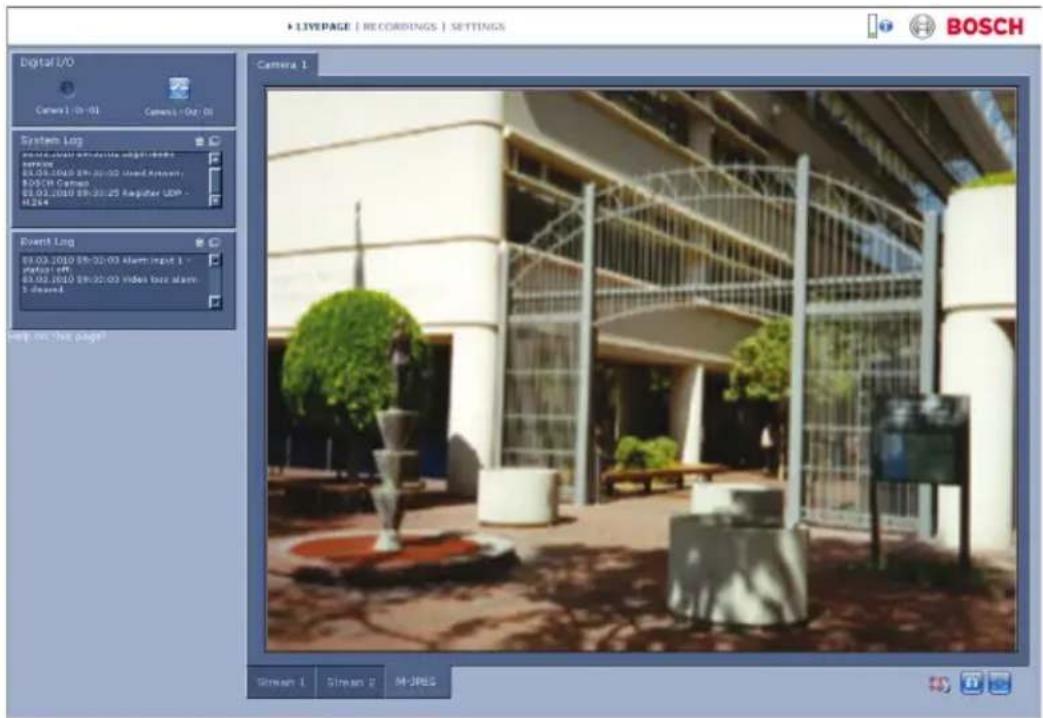
Figure 3.1 Livepage
3.1.1 Image selection
Click a tab below the video image to display a camera image stream.
3.1.2 Status icons
Various overlays in the video image provide important status information. The overlays provide the following information:

Decoding error
The frame might show artefacts due to decoding errors. If other frames reference this frame, they might also show decoding errors but won't be marked with the icon.

Alarm flag
Shown on a media item to indicate an alarm.

Communication error
A communication error, such as a connection failure to the storage medium, a protocol violation or a timeout, is indicated by this icon. An automatic reconnection procedure is started in the background to recover from this error.
Gap
Indicates a gap in the recorded video.
Watermark flag
Watermark is set on media item.

Invalid watermark flag
Indicates that the watermark is not valid.

Motion flag
Indicates that motion is detected.
Storage discovery
Indicates that recorded video is being retrieved.
3.1.3 Cameras with PTZ control
For cameras where PTZ control is possible, the View Control panel is activated.
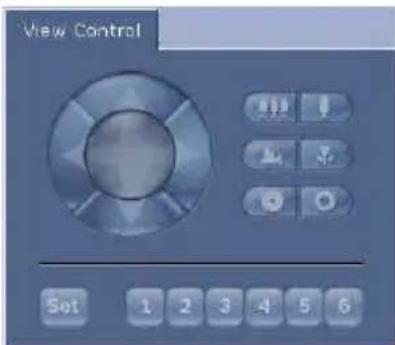
Pan and tilt
To control the pan and tilt of PTZ cameras:
▶ Click and hold the up or down arrows to tilt.
▶ Click and hold the left or right arrows to pan.
▶ Click and hold the center area to control both.
Move the mouse cursor over the video image; additional options for controlling peripherals are displayed with the mouse cursor.
Zoom, focus, and iris
To control the zoom, focus, and iris of PTZ cameras:
- Click and hold to zoom in.
out; click and hold
- Click and hold for near focus
ocus; click and hold
- Click and hold
the iris; click and hold
to open the iris.
Pre-position
To move the camera to a pre-position, click one of the buttons numbered one to six.
To store the current position of the camera in a pre-position:
- Position the camera.
- Enter a pre-position number.
- Click Set.
3.1.4 View Control ROI
When the stream 2 encoder stream is set for Region of Interest (ROI), a specific type of View Control panel is activated.
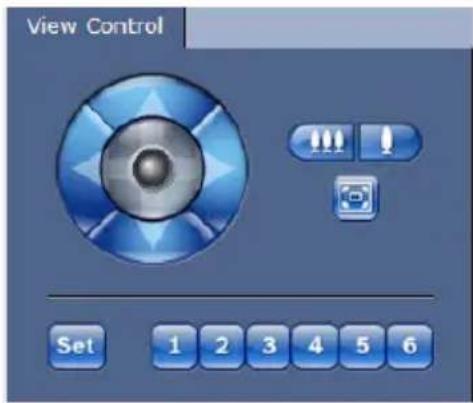
Refer to Section 9.3 Encoder Regions, page 66 for more information on setting up stream 2. (When encoder stream 2 is set for dual ROI, open the camera in a second browser window to set up the second ROI on stream 2.)
Zoom
To zoom in on a region of the stream 2 image:
▶ Click and hold to zoom in; click and hold to zoom out.
▶ Click to see the full image.
Select an area
To select a particular region of the image:
- Click and hold the arrows to move up and down, and from side to side through the image.
- Click and hold the center area to move in all directions.
Set positions
To store the current view:
- Select a region of interest.
- Click Set.
- Click a number.
To display a pre-set region of interest, click one of the buttons numbered one to six.
Tracking
For cameras with the ability to track movement, options for tracking objects within the region of interest are displayed in the Tracking panel.
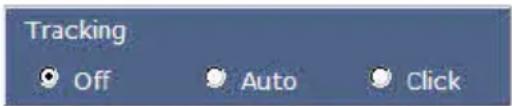
When on, the tracking icon

splayed on the image
together with the lines that track moving objects.
Select Off, Auto or Click. If Click is selected, use the mouse to click on an object to track it.
3.1.5 Cameras with alarm and relay I/O
Depending on the configuration of the unit, the alarm input and the relay output are displayed in the Digital I/O panel next to the camera image.
The alarm symbol is for information and indicates the input status of the alarm input:
- Active 1 = Symbol lights
- Active 0 = Symbol not lit.
The camera relay allows the operation of an external device (for example, a light or a door opener).
▶ To operate, click the relay symbol.
- The symbol is red when the relay is activated.
3.1.6 System Log / Event Log
The System Log field contains information about the operating status of the camera and the connection.
Events such as the triggering or the end of alarms are shown in the Event Log field.
▶ To view, filter and save these messages to a file, click in the top right-hand corner.

▶ To clear the log, click in the top right-hand corner of the relevant field.
3.1.7 Saving snapshots
Individual images from the video sequence that is currently being shown on the Livepage can be saved in JPEG format on the computer's hard drive.
▶ Click the camera icon to save a single image.
- The storage location depends on the configuration of the camera.
3.1.8 Recording video sequences
Sections of the video sequence that is currently being shown on the Livepage can be saved on the computer's hard drive. The sequences are recorded at the resolution specified in the encoder configuration. The storage location depends on the configuration of the camera.
- Click the recording icon to record video sequences.
- Saving begins immediately. The red dot on the icon indicates that a recording is in progress.
- Click the recording icon again to stop recording.
Play back saved video sequences using the Player from Bosch Security Systems.
3.1.9 Running recording program
The hard drive icon below the camera images on the Livepage changes during an automatic recording.
The icon lights up and displays a moving graphic

indicate a running recording. If no recording is taking place, a static icon is displayed.
3.1.10 Audio communication
Audio can be sent and received via the Livepage if the active monitor and the remote station of the camera support audio.
- Press and hold the F12 key on the keyboard to send an audio signal to the camera.
- Release the key to stop sending audio.
All connected users receive audio signals sent from the camera but only the user who first pressed the F12 key can send audio signals; others must wait for the first user to release the key.
3.1.11 Processor load
When accessing the camera with a browser, the processor load and network information is available in the upper right of the window next to the Bosch logo.

Move the mouse cursor over the icons to display numerical values. This information can help with problem solving or when fine tuning the device.
3.2 Playback page
Click PLAYBACK to access the Playback page from the Livepage or Settings page. The Playback link is only visible if a direct iSCSI or SD card has been configured for recording. (With VRM recording this option is not active.)
Note:
To ensure you have the latest playback decoder, click Check for updates at the bottom right of the window.
A collapsible panel on the left of the display has four tabs:
- Track list
- Export
- Search
- Search results
Select Recording 1 or 2 from the drop-down menu at the top of the window.
3.2.1 Selecting recordings for playback
To see all saved sequences:
- Click the track list tab.
A list of tracks with a number assigned to each sequence is displayed. Start time and stop time, recording duration, number of alarms, and recording type are shown for each track. - At the bottom of the window, select the maximum number of tracks to be displayed in the list.
- Use the arrow buttons at the bottom to browse the list.
- To view tracks beginning from a particular time, enter the time code and click Get Tracks.
- Click a track. The playback for the selected sequence starts.
3.2.2 Exporting tracks
- Select a track in the track list.
- Click the export tab.
- The start and stop time are filled-in for the selected track. If required, change the times.
- Select a target.
- Select the original or a condensed speed.
- Click the save icon .

Note:
The target server address is set on the Network/Accounts page.
3.2.3 Searching for tracks
- Click the search tab.
- Select a search mode; Any motion, Line crossing, Field or Recorded alarms.
- To limit the search to a particular time range, enter the start and stop times.
- Click Start Search.
The results are shown in the search results tab. - Click a result to play it back.
- Click the search tab to enter a new search.
3.2.4 Controlling playback
Time bar

The time bar below the video image allows quick orientation. The time interval associated with the sequence is displayed in the bar in gray. A green arrow above the bar indicates the position of the image currently being played back within the sequence.
The time bar offers various options for navigation in and between sequences.
- Change the time interval displayed by clicking the plus or minus icons. The display can span a range from two months to a few seconds.
- If required, drag the green arrow to the point in time at which the playback should begin.
- Red bars indicate the points in time where alarms were triggered. Drag the green arrow to navigate to these points quickly.
Controls
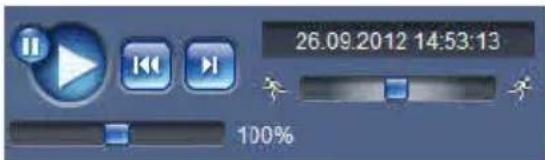
Use the jog dial to quickly scan the
sequences. The time code is displayed above it.
The buttons have the following functions:

Start/Pause playback
Select the playback speed using the speed regulator


Jump to start of active sequence or to previous sequence

Jump to start of the next video sequence in the list
Bookmarks
You can set markers in a sequence and jump to these directly. These bookmarks are indicated as small yellow arrows above the time interval. Use the bookmarks as follows:

Jump to the previous bookmark

Set bookmark

Jump to the following bookmark
Bookmarks are only valid while in the Recordings page; they are not saved with the sequences. All bookmarks are deleted when you leave the page.
4 Settings Overview
4.1 Configuration Menu
The settings page provides access to the configuration menu which contains all the unit's parameters arranged in groups.
There are two options for configuring the unit or checking the current settings:
- Basic Mode
- Advanced Mode
In Basic Mode the most important parameters are arranged in seven groups. This allows you to change the basic settings with just a few entries and then put the device into operation.
Advanced Mode is recommended only for expert users or system support personnel. You can access all device parameters in this mode. Settings that affect the fundamental functionality of the device (such as firmware updates) can only be changed in this mode.
4.2 Settings
Navigation
To view the current settings:
- Click the Basic Mode menu or the Advanced Mode menu to expand it.
- For the Advanced Mode menu, click a menu sub-heading to expand it.
- Click a sub-menu. The corresponding page is opened.
Making Changes
You can change the settings by entering new values or by selecting a predefined value from a list field.
Note:
When entering names do not use any special characters, for example &. Special characters are not supported by the internal recording management system.
Saving changes
After making changes in a window, click Set to send the new settings to the device and save them there.
Clicking Set saves only the settings in the current window. Changes in any other windows are ignored.
Click SETTINGS in the applications title bar to close the window without saving the changes made.
Note:
All settings are backed up in the device memory so they are not lost even if the power fails. The exception is the time settings, which are lost after 1 hour without power if no central time server is selected.
5 B a s i c M
5.1 Device Access
5.1.1 Naming
Enter a unique name to assist in identification. This name simplifies the management of multiple devices in more extensive systems.
The name is used for remote identification, for example, in the event of an alarm. Choose a name that makes it as easy as possible to identify the location unambiguously.
5.1.2 Password
A password prevents unauthorized access to the device. The device has three authorization levels: service, user, and live.
- service is the highest authorization level. Entering the correct password gives access to all the functions of the camera and allows all configuration settings to be changed.
- user is the middle authorization level. This user can operate the device, play back recordings, and also control a camera but cannot change the configuration.
- live is the lowest authorization level. It can only be used to view the live video image and switch between the different live image displays.
You can define and change a password for each authorization level if you are logged in as service or if the camera is not password protected.
Use the various authorization levels to limit access. Proper password protection is only guaranteed if all higher authorization levels are also protected with a password. For example, if a live password is assigned, a service and a user password should also be set. When assigning passwords, always start from the highest authorization level, service, and use different passwords.
Password
Define or change a separate password for each level. Enter the password (19 characters maximum) for the selected level.
Confirm password
Re-enter the new password to ensure that there are no typing mistakes.
The new password is only saved after clicking Set. Therefore, click Set immediately after entering and confirming the password, even if assigning a password at another level.
5.2 Date/Time
Device date, time and zone
If there are multiple devices operating in the system or network, it is important to synchronize their internal clocks. For example, it is only possible to identify and correctly evaluate simultaneous recordings when all devices are operating on the same time. Device time, date and time zone are shown.
▶ Click Sync to PC to apply the system time from your computer to the device.
Time server IP address
The camera can receive the time signal from a time server using various time server protocols and then use it to set the internal clock. The device polls the time signal automatically once every minute.
▶ Enter the IP address of a time server.
Time server type
Select the protocol that is supported by the selected time server. It is recommended that you select the SNTP server protocol. This protocol provides high accuracy and is required for special applications and future function extensions.
Select Time server if the server uses the RFC 868 protocol.
Note:
It is important that the date/time is correct for recording. An incorrect date/time setting could prevent correct recording.
5.3 Network
Use the settings on this page to integrate the device into a network. Some changes only take effect after a reboot. In this case, the Set button changes to Set and Reboot.
- Make the desired changes.
- Click Set and Reboot.
- The device is rebooted and the changed settings are activated. If the IP address, subnet mask, or gateway address is changed, then the device is only accessible under the new addresses after the reboot.
DHCP
If the network has a DHCP server for dynamic IP address allocation, set this parameter to On to activate the automatic acceptance of DHCP-assigned IP addresses.
For certain applications, the DHCP server must support the fixed assignment between IP address and MAC address, and must be appropriately set up so that, once an IP address is assigned, it is retained each time the system is rebooted.
IP address
Enter the desired IP address for the camera. The IP address must be valid for the network.
Subnet mask
Enter the appropriate subnet mask for the set IP address.
Gateway address
Enter the IP address of the gateway to establish a connection to a remote location in a different subnet. Otherwise, this field can remain empty (0.0.0.0).
5.4 Encoder
Select a profile for encoding the video signal on stream 1 (this is not a selection of the recording profile).
Pre-programmed profiles are available that give priority to different parameters and they should be selected based on your operating environment.
When a profile is selected, its details are displayed.
5.5 Audio
(only for cameras with microphones)
Switch the camera audio On or Off.
Use the slider to adjust the level.
5.6 Recording
(only for cameras with storage)
Record the images from the camera to a storage medium. For long-term authoritative images, it is essential to use VRM or an appropriately sized iSCSI system.
Storage medium
- Select the required storage medium from the list.
- Click Start to start recording or Stop to end recording.
5.7 System Overview
This page provides general information on the hardware and firmware system, including version numbers. No items can be changed on this page but they can be copied for information purposes when troubleshooting.
6 Advanced General Settings
6.1 Identification
6.1.1 Naming
Assign a unique name to assist in identification. This name simplifies the management of multiple devices in more extensive systems.
The name is used for remote identification, for example, in the event of an alarm. Choose a name that makes it as easy as possible to identify the location unambiguously.
6.1.2 ID
Each device should be assigned a unique identifier that can be entered here as an additional means of identification.
6.1.3 iSCSI Initiator extension
Add text to an initiator name to make identification easier in large iSCSI systems. This text is added to the initiator name, separated from it by a full stop.
6.2 Password
A password prevents unauthorized access to the device. The device has three authorization levels: service, user, and live.
- service is the highest authorization level. Entering the correct password gives access to all the functions of the camera and allows all configuration settings to be changed.
- user is the middle authorization level. This user can operate the device, play back recordings, and also control a camera but cannot change the configuration.
- live is the lowest authorization level. It can only be used to view the live video image and switch between the different live image displays.
You can define and change a password for each authorization level if you are logged in as service or if the camera is not password protected.
Use the various authorization levels to limit access. Proper password protection is only guaranteed if all higher authorization levels are also protected with a password. For example, if a live password is assigned, a service and a user password should also be set. When assigning passwords, always start from the highest authorization level, service, and use different passwords.
6.2.1 Password
Define and change a separate password for each level. Enter the password (19 characters maximum) for the selected level.
6.2.2 Confirm password
Re-enter the new password to ensure that there are no typing mistakes.
The new password is only saved after clicking Set. Therefore, click Set immediately after entering and confirming the password, even if assigning a password at another level.
6.3 Date/Time
6.3.1 Date format
Select the required date format.
6.3.2 Device date / Device time
If there are multiple devices operating in your system or network, it is important to synchronize their internal clocks. For example, it is only possible to identify and correctly evaluate simultaneous recordings when all devices are operating on the same time.
-
Enter the current date. Since the device time is controlled by the internal clock, it is not necessary to enter the day of the week – it is added automatically.
-
Enter the current time or click Sync to PC to apply the system time from your computer to the device.
Note:
It is important that the date/time is correct for recording. An incorrect date/time setting could prevent correct recording.
6.3.3 Device time zone
Select the time zone in which the system is located.
6.3.4 Daylight saving time
The internal clock can switch automatically between normal and daylight saving time (DST). The device already contains the data for DST switch-overs up to the year 2041. Use this data or create alternative time saving data, if required.
Note:
If a table is not created, there is no automatic switching. When editing the table, note that values occur in linked pairs (DST start and end dates).
First, check the time zone setting. If it is not correct, select the appropriate time zone for the system:
- Click Set.
- Click Details. A new window opens showing an empty table.
- Click Generate to fill the table with the preset values from the camera.
- Select the region or the city which is closest to the system's location from the list box below the table.
- Click one of the entries in the table to make changes. The entry is highlighted.
- Click Delete to remove the entry from the table.
- Choose other values from the list boxes under the table, to change the selected entry. Changes are immediate.
- If there are empty lines at the bottom of the table, for example after deletions, add new data by marking the row and selecting values from the list boxes.
- When finished, click OK to save and activate the table.
6.3.5 Time server IP address
The camera can receive the time signal from a time server using various time server protocols and then use it to set the internal clock. The device polls the time signal automatically once every minute.
Enter the IP address of a time server.
6.3.6 Time server type
Select the protocol that is supported by the selected time server. It is recommended to select the SNTP server protocol. This protocol provides high accuracy and is required for special applications and future function extensions.
Select Time server if the server uses the RFC 868 protocol.
6.4 Display Stamping
Various overlays or stamps in the video image provide important supplementary information. These overlays can be enabled individually and arranged on the image in a clear manner.
6.4.1 Camera name stamping
Select the position of the camera name overlay in the drop-down box. It can be displayed at the Top, at the Bottom, or at a position of choice using the Custom option, or it can be set to Off for no overlay information.
If the Custom option is selected, enter values in the X and Y position fields.
6.4.2 Time stamping
Select the position of the time and date overlay in the drop-down box. It can be displayed at the Top, at the Bottom, or at a position of choice using the Custom option, or it can be set to Off for no overlay information.
If the Custom option is selected, enter values in the X and Y position fields.
6.4.3 Display milliseconds
If necessary, display milliseconds for Time stamping. This information can be useful for recorded video images; however, it does increase the processor's computing time. Select Off if displaying milliseconds is not needed.
6.4.4 Alarm mode stamping
Select On in the drop-down box for a text message to be displayed in the event of an alarm. It can be displayed at a position of choice using the Custom option, or it can be set to Off for no overlay information.
If the Custom option is selected, enter values in the X and Y position fields.
6.4.5 Alarm message
Enter the message to be displayed on the image in the event of an alarm. The maximum text length is 31 characters.
6.4.6 Video watermarking
Select On in the drop-down box for the transmitted video images to be watermarked. After activation, all images are marked with an icon. The icon indicates if the sequence (live or saved) has been manipulated.
7 Web Interface
7.1 Appearance
You can adapt the appearance of the web interface and change the website language to meet your requirements.
GIF or JPEG images can be used to replace the company and device logos. The image can be stored on a local computer, a local network, or at an Internet address. The file paths must correspond to the access mode, for example:
- C:\Images\Logo.gif for access to local files, or
- http://www.myhostname.com/images/logo.gif for access via the Internet/Intranet).
There must be a network connection to display the images. The image files are not stored on the camera.
To restore the original graphics, delete the entries in the Company logo and Device logo fields.
7.1.1 Website language
Select the language for the user interface.
7.1.2 Company logo
To replace the company's logo in the top-right part of the window, enter the path to a suitable image in this field.
7.1.3 Device logo
To replace the device name in the top-left part of the window, enter the path to a suitable image in this field.
7.1.4 Show VCA metadata
When video content analysis (VCA) is activated, additional information is displayed in the live video stream. In Motion+ mode, the sensor areas for motion detection are marked.
7.1.5 Show VCA trajectories
The trajectories (motion lines of objects) from the video content analysis are displayed in the live video image if a corresponding analysis type is activated.
7.1.6 Show overlay icons
When selected, the camera status icons are displayed as an overlay on the video images.
7.1.7 Select video player
Select the player to be used for live mode viewing.
7.1.8 JPEG size, interval and quality
Select the size, update interval and quality of the M-JPEG image displayed on the livepage. The highest quality is 1.
7.2 LIVEPAGE Functions
You can adapt the Livepage functions to meet your requirements. Choose from a variety of different options for displaying information and controls.
- Mark the check boxes for the functions to be displayed on the Livepage. The selected elements are checked.
- Look at the Livepage to see if the desired items are shown.
7.2.1 Transmit audio
When selected, the audio from the camera (if on) is sent to the computer. This setting applies only to the computer on which it is made.
7.2.2 Lease time [s]
The lease time in seconds determines the time beyond which a different user is authorized to control the camera after no further control signals are received from the current user. After this time interval, the camera is automatically enabled.
7.2.3 Show alarm inputs
The alarm inputs are displayed next to the video image as icons along with their assigned names. If an alarm is active, the corresponding icon changes color.
7.2.4 Show relay outputs
The relay output is shown next to the video image as an icon along with its assigned name. If a relay is switched, the icon changes color.
7.2.5 Show event log
The event messages are displayed with the date and time in a field next to the video image.
7.2.6 Show system log
The system messages are displayed with the date and time in a field next to the video image and provide information about the establishment and termination of connections, etc.
7.2.7 Allow snapshots
Specify whether the icon for saving individual images should be displayed below the live image. Individual images can only be saved if this icon is visible.
7.2.8 Allow local recording
Specify whether the icon for saving video sequences locally should be displayed below the live image. Video sequences can only be saved if this icon is visible.
7.2.9 I-frames-only stream
Select to display an additional tab on the Livepage where only I-frames can be viewed. (Ensure that I-frame quality is not set to Auto or no updates will occur.)
7.2.10 Show auto tracker
(only for cameras with auto-tracker)
Select to display the auto-tracker lines on the live image.
7.2.11 Path for JPEG and video files
Enter the path for the storage location of individual images and video sequences saved from the Livepage. If necessary, click Browse... to find a suitable folder.
7.3 Logging
7.3.1 Save event log
Select this option to save event messages in a text file on the local computer. This file can be viewed, edited, and printed with any text editor or standard office software.
File for event log
Enter the path for saving the event log here. If necessary, click Browse... to find a suitable folder.
7.3.2 Save system log
Select this option to save system messages in a text file on the local computer. This file can be viewed, edited, and printed with any text editor or standard office software.
File for system log
Enter the path for saving the system log here. If necessary, click Browse... to find a suitable folder.
8 Camera
8.1 Installer Menu
8.1.1 Base frame rate
Select 25 ips or 30 ips as the base frame rate for the camera.
Note:
Shutter times and frame rates, and the analog output are affected by this value.
8.1.2 Camera LED
Disable the Camera LED on the camera to switch it off.
8.1.3 Mirror image
Select On to output a mirror image of the camera picture.
8.1.4 Flip image
Select On to output an upside down camera image.
8.1.5 Button 'MENU'
Select Disabled to prevent access to the install wizard via the menu button on the camera itself.
8.1.6 Heater
(for dome cameras with heater only)
Select Auto to let the camera determine when the heater should be switched on.
8.1.7 Reboot device
Click Reboot to restart the camera.
8.1.8 Factory defaults
Click Defaults to restore the factory defaults for the camera. A confirmation screen appears. Allow 5 seconds for the camera to optimize the picture after a mode reset.
8.1.9 Lens Wizard
Click Lens Wizard... to open a separate window which can be used to focus the camera lens.
8.2 Lens Wizard
A two-step procedure enables you to focus the lens on a particular area.
Step 1:
- Displays the lens type.
- Allows you to set the back focus to obtain the widest adjustment range by clicking the Default button.
- Suggests that you should first adjust the lens manually if required.
Step 2:
If required, use the slider to adjust the optical zoom of the lens.
- Use the mouse to adjust the size and position of the shaded area in the preview window.
- Click Full Range Autofocus to focus the lens across its full range.
- The motorised automatic back focus process runs.
- The focus position, state and indicator are shown.
-
Click Local Range Autofocus to fine focus the lens across the local range.
-
The motorised automatic back focus process runs.
-
The focus position, state and indicator are shown.
-
If necessary, manually adjust the focus position for day and night with the sliders.
8.3 Mode menu
A mode is a set of image parameters that are set in the camera when that mode is selected (Installer menu settings are excluded). Six pre-defined modes are available for typical scenarios. After a mode has been selected, additional changes can be made through the user interface.
8.3.1 Current mode
Select the mode you wish to use from the drop-down menu.
8.3.2 Mode ID
The name of the selected mode is displayed.
8.3.3 Copy mode to
Select the mode from the drop-down menu to which you wish to copy the active user mode.
Click Restore Mode Defaults to restore the factory default modes. Confirm you decision.
The six factory default modes are as follows:
Indoor
This mode covers most indoor situations. It is similar to the outdoor mode but it avoids the limitations imposed by the sun or street lighting.
Outdoor
This mode covers most outdoor situations. It should be used in applications where the lighting changes from day to night. It takes into account sun highlights and street lighting.
Motion
This mode is used for monitoring the traffic movement on roads or parking lots. It can also be used for industrial applications where fast moving objects are to be monitored. Motion artifacts are minimized. This mode should be optimized for a sharp and detailed picture in colour and black/white mode.
Low light
This mode is optimized for sufficient details at low light. It requires more bandwidth and can introduce motion judder.
Intelligent AE
(BLC when IVA is unavailable)
This mode is optimized for scenes with people moving in front of a bright background.
Vibrant
This mode has enhanced contrast, sharpness and saturation.
8.4 Picture Settings
Contrast (0...255)
Adjust the contrast with the slider from 0 to 255.
Saturation (0...255)
Adjust the color saturation with the slider from 0 to 255.
Brightness (0...255)
Adjust the brightness with the slider from 0 to 255.
8.4.1 White balance
- ATW: Auto tracking white balance allows the camera to continually adjust for optimal color reproduction.
- I n Manual mode the Red, Green, and Blue gain can be manually set to a desired position.
Hold
Click Hold to put ATW on hold and save the color settings.
R-gain
In Manual white balance mode, adjust the red gain from -50 to +50 to offset the factory white point alignment (reducing red introduces more cyan).
G-gain
In Manual white balance mode, adjust the green gain from -50 to +50 to offset the factory white point alignment.
B-gain
In Manual white balance mode, adjust the blue gain from -50 to +50 to offset the factory white point alignment (reducing blue introduces more yellow).
It is only necessary to change the white point offset for special scene conditions.
Default
Click Default to set all video values to their factory setting.
8.5 ALC
ALC mode
Select the mode:
- Fluorescent 50 Hz
- Fluorescent 60 Hz
- O u t d o o r
ALC level
Adjust the video output level (-15 to 0 to +15).
Select the range within which the ALC will operate. A positive value is more useful for low-light conditions; a negative value is more useful for very bright conditions.
8.5.1 Exposure/frame rate
Auto exposure/frame rate
Select to let the camera automatically set the optimum shutter speed. The camera tries to maintain the selected default shutter speed as long as the light level of the scene permits.
Select the minimum frame rate for automatic exposure:
- 1.5625 to 25 ips
or
- 1.875 to 30 ips
The values available depend on the value set for the Base Frame Rate in the Installer Menu.
Default shutter
Select a default shutter speed:
- 1/50, 1/100, 1/250, 1/500 (50 ips - outdoor ALC mode)
1/60, 1/120, 1/250, 1/500 (60 ips - outdoor ALC mode)
The default shutter improves the motion performance in auto exposure mode.
Fixed exposure
Select to set a fixed shutter speed.
Select the shutter speed for fixed exposure:
- 1/25, 1/30, 1/33, 1/40, 1/50, 1/60, 1/100, 1/120 1/250,
1/500, 1/1000, 1/2500, 1/5000, 1/7500, 1/15000
The values available depend on the value set for the ALC mode.
8.5.2 Day/night
Auto - the camera switches the IR cut-off filter on and off depending on the scene illumination level.
Color - the camera always produces a color signal regardless of light levels.
Monochrome - the IR cut-off filter is removed, giving full IR sensitivity.
Switch level
Set the video level at which the camera in Auto mode switches to monochrome operation (-15 to 0 to +15).
A low (negative) value means that the camera switches to monochrome at a lower light level. A high (positive) value means that the camera switches to monochrome at a higher light level.
8.6 Enhance
8.6.1 Sharpness level
Adjusts the black level between -15 and +15. Zero position of slider corresponds to the factory default level.
A low (negative) value makes the picture less sharp. Increasing sharpness brings out more detail. Extra sharpness can enhance the details of license plates, facial features and the edges of certain surfaces but can increase bandwidth requirements.
8.6.2 Backlight Compensation
Select On to capture details in high-contrast and extremely bright-dark conditions.
8.6.3 Contrast enhancement
Select On to increase the contrast in low contrast conditions.
8.7 Encoder Settings
The Encoder Profile, Encoder Streams, and Encoder Regions settings allow you to adapt the video data transmission characteristics for your operating environment (network structure, bandwidth, data structures). The camera simultaneously generates two H.264 video streams and an M-JPEG stream for transmission. An I-frame only stream is used for recording.
Select the compression settings of these streams individually, for example, one setting for transmissions to the Internet and one for LAN connections.
Refer to Section 9.1 Encoder Profile, page 60 for more information on setting up the encoder profile. Refer to Section 9.3 Encoder Regions, page 66 for more information on setting up the encoder streams.
8.8 Privacy Masks
Four privacy mask areas can be defined. The activated masked areas are filled with the selected pattern in live view.
- Select the pattern to be used for all masks.
- Check the box of the mask you wish to activate.
- Use the mouse to define the area for each of the masks.
8.9 Audio
Switch the audio On or Off.
Adjust the level with the slider.
Select G.711, L16 or AAC* as the audio Recording format.
Note:
The audio signals are sent in a separate data stream parallel to the video data, and so increase the network load. The audio data requires an additional bandwidth of approximately 80 kbps to 640 Kbps, depending on type of audio compression selected, for each connection. If you do not want any audio data to be transmitted, select Off.
* AAC audio technology is licensed by Fraunhofer IIS.
An area can be defined to count pixels.
- Place the cursor on the border of the shaded box and drag to resize the area.
- Place the cursor inside the shaded box and drag to change its position.
- Click Freeze to stop updates of the live image.
The number of pixels inside the selected area is displayed for streams 1 and 2.
9 Encoder Settings
The encoder settings determine the characteristics of the four streams generated by the camera. The type of streams that can be generated are:
- H D s t r e a m s
- S D s t r e a m s
- i-frame only streams for recording
- M - J P E G s t r e a m s
The bit rates, the encoding interval, and the Group-of-Pictures (GoP) structure and quality, are defined and stored for 8 different profiles on the Encoder Profile page. The SD (Standard Definition) resolution is also selected here.
The resolution of the two H.264 streams and the pre-defined profile to be used for each stream is selected on the Encoder Streams page. The maximum frame rate and quality of the JPEG stream is also selected here.
The streams and profiles for recording are selected on the Recording Profiles page.
The Encoder Regions page allows you to select different quality levels for various areas of the image. This can help in reducing the bit rate. For example, important objects can be selected to provide higher quality encoding than selected background areas.
9.1 Encoder Profile
Profiles are rather complex and include a number of parameters that interact with one another, so it is generally best to use the pre-defined profiles. Only change a profile if completely familiar with all the configuration options.
9.1.1 Pre-defined profiles
Eight definable profiles are available. The pre-defined profiles give priority to different parameters.
– HD high quality / low latency
High resolution for high bandwidth connections
- HD high quality
High resolution with lower data rate
- HD low bandwidth
High resolution for low bandwidth connections
- SD high quality / low latency
Standard resolution for high bandwidth connections
- SD high quality
Standard resolution with lower data rate
- SD low bandwidth
Standard resolution for low bandwidth connections
- DSL
Standard resolution for DSL connections
- ISDN (2B)
Low resolution for mobile phone connections
9.1.2 Changing a profile
The pre-defined profiles can be changed (a pre-defined profile can always be recalled by using the Default button).
To change a profile, select it by clicking its tab, then change the parameters within that profile.
If a setting outside the permitted range for a parameter is entered, the nearest valid value is substituted when the settings are saved.
9.1.3 Profile name
If required, enter a new name for the profile.
9.1.4 Target bit rate
To optimize use of the bandwidth in the network, limit the data rate for the camera. The target data rate should be set according to the desired picture quality for typical scenes with no excessive motion.
For complex images or frequent changes of image content due to frequent movements, this limit can temporarily be exceeded up to the value entered in the Maximum bit rate field.
9.1.5 Maximum bit rate
This maximum data rate is not exceeded under any circumstances. Depending on the video quality settings for the I-frames and P-frames, this can result in individual images being skipped.
The value entered here must be at least 10% higher than the value entered in the Target bit rate field. If the value entered here is too low, it is automatically adjusted.
9.1.6 Encoding interval
The Encoding interval slider determines the interval at which images are encoded and transmitted. This can be particularly advantageous with low bandwidths. The image rate in ips (images per second) is displayed next to the slider.
9.1.7 Standard definition video resolution
Select the desired resolution for the standard definition video image.
Note:
These resolutions are not used by a HD stream.
9.1.8 Expert Settings
If necessary, use the expert settings to adapt the I-frame quality and the P-frame quality to specific requirements. The setting is based on the H.264 quantization parameter (QP).
GOP structure
Select the structure you require for the Group of Pictures (GOP). Depending on whether you place greater priority on having the lowest possible delay (IP frames only) or using as little bandwidth possible, you choose IP, IBP or IBBP.
Averaging period
Select the appropriate averaging period as a means of stabilizing the long term bit rate.
I-frame distance
Use the slider to set the distance between I-frames to Auto or to between 3 and 60. An entry of 3 means that every third image is an I-frame. The lower the number, the more I-frames are generated.
Min. P-frame QP
In the H.264-protocol, the Quantization Parameter (QP) specifies the degree of compression and thus the image quality for every frame. The lower the QP value, the higher the encoding quality. A higher quality produces a higher data load. Typical QP values are between 18 and 30. Define the lower limit for the quantization of the P-frames here, and thus the maximum achievable quality of the P-frames.
I/P-frame delta QP
This parameter sets the ratio of the I-frame QP to the P-frame QP. For example, you can set a lower value for I-frames by moving the slide control to a negative value. Thus, the quality of the I-frames relative to the P-frames is improved. The total data load will increase, but only by the portion of I-frames.
To obtain the highest quality at the lowest bandwidth, even in the case of increased movement in the picture, configure the quality settings as follows:
-
Observe the coverage area during normal movement in the preview images.
-
Set the value for Min. P-frame QP to the highest value at which the image quality still meets your needs.
-
Set the value for I/P-frame delta QP to the lowest possible value. This is how to save bandwidth and memory in normal scenes. The image quality is retained even in the case of increased movement since the bandwidth is then filled up to the value that is entered under Maximum bit rate.
Background quality
Select the appropriate encoding quality level for a background region defined in Encoder Regions. The lower the QP value, the higher the encoding quality.
Object quality
Select the appropriate encoding quality level for an object region defined in Encoder Regions. The lower the QP value, the higher the encoding quality.
9.1.9 Default
Click Default to return the profile to the factory default values.
9.2 Encoder Streams
9.2.1 H.264 settings
Select H.264 Settings
- Select a codec algorithm Property for stream 1 from the drop-down box.
- Select a codec algorithm Property for stream 2 (the available choices depend on the algorithm selected for stream 1).
- Select the Non-recording profile for each stream from the eight profiles that have been defined.
- This profile is not used for recording. When a stream is used for recording, the profile selected on the Recording Profiles page is used.
Preview >>
Previews of streams 1 and 2 can be shown.
-
Click Preview >> to display a preview of the video for streams 1 and 2. the current profile is shown above the preview.
-
Click 1:1 Live View below a preview to open a viewing window for that stream. Various additional items of information are shown across the top of the window.
-
Click Preview << to close the preview displays.
Note:
Deactivate the display of the video images if the performance of the computer is adversely affected by the decoding of the data stream.
Regions of Interest (ROI)
If you select an ROI property for stream 2, you can set up a region of interest on the Livepage.
9.2.2 JPEG stream
Set the parameters for the M-JPEG stream.
- Select the Resolution.
- Select the Max. frame rate in images per second (IPS).
- T h e Picture quality slider allows adjustment of the M-JPEG image quality from Low to High.
Note:
The M-JPEG frame rate can vary depending on system loading.
9.3 Encoder Regions
9.3.1 Regions
- Select one of the eight available regions from the drop-down box.
- Use the mouse to define the area for that region by dragging the center or sides of the shaded window.
- Select the encoder quality to be used for the defined area. (Object and background quality levels are defined on the Expert Settings section of the Encoder Profile page.)
- If required, select another region and repeat steps 2 and 3.
- Click Set to apply the region settings.
Preview
Click to open a viewing window where a 1:1 live image and the bit rate for the region settings can be previewed.
10 Recording
Images can be recorded to an appropriately configured iSCSI system or, for cameras with SD slots, locally to an SD card.
SD cards are the ideal solution for shorter storage times and temporary recordings. They can be used for local alarm recording or for Automatic Network Replenishment (ANR) to improve the overall reliability of video recording.
For long-term authoritative images use an appropriately sized iSCSI system.
Two recording tracks are available (Recording 1 and Recording 2). The encoder streams and profiles can be selected for each of these tracks for both standard and alarm recordings.
Ten recording profiles are available where these recording tracks can be defined differently. These profiles are then used for building schedules.
A Video Recording Manager (VRM) can control all recording when accessing an iSCSI system. The VRM is an external program for configuring recording tasks for video servers. For further information, contact your local customer service at Bosch Security Systems.
10.1 Storage Management
10.1.1 Device manager
Check the Managed by VRM box to let an external Video Recording Manager (VRM) manage all recording. No further settings can be configured.
Note:
Activating or deactivating VRM causes the current storage settings to be lost; they can only be restored through reconfiguration.
10.1.2 Recording media
Select a media tab to connect to the available storage media.
iSCSI Media
To use an iSCSI system as the storage medium, a connection to the desired iSCSI system is required to set the configuration parameters.
The storage system selected must be available on the network and completely set up. It must have an IP address and be divided into logical drives (LUNs).
- Enter the IP address of the required iSCSI destination in the iSCSI IP address field.
- If the iSCSI destination is password protected, enter the password into the Password field.
- Click Read.
- The connection to the IP address is established.
The Storage overview field displays the logical drives.
Local Media
An SD card can be used for local recording in cameras with an SD slot.
If the SD card is password protected, enter the password into the Password field.
The Storage overview field displays the local media.
Note:
SD card recording performance is highly dependent on the speed (class) and performance of the SD card. An SD card of Class 6 or higher is recommended.
10.1.3 Activating and configuring storage media
Available media or iSCSI drives must be transferred to the Managed storage media list, activated, and configured for storage.
Note:
A iSCSI target storage device can only be associated with one user. If a target is being used by another user, ensure that the current user no longer needs the target before decoupling that user.
-
In the Storage overview section, double-click the required storage medium, an iSCSI LUN or one of the other available drives.
-
The medium is added as a target in the Managed storage media list.
-
Newly added media is shown as Not active in the Status column.
-
Click Set to activate all media in the Managed storage media list.
- The Status column shows all media as Online.
- Check the box in the Rec. 1 or Rec. 2 column to specify the recording tracks to be recorded on the target selected.
- Check the Recording 1 or Recording 2 boxes for the Overwrite older recordings option to overwrite the older recording tracks once the available recording capacity has been used.
Note:
If older recordings are not allowed to be overwritten when the available memory is full, the recording in question is stopped. Specify limitations for overwriting old recordings by configuring the retention time.
10.1.4 Formatting storage media
All recordings on a storage medium can be deleted at any time. Check the recordings before deleting and back-up important sequences on the computer's hard drive.
- Click a storage medium in the Managed storage media list to select it.
- Click Edit below the list.
- Click Format in the new window to delete all recordings in the storage medium.
- Click OK to close the window.
10.1.5 Deactivating storage media
A storage medium in the Managed storage media list can be deactivated. It is then no longer used for recordings.
- Click a storage medium in the Managed storage media list to select it.
- Click Remove below the list. The storage medium is deactivated and removed from the list.
10.2 Recording Profiles
A recording profile contains the characteristics of the tracks that are used for recording. These characteristics can be defined for ten different profiles. The profiles can then be assigned to days or times of day on the Recording Scheduler page.
Each profile is color-coded. The names of the profiles can be changed on the Recording Scheduler page.
To configure a profile, click its tab to open its settings page.
- To copy the currently visible settings to other profiles, click Copy Settings. A window opens to select the target profiles for the copied settings.
- If you change a profile's settings, click Set to save.
- If necessary, click Default to return all settings to their factory defaults.
Stream profile settings
Select the encoder profile setting that is to be used with stream 1 and 2 when recording. This selection is independent of the selection for live stream transmission. (The properties of the encoder profiles are defined on the Encoder Profile page.)
10.2.1 Recording track selection
Standard and alarm recording can be defined for the two recording tracks. You must first select the track before setting up the standard and alarm recording parameters.
- Click the Recording 1 entry in the list.
- Set up the standard and alarm recording parameters for track 1 as described below.
- Click the Recording 2 entry in the list.
- Set up the standard and alarm recording parameters for track 2 as described below.
Recording includes
Specify whether, in addition to video data, audio or metadata (for example alarms or VCA data) should also be recorded. (To change the global audio format, click the audio recording format link.)
Note:
Including metadata could make subsequent searches of recordings easier but it requires additional memory capacity. Without metadata, it is not possible to include video content analysis in recordings.
10.2.2 Standard recording
Select the mode for standard recordings:
- Continuous: the recording proceeds continuously. If the maximum recording capacity is reached, older recordings are overwritten automatically.
- Pre-alarm: recording takes place in the pre-alarm time, during the alarm and during the post-alarm time only.
- Off: no automatic recording takes place.
Stream
Select the stream to be used for standard recordings:
- Stream 1
- Stream 2
- I-frames only
10.2.3 Alarm recording
Select a period for the Pre-alarm time from the list box. Select a period for the Post-alarm time from the list box.
Alarm stream
Select the stream to be used for alarm recordings:
- Stream 1
- Stream 2
- I-frames only
Check the encoding interval and bit rates from profile: box and select an encoder profile to set the associated encoding interval for alarm recording.
Check the Export to account box to send standard H.264 files to the target whose address is displayed.
If an target has not yet been defined, click Configure accounts to jump to the Accounts page where the server information can be entered.
Alarm triggers
Select the alarm type that is to trigger an alarm recording:
- Alarm input
- Analysis alarm
- Video loss alarm
Select the Virtual alarm sensors that are to trigger a recording, via RCP+ commands or alarm scripts, for example.
10.3 Retention Time
Recordings are overwritten when the retention time entered here has expired.
▶ Enter the required retention time in hours or days for each recording track.
Make sure that the retention time does not exceed the available recording capacity.
10.4 Recording Scheduler
The recording scheduler allows you to link the created recording profiles to the days and times at which the camera's images are to be recorded. Schedules can be defined for weekdays and for holidays.
10.4.1 Weekdays
Assign as many time periods (in 15-minute intervals) as needed for any day of the week. Move the mouse cursor over the table—the time is displayed.
- Click the profile to be assigned in the Time periods box.
- Click a field in the table and, while holding down the left mouse button, drag the cursor across all of the fields to be assigned to the selected profile.
- Use the right mouse button to deselect any of the intervals.
- Click Select All to select all of the intervals to be assigned to the selected profile.
- Click Clear All to deselect all of the intervals.
- When finished, click Set to save the settings to the device.
10.4.2 Holidays
Define holidays whose settings will override the settings for the normal weekly schedule.
- Click the Holidays tab. Days that have already been defined are shown in the table.
- Click Add. A new window opens.
- Select the desired From date from the calendar.
- Click in the To box and select a date from the calendar.
- Click OK to accept the selection which is handled as a single entry in the table. The window closes.
- Assign the defined holidays to the recording profile as described above.
Delete user-defined holidays as follows:
- Click Delete in the Holidays tab. A new window opens.
-
Click the date to be deleted.
-
Click OK. The selection is removed from the table and the window is closed.
- Repeat for any other dates to be deleted.
10.4.3 Profile names
Change the names of the recording profiles listed in the Time periods box.
- Click a profile.
- Click Rename.
- Enter the new name and click Rename again.
10.4.4 Activate recording
After completing configuration, activate the recording schedule and start scheduled recording. Once activated, the Recording Profiles and the Recording Scheduler are deactivated and the configuration cannot be modified. Stop scheduled recording to modify the configuration.
- Click Start to activate the recording schedule.
- Click Stop to deactivate the recording schedule.
Recordings that are currently running are interrupted and the configuration can be modified.
10.4.5 Recording status
The graphic indicates the recording activity. An animated graphic is displayed when recording is taking place.
10.5 Recording Status
Details of the recording status are displayed here for information. These settings cannot be changed.
11 Alarm
11.1 Alarm Connections
In the event of an alarm, the camera can automatically connect to a pre-defined IP address. The camera can contact up to ten IP addresses in the order listed until a connection is established.
11.1.1 Connect on alarm
Select On so that the camera automatically connects to a predefined IP address in the event of an alarm. Select Follows input 1 so that the device maintains the connection for as long as an alarm exists.
11.1.2 Number of destination IP address
Specify the numbers of the IP addresses to be contacted in the event of an alarm. The device contacts the remote locations one after the other in the numbered sequence until a connection is made.
11.1.3 Destination IP address
For each number, enter the corresponding IP address for the desired remote station.
11.1.4 Destination password
If the remote station is password protected, enter the password here. Only ten passwords can be defined here. Define a general password if more than ten connections are required, for example, when connections are initiated by a controlling system such as the Bosch Video Client or the Bosch Video Management System. The camera connects to all remote stations protected by the same general password. To define a general password:
- Select 10 in the Number of destination IP address list box.
-
Enter 0.0.0.0 in the Destination IP address field.
-
Enter the password in the Destination password field.
- Set the user password of all the remote stations to be accessed using this password.
Setting destination 10 to the IP-address 0.0.0.0 overrides its function as the tenth address to try.
11.1.5 Video transmission
If the device is operated behind a firewall, select TCP (HTTP port) as the transfer protocol. For use in a local network, select UDP.
To enable multicast operation, select the UDP option for the Video transmission parameter here and on the Network page.
Note:
In the event of an alarm, a larger network bandwidth is sometimes required for additional video streams (if multicast operation is not possible).
11.1.6 Stream
Select a stream to be transmitted.
11.1.7 Remote port
Select an appropriate browser port depending on the network configuration. The ports for HTTPS connections are only available if the On option in SSL encryption is selected.
11.1.8 Video output
If a decoder device is used, select the analog video output to which the signal should be switched. If the destination device is unknown, select the First available option. This places the image on the first video output with no signal.
The connected monitor only displays images when an alarm is triggered.
11.1.9 Decoder
If a split image is set for the selected video output, select a decoder to display the alarm image. The decoder selected determines the position of the image.
11.1.10 SSL encryption
SSL encryption protects data used for establishing a connection, such as the password. By selecting On, only encrypted ports are available for the Remote port parameter. SSL encryption must be activated and configured on both sides of a connection. The appropriate certificates must also have been uploaded. Configure and activate encryption for media data (video, metadata) on the Encryption page.
11.1.11 Auto-connect
Select On to automatically re-established a connection to one of the previously specified IP addresses after each reboot, connection breakdown, or network failure.
11.1.12 Audio
Select On to transmit the audio stream with an alarm connection.
11.2 Video Content Analyses (VCA)
The camera has integrated Video Content Analyses (VCA) which detects and analyze changes in the picture using image processing algorithms. Such changes can be due to movements in the camera's field of view. Detection of movement can be used to trigger an alarm and to transmit metadata.
Various VCA configurations can be selected and adapted to your application, as required.
Refer to Section 12 Setting up VCA, page 87 for more information on setting up video content analyses.
Note:
If there is not enough computing power, priority is given to live images and recordings. This can lead to impairment of the VCA system. Observe the processor load and optimize the encoder settings or the VCA settings if necessary, or turn off VCA completely.
11.3 Audio Alarm
Alarms can be generated based on audio signals. Configure signal strengths and frequency ranges so that false alarms, for example, machine noise or background noise, are avoided. Set up normal audio transmission before configuring the audio alarm.
11.3.1 Audio alarm
Select On for the device to generate audio alarms.
11.3.2 Name
The name makes it easier to identify the alarm in extensive video monitoring systems, for example with the Bosch Video Client and the Bosch Video Management System. Enter a unique and clear name here.
11.3.3 Signal Ranges
Exclude particular signal ranges in order to avoid false alarms. For this reason the total signal is divided into 13 tonal ranges (mel scale). Check or uncheck the boxes below the graphic to include or exclude individual ranges.
11.3.4 Threshold
Set up the threshold on the basis of the signal visible in the graphic Set the threshold using the slide control or, alternatively, move the white line directly in the graphic using the mouse.
11.3.5 Sensitivity
Use this setting to adapt the sensitivity to the sound environment and effectively suppress individual signal peaks. A high value represents a high level of sensitivity.
11.4 Alarm E-Mail
Alarm states can be documented by e-mail. The camera automatically sends an e-mail to a user-defined e-mail address. This makes it possible to notify a recipient who does not have a video receiver.
11.4.1 Send alarm e-mail
Select On for the device to automatically send an alarm e-mail in the event of an alarm.
11.4.2 Mail server IP address
Enter the IP address of a mail server that operates on the SMTP standard (Simple Mail Transfer Protocol). Outgoing e-mails are sent to the mail server via the address entered. Otherwise, leave the box blank (0.0.0.0).
11.4.3 SMTP user name
Enter a registered user name for the chosen mail server.
11.4.4 SMTP password
Enter the required password for the registered user name.
11.4.5 Format
Select the data format of the alarm message.
- Standard (with JPEG): e-mail with JPEG image file attachment.
- SMS: e-mail in SMS format to an e-mail-to-SMS gateway without an image attachment.
When a mobile phone is used as the receiver, make sure to activate the e-mail or SMS function, depending on the format, so that these messages can be received. Obtain information on operating your mobile phone from your mobile phone provider.
11.4.6 Image size
Select the size of the JPEG images that are to be sent from the camera.
11.4.7 Attach JPEG from camera
Check the box to specify that JPEG images are sent from the camera.
11.4.8 Destination address
Enter the e-mail address for alarm e-mails here. The maximum address length is 49 characters.
11.4.9 Sender name
Enter a unique name for the e-mail sender, for example, the location of the device. This makes it easier to identify the origin of the e-mail.
11.4.10 Test e-mail
Click Send Now to test the e-mail function. An alarm e-mail is immediately created and sent.
11.5 Alarm Task Editor
Editing scripts on this page overwrites all settings and entries on the other alarm pages. This procedure cannot be reversed. To edit this page, you should have programming knowledge and be familiar with the information in the Alarm Task Script Language document and the English language.
As an alternative to the alarm settings on the various alarm pages, enter the desired alarm functions in script form here. This will overwrite all settings and entries on the other alarm pages.
- Click Examples under the Alarm Task Editor field to see some script examples. A new window opens.
- Enter new scripts in the Alarm Task Editor field or change existing scripts in line with your requirements.
- When finished, click Set to transmit the scripts to the device. If the transfer was successful, the message Script successfully parsed. is displayed over the text field. If it was not successful, an error message is displayed with further information.
12 Setting up VCA
Several VCA configurations are available.
- Off
- Silent VCA
- Profile #1
- Profile #2
- Scheduled
- Event triggered
12.1 VCA - Silent VCA
In this configuration, metadata is created to facilitate searches of recordings, however, no alarm is triggered.
In the VCA configuration drop-down list, select Silent VCA.
No parameters can be changed for this selection.
12.2 VCA - Profiles
Two profiles can be set up with different VCA configurations.
- In the VCA configuration drop-down list, select profile 1 or 2 and enter the required settings.
- If necessary, click Default to return all settings of the selected profile to its default values.
To rename a profile:
- To rename the file, click the icon to the right of the list field and enter the new profile name in the field.
- Click the icon again. The new profile name is saved.
The current alarm status is displayed for information purposes.
12.2.1 Aggregation time [s]
Set an aggregation time of between 0 and 20 seconds. The aggregation time always starts when an alarm event occurs. It extends the alarm event by the value set. This prevents alarm events that occur in quick succession from triggering several alarms and successive events in a rapid sequence. No further alarm is triggered during the aggregation time.
The post-alarm time set for alarm recordings only starts once the aggregation time has expired.
12.2.2 Analysis type
Select the required analysis algorithm. Motion+ offers a motion detector and essential recognition of tampering.
Metadata is always created for a video content analysis, unless this is explicitly excluded. Depending on the analysis type selected and the relevant configuration, additional information overlays the video image in the preview window next to the parameter settings. With the Motion+ analysis type, for example, the sensor fields in which motion is recorded are marked with rectangles.
Note:
Additional analysis algorithms with comprehensive functions, such as IVMD and IVA, are also available. Refer to the IVA documentation for more information on using these.
12.2.3 Motion detector
Motion detection is available for the Motion+ analysis type. For the detector to function, the following conditions must be met:
- Analysis must be activated.
- At least one sensor field must be activated.
- The individual parameters must be configured to suit the operating environment and the desired responses.
- The sensitivity must be set to a value greater than zero.
Note:
Reflections of light (from glass surfaces, etc.), lights switching on and off, or changes in the light level caused by cloud movement on a sunny day can trigger unintended responses from the motion detector and generate false alarms. Run a series of tests at different times of the day and night to ensure that the video sensor is operating as intended. For indoor surveillance, ensure constant lighting of the areas during the day and at night.
Sensitivity
Sensitivity is available for the Motion+ analysis type. The basic sensitivity of the motion detector can be adjusted for the environmental conditions to which the camera is subject. The sensor reacts to variations in the brightness of the video image. The darker the observation area, the higher the value that must be selected.
Minimum object size
Specify the number of sensor fields that a moving object must cover to generate an alarm. This setting prevents objects that are too small from triggering an alarm. A minimum value of 4 is recommended. This value corresponds to four sensor fields.
Debounce time 1 s
The debounce time prevents very brief alarm events from triggering individual alarms. If the Debounce time 1 s option is activated, an alarm event must last at least 1 second to trigger an alarm.
Selecting the area
Select the areas of the image to be monitored by the motion detector. The video image is subdivided into square sensor fields. Activate or deactivate each of these fields individually. To exclude particular regions of the camera's field of view from monitoring due to continuous movement (by a tree in the wind, for example), the relevant fields can be deactivated.
- Click Select Area to configure the sensor fields. A new window opens.
- If necessary, click Clear All first to clear the current selection (fields marked red).
- Left-click the fields to be activated. Activated fields are marked red.
- If necessary, click Select All to select the entire video-frame for monitoring.
- Right-click any fields to deactivate.
- Click OK to save the configuration.
- Click the close button (X) in the window title bar to close the window without saving the changes.
12.2.4 Tamper detection
Detect tampering of cameras and video cables by means of various options. Run a series of tests at different times of the day and night to ensure that the video sensor is operating as intended.
Sensitivity and Trigger delay [s] can only be changed if Reference check is selected.
Sensitivity
The basic sensitivity of the tamper detection can be adjusted for the environmental conditions to which the camera is subject. The algorithm reacts to the differences between the
reference image and the current video image. The darker the observation area, the higher the value that must be selected.
Trigger delay [s]
Set delayed alarm triggering here. The alarm is only triggered after a set time interval in seconds has elapsed and then only if the triggering condition still exists. If the original condition has been restored before this time interval elapses, the alarm is not triggered. This avoids false alarms triggered by short-term changes, for example, cleaning activities in the direct field of vision of the camera.
Global change (slider)
Set how large the global change in the video image must be for an alarm to be triggered. This setting is independent of the sensor fields selected under Select Area. Set a high value if fewer sensor fields need to change to trigger an alarm. With a low value, it is necessary for changes to occur simultaneously in a large number of sensor fields to trigger an alarm. This option allows detection, independently of motion alarms, manipulation of the orientation or location of a camera resulting from turning the camera mount bracket, for example.
Global change
Activate this function if the global change, as set with the Global change slide control, should trigger an alarm.
Scene too bright
Activate this function if tampering associated with exposure to extreme light (for instance, shining a flashlight directly on the objective) should trigger an alarm. The average brightness of the scene provides a basis for recognition.
Scene too dark
Activate this function if tampering associated with covering the objective (for instance, by spraying paint on it) should trigger an alarm. The average brightness of the scene provides a basis for recognition.
Scene too noisy
Activate this function if tampering associated with EMC interference (noisy scene as the result of a strong interference signal in the vicinity of the video lines) should trigger an alarm.
Reference check
Save a reference image that can be continuously compared with the current video image. If the current video image in the marked areas differs from the reference image, an alarm is triggered. This detects tampering that would otherwise not be detected, for example, if the camera is turned.
- Click Reference to save the currently visible video-image as a reference.
- Click Select Area and select the areas in the reference image that are to be monitored.
- Check the box Reference check to activate the on-going check. The stored reference image is displayed in black and white below the current video image, and the selected areas are marked in yellow.
- Select the Disappearing edges or Appearing edges option to specify the reference check once again.
Disappearing edges
The area selected in the reference image should contain a prominent structure. If this structure is concealed or moved, the reference check triggers an alarm. If the selected area is too homogenous, so that concealing and moving the structure would not trigger an alarm, then an alarm is triggered immediately to indicate the inadequate reference image.
Appearing edges
Select this option if the selected area of the reference image includes a largely homogenous surface. If structures appear in this area, then an alarm is triggered.
Selecting the area
Select the image areas in the reference image that are to be monitored. The video image is subdivided into square fields. Activate or deactivate each of these fields individually.
Select only those areas for reference monitoring in which no movement takes place and that are always evenly lit, as false alarms could otherwise be triggered.
- Click Select Area to configure the sensor fields. A new window opens.
- If necessary, click Clear All first to clear the current selection (fields marked yellow).
- Left-click the fields to be activated. Activated fields are marked yellow.
- If necessary, click Select All to select the entire video-frame for monitoring.
- Right-click any fields to deactivate.
- Click OK to save the configuration.
- Click the close button (X) in the window title bar to close the window without saving the changes.
12.3 VCA - Scheduled
A scheduled configuration allows you to link a VCA profile with the days and times at which the video content analysis is to be active.
In the VCA configuration drop-down list, select Scheduled.
Schedules can be defined for weekdays and for holidays.
The current alarm status is displayed for information purposes.
12.3.1 Weekdays
Link any number of 15-minute intervals with the VCA profiles for each day of the week. Moving the mouse cursor over the table displays the time below it. This aids orientation.
- Click the profile to link in the Time periods field.
- Click in a field in the table, hold down the mouse button and drag the cursor over all the periods to be assigned to the selected profile.
- Use the right mouse button to deselect any of the intervals.
- Click Select All to link all time intervals to the selected profile.
- Click Clear All to deselect all of the intervals.
- When finished, click Set to save the settings in the device.
12.3.2 Holidays
Define holidays on which a profile should be active that are different to the standard weekly schedule.
- Click the Holidays tab. Any days that have already been selected are shown in the table.
- Click Add. A new window opens.
- Select the desired date from the calendar. Select several consecutive calendar days by holding down the mouse button. These will later be displayed as a single entry in the table.
- Click OK to accept the selection. The window closes.
- Assign the individual holidays to the VCA profiles, as described above.
Deleting Holidays
Delete defined holidays at any time:
- Click Delete. A new window opens.
- Click the date to delete.
- Click OK. The item is deleted from the table and the window closes.
- The process must be repeated for deleting additional days.
12.4 VCA - Event triggered
This configuration allows you to stipulate that the video content analysis is only to be activated when triggered by an event.
In the VCA configuration drop-down list, select Event triggered.
As long as no trigger is activated, the Silent MOTION+ configuration in which metadata is created is active; this metadata facilitates searches of recordings, but does not trigger an alarm.
The current alarm status is displayed for information purposes.
12.4.1 Trigger
Select a physical alarm or a virtual alarm as a trigger. A virtual alarm is created using software, with RCP+ commands or alarm scripts, for example.
12.4.2 Trigger active
Select the VCA configuration here that is to be enabled via an active trigger. A green check mark to the right of the list field indicates that the trigger is active.
12.4.3 Trigger inactive
Select the VCA configuration here that is to be activated if the trigger is not active. A green check mark to the right of the list field indicates that the trigger is inactive.
12.4.4 Delay [s]
Select the delay period for the reaction of the video content analysis to trigger signals. The alarm is only triggered after a set time interval in seconds has elapsed and then only if the triggering condition still exists. If the original condition has been restored before this time interval elapses, the alarm is not triggered. A delay period may be useful in avoiding false alarms or frequent triggering. During the delay period, the Silent VCA configuration is always enabled.
13 Interfaces
13.1 Alarm input
Configure the alarm triggers for the camera.
Select N.C. (Normally Closed) if the alarm is to be triggered by closing the contact.
Select N.O. (Normally Open) if the alarm is to be triggered by opening the contact.
13.1.1 Name
Enter a name for the alarm input. This is then displayed below the icon for the alarm input on the LIVEPAGE (if configured).
13.2 Relay
Configure the switching behavior of the relay output.
Select different events that automatically activate an output.
For example, turn on a floodlight by triggering a motion alarm and then turn the light off again when the alarm has stopped.
13.2.1 Idle state
Select Open for the relay to operate as an N.O. contact, or select Closed if the relay is to operate as an N.C. contact.
13.2.2 Operating mode
Select the way the relay works.
13.2.3 Relay follows
Select the event that triggers the relay.
13.2.4 Relay name
The relay can be assigned a name here. The name is shown on the button next to Trigger relay. The LIVEPAGE can also be configured to display the name next to the relay icon.
13.2.5 Trigger relay
Click the button to switch the relay manually (for example, for testing purposes or to operate a door opener).
13.3 COM1
(only for cameras with a data connector)
13.3.1 Serial port function
Select a controllable unit from the list. If you wish to use the serial port to transmit transparent data, select Transparent.
Select Terminal if you wish to operate the unit from a terminal. After selecting a unit, the remaining parameters in the window are set automatically and should not be changed.
13.3.2 Camera ID
If necessary, enter the ID of the peripheral you wish to control (for example a dome camera or pan/tilt head).
13.3.3 Baud rate
Select the value for the transmission rate in bps.
13.3.4 Data bits
The number of data bits per character cannot be changed.
13.3.5 Stop bits
Select the number of stop bits per character.
13.3.6 Parity check
Select the type of parity check.
13.3.7 Interface mode
Select the desired protocol for the serial interface.
14 Network
14.1 Network Access
The settings on this page are used to integrate the device into a network. Some changes only take effect after a reboot. In this case Set changes to Set and Reboot.
- Make the desired changes.
- Click Set and Reboot.
The device is rebooted and the changed settings are activated. If the IP address, subnet mask, or gateway address is changed, then the device is only available under the new addresses after the reboot.
14.1.1 Automatic IP assignment
If a DHCP server is employed in the network for the dynamic assignment of IP addresses, activate acceptance of IP addresses automatically assigned to the device.
Certain applications (Bosch Video Management System, Configuration Manager) use the IP address for the unique assignment of the device. If using these applications, the DHCP server must support the fixed assignment between IP address and MAC address, and must be appropriately set up so that, once an IP address is assigned, it is retained each time the system is rebooted.
14.1.2 IP V4 address
IP address
Enter the desired IP address for the camera. The IP address must be valid for the network.
Subnet mask
Enter the appropriate subnet mask for the set IP address.
Gateway address
For the device to establish a connection to a remote location in a different subnet, enter the IP address of the gateway here. Otherwise, this field can remain empty (0.0.0.0).
14.1.3 IP V6 address
IP address
Enter the desired IP address for the camera. The IP address must be valid for the network.
Prefix length
Enter the appropriate prefix length for the set IP address.
Gateway address
For the device to establish a connection to a remote location in a different subnet, enter the IP address of the gateway here. Otherwise, this field can remain empty (0.0.0.0).
14.1.4 DNS server address
The device is easier to access if it is listed on a DNS server. For example, to establish an Internet connection to the camera, it is sufficient to enter the name given to the device on the DNS server as a URL in the browser. Enter the DNS server's IP address. Servers are supported for secure and dynamic DNS.
Details >>
14.1.5 Video transmission
If the device is used behind a firewall, TCP (Port 80) should be selected as the transmission protocol. For use in a local network, choose UDP.
Multicast operation is only possible with the UDP protocol. The TCP protocol does not support multicast connections.
14.1.6 TCP rate control
Set the TCP rate control here.
14.1.7 HTTP browser port
Select a different HTTP browser port from the list if required. The default HTTP port is 80. To limit connection to HTTPS, deactivate the HTTP port. To do this, activate the Off option.
14.1.8 HTTPS browser port
To limit browser access to encrypted connections, choose an HTTPS port from the list. The standard HTTPS port is 443. Select the Off option to deactivate HTTPS ports and limit connections to unencrypted ports.
The camera uses the TLS 1.0 protocol. Ensure that the browser has been configured to support this protocol. Also ensure that Java application support is activated (in the Java Plug-in Control Panel of the Windows Control Panel).
To limit connections to SSL encryption, set the Off option in the HTTP browser port, the RCP+ port, and Telnet support. This deactivates all unencrypted connections allowing connections on the HTTPS port only.
Configure and activate encryption for media data (video, audio, metadata) on the Encryption page.
14.1.9 RCP+ port 1756
Activating RCP+ port 1756 allows unencrypted connections on this port. To allow only encrypted connections, set the Off option to deactivate the port.
14.1.10 Telnet support
Activating Telenet support allows unencrypted connections on this port. To allow only encrypted connections, set the Off option to deactivate telnet support, making telnet connections impossible.
14.1.11 Interface mode ETH
If necessary, select the Ethernet link type for interface ETH. Depending on the network equipment connected (for example, a switch), it may be necessary to select a special operation type.
14.1.12 Network MSS [Byte]
Set the maximum segment size for the IP packet's user data here. This gives the option to adjust the size of the data packets to the network environment and to optimize data transmission. In UDP mode, comply with the MTU value set below.
14.1.13 iSCSI MSS [Byte]
Specify a higher MSS value for a connection to the iSCSI system than for the other data traffic via the network. The potential value depends on the network structure. A higher value is only useful if the iSCSI system is located in the same subnet as the camera.
14.1.14 Network MTU [Byte]
Specify a maximum value in bytes for the package size (including IP header) to optimize data transmission.
14.1.15 Enable DynDNS
A dynamic Domain Name Service allows you to select the unit via the Internet using a host name, without having to know the current IP address of the unit. You can enable this service here. To do this, you must have an account with one of the dynamic DNS providers supported and you must have registered the required host name for the unit on that site.
Note:
For information about the service, registration process and available host names refer to the provider.
14.1.16 Provider
Select your dynamic DNS Provider.
14.1.17 Host name
Enter the host name registered for the unit here.
14.1.18 User name
Enter the user name you registered.
14.1.19 Password
Enter the password you registered.
14.1.20 Force registration now
Force the registration by transferring the IP address to the DynDNS server. Entries that change frequently are not provided in the Domain Name System. It is a good idea to force the registration when setting up the device for the first time. Only
use this function when necessary and no more than once a day, to avoid the possibility of being blocked by the service provider. To transfer the IP address of the device, click the Register button.
14.1.21 Notification mail
Select On to send a notification e-mail when the DynDNS IP address changes. Fill-in the e-mail address.
14.1.22 Status
The status of the DynDNS function is displayed here for information purposes; these settings cannot be changed.
14.2 Advanced
The settings on this page are used to set advanced settings the network. Some changes only take effect after a reboot. In this case Set changes to Set and Reboot.
- Make the desired changes.
- Click Set and Reboot.
The device is rebooted and the changed settings are activated.
14.2.1 SNMP
The camera supports the SNMP V2 (Simple Network Management Protocol) for managing and monitoring network components, and can send SNMP messages (traps) to IP addresses. It supports SNMP MIB II in the unified code.
If On is selected for the SNMP parameter and a SNMP host address is not entered, the device does not send the traps automatically and will only reply to SNMP requests. If one or two SNMP host addresses are entered, SNMP traps are sent automatically. Select Off to deactivate the SNMP function.
14.2.2 1. SNMP host address / 2. SNMP host address
To send SNMP traps automatically, enter the IP addresses of one or two target devices here.
14.2.3 SNMP traps
To choose which traps are sent:
- Click Select. A dialog box appears.
- Click the check boxes of the appropriate traps.
- Click Set to close the window and send all of the checked traps.
14.2.4 Authentication (802.1x)
To configure Radius server authentication, connect the camera directly to a computer using a network cable. If a Radius server controls access rights over the network, select On to activate authentication to communicate with the device.
- Enter the user name that the Radius server uses for the camera in the Identity field.
- Enter the Password that the Radius server expects from the camera.
14.2.5 RTSP port
If necessary, select a different port for the exchange of the RTSP data from the list. The standard RTSP port is 554. Select Off to deactivate the RTSP function.
14.2.6 UPnP
Select On to activate UPnP communication. Select Off to deactivate it. When UPnP is activated the camera reacts to requests from the network and is registered automatically as a new network device on the inquiring computers.
Note:
To use the UPnP function on a computer with Windows XP or Windows Vista, the Universal Plug and Play Device Host and the SSDP Discovery services must be activated.
This function should not be used in large installations due to the large number of registration notifications.
14.2.7 TCP metadata input
The device can receive data from an external TCP sender, for example an ATM or POS device, and store it as metadata.
Select the port for TCP communication. Select Off to deactivate the function. Enter a valid Sender IP address.
14.2.8 Quality of service
The priority of the different data channels can be set by defining the DiffServ Code Point (DSCP). Enter a number between 0 and 252 as a multiple of four. For alarm video you
can set a higher priority than for regular video and you can define a Post Alarm Time over which this priority is maintained.
14.2.9 Cloud-based services
The Mode determines how the camera communicates with the Bosch Cloud-based Security and Services. For more information about these services and their availability, visit:
http://cloud.boschsecurity.com
- Select Auto to allow the camera to poll the server a few times; if no contact is made it stops polling.
- Select On to constantly poll the server.
- Select Off to block polling.
14.3 Multicast
The camera can enable multiple receivers to receive the video signal simultaneously. The stream is either duplicated and then distributed to multiple receivers (Multi-unicast), or it is sent as a single stream to the network, where it is simultaneously distributed to multiple receivers in a defined group (Multicast).
Multicast operation requires a multicast-enabled network that uses UDP and the Internet Group Management protocol (IGMP V2). The network must support group IP addresses. Other group management protocols are not supported. The TCP protocol does not support multicast connections.
A special IP address from 225.0.0.0 to 239.255.255.255 (class D address) must be configured for multicast operation in a multicast-enabled network. The multicast address can be the same for multiple streams, however, it is necessary to use a different port in each case.
The settings must be made individually for each stream. Enter a dedicated multicast address and port for each stream. Switch between the streams by clicking the appropriate tabs.
14.3.1 Enable
Enable simultaneous data reception on receivers that need to activate the multicast function. To do this, check the box and enter the multicast address.
14.3.2 Multicast Address
Enter a valid multicast address to be operated in multicast mode (duplication of the data stream in the network).
With a 0.0.0.0 setting, the encoder for the stream operates in multi-unicast mode (copying of data stream in device). The camera supports multi-unicast connections for up to five simultaneously connected receivers.
Duplication of data places a heavy demand on the CPU and can lead to impairment of the image quality under certain circumstances.
14.3.3 Port
Enter the port address for the stream here.
14.3.4 Streaming
Click the checkbox to activate multicast streaming mode. An activated stream is marked with a check. (Streaming is typically not required for standard multicast operation.)
14.3.5 Multicast packet TTL
A value can be entered to specify how long the multicast data packets are active on the network. If multicast is to be run via a router, the value must be greater than 1.
14.4 Image Posting
A target account must first be defined to use JPEG and Best faces posting and for the export of recordings.
14.4.1 JPEG
Send individual JPEG images to a target account at specific intervals. JPEG resolution corresponds to the highest setting from the two data streams.
Image size
Select the size of the JPEG images that are to be sent from the camera.
File name
Select how file names are created for the individual images that are transmitted.
- Overwrite: The same file name is always used and any existing file will be overwritten by the current file.
- Increment: A number from 000 to 255 is added to the file name and automatically incremented by 1. When it reaches 255, it starts again from 000.
- Date/time suffix: The date and time are automatically added to the file name. When setting this parameter, ensure that the date and time of the device are always set correctly. For example, the file snap011005_114530.jpg was stored on October 1, 2005 at 11.45 and 30 seconds.
Posting interval
Enter the interval in seconds at which the images are sent to the target account. Enter zero for no images to be sent.
Target
Select the target account for JPEG posting.
14.4.2 Face detection
When face recognition is available, selected images of the face can be sent to a target account.
Enable
Check the box to enable best face posting.
File format
Select the type of image to be sent.
Target
Select the target account for best face posting.
Maximum image width [px]
Fill in the maximum image width in pixels. Leave at 0 for automatic width selection.
14.5 Accounts
Four separate accounts can be defined for posting and recording export.
Type
Select either FTP or Dropbox for the account type.
Account name
Enter an account name to be shown as the target name.
IP address
For an FTP server, enter the IP address.
Login
Enter your login name for the account server.
Password
Enter the password that gives access to the account server.
Click Check to confirm that it is correct.
Path
Enter an exact path to post the images on the account server.
Click Browse... to browse to the required path.
Maximum bit rate
Enter the maximum bit rate in kbps that will be allowed when communicating with the account.
14.6 IP V4 filter
To restrict the range of IP addresses within which you can actively connect to the device, fill-in an IP address and mask.
Two ranges can be defined.
▶ Click Set and confirm to restrict access.
If either of these ranges are set, no IP V6 addresses are allowed to actively connect to the device.
The device itself may initiate a connection (for example, to send an alarm) outside the defined ranges if it is configured to do so.
15 Service
15.1 Maintenance

CAUTION!
Before starting a firmware update, make sure to select the correct upload file. Uploading the wrong files can result in the device no longer being addressable, requiring it to be replaced. Do not interrupt the firmware installation. Even changing to another page or closing the browser window leads to interruption. Interruption may lead to faulty coding of the Flash memory. This can result in the device no longer being addressable, requiring it to be replaced.
15.1.1 Update server
The address of the Bosch update server appears in the address box.
- Click Check to make a connection to this server.
- Select the appropriate version for your camera to download the firmware from the server.
15.1.2 Firmware
The camera functions and parameters can be updated by uploading new firmware. To do this, the latest firmware package is transferred to the device via the network. The firmware is installed there automatically. Thus, a camera can be serviced and updated remotely without requiring a technician to make changes to the device on site. The latest firmware can be obtained from your customer service center or from the Bosch Security Systems download area.
To update the firmware:
- First, store the firmware file on your hard disk (use the update server to get the latest file).
-
Enter the full path for the firmware file in the field or click Browse... to locate and select the file.
-
Click Upload to begin transferring the file to the device.
The progress bar allows monitoring of the transfer. The new firmware is unpacked and the Flash memory is reprogrammed. The time remaining is shown by the message going to reset Reconnecting in ... seconds. When the upload is completed successfully, the device reboots automatically. If the operating status LED lights up red, the upload has failed and must be repeated. To perform the upload, switch to a special page:
-
In the address bar of your browser, enter /main.htm after the device IP address, for example: 192.168.0.10/main.htm
-
Repeat the upload.
15.1.3 Configuration
Save configuration data for the camera to a computer and load saved configuration data from a computer to the device.
To load configuration data from the computer to the device:
- Click Load From...; a dialog box appears.
- Locate and open the desired configuration file. Make certain that the file to be loaded comes from the same device type as the device to be reconfigured. The progress bar allows monitoring of the transfer.
To save the camera settings:
- Click Save As...; a dialog box appears.
- Enter a file name if required and save.
15.1.4 SSL certificate
To work with an SSL connection, both sides of the connection must have the appropriate certificates. Upload one or more certificate files, one at a time, to the camera.
- Enter the full path of the file to upload or click Browse... to locate the file.
- Click Upload to start the file transfer.
Once all files have been successfully uploaded, the device must be rebooted. In the address field of the browser, enter /reset after the camera's IP address, for example:
192.168.0.10/reset
The new SSL certificate is valid.
15.1.5 Maintenance log
Download an internal maintenance log from the device to send it to Customer Service for support purposes. Click Download and select a storage location for the file.
15.1.6 Upload history
Download an internal history log from the device to send it to Customer Service for support purposes. Click Download and select a storage location for the file.
15.2 Licenses
This window is for the activation of additional functions by entering activation codes. An overview of the installation code and the installed licenses is shown.
15.3 System Overview
This window is for information only and cannot be modified. Keep this information at hand when seeking technical support. Select the text on this page with a mouse and copy it so that it can be pasted into an e-mail if required.
Bosch Security Systems
www.boschsecurity.com
© Bosch Security Systems, 2013