AWK-1127 - Access Point Moxa - Free user manual and instructions
Find the device manual for free AWK-1127 Moxa in PDF.


| Product Type | Industrial Wireless Access Point (Client) |
| Model | AWK-1127 |
| Dimensions | 50 x 127 x 70 mm (2.0 x 5.0 x 2.8 in) |
| Weight | 410 g |
| Power Input | 12 to 48 VDC redundant dual DC inputs or 48 VDC PoE (IEEE 802.3af) |
| Power Consumption | 0.16 to 0.55 A @ 12 to 48 VDC; 0.28 A @ 24 VDC |
| Wireless Standards | IEEE 802.11a/b/g, IEEE 802.11i, IEEE 802.3u, IEEE 802.3af |
| Security | 64/128-bit WEP, WPA/WPA2-Personal and Enterprise (TKIP/AES, 802.1X/RADIUS) |
| Serial Interface | 1 x RS-232/422/485 (DB9 male) with data buffering and multiple operation modes |
| Operating Temperature | Standard: 0 to 60°C; Wide temp. (-T): -40 to 75°C |
| Enclosure Rating | IP30 metal housing |
| Mounting | DIN-Rail or wall mounting (optional kit) |
| Management | Web console (HTTP/HTTPS), Telnet/SSH, RS-232 console, SNMP V1/V2c/V3, AWK Search Utility |
| Additional Features | Turbo Roaming, Link Fault Pass-Through, Packet Filters (MAC/IP/Port), WMM QoS |
| Firmware Upgrade | Via web console or TFTP recovery (RS-232 console) |
| Regulatory Approvals | FCC Part 15, EN 301 489, EN 60950-1, UL 60950-1, R&TTE |
| Warranty | 5 years |
Frequently Asked Questions - AWK-1127 Moxa
User questions about AWK-1127 Moxa
0 question about this device. Answer the ones you know or ask your own.
Ask a new question about this device
Download the instructions for your Access Point in PDF format for free! Find your manual AWK-1127 - Moxa and take your electronic device back in hand. On this page are published all the documents necessary for the use of your device. AWK-1127 by Moxa.
USER MANUAL AWK-1127 Moxa
AirWorks AWK-1121/1127 User's Manual
First Edition, April 2012
www.moxa.com/product
MOXA®
© 2012 Moxa Inc. All rights reserved. Reproduction without permission is prohibited.
AirWorks AWK-1121/1127 User's Manual
The software described in this manual is furnished under a license agreement and may be used only in accordance with the terms of that agreement.
Copyright Notice
© 2012 Moxa Inc. All rights reserved.
Trademarks
The MOXA logo is a registered trademark of Moxa Inc.
All other trademarks or registered marks in this manual belong to their respective manufacturers.
Disclaimer
Information in this document is subject to change without notice and does not represent a commitment on the part of Moxa.
Moxa provides this document as is, without warranty of any kind, either expressed or implied, including, but not limited to, its particular purpose. Moxa reserves the right to make improvements and/or changes to this manual, or to the products and/or the programs described in this manual, at any time.
Information provided in this manual is intended to be accurate and reliable. However, Moxa assumes no responsibility for its use, or for any infringements on the rights of third parties that may result from its use.
This product might include unintentional technical or typographical errors. Changes are periodically made to the information herein to correct such errors, and these changes are incorporated into new editions of the publication.
Technical Support Contact Information
www.moxa.com/support
Moxa Americas
Toll-free: 1-888-669-2872
Tel: +1-714-528-6777
Fax: +1-714-528-6778
Moxa Europe
Tel: +49-89-3 70 03 99-0
Fax: +49-89-3 70 03 99-99
Moxa China (Shanghai office)
Toll-free: 800-820-5036
Tel: +86-21-5258-9955
Fax: +86-21-5258-5505
Moxa Asia-Pacific
Product Features 1-2
Product Specifications 1-3
Functional Design 1-5
LED Indicators 1-5
Beeper 1-5
Reset Button....1-5
2. Getting Started.... 2-1
First-time Installation and Configuration 2-2
Function Map 2-4
3. Web Console Configuration 3-1
Web Browser Configuration....3-2
Overview 3-3
Basic Settings 3-4
System Info Settings 3-4
Network Settings....3-4
Time Settings 3-5
Wireless Settings....3-6
Operation Mode 3-7
WLAN 3-7
Advanced Settings 3-17
Packet Filters 3-17
SNMP Agent 3-19
Link Fault Pass-Through 3-21
Serial Port Settings (AWK-1127 Only) 3-21
Operation Modes 3-21
Communication Parameters 3-37
Data Buffering/Log 3-39
Auto Warning Settings....3-39
System Log 3-39
Syslog 3-40
E-mail....3-41
Trap 3-42
Status 3-43
Wireless Status 3-43
System Log 3-44
Serial Data Log 3-44
Power Status 3-44
Maintenance 3-45
Console Settings 3-45
Ping 3-45
Firmware Upgrade 3-45
Config Import/Export 3-46
Loading Factory Defaults....3-47
Password....3-47
Misc. Settings 3-47
Save Configuration 3-48
Restart 3-48
Logout....3-49
4. Software Installation and Configuration 4-1
Overview 4-2
AWK Search Utility 4-2
Installing AWK Search Utility 4-2
Configuring the AWK Search Utility 4-4
OnCell Windows Driver Manager 4-7
Installing OnCell Windows Driver Manager 4-7
Using OnCell Windows Driver Manager 4-9
Moxa OnCell Linux Real TTY Driver....4-14
Basic Procedure 4-14
Hardware Setup 4-15
Installing Linux Real TTY Driver Files 4-15
Mapping TTY Ports 4-15
Removing Mapped TTY Ports....4-16
Removing Linux Driver Files 4-16
Moxa OnCell UNIX Fixed TTY Driver 4-16
Installing the UNIX Driver....4-16
Configuring the UNIX Driver 4-17
- Other Console Considerations 5-1
RS-232 Console Configuration (115200, None, 8, 1, VT100) ....5-2
Configuration by Telnet and SSH Consoles 5-3
Configuration by Web Browser with HTTPS/SSL 5-4
Disabling Telnet and Browser Access 5-5
A. References.... A-1
Fragment....A-2
RTS threshold ......A-2
B. Supporting Information ...... B-1
About This User's Manual....B-2
DoC (Declaration of Conformity)....B-2
Federal Communication Commission Interference Statement B-2
R&TTE Compliance Statement......B-3
Firmware Recovery B-4
The AirWorks AWK-1121/1127 enables wireless users to access network resources wirelessly. The AWK-1121/1127 is rated to operate at temperatures ranging from 0 to 60°C for standard models and -40 to 75°C for wide temperature models, and is rugged enough for any harsh industrial environment.
The following topics are covered in this chapter:
Overview
□ Package Checklist
□ Product Features
Functional Design
LED Indicators
Beeper
Reset Button
Overview
The AWK-1121/1127 Client is ideal for applications that are hard to wire, too expensive to wire, or use mobile equipment that connects to a TCP/IP network. The AWK-1121/1127 can operate at temperatures ranging from 0 to 60°C for standard models and -40 to 75°C for wide temperature models, and is rugged enough for any harsh industrial environment. Installation is easy, with either DIN-Rail mounting or wall mounting in distribution boxes. The DIN-Rail/wall mounting capability, wide operating temperature range, and IP30 housing with LED indicators make the AWK-1121/1127 a convenient yet reliable solution for any industrial wireless application.
Package Checklist
Moxa's AWK-1121/1127 is shipped with the following items. If any of these items is missing or damaged, please contact your customer service representative for assistance.
• AWK-1121/1127
• Swivel-type antenna (2dBi, RP-SMA, 2.4&5GHz)
- Quick Installation Guide
- Software CD
• Moxa Product Warranty Card
- Resistive terminator
• Protective cap
NOTE The above items come with the standard AWK-1121/1127 model, but the package contents may vary for customized versions.
Product Features
• IEEE802.11a/b/g compliant
• Dedicated client
• Advanced wireless security:
64-bit and 128-bit WEP/WPA/WPA2
➢ SSID Hiding/IEEE 802.1X/RADIUS
Packet access control & filtering
• Turbo Roaming enables rapid handover (client based)
• ABC-01 for configuration import/export
• Dedicated antenna selection
• Free firmware update for more advanced functions
• RS-232 console management
- Wide -40 to 75°C operating temperature range (-T model)
- Redundant 24 VDC power inputs or IEEE802.3af Power over Ethernet (PoE model)
• DIN-Rail or wall mounting
• IP30 protected high-strength metal housing
Product Specifications
WLAN Interface
Standards:
IEEE 802.11a/b/g for Wireless LAN
IEEE 802.11i for Wireless Security
IEEE 802.3u for 10/100BaseT(X)
IEEE 802.3af for Power-over-Ethernet (PoE model)
Spread Spectrum and Modulation (typical):
• OFDM with BPSK, QPSK, 16QAM, 64QAM
• 802.11b: CCK @ 11/5.5 Mbps, DQPSK @ 2 Mbps, DBPSK @ 11 Mbps
• 802.11a/g: 64QAM @ 54/48 Mbps, 16QAM @ 36/24 Mbps, QPSK @ 18/12 Mbps, BPSK @ 9/6 Mbps
Operating Channels (central frequency):
US:
2.412 to 2.462 GHz (11 channels)
5.18 to 5.24 GHz (4 channels)
EU:
2.412 to 2.472 GHz (13 channels)
5.18 to 5.24 GHz (4 channels)
JP:
2.412 to 2.472 GHz (13 channels, OFDM)
2.412 to 2.484 GHz (14 channels, DSSS)
5.18 to 5.24 GHz (4 channels for W52)
Security:
- SSID broadcast enable/disable
- Firewall for MAC/IP/Protocol/Port-based filtering
- 64-bit and 128-bit WEP encryption, WPA /WPA2-Personal and Enterprise (IEEE 802.1X/RADIUS, TKIP and AES)
Transmission Rates:
802.11b: 1, 2, 5.5, 11 Mbps
802.11a/g: 6, 9, 12, 18, 24, 36, 48, 54 Mbps
TX Transmit Power:
802.11b:
Typ. 18±1.5 dBm @ 1 to 11 Mbps
802.11g:
Typ. 18±1.5 dBm @ 6 to 24 Mbps, Typ. 17±1.5 dBm @ 36 Mbps, Typ. 16±1.5 dBm @ 48 Mbps, Typ. 16±1.5
dBm @ 54 Mbps
802.11a:
Typ. 18±1.5 dBm @ 6 to 24 Mbps, Typ. 16±1.5 dBm @ 36 Mbps, Typ. 15±1.5 dBm @ 48 Mbps, Typ. 14±1.5
dBm @ 54 Mbps
RX Sensitivity:
802.11b:
-97 dBm @ 1 Mbps, -94 dBm @ 2 Mbps, -92 dBm @ 5.5 Mbps, -90 dBm @ 11 Mbps
802.11g:
-88 dBm @ 6 to 24 Mbps, -85 dBm @ 36 Mbps, -75 dBm @ 48 Mbps, -70 dBm @ 54 Mbps
802.11a:
-88 dBm @ 6 to 24 Mbps, -85 dBm @ 36 Mbps, -75 dBm @ 48 Mbps, -70 dBm @ 54 Mbps
Protocol Support
General Protocols: DNS, HTTP, HTTPS, IP, ICMP, SNTP, TCP, UDP, RADIUS, SNMP, PPPoE, DHCP
Interface
Default Antenna: 2 dBi dual-band omni-directional antenna, RP-SMA (male)
Connector for External Antennas: RP-SMA (female)
LAN Ports: 1, 10/100BaseT(X), auto negotiation speed (RJ45-type)
Serial Port: 1, RS-232/422/485, DB9 male connector (AWK-1127 only)
Console: RS-232 (RJ45-type)
LED Indicators: PWR, FAULT, STATE, signal strength, WLAN, LAN
Weight: 400 g (AWK-1121), 410 g (AWK-1127)
Dimensions:
AWK-1121: 50 x 115 x 70 mm (2.0 x 4.5 x 2.8 in)
AWK-1127: 50 x 127 x 70 mm (2.0 x 5.0 x 2.8 in)
Installation: DIN-Rail mounting, wall mounting (with optional kit)
Serial Communication Parameters (AWK-1127 Only)
Data Bits: 5, 6, 7, 8
Stop Bits: 1, 1.5, 2
Parity: None, Even, Odd, Space, Mark
Flow Control: RTS/CTS, XON/XOFF
Baudrate: 50 bps to 921.6 Kbps
Serial Data Log: 256 KB
Serial Signals (AWK-1127 Only)
RS-232: DSR, RTS, GND, TxD, RxD, DCD, CTS, DTR
RS-422: Tx+, Tx-, Rx+, Rx-, GND
RS-485 (2-wire): Data+, Data- and GND
RS-485 (4-wire): Tx+, Rx+, Tx-, Rx+ and GND
Environmental Limits
Operating Temperature:
Standard Models: 0 to 60°C (32 to 140°F)
Wide Temp. Models: -40 to 75°C (-40 to 167°F)
Storage Temperature: -40 to 85°C (-40 to 185°F)
Ambient Relative Humidity: 5% to 95% (non-condensing)
Power Requirements
Input Voltage: 12 to 48 VDC, redundant dual DC power inputs or 48 VDC Power-over-Ethernet (IEEE 802.3af compliant, PoE model only)
Connector: 4-pin removable terminal block
Power Consumption:
• 0.16 to 0.55 A @ 12 to 48 VDC
• 0.28 A @ 24 VDC
Reverse Polarity Protection: Present
Regulatory Approvals
Safety: EN60950-1, UL60950-1
Radio: EN 300 328, EN 301 893, DSPR (Japan)
EMC: EN 301 489-1/-17, FCC Part 15, EN 55022/55024
Note: Please check Moxa's website for the most up-to-date certification status.
Warranty
Warranty Period: 5 years
Details: See www.moxa.com/warranty

ATTENTION
- The AWK-1121/1127 is NOT a portable mobile device and should be located at least 20 cm away from the human body.
- The AWK-1121/1127 is NOT designed for the general public. A well-trained technician should be enlisted to ensure safe deployment of AWK-1121/1127 units, and to establish a wireless network.
Functional Design
LED Indicators
The LEDs on the front panel of the AWK-1121/1127 provide a quick and easy means of determining the current operational status and wireless settings.
The FAULT LED indicates system failures and user-configured events. If the AWK-1121/1127 cannot retrieve the IP address from a DHCP server or if there is an IP conflict, the FAULT LED will blink at one second intervals. The SIGNAL LEDs indicate signal strength.
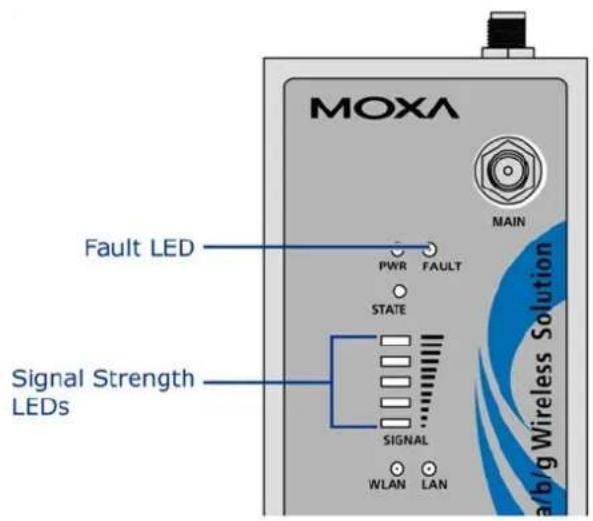

ATTENTION
The FAULT, SIGNAL, STATE and WLAN LEDs lighting up simultaneously and blinking at one second intervals indicates that the system has failed to boot. This may be due to improper operation or an uncontrollable factor, such as an unexpected shutdown during firmware update. Instructions on how to recover the firmware can be found in Appendix B in the "Firmware Recovery" section.
Beeper
The beeper emits two short beeps when the system is ready.
Reset Button
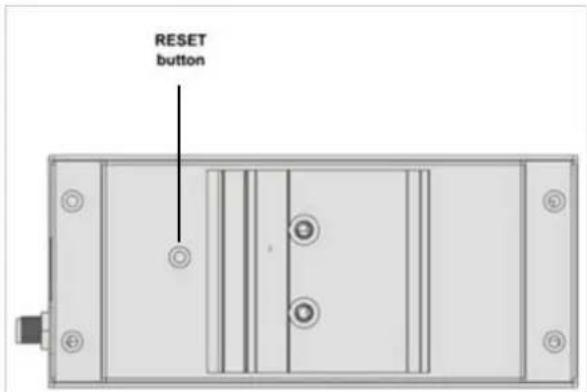
The RESET button is located on the back panel of the AWK-1121/1127. You can reboot the AWK-1121/1127 or reset it to factory default settings by pressing the RESET button with a pointed object such as an unfolded paper clip.
- System reboot: Hold the RESET button down for under 5 seconds and then release.
- Reset to factory defaults: Hold the RESET button down for more than 5 seconds until the STATE LED starts blinking green. Release the button to reset the AWK-1121/1127.
This chapter explains how to install Moxa's AirWorks AWK-1121/1127 for the first time, and quickly set up your wireless network and test whether the connection is running well. The function guide provides a convenient means of determining which functions you need to use.
The following topics are covered in this chapter:
☐ First-time Installation and Configuration
□ Function Map
First-time Installation and Configuration
Before installing the AWK-1121/1127, make sure that all items in the Package Checklist are in the box. You will need access to a notebook computer or PC equipped with an Ethernet port. The AWK-1121/1127 has a default IP address that must be used when connecting to the device for the first time.
- Step 1: Select the power source.
The AWK-1121/1127 may be powered by a DC power input or PoE (Power over Ethernet, PoE model only). - Step 2: Connect the AWK-1121/1127 to a notebook or PC.
Since the AWK-1121/1127 supports MDI/MDI-X auto-sensing, either a straight-through or crossover cable may be used to connect to a computer. The LAN port LED indicator will light up when a connection is established.
- Step 3: Set up the computer's IP address.
Choose an IP address on the same subnet as the AWK-1121/1127. Since the AWK-1121/1127's default IP address is 192.168.127.253, and the subnet mask is 255.255.255.0, you should set the IP address of the computer to 192.168.127.xxx.
NOTE
After you select Maintenance → Load Factory Defaults and click the Activate button, the AWK-1121/1127 will be reset to factory default settings and the IP address will be reset to 192.168.127.253.
- Step 4: Use the web-based manager to configure the AWK-1121/1127
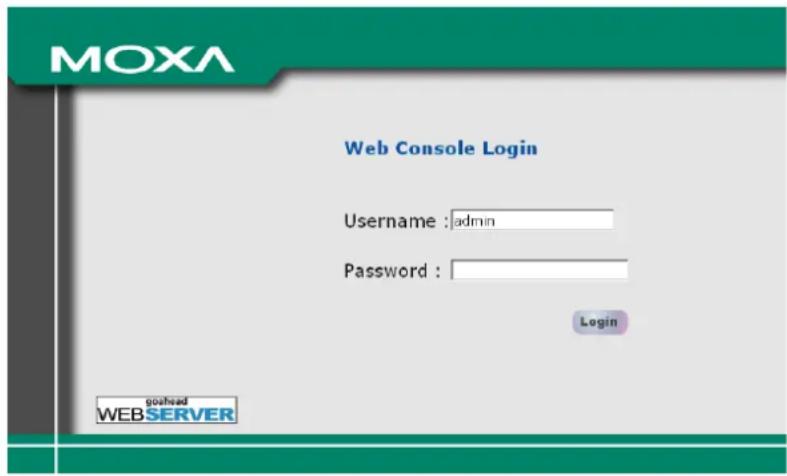
Open your computer's web browser and type http://192.168.127.253 in the address field to access the homepage of the web-based Network Manager. Before the homepage opens, you will need to enter the user name and password as shown in the following figure. For first-time configuration, enter the default user name and password and then click on the Login button:
NOTE
Default user name and password:
User Name: admin
Password: root
For security reasons, we strongly recommend changing the default password. To do so, select Maintenance
→ Password, and then follow the on-screen instructions to change the password.
NOTE
After you click Submit to apply changes the web page will refresh (Updated) will appear on the page and a blinking reminder will be shown on the upper-right corner of the web page:

To activate the changes click Restart and then Save and Restart after you change the settings. About 30 seconds are needed for the AWK-1121/1127 to complete the reboot procedure.
• Step 5: Test communications.
The following section describes one test method that can be used to verify a network connection has been established.
Communication Testing
After installing the AWK-1121/1127 a simple test may be run against an AP to make sure the AWK-1121/1127 has properly established a wireless connection and is functioning normally. In the example below, an AWK-3121 is used as the primary access point.
How to Test an AWK-1121/1127 for Network Connectivity
Connect an AP-configured AWK-3121 (or another access point) to Notebook A. Connect an AWK-1121/1127 to Notebook B. Configure the AWK-1121/1127 and AWK-3121 for the same SSID, and set their IP addresses as below.
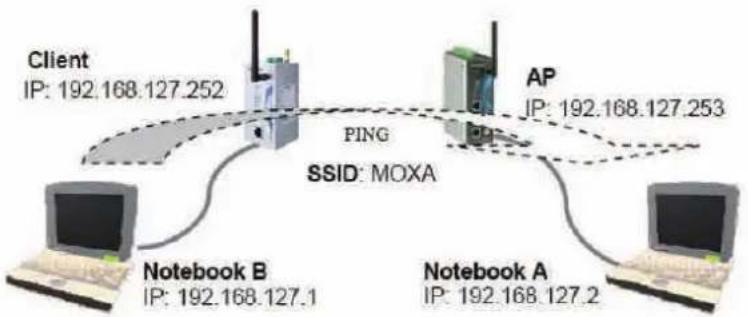
flowchart
graph TD
    Client["Client\nIP: 192.168.127.252"] -->|PING SSID: MOXA| NotebookA["Notebook A\nIP: 192.168.127.2"]
    NotebookA -->|PING SSID: MOXA| NotebookB["Notebook B\nIP: 192.168.127.1"]
    NotebookB -->|PING SSID: MOXA| Client
    NotebookA -->|AP IP: 192.168.127.253| AP
After setting up the testing environment, open a DOS window on notebook B. At the prompt, type:
ping
and then press Enter. A "Reply from IP address ..." response means the communication was successful. A "Request timed out" response means the communication failed. In this case, be sure to first recheck the configuration to make sure the connections are correct.
Function Map
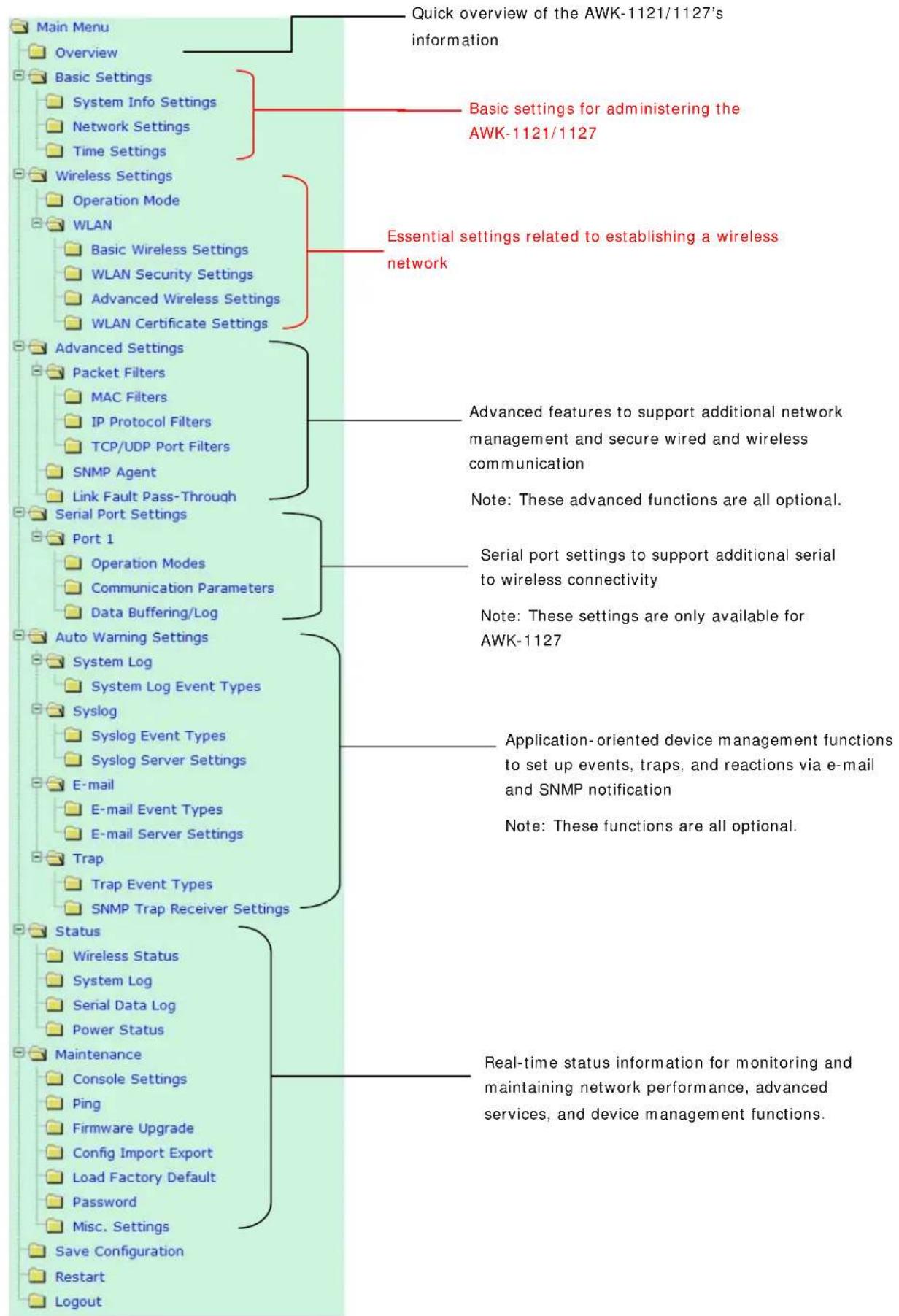
flowchart
graph TD
    A["Main Menu"] --> B["Overview"]
    B --> C["Basic Settings"]
    C --> D["System Info Settings"]
    C --> E["Network Settings"]
    C --> F["Time Settings"]
    A --> G["Wireless Settings"]
    G --> H["Operation Mode"]
    G --> I["WLAN"]
    I --> J["Basic Wireless Settings"]
    I --> K["WLAN Security Settings"]
    I --> L["Advanced Wireless Settings"]
    I --> M["WLAN Certificate Settings"]
    A --> N["Advanced Settings"]
    N --> O["Packet Filters"]
    O --> P["MAC Filters"]
    O --> Q["IP Protocol Filters"]
    O --> R["TCP/UDP Port Filters"]
    O --> S["SNMP Agent"]
    O --> T["Link Fault Pass-Through"]
    A --> U["Serial Port Settings"]
    U --> V["Port 1"]
    U --> W["Operation Modes"]
    U --> X["Communication Parameters"]
    U --> Y["Data Buffering/Log"]
    A --> Z["Auto Warning Settings"]
    Z --> AA["System Log"]
    Z --> AB["System Log Event Types"]
    Z --> AC["Syslog"]
    Z --> AD["Syslog Event Types"]
    Z --> AE["Syslog Server Settings"]
    Z --> AF["E-mail"]
    Z --> AG["E-mail Event Types"]
    Z --> AH["E-mail Server Settings"]
    Z --> AI["Trap"]
    Z --> AJ["Trap Event Types"]
    Z --> AK["SNMP Trap Receiver Settings"]
    A --> AL["Status"]
    AL --> AM["Wireless Status"]
    AL --> AN["System Log"]
    AL --> AO["Serial Data Log"]
    AL --> AP["Power Status"]
    A --> AQ["Maintenance"]
    AQ --> AR["Console Settings"]
    AQ --> AS["Ping"]
    AQ --> AT["Firmware Upgrade"]
    AQ --> AU["Config Import Export"]
    AQ --> AV["Load Factory Default"]
    AQ --> AW["Password"]
    AQ --> AX["Misc. Settings"]
    AQ --> AY["Save Configuration"]
    AQ --> AZ["Restart"]
    AQ --> BA["Logout"]

    B --> BB["Quick overview of the AWK-1121/1127's information"]

    C --> BC["Basic settings for administering the AWK-1121/1127"]

    G --> BD["Essential settings related to establishing a wireless network"]

    N --> BE["Advanced features to support additional network management and secure wired and wireless communication"]

    N --> BF["Note: These advanced functions are all optional."]

    U --> BG["Serial port settings to support additional serial to wireless connectivity"]

    U --> BH["Note: These settings are only available for AWK-1127"]

    Z --> BI["Application-oriented device management functions to set up events, traps, and reactions via e-mail and SNMP notification"]

    Z --> BJ["Note: These functions are all optional."]

    AL --> BK["Real-time status information for monitoring and maintaining network performance, advanced services, and device management functions."]
In this chapter, we explain all aspects of web-based console configuration. Moxa's easy-to-use management functions help you set up your AWK-1121/1127 and make it easy to establish and maintain your wireless network.
The following topics are covered in this chapter:
□ Web Browser Configuration
Overview
□ Basic Settings
System Info Settings
Network Settings
Time Settings
□ Wireless Settings
➢ Operation Mode
WLAN
□ Advanced Settings
Packet Filters
SNMP Agent
➢ Link Fault Pass-Through
☐ Serial Port Settings (AWK-1127 Only)
➢ Operation Modes
➢ Communication Parameters
Data Buffering/Log
□ Auto Warning Settings
System Log
Syslog
E-mail
Trap
□ Status
Wireless Status
System Log
Serial Data Log
Power Status
□ Maintenance
Console Settings
Ping
➢ Firmware Upgrade
➢ Config Import/Export
Loading Factory Defaults
▶ Password
➢ Misc. Settings
□ Save Configuration
□ Restart
□ Logout
Web Browser Configuration
Moxa AWK-1121/1127's web browser interface provides a convenient way to modify its configuration and access the built-in monitoring and network administration functions. The recommended web browser is Microsoft® Internet Explorer with JVM (Java Virtual Machine) installed.
NOTE
To use the AWK-1121/1127's management and monitoring functions from a PC host connected to the same LAN as the AWK-1121/1127, you must make sure that the PC host and the AWK-1121/1127 are on the same logical subnet. Similarly, if the AWK-1121/1127 is configured for other VLAN settings, you must make sure your PC host is on the management VLAN.
The Moxa AWK-1121/1127's default IP is 192.168.127.253.
Follow these steps to access the AWK-1121/1127's web-based console management interface.
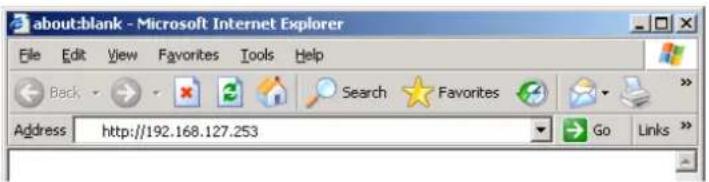
- Open your web browser (e.g., Internet Explorer) and type the AWK-1121/1127's IP address in the address field. Press Enter to establish the connection.
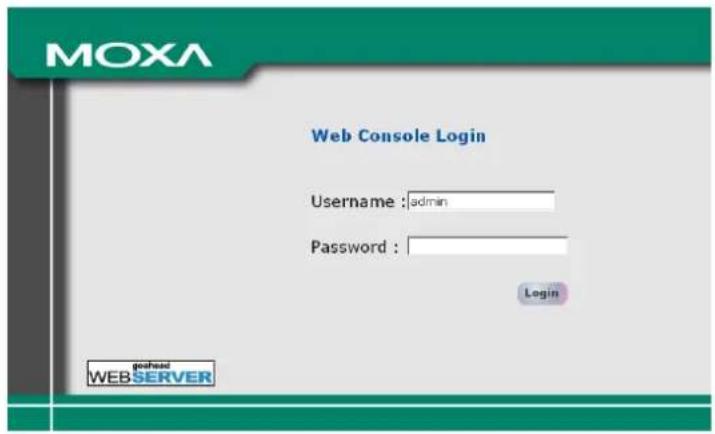
- The Web Console Login page will open. Enter the password (default Username = admin; default Password = root) and then click Login to continue.
- You may need to wait a few moments for the web page to download to your computer. Note that the Model name and IP address of your AWK-1121/1127 are both shown in the title bar of the web page. This information can be used to help you identify multiple AWK-1121/1127 units.
- Use the menu tree on the left side of the window to open the function pages to access each of the AWK-1121/1127's functions.
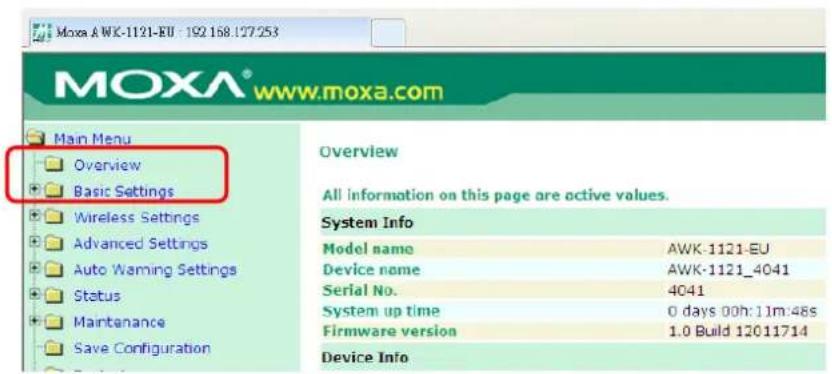
In the following paragraphs, we describe each AWK-1121/1127 management function in detail. A quick overview is available in this manual in the "Function Map" section of Chapter 2.
NOTE
The model name of the AWK-1121/1127 is shown as AWK-1121/1127-XX, where XX indicates the country code. The country code indicates the AWK-1121/1127 version and which bandwidth it uses. We use AWK-1121/1127-EU as an example in the following figures. (The country code and model name that appears on your computer screen may be different than the one shown here.)
NOTE
For security reasons, you will need to log back into the AWK-1121/1127 after a 5-minute time-out.
Overview
The Overview page summarizes the AWK-1121/1127's current status. The information is categorized into several groups: System Info, Device Info, and 802.11 Info.
| Overview | |
| All information on this page are active values. | |
| System Info | |
| Model name | AWK-1121-EU |
| Device name | AWK-1121_4041 |
| Serial No. | 4041 |
| System up time | 0 days 00h:15m:19s |
| Firmware version | 1.0 Build 12011714 |
| Device Info | |
| Device MAC address | 00:90:E8:00:03:46 |
| IP address | 192.168.127.253 |
| Subnet mask | 255.255.255.0 |
| Gateway | |
| 802.11 Info | |
| Country code | EU |
| Operation mode | Client |
| Channel | Not connected |
| RF type | B/G Mixed |
| SSID | MOXA |
Click on SSI D for more detailed 802.11 information, as shown in the following figure.
| Wireless Status | |
| Auto refresh | |
| Show status of WLAN (SSID: MOXA) | |
| 802.11 info | |
| Operation mode | Client |
| Channel | Not connected |
| RF type | B/G Mixed |
| SSID | MOXA |
| Security mode | OPEN |
| Current BSSID | N/A |
| Signal strength | ( -96dBm ) |
| Transmission rate | N/A |
| Transmission power | Full |
Basic Settings
The Basic Settings group includes the most commonly used settings required by administrators to maintain and control the AWK-1121/1127.
System Info Settings
System Info labels (especially Device name) are displayed and included on the Overview page, in SNMP information, and in alarm emails. Giving descriptive, unique labels to items under System Info makes it easier to identify the different AWK-1121/1127 units connected to your network.
System Info Settings
| Device name | AP_011 |
| Device location | Area 32, 5th Floor |
| Device description | No. 11 of ABC supporting system |
| Device contact information | John Davis, sysop@abc.com |
Device name
| Setting | Description | Factory Default |
| Max. 31 of characters | This option is useful for specifying the role or application of different AWK-1121/1127 units. | AWK-1121/1127_<SerialNo. of thisAWK-1121/1127> |
Device location
| Setting | Description | Factory Default |
| Max. of 31 characters | Specifies the location of different AWK-1121/1127 units. | None |
Device description
| Setting | Description | Factory Default |
| Max. of 31 characters | Use this space to record a more detailed description of the AWK-1121/1127 | None |
Device contact information
| Setting | Description | Factory Default |
| Max. of 31 characters | Provides information about whom to contact in order to resolve problems. Use this space to record contact information of the person responsible for maintaining this AWK-1121/1127. | None |
Network Settings
The Network Settings configuration panel allows you to modify the usual TCP/IP network parameters. An explanation of each configuration item is given below.
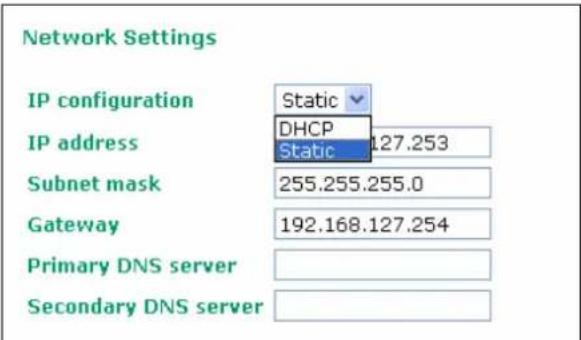
IP configuration
| Setting | Description | Factory Default |
| DHCP | The AWK-1121/1127's IP address will be assigned automatically by the network's DHCP server | Static |
| Static | Set up the AWK-1121/1127's IP address manually. |
IP address
| Setting | Description | Factory Default |
| AWK-1121/1127's IP address | Identifies the AWK-1121/1127 on a TCP/IP network. | 192.168.127.253 |
Subnet mask
| Setting | Description | Factory Default |
| AWK-1121/1127's subnet mask | Identifies the type of network to which the AWK-1121/1127 is connected (e.g., 255.255.0.0 for a Class B network, or 255.255.255.0 for a Class C network). | 255.255.255.0 |
Gateway
| Setting | Description | Factory Default |
| AWK-1121/1127's default gateway | The IP address of the router that connects the LAN to an outside network. | None |
Primary/ Secondary DNS server
| Setting | Description | Factory Default |
| IP address of the Primary/Secondary DNS server | The IP address of the DNS Server used by your network. After entering the DNS Server's IP address, you can input the AWK-1121/1127's URL (e.g., http://ap11.abc.com) in your browser's address field instead of entering the IP address. The Secondary DNS server will be used if the Primary DNS server fails to connect. | None |
Time Settings
The AWK-1121/1127 has a time calibration function based on information from an NTP server or user specified Date and Time information. Functions such as Auto warning can add real-time information to the message.
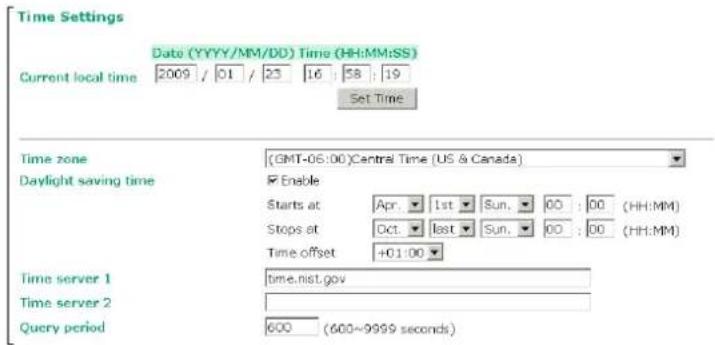
The Current local time shows the AWK-1121/1127's system time when you open this web page. You can click on the Set Time button to activate the updated date and time parameters. An "(Updated)" string will appear to indicate that the change is complete. Local time settings will be immediately activated in the system without running Save and Restart.
NOTE The AWK-1121/1127 has a built-in real time clock (RTC). We strongly recommend that users update the Local time for the AWK-1121/1127 after the initial setup or a long-term shutdown, especially when the network does not have an Internet connection for accessing the NTP server or there is no NTP server on the LAN.
Current local time
| Setting | Description | Factory Default |
| User adjustable time The date and time parameters allow configuration of the local time, with immediate activation.Use 24-hour format: yyyy/mm/dd hh:mm:ss | None |
Time zone
| Setting | Description | Factory Default |
| User selectable time zone | The time zone setting allows conversion from GMT (Greenwich Mean Time) to local time. | GMT (Greenwich Mean Time) |

ATTENTION
Changing the time zone will automatically adjust the Current local time. You should configure the Time zone before setting the Current local time.
Daylight saving time
| Setting | Description | Factory Default |
| Enable/Disable | Daylight saving time (also know as DST or summer time) involves advancing clocks (usually 1 hour) during the summer time to provide an extra hour of daylight in the afternoon. | Disabled |
When Daylight saving time is enabled, the following parameters will be shown:
• Starts at: The date that daylight saving time begins.
- Stops at: The date that daylight saving time ends.
- Time offset: Indicates how many hours forward the clock should be advanced.
Time server 1/2
| Setting | Description | Factory Default |
| IP/Name of Time Server 1/2 | IP or Domain name of the NTP time server. The 2nd NTP server will be used if the 1st NTP server fails to connect. | time.nist.gov |
Query period
| Setting | Description | Factory Default |
| Query period time(1 to 9999 seconds) | This parameter determines how often the time is updated from the NTP server. | 600 (seconds) |
Wireless Settings
The essential settings for wireless networks are presented in this function group. Settings must be properly set before establishing your wireless network. Familiarize yourself with the following terms before starting the configuration process:
The AWK-1121/1127 as a client can be used as an Ethernet-to-wireless (or LAN-to-WLAN) network adapter. For example, a notebook computer equipped with an Ethernet adaptor but no wireless card can be connected to this device with an Ethernet cable to provide wireless connectivity to another AP.
NOTE
Although it is more convenient to use dynamic bridging, there is a limitation—the AP Client can only transmit IP-based packets between its wireless interface (WLAN) and Ethernet interface (LAN); other types of traffic (such as IPX and AppleTalk) are not forwarded.
Operation Mode
The AWK-1121/1127 is a dedicated WLAN client, so its only operation mode is client. Other client-based operation modes may be added in the future firmware releases.
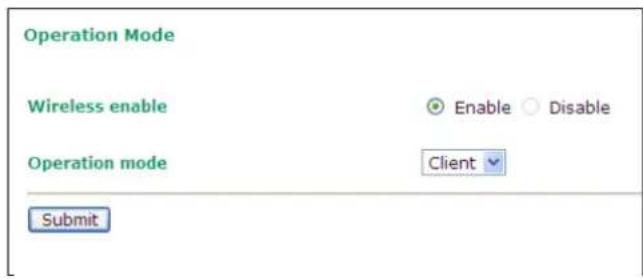
Wireless Enable
| Setting | Description | Factory Default |
| Enable/Disable | The RF (Radio Frequency) module can be manually turned on or off.Note: This function is only available for firmware version 1.2 and above. | Enable |
Operation Mode
| Setting | Description | Factory Default |
| Client | The AWK-1121/1127 only operates as a wireless client. | Client |
W LAN
Basic Wireless Settings
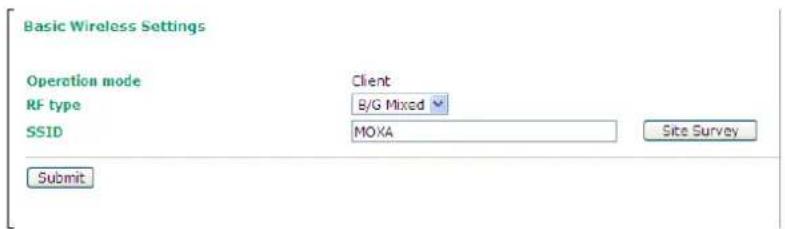
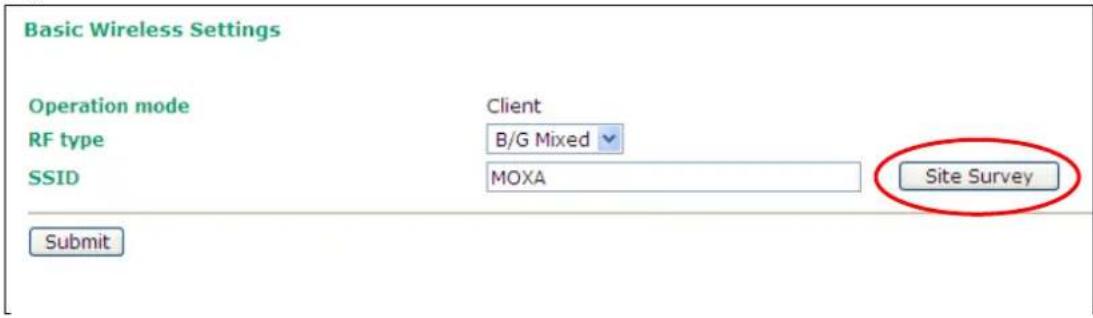
The "WLAN Basic Setting Selection" panel is used to edit SSIDs and set the RF type. The RF type selection will configure the AWK-1121/1127 to either the 2.4GHz or 5GHz frequency band. An SSID is a unique identifier that wireless networking devices use to establish and maintain wireless connectivity. Set the SSID parameter to match that of the APs you wish to connect to, so that the AWK-1121/1127 will associate with network defined by the SSID.
NOTE
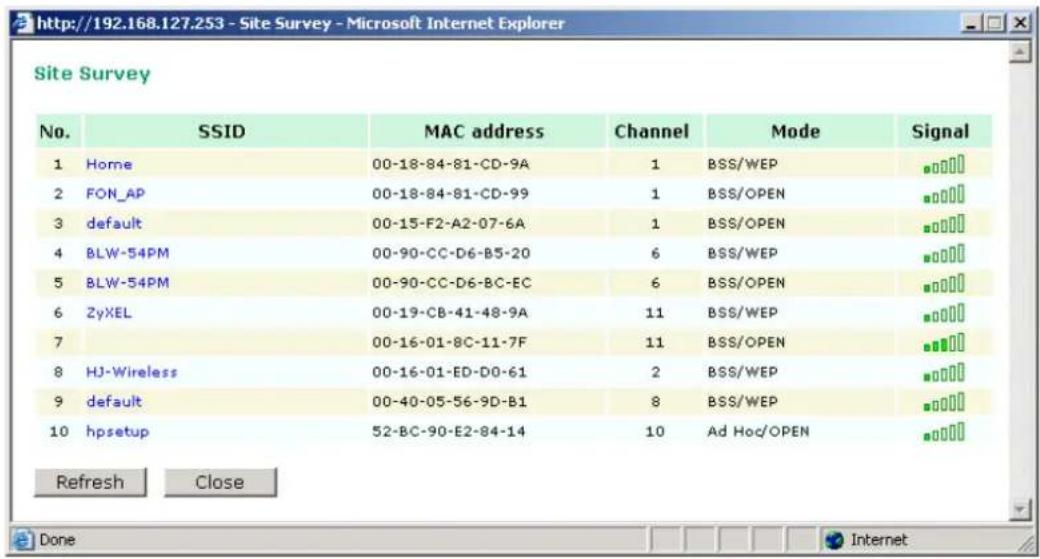
Click the "Site Survey" button to view information about available APs, as shown in the following figure. You can click on the SSID of an entity and bring the value of its SSID onto the SSID field of the Basic Wireless Settings page.
Click the Refresh button to re-scan and update the table.
RF type
| Setting | Description | Factory Default |
| A | Supports IEEE802.11a standard only | B/G Mixed |
| B | Supports IEEE802.11b standard only | |
| G | Supports IEEE802.11g standard only | |
| B/G Mixed | Supports both of IEEE802.11b/g standards, but 802.11g can be slowed down when 802.11b clients are on the network |
SSID
| Setting | Description | Factory Default |
| Max. of 31 characters | The SSID must be identical to the target AP for the client and AP to be able to communicate with each other. | MOXA |
NOTE
The AWK-1121/1127-JP (for Japanese frequency bands) connects only APs with broadcast (i.e: not hidden) SSIDs, in all IEEE802.11a channels and IEEE802.11g channels 1 to 11. The AWK-1121/1127-EU (for European frequency bands) only connects APs with hidden SSIDs in all IEEE802.11b/g channels.
WLAN Security Settings
The AWK-1121/1127 provides four standardized wireless security modes: Open, WEP (Wired Equivalent Privacy), WPA (Wi-Fi Protected Access), and WPA2. Several security modes are available in the AWK-1121/1127 by selecting Security mode and WPA type:
- Open: No authentication, no data encryption.
- WEP: Static WEP (Wired Equivalent Privacy) keys must be configured manually.
- WPA/ WPA2-Personal: Also known as WPA/WPA2-PSK. You will need to specify the Pre-Shared Key in the Passphrase field, which will be used by the TKIP or AES engine as a master key to generate keys that actually encrypt outgoing packets and decrypt incoming packets.
- WPA/ WPA2-Enterprise: Also called WPA/WPA2-EAP (Extensible Authentication Protocol). In addition to device-based authentication, WPA/WPA2-Enterprise enables user-based authentication via IEEE802.1X. The AWK-1121/1127 can support three EAP methods: EAP-TLS, EAP-TTLS, and EAP-PEAP.
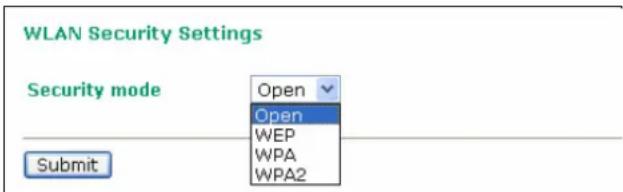
Security mode
| Setting | Description | Factory Default |
| Open No authentication | Open | |
| WEP Static WEP is used | ||
| WPA | Fully supports IEEE802.11i with “TKIP/AES + 802.1X” | |
| WPA2 | Fully supports IEEE802.11i with “TKIP/AES + 802.1X” |
Open
For security reasons, you should NOT set security mode to Open (or "Open System"), since authentication and data encryption are NOT performed in Open (or "Open System") mode.
WEP
According to the IEEE802.11 standard, WEP can be used for authentication and data encryption to maintain confidentiality. Shared (or Shared Key) authentication type is used if WEP authentication and data encryption are both needed. Normally, Open (or Open System) authentication type is used when WEP data encryption is run with authentication.
When WEP is enabled as a security mode, the length of a key (so-called WEP seed) can be specified as 64/128 bits, which is actually a 40/104-bit secret key with a 24-bit initialization vector. The AWK-1121/1127 provides 4 entities of WEP key settings that can be selected to use with Key index. The selected key setting specifies the key to be used as a send-key for encrypting traffic from the AP side to the wireless client side. All 4 WEP keys are used as receive-keys to decrypt traffic from the wireless client side to the AP side.
The WEP key can be presented in two Key types, HEX and ASCII. Each ASCII character has 8 bits, so a 40-bit (or 64-bit) WEP key contains 5 characters, and a 104-bit (or 128-bit) key has 13 characters. In hex, each character uses 4 bits, so a 40-bit key has 10 hex characters, and a 104-bit key has 26 hex characters.
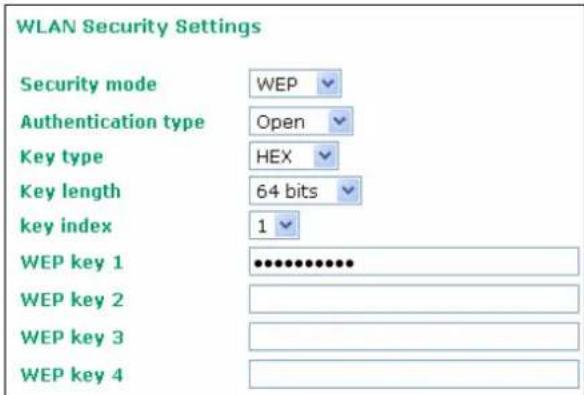
Authentication type
| Setting | Description | Factory Default |
| Open | Data encryption is enabled, but without authentication | Open |
| Shared | Data encryption and authentication are both enabled. |
Key type
| Setting | Description | Factory Default |
| HEX | Specifies WEP keys in hex-decimal number form | HEX |
| ASCII Specifies WEP keys in ASCII form | ||
Key length
| Setting | Description | Factory Default |
| 64 bits | Uses 40-bit secret keys with 24-bit initialization vector | 64 bits |
| 128 bits | Uses 104-bit secret key with 24-bit initialization vector |
Key index
| Setting | Description | Factory Default |
| 1-4 Specifies which WEP key is used 1 | ||
WEP key 1-4
| Setting | Description | Factory Default |
| ASCII type:64 bits: 5 chars128 bits: 13charsHEX type:64 bits: 10 hex chars128 bits: 26 hex chars | A string that can be used as a WEP seed for the RC4 encryption engine. | None |
WPA/ WPA2-Personal
WPA (Wi-Fi Protected Access) and WPA2 represent significant improvements over the WEP encryption method. WPA is a security standard based on 802.11i draft 3, while WPA2 is based on the fully ratified version of 802.11i. The initial vector is transmitted, encrypted, and enhanced with its 48 bits, twice as long as WEP. The key is regularly changed so that true session is secured.
Even though AES encryption is only included in the WPA2 standard, it is widely available in the WPA security mode of some wireless APs and clients as well. The AWK-1121/1127 also supports AES algorithms in WPA and WPA2 for better compatibility.
Personal versions of WPA/WPA2, also known as WPA/WPA-PSK (Pre-Shared Key), provide a simple way of encrypting a wireless connection for high confidentiality. A Passphrase is used as a basis for encryption methods (or cipher types) in a WLAN connection. The passphrases should be complicated and as long as possible. There must be at least 8of ASCII characters in the Passphrase, and it could go up to 63. For security reasons, this passphrase should only be disclosed to users who need it, and it should be changed regularly.
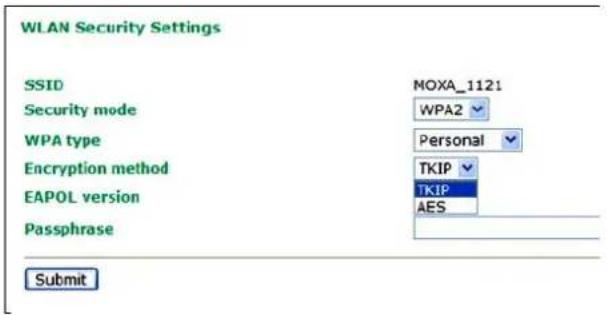
WPA type
| Setting | Description | Factory Default |
| Personal | Provides Pre-Shared Key-enabled WPA and WPA2 | Personal |
| Enterprise | Provides enterprise-level security for WPA and WPA2 |
Encryption method
| Setting | Description | Factory Default |
| TKIP | Temporal Key Integrity Protocol is enabled | TKIP |
| AES Advance Encryption | System is enabled |
EAPOL Version
| Setting | Description | Factory Default |
| 1 EAPOL version 1 was | standardized in the 2001 version of802.1X, which is much more commonly implemented. | 1 |
| 2 | EAPOL version 2 was specified in 802.1X-2004. |
Passphrase
| Setting | Description | Factory Default |
| 8 to 63 characters | Master key to generate keys for encryption and decryption | None |
WPA/ WPA2-Enterprise
When used as a client, the AWK-1121/1127 can support three EAP methods (or EAP protocols): EAP-TLS, EAP-TTLS, and EAP-PEAP, corresponding to WPA/WPA2-Enterprise settings on the AP side.
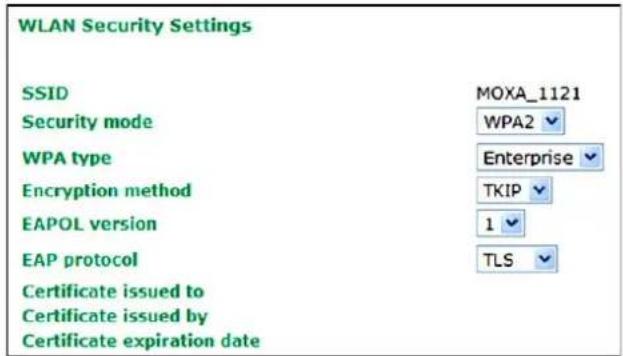
EAP Protocol
| Setting | Description | Factory Default |
| TLS | Specifies Transport Layer Security protocol | TLS |
| TTLS | Specifies Tunneled Transport Layer Security | |
| PEAP | Specifies Protected Extensible Authentication Protocol, or Protected EAP |
Before choosing the EAP protocol for your WPA/WPA2-Enterprise settings on the client end, please contact the network administrator to make sure the system supports the protocol on the AP end. Detailed information on these three popular EAP protocols is presented in the following sections.
EAP-TLS
TLS is the standards-based successor to Secure Socket Layer (SSL). It can establish a trusted communication channel over a distrusted network. TLS provides mutual authentication through certificate exchange. EAP-TLS is also secure to use. You are required to submit a digital certificate to the authentication server for validation, but the authentication server must also supply a certificate.
You can use Basic Wireless Settings → WLAN Certificate Settings to import your WLAN certificate and enable EAP-TLS on the client end.
WLAN Security Settings
SSID
Security mode
WPA type
Encryption method
EAPOL version
EAP protocol
Certificate issued to
Certificate issued by
Certificate expiration date
MOXA_1121
WPA2
Enterprise
TKIP
1
TLS
• Certificate issued to: Shows the certificate user
• Certificate issued by: Shows the certificate issuer
• Certificate expiration date: Indicates when the certificate has expired
EAP-TTLS
It is usually much easier to re-use existing authentication systems, such as a Windows domain or Active Directory, LDAP directory, or Kerberos realm, rather than creating a parallel authentication system. As a result, TTLS (Tunneled TLS) and PEAP (Protected EAP) are used to support the use of so-called “legacy authentication methods.”
TTLS and PEAP work in a similar way. First, they establish a TLS tunnel (EAP-TLS for example), and validate whether the network is trustworthy with digital certificates on the authentication server. This step establishes a tunnel that protects the next step (or "inner" authentication), and consequently is sometimes referred to as "outer" authentication. The TLS tunnel is then used to encrypt an older authentication protocol that authenticates the user for the network.
As you can see, digital certificates are still needed for outer authentication in a simplified form. Only a small number of certificates are required, which can be generated by a small certificate authority. Certificate reduction makes TTLS and PEAP much more popular than EAP-TLS.
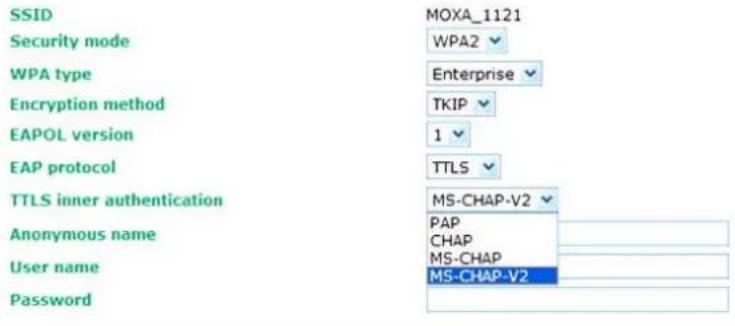
The AWK-1121/1127 provides some non-cryptographic EAP methods, including PAP, CHAP, MS-CHAP, and MS-CHAP-V2. These EAP methods are not recommended for direct use on wireless networks. However, they may be useful as inner authentication methods with TTLS and PEAP.
Because the inner and outer authentications can use distinct user names in TTLS and PEAP, you can use an anonymous user name for the outer authentication, with the true user name only shown through the encrypted channel. Keep in mind that not all client software supports anonymous alteration. Confirm this with the network administrator before you enable identity hiding in TTLS and PEAP.
WLAN Security Settings
Submit
TTLS Inner Authentication
| Setting | Description | Factory Default |
| PAP | Password Authentication Protocol is used | MS-CHAP-V2 |
| CHAP Challenge Handshake Authentication Protocol is used | ||
| MS-CHAP | Microsoft CHAP is used | |
| MS-CHAP-V2 | Microsoft CHAP version 2 is used | |
Anonymous
| Setting | Description | Factory Default |
| Max. of 31 characters | A distinct name used for outer authentication | None |
User name & Password
| Setting | Description | Factory Default |
| User name and password used in inner authentication None | ||
PEAP
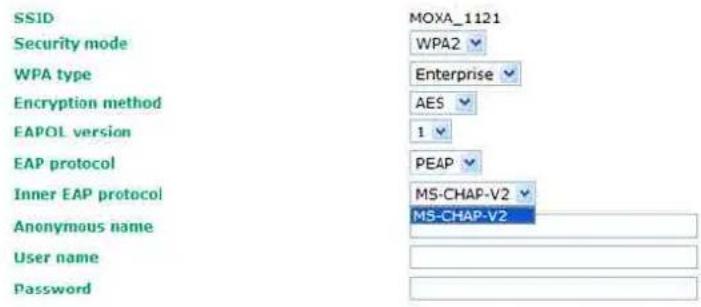
There are a few differences in the TTLS and PEAP inner authentication procedures. TTLS uses the encrypted channel to exchange attribute-value pairs (AVPs), while PEAP uses the encrypted channel to start a second EAP exchange inside of the tunnel. The AWK-1121/1127 provides MS-CHAP-V2 merely as an EAP method for inner authentication.
WLAN Security Settings
Submit
Inner EAP protocol
| Setting | Description | Factory Default |
| MS-CHAP-V2 | Microsoft CHAP version 2 is used | MS-CHAP-V2 |
Anonymous
| Setting | Description | Factory Default |
| Max. of 31 characters | A distinct name used for outer authentication | None |
User name & Password
| Setting | Description | Factory Default |
| User name and password used in inner authentication None | ||
Advanced Wireless Settings
Additional wireless-related parameters are presented in this section to help you set up your wireless network in detail.
Advanced Wireless Settings
| Transmission rate | Auto | |
| Transmission power | Full | |
| Fragmentation threshold | 2346 | (256~2346) |
| RTS threshold | 2346 | (256~2346) |
| Noise protection | Disable | |
| Antenna | Main | |
| WMM | Disable |
Submit
Transmission Rate
| Setting | Description | Factory Default |
| Auto | The AWK-1121/1127 senses and adjusts the data rate automatically | Auto |
| Available rates | Users can manually select a target transmission data rate |
Transmission Power
RF type = B/ G mixed (Channel 1\~14)
| Setting | Description | Factory Default |
| Auto | Equivalent to full Tx power | Full |
| Full | Equivalent to maximum Tx power | |
| High | -4 dB of full Tx power | |
| Medium | -8 dB of full Tx power | |
| Low | -12 dB of full Tx power |
NOTE Tx power at "Full"
- US model: 17 dB
• EU model: 16 dB - JP model: 18 dB
RF type = A (Channel 36 \~ 48)
| Setting | Description | Factory Default |
| Auto | Equivalent to full Tx power | Full |
| Full | Equivalent to full Tx power | |
| High | -4 dB of full Tx power | |
| Medium | -8 dB of full Tx power | |
| Low | -12 dB of full Tx power |
NOTE Tx power at "Full"
- US model: 14 dB
• EU model: 16 dB - JP model: 14 dB
Fragmentation threshold
| Setting | Description | Factory Default |
| Fragment Length(256 to 2346) | Specifies the maximum size a data packet before splitting and creating another new packet | 2346 |
RTS threshold
| Setting | Description | Factory Default |
| RTS/CTS Threshold(256 to 2346) | Determines how large a packet can be before the Access Point coordinates transmission and reception to ensure efficient communication | 2346 |
NOTE You can refer to the related glossaries in Appendix A for detailed information about the above-mentioned settings. By setting these parameters properly, you can better tune the performance of your wireless network.
Noise protection
| Setting | Description | Factory Default |
| Enable/Disable | Adjusts the interference coping capability of the wireless signal. This option should be enabled for communication distance under 500 meters, and should be disabled for communication distances over 500 meters. | Disable |
Antenna
| Setting | Description | Factory Default |
| MAIN | The MAIN antenna is used for wireless communication. | Main |
| AUX The AUX antenna is used for wireless communication. |
Note: For installation flexibility, either the MAIN antenna (on the front panel) or the AUX antenna (on the top panel) may be selected for use. Make sure the antenna connection matches the antenna configured in the AWK-1121/1127 interface.
To protect the connectors and RF module, all radio ports should be terminated by either an antenna or a terminator. The use of the resistive terminator for terminating the unused antenna port is strongly recommended.
WMM
| Setting | Description | Factory Default |
| Enable/Disable WMM is | a QoS standard for WLAN traffic. Voice and video data will be given priority bandwidth when enabled with WMM supported wireless clients. | Disable |
Turbo Roaming (to be supported in firmware version 1.2)
| Setting | Description | Factory Default |
| Enable/Disable | Moxa's Turbo Roaming can enable rapid handover when the AWK-1121/1127, as a client, roams among a group of APs. | Disable |
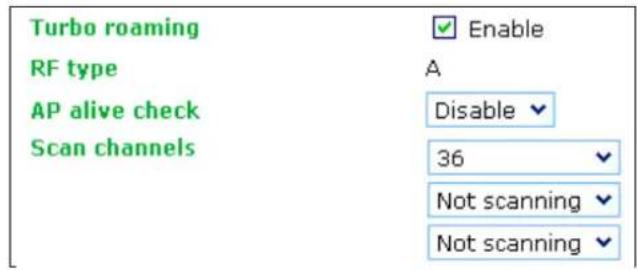
When Turbo Roaming is enabled, the RF type, AP alive check, and Scan channels will be shown as follows. RF type shows the current RF type that this client is using. AP alive check will check if the AP connection is still available. When this function is enabled, a check will be done every 10 ms. You can set up Scan channels for the APs among which this client is going to roam. There are three Scan channels available. Note that the Scan channels may need to be modified when the RF type is changed. (For example, channel 36 is not available in B, G, or B/ G Mix mode.)
WLAN Certification Settings
When EAP-TLS is used, a WLAN Certificate will be required at the client end to support WPA/WPA2-Enterprise. The AWK-1121/1127 can support the PKCS #12, also known as Personal Information Exchange Syntax Standard, certificate formats that define file formats commonly used to store private keys with accompanying public key certificates, protected with a password-based symmetric key.
WLAN Certificate Settings
Current status
Certificate issued to
Certificate issued by
Certificate expiration date
Current Status displays information for the current WLAN certificate, which has been imported into the AWK-1121/1127. Nothing will be shown if a certificate is not available.
Certificate issued to: Shows the certificate user
Certificate issued by: Shows the certificate issuer
Certificate expiration date: Indicates when the certificate has expired
You can import a new WLAN certificate in Import WLAN Certificate by following these steps, in order:
- Input the corresponding password (or key) in the Certificate private password field and then click Submit to set the password.
- The password will be displayed in the Certificate private password field. Click on the Browse button in Select certificate/ key file and select the certificate file.
- Click Upload Certificate File to import the certificate file. If the import succeeds, you can see the information uploaded in Current status. If it fails, you may need to return to step 1 to set the password correctly and then import the certificate file again.
WLAN Certificate Settings
Current status
Certificate issued to
Certificate issued by
Certificate expiration date
Certificate private password
Select certificate/key file
Submit
NOTE The WLAN certificate will remain after the AWK-1121/1127 reboots. Even though it is expired, it can still be seen on the Current status.
Advanced Settings
Several advanced functions are available to increase the functionality of your AWK-1121/1127 and wireless network system. The DHCP server helps you deploy wireless clients efficiently. Packet filters provide security mechanisms, such as firewalls, in different network layers. Moreover, the AWK-1121/1127 supports SNMP, making network management easier.
Packet Filters
The AWK-1121/1127 includes various filters for IP-based packets going through LAN and WLAN interfaces. You can set these filters as a firewall to help enhance network security.
MAC Filter
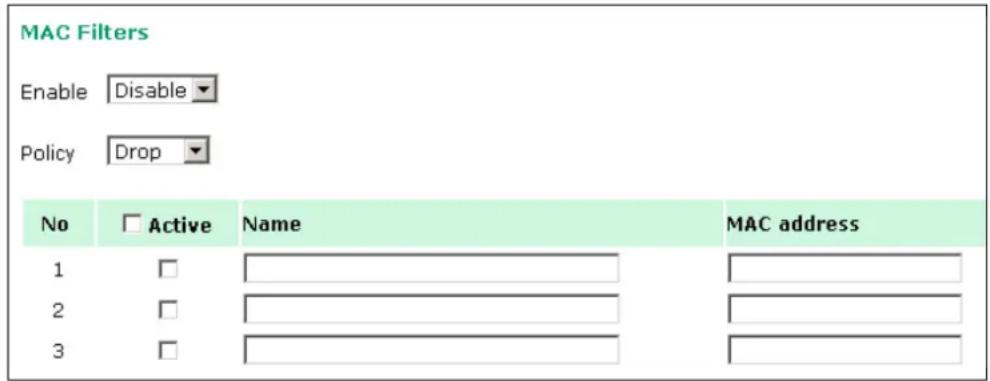
The AWK-1121/1127's MAC filter is a policy-based filter that can allow or filter out IP-based packets with specified MAC addresses. The AWK-1121/1127 provides 8 entities for setting MAC addresses in your filtering policy. Remember to check the Active check box for each entity to activate the setting.
Enable
| Setting | Description | Factory Default |
| Enable | Enables MAC filter | Disable |
| Disable Disables MAC filter | ||
Policy
| Setting | Description | Factory Default |
| Accept | Only the packets fitting the entities on list can be allowed. | Drop |
| Drop Any packet fitting | the entities on list will be denied. |

ATTENTION
Be careful when you enable the filter function:
Drop + "no entity on list is activated" = all packets are allowed
Accept + "no entity on list is activated" = all packets are denied
IP Protocol Filter
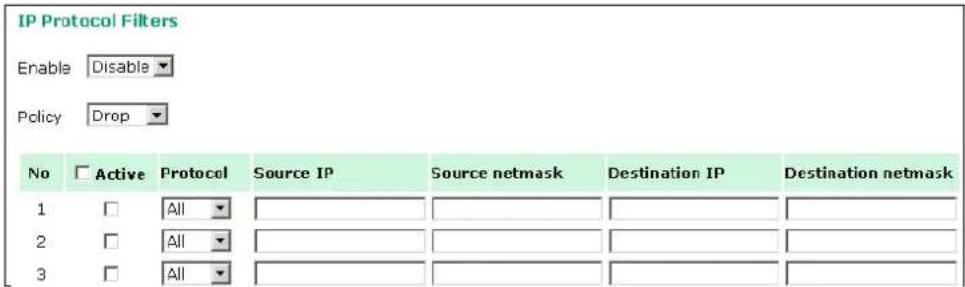
The AWK-1121/1127's IP protocol filter is a policy-based filter that can allow or filter out IP-based packets with specified IP protocol and source/destination IP addresses.
The AWK-1121/1127 provides 8 entities for setting IP protocol and source/destination IP addresses in your filtering policy. Four IP protocols are available: All, ICMP, TCP, and UDP. You must specify either the Source IP or the Destination IP. By combining IP addresses and netmasks, you can specify a single IP address or a range of IP addresses to accept or drop. For example, "IP address 192.168.1.1, netmask 255.255.255.255" refers to a sole IP address, while "IP address 192.168.1.1, netmask 255.255.255.0" refers to the range of IP addresses from 192.168.1.1 to 192.168.254. Remember to check the Active check box for each entity to activate the setting.
Enable
| Setting | Description | Factory Default |
| Enable | Enables IP protocol filter | Disable |
| Disable Disables IP prot | ocol filter |
Policy
| Setting | Description | Factory Default |
| Accept | Only the packets fitting the entities on the list can be allowed | Drop |
| Drop | Any packet fitting the entities on the list will be denied |

ATTENTION
Be careful when you enable the filter function:
Drop + "no entity on list is activated" = all packets are allowed.
Accept + "no entity on list is activated" = all packets are denied.
TCP/ UDP Port Filter
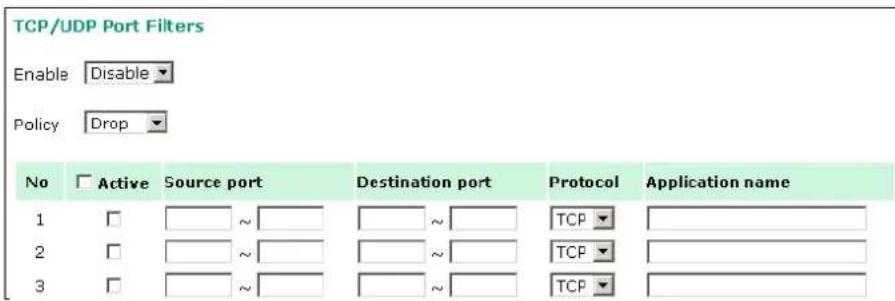
The AWK-1121/1127's TCP/UDP port filter is a policy-based filter that can allow or filter out TCP/UDP-based packets with a specified source or destination port.
The AWK-1121/1127 provides 8 entities for setting the range of source/destination ports of a specific protocol. In addition to selecting TCP or UDP protocol, you can set either the source port, destination port, or both. The end port can be left empty if only a single port is specified. Of course, the end port cannot be larger then the start port.
The Application name is a text string that describes the corresponding entity with up to 31 characters.
Remember to check the Active check box for each entity to activate the setting.
Enable
| Setting | Description | Factory Default |
| Enable | Enables TCP/UDP port filter | Disable |
| Disable | Disables TCP/UDP port filter |
Policy
| Setting | Description | Factory Default |
| Accept | Only the packets fitting the entities on list can be allowed. | Drop |
| Drop Any packet fitting | the entities on list will be denied. |

ATTENTION
Be careful when you enable the filter function:
Drop + "no entity on list is activated" = all packets are allowed
Accept + "no entity on list is activated" = all packets are denied
SNMP Agent
The AWK-1121/1127 supports SNMP V1/V2c/V3. SNMP V1 and SNMP V2c use a community string match for authentication, which means that SNMP servers access all objects with read-only or read/write permissions using the community string public/private (default value). SNMP V3, which requires you to select an authentication level of MD5 or SHA, is the most secure protocol. You can also enable data encryption to enhance data security.
The AWK-1121/1127's MIB can be found in the software CD and supports reading the attributes via SNMP. (Only get method is supported.)
SNMP security modes and security levels supported by the AWK-1121/1127 are shown in the following table. Select the security mode and level that will be used to communicate between the SNMP agent and manager.
| Protocol Version | Setting on UI web page | Authentication Type | Data Encryption | Method |
| SNMP V1, V2c | V1, V2c Read Community | Community string | No | Use a community string match for authentication |
| V1, V2c Write/Read Community | Community string | No | Use a community string match for authentication | |
| SNMP V3 | No-Auth | No | No | Use account with admin or user to access objects |
| MD5 or SHA | Authentication based on MD5 or SHA | No | Provides authentication based on HMAC-MD5, or HMAC-SHA algorithms. 8-character passwords are the minimum requirement for authentication. | |
| MD5 or SHA | Authentication based on MD5 or SHA | Yes | Provides authentication based on HMAC-MD5 or HMAC-SHA algorithms, and data encryption key. 8-character passwords and a data encryption key are the minimum requirements for authentication and encryption. |
The following parameters can be configured on the SNMP Agent page. A more detailed explanation of each parameter is given below the following figure.
SNMP Agent
Enable
Remote management
Read community
Write community
SNMP agent version
Admin authentication type
Admin privacy type
Privacy key
Private MIB information
Device object ID
Disable
Disable
public
private
V1, V2c
No Auth
Disable
enterprise.8691.15.20
Submit
Enable
| Setting | Description | Factory Default |
| Enable | Enables SNMP Agent | Disable |
| Disable Disables SNMP | Agent |
Remote Management
| Setting | Description | Factory Default |
| Enable | Allow remote management via SNMP agent | Disable |
| Disable | Disallow remote management via SNMP agent |
Read community (for V1, V2c)
| Setting | Description | Factory Default |
| V1, V2c Read Community | Use a community string match with a maximum of 31 characters for authentication. This means that the SNMP agent can access all objects with read-only permissions using this community string. | public |
Write community (for V1, V2c)
| Setting | Description | Factory Default |
| V1, V2c Read /Write Community | Use a community string match with a maximum of 31 characters for authentication. This means that the SNMP agent can accesses all objects with read/write permissions using this community string. | private |
SNMP agent version
| Setting | Description | Factory Default |
| V1, V2c, V3, orV1, V2c, orV3 only | Select the SNMP protocol version used to manage the switch. | V1, V2c |
Admin auth type (for V1, V2c, V3, and V3 only)
| Setting | Description | Factory Default |
| No Auth | Use admin account to access objects. No authentication | No Authentication |
| MD5 | Provide authentication based on the HMAC-MD5 algorithms. 8-character passwords are the minimum requirement for authentication. | |
| SHA Provides authentication based on HMAC-SHA algorithms. 8-character passwords are the minimum requirement for authentication. |
Admin private type (for V1, V2c, V3, and V3 only)
| Setting | Description | Factory Default |
| Disable | No data encryption | Disable |
| DES DES-based data encryption | ||
| AES | AES-based data encryption | |
Private key
A data encryption key is the minimum requirement for data encryption (maximum of 63 characters).
Private MIB Information Device Object ID
Also known as OID. This is the AWK-1121/1127's enterprise value. It is fixed.
Link Fault Pass-Through
This function means if Ethernet port is link down, wireless connection will be forced to disconnect. Once Ethernet link is recovered, AWK-1121/1127 will try to connect to AP.
If wireless is disconnected, AWK-1121/1127 restarts auto-negotiation on Ethernet port but always stays in the link failure state. Once the wireless connection is recovered, AWK-1121/1127 will try to recover the Ethernet link.
System log will indicate the link fault pass through events in addition to the original link up/down events.
Link Fault Pass-Through (for Client/Slave mode only)
Link Fault Pass-Through
○ Enable ◦ Disable
Submit
Link Fault Pass-Through
| Setting | Description | Factory Default |
| Enable | Enables Link Fault Pass-Through | Disable |
| Disable | Disable Link Fault Pass-Through |
Serial Port Settings (AWK-1127 Only)
The AWK-1127 not only is capable of bring Ethernet devices onto the WLAN network, it also has a serial port for additional connectivity for serial devices. The AWK support various useful serial operation modes to make connecting to your serial devices much simpler.
Operation Modes
The Operation Modes page for the serial port is where you can configure the serial port operation mode and related settings.
Operation Modes
Serial Operation Mode
Port 1
Application
Mode
alive check time
Application
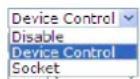
This field specifies what kind application you will be using for this serial port. Depending on the application, different operation modes and related settings will be displayed.
| Setting | Description | Factory Default |
| Disable | This serial port will be disabled. | Disable |
| Device Control | This serial port will be used to control a device using legacy software installed on a Windows, Linux, or UNIX system.Drivers will need to be installed that will allow your software to communicate with the device as if it were physically attached to a local COM or TTY port. You may select between RealCOM and RFC2217 operation modes. | |
| Socket | This serial port will be used for a TCP or UDP socket-based application. You may select between TCP Client, TCP Server, and UDP operation modes. |
Mode
Along with Application, this field specifies the serial port's operation mode, or how it will interact with network devices. Depending on how Application is configured, different options are available for Mode. Depending on how Mode is configured, additional settings will be available for configuration.
| Setting | Description | Factory Default |
| RealCOM | This serial port will operate in RealCOM mode. | (depends on Application) |
| RFC2217 This serial port will operate in RFC2217 mode. | ||
| TCP Server | This serial port will operate in TCP Server mode. | |
| TCP Client This serial port will operate in TCP Client mode. | ||
| UDP This serial port will operate in UDP mode. |
RealCOM Mode
RealCOM mode is designed to work with AWK drivers that are installed on a network host. COM drivers are provided for Windows systems, and TTY drivers are provided for Linux and UNIX systems. The driver establishes a transparent connection to the attached serial device by mapping a local serial port to the AWK-1127 serial port. RealCOM mode supports up to four simultaneous connections, so multiple hosts can collect data from the attached device at the same time.
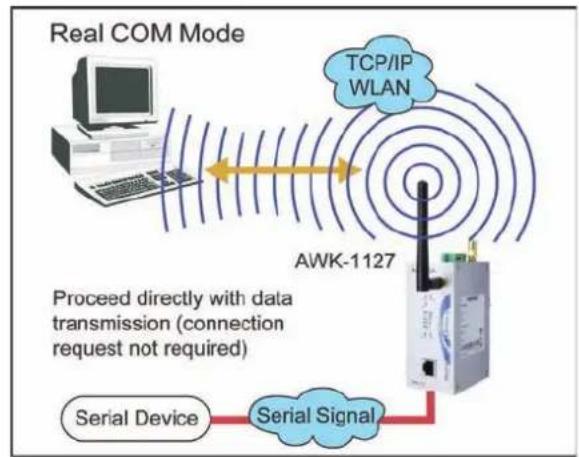
flowchart
graph TD
    A["Real COM Mode"] --> B["AWK-1127"]
    B --> C["Serial Device"]
    C --> D["Serial Signal"]
    D --> E["TCP/IP WLAN"]
    style A fill:#f9f,stroke:#333
    style B fill:#ccf,stroke:#333
    style C fill:#cfc,stroke:#333
    style D fill:#fcc,stroke:#333
    note right of A: Proceed directly with data transmission (connection request not required)

ATTENTION
RealCOM drivers are installed and configured through OnCell Windows Driver Manager.
RealCOM mode allows you to continue using your serial communications software to access devices that are now attached to your AWK-1127. On the host, the AWK RealCOM driver automatically intercepts data sent to the COM port, packs it into a TCP/IP packet, and redirects it to the network. At the other end of the connection, the AWK-1127 accepts the Ethernet frame, unpacks the TCP/IP packet, and sends the serial data to the appropriate device.

ATTENTION
In RealCOM mode, two hosts can have simultaneous access control over the AWK-1127 serial port.
Operation Modes
Port 1
Application
Mode
TCP alive check time
Max connection
Ignore jammed IP
Allow driver control
Connection goes down
Device Control
RealCOM
7 (0 - 99 min)
2
Enable Disable
Enable Disable
RTS always low always High
DTR always low always High
Data Packing
Packing length
Delimiter 1
Delimiter 2
Delimiter process
Force transmit
0 (0 - 1024)
0A (Hex) Enable
A0 (Hex) Enable
Do Nothing ▼ (Processed only when Packing length is 0)
0 (0 - 65535 ms)
When Mode is set to RealCOM on a serial port's Operation Modes page, you will be able to configure additional settings such as TCP alive check time, Max connection, and Ignore jammed IP.
TCP Alive Check Time
| Setting | Description | Factory Default |
| 0 to 99 min. | This field specifies how long the AWK-1127 will wait for a response to “keep alive” packets before closing the TCP connection. The AWK-1127 checks connection status by sending periodic “keep alive” packets.0: The TCP connection will remain open even if there is no response to the “keep alive” packets.1 to 99: If the remote host does not respond to the packet within the specified time, the AWK-1127 will force the existing TCP connection to close. | 7 min. |
Max Connection
This field specifies the maximum number of connections that will be accepted by the serial port.
| Setting | Description | Factory Default |
| 1 or 2 | 1: Only one specific host can access this serial port, and the RealCOM driver on that host will have full control over the port.2: This serial port will allow the two connections to be opened simultaneously. With simultaneous connections, the RealCOM driver will only provide a pure data tunnel with no control ability. The serial communication will be determined by the AWK-1127 rather than by your application program.Application software that is based on the RealCOM driver will receive a driver response of “success” when using any of the Win32 API functions. The AWK-1127 will send data only to the RealCOM driver on the host. Data received from hosts will be sent to the attached serial device on a first-in-first-out basis. | 1 |

ATTENTION
When Max connection is 2, the serial port's communication settings (i.e., baudrate, parity, data bits, etc.) will be determined by the AWK-1127. Any host that opens the COM port connection must use identical serial communication settings.
Ignore Jammed IP
This field specifies how an unresponsive IP address is handled when there are simultaneous connections to the serial port.
| Setting | Description | Factory Default |
| Disable | All transmission will be suspended if one IP address becomes unresponsive. Transmission will only resume when all hosts have responded. | Disable |
| Enable | Data transmission to the other hosts will not be suspended if one IP address becomes unresponsive. |
Allow Driver Control
This field specifies how the port will proceed if driver control commands are received from multiple hosts that are connected to the port.
| Setting | Description | Factory Default |
| Disable | Driver control commands will be ignored. | Disable |
| Enable Control commands will be accepted, with the most recent command received taking precedence. |
Connection Goes Down
This field specifies what happens to the RTS and DTR signals when the Ethernet connection goes down. For some applications, serial devices need to know the Ethernet link status through RTS or DTR signals sent through the serial port.
| Setting | Description | Factory Default |
| always low | The selected signal will change to low when the Ethernet connection goes down. | always high |
| always high The selected | signal will remain high when the Ethernet connection goes down. |
Packet Length
This field specifies the maximum amount of data that is allowed to accumulate in the serial port buffer before sending.
| Setting | Description | Factory Default |
| 0 to 1024 | 0: Packet length is disregarded and data in the buffer will be sent as specified by the delimiter settings or when the buffer is full.1 to 1024: Data in the buffer will be sent as soon it reaches the specified length. | 0 |
Delimiter 1 and 2
These fields are used to define special delimiter character(s) for data packing. Enable Delimiter 1 to control data packing with a single character; enable both Delimiter 1 and 2 to control data packing with two characters received in sequence.
| Setting | Description | Factory Default |
| Enable | When these fields are enabled, serial data will accumulate in the serial port's buffer until the buffer is full or until the specified delimiter character(s) are received. For example, the carriage return character could be used as a delimiter in order to transmit each sentence or paragraph in a separate packet. Data will be packed according to Delimiter process.Delimiters must be incorporated into the data stream at the software or device level. The Delimiter value can be set ranging from 00 to FF. | Unchecked |

ATTENTION
When Delimiter 1 is enabled, Packet length must be set to 0.
Delimiter Process
This field specifies how data is packed when delimiter characters are received. This field has no effect if Delimiter 1 is not enabled.
| Setting | Description | Factory Default |
| Do Nothing | Data accumulated in the serial port's buffer will be packed, including delimiters. | Do Nothing |
| Delimiter + 1 | One additional character must be received before the data in the serial port's buffer is packed. | |
| Delimiter + 2 | Two additional characters must be received before the data in the serial port's buffer is packed. | |
| Strip Delimiter | Data accumulated in the serial port's buffer will be packed, but the delimiter character(s) will be stripped from the data. |
Force Transmit
This field controls data packing by the amount of time that elapses between bits of data. When using this field, make sure that Inactivity time is disabled or set to a larger value. Otherwise the connection may be closed before the data in the buffer can be transmitted.
| Setting | Description | Factory Default |
| 0 to 65535 | 0: If serial data is received, setting this value to 0 means no data will be buffered and all data will be transmitted immediately as received.1 to 65535: If serial data is not received for the specified amount of time, the data that is currently in the buffer will be packed for network transmission. The optimal force transmit time depends on your application, but it must be at least larger than one character interval within the specified baudrate. For example, assume that the serial port is set to 1200 bps, 8 data bits, 1 stop bit, and no parity. In this case, the total number of bits needed to send a character is 10 bits, and the time required to transfer one character is 8.3 ms, so the force transmit time to be larger than 8.3 ms. | 0 ms |
RFC2217 Mode
RFC2217 mode is similar to RealCOM mode, since it relies on a driver to transparently map a virtual COM port on a host computer to a serial port on the AWK-1127. The RFC2217 standard defines general COM port control
options based on the Telnet protocol and supports one connection at a time. Third party drivers supporting RFC2217 are widely available on the Internet and can be used to implement virtual COM mapping.
Operation Modes
Serial Operation Mode
Port 1
Application
Mode
alive check time
TCP port
Device Control
RFC2217
7 (0 - 99 min)
4001
Data Packing
Packing length
Delimiter 1
Delimiter 2
Delimiter
Force transmit
0 [0 - 1024]
00 (Hex) □ Enable
00 (Hex) □ Enable
Do Nothing ▼ (Processed only when Packing length is 0)
0 (0 - 65535 ms)
Submit
When Mode is set to RFC2217 on a serial port's Operation Modes page, you will be able to configure additional settings such as TCP alive check time, TCP port, and Packet length.
TCP Alive Check Time
| Setting | Description | Factory Default |
| 0 to 99 min. | This field specifies how long the AWK will wait for a response to “keep alive” packets before closing the TCP connection. The AWK-1127 checks connection status by sending periodic “keep alive” packets.0: The TCP connection will remain open even if there is no response to the “keep alive” packets.1 to 99: If the remote host does not respond to the packet within the specified time, the AWK-1127 will force the existing TCP connection to close. | 7 min. |
TCP Port
| Setting | Description | Factory Default |
| 0 to 9999 | This field specifies the TCP port number that the serial port will use to listen to connections, and that other devices must use to contact the serial port. | 4001 |
Packet Length
| Setting | Description | Factory Default |
| 0 to 1024 | This field specifies the maximum amount of data that is allowed to accumulate in the serial port buffer before sending.0: Packet length is disregarded and data in the buffer will be sent as specified by the delimiter settings or when the buffer is full.1 to 1024: Data in the buffer will be sent as soon it reaches the specified length. | 0 |
Delimiter 1 and 2
| Setting | Description | Factory Default |
| Enable | When these fields are enabled, serial data will accumulate in the serial port's buffer until the buffer is full or until the specified delimiter character(s) are received. For example, thecarriage return character could be used as a delimiter in order to transmit each sentence or paragraph in a separate packet. Data will be packed according to Delimiter process. Delimiters must be incorporated into the data stream at the software or device level. The Delimiter value can be set ranging from 00 to FF. | Unchecked |

ATTENTION
When Delimiter 1 is enabled, Packet length must be set to 0.
Delimiter Process
This field specifies how data is packed when delimiter characters are received. This field has no effect if Delimiter 1 is not enabled.
| Setting | Description | Factory Default |
| Do Nothing | Data accumulated in the serial port's buffer will be packed, including delimiters. | Do Nothing |
| Delimiter + 1 | One additional character must be received before the data in the serial port's buffer is packed. | |
| Delimiter + 2 | Two additional characters must be received before the data in the serial port's buffer is packed. | |
| Strip Delimiter | Data accumulated in the serial port's buffer will be packed, but the delimiter character(s) will be stripped from the data. |
Force Transmit
| Setting | Description | Factory Default |
| 0 to 65535 | This field controls data packing by the amount of time that elapses between bits of data. When using this field, make sure that Inactivity time is disabled or set to a larger value.Otherwise the connection may be closed before the data in the buffer can be transmitted.0: If serial data is received, setting this value to 0 means no data will be buffered and all data will be transmitted immediately as received.1 to 65535: If serial data is not received for the specified amount of time, the data that is currently in the buffer will be packed for network transmission. The optimal force transmit time depends on your application, but it must be at least larger than one character interval within the specified baudrate. For example, assume that the serial port is set to 1200 bps, 8 data bits, 1 stop bit, and no parity. In this case, the total number of bits needed to send a character is 10 bits, and the time required to transfer one character is 8.3 ms, so the force transmit time to be larger than 8.3 ms. | 0 ms |
TCP Server Mode
In TCP Server mode, the AWK-1127 serial port is assigned an IP:port address that is unique on your TCP/IP network. It waits for the host computer to establish a connection to the attached serial device. This operation mode also supports up to four simultaneous connections, so multiple hosts can collect data from the attached device at the same time.
Data transmission proceeds as follows:
- A host requests a connection to the AWK-1127 serial port.
- Once the connection is established, data can be transmitted in both directions—from the host to the device, and from the device to the host.
Operation Modes
Serial Operation Mode
Port 1
| Application | Socket |
| Mode | TCP Server |
| alive check time | 7 (0 - 99 min) |
| Max connection | 1 |
| Ignore jammed IP | Enable Disable |
| Allow driver control | Enable Disable |
| TCP port | 4001 |
| Cmd port | 966 |
| Connection goes down | RTS always low always HighDTR always low always High |
| Data Packing | |
| Packing length | 0 (0 - 1024) |
| Delimiter 1 | 00 (Hex) Enable |
| Delimiter 2 | 00 (Hex) Enable |
| Delimiter | Do Nothing (Processed only when Packing length is 0) |
| Force transmit | 0 (0 - 65535 ms) |
Submit
When Mode is set to TCP Server on a serial port's Operation Modes page, you will be able to configure additional settings such as TCP alive check time, Inactivity time, and Max connection.
TCP Alive Check Time
| Setting | Description | Factory Default |
| 0 to 99 min. | This field specifies how long the AWK-1127 will wait for a response to “keep alive” packets before closing the TCP connection. The AWK-1127 checks connection status by sending periodic “keep alive” packets.0: The TCP connection will remain open even if there is no response to the “keep alive” packets.1 to 99: If the remote host does not respond to the packet within the specified time, the AWK will force the existing TCP connection to close. | 7 min. |
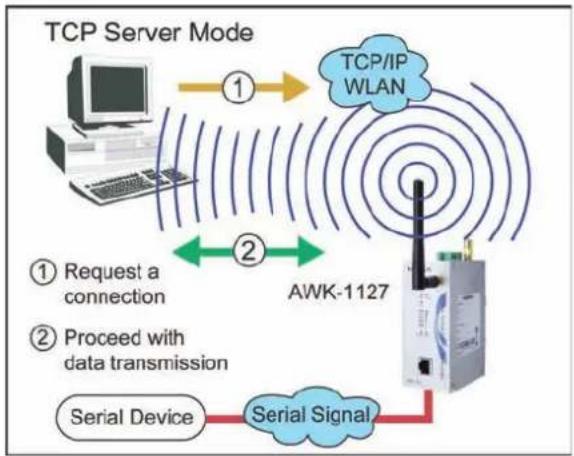
flowchart
graph TD
    A["TCP Server Mode"] -->|① Request a connection| B["AWK-1127"]
    B -->|② Proceed with data transmission| C["Serial Device"]
    C --> D["Serial Signal"]
    D -->|② Data transmission links| B
    B --> E["TCP/IP WLAN"]
Inactivity Time
| Setting | Description | Factory Default |
| 0 to 65535 ms | This field specifies the time limit for keeping the connection open if no data flows to or from the serial device.0: The connection will remain open even if data is never received. For many applications, the serial device may be idle for long periods of time, so 0 is an appropriate setting.1 to 65535: If there is no activity for the specified time, the connection will be closed. When adjusting this field, make sure that it is greater than the Force transmit time. Otherwise, the TCP connection may be closed before data in the buffer can be transmitted. | 0 ms |
Max Connection
| Setting | Description | Factory Default |
| 1 to 2 | This field specifies the maximum number of connections that will be accepted by the serial port.1: Only a single host may open the TCP connection to the serial port.2: This serial port will allow the specified number of connections to be opened simultaneously. When multiple connections are established, serial data will be duplicated and sent to all connected hosts. Data from hosts will be sent to the attached serial device on a first-in-first-out basis. | 1 |
Ignore Jammed IP
This field specifies how an unresponsive IP address is handled when there are simultaneous connections to the serial port.
| Setting | Description | Factory Default |
| Disable | All transmission will be suspended if one IP address becomes unresponsive. Transmission will only resume when all hosts have responded. | Disable |
| Enable | Data transmission to the other hosts will not be suspended if one IP address becomes unresponsive. |
Allow Driver Control
This field specifies how the port will proceed if driver control commands are received from multiple hosts that are connected to the port.
| Setting | Description | Factory Default |
| Disable | Driver control commands will be ignored. | Disable |
| Enable Control commands will be accepted, with the most recent command received taking precedence. |
TCP Port
| Setting | Description | Factory Default |
| 0 to 9999 This field specifies the TCP port number that the serial port will use to listen to connections, and that other devices must use to contact the serial port. | 4001 |
Cmd Port
| Setting | Description | Factory Default |
| 0 to 9999 | This field specifies the TCP port number for listening to SSDK commands from the host. | 966 |
Connection Goes Down
This field specifies what happens to the RTS and DTR signals when the Ethernet connection goes down. For some applications, serial devices need to know the Ethernet link status through RTS or DTR signals sent through the serial port.
| Setting | Description | Factory Default |
| always low | The selected signal will change to low when the Ethernet connection goes down. | always high |
| always high The selected | signal will remain high when the Ethernet connection goes down. |
Packet Length
| Setting | Description | Factory Default |
| 0 to 1024 | This field specifies the maximum amount of data that is allowed to accumulate in the serial port buffer before sending.0: Packet length is disregarded and data in the buffer will be sent as specified by the delimiter settings or when the buffer is full.1 to 1024: Data in the buffer will be sent as soon it reaches the specified length. | 0 |
Delimiter 1 and 2
| Setting | Description | Factory Default |
| Enable | These fields are used to define special delimiter character(s) for data packing. Enable Delimiter 1 to control data packing with a single character; enable both Delimiter 1 and 2 to control data packing with two characters received in sequence.When these fields are enabled, serial data will accumulate in the serial port's buffer until the buffer is full or until the specified delimiter character(s) are received. For example, the carriage return character could be used as a delimiter in order to transmit each sentence or paragraph in a separate packet. Data will be packed according to Delimiter process.Delimiters must be incorporated into the data stream at the software or device level. | Unchecked |

ATTENTION
When Delimiter 1 is enabled, Packet length must be set to 0.
Delimiter Process
This field specifies how data is packed when delimiter characters are received. This field has no effect if Delimiter 1 is not enabled.
| Setting | Description | Factory Default |
| Do Nothing | Data accumulated in the serial port's buffer will be packed, including delimiters. | Do Nothing |
| Delimiter + 1 | One additional character must be received before the data in the serial port's buffer is packed. | |
| Delimiter + 2 | Two additional characters must be received before the data in the serial port's buffer is packed. | |
| Strip Delimiter | Data accumulated in the serial port's buffer will be packed, but the delimiter character(s) will be stripped from the data. |
Force Transmit
| Setting | Description | Factory Default |
| 0 to 65535 | This field controls data packing by the amount of time that elapses between bits of data. When using this field, make sure that Inactivity time is disabled or set to a larger value.Otherwise the connection may be closed before the data in the buffer can be transmitted.0: If serial data is received, setting this value to 0 means no data will be buffered and all data will be transmitted immediately as received.1 to 65535: If serial data is not received for the specified amount of time, the data that is currently in the buffer will be packed for network transmission. The optimal force transmit time depends on your application, but it must be at least larger than one character interval within the specified baudrate. For example, assume that the serial port is set to 1200 bps, 8 data bits, 1 stop bit, and no parity. In this case, the total number of bits needed to send a character is 10 bits, and the time required to transfer one character is 8.3 ms, so the force transmit time to be larger than 8.3 ms. | 0 ms |
TCP Client Mode
In TCP Client mode, the AWK-1127 actively establishes a TCP connection to a specific network host when data is received from the attached serial device. After the data has been transferred, the AWK-1127 can automatically disconnect from the host computer through the Inactivity time settings.
Data transmission proceeds as follows:
- The AWK-1127 requests a connection from the host.
- The connection is established and data can be transmitted in both directions between the host and device.
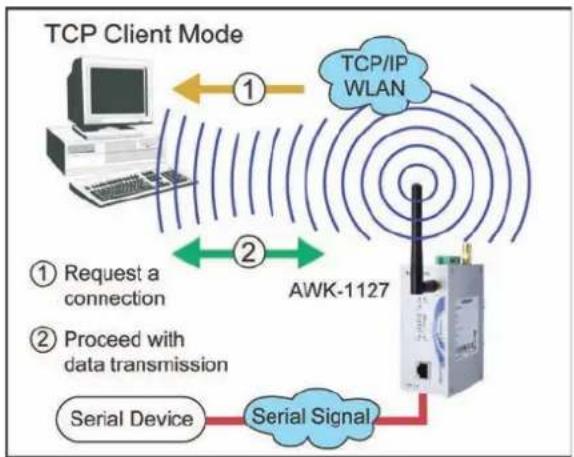
flowchart
graph TD
    A["TCP Client Mode"] -->|① Request a connection| B["AWK-1127"]
    B -->|② Proceed with data transmission| C["Serial Device"]
    C --> D["Serial Signal"]
    D --> E["TCP/IP WLAN"]
    E --> A
Operation Modes
Serial Operation Mode
Port 1
Application
Mode
alive check time
Inactivity time
Ignore jammed IP
Allow driver control
Destination address 1
Destination address 2
Destination address 3
Destination address 4
Designated local port 1
Designated local port 2
Designated local port 3
Designated local port 4
Connection control
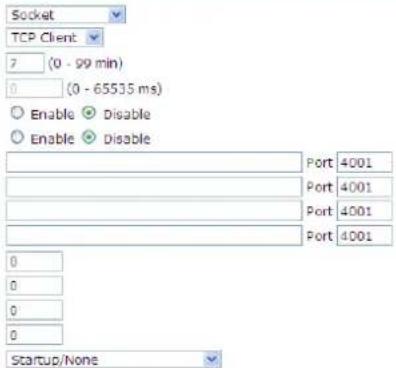
Data Packing
Packing length
Delimiter 1
Delimiter 2
Delimiter
Force transmit
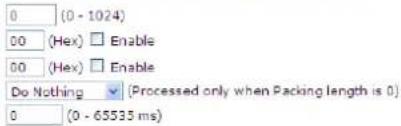
Submit
When Mode is set to TCP Client on a serial port's Operation Modes page, you will be able to configure additional settings such as TCP alive check time, Inactivity time, and Ignore jammed IP.
TCP Alive Check Time
| Setting | Description | Factory Default |
| 0 to 99 min. | This field specifies how long the AWK-1127 will wait for a response to “keep alive” packets before closing the TCP connection. The AWK-1127 checks connection status by sending periodic “keep alive” packets.0: The TCP connection will remain open even if there is no response to the “keep alive” packets.1 to 99: If the remote host does not respond to the packet within the specified time, the AWK-1127 will force the existing TCP connection to close. | 7 min. |
Inactivity Time
| Setting | Description | Factory Default |
| 0 to 65535 ms | This field specifies the time limit for keeping the connection open if no data flows to or from the serial device.0: The connection will remain open even if data is never received. For many applications, the serial device may be idle for long periods of time, so 0 is an appropriate setting.1 to 65535: If there is no activity for the specified time, the connection will be closed. When adjusting this field, make sure that it is greater than the Force transmit time. Otherwise, the TCP connection may be closed before data in the buffer can be transmitted. Connection Control must be set to “Any character/Inactivity time” for this setting to have effect. | 0 ms |
Ignore Jammed IP
| Setting | Description | Factory Default |
| Disable | All transmission will be suspended if one IP address becomes unresponsive. Transmission will only resume when all hosts have responded. | Disable |
| Enable | Data transmission to the other hosts will not be suspended if one IP address becomes unresponsive. |
This field specifies how an unresponsive IP address is handled when there are simultaneous connections to the serial port.
Destination Address 1 to 4
| Setting | Description | Factory Default |
| IP address and port (e.g., “192.168.1.1” and “4001”) | This field specifies the remote host(s) that will access the attached device. At least one destination must be provided. This field supports the use of domain names and names defined in the host table. | IP Address: Empty Port: 4001 |

ATTENTION
In TCP Client mode, up to 4 connections can be established between the serial port and TCP hosts. The connection speed or throughput may be low if any one of the four connections is slow, since the one slow connection will slow down the other 3 connections.
Designated Local Port 1 to 4
| Setting | Description | Factory Default |
| 1 to 65535 | This field specifies the TCP port number that will be used for data transmission with the serial port. | 0 |
Connection Control
This field specifies how connections to the device are established and closed.
| Setting | Description | Factory Default |
| Startup/None | The connection will be opened as the AWK-1127 starts up. The connection will only be closed manually. | Startup/None |
| Any Character/None | The connection will be opened as soon as a character is received from the attached device. The connection will only be closed manually. | |
| Any Character/Inactivity Time | The connection will be opened as soon as a character is received from the attached device. The connection will be closed if no data is received for the time specified in Inactivity time. | |
| DSR On/DSR Off | The TCP connection is opened when the DSR signal is on, and closed when the DSR signal is off. | |
| DSR On/None | The TCP connection is opened when the DSR signal is on. The connection will only be closed manually. | |
| DCD On/DCD Off | The TCP connection is opened when the DCD signal is on, and closed when the DCD signal is off. | |
| DCD On/None | The TCP connection is opened when the DCD signal is on. The connection will only be closed manually. |
Packet Length
| Setting | Description | Factory Default |
| 0 to 1024 | This field specifies the maximum amount of data that is allowed to accumulate in the serial port buffer before sending.0: Packet length is disregarded and data in the buffer will be sent as specified by the delimiter settings or when the buffer is full.1 to 1024: Data in the buffer will be sent as soon it reaches the specified length. | 0 |
Delimiter 1 and 2
| Setting | Description | Factory Default |
| Enable | These fields are used to define special delimiter character(s) for data packing. Enable Delimiter 1 to control data packing with a single character; enable both Delimiter 1 and 2 to control data packing with two characters received in sequence.When these fields are enabled, serial data will accumulate in the serial port's buffer until the buffer is full or until the specified delimiter character(s) are received. For example, the carriage return character could be used as a delimiter in order to transmit each sentence or paragraph in a separate packet. Data will be packed according to Delimiter process.Delimiters must be incorporated into the data stream at the software or device level. | Unchecked |

ATTENTION
When Delimiter 1 is enabled, Packet length must be set to 0.
Delimiter Process
This field specifies how data is packed when delimiter characters are received. This field has no effect if Delimiter 1 is not enabled.
| Setting | Description | Factory Default |
| Do Nothing Data accumulated in the serial port's buffer will be packed, including delimiters. | Do Nothing | |
| Delimiter + 1 | One additional character must be received before the data in the serial port's buffer is packed. | |
| Delimiter + 2 | Two additional characters must be received before the data in the serial port's buffer is packed. | |
| Strip Delimiter | Data accumulated in the serial port's buffer will be packed, but the delimiter character(s) will be stripped from the data. | |
Force Transmit
| Setting | Description | Factory Default |
| 0 to 65535 | This field controls data packing by the amount of time that elapses between bits of data. When using this field, make sure that Inactivity time is disabled or set to a larger value.Otherwise the connection may be closed before the data in the buffer can be transmitted.0: If serial data is received, setting this value to 0 means no data will be buffered and all data will be transmitted immediately as received.1 to 65535: If serial data is not received for the specified amount of time, the data that is currently in the buffer will be packed for network transmission. The optimal force transmit time depends on your application, but it must be at least larger than one character interval within the specified baudrate. For example, assume that the serial port is set to 1200 bps, 8 data bits, 1 stop bit, and no parity. In this case, the total number of bits needed to send a character is 10 bits, and the time required to transfer one character is 8.3 ms, so the force transmit time to be larger than 8.3 ms. | 0 ms |
UDP Mode
UDP is similar to TCP but is faster and more efficient. Data can be broadcast to or received from multiple network hosts. However, UDP does not support verification of data and would not be suitable for applications where data integrity is critical. It is ideal for message display applications.
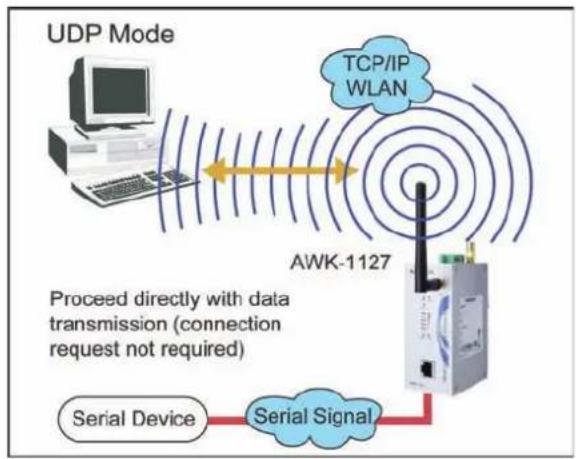
flowchart
graph TD
    A["UDP Mode"] --> B["AWK-1127"]
    B --> C["Serial Device"]
    C --> D["Serial Signal"]
    D --> E["TCP/IP WLAN"]
    E --> F["Data transmission (connection request not required)"]
    style A fill:#f9f,stroke:#333
    style B fill:#ccf,stroke:#333
    style C fill:#cfc,stroke:#333
    style D fill:#fcc,stroke:#333
    style E fill:#cff,stroke:#333
    style F fill:#ffc,stroke:#333
Operation Modes
Serial Operation Mode
Port 1
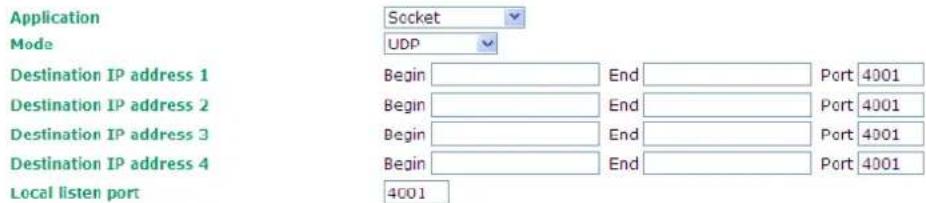
Data Packing

Submit
When Mode is set to UDP on a serial port's Operation Modes page, you will be able to configure additional settings such as Destination address 1 through 4, Local listen port, and Packet length.
Destination Address 1 to 4
| Setting | Description | Factory Default |
| IP address range and port (e.g., “192.168.1.1” to “192.168.1.64” and “4001”) | In UDP mode, you may specify up to 4 ranges of IP addresses for the serial port to connect to. At least one destination range must be provided.The maximum selectable IP address range is 64 addresses. However, you can enter multicast addresses in the Begin field, in the form xxx.xxx.xxx.255. For example, enter “192.127.168.255” to allow the AWK-1127 to broadcast UDP packets. | Begin: EmptyEnd: EmptyPort: 4001 |
Local Listen Port
| Setting | Description | Factory Default |
| 0 to 9999 | This field specifies the UDP port that the AWK-1127 listens to and that other devices must use to contact the attached serial device. | 4001 |
Packet Length
| Setting | Description | Factory Default |
| 0 to 1024 | This field specifies the maximum amount of data that is allowed to accumulate in the serial port buffer before sending.0: Packet length is disregarded and data in the buffer will be sent as specified by the delimiter settings or when the buffer is full.1 to 1024: Data in the buffer will be sent as soon it reaches the specified length. | 0 |
Delimiter 1 and 2
| Setting | Description | Factory Default |
| Enable | When these fields are enabled, serial data will accumulate in the serial port's buffer until the buffer is full or until the specified delimiter character(s) are received. For example, the carriage return character could be used as a delimiter in order to transmit each sentence or paragraph in a separate packet. Data will be packed according to Delimiter process.Delimiters must be incorporated into the data stream at the software or device level. The Delimiter value can be set ranging from 00 to FF. | Unchecked |

ATTENTION
When Delimiter 1 is enabled, Packet length must be set to 0.
Delimiter Process
This field specifies how data is packed when delimiter characters are received. This field has no effect if Delimiter 1 is not enabled.
| Setting | Description | Factory Default |
| Do Nothing Data accum | ulated in the serial port's buffer will be packed, including delimiters. | Do Nothing |
| Delimiter + 1 | One additional character must be received before the data in the serial port's buffer is packed. | |
| Delimiter + 2 | Two additional characters must be received before the data in the serial port's buffer is packed. | |
| Strip Delimiter | Data accumulated in the serial port's buffer will be packed, but the delimiter character(s) will be stripped from the data. |
Force Transmit
| Setting | Description | Factory Default |
| 0 to 65535 | This field controls data packing by the amount of time that elapses between bits of data. When using this field, make sure that Inactivity time is disabled or set to a larger value.Otherwise the connection may be closed before the data in the buffer can be transmitted.0: If serial data is received, setting this value to 0 means no data will be buffered and all data will be transmitted immediately as received.1 to 65535: If serial data is not received for the specified amount of time, the data that is currently in the buffer will be packed for network transmission. The optimal force transmit time depends on your application, but it must be at least larger than one character interval within the specified baudrate. For example, assume that the serial port is set to 1200 bps, 8 data bits, 1 stop bit, and no parity. In this case, the total number of bits needed to send a character is 10 bits, and the time required to transfer one character is 8.3 ms, so the force transmit time to be larger than 8.3 ms. | 0 ms |
Communication Parameters
The Communication Parameters page for the serial port is where serial communication settings are specified, such as Baud rate, Data bits, and Stop bits.
Communication Parameters
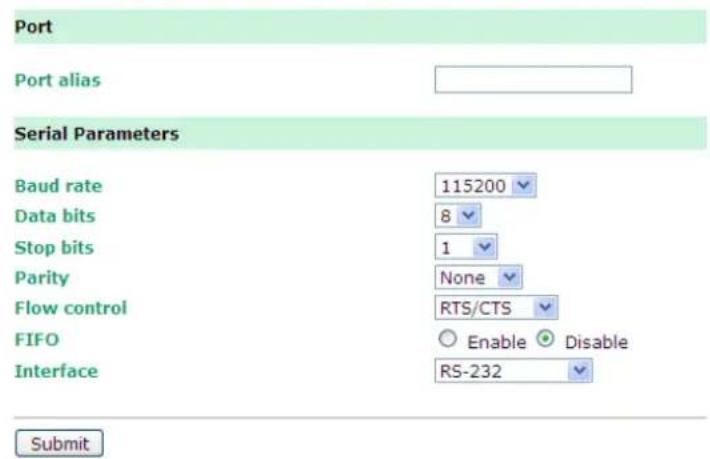
The Communication Parameters page for the serial port is where serial communication settings are specified, such as Baud rate, Data bits, and Stop bits.
Port Alias
| Setting | Description | Factory Default |
| free text (e.g., “Secondary console connection”) | This is an optional free text field to help you differentiate one serial port from another. It does not affect operation of the AWK-1127. |

ATTENTION
Serial communication settings should match the attached serial device. Check the communication settings in the user's manual for your serial device.
Baud Rate
| Setting | Description | Factory Default |
| 50, 75, 110, 134, 150, 300, 600, 1200, 1800, 2400, 4800, 7200, 9600, 19200, 38400, 57600, 115200, 230400, 460800, 921600 | This field specifies the baudrate for the serial port.50 to 921600: The serial port will operate at the specified baudrate | 115200 |
Data Bits
| Setting | Description | Factory Default |
| 5, 6, 7, 8 | This field specifies the number of data bits used to encode each character of data. | 8 |
Stop Bits
| Setting | Description | Factory Default |
| 1, 1.5, 2 | This field specifies the number of stop bits used for each character frame. | 1 |
Parity
| Setting | Description | Factory Default |
| None, Odd, Even, Space, Mark | This field specifies the type of parity bit used for each character frame. | None |
Flow Control
| Setting | Description | Factory Default |
| None, RTS/CTS, XON/XOFF, DTR/DSR | This field specifies the type of flow control used by the serial port. | RTS/CTS |
FIFO
| Setting | Description | Factory Default |
| Enable, Disable | This field specifies whether the serial port will use the built-in FIFO. A 128-byte FIFO is provided to each serial port for both Tx and Rx directions. To prevent data loss during serial communication, this should be set to Disable if the attached serial device does not have a FIFO. | Enable |
Interface
| Setting | Description | Factory Default |
| RS-232, RS-422,RS-485 2-wire,RS-485 4-wire | This field specifies the type of interface the serial port will use. | RS-232 |
Data Buffering/ Log
Data Buffering/Log
Port 1
| Port buffering (256K) | ○ Enable ◎ Disable |
| Serial data logging (256K) | ○ Enable ◎ Disable |
Submit
On the serial port's Data Buffering/ Log page, you can enable or disable Port buffering and Serial data logging.
Port Buffering
| Setting | Description | Factory Default |
| Enable, Disable | This field specifies whether the serial port will use port buffering when the network connection (Ethernet or WLAN) is down. Port buffering can be used in RealCOM mode, TCP Server mode, and TCP Client mode. For other modes, the port buffering settings will have no effect. | Disable |
Serial Data Logging
| Setting | Description | Factory Default |
| Enable, Disable This field | d specifies whether data logs for the serial port will be stored on system RAM. Each serial port is allotted 256 KB for data logging. The data log is not saved when the AWK-1127 is powered off. | Disable |
Auto Warning Settings
Since industrial-grade devices are often located at the endpoints of a system, these devices will not always know what is happening elsewhere on the network. This means that these devices, including wireless APs or clients, must provide system maintainers with real-time alarm messages. Even when system administrators are out of the control room for an extended period, they can still be informed of the status of devices almost instantaneously when exceptions occur.
In addition to logging these events, the AWK-1121/1127 supports different approaches to warn engineers automatically, such as SNMP trap or e-mail.
System Log
System Log Event Types
Detailed information for grouped events is shown in the following table. You can check the box for "Enable Log" to enable groups of events. All values are enabled (checked) by default. The log for system events can be seen in Status → System Log.
System Log Event Types
| Event Group | Enable Log |
| System-related events | ☑ |
| Network-related events | ☑ |
| Config-related events | ☑ |
| Power events | ☑ |
Submit
| System-related events | Event is triggered when... |
| System restart (warm start) | The AWK-1121/1127 is rebooted, such as when its settings are changed (IP address, subnet mask, etc.). |
| Network-related events | Event is triggered when... |
| LAN link on | The LAN port is connected to a device or network. |
| LAN link off | The port is disconnected (e.g., the cable is pulled out, or the opposing device shuts down). |
| WLAN connected to AP | The AWK-1121/1127 is associated with an AP. |
| WLAN disconnected | The AWK-1121/1127 is disassociated from an AP. |
| Config-related events | Event is triggered when... |
| Configuration Changed | A configuration item has been changed. |
| Configuration file import via Web Console | The configuration file is imported to the AWK-1121/1127. |
| Console authentication failure | An incorrect password is entered. |
| Firmware upgraded | The AWK-1121/1127's firmware is updated. |
| Power events | Event is triggered when... |
| Power 1/2 transition (On -> Off) | The AWK-1121/1127 is powered down in PWR1/2. |
| PoE transition (On -> Off) | The AWK-1121/1127 is powered down in PoE (PoE model only). |
| Power 1/2 transition (Off -> On) | The AWK-1121/1127 is powered via PWR1/2. |
| PoE transition (Off -> On) | The AWK-1121/1127 is powered via PoE (PoE model only). |
Syslog
This function provides the event logs for the Syslog server. The function supports up to three configurable Syslog servers and Syslog server UDP port numbers. When an event occurs, the event will be sent as a Syslog UDP packet to the specified Syslog servers.
Syslog Event Types
Detailed information for grouped events is shown in the following table. You can check the box for "Enable Log" to enable groups of events. All values are enabled (checked) by default. Details for each event group can be found on the table "System Log Event Types", just above, on page 3-40.
| Syslog Event Types | |
| Event Group | Enable Log |
| System-related events | ✓ |
| Network-related events | ✓ |
| Config-related events | ✓ |
| Power events | ✓ |
| Submit | |
Syslog Server Settings
You can configure the parameters for your Syslog servers in this page.
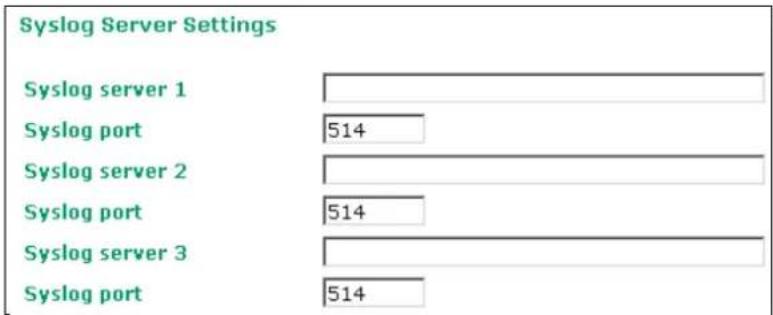
Syslog server 1/2/3
| Setting | Description | Factory Default |
| IP address | Enter the IP address of the 1st/ 2nd/ 3rd Syslog Server | None |
Syslog port
| Setting | Description | Factory Default |
| Port destination(1 to 65535) | Enter the UDP port of the corresponding Syslog server | 514 |
E-mail Event Types
Check the box for Active to enable the event items. All default values are deactivated (unchecked). Details for each event item can be found on the "System Log Event Types" table on page 3-40.
| E-mail Event Types | |
| Event | □ Active |
| Cold start | □ |
| Warm start | □ |
| Power 1 transition (On-->Off) | □ |
| Power 1 transition (Off-->On) | □ |
| Power 2 transition (On-->Off) | □ |
| Power 2 transition (Off-->On) | □ |
| PoE transition (On-->Off) | □ |
| PoE transition (Off-->On) | □ |
| Configuration changed | □ |
| Console authentication failure | □ |
| LAN link on | □ |
| LAN link off | □ |
E-mail Server Settings
You can set up to 4 e-mail addresses to receive alarm emails from the AWK-1121/1127. The following parameters can be configured on the E-mail Server Settings page. In addition, a Send Test Mail button can be used to test whether the Mail server and e-mail addresses work well. More detailed explanations about these parameters are given after the following figure.
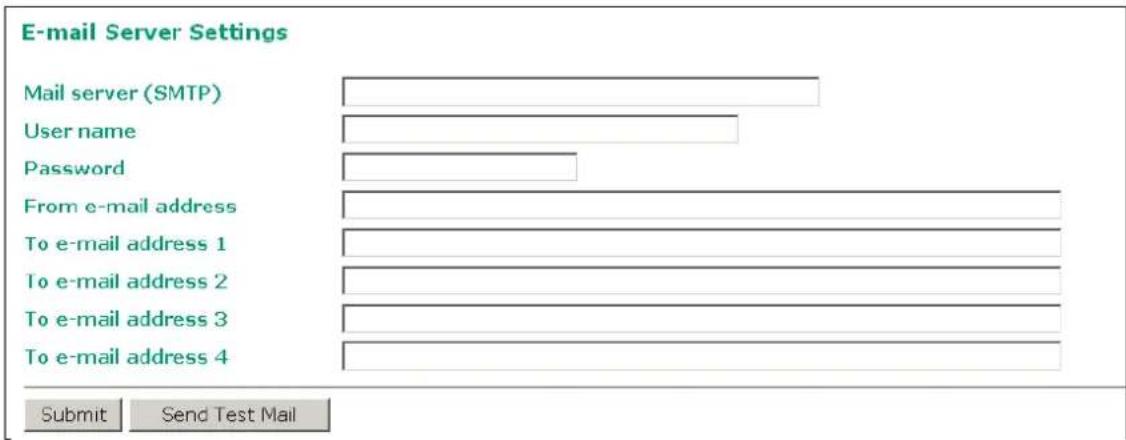
Mail server (SMTP)
| Setting | Description | Factory Default |
| IP address | The IP Address of your email server. | None |
User name & Password
| Setting | Description | Factory Default |
| Max. 63 chars | User name and password used in the SMTP server | None |
From e-mail address
| Setting | Description | Factory Default |
| Max. 63 characters | Enter the administrator's e-mail address which will be shown in the “From” field of a warning e-mail. | None |
To E-mail address 1/2/3/4
| Setting | Description | Factory Default |
| Max. 63 characters | Enter the receivers' e-mail addresses. | None |
Trap
Traps can be used to signal abnormal conditions (notifications) to a management station. This trap-driven notification can make your network more efficient.
Because a management station usually takes care of a large number of devices that have a large number of objects, it will be overloading for the management station to poll or send requests to query every object on every device. It would be better if the managed device agent could notify the management station by sending a message known as a trap for the event.
Trap Event Types
| Event | □ Active |
| Cold start | □ |
| Worm start | □ |
| Power 1 transition (On-->Off) | □ |
| Power 1 transition (Off-->On) | □ |
| Power 2 transition (On-->Off) | □ |
| Power 2 transition (Off-->On) | □ |
| PoE transition (On-->Off) | □ |
| PoE transition (Off-->On) | □ |
| Configuration changed | □ |
| Console authentication failure | □ |
| LAN link on | □ |
| LAN link off | □ |
SNMP Trap Receiver Settings
SNMP traps are defined in SMIv1 MIBs (SNMPv1) and SMIv2 MIBs (SNMPv2c). The two styles are basically equivalent, and it is possible to convert between the two. You can set the parameters for SNMP trap receivers through the web page.
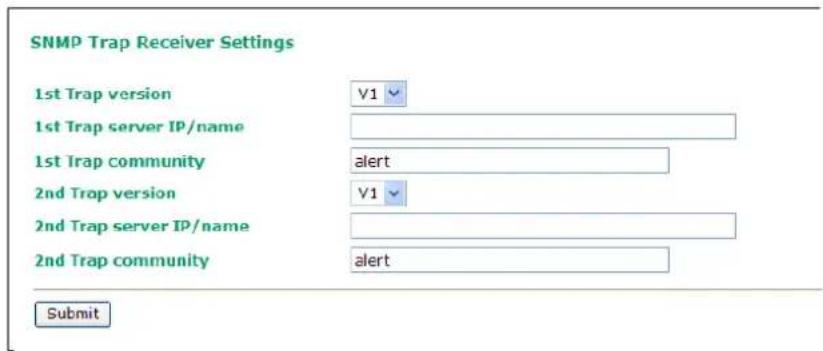
1st / 2nd Trap version
| Setting | Description | Factory Default |
| V1 | SNMP trap defined in SNMPv1 | V1 |
| V2 SNMP trap defined in SNMPv2 | ||
1st / 2nd Trap server IP/ name
| Setting | Description | Factory Default |
| IP address or host name | Enter the IP address or name of the trap server used by your network. | None |
1st / 2nd Trap community
| Setting | Description | Factory Default |
| Max. of 31 characters | Use a community string match with a maximum of 31 characters for authentication. | alert |
Status
Wireless Status
The status for 802.11 Info parameters, such as Operation mode and Channel, are shown on the Wireless Status page. The status will refresh every 5 seconds if the Auto refresh box is checked.
It is helpful to use the continuously updated information on this page, such as Signal strength, to monitor the signal strength of the AWK-1121/1127.
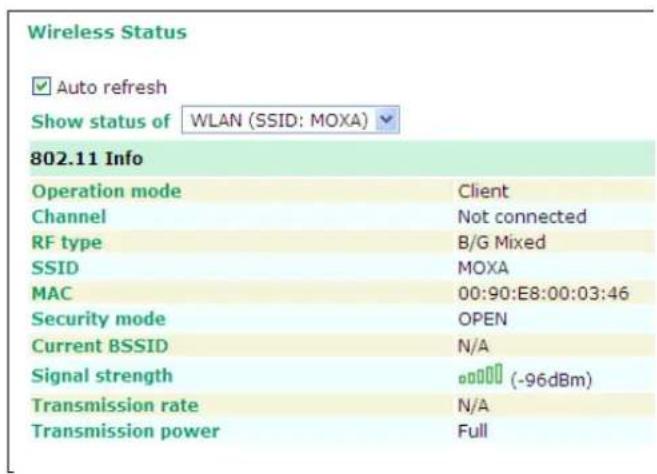
System Log
Triggered events are recorded in System Log. You can export the log contents to an available viewer by clicking Export Log. You can use the Clear Log button to clear the log contents and the Refresh button to refresh the log.
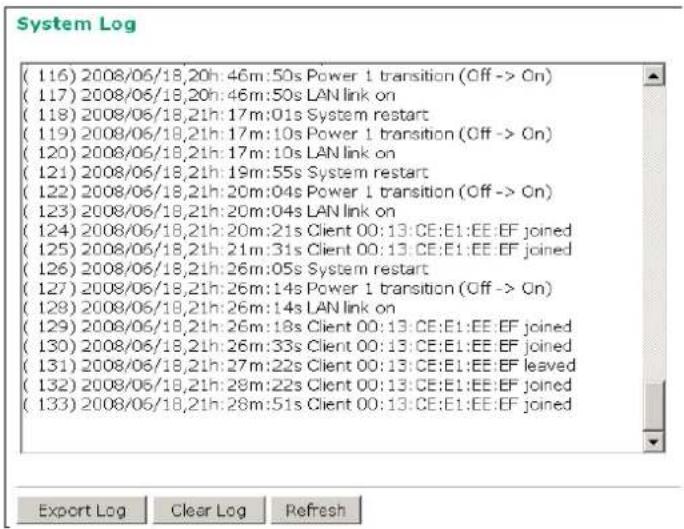
Serial Data Log
Data logs for the serial port can be viewed in ASCII or HEX format. After selecting the serial port and format, you may click Select all to select the entire log if you wish to copy and paste the contents into a text file.
![Serial Data Log Select port Port1 [ASCII][HEX] Select all Clear Log Refresh](/content/2026/05/1141933/images/64d38ed85e25ff898c186fbd9b066e5eced34dbabbea6e121ef58ce8cd09b79c.jpg)
Power Status
The status of power inputs is shown on this web page. The status will refresh every 5 seconds if the Auto refresh box is checked.
| Power Status | |
| ✓ Auto refresh | |
| Input status | On / Off |
| Power 1 status | On |
| Power 2 status | Off |
| PoE status | Off |
Maintenance
Maintenance functions provide the administrator with tools to manage the AWK-1121/1127 and wired/wireless networks.
Console Settings
You can enable or disable access permission for the following consoles: HTTP, HTTPS, Telnet and SSH connections. For more security, we recommend you only allow access to the two secured consoles, HTTPS and SSH.
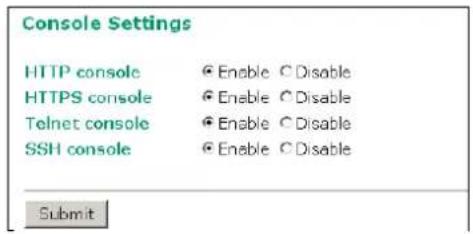
Ping
Ping helps to diagnose the integrity of wired or wireless networks. By inputting a node's IP address in the Destination field, you can use the ping command to make sure it exists and whether or not the access path is available.
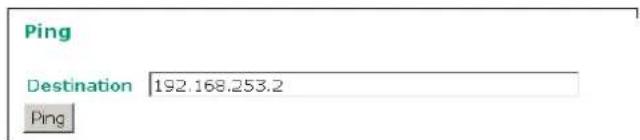
If the node and access path are available, you will see that all packets were successfully transmitted with no loss. Otherwise, some, or even all, packets may get lost, as shown in the following figure.
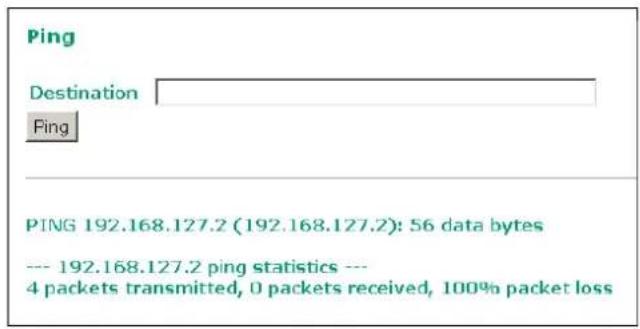
Firmware Upgrade
The AWK-1121/1127 can be enhanced with more value-added functions by installing firmware upgrades. The latest firmware is available at Moxa's download center.
Before running a firmware upgrade, make sure the AWK-1121/1127 is off-line. Click the Browse button to specify the firmware image file and click Firmware Upgrade and Restart to start the firmware upgrade. After the progress bar reaches 100%, the AWK-1121/1127 will reboot itself.
When upgrading your firmware, the AWK-1121/1127's other functions are forbidden.


ATTENTION
Please make sure the power source is stable when you upgrade your firmware. An unexpected power breakup may damage your AWK-1121/1127.
Config Import/ Export
You can back up or restore the AWK-1121/1127's configuration with Config Import/Export.
In the Config Import section, click Browse to specify the configuration file and click Config Import button to begin importing the configuration.
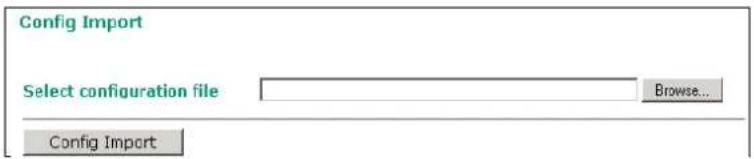
In the Config Export section, click the Config Export button and save the configuration file onto your local storage media. The configuration file is a text file and you can view and edit it with a general text-editing tool.

You can also do automated device back ups or setup restoration using Moxa's dedicated configuration import-export accessory, the ABC-01 (HW Rev. 1.1 support only).


To download the configuration to the AWK device:
- Turn off the AWK device.
- Plug in the ABC-01 to the AWK's console, via the RS-232 port.
- Turn on the AWK device.
- The AWK device will automatically detect the ABC-01 during the boot process, and will automatically download the configuration file from the ABC-01 to the AWK. Once the configuration downloads, then-if the configuration format is correct-the AWK will emit three short beeps and continue the boot process.
- Once the AWK has booted up successfully, it will emit the normal two beeps and the "Ready" LED will turn to solid green.
Loading Factory Defaults
Use this function to reset the AWK-1121/1127 and roll all settings back to the factory default values. You can also reset the hardware by pressing the reset button on the rear panel of the AWK-1121/1127.
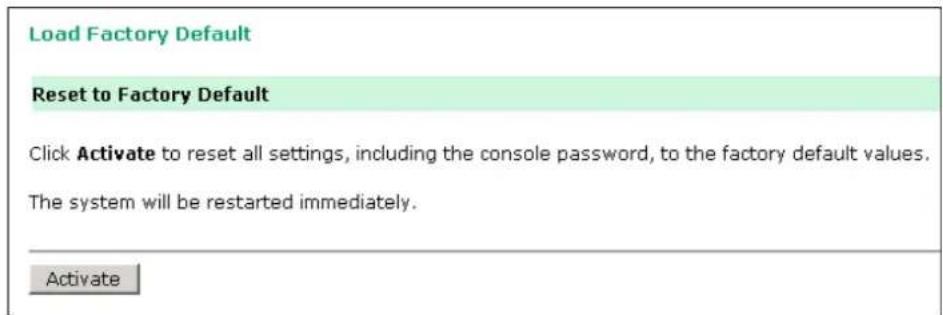
Password
You can change the administration password for each of the AWK-1121/1127's console managers by using the Password function. Before you set up a new password, you must input the current password and reenter the new password for confirmation. For your security, do not use the default password root, and remember to change the administration password regularly.
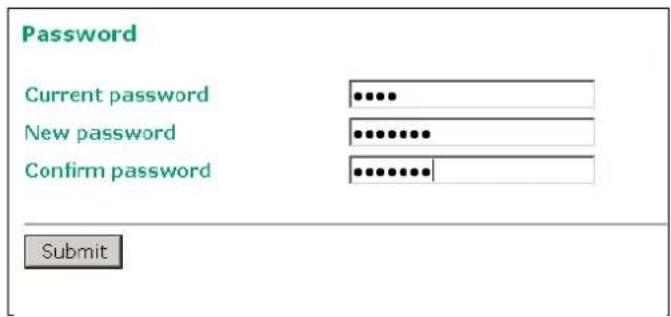
Additional settings to help you manage your AWK-1121/1127, are available on this page.
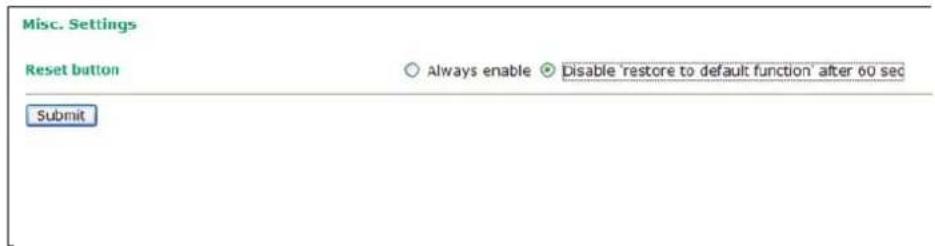
Reset button
| Setting | Description | Factory Default |
| Always enabled | The AWK-1121/1127's Reset button works normally. | Always enabled |
| Disabled 60 sec after boot-up | The AWK-1121/1127's “reset to defaults” function will go inactive 60 seconds after the AWK-1121/1127 finishes booting up. |
Save Configuration
The following figure shows how the AWK-1121/1127 stores the setting changes into volatile and non-volatile memory. All data stored in volatile memory will disappear when the AWK-1121/1127 is shutdown or rebooted unless they are saved in non-volatile memory. Because the AWK-1121/1127 starts up and initializes with the settings stored in flash memory, all new changes must be saved to flash memory before restarting the AWK-1121/1127.
This also means that new changes will not take effect unless you press the "Save and Restart" button.
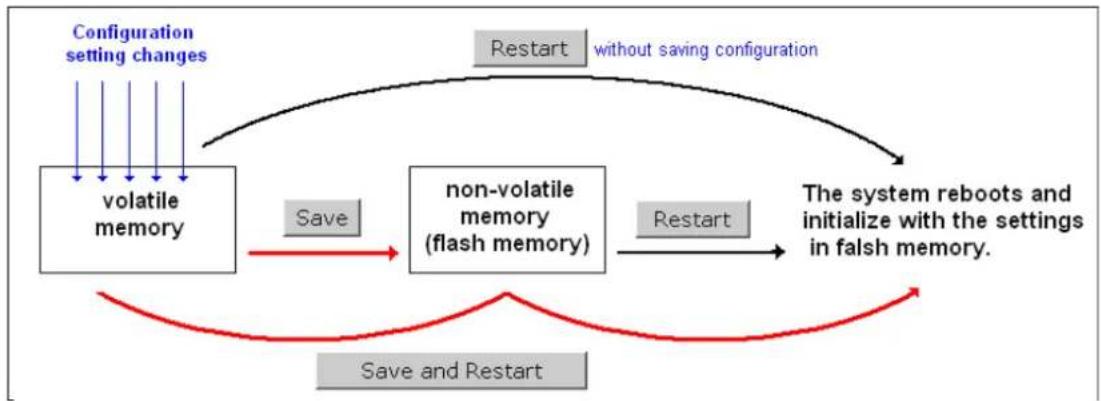
flowchart
graph TD
    A["Configuration setting changes"] --> B["volatile memory"]
    B --> C["Save"]
    C --> D["non-volatile memory (flash memory)"]
    D --> E["Restart"]
    E --> F["The system reboots and initialize with the settings in falsh memory."]
    F --> G["Save and Restart"]
    G --> H["Restart"]
    H --> I["without saving configuration"]
    I --> J["Restart"]
    J --> K["non-volatile memory (flash memory)"]
    K --> L["Save and Restart"]
    L --> M["Save and Restart"]
After you click on Save Configuration in the left menu box, the following screen will appear. Click Save if you wish to update the configuration settings in the flash memory at this time. Alternatively, you may choose to run other functions and put off saving the configuration until later. However, the new setting changes will remain in the non-volatile memory until you save the configurations.
Save Configuration
If you have submitted any configuration changes, you must save the changes and restart the server before they take effect. Click Save to save the changes in the AWK-3121-US's memory. Click Restart to activae new settings in the navigation panel.
Save
Restart
If you submitted configuration changes, you will find a blinking string in the upper right corner of the screen. After making all your changes, click the Restart function in the left menu box. One of two different screens will appear.
If you made changes recently but did not save, you will be given two options. Clicking the Restart button here will reboot the AWK-1121/1127 directly, and all setting changes will be ignored. Clicking the Save and Restart button will apply all setting changes and then reboot the AWK-1121/1127.
Restart
!!! Warning !!!
Click "Restart" to discard changes and reboot AWK-1121-EU directly.
Click "Save and Restart" to apply all setting changes and reboot AWK-1121-EU.
Restart
Save and Restart
If you run the Restart function without changing any configurations or saving all your changes, you will see just one Restart button on your screen.
Restart
!!! Warning !!!
Clicking Restart will disconnect all Ethernet connections and reboot AWK-1121-EU.
Restart
You will not be able to run any of the AWK-1121/1127's functions while the system is rebooting.
Logout
Logout helps users disconnect the current HTTP or HTTPS session and go to the Login page. For security reasons, we recommend you logout before quitting the console manager.
Logout
Click Logout button to defalut Login page.
Logout
The following topics are covered in this chapter:
Overview
□ AWK Search Utility
➢ Installing AWK Search Utility
➢ Configuring the AWK Search Utility
□ OnCell Windows Driver Manager
Installing OnCell Windows Driver Manager
➢ Using OnCell Windows Driver Manager
□ Moxa OnCell Linux Real TTY Driver
Basic Procedure
Hardware Setup
Installing Linux Real TTY Driver Files
Mapping TTY Ports
➢ Removing Mapped TTY Ports
Removing Linux Driver Files
□ Moxa OnCell UNIX Fixed TTY Driver
➢ Installing the UNIX Driver
- Configuring the UNIX Driver
Overview
The Documentation & Software CD included with your AWK-1121/1127 is designed to make the installation and configuration procedure easy and straightforward. This auto-run CD includes AWK Search Utility (to broadcast search for all AWK's accessible over the network), the AWK-1121/1127 User's Manual, and Quick Installation Guide.
AWK Search Utility
Installing AWK Search Utility
Click the INSTALL UTILITY button in the AWK Installation CD auto-run window to install AWK Search Utility. Once the program starts running, click Yes to proceed.
- Click Next when the Welcome screen opens to proceed with the installation.
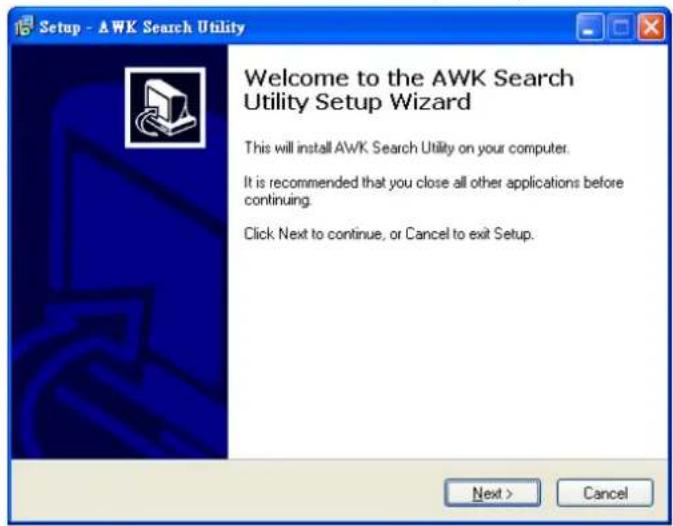
- Click Next to install program files to the default directory, or click Browse to select an alternate location.
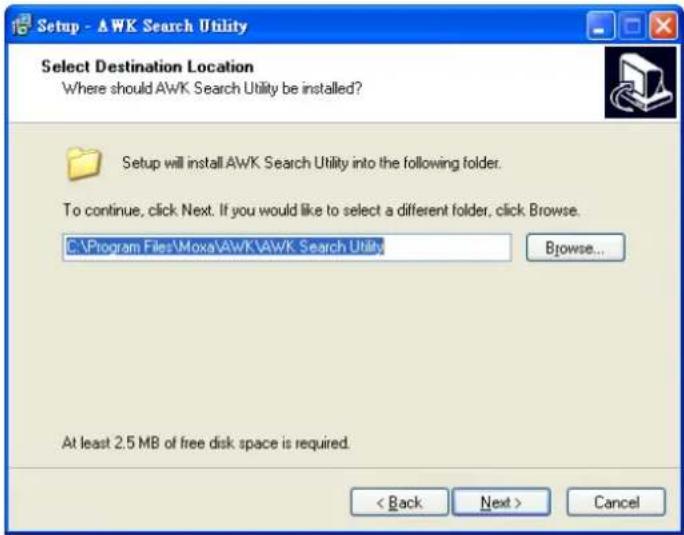
- Click Next to create the program's shortcut files to the default directory, or click Browse to select an alternate location.
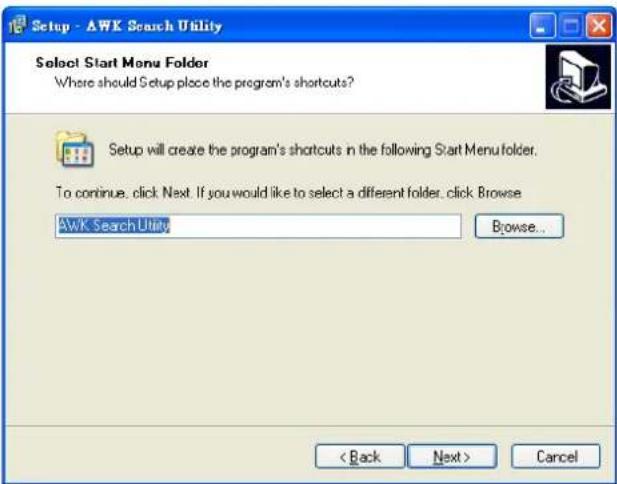
- Click Next to select additional tasks.
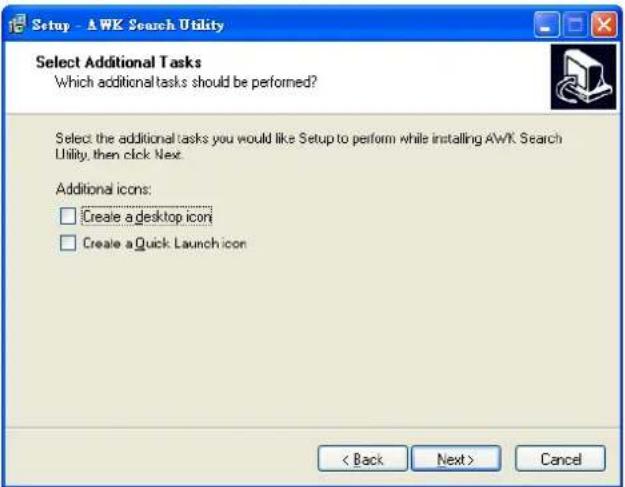
- The installer then displays a summary of the installation options.
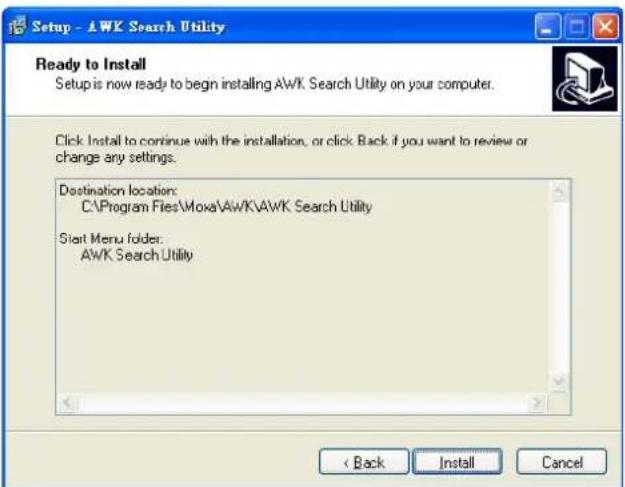
- Click Install to begin the installation. The setup window will report the progress of the installation. To change the installation settings, click Back and navigate to the previous screen.
- Click Finish to complete the installation of AWK Search Utility.
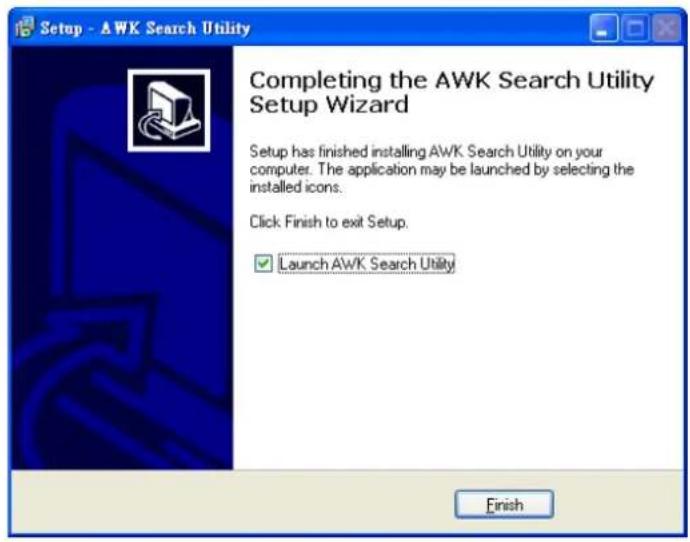
Configuring the AWK Search Utility
The Broadcast Search function is used to locate all AWK-1121/1127 APs that are connected to the same LAN as your computer. After locating an AWK-1121/1127, you will be able to change its IP address. Since the Broadcast Search function searches by TCP packet and not IP address, it doesn't matter if the AWK-1121/1127 is configured as an AP or Client. In either case, APs and Clients connected to the LAN will be located, regardless of whether or not they are part of the same subnet as the host.
- Start the AWK Search Utility program. When the Login page appears, select the "Search AWK only" option to search for AWKs and to view each AWK's configuration. Select the "AWK management" option to assign IPs, upgrade firmware, and locate devices.
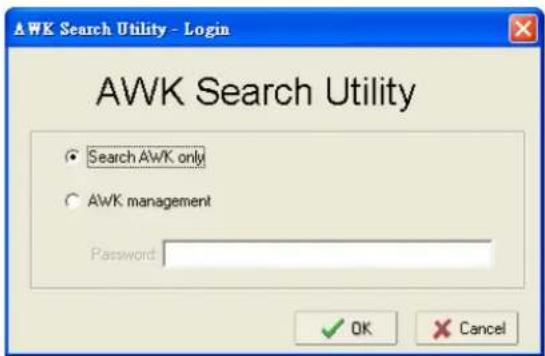
- Open the AWK Search Utility and then click the Search icon.
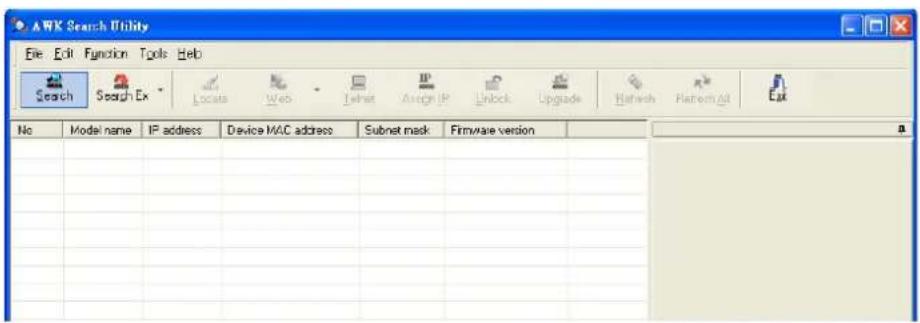
- The "Searching" window indicates the progress of the search. When the search is complete, all AWKs that were located will be displayed in the AWK Search Utility window.
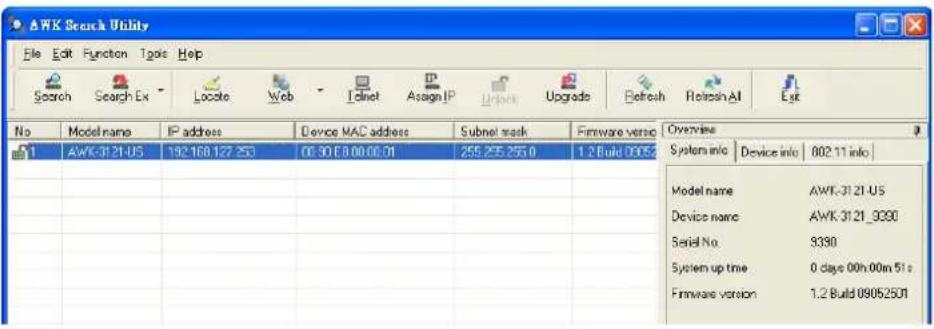
- Click Locate to cause the selected device to beep.
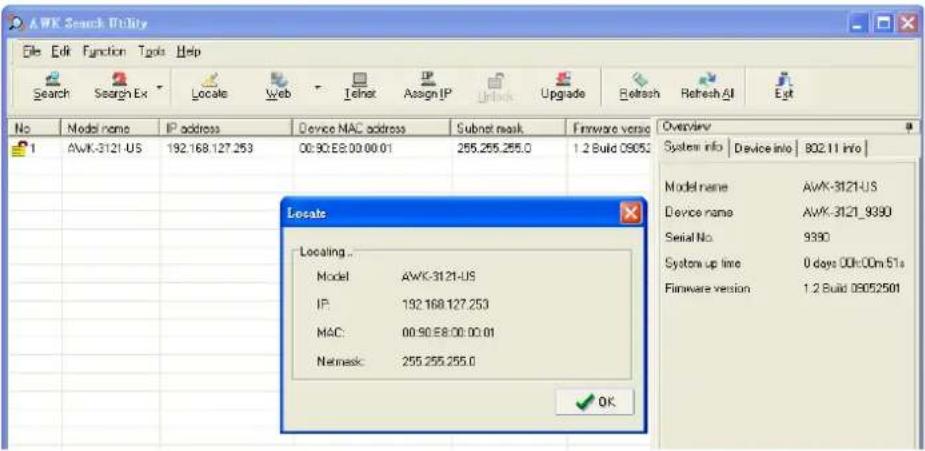
- Make sure your AWK is unlocked before using the search utility's icons setting. The AWK will unlock automatically if the password is set to the default. Otherwise you must enter the new password manually.
- Go to Tools → AWK login Options to manage and unlock additional AWKs.
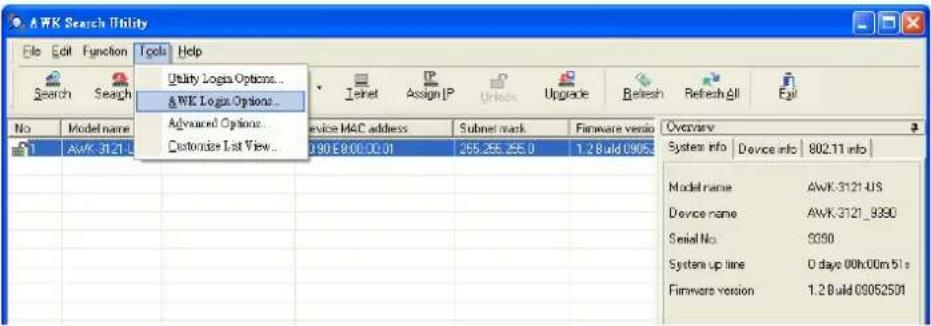
- Use the scroll down list to select the MAC addresses of those AWKs you would like to manage, and then click Add. Key in the password for the AWK device and then click OK to save. If you return to the search page and search for the AWK again, you will find that the AWK will unlock automatically.

ATTENTION
For security purposes, we suggest you can change the AWK search utility login password instead of using the default.
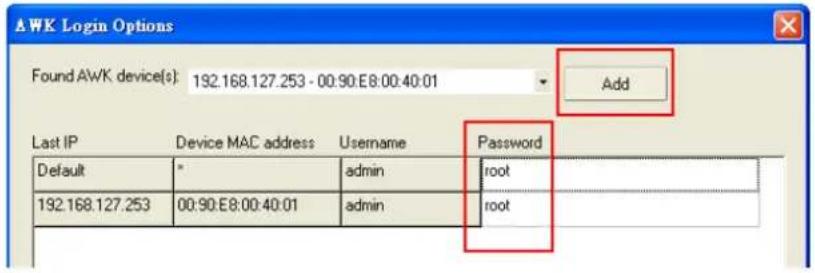
To modify the configuration of the highlighted AWK, click on the Web icon to open the web console. This will take you to the web console, where you can make all configuration changes. Refer to Chapter 3, "Using the Web Console," for information on how to use the web console.
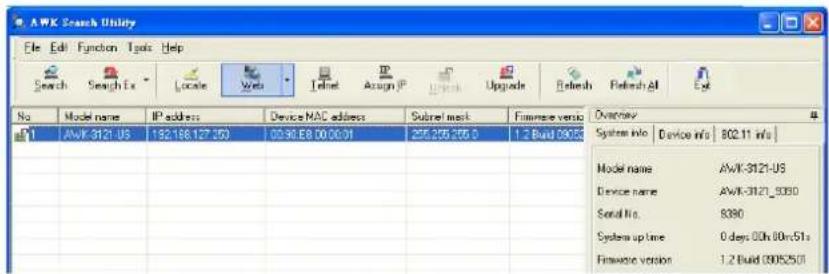
Click on Telnet if you would like to use telnet to configure your AWKs.
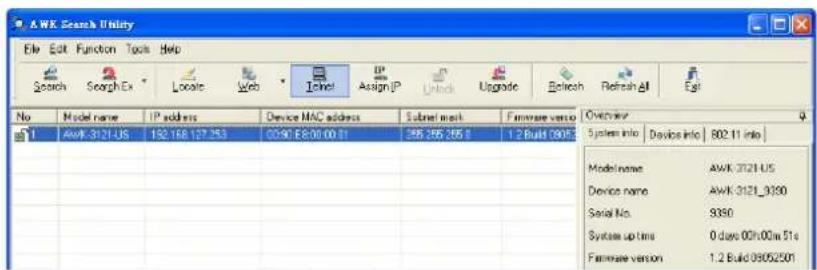
Click Assign IP to change the IP setting.
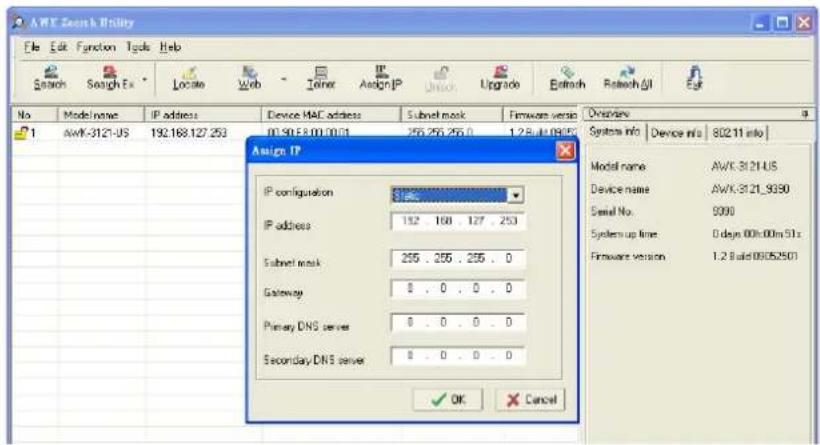
The three advanced options—Search, Connection, and Miscellaneous—are explained below:
Search
- Retry count (default=5): Indicates how many times the search will be retried automatically.
- Retry interval (ms): The time lapsed between retries.
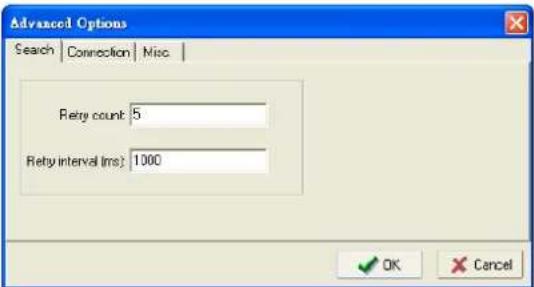
Connection
- Connection timeout (secs): Use this option to set the waiting time for the Default Login, Locate, Assign IP, Upload Firmware, and Unlock to complete.
- Upgrade timeout (secs): Use this option to set the waiting time for the connection to disconnect while the firmware is upgrading. Use this option to set the waiting time for the Firmware to write to flash.
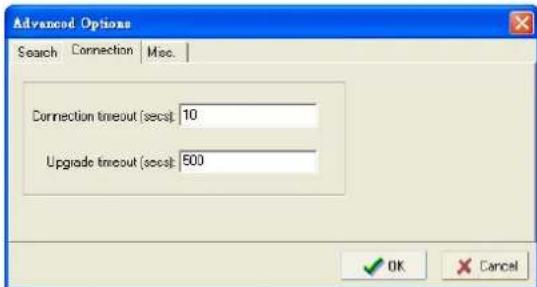
Misc.
Search on start: Checkmark this box if you would like the search function to start searching for devices after you log in to the AWK search Utility.
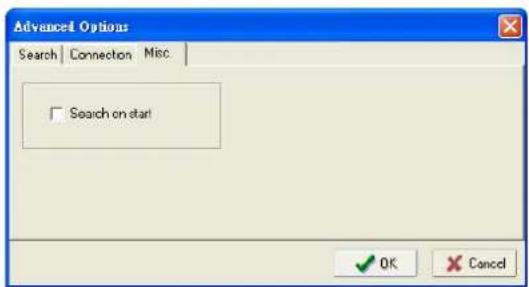
OnCell Windows Driver Manager
The AWK-1127 uses the same RealCom serial driver as Moxa's OnCell cellular gateways. The below section describes how to use the OnCell Windows Driver Manager to create a virtual COM port for the AWK-1127 in RealCom mode.
Installing OnCell Windows Driver Manager
OnCell Windows Driver Manager is intended for use with AWK-1127 serial ports that are set to RealCOM mode. The software manages the installation of drivers that allow you to map unused COM ports on your PC to serial ports on the AWK-1127. These drivers are designed for use with Windows
98/ME/NT/2000/XP/2003/Vista/2008. When the drivers are installed and configured, devices that are attached to serial ports on the AWK-1127 will be treated as if they were attached to your PC's own COM ports.
- Click the INSTALL COM Driver button in the OnCell Installation CD auto-run window to install the OnCell Windows Driver. Once the installation program starts running, click Yes to proceed.
- Click Next when the Welcome screen opens, to proceed with the installation.
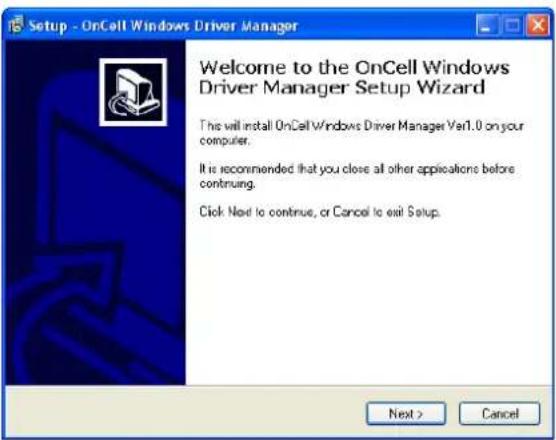
Click Next to install program files to the default directory, or click Browse to select an alternate location.
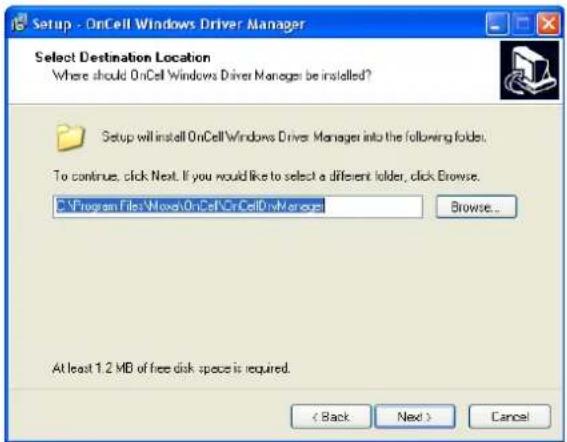
- Click Next to install the program's shortcuts in the appropriate Start Menu folder.
- Click Next to proceed with the installation. The installer then displays a summary of the installation options.
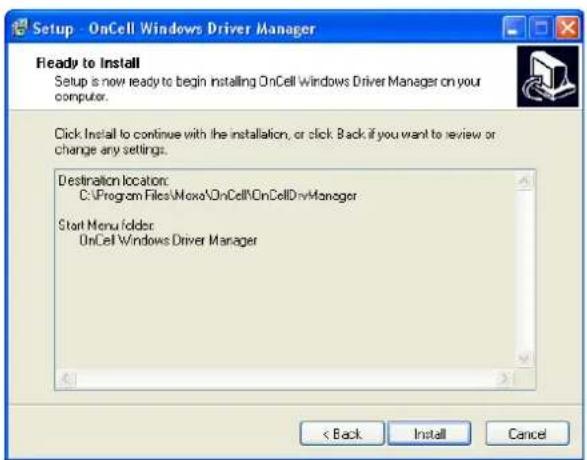
- Click Install to begin the installation. The setup window will report the progress of the installation. To change the installation settings, click Back and navigate to the previous screen. On Windows XP, the installer will display a message that the software has not passed Windows Logo testing. This is shown as follows:
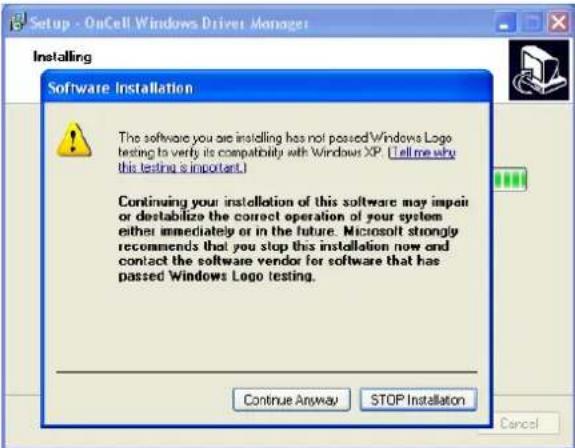
Click Continue Anyway to finish the installation.
- Click Finish to complete the installation of the OnCell Windows Driver Manager.
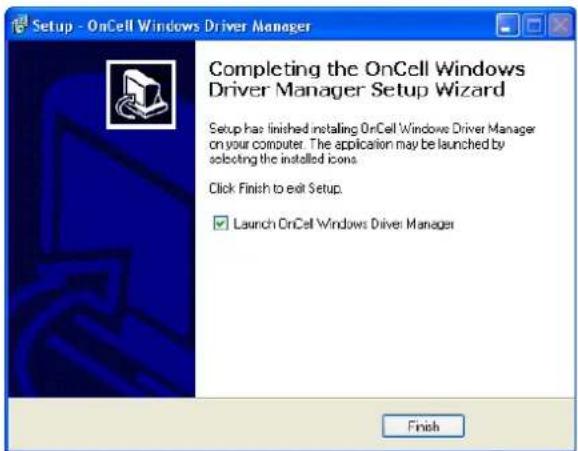
Using OnCell Windows Driver Manager
After you install OnCell Windows Driver Manager, you can set up the AWK-1127's serial ports as remote COM ports for your PC host. Make sure that the serial port(s) on your AWK-1127 are set to RealCOM mode when mapping COM ports with OnCell Windows Driver Manager.
- Go to Start → OnCell Windows Driver Manager → OnCell Windows Driver Manager to start the COM mapping utility.
- Click the Add icon.
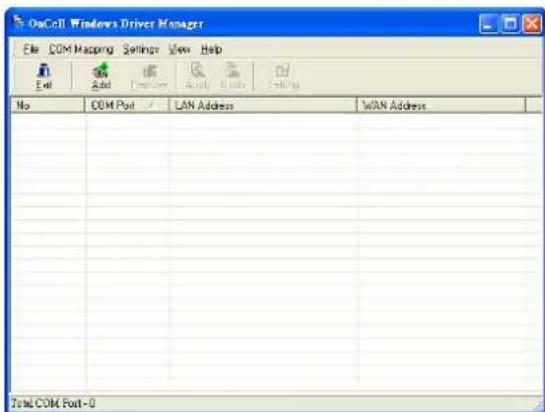
- Click Rescan to search for the AWK-1127. From the list that is generated, select the server that you will map COM ports to, and then click OK.
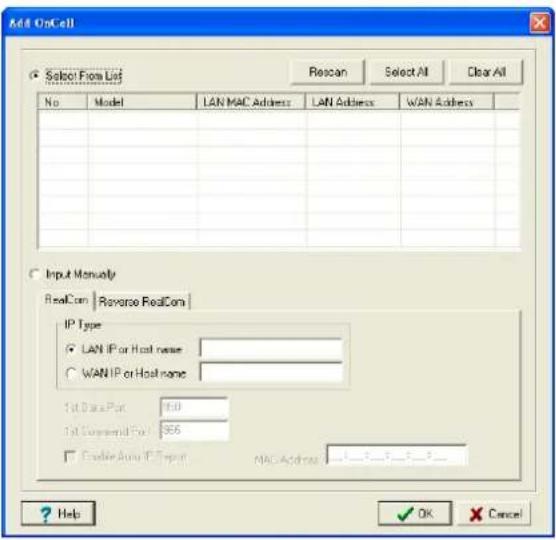
Alternatively, for RealCOM mode, you can select Input Manually and then manually enter the AWK-1127 's IP Type. To do this, select LAN type, followed by 1st Data Port, and 1st Command Port for the COM ports that will be mapped to. Click OK to proceed to the next step. Note that the Add OnCell page supports FQDN (Fully Qualified Domain Name), in which case the IP address will be filled in automatically.
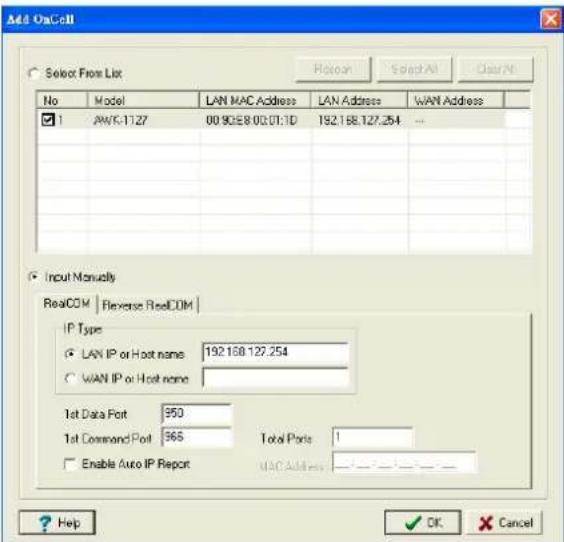
- COM ports and their mappings will appear in blue until they are activated. Activating the COM ports saves the information in the host system registry and makes the COM port available for use. The host computer will not have the ability to use the COM port until the COM ports are activated. Click Yes to activate the COM ports at this time, or click Cancel to activate the COM ports later.
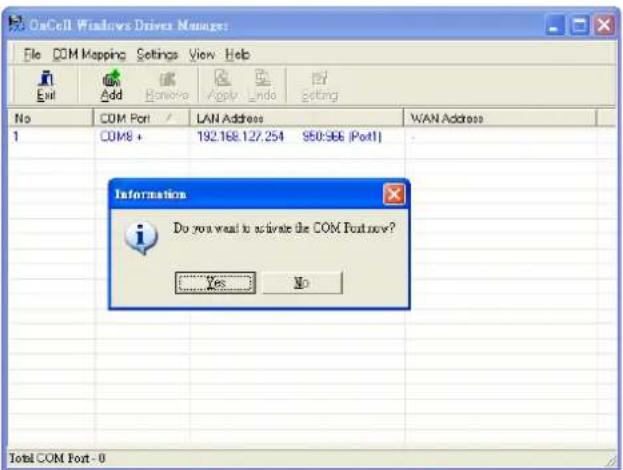
- When using Windows XP, a message is displayed during the activation of each port, indicating that the software has not passed Windows Logo certification. Click Continue Anyway to proceed.
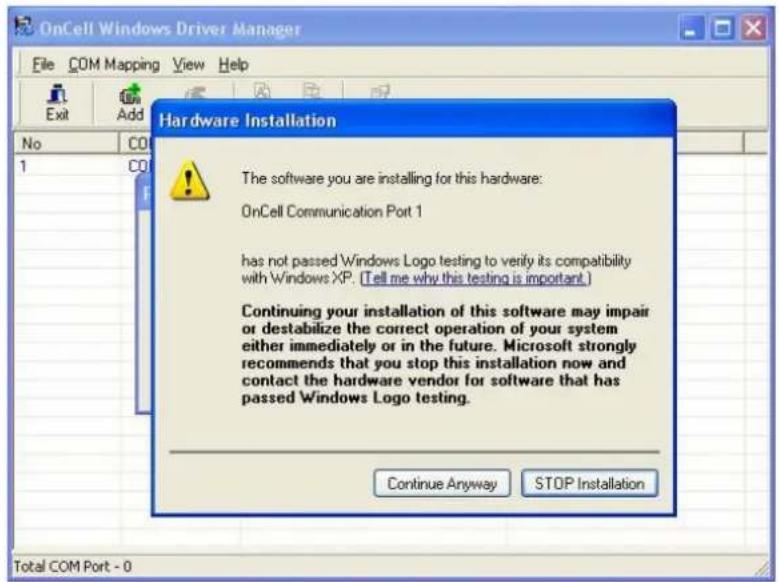
- Ports that have been activated will appear in black.
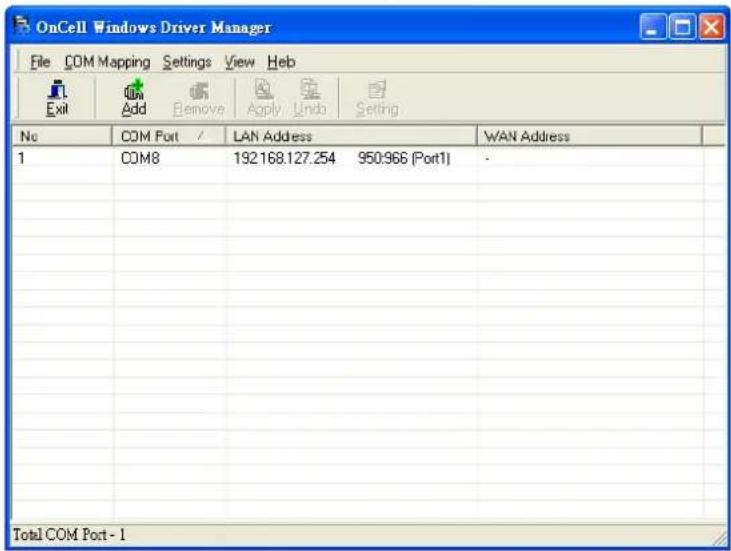
- Click on the created COM port to select it. Then right click to select Basic Setting tab. On the Basic Setting tab, use the COM Number drop-down list to select a COM number to be assigned to the AWK-1127's serial port that is being configured. Note that ports that are "in use" will be labeled accordingly.
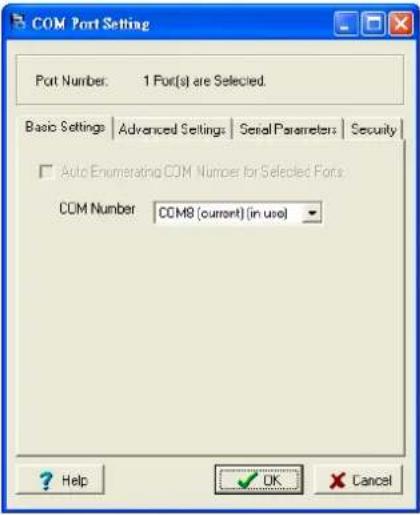
- Click the Advanced Setting tab to modify Tx Mode, FIFO, Fast Flush, and other parameters.
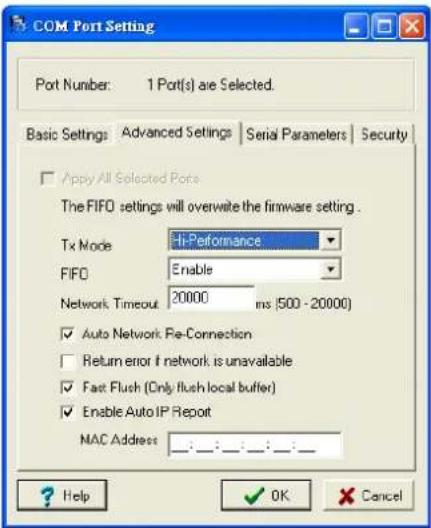
Tx Mode
Hi-Performance is the default for Tx mode. After the driver sends data to the AWK-1127, the driver immediately issues a "Tx Empty" response to the program. Under Classical mode, the driver will not send the "Tx Empty" response until after confirmation is received from the AWK-1127's serial port. This causes lower throughput. Classical mode is recommended if you want to ensure that all data is sent out before further processing.
FI FO
If FIFO is Disabled, the AWK-1127 will transmit one byte at a time when the Tx FIFO becomes empty, and an Rx interrupt will be generated for each incoming byte. This will result in a faster response and lower throughput.
Network Timeout
You can use this option to prevent blocking if the target OnCell is unavailable.
Auto Network Re-Connection
With this option enabled, the driver will repeatedly attempt to re-establish the TCP connection if the AWK-1127 does not respond to background "check alive" packets.
Return error if network is unavailable
If this option is disabled, the driver will not return any error even when a connection cannot be established to the AWK-1127. With this option enabled, calling the Win32 Comm function will result in the error return code "STATUS_NETWORK_UNREACHABLE" when a connection cannot be established to the AWK-1127. This usually means that your host's network connection is down, perhaps due to a cable being disconnected.
However, if you can reach other network devices, it may be that the AWK-1127 is not powered on or is disconnected. Note that Auto Network Re-Connection must be enabled in order to use this function.
Fast Flush (only flushes the local buffer)
For some applications, the user's program will use the Win32 "PurgeComm()" function before it reads or writes data. After a program uses this PurgeComm() function, the OnCell driver continues to query the OnCell's firmware several times to make sure no data is queued in the OnCell firmware buffer, rather than just flushing the local buffer. This design is used to satisfy some special considerations. However, it may take more time (about several hundred milliseconds) than a native COM1 due to the additional time spent communicating across the Ethernet. This is why PurgeComm() works significantly faster with native COM ports on the PC than with mapped COM ports on the AWK-1127. In order to accommodate other applications that require a faster response time, the new OnCell driver implements a new Fast Flush option. By default, this function is enabled.
If you have disabled Fast Flush and find that COM ports mapped to the AWK-1127 perform markedly slower than when using a native COM port, try to verify if "PurgeComm()" functions are used in your application. If so, try enabling the Fast Flush function and see if there is a significant improvement in performance.
Auto IP Report: The functions applies to OnCell Series only and does not apply to the AWK-1127.
- The Serial Parameters tab in the following figure show the default settings when the AWK-1127 is powered on. However, the program can redefine the serial parameters to different values after the program opens the port with Win32 API.
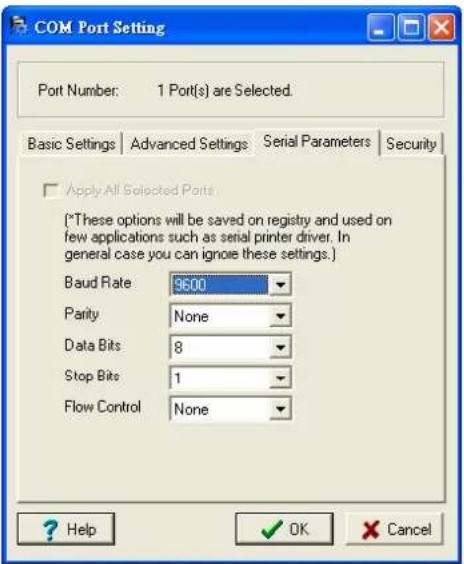
- Click the Security tab to configure security settings. Select the Enable Data Encryption option to enable data to be encrypted when transmitted over the COM ports. After selecting the encryption option, select the Keep connection option to start encrypting COM port communications immediately without restarting the COM ports. (If your application opens and closes COM ports frequently and the AWK-1127 is only for one host, you can enable this option to speed up the opening/closing time. However, this will result in your host tying up the COM port so that other hosts cannot use it.).
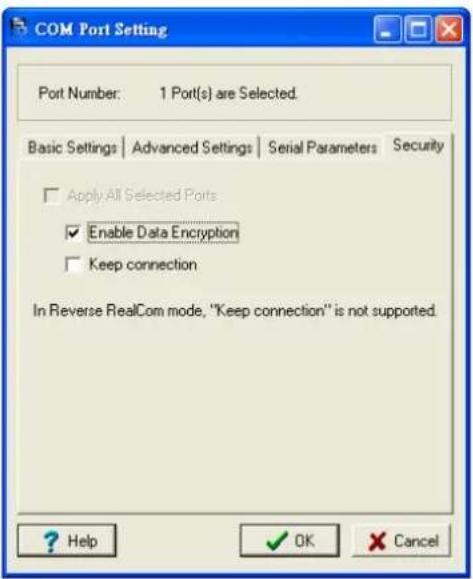
- To save the configuration to a text file, select Export from the COM Mapping menu. You will then be able to import this configuration file to another host and use the same COM Mapping settings in the other host.
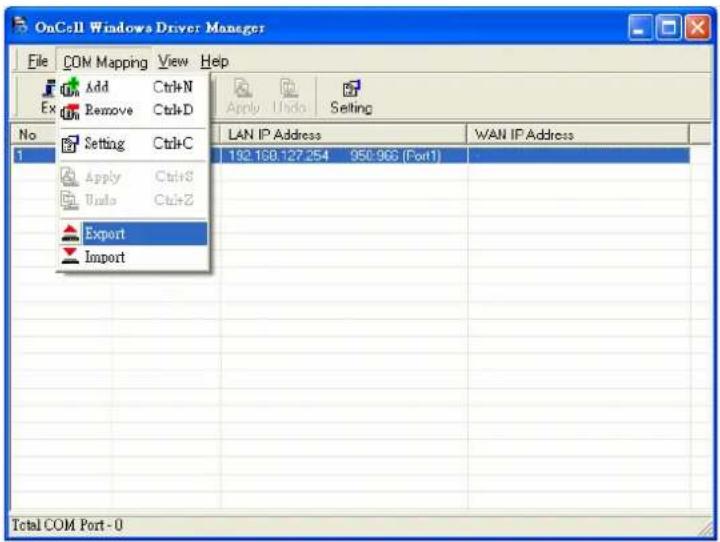
Moxa OnCell Linux Real TTY Driver
The AWK-1127 uses the same Real TTY serial driver as Moxa's OnCell cellular gateways. The below section describes how to use the OnCell Linux Real TTY Driver to map a virtual tty port for the AWK-1127.
Basic Procedure
To map an AWK-1127 serial port to a Linux host's tty port, follow these instructions:
- Set up the AWK-1127. After verifying that the IP configuration works and you can access the AWK-1127 (by using ping, telnet, etc.), configure the desired serial port on the AWK-1127 to RealCOM mode.
- Install the Linux Real TTY driver files on the host.
- Map the AWK-1127 serial port to the host's tty port.
Hardware Setup
Before proceeding with the software installation, make sure you have completed the hardware installation. Note that the default IP address for the LAN interface of AWK-1127 is 192.168.127.253.
NOTE After installing the hardware, you must configure the operation mode of the serial port on your AWK-1127 to RealCOM mode.
Installing Linux Real TTY Driver Files
- Obtain the driver file from the included CD-ROM or the Moxa website, at http://www.moxa.com.
- Log in to the console as a super user (root).
- Execute cd / to go to the root directory.
- Copy the driver file moxa_oncell_realty.tgz to the / directory.
- Execute tar xvfz moxa_oncell_realty.tgz to extract all files into the system.
- Execute / tmp/ oncell_realty/ mxinst.
For RedHat AS/ES/WS and Fedora Core1, append an extra argument as follows:
# / tmp/ oncell_realty/ mxinst SP1
The shell script will install the driver files automatically.
- After installing the driver, you will be able to see several files in the /usr/lib/oncell_realty/driver folder:
mxaddsvr (Add Server, mapping tty port)
mxdelsvr (Delete Server, un-mapping tty port)
mxloadsvr (Reload Server)
mxmknod (Create device node/tty port)
mxrmnod (Remove device node/tty port)
mxuninst (Remove tty port and driver files)
At this point, you will be ready to map the AWK-1127 serial port to the system tty port.
Mapping TTY Ports
Make sure that you set the operation mode of the desired AWK-1127 serial port to RealCOM mode. After logging in as a super user, enter the directory /usr/lib/oncell_realty/driver and then execute mxaddsvr to map the target OnCell serial port to the host tty ports. The syntax of mxaddsvr is as follows:
mxaddsvr [OnCell IP Address] [Total Ports] ([Data port] [Cmd port])
The mxaddsvr command performs the following actions:
- Modifies oncellreald.cf.
- Creates tty ports in directory /dev with major & minor number configured in oncellreald.cf.
- Restarts the driver.
Mapping tty ports automatically
To map tty ports automatically, you may execute mxaddsvr with just the IP address and number of ports, as in the following example:
<h1 id="cd-usrliboncell_realtydriver">cd /usr/lib/oncell_realty/driver</h1>
<h1 id="mxaddsvr-19216834-1">./mxaddsvr 192.168.3.4 1</h1>
In this example, one tty port will be added, with IP 192.168.3.4, with data port 950 and command port 966.
Mapping tty ports manually
To map tty ports manually, you may execute mxaddsvr and manually specify the data and command ports, as in the following example:
<h1 id="cd-usrliboncell_realtydriver-2">cd /usr/lib/oncell_realty/driver</h1>
<h1 id="mxaddsvr-19216834-1-4001-966">./mxaddsvr 192.168.3.4 1 4001 966</h1>
In this example, one tty port will be added, with IP 192.168.3.4, with data port 4001 and command port 966.
Removing Mapped TTY Ports
After logging in as root, enter the directory / usr/lib/oncell_realty/driver and then execute mxdelsvr to delete a server. The syntax of mxdelsvr is:
mxdelsvr [IP Address]
Example:
<h1 id="cd-usrliboncell_realtydriver-3">cd /usr/lib/oncell_realty/driver</h1>
<h1 id="mxdelsvr-19216834">./mxdelsvr 192.168.3.4</h1>
The following actions are performed when executing mxdelsvr:
- Modify oncellreald.cf.
- Remove the relevant tty ports in directory /dev.
- Restart the driver.
If the IP address is not provided in the command line, the program will list the installed servers and total ports on the screen. You will need to choose a server from the list for deletion.
Removing Linux Driver Files
A utility is included that will remove all driver files, mapped tty ports, and unload the driver. To do this, you only need to enter the directory / usr/ lib/ oncell_realty/ driver, then execute mxuninst to uninstall the driver. This program will perform the following actions:
- Unload the driver.
- Delete all files and directories in / usr/ lib/ moxa_oncell
- Delete directory / usr/lib/moxa_oncell
- Modify the system initializing script file.
Moxa OnCell UNIX Fixed TTY Driver
Installing the UNIX Driver
- Log in to UNIX and create a directory for the Moxa TTY. To create a directory named /usr/etc, execute the command:
<h1 id="mkdir-p-usretc">mkdir -p /usr/etc</h1>
- Copy moxa_oncell_fixedtty.tar to the directory you created. If you created the /usr/ etc directory above, you would execute the following commands:
<h1 id="cp-moxa_oncell_fixedttytar-usretc">cp moxa_oncell_fixedtty.tar /usr/etc</h1>
<h1 id="cd-usretc">cd /usr/etc</h1>
- Extract the source files from the tar file by executing the command:
<h1 id="tar-xvf-moxa_oncell_fixedttytar">tar xvf moxa_oncell_fixedtty.tar</h1>
The following files will be extracted:
README.TXT
oncellttyd.c --- source code
oncellttyd.cf --- an empty configuration file
Makefile --- makefile
VERSION.TXT --- fixed tty driver version
FAQ.TXT
- Compile and Link
For SCO UNIX:
# make sco
For UnixWare 7:
# make svr5
For UnixWare 2.1.x, SVR4.2:
# make svr42
Configuring the UNIX Driver
Modify the configuration
The configuration used by the oncellttyd program is defined in the text file oncellttyd.cf, which is in the same directory that contains the program oncellttyd. You may use vi, or any text editor to modify the file, as follows:
ttyp1 192.168.1.1 950
For more configuration information, view the file oncellttyd.cf, which contains detailed descriptions of the various configuration parameters.
NOTE
The "Device Name" depends on the OS. See the Device Naming Rule section in README.TXT for more information.
To start the oncellttyd daemon after system bootup, add an entry into /etc/inittab, with the tty name you configured in oncellttyd.cf, as in the following example:
ts:2:respawn:/usr/etc/oncell_fixedtty/oncellttyd -t 1
Device naming rule
For UnixWare 7, UnixWare 2.1.x, and SVR4.2, use:
pts/[n]
For all other UNIX operating systems, use:
ttyp[n]
Starting moxattyd
Execute the command init q or reboot your UNIX operating system.
Adding an additional server
-
Modify the text file oncellttyd.cf to add an additional server. User may use vi or any text editor to modify the file. For more configuration information, look at the file oncellttyd.cf, which contains detailed descriptions of the various configuration parameters.
-
Find the process ID (PID) of the program oncellttyd.
<h1 id="ps-ef-grep-oncellttyd">ps -ef | grep oncellttyd</h1>
- Update configuration of oncellttyd program.
<h1 id="kill-usr1-pid">kill -USR1 [PID]</h1>
(e.g., if oncellttyd PID = 404, kill -USR1 404)
This completes the process of adding an additional server.
This chapter explains how to access the AWK-1121/1127 for the first time. In addition to HTTP access, there are four ways to access AWK-1121/1127: serial console, Telnet console, SSH console, and HTTPS console. The serial console connection method, which requires using a short serial cable to connect the AWK-1121/1127 to a PC's COM port, can be used if you do not know the AWK-1121/1127's IP address. The other consoles can be used to access the AWK-1121/1127 over an Ethernet LAN, or over the Internet.
The following topics are covered in this chapter:
☐ RS-232 Console Configuration (115200, None, 8, 1, VT100)
☐ Configuration by Telnet and SSH Consoles
☐ Configuration by Web Browser with HTTPS/ SSL
□ Disabling Telnet and Browser Access
RS-232 Console Configuration (115200, None, 8, 1, VT100)
The serial console connection method, which requires using a short serial cable to connect the AWK-1121/1127 to a PC's COM port, can be used if you do not know the AWK-1121/1127's IP address. It is also convenient to use serial console configurations when you cannot access the AWK-1121/1127 over Ethernet LAN, such as in the case of LAN cable disconnections or broadcast storming over the LAN.

ATTENTION
Do not use the RS-232 console manager when the AWK-1121/1127 is powered at reversed voltage (ex. -48VDC), even though reverse voltage protection is supported.
If you need to connect the RS-232 console at reversed voltage, Moxa's TCC-82 isolator is your best solution.
NOTE
We recommend using Moxa PComm (Lite) Terminal Emulator, which can be downloaded free of charge from Moxa's website.
Before running PComm Terminal Emulator, use an RJ45 to DB9-F (or RJ45 to DB25-F) cable to connect the AWK-1121/1127's RS-232 console port to your PC's COM port (generally COM1 or COM2, depending on how your system is set up). After installing PComm Terminal Emulator, take the following steps to access the RS-232 console utility.
- From the Windows desktop, open the Start menu and start PComm Terminal Emulator in the PComm (Lite) group.
- Select Open under Port Manager to open a new connection.
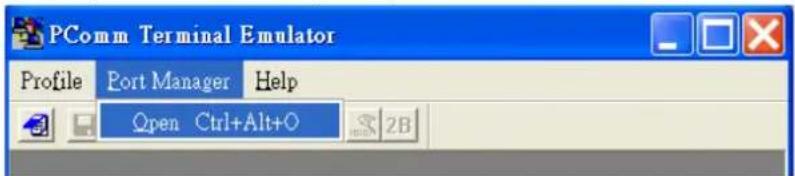
- The Communication Parameter page of the Property window opens. Select the appropriate COM port for Console Connection, 115200 for Baud Rate, 8 for Data Bits, None for Parity, and 1 for Stop Bits. Click on the Terminal tab, and select VT100 (or ANSI) for Terminal Type. Click on OK to continue.
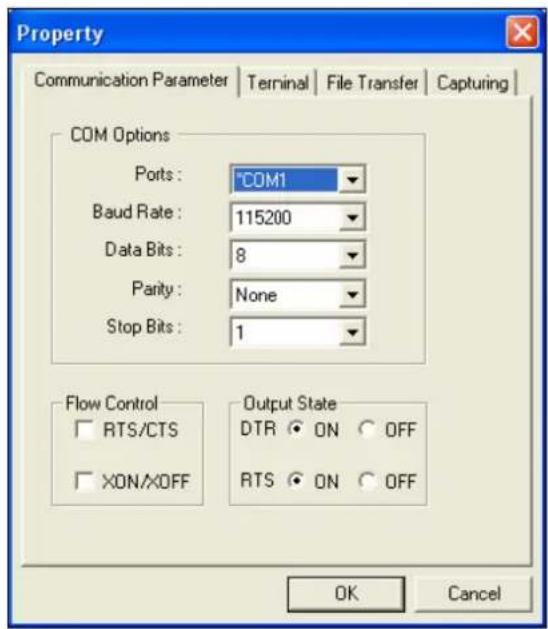
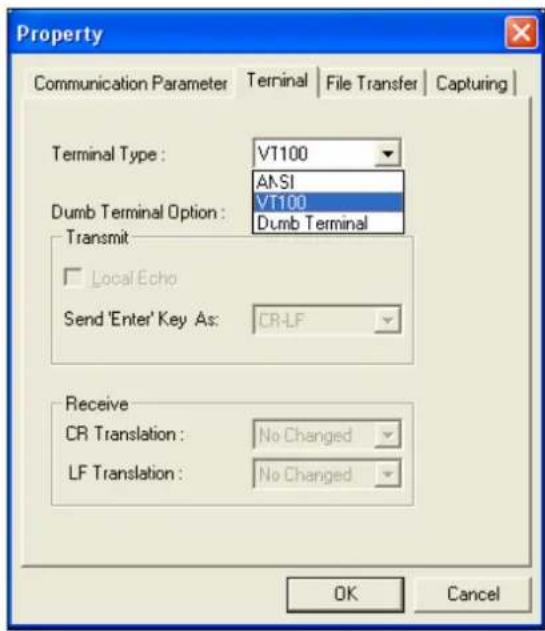
- The Console login screen will appear. Log into the RS-232 console with the login name (default: admin) and password (default: root, if no new password is set).
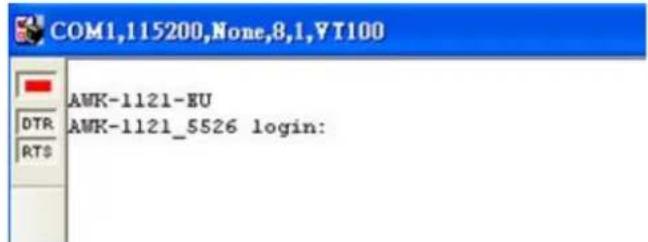
- The AWK-1121/1127's device information and Main Menu will be displayed. Please follow the description on screen and select the administration option you wish to perform.
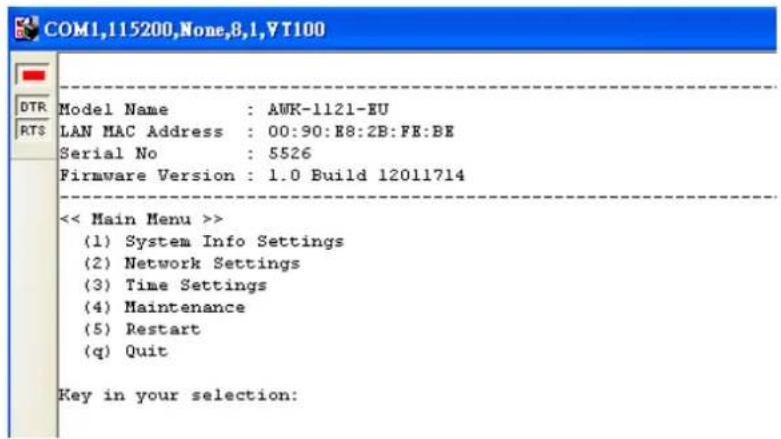
NOTE To modify the appearance of the PComm Terminal Emulator window, select Edit Font and then choose the desired formatting options.

ATTENTION
If you unplug the RS-232 cable or trigger DTR, a disconnection event will be evoked to enforce logout for network security. You will need to log in again to resume operation.
Configuration by Telnet and SSH Consoles
You may use Telnet or SSH client to access the AWK-1121/1127 and manage the console over a network. To access the AWK-1121/1127's functions over the network from a PC host that is connected to the same LAN as the AWK-1121/1127, you need to make sure that the PC host and the AWK-1121/1127 are on the same logical subnet. To do this, check your PC host's IP address and subnet mask.
NOTE The AWK-1121/1127's default IP address is 192.168.127.253 and the default subnet mask is 255.255.255.0 (for a Class C network). If you do not set these values properly, please check the network settings of your PC host and then change the IP address to 192.168.127.xxx and subnet mask to 255.255.255.0.
Follow the steps below to access the console utility via Telnet or SSH client.
- From Windows Desktop, run Start → Run, and then use Telnet to access the AWK-1121/1127's IP address from the Windows Run window (you may also issue the telnet command from the MS-DOS prompt).
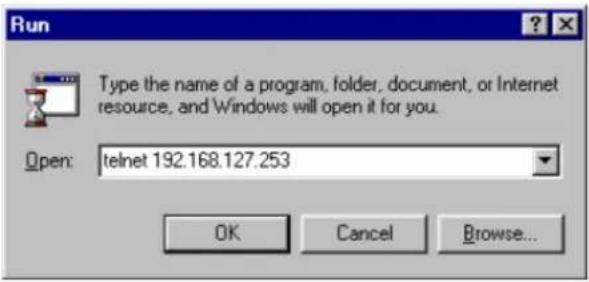
- When using SSH client (ex. PuTTY), please run the client program (ex. putty.exe) and then input the AWK-1121/1127's IP address, specifying 22 for the SSH connection port.
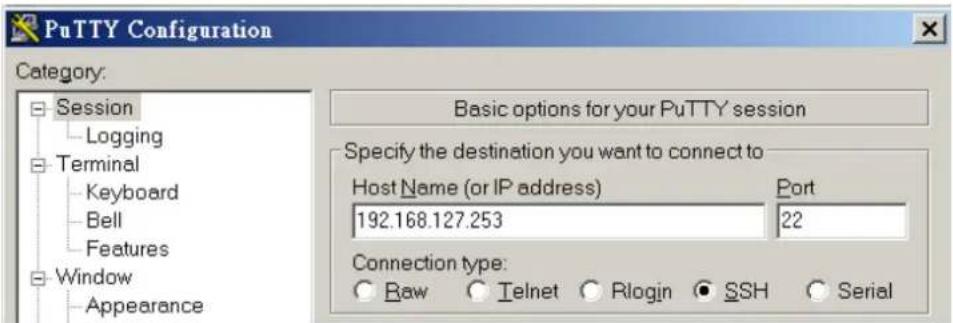
- The Console login screen will appear. Please refer to the previous paragraph "RS-232 Console Configuration" and for login and administration.
Configuration by Web Browser with HTTPS/ SSL
To secure your HTTP access, the AWK-1121/1127 supports HTTPS/SSL encryption for all HTTP traffic. Perform the following steps to access the AWK-1121/1127's web browser interface via HTTPS/SSL.
- Open your web browser and type https://
in the address field. Press Enter to establish the connection.

- Warning messages will pop out to warn users that the security certificate was issued by a company they have not chosen to trust.
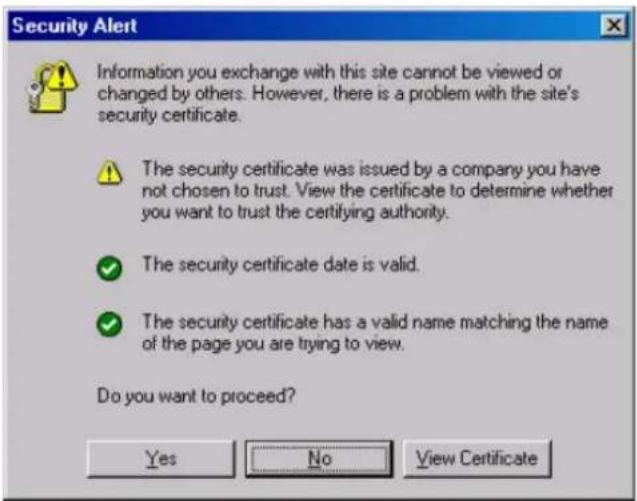
- Select Yes to accept the certificate issued by Moxa IW and then enter the AWK-1121/1127's web browser interface secured via HTTPS/SSL. (You can see the protocol in URL is https.) Then you can use the menu tree on the left side of the window to open the function pages to access each of AWK-1121/1127's functions.
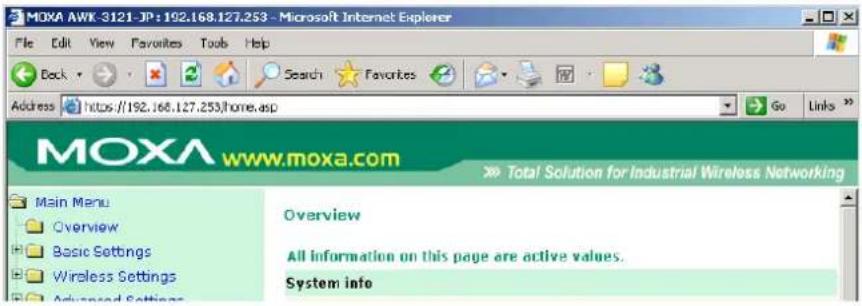
Disabling Telnet and Browser Access
If you are connecting the AWK-1121/1127 to a public network but do not intend to use its management functions over the network, then we suggest disabling both Telnet Console and Web Configuration. Please run Maintenance → Console Settings to disable them, as shown in the following figure.
Console Settings
| HTTP console | ○ Enable ○ Disable |
| HTTPS console | ○ Enable ○ Disable |
| Telnet console | ○ Enable ○ Disable |
| SSH console | ○ Enable ○ Disable |
Submit
This chapter provides more detailed information about wireless-related technologies. The information in this chapter can help you administer your AWK-1121/1127s and plan your industrial wireless network better.
The following topics are covered in this appendix:
Fragment
□ RTS threshold
Fragment
A lower setting means smaller packets, which will create more packets for each transmission. If you have decreased this value and experience high packet error rates, you can increase it again, but it will likely decrease overall network performance. Only minor modifications of this value are recommended.
RTS threshold
RTS threshold (256-2346) – This setting determines how large a packet can be before the Access Point coordinates transmission and reception to ensure efficient communication. This value should remain at its default setting of 2,346. When you encounter inconsistent data flow, only minor modifications are recommended.
This chapter presents additional information about this manual and product. You can also learn how to contact Moxa for technical support.
The following topics are covered in this appendix:
□ About This User's Manual
☐ DoC (Declaration of Conformity)
▶ Federal Communication Commission Interference Statement
R&TTE Compliance Statement
□ Firmware Recovery
About This User's Manual
This manual is mainly designed for, but nto limited to, the following hardware and firmware for the AWK-1121/1127:
- Hardware Rev: 1.0
- Firmware Ver: 1.0
You are strongly recommended to visit Moxa's website (http://www.moxa.com) and find the latest product datasheet, firmware, QIG (Quick Installation Guide), UM (User's Manual) and related information.

NOTE
You can find out the hardware revision number of AWK-1121/1127 on the side label.
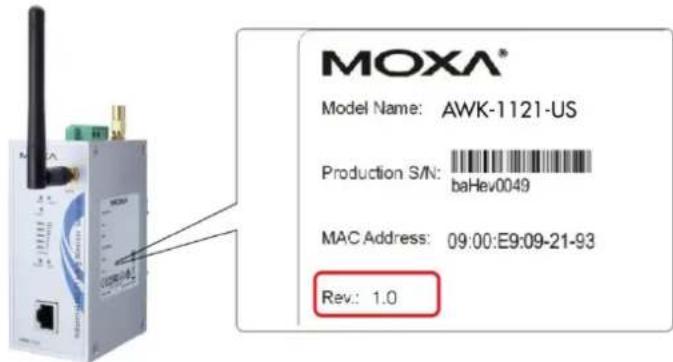
The firmware version number can be seen on the Overview page, as follow:
| Overview | |
| All information on this page are active values. | |
| System Info | |
| Model name | AWK-1121-EU |
| Device name | AWK-1121_4041 |
| Serial No. | 4041 |
| System up time | 0 days 00h:15m:19s |
| Firmware version | 1.0 Build 12011714 |
| Device Info | |
| Device MAC address | 00:90:E8:00:03:46 |
| IP address | 192.168.127.253 |
| Subnet mask | 255.255.255.0 |
| Gateway | |
| 802.11 Info | |
| Country code | EU |
| Operation mode | Client |
| Channel | Not connected |
| RF type | B/G Mixed |
| SSID | MOXA |
DoC (Declaration of Conformity)
Federal Communication Commission Interference Statement
This equipment has been tested and found to comply with the limits for a Class B digital device, pursuant to Part 15 of the FCC Rules. These limits are designed to provide reasonable protection against harmful interference in a residential installation. This equipment generates, uses and can radiate radio frequency energy and, if not installed and used in accordance with the instructions, may cause harmful interference to radio communications. However, there is no guarantee that interference will not occur in a particular installation. If this equipment does cause harmful interference to radio or television reception, which can be determined by turning the equipment off and on, the user is encouraged to try to correct the interference by one of the following measures:
• Reorient or relocate the receiving antenna.
- Increase the separation between the equipment and receiver.
- Connect the equipment into an outlet on a circuit different from that to which the receiver is connected.
- Consult the dealer or an experienced radio/TV technician for help.
FCC Caution: To assure continued compliance, (example – use only shielded interface cables when connecting to computer or peripheral devices). Any changes or modifications not expressly approved by the party responsible for compliance could void the user's authority to operate this equipment. This transmitter must not be co-located or operated in conjunction with any other antenna or transmitter.
FCC Radiation Exposure Statement
This equipment complies with FCC radiation exposure limits set forth for an uncontrolled environment. This equipment should be installed and operated with a minimum distance of 20 cm between the radiator & your body.
This device complies with Part 15 of the FCC Rules. Operation is subject to the following two conditions: (1) This device may not cause harmful interference, and (2) this device must accept any interference received, including interference that may cause undesired operation.
FCC 15.407(e): Within the 5.15-5.25 GHz band, U-NII devices will be restricted to indoor operations to reduce any potential for harmful interference to co-channel MSS operations.
NOTE
The availability of some specific channels and / or operational frequency bands are country dependent and are firmware programmed at the factory to match the intended destination. The firmware setting is not accessible by the end user.
R&TTE Compliance Statement
Moxa declares that the apparatus AWK-1121/1127 complies with the essential requirements and other relevant provisions of Directive 1999/5/EC.
This equipment complies with all the requirements of DIRECTIVE 1999/5/CE OF THE EUROPEAN PARLIAMENT AND THE COUNCIL OF 9 March 1999 on radio equipment and telecommunication terminal equipment and the mutual recognition of their conformity (R&TTE).
The R&TTE Directive repeals and replaces in the directive 98/13/EEC (Telecommunications Terminal Equipment and Satellite Earth Station Equipment) as of April 8, 2000.
Safety
This equipment is designed with the utmost care for the safety of those who install and use it. However, special attention must be paid to the dangers of electric shock and static electricity when working with electrical equipment. All guidelines of this and of the computer manufacturer must therefore be allowed at all times to ensure the safe use of the equipment.
EU Countries Intended for Use
The ETSI version of this device is intended for home and office use in Austria, Belgium, Denmark, Finland, France (with Frequency channel restrictions), Germany, Greece, Ireland, Italy, Luxembourg, Portugal, Spain, Sweden, The Netherlands, and United Kingdom.
The ETSI version of this device is also authorized for use in EFTA member states Norway and Switzerland.
EU Countries Not Intended for Use
None.
Potential Restrictive Use
France: only channels 10, 11, 12, and 13.
Firmware Recovery
When the LEDs of FAULT, Signal Strength, CLIENT, BRIDGE and WLAN all light up simultaneously and blink at one-second interval, it means the system booting has failed. It may result from some wrong operation or uncontrollable issues, such as an unexpected shutdown during firmware update. The AWK-1121/1127 is designed to help administrators recover such damage and resume system operation rapidly. You can refer to the following instructions to recover the firmware:
Connect to the AWK-1121/1127's RS-232 console with 115200bps and N-8-1. You will see the following message shown on the terminal emulator every one second.
Section userdisk Cksum error = 0xa5feadde --> 0x658c5051
Press Ctrl-C to enter Firmware Recoverying Process.
Press Ctrl-C to enter Firmware Recoverying Process.
Press Ctrl-C to enter Firmware Recoverying Process.
Press Ctrl-C to enter Firmware Recoverying Process.
Press Ctrl-C to enter Firmware Recoverying Process.
Press Ctrl-C to enter Firmware Recoverying Process.
Press Ctrl - C and the following message will appear.
Press Ctrl-C to enter Firaware Recovering Process.....
IP address of AWK-1121 : 0.0.0.0
IP address of TFTP server : 0.0.0.0
.....
1. Start to firaware upgrade using the above network setting immediately.
2. Change the network settings.
Enter your selection : (1-2.enter for abort):
Enter 2 to change the network setting. Specify where the AWK-1121/1127's firmware file on the TFTP server and press y to write the settings into flash memory.
IP address of AWK-1121 : 0.0.0.0
IP address of TFTP server : 0.0.0.0

1. Start to firmware upgrade using the above network setting immediately.
2. Change the network settings.
Enter your selection : (1-2.enter for abort): 2

IP address of AWK-1121 : 192.168.1.2
IP address of TFTP server : 192.168.1.1
Update RedBoot non-volatile configuration - continue (y/n)? y
AWK-1121/1127 restarts, and the "Press Ctrl-C to enter Firmware Recovery Process..." message will reappear. Press Ctrl-C to enter the menu and select 1 to start the firmware upgrade process.
Press Ctrl-C to enter Firmware Recovering Process.....
IP address of AWK-1121 : 192.168.1.2
IP address of TFTP server : 192.168.1.1
1. Start to firmware upgrade using the above network setting immediately.
2. Change the network settings.
Enter your selection : (1-2.enter for abort): 1
Select 0 in the sub-menu to load the firmware image via LAN, and then enter the file name of the firmware to start the firmware recovery.
Load method select :
0. Load from LAN
1. Load from serial with Xmodem
q. Abort select.
Please select item : 0
Please input load image name..
Default file name : AWK-1121.rom
User Input file name : AWK-1121_1.0.rom
