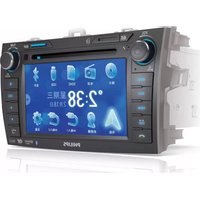
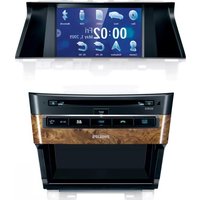
CID3285 - Car Radio PHILIPS - Free user manual and instructions
Find the device manual for free CID3285 PHILIPS in PDF.


| Product Type | Car Radio with DVD, GPS, and Bluetooth |
| Brand | Philips |
| Model | CID3285 |
| Dimensions (Main Unit) | 277 x 146 x 191 mm |
| Weight (Main Unit) | 2.5 kg |
| Power Supply | 12 V DC (11–16 V), negative ground |
| Fuse | 15 A |
| Speaker Impedance | 4–8 Ω |
| Maximum Power Output | 50 W x 4 channels |
| Disc Playback | DVD, VCD, CD, MP3, WMA; region code for China |
| Radio Bands | FM (87.5–108 MHz), AM (522–1620 kHz) |
| Bluetooth | Version 2.0, Class 2, range ~8 m; supports HFP, HSP, A2DP, AVRCP |
| GPS Navigation | Built-in navigation system with map card slot |
| USB / SD Card | USB 2.0, SD/MMC/SDHC card slot; supports MP3, WMA, video, JPEG |
| Screen Size | 6.2 inches (16:9) |
| Display Resolution | 800 x 480 pixels |
| Video Output | NTSC only; 1 ± 0.2 V |
| Audio Output (Pre-Amp) | 2.0 V (1 kHz, 0 dB, 10 kΩ load) |
| Operating Temperature | -20°C to 70°C |
| Safety | Do not watch video while driving; use only 15 A fuse; avoid water and short circuit |
| Cleaning | Clean with soft, damp cloth; no alcohol or household cleaners |
| Installation | For negative ground 12 V DC vehicles; use supplied mounting hardware |
| Supplied Accessories | Main unit, power connector, I/O cable, audio out cable, CMMB connector, GPS antenna, screen cleaning cloth, user manual, quick start guide |
Frequently Asked Questions - CID3285 PHILIPS
User questions about CID3285 PHILIPS
0 question about this device. Answer the ones you know or ask your own.
Ask a new question about this device
Download the instructions for your Car Radio in PDF format for free! Find your manual CID3285 - PHILIPS and take your electronic device back in hand. On this page are published all the documents necessary for the use of your device. CID3285 by PHILIPS.
USER MANUAL CID3285 PHILIPS
Register your product and get support at
www.philips.com/welcome
CID3285

EN User manual
PHILIPS
Contents
1 Important 4
Safety 4
Notice 4
2 Your in-car entertainment system 5
Introduction 5
What's in the box 6
Overview of the main unit 7
3 Get started 8
Install the car audio 8
Turn on 10
Set date and time 10
Adjust screen 11
Listen to radio 11
4 Use map 13
Upgrade the map 14
5 Play 14
Load discs 14
Connect USB device 15
Insert USB or SD/MMC card 15
Play/Pause 15
Search for a folder 16
Search within a title/folder 16
Repeat 16
Repeat a section 17
Random play 17
Select audio language 17
Select audio mode 17
Select subtitle language 18
Rotate pictures 18
Zoom 18
Select slide show duration 18
6 Play with Bluetooth device 19
Pair the Bluetooth-enabled devices 19
Make a call 19
Receive call 20
Listen to music from Bluetooth device 20
Adjust Bluetooth settings 21
7 Adjust sound 21
Adjust volume 21
Mute 21
Select preset equalizer 21
Adjut fader/balance 22
Set Dynamic Bass Boost (DBB) 22
8 Adjust settings 23
Display system setup menu 23
Adjust general settings 23
Adjust sound settings 24
Adjust video settings 25
Adjust Bluetooth settings 25
Adjust language settings 26
Adjust volume settings 26
Adjust DVD rating 27
9 Others 27
Reset 27
Replace fuse 27
10 Product information 28
11 Troubleshooting 30
About Bluetooth device 31
12 Glossary 32
1 Important
Safety
Read and understand all instructions • before you use the apparatus. If damage is caused by failure to follow instructions, the warranty does not apply.
Use of controls or adjustments or performance of procedures other than herein may result in hazardous radiation exposure or other unsafe operation.
This unit is designed for negative ground • (earth) 12 V DC operation only.
To reduce the risk of traffic accident, do no watch video during driving.
To ensure safe driving, adjust the volume to a safe and comfortable level.
Improper fuses can cause damage or fire. When you need to change the fuse, consult a professional.
Use only the supplied mounting hardware • for a safe and secure installation.
To avoid short circuit, do not expose the • apparatus to rain or water.
Never insert objects into the ventilation • slots or other openings on the apparatus.
Never place any objects other than discs • into the disc tray/slot.
Visible and invisible laser radiation when open. Avoid exposure to beam.
Risk of damage to the screen! Never • touch, push, rub or strike the screen with any object.
Never use solvents such as benzene, • thinner, cleaners available commercially, or anti-static sprays intended for discs.
Clean the apparatus with soft, damp • cloth. Never use substances such as alcohol, chemicals or household cleaners on the apparatus.
Notice

Be responsible Respect copyrights
The making of unauthorized copies of copy-protected material, including computer programs, files, broadcasts and sound recordings, may be an infringement of copyrights and constitute a criminal offence. This equipment should not be used for such purposes.

"DivX, DivX" Certified, and associated logos are trademarks of DivX, Inc. and are used under license.
Official DivX® Certified product. Plays all versions of DivX® video (including DivX® 6) with standard playback of DivX® media files. The Bluetooth® word mark and logos are registered trademarks owned by Bluetooth SIG, Inc. and any use of such marks by Philips is under license.
DOLBY. DIGITAL
Manufactured under license from Dolby Laboratories.
"Dolby" and the double-D symbol are trademarks of Dolby Laboratories.
Other trademarks and trade names are those of their respective owners.
This apparatus includes this label:

Environmental information
All unnecessary packaging has been omitted. We have tried to make the packaging easy to separate into three materials: cardboard (box), polystyrene foam (buffer) and polyethylene (bags, protective foam sheet.)
Your system consists of materials which can be recycled and reused if disassembled by a specialized company. Please observe the local regulations regarding the disposal of packaging materials, exhausted batteries and old equipment.
Any changes or modifications made to this device that are not expressly approved by Philips Consumer Lifestyle may void the user's authority to operate the equipment. 2010 © Koninklijke Philips Electronics N.V. All rights reserved.
Specifications are subject to change without notice. Trademarks are the property of Koninklijke Philips Electronics N.V. or their respective owners. Philips reserves the right to change products at any time without being obliged to adjust earlier supplies accordingly.
2 Your in-car entertainment system
Congratulations on your purchase, and welcome to Philips! To fully benefit from the support that Philips offers, register your product at www.philips.com/welcome.
Introduction
With the car entertainment system, you can quickly found routine through the • navigation system
And you can also enjoy:
Audio/video/JPEG pictures from DVD, VCD or CD USB devices SD/SDHC/MMC cards External devices
FM or AM (MW) radio•
Audio from Bluetooth-enabled devices•
Besides, you can make/receive phone calls with Bluetooth-enabled devices.
What's in the box
Check and identify the contents of your package:
①

②

③

④

⑤

6

⑦

⑧

①Main unit
②Power connector
③I/O cable
④Audio out cable
⑤CMMB connector
⑥GPS antenna
⑦Screen cleaning cloth
⑧ Printing material (include User manual, Quick start guide)
Overview of the main unit
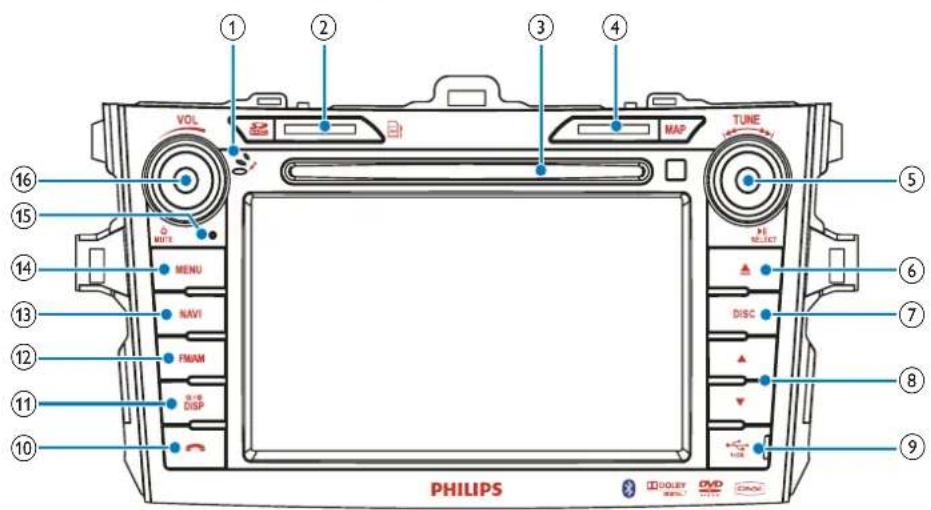
English
①Built-in microphone
②SD/MMC card slot
③Disc slot
④Map card slot
⑤TUNE/ ▶ SELECT
• Tune for radio station.
- Skip to the previous or next title, chapter, or track.
• Confirm an entry or selection.
• Start, pause or resume play.
⑥
- Eject disc.
⑦DISC
• Switch to disc playing mode.
⑧ ▲/▼
- Skip to the previous/next preset station.
- Skip to the previous/next folder.
• Fast backward/forward for DVD video. - Move cursor up/down.
⑨
- Open the cover to insert USB device.
10

Answer phone call.
⑪DISP/

Adjust screen brightness/contrast/color.
Turn on/off the screen display.
Adjust the display aspect ratio.
⑫FM/AM
Switch to the FM/AM source.
⑬NAVI
Enter the GPS navigation system or • exit.
⑭MENU
Return to the home menu.
⑮RESET
Reset the unit when it hangs up.
⑯VOL/
①/MUTE
Adjust volume.
Turn the unit on or off.
Turn mute on or off.
3 Get started

Caution
Use of controls or adjustments or performance of procedures other than herein may result in hazardous radiation exposure or other unsafe operation.
Always follow the instructions in this chapter in sequence.
Install the car audio
These instructions are for a typical installation. However, if your car has different requirements, make the corresponding adjustment. If you have any questions regarding installation kits, consult your Philips car audio dealer.

Caution
This unit is designed for negative ground (earth) • 12 V DC operation only.
• Always install this unit in the car dashboard. Other locations can be dangerous as the rear of the unit heats up during use.
• To avoid short-circuit: before you connect, ensure that the ignition is off.
- Ensure that you connect the yellow and red power supply leads after all other leads are connected.
- Ensure that all loose leads are insulated with electrical tape.
- Ensure that the leads do not get caught under screws on parts that will move (e.g. seat rail).
- Ensure that all ground (earth) leads are run to a common ground (earth) point.
- Use only the supplied mounting hardware for a safe and secure installation.
- Improper fuses can cause damage or fire. When you need to change the fuse, consult a professional.
Note on the power supply lead (yellow)
When you connect other devices to this system, ensure that the rating of the car circuit is higher than the total fuse value of all the connected devices.
Notes on speaker connection
Never connect speaker wires to the metal body or chassis of the car.
Never connect speaker wires with stripes • to one another.
Mount in the dashboard

Note
Check wire connection before you mount the unit into a car.
- If preset radio stations are lost when the ignition key is turned OFF and then back ON, reconnect the red leads crosswise to the yellow ones.
1 If the car does not have an on-board drive or navigation computer, disconnect the negative terminal of the car battery. If you disconnect the car battery in • a car that has an on-board drive or navigation computer, the computer may lost its memory. If the car battery is not disconnected, • to avoid short-circuit, ensure that bare wires do not touch each other.
2 Take out the original car audio. Keep the clips, brackets and screws.
3 Mount the clips (A) on the unit first, then mount the bracket (B) on the unit with the screws (C).
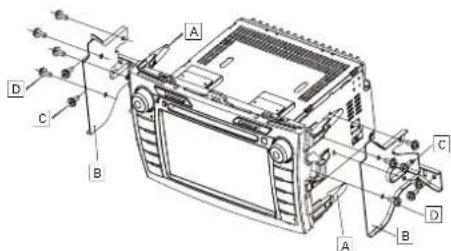
4 Connect wires (see "Connect wires" section).
5 Slide the unit into the dashboard until a click sound is heard.

natural_image
Line drawing of a device inside a car dashboard with an arrow indicating direction (no text or symbols)6 Mount on the screws (D).
7 Reconnect the negative terminal of the car battery.
Connect wires

Caution
Ensure that all loose leads are insulated with electrical tape.
1 Check the car's wiring carefully, then do the other connections:

flowchart
graph TD
    A["Car"] --> B["Engine"]
    B --> C["Control Unit"]
    C --> D["GPS sensor"]
    D --> E["Optional accessory"]
    E --> F["Dashboard Module"]
    F --> G["Motor"]
    G --> H["Control Unit"]
    H --> I["Car"]
    I --> J["Engine"]
    J --> K["Control Unit"]
    K --> L["GPS sensor"]
    L --> M["Optional accessory"]
    M --> N["Motor"]
    N --> O["Engine"]
    O --> P["Control Unit"]
    P --> Q["GPS sensor"]
    Q --> R["Optional accessory"]
    R --> S["Motor"]
Turn on

Caution
Risk of road accidents! Never watch video or adjust settings while you drive.
1 Press
to turn on the unit.
The available OSD (On-Screen → Display) languages are displayed.

2 Touch a language to select.
The OSD language is changed to the selected language immediately.
To turn off the unit, press Ⓞ for 3 seconds.
Set date and time
1 Press MENU.
The main menu is displayed!→

2 Touch [Settings].
3 Touch [Time]
The date/time setup menu is displayed.→
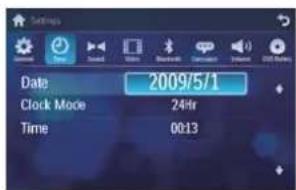
Set date
1 Touch [Date].
2 Touch on the displayed date information. A submenu is displayed.→

3 Touch ♠ or ♦ to set year, month and day.
Set clock mode
1 Touch [Clock mode].

2 Touch on [12Hr] or [24Hr] to select clock mode.
Set time
1 Touch [Time].
2 Touch on the displayed time. A submenu is displayed.→

3 Touch ♦ or ♦ to set hour and minute.

When date/time is set, touch ↩ to return to main menu.
Adjust screen
To adjust screen brightness/contrast/color
1 Press DISP/ /
2 Press or to select an item.
3 Touch / to adjust the value.
4 Press DISP/☐/☐ to confirm.
To turn on/off the screen, press and hold DISP/☀/☐.
Listen to radio
Tune to a radio station
1 Touch the upper left corner to display home menu.
2 Touch [Radio]. Band and frequency information is ↩ displayed.
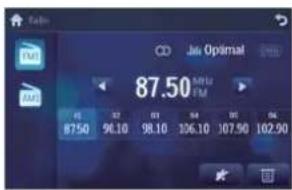
3 Touch on FM or AM to select band: FM band options: • FM1, FM2, FM3 AM band options: • AM1, AM2
4 Briefly touch ◀ or ▶ to tune to a radio station by step. Touch •◀ or ▶ for over 1 seconds to tune to a radio station automatically.
Tune by frequency
1 Touch FM or AM to select band.
2 Touch.
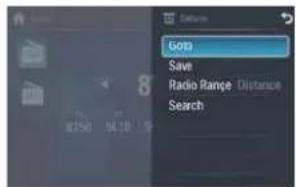
3 Touch [Goto].
4 Touch the numbers to enter frequency.

Touch •← to clear the last entered number.
Touch • ✗ to clear all the entered numbers.
5 Touch to confirm.
→ The radio station is broadcast.
Select radio range
Before you start to search for radio stations, you can select radio range.
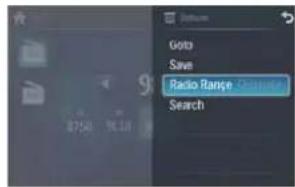
1 Touch.
2 Touch [Radio range] to toggle tuner sensitivity from normal to high sensitivity.
• [Distance]: Only stations with strong signals can be broadcast.
• [Local]: Stations with strong and weak signals can be broadcast.
Store radio stations in memory
You can store up to 6 stations in each band.
Store stations manually
1 Tune to the station.
2 Touch.
3 Touch [Save].
4 Touch one of the channels 01 to 06 to save the select band.

Store stations automatically
You can search for a station with intro search, which broadcasts a 10-second preview of each detected radio station.
1 Select band.
2 Touch.
3 Touch [Search].
Auto search starts. The six strongest → stations of the selected band are saved in preset channels 1-6 automatically.
Tune to a preset station
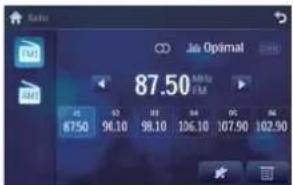
1 Touch [Radio].
2 Select band.
3 Touch one of the preset channels (01 to 06) to select a preset station.
4 Use map

Note
You may need to upgrade the map before using it (see "Upgrade the map" section)
1 Touch the upper left corner to display home menu.
2 Touch [Navigation].
The navigation menu is displayed in a → few seconds.

3 Refer to the map manual (in Chinese) to operate the navigation tool.


Tip
- You can press NAVI to enter/exit the navigation system.
Upgrade the map
1 Turn off the car audio system.
2 Press the map card until you hear a click sound.
3 Take out the card and bring it to the authorized service center for upgrade.
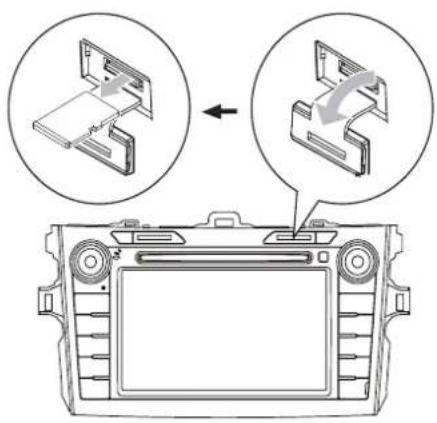
4 Insert the upgraded map card back into the map card slot.
5 Tum on the car audio.
The map upgrades in a few minutes.
5 Play
Load discs
You can play video, audio or images stored on the following discs:
DVD video, DVD-R, DVD-RW•
VCD•
Audio CD, CD-R, CD-RW•

Note
Ensure that the disc contains playable content.
You can play DVD discs with the following region codes:
DVD region code Country

China
1 Insert the disc into the disc slot with label side facing up.
Play starts automatically.

natural_image
Line drawing of a car dashboard with CD and rear-mounted fans (no text or symbols)To remove the disc, press the▲button.
When the disc is ejected, the unit switches to the previous source, if connected. Otherwise, the unit switches to [Radio] mode automatically.
Connect USB device

Note
Ensure that the device contains playable content.
1 Open the USB door.
2 Insert the USB device to the USB socket. Play starts automatically.
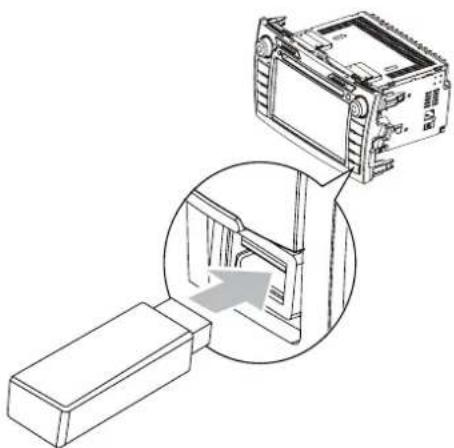
natural_image
Technical line drawing showing a device with an open lid and a close-up view of its internal structure (no text or symbols)
Note
To remove the USB device, switch to disc, radio or other source first.
Insert USB or SD/MMC card

Note
Ensure that the device contains playable content. • The unit supports SDHC card. •
1 Insert the SD/MMC card into the SD/MMC card slot.
Play starts automatically.

English
Remove the SD/MMC card
1 Press SOURCE to switch to another source.
2 Press the card until you hear a click sound. The card is now disengaged!→
3 Remove the SD or MMC card.
Play/Pause
1 Once a disc, USB or SD/MMC card is inserted, play starts automatically.
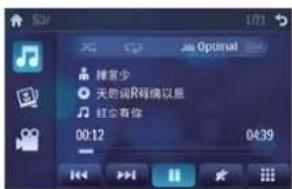
For DVD movie, if a menu appears, press to start play.
2 To pause, touch . " To resume play, touch " again.
Search for a folder
For video files
1 Touch to return to playlist menu.
2 Touch to display all available video file folders.

3 Touch a folder, then touch or to select a file.
4 Touch to start play.
For audio files
1 Touch to return to playlist menu.
2 Touch 📂 to display all available audio folders.

3 Touch a folder, then touch ♠ or ♦ to select a file.
4 Touch to start play.
For picture files
1 Touch to return to playlist menu.
2 Touch 🔒 to display all available picture folders.
3 Touch a folder, then touch ♠ or ♦ to select a picture.
4 Touch to view the picture.
Search within a title/folder
Search by step
1 Touch anywhere except for the upper left corner to display menu on the screen, if necessary.
2 Touch ♦ or ♦ to skip to the previous or next chapter/track.
Direct search
1 Touch anywhere except for the upper left corner to display menu on the screen, if necessary.
2 Touch. The search screen is displayed.

For video files, touch ➕ first, then touch
3 Touch the numbers to enter chapter/file number, then touch √. To clear the previous input, touch ←. To clear all input, touch ✗.
Repeat
During play, you can select different repeat play modes.
For DVD/VCD movie disc:
1 Touch anywhere except for the upper left corner to display menu on the screen, if necessary.

• [Repeat chapter]: play the current chapter repeatedly.
• [Repeat title]: play all chapters in the title repeatedly.
• [Repeat off]: cancel repeat play.
For VCD karaoke or audio CD:
1 Touch anywhere except for the upper left corner to display menu on the screen, if necessary.
2 Touch to select:
• [Repeat]: play the current track repeatedly.
• [Repeat off]: cancel repeat play.
For MP3/WMA files:
1 Touch anywhere except for the upper left corner to display menu on the screen, if necessary.
2 Touch to select:
• [Repeat]: play the current track repeatedly.
• [Repeat folder]: play all the tracks in the current folder repeatedly.
• [Repeat off]: cancel repeat play.
Repeat a section
You can repeat a specific section of video file (repeat A-B).
1 During play, touch anywhere except for the upper left corner to display menu on the screen, if necessary.
2 Touch to display the 2nd menu, if necessary.
3 Touch repeatedly to mark:
• [Repeat A-]: the start of the section to repeat.
• [Repeat A-B]: the end of the section to repeat. The selected section plays repeatedly
4 To exit A-B repeat mode, touch A-B repeatedly until [Repeat A-B off] is displayed.
Random play
You can play audio tracks/files in random order.
1 During play, touch repeatedly to turn random play on or off.
• ∞ is highlighted: start random play.
• × turns gray: cancel random play.
Select audio language
For video discs that contain two or more audio channels.
1 During play, touch anywhere except for the upper left corner to display menu on the screen, if necessary.
2 Touch to display the 2nd menu.
3 Touch repeatedly.
The audio channel information is ↓
displayed on the upper line of the
screen.
Select audio mode
When you play VCDs, you can select an audio mode (R/L/Stereo).
1 During play, touch anywhere except for the upper left corner to display menu on the screen.
2 Touch repeatedly until the audio mode is selected.
Select subtitle language
For DVD or DivX discs that contain two or more subtitle languages.
1 During play, touch anywhere except for the upper left corner to display menu on the screen, if necessary.
2 Touch to display the 2nd menu
3 Touch repeatedly to select a language.
The selected language is displayed.
Rotate pictures
1 When you view pictures, touch anywhere except for the upper left corner to display menu on the screen, if necessary.

natural_image
Photo of a floating platform or floating structure with visible beams and legs, displayed in an LCD screen (no text or symbols)2 Touch repeatedly to rotate the picture.
Zoom
You can zoom in pictures for a close view.
1 During view pictures, touch anywhere except for the upper left corner to display menu on the screen, if necessary.
2 Touch repeatedly to zoom in the picture.

natural_image
Exterior view of a modern office building (no signage)3 Touch ♦, ♦, ◀ or ▶ to pan through the enlarged picture.
Select slide show duration
1 Touch anywhere except for the upper left corner to display menu on the screen, if necessary.
2 Touch repeatedly to select:
- Fast: 3 seconds
• Normal: 5 seconds - Slow: 8 seconds
6 Play with Bluetooth device
You can make or receive phone calls with Bluetooth-enabled phones through the unit. You can also listen to music from a Bluetooth-enabled device.
Pair the Bluetooth-enabled devices
To connect your Bluetooth device to the unit, you need to pair the device to the unit. Pairing needs only to be done once. You can pair up to eight devices.

Note
The operational range between this unit and a Bluetooth device is approximately 10 meters (30 feet).
- Before you connect a Bluetooth device to this unit, familiarize yourself with the Bluetooth capabilities of the device.
- Compatibility with all Bluetooth devices is not guaranteed.
- Any obstacle between this unit and a Bluetooth device can reduce the operational range.
- Keep this unit away from any other electronic device that may cause interference.
• Turn on the Bluetooth function on the device.
1 Search for Bluetooth device with the device.
2 Select "CID3285" in the pairing list.
3 Enter default password "0000", if pairing succeeds. phone call record is displayed.

Disconnect Bluetooth devices
1 To disconnect one device, touch (red).
→ (green) is displayed.

Tip
The device will also be disconnected when the device is moved beyond the operational range.
- If you want to reconnect the device to the unit, place it within the operational range.
- If you do not want to reconnect the device to the unit automatically, touch ☐[Auto connect], then select [Off]. For details, see the "Adjust Bluetooth settings" section.
Make a call
1 Pair the phone with the unit.
2 Touch the upper left corner to display the home menu.
3 Touch [Bluetooth].
The Bluetooth menu is displayed.

4 Touch ♦ or ♦ to select the paired phone, then touch ⏻.
5
Touch ♠ or ♦ to search for phone number from the following list:

• [Missed calls]
• [Received calls]
• [Dialed calls]
• [Phone book]
• [Sim phone book]
• [Local phone book]
Or touch ■ to dial number directly, then touch o to dial.
Receive call
By default, all incoming calls are received automatically.
1 If there is incoming call, [Incoming call...] flashes on the screen. Speak into the Bluetooth microphone.

2
When conversation ends, touch (e.g.) to terminate the call.

Tip
You can select to receive calls manually by set • [Auto answer] to [Off] status.
Switch phone call to the mobile
If you do not want your passenger to hear your incoming call, you can switch the call to the mobile.
1 During talking, touch .
The voice is transferred from the unit's loudspeaker to the mobile phone.
Listen to music from Bluetooth device
If the connected Bluetooth device supports Advanced Audio Distribution Profile (A2DP), you can listen to the music stored on the device through the unit. If the device also supports Audio Video Remote Control Profile (AVRCP) profile, you can use the control on the unit to play music stored on the device.
1 Pair the phone with the unit.
2 Touch the upper left corner to return to home menu.
3 Touch [Bluetooth].
The Bluetooth menu is displayed.
4 Start play music via device.
If your device support AVRCP.
1 Touch.

2 Touch to start play.
Adjust Bluetooth settings
You can change below Bluetooth settings:
- [Bluetooth]: to turn on or off "Bluetooth" function
• [Auto connect]: to turn on or off "Auto connect" function
• [Auto answer]: to turn on or off "Auto answer" function
• [Pairing code]: to set paring code
• [Phone Book Sync]: to synchronize phone book
1 In Bluetooth menu, touch . The option menu is displayed.

2 Touch on the selected option to change the setting.

Tip
You can also adjust Bluetooth settings in the • "Settings" menu.
7 Adjust sound
Adjust volume
1 Tum clockwise to increase volume. Tum • anti-clockwise to reduce volume.
Mute
1 During play, press ① To turn the sound back on, press ② again.

Tip
You can also turn off sound by touching ★ on the screen.
Select preset equalizer
You can select preset equalizer:
- [User]
• [Techno]
• [Rock]
• [Classic]
• [Jazz]
• [Optimal]
• [Flat]
• [Pop]
1 Touch anywhere except for the upper left comer to display menu on the screen, if necessary.
2 Touch .
The current Equalizer setting is displayed.

3 Touch or to select an EQ.
4 Touch ▲ or ▼ to adjust below settings:
• [Bass]bass range: -14 to +14.
• [Mid]middle range: -14 to +14.
• [Treb]treble range: -14 to +14.
• [LPH] low pass filter range: 60, 80, 100, 200.
• [MPF]middle pass filter range: 500, 1K, 1.5K, 2.5K.
• [HPF]high pass filter range: 10K, 12.5K, 15K, 17.5K.
5 Touch to restore the above settings into default settings.
6 Press to exit.
Adjut fader/balance
You can also adjust the front and rear speaker balance, the left and right speaker balance, and subwoofer settings.
Touch anywhere except for the upper left corner to display menu on the screen, if necessary.
1 Touch . .
2 Touch
Below options are displayed:

3 Touch ▲ or ▼ to select subwoofer volume.
• [Sub] subwoofer volume: 0 to 24.
4 Touch F, R, L, or R to adjust fader/balance value.
• [Fade]fader range: +24 to -24.
(F = front speaker, R = rear speaker)
• [Balance] balance range: -24 to +24.
(L = left speaker, R = right speaker)
5 Touch to exit.
Set Dynamic Bass Boost (DBB)
1 Touch 📄 toggle between the settings.
• [DBB] on: The DBB icon is illuminated.
• [DBB] off (default): The DBB icon is gray.
8 Adjust settings
Display system setup menu
1 Touch the upper left corner to display main menu.
→ The main menu is displayed.

2 Touch [Settings].
→ The settings menu is displayed.
Tip
- When the setup adjustment is completed, touch ↩ to return to main menu.
• To display the second screen of main menu, touch.
Adjust general settings
1 Touch [General], if necessary.

2 Touch ♦ or ♦ to highlight a setting.
3 Touch on the option to display/select an option.
| General settings | Options Description | |
| [Radio region] | [USA], [S.Amer-1], [Arabia], [China], [S.Amer-2], [Europe], [Korea], [OIRT] | Select one that matches your location. |
| [Radio range] | [Local] Only stations with strong signals can be broadcast. | |
| [Distance] Stations with strong and weak signals can be broadcast. | ||
| [Blackout] [off] Never turn on the screen saver. | ||
| [10s] Turn on the screen saver automatically 10 seconds after last operation. | ||
| [20s] Turn on the screen saver automatically 20 seconds after last operation. | ||
| [Dimmer Mode] | [Night] Select this mode at night. | |
| [Dusk] Select this mode at dusk. | ||
| [Normal] Set screen dimmer to normal mode. | ||
| [Bright] Select this mode in bright environment. | ||
| [Key color] [Orange] Button backlight turns orange. | ||
| [Blue] Button backlight turns blue. | ||
English
| General settings | Options Description | |
| [Beep] [On] | Turn on the beep sound. Each time you press a button, the unit beeps. | |
| [Off] | Turn off the beep sound. | |
| [WallPaper] | [Blue] | Turn background color to blue. |
| [Black] | Turn background color to black. | |
| [Red] | Turn background color to red. | |
| [User] | Select a picture as wall paper. | |
| [Calibration] | [Start] | Calibrate the touch screen. |
| [GPS Setup] | [Start] | Search for GPS system. |
4 Press to exit.
Set wallpaper
You can change the screen background by using one built-in picture or your picture.
1 To use your picture as wallpaper, convert the picture into .bmp format and make sure it is in 800 x 480 pixel resolution first, then save the picture onto an SD card, and then insert the SD card into MAP slot.
2 Touch [Settings] > [General].
3 Touch ♦ or ♦ to highlight [WallPaper].
4 Touch ♦ or ♦ to select an option.
• [Blue]: Turn background color to blue.
• [Black]: Turn background color to black.
• [Red]: Turn background color to red.
• [User]: Choose a picture as wallpaper.
5 If [User] is selected, a new window is displayed.
6 Touch [Scan SD] > √ to select a picture. The background picture is changed.
7 Press to exit.

Note
Only picture saved in 800 x 480 pixel (resolution) • and in .bmp format can be used as wallpaper.
Adjust sound settings
1 Touch [Sound].
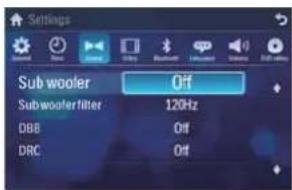
2 Touch an option repeatedly to select:
| Sound settings | Options Description |
| [Sub woofer] | [On] Tum on the subwoofer. |
| [Off] Tum off the subwoofer. | |
| [Sub woofer filter] | [80Hz] Select subwoofer filter criteria. |
| [120Hz] | |
| [160Hz] | |
| [DBB] [On] The Dynamic Bass Boost (DBB) function is on. | |
| [Off] The DBB function is off. | |
| [DRC] [On] Makes loud sound level softer and soft sound level louder so that you can watch the DVD movies at a low volume, without disturbing others | |
| [Off] The DRC function is off. | |
3 Press to exit.
Adjust video settings
1 Touch [Video]

2 Touch an option repeatedly to select:
| Video settings | Options Description |
| [Aspect ratio] | [Full] For widescreen display. |
| [Normal] For normal display. | |
| [Video input] | [Auto] The correct format is set automatically. Select this option if you are not sure which format should be selected. |
| [NTSC] Used in the United States, Canada, Japan, Mexico, the Philippines, South Korea, Taiwan, and some other countries. | |
| [PAL] Used in China, India, Singapore, the western European countries (except France), Australia, and some other countries. | |
| [Rear camera] | [Normal] When you drive in reverse, the rear view is displayed normally. |
| [Mirror] When you drive in reverse, the rear view is displayed in mirror. |
| Video settings | Options Description |
| [Parking] [On] | Disable video view during drive. |
| [Off] Enable video view during drive. | |
| [DivX registration code] | View code for DivX registration. |
3 Press to exit.
Adjust Bluetooth settings
1 Touch [Bluetooth].
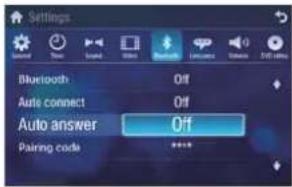
2 Touch an option repeatedly to select:
| Bluetooth settings | Options Description |
| [Bluetooth] | [On] Turn on the Bluetooth function. |
| [Off] Turn off the Bluetooth function. | |
| [Auto connect] | [On] If the pre-paired device is within the effective range, the unit re-connects to pre-paired device automatically. |
| [Off] Need to re-connect manually. | |
| [Auto answer] | [On] Answer paired phone call automatically. |
| [Off] Answer phone call manually. | |
| [Pairing code] | Set code for pairing the unit with other Bluetooth devices. |
3 Press to exit.
Adjust language settings
1 Touch [Language].

2 Touch an option repeatedly to select:
| Language settings | Options Description | |
| [OSD] [English] | Select on-screen-display language. | |
| [简体中文] | ||
| [繁体中文] | ||
| [DVD audio] | [English] Select DVD audio language. Options available are depends on DVD disc. | |
| [简体中文] | ||
| [繁体中文] | ||
| [DVD subtitle] | [English] Select DVD subtitle language. Options available are depends on DVD disc. | |
| [简体中文] | ||
| [繁体中文] | ||
| [Off] | Turn off subtitle language display. | |
| Language settings | Options Description |
| [Disc menu] | [English] Select DVD menu language. Options available are depends on DVD disc. |
| [简体中文] | |
| [繁体中文] |
3 Press to exit.
Adjust volume settings
You can set different volume for different modes.
1 Touch [Volume]. The volume setting sub-menu is ↩ displayed.

2 Touch on a source.
• [DVD]/[USB]/SD
CMMB•
• [Radio]
- [Bluetooth]
• [AV-IN1]
• [AV-IN2]
3 Touch ♦ or ♦ to assign value: 0 to 12. When switches to the source, the → volume increases automatically.
4 Press to exit.
Adjust DVD rating
1 Touch [DVD rating].

2 Touch an option repeatedly to select:
| DVD rating Options Description | |
| [Set password] | Set password to restrict the play of discs. The default password is 0000. |
| [Rating level] | [Kid safe] Acceptable for children. |
| [G] Acceptable for general viewers. | |
| [PG] Parental guidance suggested. | |
| [PG-13] Unsuitable for children under age 13. | |
| [PG-R] Recommend parents to restrict children under 17 to view. | |
| [R] Restricted. Recommend parent to guide children under 17 to view. | |
| [NC-17] Unsuitable for children under age 17. | |
| [Adult] Acceptable for adults only. | |
| [Load factory] | Restore to default settings. |
3 Press → to exit.
9 Others
Reset
When the unit hangs up, you can reset it.
1 Press RESET with a ball-point pen or similar tool.

natural_image
Technical line drawing of a mechanical device with a magnified inset showing internal components (no text or symbols)
Tip
When the unit is reset, all the settings remain unchanged.
Replace fuse
If there is no power, the fuse may be damaged and need to be replaced.
1 Take out the unit from dashboard.
2 Check the electric connection.
3 Buy a fuse that matches the voltage of the damaged fuse (15A)
4 Replace the fuse.
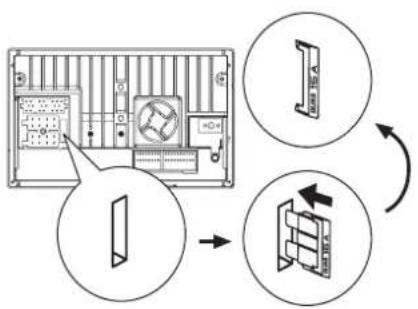
flowchart
graph TD
    A["Device Panel"] --> B["Internal Component"]
    B --> C["Screen with Left/Right Rotation Arrow"]
    C --> D["Return to Screen"]
If the fuse gets damaged immediately after it has been replaced, there may be an internal malfunction. In such case, consult your Philips dealer.
10 Product information

Note
Product information is subject to change without prior notice.
General
| Power supply 12 V DC (11 V - 16 V), negative ground | |
| Fuse 15 A | |
| Suitable speaker impedance | 4 - 8 Ω |
| Maximum power output | 50 W x 4 channels |
| Continuous power output | 24 W x 4 channels(4Ω 10% T.H.D.) |
| Pre-Amp output voltage | 2.0 V (CD play mode; 1 kHz, 0 dB, 10 kΩ load) |
| Subwoofer output voltage | 2.0 V (CD play mode, 61 Hz, 0 dB, 10 kΩ load) |
| Aux-in level | ≥500 mV |
| Dimensions (W x H x D) (main unit) | 277 x 146 x 191 mm |
| Weight (main unit) 2.5 kg | |
| Operating temperature range | -20°C to 70 °C |
Disc player
| System DVD / CD audio /MP3 system |
| Frequency response 20 Hz - 20k Hz |
| Signal/noise ratio >75dB |
| Total harmonic Less than 1%distortion |
| Channel separation >55dB |
| Video signal format NTSC only |
| Video output 1 +/- 0.2V |
Tuner
| Frequency range - FM | 87.5 - 108.0 MHz(Europe) |
| Frequency range - AM (MW) | 522 - 1620 KHz(Europe) |
| Usable sensitivity - FM | 5 uV |
| Usable sensitivity - AM (MW) | 50 uV |
LCD
| Screen size | 6.2 inches (16:9) |
| Display resolution | 800 × 480 dots |
| Contrast ratio | 600 |
| Brightness | 400 cd/m2 |
Bluetooth
| Communication system | Bluetooth Standard version 2.0 |
| Output | Bluetooth Standard Power Class 2 |
| Maximum communication range | Line of sight approx. 8m |
| Frequency band | 2.4 GHz band (2.4000 GHz - 2.4835 GHz) |
| Compatible Bluetooth profiles | Hands-Free Profile (HFP) Handset Profile (HSP) Advanced Audio Distribution Profile (A2DP) Audio Video Remote Control Profile (AVRCP) |
| Supported codecs | |
| Receive | SBC (Sub Band Codec) |
| Transmit | SBC (Sub Band Codec) |
Compatible USB devices:
USB flash memory (USB 2.0 or USB1.1)• USB flash players (USB 2.0 or USB1.1)• memory cards (SD / MMC / SDHC)•
Supported formats:
USB or memory file format: FAT16, FAT32 MP3 bit rate (data rate): 32-320 Kbps and variable bit rate WMA v9 or earlier Directory nesting up to a maximum of 8 levels Number of albums/ folders: maximum 99 Number of tracks/titles: maximum 999 ID3 tag v2.0 or later File name in Unicode UTF8 (maximum length: 128 bytes)
Unsupported formats:
Empty albums: an empty album is an • album that does not contain MP3/WMA files, and is not be shown in the display. Unsupported file formats are skipped. For • example, Word documents (.doc) or MP3 files with extension .dlf are ignored and not played.
• AAC, WAV, PCM audio files
• DRM protected WMA files (.wav, .m4a, .m4p, .mp4, .aac)
• WMA files in Lossless format
Supported MP3 disc format:
• ISO9660, Joliet
• Maximum title number: 512 (depending on file name length)
• Maximum album number: 255
• Supported sampling frequencies: 32 kHz, 44.1 kHz, 48 kHz
• Supported Bit-rates: 32-320 Kbps and variable bit rate
Supported video formats:
• DVD
• Divx Home theater
• MP4
• Xvid

Note
To ensure a better playback, bit rate of 4.5 Mbps is recommended.
11 Troubleshooting

Warning
Never remove the casing of this apparatus.
To keep the warranty valid, never try to repair the system yourself.
If you encounter problems when using this apparatus, check the following points before requesting service. If the problem remains unsolved, go to the Philips web site (www.philips.com/welcome). When you contact Philips, ensure that the apparatus is nearby and the model number and serial number are available.
No power
Car engine has not been started. Start the car engine. Connections is incorrect. Fuse has been damaged. Replace fuse.
No sound
Volume is too low. Adjust volume. Speaker connections is incorrect.
Disc does not play
Disc is upside down. Ensure the printed side is upwards. Disc is dirty. Clean the disc with a clean, soft, lint-free cloth. Wipe the disc outwards from the center.
• Disc is defective. Try another disc.
• incompatible disc is used. Try another disc.
• Disc rating exceeds the restrict setting. Change the rating settings to lower one.
• Disc region code is not compatible with the unit. Use disc with proper region code.
No image
- Parking brake wire connection is incorrect. Check the parking wiring.
Image flashes or distorted
• Video DVD settings do not match with the DVD. Adjust video DVD settings.
• Video connection is improper. Check the connections.
Noise in broadcasts.
Signals are too weak. Select other stations with stronger signals. Check the connection of the car antenna. Change broadcast from stereo to mono.
Preset stations lost.
Battery cable is not correctly connected. Connect the battery cable to the terminal that is always live.
Fuse is broken
The Fuse type is incorrect. Replace it with a 15A fuse. Speaker wire or power wire is grounded. Check the connections.
Display show ERR-12
USB/SD/MMC data error. Check the USB • device or SD/MMC card.
About Bluetooth device
Music playback is unavailable on the system even after successful Bluetooth connection.
The device cannot be used with the • system to play music.
The audio quality is poor after connection with a Bluetooth-enabled device.
The Bluetooth reception is poor. Move • the device closer to the system or remove any obstacle between the device and the system.
Cannot connect with the system.
The device does not support the profiles • required for the system.
The Bluetooth function of the device is • not enabled. Refer to the user manual of the device for how to enable the function.
• The system is not in the pairing mode.
• The system is already connected with another Bluetooth-enabled device. Disconnect that device or all other connected devices and then try again.
The paired mobile phone connects and disconnects constantly.
The Bluetooth reception is poor. Move • the mobile phone closer to the system or remove any obstacle between the mobile phone and the system.
Some mobile phones may connect and • disconnect constantly when you make or end calls. This does not indicate any malfunction of the system.
For some mobile phones, the Bluetooth • connection may be deactivated automatically as a power-saving feature.
This does not indicate any malfunction of the system.
12 Glossary
B
Bite rate
The max data transfer through the USB port.
Bluetooth
Bluetooth® is a short-rang wireless protocol that is meant to allow mobile devices to share information and applications without the worry of cables or interface incompatibilities. The name refers to a Viking King who unified Denmark. Operate at 2.4GHz. For more information, see www.bluetooth.com.
M
MMC
MultimediaCard. A type of memory card with a flash memory.
MP3
A file format with a sound data compression system. MP3 is the abbreviation of Motion Picture Experts Group 1 (or MPEG-1) Audio Layer 3. With the MP3 format, one CD-R or CD-RW can contain about 10 times more data than a regular CD.
R
Region code
A system that allows discs to be played only in the region designated. This unit only plays discs that have compatible region codes. You can find the region code of your unit on the product label. Some discs are compatible with more than one region (or ALL regions.)
S
SD
Secure Digital. A type of memory card with a flash memory.
SDHC
Secure Digital High Capacity (SDHC) is a type of flash memory card based on the SDA 2.00 specification. The SDA 2.00 specification enables SD cards to reach higher capacities from 4GB to 32GB, and growing.
W
WMA (Windows Media Audio)
An audio format owned by Microsoft, is a part of Microsoft Windows Media technology. Includes Microsoft Digital Rights Management tools, Windows Media Video encoding technology, and Windows Media Audio encoding technology.



- Contents
- Important 4
- Your in-car entertainment system 5
- Get started 8
- Use map 13
- Play 14
- Play with Bluetooth device 19
- Adjust sound 21
- Adjust settings 23
- Others 27
- Product information 28
- Troubleshooting 30
- Glossary 32
- Important
- Safety
- Notice
- Be responsible Respect copyrights
- DOLBY. DIGITAL
- Environmental information
- Your in-car entertainment system
- Introduction
- What's in the box
- Get started
- Caution
- Install the car audio
- Note on the power supply lead (yellow)
- Notes on speaker connection
- Mount in the dashboard
- Note
- Connect wires
- Turn on
- Set date and time
- Set date
- Set clock mode
- Set time
- Adjust screen
- Listen to radio
- Tune to a radio station
- Tune by frequency
- Select radio range
- Store radio stations in memory
- Store stations manually
- Store stations automatically
- Tune to a preset station
- Use map
- Tip
- Upgrade the map
- Play
- Load discs
- DVD region code Country
- China
- Connect USB device
- Insert USB or SD/MMC card
- Remove the SD/MMC card
- Play/Pause
- Search for a folder
- For video files
- For audio files
- For picture files
- Search within a title/folder
- Search by step
- Direct search
- Repeat
- For DVD/VCD movie disc:
- For VCD karaoke or audio CD:
- For MP3/WMA files:
- Repeat a section
- Random play
- Select audio language
- Select audio mode
- Select subtitle language
- Rotate pictures
- Zoom
- Select slide show duration
- Play with Bluetooth device
- Pair the Bluetooth-enabled devices
- Disconnect Bluetooth devices
- Make a call
- 5
- Receive call
- 2
- Switch phone call to the mobile
- Listen to music from Bluetooth device
- Adjust Bluetooth settings
- Adjust sound
- Adjust volume
- Mute
- Select preset equalizer
- Adjut fader/balance
- Set Dynamic Bass Boost (DBB)
- Adjust settings
- Display system setup menu
- Adjust general settings
- Set wallpaper
- Adjust sound settings
- Adjust video settings
- Adjust language settings
- Adjust volume settings
- Adjust DVD rating
- Others
- Reset
- Replace fuse
- Product information
- Compatible USB devices:
- Supported formats:
- Unsupported formats:
- Supported MP3 disc format:
- Supported video formats:
- Troubleshooting
- Warning
- No power
- No sound
- Disc does not play
- No image
- Image flashes or distorted
- Noise in broadcasts.
- Preset stations lost.
- Fuse is broken
- Display show ERR-12
- About Bluetooth device
- Music playback is unavailable on the system even after successful Bluetooth connection.
- The audio quality is poor after connection with a Bluetooth-enabled device.
- Cannot connect with the system.
- The paired mobile phone connects and disconnects constantly.
- Glossary
- B
- Bite rate
- Bluetooth
- M
- MMC
- MP3
- R
- Region code
- S
- SD
- SDHC
- W
- WMA (Windows Media Audio)
Brand : PHILIPS
Model : CID3285
Category : Car Radio