
A8E - Computer ASUS - Free user manual and instructions
Find the device manual for free A8E ASUS in PDF.


| Product Type | Laptop |
| Brand | ASUS |
| Model | A8E |
| Dimensions (approx.) | 35.5 x 26.2 x 3.7 cm |
| Weight (approx.) | 2.6 kg |
| Power Supply | 19V AC adapter, 6-cell Li-ion battery |
| Processor | Intel Core 2 Duo |
| RAM | DDR2, up to 4 GB |
| Storage | SATA hard drive (variable capacity) |
| Screen | 15.4 inches, 1280x800 resolution |
| Connectivity | Wi-Fi 802.11b/g, Ethernet 10/100, Bluetooth (optional) |
| Ports | 4x USB 2.0, VGA, audio, microphone, RJ-45, card reader |
| Main Features | Office work, internet browsing, multimedia, ASUS Live Update for BIOS and driver updates |
| Maintenance and Cleaning | Wipe with a soft, dry cloth; do not use liquid or abrasive products; clean ventilation grilles regularly |
| Security | Kensington lock slot |
| Spare Parts and Repairability | Battery, AC adapter, keyboard, hard drive, RAM accessible; contact an authorized service center for repairs |
| General Information | User manual provided; ASUS technical support; this product complies with European standards |
Frequently Asked Questions - A8E ASUS
User questions about A8E ASUS
0 question about this device. Answer the ones you know or ask your own.
Ask a new question about this device
Download the instructions for your Computer in PDF format for free! Find your manual A8E - ASUS and take your electronic device back in hand. On this page are published all the documents necessary for the use of your device. A8E by ASUS.
USER MANUAL A8E ASUS
1.1 Introduction 1 1.2 How to update BIOS and Drivers via ASUS Live Update
Chapter 1 ASUS Live Update
1.1 Introduction
ASUS Live Update is a useful utility to automatically update the BIOS and drivers of your notebook from the web to the latest version, helping to avoid potential bugs.
If you cannot find the program under Start > All Programs > ASUS Utility, you can install it from the Driver & Utility CD.
1.2 How to update BIOS and Drivers via ASUS Live Update
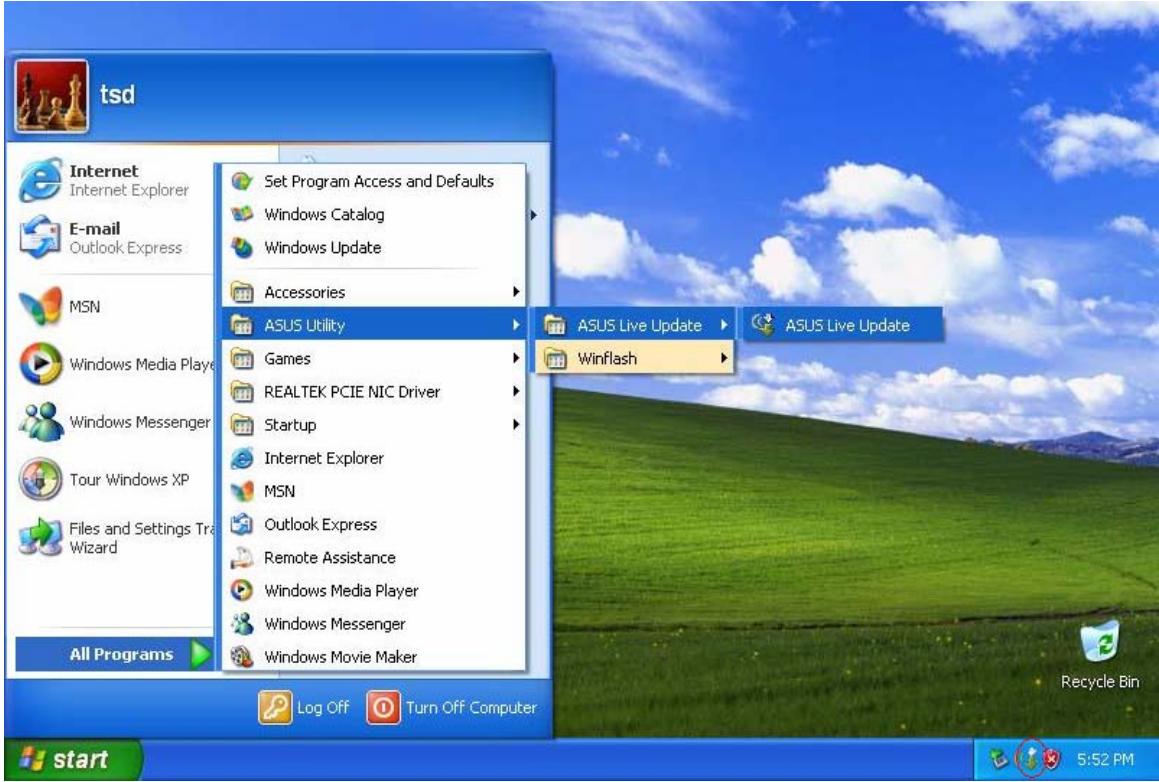
- Click Start > All Programs > ASUS Utility > ASUS Live Update > ASUS Live Update, or click its icon in the toolbar.
- Live Update will then detect the current BIOS and driver versions on your notebook and compare them with those posted on the web automatically, listing all newer BIOS and drivers.
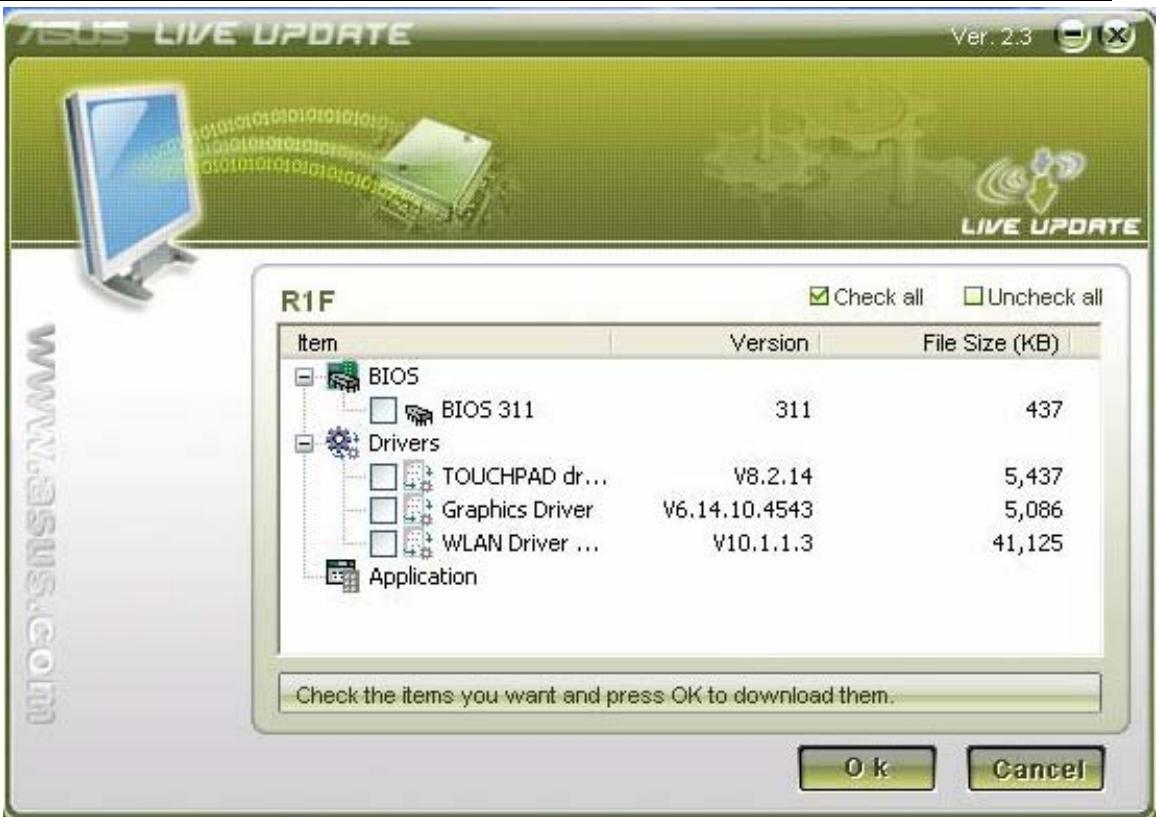
- You can select any BIOS or drivers and click "OK" to update via Live Update.
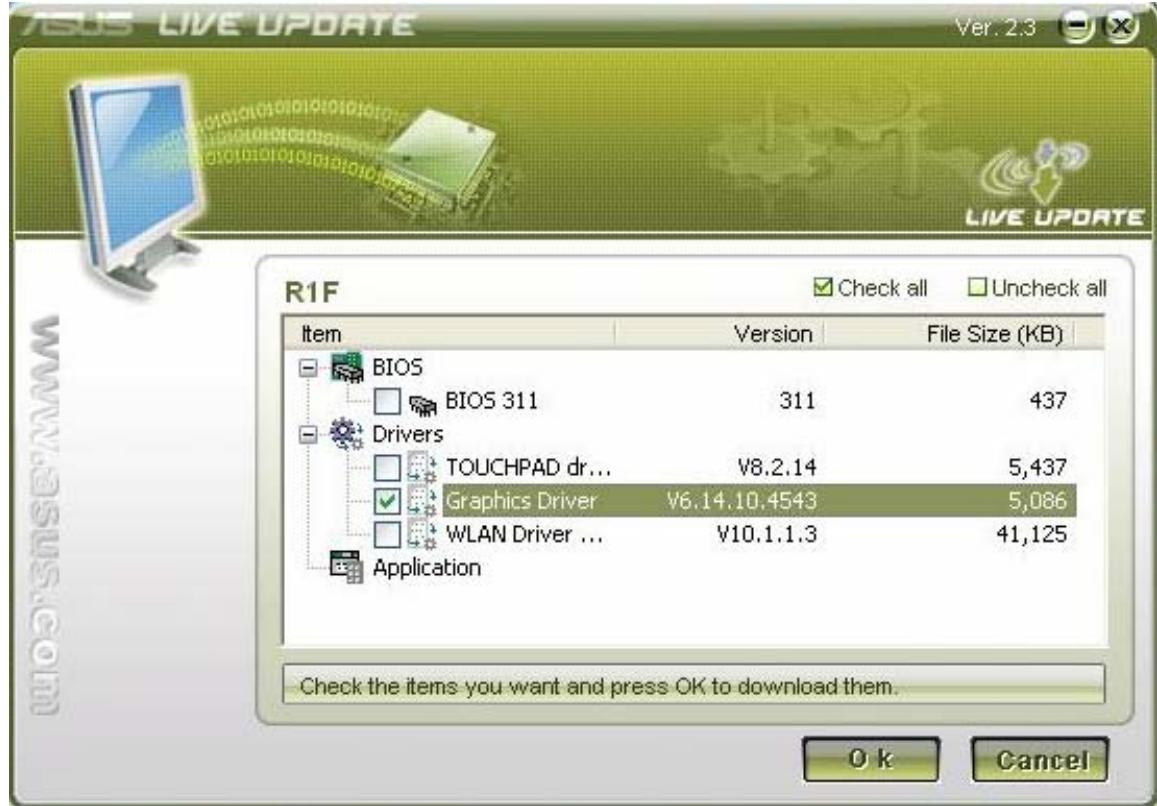
- If you select a driver, Live Update will download the latest driver.
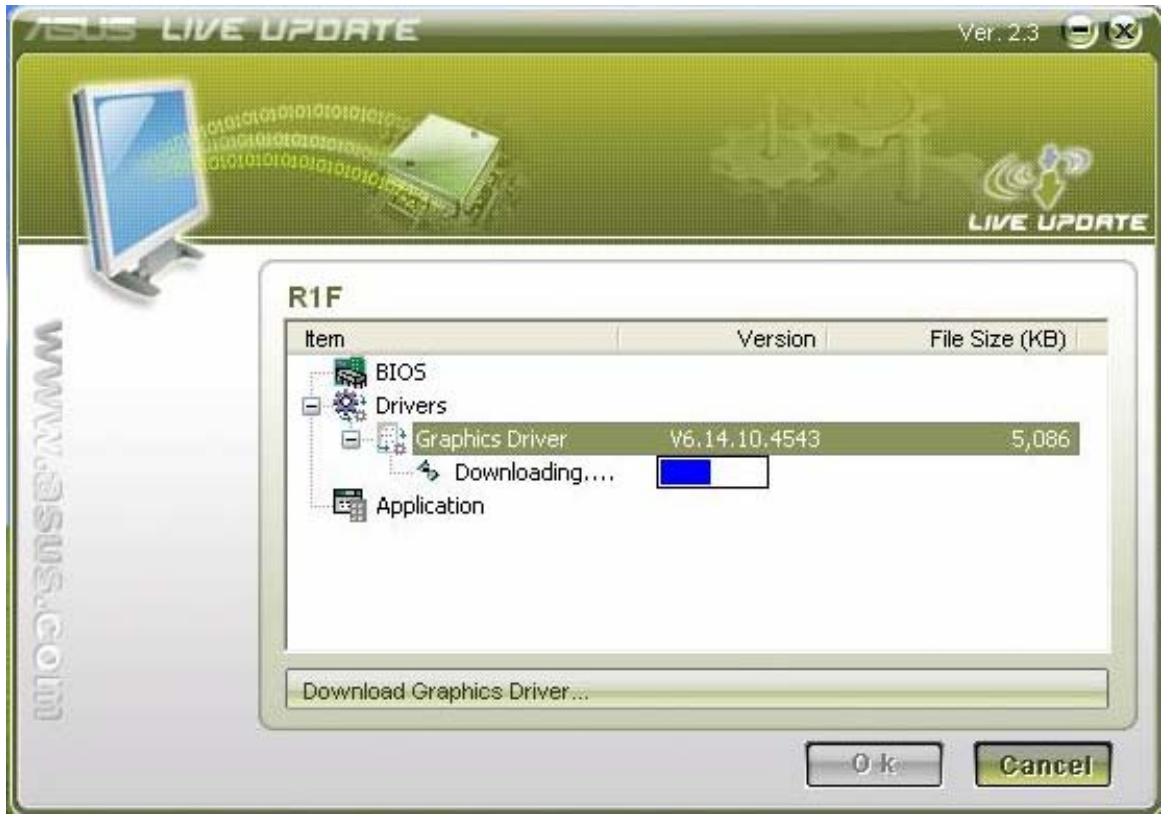
- Then it will install the driver automatically.
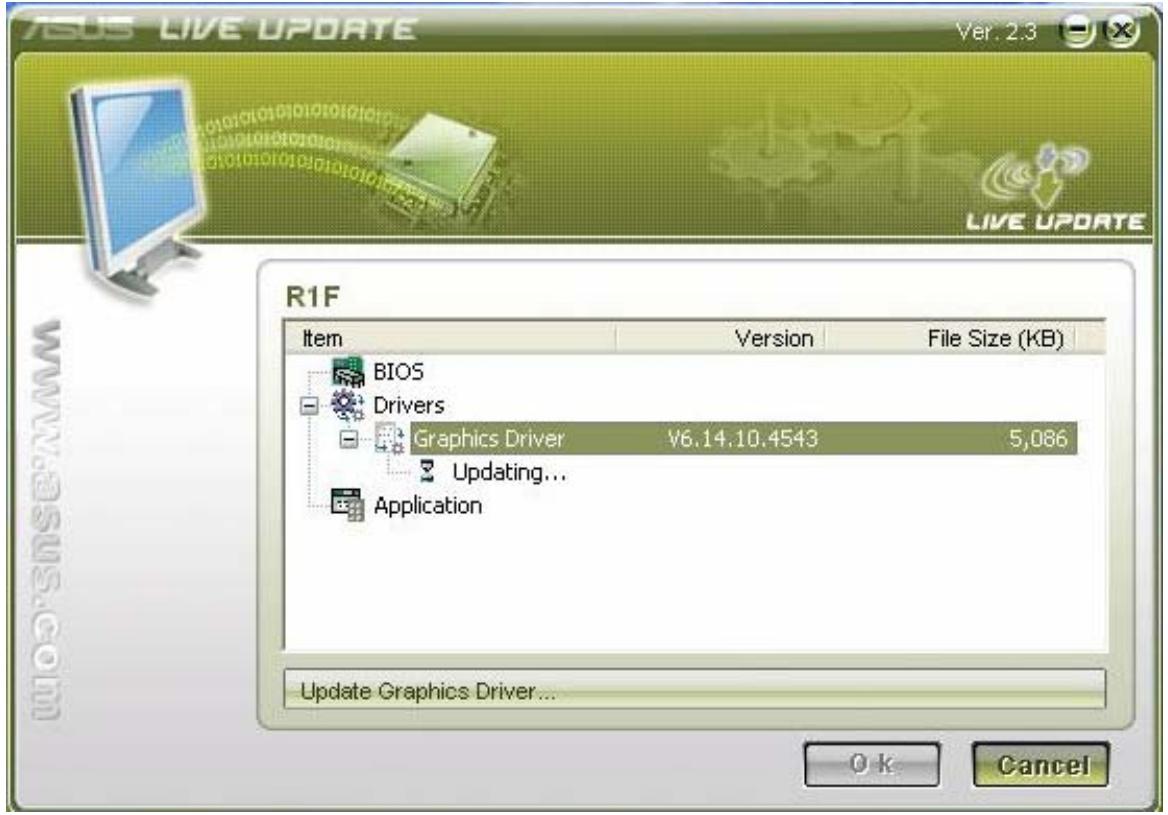
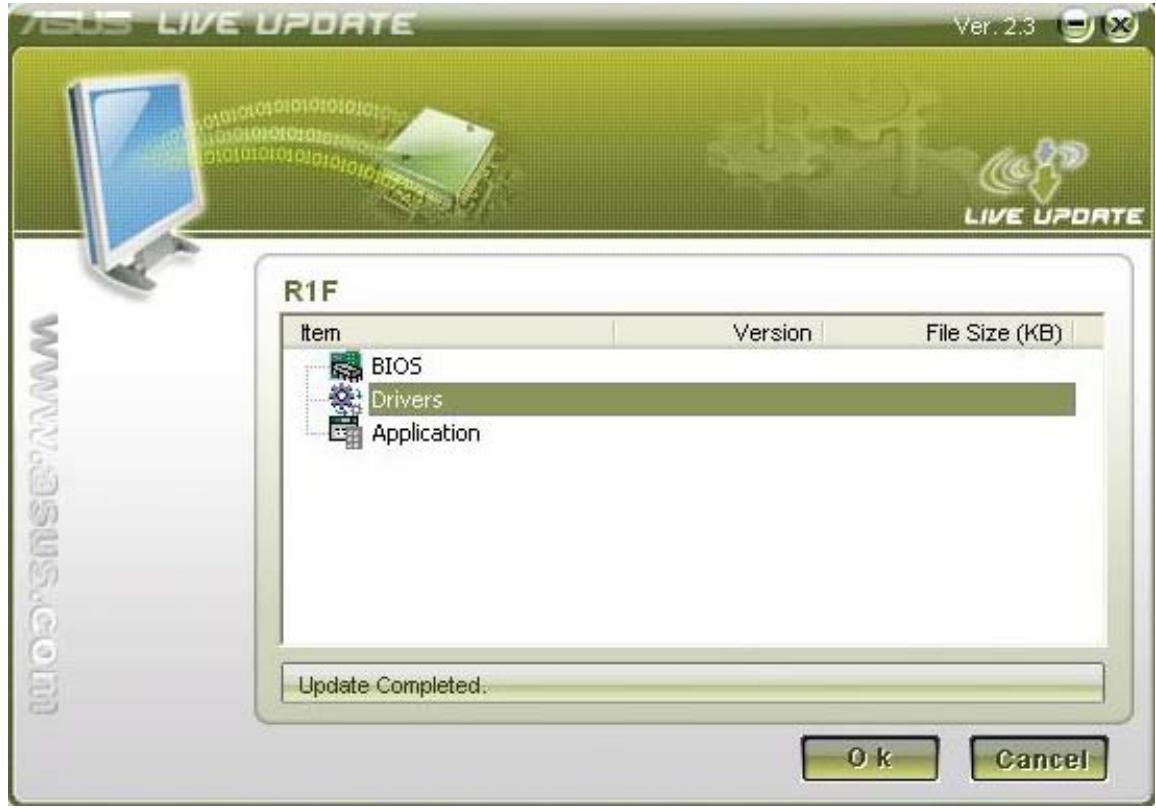
- Finally, Live Update will notify you that the driver update is complete.
- If you select the BIOS, Live Update will also download the latest BIOS.
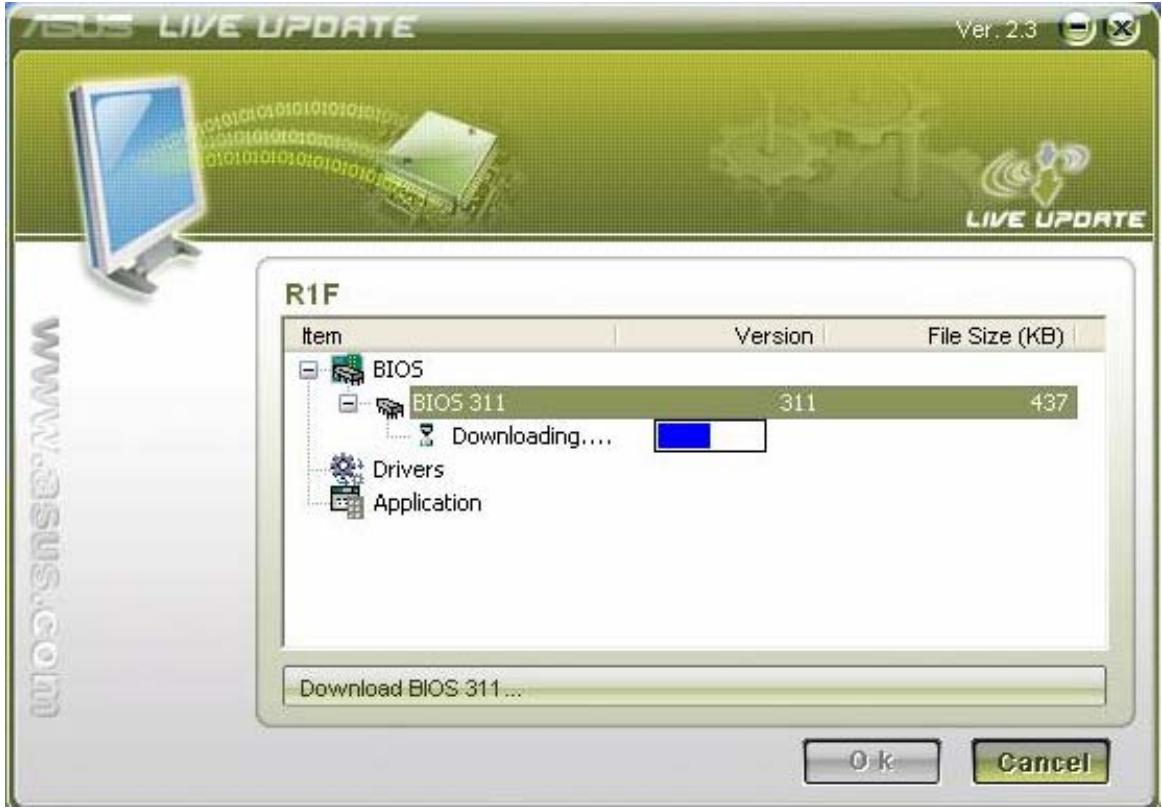
- When the download is complete, you will receive a message indicating that the system will restart and enter BIOS to flash the latest BIOS.
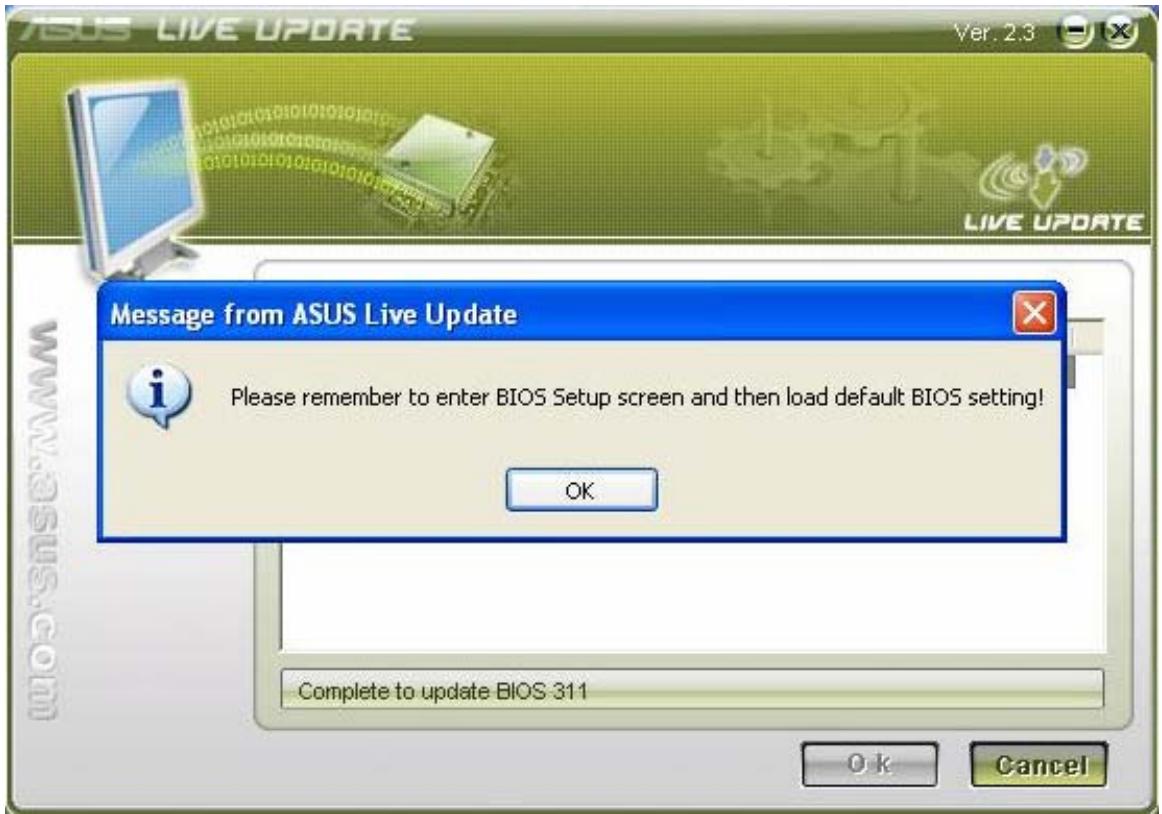
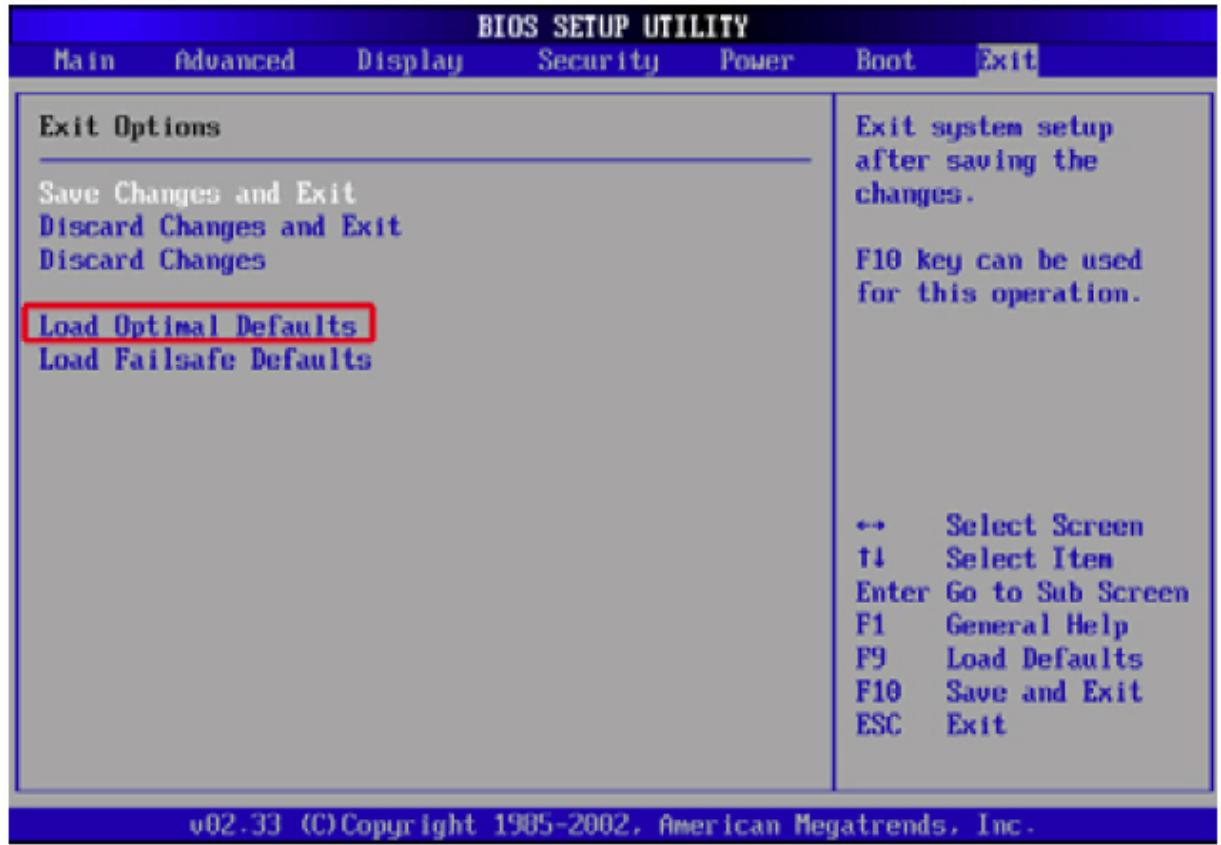
- After the latest BIOS is flashed successfully, the system will power off. You will then need to power the unit on again and press F2 to enter BIOS and select "Load Optimal Defaults". Then click "Save and Exit" and reboot the system again.
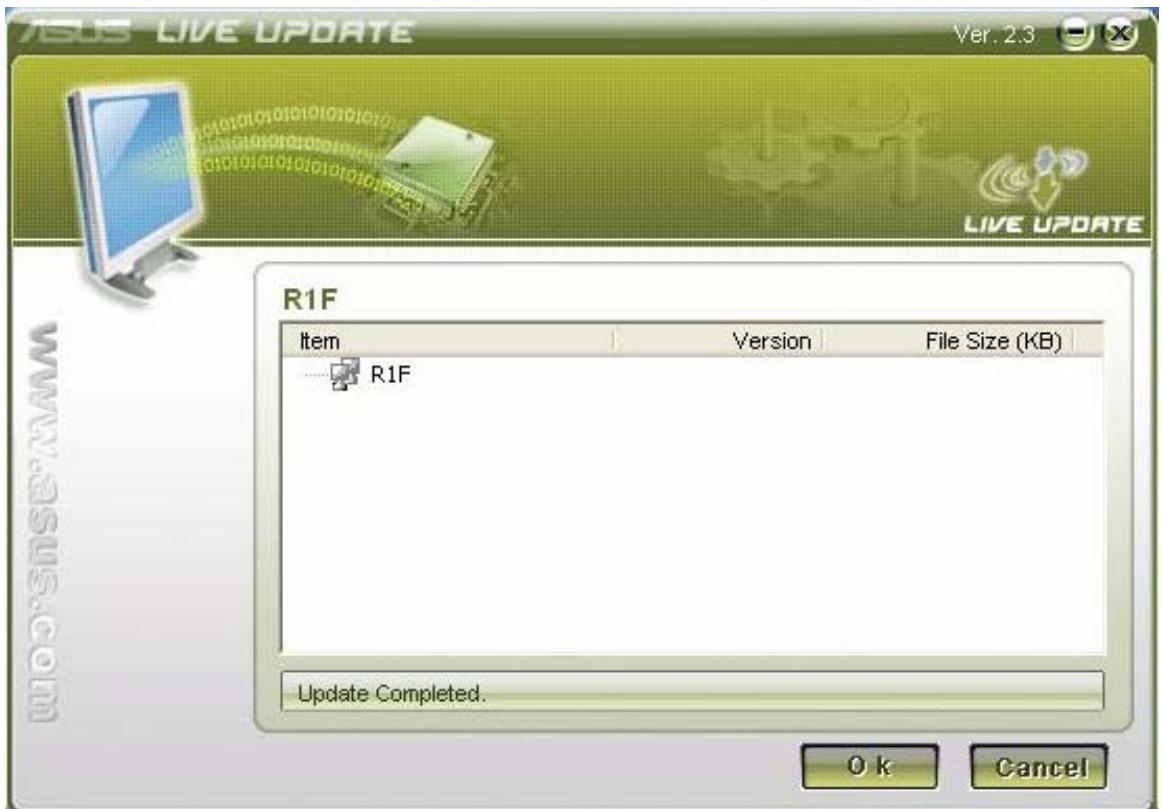
- Then you will enter OS and Live Update will tell you the BIOS live update is
completed.
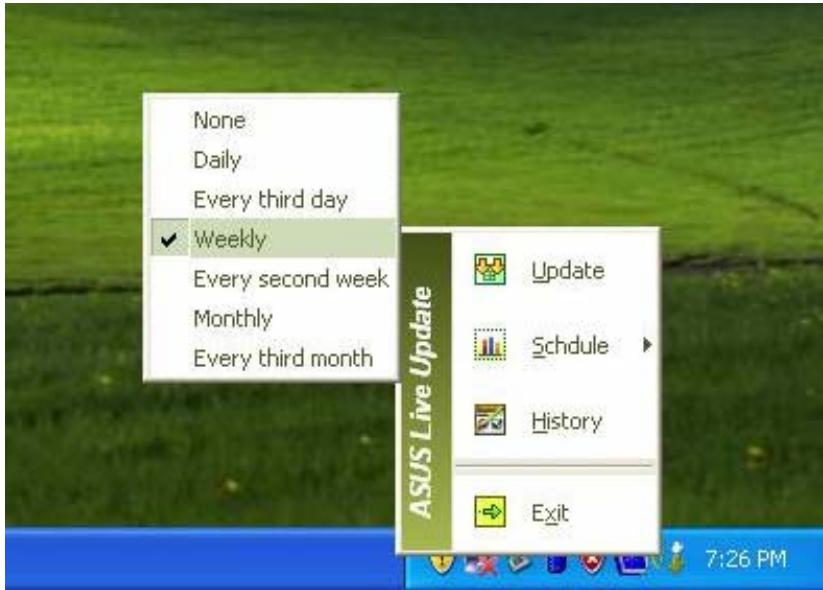
- You could right click the Live Update icon on the toolbar and click the Schedule to arrange the schedule for the live update.
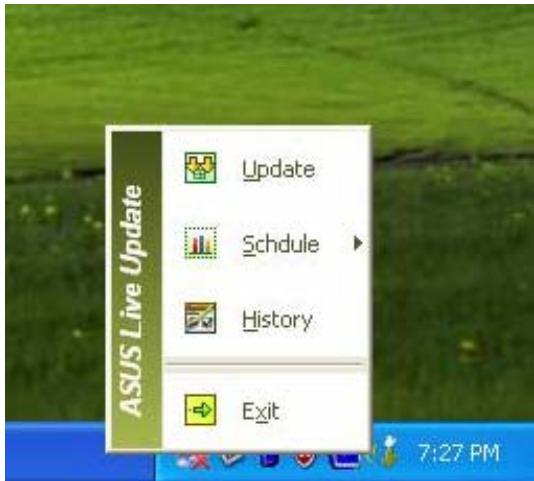
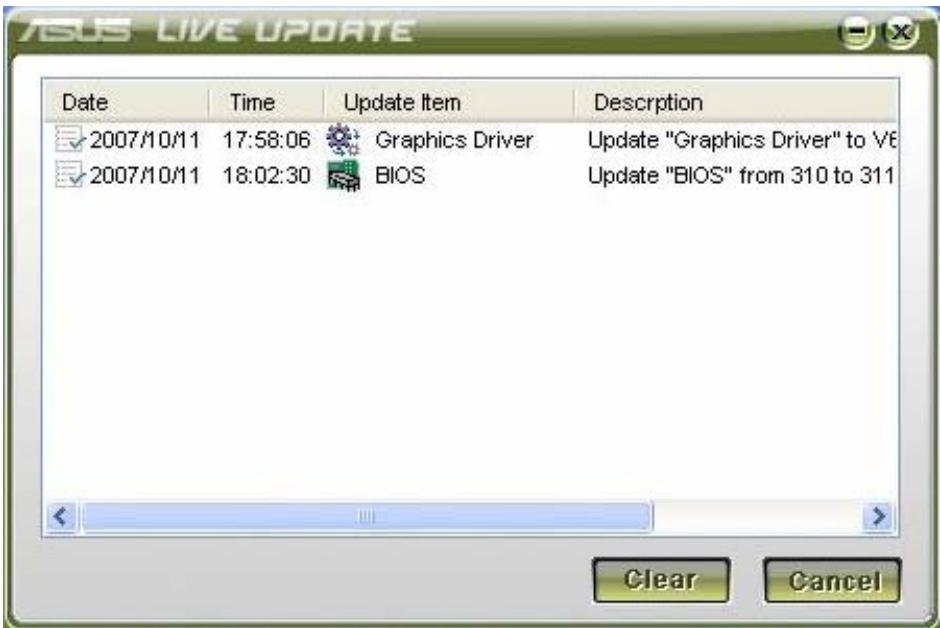
- You could right click the Live Update icon on the toolbar and click the History to check the live update history which registers the live update of the BIOS and Drivers.

Brand : ASUS
Model : A8E
Category : Computer