
A3H - Computer ASUS - Free user manual and instructions
Find the device manual for free A3H ASUS in PDF.


| Product type | Laptop |
| Brand | ASUS |
| Model | A3H |
| Dimensions | 33 x 24 x 3 cm |
| Weight | 2.5 kg |
| Power supply | 19 V AC adapter |
| Screen | 15.4 inches |
| Processor | Intel Celeron or Pentium M (estimated) |
| RAM memory | Up to 2 GB |
| Hard drive | 40 to 80 GB |
| Operating system | Windows XP |
| Main features | BIOS and driver updates via ASUS Live Update, office and multimedia use |
| Connectivity | Wi-Fi, Ethernet, USB 2.0 |
| Keyboard | AZERTY (typical) |
| Battery | Lithium-ion 6-cell |
| Battery life | Approximately 2 to 3 hours |
| Maintenance and cleaning | Clean with a soft dry cloth, avoid liquids |
| Safety | Use on a flat surface, avoid shocks and moisture |
| Spare parts and repairability | Battery, adapter, keyboard available; screw access for internal components |
| General information | User manual in PDF format available; integrated ASUS Live Update tool |
Frequently Asked Questions - A3H ASUS
User questions about A3H ASUS
0 question about this device. Answer the ones you know or ask your own.
Ask a new question about this device
Download the instructions for your Computer in PDF format for free! Find your manual A3H - ASUS and take your electronic device back in hand. On this page are published all the documents necessary for the use of your device. A3H by ASUS.
USER MANUAL A3H ASUS
Chapter 1 ASUS Live Update ....1
1.1 Introduction....1 1.2 How to update BIOS and Drivers via ASUS Live Update....1
Chapter 1 ASUS Live Update
1.1 Introduction
ASUS Live Update is a useful utility to update BIOS and Drivers of your NB units automatically from the web to the current latest version to avoid any probable bugs.
You may install the program via Driver & Utility CD if you cannot find the program from Start -> All Programs->ASUS Utility.
1.2 How to update BIOS and Drivers via ASUS Live Update
- Click Start \ All Programs \ ASUS Utility \ ASUS Live Update \ ASUS Live Update or click its icon in the toolbar.
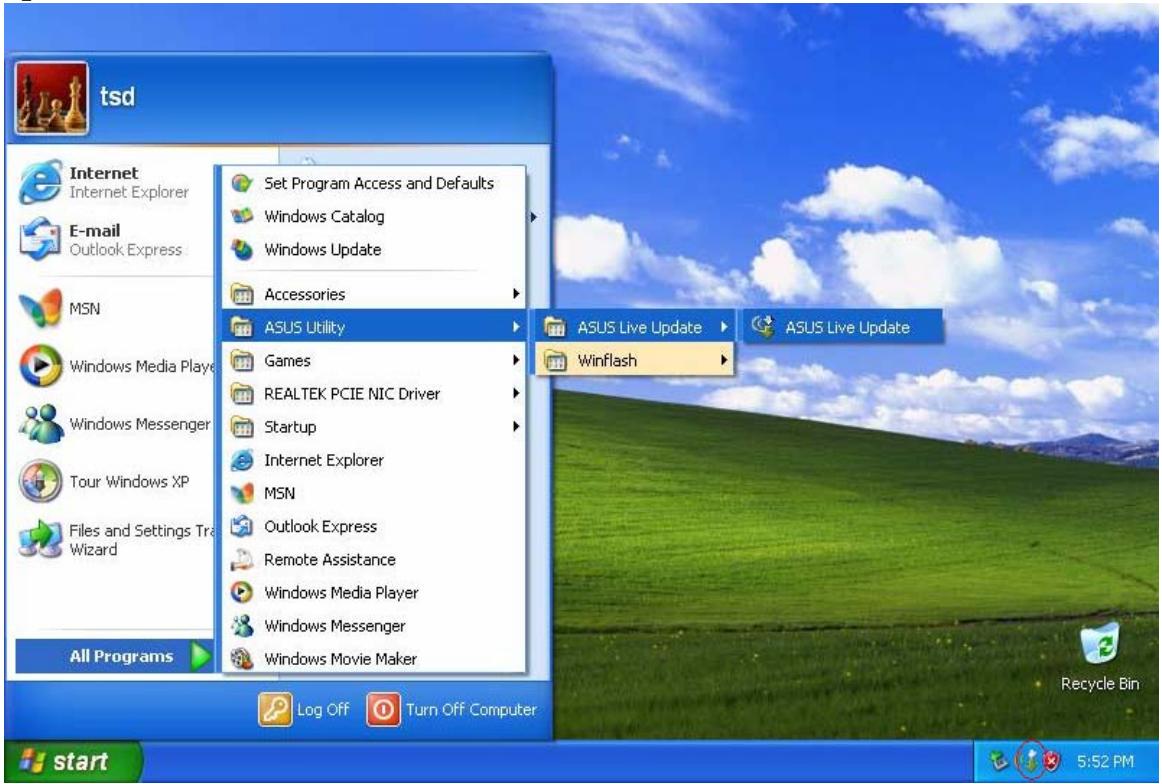
- Then Live Update will detect the current version of BIOS and Drivers of your NB unit and compare them with what we have posted on the web automatically, then list all the BIOS and Drivers newer than your current version.
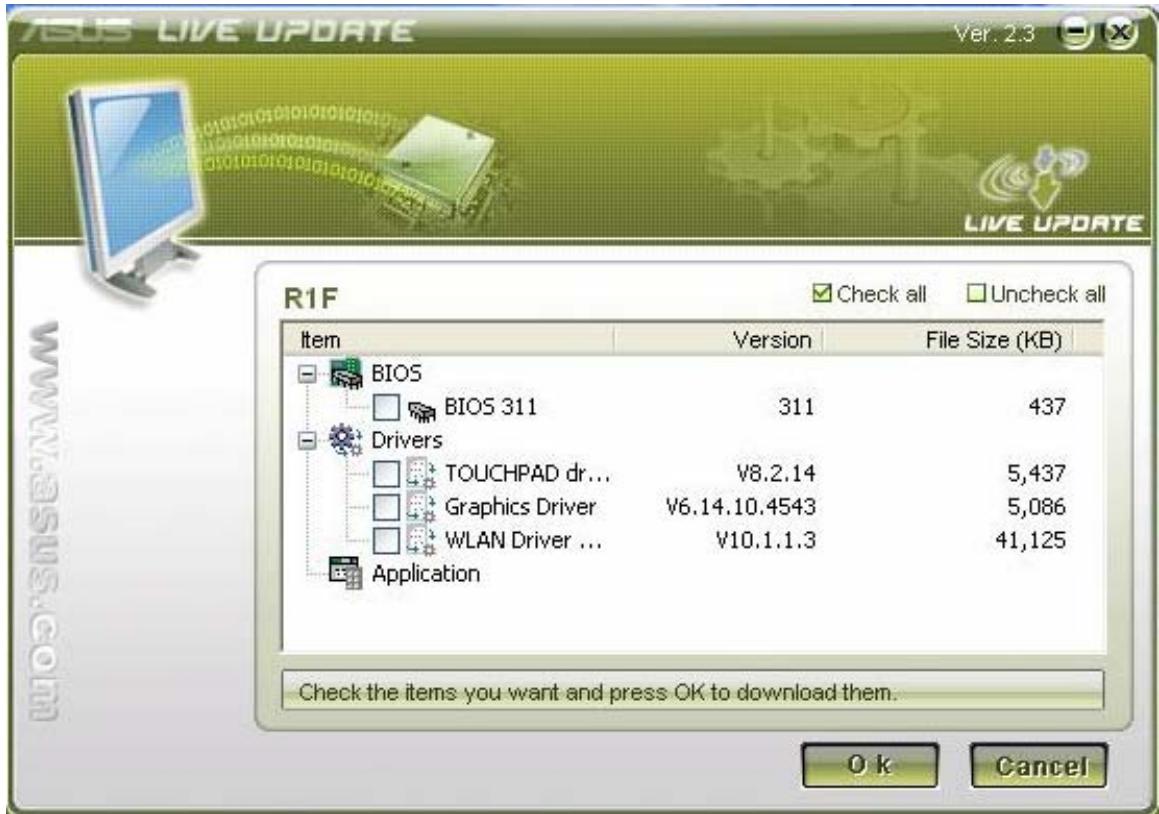
- You could select any BIOS or Drivers and click "OK" to update via Live Update
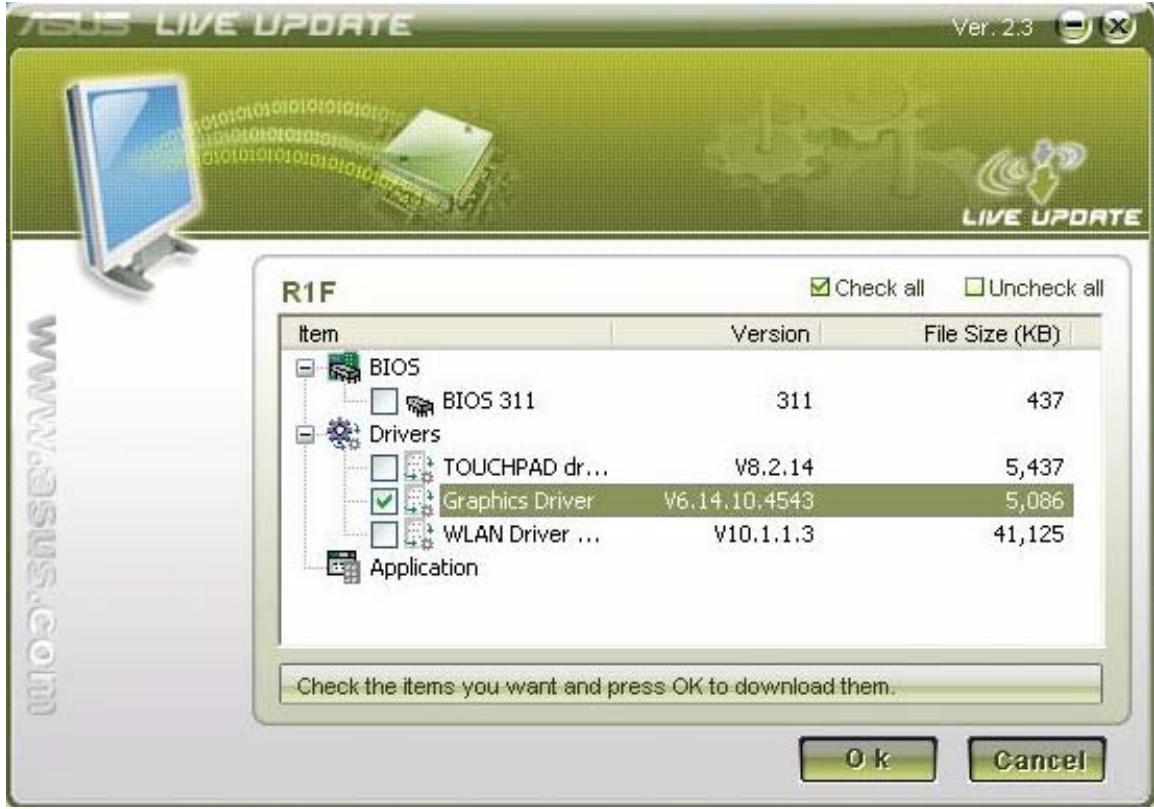
- If you select a Driver, Live Update will download the latest Driver.
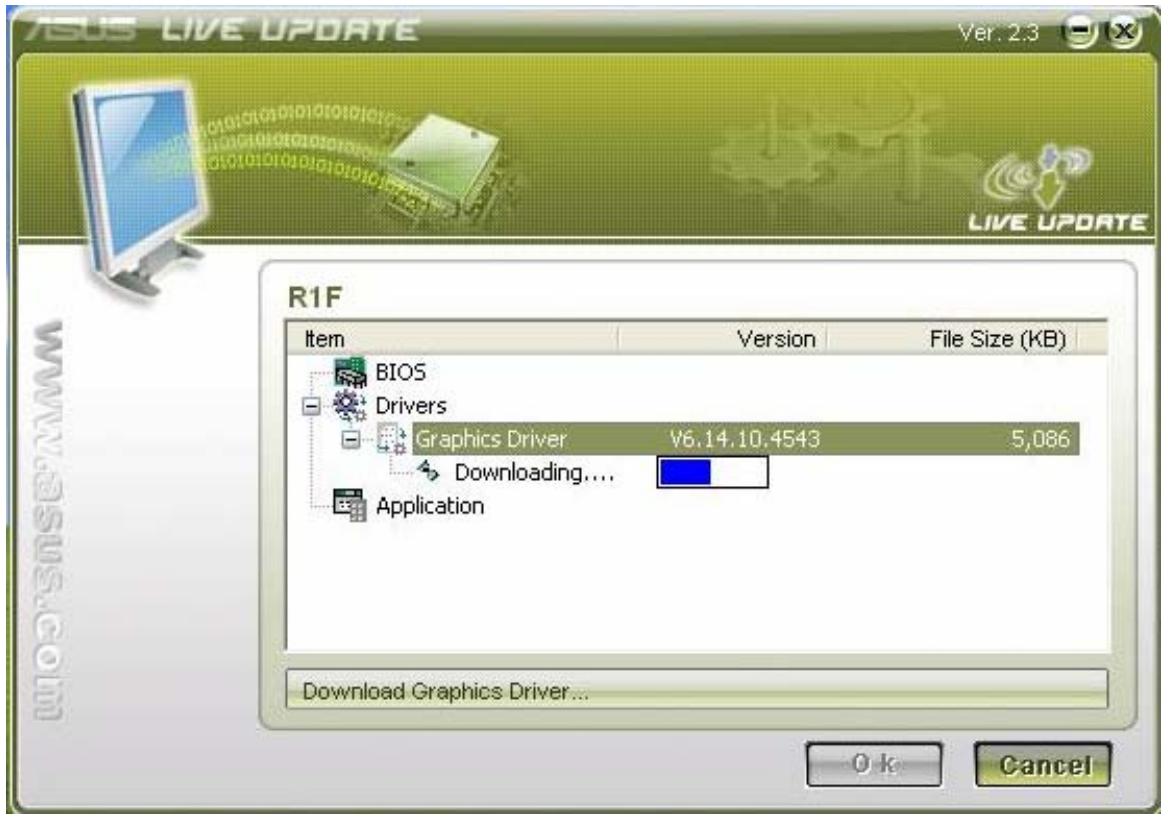
- Then install the Driver automatically
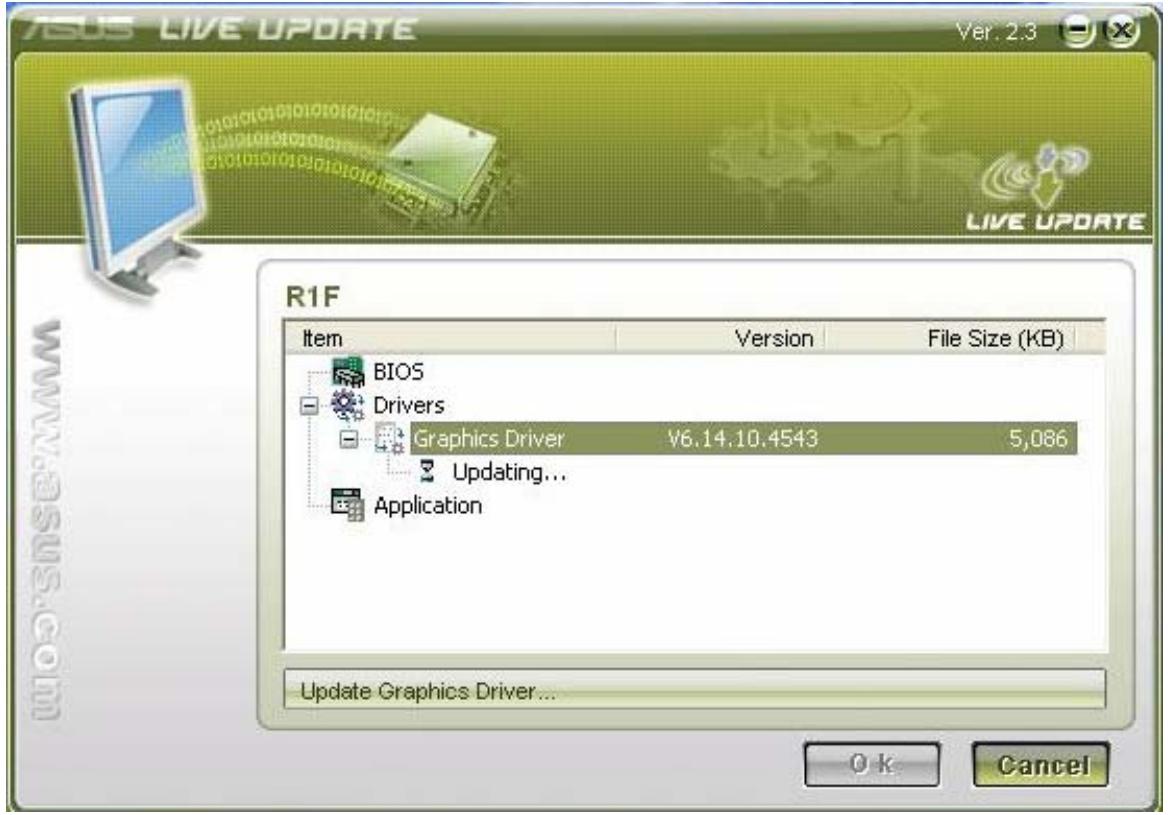
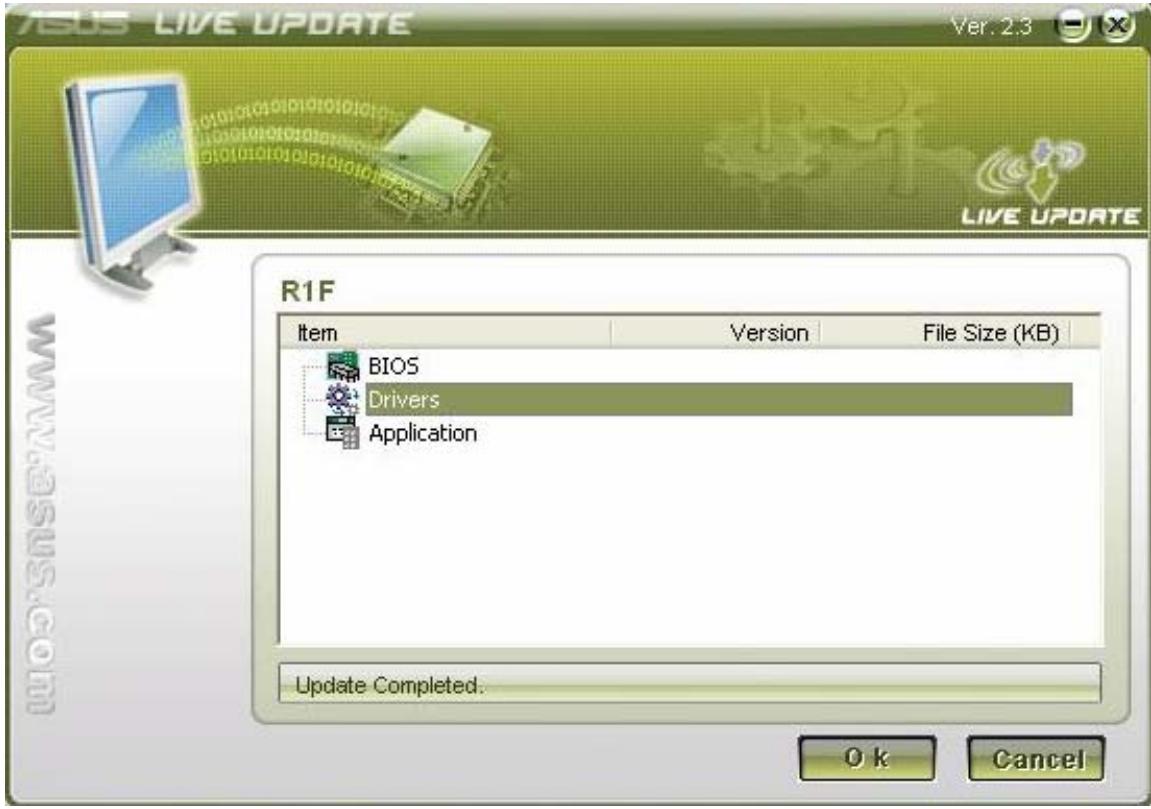
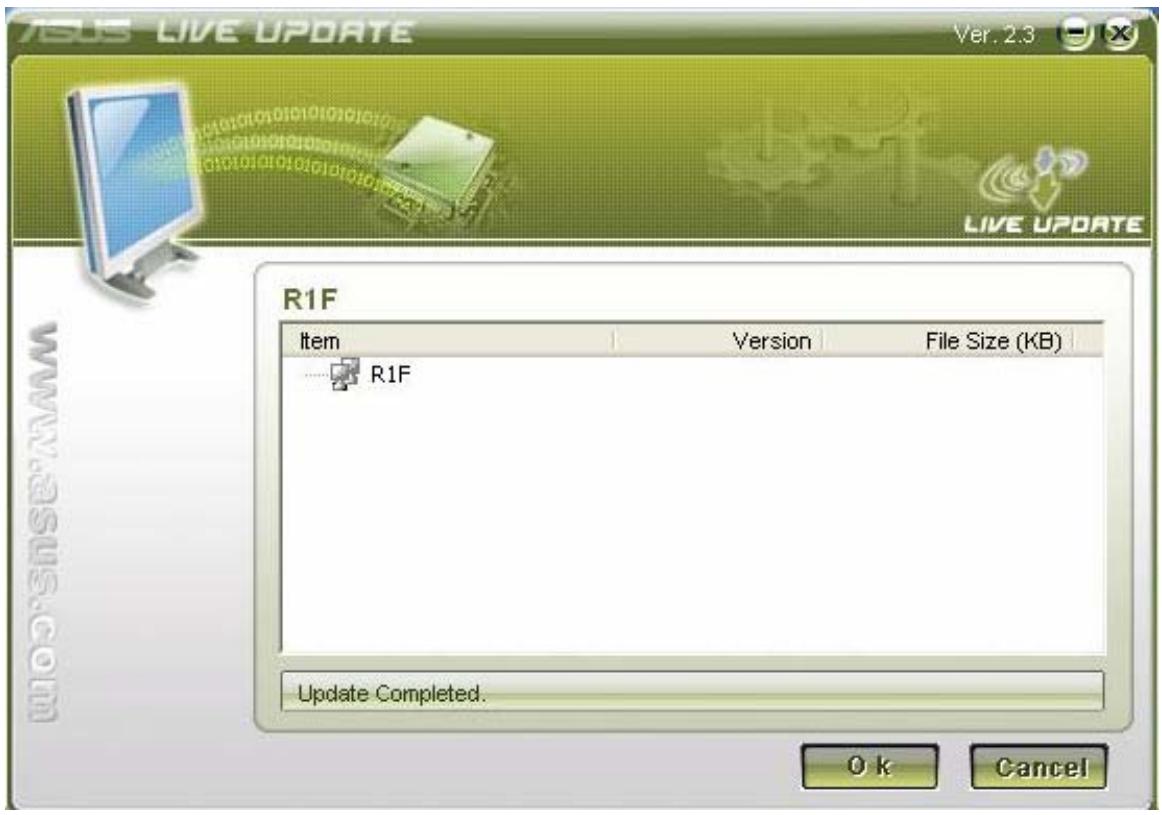
- At last, Live Update will tell you that the Driver live update is completed.
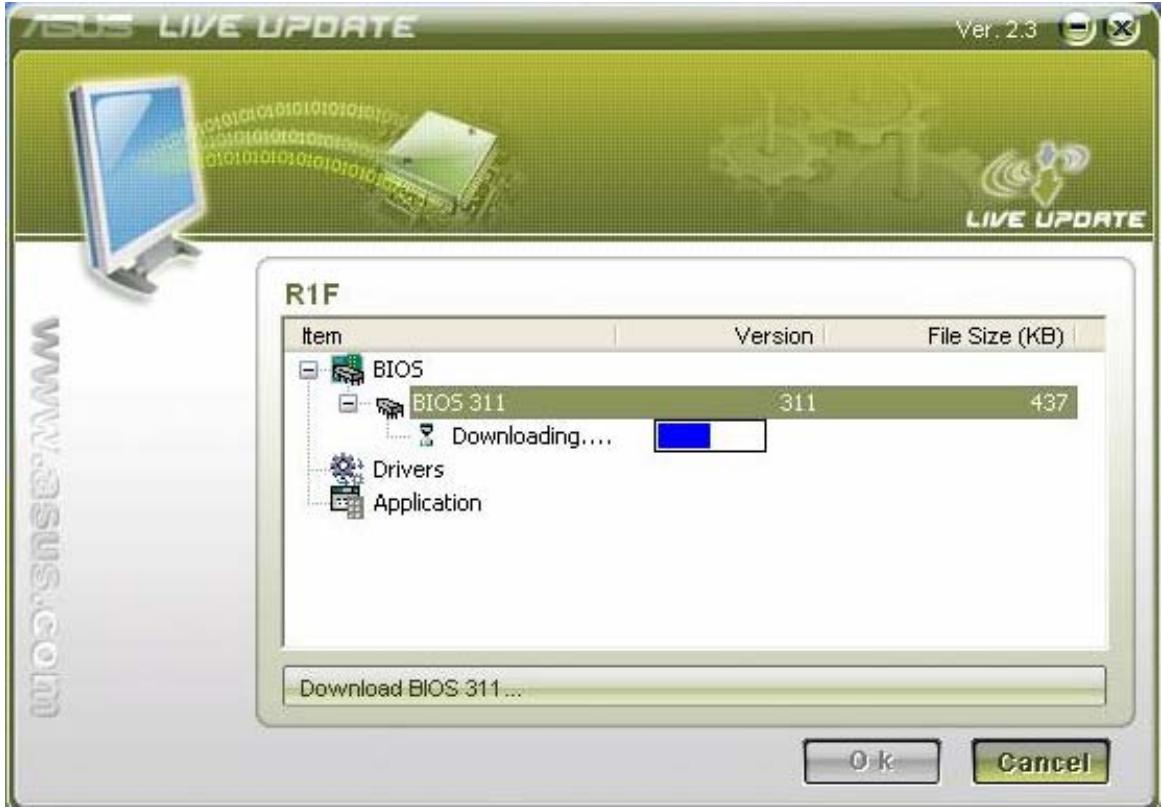
- If you select the BIOS, Live Update will download the latest BIOS as well.
- When the Download is completed, you will receive a message to notice the system will restart and enter BIOS to flash the latest BIOS.
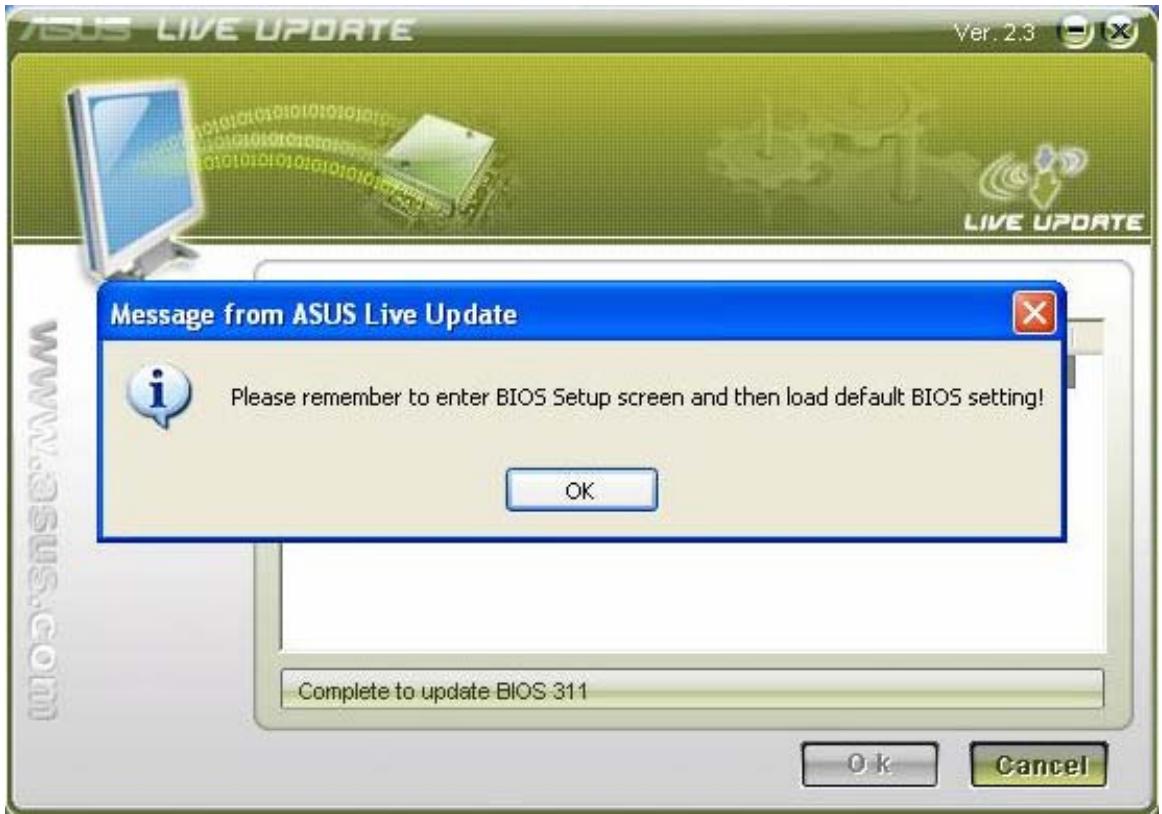
- After the latest BIOS is flashed successfully, the system will power off. You will then need to power the unit back on and press F2 to enter the BIOS and select "Load Optimal Defaults". After that, click "Save and Exit" and reboot the system again.
| BIOS SETUP UTILITY | |
| Main Advanced Display Security Power Boot Exit | |
| Exit Options Save Changes and Exit Discard Changes and Exit Discard Changes Load Optimal Defaults Load Failsafe Defaults | Exit system setup after saving the changes. F10 key can be used for this operation. ← Select Screen ↑↓ Select Item Enter Go to Sub Screen F1 General Help F9 Load Defaults F10 Save and Exit ESC Exit |
| v02.33 (C) Copyright 1905-2002, American Megatrends, Inc. | |
- Then you will enter the OS, and Live Update will notify you that the BIOS live update is
complete.
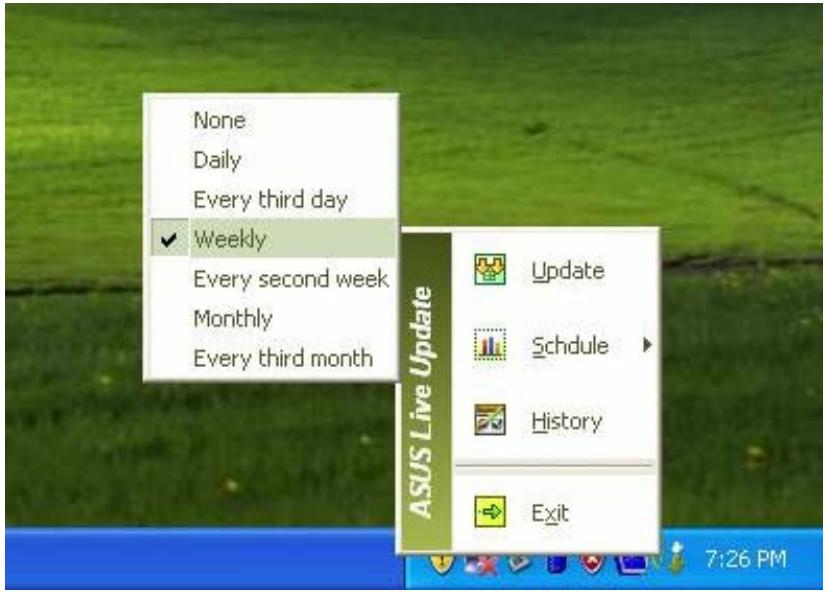
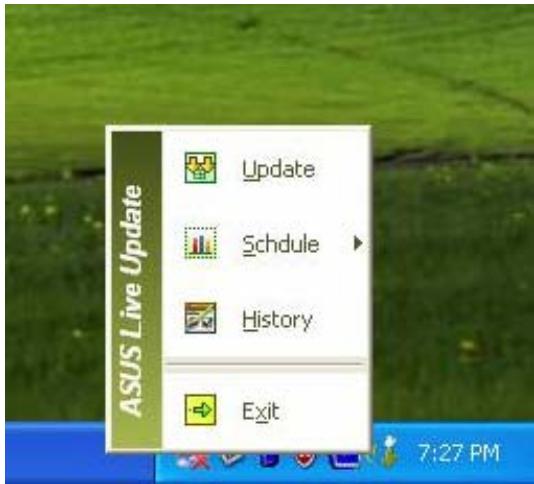
- You can right-click the Live Update icon on the toolbar and select "Schedule" to arrange a schedule for the live update.
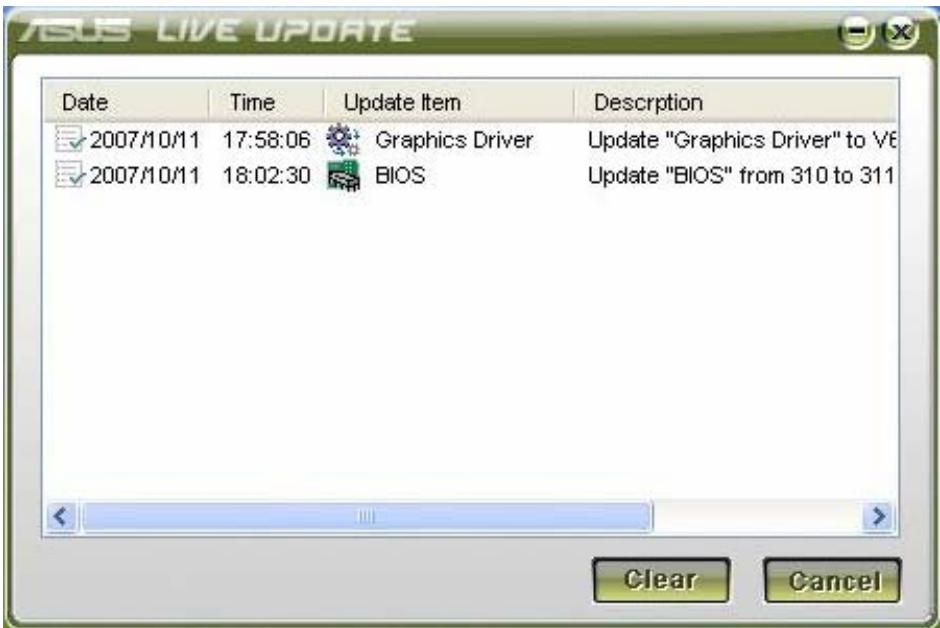
- You can right-click the Live Update icon on the toolbar and select "History" to check the live update history, which records updates for the BIOS and drivers.

Brand : ASUS
Model : A3H
Category : Computer