ASUS A3H - Ordinateur

A3H - Ordinateur ASUS - Notice d'utilisation et mode d'emploi gratuit

Retrouvez gratuitement la notice de l'appareil A3H ASUS au format PDF.

📄 9 pages Français FR Télécharger 💬 Question IA 10 questions ⚙️ Specs
Notice ASUS A3H - page 1
Voir la notice : Français FR English EN
Choisissez votre langue et indiquez votre email : nous vous enverrons une version traduite specifiquement.
Type de produit Ordinateur portable
Marque ASUS
Modèle A3H
Dimensions 33 x 24 x 3 cm
Poids 2,5 kg
Alimentation Adaptateur secteur 19 V
Écran 15,4 pouces
Processeur Intel Celeron ou Pentium M (estimation)
Mémoire RAM Jusqu'à 2 Go
Disque dur 40 à 80 Go
Système d'exploitation Windows XP
Fonctions principales Mise à jour du BIOS et des pilotes via ASUS Live Update, utilisation bureautique et multimédia
Connectivité Wi-Fi, Ethernet, USB 2.0
Clavier AZERTY (typique)
Batterie Lithium-ion 6 cellules
Autonomie Environ 2 à 3 heures
Entretien et nettoyage Nettoyer avec un chiffon doux et sec, éviter les liquides
Sécurité Utiliser sur une surface plane, éviter les chocs et l'humidité
Pièces détachées et réparabilité Batterie, adaptateur, clavier disponibles ; accès par vis pour composants internes
Informations générales Notice d'utilisation au format PDF disponible ; outil ASUS Live Update intégré

FOIRE AUX QUESTIONS - A3H ASUS

Comment mettre à jour le BIOS de mon ASUS A3H ?
Utilisez l'outil ASUS Live Update accessible depuis Démarrer > Tous les programmes > ASUS Utility > ASUS Live Update. L'outil détecte les versions disponibles et vous permet de télécharger et d'installer la dernière version du BIOS. Après le téléchargement, le système redémarre et entre dans le BIOS pour flasher. Ensuite, redémarrez, appuyez sur F2 pour entrer dans le BIOS, chargez les paramètres par défaut optimaux et quittez.
Comment mettre à jour les pilotes de mon ASUS A3H ?
Lancez ASUS Live Update, sélectionnez les pilotes à mettre à jour (par exemple, pilote graphique, touchpad, réseau sans fil), puis cliquez sur OK. L'outil télécharge et installe automatiquement les pilotes sélectionnés.
Comment planifier les mises à jour automatiques avec ASUS Live Update ?
Faites un clic droit sur l'icône d'ASUS Live Update dans la barre des tâches, choisissez Schedule (Planification), puis sélectionnez la fréquence (quotidienne, hebdomadaire, etc.). L'outil vérifiera automatiquement les mises à jour selon votre planning.
Où puis-je consulter l'historique des mises à jour effectuées ?
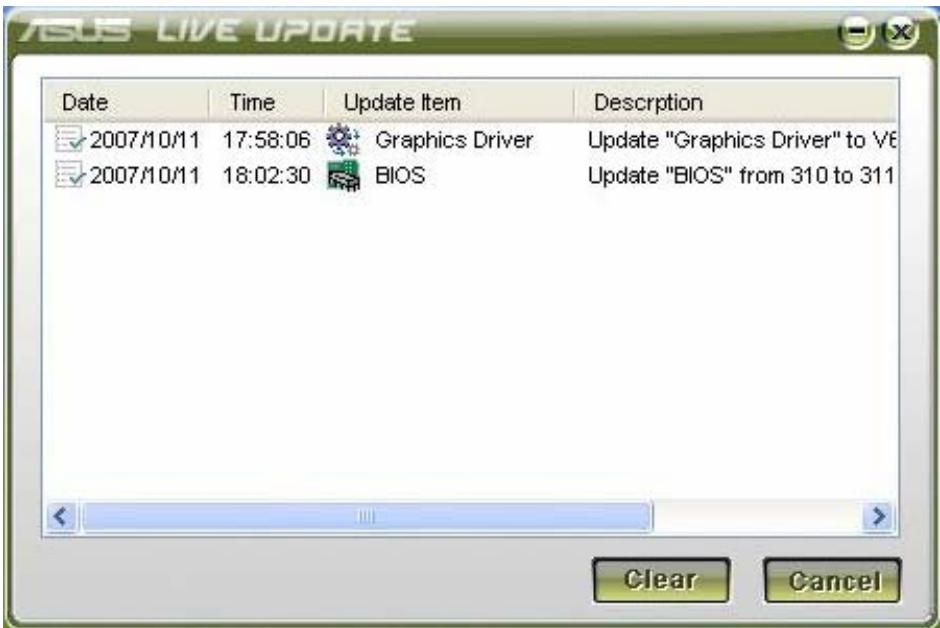
Faites un clic droit sur l'icône d'ASUS Live Update et choisissez History (Historique). Vous verrez la date, l'heure et la description de chaque mise à jour effectuée.
Que faire si ASUS Live Update ne fonctionne pas ?
Assurez-vous que votre ordinateur est connecté à Internet. Vous pouvez réinstaller l'outil à partir du CD de pilotes et d'utilitaires fourni avec l'ordinateur. Si le problème persiste, vérifiez les paramètres de pare-feu.
Puis-je utiliser ASUS Live Update sous Windows 10 ?
L'outil ASUS Live Update est conçu pour Windows XP, mais des versions ultérieures peuvent être incompatibles. Pour les systèmes d'exploitation plus récents, utilisez ASUS Update ou téléchargez les pilotes depuis le site Web d'ASUS.
Comment réinitialiser les paramètres du BIOS après une mise à jour ?
Après la mise à jour du BIOS, le système s'éteint. Redémarrez et appuyez sur F2 pour entrer dans le BIOS. Allez dans l'onglet Exit, sélectionnez Load Optimal Defaults, puis Save and Exit.
Le voyant de charge ne s'allume pas, que faire ?
Vérifiez que l'adaptateur secteur est bien branché et que la prise murale fonctionne. Si le problème persiste, testez avec un autre adaptateur compatible. Si la batterie ne charge pas, elle peut être défectueuse.
Comment nettoyer l'écran de mon ASUS A3H ?
Éteignez l'ordinateur et débranchez-le. Utilisez un chiffon doux et sec légèrement humide (pas de liquide directement) pour essuyer l'écran. Évitez les produits abrasifs.
Où trouver des pièces détachées pour l'ASUS A3H ?
Vous pouvez trouver des pièces comme la batterie, l'adaptateur secteur, le clavier, ou le disque dur sur des sites de vente en ligne de pièces détachées ou auprès de réparateurs agréés ASUS.

Questions des utilisateurs sur A3H ASUS

0 question sur cet appareil. Repondez a celles que vous connaissez ou posez la votre.

Poser une nouvelle question sur cet appareil

L'email reste privé : il sert seulement à vous prévenir si quelqu'un répond à votre question.

Aucune question pour l'instant. Soyez le premier à en poser une.

Téléchargez la notice de votre Ordinateur au format PDF gratuitement ! Retrouvez votre notice A3H - ASUS et reprennez votre appareil électronique en main. Sur cette page sont publiés tous les documents nécessaires à l'utilisation de votre appareil A3H de la marque ASUS.

MODE D'EMPLOI A3H ASUS

ASUS Live Update

User's Guide

Contents

Chapter 1 ASUS Live Update ....1

1.1 Introduction....1
1.2 How to update BIOS and Drivers via ASUS Live Update....1

Chapter 1 ASUS Live Update

1.1 Introduction

ASUS Live Update is a useful utility to update BIOS and Drivers of your NB units automatically from the web to the current latest version to avoid any probable bugs.

You may install the program via Driver & Utility CD if you cannot find the program from Start -> All Programs->ASUS Utility.

1.2 How to update BIOS and Drivers via ASUS Live Update

  1. Click Start \ All Programs \ ASUS Utility \ ASUS Live Update \ ASUS Live Update or click its icon in the toolbar.
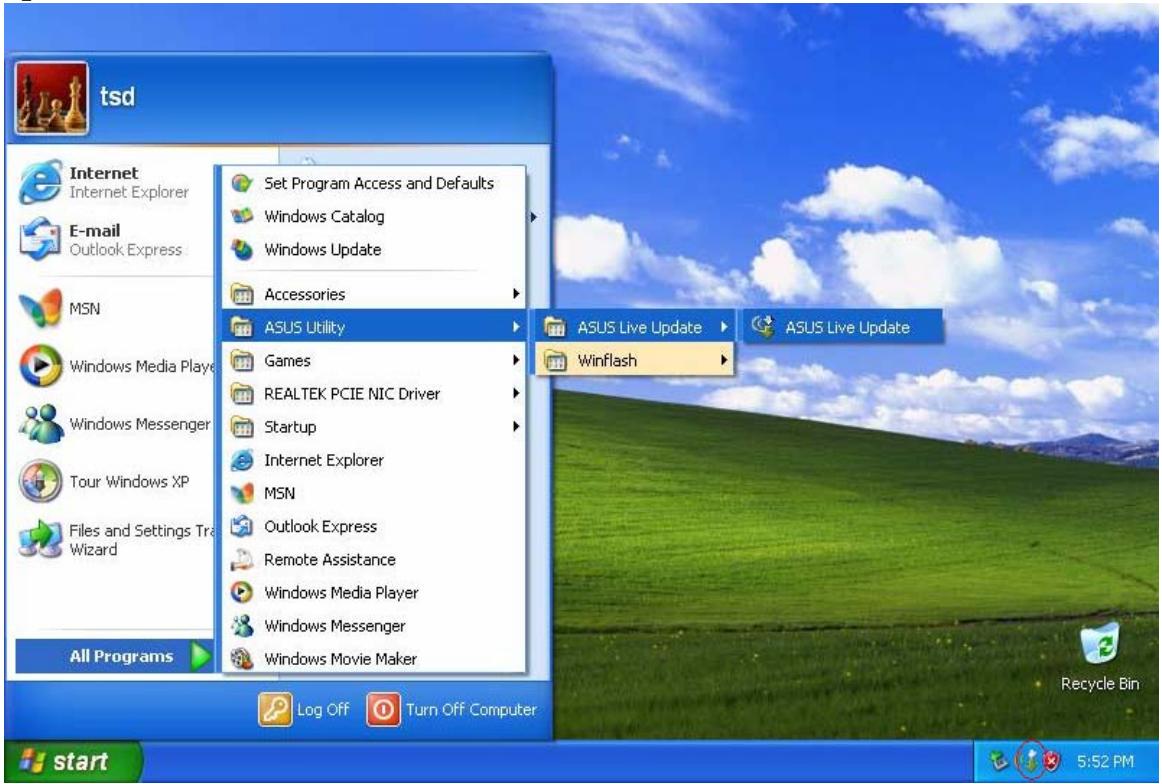
tsd Internet Internet Explorer E-mail Outlook Express MSN Windows Media Player Windows Messenger Tour Windows XP Files and Settings Tra Wizard All Programs Set Program Access and Defaults Windows Catalog Windows Update Accessories ASUS Utility Games REALTEK PCIE NIC Driver Startup Internet Explorer MSN Outlook Express Remote Assistance Windows Media Player Windows Messenger Windows Movie Maker ASUS Live Update Winflash ASUS Live Update Log Off Turn Off Computer 5:52 PM Recycle Bin

  1. Then Live Update will detect the current version of BIOS and Drivers of your NB unit and compare them with what we have posted on the web automatically, then list all the BIOS and Drivers newer than your current version.
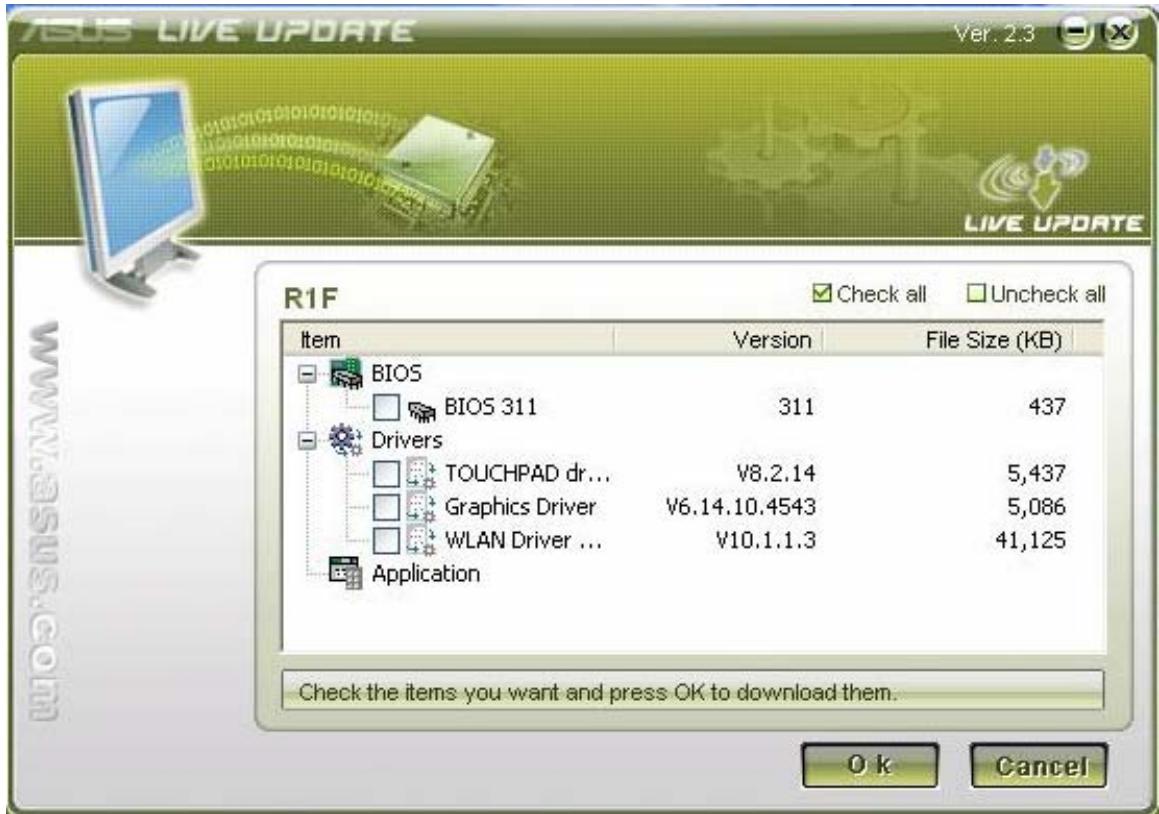
R1F Check all Uncheck all Item Version File Size (KB) BIOS BIOS 311 311 437 Drivers TOUCHPAD dr... V8.2.14 5,437 Graphics Driver V6.14.10.4543 5,086 WLAN Driver ... V10.1.1.3 41,125 Application Check the items you want and press OK to download them. OK Cancel

  1. You could select any BIOS or Drivers and click "OK" to update via Live Update
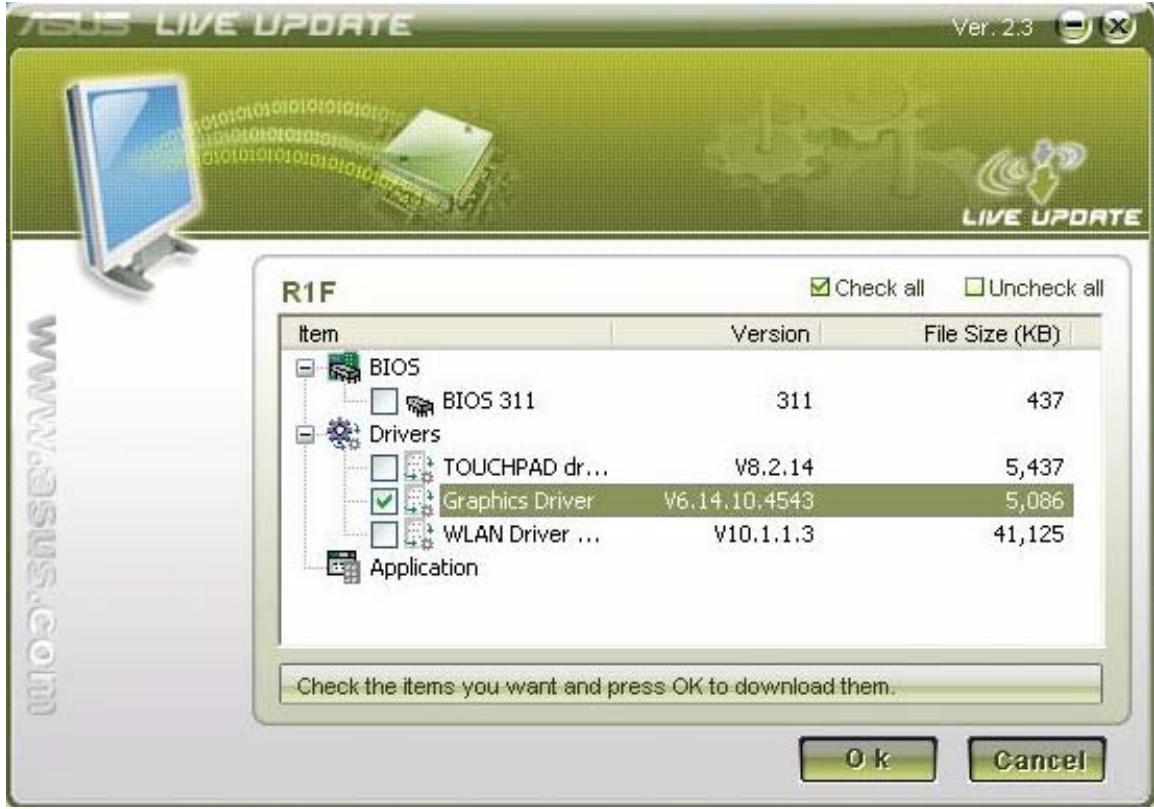
R1F Check all Uncheck all Item Version File Size (KB) BIOS BIOS 311 311 437 Drivers TOUCHPAD dr... V8.2.14 5,437 Graphics Driver V6.14.10.4543 5,086 WLAN Driver ... V10.1.1.3 41,125 Application Check the items you want and press OK to download them. OK Cancel

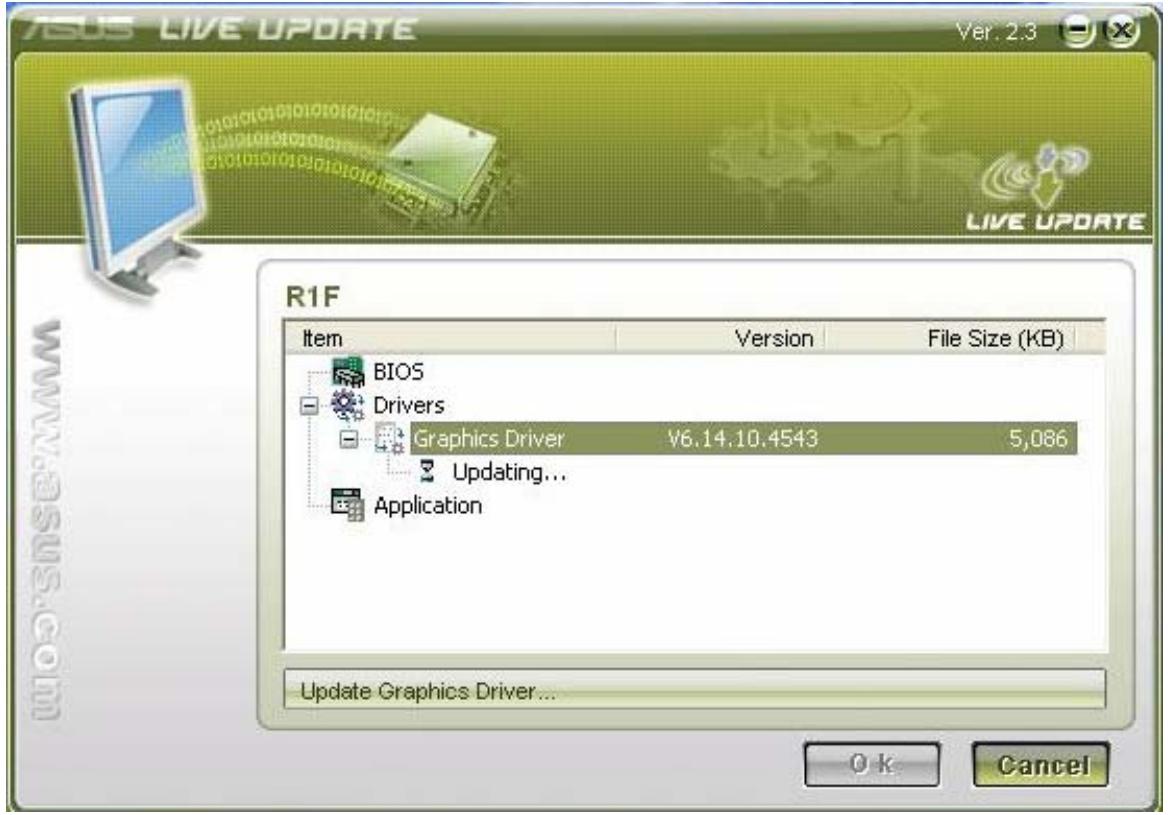
  1. If you select a Driver, Live Update will download the latest Driver.
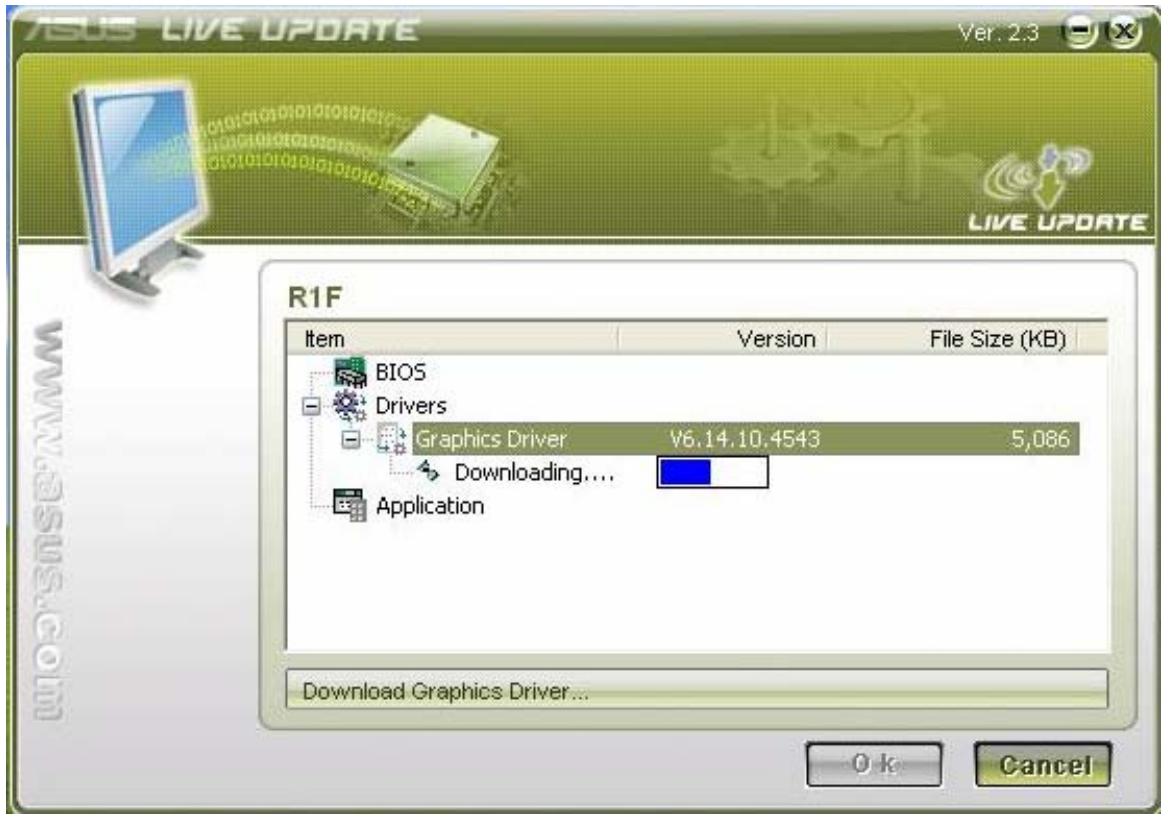
ASOS LIVE UPDATE Ver. 2.3 R1F Item Version File Size (KB) BIOS Drivers Graphics Driver V6.14.10.4543 5,086 Downloading.... Application Download Graphics Driver... OK Cancel

  1. Then install the Driver automatically

R1F Item Version File Size (KB) BIOS Drivers Graphics Driver V6.14.10.4543 5,086 Updating... Application Update Graphics Driver... OK Cancel

  1. At last, Live Update will tell you that the Driver live update is completed.
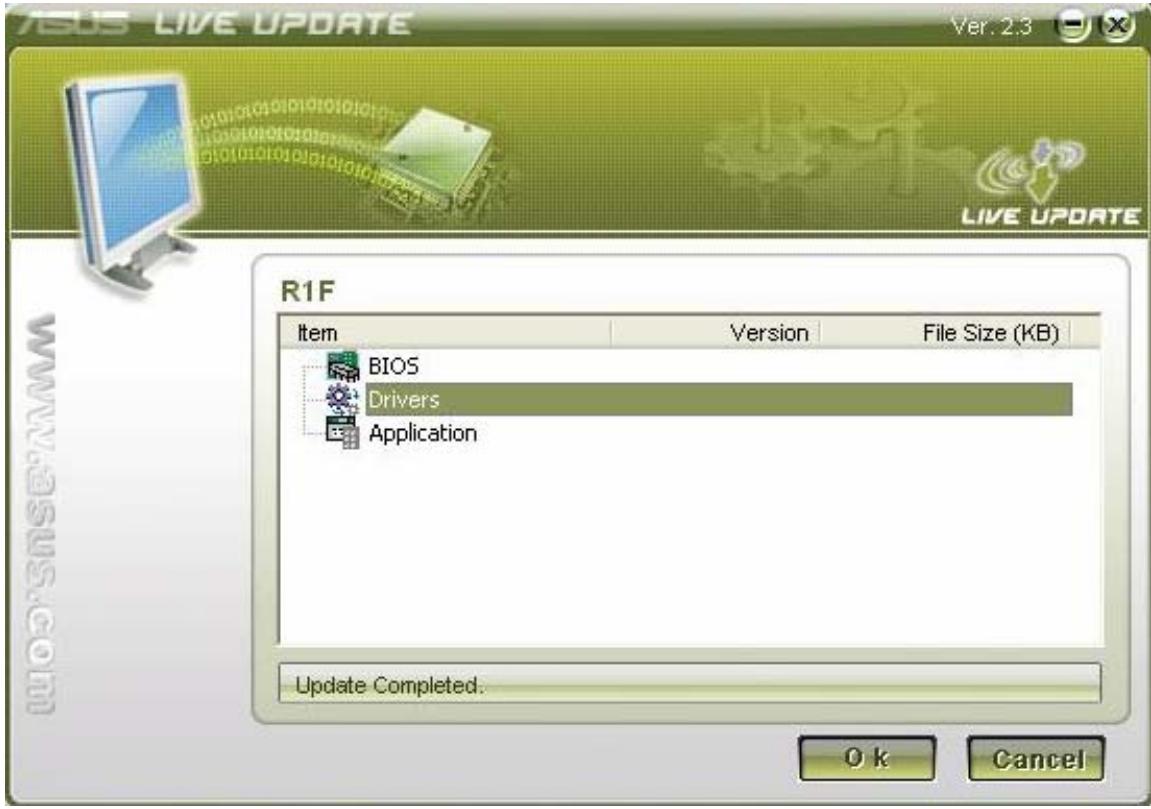
VOLI S LIVE UPDATE Ver. 2.3 LIVE UPDATE R1F Item Version File Size (KB) BIOS Drivers Application Update Completed. OK Cancel

  1. If you select the BIOS, Live Update will download the latest BIOS as well.
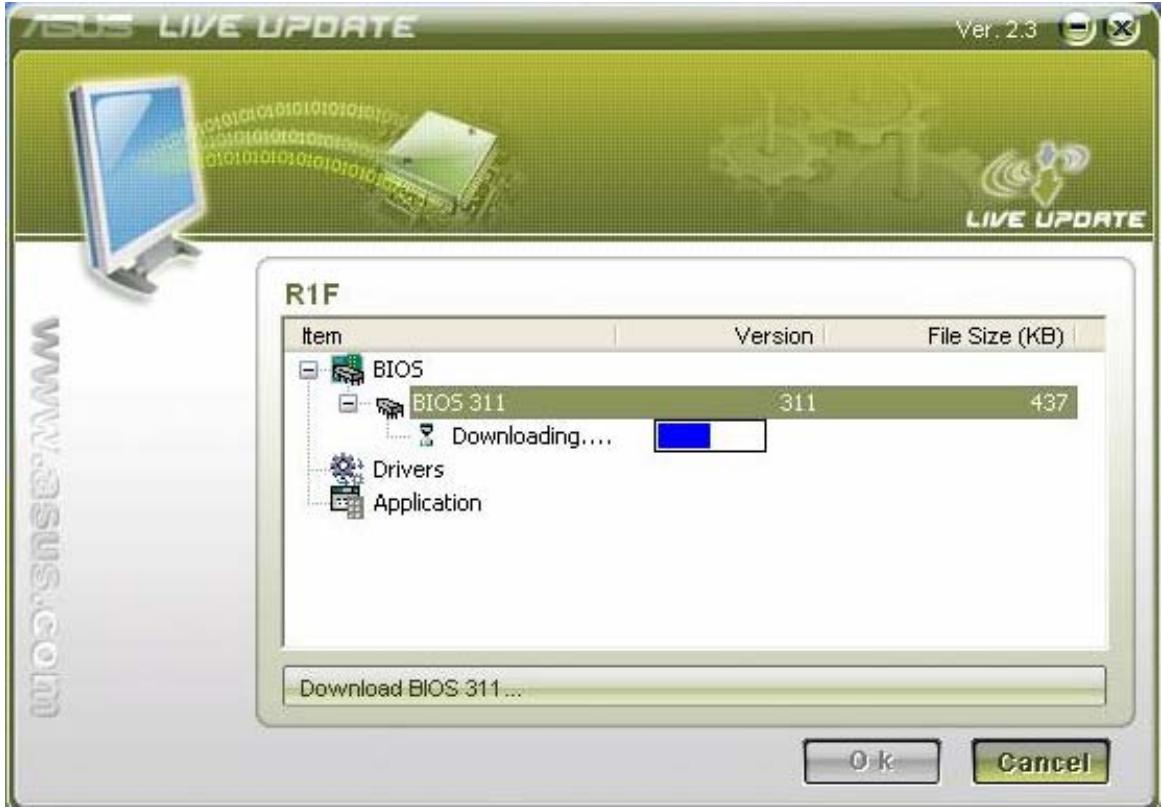
ASOS LIVE UPDATE Ver. 2.3 R1F Item Version File Size (KB) BIOS BIOS 311 311 437 Downloading.... Drivers Application Download BIOS 311... OK Cancel

  1. When the Download is completed, you will receive a message to notice the system will restart and enter BIOS to flash the latest BIOS.
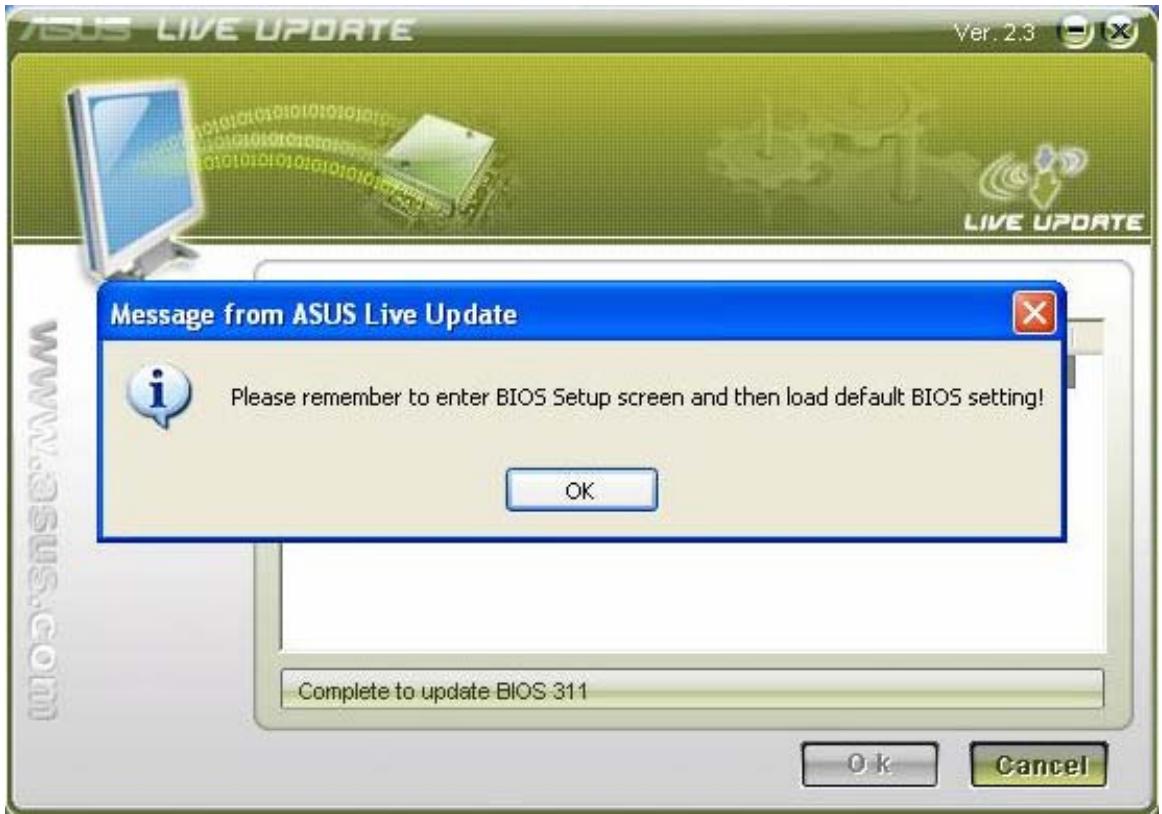
ASUS LIVE UPDATE Ver. 2.3 LIVE UPDATE Message from ASUS Live Update Please remember to enter BIOS Setup screen and then load default BIOS setting! OK Complete to update BIOS 311 OK Cancel

  1. After the latest BIOS is flashed OK, the system will power off, then you need to power the unit again and press F2 to enter BIOS to "Load Optimal Defaults". Then click "Save and Exit" and reboot system again.
BIOS SETUP UTILITY
Main Advanced Display Security Power Boot Exit
Exit Options Save Changes and Exit Discard Changes and Exit Discard Changes Load Optimal Defaults Load Failsafe DefaultsExit system setup after saving the changes. F10 key can be used for this operation. ← Select Screen ↑↓ Select Item Enter Go to Sub Screen F1 General Help F9 Load Defaults F10 Save and Exit ESC Exit
v02.33 (C) Copyright 1905-2002, American Megatrends, Inc.
  1. Then you will enter OS and Live Update will tell you the BIOS live update is

completed.
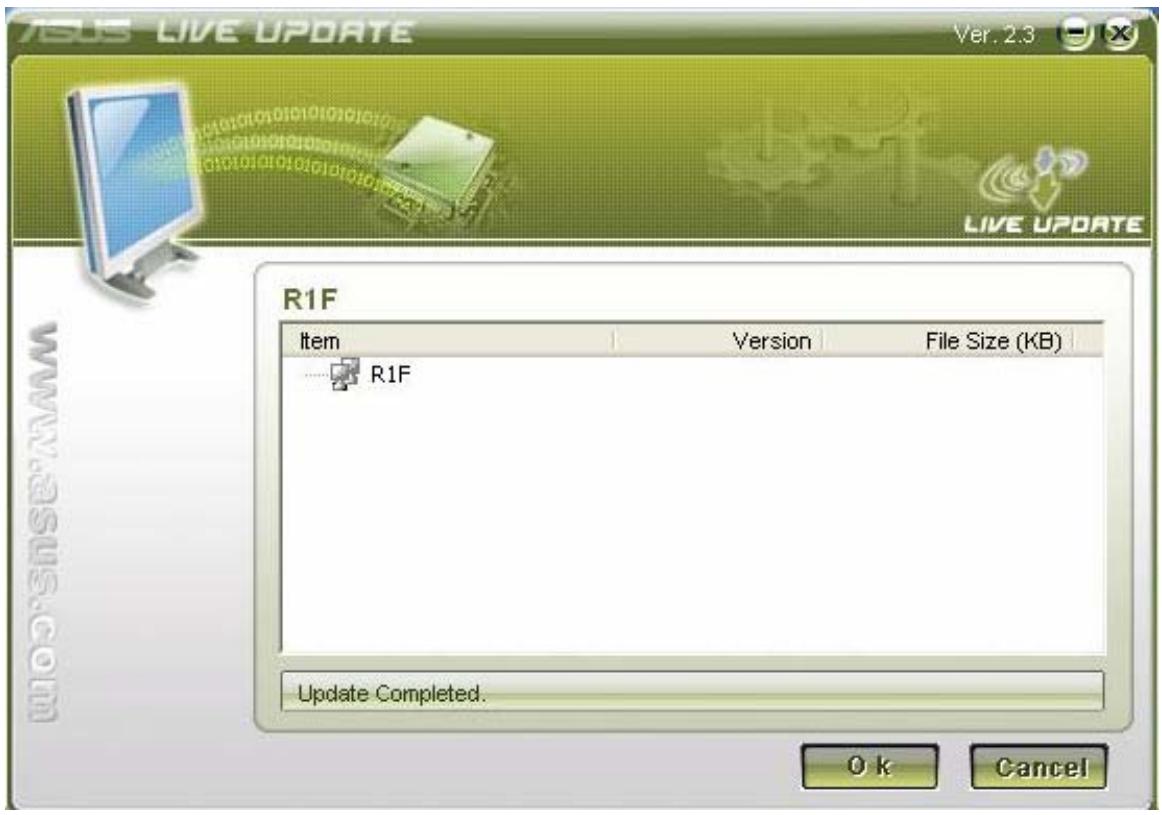
ASUS LIVE UPDATE Ver. 2.3 R1F Item Version File Size (KB) R1F Update Completed. OK Cancel

  1. You could right click the Live Update icon on the toolbar and click the Schedule to arrange the schedule for the live update.
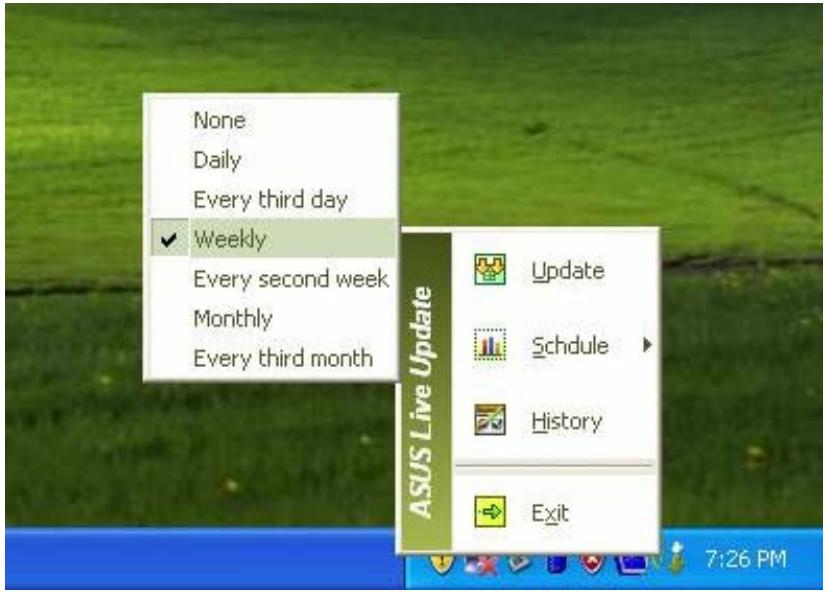
None Daily Every third day ✓ Weekly Every second week Monthly Every third month ASUS Live Update Update Schedule History Exit 7:26 PM

  1. You could right click the Live Update icon on the toolbar and click the History to check the live update history which registers the live update of the BIOS and Drivers.
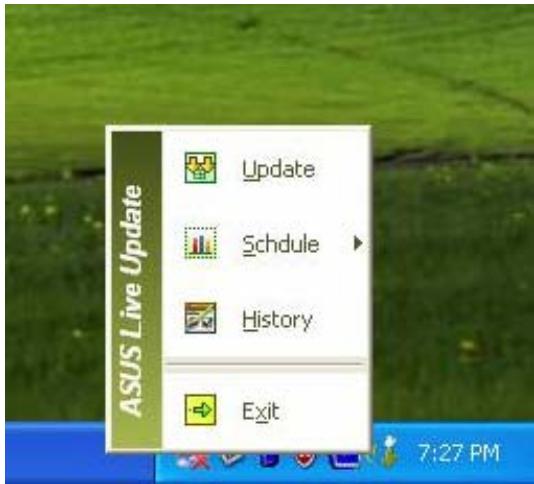
ASUS Live Update Update Schedule History Exit

ASUS LIVE UPDATE Date Time Update Item Description 2007/10/11 17:58:06 Graphics Driver Update "Graphics Driver" to V6 2007/10/11 18:02:30 BIOS Update "BIOS" from 310 to 311 Clear Cancel

Assistant notice
Powered by Anthropic
En attente de votre message
Informations produit

Marque : ASUS

Modèle : A3H

Catégorie : Ordinateur