6727FRE - TV SYLVANIA - Free user manual and instructions
Find the device manual for free 6727FRE SYLVANIA in PDF.


User questions about 6727FRE SYLVANIA
0 question about this device. Answer the ones you know or ask your own.
Ask a new question about this device
Download the instructions for your TV in PDF format for free! Find your manual 6727FRE - SYLVANIA and take your electronic device back in hand. On this page are published all the documents necessary for the use of your device. 6727FRE by SYLVANIA.
USER MANUAL 6727FRE SYLVANIA
natural_image
Front view diagram of a computer monitor with front panel and rear panel (no text or symbols)SUPPLIED ACCESSORIES
This unit comes with the following accessories. Please confirm that all the accessories are included.
□Owner's Manual (1EMN20176)
□Remote Control (NE237UD)
□ AA batteries x 2
NOTE
If any of accessories are missing, please contact your dealer.
Thank you for purchasing this product.
Please make sure to read this manual before using the product and pay particular attention to the Safety Instructions enclosed within.
When you have finished reading this manual, store it in a safe place for easy access in the future.
IF YOU NEED ADDITIONAL ASSISTANCE FOR SET-UP OR OPERATING AFTER READING OWNER'S MANUAL, PLEASE CALL TOLL FREE 1-800-605-8453 OR VISIT OUR WEB SITE AT http://www.funai-corp.com.
Before you use this unit, you need to complete connections.
Refer to "Connections" on pages 10-13.
To record a program easily, refer to “Easy DVD recording” on pages 46-47 after connections are completed.
(You CANNOT copy any copyright protected DVD disc with this unit.)
TO REDUCE THE RISK OF FIRE OR ELECTRIC SHOCK, DO NOT EXPOSE THIS APPLIANCE TO RAIN OR MOISTURE.

CAUTION
RISK OF ELECTRIC SHOCK DO NOT OPEN

CAUTION: TO REDUCE THE RISK OF ELECTRIC SHOCK, DO NOT REMOVE COVER (OR BACK). NO USER SERVICEABLE PARTS INSIDE. REFER SERVICING TO QUALIFIED SERVICE PERSONNEL.

THIS SYMBOL INDICATES THAT DANGEROUS VOLTAGE CONSTITUTING A RISK OF ELECTRIC SHOCK IS PRESENT WITHIN THIS UNIT.

THIS SYMBOL INDICATES THAT THERE ARE IMPORTANT OPERATING AND MAINTENANCE INSTRUCTIONS IN THE LITERATURE ACCOMPANYING THE APPLIANCE.
The important note is located on the rear of the cabinet.
IMPORTANT SAFETY INSTRUCTIONS
- Read instructions - All the safety and operating instructions should be read before the appliance is operated.
- Retain Instructions - The safety and operating instructions should be retained for future reference.
- Heed Warnings - All warnings on the appliance and in the operating instructions should be adhered to.
- Follow Instructions - All operating and use instructions should be followed.
- Cleaning - Unplug the TV/VCR/DVD from the wall outlet before cleaning. Do not use liquid cleaners or aerosol cleaners. Use a damp cloth for cleaning.
EXCEPTION: A product that is meant for uninterrupted service and, that for some specific reason, such as the possibility of the loss of an authorization code for a CATV converter, is not intended to be unplugged by the user for cleaning or any other purpose, may exclude the reference to unplugging the appliance in the cleaning description otherwise required in item 5. - Attachments - Do not use attachments not recommended by the TV/VCR/DVD manufacturer as they may cause hazards.
- Water and Moisture - Do not use this TV/VCR/DVD near water, for example, near a bath tub, wash bowl, kitchen sink, or laundry tub, in a wet basement, or near a swimming pool, and the like.
- Accessories - Do not place this TV/VCR/DVD on an unstable cart, stand, tripod, bracket, or table. The TV/VCR/DVD may fall, causing serious injury to someone, and serious damage to the appliance. Use only with a cart, stand, tripod, bracket, or table recommended by the manufacturer, or sold with the TV/VCR/DVD.
Any mounting of the appliance should follow the manufacturer's instructions and should use a mounting accessory recommended by the manufacturer. An appliance and cart combination should be moved with care. Quick stops, excessive force, and uneven surfaces may cause the appliance and cart combination to overturn.
PORTABLE CART WARNING

-
Ventilation - Slots and openings in the cabinet and the back or bottom are provided for ventilation and to ensure reliable operation of the TV/VCR/DVD and to protect it from overheating, these openings must not be blocked or covered. The openings should never be blocked by placing the TV/VCR/DVD on a bed, sofa, rug, or other similar surface. This TV/VCR/DVD should never be placed near or over a radiator or heat register. This TV/VCR/DVD should not be placed in a built-in installation such as a bookcase or rack unless proper ventilation is provided or the manufacturer's instructions have been adhered to.
-
Power Sources - This TV/VCR/DVD should be operated only from the type of power source indicated on the marking label. If you are not sure of the type of power supply to your home, consult your appliance dealer or local power company. For TV/VCR/DVD intended to operate from battery power, or other sources, refer to the operating instructions.
-
Grounding or Polarization - This TV/VCR/DVD is equipped with a polarized alternating-current line plug(a plug having one blade wider than the other). This plug will fit into the power outlet only one way. This is a safety feature. If you are unable to insert the plug fully into the outlet, try reversing the plug. If the plug should still fail to fit, contact your electrician to replace your obsolete outlet. Do not defeat the safety purpose of the polarized plug.
-
Power-Cord Protection - Power-supply cords should be routed so that they are not likely to be walked on or pinched by items placed upon or against them, paying particular attention to cords at plugs, convenience receptacles, and the point where they exit from the appliance.
text_image
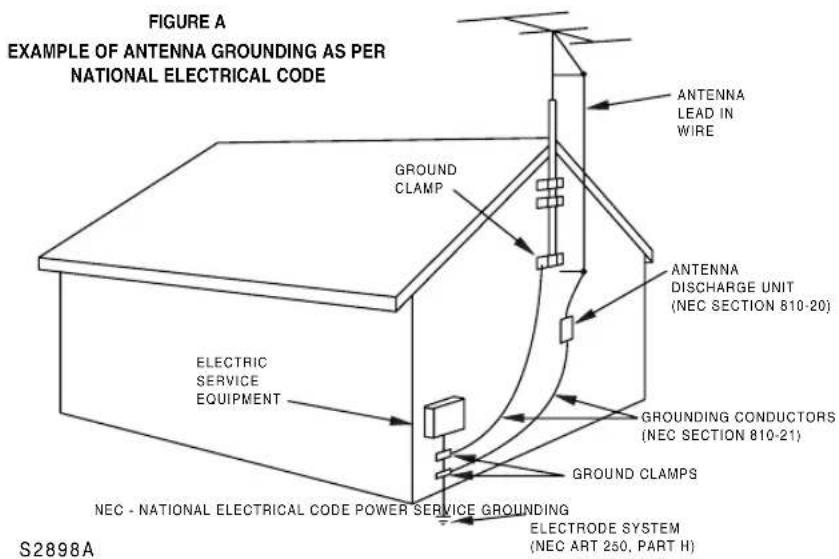
FIGURE A EXAMPLE OF ANTENNA GROUNDING AS PER NATIONAL ELECTRICAL CODE GROUND CLAMP ELECTRIC SERVICE EQUIPMENT ANTENNA LEAD IN WIRE ANTENNA DISCHARGE UNIT (NEC SECTION 810-20) GROUNDING CONDUCTORS (NEC SECTION 810-21) GROUND CLAMPS NEC - NATIONAL ELECTRICAL CODE POWER SERVICE GROUNDING ELECTRODE SYSTEM (NEC ART 250, PART H) S2898A-
Outdoor Antenna grounding - If an outside antenna or cable system is connected to the TV/VCR/DVD, be sure the antenna or cable system is grounded so as to provide some protection against voltage surges and built-up static charges. Article 810 of the National Electrical Code, ANSI/NFPA No. 70, provides information with respect to proper grounding of the mast and supporting structure, grounding of the lead-in wire to an antenna discharge unit, size of grounding conductors, location of antenna-discharge unit, connection to grounding electrodes, and requirements for the grounding electrode. (Fig. A)
-
Lightning - For added protection for this TV/VCR/DVD receiver during a lightning storm, or when it is left unattended and unused for long periods of time, unplug it from the wall outlet and disconnect the antenna or cable system. This will prevent damage to the TV/VCR/DVD due to lightning and power-line surges.
-
Power Lines - An outside antenna system should not be located in the vicinity of overhead power lines or other electric light of power circuits, or where it can fall into such power lines or circuits. When installing an outside antenna system, extreme care should be taken to keep from touching such power lines or circuits as contact with them might be fatal.
-
Overloading - Do not overload wall outlets and extension cords as this can result in a risk of fire or electric shock.
-
Object and Liquid Entry - Never push objects of any kind into this TV/VCR/DVD through openings as they may touch dangerous voltage points or short out parts that could result in a fire or electric shock. Never spill liquid of any kind on the TV/VCR/DVD.
-
Servicing - Do not attempt to service this TV/VCR/DVD yourself as opening or removing covers may expose you to dangerous voltage or other hazards. Refer all servicing to qualified service personnel.
-
Damage Requiring Service - Unplug this TV/VCR/DVD from the wall outlet and refer servicing to qualified service personnel under the following conditions:
a. When the power supply cord or plug is damaged or frayed.
b. If liquid has been spilled, or objects have fallen into the TV/VCR/DVD.
c. If the TV/VCR/DVD has been exposed to rain or water.
d. If the TV/VCR/DVD does not operate normally by following the operating instructions. Adjust only those controls that are covered by the operating instructions, as improper adjustment of other controls may result in damage and will often require extensive work by a qualified technician to restore the TV/VCR/DVD to its normal operation.
e. If the TV/VCR/DVD has been dropped or damaged in any way.
f. When the TV/VCR/DVD exhibits a distinct change in performance-this indicates a need for service.
-
Replacement Parts - When replacement parts are required, be sure the service technician uses replacement parts specified by the manufacturer that have the same characteristics as the original part. Unauthorized substitutions may result in fire, electric shock, injury to persons or other hazards.
-
Safety Check - Upon completion of any service or repairs to this TV/VCR/DVD, ask the service technician to perform routine safety checks to determine that the TV/VCR/DVD is in proper operating condition.
-
Heat - This TV/VCR/DVD product should be situated away from heat sources such as radiators, heat registers, stoves, or other products (including amplifiers) that produce heat.
IMPORTANT COPYRIGHT INFORMATION
Unauthorized copying, broadcasting, public performance and lending of discs are prohibited.
This product incorporates copyright protection technology that is protected by method claims of certain U.S. patents and other intellectual property rights owned by Macrovision Corporation and other rights owners. Use of this copyright protection technology must be authorized by Macrovision Corporation, and is intended for home and other limited viewing uses only unless otherwise authorized by Macrovision Corporation. Reverse engineering or disassembly is prohibited.
RADIO-TV INTERFERENCE
This equipment has been tested and found to comply with the limits for a Class B digital device, pursuant to Part 15 of the FCC Rules. These limits are designed to provide reasonable protection against harmful interference in a residential installation. This equipment generates, uses, and can radiate radio frequency energy and, if not installed and used in accordance with the instructions, may cause harmful interference to radio communications. However, there is no guarantee that interference will not occur in a particular installation. If this equipment does cause harmful interference to radio or television reception, which can be determined by turning the equipment off and on, the user is encouraged to try to correct the interference by one or more of the following measures:
1) Reorient or relocate the receiving antenna.
2) Increase the separation between the equipment and receiver.
3) Connect the equipment into an outlet on a circuit different from that to which the receiver is connected.
4) Consult the dealer or an experienced radio/TV technician for help.
This Class B digital apparatus complies with Canadian ICES-003.
FCC WARNING- This equipment may generate or use radio frequency energy. Changes or modifications to this equipment may cause harmful interference unless the modifications are expressly approved in the instruction manual. The user could lose the authority to operate this equipment if an unauthorized change or modification is made.
LASER SAFETY
This unit employs a laser. Only a qualified service person should remove the cover or attempt to service this device, due to possible eye injury.
CAUTION: USE OF CONTROLS OR ADJUSTMENTS OR PERFORMANCE OF PROCEDURES OTHER THAN THOSE SPECIFIED HEREIN MAY RESULT IN HAZARDOUS RADIATION EXPOSURE.
CAUTION: VISIBLE AND INVISIBLE LASER RADIATION WHEN OPEN AND INTERLOCK DEFEATED. DO NOT STARE INTO BEAM.
LOCATION: INSIDE, NEAR THE DECK MECHANISM.
CAUTION: TO PREVENT ELECTRIC SHOCK, MATCH WIDE BLADE OF PLUG TO WIDE SLOT, FULLY INSERT.
ATTENTION: POUR ÉVITER LES CHOC ÉLECTRIQUES, INTRODUIRE LA LAME LA PLUS LARGE DE LA FICHE DANS LA BORNE CORRESPONDANTE DE LA PRISE ET POUSSER JUSQU'AU FOND.
LOCATION
For safe operation and satisfactory performance of your TV/VCR/DVD, keep the following in mind when selecting a place for its installation:
- Shield it from direct sunlight and keep it away from sources of intense heat.
- Avoid dusty or humid places.
- Avoid places with insufficient ventilation for proper heat dissipation. Do not block the ventilation holes at the top and bottom of the unit. Do not place the unit on a carpet because this will block the ventilation holes.
- Install unit in a horizontal position.
- Avoid locations subject to strong vibration.
- Do not place the TV/VCR/DVD near strong magnetic fields.
- Avoid moving TV/VCR/DVD to locations where temperature differences are extreme.
AVOID THE HAZARDS OF ELECTRICAL SHOCK AND FIRE
- Do not handle the power cord with wet hands.
- Do not pull on the power cord when disconnecting it from an AC wall outlet. Grasp it by the plug.
- If, by accident, water is spilled on your unit, unplug the power cord immediately and take the unit to a Authorized Service Center for servicing.
- Do not put your fingers or objects into the TV/VCR/DVD disc loading tray or the cassette compartment.
- Do not place anything directly on top of the unit.
MOISTURE CONDENSATION WARNING
- Moisture condensation may occur inside the unit when it is moved from a cold place to a warm place, or after heating a cold room or under conditions of high humidity. Do not use this unit at least for 2 hours until its inside gets dry.
REGARDING THIS MANUAL
- Product and company names appearing within this manual are trademarks or registered trademarks of their respective owners.
- Although special care has been taken to ensure that all information contained within this manual is correct at time of writing, the information is subject to change without notice.
- Make sure to read the manual carefully and follow all instructions contained within. We will not be held responsible for any damages caused by improper use or handling of this product.
- Reproducing this manual by any means, in whole or in part, is prohibited.
A NOTE ABOUT RECYCLING
This product's packaging materials are recyclable and can be reused. Please dispose of any materials in accordance with your local recycling regulations.
Batteries should never be thrown away or incinerated but disposed of in accordance with your local regulations concerning chemical wastes.
The serial number of this product may be found on the back of this unit. No other TV/VCR/DVD has the same serial number as yours. You should record the number and other vital information here and retain this book as a permanent record of your purchase to aid identification in case of theft.
| Date of Purchase | Dealer Phone No. | ||
| Dealer | Model No. | ||
| Dealer Address | Serial No. |
SYMBOLS USED IN THIS MANUAL
The following is the description for the symbols used in this manual.
DVD-V
: Refers to DVD video discs.
DVD-RW (Video)
: Refers to DVD-RW in Video mode.
DVD-RW (VR)
: Refers to DVD-RW in VR mode.
DVD-R
: Refers to DVD-R discs.
CD
: Refers to Audio CDs.
MP3
: Refers to CD-R/RW discs with MP3 files.
VCR
: Refers to VHS tapes. Use only cas- settes marked VHS
IMPORTANT SAFETY INSTRUCTIONS .....2
PRECAUTIONS 4
SYMBOLS USED IN THIS MANUAL .....5
CONTENTS....6
COMPONENT NAMES ....7
Main Unit 7
Remote Control Unit 8
Inserting Remote Control Batteries ..... 9
Remote Control Range 9
CONNECTIONS 10
Connection of Main Unit 10
Connection to Cable Box or Satellite Box .....10
Connection to Audio System .....11
Audio Setting 12
OSD DISPLAY SETTING....14
OSD LANGUAGE SETTING .....15
CHANNEL SETTING....16
Auto Preset 16
Add/Delete Function .....17
Selecting TV Stereo or SAP 17
CLOCK SETTING 18
Auto Clock Setting 18
Manual Clock Setting .....19
DAYLIGHT SAVING TIME ....20
SELECTING TV DISPLAY MODE .....21
GUIDE TO DISPLAY MENUS .....21
OPERATING TV
TV FUNCTIONS .....22
Watching TV Program .....22
Setting Sleep Timer 22
Adjusting Picture .23
Setting V-CHIP .....24
Setting MPAA Rating 24
Setting TV Rating 25
Setting V-CHIP Sub Ratings. 25
Setting V-CHIP Access Code. 26
Selecting Closed Caption .....27
OPERATING VCR
VCR FUNCTIONS 28
Playback 28
Recording 28
Normal Recording 28
One-Touch Timer Recording 29
Guide to Displays .....29
Time Search 29
Other Functions ....30
Auto Rewind-Eject 30
About DVD Playing 31
Guide to Displays 31
Language Setting 32
Basic Playback 33
Playback 33
Playback with Disc Menu 35
Playback with Title Menu 35
Special Playback 36
Resume 36
Pause 36
Fast Forward / Fast Reverse ..... 36
Slow Forward / Slow Reverse ..... 36
Step by Step 37
Zoom 37
Setting Marker 38
Search 38
Title/Chapter Search 38
Track Search 39
Time Search 39
Repeat/Random/Program Play . . . . . . . . . . . . . . . . . . . . 40
Repeat Play. 40
Random Play. 40
Program Play. 41
Selecting AUDIO / VIDEO Menu .....41
Switching Audio Soundtrack. 41
Switching Subtitles 43
Switching Camera Angles 43
Reducing Block Noise 44
Virtual Surround Setting. 44
GUIDE TO DISPLAYS ON SCREEN MENU . . . 45
EASY DVD RECORDING .....46
RECORDING 48
About DVD Recording 48
Video mode/VR (Video Recording) mode.....48
Recording Speed 48
Restrictions 49
Copy Control 49
Formatting 49
Format Setting. 49
Reformatting 50
Basic Recording .51
Recording TV Programs....51
Checking the recording picture quality ..... 52
One-Touch Timer Recording 53
Finalizing Discs .54
Protecting Discs 55
Connecting to External Video Products .....56
Connections 56
Recording from External Video Products ..... 56
DUBBING 57
Suggestions for Timer Recording 60
EDITING DISCS 61
About Disc Editing 61
Title List 61
Editing in Video Mode 61
Editing in VR Mode 61
Editing Discs in Video Mode .62
Deleting Titles 62
Naming Titles 63
Setting Chapter Markers 63
Editing DVD-RW Discs in VR Mode(Original) .....64
Deleting Titles 64
Deleting Parts of Titles. 65
Naming Titles 65
Setting Chapter Markers 66
Setting Pictures for Thumbnails 66
Protecting Titles 67
Releasing Title Protect. 67
Editing DVD-RW Discs in VR Mode(Playlist) .....68
Deleting Titles 68
Deleting Parts of Titles. 69
Naming Titles 69
Setting Chapter Markers 70
Setting Pictures for Thumbnails 70
Adding Titles to Playlist 71
Deleting Playlist. 71
PARENTAL LOCK LEVEL SETTING .....72
CHANGING SETUP MENU
SETUP MENU LIST 73
OTHERS
TROUBLESHOOTING 74
MAINTENANCE 78
LANGUAGE CODE 78
GLOSSARY 79
SPECIFICATIONS 80
ESPAÑOL 82
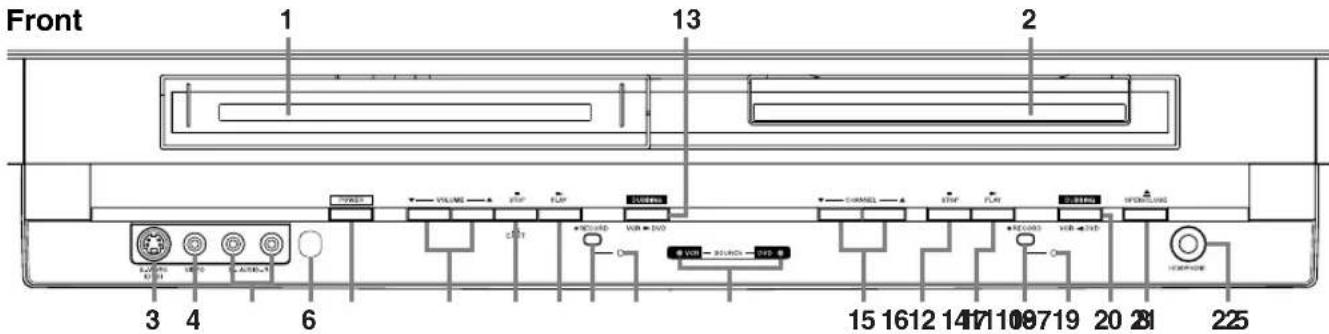
Main Unit
text_image
Front 1 13 2 3 4 6 15 1612 1417 1109 719 20 21 2251 Cassette compartment (VCR): Insert a tape here.
2 Disc tray (DVD): Place a disc on the tray when open.
3 S-VIDEO input jack (DVD only): Use to connect the S-Video output of external video components with an S-Video cable.
4 VIDEO input jack: Use to connect external video components with a standard video cable.
5 AUDIO (L/R) input jack: Use to connect external video/audio components with standard audio cables.
6 Receiving window for remote control signal: Sensor that receives signal from the remote control unit.
7 POWER button: Press to turn the unit on and off. If timer programmings have been set, press to set the unit in timer-standby mode. Press to cancel the timer-standby mode, then turn the unit on.
8 VOLUME ▲/▼ buttons: Press to adjust the sound level.
9 ■STOP/▲EJECT button (VCR):
▲EJECT button- Press to remove the tape from the unit.
■STOP button- Press to stop tape movement. Press to stop the proceeding timer recording in VCR.
10 ▶PLAY button (VCR): Press to start playback.
11 ●RECORD button (VCR): Press once to begin recording. Press repeatedly to start a One-Touch Recording.
Rear

text_image
1 2 31 AUDIO OUT COAXIAL jack (DVD sound only): Use to connect an AV receiver with a coaxial digital input jack.
- Only DVD, CD and MP3 audio will be output from this jack.
12 RECORD indicator (VCR): Blinks during VCR recording.
13 DUBBING button (VCR→DVD): Press to start VCR to DVD duplication.
14 VCR/DVD indicator: Shows the operating status. Indicator for VCR illuminates during VCR playing and one for DVD illuminates during DVD playing.
15 CHANNEL ▲▼ buttons: Press to change the channel up or down. During DVD playback, press to change the DVD chapter.
16 ■ STOP button (DVD): Press to stop playback or recording. Press to stop the proceeding timer recording in DVD.
17 ▶PLAY button (DVD): Press to start or resume play.
18 ●RECORD button (DVD): Press once to start recording. Press repeatedly to start a One-Touch Recording.
19 RECORD indicator (DVD): Illuminates when you have programmed the DVD or VCR timer recording and blinks during DVD recording.
20 DUBBING button (VCR DVD): Press to start DVD to VCR duplication.
21 ▲OPEN/CLOSE button (DVD): Press to open or close the disc tray.
22 HEADPHONE jack: To connect headphone (not supplied) for personal listening.
2 AC Power Cord: Connect to a standard AC outlet to supply power to this unit.
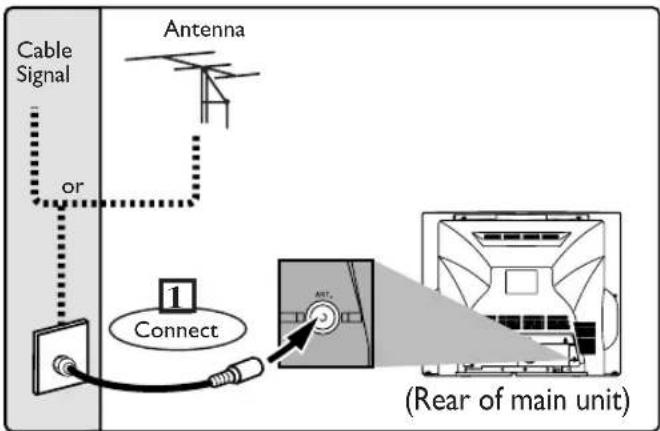
3 ANT. (Antenna input) jack: Use to connect an antenna, or cable system.
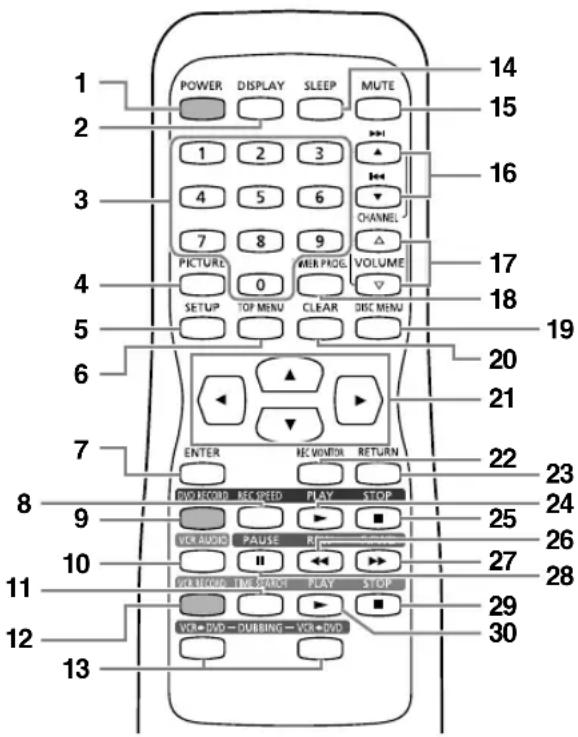
Remote Control Unit
text_image
POWER DISPLAY SLEEP MUTE 14 15 1 2 3 16 4 5 6 CHANNEL 7 8 9 PICTURE 0 WER PROG. VOLUME 17 18 SETUP TOP MENU CLEAR DISC MENU 19 20 21 22 23 24 25 26 27 28 29 30 ENTER REC VOMSOR RETURN VOC/COND REC SPEED PLAY STOP 10 11 12 13 14 15 16 17 18 19 20 21 22 23 24 25 26 27 28 29 301 POWER button: Press to turn the unit on and off. If timer programmings have been set, press to place the unit in timer-standby mode. Press to cancel the timer standby mode, then turn the unit on.
2 DISPLAY button: Press to display or change the on-screen display.
3 Number button: Press to select channel numbers. Press to select a title/chapter/track. Also press to enter values for the settings in the SETUP menu.
4 PICTURE button: Press to adjust the picture.
5 SETUP button: Press to display the setup menu.
6 TOP MENU button (DVD): Press to display the top menu.
7 ENTER button: Press to confirm or select menu items.
8 REC SPEED button: Press to switch DVD REC MODE or VCR REC SPEED.
9 DVD RECORD button: Press once to start a recording.
10 VCR AUDIO button: During playback a HiFi video tape, press to change the audio out setting "HIFI" or "MONO."
11 TIME SEARCH button (VCR): Press to call up the time search menu.
12 VCR RECORD button: Press once to start a recording.
13 DUBBING button:
Press VCR DVD to start dubbing from video tape to DVD.
Press VCR DVD to start dubbing from DVD to video tape.
14 SLEEP button: Press to activate the sleep timer.
15 MUTE button: Press to eliminate the sound temporarily.
16 CHANNEL ▲/▼ buttons: Press to change the channel up and down.
▶▶/◀◀ buttons: During DVD playback, press to change the DVD chapter.
Press to adjust the video tape playback tracking manually.
17 VOLUME △/▽ buttons: Press to adjust the sound level.
18 TIMER PROG. button: Press to display the timer program setting menu.
19 DISC MENU button (DVD): Press to display the Disc menu.
Press to change "Original" and "Playlist". (VR mode only)
20 CLEAR button:
- During DVD operation Press to clear the password once entered, to cancel the programming for CD, to clear the selecting marker number in the marker setup mode or to clear the program once entered in the timer recording setting mode, etc.
- During VCR operation Press to reset the tape counter.
21 ▲/▼/◄/► buttons: Press to select items or settings.
22 REC MONITOR button (DVD): Press to check the video to be recorded before attempting.
23 RETURN button: Press to return to the previously displayed menu screen.
24 PLAY▶ (DVD) button: Press to start or resume play.
25 STOP ■ (DVD) button: Press to stop playback or recording.
26 REW ◀button:
- During DVD operation During playback, press to fast reverse. During pause, press to play slow reverse.
- During VCR operation Press to rewind the tape or to view the picture rapidly in reverse during the playback mode.
27 F.FWD ▶ button:
- During DVD operation During playback, press to play fast forward. During pause, press to play slow forward.
- During VCR operation Press to rapidly advance the tape or view the picture rapidly in forward during playback.
28 PAUSE II button: Press to pause or recording.
29 STOP ■ (VCR) button: Press to stop playback or recording.
30 PLAY ▶ (VCR) button: Press to start playback.
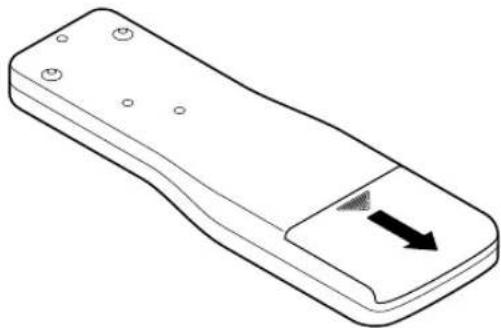
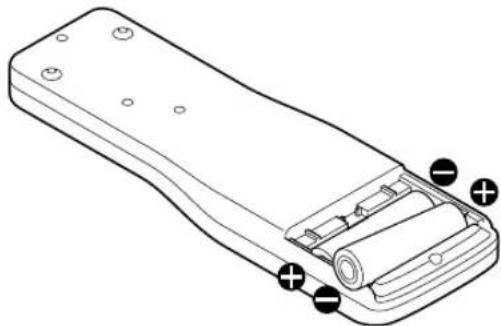
Inserting Remote Control Batteries
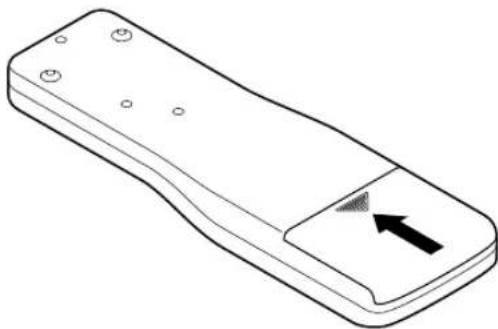
1 Slide the cover of the remote control unit down until the battery compartment appears.
natural_image
Line drawing of a remote control device with a black arrow pointing to the side panel (no text or symbols)2 Insert two AA size batteries, making sure that their polarities should match the symbols shown inside the battery casing.
natural_image
Line drawing of a remote control device with battery and indicator lights (no text or symbols)3 Slide and close the cover of the remote control unit.
natural_image
Line drawing of a remote control device with a black arrow pointing to the left side (no text or symbols)NOTE
- Do not insert old and new batteries mixed together.
- Do not insert different brands or types of batteries mixed together.
• Always insert new batteries for replacement.
Remote Control Range
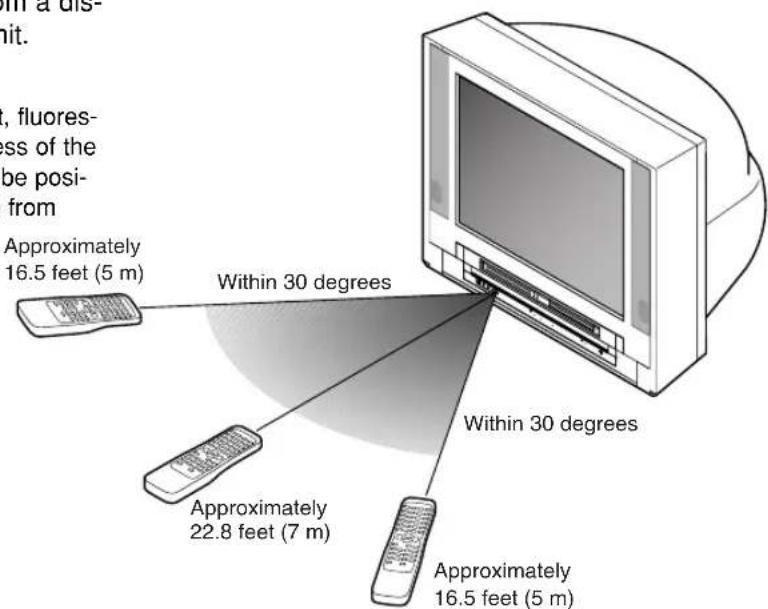
Operate the remote control within 30-degree angle on both sides of the infrared sensor on the main unit. You can operate the remote control from a distance of several feet away from the main unit.
NOTE:
Other devices that use infrared beams, sunlight, fluorescent lights may affect the range and effectiveness of the remote control. Make sure that this unit should be positioned where there is the minimum interference from other devices.
text_image
with a dis hit. , fluores- ess of the be posi- from Approximately 16.5 feet (5 m) Within 30 degrees Within 30 degrees Approximately 22.8 feet (7 m) Approximately 16.5 feet (5 m)Connection of Main Unit
text_image
Cable Signal or Antenna 1 Connect ANT. (Rear of main unit)2 Plug in the AC power cord of this unit.
Connection to Cable Box or Satellite Box
text_image
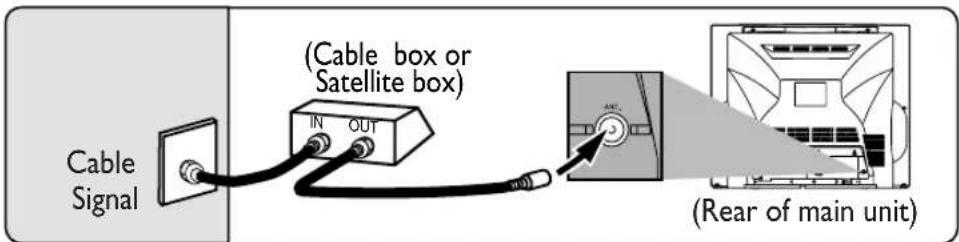
Cable Signal (Cable box or Satellite box) IN OUT (AE) (Rear of main unit)Select this connection when you want to view or record a scrambled channel. With this connection, channels cannot be changed on the TV/VCR/DVD unit. You can view or record ONLY the channels you have selected on the cable box or the satellite box.
- While you are recording, only the recorded channel can be viewed.
To select channels of the cable box or satellite box
1) Turn on this unit by pressing POWER button. Then, press the CHANNEL ▲/▼ buttons to select channel 3 or 4 (the same channel as the output channel of the cable box or satellite box).
2) At the cable box or satellite box, select the channel you want to view or record.
Note for the Cable TV System Installer:
This reminder is provided to call the Cable TV system installer's attention to Article 820-40 of the National Electrical Code, which provides guidelines for proper grounding - in particular, specifying that the cable ground shall be connected to the grounding system of the building as close to the point of cable entry as possible.
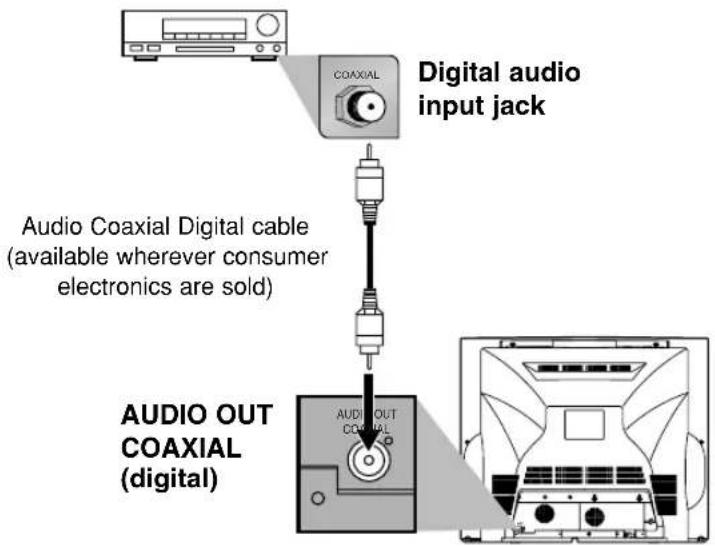
Connection to Audio System
- Before changing the connections or installing the unit, all devices should be turned off.
- Refer to each owner's manual for further information on other devices.
Receiver with Dolby Digital decoder
text_image
Digital audio input jack COAXIAL Audio Coaxial Digital cable (available wherever consumer electronics are sold) AUDIO OUT COAXIAL (digital)NOTE:
- When you play a DVD disc with connecting TV/VCR/DVD to a receiver with a Dolby Digital decoder, set "Dolby Digital" to "Stream" for the "Digital Out" setting in the SETUP menu. (Refer to pages 12-13.)
- The audio source on a DVD disc in a Dolby Digital 5.1 channel surround format cannot be recorded as digital sound by an MD or DAT deck.
- If the receiver does not have a Dolby Digital decoder, set "Dolby Digital" to "PCM" for the "Digital Out" setting in the SETUP menu. Playing a DVD using incorrect settings may generate noise distortion and may also damage the speakers. (Refer to pages 12-13.)
- Set "Dolby Digital" to "PCM" for the "Digital Out" setting in the SETUP menu for connecting to an MD deck or DAT deck. (Refer to pages 12-13.)
- By hooking this unit up to a Multi-channel receiver with a Dolby Digital decoder, you can enjoy high-quality Dolby Digital 5.1 channel surround sound as heard in the movie theaters.
Manufactured under license from Dolby Laboratories. "Dolby" and the double-D symbol are trademarks of Dolby Laboratories.
NOTE:
- Only DVD, CD and MP3 audio will be available at the AUDIO OUT COAXIAL jack.
Audio Setting
Choose the appropriate audio setting when connecting the unit to an external audio system (sold separately).
NOTE: DVD & CD Audio Only
- Only DVD and CD audio will be available to be amplified through the external audio system.
NOTE:
- Dynamic Range Control function is available only with discs recorded in the Dolby Digital format.
text_image
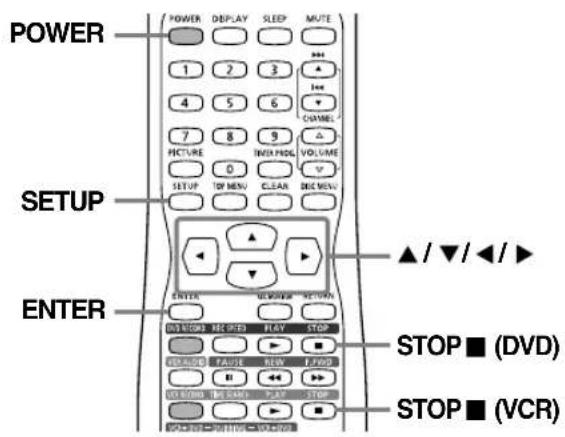
POWER 1 2 3 4 5 6 7 8 9 PICTURE TIME FOG 0 SETUP TOY MENU CLEAR DIGE MENU SETUP ENTER STOP ■ (DVD) STOP ■ (VCR)Press STOP ■ (DVD) or STOP ■ (VCR) button if you are playing a disc or tape.
1 Press POWER button to turn on the unit.
2 Press SETUP button to display SETUP/DISC menu.
SETUP/DISC menu will appear.
3 Select "SETUP" using ◀/▶ buttons, then press ENTER button.
SETUP menu will appear.
4 Select "Playback" using ▲/▼/◄/► buttons, then press ENTER button.
Option window will appear.
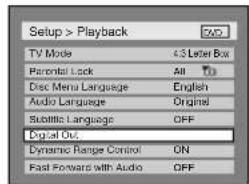
5 Select a desired item using ▲/▼ buttons, then press ENTER button.
Digital Out
Set the digital audio output.
text_image
Setup > Playback TV Mode 4.3 Letter Box Paranial Lock All To Disc Menu Language English Audio Language Original Subtitle Language OFF Digital Out. Dynamic Range Control ON Fast Forward with Audio OFF
text_image
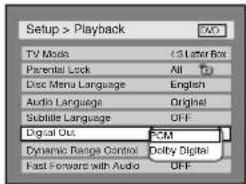
Setup > Playback TV Mode 3 Laser Box Parental Lock All Disc Menu Language English Audio Language Original Subtile Language OFF Digital Out PCM Dynamic Range Control Delby Digital Fast Forward with Audio OFF- Select a setting using ▲/▼ buttons, then press ENTER button. Option window will appear. Proceed to step [A] or [B].
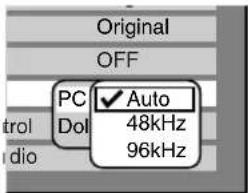
[A] Settings for PCM (Default: Auto)
text_image
Original OFF PC ✓ Auto Dol 48kHz 96kHz- Select a setting using ▲/▼ buttons, then press ENTER button.
Your setting will be activated.
Auto : Select "Auto" for normal playback.
48kHz : If your amplifier/receiver is NOT compatible with 96kHz PCM, select "48kHz". 96kHz sound will be output in 48kHz.
96kHz : If your amplifier/receiver is compatible with 96kHz PCM, select "96kHz". 96kHz sound will be output.
NOTE:
When playing disc with copyright protection
- If you select "Auto", the sound will be down sampled at 48kHz.
- If you select "96kHz", no digital sound will be output. Select "Auto", so that outputting 48kHz digital sound.
[B] Settings for Dolby Digital (Default : Stream)
![SYLVANIA 6727FRE - [B] Settings for Dolby Digital (Default : Stream) - 1](/content/2026/05/1126784/images/90e999eca13664464b6df0f63088fdf10d60009fbd0f615c314266ed1f18fb1c.jpg)
text_image
Original OFF PCM Do PCM ✓ Stream- Select a setting using ▲/▼ buttons, then press ENTER button.
Your setting will be activated.
PCM : Convert the Dolby Digital into PCM 2 channel (stereo). When your amplifier/receiver is NOT compatible with Dolby Digital, set to "PCM".
Stream : Outputs a Dolby Digital signal. When your amplifier has a Dolby Digital decoder, set to "Stream".
NOTE:
When playing a DVD-RW disc recorded in VR mode
- If the audio source on a disc is Dolby Digital format, set "Dolby Digital" to "PCM" so that you can switch to main (L), sub audio (R), or a mix of both (L/R) with your amplifier/decoder.
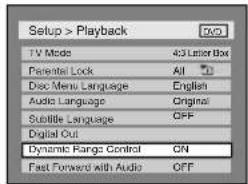
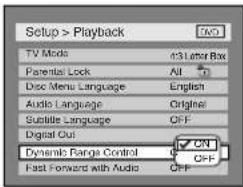
Dynamic Range Control (Default : ON)
Set to "ON" to compress the range between soft and loud sounds.
text_image
Setup > Playback TV Mode 43 Letter Box Parental Lock All Disc Menu Language English Audio Language Original Subtitle Language OFF Digital Out Dynamic Range Control ON Fast Forward with Audio OFF
text_image
Setup > Playback TV Mode 43 Letter Box Parental Lock All Disc Menu Language English Audio Language Original Subtitle Language OFF Digital Out ON Dynamic Range Control OFF Fast Forward with Audio OFF- Select a setting using ▲/▼ buttons, then press ENTER button.
Your setting will be activated.
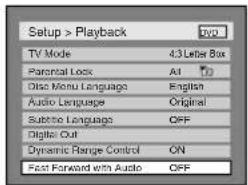
Fast Forward with Audio (Default : OFF)
Set to "ON" to hear the sound during playback in fast forward of x2.
text_image
Setup > Playback TV Mode 4:3 Letter Box Parental Lock All To Disc Menu Language English Audio Language Original Subtitle Language OFF Digital Out Dynamic Range Control ON Fast Forward with Audio OFF
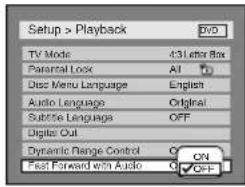
text_image
Setup > Playback TV Mode 431 Letter Box Parental Lock AI Disc Menu Language English Audio Language Original Substrs Language OFF Digital Out Dynamic Range Control ON Fast Forward with Audio OFF- Select a setting using ▲/▼ buttons, then press ENTER button.
Your setting will be activated.
6 Press SETUP button to exit SETUP menu.
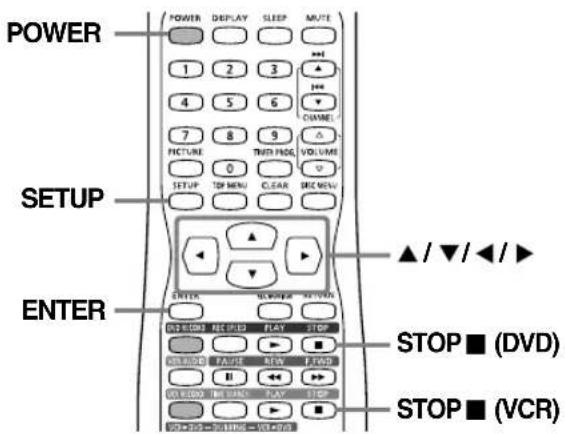
text_image
POWER 1 2 3 4 5 6 7 8 9 PICTURE THEN FIND VOLUME 0 SETUP TOP MENU CLEAR SBC MENU SETUP ENTER ▲/▼/◄/► STOP ■ (DVD) STOP ■ (VCR)Press STOP ■ (DVD) or STOP ■ (VCR) button if you are playing a disc or tape.
1 Press POWER button to turn on the unit.
2 Press SETUP button to display SETUP/DISC menu.
SETUP/DISC menu will appear.
3 Select "SETUP" using ◀/▶ buttons, then press ENTER button.
SETUP menu will appear.
4 Select "Display" using ▲/▼/◄/► buttons, then press ENTER button.
Option window will appear.
5 Select a desired item using ▲/▼ buttons, then press ENTER button.
OSD Background Transparency (Default : 35%)
Set the background transparency of OSD screen. You can choose between 0% through 100%.
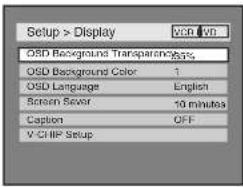
text_image
Setup > Display VCD VCD OSD Background Transparency OSD Background Color 1 OSD Language English Screen Sewer 10 minutes Caption OFF V-CHIP Setup
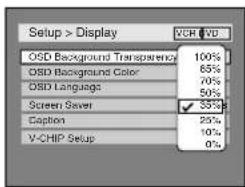
text_image
Setup > Display VCH VD OSD Background Transparency 100% OSD Background Color 65% OSD Language 70% Screen Saver 50% Caption 35% V-CHIP Setup 25% 10%- Select a setting using ▲/▼ buttons, then press ENTER button.
Your setting will be activated.
OSD Background Color (Default : 1 Green)
Set the OSD screen color.
You can choose one from 1(Green), 2(Blue), and 3(Red).
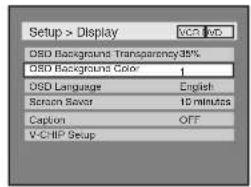
text_image
Setup > Display OSD Background Transparency35% OSD Background Color 1 OSD Language English Screen Sewer 10 minutes Caption OFF V-CHIP Setup
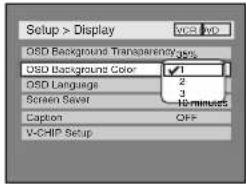
text_image
Setup > Display VCD O5D Background Transparency OSD Background Color 1 OSD Language 2 Screen Sever 3 10 minutes Caption OFF V-CHIP Setup- Select a setting using ▲/▼ buttons, then press ENTER button.
Your setting will be activated.
Screen Saver (Default : 10 minutes)
Set the time before the screen saver appears on the screen.
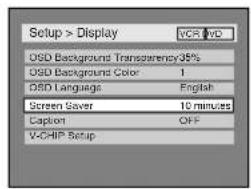
text_image
Setup > Display VCR: DVD OSD Background Transparency 35% OSD Background Color 1 OSD Language English Screen Saver 10 minutes Caption OFF V-CHIP Setup
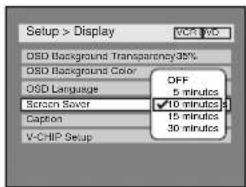
text_image
Setup > Display VCC VDC OSD Background Transparency35% OSD Background Color OSD Language Scratch Saver Caption V-CHIP Setup OFF 5 minutes ✓ 10 minutes 15 minutes 30 minutes- Select a setting using ▲/▼ buttons, then press ENTER button.
Your setting will be activated.
6 Press SETUP button to exit SETUP menu.
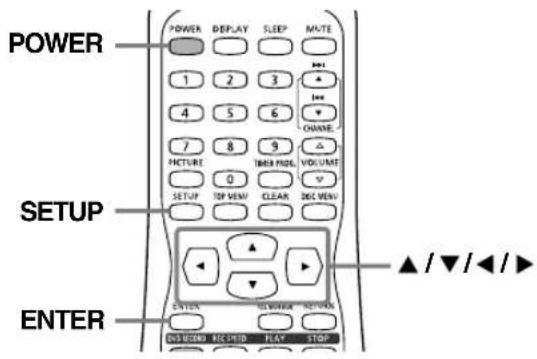
You can select the language for on-screen display (OSD).
text_image
POWER 1 2 3 4 5 6 7 8 9 PICTURE TBI3 PIND VOLUME 0 SETUP TOP VIEW CLEAR DIO VIEW SETUP ENTER ON BOOK RECIPED PLAY STOP ▲/▼/◄/►1 Press POWER button to turn on the unit.
2 Press SETUP button to display SETUP/DISC menu.
SETUP/DISC menu will appear.
3 Select "SETUP" using ◀/▶ buttons, then press ENTER button.
SETUP menu will appear.
4 Select "Display" using ▲/▼/◄/► buttons, then press ENTER button.
Option window will appear.
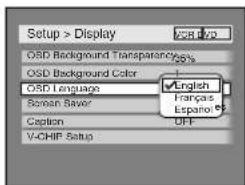
5 Select "OSD Language" using ▲/▼ buttons, then press ENTER button.
NOTE:
- Default OSD language setting is English.
6 Select your desired language among "English", "Français" and "Español" using ▲▼ buttons, then press ENTER button.
Your language setting will be activated.
text_image
Setup > Display OSD Background Transparency OSD Background Color OSD Language Seman Saver Caption V-CHIP Setup English Fangars Espino7 Press SETUP button to exit SETUP menu.
It is recommended that you should preset channels in your area using "Auto Preset" in the Channel Preset of the SETUP menu.
Auto Preset
text_image
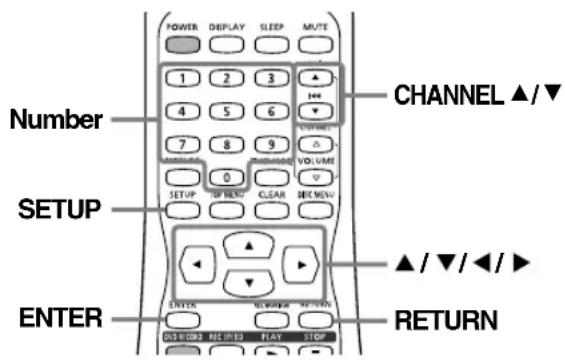
POWER DEPLAY SLEEP MUTE 1 2 3 4 5 6 7 8 9 0 SETUP VOLUME SETUP ON CLK CLEAR SEE MOV CHANNEL ▲/▼ SETUP ▲/▼/◄/► ENTER RETURN OUTPUT RECORD FLAY STOP1 Press SETUP button to display SETUP/DISC menu.
SETUP/DISC menu will appear.
2 Select "SETUP" using ◀/▶ buttons, then press ENTER button.
SETUP menu will appear.
3 Select "Channel" using ▲/▼/◄/► buttons, then press ENTER button.
Channel Preset menu will appear.
4 Select "Auto Preset" using ▲/▼ buttons, then press ENTER button.
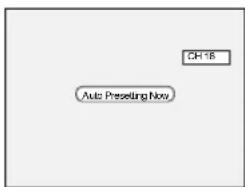
The unit will begin scanning channels available in your area.
To cancel the Auto Preset during scanning:
Press RETURN button or SETUP button to cancel.
text_image
CH-18 Auto Presiding NowNOTES:
- If the Auto Preset is cancelled before completing the preset, some channels that have not been preset may not be available.
- The selection will depend on how you receive the TV channels.
- Be sure to have some type of reception, cable or antenna connected to the TV before presetting channels.
5 Press SETUP button to exit.
You can select only the channels memorized in this unit by using the CHANNEL ▲/▼ buttons.
NOTE:
- If CHANNEL ▲/▼ buttons does not allow you to select channels after presetting, try Auto Preset again.
To select a channel :
You can select a channel by directly entering channel using the Number buttons on the remote control.
Notes for using the Number buttons:
- When selecting cable channels which are higher than 99, enter channel numbers as a three-digit number. (For example: 117, press 1,1,7)
- You must precede single-digit channel numbers with a zero (For example: 02, 03, 04 and so on).
- You can select the line input mode ("AUX"). To select "AUX" by pressing [0], [0]. Details are on page 56.
Add/Delete Function
The channels you no longer receive or seldom watch can be deleted from the memory. You can also add channels into memory.
text_image
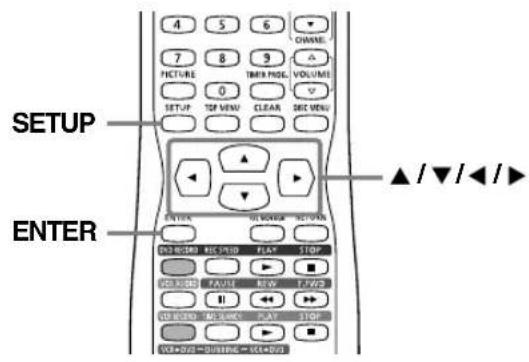
4 5 6 CHANNEL 7 8 9 PICTURE TIME PASE VOLUME 0 SETUP TOP MENU CLEAR REC MENU ENTER ON POWER RETURN ENGLISH RECITER PLAY STOP ON CHINESE NAME KEY STOP ON CHINESE NAME PLAY STOP ON CHINESE NAME ORDER SETTLEMENT1 Press SETUP button to display SETUP/DISC menu.
SETUP/DISC menu will appear.
2 Select "SETUP" using ◀/▶ buttons, then press ENTER button.
SETUP menu will appear.
3 Select "Channel" using ▲/▼/◄/► buttons, then press ENTER button.
Channel Preset menu will appear.
4 Select "Manual Preset" using ▲/▼ buttons, then press ENTER button.
Manual Preset menu will appear.
text_image
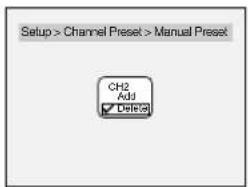
Setup > Channel Preset > Manual Preset CH2 Add Delete5 To select the channel to add or delete; Press ◀ button to move to a lower channel number. Press ▶ button to move to a higher channel number.
text_image
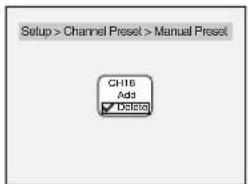
Setup > Channel Preset > Manual Preset CH16 Add Delete6 Select "Add" or "Delete" using ▲/▼ buttons, then press ENTER button. The channel number will be added or deleted from the channel memory.
The next channel number will appear so that you can continue adding or deleting channels.
7 Press SETUP button to exit.
Selecting TV Stereo or SAP
You can select stereo or SAP (Secondary Audio Program). "Stereo" has been selected as the default.
text_image
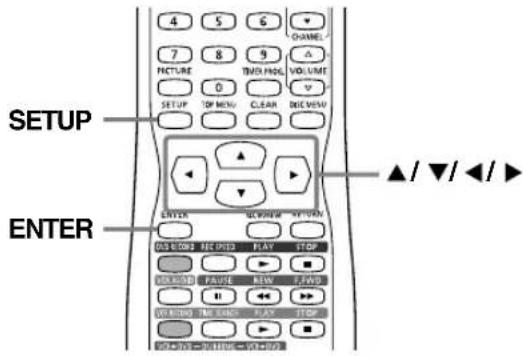
4 5 6 CHANNEL 7 8 9 △ TWO PASE VOLUME 0 ▼ SETUP TOP MENU CLEAR DIGE VIEW SETUP ENTER ▲/▼/◄/► ENTER ▼/▼/◄/► OK DOWN REC INTED PLAY STOP WORLD PAUSE NEW ZEWID << >>> WARNING THE HAND PLAY STOP OK DOWN FLAME SEE STOP1 Press SETUP button to display SETUP/DISC menu.
SETUP/DISC menu will appear.
2 Select "SETUP" using ◀/▶ buttons, then press ENTER button.
SETUP menu will appear.
3 Select "Channel" using ▲/▼/◄/► buttons, then press ENTER button.
Channel Preset menu will appear.
4 Select "TV Audio Select" using ▲/▼ buttons, then press ENTER button.
Option window will appear.
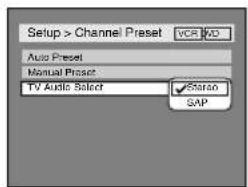
text_image
Setup > Channel Preset Auto Preset Manual Preset TV Audio Select SARo SAP5 Select "Stereo" or "SAP" using ▲/▼ buttons, then press ENTER button.
Stereo:
Outputs main-audio.
SAP: (Secondary Audio Program)
Outputs second audio channel. Refer to the item in "Glossary" on page 79 for more information.
6 Press SETUP button to exit. To view TV channels, press CHANNEL ▲/▼ buttons.
Set the clock before you try timer recording. If a Public Broadcasting Station (PBS) is available in your area, follow Auto Clock Setting below. If not, follow Manual Clock Setting on page 19.
▲ Important
You must know the local PBS station in your area.
Auto Clock Setting
NOTE:
- Make sure that the antenna or cable are connected to the unit.
- If the TV/VCR/DVD is connected directly to a cable converter box or satellite box, the local PBS station must be selected on the cable box itself, and the TV/VCR/DVD must be set to the output channel of the cable converter box or satellite box (usually channel 3 or 4), to be able to set up or correct the clock automatically.
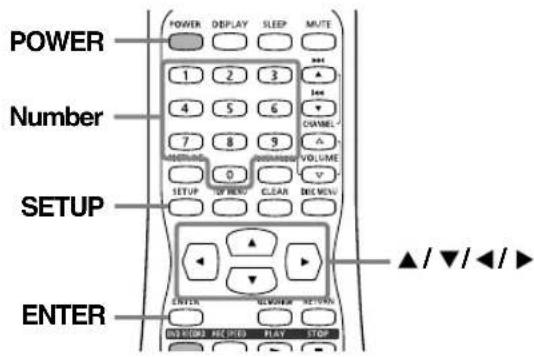
text_image
POWER Number SETUP ENTER1 Press SETUP button to display SETUP/DISC menu.
SETUP/DISC menu will appear.
2 Select "SETUP" using ◀/▶ buttons, then press ENTER button.
SETUP menu will appear.
3 Select "Clock" using ▲/▼/◄/► buttons, then press ENTER button.
Clock menu will appear.
4 Select "Auto Clock Setting" using ▲/▼ buttons, then press ENTER button.
Option window will appear.
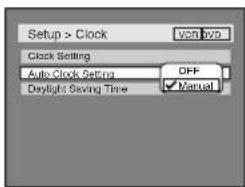
text_image
Setup > Clock Clock Setting Auto Clock Setting OFF Daylight Saving Time Manual5 Select "Manual" using ▲/▼ buttons, then press ENTER button.
Enter your PBS channel number using Number buttons or ▲/▼ buttons, then press ENTER button.
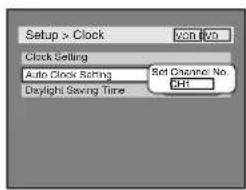
text_image
Setup > Clock Clock Setting Auto Clock Setting Set Channel No. Daylight Saving Time OK6 Press SETUP button to exit.
7 Press POWER button to turn off the unit.
This unit will search for the time when the power is off. Leave it off for several minutes to give this unit time to set the clock.
NOTE:
- The clock may set itself automatically after you connect the antenna/cable signal to this unit and plug in the power cord. After setting, turn the power on to check the current time appeared on the TV screen is correct.
- If the current time is not displayed or the displayed clock is not correct, set the clock manually.
- The clock may set itself automatically after you connect the antenna/cable signal to this unit and plug in the power cord. After setting, turn the power on to check the current time appeared on the TV screen is correct. - If the current time is not displayed or the displayed clock is not correct, set the clock manually.
Manual Clock Setting
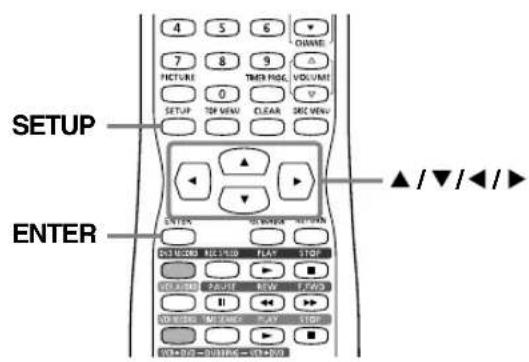
text_image
4 5 6 7 8 9 PICTURE 0 SETUP TEN VIEW THI VIEW VOLUME CLEAR DEC VIEW SETUP ▲/▼/◄/► ENTER OUTPUT AND RETURN FLAV STOP SELECTED PAUSE REV F TWO OFFICE NEW START W+W-02=01100=131.0001 Press SETUP button to display SETUP/DISC menu.
SETUP/DISC menu will appear.
2 Select "SETUP" using ◀/▶ buttons, then press ENTER button.
SETUP menu will appear.
3 Select "Clock" using ▲/▼/◄/► buttons, then press ENTER button.
Clock menu will appear.
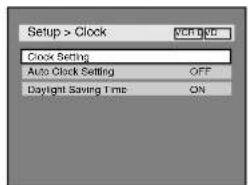
4 Select "Clock Setting" using ▲/▼ buttons, then press ENTER button.
A clock setting window will appear.
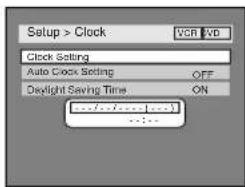
text_image
Setup > Clock Clock Setting Auto Clock Setting Daylight Saving Time ONPress ENTER button. Default date will appear.
5 Enter the date (month / day / year) using ▲/▼ buttons. Press ◀/▶ buttons to move the cursor.
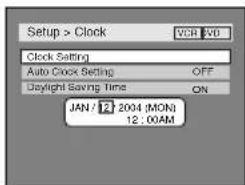
text_image
Setup > Clock Clock Setting Auto Clock Setting Daylight Saving Time OFF ON JAN / 12 2004 (MON) 12:00AM6 Enter the time (hour / minute) using ▲/▼ buttons. Press ◀/▶ buttons to move the cursor.
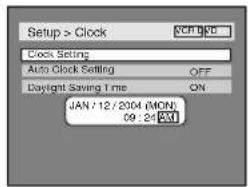
text_image
Setup > Clock Clock Setting Auto Clock Setting OFF Daylight Saving Time ON JAN : 12 / 2004 (MON) 09 : 24 AMNOTE:
- Y our clock setting will be lost if either there is a power failure or this unit has been unplugged for more than 3 seconds when you set the clock manually.
7 Press ▲/▼ buttons to select AM or PM, then press ENTER button.
Clock menu will appear. The settings will be activated.
text_image
Setup > Clock Clock Setting Auto Clock Setting Daylight Saving Time OFF ON8 Press SETUP button to exit.
Although seconds are not displayed, they begin counting from zero.
When "Auto Clock Setting" is changed to "Manual", select "OFF" using the following steps.
Repeat steps [1] to [3] in "Manual Clock Setting".
4 Select "Auto Clock Setting" using ▲/▼ buttons, then press ENTER button.
5 Select "OFF" using ▲/▼ buttons, then press ENTER button.
6 Press SETUP button to exit.
When Daylight Saving Time is ON, the clock will automatically move forward one hour on the first Sunday in April and move back one hour on the last Sunday in October.
text_image
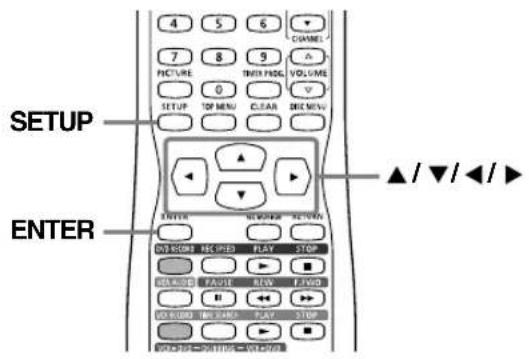
4 5 6 7 8 9 PICTURE THEN PADD VOLUME 0 SETUP TOP MENU CLEAR DISC MENU SETUP ENTER ▲/▼/◄/► ENTER OPEN button ON/OFFICE ABC USED PLAY STOP DEFAULT PAGE NEW FANG VOLUME BIG CAND PLAY STOP WORKS OF SWITCH CONTROL1 Press SETUP button to display SETUP/DISC menu.
SETUP/DISC menu will appear.
2 Select "SETUP" using ◀/▶ buttons, then press ENTER button.
SETUP menu will appear.
3 Select "Clock" using ▲/▼/◄/► buttons, then press ENTER button.
Clock menu will appear.
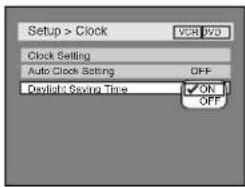
4 Select "Daylight Saving Time" using ▲/▼ buttons, then press ENTER button.
Daylight Saving Time options will appear.
text_image
Setup > Clock Clock Setting Auto Clock Setting Daylist Saving Time VCR DVD OFF ON OFF5 Select "ON" or "OFF" using ▲/▼ buttons, then press ENTER button.
Choose "ON" when currently observing the day-light saving time.
6 Press SETUP button to exit.
You can select the TV display mode to your viewing preference for DVD viewing.
"4:3 Letter Box" has been selected as the default.
text_image
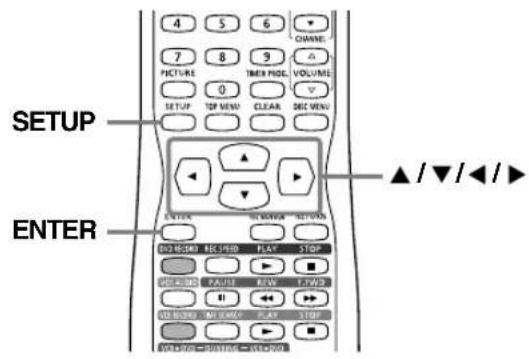
4 5 6 CHANNEL 7 8 9 PICTURE TIME Mode VOLUME 0 SETUP TOP MENU CLEAR REC MENU ▲/▼/◄/► ENTER OK/RESET RE SWORD PLAY STOP SELECT FAIRI RAW TWO << >>> NO ORDER NO SWITCH PLAY STOP OK/RESET FREE CALL1 Press SETUP button to display SETUP/DISC menu.
SETUP/DISC menu will appear.
2 Select "SETUP" using ◀/▶ buttons, then press ENTER button.
SETUP menu will appear.
3 Select "Playback" using ▲/▼/◄/► buttons, then press ENTER button.
Playback menu will appear.
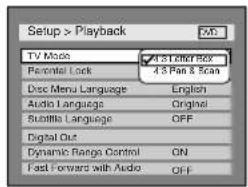
4 Select "TV Mode" using ▲/▼ buttons, then press ENTER button.
Option window will appear.
text_image
Setup > Playback TV Mode 4.3 Player Key Perficial Lock 4.3 Pan & Scan Disc Menu Language English Audio Languages Original Subtitis Language OFF Digital Out Dynamic Range Control ON Fast Forward with Audio OFFA
"4:3 Letter Box": black bars appear on the top and bottom of the screen.
"4:3 Pan & Scan": full height picture with both sides trimmed.
5 Select a desired option using ▲/▼ buttons, then press ENTER button.
6 Press SETUP button to exit.

UIDE TO DISPLAY MENUS
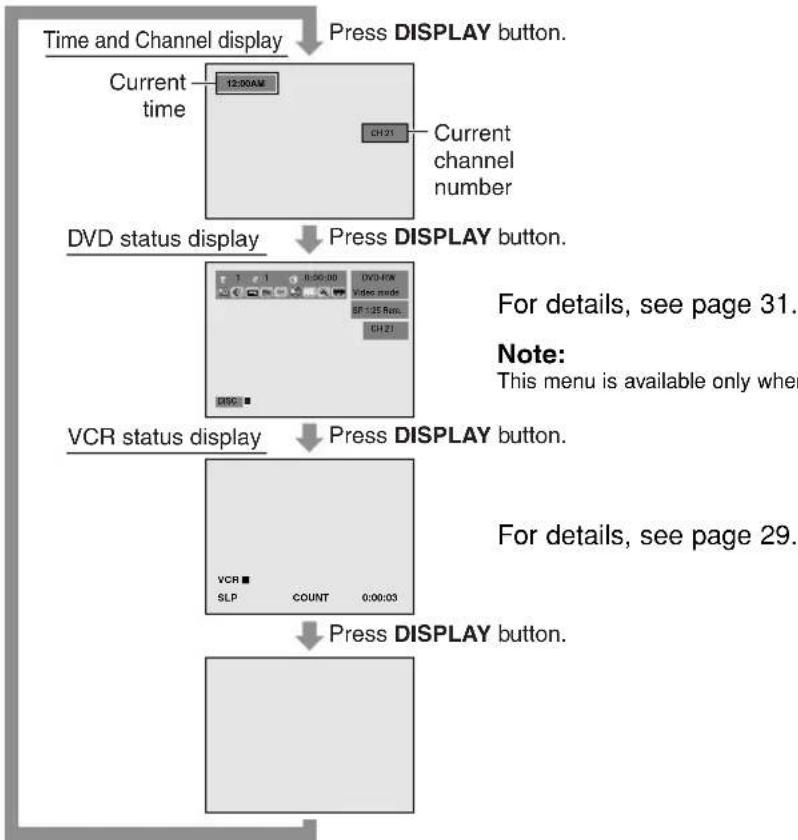
Every time you press DISPLAY button, the display will change as follows:
Press DISPLAY button.
flowchart
graph TD
    A["Time and Channel display"] --> B["Press DISPLAY button."]
    C["Current time"] --> D["12:00AM"]
    D --> E["Current channel number"]
    F["DVD status display"] --> G["Press DISPLAY button."]
    H["VCR status display"] --> I["Press DISPLAY button."]
    J["VCR SLP COUNT 0:00:03"] --> K["For details, see page 29."]
    L["Press DISPLAY button."] --> M["For details, see page 31."]
TV FUNCTIONS
Watching TV Program
text_image
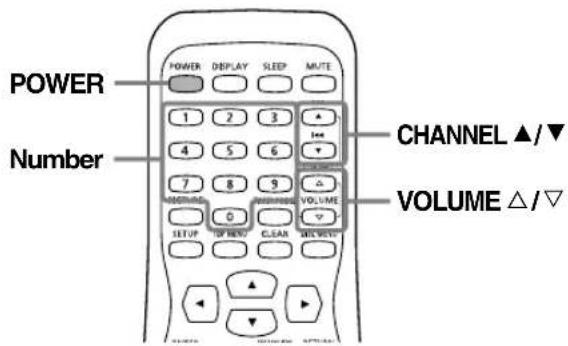
POWER Number CHANNEL ▲/▼ VOLUME △/▼1 Press POWER button to turn on the unit.
2 Select the desired channel using CHANNEL ▲/▼ buttons or the Number buttons on the remote control.
If the TV/VCR/DVD is connected to a cable box or satellite box, the TV/VCR/DVD must be on channel 3 or channel 4, then the channel to be viewed must be selected on the cable box or satellite box.
3 Adjust the volume to the desired listening level using VOLUME △▽ buttons.
4 Adjust picture controls for a natural looking image. Refer to "Adjusting Picture" on page 23.
Degaussing
Magnetism from nearby appliances and unshielded speaker systems might affect the color of the TV picture.
If this happens, move this TV/VCR/DVD away from the appliance. If the color is still not correct, unplug the power cord, then plug it in again 30 minutes later.
Setting Sleep Timer
text_image
SLEEP POWER DEPLAY SLEEP MUTE 1 2 3 4 5 6 7 8 9 PIKTVARE TURIFNGL VOLUME 0 SETUP TOP MENU CLEAR DEL MENUThe sleep timer function automatically turns off the power at a specified time period.
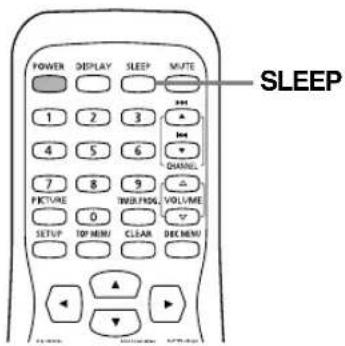
1 Press SLEEP button.
Sleep timer menu will appear.
SLEEP TIMER [OFF]
2 Press SLEEP button repeatedly to change the sleep time.
The timer can be set up to 2 hours, by 30 minutes each time you press SLEEP button.
3 To cancel the sleep timer, press SLEEP button repeatedly until "SLEEP TIMER [OFF]" is displayed.
NOTE:
- If you disconnect the unit from the AC outlet, or if you have a power failure, the sleep time setting will be lost.
- This function does not operate during Recording mode.
Adjusting Picture
text_image
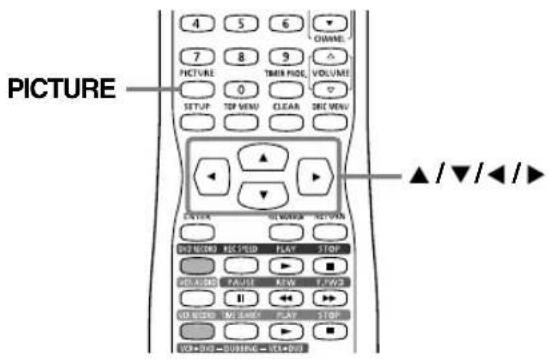
PICTURE ▲/▼/◄/► 4 5 6 7 8 9 PICTURE 0 TIME FIDE VOLUME SETUP TOP MENU CLEAR SKE MENU ▲ /▼/◄/► C:\WINDOWS\AT\WINDOWS\PLAY\STOP DELIGNED\nFAINT\nRAW\nTWOON\II NEW ENBRIDGE\MO ZAWAY\PLAY\STOP TCP+023=000000=1000001 Press PICTURE button.
2 Select the setting item using ▲/▼ buttons.
NOTE:
- You can use also PICTURE button to select the setting item.
Adjust using ◀/▶ buttons.
| ◀ | ▶ | |
| BRIGHT | to decrease brightness | to increase brightness |
| CONTRAST | to decrease contrast | to increase contrast |
| COLOR | to pale | to brilliant |
| TINT | to purple | to green |
| SHARPNESS | to soft | to clear |
The adjustments you can make are as follows:
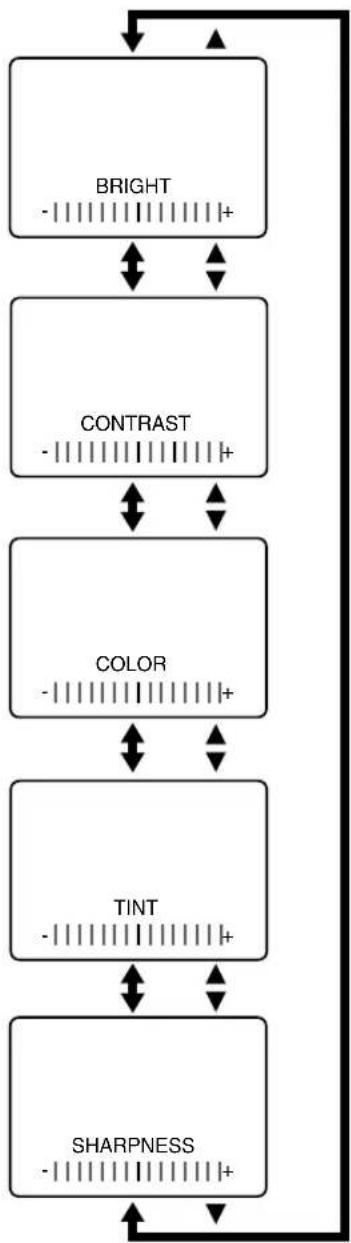
flowchart
graph TD
    A["BRIGHT"] --> B["CONTRAST"]
    B --> C["COLOR"]
    C --> D["TINT"]
    D --> E["SHARPNESS"]
    E --> A
NOTE:
- In the above steps, the picture adjustment display will disappear automatically in about 5 seconds if you do not press any buttons.
Setting V-CHIP
text_image
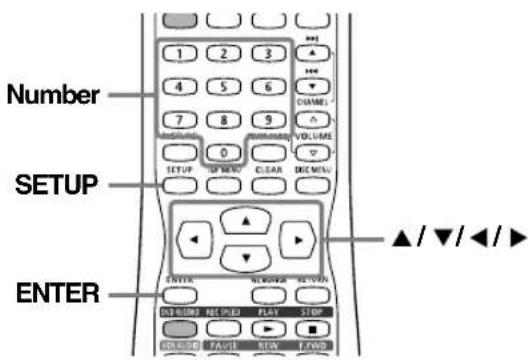
Number SETUP ENTERV-CHIP enables parents to prevent their children from watching inappropriate material on TV.
V-CHIP reads the ratings for programming (except for news and sports programs, unedited movies on premium cable channels and Emergency Broadcast System signals), then denies access to programming if the program's rating meets or exceeds the limitations you select. In this case, a "PROTECTED PROGRAM by..." message appears on the TV screen.
To block certain ratings, follow the steps below.
NOTE:
- Programming may be rated by the Motion Picture Association of America (MPAA) or according to the Television Parental Guidelines. In order to block any inappropriate programming, set your limits in both places (MPAA RATING and TV RATING).
- Y ou cannot access the menu when the "PROTECTED PROGRAM by..." message appears. In this case, change to an unblocked channel, then press SETUP button.
Setting MPAA Rating
1 Press SETUP button to display SETUP/DISC menu.
SETUP/DISC menu will appear.
2 Select "SETUP" using ◀/▶ buttons, then press ENTER button.
SETUP menu will appear.
3 Select "Display" using ▲/▼/◄/► buttons, then press ENTER button.
Display menu will appear.
4 Select "V-CHIP Setup" using ▲/▼ buttons, then press ENTER button.
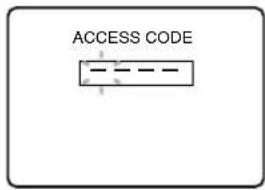
"ACCESS CODE" screen will appear.
text_image
ACCESS CODE5 Enter the 4-digit access code using Number buttons.
The default access code is "0000". If you have not set a personal access code, enter "0000".
6 Select "MPAA RATING" using ▲/▼ buttons, then press ENTER button.
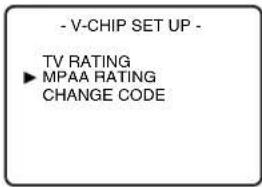
text_image
- V-CHIP SET UP - TV RATING ► MPAA RATING CHANGE CODE7 Select the desired limitation using ▲/▼ buttons.
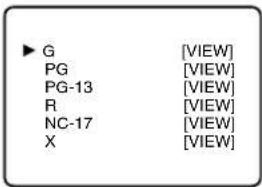
text_image
▶ G PG PG-13 R NC-17 X [VIEW] [VIEW] [VIEW] [VIEW] [VIEW]Then press ENTER button to select [BLOCK] or [VIEW].
NOTE:
- When you select a rating category and change it to [BLOCK], all higher ratings will change to [BLOCK] automatically. Also, the lower ratings will change to [VIEW] automatically.
- When you turn "G" to [BLOCK] or [VIEW], all ratings will change to [BLOCK] or [VIEW] automatically.
8 Press SETUP button to exit.
Rating Category Explanations
• G: General Audience
• PG: Parental Guidance suggested.
• PG-13: Unsuitable for children under 13
• R: Restricted; under 17 requires accompanying parent or adult guardia
• NC-17: No one under 17 admitted
• X: Mature audience only
Setting TV Rating
1 Press SETUP button to display SETUP/DISC menu.
SETUP/DISC menu will appear.
2 Select "SETUP" using ◀/▶ buttons, then press ENTER button.
SETUP menu will appear.
3 Select "Display" using ▲/▼/◄/► buttons, then press ENTER button.
Display menu will appear.
4 Select "V-CHIP Setup" using ▲/▼ buttons, then press ENTER button.
"ACCESS CODE" screen will appear.
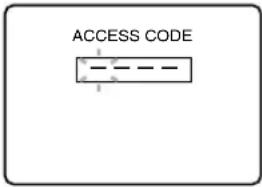
text_image
ACCESS CODE5 Enter the 4-digit access code using Number buttons.
The default access code is "0000". If you have not set a personal access code, enter "0000".
6 Select "TV RATING" using ▲/▼ buttons, then press ENTER button.
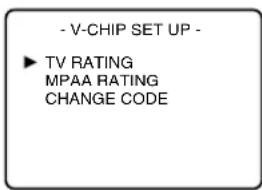
text_image
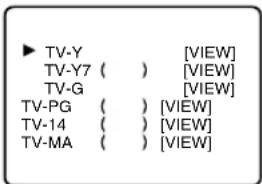
- V-CHIP SET UP - ► TV RATING MPAA RATING CHANGE CODE7 Select the desired limitation using ▲/▼ buttons.
text_image
▶ TV-Y ( ) [VIEW] TV-Y7 ( ) [VIEW] TV-G ( ) [VIEW] TV-PG ( ) [VIEW] TV-14 ( ) [VIEW] TV-MA ( ) [VIEW]Then press ENTER button to select [BLOCK] or [VIEW].
NOTE:
- Refer to the next section, "Setting V-CHIP Sub Ratings" for the details about the sub-rating menu of TV-Y7, TV-PG, TV-14 or TV-MA.
-
When you select a rating category and change it to [BLOCK], all higher ratings will change to [BLOCK] automatically. Also, the lower ratings will change to [VIEW] automatically.
-
The sub ratings that are set to [BLOCK] appear next to the rating category in TV RATING menu.
- When you turn "TV-Y" to [BLOCK] or [VIEW], all ratings will change to [BLOCK] or [VIEW] automatically.
8 Press SETUP button to exit.
Rating Category Explanations
• TV-Y: Appropriate for all children
• TV-Y7: Appropriate for children seven and older
• TV-G: General Audience
• TV-PG: Parental Guidance suggested.
• TV-14: Unsuitable for children under 14
• TV-MA: Mature audience only
Setting V-CHIP Sub Ratings
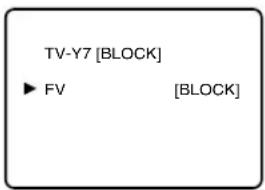
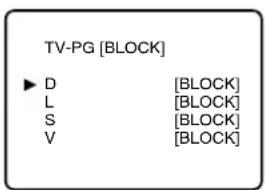
When you select TV-Y7, TV-PG, TV-14 or TV-MA and press ENTER button, the sub-rating menu will appear.
If you select the rating category (example: TV-PG) and change it to [BLOCK] or [VIEW], the sub-ratings (example: V for Violence) will change to [BLOCK] or [VIEW] automatically.
You can set the sub-ratings to [BLOCK] or [VIEW] individually when the rating category is set to [BLOCK]. To set the sub-ratings individually, follow the procedure below.
NOTE:
- When you select TV-Y7: Select "FV" (Fantasy Violence) using ▲/▼ buttons.
text_image
TV-Y7 [BLOCK] ▶ FV [BLOCK]Then, press ENTER button to select [BLOCK] or [VIEW]. Press SETUP button to exit.
- When you select TV-PG, TV-14 or TV-MA: Select "D" (Suggestive Dialog), "L" (Coarse Language), "S" (Sexual Situation) or "V" (Violence) using ▲/▼ buttons.
text_image
TV-PG [BLOCK] ► D [BLOCK] L [BLOCK] S [BLOCK] V [BLOCK]Press ENTER button to select [BLOCK] or [VIEW], then press SETUP button to exit.
- When you select TV-MA, "D" will not appear.
Setting V-CHIP Access Code
text_image
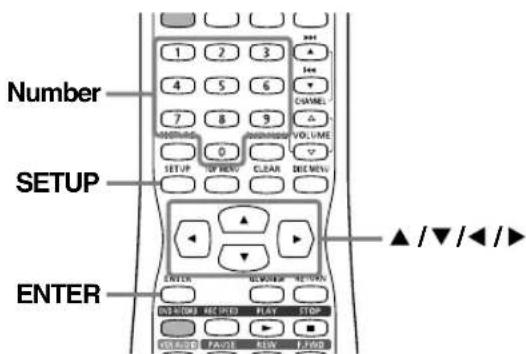
Number SETUP ENTERTo change the access code, follow the procedure below.
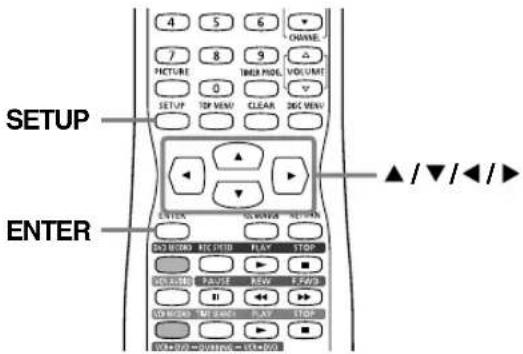
1 Press SETUP button to display SETUP/DISC menu.
SETUP/DISC menu will appear.
2 Select "SETUP" using ◀/▶ buttons, then press ENTER button.
SETUP menu will appear.
3 Select "Display" using ▲/▼/◄/► buttons, then press ENTER button.
Display menu will appear.
4 Select "V-CHIP Setup" using ▲/▼ buttons, then press ENTER button.
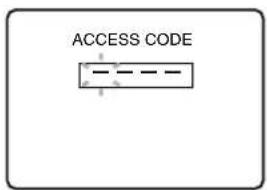
"ACCESS CODE" screen will appear.
text_image
ACCESS CODE5 Enter the 4-digit access code using Number buttons.
The default access code is "0000". If you have not set a personal access code, enter "0000".
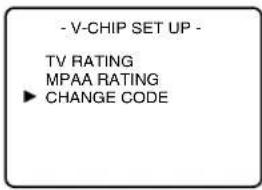
6 Select "CHANGE CODE" using ▲/▼ buttons, then press ENTER button.
text_image
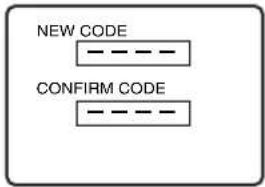
- V-CHIP SET UP - TV RATING MPAA RATING ▶ CHANGE CODEThe following screen will appear.
text_image
NEW CODE CONFIRM CODE7 Enter the desired access code in NEW CODE box using Number buttons, then enter the same code in CONFIRM CODE box. Your new access code is set. The display returns to "V-CHIP SET UP" menu.
NOTE:
- If the code in CONFIRM CODE does not match the code in NEW CODE, repeat step [7], making sure you enter exactly the same new code in CONFIRM CODE box.
- If a power failure occurs, the access code returns to the default access code, "0000".
- If you connect the power cord to an AC outlet that is controlled by a wall switch, the access code will be erased every time you turn off the power at the wall switch. The access code returns to the default access code.
8 Press SETUP button to exit.
▲If You Forget Your Access Code
Return the access code to the default code, "0000". To restore "0000" as the personal access code, unplug the TV's power cord for 10 seconds, then plug it in again.
Selecting Closed Caption
text_image
4 5 6 CHANNEL 7 8 9 FUTURE TIME PROD. VOLUME 0 SETUP TOP VIEW CLEAR DISG VIEW ENTER ▲/▼/◄/► ON CHINESE REC STRIB FLOW T10P CHANGE PAUSE REV FAVS OFF COLD NET BOLD PLAY T10P WELCOME ON CHINESE REC STRIBYou may view specially labeled (cc) TV programs, movies, news, prerecorded tapes, etc. with either dialogue captions or text added to the display.
1 Press SETUP button to display SETUP/DISC menu.
SETUP/DISC menu will appear.
2 Select "SETUP" using ◀/▶ buttons, then press ENTER button.
SETUP menu will appear.
3 Select "Display" using ▲/▼/◄/► buttons, then press ENTER button.
Display menu will appear.
4 Select "Caption" using ▲/▼ buttons, then press ENTER button.
Option window will appear.
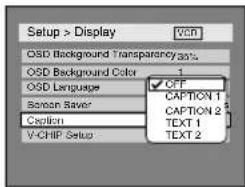
text_image
Setup > Display VCH OSD Background Transparency33% OSD Background Color OSD Language Screen Saver Creation V-CHIP Setup CFF CAPTION 1 CAPTION 2 TEXT 1 TEXT 25 Select a desired option using ▲▼ buttons, then press ENTER button.
Select "OFF" to cancel the closed caption system.
6 Press SETUP button to exit.
NOTE:
- If the TV/VCR/DVD displays a black box on the TV screen, this means that the TV/VCR/DVD is set to the TEXT mode. To clear screen, select "CAPTION 1", "CAPTION 2" or "OFF".
VCR FUNCTIONS
Playback
text_image
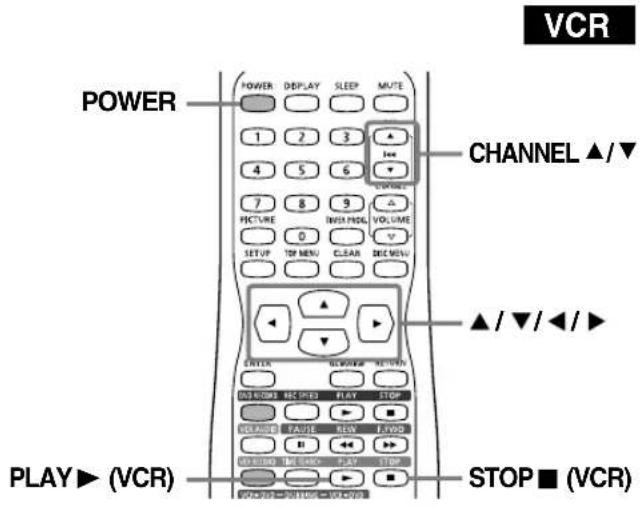
POWER POWER DISPLAY SLEEP MUTE 1 2 3 4 5 6 7 8 9 PICTURE INSIPID VOLUME 0 SETUP TOP MENU CLEAR BACK CHANNEL ▲/▼ ▲/▼/◄/► PLAY► (VCR) STOP ■ (VCR)1 Press POWER button on the remote control or the main unit.
2 Insert a prerecorded tape, then press PLAY ▶ (VCR) button to begin playback.
NOTE:
- When a tape without the record tab is inserted, the unit will start playback automatically.
- Tracking will be automatically adjusted upon playback. To adjust the tracking manually, press the CHANNEL ▲/▼ buttons on the main unit or CHANNEL ▲/▼ buttons on the remote control.
3 Press STOP ■ (VCR) button to stop playback.
4 Press ■ STOP/▲ EJECT button on the main unit to eject the tape.
Recording
Normal Recording
VCR
Before recording, make sure:
- Stereo or SAP is selected (page 17).
- The desired channel should be selected by pressing the Number buttons on the remote control or CHANNEL ▲/▼ buttons on the main unit.
- A tape with a record tab should be loaded inside the unit.
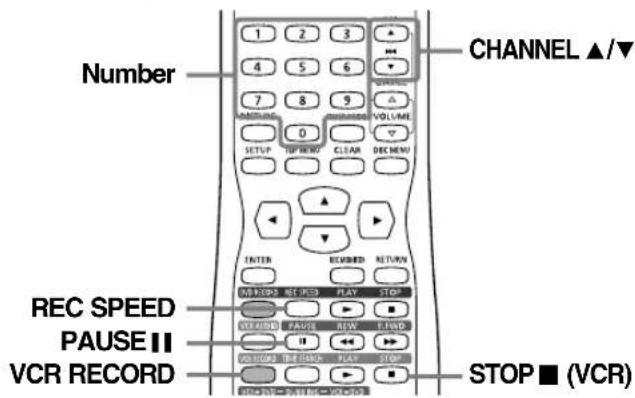
- The desired recording speed should be selected in SP (standard play) or SLP (super long play) mode by pressing REC SPEED button twice on the remote control. Use ▲/▼ buttons to change the recording speed.
- Refer to page 58 for instructions on timer recording.

Recording speed:
| Tape speed | Recording/Playback Time | ||
| Type of tape T160T620 | |||
| 2-2/3hours2hours1hourSP mode | |||
| 8hours6hours3hoursSLP mode | |||
text_image
Number CHANNEL ▲/▼ REC SPEED PAUSE II VCR RECORD STOP ■ (VCR)1 Press VCR RECORD button to begin the recording. To temporarily stop recording, press PAUSE II button. Press VCR RECORD button to resume the recording. When 5 minutes have passed since the unit entered Pause mode, the recording will automatically stop.
2 Press STOP ■ (VCR) button when the recording is completed.
NOTES:
Accidental erasure prevention
To prevent accidental recording on a recorded cassette, remove its record tab. To record on it later, cover the hole with cellophane tape.
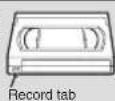
- You can ONLY watch the same TV program that is being recorded.
One-Touch Timer Recording
VCR
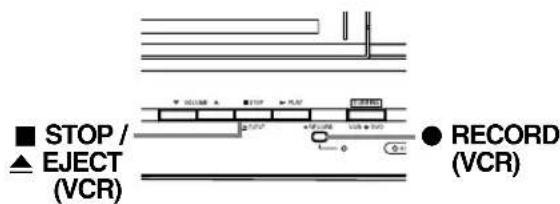
This feature allows you to set the recording length simply by pressing ● RECORD (VCR) button on the main unit.
text_image
■ STOP / ▲ EJECT (VCR) ● RECORD (VCR)1 During normal recording, press ● RECORD (VCR) button on the main unit to begin one-touch timer recording.
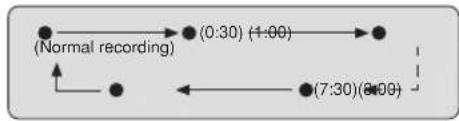
You can select a fixed recording time by pressing the ● RECORD (VCR) button on the main unit repeatedly.
flowchart
graph TD
    A["(Normal recording)"] --> B["(0:30) (1:00)"]
    B --> C["(7:30)(8:00)"]
When one-touch timer recording finishes, the unit will turn off automatically.
To cancel the one-touch timer recording within the specified time, press STOP ■ (VCR) button.
NOTE:
- If One-Touch Timer Recording finishes in VCR during play-back or Record mode in DVD, the VCR will be in Stop mode and the DVD keeps the current mode.
Guide to Displays
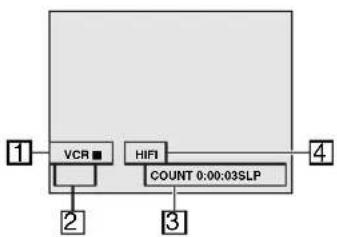
Press DISPLAY button repeatedly to bring up the display for VCR status.
flowchart
graph TD
    A["1"] --> B["VCR"]
    B --> C["2"]
    D["3"] --> E["HIFI"]
    E --> F["4"]
    G["COUNT 0:00:03SLP"] --> E
- Status of the current tape appears for 5 seconds
- A recording speed appears for 5 seconds
- Indicates a Tape Counter
- Audio status of the played tape
Time Search
VCR
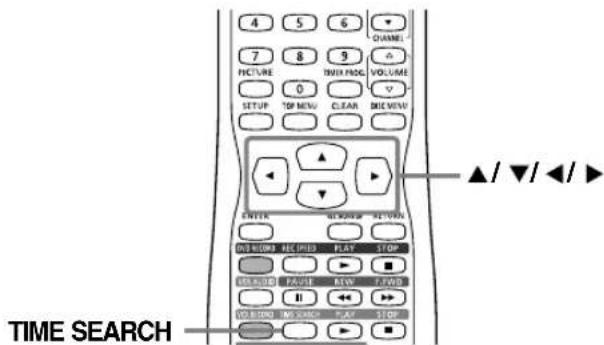
This feature allows you to go to a specific point on a tape by entering the exact amount of time you wish to skip.
text_image
4 5 6 CHANNEL - 7 8 9 PICTURE INDIA PADS VOLUME 0 V SETUP TOP MENU CLEAR RIME VIEW ▲/▼/◄/► TIME SEARCH1 Press TIME SEARCH button.
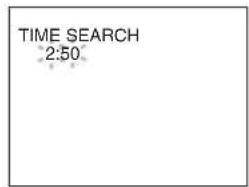
Time search menu will appear.
2 Enter your desired time to skip using ▲/▼ buttons.
text_image
TIME SEARCH 2:503 Press ◀/▶ buttons to start time search.
▲Forward or Reverse
If you want to move a tape forward, press ▶ button.
If you want to move a tape backward, press ◀ button.
After time search, the unit will play the tape automatically.
NOTES:
• Time Search function is not available during recording.
- Tostop the time search, press STOP ■ (VCR) button at step [3].
- To exit the time search menu, press RETURN button at step [2].
- If a tape reaches to the end during the search, this unit will cancel the search and rewind the tape.
Other Functions
text_image
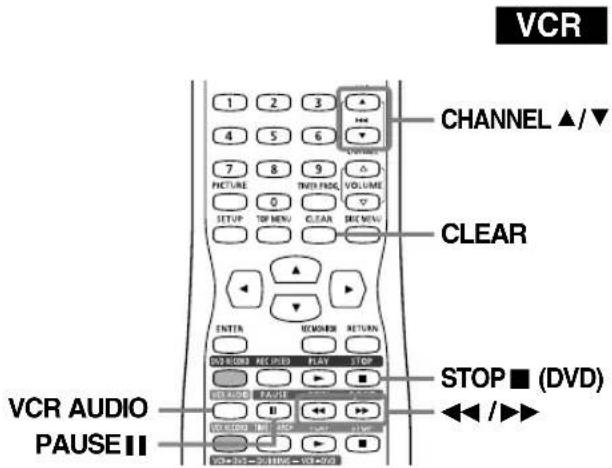
VCR CHANNEL ▲/▼ CLEAR VCR AUDIO PAUSE II STOP ■ (DVD) ◄◄ /►► 1 2 3 4 5 6 7 8 9 PICTURE THEN FADD VOLUME 0 CLEAR SEE MENU ENTER REMOOR RETURN DVD-BOX RET PLED FLAT STOP RELUDE FAIR ELECTRUM INT. OFF COLD VCR+VCC+VCC+VCC-VCC+VCCTo cue or review picture during playback (Picture Search):
Press ▶▶ or ◀◀ buttons during playback.
Press it again and the unit will search in super high speed. (in the SLP mode only)
To freeze the picture on TV screen during play-back (Still mode):
Press PAUSE II button. Each time you press the button, the picture will move forward by one frame. If the picture begins to vibrate vertically during the still mode, stabilize the picture by pressing the CHANNEL ▲/▼ buttons.
Counter Reset:
Press CLEAR button. The counter appears on the TV screen. Press CLEAR button again to reset.
To playback in slow motion:
Press PAUSE II button during playback, then press ▶▶button. Playback in slow motion will start.
If noise bars appear on the TV screen, you can reduce them by pressing CHANNEL ▲/▼ buttons.
NOTE:
- Still/Slow/Pause mode will be automatically cancelled in 5 minutes to prevent damage to the tape and the video head.
- T o return to playback from the Picture Search/Still/Slow mode, press PLAY ▶ (VCR) button.
When you playback a tape recorded in Hi-Fi stereo:
Press VCR AUDIO button on the remote control to select Hi-Fi or MONO for playback sound mode.
- When you want to enjoy the sound in stereo, select "HIFI".
- When you want to enjoy the sound in monaural, select "MONO".
| Your SelectionType of recorded tape | HIFI | MONO-channel | |
| R-channelL | |||
| non Hi-Fi tapes | Monaural | Monaural | Monaural |
| Hi-Fi tapes recorded in Hi-Fi stereo | L | R | L+R |
| Hi-Fi tapes recorded main audio program | Main audio program | Main audio program | Main audio program |
| Hi-Fi tapes recorded second audio program | Second audio program | Second audio program | Second audio program |
Auto Rewind-Eject
VCR
- When the end of a tape is reached during recording, playback or fast-forward, the tape will automatically rewind to the beginning. After rewinding finishes, the TV/VCR/DVD will eject the tape.
• The tape will not auto-rewind during timer recording or One-Touch Timer Recording.
Before you play DVD discs, read the following information.
playable discs
This unit is compatible to play the following discs.
To play a DVD, make sure that it meets the requirements for Region Codes and Color Systems as described below. Discs with the following logos can be played on the unit. Other Disc types are not guaranteed to play.
Color systems
| LogoDisc | |
| DVD VIDEO |  |
| DVD-RW (VIDEO/VR MODE) |  |
| DVD-R (VIDEO MODE) |  |
| CD-DA (AUDIO CD) |  |
| CD-R (CD-DA FORMAT, MP3 files) |  |
| CD-RW (CD-DA FORMAT, MP3 files) |  |
DVDs are recorded in different color systems throughout the world. The most common color systems are NTSC (which are used primarily in the United States and Canada), PAL and SECAM. This unit uses NTSC, so DVDs you play must be recorded in the NTSC system. You cannot play DVDs recorded in other color systems.
Guide to Displays
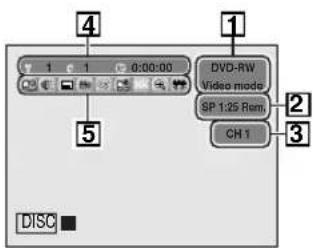
Press DISPLAY button repeatedly to bring up the display menu for DVD status. This menu will give you the information on the playing disc. Some operations are available while disc is playing.
text_image
1 2 3 4 5 DVD-RW Video mode SP 1:25 Rem. CH 1 DISCNOTE:
This menu is available only when a disc is inserted into the unit.
Region codes
This unit has been designed to play DVD discs with Region One (1). DVDs must be labeled for ALL regions or for Region 1 in order to play on this unit.
You cannot play DVDs labeled for other regions. Make sure to check the symbols below on your DVDs. If these region symbols are not found on your DVD, you cannot play that DVD in this unit.


The number inside the globe refers to region of the world. Region 1 represents the United States, Canada, Bermuda, the U.S. Virgin Islands and small regions near Australia.
A DVD labeled for a specific region can only play on the unit with the same region code.
DVD playback
The contents of DVD disc are generally divided into titles. Titles may be further subdivided into chapters.
Start Rec. Stop/Start Stop Rec.
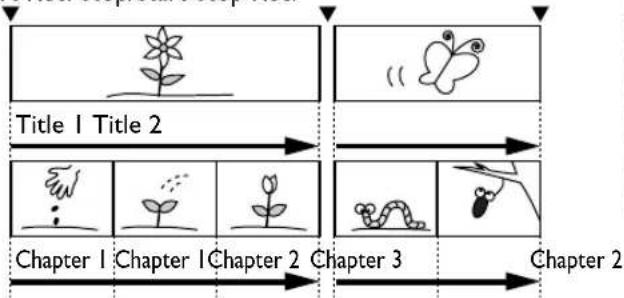
flowchart
graph LR
    A["Start: Flower"] --> B["Title 1"]
    B --> C["Step 1: Flower → Seed → Flower → Butterfly"]
    C --> D["Step 2: Butterfly → Arrow"]
    D --> E["Chapter 1: Flower → Seed → Flower → Butterfly"]
    E --> F["Chapter 2: Butterfly → Arrow"]
    F --> G["Chapter 3: Butterfly → Arrow"]
    G --> H["Chapter 2: Arrow"]
- Indicates a disc type and a format mode.
- Indicates a recording speed and possible recording time left.
- Indicates a current channel number.
- Indicates a title number, chapter number and the time elapsed of disc play.
5. Icon Legend:
: Search
: Audio
- : Subtitle
: Angle (except VR mode)
: Repeat
: Marker
Noise Reduction
:Zoom
: Virtual Surround
Language Setting
NOTE:
- Only the languages supported by the disc can be selected.
text_image
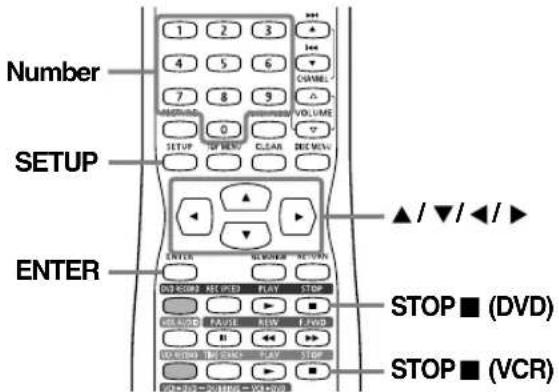
Number SETUP ENTER 1 2 3 4 5 6 7 8 9 VOLUME 0 SETUP TO BUY CLEAR CHECK ▲/▼/◄/► STOP ■ (DVD) STOP ■ (VCR)Press STOP ■ (DVD) or STOP ■ (VCR) button if you are playing a disc or tape.
1 Press SETUP button to display SETUP/DISC menu.
SETUP/DISC menu will appear.
2 Select "SETUP" using ◀/▶ buttons, then press ENTER button.
SETUP menu will appear.
3 Select "Playback" using ▲/▼/◄/► buttons, then press ENTER button.
Option window will appear.
4 Select a desired item using ▲/▼ buttons, then press ENTER button.
NOTE:
- A udio Language setting may not be available to some discs.
- You can change or switch off the subtitles on a DVD disc also from the disc menu if it is available.
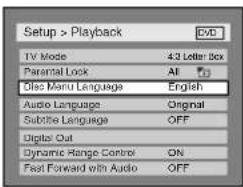
Disc Menu Language (Default : English)
Set the language for Disc Menu.
text_image
Setup > Playback 1V Mode 4:3 Letter Box Parental Lock All Disc Menu Language English Audio Language Original Subtile Language OFF Digital Out Dynamic Range Control ON Fast Forward with Audio OFF
text_image
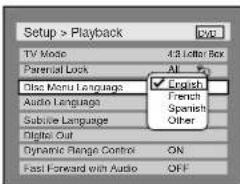
Setup > Playback TV Mode 4.2 Letter Box Parental Lock All Disc Menu Language English Audio Language French Subtitle Language Spanish Digital Out Other Dynamic Range Control ON Fast Forward with Audio OFF- Select a setting using ▲/▼ buttons, then press ENTER button.
Your setting will be activated.
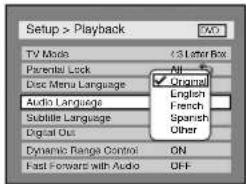
Audio Language (Default : Original)
Set the Audio language.
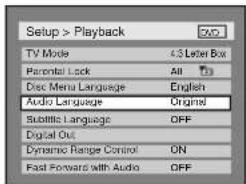
text_image
Setup > Playback TV Mode 4.3 Letter Box Parantial Lock All Disc Menu Language English Audio Language Original Subtitle Language OFF Digital Out Dynamic Range Control ON Fast Forward with Audio OFF
text_image
Setup > Playback TV Mode Parental Lock Disc Menu Language Audio Language Subtable Language Digital Out Dynamic Range Control Fast Forward with Audio All Original English French Spanish Other ON OFF- Select a setting using ▲/▼ buttons, then press ENTER button.
Your setting will be activated.
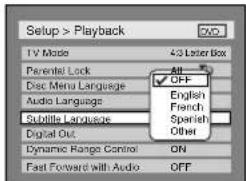
Subtitle Language (Default : OFF)
Set the subtitle language.
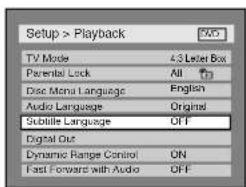
text_image
Setup > Playback TV Mode 4.3 Letter Box Parental Lock All Disc Moni Language English Audio Language Original Subtile Language OFF Digital Out Dynamic Range Control ON Fast Forward with Audio OFF
text_image
Setup > Playback TV Mode 4/3 Letter Box Parented Lock All Disc Menu Language OFF Audio Language English French Subtitle Language Spanish Digital Out Other Dynamic Range Control ON Fast Forward with Audio OFF- Select a setting using ▲/▼ buttons, then press ENTER button.
Your setting will be activated.
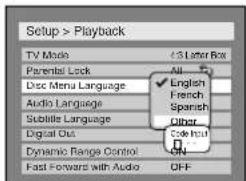
If "Other" is selected, press 4-digit code using Number buttons.
text_image
Setup > Playback TV Mode 4.5 Laser Box Parental Lock Disc Menu Language Audio Language Subtitle Language Digital Out Dynamic Range Control Fast Forward with Audio English French Spanish Other Code Inuit ON OFF- When you finish entering the code, press ENTER button. Refer to the language code table on page 78.
5 Press SETUP button to exit SETUP menu.
Basic Playback
Playback
DVD-R
text_image
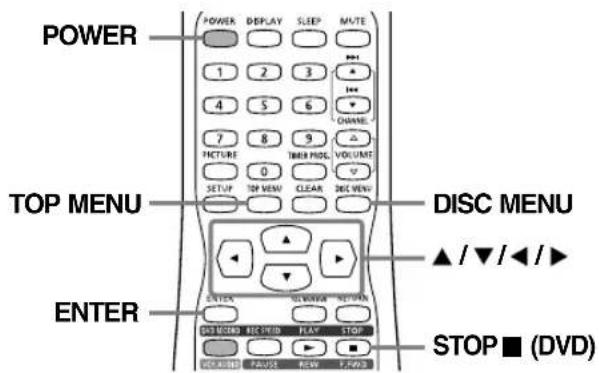
POWER TOP MENU ENTER DISC MENU STOP ■ (DVD)1 Press POWER button.
2 Press ▲ OPEN/CLOSE button on the main unit to open the disc tray.
The disc tray will open.
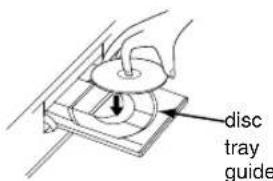
3 Place the disc onto the disc tray with its label facing up and make sure to align the disc to the disc tray guide. Press ▲ OPEN/CLOSE button again to close the disc tray.
NOTE:
• This operation may take a few minutes to complete.
• Some discs may start playing automatically.
text_image
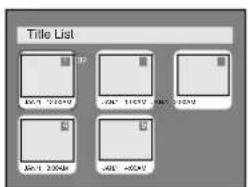
disc tray guide4 Press TOP MENU button to display the title menu.
You can change "Original" or "Playlist" of VR mode using DISC MENU button.
Video mode:
text_image
Title List BCL1 "2004" JCM" 16592 JCM" 16592 JCM1 2004E JAM -65CMVR mode:
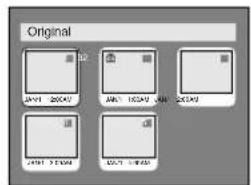
text_image
Original JAN1 20047 JAN1 10047 JUN 20047 JAN1 > 30047 JAN1 > 50047 JAN1 > 60047
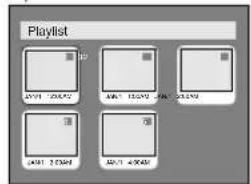
text_image
Playlist 10 20/01 20:45M 30/01 15:29M 40/01 15:29M 50/01 20:45M 60/01 40:45MNOTE:
- Press the TOP MENU button to exit the menu.
- Disc menu is only available for VR mode recorded disc.
- F or DVD-R (Video mode) and DVD-RW (Video mode) discs which are already finalized, a title list will be displayed instead of thumbnails as shown below.
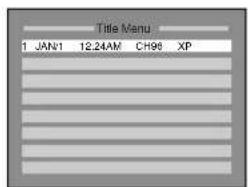
text_image
Title Menu 1 JAN1 12.24AM CH96 XP5 Select a desired title using ▲/▼/◄/► buttons, then press ENTER button.
Playback will start.
6 Press STOP ■ (DVD) button to stop playback.
NOTE:
- You can resume play from where you stopped playing the disc. (Resume play) Refer to page 36 for details about resume play.
To eject the disc, press ▲ OPEN/CLOSE button to open the disc tray, then remove the disc before turning off the unit.
text_image
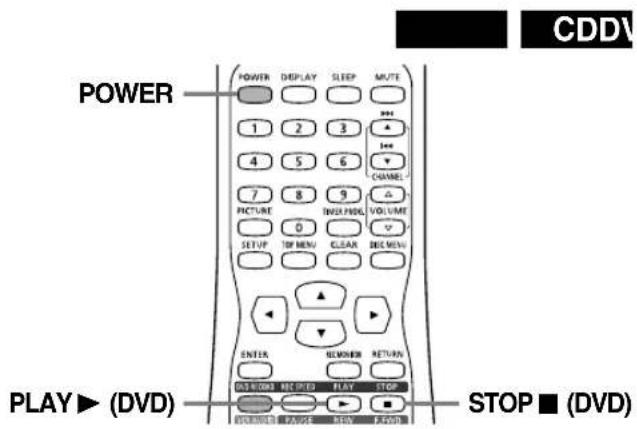
POWER POWER DEPLAY SLEEP ROUTE 1 2 3 4 5 6 7 8 9 PICTURE INDEX FOCUS VOLUME 0 SET UP TOP MENU CLEAR DEL MENS ENTER REMOBER RETURN START LED STOP RUNNER CHANGE KEY STOP CDDV PLAY► (DVD) STOP ■ (DVD)1 Press POWER button.
2 Press ▲ OPEN/CLOSE button on the main unit to open the disc tray.
The disc tray will open.
3 Place the disc onto the disc tray with its label facing up and make sure to align the disc to the disc tray guide.
4 Press PLAY ▶ (DVD) button to start playing.
Playback will start.
• If you are playing a DVD-Video disc, a menu may appear.
Refer to page 35 for details about a disc menu.
5 Press STOP ■ (DVD) button to stop playing.
NOTE:
• Some discs may start playing automatically.
CDDV
text_image
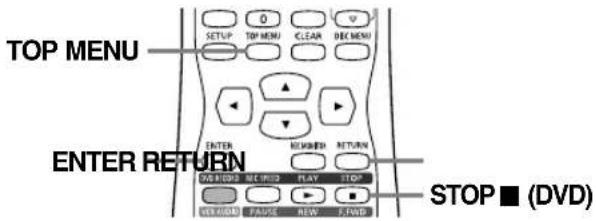
TOP MENU ENTER RETURN STOP ■ (DVD)1 In stop mode, press TOP MENU button to bring up the MP3 menu.
text_image
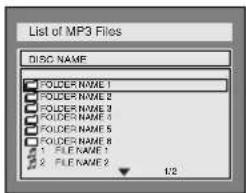
List of MP3 Files DISC NAME FOLDER NAME 1 FOLDER NAME 2 FOLDER NAME 3 FOLDER NAME 4 FOLDER NAME 5 FOLDER NAME 6 1. FILE NAME 1 2. FILE NAME 2 1/2To exit the menu, press TOP MENU button again.
NOTE:
- If you press ▲ OPEN/CLOSE button to close the disc tray, the automatic playback will not start, but MP3 menu will appear.
2 Press ▲/▼ buttons to select a desired folder (group) or track, then press ENTER button.
When selecting track:
Playback will start.
When selecting the folder:
The files in the folder will appear.
Press ▲ or ▼ button to select the track or folder you want, then press ENTER button.
- Press ◀ button or RETURN button to go to the previous hierarchy.
- Press STOP ■ (DVD) button to return to the first item.
Hints for MP3 files:
- Folders are known as Groups, files are known as Tracks.
- Folders are accompanied by Icon.
• MP3 files are accompanied by icon.
Playback will start from the selected track and go to the next one in turn.
- The system can recognize up to 255 groups (or folders) and up to 255 tracks.
- The name of the group and track can be displayed in up to 32 characters. Unrecognizable characters will be replaced with asterisks.
- If the folder includes no files, "No Files" will be displayed.
- The audio source of MP3 files cannot be recorded as digital sound by an MD or DAT deck.
- Files whole extension other than ".mp3 (MP3)" will not be listed in the MP3 menu.
- Some unplayable folders or tracks may be listed in the MP3 menu due to the recording status.
This unit recommends the files recorded under the following circumstances:
• Sampling frequency: 44.1kHz or 48kHz.
- Constant bit rate: 112kbps - 320kbps.
Playback with Disc Menu
DVD-V
A DVD disc contains a disc menu that describes the contents or allows you to customize the playback. For example, the menu may offer choices for subtitle languages, special features, or chapter selection. Some disc menus are automatically displayed when you start playback, others only appear when you press DISC MENU button.
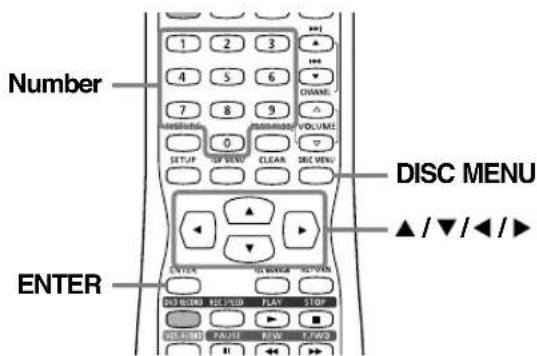
text_image
Number ENTER DISC MENU ▲/▼/◄/►1 Press DISC MENU button.
The DVD main menu will appear.
NOTE:
- Menus vary among discs. Refer to the information accompanying the disc for details.
If the feature is not available, may appear on the TV screen.
text_image
Image containing a prohibition symbol with a circle, likely indicating no prohibition or exclusion.2 Select an item using ▲/▼/◄/► buttons, then press ENTER button to confirm.
Continue this step to set up all the features you want or to start playing the disc from the menu.
DISC MENU button:
Displays a DVD disc menu which varies with the disc and may be the same as the 'Title menu.'
▲/▼/◄/► buttons:
Moves the cursor on the screen.
ENTER button:
Selects the currently highlighted menu option.
Number buttons:
Selects a numbered menu option (only for some discs). ENTER button should be pressed after pressing Number buttons.
3 Press DISC MENU button to exit the menu.
Playback with Title Menu
DVD-V
Some DVDs have a title menu, which lists the titles available on them. It helps you to start playback at a specific title.
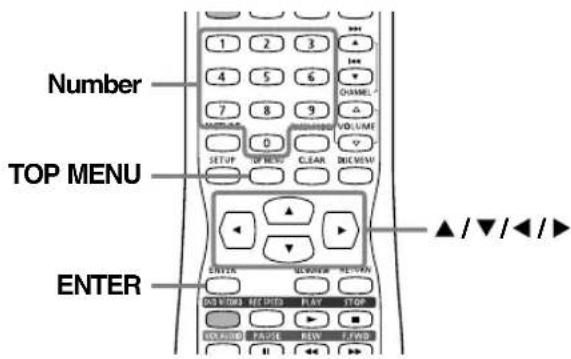
text_image
Number TOP MENU ENTER1 Press TOP MENU button.
The title menu will appear.
NOTE:
- The TOP MENU button will not always be active with all DVDs.
- Menus vary among discs. Refer to the information accompanying the disc for details.
If the feature is not available, may appear on the TV screen.
text_image
Image containing a prohibition symbol with a crossed-out circle, likely indicating exclusion or prohibition.2 Select a title to play using the ▲/▼/◄/► buttons, then press ENTER button.
Playback will begin at the title you selected.
TOP MENU button:
Displays the 'Title menu' of a DVD disc that varies with the disc.
▲/▼/◄/► buttons:
Moves the cursor on the screen.
ENTER button:
Selects the current highlighted menu option.
Number buttons:
Selects a numbered menu option (only for some discs). ENTER button should be pressed after pressing Number buttons.
3 Press TOP MENU button to exit the title menu.
Special Playback
Resume
DVD-V DVD-R DVD-RW (Video)
DVD-RW (VR) CD MP3
You can resume play from where you stopped playing the disc last.
NOTE:
- F or MP3 files, playback will resume from the beginning of the track at which playback was stopped.

text_image
PLAY ▶ (DVD) — [ ] — STOP ■ (DVD)1 During playback, press STOP ■ (DVD) button. The resume message will appear.
2 Press PLAY ▶ (DVD) button.
In a few seconds, playback will resume from the point at which it stopped last. You can resume play at the same point even if you turn off the unit.
Tocancel the resume play and start playing the disc from the beginning, press STOP ■(DVD) button again while the playback is stopped.
Pause
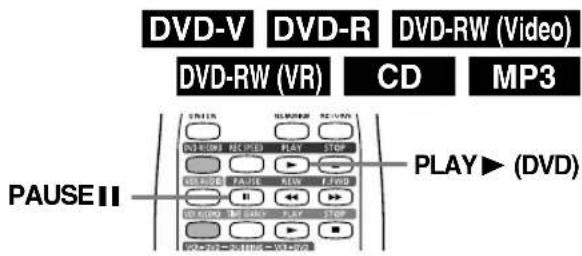
text_image
DVD-V DVD-R DVD-RW (Video) DVD-RW (VR) CD MP3 PAUSE II PLAY▶ (DVD)1 During playback, press PAUSE II button.
Playback will pause and sound will be muted.
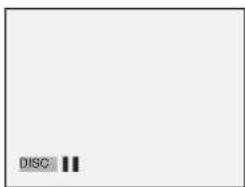
text_image
DISC2 Press PLAY ▶ (DVD) button to resume play.
Fast Forward / Fast Reverse
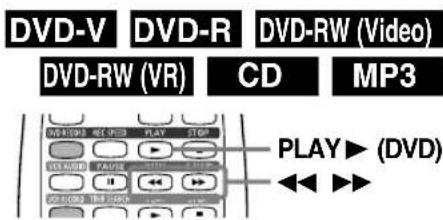
text_image
DVD-V DVD-R DVD-RW (Video) DVD-RW (VR) CD MP3 PLAY▶ (DVD)1 During playback, press ▶▶ or ◀◀ button.
Every time you press ▶▶ or ◀◀ button, approximate speed changes as follows.

text_image
x20 Normal speed playback x2 x20x5 x40x40For Audio CDs, approximate speed is set at x8 with sound.
For MP3 files, approximate speed is set at x16.
To return to the normal playback, press PLAY ▶ (DVD) button.
NOTE:
- F or DVD discs, the sound will be output during playback in fast forward of x2 only if you set "Fast Forward with Audio" to "ON" for the "Playback" setting in the SETUP menu.
- Forward/reverse speed will be indicated with icons as follows. Forward (Approx. Speed) Reverse (Approx. Speed)

Slow Forward / Slow Reverse

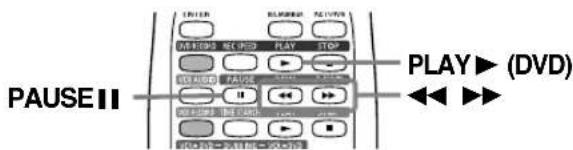
text_image
PAUSE II PLAY ▶ (DVD)1 During playback, press PAUSE II button, then press ▶▶ or ◀◀button.
Every time you press ▶▶ or ◀◀ button, approximate speed will be changed as follows.

text_image
x1/4 x1/8 x1/16 Pause x1/16 x1/8 x1/2To return to the normal playback, press PLAY ▶ (DVD) button.
NOTE:
- The sound will remain mute. - Forward/reverse speed will be indicated with icons as follows.
Forward (Approx. Speed) Reverse (Approx. Speed)

Step by Step
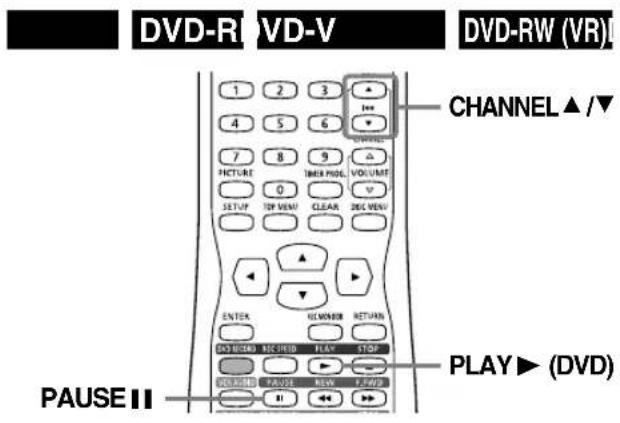
text_image
DVD-R VD-V DVD-RW (VR) CHANNEL ▲ /▼ PHUCTURE 7 8 9 VOLUME 0 CLEAR DIS VENU SETUP TOP VENU ENTER GLMONOR RETURN EXTRA-REDA REC FRIED PLAY STOP GOLDEN TAUS FREE PLAY PLAY ▶ (DVD) PAUSE II1 During playback, press PAUSE II button. Playback will pause and sound will be muted.
text_image
DISC2 Press CHANNEL ▲ button repeatedly. Every time you press the button, the playback will go forward by one frame (or step) with the sound muted. Press CHANNEL ▼ button repeatedly. Every time you press the button, the playback will go backward by one frame.
3 Press PLAY ▶ (DVD) button to resume play.
Zoom
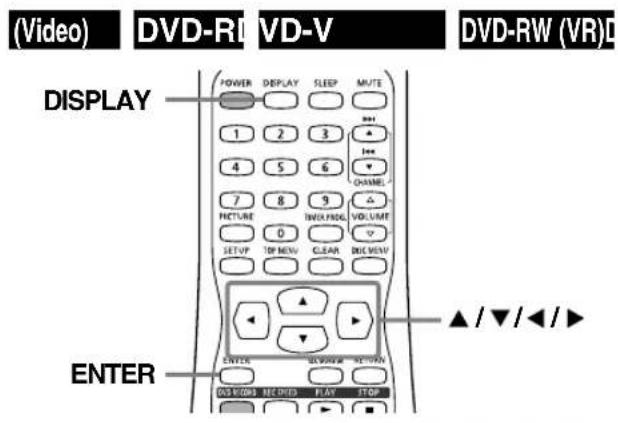
text_image
(Video) DVD-RI VD-V DVD-RW (VR) DISPLAY POWER DISPLAY SLEEP MUTE 1 2 3 4 5 6 7 8 9 FIXTURE INFO PROG VOLUME 0 SETUP TOP MENU CLEAR DISK VIEW ENTER ▲ / ▼ / ◀ / ▶1 During playback, press DISPLAY button repeatedly until the DVD status display menu appears.
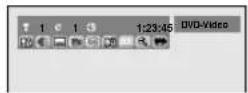
2 Select 🔒 icon using ➤ buttons, then press ENTER button. Zoom option menu will appear.
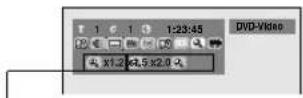
Three options (x1.2, x1.5, x2.0) excluding the current zoom rate are displayed.
3 Select a desired zoom factor to zoom using </► buttons, then press ENTER button. The zoom area will be displayed.
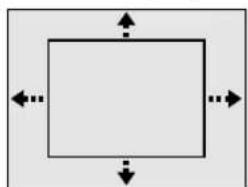
natural_image
Simple geometric diagram with a rectangle and directional arrows, no text or symbols present.4 Select a desired zoom position using ▲/▼/◄/► buttons, then press ENTER button.
The zoom play will start.
NOTE: Zoom
- When selecting a smaller factor than the current one, the zoom area will not be displayed.
• To remove the zoom menu, press DISPLAY button again at step [1]. - To cancel the zoom function, select x1.0 using ◀/▶ buttons, then press ENTER button.
Setting Marker
text_image
DVD-R DVD-RW (Video) DVD-RW (VR) CDThis feature allows you to assign a specific point on a disc to be returned to later.
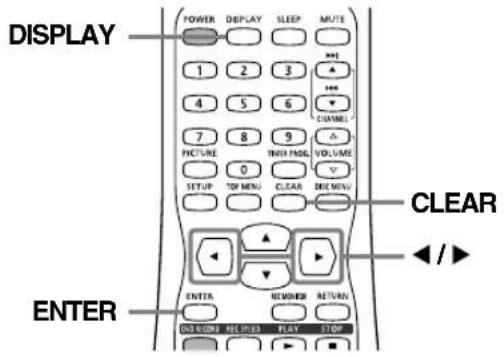
text_image
DISPLAY POWER DISPLAY SLEEP MUTE 1 2 3 4 5 6 7 8 9 PICTURE THIS PROD VOLUME 0 SETUP TOP MENU CLEAR FREE MENU CLEAR ENTER ENTER REMOLED RETURN DISCOOKS READY STOP1 During playback, press DISPLAY button repeatedly until the DVD status display menu appears.
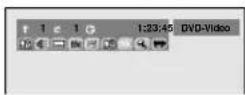
2 Select 📋 icon using ➤ buttons, then press ENTER button.
Marker setup menu will appear.
Screen for DVD: Screen for CD:
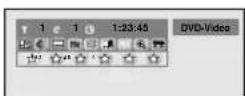
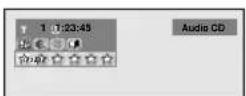
3 Select a desired marker number using ◀/▶ buttons.
When it reaches the desired point, press ENTER button.
4 To return to the marker later, select the desired marker number using ◀/▶ buttons, then press ENTER button.
NOTE: Marker
- You can mark up to 6 points.
- To clear a marker, select the marker number to be cleared, then press CLEAR button.
- All markers will be erased by the following operation: Opening the disc tray
Turning off the power
Recording to a recordable disc
Changing the mode between Original and Playlist (VR mode)
Editing the disc
Search

Title/Chapter Search
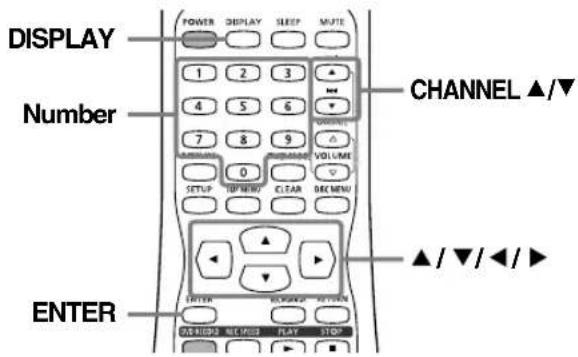
text_image
DISPLAY Number CHANNEL ▲/▼ ENTER ▲ / ▼ / ◀ / ►Using CHANNEL ▲▼ buttons
1 During playback, press CHANNEL ▲ button to skip the current title or chapter and move to the next.
The title or chapter will move forward by one title at a time.
To go back to the previous title or chapter, press CHANNEL ▼ button. The title or chapter will move backward by one title at a time.
Only press CHANNEL ▼ button once to go back to the top of the current title.
Using DISPLAY button
1 During playback, press DISPLAY button repeatedly until the DVD status display menu appears.
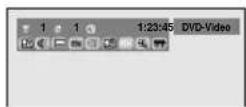
2 Select 📄 icon using buttons, then press ENTER button.
'T' for title will be highlighted.
Title:
Enter a desired title number to search using ▲/▼ buttons or Number buttons, then press ENTER button. Title search will start.
Chapter:
To move to 'C' for chapter, press ▶ button.
Enter a desired chapter number to search using ▲/▼ buttons or Number buttons, then press ENTER button.
Chapter search will start.
Track Search
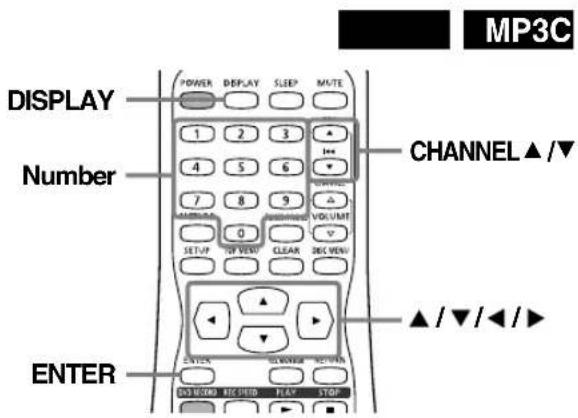
text_image
MP3C DISPLAY Number CHANNEL ▲/▼ ENTER ▲/▼/◄/►Using CHANNEL ▲▼ buttons
1 During playback, press CHANNEL ▲ button to skip the current track and move to the next. The track will move forward one at a time. To go back to the previous track, press CHANNEL▼ button. The track will move backward one track at a time.
Using DISPLAY button
1 During playback, press DISPLAY button repeatedly until the DVD status display menu appears.
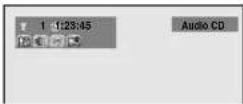
2 Select 📄icon using▶ buttons, then press ENTER button. 'T' for track will be highlighted.
3 Enter a desired track number to search using ▲/▼ buttons or Number buttons, then press ENTER button. Track search will start.
Time Search
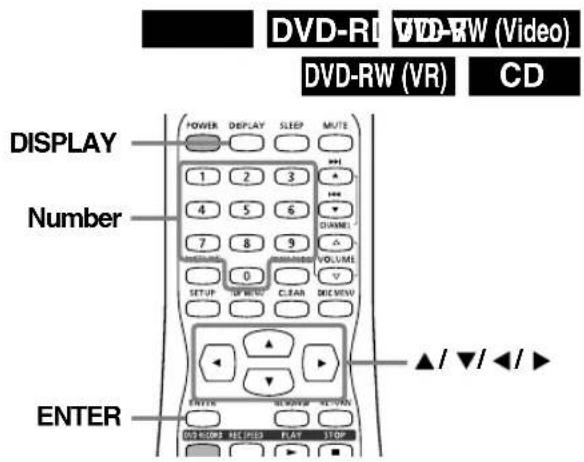
text_image
DVD-RW (Video) DVD-RW (VR) CD DISPLAY Number ENTER1 During playback, press DISPLAY button repeatedly until the DVD status display menu appears. Screen for DVD:
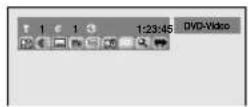
Screen for CD:
2 Select 📄icon using▶ buttons, then press ENTER button.
'T' for title or track will be highlighted. To move to the (lock) icon, press ▶ button.
3 Enter a desired time to search using ▲/▼ buttons or Number buttons, then press ENTER button. Time search will start.
NOTE:
- Time search function is available only in the same track or title.
Repeat/Random/Program Play
Repeat Play
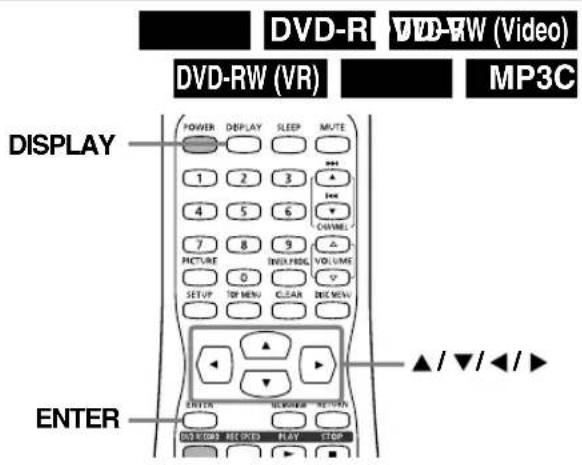
text_image
DVD-RI DVD-RW (Video) DVD-RW (VR) MP3C DISPLAY POWER DISPLAY SLEEP MUTE 1 2 3 4 5 6 CHANNEL 7 8 9 PICTURE INDIVIDUAL VOLUME 0 SETUP TOP MENU CLEAR DEC MENU ENTER ▲ / ▼ / ◀ / ►1 During playback, press DISPLAY button repeatedly until the DVD status display menu appears.
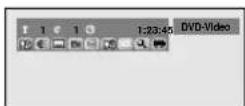
2 Select 📄 icon using▶ buttons, then press ENTER button.
Repeat menu will appear.
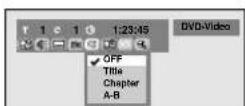
NOTE:
- To cancel the repeat playback, select OFF.
3 Select a desired option to repeat using ▲/▼ buttons, then press ENTER button.
Title: DVD only
The current title will be played repeatedly.
Chapter: DVD only
The current chapter will be played repeatedly.
All: CD, MP3 and DVD-RW (VR mode only)
The current disc will be played repeatedly.
A-B:
The A-B point will be played repeatedly.
When pressing ENTER button while A-B is highlighted, the starting point (A) will be decided.
Press ENTER button again to select the ending point (B).
NOTE:
- The A-B Repeat playback can only be set within the current title (for DVDs) or current track (for Audio CDs).
Track: CD, MP3 only
The current track will be played repeatedly.
Group: MP3 only
The current group will be played repeatedly.
NOTE:
- You cannot select "Group" during the random playback of MP3 files.
Random Play

You can play tracks on a disc randomly instead of playing it in the recorded sequence.
text_image
4 5 6 7 8 9 FIXTURE TWD FROM VOLUME 0 SETUP TOP MENU CLEAR DEC MENU SETUP ENTER ▲/▼/◄/► STOP ■ (DVD) ON RIOS: NET FWD PLAY STOP ON RIOS: PAUSE NEW FWD OFFICE WITH INFO FLOW STOP VISA+VISA=2.88M=104+301 In the stop mode, press SETUP button to display SETUP/CD menu. SETUP/CD menu will appear.
2 Select "CD" using ◀/▶ buttons, then press ENTER button. CD Playback Mode menu will appear.
3 Select "Random Play" using ▲/▼ buttons, then press ENTER button. Random playback will start.
NOTE:
- To cancel random playback, press STOP ■ (DVD) button during random playback.
Program Play
CD
You can program tracks on a disc to be played in your desired order.
NOTE:
- You can make program up to 50 tracks.
text_image
Number SETUP ENTER PLAY► (DVD) CLEAR ▲/▼/◄/► STOP ■ (DVD)1 In the stop mode, press SETUP button to display SETUP/CD menu.
SETUP/CD menu will appear.
2 Select "CD" using ◀/▶ buttons, then press ENTER button.
CD Playback Mode menu will appear.
3 Select "Program Play" using ▲/▼ buttons, then press ENTER button.
Program Play list will appear.
text_image
CD Playback Mode > Program Play Total 00:00:004 Select a desired track using ▲/▼ buttons, then press ENTER button or ▶ button.
A cursor will move to the next.
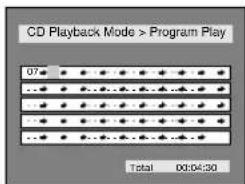
text_image
CD Playback Mode > Program Play 07:04:30 Total 00:04:30NOTE:
- You may also select a desired track using Number buttons.
• To erase tracks you selected, press CLEAR button.
5 Press PLAY ▶ (DVD) button to start program playback. Program playback will start according to your program.
NOTE:
- To cancel program playback, press STOP ■ (DVD) button twice during program playback.
Selecting AUDIO / VIDEO Menu
You can select an audio or video format, as you prefer depending on the contents of the disc you are playing.
Switching Audio Soundtrack
DVD-V DVD-RW (VR)
When playing a DVD-Video disc recorded with two or more soundtracks (mostly in different languages), you can switch between them anytime during play-back.
NOTE:
- Some discs will only allow you to change the soundtrack from the disc's menu. Press TOP MENU button or DISC MENU button to display the disc's menu.
- On DVD-RW discs recorded in VR mode that may have both a main and a sub audio channel, you can switch to main (L), sub audio (R) or a mix of both (L/R).
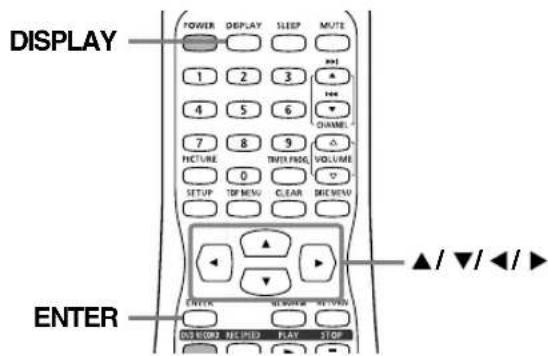
text_image
DISPLAY POWER DISPLAY SLEEP MUTE 1 2 3 # 4 5 6 CHANNEL 7 8 9 PICTURE THER PROE. 0 VOLUME SETUP TOP MENU CLEAR RICH MENU ENTER ▲/▼/◄/► DVD ROOM REC PLED PLAY STOP1 During playback, press DISPLAY button repeatedly until the DVD status display menu appears.
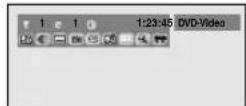
2 Select 📄icon using▶ buttons, then press ENTER button.
Audio menu will appear.
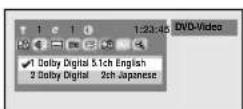
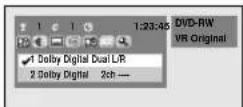
Continue on next page.
3 Select a desired audio soundtrack using ▲/▼ buttons, then press ENTER button.
Audio soundtrack will switch.
You can switch to main (L), sub audio (R) or a mix of both (L/R). In this case, follow the step [4].
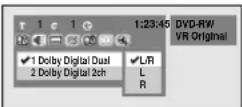
4 Select a desired audio channel using ▲/▼ buttons, then press ENTER button.
Audio channel will switch.
NOTE:
- This unit CANNOT record in both stereo and SAP (Secondary Audio Program) at the same time.

MP3C
When playing Audio CDs or MP3 files you can switch between stereo, the left channel only or the right channel only.
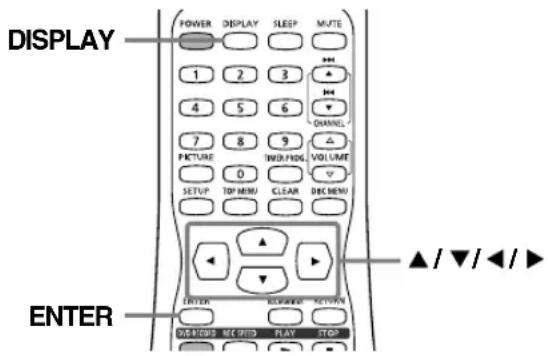
text_image
DISPLAY POWER DISPLAY SLEEP MUTE 1 2 3 4 5 6 7 8 9 PICTURE INJFINDING VOLUME 0 SETUP TOP MENU CLEAR DEC MENU ENTER BLOCKDOWN DISPDCS RECORD PLAY STOP ▲/▼/◄/►1 During playback, press DISPLAY button repeatedly until the DVD status display menu appears.
2 Select icon using buttons, then press ENTER button.
Audio menu will appear.
3 Select a desired audio channel using ▲/▼ buttons, then press ENTER button.
Audio channel will change.
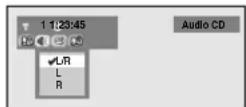
Switching Subtitles
DVD-V DVD-RW (VR)
Many DVD Video discs have subtitles in one or more languages. The case usually tells you which subtitle languages are available. You can switch subtitle languages anytime during playback.
NOTE: Top Menu / Disc Menu
- Some discs allow you to change the subtitle only from the disc's menu. Press TOP MENU button or DISC MENU button to display the disc's menu.
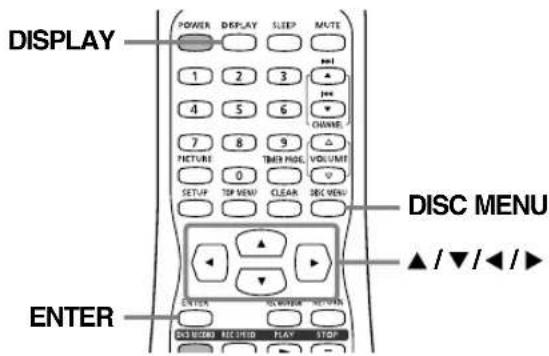
text_image
DISPLAY POWER DISPLAY SLEEP MUTE 1 2 3 OPEN 4 5 6 CHANGE 7 8 9 VOLUME 0 SETUP TIP VIEW CLEAR DEC MENU ENTER DISC MENU ▲/▼/◄/► ENTER DEC VIDEO RECEIVED PLAY STOP1 During playback, press DISPLAY button repeatedly until the DVD status display menu appears.
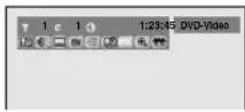
2 Select 📄icon using▶ buttons, then press ENTER button.
Subtitle menu will appear.
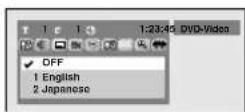
3 Select a desired subtitle language using ▲▼ buttons, then press ENTER button.
Subtitle will be displayed in the selected language.
When selecting "OFF", subtitle will disappear.
Switching Camera Angles
DVD-V
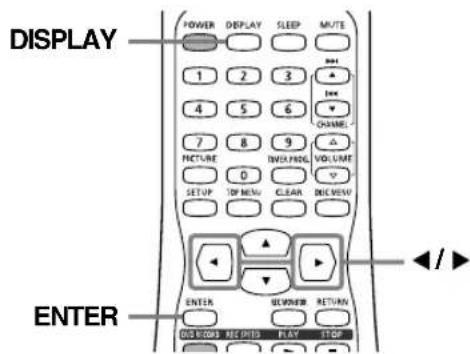
text_image
DISPLAY POWER DEPLAY SLEEP MUTE 1 2 3 4 5 6 7 8 9 PICTURE INVERFORG VOLUME 0 SETUP ON MEN CLEAR DISMenu ENTER ENTER RETURN DIS CLOS RECPED PLAY STOPSome DVD Video discs feature scenes shot from two or more angles, check the case of the DVD for details: it should be marked with an angle icon if it contains multi-angle scenes.
1 During playback, press DISPLAY button repeatedly until the DVD status display menu appears.
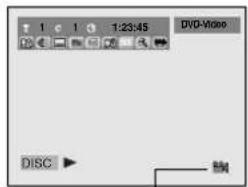
text_image
1 2 3 4 5 6 7 8 9 10 11 12 13 14 15 16 17 18 19 20 DVD-Video DISC 編Angle icon appears when a switching camera angle is available.
2 Select 📄 icon using buttons, then press ENTER button.
Angle will switch each time you press ENTER button.
Reducing Block Noise

This function reduces noise in the playback picture.
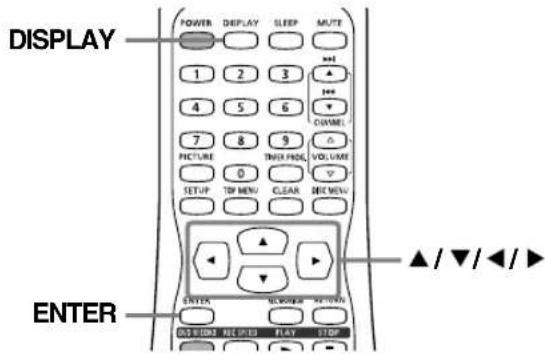
text_image
DISPLAY POWER 1 2 3 4 5 6 7 8 9 0 TIME/PROD. SETUP TIP MENU CLEAR SIEI MENU ENTER ▲ / ▼ / ◀ / ▶1 During playback, press DISPLAY button repeatedly until the DVD status display menu appears.
2 Select NR icon using buttons, then press ENTER button.
NR menu will appear.
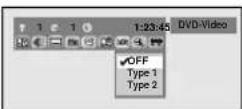
3 Select a desired option using ▲/▼ buttons, then press ENTER button.
Your setting will be activated.
When playing back discs recorded in long time mode such as SLP or SEP mode, select "Type 1" or "Type 2". ("Type 2" is more effective.) When playing back prerecorded DVD discs with little or no noise, select "OFF".
Virtual Surround Setting

Switching to virtual surround setting allows you to enjoy DVD disc with a surround effect.
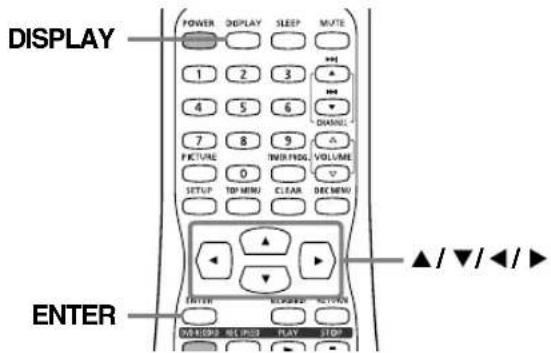
text_image
DISPLAY POWER DISPLAY SLEEP MUTE 1 2 3 # 4 5 6 DHANG 7 8 9 TWO/FRDG VOLUME 0 SETUP TOP MENU CLEAR DEC MENU ENTER REVIEWER ACTION #VE/STOP #X/STOP PLAY STOP ▲/▼/◄/►1 During playback, press DISPLAY button repeatedly until the DVD status display menu appears.
2 Select 🎨️ icon using buttons, then press ENTER button.
Virtual surround menu will appear.
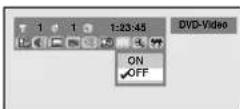
3 Select "ON" using ▲/▼ buttons, then press ENTER button.
Virtual surround setting will be activated.
NOTE:
- To turn off virtual surround, select "OFF" in Virtual Surround menu screen.
This unit uses the following types of display for most operations. SETUP/DISC/CD menu, Title List, and DISPLAY, which allows you to change the playing status of disc during play.
SETUP/DISC/CD menu
Press SETUP button to display the setup main menu, then choose either of SETUP/DISC/CD by pressing ◀/▶ buttons. Then, press ENTER button to display each menu. This provides entries to all main functions of the unit.
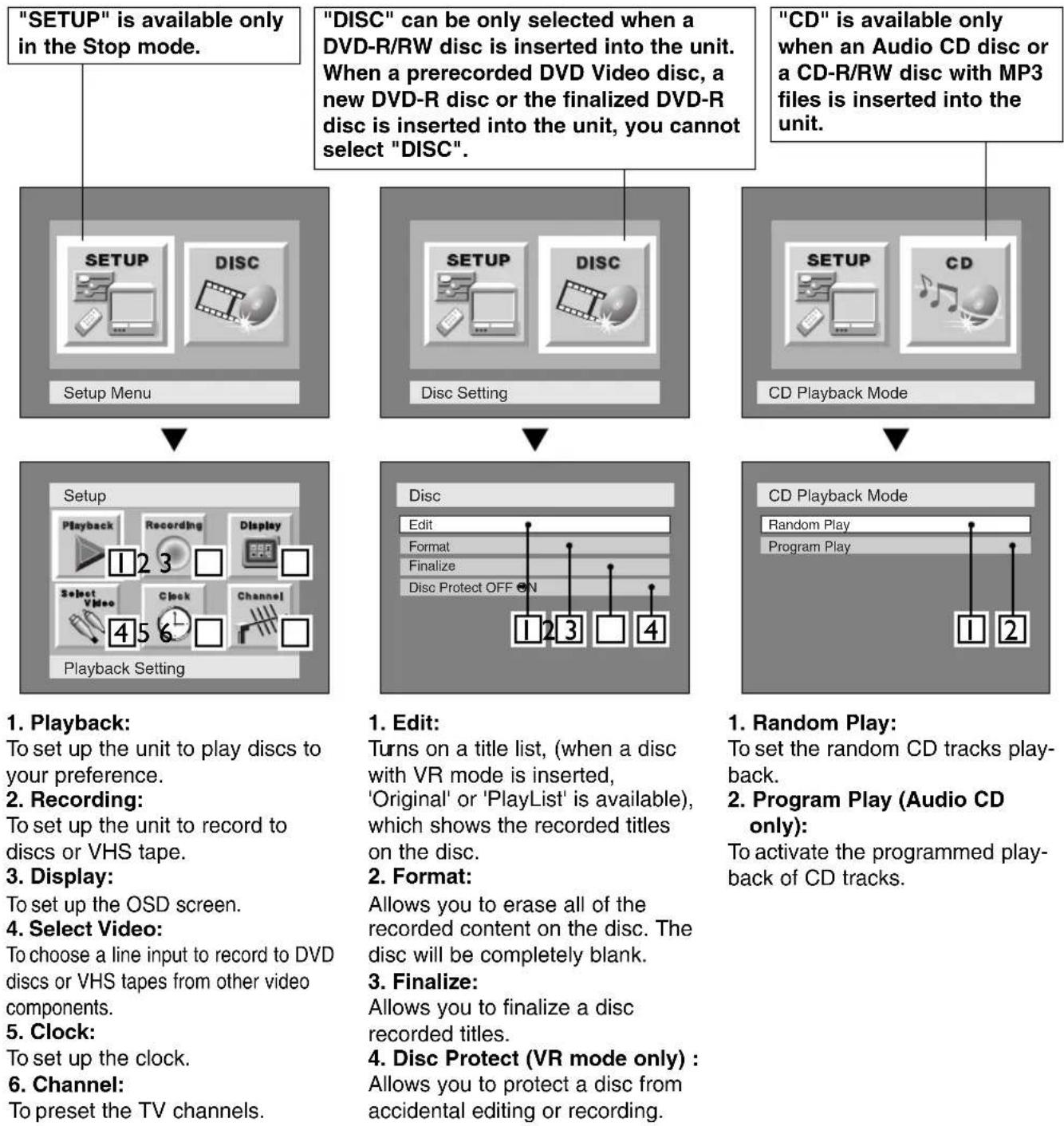
flowchart
graph TD
A[""SETUP" is available only in the Stop mode."] --> B["DISC" can be only selected when a DVD-R/RW disc is inserted into the unit. When a prerecorded DVD Video disc, a new DVD-R disc or the finalized DVD-R disc is inserted into the unit, you cannot select "DISC".<br> B --> C["CD" is available only when an Audio CD disc or a CD-R/RW disc with MP3 files is inserted into the unit.<br> C --> D["CD Playback Mode"]
D --> E["Random Play: To set the random CD tracks playback."
E --> F["Program Play (Audio CD only): To activate the programmed playback of CD tracks.
1. Random Play: To set the random CD tracks playback.
2. Program Play (Audio CD only): To activate the programmed playback of CD tracks.
3. Finalize: Allows you to finalize a disc recorded titles.
4. Disc Protect (VR mode only) : Allows you to protect a disc from accidental editing or recording.
5. Clock: To set up the clock.
6. Channel: To preset the TV channels.
7. Display: To set up the OSD screen.
8. Recording: To set up the unit to record to discs or VHS tape.
9. Playback Setting: Setup, Recording, Display, Select Video, Clock, Channel, Playback Setting
▲ You will need to finalize the DVD discs before they can be played in other DVD players.
The following will help you to understand easily how to record to DVD discs.
NOTE:
- Make sure that you have completed connections and batteries should be inserted in the remote control.
Step 1: Choose a disc type
There are several types of DVD disc recordable to choose from. Choose an applicable type by "DVD disc types" on this page.
This unit can record on the following type of discs only.
(or)

* This unit cannot record on the following discs.
• D VD-R General Ver 2.0 / 8x
• D VD-RW Ver 1.2 / 2-4x CPRM compatible
For example, when you want to record repeatedly on the same disc or when you want to edit the disc after recording, select the rewritable DVD-RW type disc.
When you want to save recordings without any alteration, a non-rewritable DVD-R can be your choice.
Step 2: Insert a blank disc
text_image
1 Turn on the unit 2 Open the disc tray 3 Close the disc tray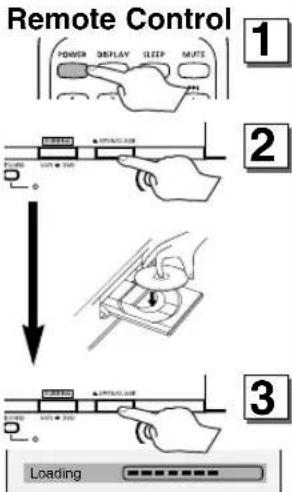
flowchart
graph TD
    A["Power"] --> B["Display"]
    B --> C["Sleep"]
    C --> D["Mute"]
    D --> E["Loading"]
NOTE:
• This operation may take a few minutes to complete.
Step 3: Select the Recording speed
To select the recording speed, press REC SPEED button once, then change the recording speed using ▲/▼ buttons.
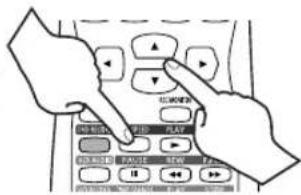
text_image
Illustration showing hands interacting with a control panel with labeled buttons and navigation arrows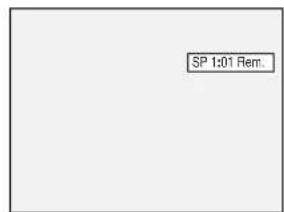
text_image
SP 1:01 Rem.DVD disc types
- ★★★: Most suitable. ★★: Can be used. ☆: Some functions are limited. —: Cannot be used.
| You want to | DVD-RW VR | VD-RW Video | DVD-R |
| Record TV programs | ☆☆☆ | ☆☆☆ | ☆☆ |
| Reuse by deleting unwanted contents | ☆☆☆ | ☆☆ | — |
| Edit recorded contents | ☆☆☆ | ☆ | ☆ |
| Edit/Record from connected equipment | ☆☆☆ | ☆☆☆ | ☆☆☆ |
| Copy discs for distribution | ☆☆ ^-1 | ☆☆☆ | ☆☆☆ |
| Play on other DVD equipment | ☆☆ ^-1 | ☆☆☆ | ☆☆☆ |
| Features | DVD-RW VR | VD-RW Video | DVD-R |
| Recording | |||
| Rewritable? Yes Yes | No | ||
| Can create chapters at fixed intervals (auto.) Yes Yes | Yes | ||
| Can create chapters wherever you like (manual) Yes No | No | ||
| Can record 16:9 size pictures Yes Yes | Yes | ||
| Can record Copy-Once programs | Yes No | No | |
| Editing | |||
| Can perform basic edit functions | Yes Yes | Yes | |
| Can perform advanced edit functions (Playlist edit) | Yes No | No | |
*1 DVD-RW (VR mode) can only be played on DVD equipment that is VR compatible.
NOTE:
For details of the above functions and implied restrictions, see the explanations inside the manual.
▲ Important
Format the disc
Insert the disc in the unit, then format the disc from SETUP menu. Video format (Video mode) or Video recording format (VR mode) will be available depending on the disc type inserted. This is necessary to prepare the disc for recording. Details are on pages 48-49.
* When you format, the entire contents on that disc will be erased.
Finalize the disc
After recording, you will need to finalize the DVD discs recorded in this unit before they can be played in other DVD players. See page 54.
Step 4: Select the desired channel
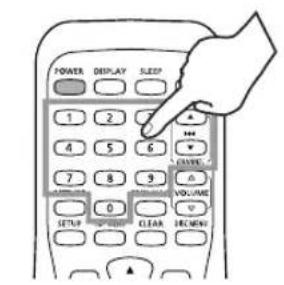
text_image
POWER DISPLAY SLEEP 1 2 4 5 6 7 8 9 0 SETUP CLOCK VOLUME DEGREND
Step 5: Press DVD RECORD button
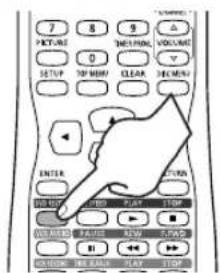
text_image
7 HOT-AS 6 TOM-PM 5 VOLUME 0 SETUP TOP HORN CLEAR HORN ENTER POT OFF 100 PAN 100 PUBS 100 PICKER 100 PICKLE 100 PICKLE 100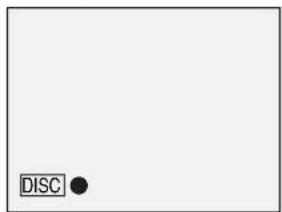
text_image
DISC ●Step 6: Stop the Recording
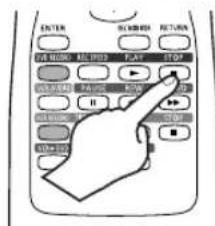
text_image
ENTER ON/OFF ON/OFF ON/OFF ON/OFF ON/OFF ON/OFF ON/OFF ON/OFF ON/OFF ON/OFF ON/OFF ON/OFF ON/OFF ON/OFF ON/OFF ON/OFF ON/OFF ON/OFF ON/OFF ON/OFF ON/OFF ON/OFF ON/OFF ON/OFF ON/OFF ON/OFO ON/OFO ON/OFO ON/OFO ON/OFO ON/OFO ON/OFO ON/OFO ON/OFO ON/OFO ON/OFO ON/OFO ON/OFO ON/OFO ON/OFO ON/OFO ON/OFO ON/OFO ON/OFO ON/OFO ON/OFO ON/OFO ON/OFO ON/OFO ON/OFO ON/OFF ON/OFF ON/OFF ON/OFF ON/OFF ON/OFF ON/OFF ON/OFF ON/OFF ON/OFF ON/OFF ON/OFF ON/OFF ON/OFF ON/OFF ON/OFF ON/OFF ON/OFF ON/OFF ON/OFF ON/OFF ON/OFF ON/OFF ON/OFF ON/OF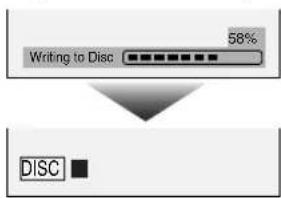
text_image
Writing to Disc 58% DISCNOTE:
• This operation may take a few minutes to complete.
Playing the recorded contents
You can select the title you want to play from a displayed menu and immediately start to play. Recorded contents are very accessible on a disc, the procedure is really simple as you choose a title on a chapter from the menu screen.
What are titles and chapters?
The contents of DVD disc are generally divided into titles. Titles may be further subdivided into chapters.
Start Rec. Stop/Start Stop Rec.
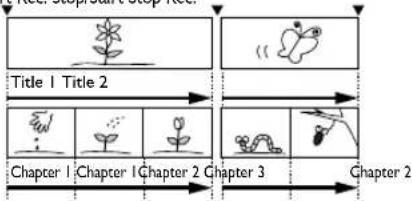
flowchart
graph LR
    A["Plant"] --> B["Seedling"]
    B --> C["Expansion"]
    C --> D["Chapter 1"]
    D --> E["Seedling"]
    E --> F["Expansion"]
    F --> G["Chapter 2"]
Editing the recorded disc
You will find editing discs very easy. This unit offers convenient edit functions, which are possible only with DVD-R/RW discs.
You can edit the following from a Title list.
- Naming titles
- Setting pictures for thumbnails (VR mode)
- Setting/clearing chapter markers
- Deleting title part or scene (VR mode)
Title Delete : This deletes an entire scene permanently from the disc.
Scene Delete : This allows a user to edit within a specific scene (ex. commercials).
Original and Playlist (VR mode)
You can edit the recordings in Playlist without changing the original recordings. Any Playlist does not take up much disc space.
What "Original" or "Playlist" is for?
Throughout this manual, you will find Original and Playlist to refer to the actual content and the edited version.
- Original content refers to what's actually recorded on the disc.
- Playlist content refers to the edited version of the disc; how the Original content is to be played.
Finalize the Disc
- This will allow a disc that is recorded on our unit to be played back on a different DVD player without finalization it will not be playable on another player.
- After finalizing a disc if the recording was in video mode, you can not edit any information that is on that disc.
- If you have recorded in VR mode on DVD-RW disc then editing is still permitted after finalizing. See page 54.
About DVD Recording
This unit can record to DVD-R and DVD-RW discs. When recording, you will need to select a recording format between Video mode and VR mode depending on the disc format. The disc format for DVD-R is always "Video format," so a recording format will be "Video mode". On the other hand, when recording to DVD-RW, a recording format will be "Video mode" or "VR mode" because a disc format is available between "Video Recording format" and "Video format" for DVD-RW.
Logo
Attributes

DVD-RW
12cm, single-sided, single layer disc
Approx. max. recording time (SEP mode):
600 minutes (4.7GB)
DVD-R
12cm, single-sided, single layer disc Approx. max. recording time (SEP mode): 600 minutes (4.7GB)
* This unit cannot record on the following discs.
•DVD-R General ver 2.0/8x
•DVD-RW ver 1.2/2-4xCPRM compatible.
▲ Important
Video mode / VR (Video Recording) mode
Video Format
Select the Video Recording Mode to record discs that can played back on most standard DVD players. Video Recording Mode creates discs compatible with most DVD players, but there is no capability to edit the recordings. DVD-R discs can only be formatted in the Video mode, DVD-RW discs can be formatted in the Video mode or the VR mode.
VR Format
Select the VR Recording Mode to record discs that can be edited, but can be played back only on DVD recorders and players that support the VR mode with DVD-RW discs. DVD-R discs cannot be formatted in the VR mode, only DVD-RW discs can be formatted in the VR mode.
DVD players with screen play DVD-RW recorded in VR mode.
NOTE:
- This unit cannot record CD-R or CD-RW discs.
- DVD-R/RW and CD-R/RW discs recorded on a personal computer or a DVD or CD recorder may not be played in this unit if the disc is damaged or dirty or if there is dirt of condensation on the units lens.
- Even if you record a disc using a personal computer in a compatible format, you may not play it in this unit due to the application software used to create the disc. (Check with the software distributor for more detailed information.)
- Discs recorded in Video mode on this unit cannot be recorded additionally using other DVD recorders.
Disc type D
isc format
Functions

Video mode DVD-RW (Vid
Playing, limited recording, limited editing
DVD-RW
VR mode DVD-RW (VR)
Playing, recording, Original/Playlist editing
Video mode DVD-R
Playing, limited recording, limited editing
DVD-R
Recording Speed
You can select a recording speed among 6 options. The recording time depends on the recording speed you select as follows:
| Recording speed | Recording time * | Video/Sound Quality |
| XP (1H) | 60 min | ☆☆☆☆☆☆ (Highest) |
| SP (2H) | 120 min | ☆☆☆☆☆ |
| LP (4H) | 240 min | ☆☆☆☆ |
| EP (6H) | 360 min | ☆☆☆ |
| SLP (8H) | 480 min | ☆☆ |
| SEP (10H) | 600 min | ☆ (Lowest) |
* This table is designed for a new single-sided 12cm disc as the standard. The recording time shown above may differ from actual recording time.
* The audio and video quality is poorer as the recording time becomes longer.
* Discs recorded in SLP or SEP on this recorder may not be playedback on other DVD recorders or DVD players.
Restrictions
You cannot record copy-protected video using this unit. Copy-protected video includes DVD-Video discs and some satellite broadcasts. If copy-protected material is encountered during a recording, the unit will pause or stop automatically and an error message will be displayed on-screen. "Copy-once only" video can be recorded only using a DVD-RW disc in VR mode with CPRM (see below). When recording a TV broadcast or through an external input, copy control information can be displayed on screen.
What is "CPRM"?
CPRM is a copy protection system with scramble system regarding the recording of "copy once" broadcast programs. CPRM stands for Content Protection for Recordable Media. This unit is CPRM compatible, which means that you can record copy-once broadcast programs, but you cannot make a copy of those recordings. CPRM recordings can only be made on DVD-RW discs formatted in VR mode, and CPRM recordings can only be played on players that are specifically compatible with CPRM.
Copy Control
Some satellite broadcasts include copy-protected contents. Refer to the following condition on copy control.
| Disc type / format | Copy-free | Copy-once | Copy-prohibited |
| ver.1.DVD.RWver.1.1 CPRM compatible | ☆☆ | ——☆ | ——— |
| ver.1.DVD.RWver.1.1 CPRM compatible | ☆☆ | ——— | ——— |
| ver.2.DVD.R | ☆ | —— | —— |
☆ Recordable — Not Recordable
Formatting
Format Setting

DVD-RW (VR)
When inserting a blank disc, the unit starts to initialize the blank disc. After that, you can record to the disc in the recording format selected in SETUP menu. You can set a specified time for chapter marks.
NOTE:
- The recording format setting is available only for DVD-RW discs. You cannot change the recording format on a DVD-R disc. DVD-R discs will always be in Video mode.
- You cannot mix two formats on one DVD-RW disc. When you load a disc once recorded before, the recording format cannot be changed even if you change it in SETUP menu.
- When inserting a blank DVD+R or DVD+RW disc, the error message ("Disc Error") will appear. This unit is not compatible with a DVD+R/RW disc.
- PLAYLIST will be created automatically when recording on DVD-RW in VR mode.
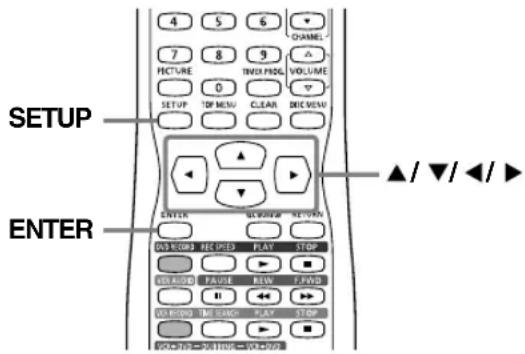
text_image
4 5 6 CHANNEL 7 8 9 PICTURE TIME FWD VOLUME 0 SETUP TOP MENU CLEAR DIE VENU ENTER ▲/▼/◄/► OK BOOKS REC USED PLAY STOP DEFAULT PAUSE REW T-FWD OFF COLD TIME FWD PLAY STOP OK OFF DOWN DOWN DOWN1 Press SETUP button to display SETUP/DISC menu.
SETUP/DISC menu will appear.
2 Select "SETUP" using ◀/▶ buttons, then press ENTER button.
SETUP menu will appear.
3 Select "Recording" using ▲/▼/◄/► buttons, then press ENTER button.
Recording menu will appear.
4 Select "DVD-RW Recording Format" using ▲/▼ buttons, then press ENTER button.
Option window will appear.
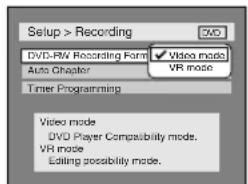
text_image
Setup > Recording DVD/RW Recording Form Auto Chapter Video mode VR mode Timer Programming Video mode DVD Player Compatibility mode. VR mode Editing possibility mode.Video mode has been selected as the default.
Continue on next page.
5 Select "Video mode" or "VR mode" using ▲/▼ buttons, then press ENTER button. The recording mode will be set.
6 Select "Auto Chapter" using ▲/▼ buttons, then press ENTER button. Option window will appear.
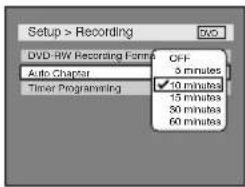
text_image
Setup > Recording DVD-RW Recording Format Auto Chapter Timer Programming OFF 3 minutes 10 minutes 15 minutes 50 minutes 60 minutes"10 minutes" has been selected as the default.
7 Select a desired time option using ▲/▼ buttons, then press ENTER button.
Chapter marks will be put as you specified.
- The time for chapter marks is not accurate in Video mode.
8 Press SETUP button to exit SETUP menu.
▲NOTE: 2 formats on same disc
You cannot mix both recording formats on a single DVD disc.
NOTE: Finalize
You must "Finalize" all recorded discs before they can be played on other DVD players. Without finalization, Video mode discs cannot be played back on other DVD players, and VR mode discs cannot be played back on other VR compatible players. See page 54.
Reformatting

DVD-RW (VR)
If you are using a DVD-RW disc, by default it will be Video mode.
You can change this to VR mode from SETUP menu.
Caution: Erasing - Reformatting
- Reformatting will erase the contents of the disc. Once erased, the material cannot be retrieved.
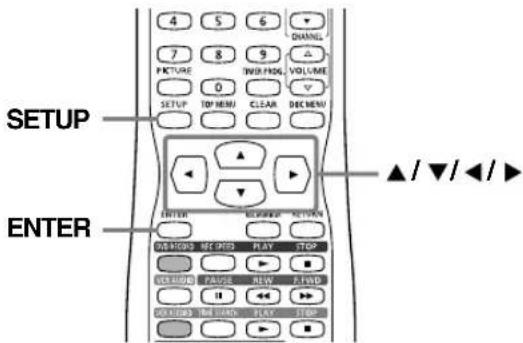
text_image
4 5 6 CHANNEL 7 8 9 △ PICTURE TWO PROG VOLUME 0 SETUP TOP MEM CLEAR DEC MEM ENTER ▲/▼/◄/► ENTER ON THIPS NET RTS PLAY STOP OK/AUDEN PAUSE NEW P/WND 11 ← → ON THIPS NET THIPS PLAY STOP1 Press SETUP button to display SETUP/DISC menu.
SETUP/DISC menu will appear.
2 Select "DISC" using ◀/▶ buttons, then press ENTER button.
DISC menu will appear.
3 Select "Format" using ▲/▼ buttons, then press ENTER button.
Option window will appear.
* VR mode only
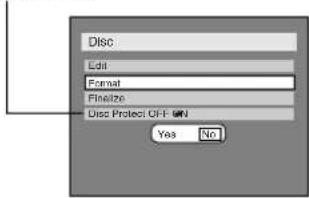
text_image
Disc Edit Format Finelize Disc Protect OFF (F) Yes No4 Select "Yes" using ◀/▶ buttons, then press ENTER button.
Option window will appear.
* VR mode only
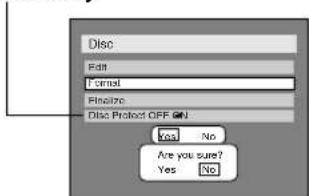
text_image
Disc Edit Format Flinze Disc Protect OFF ON Yes No Are you sure? Yes No5 Select "Yes" using ◀/▶ buttons, then press ENTER button.
Formatting will start.
NOTE:
- Select "No" to cancel formatting.
text_image
Formating 58%6 Formatting is complete.
100% will be indicated.
text_image
Formatting 100%NOTE:
• This operation may take a few minutes to complete.
Basic Recording
Recording TV Programs

Follow the steps below to record TV programs.
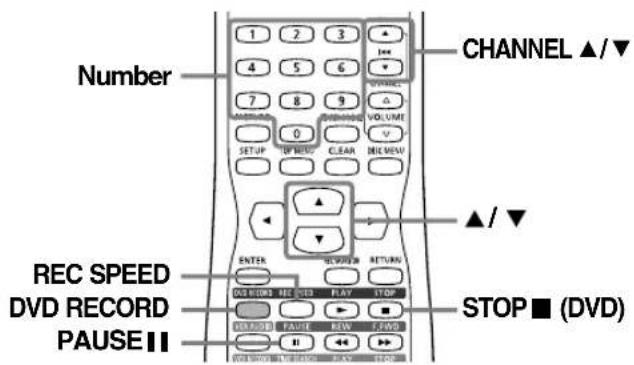
text_image
Number CHANNEL ▲/▼ REC SPEED DVD RECORD PAUSE || ENTER RETURN STOP ■ (DVD)1 Turn on the unit and load a recordable disc. NOTE:
• This operation may take a few minutes to complete.
2 Press REC SPEED button, then change the recording speed using ▲/▼ buttons.
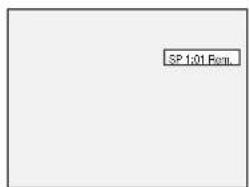
text_image
SP 1:01 Rem.Refer to "Recording speed" on page 48.
3 Make sure that the recording format is set to the desired mode.
Refer to "Formatting" on pages 49-50.
When a DVD-RW disc is loaded:
Choose Video mode or VR mode from SETUP menu. "Video mode" has been selected as the default. Refer to "Format Setting" on pages 49-50.
When a DVD-R disc is loaded:
DVD-R discs will always be in Video mode.
NOTES:
- If the clock has not been set, the space for a date and time of title names in the original or playlist will be blank.
- You cannot mix two formats on one DVD-RW disc. When you load a disc once recorded before, the recording format cannot be changed even if you change it in SETUP menu.
Continue on next page.
4 Select a desired channel to record using CHANNEL ▲/▼ buttons or Number buttons.
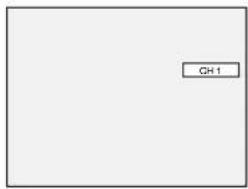
text_image
CH15 Press DVD RECORD button to start recording. NOTE:
- Recording starts immediately and continues until the disc is full or you stop recording.
DISC ● mark will be displayed for 5 seconds.
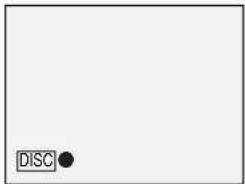
text_image
DISCTo pause the recording, press PAUSE II button. Press DVD RECORD button to restart the recording.
NOTE:
- You cannot change the recording speed during the REC pause mode.
- You can change a channel during the REC pause mode.
6 Press STOP ■ (DVD) button to stop recording. NOTE:
• This operation may take a few minutes to complete.
Checking the recording picture quality

You can confirm the recording speed you have selected before recording to a DVD disc.
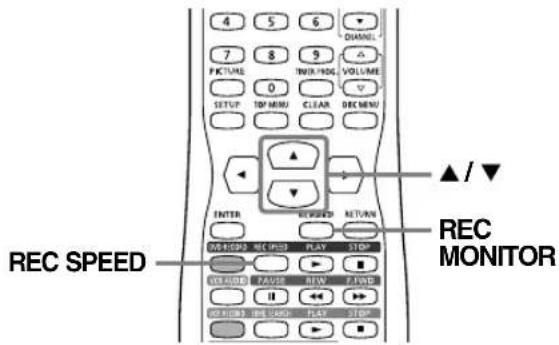
text_image
4 5 6 7 8 9 PICTURE TIME/RIDG VOLUME 0 SETUP OP/MIN CLEAR DEC/MIN ▲ / ▼ ENTER REEVED RETURN REC SPEED RECHMPER PLAY STOP VOLUME PAVES WIN F/WND OFFICE FREE CARD PLAY STOP REC MONITOR1 While the unit is in STOP or REC with a recordable DVD disc inserted, press REC MONITOR button.
2 The TV program will be shown on the screen with the recording speed you have selected. Please confirm this is the speed you wish to record.
NOTE:
- The recording picture can be confirmed with the Rec monitor function. (See "Recording Speed" on page 48.)
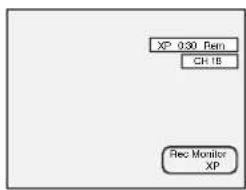
text_image
XP 0.30 Pent CH 18 Flex Monitor XP3 To change the recording speed, press REC SPEED button, then use ▲/▼ buttons.
The recording speed will change as you press the button as shown.
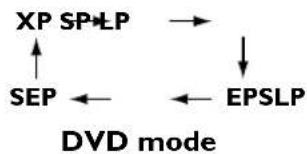
flowchart
graph TD
    XP["XP SP+LP"] --> EP["EPSLP"]
    SEP["SEP"] <----> XP
    EP -->|↓| XP
    EP -->|←| SEP
NOTE:
- You cannot change the recording speed during recording.
4 Press REC MONITOR button again to exit.
One-Touch Timer Recording
DVD-R DVD-RW (VR)
This is a simple way to set the recording time in blocks of 30 minutes. Check that the disc you are recording onto has enough space for the time you set.
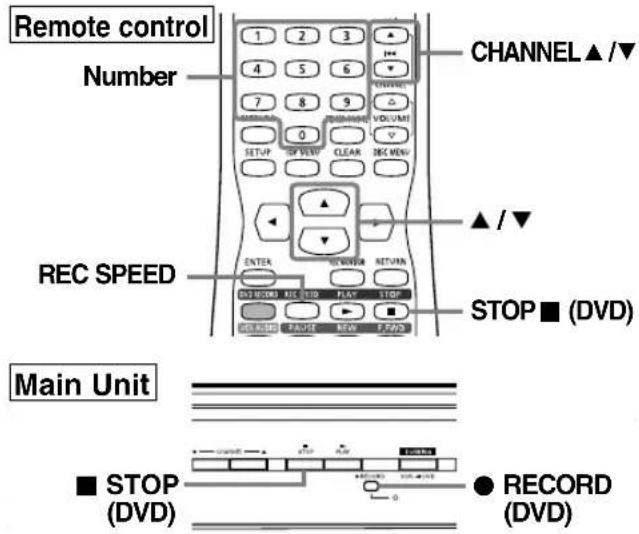
text_image
Remote control Number CHANNEL ▲ /▼ REC SPEED ▲ /▼ STOP ■ (DVD) Main Unit ■ STOP (DVD) ● RECORD (DVD)1 Turn on the unit and load a recordable disc.
NOTE:
• This operation may take a few minutes to complete.
2 Press REC SPEED button, then change the recording speed using ▲/▼ buttons.
Refer to "Recording speed" on page 48.
3 Make sure that the recording format is set to the desired mode.
Refer to "Format Setting" on pages 49-50.
When a DVD-RW rewritable disc is loaded:
Choose Video mode or VR mode from SETUP menu.
"Video mode" has been selected as the default.
Refer to "Format Setting" on pages 49-50.
When a DVD-R disc is loaded:
DVD-R discs will always be in Video mode.
4 Select a desired channel to record using CHANNEL ▲/▼ buttons or Number buttons.
5 Press ● RECORD (DVD) button on the main unit repeatedly until a desired recording time (30 minutes to 8 hours) appears on the TV screen.
Recording will start.
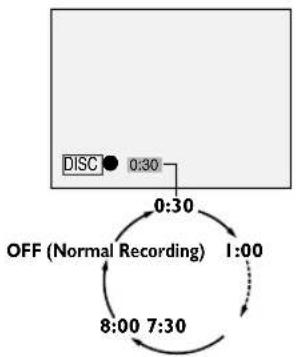
flowchart
graph TD
    A["DISC ● 0:30"] --> B["OFF (Normal Recording)"]
    B --> C["1:00"]
    C --> D["8:00 7:30"]
    D --> E["0:30"]
    E --> A
When the unit reaches the specified time, it will turn off automatically.
NOTE: Automatic Turn Off
- The unit will turn off automatically under the following conditions:
1) No space remained on the disc.
2) When a power failure occurs.
- If One-Touch Timer Recording finishes in DVD during play-back or in REC mode in VCR, the DVD will be in STOP mode and the VCR keeps the current mode.
To cancel the one-touch timer recording within the specified time, press STOP ■ (DVD) button.
NOTE:
• This operation may take a few minutes to complete.
▲Important
You must "Finalize" all recorded discs before they can be played on other DVD players. Without finalization, Video mode discs cannot be played back on other DVD players and VR mode discs cannot be played back on other VR compatible players. See page 54.
Finalizing Discs
DVD-R DVD-RW (VR)
You must "Finalize" all recorded discs before they can be played on other DVD players. Without finalization, Video mode discs cannot be played back on other DVD players, and VR mode discs cannot be played back on other VR compatible players.
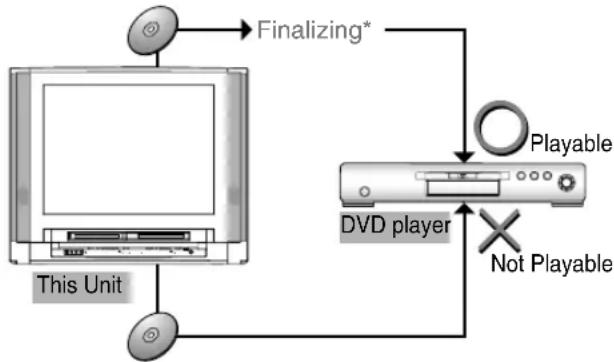
flowchart
graph TD
    A["This Unit"] -->|Finalizing*| B["Playable"]
    B --> C["DVD player"]
    C -->|Not Playable| D["Playable"]
*You cannot finalize discs in other DVD recorders.
Finalizing may take several minutes up to an hour. (A disc recorded in Video mode can take up to 15 minutes. A disc recorded in VR mode can take up to 60 minutes.)
A shorter recording period on the disc will require a longer time period for finalization. Do not unplug the power cord during finalization.
After finalizing:
- Once DVD-R/RW (Video mode) is finalized, you cannot record additionally or edit.
- Even if DVD-RW (VR mode) is finalized, you can record additionally to or edit.
- When DVD-R/RW (Video mode) is finalized, title menu will be created automatically.
To play in other DVD players, finalize discs recorded on this unit with the following condition.
| Disc type Mode | |
| DVD-Rver.2.0 | Video mode |
| DVD-RWver.1.1ver.1.1 CPRM compatible | Video modeVR mode |
⚠️You cannot cancel finalizing the DVD-R disc once it starts.
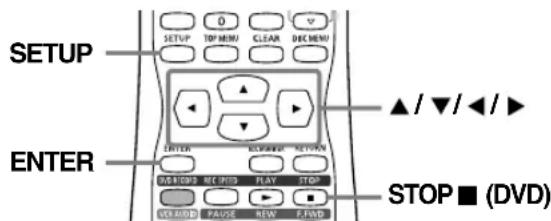
text_image
SETUP ENTER ▲/▼/◄/► STOP ■ (DVD)1 Press SETUP button to display SETUP/DISC menu. SETUP/DISC menu will appear.
2 Select "DISC" using ◀/▶ buttons, then press ENTER button.
DISC menu will appear.
3 Select "Finalize" using ▲/▼ buttons, then press ENTER button.
Option window will appear.
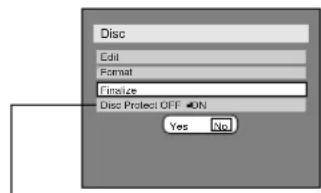
text_image
Disc Edit Format Finize Disc Protect OFF ▼DN Yes ▼No* VR mode only
4 Select "Yes" using ◀/▶ buttons, then press ENTER button. Finalizing will start.
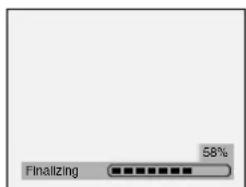
text_image
Finalizing 58%NOTE: Finalizing
- This operation may take a few minutes to complete.
- Finalizing discs in Video mode automatically create title menus.
- Once you have finalized a disc recorded in Video mode, you cannot edit or record any contents on that disc. Discs recorded in VR mode can still be recorded and edited on this unit even after finalized.
- To cancel finalizing, press STOP ■ (DVD) button. Select "Yes" using ◀/▶ buttons, then press ENTER button.
- When you insert a DVD-RW disc finalized with this unit, "Undo Finalize" will appear instead of "Finalize".
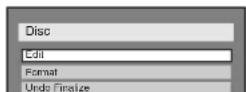
To release the finalizing for the disc, select "Undo Finalize" at step [3].
- If 📍 appear when pressing STOP ■ (DVD) button, you cannot cancel finalizing because the finalizing has been in certain progress. When selecting "No", press ENTER or RETURN button, finalizing will be continued.
Protecting Discs
DVD-RW (VR)
To prevent accidental recording, editing or erasing the titles, you can protect them.
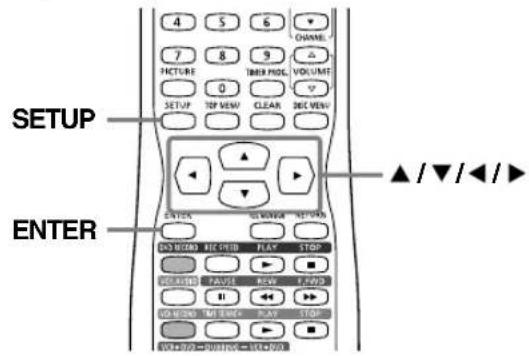
text_image
4 5 6 CHANNEL 7 8 9 FACTURE THER PROL VOLUME 0 SETUP TOP VIEW CLEAR DIG VIEW ▲/▼/◄/► SETUP ENTER OPEN ACCESS CONTROL ON/OFFORD REC ORDER FLAV STOP VOCADO FAUSE ROW E FADD OFF/OFFORD NET FREE PLAY STOP NEW/OFFORD=OR/OPEN=OR/OPEN1 Press SETUP button to display SETUP/DISC menu.
SETUP/DISC menu will appear.
2 Select "DISC" using ◀/▶ buttons, then press ENTER button.
DISC menu will appear.
3 Select "Disc Protect OFF → ON" using ▲/▼ buttons, then press ENTER button.
Option window will appear.
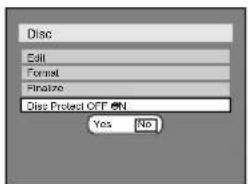
text_image
Disc Edit Format Finalize: Disc Project OFF ON Yes No4 Select "Yes" using ◀/▶ buttons, then press ENTER button.
A disc will be protected.
text_image
Writing to Disc 5.8%NOTE:
• This operation may take a few minutes to complete.
- The Disc Protect setting is available only when a disc with VR mode is inserted.
- You can only select Disc Protect Menu when a protected disc is inserted.
TO CANCEL THE DISC PROTECT :
- When you insert a disc protected with this unit, "Disc Protect ON → OFF" will appear instead of "OFF → ON".
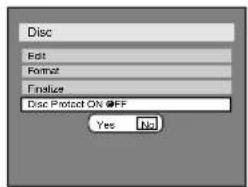
text_image
Disc Edit Format Finish Disc Protect ON OFF Yes NoTorelease the protect for the disc, select "Disc Protect ON → OFF" at step [3], then select "Yes".
Connecting to External Video Products
Connections
Connect the external video products properly to the unit by using input jacks on the front of this unit.
Use S-Video or video cable and an audio cable for this connection.
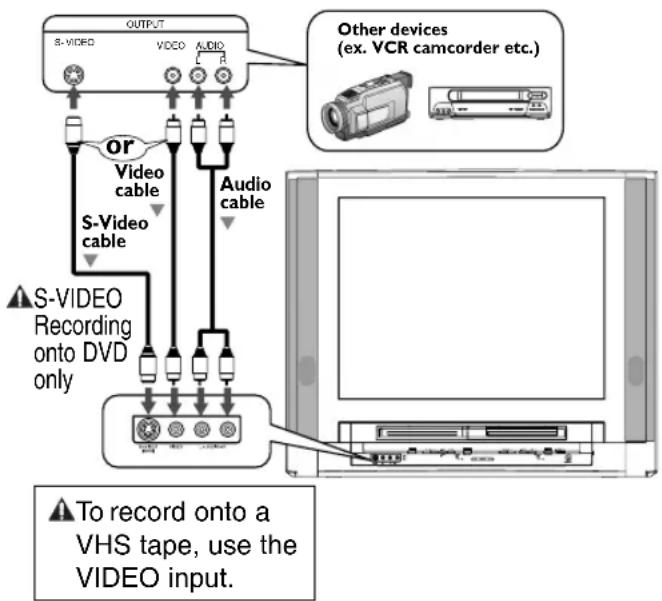
flowchart
graph TD
    A["OUTPUT"] --> B["S-VIDEO"]
    A --> C["VIDEO"]
    A --> D["AUDIO"]
    B --> E["or"]
    C --> F["Audio cable"]
    D --> G["Other devices (ex. VCR camcorder etc.)"]
    E --> H["S-VIDEO recording onto DVD only"]
    F --> I["Audio cable"]
    G --> J["To record onto a VHS tape, use the VIDEO input."]
1 Press SETUP button to display SETUP/DISC menu.
2 Select "SETUP" using ◀/▶ buttons, then press ENTER button.
3 Select "Select Video" using ▲/▼/◄/► buttons, then press ENTER button.
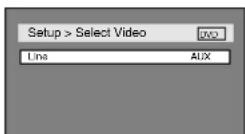
Press ENTER button.
Option window will appear.
4 Select the input jack type to connect using ▲/▼ buttons, then press ENTER button.
If you want to use S-VIDEO INPUT, select "S". If you want to use VIDEO INPUT (Composite), select "AUX".
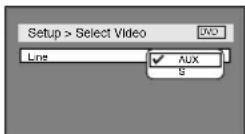
5 Press SETUP button to exit.
Recording from External Video Products
DVD-R
DVD-RW (VR)D VDMORVio
Before recording from an external video product, see the instructions for the connection in the previous section, "Connections".
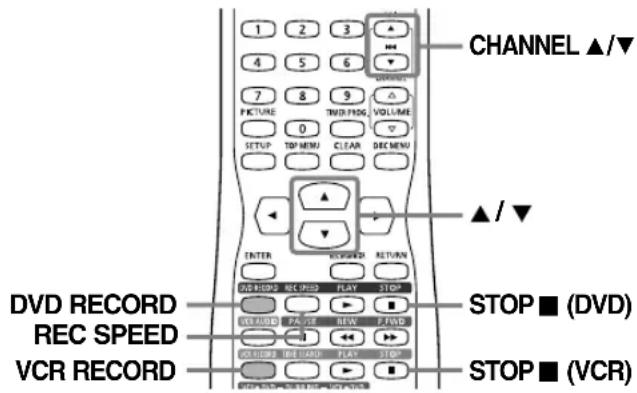
text_image
CHANNEL ▲/▼ ▲/▼ DVD RECORD REC SPEED VCR RECORD STOP ■ (DVD) STOP ■ (VCR)1 Turn the unit on.
2 When you want to record onto a DVD:
Press ▲ OPEN/CLOSE button on the main unit to open the disc tray, then place the disc to record properly, then press ▲ OPEN/CLOSE button again to close the disc tray.
NOTE:
• This operation may take a few minutes to complete.
When you want to record to a tape:
Insert the tape with a safety tab into the cassette compartment.
3 Select the external input mode ("AUX" or "S") using CHANNEL ▲/▼ buttons.
4 Press REC SPEED button (For VCR, press REC SPEED button twice), then change the recording speed using ▲/▼ buttons until your desired speed is displayed. Refer to "Recording Speed" on page 48 for DVD or page 28 for VCR.
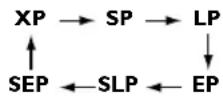
DVD mode

VCR mode
5 Press DVD RECORD button or VCR RECORD button to start recording.
6 Press PLAY button on the external video product.
7 For disc:
Press STOP ■ (DVD) button to stop recording.
NOTE:
- This operation may take a few minutes to complete.
For tape:
Press STOP ■ (VCR) button to stop recording.
DVD-R
DVD-RW (VR) DVD-ROR(Vic
You can copy a DVD disc to a videotape or copy a videotape to a DVD disc. This function will be possible only if the DVD disc or the tape is not copy protected. Before starting this function, prepare for the recording on the DVD-R/RW disc or the videotape. Refer to pages 48-55, 28-30.
▲NOTE: Load Recording Media
- Insert a DVD disc or videotape with the available recording space.
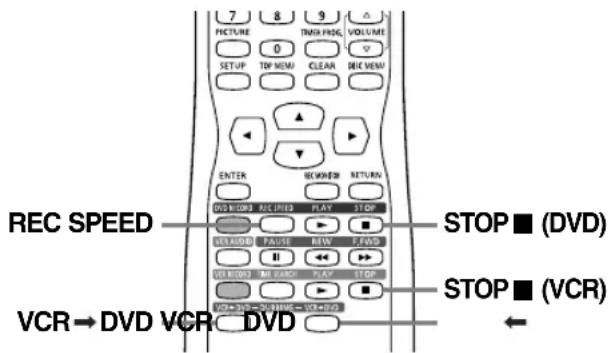
text_image
7 FICTURE 0 SET-UP TDP-MEM CLEAR REC VIEW ENTER RENEER RETURN DVD MOLD REC FLOW FLY STIP VRAURO PULSE RAW FWD H I DO BLOOD ANY WM FIN LAIN STOP VCR→DVD VCR DVD STOP ■ (DVD) STOP ■ (VCR)VCR to DVD DVD to VCR
The DVD recording speed and format should be selected first. Refer to "Recording" on page 48 and "Formatting" on pages 49-50.
1 Press REC SPEED button first, and select a recording speed using ▲/▼ buttons.
2 Press VCR → DVD button on the remote control or on the main unit.
VCR to DVD duplication will start.
3 Press STOP ■ (DVD) or STOP ■ (VCR) button on the remote control or on the main unit to stop the recording.
NOTE:
- A fter starting VCR to DVD duplication, the picture may be distorted because of the auto tracking function. This is not a malfunction. Be advised to playback the tape until the picture is stabilized, then set the starting point you wish to start recording, and start VCR to DVD duplication.
The tape's record tab should be intact.
The videotape should have enough available space to record the DVD disc.
1 Press REC SPEED button twice and select a recording speed using ▲/▼ buttons.
2 Press VCR ← DVD button on the remote control or on the main unit.
DVD to VCR duplication will start.
3 Press STOP ■ (DVD) or STOP ■ (VCR) button on the remote control or on the main unit to stop the recording.
NOTE: DVD Dubbing
- Duplicating operation from DVD to VCR is only available when DVD stops or during DVD playing, and when VCR stops.
- You cannot make a dub from a DVD disc protected by copyright, such as a prerecorded DVD.
Timer Recording
DVD-R DVD-RW (VR) DVD-RORVic
You can program up to 7 programs 1 year in advance. Daily or weekly program recordings are also available.
NOTE: Time must be set
- Be sure to set the clock before making a timer programming.
- Insert a recordable disc or a tape with a safety tab.
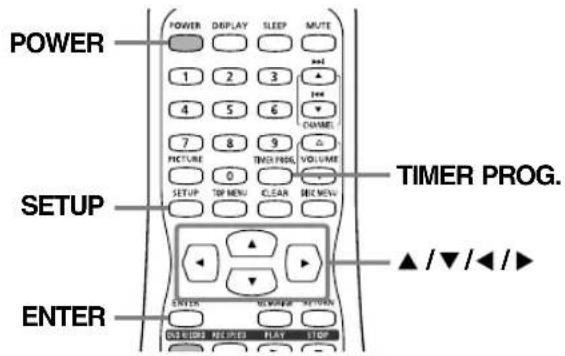
text_image
POWER 1 2 3 4 5 6 7 8 9 PICTURE TIME PROG. VOLUME 0 SETUP TOP MENU CLEAR SEE NOW ENTER TIMER PROG. ▲/▼/◄/►1 Press SETUP button to display SETUP/DISC menu.
SETUP/DISC menu will appear.
2 Select "SETUP" using ◀/▶ buttons, then press ENTER button.
SETUP menu will appear.
3 Select "Recording" using ▲/▼/◄/► buttons, then press ENTER button.
Recording menu will appear.
4 Select "Timer Programming" using ▲/▼ buttons, then press ENTER button.
Timer Programming list will appear.
NOTE: Timer Program Menu
- Timer Programming menu can also be selected by pressing TIMER PROG. button. In this case, continue with step [5].
- If you have not set the clock yet: A clock setting window will appear after step [4]. Before making a timer programming, press ENTER button then finish setting the clock, referring to the step [5] in "Manual Clock Setting" on page 19.

5 Select the blank program using ▲/▼ buttons, then press ENTER button.
6 Enter the date using ▲/▼ buttons, then press ▶ button.
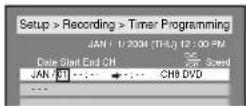
e.g. January 1st
NOTE:
- When pressing ▼ button at the current date, timer recording mode will change as follows:
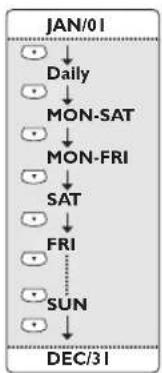
flowchart
graph TD
    A["•"] --> B["•"]
    B --> C["•"]
    C --> D["•"]
    D --> E["•"]
    E --> F["•"]
    F --> G["•"]
    G --> H["•"]
    H --> I["•"]
    I --> J["•"]
    J --> K["•"]
    K --> L["•"]
    L --> M["•"]
    M --> N["•"]
    N --> O["•"]
    O --> P["•"]
    P --> Q["•"]
    Q --> R["•"]
    R --> S["•"]
    S --> T["•"]
    T --> U["•"]
    U --> V["•"]
    V --> W["•"]
    W --> X["•"]
    X --> Y["•"]
    Y --> Z["•"]
    Z --> AA["•"]
    AA --> AB["•"]
    AB --> AC["•"]
    AC --> AD["•"]
    AD --> AE["•"]
    AE --> AF["•"]
    AF --> AG["•"]
    AG --> AH["•"]
    AH --> AI["•"]
    AI --> AJ["•"]
    AJ --> AK["•"]
    AK --> AL["•"]
    AL --> AM["•"]
    AM --> AN["•"]
    AN --> AO["•"]
    AO --> AP["•"]
    AP --> AQ["•"]
    AQ --> AR["•"]
    AR --> AS["•"]
    AS --> AT["•"]
    AT --> AU["•"]
    AU --> AV["•"]
    AV --> AW["•"]
    AW --> AX["•"]
    AX --> AY["•"]
    AY --> AZ["•"]
    AZ --> BA["•"]
    BA --> BB["•"]
    BB --> BC["•"]
    BC --> BD["•"]
    BD --> BE["•"]
    BE --> BF["•"]
    BF --> BG["•"]
    BG --> BH["•"]
    BH --> BI["•"]
    BI --> BJ["•"]
    BJ --> BK["•"]
    BK --> BL["•"]
    BL --> BM["•"]
    BM --> BN["•"]
    BN --> BO["•"]
    BO --> BP["•"]
    BP --> BQ["•"]
    BQ --> BR["•"]
    BR --> BS["•"]
    BS --> BT["•"]
    BT --> BU["•"]
    BU --> BV["•"]
    BV --> BW["•"]
    BW --> BX["•"]
    BX --> BY["•"]
    BY --> BZ["•"]
7 Enter the time to start and to end using ▲/▼ buttons, then press ▶ button.
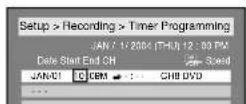
NOTE:
- Press ◀ or ▶ buttons to move the cursor to the left and the right in the timer programming menu.
8 Select the channel number to record using ▲/▼ buttons, then press▶ button.
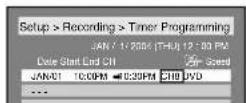
- To record from external input, select "AUX".
9 Select a recording media using ▲/▼ buttons, then press ▶ button.
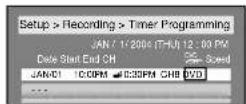
• To record on to a tape, select VCR.
• To record on to a disc, select DVD.
10 Select a recording speed using ▲/▼ buttons.
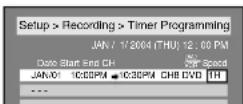
Refer to "Recording speed" on page 48 for DVD or page 28 for VCR.
- If you set Recording speed to "Auto" at step [10], this unit will automatically adjust the recording speed so that the program will fit into one disc.
(You can select "Auto" in the first program only.)
11 Press ENTER button when all information required is entered.
Your program setting will be entered.
- To set another program, repeat steps [5] to [11].
- To exit, press SETUP button.
12 Press POWER button to turn off.
▲ Important
When you set the timer program in either DVD mode or VCR mode, RECORD indicator (DVD) will illuminate on the front of the TV. See item No.19 on page 7.
NOTE:
- If power is not turned off and you continue watching TV, "TIMER REC STANDBY" starts flashing on the TV screen 2 minutes before the programmed start time. In this case, press POWER button to turn off to activate the timer recording.
- You may turn on the unit once the timer recording has started.
Checking, canceling, or correcting the timer programming information
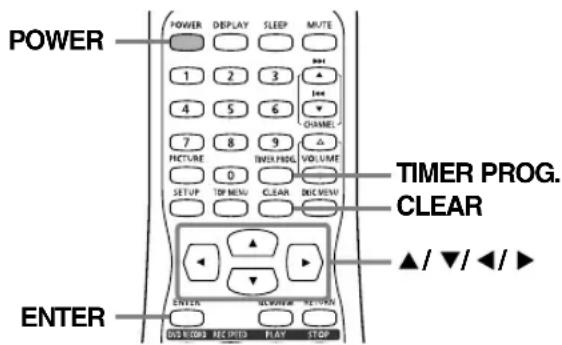
text_image
POWER POWER DEPLAY SLEEP MUTE 1 2 3 4 5 6 CHANNEL 7 8 9 PICTURE SWITCH PROG VOLUME 0 SETUP TIP MENU CLEAR DEC menu ENTER ENTER CLK/OPEN CHANNEL DIS EUDS MELIRED PLAY STOP TIMER PROG. CLEAR ▲/▼/◄/►1 Press POWER button.
2 Press TIMER PROG. button. Timer Programming list will appear.
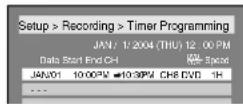
3 Check the information.
4 To clear the timer programming, select your desired program using ▲/▼ buttons, then press CLEAR button.
To correct the timer programming, select your desired program using ▲/▼ buttons, then press ENTER button.
Next, correct the timer programming using ▲/▼/◄/► buttons.
Finally, press ENTER button again.
5 Press TIMER PROG. button to exit.
6 Press POWER button to return to the timer standby mode.
NOTE:
- Press TIMER PROG. button to check the timer programming in process.
When the timer recording is in process, that program will be highlighted in red. In this case, you cannot select any other program.
To stop the timer recording in process
Press POWER button first to turn on the unit. Then, on the front panel of the unit, press STOP ■ (DVD) button to stop the recording or ■ STOP/▲ EJECT to stop the tape recording. STOP ■ button on the remote control does not work for timer recording.
Suggestions for Timer Recording
- If there is a power failure or this unit has been unplugged for more than 3 seconds, the clock setting and all timer settings will be lost.
- If a disc is not on the tray, timer recording cannot be performed. Please insert a recordable disc.
- If a tape with a record tab is not in the cassette compartment, timer recording cannot be performed. Please insert a recordable tape. See "Accidental erasure prevention" on page 28.
- The main unit automatically ejects a tape without a record tab inserted in the compartment when you turn off the power and move to timer standby mode.
- When all the timer recording is completed, the RECORD indicator disappears. To play the recorded disc (or the tape), press POWER button first and then press PLAY ▶ (DVD) or PLAY ▶ (VCR). To eject the recorded disc (or the tape), press ▲ OPEN/CLOSE (or ■ STOP/▲EJECT) button.
- The timer recording is not performed in DVD and VCR at the same time. If you set two programs with the same channel and time both in DVD and VCR, the program that has priority will be recorded.
- During timer recording or timer standby (RECORD indicator is on the front display), any operations on the unit will not be available. To make these operations available, cancel the timer recording or timer standby first (RECORD indicator disappears).
- To cancel the timer standby mode, press POWER button.
- When the Start and the End time are the same, the length of the recording will be set for 24 hours. When the disc reaches at the end during the recording, the unit turns itself off.
- When the programmed Start and End time are earlier than the current time, the recording will be set on the same date in the next year.
- If your programmed Start time for DVD recording is within 2 minutes from the current time, the power will turn on for recording standby right after you turn the power off. For a videotape recording, the power will turn on shortly before the Start time.
- If a videotape ends during timer recording, the unit will stop, eject the videotape and turn itself off.
- When two or more programmings are overlapped, "Overlap" will be displayed.
The priority of overlapped settings
This unit records the programs according to priority if the timer programs are overlapped. The timer program set first is given priority. A timer recording of lower priority will be canceled, begin from the middle or stopped at the end.
Check the overlapped timer programs and change the priority if necessary.
■ A programming set previously has priority
□ When the starting time is the same:
A program set previously (PROG.A) has priority.
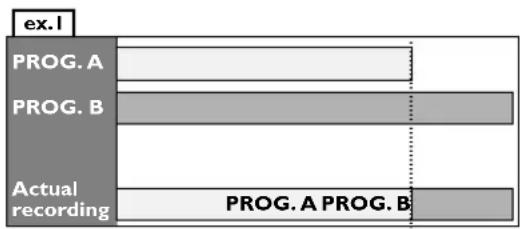
text_image
ex.1 PROG. A PROG. B Actual recording PROG. A PROG. B■ When the recording time is partially overlapped:
PROG. A will start after PROG. B is complete to be recorded.
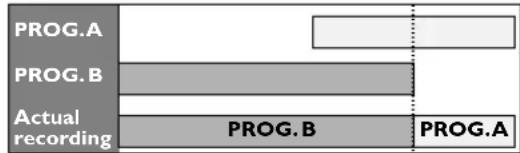
bar
| Category | PROG.A | PROG.B | Actual recording | |---|---|---|---| | Value | 0 | 0 | 0 | PROG.B: 0 | 0 | 0 | 0 | PROG.B: 0 | 0 | 0 | 0 | PROG.B: 0 | 0 | 0 | 0 | PROG.B: 0 | 0 | 0 | 0 | PROG.A: 0 | 0 | 0 | 0 | PROG.A: 0 | 0 | 0 | 0 | PROG.A: 0 | 0 | 0 | 0 | PROG.A: 0 | 0 | 0 | 0 | PROG.A: 0 | 0 | 0 | 0 | PROG.A: 0 | 0 | 0 | 0 | PROG.A: 0 PROG.B: 0 PROG.B: 0 PROG.B: 0 PROG.A: 0 PROG.A: 0 PROG.A: 0 PROG.A: 0 PROG.A: 0 PROG.A: 0 PROG.A: 0 PROG.A: 0 PROG.A: 0 PROG.A: 0 PROG.A: 0 PROG.A: 0 PROG.A: 0 PROG.A: 0 PROG.A: PROG.B: PROG.A: PROG.A: PROG.B: PROG.A: PROG.A: PROG.B: PROG.A: PROG.A: PROG.B: PROG.A: PROG.A: PROG.B: PROG.A: PROG.A: PROG.B: PROG.A: PROG.A: PROG.B: PROG.A: PROG.A: PROG.B: PROG.A□ When some programming have been
made at the end time of the programming currently being recorded:
A program set previously (PROG. B) has priority.
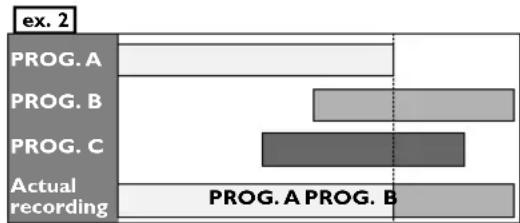
bar
| Category | Value | |---|---| | PROG. A | 0 | | PROG. B | 1 | | PROG. C | 2 | | PROG. A PROG. B | 0 |■ When the recording time is entirely overlapped:
PROG. A will not be recorded.
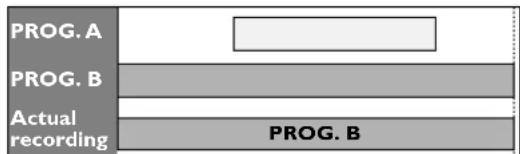
text_image
PROG. A PROG. B Actual recording PROG. BNote for DVD timer recording
- When the recording time of two programs are overlapped or the End time of a program and the Start time of another is the same, the first 20-90 seconds of the subsequent program will be cut off.
Example:
When the end time of the programming currently being recorded and the starting time of the one to be recorded sequentially are same:
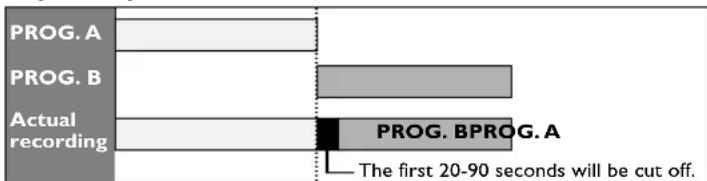
bar
| Record | Value | | :--- | :--- | | PROG. A | | | PROG. B | | | Actual recording | PROG. BPROG. A | | The first 20-90 seconds will be cut off. | |About Disc Editing
Title List
Title list allows you to check the titles recorded on the disc easily. You can choose a title to edit from this screen and easily edit the titles as you prefer.
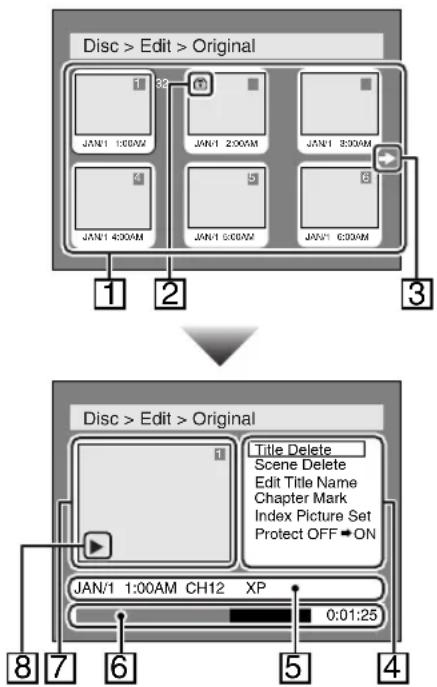
flowchart
graph TD
    A["Disc > Edit > Original"] --> B["1: 30"]
    A --> C["2: 30"]
    A --> D["3: 30"]
    B --> E["JAN1 1:00AM"]
    C --> F["JAN1 2:00AM"]
    D --> G["JAN1 3:00AM"]
    E --> H["JAN1 4:00AM"]
    F --> I["JAN1 5:00AM"]
    G --> J["JAN1 6:00AM"]
    H --> K["↓"]
    I --> L["↓"]
    J --> M["↓"]
    N["Disc > Edit > Original"] --> O["1: 1"]
    N --> P["2: 1"]
    N --> Q["3: 3"]
    N --> R["4: 4"]
    N --> S["8: 7: 6: 5: 4"]
    N --> T["JAN/1 1:00AM CH12 XP 0:01:25"]
- Titles recorded on the disc can be selected to edit by pressing ENTER button with the cursor on the title.
- Protect icon, which appears when the title has been protected.
- The arrow icon, which means the title list includes a next or a previous page. Press ▶ or ◀button by following direction of the icon.
- The menus for editing titles as you prefer. The available menu depends on the disc type and the format type.
- The details of the title, which can be changed to the title name you will edit.
- Time status bar of the title.
- The selected title thumbnails from the title list.
- Playback status of the current disc.
Editing in Video Mode
You can edit the following items for discs in Video mode. Be sure that once you edit titles, they will not remain as recorded originally.
- Deleting titles (Refer to page 62)
- Putting names on titles (Refer to page 63)
- Setting or clearing chapter markers (Refer to page 63)
NOTE: Finalized Discs
- Once a disc is finalized, editing the disc or recording to the disc will not be available. (Except DVD-RW discs in VR mode.)
- A playlist is not available with the DVD-R discs and DVD-RW discs in Video mode.
Editing in VR Mode
For discs in VR mode, you can edit from "Original" menu or "Playlist" menu, which is created from the original.
Editing original titles
The following operations can be used to edit the original titles.
-Deleting titles (Refer to page 64)
-Deleting parts of titles (Refer to page 65)
-Putting names on titles (Refer to page 65)
-Setting or clearing chapter markers (Refer to page 66)
-Setting pictures for thumbnails (Refer to page 66)
-Setting titles to protect (Refer to page 67)
-Releasing titles from protecting (Refer to page 67)
Editing playlists
You can create a playlist from original titles, so that you can edit as you prefer without losing original titles. The following operations you can edit with a playlist.
-Deleting titles (Refer to page 68)
-Deleting parts of titles (Refer to page 69)
-Putting names on titles (Refer to page 69)
-Setting or clearing chapter markers (Refer to page 70)
-Setting pictures for thumbnails (Refer to page 70)
-Adding titles to a playlist (Refer to page 71)
-Deleting a playlist (Refer to page 71)
NOTE: Original Titles
- Original titles once edited will not remain as recorded originally. When you want to leave the original as it is, edit the playlist as you prefer. (Refer to pages 68-71.)
Editing Discs in Video Mode
Deleting Titles
DVD-R DVD-RW (Video)
Caution:
You can delete titles that you do not need anymore. The titles once deleted cannot be recovered to the disc. When the last title in the title list in Video mode is deleted, the disc space to record will be increased. For DVD-R disc, the disc space to record will not be changed.
text_image
SETUP ENTER ▲/▼/◄/►1 Press SETUP button. Select "DISC" using ◀/▶ buttons, then press ENTER button.
DISC menu will appear.
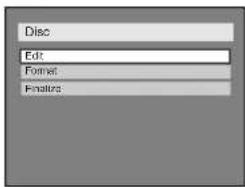
text_image
Disc Edit Format Finalize2 Select "Edit" using ▲/▼ buttons, then press ENTER button.
Title list will appear.
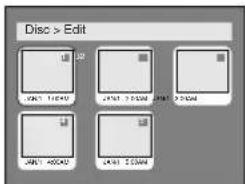
text_image
Disc > Edit JAK1 110402 JAK1 70508 JAK1 70508 JAK1 400402 JAK1 3004063 Select a desired title using ▲/▼/◄/► buttons, then press ENTER button.
Edit menu will appear.
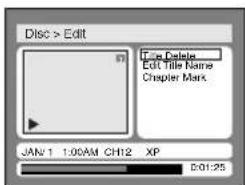
text_image
Disc > Edit File Delete Edit Title Name Chapter Mark JAN 1 1:00AM CH12 XP 5:01:25- You cannot select "Chapter Mark" when a DVD-R disc is inserted into this unit.
4 Select "Title Delete" using ▲/▼ buttons, then press ENTER button.
Option window will appear.
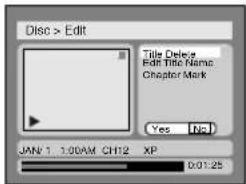
text_image
Disc > Edit Title Delete Edit Title Name: Chapter Mark Yes No JAN 1 1:00AM CH12 XP 0:01:255 Select "Yes" using ◀/▶ buttons, then press ENTER button.
Title will be deleted.
NOTE:
• This operation may take a few minutes to complete.
6 After writing to disc is completed, press SETUP button to exit DISC menu.
Naming Titles
DVD-R DVD-RW (Video)
You can name the titles and change the names from this menu.
The title names will be displayed on a Title List.
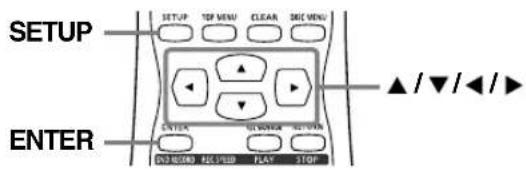
text_image
SETUP ENTER SETUP TOP MENU CLEAR DEC MENU ▲/▼/◄/► CLOCK NO VENUE NOT OPEN DVD RECORD FEE SPEED PLAY STOPFollow the steps [1] to [3] on page 62 to display the Edit menu.
1 Select "Edit Title Name" using ▲/▼ buttons, then press ENTER button.
A window for entering a title name will appear.
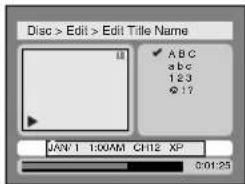
text_image
Disc > Edit > Edit Title Name A B C a b c 1 2 3 Ø 1 ? JAN'1 1:00AM CH12 XP 0:01:252 Toenter a title name, follow the steps shown in "Guide to edit title name" below.
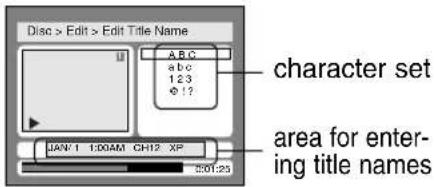
text_image
Disc > Edit > Edit Title Name A B C a b c 1 2 3 ? ! ? character set area for enter- ing title names JAN-1 1:00AM CH12 XP 5:01:25When you finish entering a title name, press ENTER button.
[Guide to edit title name]
| SelectPress | ABC | abc | 123 | @! |
| 0 | ||||
| 1 | *| | *| | 1 | ! " # 5 %& ( ) *+ , - / :<= > ?@ [ ] ^- { | } |
| 2 | ABC | abc | 2 | *2 |
| 3 | DEF | def | 3 | *2 |
| 4 | GHI | ghi | 4 | *2 |
| 5 | JKL | |kl | 5 | *2 |
| 6 | MNO | mno | 6 | *2 |
| 7 | PQRS | pqrs | 7 | *2 |
| 8 | TUV | tuv | 8 | *2 |
| 9 | WXYZ | wxyz | 9 | *2 |
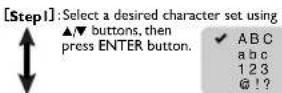
[Step2]: Press Number buttons following by the list.
*1 Press 1 button, character set will be changed to the "@?" mode automatically.
*2 Press 2 to 9 buttons, character set will be changed to the previous input mode automatically.
- To delete letters, press CLEAR button repeatedly.
- To go on to the next entering area for letters, press ➤ button.
- You can enter up to 30 letters.
3 Select "Yes" using ◀/▶ buttons, then press ENTER button.
The name you entered will be activated for the title.
NOTE:
• This operation may take a few minutes to complete.
4 After writing to disc is completed, press SETUP button to exit DISC menu.
Setting Chapter Markers
DVD-RW (Video)
You can put chapter markers in each title. Once a chapter is marked, you can use it for the chapter search. You can set chapter markers at a specified time you selected for titles with more than 5 minutes.
NOTE:
- You cannot select a time for putting markers beyond a length of a title.
- When recording at the recording speed other than XP or SEP, the length of chapters may be slightly longer or shorter than the one specified at the step [2].
- A chapter marker may be delayed according to the recording content.
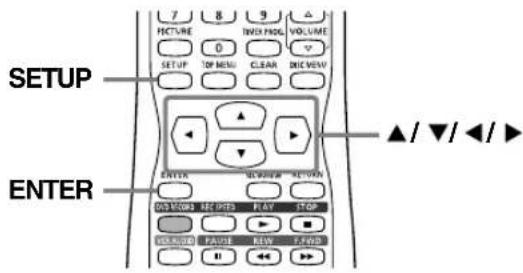
text_image
SETUP ENTERFollow the steps [1] to [3] on page 62 to display the Edit menu.
1 Select "Chapter Mark" using ▲/▼ buttons, then press ENTER button.
Option window will appear.
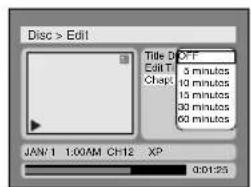
text_image
Disc > Edit Title D OFF Edit T: 3 minutes 10 minutes 15 minutes 30 minutes 60 minutes Chapt JAN-1 1:00AM CH2 XP 0:01:252 Select a desired time using ▲/▼ buttons, then press ENTER button.
Option window will appear.
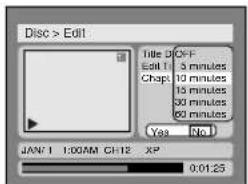
text_image
Disc > Edit Title: OFF Edit 1: 3 minutes Chap: 10 minutes 15 minutes 30 minutes 60 minutes Yes No. JAN 1 1:00AM CH12 XP 0:01:253 Select "Yes" using ◀/▶ buttons, then press ENTER button.
Chapter marks will be put as you specified.
NOTE:
• This operation may take a few minutes to complete.
4 After writing to disc is completed, press SETUP button to exit DISC menu.
Editing DVD-RW Discs in VR Mode (Original)
Deleting Titles
DVD-RW (VR)
When a title is deleted from an original list in VR mode, the disc space to record will be increased.
Caution:
Be advised that the titles once deleted cannot be brought back to the disc.
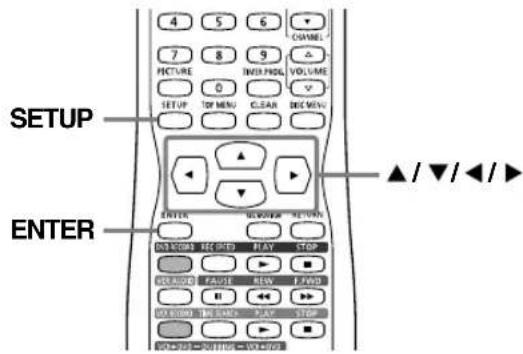
text_image
4 5 6 CHANNEL 7 8 9 PICTURE IND & MDL VOLUME 0 SETUP TO MENU CLEAR DEQ MENU SETUP ENTER ▲/▼/◄/► ENTER OK/COGN REF (RFD) PLAY STOP DEAVID FAUSE REW FWD EVEED THE SANS PLAY STOP OK/COGN REF (RFD) PLAY STOP1 Press SETUP button. Select "DISC" using ◀▶ buttons, then press ENTER button.
DISC menu will appear.
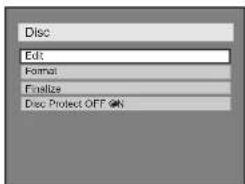
text_image
Disc Edit Format Finalize Disc Protect OFF2 Select "Edit" using ▲/▼ buttons, then press ENTER button.
Original/PlayList menu will appear.
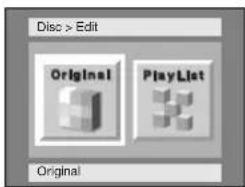
text_image
Disc > Edit Original PlayList Original3 Select "Original" using ◀/▶ buttons, then press ENTER button.
Original list will appear.
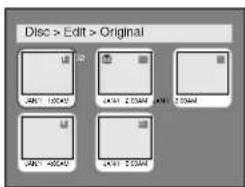
text_image
Disc > Edit > Original JAB1 10042 LA61 2.00MM LA6 2.00MM JAB1 40042 LA61 2.00MM4 Select a desired title using ▲/▼/◄/► buttons, then press ENTER button.
Original menu will appear.
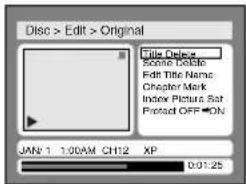
text_image
Disc > Edit > Original Title Device Some Delete Edit Title Name Chapter Mark Index Picture Sat Protected OFF ON JAN'1 1:00AM CH12 XP 0:01:255 Select "Title Delete" using ▲/▼ buttons, then press ENTER button.
Option window will appear.
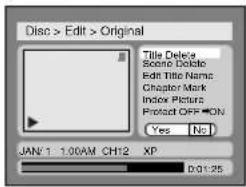
text_image
Disc > Edit > Original Title Delete Score Delete Edit Title Name Chapter Mark Index Pictures Protected OFF ON Yes No JAN-1 1.00AM CH12 XP D:01:25Caution:
Once erased, the material cannot be retrieved.
6 Select "Yes" using ◀/▶ buttons, then press ENTER button.
Title will be deleted.
NOTE:
• This operation may take a few minutes to complete.
7 After writing to disc is completed, press SETUP button to exit DISC menu.
Deleting Parts of Titles
DVD-RW (VR)
You can delete part of a title so that the disc space to record will increase.
Caution:
Be advised that the parts once deleted cannot be recovered.
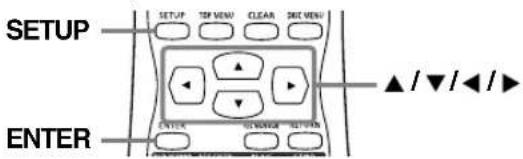
text_image
SETUP ENTERFollow the steps [1] to [4] on page 64 to display the Original menu.
1 Select "Scene Delete" using ▲/▼ buttons, then press ENTER button.
Option window will appear.
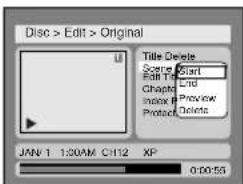
text_image
Disc > Edit > Original Title Delete Scene Edit Chapter Index B Protect Start End Preview Delete JAN 1 1:00AM CH12 XP 0:00:552 Press ENTER button to decide a start point, then press ENTER button to decide an end point.
A cursor will move to "Preview." You can check a preview.
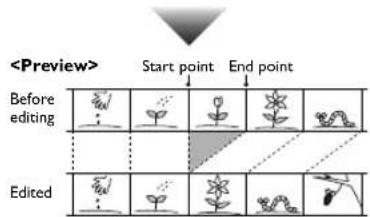
flowchart
graph TD
    A["Start point"] --> B["Before editing"]
    C["End point"] --> D["Edited"]
3 Select "Delete" using ▲/▼ buttons, then press ENTER button.
Option window will appear.
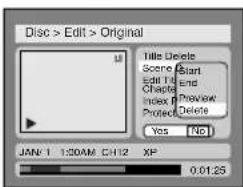
text_image
Disc > Edit > Original Title Details Scene Edit Time Chapter Index Protect Yes No JAN-1 1:30AM CH12 XP 0.01:254 Select "Yes" using ◀/▶ buttons, then press ENTER button.
Part of a title will be deleted.
NOTE:
• This operation may take a few minutes to complete.
- You cannot select "Scene Delete" when the number of chapter markers in the original or playlist is more than 900.
5 After writing to disc is completed, press SETUP button to exit DISC menu.
Naming Titles
DVD-RW (VR)
You can name the titles and change the names from this menu.
The title names will be displayed on a Title List.
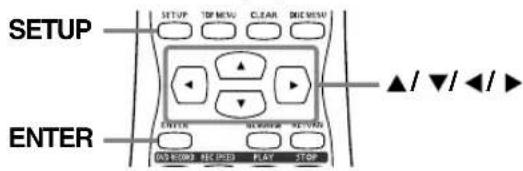
text_image
SETUP ENTER SETUP TOP MENU CLEAR DEC MUSH ▲/▼/◄/► ENTER OK/OK/OK NE/OFF FLAT STOPFollow the steps [1] to [4] on page 64 to display the Original menu.
1 Select "Edit Title Name" using ▲/▼ buttons, then press ENTER button.
A window for entering a title name will appear.
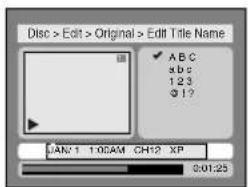
text_image
Disc > Edit > Original > Edit Title Name ✓ ABC abc 123 Ø 1 ? JAN:1 1:00AM CH12 XP 0:01:252 To enter a title name, follow the steps shown in "Guide to edit title name" below.
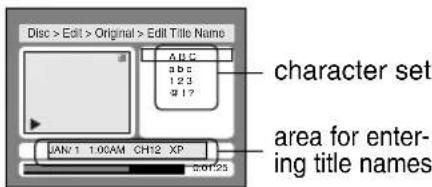
text_image
Disc > Edit > Original > Edit Title Name A15 a b 2 1 2 3 g 1 ? character set area for enter- ing title names JAN-1 1.00AM CH12 XP 2:01:25When you finish entering a title name, press ENTER button.
[ Guide to edit title name ]
| SelectPress | ABC | abc | 123 | @ !? |
| 0 | ||||
| 1 | *| *| | 1 | ! ” # $ %& *( ) ^+ . . . / ;<= > ?@ [ ] ^- { | } | |
| 2 | ABC | abc | 2 | *2 |
| 3 | DEF | def | 3 | *2 |
| 4 | GHI | ghi | 4 | *2 |
| 5 | JKL | jkl | 5 | *2 |
| 6 | MNO | mno | 6 | *2 |
| 7 | PQRS | pqrs | 7 | *2 |
| 8 | TUV | tuv | 8 | *2 |
| 9 | WXYZ | wxyz | 9 | *2 |
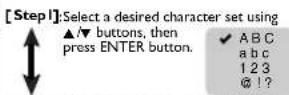
[Step2]: Press Number buttons following by the list.
*1 Press 1 button, character set will be changed to the "@?" mode automatically.
*2 Press 2 to 9 buttons, character set will be changed to the previous input mode automatically.
• To delete letters, press CLEAR button repeatedly.
- To go on to the next entering area for letters, press ▶ button.
• You can enter up to 30 letters.
3 Select "Yes" using ◀/▶ buttons, then press ENTER button.
The name you entered will be activated for the title. NOTE:
- This operation may take a few minutes to complete.
4 After writing to disc is completed, press SETUP button to exit DISC menu.
Setting Chapter Markers
DVD-RW (VR)
You can put chapter markers in each title. Once a chapter is marked, you can use it for chapter search.
You can put a chapter marker anywhere you want.
NOTE:
- When the number of chapter markers in the original list comes to 999 in total, you cannot add any more chapter markers.
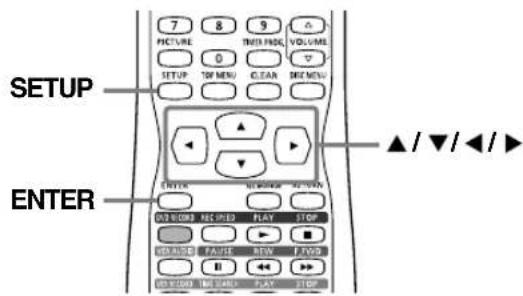
text_image
SETUP ENTER 7 8 9 PICTURE 0 TOM MENU GREEN ▲/▼/◄/► ▲/▼/◄/► OK WORKS REC PLED PLAY STOP DEFAULT FALSE REV F TWO EFFECTIVE NAME PLAY STOPFollow the steps [1] to [4] on page 64 to display the Original menu.
1 Select "Chapter Mark" using ▲/▼ buttons, then press ENTER button.
Option window will appear.
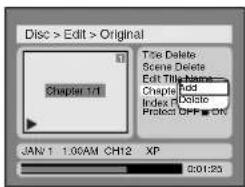
text_image
Disc > Edit > Original Chapter 1/1 Title Delete Scene Delete Edit Title Name Chapter Add Index Delete Protect OFF JAN 1 1:00AM CH12 XP 0:01:232 Select "Add" or "Delete" using ▲/▼ buttons, then press ENTER button.
Option window will appear.
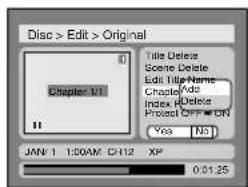
text_image
Disc > Edit > Original Chapter 11 Title Delete Scene Delete Edit Title Name Chapter Add Index Delete Protect OFF ON Yes No JAN 1 1:00AM CH2 XP 0.01.25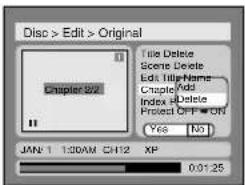
text_image
Disc > Edit > Original Chapter 0/2 Title Delete Scene Delete Edit Title Name Cnuple Add Index bDelete Protect OFF ON Yes No JAN 1 1:30AM CH12 XP 0.0125- You cannot delete the first chapter marker of each title.
3 Select "Yes" using ◀/▶ buttons, then press ENTER button.
A chapter marker will be added or deleted.
NOTE:
• These operations may take a few minutes to complete.
4 After writing to disc is completed, press SETUP button to exit DISC menu.
Setting Pictures for Thumbnails
DVD-RW (VR)
You can set a picture to each title for a thumbnail. It helps you to remember the contents of the title you are playing. The beginning picture has been selected as the default.
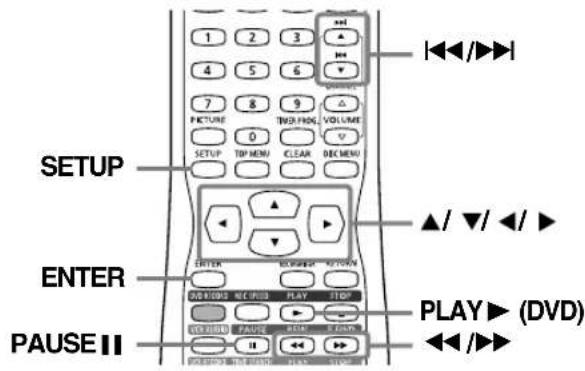
text_image
SETUP ENTER PAUSE II play ▶ (DVD) ▲/▼/◄/► 1 2 3 4 5 6 7 8 9 0 SETUP TOP MENU CLEAR DEC MENU ▲/▼/◄/► DOWN/DOWN REC/DOWN PLAY STOP DOWN/DOWN PAUSE END CLOSE <Follow the steps [1] to [4] on page 64 to display the Original menu.
1 Select "Index Picture Set" using ▲/▼ buttons. Use I◀◀, ▶▶I, ◀◀, ▶▶, PLAY▶ (DVD) and PAUSE II buttons to decide the picture you want to select as a thumbnail, then press ENTER button.
Option window will appear.
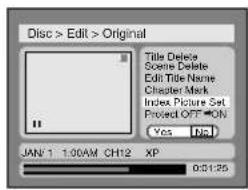
text_image
Disc > Edit > Original Title Delete Scene Delete Edit Title Name Chapter Mark Index Picture Set Project OFF ON Yes No JAN 1 1:00AM CH12 XP 0:01:252 Select "Yes" using ◀/▶ buttons, then press ENTER button.
A picture for thumbnail will be set.
NOTE:
• This operation may take a few minutes to complete.
- If a selected picture for a thumbnail is deleted by deleting a part of a title, a default picture will be selected.
3 After writing to disc is completed, press SETUP button to exit DISC menu.
Protecting Titles
DVD-RW (VR)
To prevent accidental editing or erasing the titles, you can protect them from the original menu.
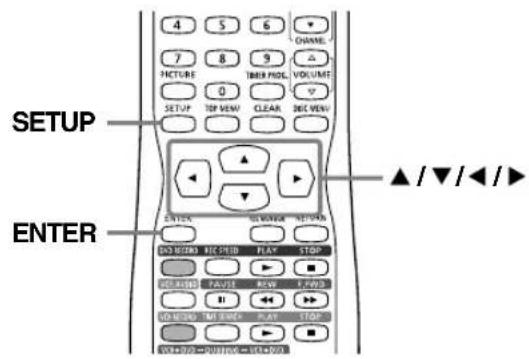
text_image
4 5 6 CHANNEL 7 8 9 FACTURE THER PROG. VOLUME 0 SETUP TOP VIEW CLEAR REC VIEW ▲/▼/◄/► ENTER ENGLISH NET WIRE NET WIN ON USDA SEC FEEF FLAV FLOW VOLKSWIP FAVEE RLOW FLOW WALWDER NET BLOW FLOW FLOW AVOCAT ON PUS PUS ON SELL ONFollow the steps [1] to [4] on page 64 to display the Original menu.
1 Select "Protect OFF → ON" using ▲/▼ buttons, then press ENTER button.
Option window will appear.
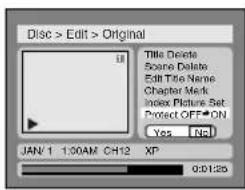
text_image
Disc > Edit > Original Title Delete Scene Delete Edit Title Name Chapter Mark Index Picture Set: Protect OFF ON Yes No JAN 1 1:00AM CH12 XP 0:01:252 Select "Yes" using ◀/▶ buttons, then press ENTER button.
text_image
Disc > Edit > Original Title Delete Scene Delete Edit Title Name Chapter Mark Index Picture Set Project OFF ON Yes No JAN-1 1:30AM CH12 XP Writing to DiscNOTE:
• This operation may take a few minutes to complete.
3 After writing to disc is completed, press SETUP button to exit DISC menu.
To protect a whole disc (DVD-RW VR mode Only): Select "Disc Protect" from Disc menu, then select "Yes". Refer to page 55.
NOTE: Title Protection
- Once you protect the titles, other editing operations are not available until you release the title protection.
Releasing Title Protect
DVD-RW (VR)
You can release the title protection once you protected.
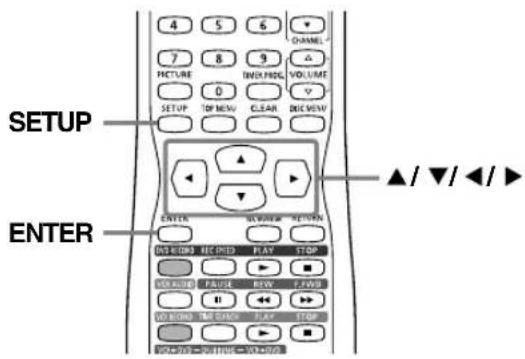
text_image
4 5 6 CHANNEL 7 8 9 PICTURE TINEMA PROG. VOLUME 0 SETUP TOP NEW CLEAR DEC VIEW ENTER ▼/▼/◄/► ON BOOK REC PRED PLAY TROP VOLUME PAUSE REW FWD 11 ► ON BOOK NET BAND FLAT STOP VOLUME RETURN VOLUMEFollow the steps [1] to [3] on page 64 to display the Original list.
1 Select a desired title using ▲/▼/◄/► buttons, then press ENTER button.
Original menu will appear.
text_image
Disc > Edit > Original Title Delete Scene Delete Edit Title Name Chapter Mark Index Picture Set Protect ON -OFF JAN 1 2:00AM CH12 XP 0:01:25"Protect ON → OFF" is selected.
2 Press ENTER button.
Option window will appear.
text_image
Disc > Edit > Original Title Delete Scene Delete Edit Title Name Chapter Mark Index Picture Set Protect ON OFF Yes No JAN 1 200AM CH12 XP 0:01:253 Select "Yes" using ◀/▶ buttons, then press ENTER button.
NOTE:
• This operation may take a few minutes to complete.
4 After writing to disc is completed, press SETUP button to exit DISC menu.
Editing DVD-RW Discs in VR Mode (Playlist)
Deleting Titles
DVD-RW (VR)
In VR mode, even when a title is deleted from a Playlist, the original title will remain in an Original list. The disc space to record will not increase.
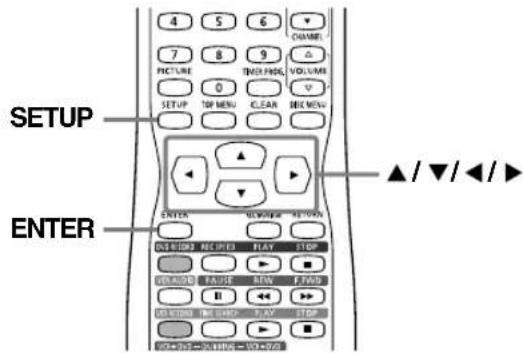
text_image
4 5 6 ▼ 7 8 9 △ PICTURE TIME/FRK VOLUME 0 SETUP TOP MENU CLEAR MID MENU ENTER ▲/▼/◄/► OUTPUT INFO/FRK PLAY STOP DEFAULT FALSE NEW FAWD ELECTIVE TIME/FRK PLAY STOP VOL+252-201805-153-07651 Press SETUP button. Select "DISC" using ◀/▶ buttons, then press ENTER button. DISC menu will appear.
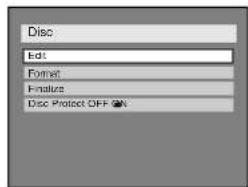
text_image
Disc Edit Format Finalus Disc Protect OFF2 Select "Edit" using ▲/▼ buttons, then press ENTER button. Original/PlayList menu will appear.
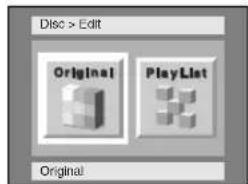
text_image
Disc > Edit Original Play List Original3 Select "PlayList" using ◀/▶ buttons, then press ENTER button. Playlist will appear.
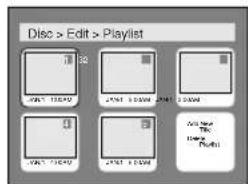
text_image
Disc > Edit > Playlist 1 32 VOLY 10000 VOLY 50000 VOLY 50000 VOLY 75000 VOLY 50000 Add New Playoff4 Select a desired title using ▲/▼/◄/► buttons, then press ENTER button. Playlist menu will appear.
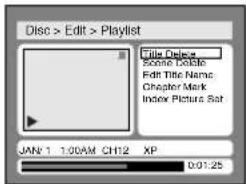
text_image
Disc > Edit > Playlist Title Delete Some Delete Edit Title Name Chapter Mark Index Picture Sat JAN'1 1:00AM CH12 XP 0:01:255 Select "Title Delete" using ▲/▼ buttons, then press ENTER button. Option window will appear.
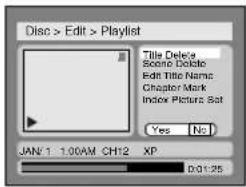
text_image
Disc > Edit > Playlist Title Delete Scene Delete Edit Title Name Chapter Mark Index Picture Set Yes No JAN'1 1.00AM CH12 XP D:01:256 Select "Yes" using ◀/▶ buttons, then press ENTER button. Title will be deleted.
NOTE: • This operation may take a few minutes to complete.
7 After writing to disc is completed, press SETUP button to exit DISC menu.
Deleting Parts of Titles
DVD-RW (VR)
▲ Important
You can delete a specific part of a title. Even when a title is deleted from the Playlist, the original title will remain. The disc space to record will not be increased.
text_image
SETUP ENTER SETUP TOP VENU CLEAR DEC VENU ▲/▼/◄/► ON/OFFORD RECORD FLYF STOPFollow the steps [1] to [4] on page 68 to display the Playlist menu.
1 Select "Scene Delete" using ▲/▼ buttons, then press ENTER button.
Option window will appear.
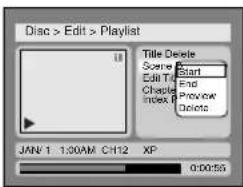
text_image
Disc > Edit > Playlist Title Delete Scene Start Edit Title End Chester Find Index 0 Preview Delete JAN/1 1:00AM CH12 XP 0:00:552 Press ENTER button to decide a start point, then press ENTER button to decide an end point.
A cursor will move to "Preview". You can check a preview.
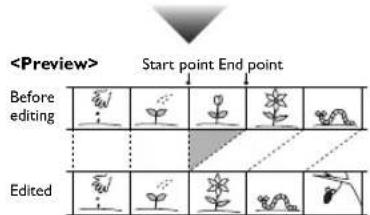
flowchart
graph TD
    A["Start point"] --> B["Before editing"]
    B --> C["Plant Diagram 1"]
    B --> D["Plant Diagram 2"]
    B --> E["Plant Diagram 3"]
    B --> F["Plant Diagram 4"]
    G["Start point"] --> H["Before editing"]
    H --> I["Plant Diagram 1"]
    H --> J["Plant Diagram 2"]
    H --> K["Plant Diagram 3"]
    H --> L["Plant Diagram 4"]
    M["Start point"] --> N["Before editing"]
    N --> O["Plant Diagram 1"]
    N --> P["Plant Diagram 2"]
    N --> Q["Plant Diagram 3"]
    N --> R["Plant Diagram 4"]
    S["Start point"] --> T["Before editing"]
    T --> U["Plant Diagram 1"]
    T --> V["Plant Diagram 2"]
    T --> W["Plant Diagram 3"]
    T --> X["Plant Diagram 4"]
    Y["Start point"] --> Z["Before editing"]
    Z --> AA["Plant Diagram 1"]
    Z --> AB["Plant Diagram 2"]
    Z --> AC["Plant Diagram 3"]
    Z --> AD["Plant Diagram 4"]
    AE["Start point"] --> AF["Before editing"]
    AF --> AG["Plant Diagram 1"]
    AF --> AH["Plant Diagram 2"]
    AF --> AI["Plant Diagram 3"]
    AF --> AJ["Plant Diagram 4"]
    AK["Start point"] --> AL["Before editing"]
    AL --> AM["Plant Diagram 1"]
    AL --> AN["Plant Diagram 2"]
    AL --> AO["Plant Diagram 3"]
    AL --> AP["Plant Diagram 4"]
    AQ["Start point"] --> AR["Before editing"]
    AR --> AS["Plant Diagram 1"]
    AR --> AT["Plant Diagram 2"]
    AR --> AU["Plant Diagram 3"]
    AR --> AV["Plant Diagram 4"]
    AW["Start point"] --> AX["Before editing"]
    AX --> AY["Plant Diagram 1"]
    AX --> AZ["Plant Diagram 2"]
    AX --> BA["Plant Diagram 3"]
    AX --> BB["Plant Diagram 4"]
    BC["Start point"] --> BD["Before editing"]
    BD --> BE["Plant Diagram 1"]
    BE --> BF["Plant Diagram 2"]
    BE --> BG["Plant Diagram 3"]
    BE --> BH["Plant Diagram 4"]
    BI["Start point"] --> BJ["Before editing"]
    BJ --> BK["Plant Diagram 1"]
    BK --> BL["Plant Diagram 2"]
    BK --> BM["Plant Diagram 3"]
    BK --> BN["Plant Diagram 4"]
    BK --> BO["Plant Diagram 5"]
3 Select "Delete" using ▲/▼ buttons, then press ENTER button.
Option window will appear.
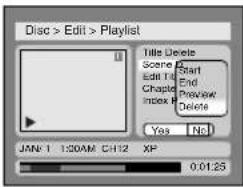
text_image
Disc > Edit > Playlist Title Delete Scene Edit Title Chapter Index P Start End Preview Delete Yes No JAN-1 1:30AM CH12 XP 0:01:254 Select "Yes" using ◀/▶ buttons, then press ENTER button.
Part of a title will be deleted.
NOTE:
• This operation may take a few minutes to complete.
- You cannot select "Scene Delete" when the number of chapter markers in the original or playlist is more than 900.
5 After writing to disc is completed, press SETUP button to exit DISC menu.
Naming Titles
DVD-RW (VR)
You can name the titles and change the names from this menu. The title names will be displayed on a Title List.
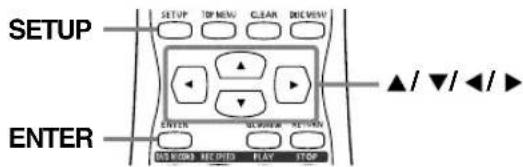
text_image
SETUP ENTER SETUP TOP MENU CLEAN DIRECTION ▲/▼/◄/► ENTER OUT DOWN NC FRIED PLAY STOPFollow the steps [1] to [4] on page 68 to display the Playlist menu.
1 Select "Edit Title Name" using ▲/▼ buttons, then press ENTER button.
A window for entering a title name will appear.
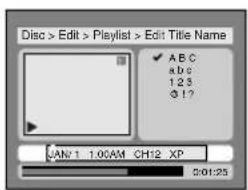
text_image
Disc > Edit > Playlist > Edit Title Name ✓ ABC abc 123 Ø 1? JAN 1 1.00AM CH12 XP 0:01:252 To enter a title name, follow the steps shown in "Guide to edit title name" below.
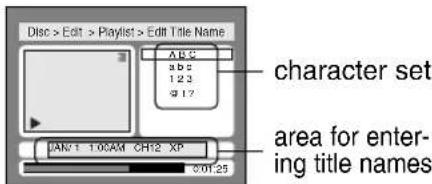
text_image
Disc > Edit > Playlist > Edit Title Name ABC 8 b 5 1 2 3 9 17 character set area for enter- ing title names DAN:1 10CAM CH:2 XP 01:25When you finish entering a title name, press ENTER button.
[ Guide to edit title name ]
| SelectPress | ABC | abc | 123 | @ 17 |
| 0 | 0 | |||
| 1 | *| | *| | 1 | ! "# % & *() * +, - /; <=>) @ [] ^ {- { |}} |
| 2 | ABC | abc | 2 | *2 |
| 3 | DEF | def | 3 | *2 |
| 4 | GHI | ghi | 4 | *2 |
| 5 | JKL | jkl | 5 | *2 |
| 6 | MNO | mno | 6 | *2 |
| 7 | PQRS | pqrs | 7 | *2 |
| 8 | TUV | tuv | 8 | *2 |
| 9 | WXYZ | wxyz | 9 | *2 |
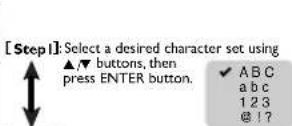
[Step2]: Press Number buttons following by the list.
*1 Press 1 button, character set will be changed to the "@?" mode automatically.
*2 Press 2 to 9 buttons, character set will be changed to the previous input mode automatically.
• To delete letters, press CLEAR button repeatedly.
• To go on to the next entering area for letters, press ▶ button.
- You can enter up to 30 letters.
3 Select "Yes" using ◀/▶ buttons, then press ENTER button.
The name you entered will be activated for the title.
NOTE:
• This operation may take a few minutes to complete.
4 After writing to disc is completed, press SETUP button to exit DISC menu.
Setting Chapter Markers
DVD-RW (VR)
You can put chapter markers in each title. Once a chapter is marked, you can use it for the chapter search.
You can put a chapter marker anywhere you want.
NOTE:
- When the number of chapter markers in the original list comes to 999 in total, you cannot add any more chapter markers.
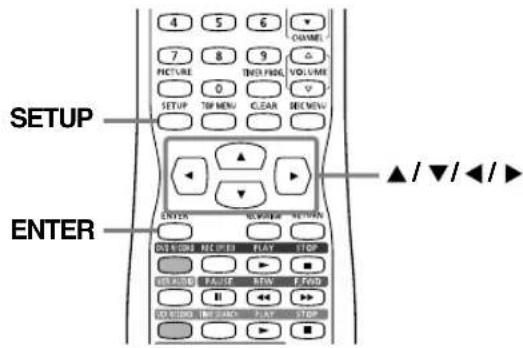
text_image
4 5 6 CHANNEL 7 8 9 PICTURE THO FLOW VOLUME 0 SETUP TOP MEN CLEAR BELOW ENTER ▲/▼/◄/► ON COLD MCK ON FLAT STOP ORANGE FALSE RAW F FOD ON CHIN INT INFO FLAT STOPFollow the steps [1] to [4] on page 68 to display the Playlist menu.
1 Select "Chapter Mark" using ▲/▼ buttons, then press ENTER button.
Option window will appear.
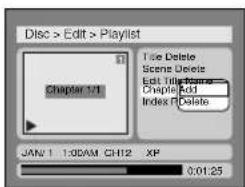
text_image
Disc > Edit > Playlist Chapter 1/1 File Delete Scene Delete Edit Title Name Chapter Add Index P Delete JAN 1 1:00AM CH12 XP 0:01:252 Select "Add" or "Delete" using ▲/▼ buttons, then press ENTER button.
Option window will appear.
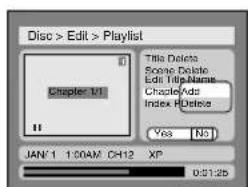
text_image
Disc > Edit > Playlist Title Delete Some Delete Edit TitleName Chapter/Adt Index Delete Yes [No] JAN'1 1:00AM CH12 XP 03:25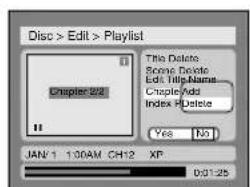
text_image
Disc > Edit > Playlist Chapter 2/2 This Delete Scene Delete Edit: TitleName Chapter Add Index Delete Yes No JAN 1 130AM CH2 XP 0:01:25- You cannot delete the first chapter of each title.
3 Select "Yes" using ◀/▶ buttons, then press ENTER button.
A chapter marker will be added or deleted.
NOTE:
• These operations may take a few minutes to complete.
4 After writing to disc is completed, press SETUP button to exit DISC menu.
Setting Pictures for Thumbnails
DVD-RW (VR)
You can set a picture to each title for a thumbnail. It helps you to remember the contents of the title you are playing. The beginning picture has been selected as the default.
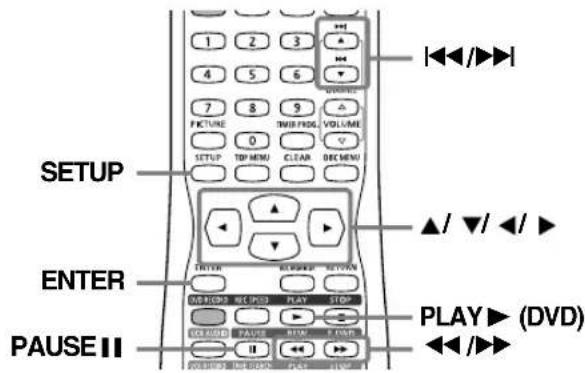
text_image
SETUP ENTER PAUSE II PLAY ▶ (DVD) ▲/▼/▲/▼ 1 2 3 4 5 6 7 8 9 0 SETUP TOP MENU CLEAR REC MENU ▲/▼/▲/▼ PULSE ▶/□□□ ▶/□□ ▶/□□ ▶/□□ ▶/□□ ▶/□ ▶/□ ▶/□ ▶/□ ▶/□ ▶/□ ▶/□ ▶/□ ▶/□ ▶/□ ▶/□ ▶/□ ▶/□ ▶/□ ▶/□ ▶/□ ▶/□ ▶/□ ▶/□ ▶/□ ▶/□ ▶/□ ▶/□ ▶/□ ▶/□ ▶ /▶ /▶ /▶ /▶ /▶ /▶ /▶ /▶ /▶ /▶ /▶ /▶ /▶ /▶ /▶ /▶ /▶ /▶ /▶ /▶ /▶ /▶ /▶ /▶ /▶ /▶ /▶ /▶ /▶ /▶ /▶ /▶ /▶ /▶ /▶ /▶ /▶ /▶ /▶ /▶ /▶ /▶ /▶ /▶ /▶ /▶ /▶ /▶ /▶ /▶ /◀ /▶ /▶ /▶ /▶ /▶ /▶ /▶ /▶ /▶ /▶ /▶ /▶ /▶ /▶ /▶ /▶ /▶ /▶ /▶ /▶ /▶ /▶ /▶ /▶ /▶ /▶ /▶ /▶ /▶ /▶ /▶ /▶ /▶ /▶ /▶ /▶ /▶ /▶ /▶ /▶ /▶ /▶ /▶ /▶ /▶ /▶ /▶ /▶ /▶ /▲/▼/▲/▼ 1 2 3 4 5 6 7 8 9 0 SETUP TOP MENU CLEAR REC MENU ▲/▼/▲/▼ PULSE ▶/□□□ ▶/□□ ▶/□□ ▶/□□ ▶/□□ ▶/□□ ▶/□□ ▶/□□ ▶/□□ ▶/□□ ▶/□ ▶/□ ▶/□ ▶/□ ▶/□ ▶/□ ▶/□ ▶/□ ▶/□ ▶/□ ▶/□ ▶/□ ▶/□ ▶/□ ▶/□ ▶/□ ▶/□ ▶/□ ▶/□ ▸Follow the steps [1] to [4] on page 68 to display the Playlist menu.
1 Select "Index Picture Set" using ▲/▼ buttons. Use I◀, ▶▶, ◀◀, ▶▶, PLAY▶ (DVD), and PAUSE II buttons to decide the picture you want to select as a thumbnail. Then, press ENTER button.
Option window will appear and the video in the thumbnail will begin to play.
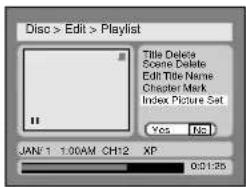
text_image
Disc > Edit > Playlist Title Delete Scene Delete Edit Title Name Chapter Mark Index Picture Set Yes No JAN'1 1:00AM CH'12 XP 0:01:252 Select "Yes" using ◀/▶ buttons, then press ENTER button.
A picture for thumbnail will be set.
NOTE:
• This operation may take a few minutes to complete.
- If a selected picture for a thumbnail is deleted by deleting a part of a title, a default picture will be selected.
3 After writing to disc is completed, press SETUP button to exit DISC menu.
Adding Titles to Playlist
DVD-RW (VR)
You can add or delete a title in the playlist as you prefer. You can add titles to a Playlist up to 99.
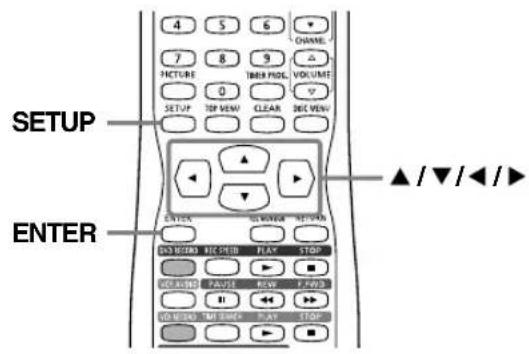
text_image
4 5 6 CHANNEL 7 8 9 △ PICTURE TBIH PROG. VOLUME 0 SETUP TOP VIEW CLEAR DIG VIEW SETUP ▲/▼/◄/► ENTER ON LOURD REC STRIB FLAY STOP ▶ ▼ ▶ ▼/▲/▼/◄/► ▶ ▼/▲/▼/◄/► ▶ ▼/▲/▼/◄/► ▶ ▼/▲/▼/◄/► ▶ ▼/▲/▼/◄/► ▶ ▼/▲/▼/◄/►Follow the steps [1] to [3] on page 68 to display the Playlist.
1 Select "Add New Title" using ▲/▼/◄/► buttons, then press ENTER button.
Original list will appear.
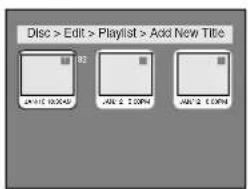
text_image
Disc > Edit > Playlist > Add New Title JAN-15 10:00:42 JAN-2 3:00PM JAN-2 6:00PM2 Select a desired title using ▲/▼/◄/► buttons, then press ENTER button.
The selected title will be added in Playlist.
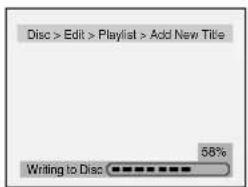
text_image
Disc > Edit > Playlist > Add New Title Writing to Disc 58%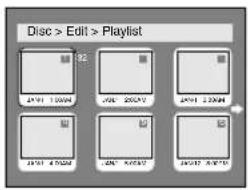
text_image
Disc > Edit > Playlist 20 21 1:00:04 22 20:57:12 23 1:30:04 24 4:50:04 25 9:30:12 26 8:37:123 After writing to disc is completed, press SETUP button to exit DISC menu.
- To delete a title from Playlist, refer to "Deleting Titles" on page 68.
- To delete a Playlist, refer to "Deleting Playlist" in the next section.
Deleting Playlist
DVD-RW (VR)
A Playlist can be deleted if no longer needed.
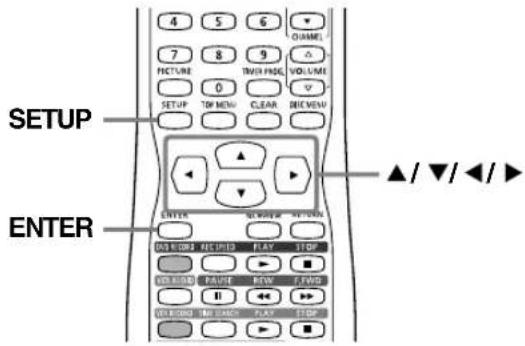
text_image
4 5 6 QUAMEL 7 8 9 PICTURE TWO PAGE VOLUME 0 SETUP TIN MENU CLEAR REC VIEW ▲/▼/◄/► ENTER ON ORDER KEY FIND PLAY STOP VOLUME PAUSE REW FWD II ↔ ↔ → VOLUME MID MACH PLAY STOPFollow the steps [1] to [3] on page 68 to display the Playlist.
1 Select "Delete Playlist" using ▲/▼/◄/► buttons, then press ENTER button.
Option window will appear.
NOTE: Playlist
- Deleting a Playlist will not increase the available recording time on disc.
text_image
Disc > Edit > Playlist DJN1 10000 DJN1 40000 DJN1 50000 DJN1 60000 DJN1 700002 Select "Yes" using ◀/▶ buttons, then press ENTER button.
Playlist will be erased. The display will return to TV screen.
Some DVD-Video discs feature a Parental Lock level. Playback will stop if the ratings exceed the levels you set, it will require you to enter a password before the disc will playback. This feature prevents your children from viewing inappropriate material.
NOTE: Parental Lock Availability
- Parental lock function may not be available to some discs.
- With some DVDs, it may be difficult to find if they are compatible with parental lock. Be sure to check if the parental lock function operates as you have set.
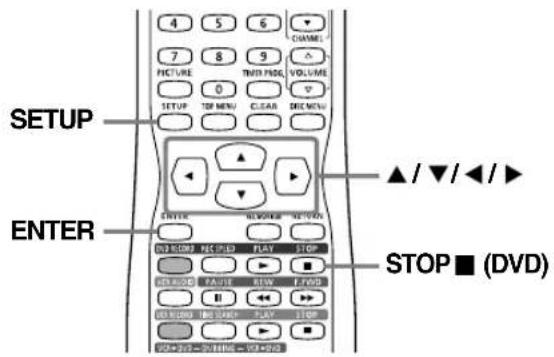
text_image
4 5 6 CHANNEL 7 8 9 THY FORD. VOLUME 0 SETUP TOP MENU CLEAR SHE MENS SETUP ENTER ▲ / ▼ / ◀ / ▶ ENTER STOP ■ (DVD) OK STOP KEY KEY PLAY STOP CHANGE FAVIE RAW L-FORD H I WHIP IN CHINE PLAY STOP VOUT DO NOT OPEN - VLOADPress STOP (DVD) button if you are playing a disc.
1 Press SETUP button to display SETUP/DISC menu.
SETUP/DISC menu will appear.
2 Select "SETUP" using ◀/▶ buttons, then press ENTER button.
SETUP menu will appear.
3 Select "Playback" using ▲/▼/◄/► buttons, then press ENTER button.
Option window will appear.
4 Select "Parental Lock" using ▲/▼ buttons, then press ENTER button.
Parental Lock (Default :All)
Set the Parental Lock level.
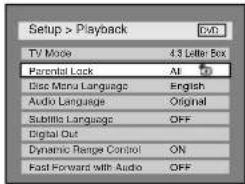
text_image
Setup > Playback TV Mode 4.3 Letter Box Parental Lock All Disc Mana Languages English Audio Language Original Subtitle Language OFF Digital Out Dynamic Range Control ON Fast Forward with Audio OFF
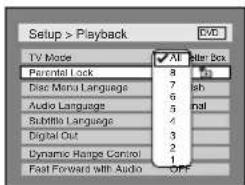
text_image
Setup > Playback TV Mode Parental Lock Disc Menu Language Audio Language Subtitle Language Digital Out Dynamic Range Control Fast Forward with Audio 8 7 6 5 4 3 2 1 OFF- Change the parental level using ▲/▼ buttons, then press ENTER button.
Option window will appear.
Proceed to step [A] or [B].
[A] A password has not been set yet
![SYLVANIA 6727FRE - [A] A password has not been set yet - 1](/content/2026/05/1126784/images/72cb9979acde5d84d52d80c611492caae2997ebfbf432adc814cd5b5238da5ab.jpg)
text_image
Setup > Playback TV Mode Perennial Lock Change Password: Yes OK Disc Menu Language 7 sh Audio Languages 6 mal Subtilis Language 5 4 Digital Out 3 2 Dynamic Range Control 1 Fast Forward with Audio OFF![SYLVANIA 6727FRE - [A] A password has not been set yet - 2](/content/2026/05/1126784/images/a4e07f5f2e2a0c29675a0499d8dfbd7ae66fb7e41986ae83f5a578ed76a21ebe.jpg)
- If you select "No", proceed to step [5].
![SYLVANIA 6727FRE - [A] A password has not been set yet - 3](/content/2026/05/1126784/images/799af8aeb47a8ed618160da19aa642e2d34d7a3c66f508d55d81f682b9732fbb.jpg)
text_image
Setup > Playback TV Mode Password 0... Parallel Lock Disc Menu Language 7 6 5 4 3 2 1 Audio Language 2 Subtitle Language 1 Digital Out OFF- Select "Yes" using ◀/▶ buttons, then enter a new password using Number buttons. Then, press ENTER button. Your setting will be activated.
[B] A password has been set already 🔒
![SYLVANIA 6727FRE - [B] A password has been set already 🔒 - 1](/content/2026/05/1126784/images/2971f377444298bc7381873e1e23990ba2f30de0583fbdeed21f6c7168d369cb.jpg)
text_image
Setup > Playback TV Mode Parental Lock Disc Menu Language Audio Languages Subtitle Language Digital Out Dynamic Range Control Fast Forward with Audio All shot Box Password D 6 5 4 3 2 1 OFF![SYLVANIA 6727FRE - [B] A password has been set already 🔒 - 2](/content/2026/05/1126784/images/b26a32641f11af0b77275ffdda1f6e987d96572e4ee180c3728bcce580f0774e.jpg)
- Enter the current password using Number buttons.
![SYLVANIA 6727FRE - [B] A password has been set already 🔒 - 3](/content/2026/05/1126784/images/60aade3318c67375287e06ef020422a29f1460f11d06c22108a7815a68f5ac54.jpg)
text_image
Setup > Playback TV Mode Change Password? Parental Lock Yes OK Disc Menu Language 7 5h Audio Language 6 4 Subtile Language 5 3 Digital Out 4 2 Dynamic Range Control 3 1 Fast Forward with Audio 1 OFF![SYLVANIA 6727FRE - [B] A password has been set already 🔒 - 4](/content/2026/05/1126784/images/659ca7a96441aa102fc2bfbfb0a929f2ef5aff5378704cd28c7df1a2d0fcc545.jpg)
- If you select "No", proceed to step [5].
Change the password
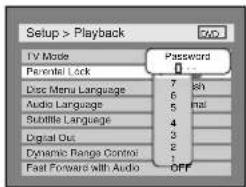
text_image
Setup > Playback TV Mode Password 0 Parental Lock Disc Menu Language 7 8th 6 9th 5 10th 3rd 2nd 1st 4th 3rd 2nd 1st Fast Forward with Audio OFF- Select "Yes" using ◀/▶ buttons, then enter a new password using Number buttons, then press ENTER button. Your setting will be activated.
NOTE: Forget Password
- Record the password in case you forget it.
- Press CLEAR button to erase numbers entered incorrectly.
- When you forget the password or you want to clear all settings in Parental lock, enter 4,7,3,7 using Number buttons in option window. Password will be cleared and parental levels will be set to All.
5 Press SETUP button to exit SETUP menu.
SETUP MENU LIST
The following table shows the contents you can set, including the default settings.
Refer to the following table for useful operation.
| SETUP menu | ContentsItems (highlight is the default) | ||
| 1.Language setting ➔ Page 32 | Disc MenuLanguage | EnglishFrenchSpanish | Set the language for disc menu. |
| Audio Language | OriginalEnglishFrench | Set the language for audio. | |
| Subtitle Language | OFFEnglishFrench | Set the language for subtitle. | |
| 2.Audio setting ➔ Pages 12-13 | Digital Out | PCMAuto48kHz96kHz | Set whether the sound recorded in 96kHz will be down sampled in 48kHz. |
| Dolby DigitalPCMStream | Set the type of sound signal which outputs from the digital audio output jack. | ||
| Dynamic Range Control | ONOFF | Compressing the range of sound volume. | |
| Fast Forward with Audio | ONOFF | Outputting the sound during play in fast forward. | |
| 3.OSD Display setting ➔ Pages 14-15, 24-27 | OSD Background Transparency | 100%35%25% | Set the background transparency of OSD screen. |
| OSD Background Color | 123 | Set the OSD screen color.1 (Green), 2 (Blue), 3 (Red) | |
| OSD Language | EnglishFrançaisEspañol | Select the language for OSD. | |
| Screen Saver | OFF5 minutes10minutes | Set the time to work the screen saver on the screen. | |
| Caption | OFFCAPTION1 | Set the closed caption mode. | |
| V-CHIP Setup | TV RATINGMPAA RATINGCHANGE CODE | Prevent their children from watching inappropriate material on TV. | |
| 4.Parental setting ➔ Page 72 | Parental Lock(Change password) | ALLlevel 8 to 1 | Set the parental level of your DVD discs. |
| Enter the current four-digit password | Set and change the password. | ||
NOTE:
- If you change the setting in SETUP menu, the information remains even when the power is turned off.
TROUBLESHOOTING
Before requesting service for this unit, check the table below for a possible cause of the problem you are experiencing. Some simple corrections may solve the problem and restore the proper operation.
| Symptom Remedy | |
| PowerThe power does not turn on. • Check that the AC power cord is connected securely. | |
| PictureThere is no picture. | • Re-connect the connecting cord securely.• The connecting cords are damaged.• The Setup Display appears. PressSETUPorRETURNbutton to turn off the display.• Check antenna/cable wire and the fittings at each end of the wire. |
| Picture noise appears. | • The disc is dirty or flawed.• Head cleaning for VCR may be necessary. Refer to "AUTO HEAD CLEANING".• Adjust tracking control for better picture by pressingCHANNEL▲/▼buttons while you are playing a video tape.• Check antenna/cable wire and the fittings at each end of the wire. |
| TV program reception does not fill the screen. | • Try to set the channels with "Auto Preset" in SETUP menu (page 16).• Select a channel of any TV program using theCHANNEL▲/▼buttons.• Check antenna/cable wire and the fittings at each end of the wire. |
| TV program pictures are distorted. | • Adjust antenna.• Adjust the picture.• Place this unit and any bunched antenna cables farther apart.• Check antenna/cable wire and the fittings at each end of the wire. |
| TV channels cannot be changed. | • Connect the antenna cable correctly (page 10).• Perform auto channel preset on page 16.• Check antenna/cable wire and the fittings at each end of the wire. |
| Distorted color appears on screen | • Magnetism from nearby appliances and unshielded speakers and geomagnetism might affect the color of the TV picture. Move the TV/VCR/DVD away from the appliances or unshielded speakers, the TV/VCR/DVD can repair itself automatically. If you want to repair immediately, unplug the power cord, then plug it in again after 30 minutes later or so. |
| SoundNo sound is output. • Adjust volume control. | • The disc is dirty or flawed.• Re-connect all connections securely.• The connecting cord is damaged.• Check the connections to the amplifier input.• The input source setting on the amplifier is incorrect.• The unit is in Pause mode or in Slow-motion play mode.• The unit is in fast forward or fast reverse mode.• If the audio signal does not come through the AUDIO OUT COAXIAL jack, check the Audio Setup settings (pages 12-13). |
| Sound is noisy. | • The disc is dirty or flawed.• When playing a DTS-CD, noise may come from the speakers. This unit is not compatible with DTS-CD. |
| No DTS sound is output. | • This unit is not compatible with DTS sound. |
Symptom Remedy
Playback
| The disc does not play. • No disc is inserted. | |
| A blank disc is inserted.No cassette tape is inserted.The disc is upside down. Insert the disc with the labeled side facing up.The disc is not correctly inserted.The unit cannot play certain discs (such as a CD-ROM) (page 31).The region code on the DVD VIDEO does not match the unit (page 31).Moisture has condensed inside the unit. Remove the disc and leave the unit turned on at least for 2 hours until the moisture evaporates (page 5).If the disc was recorded on other recorder, the unit cannot play the disc if it was not finalized (page 54). | |
| The disc does not start playback from the beginning. | Resume play was activated (page 36). Press STOP ■ (DVD) button twice.You have inserted a disc whose Title menu or DVD menu automatically appears on the TV screen when it is first inserted. |
| The unit starts playing from the disc automatically. | The DVD VIDEO features an auto playback function. |
| Some functions such as Stop, Search, or Slow-motion Play cannot be performed. | Depending on the disc, you may not be able to do some of the operations above. See the instruction manual supplied with the disc. |
| The language for the sound track cannot be changed. | Multilingual tracks are not recorded on the DVD VIDEO, DVD-R or DVD-RW being played.The DVD VIDEO prohibits the changing of the language for the sound track.T ry changing the language using the DVD VIDEO's menu. |
| The subtitle language cannot be changed or turned off. | Multilingual subtitle are not recorded on the DVD VIDEO.The DVD VIDEO prohibits changing of the subtitles.T ry changing the subtitle using the DVD VIDEO's menu. |
| The angles cannot be changed. • | Multi-angles are not recorded on the DVD VIDEO being played.Y ou are trying to change the angles whenicon does not appear on the TV screen (page 43).The DVD VIDEO prohibits changing angles.T ry changing the angle using the DVD VIDEO's menu. |
| Recording/Timer recording/EditingThe channel cannot be changed from the channel you are recording. | You can only watch the channel currently being recorded. |
| Recording does not start immediately after you press DVD RECORD or VCR RECORD button. | An unused DVD-R or DVD-RW was inserted. It takes a while for the unit to automatically format a disc.Make sure the tape has a record tab when you record to a cassette tape. If needed, cover the hole with cellophane tape. |
| Nothing was recorded even though you set the timer setting correctly. | There was a power failure during recording.The units internal clock stopped due to a power failure that lasted for more than 3 seconds. Reset the clock (page 19).Disconnect the AC power cord from the AC outlet and connect it again.The program contains copy protection signals that restrict copying.The timer setting overlapped with another setting that was set later or has priority. |
| Recording does not stop immediately after you press STOP ■ button. | It will take a few seconds for the unit to input disc data before recording stops. |
| Timer recording is not completed or did not start from the beginning. | The timer setting overlapped with another setting that was set later or has priority (page 60).Disc space was not enough. |
| Timer recording is not available. • Make sure that the recordable tape or disc should be inserted in the unit. If not, press POWER button. | |
Symptom Remedy
Remote control
| The remote control does not function. • Batteries are weak.There are obstacles between the remote control unit and the main unit.The remote control unit is far from the main unit.There are no batteries in the remote control unit.The remote control is not pointed at the remote sensor on the unit.Check if a cassette tape is in this unit. |
Others
| The unit does not operate properly. • When static electricity causes the unit to operate abnormally, unplug the unit and wait a few minutes, then plug it in again. | |
| The disc tray does not open when you press ▲ OPEN/CLOSE button in the main unit. | • It may take a few seconds for the disc tray to open after you have recorded or edited a disc.• The unit may be adding disc data to the disc.• The unit may still be recording. |
| My TV/VCR/DVD is showing captions that are misspelled. | • Y ou are watching a live broadcast and spelling errors made by the closed captioning production company may pass through uncorrected. A prerecorded program will not show any misspelled words because of the normal time available for editing the captions. |
| My TV/VCR/DVD will not show the text dialogue in its entirety or there is a delay of what is being said. | • Captions that are delayed a few seconds behind the actual are common for live broadcast. Most captioning production companies can display a dialogue to a maximum of 220 words per minute. If a dialogue exceeds that rate, selective editing is used to insure that the captions remain up-to-date with the current TV screen dialogue. |
| My captions are scrambled with white boxes on the TV screen. | • Interference caused by building, power lines, thunderstorms, etc. may cause scrambled or incomplete captions to appear. |
| My program guide listed a TV show as being closed captioned but none of the captions were displayed. | • Broadcasters may at times use a time compression process to speed up the actual program so that additional advertising time can be given. Since the decoder cannot read the compressed information, captions will be lost. |
| My prerecorded video tape does not show any captions. The tape box mentions it being closed captioned. | • The video tape was either an illegal copy or the tape duplicating company accidentally left out the captioning signals during the copying process. |
| My TV screen shows a black box on certain channels. | • Y ou are in the TEXT mode. Set CAPTION mode to CAPTION [OFF]. |
| "Repairing" appears on the display.[IMAGE] | • If there is a power failure or unplugging during recording, finalizing, formatting or editing, a Repairing process will begin automatically just after turning the unit on again. It may take several minutes up to about four hours. |
| ▲ The DVD disc that I recorded will not be played on other DVD units. | • Y ou must "Finalize" all recorded discs before they can be played on other DVD players. Without finalization, Video mode discs cannot be played back on other DVD players and VR mode discs cannot be played back on other VR compatible players (See "Finalizing Discs" on page 54). |
| The edited Playlist can not be used with other DVD units. | • Confirm that the disc is recorded in VR mode and finalized properly.• This feature may not be available according to circumstances. |
| I have finalized the DVD disc, but it will still not be played back on other DVD units. | • Not all DVD recordable discs will be played on all DVD units. This is inherent in the DVD recordable format. |
| Error message | Cause | Solution |
| Disc Error--- Please eject the disc. ---Playback feature may not be available on this Disc. | Unplayable disc is inserted in the DVD recorder. | Insert the standardized disc which bear the marks on page 31. |
| Region Error--- Please eject the disc. ---Playback is not authorized in your region. | Playback is not authorized because the region code of the DVD video disc you inserted is different. | Insert the DVD-Video disc with region codes 1 or ALL. |
| Parental Lock On--- Please eject the disc. ---The current selected parental level Prohibits playback. | The current selected parental level in the SETUP Menu prohibits playback. | Check the "Parental Lock" setting (page 72). |
| Recording ErrorThis program is not allowed to be recorded. | The recording function encountered the copy prohibited program. | You cannot record copy prohibited programs. |
| Recording ErrorThis program is not recordable in Video mode. | You are trying to record the copy-once program onto the DVD-RW disc in Video mode or the DVD-R disc. | Set "DVD-RW Recording Format" to "VR mode" (page 49-50). |
| Recording ErrorCan not record on this disc. | You are trying to record onto the disc which is unrecordable, or the disc status prevents recording. | Insert the recordable disc, and ensure the disc status satisfies the recording requirements (pages 48-55). |
| Recording ErrorThis program is not allowed to be recorded on this disc. | You are trying to record a copy-once program onto a DVD-RW disc which is not compatible with CPRM. | Insert a ver.1.1 CPRM compatible DVD-RW disc (page 49). |
| Recording ErrorThis disc is protected and not recordable. | You are trying to record on to the protected disc which is set in the Disc Setting Menu. | Release the disc protect setting in the Disc Setting menu (page 55). |
| Recording ErrorDisc is full.(No area for new recording) | You are trying to record onto the disc which has no space for recording. | Insert the recordable disc with enough recording space. |
| Recording ErrorYou cannot record more than 99 titles on one disc.(The maximum is 99) | You are trying to record onto the disc on which the number of recording titles comes up to the maximum (99). | Delete unnecessary titles (pages 62, 64). |
| Recording ErrorYou cannot record more the 999 chapters on one disc.(The maximum is 999) | You are trying to record onto the VR mode DVD-RW disc on which the number of recording chapters comes up to the maximum (999). | Delete unnecessary chapter markers (pages 63, 66). |
| Recording ErrorYou cannot record on this disc as Control Information is full. | This disc has no space to write the Control Information when recording or deleting contents.When editing has been repeatedly performed, the control information area may come up to be full even the recording area has enough space. | Delete unnecessary titles (pages 62, 64). |
| Recording ErrorYou cannot record on the disc as Power Calibration Area is full. | This disc's working area for recording is full.When recordings are performed repeatedly onto an unstable disc, this area may fill up. | Insert a new disc. |
| Recording ErrorThis disc is already finalized. | You are trying to record onto the disc already finalized. | Release the finalizing for this disc (page 54). |
CLEANING DISCS
- When a disc becomes dirty, clean it with a cleaning cloth. Wipe the disc from the center out. Do not wipe in a circular motion.
- Do not use solvents such as benzine, thinner, commercially available cleaners, detergent, abrasive cleaning agents or antistatic spray intended for analogue records.
CLEANING THE DISC LENS
- If this unit still does not perform properly although you refer to the relevant sections and to "TROUBLESHOOTING GUIDE" in this Owner's Manual, the laser optical pickup unit may be dirty. Consult your dealer or an Authorized Service Center for inspection and cleaning of the laser optical pickup unit.
DISC HANDLING
- Handle the discs so that fingerprints and dust do not adhere to the surfaces of the discs.
- Always store the disc in its protective case when it is not used.
CABINET CLEANING
- Wipe the front panel and other exterior surfaces of the TV/VCR/DVD with a soft cloth immersed in lukewarm water and wrung dry.
- Never use a solvent or alcohol. Do not spray insecticide liquid near the TV/VCR/DVD. Such chemicals may cause damage and discoloration to the exposed surfaces.
AUTO HEAD CLEANING
- Automatically cleans video heads as you insert or remove a cassette, so you can see a clear picture.
- Playback picture may become blurred of interrupted while the TV program reception is clear. Dirt accumulated on the video heads after long periods of use, or the usage of rental or worn tapes can cause this problem.
If a streaky or snowy picture appears during playback, the video heads in your TV/VCR/DVD may need to be cleaned. - Please visit your local Audio/Video store and purchase a good quality VHS Video Head Cleaner.
- If a Video Head Cleaner does not solve the problem, please call our help line at 1-800-605-8453, to locate an Authorized Service Center.
NOTES:
- Remember to read the instructions included with the video head cleaner before use.
- Clean video heads only when problems occur.
SERVICING
- Should your TV/VCR/DVD become inoperative, do not try to correct the problem by yourself. There are no user-serviceable parts inside. Please refer to the warranty statement page at the rear of this manual.

LANGUAGE CODE
Language Code Language
| (Afan) Oromo 6159 | |
| Abkhazian 4748 | |
| Afar 4747 | |
| Afrikaans 4752 | |
| Albanian 6563 | |
| Amharic 4759 | |
| Arabic 4764 | |
| Armenian 5471 | |
| Assamese 4765 | |
| Aymara 4771 | |
| Azerbaijani 4772 | |
| Bashkir 4847 | |
| Basque 5167 | |
| Bengali;Bangla 4860 | |
| Bhutani 5072 | |
| Bihari | 4854 |
| Bislama | 4855 |
| Breton | 4864 |
| Bulgarian | 4853 |
| Burmese | 5971 |
| Byelorussian | 4851 |
| Cambodian | 5759 |
| Catalan | 4947 |
| Chinese 7254 | |
| Corsican | 4961 |
| Croatian | 5464 |
| Czech 4965 | |
| Danish | 5047 |
| Dutch | 6058 |
| English | 5160 |
| Esperanto | 5161 |
| Estonian 5166 | |
| Faroese | 5261 |
| Fiji | 5256 |
Code Language CodeLa
| Finnish | 5255 |
| French | 5264 |
| Frisian | 5271 |
| Galician | 5358 |
| Georgian | 5747 |
| German | 5051 |
| Greek | 5158 |
| Greenlandic | 5758 |
| Guarani | 5360 |
| Gujarati | 5367 |
| Hausa | 5447 |
| Hebrew | 5569 |
| Hindi | 5455 |
| Hungarian | 5467 |
| Icelandic | 5565 |
| Indonesian | 5560 |
| Interlingua 5547 | |
| Interlingue 5551 | |
| Inupiak | 5557 |
| Irish | 5347 |
| Italian | 5566 |
| Japanese | 5647 |
| Javanese | 5669 |
| Kannada | 5760 |
| Kashmiri 5765 | |
| Kazakh 5757 | |
| Kinyarwanda | 6469 |
| Kirghiz | 5771 |
| Kirundi | 6460 |
| Korean | 5761 |
| Kurdish 5767 | |
| Laothian | 5861 |
| Latin | 5847 |
| Latvian; Lettish | 5868 |
uage Code
| Lingala | 5860 |
| Lithuanian | 5866 |
| Macedonian | 5957 |
| Malagasy 5953 | |
| Malay | 5965 |
| Malayalam | 5958 |
| Maltese | 5966 |
| Maori | 5955 |
| Marathi 5964 | |
| Moldavian | 5961 |
| Mongolian | 5960 |
| Nauru | 6047 |
| Nepali 6051 | |
| Norwegian | 6061 |
| Occitan 6149 | |
| Oriya | 6164 |
| Panjabi | 6247 |
| Pashto; Pushto 6265 | |
| Persian 5247 | |
| Polish | 6258 |
| Portuguese | 6266 |
| Quechua | 6367 |
| Rhaeto-Romance | 6459 |
| Romanian | 6461 |
| Russian | 6467 |
| Samoan | 6559 |
| Sangho | 6553 |
| Sanskrit | 6547 |
| Scots Gaelic | 5350 |
| Serbian | 6564 |
| Serbo-Croatian | 6554 |
| Sesotho 6566 | |
| Setswana | 6660 |
| Shona | 6560 |
| Sindhi | 6550 |
| Singhalese 6555 | |
| Siswat | 6565 |
| Slovak | 6557 |
| Slovenian | 6558 |
| Somali | 6561 |
| Spanish | 5165 |
| Sundanese 6567 | |
| Swahili | 6569 |
| Swedish | 6568 |
| Tagalog | 6658 |
| Tajik | 6653 |
| Tamil | 6647 |
| Tatar | 6666 |
| Telugu | 6651 |
| Thai | 6654 |
| Tibetan 4861 | |
| Tigrinya | 6655 |
| Tonga | 6661 |
| Tsonga 6665 | |
| Turkish | 6664 |
| Turkmen 6657 | |
| Twi | 6669 |
| Ukrainian | 6757 |
| Urdu | 6764 |
| Uzbek 6772 | |
| Vietnamese | 6855 |
| Volapuk | 6861 |
| Welsh | 4971 |
| Wolof | 6961 |
| Xhosa 7054 | |
| Yiddish | 5655 |
| Yoruba | 7161 |
| Zulu | 7267 |
Analog audio
An electrical signal that directly represents sound. Compare this to digital audio which can be an electrical signal, but is an indirect representation of sound. See also "Digital audio".
Aspect ratio
The width of a TV screen is relative to its height. Conventional TVs are 4:3 (in other words, the screen is almost square); widescreen models are 16:9 (the screen is almost twice as wide as it is high).
Chapter
Just as a book is split up into several chapters, a title on a DVD disc is usually divided into chapters. See also "Title".
CPRM
(Content Protection for Recordable Media)
CPRM is a copy protection system with scramble system regarding the recording of "copy-once" broadcast programs (e.g. some satellite broadcasts).
Digital audio
An indirect representation of sound by numbers. During recording, the sound is measured at discrete intervals (44,100 times a second for CD audio) by an analog-to-digital converter, generating a stream of numbers. On playback, a digital-to-analog converter generates an analog signal based on these numbers. See also "Sampling frequency" and "Analog audio".
Dolby Digital
The system to compress digital sound developed by Dolby Laboratories. It offers you sound of stereo(2ch) or multi-channel audio (up to 6 channels (5.1ch)).
MP3 (MPEG Audio Layer 3)
MP3 is a method of compressing files. You can copy MP3 files on CD-R/RW discs from the computer and play the files on this unit.
Finalize
Tomake DVD discs, which have been recorded on, possible to play in other DVD players. With this unit, it is possible to finalize DVD-R/DVD-RW discs.
PCM (Pulse Code Modulation)
The most common system of encoding digital audio, found on CDs and DAT. Excellent quality, but requires a lot of data compared to formats such as Dolby Digital and MPEG audio. For compatibility with digital audio recorders (CD, MD and DAT) and AV amplifiers with digital inputs, this unit can convert Dolby Digital and MPEG audio to PCM. See also "Digital audio".
Playlist
From this list you can play contents of a disc as your desired order or in sequence. Also it is allowed to search a specific scene directly.
Regions code
Regions associate discs and players with particular areas of the world. This unit will only play discs that have compatible region codes. You can find the region code of your unit by looking on the rear panel. Some discs are compatible with more than one region (or all regions).
Sampling frequency
The sound rate is measured by a specified interval to turn into digital audio data. The numbers of sampling in one second defines as sampling frequency. The higher the rate, the better the sound quality as possible as it is.
SAP
(Secondary Audio Program)
Second-audio channel delivered separately from main-audio channel. This audio channel is used as an alternate in bilingual broadcasting.
S-Video output
It delivers independently each signal of color(C) and luminance (Y) to TV as video signals, so that higher-quality picture will be gained.
Title (DVD only)
A collection of chapters on DVD disc. See also "Chapter".
Track
Audio CDs use tracks to divide up the content of a disc. The DVD equivalent is called a chapter. See also "Chapter".
GENERAL SPECIFICATIONS
CRT 27 inch in-line gun,
90° deflection tube
Television system : NTSC-M
Closed caption system :§15.119/FCC
Video Heads : Rotary four-head
Tape width : 1/2 inch
Tape speed
SP : 33.40mm/sec.
LP : 16.67mm/sec.
SLP : 11.12mm/sec.
( playback only)
Tuner channel
TV VHF Low : #2\~#6
TV VHF High : #7\~#13
TV UHF : #14\~#69
CATV
VHF : 5A
MID band : A5\~A1, A\~I
SUPER band : J\~W
HYPER band : W+1\~W+84
System:
DVD-Video, DVD-R/RW,
CD-DA, CD-R/RW
ELECTRICAL SPECIFICATIONS
Sound output:
2 speakers, 1W, 8 ohm
OTHER SPECIFICATIONS
Terminals
Antenna input: VHF/UHF/CATV
75 ohm unbalanced (F-type)
S-Video input: 75 ohm 4 pin mini DIN
Video input: RCA connector × 1
Audio L/R input: RCA connector × 2
Headphone: 1/8" stereo (3.5 mm)
Coaxial digital
audio output: One pin jack, 500m Vpp (75 ohm)
Remote control:
Digital encoded infrared light system
Operating
temperature: 5°C to 40°C
(41°F\~104°F)
Operating humidity: 5% to 85% (no condensation)
Power requirements: AC 120V, 60Hz
Power consumption
(Maximum): 143W
Picture tube: 27 Pure Flat
Dimensions: W:30-9/16" (776mm)
D:19-15/16" (507mm)
H:25-3/8" (644mm)
Weight: 94.8 lbs (43kg)
NOTE:
- The specifications and design of this product are subject to change without notice.

As an ENERGY STAR®Partner, our company has determined that this product meets the ENERGY STAR® guidelines for energy efficiency. ENERGY STAR® is a U.S. registered mark.
MEMO
CONEXIONES
Conexión de la Unidad Principal
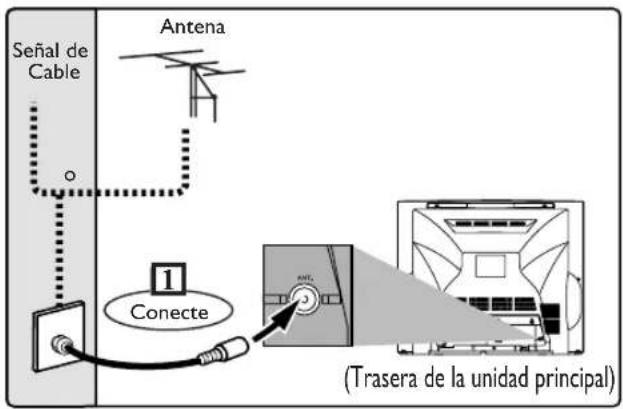
text_image
Señal de Cable Antena 1 Conecte (Trasera de la unidad principal)2 Enchufe el cable de alimentación CA de esta unidad.
Conexión al Dispositivo de cable o al Dispositivo de satélite
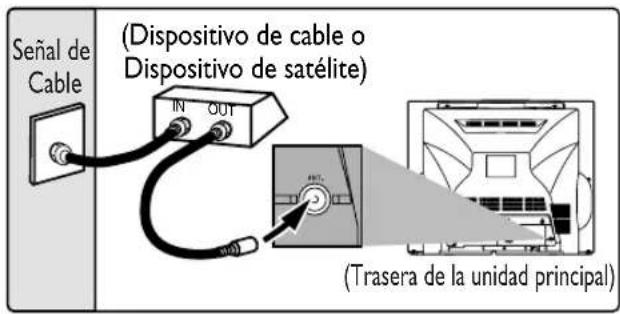
text_image
Señal de Cable (Dispositivo de cable o Dispositivo de satélite) IN OUT (Trasera de la unidad principal)Seleccione esta conexión cuando quiera visualizar o grabar un canal codificado. Con esta conexión, no se puede cambiar de canal en la unidad TV/VCR/DVD. Puede visualizar o grabar ÚNICA-MENTE los canales seleccionados en el dispositivo de cable o en el dispositivo de satélite.
- Mientras está grabando, sólo se puede visualizar el canal grabado.
Para seleccionar canales del dispositivo de cable o del dispositivo de satélite
1) Encienda esta unidad pulsando el botón POWER. Posteriormente, pulse los botones CHANNEL ▲/▼ para seleccionar el canal 3 o 4 (el mismo canal que el canal de salida del dispositivo de cable o del dispositivo de satélite).
2) En el dispositivo de cable o del satélite, seleccione el canal que quiere visualizar o grabar.
Conexión al Sistema de Audio
- Antes de cambiar las conexiones o instalar la unidad, todos los dispositivos deben estar apagados.
- Lea los manuales de usuario del resto de dispositivos para obtener más información.
Receptor con descodificador Dolby Digital
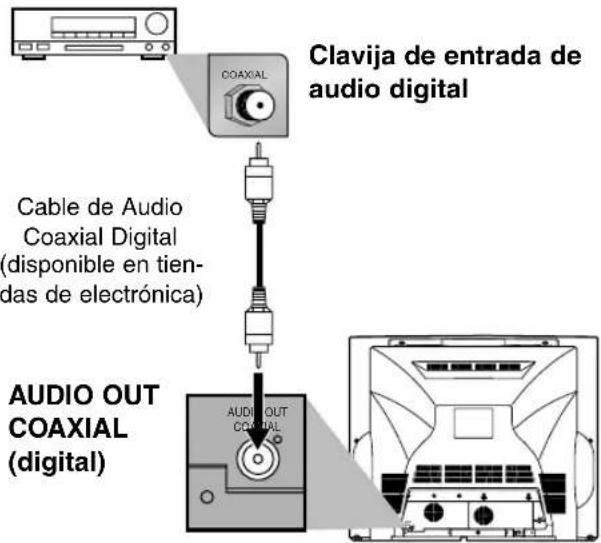
text_image
Clavija de entrada de audio digital Cable de Audio Coaxial Digital (disponible en tiendas de electrónica) AUDIO OUT COAXIAL (digital)NOTA:
- Cuando reproduce un disco DVD con conexión del TV/VCR/DVD a un receptor con descodificador Dolby Digital, seleccione el "Dolby Digital" en la posición "Stream" para el ajuste "Salida Digital" en el menú SETUP.
- La fuente de audio en un disco DVD en formato de sonido envolvente de canal Dolby Digital 5.1 no puede grabarse en modo de audio digital con una pletina MD o DAT.
- Si el receptor no cuenta con un descodificador Dolby Digital, seleccione "Dolby Digital" en la posición "PCM" para el ajuste "Salida Digital" en el menú SETUP. La reproducción de un DVD utilizando ajustes incorrectos puede acarrear distorsiones de sonido y también puede dañar los altavoces.
- Seleccione "Dolby Digital" en la posición "PCM" para el ajuste "Salida Digital" en el menú SETUP para la conexión a una pletina MD o DAT.
- Mediante la conexión de esta unidad a un receptor multi-canal con un descodificador Dolby Digital, puede disfrutar de sonido envolvente de canal Dolby Digital 5.1 de alta calidad similar al obtenido en las salas de cine.
Fabricado bajo licencia de Dolby Laboratories. "Dolby" y el símbolo con una doble D son marcas comerciales de Dolby Laboratories.
▲ NOTA:
- Sólo se podrá reproducir audio de DVD, CD y MP3 en la clavija AUDIO OUT COAXIAL.
Puede seleccionar el idioma de los menús en pantalla (OSD).
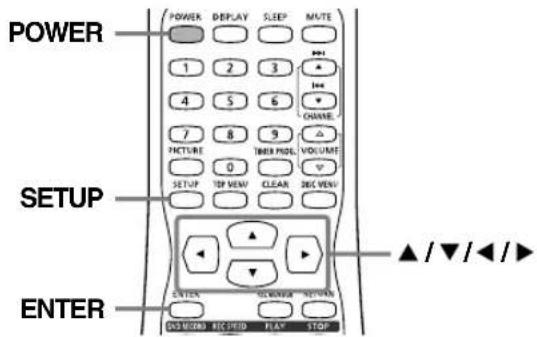
text_image
POWER 1 2 3 4 5 6 7 8 9 PICTURE 0 SETUP TOP VIEW CLEAR DEC VIEW SETUP OPEN ON/OFF SELL/OFF PLAY STOP SETUP OPEN ON/OFF SELL/OFF PLAY STOP ▲/▼/◄/►1 Pulse el botón POWER para encender la unidad.
2 Pulse el botón SETUP para acceder al menú SETUP/DISC.
Aparecerá el menú SETUP/DISC.
3 Seleccione "SETUP" utilizando los botones ◀/▶, después pulse el botón ENTER.
Aparecerá el menú SETUP.
4 Seleccione "Display" utilizando los botones ▲/▼/◄/►, después pulse el botón ENTER. Aparecerá la ventana de opciones.
5 Seleccione "OSD Language" utilizando los botones ▲/▼, después pulse el botón ENTER.
NOTA:
- El idioma por defecto de los OSD es el inglés.
6 Seleccione el idioma deseado de entre "English", "Français" y "Español" utilizando los botones ▲/▼, después pulse el botón ENTER. Se activará el ajuste de idioma seleccionado.
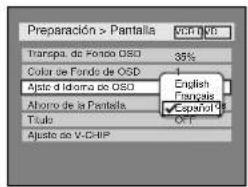
text_image
Preparación > Pantalla Transpa, de Fondo OSD Color de Fondo de OSD Ajuste d Idoma de OSD Ahorro de la Pantella Título Ajuste de V-CHIP 35% English Spanish Spanish Ctrl7 Pulse el botón SETUP para salir del Menú de Preparación.
A JUSTE DE CANALES
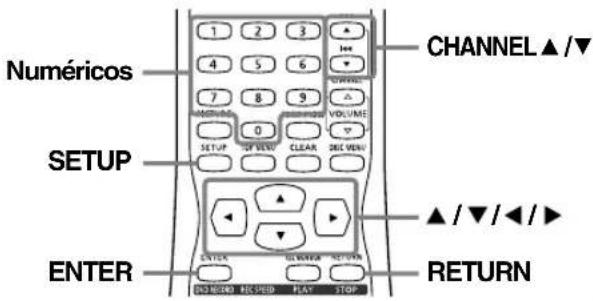
text_image
Numéricos SETUP ENTER CHANNEL ▲/▼ ▲/▼/◄/► RETURN1 Pulse el botón SETUP para acceder al menú SETUP/DISC.
Aparecerá el menú SETUP/DISC.
2 Seleccione "SETUP" utilizando los botones ◀/▶, después pulse el botón ENTER.
Aparecerá el Menú de Preparación.
3 Seleccione "Channel" utilizando los botones ▲/▼/◄/►, después pulse el botón ENTER.
Aparecerá el menú Ajuste de Canal.
4 Seleccione "Ajuste Auto" utilizando los botones ▲/▼, después pulse el botón ENTER.
La unidad comenzará a realizar una búsqueda de los canales disponibles en su zona.
Para cancelar el Ajuste Auto durante la búsqueda:
Pulse el botón RETURN o el botón SETUP para cancelar la operación.
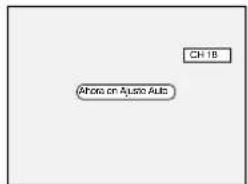
text_image
CH 1B Phone on Ajust AutoNOTA:
- Si se cancela la operación Ajuste Auto antes de completar el ajuste previo, puede que algunos canales que no se hayan ajustado previamente no se encuentren disponibles.
- La selección dependerá de cómo recibe los canales de televisión.
5 Pulse el botón SETUP para salir del menú.
Puede seleccionar únicamente los canales memorizados en esta unidad utilizando los botones CHANNEL ▲/▼.
Para seleccionar un canal:
Puede seleccionar un canal introduciendo directamente el mismo utilizando los botones numéricos del mando a distancia.
▲ Notas para la utilización de los botones numéricos:
- Cuando seleccione los canales de cable superiores al número 99, introduzca los números de canal como dígito de tres cifras. (Por ejemplo: 117, pulse 1,1,7)
- Debe introducir delante de los números de canales de una cifra el número cero (Por ejemplo: 02, 03, 04 y en adelante).
- Puede seleccionar el modo de entrada en línea ("AUX"). Para seleccionar "AUX" pulse [0], [0]. Más información en la página 56
Visualización de un programa de televisión
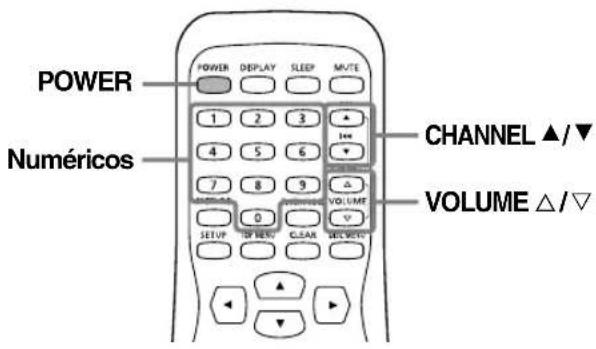
text_image
POWER Numéricos CHANNEL ▲/▼ VOLUME △/▽1 Pulse el botón POWER para encender la unidad.
2 Seleccione el canal deseado utilizando los botones CHANNEL ▲/▼ o los botones numéricos del mando a distancia.
Si la unidad TV/VCR/DVD está conectada a un dispositivo de cable o de satélite, el TV/VCR/DVD deberá encontrarse en el canal 3 o 4 y, en tal caso, el canal que desee visualizar deberá seleccionarlo desde el dispositivo de cable o del satélite.
3 Ajuste el volumen al nivel deseado utilizando los botones VOLUME △▽.
4 Ajuste el control de la imagen para obtener un aspecto natural.
5 Cuando termine de ver la televisión, pulse el botón POWER para apagar el televisor.
FUNCIONES VCR
Reproducción
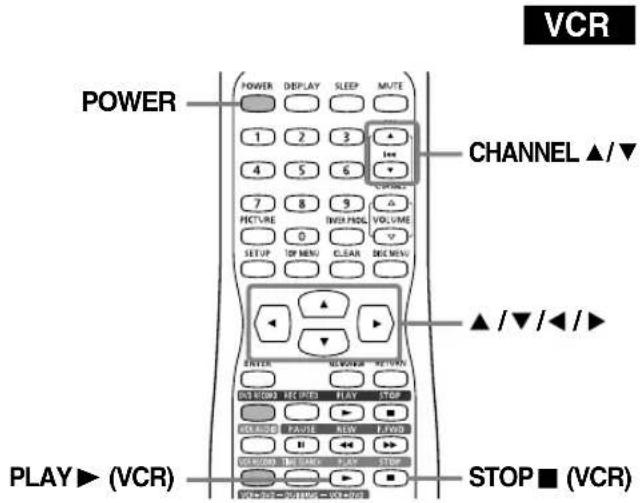
text_image
POWER POWER DISPLAY SLEEP MUTE 1 2 3 + 4 5 6 + 7 8 9 PICTURE INVER/PROD 0 SETUP TOP MENU CLEAR DEC MENU CHANNEL ▲/▼ VOLUME ▲ /▼ /◄ /► ENTER REPOWER RETURN OUTDOOR AVENUE PLAY STOP CHANGE FAVIE NEW E FOD OFF/OFF: BIG CAFE: PLAY: STOP STOP ■ (VCR)1 Pulse el botón POWER para encender la unidad.
2 Introduzca la cinta pregrabada y pulse el botón PLAY ▶ (VCR) para comenzar la reproducción. NOTA:
- Cuando se introduce una cinta sin etiqueta de grabación, la reproducción comenzará automáticamente.
- El rastreo de pistas se ajustará automáticamente cuando comience la reproducción. Para ajustarlo manualmente, pulse los botones CHANNEL ▲/▼ de la unidad principal o los botones CHANNEL ▲/▼ del mando a distancia.
3 Pulse el botón STOP ■ (VCR) para detener la reproducción.
4 Pulse el botón ■STOP/▲ EJECT de la unidad principal para extraer la cinta.
Reproducción
text_image
DVD-RI DVD-RW (Video) DVD-RW (VR) MP3C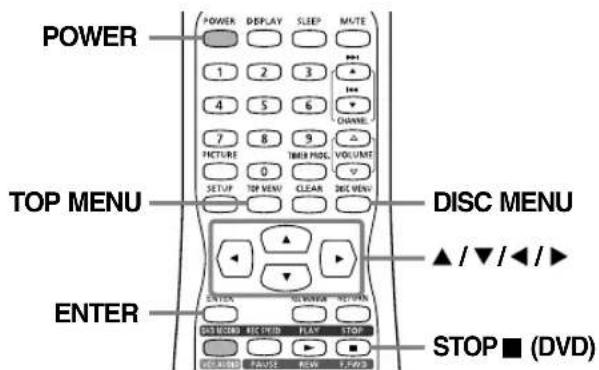
text_image
POWER 1 2 3 4 5 6 7 8 9 PICTURE TIME PRIE VOLUME 0 SETUP TOP VENU CLEAR DISC VENU TOP MENU DISC MENU ENTER ▲ /▼/◄/► STOP ■ (DVD)1 Pulse el botón POWER.
2 Pulse el botón ▲ OPEN/CLOSE de la unidad principal para abrir la bandeja de discos.
La bandeja de discos se abrirá.
3 Coloque el disco en la bandeja de discos con la etiqueta hacia arriba y asegúrese de que se ajuste perfectamente a la guía. Pulse el botón ▲ OPEN/CLOSE otra vez para cerrar la bandeja de discos.
NOTA:
- Esta operación puede tardar unos minutos en completarse.
- Puede que algunos discos se reproduzcan automáticamente.
- Si reproduce un disco de vídeo DVD, puede que aparezca un menú.
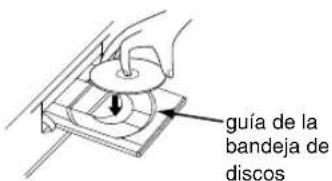
text_image
guía de la bandeja de discos4 Pulse el botón TOP MENU para acceder al menú de títulos.
Puede cambiar entre los modos "Original" o "Playlist" de VR utilizando el botón DISC MENU. Modo de Video:
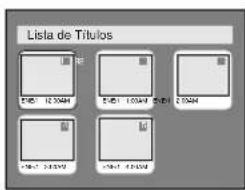
text_image
Lista de Títulos F10: 12.5044 F20: 1.0544 F30: 2.5044 F40: 3.5044 F50: 4.5044Modo de VR:
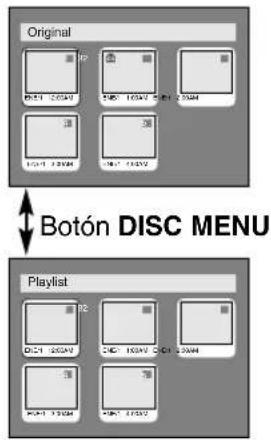
text_image
Original Botón DISC MENU PlaylistMP3:
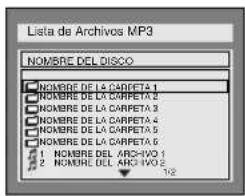
text_image
Lista de Archivos MP3 NOMBRE DEL DISCO NOMBRE DE LA CARPETA 1 NOMBRE DE LA CARPETA 2 NOMBRE DE LA CARPETA 3 NOMBRE DE LA CARPETA 4 NOMBRE DE LA CARPETA 5 NOMBRE DE LA CARPETA 6 1 NOMBRE DEL ARCHIVO 1 2 NOMBRE DEL ARCHIVO 2 3/8NOTA:
- Pulse el botón TOP MENU para salir del menú.
- P ara discos DVD-R (Modo de Video) y DVD-RW (Modo de Video) que ya han sido ultimados, se mostrará una lista de títulos en lugar de pequeñas reseñas tal y como se muestra posteriormente.
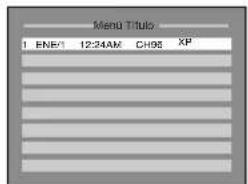
text_image
Menu Title 1 ENR: 12:24AM CH95 XP5 Seleccione el título deseado pulsando los botones ▲/▼/◄/►, posteriormente pulse el botón ENTER.
Comenzará la reproducción.
6 Pulse el botón STOP ■ (DVD) para detener la reproducción.
Para extraer el disco, pulse el botón ▲ OPEN/CLOSE para abrir la bandeja del disco y después retírelo antes de apagar la unidad.
Lo que sigue a continuación de ayudará a comprender fácilmente cómo grabar discos DVD.
NOTA
- Asegúrese de haber completado las conexiones y de haber colocado pilas en el mando a distancia.
Paso 1: Escoja el tipo de disco
Existen varios tipos de discos de DVD grabables entre los que escoger. Escoja el tipo seleccionado de entre los "Tipos de disco DVD" de esta página.
Esta unidad sólo puede grabar sobre los siguientes tipos de discos.
(o)

* Esta unidad no puede grabar sobre los siguientes discos.
• D VD-R General Ver 2.0 / 8x
• D VD-RW Ver 1.2 / 2-4x CPRM compatible
Por ejemplo, cuando desee grabar repetidamente sobre el mismo disco o cuando desee editar el disco después de la grabación, escoja el tipo de disco regrabable DVD-RW.
Cuando desee guardar grabaciones sin efectuar cambios, puede escoger un disco no regrabable DVD-R.
Paso 2: Introduzca un disco en blanco
1 Encienda la unidad
2 Abra la bandeja de discos
3 Cierre la bandeja de discos
Mando a distan-
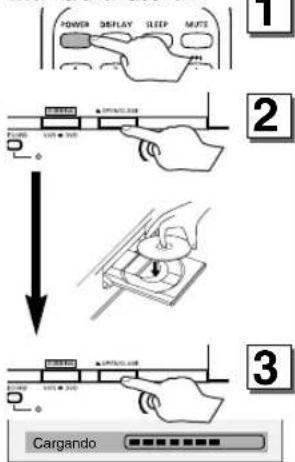
text_image
POWER DEPLAY SLEEP MUTE 1 2 ↓ CargandoNOTA:
- Esta operación puede llevar- le unos minutos.
Paso 3: Seleccione la velocidad de grabación
Para seleccionar la velocidad de grabación, pulse una vez el botón REC SPEED, posteriormente, cambie la velocidad de grabación pulsando los botones ▲/▼.
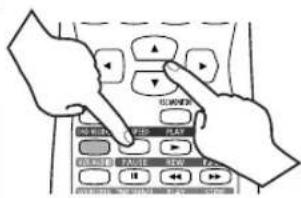
text_image
Diagram showing hands interacting with a control panel with labeled buttons and function keys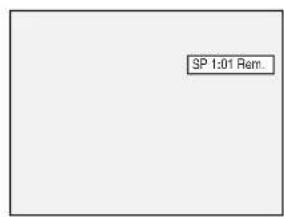
text_image
SP 1:01 Rem.Tipos de disco DVD
- ★★★: El más adecuado. ★★: Puede utilizarse. ★: Algunas funciones están limitadas. —: No puede utilizarse.
| Desea | DVD-RW VR | DVD-RW Video | DVD-R |
| Grabar programas de televisión | ☆☆☆ | ☆☆☆ | ☆☆ |
| Reutilizar borrando contenidos no deseados | ☆☆☆ | ☆☆ | — |
| Editar los contenidos grabados | ☆☆☆ | ☆ | ☆ |
| Editar / Grabar desde un equipo conectado | ☆☆☆ | ☆☆☆ | ☆☆☆ |
| Copiar discos para su distribución | ☆☆ ^-1 | ☆☆☆ | ☆☆☆ |
| Reproducir en otro equipo de DVD | ☆☆ ^-1 | ☆☆☆ | ☆☆☆ |
| Características | DVD-RW VR | YD-RW Video | DVD-R |
| Grabación | |||
| ¿Regrabable? Sí Sí | No | ||
| Puede crear capítulos en intervalos fijos (auto.) Sí Sí | Sí | ||
| Puede crear capítulos allí donde lo desee (manual) Sí No | No | ||
| Puede grabar imágenes de 16:9 | Sí Sí | Sí | |
| Puede grabar programas de una sola copia | Sí No | No | |
| Edición | |||
| Puede efectuar funciones de edición básicas | Sí Sí | Sí | |
| Puede efectuar funciones de edición avanzadas (Edición de Playlist) | Sí No | No | |
*1 El DVD-RW (Modo de VR) sólo puede reproducirse en equipos de DVD compatibles con VR.
NOTA:
Para más información acerca de las funciones anteriormente descritas y sus restricciones implícitas, dirijase a las explicaciones contenidas en el manual.
▲ Importante
Formatee el disco
Introduzca el disco en la unidad. Posteriormente, formatee el disco desde el menú SETUP. Se encontrarán disponibles las opciones de formateo de Vídeo (Modo de Vídeo) o formateo de grabación de Vídeo (Modo de VR) en función del tipo de disco introducido. Esto es esencial para preparar el disco para la grabación. Más información en las páginas 48-49.
* Cuando efectúa el forma- teo, todos los contenidos del disco se borran.
Finalización del disco
Después de la grabación, deberá finalizar los discos DVD grabados en esta unidad antes de poder reproducirlos en otros reproductores de DVD. Diríjase a la página 54.
Paso 4: Seleccione
el canal
deseado
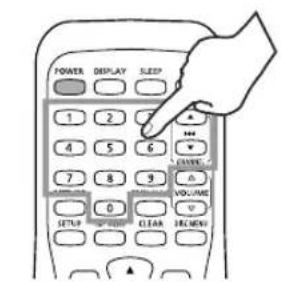
text_image
POWER DISPLAY SLEEP 1 2 3 4 5 6 7 8 9 0 SETUP CLEAR VOLUME DELENCY
Paso 5: Pulse el botón DVD RECORD
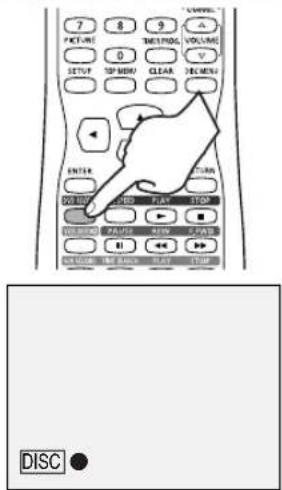
text_image
7 8 9 POT-LINE TIME/PROG VOLUME 0 SETUP SP-MO LO CLEAR DELMUS ENTER TURN DO NOT LIME PLAY STOP ON/OFF ANION FLOW OK Cancel EXCHANGE ON BANANA DATE ORDER DISC ●Paso 6: Detenga la
Grabación
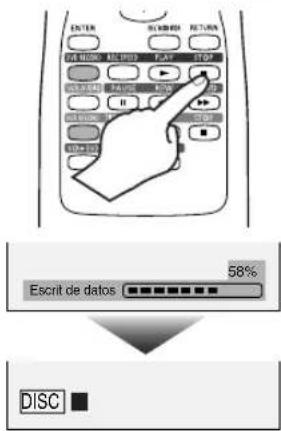
text_image
ENTER ENGLISH RETURN 58% EARNER 100 200 300 400 500 600 700 800 900 1000 1100 1200 1300 1400 1500 1600 1700 1800 1900 2000 2100 2200 2300 2400 2500 2600 2700 2800 2900 3000 3100 3200 3300 3400 3500 3600 3700 3800 3900 4000 4100 4200 4300 4400 4500 4600 4700 4800 4900 5000 5100 5200 5300 5400 5500 5600 5700 5800 5900 6000 6100 6200 6300 6400 6500 6600 6700 6800 6900 7000 7100 7200 7300 7400 7500 7600 7700 7800 7900 8000 8100 8200 8300 8400 8500 8600 8700 8800 8900 9000 9100 9200 9300 9400 9500 9600 9700 9800 9900 1000NOTA:
- Esta operación pude llevarle varios minutos.
Reproducción de los contenidos grabados
Puede seleccionar el título que desee reproducir desde un menú mostrado y comenzar inmediatamente la reproducción. Los contenidos grabados son muy accesibles en un disco, el procedimiento es realmente sencillo cuando selecciona un título en un capítulo del menú de pantalla.
¿Qué son los títulos y los capítulos?
Los contenidos del disco DVD se dividen normalmente en títulos. Los títulos pueden dividirse además en capítulos.
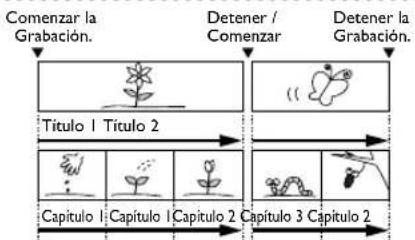
flowchart
graph TD
    A["Comenzar la Grabación."] --> B["Título 1 Titulo 2"]
    B --> C["Capítulo 1 Capítulo 1 Capítulo 2 Capítulo 3 Capítulo 2"]
    D["Detener / Comenzar"] --> E["Título 1 Titulo 2"]
    E --> F["Capítulo 1 Capítulo 1 Capítulo 2 Capítulo 3 Capítulo 2"]
    G["Detener la Grabación."] --> H["Título 1 Titulo 2"]
    H --> I["Capítulo 1 Capítulo 1 Capítulo 2 Capítulo 3 Capítulo 2"]
Edición del disco grabado
Le resultará muy fácil editar discos. Esta unidad ofrece sencillas funciones de edición que sólo se encuentra disponibles en discos DVD-R/RW.
Puede editar lo siguiente a partir de una lista de Títulos.
- Nombrar títulos
- Establecer imágenes para pequeñas reseñas (Modo de VR)
- E stablecer / eliminar marcadores de capítulo
- Borrar partes de título o escena (Modo de VR)
Borrar título : Esta función borra una escena completa de forma permanente del disco.
Borrar escena : Esto permite al usuario editar una escena específica (p.e., anuncios publicitarios).
Original y Playlist (Modo de VR)
Puede editar las grabaciones en una Playlist sin modificar las grabaciones originales. Las Listas de Reproducción no ocupan mucho espacio en el disco.
¿Para qué sirve "Original" o "Playlist"?
A lo largo de este manual, encontrará los términos Original y Playlist para referirse al contenido real de la versión editada.
- Contenido Original se refiere a lo que realmente hay grabado en el disco.
- Contenido de la Playlist se refiere a la versión editada del disco, cómo debe reproducirse el contenido original.
Finalización del Disco
- Esto le permitirá reproducir un disco grabado en nuestra unidad en otro reproductor de DVD. Sin efectuar esta operación, no podrá reproducirlo en otro reproductor.
- Tr as finalizar un disco, si la grabación se encontraba en Modo de Video, no podrá editar ninguna información dentro del disco.
- Si ha grabado en Modo de VR en un disco DVD-RW, entonces podrá editar el disco después de la finalización. Véase la página 54.
SYLVANIA
LIMITED WARRANTY
FUNAI CORP. will repair this SYLVANIA product, free of charge in the USA in the event of defect in materials or workmanship as follows:
DURATION:
PARTS: FUNAI CORP. will provide parts to replace defective parts without charge for one (1) year from the date of original retail purchase. Two (2) years for Picture Tube. Certain parts are excluded from this warranty.
LABOR: FUNAI CORP. will provide the labor without charge for a period of ninety (90) days from the date of original retail purchase.
LIMITS AND EXCLUSIONS:
THIS WARRANTY IS EXTENDED ONLY TO THE ORIGINAL RETAIL PURCHASER. A PURCHASE RECEIPT OR OTHER PROOF OF ORIGINAL RETAIL PURCHASE WILL BE REQUIRED TOGETHER WITH THE PRODUCT TO OBTAIN SERVICE UNDER THIS WARRANTY.
This warranty shall not be extended to any other person or transferee.
This warranty is void and of no effect if any serial numbers on the product are altered, replaced, defaced, missing or if service was attempted by an unauthorized service center. This SYLVANIA Limited warranty does not apply to any product not purchased and used in the United States.
This warranty only covers failures due to defects in material or workmanship which occurs during normal use. It does not cover damage which occurs in shipment, or failures which are caused by repairs, alterations or product not supplied by FUNAI CORP. or damage which results from accident, misuse, abuse, mishandling, misapplication, alteration, faulty installation, improper maintenance, commercial use such as hotel, rental or office use of this product or damage which results from fire, flood, lightning or other acts of God.
THIS WARRANTY DOES NOT COVER PACKING MATERIALS, ANY ACCESSORIES (EXCEPT REMOTE CONTROL), ANY COSMETIC PARTS, COMPLETE ASSEMBLY PARTS, DEMO OR FLOOR MODELS.
FUNAI CORP. AND ITS REPRESENTATIVES OR AGENTS SHALL IN NO EVENT BE LIABLE FOR ANY GENERAL, INDIRECT OR CONSEQUENTIAL DAMAGES ARISING OUT OF OR OCCASIONED BY THE USE OF OR THE INABILITY TO USE THIS PRODUCT. THIS WARRANTY IS MADE IN LIEU OF ALL OTHER WARRANTIES, EXPRESS OR IMPLIED AND OF ALL OTHER LIABILITIES ON THE PART OF FUNAI, ALL OTHER WARRANTIES INCLUDING THE WARRANTY OF MERCHANTABILITY AND FITNESS FOR A PARTICULAR PURPOSE, ARE HEREBY DISCLAIMED BY FUNAI AND ITS REPRESENTATIVES IN THE UNITED STATES.
ALL WARRANTY INSPECTIONS AND REPAIRS MUST BE PERFORMED BY A FUNAI AUTHORIZED SERVICE CENTER. THIS WARRANTY IS ONLY VALID WHEN THE UNIT IS CARRIED-IN TO A FUNAI AUTHORIZED SERVICE FACILITY.
IMPORTANT:
THIS LIMITED WARRANTY GIVES YOU SPECIFIC LEGAL RIGHTS. YOU MAY HAVE OTHER RIGHTS THAT VARY FROM STATE TO STATE. IF, AT ANY TIME DURING THE WARRANTY PERIOD, YOU ARE UNABLE TO OBTAIN SATISFACTION WITH THE REPAIR OF THIS PRODUCT, PLEASE CONTACT FUNAI CORP.
ATTENTION:
FUNAI CORP. RESERVES THE RIGHT TO MODIFY ANY DESIGN OF THIS PRODUCT WITHOUT PRIOR NOTICE.
To locate your nearest SYLVANIA Authorized Service Center or for general service procedure, please call 1-800-605-8453 or write to the following:
FUNAI CORPORATION, INC. SERVICE CENTER
19900 Van Ness Avenue, Torrance, CA 90501
Tel :1-800-605-8453
http://www.funai-corp.com
Head Office: 100 North Street, Teterboro, NJ 07608
PLEASE DO NOT SHIP YOUR UNIT TO THE TETERBORO ADDRESS.