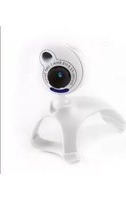
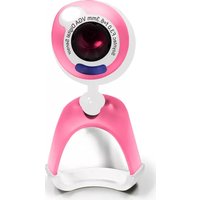
Joinsee 451 - Webcam Soyntec - Free user manual and instructions
Find the device manual for free Joinsee 451 Soyntec in PDF.


| Product Type | Webcam |
| Brand | Soyntec |
| Model | Joinsee 451 |
| Image Sensor | 1.3 Megapixel CMOS |
| Video Resolution | SXGA (1280x1024) |
| Still Image Resolution | SXGA (1280x1024), interpolated up to 5 MP |
| Frame Rate | Up to 30 fps (VGA), up to 15 fps (SXGA) |
| Features | HD video, face tracking, snapshot button, status LED |
| Connectivity | USB 2.0 (compatible with USB 1.1/1.0) |
| Included Accessories | Headset with Hi-Fi microphone and speaker, driver CD, manual |
| Dimensions (approx.) | 8.0 x 5.0 x 4.0 cm |
| Weight (approx.) | 100 g |
| Power Supply | USB powered (5V DC) |
| Compatibility | Windows VISTA/XP/2000/98SE/ME, Mac |
| Guarantee | 36 months (by Energy Sistem Soyntec) |
| Cleaning Instructions | Wipe with a soft, dry cloth. Avoid liquids. |
| Safety Precautions | Do not disassemble, keep away from moisture. |
| Spare Parts Availability | Not available; contact support for issues. |
Frequently Asked Questions - Joinsee 451 Soyntec
User questions about Joinsee 451 Soyntec
0 question about this device. Answer the ones you know or ask your own.
Ask a new question about this device
Download the instructions for your Webcam in PDF format for free! Find your manual Joinsee 451 - Soyntec and take your electronic device back in hand. On this page are published all the documents necessary for the use of your device. Joinsee 451 by Soyntec.
USER MANUAL Joinsee 451 Soyntec
Soyntec thanks you for purchasing your new webcam Joinsee.
We wish you enjoy using it.
Fitted with 1.3MP CMOS Sensor, High Quality, HIGH-SPEED USB
2.0, Video Surveillance and Intelligent Face Tracking System.
Includes comfortable headset with Hi-Fi microphone and speaker.
Dual innovative and compact design.
We suggest reading this user manual for enjoying this product is a safe way and with the best performance.
Main features
- True 1,3 Megapixels Image Sensor.
- High Definition Video (HD).
- Video resolution: SXGA 1280x1024.
-
Still resolution: SXGA 1280x1024.
-
Capture Speed: Up to 30 fps (VGA) and up to 15 fps (SXGA).
- Includes special button for taking photos.
- Photos: 5 Megapixels by interpolation.
- Features status LED indicator.
- USB 2.0 connection compatible with USB 1.1/1.0.
- Compatible with Mac, Windows VISTA / XP / 2000 / 98SE / ME.
Product contents
- Joinsee Webcam.
- Headset.
- CD with Drivers and Software.
- Multilingual user manual.
Product overview
The following picture shows the main parts of the webcam:
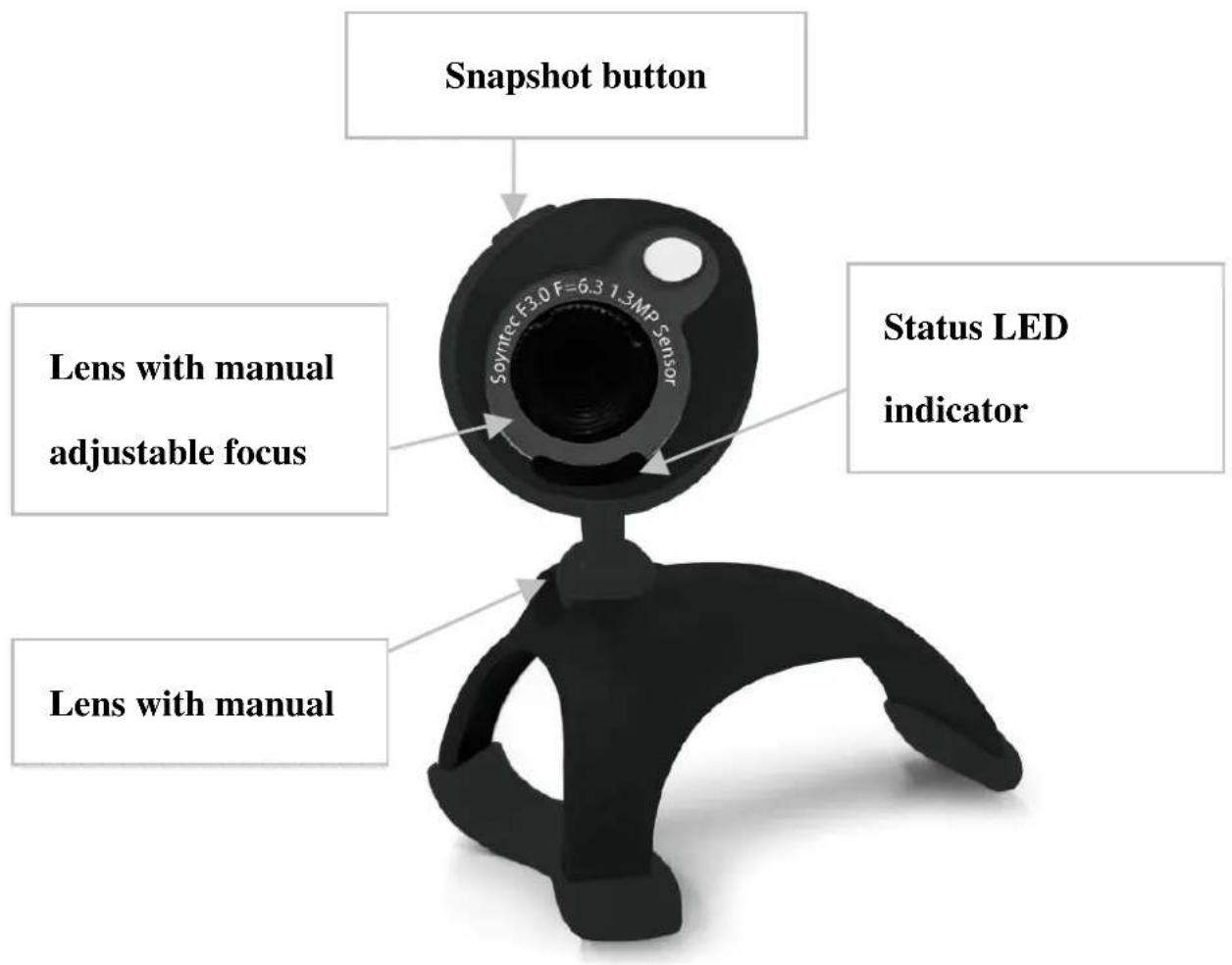
Figura A: Webcam JOINSEE 450 Black example main parts
Specifications are subject to change without notice. © 2008/09 by Soyntec. All rights reserved.
Webcam installation
Please note that in order to install the webcam you need a free USB connector in your computer.
Follow these steps to install the webcam:
- Connect the webcam to a free USB connector. The operating system will detect the webcam and it will be ready to use.
- Press the snapshot button on top of the webcam to launch the monitoring software and check that the webcam has been properly installed.
ArcSoft VideoImpression software installation
- Insert the provided drivers CD and select “ArcSoft VideoImpression” then click over it”.
- Select the installation language.
- Click the "Next" button.
- The license contract will appear. Click “Yes”.
- The installation folder can be modified. It is recommended to leave the default folder. Click the “Next” button.
- The new program group can also be modified. Just leave the default program group and click “Next”. The copy of files will start.
- Click “Finish” to close the installation wizard.
ArcSoft WebCam Companion 2 software installation
- Insert the provided drivers CD and select “ArcSoft WebCam Companion 2”.
- Select the installation language.
- Click the "Next" button.
- The license contract will appear. Click “Yes”.
- The installation folder can be modified. It is recommended to leave the default folder. Click the “Next” button.
- The new program group can also be modified. Just leave the default program group and click “Next”. The copy of files will start.
- Click “Finish” to close the installation wizard.
ArcSoft ArcSoft Magic-i software installation
- Insert the provided drivers CD and select "ArcSoft Magic-i".
- Select the installation language.
- Click the "Next" button.
- The license contract will appear. Click "Yes".
- The installation folder can be modified. It is recommended to leave the default folder. Click the “Next” button.
- The new program group can also be modified. Just leave the default program group and click “Next”. The copy of files will start.
- Click "Finish" to close the installation wizard.
Special guarantee
Energy Sistem guarantees that your product does not have any material, design or manufacture defect and provides a 36 month guarantee.
Operation of the Guarantee
1) Entering http://support.energysistem.com and after selecting your product you will be able to find FAQ's (answers to the frequently asked questions) manual, guides of user, drivers and updates.
2) If you do not obtain the solution in the support section please contacting us on: support@energysistem.co.uk
3) Optionally can be directed to the place where it has bought the product, presenting its invoice or ticket of purchase.
Specifications are subject to change without notice.
© 2008 by Energy Sistem Soyntec. All rights reserved.
Trademarks
All company, brand and product names are trademarks or registered trademarks of their respective companies.

DECLARATION OF CONFORMITY
Supplier Name: Energy Sistem Soyntec S. A.
Address: Pol. Ind. Finestrat C/ Calpe esq. C/ Alicante S/N, 03509 Finestrat
Alicante - Tel: 902 388 388 - Fax: 902 119 034
NIF: A53107488
We declare under our own exclusive responsibility the product conformity:
Soyntec® WebCam 1.3MP Real Joinsee™ 450 Series, Face tracking and Headset included
Manufacturing country: China
Specifications are subject to change without notice.
© 2008/09 by Soyntec. All rights reserved.

- MAIN FEATURES
- PRODUCT CONTENTS
- PRODUCT OVERVIEW
- WEBCAM INSTALLATION
- ARCSOFT VIDEOIMPRESSION SOFTWARE INSTALLATION
- ARCSOFT WEBCAM COMPANION 2 SOFTWARE INSTALLATION
- ARCSOFT ARCSOFT MAGIC-I SOFTWARE INSTALLATION
- SPECIAL GUARANTEE
- OPERATION OF THE GUARANTEE
- DECLARATION OF CONFORMITY
- WE DECLARE UNDER OUR OWN EXCLUSIVE RESPONSIBILITY THE PRODUCT CONFORMITY
Brand : Soyntec
Model : Joinsee 451
Category : Webcam