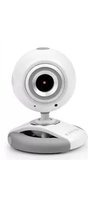
Joinsee 500 - Webcam Soyntec - Free user manual and instructions
Find the device manual for free Joinsee 500 Soyntec in PDF.


| Product Type | Webcam |
| Brand | Soyntec |
| Model | Joinsee 500 |
| Resolution | Full HD 1080p (1920x1080) |
| Frame Rate | 30 fps |
| Microphone | Built-in noise-canceling microphone |
| Focus Type | Autofocus |
| Field of View | 70° |
| Connection | USB 2.0 plug-and-play |
| Cable Length | 1.5 m (approx.) |
| Dimensions (without mount) | 9.5 x 4.2 x 3.0 cm (approx.) |
| Weight | 95 g (approx.) |
| Mounting | Clip mount for monitor or tripod compatible |
| Compatibility | Windows, macOS, Chrome OS, Linux |
| LED Indicator | Activity light when camera is in use |
| Low Light Correction | Yes |
| Privacy Cover | No (manual lens cap not included) |
| Power Source | USB powered (from computer) |
| Maintenance | Clean lens with a soft, dry cloth. Avoid liquids. |
| Safety | Keep away from water and extreme temperatures. |
| Spare Parts / Repairability | Not repairable by user. No spare parts available. |
Frequently Asked Questions - Joinsee 500 Soyntec
User questions about Joinsee 500 Soyntec
0 question about this device. Answer the ones you know or ask your own.
Ask a new question about this device
Download the instructions for your Webcam in PDF format for free! Find your manual Joinsee 500 - Soyntec and take your electronic device back in hand. On this page are published all the documents necessary for the use of your device. Joinsee 500 by Soyntec.
USER MANUAL Joinsee 500 Soyntec
natural_image
Line drawing of a webcam with a circular head and base (no text or symbols)User manual

Joinsee 500 Series
Enjoy the advanced features of this technological product that we have developed with maximum guarantees for you.
WebCam VGA
1. INTRODUCTION
Soyntec® thanks you for purchasing your new Joinsee webcam. We wish you enjoy it.
The Joinsee works with a USB port to be connected with PC / laptop. It is a perfect webcam for its plug and play and real-time transmission.
Its mini size, easily carrying, high resolution and high speed make your life more colorful and make your long distance communications fresh and vivid.
We suggest reading this user manual for enjoying this product in safe way and with the best performance.
2. CARE AND MAINTENANCE
- Do not expose your Joinsee™ 500 to shakes, dust, direct sun light, moisture or extreme temperatures.
▶ Do not use abrasive or corrosive cleaners. - Keep the device clean and without dust with a soft and dry cloth.
Do not disassemble the device. Any repair work must be performed by
qualified Energy Sistem Soyntec's personnel.
- Keep distance to water or moisture which could be harmful to the device.
- Avoid to look directly to the sensor light in the bottom of the mouse.
3. MAIN FEATURES AND TECHNICAL SPECIFICATION
▶ High Resolution CMOS Color Sensor.
▶ Resolution: 350K Pixels (interpolated 5M).
▶ Video Format: 24bit True Color.
▶ Interface: USB2.0, compatible with USB1.1
▶ Motion tracking.
Digital zoom.
▶ Transmission Speed:
640*480 - 8frames/second.
2560*1920 - 8frames/second.
▶ Dynamic Range: 72db.
▶ Imaging Distance: 5CM to infinity.
▶ Built-in Image Compression.
▶ Automatic White Balance.
▶ Automatic Color Compensation.
▶ Manual Adjusting Focus.
▶ Manual Snapshot (Snapshot button is necessary for this).
▶ With Microphone.
4. PRODUCT CONTENTS
▶ Webcam.
▶ CD with drivers and software.
▶ User manual.
5. PRODUCT OVERVIEW
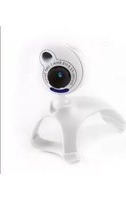
The following picture shows the main part of the webcam:

- Snapshot button.
- Lens with manual adjustable focus.
- Status LED indicador.
- Adjustable neck.
6. SOFTWARE INSTALLATION
Please note that you need in your computer one USB port free to install the webcam.
- Connect webcam to PC. After hardware founded, put "CD Driver" disk in the CD-Rom and an interface as below would come out automatically:

Click "Install".
2. Follow the next indication:
Click"Finish".
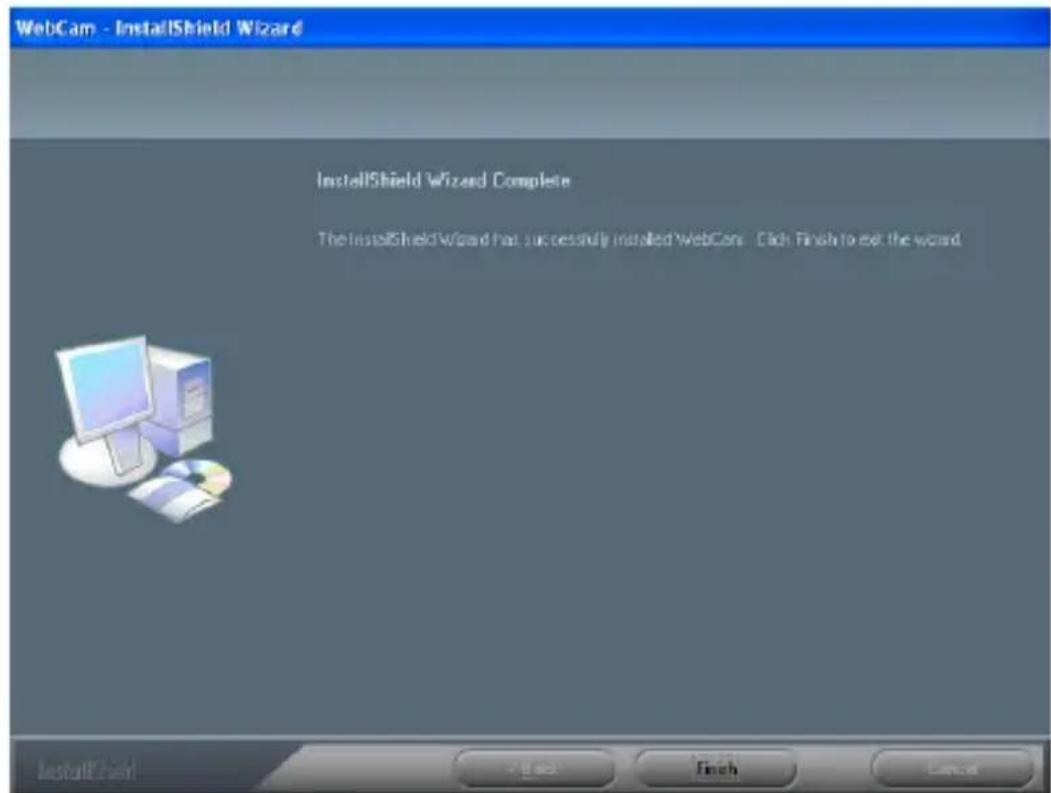
3. You can see a VideoCap shortcut on your desktop.
Webcam VideoCap.Ink
Do double click on "Videocap" and enjoy your new Joinsee webcam.
7. FEATURES
1. DIGITAL ZOOM.
Open "Videocap", inside the OPTION window choose VIDEO CAPTURE FILTER.
You will find the window ADVANCE TYPE;
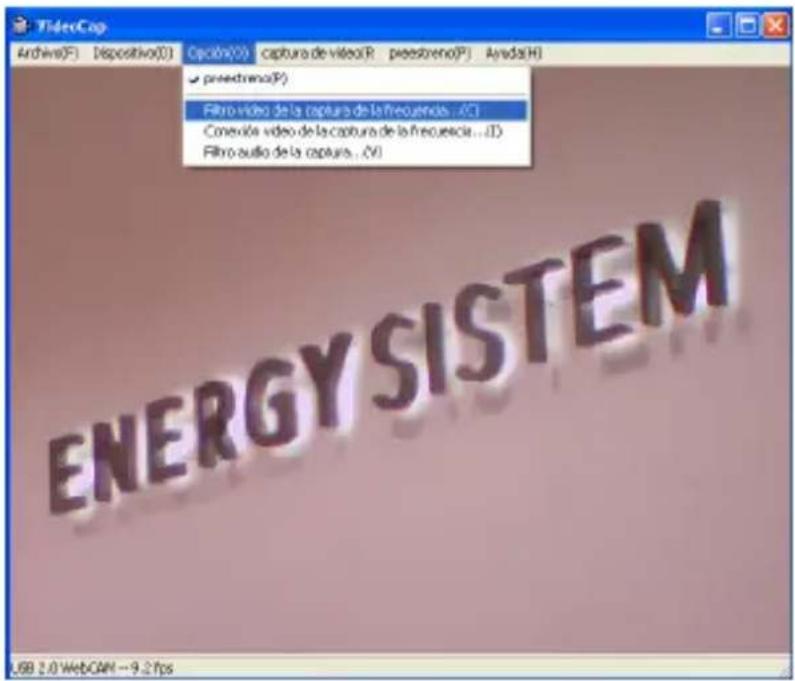
then you can select DIGITAL ZOOM and adjust it like you wish.
- MOTION TRACKING; Open "Videocap", inside the OPTION window choose VIDEO CAPTURE FILTER. You will find the window ADVANCE TYPE; then you can select MOTION TRACKING, you can select your favourite WINDOW TYPE y ZOOM TYPE.

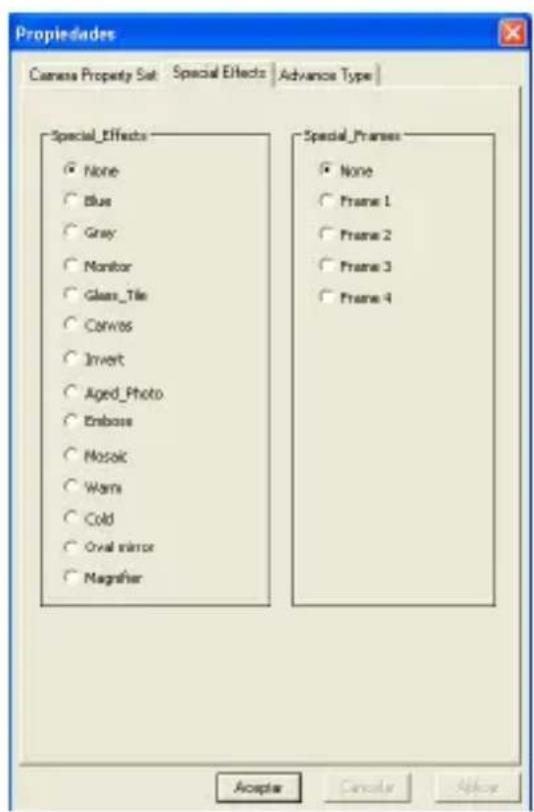
3. SPECIAL EFFECT.
Open "Videocap", inside the OPTION window choose VIDEO CAPTURE FILTER.
You will find the window SPECIAL EFFECTS, you can select one of the 17 different options.
4. VIDEO DEFINITION.
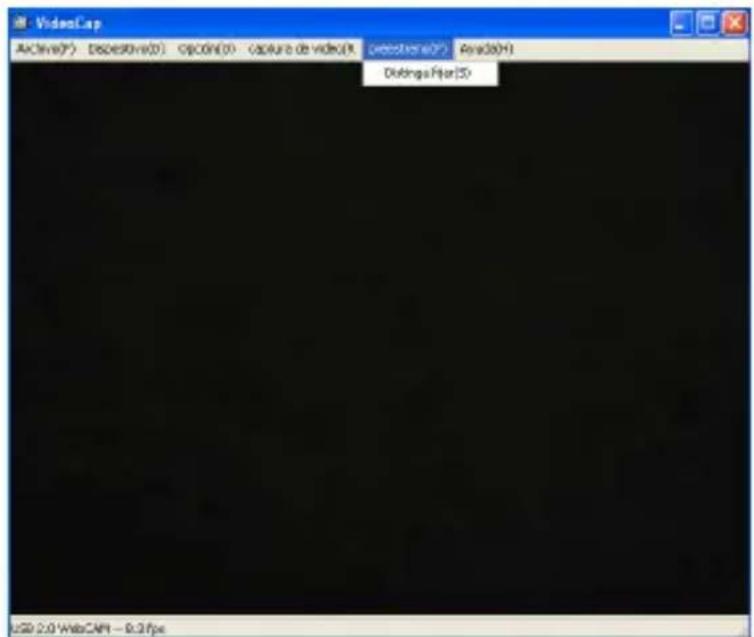
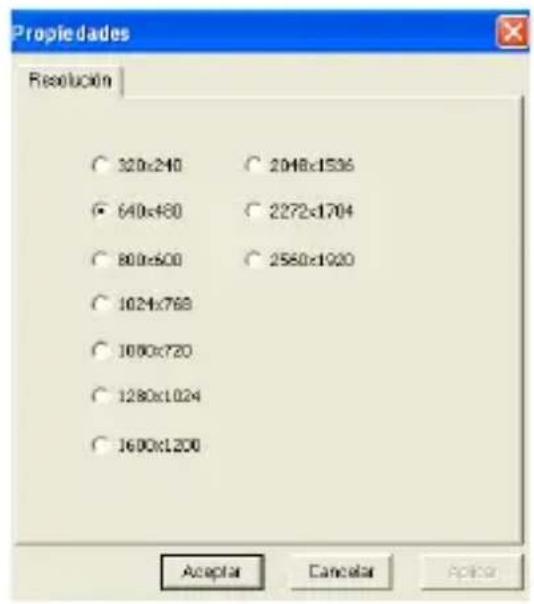
Open "Videocap", click "PREVIEW" select "Distinguish Setting".
You can choose the different options
2272*1704
2048*1536
1600*1200
1280*1024
1080*720
1024*768
800*600
640*480
320*240
The default output size is 640*480
The max. definition is 2560*1920.
5. STILL IMAGE DEFINITION (PHOTO).
Open "Videocap", inside the OPTION and choose the different option that you wish. You can choose from 300K to 20M. For capture you only can click on "Capture".
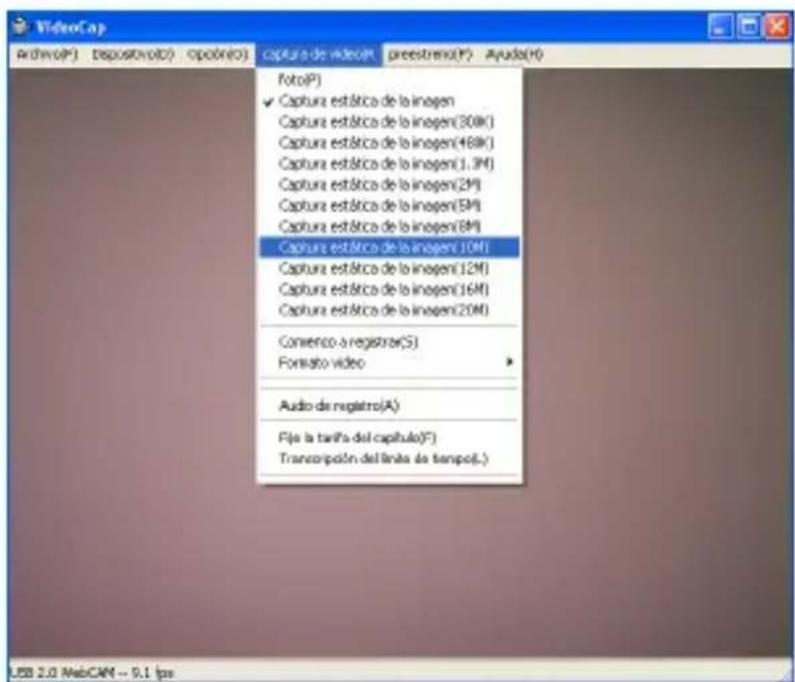
Open "Videocap", inside the OPTION you will find "Start Capture". When you select this option, automatically you start with the record. To finish with the record you have to click again in the same option.

Don't use the fingers to clean the webcam's lens.
▶ Use a special wipe or cotton cloths to clean the optic part of the webcam.
Don't use this product when ambience is too hot or cold or dusty.
Any question? Check the product's F.A.Q. section at www.soyntec.com
Technical support email address: support@soyntec.co.uk
SPECIAL GUARANTEE
Soyntec® guarantees that your product have no any material, design or manufacture defect and provides 36 month guarantee.
Guarantee procedure. Direct to your vendor and present the purchase invoice or ticket. For more information visit:
www.soyntec.com
Specifications are subject to change without notice.
© 2010 by Soyntec. All right reserved.
Trademarks. All company brand and product names are trademarks or registered trademarks of their respective companies.
CE
AGREEMENT DECLARATION
Supplier Name: Energy Sistem Soyntec S. A.
Address: Pol. Ind. Finestrat C/ Calpe 1, 03509 Finestrat
Alicante - SPAIN
Tel: 902 388 388 Fax: 902 119 034 NIF: A53107488
We declare, under our own exclusive responsibility, the product agreement:
Soyntec® Mouse Input™ R520
Manufacturing country: China
Which concern this agreement, with the norm(s) or other(s) formative(s) document(s).
In accord with the disposition of the Directive 93/68/CEE, from the European Parliament and the Counsel from 22th July 1993, transponed to the spaish legislation through the Real Decree 1950/1995, from 1th December 1995.

- INTRODUCTION
- CARE AND MAINTENANCE
- MAIN FEATURES AND TECHNICAL SPECIFICATION
- PRODUCT CONTENTS
- PRODUCT OVERVIEW
- SOFTWARE INSTALLATION
- Follow the next indication:
- You can see a VideoCap shortcut on your desktop.
- FEATURES
- DIGITAL ZOOM.
- SPECIAL EFFECT.
- VIDEO DEFINITION.
- STILL IMAGE DEFINITION (PHOTO).
- SPECIAL GUARANTEE
- CE
- AGREEMENT DECLARATION
Brand : Soyntec
Model : Joinsee 500
Category : Webcam