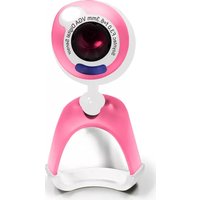
Joinsee 352 - Webcam Soyntec - Free user manual and instructions
Find the device manual for free Joinsee 352 Soyntec in PDF.


| Product Type | Webcam |
| Brand | Soyntec |
| Model | Joinsee 352 |
| Dimensions (approx.) | 95 x 50 x 45 mm |
| Weight | 100 g |
| Power Supply | USB 2.0 (bus-powered) |
| Maximum Video Resolution | 1920 x 1080 (Full HD) |
| Frame Rate | 30 fps |
| Field of View | 70° |
| Built-in Microphone | Yes |
| Focus Type | Fixed focus |
| Low Light Compensation | Automatic |
| Mounting | Clip-on or tripod screw |
| Compatible Operating Systems | Windows, macOS, Linux |
| Cable Length | 1.5 m |
| Cleaning Instructions | Wipe with a soft, dry cloth. Avoid liquids. |
| Safety Precautions | Do not expose to moisture or disassemble. |
| Repairability | User-repairable parts: none. Contact support. |
| Included Accessories | Quick start guide |
Frequently Asked Questions - Joinsee 352 Soyntec
User questions about Joinsee 352 Soyntec
0 question about this device. Answer the ones you know or ask your own.
Ask a new question about this device
Download the instructions for your Webcam in PDF format for free! Find your manual Joinsee 352 - Soyntec and take your electronic device back in hand. On this page are published all the documents necessary for the use of your device. Joinsee 352 by Soyntec.
USER MANUAL Joinsee 352 Soyntec
Soyntec thanks you for purchasing your new webcam Joinsee.
We wish you enjoy using it.
The Joinsee are a VGA webcams with built-in microphone which provides an easy way to enjoy videoconference using a USB connection to your computer.
We suggest reading this user manual for enjoying this product is a safe way and with the best performance.
Main features
- Built-in microphone with audio via USB.
- Innovative design suitable for both laptop and desktop computers.
- Manual adjustable focus.
- Automatic exposure and gain control.
- Still image resolution: VGA 640x480.
- Video resolution: VGA 640x480.
Specifications are subject to change without notice.
© 2008/09 by Soyntec. All rights reserved.
- Capture speed: Up to 30 fps (QVGA) and up to 15 fps (VGA).
- Includes special button for taking photos.
- Features status LED indicator.
- USB 2.0/1.1/1.0 connection.
- Compatible with Windows VISTA / XP / 2000 / 98SE / ME.
Product contents
- Webcam.
- CD with drivers and softwares.
- User manual.
Product overview
The following picture shows the main parts of the webcam:

Figura A: Webcam JOINSEE 350 Yellow example main parts
Specifications are subject to change without notice. © 2008/09 by Soyntec. All rights reserved.
Webcam installation
Please note that in order to install the webcam you need a free USB connector in your computer.
Follow these steps to install the webcam:
- Insert the provided drivers CD and select “Install Joinsee Driver”.
- Click the "Next" button.
- Click “Finish” to close the installation wizard.
- Connect the webcam to a free USB connector. The operating system will detect the webcam and it will be ready to use.
- Press the snapshot button on top of the webcam to launch the monitoring software and check that the webcam has been properly installed.
ArcSoft ArcSoft Magic-i software installation
- Insert the provided drivers CD and select "ArcSoft Magic-i".
- Select the installation language.
- Click the "Next" button.
- The license contract will appear. Click "Yes".
- The installation folder can be modified. It is recommended to leave the default folder. Click the “Next” button.
- The new program group can also be modified. Just leave the default program group and click “Next”. The copy of files will start.
- Click "Finish" to close the installation wizard.
ArcSoft WebCam Companion 2 software installation
- Insert the provided drivers CD and select “ArcSoft WebCam Companion 2”.
- Select the installation language.
- Click the "Next" button.
- The license contract will appear. Click "Yes".
- The installation folder can be modified. It is recommended to leave the default folder. Click the “Next” button.
- The new program group can also be modified. Just leave the default program group and click “Next”. The copy of files will start.
- Click "Finish" to close the installation wizard.
Special guarantee
Energy Sistem guarantees that your product does not have any material, design or manufacture defect and provides a 36 month guarantee.
Guarantee procedure:
- Visit the Support section at http://support.soyntec.com and select your product to view the FAQ (Frequently Asked Questions). The solution to your problem is very likely to have been already published there. You will also be able to download user manuals, user guides, drivers and updates.
- If you cannot find an appropriate solution in the Support section, you may send us your enquiry or warranty service request using this mail: support@soyntec.co.uk
- Alternatively, you may prefer to contact the distributor from which you purchased the product, presenting them the receipt or invoice.
Specifications are subject to change without notice.
© 2008 by Energy Sistem Soyntec. All rights reserved.
Trademarks
All company, brand and product names are trademarks or registered trademarks of their respective companies.

DECLARATION OF CONFORMITY
Supplier Name: Energy Sistem Soyntec S. A.
Address: Pol. Ind. Finestrat C/ Calpe esq. C/ Alicante S/N, 03509 Finestrat
Alicante - Tel: 902 388 388 - Fax: 902 119 034
NIF: A53107488
We declare under our own exclusive responsibility the product conformity:
Soyntec® WebCam VGA Joinsee™ 350 series, Video-surveillance, Duo and Built-in microphone.
Manufacturing country: China
Specifications are subject to change without notice. © 2008/09 by Soyntec. All rights reserved.
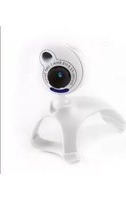
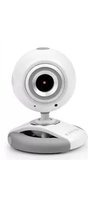

Brand : Soyntec
Model : Joinsee 352
Category : Webcam