Flamingo - Mp3 player Zipy - Free user manual and instructions
Find the device manual for free Flamingo Zipy in PDF.


| Product type | Portable media player (MP3) |
| Screen | TFT touchscreen 7.1 cm (320 x 240 pixels) |
| Power supply | Lithium-polymer battery 500 mAh |
| Audio formats | MP3, WMA, WAV |
| Video formats | AVI, MPEG-4, FLV |
| Photo formats | JPEG |
| FM radio | Built-in (optional) |
| Camera | 0.3 Megapixel camera |
| Microphone | Built-in |
| Speaker | Built-in |
| TV output | Yes (via headphone jack) |
| External memory | micro-SD card reader up to 8 GB |
| Connectivity | USB 2.0 (removable disk) |
| Additional functions | Voice recorder, webcam, calendar, stopwatch, calculator, notepad |
| Languages | Multilingual |
| Colors | Multiple vibrant colors |
| Maintenance | Clean with a soft, dry cloth. Do not use solvents. Avoid moisture. |
| Safety | Do not expose to water, excessive heat, or disassemble. Use at a moderate volume. |
| Warranty | 2 years (terms apply, see manual) |
| Certifications | CE, RoHS |
Frequently Asked Questions - Flamingo Zipy
User questions about Flamingo Zipy
0 question about this device. Answer the ones you know or ask your own.
Ask a new question about this device
Download the instructions for your Mp3 player in PDF format for free! Find your manual Flamingo - Zipy and take your electronic device back in hand. On this page are published all the documents necessary for the use of your device. Flamingo by Zipy.
USER MANUAL Flamingo Zipy
ZiPY
HOJA DE PRECAUCIONES
Modo Música
natural_image
Video player interface showing a muscular character in dynamic action pose with dynamic background (no readable text or symbols)Modo Radio
Modo E-book
Modo Cámara
natural_image
Close-up of a metallic webcam with a spherical lens on a stand (no text or symbols visible)ZiPY
PRECAUÇÕES
Modo de Música
natural_image
Dark scene with a muscular character holding a weapon, surrounded by spectators (no visible text or symbols)Modo de E-book
Modo de Câmara
natural_image
Close-up of a metallic spherical object with a small blue sphere on a dark surface (no text or symbols visible)Aplicações
ZiPY
INSTRUCTIONS DE PRECAUTIONS
Mode musique
Mode appareil-photo
natural_image
Close-up of a metallic spherical object with a small blue sphere on a dark surface (no text or symbols visible)Mode Application
Mode System Setting (Configuration système)
CONDITIONS DE GARANTIE AID
ZiPY
PRECAUTIONS AND MAINTENANCE
When using the device, remember to follow the following precautions to prevent the deformation of the case, the breakage of the screen or glass, or also may cause loss of fluid.
All this causes a malfunction. Remember:
- Do not expose the device to water. The device is not waterproof.
- Be careful not to throw the device in a sink or other water container.
- Do not use the device in wet places or outside in bad weather, for example, if it rains or snows.
• If you touch the device with wet hands or is placed in a wet garment, the device may get wet and cause a malfunction. - Be sure not to sit down with the device in your pocket.
- Do not expose the device to heat. The damage to the device may be irreversible and can cause an abnormal reaction in the battery: swelling or explosion.
- Do not bring the device to heat sources: radiators, heaters, etc..
- Do not expose to high temperatures such as in direct sunlight or in a car parked in the sun.
- When you connect the headphones take care not to damage the connection port.
- When you disconnect the headphones from the device, try to hold the headphone plug. Pulling the headphone cord can damage it.
- Avoid listen at very high levels, because prolonged listening could damage your hearing.
- At high levels, the external sound can be inaudible and could be dangerous, especially driving a car or bicycle.
Table of Contents
Features....72
Precautions 72
Warning....74
Button & function....74
Basic Operation....75
Main Menu....75
Music Mode ....76
Video Mode 77
Picture Mode 79
Radio Mode 79
E-book Mode 80
Camera Mode 80
Explorer Mode 84
Application 84
System Setting 87
Video Conversion Tool 88
Trouble Shooting 88
Features
● 2.8-inch touch screen TFT display
● 320 x 240 pixels display resolution
● Built-in Micro-SD card slot, supports up to 8GB
● Built-in 0.3 Megapixel digital video camera
● Built-in TV Output
● Plays AVI, MPEG-4, FLV video format files
● Plays WAV, WMA, MP3 audio format files
● Picture browsing of JPEG format files
● Built-in 500mAh Li-poly battery
● Built-in FM Radio (optional)
● Built-in microphone
● Built-in loudspeaker
● Multi-language support
● Available in wide range of attractive color
Precautions
Follow these tips to preserve the operational lifespan of your Digital Media Player:
- It is recommended that you allow the battery to fully charge before using the device for the first time. Do not recharge unattended for longer than 5 hours.
● Do not hang the player by its earphones or cables - Never force any cable connectors into the ports of your Digital Media Player or computer. Always make sure that your cable connectors are identical in shape and size before attempting to connect.
- When disconnecting your digital media player from a computer, use the Safely Remove Device function on your computer. Do not disconnect your digital media player while transmitting data.
Warning
- Do not use this player in extreme temperatures. Keep away from extreme hot, cold, dry, or damp areas. Also keep away from water, fire, and radiation.
- Do not disassemble your digital media player.
- Do not allow young children to use your player unsupervised.
- Do not install foreign software onto your digital media player.
Button & Controls

- Speaker
- Volume control- while playing music or video, FM Radio, press "+" or "-" to increase or decrease volume
- Return button – Switch on/Switch off, return to main-menu
- Micro-SD card slot
- USB Jack - Interface with a USB cable to a PC to manage media files.
-
Earphone Jack- 3.5 mm standard earphone connector/TV-OUT
-
Camera
- Reset Key
Basic operation
Power On/ Power off
Press "Menu Button" and hold 3 seconds to switch on and switch off the device,
Lock / Unlock
Device will lock automatically under screen protection mode, simply slide to unlock
Charge/Connect/Disconnect from PC
Connect the device to PC via USB Cable to use it as a Removable Disk.
To charge the device or disconnect the device. Press "Menu button" under USB connected.
if you want to charge the device via an AC adaptor your own, we recommend you to use an AC adaptor with power current : 400-500mA.
Micro-SD card
To insert or remove the Micro-SD card, please make sure the device is powered off
When you connect the device through USB Cable to PC, you can find two removable disks, one for Internal Memory and one for Micro-SD card.
Main Menu
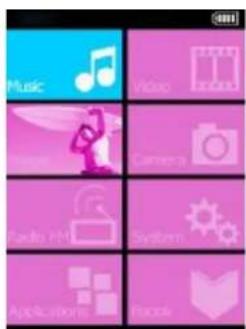
This device provides a touch screen OS for direct operation. The main menu interface is shown in the picture below:
Music Mode
Touch the "Music" icon to enter music mode.

Please find the description for each icon as following
| Icon | Description | ||
| 1001/1099 | Number of the song being played / Total songs | ||
| Playing mode | |||
| Playing sequence | |||
| Playing style | |||
 | Song playing progress bar. Drag the bar to adjust playing progress. | ||
| Volume bar. Drag the bar to adjust volume. | |||
| Touch it to switch to previous song, long press for fast rewind | |||
 | Play /pause /stop the current song. Click the play button, and the button will be change to pause button. After a song is finished, it will change to stop button. | ||
 | Touch it to switch to the next song, press and long press for fast forward | ||
| Song information display. | |||
Video Mode
Touch video to enter into video mode.

natural_image
Video player in dynamic action pose with dynamic background (no visible text or symbols)Please find the description for each icon as following
| Icons | Description |
| Browse: local directory, card directory, tag list | |
Tag: directly click the icon and a box pops out and prompts “tag saved”. | |
| Play: click and it will change to pause button [cash], and click again to continue playing. | |
| Touch it and the Volume bar will pop out at the bottom. Drag the bar to adjust volume. | |
| Return to main menu | |
| Fast rewind: long press for fast rewind. Short press for the previous video file. | |
| Fast forward: long press for fast forward. Short press for the next video file. |
, and click again to continue playing.
Picture mode
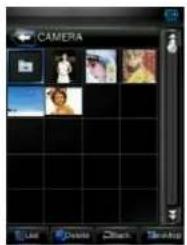
Touch "picture" to enter into picture mode
Radio Mode
Please make sure the earphone is inserted before you plan to go to Radio Mode. Touch "Radio" to go to Radio mode
![87.0MHz Cnfs 87.0MHz 15 Recorder Setting - [ ] [ ] [ ] [ ]](/content/2026/05/1092760/images/0dc2d9f2d45387c03dddd2c2894a52e7b67bd5fccbd2d55557a9cf31b904e7b6.jpg)
Ebook Mode
Touch "Ebook" in the main menu to go to Ebook mode

Camera Mode
Touch "Camera" to enter into Camera mode
after enter Camera mode, you can choose Capture, Record or PC Camera

To use Camera, select "Capture:" In frame interface, touch the screen and top & bottom button bar will appear. Touch again, and the up/down button bar will disappear.
| Button | Description | |
| [6723] | Switch to video camera mode. | |
| Number of pictures that can be taken. | ||
| [YW82] | Self Shooting time setting: 5 seconds, 15 seconds, 20 seconds, off. Default setting is off. | |
| Return to the main menu. | ||
| [YYT8] | View the pictures. | |
 | Picture mode settings1. Special effect:White balance: auto, indoor, outdoor. Default setting is autoBrightness: value range -3 to +3. Default setting is 0.Exposure mode: auto, indoor, outdoor. Default setting is autoSpecial effect: off, black & white, sepia, negative. Default setting is off.2. Save path: local device, card device. The default is local device Shutter sound: off, sound effect 1, sound effect 2 and | |
| sound effect 3; Default setting is sound effect 1.3. Date stamp: off, date stamp or date and time stamp. Default setting is off.To make no settings, touch the screen outside the menu to exit. | ||
 | Resolution switch: 320x240, 640x480, 1024x768, 1280x960. | |
| Take picture | ||
Select "Record" to start use video camera
| Button | Description | |
 | Change to camera mode. | |
 | 3 exposure modes: Auto (default), indoor (lamp) and outdoor (sun). | |
 | 4 types of special effects: black & white, negative, sepia, off (default). | |
 | Return to the main menu. | |
 | View video file. | |
 | Video camera mode setting1. Brightness: value range -3 to +3. Default setting is 0.2. Save path: local device, card device. The default is local device.To make no settings, touch the screen outside the menu to exit. | |
| [yzzw] | Resolution switch: 176x144, 224x176, 320x240. | |
| [WXzz] | Start video recording | |
Click

to enter video recording interface, touch the screen and a button bar will be displayed at the bottom.
| Button | Description |
 | Video recording: click to pause video recording. |
 | Save video file, and return to video setting interface. |
| Note: the video recording time is shown in the middle, on the left is the recorded time, and on the right is the available time remaining for video recording. | |
Select "PC Camera" function to enter PC camera mode, the player will detect if USB cable has been connected.

natural_image
Close-up of a metallic spherical object with a blue accent, possibly a camera or remote control (no text or symbols visible)With the video conversion tool, this player can be used as a PC camera on PC to produce video or picture files. Please refer to Chapter Video Conversion Tool for more details on how to use the tool.
Explorer Mode
Select "Explorer" in Explore mode to find the files from flash memory and Micro-SD card

Application
Touch "application" to enter into application mode.

Record: Click recorder to enter internal MIC recorder interface. The operation is the same as that of FMrecorder.
Calendar: Click ▲ or ▼ button to select month and year. Select date by directly clicking the number on the screen and the number will become blue color.

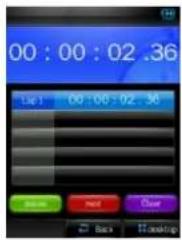
Stopwatch: Click "Start counting", "Next" or "Clear" at the bottom to realize different functions. As counting begins, "Start counting" will change to "Pause".
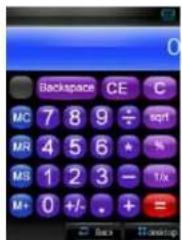
Calculator: Simply press the corresponding button.
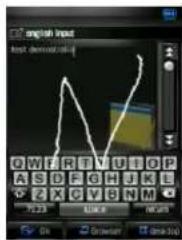
Notebook : Only valid in Simplified Chinese and English environment. Input characters in the input box.
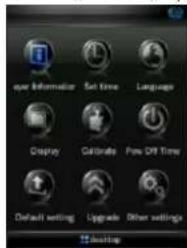
System Setting
In the main interface, click the "system settings" icon to enter the mode and select the setting freely you want.
Video Conversion Tool
This device support AVI, MPEG-4, FLV video format files. The "video conversion tool" can convert most of the video format files into AVI, MPEG-4, FLV video format. This "video conversion tool" could be found in a CD driver in the package or you can download online from the retailer's website.
Trouble Shooting
| No power | Check battery level. |
| Recharge as per directions in User Manual | |
| Unable to locate or play files | Check that the file is in a compatible format |
| Check to see if the file is stored in a different directory. | |
| No music is heard in the earphones | Check the volume level |
| Check the connection (earphone to the earphone jack) | |
| Check if your music file is compatible with your MP3 player. | |
| Not charging | Check to make sure that your Digital Media Player is connected to a USB port on your computer. |
| Unable to download music. | Check if you have enough space on your Digital Media Player to download the music file. |
| Check to make sure that the USB cable is connected to the PC and to the Digital Media Player. | |
| Computer not recognizing Digital Media Player | Check that the USB cable is properly connected to your computer. |
| Try plugging the USB cable into one of the back ports of your computer. |
INGLÉS / ENGLISH
AID WARRANTY CONDITIONS
EN
AID, in compliance with the Customer Protection Law (Ley 23/2003, July 10th, of Warranty in the Sale of Consumer Goods, BOE no. 165, 11/07/2003), offers Direct Warranty to Spain and Portugal customers for all our brands' products: ZIPY, MUSE, NEW ONE, AC-RAYAN, TNB, BARKAN, BRASFORMA, THE COMPLEMENTS, and GO BY ZIPY, under the following conditions:
A – Our products have a two year warranty. During the first year original defects that may be detected are repaired. In those cases stipulated by law, the buyer will be entitled to the replacement of the device by a new one, provided that the defects are not due to the negligence or exclusive fault of the buyer in handling the device. During the second year the buyer will need to prove that the malfunctioning of the device is due to a manufacturing defect. In both cases the warranty will apply provided that:
- The product has been used for its destined purpose alone.
- It was not opened, manipulated or altered in any way by someone other than the Official Technical Service.
- It has not undergone shock, flood, overheating, electric overcharge or any other external circumstance that may constitute a possible reason of INVALIDATING the warranty.
- The product will be returned to AID in proper packaging together with the receipt where the brand and type of product, the date of the purchase, the name and address of the shop that sold it and the reason for the malfunctioning should be clearly stated.
Any of the following circumstances invalidates the present warranty:
- Breaking the ports, the screen or the glass.
- Loss of liquid from the screen.
-
Wearing out, obvious marks of incorrect manipulation, inappropriate use, ill-treatment, shock, falls, dirt, and so on.
-
The data contained in the products are under no circumstances covered by any warranty whatsoever, nor are they to be considered during the physical repairing process of the products. AID guarantees absolute confidentiality of the data.
- AID does not cover the incorrect configuration or installation of the software / hardware on the part of the client, neither as a component nor as a peripheral, included prives / controllers included.
- The legislation on guarantees sets certain limits. "the guarantee does not cover additional components such as batteries, nor any elements that are subject to maintenance due to its use such as earphones". These accessories have a 6 months guarantee.
- Waterproof bags have a 48-hour trial period, such as indicated on the product itself, therefore once this time period is elapsed they will no longer be covered by any guarantee.
- Final users do not need to send us the device accessories, especially if they are not the original ones, since we will not be held responsible for them.
CASES:
- If the product is out our guarantee, the AID technical department will facilitate a budget for the repair by fax or e-mail. Said budget will need to be authorized in writing, sealed and signed, and the user will have to satisfy the repair fee as well as the freight.
- If the budget is not accepted a diagnosis fee will be charged. (6€)
- Repairs have a 90 days guarantee, provided that the breakdown is under the same concept and in the case of budgeted breakdowns alone.
B – All the freight costs for the product will be covered by AID using only the transportation company designed by AID following the authorization procedure.
The expenses derived from incorrect or unjustified returns on the part of the client will be covered by the client alone.
C – Any incidence detected at the moment of the reception of the merchandise must be immediately notified at the AID Post-Sales Department: maria@accesoriosdigital.com in compliance with Article 366 from the Code of Commerce, AID will not consider complaints about breakages, shocks or absence of boxes or pieces 24 hours after the delivery of the merchandise.
In the case of shipments originated in Canarias, Ceuta and Melilla, AID will not pay the customs tax nor any kind of reimbursable expenses.
DECLARATION OF CONFORMITY
ACCESORIOS INTELIGENTES DIGITAL S.A.
C/CARPINTEROS, 6, OF-13 VILLAVICIOSA DE ODÓN, 28670 MADRID
We declare under our sole responsibility that the product:
MP5: FLAMINGO which belongs to the brand Zipy, made in China
Conforms with the requirements of the Directives below by compliance with the following standards listed:
EN55022:2006+A1:2007
EN55024:1998+A1:2001+A2:2003
In accordance with the provisions of the Directive 99/05/EC, European Parliament and Council on March 9, 1999, transposed into Spanish legislation by Royal Decree 1890/2000, of November 20, 2000.
Place and date of issue:
September, 29, 2011
Signed by: Miguel Fauro


Waste management for all of your containers and domestic packagings that you deposit in the recycling bin
The packaging contains removable materials in order to treat them later in waste management
Do not deposit the device or the battery in the bin. Please, put it in a recycling bin or carry it to your local nearby store
Deposit the packaging materials in the yellow bin
This device conforms to the EU directives
This unit conforms to the ROHS regulations
Symbol of frequency restriction in some countries of European Union
- ZiPY
- HOJA DE PRECAUCIONES
- Modo Música
- Modo Radio
- Modo E-book
- Modo Cámara
- PRECAUÇÕES
- Modo de Música
- Modo de E-book
- Aplicações
- INSTRUCTIONS DE PRECAUTIONS
- Mode musique
- Mode Application
- CONDITIONS DE GARANTIE AID
- PRECAUTIONS AND MAINTENANCE
- Table of Contents
- Features
- Precautions
- Warning
- Basic operation
- Power On/ Power off
- Main Menu
- Music Mode
- Video Mode
- Picture mode
- Radio Mode
- Ebook Mode
- Camera Mode
- Explorer Mode
- Application
- System Setting
- Video Conversion Tool
- INGLÉS / ENGLISH
- AID WARRANTY CONDITIONS
- EN
- CASES:
- DECLARATION OF CONFORMITY
- MP5: FLAMINGO which belongs to the brand Zipy, made in China
Brand : Zipy
Model : Flamingo
Category : Mp3 player