
TV-907USB - Monitor Deltaco - Free user manual and instructions
Find the device manual for free TV-907USB Deltaco in PDF.


| Product Type | Monitor |
| Brand | Deltaco |
| Model | TV-907USB |
| Screen Size | 21.5 inches |
| Resolution | 1920 x 1080 (Full HD) |
| Aspect Ratio | 16:9 |
| Brightness | 250 cd/m² |
| Contrast Ratio | 1000:1 |
| Response Time | 5 ms |
| Viewing Angles | 178° / 178° |
| Connectivity | HDMI, VGA, USB |
| Power Supply | AC 100-240V |
| Power Consumption | 25 W (typical) |
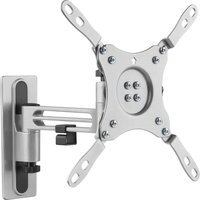
| VESA Mount | 100 x 100 mm |
| Dimensions (with stand) | 510 x 380 x 180 mm |
| Weight | 3.5 kg |
| Color | Black |
| Features | Flicker-free, Blue light filter |
| Cleaning | Use a soft dry cloth. Do not apply liquid cleaners directly. |
| Safety | Do not expose to moisture or extreme temperatures. Unplug during storms. |
| Spare Parts & Repairability | Spare parts not available separately. Contact Deltaco support for service. |
Frequently Asked Questions - TV-907USB Deltaco
User questions about TV-907USB Deltaco
0 question about this device. Answer the ones you know or ask your own.
Ask a new question about this device
Download the instructions for your Monitor in PDF format for free! Find your manual TV-907USB - Deltaco and take your electronic device back in hand. On this page are published all the documents necessary for the use of your device. TV-907USB by Deltaco.
USER MANUAL TV-907USB Deltaco
natural_image
Desktop monitor displaying a blank application window with icons for documents, notes, and software (no readable text or symbols)LILLIPUT UM-70
USB MONITOR
CONTENTS
- Safety Instructions......
- Product Features....
- connections and Installation....
- Installation Monitor Driver ....
- UM-70 Display Setting....
- System Requirements......
- Specifications....
- Accessories
- troubleshootiong....
1. Safety Instructions
These safety instructions must be followed to ensure your safety and prevent property damage.
Warning/Cautions Otherwise, it may result in personal injury or property damage.
Make sure to read the instructions carefully and use the product in the correct manner.
- Power Source:
-Make sure to use USB Cable (DC 5v, 500mA) only.
UM-70 doesn't require any additional power source
- Do not place UM-70 in a location exposed to moisture, dust, smoke, water, or in a car.
Otherwise, this may result in electric shock or fire.
- Clean the product using a soft cloth with a monitor cleaner only.
-Make sure to disconnect USB Cable while cleaning
-Ensure that water does not enter the product and that it is not wet.
Otherwise, this may result in electric shock, fire or a malfunction.
- Do not force on LCD Screen
-Do not tap or scratch LCD Screen with a sharp object, otherwise, LCD may get damaged.
- Product Input/Output Connectors
-Do not insert any metal, such as chopsticks, coins, pins and steel.
-If foreign material enters the product, disconnect the USB cable and contact a Service Center.
- Do not install UM-70 in an unstable location.
-Otherwise, it may fall and cause personal injury and/or damage the product.
vii. Ensure that users do not disassemble, repair or modify the product themselves.
-If the product needs to be repaired, contact a Service Center.
If water enters the product, disconnect the USB and contact a Service Center. This may result in a product malfunction, electric shock, or fire.
2. Product Features
UM-70 with only USB cable connection, a user may utilize UM-70 as Multiple Input/output device for Video Conference, Instant Messaging, News and Stock casting.
The model has function and feature

- Brightness up
- Brightness down
- POWER: ON/OFF (light twinkling then start up)
- USB Port
- NO use
- Bracket
3. Connections and Installation
- UM-70 requires USB connection only.
Emergency Power input: UM-70 doesn't require any additional power source except USB. Emergency Power input is for Factory or Technical Service purpose only.
- USB (mini B type) input: Using provided USB cable, connect your UM-70 with PC
-
System Requirements
-
CPU: Intel Pentium/Celeron/AMD/K6/Athlon/Duron 1.2GHz or above
■ RAM: 512MB RAM or above
■ USB: at least one or more USB2.0 port
■ HDD: 30MB HDD space above -
O/S: Windows 2000 SP4/XP SP2 32bit/Vista 32bit
-
Using the Software
With only USB cable connection, a user may operate UM-70 as Extension monitor
4. Installing monitor driver (Auto Run)
- Insert the CD into the CD-ROM drive
-Please make sure that your UM-70 is connected to the PC -
Installation takes about 1 minute.
-Do not power off or disconnect the USB cable until installation is completely finished. This may damage systems or may cause system errors.
-The UM-70 screen resolution is fixed for the best picture quality with each model. -
Double click the icon

setup_um-4.6.17952
Installs DisplayLink Software
DisplayLink Corp.
- If you see following message window, select "I agree" to accept the terms of use
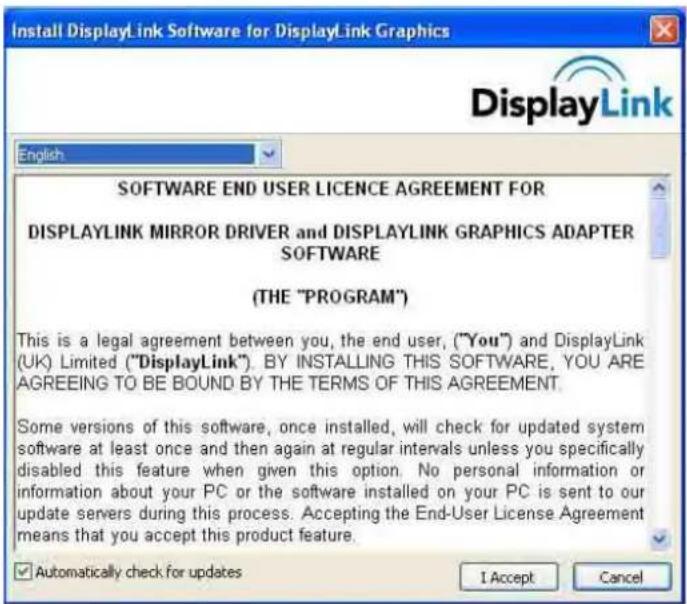
- When the installation is complete, the UM-70 setting icon appears on your system tray and the connected USB monitor information will pop-up.

-
After finish installation of the UM-70 driver, please follow below steps for multi-monitor setting. (Microsoft ^® Windows ^® XP Operating System)
-
Right-click on icon on taskbar then click "Display Properties"
- Choose 'Setting' then you may see connected monitors
- Align the monitors displayed in [Display Properties] as the same as actual monitor usage.
- Click 'OK' to confirm.

5. UM-70 display setting
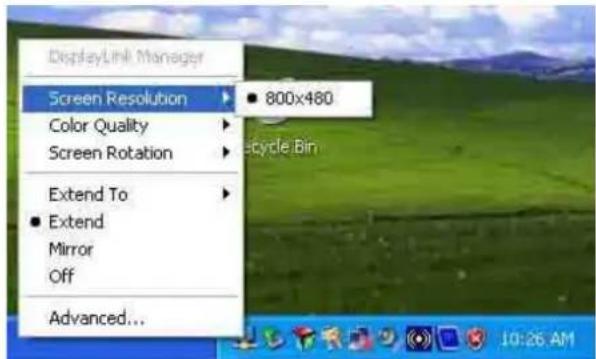
- When the UM-70 driver installation is complete, the UM-70 setting icon appears on your system tray.

- Click-on UM-70 icon then you may see the UM-70 setup menu for Screen Resolution, Colors, Rotation, Extension and etc.
6. System Requirements & Restrictions
-
Operating Systems
-
Windows XP
-Service Pack 1prior: Not supported - Service Pack 2 or after: Supported
- Windows 2000
- Service Pack 3 prior: Not supported
- Service Pack 4 or after : supported
■ Windows Server 2003: Not supported
- Windows vista: Supported except 64bit systems
User may check the Operating System version by Right-click 'My Computer' → 'Properties' → 'System Properties'
-
UM-70 is a USB monitor to be recognized as a Generic USB device. Therefore system boot-up screen or DOS screen cannot be displayed properly.
-
Any software that requires Hardware 3D accelerator cannot be displayed properly with USB monitor. Such as below.
-
Real Player(Expansion Mode)
- 3D Graphic Games
-
Programs based on Direct X graphic engine
-
If the PC doesn't support USB2.0 UM-70 may not operate properly.
-
If the systems' Graphic card doesn't support WDDM(Windows Display Driver Model), the USM monitor's extension mode may not work properly with Windows vista System.
7. Specifications
| Model Name UM-70 | |
| Screen Resolution WVGA (800×480) | |
| Contrast 250:1 | |
| Brightness 350cd/m | ^2 |
| Aspect Ratio 16:9 | |
| Input Power USB (DC 5V) | |
| Power Consumption 2W-4.5W | |
| Dimension (LWH) 188×123×23.5 mm | |
| Weight 288g | |
8. Accessories
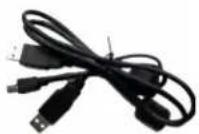

- USB cable 1piece
- CD drive 1 piece
- Manual 1piece
9. Troubles shooting
Before calling for assistance, please read carefully below. If you do need assistance, please call local service center or contact your dealer.
Q: No image on screen, I cannot turn on the UM-70
A: Is USB cable connected and did you install UM-70 driver yet? Please run 'UM-70 Installation Software' in the CD. For more detail about driver installation, please refer to III. Connections & Installation.
Q: I cannot turn my UM-70 screen on.
A: Please check if the USB cable is connected
Touch the UM-70's power button once then check the screen status.
Please check if 'UM-70 Installation Software has been installed properly
- Right-click 'My Computer'.
- Click 'Device Manager's at 'Hardware' tab
- Locate the cursor on PC at the top of the system tree.
- Click 'Action(A)'→ "Add Hardware(A)".
- Reboot the PC,
* Normal PC recognizes UM-70 as a generic USB device. Frequent power on and off of the device may cause USB device error. Please refer to Microsoft customer support for USB devices troubleshooting.
Q: I cannot boot my system after connecting UM-70.
A: in case i851 chipset once – Board Type PC system, please disable 'Legacy USB support' option in system.
- BIOS setup method may differ from PC to PC, please refer to the User manual of the PC. Please refer to Microsoft homepage for more detail.
Q: I cannot see DOS opening screen with UM-70 when my PC is booting up.
A: UM-70 is using USB device. Since DOS doesn't recognize USB Device while booting –up, UM-70 cannot get video signal from the system.
Q: I cannot run 3D graphic game with UM-70 screen.
A: UM-70 is using USB 2.0 interface (480Mbps) for video data transfer.
Therefore any program that requires 3D high speed graphic acceleration cannot be displayed properly.
- Restricted Programs.
- Real Player (Doesn't support Extension Mode)
- 3d Graphic Games
- Programs that requires Direct X graphic acceleration
- Power DVD
- Win DVD (Version 5 or later)
- Supported Multimedia Players
- Windows Media Player (Version 10 or later)
- GOM Player
- KM Player
Q: How to uninstall "UM-70 installation software"
A: 'Control Panel' → 'Program Add/Remove' → 'Displaylink Core software' → Click 'remove'.
Q: How many UM-70 can be connected to one PC?
A: UM-70 is a generic USB device. Theoretically a PC can recognize up to 127 USB device. However with the latest PC system, we recommend number of USB monitors and each respective PC system requirements as below.
- 1\~2 UM-70 connections -1.2GHz CPU/512 MB Memory
- 3\~5 UM-70 connections -1.8GHz CPU/1GB Memory
- 6 UM-70 connections -1.6GHz Dual core CPU/1GB Memory
* Display response rates on each a USB monitor may vary upon the PC's resource management status.
Q: UM-70 information remains in my ‘Display Properties’ even after disconnect or power off the UM-70.
A: The deactivated USB information implies power off or disconnected USB monitor status. To delete the deactivated monitor information, please uninstall 'Displaylink Core software' driver. Once the driver is uninstalled, you may not use UM-70. To use UM-70 again please re-install the driver.
Q: How can I clean the outer case/LCD Panel?
A: Disconnect the USB cable and then clean the UM-70 with a soft cloth, using either a cleaning solution or plain water.
Do not leave any detergent or scratches on the case. Do not let any water enter the monitor.
Q: I lost UM-70 installation disc. Where can I get an additional installation disc?
A: the installation software can be downloaded at www.lilliput.com.cn.
Q: When UM-70 connected with PC first, after PC starts, UM-70 is standby and no display?
A: Plug-out and plug in again with the USB cable between PC and UM-70; or press "POWER" button on UM-70 to off, and then power on.
Brand : Deltaco
Model : TV-907USB
Category : Monitor