
AT-UHD-H2H-44M - HDMI switch Atlona - Free user manual and instructions
Find the device manual for free AT-UHD-H2H-44M Atlona in PDF.


| Product Type | 4x4 HDMI Matrix Switcher |
| Brand | Atlona |
| Model | AT-UHD-H2H-44M |
| Video Inputs | 4 x HDMI (Type A female) |
| Video Outputs | 4 x HDMI (Type A female) |
| Maximum Resolution | 4K@60Hz 4:4:4 (up to 600 MHz TMDS clock) |
| HDR Support | HDR10, HLG, Dolby Vision |
| HDCP Support | HDCP 2.2 and 1.4 |
| EDID Management | Internal EDID library and pass-through |
| Audio Formats | LPCM 7.1, Dolby TrueHD, DTS-HD Master Audio |
| Control Methods | IR, RS-232, TCP/IP, web GUI |
| Rackmountable | Yes, 1U rack height with included brackets |
| Dimensions (W x H x D) | 17.3 x 1.7 x 6.3 in (440 x 43 x 160 mm) |
| Weight | 5.5 lb (2.5 kg) |
| Power Supply | 100-240V AC, 50/60Hz, 12V DC 3A power adapter included |
| Power Consumption | 36W maximum |
| Operating Temperature | 32°F to 104°F (0°C to 40°C) |
| Storage Temperature | -4°F to 140°F (-20°C to 60°C) |
| Compliance | CE, FCC, RoHS |
| Maintenance | Wipe with a dry cloth; do not use liquid cleaners. Ensure adequate ventilation. |
| Safety | Do not expose to moisture or extreme temperatures. Disconnect power during cleaning. |
| Spare Parts | Contact Atlona support for replacement power adapters, IR extenders, or rack ears. |
| Repairability | No user-serviceable parts inside. Refer to qualified service personnel for repairs. |
Frequently Asked Questions - AT-UHD-H2H-44M Atlona
User questions about AT-UHD-H2H-44M Atlona
0 question about this device. Answer the ones you know or ask your own.
Ask a new question about this device
Download the instructions for your HDMI switch in PDF format for free! Find your manual AT-UHD-H2H-44M - Atlona and take your electronic device back in hand. On this page are published all the documents necessary for the use of your device. AT-UHD-H2H-44M by Atlona.
USER MANUAL AT-UHD-H2H-44M Atlona
Please check http://www.atlona. com/UHD-H2H-44M.html for the most recent firmware update or manual.
Table of Contents
- Introduction 3
- Package Contents 3
- Features
- Before You Start 3
-
Panel Descriptions
-
Front Panel 4
- Back Panel 4
- Rack Mounting 5
- Connection Diagram 6
- Button Set Up 7-10
- WebGUI
- RS-232
- IR Remote Control 20
- Captive Screw 21
- Specifications 22
- Safety Information 23
- Warranty 24-25
- Atlona Product Registration 26
Introduction
The Atlona 4x4 4K/UHD HDMI to HDMI Matrix Switcher is designed for the best audio, video, and control experience. Pass through of video up to 4K/UHD or 2560x2048, audio up to Dolby TrueHD, DTS-HD Master Audio, or Dolby Atmos, and multiple control options (such as TCP/IP, RS-232, IR, front panel, and WebGUI) enables the UHD-H2H-44M to provide the highest quality experience no matter if playing a movie, giving a presentation, and more.
Package Contents
- 1 x AT-UHD-H2H-44M
- 1 x 12V DC power supply
- 1 x IEC C13 power cable
- 1 x IR Remote control
- 1 x Pair of rack mount ears
- 1 x User Manual
- 1 x 5 pin captive screw female connector - IR (2 pin), RS-232 (3 pin)
Features
• Supports resolutions up to 4K/UHD 60Hz @ chroma sub-sampling 4:2:0 8-bit
• HDCP 2.2 compliant
• EDID learning for up to 4 display EDIDs
• Built in internal EDID mode provides 14 unique EDIDs to ensure compatibility
- Multiple control options such as RS-232, IR, TCP/IP, WebGUI, and front panel
- Multi-channel audio pass through up to Dolby Digital Plus, Dolby TrueHD, DTS-HD Master Audio, and Dolby Atmos
• Supports digital audio up to 24-bit, 192 kHz
Before You Start
Use a component surge suppressor with line conditioning for best results.
Note: Atlona's warranty does not cover damage due to electrical disturbances. A component surge suppressor with line conditioning is highly suggested, especially in areas with electrical storms.
Panel Description
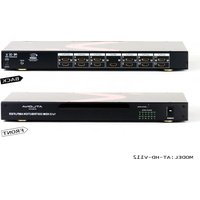
Front Panel
![graph LR A["ATLONA"] --> B["Studio-DRAM"] B --> C["Component 1"] B --> D["Component 2"] B --> E["Component 3"] B --> F["Component a"] B --> G["Component b"] B --> H["Component d"] B --> I["Component 5"] B --> J["Component 6"]](/content/2026/05/1091233/images/4f720c4f35b3c6c292c392d170185a43a210c6235e02a981ef0d03e0d04e6440.jpg)
-
IR Receiver Window - Receives the signal from the included IR Hand Held Remote Control or 3rd party controller
-
Function (FNC) Button - Select for command options. (blue backlight when selected)
a. EDID Button: Save/Load EDIDs to individual inputs
b. INFO Button: Displays the firmware, IP, and MAC address
c. 1 Button: Save a single input to all the outputs with this function
d. 2 Button: View additional matrix RS-232 baud information
- Cancel Button - Within the function menu use this button to go back one screen or to return to the home screen
Note: You cannot power off or change functions unless you return to the home screen
-
Power Button - Cycles the power between On (blue backlight) or Standby (red backlight) mode
-
Enter Button - Use to view current status for inputs and outputs or to confirm a command
-
Number buttons - Use these buttons to select input and output paths or use with the function button to change matrix settings
Back Panel

- LAN port - Connect to a network for TCP/IP, WebGUI, and firmware updates
- FW port - USB not enabled at this time for future functionality
- Main control - Connect IR or RS-232 control system to the matrix
- HDMI Input - Connect HDMI sources to these ports
Ex. DVD players, Blu-ray players, computers, game consoles, etc - HDMI outputs - Connect to HDMI displays or HDBaseT extender sets (for extended range zone support)
Ex. AT-UHD-EX-100CE-KIT, AT-UHD-EX-70C-KIT, or AT-UHD-EX-70-KIT - Power supply - Connect included 12V power supply from here to a power outlet.
Rack Mounting

To rack mount the UHD-H2H-44M unit: use the rack mount ears, the 4 screws from the sides of the UHD-H2H, and 4 rack screws.
To affix the rack mount ears, remove the two screws on each side of the UHD-H2H-44M and affix the rack ears to the UHD-H2H-44M (as shown in the picture to the left).
Place the UHD-H2H-44M in the rack, lining the holes in the rack ears with the holes in the rack. Once placed, use the rack screws to keep the unit in place. (as shown in the picture above).
Note: Increase the air flow as needed to maintain the recommended temperature inside the rack.
Note: Do not exceed maximum weight loads for the rack. Install heavier equipment in the lower part of the rack for stability.
Connection Diagram
![graph TD A["Game Console"] --> B["Control System"] B --> C["Router"] C --> D["AT-UI/UX-100CE-KIT"] D --> E["Computer"] F["Video"] --> G["HLBaseT"] G --> H["Ethernet"] H --> I["Control"] I --> J["TCP/IP"] J --> C C --> K["Computer"] L["Blu-ray player"] --> M["Set top box"] M --> N["Router"] N --> O["…](/content/2026/05/1091233/images/ffd8a7428fd65ae32c764ceefe9428fc2f64fc1414f6580262b8c7c993e34393.jpg)
![graph TD A["Blu-ray player"] --> B["Game Console"] C["Set top box"] --> D["AT-UHD-EX-70C-KIT"] D --> E["Control System"] B --> F["Device 1"] B --> G["Device 2"] B --> H["Device 3"] B --> I["Device 4"] B --> J["Device 5"] B --> K["Device 6"] B --> L["Device 7"] B --> M["Device 8"] B --> N["Device 9"]…](/content/2026/05/1091233/images/8ba01988628bd5c109aa5c5dfdb781ac8ac6858104b17262fc784e53169aa0bd.jpg)
Matrix Front Panel Functions
The AT-UHD-H2H-44M's front panel has 3 functions: I/O control, EDID, and matrix settings. The following sections go over step by step setup & control.
I/O Control
To route an input to an output
I.E. Input 1 to output 2
![graph LR A["home screen AT-UHD-H2H-44M Select Input Number"] --> B["---"] B --> C["input selection"] C --> D["through"] D --> E["4"] E --> F["---"] F --> G["Select input Enter to confirm"] G --> H["---"] H --> I["ENTER"] J["Select output Press enter to confirm"] --> K["---"] K --> L["output selectio…](/content/2026/05/1091233/images/0f79e26acc77b55d7f112c587422e4218f24946a79d2948eba3f86d822eb9f20.jpg)
To route one input to all outputs
I.E. Input 1 to output 1 through 4
![graph LR A["home screen AT-UHD-H2H-44M Select Input Number"] --> B["FCN"] B --> C["Select Function"] C --> D["1"] D --> E["Select Input to route to all Outputs"] F["input selection"] --> G["through"] H["Feedback = "Input # saved to all outputs""] I["1"] --> G J["4"] --> G](/content/2026/05/1091233/images/3c3268e0bbf19fed23c62c32a34be3d09936ff9edc2bc60d9d4f6493a9c86914.jpg)
EDID Set Up
When the matrix is completely connected and turned on it will load the default EDID, which is the highest common native resolution of the connected devices. (i.e. In the diagram below the default would be 1080p with 2ch audio. Multi-channel audio and 3D are not enabled on default mode, unless all devices support these features.)
![graph TD A["ATLONA"] -->|4K/UHD-Dolby TrueHD Input 1| B["Blu-ray player"] A -->|1080p-2ch Input 2| C["Set top box"] A -->|4K/UHD - Dolby TrueHD Output 3| D["AVR"] A -->|4K/UHD-2ch Output 1| E["Computer"] A -->|1080p-2ch Output 2| F["Computer"] A -->|4K/UHD - Dolby TrueHD Output 3| G["Computer"]](/content/2026/05/1091233/images/d20e359b215afef8828dac4f8e723437ca707fb848f097967318d7aae7d221f6.jpg)
On default, all devices in the diagram will work at 1080p. If a device is not syncing or a different resolution is required, internal EDID or EDID copy and load should resolve these issues. The UHD-H2H-44M can copy and store up to 4 EDIDs to memory.
Step 1: copy an EDID
Before an EDID can be loaded to an input, it must first be copied to the matrix's memory. Each display's EDID can be saved individually to one of the matrix's four preset EDID memories.
![graph LR A["home screen"] --> B["AT-UHD-H2H-44M Select Input Number"] B --> C["FCN"] C --> D["Select Function"] D --> E["EDID"] E --> F["1 Copy Output EDID\n2 Choose Input EDID"] F --> G["1"] H["Copy output EDID Enter to confirm"] --> I["1"] I --> J["through"] J --> K["4"] K --> L["ENTER"] L --> M["…](/content/2026/05/1091233/images/5b77af702ede002dc8c59fab6d7c5a6f3e351f5c6ff19b366264ecdf8dcf433c.jpg)
Step 2: load a copied EDID to an input
Once EDIDs have been copied to memory they can be loaded to a specific input.
Note: (refer to the diagram above) Using the EDID of output 3 with input 1 will enable 4K/UHD and Dolby TrueHD to pass. With these settings, output 2 will receive no audio or video and output 1 will receive no audio.
![graph TD A["home screen AT-UHD-H2H-44M Select Input Number"] --> B["FCN"] B --> C["Select Function"] C --> D["EDID"] D --> E["1 Copy Output EDID\n2 Choose Input EDID"] F["2"] --> G["Select input EDID"] G --> H["1"] H --> I["through"] I --> J["4"] J --> K["Input: _ Press Enter\nCurrent:Default"] K --…](/content/2026/05/1091233/images/b72a7260b9b9345da8a13643d3b81cc3a51e3e742d5897941b7fc1ae2309e3ad.jpg)
Step 3: Load an internal EDID to an input
If the first two steps don't produce the correct resolution or audio configuration, the fourteen internal EDIDs should resolve the issue.
Internal EDID options
Front panel display readout
EDID 1: 1080P 2CH audio ATL 1080P 2CH
EDID 2: 1080P HD multi-channel audio 7.1* ATL 1080P Multi CH
EDID 3: 1080P Dolby Digital/DTS 5.1 ATL 1080P DD
EDID 4: 1080P 3D 2CH audio ATL 1080P 3D 2CH
EDID 5: 1080P 3D HD multi-channel audio 7.1* ATL 1080P 3D MultiCH
EDID 6: 1080P 3D Dolby Digital/DTS 5.1 ATL 1080P 3D DD
EDID 7: 720P 2CH audio ATL 720P 2CH
EDID 8: 720P Dolby Digital/DTS 5.1 ATL 720P DD
EDID 9: 1280x800 RGB 2CH audio ATL 1280x800 RGB 2CH
EDID 10: 1366x768 RGB 2CH audio ATL 1366x768 RGB 2CH
EDID 11: 1080P DVI** ATL 1080P DVI EDID 12: 1280x800 DVI** ATL 1280x800
EDID 13: 3840x2160 2CH audio ATL UHD 2CH
EDID 14: 3840x2160 multi-channel audio 7.1* ATL UHD MultiCH
* Recommended EDID for AVR use
** Recommended EDID for DVI projectors use
![graph TD A["home screen\nAT-UHD-H2H-44M\nSelect Input Number"] --> B["FCN"] B --> C["Select Function"] C --> D["EDID"] D --> E["1 Copy Output EDID\n2 Choose Input EDID"] F["2"] --> G["Select input EDID"] G --> H["1"] H --> I["through"] I --> J["4"] J --> K["Input: Press Enter\nCurrent:Default"] K --…](/content/2026/05/1091233/images/20db66bc3ce504cd163679ab8f121ef1e1ef9ae53efbae0d2a899090ebd42b59.jpg)
RS-232 and TCP/IP commands:
To access different EDIDs through RS-232 or TCP/IP, the following commands must be used.
| Command | Feedback | Description |
| EDIDMSetX default | EDIDMSetX default | Sets the EDID of an input to the default EDIDEx. EDIDMset2 default - sets input 2 to default |
| EDIDMSetX saveY | EDIDMSetX saveY | Sets the EDID of an input to the previously saved EDID memoryEx. EDIDMset1 save3 - sets input 1 to EDID memory 3 |
| EDIDMSetX intZ | EDIDMSetX intZ | Sets the EDID of an input to one of the internal EDIDsEx. EDIDMset3 int6 - sets input 3 to the internal EDID - 1080p 3D Dolby Digital 5.1 |
Matrix Status
When installing or troubleshooting it's important to verify settings, or be able to come back to a project and see how it was set up. The AT-UHD-H2H-44M matrix settings are viewable through the front panel display. View current I/O settings, firmware version, IP, and the RS-232 baud rates of the matrix.
View current I/O settings

View Firmware/Baud Rate settings
![graph TD A["home screen"] --> B["FCN"] B --> C["Select Function"] C --> D["INFO"] E["AT-UHD-H2H-44M FW Ver: 0.X.XX"] --> F["INFO"] F --> G["IP Address: XXX.XXX.XXX.XXX"] G --> H["Press INFO to cycle through the IP Address and firmware"] I["AT-UHD-H2H-44M"] --> J["2"] J --> K["TX Baud Rate 115200"] K…](/content/2026/05/1091233/images/d7bfde4d91df50ec93e0bb466f14a078b19636799dffb790d42bb0b3f254cce3.jpg)
LAN
For convenience, the matrix comes with DHCP default on. This ensures the matrix IP will not override another device.
To find the matrix IP:
![graph LR A["home screen\nAT-UHD-H2H-44M\nSelect Input Number"] --> B["FCN"] C["AT-UHD-H2H-44M\nFW Ver: 0.3.XX"] --> D["INFO"] B --> E["Select Function"] D --> F["IP Address:\nX.X.X.X\nIP Address"] E --> G["INFO"] F --> H["EX. 192.168.000.200"]](/content/2026/05/1091233/images/30cccc8fa845edf2c644274ca0b4987212b88eaf12177928cb9906bb2e1235b9.jpg)
Browser WebGUI
Atlona has created an easy to use WebGUI for changing settings and controlling the matrix.
To begin, plug a LAN cable into the matrix and your network router, then type the IP address of the matrix into a web browser (as seen below).

Important: If any stability issues are experienced, disable any anti-virus or firewall that may be interfering with network communication to the Matrix. Once set up is done and the matrix GUI is no longer being used, the firewall and anti-virus can be re-enabled.

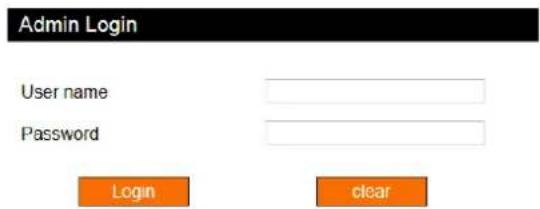
A login screen will appear (this is the same log in for admin and general users). For the first log in (and future admin changes) the username is "root" and password is "Atlona".
Note: Admin username and password can be changed within the WebGUI (see page 14).

ATLONA
Technical Support: US 1 (877) 536-3976 International: 1 (408) 962-0515
AT-UHD-H2H-44M

The home page will allow the user to see the general system information, download the matrix log, and save/load system settings. The information displayed will help figure out if the matrix is up to date, how long it has been running, and other key information.
The Download Log button is for Atlona Tech Support Team only. Tech Support may request the log be sent to them for more in depth troubleshooting.
Note: To save the log, press the "Download Log" button. The file will automatically save to the "download" folder.
Save System Settings will backup the current settings of: network, users, I/O labels, and the current I/O settings of the matrix. If the matrix requires a factory reset, the backed up settings can be loaded onto the matrix.
Note: To save the system settings, press the "Save System settings" button. The file will automatically save to the download folder. The file can be renamed (using a project name may make the file easier to find later) but the file extension should not be altered (altering the extension may corrupt or make the file unusable).
Note: To load the system settings, click the browse button on the WebGUI. Once the search folder displays, select the file and press the load button. A progress bar will display to make it easier to know when the upload is complete. If a restart is required, a prompt will display.

ATLONA
Technical Support: US: 1 (877) 536-3976 International: 1 (408) 962-0515
AT-UHD-H2H-44M
Home
- Status
- Firmware
Settings
• Network
• Control
- Users
Configuration
• I/O
- Route Memory
• EDID
• HDCP
- Logout
Firmware Status
| Matrix | |
| UI Firmware | 14.28 |
| HDMI | 14.25 |
Check for the most recent firmware update!
Firmware Update
Matrix
File
Browse No file selected
Update
The firmware page displays the matrix and HDMI chipset firmware version and provides an easy way to update.
Download the most current firmware from http://atlona.com/UHD-H2H-44M.html. Once the firmware is on the computer use the browse button to select the correct file. Press the update button and a progress bar will display. If a restart is required, the WebGUI will display a prompt.

ATLONA
Technical Support: US: 1 (877) 536-3976 International: 1 (408) 962-0515
AT-UHD-H2H-44M
Home
- Status
- Firmware
Settings
• Network
• Control
- Users
Configuration
• I/O
- Route Memory
• EDID
• HDCP
- Logout
Network Settings
DHCP
IP Address
Subnet
Gateway
Telnet Port
HTTP Port
Login Mode
ON OFF
192.168.0.11
255 255 255 0
192 168 0.1
23
80
ON OFF
SAVE
C
The network page enables the matrix IP settings to be altered. If a static IP is required, then DHCP needs to be turned off. Once off, the settings will be available to change.
Login mode, when on, will request a password whenever a control device is connected to the matrix.

ATLONA
Technical Support US: 1 (877) 536-3976 International: 1 (408) 962-0515
AT-UHD-H2H-44M
Home
- Status
- Firmware
Settings
- Network
• Control - Users
Configuration
• I/O
- Route Memory
• EDID
• HDCP
- Logout
Control Settings
Power:
IR:
Key Lock:
Factory Default:
NTP Server.
Time zone

OFF

OFF
ON
OFF
Reset Now
Server 1
(GMT) Greenwich Mean Time.

The control page will allow simple functions to be changed. Turn the matrix on/off, IR front panel receiver window on/off, and front panel key lock on/off. The time zone and baud rates (for matrix and zone outputs) can be altered as well.

ATLONA
Technical Support: US: 1 (877) 536-3076 International: 1 (408) 062-0515
AT-UHD-H2H-44M
Home
- Status
- Firmware
Settings
- Network
• Control
- Users
Configuration
• I/O
- Route Memory
• EDID
HDCP
- Logout
Change user name and password
| No. | Username | Password | Action |
| User 1 | Add | ||
| User 2 | Add | ||
| User 3 | Add |
Change Admin Name and Password
| Old username: | |
| Old password: | |
| New username | |
| New password: |


The Users page allows non-admin users to be added or the admin username and password to be changed.
Only 3 non-admin users can be added. Type in the username and password to the fields and press add. Users will not have the ability to access this page.
Admin username and password (default username="root" and password="Atlona") can also be changed. Be sure to write this information down as admin is the only profile allowed to add/remove users.

ATLONA
Technical Support:
US: 1 (877) 536-3976
International: 1 (408) 962-0515
AT-UHD-H2H-44M
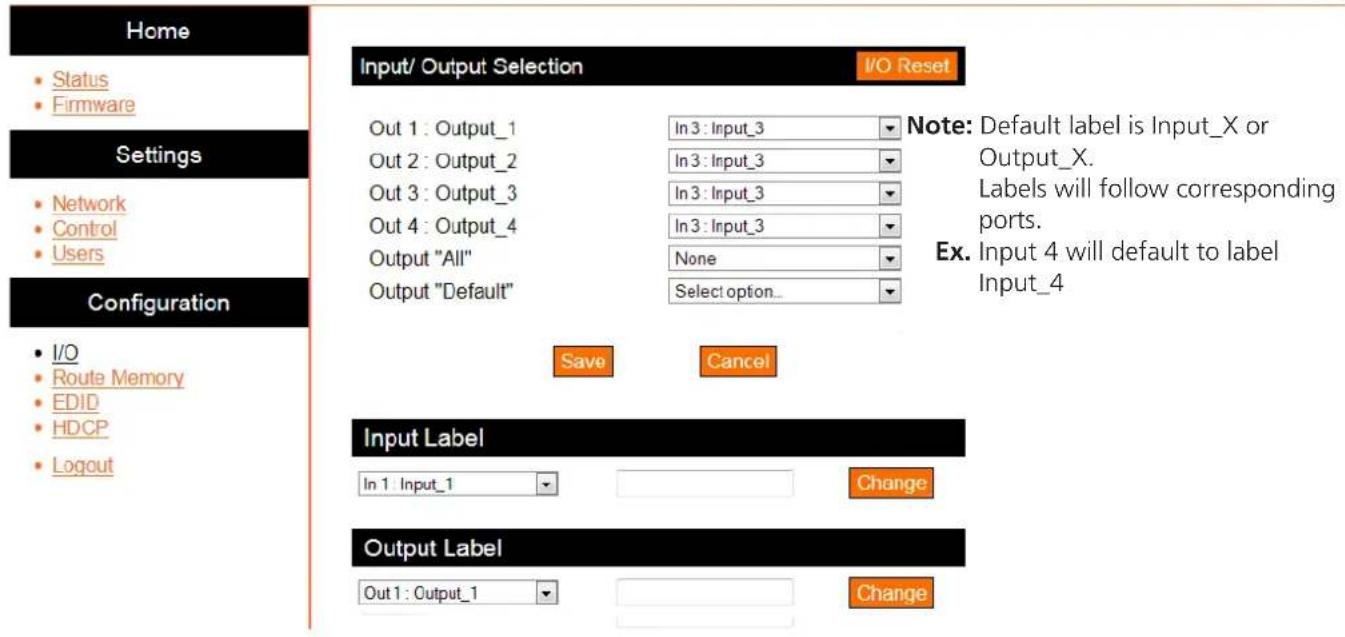
The I/O page makes an easy way to set up input and output routing and labeling.
The inputs and outputs have the option for labeling to help make routing and switching simpler. Label each input and output individually. Select what source or zone that is to be labeled, type the name in the box, and press change.
Note: Labels are limited to 16 characters and no spaces

ATLONA
Technical Support: US: 1 (877) 536-3976 International: 1 (408) 962-0515
AT-UHD-H2H-44M
Home
- Status
- Firmware
Settings
- Network
- Control
- Users
Configuration
• I/O
- Route Memory
• EDID
• HDCP
- Logout
Route Memory (This will not change the current I/O selection) Memory Reset
Preset select:
M1.Preset_1
Out 1 : Output_1
In 1: Input_1
Out 2 : Output 2
In 2: Input_2
Out 3 : Output 3
In 3: Input_3
Out 4 : Output 4
In 4: Input_4
Save
Cancel
Memory label
M1: Preset_1
change
Memory Selection (This will change the current I/O selection)
M1: Preset_1
Select
The Route Memory page provides set up, labeling, and configuration of multiple preset memories for fast and easy control.
Set Up
- Select Route Memory # from the 'Preset Select' drop down menu
- Set the input/output routes
- Save to memory
- Label the route memory preset
- Repeat as needed until all route memories are saved
Note: Switching does not occur during the set up and labeling of route memory.
To apply route memory to the matrix: Select the route memory # from the memory selection drop down menu and press the 'Select' button.

ATLONA
Technical Support: US: 1 (877) 536-3976 International: 1 (408) 962-0515
AT-UHD-H2H-44M
Home
• Status
- Firmware
Settings
Network
• Control
- Users
Configuration
• I/O
- Route Memory
• EDID
• HDCP
- Logout
EDID (Extended display identification data)
EDID Reset
| Output | Output EDID | EDID Memory |
| 1: Output_1 | none | |
| 2: Output_2 | none | |
| 3: Output_3 | none | |
| 4: Output_4 | none |
Save Cancel
| Input | EDID Selection |
| 1: Input_1 | ATL 1080P 2CH |
| 2: Input_2 | ATL 1080P 2CH |
| 3: Input_3 | ATL 1080P 2CH |
| 4: Input_4 | ATL 1080P 2CH |
Save Cancel
The EDID page is used for saving EDIDs, loading EDIDs, or using internal EDIDs on the input ports.
Each output will have an individual EDID that can be saved to memory. The matrix has 4 available EDID memory presets. Each display EDID can be saved to the corresponding memory number.
Ex. Output 2 to EDID memory 2. Once saved, the EDIDs can be loaded to the input to ensure compatibility.
Internal EDIDs can also be loaded to inputs. There are 14 internal EDIDs. The list can be found on page 9.

ATLONA
Technical Support: US: 1 (877) 536-3976 International: 1 (408) 962-0515
AT-UHD-H2H-44M
Home
- Status
- Firmware
Settings
• Network
• Control
- Users
Configuration
• I/O
- Route Memory
• EDID
• HDCP
- Logout
HDCP
| Output Port | Status |
| 1: Output_1 | Compliant 1.x |
| 2: Output_2 | Compliant 2.2 |
| 3: Output_3 | No Connection |
| 4: Output_4 | Non-Compliant |
The HDCP page provides a quick way to see whether a display is HDCP compliant or not and the version supported. This page will give multiple status readouts: No Connection, Compliant 1.X, Compliant 2.X, and Non-Compliant.
RS-232
Connection
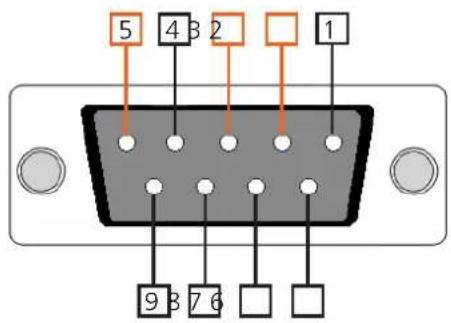
RS-232 pin out will be determined by the RS-232 cable and will connect as Rx (receiver), Tx (transmitter), and ± (ground). (See picture 1)


Wire color will differ by cable manufacturer.
RS-232 is often connected through a DB 9-pin to captive screw connector. The pins will have functions associated with them, some will be unassigned.
Note: Typical DB9 connectors use pin 2 for TX, pin 3 for RX, and pin 5 for ground. On some devices functions of pins 2 and 3 are reversed.
Set Up
To set up the RS-232 hyperterminal (if not using 3rd party software) use the following steps:
- Connect the UHD-H2H-44M to a PC using a DB9 (Stripped and connected to 3pin captive screw) to USB cable
- Go to the Device Manager folder (see picture A)
- Find the UHD-H2H-44M COM port and right click with a mouse and select properties (see picture B)
NOTE: If unsure which COM port is the UHD-H2H-44M, unplug the cable and plug it back in. It will disappear and reappear on the COM port list.
- Under the properties menu select the port settings tab and update the menu to the UHD-H2H-44M
default settings of: Bits Per Second: 115200, Data Bits: 8, Parity: None, Stop Bits: 1 and Flow Control: None. (see picture C)
Set up is done and any hyperterminal program may be used to control the UHD-H2H-44M now.

RS-232 & TCP/IP Control Commands
The command codes are case sensitive, do not change capitalization, spacing, or lettering.
| Command Feedback Description | ||
| PWON PWON Power on | ||
| PWOFF PWOFF Power off | ||
| PWSTA PWx Will display | the power status of the matrixEx. Power is on, feedback will be PWON | |
| Version Firmware # Brings up the current firmware version | ||
| Type Model # Brings up the model information | ||
| Lock Lock Locks the front panel of the matrix so no buttons are active | ||
| Unlock Unlock Unlocks the front panel of the matrix, enabling the buttons again | ||
| All# | x1AVx1,x2AVx2,... | Resets all inputs to corresponding outputsEx. input 1 to output 1, input 2 to output 2, input 3 to output 3, etc |
| x1 | x1 | Turns off output channelEx. to turn off output 3 = x3$ |
| x1All | x1All | Sets selected input to all outputsEx. x3All would set input 3 to all |
| x1AVx2Ex. x3AVx7 | x1AVx2Ex. x3AVx7 | Switch input to outputEx. input 3 to output 7 |
| x1AVx2,x3,x4Ex. x3AVx1,x4 | x1AVx2,x3,x4Ex. x3AVx1,x4 | Switch input to multiple outputsEx. Switch input 3 to output 1 and 4 |
| IROFF | IROFF | Disables the front panel IR receiver window |
| IRON | IRON | Enables the front panel IR receiver window |
| Statusx1 | x7AVx1 | Shows what input is connected to selected output |
| Status | x1AVx1,x2AVx2,x3AVx4,.... | Displays which inputs are currently connected to which outputs |
| SaveYEx. Save2 | SaveYEx. Save2 | Saves I/O route settings for future use, preset options 0 to 8 |
| RecallYEx. Recall2 | RecallYEx. Recall2 | Recalls saved I/O route settings for the chosen preset number |
| ClearYEx. Clear2 | ClearYEx. Clear2 | Erases the saved I/O route settings for the chosen preset number |
| Mreset Mreset Sets matrix back to the default settings | ||
Each command or feedback is terminated with a carriage return.
Note: If the command fails or is incorrect the feedback should be "Command FAILED"
To help with zone troubleshooting the matrix will broadcast “#*PORTXX_[feedback]” when receiving any feedback from any zone.
| Command Feedback Description | ||
| IPCFG IP Addr : x.x.x | x.xNetmask : x.x.x.xGateway : x.x.x.xIP Port: x.x.x | Displays IP address configuration |
| IPTimeout XX IPTimeout XX(Ex. IPTimout120) | Determines amount of seconds of inactivity before TCP/IP disconnects | |
| IPQuit IPQuit Logs out of TCP/IP | ||
| IPAddUser TCP/IP username & password list:- user password- user password- user password | Will display a list of users | |
| IPAddUser X Y TCP/IP user was added Add a user for TCP/IP control. X=User Y=PasswordEx. IPAddUser Atlona 1234 (User=Atlona 1234=Password) | ||
| IPDelUser X TCP/IP user was deleted Delete a user from TCP/IP X=User (Ex. IPDelUser Atlona) | ||
| IPDHCP sta IPDHCP staEx. IPDHCP on | Displays the status of DHCP | |
| IPDHCP on | IPDHCP on | Turns DHCP on |
| IPDHCP off IPDHCP off | Turns DHCP off | |
| IPStatic X Y Z | IPStatic address netmask gateway | Sets a static IP addressEx. IPStatic 192.168.1.1 255.255.255.0 192.168.1.200 |
| IPPort | IPPort Y | Set the TCP/IP port (ex. IPPort 230) |
| IPLogin sta | IPLogin staEx. IPLogin on | Displays IPLogin statusEx. IPLogin is on |
| IPLogin on | IPLogin on | Enables IPLogin |
| IPLogin off | IPLogin off | Disables IPLogin |
| Broadcast sta | Broadcast sta | Displays broadcast mode status |
| Broadcast on | Broadcast on | Enables broadcast mode |
| Broadcast off | Broadcast off | Disables broadcast mode |
IR Remote Control

Captive Screw
Captive screw connectors are an added feature on the UHD-H2H-44M matrix. The captive screw connectors allow you to cut cables down to a suitable length, reducing cable clutter while providing a more reliable connection.
Connecting
When connecting the cables to the female captive screw connector it is important that the wires be terminated correctly. The female captive screw connector has a contact plate at the top and must have the wires touching it for signal to pass. When wired correctly (see picture A) the signal will pass, incorrectly (see picture B) no signal will pass.


The captive screw connectors have a contact bar that is adjusted to compress the wire against the top contact plate. Use the screws at the top of the connector to compress the wire against the contact plate.

Clockwise
Turn the screws clockwise to raise the contact bar to the upper contact plate and hold the wires in place.


Counter Clockwise
Turn the screws counter clockwise to lower the contact bar to release the wires.
IR pin out will be determined by the IR cable and will connect as ± (ground), and S (signal)

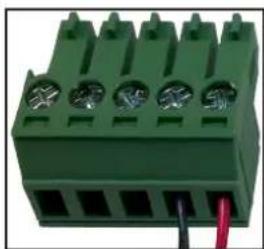
One side of the optional IR cable is marked to differentiate pin outs.

There are two wires on the optional IR captive screw ready cable (AT-LC-CS-IR-2M sold separately): signal and ground. The signal wire is red and ground wire is black. The IR cable will plug into the IR IN ports and connect to third party control systems.
Specifications
Video Resolutions
| Video | 4096x2160@24/25/30/50*/60Hz*, 3840x2160@24/25/30/50*/60Hz* (UHD), 2048x1080p, 1080p@23.98/24/25/29.97/30/50/59.94/60Hz, 1080i@50/59.94/60Hz, 720p@50/59.94/60Hz, 576p, 576i, 480p, 480i |
| VESA | 2560x2048, 2560x1600, 2048x1536, 1920x1200, 1680x1050, 1600x1200, 1600x900, 1440x900, 1400x1050, 1366x768, 1360x768, 1280x1024, 1280x800, 1280x768, 1152x768, 1024x768, 800x600, 640x480 |
Color Space YUV, RGB
Chroma Subsampling 4:4:4, 4:2:2, 4:2:0*
Color Depth 8-bit, 10-bit, 12-bit
Audio
HDMI PCM 2Ch, LPCM 5.1, LPCM 7.1, Dolby Digital, DTS 5.1, Dolby Digital Plus, Dolby TrueHD, DTS-HD Master Audio, Dolby Atmos
Sample Rate 32kHz, 44.1kHz, 48kHz, 88.2kHz, 96kHz, 176.4kHz, 192kHz
Bit Rate up to 24-bit
Distance
HDMI @ 4K up to 5 meters up to 15 feet
HDMI @ 1080p up to 10 meters up to 30 feet
Signal Support
| Bandwidth | 10.2 Gbps | |||||
| CEC | No | |||||
| HDCP | 2.2 | |||||
| Temperature | ||||||
| Operating | 0°C | to | 40°C | 32°F | to | 104°F |
| Storage | -40°C | to | 70°C | -40°F | to | 158°F |
| Ambient | 0°C | to | 70°C | 32°F | to | 158°F |
| Humidity | 20 to 90% non-condensing | |||||
Power
| Consumption | 25W | |
| Idle Consumption Supply | 5W | |
| AC100~240V | 50/60Hz |
Dimension
| H x W x D w/feet | 55.22 x 439.74 x 254 (mm) | 2.17 x 17.31 x 10 (inch) |
| H x W x D w/rack ears | 44.20 x 482.60 x 254 (mm) | 1.74 x 19.00 x 10 (inch) |
| Rack | Unit | 1U |
Weight
| Device | 2.97 | kg | 6.55 | lbs |
Certification
| Power Supply | CE, TUV, RCM | |
| Product | CE, | TUV |
*4096x2160@50/60Hz & 3840x2160@50/60Hz supported @ chroma subsampling 4:2:0 8-bit only
Safety Information
Safeguards

To reduce the risk of electric shock, do not expose this product to rain or moisture

If the wall plug does not fit into your local power socket, hire an electrician to replace your obsolete socket.

Do not modify the wall plug. Doing so will void the warranty and safety features.

This equipment should be installed near a grounded socket outlet and the device should be easily accessible in the case it requires disconnection.
Precautions
FCC regulations state that any unauthorized changes or modifications to this equipment, not expressly approved by the manufacturer, could void the user's authority to operate this equipment.
Operate this product using only the included external power supply. Use of other power supplies could impair performance, damage the product, or cause fires.
In the event of an electrostatic discharge this device may automatically turn off. If this occurs, unplug the device and plug it back in.
Protect and route power cords so they will not be stepped on or pinched by anything placed on or against them. Be especially careful of plug-ins or cord exit points from this product.
Avoid excessive humidity, sudden temperature changes or temperature extremes.
Keep this product away from wet locations such as bathtubs, sinks, laundries, wet basements, fish tanks, and swimming pools.
Use only accessories recommended by Atlona to avoid fire, shock, or other hazards.
Unplug the product before cleaning. Use a damp cloth for cleaning and not cleaning fluid or aerosols. Such products could enter the unit and cause damage, fire, or electric shock. Some substances may also mar the finish of the product.
Never open, remove unit panels, or make any adjustments not described in this manual. Attempting to do so could expose you to dangerous electrical shock or other hazards. It may also cause damage to your product. Opening the product will void the warranty.
Do not attempt to service the unit. Disconnect the product and contact your authorized Atlona reseller or contact Atlona directly.
Atlona, Inc. ("Atlona") Limited Product Warranty Policy
Coverage
Atlona warrants its products will substantially perform to their published specifications and will be free from defects in materials and workmanship under normal use, conditions and service.
Under its Limited Product Warranty, Atlona, at its sole discretion, will either:
A) repair or facilitate the repair of defective products within a reasonable period of time, restore products to their proper operating condition and return defective products free of any charge for necessary parts, labor and shipping OR
B) replace and return, free of charge, any defective products with direct replacement or with similar products deemed by Atlona to perform substantially the same function as the original products
OR
C) refund the pro-rated value based on the remaining term of the warranty period, not to exceed MSRP, in cases where products are beyond repair and/or no direct or substantially similar replacement products exist.
Repair, replacement or refund of Atlona's products is the purchaser's exclusive remedy and Atlona's liability does not extend to any other damages, incidental, consequential or otherwise.
This Limited Product Warranty extends to the original end-user purchaser of Atlona's products and is non-transferrable to any subsequent purchaser(s) or owner(s) of these products.
Coverage Periods
Atlona's Limited Product Warranty Period begins on the date of purchase by the end-purchaser. The date contained on the end-purchaser 's sales or delivery receipt is the proof purchase date.
Limited Product Warranty Terms – New Products
• 10 years from proof of purchase date for hardware/electronics products purchased on or after June 1, 2013
• 3 years from proof of purchase date for hardware/electronics products purchased before June 1, 2013
• Lifetime Limited Product Warranty for all cable products
Limited Product Warranty Terms – Refurbished (B-Stock) Products
- 3 years from proof of purchase date for all Refurbished (B-Stock) hardware and electronic products purchased on or after June 1, 2013
Remedy
Atlona recommends that end-purchasers contact their authorized Atlona dealer or reseller from whom they purchased their products. Atlona can also be contacted directly. Visit www.atlona.com for Atlona's contact information and hours of operation. Atlona requires that a dated sales or delivery receipt from an authorized dealer, reseller or end-purchaser is provided before Atlona extends its warranty services. Additionally, a return merchandise authorization (RMA) and/or case number, is required to be obtained from Atlona in advance of returns.
Atlona requires that products returned are properly packed, preferably in the original carton, for shipping. Cartons not bearing a return authorization or case number will be refused. Atlona, at its sole discretion, reserves the right to reject any products received without advanced authorization. Authorizations can be requested by calling 1-877-536-3976 (US toll free) or 1-408-962-0515 (US/international) or via Atlona's website at www.atlona.com.
Exclusions
This Limited Product Warranty excludes:
- Damage, deterioration or malfunction caused by any alteration, modification, improper use, neglect, improper packing or shipping (such claims must be presented to the carrier), lightning, power surges, or other acts of nature.
- Damage, deterioration or malfunction resulting from the installation or removal of this product from any installation, any unauthorized tampering with this product, any repairs attempted by anyone unauthorized by Atlona to make such repairs, or any other cause which does not relate directly to a defect in materials and/or workmanship of this product.
- Equipment enclosures, cables, power supplies, batteries, LCD displays, and any accessories used in conjunction with the product(s).
- Products purchased from unauthorized distributors, dealers, resellers, auction websites and similar unauthorized channels of distribution.
Disclaimers
This Limited Product Warranty does not imply that the electronic components contained within Atlona's products will not become obsolete nor does it imply Atlona products or their electronic components will remain compatible with any other current product, technology or any future products or technologies in which Atlona's products may be used in conjunction with. Atlona, at its sole discretion, reserves the right not to extend its warranty offering in instances arising outside its normal course of business including, but not limited to, damage inflicted to its products from acts of god.
Limitation on Liability
The maximum liability of Atlona under this limited product warranty shall not exceed the original Atlona MSRP for its products. To the maximum extent permitted by law, Atlona is not responsible for the direct, special, incidental or consequential damages resulting from any breach of warranty or condition, or under any other legal theory. Some countries, districts or states do not allow the exclusion or limitation of relief, special, incidental, consequential or indirect damages, or the limitation of liability to specified amounts, so the above limitations or exclusions may not apply to you.
Exclusive Remedy
To the maximum extent permitted by law, this limited product warranty and the remedies set forth above are exclusive and in lieu of all other warranties, remedies and conditions, whether oral or written, express or implied. To the maximum extent permitted by law, Atlona specifically disclaims all implied warranties, including, without limitation, warranties of merchantability and fitness for a particular purpose. If Atlona cannot lawfully disclaim or exclude implied warranties under applicable law, then all implied warranties covering its products including warranties of merchantability and fitness for a particular purpose, shall provide to its products under applicable law. If any product to which this limited warranty applies is a "Consumer Product" under the Magnuson-Moss Warranty Act (15 U.S.C.A. §2301, ET SEQ.) or other applicable law, the foregoing disclaimer of implied warranties shall not apply, and all implied warranties on its products, including warranties of merchantability and fitness for the particular purpose, shall apply as provided under applicable law.
Other Conditions
Atlona's Limited Product Warranty offering gives legal rights, and other rights may apply and vary from country to country or state to state. This limited warranty is void if (i) the label bearing the serial number of products have been removed or defaced, (ii) products are not purchased from an authorized Atlona dealer or reseller. A comprehensive list of Atlona's authorized distributors, dealers and resellers can be found at www.atlona.com.
Atlona, Inc Product Registration
Thank you for purchasing this Atlona product. - We hope you enjoy it and will take an extra few moments to register your new purchase.
Registration creates an ownership record if your product is lost or stolen and helps ensure you'll receive notification of performance issues and firmware updates.
At Atlona we respect and protect your privacy, assuring you that your registration information is completely secure. Atlona product registration is completely voluntary and failure to register will not diminish your limited warranty rights.
To register go to: http://www.atlona.com/registration



- TABLE OF CONTENTS
- INTRODUCTION
- PACKAGE CONTENTS
- FEATURES
- BEFORE YOU START
- PANEL DESCRIPTION
- FRONT PANEL
- BACK PANEL
- RACK MOUNTING
- MATRIX FRONT PANEL FUNCTIONS
- I/O CONTROL
- EDID SET UP
- STEP 1: COPY AN EDID
- STEP 2: LOAD A COPIED EDID TO AN INPUT
- STEP 3: LOAD AN INTERNAL EDID TO AN INPUT
- INTERNAL EDID OPTIONS
- FRONT PANEL DISPLAY READOUT
- MATRIX STATUS
- LAN
- BROWSER WEBGUI
- ATLONA
- HOME
- SETTINGS
- CONFIGURATION
- FIRMWARE UPDATE
- NETWORK SETTINGS
- CONTROL SETTINGS
- ROUTE MEMORY (THIS WILL NOT CHANGE THE CURRENT I/O SELECTION) MEMORY RESET
- MEMORY LABEL
- MEMORY SELECTION (THIS WILL CHANGE THE CURRENT I/O SELECTION)
- SET UP
- RS-232
- CONNECTION
- RS-232 & TCP/IP CONTROL COMMANDS
- IR REMOTE CONTROL
- CAPTIVE SCREW
- CONNECTING
- SPECIFICATIONS
- AUDIO
- DISTANCE
- POWER
- DIMENSION
- WEIGHT
- CERTIFICATION
- SAFETY INFORMATION
- SAFEGUARDS
- PRECAUTIONS
- ATLONA, INC. ("ATLONA") LIMITED PRODUCT WARRANTY POLICY
- COVERAGE
- OR
- COVERAGE PERIODS
- LIMITED PRODUCT WARRANTY TERMS – NEW PRODUCTS
- LIMITED PRODUCT WARRANTY TERMS – REFURBISHED (B-STOCK) PRODUCTS
- REMEDY
- EXCLUSIONS
- DISCLAIMERS
- LIMITATION ON LIABILITY
- EXCLUSIVE REMEDY
- OTHER CONDITIONS
- ATLONA, INC PRODUCT REGISTRATION
Brand : Atlona
Model : AT-UHD-H2H-44M
Category : HDMI switch