
DA-MD4K - Computer accessory Sabrent - Free user manual and instructions
Find the device manual for free DA-MD4K Sabrent in PDF.


| Product Type | Display Adapter |
| Brand | Sabrent |
| Model | DA-MD4K |
| Color | Black |
| Input Connector | Mini DisplayPort (Male) |
| Output Connector | HDMI (Female) |
| Maximum Resolution | 3840 x 2160 @ 30 Hz |
| Audio Support | Yes (pass-through) |
| Material | ABS plastic with gold-plated connectors |
| Dimensions | 2.5 x 1.5 x 0.4 inches (6.4 x 3.8 x 1 cm) |
| Weight | 0.5 oz (14 g) |
| Power Supply | Passive (no external power required) |
| Compatibility | Devices with Mini DisplayPort output (e.g., Apple MacBook, Microsoft Surface Pro, Dell XPS) |
| Operating System | Windows, macOS, Linux (plug-and-play) |
| Package Contents | 1 x DA-MD4K adapter, 1 x user manual |
| Warranty | 1 year limited |
| Maintenance and Cleaning | Wipe with dry cloth; avoid liquids |
| Safety | Compliant with CE, FCC, RoHS |
| Spare Parts and Repairability | Non-serviceable; replace if defective |
Frequently Asked Questions - DA-MD4K Sabrent
User questions about DA-MD4K Sabrent
0 question about this device. Answer the ones you know or ask your own.
Ask a new question about this device
Download the instructions for your Computer accessory in PDF format for free! Find your manual DA-MD4K - Sabrent and take your electronic device back in hand. On this page are published all the documents necessary for the use of your device. DA-MD4K by Sabrent.
USER MANUAL DA-MD4K Sabrent
Connecting Differently™
MINI DISPLAYPORT TO HDMI ADAPTER
The Sabrent Mini DisplayPort to HDMI Adapter enables you to connect a Mini DisplayPort video output from your laptop, tablet, or desktop PC to HDMI-equipped displays, HDTVs, and projectors. Plug & Play no drivers needed on Mac or PC makes for an easy setup.
1
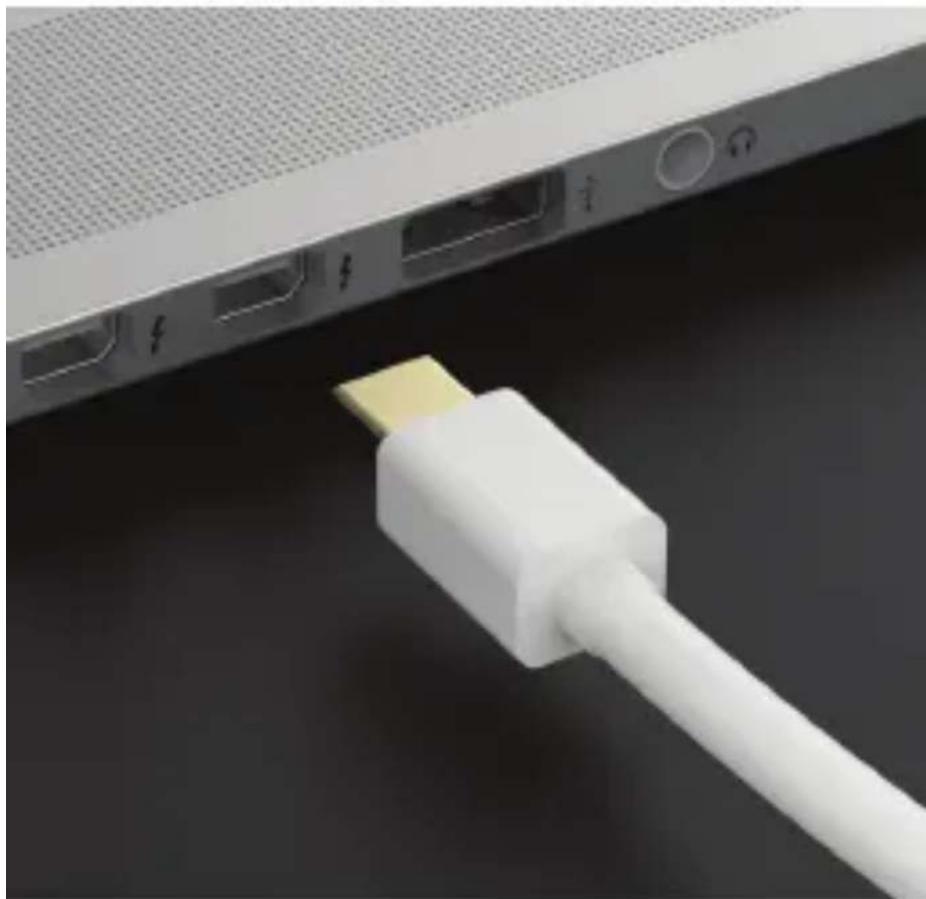
Connect the Sabrent Mini DisplayPort Adapter to a Mini DisplayPort on your laptop, desktop, or tablet
natural_image
Close-up of a white USB cable connector attached to a network device (no text or symbols visible)Note The Mini DisplayPort on your device must support 4K if you want to accomplish a 4K resolution
2
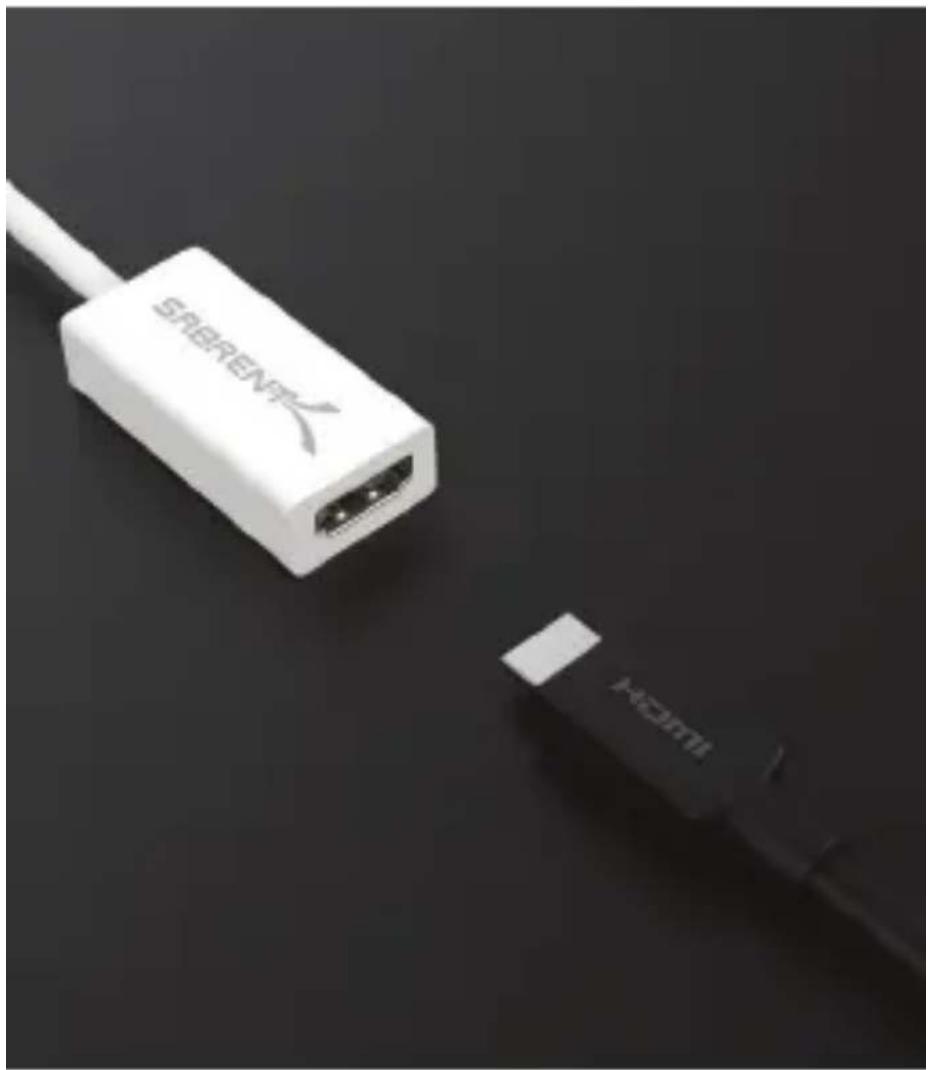
Connect a HDMI cable coming from your display to the Sabrent Mini DisplayPort Adapter
natural_image
Close-up of a white Siemens ES6997 microcontroller connected to a black Xiaomi smartphone (no visible text or symbols on device body)Note
Make sure that your display and
HDMI cable both support 4K
if you want to accomplish a 4K resolution
3
Power on your display and set it to the correct input Source
By now, your screen should extend
![Jelocámat / Elearia [Official Video HD] Jelocámat Jelocámat Published at 04.06.2017 Elearia: Roger Fornet-Cristina y Assemblas: Inosales: Celena Gesera: Anteclad, Hig-Plaganda Gesera: Gisana: Cemada Jelocámat - 14](/content/2026/05/1089079/images/5bf379af0d5fdad4b12653a753c72cab874600810b50f3372f899fcb2a7a43d8.jpg)
Customizing your Display Settings Windows
1
Right click on an empty space on your desktop and click on Display Settings or Screen resolution

2
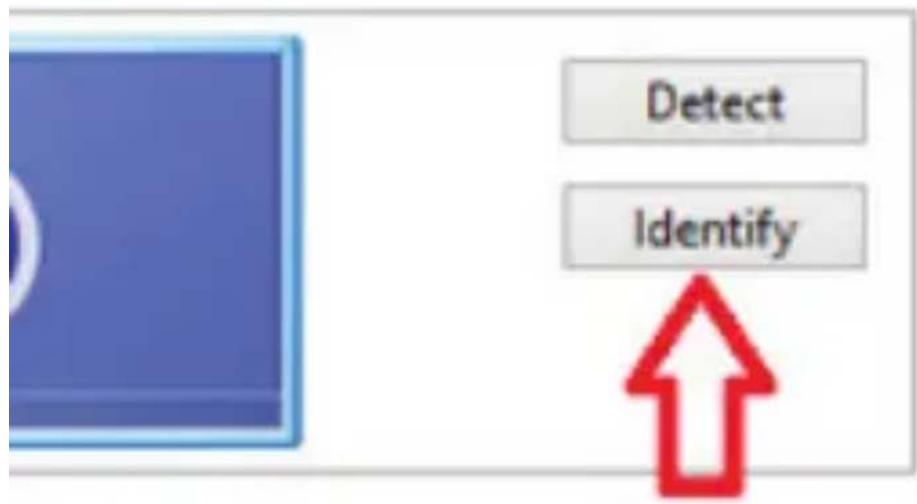
Click on Identify to detect which screen is 1 and 2
Advanced settings
3
Click on the screen that you want to change and begin to customize
Change the appearance of your displays

4
Click on Apply when ready
Customizing your Display Settings Mac OS
1
Click on System Preferences in your Taskbar

natural_image
Close-up of a metallic gear with visible teeth and central bore (no text or symbols)2
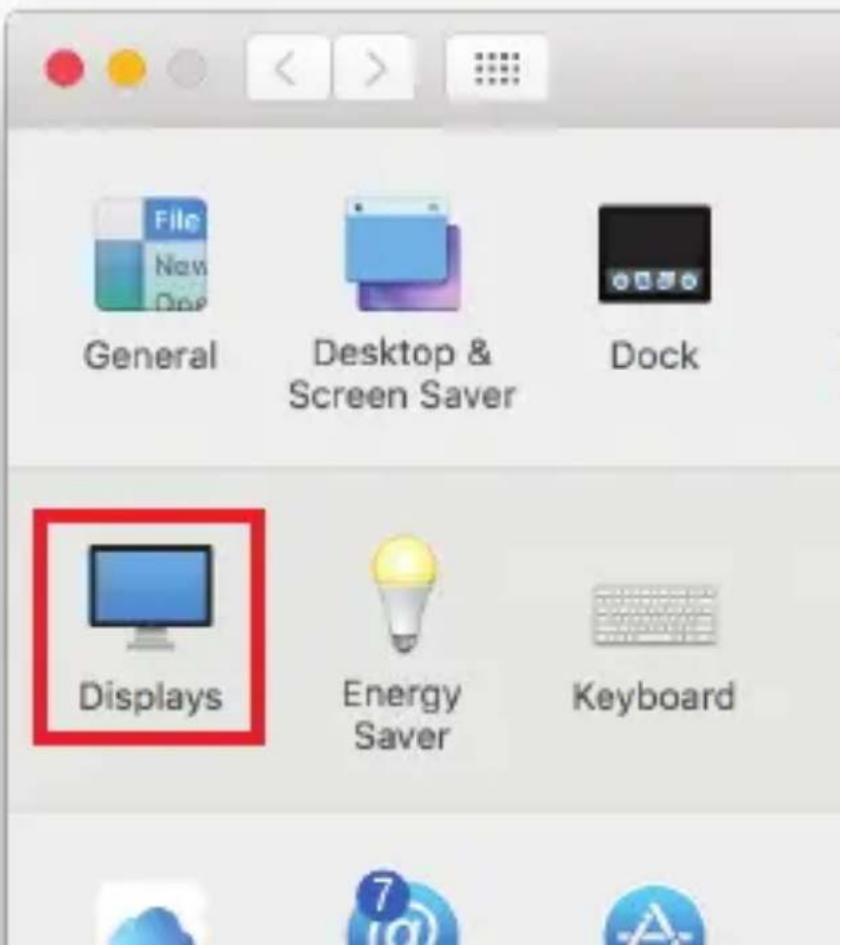
Click on Displays
3
Click on the category that you want to change and begin to customize

Note The blue boxes represent all displays that you've connected
The white bar at the top of both boxes represents your primary display


- Connecting Differently™
- MINI DISPLAYPORT TO HDMI ADAPTER
- 1
- Connect the Sabrent Mini DisplayPort Adapter to a Mini DisplayPort on your laptop, desktop, or tablet
- 2
- Connect a HDMI cable coming from your display to the Sabrent Mini DisplayPort Adapter
- 3
- Power on your display and set it to the correct input Source
- Customizing your Display Settings Windows
- Click on Identify to detect which screen is 1 and 2
- Click on the screen that you want to change and begin to customize
- 4
- Customizing your Display Settings Mac OS
- Click on the category that you want to change and begin to customize
Brand : Sabrent
Model : DA-MD4K
Category : Computer accessory