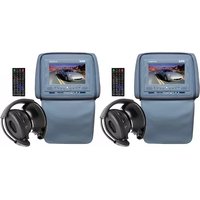
PLD76 - Monitor Pyle - Free user manual and instructions
Find the device manual for free PLD76 Pyle in PDF.


| Product Type | LCD Monitor |
| Brand | Pyle |
| Model | PLD76 |
| Display Size | 7 inches |
| Resolution | 800 x 480 pixels |
| Aspect Ratio | 16:9 |
| Brightness | 250 cd/m² |
| Contrast Ratio | 400:1 |
| Viewing Angle (H/V) | 120° / 100° |
| Video Input | Composite (RCA), VGA |
| Power Supply | 12V DC, 1A |
| Power Consumption | ≤5W |
| Dimensions (WxHxD) | 180 x 120 x 25 mm |
| Weight | 0.4 kg |
| Mounting | Desktop stand, VESA 75x75 mm |
| Built-in Speakers | Yes, 2W x 2 |
| OSD Languages | English, Spanish, French |
| Accessories Included | Power adapter, AV cable, remote control |
| Operating Temperature | -20°C to 60°C |
| Certifications | CE, FCC, RoHS |
Frequently Asked Questions - PLD76 Pyle
User questions about PLD76 Pyle
0 question about this device. Answer the ones you know or ask your own.
Ask a new question about this device
Download the instructions for your Monitor in PDF format for free! Find your manual PLD76 - Pyle and take your electronic device back in hand. On this page are published all the documents necessary for the use of your device. PLD76 by Pyle.
USER MANUAL PLD76 Pyle
Adjustable Headrest w/Built-in 7" TFT-LCD Monitor w/DVD Player
Instruction Manual

natural_image
Front view of a DYLE mobile phone with a car displayed on screen (no visible text or symbols on device body)NATIVE 32 GAME
HTTP://WWW.PYLEAUDIO.COM
Contents
Precautions 01
Key parts in front of the player · · ·06
Description for pressing-keys of remote controller · · · 07
Function of keys. 08
Time display 09
Zoom/goto/Audio 10
Setup/Angle/Direction Key . . . . 11
USB/TFT MENU/DVD 12
Menu operation ....13
Language setup....14
Audio/Video setup 15
Speaker/Digital setup. . . . . . 16
Dynamic Range/Left+Right · · 17
Description for playing MP4 . . . 18
MP3/WMA/JPEG DISKS . . . . . 18
Electronic Album 19
Playing JPEG Disks....19
MPEG4 Decoding Technology 20
Operation for Game Function · 21
Troubleshooting 22
USER'S MANUAL OF AUTOMOBILE HEADREST DVD PLAYER
Precautions
Thank you to buy our product, please read the operation instruction carefully prior to operation so as to use the player correctly, and please keep it appropriately for future reference.
Warning
- For the sake of your safety, do not watch the video image or open the display in driving.
- Without the approval of authorized organization, any changing or rebuilding for the player shall cause troubles for user.
Caution
- The product has dangerous high voltage inside, non-professional personnel shall be not allowed to dismantle it and repair. If any trouble is found, please turn to the professional personnel or our authorized maintenance center.
- The player is equipped with TFT color LCD, it is frangible, to be careful in delivering and installing.
- Do not clean the device by corrosive chemical detergent, soft cloth is recommended.
- The operating voltage is DC 12V{+-2V}, the player shall be worked abnormally or be damaged if the voltage higher or lower than the allowed range.
- The player is equipped with radium emitting system, please read the instructions carefully for right operation and keep it well for future reference. If maintenance is needed, please contact the professionals, do remember to operate it according the correct operating procedure to avoid the harmful light beam, in order to prevent the direct radium light beam, do not open the enclosure without permission.
Special Tips
- In using ,the LCD might has few bright spot on its screen,which is a very normal phenomenon in the active matrix display technology,and it doesn't mean the product has any fault or trouble.
USER'S MANUAL OF AUTOMOBILE HEADREST PLAYER
Notice before operation
Safety
- Before operating the product, please check the voltage of your car and it should be consistent with the working voltage of the player.
- Do grasp the powerplug firmly in connecting or disconnecting to the power, do not pull the power line by force.
- The radium emitting light beam used by the product is harmful to eyes, do not dismantle the enclosure without permission and only the professional technicians are allowed to conduct the repair or maintenance.
Placement
- Please operate the product in proper temperature, the storage temperature should be -30^ to 75^ , and the working temperature should be -10^ to 55^ .
- To prevent dust falling on the laser head, it shall affect the playing effect, if the head is dusted, please used the laser head cleaning disk to clean. Refer to the instructions of purchased cleaning dish for detailed operation.
- It should be damp-proof,crash-poof and pressure-proof.
Dew
In the below conditions, moisture shall be formed on the lens(dew formation):
- Carry the player from the cold place to warm place;
- In the condition of big temperature difference such as at the moment of opening the heating device;
- If the dew is formed, it shall affect the normal work of the player, and please remove out the disk, lay the player on table for one hour under the condition of connecting to power so as to vapor the moisture.




Precautions for disk
- In order to keep the disk clean, please take the edge of disk and do not touch its surface;
- Do not adhibit any paster or tape on the disk;
- Keep the disk away from direct sunshine or heat source;
- Please place the disk in the disk box after being used;
- Before playing the disk, if the disk is dirted, please clean it with soft cloth from the center to out;
- Do not use voatile oil and thinner to clean the disk.
USER'S MANUAL OF AUTOMOBILE HEADREST DVD PLAYER
Accessories
Please check the following accessories after opening the package.

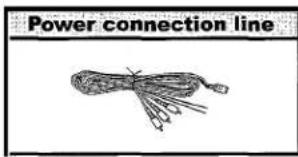
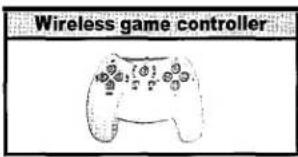

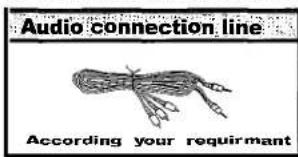
Note : the following three kinds of accessories (optional by customers):


USER'S MANUAL OF AUTOMOBILE HEADREST DVD PLAYER
Feature
- Easy to install and it will not damage the car and the user might install it by himself;
- No additional player is needed for the integration of display and player;
- With built-in FM stereo emitting function, it could be connected by wirelessly with the original car FM radio part and enjoy the sound box effect through the loudspeaker of radio;
- The input ports of audio and video are provided for the connection with GPS navigation system;
- Audio and video output function and they are installed at the two side of car by pair to support the synchronous enjoyment of video image;
- With USB and cards reader fuctions, can use USB or SD/MS/MMC cards play MP3/WMA/MP4, also can download MP3/WMA/MP4 into USB or SD/MS/MMC through PC. Download the Native Games form this website: http://www.native32.com. Applying more kinds of games for you.
Video disk type
| TYPE | DISK SYMBOL | RECORD HORIZONTAL | RECORD CONTENT | DISK SIZE | |
| FORMAT | DEFINITION | ||||
| DVD | MPEG2 | >500 LINES | Audio+Video | 12cm/8cm | |
| VCD | MPEG1 | >240 LINES | Audio+Video | 12cm/8cm | |
| CD | Digital | — | Audio | 12cm/8cm | |
| Mp3 | Digital | — | Audio | 12cm/8cm | |
| Mp4 | MPEG4 | >240 LINES | Audio+Video | 12cm/8cm | |
| WMA | Digital | — | Audio | 12cm/8cm | |
| JPEG | — | >500 LINES | Picture | 12cm/8cm | |
USER'S MANUAL OF AUTOMOBILE HEADREST DVD PLAYER
System connection and installation
Check whether the shape and installation size is suitable, please select and employ suitable accessories and tool in disassembling and assembling.
The install method:
Takes down the original installation head rest, to select and match the steel pipe according to the original installation pole diameter for the head rest that having the DVD monitor, then the adjustment head rest steel pipe spacing, passed the power source and the audio frequency lines through the chair steel pipe, and connected on the power source, the sound and video frequency system with the vehicle. simultaneously the head rest will be fixed, and will freely to adjust the height, around size based on the front seat personnel request.

Note: the shape and installation size are not suitable for all cars, please select the suitable shape and installation size.
USER'S MANUAL OF AUTOMOBILE HEADREST DVD PLAYER
Key parts in front of the player
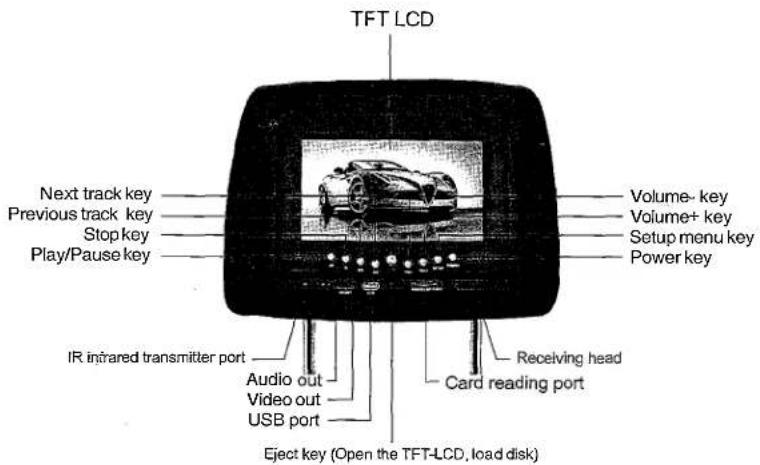
Note: At the Setup Manu ,press (◀◀) is up ,press (▶▶) is down ,press (VOL- ) is to left ,press ( VOL + ) is to right ,press (▶ ) is enter.
Description for the pressing-keys of remote controller
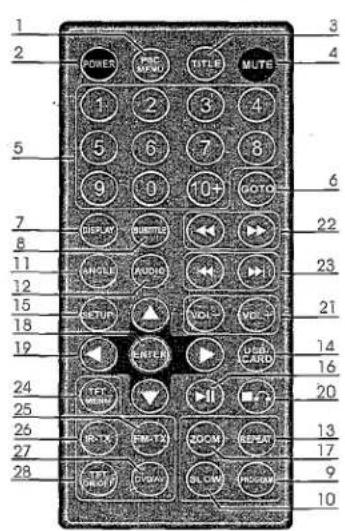
| 26. IR-TX | Switching ACH and BCH and OFFoutput |
| 27. DVD/AV | Switching DVD and AV input |
| 28.TFT ON/OFF | TFT -LCD switch ON/OFF |
| Key | Function |
| 1. Root menu/PBC | Press the key to return to the root menu in playing DVD disk, and open/close the PBC menu in playing VCD2.0 and SVCD. |
| 2. Power | Power ON/OFF |
| 3. Title menu | Press the key to return to the title menu in playing DVD disk |
| 4. Mute | Open/close the sound |
| 5. Number key | Number selection |
| 6. Goto | Select desired time to play |
| 7. Display | Display the disk information and playing time |
| 8. Subtitle | Subtitle switching, used for SVCD, DVD and Mp4 disks with multiple subtitles only |
| 9. Program | Track programming play |
| 10. Slow | Slow play |
| 11. Angle | Angle switching key, used for SVCD, DVD and MP4 disks with multiple angles only |
| 12. Channel(L/R) | Language switching key, used for SVCD,DVD and Mp4 disks with multiple languages only,Channel switching key forVCD |
| 13. Repeat | Multiple modes of repeat play shall be available |
| 14. USB/CARD | Switching DVD/USB/CARD |
| 15. Setup | Open/closeDVD setup menu |
| 16. Play/Pause | Play or pause |
| 17. Zoom | Zoom in/out, multiple modes |
| 18. Enter | Confirmation |
| 19. Direction key | Direction selecting key |
| 20. Stop/Return | Stop key, press the key to return in playing |
| 21. Vol+/- | Adjust the volume |
| 22. Fast forward/backwardPlay | fast forward or backward |
| 23. Previous/Next | Select the previous or next track |
| 24. Menu | Switching the menus of LCD brightness, contrast, definition, color and tint. |
| 25. FM-TX | FM-TX switch key,through direction key can adjust the radiation rate. |
USER'S MANUAL OF AUTOMOBILE HEADREST DVD PLAYER
Functions of keys
| KEY | Basic description |
| Power key | Power ON/OFF. Press the "Power" key of the panel to turn ON/OFF the player, the power key at the top left angle of the remote controller just for the staying. |
| ▲ Eject key | Open the disk door. |
| ▶II Play/Pause | In normal playing state, press the key to pause to play image/sound. Further press the key to resume to play normally. |
| ◀Fast backward▶▶Fast forward | Press Fast backward key, the image shall be played backward quickly, at the time, no sound shall be outputted, press the key successively, the player shall play the disk repeatedly as per the following method;Press Fast forward key, the image shall be played forward quickly, at the time, no sound shall be outputted, press the key successively, the player shall play the disk repeatedly as per the following method;Fast forward (backward) ➔ X2 ➔ X4 ➔ X8 ➔ X20←Play← |
| ◀ Previous▶▶ Next | Press the Previous key to select the previous track to play.Press the Next key to select the next track to play. |
| ■○Stop/Return | In playing VCD and CD disk, pressa ■ ○ " (Stop/Return) key to display pre-stop state, at the time, press Play key to resume to play; further press Stop key to stop playing and return to the boot interface state. In playing DVD or VCD2.0 disk, it plays the role of returning menu, and of stopping playing in playing menu. In playing game, press the key to return to the main menu of game.Note: MP4 and DVD hasn't the function of pre-stop. |
USER'S MANUAL OF AUTOMOBILE HEADREST DVD PLAYER
| KEY | Basic description |
| Display | Press Display key for the first time, the LCD shall display: (DVD state)1) Disk format, current title number and total title number;2) The Current chapter and total title number;3) The playing of current title.TT 1/29CH 1/1 00:00:12Further press the key to display:Display the current language and the language number supported, channel type, subtitle display language and angle type.O))2/3 2CH OFF NOPress the key for the third time to display nothing.The display (OSD) in playing VCD disk is as follows:TRACK 2/15 PBC 00:00:12Display the disk format, current track and total track number, mute mode, PBC mode, and the track number of repeat mode, and the track playing time.The OSD of MP3 and CD disk is same with VCD except that VCD disk has PBC option. |
| Mute | Firstly press the Mute key, the player shall play the image without sound output, further press the key to cancel the mute function and resume to play normally. |
USER'S MANUAL OF AUTOMOBILE HEADREST DVD PLAYER
| KEY | Basic description |
| Zoom | Press Zoom key to zoom in the image.In playing, press Zoom key, the zoom mode shall be cycled as per the following order:ZOOM 2→ZOOM 3→ZOOM4→ZOOM 1/2→ZOOM 1/3→ZOOM 1/4→ZOOM: OFFIn Image Zoom state, press direction key"←" to move the image. |
| Goto | GOTO: start to play from the selected time.Press GOTO key on the remote controller and a time selection dialog box shall be skipped out,move the cursor to the time number and input the time you want to select and then the player shall start to play from the selected time.TITLE 1/1 CHAPTER 1/29 00:00:12Note: the setup of VCD disk is same with DVD disk, the input time couldn't exceed the longest time of the disk. |
| Audio | DVD disk supports eight languages at most, repeatedly press Language key to select the diffe- rent language to play.If the disk hasn't the language menu, the user may also change the lang- uage by menu.In playing VCD or individual Mp4 disk,press audio key to channel mode.Note:Audio function is not available for MP3,CD,WMA,JPEG and individual MP4 disk. |
| Subtitle | Open/close the subtitle, select the subtitle on DVD disk and it's displayed on the TV screen,which is related to the format of disk.Subtitle is available only in the condition of the disk having subtitle function, the subtitle fun- ction is achieved by the Subtitle key on the remote controller, press the key successively toselect different subtitles. |
| Title | Press Title key to stop playing and return to the title menu of disk, press direction key to selectyour desired title and press Enter key to confirm to enter the chapter menu. |
USER'S MANUAL OF AUTOMOBILE HEADREST DVD PLAYER
| KEY | Basic description |
| Vol+ Vol- | Volume adjustment keyAdjust the volume by the Vol+ and Vol- key on the remote controller |
| Setup | Press the key to enter the setup menu to set up system, language, audio, video, loudspeaker and dolby digit, in setup menu, press the key to exit the menu interface. |
| Direction key | Up/Down/Left/Right keyPress the keys to select the disk content to be played and item to be set up as well as to select the image part to be zoomed. |
| Angle | Change the angle, DVD disk may record multiple scenes that are recorded from different angle, in playing, the user may select any one angle to watch.1. Press Angle on remote controller to select angle 1 and the top right corner of the TV shall display: 2.Further press Angle on remote controller to select angle 2 and the top right corner of the TV shall display: 2.Further press Angle on remote controller to select angle 2 and the top right corner of the TV shall display: |
| 1~0 | Press any number key to select the track or chapter to be played and set up the playing time. The player features number key direct-selection function, press the your desired number to select.For example: select the 386th track, first press number "3", and then press number "8", finally press number "6", the player shall play the 386th track.Note: number key direct-selection function is available for Mp3, Mp4 and DVD disks only. |
| 10+ | For the track number bigger than 10, press the key first, the LCD will display 10+ and then press other number key to select, press the key in turn to achieve multiple modes |
USER'S MANUAL OF AUTOMOBILE HEADREST DVD PLAYER
| KEY | Basic description |
| USB/CARD | Press this key enter the selecting menu of DISC/USB/CARD, use direction key and ENTER key select DISC、USB、CARD to play also can select in SETUP MENU. |
| TFT MENU | Theselecting key of TFT function can coordination with the direction key to adjust the brightness, contrast, color, definition, hue and other modes, After adjusting the parameters, press TFT MENU key to return and the set parameters shall be saved. |
| DVD/AV | Video/A V switching key.Press the key, the player shall switch DVD state into AV-IN state, the video signal inputted by the video terminal shall be displayed on the TV screen. If there is no signal inputted, it shall be blue screen. Further press DVD/AV key to switch AV-IN state into DVD state. |
| TFT ON/OFF | TFT-LCD switch key ,when you want to listen to the music,press this key can turn off the screen meanwhile enter the music mode. Press this key again then can turn on the screen. |
| IR-TX | IR-TX switching key, press this key switch to infrared mode, can switch between ACH,BCH, OFF. Note: when open the infrared ,speakey not have voice output,when switch to OFF then have voice output. |
| FM-TX | FM-TX key ,press this key can enter the FM-TX function, use direction key can adjust the radiation rate.Press this key again then exit the FM funciton. Note: when open FM,speakey not have voice output ,when switch to OFF then have voice output. |
USER'S MANUAL OF AUTOMOBILE HEADREST DVD PLAYER
Menu operation
Press Setup key and the LCD will display the picture as figure 1, press[◀]and [▶] key to move the white bar to the designated position, press Enter to confirm to display its submenu, or press [▶] key to enter its submenu directly.
Note: no matter in which state, press "▲"/▼"/"◀" and "▶" key to move the white bar and press Enter key to make it available, press [◀] key to exit the submenu at the right of LCD and at any time press Setup key to exit the Setup system.
Special Tips: for the company has many counterpart products, the figure is for reference only, all is subject the real product! The setup methods described in this instruction are for their common parts, other functions are recommended to use the default setup.
Figure 1

TV system(see figure 2)
(1) Press Setup key enter the setup system, select TV system and press Enter key to confirm, then the screen will display the picture as figure2.
② Enter the submenu, if you want to set the system to be PAL, select PAL and press Enter key to confirm, then press Setup key to exit the setup system.
Note: the video output system of TV set should be same with the video output system of DVD player.
Figure 2

USER'S MANUAL OF AUTOMOBILE HEADREST DVD PLAYER
Language Setup
- Image Display Language (see figure 3)
(1) Press Setup key and the TV screen will display the system setup picture, select Language Setup and then select Image Display Language option, press Enter key to confirm, the TV screen shall display the image as figure 3.
(2) Select your desired language option, multiple languages are available for selection including: English, ITALIAN, German, Spanish, French and Portuguese. Select Enter key to confirm and then press Setup key to exit the menu setup.
- Audio language, subtitle language and menu language (see figure 4)
(1) Press Setup key and the TV screen will display the system setup image, select Language Setup and then select your desired language option, press Enter key to confirm, the TV screen shall display the image as figure 4.
(2) Select your desired audio, subtitle or menu language option, the available languages include English, ITALIAN, German, Spanish, French, Portuguese, Japanese and Latin. Press Enter key to confirm and then press Setup key to exit menu setup.
Figure 3
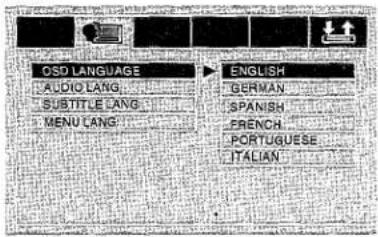
Figure 4

USER'S MANUAL OF AUTOMOBILE HEADREST DVD PLAYER
Audio Setup
1. Tone (see figure 5)
(1) Press Setup key and the TV screen will display the system setup image, select Audio Setup option and then select Tone option, press Enter key to confirm and the TV screen shall display the image as figure 5.
(2) If the user wants to adjust the tone, press [▲] and [▼] key to adjust and then press Enter key to confirm, press Setup key to exit the system setup.
Video Setup
(1) Press Setup key and the TV screen will display the system setup image, select Video Setup option and then select Brightness option, press Enter key to confirm, and the TV screen shall display the image as figure 6.
(2) If the user wants to set up the image brightness, press [▲] key to increase the brightness and press [▼] key to decrease the brightness, and then press Enter key to confirm, press Setup key to exit the system setup.
Note: the setup methods of contrast, hue and saturation are same with the setup of Video.
Figure 5

Figure 6

USER'S MANUAL OF AUTOMOBILE HEADREST DVD PLAYER
SPEAKER SETUP
1. Mix Mode (see figure 7)
(1) Press Setup key and the TV screen will display the system setup image, select Loudspeaker Setup option and then select Mix mode, press Enter key to confirm and the TV set shall display the image as figure 7.
(2) If the user wants to set up the stereo, move the white bar on Stereo column and then press Enter key to confirm, press Setup key to exit the system setup.
Note:
LT/RT: if the disk has the PROLOGIC dolby stereo effect, the disk signal could present living cinema effect by decoded inside the player. Stereo: for 5.1 channel output, the audio shall output two roads of signal (left channel and right channel); the common stereo signal shall be outputted. Virtual surround: in playing 5.1 channel recorded disks, the main channel shall output the virtual surround effect.
DIGITAL SETUP
1. Output Mode (see figure 8)
(1) Press Setup key and the TV screen will display the system setup image, select Dolby Digit Setup option and then select Output mode, press Enter key to confirm and the TV set shall display the image as figure 8.
(2) If the user wants to play the music by low sound volume at night, please select Line Output and then press Enter key to confirm, press Setup key to exit the system setup.
Line Output: linear compress the output signal, low sound volume, suitable for enjoying music at night; RF adjustment: high volume, suitable for enjoying music in daytime.
Figure 7

Figure 8
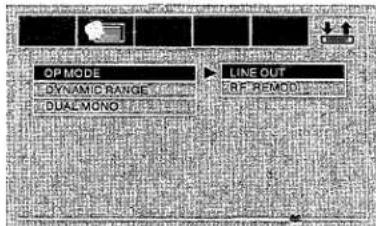
Dolby digit output setup is for these players with dolby functions only
USER'S MANUAL OF AUTOMOBILE HEADREST DVD PLAYER
2. Dynamic Range (see figure 9)
When the compression mode is line output, select this option to adjust the linear compression ratio to achieve different signal compression effect.
FULL: Minimum peak value for audio signal; OFF: Maximum peak value for audio signal.
Figure 9

3. Left + Right (see figure 10)
This setup is for OK mode of AC-3 only, including Stereo, Left Channel, Right Channel and Mix Channel.
Figure 10

Note: All setup option could exit the menu by pressing SETUP key. The system set up menu shall be a little different from the actual operation due to the software update; it shall be subject to the real product!
USER'S MANUAL OF AUTOMOBILE HEADREST DVD PLAYER
Description for playing MP4/MP3/WMA/JPEG disks
After loading the MP4/MP3/WMA/JPEG disks, the player shall search the directories automatically, after being searched, it will enter the directory of MP3 (for these disks of mix file placement), if it's the single file type of disk, it will enter the first directory and play the first track in this directory automatically (the cursor is stopped on the position of "01:").
The screen will display as follows:
![If the name of MP3/WMA/JPEG/MP4 played currently is JPEG file, the fil- ename shall be *.jpg. Name of currently played folder. Directory area: display all directories and na- mes inside the disk. Function switching area: display the type of played file and switch the desired file type. It means the currently played file is MP3 or WMA music file. [MP3_1] 1001.MP3 01. MP3_1 02. MP3_2 03. MP3_3 04. MP3_4 05. MP3_5 06. MP3_6 07. MP3_7 08. MP3_8 09. MP3_9 10. MP3_10 11. MP3_11 12. MP3_12 13. MP3_13 14. MP3_14 15. MP3_15 The sliding block could be moved downward with the track. File area: display the MP3/WMA/ JPEG/Mp4 file in current directory. It means the currently played file is MP4 file. It means the currently played file is game file.](/content/2026/05/1072315/images/f6d617d66f84366b860fa0570a09e3cba439a7a3902366cbd09efcda8ff67d4a.jpg)
USER'S MANUAL OF AUTOMOBILE HEADREST DVD PLAYER
Electronic Album
The player features strong electronic album function, the user may record his/her photos in the video disk or external memorizer and browse the photos through the player, what's more, the user may zoom in or out the photo and turn it upward/downward/leftward/rightward, it's unnecessary to worry about the damage or loss of photos.
Playing JPEG Disks
- Load JPEG disk, it shall stop on the first picture of the first directory after being searched;
- Use the up/down key to select the picture file, press Play key or confirm to start to play from the selected file;
- In playing pausing to play picture, you may press the direction key (up/down/left/right) to switch the display angle.
[▲] UP: turn the picture upward
[◀] LEFT: rotate 90 degree leftward
[▼] DOWN: turn the picture horizontally
[▶] RIGHT: rotate 90 degree rightward
Playing MP3 & JPEG Disks
- In playing MP3 and JPEG mixing disk, if the user wants to browse the pictures in playing MP3, press direction key to move the cursor on the picture to be browsed, press Enter key to enter JPEG browse state.
- Further press direction key to enter the picture play menu, after selecting one picture in the image directory menu, press Play key to play the pictures in order.
- Press Left/Right key to switch the state between MP3 and image browse.
Caution:
● MP3 disk without image has audio signal output only;
- Some JPEG pictures couldn't be zoomed in for the inconsistent picture format.
USER'S MANUAL OF AUTOMOBILE HEADREST DVD PLAYER
MPEG4 Decoding Technology
MPEG4 is the widely-applied video image saving and transporting standard. the DVD is designed with MPEG4 file playing function skillfully, the user may not only enjoy the rich video/audio resource on the internet but also breach the limit of watching film on computer only. The user may use PC to download, record or transcribe and produce the MPEG4 disks, the better picture and sound quality could be achieved.
MPEG4 is the fourth version of audio/video standard by Moving Pictures Experts Group. MPEG1 is the video image compression standard of VCD; MPEG2 is the video image compression standard of DVD or super V; MPEG4 is one of the network video image compression standards, the video/audio file with MPEG4 technology features high compression rate and clear image. Generally, hundred or more OK songs or many films might be saved in one disk with better image quality than VCD or SVCD!
Note: in the current market, some disks marked with MPEG4 is Real Video actually or other formats (such as *.rm/ * .ra/*.ram/*.rmvb/*.wmv/*.ast), which couldn't be compatible with the international standard MPEG4, they could be played by special software only and couldn't be played by this player. Do identify it in buying disks.
Description for Playing MP4 Disks
The operation of MP3 disk is same with playing MP4 disk, MP4 disk has video image and auto play is the default setup for this player, press Stop/Return key to return to the menu to facilitate the user to select the menu.
USER'S MANUAL OF AUTOMOBILE HEADREST DVD PLAYER
Operation for Game Function
The player features superior intelligent game function, it will make you enjoy the wonderful game in spare time.
Operation for game function
- Description for built-in game operation
On the no disk or stop playing status, press SETUP on the function controller or press SELECT on the game controller enter the menu, use direction key select EMBEDD Game or NATIVE Game and press ENTER on the function controller or START on the game controller to enter the game.
2.Description for playing the Game Disk Operation
(1) Press Eject key and load the game disk(the Disk for free),the game main menu shall be displayed in seconds
(2) Press direction key of the function controller or game controller to select the games then press ENTER on the function controller or press START on the game controller to enter the game.
3.Description for the Wireless Game Controller
(1) Press SELECT to enter the menu of the built-in games.
(2) Press direction key to select the games you like, then press the START to enter the game.
(3) Enter the game, press the direction key to select upward/downward/leftward/rightward, Press A.B, TA and TB key to operate the functions.
(4) Press Stop/Return key on the function controller or press RESET key on the game controller to exit the game. If enter EMBEDD Game ,press Stop/Return key or press RESET key can return to the main menu.then use direction key select EXIT and press ENTER on the function controller or START on game controller to exit the game.
Caution:
-
Can not enter the built-in games when reading disk.
-
For different games, the function keys might be different, the user could get the know-how by trying several times
-
You can download games through PC from this website: http://www.native32.com into the USB or Memory Cards.

key Function
USERS MANUAL OF AUTOMOBILE HEADREST DVD PLAYER
Troubleshooting
| Troubles | Solutions |
| No response | 1. Check the power connection;2. Check the auto power is opened;3. Check the power is opened. |
| No sound | 1. Check whether the volume is on the Min. position or in Mute state;2. Whether at the status of FM transmitting or IR transmitting? Please select FM OFF and turn off IR Audio output function.3. No sound output in the following states: Pause/Fast Forward/Fast Backward/Stop.4. Resume the default via setup system。 |
| Image | 1. Check whether the player is in line input state, press DVD/AV to switch it to be DVD state;2. Check whether the brightness setup is appropriate. |
| The disk couldn't be read | 1. Check whether the disk has been loaded and the side with label is placed upward;2. The disk is damaged or dirtied, please load another disk or clean the disk;3. The region codes of disk and player are different;4. The disk format is wrong. |
| Improper image size | 1. Set up the TV system once again;2. Select the corresponding screen format from the setup menu. |
| The track couldn't be selected | 1. Some sections of some disks are not allowed to interrupt its set playing order. |
| The remote continueroller refuses to work | 1. Check whether there exists any barrier between the remote controller and player;2. The remote controller doesn't aim at the receiving head of player;3. Check whether the battery is installed correctly;4. Check whether the battery has enough electricity. r |
Do not dismantle the device to repair without permission!
- Contents
- USER'S MANUAL OF AUTOMOBILE HEADREST DVD PLAYER
- Precautions
- Warning
- Caution
- Special Tips
- USER'S MANUAL OF AUTOMOBILE HEADREST PLAYER
- Notice before operation
- Safety
- Placement
- Dew
- Precautions for disk
- Feature
- System connection and installation
- Menu operation
- TV system(see figure 2)
- Language Setup
- Audio Setup
- Tone (see figure 5)
- Video Setup
- SPEAKER SETUP
- Mix Mode (see figure 7)
- Note:
- DIGITAL SETUP
- Output Mode (see figure 8)
- Dynamic Range (see figure 9)
- Left + Right (see figure 10)
- Description for playing MP4/MP3/WMA/JPEG disks
- Electronic Album
- Playing JPEG Disks
- Playing MP3 & JPEG Disks
- Caution:
- MPEG4 Decoding Technology
- Description for Playing MP4 Disks
- Operation for Game Function
- USERS MANUAL OF AUTOMOBILE HEADREST DVD PLAYER
Brand : Pyle
Model : PLD76
Category : Monitor