ICA-3550V - Security Camera Planet - Free user manual and instructions
Find the device manual for free ICA-3550V Planet in PDF.


| Product Type | IP Security Camera |
| Model | ICA-3550V |
| Brand | Planet |
| Image Sensor | 1/3-inch Progressive Scan CMOS |
| Resolution | 3 Megapixels (2048x1536) |
| Lens | Fixed focal length, 3.6mm |
| Night Vision | IR LEDs up to 20 meters |
| Power Supply | PoE (IEEE 802.3af) or DC 12V |
| Power Consumption | Max 5W |
| Dimensions (WxHxD) | 120 x 70 x 70 mm |
| Weight | Approx. 500g |
| Operating Temperature | -10°C to 50°C |
| Storage Temperature | -20°C to 60°C |
| Main Functions | Motion detection, remote viewing, two-way audio |
| Maintenance & Cleaning | Clean lens with soft, dry cloth; avoid harsh chemicals |
| Safety | Use properly grounded PoE switch or DC adapter; do not expose to rain |
| Spare Parts & Repairability | Contact Planet support for replacement parts; camera is not user-serviceable |
| General Information | Indoor/Outdoor use with IP66 rating (verify model variant) |
Frequently Asked Questions - ICA-3550V Planet
User questions about ICA-3550V Planet
0 question about this device. Answer the ones you know or ask your own.
Ask a new question about this device
Download the instructions for your Security Camera in PDF format for free! Find your manual ICA-3550V - Planet and take your electronic device back in hand. On this page are published all the documents necessary for the use of your device. ICA-3550V by Planet.
USER MANUAL ICA-3550V Planet
natural_image
Exterior view of a modern security camera with LED array and mounted head (no visible text or symbols)5 Mega-pixel Outdoor IR PoE IP Camera
▶ ICA-3550V

natural_image
Group of business professionals in a meeting around a laptop, no visible text or symbolsCopyright
Copyright © 2015 by PLANET Technology Corp. All rights reserved. No part of this publication may be reproduced, transmitted, transcribed, stored in a retrieval system, or translated into any language or computer language, in any form or by any means, electronic, mechanical, magnetic, optical, chemical, manual or otherwise, without the prior written permission of PLANET.
PLANET makes no representations or warranties, either expressed or implied, with respect to the contents hereof and specifically disclaims any warranties, merchantability or fitness for any particular purpose. Any software described in this manual is sold or licensed "as is". Should the programs prove defective following their purchase, the buyer (and not PLANET, its distributor, or its dealer) assumes the entire cost of all necessary servicing, repair, and any incidental or consequential damages resulting from any defect in the software. Further, PLANET reserves the right to revise this publication and to make changes from time to time in the contents hereof without obligation to notify any person of such revision or changes.
All brand and product names mentioned in this manual are trademarks and/or registered trademarks of their respective holders.
Federal Communication Commission Interference Statement
This equipment has been tested and found to comply with the limits for a Class B digital device, pursuant to Part 15 of FCC Rules. These limits are designed to provide reasonable protection against harmful interference in a residential installation. This equipment generates, uses, and can radiate radio frequency energy and, if not installed and used in accordance with the instructions, may cause harmful interference to radio communications. However, there is no guarantee that interference will not occur in a particular installation. If this equipment does cause harmful interference to radio or television reception, which can be determined by turning the equipment off and on, the user is encouraged to try to correct the interference by one or more of the following measures:
- Reorient or relocate the receiving antenna.
- Increase the separation between the equipment and receiver.
- Connect the equipment into an outlet on a circuit different from that to which the receiver is connected.
- Consult the dealer or an experienced radio technician for help.
FCC Caution
To assure continued compliance, for example, use only shielded interface cables when connecting to computer or peripheral devices. Any changes or modifications not expressly approved by the party responsible for compliance could void the user's authority to operate the equipment.
This device complies with Part 15 of the FCC Rules. Operation is subject to the following two conditions: (1) This device may not cause harmful interference, and (2) this device must accept any interference received, including interference that may cause undesired operation.
Federal Communication Commission (FCC) Radiation Exposure Statement
This equipment complies with FCC radiation exposure set forth for an uncontrolled environment. In order to avoid the possibility of exceeding the FCC radio frequency exposure limits, human proximity to the antenna shall not be less than 20 cm (8 inches) during normal operation.
Safety
This equipment is designed with the utmost care for the safety of those who install and use it.
However, special attention must be paid to the dangers of electric shock and static electricity when working with electrical equipment. All guidelines of this and of the computer manufacture must therefore be allowed at all times to ensure the safe use of the equipment.
CE Mark Warning
This is a Class B product. In a domestic environment, this product may cause radio interference, in which case the user may be required to take adequate measures.
WEEE Regulation

To avoid the potential effects on the environment and human health as a result of the presence of hazardous substances in electrical and electronic equipment, end users of electrical and electronic equipment should understand the meaning of the crossed-out wheeled bin symbol. Do not dispose of WEEE as unsorted municipal waste; they should be collected separately.
Revision
User's Manual of PLANET 5 Mega-pixel Outdoor IR PoE IP Camera
Model: ICA-3550V
Rev: 2.00 (Jan, 2015)
Part No. EM-ICA3550V
Table of Contents
Chapter 1. Product Introduction....6
1.1 Package Contents....6
1.2 Overview....6
1.3 Features....9
1.4 Product Specifications....10
Chapter 2. Hardware Interface....12
2.1 Physical Descriptions....12
2.1.1 Identification of ICA-3550V cable....12
2.1.2 I/O Control Instruction....13
2.2 Hardware Installation 15
2.3 Initial Utility Installation....16
2.4 Using UPnP of Windows XP or 7....19
2.4.1 Windows XP 19
2.4.2 Windows 7....24
2.5 Setting up ActiveX to use the Internet Camera 25
2.5.1 Internet Explorer 6 for Windows XP....25
2.5.2 Internet Explorer 7 for Windows XP....26
2.5.3 Internet Explorer 7 for Windows Vista....27
Chapter 3. Web-based Management....29
3.1. Introduction....29
3.2. Connecting to Internet Camera....29
3.3 Live Viewing....31
3.4 Configuration ....33
3.5 System....33
3.5.1 System Information....34
3.5.2 User Management 36
3.5.3 System Update ....37
3.6 Network....37
3.6.1 IP Setting 38
3.6.2 Advanced 41
3.6.3 PPPoE & DDNS....46
3.6.4 Mail & FTP & SAMBA 49
3.7 A/V Setting 50
3.7.1 Image Setting....51
3.7.2 Video Setting 52
3.7.3 Audio Setting 55
3.8 Event List....55
3.8.1 Event Setting 56
3.8.2 Schedule....58
3.8.3 I/O Setting....58
3.8.4 Log List....59
3.8.5 SD card....59
Appendix A. Factory Default....63
Appendix B. Ping IP Address....64
Appendix C.3GPP Access 65
Appendix D. Planet DDNS Application....66
Appendix E. Configuring Port Forwarding Manually 67
Appendix F. Troubleshooting & Frequently Asked Questions....69
Appendix G. Micro SD Card Compatibility ....73
Chapter 1. Product Introduction
1.1 Package Contents
The package should contain the following items:
- Camera Unit x 1
● Power Adapter x 1 - User's Manual CD x 1
- Quick Installation Guide x 1
- Screw Package x 1
● RJ45 Female to Female Connector x 1

- If any of the above items are missing, please contact your dealer immediately.
- Using the power supply that is not the one included in the Internet Camera packet will cause damage and void the warranty for this product.
1.2 Overview
Professional, High Resolution, Day and Night Network Camera
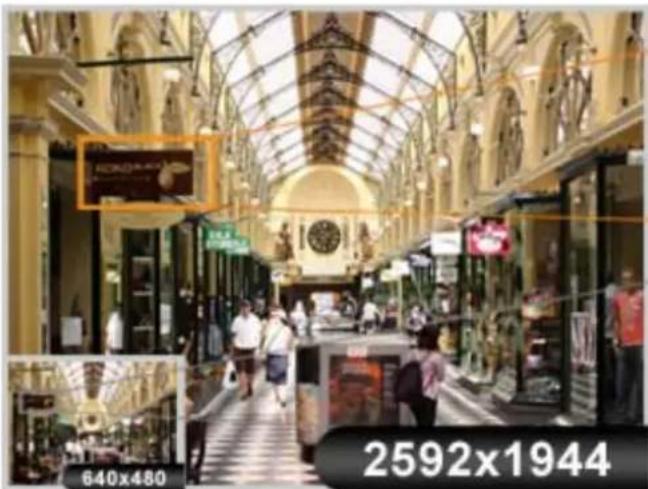
PLANET ICA-3550V Network Camera with IR Illuminator is a high resolution camera for round-the-clock surveillance over IP networks. This camera supports H.264, MPEG-4, and JPEG compression formats and delivers excellent picture quality in 5 mega-pixel resolutions at 15 frames per second (fps) and full HD resolutions at 30 fps. For easy management and waterproofing, the ICA-3550V is also equipped with a mounting bracket that conceals all cables within. The IP66-rated housing protects the camera body against rain and dust and ensures operation under extreme weather conditions, which makes it an ideal solution for outdoor applications, e.g. surveillance of buildings, roads, parking areas, garages, railway stations, airports and more.
5 Mega-Pixel Resolution
text_image
640x480 2592x1944
text_image
5 Mega-Pixel KOKO BLACK CHOCOLATE VGA KOKO BLACK CHOCOLATEDay & Night Functionality
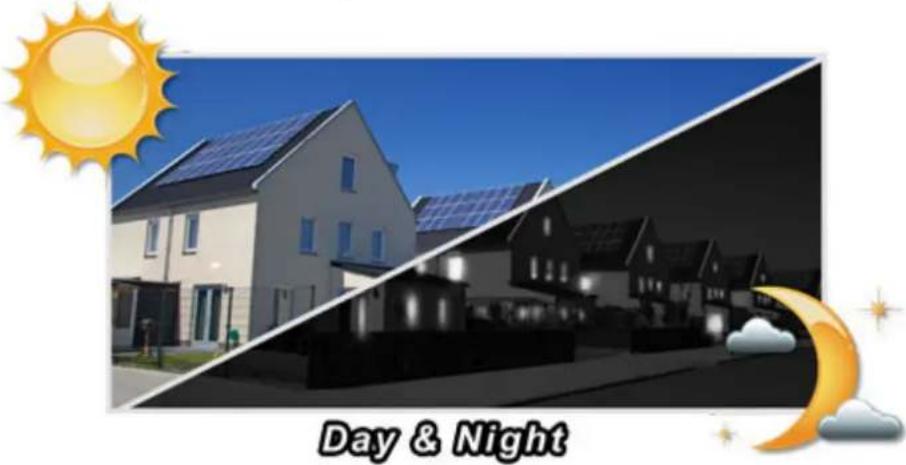
To adapt to constantly changing lighting conditions, the ICA-3550V comes with a removable IR-cut filter and built-in IR illuminators, which enable the camera to provide color video when
there is sufficient light, and black/white video in dark conditions. The ICA-3550V is able to maintain clear images 24 hours a day.
text_image
Day & NightExceptional Image Quality
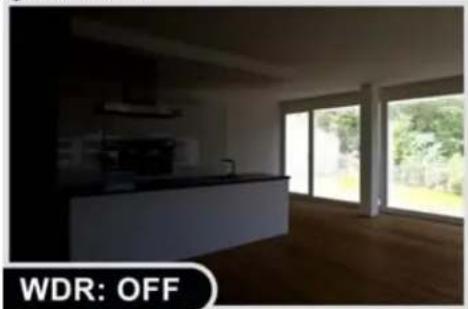
Together with powerful image processing attributes like Wide Dynamic Range (WDR) and 3-Dimensional Noise Reduction (3DNR) technology, the ICA-3550V is able to filter the intense backlight surrounding a subject and remove noises from video signal. The result is that an extremely clear and exquisite picture quality can be produced even under any challenging lighting conditions.
natural_image
Interior view of a modern kitchen with large windows and a counter, no visible text or symbols
natural_image
Interior view of a modern kitchen with large windows overlooking greenery, no visible text or symbols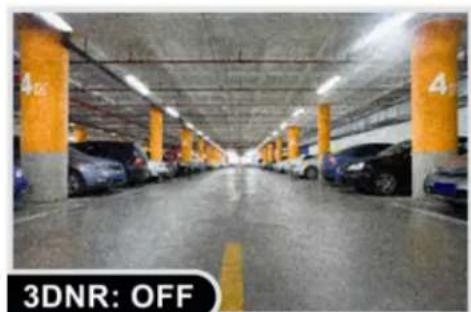
text_image
3DNR: OFF
natural_image
Interior view of a parking garage with yellow pillars and parked cars (no visible text or symbols)Advanced Event Management
The ICA-3550V supports a number of advanced features to enhance surveillance flexibility and event management capabilities. The advanced features include auto-iris for improving the image quality to avoid overexposure, AV out for two-way audio function, and inputs/outputs for connecting to external devices such as door sensors and relays to activate light or close doors.
2-way Audio

natural_image
Composite image showing a woman using a laptop and baby in a baby's bedroom, with a baby crawling on the floor; includes a microphone icon and circular arrows (no text or symbols)Flexible Installation and Power Functionality
The ICA-3550V incorporates IEEE 802.3af Power over Ethernet technology and can be powered from a PoE Switch via the network, which eliminates the need for power cables and reduces installation costs. The ICA-3550V is ONVIF-compliant and therefore interoperable with other brands in the market, greatly supporting users to integrate with their existing surveillance network. In addition, the ICA-3550V includes 64-Ch central management software for efficient monitoring. The ICA-3550V is indisputably the top choice for reliable and high performance surveillance.

text_image
IP66 Weather Proof For the Most Extreme EnviromentsVari-focal and Camera Tampering Detection Offers the Best Recording Flexibility
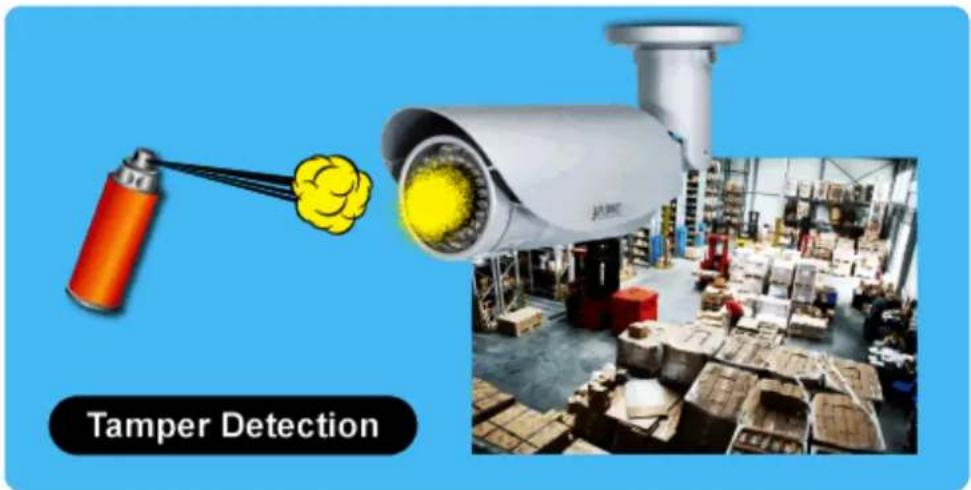
The ICA-3550V incorporates the mega-pixel vari-focal lens, which has the option of selecting a high millimeter setting for narrow viewing fields or a low millimeter setting for wider viewing fields. The ICA-3550V is also provided with three individually configurable motion detection zones. The camera can record video or trigger alarms or alerts when camera image is tampered.

flowchart
graph LR
    A["Start: Vehicle Inspection"] --> B["Step 1: Inspection"]
    B --> C["Step 2: Delivery"]
    C --> D["Step 3: Delivery"]
Vari-focal lens for available focal lengths
text_image
Tamper Detection1.3 Features
Camera
■ 1/3.2" 5MP progressive scan CMOS sensor
■ 3\~10.5 mm vari-focal, DC auto-iris lens
■ 0 lux minimum illumination at F1.8
■ Maximum resolution 2592 x 1944
■ Removable IR-cut filter for Day & Night function
Video / Audio
■ Simultaneous H.264 / MPEG-4 and M-JPEG video compression
■ Simultaneous multi-stream support
■ H.264 high profile, main profile and baseline
■ Max. resolution of 1080p at 30fps and 5 mega-pixel at 15fps
■ 3DNR to improve picture quality at low Lux
■ WDR enhancement function strengthens visibility under extremely bright or dark environments
■ Two-way audio support with enhanced audio quality
Network and Configuration
■ Compliant with IEEE 802.3af PoE interface for flexible deployment
■ Auto MDI/MDI-X supported
■ Supports both IPv6 and IPv4 protocols
■ RTSP / UPnP / 3GPP / HTTPS protocols selectable
Easy Installation & Management
■ ONVIF compliant for interoperability
■ Built-in 35 IR Illuminators, effective up to 25 meters
■ IP66 outdoor classifications with cable management bracket for rigorous environment
■ Built-in Samba client for NAS
■ 3GPP for 3G mobile remote applications
■ Micro SD card for local video recording supported
■ Digital Input/Output for integration with sensors and alarms
■ Cam Viewer 3 central management software supported
1.4 Product Specifications
| Model ICA-3550V | |
| Camera | |
| Image Device | 1/3.2" 5 mega-pixel progressive scan CMOS Sensor |
| Lens | Vari-focal 3~10.5 mm, DC auto-irisMechanical IR-cut filterAngle of view:Horizontal: 25.49~85.02 degreesVertical: 19.09~65.47 degrees |
| Min Illuminator 0 lux @ F1.4 | |
| IR Illumination LED | IR LED*35, 850nmBuilt-in IR illuminators, effective up to 25 meters |
| Effective Pixels 2592 x 1944 pixels | |
| Image | |
| Video Encoder H.264 / MPEG-4 / M-JPEG | |
| Video Profile | H.264: 2592 x 1944 / 1080P / 720P / QXGA / UXGA / 1280 x 960 / VGA/QVGA / QCIFM-JPEG: 2592 x 1944 / 1080P / 720P / QXGA / UXGA / 1280 x 960 / VGA / QVGA / QCIFMPEG4: VGA / QVGA / QCIF (Only for 3GPP) |
| Frame Rate | 5MP up to 15fpsFull HD up to 30fps |
| Image Setting | Brightness, sharpness, contrast, AGC, night mode text, time and date overlay |
| Streaming Simultaneous multi-profile streamingM-JPEG streaming over HTTPSupports 3GPP mobile surveillanceControllable frame rate and bandwidthConstant and variable bit rate (MPEG4 / H.264) | |
| Audio | |
| Audio Streaming Two-way audio | |
| Audio Encoder | RTSP: G.711 / G.7263GPP: AMR |
| Microphone External microphone input | |
| Audio Output Phone jack | |
| Network and Configuration | |
| Network Standard | IEEE 802.3 10BASE-TIEEE 802.3u 100BASE-TX |
| Supported Protocols | IPv6, IPv4, HTTP, HTTPS, SNMP, QoS/DSCP, Access list, IEEE 802.1X, RTSP, TCP/IP, UDP, SMTP, FTP, PPPoE, DHCP, PLANET DDNS, PLANET Easy DDNS, NTP, UPnP, 3GPP, SAMBA, Bonjour |
| Security | Password protection, IP address filtering, HTTPS encrypted data transmission, 802.1X port-based authentication for network protection, QoS/DSCP |
| Users 10 simultaneous unicast users | |
| System Integration | |
| Application Programming Interface | Open API for software integrationSDKONVIF |
| Alarm Triggering | Intelligent video motion detection and external input3-zone video motion detection |
| Alarm Events | File upload via FTP, email and SAMBAExternal output activationConfigurable Pre/Post alarm buffering |
| General | |
| Power Supply 12V DC, 1A | IEEE 802.3af Class 0 |
| Power Consumption | DC 12V : 8W (IR On); 5W (IR Off)PoE : 8.16W (IR on); 5.28W (IR Off) |
| Housing Weather-proof IP66-rated housing | |
| Operating Temperature -10 | ~ 45 degrees C |
| Operating Humidity 20 ~ 80% (non-condensing) | |
| Weight 1000g | |
| Dimensions (Φ x L) | 83 x 180 mm |
| Emission | CE, FCC |
| Connectors | 10/100 Mbps Ethernet, RJ-45DC power jackTerminal block for 1 alarm input , 1 output and factory default resetExternal microphone inputAudio outMicro SD/SDHC card slot (max. 32GB, class 10)Composite video out |
Chapter 2. Hardware Interface
2.1 Physical Descriptions
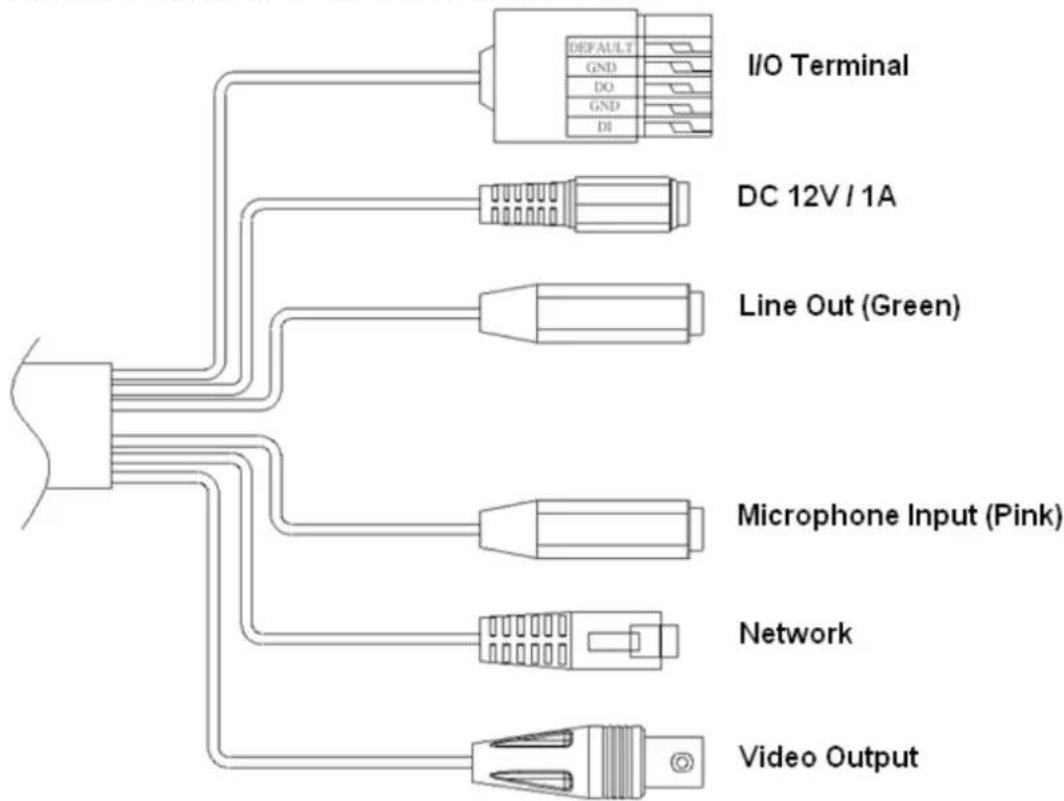
2.1.1 Identification of ICA-3550V cable
flowchart
graph TD
    A["Terminal"] --> B["I/O Terminal"]
    A --> C["DC 12V / 1A"]
    A --> D["Line Out (Green)"]
    A --> E["Microphone Input (Pink)"]
    A --> F["Network"]
    A --> G["Video Output"]
- RJ45 LAN socket: Connect to PC or Hub/Switch.
Connected to 10Base-T Ethernet or 100Base-TX Fast Ethernet cabling, the ICA-3550V with the Ethernet port built N-way protocol can detect or negotiate the transmission speed of the network automatically. Please use CAT-5 cable to connect the Network Camera to a 100Mbps Fast Ethernet network switch or hub.
- Power Jack: The input power is DC 12V.

ONLY use package power adapter supplied with the Internet. Otherwise, the product may be damaged.
3. I/O Control Instruction
The I/O terminal connector is used for such applications as motion detection, event triggering, and alarm notification.
4. Video Output
The internet camera also provides composite video output. User can use BNC video cable to connect the internet camera with a TV monitor or VCR.
5. Microphone input (audio in)
Connect a microphone to the network camera.
6. Line out (audio out)
Connect a loud speaker to the network camera. This is for voice alert and two-way audio.
2.1.2 I/O Control Instruction
1) Please connect the GND and DO pin to the external relay (buzzer) device.

flowchart
graph LR
    A["Default"] --> B["BU/DAV"]
    C["GND"] --> B
    D["DO"] --> B
    E["GND"] --> B
    F["DI"] --> B
    B --> G["BU/DAV"]
    G --> H["MEAN"]
    H --> I["Output"]
2) Please connect the GND and DI pin to the external trigger device.

flowchart
graph LR
    A["Device"] --> B["Default"]
    A --> C["GND"]
    A --> D["DO"]
    A --> E["GND"]
    A --> F["DI"]
    B --> G["panic"]
3) I/O Pin definition
● GND (Ground): Initial state is low
● DO (Digital Output): 5V DC
● DI (Digital Input): Max. 50mA, 5V DC
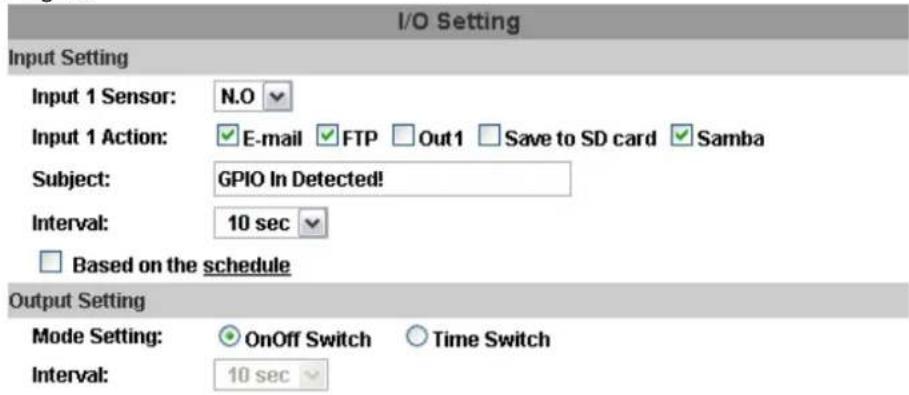
4) I/O Setup
- Click I/O Setting from the system setup page via IE, and check "Out1" to enable I/O signal.
text_image
I/O Setting Input Setting Input 1 Sensor: N.O Input 1 Action: E-mail FTP Out1 Save to SD card Samba Subject: GPIO In Detected! Interval: 10 sec Based on the schedule Output Setting Mode Setting: OnOff Switch Time Switch Interval: 10 sec5) Output Test
After the external input and output hardware is installed, you can use the "Relay Out" button on the live video page to test if DO / Relay Out works.
- On/Off Switch mode:
Click "ON" and the camera will trigger the external output devise for 10 seconds. For example, your alarm buzzer will continuously ring for 10 seconds. After 10 seconds the buzzer stops ringing, or you can manually break off the output signal by clicking "OFF".

text_image
Online Visitor : 1 Relay Out: ON OFF- Time Switch mode:
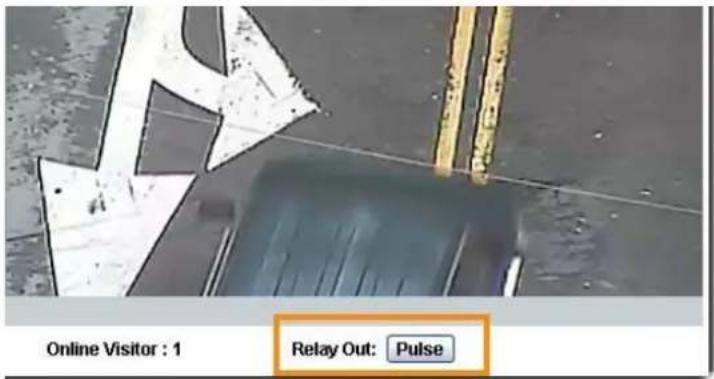
Click "Pulse" and the camera will trigger the external output devise for several seconds; the duration length is according to the "interval" setting in Output Setting.
text_image
Online Visitor : 1 Relay Out: Pulse
Relay out function needs extra purchase relay box. Relay out box connected to I/O terminal connector will provide relay out function with the ICA-3550V.
2.2 Hardware Installation
1. Connecting an Ethernet cable
Connect the LAN cable on the camera to the network device (hub or switch).

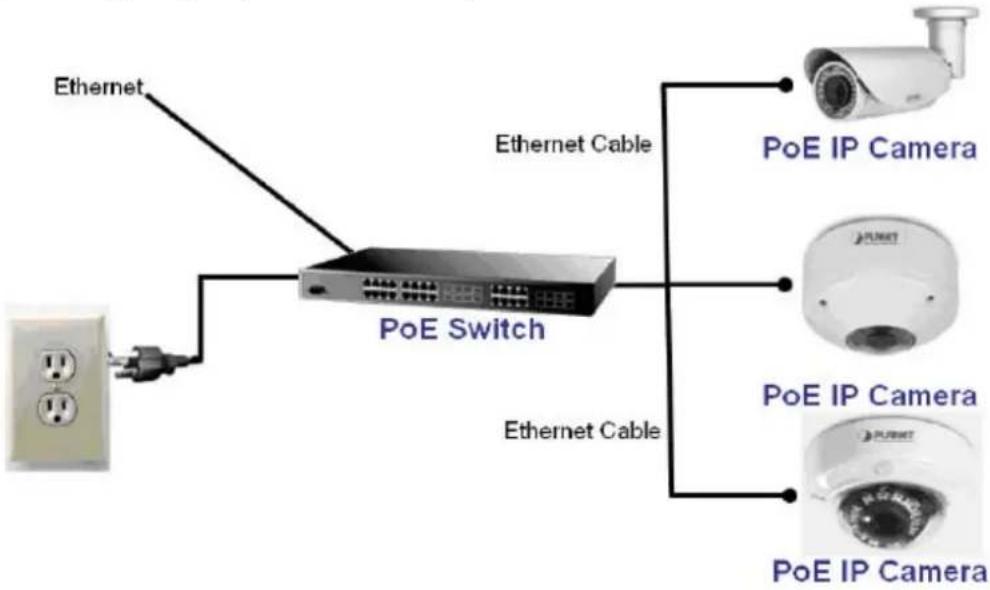
If there is an IEEE802.3af PoE switch on your network, you can connect the camera LAN cable to this PoE switch to obtain power. The power adapter is unnecessary when Internet camera is connected to a PoE switch.
2. Attaching the power supply
Plug in power adapter and connect to power source. After power on, the camera will start to operate.

- Only use the power adapter supplied with Internet camera. Otherwise, the product may be damaged.
- The power adapter is unnecessary when Internet camera is connected to a PoE switch. Otherwise, the product may be damaged when Internet camera is connected to a PoE switch and power adapter simultaneously.
3. Attaching BNC connector
Connect the video BNC connector to a monitor set if necessary. Check camera viewing angle and focus.
4. Attaching Speaker to camera (optional)
If user needs both video and audio streams, a speaker should be attached to camera.
5. PoE (Power over Ethernet)
Power over Ethernet (PoE) is a technology that integrates power into a standard LAN infrastructure. It enables power to be provided to the network device, such as an IP phone or a network camera, using the same cable for network connection. It eliminates the need for power outlets at the camera locations and enables easier application of uninterruptible power supplies (UPS) to ensure a 24/7 operation.
flowchart
graph TD
    A["Power Supply"] --> B["PoE Switch"]
    B --> C["Ethernet Cable"]
    B --> D["Ethernet Cable"]
    B --> E["Ethernet"]
    B --> F["Ethernet"]
    B --> G["Ethernet"]
    B --> H["Ethernet"]
    B --> I["Ethernet"]
    B --> J["Ethernet"]
    B --> K["Ethernet"]
    B --> L["Ethernet"]
    B --> M["Ethernet"]
    B --> N["Ethernet"]
    B --> O["Ethernet"]
    B --> P["Ethernet"]
    B --> Q["Ethernet"]
    B --> R["Ethernet"]
    B --> S["Ethernet"]
    B --> T["Ethernet"]
    B --> U["Ethernet"]
    B --> V["Ethernet"]
    B --> W["Ethernet"]
    B --> X["Ethernet"]
    B --> Y["Ethernet"]
    B --> Z["Ethernet"]
    B --> AA["Ethernet"]
    B --> AB["Ethernet"]
    B --> AC["Ethernet"]
    B --> AD["Ethernet"]
    B --> AE["Ethernet"]
    B --> AF["Ethernet"]
    B --> AG["Ethernet"]
    B --> AH["Ethernet"]
    B --> AI["Ethernet"]
    B --> AJ["Ethernet"]
    B --> AK["Ethernet"]
    B --> AL["Ethernet"]
    B --> AM["Ethernet"]
    B --> AN["Ethernet"]
    B --> AO["Ethernet"]
    B --> AP["Ethernet"]
    B --> AQ["Ethernet"]
    B --> AR["Ethernet"]
    B --> AS["Ethernet"]
    B --> AT["Ethernet"]
    B --> AU["Ethernet"]
    B --> AV["Ethernet"]
    B --> AW["Ethernet"]
    B --> AX["Ethernet"]
    B --> AY["Ethernet"]
    B --> AZ["Ethernet"]
    B --> BA["Ethernet"]
    B --> BB["Ethernet"]
    B --> BC["Ethernet"]
    B --> BD["Ethernet"]
    B --> BE["Ethernet"]
    B --> BF["Ethernet"]
    B --> BG["Ethernet"]
    B --> BH["Ethernet"]
    B --> BI["Ethernet"]
    B --> BJ["Ethernet"]
    B --> BK["Ethernet"]
    B --> BL["Ethernet"]
    B --> BM["Ethernet"]
    B --> BN["Ethernet"]
    B --> BO["Ethernet"]
    B --> BP["Ethernet"]
    B --> BQ["Ethernet"]
    B --> BR["Ethernet"]
    B --> BS["Ethernet"]
    B --> BT["Ethernet"]
    B --> BU["Ethernet"]
    B --> BV["Ethernet"]
    B --> BW["Ethernet"]
    B --> BX["Ethernet"]
    B --> BY["Ethernet"]
    B --> CA["Ethernet"]
    B --> CB["Ethernet"]
    B --> CC["BURNET EPIC Camera"]
2.3 Initial Utility Installation
This chapter shows how to quickly set up your H.264 camera. The camera is with the default settings. However, to help you find the networked camera quickly the windows utility PLANET IP Installer can search the cameras in the network that will help you to configure some basic settings before you start advanced management and monitoring.
- Insert the bundled CD into the CD-ROM drive to launch the auto-run program. Once completed, a welcome menu screen will appear.
- Click the "IP installer" hyperlink; you will see the dialog box as shown below.

Note
If the welcome screen does not appear, click "Start" at the taskbar. Then, select "Run" and type "D:\Utility\PLANETIPinstaller\PLANETIPinstaller.exe", assuming D is your CD-ROM drive.
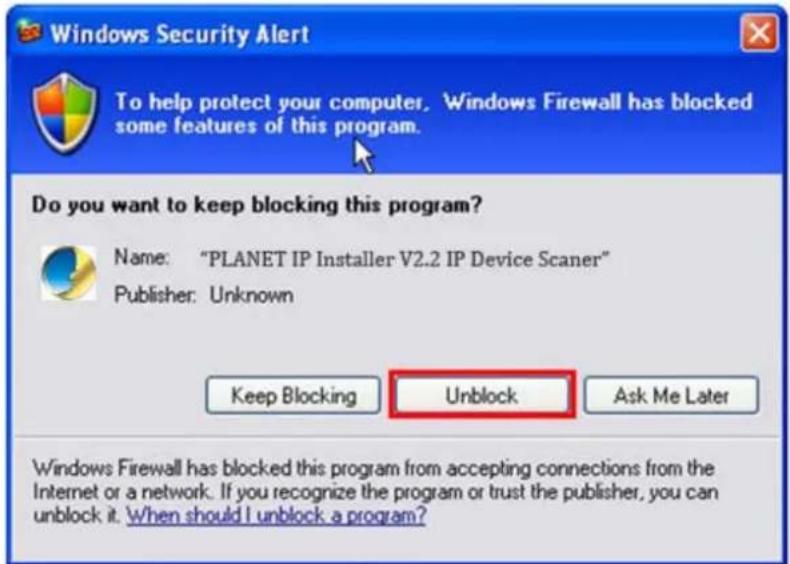
- OS: Windows XP SP2 or above. If the following "Windows Security Alert" pops up, please click "Unblock".
text_image
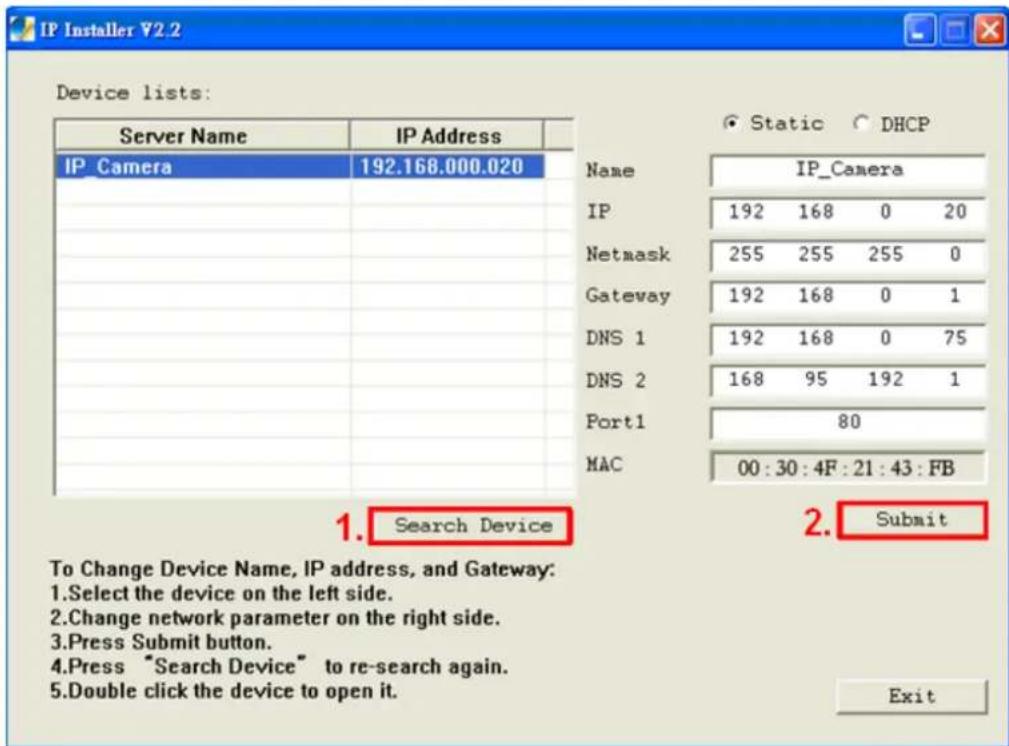
Windows Security Alert To help protect your computer. Windows Firewall has blocked some features of this program. Do you want to keep blocking this program? Name: "PLANET IP Installer V2.2 IP Device Scaner" Publisher: Unknown Keep Blocking Unblock Ask Me Later Windows Firewall has blocked this program from accepting connections from the Internet or a network. If you recognize the program or trust the publisher, you can unblock it. When should I unblock a program?- The GUI of IP Installer is as follows (Default IP: 192.168.0.20).
text_image
IP Installer V2.2 Device lists: Server Name IP Address IP_Camera 192.168.000.020 Name IP_Camera IP 192 168 0 20 Netmask 255 255 255 0 Gateway 192 168 0 1 DNS 1 192 168 0 75 DNS 2 168 95 192 1 Port1 80 MAC 00:30:4F:21:43:FB 1. Search Device To Change Device Name, IP address, and Gateway: 1. Select the device on the left side. 2. Change network parameter on the right side. 3. Press Submit button. 4. Press "Search Device" to re-search again. 5. Double click the device to open it. 2. Submit Exit(1) IP Installer will search all IP cameras connected to LAN. The user can click "Search Device" to search again.
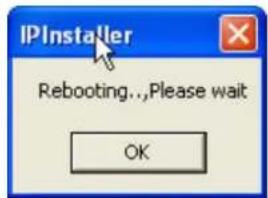
(2) Click one of IP cameras listed on the left side of IP Installer, and then the network configuration of that IP Camera will be listed on the right side. If parameters change, click on "Submit". Then, the network configuration will be changed. Just click "OK" to reboot
text_image
IPInstaller Rebooting...Please wait OK(3) Please make sure the subnet of PC IP address and IP CAM IP address are the same.
IP CAM IP address: 192.168.0.20
PC IP address: 192.168.0.100
(4) Different Subnets:
IP CAM IP address: 192.168.0.20
PC IP address: 192.168.1.100
(5) To Change PC IP addresses:
Control Panel→Network Connections→Local Area Connection Properties→Internet Protocol (TCP/IP) →Properties
Please make sure your IP Camera and PC have the same Subnet. If not, please change IP Camera IP subnet or PC IP subnet accordingly.
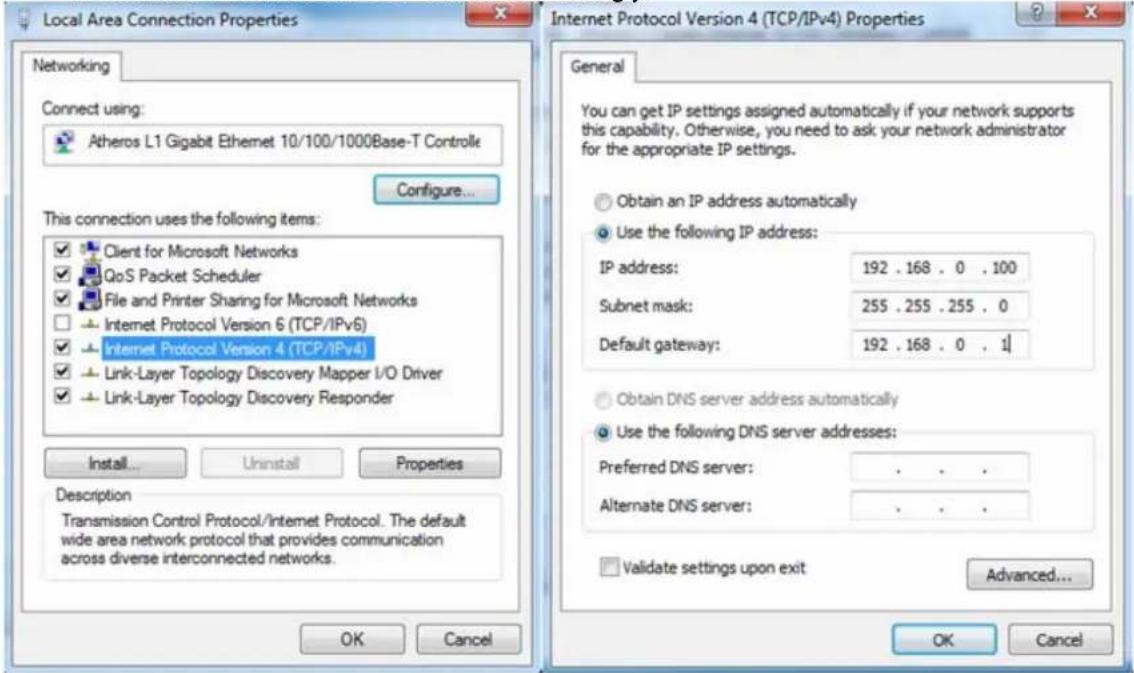
text_image
Local Area Connection Properties Networking Connect using: Atheros L1 Gigabit Ethernet 10/100/1000Base-T Controlle Configure... This connection uses the following items: Client for Microsoft Networks QoS Packet Scheduler File and Printer Sharing for Microsoft Networks Internet Protocol Version 6 (TCP/IPv6) Internet Protocol Version 4 (TCP/IPv4) Link-Layer Topology Discovery Mapper I/O Driver Link-Layer Topology Discovery Responder Install... Uninstall Properties Description Transmission Control Protocol/Internet Protocol. The default wide area network protocol that provides communication across diverse interconnected networks. General You can get IP settings assigned automatically if your network supports this capability. Otherwise, you need to ask your network administrator for the appropriate IP settings. Obtain an IP address automatically Use the following IP address: IP address: 192 . 168 . 0 . 100 Subnet mask: 255 . 255 . 255 . 0 Default gateway: 192 . 168 . 0 . 1 | Obtain DNS server address automatically Use the following DNS server addresses: Preferred DNS server: . Alternate DNS server: . Validate settings upon exit Advanced... OK Cancel Internet Protocol Version 4 (TCP/IPv4) Properties OK Cancel(6) A quick way to access remote monitoring is to left-click the mouse twice on a selected IP camera listed on "Device list" of PLANET IP Installer. An IE browser will be opened.
(7) Then, please key-in the default User Name: "admin" and Password "admin" in the following message box.
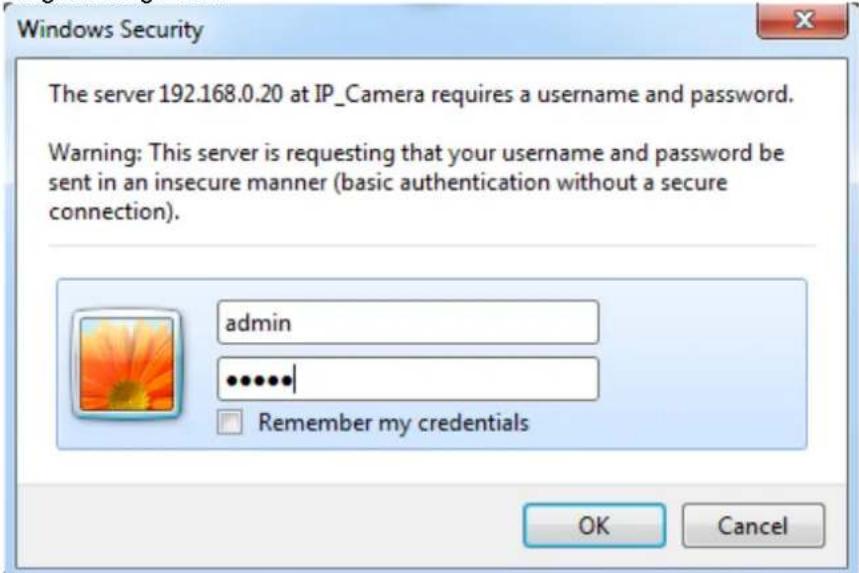
text_image
Windows Security The server 192.168.0.20 at IP_Camera requires a username and password. Warning: This server is requesting that your username and password be sent in an insecure manner (basic authentication without a secure connection). admin ...... Remember my credentials OK Cancel(8) If the user name and password are input correctly, the following web page will be displayed.
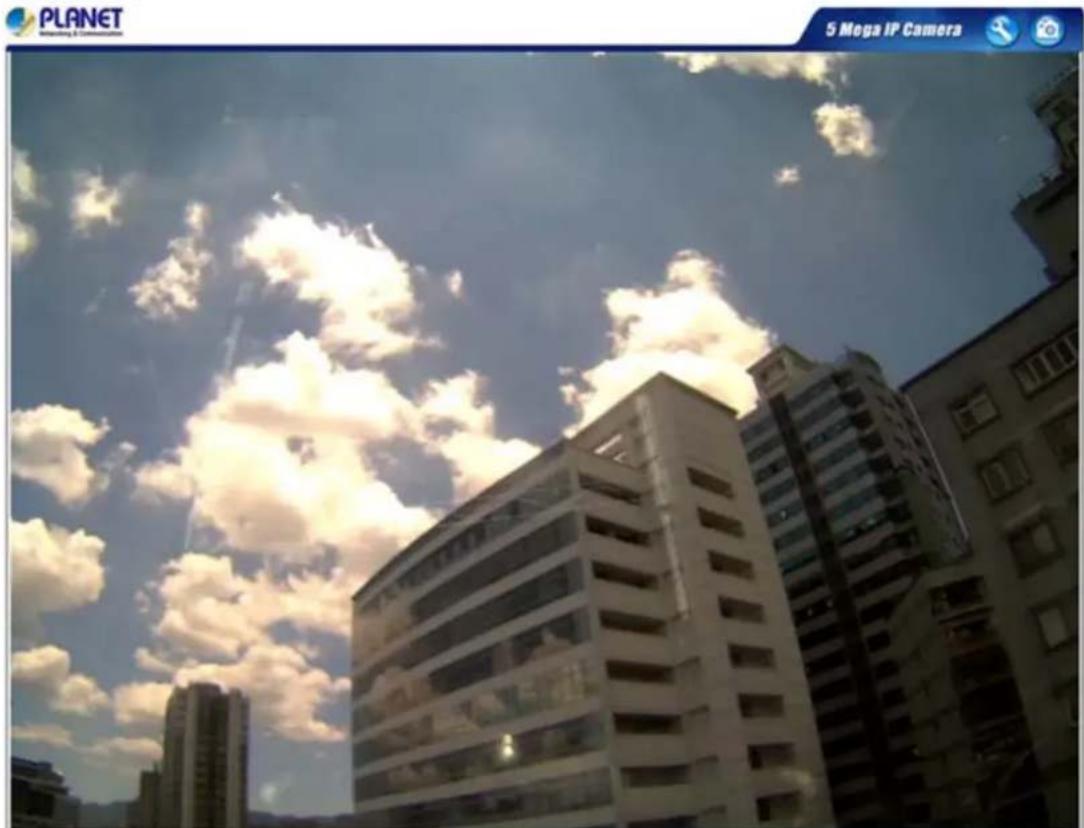
natural_image
Exterior view of modern high-rise buildings under a partly cloudy sky (no signage)2013/JUL/08 11:38:43 Size:2592×1944
2.4 Using UPnP of Windows XP or 7
2.4.1 Windows XP
UPnP™ is short for Universal Plug and Play, which is a networking architecture that provides compatibility among networking equipment, software, and peripherals. This device is an UPnP enabled device. If the operating system, Windows XP, of your PC is UPnP enabled, the device will be very easy to configure. Use the following steps to enable UPnP settings only if your operating system of PC is running Windows XP.

Please note that MS Windows 2000 does not support UPnP feature.
Go to Start > Settings, and click Control Panel.

text_image
Set Program Access and Defaults Windows Catalog Windows Update Programs Documents Settings Search Help and Support Run... Log Off PMalan... Turn Off Computer... Control Panel Network Connections Printers and Faxes Taskbar and Start Menu startThe "Control Panel" will display on the screen and double-click "Add or Remove Programs" to continue.

text_image
Control Panel File Edit View Favorites Tools Help Back Search Folders Control Panel Switch to Category View Add or Remove Programs Folder Options Fonts Game Controllers Internet Options Keyboard Mouse Network Connections See Also Windows UpdateThe "Add or Remove Programs" will display on the screen and click Add/Remove Widows Components to continue.
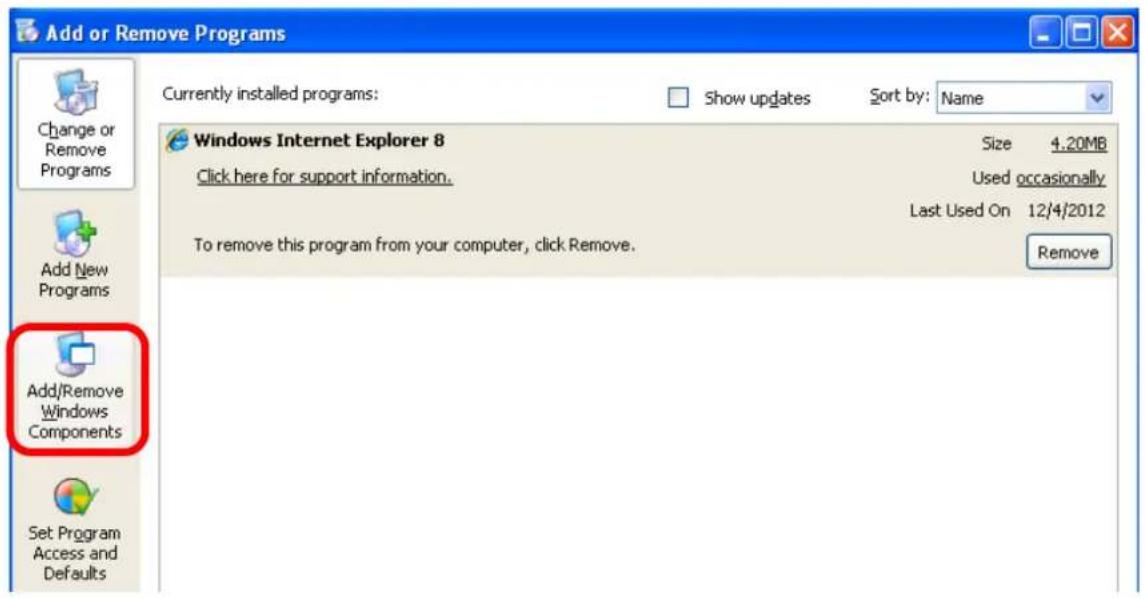
text_image
Add or Remove Programs Currently installed programs: Show updates Sort by: Name Change or Remove Programs Add New Programs Add/Remove Windows Components Set Program Access and Defaults Windows Internet Explorer 8 Click here for support information. Size 4.20MB Used occasionally Last Used On 12/4/2012 RemoveThe following screen will appear. Select "Networking Services" and click "Details" to continue.
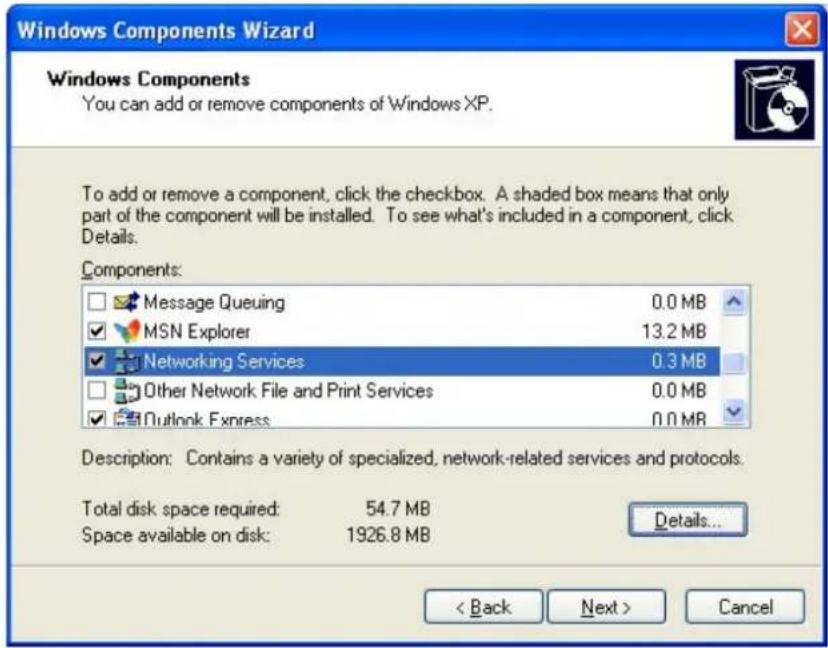
text_image
Windows Components Wizard Windows Components You can add or remove components of Windows XP. To add or remove a component, click the checkbox. A shaded box means that only part of the component will be installed. To see what's included in a component, click Details. Components: Message Queuing 0.0 MB MSN Explorer 13.2 MB Networking Services 0.3 MB Other Network File and Print Services 0.0 MB Outlook Express 0.0 MB Description: Contains a variety of specialized, network-related services and protocols. Total disk space required: 54.7 MB Space available on disk: 1926.8 MB Details... < Back Next > CancelThe "Networking Services" will display on the screen. Select "Universal Plug and Play" and click "OK" to continue.
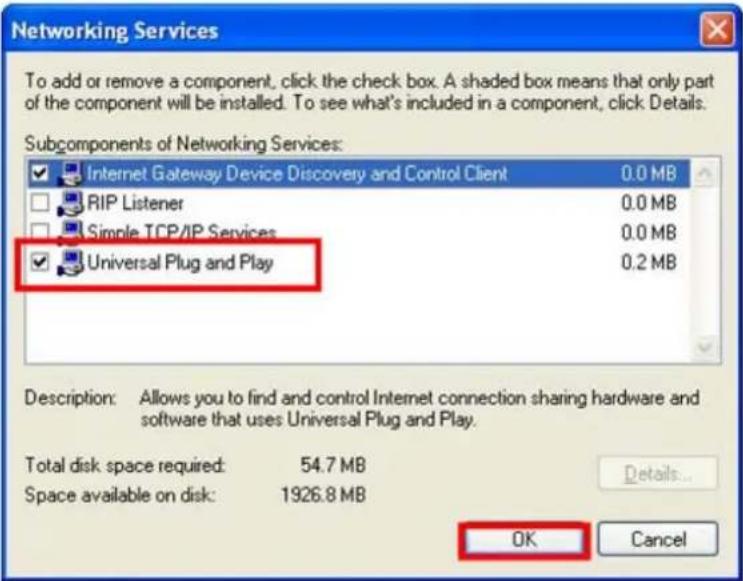
text_image
Networking Services To add or remove a component, click the check box. A shaded box means that only part of the component will be installed. To see what's included in a component, click Details. Subcomponents of Networking Services: Internet Gateway Device Discovery and Control Client 0.0 MB RIP Listener 0.0 MB Simple TCP/IP Services 0.0 MB Universal Plug and Play 0.2 MB Description: Allows you to find and control Internet connection sharing hardware and software that uses Universal Plug and Play. Total disk space required: 54.7 MB Space available on disk: 1926.8 MB OK CancelPlease click "Next" to continue.

text_image
Windows Components Wizard Windows Components You can add or remove components of Windows XP. To add or remove a component, click the checkbox. A shaded box means that only part of the component will be installed. To see what's included in a component, click Details. Components: Message Queuing 0.0 MB MSN Explorer 13.2 MB Networking Services 0.3 MB Other Network File and Print Services 0.0 MB Outlook Express 0.0 MB Description: Contains a variety of specialized, network-related services and protocols. Total disk space required: 54.7 MB Space available on disk: 1926.8 MB Details... < Back Next > CancelThe program will start installing the UPnP automatically. You will see the pop-up screen below. Please wait while Setup configures the components.
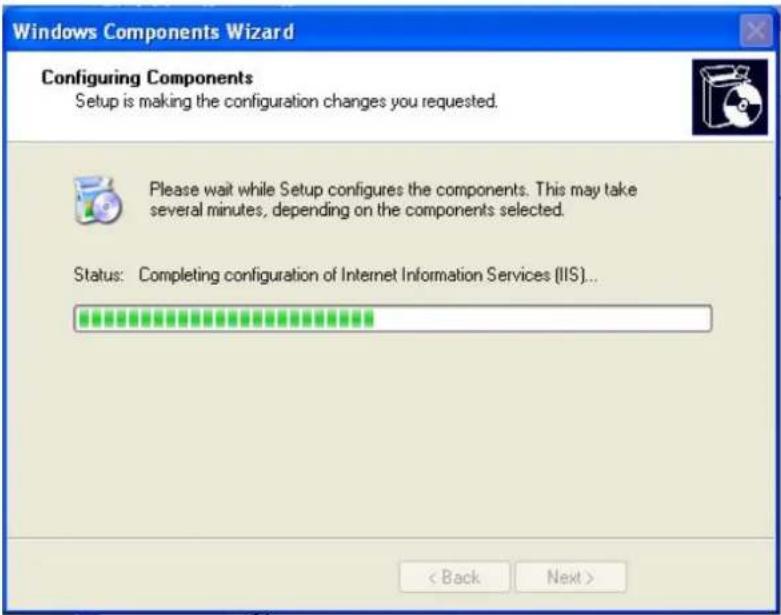
text_image
Windows Components Wizard Configuring Components Setup is making the configuration changes you requested. Please wait while Setup configures the components. This may take several minutes, depending on the components selected. Status: Completing configuration of Internet Information Services (IIS)... < Back Next >Please click "Finish" to complete the UPnP installation.
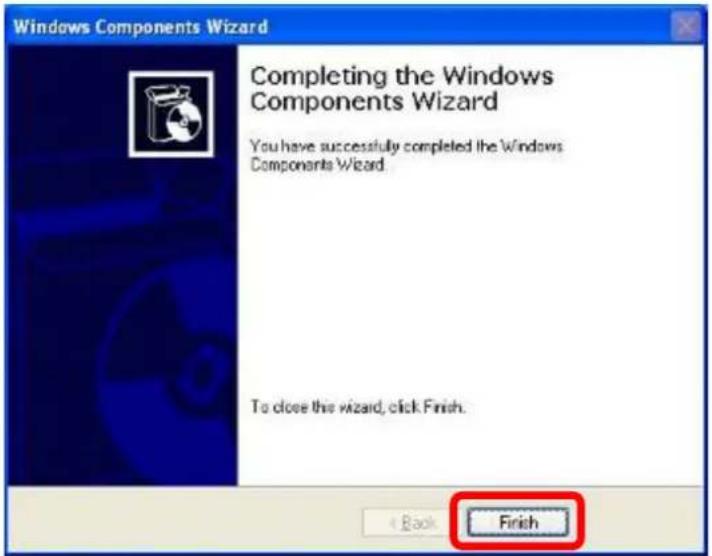
text_image
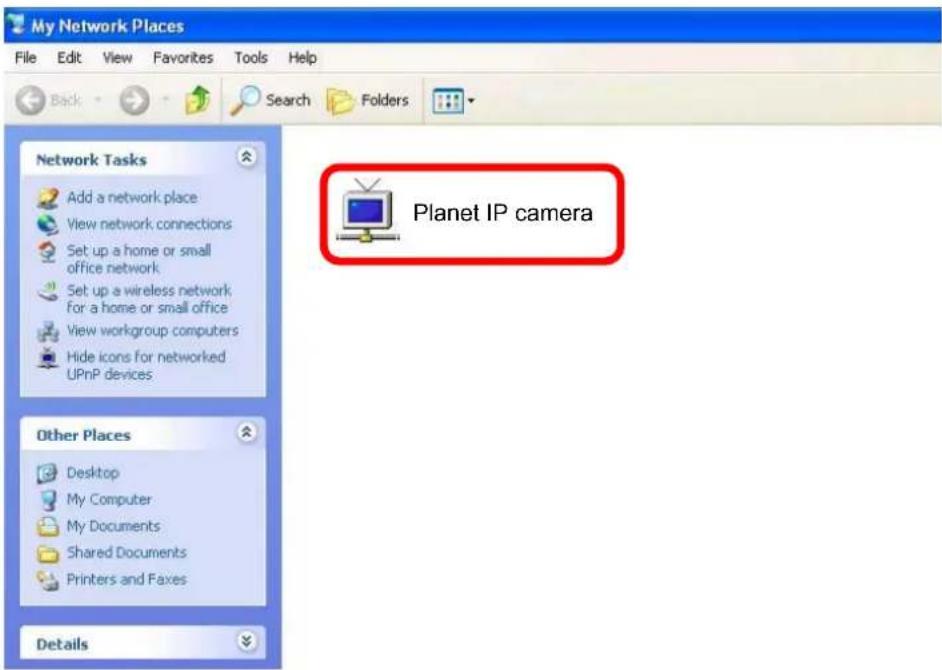
Windows Components Wizard Completing the Windows Components Wizard You have successfully completed the Windows Components Wizard. To close this wizard, click Finish. < Back FinishDouble-click "My Network Places" on the desktop, and the "My Network Places" will display on the screen. Double-click the UPnP icon with Internet Camera to view your device in an internet browser.
text_image
My Network Places File Edit View Favorites Tools Help Back Search Folders Network Tasks Add a network place View network connections Set up a home or small office network Set up a wireless network for a home or small office View workgroup computers Hide icons for networked UPnP devices Planet IP camera Other Places Desktop My Computer My Documents Shared Documents Printers and Faxes Details2.4.2 Windows 7
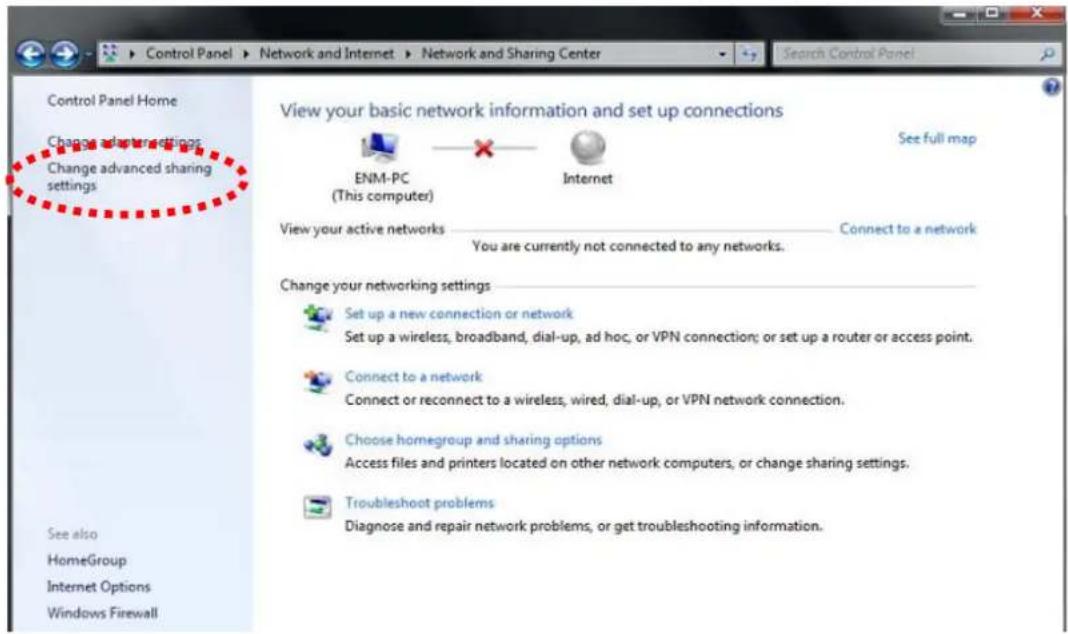
Go to Start > Control Panel > Network and Internet > Network and Sharing Center, if network discovery is off; click the arrow button √ to expand the section.
Click Turn on network discovery, and then click Apply. If you are prompted for an administrator password or confirmation, type the password or provide confirmation.
text_image
Control Panel Home Change advanced sharing settings See also HomeGroup Internet Options Windows Firewall View your basic network information and set up connections ENM-PC (This computer) Internet See full map View your active networks Connect to a network You are currently not connected to any networks. Change your networking settings Set up a new connection or network Set up a wireless, broadband, dial-up, ad hoc, or VPN connection; or set up a router or access point. Connect to a network Connect or reconnect to a wireless, wired, dial-up, or VPN network connection. Choose homegroup and sharing options Access files and printers located on other network computers, or change sharing settings. Troubleshoot problems Diagnose and repair network problems, or get troubleshooting information.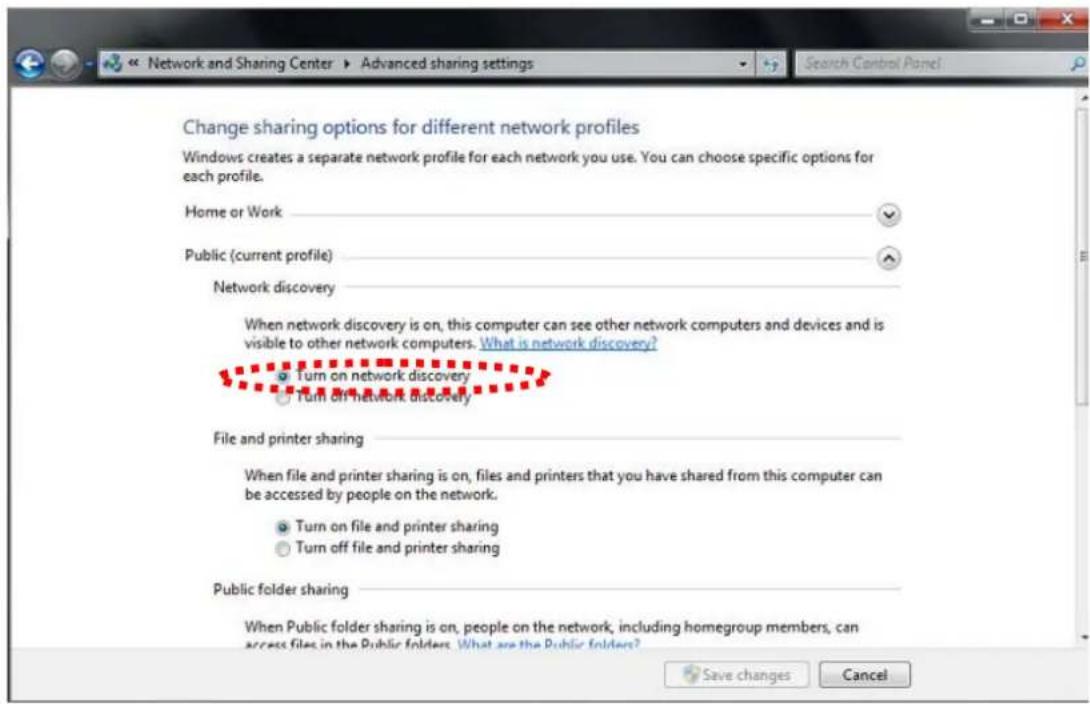
text_image
Network and Sharing Center ▶ Advanced sharing settings Change sharing options for different network profiles Windows creates a separate network profile for each network you use. You can choose specific options for each profile. Home or Work Public (current profile) Network discovery When network discovery is on, this computer can see other network computers and devices and is visible to other network computers. What is network discovery? Turn on network discovery Turn off network discovery File and printer sharing When file and printer sharing is on, files and printers that you have shared from this computer can be accessed by people on the network. Turn on file and printer sharing Turn off file and printer sharing Public folder sharing When Public folder sharing is on, people on the network, including homegroup members, can access files in the Public folders. What are the Public folders? Save changes Cancel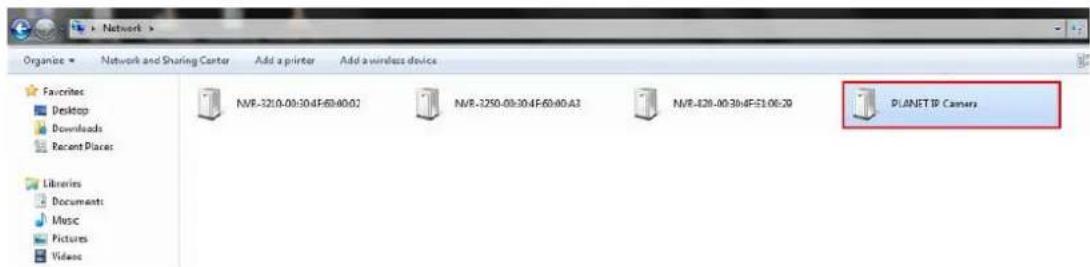
text_image
Network Organise Network and Sharing Center Add a printer Add a wireless device Favorites Desktop Downloads Recent Places Libraries Documents Music Pictures Videos NVR-3210.00:30:4F:60:00:02 NVR-3250.00:30:4F:60:00:43 NVR-428.00:30:4F:51:06:29 PLANET IP Camera2.5 Setting up ActiveX to use the Internet Camera
The Internet Camera web pages communicate with the Internet Camera using an ActiveX control. The ActiveX control must be downloaded from the Internet Camera and installed on your PC. Your Internet Explorer security settings must allow for the web page to work correctly. To use the Internet Camera, user must set up his IE browser as follows:
2.5.1 Internet Explorer 6 for Windows XP
From your IE browser → "Tools" → "Internet Options..." → "Security" → "Custom Level...", please set up your "Settings" as follows:
Set up the first 3 items
- Download the signed ActiveX controls
- Download the unsigned ActiveX controls
- Initialize and script the ActiveX controls not masked as safe to Prompt
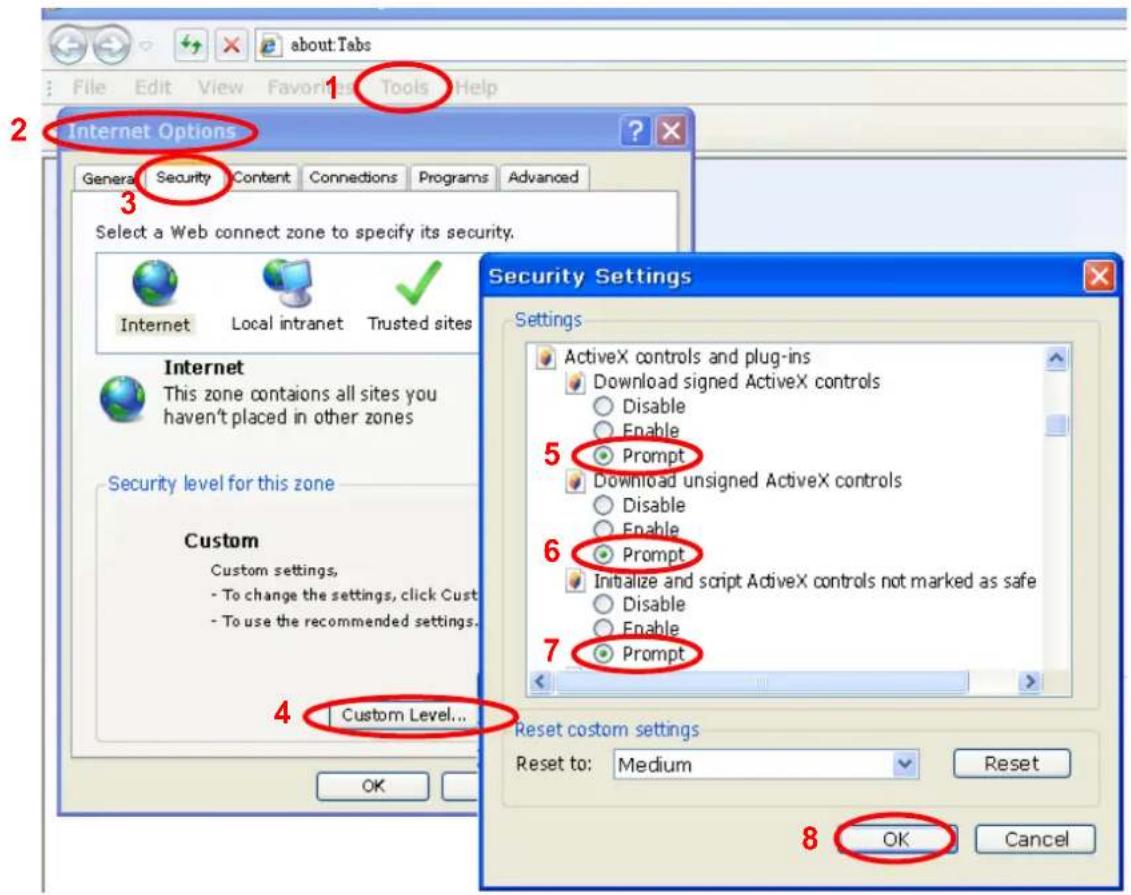
text_image
about Tabs File Edit View Favorites Tools Help Internet Options General Security Content Connections Programs Advanced Select a Web connect zone to specify its security. Internet Local intranet Trusted sites Internet This zone contains all sites you haven't placed in other zones Security level for this zone Custom Custom settings, - To change the settings, click Cust - To use the recommended settings. Custom Level... OK Security Settings Settings ActiveX controls and plug-ins Download signed ActiveX controls Disable Enable 5 Prompt Download unsigned ActiveX controls Disable Enable 6 Prompt Initialize and script ActiveX controls not marked as safe Disable Enable 7 Prompt Reset custom settings Reset to: Medium Reset 8 OK CancelBy now, you have finished your entire PC configuration for Internet Camera.
2.5.X Internet Explorer 7 for Windows
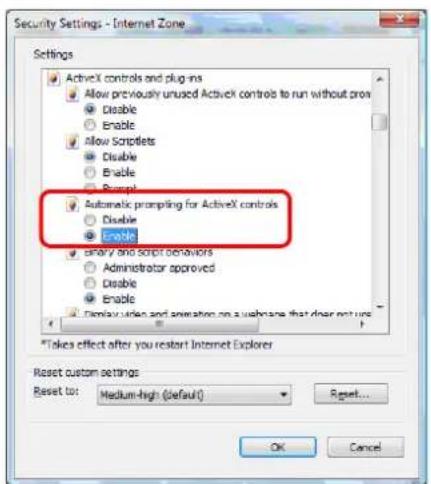
Fronequality"IE>DomSystem>e"Tools," → "Internet Options..." → "S please set up your "Settings" as follows:
Set up the first 3 items
- Allow previously unused ActiveX control to run...
- Allows Scriptlets
• Automatic prompting for ActiveX controls

text_image
Security Settings - Internet Zone Settings ActiveX controls and plug-ins Allow previously unused ActiveX controls to run without prom Disable Enable Allow Scriptlets Disable Enable Prompt Automatic prompting for ActiveX controls Disable Enable Binary and script behaviors Administrator approved Disable Enable Display video and animation on a webpage that does not use *Takes effect after you restart Internet Explorer Reset custom settings Reset to: Medium-high (default) Reset... OK CancelBy now, you have finished your entire PC configuration for Internet Camera.
2.5.3 Internet Explorer 7 for Windows Vista
From your IE browser → "Tools" → "Internet Options..." → "Security" → "Internet" → "Custom Level...", please set up your "Settings" as follows:
- Enable "Automatic prompting for ActiveX controls"
- Prompt "Initialize and script active controls not marked..."
text_image
Security Settings - Internet Zone Settings ActiveX controls and plugins Allow previously unused ActiveX controls to run without pros Disable Enable Allow Scriptlets Disable Enable Prompt Automatic prompting for ActiveX controls Disable Enable Binary and script behaviors Administrator approved Disable Enable Display user and animation on a webpage that does not use *Takes effect after you restart Internet Explorer Reset custom settings Reset to: Medium-high (default) Reset... OK Cancel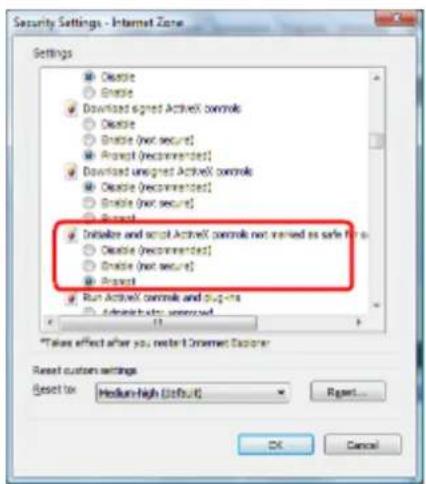
text_image
Security Settings - Internet Zone Settings ● Delete ○ Enable ✓ Download signed ActiveX controls ○ Delete ○ Enable (not secure) ● Project (recommenders) ✓ Download unsigned ActiveX controls ○ Delete (recommenders) ○ Enable (not secure) ● Project ✓ Initialize and script ActiveX controls not trained as safe (no) ○ Delete (recommenders) ○ Enable (not secure) ● Project ✓ Run ActiveX controls and plug-in ○ Adjusted via approved *Take effect after you, then Internet Explorer Reset custom settings Reset to: Medium-high (default) Reset... OK CancelFrom your IE browser → "Tools" → "Internet Options..." → "Security" → "Trusted Sites" → "Custom Level...", please set up your "Settings" as follows:
- Enable "Automatic prompting for ActiveX controls"
- Prompt "Initialize and script active controls not marked..."
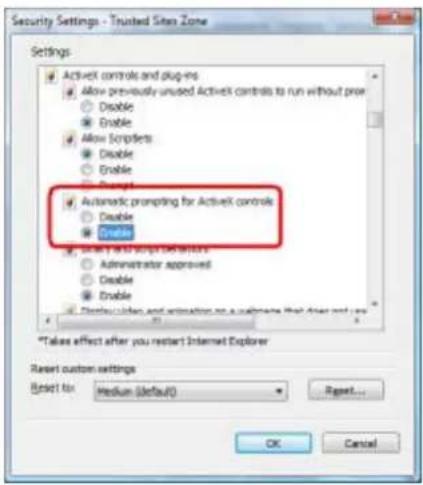
text_image
Security Settings - Trusted Site Zone Settings ActiveX controls and plugins Allow previously unused ActiveX controls to run without prior Disable Enable Allow Scripters Disable Enable Prompt Automatic prompting for ActiveX controls Disable Enable Apply to script (OK) with Administrator approved Disable Enable Display button and action on a username that does not use *Take effect after you restore Internet Explorer Reset custom settings Reset to: Medium (Default) Reset... OK Cancel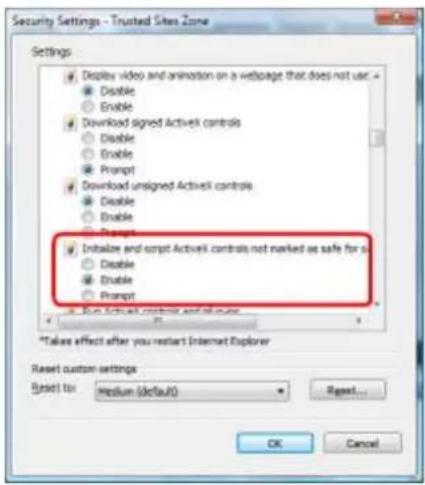
text_image
Security Settings - Trusted Sites Zone Settings ✓ Display video and animation on a webpage that does not use ○ Disable ○ Enable ✓ Download signed ActivityX controls ○ Disable ○ Enable ○ Prompt ✓ Download unsigned ActivityX controls ○ Disable ○ Enable ○ Prompt ✓ Initialize and script ActivityX controls not marked as safe for a ○ Disable ○ Enable ○ Prompt ■ Run ActivityX controls and closure *Take effect after you restart Internet Explorer Reset custom settings Reset to: Medium (default) CancelBy now, you have finished your entire PC configuration for Internet Camera.
Chapter 3. Web-based Management
This chapter provides setup details of the Internet Camera's Web-based Interface.
3.1. Introduction
The Internet Camera can be configured with your Web browser. Before configuring, please make sure your PC is under the same IP segment as Internet Camera.
3.2. Connecting to Internet Camera
A. Use the following procedures to establish a connection from your PC to the Internet Camera.
B. Once connected, you can add the camera to your browser's Favorites or Bookmarks.
Start the web browser on the computer and type the IP address of the camera.
The default IP: "http://192.168.0.20"

text_image
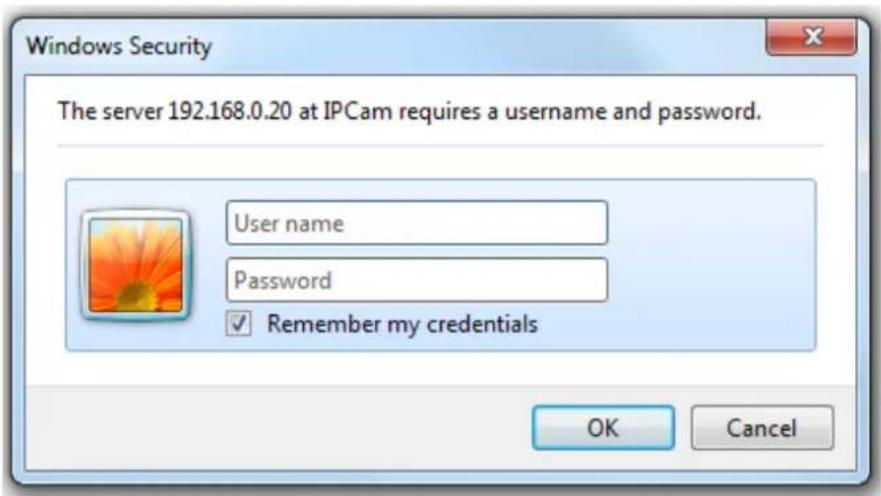
PLANET IP Surveillance Web Management - Windows Internet Explorer http://192.168.0.20/The login window of Internet Camera will appear,
Default login username and password are both admin.
text_image
Windows Security The server 192.168.0.20 at IPCam requires a username and password. User name Password ✓ Remember my credentials OK Cancel
If the User Name and Password have been changed with PLANET IP Installer, please enter the new User Name and Password here.
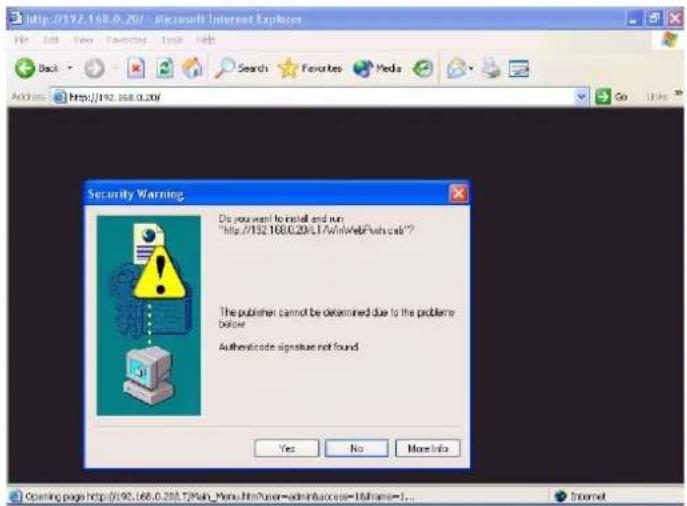
Web browser may display the "Security Warning" window. Select "Yes" to install and run the ActiveX control into your PC.
text_image
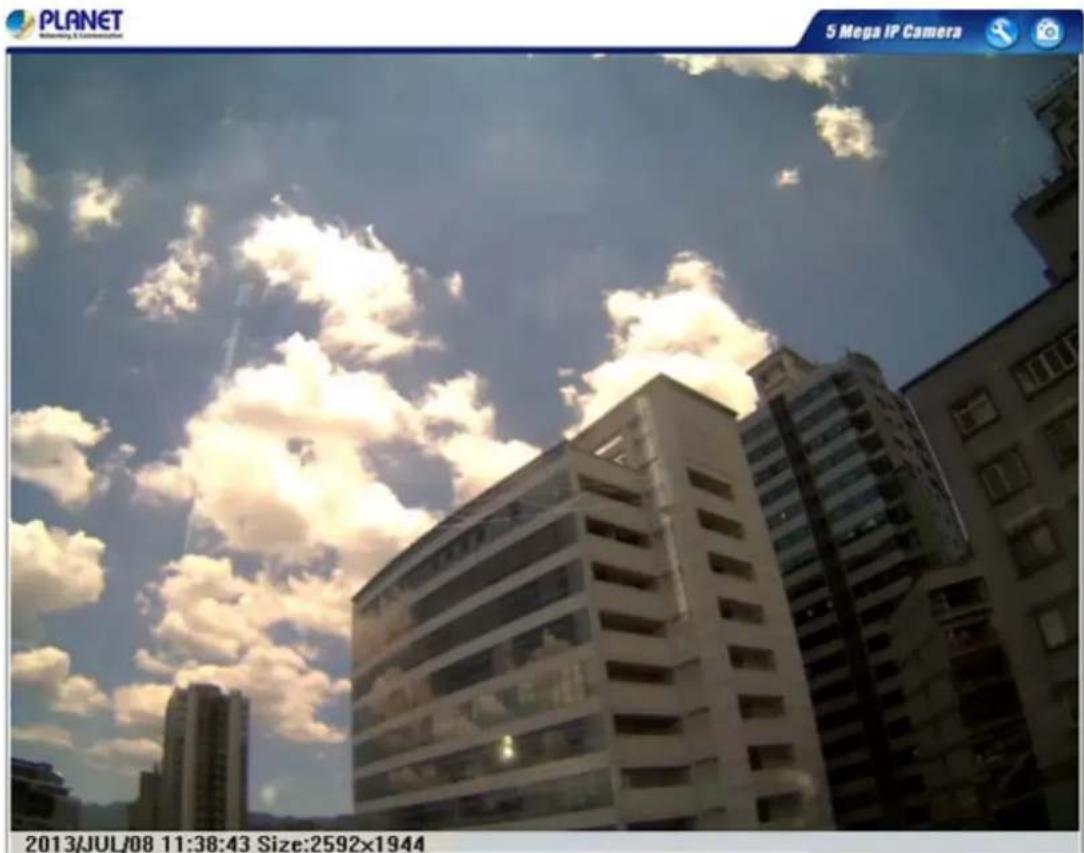
http://192.168.0.20/ Back Search Favorites Media Address: http://192.168.0.20/ Security Warning Do you want to install and run "http://192.168.0.20/TL/AirnWebPush.cs?" The publisher cannot be determined due to the problem below. Authenticate signature not found Yes No More Info Opening page http://192.168.0.20/TL/Airn_Menu.html/user=admin&access=163Name=1... InternetAfter the ActiveX control is installed and run, the first image will be displayed.
text_image
PLANET 5 Mega IP Camera 2013/JUL/08 11:38:43 Size:2592x1944
If you log in the camera as an ordinary user, setting function will be not available you log in the camera as the administrator, you can perform all the settings provided within the device.
3.3 Live Viewing
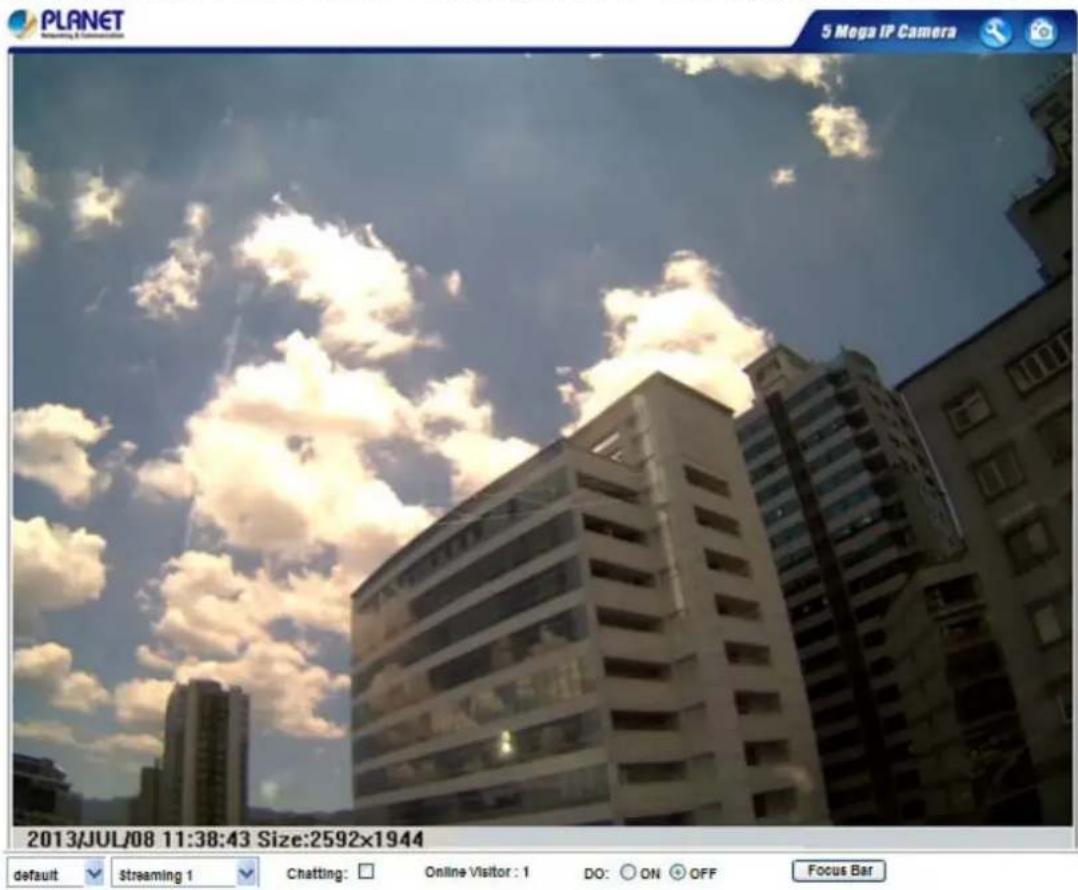
Start-up screen is shown below whether you are an ordinary user or an administrator.
text_image
PLANET 5 Mega IP Camera 2013/JUL/08 11:38:43 Size:2592x1944 default Streaming 1 Chatting: Online Visitor : 1 DO ON OFF Focus Bar| Configure |  Get into the administration page. Get into the administration page. |
| Snapshot |  Video Snapshot Video Snapshot |
| Status Bar | Show system time, video resolution |
| Screen Size | Select video screen “default, 1/2x, 1x, 2x” for view with current camera screen size |
| Chatting | IP Camera supports 2-way audio. Click the “Chatting” check box. Then you can use microphone which connects to the PC to talk to server side, which is IP Camera side |
| Online Visitor | Shows how many people are connected to this IP camera |
| DO(on/off) | Control the relay which is connected to this camera |
| Focus Bar | Show the Focus Bar |
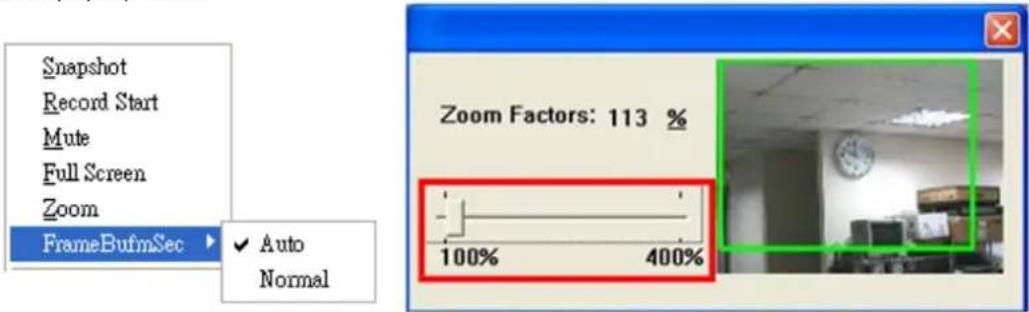
Double-click the video and it will change to full screen mode. Press "Esc" or double-click the video again. It will change back to normal mode. Right-click the mouse on the video, it will show a pop-up menu.
text_image
Snapshot Record Start Mute Full Screen Zoom FrameBufmSec ▶ ✓ Auto Normal Zoom Factors: 113 % 100% 400%| Snapshot | Save a JPEG picture. |
| Record Start | Record the video in the local PC. It will ask you where to save the video. To stop recording, right-click the mouse again. Select “Record Stop”. The video format is AVI. Use Microsoft Media Player to play the recorded file. |
| Mute | Turn off the audio. Click again to turn it on. |
| Full Screen | Full-screen mode. |
| Zoom | Enable zoom-in and zoom-out functions. Drag and drop the bar to adjust the zoom factors. |
| FrameBufferSec | Build a buffer to accumulate several video frames and play at a regular interval. This function can make video smooth-going when the Network speed is slow and lag. The default value is “Auto”. |
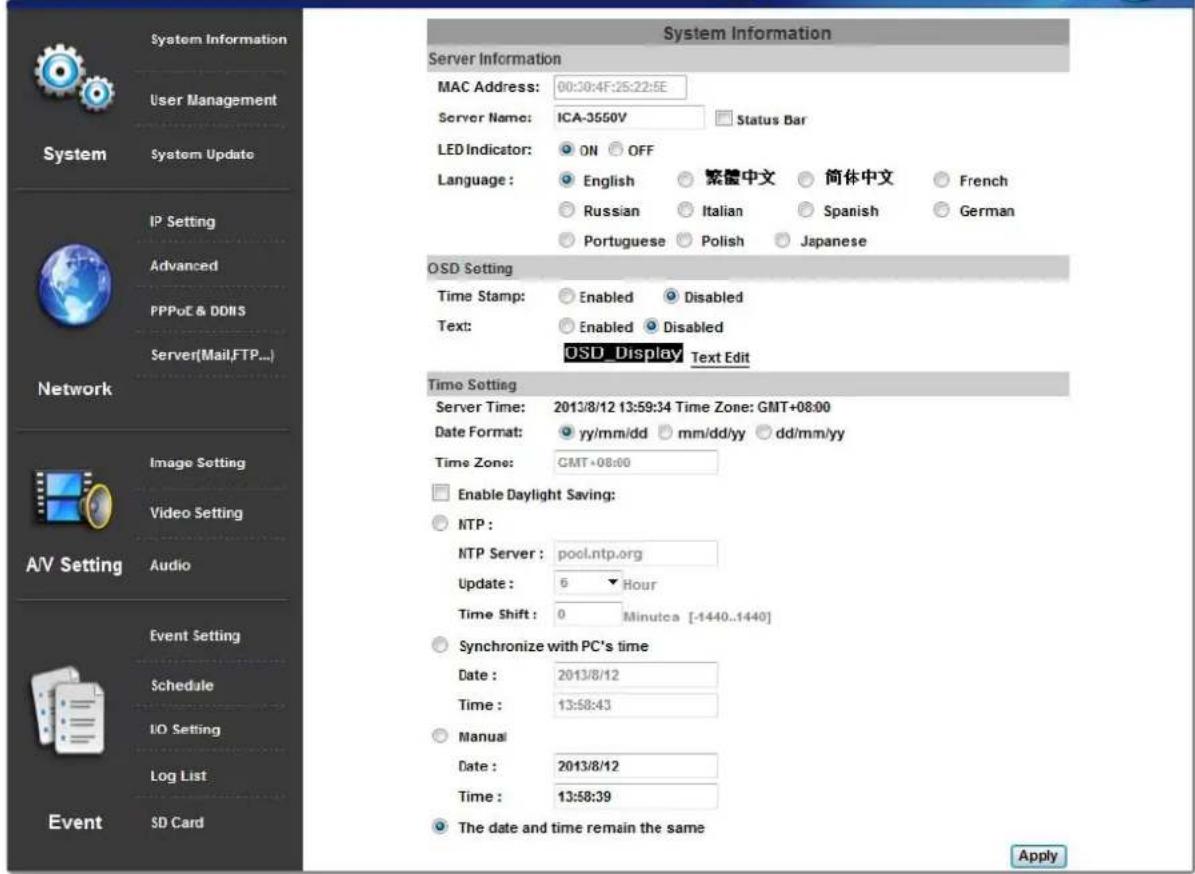
3.4 Configuration
Click page.

to get into the administration page. Click

to go back to the live video

PLANET
Networking & Communication
5 Mega IP Camera

text_image
System Information Server Information MAC Address: 00:30:4F:25:22:5E Server Name: ICA-3550V Status Bar LED Indicator: ON OFF Language: English 繁體中文 简体中文 French Russian Italian Spanish German Portuguese Polish Japanese OSD Setting Time Stamp: Enabled Disabled Text: Enabled Disabled OSD_Display Text Edit Time Setting Server Time: 2013/8/12 13:59:34 Time Zone: GMT+08:00 Date Format: yy/mm/dd mm/dd/yy dd/mm/yy Time Zone: GMT+08:00 Enable Daylight Saving: NTP : NTP Server : pool.ntp.org Update : 6 Hour Time Shift : 0 Minutca [-1440..1440] Synchronize with PC's time Date : 2013/8/12 Time : 13:58:43 Manual Date : 2013/8/12 Time : 13:58:39 The date and time remain the same Apply3.5 System
text_image
System Information User Management System Update3.5.1 System Information
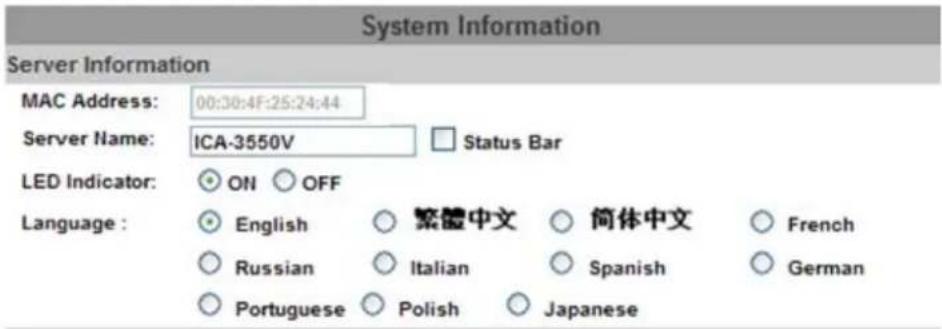
- Server Information: Set up the camera name, select language, and set up the camera time.
text_image
System Information Server Information MAC Address: 00:30:4F:25:24:44 Server Name: ICA-3550V Status Bar LED Indicator: ON OFF Language : English 繁體中文 简体中文 French Russian Italian Spanish German Portuguese Polish Japanese| Server Name | This is the Camera name. This name will show on the IP Installer. |
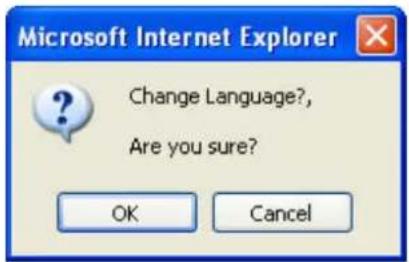
| Select language | There are English, Traditional Chinese, Simplified Chinese, French, Russian, Italian, Spanish, German, Portuguese and Polish to select. When changed, it will show the following dialogue box for the confirmation of changing language. |
text_image
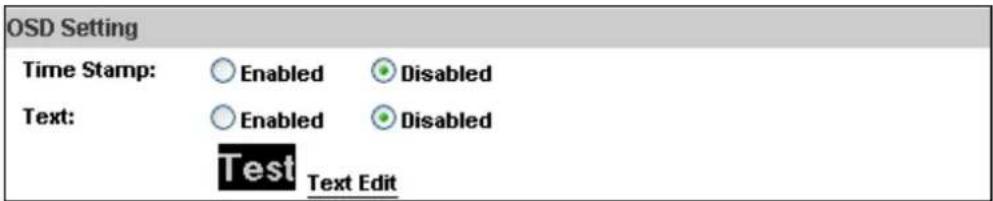
Microsoft Internet Explorer Change Language? Are you sure? OK Cancel- OSD Setting: Select a position where date and time stamp / text are shown on the screen.
text_image
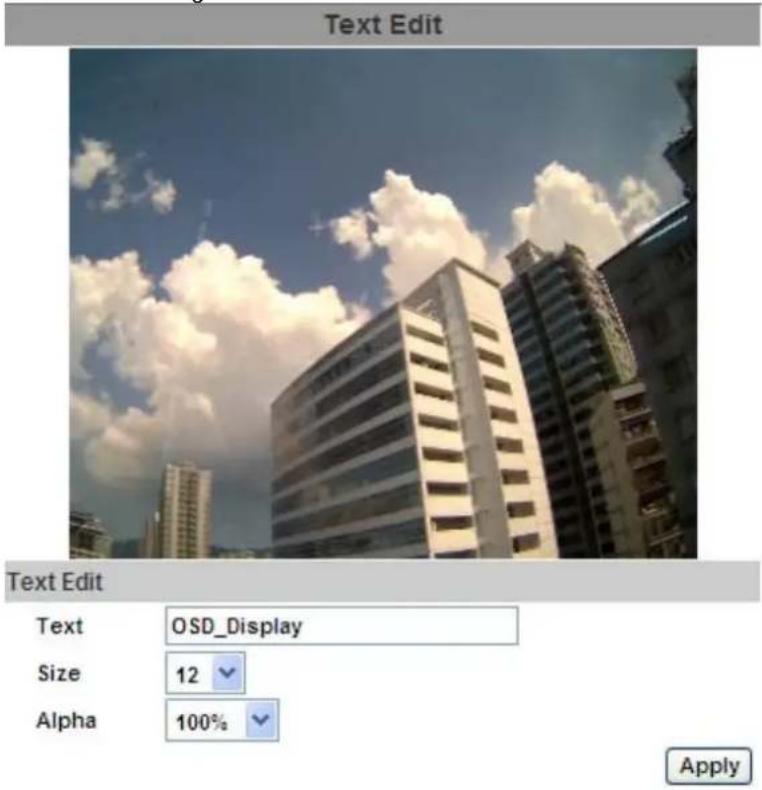
OSD Setting Time Stamp: ○ Enabled ● Disabled Text: ○ Enabled ● Disabled Test Text EditMoreover, click Text Edit to enter to adjust the OSD contents which include Size and Alpha of text. Finally, click Apply button to reserve the setting.
text_image
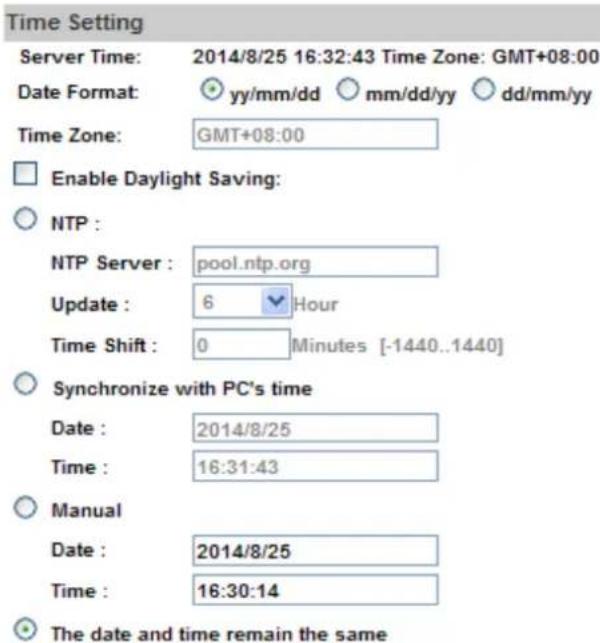
Text Edit Text Edit Text OSD_Display Size 12 Alpha 100% Apply- Server time setting: Set up the options as - "NTP", "Synchronize with PC's time", "Manual", "The date and time remain the same".
text_image
Time Setting Server Time: 2014/8/25 16:32:43 Time Zone: GMT+08:00 Date Format: yy/mm/dd mm/dd/yy dd/mm/yy Time Zone: GMT+08:00 Enable Daylight Saving: NTP : NTP Server : pool.ntp.org Update : 6 Hour Time Shift : 0 Minutes [-1440..1440] Synchronize with PC's time Date : 2014/8/25 Time : 16:31:43 Manual Date : 2014/8/25 Time : 16:30:14 The date and time remain the same3.5.2 User Management
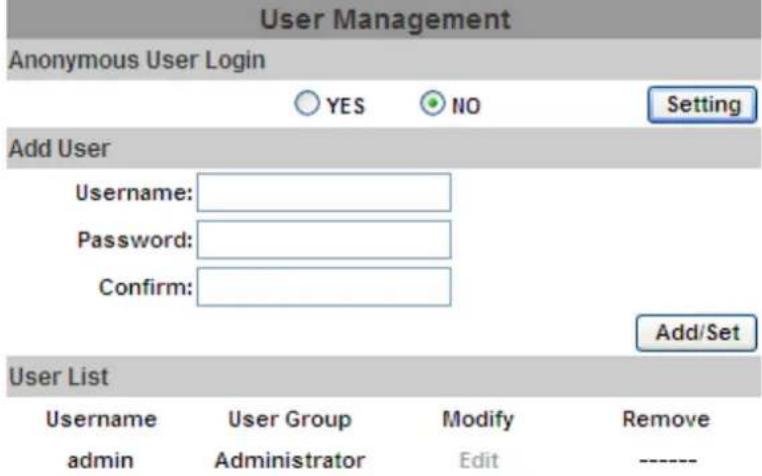
IP camera supports three different users -- administrator, general user, and anonymous user.
text_image
User Management Anonymous User Login YES NO Setting Add User Username: Password: Confirm: Add/Set User List Username User Group Modify Remove admin Administrator Edit ----| Anonymous User Login | Yes : Allow anonymous loginNo : Need user name & password to access this IP camera |
| Add user | Type the user name and password, and then click “Add/Set”. |
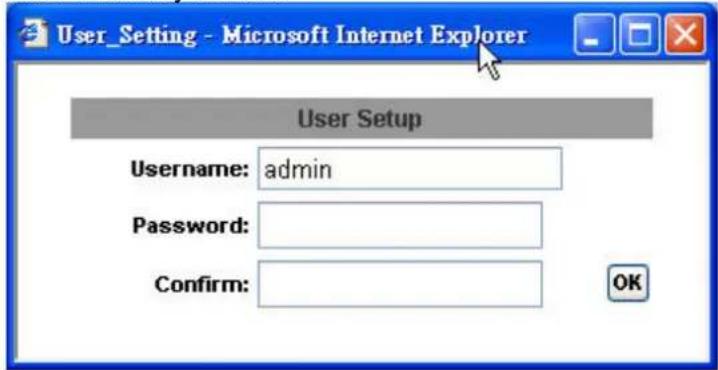
Click "edit" or "delete" to modify the user
text_image
User Setting - Microsoft Internet Explorer User Setup Username: admin Password: Confirm: OKdate 3.5.3 System Up
text_image
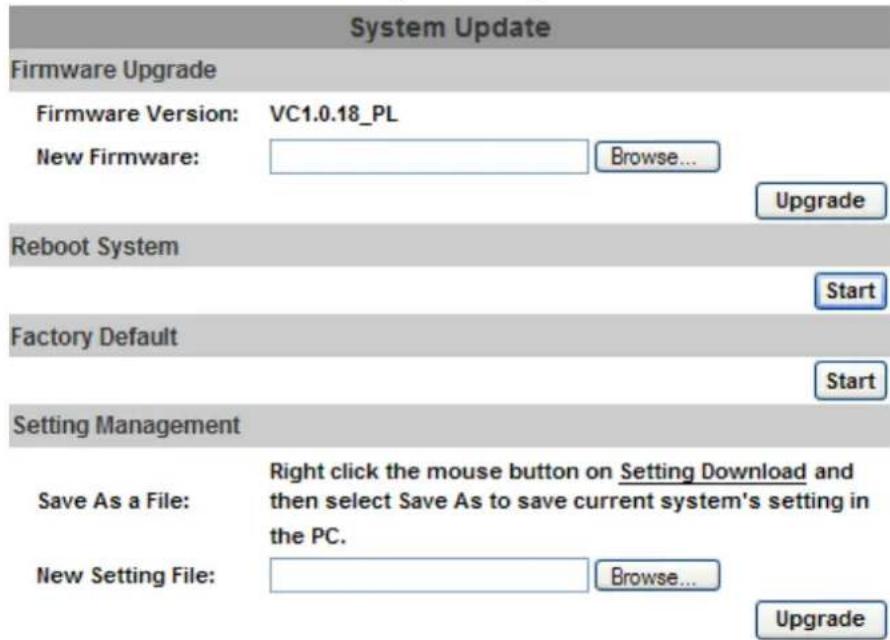
System Update Firmware Upgrade Firmware Version: VC1.0.18_PL New Firmware: Browse... Upgrade Reboot System Start Factory Default Start Setting Management Save As a File: Right click the mouse button on Setting Download and then select Save As to save current system's setting in the PC. New Setting File: Browse... Upgrade| Firmware Upgrade | To update the firmware online, click “Browse...” to select the firmware. Then click “Upgrade” to proceed. | |
| Reboot System | Re-start the IP camera. | |
| Factory default | Delete all the settings in this IP camera. | IP address is not included. |
| Setting Management | User may download the current setting to PC, or upgrade from previous saved setting. | |
Setting download: Right-click the mouse button on Setting Download → Select "Save AS..." to save current IP CAM setting in PC → Select saving directory → Save
Upgrade from previous setting: Browse → search previous setting → open → upgrade → Setting update confirm → click index.html to return to main page
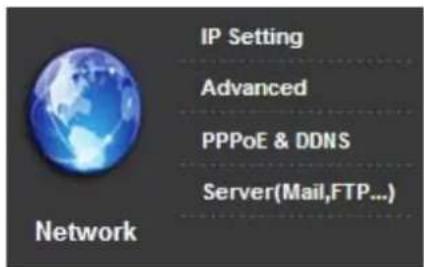
3.6 Network
text_image
IP Setting Advanced PPPoE & DDNS Server(Mail,FTP...) Network3.6.1 IP Setting
IP camera supports DHCP and static IP.
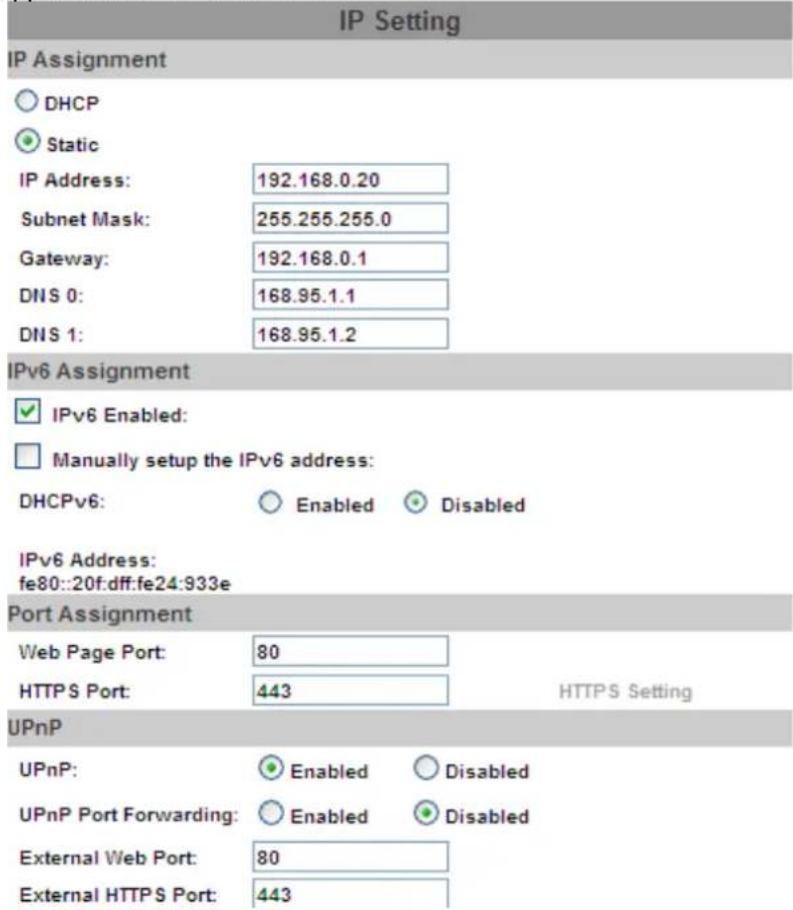
text_image
IP Setting IP Assignment DHCP Static IP Address: 192.168.0.20 Subnet Mask: 255.255.255.0 Gateway: 192.168.0.1 DNS 0: 168.95.1.1 DNS 1: 168.95.1.2 IPv6 Assignment IPv6 Enabled: Manually setup the IPv6 address: DHCPv6: Enabled Disabled IPv6 Address: fe80::20f:dff:fe24:933e Port Assignment Web Page Port: 80 HTTPS Port: 443 HTTPS Setting UPnP UPnP: Enabled Disabled UPnP Port Forwarding: Enabled Disabled External Web Port: 80 External HTTPS Port: 443RTSP Setting
RTSP Server:

Enabled

Disabled
RTSP Authentication:

sable
RTSP Port :
554
RTP Start Port:
5000
[1024..9997]
RTP End port:
9000
[1027..10000]
Multicast Setting (Based on the RTSP Server)
Streaming 1:
IP Address:
234.5.6.78
[224.3.1.0 \~ 239.255.255.255]
Port:
6000
[1\~65535]
TTL:
15
[1 \~ 255]
Streaming 2:
IP Address:
234.5.6.79
[224.3.1.0 \~ 239.255.255.255]
Port:
6001
[1 \~ 65535]
TTL:
15
[1\~255]
ONVIF
ONVIF:

v2.20

v1.01

Disabled
Security:

Enabled

Disabled
RTSP Keepalive:

Enabled

Disabled
Bonjour
Bonjour:

Enabled

Disabled
Bonjour Name:

Camera
@00:30:4F:AF:E9:DF
LLTD (Link Layer Topology Discovery)
LLTD:

Enabled

Disabled
Apply
| DHCP | Using DHCP, IP camera will get all the network parameters automatically. |
| Static IP | Please type in IP address, subnet mask, gateway, and DNS manually. |
| IPv6 Assignment | IPv6 is a newer numbering system that provides a much larger address pool than IPv4, which accounts for most of today's Internet traffic. You can set up IPv6 manually by keying in Address, Gateway, and DNS, or enabling DHCP to assign the IP automatically. |
| Port Assignment | User may need to assign a different port to avoid conflict when setting up IP assignment.(1) Web Page Port: setup web page connecting port and video transmitting port (Default: 80)(54) 2) RTSP Port: setup port for RTSP transmitting (Default: 5(CP 3) RTP Start and End Port: in RTSP mode, you may use T and UDP for connecting. TCP connection uses RTSP Port (554). UDP connection uses RTP Start and End Port. |
| UPnP | This IP camera supports UPnP. If this service is enabled on your computer, the camera will automatically be detected and a new icon will be added to “My Network Places.”Note: UPnP must be enabled on your computer. |
| UPnP Port Forwarding | When the camera is installed under a router, enable UPnP Port Forwarding to let the router open ports so that the video streams can be sent out from a LAN. Set Web Port, Http Port, and RTSP port, and make sure your router supports UPnP and the function has been activated. |
| RTSP Server | sable RTSP server enable or di | |
| RTSP Authentication | "Disable" means everyone who knows your camera IP Address can link to your camera via RTSP. No username and password are required.Under "Basic" and "Digest" authentication mode, the camera asks the user to give username and password before allows accessing. The password is transmitted as clear text under basic mode, which provides a lower level of security than under digest mode.Make sure your media player supports the authentication schemes | |
| RTSP port | RTSP Port: setup port for RTSP transmitting (Default: 554)RTSP Start and End Port: in RTSP mode, you may use TCP and UDP for connecting. TCP connection uses RTSP Port (554). UDP connection uses RTSP Start and End Port. | |
| Multicast Setting (Based on the RTSP Server) | Multicast is a bandwidth conservation technology. This function allows several users to share the same packet sent from IP camera. To use Multicast, appoint IP Address and port here. TTL means the life time of packet, The larger the value is, and the more users can receive the packet. | |
 | To use Multicast, be sure to enable the function "Force Multicast RTP via RTSP" in your media player. Then key in the RTSP path of your camera:"rtsp://(IP address)/" to receive the multicast. | |
| ONVIF | The IP camera supports ONVIF v1.01 / v2.2 standard for to integration.Under ONVIF connection, the video will be transmitted by RTSP. Be sure to enable the RTSP server in IP setting, or you're not able to receive the video via ONVIF. | |
| RTSP Keepalive | When the function is enabled, the camera checks once in a while if the user who links to the camera via ONVIF still keeps connecting. If the connection is broken, the camera will stop transmitting video to user. | |
| Bonjour | This function enables MAC systems to link to this IP camera. Key in the name here.The web browser "Safari" also has Bonjour function. Tick "Include Bonjour" in the bookmark setting, and you can see the IP camera appearing under the bonjour category. Click the icon to connect the IP camera. | |
| LLTD | If your PC supports LLTD, enable this function and then you can check the connection status, properties, and device position (like IP address) of this IP Camera in the network map.In the computer running Windows Vista o Windows 7, you can find LLTD through the path:Call out the Control Panel → Network and Internet → Network and Sharing Center → Click "See full map" | |
Note
.6.2 Advanced 3
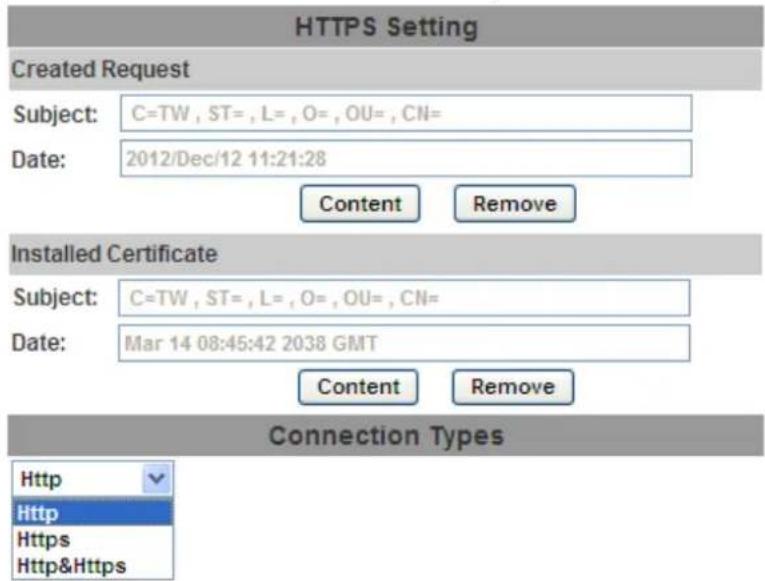
HTTPS (Hypertext Transfer Protocol Secure)
text_image
HTTPS Setting Created Request Subject: C=TW, ST= , L= , O= , OU= , CN= Date: 2012/Dec/12 11:21:28 Content Remove Installed Certificate Subject: C=TW, ST= , L= , O= , OU= , CN= Date: Mar 14 08:45:42 2038 GMT Content Remove Connection Types Http Http Https Http&HttpsHttps can help protect streaming data transmission over the Internet on the higher security level. You can select the connection type. "Https" means user cannot connect the camera via Http protocol. The Https path will be: "https:// (IP address)/". If you select "Http & Https", both the Http and Https path can be used to access the camera.
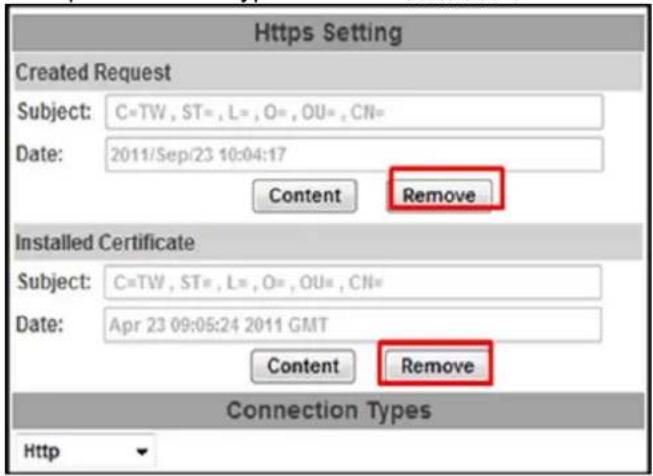
Remove the existing setting: Before setting new request, please remove old secure identification. Select "Http" connection type and click "Remove".
text_image
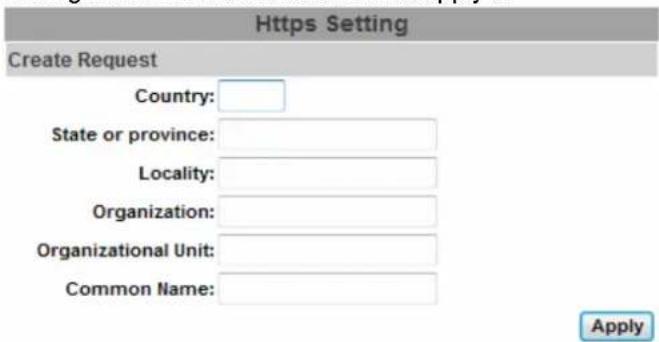
Https Setting Created Request Subject: C=TW, ST=, L=, O=, OU=, CN= Date: 2011/Sep/23 10:04:17 Content Remove Installed Certificate Subject: C=TW, ST=, L=, O=, OU=, CN= Date: Apr 23 09:05:24 2011 GMT Content Remove Connection Types HttpCreated Request: Setting the secure identification and apply it
text_image
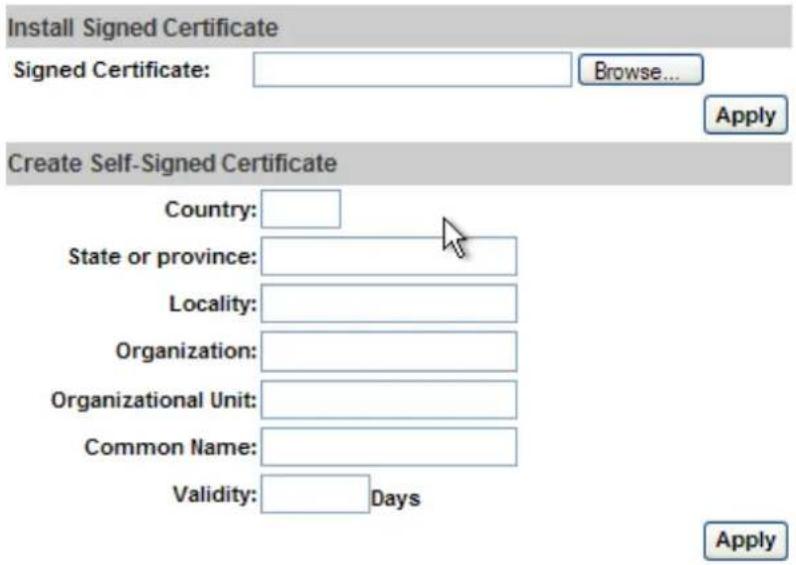
Https Setting Create Request Country: State or province: Locality: Organization: Organizational Unit: Common Name:There are two ways to set Certificate -- Install Signed Certificate or Create Self-Signed Certificate.
text_image
Install Signed Certificate Signed Certificate: Browse... Apply Create Self-Signed Certificate Country: State or province: Locality: Organization: Organizational Unit: Common Name: Validity: Days ApplySNMP (Simple Network Management Protocol)
SNMP provides a simple framework for administering networked hardware. To manage the IP camera, you have to prepare an MIB browser or similar tools first. SNMPv1, SNMPv2c, and SNMPv3 can be enabled simultaneously.
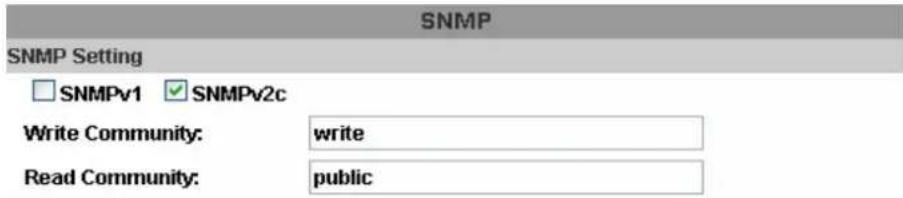
SNMPv1 and SNMPv2:
text_image
SNMP SNMP Setting SNMPv1 SNMPv2c Write Community: write Read Community: publiche term "Community name" in SNMPv1 anT d SNMPv2c came roughly regarded as key. The person who has the community name has the authority to re ad or edit the information of IP camera via SNMP.
Tick the box to enable SNMPv1 or SNMPv2c protocol, and specify the community name for write (read and write) and read (read-only). The user who use read community name to access the IP camera cannot modify any data of this camera.
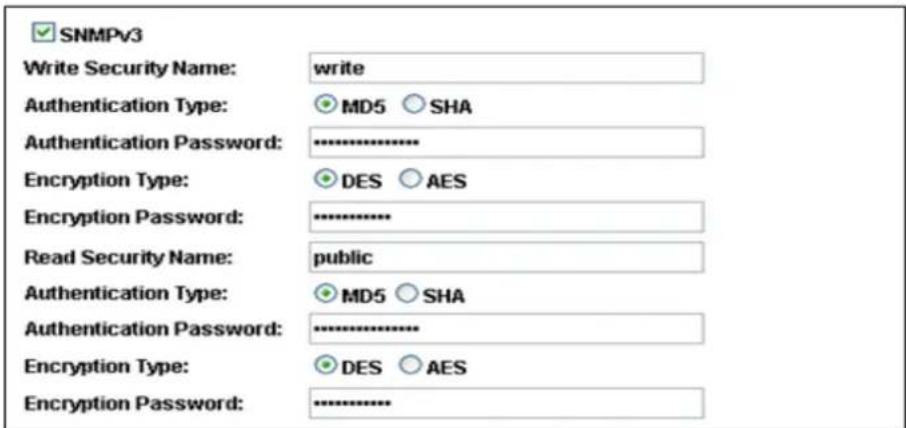
SNMPv3:
text_image
SNMPv3 Write Security Name: write Authentication Type: MD5 SHA Authentication Password: ---------------- Encryption Type: DES AES Encryption Password: ---------------- Read Security Name: public Authentication Type: MD5 SHA Authentication Password: ---------------- Encryption Type: DES AES Encryption Password: ----------------For data security reason, the authentication and encryption assurances are added when developing SNMPv3. The user has to give not only the security name (the same as "community name" in v1 and v2c, or sometimes we call it "context name") but the password in order to access the IP camera. Please set security name, authentication type, authentication password, encryption type, encryption password of write and read respectively. The password must be 8\~64 bits in length.
Different from SNMPv1 and v2c, the user has to create an account when using SNMPv3. In the account parameters, key- in thesecurity name and password you set in the camera to get access.
SNMPv1/SNMPv2 Trap:
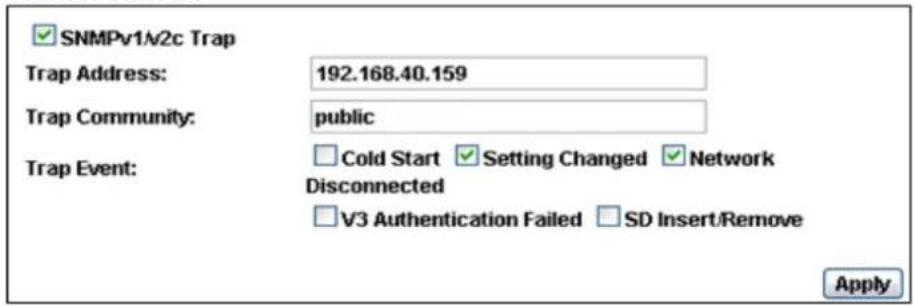
text_image
SNMPv1/v2c Trap Trap Address: 192.168.40.159 Trap Community: public Trap Event: Cold Start Setting Changed Network Disconnected V3 Authentication Failed SD Insert/Remove ApplyTrap is a mechanism that allows the managed device to send messages to manager instead of waiting passively for polling from the manager. Specify the trap event. When those events happen, the camera will send the ring message to the Trap Address, which is usually the manager's IP address. Trap Community means the community can receive the trap message.
• Cold Start: The camera starts up or reboots.
- Setting changed: The SNMP setting is changed.
- Network Disconnected: The network connection is broken down. (The camera will send trap messages after the network is connected again.)
- V3 Authentication Failed: A SNMPv3 user account tries to get authentication but failed. (Due to incorrect password or community)
- SD Insert / Remove: A Micro SD card is inserted or removed.
Access List

text_image
IP FILTER IP ADDRESS FILTER Setting Enable ip address filter IPv4 Setting: add allow deny range address: 192.168.50.151 - 192.168.50.161IPv4 List:
| No. | IP Address | Filter | Action |
| 1 | 192.168.50.159 | allow | remove |
| 2 | 192.168.50.151-192.168.50.161 | deny | remove |
| 3 | remove | ||
| 4 | remove | ||
| 5 | remove | ||
| 6 | remove | ||
| 7 | remove | ||
| 8 | remove | ||
| 9 | remove | ||
| 10 | remove |
□ Allow admin ip address always access this device
Admin ip address:
apply
You can deny an IP address or a range of IP address so that they cannot access the IP camera. Tick the "enable" box, key-in the IP address you want to deny, select"deny" and then click"Add" to add it to the list.
You can also choose to deny a range of IP addresses but allow one or several of them. Take the above picture for example, IP address 192.168.50.151\~161 is not allowed to connect to the camera, but only 192.168.50.159 can access.

In the list "allow" condition must be ranked before "deny" condition.
For example, if we exchange the sequence, set "Deny: 192.168.50.151\~192.168.50.161" for the first item and "Allow: 192.168.50.159" for the second item in the list, the IP 92.168.50.159" turns out to be denied by the camera because the "deny" condition has the "1 priority according to our ranking way.
QoS/DSCP (Quality of Server/Differentiated Services Code-point)
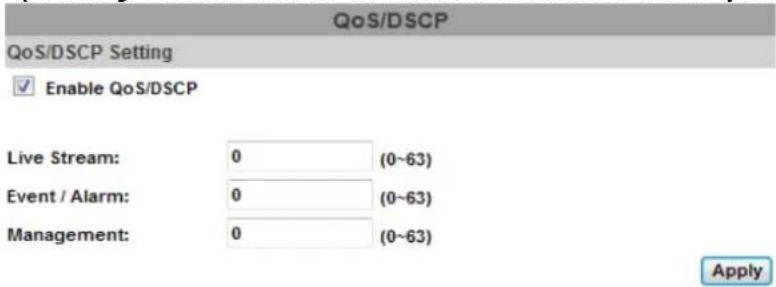
text_image
QoS/DSCP QoS/DSCP Setting Enable QoS/DSCP Live Stream: 0 (0~63) Event / Alarm: 0 (0~63) Management: 0 (0~63) ApplyDSCP specifies a simple mechanism for classifying and managing network traffic and provide QoS on IP networks. DSCP is a 6-bit in the IP header for packet classification purpose.
The number 0\~63 for Live Stream, Event / Alarm, and Management represent the ratio that
the bandwidth is divided. For example, if you set 5, 10, and 20 for the three items, then the bandwidth of the three items is 5:10:20. There is no difference between setting "0, 0, 0" or "63, 63, 63" because under these two settings, the three items will get equal bandwidth (1/3). The three stream control protocols are as follows:
• Live Stream (Video and audio): RTP / RTSP
• Event Alarm: FTP / SMTP / SAMBA / SIP
• Management: HTTPS / HTTP / SNMP

The "Management" stream handles both the live view and the setting area of the web page on which the data is transferred via http/https protocol. If you prefer to distribute more bandwidth when using the web browser to access the camera, please adjust the Management stream.
IEEE 802.1x

text_image
IEEE 802.1x/EAP-TLS IEEE 802.1x Setting Enable IEEE 802.1x Eapol version: v1 v2 Identity: Private key password: Apply CA certificate: Upload Browse... Status: Remove Client certificate: Upload Browse... Status: Remove Client private key: Upload Browse... Status: RemoveIEEE 802.1x is an IEEE standard for port-based Network Access Control. It provides an authentication mechanism to device wishing to attach to a LAN or WLAN.
The EAPOL protocol supports service identification and optional point to point encryption over the local LAN segment.
Please check what version of the authenticator and authentication server support. This camera supports EAP-TLS method. Please enter ID and password issued by the CA and then upload related certificates.
3.6.3 PPPoE & DDNS
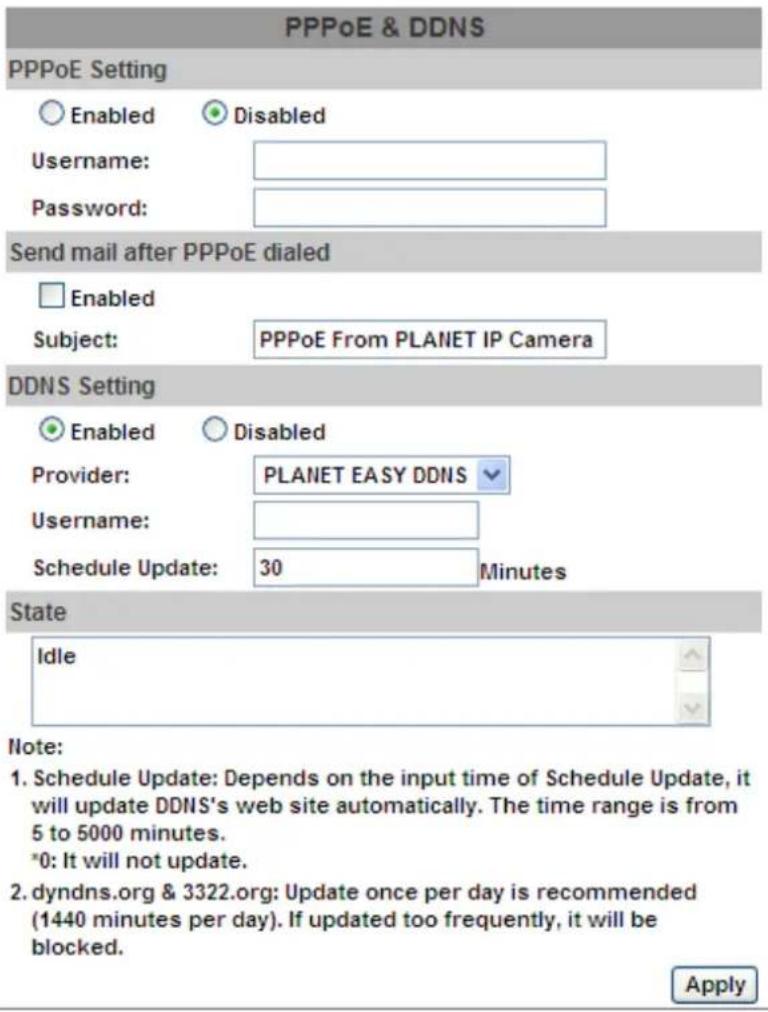
text_image
PPPoE & DDNS PPPoE Setting Enabled Disabled Username: Password: Send mail after PPPoE dialed Enabled Subject: PPPoE From PLANET IP Camera DDNS Setting Enabled Disabled Provider: PLANET EASY DDNS Username: Schedule Update: 30 Minutes State Idle Note: 1. Schedule Update: Depends on the input time of Schedule Update, it will update DDNS's web site automatically. The time range is from 5 to 5000 minutes. *0: It will not update. 2. dyndns.org & 3322.org: Update once per day is recommended (1440 minutes per day). If updated too frequently, it will be blocked. ApplyPPPoE: Stands for Point to Point Protocol over Ethernet
A standard builds on Ethernet and Point-to-Point network protocol. It allows Internet camera to connect to Internet with xDSL or cable connection; it can dial up your ISP and get a dynamic IP address. For more PPPoE and Internet configuration, please consult your ISP.
It can directly connect to the xDSL; however, it should be set up in a LAN environment to program the PPPoE information first, and then connect to the xDSL modem. Power on again to enable the device to dial on to the ISP connection to the WAN through the xDSL modem.
The procedures are:
(1) Select "Enabled" to use PPPoE.
(2) Key-in username and password for the ADSL connection.
(3) Send mail after dialing: When connecting to the Internet, it will send a mail to a specific mail account. For the mail setting, please refer to "Mail and FTP" settings.
DDN8iS1nade BenDynamic D
The device supports DDNS If your device is connected to xDSL directly; you might need this feature. However, if your device is behind a NAT router, you will not need to enable this feature. Because DDNS allows the device to use an easier way to remember naming format rather than an IP address. The name of the domain is like the name of a person, and the IP address is like this phone number. On the Internet we have IP numbers for each host (computer, s
router, and so on), and we replace these IP numbers to easily remember names, which are organized. DfL the vithromaien armest As of the users will use dynamic
IP addresses. If users want to set up a web or a FTP server, then the Dynamic Domain Name Server is necessary. For more DDNS configuration, please consult your dealer.
Your Internet Service Provider (ISP) provides you with at least one IP address which you use to connect to the Internet. The address you get may be static, meaning it never changes, or dynamic, meaning it's likely to change periodically. Just how often it changes, it depends on your ISP. A dynamic IP address complicates remote access since you may not know what your current WAN IP address is when you want to access your network over the Internet. The solution to the dynamic IP address problem comes in the form of a dynamic DNS service.
The Internet uses DNS servers to lookup domain names and translates them into IP addresses. Domain names are just easy to remember aliases for IP addresses. A dynamic DNS service is unique because it provides a means of updating your IP address so that your listing will remain current when your IP address changes. There are several excellent DDNS services available on the Internet and best of all they're free to use. One such service you can use is www.DynDNS.org. You'll need to register with the service and set up the domain name of your choice to begin using it. Please refer to the home page of the service for detailed instructions or refer to Appendix E for more information.
DynDns.org, the procedures are:
(1) Enable this service
(2) Key-in the host name of DynDNS, user name, and password.
(3) Set up the IP Schedule update.
(4) Click "Apply"
(5) If setting up IP schedule update too frequently, the IP may be blocked. In general, schedule update every day (1440 minutes) is recommended.
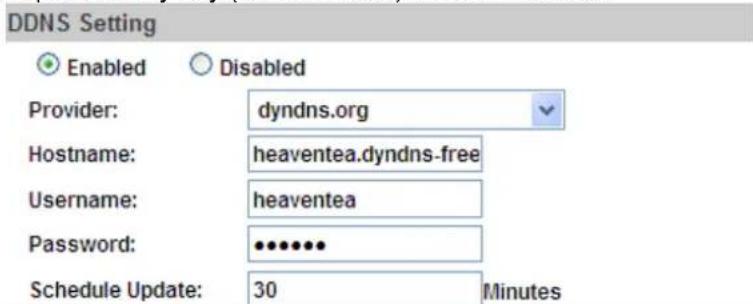
text_image
DDNS Setting Enabled Disabled Provider: dyndns.org Hostname:_heaventea.dyndns-free Username:_heaventea Password: **** Schedule Update: 30 Minutes
text_image
State IdleNote:
- Schedule Update: Depends on the input time of Schedule Update, it will update DDNS's web site automatically. The time range is from 5 to 5000 minutes.
*0: It will not update.
- dyndns.org & 3322.org: Update once per day is recommended (1440 minutes per day). If updated too frequently, it will be blocked.
Apply
DDNS Status
(1) Updating : Information update
(2) Idle : Stop service
(3) DDNS registration successful, can now log by http://
(4) Update failed, the name is already registered: The user name has already been used. Please change it.
(5) Update failed, please check your Internet connection: Network connection failed.
(6) Update failed, please check the account information you provide: The server, user name, and password may be wrong.
This model adds Planet easy DDNS that when this function enable will occur hostname with PLANET Easy DDNS and end six of MAC automatically. User don't go to web of www.planetddns.com apply new account.
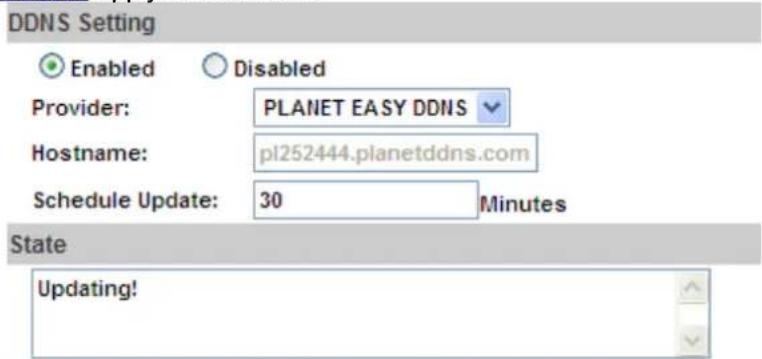
text_image
DDNS Setting Enabled Disabled Provider: PLANET EASY DDNS Hostname: p1252444.planetddns.com Schedule Update: 30 Minutes State Updating!Note:
- Schedule Update: Depends on the input time of Schedule Update, it will update DDNS's web site automatically. The time range is from 5 to 5000 minutes. *0: It will not update.
- dyndns.org & 3322.org: Update once per day is recommended (1440 minutes per day). If updated too frequently, it will be blocked.
Apply
To send out the video via mail, FTP and Samba, please set up the configuration first.
Mail Setting:
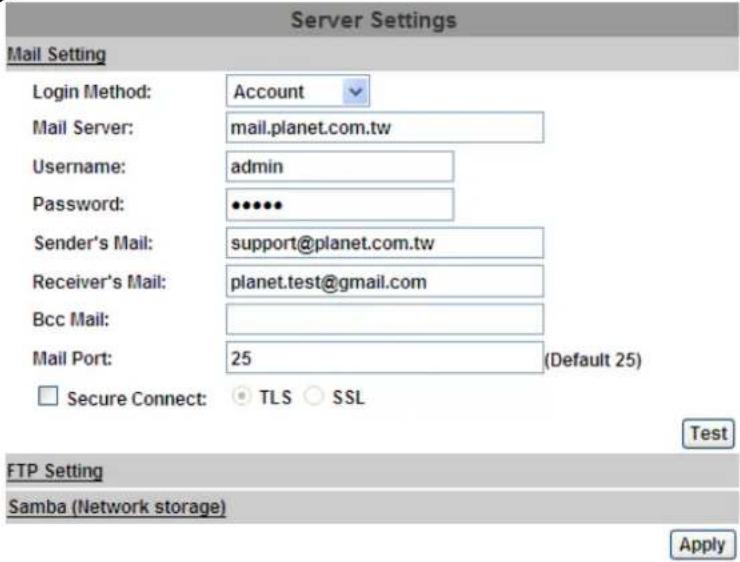
text_image
Server Settings Mail Setting Login Method: Account Mail Server: mail.planet.com.tw Username: admin Password: •••••• Sender's Mail: support@planet.com.tw Receiver's Mail: planet.test@gmail.com Bcc Mail: Mail Port: 25 (Default 25) Secure Connect: TLS SSL Test FTP Setting Samba (Network storage) ApplySet up the server address and account information of your e-mail. Click "Apply" to save the setting, then use "Test" button to test the server connection. A message box will tell you "OK!" if it works, and a test e-mail will be sent to receiver's mail address.
FTP Setting:
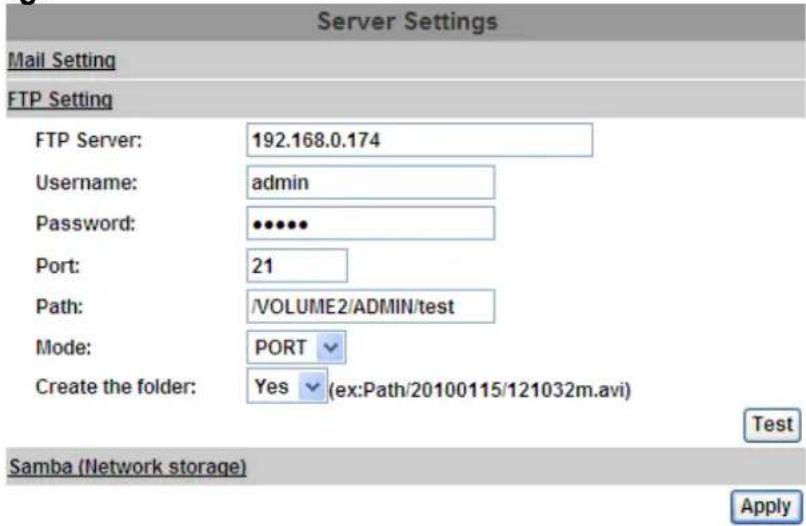
text_image
Server Settings Mail Setting FTP Setting FTP Server: 192.168.0.174 Username: admin Password: •••••• Port: 21 Path: /VOLUME2/ADMIN/test Mode: PORT Create the folder: Yes (ex:Path/20100115/121032m.avi) Test Samba (Network storage) ApplySet up the server address and account information of your FTP. Click "Apply" to save the setting, then use "Test" button to test the server connection. A message box will tell you "OK!" if it works, and a test file will be uploaded to FTP space.
In PORT mode, the FTP server builds the connection to the user's data port actively. However, from the user-side firewall's standpoint, the action of connecting from FTP server is often considered to be dangerous and should be blocked. In PASV mode, the problem is solved: The FTP server waits for the data transmission connection built by the user. Make sure that the server supports the mode you select.
Samba Setting:
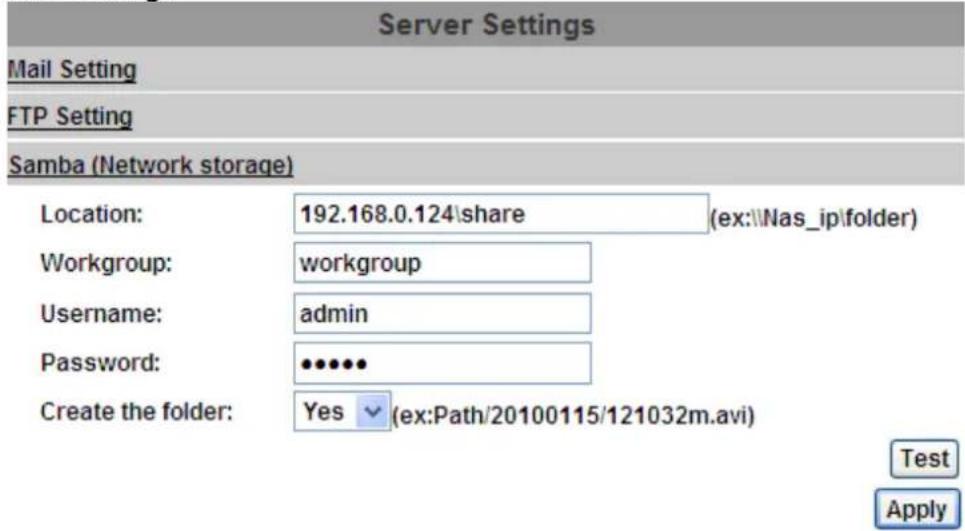
text_image
Server Settings Mail Setting FTP Setting Samba (Network storage) Location: 192.168.0.124\share (ex:\Nas_ip\folder) Workgroup: workgroup Username: admin Password: •••••• Create the folder: Yes ▼ (ex:Path/20100115/121032m.avi) Test ApplySelect this option to send the media files via a network neighborhood when an event is triggered. Click "Apply" to save the setting, then use "Test" button to test the server connection. A message box will tell you "OK!" if it works, and a test document will be created in the location.
If the test fails, check the sharing setting of your location folder. The folder properties must be "shared" and the permissions must be "Full Control" as the picture.

Samba only supports one layer folder.
3.7 A/V Setting
text_image
Image Setting Video Setting A/V Setting Audio3.7.1 Image Setting
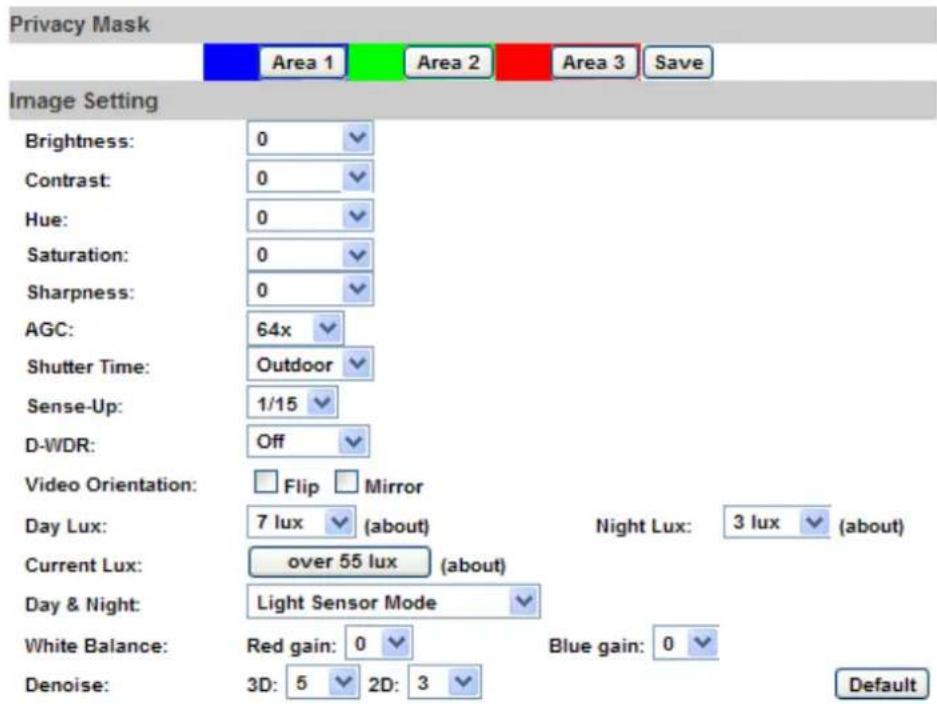
For the security that pairaberseses, for privacy three are
mask. Click Area button first and drag an area on the above image, and remember to save your setting. sked area will not show on both the live viewing and recording. The ma
text_image
Privacy Mask Area 1 Area 2 Area 3 Save Image Setting Brightness: 0 Contrast: 0 Hue: 0 Saturation: 0 Sharpness: 0 AGC: 64x Shutter Time: Outdoor Sense-Up: 1/15 D-WDR: Off Video Orientation: Flip Mirror Day Lux: 7 lux (about) Night Lux: 3 lux (about) Current Lux: over 55 lux (about) Day & Night: Light Sensor Mode White Balance: Red gain: 0 Blue gain: 0 Denoise: 3D: 5 2D: 3 Default| Image adjust | Brightness, Contrast, Hue, Saturation, and Sharpness can be adjusted here. |
| AGC | Automatic gain control. The sensitivity of camera can be adjusted with the environmental light. Enable this function and the brighter image can be got under dim light, but the level of noise may also increase |
| Shutter Time | Choose as the location of your camera or fixed shutter time. The shorter the shutter time is the less light the camera receives and the image becomes darker. |
| Sense-Up | This function increases the sensitivity of camera to get brighter image at night. The smaller the value you select, the slower the shutter speed becomes so that the image will get brighter, and moving subjects might be blurred. |
| D-WDR | Digital wide dynamic range. This function enables the camera to reduce the contrast in the view to avoid the dark zones resulting from over and under exposure. |
| Video Orientation | Flip or mirror the image as per your requirement. |
| Day & Night / Lux setting | The camera can detect the light level of environment. If you choose "Light Sensor Mode", the image will be turned to black and white at night in order to keep clear.To set light sensor mode, appoint a lux standard of switching D/N here. Current lux value is provided for reference.Under "Times Mode" the switch time of Color / Black and white is according to the given time. You can also control it by choosing "Color" or "B/W" |
| Red / Blue gain | Set the values for Red / Blue gain. The available values are: -5, -4, -3, -2, -1, 0, 1, 2, 3, 4, 5 |
| Denoise | This function is able to filter the noise and blur from the image and show a clearer view. You can set the values for 2D and 3D filters. |
3.7.2 ing Video Sett
Video Setting
Input Resolution:
Video System:
TV Output:
TV Output Focus Bar ON/OFF
2592x1944 @ 15fps
NTSC
Auto ▼ (Auto : Based on the Video System)
ON OFF
| Input Resolution | Click the drop down list to select the resolution “2592x1944@15fps/192.x1080@30fps”. |
| Video System | Click the drop down list to select the system type “NTSC/PAL”. |
| TV Output | Click the drop down list to select the system type “NTSC/PAL/Auto” |
| TV Output Focus Bar | Show the Focus Bar on TV |
Basic Mode :
Streaming 1 Setting
Basic Mode
Resolution:
Profile:
Quality:
Video Frame Rate:
Video Format:
RTSP Path:
Advanced Mode
2592x1944
High
Best
15 FPS
H.264
ex:rtsp://IP_Address/ Audio:G.711
Streaming 2 Setting
Basic Mode
Resolution:
Profile:
Quality:
Video Frame Rate:
Video Format:
RTSP Path:
○ Advanced Mode
640x480
Baseline
Medium
15 FPS
H.264
v2
Close
ex:rtsp://IP_Address/v2 Audio:G.711
| Resolution | There are 7 resolutions to choose from: 2592x1944, 2048x1536, 1920x1080,1280x720, 640x480, 320x240, or 176x144 |
| Profile | Profile is a different compression way of H.264.Main profile provides better coding efficiency.Note that some devices do not support every profile.For example, iPhone4 only supports main profile. |
| Quality | The higher the quality is, the bigger the file size is. It might affect Internet transmitting speed if the file gets too large. |
| Video Frame Rate | The video refreshing rate per second. The maximum value is affected by the input resolution you choose. |
| Video Format | H.264 and M-JPEG. |
| RTSP Path | Set the RTSP output connecting route. |
Advanced Mode:
text_image
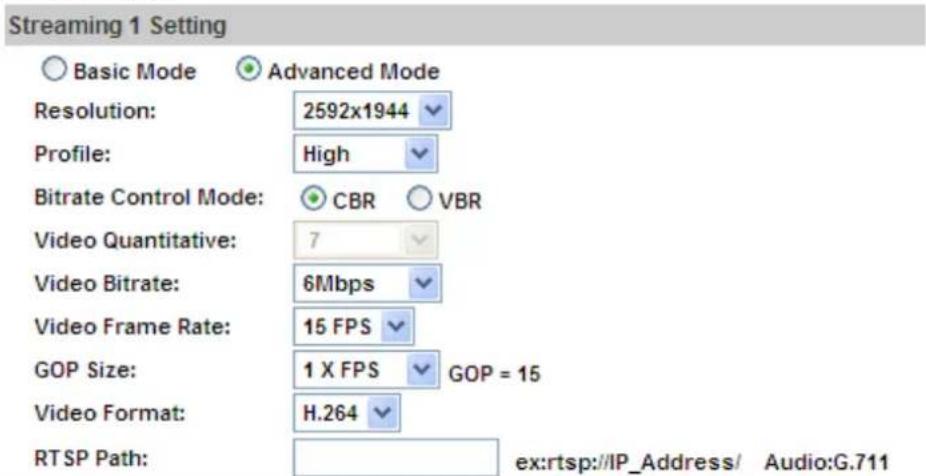
Streaming 1 Setting Basic Mode Advanced Mode Resolution: 2592x1944 Profile: High Bitrate Control Mode: CBR VBR Video Quantitative: 7 Video Bitrate: 6Mbps Video Frame Rate: 15 FPS GOP Size: 1 X FPS GOP = 15 Video Format: H.264 RTSP Path: ex:rtsp://IP_Address/ Audio:G.711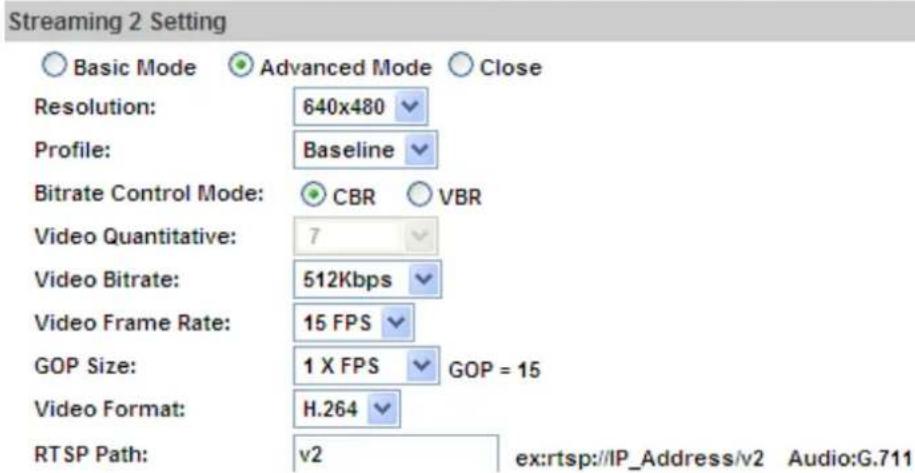
text_image
Streaming 2 Setting Basic Mode Advanced Mode Close Resolution: 640x480 Profile: Baseline Bitrate Control Mode: CBR VBR Video Quantitative: 7 Video Bitrate: 512Kbps Video Frame Rate: 15 FPS GOP Size: 1 X FPS GOP = 15 Video Format: H.264 RTSP Path: v2 ex:rtsp://IP_Address/v2 Audio:G.711| Resolution | There are 7 resolutions to choose from: 2592x1944, 2048x1536, 1920x1080,1280x720, 640x480, 320x240, or 176x144 |
| Profile | Profile is a different compression way of H.264.Main profile provides better coding efficiency.Note that some devices do not support every profile.For example, iPhone4 only supports main profile. |
| Bitrate Control Mode | There are CBR (Constant Bit Rate) and VBR (Variable Bit Rate) to use.CBR : Streaming 1 supports from 32Kbps to 10Mbps,Streaming 2 supports from 32Kbps to 6Mbps (the higher the CBR is, the better the video quality is)VBR: 1(Low) ~10 (High) – Compression rate, the higher the compression rate is, the lower the picture quality is, and vice versa. The balance between VBR and network bandwidth will affect picture quality. Please carefully select the VBR rate to avoid picture breaking up or lagging. |
| Video Quantitative | The quality parameter of VBR. You can choose 1~10 compression rate. The higher the value is, the higher the image quality is. |
| Video Bitrate | The quality parameter of CBR. You can choose 32kbps ~ 10Mbps (streaming 1)/ 6Mbps (streaming 2). The higher the value is, the higher the image quality is. |
| Video Frame Rate | The video refreshing rate per second. The max value is affected by the input resolution you choose. |
| GOP Size | It means “Group of Pictures”. The higher the GOP is, the better the quality is. |
| Video Format | H.264, M-JPEG |
| RTSP Path | RTSP output connecting route |
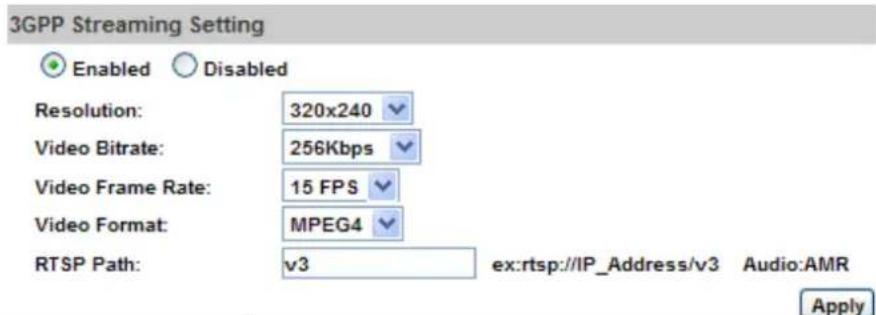
3GPP Streaming mode:
text_image
3GPP Streaming Setting Enabled Disabled Resolution: 320x240 Video Bitrate: 256Kbps Video Frame Rate: 15 FPS Video Format: MPEG4 RTSP Path: v3 exon:rtsp://IP_Address/v3 Audio:AMR Apply| Resolution | There are 3 resolutions to choose from:640x480, 320x240, or 176x144 | |
| Video Bitrate | 32Kbps~1Mbps | |
| Video Frame Rate | The video refreshing rate per second. The maximum value is affected by the input resolution you choose. | |
| Video Format | It supports H.264 and MPEG4. | |
| RTSP Path | RTSP output connecting route | |
 | The RTSP here is separated from the RTSP setting in the "IP SETTING".3GPP Streaming can still work even you select "disabled" in the RTSP server option of IP Setting. | |
3.7.3 Audio Setting
The IP Camera supports 2-way audio. User can send audio from the IP Camera built-in microphone to the remote PC; the user can also send audio from remote PC to IP Camera's external speaker.
(1) Audio from IP camera's built-in microphone to local PC: select "Enabled" to start this function. The audio compression format can be chosen from 3 options. You can also adjust the volume of 2-way audio.
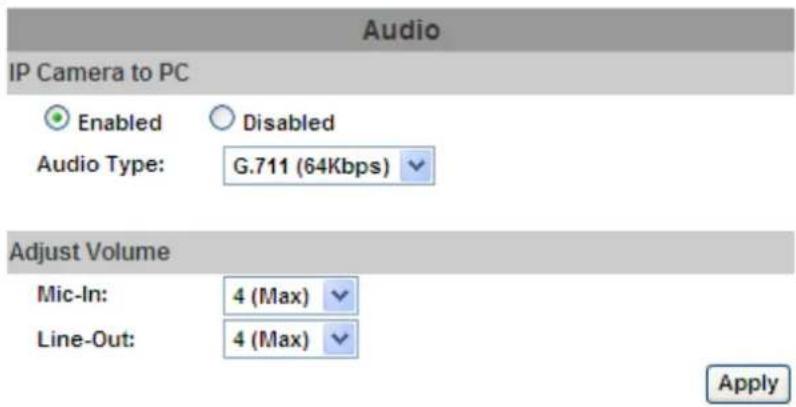
text_image
Audio IP Camera to PC Enabled Disabled Audio Type: G.711 (64Kbps) Adjust Volume Mic-In: 4 (Max) Line-Out: 4 (Max) Apply(2) Audio from local PC to IP Camera: Check "chatting" on the browsing page.
Online Visitor: 2

The audio might not be smooth when the SD card is recording.
3.8 Event List
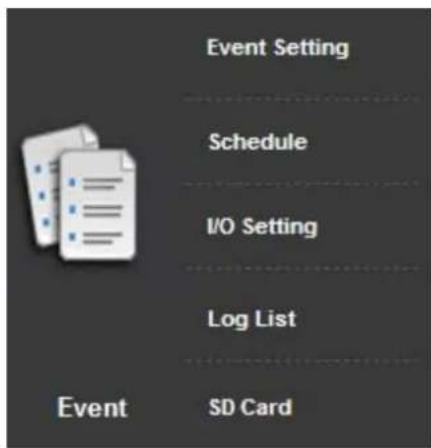
text_image
Event Setting Schedule I/O Setting Log List Event SD Card3.8.1 Event Setting
Motion Detection
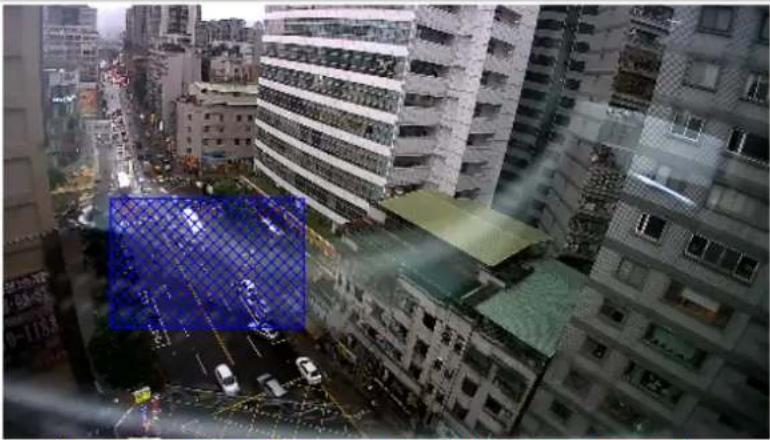
natural_image
Cityscape at night with high-rise buildings and a blue overlay showing a traffic detection bounding box (no readable text or symbols)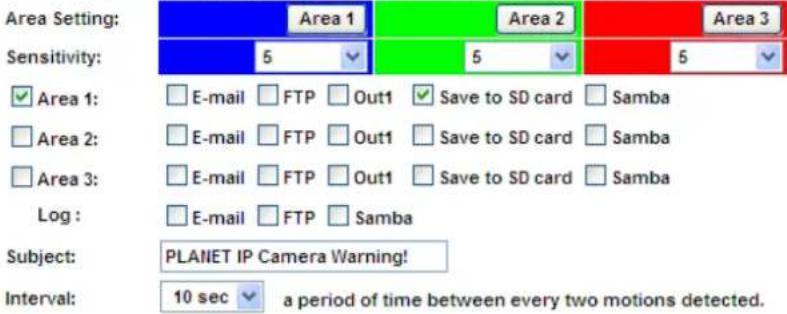
text_image
Area Setting: Area 1 Area 2 Area 3 Sensitivity: 5 5 5 ✓ Area 1: E-mail FTP Out1 ✓ Save to SD card Samba Area 2: E-mail FTP Out1 ✓ Save to SD card Samba Area 3: E-mail FTP Out1 ✓ Save to SD card Samba Log : E-mail FTP Samba Subject: PLANET IP Camera Warning! Interval: 10 sec a period of time between every two motions detected.Based on the schedule
Tampering Detection
Tampering: Enabled Disabled
√ E-mail □ FTP □ Out1 □ Save to SD card □ Samba
Interval: 30 sec
Record File
File Format: AVI File(with Record Time Setting)
Record Time Setting
Pre Alarm: 5 sec
Post Alarm: 5 sec
Network Dis-connected
Dis-connected: √ Save to SD Card
Network IP Check
IP Check: Enabled Disabled
IP Address: www.google.com
Interval: 30 sec
□ Connection failed four times. Reboot IP Camera.
Check failed: □ Save to SD card
(When IP check failed, first step will save to SD card, continuing other saving storage)
Apply
| Motion Detection | IP camera allows 3-area motion detection. When motion is triggered, it can send the video to some specific mail addresses, transmit the video to remote ftp server and SAMBA, and trigger the relay. To set up the motion area, click | |
| "Area Setting" and use mouse to drag and draw the area. The same operation is done for areas 2 and 3. If you select "save to SD card", the video or snapshot will be saved to Micro SD card. If you also tick E-mail/ FTP/ Samba of "Log" option, the motion detection log will be sent to E-mail/ FTP/ Samba simultaneously. | ||
| Interval | For example, if you select "10 sec" here, once the motion is detected and action is triggered, it cannot be triggered again within 10 seconds. | |
| Based on the schedule | When the option box is ticked, only during the selected schedule time the motion detection is enabled. That is, for example, the 11th hour of Monday has not been colored in the schedule table, then no action will be triggered even the camera detects motion during 11:00~12:00 on Monday. | |
| Tampering Detection | When the camera view is covered, moved, hit by strong light, or out of focus, the tampering detection will be triggered, and send snapshot or video to mail/FTP/Samba/SD card, or trigger the external alarm. | |
| Record File Setting | IP camera allows 3 different types of recording file to change its record size. When motion/alarm is triggered, there are 3 different types of recording modes:(1) AVI File (With Record File Setting )(2) Multi-JPEG (With Record File Setting), only with JPEG compression format.(3) Single JPEG (Single File with Interval Setting) | |
| Record Time Setting | Pre Alarm and Post Alarm setups for video start and end time when motion detects I/O, or other devices got triggered. | |
 Note Note | Pre/Post Alarm record time is based on record time setting and IP cam built-in RAM memory. Limited by IP cam built-in RAM memory, when information is too much or video quality is set too high, it will cause recording frame to drop or decrease on post alarm recording time. | |
| Network Disconnected | To avoid video loss, the camera will start to save the video to local SD card when it detects no network connection. The video recording will continuously be saved onto SD card and divided into every 10 minutes a file until the network is reconnected successfully. The oldest file will be deleted if the capacity of SD card is full. | |
| Network IP check | Key-in the target IP address and interval. The camera checks once in a while according to the setting interval time if it can link to the target IP address. If connection fails, the camera starts to save the video to SD card | |
3.8.2 Schedule
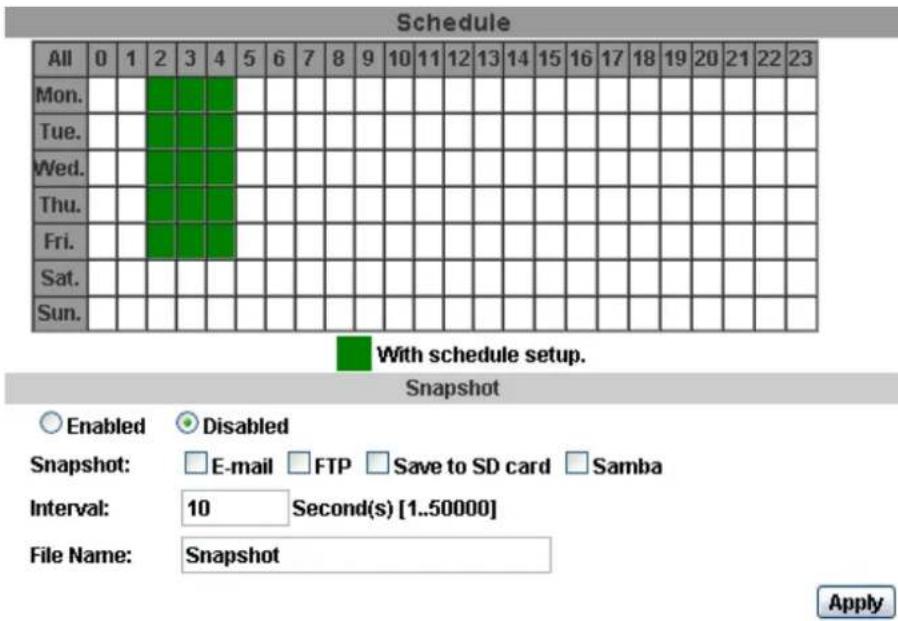
text_image
Schedule All 0 1 2 3 4 5 6 7 8 9 10 11 12 13 14 15 16 17 18 19 20 21 22 23 Mon. Tue. Wed. Thu. Fri. Sat. Sun. With schedule setup. Snapshot Enabled Disabled Snapshot: E-mail FTP Save to SD card Samba Interval: 10_Second(s) [1..50000] File Name: Snapshot Apply| Schedule | After completing the schedule setup, the camera data will be recorded according to the scheduled setup. |
| Snapshot | After enabling the snapshot function, user can select the storage position of snapshot file, the interval time of snapshot and the reserved file name of snapshot. |
| Interval | The interval between two snapshots. |
3.8.3 I/O Setting
The ICA-3550V supports 1 input / 1 output. When input is triggered, it can send the video to some specific mail addresses, transmit the video to remote ftp server, and trigger the relay and SAMBA.
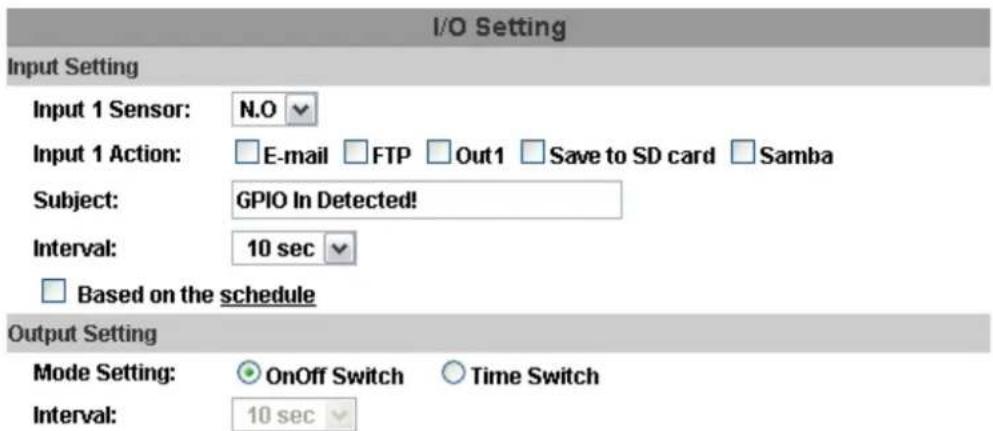
text_image
I/O Setting Input Setting Input 1 Sensor: N.O Input 1 Action: E-mail FTP Out1 Save to SD card Samba Subject: GPIO In Detected! Interval: 10 sec Based on the schedule Output Setting Mode Setting: OnOff Switch Time Switch Interval: 10 sec| Alarm Input Setting | The GPIO I/O port input activates related action when I/O input is triggered. |
| Interval | For example, if you select "10 sec" here, once the motion is detected and action is triggered, it cannot be triggered again within 10 seconds. |
| Based on the schedule | When the option box is ticked, only during the selected scheduled time the I/O is enabled. That is, for example, the 11th hour of Monday has not been colored in the scheduled table, then no action will be triggered even the camera detects input signal during 11:00~12:00 on Monday. |
| GPIO Output Setting | The GPIO I/O port output activates On/Off Switch, Slide Switch or Pan/Tilt Module for use with relay box. |
| On Off Switch | The camera triggers the external device and lasts for 10 seconds. You can turn off the alarm manually by clicking "off" on the right bottom of the live video page. |
| Time Switch | The camera triggers the external device and lasts for certain of time according to the interval setting, and the user is not allowed to break off the alarm manually. |

Please connect to propriety relay box to reduce the risk of electric shock & damaged.
3.8.4 Log List
Sort by System Logs, Motion Detection Logs and I/O Logs. In addition, System Logs and I/O Logs won't lose data due to power failure.
| Log List | |
| System Logs | |
| Logs | |
| Motion Detection Logs | |
| Logs | |
| I/O Logs | |
| Logs | |
| All Logs | |
| Logs | |
3.8.5 SD card
Playback
Please insert a micro SD card before using it. Make sure to push the micro SD card into the slot completely.
Click the date listed on this page and it shows the list of the video. The video format is AVI. Click the video to start Microsoft Media Player to play it. To delete the video, check it and then click "Del".
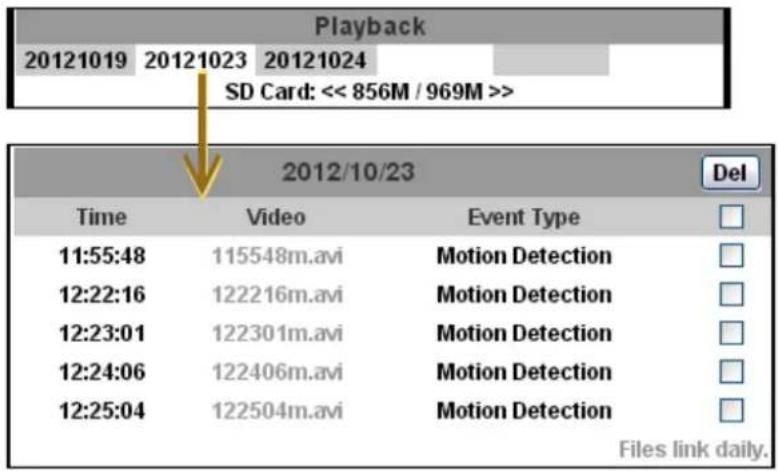
text_image
Playback 20121019 20121023 20121024 SD Card: << 856M / 969M >> 2012/10/23 Time Video Event Type 11:55:48 115548m.avi Motion Detection 12:22:16 122216m.avi Motion Detection 12:23:01 122301m.avi Motion Detection 12:24:06 122406m.avi Motion Detection 12:25:04 122504m.avi Motion Detection Files link daily.SD Management
Choosing "The 1st day" means the recoding file will be kept for one day. For example, it is five o'clock now. Choose "The 1st day". The files will be kept from five o'clock yesterday to five o'clock today.
The oldest file will be deleted if the micro SD card is full.
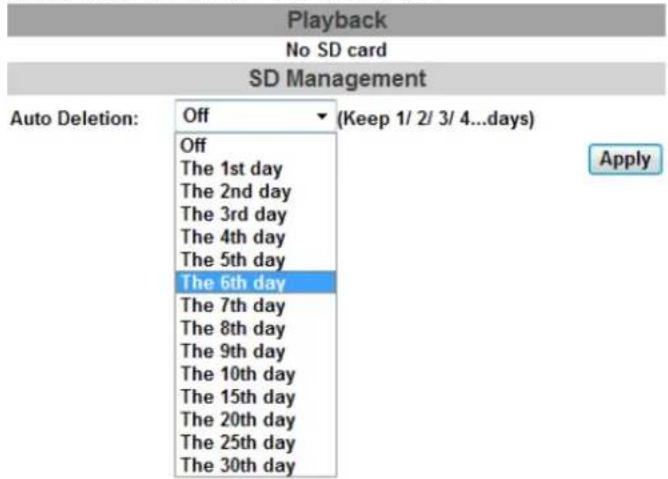
text_image
Playback No SD card SD Management Auto Deletion: Off (Keep 1/2/3/4...days) Off The 1st day The 2nd day The 3rd day The 4th day The 5th day The 6th day The 7th day The 8th day The 9th day The 10th day The 15th day The 20th day The 25th day The 30th day Apply
Note
The use of the SD card will affect the operation of the IP camera slightly, such as affecting the frame rate of the video.
Copy to PC
You can insert the micro SD card to PC and read the files directly, or use FlashGet instead to download the files from IP camera. (In this way you do not need to pull out Micro SD card from the camera.)
To use FlashGet for downloading the image and video data from the micro SD card, please follow the steps:
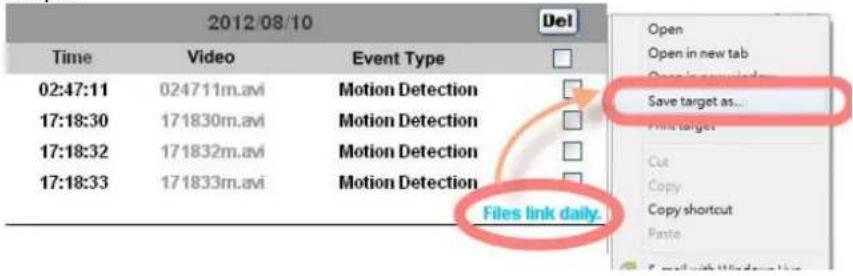
text_image
2012/08/10 Time Video Event Type 02:47:11 024711m.avi Motion Detection 17:18:30 171830m.avi Motion Detection 17:18:32 171832m.avi Motion Detection 17:18:33 171833m.avi Motion Detection Files link daily. Open Open in new tab Save target as... Print target Cut Copy Copy shortcut PasteOpen FlashGet, select "File" → "Import" → "Import list", and find the link list file you just saved. The file name may be called "SD_list".
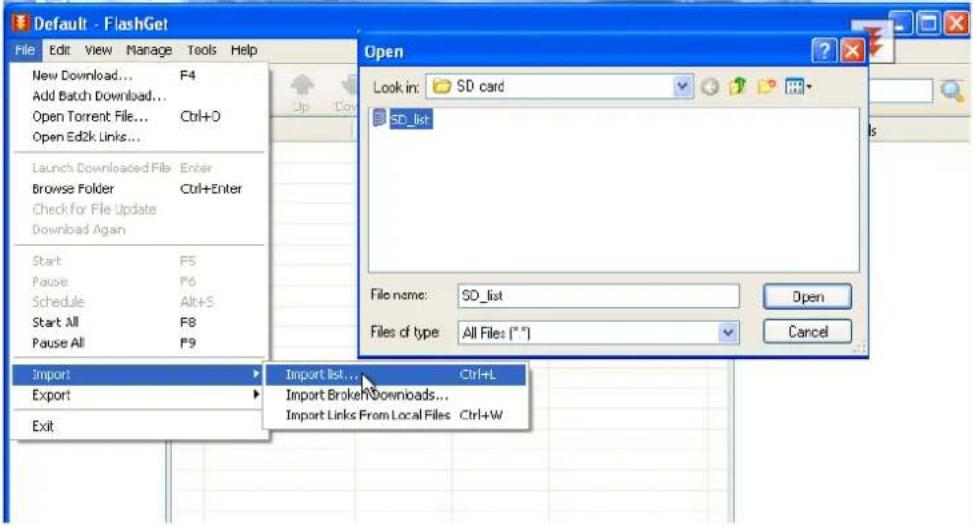
text_image
Default - FlashGet File Edit View Manage Tools Help New Download... F4 Add Batch Download... Open Torrent File... Ctrl+O Open Edzk Links... Launch Downloaded File Enter Browse Folder Ctrl+Enter Check for File Update Download Agan Start F5 Pause F6 Schedule Alt+S Start All F8 Pause All F9 Import Export Exit Open Look in: SD card SD_list File name: SD_list Files of type: All Files (*.*) Open Cancel Import list... Ctrl+L Import Broke Downloads... Import Links From Local Files Ctrl+WFlashGet will show you the link list, and you can tick the files you want to copy to your PC. Give the directory path in the new download window, and remember to enable "Login to Server": key-in the IP camera username and password.
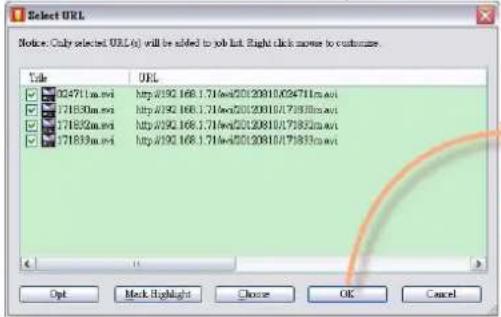
text_image
Select URL Notice: Only selected URL(s) will be added to job list. Right click moves to customize. Title URL 024711m.wvi http://992.168.1.71wv/20120910/024711m.wvi 171830m.wvi http://992.168.1.71wv/20120910/73830m.wvi 171832m.wvi http://992.168.1.71wv/20120910/73832m.wvi 171833m.wvi http://992.168.1.71wv/20120910/73833m.wvi Opt Mock Highlight Choose OK Cancel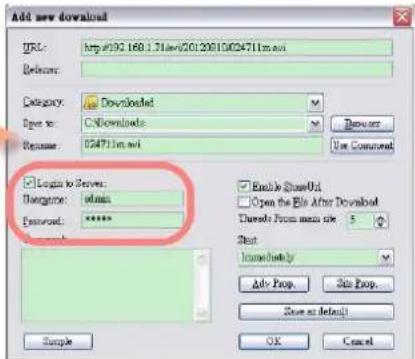
text_image
Add new download URL: http://92.168.1.71/ev/20120010024711m.avi Welcome: Category: Downloaded Open to: C:\Downloads Reverse: 024711m.avi Browse Use Commented Login to serve: Download: admin Password: ***** Enable StoreOut Open the File After Download Drawdown from name size: 5 Start: Immediately Apply Prop. Site Prop. Save as Default! OK CancelClick OK to start download
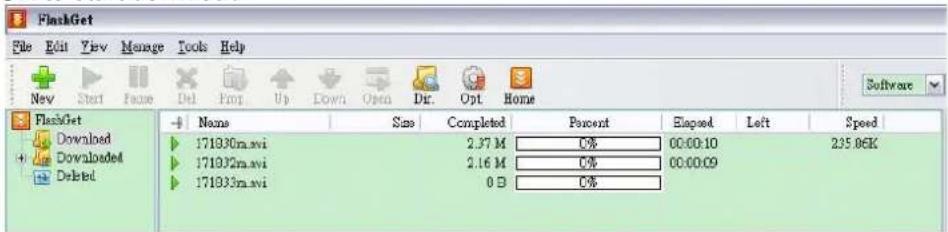
text_image
FlashGet File Edit View Manage Tools Help New Start Paste Del Fcrt Up Down Open Dr. Opt Home Software FlashGet Download Downloaded Deleted Name Sime Completed Percent Elapsed Left Speed 171030m.avi 2.37 M 0% 00:00:10 225.06K 171032m.avi 2.16 M 0% 00:00:09 171033m.avi 0 B 0%
FlashGet is free software that can be downloaded from FlashGet official website. The example above is based on FlashGet ver.1.9.6.1073.
Appendix A. Factory Default
To recover the default IP address and password, please follow the steps:
- Remove the power and Ethernet cable.
• Take an electronic wire, plug one side of the wire into "Default" and the other side into "GND" on the terminal block as the picture is shown below.
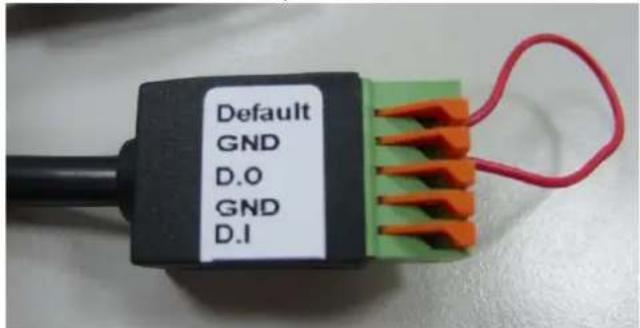
text_image
Default GND D.O GND D.I- Connect power to the camera again. It takes around 30 seconds to boot the camera.
- Remove the wire and plug in the Ethernet cable after the camera finishes booting.
- Login the camera using the default IP (http://192.168.0.20) where both user name and password are admin.
Appendix B. Ping IP Address
The ping (stands for Packet Internet Groper) command is used to detect whether a specific IP address is accessible by sending a packet to the specific address and waiting for a reply. It's also a very useful tool to confirm whether or not Internet camera is installed or if the IP address conflicts with any other device over the network.
If you want to make sure the IP address of Internet camera, utilize the ping command as follows:
- Start a DOS window.
• Type ping x.x.x.x, where x.x.x.x is the IP address of the internet camera.
The replies, as illustrated below, will provide an explanation to the problem.
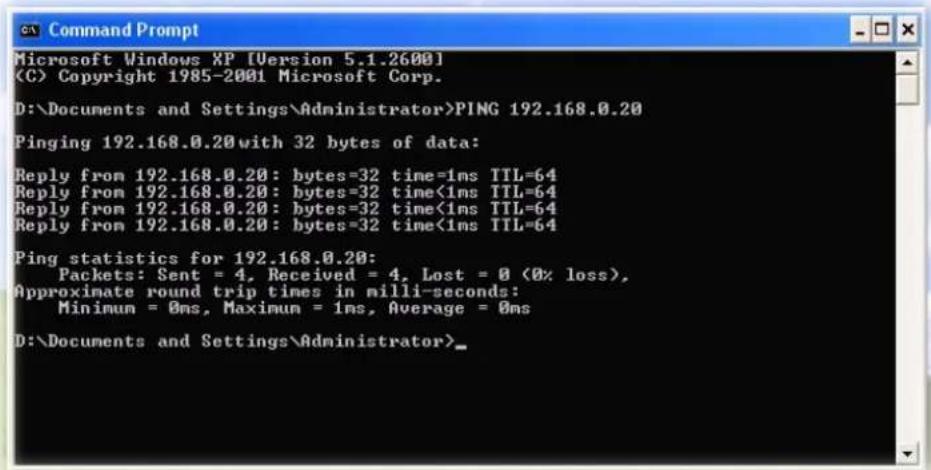
text_image
Microsoft Windows XP [Version 5.1.2600]If you want to detect any other device that conflicts with the IP address of Internet camera, you also can utilize the ping command but you must disconnect the Internet camera from the network first.
Appendix C. 3GPP Access
To use the 3GPP function, in addition to the previous section, you might need more formation or configuration to make this function works.

To use the 3GPP function, it is strongly recommended to install the Networked Device with a public and fixed IP address without any firewall protection.
RTSP Port:
Port 554 is the default for RTSP service. However, sometimes, some service providers change this port number for some reasons. If so, user needs to change this port accordingly.
Dialing procedure:
- Choose a verified player (PacketVideo or Realplayer)
- Use the following default URL to access:
rtsp://IP-Address/3g
Where host is the host name or IP address of the camera.
Compatible 3G mobile phone:
Please contact your dealer to get the approved list of compatible 3G phones.

Besides IP camera and 3G mobile phone, you will also need to make sure the ISP and company have provided the 3GPP service to you.
Appendix D. Planet DDNS Application
Configuring PLANET DDNS steps:
Step 1: Visit DDNS provider's web site and register an account if you do not have one yet. For example, register an account at http://planetddns.com
Step 2: Enable DDNS option through accessing web page of the camera.
Step 3: Input all DDNS settings.
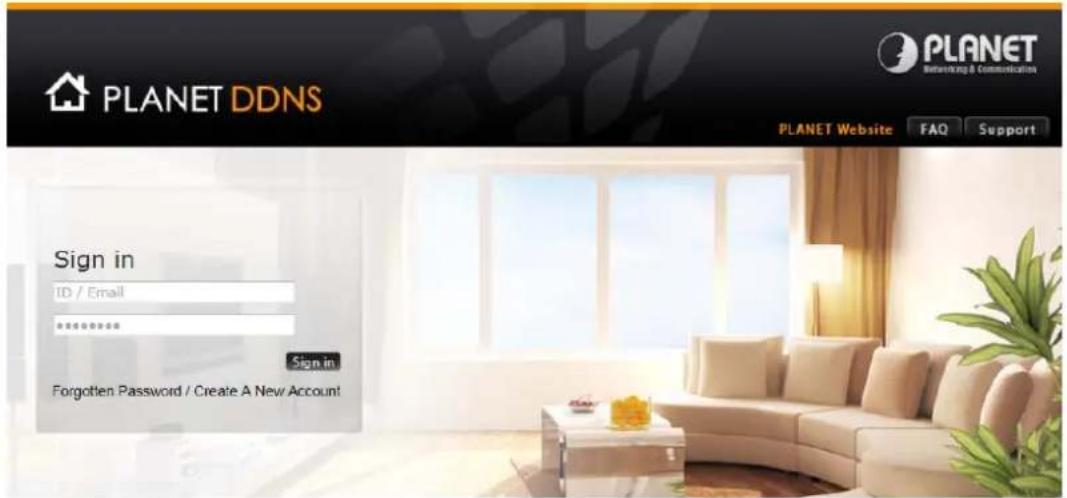
text_image
PLANET DDNS Sign in ID / Email ****** Sign in Forgotten Password / Create A New Account
text_image
XRT-401F Internet Broadband Router • More Info ICA-HM132 2 Mega-Pixel 20M IR Vari- Focal Dome IP Camera • More Info ICA-HM316 2 Mega-Pixel 11n Outdoor IR IP Camera • More Info
text_image
Access anytime & anywhere Sign-in PLANET DDNS to register a simple domain name to access home device anytime and anywhere. Go! Support & Download You can find drivers, firmware updates, other software and documentation for your PLANET products About DDNS | Term of Usage PLANET Technology Corp. Copyright ©2012 All Rights Reserved.Appendix E. Configuring Port Forwarding Manually
The device can be used with a router. If the device wants to be accessed from the WAN, its IP address needs to be set up as a fixed IP address. The port forwarding or Virtual Server function of router also needs to be set up. This device supports UPnP traversal function. Therefore, user could use this feature to configure port forwarding of NAT router first. However, if user needs forwarding manually, please follow the steps below:
Manuetlycinkstalingthey devicepithacedouteason you
follows:
- Assign a local/fixed IP address to your device
- Access the Router with Your Web browser
- Open/Configure Virtual Server Ports of Your Router
1. Ass ign a local/fixed IP address to your device
The device shall be addressed to recognize and fix
the router. Manually setup the device with a fixed IP address, for example, 192.168.0.100.
2. Access the Router with Your Web browser
The following steps generally apply to any router that you have on your network. PLANET wireless AP is used as an example to clarify the configuration process. Configure the initial settings of the router by following the steps outlined in the router's Quick Installation Guide.
If you have cable or DSL service, you will most likely have a dynamically assigned WAN IP address. 'Dynamic' means that your router's WAN IP address can change from time to time depending on your ISP. A dynamic WAN IP address identifies your router on the public network and allows it to access the Internet. To find out what your router's WAN IP address is, go to the Status screen on your router and locate the WAN information for your router. As shown on the following page the WAN IP address will be listed. This will be the address that you will need to type in your web browser to view your camera over the Internet. Be sure to uncheck the Reset IP address at next boot button at the top of the screen after modifying the IP address. Failure to do so will reset the IP address when you restart your computer.
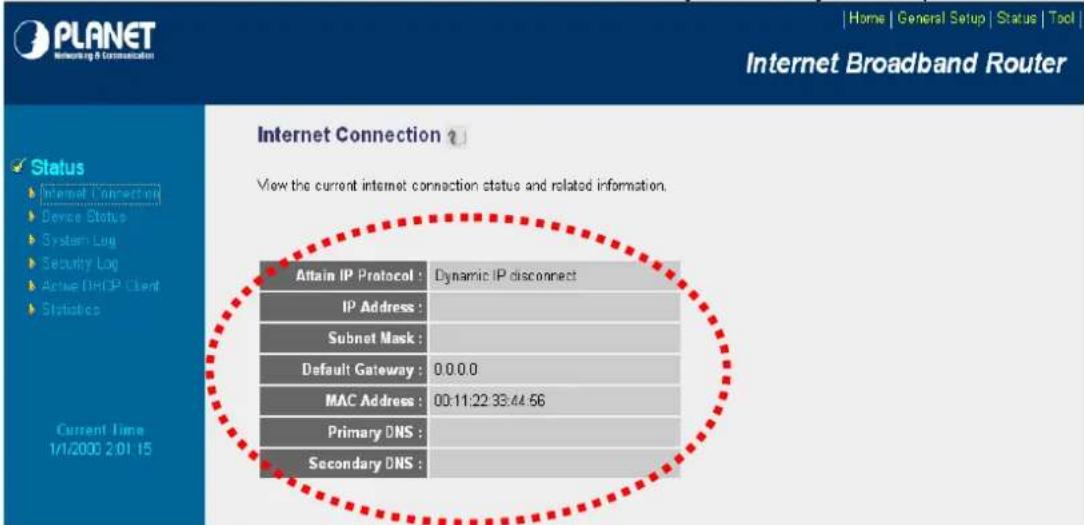
text_image
PLANET Internet Broadband Router Home | General Setup | Status | Tool | Internet Connection ? View the current internet connection status and related information. Status ► Internal Connection ► Device Status ► System Log ► Security Log ► Active DHCP Client ► Statistics Current Time 1/1/2000 2:01:15 Attain IP Protocol : Dynamic IP disconnect IP Address : Subnet Mask : Default Gateway : 0.0.0.0 MAC Address : 00:11:22 33:44:56 Primary DNS : Secondary DNS :Your WAN IP Address will be listed here.
3. Open/set Virtual Server Ports to enable remote image viewing
The firewall security features built into the router and most routers prevent users from
accessing the video from the device over the Internet. The router connects to the Internet over a series of numbered ports. The ports normally used by the device are blocked from access over the Internet. Therefore, these ports need to be made accessible over the Internet. This is accomplished using the Virtual Server function on the router. The Virtual Server ports used by the camera must be opened through the router for remote access to your camera.
Follow these steps to configure your router's Virtual Server settings
- Click Enabled.
- Enter a unique name for each entry.
- Select Both under Protocol Type (TCP and UDP)
- Enter your camera's local IP address (e.g., 192.168.0.100, for example) in the Private IP field.
- If you are using the deficultaramera port settings, enter 80 into the P Private Port section and click Add.
A check mark appearing before the entry name will indicate that the ports are enabled.

Some ISPs block access to port 80. Be sure to check with your ISP so that you can open the appropriate ports accordingly. If your ISP does not pass traffic on port 80, you will need to change the port the camera uses from 80 to something else, such as 8080. Not all routers are the same, so refer to your user manual for specific instructions on how to open ports.
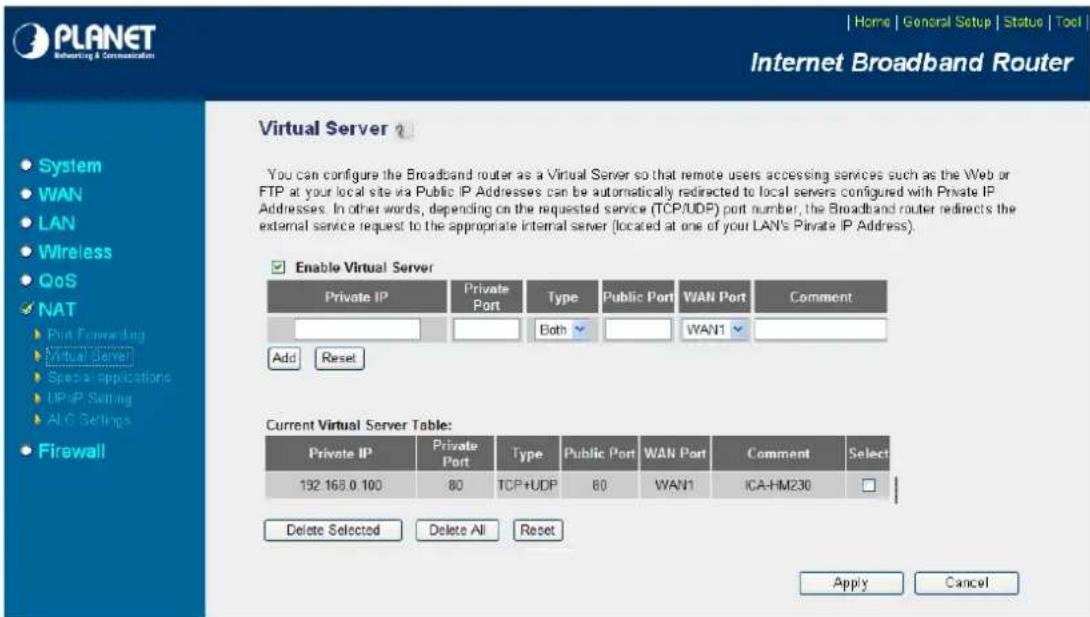
text_image
PLANET Internet Broadband Router Home | General Setup | Status | Tool | System WAN LAN Wireless QoS NAT Port Forwarding Virtual Server Special applications UPSP Setting ALC Settings Firewall Virtual Server ? You can configure the Broadband router as a Virtual Server so that remote users accessing services such as the Web or FTP at your local site via Public IP Addresses can be automatically redirected to local servers configured with Private IP Addresses. In other words, depending on the requested service (TCP/UDP) port number, the Broadband router redirects the external service request to the appropriate internal server (located at one of your LAN's Private IP Address). Enable Virtual Server Private IP Private Port Type Public Port WAN Port Comment Both WAN1 Add Reset Current Virtual Server Table: Private IP Private Port Way Public Port WAN Port Comment Select 192 168.0 100 80 TCP+UDP 60 WAN1 ICA-HM230 Delete Selected Delete All Reset Apply CancelEnter valid ports in the Virtual Server section of your router. Please make sure to check the box on this line to enable setting the device can be accessed from WAN by the router's WAN IP address.
By now, you have finished your entire PC configuration for this device.
Appendix F. Troubleshooting & Frequently Asked Questions
| Features | |
| The video and audio codec is adopted in the device. | The device utilizes H.264 and M-JPEG triple compression to provide high-quality images where H.264 is standards for video compression and M-JPEG is a standard for image compression.The audio codec is defined as AMR for 3GPP and G.711 for RTSP streaming. |
| The maximum number of users that accesses the device simultaneously. | The maximum number of users is limited to 10. However, it also depends on the total bandwidth accessed to this device from clients. |
| Installing this device | |
| The network cabling is required for the device. | The device uses Category 5 UTP cable allowing 10 and/or 100 Base-T networking. |
| The device will be installed and work if a firewall exists on the network. | If a firewall exists on the network, port 80 is open for ordinary data communication. The HTTP port and RTSP port need to be opened on the firewall or NAT router. |
| The username and password for the first time or after factory default reset | Username =adminand Password =admin.Note that it's all case sensitivity. |
| Forgot the username and password | Follow the steps below:(1)Remove power, and press and hold the button in the back of IP camera.(2)Power on the camera. Don't release the button during the system booting.(3)It will take around 30 seconds to boot the camera.(4)Release the button when camera finishes proceeding.(5)Login the camera using the default IP (http://192.168.0.20), where both username and password areadmin. |
| Forgot the IP address of the device. | Check IP address of device by using the PLANET IP Installer program or by UPnP discovery or set the device to default by Reset button. |
| PLANET IP Installer program cannot find the device. | Re-power the device if cannot find the unit within 1 minute.Do not connect devic e over a router. PLANET IP Installer program cannot detect device over a router.If IP address is not assigned to the PC that runs PLANET IP Installer program, then PLANET IP Installer program cannot find device. Make sure that IP address is assigned to the PC properly.Antivirus software on the PC might interfere with the setup program. Disable the firewall of the antivirus software during setting up this device.Check the firewall setting of your PC or Notebook. |
| Internet Explorer does not seem to work well with the device | Make sure that your Internet Explorer is version 6.0 or later. If you are experiencing problems, try upgrading to the latest version of Microsoft's Internet Explorer from the Microsoft webpage. |
| PLANET IP Installer program fails to save the network parameters. | Network may have trouble. Confirm the parameters and connections of the device. |
| UPnP NAT Traversal | |
| Cannot work with NAT router | Maybe NAT router does not support UPnP function. Please check user's manual of router and turn on UPnP function. |
| Some IP cameras are working but others failed | Maybe too many IP cameras have been installed on the LAN, and then NAT router is out of resource to support more cameras. You could turn off and on NAT router to clear out of date information inside router. |
| Accessing this device | |
| Cannot access the login page and other web pages of the Network Camera from Internet Explorer | Maybe the IP address of the Network Ca mera is already being used by another device or computer. To confirm this possible problem, disconnect the Network Camera from the network first, and then run the Ping utility to check it out.Maybe it's the network cable. Try correcting your network cable and configuration. Test the network interface by connecting a local computer to the Network Camera via a crossover cable.Make sure the Internet connection and setting are OK.Make sure the IP address of Internet Explorer you entered is correct. If the Network Camera has had a dynamic address, it may have changed since you last checked it.Network congestion may prevent the web page from appearing quickly. Wait for a while.The IP address and Subnet Mask of the PC and Network Camera must be in the same class of the private IP address on the LAN.Make sure the http port used by the Network Camera, default=80 , is forwarded to the Network Camera's private IP address.The port number assigned in your Network Camera might not be available via Internet. Check your ISP for available port.The proxy serve r may prevent you from connecting directly to the Network Camera. You are advised not to use the proxy server.Confirm that Default Gateway address is correct.The router needs Port Forwarding feature. Refer to your router's manual for details.Packet Filtering of the router may prohibit access from an external network. Refer to your router's manual for details.Access the Network Camera from the Internet with t he global IP address of the router and port number of Network Camera.Some rout ers reject the global IP address to access the Network Camera on the same LAN. Access with the private IP address and correct port number of Network Camera.When you use DDNS, you need to set Default Gateway and DNSserver address.If it's not working after following the above procedure, reset Network Camera to default setting and install it again. |
| Image or video does not appear on the main page. | The first time the PC connects to Network Camera, a pop-up Security Warning window will appear to download ActiveX Controls. When using Windows XP, or Vista, log on with an appropriate account that is authorized to install applications.Network congestion may prevent the Image screen fro m appearing quickly. You may choose lower resolution to reduce the required bandwidth. |
| How to check whether the device's ActiveX is installed on your computer | Go to C:\Windows\Downloaded Program Files and check to see if there is an entry for the file "Web Watch2 Control". The status column should show "Installed". If the file is not listed, make sure your Security Settings in Internet Explorer are configured properly and then try reloading the device's home page. Most likely, the ActiveX control did not download and install correctly. Check your Internet Explorer security settings and then close and restart Internet Explorer. Try to browse and log in again. |
| Internet Explorer displays the following message: "Your current security settings prohibit downloading of ActiveX controls". | Set up the IE security settings or configure the individual settings to allow downloading and scripting of ActiveX controls. |
| The device works locally but not externally. | Might be caused from the firewall protection. Check the Internet firewall with your system or network administrator. The firewall may need to have some settings changed in order for the device to be accessible outside your LAN.Make sure that the device isn't conflicting with any other web server running on your LAN.Check the configuration of the router settings to allow the device to be accessed outside your local LAN.Check the bandwidth of Internet connection. If the Internet bandwidth is lower than target bit rate, the video streaming will not work correctly. |
| The unreadable characters are displayed. | Use the operating system of the selected language. Set the Encoding or the Character Set of the selected language on the Internet Explorer. |
| Frame rate is slower than the setting. | The traffic of the network and the object of the image affect the frame rate. The network congestion causes frame rate slower than the setting.Check the bandwidth of Internet connection. If the Internet bandwidth is lower than target bit rate, the video streaming will not work correctly.Ethernet switching hub can smooth the frame rate. |
| Image Transfer on e-mail or FTP does not work. | Default Gateway and DNS server address should be set up correctly.If FTP does not work properly, ask your ISP or network administrator about the transferring mode of FTP server. |
| Video quality of the device | |
| The focus on the Camera is bad. | The lens is dirty or dust is attached. Fingerprints, dust, stain, etc. on the lens can degrade the image quality. |
| The color of the image is poor or strange. | Adjust White Balance.To ensure the images you are viewing are the best they can be, set the Display property setting (color quality) to 16bit at least and 24 bit or higher if possible within your computer.The configuration on the device image display is incorrect. You need to adjust the image related parameters such as brightness, contrast, hue and sharpness properly. |
| Image flickers. | If the object is dark, the image will flicker. Make the condition around the Camera brighter. |
Appendix G. Micro SD Card Compatibility
The following is the Micro SD Card recommended:
| Transcend SDHC | class4 16GB | |
| SDHC class4 32GB | ||
| SD class4 16GB | ||
| SD class4 32GB | ||
| SDHC class6 4GB | ||
| SDHC class6 8GB | ||
| SDHC class6 16GB | ||
| SD class6 4GB | ||
| SD class6 8GB | ||
| SD class6 16GB | ||
| SDHC class10 4GB | ||
| SDHC class10 8GB | ||
| SDHC class10 16GB | ||
| SDHC class10 32GB | ||
| SanDisk SDHC | class4 4GB | |
| SDHC class4 8GB | ||
| SDHC class4 16GB | ||
| SDHC class4 32GB | ||
EC Declaration of Conformity
For the following equipment:
*Type of Product: 5 Mega-Pixel Outdoor IR PoE IP Camera
*Model Number: ICA-3550V
* Produced by:
Manufacturer's Name : Planet Technology Corp.
Manufacturer's Address: 10F., No.96, Minquan Rd., Xindian Dist., New Taipei City 231,. Taiwan (R.O.C.)
is herewith confirmed to comply with the requirements set out in the Council Directive on the Approximation of the Laws of the Member States relating to Electromagnetic Compatibility (2004/108/EC).
For the evaluation regarding the Electromagnetic Compatibility, the following standards were applied:
EN 55022 (2010)
IEC 61000-3-2 (2005+A1:2008+A2:2009)
IEC 61000-3-3 (2008)
EN 50130-4 (2011)
IEC 61000-4-2 (2008)
IEC 61000-4-3 (2006+A1:2007+A2:2010)
IEC 61000-4-4 (2004+A1:2010)
IEC 61000-4-5 (2005)
IEC 61000-4-6 (2008)
IEC 61000-4-8 (2009)
IEC 61000-4-11 (2004)
EN 60950-1 (2006+A11:2009+A1:2010+A12:2011)
Responsible for marking this declaration if the:
☒ Manufacturer ☐ Authorized representative established within the EU
Authorized representative established within the EU (if applicable):
Company Name: Planet Technology Corp.
Company Address: 10F., No.96, Minquan Rd., Xindian Dist., New Taipei City 231, Taiwan
(R.O.C.)
Person responsible for making this declaration
Name, Surname Jonas Yang
Position / Title : Product Manager
Taiwan
Place
24 ^th Oct., 2014
Date

Legal Signature