
ICA-4480F - Security Camera Planet - Free user manual and instructions
Find the device manual for free ICA-4480F Planet in PDF.


| Product Type | IP Security Camera |
| Model | ICA-4480F |
| Image Sensor | 5 Megapixel Progressive Scan CMOS |
| Maximum Resolution | 2592x1944 (5MP) |
| Video Compression | H.265, H.264, H.264+, H.265+ |
| Lens | Motorized varifocal with remote focus and zoom |
| Network Interface | RJ45 10/100 Mbps |
| Power Supply | DC 12V or PoE (IEEE 802.3af) |
| Power Consumption | < 12W |
| IR Range | Up to 30m (Smart IR) |
| Audio | Audio input/output (via external devices) |
| Storage | Network storage (FTP, NAS, cloud) |
| Protocols | TCP/IP, HTTP, HTTPS, FTP, DHCP, RTSP, ONVIF (Profile S) |
| Event Detection | Motion detection, Privacy mask, Video tampering, ROI |
| Operating Temperature | -10°C to 50°C (14°F to 122°F) |
| Dimensions | 70 x 70 x 150 mm (approximate) |
| Weight | 0.5 kg (approximate) |
| Certifications | FCC Class B, CE |
Frequently Asked Questions - ICA-4480F Planet
User questions about ICA-4480F Planet
0 question about this device. Answer the ones you know or ask your own.
Ask a new question about this device
Download the instructions for your Security Camera in PDF format for free! Find your manual ICA-4480F - Planet and take your electronic device back in hand. On this page are published all the documents necessary for the use of your device. ICA-4480F by Planet.
USER MANUAL ICA-4480F Planet
H.265 5 Mega-pixel Smart IR IP Camera with Remote Focus and Zoom
ICA-M3580P / ICA-M4580P

Copyright
Copyright © 2023 by PLANET Technology Corp. All rights reserved. No part of this publication may be reproduced, transmitted, transcribed, stored in a retrieval system, or translated into any language or computer language, in any form or by any means, electronic, mechanical, magnetic, optical, chemical, manual or otherwise, without the prior written permission of PLANET.
PLANET makes no representations or warranties, either expressed or implied, with respect to the contents hereof and specifically disclaims any warranties, merchantability or fitness for any particular purpose. Any software described in this manual is sold or licensed "as is". Should the programs prove defective following their purchase, the buyer (and not PLANET, its distributor, or its dealer) assumes the entire cost of all necessary servicing, repair, and any incidental or consequential damages resulting from any defect in the software. Further, PLANET reserves the right to revise this publication and to make changes from time to time in the contents hereof without obligation to notify any person of such revision or changes.
All brand and product names mentioned in this manual are trademarks and/or registered trademarks of their respective holders.
FCC Interference Statement
This equipment has been tested and found to comply with the limits for a Class B digital device, pursuant to Part 15 of FCC Rules. These limits are designed to provide reasonable protection against harmful interference in a residential installation. This equipment generates, uses, and can radiate radio frequency energy and, if not installed and used in accordance with the instructions, may cause harmful interference to radio communications. However, there is no guarantee that interference will not occur in a particular installation. If this equipment does cause harmful interference to radio or television reception, which can be determined by turning the equipment off and on, the user is encouraged to try to correct the interference by one or more of the following measures:
- Reorient or relocate the receiving antenna.
- Increase the separation between the equipment and receiver.
- Connect the equipment into an outlet on a circuit different from that to which the receiver is connected.
- Consult the dealer or an experienced radio technician for help.
FCC Caution
To assure continued compliance, use only shielded interface cables when connecting to computer or peripheral devices. Any changes or modifications not expressly approved by the party responsible for compliance could void the user's authority to operate the equipment.
This device complies with Part 15 of the FCC Rules. Operation is subject to the following two conditions: (1) This device may not cause harmful interference, and (2) this device must accept any interference received, including interference that may cause undesired operation.
FCC Radiation Exposure Statement
This equipment complies with FCC radiation exposure set forth for an uncontrolled environment. In order to avoid the possibility of exceeding the FCC radio frequency exposure limits, human proximity to the antenna shall not be less than 20 cm (8 inches) during normal operation.
Safety
This equipment is designed with the utmost care for the safety of those who install and use it. However, special attention must be paid to the dangers of electric shock and static electricity when working with electrical equipment. All guidelines of this and of the computer manufacture must therefore be allowed at all times to ensure the safe use of the equipment.
CE Mark Warning
This is a Class B product. In a domestic environment, this product may cause radio interference, in which case the user may be required to take adequate measures.
WEEE Regulation

To avoid the potential effects on the environment and human health as a result of the presence of hazardous substances in electrical and electronic equipment, end users of electrical and electronic equipment should understand the meaning of the crossed-out wheeled bin symbol. Do not dispose of WEEE as unsorted municipal
waste and have to collect such WEEE separately.
Revision
User's Manual of PLANET H.265(+) IP Camera
Model: ICA-3480/ICA-4480/ICA-3480F/ICA-4480F/ICA-M3580P/ICA-M4580P
Rev: 1.1 (July, 2023)
Part No. EM-ICA-x80_series_v1.1
Legal Disclaimer
- Should any reasons below cause the product destroyed or service stop, we will assume no responsibility for your or third party's personal injury and property loss: ① No installation or use according to instruction strictly. ② For sake of state-building maintenance or public interest. ③ Cases of force majeure. ④ Your personal or third party reasons. (Include no limitation use of third party's products, software or components)
- Our company has never guaranteed the products for improper or illegal purposes and uses. This product cannot be used as medical & safety devices or other applications that will cause danger or injury. And loss or responsibility caused by above uses, you must bear it by yourself.
- With correct installation and use, this product can detect the illegal intrusion, but it cannot avoid accidents and personal injury or property damage due to these accidents. Please be on the alert in your daily life, reinforce your safety awareness.
- Our company assumes no responsibility for any indirect or occasional or special or punitive damages, request, property damage or any loss of data or file. Within the max scope of law allowed, our company's compensation is no more than the products amount you paid.
Safety Instruction
This manual is intended to ensure that user can use the product properly without danger or any property loss. Please read it carefully and take care of it for further reference. Precaution measures are divided into "warnings" and "cautions" as below:
Warnings: Neglecting any of the warnings may cause death or serious injury.
Cautions: Neglecting any of the cautions may cause injury or equipment damage.
 | WarningFollow these safeguards to avoid death or serious injury |  | CautionFollow these precautions to Prevent potential injury or Property loss |

Warning
- Electrical safety regulations of the nation and the region must be strictly followed during installation or use.
- Please use the matched power adapter from standard company.
- Do not connect multiple IP Cameras with one single power adapter (Overload for adapter may lead to over-heat or fire hazard.
- Shut down the power while connecting or dismounting the device. Do not operate with power on.
● The device should be firmly fixed when installed onto the wall or beneath the ceiling. - Shut down the power and unplug the power cable immediately when there is smoke, odor or noise rising from the IP Camera. Then contact the dealer or service center.
- Please contact the local dealer or latest service center when IP Camera works abnormally. Do not attempt to disassemble or modify the device yourself. (We shall shoulder no responsibility for problems caused by unauthorized repair or maintenance.

Cautions
● Make sure the power supply voltage is correct before using the camera.
- Do not drop objects onto the device or vibrate the device vigorously, and keep the device away from locations where magnetic interference is present. Avoid installing the device where the surface is vibrating or subject to shock (ignoring this may damage the device).
- Do not aim the camera lens at the strong light such as sun or incandescent lamp. The strong light can cause fatal damage to the camera.
- Do not expose the IP Camera used indoors to places that may be exposed to rain or very humid.
- Store in a dry, non-corrosive atmosphere, away from direct sunlight, in poorly ventilated locations, or near heat sources such as heaters or heaters (ignoring this may result in a fire hazard).
- To avoid IP Camera damage, do not place the IP Camera in a location where there is soot or water vapor, too high temperatures, or lots of dust.
- Do not touch the heat sink of the product directly to avoid burns.
- When cleaning, wipe off the dirt on the casing with a soft cloth. When cleaning the dirt, it should be cleaned with a dry cloth. When the dirt is not easy to remove, it can be wiped clean with a neutral detergent. Do not use alkaline cleaner to wash. If there is dust on the lens, use a special lens paper to wipe it.
● Products connected to the Internet may face network security problems. Please strengthen the protection of personal information and data security. When you find that the product may have a network security risk, please contact us in time.
- Please understand that it is your responsibility to properly configure all passwords and other related product security settings, and keep your username and password in a safe place.
- Please keep all the original packaging materials of the product properly, so that when there are a problem, use the packaging materials to package the product and send it to the agent.
(Note: Full-text IP camera is referred to as IP camera for short)
Table of Contents
CHAPTER 1 PRODUCT INTRODUCTION ....8
1.1 PRODUCT HIGHLIGHTS 8
1.2 PRODUCT FEATURES....9
CHAPTER 2 OPERATING INSTRUCTIONS....10
2.1 NETWORK CONNECTION ....10
2.1.1 WIRED NETWORK CONNECTION....10
2.2 DETECTING AND CHANGING THE IP ADDRESS ....11
CHAPTER 3 ACCESS TO THE IP CAMERA BY PVMS SOFTWARE ....12
CHAPTER 4 ACCESS TO THE IP CAMERA BY WEB CLIENT ....13
4.1 PREPARATION BEFORE INSTALLING PLUGIN....13
4.2 LOGIN AND EXIT 13
4.2.1 LOGIN....13
4.2.2 CHANGING PASSWORD 14
4.2.3 FORGET PASSWORD 16
4.2.4 EXIT SYSTEM 19
4.3 INSTALLING THE LSIPCPLUGIN CONTROLS....20
4.4 MAIN INTERFACE DESCRIPTION....24
CHAPTER 5 LIVE PREVIEW ....25
5.1 LIVE VIEW....25
5.2 IMAGE CONFIG....26
5.3 PTZ....27
CHAPTER 6 PLAYBACK ....28
CHAPTER 7 PICTURE MANAGEMENT....30
CHAPTER 8 CONFIGURATION....31
9.5 IMPORT AND EXPORT....91
9.6 LOG 91
CHAPTER 10 FREQUENTLY ASKED QUESTIONS....92
Chapter 1 Product Introduction
1.1 Product Highlights
PLANET ICA-x80 IP camera series features video and audio acquisition, intelligent coding, network transmission and other functions. It uses embedded operating system and high-performance hardware processing platform, with high stability and reliability to meet the diverse needs of the industry. Based on Ethernet control, IP camera image compression can be achieved through the network and transmitted to different users. You can use the browser or client software to control the IP camera, and through the browser to set the IP camera parameters, such as system parameter setting, OSD display setting and other parameters. Through the browser or client software configuration, motion detection, abnormal alarm and other intelligent functions can be achieved.
1.2 Product Features
Below are the features:
■ System functions
▶ Video and capture functions
The IP camera supports video recording and capture function. You can also install a memory card or configure a network storage disk to configure the recording and snapshot plan to achieve the planned recording and snapshot.
User management
You can manage multiple different users using the default "admin" user name and password.
Video playback (ICA-M3580P/ICA-M4580P only)
Support the TF card or SD card to support the IP camera to support video playback, query and playback card recording.
■ Event detection function
The IP camera supports ordinary event and smart event.
Ordinary event
Ordinary events include Motion Detection, Privacy Mask, Video Tampering, Alarm Input/Output, Audible alarm output and ROI.
Smart event
Smart events include Intrusion Detection, Line Cross Detection, Loitering Detection and People Gathering Detection.
Internet function
IP camera supports TCP/IP, ICMP, HTTP, HTTPS, FTP, DHCP, RTP, RTSP, NTP, SMTP, UDP, TCP, DNS, DDNS and other network communication protocols as well as ONVIF2.4, CGI, mainstream manufacturers agreement and other Internet protocols.
Cloud-based storage function
The IP camera supports the cloud-based storage function, which can store the device's all-day recording on the cloud server and the motion detection alarm information on the cloud server

- The above product features mentioned are only for PLANET ICA-x80 series IP camera only.
Chapter 2 Operating Instructions
2.1 Network Connection
After the IP camera series is installed, you can preview and configure the .
2.1.1 Wired network connection
Before configuring the IP camera, make sure that the IP camera is connected to the computer and that you can access the IP camera you want to set up. There are two types of wired connections; you can directly connect the IP camera to the computer with a network cable as shown in Figure 2-1:
![graph LR A["IP Camera"] --> B["Network cable"] B --> C["Computer"]](/content/2026/06/1225143/images/b8601503638d9cd274e61e3f5aff748d8315fbd16bb2efeb08ec2b924ccb67bc.jpg)
Figure 2-1
Setting up IP cameras over the LAN via a switch or a router is shown in Figure 2-2:
![graph LR A["IP Camera"] -->|Network cable| B["Server"] B -->|Network cable| C["Computer"]](/content/2026/06/1225143/images/56a736f843c21b582edb18305107bf110ab9041398a2798465753a29b6de1781.jpg)
Figure 2-2
2.2 Detecting and Changing the IP Address
To access the IP address of an IP camera, proceed as follows:
Step 1: Search IP Camera IP address.
- Using the PLANET IP Search tool, you can search all the online cameras in the LAN and display the IP, MAC address, version, port and other information of the cameras, as shown in Figure2-3.
- Use the PVMS client software to search for online devices. For details, refer to the PVMS User Manual.
Step 2 : Modify the IP address of the IP camera and connect the computer to the same network segment.
- In the PLANET IP search tool, select the device to directly modify the IP, found on the right side of the interface by entering the password, and then click "Modify".
Step 3 : Open the browser to enter the IP address of the camera as the web login screen appears.

Figure 2-3
- When setting up the IP address of the IP camera, keep the device IP address and the computer IP address in the same LAN segment.
- The default IP address is 192.168.0.20 and the port number is 80. The default administrator user name is "admin", and password is "admin". And you are highly recommended to "Modify" the initial password after your first login.
- To access the IP camera of different subnets, set the gateway of the IP camera after login. For details, see 6.3.1 Configuring TCP/IP.
Chapter 3 Access to the IP Camera by PVMS
Software
The PVMS software is available on the company website (www.planet.com.tw). You can use this software to view live video and manage IP camera. Follow the installation prompts to install the software. The control panel and real-time view interface of the PVMS software are shown in Figure 3-1.

Figure 3-1

Note
- For detailed information about the software, refer to the user manual of the PVMS Software.
Chapter 4 Access to the IP Camera by Web Client
4.1 Preparation before installing plugin
Make sure all the hardware connections and power equipment are normal before switching on the computer and running a ping for the IP address of the IP camera (Note: The IP address of the IP Camera in LAN must be unique.), such as 192.168.0.20. If the IP camera responds, it indicates that the network connection is normal; you can open a browser to log in to web page.
4.2 Login and Exit
4.2.1 Login
Open a browser on your computer and enter the IP camera address in the web address bar (the default address used for the first time is: http://192.168.0.20) to enter the login interface, as shown in Figure 4-1.
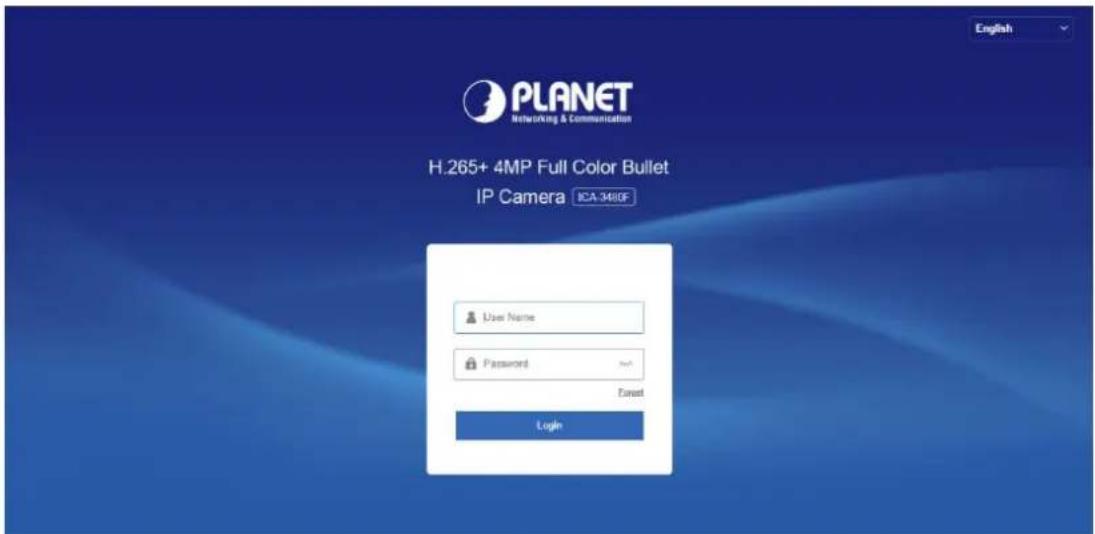
Figure 4-1
Select a system language (Simplified Chinese, Traditional Chinese, English, Russian, Korean, Polish, French, Japanese, Spanish, Portuguese, Italian, Hebrew, Turkish, Bulgarian, Arabic, German, Dutch, Czech or Vietnamese), and enter the username (default is "admin") and password (default is "admin") to log in.

- If you have modified the IP address of the IP camera, log in with the newly set IP address.
- Different models of IPC may have varying terminologies for the same function and parameters when accessed through the browser. The specific terminology used will be based on the actual product.
4.2.2 Changing password
After the successful login, the interface prompts to change the password, as shown in Figure 4-2:
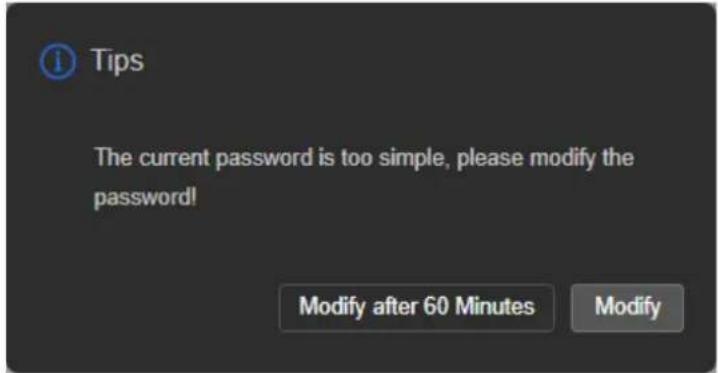
Figure 4-2
For the account security, click "Modify" and enter the user interface to modify the password, as shown in Figure 4-3:
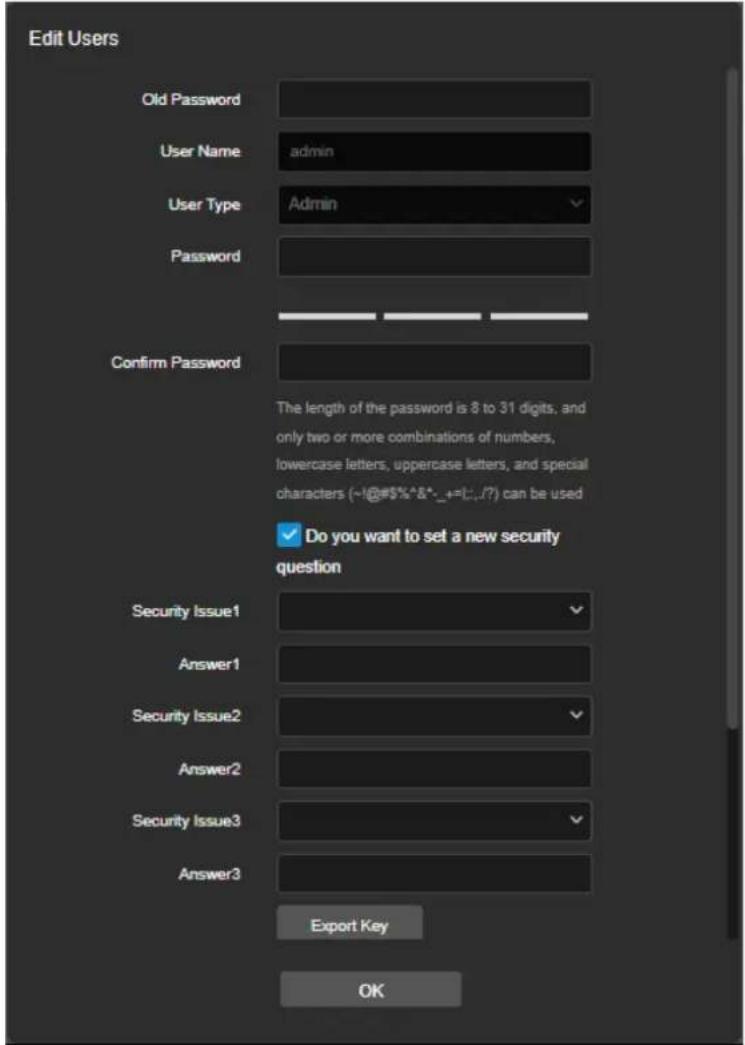
Figure 4-3
To change your password, follow these steps:
Step 1: Enter the old password and enter the new password in the Password and Confirm Password fields;
Step 2: Set security questions 1, 2, and 3 and enter the answers.
Step 3: Click "Export Key" to save the key file to your computer.
Step 4: Click "OK" to complete the password modification.

- When setting a new password, you must set at least 8 digits and contain both letters and numbers to set it successfully.
- The default password is "admin". You are advised to change the password for the sake of security.
4.2.3 Forget password
When you forget your password, you can reset the password in two ways: security question verification and security key verification.
Security question verification
Step 1: On the login interface, click "Forget".
Step 2: Select the verification method as "Security question validation" (as shown in Figure 4-4①), enter the answers to security questions 1, 2, and 3, and click "Next".
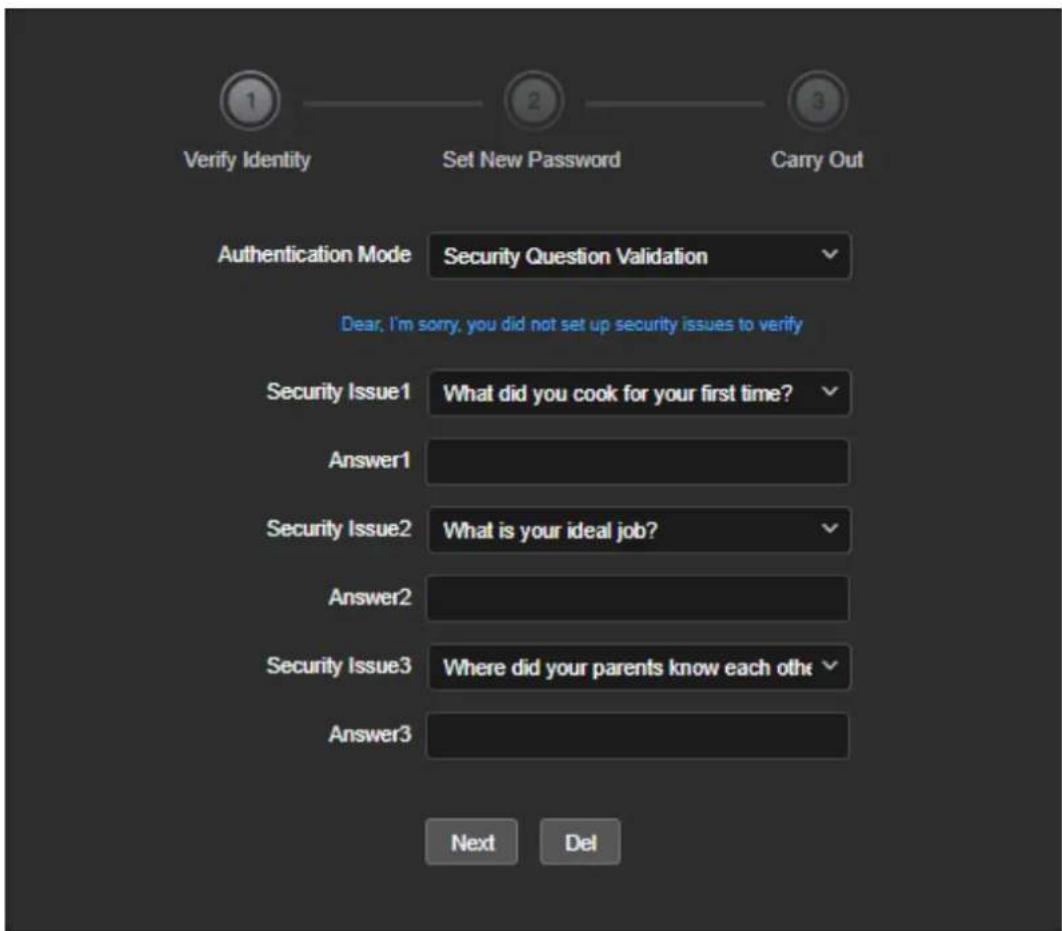
Figure 4-4 ①
Step 3: Enter the new password and confirm the password (as shown in Figure 4-4 ②), and click "Next".
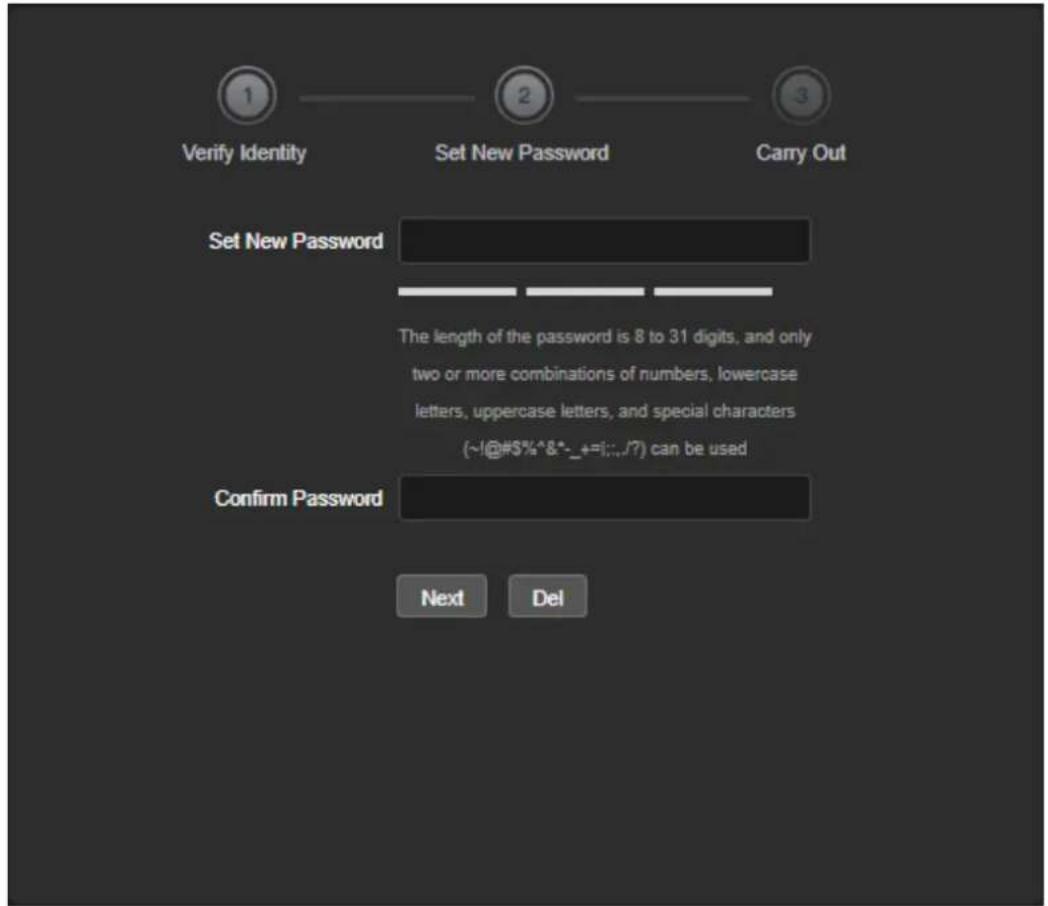
Figure 4-4 ②
Step 4: Click "Re-login" to return to the login interface (as shown in Figure 4-4 ③).
![graph TD A["1\nVerify Identity"] --> B["2\nSet New Password"] B --> C["3\nCarry Out"] D["√\nDear user, the password has been reset.\nre-login"] --> E](/content/2026/06/1225143/images/56671cafdce06510c283f252b4976519a26faef8dfd01f531ab03bc2697a872e.jpg)
Figure 4-4 ③
Security Key verification
Step 1: On the login interface, click "Forget".
Step 2: Select the verification method as "Security Key Verification" (as shown in Figure 4-5 ①), and click "Import" to import the key file when the password is modified;
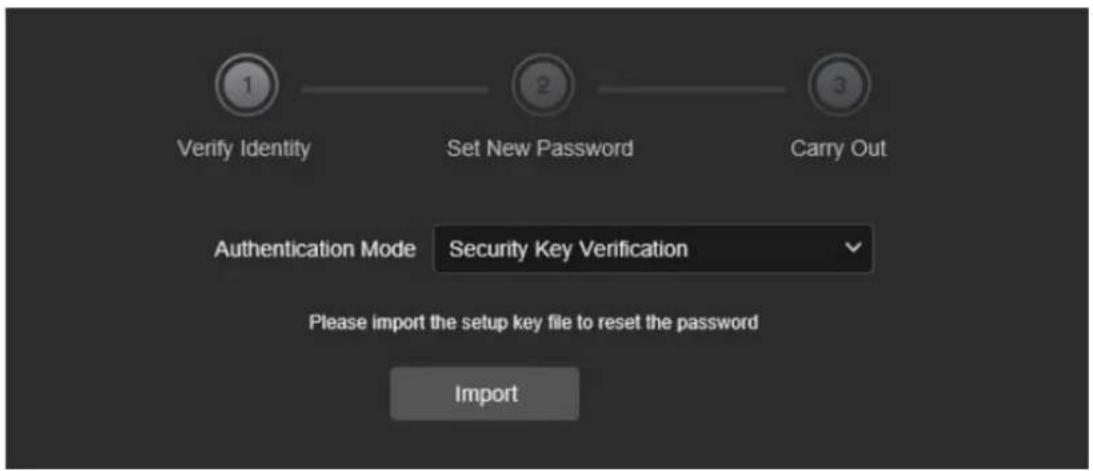
Figure 4-5 ①
Step 3: Enter the new password and confirm the password (as shown in Figure 4-5 ②), and click "Next".
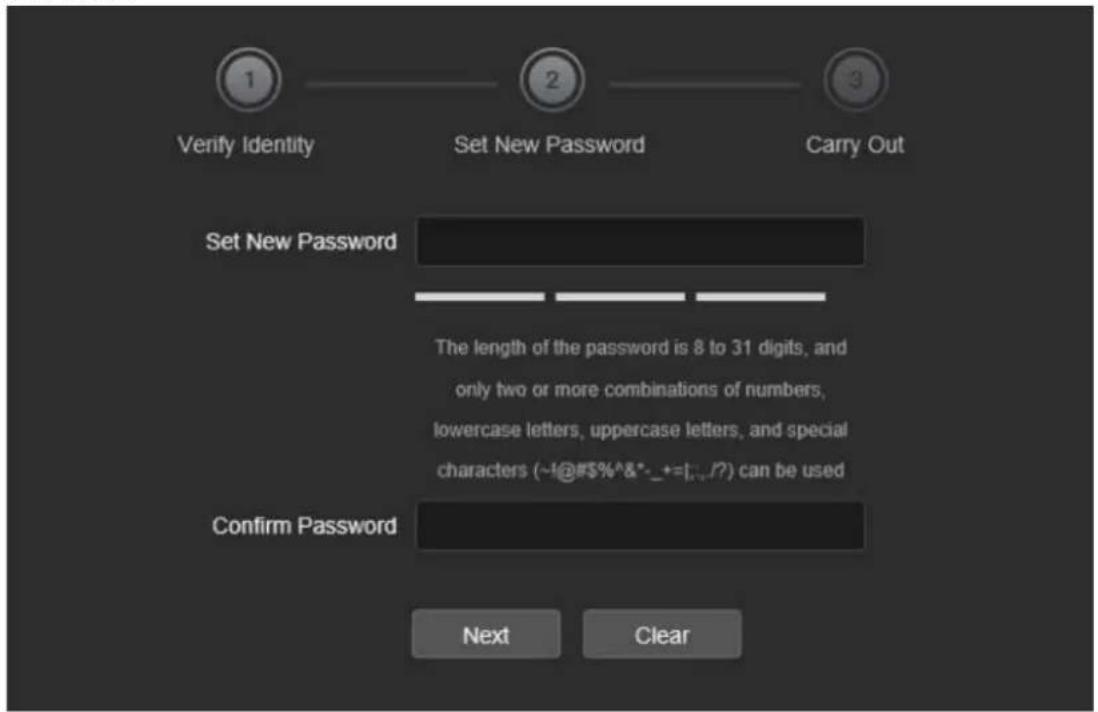
Figure 4-5 ②
Step 4: Click "Re-login" to return to the login interface (as shown in Figure 4-5 ③).
![graph LR A["1\nVerify Identity"] --> B["2\nSet New Password"] B --> C["3\nCarry Out"] D["√\nDear user, the password has been reset.\nre-login"] --> E](/content/2026/06/1225143/images/848cf2c9808349a21186a9855d671028566e42e0cbf8ccf7c940ae1b3006a437.jpg)
Figure 4-5 ③

- When selecting "Security question validation", enter the correct answers to 2 questions to enter the "Set New Password" interface and proceed to the next step.
- When setting a new password, you must set at least 8 digits and contain both letters and numbers to set it successfully.
- An IP camera key file can be used multiple times to reset the password if you forget it.
4.2.4 Exit System
When you enter the IP camera main interface, you can click the upper right corner of the


4.3 Installing the LsIPCPlugin Controls

Note
- If you use the browser for the first time to access the web page, you'll need to download and install the controls after login.
Open a browser and log in to IP camera to enter the download interface, as shown in Figure 4-6.

Figure 4-6
Click "Download plugin" in the upper right corner, select the control storage path, click "Download", close the browser, click "Open", select "English" → "OK" → "Next" → "Next" → "Next" → "Install" → "Finish" in Figure 4-7 (①、②、③、④、⑤、⑥) to complete the installation:
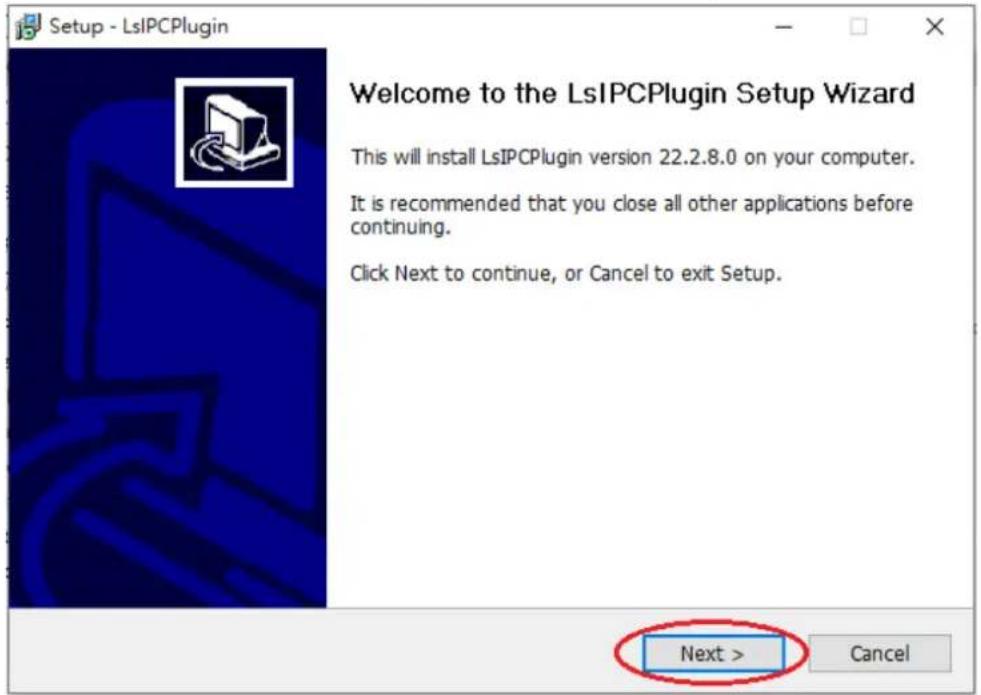
Figure 4-7 ①

Figure 4-7 ②
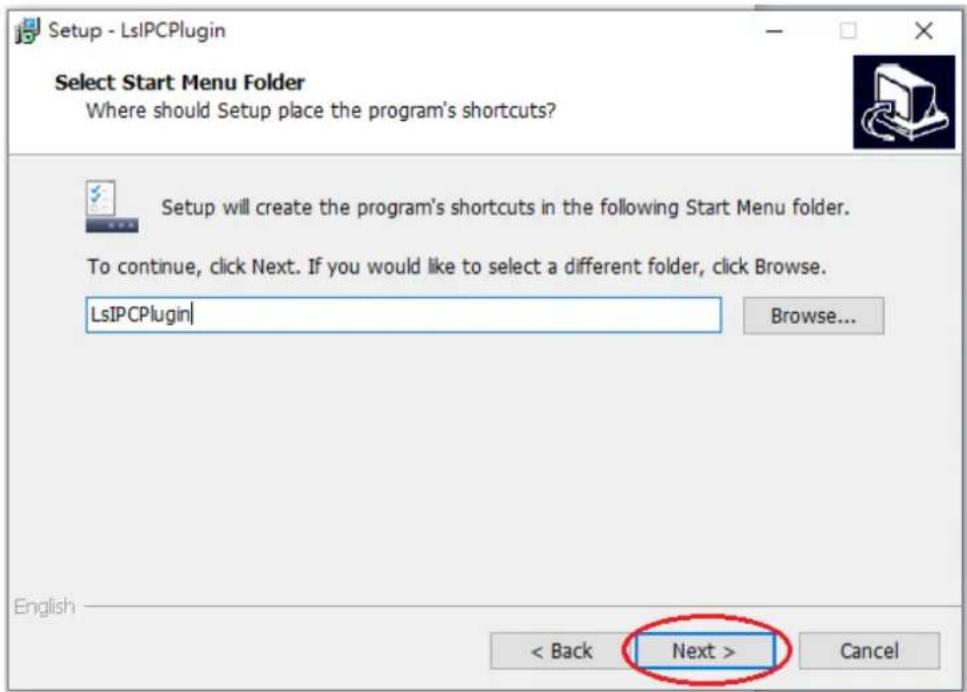
Figure 4-7 ③
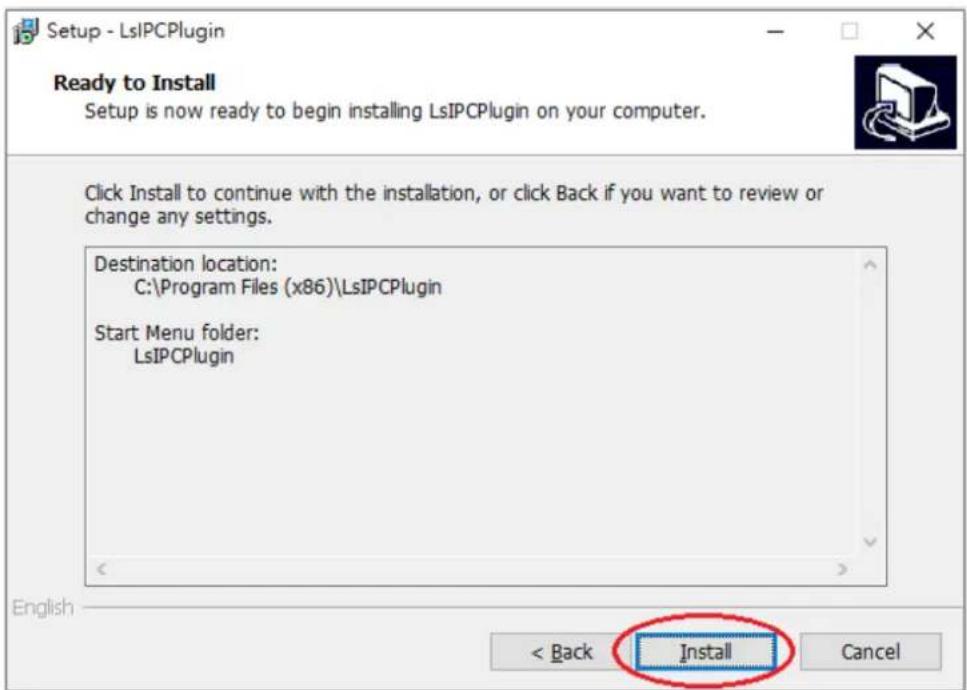
Figure 4-7 ④
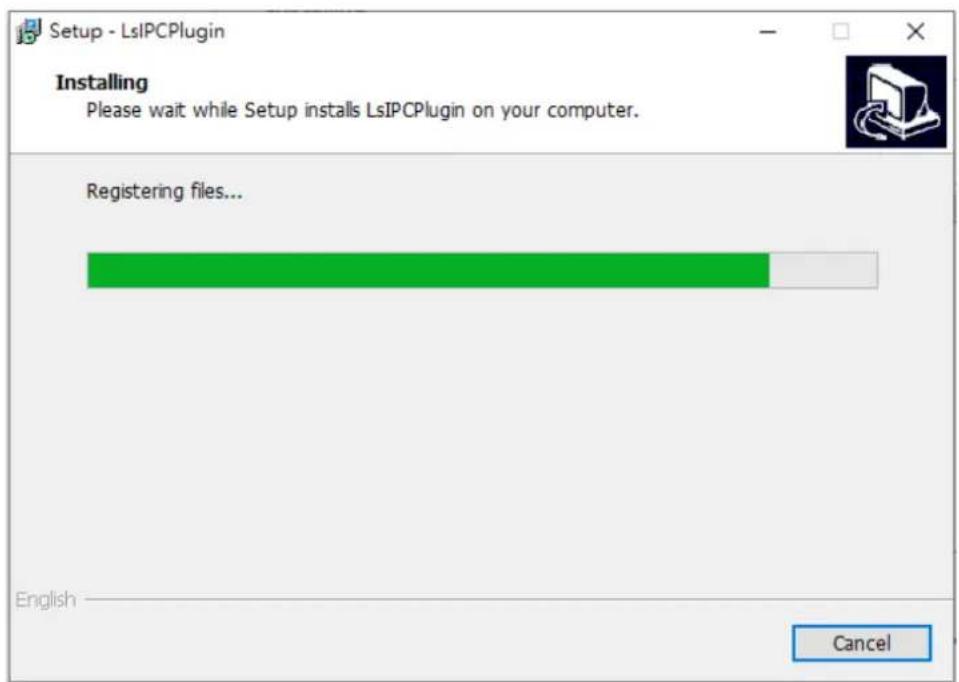
Figure 4-7 ⑤
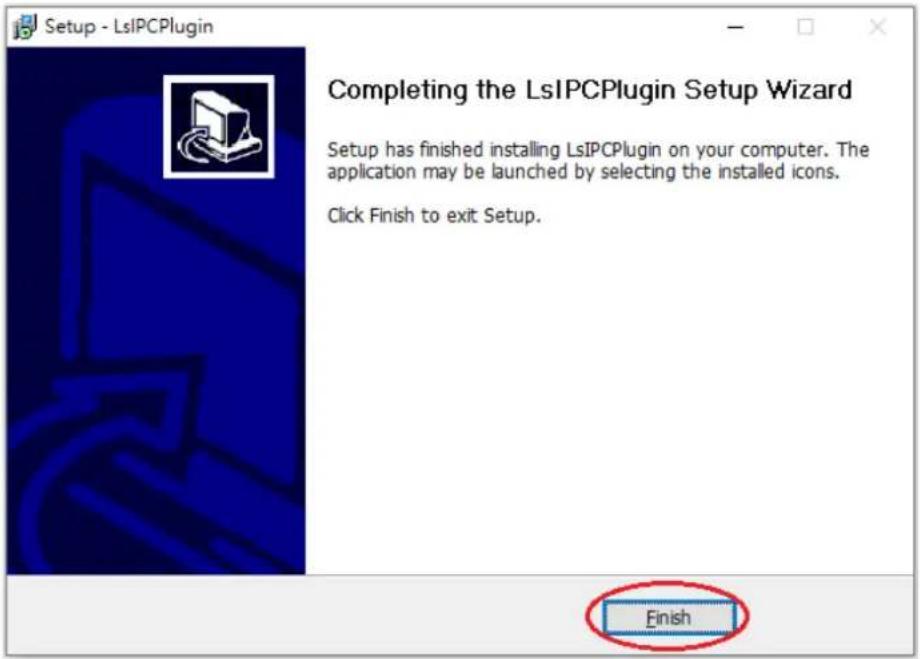
Figure 4-7 ⑥

If the system prompts "installation failure", please uncheck the "cancel protection mode" in the setting safety of "Internet options" and enter the "custom level" ActiveX control Settings as shown in Figure 4-8, and reinstall LsIPCPlugin after save settings.
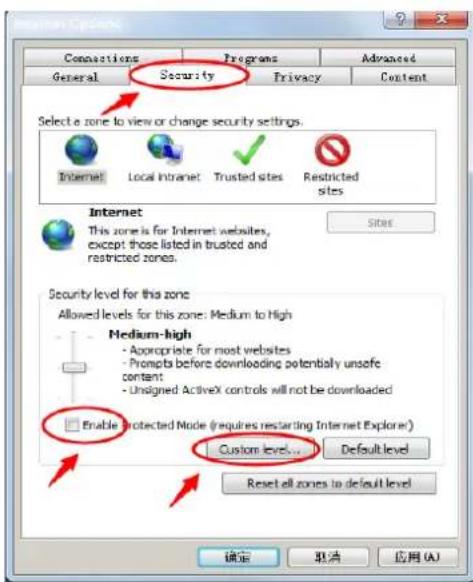
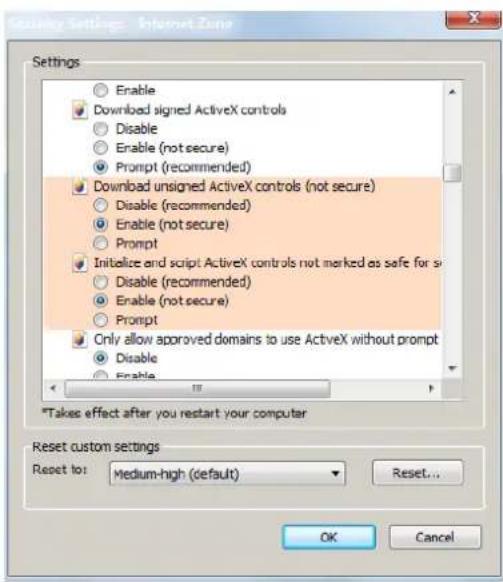
Figure 4-8
4.4 Main interface description
In the IP camera main interface, you can preview real-time video in Live View, Config,
Maintenance and other functions as shown in Figure 4-9 ① for
ICA-3480/ICA-4480/ICA-3480F/ICA-4480F and Figure 4-9 ② for ICA-M3580P/ICA-M4580P.
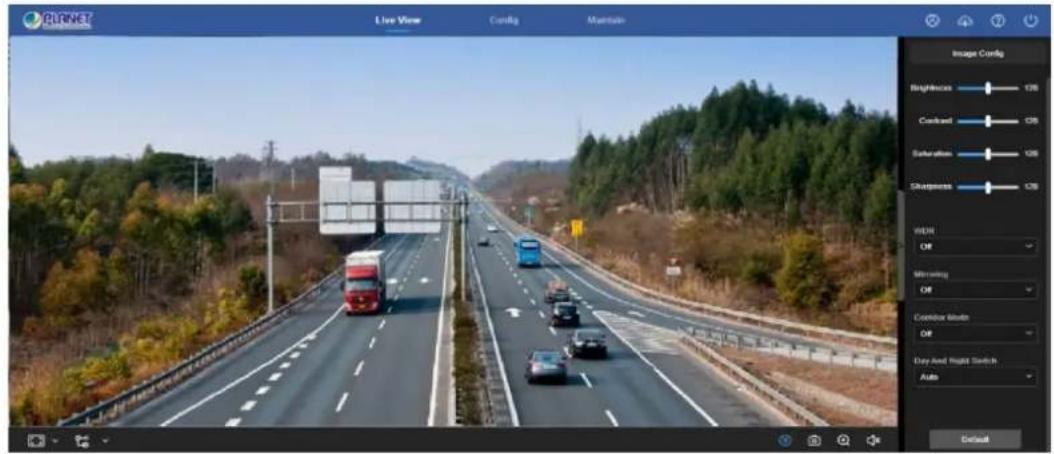
Figure 4-9 ①
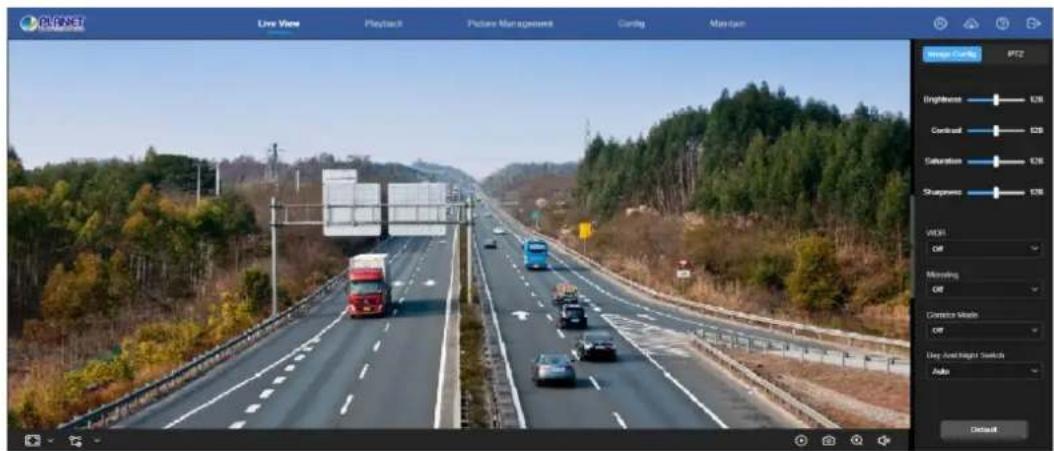
Figure 4-9 ②
【Live View】For IP camera monitoring preview, you can switch the code stream preview. Previews include video, capture, electronic zoom and other functions.
【Playback】Select the time or video type to find the device SD card in the video and playback. (ICA-M3580P/ICA-M4580P only)
【Picture Management】Used to query, view and download image files stored in the IP camera SD card. (ICA-M3580P/ICA-M4580P only)
【Config】 Click into the IP camera configuration interface for system configuration and function configuration.
【Maintain】 The maintenance consists of device information, upgrade, default, scheduled reboot and log query.
【Image Configuration】Used to set image parameters, WDR, mirroring, corridor mode, day and night conversion.
【PTZ】Used to set PTZ parameters, Zoom, Focus, Iris, One Key Focus, Humanoid tracking, Init Camera. (ICA-M3580P/ICAC-M4580P only)
Chapter 5 Live Preview
5.1 Live View
Click "Live View" to enter the IP camera preview interface, as shown in Figure 5-1:

Figure 5-1
【switching window size】In the real-time preview interface on the bottom left of the preview ratio option, click "4: 3", "16: 9", "1:1", "full screen" to switch the video preview scale.
【switching option】Select live preview stream on the bottom left of the real-time preview interface.
The preview interface operation buttons are shown in Table 5-1.
| Icon | Description |
 | The window size is 16:9. |
 | The window size is 4:3. |
 | The preview screen is displayed in its original size. |
 | Self-adaptive window size. |
 | To switch the real-time preview stream (The main stream is a high-definition stream, and the sub-stream is a standard definition stream), take the actual function of the device. |
 | Start/Stop live view. |
 | Manually start/stop recording. |
 | Manually capture the picture. |
 | Turn on / off the electronic zoom function -- Turn on the electronic zoom function in the preview image, and hold down the left mouse button to select the electronic zoom area as the interface shows the region enlarge the image |
 | Turn on/off Sound. |
Table 5-1
5.2 Image Config
Click " " on the right side of the window to display the Image Config interface. Click " " to hide the Image Config interface, where you can adjust the related image parameters such as brightness, contrast, saturation, sharpness and so on, as shown in Figure 5-2. Please refer to 8.5.1 for more details.

Figure 5-2
5.3 PTZ
PTZ function is for ICA-M3580P and ICA-M4580P only. Click "◀" on the right side of the window to display the PTZ interface. Click "◀" to hide the Image PTZ interface, where you can adjust the related PTZ parameters such as Zoom, Focus(auto), Iris(fixed), One Key Focus, Humanoid tracking(no support), Init Camera, as shown in Figure 5-3.
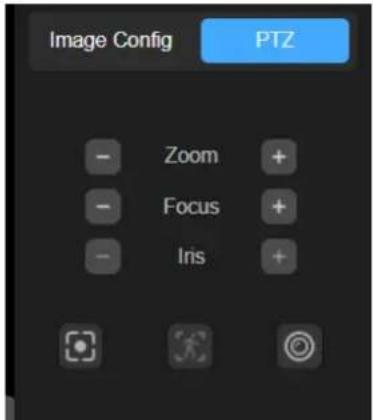
Figure 5-3
Chapter 6 Playback
Playback function is for ICA-M3580P and ICA-M4580P only. In the main interface, click "Playback into the video playback interface. Playback interface can be stored in the camera SD card within the video file for query, playback and download operations as show in Figure 6-1:

Figure 6-1
Here you can according to the video type (ordinary video, alarm video) and video time to query SD card in the video file, the query to the video file playback, screenshots, clips and download.
【Video search】Select the start time, end time, file type (All video, Normal Record, Motion Detection, External Alarm, Vehicle Detection, Area Intrusion, Line Cross Detection, Loiter
Detection, Personnel Gathering ), click " " to find, meet the conditions of the video file
will be on the right side of the calendar interface to select the red date (red date on behalf of the day of video), select the start time, Displayed on the timeline.
【Play/Stop】After searching for the video, click "☐" to start playing the video. At this time, the button becomes "☐" and click to stop playing the video.
【Slow Play/Fast Forward】When playing a video, click "◀" to slow down the video playback speed, click "▶" to speed up the video playback speed, see the upper right corner of the interface for the specific playback speed.
【Drag and drop】Video playback, the left mouse button click on the time axis to play the position, drag left and right, drag it to the middle of the yellow time point position, playback channel to play the point in time recording.
【Electronic zoom】During video playback, click "⊕", press and hold the mouse to select the area to be enlarged in the playback interface, release the mouse, the area is enlarged, click the right mouse button to restore the zoom, then the button becomes ", click to close the electronic zoom.
【Capture】Video playback, click "☐" to capture the current playback screen image, the interface pops up the capture picture folder, which shows just captured the picture.
【Audio】If the video file has audio, click the "播放" audio button during playback to turn on and off the playback of the recorded file. You can also adjust the volume by dragging the volume.
【Timeline magnification】Click the right side of the window on the right side of the "+" button, the interface below the time axis is enlarged, the maximum can be amplified to 5min a grid.
【The timeline is reduced】When the timeline is zoomed in, click the "■" button to return to the recording timeline before zooming in.
【Video File Query and Download】Select the date, time period and video type in the calendar. Click "in the right side of the window to pop up the video download interface. The interface will automatically search all the video files of the corresponding time range and video type, as shown in Figure 6-2:
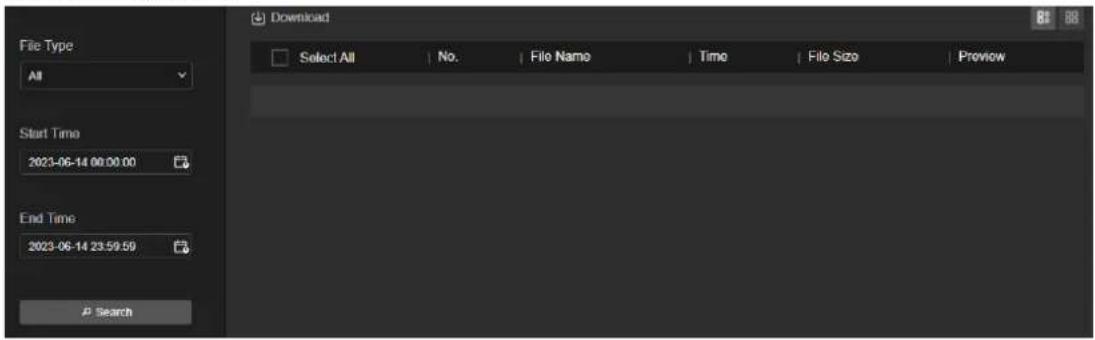
Figure 6-2
【Prev Page】Flip function, click to switch to the previous page.
【Next Page】Flip function, click to switch the next page.
【Download】Select "☐" in front of the serial number of the file to be downloaded, click
"Download" → "Save", set the download file storage path, the file starts to download, and wait for the download progress to complete.
- No SD card storage video camera and no video playback settings interface, please take the camera physical specific functions shall prevail.
- Before querying the video, please make sure that the SD card status in the device is "in use" and the 8.7.1 Rec Setup have been configured.
- Please refer to 8.1 Local Configuration for the settings of the video and picture saved in the playback interface.
● During playback, click "Download" to pause playback.
Chapter 7 Picture Management
Playback function is for ICA-M3580P and ICA-M4580P only. Click "Picture Management" in the main interface to enter the Picture Management can query and download the picture files stored in the camera SD card, as shown in Figure 7-1.
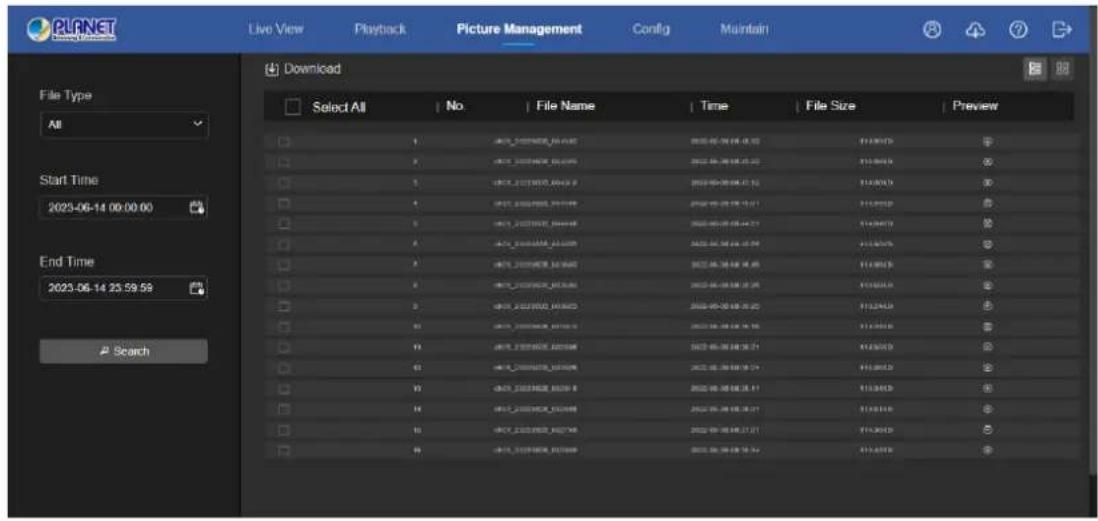
Figure 7-1
【Search】Select the file type on the left side of the interface, set the image query time, and click "" to list the eligible image information in the list on the right.
【Preview】On the right side of the file list, double-click "播放" to preview the picture.
【Download】Check the image you want to view and click “Download” to save the image information to your local computer. Support multiple images at the same time to download at the same time.
【View】Click "BB" at the top right of the interface to display the file in view mode.

● The picture is stored in the SD card of the device.
Chapter 8 Configuration
Click "Config" in the main interface to enter the local configuration interface. Here you can set the device system, network, video, images, events and other parameters.
8.1 Local Configuration
In the main interface, click "Config → Local Config" to enter the local configuration interface, where you can set the "Record File Settings", "Picture and Clip
Settings" storage path. Change the path by selecting Browse, as shown in Figure 8-1.
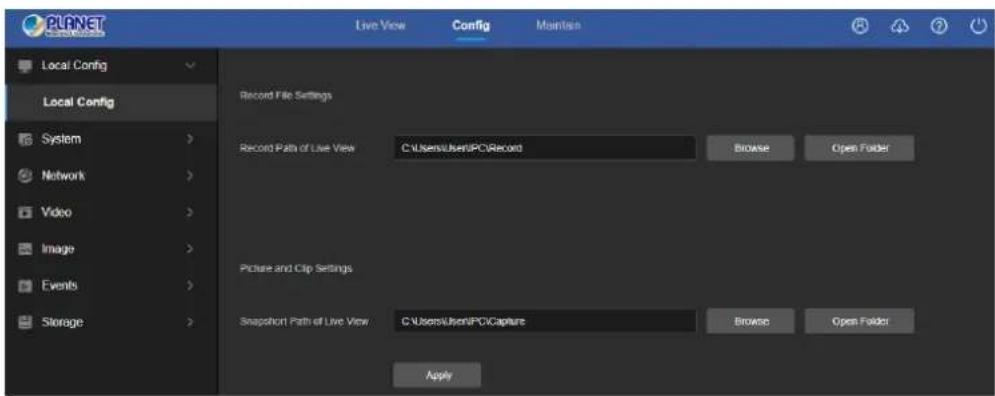
Figure 8-1
【Record File Settings】Set the saving path of the recorded video files. The recorded files are valid with the web browser.
【Record Path of Live View】 Set the saving path for the manually recorded video files.
【Download Path of Playback】 Set the saving path for the download files.
【Picture and Clip Settings】 Set the saving paths of the captured pictures and clipped video files. The pictures you captured are valid with the web browser.
【Snapshot Path of Live View】 Set the saving path of the manually captured pictures in live view mode.
【Snapshot Path of Playback】Set the saving path of the captured pictures in playback mode.
【Record Path of Playback】 Set the saving path of the clipped video files in playback mode.

Note
- The local configuration needs to install middleware, otherwise the configuration cannot be performed.
- Safari browser cannot support local configuration.
8.2 System
In the main interface, click "Config → System" to enter the system configuration interface. The system consists of system configuration and security.
8.2.1 System Config
In the main interface, click "Config → System → System Config" to enter the system configuration interface.
① Time Setting
In the System Configuration interface, click "Time Settings" to enter the time setting interface, where you can set the device time, as shown in Figure 8-2 below:
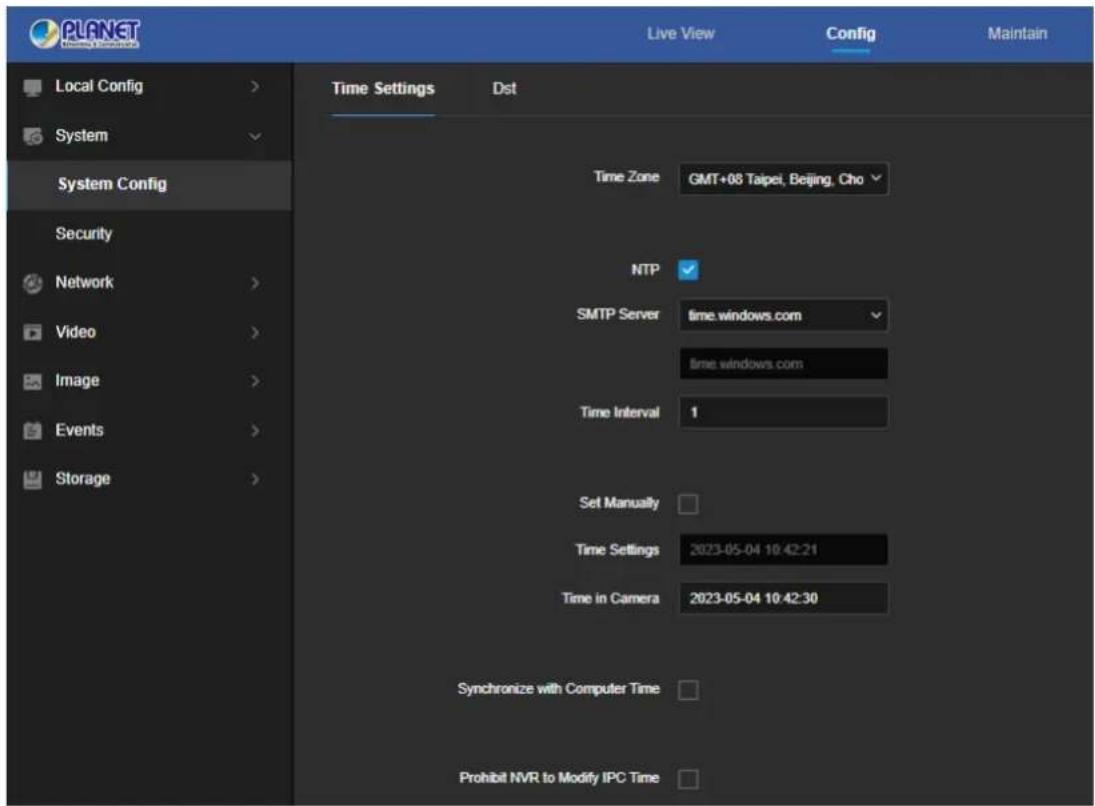
Figure 8-2
【Time Zone】Displays the current device selection time zone.
【NTP】The IP Camera time will synchronize with network, and you can change the different time zones. (This feature requires IP Camera network environment to be connected to the Internet.) Click on the "Apply" after completing the settings.
【SMTP Sever】SMTP server address, including "time.windows.com", "time.nist.gov", "time-nw.nist.gov", "time-a.nist.gov", "time-b.nist.gov" Optionally, you can also enter the SMTP server address through "Custom".
【Time interval】The time interval between the IP Camera and the SNTP server is 1 minute by default. You can set "1 \~ 10080".
【Set Manually/Time Settings】Enable and set the IP Camera date and time manually, click on the "Apply" after completing the settings.
【Time in Camera】Displays the current time of the device.
【Synchronize with Computer time】The IP Camera will synchronize with the computer time and date that you connect currently. Click on the "Apply" after completing the settings.
【Prohibit NVR to modify IPC time】The IP Camera time will not be affected by the backend storage devices (such as NVR, etc.) after checking this option. The IP Camera time will run according to the user settings.
② DST
Daylight saving time (DST) refers to the system of artificially stipulating local time for energy conservation. The unified time used during the implementation of this system is called "DST". In the System Configuration interface, click "DST" to enter the daylight saving time setting interface, where you can enable daylight saving time, set daylight saving time, end time and end time, as shown in Figure 8-3:
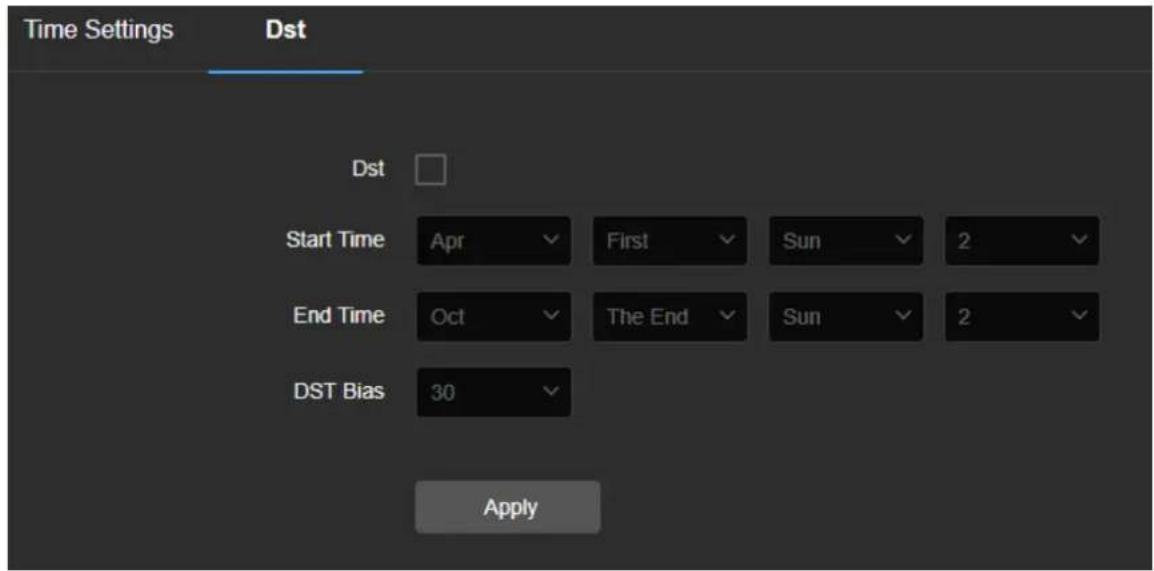
Figure 8-3
8.2.2 Security
In the main interface, click "Config → System → Security" to enter the user management settings interface, where you can add, edit and delete the user, and you can also query the current user information in "Online User". The current user name for the administrator is "admin". You can create up to 10 user names, as shown in Figure 8-4:

Figure 8-4
① Add a User
Step 1: Click "Add Users" to add a user.
Step 2: Input the User Name, select User Type and input Password.
Step 3: Click "OK" to complete the added user name.
Add User as shown in Figure 8-5.

Figure 8-5

Cautions
- In order to improve the security of the product network, please change the password of the user name regularly. It is recommended to change it every 3 months. If the IP camera is used in a high security risk environment, it is recommended to update once a month or every week.
- It is recommended that the system administrator manages the user effectively, removes the unrelated user and shuts down the unnecessary network port.

Note
- The admin user cannot be deleted and you can only change the admin password.
- User permission description:
Administrator -- all permissions.
Operator -- All permissions (cannot make system security parameter settings).
Viewer -- only preview permission.
- When setting the IP camera password, the password length is 8-31 characters and must contain numbers and letters.
Password strength rules are as follows:
- If the set password contains three or more types (numbers, lowercase letters, uppercase letters, special characters), it is a strong password.
- If the password is set to a combination of numbers and special characters, lowercase and uppercase letters, and special characters, it is a strong password.
- If the password is set to a combination of numbers and lowercase letters, numbers and uppercase letters, it is a weak password.
② First modified (admin user) password
Step 1: In the user list, click the "Edit" button after the admin user to enter the user interface.
Step 2: Enter the old password (Default password is "admin") and enter the new password in the Password and Confirm Password fields.
Step 3: Select security questions 1, 2, 3 and set the corresponding answers, and click "Export Key" to export the key file to your computer.
Step 4: Click "OK" to complete the password modification.
③ Modify the (admin user) password again
Step 1: In the user list, click the "Edit" button after the admin user to enter the user interface.
Step 2: Enter the old password, check "Modify Password", and enter a new password in the Password and Confirm Password fields;
Step 3: Click "OK" to complete the password modification.

Note
- The default user name and password are "admin". It is strongly recommended to change the user name and password for the sake of security.
④ Edit the User (new user)
Step 1: In the user list, select the user to be modified, and click "Edit" to enter the user editing interface.
Step 2: Edit the user type or password, enter the confirm password;
Step 3: Click "Ok" to finish editing the user.

- The password setting rule is the same as the password rule when adding a user.
⑤ Delete Users
Step 1: Click to select the user you want to delete and click "Delete".
Step 2: Click "Ok" on the pop-up dialogue box to delete the user.
⑥ Security Service (ICA-3480/ICA-4480 only)
Step 1: Click "☐" to enable "Illegal Login Lock".
Step 2: Edit the value of "Illegal Login Attempts"
Step 3: Click "Apply" to save the configuration.
8.3 Network
In the main interface, click "Config → Network" to enter the network settings interface, the network is divided into Basic Config, P2P and Email configuration.
8.3.1 Basic Setup
① TCP/IP
The TCP/IP interface is used to view and configure network parameters such as the camera's IP address. You can enable DHCP or manually modify to configure the IPC network parameters.
Enable DHCP:
Connect IPC to the router with DHCP enabled, and then IPC will obtain the corresponding IP address, subnet mask, default gateway, and preferred DNS server information.
The specific steps for manually modifying network parameters are as follows:
Step 1: In the main interface, click "Config → Network → Basic Setup → TCP/IP" to enter the TCP/IP interface, as shown in Figure 8-6 ①.

Figure 8-6 ①
Step 2: Set the IP address (IPv4 or IPv6 format), subnet mask, gateway, and DNS.
Step 3: Click "Test" to make sure the modified IP address is available in the LAN.
Step 4: Click "Apply" to save the configuration.
Port
In the main interface, click "Config → Network → Basic Setup → TCP/IP" to enter the TCP/IP setting interface, where you can set the IP Camera network port and protocol port. The network port has HTTP port (default is 80), RTSP port (default is 554), HTTPS port (default is 443), and BITVISION port (default is 6000). The protocol port has the ONVIF port (default is 8999), as shown in Figure 8-6 ②.
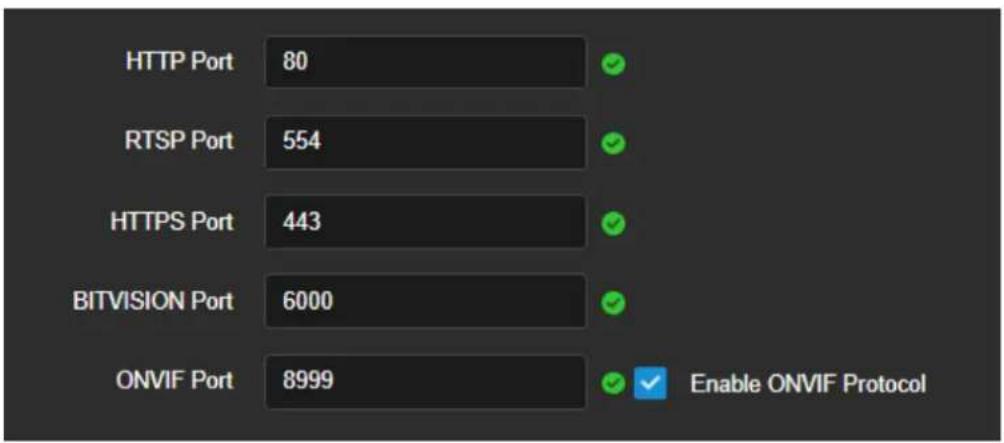
Figure 8-6 ②
【BITVISION Port】When the BitVision App is directly connected to the device, the "Private port" is entered into the BITVISION port.
【ONVIF Port】When the IP Camera accesses ONVIF agreement with the back-end equipment, the ONVIF protocol needs to be enabled.

Please do not arbitrarily modify the port parameters; when there is a port conflict, you need to modify the port number as follows:
- HTTP and HTTPS port: Use the browser login to add the address after the port number. You need tp enter the HTTP port number (for example, 8555) that you want to change via the browser login.http://192.168.1.168:8555.
- Make sure RTSP port (real-time transmission protocol port) is available for modification.
- In ICA-3480/ICA-4480, the ONVIF port is set to match the HTTP port, the default value is 80. Modifying the HTTP port will automatically change the ONVIF port as well.
② DDNS
In the main interface, click "Config → Network → Basic Setup → DDNS" to enter the DDNS function settings interface, where you can open the IP Camera DDNS function. Select the DDNS type and enter the site name, corresponding to DDNS type user name and password, and click "Apply", as shown in Figure 8-6 ③.

Figure 8-6 ③
【DDNS】Enable / disable DDNS function.
【DDNS Type】Choose PLANET DDNS or PLANET Easy DDNS.
【Domain Name】The input selection type must correspond to the successful domain name.
【DDNS User】The input selection type corresponds to the registered account.
【DDNS Password】The input selection type corresponds to the registration password.
【Confirm Password】 Re-enter the password and DDNS password.
【State】Shows whether the DDNS of the current device is set up successfully.
【Service Type】Displays the type of user name.
【Links to service providers】 Show service provider information.

Note
- Access via DDNS domain requires IP Camera to be accessible to the Internet.
③ PPPoE
PPPoE(Point-to-Point Protocol over Ethernet) is one of the ways in which IPC devices access the network. After obtaining the PPPoE user name and password provided by the Internet Service Provider, you can establish a network connection through PPPoE dialup. After the connection is successful, the IPC automatically obtains a dynamic IP address of the WAN.
The specific operation steps are as follows:
Step 1: In the main menu, click "Config → Network → Basic Setup → PPPoE" to enter PPPoE to set the interface, as shown in Figure 8-6 ④.

Figure 8-6 ④
Steps 2: Click "☐" to enable PPPoE, input the device dynamic IP, user name, and password of the PPPoE.
Steps 3: Click "Apply" to save the configuration.
【PPPoE】Turn on/off the device PPPoE function.
【User Name】The PPPoE user name provided by the ISP (Internet Service Provider).
【Password】The password corresponding to the user name.

Note
- After completing the setting, the device will automatically dial after restarting. After successful dialing, the network information can be displayed in the network status, and users can access the device through the IP address.
④ FTP
Set the FTP (File Transfer Protocol) server and you can store the alarm icon to the FTP server.
Precondition
You need to purchase or download the FTP service tool and install the software on your PC.

- To create an FTP user, you need to set the FTP folder write permission; otherwise the image will not be uploaded successfully.
The steps to configure FTP are as follows:
Step 1: In the main interface, click "Config → Network → Basic Setup → FTP" to enter the FTP server settings interface, as shown in Figure 8-6 (5).
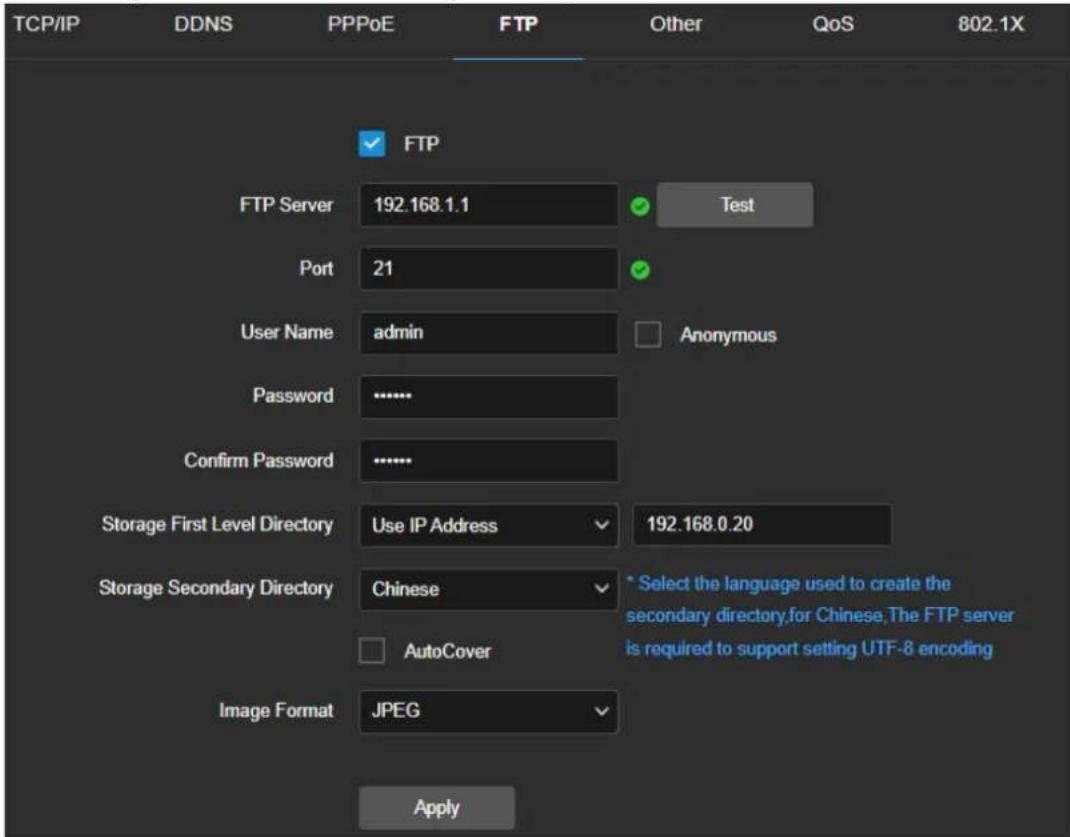
Figure 8-6 ⑤
Step 2: Enter the server address, port, user name, password, confirm the password, storage first level directory, storage secondary directory, check "Auto Cover", and select the upload FTP server image format JPEG.
Step 3: Click "Apply" to save the configuration.
Step 4: Click "Test" to confirm whether the network connection and FTP configuration are correct.

- If the test fails, please recheck the network or FTP configuration.
【FTP Server】Fill in the FTP server address.
【Test】Enter the FTP server information and click "Test" to confirm the correctness of all input information and whether the device and server are connected properly.
【Port】Fill in the FTP server port number.
【User Name】Fill in the FTP server username.
【Password】Fill in the FTP server password.
【Confirm Password】Fill in the FTP server password.
【Storage first level directory】Automatically create a level-1 directory under the FTP storage path.
【Storage secondary directory】Create a secondary directory under the FTP primary directory.
【Auto Cover】When enabled, the oldest FTP server will be overwritten automatically when the FTP server is full.
⑤ Other
In the main interface, click "Config → Network → Basic Setup → Other" to enter the Video Password Authentication interface, as shown in Figure 8-6 ⑥.

Figure 8-6 ⑥
【Video Password Authentication】 After opening, encrypt all the devices and platforms connected to the camera video, and connect to the IP Camera video by entering the correct username and password.
【Enable RTSP Encryption】 When enabled, the RTSP stream of the camera is encrypted.
【Enable BITVISION Encryption】When enabled, encrypt the stream between the camera and the BitVision App.
⑥ QoS
In the main interface, click "Config → Network → Basic Setup → QoS" to enter the QoS interface, as shown in Figure 8-6 ⑦.
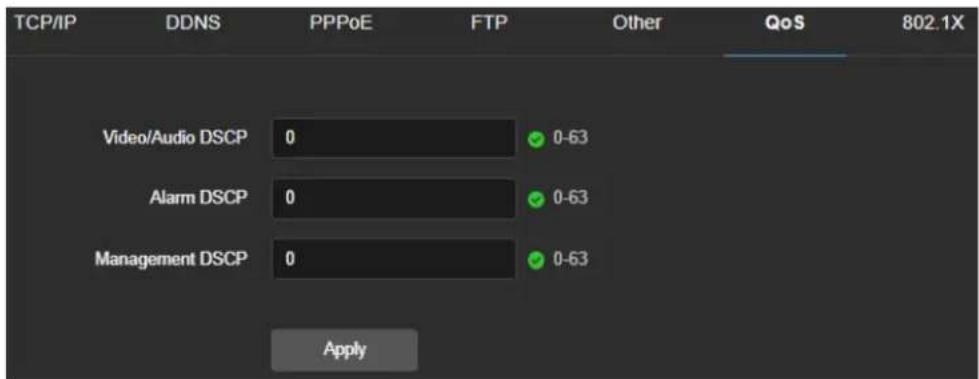
Figure 8-6 ⑦
【Video/Audio DSCP】 You can input the value manually to set the "Video/Audio DSCP".
These values will be set according to the actual environment. The scope of valid values is from 0 to 63, and the default value is 0.
【Alarm DSCP】 You can input the value manually to set the "Alarm DSCP". These values will be set according to the actual environment. The scope of valid values is from 0 to 63, and the default value is 0.
【Management DSCP】 You can input the value manually to set the "Management DSCP".
These values will be set according to the actual environment. The scope of valid values is from 0 to 63, and the default value is 0.
⑦ 802.1X
In the main interface, click "Config → Network → Basic Setup → 802.1X" to enter the 802.1X interface, as shown in Figure 8-6 ⑧.
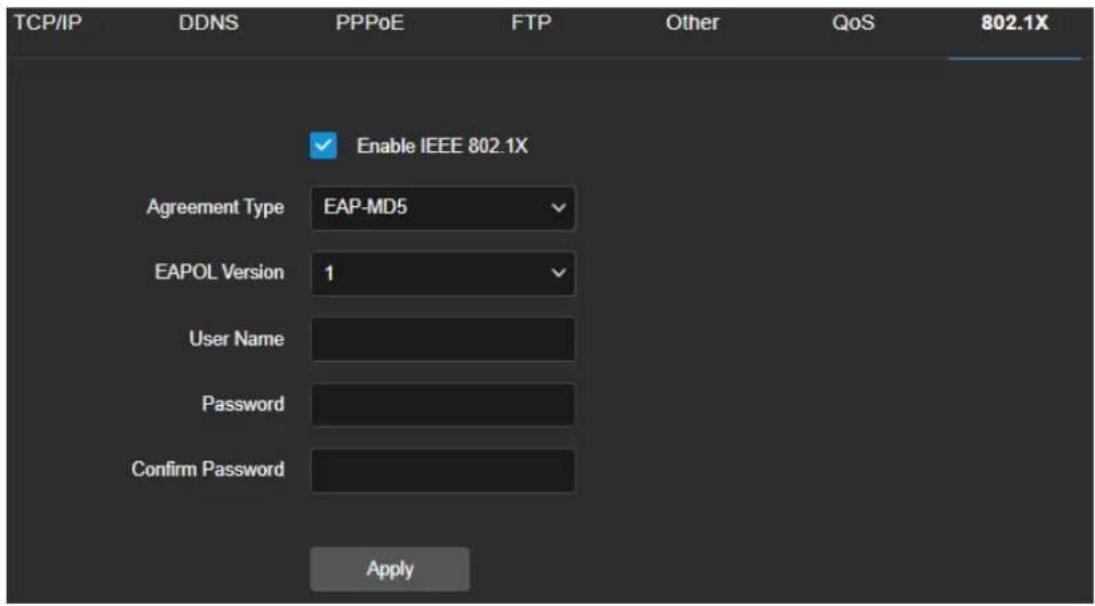
Figure 8-6 ⑧
The steps to configure FTP are as follows:
Step 1: Click "☐" to enable IEEE 802.1X, and choose "Agreement Type" in "EAP-MD5" or "EAP-LEAP".
Step 2: Select EAPOL Version in 1 or 2.
Step 3: Configure User Name, Password, and Confirm Password.
Step 4: Click "Apply" to save the configuration.
8.3.2 P2P
① P2P
P2P is a private network penetration technology. It does not need to apply for a dynamic domain name, perform port mapping, or deploy a transit server. You can directly scan the QR code to download a mobile client. After registering an account, you can add and manage multiple IP cameras and NVR devices simultaneously on the mobile client.
You can add devices in the following two ways to manage multiple devices.
1) Scan the QR code for the mobile phone system, download the app and register the account. For details, see the App User Manual on the website.
2) Log on to the P2P platform, register an account, and add the device via the serial number.

Note
- The device P2P is enabled by default. To use this function, the device must be connected to the external network, and the connection status is displayed as "P2P connection successful". Otherwise, it will not work properly.
P2P steps are as follows:
Step1: In the main interface, click "Config → Network → P2P" to enter the P2P settings interface, as shown in Figure 8-7 ①.
Step2: Make sure that the IP camera accesses the external network and click "☐" to open P2P.
Step 3: Click "Apply" to save the configuration.
Step 4: Refresh page -- the status shows "P2P connection successful". This indicates that P2P is enabled and can be used normally.

Figure 8-7 ①
App Client operation example
The following content is introduced by taking the operation of the mobile phone client (BitVision App) as an example. The steps are as follows:
Step 1: Use the Android or iOS phone to scan the corresponding QR code to download and install the BitVision App.
Step 2: Run the client and log in to the account (No account is required to register first).
Step 3: Add devices to the mobile client.
After login, click "Device manage", click "●", select "SN Add", enter the device name, user name, password and verification code after scan the QR code, select group, click "Add Device".
Step 4: Live preview
Select "Real time" and "+" to enter the device list in the main interface, select the touching pen and the channel to be previewed in the group, you will see the live video after clicking "Done".
② IPEYE
In the main interface, click "Config → Network → IPEYE" to enter the IPEYE interface. After IPEYE is enabled, you can add the device to the IPEYE account at https://www.ipeye.ru/ View IP Camera real-time audio / video, as shown in Figure 8-7 ②.
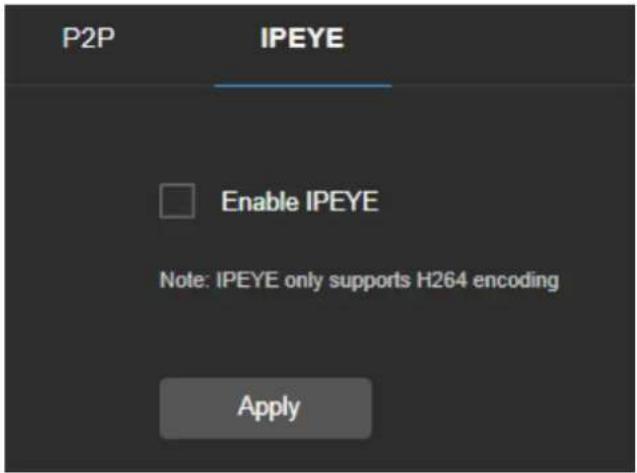
Figure 8-7 ②
The steps to monitor the audio and video in real time at https://www.ipeye.ru/ are as follows:
Step 1: Enter IPEYE interface, enable IPEYE, refresh the interface, and the interface displays IPEYE Client address as shown in Figure 8-7 ③.
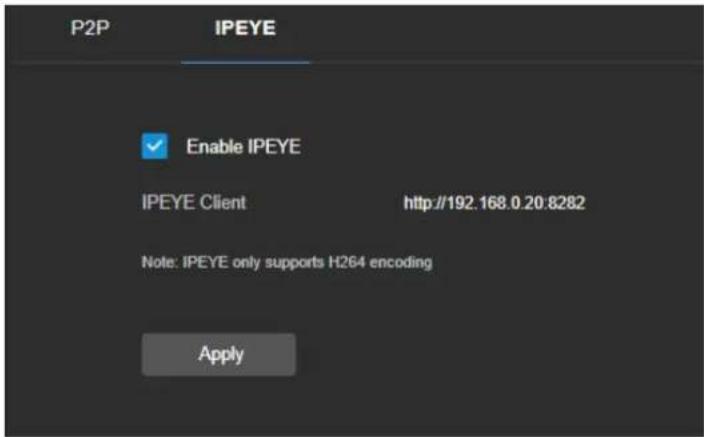
Figure 8-7 ③
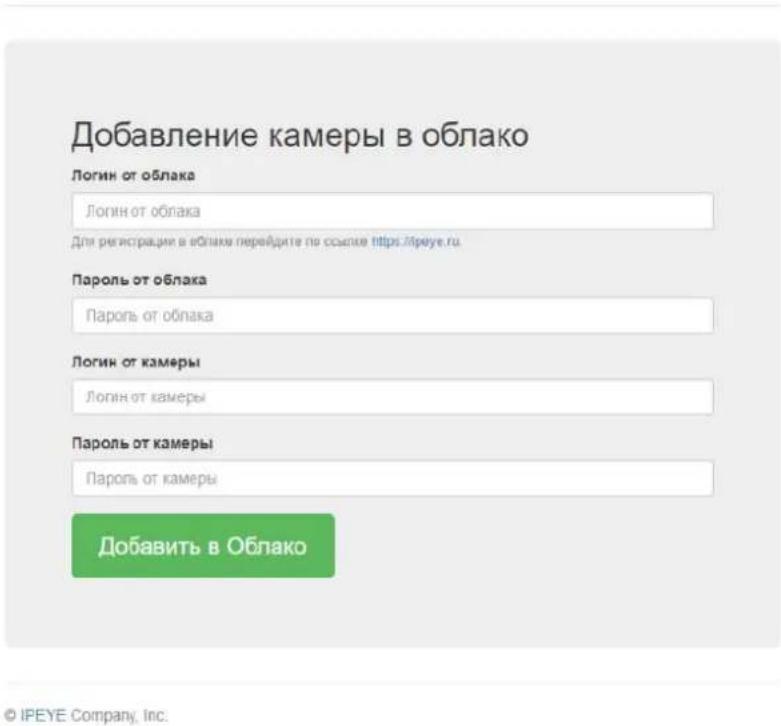
Step 2: Log in to IPEYE Client "http://192.168.0.20:8282", and enter the device username, password, IP camera user and password. Click "Confirm" when a device is added, as shown in Figure 8-7 ④.
Cloud IP Camera IPEYE
Step 3: Log in to "https://www.ipeye.ru/" and enter the IPEYE device list to view the newly added device named as "cloud_xxxxx". Click the Play button to view the device real-time monitoring video. The list of IPEYE devices is shown in Figure 8-7 ⑤.
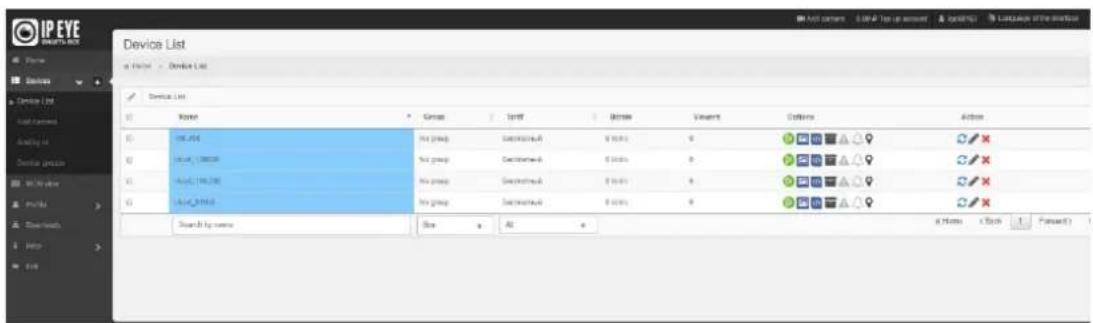
Figure 8-7 ⑤

- Some cameras do not support the IPEYE function. The specific interface is subject to the actual product.
8.3.3 Email
After setting the email information and enabling the alarm linkage email function, and when the IPC triggers an alarm, the system sends an alarm email to the user mailbox.
The specific operation steps are as follows:
Step 1: In the main interface, click "Config → Network → Email" to enter the email settings interface, as shown in Figure 8-8.
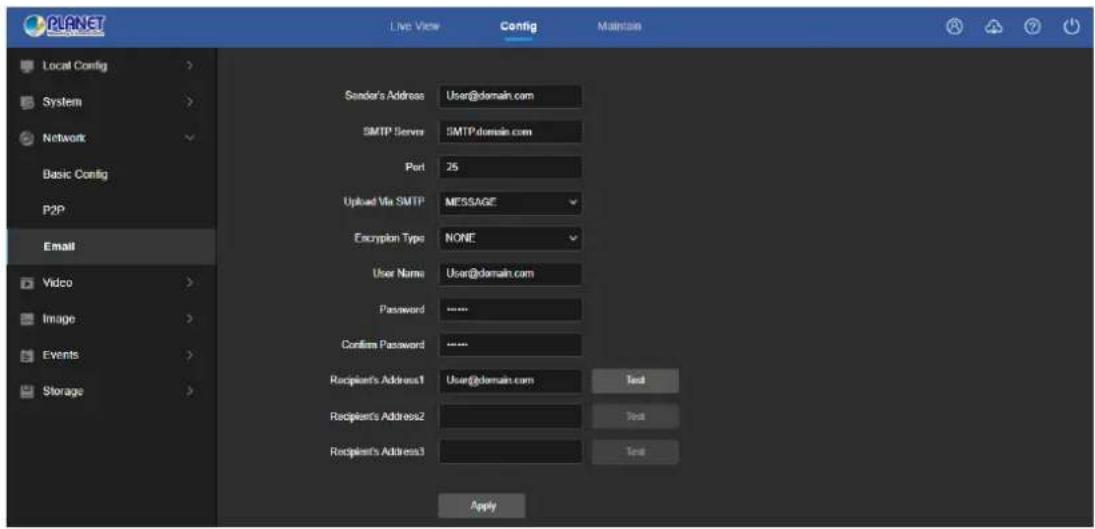
Figure 8-8
Step 2: Configure Sender's Address, SMTP Server, Port, Upload Via SMTP, Encryption Type, User Name, Password, and Recipient's Address.
Step 3: Click "Test" to confirm whether the network connection and SMTP configuration are correct.
Step 4: Click "Apply" to save the configuration.
Sender
【Sender】Fill in the full address of the sender mailbox.
【SMTP Server】Fill in your email server address.
【Port】Fill in your email server port.
【Upload Via SMTP】In the drop-down menu, select SMTP file format, JPEG image format, AVI video and message for selection.
【My Server Requires Authentication】When enabled, the server and user are authenticated to ensure that the data is sent to the correct client and server.
【User Name】Fill in the send mailbox user name.
【Password】Fill in the send mailbox password.
【Confirm Password】Fill in the send mailbox password.
Receiver
【Email 1, 2, 3】Fill in the full address of your inbox, here up to 3 inboxes, click on the completion of the completion of the "Test" to ensure that all the correctness of the input information and network connectivity of the camera.
8.4 Video
In the main interface, click "Config → Video" to enter the video and audio configuration interface, where you can set the device video, audio and other functions.
8.4.1 Video
In the main interface click "Config → Video → Video" into the video configuration interface, where you can set the IP Camera device name, stream type, encoding and other video parameters, as shown in Figure 8-9:

Figure 8-9
【Stream Type】Default is the Main Stream, you can select Sub Stream.
【Profile】Default is the Main Profile; you can select Baseline Profile or High Profile.
【Video Encoding】Switch the encoding method in the drop-down menu.
【Resolution】Switch the output resolution in the drop-down menu.
【Framerate】Set the frame rate of the current output video of the device.
【Bit Rate】Supports 64-12000kbps. The higher the bit rate goes, the better the video quality will be, but it occupies the greater network bandwidth and the greater the pressure transmission.
【Rate Control】Switch the code rate output mode in the drop-down menu, fixed rate and variable rate.
【I-Frame Interval】IP Camera acquisition key frame interval.
【H265+/H264+】Turn on/off the camera H265+/H264+.

Note
- Different IP Camera -- device stream type, encoding, frame rate and other information in the drop-down menu options are also different.
- Only cameras that support the H264/H264+ function display Profile items on the video interface.
- When the frame rate is set too low, it will cause video lag. Please be careful.
- The higher the bit rate is, the greater the current network bandwidth and the greater the transmission pressure will be.
- Only cameras that support the H264+/H265+ function displaying H264+/H265+ on/off items on the video interface.
- It takes 30-60 seconds for the camera to turn the H265+/H264+ on or off. Please be patient.
8.4.2 Audio
In the main interface, click "Config → Video → Audio" to enter the audio configuration interface, where you can set the device audio input mode. Select the audio code and set the input volume, as shown in Figure 8-10:

Figure 8-10
【Enable Audio】Turn on / off device audio input.
【Audio Input】Select the audio input method.
【Audio Encode】Choose audio encoding, G711U/ G711A/AAC.
【Input Volume】Set the device input volume, the volume range is 0-100.
8.5 Image
In the main interface, click "Config → Image" to enter the image configuration interface, where you can set the device image and OSD text and other information.
8.5.1 Image
In the main interface, click "Config → Image → Image" to enter the image configuration interface, where you can adjust the related image parameters such as Image Adjustment, Exposure Settings, Day and Night Mode, White Balance, Video Adjustment, Image Enhancement and Backlight Settings, as shown in Figure 8-11:
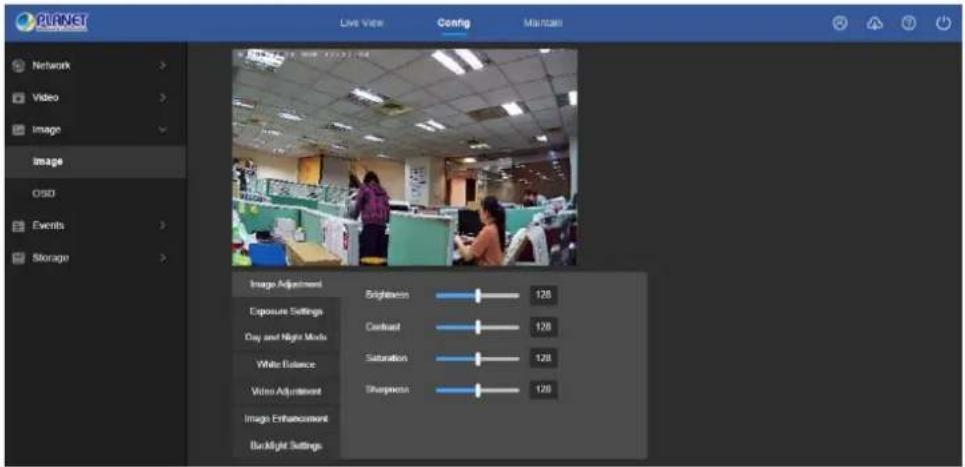
Figure 8-11
【AFFocus】You can select the focus mode in "Semi-Autofocus", "Auto", "Manual". (ICA-M3580P/ICA-M4580P only)
【Image adjustment】You can input the value manually to set brightness, contrast, saturation, and sharpness. These parameters can be set according to the actual environment.
The scope of valid values is from 0 to 255; you can drag the slider to set, and the default value is 128, as shown in Figure 8-12.

Figure 8-12
【Exposure settings】You can see the Aperture Type of the camera; set the Exposure Time according to actual needs, and automatically save after setting as shown in Figure 8-13.
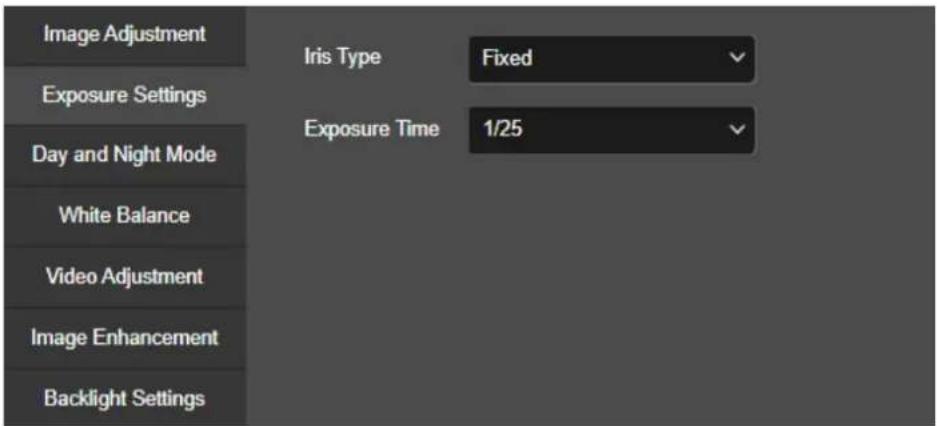
Figure 8-13

- In ICA-3480/ICA-4480, the "Anti Flicker" feature is available, allowing users to adjust the level from 1 to 10 to eliminate video flickering on the screen. The default setting is "OFF".
【Day and Night Mode】The default of fill mode is auto, Sensitivity is 3, Filter Time
is 3 seconds, Overexposure Protection is On, Fill Light Mode is White Light Mode, Brightness Adjustment is Auto, as shown in Figure 8-14 ①.
- When the fill mode is "Auto", the device will turn on the fill light according to the actual environment. The user also can switch the fill mode to "Day", "Night" and "Scheduled-Switch" according to the actual environment of the site, and switch the sensitivity and filter time of the device according to the fill mode.

Figure 8-14 ①
- When the fill mode is "Day", the fill light of the device is always off, and the camera is in color mode.
- When the mode is "Night", the device monitor video is added to the night effect.
- When the mode is "Time", you can set the Dawn time and the Dark time (the start and end time) and the light brightness, as shown in Figure 8-14 ②:
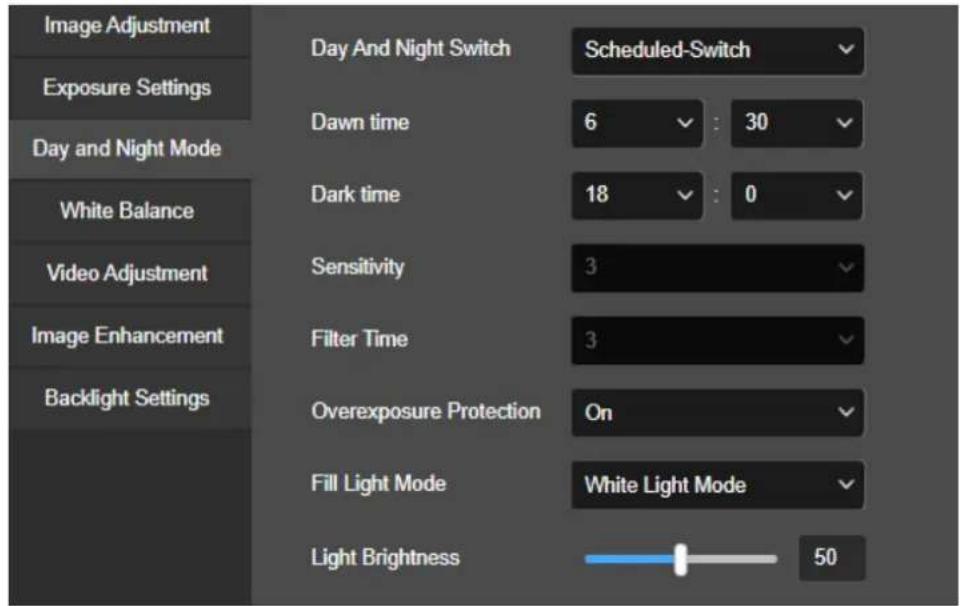
Figure 8-14 ②
Filtering time: It is used to prevent the ambient light from getting better and the light is frequently turned on and off, and the filtering time is set. During this time period, the camera is not disturbed by ambient light.
Light brightness: It is used to adjust the brightness of the light, and the adjustable range is 0-100.
【White Balance】The default is auto, There are two types of switchable manual and automatic white balance, which can meet the needs of customers in different scenarios, as shown in Figure 8-15:

Figure 8-15
Manual white balance: It supports Red and Blue gain adjustments. You can adjust the range (0-255).
【Video Adjustment】Here you can turn on mirroring, corridor mode and set the video format, as shown in Figure 8-16.
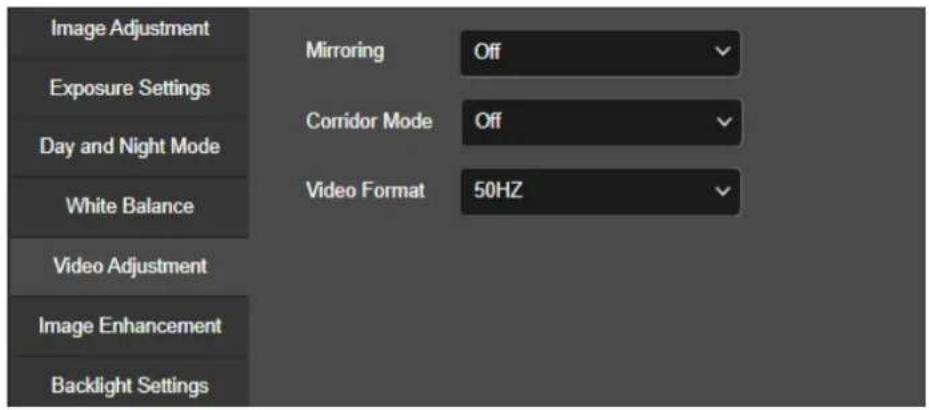
Figure 8-16
Mirror: The default is off. You can switch between vertical, horizontal, vertical and horizontal when the device video image is upside down, and you can flip the image through this menu.
Corridor Mode: It is disabled by default. When the corridor mode is enabled, the preview interface can be rotated by 90 degrees and 270 degrees.
Video Format: The default is 50Hz. You can select 60Hz in the drop-down menu. You need to restart the device so that the new video format can take effect.
【Image Enhancement】Here you can turn on and set wide dynamic, digital noise reduction, distortion, defog, as shown in Figure 8-17.
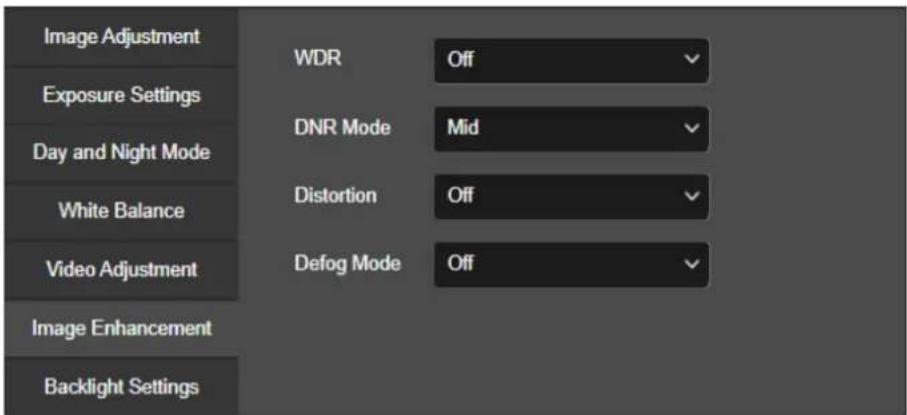
Figure 8-17
Wide Dynamic Range: The default is off. You can select Low, Middle or High from the drop-down menu.
Digital Noise Reduction: The default is Mid. You can select Low, High or off from the drop-down menu.
Distortion: The default is off. You can select turn on from the drop-down menu.
Defog: The default is off. You can select Low, Middle or High from the drop-down menu.
【Backlight Settings】Used to set backlight compensation and strong light compensation, as shown in Figure 8-18 below.

Figure 8-18
Backlight Compensation: The default is off. You can select Left, Right, Up, Down or Middle from the drop-down menu.
Strong Light Compensation: The default is off. You can select turn on from the drop-down menu.

● The camera image interface only displays the device support functions. The specific interface is subject to the actual product.
- Wide dynamic, backlight compensation, and strong light suppression are mutually exclusive. Turning on one of these functions will automatically turn off the other two functions.
8.5.2 OSD
The OSD is information displayed on the real-time monitoring screen. The name, date and day of the IPC can be displayed on the monitor screen.
In the main interface, click "Config → Image → OSD" to enter the OSD configuration interface, where you can set the preview interface to display menu time, OSD text and other information, as shown in Figure 8-19.

Figure 8-19
【Show Time】Turn on / off the preview interface time display.
【Show Text】Turn on / off the preview interface OSD text display.
【Show the week】Turn on/off the time display in the preview interface, you can choose "English" or "Chinese".
【Date Format】Set the preview interface to display the date format, default day / month / year, switchable month / day / year and year / month / day options.
【OSD Position】Set the preview interface to display the time or OSD text position, the default is the Upper left, you can switch the Lower left.
【OSD Text】Enter the preview interface to display text information, such as hall elevator, hall door and other equipment location information.
8.6 Events
In the main interface, click "Config → Events" to enter the event configuration interface, including common events and smart events.
8.6.1 Ordinary Event
In the Ordinary event interface, you can set the device's Motion Detection, Privacy Mask, Video Tampering, Exception, ROI, and other events.
① Motion Detection
The motion detection function is used to detect whether there is a moving object in a certain area within a certain period of time. When there is a moving object, the IPC will alarm according to the setting.
The specific operation steps are as follows:
Step 1: In the main interface click on the "Config → Events → Ordinary Events → Motion Detection" to enter the motion detection settings interface, as shown in Figure 8-20.
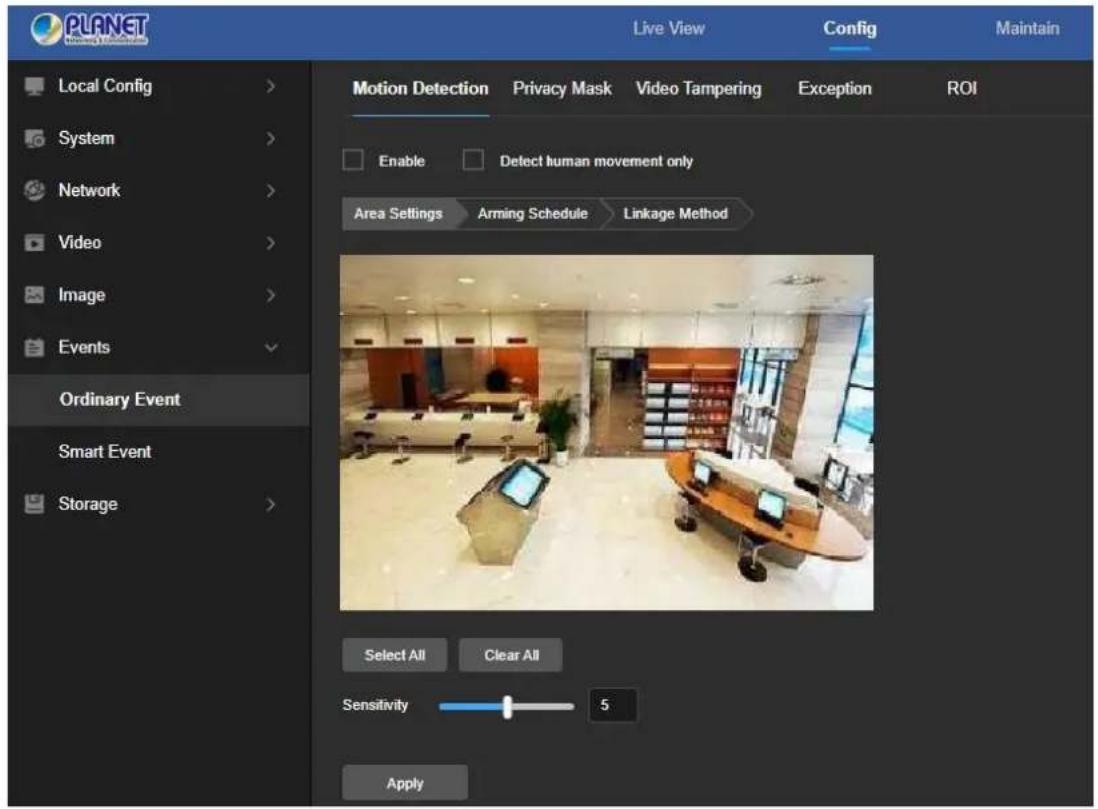
Figure 8-20
Step 2: Select the Area Settings to set the motion detection sensitivity. Click "Enable" or "Detect human movement only" to turn on the motion detection alarm.
Step 3: Select the area to set the motion detection sensitivity, click "Apply".
【Select All】Motion detection range is to monitor all of the areas, which consist of 396 (22 x 18) small squares.
【Manually draw the alarm area】Move the mouse to the preview screen and click the left mouse button to select the range of motion detection. Release the left mouse button to complete the alarm area selection. A camera can select multiple motion detection zones at the same time.
【Clear All】 Clearing all the motion detection areas that were selected.
【Sensitivity】The default is 5. The range is from 0 to 10. The larger the value, the easier for the device to trigger an alarm.
Step 4: Set the arming schedule.
As shown in Figure 8-21 below, you can view, edit, and delete the arming time of motion detection. The default is to arm the alarm 24 hours a day. You can adjust the arming time as follows:
- Method 1: Click the arming time period, manually fill in the start time and end time, set up and click "Apply". If you need to delete the time period, click the "Delete" button and then reset the time period.
Method 2: Click the arming time period, two arrows will be displayed at both ends of the time period. Move the adjustment arrow left or right to adjust the arming time. - You can set up more than one time period for up to 8 time periods.
- After the day of deployment time is set, if the other time also needs to be set at the same arming time, click the right side of the timeline "copy button; in the "copy to" interface, check the "Select All" or a day, and then Click "OK".
- After setting, click "Apply" to complete the setting of the arming time.
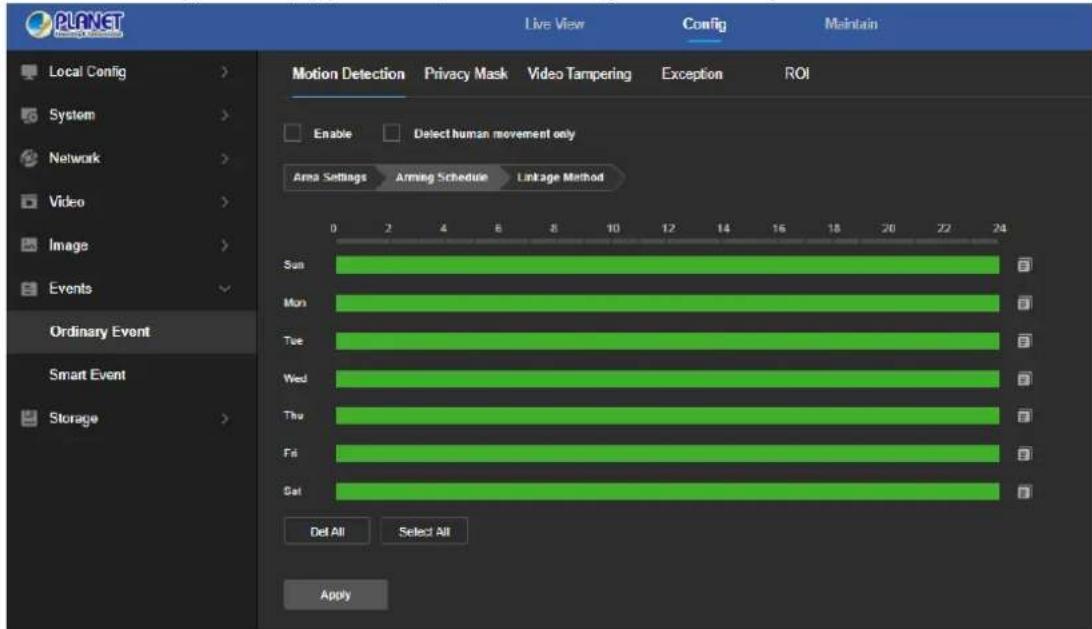
Figure 8-21

- When the arming time is set, there can be no overlap between any two time periods.
Step 5: Set the linkage method.
General linkage includes "Upload Via SMTP", "Upload Via FTP", "Upload Via Cloud", "Sound Alarm". When the device motion detection alarms, it will inform the user as shown in Figure 8-22.

Figure 8-22
【Upload Via SMTP】Select and the system is configured with SMTP, the alarm information will be sent to the SMTP recipient mailbox.
【Upload Via FTP】Select and the system is configured with the FTP server, it will send the alarm information to the FTP server.
【Upload Via Cloud】Select and the system is configured with the cloud server, it will send the alarm information to the cloud account.
【Sound Alarm】After selection, the device will emit an alarm sound when alarming.

● Different devices support different alarm linkage. The alarm linkage method is subject to the actual product.
② Privacy Mask
Privacy occlusion is a privacy protection feature that blocks the privacy of the surveillance screen from being viewed and recorded.
In the main interface, click "Config → Event → Ordinary Events → Privacy Mask" to enter the privacy mask settings interface, as shown in Figure 8-23.

Figure 8-23
Here you can choose up to 3 occlusion areas. Hold down the left mouse button and drag to select the area in the area. Region 1, Region 2 and Region 3 below will show the corresponding coordinates, width, and height of the region. If you want to delete a region, click on the corresponding "Delete" button. Click on the "Apply" after completing the setting.
③ Video Tampering
The Video Tampering function is used to detect whether a monitoring area is blocked by human factors and other factors during a certain period of time. When the area of the device is blocked, the IP camera will alarm according to the settings. When the occlusion alarm is generated, the occlusion alarm cause can be quickly discharged and the monitoring screen can be restored.
The specific operation steps are as follows:
Step 1: In the main interface click on the "Config → Events → Ordinary Events → Video Tampering" to enter the video tampering settings interface, as shown in Figure 8-24:
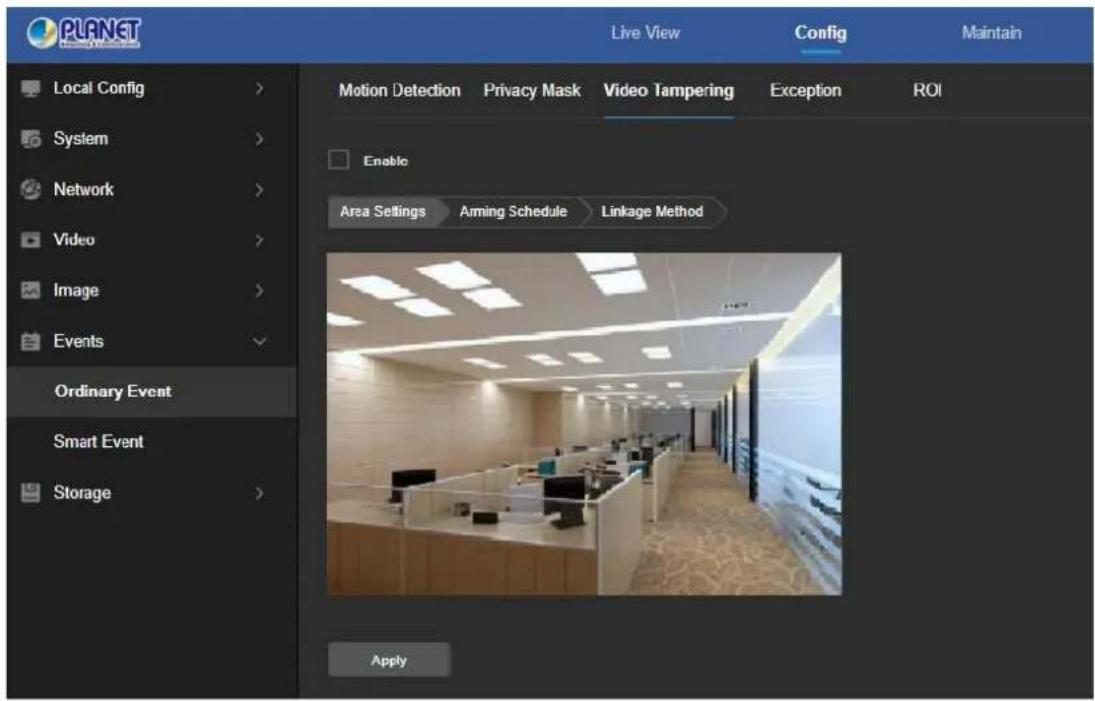
Figure 8-24
【Enable】Turn on / off device video tampering alarm.
Step 2: Click "Enable" to turn on the Video Tampering function, click "Apply".
Step 3: Set the arming schedule.
As shown in Figure 8-25 below, you can view, edit, and delete the arming time of motion detection. The default is to arm the alarm 24 hours a day. You can adjust the arming time as follows:
Method 1: Click the arming time period, manually fill in the start time and end time, set up and click "Apply". If you need to delete the time period, click the "Delete" button and then reset the time period.
Method 2: Click the arming time period, two arrows will be displayed at both ends of the time period. Move the adjustment arrow left or right to adjust the arming time.
- You can set up more than one time period for up to 8 time periods.
After the day of deployment time is set, if the other time also needs to be set at the same arming time, click the right side of the timeline "copy button; in the "copy to" interface, check the "Select All" or a day, and then Click "OK".
After setting, click "Apply" to complete the setting of the arming time.
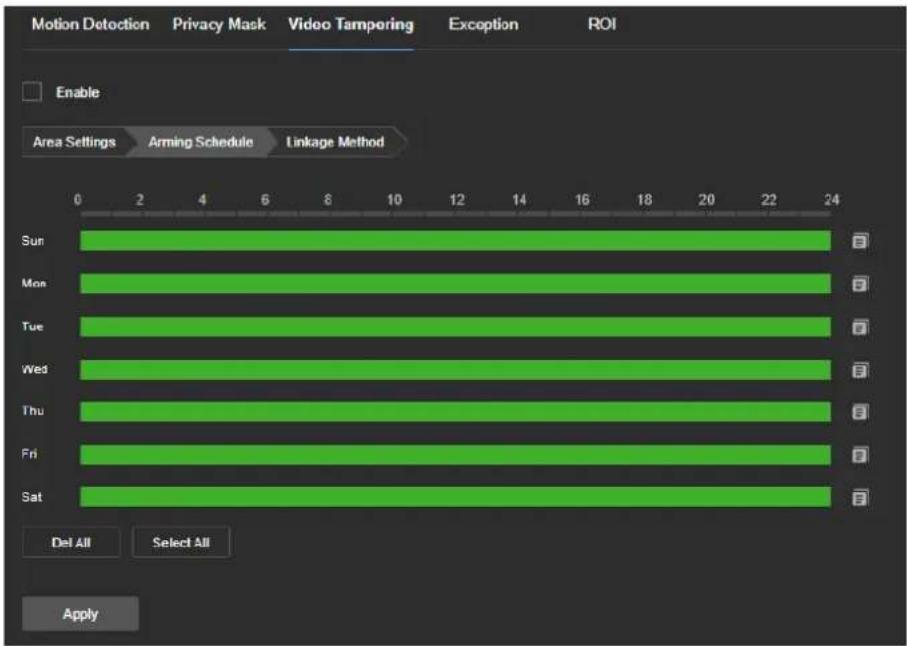
Figure 8-25

Note
- When the arming time is set, there can be no overlap between any two time periods.
Step 4: Set the linkage method.
General linkage includes "Upload Via SMTP", "Upload Via FTP", "Upload Via Cloud". When the device motion detection alarms, it will inform the user as shown in Figure 8-26.
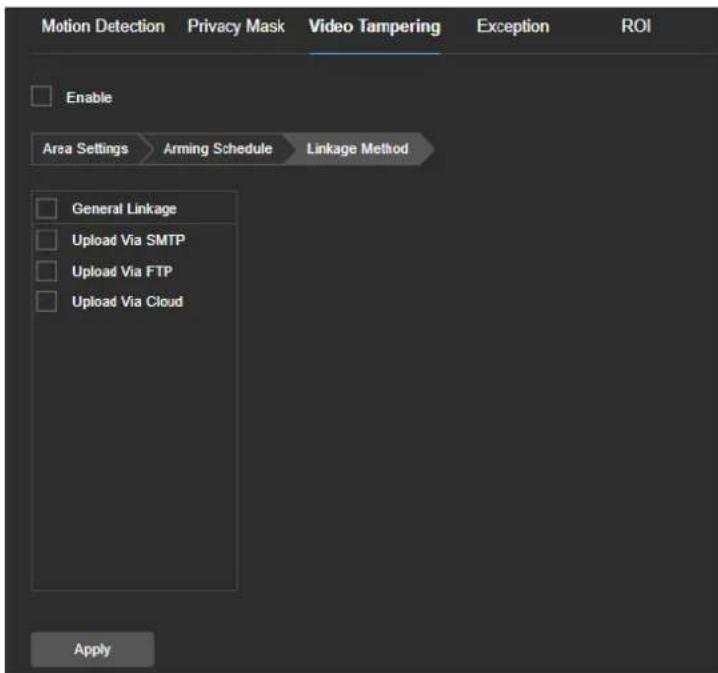
Figure 8-26
Here to open the "General linkage", "Upload via FTP", "Upload via SMTP", "Upload via Cloud", "Record via SD card" function, when the device settings area is blocked and alarm, the corresponding way to inform the user.
【Upload Via SMTP】Select and the system is configured with SMTP, the alarm information will be sent to the SMTP recipient mailbox.
【Upload Via FTP】Select and the system is configured with the FTP server, it will send the alarm information to the FTP server.
【Upload Via Cloud】Select and the system is configured with the cloud server, it will send the alarm information to the cloud account.
【Sound Alarm】After selection, the device will emit an alarm sound when alarming.
④ Exception (ICA-M3580P/ICA-M4580P only)
In the main interface, click "Configuration → Events → Ordinary Events → Exception" to enter the exception settings interface, as shown in Figure 8-27.

Figure 8-27
Set the Exception Type to "Network Disconnected", "IP Address Conflicted" or "Full Disk" alarms here, and set the alarm output mode. Click on the "Apply" after completing the settings.
【Sound Alarm】After selection, the device will emit an alarm sound when alarming.
⑤ ROI
ROI is the area of interest setting. Users can set the most concerned and most interested area in the video screen through this function. IPC will improve the video image quality of the corresponding area when video encoding, and reduce the encoding quality of other areas, so as to highlight the image effect in the selected area.
The specific operation steps are as follows:
Step 1: In the main interface, click "Configuration → Events → Ordinary Events → ROI" to enter the ROI setting interface, as shown in Figure 8-28.
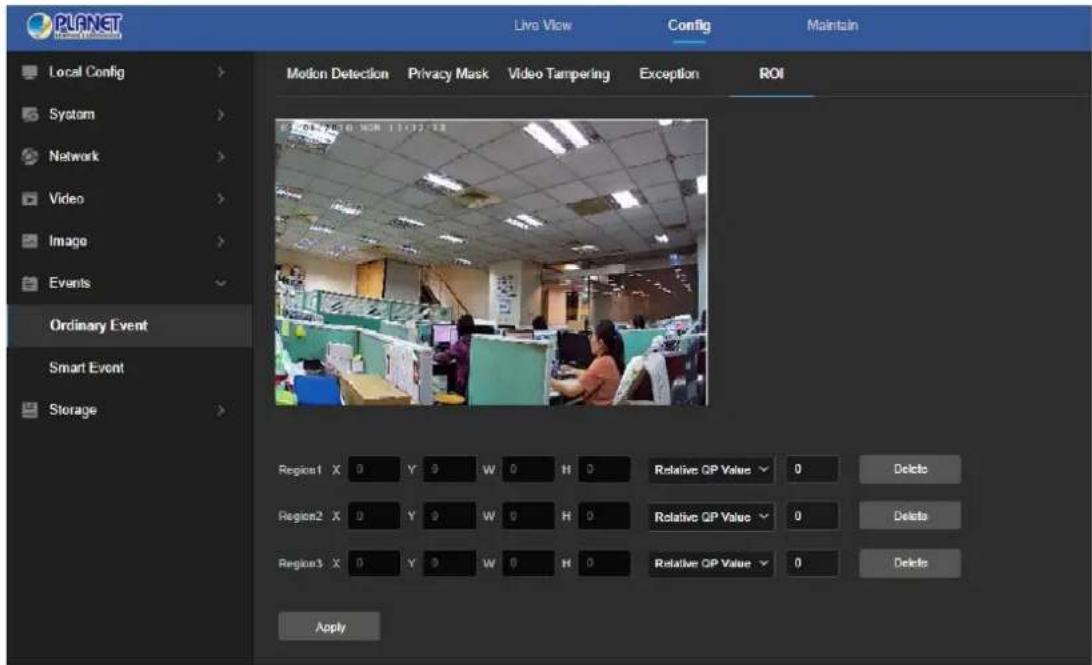
Figure 8-28
Step 2: 【Region Settings】Move the mouse to the preview screen, hold down the left mouse button to select the ROI area range, and release the left mouse button to complete the area drawing. You can also enter the X, Y, W, and H corresponding positions in the corresponding area to set the area.
Step 3: 【Set "Relative QP value" or "Absolute QP value"] Select "Relative QP value" or "Absolute QP value" in the corresponding area position and enter the corresponding value.
Step 4: Click "Apply" to complete the ROI setting.

- The ROI function depends on the specific model, and the ROI function is only supported under the H.264 or H.265 code. Other codes do not support the ROI function at this time.
- Click【Delete】in the corresponding setting area to delete the corresponding ROI area.
⑥ Sound Alarm (ICA-M3580P/ICA-M4580P only)
After configuring the sound alarm, when the event is triggered, the speaker on the device can be linked to alarm.
The specific operation steps are as follows:
Step 1: In the main interface, click "Configuration → Events → Ordinary Events → Sound Alarm" to enter the Sound Alarm setting interface, as shown in Figure 8-29.
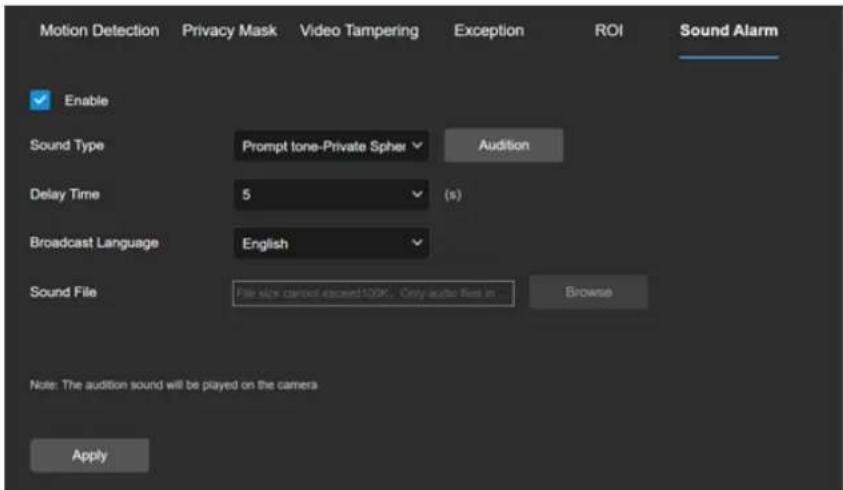
Figure 8-29
Step 2: Click "Enable" to turn on the sound alarm. Configure the alarm sound type of the camera, you can choose private area, warning area, surveillance area, welcome, deep water warning, dangerous area, valuables, high altitude warning, custom.
Step 3: Set delay time: default 5S, optional 10S, 20S, 30S.
Step 4: Set the alarm language, you can choose Chinese and English.
Step 5: You can customize the upload of sound files, you need to select Custom in the sound type, and then select your own sound file to upload (Only supports one sound file, the file size cannot exceed 100K, only G711U format is supported).
8.6.2 Smart Event
① Intrusion Detection
The area intrusion detection is used to detect whether a person enters the set area in the video setting area, and the alarm is linked according to the judgment result.
The specific operation steps are as follows:
Step 1: In the main interface click on the "Configuration → Events → Smart Event → Intrusion Detection" to enter the Intrusion Detection settings interface, as shown in Figure 8-30.
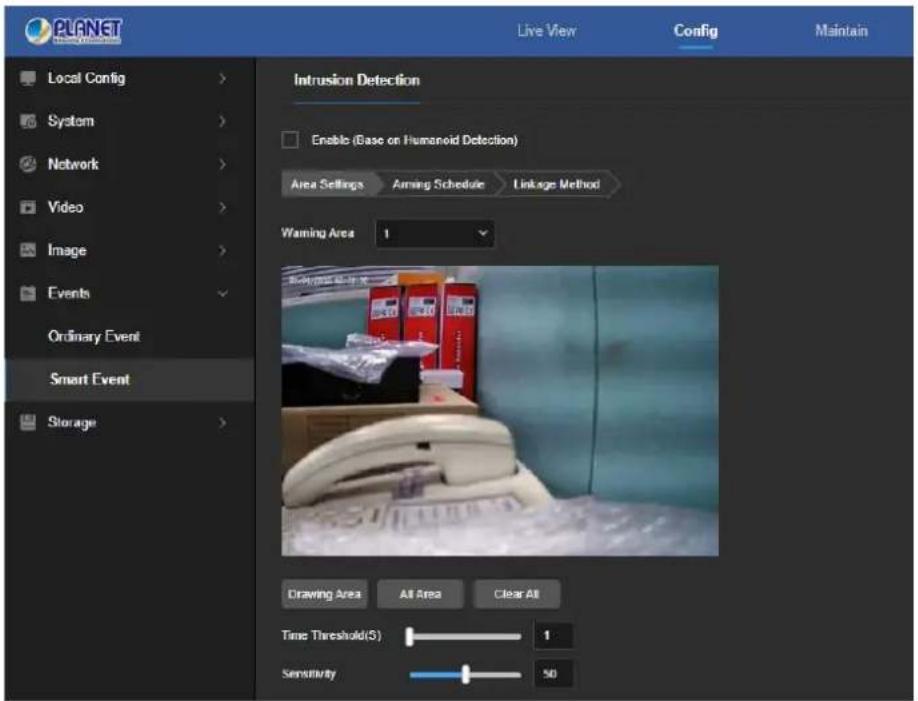
Figure 8-30
Step 2: Check "Enable" to enable intrusion detection.
Step 3: Select "Warning Area": The system supports setting up to 4 warn regions. After selecting a warn region, you need to make the following settings. After setting, please click "Apply" below.
【Drawing Area】Click "Drawing Area" and move the mouse to the preview screen. Click the left mouse button and draw the endpoint of the quadrilateral guard area, and then click the preview interface to complete the area drawing.
【Clear All】Used to delete the selected alert area.
【Time threshold(s)】Indicates that the target enters the alert zone and continues to stay for this time to generate an alarm. If set to 5s, the target intrusion area will trigger an alarm after 5s.
【Sensitivity】Used to set the sensitivity of detected area intrusion. The default is 50. Drag the progress bar or enter the value directly in the value box to modify the sensitivity. The greater the sensitivity is, the easier it is to trigger an alarm.
Step 4: When you need to set other Warning Area, repeat step 3 to complete the setup.
Step 5: Set the arming schedule.
As shown in Figure 8-31 below, you can view, edit, and delete the arming time of motion detection. The default is to arm the alarm 24 hours a day. You can adjust the arming time as follows:
Method 1: Click the arming time period, manually fill in the start time and end time, set up and click "Apply". If you need to delete the time period, click the "Delete" button and then reset the time period.
Method 2: Click the arming time period, two arrows will be displayed at both ends of the time period. Move the adjustment arrow left or right to adjust the arming time.
- You can set up more than one time period for up to 8 time periods.
After the day of deployment time is set, if the other time also needs to be set at the same arming time, click the right side of the timeline "copy button; in the "copy to" interface, check the "Select All" or a day, and then click "OK".
After setting, click "Apply" to complete the setting of the arming time.
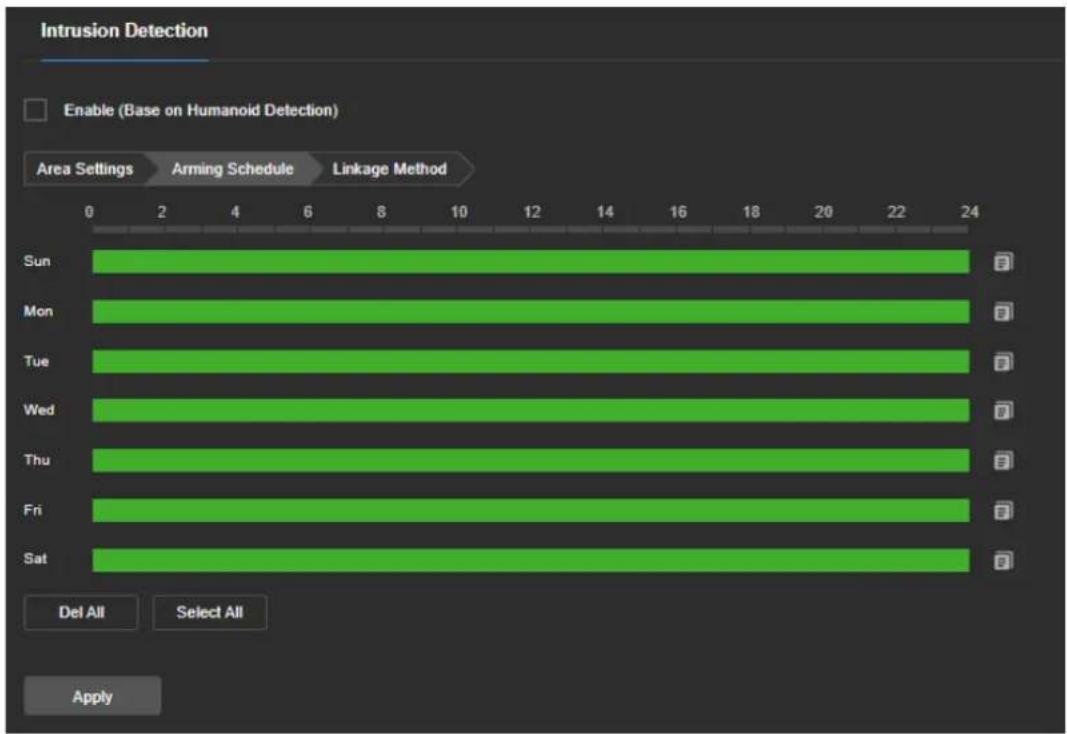
Figure 8-31

Note
- When the arming time is set, there can be no overlap between any two time periods.
Step 6: Set the linkage method.
General linkage includes "Upload Via SMTP", "Upload Via FTP", "Upload Via Cloud", "Sound Alarm". When the device motion detection alarms, it will inform the user as shown in Figure 8-32.
![graph TD A["Enable (Base on Humanoid Detection)"] --> B["Area Settings"] B --> C["Arming Schedule"] C --> D["Linkage Method"] E["General Linkage"] --> F["Upload Via SMTP"] E --> G["Upload Via FTP"] E --> H["Upload Via Cloud"] I["Sound Alarm"] --> J["Sound Alarm"]](/content/2026/06/1225143/images/600f5441cfc6e2d28d2792d4fb24c71dc477bdb80ddb9fd2d9ead6c033a8f30d.jpg)
Figure 8-32
【Upload Via SMTP】Select and the system is configured with SMTP, the alarm information will be sent to the SMTP recipient mailbox.
【Upload Via FTP】Select and the system is configured with the FTP server, it will send the alarm information to the FTP server.
【Upload Via Cloud】Select and the system is configured with the cloud server, it will send the alarm information to the cloud account.
【Sound Alarm】After selection, the device will emit an alarm sound when alarming.
② Line Cross Detection (ICA-M3580P/ICA-M4580P only)
The line cross detection function is used to detect whether there is an object in the video that crosses the set warning surface, and the alarm is linked according to the judgment result.
The specific operation steps are as follows:
Step 1: In the main interface click on the "Configuration → Events → Smart Event → Line Cross Detection" to enter the Line Cross Detection settings interface, as shown in Figure 8-33.

Figure 8-33
Step 2: Check "Enable" to enable line cross detection.
Step 3: Select "Warn Line": The system supports setting up to 4 warn line. After selecting a warn line, you need to make the following settings. After setting, please click "Save" below.
【Warn Line】Click "Drawing Area" and a line segment with an arrow will appear on the screen. Click on the line segment, click and drag one of the endpoints to modify the length of the line segment; or click and drag the position of the line segment with the arrow in the picture to complete the drawing of a warning surface.
【Clear All】Used to delete the selected alert area.
【Direction】There are three options: "A<->B", "A->B", and "B->A", indicating the direction in which the object crosses the interface to trigger an alarm. "A->B" means that the alarm will be triggered when the object crosses from A to B; "B->A" means that the alarm will be triggered when the object crosses from B to A; "A<->B" means that the object crosses from A to B, or from B to B, the alarm is triggered, that is, the alarm is triggered in both directions.
【Sensitivity】Used to set the sensitivity of detected area intrusion. The default is 50. Drag the progress bar or enter the value directly in the value box to modify the sensitivity. The greater the sensitivity, the easier it is to trigger an alarm.
Step 4: When you need to set other Warn Line, repeat step 3 to complete the setup.
Step 5: Set the arming schedule.
As shown in Figure 8-34 below, you can view, edit, and delete the arming time of motion detection. The default is to arm the alarm 24 hours a day. You can adjust the arming time as follows:
- Method 1: Click the arming time period, manually fill in the start time and end time, set up and click "Apply". If you need to delete the time period, click the "Delete" button and then reset the time period.
Method 2: Click the arming time period, two arrows will be displayed at both ends of the time period. Move the adjustment arrow left or right to adjust the arming time. - You can set up more than one time period for up to 8 time periods.
- After the day of deployment time is set, if the other time also needs to be set at the same arming time, click the right side of the timeline "copy button; in the "copy to" interface, check the "Select All" or a day, and then click "OK".
After setting, click "Apply" to complete the setting of the arming time.

Figure 8-34

- When the arming time is set, there can be no overlap between any two time periods.
Step 6: Set the linkage method.
General linkage includes "Upload Via SMTP", "Upload Via FTP", "Upload Via Cloud", "Sound Alarm". When the device motion detection alarms, it will inform the user as shown in Figure 8-35.
![graph TD A["Enable (Base on Humanoid Detection)"] --> B["Area Settings"] B --> C["Arming Schedule"] C --> D["Linkage Method"] E["General Linkage"] --> F["Upload Via SMTP"] E --> G["Upload Via FTP"] E --> H["Upload Via Cloud"] I["Sound Alarm"] --> J["Sound Alarm"]](/content/2026/06/1225143/images/56a49f231e6502590b45b3f4c4349d0191f5c4e2d5ae5d00063d77422b85df69.jpg)
Figure 8-35
【Upload Via SMTP】Select and the system is configured with SMTP, the alarm information will be sent to the SMTP recipient mailbox.
【Upload Via FTP】Select and the system is configured with the FTP server, it will send the alarm information to the FTP server.
【Upload Via Cloud】Select and the system is configured with the cloud server, it will send the alarm information to the cloud account.
【Sound Alarm】After selection, the device will emit an alarm sound when alarming.
③ Loiter Detection (ICA-M3580P/ICA-M4580P only)
The loiter detection function is used to detect that the target stays within the set area for more than the set time threshold, and then alarms according to the judgment result.
The specific operation steps are as follows:
Step 1: In the main interface click on the "Configuration → Events → Smart Event → Loiter Detection" to enter the Loiter Detection settings interface, as shown in Figure 8-36.

Figure 8-36
Step 2: Check "Enable" to enable loiter detection.
Step 3: Select "Warn Region": The system supports setting up to 4 warn region. After selecting a warn region, you need to make the following settings. After setting, please click "Save" below.
【Drawing Area】 Click "Drawing Area", move the mouse to the preview screen, click the left mouse button and draw the endpoint of the quadrilateral guard area, then click the preview interface to complete the area drawing.
【All Area】When need all areas to be detected, click "All Area" to automatically select all areas.
【Clear All】 Used to delete the selected alert area.
【Time threshold(min)】 Indicates that the target generates an alarm after continuous movement in the detection area. The larger the time threshold, the longer the target continues to move in the detection area to trigger an alarm.
【Sensitivity】 Used to set the sensitivity of detected area intrusion. The default is 50. Drag the progress bar or enter the value directly in the value box to modify the sensitivity. The greater the sensitivity, the easier it is to trigger an alarm.
Step 4: When you need to set other Warn Region, repeat step 3 to complete the setup.
Step 5: Set the arming schedule.
As shown in Figure 8-37 below, you can view, edit, and delete the arming time of motion detection. The default is to arm the alarm 24 hours a day. You can adjust the arming time as follows:
Method 1: Click the arming time period, manually fill in the start time and end time, set up and click "Apply". If you need to delete the time period, click the "Delete" button and then reset the time period.
Method 2: Click the arming time period, two arrows will be displayed at both ends of the time period. Move the adjustment arrow left or right to adjust the arming time.
- You can set up more than one time period for up to 8 time periods.
After the day of deployment time is set, if the other time also needs to be set at the same arming time, click the right side of the timeline "copy button; in the "copy to" interface, check the "Select All" or a day, and then click "OK".
After setting, click "Apply" to complete the setting of the arming time.

Figure 8-37

- When the arming time is set, there can be no overlap between any two time periods.
Step 6: Set the linkage method.
General linkage includes "Upload Via SMTP", "Upload Via FTP", "Upload Via Cloud", "Sound Alarm". When the device motion detection alarms, it will inform the user as shown in Figure 8-38.
![graph TD A["Enable (Base on Humanoid Detection)"] --> B["Area Settings"] B --> C["Arming Schedule"] C --> D["Linkage Method"] E["General Linkage"] --> F["Upload Via SMTP"] E --> G["Upload Via FTP"] E --> H["Upload Via Cloud"] I["Sound Alarm"] --> J["Sound Alarm"]](/content/2026/06/1225143/images/59767e666ddaad830b2688b27200bc5f5c631728f621285971f6d48e580514cc.jpg)
Figure 8-38
【Upload Via SMTP】Select and the system is configured with SMTP, the alarm information will be sent to the SMTP recipient mailbox.
【Upload Via FTP】Select and the system is configured with the FTP server, it will send the alarm information to the FTP server.
【Upload Via Cloud】Select and the system is configured with the cloud server, it will send the alarm information to the cloud account.
【Sound Alarm】After selection, the device will emit an alarm sound when alarming.
④ People Gather Detection (ICA-M3580P/ICA-M4580P only)
The people gather detection function is used to detect that the density of the personnel in the set area exceeds the set threshold, and the alarm is linked according to the judgment result.
The specific operation steps are as follows:
Step 1: In the main interface click on the "Configuration → Events → Smart Event → People Gather Detection" to enter the People Gather Detection settings interface, as shown in Figure 8-39.

Figure 8-39
Step 2: Check "Enable" to enable people gather detection.
Step 3: Select "Warn Region": The system supports setting up to 4 warn region. After selecting a warn region, you need to make the following settings. After setting, please click "Save" below.
【Drawing Area】Click "Drawing Area", move the mouse to the preview screen, click the left mouse button and draw the endpoint of the quadrilateral guard area, then click the preview interface to complete the area drawing.
【All Area】When need all areas to be detected, click "All Area" to automatically select all areas. 【Clear All】Used to delete the selected alert area.
【Proportion】Indicates the proportion of personnel in the entire alert area. When the proportion of personnel exceeds the set percentage, the system will generate an alarm.
The percentage is 50% by default. The larger the value, the more people can be accommodated in the alert area, and the less likely it is to trigger an alarm.
Step 4: When you need to set other Warn Region, repeat step 3 to complete the setup.
Step 5: Set the arming schedule.
As shown in Figure 8-40 below, you can view, edit, and delete the arming time of motion detection. The default is to arm the alarm 24 hours a day. You can adjust the arming time as follows:
Method 1: Click the arming time period, manually fill in the start time and end time, set up and click "Apply". If you need to delete the time period, click the "Delete" button and then reset the time period.
Method 2: Click the arming time period, two arrows will be displayed at both ends of the time period. Move the adjustment arrow left or right to adjust the arming time.
- You can set up more than one time period for up to 8 time periods.
After the day of deployment time is set, if the other time also needs to be set at the same arming time, click the right side of the timeline "copy button; in the "copy to" interface, check the "Select All" or a day, and then click "OK".
After setting, click "Apply" to complete the setting of the arming time.
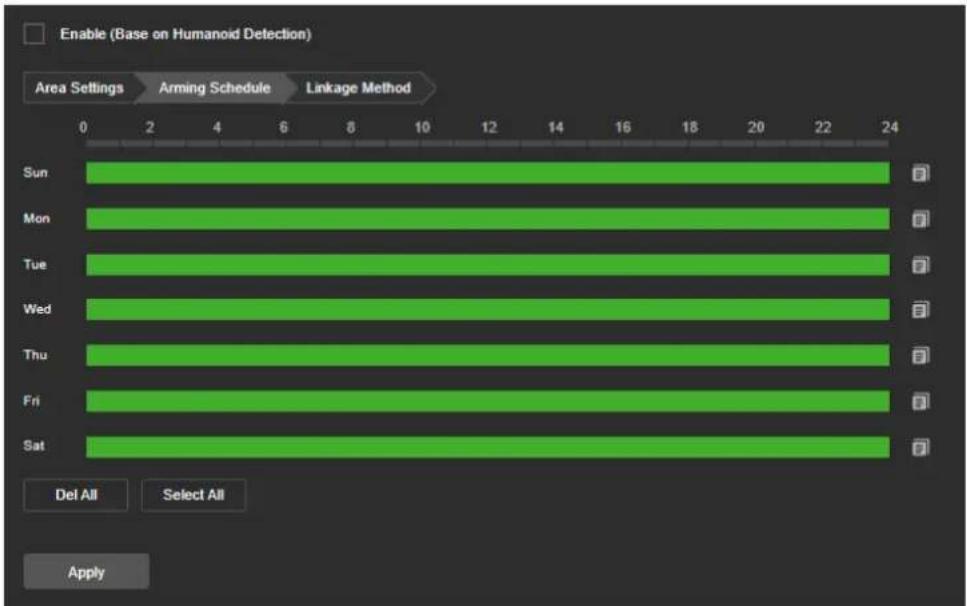
Figure 8-40

Note
- When the arming time is set, there can be no overlap between any two time periods.
Step 6: Set the linkage method.
General linkage includes "Upload Via SMTP", "Upload Via FTP", "Upload Via Cloud", "Sound Alarm". When the device motion detection alarms, it will inform the user as shown in Figure 8-41.
![graph TD A["Enable (Base on Humanoid Detection)"] --> B["Area Settings"] B --> C["Arming Schedule"] C --> D["Linkage Method"] E["General Linkage"] --> F["Upload Via SMTP"] E --> G["Upload Via FTP"] E --> H["Upload Via Cloud"] I["Sound Alarm"] --> J["Sound Alarm"]](/content/2026/06/1225143/images/8751f49ac2f05dfb249559ba27708c6f2a2dde81c504fa2f7a0123b8e0b68650.jpg)
Figure 8-41
【Upload Via SMTP】Select and the system is configured with SMTP, the alarm information will be sent to the SMTP recipient mailbox.
【Upload Via FTP】Select and the system is configured with the FTP server, it will send the alarm information to the FTP server.
【Upload Via Cloud】Select and the system is configured with the cloud server, it will send the alarm information to the cloud account.
【Sound Alarm】After selection, the device will emit an alarm sound when alarming.
⑤ Vehicle Detection (ICA-M3580P/ICA-M4580P only)
The vehicle detection function is used to detect that the density of the vehicle in the set area exceeds the set threshold, and the alarm is linked according to the judgment result.
The specific operation steps are as follows:
Step 1: In the main interface click on the "Configuration → Events → Smart Event → Vehicle Detection" to enter the Vehicle Detection settings interface, as shown in Figure 8-42.

Figure 8-42
Step 2: Check "Enable" to enable vehicle detection.
Step 3: Select "Warn Region": The system supports setting up to 4 warn region. After selecting a warn region, you need to make the following settings. After setting, please click "Save" below.
【Drawing Area】Click "Drawing Area", move the mouse to the preview screen, click the left mouse button and draw the endpoint of the quadrilateral guard area, then click the preview interface to complete the area drawing.
【All Area】When need all areas to be detected, click "All Area" to automatically select all areas.
【Clear All】Used to delete the selected alert area.
【Time threshold(min)】 Indicates that the target generates an alarm after continuous movement in the detection area. The larger the time threshold, the longer the target continues to move in the detection area to trigger an alarm.
【Sensitivity】 Used to set the sensitivity of detected area intrusion. The default is 50. Drag the progress bar or enter the value directly in the value box to modify the sensitivity. The greater the sensitivity, the easier it is to trigger an alarm.
Step 4: When you need to set other Warn Region, repeat step 3 to complete the setup.
Step 5: Set the arming schedule.
As shown in Figure 8-43 below, you can view, edit, and delete the arming time of motion detection. The default is to arm the alarm 24 hours a day. You can adjust the arming time as follows:
Method 1: Click the arming time period, manually fill in the start time and end time, set up and click "Apply". If you need to delete the time period, click the "Delete" button and then reset the time period.
- Method 2: Click the arming time period, two arrows will be displayed at both ends of the time period. Move the adjustment arrow left or right to adjust the arming time.
- You can set up more than one time period for up to 8 time periods.
- After the day of deployment time is set, if the other time also needs to be set at the same arming time, click the right side of the timeline "copy button; in the "copy to" interface, check the "Select All" or a day, and then click "OK".
After setting, click "Apply" to complete the setting of the arming time.
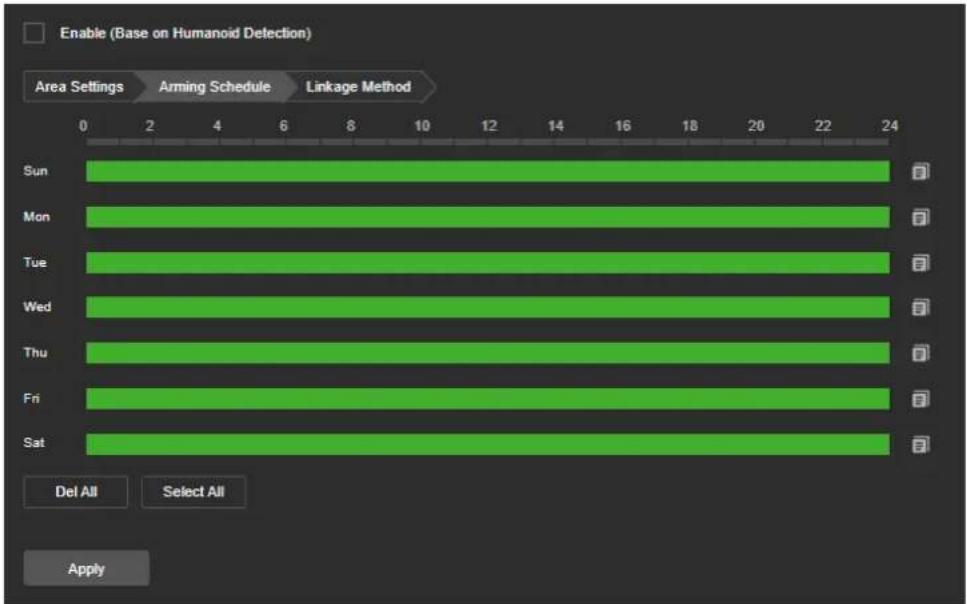
Figure 8-43

Note
- When the arming time is set, there can be no overlap between any two time periods.
Step 6: Set the linkage method.
General linkage includes "Upload Via SMTP", "Upload Via FTP", "Upload Via Cloud", "Sound Alarm". When the device motion detection alarms, it will inform the user as shown in Figure 8-44.
![graph TD A["Enable (Base on Humanoid Detection)"] --> B["Area Settings"] B --> C["Arming Schedule"] C --> D["Linkage Method"] E["General Linkage"] --> F["Upload Via SMTP"] E --> G["Upload Via FTP"] E --> H["Upload Via Cloud"] I["Sound Alarm"] --> J["Sound Alarm"]](/content/2026/06/1225143/images/559c9ac24e28c4cb0e2b12bf299f47dd7d72330d3da28b9a5640972dd10fda33.jpg)
Figure 8-44
【Upload Via SMTP】Select and the system is configured with SMTP, the alarm information will be sent to the SMTP recipient mailbox.
【Upload Via FTP】Select and the system is configured with the FTP server, it will send the alarm information to the FTP server.
【Upload Via Cloud】Select and the system is configured with the cloud server, it will send the alarm information to the cloud account.
【Sound Alarm】After selection, the device will emit an alarm sound when alarming.
8.7 Storage
8.7.1 Schedule Config (ICA-M3580P/ICA-M4580P only)
① Record Schedule
The specific operation steps are as follows:
Step 1: In the main interface, click "Configuration → Storage → Schedule Config → Record Schedule" to enter the recording setting interface, as shown in Figure 8-45 ①.
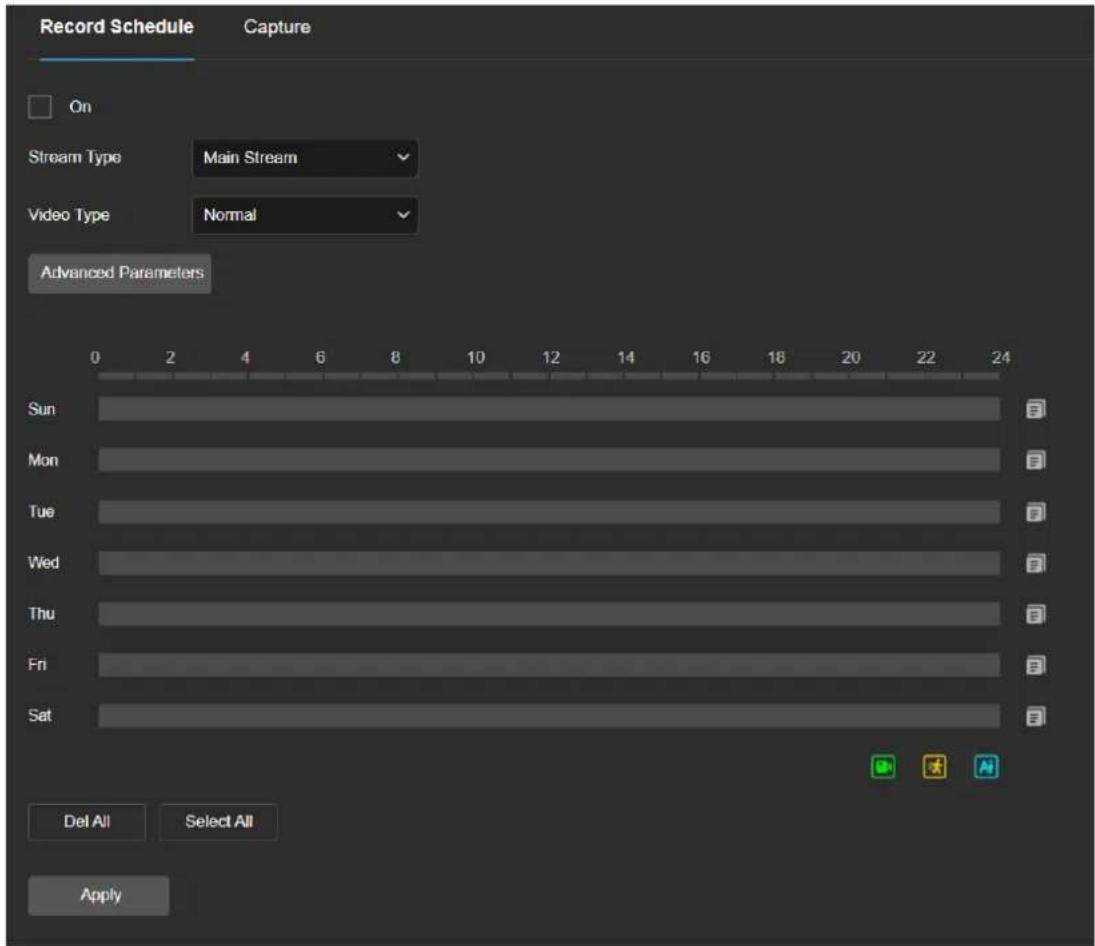
Figure 8-45 ①
Step 2: To enable record, select the stream type (Main Stream, Sub Stream) video type (Normal Record, Motion Detection, Intelligent).
Step 3: Set the recording schedule time period.
Method 1: Click the arming time period, manually fill in the start time and end time, set up and click Save. If you need to delete the time period, click the "Del All" button and then reset the time period.
- Method 2: Click the arming time period, two arrows will be displayed at both ends of the time period. Move the adjustment arrow left or right to adjust the arming time.
Step 4: Set the Pre-recorded time and Video delay time, click the "Advance parameters", You can set the Pre-recorded time (Unlimited, 10s, 15s, 20s, 25s,30s) and
Video delay (5s, 10s, 30s, 1min, 2min, 5min, 10min), as shown in Figure 8-45 ②.

Figure 8-45 ②
Step 5: Click "Application" to complete the setting of the arming time.

- You can set up more than one time period for up to 8 time periods.
- After the day of deployment time is set, if the other time also need to set the same arming time, click the right side of the timeline "copy button, in the "copy to" interface check the "Select All" or a day, then click "OK".
- Tick "Select All" to enable recording for all time.
- No SD card video recording function of the camera no SD card management interface, please take the camera physical specific functions shall prevail.
- When the video type selects motion detection, alarm, the device will also perform scheduled recording while recording the selected recording type.
- The pre-recording time and recording delay can be used for motion detection recording, alarm recording, motion detection and alarm recording.
② Capture
The capture is used to set the camera capture plan and capture parameters. After setting, the IP camera will automatically capture images. In the snapshot parameters interface, when the Enable timed capture is selected, the camera can set the snapshot schedule as needed.
The specific operation steps are as follows:
Step 1: In the main interface, click "Configuration → Storage → Schedule Configuration → Capture" to enter the capture parameter setting interface, as shown in Figure 8-46 ①.
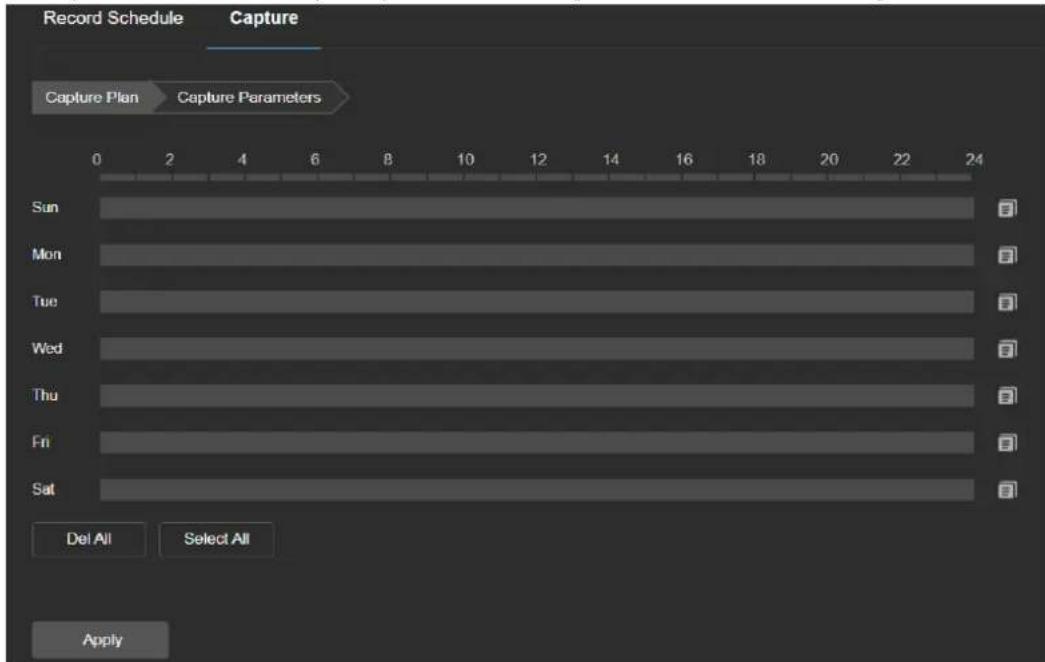
Figure 8-46 ①
Step 2: Set the capture plan.
- Method 1: Click the capture plan, manually fill in the start time and end time, set up and click Save. If you need to delete the time period, click the "Del All" button and then reset the time period.
- Method 2: Click the capture plan, two arrows will be displayed at both ends of the time period. Move the adjustment arrow left or right to adjust the arming time.
Step 3: Repeat step 2 to set up a complete recording plan.
Step 4: Click "Application" to complete the setting of the arming time.
Step 5: Click "Capture Parameters" to enter the capture parameters interface, as shown in Figure 8-46 ②.

Figure 8-46 ②
Step 6: Select options such as image format (JPEG), resolution, and picture quality as required, and set up timed snapshots and event snapshots.
【Image Format】Support JPEG format.
【Resolution】The captured image resolution.
【Image Quality】Three levels of "Low", "Midd" and "High" can be selected.
【Timing】During the set time period, grab a picture according to the set time interval.
【Interval time】Please set the time interval of snapshot according to your needs.
【Event-Triggered】During the set time period, grab a picture according to the event is triggered.
【Interval time】Please set the time interval of snapshot according to your needs.
【Capture Number】When an event triggers a snapshot, you can set the number of pictures captured by an event trigger.
Step 7: Click "Application" to complete the settings.

- You can set up more than one time period for up to 8 time periods.
- After the day of deployment time is set, if the other time also need to set the same arming time, click the right side of the timeline "copy button, in the "copy to" interface check the "Select All" or a day, then click "OK".
- Tick "Select All" to enable recording for all time.
- No SD card video recording function of the camera no SD card management interface, please take the camera physical specific functions shall prevail.
● The arming time of the event snapshot needs to be configured in each event.
8.7.2 Storage Management
① Storage (ICA-M3580P/ICA-M4580P only)
In the main interface, click "Configuration → Storage → Storage Management → Storage" to enter the storage management setting interface, where you can view the memory card capacity and status, and perform operations such as formatting and configuring the memory card, as shown in Figure 8-47 below.

Figure 8-47
SD card format steps are as follows :
Step 1: Select the disk to be formatted, click "Format".
Step 2: Click "OK".
Step 3: Wait for the format to complete the progress bar, formatting is complete, check the card information, Total Capacity = Residual Capacity, formatted successfully.
The steps to configure disk quota are as follows:
Step 1: Select the memory card.
Step 2: Set the disk quota, including parameters such as picture capacity and video capacity.
Step 3: Click "Save".
Step 4: Click "Format → OK" to complete the configuration of disk quota after formatting.
② Cloud Storage
Set up cloud storage. When the device triggers an alarm, you can store the alarm picture taken by the device on a cloud server.
Prerequisites
1) You need to have a Google cloud storage account.
2) To use this function, the device must be connected to the external network, otherwise it will not work properly.
The specific operation steps are as follows:
Step 1: In the main interface, click "Config → Storage → Storage Management → Cloud Storage" to enter the cloud storage configuration interface, as shown in Figure 8-48.
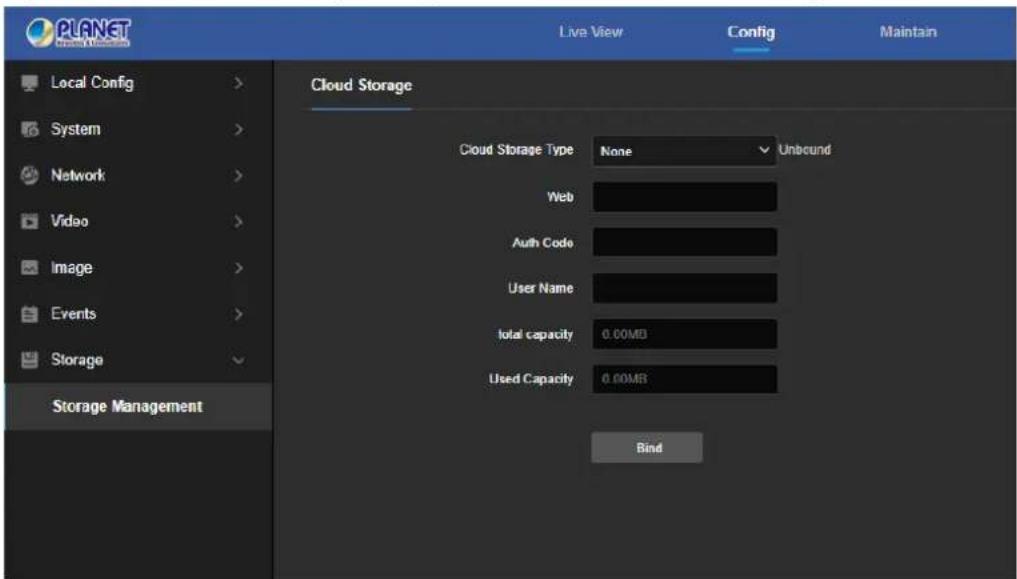
Figure 8-48
Step 2: Select the cloud storage type, such as "Google".
Step 3: Follow the prompts to log in to the website with a browser on the computer to obtain the "Verification Code".
Step 4: Enter the verification code in the "Auth code" field of the cloud storage interface.
Step 5: Click "Bind".

- Cloud storage type only support google.
- The total capacity is the total capacity of the cloud disk owned by the current account. If you need to expand the capacity, you can log in to the corresponding website of the cloud disk to expand or purchase the capacity.
Chapter 9 Maintain
Click "in the main interface to enter the System Configuration interface. Here you can check the Device Information and Log. You also can perform IPC upgradation, reset to default, auto maintain, and import and export device parameter.
9.1 Device Information
In the main interface, click "Maintain → Device Information" to enter the device information configuration interface, where you can view the basic information of the current device, as shown in Figure 9-1.

Figure 9-1
【Device Name】The name of the current IPC.
【Firmware Version】The current version of the IPC.
【WEB Version】The current page version of the IPC.
9.2 Upgrade
In the main interface, click "Maintain → Upgrade" to enter the device upgrade interface, where you can manually upgrade the IPC, as shown in Figure 9-2.

Figure 9-2
【Manual Upgrade】Clicking "Browse" to add upgrade file package, and upgrading the IPC program. (Please be careful with the operation or else the error of upgrade file will cause equipment system to operate abnormally).
9.3 Default
In the main interface, click "Maintain → Default" to enter the device recovery default interface, where you can reset device parameters and reset all the parameters to the factory default, as shown in Figure 9-3.

Figure 9-3
【Reset device parameters】IPC will automatically restore the parameters to the factory parameters except the network parameters.
【Reset all the parameters to the factory default】All parameter settings of IPC will be automatically restored to the factory parameter settings (please operate this function carefully).
9.4 Auto Maintain
In the main interface, click "Maintain → Auto Maintain" to enter the reboot settings interface, where you can set the device to restart or set the scheduled reboot time in the drop-down menu. For example, set the scheduled reboot time in "3:03 on the 3rd of each month" and click "Apply", and then follow the scheduled reboot time the device will reboot automatically shown in Figure 9-4.

Figure 9-4

Note
- In order to avoid overloading the server due to excessive device restarts at the same time, the background processing logic of the device is to restart randomly within 1 hour.
9.5 Import and Export
In the main interface, click "Maintain → Import And Export" to enter the device parameters import and export interface, where you can export device parameters or import the parameters file to IPC, as shown in Figure 9-5.
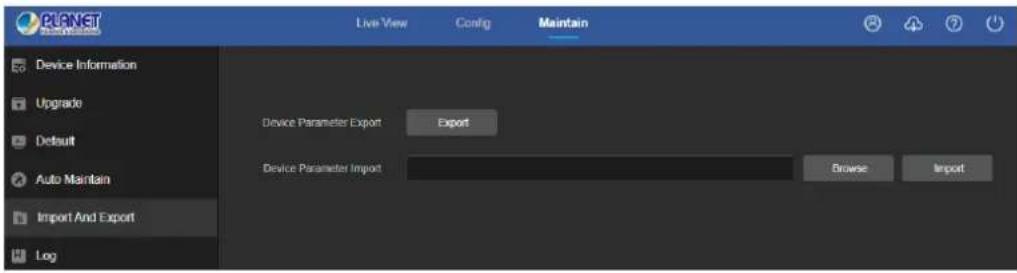
Figure 9-5
9.6 Log
In the main interface, click "Maintain → Log" into the log search interface, where you can query the device alarm and all other relevant information shown in Figure 9-6.
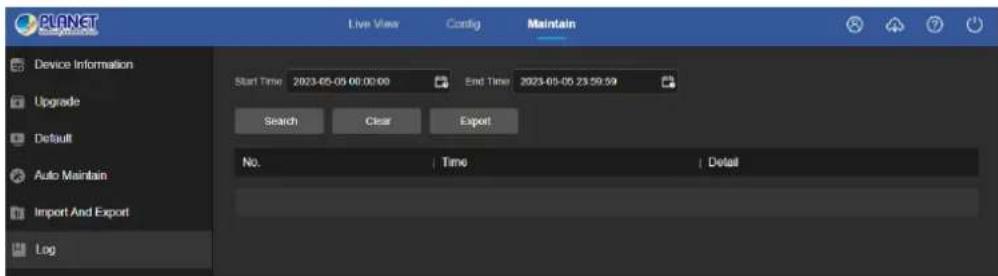
Figure 9-6
【Search】Set the date and start time of the log query, and click "Search". The log list shows the IPC execution record that meets the conditions.
【Clear】Clicking clear button to empty all logging.
【Export】Save the contents of the current log to the location you specified in txt format.
Chapter 10 Frequently Asked Questions
| Features | |
| 1. Why can't I access the IP camera by Web? | Answer: Please refer to the details as follows:a. The network is unreasonable sound?Solution: First you can connect network by PC, and check whether the network cable is good. And check whether the network between the camera and the PC is good.b. The IP address of the IP camera is occupied by another device or PC.Solution: You can connect the camera with your PC directly, and modify the IP address or use the IP search tool.c. The IP camera may be in another network segment?Solution: Check the IP address and net mask. |
| 2. Why can't I access the IP camera after update? | Answer: Clear browser cache.Step: Open Web browser, click "Tools" and select "Internet Options" to see "Temporary Internet files" and click "Delete Files". It will prompt a dialog you need to check "Delete all offline contents" and click "OK".Also you can click "Start" and select "Run" and then enter "cmd", and "arp -d" in "Command Prompt" interface. Re-access the IP camera. |
| 3. Why can't it show the whole interface? | Answer: Close some options of Web browser.Step: Open Web browser, click "View" and select "Toolbar" to close the "Favorites bar", "Status bar" and "Command bar". |
| 4.Why is PoE IPC connection to PoE switch not working? | Answer: There may be 5 reasons, Details are as follows:a. Make sure that the IPC has PoE function. If it cannot be confirmed, it can be confirmed by checking the PI number or disassembling the machine.b. Use 8-core network cable; do not use 4-core network cable.c. Check whether the function of the POE switch is normal.d. The PoE power supply protocol of IPC is inconsistent with the power supply protocol of the switch, and other switches can be replaced or the company's switches can be used for use.e. The PoE module of the IPC is damaged; replace the PoE module. |
| 5.Why is IPC connection to NVR not working? | Answer: There may be 2 reasons. Details are as follows:a. The network segments of IPC and NVR are different.Solution: Modify the values of the first three groups of the IP address of the IPC to be the same as the values of the first three groups of the IP address of the NVR, and modify the last group of numbers to different values.b. IPC password has been changed.Solution: Find the corresponding device on the NVR interface, click Edit, and then re-enter the correct IPC password. |
| 6. Why IPC format the SD card, the normal capacity still cannot be recognized? | Answer: There maybe 2 reasons, Details are as follows:a. SD card problem.Solution: Use another SD card or another capacity SD card.b. SD card has multiple partitions, causing IPC to fail to read normally.Solution: Erase SD Card Partitions on Computer. |
- COPYRIGHT
- FCC INTERFERENCE STATEMENT
- FCC CAUTION
- FCC RADIATION EXPOSURE STATEMENT
- SAFETY
- CE MARK WARNING
- WEEE REGULATION
- REVISION
- LEGAL DISCLAIMER
- SAFETY INSTRUCTION
- WARNING
- CAUTIONS
- TABLE OF CONTENTS
- CHAPTER 1 PRODUCT INTRODUCTION ....8
- CHAPTER 1 PRODUCT INTRODUCTION
- 1.1 PRODUCT HIGHLIGHTS
- 1.2 PRODUCT FEATURES
- CHAPTER 2 OPERATING INSTRUCTIONS
- 2.1 NETWORK CONNECTION
- 2.1.1 WIRED NETWORK CONNECTION
- 2.2 DETECTING AND CHANGING THE IP ADDRESS
- CHAPTER 3 ACCESS TO THE IP CAMERA BY PVMS
- SOFTWARE
- CHAPTER 4 ACCESS TO THE IP CAMERA BY WEB CLIENT
- 4.1 PREPARATION BEFORE INSTALLING PLUGIN
- 4.2 LOGIN AND EXIT
- 4.2.1 LOGIN
- 4.2.2 CHANGING PASSWORD
- 4.2.3 FORGET PASSWORD
- SECURITY QUESTION VERIFICATION
- SECURITY KEY VERIFICATION
- 4.2.4 EXIT SYSTEM
- 4.3 INSTALLING THE LSIPCPLUGIN CONTROLS
- 4.4 MAIN INTERFACE DESCRIPTION
- CHAPTER 5 LIVE PREVIEW
- 5.1 LIVE VIEW
- 5.2 IMAGE CONFIG
- 5.3 PTZ
- CHAPTER 6 PLAYBACK
- CHAPTER 7 PICTURE MANAGEMENT
- CHAPTER 8 CONFIGURATION
- 8.1 LOCAL CONFIGURATION
- 8.2 SYSTEM
- 8.2.1 SYSTEM CONFIG
- ① TIME SETTING
- ② DST
- 8.2.2 SECURITY
- ① ADD A USER
- ④ EDIT THE USER (NEW USER)
- ⑤ DELETE USERS
- 8.3 NETWORK
- 8.3.1 BASIC SETUP
- ① TCP/IP
- ENABLE DHCP
- PORT
- ② DDNS
- ③ PPPOE
- THE SPECIFIC OPERATION STEPS ARE AS FOLLOWS
- ④ FTP
- PRECONDITION
- THE STEPS TO CONFIGURE FTP ARE AS FOLLOWS
- ⑤ OTHER
- ⑥ QOS
- ⑦ 802.1X
- 8.3.2 P2P
- ① P2P
- APP CLIENT OPERATION EXAMPLE
- STEP 4: LIVE PREVIEW
- ② IPEYE
- HOME
- 8.3.3 EMAIL
- SENDER
- RECEIVER
- 8.4 VIDEO
- 8.4.1 VIDEO
- 8.4.2 AUDIO
- 8.5 IMAGE
- 8.5.1 IMAGE
- 8.5.2 OSD
- 8.6 EVENTS
- 8.6.1 ORDINARY EVENT
- ① MOTION DETECTION
- STEP 5: SET THE LINKAGE METHOD
- ② PRIVACY MASK
- ③ VIDEO TAMPERING
- STEP 4: SET THE LINKAGE METHOD
- ④ EXCEPTION (ICA-M3580P/ICA-M4580P ONLY)
- ⑤ ROI
- ⑥ SOUND ALARM (ICA-M3580P/ICA-M4580P ONLY)
- 8.6.2 SMART EVENT
- ① INTRUSION DETECTION
- STEP 5: SET THE ARMING SCHEDULE
- STEP 6: SET THE LINKAGE METHOD
- ② LINE CROSS DETECTION (ICA-M3580P/ICA-M4580P ONLY)
- ④ PEOPLE GATHER DETECTION (ICA-M3580P/ICA-M4580P ONLY)
- ⑤ VEHICLE DETECTION (ICA-M3580P/ICA-M4580P ONLY)
- 8.7 STORAGE
- 8.7.1 SCHEDULE CONFIG (ICA-M3580P/ICA-M4580P ONLY)
- ① RECORD SCHEDULE
- ② CAPTURE
- 8.7.2 STORAGE MANAGEMENT
- ① STORAGE (ICA-M3580P/ICA-M4580P ONLY)
- SD CARD FORMAT STEPS ARE AS FOLLOWS
- THE STEPS TO CONFIGURE DISK QUOTA ARE AS FOLLOWS
- ② CLOUD STORAGE
- PREREQUISITES
- CHAPTER 9 MAINTAIN
- 9.1 DEVICE INFORMATION
- 9.2 UPGRADE
- 9.3 DEFAULT
- 9.4 AUTO MAINTAIN
- 9.5 IMPORT AND EXPORT
- 9.6 LOG
- CHAPTER 10 FREQUENTLY ASKED QUESTIONS
Brand : Planet
Model : ICA-4480F
Category : Security Camera