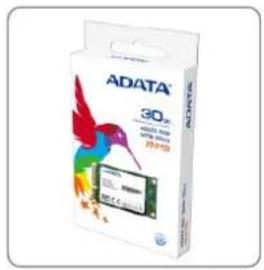
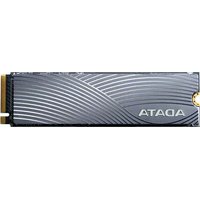
ADATA XM13 - SSD Drive

XM13 - SSD Drive ADATA - Free user manual and instructions

Find the device manual for free XM13 ADATA in PDF.

📄 9 pages English EN Download 💬 AI Question 10 questions ⚙️ Specs
Notice ADATA XM13 - page 1
Pick your language and provide your email: we'll send you a specifically translated version.
Product Type mSATA SSD
Capacity 60 GB
Interface SATA III 6 Gb/s
Form Factor mSATA (MO-300)
Dimensions (L x W x H) 50.95 x 30 x 4 mm
Weight 8 g
Power Consumption (Active) 2.5 W
Power Consumption (Idle) 0.5 W
Operating Temperature 0 °C to 70 °C
Storage Temperature -40 °C to 85 °C
Shock Resistance 1500 G
Vibration Resistance 20 G
Sequential Read Speed Up to 500 MB/s
Sequential Write Speed Up to 200 MB/s
Main Functions Supports Intel Smart Response Technology, TRIM, S.M.A.R.T.
Maintenance & Cleaning Keep firmware updated; avoid physical shocks; use secure erase if needed.
Safety Handle with ESD precautions; do not disassemble; use in supported systems only.
Spare Parts & Repairability Not user-serviceable; replace entire unit if faulty.
General Information Use with mSATA slot; compatible with Windows 7 and later.

Frequently Asked Questions - XM13 ADATA

What is Intel Smart Response Technology (ISRT)?
ISRT is a caching technology that uses an SSD to accelerate a hard disk drive. It stores frequently accessed data on the SSD for faster read/write speeds.
How do I enable ISRT with my ADATA XM13?
First, set the SATA mode to RAID in BIOS. Then install the OS and Intel Rapid Storage Utility. Install the SSD, boot into OS, and enable acceleration via the IRST software.
What BIOS settings are required for ISRT?
Set 'PCH SATA Control Mode' to RAID (or XHD if available). Disable any other caching options. Refer to your motherboard manual for exact steps.
What is the difference between Enhanced and Maximized mode?
Enhanced mode prioritizes data protection with write-through caching. Maximized mode (recommended) prioritizes performance with write-back caching.
Can I use the ADATA XM13 as a standalone boot drive?
Yes, the XM13 can be used as a primary boot drive if connected via mSATA. Ensure your system supports booting from mSATA.
What does the TRIM command do?
TRIM allows the OS to inform the SSD which data blocks are no longer in use, enabling internal garbage collection and maintaining long-term performance.
Is the ADATA XM13 compatible with Windows 10?
Yes, the XM13 is compatible with Windows 7 and later including Windows 10. However, ISRT support may require additional drivers.
How do I check if my system supports mSATA?
Check your motherboard or laptop specifications for an mSATA slot. Alternatively, look for a small slot labeled 'mSATA' or 'Mini PCIe' that supports SATA.
What should I do if the SSD is not recognized?
Verify the SSD is properly inserted. Check BIOS settings for SATA mode (set to AHCI or RAID). Update BIOS and chipset drivers. Test in another system if possible.
How do I maintain the ADATA XM13 SSD?
Keep firmware updated via ADATA's SSD Toolbox. Avoid physical shocks. Use the secure erase function if selling or disposing. Regular TRIM is automatic.

User questions about XM13 ADATA

0 question about this device. Answer the ones you know or ask your own.

Ask a new question about this device

The email remains private: it is only used to notify you if someone responds to your question.

No questions yet. Be the first to ask one.

Download the instructions for your SSD Drive in PDF format for free! Find your manual XM13 - ADATA and take your electronic device back in hand. On this page are published all the documents necessary for the use of your device. XM13 by ADATA.

USER MANUAL XM13 ADATA

Intel Smart Response Technology Setup Guide

ADATA mSATA SSD Model: XM13 Capacity:30GB RATED DC 3.3V 1A ADATA mSATA SSD Model: XM13 Capacity:30GB RATED DC 3.3V 1A 13001871 FCC CE VCCI EXC WARRANTY VOC IS REMOVED

ADATA 30% ADATA® 30mm drive 30mm drive 30mm drive

Step 1. Boot into BIOS Setup Menu

Notes: For GIGABYTE motherboard press delete key to enter BIOS

BIOS Setup 07/21/2001-268-7A9WG0

Step 2. Set 'PCH SATA control mode' to RAID (XHD)

CMOS Setup Utility - Copyright (C) 1984-2011 Award Software Integrated Peripherals
eXtreme Hard Drive (XHD) [Disabled] PCH SATA Control Mode [RAID(XHD)] OROM UI and Banner [Enabled] SATA Port0-3 Native Mode [Enabled] USB Controllers [Enabled] USB Legacy Function [Enabled] USB Storage Function [Enabled] Azalia Codec [Auto] Onboard H/W LAN [Enabled] SMART LAN [Press Enter] Onboard LAN Boot ROM [Disabled] Onboard USB 3.0 Controller[Enabled] Onboard Serial Port 1 [3F8/IRQ4] Onboard Parallel Port [378/IRQ7] Parallel Port Mode [SPP]Item Help
Menu Level ▶ Choose SATA mode [IDE] Enable SATA as IDE Function [RAID(XHD)] Enable SATA as RAID(XHD) Functi [AHCI] Enable SATA as AHCI Function

Step 3. Install OS (Windows 7, Vista or later) and other required devices drivers including Intel Rapid Storage Utility

1.
windows is loading files

ADATA XM13 mSATA SSD User's Manual

  1. ADATA XM13 - ADATA XM13 mSATA SSD User's Manual - 1
  1. ADATA XM13 - ADATA XM13 mSATA SSD User's Manual - 2

4.

Starting Windows @Microsoft Coportation

Step 3a. Intel® Rapid Storage Utility

1.

Intel® Rapid Storage Technology Welcome to the Setup Program This setup program will install Intel® Rapid Storage Technology onto this computer. It is strongly recommended that you exit all programs before continuing. Click Next to continue. ✓ Install Intel® Control Center Intel® Control Center provides a centralized starting point for Intel applications making it easier to find the programs that you need. < Back Next > Cancel Intel® Installation Framework

ADATA XM13 mSATA SSD User's Manual

  1. ADATA XM13 - ADATA XM13 mSATA SSD User's Manual - 1
  1. ADATA XM13 - ADATA XM13 mSATA SSD User's Manual - 2

Step 4. Turn off your computer

FAE Documents Pictures Music Games Computer Network Connect To Control Panel Devices and Printers Default Programs Administrative Tools > Run... Shut down * Closes all open programs, shuts down Windows, and then turns off your computer.

Step 5. Insert ADATA XM13 SSD on the mSATA slot
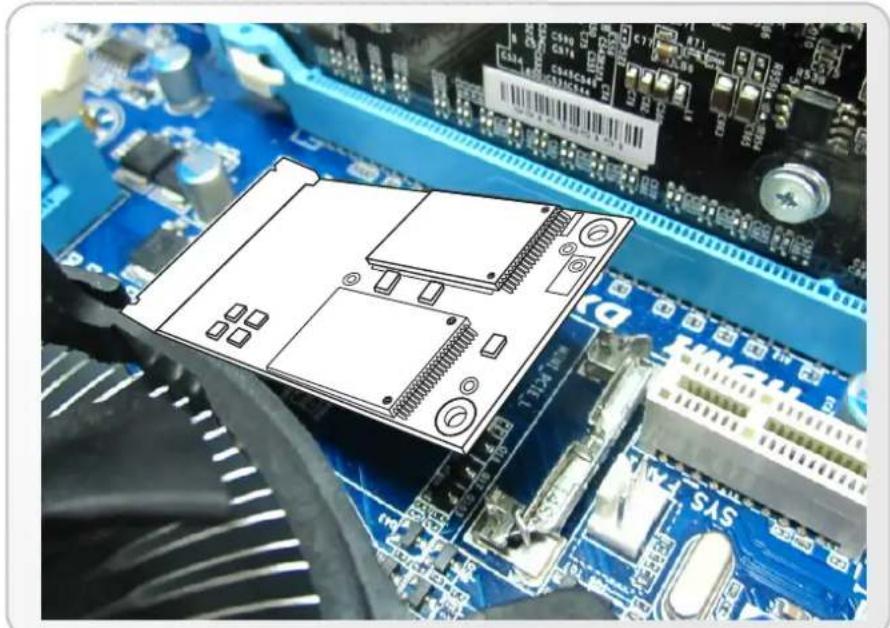
ADATA XM13 - Step 5. Insert ADATA XM13 SSD on the mSATA slot - 1

natural_image Close-up of a computer motherboard with an electronic device overlay (no visible text or symbols)

Step 6. Boot into OS

Step 7. Run the ISRT software through the task bar icon

computer. 下午 05:03 2011/9/27

Step 8. Click "Enable acceleration" under "Accelerate"
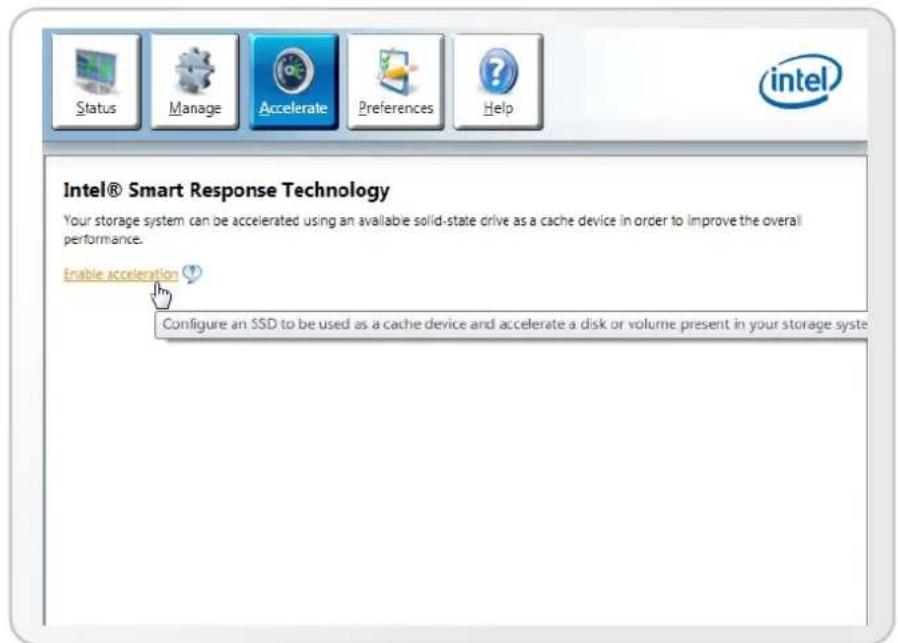
Status Manage Accelerate Preferences Help Intel® Smart Response Technology Your storage system can be accelerated using an available solid-state drive as a cache device in order to improve the overall performance. Enable acceleration ? Configure an SSD to be used as a cache device and accelerate a disk or volume present in your storage syste

Step 9. Select the acceleration mode, and then click "OK. By default, Enhanced mode is selected

Note: Enhanced mode: Acceleration optimized for data protection.

Maximized mode (recommend) : Acceleration optimized for input/output performance.

Enable Acceleration Select the solid-state drive you want to use to accelerate your storage system: • SSD on port 5: 28 GB WARNING: Completing this action will permanently delete existing data on the selected disk. Back up data before continuing. Select the size allocated for the cache memory: ○ 18.6 GB ● Full disk capacity (maximum 64 GB) Select the disk or volume to accelerate: Disk on port 2 (1.8 TB) (system) Select the boot disk or volume for optimal system acceleration. Select the acceleration mode: ○ Enhanced mode ● Maximized mode WARNING: While in maximized mode, the system performance is highly improved, but cached data may be lo in the event of hardware removal or hardware failure. More help OK Cancel

Step 10. The page refreshes and reports the new acceleration configuration in the Acceleration View

Status Manage Accelerate Preferences Help Intel® Smart Response Technology Your storage system is configured to use a solid-state drive as a cache device to increase system responsiveness, enable faster multi-asking, and extend battery life. Acceleration Configuration Accelerated device: Disk on port 2 (system) Disable acceleration ? You must first disable acceleration in order to accelerate a different disk or volume. Acceleration mode: Maximized Change mode ? SSD Configuration SSD on port Si: Normal Usage: Cache device Serial number: 2200000000000731 Array_0001 Volume: Volume_0000 Status: Normal Acceleration View Array_0001 Volume_0000 Type: RAID 0 Cache volume 28 GB Internal system disk: Accelerated 1.8 TB

Step 11. Congratulations! Yours system is now successfully configured with Intel Smart Response Technology!

All brand names of Intel® are registered trademarks of Intel® Corporation. Registered trademarks ® 2011 by Intel Corporation reserved.
Manual assistant
Powered by Anthropic
Waiting for your message
Product information

Brand : ADATA

Model : XM13

Category : SSD Drive