
EH-TW8100W - Video projector EPSON - Free user manual and instructions
Find the device manual for free EH-TW8100W EPSON in PDF.


| Product Type | Video Projector |
| Brand | Epson |
| Model | EH-TW8100W |
| Display Technology | 3LCD |
| Native Resolution | 1920 x 1080 (Full HD) |
| Brightness | 2400 Lumens |
| Contrast Ratio | 600,000:1 (dynamic) |
| Lamp Life | Up to 5000 hours (Eco mode) |
| Dimensions (W x D x H) | 466 x 395 x 158 mm |
| Weight | Approx. 7.5 kg |
| Power Consumption | 326 W (normal), 0.4 W (standby) |
| Power Supply | 100-240 V AC, 50/60 Hz |
| 3D Capability | Yes (with optional RF glasses) |
| Lens Shift | Vertical: ±90%, Horizontal: ±10% |
| Zoom | 1.6x motorized |
| Keystone Correction | Vertical: ±30 degrees |
| Input Ports | 2x HDMI, 1x VGA, 1x Component, 1x S-Video, 1x Composite |
| Output Ports | 1x Trigger out, 1x RS-232C |
| Wireless Connectivity | Optional (WiFi adapter) |
| Fan Noise | 33 dB (Eco mode) |
| Maintenance | Air filter cleaning every 1000 hours; lamp replacement |
| Safety | Class 1 laser product (equivalent); overheating protection |
| Spare Parts Availability | Lamp ELPLP69, air filter, remote control |
| Repairability Rating | 7/10 (user replaceable lamp and filter) |
| General Information | Home cinema projector with WirelessHD capability (optional) |
Frequently Asked Questions - EH-TW8100W EPSON
User questions about EH-TW8100W EPSON
0 question about this device. Answer the ones you know or ask your own.
Ask a new question about this device
Download the instructions for your Video projector in PDF format for free! Find your manual EH-TW8100W - EPSON and take your electronic device back in hand. On this page are published all the documents necessary for the use of your device. EH-TW8100W by EPSON.
USER MANUAL EH-TW8100W EPSON
The guides for this projector are organized as shown below.
Safety Instructions/Support and Service Guide
Contains information on using the projector safely, as well as a support and service guide, troubleshooting check lists, and so on. Make sure you read this guide before using the projector.
User's Guide (this guide)
Contains information on setting up and basic operations before using the projector, using the Configuration menu, and handling problems and performing routine maintenance.
Quick Start Guide
Contains information on the procedures for setting up the projector. Read this first.
3D Glasses User's Guide
Contains information on handling the 3D Glasses and warnings and so on.
WirelessHD Transmitter User's Guide
Contains information on handling the WirelessHD Transmitter and warnings and so on.






Notations Used in This Guide
Safety Indications
The documentation and the projector use graphical symbols to show how to use the projector safely. The following shows the symbols and their meanings. Please understand and respect these caution symbols in order to avoid injury to persons or property.

Warning
This symbol indicates information that, if ignored, could possibly result in personal injury or even death due to incorrect handling.

Caution
This symbol indicates information that, if ignored, could possibly result in personal injury or physical damage due to incorrect handling.
General Information Indications
Attention
Indicates procedures which may result in damage or malfunctions to occur.
 | Indicates additional information and points which may be useful to know regarding a topic. |
| [SEDA] | Indicates a page where detailed information regarding a topic can be found. |
| Menu Name Indicates Configuration menu items.Example: Image - Color Mode | |
| Button Name Indicates the buttons on the remote control or the control panel.Example: Menu button | |
About the Use of "This Product" or "This Projector"
As well as the main projector unit, supplied items or optional extras may be referred to using the phrase "this product" or "this projector".
Organization of the Guide and Notations in the Guide
Using Each Guide ....1
Notations Used in This Guide .....
Safety Indications....2
General Information Indications
About the Use of "This Product" or "This Projector" .... 2
Introduction
Projector Feature s 6
Dynamic 3D Display ....
Adjusting Images to Suit your Surroundings (Color Mode) 6
Absolute Color Adjustment....
Conforms to Wireless Transmissions for the WirelessHD Standards (EH-TW9100W/EH-T W 8 1 0 0 W O n l y) . . . . . . . . . . . . . . . . . . . . . . . . . . . . . . . . . . . . . . . . . . . . . . . . . . . . . . . . . . . . . . . . . . . 7
Other Useful Functions ....
Part Names and Functions .....
Front/Top 8
Control Panel....9
Remote Control....1
Rear 14
Base 15
Appearance 16
Preparing
Installing 17
Various Projection Methods .....
Adjusting the Projection Size...
Connecting to a Device .... 19
Connecting to Video Equipment..
Connecting to a Computer......
Connecting to External Devices...
Connecting to the Trigger out p
Connecting WirelessHD devices (EH-TW 9100 W / E H - T W 8100 W only) ..
Removing the Interface Cover .....
Connecting an HDMI Cable Clamp.
Preparing the Remote Control .....
Installing the Remote Control Batt
Remote Control Operating Range...
Operating range (left to right) .....
Operating range (top to bottom) ...
Basic Opérations
Starting and Ending Projection...
Turning on the Projector and Projecting ..... 24
If the Target Image is not Projected.
Turning Off 25
Adjusting the Projected Screen ...
Displaying the Test Pattern ....
Adjusting the Focus ....
Adjusting the Projection Size (Zoom
Adjustment) 2
Adjusting the Projector's Tilt .....
Adjusting the Position of the Projected Image (Lens Shift) 29
8 Correcting Keystone Distortion .....
Hiding the Image Temporarily .....
Adjusting the Image
Adjusting the Image .... 3
Selecting the Projection Quality (Color Mode) 3 1
Switching the Screen Between Wide and Zoom ( As p e c t ).... 3 2
Absolute Color Adjustments ....
Adjusting Hue, Saturation, and Brightness ..... 34 ..... 1.7
Adjusting the Gamma ....18
Select and adjust the correction \
A d j u s t w h i l e v i e w i n g t h e i m a g e ..
Adjust using the gamma adjustment graph 2.0....36
...Adjuting the RGB (Offset/Gain)...
A·b·s:·C ♂ P or T e m p. . . . . . . . . . . . . . . . . . . . . .
Skin Tone 37 ...20
Detailed Image Adjustments ........ 21
Adjusting the Sharpness .... 21
Setting Autolris....
Frame Interpolation ....
Super-resolution ....
Image Processing ....
Selecting the Color Gamut (EH-TW9100W/EH-
T W 9 1 0 0 O n l y ) ....
Viewing the Image at the Saved Image Quality (Memory Function)....42
Saving Function ....
Saving a Memory ....
Loading a Memory ....
Deleting a Saved Memory ....
Renaming a Memory....
Useful Functions
Enjoying 3D Images ....
Setting 3D Images ....
If the 3D image cannot be viewed
Using 3D Glasses ....
Charging the 3D Glasses ....
Pairing 3D Glasses ....
Wearing the 3D Glasses.....
Range for Viewing 3D Images .....
Warnings Regarding Viewing 3D
Converting 2D Images to 3Dan
Connecting with WirelessHD (EH-TW9100W/EH-TW8100W Only) ..... 53
Installing the Wireless HD Trans
WirelessHD Transmitter partner
Setting the Wireless HD Transmi
Projecting Images ....
WirelessHD Settings Menu.....
Wireless HD Transmission Range.
Useful Functions of the WirelessHD Transmitter 59
Switching the target image .....
Switching the imagesource ....
Remote control operating range
Using the HDMI Link Function ..... 63
HDMI Link Function......
HDMI Link Settings ....
Device Connections....
Changing Between Two Types of Images 65
.. 4 0 Types of Screen that can be Displayed Simultaneously ....
41 Projecting on a Split Screen.....
Starting splitscreen display.....
Changing the splitscreen settings
. 4 2 . 4 Configuration Menu
. . 4 Configuration Menu Functions ..... 67 ..... 4 Configuration Menu Operations ....
.. 4 3 Configuration Menu Table....68 Imagemenu....68
Signal menu....70
45 Settings menu 73
.. 45 Extended menu ..... 7
.....M.e4m5ory menu ..... 76
. 4 6 Inf o menu ..... 7 7
4 Beset menu 77
...47 Split Screen menu....
47
Troubleshooting
I m Problem Solving.... 79
V i e r w e i a n d g i n g t h 5 e 2 l nd ic at o rs . . . . . . . . . . . . .
Indicator status during an erro
Indicator status during normal operation .... 80
mitt When the Indicators Provide No He
es ... Check ^5 k ^4 the problem ....
ter...Prob ^5 ms relating to images .....
...56 Problems when projection starts..
...57 problems with theremote control.
Problems with HDMI.....
Problems with WirelessHD (EH-TW9100W/
E ^5 H - TW 8100W only)
...Maintenance
Maintenance 90
... 63 Cleaning the Parts ....
... 63 Cleaning the air filter ....
... 64 Cleaning the main unit ....
Cleaning the lens....92
Cleaning the 3D Glasses .....92
Replacement Periods for Consumables.....92
Air filter replacement period...92
Lamp replacement period .....92
Replacing Consumables....93
Replacing the air filter....93
Replacing the lamp....94
Resetting lamp hours....95
Appendix
Optional Accessories and
Consumables 97
Optional Items....97
Consumables 97
Supported Resolutions .... 98
Component Video....98
Composite Video 98
Computer Signals (Analog RGB). 98
HDMI1/HDMI2 Input Signal....99
3D Input Signal ..... 99
Wireless HD Input Signal 99
Specifications 100
Glossary 103
General Notes 104
Notes when Wearing 3D Glasses...104
General Notice 105

Projector Features
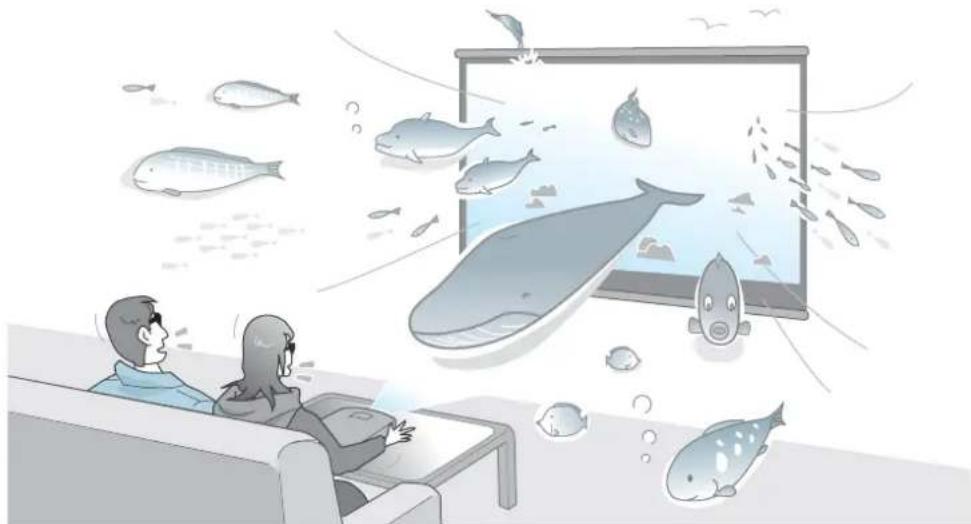
Dynamic 3D Display
Enjoy 3D contents on Blu-ray and images filmed with a 3D camera through a stunning projection display. p.45
You can also convert standard 2D images into 3D images. p.52
natural_image
Illustration of two people watching a whale watching fish in a TV (no text or symbols)You need dedicated 3D Glasses based on 3D Active Shutter Eyewear Technology to view 3D images. p.46
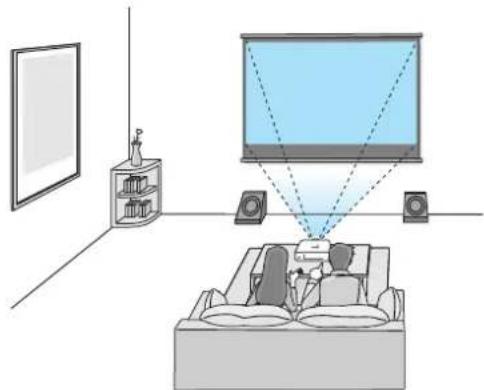
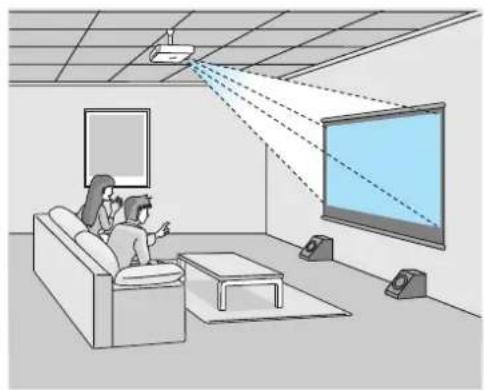
Adjusting Images to Suit your Surroundings (Color Mode)
By simply selecting the Color Mode, you can project the optimum image to suit your surroundings. p.31 Setting Example
natural_image
Interior scene showing a person watching TV with a projector and speakers, no text or symbols presentLiving Room For use in a bright room
natural_image
Interior scene of a room with two people watching TV, showing projection lines from a projector (no text or symbols)Cinema For movies and concerts in a dark room
Absolute Color Adjustment
As well as using Color Mode, you can also adjust the absolute color temperature of the image and skin tones to suit your taste. p.37
What's more, you can obtain colors that match the image and achieve the colors you want through a combination of gamma adjustment, RGB offset or gain adjustment for each color, and hue, saturation, and brightness adjustment for each RGBCMY color. p.34
Conforms to Wireless Transmissions for the WirelessHD Standards (EH-TW9100W/EH-TW8100W Only)
The projector can wirelessly receive data for images from WirelessHD compatible AV devices. You do not need to connect a cable directly to the main projector unit.
You can connect up to five AV devices to the WirelessHD Transmitter at the same time, and switch images using the remote control.
You can also connect other output devices such as televisions, and switch the device. This allows other output devices to project images from the connected AV device, even if the projector is off. p.53
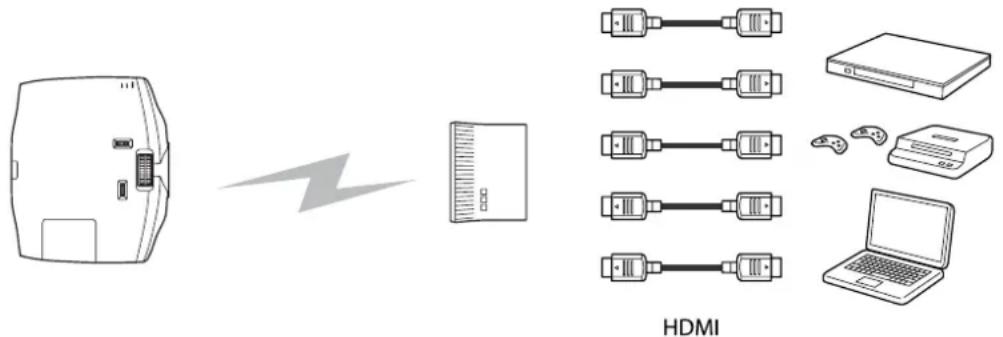
Projector Transmitter Multi-media players, game consoles,
and so on
Other Useful Functions
In addition, the following useful functions are provided.
- The remote control contains a backlight function allowing for easy use even in dark rooms. Operations are also simplified by only pressing the ⚙ button. 📞 p.11
- Lens shift allows you to adjust the projection position when the projector cannot be setup directly in front of the screen. The ability to move the projection position up, down, left, and right from in front of the screen without changing the projection range, gives you more freedom to place the projector where you want. p.29
- The Frame Interpolation function creates an intermediary image between one frame and the next rendering a smoother, cleaner viewing experience, and removing jarring movements such as frame skipping. p.39
- The Super-resolution function allows you to enjoy DVDs in high resolution. Also, low resolution areas (parts that are blurred) of full hi-vision images become smoother and sharper. p.40

Part Names and Functions
Front/Top
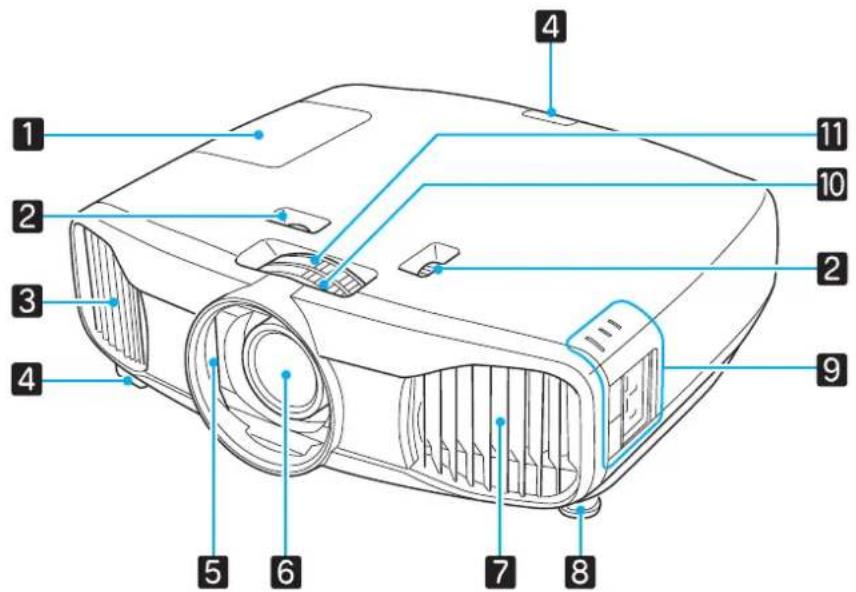
| Name Function | ||
| 1 | Lamp cover | Open when replacing the projector's lamp. p.94 |
| 2 | Lens shift dial | Adjusts the position of the projected image. p.29 |
| 3 | Air exhaust vent | Exhaust vent for air used to cool the projector internally. CautionWhile projecting, do not put your face or hands near the air exhaust vent, and do not place objects that may become warped or damaged by heat near the vent. Hot air from the air exhaust vent could cause burns, warping, or accidents to occur. CautionWhile projecting, do not put your face or hands near the air exhaust vent, and do not place objects that may become warped or damaged by heat near the vent. Hot air from the air exhaust vent could cause burns, warping, or accidents to occur. |
| 4 | Remote receiver | Receives signals from the remote control. p.23 |
| 5 | Lens shutter | Closes automatically when the projector is turned off to protect the lens from being scratched or soiled. p.24 |
| 6 | Projector's lens | Images are projected from here. |
| 7 | Air filter cover | When cleaning or replacing the air filter, open this cover and remove the air filter.p.90, p.93 |
| Air intake vent | Intake vent for air used to cool the projector internally. | |
| 8 | Front adjustable foot | When setup on a surface such as a table, extend the foot to adjust the horizontal tilt. p.28 |
| 9 | Control panel | Control panel on the projector. Open the control panel cover to perform operations. p.9 |
| 10 | Focus ring | Adjusts the image focus. p.27 |
| 11 | Zoom ring | Adjusts the image size. p.28 |
Control Panel
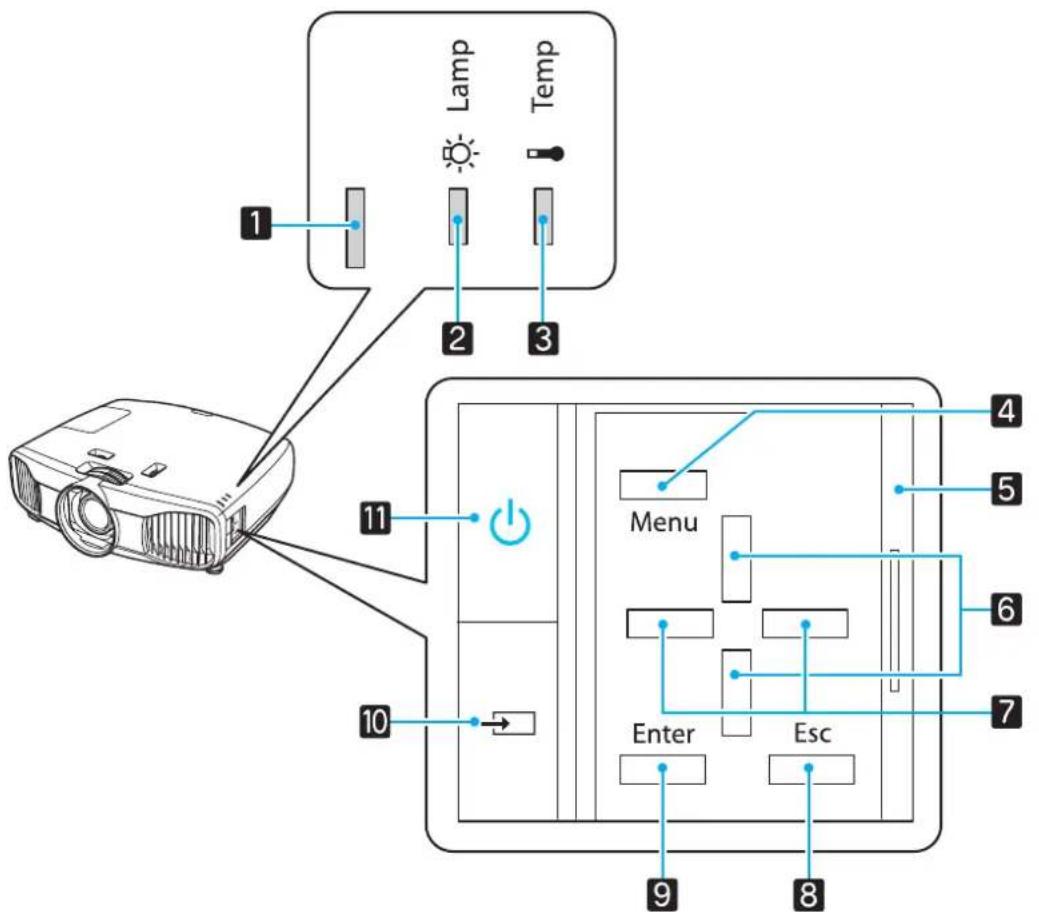
| Buttons/Indicators Function | ||
| 1 | Flashes to indicate warm-up in progress or cool-down in progress. Shows the projector's status through a combination of other indicators lit and flashing.p.79 | |
| 2 | Flashes orange when it is time to replace the lamp. Shows the projector's errors through a combination of other indicators lit and flashing.p.79 | |
| 3 | Flashes orange if the internal temperature is too high. Shows the projector's errors through a combination of other indicators lit and flashing.p.79 | |
| 4 | Displays and closes the configuration menu.On the configuration menu, you can make adjustments and settings for Signal, Image, Input Signal, and so on.p.67 | |
| 5 | Control panel cover | Cover for the control panel. When you want to use the control panel, grip the knob and slide the cover open.p.30 |
| 6 | Selects the adjustment value for the keystone correction and for menu items.p.30 | |
| 7 | Selects adjustment values for menu items.p.67 | |
| 8 | Returns to the previous menu level when a menu is displayed.p.67 | |
| 9 | Selects functions and settings when a menu is displayed.p.67 | |
| Buttons/Indicators Function | ||
| 10 |  | Changes to the image from each input port. p.25 |
| 11 |  | Turns the projector power on or off. p.24Lit when the projector is on. p.80 |
Remote Control
Top section buttons
EH-TW9100W/EH-TW8100W EH-TW9100/EH-TW8100
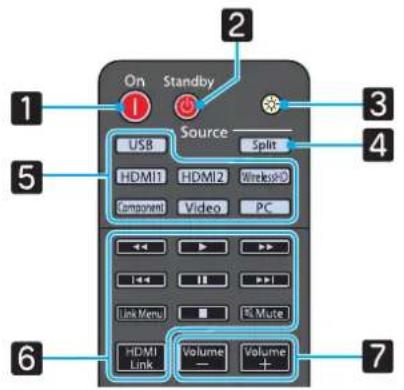
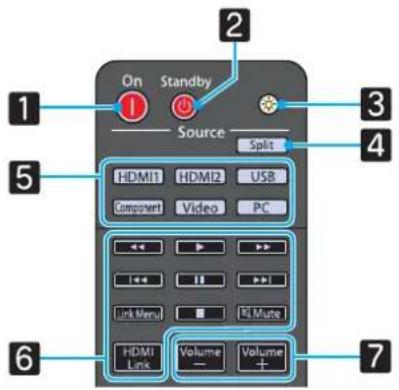
| Button Function | ||
| 1 |  | Turns the projector on. p.24 |
| 2 | [S HWAG] | Turns the projector off. p.25 |
| 3 |  | The remote control buttons light up for approximately 10 seconds. This is useful when operating the remote control in the dark. |
| 4 |  | Splits the screen in two and projects two image sources simultaneously.p.65 |
| 5 |   1[T6XAD]2[W K7YC]D[C WGHK]nt 1[T6XAD]2[W K7YC]D[C WGHK]nt  | Changes to the image from each input port. p.25 |
| 6 |  | This button displays the settings menu for HDMI Link.With the other buttons, you can then start or stop playback, and so on for connected devices that meets the HDMI CEC standards. p.63 |
| 7 | [V4542] | Adjusts the volume for connected devices that meet the HDMI CEC standards. |
Middle section buttons
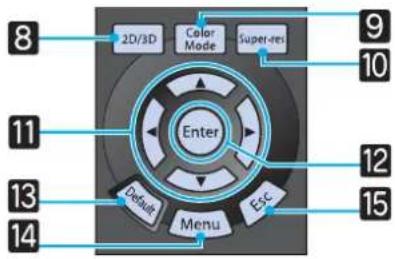
| Button Function | ||
| 8 |  | Changes between 2D and 3D. p.45 |
| 9 | Color Mode | Changes the Color Mode. p.31 |
| 10 |  | Set Super-resolution to reduce blurring in areas such as the edges of the image. p.40 |
| 11 |  | Selects menu items and adjustment values. p.67 |
 | ||
| 12 | [BH3C] | When a menu is displayed, it accepts and enters the current selection and moves to the next level. p.67 |
| 13 |  | The adjustment value returns to its default value when pressed while the menu's adjustment screen is displayed. p.67 |
| 14 |  | Displays and closes the configuration menu. On the configuration menu, you can make adjustments and settings for Signal, Image, Input Signal, and so on. p.67 |
| 15 |  | Return to the previous menu level when a menu is displayed. p.67 |
Bottom section buttons
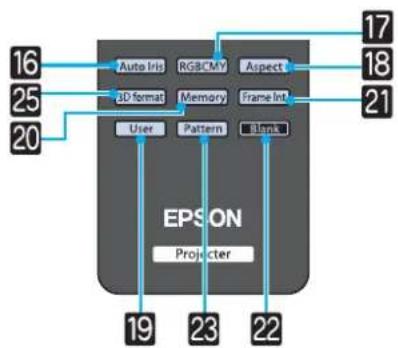
EH-TW9100W/EH-TW8100W EH-TW9100/EH-TW8100
flowchart
graph TD
    A["16"] --> B["Auto Iris"]
    C["25"] --> D["RGB/CMY"]
    E["20"] --> F["3D format"]
    G["User"] --> H["Memory"]
    I["Pattern"] --> J["Frame Int"]
    K["Blank"] --> L["Aspect"]
    M["17"] --> N["18"]
    O["21"] --> P["22"]
    Q["19"] --> R["EPSON Projecter"]
    S["23"] --> R
    T["22"] --> R
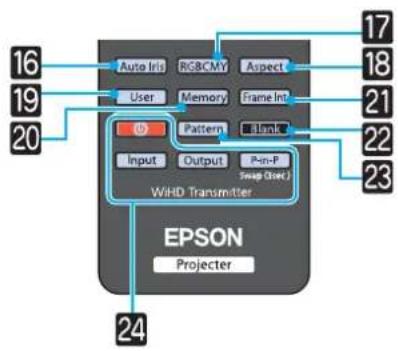
| Button Function | ||
| 16 | Auto Iris | Sets Auto Iris. p.39 |
| 17 | RGBCMY | Adjusts the hue, saturation, and brightness for each RGBCMY color. p.34 |
| 18 | Aspect | Selects the aspect mode according to the input signal. p.32 |
| 19 | User | Performs the function assigned to the user button. p.73 |
| 20 | Memory | Saves, loads, or erases a memory. p.42 |
| 21 | Frame Int | Reduces the jarring effect caused by quick movements by interpolating frames, and adjusts to render a smoother, clearer image. p.39 |
| 22 | Blank | Temporarily hides or shows the image. p.30 |
| 23 | Pattern | Displays and closes the test pattern. p.27 |
| 24 | Input | WiHD Transmitter controlTurns on the WirelessHD Transmitter, or switches the input and output.Make sure you point the remote control at the WirelessHD Transmitter when performing operations. p.53 |
| Output | ||
| P-in-P | ||
| 25 | 3D format | Changes the 3D format. p.70 |
Rear
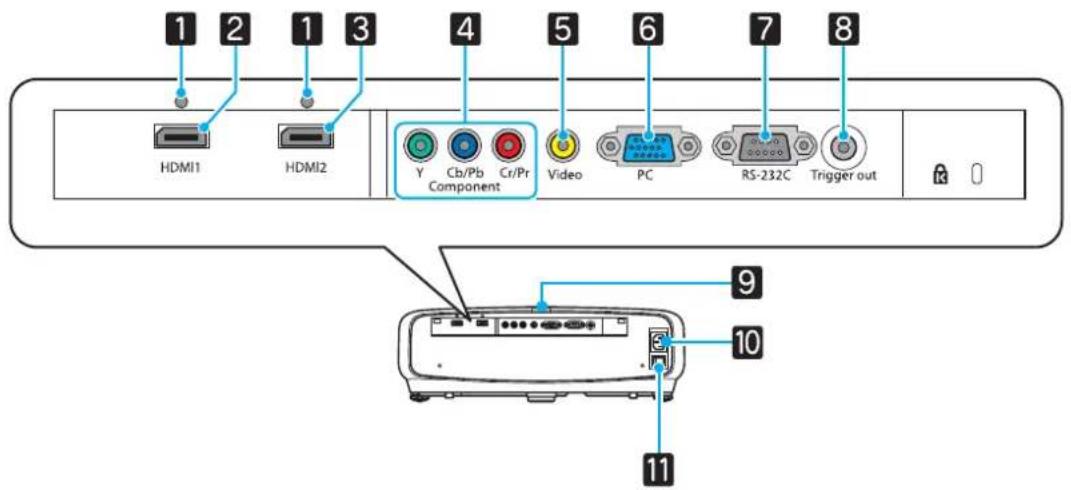
| Name Function | ||
| 1 | Cable holder | Thick HDMI cables with a large outer diameter and so on, may disconnect easily due to the weight of the cable. To prevent the cable from disconnecting, fix it in place using the HDMI cable clamp supplied. p.21 |
| 2 | HDMI1 port | Connects HDMI compatible video equipment and computers. p.19 |
| 3 | HDMI2 port | |
| 4 | Component port | Connects to the component (YCbCr or YPbPr) output port on video equipment. p.19 |
| 5 | Video port | Connects to the composite video output port on video equipment. p.19 |
| 6 | PC port | Connects to the RGB output port on a computer. p.20 |
| 7 | RS-232C port | When controlling the projector, connect the projector to a computer with an RS-232C cable. This port is for control use and should not normally be used. p.100 |
| 8 | Trigger out port | Connects with external devices such as motorized screens. p.20 |
| 9 | Remote receiver | Receives signals from the remote control. p.23 |
| 10 | Power inlet | Connects the power cable. p.24 |
| 11 | Main power switch | Turns the projector power on or off. |
Base
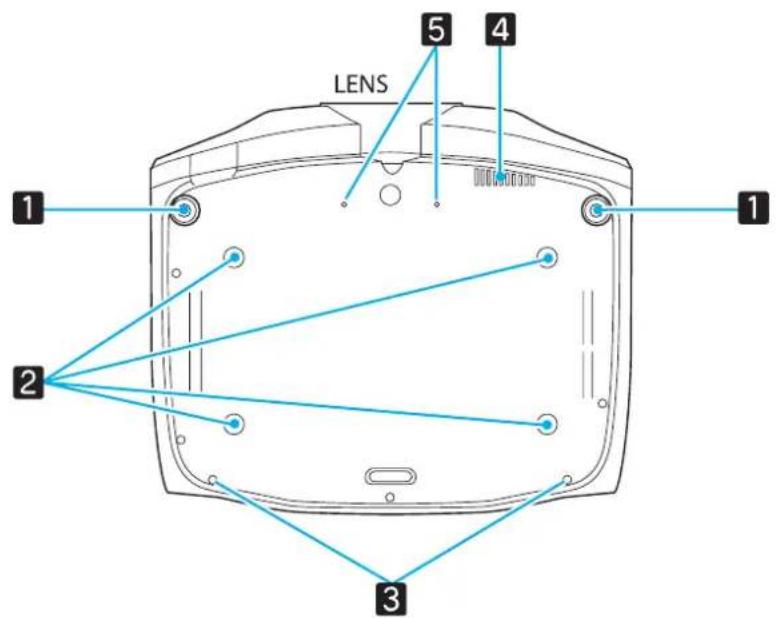
| Name Function | ||
| 1 | Front adjustable foot | When setup on a surface such as a table, extend the foot to adjust the horizontal tilt. p.28 |
| 2 | Ceiling mount fixing points (four points) | Attaches the optional ceiling mount here when suspending the projector from a ceiling. p.97 |
| 3 | Cable cover fixing screw | Attaches the optional cable cover. |
| 4 | Air exhaust vent | Exhaust vent for air used to cool the WirelessHD receiver. When suspending from a ceiling, make sure it is setup so that dust does not collect in this section. |
| 5 | Screw for anamorphic lens | Attaches the anamorphic lens. |

Appearance
Units: mm
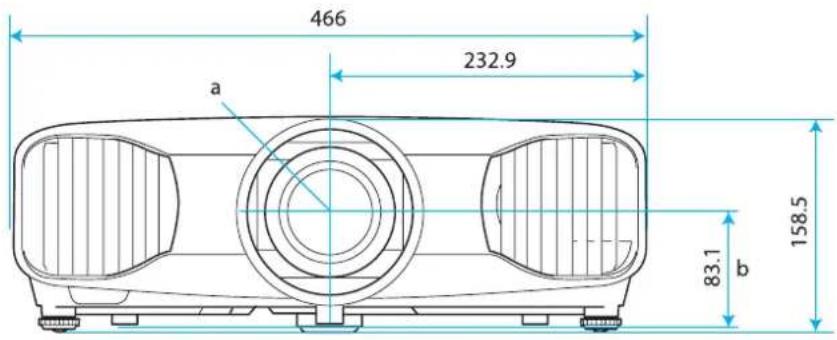
a Center of lens
b Distance from center of lens to suspension bracket fixing point
c L e n s d i r e c t i o n
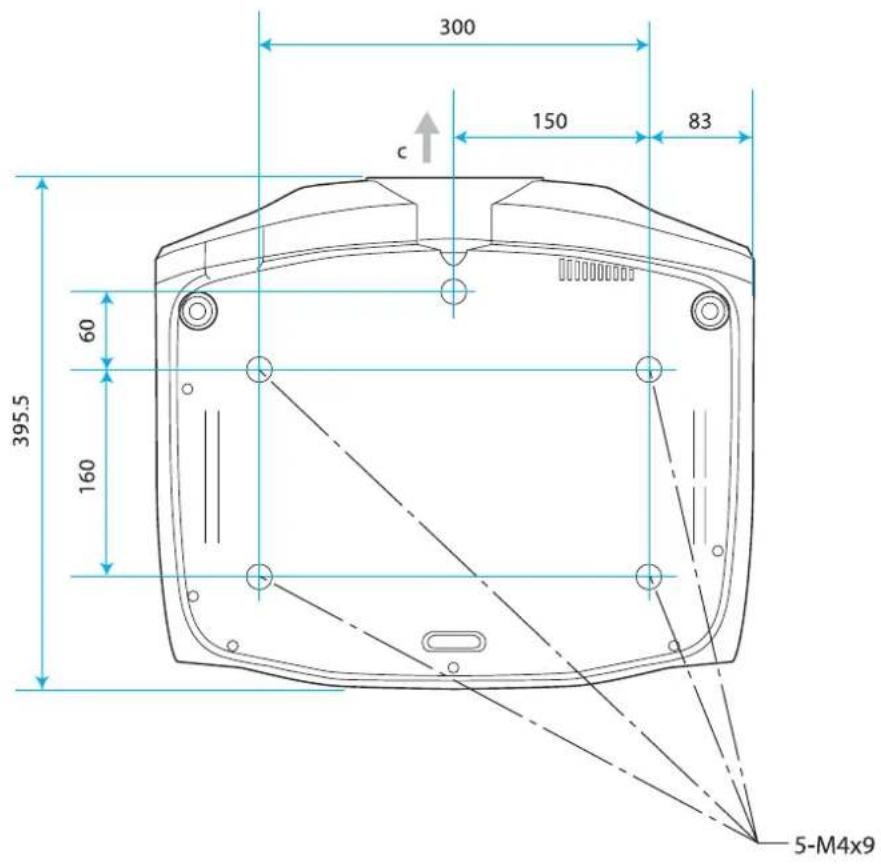

Installing
Various Projection Methods

Warning
- A special method of installation is required when suspending the projector from a ceiling (ceiling mount). If it is not installed correctly, it could fall causing an accident and injury.
- If you use adhesives, lubricants, or oil on the ceiling mount fixing points to prevent screws from loosening, or if you use things such as lubricants or oils on the projector, the projector case may crack causing it to fall from its ceiling mount. This could cause serious injury to anyone under the projector and also damage the projector.
- Do not setup the projector on its side. This may cause malfunctions to occur.
- Try not to setup the projector in locations subject to high humidity and dust, or in locations subject to smoke from fires or tobacco smoke.
Attention
Clean the air filter once every three months. Clean it more often if the environment is particularly dusty. p.93
Placing on a table and so on and projecting Suspending from the ceiling and projecting
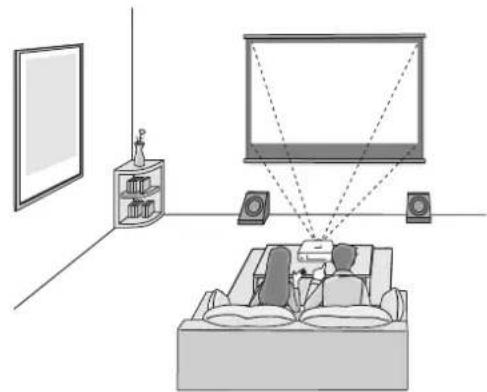
natural_image
Interior scene showing a person watching TV on a sofa, with a mirror and TV set in the background (no text or symbols visible)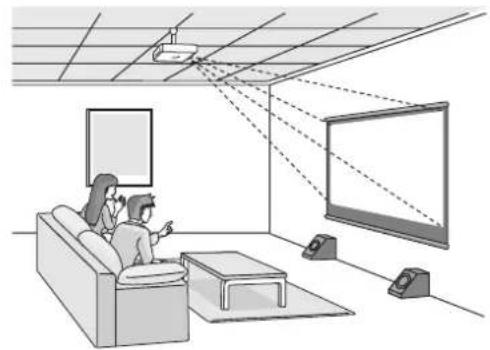
natural_image
Illustration of a family watching television in a living room with projection lines and equipment (no text or symbols)
When projecting from a ceiling, change Projection to a ceiling setting. ⚙ Settings - Projection p.73
Using lens shift
With lens shift, you can adjust the projection position up, down, left, and right.
This allows you to make easy adjustments without distorting the image, even if you cannot setup the projector directly in front of the screen.
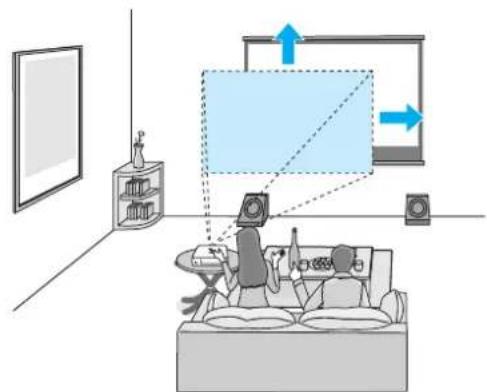
natural_image
Interior scene showing a person watching TV with projection screen and television set (no text or symbols)Adjusting the Projection Size
The size of the projection increases as the projector is moved away from the screen. Use the table below to setup the projector at the optimum position from the screen. The values given here are for your reference only.
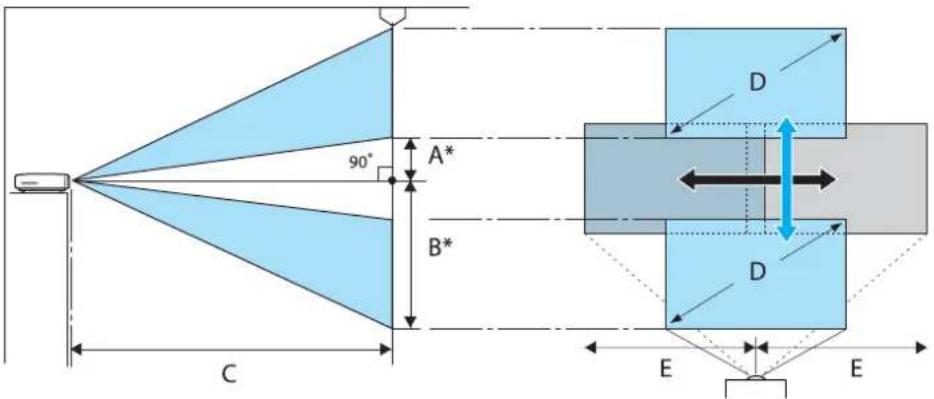
* Distance from the center of the lens to the edge of the projected image.
(A: When lens shift is raised to its highest level)
(E: When lens shift is moved to the far right or far left)
(B: When lens shift is lowered to its lowest level)
Unit: cm
| 16:9 Screen Size Projection | tion Distance (C) Lens Shift M | Maximum Values * | ||||
| D W x H | Minimum | (Wide) | Maximum(Tele) | Distance (A) | Distance (B) | Distance (E) |
| 40" 89 x 50 117 | 252 23 73 42 | |||||
| 60" 130 x 75 17 | 7 380 34 109 63 | |||||
| 80" 180 x 100 2 | 38 508 46 145 83 | |||||
| 100" 220 x 120 | 298 636 57 181 | 104 | ||||
| 120" 270 x 150 | 359 764 68 218 | 125 | ||||
| 150" 330 x 190 | 450 956 85 272 | 156 | ||||
| 180" 440 x 250 | 540 1148 | 103 327 188 | ||||
| 4:3 Screen Size Projection Distance (C) Lens Shift Maximum Values * | ||||||
| D W x H | Minimum | (Wide) | Maximum(Tele) | Distance (A) | Distance (B) | Distance (E) |
| 40" 81 x 61 144 | 309 28 89 51 | |||||
| 60" 120 x 90 21 | 8 466 42 133 76 | |||||
| 80" 160 x 120 2 | 92 623 56 178 102 | |||||
| 100" 200 x 150 | 366 779 70 222 127 | |||||
| 120" 240 x 180 | 440 936 84 267 153 | |||||
| 150" 300 x 230 | 551 1171 | 105 333 191 | ||||
| 200" 410 x 300 | 736 1562 | 139 444 255 | ||||
* You can only adjust to the maximum value when moving in one direction. The values are reduced when moving in a combination of directions. p.29

Connecting to a Device
Attention
- Turn off the equipment you want to connect before connecting. If the equipment is on when you connect, it could cause a malfunction.
- Check the shape of the cable's connector and the shape of the port, and then connect. If you force a connector of a different shape into the port, it could cause damage and a malfunction to occur.
EH-TW9100W/EH-TW8100W comes with an interface cover allowing you to clearly see the connector section on the rear. Remove the interface cover before connecting any cables. p.21
Connecting to Video Equipment
To project images from DVD players or VHS video and so on, connect to the projector using one of the following methods.
When using an HDMI cable

Fix the HDMI cable in place using the HDMI cable clamp. p.21
When using a video cable

When using a component video cable

flowchart
graph LR
    A[" HDMI2 "] --> B[" Video "]
    B --> C[" PC "]
    C --> D[" Trigger unit "]
    E[" Y "] --> F[" Cb/Pb "]
    F --> G[" Cr/Pr "]
    G --> H[" "]
    I[" Y "] --> J[" Cb/Pb "]
    J --> K[" Cr/Pr "]
    K --> L[" "]
    M[" "] --> N[" "]
    N --> O[" "]
    P[" "] --> Q[" "]
    Q --> R[" "]
    S[" "] --> T[" "]
    T --> U[" "]
    V[" "] --> W[" "]
    W --> X[" "]
    Y[" "] --> Z[" "]
    Z --> AA[" "]

- The cable differs depending on the output signal from the connected video equipment.
- Some types of video equipment are capable of outputting different types of signals. Check the user's guide supplied with the video equipment to confirm which signals can be output.
Connecting to a Computer
To project images from a computer, connect the computer using one of the following methods.
When using a computer cable

When using an HDMI cable

flowchart
graph LR
    subgraph LeftPanel
        A["HDMI1"] --> B["HDMI2"]
        C["Y"] --> D["Chip/Ps Component"]
        E["Ct/Pr"] --> F["Video"]
        G["Link"] --> H["HDMI1"]
        I["Link"] --> J["HDMI2"]
    end
    subgraph RightPanel
        K["HDMI1"] <--> L["HDMI"]
        M["HDMI2"] <--> N["HDMI"]
    end
    L <--> M
    N <--> N
Fix the HDMI cable in place using the HDMI cable clamp. p.21
Connecting to External Devices
Connecting to the Trigger out port
To connect external devices such as motorized screens, connect a mini-jack stereo cable (3.5 mm) to the Trigger Out port.
When set to on, a signal (12 V DC) is output from this port to communicate the projector's status (on or off) to connected devices such as electric screens.


When using the Trigger out port, set the Trigger Out function. ◎ Extended - Operation - Trigger Out p.75
Connecting WirelessHD devices (EH-TW9100W/EH-TW8100W only)
The projector receives transmissions from the WirelessHD Transmitter, and projects the images. p.53 Change the projected image by pressing the WirelessHD button on the remote control or the button on the control panel.

- When receiving WirelessHD images, make sure WirelessHD is set to On. ⚙️ Settings - WirelessHD p.73
- You can change which device is displayed by selecting a device from Device Connections in HDMI Link. ⬇ HDMI Link-Device Connections p.64
Removing the Interface Cover
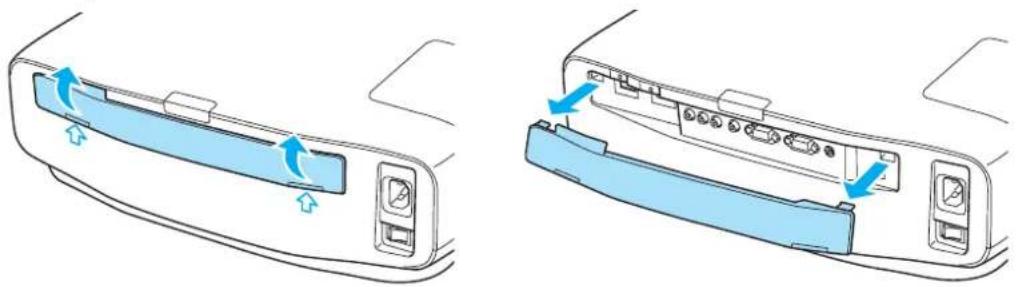
The interface cover is attached to the connector section on the rear of EH-TW9100W/EH-TW8100W. Remove this cover when using a cable to connect a device.
There are gaps at the bottom of the interface cover that allows you to pull the cover forward and lift it from the grooves at the top.
natural_image
Diagram showing two views of a device rear panel with blue arrows indicating directional flow (no text or symbols present)
- When reattaching, first insert the protruding sections into the grooves at the top.
• Make sure you store the interface cover safely, as you need this when transporting the projector.
Connecting an HDMI Cable Clamp
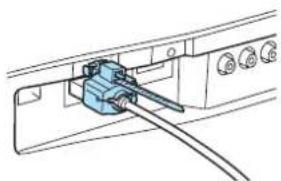
If the HDMI cable is thick and hangs down, make sure you secure it to the cable holder with an HDMI clamp so that the cable's weight does not disconnect it from the port.
natural_image
Line drawing of a cable connector inserted into a device panel (no text or symbols)
If the cable cover is attached, you do not need to attach a cable clamp because the cable is secured by the cover.

Preparing the Remote Control
Installing the Remote Control Batteries
Attention
- Check the positions of the (+) and (-) marks inside the battery holder to ensure the batteries are inserted the correct way.
- You cannot use other batteries except for the AA size manganese or alkaline.

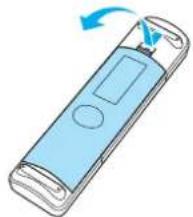
Remove the battery cover.
While pushing the battery compartment cover catch, lift the cover up.
natural_image
Illustration of a blue handheld device with a scroll wheel and a blue arrow indicating rotation (no text or symbols)
Replace the old batteries with new batteries.
Check the polarity of the batteries (+ and -) before installing.
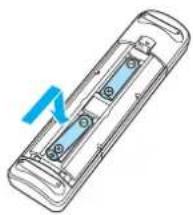
natural_image
Illustration of a handheld electronic device with a blue arrow indicating rotation (no text or symbols)
Reattach the battery cover.
Press the cover until it clicks into place.
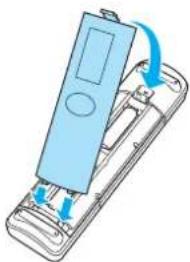
natural_image
Illustration of a handheld device with a blue screen and arrow indicating rotation (no text or symbols)
If delays in the responsiveness of the remote control occur or if it does not operate, it probably means that the batteries are becoming flat. When this happens, replace them with new batteries. Have two AA size manganese or alkaline batteries ready.
Remote Control Operating Range
The operation range for the WirelessHD Transmitter differs. p.62
☐ Operating range (left to right) Operating range (top to bottom)
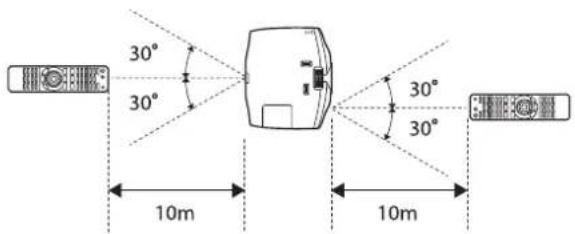
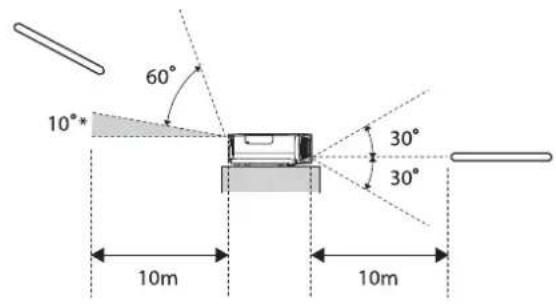
* Remote control signals are not available in this range.

Starting and Ending Projection
Turning on the Projector and Projecting
1
Connect the power cable.
Connect using the power cable supplied.
2
Turn on the connected device, and then turn on the projector's main power switch.
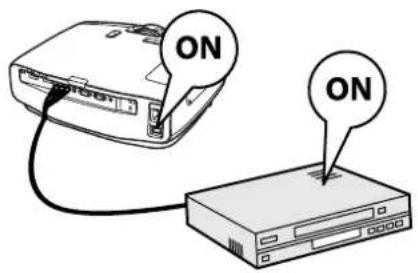
3
Turn the power on.
Remote control Control panel
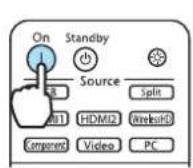
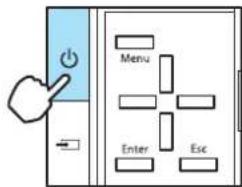
The lens shutter opens, and projection starts.

When Direct Power On is set to On, you can start projecting by simply turning on the main power switch without having to press any buttons. ● Extended - Operation - Direct Power On p.75

Warning
Do not look into the lens during projection.

- This projector provides a Child Lock function to prevent children from accidentally turning the power on and a Control Panel Lock function to prevent accidental operations and so on. 🚙 Settings - Child Lock/Control Panel Lock p.73
- When using at an altitude of 1500 m or more, set High Altitude Mode to On. Extended - Operation - High Altitude Mode p.75
- This projector provides an Auto Setup function to automatically select the optimum settings when the input signal for the connected computer image changes. 📄 Signal - Auto Setup p.70
- This projector comes with a Trigger out port to communicate the current status of the projector's power (on/off) to external devices. When using this function, set Trigger Out. 🔑 Extended - Operation - Trigger Out p.75
If the Target Image is not Projected
If the image is not projected, you can change the source using one of the following methods.
Remote control Control panel
Press the button for the target port.
EH-TW9100W/EH-TW8100W
EH-TW9100/EH-TW8100
Press the button and select the target port. Press the Enter button to confirm the selection.
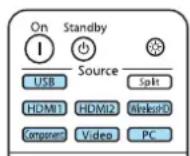
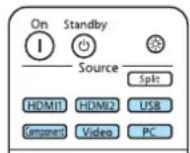
![[Source] HDMI1 HDMI2 Component Video PC](/content/2026/05/1065900/images/365a73f1bcee271626615f0026cf1b5e1f96e83b22f9f70c97c5f2bc74d0e574.jpg)

- For video equipment, start playback first and then change the source.
- If the color looks unnatural when changing to a Video or Component source, check that the port you have connected to is the same as the Input Signal. ➕ Extended - Input Signal - Video Signal/Component p.75
Turning Off
1 Turn off the connected equipment.
2 Press the button on the remote control or the projector's control panel.
Remote control Control panel
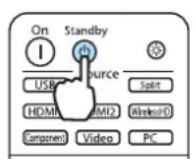
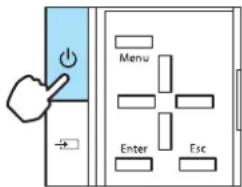
A confirmation message is displayed.

Press the button again.
Power Off?
Yes: Press ⏻ button No: Press any other button
Projection ends, and the lens shutter closes automatically.

When Standby Confirmation is set to Off, you can turn off the projector by pressing the ⏻ button on the remote control once. ➕ Extended - Display - Standby Confirmation p.75

Wait until cool-down is complete.
The operation indicator on the projector's control panel stops flashing.
5
Turn off the main power switch.
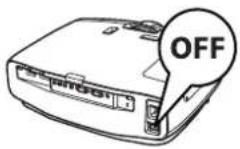

If the main power switch is not turned off, some electricity is consumed even if no operations are made.

Adjusting the Projected Screen
Displaying the Test Pattern
When adjusting the zoom/focus or the projection position just after setting up the projector, you can display a test pattern instead of connecting video equipment.
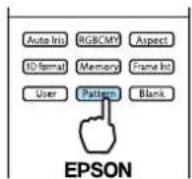
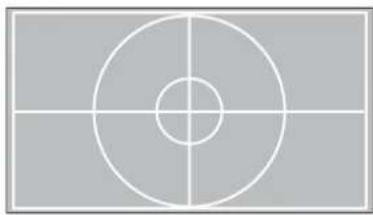
Press the Pattern button on the remote control to display the test pattern.
EH-TW9100W/EH-TW8100W
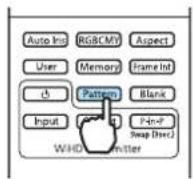
EH-TW9100/EH-TW8100
natural_image
Simple geometric diagram with concentric circles and crosshairs on a gray background (no text or symbols)You can adjust the display position and so on by using this test pattern.
For EH-TW9100W/EH-TW9100, you can also select patterns that display R (red), G (green), and B (blue) individually, as well as the pattern for adjusting the display position. You can use it as a pattern to perform color adjustment when an image signal is being input.
Press the Esc button to close the test pattern, or select Exit.
Adjusting the Focus
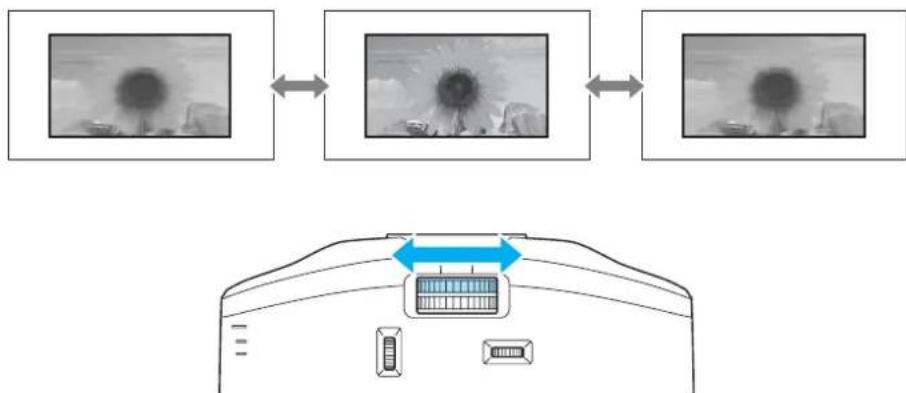
Turn the focus ring to adjust the focus.
flowchart
graph TD
    A["Input Image 1"] <--> B["Input Image 2"]
    B <--> C["Input Image 3"]
    D["Display Panel"] --> E["Internal Component Box"]
    style D fill:#f9f,stroke:#333
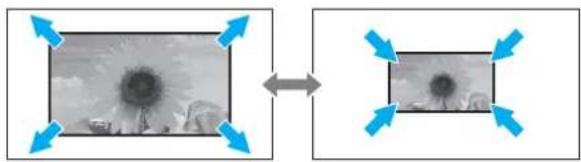
Adjusting the Projection Size (Zoom Adjustment)
Turn the zoom ring to adjust the size of the projected screen.
natural_image
Two rectangular frames showing a sunflower image with blue arrows pointing to each frame, connected by an arrow (no text or symbols)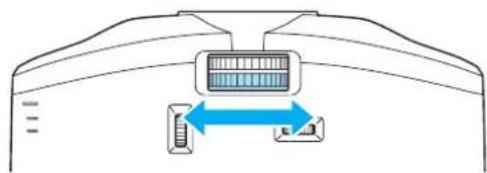
natural_image
Diagram of a car air vent with airflow direction arrows (no text or symbols)Adjusting the Projector's Tilt
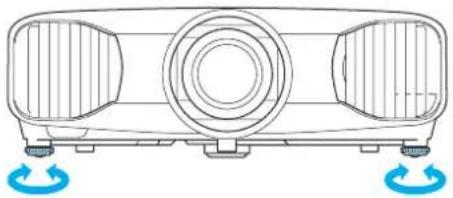
If the projection screen is tilted (the left and right sides of the projector are at different heights) when the projector is setup on a table, adjust the front foot so that both sides are level with each other.
natural_image
Line drawing of a projector with three wheels and blue circular indicators indicating rotation (no text or symbols)Adjusting the Position of the Projected Image (Lens Shift)
If the projector cannot be setup in front of the screen, you can adjust the position of the image by using lens shift.
Make adjustments using the lens shift dial.
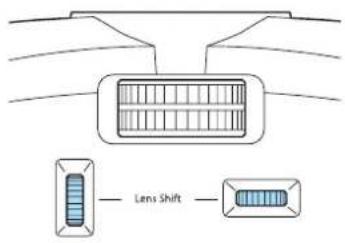
You can adjust the position up, down, left, and right within the range of the dotted line shown in the illustration on the right.
The vertical (V) position (up and down) can be adjusted by up to 96% of the height of the screen, while the horizontal (H) position (right and left) can be adjusted by up to 47% of the width of the screen.
To reset the image position to the center, return the dial to the central position.
To locate the center of the lens shift range, turn the lens shift dial until you hear it click.
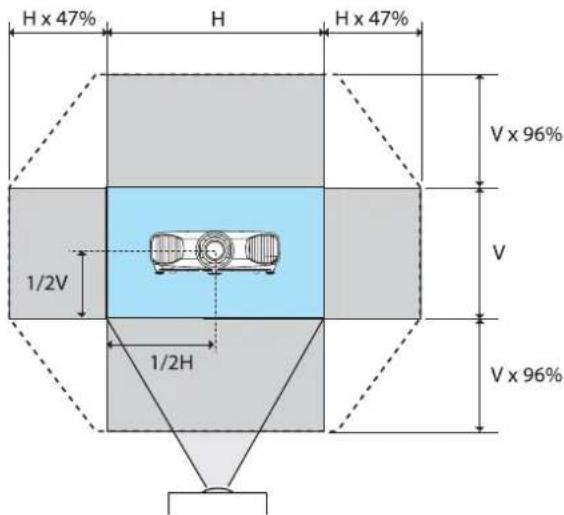

Caution
When transporting the projector, return the lens to the central position. If you transport the projector when the lens is shifted up, down, left, or right, the lens shift mechanism could be damaged.

If keystone distortion occurs when projecting at an angle by using lens shift, you may not be able to correct the distortion completely. When using lens shift, setup the projector so that it is parallel to the screen, and then only use lens shift to adjust the position.
Correcting Keystone Distortion
You can use the buttons on the control panel to correct keystone distortion.
Open the control panel cover at the side to operate the control panel. ● p.9
Press the ☐ or buttons to display the adjustment gauges.
When the gauges are displayed, press the □ and buttons to perform vertical correction.
When the top or bottom is too wide

flowchart
graph LR
    A["Two components"] --> B["Central chamber"]
    B --> C["Transformation"]
    C --> D["Final state"]

- The projected screen becomes smaller when correcting keystone distortion. Increase the projection distance to fit the projected screen to the screen size.
- You can make keystone settings from the configuration menu. ⚙️ Settings - Keystone p.73
- You can make effective corrections within a projection angle of 30^ top to bottom.
- For position adjustment, you can maintain the quality of the projected image by performing correction using lens shift. Use keystone when you cannot make adjustments using lens shift.
Hiding the Image Temporarily
You can use this to temporarily hide the image on the screen.
Press the Blank button to show or hide the image.
EH-TW9100W/EH-TW8100W EH-TW9100/EH-TW8100

For movies, because the movie continues to play even when it is hidden, you cannot return to the point at which you hid the image using the Blank button.

Adjusting the Image
Selecting the Projection Quality (Color Mode)
You can obtain the optimum image quality to suit your surroundings when projecting. The brightness of the image varies depending on the mode selected.

Press the button.

You can make settings from the configuration menu. Image - Color Mode p.68

Select Color Mode.
Press the 🔊 buttons from the displayed menu to select Color Mode, and then press the Enter button to confirm the selection.
![[Color Mode] ◆ Dynamic ↓ Living Room Natural Cinema 3D Dynamic 3D Cinema](/content/2026/05/1065900/images/89c89078f35f38e02a751c37c55db5cfe146ab3dceb89fba817cc1fa8a31e162.jpg)
When projecting 2D images
You can select Dynamic, Living Room, Natural, THX, and Cinema.
3D Dynamic, 3D Cinema, and 3D THX are grayed out and cannot be selected.
When projecting 3D images
You can select 3D Dynamic, 3D Cinema, and 3D THX.
Dynamic, Living Room, Natural, THX, and Cinema are grayed out and cannot be selected.
Choices when projecting 2D images
| Mode Application | |
| Dynamic | Ideal for use in a bright room. This is the brightest mode, and reproduces shadow tones well. |
| Living Room | Ideal for use in a bright room. Images are clear and sharp. |
| Natural | Ideal for use in a dark room. We recommend performing color adjustment in this mode. p.7 |
| THX* | A color mode authorized by THX Ltd. |
| Cinema | Ideal for watching movies and concerts in a dark room. |
* THX may not be displayed depending on the model you are using.
Choices when projecting 3D images
| Mode Application | |
| 3D Dynamic | For use when projecting 3D images. Images are bright and sharper than 3D Cinema. |
| 3D Cinema | For use when projecting 3D images. Produces crisper colors than 3D Dynamic. |
| 3D THX* | For use when projecting 3D images. A color mode authorized by THX Ltd. |
* 3D THX may not be displayed depending on the model you are using.
Switching the Screen Between Wide and Zoom (Aspect)
You can change the input signal's type, aspect ratio, and resolution to match the Aspect of the projection screen.
The available Aspect varies depending on the image signal currently being projected.

Press the button.
EH-TW9100W/EH-TW8100W
EH-TW9100/EH-TW8100

You can make settings from the configuration menu. 📍 Signal - Aspect p.70

Use the buttons to select the setting name, and then press the Enter button to confirm the selection.
![[Aspect] Auto Normal Full Zoom Wide](/content/2026/05/1065900/images/c6699f536a6d7e18df97ccbe12ab20dff694658d6b153661fe16786dccc6c2cd.jpg)

Aspect may not be available depending on the type of signal.
By normally selecting Auto, the optimum aspect is used to display the input signal. Change the setting if you want to use a different aspect.
Images for the HDMI connection are displayed using the same resolution as the original image source.
| Input Image Setting Name (Aspect) | ||||
| Normal Full Zoom Wide | ||||
| 4:3 Images | 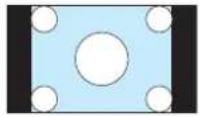 | 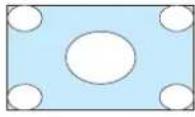 | 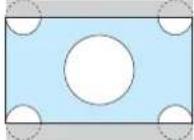 | 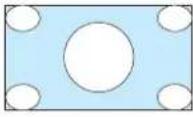 |
| 16:9 Images and Images Recorded Using Squeeze | 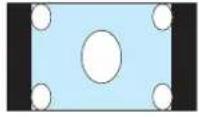 | 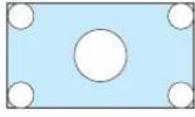 | 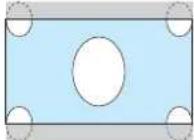 | 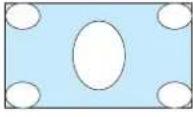 |
| Letterbox Images*1*2 | 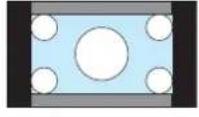 | 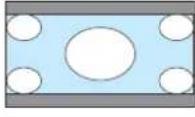 | 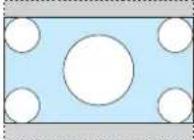 | 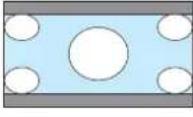 |
| Notes | Matches the vertical size of the projection panel. The aspect ratio differs depending on the input image. | Uses the entire projection panel. | Retains the aspect ratio of the input signal, and matches the horizontal size of the projection panel. The top and bottom of the image may be truncated. | Displays the vertical and horizontal at the maximum. Both of the horizontal ends are enlarged. |
*1 When Zoom is set, subtitles and so on may not be displayed. If this happens, try adjusting Zoom Caption Pos. Signal - Zoom Caption Pos. p.70
*2 The letterbox image used in this explanation is a 4:3 aspect ratio image displayed in 16:9 with black margins at the top and bottom for subtitle placement. The margins at the top and bottom of the screen image are used for subtitles.
For EH-TW9100W/EH-TW9100, you can also set Anamorphic Wide and Horiz. Squeeze.

If Anamorphic Wide is selected when Overscan is set, the image may be truncated. Set Overscan to Off and then project. 🚫 Signal - Advanced - Overscan p.70
Set Anamorphic Wide and attach a commercially available anamorphic lens to enjoy DVDs, Blu-rays, and so on of images recorded at Cinema Scope size.
Horiz. Squeeze stretches the horizontal aspect of the input signal. This allows you to project across the full width of the screen when using a commercially available anamorphic lens.

Note that using the aspect ratio function of the projector to reduce, enlarge, or split the projected image for commercial purposes or for public viewing may infringe upon the rights of the copyright holder of that image based on copyright law.

Absolute Color Adjustments
Adjusting Hue, Saturation, and Brightness
You can adjust the hue, saturation, and brightness for each of the R (red), G (green), B (blue), C (cyan), M (magenta), and Y (yellow) colors.
| Hue | Adjusts the overall color of the image to be blue, green, or red. |
| Saturation | Adjusts the overall vividness of the image. |
| Brightness | Adjusts the overall color brightness of the image. |

Press the button.
EH-TW9100W/EH-TW8100W
EH-TW9100/EH-TW8100
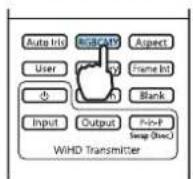
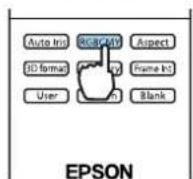

You can make settings from the configuration menu. Image - Advanced - RGBCMY p.68

Use the buttons to select the color you want to adjust, and then press the Enter button to confirm the selection.
![[RGBCMY] Hue Saturation Brightness R 0 ■ G 0 ■ B 0 ■ C 0 ■ M 0 ■ Y 0 ■ Select Enter Enter RGB CMY Exit](/content/2026/05/1065900/images/0d1db3780b30a40c958a9e1c503ad098cad5fc3a03bb54b0796bff459217d323.jpg)

Use the buttons to select Hue, Saturation, or Brightness.

Use the buttons to make adjustments.
![[R] Hue 0 R ▼ ■ ▶ R Saturation 0 ▼ ■ ▶ Brightness 0 ▼ ■ ▶ Use Return ▶ Adjust/Select Default Reset RGB/MY Exit](/content/2026/05/1065900/images/4e84d331e6de8eb3ba0a07fb891373b960610e959cdc29663966012826b37d29.jpg)
Press the button to adjust another color.
Press the Default button to return the adjustments to their default values.

Press the button to exit the menu.
Adjusting the Gamma
You can adjust slight coloration differences that may occur due to the device being used when the image is displayed.
You can use one of the following three methods selected from the configuration menu.
| Setting Method Menu Settings | |
| Select and adjust the correction value | Image - Advanced - Gamma |
| Adjust while viewing the image | Image - Advanced - Gamma - Customized - Adjust it from the image |
| Adjust using the gamma adjustment graph | Image - Advanced - Gamma - Customized - Adjust it from the graph |
Select and adjust the correction value
Select the adjustment value, and then press the button to confirm the selection.
The smaller the value, the lighter the dark portions of the image become, but bright areas may appear discolored. The upper part of the gamma adjustment graph becomes rounded.
When a large value is entered, bright parts of the image become dark. The lower part of the gamma adjustment graph becomes rounded.
![[Gamma] 2.0 2.1 2.2 2.3 2.4 Customized Reset Isc Return Select Init Set Man Exit](/content/2026/05/1065900/images/fac280e4a20656000845c193598a6b1cc880969e9068e19c7ab3b5048c20f07a.jpg)

- The horizontal axis of the gamma adjustment graph shows the input signal level, and the vertical axis shows the output signal level.
- Press the button to return the adjustments to their default values.
Adjust while viewing the image
Make adjustments while viewing the image being projected.
1 Move the gamma icon displayed on the image being projected to the area for which you want to adjust the brightness, and then press the button.
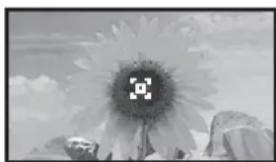
natural_image
Black and white close-up of a sunflower with a pixelated overlay on its flower (no text or symbols)The gamma adjustment graph is displayed.
2 Use the buttons to adjust the brightness, and then press the Enter button to confirm the selection.
![[Gamma] Color Tone 1 : 0 Adjust Default Reset Inter Set](/content/2026/05/1065900/images/5aea5d883a66b6900e03035f5bf6b06388703b95f4bd86e156735498628e057b.jpg)
Adjust using the gamma adjustment graph
Make adjustments while viewing the gamma adjustment graph for the image being projected.
1 Use the buttons to select the part you want to adjust from the graph.
![[Gamma] Blinking area is the adjustment target. Adjust Default Reset Move Inter Set](/content/2026/05/1065900/images/b216dcb748da8d1b76bc3d626c95506f3b03425200ff750775727539a042a0aa.jpg)
2 Use the buttons to adjust the brightness, and then press the Enter button to confirm the selection.
![[Gamma] Color Tone 1 : 0 Adjust Default Reset Move Inter Set](/content/2026/05/1065900/images/3d63cd57977e27b75dea43a02b3fd1b50752c9fddd556b3526e0eae619b55039.jpg)
Adjusting the RGB (Offset/Gain)
For the image's brightness, you can adjust the dark areas (Offset) and the bright areas (Gain) for R (red), G (green), and B (blue). The image becomes brighter when moved to the right (positive) and darker when moved to the left (negative).
| Offset | When the image is made brighter, shading for the darker sections is more vividly expressed. When the image is made darker, the image appears more full-bodied but shading for the darker sections is harder to distinguish. |
| Gain | When the image is made brighter, the bright sections become whiter and shading is lost. When the image is made darker, shading for the bright sections is more vividly expressed. |
The menu is displayed in the following order.
Image - Advanced - RGB
Use the ▲ ▼ buttons to select the item, and then use the ▶ ▶ buttons to make the adjustments.
![[RGB] Offset R 0 Offset G 0 Offset B 0 Gain R 0 Gain G 0 Gain B 0 End Return Adjust/Select Default Reset Manc Exit](/content/2026/05/1065900/images/7057c29133a5e90cd6163264fff27ea1df0d886556e37f6ec6a8c8210af30bcc.jpg)

Press the button to return the adjustments to their default values.
Abs. Color Temp.
You can adjust the overall tint of the image. Make adjustments if the image is a little too blue or too red and so on.
The menu is displayed in the following order.
Image - Abs. Color Temp.
![[Image] Abs. Color Temp.](/content/2026/05/1065900/images/b173f6ff2384adb16269dd9807412193511bc4837af71a0fe6df6f81e497cbad.jpg)
Use the ▶▶ buttons to make adjustments.
Blue tints grow stronger as the value is increased, and red tints grow stronger as the value is reduced.

Press the button to return the adjustments to their default values.
Skin Tone
You can adjust the skin tone. Make adjustments if the skin tone is too red or too green and so on.
The menu is displayed in the following order.
Image - Skin Tone
![[Image] Skin Tone 0 Exit Return Adjust Default Reset Mean Exit](/content/2026/05/1065900/images/82610033681d1de2cd4fe45df2ac57a0e9b3e8879a264a6007807e486aec9ae3.jpg)
Use the ▶▶ buttons to make adjustments.
The image becomes greener when set to the right (positive) and redder when set to the left (negative).

Press the button to return the adjustments to their default values.

Detailed Image Adjustments
Adjusting the Sharpness
You can make the image clearer.
It cannot be adjusted when a computer image signal is being input.
| Thin Line Enhancement | Details such as hair and patterns on clothing are enhanced. |
| Thick Line Enhancement | Rough parts such as outlines for entire subjects or the background are enhanced, making the overall image clearer. |
| Vert. Line Enhancement Horiz. Line Enhancement | Enhances the image horizontally or vertically. |

Press the button.
Remote control Control panel
The configuration menu is displayed.

Select Image - Sharpness.
The Sharpness adjustment screen is displayed.

Select Advanced at the top right of the screen, and then press the button to confirm the selection.
The Advanced adjustment screen is displayed.

Use the buttons to
select the item, and then use the ▶ buttons to make the adjustments.
The image is enhanced when moved to the right (positive) and softer when moved to the left (negative).
![[Sharpness] Thin Line Enhancement 0 Thick Line Enhancement 0 Vert. Line Enhancement 0 Horiz. Line Enhancement 0 Standard Load Return Select Enter Enter Mend Exit](/content/2026/05/1065900/images/42d3e0c07e7c11bb932a33e86bb20abfdc233b8cff6dda8bda2295bbfd4a72f8.jpg)
The upper bar adjusts high and low areas simultaneously.
Press the Default button to return the adjustments to their default values.

Press the button to exit the menu.
Setting Auto Iris
By automatically setting the luminance according to the brightness of the displayed image, it lets you enjoy deep and rich images.
You can select the luminance adjustment tracking for changes in brightness in the displayed image from Normal to High Speed.
(Depending on the image, you may hear the auto iris operating, but this is not a malfunction.)
1
Press the button.

You can make settings from the configuration menu. Image - Auto Iris p.68
2
Use the buttons to select the item, and then press the button to confirm the selection.
![[Auto Iris] Off Normal High Speed Select Inter Set Auto Iris Exit](/content/2026/05/1065900/images/0a2c3b9f757588a1ee23c120af80e4d5927ade6518c28664f6d7ddf22b993164.jpg)
Frame Interpolation
This setting compares the current and previous frames, and then creates a frame between them to reduce fuzziness and produce clearer images.
You can select the level of interpolation from Low, Normal, or High. If you notice any distortion and so on after changing the setting, set it to Off.
1
Press the button.
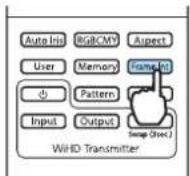

You can make settings from the configuration menu. 📍 Signal - Frame Interpolation p.70
2
Use the buttons to select the item, and then press the button to confirm the selection.
![[Frame Interpolation] Off Low Normal High Select Inter Set Frame In Exit](/content/2026/05/1065900/images/12d98b7cabd4a8a5fe6dc839cbd813ddf5d13161ed4dc0a735ace8f7333cce62.jpg)
Super-resolution
This setting sharpens blurred images, enhancing the apparent detail of the image by increasing the resolution of the image signal.
Depending on the image, distortion at the edge of the image may be enhanced. If you notice any distortion, set it to "0".

Press the button.
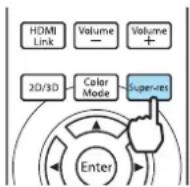

- You can make settings from the configuration menu. 📄 Signal - Super-resolution p.70
- This cannot be set when a computer image signal is being input.

Use the buttons to make adjustments.
The higher the number, the stronger the effect.
![[Signal] Super-resolution 1 Adjust Default Reset Super Red Exit](/content/2026/05/1065900/images/0c32d44bfbfcbad8a5229567667cb53d3962200ccd1f7ee3ee7ebea93b97d2dc.jpg)

Press the button to exit the menu.
Image Processing
Improves the response speed for images projected at high-speed, such as games.
This is only available when receiving a progressive signal input from the Component, HDMI1, or HDMI2 ports, or from WirelessHD.

Press the button.
The configuration menu is displayed.

Select Signal - Advanced - Image Processing.

Use the buttons to select the item, and then press the button to confirm the selection.
![[Image Processing] Fine Fast Exit Return Select Enter Set Mend Exit](/content/2026/05/1065900/images/e2808812ac4bfb45ac6135530be46958207a3795e225f2521810d639fc16f03c.jpg)

Press the button to exit the menu.

• This does not support 3D images.
- If Image Processing is set to Fast, Noise Reduction and Frame Interpolation are fixed at Off.
Selecting the Color Gamut (EH-TW9100W/EH-TW9100 Only)
Sets the color gamut to match the standard for the video device being used. You can easily adjust the color gamut by selecting from the color space names registered in advance.
This can be set when Color Mode is set to Natural.

Press the button.
The configuration menu is displayed.

Select Image - Advanced - Color Gamut.

Select the color space according to the device being used.
![[Color Gamut] HDTV EBU SMPTE-C Return Select Enter Set Menu Exit](/content/2026/05/1065900/images/f71e782cdfa7191fc4056e0fd148ba4f0373fe9afa64a6f2fd9c027c3e5ae911.jpg)

Press the button to exit the menu.

Viewing the Image at the Saved Image Quality (Memory Function)
Saving Function
You can save the adjustment values for some images and image quality settings in the configuration menu for later use (Save Memory).
Because these saved adjustment values can be loaded from the remote control, you can easily switch to your preferred image quality (Load Memory).
The following configuration menu functions can be saved.
| Image p.68 | Color Mode, Power Consumption, Brightness, Contrast, Color Saturation, Tint, Sharpness, Abs. Color Temp., Skin Tone, Advanced-Sharpness, Offset, Gain, Gamma, Hue, Saturation, Brightness, Auto Iris | |
| Signal p.70 | Progressive, Motion Detection, Frame Interpolation, Super-resolution | |
| Advanced Noise Range | Reduction, Setup Level, EPSON Super White, Overscan, HDMI Video | |
Saving a Memory
You can register a memory when Color Mode is set to anything except Auto.

Make settings that you want to save to the configuration menu.

Press the button.
EH-TW9100W/EH-TW8100W
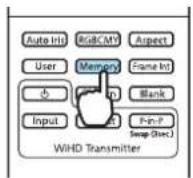
EH-TW9100/EH-TW8100
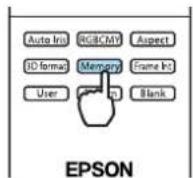

Use the buttons to select Save Memory, and then press the Enter button to confirm the selection.
![[Memory] Load Memory Save Memory Erase Memory Rename Memory Select Enter Enter Memory Exit](/content/2026/05/1065900/images/a9f41666c74050db9f5ea8a93906541caf644d7cdebc8e2c2748079a6dae345f.jpg)
The Save Memory screen is displayed.

Use the buttons to select the memory name to be saved, and then press the Enter button to confirm the selection.
![[Save Memory] ■ Memory1 ●Dynamic ■ Memory2 Dynamic ■ Memory3 Dynamic ■ Memory4 Dynamic ■ Memory5 Dynamic ■ Memory6 Dynamic ■ Memory7 Dynamic ■ Memory8 Dynamic ■ Memory9 Dynamic ■ Memory10 Dynamic Exit Return Select Inter Set Memory Exit](/content/2026/05/1065900/images/d9a3c87cb2f11f640e1893765c6cb71d78ae770ddfd717f5500ed55ca0652d34.jpg)
The current projector settings are saved to the memory.
When the mark to the left of the memory name turns green, saving is complete. If you select a memory name that has already been used, a message is displayed asking if you want to overwrite the data. If you select Yes, the previous content is erased and the current settings are saved.
Loading a Memory
1
Press the Memory button, and then select Load Memory.
The Load Memory screen is displayed.
2
Select the target memory name.

- The color mode saved to the memory is displayed on the right.
- Depending on the input signal, part of the loaded memory item may not be applied to the projected image.
- Memories saved for 2D images can only be loaded when projecting 2D images. Memories saved for 3D images can only be loaded when projecting 3D images.
Deleting a Saved Memory
1
Press the Memory button, and then select Erase Memory.
The Erase Memory screen is displayed.
2
Select the target memory name.
A confirmation message is displayed. If you select Yes, the content of the saved memory is erased.

If you want to erase all of the saved memories, go to Reset - Reset Memory on the configuration menu. p.77
Renaming a Memory
You can rename each memory name using up to 12 characters. Giving the memory a name that is easy to remember is useful when loading the memory.
1
Press the Memory button, and then select Rename Memory.
The Rename Memory screen is displayed.
2
Select the target memory name.
The name list screen is displayed.
3
Select a displayed name or Customized.
To enter a name of your own, select Customized, and then go to step 4. If you select Customized, a keyboard is displayed.
If you select from the name list, check that the memory name has been changed.

Enter a name.
Use the buttons to select a
character, and then press the Enter button to confirm the selection. Enter up to 12 characters.
When you have finished entering the name, select Finish.
The memory name is changed.
![[Customized] A B C D E F G 1 2 3 + - . H I J K L M N 4 5 6 % & O P Q R S T U 7 8 9 ! # $ V W X Y Z CAPS 0 SYM1 ? @ _ Backsp Del ← → Space AllDel Finish Cancel Use Return Select Enter Set Memory Exit](/content/2026/05/1065900/images/e6142ae2343f945f8cefa7eef94519aee6a3553f570452fb1d9caea199753e39.jpg)

Enjoying 3D Images
Setting 3D Images
When 3D data is received from the HDMI1, HDMI2, or WirelessHD (EH-TW9100W/EH-TW8100W only) source, the image is automatically projected in 3D.
The following 3D formats are supported.
- Frame Packing
- Side by Side
- Top and Bottom

Connect a video device capable of playing 3D images to the projector.

Turn on the video device and the projector, and then press the button.
If the 3D image is projected automatically, you do not need to press any buttons.
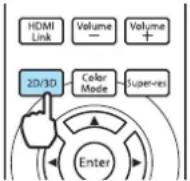

If the 3D image cannot be viewed
Check the following if the 3D effect is not displayed correctly, even after switching to 3D mode.
- Check that the 3D format for the AV device and the 3D Format for the projector match. 📍 Signal - 3D Setup - 3D Format p.70
See the manual provided with the AV device for more information on making settings for the AV device.
- The synchronization timing for the 3D Glasses may have been inversed. Inverse the synchronization using Inverse 3D Glasses, and then try again. 📍 Signal - 3D Setup - Inverse 3D Glasses p.70
- If a 3D image is not displayed, try switching by pressing the button.

- How a 3D image is perceived varies depending on the individual.
- The image is not displayed in 3D if 3D Display is set to Off. Press the 2D/3D button on the remote control. 📋 Signal - 3D Setup - 3D Display p.70
- The projector automatically selects the appropriate 3D format, but if the 3D image is not displayed correctly, use 3D Format to select another format. 📄 Signal - 3D Setup - 3D Format p.70
- If the 3D effect is not displayed correctly, try reversing using Inverse 3D Glasses. 📍 Signal - 3D Setup - Inverse 3D Glasses p.70
- When a 3D image is displayed, a warning about viewing 3D images is displayed. You can turn off this warning by setting 3D Viewing Notice to Off. 📄 Signal - 3D Setup - 3D Viewing Notice p.70
- You can also convert 2D images to 3D images. p.52
- During 3D projection, the following configuration menu functions cannot be changed. Aspect (set to Normal), Noise Reduction (set to Off), Sharpness, Split Screen, Overscan (set to Off), Super-resolution, Frame Interpolation (set to Off)
- How the 3D image is viewed may change depending on the temperature of the surroundings and how long the lamp has been used. Refrain from using the projector if the image is not projected normally.
Using 3D Glasses
Use the supplied or optional 3D Glasses (ELPGS03) to view 3D images.
Depending on the model, 3D Glasses may not be supplied.

The 3D Glasses come with protective stickers. Remove the protective stickers before use.

Charging the 3D Glasses
The following charging methods are available, depending on the model of 3D Glasses being used.
If you have a WirelessHD Transmitter, you can use it to charge the glasses.
If you do not have a WirelessHD Transmitter, you can charge by using the USB Charging Adapter supplied.
Charging using the WirelessHD Transmitter
Use the USB cable to connect the 3D Glasses to the WirelessHD Transmitter.
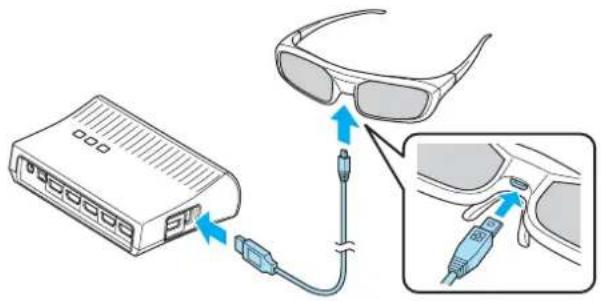
Charging using the USB Charging Adapter
Use the USB cable to connect the 3D Glasses to the USB Charging Adapter, and then connect the USB Charging Adapter to an electrical outlet.
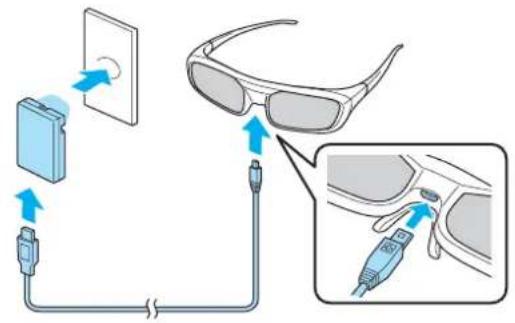
Attention
- Only connect to an electrical outlet that uses the voltage displayed on the adapter.
-
Note the following points when handling the supplied microUSB cable.
-
You should not bend, twist, or pull the cable with too much force.
- You should not modify the cable.
- You should not perform wiring near an electric heater.
- You should not use the cable if it is damaged.
Pairing 3D Glasses
To create 3D images, the 3D Glasses need to be paired with the projector.
Press the [Pairing] button on the 3D Glasses to start pairing. See the User's Guide for the 3D Glasses for more information.

- For 3D Glasses that have not been used, pairing is performed when the 3D Glasses are turned on. You do not need to perform pairing if 3D images can already be viewed correctly.
- Once pairing has been performed, you can view 3D images the next time the devices are turned on.
- You can perform pairing within a range of three meters from the projector. While pairing is being performed, make sure you stay within a range of three meters from the projector. Otherwise, pairing may not be performed correctly.
- If synchronization cannot be performed within 30 seconds, pairing is automatically canceled. When pairing is cancelled, 3D images cannot be viewed because pairing fails.
Wearing the 3D Glasses
1 Turn on the 3D Glasses by sliding the [Power] switch to On.
The indicator turns on for several seconds, and then turns off.
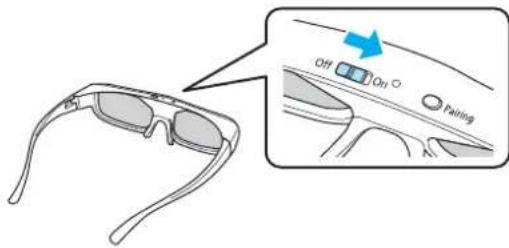
2 Put on the 3D Glasses and enjoy the show.

- When you have finished using the 3D Glasses, turn them off by sliding the [Power] switch to Off.
- If the 3D Glasses are not used for at least 30 seconds, they turn off automatically. To turn the 3D Glasses back on, slide the [Power] switch to Off, and then slide it back to On.
- You need more pairs of optional 3D Glasses if more than one person will be viewing the 3D image. p.97
Range for Viewing 3D Images
The projector allows you to view 3D images within the range shown in the figure below.
You can view 3D images within a range of 10 meters from the projector.
The distance for pairing is three meters.
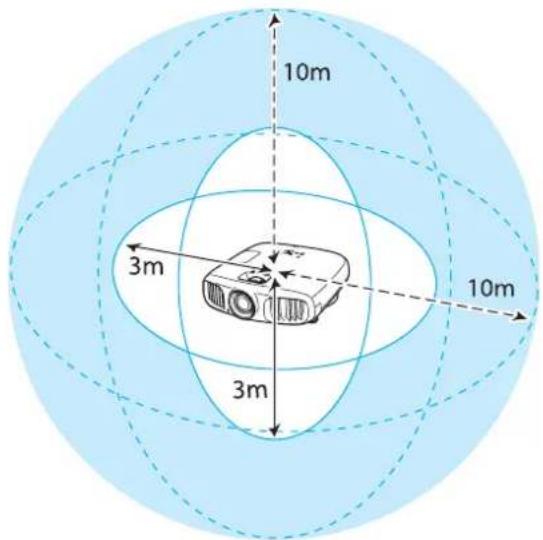

- 3D images may not be displayed correctly if there is any interference from other Bluetooth communication devices. Do not use these devices at the same time.
- The communication method for 3D Glasses uses the same frequency (2.4 GHz) as wireless LAN (IEEE802.11b/g) or microwave ovens. Therefore, if these devices are used at the same time, radio wave interference may occur, the image may be interrupted, or communication may not be possible. If you do need to use these devices at the same time, make sure there is enough distance between them and the projector.
- The 3D Glasses for this projector use the active shutter system based on the standards provided by the Full HD 3D Glasses Initiative™.
Warnings Regarding Viewing 3D Images
Note the following important points when viewing 3D images.

Warning
Disassembling or remodeling
- Do not disassemble or remodel the 3D Glasses. This could cause a fire to occur or the images to appear abnormal when viewing, causing you to feel unwell.
Storage locations
- Do not leave the 3D Glasses or the supplied parts within reach of children. They could be accidentally swallowed. If anything is accidentally swallowed, contact a doctor immediately.
Wireless (Bluetooth) communication
- Electromagnetic interference may cause medical equipment to malfunction. Before using the device, make sure there is no medical equipment in the vicinity. - Electromagnetic interference may cause automatically controlled equipment to malfunction which could cause an accident. Do not use the device near automatically controlled equipment such as automatic doors or fire alarms.
Heating
- Do not place the 3D Glasses in a fire, on a heat source, or leave them unattended in a location subject to high temperatures. Because this device has a built-in rechargeable lithium battery, it could cause burns or a fire if it ignites or explodes.
Charging
- When charging, connect the supplied cable to the USB port designated by Epson. Do not charge using other devices as it may cause the battery to leak, overheat, or explode. - Only use the supplied charging cable to charge the 3D Glasses. Otherwise, it could overheat, ignite, or explode.

Caution
3D Glasses
- Do not drop or press too forcefully on the 3D Glasses.
If the glass sections and so on are broken, an injury could occur. Store the glasses in the soft glasses case supplied. - Be careful of the edges of the frame when wearing the 3D Glasses.
If it pokes your eye and so on, an injury could occur. - Do not place your finger in any of the moving sections (such as the hinges) of the 3D Glasses.
Otherwise an injury could occur. - When disposing of the 3D Glasses, see the User's Guide for the 3D Glasses.

Caution
Wearing 3D Glasses
- Make sure you wear the 3D Glasses correctly.
Do not wear the 3D Glasses upside down.
If the image is not displayed correctly into the right and left eyes, it could cause you to feel unwell. - Do not wear the glasses unless you are viewing a 3D image.
- How a 3D image is perceived varies depending on the individual. Stop using the 3D function if you feel strange or cannot see in 3D.
Continuing to view the 3D images could cause you to feel unwell. - Stop wearing the 3D Glasses immediately if they seem abnormal or a malfunction occurs.
Continuing to wear the 3D Glasses could cause an injury or cause you to feel unwell. - Stop wearing the 3D Glasses if your ears, nose, or temples become red, painful, or itchy.
Continuing to wear the 3D Glasses could cause you to feel unwell. - Stop wearing the 3D Glasses if your skin feels unusual when wearing the glasses.
In some very rare cases the paint or materials used in the 3D Glasses could cause an allergic reaction.

Caution
Viewing Time
- When viewing 3D images, always take periodic breaks during extended viewing.
Long periods of viewing 3D images may cause eye fatigue.
The amount of time and frequency of such breaks varies from person to person. If your eyes still feel tired or uncomfortable even after taking a break from viewing, stop viewing immediately.

Caution
Watching 3D Images
- If your eyes feel fatigued or uncomfortable when viewing 3D images, stop viewing immediately. Continuing to view the 3D images could cause you to feel unwell.
- When viewing 3D images be sure to always wear 3D Glasses. Do not attempt to view 3D images without 3D Glasses.
Doing so could cause you to feel unwell. - Do not place any breakable or fragile objects around you when using 3D Glasses. 3D images may cause you to move your body involuntarily, resulting in damage to nearby items or personal injury.
- Only wear 3D Glasses when viewing 3D images. Do not move around while wearing 3D Glasses.
Your vision may appear darker than normal, causing you to fall or injure yourself. - Try to stay as level with the viewing screen as possible when viewing 3D images.
Viewing 3D images at an angle reduces the 3D effect and may cause you to feel unwell due to unintended color changes. - If using 3D Glasses in a room with fluorescent or LED lighting, you may see flashing or flickering throughout the room. If this should occur, reduce the lighting until the flickering goes away or turn off the lights completely when viewing 3D images. In some very rare cases, this flickering could trigger seizures or fainting for some individuals. If you begin to feel uncomfortable or unwell at any time when viewing 3D images, stop immediately.
- Stay at least three times the height of the screen away from the screen when viewing 3D images. The recommended viewing distance for an 80-inch screen is at least 3 meters, and at least 3.6 meters for a 100-inch screen.
Sitting or standing any closer than the recommended viewing distance may result in eye fatigue.

Caution
Health Risks
- You should not use 3D Glasses if you are sensitive to light, have a heart condition, or are unwell. Doing so could aggravate your pre-existing conditions.

Caution
Recommended Age of Use
- The minimum recommended age to view 3D images is six years old.
- Children under the age of six are still developing and viewing 3D images may cause complications. Consult your doctor if you have any concerns.
- Children viewing 3D images through 3D Glasses should always be accompanied by an adult. It is often difficult to tell when a child is feeling tired or uncomfortable, which could result in them feeling suddenly unwell. Always check with your child to ensure that they are not experiencing any eye fatigue during viewing.
Converting 2D Images to 3D and Viewing
You can convert 2D images from HDMI1, HDMI2, or WirelessHD (EH-TW9100W/EH-TW8100W only).

Press the button.
The configuration menu is displayed.

Select Signal - 3D Setup, and then press the Enter button to confirm the selection.
The 3D Setup screen is displayed.

Select 2D-to-3D Conversion, and then press the Enter button to confirm the selection.
![[3D Setup] 3D Display On Signal 2D-to-3D Conversion Off 3D Format Auto 3D Depth 0 Diagonal Screen Size 0 in 3D Brightness Low Inverse 3D Glasses 3D Viewing Notice On Ex Return Select Enter Move Exit](/content/2026/05/1065900/images/0317690eb13f92aa456f36a2e331d65267bd4b6ea10f471bae072c8b70690913.jpg)

Select the strength of the 3D effect, and then press the ☑ button to confirm the selection.
![[2D-to-3D Conversion] Off Weak Medium Strong Exit Return Select Enter Set Menu Exit](/content/2026/05/1065900/images/229ff7a2c5bd6e6e2e00226ed91c73a81e764d8c0470a99afb1ff7af136efa5f.jpg)

Press the button.

When using 2D-to-3D Conversion, set 3D Format to Auto or 2D. Signal - 3D Setup - 3D Format p.70

Connecting with WirelessHD (EH-TW9100W/EH-TW8100W Only)
Installing the WirelessHD Transmitter
You can use the supplied WirelessHD Transmitter to wirelessly receive image data.
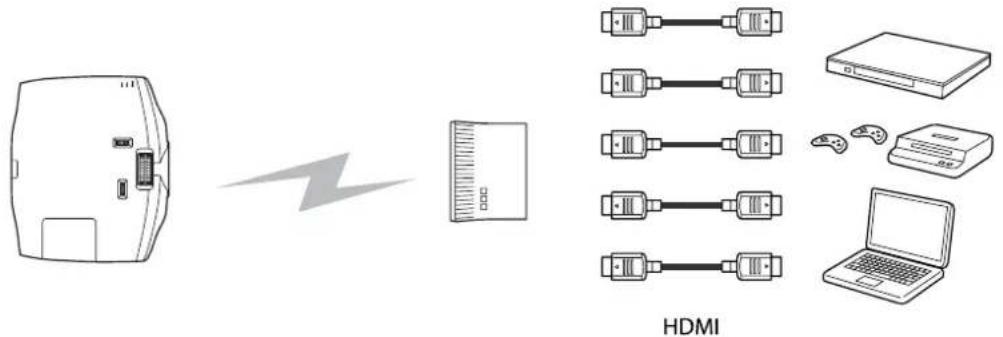
Projector Transmitter Multi-media players, game consoles,
and so on
You can use the WirelessHD Transmitter in the following ways.
- You do not need to connect a cable to the projector. This is useful if you cannot set it up near the AV device.
- You can connect up to five AV devices at the same time, and switch images using the remote control.
- As well as the projector, you can connect another output device, such as a television, to the Output port, and then switch the output using the remote control.
- This allows other output devices connected to the Output port to project images from the connected AV device, even if the projector is off.

WirelessHD Transmitter part names
Front Rear
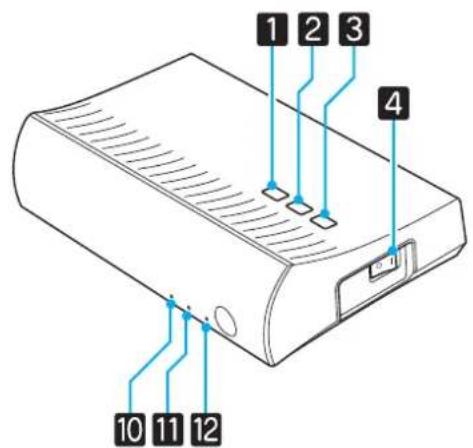
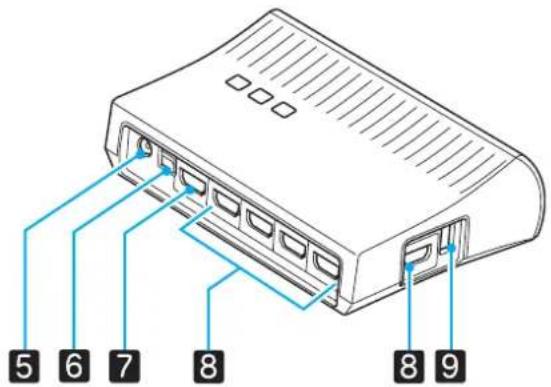
| Name Function | ||
| 1 | 按钮 | Turns the transmitter on or off.This performs the same function as the button for WiHD Transmit-ter control on the lower section of the remote control. |
| 2 | Input button | Changes to the image from each input port.This performs the same function as the input button for WiHD Transmit-ter control on the lower section of the remote control. |
| 3 | Output button | Switches the output image to the Wireless or Output port.This performs the same function as the output button for WiHD Transmit-ter control on the lower section of the remote control. |
| 4 | Main power switch | Turns the main power for the transmitter on or off. |
| 5 | AC adapter port | Connects the AC adapter. |
| 6 | Optical Audio-Out port | Connects to audio devices equipped with an optical digital audio input port. |
| 7 | HDMI Output port | Connects to other output devices, such as televisions. You can switch the output using the Output button. |
| 8 | HDMI Input port | Connects to the AV device you want to playback. You can switch the input image using the Input button. |
| 9 | 3D Glasses charging port | Connects a USB cable to charge the 3D Glasses. |
| 10 | 符号 indicator (orange/green) | Lit when the WirelessHD Transmitter is on. Lit orange when standing by, and green when operating (receiving or transmitting images). |
| 11 | WiHD indicator (orange) | Indicates the communication status for the WirelessHD.Lit when wirelessly transmitting images to the projector.Off when outputting to the Output port. |
| 12 | Link indicator (orange) | Indicates the connection status with the projector.On when projecting images from the projector.Flashes when searching for a projector.Flashes slowly when standing by in power saving status. |

- The receiver is located within the intake vent of the projector and therefore cannot receive any signals directly from the rear. Set up so that the front of the projector is facing the WirelessHD Transmitter. Also, make sure that the air intake vent on the left-hand side of the projector is not covered.
- Place the WirelessHD Transmitter on a level surface facing towards the projector.
- You can view the signal strength from the WirelessHD settings menu. ⬆ Settings - WirelessHD - Reception p.73
Setting the WirelessHD Transmitter
1 Set up the WirelessHD Transmitter connected to the projector so that they are facing each other. p.58
2 Connect the WirelessHD Transmitter to an electrical outlet using the supplied AC adapter.
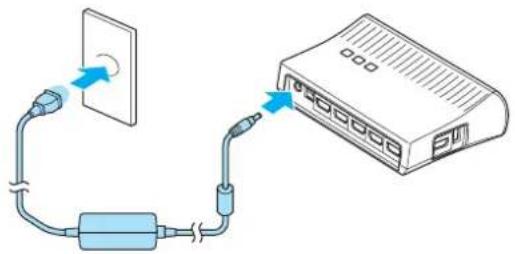
natural_image
Diagram showing a device with a power connector and a router connected via a cable (no text or symbols present)3 Using an HDMI cable, connect the AV device you want to use to the Input port on the WirelessHD Transmitter. You can connect up to five multi-media players.
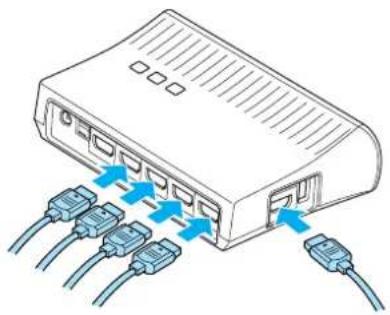
natural_image
Illustration of a network switch with multiple Ethernet ports and blue cables (no text or symbols)
You can connect another output device, such as a television, to the Output port on the WirelessHD Transmitter. You can switch between output images using the remote control. p.59
Projecting Images
1 Start playback on the AV device, and then turn on the projector and the WirelessHD Transmitter.
The ⏻ indicator on the WirelessHD Transmitter turns on.
Check the status of the WiHD indicator on the WirelessHD Transmitter.
If the WiHD indicator is on, go to the next step.
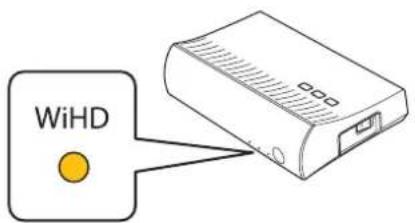
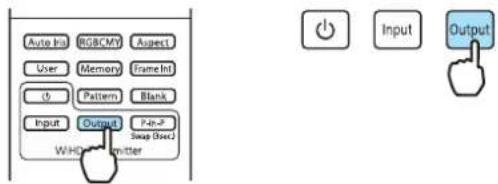
If the indicator is off, press the Output button on the remote control or the WirelessHD Transmitter.
Make sure you point the remote control at the WirelessHD Transmitter when using the Output button on the remote control.
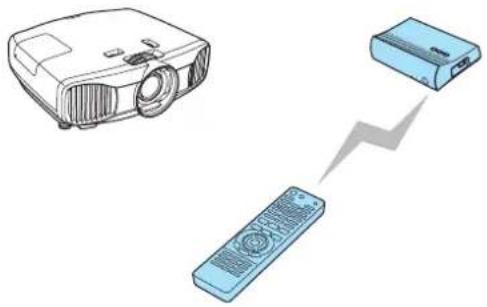
natural_image
Illustration of a projector, remote control, and a small electronic device connected by a lightning bolt (no text or symbols)Remote control WirelessHD Transmitter
Check the status of the Link indicator on the WirelessHD Transmitter.
If the WirelessHD Transmitter is connected to the projector, the Link indicator flashes and then remains on.
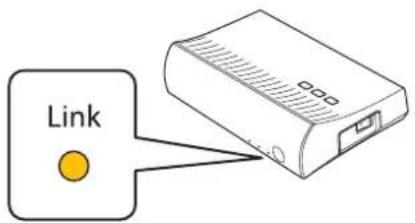

If the indicator continues to flash slowly, the WirelessHD Transmitter cannot connect to the projector and has entered standby status. Make sure the projector has been setup correctly, such as turning on the power and so on.

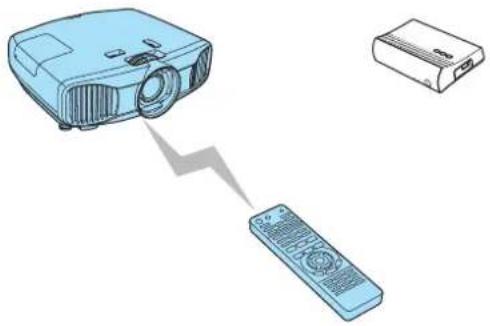
If projection does not start, press the WirelessHD button on the remote control to change the source.
Make sure you point the remote control at the projector when using the WirelessHD button on the remote control.
natural_image
Illustration of a projector connected to a remote via a cable, with a smaller rectangular device nearby (no text or symbols)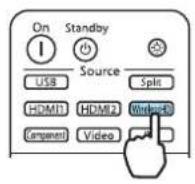
Projection starts.

When connecting two or more AV devices to the WirelessHD Transmitter, press the button to switch images. p.60

- When receiving WirelessHD images, make sure WirelessHD is set to On from the configuration menu. Settings - WirelessHD p.73
- Make sure you turn off the WirelessHD Transmitter if it is not going to be used for an extended period.
WirelessHD Settings Menu

Press the button.
The configuration menu is displayed.

Select Settings - WirelessHD.
The WirelessHD settings screen is displayed.

Make settings for each of the displayed functions.
![[WirelessHD] Device Connections WirelessHD On Reception Reset Est Return Select Enter Enter Menu Exit](/content/2026/05/1065900/images/bef44c36c52df0fae7d8306ca26f78bb43f7919bae3aea2321fd888bd4b4fc47.jpg)
Available functions on the WirelessHD settings menu
| Function Explanation | |
| Device Connections | Displays a list of available WirelessHD devices that can be connected. The device names and MAC addresses (device numbers) are displayed in the list. The MAC address is displayed on the label on the base. |
| WirelessHD Enables or disables the WirelessHD function. | |
| Reception Displays the reception. | |
| Reset | You can reset all adjustment values for the WirelessHD settings menu to their default settings. |
WirelessHD Transmission Range
The following shows the communication transmission range for the WirelessHD. Make sure you set up the WirelessHD Transmitter so that it faces the projector.
Horizontal direction
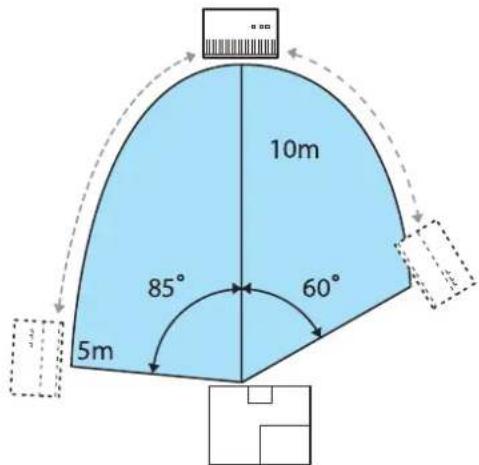
Vertical direction (placed on a table and so on)
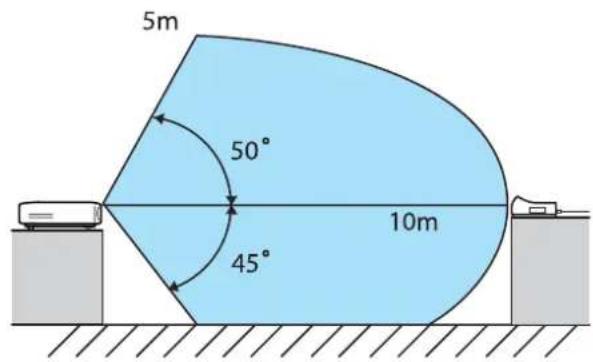
Vertical direction (suspended from a ceiling)
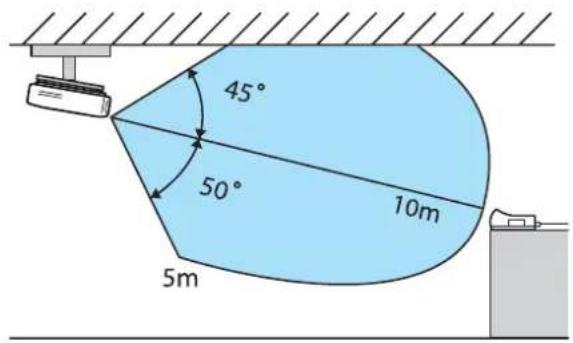

- The wireless transmission range varies depending on the placement and material of the surrounding furniture and walls. The values given here are for your reference only.
- The projector cannot communicate through walls.
- Place the WirelessHD Transmitter on a wooden shelf or other location that does not block the signal from being transmitted from the front of the device. Note that placing the transmitter on a metal shelf may cause signal instability.
- The antennas are built-into the front of the projector and the WirelessHD Transmitter. Make sure the antennas face each other (face the front) when setting up the devices.
- Place the projector and the WirelessHD Transmitter close to each other, and make sure there are no other projectors operating in the vicinity.
- Depending on the reception strength, the image's color information may be automatically discarded to avoid any interruptions and maintain a constant connection. To avoid any deterioration in image quality, adjust the position of the WirelessHD Transmitter so that the Reception is as strong as possible.
Useful Functions of the WirelessHD Transmitter
With the WirelessHD Transmitter, you can connect and switch between five multi-media players (input devices to be played back) and one output device (an output device displaying an image, such as a television).
Image output Image input
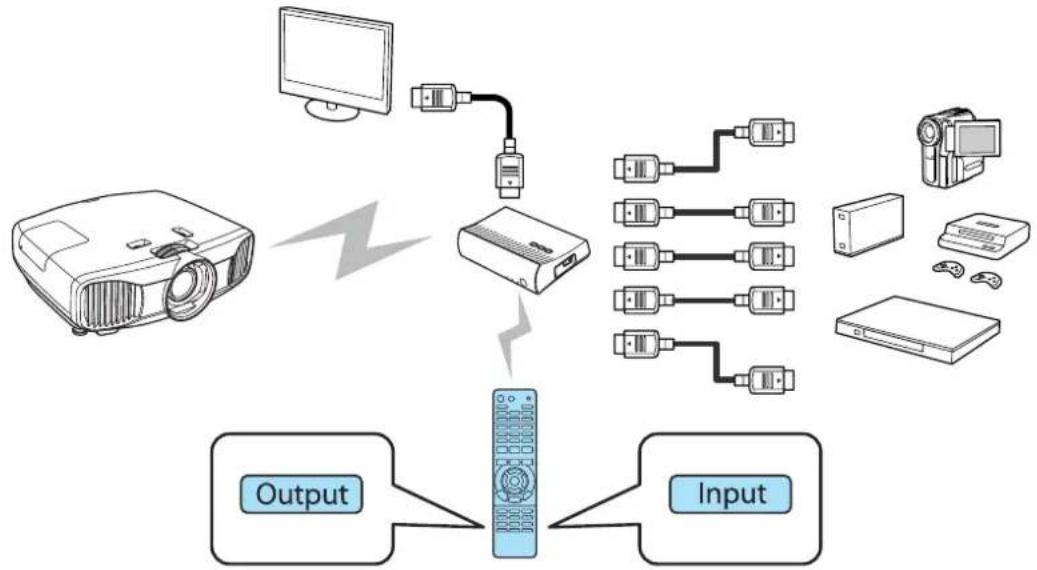
flowchart
graph TD
    A["Input Device"] --> B["Remote Control"]
    C["Video Camera"] --> D["Computer"]
    E["Desktop Computer"] --> F["Monitor"]
    G["Camera"] --> H["Display"]
    I["Radio System"] --> J["Output"]

Make sure you point the remote control at the WirelessHD Transmitter when performing operations using the Input button (switch input) and the Button (switch output) on the remote control.

Switching the target image
You can switch the output image between devices, such as televisions, connected to the Output port on the WirelessHD Transmitter and the projector.

Turn on the projector or the television.

Turn on the WirelessHD Transmitter.
The ⏻ indicator on the WirelessHD Transmitter turns on.

Point the remote control at the WirelessHD Transmitter, and then press the Output button.
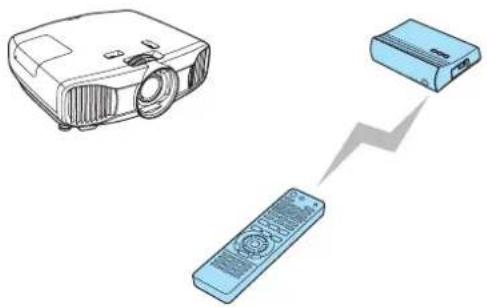
natural_image
Illustration of a projector, remote control, and a projector with a lightning bolt (no text or symbols)Remote control WirelessHD Transmit-
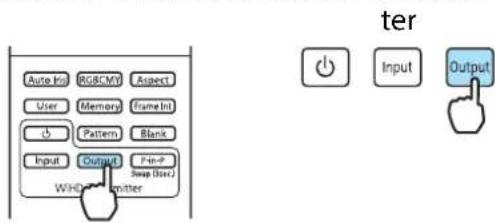
Depending on the output target, the WiHD indicator on the WirelessHD Transmitter indicates the following status.
On: The image is being output to the projector.
Off: The image is being output to another output device.
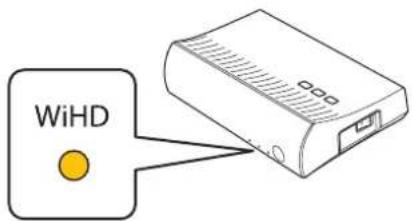
The output target projected last time is projected the next time the projector is turned on.

You can switch to the other output device even when the projector is off.

Switching the image source
You can switch the image source for the AV device connected to the WirelessHD Transmitter. When switching, each input source is displayed on one screen as a preview. This allows you to switch easily between image sources even when two or more devices are connected using HDMI.
The projector uses Insta Prevue Technology from Silicon Image, Inc.
Switching the source
1 Point the remote control at the WirelessHD Transmitter, and then press the Input button.
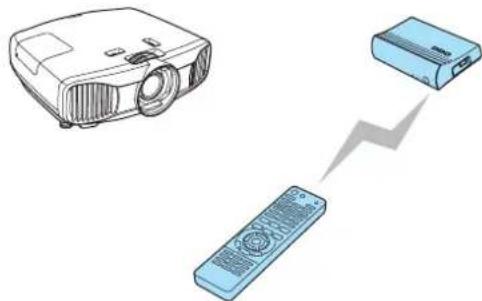
natural_image
Illustration of a projector, remote control, and a small electronic device connected by a lightning bolt (no text or symbols)Remote control WirelessHD Transmitter
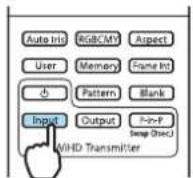
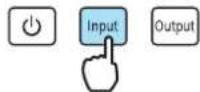
Displays the sub-screen for the connected device.
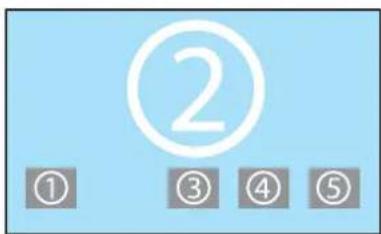
2 The target screen changes each time you press the Input button.
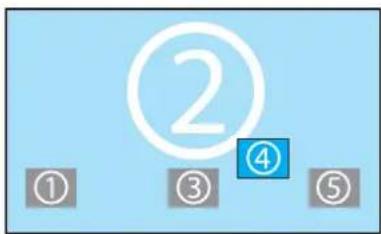
3 After selecting the target screen, please wait for a moment.
The projected image is switched.
Displaying as a sub-screen
1 Point the remote control at the WirelessHD Transmitter, and then press the P-in-P button.
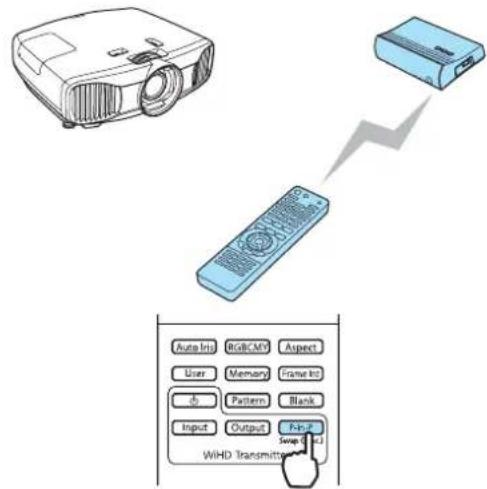
Displays the sub-screen for the connected device.
2 When switching between the sub-screen and the main screen, hold down the P-in-P button (for approximately 3 seconds) until the screen changes.
3 To close the sub-screen, press the P-in-P button again.
The projected image is switched.

- When the sub-screen is displayed, press the Input button to switch the image for the sub-screen.
- When the sub-screen is displayed, press the Output button to change the position and size (large/small) of the sub-screen. Each time the Output button is pressed, the display position moves from bottom right, top right, top left, and bottom left allowing you to change the size.
Remote control operating range
The following shows the operating range between the remote control and the WirelessHD Transmitter.
Operating range (left to right) Operating range (top to bottom)
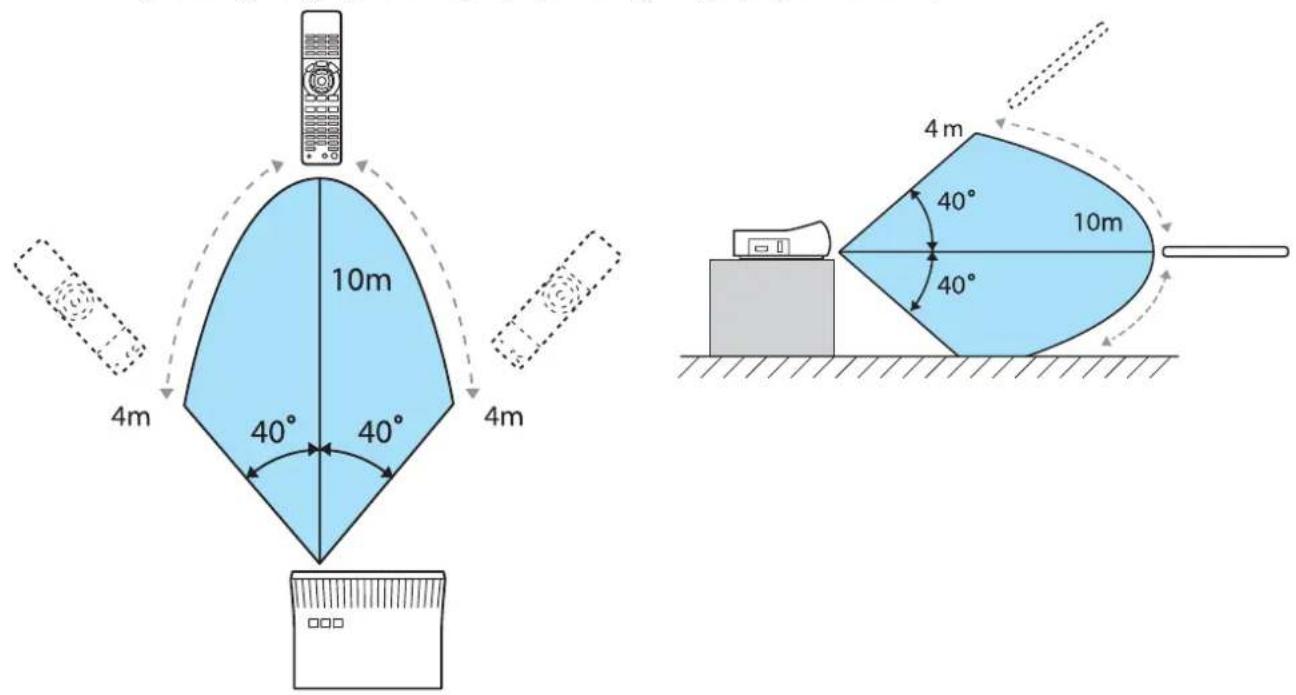

Using the HDMI Link Function
HDMI Link Function
When an AV device that meets the HDMI CEC standards is connected to the projector's HDMI port, you can perform linked operations such as linked power on and volume adjustment for the AV system from one remote control. Also, when projecting images in WirelessHD, you can use the HDMI link function (EH-TW9100W/EH-TW8100W only).

- As long as the AV device meets the HDMI CEC standards, you can use the HDMI link function even if the AV system in-between does not meet the HDMI CEC standards.
- Up to 3 multi-media players that meet the HDMI CEC standards can be connected at the same time.
Connection Example

natural_image
Line drawings of four electronic devices: projector, HDMI, DVD, and CD/CD (no text or symbols on diagrams)Projector Amplifier Multi-media players and so on
HDMI Link Settings
By pressing the button on the remote control, and setting HDMI Link to On, you can operate the following functions.
![[HDMI Link] Device Connections HDMI Link On Power On Link Off Power Off Link On Select Enter Enter HDMI Link Exit](/content/2026/05/1065900/images/f35af4194dce81e496d908f7445c9ce78b47fd66b51fe5a83fdf43f382f3df86.jpg)
| Function Explanation | |
| Power On Link Powers on the projector when content is played back on the connected device. Or, powers on the connected device when the projector is turned on. | |
| Power Off Link Powers off the connected device when the projector is turned off.This only works when the connected device's CEC power link function is enabled.Note that depending on the status of the connected device (for example, if it is recording), the device may not power off. | |
| Input Change Link Changes the input source of the projector to HDMI when content is played back on the connected device. | |
| Connected Devices Operations | You can perform operations such as Play, Stop, Fast Forward, Rewind, Next Chapter, Previous Chapter, and Pause from the remote control for the projector. |

- To use the HDMI Link function, you must configure the connected device. See the documentation supplied with the connected device for more information.
- Even when using the WirelessHD Transmitter with Power On Link set to Device -> PJ or Bidirectional, if WirelessHD is set to On, this projector also turns on when the AV device connected to the WirelessHD Transmitter is turned on (EH-TW9100W/EH-TW8100W only). 📍 Settings-HDMI Link-Power On Link p.73
Device Connections
You can check the connected devices that are available for HDMI Link, and select on the device you want to project the image from. Devices that can be controlled by HDMI link automatically become the selected device.

Press the button, and then select Device Connections.
The Device Connections list is displayed.
Devices that have a green icon to their left are linked.
If the device name cannot be determined this field is left blank.

Select the device you want to operate using the HDMI Link function.
![[Device Connections] Type Name Source Recorder 1 BN-XXX HDMI1 Player 1 DWR-XXX HDMI2 Recorder 2 WirelessHD AV System YSP-XXX HDMI2 Iso Return Select User Set HDMI Link Exit](/content/2026/05/1065900/images/6f05ed767e00e23beb9802fc509249a798af177f30a2081786363600e612c2f3.jpg)

- If the cable does not meet the HDMI standards, operations are not possible.
- Some connected devices or functions of those devices may not operate properly even if they meet the HDMI CEC standards. See the documentation and so on supplied with the connected device for more information.

Changing Between Two Types of Images
Types of Screen that can be Displayed Simultaneously
You can project two different images at once, one on the left and one on the right. You can project these images at the same size, or make one larger or smaller than the other to view a sub image while you are watching the larger main image.
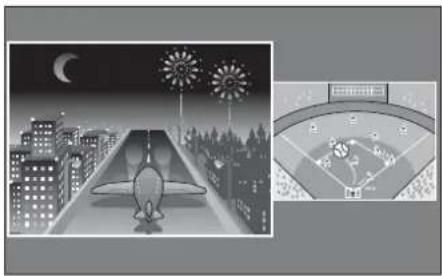
natural_image
Illustration of a city night scene with fireworks and a rocket on a road, alongside a circular gauge chart (no text or symbols)Combinations of input sources for Split Screen projection
| HDMI1 | HDMI2 | WirelessHD | * | Component Video PC | |||
| HDMI1 | - | - | - | - | √ | √ | √ |
| HDMI2 | - | - | - | - | √ | √ | √ |
| WirelessHD* | - | - | - | - | √ | √ | √ |
| Component | √ | √ | √ | - | - | √ | - |
| Video | √ | √ | √ | √ | √ | - | √ |
| PC | √ | √ | √ | - | - | √ | - |
* EH-TW9100W/EH-TW8100W only
Projecting on a Split Screen

Starting split screen display
Press the button on the remote control while the projector is projecting.
The input image is displayed as a split screen.
The image which was being displayed is projected on the left, and the image specified in Source from the Split Screen Setup menu is projected on the right. If the source being input is not supported, nothing is displayed.
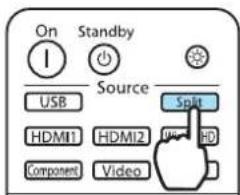
Press the Split button again to exit split screen.

You cannot use split screen display to project 3D images.
☐ Changing the split screen settings
You can change the source and the display size used for split screen display from the Split Screen Setup menu.

Press the button during split screen projection.
The Split Screen Setup menu is displayed.

Press the button during split screen projection to immediately display the Split Screen Setup menu.

Make settings for each of the displayed functions.
![[Split Screen Setup] Screen Size Equal Source Swap Screens Exit Split Screen Select Inter Execute MendExit](/content/2026/05/1065900/images/37bb0096fbd000193d8032d25fb82fda6764c51e81e5898beef18f710dfed39f.jpg)
Available functions on the Split Screen Setup menu
| Function Explanation | |
| Screen Size | Changes the left and right screen size using Equal, Larger Left, and Larger Right. |
| Source Selects which source is displayed on the left and right. | |
| Swap Screens Changes the left and right screens. | |
| Exit Split Screen Exits split screen display. | |

Configuration Menu Functions
Configuration Menu Operations
On the configuration menu, you can make adjustments and settings for Signal, Image, Input Signal, and so on.

Press the button.
Remote control Control panel
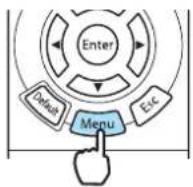
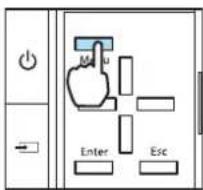
The configuration menu is displayed.

Use the buttons to
select the top menu on the left, and then press the Enter button to confirm the selection.
When you select the top menu on the left, the sub menu on the right changes.
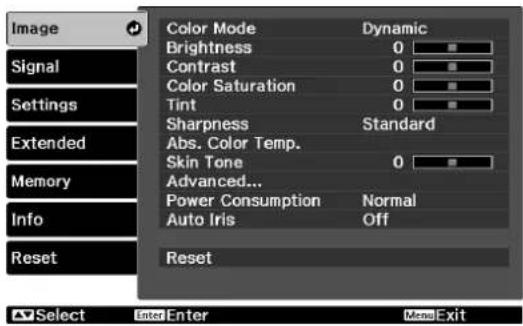
The line at the bottom is a guide for operations.

Use the buttons to
select the sub menu on the right, and then press the Enter button to confirm the selection.
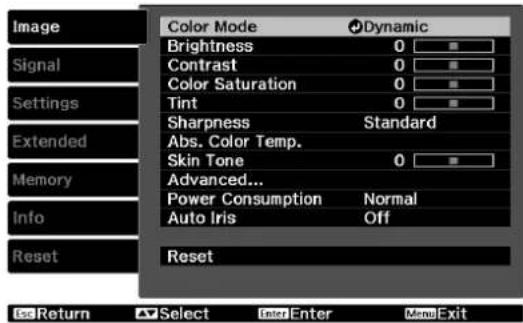
The adjustment screen for the selected function is displayed.

Use the buttons to adjust the settings.
Ex.) Adjustment bar
![[Image] Brightness 0 Exit Return Adjust Default Reset Menu Exit](/content/2026/05/1065900/images/e99ffaaaad2a7a33008a635296f0ddb40731414a4181299ce769ecbcf95d94f3.jpg)
Ex.) Choices
![[Color Mode] Dynamic Living Room Natural Cinema 3D Dynamic 3D Cinema Iso Return Select Inter Set Menu Exit](/content/2026/05/1065900/images/03908a5372e96033678467555677ea62d2a6ca62a32cdaa7a74bbc91c61c79eb.jpg)
Press the button on an item displaying this icon to change to the selection screen for that item.
Press the Esc button to return to the previous level.

Press the button to exit the menu.

For items adjusted using an adjustment bar, such as the brightness level, you can press the button while the adjustment screen is displayed to return the adjustment value to its default value.
Configuration Menu Table
If there is no image signal being input, you cannot adjust items related to the image or signal in the configuration menu. Note that the items displayed for the image, the signal, and other information vary depending on the image signal being projected.

Image menu
| Function Menu/Settings Explanation | ||||
| Color Mode | Dynamic, Living Room, Natural, THX, Cinema, 3D Dynamic, 3D Cinema, 3D THX | Select a color mode based on your surroundings and the image you are projecting. p.31 | ||
| Brightness |  | Adjusts the brightness when the image appears too dark. | ||
| Contrast |  | Adjusts the contrast between light and shade in the images. By increasing the contrast, the images become vivid. | ||
| Color Satura-tion*1 |  | Adjusts the color saturation for the images. | ||
| Tint*1 |  | Adjusts the tint for the images. | ||
| Sharpness | Standard |  | Adjusts the image sharpness. Adjusts the overall image. | |
| Advanced*1 | Thin Line Enhance-ment, Thick Line Enhancement, Vert. Line Enhancement, Horiz. Line Enhancement |  | Adjusts the image sharpness. Use this to adjust specific areas. p.38 | |
| Abs. Color Temp. | 5000K to 10000K (12 increments) Adjusts the tint for the images. The image is tinted blue for high values, and tinted red for low values. | |||
| Skin Tone |  | Adjusts the skin tone. The image becomes greener when set to a positive value and redder when set to a negative value. | ||
| Function Menu/Settings Explanation | |||||
| Advanced | Gamma 2.0 | 2.1, 2.2, 2.3, 2.4, 2.5, 2.6 Performs gamma adjustments. You can select a raw value or adjust the gamma while looking at the image or graph. p.35(The values that can be selected change depending on the Color Mode setting, and 2.0 - 2.4 or 2.2 - 2.6 are displayed.) | |||
| Customized | Adjust it from the image, Adjust it from the graph | ||||
| Reset | |||||
| RGB Offset | R/G/B | Adjusts the offset and gain for each R, G, and B color. p.36 | |||
| Gain R/G/B | Adjusts the hue, saturation, and brightness for each R, G, B, C, M, and Y color. p.34 | ||||
| RGBCMY R/G/B | C/M/Y Hue, Satura-tion, Bright-ness | Adjusts the hue, saturation, and brightness for each R, G, B, C, M, and Y color. p.34 | |||
| EPSON Super White*2 *3 | On, Off | (This can only be set when the Color Mode is set to Auto, Natural, Cinema, or3D Cinema and when receiving signal input from the HDMI1 or HDMI2 ports, or from WirelessHD.) Set this to On if you are experiencing bright over exposure of whites in your image. When set to On, HDMI Video Range settings are disabled. | |||
| Color Gam-ut*4 | HDTV, EBU, SMPTE-C Sets the color gamut to match the standard for the video device being used. p.41 | ||||
| Power Con-sumption | Normal, ECO You can set the lamp brightness to one of two settings. Select ECO if the images being projected are too bright. When ECO is selected, power consumption during projection decreases, and fan rotation noise is reduced. | ||||
| Auto Iris | Off, Normal, High Speed You can change the luminance adjustment tracking for changes in brightness in the displayed image. Set to Off for no luminance adjustment. p.39 | ||||
| Reset | Yes, No You can reset all adjustment values for Image to their default settings. | ||||
*1 This is not displayed when a computer image signal is being input.
*2 This is only displayed when a Component, HDMI1, HDMI2, or WirelessHD image signal is being input. (WirelessHD is for EH-TW9100W/EH-TW8100W only.)
*3 Settings are saved for each type of input source or signal.
*4 Only EH-TW9100W/EH-TW9100 is displayed.

Signal menu
| Function Menu/Settings Explanation | |||
| 3D Setup*1 | 3D Display On, Off Enables or disables the 3D Display function. p.45 | ||
| 2D-to-3D Conversion | Off, Weak, Medium, Strong | Sets the strength of the 3D effect when converting 2D to 3D images. p.52 | |
| 3D Format Auto, Side by Side, Top and Bottom, 2D | Sets the 3D format for the input signal. If set to Auto, the format is recognized automatically. | ||
| 3D Depth -10 - 10 Sets the depth for the 3D image. | |||
| Diagonal Screen Size | 60 - 300 Sets the projection size for the 3D image. By matching this to the actual size, you can achieve the optimum 3D effect. | ||
| 3D Brightness | Low, Medium, High | Sets the brightness for the 3D image. | |
| Inverse 3D Glasses Yes, No Reverses the synchronization timing for the left/right shutters on the 3D Glasses and the left/right images. Enable this function if the 3D effect is not displayed correctly. | |||
| 3D Viewing Notice | On, Off Turns the notice that appears when viewing 3D content on or off. | ||
| Aspect*2 | Auto, Normal, Full, Zoom, Wide, Anamorphic Wide*7, Horiz. Squeeze*7 | Selects the aspect mode. p.32 | |
| Zoom Size*2 |  | (Available when Aspect or Zoom are set.) Any parts at the top or bottom that cannot be seen when Zoom is set are squeezed vertically to fit on the screen. The higher you set this value the more the image is squeezed vertically. | |
| Zoom Caption Pos.*2 |  | (Available when Aspect or Zoom are set.) If subtitles are not completely visible when viewing images with subtitles at the bottom, you can adjust the position of the image up or down until the subtitles become visible. | |
| Tracking*2 *3 | Varies depending on the input signal. | Adjusts computer images when vertical stripes appear in the images. | |
| Sync.*2 *3 | 0 - 31 | Adjusts computer images when flickering, fuzziness, or interference appear in the images. • Adjusting the Brightness, Contrast, or Sharpness may cause flickering or blurriness. • Adjusting the synchronization after adjusting tracking allows for more accurate adjustments. | |
| Position*2 *4 |  | Adjusts the display position up, down, left, and right when a part of the image is missing so that the whole image is projected. | |
| Progressive*2 | Off, Video, Film/Auto*5 *6 | (This can only be set when receiving signal input from the Video port or when receiving 480i, 576i, or 1080i signal input from the Component, HDMI1, or HDMI2 ports or from WirelessHD.) Converts the signal from interlaced (i) to progressive (p) using a method appropriate for the image signal.Off: No signal conversion is performed.Video: This is ideal for viewing general video images.Film/Auto: Performs the optimal conversion for film, CG, or animation input signals. | |
| Motion Detection*2 *5 | 1 - 5 Sets the image motion speed from 1 (slow, for still images) to 5 (fast, for movies). Change this setting if you are experiencing poor still image quality or flickering movies. | ||
| Auto Setup*3 | On, Off Sets whether or not to automatically adjust the image whenever the input signal is changed. When enabled, the tracking, display position, and synchronization are automatically configured. | ||
| Frame Interpolation | Off, Low, Normal, High Reduces afterimages when projecting moving images by interpolating between one frame and the next. p.39 | ||
| Super-resolution | 0 - 5 Reduces blurring that occurs at the edge of images when the resolution is increased. p.40 | ||
| Advanced | Noise Reduction*2 *5 | Off, 1, 2, 3 Smoothes | out rough images. There are three modes available. Select your favorite setting. It is recommended that this is set to Off when viewing image sources in which noise is very low, such as for DVDs. |
| Setup Level*2 *5 | 0%, 7.5% (This can be | set when receiving an NTSC or component video signal from the Video port.) Change this setting when using devices with a different black level (Setup Level) such as products designed for the Korean market. Check the specifications for your connected device before changing this setting. | |
| (Advanced) | Overscan^*1*2 | Auto, Off, 2%, 4%, 6%, 8% | Changes the output image ratio (the range of the projected image).Off, 2 to 8%: Sets the range of the image. Off projects all ranges. Depending on the image signal you may notice noise at the top and bottom of the image.Auto: This can only be set when receiving signal input from the HDMI1 or HDMI2 ports, or from WirelessHD. This may be automatically set to Off or 8% depending on the input signal. |
| HDMI Video Range*2*6 | Auto, Normal, Expanded | (This can only be set when EPSON Super White is set to Off.)When set to Auto, the video level for the DVD input signal to the HDMI1 or HDMI2 ports, or to the WirelessHD is automatically detected and set.If you experience under or overexposure when set to Auto, set the video level of the projector to match that of the DVD player's video level. Your DVD player may be set to Normal or Expand. The Auto option is not displayed when connected to a connected device's DVI port. | |
| Image Processing Fine, Fast Performs processing to improve the image.p.40 | |||
| Reset | Yes, No | Resets all Signal settings except for Aspect to their default settings. | |
*1 This is only displayed when a Component, HDMI1, HDMI2, or WirelessHD image signal is being input. (WirelessHD is for EH-TW9100W/EH-TW8100W only.)
*2 Settings are saved for each type of input source or signal.
*3 This is only displayed when a PC image signal is being input.
*4 This cannot be set when an HDMI1, HDMI2, or WirelessHD image signal is being input.
*5 This is not displayed when a PC image signal is being input.
*6 This is not displayed when a Video image signal is being input.
*7 Only EH-TW9100W/EH-TW9100 is displayed.

Settings menu
| Function Menu/Settings Explanation | |||
| Keystone | -60 - 60 Performs vertical keystone correc- | tion. p.29 | |
| HDMI Link | Device Connections - Displays a list of devices connected from the HDMI1 or HDMI2 ports, or from WirelessHD*. | ||
| HDMI Link On, Off Enables or disables the HDMI Link function. | |||
| Power On Link Off, Bidirectional, Device -> PJ, PJ -> Device | Sets the link function when the power is turned on. Set to power on the projector when content is played on a connected device (Bidirectional or Device -> PJ) or to power on a connected device when the projector is turned on (Bidirectional or PJ -> Device). | ||
| Power Off Link On, Off Sets whether or not to power off connected devices when the projector is turned off. | |||
| WirelessHD* | Device Connections - Displays a list of available Wire-lessHD devices that can be connected. | ||
| WirelessHD On, Off Enables or disables the WirelessHD function. | |||
| Reception | 55% | Displays the reception. | |
| Reset Yes, No | Resets WirelessHD settings to their default settings. Note that even if you reset the projector, the WirelessHD Transmitter settings are not reset. See the documentation supplied with your WirelessHD Transmitter for details on how to reset the WirelessHD Transmitter. | ||
| Lock Setting | Child Lock On, Off | This locks the ⏻ button on the projector's control panel to prevent children from turning on the projector by accident. You can turn on the power when locked by holding down the ⏻ button for approximately three seconds. You can still turn off the device using the ⏻ button, or perform operations with the remote control as usual. If changed, this setting is enabled after you power off the projector and the cool-down process is complete.Note that even if Child Lock is set to On, the projector still turns on and starts projecting when the main power switch is turned on if Direct Power On is set to On. | |
| Control Panel Lock On, Off | When set to On, all buttons on the control panel except for the ⏻ button are disabled. In displayed on the screen if any buttons are pressed. To unlock, press and hold the Enter button on the control panel for at least 7 seconds. If changed, this setting is enabled once you close the configuration menu. | ||
| Projection | Front, Front/Ceiling, Rear, Rear/Ceiling | Change this setting depending on how the projector is installed.Front: Select if you are projecting in front of the screen.Front/Ceiling: Select if you are projecting in front of the screen suspended from the ceiling.Rear: Select if you are projecting to a rear screen from the back.Rear/Ceiling: Select if you are projecting to a rear screen from the back when the projector is suspended from the ceiling. | |
| User Button | 2D-to-3D Conversion, 3D Format*, 3D Depth, 3D Brightness, Inverse 3D Glasses, Brightness Control, About | Select the 3D Setup function you want to assign to the User button on the remote control. By pressing the User button, the assigned menu item selection/adjustment screen is displayed, allowing you to make one-touch settings/adjustments. | |
| Split Screen | - | Starts split screen display. p.65 | |
| Reset | Yes, No | Resets all Settings to their default settings. | |
* Only EH-TW9100W/EH-TW8100W is displayed.
Extended menu
| Function Menu/Settings Explanation | |||
| Operation | Direct Power On On, | Off You can set up the | projector so that projection starts as soon as it is turned on without any button operations. Note that when this is set toOn, projection starts if power is restored after a blackout or other power outage and the main power switch is turned on. |
| Sleep Mode Off, 5min., 10min., 30min. | If the set time is exceeded and no signal is input, the projector is automatically turned off and enters standby mode. When set toOff,the projector never enters sleep mode. When in standby mode, press the1button on the remote control or the按钮 on the control panel to start projection. | ||
| Illumination On, Off | Set this toOffif the light from the indicators on the control panel bother you when watching a movie in a dark room. | ||
| Trigger Out On, Off | *1 | Set the Trigger Out function to communicate the projector's power on status and so on to external devices. When set toOff, no voltage is output from the Trigger out port. When set toOn or Power, voltage is output from the Trigger out port when the projector is on. ForAnamorphic Wide, when the projector is on andAspectis set toAnamorphic Wideor Horiz.Squeeze, voltage is output from the Trigger out port. If you change this setting, the new setting will take effect the next time you turn the projector on. | |
| Off, Power, Ana-morphic Wide*2 | |||
| High Altitude Mode | On, Off | Set this toOnif you are using the projector above an altitude of 1500 meters. | |
| Display | Menu Position - Sets the position where the menu should be displayed. | ||
| Menu Color Color 1, Color 2 Selects the color for the top menu.Color 1: BlackColor 2: Blue | |||
| Messages On, Off Sets whether or not to display the following messages (On or Off).Item names for image signals, color modes, aspect ratios, and loading memory.If the internal temperature is rising when no image signal is being input or an unsupported signal is detected. | |||
| Display Background | Black, Blue, Logo | Selects the screen status when no image signal is being input. | |
| Startup Screen On, Off Sets whether or not to show a startup screen when projection begins (On or Off). If changed, this setting is enabled after you power off the projector and the cool-down process is complete. | |||
| Standby Confirmation | On, Off Sets whether or not to display a standby confirmation message (On or Off). p.25 | ||
| Input Signal | Video Signal Auto, NTSC, NTSC4.43, PAL, M-PAL, N-PAL, PAL60, SECAM | Sets the signal type depending on the video device connected to the Video port. When set toAuto, the video signal is set automatically. If you notice noise in the image even when set toAuto, or if you are not seeing any image at all, select the correct signal type from the available options. | |
| Component Auto, YCbCr, YPbPr Sets the output signal for the video device connected to the Component port.When set toAuto, the output signal is set automatically. If you notice unnatural colors when set toAuto, set the appropriate output signal from the available options. | |||
| Language | - | Selects the display language. | |
| Reset | Yes, No | Resets all adjustment values forExtendedto their default settings. | |
*1 Only EH-TW8100W/EH-TW8100 is displayed.
*2 Only EH-TW9100W/EH-TW9100 is displayed.
Memory menu
| Function | Explanation |
| Load Memory | Loads settings saved using theSave Memoryfunction. p.43This cannot be selected if you have not saved any settings with theSave Mem-oryfunction. |
| Save Memory | Saves certainImageandSignalsettings to memory. p.42 |
| Function Explanation | |
| Erase Memory | Erases settings saved to memory that you no longer need. p.43 |
| Rename Memory | Renames a saved memory. p.43 |
Info menu
| Function Explanation | |
| Lamp Hours | Displays the cumulative lamp operating time. |
| Source | Displays the source name for the connected equipment currently being projected. |
| Input Signal | Displays the content of Input Signal set in the Signal menu according to the source. |
| Resolution | Displays the resolution. |
| Scan Mode | Displays the scan mode. |
| Refresh Rate | Displays the refresh rate. |
| 3D Format | Displays the 3D format of the signal input during 3D projection (Frame Packing, Side by Side, or Top and Bottom). |
| Sync Info | Displays the image signal information.This information may be needed if service is required. |
| Deep Color | Displays deep color. |
| Video Signal | Displays the settings for Video Signal in the Signal menu. |
| Status | This is information about errors that have occurred on the projector.This information may be needed if service is required. |
| Serial Number | Displays the projector's serial number. |
Reset menu
| Function Explanation | |
| Reset All | Resets all items in the configuration menu to their default settings.The following items are not reset to their defaults:Input Signal, Save Memory,Lamp Hours, Language, User Button. |
| Reset Memory | Erases all settings saved using theSave Memoryfunction. |
| Reset Lamp Hours | Resets the cumulative lamp hours use time to0H. Reset when you replace the lamp. |

Split Screen menu
Displayed by pressing the button during split screen projection.
| Function Menu/Settings Explanation | ||||
| Split Screen | Screen Size Equal, Large | er Left, Larger Right Changes the | left and right screen sizes. p.66 | |
| Source Left, Right PC | Video Component HDMI1/HDMI2 WirelessHD* | Selects which source is displayed on the left and right. p.66 | ||
| Swap Screens Changes the left and right screens. | p.66 | |||
| Exit Split Screen Exits split screen display. | p.66 | |||
* Only EH-TW9100W/EH-TW8100W is displayed.

Problem Solving
Reading the Indicators
You can check the status of the projector from the flashing and lit ⏻, ⏻(operation indicators), ⏻ and ⏻ on the control panel.
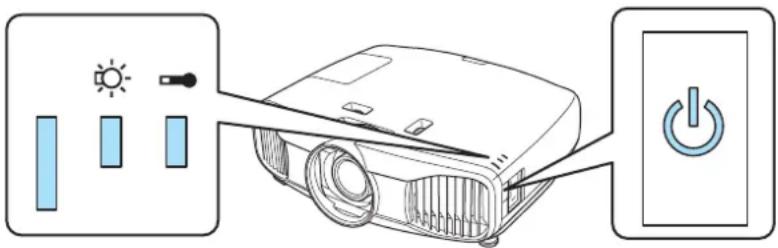
Refer to the following table to check the projector's status and how to remedy problems shown by the indicators.

Indicator status during an error/warning
| Indicators Status Remedy | ||
 | Replace Lamp | It is time to replace your lamp. Replace the lamp with a new lamp as soon as possible. p.94The lamp may explode if you continue to use it in this status. |
 (orange) (orange) | ||
 | High Temp Warning | You can continue projecting. If the temperature rises too high again, projection stops automatically.If the projector is installed next to a wall, make sure there is at least 20 cm between the wall and the projector's exhaust vent.If the air filter is clogged, clean it. p.90 |
 (orange) (orange) | ||
 | Internal Error | The projector has malfunctioned.Remove the power plug from the electrical outlet, and contact your local dealer or the nearest Epson repair center.Epson Projector Contact List |
 (red) (red) | ||
 | Fan ErrorSensor Error | |
 (red) (red) | ||
| Indicators Status | Remedy | |
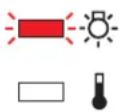 (red) (red) | Lamp ErrorLamp Failure | There is a problem with the lamp, or it failed to turn on.Disconnect the power cable, and then check if the lamp is cracked. p.94If it is not cracked, reinstall the lamp and turn on the power.If reinstalling the lamp does not fix the problem, or if the lamp is cracked, remove the power plug from the electrical outlet, and contact your local dealer or the nearest Epson repair center.Epson Projector Contact ListIf the air filter is clogged, clean it. p.90When using at an altitude of 1500 m or more, setHigh Altitude Mode to On. Extended - Operation - High Altitude Mode p.75 |
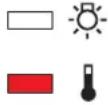 (red) (red) | High Temp Error(Overheating) | The internal temperature is too high.The lamp turns off automatically and projection stops. Wait for about five minutes. When the fan has stopped, disconnect the power cable.If the projector is installed next to a wall, make sure there is at least 20 cm between the wall and the projector's exhaust vent.If the air filter is clogged, clean it. p.90If turning the power back on does not clear the problem, stop using the projector and remove the power plug from the electrical outlet. Contact your local dealer or the nearest Epson repair center. Epson Projector Contact List |

Indicator status during normal operation

| Indicators Status Remedy | ||
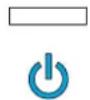 (blue) (blue) | Standby condition | When you press the button on the remote control, or thebutton on the control panel, projection starts after a short wait. |
 (blue) (blue) | Warm-up in progress | Warm-up time is about 30 seconds.The power-off operation is disabled while the projector is warming-up. |
 (blue) (blue) | Cool-down in progressProjection in pro-gress | All operations are disabled while the projector is cooling-down.The projector enters standby condition when cool-down is complete. If for any reason the power cable is disconnected during cool-down, wait until the lamp has cooled down sufficiently (about 10 minutes), reconnect the power cable, and then press the 1 button on the remote control, or the button on the control panel.The projector is operating normally. |
| [GSTX] | ||
| (blue) | ||

- Under normal operating conditions, the ⚠ and ⚙ indicators are off.
- When the Illumination function is set to Off, all indicators are off under normal projection conditions.
Extended - Operation - Illumination p.75
When the Indicators Provide No Help

Check the problem
Check the following table to see if your problem is mentioned, and go to the appropriate page for information on handling the problem.
| Problem Page | ||
| Problems relating to images | No images appear. Projection does not start, the projection area is completely black, or the projection area is completely blue. | p.82 |
| Moving images being projected from a computer are not projected. p.82 | p.82 | |
| "Not supported" is displayed. | p.83 | |
| "No Signal" is displayed. | p.83 | |
| Images are fuzzy or out of focus. p.83 | ||
| Interference or distortion appears in the images. p.84 | ||
| The image is truncated (large) or small, or only a part of the image is projected. | p.84 | |
| Image colors are not right. The whole image appears purplish or greenish, images are black & white, or colors appear dull.* | p.85 | |
| Images appear dark. p.85 | ||
| Projection stops automatically. p.85 | ||
| Problems when projection starts | The projector does not turn on. p.86 | |
| Problems with the remote control | The remote control does not respond. p.86 | |
| Problems with 3D Cannot project correctly in 3D. p.87 | ||
| Problems with HDMI | HDMI Link does not function. | p.87 |
| The device name is not displayed under device connections. | p.88 | |
| Problems with WirelessHD | Cannot project WirelessHD images. | p.88 |
| Interference or distortion appear in WirelessHD images | p.89 | |
* Because color reproduction differs between monitors and computer LCD screens, the image projected by the projector and the color tones displayed on the monitor may not match, however this is not a fault.

Problems relating to images
No images appear
| Check Remedy | |
| Is the projector turned on? | Press the 1 button on the remote control or the button on the control panel. |
| Is the power cable connected? Connect the power cable. | |
| Are the indicators switched off? | Disconnect and then reconnect the projector's power cable. Check that power is being supplied. |
| Is an image signal being input? | Check that the connected device is turned on. When Messages is set to On from the configuration menu, image signal messages are displayed. ➕ Extended - Display - Messages p.75 |
| Has the power to the AV amplifier been disconnected? | If an AV amplifier is connected, check the AV amplifier's power supply. |
| Is an image signal being sent from the device? | Check that an image signal is being sent from the connected device. |
| Is the image signal format setting correct? When Video is inputIf nothing is projected even when Video Signal is set to Auto from the configuration menu, set the signal that matches the connected device. ➕ Extended - Input Signal - Video Signal p.75 | |
| Are the configuration menu settings correct? | Reset all of the settings. ➕ Reset - Reset All p.77 |
| (Only when projecting computer image signals)Was the connection made while the power of the projector or the computer was already turned on? | If the connection is made while the power is already turned on, the key (Function key and so on) that changes the computer's image signal to external output may not work. Turn off the connected computer, and then turn it back on. |
Moving images are not displayed
| Check Remedy | |
| (Only when projecting computer image signals)Is the computer's image signal set to external output and to output to the LCD monitor at the same time? | Depending on the computer's specifications, moving images may not be displayed when the computer is set to external output and to the LCD monitor output at the same time.Change it so that the image signal is set to external output only.For the computer's specifications, see the documentation supplied with the computer. |
"Not supported" is displayed.
| Check Remedy | |
| Is the image signal format setting correct? When Video is inputIf nothing is projected even whenVideo Signalis set toAutofrom the configuration menu, set the signal that matches the connected device. ➔Extended - Input Signal - Video Signal p.75 | When Component is inputIf nothing is projected even whenComponentis set toAutofrom the configuration menu, set the signal that matches the connected device. ➔Extended - Input Signal - Component p.75 |
| (Only when projecting computer image signals)Do the image signal's frequency and resolution correspond to the mode? | Check the image signal being input inResolutionfrom the configuration menu, and check that it corresponds to the projector's resolution. ➔p.98 |
"No Signal" is displayed.
| Check Remedy | |
| Are the cables connected correctly? | Check that all the cables required for projection are securely connected. p.19 |
| Is the correct image input port selected? Change the image with the source buttons on the remote control, or the button on the control panel. p.25 | |
| Is the connected device turned on? Turn on the device. | |
| (Only when projecting computer image signals)Are the image signals being output to the projector? | Change it so that the image signal is set to external output, and not just the computer's LCD monitor. For some models, when the image signals are output externally, they no longer appear on the LCD monitor.For the computer's specifications, see the documentation supplied with the computer. |
| If the connection is made while the power of the projector or the computer is already turned on, the Fn key (Function key) that changes the computer's image signal to external output may not work. Turn the power for the computer and the projector off and then back on again. | |
Images are fuzzy or out of focus
| Check Remedy | |
| Has the focus been adjusted? | Adjust the focus. p.27 |
| Is the projector at the correct distance? | Check the recommended projection range. p.18 |
| Has condensation formed on the lens? | If the projector is suddenly taken from a cold environment to a warm environment, or if sudden ambient temperature changes occur, condensation may form on the surface of the lens, and this may cause the images to appear fuzzy. Set the projector up in the room about one hour before it is used. If the projector is wet from condensation, turn off the projector, disconnect the power cable, and leave it for a while. |
Interference or distortion appear in images
| Check Remedy | |
| Is the image signal format setting correct? When Video is inputIf nothing is projected even whenVideo Signalis set toAutofrom the configuration menu, set the signal that matches the connected device. ➔Extended - Input Signal - Video Signal p.75 | When Component is inputIf nothing is projected even whenComponentis set toAutofrom the configuration menu, set the signal that matches the connected device. ➔Extended - Input Signal - Component p.75 |
| Are the cables connected correctly? | Check that all the cables required for projection are securely connected. ➔p.19 |
| Is an extension cable being used? | If an extension cable is used, electrical interference may affect the signals. |
| (Only when projecting computer image signals)Are theSync.andTrackingsettings adjusted correctly? | The projector uses automatic adjustment functions to project at the optimum status. However, depending on the signal, some may not be adjusted correctly even after performing self corrections. If this happens, adjust theTrackingandSync.settings from the configuration menu. ➔Signal - Tracking/Sync. p.70 |
| (Only when projecting computer image signals)Is the correct resolution selected? | Set the computer so that the signals being output are compatible with the projector. ➔p.98 |
Part of the image is truncated (large) or small
| Check Remedy | |
| Is the correct Aspect selected? | Press the Aspect button, and then select the Aspect that matches the input signal. Signal - Aspect p.70When subtitled images are being projected during Zoom, adjust the Zoom Caption Pos. setting from the configuration menu. Signal - Zoom Caption Pos. p.70 |
| Is the image Position adjusted correctly? | Adjust the Position setting from the configuration menu. Signal - Position p.70 |
| (Only when projecting computer image signals)Is the correct resolution selected? | Set the computer so that the signals being output are compatible with the projector. p.98 |
Image colors are not right
| Check Remedy | |
| Is the image signal format setting correct? When Video is inputIf nothing is projected even whenVideo Signalis set toAutofrom the configuration menu, set the signal that matches the connected device. ➕ Extended - Input Signal - Video Signal p.75 | |
| Are the cables connected correctly? | Check that all the cables required for projection are securely connected. ➕ p.19For the Video and Component ports, make sure the connector is the same color as the cable port. ➕ p.19 |
| Is the contrast adjusted correctly? | Adjust theContrastsetting from the configuration menu. ➕ Image - Contrast p.68 |
| Is the color adjusted correctly? | Adjust theAdvancedsetting from the configuration menu. ➕ Image - Advanced p.68 |
| (Only when projecting images from a video device)Are the color saturation and tint adjusted correctly? | Adjust theColor SaturationandTintsettings from the configuration menu. ➕ p.68 |
Images appear dark
| Check Remedy | |
| Is the image brightness set correctly? | Adjust the Brightness setting from the configuration menu. Image - Brightness p.68 |
| Is the contrast adjusted correctly? | Adjust the Contrast setting from the configuration menu. Image - Contrast p.68 |
| Is it time to replace the lamp? | When the lamp is nearly ready for replacement, the images become darker and the color quality becomes poorer. When this happens, replace the lamp with a new lamp. p.94 |
Projection stops automatically
| Check Remedy | |
| Is Sleep Mode enabled? | If no image signal is being input and no operations are made for approximately 30 minutes, the lamp turns off automatically, and the projector enters standby status. The projector returns from standby status when you press the 1 button on the remote control or the ⏻ button on the control panel. If you do not want to use Sleep Mode, change the setting to Off. ➕ Extended - Operation - Sleep Mode p.75 |
Problems when projection starts
The projector does not turn on
| Check Remedy | |
| Is the power turned on? | Press the 1 button on the remote control or the button on the control panel. |
| Is Child Lock set to On? | When Child Lock is set to On from the configuration menu, hold down the ⏻ button on the control panel for approximately three seconds, or perform operations from the remote control. ⬇ Settings - Lock Setting - Child Lock p.73 |
| Is Control Panel Lock set to On? | If Control Panel Lock is set to On from the configuration menu, all of the control panel buttons except for ⏻ button are disabled. Perform operations from the remote control. ⬇ Settings - Lock Setting - Control Panel Lock p.73 |
| Are the indicators switched off? | Disconnect and then reconnect the projector's power cable. Check that power is being supplied. |
| Do the indicators turn on and off when the power cable is touched? | Turn off the projector, and then disconnect and reconnect the projector's power cable. If the problem continues, stop using the projector, remove the power plug from the electrical outlet, and contact your local dealer or the nearest projector information center. ⬇ Epson Projector Contact List |
Problems with the remote control
The remote control does not respond
| Check Remedy | |
| Is the remote control light-emitting area pointing towards the remote receiver on the projector during operation? | Point the remote control towards the remote receiver. Also, check the operating range. p.23 |
| Is the remote control too far from the projector? | Check the operating range. p.23 |
| Is direct sunlight or strong light from fluorescent lamps shining onto the remote receiver? | Set the projector up in a location where strong light does not shine onto the remote receiver. |
| Are the batteries dead or have the batteries been inserted correctly? | Make sure the batteries are inserted correctly or replace the batteries with new ones if necessary. p.22 |
| Is the remote control pointed at the WirelessHD Transmitter when operating the WiHD Transmitter control button?(EH-TW9100W/EH-TW8100W only) | Make sure you point the remote control at the WirelessHD Transmitter when using the WiHD Transmitter control button on the remote control. p.59 |
Problems with 3D
Cannot project correctly in 3D
| Check Remedy | |
| Are the 3D Glasses turned on? Turn on the 3D | Glasses. |
| Is a 3D image being projected? | If the projector is projecting a 2D image, or if an error occurs on the projector that prevents the 3D image from being projected, you cannot view 3D images even if you are wearing the 3D Glasses. |
| Is the input image in 3D? Check that the input | image is 3D compatible. |
| Is 3D Display set to Off? | If 3D Display is set to Off from the configuration menu, the projector does not automatically change to 3D even when a 3D image is input. Press the 2D/3D button. 🎨 Signal - 3D Setup - 3D Display p.70 |
| Is the correct 3D format set? | The projector automatically selects the appropriate 3D format, but if the 3D image is not displayed correctly, use 3D Format from the configuration menu to select another format. 🎨 Signal - 3D Setup - 3D Format p.70 |
| Are you viewing within the reception range? | Check the range within which the 3D Glasses can communicate with the projector, and view within that range. 🎨 p.48 |
| Has pairing been performed correctly? | See the User's Guide for the 3D Glasses to perform pairing. |
| Are there any devices that cause radio wave interference in the vicinity? | When using other devices at the same time with the frequency band (2.4 GHz) such as Bluetooth communication devices, wireless LAN (IEEE802.11b/g), or microwave ovens, radio wave interference may occur, the image may be interrupted, or communication may not be possible. Do not use the projector near these devices. |
Problems with HDMI
HDMI link does not function
| Check Remedy | |
| Are you using a cable that meets the HDMI standards? | Operations are not possible with cables that do not meet the HDMI standards. |
| Does the connected device meet the HDMI CEC standards? | If the connected device does not meet the HDMI CEC standards, it cannot be operated even if it is connected to the HDMI port.See the documentation and so on supplied with the connected device for more information.Also, press theHDMILinkbutton, and then check if the device is available underDevice Connections.p.63 |
| Are the cables connected correctly? Check that all the cables required to use HDMI Link are securely connected.p.63 | |
| Is the power for the amplifier or DVD recorder and so on turned on? | Put each device in standby status. See the documentation and so on supplied with the connected device for more information. |
| Was a new device connected, or was the connection changed? | If the CEC function for a connected device needs to be set again, for example when a new device is connected or the connection is changed, you may need to restart the device. |
| Are many multi-media players connected? | Up to 3 multi-media players that meet the HDMI CEC standards can be connected at the same time. |
The device name is not displayed under Device Connections
| Check Remedy | |
| Does the connected device meet the HDMI CEC standards? | If the connected device does not meet the HDMI CEC standards, it is not displayed. See the documentation and so on supplied with the connected device for more information. |
Problems with WirelessHD (EH-TW9100W/EH-TW8100W only)
Cannot project WirelessHD images
| Check Remedy | |
| Does the cable connecting the supplied WirelessHD Transmitter meet the HDMI standards? | If the cable does not meet the HDMI standards, operations are not possible. |
| Is WirelessHD set to Off? | When WirelessHD is set to Off from the configuration menu, projection is not possible for WirelessHD input signals. Set WirelessHD to On, and then press the WirelessHD button. ⬇ Settings - WirelessHD p.73 |
| Are signals being received within the WirelessHD transmission range? | Check the range within which the WirelessHD's transceiver can communicate, and view within that range. ⬇ p.58 |
| Is the supplied WirelessHD Transmitter turned on? | Check the power lamp on the WirelessHD Transmitter. If there is no power being supplied, make sure the connector for the AC adapter is securely connected, and then turn on the power switch. |
| Is the Link indicator for the supplied WirelessHD Transmitter off? | The WirelessHD cannot communicate with the projector. Check that the HDMI cable from the AV device is securely connected. Also, check the range within which the WirelessHD's transceiver can communicate, and setup within that range. |
| Are the indicators of the supplied WirelessHD Transmitter flashing alternately? | A temperature warning has occurred. Operations are stopped if there is not enough ventilation, such as when the device is placed on an audio rack, or if it is being used in a room with a high ambient temperature. Wait until it has cooled down, and then try again. |
| Has dust collected in the WirelessHD's vent? | The vent on the base of the projector is the WirelessHD's vent. Communication may not be possible if dust has collected in the vent. Install the projector so that dust does not collect in the vent. |
| Are the projector and the WirelessHD Transmitter facing the correct way? | Setup the projector and the WirelessHD Transmitter so that they are facing each other. |
Interference or distortion appear in WirelessHD images
| Check Remedy | |
| Are signals being received within the WirelessHD transmission range? | Check the range within which the WirelessHD's transceiver can communicate, and view within that range. p.58 |
| Are there any obstructions between the WirelessHD Transmitter and the projector? | Because WirelessHD communicates using a tight beamed electromagnetic wave, if there are any people or objects and so on obstructing the communication path, this could have an adverse effect on the image. Make sure that there are no obstacles between the WirelessHD Transmitter and the projector within the WirelessHD transmission range. p.58 |
| Is the reception too low? | If the transmissions are not strong enough, communication may be unstable.Check Reception as you set up the transmitter as it is sometimes possible to improve the strength of the transmission by moving the WirelessHD Transmitter or changing its direction. Settings - WirelessHD - Reception p.73 |
| Transmission strength may differ depending on the surroundings, or they may be unstable. While checking Reception, setup the transmitter in a location where the number displayed remains steady. Settings - WirelessHD - Reception p.73 |

Maintenance
Cleaning the Parts
You should clean the projector if it becomes dirty or if the quality of projected images starts to deteriorate.

Warning
Do not use sprays that contain flammable gas to remove dirt and dust from the projector's lens, air filter, and so on. The projector may catch fire due to the high internal temperature of the lamp.

Cleaning the air filter
Clean the air filter if dust has accumulated on the air filter or when the following message is displayed. "The projector is overheating. Make sure nothing is blocking the air vent, and clean or replace the air filter."
Attention
- If dust collects on the air filter, it can cause the internal temperature of the projector to rise, and this can lead to problems with operation and shorten the optical engine's service life. It is recommended that you clean the air filter at least once every three months. Clean them more often than this if using the projector in a particularly dusty environment.
- Do not rinse the air filter in water. Do not use detergents or solvents.
- Lightly brush the air filter to clean it. If it is brushed too strongly, dust will be ground into the air filter and cannot be removed.

Press the button on the remote control or the control panel to turn off the power, turn off the main power switch, and then disconnect the power cable.

Remove the air filter cover.
Hook your finger into the tab on the air filter cover, and remove it from the lens side.
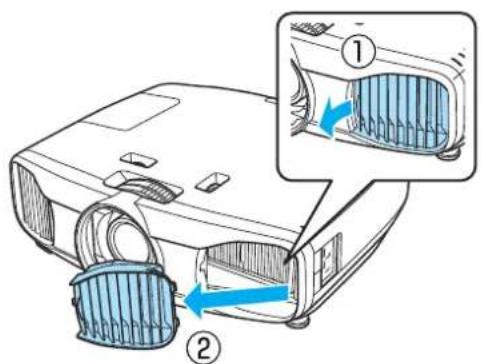

Remove the air filter.
Grip the knob in the center of the air filter and pull it straight out.
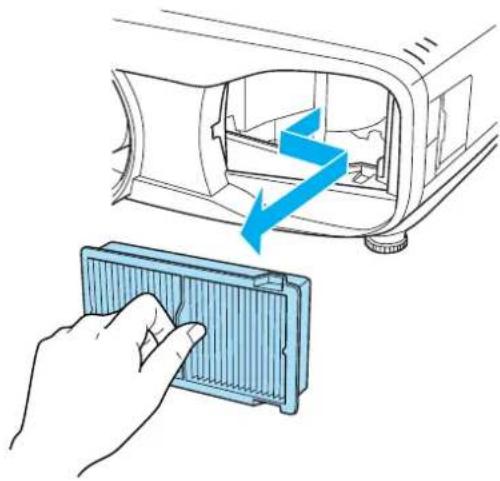
natural_image
Illustration of a hand placing a blue plastic component into a device housing with a blue arrow indicating motion (no text or symbols)4 Hold the air filter with the surface facing down and tap it 4 or 5 times to remove the dust.
Turn it over and tap the other side in the same way.
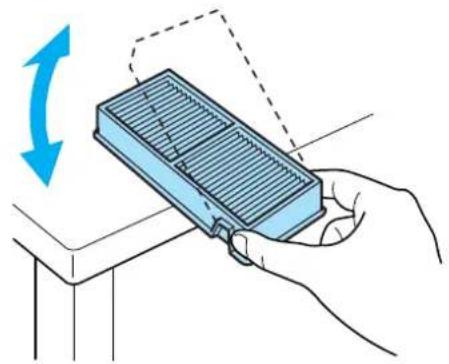
natural_image
Illustration of a hand holding a blue rectangular device with a blue arrow indicating rotation (no text or symbols present)Attention
If the air filter is hit too hard, it may become unusable due to deformities and cracks.
5 Remove any dust remaining on the air filter by using a vacuum cleaner from the front side.
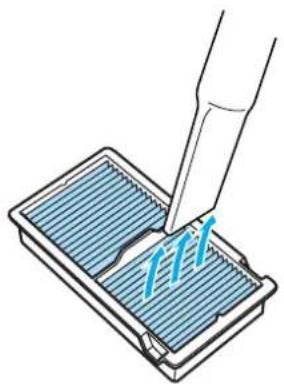
natural_image
Illustration of a pipette dispensing liquid into a rectangular container with blue ribbed contents (no text or symbols)Cleaning the main unit
Clean the projector's surface by wiping it gently with a soft cloth.
If it is particularly dirty, moisten the cloth with water containing a small amount of neutral detergent, and then firmly wring the cloth dry before using it to wipe the surface.
Attention
Do not use volatile substances such as wax, alcohol, or thinner to clean the projector's surface. The quality of the case may change or the paint may peel off.
Install the air filter.
Grip the air filter by the knob in the center and insert it at an angle.
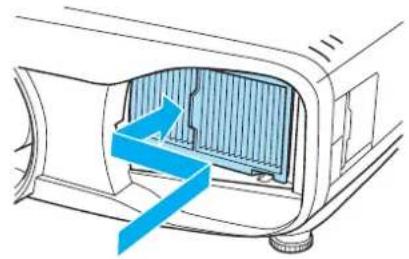
natural_image
Diagram of a car interior showing airflow or heat transfer through a duct (no text or symbols)Install the air filter cover.
Secure the tab on the outside first, and then secure the tab on the lens side.
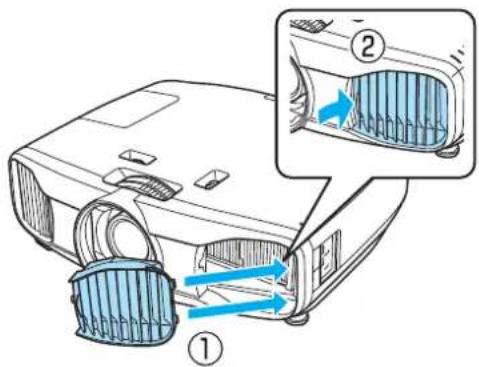
Cleaning the lens
Use a commercially available cloth for cleaning glasses to gently wipe off dirt from the lens.
Manually open the lens shutter, and then wipe the lens inside.
Attention
Do not rub the lens with harsh materials or handle the lens too roughly as it can easily become damaged.
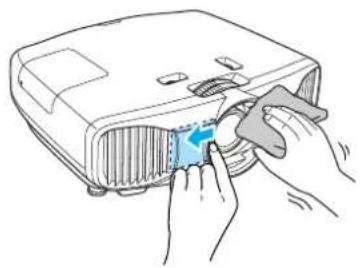
natural_image
Line drawing of hands installing or adjusting a component on a projector (no text or symbols)Cleaning the 3D Glasses
Use the cloth supplied to gently wipe off dirt from the lenses of the 3D Glasses.
Attention
- Do not rub the lenses of the glasses with harsh materials or handle the lenses too roughly as they can easily become damaged.
- When maintenance is necessary, disconnect the USB Charging Adapter from the electrical outlet, and check that all cables have been disconnected.
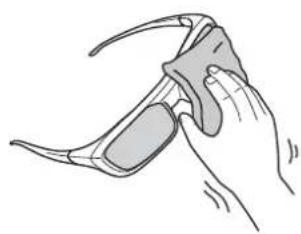
natural_image
Illustration of a hand holding a pair of eyeglasses (no text or symbols)Replacement Periods for Consumables
Air filter replacement period
- If the message is displayed even though the air filter has been cleaned p.90
Lamp replacement period
- The following message is displayed when projection starts "It is time to replace your lamp. Please contact your Epson projector reseller or visit www.epson.com to purchase."
• The projected image gets darker or starts to deteriorate.

- The lamp replacement message is set to appear after 3900 H in order to maintain the initial brightness and quality of the projected images. The message display time changes depending on the usage situation, such as the color mode setting and so on.
If you continue to use the lamp after the replacement period has passed, the possibility that the lamp may explode increases. When the lamp replacement message appears, replace the lamp with a new one as soon as possible, even if it is still working.
- Depending on the characteristics of the lamp and the way it has been used, the lamp may become darker or stop working before the lamp warning message appears. You should always have a spare lamp unit ready in case it is needed.
Replacing Consumables
Replacing the air filter

Dispose of used air filters in accordance with your local laws and regulations. Material: Polypropylene
1 Press the button on the remote control or the control panel to turn off the power, turn off the main power switch, and then disconnect the power cable.
2 Remove the air filter cover. Hook your finger into the tab on the air filter cover, and remove it from the lens side.
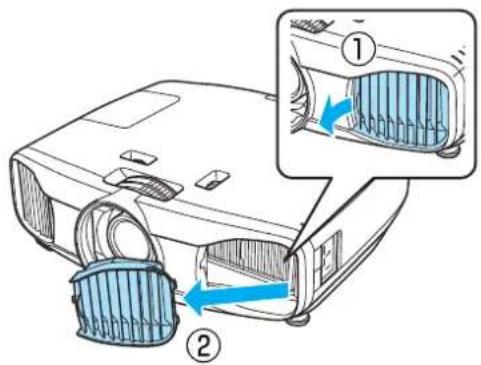
3 Remove the old air filter. Grip the knob in the center of the air filter and pull it straight out.
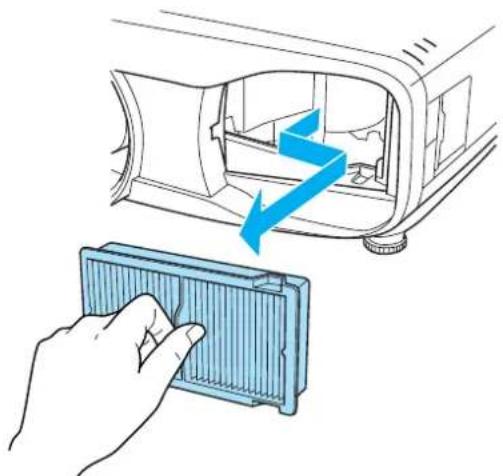
natural_image
Illustration of a hand inserting a blue plastic component into a device housing (no text or symbols)4 Install the new air filter. Grip the air filter by the knob in the center and insert it at an angle.
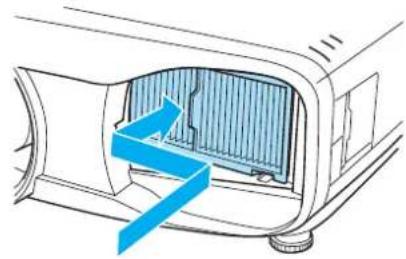
natural_image
Diagram of a vehicle interior showing airflow or fluid flow direction (no text or symbols)5 Install the air filter cover. Secure the tab on the outside first, and then secure the tab on the lens side.
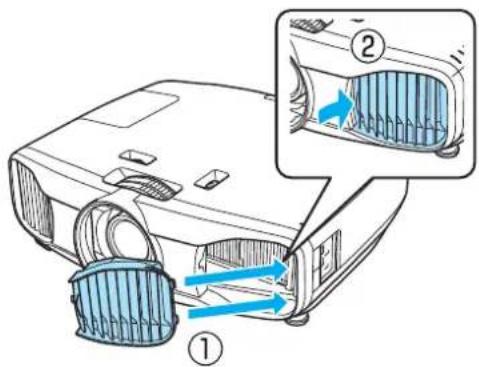

Replacing the lamp

Warning
When replacing the lamp because it has stopped illuminating, there is a possibility that the lamp may be broken. If replacing the lamp of a projector that has been suspended from the ceiling, you should always assume that the lamp is cracked, and remove the lamp cover with care. When you open the lamp cover, small shards of glass could fall out. If any shards of glass get into your eyes or mouth, contact a doctor immediately.

Caution
Do not touch the lamp cover immediately after turning off the projector as it is still hot. Wait until the lamp has cooled down sufficiently before removing the lamp cover. Otherwise, you could get burnt.

Press the button on the remote control or the control panel to turn off the power, turn off the main power switch, and then disconnect the power cable.

Loosen the lamp cover fixing screw.
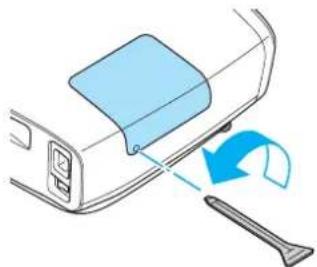
natural_image
Diagram showing a blue object being inserted into a container with a tool, indicating a rotation or repair operation (no text or symbols present)
Remove the lamp cover.
Slide the lamp cover straight forward and remove it.
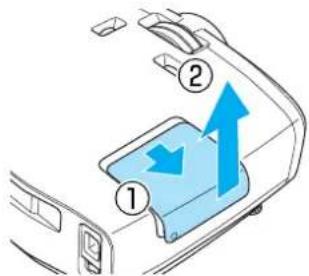

Loosen the lamp fixing screw.
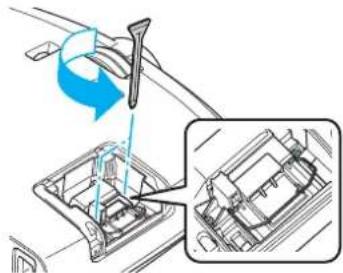
natural_image
Diagram showing a tool interacting with a mechanical component, with an inset close-up of the component (no text or symbols present)
Remove the old lamp.
Grip the knob firmly and pull it straight out.
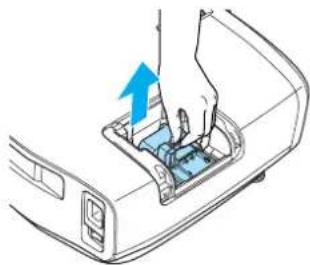
natural_image
Illustration of a hand pressing down on a mechanical component with a blue arrow indicating motion (no text or symbols)
Install the new lamp.
Make sure the lamp is facing the correct direction and press it in.
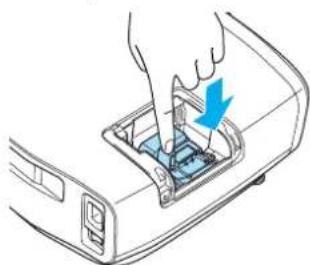
natural_image
Illustration of a hand inserting a device into a container with a blue arrow indicating the insertion point (no text or symbols present)7 Tighten the lamp fixing screw.
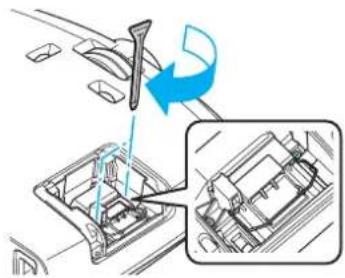
natural_image
Diagram showing a mechanical assembly with a tool and a magnified inset of a component (no text or symbols)Install the lamp cover.
Slide the cover back into place.
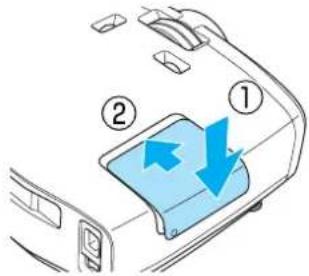
Tighten the lamp cover fixing screw.
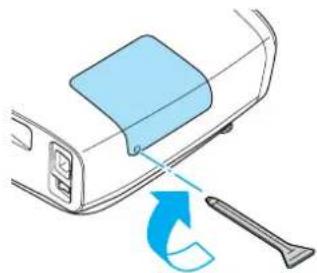
natural_image
Diagram showing a blue plastic component being inserted into a car door, with a blue arrow indicating rotation (no text or symbols present)Warning
Do not disassemble or remodel the lamp.
Caution
- Make sure you install the lamp and lamp cover securely. If they are not installed correctly, the power does not turn on.
- The lamp contains mercury. Dispose of used lamps in accordance with your local laws and regulations on disposing of fluorescent tubing.
Resetting lamp hours
After replacing the lamp, make sure you reset the lamp hours.
The projector records how long the lamp is turned on and a message and indicator notify you when it is time to replace the lamp.
1 Turn on the power.
2 Press the button. The configuration menu is displayed.
2 Select Reset - Reset Lamp Hours.
A reset confirmation message is displayed.
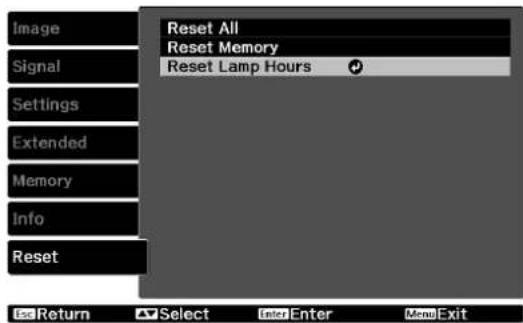

Use the ▶▶ buttons to select Yes, and then press the Enter button to execute.
The lamp hours are reset.
![[Reset Lamp Hours] Are you sure you want to reset this setting? Yes No Use Return Select Inter Execute Mose Exit](/content/2026/05/1065900/images/df22cf02e080b9ef66bd25303cf507d21c168857ce9c59f36151553bd0707beb.jpg)

Optional Accessories and Consumables
The following optional accessories/consumables are available for purchase if required. This list of optional accessories/consumables is current as of: 2012.9. Details of accessories are subject to change without notice.
Varies depending on country of purchase.
Optional Items
| Name Model No. Explanation | ||
| Ceiling mount* | ELPMB30 Use when installing the projector on a ceiling. | |
| ELPMB22 | ||
| Ceiling pipe 600 (600 mm white)* | ELPFP07 Use when installing the projector on a high ceiling. | |
| Ceiling pipe 450 (450 mm white)* | ELPFP13 | |
| Ceiling pipe 700 (700 mm white)* | ELPFP14 | |
| RF system 3D Glasses ELPGS03 You will need additional pairs to watch 3D images in a group. | ||
| Cable cover ELPCC04B | (Black),ELPCC04W(White) | Use this when installing the projector on a ceiling to cover the cables and improve the overall appearance.Do not attach the cable cover when the cable is secured with an HDMI cable clamp. |
| USB Charging Adapter ELPAC01 Use when charging the 3D Glasses. | ||
* Special expertise is required to suspend the projector from a ceiling. Contact your local dealer.
Consumables
| Name Model No. Explanation | ||
| Lamp unit ELPLP69 Use as a replacement for used lamps. (1 lamp) | ||
| Air filter ELPAF39 Use as a replacement for used air filters. (1 air filter) | ||

Supported Resolutions
Component Video
| Signal Refresh Rate (Hz) Resolution (dots) | |
| SDTV (480i) 60 720 x 480 | |
| SDTV (576i) 50 720 x 576 | |
| SDTV (480p) 60 720 x 480 | |
| SDTV (576p) 50 720 x 576 | |
| HDTV (720p) 50/60 1280 x 720 | |
| HDTV (1080i) 50/60 1920 x 1080 | |
| HDTV (1080p) 50/60 1920 x 1080 |
Composite Video
| Signal Refresh Rate (Hz) Resolution (dots) | |
| TV (NTSC) 60 720 x 480 | |
| TV (SECAM) 50 720 x 576 | |
| TV (PAL) 50/60 720 x 576 |
Computer Signals (Analog RGB)
| Signal Refresh Rate (Hz) Resolution (dots) | ||
| VGA 60/72/75/85 640 x 480 | ||
| SVGA 56/60/72/75/85 800 x 600 | ||
| XGA 60/70/75/85 1024 x 768 | ||
| SXGA 70/75/85 | 1152 x 864 | |
| 60/75/85 | 1280 x 960 | |
| 60/75/85 | 1280 x 1024 | |
| WXGA | 60 1280 x 768 | |
| 60 1360 x 768 | ||
| 60/75/85 | 1280 x 800 | |
HDMI1/HDMI2 Input Signal
| Signal Refresh Rate (Hz) Resolution (dots) | |
| VGA 60 640 x 480 | |
| SDTV (480i) 60 720 x 480 | |
| SDTV (576i) 50 720 x 576 | |
| SDTV (480p) 60 720 x 480 | |
| SDTV (576p) 50 720 x 576 | |
| HDTV (720p) 50/60 1280 x 720 | |
| HDTV (1080i) 50/60 1920 x 1080 | |
| HDTV (1080p) 24/50/60 1920 x 1080 |
3D Input Signal
| Signal Refresh Rate (Hz) | Resolution (dots) 3D Format | |||
| HDTV750p (720p) 50/60 1280 x 720 | ✓ | ✓ | ✓ | |
| HDTV1125i (1080i) | 50/60 | 1920 x 1080 | - | ✓ |
| HDTV1125p (1080p) | 50/60 1920 x 1080 | - | ✓ | - |
| HDTV1125p (1080p) | 24 | 1920 x 1080 | ✓ | - |
WirelessHD Input Signal
| Signal Refresh Rate (Hz) Resolution (dots) | |
| VGA 60 640 x 480 | |
| SDTV (480i) 60 720 x 480 | |
| SDTV (576i) 50 720 x 576 | |
| SDTV (480p) 60 720 x 480 | |
| SDTV (576p) 50 720 x 576 | |
| HDTV (720p)* | 50/60 1280 x 720 |
| HDTV (1080i) 50/60 1920 x 1080 | |
| HDTV (1080p)* | 24/50/60 1920 x 1080 |
* When projecting in WirelessHD, 1080p 60/50 Hz, 1080P 24 Hz frame packing, and 720P 50/60 Hz frame packing do not support Deep Color.

Specifications
| Product name | EH-TW9100W/EH-TW8100WEH-TW9100/EH-TW8100 | ||
| Appearance (not including adjustable foot) | 466 (W) x 140 (H) x 395 (D) mm | ||
| Panel Size | 0.74" wide | ||
| Display method | Polysilicon TFT active matrix | ||
| Resolution | 1920 (W) x 1080 (H) x 3 | ||
| Scanning Frequency | Digital | Pixel Clock: 13.5 - 148.5 MHz | |
| Horizontal: 15.6 - 67.5 kHz | |||
| Vertical: 24 - 60 Hz | |||
| Analog | Pixel Clock: 13.5 - 157.5 MHz | ||
| Horizontal: 15.6 - 91.2 kHz | |||
| Vertical: 50 - 85 Hz | |||
| Focus adjustment | Manual | ||
| Zoom adjustment | Manual (approx. 1 to 2.1) | ||
| Lamp (light source) | UHE lamp 230 W, Model No.: ELPLP69 | ||
| Power supply | 100 to 240 V AC ±10%, 50/60 Hz, 3.7 - 1.6 A | ||
| Power consumption | 100 to 120 V area | Operating: 357 W | |
| Standby power consumption: 0.30 WStandby power consumption: 7.5 W* | |||
| 220 to 240 V area | Operating: 340 W | ||
| Standby power consumption: 0.39 WStandby power consumption: 8.4 W* | |||
| Operating altitude | Altitude 0 to 2286 m | ||
| Operating temperature | +5 to 35°C (No condensation) | ||
| Storage temperature | -10 to +60°C (No condensation) | ||
| Mass | Approx. 8.6 kg Approx. 8.4 kg | ||
| Connectors | Component port x 1, 3RCA pin jack | ||
| PC port x 1, Mini D-Sub15-pin (female) blue | |||
| HDMI port x 2, HDMIFor HDCP, For CEC signals, Deep Color | |||
| Video port x 1, RCA pin jack | |||
| RS-232C port x 1, D-sub 9-pin (male) | |||
| Trigger out port x 1, 3.5 mm mini jack | |||
* When using the WirelessHD Transmitter with EH-TW9100W/EH-TW8100W, and the following conditions are satisfied
Settings - WirelessHD - WirelessHD - On
Settings - HDMI Link - Power On Link is set to Bidirectional or Device -> PJ ● p.73
This product is also designed for IT power distribution system with phase-to-phase voltage 230V.
If you use the projector tilted at an angle of more than 10^ it could be damaged or cause an accident.
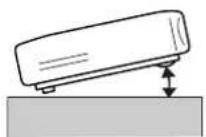
0^ - 10^
RS-232C Cable layouts
- Connector shape: D-sub 9-pin (male)
- Projector input port name: RS-232C
- Signal name:
| Signal Name Function | |
| GND Signal wire ground | |
| TD Transmit data | |
| RD Receive data | |
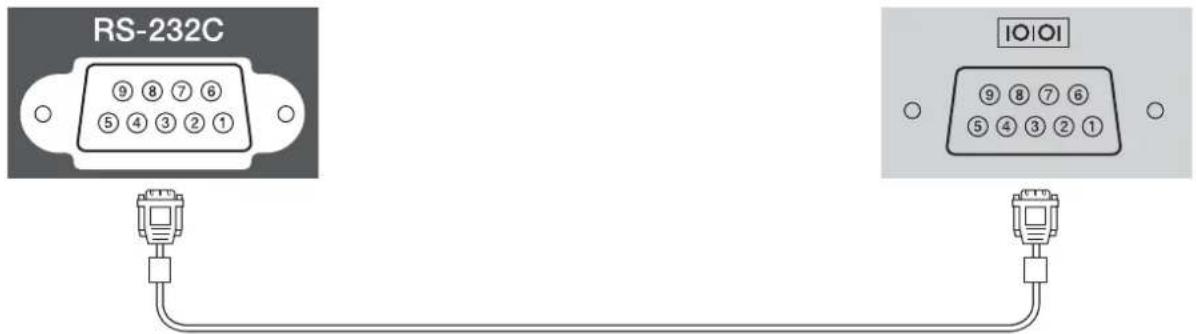
GND 5 RD 2 TD 3
natural_image
Two parallel horizontal arrows pointing in opposite directions (no text or symbols)5 GND 3 TD 2 RD
• Communications protocol
Default baud rate setting: 9600 bps
Data length: 8 bit
Parity: None
Stop-bit: 1 bit
Flow control: None
DECLARATION of CONFORMITY
According to 47CFR, Part 2 and 15
Class B Personal Computers and Peripherals; and/or
CPU Boards and Power Supplies used with Class B Personal Computers
We: Epson America, Inc.
Located at: 3840 Kilroy Airport Way
MS: 3-13
Long Beach, CA 90806
Tel: 562-981-3840
Declare under sole responsibility that the product identified herein, complies with 47CFR Part 2 and 15 of the FCC rules as a Class B digital device. Each product marketed, is identical to the representative unit tested and found to be compliant with the standards. Records maintained continue to reflect the equipment being produced can be expected to be within the variation accepted, due to quantity production and testing on a statistical basis as required by 47CFR 2.909. Operation is subject to the following two conditions: (1) this device may not cause harmful interference, and (2) this device must accept any interference received, including interference that may cause undesired operation.
Trade Name: EPSON
Type of Product: LCD Projector
Model: H527C/H528C/H529C/H530C
FCC Compliance Statement
For United States Users
This equipment has been tested and found to comply with the limits for a Class B digital device, pursuant to Part 15 of the FCC Rules. These limits are designed to provide reasonable protection against harmful interference in a residential installation. This equipment generates, uses, and can radiate radio frequency energy and, if not installed and used in accordance with the instructions, may cause harmful interference to radio communications. However, there is no guarantee that interference will not occur in a particular installation. If this equipment does cause harmful interference to radio or television reception, which can be determined by turning the equipment off and on, the user is encouraged to try to correct the interference by one or more of the following measures.
- Reorient or relocate the receiving antenna.
- Increase the separation between the equipment and receiver.
- Connect the equipment into an outlet on a circuit different from that to which the receiver is connected.
- Consult the dealer or an experienced radio/TV technician for help.
WARNING
The connection of a non-shielded equipment interface cable to this equipment will invalidate the FCC Certification or Declaration of this device and may cause interference levels which exceed the limits established by the FCC for this equipment. It is the responsibility of the user to obtain and use a shielded equipment interface cable with this device. If this equipment has more than one interface connector, do not leave cables connected to unused interfaces. Changes or modifications not expressly approved by the manufacturer could void the user's authority to operate the equipment.

Glossary
This section briefly explains the difficult terms that are not explained in context in the text of this guide. For details, refer to other commercially available publications.
| Aspect Ratio | The ratio between an image's length and its height. Screens with a horizontal:vertical ratio of 16:9, such as HDTV screens, are known as wide screens.SDTV and general computer displays have an aspect ratio of 4:3. |
| HDCP | HDCP is an abbreviation for High-bandwidth Digital Content Protection. It is used to prevent illegal copying and protect copyrights by encrypting digital signals sent over DVI and HDMI ports. Because the HDMI port on this projector supports HDCP, it can project digital images protected by HDCP technology. However, the projector may not be able to project images protected with updated or revised versions of HDCP encryption. |
| HDMI^TM | An abbreviation for High Definition Multimedia Interface. This is the standard by which HD images and multichannel audio signals are digitally transmitted. HDMI^TM is a standard aimed at digital consumer electronics and computers. By not compressing the digital signal, the image can be transferred at the highest quality possible. It also provides an encryption function for the digital signal. |
| HDTV | An abbreviation for High-Definition Television. This refers to high-definition systems which satisfy the following conditions.Vertical resolution of 720p or 1080i or greater (p = Progressive, i = Interlace)Screen aspect of 16:9 Dolby Digital audio reception and playback (or output) |
| Interlace | Transmits information needed to create one screen by sending every other line, starting from the top of the image and working down to the bottom. Images are more likely to flicker because one frame is displayed every other line. |
| NTSC | An abbreviation for the National Television Standards Committee. A terrestrial analog color broadcasting method. This method is used in Japan, North America, and Latin America. |
| Pairing | Register devices in advance when connecting with Bluetooth devices to ensure mutual communication. |
| PAL | An abbreviation for Phase Alternation by Line. A terrestrial analog color broadcasting method. This method is used in various Western European countries (with the exception of France), Asian countries such as China, and Africa. |
| SDTV | An abbreviation for Standard Definition Television. This refers to standard television systems which do not satisfy the conditions for HDTV High-Definition Television. |
| SECAM | An abbreviation for SEquential Couleur A Memoire. A terrestrial analog color broadcasting method. This method is used in France, Eastern Europe, the former Soviet Union, the Middle East, Africa, and so on. |
| SVGA | A screen size standard with a resolution of 800 (horizontal) x 600 (vertical) dots. |
| SXGA | A screen size standard with a resolution of 1,280 (horizontal) x 1,024 (vertical) dots. |
| VGA | A screen size standard with a resolution of 640 (horizontal) x 480 (vertical) dots. |
| XGA | A screen size standard with a resolution of 1,024 (horizontal) x 768 (vertical) dots. |
| YCbCr | In component image signals for SDTV, Y is the brightness, while Cb and Cr indicate the color difference. |
| YPbPr | In component image signals for HDTV, Y is the brightness, while Pb and Pr indicate the color difference. |

General Notes
All rights reserved. No part of this publication may be reproduced, stored in a retrieval system, or transmitted in any form or by any means, electronic, mechanical, photocopying, recording, or otherwise, without the prior written permission of Seiko Epson Corporation. No patent liability is assumed with respect to the use of the information contained herein. Neither is any liability assumed for damages resulting from the use of the information contained herein.
Neither Seiko Epson Corporation nor its affiliates shall be liable to the purchaser of this product or third parties for damages, losses, costs, or expenses incurred by the purchaser or third parties as a result of: accident, misuse, or abuse of this product or unauthorized modifications, repairs, or alterations to this product, or (excluding the U.S.) failure to strictly comply with Seiko Epson Corporation's operating and maintenance instructions.
Seiko Epson Corporation shall not be liable against any damages or problems arising from the use of any options or any consumable products other than those designated as Original Epson Products or Epson Approved Products by Seiko Epson Corporation.
The contents of this guide may be changed or updated without further notice.
Illustrations in this guide and the actual projector may differ.
Restriction of Use
When this product is used for applications requiring high reliability/safety such as transportation devices related to aviation, rail, marine, automotive etc.; disaster prevention devices; various safety devices etc; or functional/precision devices etc, you should use this product only after giving consideration to including fail-safes and redundancies into your design to maintain safety and total system reliability. Because this product was not intended for use in applications requiring extremely high reliability/safety such as aerospace equipment, main communication equipment, nuclear power control equipment, or medical equipment related to direct medical care etc, please make your own judgment on this product's suitability after a full evaluation.
Notes when Wearing 3D Glasses
This product can be used within the 2.4 GHz frequency band. The frequency band used by this device is shared with industrial, scientific, or medical equipment, including household microwave ovens, and so on; similar radio stations, factory radio stations for detecting moving objects that require a license, low-power radio stations that do not require a license, as well as amateur radio stations (hereafter "other radio stations"), and so on.
Before using this device, check that there are no "other radio stations" in the vicinity.
Should interference occur between this device and "other radio stations", move the device to another location, or stop using the device immediately. If any other problems occur, contact the information center.
These wireless devices use the 2.4 GHz frequency band. By adopting the FH-SS modulation method, the expected interference range is 10 m.
General Notice
HDMI and High-Definition Multimedia Interface are the trademarks or registered trademarks of HDMI LicensingLLC. HDMI™
WirelessHD, WiHD, and the WiHD logo are trademarks or registered trademarks of WirelessHD LLC.
THX and the THX 3D logo are trademarks of THX Ltd. which may be registered in some jurisdictions. All rights reserved.
The Full HD 3D Glasses ^TM logo and Full HD 3D Glasses ^TM are trademarks of the Full HD 3D Glasses Initiative ^TM . Bluetooth ^® and the Bluetooth logo are the trademarks of Bluetooth SIG, Inc.
InstaPrevue and the InstaPrevue logo are the trademarks or registered trademarks of Silicon Image, Inc.
Bluetopia ^® is provided for your use by Stonestreet One, LLC ^® under a software license agreement. Stonestreet One, LLC ^® is and shall remain the sole owner of all right, title and interest whatsoever in and to Bluetopia ^® and your use is subject to such ownership and to the license agreement. Stonestreet One, LLC ^® reserves all rights related to Bluetopia ^® not expressly granted under the license agreement and no other rights or licenses are granted either directly or by implication, estoppel or otherwise, or under any patents, copyrights, mask works, trade secrets or other intellectual property rights of Stonestreet One, LLC ^® .
© 2000-2012 Stonestreet One, LLC® All Rights Reserved.
Other product names used herein are also for identification purposes only and may be trademarks of their respective owners. Epson disclaims any and all rights in those marks.
©SEIKO EPSON CORPORATION 2012. All rights reserved.
3
3D brightness 70
3D depth 70
3D display 70
3D format 70
3D Glasses 45
3D Glasses charging port 54
3D images 45
3D settings 70
3D viewing notice 70
A
Abs. Color Temp. 68
Adjusting focus 27
Adjusting RGB 36
Adjusting the tilt 28
Advanced 69,71
Air filter 90
Air filter cover 90, 93
Air filter replacement period 92
Appearance 16
Aspect 32,70
Auto iris 39,69
Auto setup 71
Auto V-Keystone 73
B
Brightness 34, 68, 69
C
CEC standards 63
Child lock 74
Cleaning the 3D Glasses 92
Cleaning the air filter 90
Cleaning the lens 92
Cleaning the main unit 91
Color mode 31,68
Color saturation 68
Component 76
Component port 19
Configuration menu 67
Connecting 19
Connecting to a computer 20
Connecting to video equipment 19
Connecting WirelessHD devices ...... 20
Contrast 68
Control panel 8,9
Control panel lock 74
Cool-down 25
D
Deep color 77
Device connections 57, 73
Direct power on 75
Display background 76
Display settings 76
Displaying the test pattern 27
E
EPSON Super White 72
Erase device name 73
Erase memory 43,77
Error/Warning indicators 79
Exit split screen 78
Extended menu 75
F
Focus 83
Focus adjustment 27
Focus ring 8,27
G
Gain 36,69
Gamma 35,69
H
H/V-Keystone 73
HDMI link 63
HDMI port 63
HDMI video range 72
HDMI1 port 19,20
HDMI2 port 19, 20
High altitude mode 75
H-Keystone 73
H-Keystone adjuster 73
H-Keystone slider 8
Hue 34,69
|
Illumination 75
Image 31
Image menu 68
Indicators 79
Info menu 77
Input signal 76,77
Inverse 3D Glasses .... 70
K
Keystone 30,73
Keystone distortion 30
L
Lamp cover 8,94
Lamp cover fixing screw 94
Lamp hours 77
Lamp replacement period 92
Language 76
Left screen 78
Link indicator 54
Load memory 43,76
Lock setting 74
M
Memory function 42
Memory menu 76
Menu 67
Menu color 76
Menu position 76
Messages 76
Model no. display mode 76
Motion detection 71
N
Noise 84
Noise reduction 71
0
Offset 36,69
Operating range 23
Operating time 95
Operation 75
Overscan 72
P
Pairing 47
PC port 20
Position 70
Power 25
Power consumption 69
Power supply 24
Progressive 71
Projection 74
Projection size 18,28
R
Reception 57,73
Refresh rate 77
Remote control 11,22
Rename device name 73
Rename memory 43,77
Replacement periods for consumables 92
Replacement time 92
Replacing consumables 93
Replacing the air filter 93
Replacing the lamp 94
Reset 69,72,73,75,76
Reset all 77
Reset lamp hours 77,95
Reset memory 43,77
Reset menu 77
Resolution 77
RGB 69
RGBCMY 34,69
Right screen 78
S
Saturation 34,69
Save memory 42,76
Scan mode 77
Screen size 78
Serial number 77
Settings menu 73
Setup level 71
Sharpness 38,68
Signal menu 70
Skin tone 68
Sleep mode 75
Source 25,77,78
Specifications 100
Split screen 65,78
Standby confirmation 76
Startup screen 76
Status 77
Sub menu 67
Sub-screen 61
Supported resolutions 98
Swap screens 78
Sync info 77
Sync. 70
T
Tint 68
Top menu 67
Tracking 70
Transmission range 58
U
User button 74
V
Video port 19
Video signal 76,77
Viewing area 48
V-Keystone 73
W
Wide 32
WiHD indicator 54
WirelessHD 53,73
Z
Zoom 32
Zoom adjustment 28
Zoom Caption Pos. 70
Zoom ring 8
Zoom size 70
- Safety Instructions/Support and Service Guide
- User's Guide (this guide)
- Quick Start Guide
- 3D Glasses User's Guide
- WirelessHD Transmitter User's Guide
- Notations Used in This Guide
- Safety Indications
- Warning
- Caution
- General Information Indications
- Attention
- About the Use of "This Product" or "This Projector"
- Organization of the Guide and Notations in the Guide
- Using Each Guide ....1
- Notations Used in This Guide .....
- Introduction
- Projector Feature s 6
- Part Names and Functions .....
- Appearance 16
- Preparing
- Installing 17
- Connecting to a Device .... 19
- Preparing the Remote Control .....
- Basic Opérations
- Starting and Ending Projection...
- Adjusting the Projected Screen ...
- Correcting Keystone Distortion .....
- Adjusting the Image
- Adjusting the Image .... 3
- Absolute Color Adjustments ....
- ...Adjuting the RGB (Offset/Gain)...
- Detailed Image Adjustments ........ 21
- Viewing the Image at the Saved Image Quality (Memory Function)....42
- Useful Functions
- Enjoying 3D Images ....
- Connecting with WirelessHD (EH-TW9100W/EH-TW8100W Only) ..... 53
- Using the HDMI Link Function ..... 63
- Changing Between Two Types of Images 65
- 4 2 . 4 Configuration Menu
- Troubleshooting
- ...Maintenance
- Maintenance 90
- Appendix
- Optional Accessories and
- Consumables 97
- Supported Resolutions .... 98
- Specifications 100
- Glossary 103
- General Notes 104
- Projector Features
- Dynamic 3D Display
- Adjusting Images to Suit your Surroundings (Color Mode)
- Absolute Color Adjustment
- Conforms to Wireless Transmissions for the WirelessHD Standards (EH-TW9100W/EH-TW8100W Only)
- Other Useful Functions
- Part Names and Functions
- Front/Top
- Control Panel
- Remote Control
- Top section buttons
- Middle section buttons
- Rear
- Base
- Appearance
- Installing
- Various Projection Methods
- Using lens shift
- Adjusting the Projection Size
- Connecting to a Device
- Connecting to Video Equipment
- Connecting to a Computer
- Connecting to External Devices
- Connecting to the Trigger out port
- Connecting WirelessHD devices (EH-TW9100W/EH-TW8100W only)
- Removing the Interface Cover
- Connecting an HDMI Cable Clamp
- Preparing the Remote Control
- Installing the Remote Control Batteries
- Remote Control Operating Range
- Starting and Ending Projection
- Turning on the Projector and Projecting
- 1
- 2
- 3
- If the Target Image is not Projected
- Turning Off
- Adjusting the Projected Screen
- Displaying the Test Pattern
- Adjusting the Focus
- Adjusting the Projection Size (Zoom Adjustment)
- Adjusting the Projector's Tilt
- Adjusting the Position of the Projected Image (Lens Shift)
- Correcting Keystone Distortion
- When the top or bottom is too wide
- Hiding the Image Temporarily
- Selecting the Projection Quality (Color Mode)
- Select Color Mode.
- When projecting 2D images
- When projecting 3D images
- Switching the Screen Between Wide and Zoom (Aspect)
- Press the button.
- Absolute Color Adjustments
- Adjusting Hue, Saturation, and Brightness
- Adjusting the Gamma
- Select and adjust the correction value
- Adjust while viewing the image
- Adjust using the gamma adjustment graph
- Adjusting the RGB (Offset/Gain)
- Image - Advanced - RGB
- Abs. Color Temp.
- Skin Tone
- Detailed Image Adjustments
- Adjusting the Sharpness
- Setting Auto Iris
- Frame Interpolation
- Super-resolution
- Image Processing
- Selecting the Color Gamut (EH-TW9100W/EH-TW9100 Only)
- Viewing the Image at the Saved Image Quality (Memory Function)
- Saving Function
- Saving a Memory
- Loading a Memory
- Deleting a Saved Memory
- Renaming a Memory
- Enter a name.
- Enjoying 3D Images
- Setting 3D Images
- Using 3D Glasses
- Charging the 3D Glasses
- Charging using the WirelessHD Transmitter
- Charging using the USB Charging Adapter
- Pairing 3D Glasses
- Wearing the 3D Glasses
- Turn on the 3D Glasses by sliding the [Power] switch to On.
- Put on the 3D Glasses and enjoy the show.
- Range for Viewing 3D Images
- Warnings Regarding Viewing 3D Images
- Disassembling or remodeling
- Storage locations
- Wireless (Bluetooth) communication
- Heating
- Charging
- 3D Glasses
- Wearing 3D Glasses
- Viewing Time
- Watching 3D Images
- Health Risks
- Recommended Age of Use
- Converting 2D Images to 3D and Viewing
- Connecting with WirelessHD (EH-TW9100W/EH-TW8100W Only)
- Installing the WirelessHD Transmitter
- WirelessHD Transmitter part names
- Setting the WirelessHD Transmitter
- Projecting Images
- WirelessHD Settings Menu
- WirelessHD Transmission Range
- Useful Functions of the WirelessHD Transmitter
- Switching the target image
- Switching the image source
- Switching the source
- Displaying as a sub-screen
- Using the HDMI Link Function
- HDMI Link Function
- HDMI Link Settings
- Device Connections
- Press the button, and then select Device Connections.
- Changing Between Two Types of Images
- Types of Screen that can be Displayed Simultaneously
- Projecting on a Split Screen
- Starting split screen display
- ☐ Changing the split screen settings
- Configuration Menu Functions
- Configuration Menu Operations
- Configuration Menu Table
- Signal menu
- Settings menu
- Extended menu
- Info menu
- Reset menu
- Split Screen menu
- Problem Solving
- Reading the Indicators
- Indicator status during normal operation
- When the Indicators Provide No Help
- Check the problem
- Problems relating to images
- Problems when projection starts
- Problems with the remote control
- Problems with 3D
- Problems with HDMI
- Maintenance
- Cleaning the Parts
- Cleaning the air filter
- Cleaning the lens
- Cleaning the 3D Glasses
- Replacement Periods for Consumables
- Air filter replacement period
- Lamp replacement period
- Replacing Consumables
- Replacing the air filter
- Replacing the lamp
- Resetting lamp hours
- Optional Accessories and Consumables
- Supported Resolutions
- Specifications
- RS-232C Cable layouts
- DECLARATION of CONFORMITY
- FCC Compliance Statement
- For United States Users
- Glossary
- General Notes
- Restriction of Use
- Notes when Wearing 3D Glasses
- General Notice
- A
- B
- C
- D
- E
- F
- G
- H
- |
- K
- L
- M
- N
- 0
- P
- R
- S
- T
- U
- V
- W
- Z
Brand : EPSON
Model : EH-TW8100W
Category : Video projector