Enjoy 10-028RU - Tablet MSI - Free user manual and instructions
Find the device manual for free Enjoy 10-028RU MSI in PDF.


User questions about Enjoy 10-028RU MSI
0 question about this device. Answer the ones you know or ask your own.
Ask a new question about this device
Download the instructions for your Tablet in PDF format for free! Find your manual Enjoy 10-028RU - MSI and take your electronic device back in hand. On this page are published all the documents necessary for the use of your device. Enjoy 10-028RU by MSI.
USER MANUAL Enjoy 10-028RU MSI
Table of Content 1-2
Regulations Information....1-4
FCC-B Radio Frequency Interference Statement 1-4
FCC Conditions 1-5
CE Conformity 1-5
Safety Instructions....1-6
Safety Guideline for Using Battery 1-10
WEEE Statement.... 1-15
Trademarks.... 1-21
Reversion History 1-21
Introductions
Manual Map 2-2
Unpacking....2-3
Specification....2-4
Product Overview 2-8
Getting Started
Power Management 3-2
Battery Power 3-2
AC Power 3-3
Basic Operations 3-5
Safety and Comfort Tips....3-5
Having a Good Work Habit....3-11
Power On the Tablet PC 3-6
Unlock the Tablet PC....3-7
The Introduction of the Desktop 3-8
Rotating the Display 3-11
Using the Quick Launch Touch Sensors 3-12
Connecting the Network 3-15
Language & Keyboard Settings.... 3-16
Date & Time Settings.... 3-19
Connecting the External Devices 3-20
Connecting the Communication Devices 3-20
Connecting the Peripheral Devices 3-22
How to Update Tablet PC Firmware 3-24
Regulations Information
FCC-B Radio Frequency Interference Statement
This equipment has been tested and found to comply with the limits for a Class B digital device, pursuant to part 15 of the FCC rules. These limits are designed to provide reasonable protection against harmful interference in a residential installation. This equipment generates, uses and radiates radio frequency energy, and, if not installed and used in accordance with the instructions, may cause harmful interference to radio communications. However, there is no guarantee that interference will not occur in a particular installation. If this equipment does cause harmful interference to radio or television reception, which can be determined by turning the equipment off and on, the user is encouraged to try to correct the interference by one or more of the following measures:
■ Reorient or relocate the receiving antenna.
■ Increase the separation between the equipment and receiver.
■ Connect the equipment into an outlet on a circuit different from that to which the receiver is connected.
■ Consult the dealer or an experienced radio TV technician for help.
NOTE
The changes or modifications not expressly approved by the party responsible for compliance could void the user's authority to operate the equipment.
- Shield interface cables and AC power cord, if any, must be used in order to comply with the emission limits.
FCC Conditions
This device complies with part 15 of the FCC Rules. Operation is subject to the following two conditions:
■ This device may not cause harmful interference.
This device must accept any interference received, including interference that may cause undesired operation.
CE Conformity

This device is in compliance with the essential safety requirements and other relevant provisions set out in the European Directive.
Safety Instructions

- Read the safety instructions carefully and thoroughly.
- All cautions and warnings on the equipment or user's manual should be noted.

Keep the User's Guide that comes with the package for future reference.

Keep this equipment away from humidity and high temperature.

Lay this equipment on a stable surface before setting it up.

The openings on the enclosure are used for air convection and to prevent the equipment from overheating. Do not cover the openings.

- Do not leave the equipment in an unconditioned environment with a storage temperature above 60°C (140°F) or below 0°C (32°F), which may damage the equipment.
- The unit should be operated under maximum ambient temperature of 40°C (120°F).
Make sure the power voltage is within safety range and has been adjusted properly to the value of 100\~240V before connecting the equipment to the power outlet.
- Always unplug the AC power cord before installing any add-on card or module to the equipment.
- Always disconnect the AC power cord or uninstall the battery pack or switch off the wall socket if the equipment would be left unused for a certain time to achieve zero energy consumption.


Never pour liquid into the opening that could damage the equipment or cause an electrical shock.

Place the power cord in a way that people are unlikely to step on it. Do not place anything on top of the power cord.

Always keep the strong magnetic or electrical objects away from the equipment.

- When installing the coaxial cable to the TV Tuner, it is necessary to ensure that the metal shield is reliable connected to protective earthing system of the building.
- Cable distribution system should be grounded (earthed) in accordance with ANSI/NFPA 70, the National Electrical Code (NEC), in particular Section 820.93, Grounding of Outer Conductive Shield of a Coaxial Cable.

- To prevent explosion caused by improper battery replacement, use the same or equivalent type of battery recommended by the manufacturer only.
- Always keep the battery in a safe place.
If any of the following situations arises, get the equipment checked by a service personnel:
- The power cord or plug is damaged.
- Liquid has penetrated into the equipment.
- The equipment has been exposed to moisture.
- The equipment has not worked well or you can not get it work according to User's Manual.
- The equipment was dropped and damaged.
- The equipment has obvious signs of breakage.


Green Product Features
- Reduced energy consumption during use and stand-by
- Limited use of substances harmful to the environment and health
- Easily dismantled and recycled
- Reduced use of natural resources by encouraging recycling
- Extended product lifetime through easy upgrades
- Reduced solid waste production through take-back policy
Environmental Policy
- The product has been designed to enable proper reuse of parts and recycling and should not be thrown away
- Users should contact the local authorized point of collection for recycling and disposing of their end-of-life products.

廢電池請回收
For better environmental protection, waste batteries should be collected separately for recycling or special disposal.
Safety Guideline for Using Battery
(English) CAUTION: Danger of explosion if battery is incorrectly replaced. Replace only with the same or equivalent type recommended by the equipment manufacturer. Discard used batteries according to manufacturer's instructions.
(English) Under the European Union ("EU") Directive on Waste Electrical and Electronic Equipment, Directive 2002/96/EC, which takes effect on August 13, 2005, products of "electrical and electronic equipment" cannot be discarded as municipal waste anymore and manufacturers of covered electronic equipment will be obligated to take back such products at the end of their useful life.
- All trademarks are the properties of their respective owners.
Revision History
| Version | Revision | History | Date |
| 1.0 | First Released | 01, 2012 |
CHAPTER 2
Introductions
Congratulations on becoming an user of this product, the finely designed tablet PC. This brand-new exquisite tablet PC will give you a delightful and professional experience in using it. We are proud to tell our users that this product is thoroughly tested and certified by our reputation for unsurpassed dependability and customer satisfaction.
Manual Map
This User's Manual provides instructions and illustrations on how to operate this tablet PC. It is recommended to read this manual carefully before using this tablet PC.
Chapter 1, Preface, gives users the basic safety information and caution that is interrelated to using this tablet PC. It is recommended to read these information or caution when using this tablet PC for the first time.
Chapter 2, Introductions, includes the descriptions of all the accessories of this tablet PC. It is recommended to check out that if you have all the accessories included when you open the packing box. If any of these accessories is damaged or missing, please contact the vendor where you purchased this product. Also, this chapter provides the specification of this tablet PC, and introduces the function buttons, quick launch buttons, connectors, LEDs and externals of this product.
Chapter 3. Getting Started gives the basic operation instructions on using this tablet PC. Beside, the steps of connecting the AC power; and the procedures of connecting the various external devices, communication devices, and so on, are also provided to help users getting familiar with this product.
Unpacking
First, unpack the shipping carton and check all items carefully. If any item contained is damaged or missing, please contact your local dealer immediately. Also, keep the box and packing materials in case you need to ship the unit in the future. The package should contain the following items:

Tablet PC

Quick Start Manual

AC/DC adapter

USB to mini USB Cable
Specification
Physical Characteristic
Enjoy 7
Dimension 199 (W) x 123 (D) x 11.8 (H) mm
Weight
395g
with
battery
Enjoy 10
Dimension 245.9 (W) x 192.7 (D) x 11.2 (H) mm
Weight
648g
with
battery
CPU
Processor Type ARM Cotex A8 / 1GHz
Memory
Memory 512MB DDR3 DRAM
Storage (Items listed here may vary depending on the model users purchased)
Storage 4GB / 8GB (optional)
Special Notification
The actual storage preinstalled in this product depends on the model you purchased, and may very without notice.
Power
Enjoy 7
AC/DC Adapter 5V, 2A
Battery Type 1 cell
Enjoy 10
AC/DC Adapter 12V, 2A
Battery Type 2 cells
I/O Port
Mini USB Connector x 1 (Enjoy 7), x2 (Enjoy 10)
Headphone out x 1
Mini HDMI Connector x 1
Internal Microphone x 1
Card Reader (Micro SD) x 1 (Maximum 32GB)
The supported memory cards may vary without notice.
Communication Port (Items listed here may vary without notice)
Wireless LAN Supported
Bluetooth
Supported
Audio
Internal Speaker 2 speakers with housing
Sound Volume Adjust by volume button
Display
Enjoy 7
LCD Type 7.0" LED panel
LCD Resolution 800 x 480
Enjoy 10
LCD Type 10.0" LED panel
LCD Resolution 1024 x 768
Multi Touch Supported
Brightness Brightness controlled by setting
WebCam
Front Webcam (optional) Supported
Rear Webcam (optional) Supported
Others
| ALS | Supported |
| e-Compass | Supported |
| G-Sensor | Supported |
| Motor | Supported |
| Special Notification | The actual function preinstalled in this product depends on the model you purchased, and may vary without notice. |
Product Overview
This section provides the description of basic aspects of this tablet PC. It will help you to know more about the appearance of this device before using it. Please be aware that the device shown in this section may vary from the actual one that users purchased.
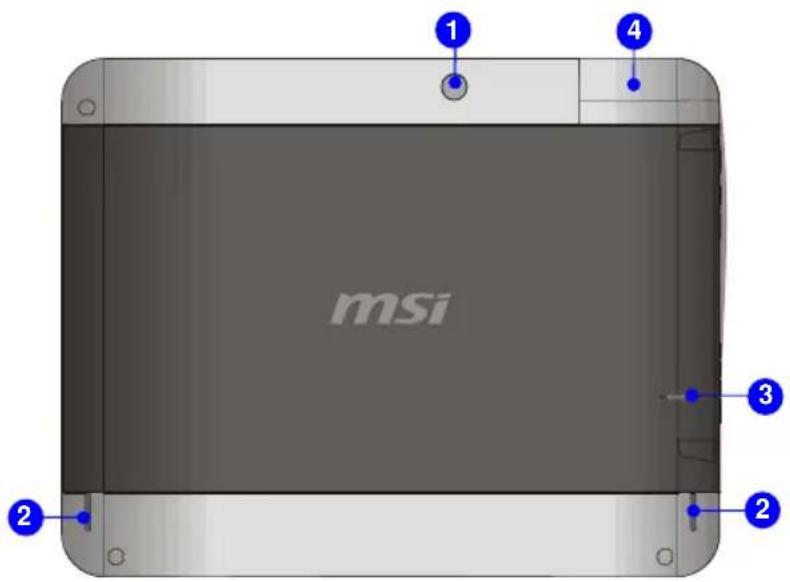
Enjoy 10
text_image
msi 1 4 2 3 2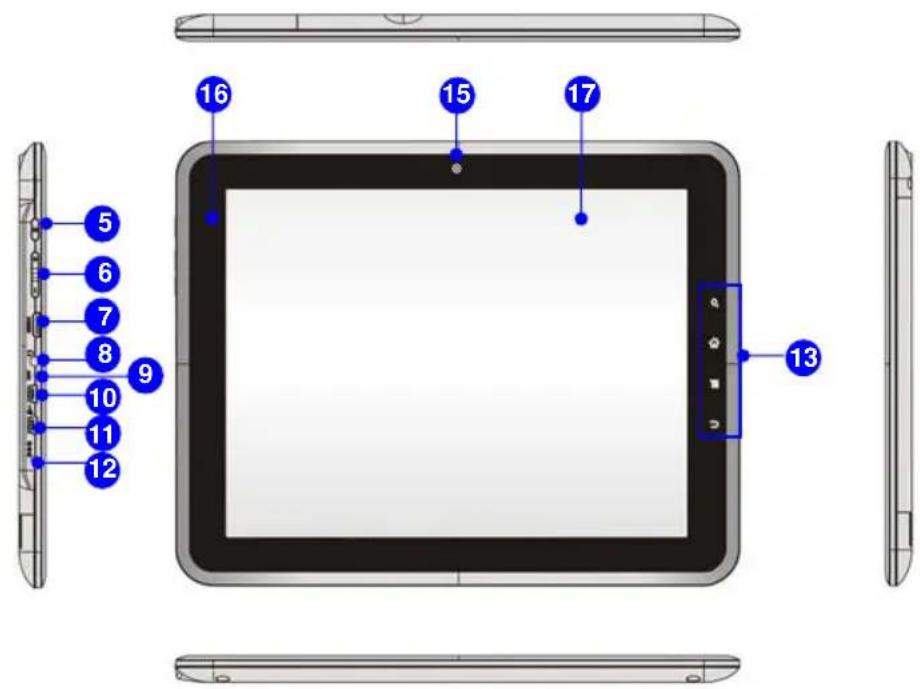
text_image
16 15 17 5 6 7 8 9 10 11 12 13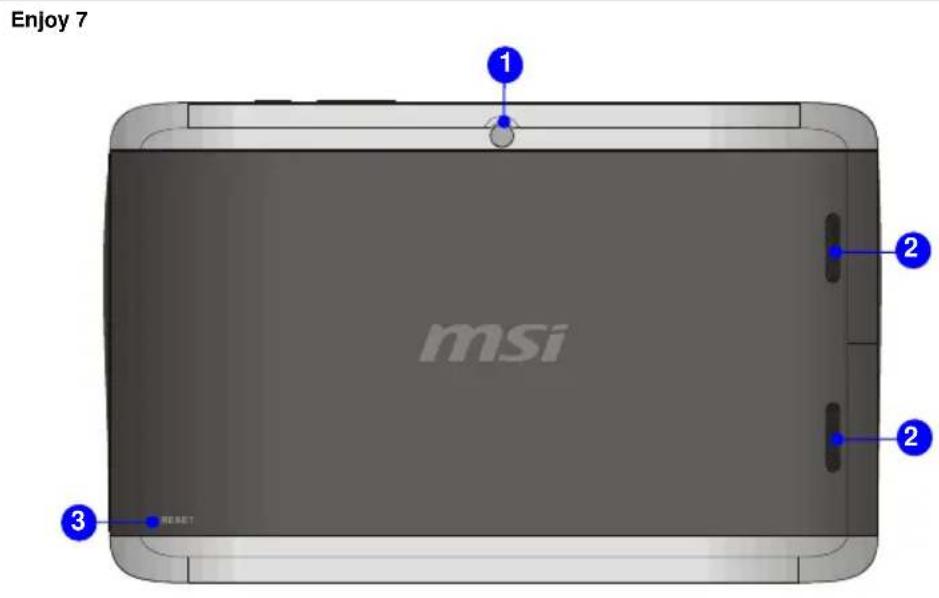
text_image
Enjoy 7 msi 1 2 2 3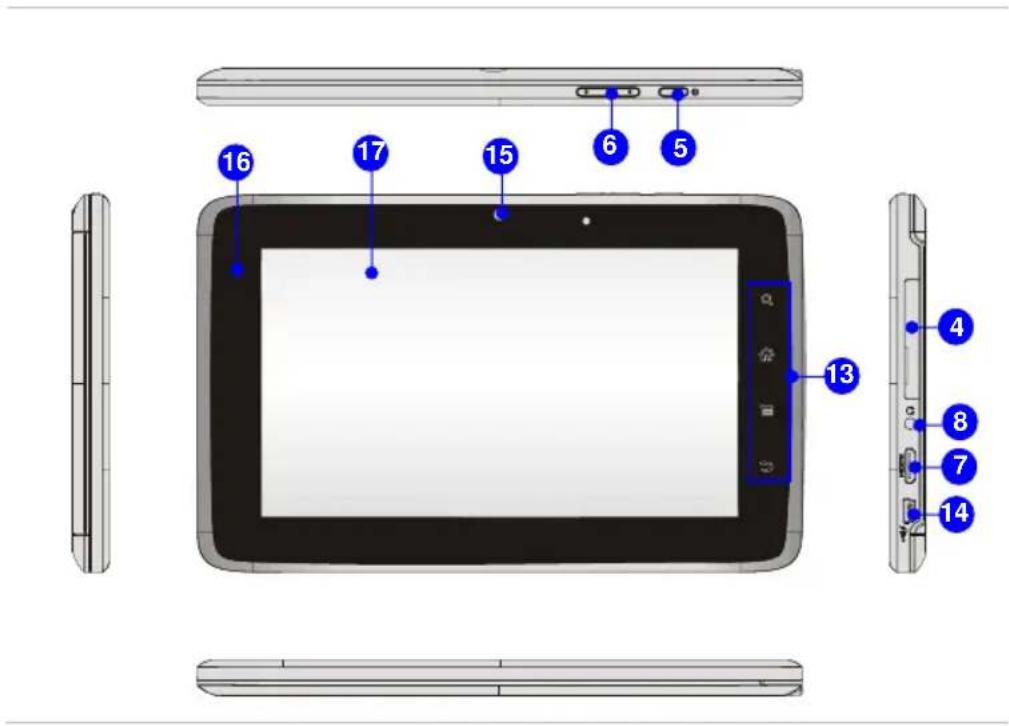
text_image
16 17 15 6 5 13 4 8 7 141. Rear Webcam
This built-in Rear Webcam can be used for picture taking, video recoding or conferencing, and any other interactive applications.
2. Stereo Speakers
Give high quality sound blaster with stereo system and Hi-Fi function supported.
3. Reset Hole
When your tablet PC is crashed, you can use a straightened paperclip to inset the reset hole to reset the tablet PC.
4. Card Reader
The built-in card reader may support memory card – Micro SD (Secure Digital) card. Contact the local dealer for further and correct information and be noted that the supported memory card may vary without notice.
5. Power Button
Refer to following table for detailed power state.
6. Volume Up / Volume Down

Volume Down
- Press the Volume Up or Volume Down button to decrease or increase the sound volume.
- Read the icon on behalf of the Sound Level Status appearing on the display to learn the function status.
7. Mini HDMI Connector

HDMI (High Definition Multimedia Interface) is a new interface standard for PCs, displays and consumer electronics devices that supports standard, enhanced and high-definition video, plus multi-channel digital audio on a single cable.
8. Headphone Connector
Used for connecting the speakers or headphones.
9. Internal Microphone
This is the built-in microphone and its function is the same with microphone.
10. Mini USB Port (Host)
Through the USB to mini USB cable, the mini USB port allows you to connect USB-interface peripheral devices, such as mouse, keyboard, modem, portable hard disk module, printer and more.
11. Mini USB Port (Device)
The mini USB port allows you to connect to the tablet PC.
12. Power Connector
Provided to connect the AC/DC adapter and supply AC power for this tablet PC.
13. Quick Launch Touch Sensors
Use the quick launch touch sensors to activate the specific applications or tools. Refer to chapter 3 of this manual for the further information.

Search
- This key will launch Search application.

Home
- This key will switch to desktop.

Menu
- This key will launch Menu function.

Return
- This key will switch to the previous page or action.
14. Mini USB Port (Slave + Device)
Through the OTG cable, the mini USB port allows you to connect USB-interface peripheral devices, such as mouse, keyboard, modem, portable hard disk module, printer and more. Besides, the mini USB port also allows you to connect to the tablet PC.
15. Front Webcam
This built-in Front Webcam can be used for picture taking, video recoding or conferencing, and any other interactive applications.
16. Status LED
Battery Status
♦ Glowing amber when the battery is being charged.
- Glowing green when it is fully charged.
- Battery LED goes out when the AC/DC adapter is disconnected.
17. Multi Touch Display
This tablet PC is equipped with a user-friendly multi touch display which lets users use hands or finger gestures to interact with multi-media content, play games, read e-books, access documents, create special effects, manipulate art and photographs, and even surf on the internet, in a truly unique and compelling way.
CHAPTER 3
Getting Started
Power Management
Battery Power
This tablet PC is equipped with a high-capacity Lithium polymer battery pack. The rechargeable Lithium polymer battery pack is an internal power source of this device.
However, the battery equipped is not replaceable by users, and may be damaged if users try to disassemble the product and the battery pack installed inside on their own.
Also, note that the limited warranty to the product may also lose its efficacy when this product is disassembled not by an authorized machinist.
Please follow your local laws and regulations to recycle the product.
Conserving Battery Power
Efficient battery power is critical to maintain a normal operation. If the battery power is not managed well, the saved data and customized settings may be lost.
To optimize battery life and avoid a sudden power loss, read the tips below:
- Suspend system operation if the system will be idle for a while or shorten the suspend timer's time period.
- Turn off the system if you won't be using it for a period of time.
- Disable unnecessary settings or remove idle peripherals.
- Connect an AC/DC adapter to the system whenever possible.
Charging the Battery Pack
The battery pack equipped is rechargeable, however please pay attention to the following tips before recharging the battery:
♦ Plug in an external AC/DC adapter.
- You can use the system, suspend system operation or shut down and turn off the system without interrupting the charging process.
The battery pack installed inside the device uses Lithium-ion battery cells that have no "memory effect." It is unnecessary to discharge the battery before recharging. However, to optimize the life of battery, we suggest that consuming the battery power completely once every three months.
- The actual charging time will be determined by the applications in use.
AC power
It is strongly recommended to connect the AC/DC adapter to the tablet PC and use the AC power while using this tablet PC for the first time. When the AC power is connected, recharging the battery will start immediately.
Note that the AC/DC adapter included in the package is approved for your tablet PC; using other adapter model may damage either the tablet PC or other devices attached to it.
Do not cover the AC/DC adapter since it may produce a certain heat while in use. Always be aware of heat coming from the AC/DC adapter in use.
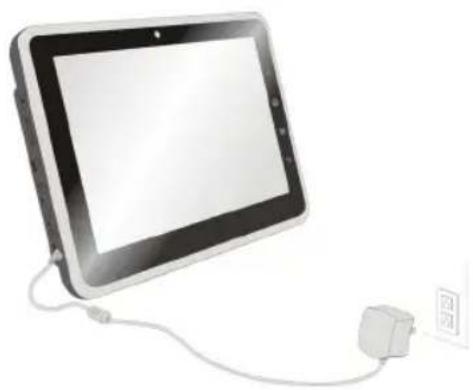
Connecting the AC Power
- Unpack the package to find the AC/DC adapter.
- Plug the DC end of the adapter to the tablet PC, and plug the AC/DC adapter to the electrical outlet.
Disconnecting the AC Power
When disconnecting the AC/DC adapter, you should:
- Unplug the AC/DC adapter from the electrical outlet first.
- Unplug the DC end of the adapter from the tablet PC.
natural_image
Modern tablet device with connected power cable and a small electrical outlet (no visible text or symbols)Basic Operations
If you are a beginner to this tablet PC, please read the following instructions to assure your own safety, and make yourself comfortable during the operations.
Safety and Comfort Tips
This tablet PC is a portable platform that allows you to work anywhere. However, choosing a good workspace is important if you are going to use your tablet PC for a long period of time.
- Your work area should have enough illumination.
- Choose the proper desk and chair and adjust their height to fit your posture when operating.
- Avoid using this tablet PC in the space where may cause you discomfort.
- Since this is an electrical device, please treat it with great care to avoid personal injury.
- The tablet PC should be operate under maximum ambient temperature of 40°C (120°F)
Having a Good Work Habit
Have a good work habit is important if you are going to use this tablet PC for long periods of time; otherwise, it may cause discomfort or injury to you. Please keep the following tips in mind when operating.
- Change your posture frequently.
♦ Stretch and exercise you body regularly. - Remember to take a break after working for a period of time.
Power On the Tablet PC
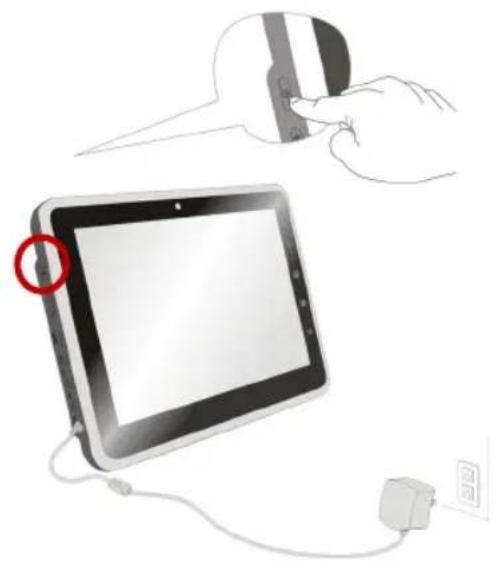
To power on the tablet PC, follow the steps below:
- Find the location of the Power Button as shown in the figure,
- Press the Power Button to power on the tablet PC.
natural_image
Illustration of a hand inserting a card into a tablet device connected to a power outlet (no text or symbols present)Unlock the Tablet PC
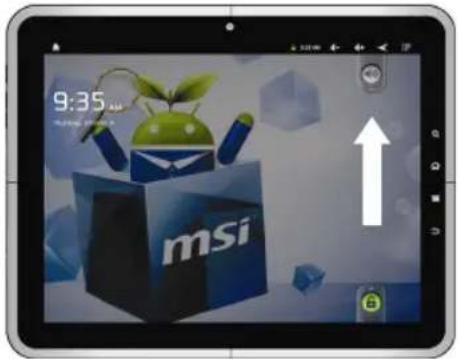
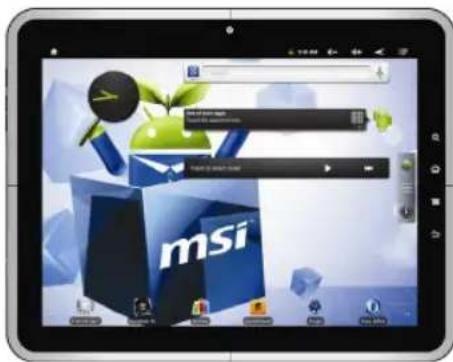
After power on the tablet PC, you can see the lock screen as below, please refer to the following instruction to unlock the tablet PC.
- Tap and drag the lock icon upward as shown on the screen.
text_image
9:35 AM msi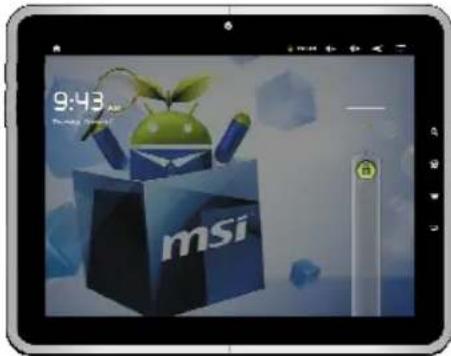
text_image
9:43 msi- Then the unlock screen will show as below:
text_image
Screenshot of a macOS desktop interface displaying a webpage with 'msi' branding and navigation controlsThe Introduction of the Desktop
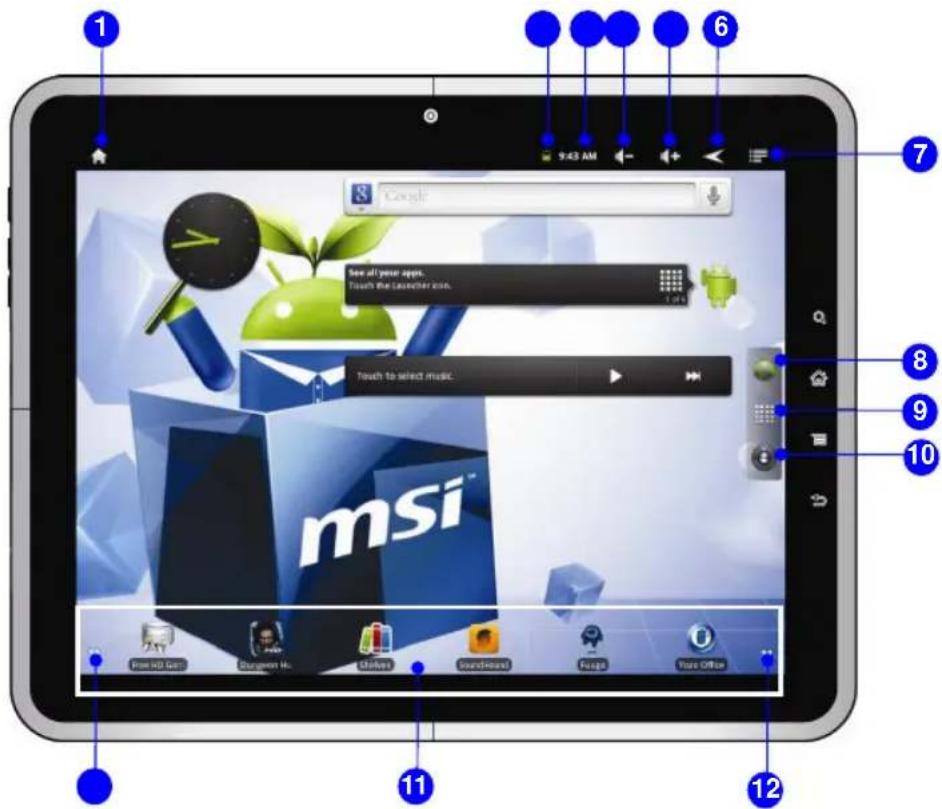
text_image
1 2 3 4 5 6 7 8 9 10 11 12 Google See all your apps. Touch the launcher icon. Touch to select music. msi™ Free HD Gen Sungwon Ho Okles Soundhead Page You Office- Home
Switch to desktop.
- Battery Status
Show present battery status.
- Time
Show present time.
- Volume down
Decrease the sound volume.
- Volume up
Increase the sound volume.
- Return
Switch screen to the previous page or action.
- Menu
Launch Menu function.
8. Browser
Launch the Internet browser.
9. Programs
Activate the programs list.
10. Setting
Change the setting of the tablet PC.
11. Programs Shortcuts
The shortcuts of the default programs.
12. Page
Show the present page location.
Please be noted that the desktop may update depends on the firmware you use.
Rotating the Display
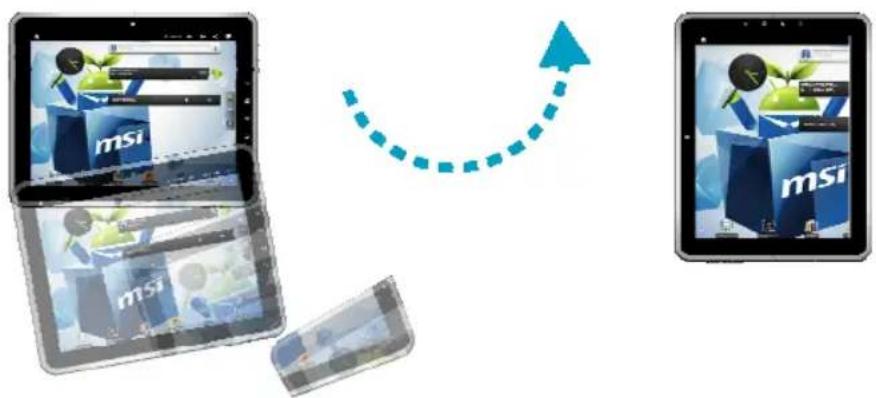
This tablet PC is equipped with G-sensor module which gives users an enjoyable experience in viewing web pages, documents, pictures, videos, etc. Whenever the display is rotated, the screen will be rotated and expanded to fit the display automatically.
text_image
msi msi msiUsing the Quick Launch Touch Sensors
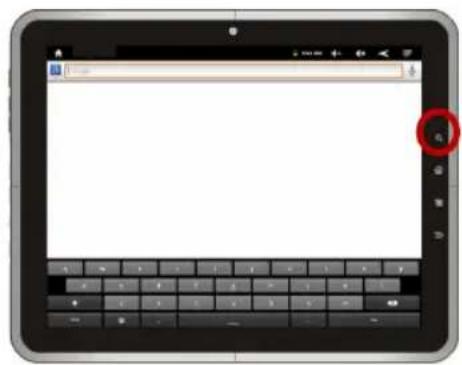
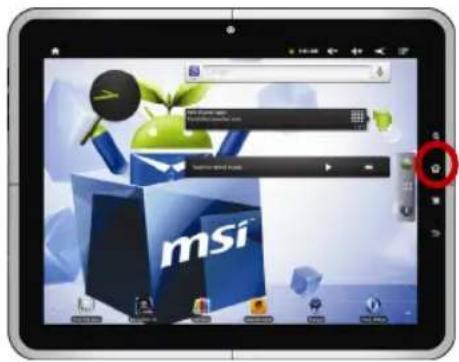
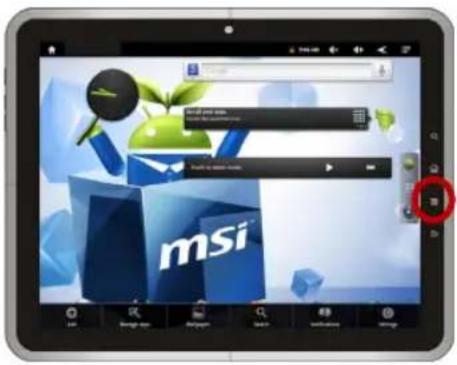
This tablet PC provides several quick launch touch sensors. Use these sensors to activate the specific applications or tools.

Search
- This key will Search application.
text_image
Screenshot of a tablet device showing a browser window with a red circular button highlighting the keyboard.
Home
- This key will switch to desktop.
text_image
Screenshot of a macOS desktop interface showing a webpage with 'msi' branding and navigation tabs
Menu
- This key will launch Menu function.
text_image
msi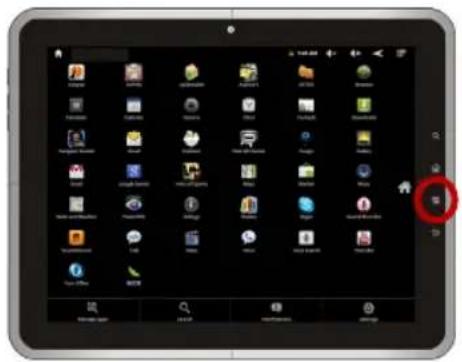
text_image
Screenshot of a tablet device showing multiple app icons with a red circular button highlighting the location.
Return
- This key will switch to the previous page.

text_image
Comparison image showing desktop computer setup before and after transformation, with a red arrow pointing to the right panel.Connecting the Network
text_image
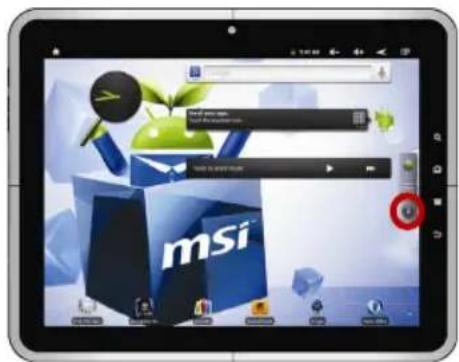
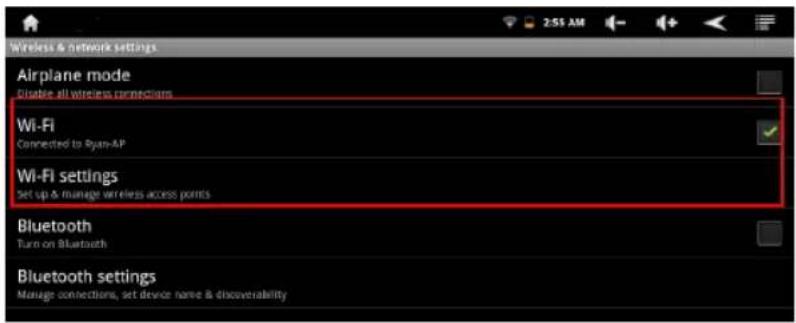
msiTap "Setting" button on the main screen → Select "Wireless & networks" →
Select "Wi-Fi" to turn on WiFi firstly → Select "Wi-Fi settings", then the available wireless list will show on the screen. Choose one network that you would like to use and enter the authorized password you get.
text_image
Wireless & network settings Airplane mode Disable all wireless connections Wi-Fi Connected to Ryan-AP Wi-Fi settings Set up & manage wireless access points Bluetooth Turn on Bluetooth Bluetooth settings Manage connections, set device name & discoverabilityLanguage & Keyboard Settings
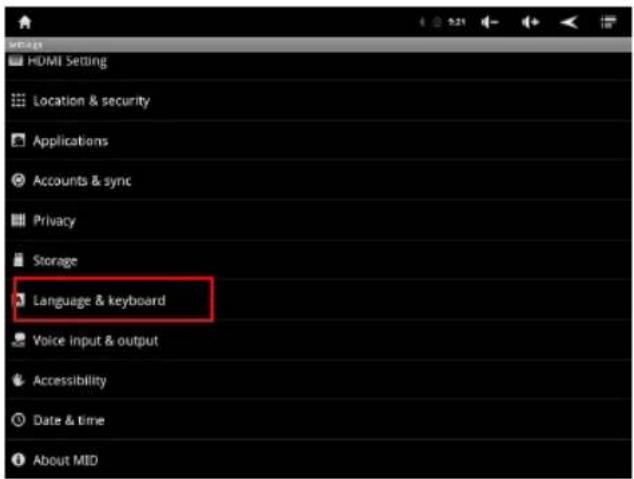
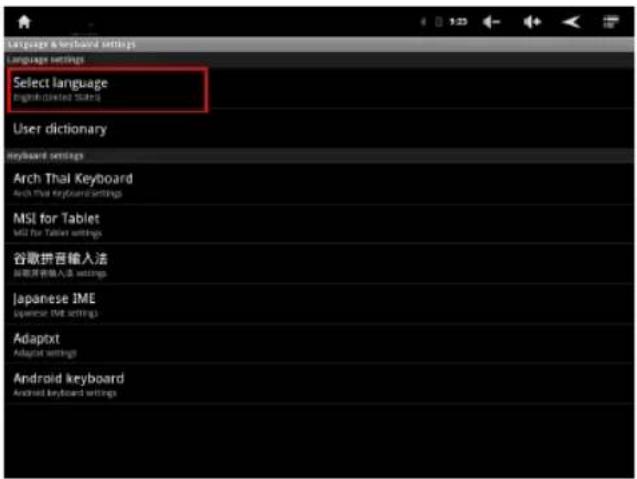
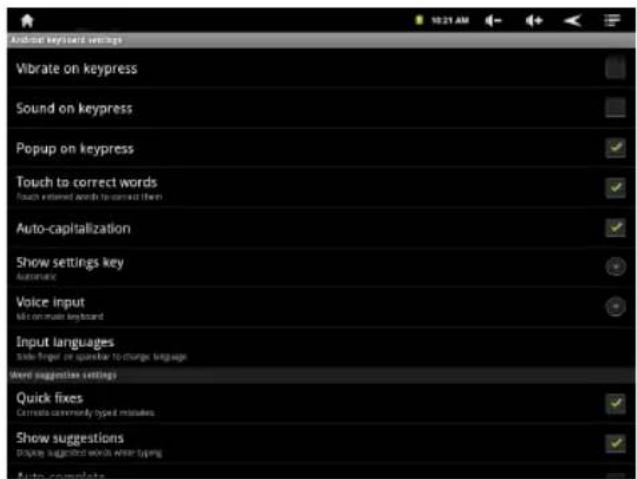
Tap "Setting" button on the main screen → (1) Select "Language & Keyboard" → (2) Select "Select language" to (3) choose the language or (4) select the available keyboard settings.
(1)
text_image
HDMI Setting Location & security Applications Accounts & sync Privacy Storage Language & keyboard Voice input & output Accessibility Date & time About MID(2)
text_image
Language & keyboard settings Language settings Select language English/Chinese State User dictionary keyboard settings Arch Thai Keyboard Arch Thai KeyboardSettings MSI for Tablet MSI for Tablet settings 谷歌拼音输入法 谷歌拼音输入法 settings Japanese JME Japanese JME settings Adapxt Adapxt settings Android keyboard Android keyboard settings(3)

text_image
Deutsch English (United Kingdom) English (United States) Español Français (Canada) Français (France) Hebrew Italiano Nederlands Tagalog Tiếng Việt(4)
text_image
Android keyboard settings Vibrate on keypress Sound on keypress Popup on keypress Touch to correct words Touch extended words to correct them Auto-capitalization Show settings key Automatic Voice input Size on main keyboard Input languages Side finger or speaker to change language Word suggestions settings Quick fixes Correct commonly type mistakes Show suggestions Display suggestions words with typingDate & Time Settings
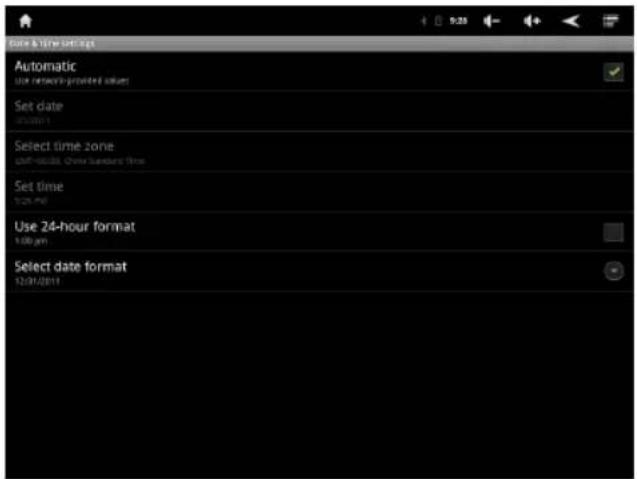
Tap "Setting" button on the main screen need.

→ Select "Date & Time" to make the setting you
text_image
Date & Time Settings Automatic Use network-provided slots Set date 01/07/2011 Select time zone 01:00:00:00 Chinese Standard Time Set time 12:30 PM Use 24-hour format 1:00 pm Select date format 12/07/2011Connecting the External Devices
The I/O (input/output) ports on the tablet PC allow users to connect peripheral devices. All devices listed here are for reference only.
Connecting the Communication Devices
Using Wireless LAN Connection
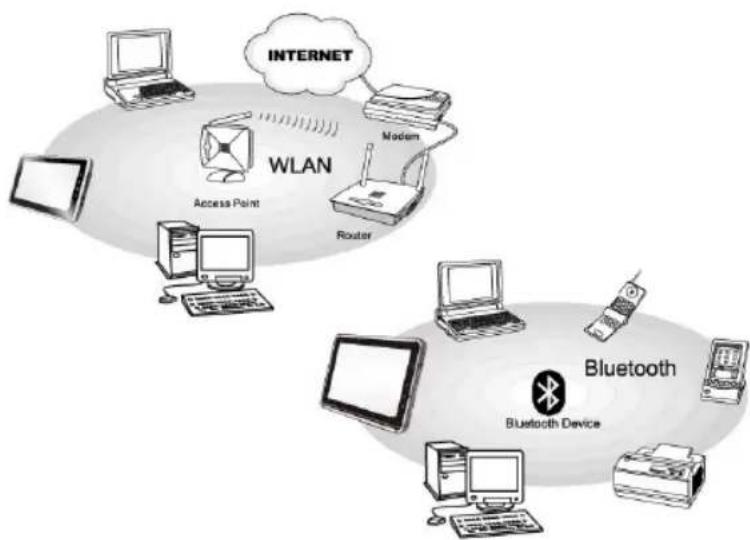
This tablet PC is equipped with wireless LAN module which allows users to perform fast data transmission with the standard IEEE 802.11 for wireless LAN. This gives users the mobility to move around within a broad coverage area and still be connected to the network.
By using the 64-bit/128-bit Wired Equivalent Privacy (WEP) encryption technology and Wi-Fi Protected Access feature, the optional built-in wireless LAN is capable to achieve a more efficient and a more secure solution to the wireless communication.
Using Bluetooth Connection
This tablet PC is equipped with Bluetooth module which allows users to connect various Bluetooth-enabled devices to the device. Bluetooth provides a way to connect and exchange information between devices such as mobile phones, personal computers, printers, GPS receivers, PDAs, digital cameras, and video game consoles through a secure, globally unlicensed Industrial, Scientific and Medical (ISM) 2.4 GHz short-range radio frequency bandwidth.
For more instructions or detailed steps on using the Wireless LAN and Bluetooth functions, please ask your MIS staff or network manager for help.
flowchart
graph TD
    A["Internet"] --> B["WLAN"]
    B --> C["Access Point"]
    B --> D["Router"]
    B --> E["Modem"]
    B --> F["Desktop Computer"]
    B --> G["Desktop Laptop"]
    B --> H["Desktop Phone"]
    B --> I["Bluetooth Device"]
    I --> J["Bluetooth"]
    style B fill:#f9f,stroke:#333
    style I fill:#ccf,stroke:#333
Connecting the Peripheral Devices
Connecting the USB devices
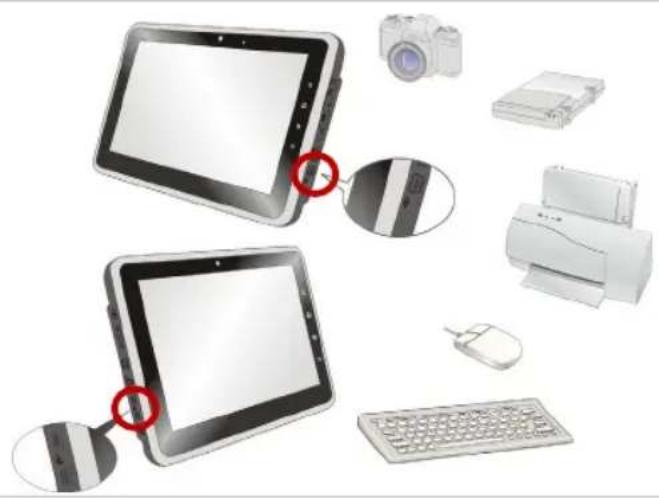
This tablet PC provides mini USB ports for connecting various USB devices, such as mouse, keyboard, digital camera, webcam, printer, and external optical storage device, etc. To connect these devices, install the drivers for each device first if necessary, and then connect the device to the tablet PC. This tablet PC is capable to auto detect the USB devices installed, and if there is no detection of the devices, please manually enable the USB devices by going to Start Menu / Control Panel / Add Hardware to add the new device.
Note: Make sure that you have an external power adapter connected to your external optical storage device in addition to the USB cable.
natural_image
Illustration of two tablets with a camera and printer placed on top, next to a keyboard and mouse (no text or symbols)Connecting the External Display Devices to Mini HDMI port
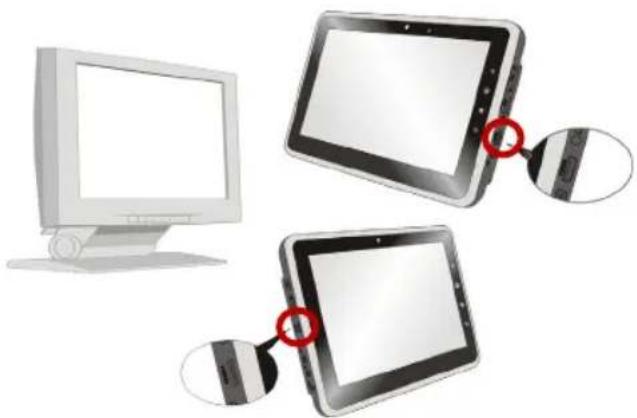
Mini HDMI (High Definition Multimedia Interface) is a new interface standard for PCs, displays and consumer electronics devices that supports standard, enhanced and high-definition video, plus multi-channel digital audio on a single cable.
natural_image
Illustration of two desktop tablets connected to a computer monitor, with one tablet showing a red circle highlighting its screen (no text or symbols present)Once the display is connected to the tablet PC, power on the tablet PC and the external display should respond by default. Alternately, you can change the display mode by configuring the settings in Display Properties of Windows operating system.
How to Update Tablet PC Firmware
You can update the firmware of your tablet PC through another notebook or desktop PC. Please check the latest firmware version of your tablet PC to make sure it is up-to date. To update the firmware can enhance the performance of your tablet PC, please see the following instruction for more updating instructions.
Before updated the firmware of your tablet PC, you need to:
■ Backup your personal data on your tablet PC.
■ Be sure the battery of your tablet PC is fully charged; plug the DC end of the adapter to the tablet PC, and the male end of the power cord to the electrical outlet.
■ Turn off all useless running programs.
■ USB cable is required (USB A male – USB A male cable)
■ Turn on your notebook or desktop PC, be sure it is connected to the internet.
Step 1.
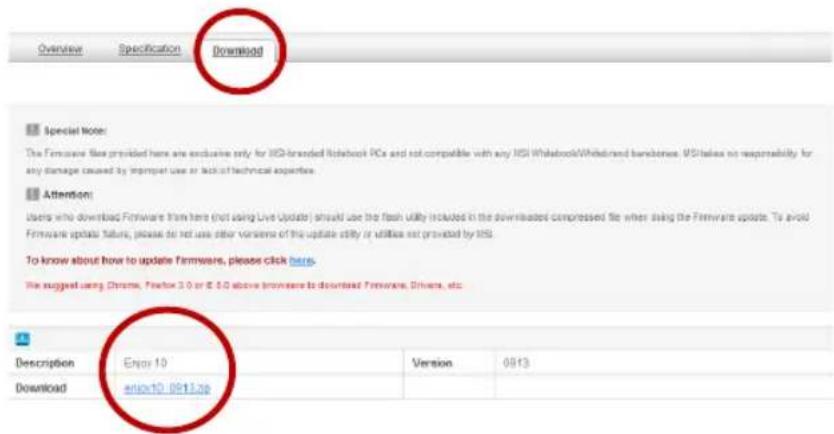
Please download the latest firmware of your tablet PC from the following website location http://www.msi.com
Please be noted that if you cannot get the latest firmware from this website, please contact the local dealer for detailed information.
To take Enjoy 10" for example, please go to the above website location and select "Download" this item, then choose the following zip file to find the latest firmware.
text_image
Overview Specification Download Special Note: The Firmware file provided here are exclusive only for iOS-branded Notebook PCs and not compatible with any HSI Whitebook/Whitebrand bandbase. WS takes no responsibility for any damage caused by transport use or lack of technical expertise. Attention: Users who download Firmware from here (not using Live Update) should use the flash utility included in the downloaded compressed file when using the Firmware update. To avoid Firmware update failure, please do not use other versions of the update utility or utilities not provided by HSI. To know about how to update firmware, please click here. We suggest using Chrome, Firefox 3.0 or 6.5G above browse to download Firmware, Drivers, etc. Description Enjoy 10 Version 0913 Download enter10.09112pStep 2.
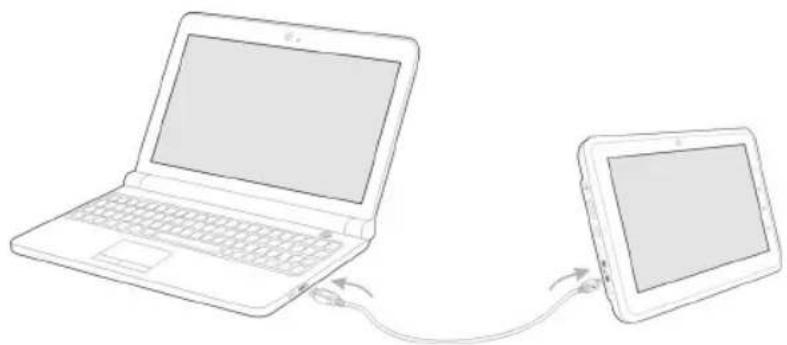
Connect USB to mini USB cable to your notebook (or desktop PC) and table PC.
natural_image
Line drawing of a laptop connected to a tablet via cable (no text or symbols)Please be noted that the USB connector may differ from the actual tablet PC you purchase.
Step 3.
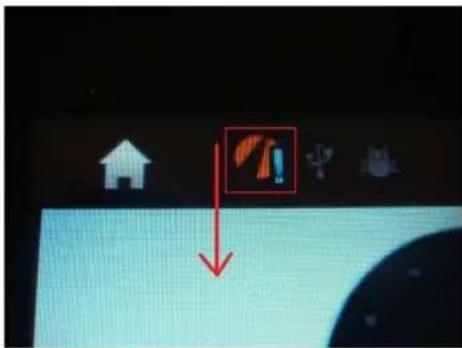
Please open the message on the top left of the screen of your table PC.
text_image
Screenshot of a computer desktop with icons and a red downward arrow, highlighting a location or feature.Step 4.
Please select "USB Connected".
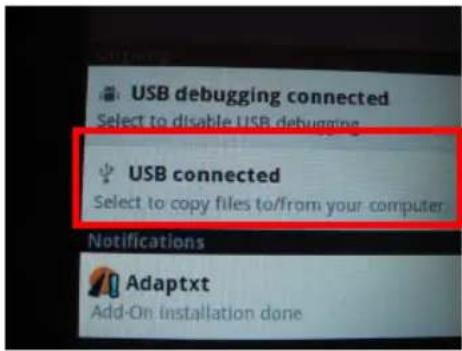
text_image
USB debugging connected Select to disable USB debugging USB connected Select to copy files to/from your computer Notifications Adaptxt Add-On installation doneStep 5.
Please select "Turn on USB storage".
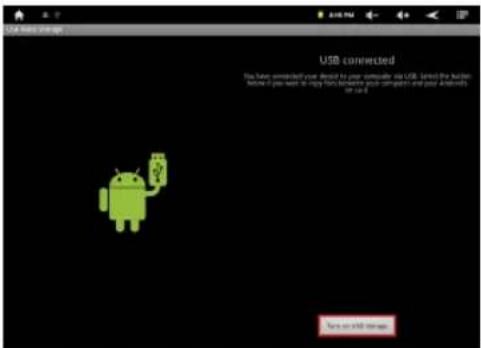
text_image
USB connected You have connected your right to your computer on iOS. Here the folder button is you want to use this device to connect your computer and your website on a list. No OKStep 6.
On the notebook or your desktop PC, an auto-play dialog box with "MSI WINPAD" will pop up on the screen, please select "Open folder to view files".
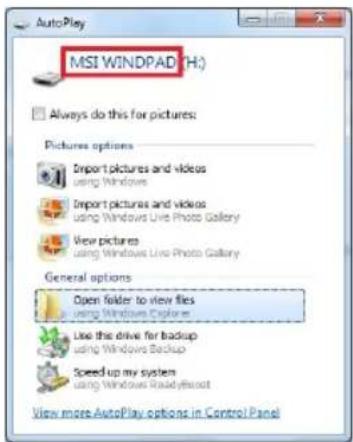
text_image
MSI WINDPAD (H:) Always do this for pictures: Pictures options Import pictures and videos using Windows Import pictures and videos using Windows Live Photo Gallery View pictures using Windows Live Photo Gallery General options Open folder to view files using Windows Explorer Use the drive for backup using Windows Backup Speed-up my system using Windows Readilyfoot View more AutoPlay options in Control PanelStep 7.
Please copy the new firmware to root directory on WINDPAD.
Note1: The filename must be "update.img", if not, please rename the image name to update.img.
Note2: Remember to put the firmware file to root directory.
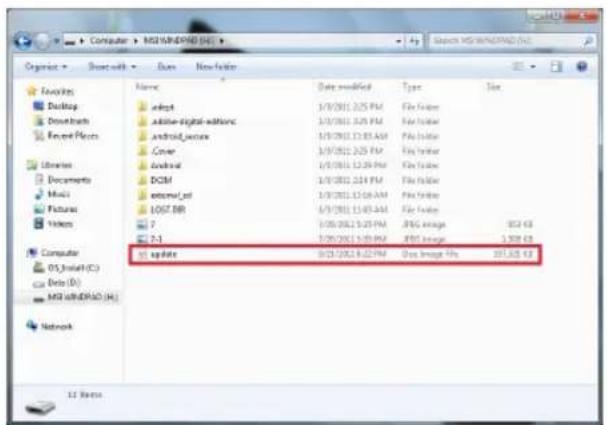
text_image
Microsoft Office Organize > Desktop > Box > NewfxInfo Name Date modified Type Size Adapt 3/1/2011.2.05 PM File Index Adobe-digital editions 3/1/2011.2.05 PM File Index Android_uzcure 3/1/2011.12.05 AM File Index Cover 3/1/2011.2.05 PM File Index Android 3/1/2011.12.06 PM File Index DCM 3/1/2011.2.04 PM File Index Internet.pdf 3/1/2011.12.08 AM File Index LOGT.BR 3/1/2011.12.03 AM File Index 7 1:05:2012.1.25 PM JPEG Image 952 KB 2-3 3/26/2011.1.20 PM JPEG Image 3,708 KB Update 3/23/2012.8.22 PM Data Image Fox 201,825 KB LC FilesStep 8.
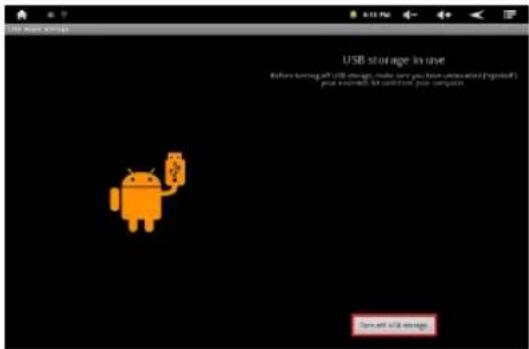
Please select "Turn off USB Storage".
text_image
USB storage in use Before turning off iOS drive, then you have done with a logged's your installable to put out your computer.Step 9.
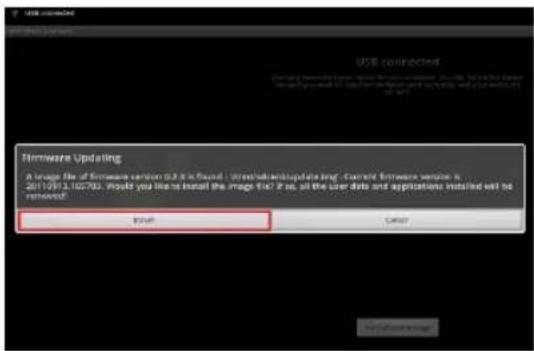
Please select "Install".
You can select "Cancel" to update the firmware later on. Please follow the above instruction to turn on/off USB storage setting and back to this dialog box again.
text_image
USB connected USB connected Firmware Updating a image file of firmware version 0.2.3 is fixed - worldwide update log, cannot firmware version is 2011/04/1.162702. Would you like to install the image this? If so, all the user data and applications installed will be removed! OK CancelStep 10.
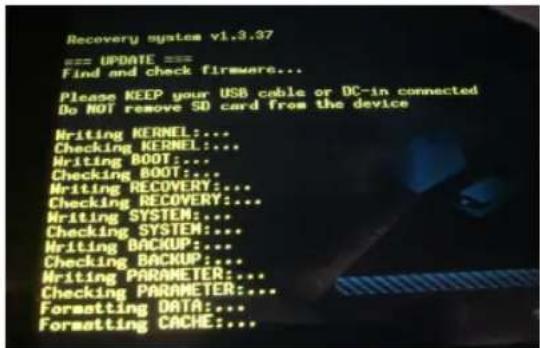
Please keep your USB cable connected. The system will auto reboot after updating the firmware.
Important: Do not touch the screen when the system is updating the firmware.
text_image
Recovery system vi.3.37 === UPDATE === Find and check firmware... Please KEEP your USB cable or DC-in connected Do NOT remove SD card from the device Writing KERNEL:... Checking KERNEL:... Writing BOOT:... Checking BOOT:... Writing RECOVERY:... Checking RECOVERY:... Writing SYSTEM:... Checking SYSTEM:... Writing BACKUP:... Checking BACKUP:... Writing PARAMETER:... Checking PARAMETER:... Formatting DATA:... Formatting CACHE:...Step 11.
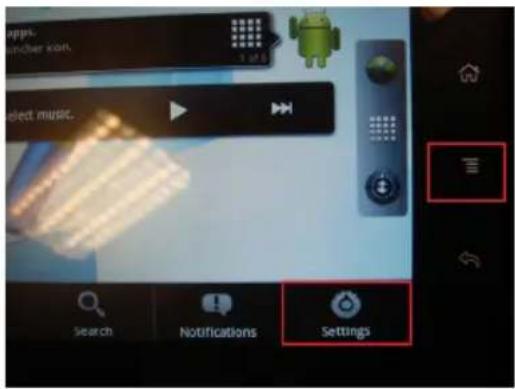
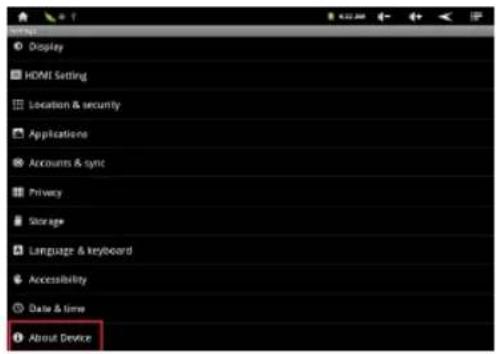
Please select "Menu" and then select "Settings", this step is to confirm the firmware version.
text_image
apps. member exon. select music. Search Notifications SettingsStep 12.
Please select "About Device"
text_image
HDMI Display HOME Setting Location & security Applications Accounts & sync Privacy Storage Language & keyboard Accessibility Date & time About DeviceStep 13.
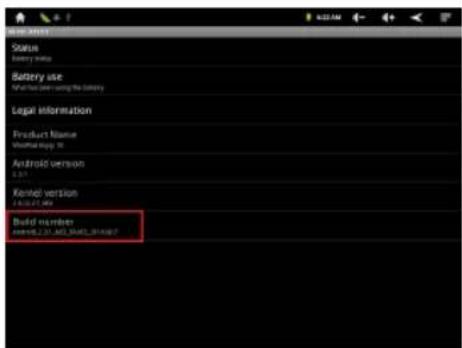
Please confirm the "Build number" is the latest. The firmware update is completed.