
S80 Note - Tablet MSI - Free user manual and instructions
Find the device manual for free S80 Note MSI in PDF.


| Product Type | Tablet |
| Brand | MSI |
| Model | S80 Note |
| Dimensions | 123.4 x 210.4 x 9.2 mm |
| Weight | <350 grams |
| Processor | Intel Atom Quad Core |
| Memory | 2GB DDR3L |
| Storage | 32GB eMMC |
| Display | 8-inch IPS, 1280x800 pixels |
| Touchscreen | 5-point multi-touch, stylus support (optional) |
| Front Camera | 2.0 MP fixed focus |
| Rear Camera | 5.0 MP autofocus |
| Wireless Connectivity | Wi-Fi, Bluetooth |
| Ports | Micro-USB, Micro-HDMI, Headphone jack, Micro-SD card slot |
| Battery | Lithium-ion polymer, built-in |
| Charging | AC/DC adapter 100-240V, output 5V 2A |
| Operating System | Windows 8 (preinstalled) |
| Special Features | G-sensor, stylus pen (optional), digital pen input |
| Memory Card Support | Micro-SD (up to 32GB or higher, not specified) |
| Speaker | 1 built-in speaker |
| Microphone | Built-in internal microphone |
Frequently Asked Questions - S80 Note MSI
User questions about S80 Note MSI
0 question about this device. Answer the ones you know or ask your own.
Ask a new question about this device
Download the instructions for your Tablet in PDF format for free! Find your manual S80 Note - MSI and take your electronic device back in hand. On this page are published all the documents necessary for the use of your device. S80 Note by MSI.
USER MANUAL S80 Note MSI
Regulations and Statements 1-3
FCC-B Radio Frequency Interference Statement 1-3
FCC Conditions 1-3
FCC 1-4
CE Conformity 1-4
Battery Regulations 1-4
WEEE Statement 1-5
Safety Instructions 1-5
Trademarks 1-7
Reversion History 1-7
Chapter 2: Introductions
Manual Map 2-2
Unpacking 2-2
Product Overview 2-3
Specification....2-6
Chapter 3: Getting Started
Power Management 3-2
AC Power.... 3-2
Connecting the AC Power 3-2
Battery Power 3-4
Power On 3-5
Power Management in Windows OS 3-6
Inserting a Micro-SD card to Your Tablet PC 3-9
Basic Operations 3-10
Knowing the Display Features 3-10
Knowing Stylus Pen (Optional) 3-12
Wireless Activation 3-13
◆ Regulations and Statements
FCC-B Radio Frequency Interference Statement
This equipment has been tested and found to comply with the limits for a Class B digital device, pursuant to part 15 of the FCC rules. These limits are designed to provide reasonable protection against harmful interference in a residential installation. This equipment generates, uses and radiates radio frequency energy, and, if not installed and used in accordance with the instructions, may cause harmful interference to radio communications. However, there is no guarantee that interference will not occur in a particular installation. If this equipment does cause harmful interference to radio or television reception, which can be determined by turning the equipment off and on, the user is encouraged to try to correct the interference by one or more of the following measures:
■ Reorient or relocate the receiving antenna.
■ Increase the separation between the equipment and receiver.
■ Connect the equipment into an outlet on a circuit different from that to which the receiver is connected.
■ Consult the dealer or an experienced radio TV technician for help.
NOTE
- The changes or modifications not expressly approved by the party responsible for compliance could void the user's authority to operate the equipment.
- Shield interface cables and AC power cord, if any, must be used in order to comply with the emission limits.
FCC Conditions
This device complies with part 15 of the FCC Rules. Operation is subject to the following two conditions:
■ This device may not cause harmful interference.
This device must accept any interference received, including interference that may cause undesired operation.
FCC
FCC RF Radiation Exposure Statement:
This equipment complies with FCC RF radiation exposure limits set forth for an uncontrolled environment. This device was tested for typical lap held operations with the device contacted directly to the human body to the back side of the notebook computer. To maintain compliance with FCC RF exposure compliance requirements, avoid direct contact to the transmitting antenna during transmitting SAR information 1.30 W/kg@1g (body).
CE Conformity

This device is in compliance with the essential safety requirements and other relevant provisions set out in the European Directive.
Battery Regulations

European Union:
Batteries, battery packs, and accumulators should not be disposed of as unsorted household waste. Please use the public collection system to return, recycle, or treat them in compliance with the local regulations.

廢電池請回收
Taiwan:
For better environmental protection, waste batteries should be collected separately for recycling or special disposal.
California, USA: The button cell battery may contain perchlorate material and requires special handling when recycled or disposed of in California.
For further information please visit: http://www.dtsc.ca.gov/hazardouswaste/perchlorate/
Safety Guideline for Using Lithium Battery
Danger of explosion if battery is incorrectly replaced. Replace only with the same or equivalent type recommended by the equipment manufacturer. Discard used batteries according to manufacturer's instructions.
WEEE Statement
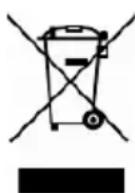
Under the European Union ("EU") Directive on Waste Electrical and Electronic Equipment, Directive 2002/96/EC, which takes effect on August 13, 2005, products of "electrical and electronic equipment" cannot be discarded as municipal waste anymore and manufacturers of covered electronic equipment will be obligated to take back such products at the end of their useful life.
◆ Safety Instructions

Read the safety instructions carefully and thoroughly. All cautions and warnings on the equipment or user's manual should be noted.

Keep this equipment away from humidity and high temperature.
Lay this equipment on a stable surface before setting it up.

The openings on the enclosure are used for air convection and to prevent the equipment from overheating. Do not cover the openings.

Do not leave the equipment in an unconditioned environment with a storage temperature above 60^ C ( 140^ F) or below 0^ C ( 32^ F), which may damage the equipment.
- This unit should be operated under maximum ambient temperature of 40^ (120°F).
- Make sure the power voltage is within safety range and has been adjusted properly to the value of 100\~240V before connecting the equipment to the power outlet.
- Always unplug the AC power cord before installing any add-on card or module to the equipment.
- Always disconnect the AC power cord or uninstall the battery pack or switch off the wall socket if the equipment would be left unused for a certain time to achieve zero energy consumption.

Never pour liquid into the opening that could damage the equipment or cause an electrical shock.
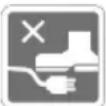
Place the power cord in a way that people are unlikely to step on it. Do not place anything on top of the power cord.

Always keep the strong magnetic or electrical objects away from the equipment.
When installing the coaxial cable to the TV Tuner, it is necessary to ensure that the metal shield is reliable connected to protective earthing system of the building.
Cable distribution system should be grounded (earthed) in accordance with ANSI/NFPA 70, the National Electrical Code (NEC), in particular Section 820.93, Grounding of Outer Conductive Shield of a Coaxial Cable.

If any of the following situations arises, get the equipment checked by a service personnel:
- The power cord or plug is damaged.
- Liquid has penetrated into the equipment.
- The equipment has been exposed to moisture.
- The equipment has not worked well or you cannot get it work according to User's Manual.
- The equipment was dropped and damaged.
- The equipment has obvious signs of breakage.
Green Product Features
- Reduced energy consumption during use and stand-by
- Limited use of substances harmful to the environment and health
- Easily dismantled and recycled
- Reduced use of natural resources by encouraging recycling
◆ Extended product lifetime through easy upgrades - Reduced solid waste production through take-back policy
Environmental Policy
- The product has been designed to enable proper reuse of parts and recycling and should not be thrown away
- Users should contact the local authorized point of collection for recycling and disposing of their end-of-life products.

Trademarks
All trademarks are the properties of their respective owners.
Revision History
Version Revision History Date
1.0 First Released 01, 2015
2
Introductions
Congratulations on becoming an user of this product, the finely designed Tablet PC. This brand-new exquisite Tablet PC will give you a delightful and professional experience in using it. We are proud to tell our users that this product is thoroughly tested and certified by our reputation for unsurpassed dependability and customer satisfaction.
◆ Manual Map
This User's Manual provides instructions and illustrations on how to operate this Tablet PC. It is recommended to read this manual carefully before using this Tablet PC.
Chapter 1, Preface: Provide users the basic safety information and caution that is relevant when using this Tablet PC. It is recommended to read these information or caution when using this Tablet PC for the first time.
Chapter 2, Introductions: Include the descriptions of all the accessories of this Tablet PC. It is recommended to check out that if you have all the accessories included when you open the packing box. If any of these accessories is damaged or missing, please contact the vendor where you purchased this product. Also, this chapter provides the specification of this Tablet PC, and introduces the function buttons, connectors, LED of this product.
Chapter 3, Getting Started: Provide the basic operation instructions when using this Tablet PC.
Unpacking
First, unpack the shipping carton and check all items carefully. If any item contained is damaged or missing, please contact your local dealer immediately. Also, keep the box and packing materials in case you need to ship the unit in the future. The package should contain the following items:
- Tablet PC
- Quick Start Manual
• AC/DC adapter / Interchangeable Plug - USB Charging Cable
- Stylus Pen (optional)
- Protect Cover (optional)
Product Overview
This section provides the description of basic aspects of the Tablet PC. It will help you to know more about the appearance of this device before using it. Please be aware that the Tablet PC shown in this section may vary from the actual one that users purchased.
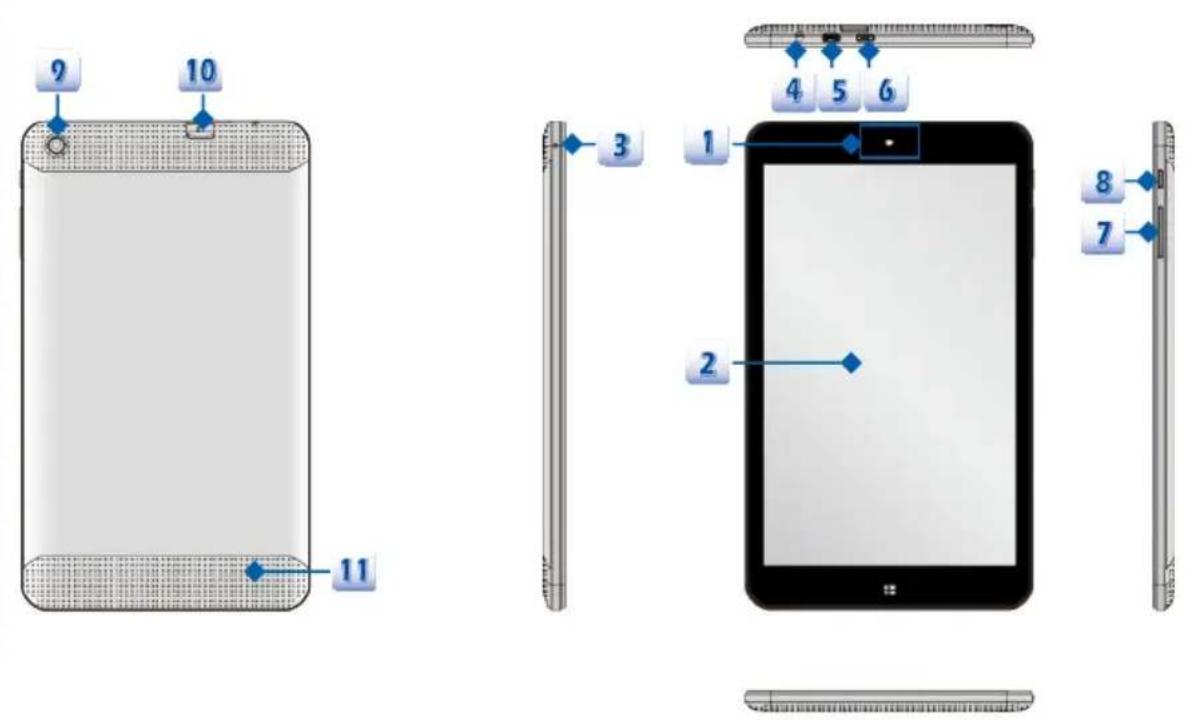
The figures shown here are for reference only.
1. Front Camera
This built-in front camera can be used for picture taking, video recording or conferencing, and any other interactive applications.
2. Touch Screen
Whenever the display is rotated, the touch screen will be rotated and expanded to fit the display automatically.
This function will be changed depends on the user's settings.
3. Internal Microphone
This is the built-in microphone and its function is the same with microphone.
4. Headphone Jack
Used for connecting the speakers or headphones.
5. Micro-HDMI

HDMI (High Definition Multimedia Interface) is a new interface standard for PCs, displays and consumer electronics devices that supports standard, enhanced and high-definition video, plus multi-channel digital audio on a single cable. Through the micro-HDMI to HDMI cable makes the micro-HDMI port connect with HDMI devices.
6. Micro-USB Port
Connecting the Tablet PC to a PC
You can use the micro-USB cable to connect the tablet PC to a PC and this process allows you to access the personal data from or to a PC easily. The tablet PC will become a removable disk and a USB storage device in this time.
Connecting the USB device to the Tablet PC
Through the micro-USB OTG cable, this tablet PC is able to connect various USB devices, such as mouse, keyboard, external storage device, etc. To correctly connect and utilize these devices, you might need to install their respective applications provided by the device vendors.
7. Volume

/ Volume Down

Button
Press the Volume Up or Volume Down button to adjust the sound volume.
8. Power/ Reset Button
Press this button to turn this product ON and OFF.
i. Before powering on the Tablet PC for the very first time, you must connect it with AC power.
ii. Press and hold the power button for 4 seconds can shut down the Tablet PC.
iii. Press and hold the power button for 10 seconds to shut down the Tablet PC forcedly.
9. Rear Camera
This built-in rear camera can be used for picture taking, video recording or conferencing, and any other interactive applications.
10. Micro-SD Card Slot
Used for inserting or replacing micro-SD card to increase the storage capacity of the Tablet PC.
11. Speaker
Support high quality sound.
Specification
The specification may change without notice. The actual products sold are different from areas. Please check the detailed specification with your local dealers.
| Physical Characteristic | |
| Dimension 123.4(W) x 210.4 (D) x 9.2 (H) mm | |
| Weight | <350 kg |
| CPU | |
| Processor Type Intel | ^ Atom ^TM Processor |
| Supported Processor Intel | ^ Quad Core processor |
| Memory | |
| Technology DDR3L 1333 MHz | |
| Memory 2GB on board | |
| Power | |
| AC/DC Adapter | Input: 100~240V, 50~60HzOutput: 5V --- 2A The supported AC/DC adapter may vary without notice. |
| Storage (items listed here may very without notice) | |
| EMMC(Embedded Multi Media Card) | 32GB |
| I/O Port | |
| Headphone Jack x 1 | |
| Internal Microphone x 1 | |
| Micro-HDMI Port x 1 | |
| Micro-USB Port x 1 | |
| Micro-SD Card Slot | x 1 (The supported memory cards may vary without notice.) |
| Communication Port |
| Wireless LAN Supported |
| Bluetooth Supported |
| Display |
| LCD Type 8" IPS display |
| Resolution 800 x 1280 |
| Multi Touch 5-Point Touch Supported |
| Brightness Brightness controlled by setting |
| Video |
| Graphics UMA |
| Audio |
| Internal Speaker 1 speaker |
| Sound Volume Adjust by volume button & SW |
| WebCam |
| Front Camera 2.0MP FF |
| Rear Camera 5.0MP AF |
| Others |
| G-Sensor Supported |
| The actual function preinstalled in this product depends on the model you purchased, and may vary without notice. |
3
Getting Started
Power Management
AC Power
It is strongly recommended to connect the AC/DC adapter to the Tablet PC and use the AC power while using this Tablet PC for the first time since some models may require the AC/DC adapter to be connected in order to power on the Tablet PC safely and properly. When the AC power is connected, recharging the battery will start immediately.
Note that the AC/DC adapter included in the package is approved for your Tablet PC; using other adapter model may damage either the Tablet PC or other devices attached to it.
Do not cover the AC/DC adapter since it may generate a certain heat while in use. Always be aware of heat coming from the AC/DC adapter in use.
Connecting the AC Power
- Unpack the package to find the tablet PC, interchangeable plug adapter, interchangeable plug head and the micro-USB cable.
- Press the clip of the interchangeable plug adapter upward.
- Locate the steady gutter of the interchangeable plug head, and the bolt of the interchangeable plug adapter. Align the steady gutter and adapter bolt with correct orientation. Make sure they are joined properly. Then press downward the interchangeable plug head until it is fixed with the interchangeable plug adapter.
- Press the clip of the interchangeable plug adapter downward to fasten the interchangeable plug head.
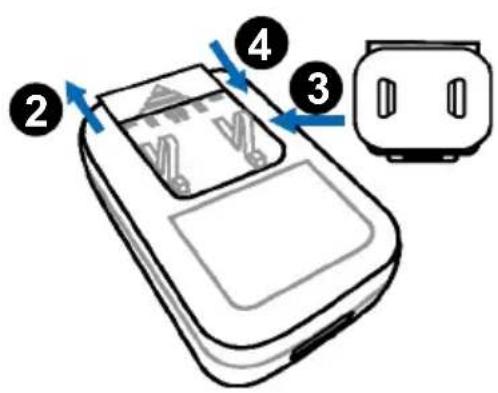
- Connect the micro-USB cable to the micro-USB port of the tablet PC and the underneath USB port of the interchangeable plug adapter.
- Plug the joined interchangeable plug adapter to the electrical outlet.
Note: The interchangeable plug may vary depending on countries or regions.

Battery Power
This Tablet PC is equipped with a built-in high-capacity Lithium-ion Polymer battery pack. The rechargeable Lithium-ion Polymer battery pack is an internal power source of the Tablet PC.
Be aware that this battery pack may be damaged if users try to disassemble the battery pack on their own. Also, please note that the limited warranty of the battery pack will be voided if the battery pack is disassembled by non-authorized technicians.
Please follow your local laws and regulations to recycle the Tablet PC and the built-in battery pack.
Conserving Battery Power
Efficient battery power is critical to maintain a normal operation. If the battery power is not managed well, the saved data and customized settings may be lost.
To optimize battery life and avoid a sudden power loss, read the tips below:
- Suspend system operation if the system will be idle for a while or shorten the suspend time period.
- Turn off the system if you won't be using it for a period of time.
- Disable unnecessary settings or remove idle peripherals.
- Connect an AC/DC adapter to the system whenever possible.
Charging the Battery Pack
The built-in battery pack can be recharged when the Tablet PC is connected to the AC power. Please pay attention to the following tips before recharging the battery:
- You can use the system, suspend system operation or shut down and turn off the system without interrupting the charging process.
- The built-in battery pack uses Lithium-ion Polymer battery cells that have no “memory effect.” It is unnecessary to discharge the battery before recharging. However, to optimize the life of battery, we suggest that consuming the battery power completely once a month is necessary.
- The actual charging time will be determined by the applications in use.
Power On
Long press the Power Button to power on the Tablet PC.

Power Management in Windows OS
Power management of tablet PC and monitors has the potential to save significant amounts of electricity as well as deliver environmental benefits. To be energy efficient, turn off your display or set your PC to standby/hibernate mode after a period of user inactivity.
Follow the instructions below to adjust the power management settings in Windows OS:
"Power Options" in Windows OS allows you to control the power management features of your display, hard drive, and battery.

In Windows 8 Metro APPs screen, please select "Desktop" to return back to the desktop.

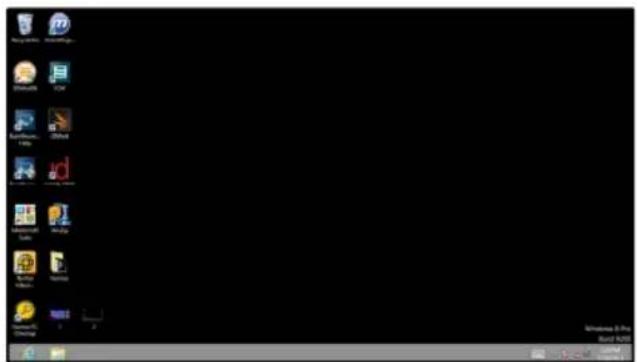

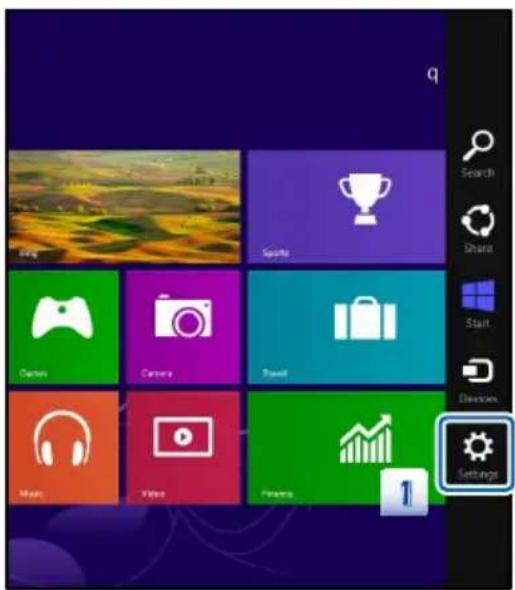
Slide your finger from the right edge of the desktop leftward will bring a list of functional icons. Find the [Settings] icon on the desktop.
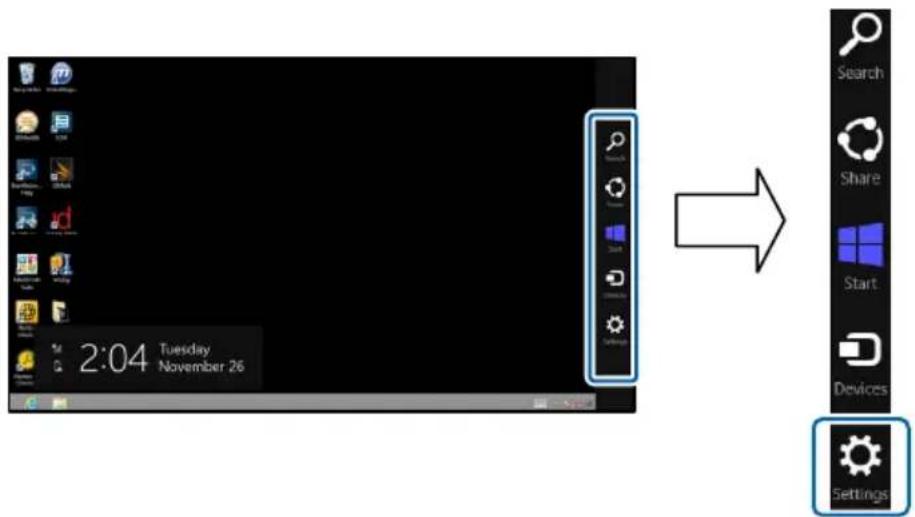

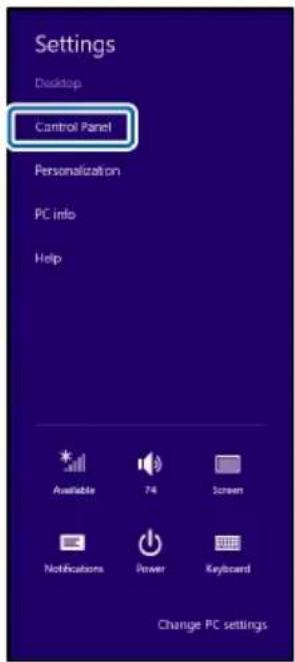
Tap [Settings] icon will get the following selection menu. Select Control Panel in the menu.
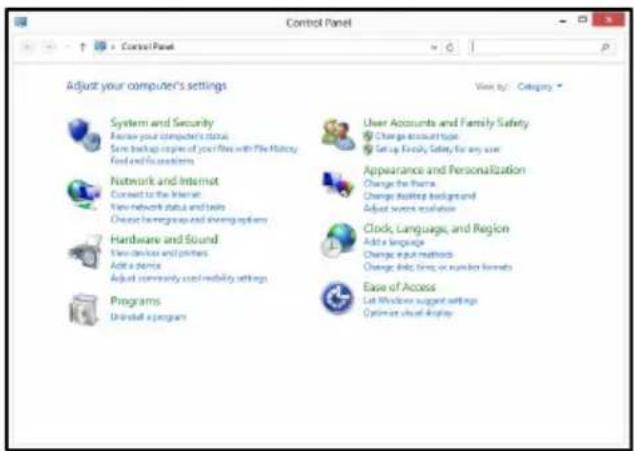

Tap System and Security.

System and Security
Review your computer's status
Save backup copies of your files with File History
Find and fix problems

Tap Power Options.

Power Options
Require a password when the computer wakes
Change when the computer sleeps
Change what the power buttons do

Then select a power plan that meets your personal needs.
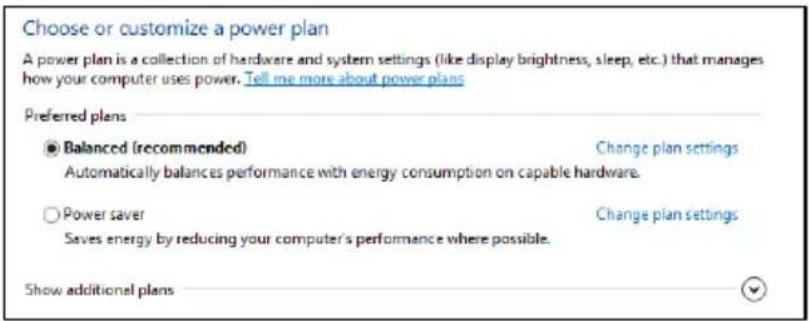

The Power icon will present various and relative options as following:


You can wake up your tablet PC from power saving mode by pressing the power button
- Inserting a Micro-SD card to Your Tablet PC
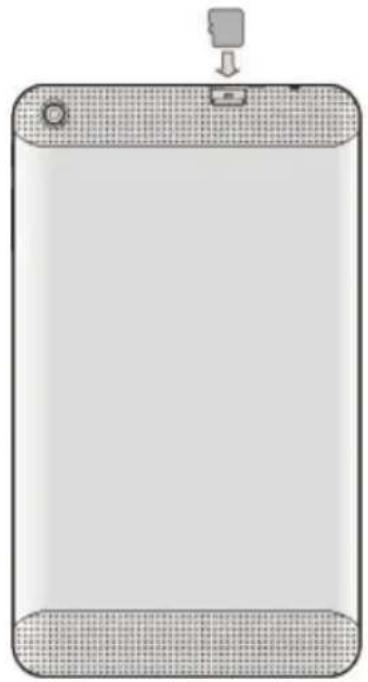
You may purchase the micro-SD card to increase the storage capacity of the tablet PC, please follow the steps below to insert or replace it:
- Locate the micro-SD card slot on the tablet PC as shown.
- Insert or replace the micro-SD card into the micro-SD card slot with correct direction as shown.
natural_image
Front view of a smartphone with a grid-patterned body and a small sensor attached (no text or symbols visible)◆ Basic Operations
Knowing the Display Features
Five-point-touch IPS Display with Digitizer (optional)
It is a tablet PC input device that allows the users to hand-draw images, animations and graphics, and it creates a one-for-one correspondence between the table PC and screen. Furthermore, it can detect the movements of the stylus pen and translate them into digital signals.
Display Lock
With a built-in G-sensor module, this IPS display gives users a more flexible way in viewing web pages, documents, pictures, videos, etc. Whenever the display is rotated, the screen will be rotated and expanded to fit the display automatically.
- Find the [Settings] icon on the desktop and tap it.
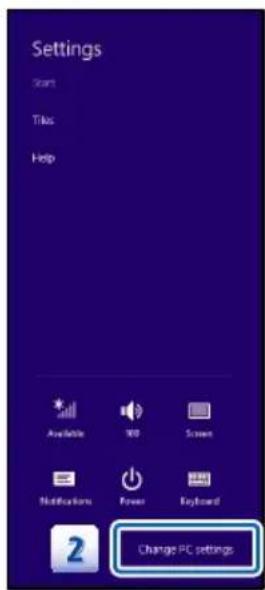
- Enter the [PC Settings] main page by tapping [Change PC Settings].
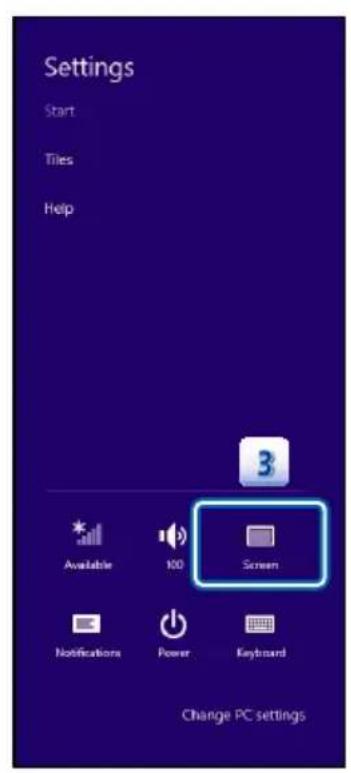
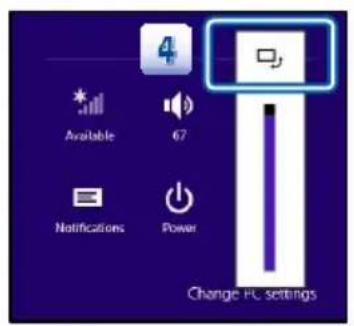
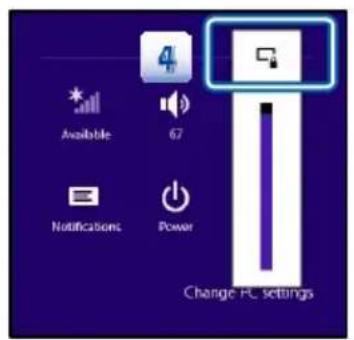
- Select this Screen icon to enable this function.
- Tap this icon again will lock the screen.
Knowing the Stylus Pen (Optional)
Your tablet PC is equipped with a stylus pen that is used to input commands and transmit actions to the tablet PC. The users are allowed to draw or trace an image with this stylus pen. It looks like a simple ballpoint pen but uses and electronic head instead of ink. Moreover, it improves the precision of the input and becomes more comfortable and easy.

natural_image
Illustration of a hand using a smartphone to write on a colorful app interface (no text or symbols visible)Wireless Activation
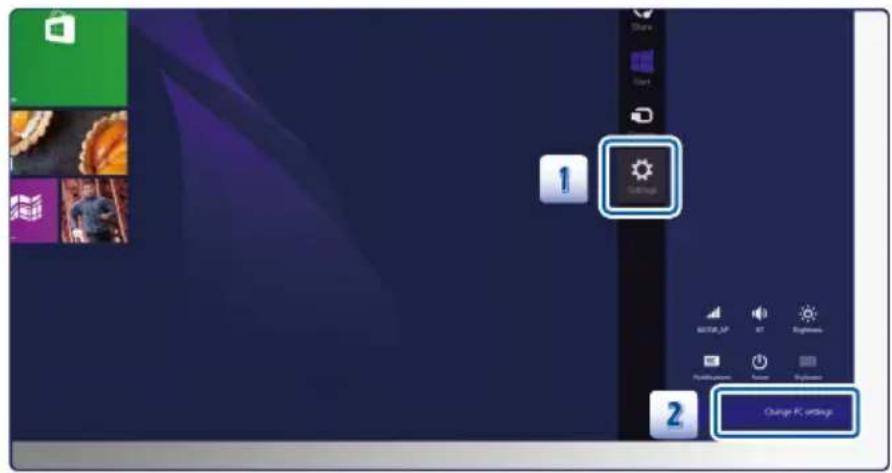
- Find the Settings icon on the desktop and click on it.
- Enter the PC settings main page by clicking on Change PC settings.
- Unfold the Airplane mode selections under Network.
- Make sure Airplane mode is set to OFF here.
- Turn the Wi-Fi or Bluetooth function on/off by sliding the function switch bar.
Refer to the Status LED to check the device status.
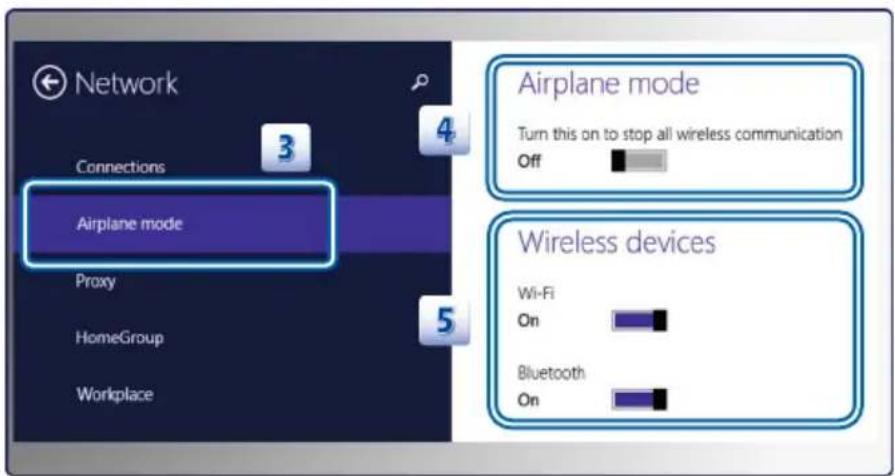
- When Airplane mode is set to ON, the Wi-Fi and Bluetooth function will be disabled at once.
- The information provided here is for reference only, and may vary without notice.


- Chapter 2: Introductions
- Chapter 3: Getting Started
- ◆ Regulations and Statements
- FCC-B Radio Frequency Interference Statement
- NOTE
- FCC Conditions
- FCC
- CE Conformity
- Battery Regulations
- Safety Guideline for Using Lithium Battery
- WEEE Statement
- ◆ Safety Instructions
- Green Product Features
- Environmental Policy
- Trademarks
- Revision History
- 2
- Introductions
- ◆ Manual Map
- Unpacking
- Product Overview
- Front Camera
- Touch Screen
- Internal Microphone
- Headphone Jack
- Micro-HDMI
- Micro-USB Port
- Volume
- Power/ Reset Button
- Rear Camera
- Micro-SD Card Slot
- Speaker
- Specification
- 3
- Getting Started
- Power Management
- AC Power
- Connecting the AC Power
- Battery Power
- Conserving Battery Power
- Charging the Battery Pack
- Power On
- Power Management in Windows OS
- - Inserting a Micro-SD card to Your Tablet PC
- ◆ Basic Operations
- Knowing the Display Features
- Five-point-touch IPS Display with Digitizer (optional)
- Display Lock
- Knowing the Stylus Pen (Optional)
- Wireless Activation
Brand : MSI
Model : S80 Note
Category : Tablet