KAL10D600PA - Laptop Kogan - Free user manual and instructions
Find the device manual for free KAL10D600PA Kogan in PDF.


User questions about KAL10D600PA Kogan
0 question about this device. Answer the ones you know or ask your own.
Ask a new question about this device
Download the instructions for your Laptop in PDF format for free! Find your manual KAL10D600PA - Kogan and take your electronic device back in hand. On this page are published all the documents necessary for the use of your device. KAL10D600PA by Kogan.
USER MANUAL KAL10D600PA Kogan
natural_image
Laptop and keyboard on a plain surface, displaying the Windows logo and application interface (no readable text or symbols on main objects)ATLAS 10.1" 2-in-1 D600
Touchscreen Laptop
KAL10D600PA
SAFETY & WARNINGS
- This production is suitable for use in non-tropic areas below 2,000 meters and the mark in the nameplate indicates the product is suitable for use in non-tropic areas.
• Do not drop or shake the Tablet PC. - Do not use the Tablet PC in extreme temperatures or in humid or dusty environments. Do not expose the Tablet PC to sunlight.
- Avoid use of the Tablet PC near strong magnetic fields as much as possible.
- Once any water or other liquid splashes onto the Tablet PC, turn it off immediately and do not use until it is dried.
- To avoid causing damage due to corrosion or dampness, do not clean the Tablet PC with any detergent containing chemical elements or other liquid. If cleaning is necessary, clean with dry soft cloth.
- Kogan.com does not bear any and all responsibilities for loss or deletion of material inside the machine caused due to abnormal software and hardware operation, maintenance or any other accident.
- Please back up your important data to an external device regularly to avoid loss.
- Please do not disassemble the Tablet PC by yourself; doing so will void the warranty.
- This product supports the majority of 3G Dongles. We cannot guarantee complete compatibility with all 3G Dongles.
- Quick Use Guide and software may be updated at any time. For updated software version, visit www.kogan.com
- Replacement with incorrect type batteries may cause explosion. Make sure to use original batteries.
Touchscreen Panel

natural_image
Front view line drawing of a tablet device with blank screen and buttons (no text or symbols)Keyboard Base

text_image
kogan D600 Esc ~ 1 2 @ 3 # 4 % 5 & 6 & 7 & 8 (9) 0 - + = ←Backspace Tab Q W E R T Y U 4 I 5 O 6 P / { } [ ] Caps Lock A S D F G H J 1 K 2 L 3 : - " , ← Enter Shift Z X C V B N M 0 < > - ? + ↑ Shift Ctrl Fn Alt Alt Edit ↓ →
text_image
Touchscreen Panel Front 11 1 2 3 4 5 6 7 8 9 10 Side Front Side1 Front camera Take photos and record pictures
2 Sound - / Sound + Decrease/Increase volume
3 Power button Press to start or close the touch screen panel. You can also put the computer into sleep mode using this button or wake from sleep mode.
4 Microphone For recording audio
5 Power Indicator Becomes brighter when charging
6 Power supply input Insert power supply to charge battery
7 Micro HDMI Interface High-Definition Multimedia Interface
8 USB 3.0 Interface For direct connections of USB drives or a USB mouse or keyboard
9 TYPE-CInterfacing connection type C
10 Loudspeaker The built-in loudspeaker enables you to hear the sound without having to connect external speakers
11 3.5mm audio jack This socket can transmit the audio signals of Tablet PC to external speakers or headphones

text_image
13 14Base view
text_image
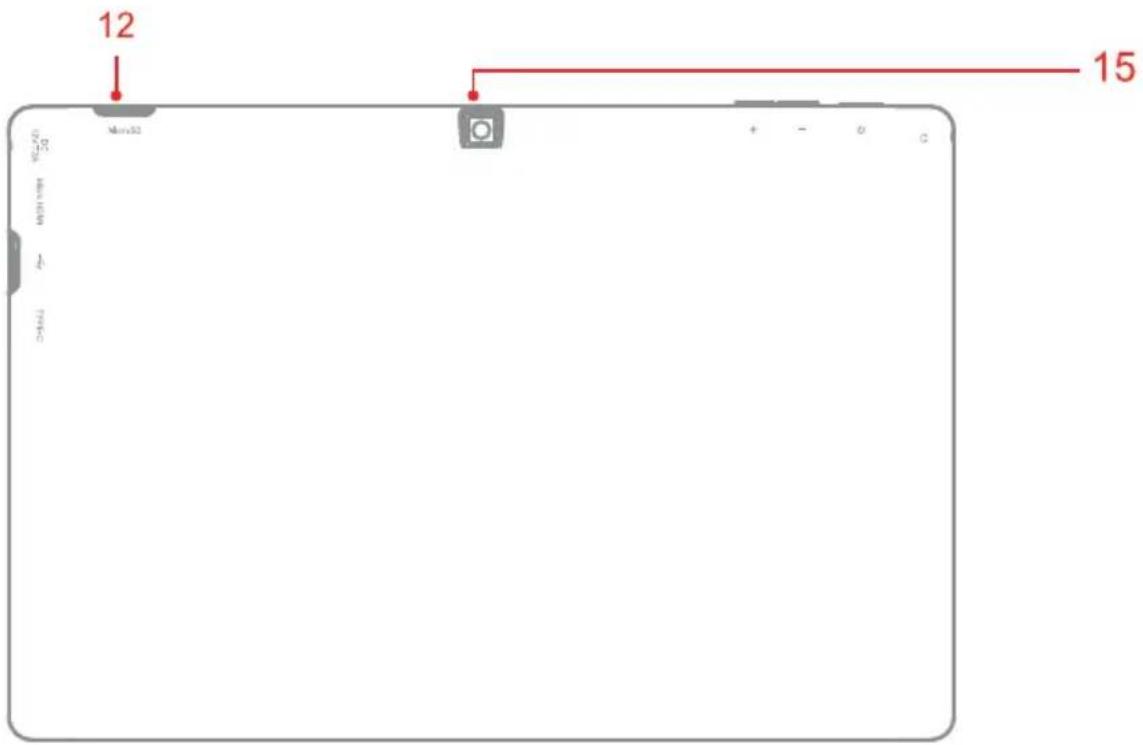
12 15 12 15 12 15Rear
12 MicroSD card slot
The built-in storage card reader slot supports MicroSD and MicroSDHC format
13 Movable base keyboard interface
This interface is magnetic, which is convenient for alignment and firmly linking the Table PC and the keyboard
14 Tablet/Keyboard Dock Latch
Secure the tablet to the keyboard base
15 Back camera
Take photos and record pictures
text_image
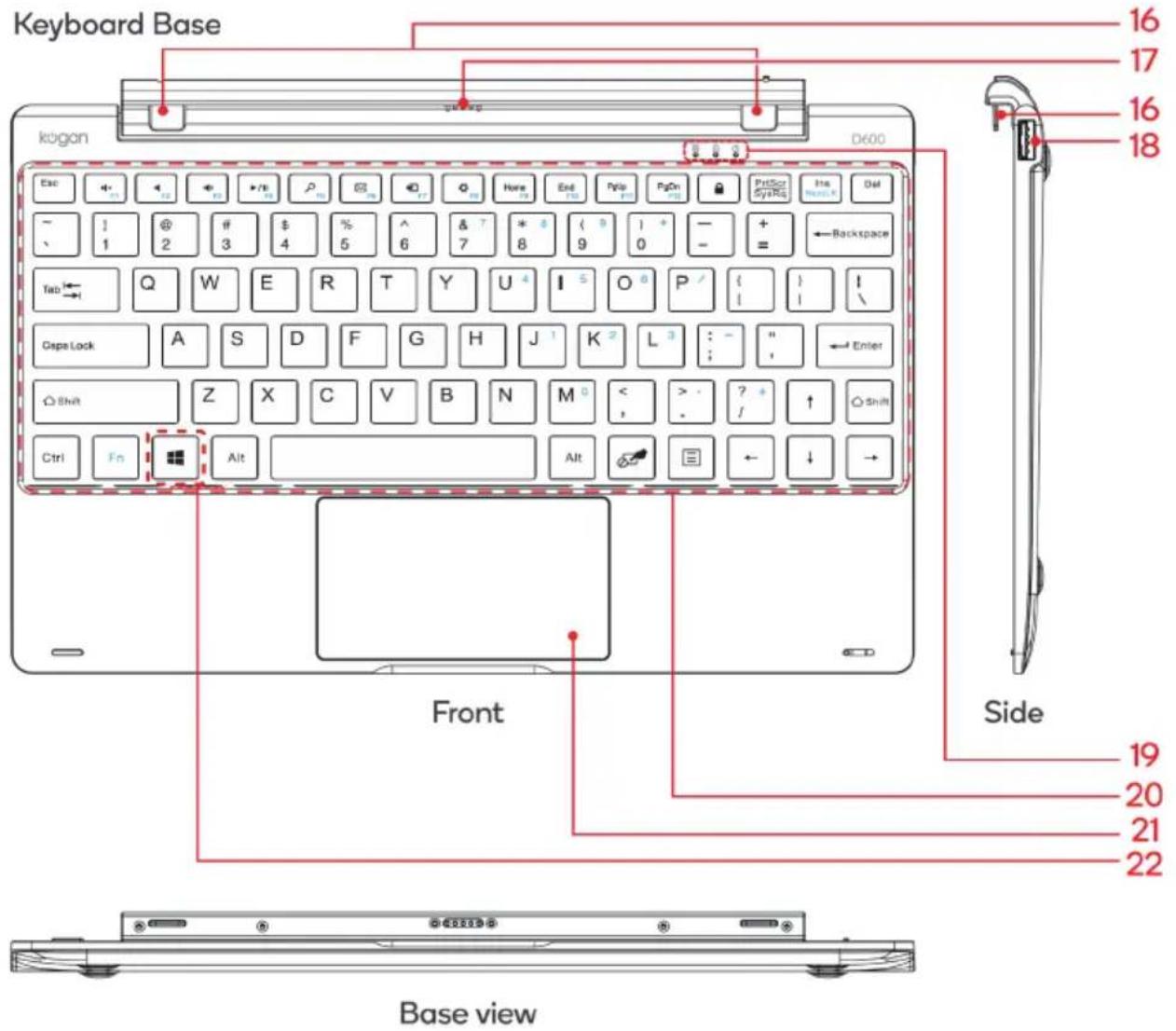
Keyboard Base 16 17 16 18 kugon D600 Esc Ecc Esc Esc +/- P P0 P0 End End PUp PUp PgOn Pg PfRSo PfRSo Ins Backspace Q W E R T Y U I O P { } # Cps Lock A S D F G H J K L : " Enter Shift Z X C V B N M < . ? / Shift Ctrl Fn Alt Alt Side 19 20 21 22 Front Base view16 Tablet/Keyboard Dock Latch Secure the tablet to the keyboard base
| 17 | Movable base keyboard interface | This interface is magnetic, which is convenient for alignment and firmly linking the Table PC and the keyboard |
| 18 | USB 2.0 Interface | For direct connections of USB drives or a USB mouse or keyboard |
| 19 | Indicator lights | Touchpad lock, Caps lock and Power indicator lights |
| 20 | QWERTY keyboard | Full size keyboard layout. Use Fn (function) key to access alternate key functions. |
| 21 | Touchpad | Used to control the cursor on the Tablet PC, with the same function as a mouse |
| 22 | Windows key | Press to return to the Start screen |
USING WINDOWS 11
Image slide applications
Slide to right

text_image
WelcomeSlide to the right from the left side of the screen to scan the application program in running.
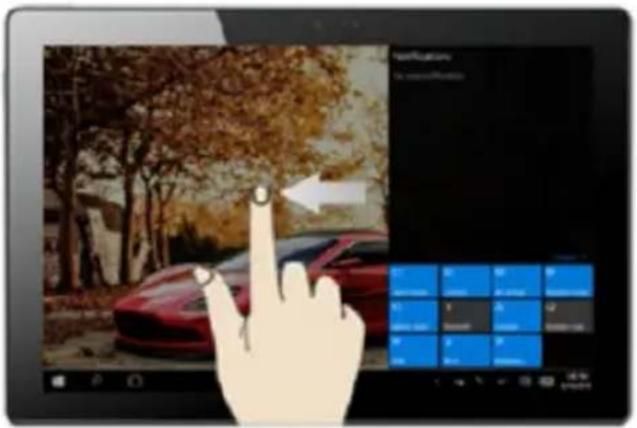
Slide to Left
text_image
Screenshot of a tablet displaying a car scene with a hand interacting with the screen, showing UI elements and a color palette.Slide to the left from the right side of the screen to setting Action Centre
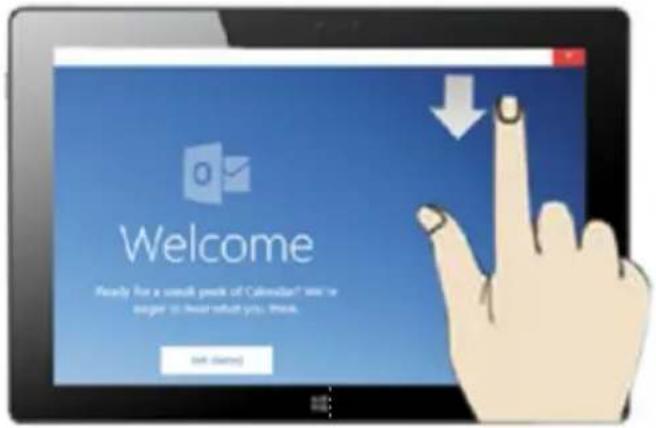
Slide Down
text_image
Welcome Ready for a consult people of Calendar? We're eager to your what you think. Left starts!Slide Up or Down

text_image
Tablet screen displaying a grid of digital interface icons with Chinese labels, including email, globe, headphones, and smart glasses.In start screen, slide from the top of the screen in start screen, slide finger up and down to view application programs to move the image.
Windows 11 start image
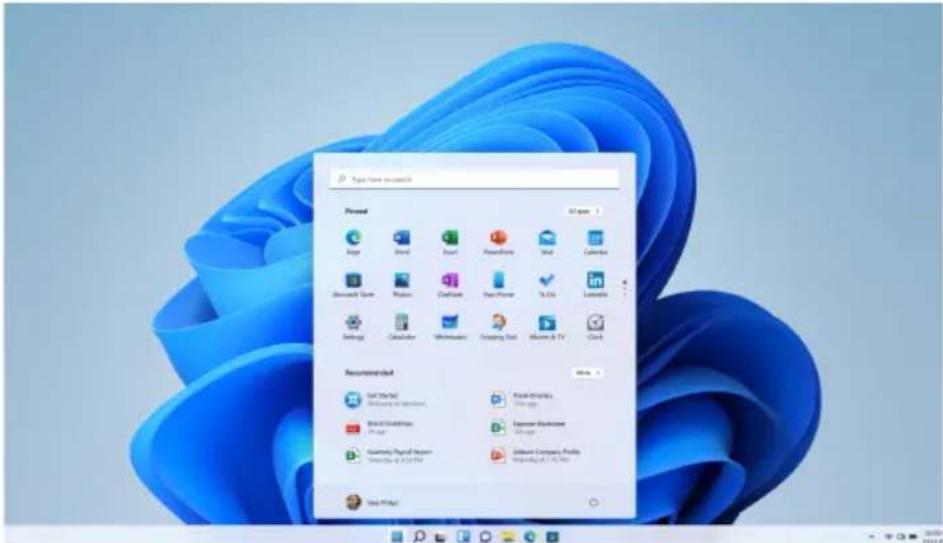
On the start screen, you will see many programs.
You may be prompted to log on to your Microsoft account before launching applications.
text_image
Powered Add Add Export PowerBar Mail Calendar Microsoft Word Python Oracle New Planer TikTok Logitech Settings Database Webmaster Google Text Mouse & TV Get Recommended Add Text Microsoft Word Microsoft Word Brand Framework P-Page Gaming Open Web Internet Explorer Microsoft Word 2.1.0.2014 Microsoft Express Microsoft Word 2.1.0.2014 You're not to use this image. Next PageIntroduction to app Interface
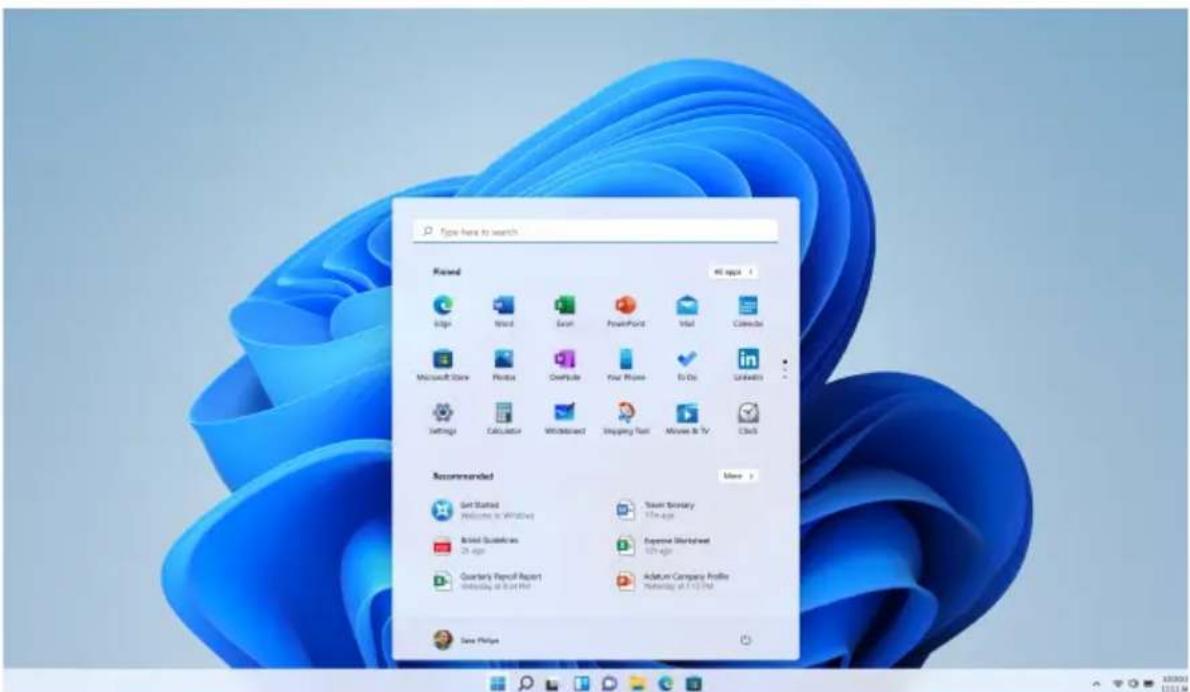
Besides the application programs already installed on the start screen, you can also start other application programs via the "All Applications" button, such as other software application programs installed on the Tablet PC.
text_image
Type here to search Fused 41 apps Edge Word Excel PowerPoint Vital Calendar Microsoft Store Flash2 Compuise Your Phone Do Go Unwinets Settings Calculator Withdrawn Shipping Cart Movie & TV Clicks Recommended Get Started Welcome to Windows Initial Guidelines On apps Quarterly Report Report Wednesday in 3rd PM Show Summary 50+ age Expense Worksheet 50+ age Adaptom Company Profile Wednesday in 3rd PM Save PhigeIf you want to place more applications on the start screen, follow the instructions below, (1) Click the properties icon (2) press and hold the application program icon for about one second and then let go (3) Click the Pin to start.

text_image
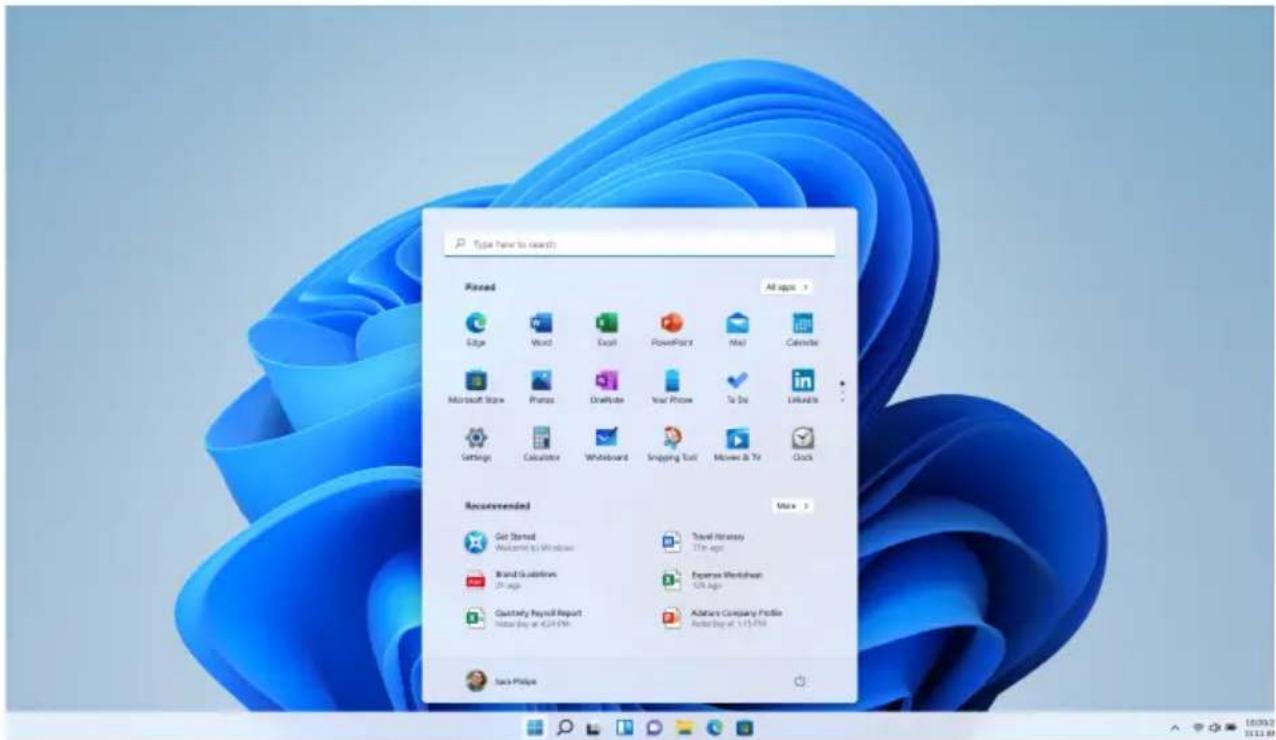
Type have to search Passed All posts > Edge Mail Excel PowerPoint Mail Calendar Microsoft Store Protus Graphics Your Phone To Do LinkEdit Settings Calculator Worksheet Snipping Tool Movies & Trt Click Recommended Get Started Workplace to Information Board Escalments 25 spct Quarterly Payroll Report Wednesday at 17:30 PM Travel Inventory 175 spct Expense Worksheet 25 spct Adams Company Profile Wednesday at 17:30 PM. SaaS PrivacyConversely, if you want to cancel or delete a certain application in the start screen, (1) press and hold the application icon for about one second and then let it go and run and select.
text_image
Type New to search Fixed All rights > Edge Word Excel PowerPoint Mail Calculate Microsoft Store Prints Draftbox Your Phone To Do Linkable Settings Calculator Wholesale Snapping Tool Movies & TV Click Recommended Get Started Welcome by Windows Brand Guidelines Win rights Quartly hybrid Report Hotter (log at 6:45 PM) Travel History 31th rights Expense Worksheet 1/8 rights Adverse Company Profile Author (log at 1:15 PM) Sara PhilipsStart Menu
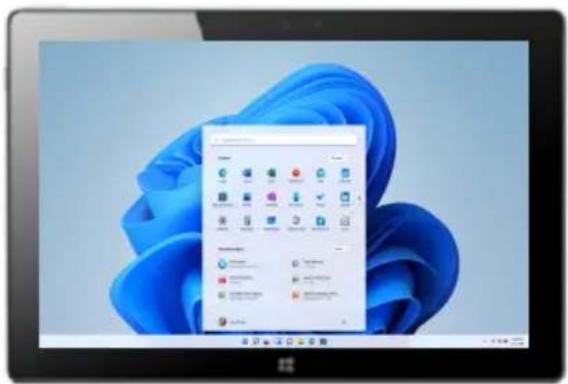
In PC mode, press Start icon, Start Menu will display, including: Start, Device, Setup, Share and Search Program.

text_image
Options Phased All apps Edge Word Excel PowerPoint Intel Calculator Microsoft Store Photos Searchbox Your Phone To Be Unknown Settings Calculator Withdrawn Shopping Button Mouse in TV Click Recommended Get Started Windows in Microsoft Start Guidelines 3rd ago Quinty Report Report Wednesday at 10:45 PM Start Summary This ago System Wizard One-day Adobe Company Profile Wednesday at 10:45 PM Get PreviewFile Explorer, Settings, Power and All apps

Power
Can Sleep/Shut down/Restart the Tablet PC

File Explorer
Search for files and application programs in the Tablet PC.

Settings
Can let you set up the Table PC.

All apps
Can scan more apps
Search Menu
text_image
Windows XP desktop screenshot showing the Start menu with icons and a blue cloud graphic overlay.Setup Menu
Action Centre

text_image
Windows XP desktop screenshot showing the Start menu with icons and a blue cloud graphic overlay.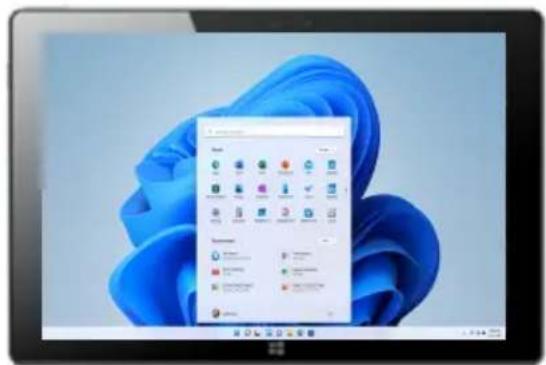
text_image
Windows XP desktop screenshot showing the Start menu with icons and a blue cloud graphic overlayMultitasking operating interface
Slide right from the left side of the screen, the let go when you can see the running applications. Here you can enter the application, and also delete applications.

text_image
Tips have to search Purchased Loga Word Excel PowerPoint Mail Calendar Microsoft Store Photos Downloads Visa Phone Do Do LinkedIn Settings Calculator Winchboard Singing Tool Movies & TV Clock Recommended Get Started Application by Windows Stream Guidelines 21.023 Quarterly Payroll Report September at 4Q4 PM Travel Summary VTC logo Expense Workforce OK logo Addition Company Profile September at 11:5 PM Sara PhilipsSPECIFICATIONS
Audio
Speaker 2 x 1W
Connectivity
Bluetooth Yes
Bluetooth Version 4.2
Wi-Fi Yes
Wi-Fi Protocols WIFI 802.11b/g/n/ac
Dimensions
Dimensions 287.30 x 180.50 x 10mm
Display
Screen Size 10.1"
Screen Resolution 800x1280 IPS
Touch Screen Yes
Features
Built-In Webcam Yes
Convertible Yes
Detachable Yes
Inputs/Outputs
Headphone Jack YES
Micro HDMI 1x1.4a
USB 3.0 1
USB Type C 1
microSD Yes | Max. 128GB
Performance
| CPU | Intel Celeron Processor N4020 |
| CPU Speed | 1.1G~2.8GHz |
| GPU | Intel UHD Graphics 600 |
| Operating System | Windows 11 Pro |
| System Memory (RAM) | 4GB |
Power
| Battery Capacity | 3000mAh |
| Battery Type | Lithium-ion polymer battery |
Storage
| Storage Capacity | 64GB |
| Storage Type | eMMC |
NOTES
Need more information?
We hope that this user guide has given you
the assistance needed for a simple set-up.
For the most up-to-date guide for your product, as well as any additional assistance you may require,
head online to help.kogan.com
kogan.com