N370 - Laptop Kogan - Free user manual and instructions
Find the device manual for free N370 Kogan in PDF.


| Product Type | Laptop |
| Brand | Kogan |
| Model | N370 (KAL14N370PA) |
| Display Size | 14.1" |
| Display Resolution | 1366 x 768 |
| Processor | Intel Celeron N4020 (1.1-2.8 GHz) |
| Graphics | Intel UHD Graphics 600 |
| Operating System | Windows 11 Pro |
| System Memory (RAM) | 4 GB |
| Storage Capacity | 64 GB eMMC |
| Expandable Storage | 1x 2.5" SATA 3.0 HDD slot (up to 1 TB, 7.5 mm height) |
| Battery | 5000 mAh Lithium-ion polymer |
| Power Adapter | 12V, 3A |
| Ports | 1x USB 3.0, 1x USB 2.0, 1x Mini HDMI 1.4a, 1x 3.5mm audio, 1x microSD card slot (up to 128 GB), 1x charging port |
| Connectivity | Wi-Fi 802.11b/g/n/ac, Bluetooth 4.2 |
| Audio | 2x 1W speakers, twin microphones |
| Camera | Built-in webcam |
| Keyboard | QWERTY with function keys (Fn + F5 mute, etc.) |
| Input Devices | Trackpad with left/right buttons |
| Dimensions | 329 x 219 x 22.8 mm |
| Weight | 1.26 kg |
| Operating Temperature | Up to 45°C; avoid humid or dusty environments |
| Safety | Use only original adapter; do not disassemble; avoid liquids; backup data regularly |
| Cleaning | Dry soft cloth; no chemical detergents |
| Warranty Information | Refer to included warranty card; contact help.kogan.com for support |
Frequently Asked Questions - N370 Kogan
User questions about N370 Kogan
0 question about this device. Answer the ones you know or ask your own.
Ask a new question about this device
Download the instructions for your Laptop in PDF format for free! Find your manual N370 - Kogan and take your electronic device back in hand. On this page are published all the documents necessary for the use of your device. N370 by Kogan.
USER MANUAL N370 Kogan
ATLAS 14.1" N370 LAPTOP
WITH WINDOWS 11 PRO (4GB, 64GB)
KAL14N370PA
SAFETY & WARNINGS
Ensure to read all instructions and warnings in this user guide prior to first use. Retain this user guide for future reference.
- This laptop is suitable for use in non-tropical areas below 2,000 metres.
- The supplied power adapter requires 12V and 3A to charge the laptop. Do not use any third party adapters to charge the laptop.
- Do not drop the laptop.
- Do not have the laptop strongly impacted by heavy objects or surroundings.
- Do not use the laptop for long periods in any environment where it is too cold, too hot (>45°C), highly humid, or dusty.
- Do not expose the laptop to direct sunlight.
- Avoid using the laptop in areas with strong magnetic or static fields.
- Do not allow water or any other liquid to touch the laptop. If any water or other liquid splashes onto the laptop, close it immediately and unplug the power adapter. Do not use the laptop until it is completely dry.
- Do not attempt to modify or disassemble the laptop yourself.
- Regularly backup data stored in the laptop to avoid the risk of accidental data loss.
- Do not clean the laptop with any chemical detergents or other liquids to avoid causing damage.
- Replacing the laptop battery with the incorrect type may result in an explosion. Ensure to only use the original batteries. If further assistance is needed, contact help.Kogan.com.
CLEANING & CARE
Ensure the laptop is switched off before cleaning.
Wipe the laptop surface with a dry, soft cloth or paper towel.
COMPONENTS
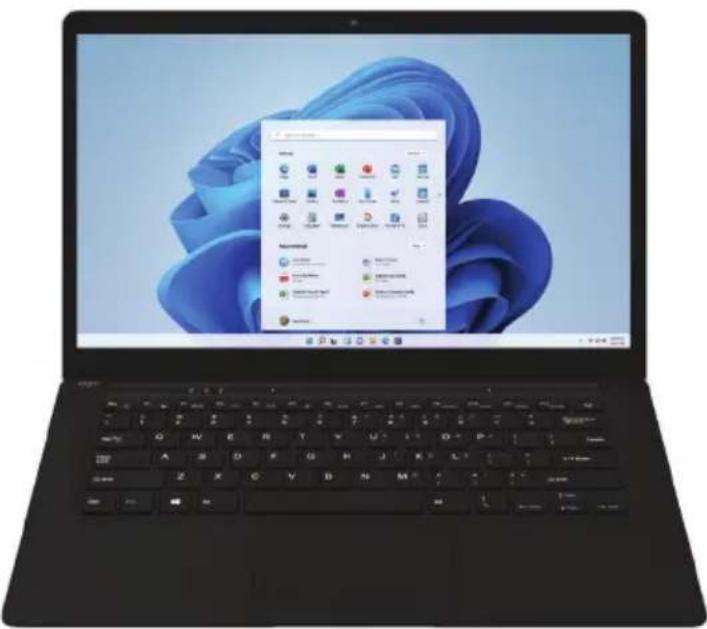
Laptop
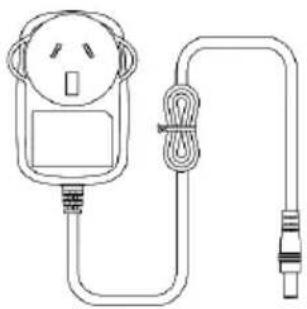
natural_image
Simple line drawing of a power plug connected to a cable and plug (no text or symbols)Power adapter
User guide
Warranty card
OVERVIEW
Front view
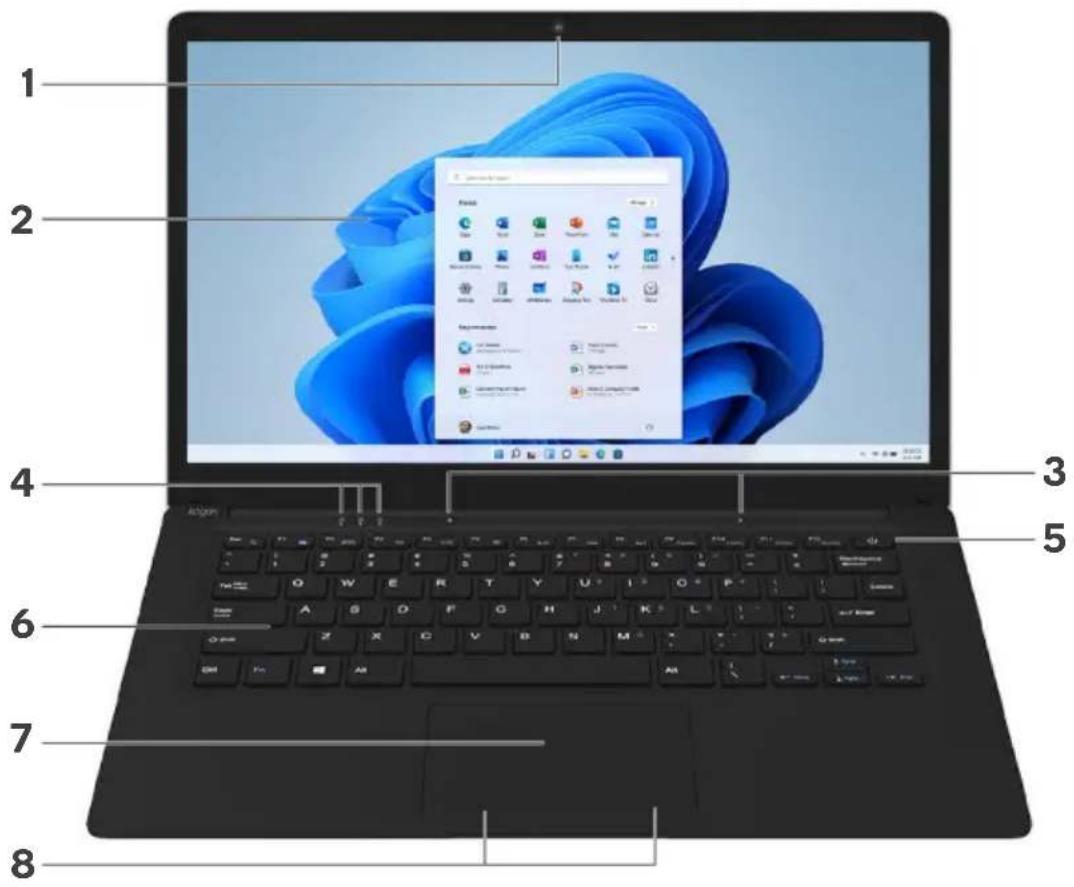
| No. | Name | Description |
| 1 | Camera | Used for photos, recording video, and video calls. |
| 2 | Display | HD LCD display panel |
| 3 | Microphones | Built-in twin microphones can be used to record audio and interact in video calls. |
| 4 | Indicator lights | These respective indicators will illuminate when power, caps lock, or the digital key lock is used. |
| 5 | Power button | Used to control the power status of the laptop. |
| 6 | Keyboard | QWERTY keyboard with Windows key and function options (for example, press Fn + F5 to mute audio playback). |
| 7 | Trackpad | Used as a mouse for on-screen navigation and gestures. |
| 8 | Left/right trackpad buttons | Used as the left and right-click buttons of a traditional mouse. |
Left view
Right view
| No. | Name | Description |
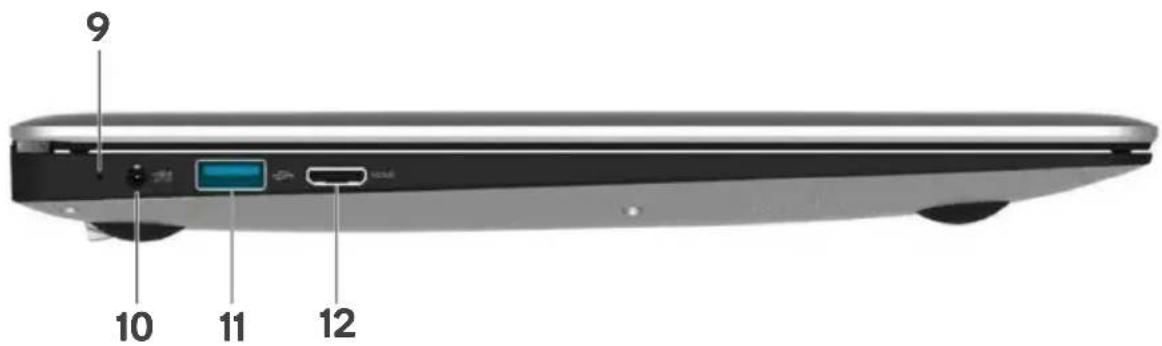
| 9 | Charging indicator | Illuminates red when the laptop is being charged. |
| 10 | Charging port | Plug the power adapter into the charging port to charge the laptop. |
| 11 | USB 3.0 port | Input for flash drives, additional keyboard/mouse, and other compatible devices supporting USB 3.0 or older. |
| 12 | Mini HDMI port | Suitable for connecting a TV or external monitor using a mini HDMI cable (not supplied). |
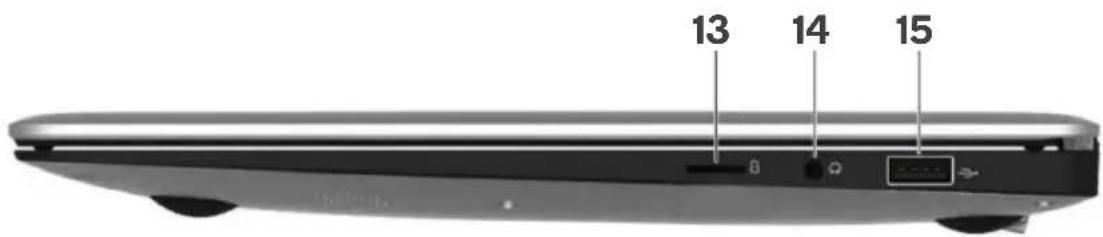
| 13 | microSD card slot | microSD card reader suitable for transferring files. |
| 14 | 3.5mm audio port | Suitable for connecting audio devices (for example, headphones, external speakers, amplifiers) using an AUX cable (not supplied). |
| 15 | USB 2.0 port | • Input for flash drives, additional keyboard/mouse, and other compatible devices.• This port does not support devices using USB 3.0 or newer. |
Bottom view
| No. | Name | Description |
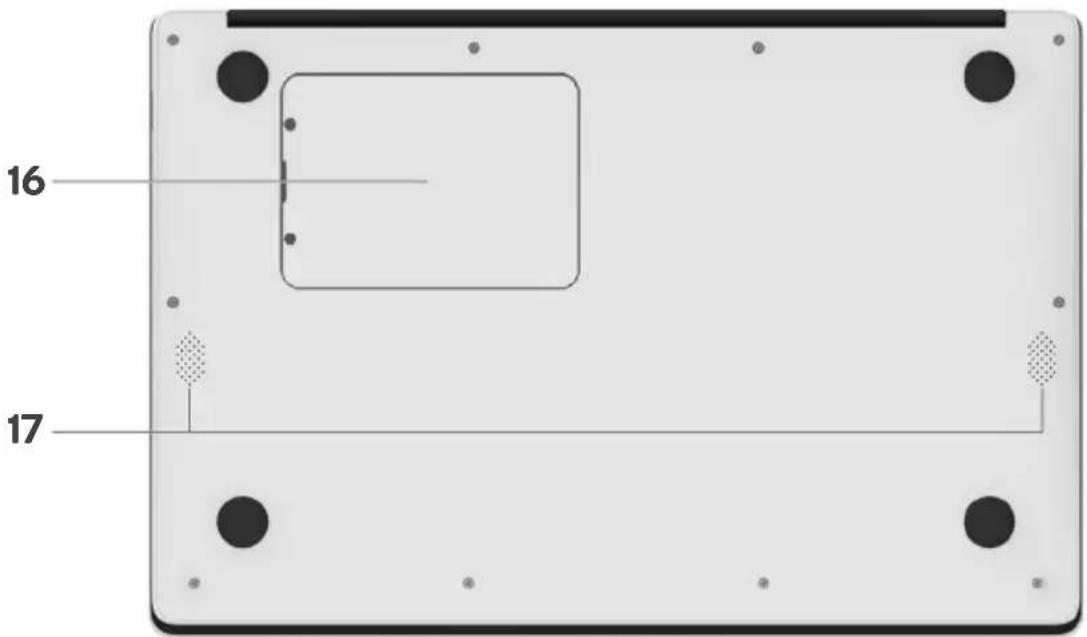
| 16 | HDD expansion slot | Expansion slot for internal storage. This laptop fits a 7.5mm (2.5") SATA 3.0 HDD with a maximum capacity of 1TB and is not compatible with other sizes. |
| 17 | Speakers | Two built-in speakers allowing for stereo audio output. |
GETTING STARTED
Plug one end of the power adapter into the charging port then plug the other end into a power outlet. Switch the power on at the outlet.
The charging indicator should illuminate red.
Note:
Ensure to charge the laptop for at least 3 hours prior to turning it on for the first time.
Press the power button to turn on the laptop. When the laptop is turned on for the first time, you may be asked to set up Windows 11. Follow the on-screen prompts to complete the setup.
USING WINDOWS 11
Desktop
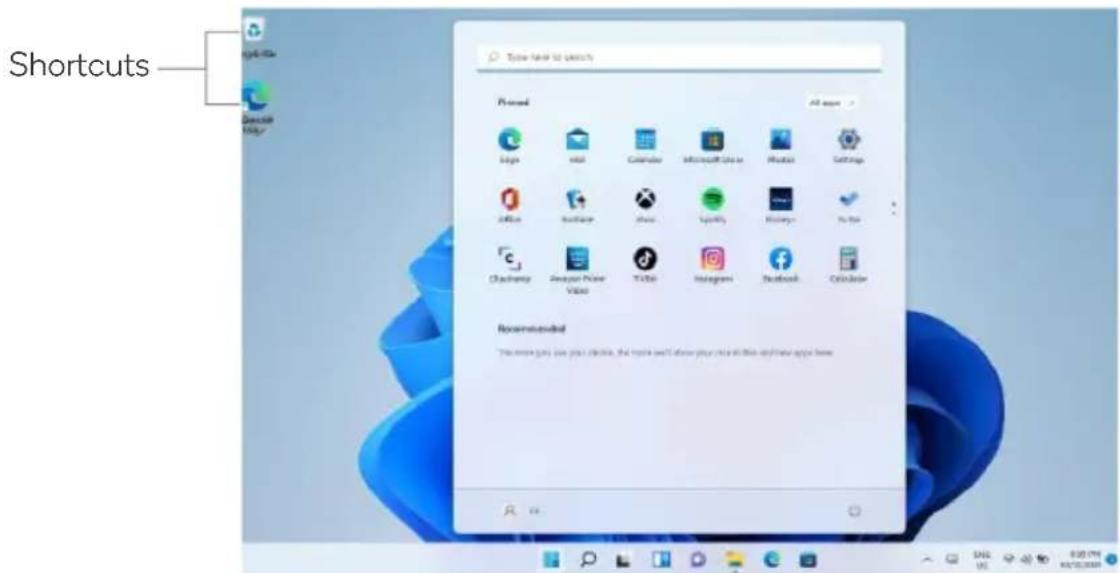
Once setup has finished, the laptop will boot onto the desktop. There may be icons on the desktop. These act as shortcuts to access applications. They can be accessed by double-clicking on the shortcut.
Note:
You may need to log into your Microsoft account for programs to run with full compatibility.
Start menu
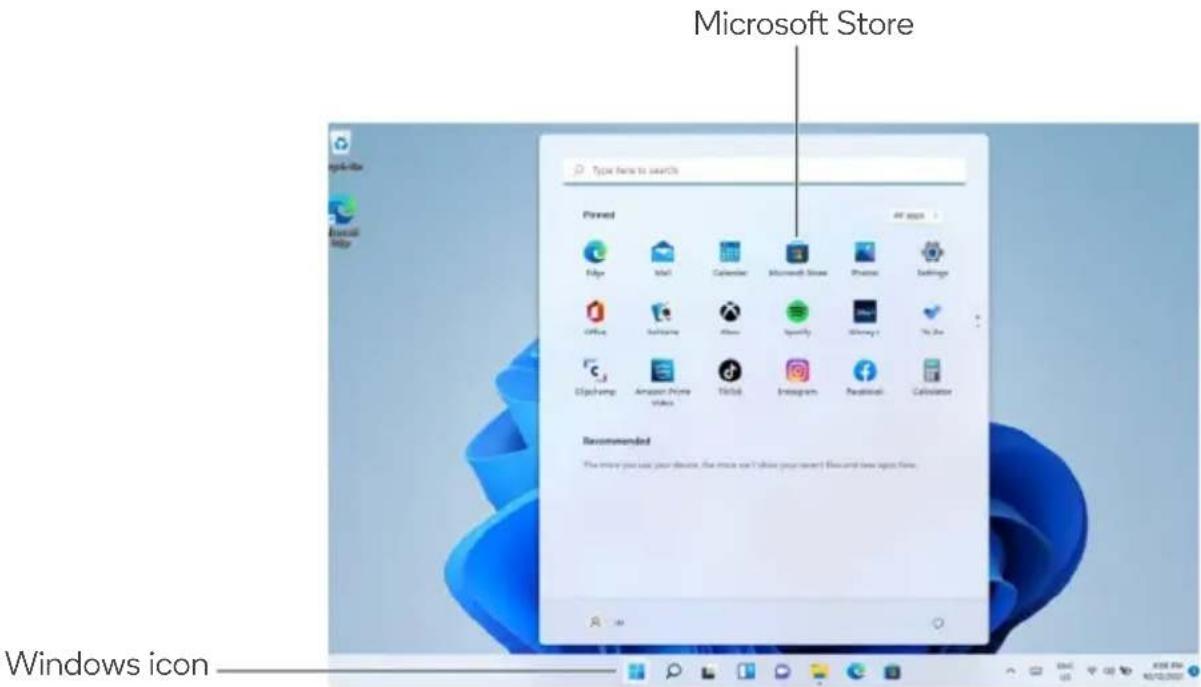
Click on the Windows icon at the bottom of the screen to bring up the start menu.
Apps already installed on the computer can be accessed via the start menu. Recently used apps will be listed under the 'Recent' heading in the start menu for easy access.
More apps can be installed via the Microsoft Store.
Notification menu
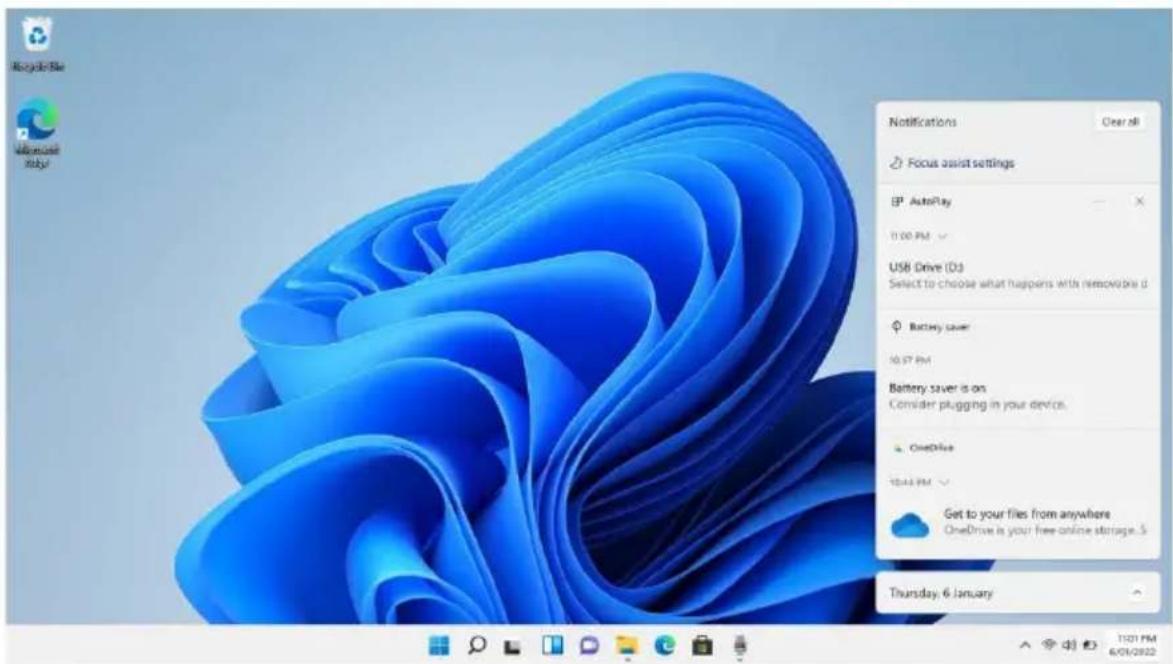
The notification menu is accessible by clicking on the time/date in the lower-right corner of the screen. It will show notifications such as updates, emails received, calendar reminders, and allows for quick access to settings (for example, Wi-Fi, Bluetooth, brightness).
Multitasking
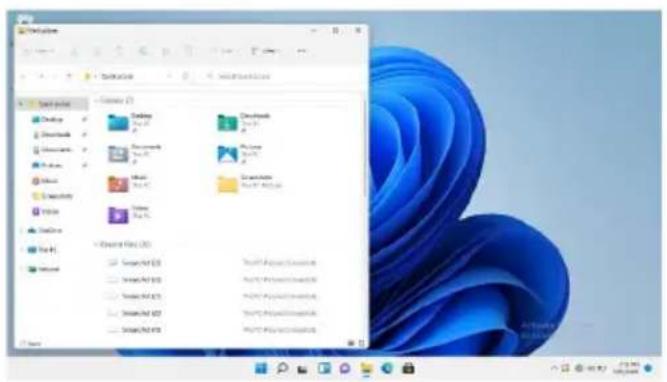
Drag one window to the left or right side of the screen and let go when you can see an overlay of the window around half of the screen. You can then select another open window to fill the free space on the other half of the screen.
Sleep, restart and shut down
Click on the Windows icon on the bottom of the screen, then click on the power icon. Click on 'Sleep', 'Restart' or 'Shut Down' to perform the appropriate action.
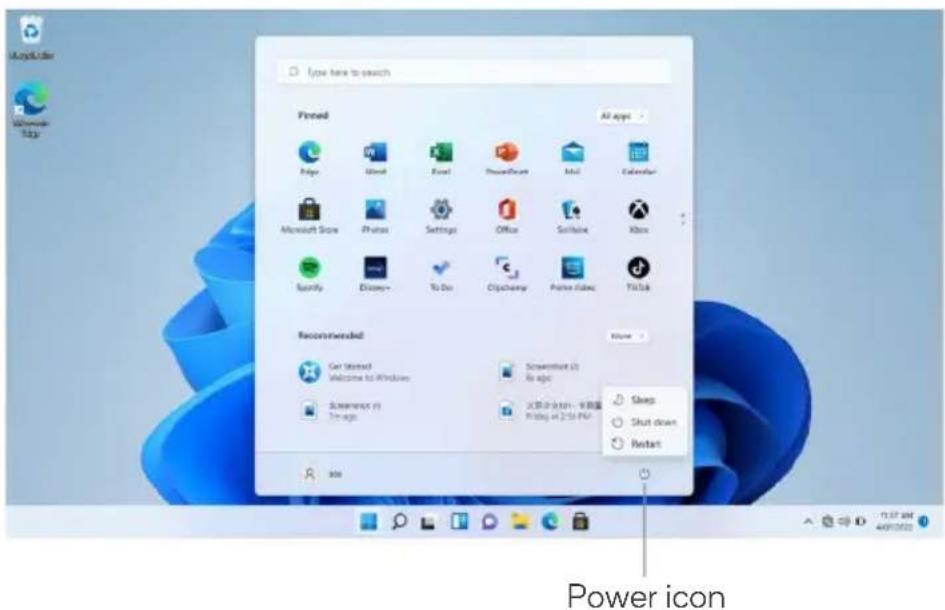
To wake up the laptop from sleep, press the power button. If the laptop is unresponsive, press and hold down the power button to shut down the laptop. Press the power button again to turn the laptop back on.
INSTALLING AN HDD
This laptop fits a 7.5mm (2.5") SATA 3.0 HDD with a maximum capacity of 1TB and is not compatible with other sizes.
Ensure the laptop is turned off before installing an external HDD (not supplied).
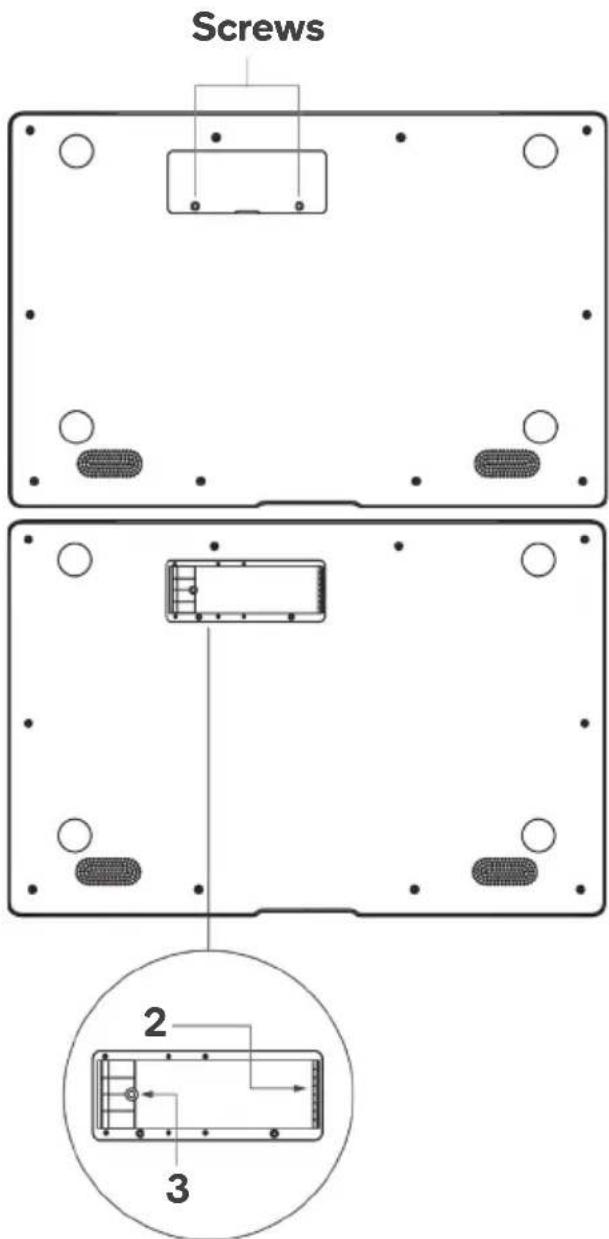
- Flip the laptop over and remove the two screws holding the HDD cover in place. Remove the cover.
- Place your HDD with the contacts facing on the right. This is where the contacts of the laptop are located. Slide the HDD to the right to install.
- Use the existing threading to screw the HDD into place. Once secured, place the cover back into position and resecure the screws removed from step 1.
Notes:
- Your HDD may be inserted with either side facing up, however, only one orientation will function correctly with the laptop. If you are unable to detect your HDD with one orientation, try to change the orientation of the HDD to show the other side.
- Be careful not to damage the contacts.
• Images are used for reference only.
TROUBLESHOOTING
The laptop is not turning on
- The battery may have depleted. Charge for at least an hour before attempting to turn the laptop back on.
- Make note if any lights turn on, or if any internal components like fans turn on.
Note:
If in storage for extended periods of time, it is recommended to periodically charge the laptop to keep the battery capacity high, as batteries naturally deteriorate and eventually die over time.
The laptop is not charging
Inspect the laptop, charging port, and power adapter for any physical damage. If damaged, stop use immediately and contact help.Kogan.com for assistance.
The laptop is not connecting to Wi-Fi
- Restart your modem/router, or both if you have separate units.
- Reconnect any range extenders that may be in use.
- Restart the laptop.
- Move the laptop closer to the modem/router.
- Double-check that the Wi-Fi password is correct.
- If you can connect to Wi-Fi but it is running very slowly or has a weak signal, disconnect the laptop from the Wi-Fi network and reconnect.
The laptop screen becomes dark when the power adapter is unplugged
This will be occurring due to your power plan settings. Go to the Control Panel and change your power plan settings to allow the screen to remain on when the laptop is not charging/unplugged.
Forgotten password
There are several options to reset a Microsoft password.
• Using a password reset disc via USB.
- Resetting the Microsoft account password online with another device.
- Resetting Windows 11 back to the factory default. Be aware that doing this will delete all personal data stored on the laptop.
SPECIFICATIONS
Display
Screen size 14.1"
Screen resolution 1366 x 768
Performance
CPU Intel® Celeron® Processor N4020
CPU speed 1.1–2.8GHz
GPU Intel® UHD Graphics 600
Operating system Windows 11 Pro
System memory (RAM) 4GB
Power
Battery capacity 5000mAh
Battery type Lithium-ion polymer battery
Storage
HDD slot 7.5cm (2.5") SATA HDD up to 1TB
Storage capacity 64GB
Storage type eMMC
Ports
3.5mm audio port Yes
Mini HDMI x1, 1.4a
USB 2.0 x1
USB 3.0 x1
MicroSD card slot Yes, up to 128GB
Connectivity
Bluetooth Yes, V4.2
Wi-Fi Yes
Wi-Fi protocols 802.11b/g/n/ac
Audio
Speaker x2,1W
Other
Dimensions 329 x 219 x 22.8mm
Weight 1.26kg
Built-in webcam Yes
NOTES
The Ground Truth image displays a single, solid horizontal line. According to Rule 2 (UNDERSCORE & LINE RULES), this is a stylistic or background line, not a placeholder underscore. Therefore, the OCR result must ignore it and output nothing or only meaningful text. The provided OCR content is "____", which consists of four underscores. This is an incorrect interpretation of the line as a fill-in-the-blank placeholder, violating the rule that stylistic lines must be ignored. The OCR has hallucinated underscores where none should exist based on the GT's visual context. Hence, the OCR result is inconsistent with the Ground Truth.
[Non-Text]
[Non-Text]
The Ground Truth image displays a single, continuous horizontal line, which is a stylistic or background element (like a ruled paper line). According to Rule 2, such lines must be ignored by the OCR result. The provided OCR content is "____", which consists of underscores. Underscores are not equivalent to a solid line and are not permitted under the “Stylistic/Background Lines (Ignore)” rule. Outputting underscores for a stylistic line is incorrect because it misinterprets the line as a fill-in-the-blank placeholder. Therefore, the OCR result is inconsistent with the Ground Truth.
[Non-Text]
[Non-Text]
The Ground Truth image displays a single, continuous horizontal line, which is a stylistic or background element (like a ruled paper line). According to Rule 2, such lines must be ignored by the OCR result. The OCR content provided is "", which consists of no characters. Since the OCR output correctly ignores the stylistic line, it complies with Rule 2. Therefore, the OCR result is consistent with the Ground Truth.
[Non-Text]
[Non-Text]
[EMPTY]
[Non-Text]
[Non-Text]
The Ground Truth image displays a single, continuous horizontal line, which is a stylistic or background element (like a ruled paper line). According to Rule 2, such lines must be ignored by the OCR result. The provided OCR content is "____", which consists of underscores. Underscores are not equivalent to a solid line and are not permitted under the “Stylistic/Background Lines (Ignore)” rule. Outputting underscores for a stylistic line is incorrect because it misinterprets the line as a fill-in-the-blank placeholder. Therefore, the OCR result is inconsistent with the Ground Truth.
[Non-Text]
[Non-Text]
The Ground Truth image displays a single, continuous horizontal line, which is a stylistic or background element (like a ruled paper line). According to Rule 2, such lines must be ignored by the OCR result. The provided OCR content is "____", which consists of underscores. Underscores are not equivalent to a solid line and are not permitted under the “Stylistic/Background Lines (Ignore)” rule. Outputting underscores for a stylistic line is incorrect because it misinterprets the line as a fill-in-the-blank placeholder. Therefore, the OCR result is inconsistent with the Ground Truth.
[Non-Text]
[Non-Text]
____
[Non-Text]
[Non-Text]
The Ground Truth image displays a single, continuous horizontal line, which is a stylistic or background element (like a ruled paper line). According to Rule 2, such lines must be ignored by the OCR result. The provided OCR content is "____", which consists of underscores. Underscores are not equivalent to a solid line and are not permitted under the “Stylistic/Background Lines (Ignore)” rule. Outputting underscores for a stylistic line is incorrect because it misinterprets the line as a fill-in-the-blank placeholder. Therefore, the OCR result is inconsistent with the Ground Truth.
[Non-Text]
[Non-Text]
The Ground Truth image displays a single, continuous horizontal line, which is a stylistic or background element (like a ruled paper line). According to Rule 2, such lines must be ignored by the OCR result. The provided OCR content is "____", which consists of underscores. Underscores are not equivalent to a solid line and are not permitted under the “Stylistic/Background Lines (Ignore)” rule. Outputting underscores for a stylistic line is incorrect because it misinterprets the line as a fill-in-the-blank placeholder. Therefore, the OCR result is inconsistent with the Ground Truth.
[Non-Text]
[Non-Text]
The Ground Truth image displays a single, continuous horizontal line, which is a stylistic or background element (like a ruled paper line). According to Rule 2, such lines must be ignored by the OCR result. The provided OCR content is "____", which consists of underscores. Underscores are not equivalent to a solid line and are not permitted under the “Stylistic/Background Lines (Ignore)” rule. Outputting underscores for a stylistic line is incorrect because it misinterprets the line as a fill-in-the-blank placeholder. Therefore, the OCR result is inconsistent with the Ground Truth.
[Non-Text]
[Non-Text]
The Ground Truth image displays a single, solid horizontal line. According to Rule 2 (UNDERSCORE & LINE RULES), this is a stylistic or background line, not a placeholder underscore. Therefore, the OCR result must ignore it and output nothing or only meaningful text. The provided OCR content is "____", which consists of four underscores. This is an incorrect interpretation of the line as a placeholder, violating the rule that stylistic lines must be ignored. The OCR has hallucinated underscores where none should exist based on the GT's visual context. Hence, the OCR result is inconsistent with the Ground Truth.
[Non-Text]
[Non-Text]
The Ground Truth image displays a single, solid horizontal line, which is a stylistic or background element (like a ruled paper line or separator), not a placeholder for text. According to Rule 2, such stylistic/background lines must be ignored by the OCR result. The OCR content provided is "", which consists of no characters. This correctly represents the absence of any textual content in the GT and correctly matches the visual line as a stylistic element. Therefore, the OCR output should have been empty or omitted this line entirely.
[Non-Text]
[Non-Text]
[Non-Text]
The Ground Truth image displays a single, solid horizontal line. According to Rule 2 (UNDERSCORE & LINE RULES), this is a stylistic or background line, not a placeholder underscore. Therefore, the OCR result must ignore it and output nothing or only meaningful text. The provided OCR content is "____", which consists of four underscores. This is an incorrect interpretation of the line as a placeholder, violating the rule that stylistic lines must be ignored. The OCR has hallucinated placeholder underscores where none exist in the GT. Hence, the OCR result is inconsistent with the Ground Truth.
[Non-Text]
[Non-Text]
The Ground Truth image displays a single, continuous horizontal line, which is a stylistic or background element (like a ruled paper line). According to Rule 2, such lines must be ignored by the OCR result. The provided OCR content is "____", which consists of underscores. Underscores are not equivalent to a solid line and are not permitted under the “Stylistic/Background Lines (Ignore)” rule. Outputting underscores for a stylistic line is incorrect because it misinterprets the line as a fill-in-the-blank placeholder. Therefore, the OCR result is inconsistent with the Ground Truth.
[Non-Text]
The Ground Truth image displays a single, solid horizontal line. According to Rule 2 (UNDERSCORE & LINE RULES), this is a stylistic or background line, not a placeholder underscore. Therefore, the OCR result must ignore it and output nothing or only meaningful text. The provided OCR content is "____", which consists of four underscores. This is an incorrect interpretation of the line as a placeholder, violating the rule that stylistic lines must be ignored. The OCR has hallucinated placeholder underscores where none should exist in the GT. Hence, the OCR result is inconsistent with the Ground Truth.
The Ground Truth image displays a single, solid horizontal line. According to Rule 2 (UNDERSCORE & LINE RULES), this is a stylistic or background line, not a placeholder underscore. Therefore, the OCR result must ignore it and output nothing or only meaningful text. The provided OCR content is "____", which consists of four underscores. This is an incorrect interpretation of the line as a fill-in-the-blank placeholder, violating the rule that stylistic lines must be ignored. The OCR has hallucinated underscores where none should exist based on the GT's visual context. Hence, the OCR result is inconsistent with the Ground Truth.
[Non-Text]
The Ground Truth image displays a single, solid horizontal line. According to Rule 2 (UNDERSCORE & LINE RULES), this is a stylistic or background line, not a placeholder underscore. Therefore, the OCR result must ignore it and output nothing or only meaningful text. The provided OCR content is "____", which consists of four underscores. This is an incorrect interpretation of the line as a placeholder, violating the rule that stylistic lines must be ignored. The OCR has hallucinated placeholder underscores where none should exist in the GT. This is a formatting error: the OCR should have output nothing for this line. Therefore, the OCR result is inconsistent with the Ground Truth.
[Non-Text]
Need more information?
We hope that this user guide has given you the assistance needed for a simple set-up.
For the most up-to-date guide for your product, as well as any additional assistance you may require, head online to help.kogan.com
kogan.com
- ATLAS 14.1" N370 LAPTOP
- SAFETY & WARNINGS
- CLEANING & CARE
- COMPONENTS
- OVERVIEW
- Bottom view
- GETTING STARTED
- Note:
- USING WINDOWS 11
- Desktop
- Start menu
- Notification menu
- Multitasking
- Sleep, restart and shut down
- INSTALLING AN HDD
- Notes:
- TROUBLESHOOTING
- The laptop is not turning on
- The laptop is not charging
- The laptop is not connecting to Wi-Fi
- The laptop screen becomes dark when the power adapter is unplugged
- Forgotten password
- SPECIFICATIONS
- Display
- Performance
- Power
- Storage
- Ports
- Connectivity
- Audio
- Other
- NOTES
- Need more information?
Brand : Kogan
Model : N370
Category : Laptop