dbx 160 - Audio software WAVES - Free user manual and instructions
Find the device manual for free dbx 160 WAVES in PDF.


User questions about dbx 160 WAVES
0 question about this device. Answer the ones you know or ask your own.
Ask a new question about this device
Download the instructions for your Audio software in PDF format for free! Find your manual dbx 160 - WAVES and take your electronic device back in hand. On this page are published all the documents necessary for the use of your device. dbx 160 by WAVES.
USER MANUAL dbx 160 WAVES
CHAPTER 1 – INTRODUCTION......3
1.1 Welcome....3
1.2 dbx 160: The Original Hardware....3
1.3 dbx 160: The Plugin....4
1.4 Concepts and Terminology....4
1.5 Components .... 5
CHAPTER 2 – INTERFACE AND CONTROLS......6
2.1 Interface....6
2.2 Controls....7
Thank you for choosing Waves. In order to get the most out of your Waves processor, please take the time to read through this manual.
In conjunction, we also suggest you become familiar with www.wavesupport.net. There you will find an extensive Answer Base, the latest Tech Specs, detailed Installation guides, new Software Updates, and current information on Licensing and Registration.
By signing up at www.wavesupport.net, you will receive personalized information on your registered products, reminders when updates are available, and information on your authorization status.
1.2 dbx 160: The Original Hardware
dbx ^® Inc. is an American manufacturer of professional audio recording equipment. Founded in 1971 by David E. Blackmer, the company's most important inventions were the dbx voltage-controlled amplifier (VCA) and the dbx RMS detector. The original dbx 202 VCA (the "Black Can" VCA) was built using discrete transistors that were hand-matched while running at an elevated temperature in an oven. Though noisy and having significant distortion, the dbx 202 units exceeded by far the performance of other early VCAs and were used in most early automated mixing boards.
In 1976, dbx introduced the dbx 160 compressor. Using dbx's decilinear VCA, RMS level-detection circuits and feed-forward gain reduction, this compressor allowed much smoother gain reduction than its counterparts. The feed-forward gain reduction allowed infinite compression without excessive distortion or oscillation. It also allowed the compressor to track the attack and release times of compression based on the signal's envelope. In addition, the dbx compressor introduced overeasy compression, which created a soft knee at the start of the compression process.
Waves dbx 160
User Guide
1.3 dbx 160: The Plugin
The dbx 160 plugin is a digital model of a classic feed-forward hard-knee VCA-based compressor.
On top of the accurate modeling of the original compressor's sound, Waves has added, for optimal use, several features that did not exist in the original hardware:
- Input gain control – to let you perfectly adjust the input level going into the compressor.
- Mix control – to enable very quick parallel compression within the plugins.
- Noise control - to add the hardware-modeled noise.
- MS matrix in the stereo component – to enable separate compression between the mid and sides of the stereo signal.
- Sidechain High Pass (SC-HP) – giving you the option of introducing a high-pass filter around 90 Hz on the sidechain, in order to remove low-frequency energy from the sidechain pass. The outcome is less compression on low-frequency centered signals.
1.4 Concepts and Terminology
VCA
A VCA, or voltage-controlled amplifier, is an amplifier that varies its gain depending on a control voltage, such that the input voltage determines the output voltage. The dbx 160 is a VCA-based compressor.
Sidechain Voltage
The sidechain section of the dbx 160 converts the signal from AC to DC, with the VCA controlled via the DC current. The higher the DC current, the more compression you get. The sidechain voltage can range from a couple of mV to 15 V.
Feed-Forward Compression
The signal entering the compressor is split: one copy goes to the output (though the VCA), while the other is fed forward to the VCA via a sidechain circuit. See the image below:
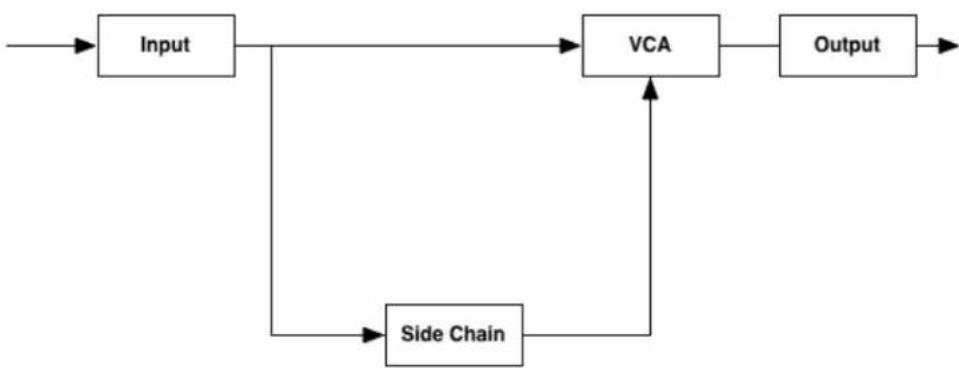
flowchart
graph TD
    A["Input"] --> B["VCA"]
    B --> C["Output"]
    D["Side Chain"] --> B
Sidechain High Pass (SC-HP)
As explained in the Feed-Forward Compression section above, the input signal is fed to the VCA. Generally, the more energy you have in the sidechain, the more compression you get; but if you apply a high-pass filter to remove low energy from the signal, the result will be less energy when low-frequency energy is present, hence less compression. In bass guitars, for example, the abundance of low energy entails lots of compression; but if a high-pass filter is applied on the sidechain, the VCA will identify less energy on the low bass notes than there is in the actual input signal and will therefore attenuate the signal less, allowing more low frequencies.
1.5 Components
WaveShell technology enables us to split Waves processors into smaller plugins, which we call components. Having a choice of components for a particular processor gives you the flexibility to choose the configuration best suited to your material. dbx 160 includes the following components:
- dbx 160 Mono
- dbx 160 Stereo
Chapter 2 – Interface and Controls
2.1 Interface
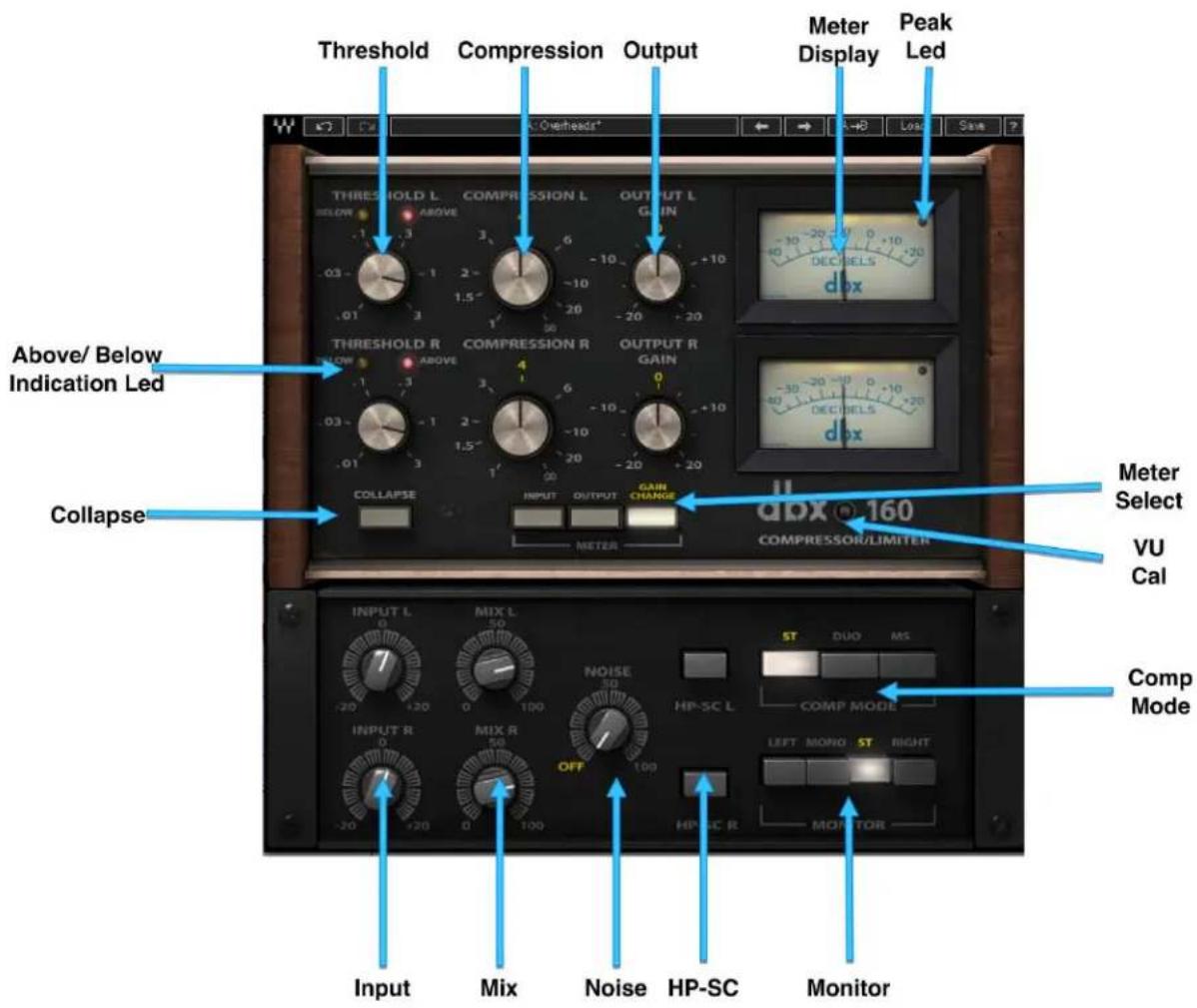
text_image
Threshold Compression Output Meter Display Peak Led Above/ Below Indication Led Collapse DBX 160 COMPRESSOR/LIMITER Meter Select VU Cal Comp Mode Input Mix Noise HP-SC MonitorWaves dbx 160
User Guide
2.2 Controls
Input
Increases or decreases the gain of the input signal.
Range: -20 dB to 20 dB
Default: 0 dB
Threshold
Sets the level (in Vrms) above which compression will take place.
Range: 0.01 Vrms (-60 dBFS) to -3 Vrms (-9 dBFS)
Default: 1 Vrms (-18 dBFS)
Compression
Sets the ratio of the compression.
Range: 1:1 to inf:1
Default: 4:1
Output
Increases or decreases the gain of the output signal.
Range: -20 dB to 20 dB
Default: 0 dB
SC-HP
Applies a high-pass filter on the sidechain signal at around 90 Hz, resulting in less compression on the low end.
Range: On, Off
Default: Off
Mix
Controls the balance between the compressed and the uncompressed signal.
Range: 0% to 100% (0.1% increments)
Default: 100%
Waves dbx 160
User Guide
Noise
Controls the amount of noise and hum added to the processed signal.
Range: Off to 100
Default: Off
Compressor Mode (Stereo Component Only)
Selects the stereo processing mode.
There are three stereo compressor modes:
- Stereo – All controls are in link mode. When you set a control on one side (L or R), the other side changes to the same value. Any difference in the settings between sides (created using the Duo or MS mode) will be preserved when you move back to Stereo mode.
- Duo – Controls can be set independently in each side, L and R.
- MS – This mode applies an MS encoding matrix to the input of the plugin, allowing you to separately compress and level the Mid (sum) and Sides (difference) signals. In this mode, the letters M (for Mid) and S (for Sides) will be added at the header of the channels (M at the top left, S at the top right). In MS mode, all the left side controls affect the “Mid” signal in the matrix, while the right side controls affect the “Sides” signal in the matrix.
Default: Stereo
A note on automation: When you automate settings in Stereo mode, your settings will be saved for the specific channel (L or R) you have selected, but will affect both L and R. When you automate L and R to different values in Duo mode, you will need to delete your settings for one of the channels (L or R) before you return to Stereo mode in order to avoid conflicting values.
Monitor (Stereo Component Only)
Selects the source of the monitor output.
- Left – Left output is sent to both sides (in MS Mode this monitors the mid).
- Mono – Left and Right outputs are summed to mono and trimmed down by 6 dB.
- Stereo – Stereo mode.
- Right – Right output is sent to both sides (in MS Mode, this monitors the sides).
Default: Stereo
Metering
VU Meter
Displays input, output, and gain reduction levels, depending on your selection.
Range IN/OUT: -40 to 20
Range GR: 0 to -40
VU Meter – Headroom Calibration Control
The meter's headroom calibration default is set to 18 dB headroom. The meter can be adjusted using the little screw underneath to provide a headroom of 0–24 dB, where X dBFS = 0 VU.
Range: 0 to 24 dB
Default: 18 dB
Meter I/O
The meter I/O lets you select from three monitoring modes:
- GR – Shows the total amount of gain reduction/increase.
- IN – Shows the input level of the plugin's post-input control, so that any change in the input is reflected in the meter.
- OUT – Shows the output level of the plugin's post-output control, so that any change in the output is reflected in the meter.
Clip Indicator
Indicates peak clipping for both input and output regardless of the selected meter mode. To reset, click on the meter.
Chapter 3 – The WaveSystem
3.1 The WaveSystem Toolbar
All Waves plugins feature the WaveSystem toolbar, which takes care of most of the administrative functions you will encounter while working with your Waves software. The features of the WaveSystem toolbar are the same on practically all Waves plugins, so familiarity with its features will be helpful whichever plugin you are using.
Toolbar Functions
W Opens the plugin About box
Undo Undoes the last 32 actions
Redo Redoes the last 32 undone actions
Setup A/B Toggles between two presets, useful for comparison of parameter settings
L/R Arrows Move to the previous or next preset
Copy A→B Copies the current settings to the second preset register
Load Recalls presets from file
Save Saves presets in the Waves file formats
? Opens the PDF manual for the plugin you are using
3.2 Preset Handling
Preset Types
Factory Presets are permanent presets in the Load menu. Factory presets cannot be overwritten or deleted. When applicable, different component plugins may have different factory presets.
User Presets are your favorite settings of the plugin saved as a preset in the Load menu, under 'User Presets'. User Presets can be overwritten and deleted.
Setup Files may contain more than one preset. For example, a single file can contain all the presets for a session. When you open a Setup File, all its setups become part of your Load popup menu for fast access. This can be particularly useful with multiple instances of a plugin in a
Waves dbx 160
User Guide
single session. By saving all the settings you create into a single Setup File, they can all be quickly available for every instance of that plugin.
Loading Presets and Setups
Click on the Load button to see the Load pop-up menu. The menu is divided into four sections. If a section is not currently available it will not appear in the Load pop-up menu.
Preset File... Select to open any setup or preset file, whether from the Library or your own creations.
'Filename.xps': Displays any currently loaded Setup File and its presets.
Factory Presets: Displays the default Factory Presets.
User Presets: Displays any loaded User Presets.
Saving Presets and Setups
Click on the Save button to see the Save pop-up menu. Four options are available. If an option is not currently available it will be grayed out and inaccessible.
Save to New File... Select this to start a new Setup file. There are two prompts - first for the setup filename, then for the preset name. You must provide a name for both the setup file and the preset. Click OK (ENTER) to complete the save. It is a good idea to create a folder in which to save several setup files for a project.
Save 'File Name' – "Preset Name" Overwrites the settings of the loaded preset (whether a User Preset or a preset from a Setup File) with the current settings. If a Setup File is currently loaded, the name of the Setup File is displayed followed by the name of the preset itself. If a User Preset is loaded, its name is displayed.
Save to 'File Name' As... Saves the current settings as a new preset into the Setup file that is open (if one is not open, the option is grayed out). You will be prompted to give the preset a name.
Put into Preset Menu As... Save the current settings into a User Preset that will always be in your Load menu (until deleted). You will be prompted to give this preset a name. User Presets are stored in the plugin's preference file.
You may delete User Presets and presets within a Setup File. Factory Presets and Setup Library files cannot be deleted or overwritten.
- Hold the Command (Mac)/Control (PC) key down.
- Click-and-hold the Load button to see the pop-up menu.
- While still holding the Command/Control key, select the preset or setup to delete.
- A confirmation box will appear, allowing you to cancel or 'OK' the deletion.
A/B Comparison and Copying
The Setup A/Setup B button may be clicked to compare two settings. If you load a preset in the Setup B position, this will not affect the preset loaded into the Setup A position, and vice-versa.
If you want to slightly modify the settings in Setup A, you can copy them to Setup B by clicking on the Copy to B button, then alter Setup A and compare with the original Setup B.
The name of the current setup will be shown in the title bar (on platforms which support it), and will switch as you change from Setup A to Setup B.
Note: an asterisk will be added to the preset name when a change is made to the preset.
3.3 Interface Controls
Controls can be in one of three states:
- Not Selected where the control is not the target of any user entry
- Selected where the control is the target of mouse control entry only
- Selected and Active where the control is the target for both mouse and keyboard entry
Waves dbx 160
User Guide
Toggle Buttons
Toggle buttons display the state of a control, and allow switching between two or more states.
Single-click to change the control's state. Some toggle buttons have a text display which updates with the current setting, and others (bypass, solo, or monitoring toggles) illuminate when the control is active.
Some plugins have link buttons between a pair of toggle buttons, allowing click-and-drag adjustment while retaining the offset between the controls.
Value Window Buttons
Value windows display the value of a control and allow click-and-drag adjustment, or direct control via the keyboard.
Using the mouse, click-and-drag on the value window to adjust. Some value windows support left/right, some up/down (as you hover over a button, arrows will appear to let you know which direction of movement that button supports). You may also use your mouse-wheel to adjust parameter values.
Using the arrow keys, click once with mouse to select the button, and then use up/down-left/right (depending on the direction supported by that button) to move in the smallest incremental steps across the button's range (holding down the arrow keys will move faster through the range).
Using key entry, double click on the button to open the value window, and directly enter the value from your keyboard. If you enter an out of range number, the button stays selected but remains at the current setting (system beeps if system sounds are on).
Some plugins have link buttons between a pair of value windows, allowing click-and-drag adjustment while retaining the offset between the controls.
Sliders
Click or scroll the mouse-wheel on the slider itself or anywhere within the sliders track. The numerical value of the slider settings is displayed in a hover window above the slider path.
Hover Box
Hovering boxes will appear and display the control value when hovering with the mouse over the control.
Multiple Control Selection
One of the most powerful features of the WaveSystem is the ability to select and adjust multiple controls simultaneously. Using the mouse, drag-select the desired group of buttons or graphic controls by clicking and holding at a point outside the controls, and forming a rectangle that includes the controls you wish to adjust. Alternatively, press and hold Shift while clicking the mouse on any control you wish to link. This method is useful when you want to select two or more controls that are not adjacent to one another.
TAB Functions
TAB moves the 'selected' status to the next control, with shift-TAB moving in the reverse direction. Additionally, the Mac has an option-TAB function for 'down' movement and shift-option-TAB for 'up' movement where applicable. If you have several Value Window Buttons selected, TAB functions will take you through the selected controls only. Hitting Esc or Return will return the 'focus' to the DAW application.
A Note on Automation
When you automate settings in Stereo mode, your settings will be saved for the specific channel (L or R) you have selected, but will affect both L and R.
When you automate L and R to different values in modes other than Stereo, but then wish to return to Stereo mode, you will need to delete your settings for one of the sides (L or R) before you return to Stereo mode in order to avoid conflicting values.
3.4 Waves Preferences (Pro Tools only)
When launching Pro Tools, hold Shift to view the Waves plugin Preferences window. The following options are available:
- Don't use AudioSuite plugins
- Don't use RTAS plugins
- Rescan all plugins
• HUI control surface support (low resolution) - Enable single-click text entry
Waves dbx 160
User Guide