PRS SuperModels - Audio software WAVES - Free user manual and instructions
Find the device manual for free PRS SuperModels WAVES in PDF.


User questions about PRS SuperModels WAVES
0 question about this device. Answer the ones you know or ask your own.
Ask a new question about this device
Download the instructions for your Audio software in PDF format for free! Find your manual PRS SuperModels - WAVES and take your electronic device back in hand. On this page are published all the documents necessary for the use of your device. PRS SuperModels by WAVES.
USER MANUAL PRS SuperModels WAVES
Precision Guitar Amps
Contents
Introduction 3
Proper Input Signal 3
Product Overview....3
Signal Flow....4
Interface 5
Components....5
Quick Start 6
Modules....7
Amps 7
PRS Archon 50....8
PRS Dallas 12
PRS Blue Sierra V9 15
Input and Output Module....18
Input Section....19
Cabinet Loader 20
Additional cabinet control....22
Cabinets Module 23
Loading the Cabinet IRs 24
Process Panel....26
Other cabinet controls....27
Using a Third-Party Amp....27
Standalone Application 28
Introduction
Thanks for choosing Waves! In order to get the most out of your PRS SuperModels amplifier plugin, please take a few minutes to read this user guide. We suggest that you visit Waves Support, where you'll find an extensive answer base, system and host requirements, troubleshooting guides, and much more.
To register and activate your new products, check for upgrades, and manage your account, log into your Waves account and click My Account. If you don't have a Waves account, click Create Account.
We hope that PRS SuperModels brings you just the guitar sound and feel you've been waiting for.
Proper Input Signal
The performance of a guitar amp is affected by the impedance of its input signal. Waves SuperModels is no different. If the impedance is not correct, you may not experience the true sound of the original PRS amps. We recommend that you play through a high-z instrument input (1M ohm or higher) and a buffered output (10k ohm)—any ordinary tuner pedal, for example—between the guitar and your audio interface input.
The first time you instantiate PRS SuperModels, you'll see a window that tells you how to properly set up your amp input. This window will appear only once.
Product Overview
Waves PRS SuperModels is a highly flexible guitar amplifier plugin. It was methodically modeled after three amplifiers made by distinguished guitar and amp maker Paul Reed Smith. Each amp captures the sound and attitude of the hardware original. Controls are the same as on the originals; on some amps we added a knob or switch for greater flexibility.
You can choose the speaker cabinets in which the amplifier output sound is created: Swapping the cabinet can greatly alter the overall sound. The shape, size, and reflections inside the cabinet are captured using impulse responses (IRs), which are very detailed descriptions of a space. Load one cabinet to accurately place the amp into a specific cabinet—or combine cabinets to create a new cabinet sound.
You also have control of tube and power amp transformer behavior. This influences the amp's harmonics and dynamics.
Signal Flow
Archon Signal Flow
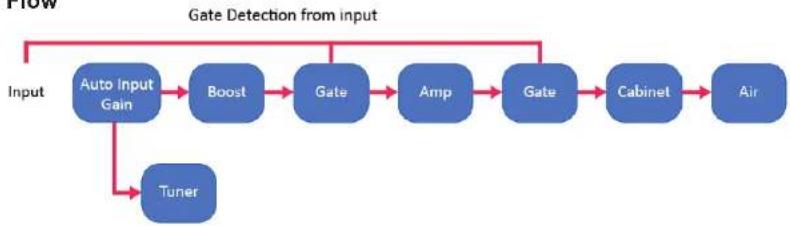
flowchart
graph TD
    A["Input"] --> B["Auto Input Gain"]
    B --> C["Boost"]
    C --> D["Gate"]
    D --> E["Amp"]
    E --> F["Gate"]
    F --> G["Cabinet"]
    G --> H["Air"]
    I["Tuner"] --> B
    style A fill:#f9f,stroke:#333
    style H fill:#bbf,stroke:#333
V9 Signal Flow
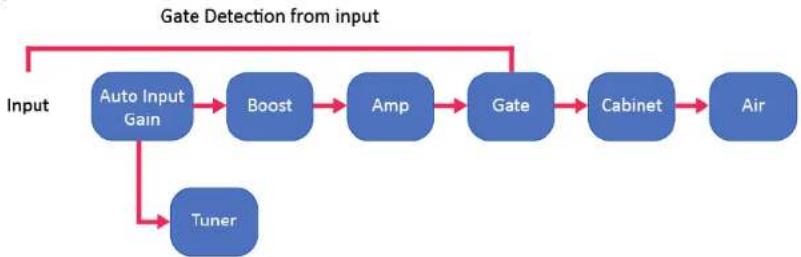
flowchart
graph LR
    A["Input"] --> B["Auto Input Gain"]
    B --> C["Boost"]
    C --> D["Amp"]
    D --> E["Gate"]
    E --> F["Cabinet"]
    F --> G["Air"]
    H["Tuner"] --> B
    style A fill:#4A90E2,stroke:#333
    style G fill:#4A90E2,stroke:#333
Dallas Signal Flow
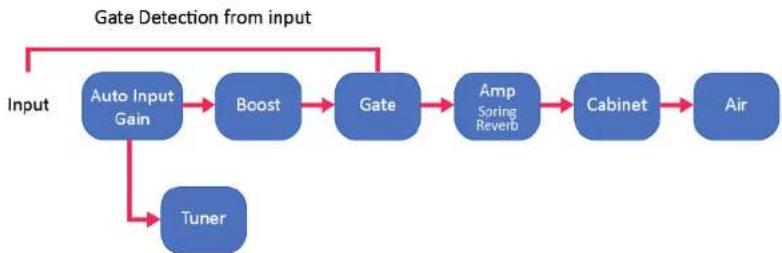
flowchart
graph TD
    A["Input"] --> B["Auto Input Gain"]
    B --> C["Boost"]
    C --> D["Gate"]
    D --> E["Amp Spring Reverb"]
    E --> F["Cabinet"]
    F --> G["Air"]
    H["Tuner"] --> B
    style A fill:#4A90E2,stroke:#333
    style G fill:#4A90E2,stroke:#333
Interface
The interface is divided into three modules: Input/Output, Cabinets, and Amplifier. The Input/Output and Amplifier modules vary slightly, depending on the selected amp. The Cabinets module is the same for all amps.
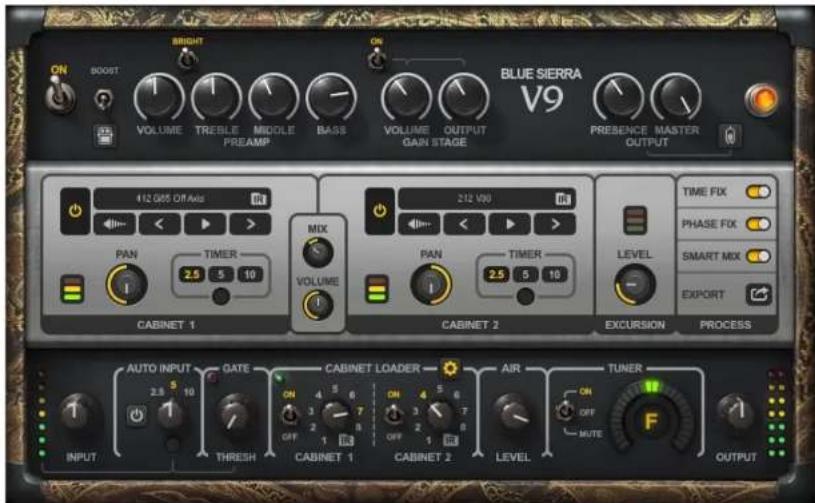
text_image
ON BOOST BRIGHT VOLUME TREBLE MIDDLE PREAMP BASS ON VOLUME OUTPUT GAIN STAGE BLUE SIERRA V9 PRESENCE MASTER OUTPUT 412 G65 OF Auto Pan TIMER CABINET 1 MIX VOLUME CABINET 2 212 V80 Pan TIMER CABINET 2 EXCURSION PROCESS TIME FIX PHASE FIX SMART MIX EXPORT AUTO INPUT GATE CABINET LOADER AIR TUNER ON OFF MUTE F OUTPUT INPUT THRESH CABINET 1 CABINET 2 LEVEL
Amplifier module
Modeled after the three original PRS tube amplifiers.

Cabinets module
Use this module to preview, select, and control cabinet IRs. Cabinets can be mixed together and exported.
Input and Output module
Used primarily to select cabinet IRs. It also manages input and output levels and the "air" (space) within the cabinet.
Components
There are six PRS SuperModels components: two for each amp.
mono-to-mono mono-to-stereo
mono input/mono output mono input with a stereo output
Quick Start
Start by inserting PRS amplifier on a mono track. Choose a mono or mono-to-stereo component. Each amplifier loads with its own default preset: a suggestion from Paul Reed Smith about how to get his sound from that amp. You can use the default preset as is, or as a starting point for building your own sound.
Use the bar at the top of the plugin to save and load presets, compare settings, undo and redo steps, and resize the plugin. To learn more, click the icon at the upper-right corner of the window and open the WaveSystem Guide.
If you want to set up your amp from scratch, follow these steps.
Input/Output module (bottom panel)
- Use the Auto Input function to set gain to a level that best suits the amp and the gate. Choose an interval for automatically setting the input level: 2.5, 5, or 10 seconds. Click the On button and then play your guitar as you normally do. Auto Input switches off at the end of the interval. Input level is now set appropriately. If you load a different amplifier, you should recalibrate the input level.
- Use the Cabinet Loader knobs to select a factory IR for each cabinet. These factory IRs are sorted by cabinet power, from the most aggressive to the least. Each cabinet can be bypassed independently.
- Adjust the noise gate to reduce noise from pickups, amp gain, and digital processing, as well as noises that result from playing, such as ringing strings.
- Use the Air control to add "space" within the cabinets. Lower settings yield a tighter cabinet sound, while higher settings create a bigger sense of air and space.
Amplifier module (top panel)
The Amplifier modules are just that: amplifiers. If you're comfortable making an amp do what you want, this will be easy.
- Adjust Amp Gain and EQ to taste. Boost adds gain to the input of the amplifier. It typically increases midrange and reduces lows, so you can use it to pull a guitar to the front.
- The Archon amp lets you select between the Lead and Clean channels. These are markedly different sounds.
Go back to the Input/Output module
- Adjust the Output level. This sets the output of the plugin itself.
You can use the Cabinets module (middle panel) to fine-tune cabinets and mix them to create new IRs. This panel lets you audition all of your cabinets automatically, whether factory IRs or others. Click the Gear button on the Cabinet Loader to access the Cabinets module.
Play and enjoy! Each amp has its own look and a few different controls, but once you've played through one of them, you'll have no trouble using the others. Modules, controls, and workflows are described throughout this user guide. Use it as a reference as you get to know the plugin.
Modules
Amps
PRS SuperModels gives you a choice between three Paul Reed Smith amplifiers:
| PRS Archon | A very aggressive sounding amp that's designed for heavier music, yet with surprisingly pristine, clean sound. It can also deliver a warmer, quieter sound. Two-channel design: Lead and Clean. |
| PRS Dallas | An amp whose sound ranges from very clean to a mild overdrive, with a classic sound that's very spacious. Excellent at producing sparkling, clean tones, but you can push it into a classic overdrive. This is a single-channel design. |
| PRS Blue Sierra V9 | This overdrive amp is warm, fat, and raw, with a sweet-sounding distortion. It has a huge bottom end, and it's focused and controllable. The V9 amp was never released, so you get to play on a PRS prototype. |
PRS Archon 50
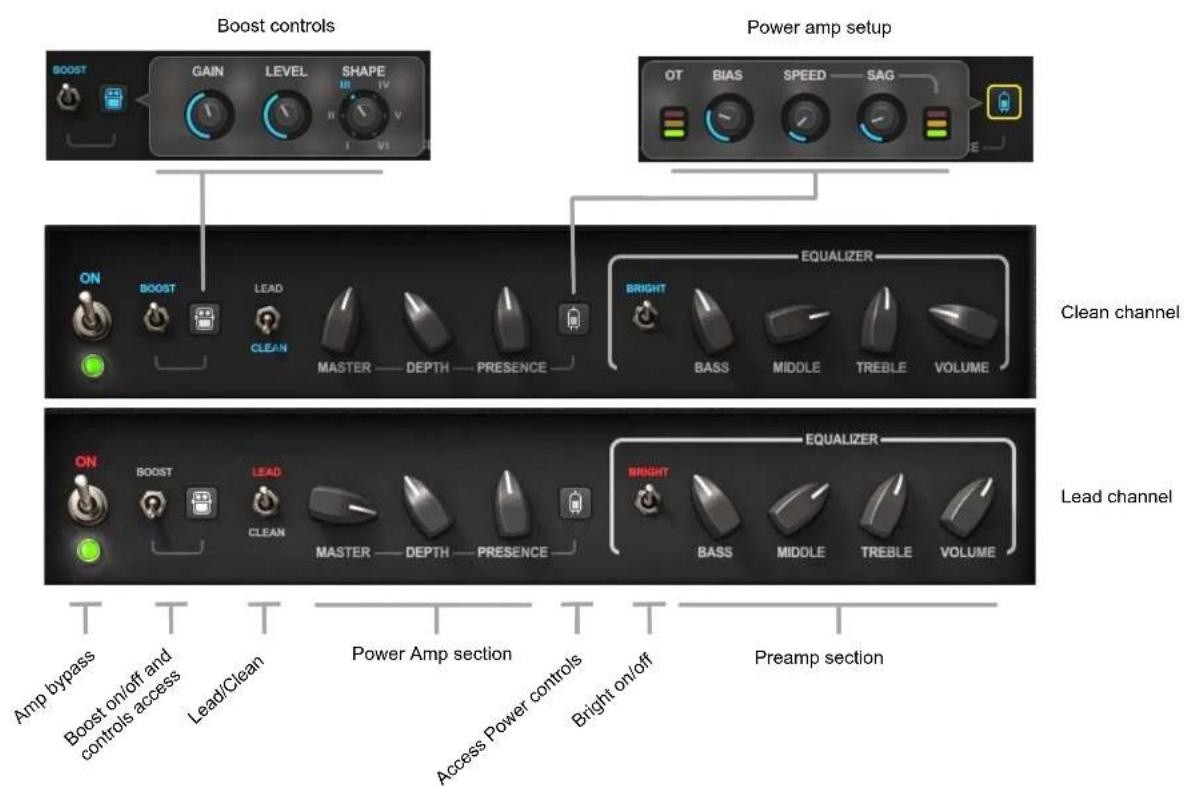
The Archon 50 is very aggressive. It has a huge low end, yet it's focused and controllable. Separate clean and lead channels deliver two very different amp sounds.
text_image
Boost controls Power amp setup BOOST GAIN LEVEL SHAPE OT BIAS SPEED SAG E ON BOOST LEAD BRIGHT EQUALIZER CLEAN MASTER DEPTH PRESENCE BASS MIDDLE TREBLE VOLUME Clean channel ON BOOST LEAD BRIGHT EQUALIZER Lead channel Master DEPTH PRESENCE BASS MIDDLE TREBLE VOLUME Amp bypass Boost on/off and controls access Lead/Clean Power Amp section Access Power controls Bright on/off Preamp sectionOn/Off Bypasses the amp. When switched off, only the Input/Output and Cabinet modules are heard. A green lamp indicates that the unit is on. Bypass the Amp module when you use a third-party amp.
Boost Increases gain in the input of the amp. It typically increases midrange frequencies and reduces lows, so it can be used to focus a guitar.
Click the pedal icon to access button to access the Boost control panel.
Gain The amount of overdrive added to the sound
Level The output level of the boost module that's pushing the front end of the amp
Shape A six-way rotary switch for tone shaping. Settings range from boosting low frequencies and reducing highs (full counterclockwise) to boosting the high frequencies and attenuating the lows (full clockwise).
Choose between two separate Amp Channels.
Clean Provides a clear sound without a lot of drive.
Lead Provides a heavy music sound with modern high-gain distortion.
The EQ (Preamp) section is immediately before the amp in the signal flow.
Bright This high shelf sits at the beginning of the EQ section.
Bass Clean/Lead channels low frequency control
Middle Clean/Lead channels mid frequency control
Treble Clean/Lead channels high frequency control
Volume Preamp gain
Power Amp section
Master Master volume control for clean/lead channels
The adjacent LED indicates that the amp output volume is too loud. The over-level may be from the master output or elsewhere in the chain (most likely the EQ section), so check to see where it originates.
Depth Power amp low-frequency control
Presence Power amp high-frequency control
Depth and Presence are global controls that affect both channels.
Power Amp Setup Section

text_image
OT BIAS SPEED SAG IEThe power amp is where the character of an amplifier is ultimately defined. What gives a power amp its personality is how it handles harmonics, which are largely influenced by the vacuum tubes and the power transformer. The power Amp Setup section controls these. This affects the color of the amp as it approaches saturation. In a hardware amp, these controls are rarely changed: you usually need to open the cabinet to get to them. They're easier to access in SuperModels amps, but still think of them as setup controls rather than while-you-play controls.

Click the tube icon to access the Power control panel.
SAG
When the power transformer is being pushed very hard, there can be a dip in the power supply voltage. This affects the amp's dynamics, articulation, and color. Two controls influence how tube sagging is replicated:
SAG The amount of the tube sag effect added to the signal. Increasing sag can make playing easier, and notes may punch out more.
Speed The speed of the sag effect. It can influence the feel of attacks and releases.
SAG Meter Indicates the effect of the sag process. As sag increases, the meter level lowers.
Tube Bias
In a tube amp, biasing means adjusting the vacuum tube current to an ideal value. This affects the life of the tubes in a hardware amplifier, but it also influences the overtone harmonic structure of tube distortion. This control has a subtle effect on the overall sound, but once you learn what to listen for, you'll hear how it can change the overall feel.
The Bias knob adjusts how the amp bias is set: hot (more harmonics, more sag, louder) to cold (less harmonics, etc.)
The OT (Output Transformer) indicator shows the extent to which the output transformer is being stressed. As the power transformer approaches saturation, its output is less linear.

- Green indicates an acceptable level.
- Yellow means you're pushing it, but you'll probably be okay.
• If the indicator is red, back off: your gain at this stage is too high.
PRS Dallas
The PRS Dallas is an exceptionally clean and balanced single-channel amp. It offers very organic overdrive.

text_image
ON BOOST BRIGHT VOLUME REVERB TREBLE MIDDLE BASS MASTER T T T Preamp section T T Power section Amp bypass Boost on/off and controls access Bright on/off Amp onOn/Off
(bypass)
Turns the amp head on and off (bypass).
Boost
Provides additional input gain, which pushes the front end of the amp. Boost can affect overdrive and the shape of the amp.

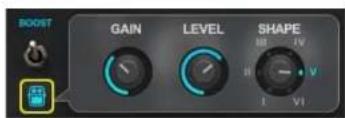
Click on the pedal icon to open the Boost control panel. There are three controls.
text_image
BOOST GAIN LEVEL SHAPE I II III IV V VIGain The amount of overdrive added to the sound
Level Output level of the boost module that's pushing the amp's front end
Shape A six-way rotary switch for tone shaping. Settings range from boosting low frequencies and reducing highs (full clockwise) to boosting the high frequencies and attenuating the lows (full counterclockwise).
Bright This high shelf sits at the beginning of the EQ section. As gain increases, the Bright effect becomes less evident.
Preamp section
Volume Preamp gain
Reverb Spring reverb mix
Treble Treble frequency control
Middle Middle frequency control
Bass Bass frequency control
Power Amp section
Master Power amp volume
Power light Lights when amp is engaged (not bypassed).
Power Amp Setup Section

text_image
OT BIAS SPEED SAGUse this pop-up window to set up the power transformer and tubes. These are fundamental power amp alignments that you'll probably not need to adjust often. Click on the tube icon to access the Power Amp Setup section.
SAG The amount of the tube sag effect added to the signal. Increasing sag can make playing easier, and notes may punch out more.
Speed The speed of the sag effect. It can influence the feel of attacks and releases.
Bias The Bias knob adjusts how hot (more harmonics, more sag, louder) or cold (less harmonics, etc.) the amp bias is set.
SAG Meter As sag increases, the meter level lowers.
OT indicator The OT (Output Transformer) indicator shows the extent to which the output transformer is being stressed.
Power Amp Setup is described thoroughly in the Archon 50 section earlier in this user guide.
PRS Blue Sierra V9
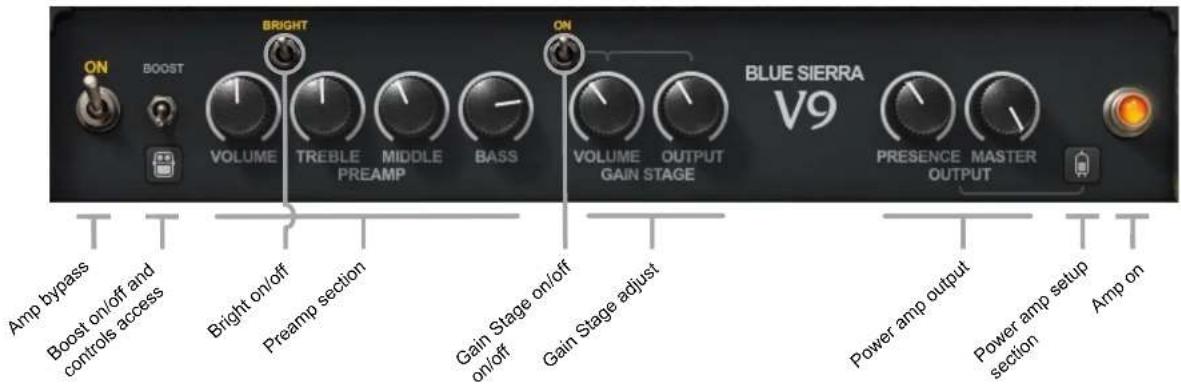
This amp is tight, focused and controllable and it has a very deep low end. It's a rock guitar amp that sounds great for a variety of classic/vintage tones. V9 is a single-channel amp.
text_image
ON BOOST BRIGHT VOLUME TREBLE MIDDLE PREAMP BASS ON VOLUME OUTPUT GAIN STAGE BLUE SIERRA V9 PRESENCE MASTER OUTPUT T Boost bypass Boost on/off and controls access Bright on/off Preamp section Gain Stage on/off on/off Gain Stage adjust Power amp output Power amp setup section Amp onOn/Off
Turns the amp head on and off (bypass). When the amp is off, the output of the Input/Output and Tweak modules are heard. Turn off the amp to use an external amp.
Boost

Provides additional input gain, which pushes the front end of the amp. Boost can affect overdrive and the shape of the amp.
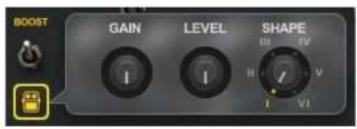
Click on the pedal icon to open the Boost control panel.
text_image
BOOST GAIN LEVEL SHAPE D1 D2 E1 E2 E3 E4 E5 E6 E7 E8 E9 E10 E11 E12 E13 E14 E15 E16 E17 E18 E19 E20 E21 E22 E23 E24 E25 E26 E27 E28 E29 E30 E31 E32 E33 E34 E35 E36 E37 E38 E39 E40 E41 E42 E43 E44 E45 E46 E47 E48 E49 E50 E51 E52 E53 E54 E55 E56 E57 E58 E59 E60 E61 E62 E63 E64 E65 E66 E67 E68 E69 E70 E71 E72 E73 E74 E75 E76 E77 E78 E79 E80 E81 E82 E83 E84 E85 E86 E87 E88 E89 E90 E91 E92 E93 E94 E95 E96 E97 E98 E99 E100Gain The amount of overdrive added to the sound
Level Output level of the boost module that's pushing the amp's front end
Shape A six-way rotary switch for tone shaping. Settings range from boosting low frequencies and reducing highs (full clockwise) to boosting the high frequencies and attenuating the lows (full counterclockwise).
Preamp controls
Bright A high shelf on the input to the preamp
Volume Preamp gain
Treble Preamp high-frequency control
Middle Preamp mid-frequency control
Bass Preamp low-frequency control
Gain Stage Volume Preamp volume for gain stage
Gain Stage Output Amount of volume from gain stage to power amp
Use the Gain Stage controls to establish proper level between the preamp and the amp.
Power amp controls
Output Presence Adjusts amplifier high-frequency.
Output Master Power amp volume (before plugin main output in the Input/Output module)
Power Amp Setup Section
text_image
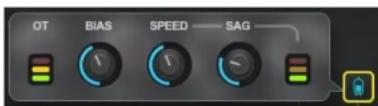
OT BIAS SPEED SAGUse this pop-up window to set up the power transformer and tubes. These are fundamental power amp alignments that you'll probably not need to adjust often. Click on the tube icon to open the control panel.
There are three controls:
| SAG | The amount of the tube sag effect added to the signal. Increasing sag can make playing easier, and notes may punch out more. |
| SAG Speed | The speed of the sag effect. It can influence the feel of attacks and releases. |
| Bias | The Bias knob adjusts how hot (more harmonics, more sag, louder) or cold (less harmonics, etc.) the amp bias is set. |
| SAG Meter | As sag increases, the meter level lowers. |
| OT | The OT (Output Transformer) indicator shows the extent to which the output transformer is being stressed. |
Power Amp Setup is described thoroughly in the Archon 50 section earlier in this user guide.
Input and Output Module
This module controls the plugin's level before and after the amplifier. It's also used to:
•control a noise gate
•select and load cabinet IRs
- adjust the amount of space in the cabinet
• help you tune your guitar

text_image
AUTO INPUT 2.5 5 10 GATE CABINET LOADER ON ON 4 5 6 OFF OFF 3 2 1 IR 8 CABINET 1 CABINET 2 AIR TUNER ON OFF MUTE A# OUTPUTBlue Sierra V9

text_image
AUTO INPUT 2.5 5 10 GATE ON ON ON OFF OFF CABINET LOADER 3 4 5 6 3 7 2 8 1 R CABINET 1 OFF 1 R CABINET 2 AIR ON OFF MUTE TUNER F OUTPUTDallas

text_image
AUTO INPUT 2.5 10 GATE CABINET LOADER ON 4 5 6 ON 4 5 6 OFF 3 7 OFF 2 8 OFF 1 9 CABINET 1 CABINET 2 AIR TUNER ON OFF MUTE OUTPUTArchon (lead channel)
Input Section

The Input section is used to establish the ideal input level for efficient processing. Set the level too high and you may encounter distortion somewhere down the line. Too low and there may be problems with noise or the gate may not work properly. In any case, incorrect input levels start you off to a bad start.
Important reminder:
The performance of a guitar amp is affected by the impedance of its input signal. Waves SuperModels is no different. If the impedance is not correct, you will likely not get the results you expect from the amp. We recommend that you play through a high-z instrument input (1M ohm or higher) and a buffered output (10k ohm)—any ordinary tuner pedal, for example—between the guitar and your audio interface input.
You can set input gain manually or automatically. We recommend using the Auto Input function, since you will likely get better results this way. Auto-Input analyzes the input signal over a specified time and calculates the peak and RMS levels. It averages these values and adjusts the input level to approximately -17 dB. This provides ideal headroom for the processor.
Select an amplifier before you set the input level. Input level calculations are based on the dynamic characteristics of a specific amp. If you swap amps after setting the input level, you will need to reestablish correct input level.
To set input level automatically
- Choose a duration for the Auto Input calculation: 2.5 seconds, 5 seconds, or 10 seconds. Press "Start." Typically, the longer the sample time, the more accurate the input level calibration.
- Play your guitar in a way that's representative of what you'll be playing. Calculation begins when you start. A small clock indicates time remaining in the calibration process.
- If you stop playing, the timer will pause. Resume playing to continue calibrating. The process will stop automatically and the Start light will switch off. Try playing different short segments, each with different gain and dynamics. This can result in a more accurate, more representative input level. During the learning
process, Boost is switched off. When the calculation is finished, the Auto Input switch will automatically turn off.
- Input gain will be adjusted over a period of 200 ms. This makes for a smooth transition from old to new input gain levels.
To set input gain manually, use the Input knob and the 6-LED gain display. Green generally indicates that input level is low. To achieve the ideal input level, try to light as many yellow LEDs as possible. Red means that level is too high.
Noise Gate
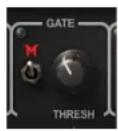
This is intended primarily to remove system noise such as pickup buzz and hiss in order to provide a clean signal for the processor. With knob settings of less than -40, hiss and other low-level noises should be eliminated without impacting the notes themselves.
The Archon amp has an additional gate at the front end. This gate chops the release of notes in a musical way and creates a musical effect when playing very short notes or chords. Since this effect is often associated with Metal music, the mode switch is labeled with the letter M. In the Archon gate section, a single knob controls both modes.
Cabinet Loader
The speaker cabinet strongly influences the texture of an amp's sound. PRS SuperModels cabinets are precise acoustic reproductions of the PRS hardware originals, so they treat the amp's sound just like the hardware does.
This accuracy is achieved by creating an impulse response (IR) of the space within a specific cabinet. When the original signal passes through the IR, it is convolved (literally, “rolled together”) with the IR, and it takes on the precise acoustic characteristics of the cabinet.

The nine-position selector knobs are used to select cabinet IRs. The first eight positions select default IRs that correspond with the PRS cabinets. These factory IRs are sorted by the “aggressiveness” of the cabinet, from greatest to least.
Default cabinet IRs: Knob positions and corresponding cabinets:
| 1 | 112 V30.wav | 4 | 212 V30.wav | 7 | 412 Green 55hz.wav |
| 2 | 212 Black 1.wav | 5 | 412 G65 off-axis.wav | 8 | 412 Green 75hz.wav |
| 3 | 212 Black 2.wav | 6 | 412 G65 on-axis.wav |
To make IR selection easier, highlight an IR selection knob and use the up/down keyboard arrows to move through the list of cabinets.
Both cabinets can have the same IR loaded, which tends to increase loudness, or different IRs, which usually results in a richer, more complex cabinet sound.

A cabinet's on/off switch bypasses that cabinet. You can monitor one cabinet, or two, or none.
Turning off both cabinets bypasses the Cabinet Loader section altogether. If a user-created cabinet IR has been loaded in the Cabinet module (the module in the middle of the plugin), then knob position 9 will load that IR. As long as a user- or third-party IR is available for that cabinet, position 9 will be active.
Other Panels

text_image
AIR TUNER ON OFF MUTE A LEVEL OUTPUTAir
Use the Air control to adjust the effective size of the cabinet. Smaller settings yield a tighter cabinet sound, larger settings make for a more open size. Set the Air knob to zero to bypass the effect altogether.
Tuner
The Tuner section displays the pitch of the current note. This provides feedback while playing. The Tuner switch has three settings:
-Off The section is bypassed.
- On The section is engaged and pitch is indicated on the display.
- Mute Tuning is engaged and output is muted. Use this setting when you want to tune silently.
Output sets the output gain for the plugin. This control is post-amplifier.
Additional cabinet control
The Cabinet Loader enables you to load one or two PRS cabinet IRs. Commonly, this is all you need to build your cabinet sound. If, however, you want more control over the cabinets or you want to automatically audition cabinets while playing, you'll need to use the Cabinets module.
The Cabinets module is described it the next section.
Cabinets Module
The Cabinets module (middle of the plugin) is used to audition and select cabinet IRs—PRS default cabinet IRs, third-party IRs, and user-made IRs. The Cabinets module also enables you to control speaker excursion within the cabinet. Cabinets 1 and 2 are identical.
By default, the Cabinets module is covered. To open the cover, click on the Gear button in the Cabinet Loader.

text_image
DAIR VOLUME REVSUS TRESUS MIDDLE SABB MASTER DALLAS AUTO INPUT GATE CABINET LOADE AIR TURER INPUT THRESH CABINET 1 CABINET 2 LEVEL OUTPUT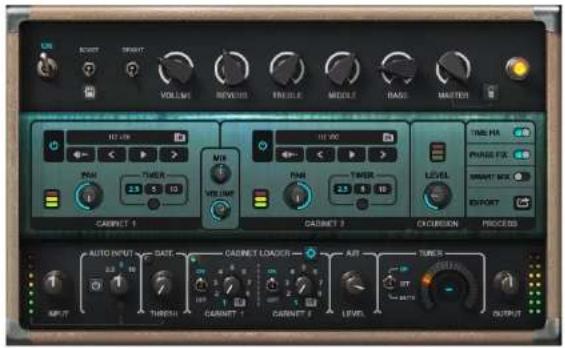
text_image
START SPART VOLUME REVEE FROCLE MODELE BASSE MASTERS 10.24K VOUT TIME HA PHASE FIX MOUNT OK IMPORT CABINET 1 AVR VOLUME PAN TUMER 3.5 5 10 PAN TUMER 3.5 5 10 LEVEL EXPOSION CABINET 3 CABBAGE PROCEED AUTO INPUT DATE CABINET LOADS AIR TURER INTU OUTPUT INPUT THRESH CABINET 1 CABINET 2 LEVELAt the heart of the Cabinets module is a two-channel, zero-latency IR convolver. It enables you to align timing and phase, and adjust the level and pan of the two cabinets. If you want, you can create a new IR from this mix.

text_image
412 G85 Off Axis IR PAN TIMER 2.5 5 10 VOLUME CABINET 1 MIX 212 V30 IR PAN TIMER 2.5 5 10 LEVEL TIME FIX PHASE FIX SMART MIX EXPORT CABINET 2 EXCURSION PROCESSLoading the Cabinet IRs

A cabinet's IR is shown in the file name window. There are three ways to load an IR.
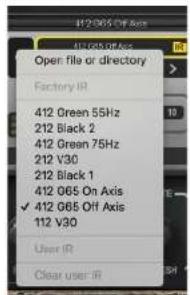
1) Load an IR file directly
text_image
Open file or directory Factory IR 412 Green 55Hz 212 Black 2 412 Green 75Hz 212 V30 212 Black 1 412 065 On Axis ✓ 412 065 Off Axis 112 V30 User IR Clear user IRClick on the folder icon to open the IR Select drop-down menu. These are the eight Waves PRS cabinet IRs. Select one.
You can apply custom cabinet IRs. Files must be in the WAV format, with a duration of 50 ms or shorter. Longer files will be shortened and faded. This short IR duration is appropriate for speaker cabinets; longer IRs can waste CPU resources and impose latency.

text_image
IR_MLS_212_V30_221 Open file or directory Factory ID: 412 Green 65Hz 212 Black 2 412 Green 75Hz 212 VDD 212 Black 1 412 C65 On Axis 412 C65 Off Axis 112 VDD User ID: "Cable" (8) IR_MLS_112_V30 Downlinker_Marge_57_DnAxis IR_MLS_marchel412_smf_02-96e-2 IR_MLS_D2055 on Axis_02-96e IR_MLS_TEST_240-96h_bip IR_MLS_marchel412_Shi smf_01-9 IR_MLS_marchel412_G8864 IR_MLS_cakefele_n1_212_03_bip_2 IR_MLS_D2055 on Axis_04-96e IR_MLS_212_V30_3-34b IR_MLS_cakefele_n1_212_03_bip_1 IR_MLS_212_V30_2 IR_MLS_212_V30 IR_MLS_412/128V/mage_bip-74b IR_MLS_cakefele_n1_212_03_bip Clear user IRTo load a custom cabinet IR, select "Open file or directory." Browse to the IR file and select. Once you load any custom IR, all of the IRs in its folder will appear in the menu. Use the "Clear User ID" menu item to remove all custom IRs from the list.
When a custom IR is loaded in a cabinet, it can also be loaded with the Cabinet Loader knob.


2) Cycle through all available IRs

Use "Forward" and "Backward" buttons to cycle through all available IRs. If a custom IR has been loaded, then all IRs in that folder will be included in the audition.
IRs are sorted and auditioned from "most aggressive" to "least aggressive" cabinets.
3) Timed IR auditions
You can automatically cycle though IRs for fixed periods of time. This lets you compare cabinets while playing a guitar through the amp.
1) Select Cabinet 1 or Cabinet 2.
2) Choose the amount of time you wish to audition a cabinet before moving on to the next one (2.5 seconds, 5 seconds, or 10 seconds).
3) Press the Play button to start IR auto-play. Play the guitar in a manner that resembles the concert performance and listen to the effect of the various IRs. A small clock indicates how much time is left in the current IR preview. When the time period is finished, the next IR will be auditioned. All IRs that appear in the IR drop-down menu, factory and custom, are included in the automatic audition.
4) To load the current cabinet, click Play once again.
5) Click the Direction button on the left to reverse the order in which custom IRs are auditioned. Factory IRs are always auditioned in the same order.
6) Repeat the same process for the other cabinet.
When loading an IR to Cab 1, Cab 2 is muted.
When loading an IR to Cab 2, Cab 1 is muted.
The On/Off button bypasses a cabinet.
Process Panel
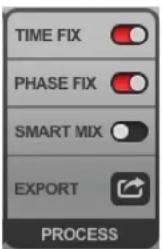
The Process panel is used to align the two cabinet IRs. It can automatically align time and phase for two IRs, in order to avoid phasing or lack of articulation. This panel is active when both cabinets are active.
text_image
TIME FIX PHASE FIX SMART MIX EXPORT PROCESSTime Fix Trims the beginning of the IR so that audio begins precisely at the beginning of the file. Applying Time Fix to two IRs forces them to start at precisely the same time.
Phase Fix Aligns phase between two IRs.
Smart Mix Aligns the perceived volume between two IRs to provide a good starting point for mixing.
Export Exports a new IR that's the result of the combination of the two IRs.
The convolver supports IRs of a duration of up to of 50 ms. Longer IRs will be truncated and faded.
Other cabinet controls
The two cabinets have identical controls.
On/Off Enables/Bypasses the cabinet.
Pan Pans the cabinet location in the stereo image (mono-to-stereo component only).
Mix Adjusts the relative levels of the two IRs.
Volume Adjusts the overall output level of the Cabinet module.
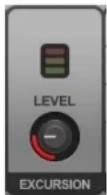
Excursion is the displacement of the loudspeaker coil as sound is created in the cabinet. Low frequencies at high volume usually require large speaker excursion, since the speaker must move lots of air. This is tough on the speaker—and it can result in some interesting distortion. Use the Excursion knob to control and exaggerate speaker displacement.
Listen for a very wide, full—but pretty fuzzy—low frequency. The knob sets the level of excursion signal for the two cabinets together, which is indicated with the three-LED indicator. Red means you're overdoing the excursion.
Using a Third-Party Amp
You can use the Input/Output and cabinet IR sections with third-party amps. Simply switch off the PRS amp and it will be bypassed. Insert the alternate amp before PRS SuperModels in your plugins chain. Since this amp sits at the beginning of the signal flow for this channel, it will behave somewhat differently than the PRS SuperModels amps.
Standalone Application
PRS SuperModels can be used as a standalone device. It requires ASIO drivers for Windows or Core Audio for macOS X. The application is located in the Waves Applications folder.
AUDIO SETTINGS

text_image
Audio Settings Output: Scarlett 4i4 USB Test Input: Scarlett 4i4 USB Active output channels: ✓ Output 1 + 2 ✓ Output 3 + 4 ✓ Input 1 ✓ Input 2 ✓ Input 3 ✓ Input 4 Active input channels: Sample rate: 44100 Hz Audio buffer size: 512 samples (11.6 ms) Active MIDI inputs: IAC Driver Bus 1 Euphonix MIDI Euphonix Port 1 Euphonix MIDI Euphonix Port 2 Euphonix MIDI Euphonix Port 3 Euphonix MIDI Euphonix Port 4 Tempo: 120.0Output displays the available audio output devices. Test plays a sound if the outputs are configured correctly. Input displays the available audio input devices.
Active Output Channels allows selection of audio output channels from the chosen output device.
Active Input Channels allows selection of audio input channels from the chosen output device.
Sample Rate displays and sets the sample rate.*
Audio Buffer Size displays and sets the buffer size, which influences latency.*
*In Windows, sample rate and buffer size cannot be changed from this panel. To modify these settings: close the application, adjust sample rate and buffer size with your driver's control panel (shown below), and relaunch.
Active MIDI Inputs displays a list of available MIDI input devices on the current system. Select the MIDI device for receiving MIDI data.
Tempo: Sets the tempo for all relevant plugins. By default, tempo-based Waves plugins are in a "tempo listen" state. Their tempo rates will fix to this value.