JJP Cymbals & Percussion - Audio software WAVES - Free user manual and instructions
Find the device manual for free JJP Cymbals & Percussion WAVES in PDF.


User questions about JJP Cymbals & Percussion WAVES
0 question about this device. Answer the ones you know or ask your own.
Ask a new question about this device
Download the instructions for your Audio software in PDF format for free! Find your manual JJP Cymbals & Percussion - WAVES and take your electronic device back in hand. On this page are published all the documents necessary for the use of your device. JJP Cymbals & Percussion by WAVES.
USER MANUAL JJP Cymbals & Percussion WAVES
CHAPTER 1 – INTRODUCTION ....3
1.1 WELCOME ....3
1.2 PRODUCT OVERVIEW....3
1.3 COMPONENTS....4
1.4 A FEW WORDS FROM JJP....4
CHAPTER 2 – QUICKSTART GUIDE......5
CHAPTER 3 – CONTROLS, CONCEPTS, AND TERMINOLOGY ....6
Chapter 1 – Introduction
1.1 Welcome
Thank you for choosing Waves! In order to get the most out of your new Waves plugin, please take a moment to read this user guide.
To install software and manage your licenses, you need to have a free Waves account. Sign up at www.waves.com. With a Waves account you can keep track of your products, renew your Waves Update Plan, participate in bonus programs, and keep up to date with important information.
We suggest that you become familiar with the Waves Support pages:
www.waves.com/support. There are technical articles about installation,
troubleshooting, specifications, and more. Plus, you'll find company contact information and Waves Support news.
1.2 Product Overview
The Waves Signature Series is our exclusive line of application-specific audio processors, created in collaboration with the world's top producers, engineers, and mixing engineers. Every Signature Series plug-in has been precision-crafted to capture the artist's distinct sound and production style. For experienced and aspiring audio professionals alike, the Waves Signature Series allows you to dial up the sound you're looking for quickly, without interrupting the creative flow.
The JJP Collection consists of 6 plug-ins, each of which is designed to handle a specific production task:
- JJP Vocals
- JJP Drums
- JJP Bass
- JJP Guitars
• JJP Cymbals & Percussion - JJP Strings & Keys
1.3 Components
WaveShell technology enables us to split Waves processors into smaller plug-ins, which we call components. Having a choice of components for a particular processor gives you the flexibility to choose the configuration best suited to your material.
The Waves JJP Cymbals & Percussion has two components:
- JJP Cym & Perc m>s – Mono in to Stereo out component
- JJP Cym & Perc Stereo – Stereo in to Stereo out component
Please Note: In order to maximize performance while optimizing the correct processing for different applications, we split the drums into two separate plug-ins:
• JJP Drums for kicks, snares, and toms
- JJP Cymbals & Percussion, for hi-hats, overheads, room, and loops
1.4 A Few Words from JJP
"There's really so much you can do with cymbals and percussion. You can use some lo-fi effect to fatten up shakers. You can take out the mid-range on tambourines to make them sound brighter, or you can add some dirt and distortion to make them sound grittier. You can boost the high end to enhance the shimmer of the cymbals or compress them hard, to bring out other aspects of their sound. The JJP Cymbals & Percussion plug-in gives you instant access to all the different colors I like to use, so you can just fire it up, find what you need, and stay creative."
Chapter 2 – Quickstart Guide
- Insert the JJP Cymbals & Percussion plug-in on the track you wish to process.
- Choose the cymbal or percussion Type, according to your source:
HH (Hi-hats), OH (Overheads), Room, Tambourine, Shaker, or Loops. - Adjust the Sensitivity control until you achieve proper (yellow) levels, as indicated by the Sensitivity LED.
- Adjust the various Main Section controls located below the Sensitivity knob to shape your sound.
- Use the Center Section faders to adjust the sonic color.
- If the Clip LED lights up repeatedly or stays lit, lower the Output level fader accordingly.
JJP has optimized the default settings for each Type. These settings may or may not require additional adjustment once optimal Sensitivity has been achieved.
Chapter 3 – Controls, Concepts, and Terminology
text_image
Sensitivity Section Center Section Faders Master Fader Meter Section JACK JOSEPH PUTG / CYMB & PERC Setup A# A → B Load Save ? INS METER OUT JACK JOSEPH PUTG Main Section Main Fader TypesTypes
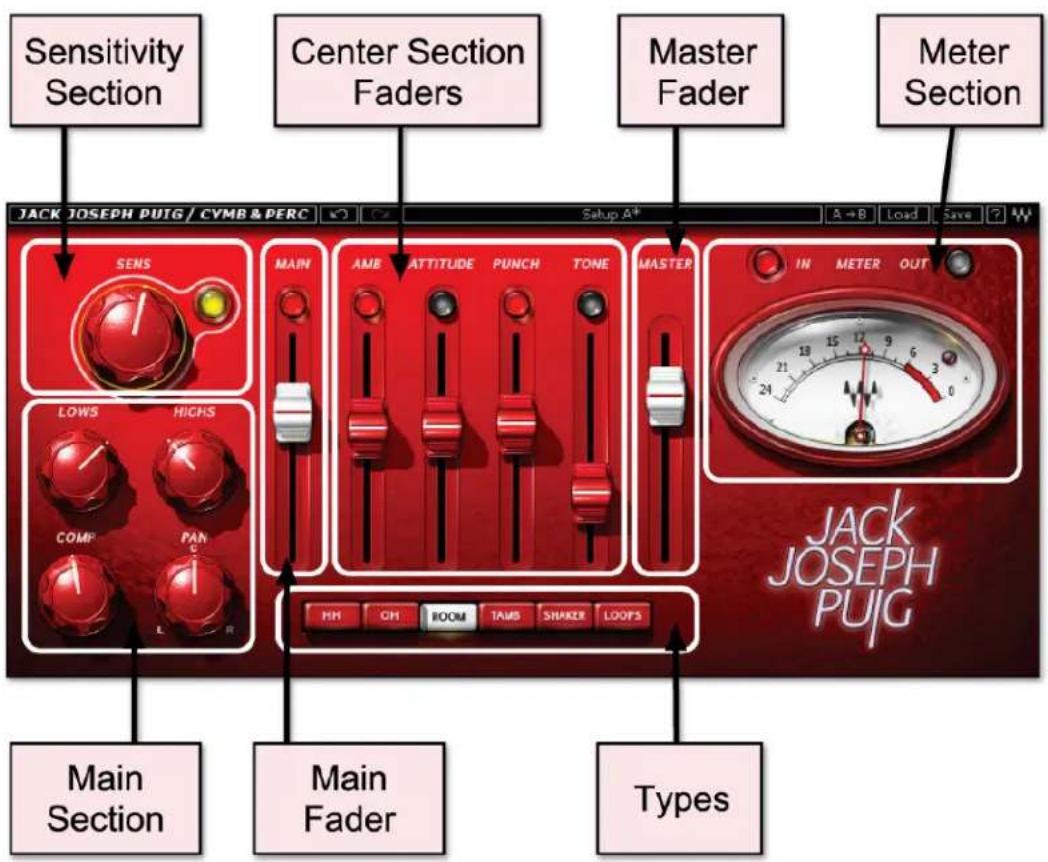
The JJP Cymbals & Percussion plug-in includes six Types to address a range of source materials: HH (Hi-hats), (OH) Overheads, Room, Tambourine, Shaker, and Loops.
Sensitivity Section
The Sensitivity LED's 3 colors indicate when appropriate levels are reached:
o LED Off (too low)
o Green (good)
○ Yellow (optimal)
- Red (very hot)
Turn the Sensitivity Control until the LED lights up. For best results, use the section of your track with the highest peaks.
Main Section
The Main Section gives you control over basic dynamics & EQ. All processing is influenced by this section. The JJP Cymbals & Percussion mono-to-stereo component includes a Pan control.
Main Fader
The Main Fader controls the Main Section direct level.
Center Section Faders
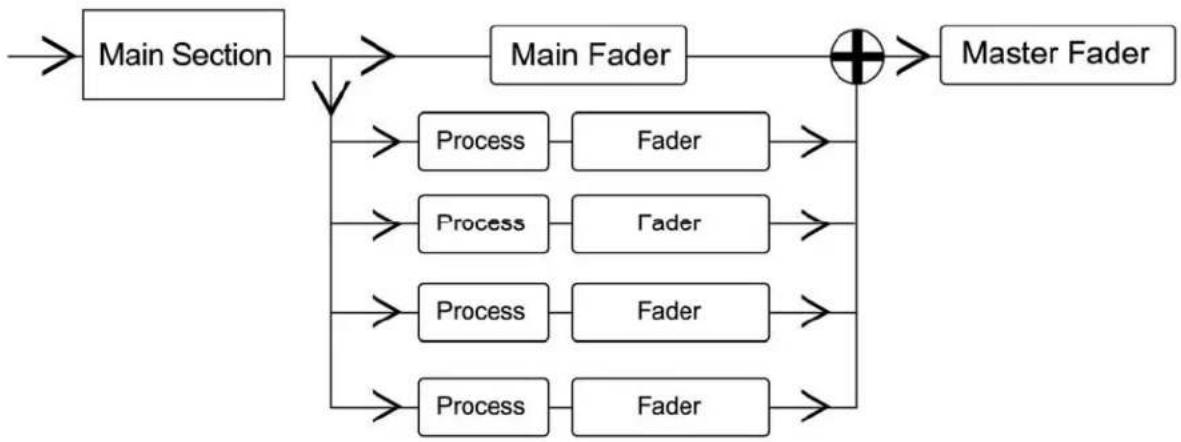
The Center Section faders represent auxiliary returns with additional processing, sent from the Main Section, pre-fader. Above each fader, there is a dedicated mute button. It may help to think of each plug-in as a mini-mixing console.
Please note: Certain faders may change, depending on the selected Type. This is intentional, and represents the actual processing JJP uses for that source or instrument.
Master Fader
The Master fader controls the master output signal level.
Meter Section
The Meter switch toggles meter monitoring between input and output modes. The Clip LED lights up when levels reach 0 dBFS; click to reset.
Signal Flow
flowchart
graph TD
    A["Main Section"] --> B["Process"]
    A --> C["Process"]
    A --> D["Process"]
    B --> E["Fader"]
    C --> F["Fader"]
    D --> G["Fader"]
    E --> H["⊕"]
    F --> H
    G --> H
    H --> I["Master Fader"]
WaveSystem Toolbar
Use the bar at the top of the plugin to save and load presets, compare settings, undo and redo steps, and resize the plugin. To learn more, click the icon at the upper-right corner of the window and open the WaveSystem Guide.